

Xerox® WorkCentre® 3655
Multifunction Printer
Xerox
®
ConnectKey® 1.5 Technology
User Guide

© 2014 Xerox Corporation. All rights reserved. Unpublished rights reserved under the copyright laws of the United States. Contents of
this publication may not be reproduced in any form without permission of Xerox Corporation.
Copyright protection claimed includes all forms of matters of copyrightable materials and information now allowed by statutory or
judicial law or hereinafter granted, including without limitation, material generated from the software programs which are displayed on
the screen such as styles, templates, icons, screen displays, looks, and so on.
®
Xerox
and Xerox and Design®, Phaser®, PhaserSMART®, PhaserMatch®, PhaserCal®, PhaserMeter™, CentreWare®, PagePack®, eClick®,
PrintingScout
Secure Access Unified ID System
®
, Walk-Up®, WorkCentre®, FreeFlow®, SMARTsend®, Scan to PC Desktop®, MeterAssistant®, SuppliesAssistant®, Xerox
®
, Xerox Extensible Interface Platform®, ColorQube®, Global Print Driver®, and Mobile Express Driver®
are trademarks of Xerox Corporation in the United States and/or other countries.
®
Reader®, Adobe® Type Manager®, ATM™, Flash®, Macromedia®, Photoshop®, and PostScript® are trademarks of
Adobe
Adobe Systems Incorporated in the United States and/or other countries.
Apple, Bonjour, EtherTalk, TrueType, iPad, iPhone, iPod, iPod touch, Mac and Mac OS are trademarks of Apple Inc., registered in the U.S.
and other countries. AirPrint and the AirPrint logo are trademarks of Apple Inc.
®
, HP-UX®, and PCL® are trademarks of Hewlett-Packard Corporation in the United States and/or other countries.
HP-GL
®
IBM
and AIX® are trademarks of International Business Machines Corporation in the United States and/or other countries.
Microsoft
®
, Windows Vista®, Windows®, and Windows Server® are trademarks of Microsoft Corporation in the United States and other
countries.
®
Novell
, NetWare®, NDPS®, NDS®, IPX™, and Novell Distributed Print Services™ are trademarks of Novell, Inc. in the United States and
other countries.
®
SGI
and IRIX® are trademarks of Silicon Graphics International Corp. or its subsidiaries in the United States and/or other countries.
Sun, Sun Microsystems, and Solaris are trademarks or registered trademarks of Oracle and/or its affiliates in the United States and
other countries.
®
McAfee
, ePolicy Orchestrator®, and McAfee ePO™ are trademarks or registered trademarks of McAfee, Inc. in the United States and
other countries.
®
UNIX
is a trademark in the United States and other countries, licensed exclusively through X/ Open Company Limited.
®
PANTONE
and other Pantone, Inc. trademarks are the property of Pantone, Inc.
Document version 1.0: September 2014
BR9441_en-us
Contents
1 Safety 11
Electrical Safety …………………………………………………………………………………………………………………………………………….. 12
General Guidelines ………………………………………………………………………………………………………………………………… 12
Power Cord ……………………………………………………………………………………………………………………………………………… 13
Emergency Turn Off ……………………………………………………………………………………………………………………………… 13
Laser Safety ……………………………………………………………………………………………………………………………………………. 13
Operational Safety ……………………………………………………………………………………………………………………………………….. 14
Operational Guidelines …………………………………………………………………………………………………………………………. 14
Ozone Release ………………………………………………………………………………………………………………………………………… 14
Printer Location ……………………………………………………………………………………………………………………………………… 14
Printer Supplies ………………………………………………………………………………………………………………………………………. 15
Maintenance Safety …………………………………………………………………………………………………………………………………….. 16
Printer Symbols ……………………………………………………………………………………………………………………………………………… 17
Environmental, Health, and Safety Contact Information ……………………………………………………………………. 18
2 Features 19
Parts of the Printer ……………………………………………………………………………………………………………………………………….. 20
Front View ……………………………………………………………………………………………………………………………………………….. 20
Rear View ………………………………………………………………………………………………………………………………………………… 21
Internal Parts ………………………………………………………………………………………………………………………………………….. 22
Control Panel ………………………………………………………………………………………………………………………………………….. 23
Power Saver Mode ………………………………………………………………………………………………………………………………………… 25
Setting the Power Saver Timer …………………………………………………………………………………………………………… 25
Exiting Power Saver Mode …………………………………………………………………………………………………………………… 25
Information Pages ……………………………………………………………………………………………………………………………………….. 26
Printing the Configuration Report ………………………………………………………………………………………………………
Administrative Features ………………………………………………………………………………………………………………………………. 27
CentreWare Internet Services …………………………………………………………………………………………………………….. 27
Finding the IP Address of the Printer ………………………………………………………………………………………………… 28
More Information …………………………………………………………………………………………………………………………………………. 29
26
3 Installation and Setup 31
Installation and Setup Overview ……………………………………………………………………………………………………………….. 32
Selecting a Location for the Printer ………………………………………………………………………………………………………….. 33
Connecting the Printer…………………………………………………………………………………………………………………………………. 34
Selecting a Connection Method …………………………………………………………………………………………………………. 34
Physically Connecting the Printer to the Network ………………………………………………………………………….. 35
Connecting to a Computer Using USB ……………………………………………………………………………………………… 36
Connecting to a Telephone Line ………………………………………………………………………………………………………… 36
Turning the Printer On and Off …………………………………………………………………………………………………………… 36
Xerox® WorkCentre® 3655 Multifunction Printer 3
User Guide

Contents
Configuring Network Settings ……………………………………………………………………………………………………………………. 38
About TCP/IP and IP Addresses …………………………………………………………………………………………………………. 38
Enabling the Printer for Scanning ……………………………………………………………………………………………………………… 39
Installing the Software ………………………………………………………………………………………………………………………………… 40
Operating System Requirements ……………………………………………………………………………………………………….. 40
Installing the Print Drivers for a Windows Network Printer ………………………………………………………….. 40
Installing the Print Drivers for a Windows USB Printer …………………………………………………………………. 41
Installing Print Drivers for Macintosh OS X Version 10.7 and Later …………………………………………… 42
Installing Scan Drivers for Macintosh ……………………………………………………………………………………………….. 43
Installing Drivers and Utilities for UNIX and Linux ………………………………………………………………………… 43
Other Drivers …………………………………………………………………………………………………………………………………………… 44
Installing the Printer as a Web Service on Devices ……………………………………………………………………………….. 45
4 Paper and Media 47
Supported Paper …………………………………………………………………………………………………………………………………………… 48
Recommended Media ………………………………………………………………………………………………………………………….. 48
Ordering Paper ……………………………………………………………………………………………………………………………………….. 48
General Paper Loading Guidelines …………………………………………………………………………………………………….. 48
Paper That Can Damage Your Printer ………………………………………………………………………………………………. 49
Paper Storage Guidelines …………………………………………………………………………………………………………………….. 49
Supported Paper Types and Weights ………………………………………………………………………………………………… 50
Supported Standard Paper Sizes ………………………………………………………………………………………………………… 50
Supported Paper Types and Weights for Automatic 2-Sided Printing ………………………………………. 51
Supported Standard Paper Sizes for Automatic 2-Sided Printing ……………………………………………….. 51
Supported Custom Paper Sizes …………………………………………………………………………………………………………… 51
Loading Paper ……………………………………………………………………………………………………………………………………………….. 52
Loading Paper in the Bypass Tray ………………………………………………………………………………………………………
Loading Small Paper Sizes in the Bypass Tray ………………………………………………………………………………… 54
Configuring Trays 1–4 for the Paper Length …………………………………………………………………………………… 57
Loading Paper in Trays 1–4 …………………………………………………………………………………………………………………. 58
Configuring Tray Behavior …………………………………………………………………………………………………………………… 60
Printing on Special Paper …………………………………………………………………………………………………………………………….. 62
Envelopes ………………………………………………………………………………………………………………………………………………… 62
Labels ……………………………………………………………………………………………………………………………………………………….. 65
52
5 Printing 67
Printing Overview ………………………………………………………………………………………………………………………………………….. 68
Selecting Printing Options …………………………………………………………………………………………………………………………… 69
Print Driver Help …………………………………………………………………………………………………………………………………….. 69
Windows Printing Options …………………………………………………………………………………………………………………… 70
Macintosh Printing Options …………………………………………………………………………………………………………………. 71
Linux Printing Options ………………………………………………………………………………………………………………………….. 72
Managing Jobs………………………………………………………………………………………………………………………………………………. 73
Managing Jobs at the Control Panel …………………………………………………………………………………………………. 73
Managing Secure and Held Print Jobs ………………………………………………………………………………………………. 74
Managing Jobs in CentreWare Internet Services …………………………………………………………………………… 75
4 Xerox® WorkCentre® 3655 Multifunction Printer
User Guide

Printing Features …………………………………………………………………………………………………………………………………………… 76
Printing on Both Sides of the Paper …………………………………………………………………………………………………… 76
Selecting Paper Options for Printing …………………………………………………………………………………………………. 77
Printing Multiple Pages to a Single Sheet ………………………………………………………………………………………… 77
Printing Booklets ……………………………………………………………………………………………………………………………………. 78
Print Quality ……………………………………………………………………………………………………………………………………………. 78
Lightness ………………………………………………………………………………………………………………………………………………….. 78
Contrast …………………………………………………………………………………………………………………………………………………… 79
Printing Cover Pages …………………………………………………………………………………………………………………………….. 79
Printing Insert Pages …………………………………………………………………………………………………………………………….. 79
Printing Exception Pages ……………………………………………………………………………………………………………………… 80
Scaling ……………………………………………………………………………………………………………………………………………………… 80
Printing Watermarks …………………………………………………………………………………………………………………………….. 81
Printing Mirror Images …………………………………………………………………………………………………………………………. 82
Creating and Saving Custom Sizes …………………………………………………………………………………………………….. 82
Selecting Job Completion Notification for Windows …………………………………………………………………….. 83
Printing Special Job Types ………………………………………………………………………………………………………………………….. 84
Secure Print …………………………………………………………………………………………………………………………………………….. 84
Sample Set ………………………………………………………………………………………………………………………………………………. 85
Delay Print ………………………………………………………………………………………………………………………………………………. 86
Saved Job ………………………………………………………………………………………………………………………………………………… 86
Held Print Jobs ………………………………………………………………………………………………………………………………………………. 89
Releasing Held Print Jobs …………………………………………………………………………………………………………………….. 89
Print From ………………………………………………………………………………………………………………………………………………………..
Printing from a USB Flash Drive …………………………………………………………………………………………………………. 90
Printing from Saved Jobs ……………………………………………………………………………………………………………………… 90
Printing from a Mailbox ……………………………………………………………………………………………………………………….. 91
Printing from CentreWare Internet Services ……………………………………………………………………………………. 92
Contents
90
6 Copying 93
Basic Copying ………………………………………………………………………………………………………………………………………………… 94
Document Glass …………………………………………………………………………………………………………………………………….. 94
Document Glass Guidelines …………………………………………………………………………………………………………………. 95
Document Feeder ………………………………………………………………………………………………………………………………….. 95
Duplex Automatic Document Feeder Guidelines ……………………………………………………………………………. 95
Copying an ID Card ………………………………………………………………………………………………………………………………. 96
Adjusting Copying Options …………………………………………………………………………………………………………………………. 97
Basic Settings …………………………………………………………………………………………………………………………………………. 98
Image-Quality Settings ………………………………………………………………………………………………………………………… 99
Output Adjustments ……………………………………………………………………………………………………………………………. 100
7 Scanning 103
Basic Scanning …………………………………………………………………………………………………………………………………………….. 104
Document Glass …………………………………………………………………………………………………………………………………… 105
Document Glass Guidelines ……………………………………………………………………………………………………………….. 105
Document Feeder ………………………………………………………………………………………………………………………………… 105
Xerox® WorkCentre® 3655 Multifunction Printer 5
User Guide

Contents
Duplex Automatic Document Feeder Guidelines ………………………………………………………………………….. 106
Scanning to a USB Flash Drive …………………………………………………………………………………………………………………. 107
Scanning to a Shared Folder on a Network Computer ……………………………………………………………………….. 108
Sharing a Folder on a Windows Computer …………………………………………………………………………………….. 108
Sharing a Folder Using Macintosh OS X Version 10.7 and Later ………………………………………………. 109
Adding a Folder as an Address Book Entry Using CentreWare Internet Services ………………….. 109
Scanning to a Folder on a Network Computer ………………………………………………………………………………. 110
Scanning to an Email Address ………………………………………………………………………………………………………………….. 111
Scanning to Web Services on Devices …………………………………………………………………………………………………….. 112
Scanning Images into an Application on a USB Connected Computer ………………………………………….. 113
Scanning an Image into an Application …………………………………………………………………………………………. 113
Scanning an Image Using Windows XP ………………………………………………………………………………………….. 113
Scanning an Image Using Windows Vista or Windows 7 …………………………………………………………… 114
Adjusting Scanning Settings …………………………………………………………………………………………………………………….. 115
Setting the Output Color ……………………………………………………………………………………………………………………. 115
Setting the Scan Resolution ………………………………………………………………………………………………………………. 116
Selecting 2-Sided Scanning ……………………………………………………………………………………………………………….. 116
Setting the File Format ………………………………………………………………………………………………………………………. 116
Making the Image Lighter or Darker ……………………………………………………………………………………………….. 116
Adjusting the Sharpness …………………………………………………………………………………………………………………….. 117
Adjusting the Contrast ……………………………………………………………………………………………………………………….. 117
Automatically Suppressing Background Variation ……………………………………………………………………….. 117
Specifying the Original Size ……………………………………………………………………………………………………………….. 117
Erasing Edges ……………………………………………………………………………………………………………………………………….. 118
8 Faxing 119
Configuring the Printer for Faxing ……………………………………………………………………………………………………………
Document Glass …………………………………………………………………………………………………………………………………… 120
Document Glass Guidelines ……………………………………………………………………………………………………………….. 120
Document Feeder ………………………………………………………………………………………………………………………………… 121
Duplex Automatic Document Feeder Guidelines ………………………………………………………………………….. 121
Basic Faxing …………………………………………………………………………………………………………………………………………………. 122
Sending an Embedded Fax ……………………………………………………………………………………………………………………….. 123
Selecting Fax Options ………………………………………………………………………………………………………………………………… 125
Adjusting Brightness and Sharpness ……………………………………………………………………………………………….. 125
Automatically Suppressing Background Variation ……………………………………………………………………….. 126
Adjusting the Contrast ……………………………………………………………………………………………………………………….. 126
Specifying the Size of the Original …………………………………………………………………………………………………… 126
Selecting Reducing or Splitting …………………………………………………………………………………………………………. 127
Setting Up Book Faxing ……………………………………………………………………………………………………………………… 127
Printing a Confirmation Report ………………………………………………………………………………………………………… 127
Selecting the Starting Rate ……………………………………………………………………………………………………………….. 128
Sending a Delayed Fax ………………………………………………………………………………………………………………………. 128
Sending Header Text…………………………………………………………………………………………………………………………… 128
Sending a Fax to a Remote Mailbox ……………………………………………………………………………………………….. 129
Storing a Fax in a Local Mailbox ………………………………………………………………………………………………………. 129
120
6 Xerox® WorkCentre® 3655 Multifunction Printer
User Guide

Contents
Printing Local Mailbox Documents ………………………………………………………………………………………………….. 129
Deleting Local Mailbox Documents …………………………………………………………………………………………………. 130
Storing a Fax for Local or Remote Polling ………………………………………………………………………………………. 130
Printing or Deleting Stored Faxes …………………………………………………………………………………………………….. 131
Polling a Remote Fax ………………………………………………………………………………………………………………………….. 131
Building a Fax Job ……………………………………………………………………………………………………………………………….. 132
Sending a Server Fax ………………………………………………………………………………………………………………………………….. 133
Selecting Server Fax Options …………………………………………………………………………………………………………….. 134
Sending an Internet Fax ……………………………………………………………………………………………………………………………. 137
Selecting Internet Fax Options …………………………………………………………………………………………………………. 139
Sending a LAN Fax ……………………………………………………………………………………………………………………………………… 143
Using the Address Book …………………………………………………………………………………………………………………………….. 144
Adding an Individual Entry to the Device Address Book …………………………………………………………….. 144
Editing or Deleting Favorites in the Device Address Book ………………………………………………………….. 145
9 Maintenance 147
Cleaning the Printer ……………………………………………………………………………………………………………………………………. 148
General Precautions …………………………………………………………………………………………………………………………….. 148
Cleaning the Exterior …………………………………………………………………………………………………………………………… 149
Cleaning the Scanner ………………………………………………………………………………………………………………………….. 149
Cleaning the Interior …………………………………………………………………………………………………………………………… 151
Ordering Supplies ………………………………………………………………………………………………………………………………………… 152
Consumables ………………………………………………………………………………………………………………………………………… 152
Routine Maintenance Items ……………………………………………………………………………………………………………… 152
When to Order Supplies ……………………………………………………………………………………………………………………… 153
Viewing Printer Supply Status …………………………………………………………………………………………………………… 153
Toner Cartridges ………………………………………………………………………………………………………………………………….. 154
Recycling Supplies ……………………………………………………………………………………………………………………………….. 155
Managing the Printer …………………………………………………………………………………………………………………………………. 156
Adjusting the Altitude…………………………………………………………………………………………………………………………. 156
Moving the Printer ……………………………………………………………………………………………………………………………….. 157
10 Troubleshooting 159
General Troubleshooting …………………………………………………………………………………………………………………………… 160
Printer Includes Power Switch and Power Button …………………………………………………………………………. 160
Restarting the Printer ………………………………………………………………………………………………………………………….. 160
Printer Fails to Power On ……………………………………………………………………………………………………………………. 161
Printer Resets or Turns Off Frequently …………………………………………………………………………………………….. 161
Document Prints From Wrong Tray …………………………………………………………………………………………………. 161
Automatic 2-Sided Printing Problems ……………………………………………………………………………………………… 162
Paper Tray Fails to Close ……………………………………………………………………………………………………………………. 162
Printing Takes Too Long …………………………………………………………………………………………………………………….. 162
Printer Fails to Print …………………………………………………………………………………………………………………………….. 163
Printer Makes Unusual Noises …………………………………………………………………………………………………………… 163
Condensation Has Formed Inside the Printer ……………………………………………………………………………….. 164
Paper Jams …………………………………………………………………………………………………………………………………………………… 165
Xerox® WorkCentre® 3655 Multifunction Printer 7
User Guide

Contents
Locating Paper Jams …………………………………………………………………………………………………………………………… 165
Minimizing Paper Jams ………………………………………………………………………………………………………………………. 166
Clearing Paper Jams ……………………………………………………………………………………………………………………………. 167
Troubleshooting Paper Jams …………………………………………………………………………………………………………….. 177
Print-Quality Problems ………………………………………………………………………………………………………………………… 179
Copy and Scan Problems ……………………………………………………………………………………………………………………. 184
Fax Problems ………………………………………………………………………………………………………………………………………… 185
Getting Help …………………………………………………………………………………………………………………………………………………. 187
Control Panel Messages ……………………………………………………………………………………………………………………… 187
Using the Integrated Troubleshooting Tools ………………………………………………………………………………… 188
Online Support Assistant ……………………………………………………………………………………………………………………. 188
Remote Services …………………………………………………………………………………………………………………………………… 188
Information Pages ………………………………………………………………………………………………………………………………. 189
More Information ………………………………………………………………………………………………………………………………… 189
A Specifications 191
Printer Configurations and Options ………………………………………………………………………………………………………… 192
Available Configurations ……………………………………………………………………………………………………………………. 192
Standard Features ……………………………………………………………………………………………………………………………….. 192
Options and Upgrades ……………………………………………………………………………………………………………………….. 193
Physical Specifications……………………………………………………………………………………………………………………………….. 194
Weights and Dimensions ……………………………………………………………………………………………………………………. 194
Physical Specifications for Standard Configuration …………………………………………………………………….. 194
Physical Specifications for Standard Configuration with Optional 550-Sheet Feeder …………. 195
Clearance Requirements for Standard Configuration …………………………………………………………………. 195
Clearance Requirements with Optional 550-Sheet Feeder …………………………………………………………
Environmental Specifications …………………………………………………………………………………………………………………… 197
Temperature …………………………………………………………………………………………………………………………………………. 197
Relative Humidity ………………………………………………………………………………………………………………………………… 197
Elevation ………………………………………………………………………………………………………………………………………………… 197
Electrical Specifications ……………………………………………………………………………………………………………………………… 198
Power Supply Voltage and Frequency …………………………………………………………………………………………….. 198
Power Consumption ……………………………………………………………………………………………………………………………. 198
ENERGY STAR Qualified Product ……………………………………………………………………………………………………… 198
Performance Specifications ………………………………………………………………………………………………………………………. 199
Print Speed ……………………………………………………………………………………………………………………………………………. 199
196
B Regulatory Information 201
Basic Regulations ………………………………………………………………………………………………………………………………………… 202
United States FCC Regulations …………………………………………………………………………………………………………. 202
Canada …………………………………………………………………………………………………………………………………………………… 202
European Union …………………………………………………………………………………………………………………………………… 203
European Union Lot 4 Imaging Equipment Agreement Environmental Information ………….. 203
Germany ………………………………………………………………………………………………………………………………………………… 205
Turkey RoHS Regulation …………………………………………………………………………………………………………………….. 206
Regulatory Information for 2.4 GHz Wireless Network Adapter ……………………………………………….. 206
8 Xerox® WorkCentre® 3655 Multifunction Printer
User Guide

Contents
Copy Regulations ………………………………………………………………………………………………………………………………………… 207
United States ………………………………………………………………………………………………………………………………………… 207
Canada …………………………………………………………………………………………………………………………………………………… 208
Other Countries ……………………………………………………………………………………………………………………………………. 209
Fax Regulations …………………………………………………………………………………………………………………………………………… 210
United States ………………………………………………………………………………………………………………………………………… 210
Canada …………………………………………………………………………………………………………………………………………………… 212
European Union …………………………………………………………………………………………………………………………………… 212
South Africa ………………………………………………………………………………………………………………………………………….. 212
New Zealand …………………………………………………………………………………………………………………………………………. 213
Material Safety Data Sheets…………………………………………………………………………………………………………………….. 214
C Recycling and Disposal 215
All Countries …………………………………………………………………………………………………………………………………………………. 216
North America ……………………………………………………………………………………………………………………………………………… 217
European Union …………………………………………………………………………………………………………………………………………… 218
Domestic/Household Environment ………………………………………………………………………………………………….. 218
Professional/Business Environment …………………………………………………………………………………………………. 218
Collection and Disposal of Equipment and Batteries …………………………………………………………………… 219
Battery Symbol Note …………………………………………………………………………………………………………………………… 219
Battery Removal …………………………………………………………………………………………………………………………………… 219
Other Countries……………………………………………………………………………………………………………………………………………. 220
Xerox® WorkCentre® 3655 Multifunction Printer 9
User Guide


Safety
This chapter includes:
• Electrical Safety ……………………………………………………………………………………………………………………………………………….. 12
• Operational Safety ………………………………………………………………………………………………………………………………………….. 14
• Maintenance Safety ……………………………………………………………………………………………………………………………………….. 16
• Printer Symbols ………………………………………………………………………………………………………………………………………………… 17
• Environmental, Health, and Safety Contact Information ………………………………………………………………………. 18
Your printer and the recommended supplies have been designed and tested to meet strict safety
requirements. Attention to the following information ensures the continued safe operation of your Xerox
printer.
Xerox® WorkCentre® 3655 Multifunction Printer 11
User Guide

Safety
Electrical Safety
This section includes:
• General Guidelines ………………………………………………………………………………………………………………………………………….. 12
• Power Cord ………………………………………………………………………………………………………………………………………………………… 13
• Emergency Turn Off ………………………………………………………………………………………………………………………………………… 13
• Laser Safety ………………………………………………………………………………………………………………………………………………………. 13
General Guidelines
WARNINGS:
• Do not push objects into slots or openings on the printer. Touching a voltage point or shorting
out a part could result in fire or electric shock.
• Do not remove the covers or guards that are fastened with screws unless you are installing
optional equipment and are instructed to do so. Turn off the printer when performing these
installations. Disconnect the power cord when removing covers and guards for installing optional
equipment. Except for user-installable options, there are no parts that you can maintain or
service behind these covers.
The following are hazards to your safety:
• The power cord is damaged or frayed.
• Liquid is spilled into the printer.
• The printer is exposed to water.
• The printer emits smoke, or the surface is unusually hot.
• The printer emits unusual noise or odors.
• The printer causes a circuit breaker, fuse, or other safety device to activate.
If any of these conditions occur, do the following:
1. Turn off the printer immediately.
2. Disconnect the power cord from the electrical outlet.
3. Call an authorized service representative.
12 Xerox® WorkCentre® 3655 Multifunction Printer
User Guide

Safety
Power Cord
• Use the power cord supplied with your printer.
• Plug the power cord directly into a properly grounded electrical outlet. Ensure that each end of the
cord is connected securely. If you do not know if an outlet is grounded, ask an electrician to check
the outlet.
• Do not use a ground adapter plug to connect the printer to an electrical outlet that does not have a
ground connection terminal.
WARNING: Avoid the potential of electrical shock by ensuring that the printer is grounded properly.
Electrical products can be hazardous if misused.
• Only use an extension cord or power strip designed to handle the electrical current capacity of the
printer.
• Verify that the printer is plugged into an outlet that is providing the correct voltage and power.
Review the electrical specification of the printer with an electrician if necessary.
• Do not place the printer in an area where people can step on the power cord.
• Do not place objects on the power cord.
• Do not plug or unplug the power cord while the power switch is in the On position.
• If the power cord becomes frayed or worn, replace it.
• To avoid electrical shock and damage to the cord, grasp the plug when unplugging the power cord.
The power cord is attached to the printer as a plug-in device on the back of the printer. If it is necessary
to disconnect all electrical power from the printer, disconnect the power cord from the electrical outlet.
Emergency Turn Off
If any of the following conditions occur, turn off the printer immediately and disconnect the power cord
from the electrical outlet. Contact an authorized Xerox service representative to correct the problem if:
• The equipment emits unusual odors or makes unusual noises.
• The power cable is damaged or frayed.
• A wall panel circuit breaker, fuse, or other safety device has been tripped.
• Liquid is spilled into the printer.
• The printer is exposed to water.
• Any part of the printer is damaged.
Laser Safety
This printer complies with laser product performance standards set by governmental, national, and
international agencies and is certified as a Class 1 Laser Product. The printer does not emit hazardous
light because the beam is totally enclosed during all modes of customer operation and maintenance.
WARNING: Use of controls, adjustments, or performance of procedures other than those specified in
this manual can result in hazardous radiation exposure.
Xerox® WorkCentre® 3655 Multifunction Printer 13
User Guide

Safety
Operational Safety
Your printer and supplies were designed and tested to meet strict safety requirements. These include
safety agency examination, approval, and compliance with established environmental standards.
Your attention to the following safety guidelines helps to ensure the continued, safe operation of your
printer.
Operational Guidelines
• Do not remove any paper trays while the printer is printing.
• Do not open the doors when the printer is printing.
• Do not move the printer when it is printing.
• Keep hands, hair, neckties, and so on, away from the exit and feed rollers.
• Covers, which require tools for removal, protect the hazard areas within the printer. Do not remove
the protective covers.
Ozone Release
This printer produces ozone during normal operation. The amount of ozone produced is dependent on
copy volume. Ozone is heavier than air and is not produced in amounts large enough to harm anyone.
Install the printer in a well-ventilated room.
For more information in the United States and Canada, go to www.xerox.com/environment. In other
markets, please contact your local Xerox representative or go to www.xerox.com/environment_europe.
Printer Location
• Place the printer on a level, solid, non-vibrating surface with adequate strength to hold its weight.
To find the weight for your printer configuration, see Physical Specifications on page 194.
• Do not block or cover the slots or openings on the printer. These openings are provided for
ventilation and to prevent overheating of the printer.
• Place the printer in an area where there is adequate space for operation and servicing.
• Place the printer in a dust-free area.
• Do not store or operate the printer in an extremely hot, cold, or humid environment.
• Do not place the printer near a heat source.
• Do not place the printer in direct sunlight to avoid exposure to light-sensitive components.
• Do not place the printer where it is directly exposed to the cold air flow from an air conditioning
system.
• Do not place the printer in locations susceptible to vibrations.
• For optimum performance, use the printer at the elevations specified in Elevation on page 197.
14 Xerox® WorkCentre® 3655 Multifunction Printer
User Guide

Safety
Printer Supplies
• Use the supplies designed for your printer. The use of unsuitable materials can cause poor
performance and a possible safety hazard.
• Follow all warnings and instructions marked on, or supplied with, the product, options, and supplies.
• Store all consumables in accordance with the instructions given on the package or container.
• Keep all consumables away from the reach of children.
• Never throw toner, print/drum cartridges, or toner containers into an open flame.
• When handling cartridges, for example toner and such, avoid skin or eye contact. Eye contact can
cause irritation and inflammation. Do not attempt to disassemble the cartridge, which can increase
the risk of skin or eye contact.
CAUTION: Use of non-Xerox supplies is not recommended. The Xerox Warranty, Service Agreement,
and Total Satisfaction Guarantee do not cover damage, malfunction, or degradation of performance
caused by use of non-Xerox supplies, or the use of Xerox supplies not specified for this printer. The
Total Satisfaction Guarantee is available in the United States and Canada. Coverage could vary
outside these areas. Please contact your Xerox representative for details.
Xerox® WorkCentre® 3655 Multifunction Printer 15
User Guide

Safety
Maintenance Safety
• Do not attempt any maintenance procedure that is not specifically described in the documentation
supplied with your printer.
• Do not use aerosol cleaners. Clean with a dry lint-free cloth only.
• Do not burn any consumables or routine maintenance items. For information on Xerox supplies
recycling programs, go to www.xerox.com/gwa.
16 Xerox® WorkCentre® 3655 Multifunction Printer
User Guide
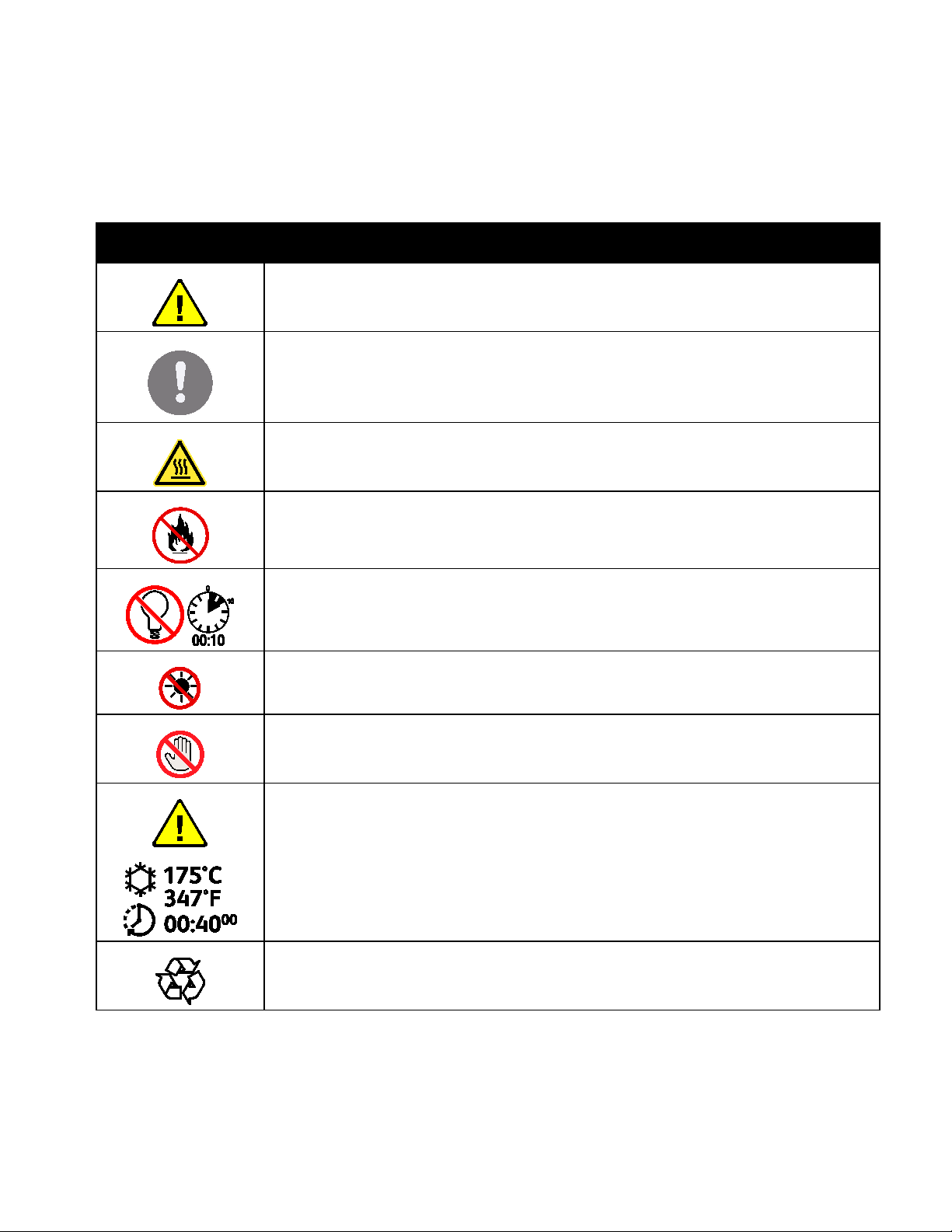
Printer Symbols
Symbol Description
Warning:
Indicates a hazard which, if not avoided, could result in death or serious injury.
Caution:
Indicates a mandatory action to take in order to avoid damage to the property.
Hot surface on or in the printer. Use caution to avoid personal injury.
Do not burn the item.
Safety
Do not expose the imaging unit to light for more than 10 minutes.
Do not expose the imaging unit to direct sunlight.
Do not touch the part or area of the printer.
Warning:
Wait for the printer to cool for the specified time before touching the fuser.
This item can be recycled. For details, see Recycling and Disposal on page 215.
Xerox® WorkCentre® 3655 Multifunction Printer 17
User Guide

Safety
Environmental, Health, and Safety Contact
Information
For more information on Environment, Health, and Safety in relation to this Xerox product and supplies,
contact the following customer help lines:
United States and Canada: 1-800-ASK-XEROX (1-800-275-9376)
Europe: +44 1707 353 434
For product safety information in the United States and Canada, go to www.xerox.com/environment.
For product safety information in Europe, go to www.xerox.com/environment_europe.
18 Xerox® WorkCentre® 3655 Multifunction Printer
User Guide

Features
This chapter includes:
• Parts of the Printer…………………………………………………………………………………………………………………………………………… 20
• Power Saver Mode …………………………………………………………………………………………………………………………………………… 25
• Information Pages ………………………………………………………………………………………………………………………………………….. 26
• Administrative Features …………………………………………………………………………………………………………………………………. 27
• More Information ……………………………………………………………………………………………………………………………………………. 29
Xerox® WorkCentre® 3655 Multifunction Printer 19
User Guide
Features
Parts of the Printer
This section includes:
• Front View …………………………………………………………………………………………………………………………………………………………. 20
• Rear View …………………………………………………………………………………………………………………………………………………………… 21
• Internal Parts ……………………………………………………………………………………………………………………………………………………. 22
• Control Panel…………………………………………………………………………………………………………………………………………………….. 23
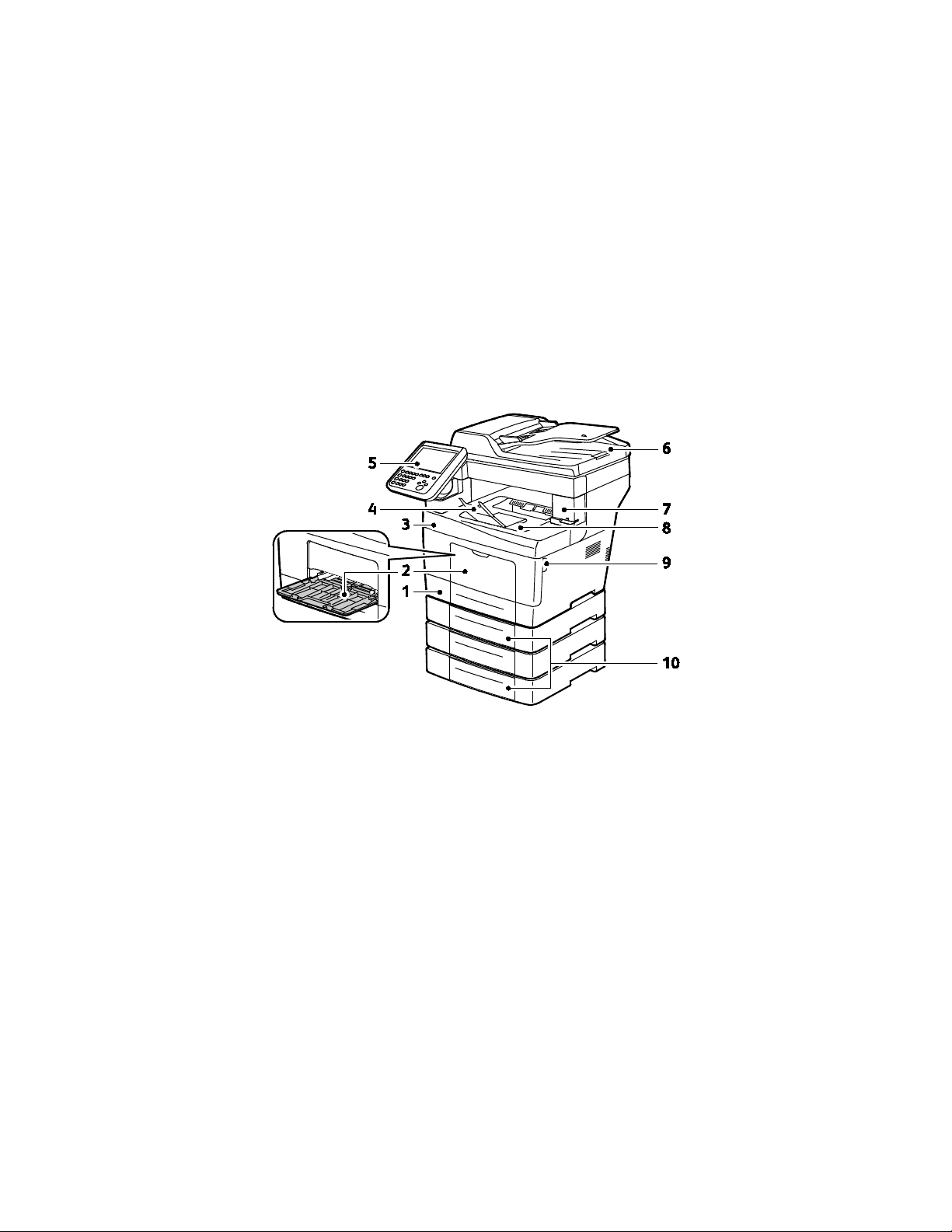
Front View
1. Tray 1
2. Bypass Tray
3. Front Door
4. Output Tray Paper Stop
5. Control Panel
20 Xerox® WorkCentre® 3655 Multifunction Printer
User Guide
6. Duplex Automatic Document Feeder
7. Staple Cartridge Door
8. Output Tray
9. Front Door Handle
10. Optional 550-Sheet Feeders (Trays 2–4)
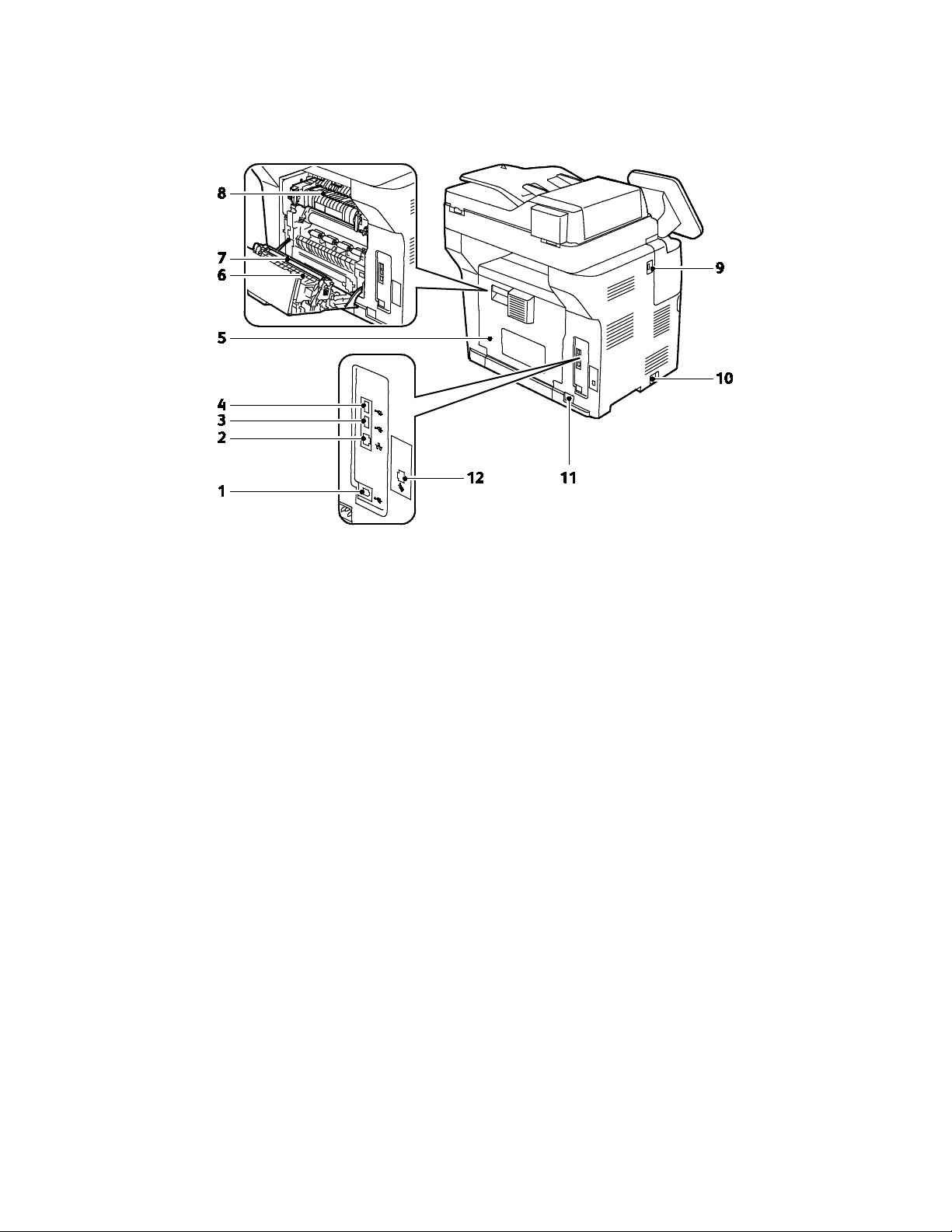
Rear View
Features
1. USB Type B Port
2. Ethernet Connector
3. USB Type A Port
4. USB Type A Port
5. Rear Door
6. Duplex Unit
7. Transfer Roller
8. Fuser
9. USB Type A Port
10. Power Switch
11. Power Connector
12. Fax Line Connector
X model only
Xerox® WorkCentre® 3655 Multifunction Printer 21
User Guide
Features
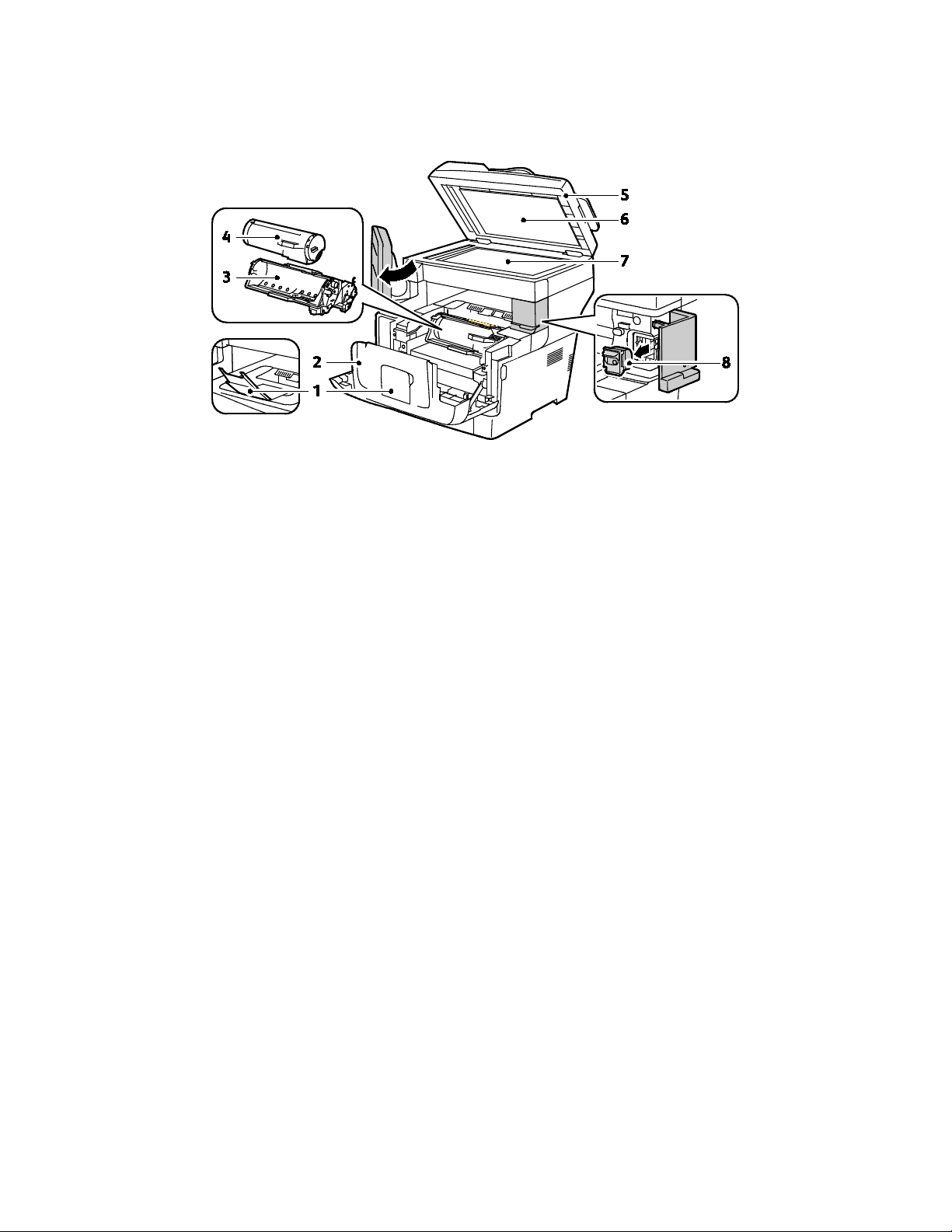
Internal Parts
1. Output Tray Paper Stop
2. Front Door
3. Smart Kit Drum Cartridge
4. Toner Cartridge
5. Duplex Automatic Document Feeder
6. Document Cover
7. Document Glass
8. Staple Cartridge
22 Xerox® WorkCentre® 3655 Multifunction Printer
User Guide
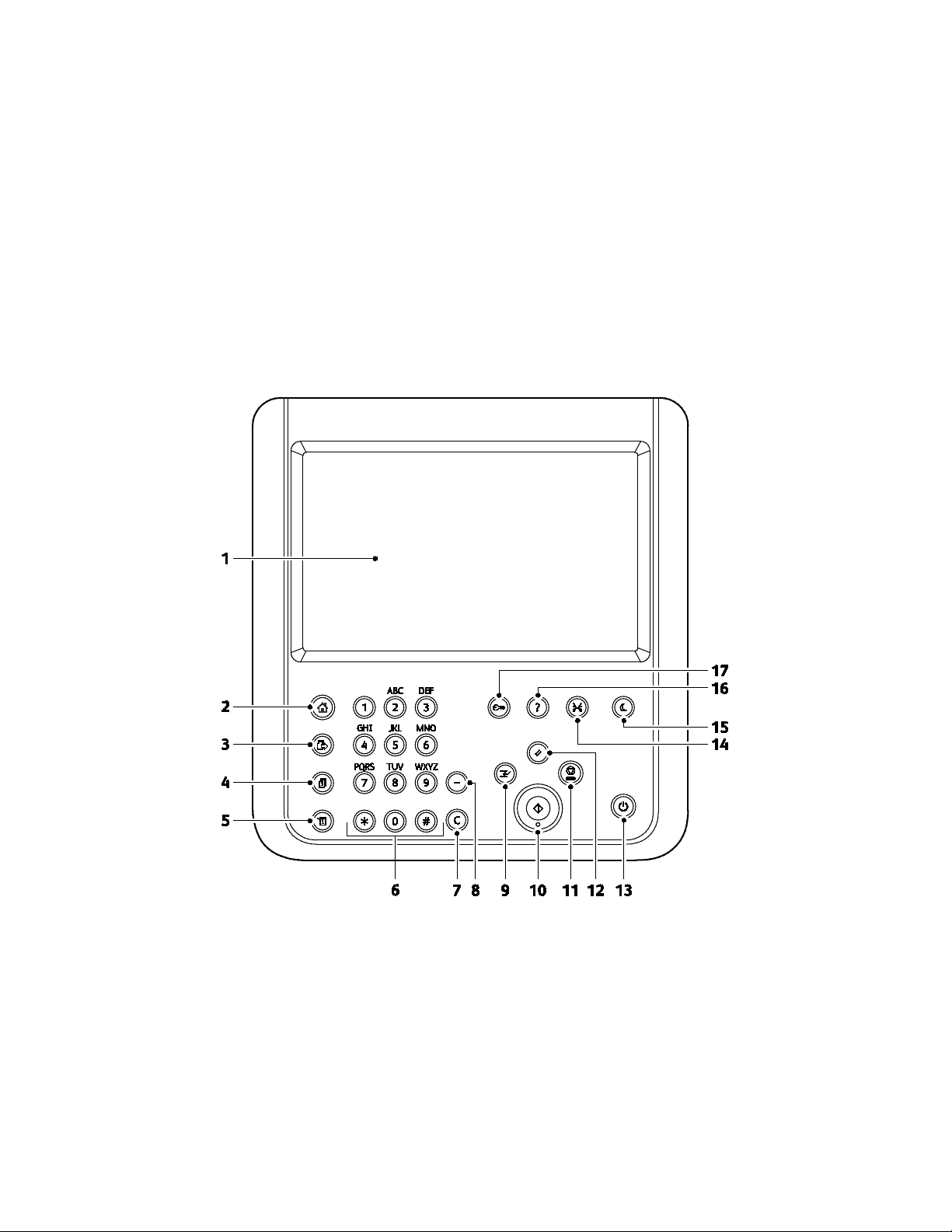
Features
Control Panel
The control panel consists of a touch screen and buttons you press to control the functions available on
the printer. The control panel:
• Displays the current operating status of the printer.
• Provides access to print features.
• Provides access to reference materials.
• Provides access to Tools and Setup menus.
• Provides access to Troubleshooting menus and videos.
• Prompts you to load paper, replace supplies, and clear jams.
• Displays errors and warnings.
Xerox® WorkCentre® 3655 Multifunction Printer 23
User Guide
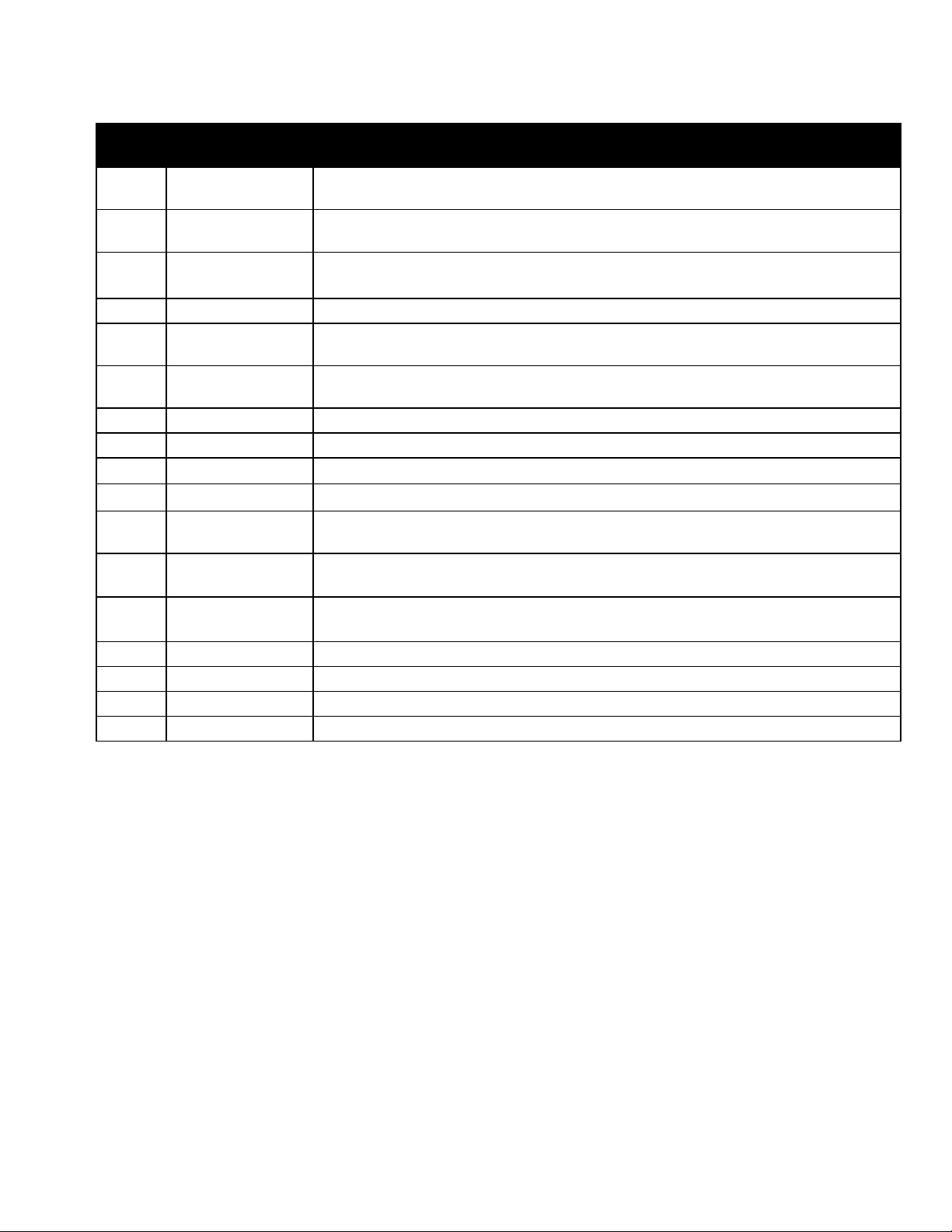
Features
Item
1
2
3 Services Button
Name Description
Touch Screen
Display
Services Home
Button
The screen displays information, and provides access to printer functions.
This button provides access to printer features, such as copy, scan, and fax, on the touch
screen.
This button returns to the active service from the Job Status or Machine Status screens,
or to a preset service.
4 Job Status Button This button displays lists of all active, secure, or completed jobs on the touch screen.
5
6
Machine Status
Button
Alphanumeric
Keypad
This button displays the status of the printer on the touch screen.
The keypad enters alphanumeric information.
7 C (clear) Button This button deletes numeric values or the last digit entered using the alphanumeric keys.
8 Dial Pause Button This button inserts a pause in a telephone number when it transmits a fax.
9 Interrupt Button This button pauses the current job to run a more urgent print, copy, or fax job.
10 Start Button This button starts the selected copy, scan, fax, or Print From job, such as Print from USB.
11 Stop Button
12 Clear All Button
This button stops the current job temporarily. To cancel or resume your job, follow the
onscreen instructions.
This button clears previous and changed settings for the current selection. To reset all
features to their default settings and clear existing scans, press this button twice.
13 Power Button This button powers up or powers down the printer.
14 Language Button This button changes the touch screen language and keyboard settings.
15 Power Saver button This button enters and exits the low-power mode.
16 Help Button This button displays information about the current selection on the touch screen.
17 Log In/Out Button This button provides access to password-protected features.
24 Xerox® WorkCentre® 3655 Multifunction Printer
User Guide

Features
Power Saver Mode
You can set the time the printer spends idle in ready mode before the printer transitions to a lower
power level.
Setting the Power Saver Timer
1. At the printer control panel, press the Machine Status button, then touch the Tools tab.
2. Touch General.
3. If needed, log in as administrator. For details, see the System Administrator Guide at
www.xerox.com/office/WC3655docs.
4. Touch Energy Saver.
5. Touch an option:
− Intelligent Ready causes the printer to wake and sleep based on previous usage patterns.
− Job Activated sets the printer to wake when it receives a job.
− Scheduled causes the printer to wake and sleep according to a schedule you specify.
6. If you selected Job Activated, to change the default low-power and sleep timeout periods, touch
Energy Saver Timers.
7. If you selected Scheduled, touch an option.
− Energy Saver Timers: This option changes the default low-power and sleep timeout periods.
− Scheduled Settings: This option selects the times that you want the printer to wake or sleep for
each day of the week.
8. Touch Save.
Exiting Power Saver Mode
The printer exits Power Saver mode automatically when it receives data from a connected device.
To exit Power Saver mode manually, on the control panel, press the Power Saver button.
Xerox® WorkCentre® 3655 Multifunction Printer 25
User Guide

Features
Information Pages
Your printer has a printable set of information pages stored on its internal hard drive. Information pages
include configuration and font information, demonstration pages, and more.
1. At the printer control panel, press the Machine Status button.
2. On the Machine Information tab, touch Information Pages, then touch the desired information
page.
3. Touch Print.
Note: Information pages can also be printed from CentreWare Internet Services.
Printing the Configuration Report
1. At the printer control panel, press the Machine Status button.
2. On the Machine Information tab, touch Information Pages>Configuration Report>Print.
3. Touch Close after the report prints.
26 Xerox® WorkCentre® 3655 Multifunction Printer
User Guide

Features
Administrative Features
CentreWare Internet Services
CentreWare Internet Services is the administration and configuration software installed on the
embedded Web server in the printer. It allows you to configure and administer the printer from a Web
browser.
CentreWare Internet Services requires:
• A TCP/IP connection between the printer and the network in Windows, Macintosh, UNIX, or Linux
environments.
• TCP/IP and HTTP enabled in the printer.
• A network-connected computer with a Web browser that supports JavaScript.
For details, see the Help in CentreWare Internet Services or the System Administrator Guide.
Accessing CentreWare Internet Services
At your computer, open a Web browser, in the address field, type the IP address of the printer, then press
Enter or Return.
Xerox® WorkCentre® 3655 Multifunction Printer 27
User Guide

Features
Finding the IP Address of the Printer
To install the print drivers for a network-connected printer, you need the IP address of your printer. You
also need the IP address to access the settings of your printer through CentreWare Internet Services.
You can view the IP address of your printer on the control panel or on the Configuration Report. On the
Configuration Report, IP address information is located in the Connectivity Protocols section.
To view the IP address of the printer on the control panel:
1. At the printer control panel, press the Machine Status button.
2. Touch the Machine Information tab.
− If the system administrator has set the Display Network Settings to show the IP address, it
appears in the center panel.
− If the IP address is not displayed, print the Configuration Report or contact your system
administrator.
To print a configuration report:
1. At the printer control panel, press the Machine Status button.
2. On the Machine Information tab, touch Information Pages>Configuration Report>Print.
3. Touch Close after the report prints.
Note: After the printer has been on for two minutes, print the Configuration Report. The TCP/IP
address appears in the Network section of the page. If the IP address listed on the page is 0.0.0.0,
the printer needs more time to acquire an IP address from the DHCP server. Wait two minutes, then
print the Configuration Report again.
28 Xerox® WorkCentre® 3655 Multifunction Printer
User Guide
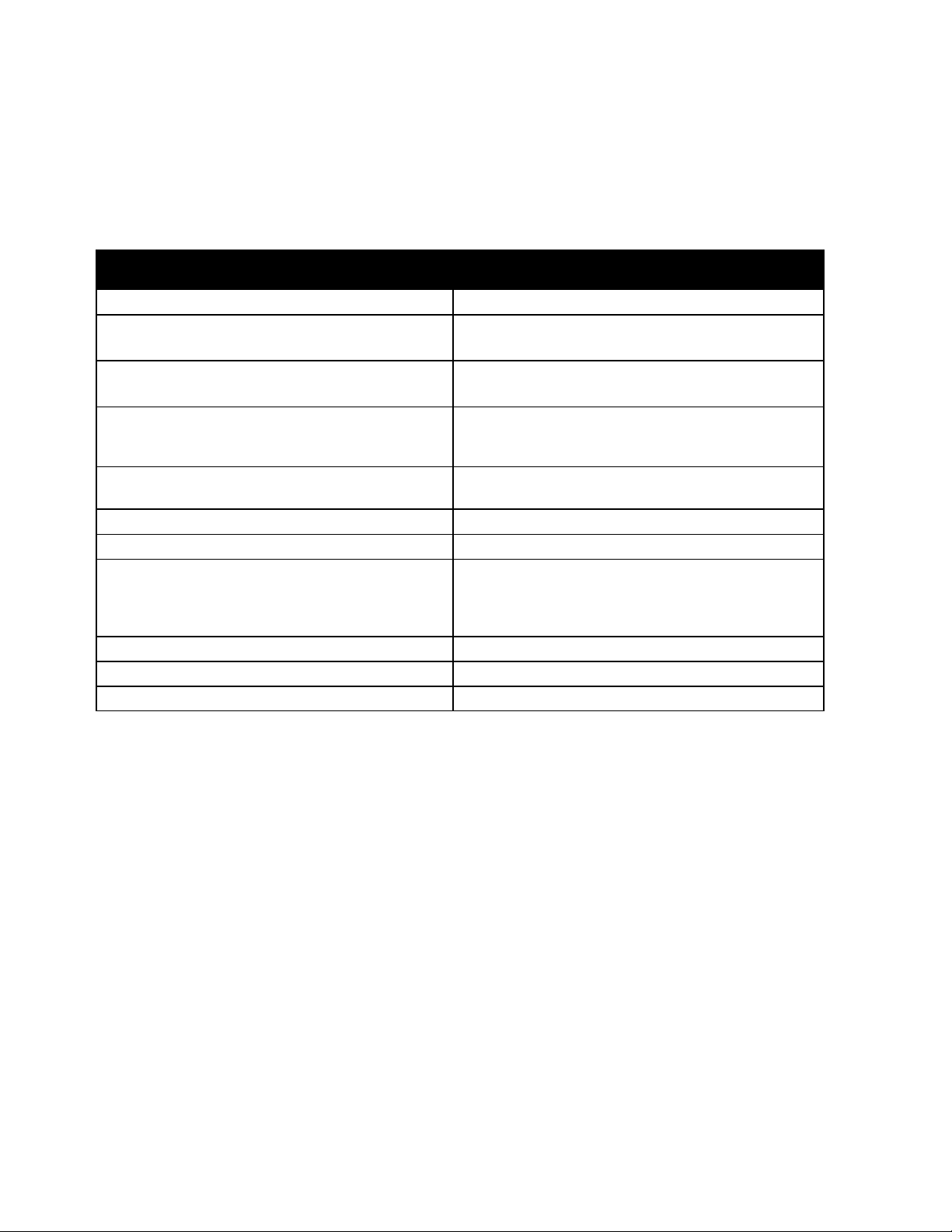
More Information
You can obtain more information about your printer from these sources:
Resource Location
Features
Installation Guide
Other documentation for your printer www.xerox.com/office/WC3655docs
Recommended Media List United States: www.xerox.com/paper
Technical support information for your printer;
including online technical support, Online Support
Assistant, and driver downloads.
Information Pages Print from the control panel, or from CentreWare
CentreWare Internet Services documentation
Order supplies for your printer www.xerox.com/office/WC3655supplies
A resource for tools and information, including
interactive tutorials, printing templates, helpful tips,
and customized features to meet your individual
needs.
Local sales and support center www.xerox.com/office/worldcontacts
Printer registration www.xerox.com/office/register
Xerox® Direct online store www.direct.xerox.com/
Packaged with the printer.
European Union: www.xerox.com/europaper
www.xerox.com/office/WC3655support
Internet Services, click Status>Information Pages.
In CentreWare Internet Services, click Help.
www.xerox.com/office/businessresourcecenter
Xerox® WorkCentre® 3655 Multifunction Printer 29
User Guide

Loading…
Скачать
Xerox
®
WorkCentre
®
3655
Multifunction Printer
Xerox
®
ConnectKey
®
1.5 Technology
User Guide
The Xerox WorkCentre 3655 Multifunction Printer Service Manual is part of a multinational service documentation system delivered in the standard Xerox EDOC service manual format. This manual is the primary document used for diagnosing, repairing, maintaining, and troubleshooting these systems. The Service Manual is the controlling publication for a service call. To ensure product understanding, complete the Xerox Service Training Program for this printer.
The machine will be identified in this manual by the model identifier Xerox WorkCentre 3655N/DN or 3655SN/DN.
When a procedure, parts list description or other reference is unique amongst different models of machine, the appropriate model designator is indicated. Any artwork is also specific.
This manual services all configurations of the machine. Ignore references to options not installed on the machine.
Хорошее руководство по эксплуатации
Законодательство обязывает продавца передать покупателю, вместе с товаром, руководство по эксплуатации Xerox WorkCentre 3655. Отсутствие инструкции либо неправильная информация, переданная потребителю, составляют основание для рекламации в связи с несоответствием устройства с договором. В законодательстве допускается предоставлении руководства в другой, чем бумажная форме, что, в последнее время, часто используется, предоставляя графическую или электронную форму инструкции Xerox WorkCentre 3655 или обучающее видео для пользователей. Условием остается четкая и понятная форма.
Что такое руководство?
Слово происходит от латинского «instructio», тоесть привести в порядок. Следовательно в инструкции Xerox WorkCentre 3655 можно найти описание этапов поведения. Цель инструкции заключается в облегчении запуска, использования оборудования либо выполнения определенной деятельности. Инструкция является набором информации о предмете/услуге, подсказкой.
К сожалению немного пользователей находит время для чтения инструкций Xerox WorkCentre 3655, и хорошая инструкция позволяет не только узнать ряд дополнительных функций приобретенного устройства, но и позволяет избежать возникновения большинства поломок.
Из чего должно состоять идеальное руководство по эксплуатации?
Прежде всего в инструкции Xerox WorkCentre 3655 должна находится:
— информация относительно технических данных устройства Xerox WorkCentre 3655
— название производителя и год производства оборудования Xerox WorkCentre 3655
— правила обслуживания, настройки и ухода за оборудованием Xerox WorkCentre 3655
— знаки безопасности и сертификаты, подтверждающие соответствие стандартам
Почему мы не читаем инструкций?
Как правило из-за нехватки времени и уверенности в отдельных функциональностях приобретенных устройств. К сожалению само подсоединение и запуск Xerox WorkCentre 3655 это слишком мало. Инструкция заключает ряд отдельных указаний, касающихся функциональности, принципов безопасности, способов ухода (даже то, какие средства стоит использовать), возможных поломок Xerox WorkCentre 3655 и способов решения проблем, возникающих во время использования. И наконец то, в инструкции можно найти адресные данные сайта Xerox, в случае отсутствия эффективности предлагаемых решений. Сейчас очень большой популярностью пользуются инструкции в форме интересных анимаций или видео материалов, которое лучше, чем брошюра воспринимаются пользователем. Такой вид инструкции позволяет пользователю просмотреть весь фильм, не пропуская спецификацию и сложные технические описания Xerox WorkCentre 3655, как это часто бывает в случае бумажной версии.
Почему стоит читать инструкции?
Прежде всего здесь мы найдем ответы касательно конструкции, возможностей устройства Xerox WorkCentre 3655, использования отдельных аксессуаров и ряд информации, позволяющей вполне использовать все функции и упрощения.
После удачной покупки оборудования/устройства стоит посвятить несколько минут для ознакомления с каждой частью инструкции Xerox WorkCentre 3655. Сейчас их старательно готовят или переводят, чтобы они были не только понятными для пользователя, но и чтобы выполняли свою основную информационно-поддерживающую функцию.