

Version 1.4.1
July 2020
702P05614
Xerox
®
VersaLink
User Guide
®
C7000 Color Printer

© 2020 Xerox Corporation. All rights reserved. Xerox®, Xerox and Design®, VersaLink®, SMARTsend®, Scan to PC
Desktop
Platform
®
, MeterAssistant®, SuppliesAssistant®, Xerox Secure Access Unified ID System®, Xerox Extensible Interface
®
, Global Print Driver®, and Mobile Express Driver®are trademarks of Xerox Corporation in the United States
and/or other countries.
®
Adobe
PostScript
Apple
Mac OS
Google Cloud Print
, Adobe PDF logo, Adobe®Reader®, Adobe®Type Manager®, ATM™, Flash®, Macromedia®, Photoshop®, and
®
are trademarks or registered trademarks of Adobe Systems, Inc.
®
, Bonjour®, EtherTalk™, TrueType®, iPad®, iPhone®, iPod®, iPod touch®, AirPrint®and the AirPrint Logo®, Mac®,
®
, and Macintosh®are trademarks or registered trademarks of Apple Inc. in the U.S. and other countries.
™
web printing service, Gmail™webmail service, and Android™mobile technology platform are
trademarks of Google, Inc.
®
HP-GL
, HP-UX®, and PCL®are registered trademarks of Hewlett-Packard Corporation in the United States and/or
other countries.
®
IBM
and AIX®are registered trademarks of International Business Machines Corporation in the United States and/or
other countries.
McAfee
®
, ePolicy Orchestrator®, and McAfee ePO™are trademarks or registered trademarks of McAfee, Inc. in the
United States and other countries.
Microsoft
®
, Windows Vista®, Windows®, Windows Server®, and OneDrive®are registered trademarks of Microsoft
Corporation in the United States and other countries.
Mopria is a trademark of the Mopria Alliance.
PANTONE
UNIX
Linux
Wi-Fi CERTIFIED Wi-Fi Direct
®
and other Pantone, Inc. trademarks are the property of Pantone, Inc.
®
is a trademark in the United States and other countries, licensed exclusively through X/ Open Company Limited.
®
is a registered trademark of Linus Torvalds.
®
is a trademark of the Wi-Fi Alliance.

Table of Contents
1 Safety …………………………………………………………………………………………………………………………9
Notices and Safety………………………………………………………………………………………………….. 10
Electrical Safety……………………………………………………………………………………………………… 11
General Guidelines …………………………………………………………………………………………….. 11
Power Cord ………………………………………………………………………………………………………. 11
Emergency Power Off…………………………………………………………………………………………. 12
Operational Safety………………………………………………………………………………………………….. 13
Operational Guidelines……………………………………………………………………………………….. 13
Ozone Release ………………………………………………………………………………………………….. 13
Printer Location ………………………………………………………………………………………………… 13
Printer Supplies …………………………………………………………………………………………………. 14
Maintenance Safety………………………………………………………………………………………………… 15
Printer Symbols ………………………………………………………………………………………………………. 16
Environmental, Health and Safety Contact Information ………………………………………………… 18
2 Getting Started…………………………………………………………………………………………………………19
Parts of the Printer………………………………………………………………………………………………….. 20
Front View ……………………………………………………………………………………………………….. 20
Internal Parts……………………………………………………………………………………………………. 21
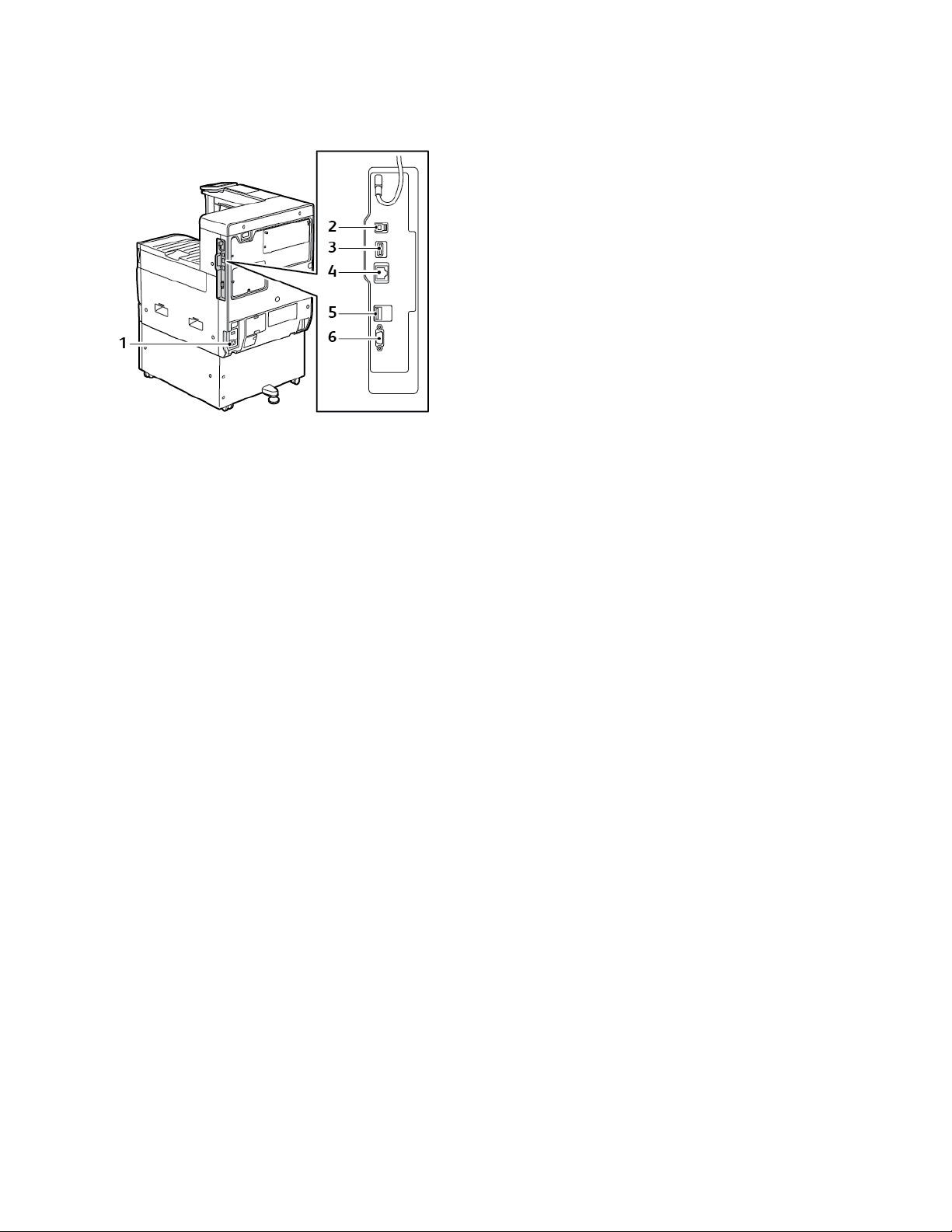
Rear View ………………………………………………………………………………………………………… 22
Finishing Options………………………………………………………………………………………………. 23
Control Panel ……………………………………………………………………………………………………. 25
Power Options………………………………………………………………………………………………………… 27
Powering On the Printer ……………………………………………………………………………………… 27
Powering Off the Printer……………………………………………………………………………………… 28
Entering and Exiting Sleep Mode and Low-Power Mode……………………………………………. 28
Power Saver ……………………………………………………………………………………………………… 28
Accessing the Printer……………………………………………………………………………………………….. 30
Logging In……………………………………………………………………………………………………….. 30
Convenience Authentication ……………………………………………………………………………….. 30
Smart Card ………………………………………………………………………………………………………. 30
Introduction to Apps……………………………………………………………………………………………….. 31
Information Pages ………………………………………………………………………………………………….. 32
Printing Information Pages …………………………………………………………………………………. 32
Configuration Report …………………………………………………………………………………………. 33
The Embedded Web Server ………………………………………………………………………………………. 34
Accessing the Embedded Web Server ……………………………………………………………………. 34
Finding the IP Address of Your Printer …………………………………………………………………… 34
Certificates for the Embedded Web Server …………………………………………………………….. 35
Downloading the Configuration Report from the Embedded Web Server …………………….. 35
Xerox®VersaLink®C7000 Color Printer
User Guide
3

Table of Contents
Using the Remote Control Panel Feature ……………………………………………………………….. 36
Installation and Setup …………………………………………………………………………………………….. 37
Installation and Setup Overview ………………………………………………………………………….. 37
Selecting a Location for the Printer ………………………………………………………………………. 37
Connecting the Printer …………………………………………………………………………………………….. 38
Selecting a Connection Method …………………………………………………………………………… 38
Connecting to a Computer Using USB…………………………………………………………………… 38
Connecting to a Wired Network …………………………………………………………………………… 39
Connecting to a Wireless Network………………………………………………………………………… 39
Initial Printer Setup……………………………………………………………………………………………. 45
Configuring AirPrint …………………………………………………………………………………………… 45
Configuring Google Cloud Print ……………………………………………………………………………. 46
Installing the Software ……………………………………………………………………………………………. 48
Operating System Requirements ………………………………………………………………………….. 48
Installing the Print Drivers for a Windows Network Printer………………………………………… 48
Installing the Print Drivers for a Windows USB Printer ……………………………………………… 49
Installing the Drivers and Utilities for Macintosh OS X……………………………………………… 49
Installing Drivers and Utilities for UNIX and Linux…………………………………………………… 49
Installing the Printer as a Web Service on Devices …………………………………………………… 50
More Information…………………………………………………………………………………………………… 51
3 Customize and Personalize ………………………………………………………………………………………53
Customize and Personalize Overview ………………………………………………………………………….. 54
Customizing or Personalizing the Home Screen ……………………………………………………………. 55
Hiding or Showing an App on the Home Screen ……………………………………………………… 55
Rearranging Apps on the Home Screen …………………………………………………………………. 55
Customizing or Personalizing the Apps ……………………………………………………………………….. 56
Customizing or Personalizing the Feature List…………………………………………………………. 56
Saving Presets…………………………………………………………………………………………………… 56
Removing App Customization using the Control Panel……………………………………………… 57
4 Xerox®Apps……………………………………………………………………………………………………………..59
Xerox®App Gallery …………………………………………………………………………………………………. 60
®
Xerox
Creating a Xerox
Logging into your Xerox
Installing or Updating an App from the Xerox
Logging out of your App Gallery Account ………………………………………………………………. 62
Device ………………………………………………………………………………………………………………….. 63
Device Overview………………………………………………………………………………………………… 63
About ……………………………………………………………………………………………………………… 64
Supply Status……………………………………………………………………………………………………. 64
Billing and Usage Counters …………………………………………………………………………………. 65
Reset to Factory Defaults ……………………………………………………………………………………. 66
Remote Services………………………………………………………………………………………………… 66
Jobs……………………………………………………………………………………………………………………… 67
App Gallery Overview ………………………………………………………………………………. 60
®
App Gallery Account…………………………………………………………………. 60
®
App Gallery Account……………………………………………………….. 61
®
App Gallery ……………………………………… 61
4
Xerox®VersaLink®C7000 Color Printer
User Guide

Table of Contents
Jobs Overview…………………………………………………………………………………………………… 67
Managing Jobs …………………………………………………………………………………………………. 67
Managing Special Job Types ……………………………………………………………………………….. 68
Managing Jobs Using the Embedded Web Server……………………………………………………. 71
USB ……………………………………………………………………………………………………………………… 73
USB Overview …………………………………………………………………………………………………… 73
Printing from a USB Flash Drive …………………………………………………………………………… 73
Printing from a USB Flash Drive Already Inserted in the Printer …………………………………. 74
@PrintByXerox……………………………………………………………………………………………………….. 75
@PrintByXerox Overview …………………………………………………………………………………….. 75
Printing with the @PrintByXerox App…………………………………………………………………….. 75
5 Printing……………………………………………………………………………………………………………………..77
Printing Overview ……………………………………………………………………………………………………. 78
Selecting Printing Options ………………………………………………………………………………………… 79
Print Driver Help………………………………………………………………………………………………… 79
Windows Printing Options …………………………………………………………………………………… 80
Macintosh Printing Options…………………………………………………………………………………. 82
UNIX and Linux Printing …………………………………………………………………………………….. 83
Mobile Printing Options ……………………………………………………………………………………… 85
Print Jobs ………………………………………………………………………………………………………………. 87
Managing Jobs …………………………………………………………………………………………………. 87
Printing Special Job Types…………………………………………………………………………………… 88
Printing Features…………………………………………………………………………………………………….. 92
Selecting Paper Options for Printing ……………………………………………………………………… 92
Printing on Both Sides of the Paper………………………………………………………………………. 92
Xerox Black and White ……………………………………………………………………………………….. 93
Print Quality……………………………………………………………………………………………………… 93
Image Options………………………………………………………………………………………………….. 93
Printing Multiple Pages to a Single Sheet ………………………………………………………………. 94
Printing Booklets ……………………………………………………………………………………………….. 95
Using Special Pages…………………………………………………………………………………………… 95
Printing Watermarks for Windows ………………………………………………………………………… 97
Orientation ………………………………………………………………………………………………………. 98
Advanced Tab …………………………………………………………………………………………………… 99
Using Custom Paper Sizes ………………………………………………………………………………………. 100
Printing on Custom Paper Sizes ………………………………………………………………………….. 100
Defining Custom Paper Sizes……………………………………………………………………………… 100
6 Paper and Media ………………………………………………………………………………………………….. 103
Paper and Media Overview……………………………………………………………………………………… 104
Supported Paper…………………………………………………………………………………………………… 105
Ordering Paper………………………………………………………………………………………………… 105
General Paper Loading Guidelines………………………………………………………………………. 105
Paper That Can Damage Your Printer………………………………………………………………….. 105
Paper Storage Guidelines ………………………………………………………………………………….. 106
Xerox®VersaLink®C7000 Color Printer
User Guide
5

Table of Contents
Supported Paper Types and Weights …………………………………………………………………… 106
Supported Standard Paper Sizes…………………………………………………………………………. 108
Supported Standard Paper Sizes for Automatic 2-Sided Printing ………………………………. 109
Supported Paper Types and Weights for Automatic 2-Sided Printing…………………………. 110
Supported Custom Paper Sizes …………………………………………………………………………… 110
Configuring Tray Settings……………………………………………………………………………………….. 111
Loading Paper………………………………………………………………………………………………………. 112
Loading Paper in Trays 1–4 ……………………………………………………………………………….. 112
Loading Paper in the Bypass Tray……………………………………………………………………….. 116
Printing on Special Paper ……………………………………………………………………………………….. 120
Envelopes ………………………………………………………………………………………………………. 120
Labels……………………………………………………………………………………………………………. 124
7 Maintenance ………………………………………………………………………………………………………… 129
General Precautions ………………………………………………………………………………………………. 130
Cleaning the Printer………………………………………………………………………………………………. 131
Cleaning the Exterior ……………………………………………………………………………………….. 131
Cleaning the Interior………………………………………………………………………………………… 131
Adjustments and Maintenance Procedures………………………………………………………………… 136
Color Registration ……………………………………………………………………………………………. 136
Color Calibration ……………………………………………………………………………………………… 136
Adjusting Paper Registration……………………………………………………………………………… 136
Adjusting the Altitude………………………………………………………………………………………. 139
Supplies ………………………………………………………………………………………………………………. 140
Consumables ………………………………………………………………………………………………….. 140
Ordering Supplies…………………………………………………………………………………………….. 140
Recycling Supplies……………………………………………………………………………………………. 141
Toner Cartridges ……………………………………………………………………………………………… 141
Routine Maintenance Items……………………………………………………………………………………. 142
Replacing the Drum Cartridge ……………………………………………………………………………. 142
Replacing Staple Cartridges in the Integrated Office Finishers…………………………………. 142
Managing the Printer…………………………………………………………………………………………….. 147
Viewing the Meter Reading……………………………………………………………………………….. 147
Printing the Billing Summary Report……………………………………………………………………. 147
Moving the Printer ………………………………………………………………………………………………… 148
8 Troubleshooting……………………………………………………………………………………………………. 149
General Troubleshooting………………………………………………………………………………………… 150
Printer Does Not Power On………………………………………………………………………………… 150
Printer Resets or Powers Off Frequently ……………………………………………………………….. 150
Printer Does Not Print ………………………………………………………………………………………. 151
Printing Takes Too Long ……………………………………………………………………………………. 152
Document Prints from Wrong Tray ……………………………………………………………………… 153
Automatic 2-Sided Printing Problems ………………………………………………………………….. 153
Printer is Making Unusual Noises ……………………………………………………………………….. 153
Paper Tray Will Not Close ………………………………………………………………………………….. 154
6
Xerox®VersaLink®C7000 Color Printer
User Guide

Table of Contents
Condensation has Formed Inside the Printer ………………………………………………………… 154
Paper Jams ………………………………………………………………………………………………………….. 155
Locating Paper Jams ………………………………………………………………………………………… 155
Minimizing Paper Jams …………………………………………………………………………………….. 155
Clearing Paper Jams ………………………………………………………………………………………… 157
Troubleshooting Paper Jams ……………………………………………………………………………… 164
Clearing Finisher Jams …………………………………………………………………………………………… 167
Clearing Jams in the Integrated Office Finisher 9NX ……………………………………………… 167
Clearing Paper Jams in the Integrated Office Finisher 2FA ……………………………………… 168
Clearing Staple Jams……………………………………………………………………………………………… 169
Clearing Staple Jams in the Integrated Office Finisher 9NX…………………………………….. 169
Clearing Staple Jams in the Integrated Office Finisher 2FA …………………………………….. 171
Print-Quality Problems……………………………………………………………………………………………. 173
Controlling Print Quality……………………………………………………………………………………. 173
Paper and Media……………………………………………………………………………………………… 173
Solving Print-Quality Problems …………………………………………………………………………… 174
Getting Help ………………………………………………………………………………………………………… 179
Viewing Warning Messages on the Control Panel ………………………………………………….. 179
Viewing Current Errors on the Control Panel…………………………………………………………. 179
Using the Integrated Troubleshooting Tools…………………………………………………………. 179
Online Support Assistant …………………………………………………………………………………… 179
More Information about Your Printer ………………………………………………………………….. 180
A Specifications………………………………………………………………………………………………………… 181
Printer Configurations and Options ………………………………………………………………………….. 182
Available Configurations …………………………………………………………………………………… 182
Configurations………………………………………………………………………………………………… 182
Features…………………………………………………………………………………………………………. 183
Options and Upgrades……………………………………………………………………………………… 184
Physical Specifications …………………………………………………………………………………………… 185
Weights and Dimensions…………………………………………………………………………………… 185
Total Space Requirements…………………………………………………………………………………. 187
Environmental Specifications ………………………………………………………………………………….. 190
Temperature …………………………………………………………………………………………………… 190
Relative Humidity ……………………………………………………………………………………………. 190
Elevation ……………………………………………………………………………………………………….. 190
Electrical Specifications………………………………………………………………………………………….. 191
Power Consumption …………………………………………………………………………………………. 191
Power Supply Voltage and Frequency………………………………………………………………….. 191
ENERGY STAR Qualified Product…………………………………………………………………………. 191
Recycling Supplies……………………………………………………………………………………………. 192
Performance Specifications …………………………………………………………………………………….. 193
Print Speed …………………………………………………………………………………………………….. 193
B Regulatory Information………………………………………………………………………………………… 195
Xerox®VersaLink®C7000 Color Printer
User Guide
7

Table of Contents
Basic Regulations………………………………………………………………………………………………….. 196
ENERGY STAR …………………………………………………………………………………………………. 196
Power Consumption and Activation Time…………………………………………………………….. 196
Default Power Saver Settings …………………………………………………………………………….. 197
Environmental Benefits of Duplex Printing …………………………………………………………… 197
Paper Types ……………………………………………………………………………………………………. 197
Regulatory Information for 2.4-GHz and 5-GHz Wireless Network Adapters ……………….. 197
United States FCC Regulations…………………………………………………………………………… 198
Canada………………………………………………………………………………………………………….. 198
Certifications in Europe…………………………………………………………………………………….. 199
European Union Lot 4 Imaging Equipment Agreement Environmental
Information……………………………………………………………………………………………………. 199
Eurasian Economic Community Certification………………………………………………………… 200
Germany………………………………………………………………………………………………………… 200
Turkey RoHS Regulation ……………………………………………………………………………………. 200
Safety Certification……………………………………………………………………………………………….. 201
Material Safety Data Sheets …………………………………………………………………………………… 202
C Recycling and Disposal …………………………………………………………………………………………. 203
All Countries ………………………………………………………………………………………………………… 204
North America ……………………………………………………………………………………………………… 205
European Union……………………………………………………………………………………………………. 206
Domestic/Household Environment ……………………………………………………………………… 206
Professional/Business Environment……………………………………………………………………… 206
Collection and Disposal of Equipment and Batteries………………………………………………. 207
Battery Symbol Note………………………………………………………………………………………… 207
Battery Removal ……………………………………………………………………………………………… 207
Other Countries…………………………………………………………………………………………………….. 208
8
Xerox®VersaLink®C7000 Color Printer
User Guide

1
Safety
This chapter contains:
• Notices and Safety……………………………………………………………………………………………………… 10
• Electrical Safety …………………………………………………………………………………………………………. 11
• Operational Safety……………………………………………………………………………………………………… 13
• Maintenance Safety……………………………………………………………………………………………………. 15
• Printer Symbols ………………………………………………………………………………………………………….. 16
• Environmental, Health and Safety Contact Information ……………………………………………………. 18
Your printer and the recommended supplies have been designed and tested to meet strict safety
requirements. Attention to the following information ensures the continued safe operation of your
Xerox printer.
Xerox®VersaLink®C7000 Color Printer
User Guide
9

Safety
Notices and Safety
Read the following instructions carefully before operating your printer. Refer to these instructions to
ensure the continued safe operation of your printer.
Your Xerox
include safety agency evaluation and certification, and compliance with electromagnetic regulations
and established environmental standards.
The safety and environment testing and performance of this product have been verified using Xerox
materials only.
®
printer and supplies are designed and tested to meet strict safety requirements. These
Note: Unauthorized alterations, which can include the addition of new functions or connection
of external devices, can affect the product certification. For more information, contact your
Xerox representative.
®
10
Xerox®VersaLink®C7000 Color Printer
User Guide

Electrical Safety
GGeenneerraall GGuuiiddeelliinneess
WARNING:
• Do not push objects into slots or openings on the printer. Touching a voltage point or
shorting out a part could result in fire or electric shock.
• Do not remove the covers or guards that are fastened with screws unless you are installing
optional equipment and are instructed to do so. Power off the printer when performing
these installations. Disconnect the power cord when removing covers and guards for
installing optional equipment. Except for user-installable options, there are no parts that
you can maintain or service behind these covers.
The following are hazards to your safety:
• The power cord is damaged or frayed.
• Liquid is spilled into the printer.
• The printer is exposed to water.
Safety
• The printer emits smoke, or the surface is unusually hot.
• The printer emits unusual noise or odors.
• The printer causes a circuit breaker, fuse, or other safety device to activate.
If any of these conditions occur, do the following:
1. Power off the printer immediately.
2. Disconnect the power cord from the electrical outlet.
3. Call an authorized service representative.
PPoowweerr CCoorrdd
Use the power cord supplied with your printer.
• Plug the power cord directly into a properly grounded electrical outlet. Ensure that each end of the
cord is connected securely. If you do not know if an outlet is grounded, ask an electrician to check
the outlet.
WARNING: To avoid risk of fire or electrical shock, do not use extension cords, power
strips, or power plugs for more than 90 days. When a permanent outlet receptacle
cannot be installed, use only one factory-assembled extension cord of the appropriate
gauge for each printer or multifunction printer. Always adhere to national and local
building, fire, and electrical codes regarding length of cord, conductor size, grounding,
and protection.
• Do not use a ground adapter plug to connect the printer to an electrical outlet that does not have
a ground connection terminal.
• Verify that the printer is plugged into an outlet that is providing the correct voltage and power.
Review the electrical specification of the printer with an electrician if necessary.
• Do not place the printer in an area where people can step on the power cord.
Xerox
®
VersaLink®C7000 Color Printer
User Guide
11

Safety
• Do not place objects on the power cord.
• Do not plug or unplug the power cord while the power switch is in the On position.
• If the power cord becomes frayed or worn, replace it.
• To avoid electrical shock and damage to the cord, grasp the plug when unplugging the power
cord.
The power cord is attached to the printer as a plug-in device on the back of the printer. If it is
necessary to disconnect all electrical power from the printer, disconnect the power cord from the
electrical outlet.
EEmmeerrggeennccyy PPoowweerr OOffff
If any of the following conditions occur, power off the printer immediately and disconnect the power
cord from the electrical outlet. Contact an authorized Xerox service representative to correct the
problem if:
• The equipment emits unusual odors or makes unusual noises.
• The power cable is damaged or frayed.
• A wall panel circuit breaker, fuse, or other safety device has been tripped.
• Liquid is spilled into the printer.
• The printer is exposed to water.
• Any part of the printer is damaged.
12
Xerox®VersaLink®C7000 Color Printer
User Guide

Safety
Operational Safety
Your printer and supplies were designed and tested to meet strict safety requirements. These include
safety agency examination, approval, and compliance with established environmental standards.
Your attention to the following safety guidelines helps to ensure the continued, safe operation of your
printer.
OOppeerraattiioonnaall GGuuiiddeelliinneess
• Do not remove any trays when the printer is printing.
• Do not open the doors when the printer is printing.
• Do not move the printer when it is printing.
• Keep hands, hair, neckties, and so on, away from the exit and feed rollers.
• Covers, which require tools for removal, protect the hazard areas within the printer. Do not remove
the protective covers.
• Do not override any electrical or mechanical interlock devices.
• Do not attempt to remove paper that is jammed deeply inside the printer. Switch off the printer
promptly and contact your local Xerox representative.
WARNING:
• The metallic surfaces in the fuser area are hot. Always use caution when removing paper
jams from this area and avoid touching any metallic surfaces.
• To avoid a tip hazard, do not push or move the device with all the paper trays extended.
OOzzoonnee RReelleeaassee
This printer produces ozone during normal operation. The amount of ozone produced is dependent on
copy volume. Ozone is heavier than air and is not produced in amounts large enough to harm anyone.
Install the printer in a well-ventilated room.
For more information in the United States and Canada, go to www.xerox.com/environment. In other
markets, please contact your local Xerox representative or go to www.xerox.com/environment_europe.
PPrriinntteerr LLooccaattiioonn
• Place the printer on a level, solid, non-vibrating surface with adequate strength to hold its weight.
To find the weight for your printer configuration, refer to Physical Specifications.
• Do not block or cover the slots or openings on the printer. These openings are provided for
ventilation and to prevent overheating of the printer.
• Place the printer in an area where there is adequate space for operation and servicing.
• Place the printer in a dust-free area.
• Do not store or operate the printer in an extremely hot, cold, or humid environment.
• Do not place the printer near a heat source.
• Do not place the printer in direct sunlight to avoid exposure to light-sensitive components.
®
Xerox
VersaLink®C7000 Color Printer
User Guide
13

Safety
• Do not place the printer where it is directly exposed to the cold air flow from an air conditioning
system.
• Do not place the printer in locations susceptible to vibrations.
• For optimum performance, use the printer at the elevations specified in Elevation.
PPrriinntteerr SSuupppplliieess
• Use the supplies designed for your printer. The use of unsuitable materials can cause poor
performance and a possible safety hazard.
• Follow all warnings and instructions marked on, or supplied with, the product, options, and
supplies.
• Store all consumables in accordance with the instructions given on the package or container.
• Keep all consumables away from the reach of children.
• Never throw toner, toner cartridges, drum cartridges, or waste cartridges into an open flame.
• When handling cartridges, for example toner and such, avoid skin or eye contact. Eye contact can
cause irritation and inflammation. Do not attempt to disassemble the cartridge, which can
increase the risk of skin or eye contact.
Caution: Use of non-Xerox supplies is not recommended. The Xerox Warranty, Service
Agreement, and Total Satisfaction Guarantee do not cover damage, malfunction, or
degradation of performance caused by use of non-Xerox supplies, or the use of Xerox supplies
not specified for this printer. The Total Satisfaction Guarantee is available in the United States
and Canada. Coverage could vary outside these areas. Please contact your Xerox representative
for details.
14
Xerox®VersaLink®C7000 Color Printer
User Guide

Safety
Maintenance Safety
• Do not attempt any maintenance procedure that is not specifically described in the
documentation supplied with your printer.
• Clean with a dry lint-free cloth only.
• Do not burn any consumables or routine maintenance items. For information on Xerox
recycling programs, go to www.xerox.com/gwa.
WARNING: Do not use aerosol cleaners. Aerosol cleaners can cause explosions or fires when
used on electromechanical equipment.
When installing the device in a hallway or similar restricted area, additional space requirements can
apply. Ensure that you comply with all workspace safety regulations, building codes, and fire codes for
your area.
®
supplies
Xerox
®
VersaLink®C7000 Color Printer
User Guide
15
Safety
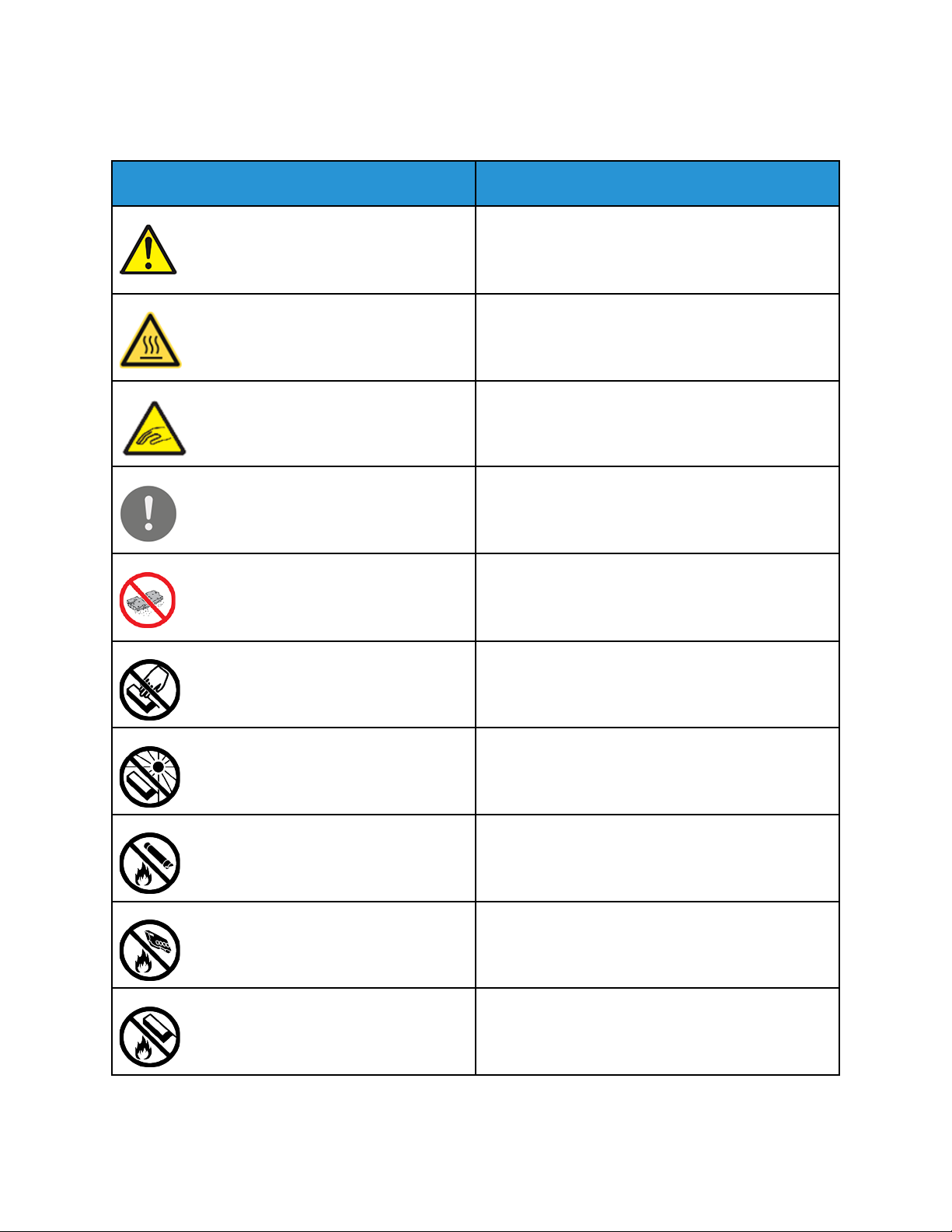
Printer Symbols
Symbol Description
Warning:
Indicates a serious hazard that can result in death or
serious injury if not avoided.
Hot Warning:
Hot surface on or in the printer. Use caution to avoid
personal injury.
Warning: Moving parts. To avoid personal injury, use
caution.
Caution:
Indicates a mandatory action to take in order to
avoid damage to the property.
Caution:
To avoid damage to the property, be careful not to
spill toner when handling the waste cartridge.
Do not touch the part or area of the printer.
Do not expose the drum cartridges to direct sunlight.
Do not burn the toner cartridges.
Do not burn the waste cartridge.
16
Do not burn the drum cartridges.
Xerox®VersaLink®C7000 Color Printer
User Guide
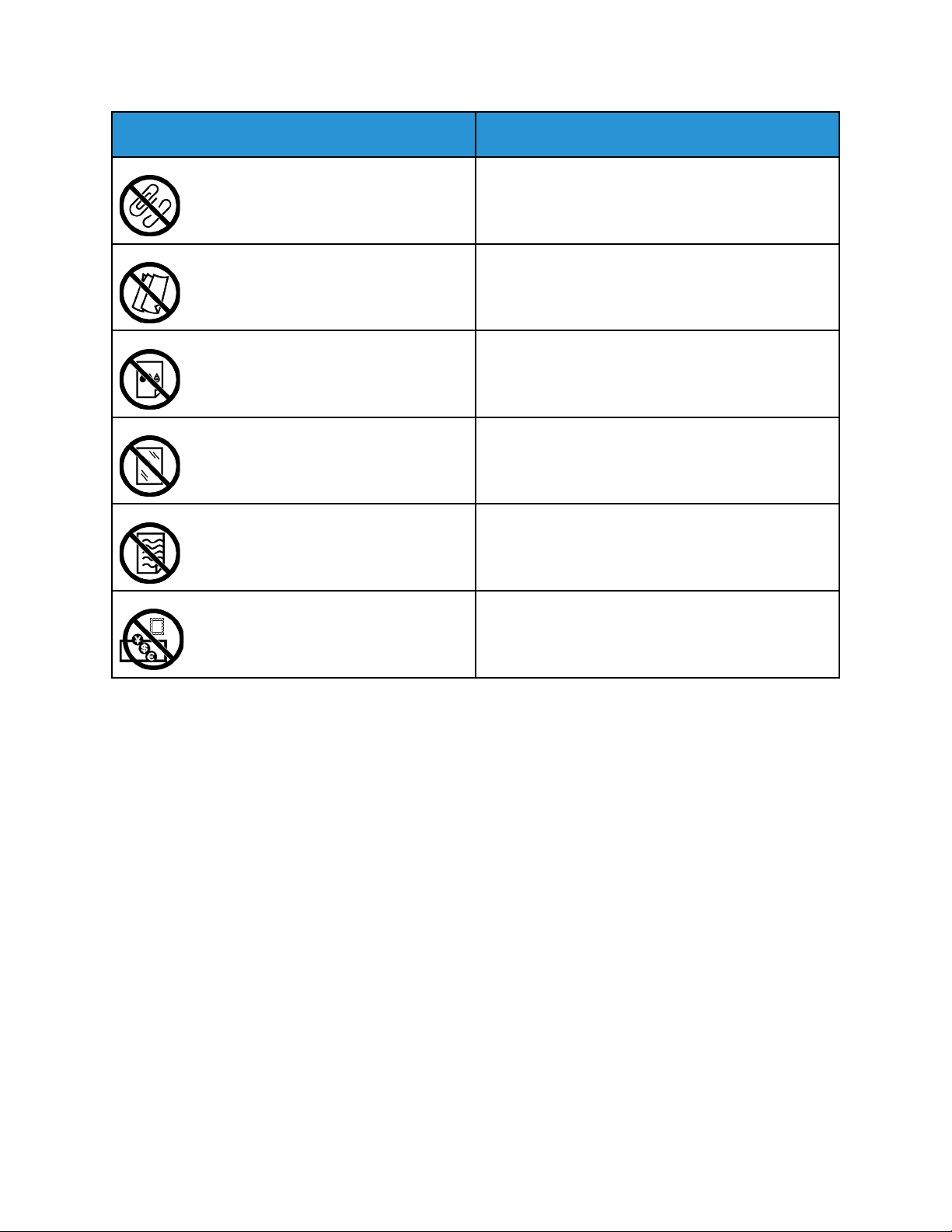
Symbol Description
Do not use paper attached with staples or any form
of binding clip.
Do not use folded, creased, curled, or wrinkled paper.
Do not use inkjet paper.
Do not use transparencies or overhead projector
sheets.
Safety
Do not reload paper previously printed on or used.
Do not copy money, revenue stamps, or postage
stamps.
For details about all the printer symbols that appear on your printer, refer to the Printer Symbols
guide at www.xerox.com/office/VLC7000docs.
Xerox
®
VersaLink®C7000 Color Printer
User Guide
17

Safety
Environmental, Health and Safety Contact
Information
For more information on Environment, Health, and Safety in relation to this Xerox product and
supplies, contact:
• United States and Canada: 1-800-ASK-XEROX (1-800-275-9376)
• Europe: EHS-Europe@xerox.com
For product safety information in the United States and Canada, go to www.xerox.com/environment.
For product safety information in Europe, go to www.xerox.com/environment_europe.
18
Xerox®VersaLink®C7000 Color Printer
User Guide

2
Getting Started
This chapter contains:
• Parts of the Printer ……………………………………………………………………………………………………… 20
• Power Options……………………………………………………………………………………………………………. 27
• Accessing the Printer…………………………………………………………………………………………………… 30
• Introduction to Apps…………………………………………………………………………………………………… 31
• Information Pages ……………………………………………………………………………………………………… 32
• The Embedded Web Server ………………………………………………………………………………………….. 34
• Installation and Setup ………………………………………………………………………………………………… 37
• Connecting the Printer ………………………………………………………………………………………………… 38
• Installing the Software………………………………………………………………………………………………… 48
• More Information ………………………………………………………………………………………………………. 51
Xerox®VersaLink®C7000 Color Printer
User Guide
19
Getting Started
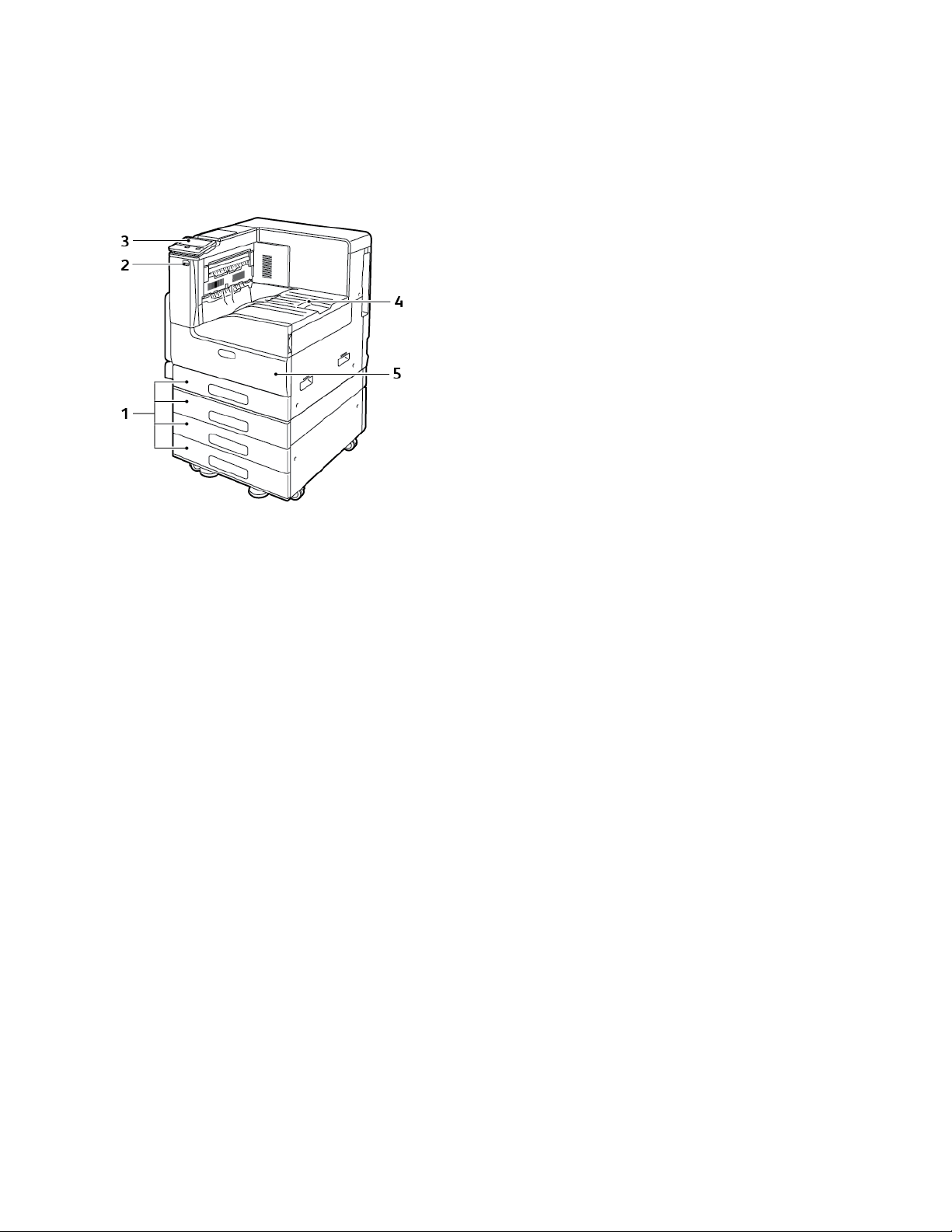
Parts of the Printer
FFrroonntt VViieeww
1. Paper Trays. Configurations vary from 1 to
4 trays
2. USB Port
3. Control Panel
4. Paper Output
5. Front Door
20
Xerox®VersaLink®C7000 Color Printer
User Guide
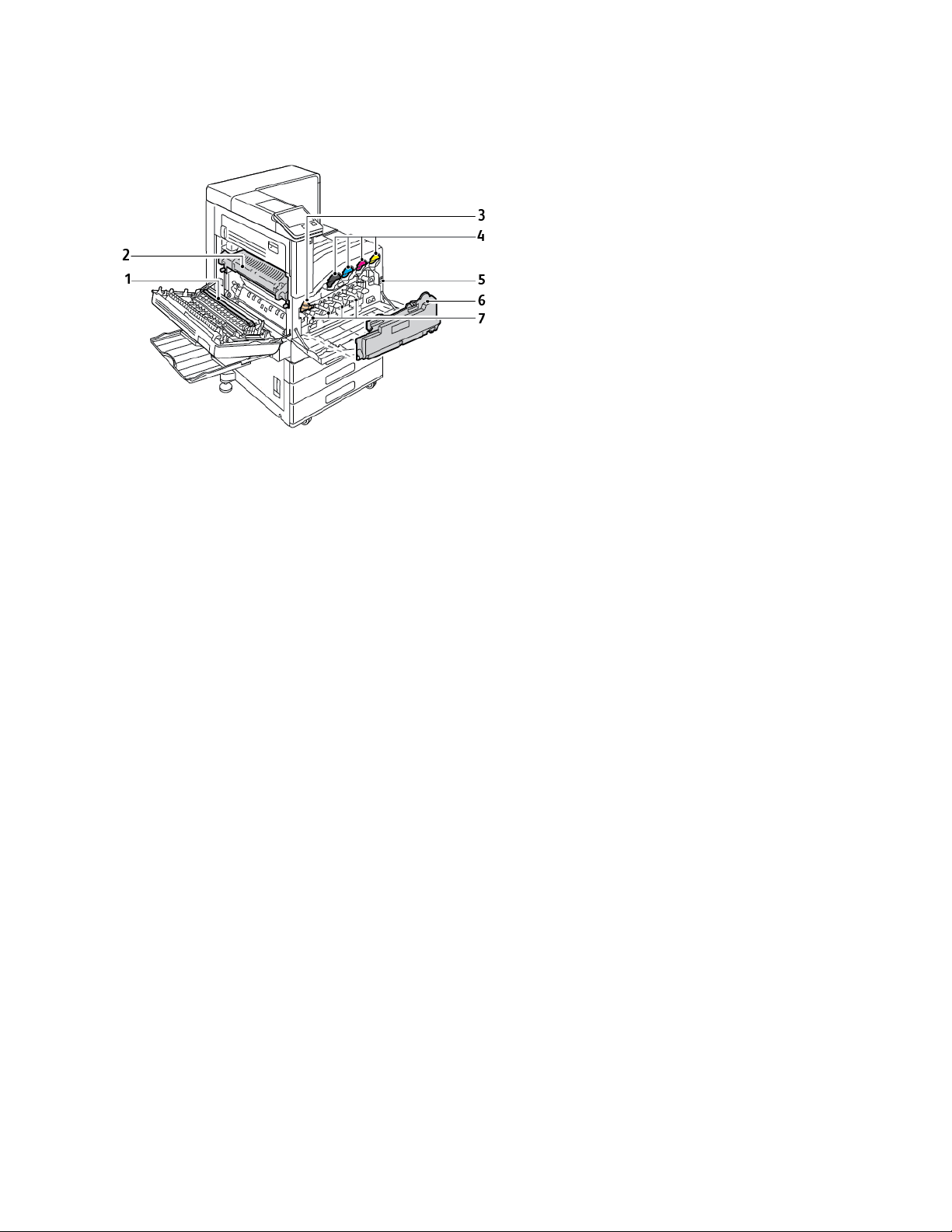
IInntteerrnnaall PPaarrttss
Getting Started
1. Transfer Roll
2. Fuser
3. IBT Belt Release
4. Toner Cartridges
5. Power Switch
6. Waste Cartridge
7. Drum Cartridges
Xerox
®
VersaLink®C7000 Color Printer
User Guide
21
Getting Started
RReeaarr VViieeww
1. Power Connection
2. USB Host Port
3. USB Device Port
4. Wi-Fi Connectivity Port
5. Ethernet Port
6. Foreign Device Interface
22
Xerox®VersaLink®C7000 Color Printer
User Guide
Getting Started
FFiinniisshhiinngg OOppttiioonnss
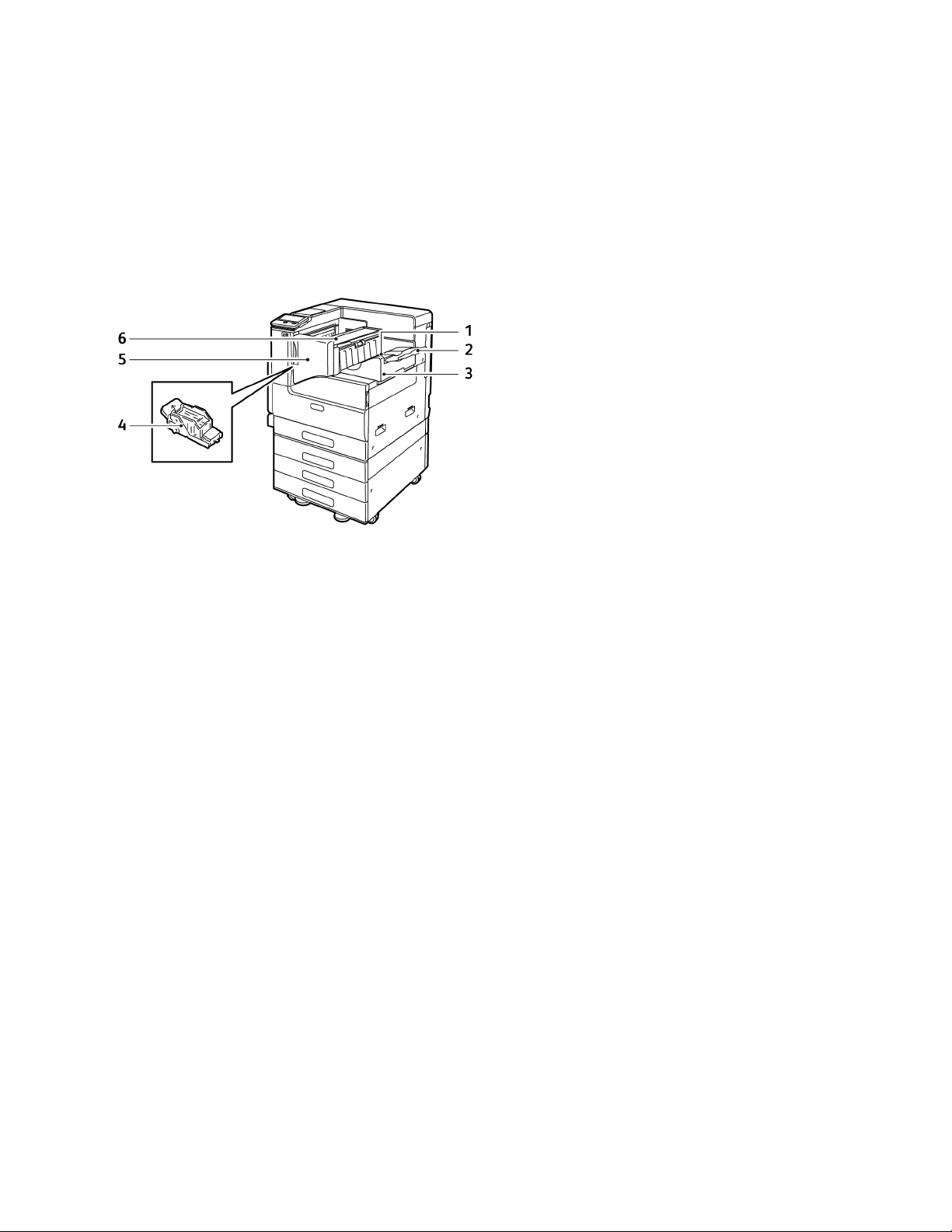
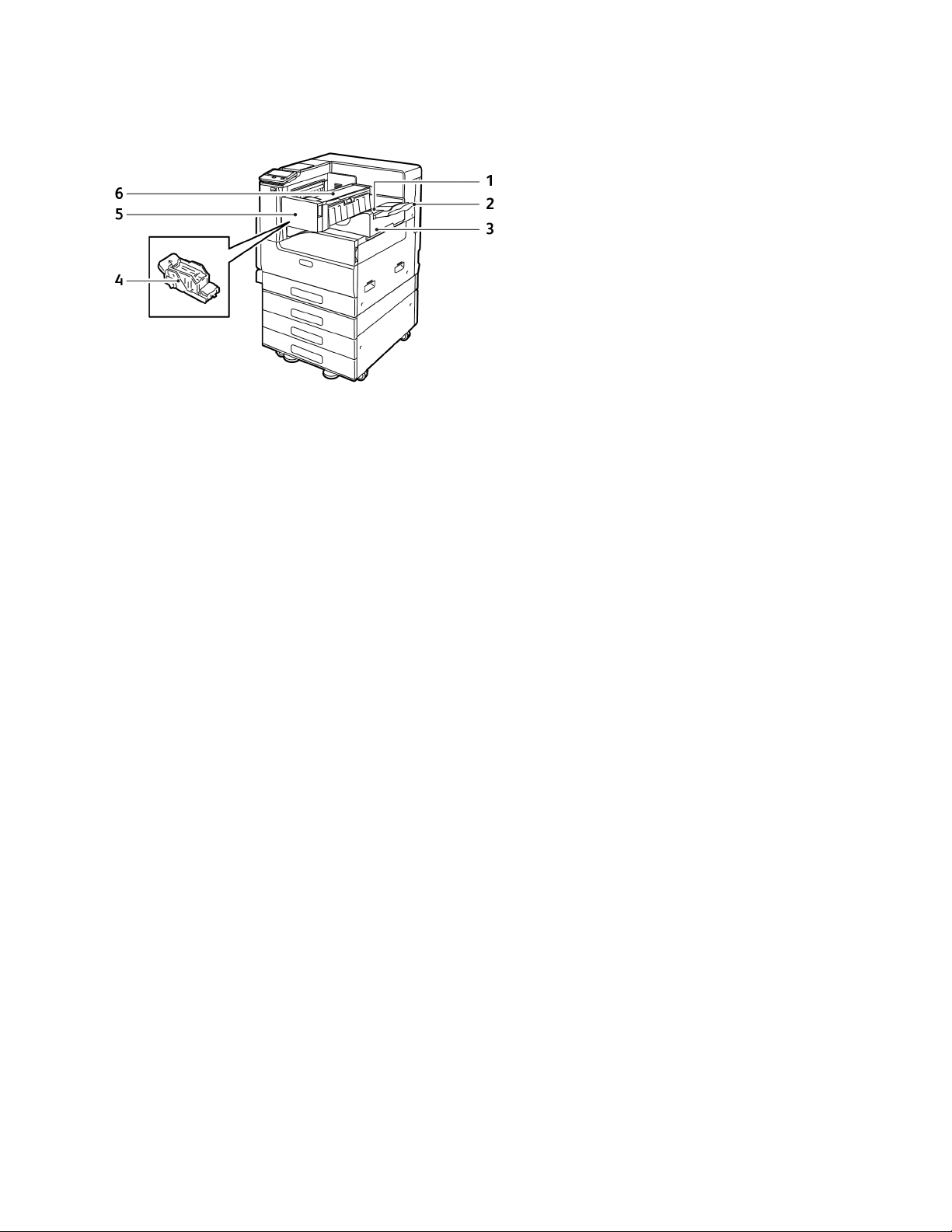
There are two optional finishers: the Integrated Office Finisher 9NX, and the Integrated Office
Finisher 2FA. The two Office Finishers offer similar functions, but the procedures that you use to open
the front covers differ. When you use this manual, use the procedures for the finisher installed on your
printer.
IInntteeggrraatteedd OOffffiiccee FFiinniisshheerr 99NNXX
1. Finisher Tray
2. Finisher Tray Extension
3. Integrated Office Finisher
4. Staple Cartridge
5. Finisher Front Cover
6. Finisher Top Cover
Xerox
®
VersaLink®C7000 Color Printer
User Guide
23
Getting Started
IInntteeggrraatteedd OOffffiiccee FFiinniisshheerr 22FFAA
1. Finisher Tray
2. Finisher Tray Extension
3. Integrated Office Finisher
4. Staple Cartridge
5. Finisher Front Cover
6. Finisher Top Cover
24
Xerox®VersaLink®C7000 Color Printer
User Guide
Getting Started
CCoonnttrrooll PPaanneell
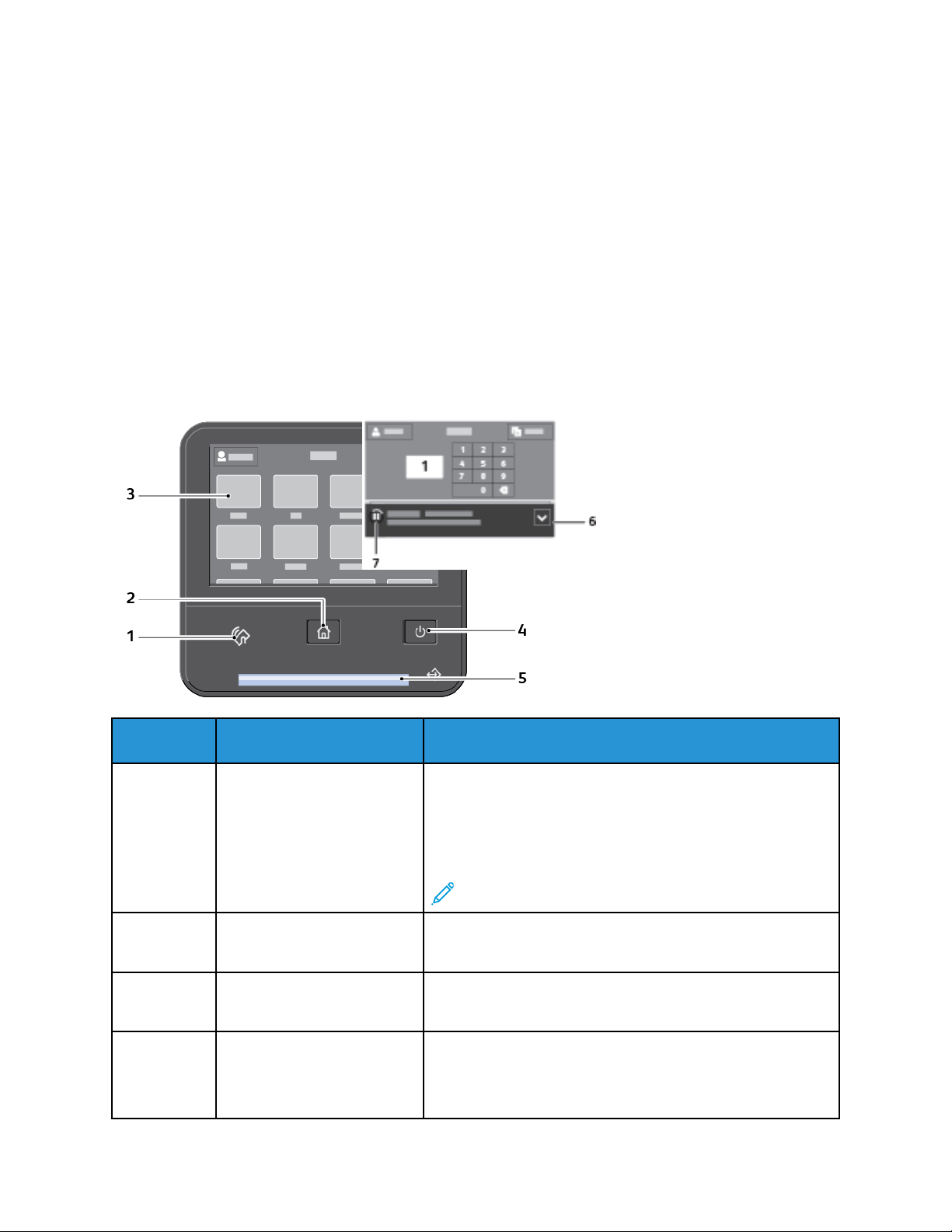
The control panel consists of a touch screen and buttons you press to control the functions available
on the printer. The control panel:
• Displays the current operating status of the printer.
• Provides access to printing features.
• Provides access to reference materials.
• Provides access to Tools and Setup menus.
• Prompts you to load paper, replace supplies, and clear jams.
• Displays errors and warnings.
• Provides the Power/Wake button used for powering on or off the printer. This button also supports
the power-saver modes, and blinks to indicate the power status of the printer.
Item Name
1 NFC Area
(Optional)
Description
Near Field Communication (NFC), is a technology that
enables devices to communicate when they are within 10 cm
(4 in.) of each other. Use the NFC area to obtain a network
interface or to establish a TCP/IP connection between your
device and the printer.
Note: The indicator is visible when NFC is activated.
2 Home Button This button provides access to the Home menu for access to
printer features.
3 Touch Screen Display The screen displays information and provides access to
printer functions.
4 Power/Wake Button This button serves several power-related functions.
When the printer is powered off, this button powers on the
printer.
Xerox®VersaLink®C7000 Color Printer
User Guide
25

Getting Started
Item Name
5 Status LED This light blinks blue or amber to indicate printer status.
Description
When the printer is powered on, pressing this button displays
a menu on the control panel. From this menu, you can
choose to enter Sleep mode, restart, or power off the printer.
When the printer is powered on, but in a low-power mode or
Sleep mode, pressing this button wakes the printer.
When the printer is powered on, holding this button for 10seconds turns off the printer.
This button blinks to indicate the power status of the printer.
When the light blinks slowly, the printer is in low-power mode
or Sleep mode.
When the light blinks rapidly, the printer is powering down, or
exiting a low-power mode.
Blue
Blinks blue once to acknowledge a successful Authentication
request.
Blinks blue once slowly for a print job initiated at the control
panel.
Blinks blue twice slowly for a print job received from the
network.
Blinks blue rapidly while the printer is powering up, or to
signal detection of a Wi-Fi Direct connection request.
Amber
Blinks amber to indicate an error condition or warning that
requires your attention. For example, an out of toner
condition, a paper jam, or out of paper for the current job.
It also blinks amber to indicate a system error, which typically
is associated with an error code.
6 Notification Banner Notifications and messages are displayed in a pop-up banner
below the apps area. To view the full notification, touch the
center of the banner. After you have reviewed the
information, touch X to close.
7 Pause Icon When a job is being processed, a Pause icon appears in the
notification banner area. To pause the current job, touch the
Pause icon. The job pauses with the option to resume or
delete the job.
26
Xerox®VersaLink®C7000 Color Printer
User Guide
Getting Started
Power Options
The Power/Wake button is a single multifunction button on the control panel.
• When used in conjunction with the main power switch, the Power/Wake button powers on the
printer.
• If the printer is already powered on, the Power/Wake button can be used to:
– Restart the printer
– Enter or exit sleep mode
– Enter or exit low-power mode
• The Power/Wake button also flashes when the printer is in low-power mode.
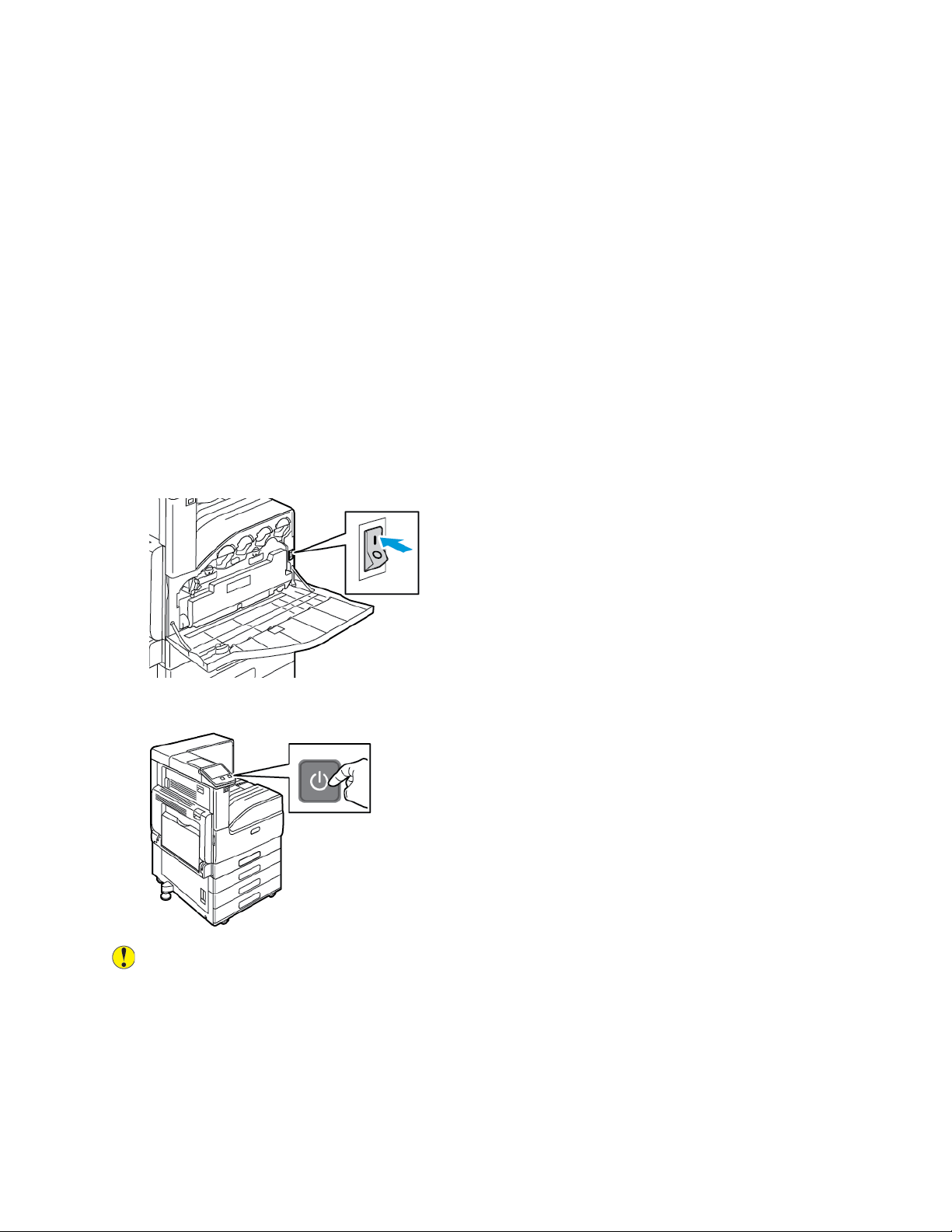
PPoowweerriinngg OOnn tthhee PPrriinntteerr
To power on the printer:
1. To power on the printer, open the front door, and press the power switch to the On position.
2. At the printer control panel, press the Power/Wake button.
Caution: Do not unplug the power cord while the printer powers up.
Xerox
®
VersaLink®C7000 Color Printer
User Guide
27
Getting Started
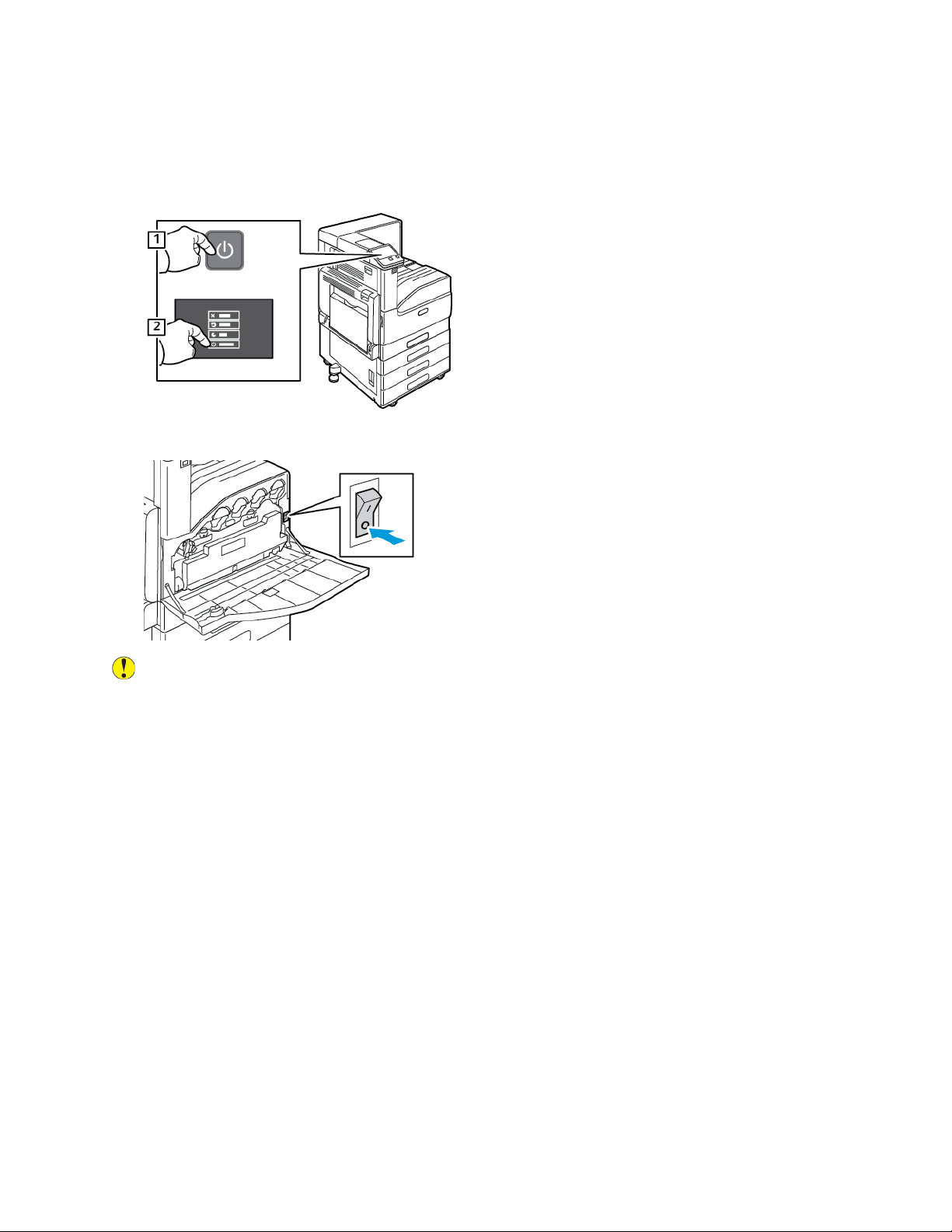
PPoowweerriinngg OOffff tthhee PPrriinntteerr
To power off the printer:
1. At the printer control panel, press the Power/Wake button, then touch Power Off.
2. Open the front door, then press the power switch off.
Caution: Do not unplug the power cord while the printer powers down.
EEnntteerriinngg aanndd EExxiittiinngg SSlleeeepp MMooddee aanndd LLooww—PPoowweerr
MMooddee
After the printer is powered on but is in Sleep Mode or Low-Power Mode:
• The touch screen appears blank and unresponsive.
• The printer exits Low-Power mode or Sleep mode automatically when it receives data from a
connected device.
To wake the printer manually, press the Power/Wake button.
PPoowweerr SSaavveerr
You can set the time the printer spends idle in ready mode before the printer transitions to a lower
power level.
There are two levels of power-saver mode.
28
Xerox®VersaLink®C7000 Color Printer
User Guide

Getting Started
• Low-Power Timeout: The printer shifts from Ready mode to Low-Power mode to reduce standby
power consumption.
• Sleep Timeout: The printer shifts from Low-Power mode to Sleep mode for a greater reduction in
power consumption.
Xerox
®
VersaLink®C7000 Color Printer
User Guide
29

Getting Started
Accessing the Printer
LLooggggiinngg IInn
Logging in is the process by which you identify yourself to the printer for authentication. If
authentication is set, to access printer features, you log in with your user credentials.
LLooggggiinngg IInn aatt tthhee CCoonnttrrooll PPaanneell
1. At the printer control panel, press the Home button.
2. Touch Log In.
3. Type the User Name using the keypad, then touch Enter.
4. If prompted, enter the password, then touch Enter.
Note: For more information on logging in as system administrator, refer to the System
Administrator Guide at www.xerox.com/office/VLC7000docs.
5. Touch OK.
Note: To access each password-protected service, enter the User Name and password.
CCoonnvveenniieennccee AAuutthheennttiiccaattiioonn
When Convenience Authorization is enabled, users swipe a pre-programmed identification card
through a Proximity Card Reader at the control panel. To use this method, purchase and install a USB
card reader and an authentication server that supports the Xerox
®
Convenience Authentication API.
SSmmaarrtt CCaarrdd
When a Common Access Card system is installed on your Xerox device, access to the printer requires
the use of a Smart Card. There are several models of card readers that are compatible with your
device. To access the printer, insert the pre-programmed identification card into the reader, or place
your card on the reader. If extra security credentials are required, enter the login information at the
control panel.
For more information about configuring a Common Access Card system on your device, refer to the
®
Xerox
VLC7000docs.
VersaLink®Common Access Card System Configuration Guide at www.xerox.com/office/
30
Xerox®VersaLink®C7000 Color Printer
User Guide
Loading…
Цветной принтер формата А3 для малых и средних рабочих групп на базе обновленной технологии ConnectKey®, которая превращает обычную периферийную технику в умных сетевых бизнес-ассистентов, отвечающих потребностям современных компаний.
Мобильность
К принтеру Xerox® VersaLink® C7000 можно подключаться с мобильных устройств с помощью технологий Apple AirPrint, Google CloudPrint, NFC и Mopria, а также плагина Xerox Print Service для ОС Android.
Облачные технологии
В Xerox® VersaLink® C7000 реализована возможность обмена данными с облачными сервисами, такими как Google Drive, Microsoft OneDrive и Dropbox, что упрощает работу как в офисе, так и удалённо.
Персонализация и простота использования
5-дюймовый сенсорный экран позволяет управлять устройством таким же образом, как и при работе с планшетом. Интерфейс нового принтера можно персонализировать с учётом потребностей рабочей среды и отдельных пользователей.
Устройства VersaLink® снабжены мастером первоначальной установки, который, как при первом запуске смартфона, позволяет пользователю самостоятельно запустить и настроить аппарат, задав настройки учетных записей, сети, почтового сервера.
Визуальные подсказки, пошаговые инструкции и конфигурирование опций через локальный пользовательский интерфейс обеспечивают простую и легкую эксплуатацию оборудования.
Настройки принтера могут быть клонированы и применены ко всем принтерам на платформе VersaLink® в сети, что исключает необходимость индивидуальной настройки каждого отдельного устройства. Клонирование может быть реализовано через встроенный веб-интерфейс Xerox® Embedded Web Server.
Xerox® VersaLink® C7000 поддерживает установку приложений из библиотеки Xerox App Gallery, что позволяет компаниям расширять функционал принтера и выстраивать на нём рабочие процессы в соответствии со спецификой бизнеса.
Безопасность
В принтере Xerox® VersaLink® C7000 реализован комплексный подход к безопасности. В частности, устройство обладает функциями защищённой печати и аутентификации по картам, что упрощает управление доступом и обеспечивает безопасность данных.
Способы доставки
Наш интернет-магазин предлагает несколько вариантов доставки:
- самовывоз со склада;
- доставка курьером по Москве и Московской области;
- доставка в регионы транспортными компаниями;
Самовывоз.
Если вы хотите максимально быстро и без переплаты получить заказ, тогда вам лучше всего самостоятельно забрать его из нашего офиса по адресу:
г. Москва, бизнес-парк «Румянцево», корпус Г, подъезд 13, этаж 5, офис 504/1Г.
Для прохода посетителей или проезда а/м на склад (не выше 2,6 метра) необходимо, не менее чем за 5 минут до прибытия заказать пропуск по телефону 8 (495) 445-15-52.
При наличии на складе товар можно получить в день заказа, информацию можно уточнить у менеджеров.
Доставка курьером по Москве и Московской области.
Доставка по Москве и области осуществляется нашей собственной курьерской службой.
При заказе оборудования стоимостью до 50 тыс. руб.:
- в пределах МКАД — 550 руб.
- за МКАД — 550 руб. + 50 руб./км.
При заказе оборудования стоимостью от 50 тыс. руб.:
- в пределах МКАД — бесплатно.
- за МКАД — 50 руб./км.
Наши водители-экспедиторы довезут товар до того места, которое обозначено в заказе. Доставка крупногабаритных грузов, грузов свыше 10 кг осуществляется до подъезда. В стоимость доставки не включена проверка и подключение оборудования (вы можете воспользоваться платными услугами нашего Сервис-центра).
При платной парковке или необходимости пропуска для въезда на территорию — обеспечение доступа до места доставки производится силами и за счёт заказчика.
Доставка в регионы.
Доставка по России осуществляется только транспортными компаниями.
Вы сами определяете фирму, с которой желаете сотрудничать:
«Деловые линии», «ПЭК», «DPD», «СТЕИЛ», «Байкал-Сервис», «СПСР-Экспресс», «Аттента», «ТрансКарго», «ЖелдорЭкспедиция», «СДЭК», «КИТ», «Энергия» и др., или можете обратиться за помощью в выборе к нашим менеджерам.
Доставка по г. Москве осуществляется до подъезда или терминала транспортной компании в пределах МКАД.
Стоимость доставки по России рассчитывается в зависимости от тарифов транспортной компании, выбранной покупателем и не входит в стоимость заказа.
По умолчанию стоимость доставки оплачивается покупателем в момент получения груза в филиале офиса транспортной компании, но по желанию клиента стоимость доставки может быть включена в общую стоимость заказа.
Если вы оформили заказ на 50 тыс. рублей и более, OfiTrade доставит оборудование и технику до ТК своими силами бесплатно.
ИНСТРУКЦИЯ ПО ПОЛУЧЕНИЮ ГРУЗА В ТРАНСПОРТНЫХ КОМПАНИЯХ
Наша компания располагает собственным транспортным отделом, имеет парк автомобилей для оперативной доставки товара клиентам по Московскому региону. Кроме того, мы активно работаем с рядом ведущих Российских перевозчиков. Мы имеем возможность отправлять грузы в любую точку России. Вопросы по работе транспортных компаний, Вы можете уточнить непосредственно в ТК.
ВНИМАНИЕ!
С того момента как груз передан в транспортную компанию, собственником груза является его получатель.
При оформлении груза к перевозке в обязательном порядке оформляется страхование груза согласно сопроводительным документам.
При получении груза необходимо проверить:
1.Количество мест. Физическое количество мест при приеме груза в ТК должно соответствовать количеству мест, указанных в экспедиторской расписке. В противном случае необходимо составить акт о расхождении количества мест с представителем ТК, заверенный печатью и подписью представителя.
2.Состояние упаковки, внешние повреждения. Весь груз при отправках через ТК с нашей стороны отправляется в целых упаковках. Внешнее состояние упаковки не должно вызывать сомнений в сохранности груза: не должно быть помятостей, дыр, не должно быть следов вскрытия. Проверить состояние дополнительной упаковки сделанной ТК (обрешетка), если она делалась. Процедура дополнительной упаковки влечет дополнительные расходы с Вашей стороны. Данная услуга заказывается нами в случае, если Вы нам укажете это в письме. В случае сомнений в качестве ТМЦ необходимо согласовать вскрытие упаковки с представителем ТК для составления акта о повреждении товара. Если вскрытие недоступно, составить акт о повреждении упаковки с представителем ТК. Акт о повреждении груза должен быть заверен печатью ТК и подписью представителя ТК.
3.Вес/объем. Сравнить информацию, указанную в транспортной накладной по весу и объему визуально. В случае подозрения о несоответствии, потребовать представителя ТК взвесить и обмерить груз на месте. Если полученные данные разнятся с данными в транспортной накладной в меньшую сторону, то, при отсутствии нарушения целостности упаковки, потребовать выполнения перерасчета по полученным данным с целью снижения стоимости пересылки груза. Если же целостность упаковки нарушена (есть следы вскрытия) – действовать по пункту №2.
4.ТМЦ в обрешетке. Проверить товар в обрешетке (оказывая данную услугу за дополнительную оплату, ТК берет на себя 100% гарантию доставки товара в надлежащем виде). Необходимо:
4.1 Произвести визуальный осмотр внутреннего пространства обрешетки на наличие выступающих гвоздей, саморезов, обломов досок и других посторонних предметов, которые могли повредить груз в процессе транспортировки, зафиксировать на фотографиях все нарушения, если они есть.
4.2 Вскрывать жесткую упаковку только на территории ТК или в присутствии представителя ТК, при обнаружении повреждений груза сделать фотографии, составить акт (с подписью представителя ТК) – это будет подтверждением вины ТК.
ГЛАВНОЕ ПРАВИЛО ПРИЕМА ТОВАРА:
Если вы сомневаетесь в целостности доставленного заказа, ни при каких условиях не подписывайте документы без предварительного осмотра груза, в обязательном порядке проверьте свои подозрения на месте получения груза (в присутствии сотрудника транспортной компании) . Если повреждения груза обнаружатся уже после подписания ТТН и покидания грузом территории транспортной компании, претензии не будут приняты ни при каких обстоятельствах!
В случае отсутствия бланка Акта об установленном расхождении по количеству и качеству при выдаче груза, составить Акт в свободной форме с указанием номера транспортной накладной ТК, информации об отправителе и грузополучателе, описания состояния упаковки и повреждений. Обратите внимание, что один экземпляр Акта с оригинальной печатью ТК и подписью сотрудника ТК остается у Вас (грузополучателя). Транспортная компания, занимающаяся доставкой, считает свои обязательства перед получателем выполненными, если грузополучатель не составит акт о нарушениях и распишется в отсутствии претензий в товарно-транспортных документах. Напоминаем, что акт должен быть составлен при получении груза с участием представителя ТК и грузополучателя, а также подписан с обеих сторон. Акт обязательно должен быть заверен синей печатью ТК.
В случае, если сотрудник ТК отказывается подписывать акт, ни в коем случае: НЕ ПРИНИМАЙТЕ ГРУЗ! Обязательно сделайте фото или видеозапись груза на месте, постарайтесь узнать данные сотрудника, который отказался подписать или принять акт, потребуйте озвучивания причины отказа, и в тот же день срочно свяжитесь с представителем ТК по «горячей» линии.
Будьте внимательны!
Подпись получателя в документах ТК свидетельствует о том, что целостность и количество груза им проверены, и в случае отсутствия особых отметок (ПРЕТЕНЗИЙ), клиент берет все риски по состоянию товара на себя.
Способы оплаты
Стоимость продукции, указанная в нашем каталоге, установлена с учетом налогов. В связи с этим оплата заказа осуществляется как наличными, так и безналичными средствами.
Вы можете выбрать один из трёх вариантов оплаты:
Предоплата наличными
Предоплата товара наличными в офисе компании.
Банковской картой на сайте онлайн
Оплата покупки при заказе на сайте. Мы принимаем платежные карты VISA Inc, MasterCard WorldWide, МИР.
Безналичный расчёт
Перечисление денежных средств безналичным переводом для оплаты заказа на расчетный счёт нашей компании.
Подробнее об оплате
Цветной принтер формата А3 для малых и средних рабочих групп на базе обновленной технологии ConnectKey®, которая превращает обычную периферийную технику в умных сетевых бизнес-ассистентов, отвечающих потребностям современных компаний.
Основные характеристики
| Модель | VersaLink® C7000DN |
| Скорость печати цвет A4, стр/мин | До 35 стр/мин |
| Скорость печати моно A4, стр/мин | До 35 стр/мин |
| Разрешение печати, dpi | До 1200 x 2400 точек на дюйм |
| Язык описания страниц | Adobe® PostScript® 3™ / PCL® 5e, 6 / PDF / XPS / TIFF / JPEG / HP-GL |
5-дюймовый сенсорный экран позволяет управлять устройством таким же образом, как и при работе с планшетом. Интерфейс нового принтера можно персонализировать с учётом потребностей рабочей среды и отдельных пользователей.
Устройства VersaLink® снабжены мастером первоначальной установки, который, как при первом запуске смартфона, позволяет пользователю самостоятельно запустить и настроить аппарат, задав настройки учетных записей, сети, почтового сервера.
Визуальные подсказки, пошаговые инструкции и конфигурирование опций через локальный пользовательский интерфейс обеспечивают простую и легкую эксплуатацию оборудования.
Настройки принтера могут быть клонированы и применены ко всем принтерам на платформе VersaLink® в сети, что исключает необходимость индивидуальной настройки каждого отдельного устройства. Клонирование может быть реализовано через встроенный веб-интерфейс Xerox® Embedded Web Server.
Xerox® VersaLink® C7000 поддерживает установку приложений из библиотеки Xerox App Gallery, что позволяет компаниям расширять функционал принтера и выстраивать на нём рабочие процессы в соответствии со спецификой бизнеса.
К принтеру Xerox® VersaLink® C7000 можно подключаться с мобильных устройств с помощью технологий Apple AirPrint, Google CloudPrint, NFC и Mopria, а также плагина Xerox Print Service для ОС Android
В Xerox® VersaLink® C7000 реализована возможность обмена данными с облачными сервисами, такими как Google Drive, Microsoft OneDrive и Dropbox, что упрощает работу как в офисе, так и удалённо.
В принтере Xerox® VersaLink® C7000 реализован комплексный подход к безопасности. В частности, устройство обладает функциями защищённой печати и аутентификации по картам, что упрощает управление доступом и обеспечивает безопасность данных.
Общие характеристики
| Модель | Принтер VersaLink® C7000DN | |
| Технология создания изображения | светодиодная | |
| Скорость печати (А4, моно/цвет) | До 35 стр/мин | |
| Скорость печати (А3, моно/цвет) | До 19 стр/мин | |
| Разрешение печати | До 1200 x 2400 точек на дюйм | |
| Подключение | Ethernet 10/100/1000 Base-T, высокоскоростной интерфейс USB 3.0, Wi-Fi 802.11n/g/b/a и Wi-Fi Direct, доступные опционально с комплектом для беспроводного подключения (поддерживаются одновременное проводное и беспроводное подключение), NFC Tap-to-Pair | |
| Язык описания страниц | Adobe® PostScript® 3™ / PCL® 5e, 6 / PDF / XPS / TIFF / JPEG / HP-GL | |
| Процессор | 1.05 ГГц, двухъядерный | |
| Память | 2 Гб | |
| Двусторонняя печать | да |
Работа с бумагой
| Емкость основного лотка | 520 листов |
| Емкость обходного лотка | 100 листов |
| Максимальная емкость лотков подачи бумаги | 2180 листов |
| Диапазон плотностей материалов | 60 — 256 г/м_ |
| Емкость выходного лотка | 500 листов |
Габариты и масса
| Габариты печатного модуля (Ш x Г x В), мм | 590*670.8*637 |
| Масса печатного модуля, кг | 54.3 |
Описание
Принтер XEROX VersaLink C7000DN, формат A3, цветной, лазерный, белый (C7000V_DN)
С похожими характеристиками
Принтер CANON i-SENSYS LBP852Cx (1830C007)
Формат А3
Цветность печати Цветной
Технология печати Лазерный
Макс. скорость печати, ч/б А4, стр./мин. 36
Максимальный объем печати, стр./мес. 120000
152 040 ₽
162 900 ₽ по б/н
Купить
Принтер OKI C844dnw (47074304)
Формат А3
Цветность печати Цветной
Технология печати Светодиодный
Макс. скорость печати, ч/б А4, стр./мин. 36
Максимальный объем печати, стр./мес. 75000
196 890 ₽
210 950 ₽ по б/н
Купить
Принтер OKI C834DNW (47228005)
Формат А3
Цветность печати Цветной
Технология печати Светодиодный
Макс. скорость печати, ч/б А4, стр./мин. 36
Максимальный объем печати, стр./мес. 75000
215 280 ₽
230 660 ₽ по б/н
Купить
Принтер OKI C833nw (47074214)
Формат А3
Цветность печати Цветной
Технология печати Светодиодный
Макс. скорость печати, ч/б А4, стр./мин. 36
Максимальный объем печати, стр./мес. 75000
229 040 ₽
245 400 ₽ по б/н
Купить