

ZTE Blade V10 Vita
User Manual

LEGAL INFORMATION
Thank you for choosing this ZTE mobile device. In order to
keep your device in its best condition, please read this
manual and keep it for future reference.
Copyright
Copyright © 2019 ZTE CORPORATION
All rights reserved.
No part of this publication may be quoted, reproduced,
translated or used in any form or by any means, electronic or
mechanical, including photocopying and microfilm, without
the prior written permission of ZTE Corporation.
Notice
ZTE Corporation reserves the right to make modifications on
print errors or update specifications in this guide without
prior notice. This manual has been designed with the utmost
care to ensure the accuracy of its content. However, all
statements, information, and recommendations contained
therein do not constitute a warranty of any kind, either
expressed or implied. Please refer to For Your Safety to be
sure to use your phone properly and safely. We offer selfservice for our smart terminal device users. Please visit the
ZTE official website (at http://www.ztedevices.mx/) for more
information on self-service and supported product models.
Information on the website takes precedence.
Disclaimer
2

ZTE Corporation expressly disclaims any liability for faults
and damages caused by unauthorized modifications of the
software.
Images and screenshots used in this manual may differ from
the actual product. Content in this manual may differ from
the actual product or software.
Trademarks
ZTE and the ZTE logos are trademarks of ZTE Corporation.
Android is a trademark of Google LLC.
The Bluetooth
trademarks owned by the Bluetooth SIG, Inc. and any use of
such marks by ZTE Corporation is under license.
Other trademarks and trade names are those of their
respective owners.
Instructional Icons
®
word mark and logos are registered
microSDXC Logo is a trademark of SD-3C, LLC.
NOTE
CAUTION
Additional information, supplementary
instruction or tips for the operation of
the product.
Safety information that, if ignored, may
cause minor damage to the equipment
or service interruption.
3

WARNING
Version No.: R1.0
Edition Time: January 8, 2019
Safety information that, if ignored, may
cause serious damage to the
equipment or danger to personal
safety.
4

Contents
Exciting New Features …………………………………… 10
Fingerprint Identification…………………………………………. 10
Facial Recognition ………………………………………………… 10
Split-Screen Mode ………………………………………………… 10
Picture-in-picture …………………………………………………… 11
Private Space……………………………………………………….. 11
Getting Started ………………………………………………. 12
Overview ……………………………………………………………… 12
Knowing the Keys …………………………………………………. 14
Installing the nano-SIM Card and the microSDXC™ Card
(Optional) …………………………………………………………….. 14
Charging the Phone ………………………………………………. 15
Powering On/Off …………………………………………………… 17
Setting Up for the First Time …………………………………… 17
Knowing the Home Screen …………………………………….. 17
Personalizing ………………………………………………… 18
Choosing Your Wallpaper ………………………………………. 18
Removing Items From Your Home Screen ……………….. 18
Using Do Not Disturb Mode ……………………………………. 19
Using the Eye Comfort Feature ………………………………. 20
Knowing the Basics ……………………………………….. 21
Monitoring the Phone Status ………………………………….. 21
Managing Notifications ………………………………………….. 22
5

Using Quick Settings …………………………………………….. 23
Opening and Switching Apps …………………………………. 24
Using Split-Screen Mode ……………………………………….. 25
Security …………………………………………………………. 26
Protecting Your Phone With a Screen Lock ……………… 26
Protecting Your Phone With Screen Pinning …………….. 26
Using Your Fingerprint ………………………………………….. 28
Using Face Recognition ………………………………………… 29
Connecting to Networks …………………………………. 32
Connecting to Mobile Network ……………………………….. 32
Connecting to a Wi-Fi Network ……………………………….. 33
Connecting to Devices …………………………………… 34
Bluetooth® ……………………………………………………………. 34
Wi-Fi Direct® ………………………………………………………… 35
Connecting to a Computer via USB ………………………… 3 5
Sharing Your Mobile Data Connection …………….. 38
Sharing Your Mobile Data Connection Through Tethering
…………………………………………………………………………… 38
Sharing Your Mobile Data Connection as a Wi-Fi Hotspot
…………………………………………………………………………… 39
Phone Calls …………………………………………………… 40
Placing Calls ………………………………………………………… 40
Answering or Rejecting Calls …………………………………. 41
Contacts ……………………………………………………….. 44
6

Creating a Contact ………………………………………………… 44
Searching for a Contact …………………………………………. 44
Importing and Exporting Contacts …………………………… 45
Setting a Ringtone for a Contact ……………………………… 46
Joining Duplicate Contacts …………………………………….. 47
Separating Contact Information ………………………………. 47
Setting Call Blocking ……………………………………………… 48
Gmail …………………………………………………………….. 49
Setting Up the First Email Account ………………………….. 49
Writing and Sending a Message ……………………………… 49
Responding to a Message ……………………………………… 50
Messages ……………………………………………………… 51
Opening the Messages Screen ………………………………. 51
Sending a Message ………………………………………………. 51
Message Options ………………………………………………….. 52
Message Settings …………………………………………………. 53
Camera …………………………………………………………. 54
Taking Pictures …………………………………………………….. 54
Recording Videos …………………………………………………. 55
Using Other Camera Modes …………………………………… 56
Photos ………………………………………………………….. 58
Opening Photos ……………………………………………………. 58
Sharing Your Photos or Videos ………………………………. 58
Deleting Unwanted Photos or Videos ………………………. 58
Restoring a Photo or Video …………………………………….. 59
7

Play Music …………………………………………………….. 60
Playing Your Music ……………………………………………….. 60
Managing Playlists ……………………………………………….. 60
Settings …………………………………………………………. 62
Network & Internet ………………………………………………… 62
Connected Devices ………………………………………………. 64
Apps & Notifications ……………………………………………… 64
Features ……………………………………………………………… 66
Battery ………………………………………………………………… 67
Display ………………………………………………………………… 67
Scheduled Power On/Off ……………………………………….. 67
Navigation Bar ……………………………………………………… 68
Audio Profiles ………………………………………………………. 68
Storage ……………………………………………………………….. 68
Security & Location ………………………………………………. 69
Accounts ……………………………………………………………… 71
Accessibility …………………………………………………………. 71
Google ………………………………………………………………… 72
System ……………………………………………………………….. 72
For Your Safety ……………………………………………… 75
General Safety …………………………………………………….. 75
FCC RF Exposure Information (SAR) ……………………… 77
FCC Regulations ………………………………………………….. 78
Distractions ………………………………………………………….. 80
Product Handling ………………………………………………….. 80
8

Electrical Safety ……………………………………………………. 86
Radio Frequency Interference ………………………………… 87
Explosive Environments ………………………………………… 88
9

Exciting New Features
Fingerprint Identification
Use the fingerprint sensor on the back of the phone to
unlock the screen, access Private Space, open bound apps,
authorize payments in third-party applications, and more.
You can register up to 5 fingerprints.
NOTE:
The fingerprint feature is only usable when the screen lock
(Pattern, PIN or Password) is enabled, to ensure that you
can still use the phone when fingerprint identification fails. If
you reset the screen lock to None or Swipe, all registered
fingerprints are erased.
Facial Recognition
You can use your face to unlock the screen without entering
password or to access app lock of Private Space.
Split-Screen Mode
You can work with two apps at the same time in split-screen
mode.
NOTE:
Not all apps support split-screen mode.
10

Picture-in-picture
Picture-in-picture allows an app that supports this feature to
display a small window on top of other apps you’re using. In
this way, you can still use this app in the window even after
you leave the app.
NOTE:
Not all apps support picture-in-picture.
Private Space
Private Space allows you to encrypt your files, lock your
apps and manage your account passwords.
11

Getting Started
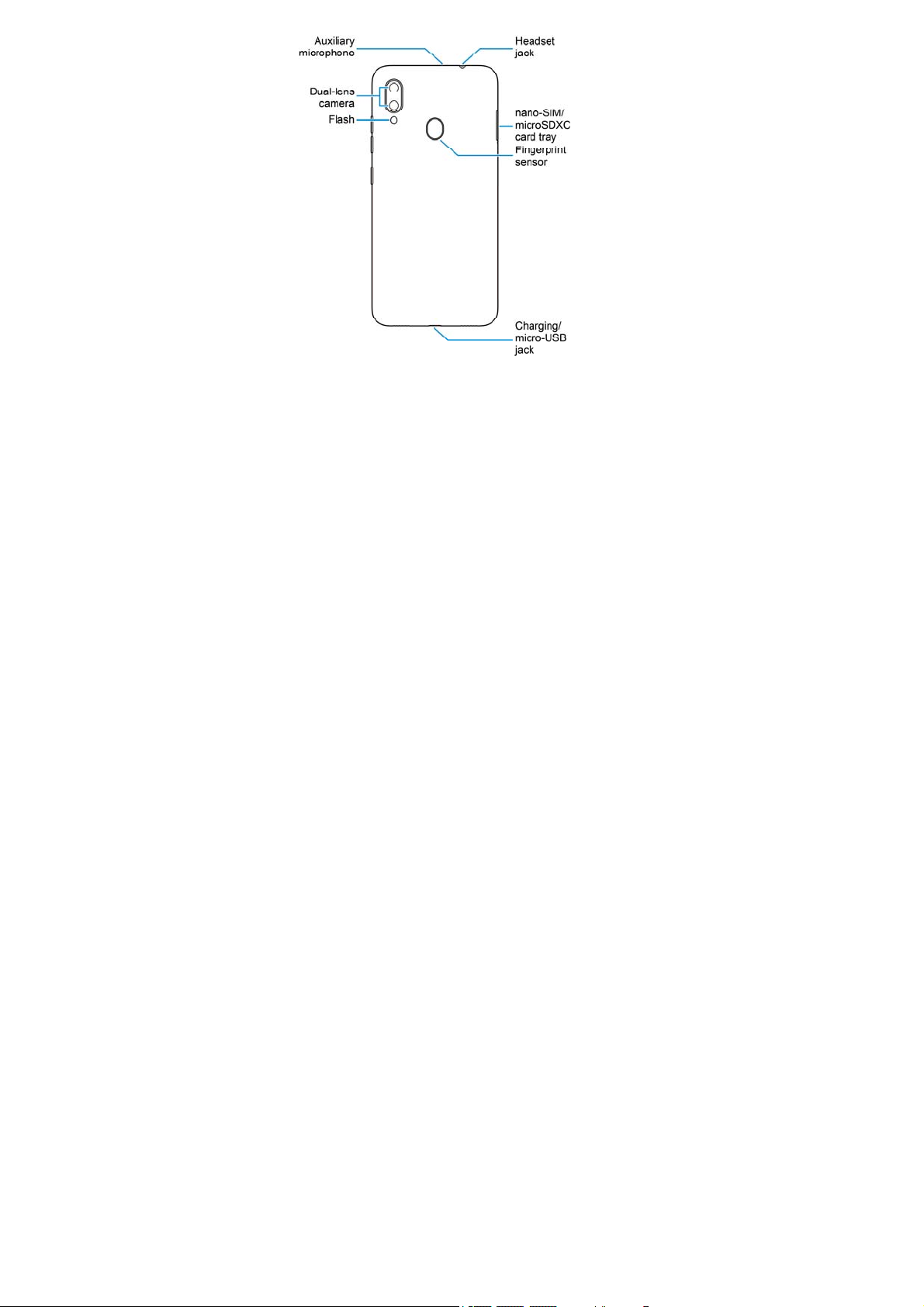
Overview
12
13
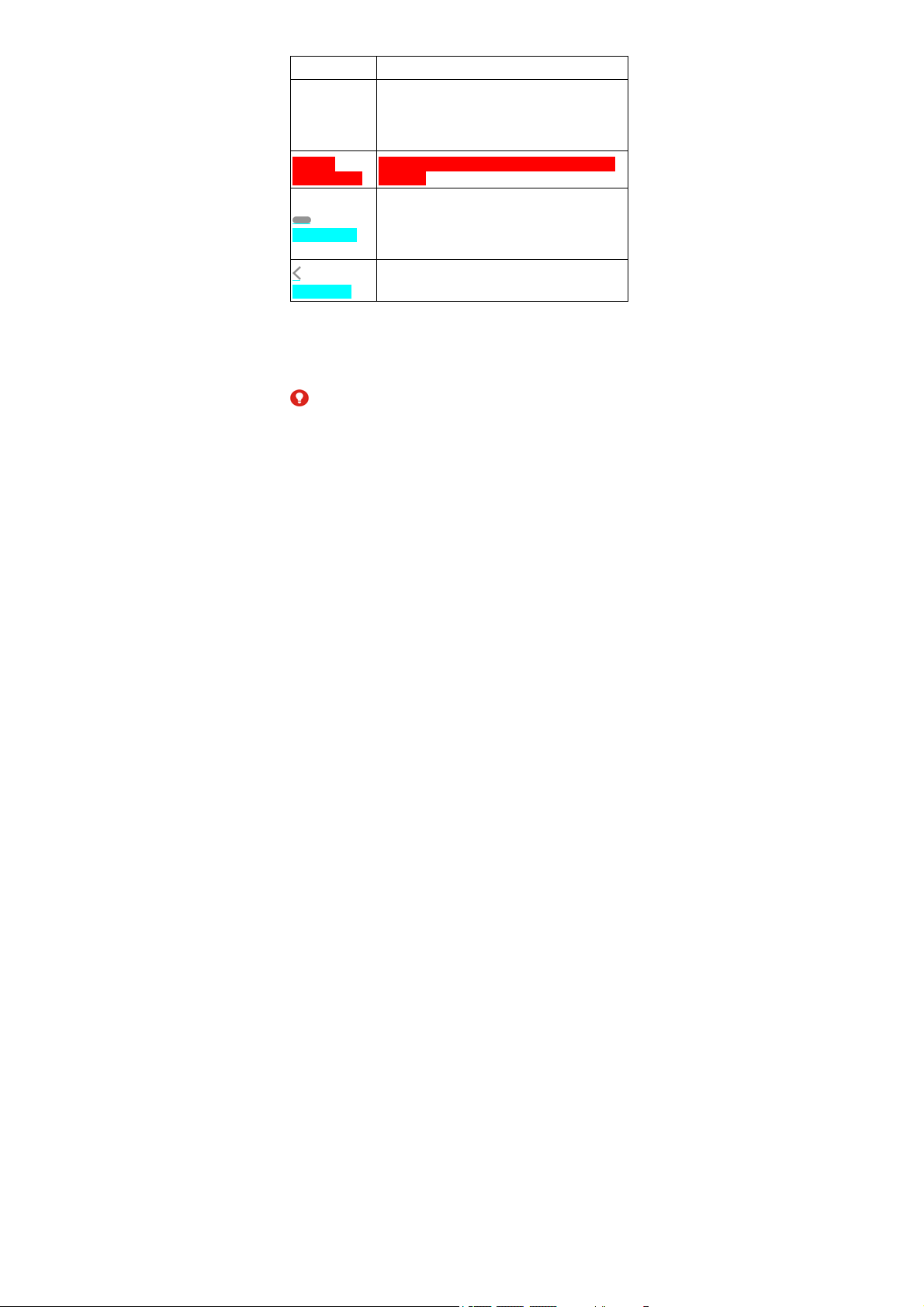
Knowing the Keys
Key Function
Press and hold to turn on or off airplane
Power key
Volume
up/down key
(Home key)
(Back key)
mode, restart, power off, or toggle sound,
silence, and vibration.
Press to turn off or on the screen display.
Press or hold the key to turn the volume up
or down.
Touch to return to the home screen from
any app or screen.
Touch and hold to use the Google
Assistant.
Touch to go to the previous screen.
Installing the nano-SIM Card and the
microSDXC™ Card (Optional)
The nano-SIM card can be installed or removed while the
phone is turned on.
WARNING!
To avoid damage to the phone, do not use any other kind of
SIM cards, or any non-standard nano-SIM card cut from a
14
SIM card. You can get a standard nano-SIM card from your
service provider.
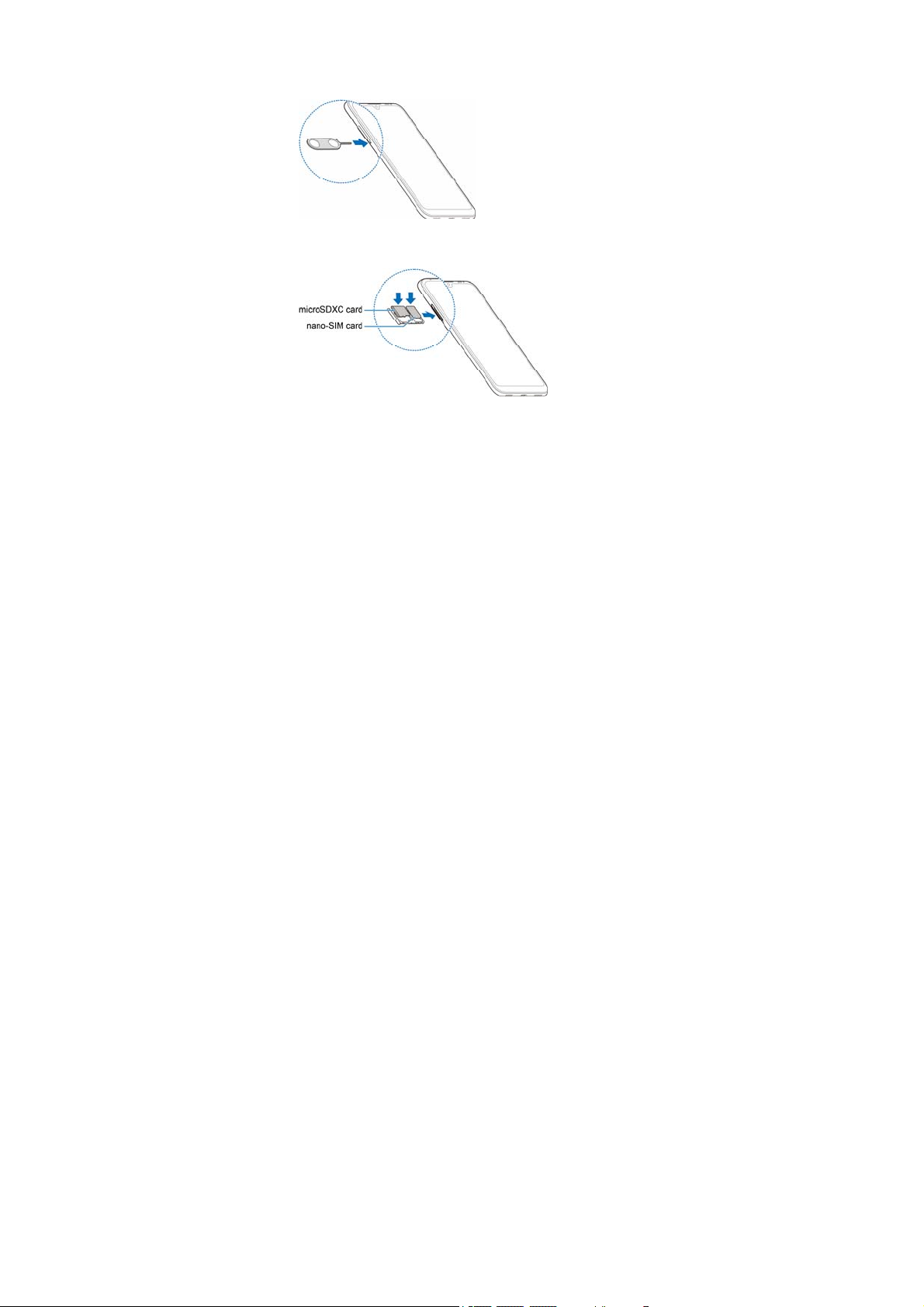
1. Insert the tip of the tray eject tool into the hole beside the
card tray.
2. Pull out the card tray and place the nano-SIM card and
the microSDXC card on the tray, as shown. Carefully
slide the tray back into place.
Charging the Phone
Your phone’s battery should have enough power for the
15

phone to turn on, find a signal, and make a few calls. You
should fully charge the battery as soon as possible.
WARNING!
Use only ZTE-approved chargers and USB cables. The use
of unapproved accessories could damage your phone or
cause the battery to explode.
WARNING!
Do not remove the back cover. The battery is not
removable. Removal may cause fire or explosion.
NOTE:
If the battery is extremely low, you may be unable to power
on the phone even when it is being charged. In this case, try
again after charging the phone for at least 20 minutes.
Contact the customer service if you still cannot power on the
phone after prolonged charging.
16

Powering On/Off
Press and hold the Power key to turn on your phone.
To power off, hold the Power key to open the options
menu and touch Power off > Touch to power off.
NOTE:
If the screen freezes or takes too long to respond, try
pressing and holding the Power key for about 10 seconds to
restart the phone.
Setting Up for the First Time
When you first power on your phone after you purchase it or
reset it to factory settings, you need to do some settings
before using it.
Touch the language field to select the language you want to
use and then touch START. Then follow the prompts to set
up Wi-Fi, date & time, Google services, fingerprint, screen
lock, and other options.
Knowing the Home Screen
The home screen is the starting point for your phone’s
applications, functions, and menus. You can customize your
home screen by adding folders, widgets, and more.
Your home screen is extendable, providing more space for
shortcuts, folders, widgets, and more. Simply swipe left or
right on the screen to see the extended panels.
17

Personalizing
Choosing Your Wallpaper
You can set the wallpaper for the home screen and the lock
screen.
1. Touch and hold on an empty area of the home screen
and touch WALLPAPERS.
2. Select a built-in static wallpaper, or touch My photos to
select a picture and pan and zoom on it to select the area
for the wallpaper.
3. Touch SET WALLPAPER.
4. Choose where the wallpaper should be used by touching
Home screen, Lock screen, or Home screen and lock
screen.
NOTE:
You can also set the wallpaper by opening the Settings app
and selecting Display > Advanced > Wallpaper.
Removing Items From Your Home
Screen
Touch and hold the item you want to remove and drag it to
Remove.
NOTE:
If the item is an app icon, you may also drag it to
18

Uninstall and touch OK to uninstall the app. Some
preinstalled apps cannot be uninstalled.
Using Do Not Disturb Mode
You can limit interruptions with Do Not Disturb mode. This
mode silences your phone so that it doesn’t make sounds or
vibrate when you don’t want it to.
Turn on Do Not Disturb Mode
1. Swipe down from the top of the screen with two fingers to
access the Quick Settings.
2. Find and touch the word “Do not disturb.”
Set Do Not Disturb Mode
1. Swipe all the way up from the bottom of the screen and
touch > Apps & notifications > Notifications > Do
Not Disturb.
2. Touch the following options as you need:
Sound & vibration: Turn on or off sound/vibration for
listed items in Do Not Disturb mode.
Notifications: Set notification behavior in Do Not
Disturb mode. You can block sound or visuals from
notifications, or customize more restrictions. Note that
critical notifications for phone activity and status
cannot be blocked.
Calls: When Do Not Disturb is on, incoming calls are
19

blocked. You can adjust settings to allow friends,
family, or other contacts to reach you.
Messages, events & reminders: When Do Not
Disturb is on, messages, reminders, and events will
be muted, except for the items you allow.
Duration: Turn off Do Not Disturb automatically,
manually, or set the duration each time you turn on
Do Not Disturb mode.
Turn on automatically: Use rules to turn on/off Do
Not Disturb automatically. Touch an existing rule to
set or use it, or touch Add rule to create new rules.
Using the Eye Comfort Feature
You can enable eye comfort to tint the screen amber for eye
protection, or set a schedule when eye comfort will be turned
on.
1. Swipe all the way up from the bottom of the screen and
touch > Display > Eye comfort.
2. Touch TURN ON NOW to enable eye comfort.
— or If you want to set a schedule when eye comfort will be
turned on automatically, touch Schedule and select an
option.
Drag the slider below Intensity to adjust the eye protection
effect when eye comfort is on.
20
Knowing the Basics
Monitoring the Phone Status
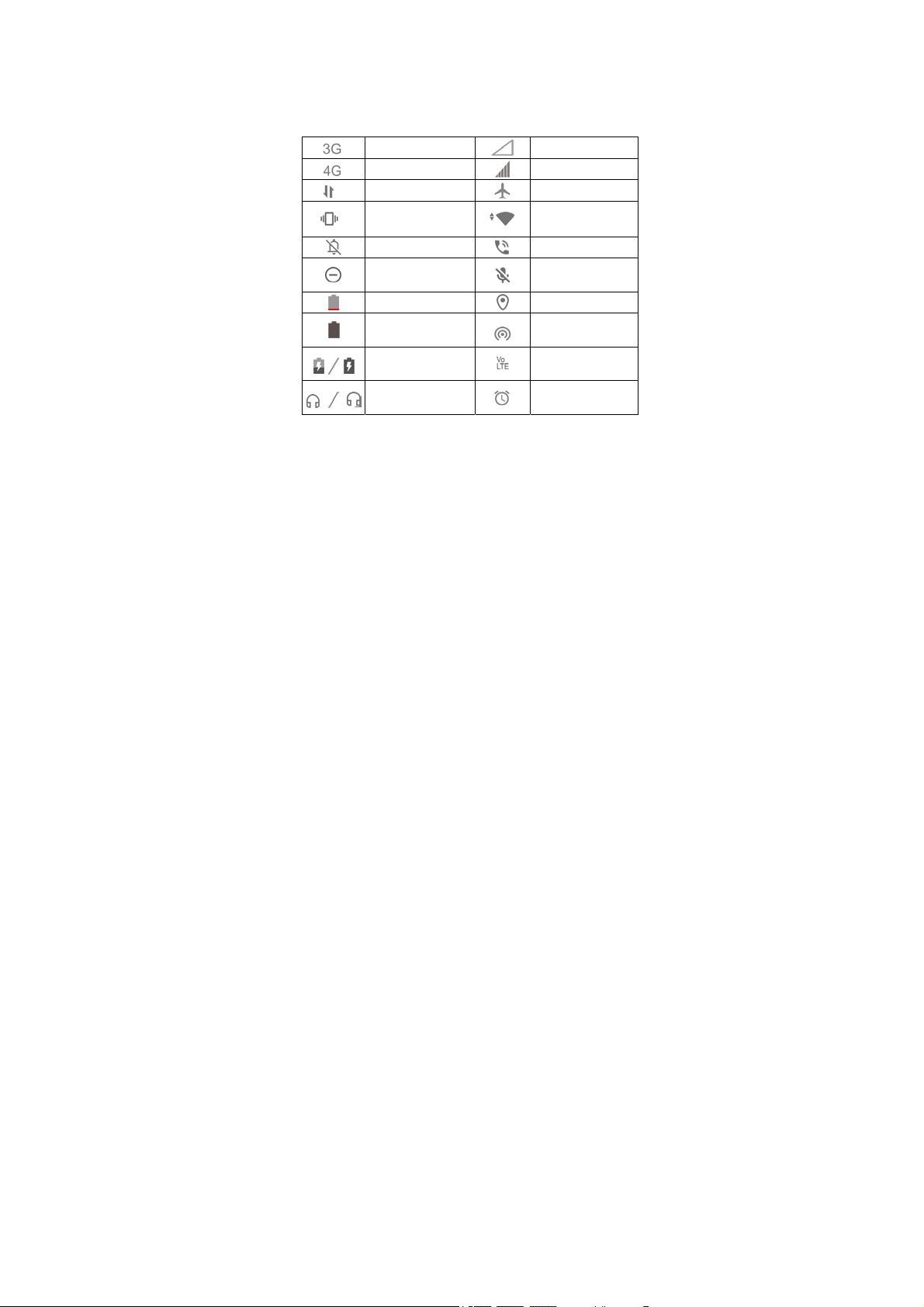
The status bar at the top of the home screen provides phone
and service status icons on the right side. Below are some of
the icons you may see.
3G connected
4G connected
Mobile data in use
Vibration on
Silent mode on
Do Not Disturb
mode on
Battery low
Battery full
Battery charging
Wired headset
connected
21
No signal
Signal strength
Airplane mode
Connected to a
®
Wi-Fi
Speaker on
Phone
microphone off
GPS positioning
Portable Wi-Fi
hotspot on
VoLTE on and
available
Alarm set
network
Managing Notifications
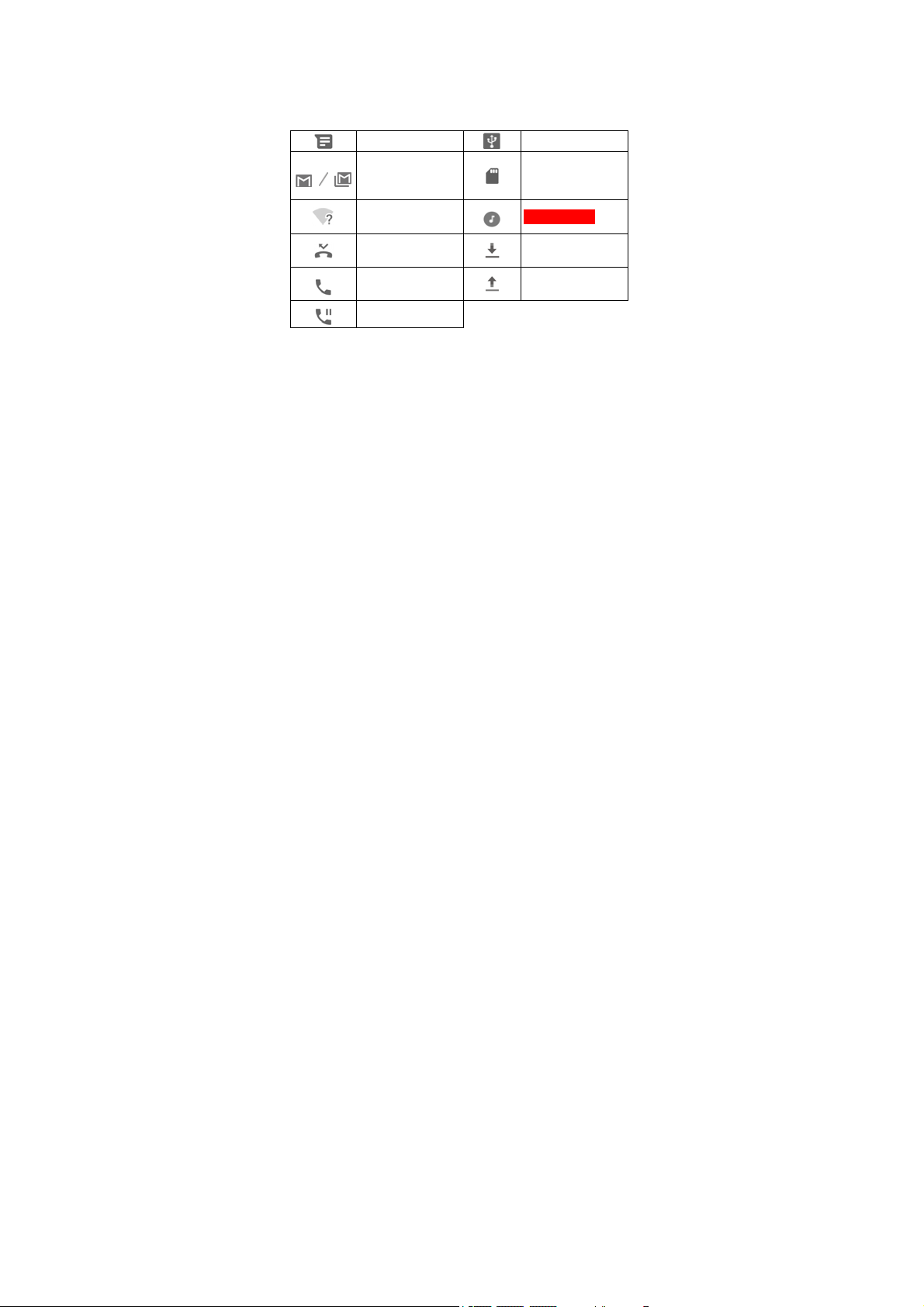
Notification Icons
The status bar at the top of the home screen provides
notification icons on the left. Below are some of the icons
you may see.
New SMS/MMS
New message(s)
from the Gmail™
app
Open Wi-Fi
network detected
Missed call
Call in progress
Call on hold
Open/Close the Notification Panel
Notifications report the arrival of new messages, calendar
events, and alarms, as well as ongoing events, such as
when you are playing music. You can open the notification
panel to view the details of notifications.
To open the notification panel, swipe your finger down
22
USB tethering on
microSDXC card
mounted
Song playing
Downloading/
Receiving data
Uploading/
Sending data

from the top of the screen.
To close the notification panel, swipe your finger up on
the screen or touch the Back key.
Using Quick Settings
The Quick Settings make it convenient to view or change the
most common settings for your phone.
Swipe down from the status bar and drag the notification
panel downwards to open the Quick Settings panel.
To turn on or off settings quickly:
1. Open the Quick Settings panel.
2. To turn on or off a setting, touch its tile. Touch and hold
certain tiles to access more setting options. For example,
touch and hold the Wi-Fi tile to open Wi-Fi settings.
To customize the Quick Settings panel:
You can add, remove or rearrange the tiles on the Quick
Settings panel.
1. Open the Quick Settings panel.
2. Touch at the bottom and do one of the following.
Touch and hold a tile and drag it to the position you
want.
Touch and hold a tile and drag it to the Drag here to
remove section to hide it.
In the Hold and drag to add tiles section, drag a tile
up to show it in the Quick Settings panel.
23

Opening and Switching Apps
Open an App
1. Swipe all the way up from the bottom of the screen to
view apps.
2. Slide up or down on the screen and touch an app to
open it.
NOTE:
Drag the slider on the right side of the screen to the initial
letter of the app you need, or touch the search box at the top
to search for apps.
Switch Between Recently Opened Apps
1. Swipe up from the bottom of the screen. The apps you’ve
used recently are displayed as a series of cards. Slide
left and right to see all the cards.
2. Touch a card to open that app.
NOTE:
You can swipe a card up to remove it from the screen, which
will free up running memory on the phone.
NOTES:
You can also swipe right along the navigation bar at the
bottom of the screen to view recent apps. Then slide left
and right to scroll the cards and release to switch to the
center app.
24

Make a quick swipe to the right along the navigation bar
to switch to the most recent app.
Using Split-Screen Mode
You can work with two apps at the same time in split-screen
mode.
NOTE:
Some apps may not support split-screen mode.
1. Open the first app you want to use and then swipe up
from the bottom of the screen to view recent apps.
2. Touch and hold the app icon at the top of the central card
and select Split screen.
3. Swipe the rest of the cards and touch the second app
you want to use. If the app is not among the cards, swipe
up from the bottom of the screen to select the app.
To exit split-screen mode, drag the border separating the two
apps to the top or bottom of the screen. The expanding app
will be kept in full screen.
25

Security
Protecting Your Phone With a Screen
Lock
1. Swipe all the way up from the bottom of the screen and
touch > Security & location > Screen lock.
2. Touch None, Swipe, Pattern, PIN, or Password.
Touch None to disable the screen lock.
Touch Swipe to allow unlocking with a ‘swipe’
gesture. Anyone can unlock the screen by touching
the display and sliding up.
Touch Pattern to create a pattern that you must draw
to unlock the screen.
Touch PIN or Password to set a numeric PIN or a
password that you must enter to unlock the screen.
Protecting Your Phone With Screen
Pinning
You can use the screen pinning feature to keep an app in
view, so others cannot switch to other apps or access your
personal information.
Turn On Screen Pinning
1. Swipe all the way up from the bottom of the screen and
26

touch > Security & location > Advanced > Screen
pinning.
2. Touch the Off switch.
3. To add security for unpinning, switch on Lock device
when unpinning and set up a screen lock as prompted,
or switch on Ask for unlock pattern/PIN/password
before unpinning if you’ve set a screen lock already.
Pin a Screen
1. Ensure that screen pinning is turned on.
2. Swipe up from the bottom of the screen to view recent
apps. If the app you want to keep in view is not in recent
apps, open it first.
3. Swipe left and right to find the app card. Then touch and
hold the app icon at the top of the card and select Pin.
Unpin the Screen
To unpin the screen and return to normal use, touch and
hold both the Back key and the Home key.
If screen lock is enabled for screen pinning, swipe up on the
lock screen and draw the pattern or enter the PIN/password.
You can also unlock the screen with your fingerprint or face
if you have registered one.
27
Loading…
Код: 113817
Извините, товара сейчас нет в наличии
Бесплатная доставка
по Красноярску
Извините, товара сейчас нет в наличии
Новости интернет-магазина «Лаукар»:
Дополнительная информация в категории Смартфон:
В интернет-магазине бытовой техники «Лаукар» Вы можете скачать инструкцию к товару Смартфон ZTE Blade V10 Vita 32Gb Black совершенно бесплатно.
Все инструкции, представленные на сайте интернет-магазина бытовой техники «Лаукар», предоставляются производителем товара.
Перед началом использования товара рекомендуем Вам ознакомиться с инструкцией по применению.
Для того чтобы скачать инструкцию, Вам необходимо нажать на ссылку «скачать инструкцию», расположенную ниже, а в случае, если ссылки нет,
Вы можете попробовать обратиться к данной странице позднее,
возможно специалисты интернет-магазина бытовой техники «Лаукар» еще не успели загрузить для скачивания инструкцию к товару:
Смартфон ZTE Blade V10 Vita 32Gb Black.

Фирма-производитель оставляет за собой право на внесение изменений в конструкцию, дизайн и комплектацию товара: Смартфон ZTE Blade V10 Vita 32Gb Black. Пожалуйста, сверяйте информацию о товаре с информацией на
официальном сайте компании производителя.
This manual contains the details of the setup and installation of ZTE Blade V10 Vita. Download ZTE Blade V10 Vita User Manual / User Guide in PDF for free.
- Manual Details
- 5.61 MB • EN • 143 Pages
General
General specifications for ZTE Blade V10 Vita
- Dimensions
- 157,1 x 75,8 x 8,1 mm 6.19 x 2.98 x 0.32 inches
- Weight
- 150 g (5.29 oz)
- Dual SIM
- Yes
- SIM card standard
- nanoSIM
- GSM frequencies
- 850/900/1800/1900
- Standard UMTS
- 850/1900
- LTE (4G)
- Yes
- Standard battery
- Li-Ion 3200 mAh, Not user replaceable
- Wireless battery charging
- —
- Stand-by (max.)
- 2G: 607 h 3G: 703 h 4G: 660 h
- Talk time (max.)
- 2G: 29 h 3G: 16 h
- Internal memory
- 32 GB, 64 GB
- RAM memory
- 2 GB, 3 GB
- Operating system
- Android 9.0 Pie
- User Interface
- Mifavor UI 9.0
- Processor
- Unisoc SC9863A 1,60 GHz Number of cores: 8
- GPU
- IMG8322
- Fingerprint scanner
- Yes
Multimedia
Multimedia specifications for ZTE Blade V10 Vita
- Main display
- IPS TFT 16M colors 720 x 1520 px (6.26″) 269 ppi
- Screen-to-body
- 82.1 %
- Touchscreen
- Yes
- Digital camera
- 13 Mpx
- Secondary camera
- 8 Mpx
- Flash
- Yes, LED
- Video
- H.263, H.264, MPEG4
- MP3
- Yes
Communication And Messaging/Data Transfer
communication and messaging/data transfer specifications for ZTE Blade V10 Vita
- Dictionary
- Yes, XT9
- EMS
- —
- MMS
- Yes
- Speakerphone
- Yes
- Voice dial
- Yes
- Call forwarding
- Yes
- e-mail client
- Yes
- RSS Reader
- Yes
- IrDA
- —
- Bluetooth
- Yes, v4.2 LE
- GPRS
- Yes
- EDGE
- Yes
- WiFi
- Yes, v802.11 a/b/g/n/ac
- HWiFi frequencies
- 2.4 i 5 GHz
- WiFi Direct
- Yes
- WiFi Display
- —
- Hotspot WiFi
- Yes
- DLNA
- —
- WAP
- Yes, v2.0
- xHTML
- Yes
- HSCSD
- —
- HSDPA
- Yes
- HSUPA
- Yes
- HSPA
- Yes
- HSPA+
- Yes
- NFC
- —
- WiMAX
- —
- USB
- Yes, v2.0 Type-C
- HDMI
- —
- GPS
- Yes
- GLONASS
- —
- Push To Talk
- —
Other Features
Other features specifications for ZTE Blade V10 Vita
- Java
- Yes, ART
- Calendar
- Yes
- Watch
- Yes
- Recorder
- Yes
- Alarm
- Yes
- Stopwatch
- Yes
- Organizer
- Yes
- Calculator
- Yes
- Polyphony
- Yes
- Audio Jack
- 3.5 mm
Sensors
Sensors specifications for ZTE Blade V10 Vita
- Accelerometer
- Yes
- Proximity
- Yes
- Light
- Yes
- Gravity
- Yes
Others 5
Others 5 specifications for ZTE Blade V10 Vita
- AnTuTu
- 74326 (v7)
- Colors
- Black, Green
- Release year
- 2019
Frequently Asked Questions
- Where to download the ZTE Blade V10 Vita user manual / user guide?
-
If the Manual / guide is available, you will be able to see the download button above which
will automatically download the manual in PDF format, otherwise it will bring you the online
version of the guides.
- What are the details of the ZTE Blade V10 Vita manual?
-
The ZTE Blade V10 Vita manual consists of 143 pages and has a size of 5.61 MB and it’s
written in English
ZTE Blade V10 Vita user manual
ZTE Blade V10 Vita user guide
ZTE Blade V10 Vita user guide manual
ZTE Blade V10 Vita user manual pdf
ZTE Blade V10 Vita user manual download
ZTE Blade V10 Vita owner manual online
Other
ZTE
User Manuals
Юридическим лицам
Доставка
Оплата товара
Оплата кредита
Оплата рассрочки
Вопросы и ответы
Как купить товар
Доставка
Оплата
Гарантия
Защита техники
Обмен? Легко!
Покупка в кредит
Покупка в рассрочку
Советы по выбору
Наклейка пленок
О корпорации «Центр»
Контакты
Партнеры
События
Юридическим лицам
Арендодателям
Отзывы о магазине
Вакансии
Наши магазины
8-800-100-3000
Искать в kcentr
Сравнение
Избранное
Корзина
Акции
Каталог товаров
Телефоны и планшеты
Мобильные телефоны
Смартфоны
ZTE
Код товара: 1241003
Краткие характеристики
Диагональ
6.26″
Количество SIM-карт
2
Объем оперативной памяти
3 Гб
Объем встроенной памяти
64 Гб
Емкость аккумулятора
3200 мАч
Перейти к характеристикам
Нет в наличии
Характеристики
Описание
Отзывы
Инструкции и документация
1
Все товары ZTE
Все смартфоны ZTE
Инструкции Смартфон ZTE Blade V10 Vita 3/64Gb
Смартфон ZTE Blade V10 Vita 3/64Gb инструкция на русском языке
Адреса магазинов
С нами выгодно
Акции
С нами удобно
Сервисный центр
Установка и настройка
Оплата кредита
Оплата рассрочки
Доставка
Юридическим лицам
8-800-100-3000
8:00 — 17:00 МСК
Бесплатный звонок по России
kcentr.ru — официальный Интернет-магазин Корпорации «Центр» — российской розничной торговой сети по продаже
бытовой техники и электроники известных мировых производителей.
© 1990 — 2025, Корпорация «Центр»
Политика конфиденциальности
Информация на сайте не является публичной офертой