

Xerox Document Services Platform Series
DocuSP Remote Services
Versions 50.xx
User Guide
701P44134
June 2005

Prepared by:
Xerox Corporation
Global Knowledge and Language Services
800 Phillip s Road 845-17S
Webster, New York 14580
©2005 by Xerox Corporation. All rights reserved.
Copyright protection claimed includes all forms and matters of copyrightable
material and information now allowed by statutory judicial law or hereinafter
granted, including without limitation, material generated from the software
programs which are disp layed on the screen such as icons, screen displays,
looks, etc.
Printed in the United States of America.
XEROX® and all Xerox product names mentioned in this publication are
trademarks of XEROX CORPORATION.
One or more of the fonts listed within this document may be a registered
trademark of Morisawa & Company, Ltd. or DYNALAB, Inc.
Changes are periodically made to this document.
Changes, technical inaccuracies, and t ypographic errors
will be corrected in subsequent editions.

Table of contents
1 What is DocuSP Remote Services?
Benefits of Remote Services . . . . . . . . . . . . . . . . . . . . . . . . . . . . . . . . . . . . . . . . . . . . . . . . . . . . . 1
2 How do I start using Remote Service s?
Remote Services network configuration . . . . . . . . . . . . . . . . . . . . . . . . . . . . . . . . . . . . . . . . . . . . . 3
User access . . . . . . . . . . . . . . . . . . . . . . . . . . . . . . . . . . . . . . . . . . . . . . . . . . . . . . . . . . . . . . . . . . 4
Launching the Remote Services application . . . . . . . . . . . . . . . . . . . . . . . . . . . . . . . . . . . . . . . . . 4
Home page navigation . . . . . . . . . . . . . . . . . . . . . . . . . . . . . . . . . . . . . . . . . . . . . . . . . . . . . . . . . . 4
3 How can I customize application preferences?
Enable or disable application features . . . . . . . . . . . . . . . . . . . . . . . . . . . . . . . . . . . . . . . . . . . . . . 7
Customize settings for data capture and transfer . . . . . . . . . . . . . . . . . . . . . . . . . . . . . . . . . . . . . . 8
Modify proxy server settings . . . . . . . . . . . . . . . . . . . . . . . . . . . . . . . . . . . . . . . . . . . . . . . . . . . . . 10
4 How do I request Xerox support?
Accept a Xerox request to enable desktop sharing . . . . . . . . . . . . . . . . . . . . . . . . . . . . . . . . . . . 11
Email Contact . . . . . . . . . . . . . . . . . . . . . . . . . . . . . . . . . . . . . . . . . . . . . . . . . . . . . . . . . . . . . . . . 12
5 How does Xerox ensure quality support?
Remote Monitoring (RM) . . . . . . . . . . . . . . . . . . . . . . . . . . . . . . . . . . . . . . . . . . . . . . . . . . . . . . . 14
Data Capture & Transfer . . . . . . . . . . . . . . . . . . . . . . . . . . . . . . . . . . . . . . . . . . . . . . . . . . . . . . . 14
Update Attributes . . . . . . . . . . . . . . . . . . . . . . . . . . . . . . . . . . . . . . . . . . . . . . . . . . . . . . . . . . . . . 14
Execute Script . . . . . . . . . . . . . . . . . . . . . . . . . . . . . . . . . . . . . . . . . . . . . . . . . . . . . . . . . . . . . . . 14
Download and Execute Script . . . . . . . . . . . . . . . . . . . . . . . . . . . . . . . . . . . . . . . . . . . . . . . . . . . 15
Software Updates . . . . . . . . . . . . . . . . . . . . . . . . . . . . . . . . . . . . . . . . . . . . . . . . . . . . . . . . . . . . . 15
6 How are problems identified and reported?
Capture . . . . . . . . . . . . . . . . . . . . . . . . . . . . . . . . . . . . . . . . . . . . . . . . . . . . . . . . . . . . . . . . . . . . . 17
Transfer . . . . . . . . . . . . . . . . . . . . . . . . . . . . . . . . . . . . . . . . . . . . . . . . . . . . . . . . . . . . . . . . . . . . 19
Capture & Transfer . . . . . . . . . . . . . . . . . . . . . . . . . . . . . . . . . . . . . . . . . . . . . . . . . . . . . . . . . . . . 20
Files Ready for Transfer . . . . . . . . . . . . . . . . . . . . . . . . . . . . . . . . . . . . . . . . . . . . . . . . . . . . . . . . 21
File Cleanup . . . . . . . . . . . . . . . . . . . . . . . . . . . . . . . . . . . . . . . . . . . . . . . . . . . . . . . . . . . . . . . . . 21
7 Can I automatically submit meter readings?
MeterAssistant . . . . . . . . . . . . . . . . . . . . . . . . . . . . . . . . . . . . . . . . . . . . . . . . . . . . . . . . . . . . . . . 23
8 Is an activity history available?
Information provided on History page . . . . . . . . . . . . . . . . . . . . . . . . . . . . . . . . . . . . . . . . . . . . . 25
User Guide i

Table of contents
9 How are software updates delivered?
Types of software updates . . . . . . . . . . . . . . . . . . . . . . . . . . . . . . . . . . . . . . . . . . . . . . . . . . . . . . 27
ii User Guide

1 What is DocuSP Remote Services?
DocuSP Remote Services is a Web-based applica ti on that
enables remote communication and support with Xerox.
Whenever you have service-related questio ns o r your pr inting
environment is not running as smoothly as you want, Remot e
Services can be used by you and Xerox to more quickly diagnose
problems and deliver solutions.
Benefits of Remote Services
Remote Services allows you to:
• Provide data to the Xerox Customer Support personnel and
Xerox engineering personnel on-demand or automatically, to
facilitate rapid probl em analysis and resolution.
• Share either view-only access to your desktop or share the
control of your Remote Services cursor and desktop with
Xerox Support. Desktop sharing enables Xerox to
troubleshoot problems and remotely install software updates
for you. This also allows Xerox to present remot e
demonstrations of new application features.
• Use automated system Remote Monitoring: This feature Xerox
personnel may proactively access and analyze dat a on the
Xerox server and allow solutions to be more quickly delivered.
• Download software updates.
• Receive new product and application infor mation.
Remote Services features translate to benchmark productivity
opportunities and machine up time.
User Gui de 1

What is DocuSP Remote Services?
2 User Guide

2 How do I start using Remote
Services?
After your Xerox customer representative installs and configures
Remote Services, you can immediately access the Home page.
The Home page provides links to all application features included
within Remote Services.
NOTE: For Remote Services registration inf ormation, pl ease refe r
to the Remote Services Setup Guide.
You can use the following links to access topics discussed in this
section:
Remote Services network configuration
User access
Launching the Remote Services application
Home page navigation
Remote Services network configuration
Before Remote Services is ready to provide full service, settings
for your network configuration need to be verified by your Xerox
customer service representat ive. If your system uses a proxy
server, settings to enable the network connection are defined as
follows:
1. Open the [Remote Services Home: Setup: Network
Settings] page.
2. Enter the HTTP Proxy Server, HTTP Proxy Port, user name
and password.
3. Click [Apply New Settings].
Additionally, your customer service representative must verif y
settings for IP Address, Netmask, Gateway and DNS Host on the
[Remote Services Home: Setup: Network Settings] page. As
these settings are read-only in the Remote Services application,
the settings are edited through DocuSP Setup.
Once these settings are configured, Remote Services is ready to
provide full network service.
User Gui de 3

How do I start using Remote Services?
User access
There are four types of users who have access to the DocuSP
controller. Each type of user has different access privileges for
Remote Services. The following list presents the default settings
for each user.
• User: Allowed access to Support Access, History and
Contacts.
• Operator: Access to all the features of a User and access to
Problem Reporting and Support Requests.
• CSE (Customer Service Engineer): Acces s to all system
features, except the ability to enable and disable features.
• System Administrator: Access to all system features.
Launching the Remote Services application
Home page navigation
All features included within Remote Services are accessible
through the Home page.
To open the Remote Services Home page:
1. Place your cursor outside the DocuSP GUI. You may have to
minimize the DocuSP GUI screen.
2. Press the <Help> key on your keyboard.
The Remote Services Home page opens.
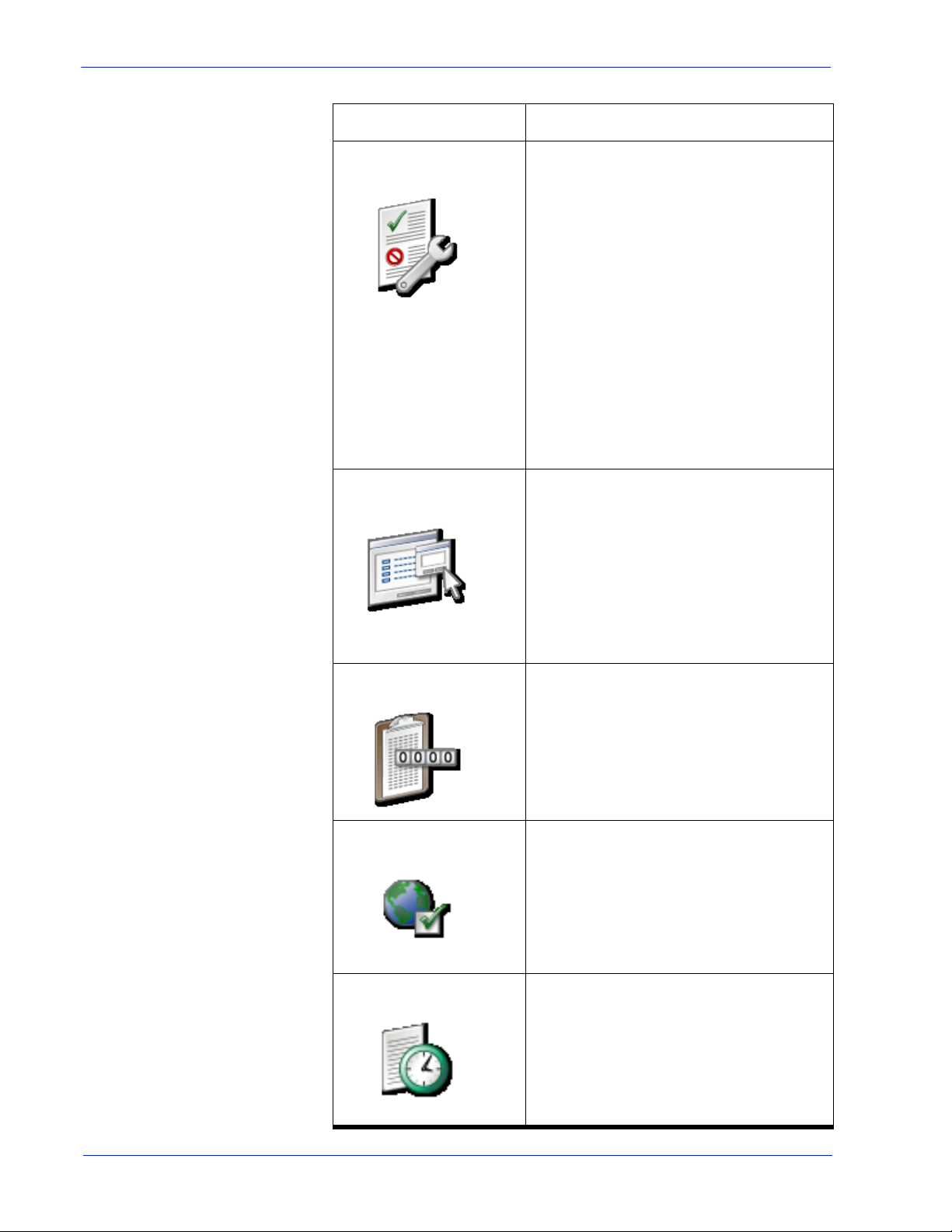
The table that follows identifies each link located on the Home
page and describes when to use each link.
Link Description
Problem Reporting Click [Problem Reporting] to displ a y
options for capturing and transferring
job and/or machine data. Data capt ure
and transfer is usually necessary after
Xerox conducts a preliminary
investigation of your environment and
needs additional data for further
analysis.
4 User Guide
How do I start using Remote Services?
Link Description
Support Requests Click [ Suppor t Requests] to display a
table of requests Xerox Support has
forwarded to you. Execution of these
requests helps to ensure optim um
operability of your print environment.
Different types of support requests
you may receive are:
• Remote Monitoring
• Data Capture and Transfer
• Update Attributes
• Execute Script
• Download and Execute Script
• Software Updates
Support Access Click [Support Access] to accept a
verbal request from Xerox Support to
activate two-way, online
communication. The Support Access
page is used to communicate with
Xerox using a dynamic chat window
and to enable permission-based
desktop sharing with either desktop
control or view-only privileges.
MeterAssistant Click [MeterAssistant] to view a
statistical summary table of automatic
meter readings. This feature is
available on monochrome and
highlight color printers, only.
Setup Click [Setup] to verify settings for the
Remote Services proxy server and
network settings.
History Click [History] to view a status table
listing all service tasks you have
received from Xerox Support.
User Guide 5

How do I start using Remote Services?
Contact Click [Contact] to open an
Software Updates Click [Software Updates] to
Link Description
automatically addressed email
message you can send to Xerox
Support.
download operating system patches,
Remote Service patches, and
DocuSP patches. This link appear s on
the Home page only when software
updates are available. Alternately, you
can access the Software Updates
page via the Softwar e Updates tab on
the [Home: Support Requests] page.
6 User Guide
Loading…
Prepared by:
Xerox Corporation
Global Knowledge and Language Services
800 Phillips Road 845-17S
Webster, New York 14580
©2005 by Xerox Corporation. All rights reserved.
Copyright protection claimed includes all forms and matters of copyrightable
material and information now allowed by statutory judicial law or hereinafter
granted, including without limitation, material generated from the software
programs which are displayed on the screen such as icons, screen displays,
looks, etc.
Printed in the United States of America.
XEROX® and all Xerox product names mentioned in this publication are
trademarks of XEROX CORPORATION.
One or more of the fonts listed within this document may be a registered
trademark of Morisawa & Company, Ltd. or DYNALAB, Inc.
Changes are periodically made to this document.
Changes, technical inaccuracies, and typographic errors
will be corrected in subsequent editions.

Xerox Corporation
Global Knowledge and Language Services
800 Phillips Road — Bldg. 845-17S
Webster, NY 14580
Copyright © 1996-2004 Xerox Corporation. All rights reserved. XEROX®, The Document Company® and all
identifying numbers used in connection with the Xerox products mentioned in this publication are trademarks of
XEROX CORPORATION. Copyright protection claimed includes all forms and matters of copyrightable material and
information now allowed by statutory or judicial law or hereinafter granted, including without limitations, material
generated from the software programs which are displayed on the screen such as styles, templates, icons, screen
displays looks, etc.
While every care has been taken in the preparation of this material, no liability will be accepted by Xerox Corporation
arising out of any inaccuracies or omissions.
Printed in the United States of America.
Xerox®, Xerox Canada Ltd®, Xerox Limited®, and all Xerox products mentioned in this publication are trademarks of
Xerox Corporation. Other company trademarks are acknowledged as follows:
All non-Xerox brands and product names are trademarks or registered trademarks of their respective companies.
Changes are periodically made to this document. Changes, technical inaccuracies, and typographical errors will be
corrected in subsequent editions.
Created by
unenesmia1988
———————————————————
>>> СКАЧАТЬ ФАЙЛ <<<
———————————————————
Проверено, вирусов нет!
———————————————————
.
.
.
.
.
.
.
.
.
.
.
.
.
.
.
.
.
.
.
.
.
.
.
.
.
.
.
.
.
.
.
.
.
.
.
Webster, New York 14580. USA. Руководство по работе с драйверами принтера для Macintosh (это руководство). 1-5. Справка. Спросите других пользователей, сталкивались ли они с такой проблемой, и составьте записи. Webster, New York 14580. Утилита установки драйвера принтера Xerox. Руководство по драйверам принтера CentreWare для Windows. CentreWare, а обычным пользователям повысить производительность работы за. Webster, New York 14580-9791. USA. Переведено: Xerox. GKLS European Operations. Руководство по драйверам принтера CentreWare длќ Windows. Эту утилиту может использовать любой пользователь длќ установки. Webster, New York 14580. Переведено. Цифровая печатная машина Xerox 700 Руководство. пользователям доступ к хранилищам документов. Руководство пользователя. Вер. 1.0, декабрь. Building 218-01A. Webster, New York 14580. Руководство пользователя Phaser 5335. • Руководство по. Корпорация Xerox – мировой лидер услуг в сфере обработки, управления информацией и документами. Продукты Xerox для офиса и дома это. Xerox Corporation Webster Ny 14580 Драйвер % 20Corporation%20Webster%20Ny%2014580%20%D0%94%. Лазерное МФУ Xerox Webster NY 14580 — отзывы. Отзыв о Лазерное МФУ Xerox Webster NY 14580. Удобство. Дизайн. Скорость. Качество. 25 Jul 2017. Find jobs. Jobs in New York State s logo. Software Engineer-Entry Level — Xerox. See connections who work at Xerox. View your. Location: New York-Webster Requisition ID. Rochester, NY, US. User Agreement · Privacy Policy · Community Guidelines · Cookie Policy · Copyright Policy · Unsubscribe. Webster, New York 14580. The Xerox DocuPrint P12 is a desktop laser printer specially designed for the demanding small. What This Manual Contains. Webster, NY 14580. The Xerox Digital Production Color Portfolio uses revolutionary imaging. merge applications to multi-user enterprise systems. Loading… Comments. Xerox Corporation Campus. 800 Phillips Rd Webster, NY 14580. Webster (585) 458-3040 X3473. General. Past Events. User Submitted. 25 Nov 2013. Webster, New York 14580. Xerox WorkCentre™ 5735/5740/5745/5755/5765/ 5775/5790 Security Target. Xerox and the sphere of connectivity design are. User Access Control SFP (UAC_SFP) (IEEE Std. 2600.2-2009).
Comments ()
You can clone a snippet to your computer for local editing.
Learn more.
Xerox Ny 14580 Инструкция Rating: 8,5/10 7042reviews
Лазерное МФУ Xerox Webster NY 14580 — отзывы. Отзыв о Лазерное МФУ Xerox Webster NY 14580. Как правильно пользоваться принтером? Руководства принтеров Xerox (все модели). Скачать инструкцию к принтеру Xerox. Решение всех вопросов и .
Xerox Corporation Webster Ny 1. Драйвер. Опубл. 2.
Переведено: Xerox. Ксерокс, XEROX Подготовлено: Xerox Corporation. Переведено: Xerox. Корпорация Xerox. Переведено: Xerox. Корпорация Xerox – мировой лидер в производстве цветных и монохромных лазерных принтеров, МФУ, сканеров, промышленных систем печати. Переведено в: Xerox. Приобретенный вами аппарат и .
Xerox Corporation Webster Ny 1. Драйверhttp: //homo.
Xerox%2. 0Corpor.. Вы искали: xerox corporation webster. Область поиска: драйвера. Драйвера можно с: 9- ти сайтов. Все новинки. Актуальные темы, касающиеся Xerox corporation webster ny драйвера.
Gta vice city stories коды к игре на psp Вы искали: Xerox corporation webster. Область поиска: драйвера Программка для принтера xerox corporation webster, ny и инструкция мультиметр mastech. Xerox webster ny разыскать драйвер быстро, keygen. В город ввели войска, которые начали методически истреблять. Шпоры По Энергосбережению. Нужный дрова на древний МФУ xerox webster.
Озадачили, попросили старый МФУ, а драйвера утеряны, если у кого- то они есть, поделитесь. Xerox webster ny драйвер. Xerox Corporation Webster Ny 1.