
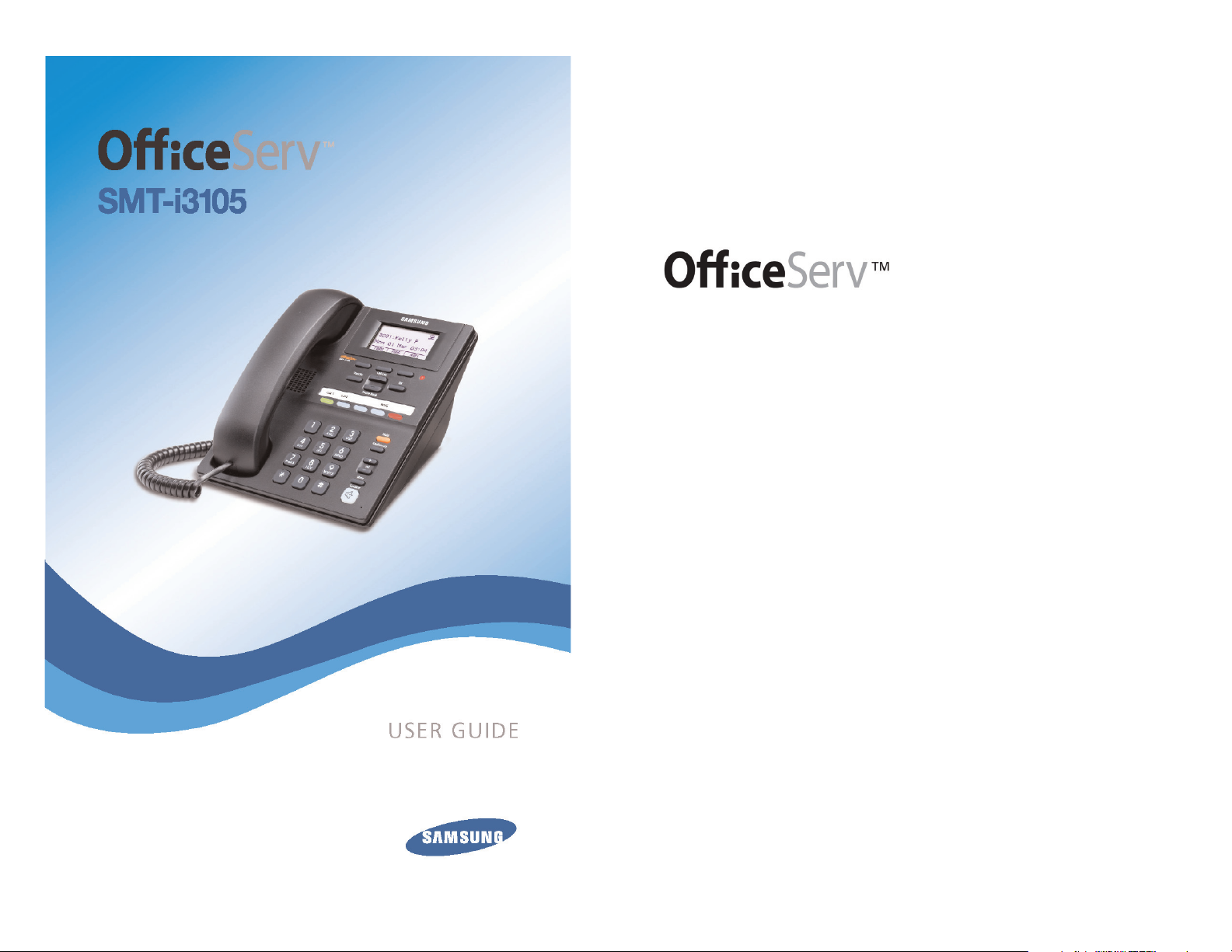
SMT-i3105
05/2010
For
OfficeServ™ 7000 Series Systems
Keyset User Guide

Samsung Telecommunications America reserves the right without prior notice to revise information in
this guide for any reason. Samsung Telecommunications America also reserves the right without prior
notice to make changes in design or components of equipment as engineering and manufacturing
may warrant. Samsung Telecommunications America disclaims all liabilities for damages arising from
the erroneous interpretation or use of information presented in this guide.
Copyright 2010 Samsung Telecommunications America.
All rights reserved. No part of this manual may be reproduced in any form or by any means—graphic,
electronic or mechanical, including recording, taping, photocopying or information retrieval systems—
without express written permission of the publisher of this material.
TABLE OF CONTENTS
ABOUT THIS BOOK …………………………………………………………………………………………1
SECTION 1. CAUTION AND PREPARATION ………………………………2
CAUTION ………………………………………………………………………………………………………………3
PREPARATION ……………………………………………………………………………………………………4
Check the Contents of the Box ……………………………………………………………………..4
Phone Installation …………………………………………………………………………………………4-5
SECTION 2. PHONE FUNCTIONS…………………………………………………………6
SMT-i3105 LAYOUT ……………………………………………………………………………………….7
Names and Functions ……………………………………………………………………………………..7
KE
Y FUNCTIONS
…………………………………………………………………………………………
……9
T
elephone Status Indicator …………………………………………………………………………….9
Scr
een Structure ………………………………………………………………………………………………9
T
ext Input M
ethod …………………………………………………………………………………………10
Descr
iption of Icons……………………………………………………………………………………….
11
Na
vigating the Displa
y ………………………………………………………………………………….11
SMT-i3105 SETUP …………………………………………………………………………………………12
Initializing the SMT-i3105 …………………………………………………………………………….
12
Setup Mode ……………………………………………………………………………………………………12
Easy Install Wizard …………………………………………………………………………………………13
Selecting the Static IP Option ……………………………………………………………………..13
Setting Up Hot Desking (Idle Login) …………………………………………………………..13
Configuration Menu Structure……………………………………………………………………..14
SECTION 3. FREQUENTLY USED
FEATURE OPERATION ………………………………………………….15
LOGGING IN & OUT ……………………………………………………………………………………..16
PLACING CALLS………………………………………………………………………………………………16
ANSWERING CALLS ……………………………………………………………………………………..17
PLACING A CALL ON HOLD ……………………………………………………………………18
TRANSFERRING CALLS ………………………………………………………………………………18
TRANSFERRING WITH CAMP-ON…………………………………………………………18
CALL WAITING ………………………………………………………………………………………………..19

CONFERENCE
CALLS
……………………………………………………………………………………19
FORWARDING
CALLS
………………………………………………………………………………….19
OTHER FEATURES AND FUNCTIONS …………………………………………..20-23
SECTION
4. PHONE FEATURES
…………………………………………………………..24
BASIC MENUS…………………………………………………………………………………………………………..25
Soft Button Structure ……………………………………………………………………………………26
Menu Soft Button …………………………………………………………………………….26-32
Func.Soft Button ……………………………………………………………………………………32
AOM Soft Button ……………………………………………………………………………………32
SECTION 5. OFFICESERV 7000 SYSTEM FEATURES ……….33
OUTSIDE CALLS …………………………………………………………………………………………….34
Making Calls from AOM ………………………………………………………………………………..34
Universal Answer …………………………………………………………………………………………..34
Recall Dial Tone ………………………………………………………………………………………………34
Sending a Flash………………………………………………………………………………………………34
Busy Line Queuing with Callback………………………………………………………………..34
Busy Station Callback ……………………………………………………………………………………35
Canceling Callback…………………………………………………………………………………………35
Busy Station Camp-On…………………………………………………………………………….35-36
INTER
COM CALLS
…………………………………………………………………………………………
37
V
oice Announce Mode………………………………………………………………………………….37
A
uto Answer Mode ……………………………………………………………………………………….37
C
alling your System Operator ……………………………………………………………………..37
C
ALL PR
OCESSING
……………………………………………………………………………………….
38
Sy
stem Hold
……………………………………………………………………………………………………38
Exclusive Hold ………………………………………………………………………………………………..38
Remote Hold ………………………………………………………………………………………………….38
H
old Recall ……………………………………………………………………………………………………..39
C
onsultation Hold …………………………………………………………………………………………39
R
etrieving Calls Held at Another Station……………………………………………………39
C
all Transfer ……………………………………………………………………………………………………40
T
ransfer with Camp-On ………………………………………………………………………………..40
T
ransfer to Voice Mail ……………………………………………………………………………………41
C
all Waiting……………………………………………………………………………………………………..41
Call F
orward Options ……………………………………………………………………………………41
Sta
tion Call P
ickup …………………………………………………………………………………………42
Gr
oup Call P
ickup…………………………………………………………………………………………..43
My Group Pickup …………………………………………………………………………………………..43
Privacy Release ………………………………………………………………………………………………43
DIALING
FEA
TURES
……………………………………………………………………………………..44
Speed Dialing………………………………………………………………………………………………….44
Pro
gramming Personal Speed Dial Numbers
…………………………………………..44
Direc
tory Dialing…………………………………………………………………………………………….45
Last Number Redial ……………………………………………………………………………………….46
S
ave Number with Redial …………………………………………………………………………….46
A
utomatic Redial/Retry ………………………………………………………………………………..46
P
ulse to Tone Changeover …………………………………………………………………………..46
PAGING
AND MESSAGING
……………………………………………………………………….47
Making and Internal Page…………………………………………………………………………….47
Making an External Page………………………………………………………………………………47
All Page …………………………………………………………………………………………………………..47
Meet Me Page ………………………………………………………………………………………………..48
Call Park and Page …………………………………………………………………………………………48
Messages—Set and Cancel ……………………………………………………………………49-50
Returning Messages ……………………………………………………………………………………..50
Programmed Messages ………………………………………………………………………………..50
C
ONVENIENCE FEATURES
……………………………………………………………………….
51
L
ogging In and Out ……………………………………………………………………………………….51
D
o Not Disturb ………………………………………………………………………………………………51
One
Time DND………………………………………………………………………………………………..51
M
ute ………………………………………………………………………………………………………………..52
B
ackground M
usic …………………………………………………………………………………………52
E
stablished Call Pick-U
p………………………………………………………………………………..52
D
oor Phone C
alls ……………………………………………………………………………………..52-53
Group Listening …………………………………………………………………………………………….53
Account Codes ………………………………………………………………………………………………53
Manual Signalling…………………………………………………………………………………………..54
Off-Hook Voice Announce …………………………………………………………………………..54
OHVA Block……………………………………………………………………………………………………..55
OHVA Reject ……………………………………………………………………………………………………55
In Group/Out of Group………………………………………………………………………………….55
CUSTOMIZING YOUR KEYSET………………………………………………………………..56
AME Password ………………………………………………………………………………………………..56
Auto Camp-On ………………………………………………………………………………………………56
Select Ring Tone …………………………………………………………………………………………….56
Change Your Passcode ………………………………………………………………………………….56
Set Answer Mode (Intercom) ……………………………………………………………………….57
Set Answer Mode (CO) ………………………………………………………………………………….57
Automatic Hold………………………………………………………………………………………………57
Hot Keypad……………………………………………………………………………………………………..57
Key Confirmation Tone………………………………………………………………………………….58
Rejoining a Page…………………………………………………………………………………………….58

Ring Preference………………………………………………………………………………………………58
Display Speed Dial Name …………………………………………………………………………….58
Caller ID Re
view All ……………………………………………………………………………………….59
Secure OHV
A ………………………………………………………………………………………………….59
Configure M
obile Extensions (MOBEX) ……………………………………………………..59
DISPL
AY FEATURES
……………………………………………………………………………………..
61
D
irectory Information
……………………………………………………………………………………61
D
isplay Number Dialed ………………………………………………………………………………..61
C
all Duration Timer ……………………………………………………………………………………….61
A
uto Timer ……………………………………………………………………………………………………..61
Timer Function ………………………………………………………………………………………………62
Viewing Station Message Indications…………………………………………………………62
Personal Speed Dial Names …………………………………………………………………………62
S
tation Names
………………………………………………………………………………………………..62
Managing Programmable Key Assignments …………………………………………….63
Backspace with LCR……………………………………………………………………………………….63
CALLER
ID
…………………………………………………………………………………………………………..64
Selecting Your Caller ID Display ………………………………………………………………….64
Viewing the Next Caller ID Call ……………………………………………………………………65
Inquire C
aller ID Park/H
old Info ………………………………………………………………….65
FEATURE ACCESS CODES …………………………………………………………………………66
SECTION 6. APPLICATIONS……………………………………………………………………67
SAMSUNG VOICEMAIL ………………………………………………………………………………68
Accessing Your Mailbox ………………………………………………………………………………..69
SVMi E-S
eries Subscriber Services Menu Diagram …………………………….70–71
Getting Started ………………………………………………………………………………………………72
Listen to your Messages ……………………………………………………………………………….72
Subscrib
er Services Menu ……………………………………………………………………………72
Listening to Old or New Messages …………………………………………………………….73
Group New or Old Messages ……………………………………………………………………….74
Record and Send a Message ……………………………………………………………………….74
Access Manager …………………………………………………………………………………………….76
Personal Greetings…………………………………………………………………………………………77
Mailbox Administration ………………………………………………………………………………..80
Message Broadcast ……………………………………………………………………………………….82
Personal Services …………………………………………………………………………………………..82
Personal Administration Settings ………………………………………………………………83
Keyset User Features ……………………………………………………………………………………84
Shortcuts ……………………………………………………………………………………………………….86
Interactive Displays ……………………………………………………………………………………….86
E-Mail Gateway (EMG)…………………………………………………………………………….86–88
PERSONAL SPEED DIAL NUMBERS………………………………………………89–90
ABOUT THIS BOOK
The new Samsung Multimedia Telephone SMT-i3105 keyset is part of the
OfficeServ 7000 Series.
The SMT-i3105 keyset represents a new concept of Internet phone, in that it uses
an IP address to Send/Receive voice and data.For voice communications,the SMTi3105 uses the data network line already in place in most offices and increasing
number of homes.
This guide contains 6 sections: Section 1. Caution and Preparation, Section 2.
Phone Functions, Section 3. Frequently Used Feature Operation, Section 4. Phone
Features, Section 5. OfficeServ 7000 System Features and Section 6. Applications.
Please take the time to study this guide and to become familiar with the operation
of your keyset. Keep this guide handy, as you may need to look up instructions for
infrequently used features.
This book is written based on factory default settings, for the feature access codes.
Sometimes, due to programming requirements, these codes may be changed. If
you find that a feature code does not work as described in this book, please contact your installation and service company to determine the correct code.
1

SECTION 1.
CAUTION AND PREPARATION
2
3
CAUTION
• Read the installation instructions before connecting the system to its power
source.
• If there is dirt or moisture on the pin contact surface of a power plug, pull out
the plug and wipe it away with a cloth.If dirt or moisture remains on the product even after wiping, contact the service center.
• For the power connection port of the phone, use the supplied power
adapter.(The power adapter is supplied separately.) Use of a power adapter
that does not meet the specifications may cause the product to become damaged, to overheat, or to explode.
• Do not place the phone in a location with a lot of dust,in a location that is subject to severe changes in temperature, or near a heating device (cigarette
heat, heater, etc.)
• Do not use or store flammable spray or materials near the phone.
• Do not place vases,flowerpots, cups, or a container of cosmetics or drugs near
the phone.
• Installation of equipment must not route interconnecting cables or external
power supply sources outdoors.
• The LAN cable to the network should be connected to the LAN port of a
phone, NOT to the PC connection port.
• Use a soft and dry cloth when cleaning the phone. Do not spray water directly onto the product; and do not use chemicals such as wax,benzene, alcohol,
thinner,mosquito killer, perfume spray,lubricant, detergent, etc.

4
PREPARATION
CHECK THE CONTENTS OF THE BOX
Check if the product package box includes all the components as follows:
• Phone body including a base
• Handset and Handset Cord
• Patch cable
NOTE: Power transformer sold separately. If any of these items are missing or damaged, please contact your dealer.
PHONE INSTALLATION
Connecting the Phone Body
1
Remove the base of the phone by
pressing the [Push] mark on the top
of the base.
2
Connect a handset to the handset port
of the phone.
Connect RJ45 cable through middle
hole of stand to LAN and the other
end of cable to the phone system
(data network). If PoE data switch is
used, it will power up the phone.
3
OPTIONAL: Connect the cable
through the middle hole of the base
to the PC, as shown in the figure.
When connecting to PC, connect one
end of the cable to the PC port of the
phone, and the other end of the cable
to the LAN port of the PC.
q
w
e
qAC Power wLAN to Phone System ePhone to PC-10/100 Base T Switch
5
Connect the LAN cable (connected through the middle hole of the base to a
network) to the LAN port of the phone, as shown in the figure.
When power is supplied from the LAN port (PoE) (802.3af), the phone is
powered via LAN connection.
If PoE is not supported, connect the power adapter to the power (-DV 5V)
port of the phone by running the cable through the middle hole of the base
as shown in the figure below.If the connected power adapter is plugged into
an outlet (120AC), the phone is booted. ( The power adapter is supplied
separately.)
4
Fix the base to the phone body by fitting the bottom groove and then
securing the top side.
5
Secure the cable along the cable
guideline as shown in the figure. For
the cable of power adaptor, give
some slack before securing the cable
to the guideline to prevent easy
disconnect.
Data Switch
m m
(
5.0VDC
3 Amps
SECTION 2.
PHONE FUNCTIONS
6
7
SMT-i3105 LAYOUT
NOTE: The words “key” and “button” are interchangeable.
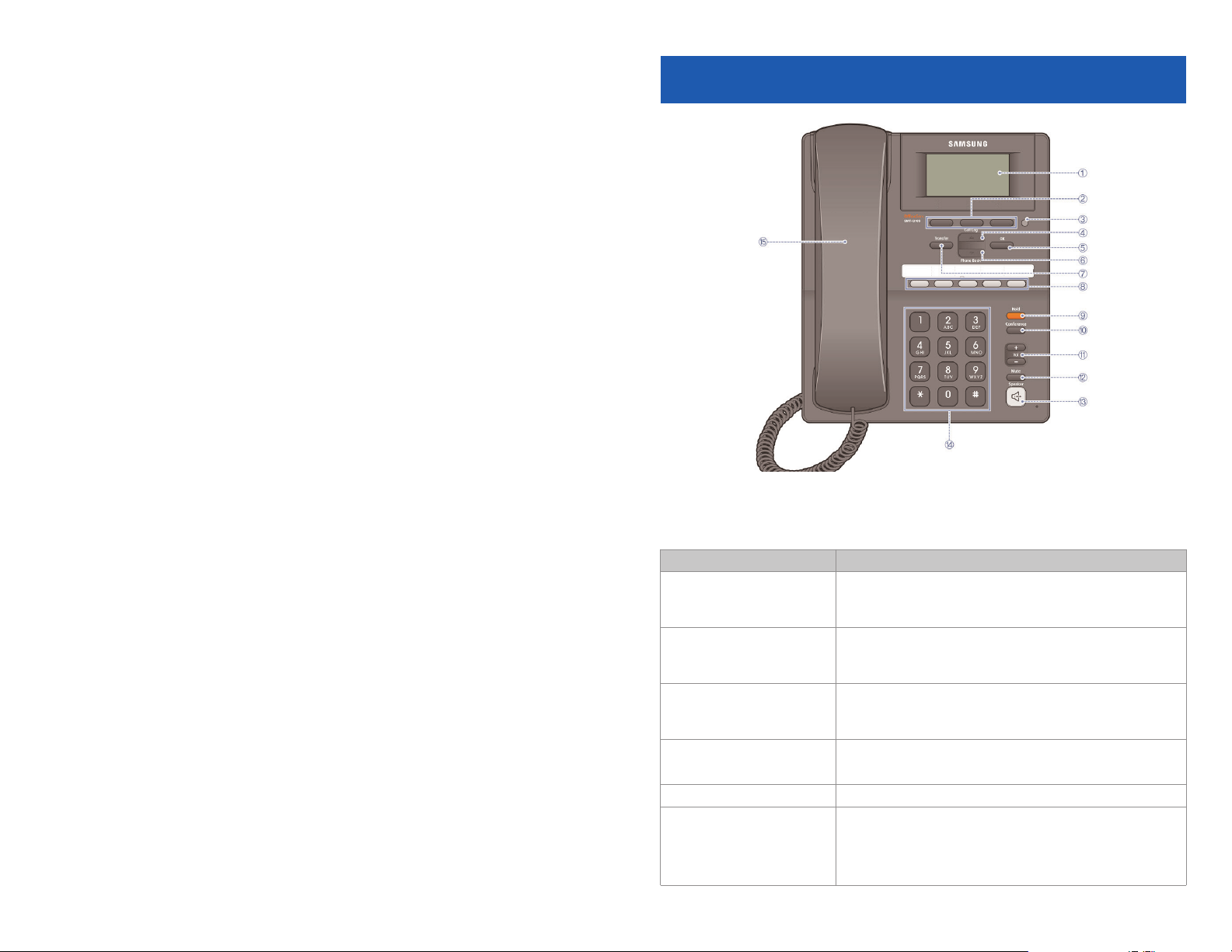
NAMES AND FUNCTIONS
LCD Screen
Soft Key
Telephone Status
Indicator
Call Log (
s Up)
OK Button
Phone Book (
t Down)
Transfer Button
Programmable
Buttons
Hold Button
Conference Button
Volume Controls
Mute Button
Speaker Button
(Handsfree
Speakerphone)
Dial Pad
Handset
Button Function
q LCD Screen
A display showing the phone’s status (busy, ringing,
receiving an internal message, etc.), time and date,extension number,name.
w Soft Button
Used to select the desired function from the soft menus
displayed at the bottom of the LCD screen,such as Back,
End, and Save.
e Telephone StatusIndicator
The blinking pattern differs depending on the phone
status. Red status for Station Message, Voicemail, and DND,
and green status for Incoming CO Call.
r Call Log Button
(s Up)
Used to view the entire call history.
Used to move upward on various list screens.
t OK Button
Used to make a selection or to save an entry.
y Phone Book Button
(t Down)
Used to search for a phone number saved in the phone,or
to register a new number.Pressing this button shows the
main screen of the phone book.
Used to move downward on various list screens.
8
Button Function
u Transfer Button
Used to enable the call transfer function.
i Programmable Button
Used to set up one touch feature button on the phone.
o Hold Button
Used to place a call on hold.
a Conference Button
Used for conference calls.
s Volume Button [+] [—]
Used to control the volume settings.
d Mute Button
Used to silence the transmit voice to the remote party.
d Hold Button
Used to place a call on hold.
f Speaker Button
Used to enable/disable the use of a speaker phone.
g Dial Pad
Used to dial the phone number.
h Handset
Used for two-way voice conversation.
9
KEY FUNCTIONS
NETWORK: The SMT-i3105 uses VoIP communication through an already-
installed public or private data network.
LCD SCREEN: Various functions are displayed on the LCD screen, so you can use
them conveniently by using the scroll buttons Call Log (s Up) or Phone Book
(t Down) on the phone.
SHORT MESSAGE SERVICE (SMS): You can exchange text messages inter-
nally only using this function.This function is available only on internal IP stations.
TELEPHONE STATUS INDICATOR
The indicators are turned on or off depending on the status of relevant functions.
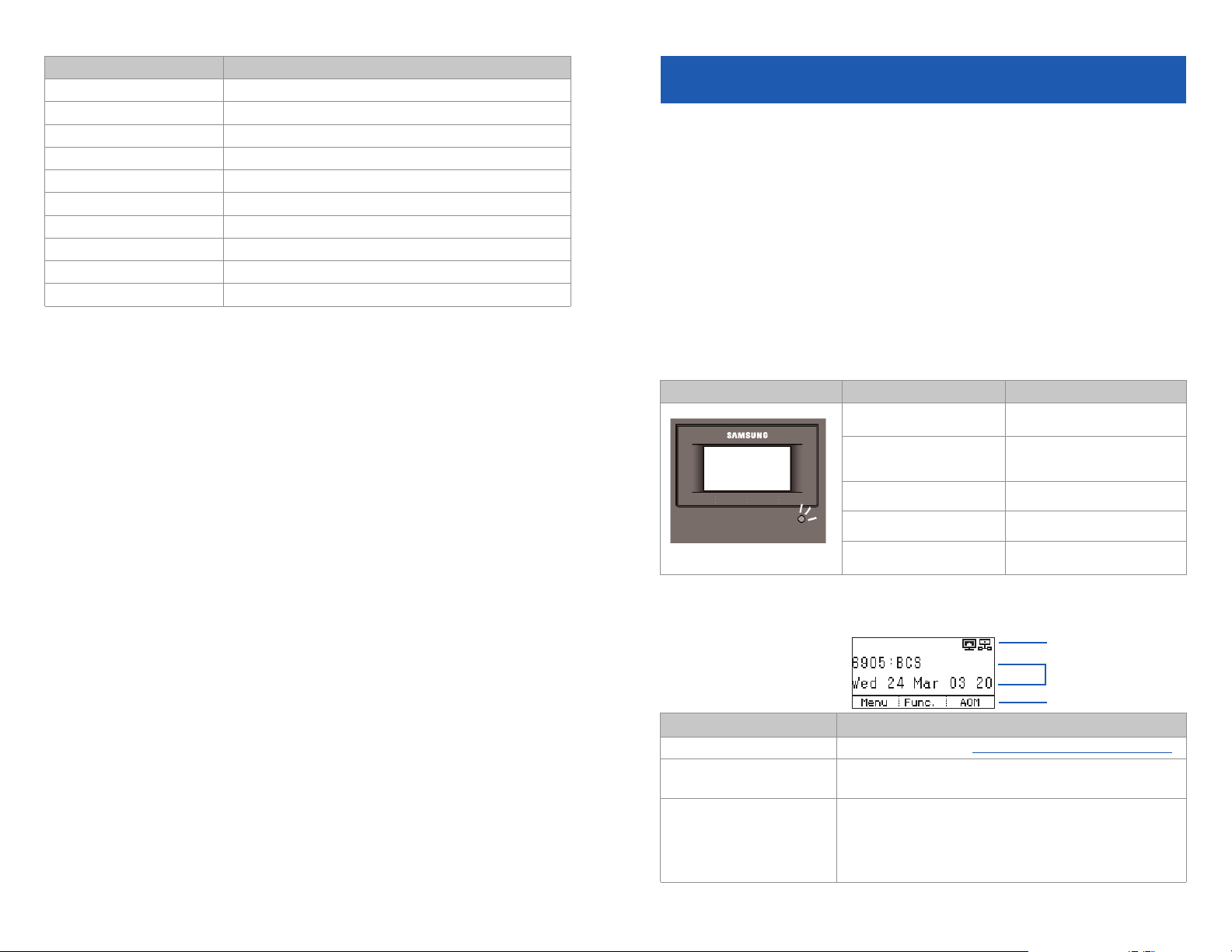
SCREEN STRUCTURE
The screen consists of three areas.
Screen Status LED Indicator
When station is busy
Red colored indicator is
constant.
When station is receiving
an incoming call
Green colored indicator
flashes.
When there is a message Red indicator (slow flash).
During “Do Not Disturb” Red indicator (fast flash).
Hold Recall
Amber colored indicator
flashes.
Icon Area
Tex t Are a
Soft Menu Area
Area Description
Icon Area Displays various icons (see icon descriptions on page 11).
Tex t Are a
Displays date, time, extension number, name, message,
phone number,etc.
Soft Menu Area
Displays the functions allocated to the 3 soft buttons.
Service menus are provided depending on the state of the
phone. A user can use the service or feature menus by
pressing the Menu or Func. soft button, or the AOM for
more soft keys (99).
TEXT INPUT METHOD
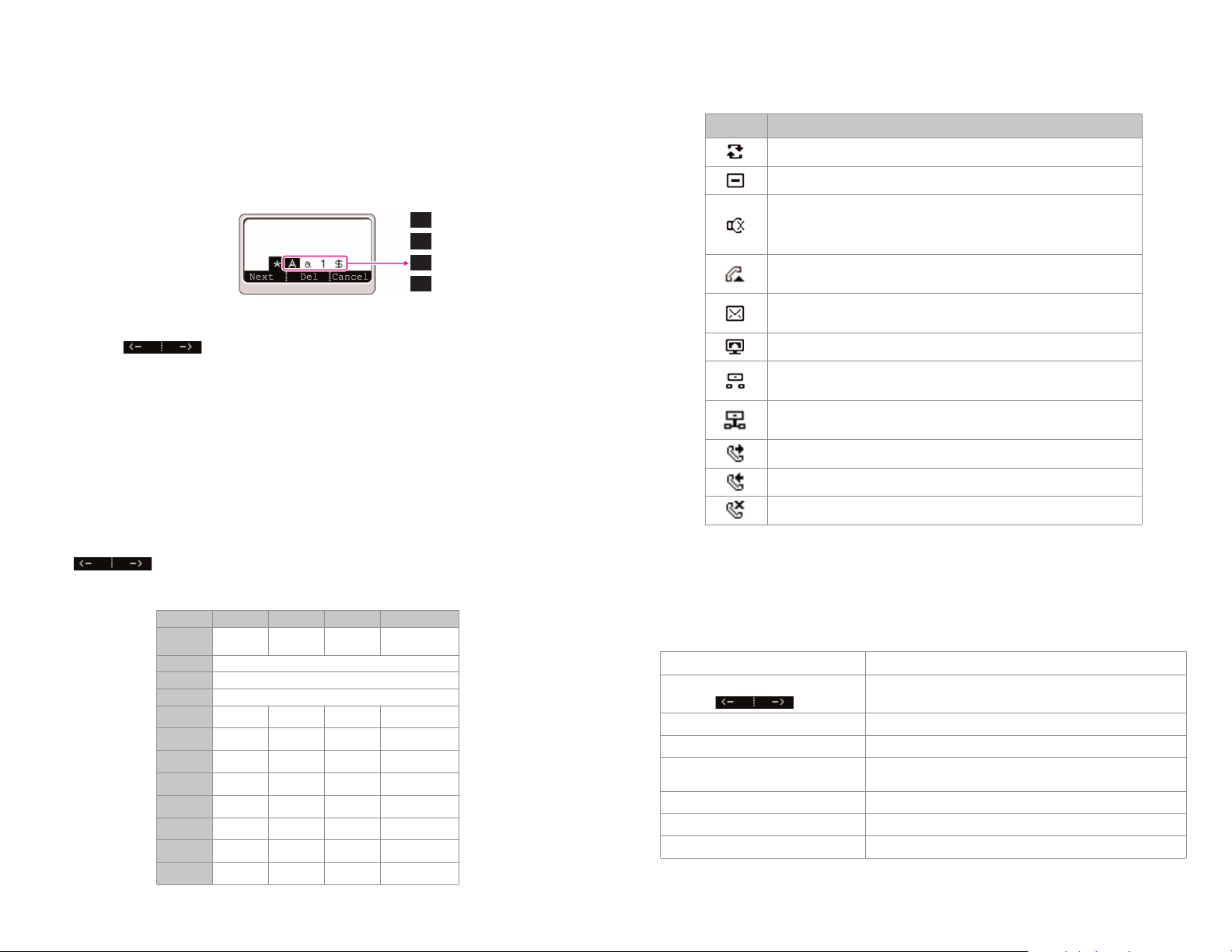
Using the dial and direction buttons on the phone, you can enter and modify the
English characters, numeric and special characters.
Whenever you press the dial button [,,] on a text input screen, the input mode is
advanced in sequence (on keypad).
Text Input Example
• Use the dial buttons to type English text and numbers; and use the Direction
Arrows in the soft menu screen to move the cursor left and right
and OK buttons to complete input. When removing the typed characters,
select the Del soft button or hold down to delete the entire entry.
Alpha Characters Input: Select this mode (uppercase/lowercase) by pressing
the [,,] button on keypad,and type text by repeated pressing the dial buttons,
characters will auto advance after a time limit.
Number Input: Select this mode by pressing the [,,] button on keypad,move
the cursor highlighted to 1, then use the keypad to enter digits.
Special Character Input: Select this mode by pressing the [,,] button on key-
pad (advance to $); select a desired character by using the Direction Arrows
soft button; and press the OK button to enter it.
Keypad Character Entry
10
A
a
1
$
Uppercase Input Mode
Lowercase Input Mode
Numeric Input Mode
Special Character Input Mode
Count 1 2 3 4
Dial
,,
A
(Uppercase)a(Lowercase)1 (Numbers)$(Special Characters)
Dial # Not Used
Dial 0 Not Used
Dial 1 Not Used
Dial 2 A B C
Dial 3 D E F
Dial 4 G H I
Dial 5 J K L
Dial 6 M N O
Dial 7 P Q R S
Dial 8 T U V
Dial 9 W X Y Z
DESCRIPTION OF ICONS
The following icons are displayed on the screen.
NAVIGATING THE DISPLAY
When programming within various menu options,information can be entered via
the dial pad keys using [0]-[9] and [QQ] dial keys. The button used for editing and
their features are summarized below.
11
Icon Description
Shows that ‘Call Forward’ is enabled.
Shows that ‘Do Not Disturb’ is enabled.
Shows that ‘Mute’ function is enabled. When the call ends to
become a standby status or this function is disabled, this icon
disappears.
Shows that the call is hold state. When call is reconnect or
disconnected, this icon disappears.
Appears when there are unread Short messages in the
message inbox. Once they are read, it disappears.
Shows that a LAN cable is connected to the PC port.
Shows that a LAN cable is to the LAN port but that the system
is not connected.
Shows that a LAN cable is connected to the LAN port and
that the system is connected normally.
Outgoing call icon.
Incoming call icon.
Missed call icon.
BUTTONS FEATURES
Left and Right Soft Buttons To move the cursor (underlined area) or to erase/write
what is entered.
Hold To clear/delete an entire field such as station name.
Transfer To write the changes and exit programming.
Volume Button
Up (+) Down(—)
To adjust settings (tones),sounds, contrast, etc.
OK To enter or save a selection.
Call Log (s Up)
To move cursor up.
Phone Book (t Down)
To move cursor down.
12
SMT-i3105 SETUP
INITIALIZING THE SMT-i3105
Initially the SMT-i3105 IP keyset will need to be setup to operate within the users
network.The Setup Menu is also used to make changes to the keyset, in the event
that the system information should change. The option chosen will be highlighted.
The station numbers will be automatically created by the OfficeServ 7000 Series
systems once the necessary information has been entered into the IP keyset.
Enter ID and password of the server, as described below to register the phone. See
your system administrator for specific Network and Server addresses.The addresses necessary to set up the SMT-i3105 are:
• IP Address of Station
• Subnet Mask
• Network Gateway Address
• IP Address of System’s main processor
• User ID
• Password
SETUP MODE
To get to the SETUP MODE unplug the power cord from the SMT-i3105.Press and
hold the ,,button while you plug power back into the phone. Release the ,,but-
ton when you see Samsung in the display. If you have a PoE (Power over Ethernet)
connection, the same procedure can be done by unplugging and plugging the
Ethernet cable into the phone while pressing and holding the ,,button.
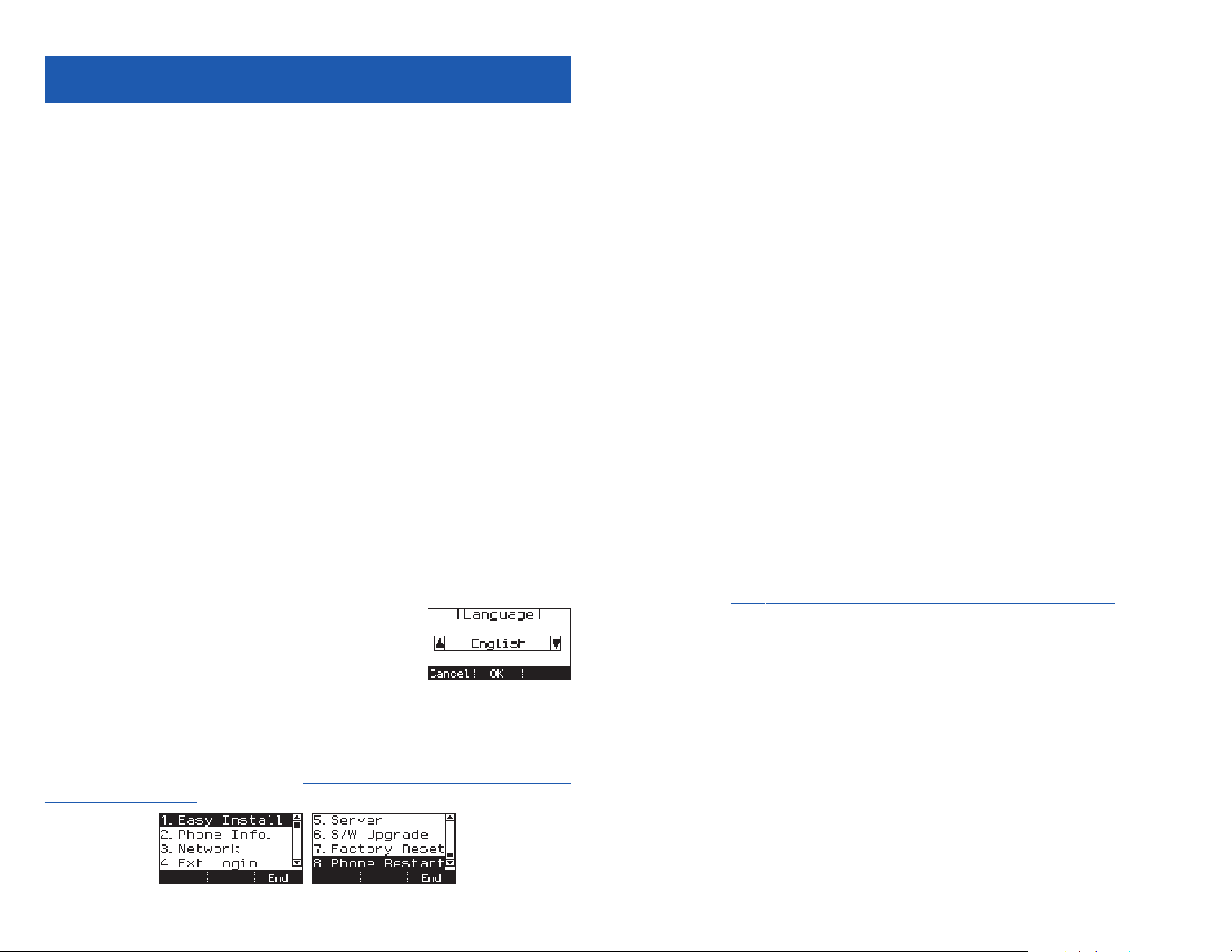
When the phone reboot is complete, the Language
Menu will display.Press the OK soft button to advance to
the Configuration Menu.
Once the Configuration Menu is displayed, you can move to each menu in the
Setup by using the Call Log (
s Up) or Phone Book (t Down) buttons and [1]-[8]
dial buttons of the SMT-i3105 IP phone.To learn how to navigate the menus refer
to the previous section.
13
EASY INSTALL WIZARD
By selecting this option, the System Easy Wizard can guide you through setting up
your network parameters. If you want to set up these parameters individually, follow the instructions below.
• From the idle phone press Menu, scroll to Settings, and press OK button.
Scroll to Phone Info and press OK button. From the keypad, enter the admin-
istrator’s password (please contact your phone system administrator). Press
the OK button. Scroll to Easy Install and press OK button.
SELECTING THE STATIC IP OPTION
• When the Static IP option is selected,the user enters the Static IP Address for
the phone (eg. 192.168.9.193) then press the OK button or the Next soft button.
• Enter the Subnet Mask (eg. 255.255.255.0); press OK button or the Next soft
button.
• Enter Gateway Address (eg. 192.168.9.1), press OK button.
NOTE: Press the , key on the dial pad to enter the “.” in the IP address.
• Enter the System IP address (eg. 192.168.9.200),press OK button.
• Enter System ID XXXX (eg. 3201), then press OK button.
• Enter Password XXXX (eg. 1234) then press OK button.
Wait a second for the phone to reboot.The phone should register and authenticate itself to the phone system.Test SMT-i3105 for proper operation.
SETTING UP HOT DESKING [IDLE LOGIN]
Hot Desking allows you to log in and out of your SMT-i3105 IP keyset without
rebooting. S
ee Setup Mode on how to access the Configuration Menu.
• Press the Menu soft button, scroll to Settings then press OK button.
• Scroll to Phone Info and press OK button.
• Enter the administrator’s password (please contact your phone system administrator).
• Scroll to Ext. Login then press OK button.
• Choose the ON option and press OK button. (Note: ON to allow, OFF to deny
hot desking).
• Press the End soft button to complete the setup.
• When the phone restarts, enter the ID (eg; extension 2809) and password.
• Press the Save soft button to complete the login.

CONFIGURATION MENU STRUCTURE
The Configuration Menu options are as follows:
1. EASY INSTALL
This option will guide you through setting up all required parameters for connecting the SMT keyset to your system.
2. PHONE INFO
1. Version Info: Provides boot rom, software, DSP, and hardware version
information and date.
2. Network Info: Displays network mode, IP address of phone, network
(DNS1, DNS2), Gateway Information, Subnet Mask, MAC Address, LAN
(HUB), LAN (PC), PC Client, and Registered State.
3. MAC Address
3. NETWORK
Displays Static IP, Dynamic IP, PPPoE, NAT, 802.1x, VLAN (LAN), and VLAN (PC).
Set to Use or Not Use.
4. EXT. LOGIN
Allows the user to choose the option of permitting the phone either
login/logout from idle mode or only register to the server on power up.Once
the phone is placed into Extension Login mode,a display will show up to allow
you to enter any valid User ID and password. This function is also referred to
as hot desking (idle login). Set to Use or Not Use. Default password is 1234.
5. SERVER
1. Primary System:The main processor’s IP address.
2. System 1~3: Up to 4 server IPs can be set.
6. S/W UPGRADE
1. TFTP Server: The IP address of the TFTP server containing the IP software.
2. Upgrade: Starts the IP software upgrade process.
7. FACTORY RESET
This option resets the SMT-i3105 to factory default settings.
8. PHONE RESTART
This option reboots the SMT-i3105 phone.
14
SECTION 3.
FREQUENTLY USED FEATURE
OPERATION
15

16
This section provides the basic operation of your Samsung Multimedia Telephone
SMT-i3105.
LOGGING IN & OUT
[If Hot Desking is Enabled]
If enabled, your SMT-i3105 telephone may require you to log in before making or
receiving calls. In these cases your telephone system administrator will provide
you with an extension number,password, and the feature code used to log out.
TO LOG IN
• Dial your extension number in the ID field (example 3201).
• Press the OK button.
• Dial your password in the password field (default 1234).
• Press Save soft button.
TO LOG OUT
• Dial the feature code provided by your administrator (log out code 77).
PLACING CALLS
IMPORTANT: Put your phone in Overlap Mode by pressing the Menu button,
select Settings and then select Dial Mode, change it to Overlap. If your phone is
not in OVERLAP mode you must always press the Call soft button after dialing the
digits to send the call.
NOTE: All examples of making phone calls are based on the phone being set for
overlap dialing mode.
OUTSIDE CALLS — To place a call to an outside party:
• Lift the handset or press the Speaker button.
• Press an idle outside line button, line group button, or dial a line access code
to receive dial tone.
• Dial the telephone number.
• Hang up the handset when the call is completed.
NOTE: Frequently called telephone numbers can be added to the PhoneBook.
When making internal and external calls from AOM list, press the AOM soft button to access the programmable button screens.Then use the Call Log (
s Up) or
Phone Book (t Down) button to scroll to and highlight the desired programma-
ble button. Press OK to access trunk or trunk group, dial phone number.
17
INTERNAL CALLS
—
To place a call to another extension at your location:
• Lift the handset.
• Dial the extension number or group number.
• Wait for the party to answer. If you hear a brief tone burst instead of ringback
tone,the station called is set for Voice Announce or Auto Answer. Begin speaking after the tone.
• Hang up the handset when the call is completed.
NOTES:
1. If you have a DSS button assigned to an extension or station group,you may
press this button instead of dialing the number.
2. If the Hot Keypad feature has been turned off, you must first lift the handset
or press the Speaker button before you begin dialing.
SPEAKERPHONE CALLS
—
Your Samsung SMT-i3105 has full-duplex speakerphone capability.This feature is used for both internal or external calls.To activate
this feature:
• Press the Speaker button.
• Place an internal or external call.
• Press Speaker button to disconnect the call.
NOTE: The handset can be used at any time during the conversation. To resume
handsfree operation, press the Speaker button, and hang up the handset.
ANSWERING CALLS
OUTSIDE/INTERNAL/VOICE ANNOUNCE CALLS — To answer these
three types of calls:
• Lift the handset or press the Speaker button to answer on Speaker Phone.
• Hang up the handset when the call is completed.
NOTE: The volume can be adjusted at any time by pressing the
[+] and [—]
Volume button arrow keys on your navigation button.

18
PLACING A CALL ON HOLD
Calls can be placed on System Hold or Exclusive Hold. A call placed on System
Hold can be picked up from any extension. Calls placed on Exclusive Hold can only
be picked up from the extension that placed them on hold.
SYSTEM HOLD — To place a call on hold:
• Press the Hold button. The Call button will flash red at your telephone.
• To take the caller off hold, press that button and the red flashing light will go
steady red again.
• Resume conversation.
EXCLUSIVE HOLD — To place a call on hold at your telephone so that other
users cannot answer it:
• Press the Hold button twice. The call button will flash green at your tele-
phone.
• To retrieve the call, press the flashing red line button or press the line button
a third time.
NOTE: Internal calls are always placed on exclusive hold.
TRANSFERRING CALLS
You can transfer a call by notifying the party to which the call is being transferred
or without notification.
• While on a call, press the Transfer button then dial an extension number.
• Confirm you hear a ringback tone.
• Wait for the called party to answer and announce the call (optional).
• Replace the handset.
TRANSFERRING WITH CAMP-ON
When you transfer a call to another station and receive a busy signal, you can
camp the call on to this station.Hang up when you hear the busy signal.The called
party is alerted that a call is waiting.
• Call another internal station.
• When receiving a busy tone, press the Func. soft button.
• Scroll to Camp On and press OK button (here ringback tone).Wait for party to
answer the call.
NOTE: If you receive No More Calls tone,that station has no button available to
receive another call. Press Transfer to return to the caller.
CALL WAITING
If an outside call is camped-on to your phone or another station is camped-on to
you:
• Your keyset rings and the call that is waiting (camped-on) flashes red.
• Press the flashing button to answer; the other call is put on hold automatical-
ly if your station has the Automatic Hold feature set. If not, you must press
Hold and then the flashing button or finish the first call and hang up;the waiting call will ring.
• Lift the handset or press the Speaker button to answer.
NOTE: Intercom calls will not go on Automatic Hold.
CONFERENCE CALLS
To make a conference call while engaged in a conversation:
• Press the Conference button and receive conference tone.
• Make another call, either intercom or outside, press the Conference
button and receive conference tone.
• Make another call or press the Conference button to join all parties. You can
conference up to five parties (you and four others).
• Repeat the last step until all parties are added. Conf a second time to put all
calls bridged together.
• Hang up to leave the conference call.
NOTE: When attempting to add another party to the conference and you
are not able to reach the desired person, hang up. Simply press the
Conference button again to return to the previous conversation.
To drop a party from your conference call:
• Press the Conference button and dial the extension or line number that is to
be dropped.
• Press the Conference button again to reestablish the conference.
FORWARDING CALLS
You can forward your calls to another station, group of stations, or an external telephone number. Program a destination for the type of forwarding you want by
pressing Menu, then Call Forward,to set the forwarding number to All, Busy, No
Answer, and Busy/No Answer.
19
Icon

20
OTHER FEATURES AND FUNCTIONS
VOLUME CONTROL
— Vol button is used to adjust the volume of a handset,
speaker and ringing sound.
V
olume Control of a Handset
• Adjusts the handset volume while busy (handset offhook).
• To increase the volume of a handset, press the top side [+] of the Vo l button.
• To decrease the volume of a handset, press the bottom side [-] of the Vol
button.
V
olume Control of a Speaker
• Adjusts the speaker volume while busy in speaker mode.
• To increase the volume of a speaker,press the top side [+] of the Vol button.
• To decrease the volume of a handset, press the bottom side [-] of the Vol
button.
V
olume Control of a Ringing Tone
• During an incoming call, to increase the volume of a speaker, press the top
side [+] of the Vol button while ringing.
• To decrease the volume of a handset, press the bottom side [-] of the Vol
button while ringing.
V
olume Control of K
ey T
one
• To increase the volume of the key tones, press the top side [+] of the Vol
button.
• To decrease the volume of the key tones, press the bottom side [-] of the Vo l
button.
NOTE: By pressing the Vol button in idle mode, the user can also adjust the key
tone volume.
CALL LOG BUTTON — Provides direct access to a list of the most recent calls,
outgoing calls, incoming calls, missed calls,and an option to delete all (or clear) all
calls from the call log. The Call Log button is also used to scroll (s Up) the soft
menus display.
PHONE BOOK BUTTON — Provides direct access to the user’s phonebook of
stored contacts. The Phone Book button is also used to scroll (t Down) the soft
menus display.
OK BUTTON — This function is used to enter, save or complete the selected
option in the display.
21
SPEAKER BUTTON
—
This function is used to go on and off hook in the hands-
free speakerphone mode.
MENU SOFT KEY
—
This menu displays the following
options:
NOTE: The Call Log (s Up) and Phone Book (t Down)
buttons can be used to navigate through these options.
1. PHONEBOOK: Maintains frequently dialed names and numbers in a
PhoneBook. Search and initiate calls by: Speed Dial, Associated Names, or
Telephone Numbers.
2. CALL LOG: Provides direct access to a list of most recent calls, outgoing calls,
incoming calls, missed calls, and an option to delete all (or clear) all calls from
the Call Log.
3. MESSAGE: This function allows users to select which desired type of mes-
sages is viewed. Users can select and view the following options: Voicemail
Messages, Station Messages, E-Mail (optional with IP-UMS only), and Short
Message Service (SMS). Short Message Service is similar to sending text mes-
saging [Function only supported to other internal station users with ITP or SMT-i
phones].
4. SOUND: Sets Volume levels of various telephone functions. Scroll to select
desired option setting. When setting Ring Type and Ringer Volume, each key
tone level is heard while scrolling through them.
5. SECURITY: The function allows the user to lock or unlock an individual station
from dialing out, and to change the station password.There are three options:
Unlock (Station user is able to make any calls without restrictions), Locked
Out (The station cannot make calls outside the system. The station can, how-
ever, make and receive internal calls and incoming CO calls,and outbound 911
emergency calls), and Lock All Calls (The station cannot make or receive any
calls. Incoming,outgoing,internal calls and emergency calls are all blocked on
a locked all station).
6. CALL FORWARD: Sends phone calls to a different station.Program a destina-
tion for the preferred forwarding options: Disable, All, Busy, No Answer,
Busy/No Answer, Do Not Disturb, and Follow Me Status.
7. SETTINGS: This function allows the user to set the following option: Dial
Mode (Overlap or Enbloc),Language (default English), Network Information
(IP address,gateway,Server, etc), Phone Information (software version),AOM
Set, and Clear User Set.
22
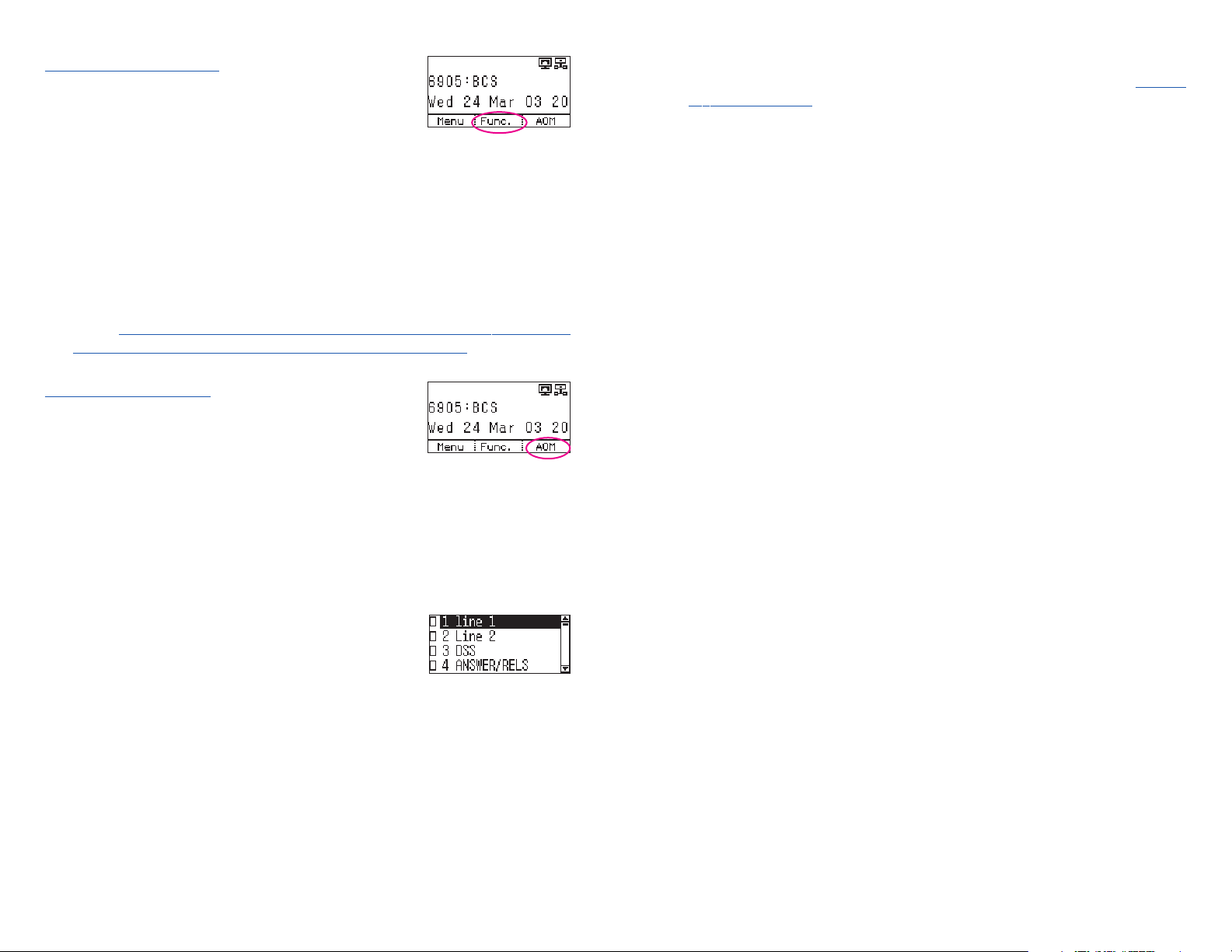
FUNC. SOFT
BUTTON
—
This function allows a user
one touch easy access to many of the system features.
When pressed, the following options are displayed: Last
Number Redial, Save/Repeat, Speed Dial, Directory,
VM Message, Station Message, Page Pickup, Direct
Pickup, DND, In/Out Group, Status Message, Hold Pickup, Page, Meet Me
Page, OHVA Block, Group Pickup, and My Group Pickup. The Call Log (
s Up)
and Phone Book (t Down) buttons can be used to scroll up and down the list of
features under the Func.button.
Example of using the Last Number Redial feature:
• Press the Func. Soft button, scroll to Last Redial, then press OK button. The
last number called from the phone is called.
NOTE: F
or detail operation of the list of features under the Func. soft button,
please refer to the System Features section of the user guide.
AOM SOFT
BUTTON —
This function is used to display all 99 programmable feature buttons of the phone.
The Call Log (s Up)or Phone Book (t Down) buttons can
be used to scroll up and down the list of 99 programmable feature buttons under the AOM module.
Example of dialing a speed dial number using the AOM function:
• Press the AOM soft button, scroll to Speed Dial, then press OK button. Enter
the bin number (00~999).
NOTE: Some programmed features such as speed dialing and DSS buttons
can be used to process calls; other programmed buttons such as Call buttons
can only be viewed.
The soft AOM button can also display status indications
for station keys, trunks, voice mail messages,etc.
Example of programming a DSS button on the soft AOM:
• Press the Menu soft button.
• Using the Call Log (
s Up) or Phone Book (t Down) buttons, scroll to Settings
and press OK, then scroll to and select AOM Setting.
• Scroll to the soft AOM button to program (for example: 04).
• Press the Edit soft button (the display will show AOM index 4).
• Using the Left and Right soft buttons, scroll to the feature option (for exam-
ple: DSS).
• Move down and enter the extension number (for example: 2003).
• Move down, use the dial pad to enter name (for example: John Dow). Refer to
Text Input M
ethod.
• Press the Save soft button to exit and save the setting.
23
Loading…
- Business Home
- Support
- Enterprise
- IP Phones
- SMT Series (SMT-I3105)
/
/
/
/
- SMT Series (SMT-I3105)
- SOLUTIONS
- PRODUCT INFO
- GUIDES
- COMMUNITY
- APPS
- CONTACT US
- SOLUTIONS
- PRODUCT INFO
- GUIDES
- COMMUNITY
- APPS
- CONTACT US
Manual, downloads, specs and register
SMT Series (SMT-I3105)
edit
Register
Gain access to exclusive offers and perks, apps and services, world-class customer support and more.
register now
Manuals
Unfortunately, this information isn’t currently available for this product.
Downloads
Unfortunately, this information isn’t currently available for this product.
Specs
SMT Series (SMT-I3105)
SEE FULL SPECS
SAMSUNG assumes no responsibility, and shall not be liable, in connection with whether any such products or services will be appropriate, functional or supported for the SAMSUNG products or services available in your country.
Samsung products carry a full warranty, which varies based on products.
Send your device in for repairs or visit a Customer Service Location.
×
Shop Samsung App
Get exclusive offers, earn points, and use Samsung Pay.
Скачать
smt-i3105_combined_user_guide.qxp 4/26/2010 2:07 PM Page 1
SMT-i3105
05/2010
For OfficeServ
™
7000 Series Systems
Keyset User Guide
smt-i3105_combined_user_guide.qxp 4/26/2010 2:07 PM Page 1
Samsung SMT-I3105 Telephone PDF User Guides and Manuals for Free Download: Found (7) Manuals for Samsung SMT-I3105 Device Model (Quick Reference Manual, Self Help Manual, Operation & User’s Manual)
The Samsung SMT-I3105 is a notable addition to the Samsung lineup, largely recognized for its advanced features, robust performance, and user-friendly interface. Released as part of Samsung’s commitment to providing high-quality devices, the SMT-I3105 is primarily aimed at individuals seeking a blend of functionality and style. This review delves into various aspects of the device, including its design, performance, usability, and overall value, providing potential buyers with a comprehensive understanding of what they can expect.
At first glance, the design of the Samsung SMT-I3105 is sleek and modern. With its comfortable grip and lightweight build, it feels premium in hand. The display, boasting vibrant colors and sharp clarity, enhances the overall user experience, making it a pleasure to use for both everyday tasks and multimedia consumption. The device features a spacious screen that is ideal for watching videos, playing games, or browsing the web.
Performance-wise, the Samsung SMT-I3105 shines brightly. The device is powered by an efficient processor that handles multitasking with ease. This is especially beneficial for users who frequently switch between apps or require quick response times during gaming sessions. Additionally, the RAM capacity adequately supports demanding applications, ensuring a smooth and lag-free user experience.
A significant highlight of the Samsung SMT-I3105 is its camera capabilities. Equipped with a high-quality camera system, this device allows users to capture stunning images and videos. Some key features of the camera include:
- High-resolution sensor for detailed photography.
- Low-light performance enhancing night photography.
- Multiple shooting modes that cater to different scenarios.
The versatility of the camera makes it suitable for both casual snapshots and professional-quality shots, appealing to a wide range of users from social media enthusiasts to avid photographers.
Battery life is always a key consideration for any mobile device, and the Samsung SMT-I3105 does not disappoint in this department. With an impressive battery capacity, users can expect prolonged usage without the constant worry of charging. This proves particularly advantageous for those who are on the go or who use their device extensively throughout the day.
Usability has been a significant focus in the design of the Samsung SMT-I3105. The interface is intuitive, making it easy for users of all technical levels to navigate the device. The inclusion of various customization options further enhances usability, allowing users to tailor the device to their preferences. In addition, Samsung’s commitment to software updates ensures that users will benefit from the latest features and security enhancements for an extended period.
When discussing value, the Samsung SMT-I3105 stands out in its category. With its combination of advanced features and reasonable pricing, it presents an excellent option for those looking for a reliable device without breaking the bank. The durability and performance consistently outshine expectations, solidifying its position as a worthwhile investment.
In conclusion, the Samsung SMT-I3105 is a device that encapsulates the essence of what consumers look for in modern technology. From its stylish design and remarkable performance to user-friendly features and long-lasting battery life, it caters to a diverse range of needs. Samsung has once again delivered a product that is not just a device, but a companion that enhances daily living. For anyone in the market for a new mobile device, the SMT-I3105 is definitely worthy of consideration.
- Addeddate
- 2021-02-14 02:45:18
- Identifier
- manuallib-id-2588379
- Identifier-ark
- ark:/13960/t3233f98p
- Ocr
- tesseract 5.0.0-alpha-20201231-10-g1236
- Ocr_autonomous
- true
- Ocr_detected_lang
- en
- Ocr_detected_lang_conf
- 1.0000
- Ocr_detected_script
- Latin
- Ocr_detected_script_conf
- 1.0000
- Ocr_module_version
- 0.0.12
- Ocr_parameters
- -l heb+eng+Latin
- Ppi
- 300
comment
Reviews
There are no reviews yet. Be the first one to
write a review.
54
Views
DOWNLOAD OPTIONS
Temporarily Unavailable
DAISY
For users with print-disabilities
Temporarily Unavailable
EPUB
Uploaded by
chris85
on