
Canon i-Sensys LBP7110Cw
㻝㻌㻛㻌㻡㻝㻠
View the manual for the Canon i-Sensys LBP7110Cw here, for free. This user manual comes under the category printers and has been rated by 2 people with an average of a 8. This manual is available in the following languages: English. Do you have a question about the Canon i-Sensys LBP7110Cw?
Ask your question here
Product Images (6)

Canon i-Sensys LBP7110Cw specifications
Below you will find the product specifications and the manual specifications of the Canon i-Sensys LBP7110Cw.
The Canon i-Sensys LBP7110Cw is a color printer with a maximum resolution of 1200 x 1200 DPI. It has a maximum duty cycle of 30000 pages per month and does not support duplex printing. This printer uses laser print technology and is network-ready, making it suitable for small businesses. The print speed for black, normal quality, A4/US Letter paper is 14 pages per minute. The warm-up time for this printer is 20 seconds, with a time to first page of 18 seconds.
The internal memory of the Canon i-Sensys LBP7110Cw is 64 MB, with a total input capacity of 150 sheets and a total output capacity of 125 sheets. This compact A4 laser printer is designed for small businesses looking for high-quality print results. It offers professional-quality A4 color output at a resolution of up to 1200 x 1200 dpi. With built-in Wi-Fi connectivity, this printer is ideal for small workgroups looking to share printing capabilities.
The sleek and low-profile design of the Canon i-Sensys LBP7110Cw makes it suitable for small business environments. It also features network and Wi-Fi capability for easier sharing within workgroups. The printer is designed to deliver consistently impressive results without the need to outsource print jobs.
Maximum duty cycle
30000 pages per month
Total input capacity
150 sheets
Maximum print size
216 x 356 mm
General
| Brand | Canon |
| Model | i-Sensys LBP7110Cw | 6293B003 |
| Product | printer |
| EAN | 4960999845517, 4055895263036 |
| Language | English |
| Filetype | Manual (PDF), Installation Guide (PDF) |
Printing
| Colour | Yes |
| Maximum resolution | 1200 x 1200 DPI |
| Duplex printing | No |
| Print technology | Laser |
| Print speed (black, normal quality, A4/US Letter) | 14 ppm |
| Print speed (colour, normal quality, A4/US Letter) | 14 ppm |
| Warm-up time | 20 s |
| Time to first page (black, normal) | 18 s |
| Time to first page (colour, normal) | 18 s |
| Print margins (top, bottom, right, left) | 5 mm |
Features
| Maximum duty cycle | 30000 pages per month |
| Number of print cartridges | — |
| Page description languages | UFRII-LT |
| Printing colours | Black, Cyan, Magenta, Yellow |
Network
| Network ready | Yes |
| Ethernet LAN | Yes |
| Wi-Fi | Yes |
| Wi-Fi standards | 802.11b, 802.11g, Wi-Fi 4 (802.11n) |
Performance
| Internal memory | 64 MB |
| Maximum internal memory | — MB |
| Sound pressure level (printing) | 49 dB |
| Built-in processor | — |
Input & output capacity
| Total input capacity | 150 sheets |
| Total output capacity | 125 sheets |
Paper handling
| Maximum print size | 216 x 356 mm |
| Paper tray media types | Coated paper, Envelopes, Glossy paper, Labels, Plain paper, Transparencies |
| ISO A-series sizes (A0…A9) | A4, A5 |
| ISO B-series sizes (B0…B9) | B5 |
| Non-ISO print media sizes | Executive (184 x 267mm), Legal (media size), Letter (media size), Statement (140 x 216mm) |
| Envelopes sizes | 10, C5, DL |
| Paper tray media weight | 60 — 220 g/m² |
| Custom media width | 83 — 215.9 mm |
| Custom media length | 127 — 355.6 mm |
| Maximum ISO A-series paper size | A4 |
Ports & interfaces
| Standard interfaces | USB 2.0 |
| USB 2.0 ports quantity | 1 |
System requirements
| Windows operating systems supported | Windows 7 Home Basic, Windows 7 Home Basic x64, Windows 7 Home Premium, Windows 7 Home Premium x64, Windows 7 Professional, Windows 7 Professional x64, Windows 7 Starter, Windows 7 Starter x64, Windows 7 Ultimate, Windows 7 Ultimate x64, Windows Vista Business, Windows Vista Business x64, Windows Vista Enterprise, Windows Vista Enterprise x64, Windows Vista Home Basic, Windows Vista Home Basic x64, Windows Vista Home Premium, Windows Vista Home Premium x64, Windows Vista Ultimate, Windows Vista Ultimate x64, Windows XP Home, Windows XP Home x64, Windows XP Professional, Windows XP Professional x64 |
| Mac operating systems supported | Mac OS X 10.5 Leopard, Mac OS X 10.6 Snow Leopard, Mac OS X 10.7 Lion, Mac OS X 10.8 Mountain Lion |
| Linux operating systems supported | Yes |
| Server operating systems supported | Windows Server 2003, Windows Server 2003 x64, Windows Server 2008, Windows Server 2008 R2, Windows Server 2008 x64 |
Power
| Power consumption (printing) | 340 W |
| Power consumption (standby) | 10 W |
| AC input voltage | 220 — 240 V |
| AC input frequency | 50 — 60 Hz |
| Power consumption (max) | 800 W |
| Energy Star Typical Electricity Consumption (TEC) | 1 kWh/week |
Weight & dimensions
| Weight | 16600 g |
| Width | 406 mm |
| Depth | 454 mm |
| Height | 255 mm |
Sustainability
| Sustainability certificates | ENERGY STAR |
Operational conditions
| Operating relative humidity (H-H) | 20 — 80 % |
| Operating temperature (T-T) | 10 — 30 °C |
Design
| Display | No |
| Product colour | Black, White |
Other features
| Power LED | Yes |
| Stand-by LED | Yes |
show more
Frequently asked questions
Can’t find the answer to your question in the manual? You may find the answer to your question in the FAQs about the Canon i-Sensys LBP7110Cw below.
What is the weight of the Canon i-Sensys LBP7110Cw?
The Canon i-Sensys LBP7110Cw has a weight of 16600 g.
What is the height of the Canon i-Sensys LBP7110Cw?
The Canon i-Sensys LBP7110Cw has a height of 255 mm.
What is the width of the Canon i-Sensys LBP7110Cw?
The Canon i-Sensys LBP7110Cw has a width of 406 mm.
What is the depth of the Canon i-Sensys LBP7110Cw?
The Canon i-Sensys LBP7110Cw has a depth of 454 mm.
What is the best way to remove jammed paper from my printer?
It is best to gently pull the paper out of the printer. Turn the printer off, and make sure that the printhead is not hanging over the paper and that no paper remains in the printer.
How come my prints are of poor quality?
There can be various reasons for poor print quality. Check if the cartridges or toners are full. If so, inkjet printers often require cleaning the printer, the cartridges have dried out, or the print head is broken. With laser printers, calibrating the laser printer is recommended.
How come my printer does not accept original cartridges?
Non-genuine cartridges may not be recognised by the printer. In that case you will receive a message that the cartridge is empty. The manual of the purchased cartridge usually contains the solution, if this does not work, it is advisable to contact the seller.
How many cartridges can be placed in the Canon i-Sensys LBP7110Cw?
— cartridges can be placed in the Canon i-Sensys LBP7110Cw.
How come my inkjet printer has black stripes?
In most cases, the inkjet printer cartridge is broken and the cartridge needs to be replaced.
What is the difference between a laser printer and an inkjet printer?
A laser printer prints with a toner and an inkjet printer prints with ink.
What does DPI stand for?
DPI stands for Dots Per Inch and is the number of ink droplets (per inch) that end up on the paper when printing.
Is the manual of the Canon i-Sensys LBP7110Cw available in English?
Yes, the manual of the Canon i-Sensys LBP7110Cw is available in English .
Is your question not listed? Ask your question here
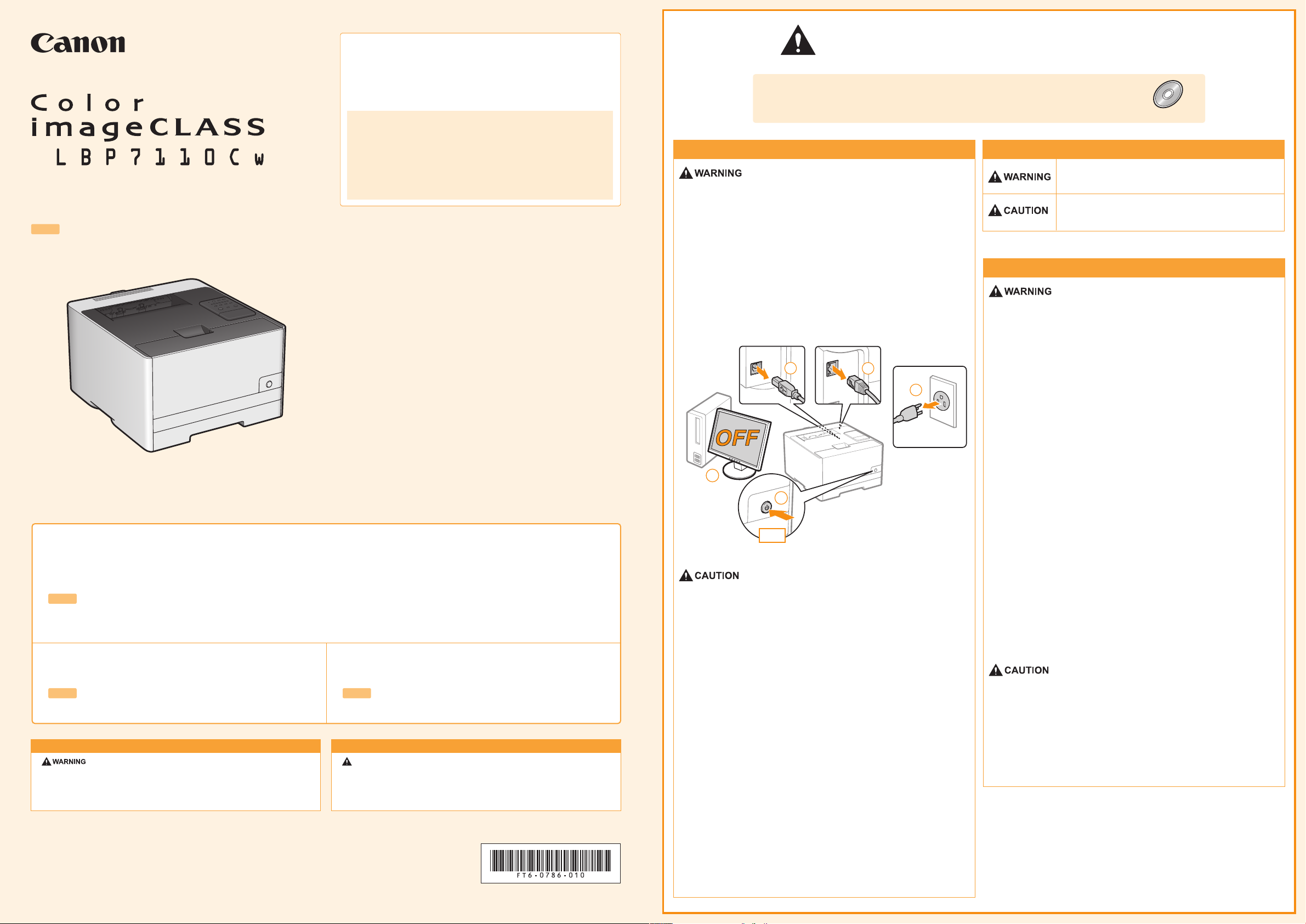
<For Macintosh Users>
This guide describes how to set up the printer in the Windows
environment as examples. To view how to use printer drivers or
utilities for Macintosh, see the «Printer Driver Guide for Macintosh»
(HTML manual). For handling the printer or maintenance methods
and so on, see the «e-Manual» (HTML manual).
Displaying the «Printer Driver Guide for Macintosh»
Double-click [index.html] in the [SFP] — [Documents] [english] — [GUIDE] folder in the supplied CD-ROM.
Displaying the «e-Manual»
Double-click [index.html] in the [Manuals] — [Source] folder in
the supplied CD-ROM.
Quick Setup Guide
SPA Guía de instalación rápida
Read this guide first.
Please read this guide before operating this product.
After you finish reading this guide, store it in a safe place for future reference.
SPA
Por favor, lea esta guía antes de usar este producto.
Después de leer esta guía, guárdela en un lugar seguro para posteriores consultas.
Before installing the printer, read the cautions
carefully which are described on the right side.
SPA Antes de instalar la impresora, lea detenidamente las
To avoi d th e risk of persona l injur y or damage to the printer, and for leg al
information, make sure to read the «Legal Notices» and «Important Saf ety
Instructi ons» in the e- Manual included on t he a ccompanyi ng C D- RO M
car efu lly before using the printer.
FT6-0786 (010) XXXXXXXXXX Copyright CANON INC. 2014 PRINTED IN CHINA
Lea esta guía primero.
precauciones indicadas a la derecha.
English Español
Download the latest manual and printer driver from
the Canon Web site.
SPA Descargue el manual y el controlador de impresora
más recientes del sitio web de Canon.
ADVERTENCIA
Para evitar el riesgo de lesiones personales o daños al equipo, y a efectos
de información legal, recuerde leer detenidamente los «Avisos legales» y las
«Instrucciones de seguridad importantes» del e-Manual incluido en el
CD- ROM antes de utilizar la impresora.
Important Safety Instructions
This manual describes only warnings and cautions for the installation and the power
supply. Be sure to read «Important Safety Instructions» described in the e-Manual
(HTML manual) included in the supplied CD-ROM also.
Installation
— Do not install the printer in a location near alcohol, paint thinner, or other
flammable substances. If flammable substances come into contact with
electrical parts inside the printer, this may result in a fire or electrical
shock.
— Do not place the following items on the printer.
— Necklaces and other metal objects
— Cups, vases, flowerpots, and other containers filled with water or
liquids
If these items come into contact with a high-voltage area inside the
printer, this may result in a fire or electrical shock.
If these items are dropped or spilled inside the printer, immediately turn
OFF the power switch (1) and disconnect the interface cables if they are
connected (2). Then, unplug the power plug from the AC power outlet (3)
and contact your local authorized Canon dealer.
2
1
1
OFF
— Do not install the printer in unstable locations, such as on unsteady
platforms or inclined floors, or in locations subject to excessive
vibrations, as this may cause the printer to fall or tip over, resulting in
personal injury.
— The ventilation slots are provided for proper ventilation of working parts
inside the printer. Never place the printer on a soft surface, such as a
bed, sofa, or rug. Blocking the slots can cause the printer to overheat,
resulting in a fire.
— Do not install the printer in the following locations, as this may result in a
fire or electrical shock.
— A damp or dusty location
— A location exposed to smoke and steam, such as near a cookery or
humidifier
— A location exposed to rain or snow
— A location near a water faucet or water
— A location exposed to direct sunlight
— A location subject to high temperatures
— A location near open flames
— When installing the printer, gently lower the printer to the installation site
so as not to catch your hands between the printer and the floor or
between the printer and other equipment, as this may result in personal
injury.
— When connecting the interface cable, connect it properly by following the
instructions in the e-Manual. If not connected properly, this may result in
malfunction or electrical shock.
— When moving the printer, follow the instructions in the e-Manual to hold it
correctly. Failure to do so may cause you to drop the printer, resulting in
personal injury.
2
3
User Software
Symbols
Indicates a warning concerning operations that may lead to
death or injury to persons if not performed correctly. To use the
machine safely, always pay attention to these warnings.
Indicates a caution concerning operations that may lead to injury
to persons if not performed correctly. To use the machine safely,
always pay attention to these cautions.
Power Supply
— Do not damage or modify the power cord. Also, do not place heavy
objects on the power cord or pull on or excessively bend it, as this can
cause electrical damage, resulting in fire or electrical shock.
— Keep the power cord away from all heat sources. Failure to do so can
cause the power cord insulation to melt, resulting in a fire or electrical
shock.
— The power cord should not be taut, as this may lead to a loose
connection and cause overheating, which could result in a fire.
— The power cord may become damaged if it is stepped on, fixed with
staples, or if heavy objects are placed on it. Continued use of a
damaged power cord can lead to an accident, such as a fire or electrical
shock.
— Do not plug or unplug the power plug with wet hands, as this can result
in electrical shock.
— Do not plug the power cord into a multi-plug power strip, as this can
result in a fire or electrical shock.
— Do not bundle up or tie up the power cord in a knot, as this can result in
a fire or electrical shock.
— Insert the power plug completely into the AC power outlet. Failure to do
so can result in a fire or electrical shock.
— If excessive stress is applied to the connection part of the power cord, it
may damage the power cord or the wires inside the machine may
disconnect. This could result in a fire. Avoid the following situations:
— Connecting and disconnecting the power cord frequently.
— Tripping over the power cord.
— The power cord is bent near the connection part, and continuous stress
is being applied to the power outlet or the connection part.
— Applying a shock to the power connector.
— Do not use power cords other than the one provided, as this can result in
a fire or electrical shock.
— As a general rule, do not use extension cords. Using an extension cord
may result in a fire or electrical shock.
— Do not use a power supply voltage other than that listed herein, as this
may result in a fire or electrical shock.
— Always grasp the power plug when unplugging the power plug. Do not
pull on the power cord, as this may expose the core wire of the power
cord or damage the cord insulation, causing electricity to leak, resulting
in a fire or electrical shock.
— Leave sufficient space around the power plug so that it can be
unplugged easily. If objects are placed around the power plug, you may
be unable to unplug it in an emergency.
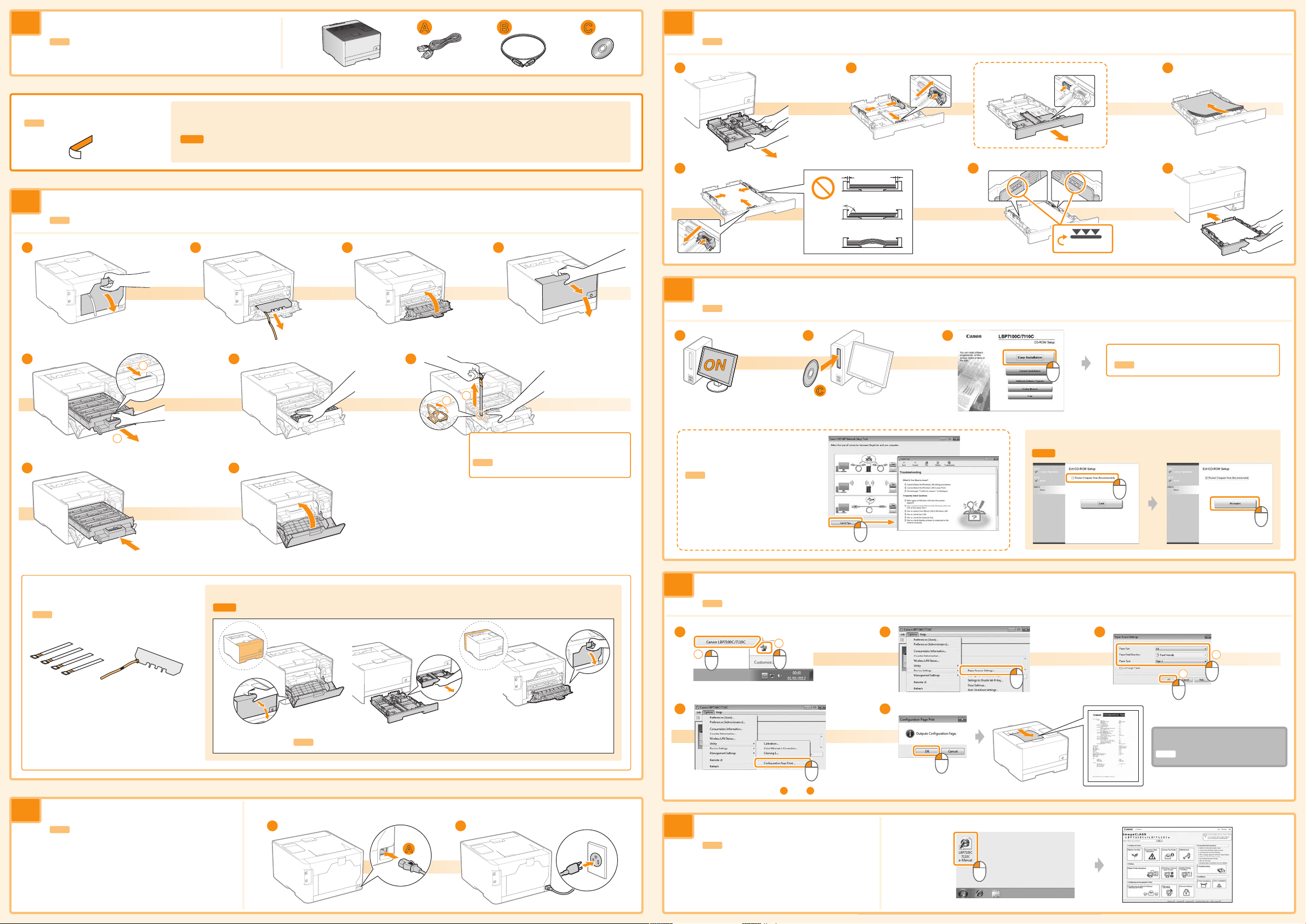
Confirm the supplied accessories.
1
SPA Verifique los accesorios suministrados.
A B
C
Load paper.
4
SPA Cargue papel.
Remove all the tape.
SPA Retire la totalidad de la cinta.
Remove the packing materials.
2
SPA Retire los materiales de embalaje.
1
5
1
Remove all the orange tape attached to the printer when performing the following procedure.
The packing materials may be changed in form or placement, or may be added or removed without notice.
SPA Retire la totalidad de la cinta naranja acoplada a la impresora cuando lleve a cabo el siguiente procedimiento.
Los materiales de embalaje pueden diferir en su forma o posición y pueden añadirse o eliminarse sin previo aviso.
2
6
7
43
21
4 5
Specify the connection settings and install the driver.
5
SPA Especifique la configuración de la conexión e instale el controlador.
1
2 3
Longer than A4
* If you are using Macintosh, see the «Printer Driver Guide for Macintosh»
(HTML manual).
3
6
Up to here
Follow the instructions on the screen.
SPA Siga las instrucciones de la pantalla.
2
8
Check!
Did you remove all the packing
materials?
SPA ¿Ha retirado todos los materiales de
embalaje?
1
9
Make sure that all the orange tape is completely removed.
SPA Asegúrese de retirar completamente la totalidad de la cinta naranja.
2
Pull out the sealing tapes of all the
toner cartridges.
SPA Tire de las cintas de sellado de todos
los cartuchos de tóner.
C
If you have a problem during
the connection settings, see
the Useful Tips.
SPA Si tiene un problema durante la
configuración de la conexión,
consulte los Consejos útiles.
Specify the paper settings and check the operation.
6
SPA Especifique la configuración del papel y compruebe el funcionamiento.
1
1
2
4 5
2 3
* English sample
Restart your computer.
SPA Reinicie el ordenador.
* If you are using Macintosh, see the «Printer Driver Guide for Macintosh»
(HTML manual).
1
2
Connect the power cord.
3
SPA Conecte el cable de alimentación.
Close the covers and insert the paper drawer after you finish checking.
SPA Cierre las tapas e inserte la bandeja de papel una vez finalizada la comprobación.
1 2
A
* You can check the operation ( and ) only when using Windows.
Next, see the e-Manual.
7
SPA A continuación, consulte el e-Manual.
* If you are using Macintosh, double-click
[index.html] in the [Manuals] — [Source] folder
in the supplied CD-ROM.
4 5
Setup finished.
Setup finished.
SPA Ha finalizado la configuración.
SPA Ha finalizado la configuración.

1
RT5-0904 (010)
XXXXXXXXXX
© CANON INC. 2013
PRINTED IN CHINA
Quick Setup Guide
OFF
2
2
3
1
1
A
B
C
C
This manual describes only warnings and cautions for the installation and the power
supply. Be sure to read «Important Safety Instructions» described in the e-Manual
(HTML manual) included in the supplied DVD-ROM also.
Important Safety Instructions
User Software
Symbols
Installation
Indicates a warning concerning operations that
may lead to death or injury to persons if not
performed correctly. To use the machine safely,
always pay attention to these warnings.
Indicates a caution concerning operations that
may lead to injury to persons if not performed
correctly. To use the machine safely, always pay
attention to these cautions.
— Do not install the printer in a location near alcohol, paint thinner,
or other flammable substances. If flammable substances come
into contact with electrical parts inside the printer, this may
result in a fire or electrical shock.
— Do not place the following items on the printer.
— Necklaces and other metal objects
— Cups, vases, flowerpots, and other containers filled with water
or liquids
If these items come into contact with a high-voltage area inside
the printer, this may result in a fire or electrical shock.
If these items are dropped or spilled inside the printer,
immediately turn OFF the power switch (1) and disconnect the
interface cables if they are connected (2). Then, unplug the
power plug from the AC power outlet (3) and contact your local
authorized Canon dealer.
Power Supply
— Do not damage or modify the power cord. Also, do not place
heavy objects on the power cord or pull on or excessively bend
it, as this can cause electrical damage, resulting in fire or
electrical shock.
— Keep the power cord away from all heat sources. Failure to do
so can cause the power cord insulation to melt, resulting in a
fire or electrical shock.
— The power cord should not be taut, as this may lead to a loose
connection and cause overheating, which could result in a fire.
— The power cord may become damaged if it is stepped on, fixed
with staples, or if heavy objects are placed on it. Continued use
of a damaged power cord can lead to an accident, such as a fire
or electrical shock.
— Do not plug or unplug the power plug with wet hands, as this
can result in electrical shock.
— Do not plug the power cord into a multi-plug power strip, as this
can result in a fire or electrical shock.
— Do not bundle up or tie up the power cord in a knot, as this can
result in a fire or electrical shock.
— Insert the power plug completely into the AC power outlet.
Failure to do so can result in a fire or electrical shock.
— If excessive stress is applied to the connection part of the power
cord, it may damage the power cord or the wires inside the
machine may disconnect. This could result in a fire. Avoid the
following situations:
— Connecting and disconnecting the power cord frequently.
— Tripping over the power cord.
— The power cord is bent near the connection part, and
continuous stress is being applied to the power outlet or the
connection part.
— Applying a shock to the power connector.
— Do not use power cords other than the one provided, as this can
result in a fire or electrical shock.
— As a general rule, do not use extension cords. Using an
extension cord may result in a fire or electrical shock.
— Do not install the printer in unstable locations, such as on
unsteady platforms or inclined floors, or in locations subject to
excessive vibrations, as this may cause the printer to fall or tip
over, resulting in personal injury.
— The ventilation slots are provided for proper ventilation of
working parts inside the printer. Never place the printer on a
soft surface, such as a bed, sofa, or rug. Blocking the slots can
cause the printer to overheat, resulting in a fire.
— Do not install the printer in the following locations, as this may
result in a fire or electrical shock.
— A damp or dusty location
— A location exposed to smoke and steam, such as near a
cookery or humidifier
— A location exposed to rain or snow
— A location near a water faucet or water
— A location exposed to direct sunlight
— A location subject to high temperatures
— A location near open flames
— When installing the printer, gently lower the printer to the
installation site so as not to catch your hands between the
printer and the floor or between the printer and other
equipment, as this may result in personal injury.
— When connecting the interface cable, connect it properly by
following the instructions in the e-Manual. If not connected
properly, this may result in malfunction or electrical shock.
— When moving the printer, follow the instructions in the e-Manual
to hold it correctly. Failure to do so may cause you to drop the
printer, resulting in personal injury.
— Do not use a power supply voltage other than that listed herein,
as this may result in a fire or electrical shock.
— Always grasp the power plug when unplugging the power plug.
Do not pull on the power cord, as this may expose the core wire
of the power cord or damage the cord insulation, causing
electricity to leak, resulting in a fire or electrical shock.
— Leave sufficient space around the power plug so that it can be
unplugged easily. If objects are placed around the power plug,
you may be unable to unplug it in an emergency.
To avoid the risk of personal injury or damage to the printer,
and for legal information, make sure to read the «Legal
Notices» and «Important Safety Instructions» in the
e-Manual included on the accompanying DVD-ROM
carefully before using the printer.
English
Pour éviter de vous blesser ou d’endommager l’imprimante, et
pour consulter les informations légales, veillez à bien consulter
les rubriques «Publication judiciaire» et «Consignes de sécurité
importantes» du manuel électronique fourni sur le DVD-ROM qui
accompagne le produit, avant toute utilisation de l’imprimante.
Français
Deutsch
Italiano
AVERTISSEMENT
Per evitare il rischio di infortunio o di danni alla stampante,
nonché per informazioni di carattere legale, leggere
attentamente le sezioni «Avvertenze legali» e «Istruzioni
importanti per la sicurezza» dell’e-Manual contenuto nel
DVD-ROM prima di installare la stampante.
AVVERTENZA
Ter voorkoming van het risico van persoonlijk letsel of beschadiging
van de printer en ter kennisneming van de wettelijke informatie is het
belangrijk dat u, voordat u de printer in gebruik neemt, de «Juridische
kennisgevingen» en de «Belangrijke veiligheidsvoorschriften» aandachtig
leest, die staan in de e-Handleiding op de begeleidende DVD-ROM.
WAARSCHUWING
Hvis du vil unngå fare for personskade og skade på skriveren,
og få juridisk informasjon, må du lese nøye gjennom
«Juridiske merknader» og «Viktige sikkerhetsinstruksjoner» i
e-Manual som ligger på DVD-ROMen som følger med, før du
begynner å bruke skriveren.
ADVARSEL
För att undvika risker för personskador eller skador
på skrivaren och för juridisk information se till att läsa
«Juridiska meddelanden» och «Viktig säkerhetsinformation»
i e-handboken som finns på den medföljande
DVD-ROM-skivan noggrant innan du använder skrivaren.
VARNING
Aby zminimalizować ryzyko obrażeń ciała i uszkodzenia drukarki oraz
zapoznać się z informacjami prawnymi, należy przed rozpoczęciem
korzystania z drukarki przeczytać rozdziały «Uwagi prawne» oraz
«Ważne instrukcje dotyczące bezpieczeństwa» w e-Podręczniku
umieszczonym na dysku DVD-ROM dołączonym do drukarki.
OSTRZEŻENIE
Lesen Sie vor der Verwendung des Druckers auf der
beiliegenden DVD-ROM in der e-Anleitung die Abschnitte
«Rechtshinweise» und «Wichtige Sicherheitsvorschriften»,
um Verletzungen oder Beschädigungen des Druckers zu
vermeiden und rechtliche Informationen zu erhalten.
WARNUNG
Para evitar el riesgo de sufrir lesiones personales o de causar
daños a la impresora (y para información legal), asegúrese de
leer atentamente los «Avisos legales» y las «Instrucciones de
seguridad importantes» del e-Manual incluido en el DVD-ROM
suministrado antes de utilizar la impresora.
ADVERTENCIA
For at undgå risiko for personskade eller beskadigelse af
printeren og for at få juridiske oplysninger bør du inden du
bruger printeren omhyggeligt læse «Juridiske bemærkninger»
og «Vigtige sikkerhedsinstruktioner» i den e-manual, der
findes på den medfølgende dvd-rom.
ADVARSEL
Jotta vältät henkilövahinkojen tai tulostimen vaurioitumisen
riskin ja jos haluat lisätietoja lakiasioista, varmista ennen
tulostimen käyttöä, että luet «Lakitiedot» ja «Tärkeitä
turvaohjeita» sähköisestä oppaasta, joka löytyy toimitukseen
kuuluvalta DVD-ROM-levyltä.
VAROITUS
Во избежание травм и повреждения принтера, а также для получения
юридической информации внимательно прочтите разделы «Правовые
вопросы» и «Важные указания по технике безопасности» Электронного
руководства, находящегося на DVD-диске из комплекта поставки,
перед началом использования принтера.
ОСТОРЖНО
Español
Nederlands
Dansk
Norsk
Suomi
Svenska
Русский
Polski
Bedensel yaralanma veya yazcıda hasar meydana gelmesi
riskini önlemek ve yasal bilgileri edinmek için yazıcıyı
kullanmadan önce, birlikte teslim edilmiş olan DVD-ROM
içinde mevcut bulunan e-Kılavuz içeriğindeki «Yasal Uyarılar»
ve «Önemli Güvenlik Talimatları» kısımlarını dikkatle okuyun.
UYARI
Türkçe
Confirm the supplied accessories.
* English sample
Printer Driver
MF/LBP Network Setup Tool
e-Manual
*
Getting Started Guide
FRA Guide de configuration rapide
SPA Guía de instalación rápida
NOR Hurtigoppsett
RUS Краткое руководство по настройке
TUR Hızlı Kurulum Kılavuzu
GER Schnellinstallationsanweisungen
DUT Handleiding voor Snelle Installatie
FIN Pika-asennusopas
POL Podręcznik szybkiej konfiguracji
ITA
Guida rapida all’installazione
DAN Lyninstallationsvejledning
SWE Snabbinstallationsguide
ARA
Before installing the printer, read the cautions carefully which are described below.
FRA
Veuillez d’abord lire ce guide.
Lisez ce guide avant d’utiliser ce produit.
Après avoir pris connaissance de son contenu, conservez-le
dans un endroit sûr pour pouvoir le consulter en cas de besoin.
ITA
Leggere questa guida.
Leggere questa guida prima di iniziare ad utilizzare il prodotto.
Terminata la lettura, conservare la guida in un luogo
sicuro per eventuali consultazioni.
DUT
Lees eerst deze handleiding.
Lees deze handleiding zorgvuldig door voordat u het
product gaat gebruiken.
Bewaar de handleiding na het doorlezen op een veilige
plaats, zodat u deze later nog kunt raadplegen.
NOR
Les denne veiledningen først.
Les denne veiledningen før du bruker produktet.
Oppbevar veiledningen på et trygt sted etter du har
lest den, slik at du kan finne den igjen senere.
SWE
Läs den här handboken först.
Läs handboken innan du använder produkten.
Spar handboken för framtida bruk när du har läst den.
POL
Należy najpierw przeczytać niniejszy podręcznik.
Przed rozpoczęciem pracy z urządzeniem należy
przeczytać niniejszy podręcznik.
Po przeczytaniu instrukcji należy ją przechowywać
w bezpiecznym miejscu, na wypadek gdyby była
potrzebna w przyszłości.
TUR
İlkönce bu kılavuzu okuyun.
Bu ürünü işletmeden önce lütfen bu kılavuzu okuyun.
Bu kılavuzu okumayı tamamlamanızın ardından,
ileride başvurmak üzere güvenli bir yerde saklayın.
GER
Bitte lesen Sie dieses Handbuch zuerst.
Bitte lesen Sie dieses Handbuch, bevor Sie mit dem Produkt arbeiten.
Nachdem Sie das Handbuch gelesen haben, bewahren
Sie es zum Nachschlagen an einem sicheren Ort auf.
SPA
Lea esta guía primero.
Por favor, lea esta guía antes de usar este producto.
Después de leer esta guía, guárdela en un lugar
seguro para posteriores consultas.
DAN
Læs denne vejledning først.
Læs denne vejledning, inden du tager produktet i
brug.
Når du har læst vejledningen, skal du gemme den et
sikkert sted til senere brug.
FIN
Lue tämä opas ensin.
Lue tämä opas ennen tuotteen käyttämistä.
Kun olet lukenut oppaan, säilytä se myöhempää
käyttöä varten.
RUS
Сначала прочитайте это руководство.
Перед началом работы с данным изделием
ознакомьтесь с этим руководством.
Ознакомившись с руководством, храните его в
надежном месте для использования в качестве
справочника.
ARA
GER Lesen Sie vor der Installation des Druckers die unten
beschriebenen Vorsichtshinweise aufmerksam durch.
SPA
Antes de instalar la impresora, lea atentamente las
precauciones que se describen a continuación.
DAN Inden du installerer printeren, bedes du læse de
forsigtighedsforholdsregler, der beskrives nedenfor,
omhyggeligt.
FIN
Lue huomioitavat asiat huolellisesti ennen tulostimen
asentamista.
RUS Перед установкой принтера внимательно прочтите
предостережения, описанные ниже.
ARA
Read this guide first.
Please read this guide before operating this product.
After you finish reading this guide, store it in a safe place for future reference.
FRA Avant d’installer l’imprimante, lisez attentivement les
éléments décrits ci-dessous.
ITA
Prima di installare la stampante, leggere
attentamente le avvertenze descritte di seguito.
DUT Lees voordat u de printer installeert, de aanwijzingen
voor een veilig gebruik die hieronder worden
gegeven, aandachtig door.
NOR Før du installerer skriveren må du lese
forsiktighetsreglene som er beskrevet nedenfor, nøye.
SWE Se till att läsa försiktighetsåtgärderna som beskrivs
nedan noggrant innan du installerar skrivaren.
POL Przed zainstalowaniem sterownika zapoznaj się
z opisanymi poniżej ostrzeżeniami.
TUR Yazıcıyı yüklemeden önce, aşağıda açıklanmış olan
önlemleri dikkatle yerine getirin.
FRA Vérifiez les accessoires fournis.
SPA Verifique los accesorios
suministrados.
NOR Kontroller tilleggsutstyret som
følger med.
RUS Проверьте, все ли принадлежности
входят в комплект.
TUR Tedarik edilen aksesuarları
onaylayın.
GER Überprüfen Sie das
mitgelieferte Zubehör.
DUT Controleer of alle
accessoires zijn geleverd.
FIN
Tarkista, että pakkaus
sisältää kaikki lisävarusteet.
POL Sprawdź
akcesoria
dołączone do drukarki.
ITA
Confermare gli accessori
forniti.
DAN Kontroller det medfølgende
tilbehør.
SWE Bekräfta
medföljande
tillbehör.
ARA
* Getting Started Guide is the brief manual.
How to display Getting Started Guide
BUL Първи стъпки е краткото
ръководство.
EST Alustusjuhend on lühike
kasutusjuhend.
LAV Darba sākšanas rokasgrāmata
ir īsā rokasgrāmata.
POR O Manual de iniciação é o
pequeno guia.
SLV Kratka navodila vsebujejo
osnovne informacije.
HRV Upute za početak kratki je
priručnik.
ELL Ο Οδηγός εκκίνησης είναι το
σύντομο εγχειρίδιο.
LIT Darbo pradžios instrukcija yra
trumpas vadovas.
RON Ghidul de iniţiere este un
manual de dimensiuni reduse.
UKR Посібник з початку роботи —
це стисла інструкція.
CES Příručka Začínáme poslouží
coby stručný návod.
HUN Az Első lépések c. kézikönyv a
rövidített útmutató.
FAS
SLK Úvodná príručka je stručný
návod na použitie.
BUL
Как да изведем на екрана
ръководството Първи стъпки
EST
Kuidas kuvada Alustusjuhendit
LAV
Kā parādīt rokasgrāmatu
Darba sākšanas rokasgrāmata
POR
Como exibir o Manual de
iniciação
SLV
Kako prikazati Kratka navodila
HRV
Kako prikazati Upute za
početak
ELL
Τρόπος εμφάνισης του
Οδηγού εκκίνησης
LIT
Kaip atidaryti darbo
pradžios instrukciją
RON
Cum se vizualizează
ghidul de iniţiere
UKR
Як відобразити Посібник
з початку роботи
CES
Jak zobrazit Příručku
Začínáme
HUN
Az Első lépések c.
kézikönyv megjelenítése
FAS
SLK
Ako zobraziť Úvodnú
príručku
The supported languages are listed on the DVD-ROM.
FRA Les langues prises en
charge sont indiquées
dans le DVD-ROM.
SPA Los idiomas disponibles
se indican en el
DVD-ROM.
NOR De
støttede
språkene er listet på
DVD-ROMen.
RUS Поддерживаемые
языки приведены
на DVD-диске.
TUR Desteklenen
diller,
DVD-ROM içeriğinde
listelenmiştir.
GER Die unterstützten
Sprachen sind auf der
DVD-ROM aufgelistet.
DUT De talen die ondersteund
worden staan vermeld
op de dvd-rom.
FIN
Tuetut kielet on
luetteloitu
DVD-ROM-levyllä.
POL Lista
obsługiwanych
języków znajduje się
na dysku DVD-ROM.
ITA
Le lingue supportate
sono elencate sul
DVD-ROM.
DAN De
understøttede
sprog er listet på
dvd-rom’en.
SWE Språken som stöds
finns i listan på
DVD-skivan.
ARA
(LBP7110Cw Only)
* If you are using Macintosh, see the «Printer Driver Guide for Macintosh» (HTML manual) and the «e-Manual» (HTML manual) included in the supplied
DVD-ROM also.
Printer Driver Guide for Macintosh

Quick Setup Guide
FT6-0786 (020) XXXXXXXXXX Copyright CANON INC. 2014 PRINTED IN CHINA
1
22
1
OFF
3
SPA Lea esta guía primero.
Por favor, lea esta guía antes de usar este producto.
Después de leer esta guía, guárdela en un lugar seguro para posteriores consultas.
Read this guide first.
Please read this guide before operating this product.
After you finish reading this guide, store it in a safe place for future reference.
SPA Guía de instalación rápida
SPA Antes de instalar la impresora, lea detenidamente las
precauciones indicadas a la derecha.
Before installing the printer, read the cautions
carefully which are described on the right side.
SPA Descargue el manual y el controlador de impresora
más recientes del sitio web de Canon.
Download the latest manual and printer driver from
the Canon Web site.
Important Safety Instructions
Symbols
Installation
Indicates a warning concerning operations that may lead to
death or injury to persons if not performed correctly. To use the
machine safely, always pay attention to these warnings.
Indicates a caution concerning operations that may lead to injury
to persons if not performed correctly. To use the machine safely,
always pay attention to these cautions.
— Do not install the printer in a location near alcohol, paint thinner, or other
flammable substances. If flammable substances come into contact with
electrical parts inside the printer, this may result in a fire or electrical
shock.
— Do not place the following items on the printer.
— Necklaces and other metal objects
— Cups, vases, flowerpots, and other containers filled with water or
liquids
If these items come into contact with a high-voltage area inside the
printer, this may result in a fire or electrical shock.
If these items are dropped or spilled inside the printer, immediately turn
OFF the power switch (1) and disconnect the interface cables if they are
connected (2). Then, unplug the power plug from the AC power outlet (3)
and contact your local authorized Canon dealer.
Power Supply
— Do not damage or modify the power cord. Also, do not place heavy
objects on the power cord or pull on or excessively bend it, as this can
cause electrical damage, resulting in fire or electrical shock.
— Keep the power cord away from all heat sources. Failure to do so can
cause the power cord insulation to melt, resulting in a fire or electrical
shock.
— The power cord should not be taut, as this may lead to a loose
connection and cause overheating, which could result in a fire.
— The power cord may become damaged if it is stepped on, fixed with
staples, or if heavy objects are placed on it. Continued use of a
damaged power cord can lead to an accident, such as a fire or electrical
shock.
— Do not plug or unplug the power plug with wet hands, as this can result
in electrical shock.
— Do not plug the power cord into a multi-plug power strip, as this can
result in a fire or electrical shock.
— Do not bundle up or tie up the power cord in a knot, as this can result in
a fire or electrical shock.
— Insert the power plug completely into the AC power outlet. Failure to do
so can result in a fire or electrical shock.
— If excessive stress is applied to the connection part of the power cord, it
may damage the power cord or the wires inside the machine may
disconnect. This could result in a fire. Avoid the following situations:
— Connecting and disconnecting the power cord frequently.
— Tripping over the power cord.
— The power cord is bent near the connection part, and continuous stress
is being applied to the power outlet or the connection part.
— Applying a shock to the power connector.
— Do not use power cords other than the one provided, as this can result in
a fire or electrical shock.
— As a general rule, do not use extension cords. Using an extension cord
may result in a fire or electrical shock.
— Do not install the printer in unstable locations, such as on unsteady
platforms or inclined floors, or in locations subject to excessive
vibrations, as this may cause the printer to fall or tip over, resulting in
personal injury.
— The ventilation slots are provided for proper ventilation of working parts
inside the printer. Never place the printer on a soft surface, such as a
bed, sofa, or rug. Blocking the slots can cause the printer to overheat,
resulting in a fire.
— Do not install the printer in the following locations, as this may result in a
fire or electrical shock.
— A damp or dusty location
— A location exposed to smoke and steam, such as near a cookery or
humidifier
— A location exposed to rain or snow
— A location near a water faucet or water
— A location exposed to direct sunlight
— A location subject to high temperatures
— A location near open flames
— When installing the printer, gently lower the printer to the installation site
so as not to catch your hands between the printer and the floor or
between the printer and other equipment, as this may result in personal
injury.
— When connecting the interface cable, connect it properly by following the
instructions in the e-Manual. If not connected properly, this may result in
malfunction or electrical shock.
— When moving the printer, follow the instructions in the e-Manual to hold it
correctly. Failure to do so may cause you to drop the printer, resulting in
personal injury.
— Do not use a power supply voltage other than that listed herein, as this
may result in a fire or electrical shock.
— Always grasp the power plug when unplugging the power plug. Do not
pull on the power cord, as this may expose the core wire of the power
cord or damage the cord insulation, causing electricity to leak, resulting
in a fire or electrical shock.
— Leave sufficient space around the power plug so that it can be
unplugged easily. If objects are placed around the power plug, you may
be unable to unplug it in an emergency.
To avoid the risk of personal injury or damage to the printer, and for legal
information, make sure to read the «Legal Notices» and «Important Safety
Instructions» in the e-Manual included on the accompanying CD-ROM
carefully before using the printer.
English Español
Para evitar el riesgo de lesiones personales o daños al equipo, y a efectos
de información legal, recuerde leer detenidamente los «Avisos legales» y las
«Instrucciones de seguridad importantes» del e-Manual incluido en el
CD—ROM antes de utilizar la impresora.
ADVERTENCIA
This manual describes only warnings and cautions for the installation and the power
supply. Be sure to read «Important Safety Instructions» described in the e-Manual
(HTML manual) included in the supplied CD-ROM also. User Software
Displaying the «Printer Driver Guide for Macintosh»
Double-click [index.html] in the [SFP] — [Documents] —
[english] — [GUIDE] folder in the supplied CD-ROM.
Displaying the «e-Manual»
Double-click [index.html] in the [Manuals] — [Source] folder in
the supplied CD-ROM.
This guide describes how to set up the printer in the Windows
environment as examples. To view how to use printer drivers or
utilities for Macintosh, see the «Printer Driver Guide for Macintosh»
(HTML manual). For handling the printer or maintenance methods
and so on, see the «e-Manual» (HTML manual).
<For Macintosh Users>

1
3
2
1 2
Remove all the tape.
2
8
43
9
51
2
1
67
2
1
Close the covers and insert the paper drawer after you finish checking.
Confirm the supplied accessories.
Remove the packing materials.
Check!
Did you remove all the packing
materials?
Connect the power cord.
Make sure that all the orange tape is completely removed.
Pull out the sealing tapes of all the
toner cartridges.
SPA Verifique los accesorios suministrados.
SPA Retire los materiales de embalaje.
SPA Retire la totalidad de la cinta.
SPA ¿Ha retirado todos los materiales de
embalaje?
SPA Conecte el cable de alimentación.
Remove all the orange tape attached to the printer when performing the following procedure.
The packing materials may be changed in form or placement, or may be added or removed without notice.
SPA Retire la totalidad de la cinta naranja acoplada a la impresora cuando lleve a cabo el siguiente procedimiento.
Los materiales de embalaje pueden diferir en su forma o posición y pueden añadirse o eliminarse sin previo aviso.
SPA Tire de las cintas de sellado de todos
los cartuchos de tóner.
SPA Cierre las tapas e inserte la bandeja de papel una vez finalizada la comprobación.
SPA Asegúrese de retirar completamente la totalidad de la cinta naranja.
Setup finished. SPA Ha finalizado la configuración.
4
5
7
6
C
1
1
2 3
2 3
21 3
4 5
4 5
6
1
2
1
2
Load paper.
Specify the connection settings and install the driver.
Next, see the e-Manual.
Specify the paper settings and check the operation.
Restart your computer.
If you have a problem during
the connection settings, see
the Useful Tips.
Longer than A4
Up to here
Follow the instructions on the screen.
SPA Cargue papel.
SPA Especifique la configuración de la conexión e instale el controlador.
SPA Siga las instrucciones de la pantalla.
SPA Reinicie el ordenador.
SPA Si tiene un problema durante la
configuración de la conexión,
consulte los Consejos útiles.
SPA Especifique la configuración del papel y compruebe el funcionamiento.
Setup finished.
SPA Ha finalizado la configuración.
SPA A continuación, consulte el e-Manual.
* English sample
* If you are using Macintosh, see the «Printer Driver Guide for Macintosh»
(HTML manual).
* If you are using Macintosh, see the «Printer Driver Guide for Macintosh»
(HTML manual).
* If you are using Macintosh, double-click
[index.html] in the [Manuals] — [Source] folder
in the supplied CD-ROM.
* You can check the operation ( and ) only when using Windows.
4 5
Para la configuración
de Wi-Fi
For Wi-Fi settings
SPA