
INSTINCT® SOLAR
Owner’s Manual

© 2020 Garmin Ltd. or its subsidiaries
All rights reserved. Under the copyright laws, this manual may not be copied, in whole or in part, without the written consent of Garmin. Garmin reserves the right to change or improve its
products and to make changes in the content of this manual without obligation to notify any person or organization of such changes or improvements. Go to www.garmin.com for current updates
and supplemental information concerning the use of this product.
Garmin®, the Garmin logo, and ANT+®, Auto Lap®, Auto Pause®, Edge®, inReach®, Instinct®, QuickFit®, TracBack®, VIRB®, Virtual Partner®, and Xero® are trademarks of Garmin Ltd. or its
subsidiaries, registered in the USA and other countries. Body Battery™, Garmin Connect™, Garmin Explore™, Garmin Express™, Garmin Move IQ™, HRM-Swim™, HRM-Tri™, tempe™, and
TrueUp™ are trademarks of Garmin Ltd. or its subsidiaries. These trademarks may not be used without the express permission of Garmin.
Android™ is a trademark of Google Inc. Apple®, iPhone®, and Mac® are trademarks of Apple Inc., registered in the U.S. and other countries. The BLUETOOTH® word mark and logos are owned by
the Bluetooth SIG, Inc. and any use of such marks by Garmin is under license. Advanced heartbeat analytics by Firstbeat. Windows® and Windows NT® are registered trademarks of Microsoft
Corporation in the United States and other countries. Other trademarks and trade names are those of their respective owners.
This product is ANT+® certified. Visit www.thisisant.com/directory for a list of compatible products and apps.
M/N: A03821

Table of Contents
Introduction……………………………………………………………1
Getting Started………………………………………………………………….1
Buttons……………………………………………………………………….. 1
Using the Watch……………………………………………………………1
Viewing the Controls Menu……………………………………….. 1
Viewing Widgets……………………………………………………….1
Pairing Your Smartphone with Your Device…………………………. 1
Charging the Device…………………………………………………………. 1
Product Updates………………………………………………………………. 2
Setting Up Garmin Express…………………………………………… 2
Solar Charging………………………………………………………. 2
Viewing the Solar Widget……………………………………………………2
Tips for Solar Charging……………………………………………………… 2
Activities and Apps……………………………………………….. 2
Starting an Activity……………………………………………………………. 2
Tips for Recording Activities………………………………………….. 2
Power Modes………………………………………………………………. 2
Stopping an Activity………………………………………………………….. 2
Adding or Removing a Favorite Activity……………………………….. 3
Creating a Custom Activity………………………………………………… 3
Indoor Activities……………………………………………………………….. 3
Calibrating the Treadmill Distance………………………………….. 3
Recording a Strength Training Activity……………………………..3
Outdoor Activities………………………………………………………………3
Viewing Your Ski Runs…………………………………………………. 3
Using the Metronome…………………………………………………….3
Starting an Expedition…………………………………………………… 4
Changing the Track Point Recording Interval………………. 4
Recording a Track Point Manually……………………………… 4
Viewing Track Points…………………………………………………4
Going Hunting……………………………………………………………… 4
Going Fishing………………………………………………………………. 4
Surfing…………………………………………………………………………4
Swimming……………………………………………………………………….. 4
Swim Terminology……………………………………………………….. 4
Stroke Types……………………………………………………………….. 5
Tips for Swimming Activities………………………………………….. 5
Resting During Pool Swimming……………………………………… 5
Auto Rest……………………………………………………………………. 5
Training with the Drill Log……………………………………………… 5
Turning Off Wrist-based Heart Rate While Swimming……….. 5
Training………………………………………………………………… 5
Setting Up Your User Profile……………………………………………….5
Fitness Goals………………………………………………………………. 5
About Heart Rate Zones……………………………………………….. 5
Setting Your Heart Rate Zones………………………………….. 5
Letting the Device Set Your Heart Rate Zones…………….. 6
Heart Rate Zone Calculations……………………………………. 6
Activity Tracking………………………………………………………………..6
Auto Goal……………………………………………………………………. 6
Using the Move Alert……………………………………………………..6
Sleep Tracking…………………………………………………………….. 6
Using Automated Sleep Tracking………………………………..6
Using Do Not Disturb Mode………………………………………. 6
Intensity Minutes………………………………………………………….. 6
Earning Intensity Minutes………………………………………….. 7
Garmin Move IQ™……………………………………………………….. 7
Activity Tracking Settings………………………………………………. 7
Turning Off Activity Tracking……………………………………… 7
Workouts………………………………………………………………………….7
Following a Workout From Garmin Connect…………………….. 7
Starting a Workout……………………………………………………….. 7
About the Training Calendar………………………………………….. 7
Using Garmin Connect Training Plans
Interval Workouts……………………………………………………………… 7
Creating an Interval Workout…………………………………………. 7
Starting an Interval Workout………………………………………….. 8
Stopping an Interval Workout………………………………………….8
Using Virtual Partner®………………………………………………………. 8
Setting a Training Target…………………………………………………… 8
Cancelling a Training Target………………………………………….. 8
Racing a Previous Activity…………………………………………………. 8
Personal Records…………………………………………………………….. 8
Viewing Your Personal Records…………………………………….. 8
Restoring a Personal Record…………………………………………. 8
Clearing a Personal Record…………………………………………… 8
Clearing All Personal Records……………………………………….. 8
………………………… 7
Clocks…………………………………………………………………… 9
Setting an Alarm………………………………………………………………. 9
Starting the Countdown Timer……………………………………………. 9
Saving a Quick Timer…………………………………………………….9
Deleting a Timer……………………………………………………………9
Using the Stopwatch…………………………………………………………. 9
Syncing the Time with GPS……………………………………………….. 9
Setting Alerts…………………………………………………………………… 9
Adding Alternate Time Zones…………………………………………….. 9
Navigation…………………………………………………………….. 9
Saving Your Location…………………………………………………………9
Editing Your Saved Locations………………………………………. 10
Viewing the Altimeter, Barometer, and Compass………………… 10
Projecting a Waypoint……………………………………………………… 10
Navigating to a Destination………………………………………………. 10
Creating and Following a Course on Your Device……………….. 10
Creating a Course on Garmin Connect……………………………… 10
Sending a Course to Your Device…………………………………….. 10
Viewing or Editing Course Details…………………………………….. 10
Marking and Starting Navigation to a Man Overboard
Location………………………………………………………………………… 10
Navigating with Sight ‘N Go……………………………………………… 10
Navigating to Your Starting Point During an Activity……………. 11
Navigating to the Starting Point of a Saved Activity…………….. 11
Stopping Navigation……………………………………………………….. 11
Calculating the Size of an Area………………………………………… 11
Map………………………………………………………………………………. 11
Panning and Zooming the Map…………………………………….. 11
Compass………………………………………………………………………..11
Altimeter and Barometer………………………………………………….. 11
History………………………………………………………………… 11
Using History…………………………………………………………………. 11
Viewing Your Time in Each Heart Rate Zone…………………. 12
Viewing Data Totals………………………………………………………… 12
Using the Odometer…………………………………………………………12
Syncing Activities……………………………………………………………. 12
Deleting History……………………………………………………………… 12
Connected Features…………………………………………….. 12
Enabling Bluetooth Notifications……………………………………….. 12
Viewing Notifications…………………………………………………… 12
Managing Notifications…………………………………………………12
Turning Off the Bluetooth Smartphone Connection…………. 12
Turning On and Off Smartphone Connection Alerts………… 13
Locating a Lost Mobile Device………………………………………….. 13
Garmin Connect………………………………………………………………13
Updating the Software Using the Garmin Connect App…… 13
Updating the Software Using Garmin Express……………….. 13
Using Garmin Connect on Your Computer………………… 13
Manually Syncing Data with Garmin Connect………………… 13
Garmin Explore™…………………………………………………………… 13
Table of Contents i

Heart Rate Features…………………………………………….. 13
Using the Stress Level Widget…………………………………………..13
Wrist-based Heart Rate…………………………………………………… 14
Wearing the Device……………………………………………………..14
Tips for Erratic Heart Rate Data…………………………………….14
Viewing the Heart Rate Widget…………………………………….. 14
Broadcasting Heart Rate Data to Garmin Devices………….. 14
Broadcasting Heart Rate Data During an Activity……….. 14
Setting an Abnormal Heart Rate Alert…………………………… 14
Turning Off the Wrist-based Heart Rate Monitor…………….. 15
Body Battery™………………………………………………………………..15
Viewing the Body Battery Widget…………………………………..15
Tips for Improved Body Battery Data…………………………….. 15
Pulse Oximeter……………………………………………………. 15
Getting Pulse Oximeter Readings…………………………………….. 15
Turning On Pulse Oximeter Sleep Tracking……………………….. 15
Tips for Erratic Pulse Oximeter Data…………………………………. 15
Customizing Your Device…………………………………….. 16
Widgets…………………………………………………………………………. 16
Customizing the Widget Loop………………………………………. 16
inReach Remote………………………………………………………… 16
Using the inReach Remote……………………………………… 16
VIRB Remote…………………………………………………………….. 16
Controlling a VIRB Action Camera……………………………. 16
Controlling a VIRB Action Camera During an Activity….. 17
Activities and App Settings………………………………………………. 17
Customizing the Data Screens…………………………………….. 17
Adding a Map to an Activity…………………………………………. 18
Alerts………………………………………………………………………… 18
Setting an Alert……………………………………………………….18
Auto Lap…………………………………………………………………….18
Marking Laps by Distance……………………………………….. 18
Enabling Auto Pause®………………………………………………… 18
Enabling Auto Climb…………………………………………………… 19
3D Speed and Distance………………………………………………. 19
Turning On and Off the Lap Key…………………………………… 19
Using Auto Scroll……………………………………………………….. 19
Changing the GPS Setting…………………………………………… 19
GPS and Other Satellite Systems…………………………….. 19
UltraTrac………………………………………………………………. 19
Power Save Timeout Settings……………………………………….19
Customizing Your Activity List………………………………………….. 19
Removing an Activity or App……………………………………………..19
Customizing the Controls Menu…………………………………………20
Customizing the Watch Face……………………………………………. 20
Sensors Settings……………………………………………………………..20
Compass Settings………………………………………………………. 20
Calibrating the Compass Manually…………………………… 20
Setting the North Reference……………………………………..20
Altimeter Settings……………………………………………………….. 20
Calibrating the Barometric Altimeter…………………………. 20
Barometer Settings…………………………………………………….. 20
Calibrating the Barometer……………………………………….. 20
Xero Laser Location Settings……………………………………….. 21
Map Settings………………………………………………………………….. 21
Navigation Settings…………………………………………………………. 21
Customizing Map Features………………………………………….. 21
Heading Settings…………………………………………………………21
Setting Navigation Alerts………………………………………………21
Power Manager Settings…………………………………………………. 21
Customizing the Battery Saver Feature…………………………. 21
Customizing Power Modes………………………………………….. 21
Restoring a Power Mode…………………………………………….. 21
System Settings……………………………………………………………… 22
Time Settings…………………………………………………………….. 22
Changing the Backlight Settings…………………………………… 22
Customizing the Hot Keys
Changing the Units of Measure……………………………………. 22
Viewing Device Information……………………………………………… 22
Viewing E-label Regulatory and Compliance Information…. 22
…………………………………………….22
Wireless Sensors………………………………………………… 22
Pairing Your Wireless Sensors…………………………………………. 22
Using an Optional Bike Speed or Cadence Sensor……………… 23
Foot Pod……………………………………………………………………….. 23
Improving Foot Pod Calibration……………………………………. 23
Calibrating Your Foot Pod Manually……………………………… 23
Setting Foot Pod Speed and Distance…………………………… 23
tempe™………………………………………………………………………… 23
Device Information………………………………………………. 23
Specifications………………………………………………………………….23
Battery Life Information……………………………………………….. 23
Data Management………………………………………………………….. 23
Disconnecting the USB Cable……………………………………….23
Deleting Files…………………………………………………………….. 24
Device Maintenance…………………………………………….. 24
Device Care…………………………………………………………………… 24
Cleaning the Device……………………………………………………. 24
Changing the Bands……………………………………………………….. 24
Troubleshooting………………………………………………….. 24
My device is in the wrong language………………………………….. 24
Is my smartphone compatible with my device?…………………… 25
My phone will not connect to the device…………………………….. 25
Can I use my Bluetooth sensor with my watch?………………….. 25
Restarting Your Device……………………………………………………. 25
Resetting All Default Settings…………………………………………… 25
Acquiring Satellite Signals……………………………………………….. 25
Improving GPS Satellite Reception………………………………..25
The temperature reading is not accurate……………………………. 25
Maximizing the Battery Life……………………………………………….25
Activity Tracking………………………………………………………………26
My daily step count does not appear…………………………….. 26
My step count does not seem accurate…………………………. 26
The step counts on my device and my Garmin Connect
account don’t match……………………………………………………. 26
The floors climbed amount does not seem accurate……….. 26
My intensity minutes are flashing………………………………….. 26
Getting More Information…………………………………………………. 26
Appendix…………………………………………………………….. 26
Data Fields……………………………………………………………………..26
Wheel Size and Circumference………………………………………… 28
Symbol Definitions………………………………………………………….. 29
Index…………………………………………………………………… 30
ii Table of Contents
Introduction
WARNING
See the Important Safety and Product Information guide in the
product box for product warnings and other important
information.
Always consult your physician before you begin or modify any
exercise program.
Getting Started
When using your watch the first time, you should complete these
tasks to set it up and get to know the basic features.
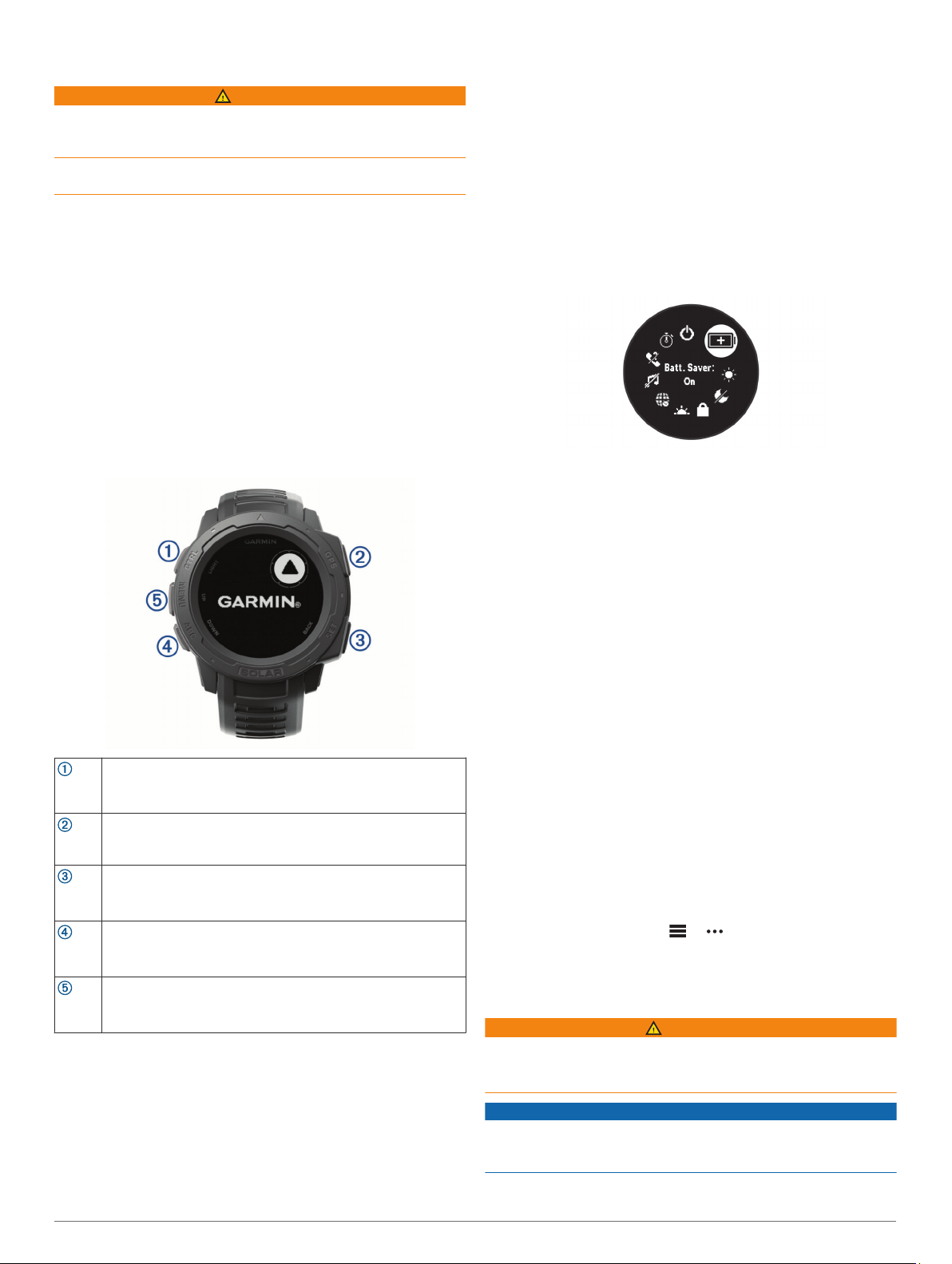
Press CTRL to turn on the watch (Buttons, page 1).
1
Follow the on-screen instructions to complete the initial
2
setup.
During the initial setup, you can install the Garmin Connect
app and pair your smartphone with your watch to receive
notifications and more (Pairing Your Smartphone with Your
Device, page 1).
Charge the device completely (Charging the Device,
3
page 1).
Start an activity (Starting an Activity, page 2).
4
Buttons
™
Your watch comes preloaded with widgets that provide at-a-
glance information. More widgets are available when you pair
your watch with a smartphone.
• From the watch face, press GPS to start an activity or open
an app (Starting an Activity, page 2).
• Hold MENU to customize the watch face, adjust settings, and
pair wireless sensors.
Viewing the Controls Menu
The controls menu contains options, such as turning on do not
disturb mode, locking the keys, and turning the device off.
NOTE: You can add, reorder, and remove the options in the
controls menu (Customizing the Controls Menu, page 20).
From any screen, hold CTRL.
1
Press UP or DOWN to scroll through the options.
2
Viewing Widgets
Your device comes preloaded with several widgets, and more
are available when you pair your device with a smartphone.
• Press UP or DOWN.
The device scrolls through the widget loop.
• Press GPS to view additional options and functions for a
widget.
Press to turn the backlight on and off.
Press to turn the device on.
LIGHT
Hold to view the controls menu.
CTRL
Press to view the activity list and start or stop an activity.
Press to choose an option in a menu.
GPS
Hold to view GPS coordinates and save your location.
Press to return to the previous screen.
Hold to view the clock menu.
BACK
SET
Press to scroll through the widget loop and menus.
Hold to view the altimeter, barometer, and compass (ABC)
DOWN
screen.
ABC
Press to scroll through the widget loop and menus.
Hold to view the menu.
UP
MENU
Using the Watch
• Hold CTRL to view the controls menu.
The controls menu provides quick access to frequently used
functions, such as turning on do not disturb mode, turning on
the battery saver feature, and turning the watch off.
• From the watch face, press UP or DOWN to scroll through
the widget loop.
Pairing Your Smartphone with Your Device
To use the connected features of the Instinct device, it must be
paired directly through the Garmin Connect app, instead of from
the Bluetooth® settings on your smartphone.
From the app store on your smartphone, install and open the
1
Garmin Connect app.
Bring your smartphone within 10 m (33 ft.) of your device.
2
Press CTRL to turn on the device.
3
The first time you turn on the device, it is in pairing mode.
TIP: To manually enter pairing mode, you can hold MENU,
and select Settings > Pair Phone.
Select an option to add your device to your Garmin Connect
4
account:
• If this is the first time you are pairing a device with the
Garmin Connect app, follow the on-screen instructions.
• If you already paired another device with the Garmin
Connect app, from the or menu, select Garmin
Devices > Add Device, and follow the on-screen
instructions.
Charging the Device
WARNING
This device contains a lithium-ion battery. See the Important
Safety and Product Information guide in the product box for
product warnings and other important information.
NOTICE
To prevent corrosion, thoroughly clean and dry the contacts and
the surrounding area before charging or connecting to a
computer. Refer to the cleaning instructions in the appendix.
Introduction 1
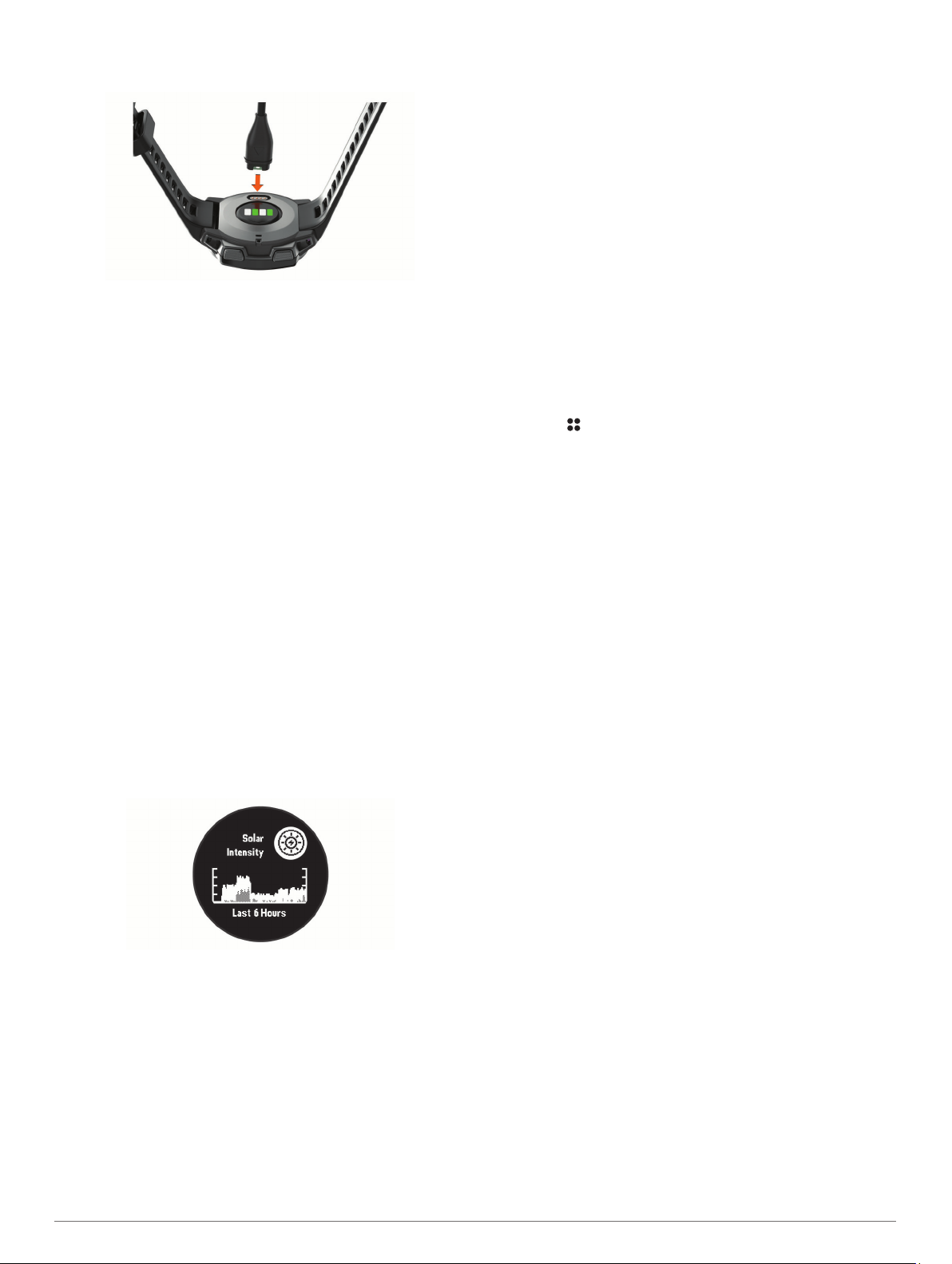
Plug the small end of the USB cable into the charging port on
1
your device.
Plug the large end of the USB cable into a USB charging
2
port.
Charge the device completely.
3
Product Updates
On your computer, install Garmin Express™ (www.garmin.com
/express). On your smartphone, install the Garmin Connect app.
This provides easy access to these services for Garmin
devices:
• Software updates
• Data uploads to Garmin Connect
• Product registration
®
Setting Up Garmin Express
Connect the device to your computer using a USB cable.
1
Go to www.garmin.com/express.
2
Follow the on-screen instructions.
3
Solar Charging
Watch models with solar charging capability allow you to charge
your watch while you use it.
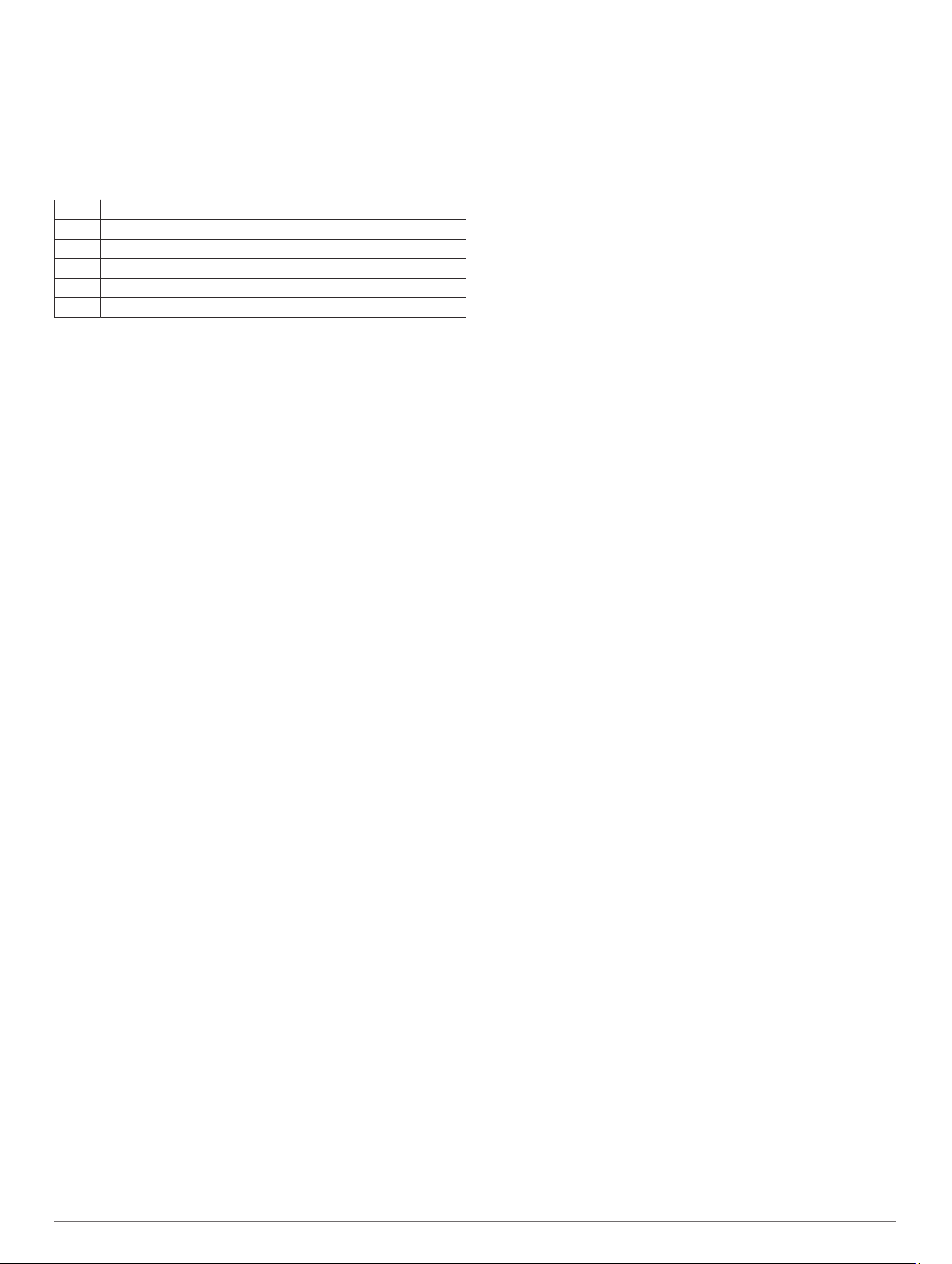
Viewing the Solar Widget
From the watch face, press UP or DOWN to scroll to the solar
widget.
A graph of the intensity of solar input for the last 6 hours
appears.
the solar charging temperature threshold (Specifications,
page 23).
NOTE: The watch does not solar charge when connected to
an external power source or when the battery is full.
Activities and Apps
Your device can be used for indoor, outdoor, athletic, and fitness
activities. When you start an activity, the device displays and
records sensor data. You can save activities and share them
with the Garmin Connect community.
For more information about activity tracking and fitness metric
accuracy, go to garmin.com/ataccuracy.
Starting an Activity
When you start an activity, GPS turns on automatically (if
required).
From the watch face, press GPS.
1
Select an option:
2
• Select an activity from your favorites.
• Select , and select an activity from the extended activity
list.
If the activity requires GPS signals, go outside to an area with
3
a clear view of the sky, and wait until the device is ready.
The device is ready after it establishes your heart rate,
acquires GPS signals (if required), and connects to your
wireless sensors (if required).
Press GPS to start the activity timer.
4
The device records activity data only while the activity timer is
running.
Tips for Recording Activities
• Charge the device before starting an activity (Charging the
Device, page 1).
• Press UP or DOWN to view additional data pages.
Power Modes
Power modes allow you to quickly adjust system settings,
activity settings, and GPS settings to extend battery life during
an activity. For example, power modes can disconnect paired
sensors and turn on the UltraTrac GPS option. You can also
create custom power modes.
During an activity, hold MENU, select Power Mode, and select
an option.
Stopping an Activity
Press GPS.
1
Select an option:
2
• To resume your activity, select Resume.
• To save the activity and return to watch mode, select
Save > Done.
Tips for Solar Charging
To maximize the battery life of your watch, follow these tips.
• When you are wearing the watch, avoid covering the face
with your sleeve.
• When you are not wearing the watch, point the face toward a
source of bright light, such as sunlight or fluorescent light.
The watch will charge faster when exposed to sunlight,
because the solar charging lens is optimized for the spectrum
of sunlight.
• For maximum battery performance, charge the watch in
bright sunlight.
NOTE: The watch protects itself from overheating and stops
charging automatically if the internal temperature exceeds
2 Solar Charging
• To suspend your activity and resume it at a later time,
select Resume Later.
• To navigate back to the starting point of your activity along
the path you traveled, select Back to Start > TracBack.
NOTE: This feature is available only for activities that use
GPS.
• To navigate back to the starting point of your activity by
the most direct path, select Back to Start > Straight Line.
NOTE: This feature is available only for activities that use
GPS.
• To discard the activity and return to watch mode, select
Discard > Yes.

NOTE: After stopping the activity, the device saves it
automatically after 30 minutes.
Adding or Removing a Favorite Activity
The list of your favorite activities appears when you press GPS
from the watch face, and it provides quick access to the
activities you use most frequently. The first time you press GPS
to start an activity, the device prompts you to select your favorite
activities. You can add or remove favorite activities at any time.
Hold MENU.
1
Select Settings > Activities & Apps.
2
Your favorite activities appear at the top of the list with a
white background. Other activities appear in the extended list
with a black background.
Select an option:
3
• To add a favorite activity, select the activity, and select
Set as Favorite.
• To remove a favorite activity, select the activity, and select
Remove from Favorites.
Creating a Custom Activity
From the watch face, press GPS.
1
Select Add.
2
Select an option:
3
• Select Copy Activity to create your custom activity
starting from one of your saved activities.
• Select Other to create a new custom activity.
If necessary, select an activity type.
4
Select a name or enter a custom name.
5
Duplicate activity names include a number, for example:
Bike(2).
Select an option:
6
• Select an option to customize specific activity settings. For
example, you can customize the data screens or auto
features.
• Select Done to save and use the custom activity.
Select Yes to add the activity to your list of favorites.
7
Indoor Activities
The Instinct device can be used for training indoors, such as
running on an indoor track or using a stationary bike. GPS is
turned off for indoor activities (Activities and App Settings,
page 17).
When running or walking with GPS turned off, speed, distance,
and cadence are calculated using the accelerometer in the
device. The accelerometer is self-calibrating. The accuracy of
the speed, distance, and cadence data improves after a few
outdoor runs or walks using GPS.
TIP: Holding the handrails of the treadmill reduces accuracy.
You can use an optional foot pod to record pace, distance, and
cadence.
Calibrating the Treadmill Distance
To record more accurate distances for your treadmill runs, you
can calibrate the treadmill distance after you run at least 1.5 km
(1 mi.) on a treadmill. If you use different treadmills, you can
manually calibrate the treadmill distance on each treadmill or
after each run.
Start a treadmill activity (Starting an Activity, page 2).
1
Run on the treadmill until your Instinct Solar device records at
2
least 1.5 km (1 mi.).
After you complete your run, press GPS.
3
Select an option:
4
• To calibrate the treadmill distance the first time, select
Save.
The device prompts you to complete the treadmill
calibration.
• To manually calibrate the treadmill distance after the first-
time calibration, select Calibrate & Save > Yes.
Check the treadmill display for the distance traveled, and
5
enter the distance on your device.
Recording a Strength Training Activity
You can record sets during a strength training activity. A set is
multiple repetitions (reps) of a single move.
From the watch face, press GPS.
1
Select Strength.
2
The first time you record a strength training activity, you must
select which wrist your watch is on.
Press GPS to start the set timer.
3
Start your first set.
4
The device counts your reps. Your rep count appears when
you complete at least four reps.
TIP: The device can only count reps of a single move for
each set. When you want to change moves, you should finish
the set and start a new one.
Press BACK to finish the set.
5
The watch displays the total reps for the set. After several
seconds, the rest timer appears.
If necessary, press DOWN, and edit the number of reps.
6
TIP: You can also add the weight used for the set.
When you are done resting, press BACK to start your next
7
set.
Repeat for each strength training set until your activity is
8
complete.
After your last set, press GPS to stop the set timer.
9
Select Save.
10
Outdoor Activities
The Instinct device comes preloaded with outdoor activities,
such as running and cycling. GPS is turned on for outdoor
activities. You can add new activities based on default activities,
such as walking or rowing. You can also add custom activities to
your device (Creating a Custom Activity, page 3).
Viewing Your Ski Runs
Your device records the details of each downhill skiing or
snowboarding run using the auto run feature. This feature is
turned on by default for downhill skiing and snowboarding. It
automatically records new ski runs based on your movement.
The timer pauses when you stop moving downhill and when you
are on a chairlift. The timer remains paused during the chairlift
ride. You can start moving downhill to restart the timer. You can
view run details from the paused screen or while the timer is
running.
Start a skiing or snowboarding activity.
1
Hold MENU.
2
Select View Runs.
3
Press UP and DOWN to view details of your last run, your
4
current run, and your total runs.
The run screens include time, distance traveled, maximum
speed, average speed, and total descent.
Using the Metronome
The metronome feature plays tones at a steady rhythm to help
you improve your performance by training at a faster, slower, or
more consistent cadence.
NOTE: This feature is not available for all activities.
Activities and Apps 3

From the watch face, press GPS.
1
Select an activity.
2
Hold MENU.
3
Select the activity settings.
4
Select Metronome > Status > On.
5
Select an option:
6
• Select Beats / Minute to enter a value based on the
cadence you want to maintain.
• Select Alert Frequency to customize the frequency of the
beats.
• Select Sounds to customize the metronome tone and
vibration.
If necessary, select Preview to listen to the metronome
7
feature before you run.
Go for a run (Starting an Activity, page 2).
8
The metronome starts automatically.
During your run, press UP or DOWN to view the metronome
9
screen.
If necessary, hold MENU to change the metronome settings.
10
Starting an Expedition
You can use the Expedition app to prolong the battery life while
recording a multi-day activity.
From the watch face, press GPS.
1
Select Expedition.
2
Press GPS to start the activity timer.
3
The device enters low power mode and collects GPS track
points once an hour. To maximize battery life, the device
turns off all sensors and accessories, including the
connection to your smartphone.
Changing the Track Point Recording Interval
During an expedition, GPS track points are recorded once an
hour by default. You can change how often GPS track points are
recorded. Recording track points less frequently maximizes
battery life.
NOTE: To maximize battery life, GPS track points are not
recorded after sunset. You can customize this option in the
activity settings.
From the watch face, press GPS.
1
Select Expedition.
2
Hold MENU.
3
Select the activity settings.
4
Select Recording Interval.
5
Select an option.
6
Recording a Track Point Manually
During an expedition, track points are recorded automatically
based on the selected recording interval. You can manually
record a track point at any time.
During an expedition, press UP or DOWN to view the map
1
page.
Press GPS.
2
Select Add Point.
3
Viewing Track Points
During an expedition, press UP or DOWN to view the map
1
page.
Press GPS.
2
Select View Points.
3
Select a track point from the list.
4
Select an option:
5
• To start navigating to the track point, select Go To.
• To view detailed information about the track point, select
Details.
Going Hunting
You can save locations relevant to your hunt and view a map of
saved locations.
From the watch face, press GPS.
1
Select Hunt.
2
From the time of day data screen, press GPS > Start Hunt.
3
From the time of day data screen, press GPS, and select an
4
option:
• To save your current location, select Save Location.
• To view locations saved during this hunt activity, select
Hunt Locations.
• To view all previously saved locations, select Saved
Locations.
After you complete your activity, scroll to the time of day data
5
screen, press GPS, and select End Hunt.
Going Fishing
You can keep track of your daily fish count, count down your
competition time, or set an interval timer to keep track of your
fishing pace.
From the watch face, press GPS.
1
Select Fish.
2
From the time of day data screen, press GPS > Start Fish.
3
From the time of day data screen, press GPS, and select an
4
option:
• To add the catch to your fish count and save the location,
select Log Catch.
• To save your current location, select Save Location.
• To set an interval timer, end time, or end time reminder for
the activity, select Fish Timers.
After you complete your activity, scroll to the time of day data
5
screen, press GPS, and select End Fish.
Surfing
You can use the surfing activity to record your surfing sessions.
After your session, you can view the number of waves, longest
wave, and maximum speed.
From the watch face, press GPS.
1
Select Surf.
2
Wait on the beach until your device acquires GPS signals.
3
Press GPS to start the activity timer.
4
After you complete your activity, press GPS to stop the
5
activity timer.
Select Save to review the summary of your surfing session.
6
Swimming
NOTICE
The device is intended for surface swimming. Scuba diving with
the device may damage the product and will void the warranty.
Swim Terminology
Length: One trip down the pool.
Interval: One or more consecutive lengths. A new interval starts
after a rest.
Stroke: A stroke is counted every time your arm wearing the
device completes a full cycle.
Swolf: Your swolf score is the sum of the time for one pool
length and the number of strokes for that length. For
example, 30 seconds plus 15 strokes equals a swolf score of
45. For open water swimming, swolf is calculated over 25
4 Activities and Apps
meters. Swolf is a measurement of swimming efficiency and,
like golf, a lower score is better.
Stroke Types
Stroke type identification is available only for pool swimming.
Your stroke type is identified at the end of a length. Stroke types
appear in your swimming history and in your Garmin Connect
account. You can also select stroke type as a custom data field
(Customizing the Data Screens, page 17).
Free Freestyle
Back Backstroke
Breast Breaststroke
Fly Butterfly
Mixed More than one stroke type in an interval
Drill Used with drill logging (Training with the Drill Log, page 5)
Tips for Swimming Activities
• Before starting a pool swimming activity, follow the on-screen
instructions to select your pool size or enter a custom size.
The next time you start a pool swimming activity, the device
uses this pool size. You can hold MENU, select the activity
settings, and select Pool Size to change the size.
• Press BACK to record a rest during pool swimming.
The device automatically records swim intervals and lengths
for pool swimming.
• Press BACK to record an interval during open water
swimming.
Resting During Pool Swimming
The default rest screen displays two rest timers. It also displays
time and distance for the last completed interval.
NOTE: Swim data is not recorded during a rest.
During your swim activity, press BACK to start a rest.
1
The display reverses to white text on a black background,
and the rest screen appears.
During a rest, press UP or DOWN to view other data screens
2
(optional).
Press BACK, and continue swimming.
3
Repeat for additional rest intervals.
4
Auto Rest
The auto rest feature is available only for pool swimming. Your
device automatically detects when you are resting, and the rest
screen appears. If you rest for more than 15 seconds, the device
automatically creates a rest interval. When you resume
swimming, the device automatically starts a new swim interval.
You can turn on the auto rest feature in the activity options
(Activities and App Settings, page 17).
TIP: For best results using the auto rest feature, minimize your
arm motions while resting.
If you do not want to use the auto rest feature, you can select
BACK to manually mark the beginning and end of each rest
interval.
Training with the Drill Log
The drill log feature is available only for pool swimming. You can
use the drill log feature to manually record kick sets, one-arm
swimming, or any type of swimming that is not one of the four
major strokes.
During your pool swim activity, press UP or DOWN to view
1
the drill log screen.
Press BACK to start the drill timer.
2
After you complete a drill interval, press BACK.
3
The drill timer stops, but the activity timer continues to record
the entire swim session.
Select a distance for the completed drill.
4
Distance increments are based on the pool size selected for
the activity profile.
Select an option:
5
• To start another drill interval, press BACK.
• To start a swim interval, press UP or DOWN to return to
the swim training screens.
Turning Off Wrist-based Heart Rate While Swimming
Wrist-based heart rate is turned on by default for swim activities.
The device is also compatible with the HRM-Tri™ accessory and
the HRM-Swim™ accessory. If both wrist-based heart rate and
chest heart rate data are available, your device uses the chest
heart rate data.
From the heart rate widget, hold MENU.
1
NOTE: You may need to add the widget to your widget loop
(Customizing the Widget Loop, page 16).
Select Options > While Swimming > Off.
2
Training
Setting Up Your User Profile
You can update your gender, birth year, height, weight, and
heart rate zone settings. The device uses this information to
calculate accurate training data.
From the watch face, hold UP.
1
Select Settings > User Profile.
2
Select an option.
3
Fitness Goals
Knowing your heart rate zones can help you measure and
improve your fitness by understanding and applying these
principles.
• Your heart rate is a good measure of exercise intensity.
• Training in certain heart rate zones can help you improve
cardiovascular capacity and strength.
If you know your maximum heart rate, you can use the table
(Heart Rate Zone Calculations, page 6) to determine the best
heart rate zone for your fitness objectives.
If you do not know your maximum heart rate, use one of the
calculators available on the Internet. Some gyms and health
centers can provide a test that measures maximum heart rate.
The default maximum heart rate is 220 minus your age.
About Heart Rate Zones
Many athletes use heart rate zones to measure and increase
their cardiovascular strength and improve their level of fitness. A
heart rate zone is a set range of heartbeats per minute. The five
commonly accepted heart rate zones are numbered from 1 to 5
according to increasing intensity. Generally, heart rate zones are
calculated based on percentages of your maximum heart rate.
Setting Your Heart Rate Zones
The device uses your user profile information from the initial
setup to determine your default heart rate zones. You can set
separate heart rate zones for sport profiles, such as running,
cycling, and swimming. For the most accurate calorie data
during your activity, set your maximum heart rate. You can also
set each heart rate zone and enter your resting heart rate
manually. You can manually adjust your zones on the device or
using your Garmin Connect account.
From the watch face, hold MENU.
1
Select Settings > User Profile > Heart Rate.
2
Select Max. HR, and enter your maximum heart rate.
3
Select Resting HR, and enter your resting heart rate.
4
You can use the average resting heart rate measured by your
device, or you can set a custom resting heart rate.
Training 5
Select Zones > Based On.
5
Select an option:
6
• Select BPM to view and edit the zones in beats per
minute.
• Select %Max. HR to view and edit the zones as a
percentage of your maximum heart rate.
• Select %HRR to view and edit the zones as a percentage
of your heart rate reserve (maximum heart rate minus
resting heart rate).
Select a zone, and enter a value for each zone.
7
Select Sport Heart Rate, and select a sport profile to add
8
separate heart rate zones (optional).
Letting the Device Set Your Heart Rate Zones
The default settings use your profile information to set your
maximum heart rate and your heart rate zones as a percentage
of your maximum heart rate.
• Verify that your user profile settings are accurate (Setting Up
Your User Profile, page 5).
• Run often with the wrist or chest heart rate monitor.
• Try a few heart rate training plans, available from your
Garmin Connect account.
• View your heart rate trends and time in zones using your
Garmin Connect account.
Heart Rate Zone Calculations
Zone % of
Maximum
Heart Rate
1 50–60% Relaxed, easy pace,
2 60–70% Comfortable pace,
3 70–80% Moderate pace, more
4 80–90% Fast pace and a bit
5 90–100% Sprinting pace,
Perceived Exertion Benefits
rhythmic breathing
slightly deeper
breathing, conversation
possible
difficult to hold
conversation
uncomfortable, breathing
forceful
unsustainable for long
period of time, labored
breathing
Beginning-level
aerobic training,
reduces stress
Basic cardiovascular
training, good
recovery pace
Improved aerobic
capacity, optimal
cardiovascular training
Improved anaerobic
capacity and
threshold, improved
speed
Anaerobic and
muscular endurance,
increased power
Activity Tracking
The activity tracking feature records your daily step count,
distance traveled, intensity minutes, floors climbed, calories
burned, and sleep statistics for each recorded day. Your calories
burned includes your base metabolism plus activity calories.
The number of steps taken during the day appears on the steps
widget. The step count is updated periodically.
For more information about activity tracking and fitness metric
accuracy, go to garmin.com/ataccuracy.
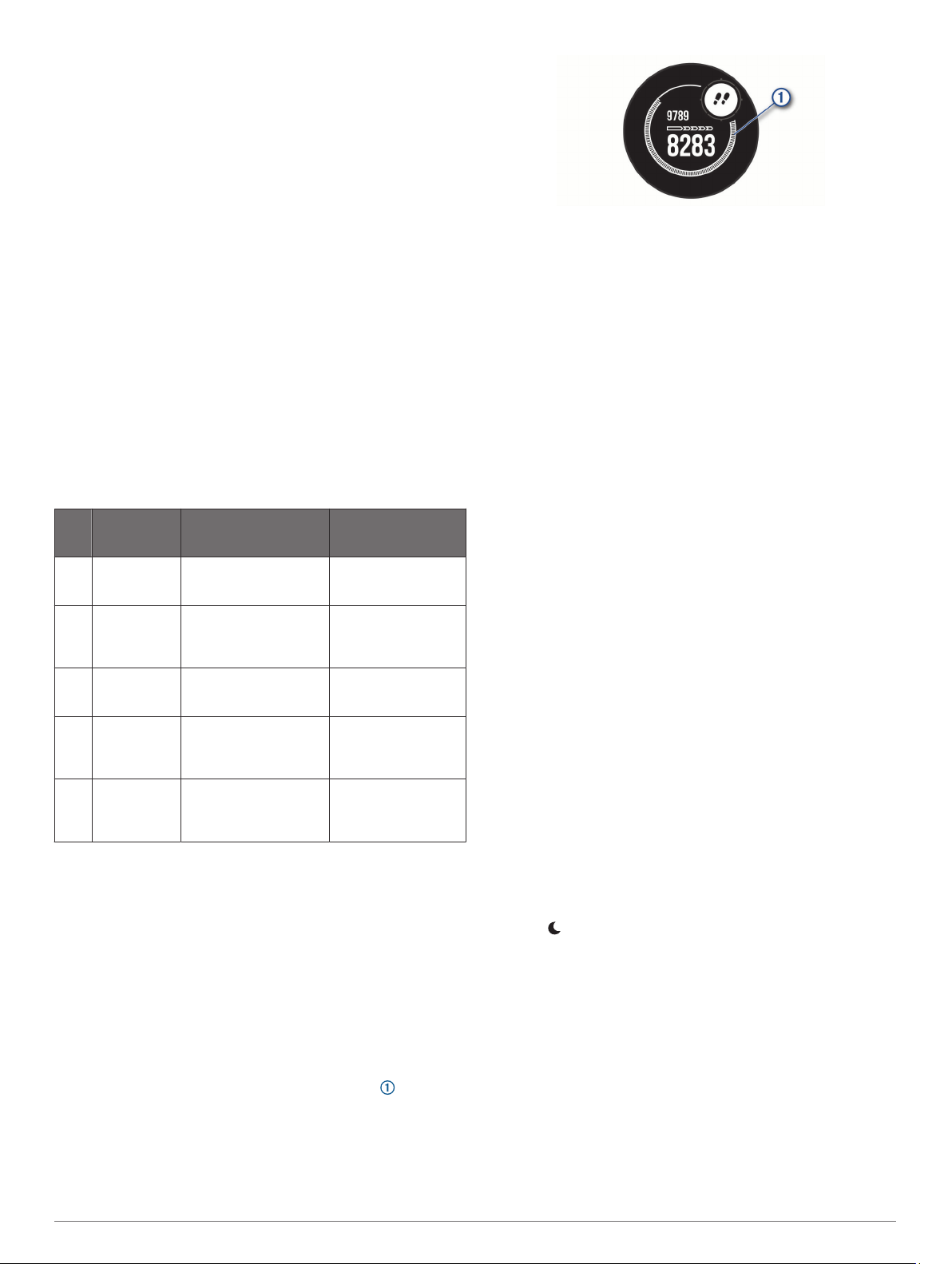
Auto Goal
Your device creates a daily step goal automatically, based on
your previous activity levels. As you move during the day, the
device shows your progress toward your daily goal .
If you choose not to use the auto goal feature, you can set a
personalized step goal on your Garmin Connect account.
Using the Move Alert
Sitting for prolonged periods of time can trigger undesirable
metabolic state changes. The move alert reminds you to keep
moving. After one hour of inactivity, Move! and the move bar
appear. Additional segments appear after every 15 minutes of
inactivity. The device also beeps or vibrates if audible tones are
turned on (System Settings, page 22).
Go for a short walk (at least a couple of minutes) to reset the
move alert.
Sleep Tracking
While you are sleeping, the device automatically detects your
sleep and monitors your movement during your normal sleep
hours. You can set your normal sleep hours in the user settings
on your Garmin Connect account. Sleep statistics include total
hours of sleep, sleep levels, and sleep movement. You can view
your sleep statistics on your Garmin Connect account.
NOTE: Naps are not added to your sleep statistics. You can use
do not disturb mode to turn off notifications and alerts, with the
exception of alarms (Using Do Not Disturb Mode, page 6).
Using Automated Sleep Tracking
Wear your device while sleeping.
1
Upload your sleep tracking data to the Garmin Connect site
2
(Manually Syncing Data with Garmin Connect, page 13).
You can view your sleep statistics on your Garmin Connect
account.
Using Do Not Disturb Mode
You can use do not disturb mode to turn off the backlight, tone
alerts, and vibration alerts. For example, you can use this mode
while sleeping or watching a movie.
NOTE: You can set your normal sleep hours in the user settings
on your Garmin Connect account. You can enable the During
Sleep option in the system settings to automatically enter do not
disturb mode during your normal sleep hours (System Settings,
page 22).
NOTE: You can add options to the controls menu (Customizing
the Controls Menu, page 20).
Hold CTRL.
1
Select .
2
Intensity Minutes
To improve your health, organizations such as the World Health
Organization recommend at least 150 minutes per week of
moderate intensity activity, such as brisk walking, or 75 minutes
per week of vigorous intensity activity, such as running.
The device monitors your activity intensity and tracks your time
spent participating in moderate to vigorous intensity activities
(heart rate data is required to quantify vigorous intensity). You
can work toward achieving your weekly intensity minutes goal by
participating in at least 10 consecutive minutes of moderate to
vigorous intensity activities. The device adds the amount of
moderate activity minutes with the amount of vigorous activity
minutes. Your total vigorous intensity minutes are doubled when
added.
6 Training

Earning Intensity Minutes
Your Instinct Solar device calculates intensity minutes by
comparing your heart rate data to your average resting heart
rate. If heart rate is turned off, the device calculates moderate
intensity minutes by analyzing your steps per minute.
• Start a timed activity for the most accurate calculation of
intensity minutes.
• Exercise for at least 10 consecutive minutes at a moderate or
vigorous intensity level.
• Wear your device all day and night for the most accurate
resting heart rate.
Garmin Move IQ
When your movements match familiar exercise patterns, the
Move IQ feature automatically detects the event and displays it
in your timeline. The Move IQ events show activity type and
duration, but they do not appear in your activities list or
newsfeed. For more detail and accuracy, you can record a timed
activity on your device.
™
Activity Tracking Settings
Hold MENU, and select Settings > Activity Tracking.
Status: Turns off the activity tracking features.
Move Alert: Displays a message and the move bar on the
digital watch face and steps screen. The device also beeps
or vibrates if audible tones are turned on (System Settings,
page 22).
Goal Alerts: Allows you to turn on and off goal alerts, or turn
them off only during activities. Goal alerts appear for your
daily steps goal, daily floors climbed goal, and weekly
intensity minutes goal.
Move IQ: Allows you to turn on and off Move IQ events.
Sleep Pulse Ox: Sets your device to record pulse oximeter
readings while you are inactive during the day or
continuously while you sleep.
Turning Off Activity Tracking
When you turn off activity tracking, your steps, floors climbed,
intensity minutes, sleep tracking, and Move IQ events are not
recorded.
Hold MENU.
1
Select Settings > Activity Tracking > Status > Off.
2
Workouts
You can create custom workouts that include goals for each
workout step and for varied distances, times, and calories. Your
device includes several preloaded workouts for multiple
activities. You can create and find more workouts using Garmin
Connect or select a training plan that has built-in workouts, and
transfer them to your device.
You can schedule workouts using Garmin Connect. You can
plan workouts in advance and store them on your device.
Following a Workout From Garmin Connect
Before you can download a workout from Garmin Connect, you
must have a Garmin Connect account (Garmin Connect,
page 13).
Select an option:
1
• Open the Garmin Connect app.
• Go to connect.garmin.com.
Select Training > Workouts.
2
Find a workout, or create and save a new workout.
3
Select or Send to Device.
4
Follow the on-screen instructions.
5
Starting a Workout
Before you can start a workout, you must download a workout
from your Garmin Connect account.
From the watch face, press GPS.
1
Select an activity.
2
Hold MENU.
3
Select Training > My Workouts.
4
Select a workout.
5
NOTE: Only workouts that are compatible with the selected
activity appear in the list.
Select Do Workout.
6
Press GPS to start the activity timer.
7
After you begin a workout, the device displays each step of the
workout, step notes (optional), the target (optional), and the
current workout data.
About the Training Calendar
The training calendar on your device is an extension of the
training calendar or schedule you set up in Garmin Connect.
After you have added a few workouts to the Garmin Connect
calendar, you can send them to your device. All scheduled
workouts sent to the device appear in the calendar widget.
When you select a day in the calendar, you can view or do the
workout. The scheduled workout stays on your device whether
you complete it or skip it. When you send scheduled workouts
from Garmin Connect, they overwrite the existing training
calendar.
Using Garmin Connect Training Plans
Before you can download and use a training plan from Garmin
Connect, you must have a Garmin Connect account (Garmin
Connect, page 13), and you must pair the Instinct device with a
compatible smartphone.
From the Garmin Connect app, select or .
1
Select Training > Training Plans.
2
Select and schedule a training plan.
3
Follow the on-screen instructions.
4
Review the training plan in your calendar.
5
Interval Workouts
You can create interval workouts based on distance or time. The
device saves your custom interval workout until you create
another interval workout. You can use open intervals for track
workouts and when you are running a known distance.
Creating an Interval Workout
From the watch face, press GPS.
1
Select an activity.
2
Hold MENU.
3
Select Training > Intervals > Edit > Interval > Type.
4
Select Distance, Time, or Open.
5
TIP: You can create an open-ended interval by selecting the
Open option.
If necessary, select Duration, enter a distance or time
6
interval value for the workout, and select .
Press BACK.
7
Select Rest > Type.
8
Select Distance, Time, or Open.
9
If necessary, enter a distance or time value for the rest
10
interval, and select .
Press BACK.
11
Select one or more options:
12
• To set the number of repetitions, select Repeat.
Training 7
Loading…
Manual
View the manual for the Garmin Instinct Solar here, for free. This manual comes under the category smartwatch and has been rated by 29 people with an average of a 8.8.
This manual is available in the following languages: English. Do you have a question about the Garmin Instinct Solar or do you need help?
Ask your question here
Garmin Instinct Solar specifications
Below you will find the product specifications and the manual specifications of the Garmin Instinct Solar.
The Garmin Instinct Solar is a smartwatch available in the color Graphite. Its digital display has a resolution of 128 x 128 pixels, providing clear visibility for various functions. The display size measures 23 x 23 millimeters. The watch case is made of Fibre Reinforced Plastic (FRP), ensuring its lightweight yet durable composition. The band material utilized is silicone, offering a comfortable and flexible fit.
In terms of design, the Garmin Instinct Solar has a round shape, imparting a classic and timeless aesthetic. One of its notable features is its waterproof protection, which allows for worry-free use even while swimming or engaging in water-based activities.
The Garmin Instinct Solar utilizes solar power to extend its battery life, making it an eco-friendly and reliable companion for outdoor enthusiasts. It offers various tracking options like heart rate monitoring, GPS navigation, and activity tracking for a wide range of sports and outdoor activities. Additionally, it provides essential smart notifications when connected to compatible smartphones.
Equipped with advanced technologies, this smartwatch brings convenience and functionality to the user’s wrist. Its robust build and dependable performance make it suitable for demanding environments and active lifestyles.
Please note that the above description is based on the provided specifications and does not include subjective opinions on the product’s performance or desirability.
Watch case color
Graphite
Mobile network connection
No
General
| Brand | Garmin |
| Model | Instinct Solar | 010-02293-00 |
| Product | smartwatch |
| EAN | 0753759235895 |
| Language | English |
| Filetype | User manual (PDF), Safety instructions (PDF) |
Design
| Watch case color | Graphite |
| Band color | Black |
| Buckle color | Black |
| Color name | Graphite |
| Watch case material | Fiber Reinforced Plastic (FRP) |
| Band material | Silicone |
| Band size | — |
| Shape | Round |
| Wrist size range | 132 — 224 mm |
| Protection features | Waterproof |
| Market positioning | Smartwatch |
| Watch case size | 45 mm |
Display
| Display type | Digital |
| Display resolution | 128 x 128 pixels |
| Touchscreen | — |
| Display diagonal | 0.9 « |
| Display size (HxV) | 23 x 23 mm |
| Watch glass type | Corning Gorilla Glass |
| Display technology | MIP |
Performance
| Built-in microphone | — |
| Built-in speaker(s) | — |
| Built-in camera | — |
| FM radio | — |
| Mobile operating systems supported | Android, iOS |
| Compatible memory cards | Not supported |
| RAM capacity | 16 MB |
Features
| Heart rate monitor | Yes |
| Heart rate contact sensors | Yes |
| Heart rate sensor type | Optical |
| Distance traveled | Yes |
| Pedometer | Yes |
| Calories burned | Yes |
| Accelerometer | Yes |
| Personal goals | Yes |
| Quality of sleep | Yes |
| Caller ID | Yes |
| Smart notifications | Yes |
| Weather display | Yes |
| Calendar notifications | Yes |
| Anti-lost alert function | Yes |
| Timer | Yes |
| Electronic compass | Yes |
| Thermometer | Yes |
| Barometer | Yes |
| Altimeter | Yes |
| Vibrating alarm clock | Yes |
| Military standard | MIL-STD-810G |
Network
| Mobile network connection | No |
| ANT+ enabled | Yes |
| GPS (satellite) | Yes |
| GLONASS | Yes |
| Galileo | Yes |
Ports & interfaces
| USB port | — |
| Wi-Fi | No |
| Bluetooth version | — |
| Near Field Communication (NFC) | No |
| Headphone connectivity | — |
Power
| Battery technology | — |
| Battery capacity | — mAh |
| Battery life (max) | — h |
| Battery life (GPS mode) | 30 h |
| Auto standby | — |
| Wireless charging | — |
Weight & dimensions
| Width | 45 mm |
| Depth | 45 mm |
| Thickness | 15.3 mm |
| Weight | 53 g |
Packaging content
show more
Frequently Asked Questions
Can’t find the answer to your question in the manual? You may find the answer to your question in the FAQs about the Garmin Instinct Solar below.
How do I set up the Garmin Instinct Solar for the first time?
To set up your Garmin Instinct Solar, start by charging the device fully. Then, press and hold the middle button to power it on. Follow the prompts on the screen to select your language, set the time and date, and personalize your preferences.
How can I track my daily activity using the Garmin Instinct Solar?
To track your activity, simply wear your Instinct Solar throughout the day. It automatically detects and records steps, distance, calories burned, and active minutes. You can view your daily activity stats by accessing the respective widget on the watch or syncing it with the Garmin Connect mobile app.
What are the different sports modes available on the Garmin Instinct Solar?
The Instinct Solar offers a wide range of sports modes, including running, swimming, cycling, hiking, and more. To select a specific sports mode, navigate to the activity menu by pressing the bottom left button and select your preferred activity. You can further customize each mode and access advanced metrics by long-pressing the middle button.
Can I receive notifications from my smartphone on the Garmin Instinct Solar?
Yes, you can receive notifications such as calls, text messages, emails, and social media alerts on your Instinct Solar. Ensure that Bluetooth is enabled on both your smartwatch and smartphone, and pair them. Customize the notification settings through the Garmin Connect app to choose which alerts you want to receive on your watch.
How can I use the Garmin Instinct Solar to navigate during outdoor adventures?
The Instinct Solar offers built-in GPS and navigation features to aid in outdoor exploration. To navigate, access the navigation menu by pressing the top right button. From there, select options like trackback, breadcrumbs, or navigate to a specific location using saved waypoints or coordinates. The watch will provide you with detailed directions and guidance.
Does the Garmin Instinct Solar have a heart rate monitor?
Yes, the Garmin Instinct Solar has a heart rate monitor. This allows users to track their heart rate during activities and monitor their overall heart health.
Is the Garmin Instinct Solar waterproof?
Yes, the Garmin Instinct Solar is waterproof. This means that users can wear it while swimming or participating in other water-related activities without worrying about damaging the watch.
Does the Garmin Instinct Solar display show distance travelled?
Yes, the Garmin Instinct Solar displays the distance travelled. This is useful for tracking runs, hikes, or other outdoor activities where users may want to keep track of their distance.
Can the Garmin Instinct Solar be used with Android and iOS devices?
Yes, the Garmin Instinct Solar is compatible with both Android and iOS devices. This allows users to easily sync their watch with their smartphone and access additional features and data.
Does the Garmin Instinct Solar support memory cards?
No, the Garmin Instinct Solar does not support memory cards. Users will need to rely on the internal 16 MB RAM capacity for storing data and information.
What is the weight of the Garmin Instinct Solar?
The Garmin Instinct Solar has a weight of 53 g.
What is the width of the Garmin Instinct Solar?
The Garmin Instinct Solar has a width of 45 mm.
What is bluetooth?
Bluetooth is a way of exchanging data wirelessly between electronic devices via radio waves. The distance between the two devices that exchange data can in most cases be no more than ten metres.
What is the depth of the Garmin Instinct Solar?
The Garmin Instinct Solar has a depth of 45 mm.
What is the screen size of the Garmin Instinct Solar?
The screen size of the Garmin Instinct Solar is 0.9 «.
What is the screen resolution of the display of the Garmin Instinct Solar?
The screen resolution of the Garmin Instinct Solar is 128 x 128 pixels.
Do I need to switch off my smartwatch at night?
It is sensible for you to switch off your smartwatch at night, this ensures longer battery life.
Do I need internet for GPS?
No, no internet is required to receive GPS.
What is GPS?
GPS is a system that can be used all over the globe to determine your location by means of satellites.
What does the abbreviation GPS stand for?
The abbreviation GPS stands for ‘Global Positioning System’.
Does a smartwatch have functionalities that a smartphone does not have?
In general, a smartwatch has no functionalities that a smartphone does not have.
Is the manual of the Garmin Instinct Solar available in English?
Yes, the manual of the Garmin Instinct Solar is available in English .
Is your question not listed? Ask your question here
User manual
View the manual for the Garmin Instinct Solar here, for free. This manual comes under the category smartwatch and has been rated by 29 people with an average of a 8.8. This manual is available in the following languages: English. Do you have a question about the Garmin Instinct Solar or do you need help?
Ask your question here
Garmin Instinct Solar specifications
Below you will find the product specifications and the manual specifications of the Garmin Instinct Solar.
The Garmin Instinct Solar is a round-shaped smartwatch with a 0.9″ digital display that has a resolution of 128 x 128 pixels. The display size is 23 x 23 millimeters, making it easy to read notifications, messages, and fitness data. The watch case is made of durable Fibre Reinforced Plastic (FRP) material, and the band is made of silicone, providing a comfortable and secure fit.
One of the standout features of the Garmin Instinct Solar is its solar charging capability. The watch can be recharged using sunlight, extending the battery life up to 54 days in smartwatch mode and up to 38 hours in GPS mode. The watch is also waterproof, making it suitable for swimming and water sports.
The Garmin Instinct Solar is designed for outdoor enthusiasts and fitness enthusiasts. It comes with several tracking features, including heart rate monitoring, steps taken, calories burned, and distance covered. It also has GPS, GLONASS, and Galileo satellite tracking, which provide accurate location data for outdoor activities such as hiking, running, and cycling.
The watch also has a range of smart features, including notifications for calls, texts, and emails, music control, and payment options through Garmin Pay. The watch is compatible with both iOS and Android devices and can sync with various fitness apps.
Overall, the Garmin Instinct Solar is a reliable and durable smartwatch that meets the needs of fitness enthusiasts and outdoor adventurers. Its solar charging feature and waterproof design make it a convenient and practical choice for those who enjoy being active outdoors.
Watch case colour
Graphite
Mobile network connection
No
General
| Brand | Garmin |
| Model | Instinct Solar | 010-02293-00 |
| Product | smartwatch |
| EAN | 0753759235895 |
| Language | English |
| Filetype | User manual (PDF), Safety instructions (PDF) |
Design
| Watch case colour | Graphite |
| Band colour | Black |
| Buckle colour | Black |
| Colour name | Graphite |
| Watch case material | Fibre Reinforced Plastic (FRP) |
| Band material | Silicone |
| Band size | — |
| Shape | Round |
| Wrist size range | 132 — 224 mm |
| Protection features | Waterproof |
| Market positioning | Smartwatch |
| Watch case size | 45 mm |
Display
| Display type | Digital |
| Display resolution | 128 x 128 pixels |
| Touchscreen | — |
| Display diagonal | 0.9 « |
| Display size (HxV) | 23 x 23 mm |
| Watch glass type | Corning Gorilla Glass |
| Display technology | MIP |
Performance
| Built-in microphone | — |
| Built-in speaker(s) | — |
| Built-in camera | — |
| FM radio | — |
| Mobile operating systems supported | Android, iOS |
| Compatible memory cards | Not supported |
| RAM capacity | 16 MB |
Features
| Heart rate monitor | Yes |
| Heart rate contact sensors | Yes |
| Heart rate sensor type | Optical |
| Distance travelled | Yes |
| Pedometer | Yes |
| Calories burned | Yes |
| Accelerometer | Yes |
| Personal goals | Yes |
| Quality of sleep | Yes |
| Caller ID | Yes |
| Smart notifications | Yes |
| Weather display | Yes |
| Calendar notifications | Yes |
| Anti-lost alert function | Yes |
| Timer | Yes |
| Electronic compass | Yes |
| Thermometer | Yes |
| Barometer | Yes |
| Altimeter | Yes |
| Vibrating alarm clock | Yes |
| Military standard | MIL-STD-810G |
Network
| Mobile network connection | No |
| ANT+ enabled | Yes |
| GPS (satellite) | Yes |
| GLONASS | Yes |
| Galileo | Yes |
Ports & interfaces
| USB port | — |
| Wi-Fi | No |
| Bluetooth version | — |
| Near Field Communication (NFC) | No |
| Headphone connectivity | — |
Power
| Battery technology | — |
| Battery capacity | — mAh |
| Battery life (max) | — h |
| Battery life (GPS mode) | 30 h |
| Auto standby | — |
| Wireless charging | — |
Weight & dimensions
| Width | 45 mm |
| Depth | 45 mm |
| Thickness | 15.3 mm |
| Weight | 53 g |
Packaging content
show more
Questions & answers
Can’t find the answer to your question in the manual? You may find the answer to your question in the FAQs about the Garmin Instinct Solar below.
How do I set up the Garmin Instinct Solar for the first time?
To set up your Garmin Instinct Solar, start by charging the device fully. Then, press and hold the middle button to power it on. Follow the prompts on the screen to select your language, set the time and date, and personalize your preferences.
How can I track my daily activity using the Garmin Instinct Solar?
To track your activity, simply wear your Instinct Solar throughout the day. It automatically detects and records steps, distance, calories burned, and active minutes. You can view your daily activity stats by accessing the respective widget on the watch or syncing it with the Garmin Connect mobile app.
What are the different sports modes available on the Garmin Instinct Solar?
The Instinct Solar offers a wide range of sports modes, including running, swimming, cycling, hiking, and more. To select a specific sports mode, navigate to the activity menu by pressing the bottom left button and select your preferred activity. You can further customize each mode and access advanced metrics by long-pressing the middle button.
Can I receive notifications from my smartphone on the Garmin Instinct Solar?
Yes, you can receive notifications such as calls, text messages, emails, and social media alerts on your {Instinct Solar}. Ensure that Bluetooth is enabled on both your smartwatch and smartphone, and pair them. Customize the notification settings through the {Garmin Connect} app to choose which alerts you want to receive on your watch.
How can I use the Garmin Instinct Solar to navigate during outdoor adventures?
The Instinct Solar offers built-in GPS and navigation features to aid in outdoor exploration. To navigate, access the navigation menu by pressing the top right button. From there, select options like trackback, breadcrumbs, or navigate to a specific location using saved waypoints or coordinates. The watch will provide you with detailed directions and guidance.
Does the Garmin Instinct Solar have a heart rate monitor?
Yes, the Garmin Instinct Solar has a heart rate monitor. This allows users to track their heart rate during activities and monitor their overall heart health.
Is the Garmin Instinct Solar waterproof?
Yes, the Garmin Instinct Solar is waterproof. This means that users can wear it while swimming or participating in other water-related activities without worrying about damaging the watch.
Does the Garmin Instinct Solar display show distance travelled?
Yes, the Garmin Instinct Solar displays the distance travelled. This is useful for tracking runs, hikes, or other outdoor activities where users may want to keep track of their distance.
Can the Garmin Instinct Solar be used with Android and iOS devices?
Yes, the Garmin Instinct Solar is compatible with both Android and iOS devices. This allows users to easily sync their watch with their smartphone and access additional features and data.
Does the Garmin Instinct Solar support memory cards?
No, the Garmin Instinct Solar does not support memory cards. Users will need to rely on the internal 16 MB RAM capacity for storing data and information.
What is the weight of the Garmin Instinct Solar?
The Garmin Instinct Solar has a weight of 53 g.
What is the width of the Garmin Instinct Solar?
The Garmin Instinct Solar has a width of 45 mm.
What is bluetooth?
Bluetooth is a way of exchanging data wirelessly between electronic devices via radio waves. The distance between the two devices that exchange data can in most cases be no more than ten metres.
What is the depth of the Garmin Instinct Solar?
The Garmin Instinct Solar has a depth of 45 mm.
What is the screen size of the Garmin Instinct Solar?
The screen size of the Garmin Instinct Solar is 0.9 «.
What is the screen resolution of the display of the Garmin Instinct Solar?
The screen resolution of the Garmin Instinct Solar is 128 x 128 pixels.
Do I need to switch off my smartwatch at night?
It is sensible for you to switch off your smartwatch at night, this ensures longer battery life.
Do I need internet for GPS?
No, no internet is required to receive GPS.
What is GPS?
GPS is a system that can be used all over the globe to determine your location by means of satellites.
What does the abbreviation GPS stand for?
The abbreviation GPS stands for ‘Global Positioning System’.
Does a smartwatch have functionalities that a smartphone does not have?
In general, a smartwatch has no functionalities that a smartphone does not have.
Is the manual of the Garmin Instinct Solar available in English?
Yes, the manual of the Garmin Instinct Solar is available in English .
Is your question not listed? Ask your question here
Garmin Instinct Solar
®
CROSSOVER SERIES
Owner’s Manual
Manual
View the manual for the Garmin Instinct Solar here, for free. This manual comes under the category smartwatch and has been rated by 29 people with an average of a 8.8. This manual is available in the following languages: English. Do you have a question about the Garmin Instinct Solar or do you need help?
Ask your question here
Index
- Table of Contents
- Introduction
- Clocks
- Activities and Apps
- Training
- History
- Appearance
- Sensors and Accessories
- Map
- Phone Connectivity Features
- User Profile
- Safety and Tracking Features
- Health and Wellness Settings
- Navigation
- Power Manager Settings
- System Settings
- Device Information
- Troubleshooting
- Appendix
Product Images (12)

Garmin Instinct Solar specifications
Below you will find the product specifications and the manual specifications of the Garmin Instinct Solar.
The Garmin Instinct Solar smartwatch is a wearable device designed for outdoor enthusiasts. It features a round 0.9-inch digital display with a resolution of 128 x 128 pixels, covered by a protective fiber-reinforced plastic (FRP) watch case that is waterproof. The Garmin Instinct Solar comes in Graphite color and has silicone straps for added comfort during wear.
The watch is engineered with an instinctive operating system and a range of sensors such as GPS, GLONASS, and Galileo for tracking outdoor activities. The Garmin Instinct Solar can track steps, calories, and distance travelled, offering useful metrics for fitness enthusiasts. It can also monitor heart rate and stress levels throughout the day, alerting you when necessary.
The Garmin Instinct Solar has a battery life that is enhanced by its solar charging feature, meaning that it can operate in extended periods on a single charge. The battery life varies with the brightness of the sun and the duration of outdoor activities. The watch also has a built-in compass, altimeter, barometer, and thermometer for outdoor navigation, providing insights into changes in altitude, air pressure, and temperature.
In conclusion, the Garmin Instinct Solar is a robust, reliable, and durable smartwatch designed for outdoor enthusiasts who desire to track their activities. With an instinctive interface and a variety of features like GPS, heart rate and stress monitoring, the Garmin Instinct Solar provides useful information about the user’s well-being. Its solar charging capability ensures the device can function on a single charge for long periods of time, offering convenience to a user who might spend considerable time outdoors.
Watch case colour
Graphite
Mobile network connection
No
General
| Brand | Garmin |
| Model | Instinct Solar | 010-02293-00 |
| Product | smartwatch |
| EAN | 0753759235895 |
| Language | English |
| Filetype | User manual (PDF), Safety instructions (PDF) |
Design
| Watch case colour | Graphite |
| Band colour | Black |
| Buckle colour | Black |
| Colour name | Graphite |
| Watch case material | Fibre Reinforced Plastic (FRP) |
| Band material | Silicone |
| Band size | — |
| Shape | Round |
| Wrist size range | 132 — 224 mm |
| Protection features | Waterproof |
| Market positioning | Smartwatch |
| Watch case size | 45 mm |
Display
| Display type | Digital |
| Display resolution | 128 x 128 pixels |
| Touchscreen | — |
| Display diagonal | 0.9 « |
| Display size (HxV) | 23 x 23 mm |
| Watch glass type | Corning Gorilla Glass |
| Display technology | MIP |
Performance
| Built-in microphone | — |
| Built-in speaker(s) | — |
| Built-in camera | — |
| FM radio | — |
| Mobile operating systems supported | Android, iOS |
| Compatible memory cards | Not supported |
| RAM capacity | 16 MB |
Features
| Heart rate monitor | Yes |
| Heart rate contact sensors | Yes |
| Heart rate sensor type | Optical |
| Distance travelled | Yes |
| Pedometer | Yes |
| Calories burned | Yes |
| Accelerometer | Yes |
| Personal goals | Yes |
| Quality of sleep | Yes |
| Caller ID | Yes |
| Smart notifications | Yes |
| Weather display | Yes |
| Calendar notifications | Yes |
| Anti-lost alert function | Yes |
| Timer | Yes |
| Electronic compass | Yes |
| Thermometer | Yes |
| Barometer | Yes |
| Altimeter | Yes |
| Vibrating alarm clock | Yes |
| Military standard | MIL-STD-810G |
Network
| Mobile network connection | No |
| ANT+ enabled | Yes |
| GPS (satellite) | Yes |
| GLONASS | Yes |
| Galileo | Yes |
Ports & interfaces
| USB port | — |
| Wi-Fi | No |
| Bluetooth version | — |
| Near Field Communication (NFC) | No |
| Headphone connectivity | — |
Power
| Battery technology | — |
| Battery capacity | — mAh |
| Battery life (max) | — h |
| Battery life (GPS mode) | 30 h |
| Auto standby | — |
| Wireless charging | — |
Weight & dimensions
| Width | 45 mm |
| Depth | 45 mm |
| Thickness | 15.3 mm |
| Weight | 53 g |
Packaging content
show more
Frequently Asked Questions
Can’t find the answer to your question in the manual? You may find the answer to your question in the FAQs about the Garmin Instinct Solar below.
What is the weight of the Garmin Instinct Solar?
The Garmin Instinct Solar has a weight of 53 g.
What is the width of the Garmin Instinct Solar?
The Garmin Instinct Solar has a width of 45 mm.
What is bluetooth?
Bluetooth is a way of exchanging data wirelessly between electronic devices via radio waves. The distance between the two devices that exchange data can in most cases be no more than ten metres.
What is the depth of the Garmin Instinct Solar?
The Garmin Instinct Solar has a depth of 45 mm.
What is the screen size of the Garmin Instinct Solar?
The screen size of the Garmin Instinct Solar is 0.9 «.
What is the screen resolution of the display of the Garmin Instinct Solar?
The screen resolution of the Garmin Instinct Solar is 128 x 128 pixels.
Do I need to switch off my smartwatch at night?
It is sensible for you to switch off your smartwatch at night, this ensures longer battery life.
Do I need internet for GPS?
No, no internet is required to receive GPS.
What is GPS?
GPS is a system that can be used all over the globe to determine your location by means of satellites.
What does the abbreviation GPS stand for?
The abbreviation GPS stands for ‘Global Positioning System’.
Does a smartwatch have functionalities that a smartphone does not have?
In general, a smartwatch has no functionalities that a smartphone does not have.
Is the manual of the Garmin Instinct Solar available in English?
Yes, the manual of the Garmin Instinct Solar is available in English .
Is your question not listed? Ask your question here