
Manual
View the manual for the Gigabyte GA-M57SLI-S4 here, for free. This user manual comes under the category motherboards and has been rated by 1 people with an average of a 7.5. This manual is available in the following languages: English. Do you have a question about the Gigabyte GA-M57SLI-S4?
Ask your question here
Gigabyte GA-M57SLI-S4 specifications
Below you will find the product specifications and the manual specifications of the Gigabyte GA-M57SLI-S4.
Maximum internal memory
16 GB
Processor manufacturer
AMD
Number of SATA connectors
6
Floppy disk drive connector
Yes
Parallel ports quantity
1
Motherboard form factor
ATX
General
| Brand | Gigabyte |
| Model | GA-M57SLI-S4 | GA-M57SLI-S4 |
| Product | motherboard |
| EAN | 4719331821180 |
| Language | English |
| Filetype | User manual (PDF), Installation Guide (PDF) |
Memory
| Maximum internal memory | 16 GB |
| Number of memory slots | 4 |
Processor
| Processor manufacturer | AMD |
| Processor system buses supported | 2000 MHz |
| Processor socket | Socket AM2 |
Internal I/O
| Number of SATA connectors | 6 |
| USB 2.0 connectors | 3 |
| S/PDIF out connector | Yes |
| CPU fan connector | Yes |
| ATX Power connector (24-pin) | Yes |
| CD/AUX audio in | Yes |
| Chassis intrusion connector | Yes |
| Number of IEEE1394 connectors | 2 |
| Front panel audio connector | Yes |
| Power fan connector | Yes |
Other features
| Floppy disk drive connector | Yes |
| Special features | — Download Center\n- Q-Flash\n- EasyTune (Note 3)\n- Xpress Install\n- Xpress Recovery2\n- Xpress BIOS Rescue |
Rear panel I/O ports
| Parallel ports quantity | 1 |
| PS/2 ports quantity | 2 |
| USB 2.0 ports quantity | 4 |
| Firewire (IEEE 1394) ports | 1 |
| Ethernet LAN (RJ-45) ports | 1 |
| S/PDIF out port | Yes |
Features
| Motherboard form factor | ATX |
| Audio output channels | 5.1 channels |
| Power source type | ATX |
Expansion slots
| Expansion slots | — 2 PCI Express x 16 slot\n- 3 PCI Express x 1 slot\n- 2 PCI slots |
show more
Frequently asked questions
Can’t find the answer to your question in the manual? You may find the answer to your question in the FAQs about the Gigabyte GA-M57SLI-S4 below.
Is the manual of the Gigabyte GA-M57SLI-S4 available in English?
Yes, the manual of the Gigabyte GA-M57SLI-S4 is available in English .
Is your question not listed? Ask your question here

GA-M57SLI-S4
TM
AMD Athlon
AMD Athlon
64 FX / Athlon
TM
64 / Sempron
User’s Manual
Rev. 2002
12ME-M57SLI4R-2002R
TM
64 X2 Dual-Core /
TM
AM2 Processor Motherboard
* The WEEE marking on the product indicates this product must not be disposed of with user’s other household waste
and must be handed over to a designated collection point for the recycling of waste electrical and electronic equipment!!
* The WEEE marking applies only in European Union’s member states.
Apr. 11, 2007
GA-M57SLI-S4
Motherboard
Apr. 11, 2007
GA-M57SLI-S4
Motherboard

Copyright
© 2007 GIGA-BYTE TECHNOLOGY CO., LTD. All rights reserved.
The trademarks mentioned in the manual are legally registered to their respective companies.
Notice
The written content provided with this product is the property of Gigabyte.
No part of this manual may be reproduced, copied, translated, or transmitted in any form or by any
means without Gigabyte’s prior written permission. Specifications and features are subject to
change without prior notice.
Product Manual Classification
In order to assist in the use of this product, Gigabyte has categorized the user manual in the
following:
For quick installation, please refer to the «Hardware Installation Guide» included with the
product.
For detailed product information and specifications, please carefully read the
«Product User Manual».
For detailed information related to Gigabyte’s unique features, please go to «Technology
Guide» section on Gigabyte’s website to read or download the information you need.
For more product details, please click onto Gigabyte’s website at www.gigabyte.com.tw

Table of Contents
Item Checklist ………………………………………………………………………………………………….. 6
Optional Accessories ………………………………………………………………………………………… 6
GA-M57SLI-S4 Motherboard Layout ………………………………………………………………….. 7
Block Diagram…………………………………………………………………………………………………. 8
Chapter 1 Hardware Installation ………………………………………………………………………… 9
1- 1 Considerations Prior to Installation ………………………………………………………….. 9
1- 2 Feature Summary ……………………………………………………………………………… 10
1-3 Installation of the CPU and CPU Cooler ………………………………………………. 12
1-3-1 Installation of the CPU …………………………………………………………………………….. 12
1-3-2 Installation of the CPU Cooler …………………………………………………………………. 13
1- 4 Installation of Memory ………………………………………………………………………… 14
1- 5 Installation of Expansion Cards……………………………………………………………. 16
1- 6 Setup of an SLI (Scalable Link Interface) Configuration ……………………………. 17
1- 7 I/O Back Panel Introduction ………………………………………………………………… 20
1-8 Connectors Introduction………………………………………………………………………. 22
Chapter 2 BIOS Setup…………………………………………………………………………………… 33
The Main Menu (For example: BIOS Ver. : FAa) …………………………………………….. 34
2- 1 Standard CMOS Features ………………………………………………………………….. 36
2-2 Advanced BIOS Features…………………………………………………………………… 38
2-3 Integrated Peripherals…………………………………………………………………………. 40
2- 4 Power Management Setup………………………………………………………………….. 44
2- 5 PnP/PCI Configurations……………………………………………………………………… 46
2- 6 PC Health Status………………………………………………………………………………. 47
2- 7 MB Intelligent Tweaker(M.I.T.)…………………………………………………………….. 49
2-8 Load Fail-Safe Defaults……………………………………………………………………….. 51
2-9 Load Optimized Defaults ……………………………………………………………………… 51
2-10 Set Supervisor/User Password…………………………………………………………… 52
2-11 Save & Exit Setup…………………………………………………………………………….. 53
2-12 Exit Without Saving …………………………………………………………………………… 53
— 4 —

Chapter 3 Drivers Installation ………………………………………………………………………….. 55
3- 1 Install Chipset Drivers………………………………………………………………………… 55
3-2 Software Applications …………………………………………………………………………. 56
3- 3 Driver CD Information ………………………………………………………………………… 56
3- 4 Hardware Information …………………………………………………………………………. 57
3-5 Contact Us……………………………………………………………………………………….. 57
Chapter 4 Appendix ……………………………………………………………………………………… 59
4- 1 Unique Software Utilities …………………………………………………………………….. 59
4-1-1 EasyTune 5 Introduction…………………………………………………………………………. 59
4-1-2 Xpress Recovery2 Introduction ………………………………………………………………. 60
4-1-3 Flash BIOS Method Introduction ……………………………………………………………… 62
4-1-4 Configuring SATA Hard Drive(s) ……………………………………………………………… 66
4-1-5 2- / 4- / 6- / 8 — Channel Audio Function Introduction ……………………………….. 76
4-2 Troubleshooting………………………………………………………………………………….. 81
— 5 —

Item Checklist
IDE Cable x 1, FDD Cable x 1
SATA 3Gb/s Cable x 4
I/O Shield
SLI Bridge (GC-DGBR2-RH) x 1
Retention Bracket x 1
* The items listed above are for reference only, and are subject to change without notice.
Optional Accessories
2 Ports USB 2.0 Cable (Part Number: 12CR1-1UB030-51/R)
4 Ports USB 2.0 Cable (Part Number: 12CR1-1UB030-21/R)
2 Ports IEEE 1394a Cable (Part Number: 12CF1-1IE008-01R)
SATA bracket (Part No. 12CF1-3SATPW-01R/11R)
S/PDIF-IN Cable (Part Number: 12CR1-1SPDIN-01R)
— 6 —
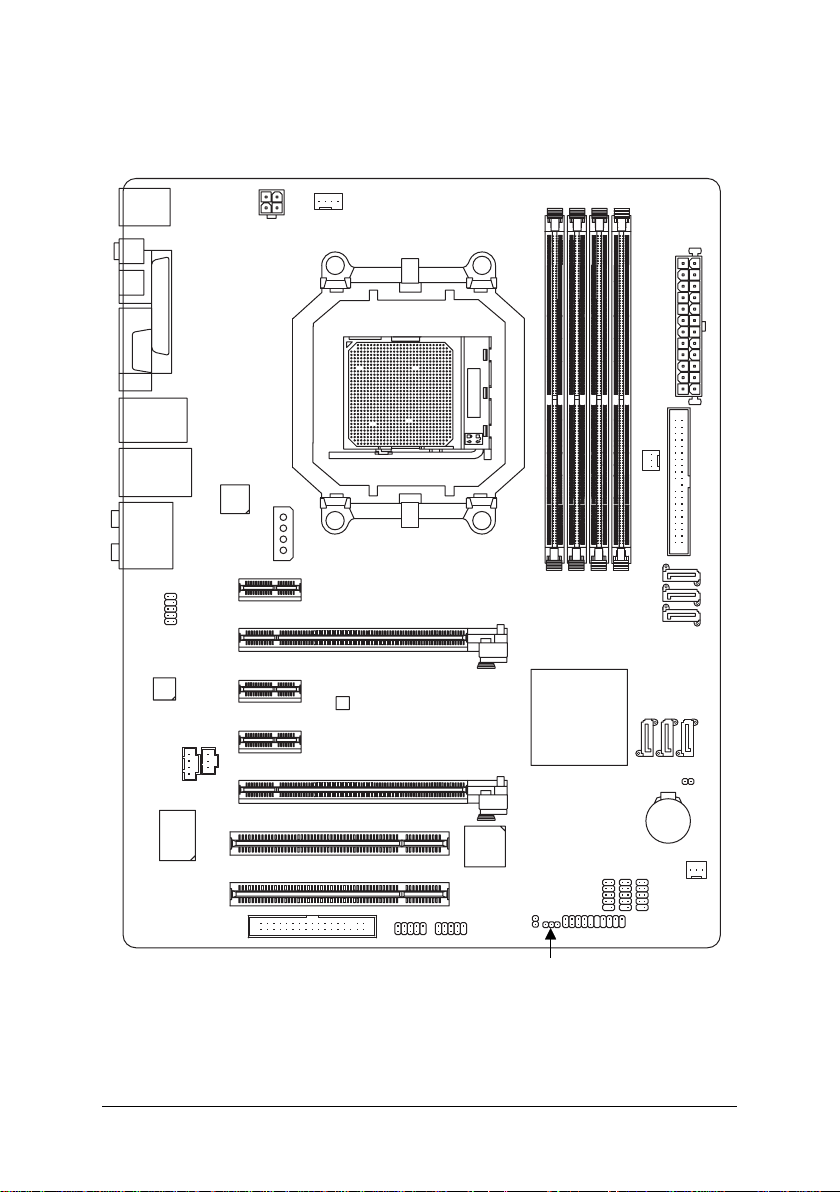
GA-M57SLI-S4 Motherboard Layout
SPDIF_O
SPDIFO_OPT
KB_MS
USB
AUDIO
LPT
COMA
USB
F_AUDIO
CODEC
CD_IN
1394
LAN1
Marvell
88E1116
PCIE_12V
PCIE_1
SPDIF_I
ATX_12V
PCIE_16_1
PCIE_2
PCIE_3
CPU_FAN
Socket AM2
GA-M57SLI-S4
BIOS
DDRII_2
DDRII_1
DDRII_3
®
nVIDIA
nForce 570-SLI
DDRII_4
SATAII1
ATX
PWR_FAN
SATAII2
SATAII3
CLR_CMOS
IDE1
SATAII6
SATAII5
SATAII4
IT8716
PCI2
PCI1
FDD
PCIE_16_2
— 7 —
F2_1394F1_1394
TSB43AB23
CI
PWR_LED
F_PANEL
F_USB2
F_USB3
BATTERY
F_USB1
SYS_FAN
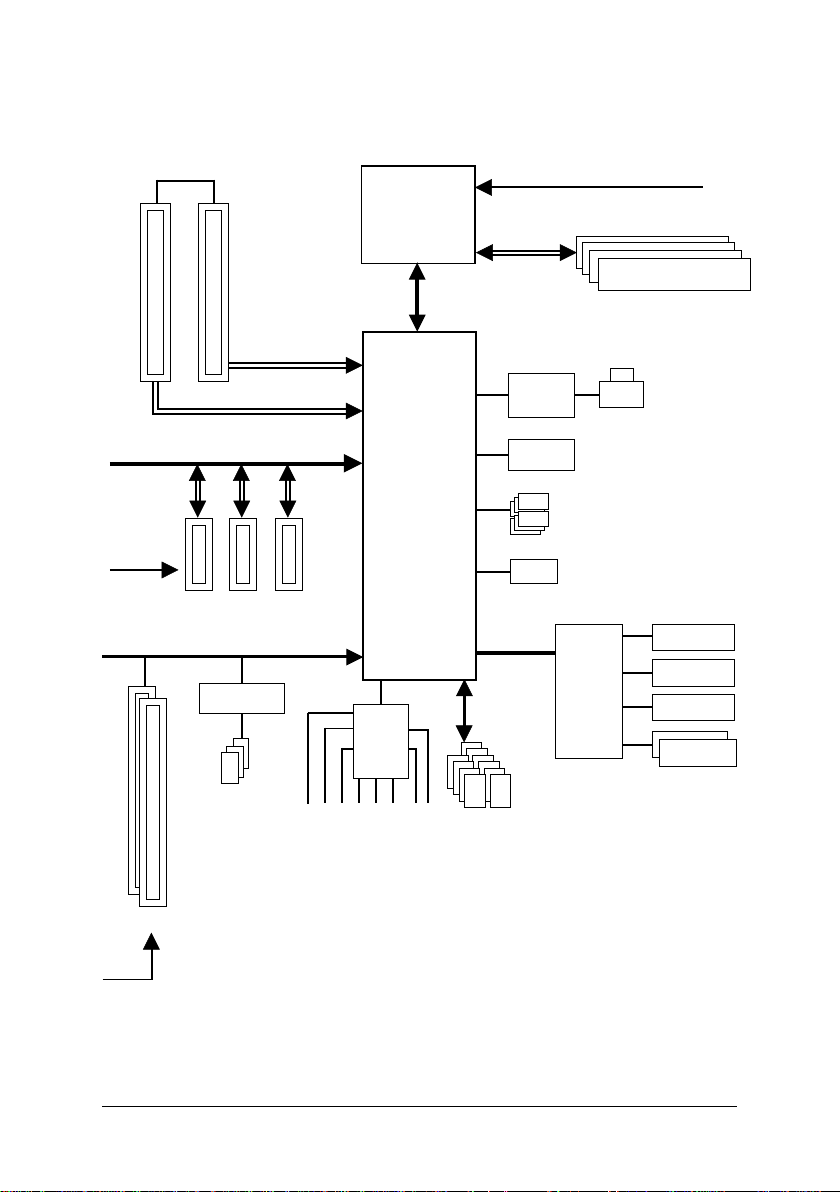
Block Diagram
PCIe CLK
(100 MHz)
SLI
PCIe CLK
(100 MHz)
PCI Express x8
PCI Express x16
PCI Express Bus
x1
x1
3 PCI Express x1
PCI Bus
TSB43AB23
x1
AMD
Socket AM2
CPU
Hyper Transport Bus
nVIDIA
nForce 570-SLI
CODEC
CPU CLK+/-(200 MHz)
DDRII 800/667/533/400 MHz DIMM
Dual Channel Memory
LAN
Marvell
88E1116
BIOS
®
LPC BUS
RJ45
6 SATA 3Gb/s
ATA-33/66/100/133
IDE Channel
Floppy
LPT Port
IT8716
COM Port
2 PCI
PCI CLK
(33 MHz)
3 IEEE 1394a
SPDIF In
— 8 —
10 USB
Ports
SPDIF Out
MIC
Line-In
Line-Out
Side Speaker Out
Surround Speaker Out
Center/Subwoofer Speaker Out
PS/2 KB/Mouse

Chapter 1Hardware Installation
1-1 Considerations Prior to Installation
Preparing Your Computer
The motherboard contains numerous delicate electronic circuits and components which can
become damaged as a result of electrostatic discharge (ESD). Thus, prior to installation, please
follow the instructions below:
1. Please turn off the computer and unplug its power cord.
2. When handling the motherboard, avoid touching any metal leads or connectors.
3. It is best to wear an electrostatic discharge (ESD) cuff when handling electronic components
(CPU, RAM).
4. Prior to installing the electronic components, please have these items on top of an antistatic
pad or within a electrostatic shielding container.
5. Please verify that the power supply is switched off before unplugging the power supply connector
from the motherboard.
Installation Notices
1. Prior to installation, please do not remove the stickers on the motherboard. These stickers
are required for warranty validation.
2. Prior to the installation of the motherboard or any hardware, please first carefully read the
information in the provided manual.
3. Before using the product, please verify that all cables and power connectors are connected.
4. To prevent damage to the motherboard, please do not allow screws to come in contact with
the motherboard circuit or its components.
5. Please make sure there are no leftover screws or metal components placed on the motherboard
or within the computer casing.
6. Please do not place the computer system on an uneven surface.
7. Turning on the computer power during the installation process can lead to damage to system
components as well as physical harm to the user.
8. If you are uncertain about any installation steps or have a problem related to the use of the
product,please consult a certified computer technician.
English
Instances of Non-Warranty
1. Damage due to natural disaster, accident or human cause.
2. Damage as a result of violating the conditions recommended in the user manual.
3. Damage due to improper installation.
4. Damage due to use of uncertified components.
5. Damage due to use exceeding the permitted parameters.
6. Product determined to be an unofficial Gigabyte product.
Hardware Installation— 9 —

English
1-2 Feature Summary
CPU Socket AM2 for AMD AthlonTM 64 FX / AthlonTM 64 X2 Dual-Core /
AthlonTM 64 / SempronTM processor
Front Side Bus 2000 MHz
Chipset nVIDIA® nForce 570-SLI
LAN Marvell 88E1116 phy (10/100/1000 Mbit)
Audio Onboard Realtek ALC888 CODEC chip
Supports High Definition Audio
Supports 2 / 4 / 6 / 8 channel audio
Supports S/PDIF In/Out connection
Supports CD In connection
IEEE 1394 Onboard T.I. TSB43AB23 chip
3 IEEE 1394a ports
Storage nVIDIA® nForce 570-SLI
— 1 FDD connector, allowing connection of 2 FDD devices
— 1 IDE connector with ATA-33/66/100/133 support,
allowing connection of 2 IDE devices
— 6 SATA 3Gb/s connectors, allowing connection of 6 SATA 3Gb/s devices
— Supports RAID 0, RAID 1, RAID 0+1, and RAID 5 for Serial ATA
O.S Support Microsoft Windows Vista/2000/XP
Memory 4 DDRII DIMM memory slots (supports up to 16 GB memory)
Supports dual channel DDRII 800/667/533/400 DIMMs
Supports 1.8V DDRII DIMMs
Supports ECC memory
Expanstion Slots 2 PCI Express x16 slots
3 PCI Express x1 slots
2 PCI slots
Internal Connectors 1 24-pin ATX power connector
1 4-pin ATX 12V power connector
1 floppy connector
1 IDE connector
6 SATA 3Gb/s connectors
1 CPU fan connector
1 system fan connector
1 power fan connector
1 front panel connector
1 front audio connector
1 CD In connector
1 S/PDIF In connector
3 USB 2.0/1.1 connectors for additional 6 USB 2.0/1.1 ports by cables
2 IEEE 1394a connectors for additional 2 ports by cables
1 chassis intrusion connector
1 power LED connector
(Note 1)
GA-M57SLI-S4 Motherboard — 10 —

Rear Panel I/O 1 PS/2 keyboard port
1 PS/2 mouse port
1 parallel port
1 S/PDIF out port (coaxial)
1 S/PDIF out port (optical)
1 serial port
4 USB 2.0/1.1 ports
1 IEEE 1394a port
1 RJ-45 port
6 audio jacks (Line In / Line Out / MIC In / Surround Speaker Out (Rear
Speaker Out) / Center/Subwoofer Speaker Out / Side Speaker Out)
I/O Control IT8716 chip
Hardware Monitor System voltage detection
CPU temperature detection
CPU / Power / System fan speed detection
CPU warning temperature
CPU / Power / System fan failure warning
Supports CPU Smart Fan function
(Note 2)
BIOS 1 4 Mbit flash ROM
Use of licensed AWARD BIOS
PnP 1.0a, DMI 2.0, SM BIOS 2.3, ACPI 1.0b
Additional Features Supports @BIOS
Supports Download Center
Supports Q-Flash
Supports EasyTune
(Note 3)
Supports Xpress Install
Supports Xpress Recovery2
Supports Xpress BIOS Rescue
Bundle Software Norton Internet Security (OEM version)
Form Factor ATX form factor; 30.5cm x 23.4cm
English
(Note 1) Due to the limitation of Windows 32-bit operating system, when more than 4 GB of physical
memory is installed, the actual memory available for the operating system will be less than
4 GB; Windows 64-bit operating system doesn’t have such limitation.
(Note 2) Whether the CPU Smart FAN Control function is supported will depend on the CPU you install.
(Note 3) EasyTune functions may vary depending on different motherboards.
Hardware Installation— 11 —
English
1-3 Installation of the CPU and CPU Cooler
Before installing the CPU, please comply with the following conditions:
1. Please make sure that the motherboard supports the CPU.
2. Please take note of the pin 1 marking (the small triangle) on the CPU. If you install the
CPU in the wrong direction, the CPU will not insert properly. If this occurs, please
change the insert direction of the CPU.
3. Please add an even layer of heat paste between the CPU and CPU cooler.
4. Please make sure the CPU cooler is installed on the CPU prior to system use,
otherwise overheating and permanent damage of the CPU may occur.
5. Please set the CPU host frequency in accordance with the processor specifications. It
is not recommended that the system bus frequency be set beyond hardware specifications since it does not meet the required standards for the peripherals. If you wish to set
the frequency beyond the proper specifications, please do so according to your hardware specifications including the CPU, graphics card, memory, hard drive, etc.
1-3-1 Installation of the CPU
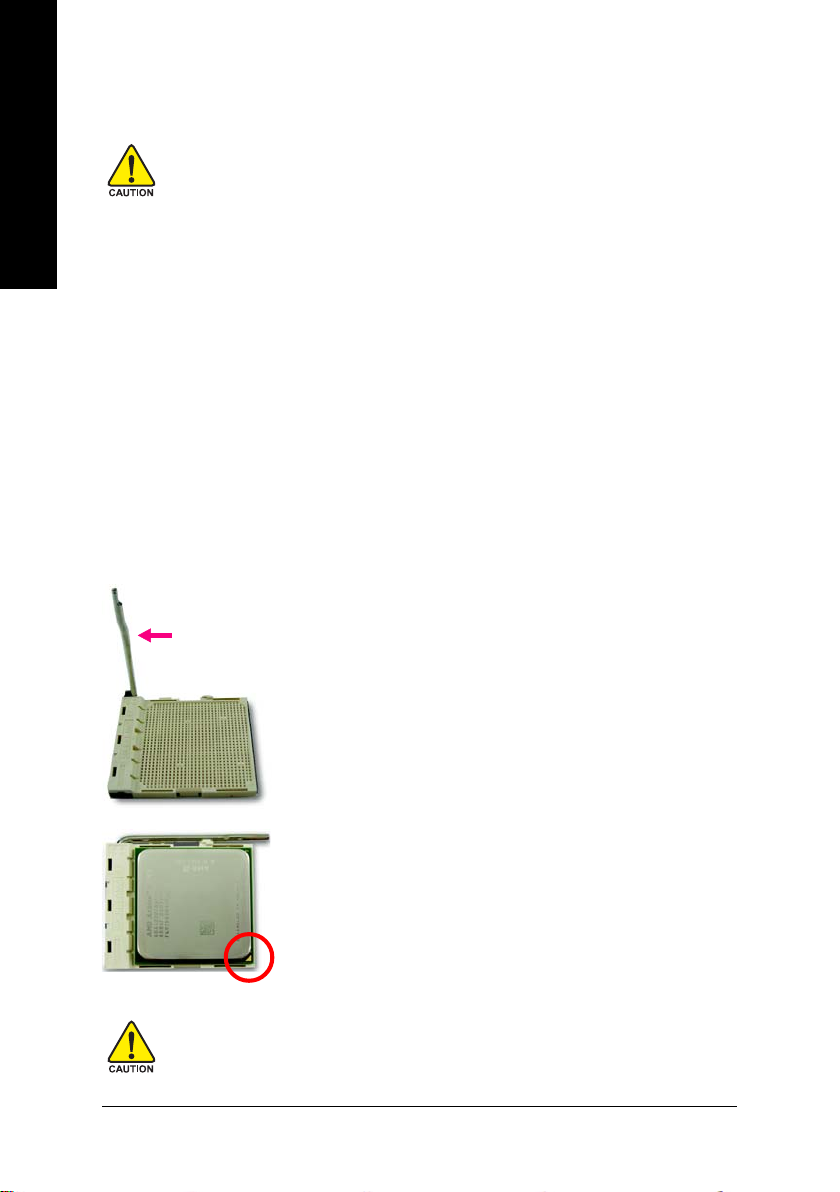
Check the CPU pins to see that none are bent. Move the socket lever to the unlocked position as shown
in Fig. 1 (90o to the plane of the motherboard) prior to inserting the CPU. The pin 1 location is designated
on the CPU by a small triangle that corresponds to a triangle marking on the socket as shown in Fig.
2. Align the CPU to the socket and gently lower it into place. Do not force the CPU into the socket.
Fig.1
Socket Lever
Position lever at a 90 degree angle.
Fig.2
Pin 1 location on the socket and processor.
Gently place the CPU into position making sure that the CPU pins fit
perfectly into their holes. Once the CPU is positioned into its socket,
place one finger down on the middle of the CPU and gently press the
metal lever back into its original position.
Pin One
Please use extra care when installing the CPU. The CPU will not fit if positioned incorrectly.
Rather than applying force, please change the positioning of the CPU.
GA-M57SLI-S4 Motherboard — 12 —
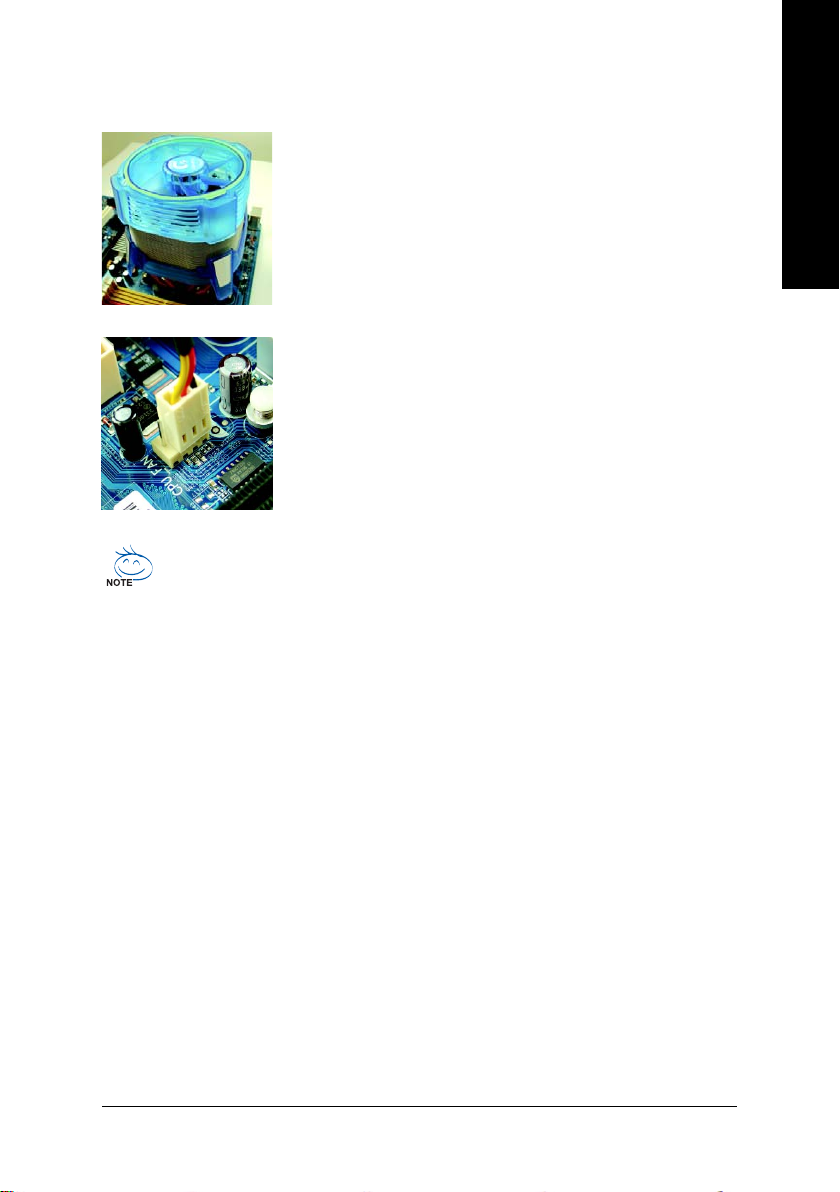
1-3-2 Installation of the CPU Cooler
Fig.1
Before installing the CPU cooler, please first add an even layer of heat
paste on the surface of the CPU. Install all the CPU cooler components
(Please refer to the cooler manual for detailed installation instructions).
Fig.2
Please connect the CPU cooler power connector to the CPU_FAN connector located on the motherboard so that the CPU cooler can properly
function to prevent CPU overheating.
Use extreme care when removing the CPU cooler because the thermal grease/tape between
the CPU cooler and CPU may adhere to the CPU. Inadequately removing the CPU cooler
may damage the CPU.
English
Hardware Installation— 13 —
English
1-4 Installation of Memory
Before installing the memory modules, please comply with the following conditions:
1. Please make sure that the memory used is supported by the motherboard. It is
recommended that memory of similar capacity, specifications and brand be used.
2. Before installing or removing memory modules, please make sure that the computer power
is switched off to prevent hardware damage.
3. Memory modules have a foolproof insertion design. A memory module can be installed in
only one direction. If you are unable to insert the module, please switch the direction.
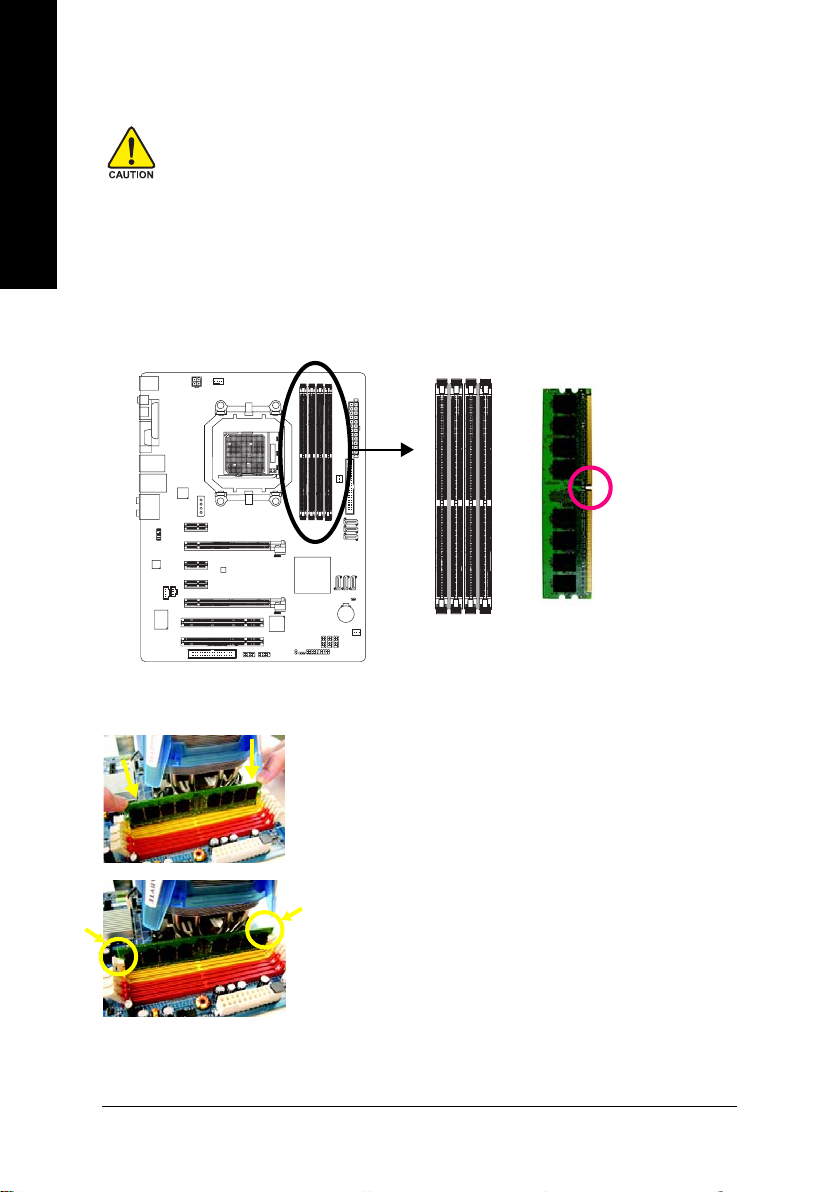
The motherboard supports DDRII memory modules, whereby BIOS will automatically detect memory
capacity and specifications. Memory modules are designed so that they can be inserted only in one
direction. The memory capacity used can differ with each slot.
Notch
DDRII
Fig.1
The DIMM socket has a notch, so the DIMM memory module can
only fit in one direction. Insert the DIMM memory module vertically
into the DIMM socket. Then push it down.
Fig.2
Close the plastic clip at both edges of the DIMM sockets to lock the
DIMM module.
Reverse the installation steps when you wish to remove the
DIMM module.
GA-M57SLI-S4 Motherboard — 14 —
Dual Channel Memory Configuration
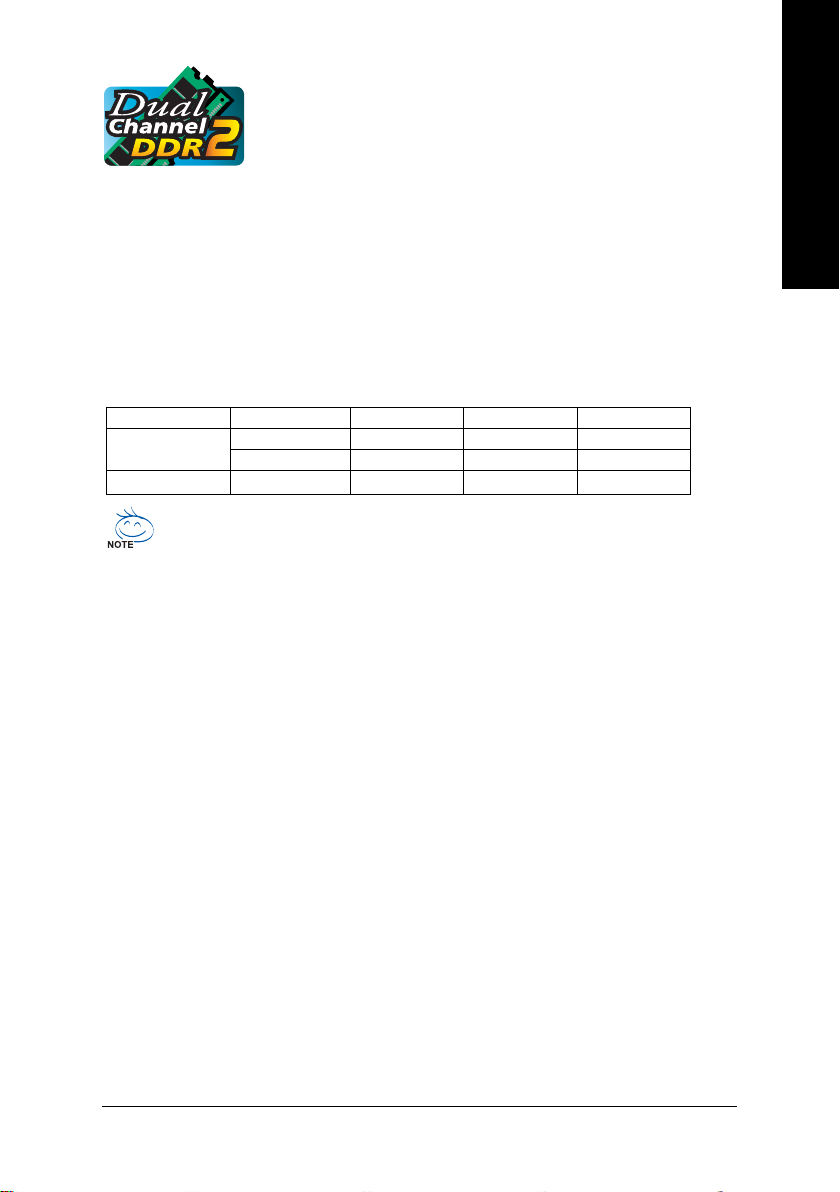
The GA-M57SLI-S4 supports the Dual Channel Technology. After operating
the Dual Channel Technology, the bandwidth of Memory Bus will double.
Due to CPU limitation, if you wish to operate the Dual Channel Technology, follow the guidelines below:
1. Dual Channel mode will not be enabled if only one memory module is installed.
2. To enable Dual Channel mode with two memory modules (it is recommended to use memory
modules of identical brand, size, chips, and speed), you must install them into DIMM sockets
of the same color.
3. To enable Dual Channel mode with four memory modules, it is recommended to use memory
modules of identical brand, size, chips, and speed.
The following is a Dual Channel Memory configuration table:
(DS: Double Side, SS: Single Side, «—«: Empty)
DIMM Socket
2 memory modules
4 memory modules
If two memory modules are to be used to achieve Dual Channel mode, we recommend
installing them in DDRII_1 and DDRII_2 DIMM sockets.
DDRII_1 DDRII_2 DDRII_ 3 DDRII_4
DS/SS DS/SS — — — —
— — — — DS/SS DS/SS
DS/SS DS/SS DS/SS DS/SS
English
Hardware Installation— 15 —
English
1-5 Installation of Expansion Cards
To install your expansion card, follow the steps below.
1. Disconnect your system from its power source and read the expansion card’s installation manual
before installing the expansion card in the computer.
2. Remove your computer’s chassis cover, screws and slot bracket from the computer. Ground
yourself to prevent damage to your computer resulting from Electrostatic discharge (ESD).
3. Press the expansion card firmly into the expansion slot in the motherboard.
4. Make sure the metal contacts on the card are fully seated in the slot.
5. Replace the screw to secure the slot bracket of the expansion card.
6. Replace your computer’s chassis cover.
7. Power on the computer, if necessary, configure required settings for the expansion card in system
BIOS Setup.
8. Install related driver in the operating system.
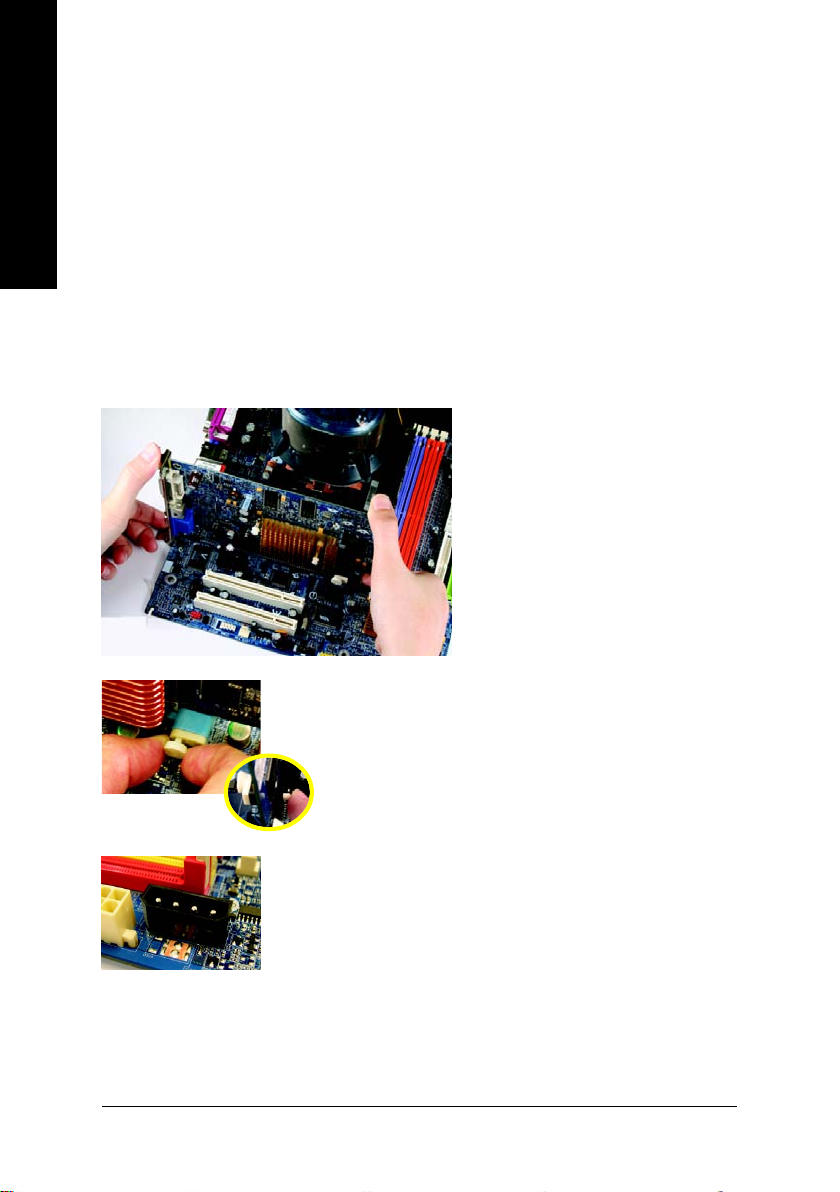
For example: Installing a PCI Express x16 VGA card:
To install the VGA card:
Please align the VGA card with the PCI Express x16 slot and press down on the card.
Make sure the VGA card is locked by the
small white drawable bar.
To remove the VGA card :
Please carefully pull out the small white-drawable bar at the end of the PCI
Express x16 slot when you try to uninstall the VGA card.
Or you can also press the latch on the opposite side of the drawable
bar as the picture to the left shows.
The motherboard includes a PCIE_12V power connector, which provides
extra power to the onboard PCI Express x16 slot. When installing two
graphics cards, please connect the power cable from the power supply to
this connector.
GA-M57SLI-S4 Motherboard — 16 —
1-6 Setup of an SLI (Scalable Link Interface) Configuration
The NVIDIA nForce 570-SLI chipset offers blistering graphics performance with the ability to bridge two
NVIDIA SLI-ready PCI ExpressTM graphics cards! The SLI design takes advantage of the increased
bandwidth of the PCI ExpressTM bus architecture, features hardware and software innovations within
NVIDIA GPU (graphics processing unit) and the NVIDIA nForce 570-SLI chipset. Together, the NVIDIA
SLI technologies work seamlessly to allow two graphics cards to operate in parallel and share the work
and deliver heart-pounding PC performance. This section provides instructions on configuring an SLI
system.
Before you begin—
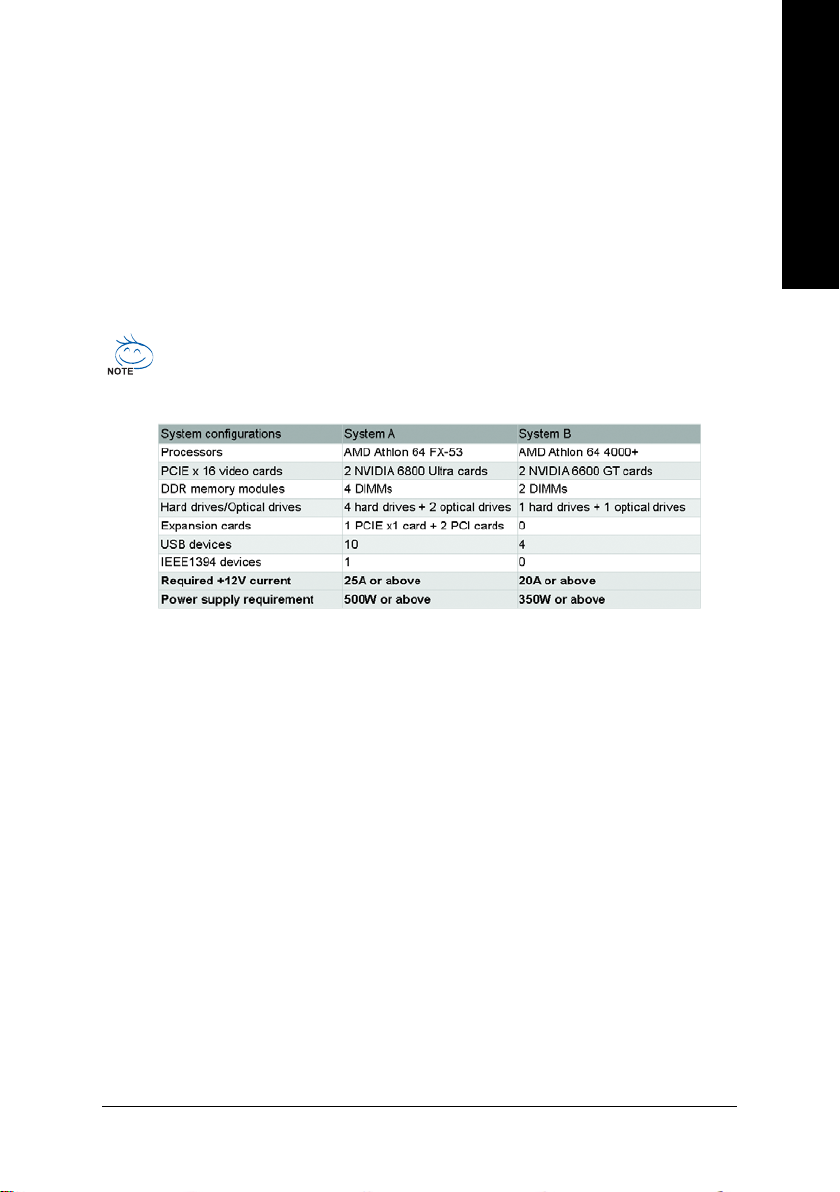
The exact power requirements will depend on your overall system configurations. You need
a power supply that can provide sufficient and stable power to your system and the two SLI
graphics cards. Please refer to the table below to see recommended power for different
systems.
To enable the SLI function, install two SLI-ready graphics cards into the PCIE_16_1 and PCIE_16_2
slots. (It is recommended to use graphics cards of identical brand and chips. For example: GIGABYTE
GV-NX76T256D-RH.)
To set up a single graphics card system, we recommend installing the graphics card on the PCIE_16_1
slot to ensure better display performance.
English
Hardware Installation— 17 —
English
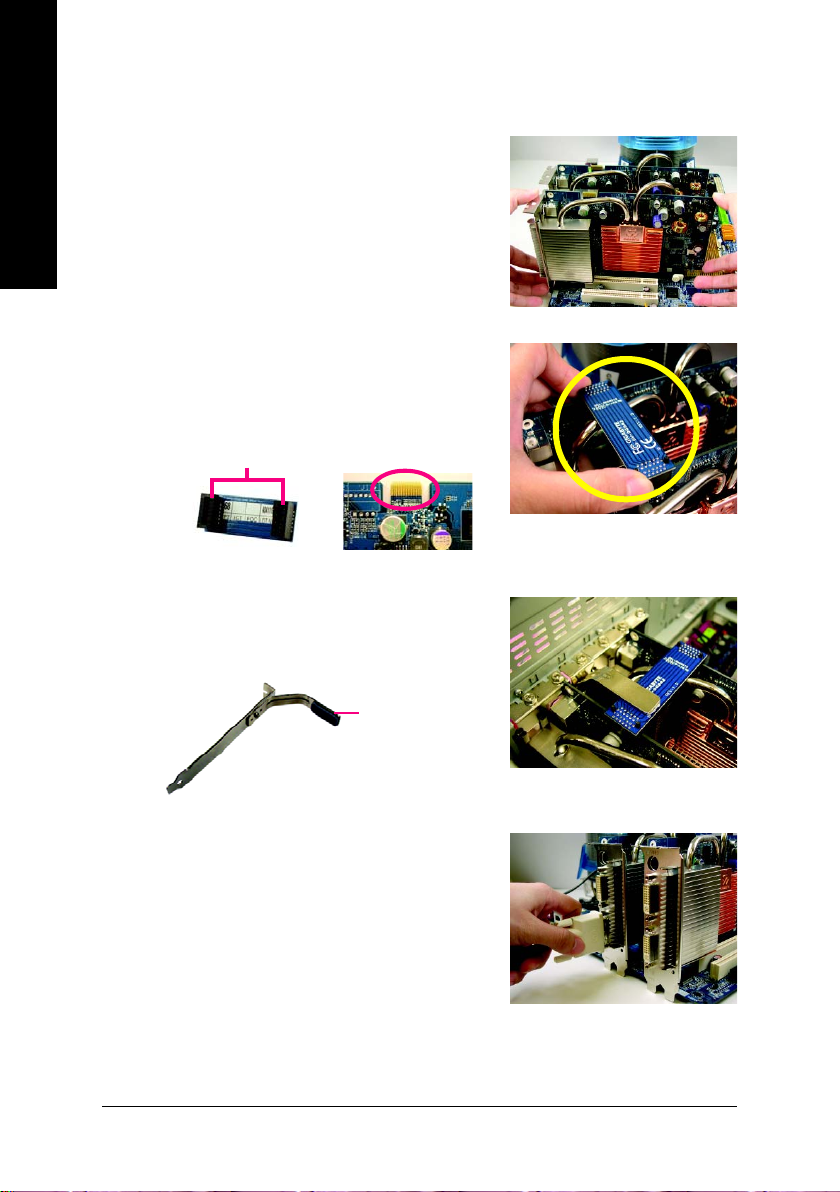
Connecting Two Graphics Cards:
Step 1: Observe the steps in «1-5 Installing an Expansion Card»
and install two SLI-ready graphics cards of the same
model on the PCIE_16_1 and PCIE_16_2 slots.
Step 2: Insert the SLI bridge (the GC-DGBR2-RH) in the SLI gold
edge connectors on top of both cards. Make sure the
two mini female slots on the bridge connector securely
fit onto the SLI gold edge connetors of both cards.
Female slots on the bridge
connector
Gold edge connector on the top
of graphics card
Step 3: In order to securely fix the bridge connector beween the
two cards, you must install the retention bracket included with the motherboard and secure the retention
bracket to the chassis back panel with a screw.
place this part on the top of
the bridge connector.
retention bracket
Step 4: Plug the display cable into the graphics card on the
PCIE_16_1 slot
(Note)
.
(Note) To enable the SLI function, you must plug the display cable into the graphics card on the
PCIE_16_1 slot.
GA-M57SLI-S4 Motherboard — 18 —
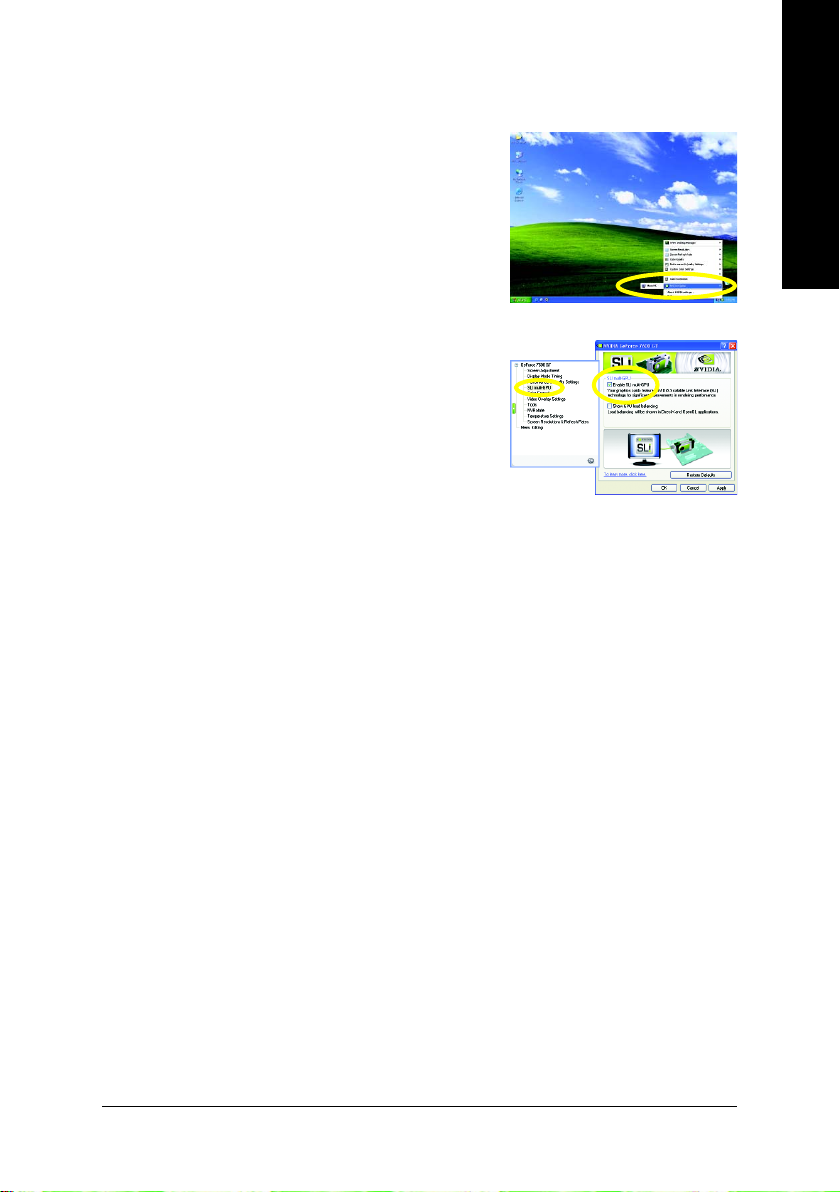
Configuring the Graphics Card Driver:
Step 1: After installing graphics card driver in operating system,
right-click the NVIDIA icon in your system tray and then
select NVIDIA Display. The NVIDIA control panel will
appear.
Step 2: Select SLI multi-GPU in the side menu and then
select the Enable SLI multi-GPU checkbox in the SLI
multi-GPU dialog box. System will restart after you
click Apply. Then the SLI configuration is completed.
Note: The SLI configuration screen may differ by driver version. Refer to the user’s manual that came
with your graphics card for more information about enabing SLI mode.
English
Hardware Installation— 19 —
English
1-7 I/O Back Panel Introduction
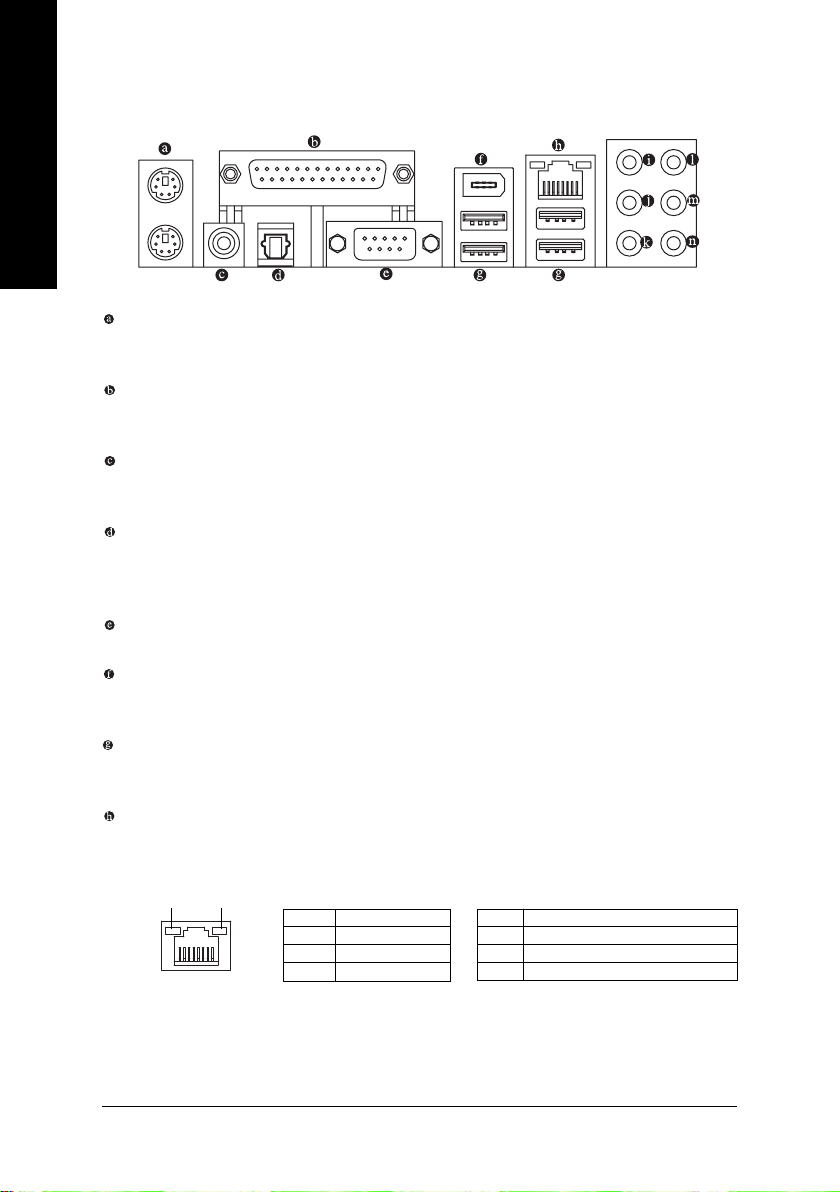
PS/2 Keyboard and PS/2 Mouse Port
Use the upper port (green) to connect a PS/2 mouse and the lower port (purple) to connect a PS/2
keyboard.
Parallel Port
Use the parallel port to connect devices such as a printer, scanner and etc. The parallel port is also
called a printer port.
Coaxial S/PDIF Out Connector
This connector provides digital audio out to an external audio system that supports digital coaxial audio.
Before using this feature, ensure that your audio system provides a coaxial digital audio in connector.
Optical S/PDIF Out Connector
This connector provides digital audio out to an external audio system that supports digital optical
audio. Before using this feature, ensure that your audio system provides an optical digital audio in
connector.
Serial Port
Use the serial port to connect devices such as a mouse, modem or other peripherals.
IEEE 1394a Port
The IEEE 1394 port supports the IEEE 1394a specification, featuring high speed, high bandwidth
and hotplug capabilities. Use this port for an IEEE 1394a device.
USB port
The USB port supports the USB 2.0/1.1 specification. Use this port for USB devices such as an
USB keyboard/mouse, USB printer, USB flash drive and etc.
RJ-45 LAN Port
The Gigabit Ethernet LAN port provides Internet connection at up to 1 Gbps data rate. The following
describes the states of the LAN port LEDs.
Connection/
LAN Port
Activity LEDSpeed LED
State Description
Orange 1 Gpbs data rate
Green 100 Mpbs data rate
Off 10 Mpbs data rate
Connection/Activity LED:Speed LED:
State Description
Blinking Data transmission or receiving is occurring
On
No data transmission or receiving
Off LAN link is not established
is occurring
GA-M57SLI-S4 Motherboard — 20 —
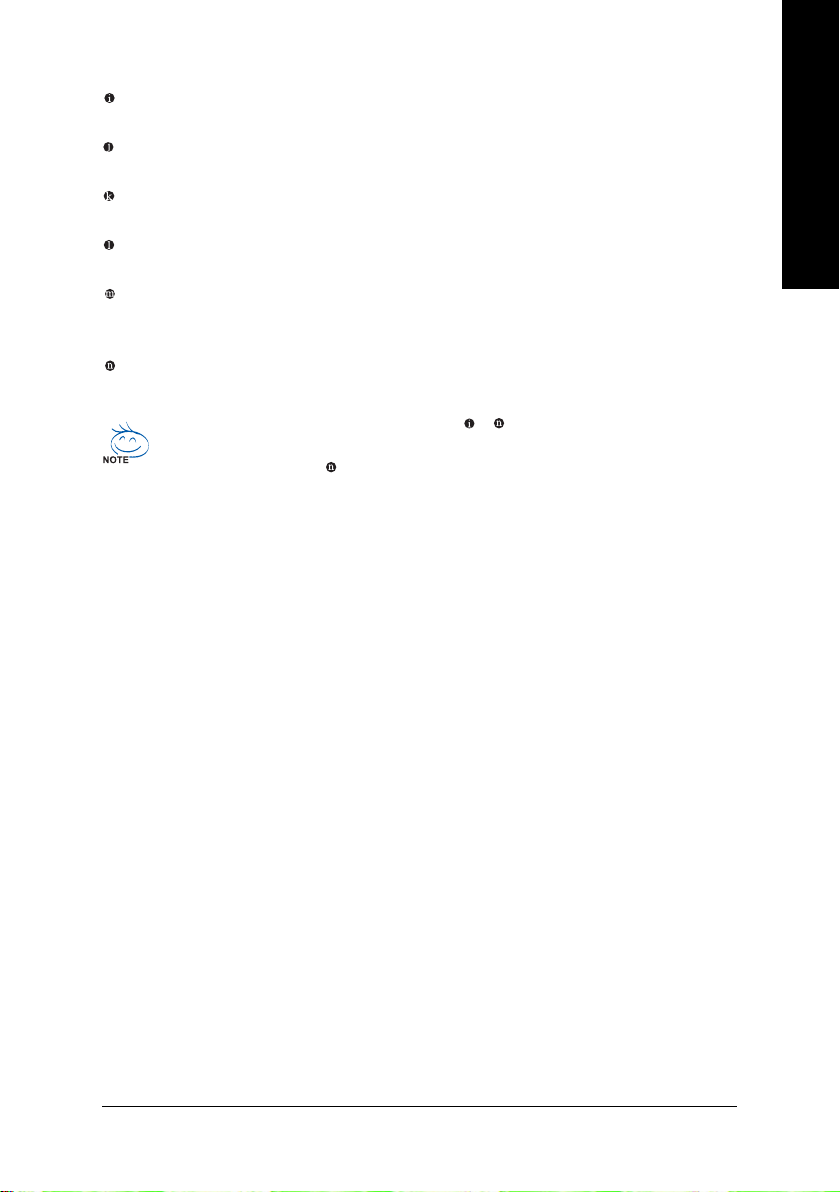
Center/Subwoofer Speaker Out Jack (Orange)
Use this audio jack to connect center/subwoofer speakers in a 6/8-channel audio configuration.
Rear Speaker Out Jack (Black)
Use this audio jack to connect rear speakers in a 4/6/8-channel audio configuration.
Side Speaker Out Jack (Gray)
Use this audio jack to connect side speakers in a 8-channel audio configuration.
Line In Jack (Blue)
The default line in jack. Use this audio jack for line in devices such as an optical drive, walkman, etc.
Line Out Jack (Green)
The default line out jack. Use this audio jack for a headphone or 2-channel speaker. This jack can
be used to connect front speakers in a 4/6/8-channel audio configuration.
Mic In Jack (Pink)
The default Mic in jack. Microphones must be connected to this jack.
In addition to the default speakers settings, the ~ audio jacks can be reconfigured to
perform different functions via the audio software. Only microphones still MUST be connected
to the default Mic In jack ( ). Please refer to the 2-/4-/6-/8- channel audio setup steps for
detailed software configuration information.
English
Hardware Installation— 21 —
English
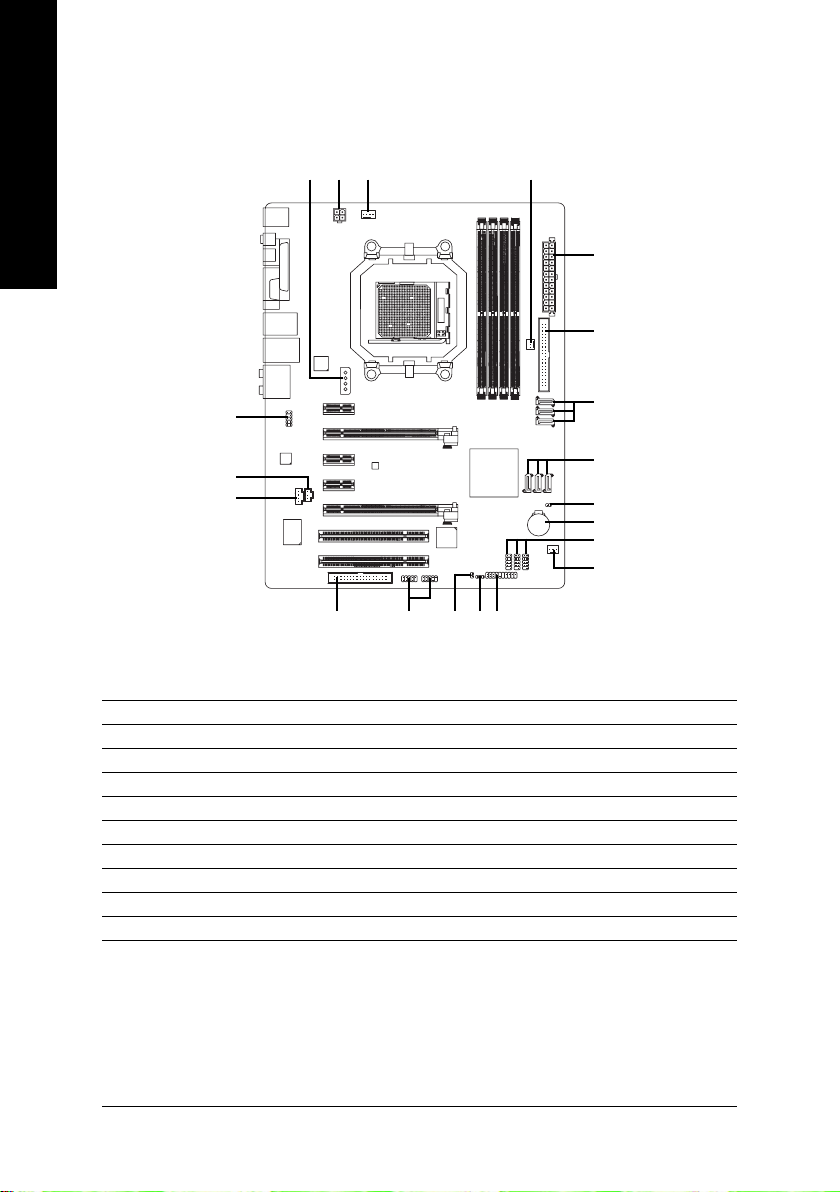
1-8 Connectors Introduction
16
3
4
2
8
13
15
14
1) ATX_12V
2) ATX (Power Connector)
3) PCIE_12V
4) CPU_FAN
5) SYS_FAN
6) PWR_FAN
7) FDD
 IDE1
IDE1
9) S ATAII1 / 2 / 3 / 4 / 5 / 6
10) BATTERY
9
9
19
10
16
5
7
17 18
12
11
11) F_PANEL
12) PWR_LED
13) F_AUDIO
14) CD_IN
15) SPDIF_I
16) F_USB1 / F_USB2 / F_USB3
17) F1_1394 / F2_1394
18) CI
19) CLR_CMOS
GA-M57SLI-S4 Motherboard — 22 —
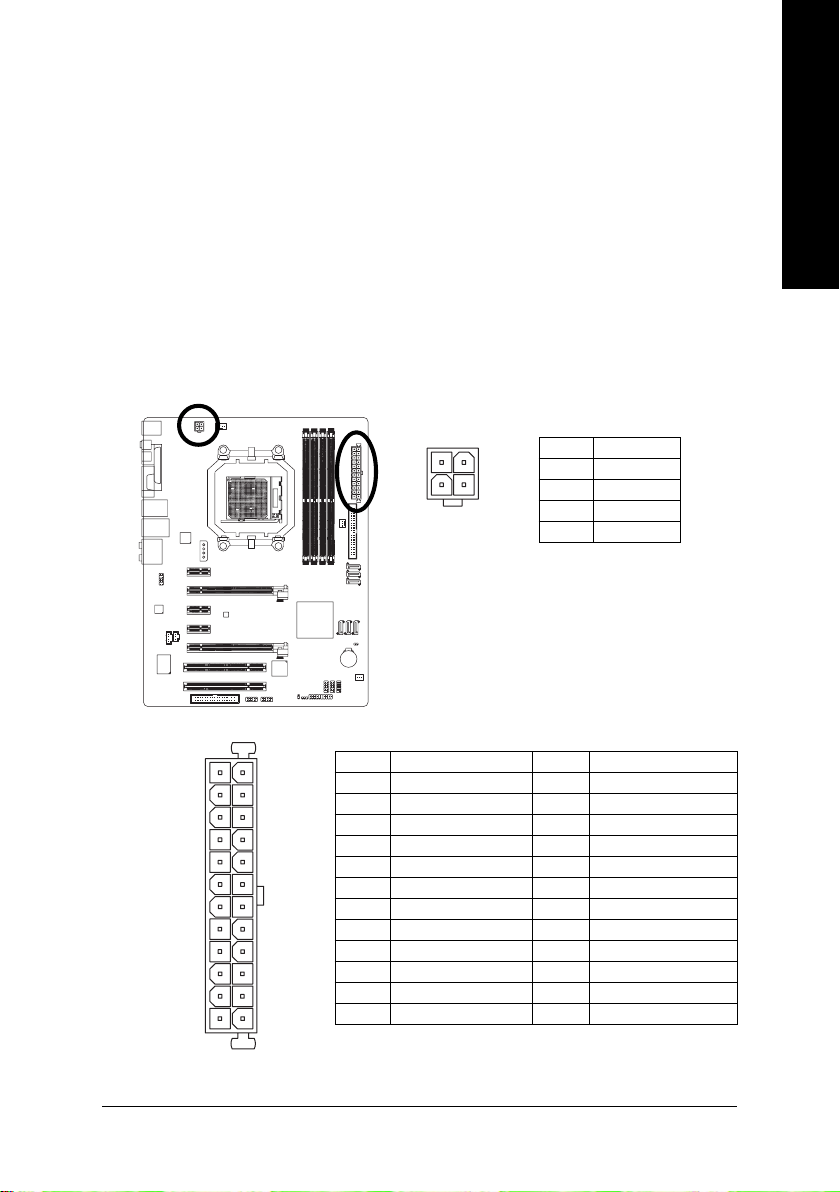
1/2) ATX_12V / ATX (Power Connector)
With the use of the power connector, the power supply can supply enough stable power to all the
components on the motherboard. Before connecting the power connector, please make sure that
all components and devices are properly installed. Align the power connector with its proper
location on the motherboard and connect tightly.
The ATX_12V power connector mainly supplies power to the CPU. If the ATX_12V power connector is not connected, the system will not start.
Caution!
Please use a power supply that is able to handle the system voltage requirements. It is recommended that a power supply that can withstand high power consumption be used (400W or
greater). If a power supply is used that does not provide the required power, the result can lead
to an unstable system or a system that is unable to start.
If you use a 24-pin ATX power supply, please remove the small cover on the power connector on
the motherboard before plugging in the power cord; otherwise, please do not remove it.
English
21
43
ATX_12V
12
24
131
Pin No. Definition
1 3.3V
2 3.3V
3 GND
4 +5V
5 GND
6 +5V
7 GND
8 Power Good
9 5V SB(stand by +5V)
10 +12V
1 1 +12V(Only for 24-pin A TX)
12 3.3V(Only for 24-pin ATX)
Pin No. Definition
1 GND
2 GND
3 +12V
4 +12V
Pin No. Definition
13 3.3V
14 -12V
15 GND
16 PS_ON(soft On/Off)
17 GND
18 GND
19 GND
20 -5V
21 +5V
22 +5V
23 +5V (Only for 24-pin ATX)
24 GND(Only for 24-pin ATX)
ATX
Hardware Installation— 23 —
English
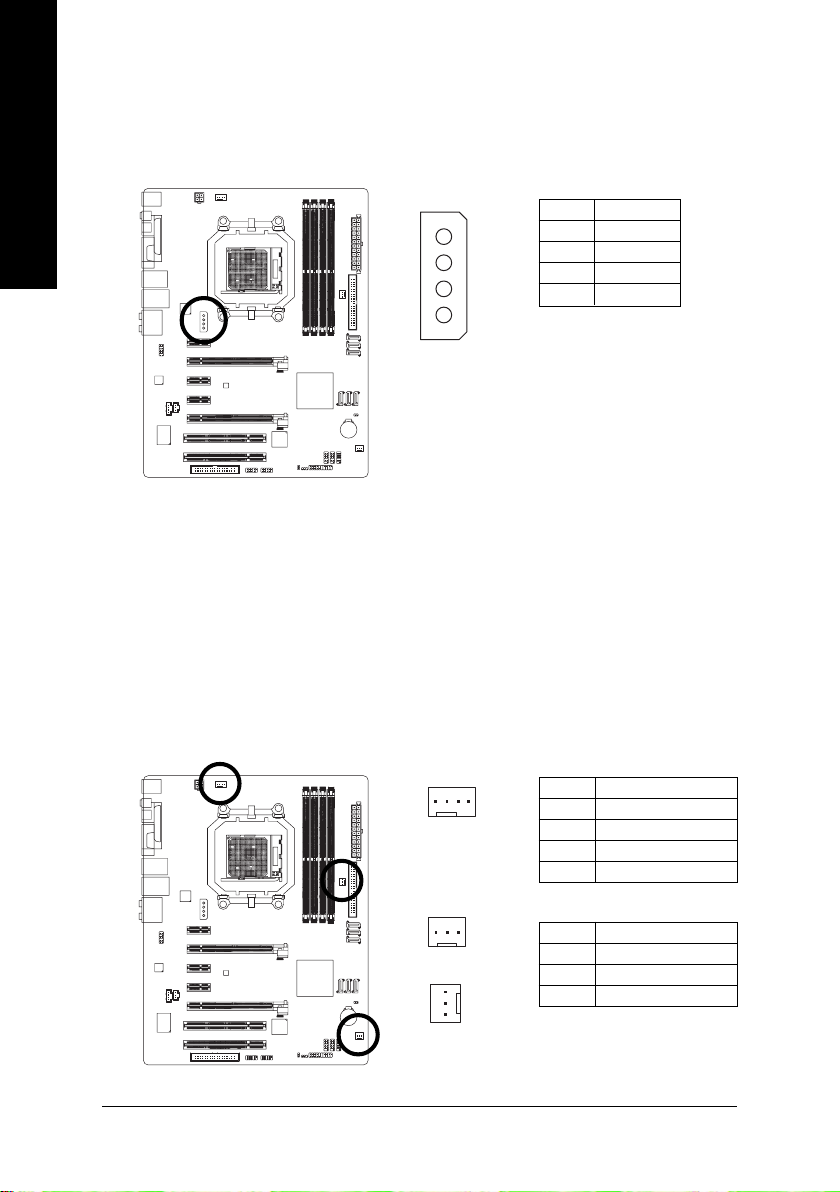
3) PCIE_12V (Power Connector)
This power connector provides extra power to the onboard PCI Express x16 slot. When installing
two graphics cards, please connect the power cable from the power supply to this connector, or
system instability may occur.
1
PIin No. Definition
1NC
2 GND
3 GND
4 +12V
4/5/6) CPU_FAN / SYS_FAN / PWR_FAN (Cooler Fan Power Connector)
The cooler fan power connector supplies a +12V power voltage via a 3-pin/4-pin (only for
CPU_FAN) power connector and possesses a foolproof connection design.
Most coolers are designed with color-coded power connector wires. A red power connector wire
indicates a positive connection and requires a +12V power voltage. The black connector wire is
the ground wire (GND).
Remember to connect the CPU/system/power fan cable to the CPU_FAN/SYS_FAN/PWR_FAN
connector to prevent CPU damage or system hanging caused by overheating.
CPU_FAN :
1
CPU_FAN
Pin No. Definition
1 GND
2 +12V / Speed Control
3 Sense
4 Speed Control
1
GA-M57SLI-S4 Motherboard — 24 —
SYS_FAN
1
PWR_FAN
SYS_FAN / PWR_FAN :
Pin No. Definition
1 GND
2 +12V
3 Sense
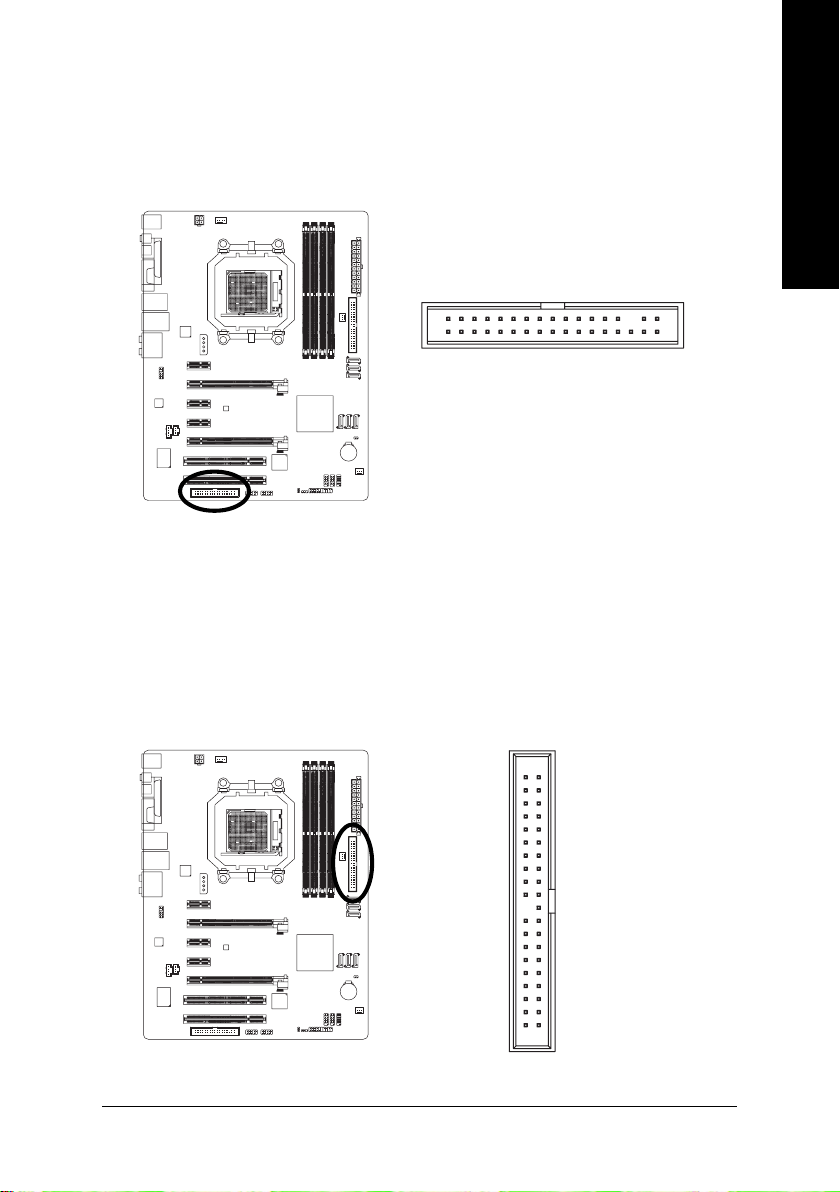
7) FDD (FDD Connector)
The FDD connector is used to connect the FDD cable while the other end of the cable connects to
the FDD drive. The types of FDD drives supported are: 360 KB, 720 KB, 1.2 MB, 1.44 MB and
2.88 MB. Before attaching the FDD cable, please take note of the foolproof groove in the FDD
connector.
133
234
IDE1 (IDE Connector)
An IDE device connects to the computer via an IDE connector. One IDE connector can connect to one
IDE cable, and the single IDE cable can then connect to two IDE devices (hard drive or optical drive).
If you wish to connect two IDE devices, please set the jumper on one IDE device as Master and the
other as Slave (for information on settings, please refer to the instructions located on the IDE device).
Before attaching the IDE cable, please take note of the foolproof groove in the IDE connector.
English
40
2
39
1
Hardware Installation— 25 —
English
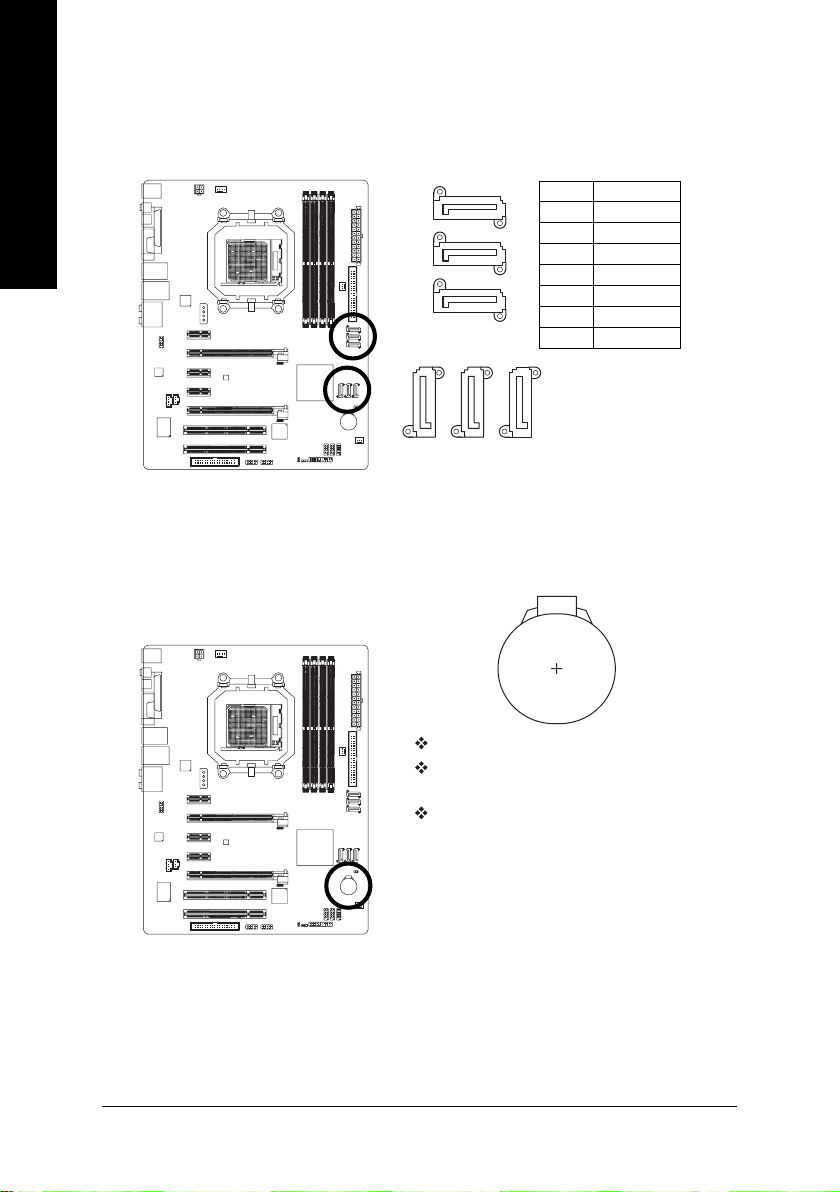
9) SATAII1 / 2 / 3 / 4 / 5 / 6 (SATA 3Gb/s Connectors, Controlled by nForce 570-SLI)
SATA 3Gb/s can provide up to 300 MB/s transfer rate. Please refer to the BIOS setting for the SATA
3Gb/s and install the proper driver in order to work properly.
17
SATAII6
SATAII5
SATAII4
SATAII1
SATAII2
Pin No. Definition
1 GND
2 TXP
3 TXN
4 GND
5 RXN
6 RXP
7 GND
1
7
SATAII3
10) BATTERY
If you want to erase CMOS…
1. Turn off the computer and unplug the power cord.
2. Gently take out the battery and put it aside for about one minute.
3. Re-install the battery.
4. Plug the power cord in and turn on the computer.
GA-M57SLI-S4 Motherboard — 26 —
Danger of explosion if battery is incorrectly replaced.
Replace only with the same or equivalent type recommended
by the manufacturer.
Dispose of used batteries according to the manufacturer’s
instructions.
(Or you can use a metal object to connect the positive and
negative pins in the battery holder to make them short for five
seconds.)
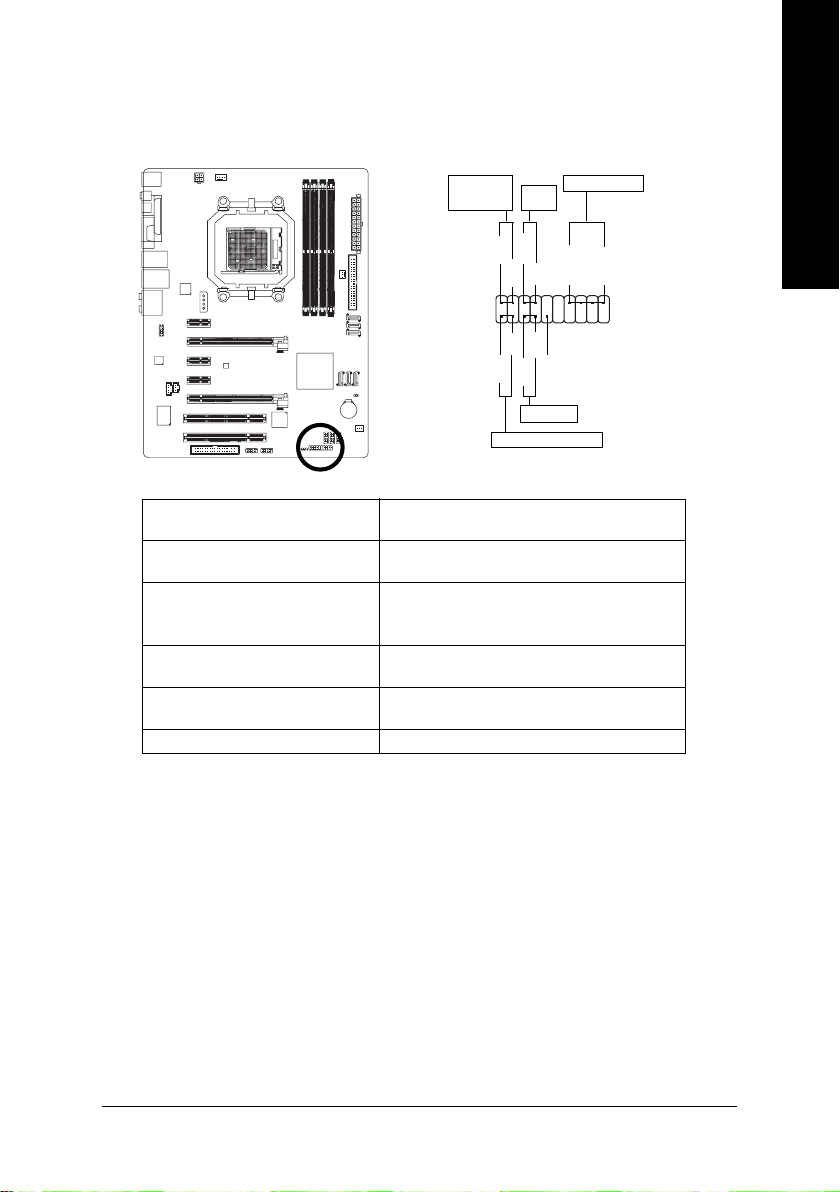
11) F_PANEL (Front Panel Jumper)
Please connect the power LED, PC speaker, reset switch and power switch etc. of your chassis
front panel to the F_PANEL connector according to the pin assignment below.
English
Message LED/
Sleep LED
Power
Power/
Switch
PW+
MSG+
MSG-
2
1
HD-
HD+
RES-
Reset Switch
IDE Hard Disk Active LED
RES+
MSG (Message LED/Power/Sleep LED) Pin 1: LED anode(+)
(Yellow) Pin 2: LED cathode(-)
PW (Power Switch) Open: Normal
(Red) Close: Power On/Off
SPEAK (Speaker Connector) Pin 1: Power
(Amber) Pin 2- Pin 3: NC
Pin 4: Data(-)
HD (IDE Hard Disk Active LED) Pin 1: LED anode(+)
(Blue) Pin 2: LED cathode(-)
RES (Reset Switch) Open: Normal
(Green) Close: Reset Hardware System
NC ( Purple) NC
Speaker Connector
PW-
SPEAK+
NC
SPEAK-
20
19
Hardware Installation— 27 —
Loading…
Manuals.eu
- Manuals.eu
- Gigabyte
- Computers & Peripherals
- Mainboards
- Socket AM2
- NVIDIA nForce 570-SLI
- GA-M57SLI-S4 (rev. 2.0)
- Manual
×
1
2
3
4
5
6
7
8
9
10
11
12
13
14
15
16
17
18
19
20
21
22
23
24
25
26
27
28
29
30
31
32
33
34
35
36
37
38
39
40
41
42
43
44
45
46
47
48
49
50
51
52
53
54
55
56
57
58
59
60
61
62
63
64
65
66
67
68
69
70
71
72
73
74
75
76
77
78
79
80
81
82
83
84
85
86
87
88
⟨
⟩
Copyright © Manuals.eu
Agreement
Privacy Policy
Contact us

GA-M57SLI-S4
AMD Socket AM2 Processor Motherboard
User’s Manual
Rev. 1002
12ME-M57SLI4R-1002R
* The WEEE marking on the product indicates this product must not be disposed of with user’s other household waste
and must be handed over to a designated collection point for the recycling of waste electrical and electronic equipment!!
* The WEEE marking applies only in European Union’s member states.
GA-M57SLI-S4
Motherboard
Product Manual Classification
Copyright Table of Contents
Drivers Installation
Item Checklist
GA-M57SLI-S4 Motherboard Layout
Block Diagram
Preparing Your Computer
Considerations Prior to InstallationInstallation Notices
Instances of Non-Warranty Feature Summary
4Mbit flash ROM
Installation of the CPU
Installation of the CPU and CPU Cooler Installation of the CPU Cooler
Installation of Memory
Dual Channel Memory Configuration
Installation of Expansion Cards
Before you begin
Setup of SLI Scalable Link Interface Configuration Connecting Two Graphics Cards
Graphics Card Driver Setting
I/O Back Panel Introduction
MIC
Connectors IntroductionLine
Line Out Front Speaker Out ATX12V / ATX Power Connector
6 Cpufan / Sysfan / Pwrfan Cooler Fan Power Connector
PCIE12V Power Connector IDE1 IDE Connector
FDD FDD Connector English
Fpanel Front Panel Jumper
Pwrled
Faudio Front Audio Connector Spdifi Spdif In Connector
Cdin CD In Connector 17 F11394 / F21394 Front Ieee 1394 Connector
USB1 / FUSB2 / FUSB3 Front USB Connector Clrcmos Clear Cmos
CI Chassis Intrusion, Case Open Main Menu
Status Page Setup Menu / Option Page Setup Menu F12 Boot Menu
Main Menu For example Bios Ver. F3cBios Setting Recovery
„ PnP/PCI Configuration
„ Standard Cmos Features„ Advanced Bios Features
„ Power Management Setup IDE Channel 0 Master/Slave
TimeIDE Channel 2/3/4/5/6/7 Master
Memory
Floppy 3 Mode Support for Japan AreaDrive a / Drive B
Halt on First / Second / Third Boot Device
Hard Disk Boot PriorityBoot Up Floppy Seek
Away Mode
Password CheckInit Display First
NV Sata 2 Primary RAID
NV Sata RAID functionNV Sata 1 Primary RAID
NV Sata 1 Secondary RAID NV Sata 3 Secondary RAID
IDE Prefetch ModeNV Sata 2 Secondary RAID
NV Sata 3 Primary RAID Onboard Serial Port
Onboard LAN Boot ROMParallel Port Mode
Onboard USB Mouse Support
ECP Mode Use DMAOn-Chip USB
USB Keyboard Support USB Resume from Suspend
Power-On by AlarmPME Event Wake Up
Modem Ring On AC Back Function
Power On By MousePower On By Keyboard
KB Power on Password PCI 2 IRQ Assignment
PnP/PCI ConfigurationsPCI 1 IRQ Assignment
Case Opened
Current CPU TemperatureCurrent CPU/POWER/SYSTEM FAN Speed RPM
CPU Warning Temperature CPU Smart FAN Control Note
CPU Smart FAN Mode Robust Graphics Booster
CPU Frequency MHzPcie Clock MHz
CPU Clock Ratio Normal CPU Vcore
HT-Link VoltageCPU HT-Link Voltage
CPU Voltage Control Load Fail-Safe Defaults
Set Supervisor/User Password
Exit Without Saving
Save & Exit Setup English
Install Chipset Drivers
Drivers Installation Driver CD Information
Software Applications Contact Us
Hardware Information English
EasyTune 5 Introduction
Unique Software UtilitiesUser Interface Overview
How to use the Xpress Recovery2
Xpress Recovery2 IntroductionSystem requirements
Precautions
Main Screen of Xpress Recovery2Limitations
Method 1 Q-FlashTMUtility
Flash Bios Method IntroductionBefore You Begin
Task menu for Q-Flash utility
Exploring the Q-FlashTM / Dual Bios utility screenTask menu for Dual Bios utility
Entering the Q-FlashTMutility Steps
Using the Q-FlashTMutility You can repeat to
Press Y on your keyboard to save and exit
FlashTMutility bar
Exploring the Q-FlashTMutility screen Congratulation!! You have updated Bios successfully
Methods and steps
Method 2 @BIOSTM Utility English
Installing Sata hard drives in your computer
Smart LAN
Nvidia Mirror
Step Save and exit Bios Setup GA-M57SLI-S4 Motherboard
Configuring RAID set in RAID Bios
YES
Nvidia
Making a Sata Driver Disk
Cd bootdrv Menu Installing Sata controller driver during OS installation
ENTER=Select F3=Exit
Enter= Continue R=Repair F3=Exit
Solutions
Configuring a bootable RAID array with Microsoft Windows YES
GA-M57SLI-S4 Motherboard
5 2- / 4- / 6- / 8- Channel Audio Function Introduction
Stereo Speakers Connection and Settings Channel Audio Setup
English
English
Sound Effect Configuration
Troubleshooting
English
English
English
English
English
English
Taiwan Headquarters
Contact Us Gigabyte Global Service System