
Denon DRA-800H
.
DRA-800H
NETWORK STEREO RECEIVER
Owner’s Manual
Contents Connections Playback Settings Tips Appendix
1
Front panel Display Rear panel Remote Index
View the manual for the Denon DRA-800H here, for free. This user manual comes under the category receivers and has been rated by 31 people with an average of a 8.8. This manual is available in the following languages: English. Do you have a question about the Denon DRA-800H?
Ask your question here
Index
- Connecting 2.1-channel speakers
- Connection 1 : TV equipped with an HDMI connector and
- Connection 2 : TV equipped with an HDMI connector and
- synced devices (AirPlay 2)
- ZONE2 Setup
- v p. 87)
- v p. 52)
- v p. 97)
- v p. 46)
- (v p. 125)
- (v p. 126)
- (v p. 143)
- v p. 46)
- v p. 9)
- v p. 18)
- v p. 47)
- v p. 114)
- v p. 114)
- v p. 69)
- v p. 105)
- (v p. 39)
- v p. 134)
- v p. 103)
- v p. 47)
- (v p. 134)
- (v p. 114)
- (v p. 42)
- “Connecting the subwoofer” (v p. 28)
- v p. 113)
- “Connecting a set-top box (Satellite tuner/cable TV)” (v p. 36)
- v p. 37)
- “Connecting a turntable” (v p. 38)
- v p. 34)
- v p. 36)
- v p. 41)
- v p. 43)
- “Connection 1 : TV equipped with an HDMI connector and
- compatible with the ARC (Audio Return Channel)” (v p. 33)
- v p. 34)
- v p. 36)
- “Connecting a DVD player or Blu-ray Disc player” (v p. 37)
- v p. 44)
- v p. 38)
- v p. 40)
- v p. 27)
- v p. 114)
- v p. 120)
- v p. 46)
- “Playback in ZONE2” (v p. 114)
- (v p. 69)
- v p. 47)
- “Turning off the sound temporarily (Muting) (ZONE2)” (v p. 115)
- v p. 156)
- v p. 57)
- v p. 58, 63)
- v p. 62)
- v p. 68)
- v p. 159)
- v p. 105)
- v p. 103)
- v p. 9)
- v p. 46)
- “Playback in ZONE2” (v p. 114)
- v p. 146)
- “Adjusting the volume” (v p. 47)
- v p. 115)
- v p. 120)
- v p. 98)
- v p. 151)
- v p. 191))
- v p. 27)
- v p. 138)
- v p. 33)
- v p. 34)
- v p. 126)
- “Connecting a set-top box (Satellite tuner/cable TV)” (v p. 36)
- “Connecting a DVD player or Blu-ray Disc player” (v p. 37)
- v p. 38)
- v p. 132)
- v p. 124)
- v p. 48).
- the reception intensity of stations (Tuning Aid)” (v p. 65) to achieve the
- (v p. 140)
- v p. 139)
- v p. 123)
- v p. 184) for details.
- (Balance)” (v p. 93)
- “Adjust the subwoofer output (Subwoofer)” (v p. 94)
- “Adjusting the tone (Tone)” (v p. 95)
- v p. 96)
- v p. 97)
- v p. 54)
- (Balance)” (v p. 93)
- “Adjust the subwoofer output (Subwoofer)” (v p. 94)
- “Adjusting the tone (Tone)” (v p. 95)
- v p. 96)
- v p. 97)
- v p. 143)
- antenna” (v p. 40))
- v p. 63) for information on
- “Tuning in by entering the frequency (Direct Tune)” (v p. 59)
- “RDS Search” (v p. 59)
- v p. 60)
- v p. 61)
- “Radio text” (v p. 61)
- v p. 62)
- v p. 62)
- v p. 68)
- v p. 69)
- v p. 70)
- “Adjusting the tone (Tone)” (v p. 95)
- v p. 96)
- v p. 97)
- antenna” (v p. 40))
- “Auto scanning DAB broadcast stations (Auto Scan)” (v p. 64)
- v p. 65)
- Order)” (v p. 65)
- v p. 66)
- v p. 66)
- v p. 67)
- Memory)” (v p. 68)
- Name)” (v p. 69)
- v p. 70)
- “Adjusting the tone (Tone)” (v p. 95)
- v p. 96)
- “Playing the same music in all zones (All Zone Stereo)” (v p. 97)
- v p. 57), “Listening to
- DAB broadcasts” (v p. 63))
- v p. 63))
- v p. 187) for details.
- “Adding to HEOS Favorites” (v p. 92)
- (Balance)” (v p. 93)
- “Adjust the subwoofer output (Subwoofer)” (v p. 94)
- “Adjusting the tone (Tone)” (v p. 95)
- Select)” (v p. 96)
- v p. 97)
- v p. 186).
- (Balance)” (v p. 93)
- “Adjust the subwoofer output (Subwoofer)” (v p. 94)
- “Adjusting the tone (Tone)” (v p. 95)
- v p. 96)
- v p. 97)
- v p. 145) in the
- v p. 143)
- v p. 124)
- v p. 136)
- v p. 124)
- v p. 124)
- (v p. 124)
- v p. 126)
- v p. 126)
- v p. 128)
- v p. 128)
- v p. 107)
- v p. 46)
- v p. 47)
- v p. 98)
- “Restorer” (v p. 121)
- (Balance)” (v p. 93)
- “Adjust the subwoofer output (Subwoofer)” (v p. 94)
- Select)” (v p. 96)
- Stereo)” (v p. 97)
- v p. 151)
- v p. 41)
- (v p. 143)
- (v p. 139)
- (v p. 150)
- v p. 123)
- v p. 123)
- v p. 125), “HDMI Control” (
- v p. 126))
- v p. 100)
- (v p. 132)
- v p. 125), “HDMI
- v p. 126))
- v p. 125), “HDMI
- v p. 126))
- v p. 100)
- v p. 126)
- (v p. 126)
- (v p. 133)
- v p. 126)
- v p. 126)
- v p. 126)
- v p. 126)
- (v p. 132)
- v p. 136)
- v p. 93)
- v p. 140)
- (v p. 41)
- v p. 123)
- (v p. 123)
- v p. 150)
- (v p. 123)
- v p. 150)
- (v p. 123)
- v p. 178)
- v p. 178)
- v p. 41)
- v p. 157)
- factory settings” (v p. 179), and for details on resetting the network settings to
- v p. 180).
- v p. 123), “Volume Limit” (
- v p. 150))
- v p. 123), “Pow.On
- Volume” (v p. 150))
- v p. 96)
- v p. 135)
- v p. 97)
- v p. 44)
- v p. 103)
- v p. 149)
- v p. 191)
- v p. 27)
- v p. 46)
- v p. 9)
- v p. 9)
- v p. 9)
- v p. 120)
- v p. 159)
- v p. 151)
- v p. 98)
- v p. 27)
- v p. 27)
- v p. 27)
- v p. 46)
- v p. 47)
- v p. 47)
- v p. 132)
- v p. 123)
- v p. 33)
- v p. 124)
- v p. 100)
- v p. 136)
- v p. 136)
- v p. 121)
- v p. 98)
- v p. 40)
- v p. 40)
- v p. 40)
- v p. 47)
- v p. 146)
- v p. 41)
- v p. 140)
- v p. 33)
- v p. 132)
- v p. 46)
- v p. 132)
- v p. 155)
- v p. 183)
- (v p. 183)
- v p. 156)
- v p. 131)
- v p. 41)
- v p. 88)
- v p. 39)
- v p. 48)
- v p. 184)
- v p. 41)
- v p. 187)
- v p. 141)
- v p. 141)
- v p. 141)
- v p. 73)
- v p. 186)
- v p. 139)
- v p. 41)
- v p. 186)
- v p. 126)
- v p. 100)
- v p. 100)
- v p. 100)
- v p. 141)
- (v p. 141)
- v p. 163)
- v p. 157)
- v p. 158)
- v p. 163)
- v p. 157)
- v p. 158)
- (v p. 143)
- (v p. 153)
- (v p. 125) /
- (v p. 126)
- 2.1-channel
- 3D
- 4K
- AirPlay
- All Zone Stereo
- Audio formats , 184, 186, 187
- Audio settings , 121
- Auto Standby
- Bluetooth device
- Blu-ray Disc player , 47
- Cable TV
- DAB/FM antenna , 56
- Input Assign
- Queue , 75, 82
- Tips
Product Images (6)

Denon DRA-800H specifications
Below you will find the product specifications and the manual specifications of the Denon DRA-800H.
The denon dra-800h is a reliable 2.0 channel receiver with a power output of 100W per channel at 8 Ohms and a total harmonic distortion of 0.01%. It supports AAC, MP3, and WMA audio formats and has five HDMI inputs, two digital audio optical inputs, and one digital audio coaxial input. The signal-to-noise ratio is 74 dB, and the input sensitivity is 200 mV with an impedance of 47000 Ω. The receiver is designed for surround sound and includes one HDMI output and one USB port.
Constructed with premium materials, this receiver ensures durability over time. It has the necessary AC (power) input for seamless usage and can be used for various audio setups. The product supports various audio formats that allow for adequate usage and has multiple input options for diverse usage opportunities.
As a high-quality 2.0 channel receiver, the denon dra-800h is perfect for use in various settings. It delivers clear and detailed sound, adding new dimensions to your audio setup. The receiver is easy to install and use, providing an effortless audio experience. With reliable inputs and outputs, this receiver is suitable for various home theater configurations.
Overall, the denon dra-800h is an exceptional receiver tailored to provide users with a high-quality audio experience. Its compatibility with various audio devices and formats makes the product versatile and efficient for various audio setup purposes.
Power output per channel (20-20KHz@8 Ohm)
100 W
Speakers connectivity type
—
Audio formats supported
AAC, MP3, WMA
General
| Brand | Denon |
| Model | DRA-800H | DRA-800H-SILVER |
| Product | receiver |
| EAN | 4951035069653 |
| Language | English |
| Filetype | User manual (PDF), Datasheet (PDF) |
Audio
| Power output per channel (20-20KHz@8 Ohm) | 100 W |
| Audio output channels | 2.0 channels |
| Total Harmonic Distortion (THD) | 0.01 % |
| Input sensitivity | 200 mV |
| Receiver type | Surround |
| Signal-to-Noise Ratio (SNR) | 74 dB |
| Input impedance | 47000 Ω |
Inputs
| HDMI in | 5 |
| Digital audio optical in | 2 |
| Digital audio coaxial in | 1 |
| AC (power) in | Yes |
| USB ports quantity | 1 |
Ports & interfaces
| Speakers connectivity type | — |
Outputs
File formats
| Audio formats supported | AAC, MP3, WMA |
Network
| Ethernet LAN | Yes |
| Wi-Fi | Yes |
| Bluetooth | Yes |
Radio
| Supported radio bands | DAB, DAB+, FM |
| Internet radio | Yes |
| Radio Data System (RDS) | Yes |
Optical drive
Storage
Video
Technical details
| Display | — |
| Audio decoders | — |
| Apple docking | — |
| Bass adjustment | Yes |
| Treble adjustment | Yes |
| Remote control included | Yes |
| Product colour | Silver |
| Volume control | Buttons |
| AirPlay | Yes |
| Detachable power cord | Yes |
| Multi-Room Streaming (MRS) support | Yes |
| Quantity | 1 |
Power
| AC input voltage | 220 — 240 V |
| AC input frequency | 50 — 60 Hz |
| Power consumption (typical) | 220 W |
| Power consumption (standby) | 0.1 W |
Weight & dimensions
| Width | 434 mm |
| Depth | 339 mm |
| Height | 151 mm |
| Weight | 8600 g |
Certificates
Other features
| Package width | 523 mm |
| Package depth | 232 mm |
| Package height | 435 mm |
Packaging content
show more
Frequently asked questions
Can’t find the answer to your question in the manual? You may find the answer to your question in the FAQs about the Denon DRA-800H below.
What is the weight of the Denon DRA-800H?
The Denon DRA-800H has a weight of 8600 g.
Can bluetooth devices of different brands be connected to each other?
Yes, bluetooth is a universal method that allows different devices equipped with bluetooth to connect to each other.
What is the height of the Denon DRA-800H?
The Denon DRA-800H has a height of 151 mm.
What is the width of the Denon DRA-800H?
The Denon DRA-800H has a width of 434 mm.
What is bluetooth?
Bluetooth is a way of exchanging data wirelessly between electronic devices via radio waves. The distance between the two devices that exchange data can in most cases be no more than ten metres.
What is the depth of the Denon DRA-800H?
The Denon DRA-800H has a depth of 339 mm.
What is HDMI?
HDMI stands for High-Definition Multimedia Interface. An HDMI cable is used to transport audio and video signals between devices.
When is my volume too loud?
A volume above 80 decibels can be harmful to hearing. When the volume exceeds 120 decibels, direct damage can even occur. The chance of hearing damage depends on the listening frequency and duration.
How can I best clean my receiver?
A slightly damp cleaning cloth or soft, dust-free cloth works best to remove fingerprints. Dust in hard-to-reach places is best removed with compressed air.
Wat is Dolby Atmos?
Dolby Atmos is a technology that ensures that the sound is reflected from the ceiling to where you are listening. This makes it possible to create a 5.1 effect with only 1 speaker.
What certifications does the Denon DRA-800H have?
The Denon DRA-800H has the following certifications: CE.
Is the manual of the Denon DRA-800H available in English?
Yes, the manual of the Denon DRA-800H is available in English .
Is your question not listed? Ask your question here
Contents Connections Playback Settings Tips Appendix
.
DRA-800H
NETWORK STEREO RECEIVER
Owner’s Manual
Front panel Display Rear panel Remote Index
1
Contents Connections Playback Settings Tips Appendix
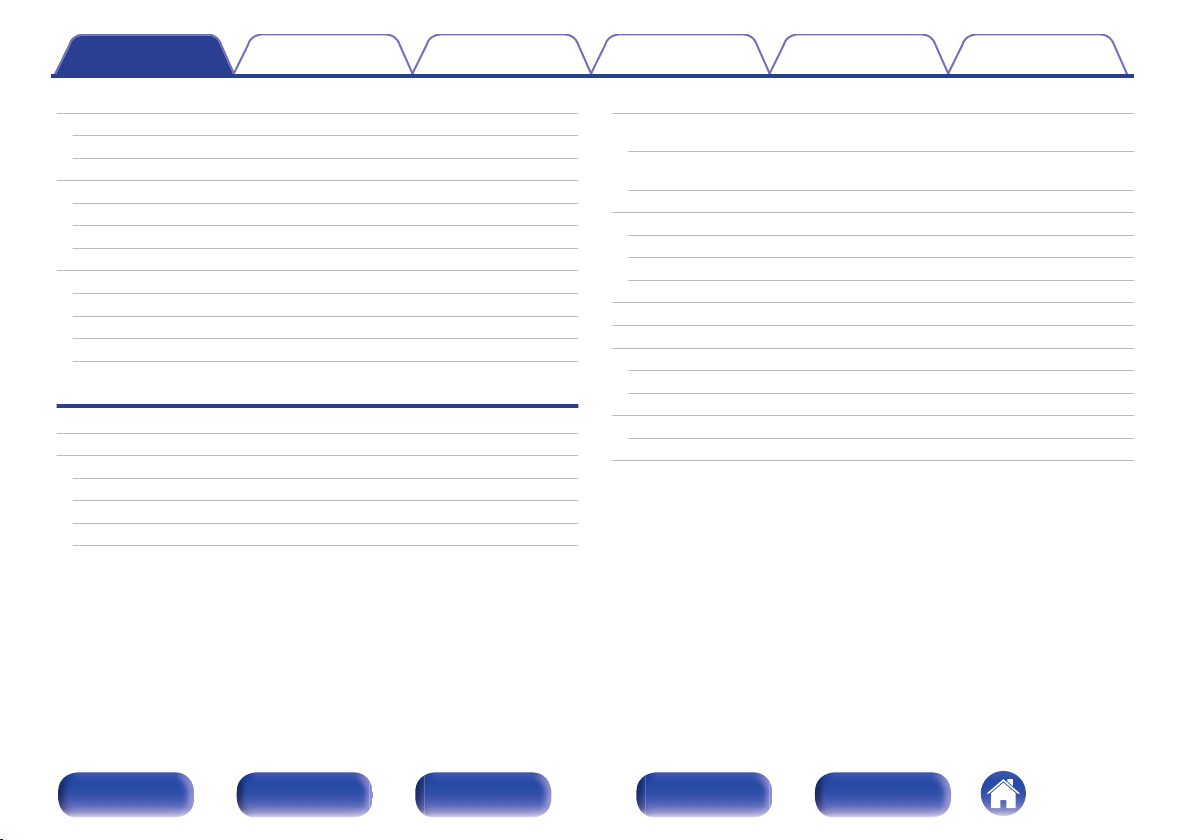
Accessories
Inserting the batteries
Operating range of the remote control unit
Features
High quality sound
High performance
Easy operation
Part names and functions
Front panel
Display
Rear panel
Remote control unit
Connections
Speaker installation
Connecting speakers
Before connecting speakers
Connecting 2.1-channel speakers
Second pair of speaker
Bi-wiring connection
8
Connecting a TV
Connection 1 : TV equipped with an HDMI connector and
9
compatible with the ARC (Audio Return Channel)
9
10
10
10
14
15
15
18
19
22
26
27
27
29
30
31
Connection 2 : TV equipped with an HDMI connector and
incompatible with the ARC (Audio Return Channel)
Connecting a playback device
Connecting a set-top box (Satellite tuner/cable TV)
Connecting a DVD player or Blu-ray Disc player
Connecting a turntable
Connecting a USB memory device to the USB port
Connecting a DAB/FM antenna
Connecting to a home network (LAN)
Wired LAN
Wireless LAN
Connecting an external control device
REMOTE CONTROL jack
Connecting the power cord
32
33
34
35
36
37
38
39
40
41
41
42
43
43
44
Front panel Display Rear panel Remote Index
2
Contents Connections Playback Settings Tips Appendix
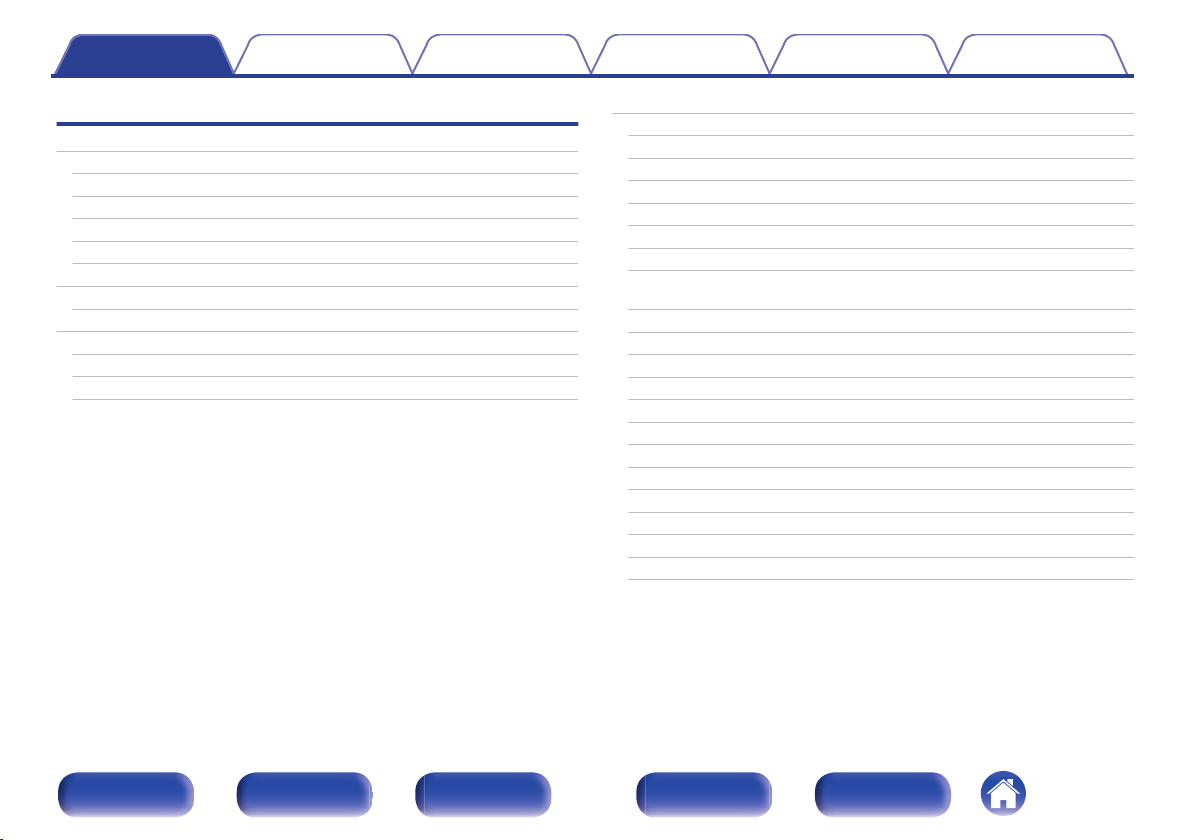
Playback
Basic operation
Turning the power on
Selecting the input source
Adjusting the volume
Turning off the sound temporarily (Muting)
Playback a DVD player/Blu-ray Disc player
Playing a USB memory device
Playing files stored on USB memory devices
Listening to music on a Bluetooth device
Playing music from Bluetooth device
Pairing with other Bluetooth devices
Reconnecting to this unit from a Bluetooth device
Listening to FM/DAB broadcasts
46
46
46
47
47
47
48
49
52
53
54
55
Listening to FM broadcasts
Tuning in by entering the frequency (Direct Tune)
RDS Search
PTY Search
TP Search
Radio text
Changing the tune mode (Tune Mode)
Tuning in to stations and presetting them automatically (Auto
Preset)
Listening to DAB broadcasts
Auto scanning DAB broadcast stations (Auto Scan)
Checking the reception intensity of stations (Tuning Aid)
Setting the order of broadcasting station (Station Order)
Compressing the dynamic range (DRC)
Resetting the DAB settings (DAB Initialize)
Checking the current DAB version (DAB Version)
Presetting the current FM/DAB broadcast station (Preset Memory)
Listening to preset stations
Specify a name for the preset broadcast station (Preset Name)
Skipping preset broadcast stations (Preset Skip)
Cancelling Preset Skip
56
57
59
59
60
61
61
62
62
63
64
65
65
66
66
67
68
69
69
70
71
Front panel Display Rear panel Remote Index
3
Contents Connections Playback Settings Tips Appendix
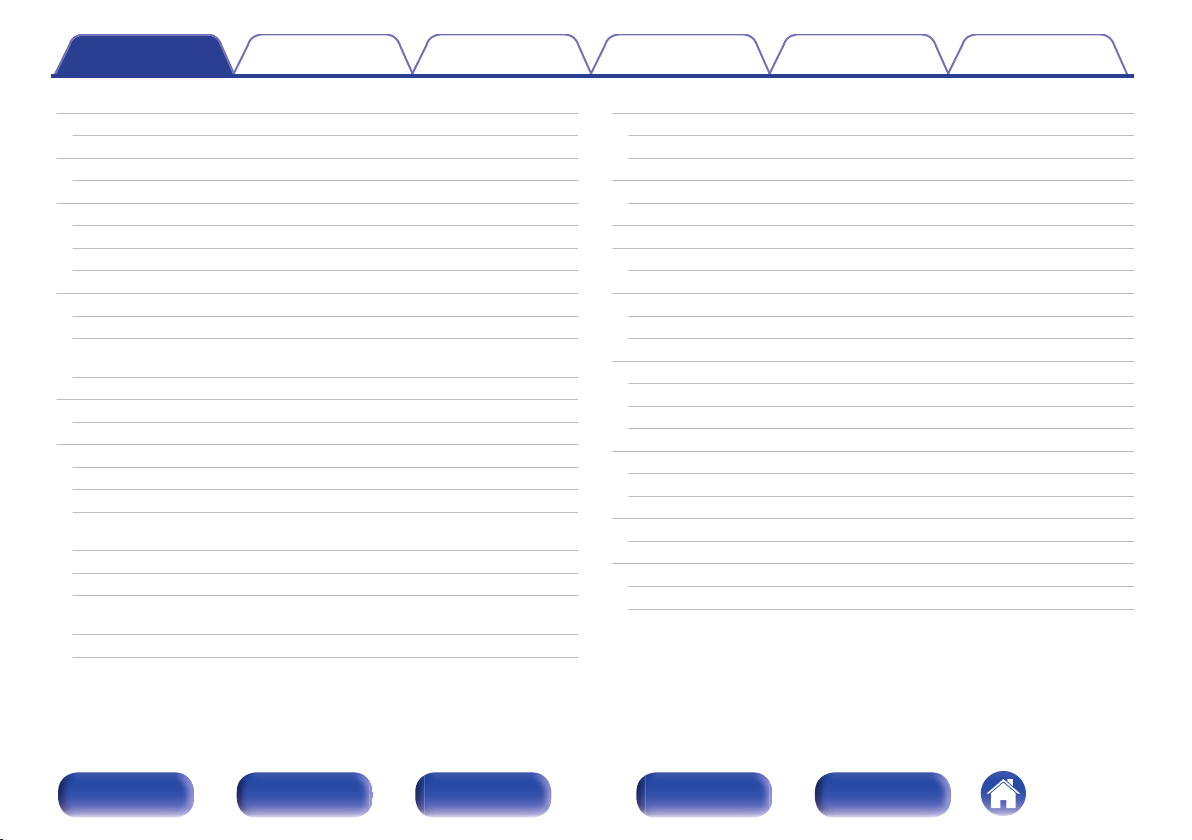
Listening to Internet Radio
Listening to Internet Radio
Playing back files stored on a PC or NAS
Playing back files stored on a PC or NAS
Getting the HEOS App
HEOS Account
Playing from streaming music services
Listening to the same music in multiple rooms
AirPlay function
Playing songs from your iPhone, iPod touch or iPad
Playing iTunes music with this unit
Play a song from your iPhone, iPod touch or iPad on multiple
synced devices (AirPlay 2)
Spotify Connect function
Playing Spotify music with this unit
Convenience functions
Adding to HEOS Favorites
Playing back HEOS Favorites
Deleting a HEOS Favorites
Adjust the sound output balance of left and right speakers
(Balance)
Adjust the subwoofer output (Subwoofer)
Adjusting the tone (Tone)
Displaying your desired video during audio playback (Video
Select)
Playing the same music in all zones (All Zone Stereo)
72
Selecting a sound mode
73
74
75
78
79
80
83
87
88
88
89
90
90
91
92
92
93
93
94
95
96
97
Selecting a sound mode
Description of sound mode types
HDMI Control function
Setting procedure
Smart Menu function
Sleep timer function
Using the sleep timer
Quick select plus function
Calling up the settings
Changing the settings
Panel lock function
Disabling all key button operations
Disabling all button operations except VOLUME
Canceling the Panel lock function
Remote lock function
Disabling the sensor function of the remote control unit
Enabling the remote sensor function
Web control function
Controlling the unit from a web control
Playback in ZONE2 (Another room)
Connecting ZONE2
Playback in ZONE2
98
98
99
100
100
101
103
104
105
106
107
108
108
108
109
110
110
110
111
111
113
113
114
Front panel Display Rear panel Remote Index
4
Contents Connections Playback Settings Tips Appendix
Settings
Menu map
Menu operations
Audio
Restorer
Audio Delay
Volume
Video
HDMI Setup
On Screen Disp.
4K Signal Format
TV Format
Inputs
Input Assign
Source Rename
Hide Sources
Source Level
Speakers
Subwoofer
Distances
Levels
Speaker Select
116
120
121
121
122
123
124
124
129
130
131
132
132
135
135
135
136
136
136
137
138
Network
Information
Connection
Wi-Fi Setup
Settings
Network Control
Friendly Name
Diagnostics
AirPlay
HEOS Account
You have not signed in
You have already signed in
139
139
139
140
141
143
143
144
144
145
145
145
Front panel Display Rear panel Remote Index
5

Contents Connections Playback Settings Tips Appendix
General
Language
ECO
ZONE2 Setup
Zone Rename
Quick Sel.Names
Front Display
Firmware
Information
Usage Data
Save & Load
Setup Lock
Reset
Operating CD player with the remote control unit
Limiting the operating zone with the remote control
146
146
146
150
151
151
151
152
155
156
157
157
158
159
160
Tips
Tips
Troubleshooting
Power does not turn on / Power is turned off
Operations cannot be performed through the remote control unit
Display on this unit shows nothing
No sound comes out
Desired sound does not come out
Sound is interrupted or noise occurs
No video is shown on the TV
The menu screen is not displayed on the TV
The color of the menu screen and operations content displayed
on the television is different from normal
AirPlay cannot be played back
USB memory devices cannot be played back
Bluetooth cannot be played back
The Internet radio cannot be played back
Music files on PC or NAS cannot be played back
Various online services cannot be played
The HDMI Control function does not work
Cannot connect to a wireless LAN network
Update/upgrade error messages
Resetting factory settings
Resetting network settings
162
163
164
165
165
166
167
168
169
170
170
171
172
173
174
175
176
176
177
178
179
180
Front panel Display Rear panel Remote Index
6
Contents Connections Playback Settings Tips Appendix
Appendix
About HDMI
Playing back a USB memory devices
Playing back a Bluetooth device
Playing back a file saved on a PC or NAS
Playing back Internet Radio
Personal memory plus function
Last function memory
Explanation of terms
Trademark information
Specifications
Index
License
181
184
185
186
187
187
187
188
192
193
198
200
Front panel Display Rear panel Remote Index
7
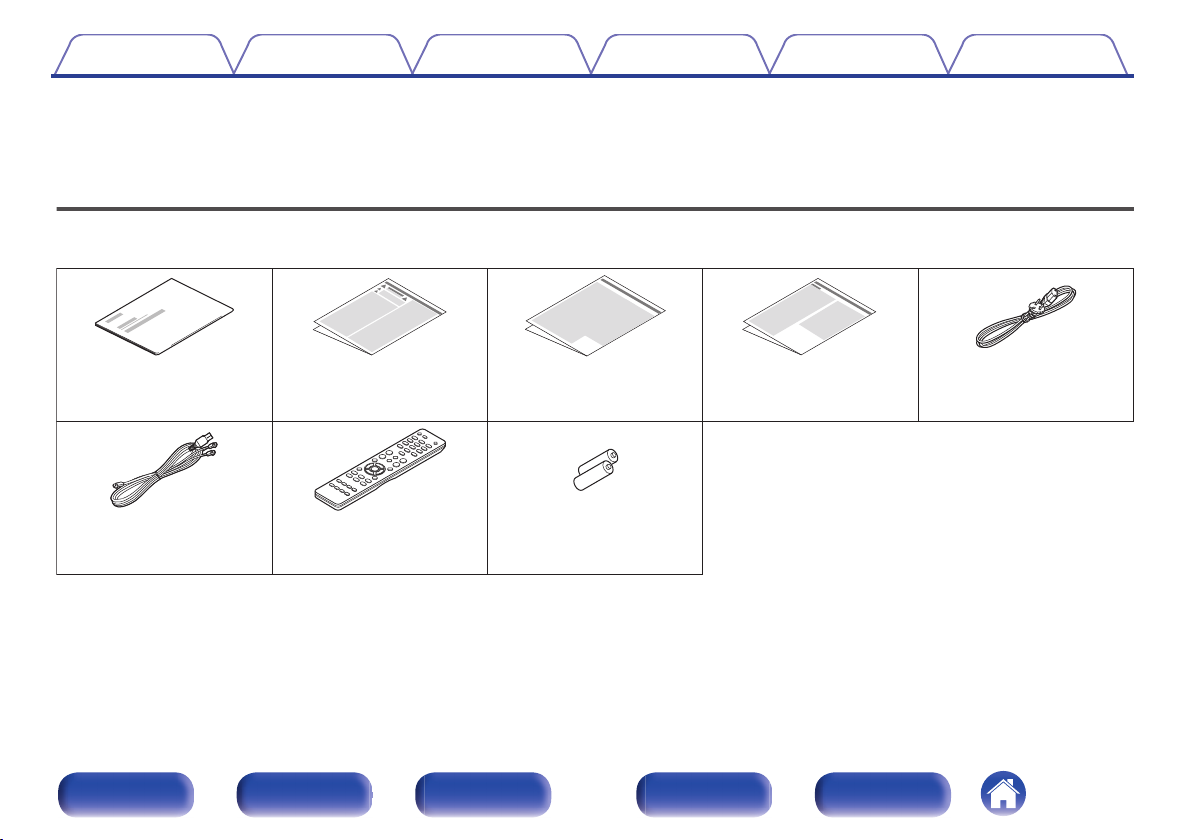
Quick Start Guide Safety Instructions
Cautions on Using Batteries
Notes on radio Power cord
DAB/FM indoor antenna
R03/AAA batteries
Remote control unit
(RC-1235)
Contents Connections Playback Settings Tips Appendix
Thank you for purchasing this Denon product.
To ensure proper operation, please read this owner’s manual carefully before using the product.
After reading this manual, be sure to keep it for future reference.
Accessories
Check that the following parts are supplied with the product.
.
Front panel Display Rear panel Remote Index
8
Contents
Connections Playback Settings Tips Appendix
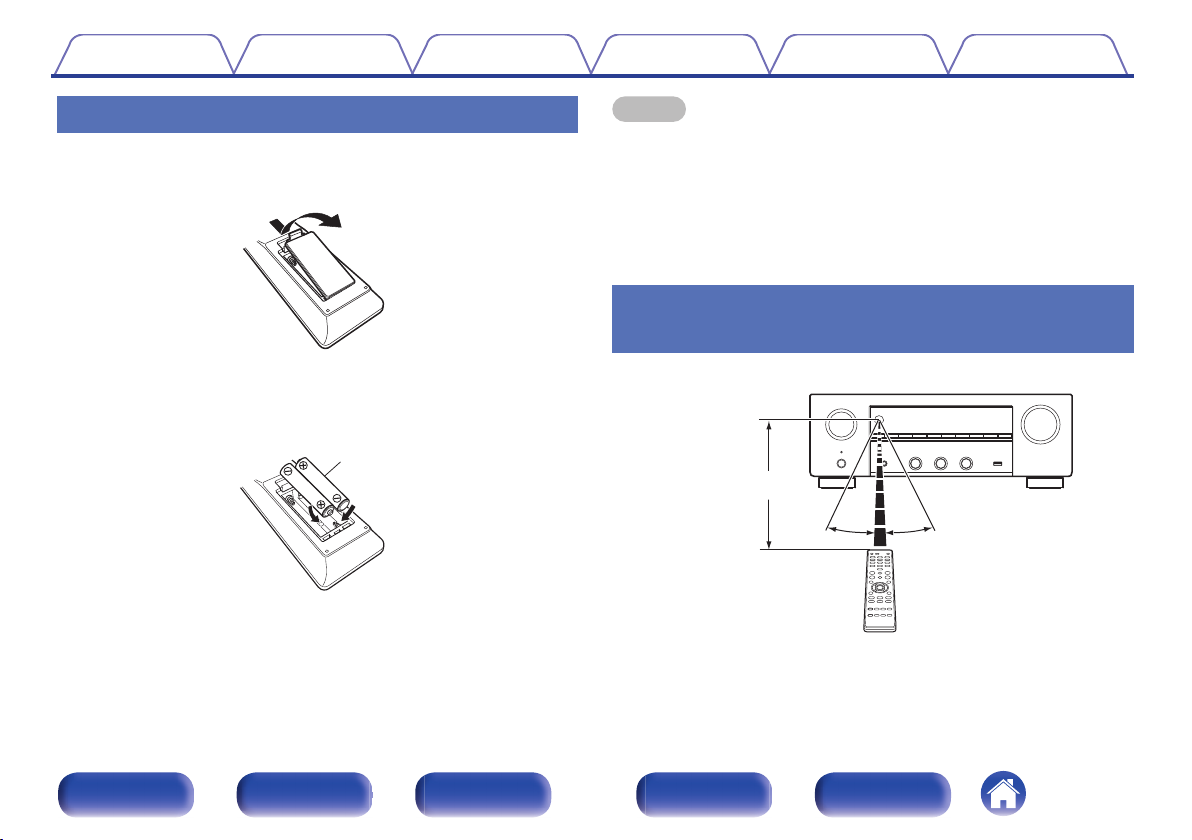
Inserting the batteries
Remove the rear lid in the direction of the arrow and
1
remove it.
.
Insert two batteries correctly into the battery
2
compartment as indicated.
.
Put the rear cover back on.
3
NOTE
To prevent damage or leakage of battery fluid:
0
Do not use a new battery together with an old one.
0
Do not use two different types of batteries.
0
Remove the batteries from the remote control unit if it will not be in use for long
0
periods.
If the battery fluid should leak, carefully wipe the fluid off the inside of the battery
0
compartment and insert new batteries.
Operating range of the remote control
unit
Point the remote control unit at the remote sensor when operating it.
.
Front panel Display Rear panel Remote Index
9
4K 60p
4:4:4
4K 60p
4:4:4
Contents
Features
Connections Playback Settings Tips Appendix
High quality sound
High-power amplifier (120 Watts x 2-channels)
0
The power amplifier circuit is made with a power transformer and power
supply capacitors designed for stereo receivers and uses a discrete
part structure, achieving powerful, high-quality sound reproduction.
Double-differential D/A converter circuit
0
A double-differential circuit is used to reduce noise, achieving clearer
audio playback.
High performance
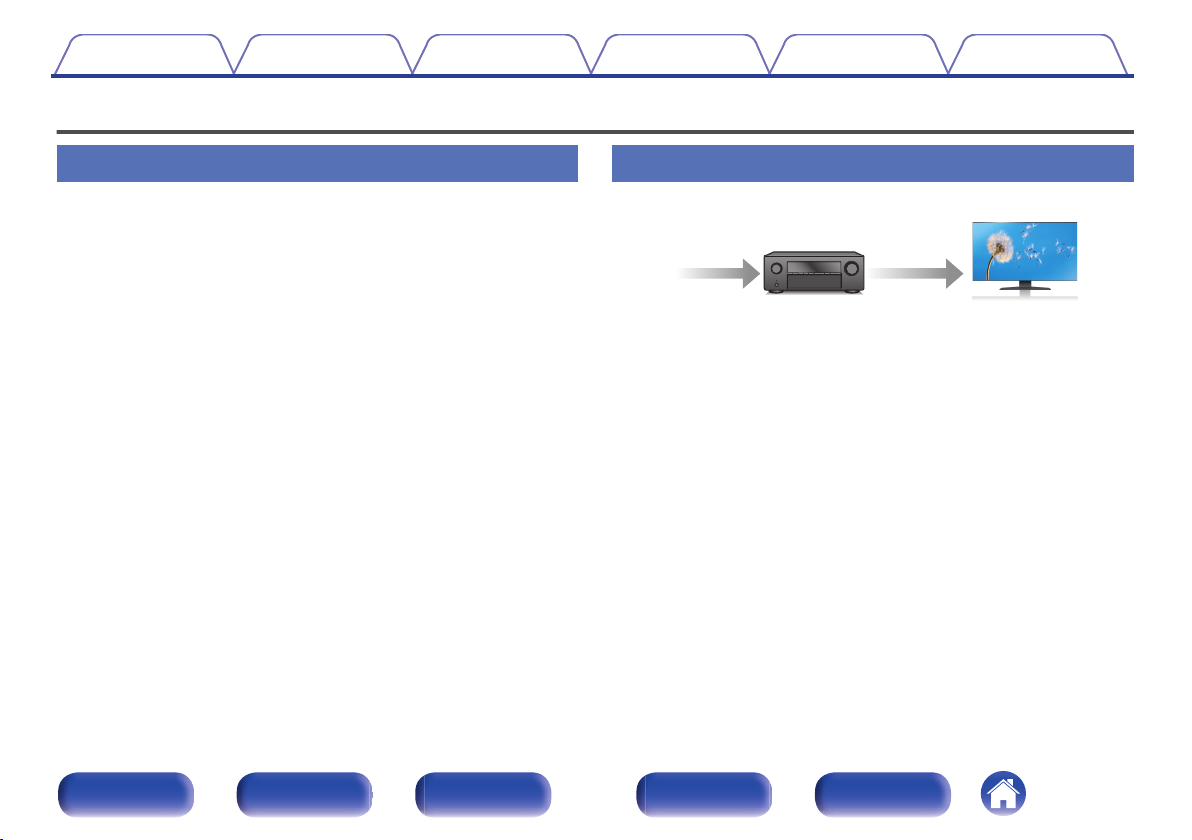
4K 60Hz input/output supported
0
.
When 4K Ultra HD (High Definition) is used, an input/output speed of 60
frames per second (60p) is achieved for video signals. When connected
to 4K Ultra HD and 60p video signal input compatible TV, you can enjoy
the sense of realism only available from high-definition images, even
when viewing fast-moving video.
This unit also supports image processing for 4K 60p, 4:4:4 and 24-bit
videos. By processing the video at the original resolution, this unit lets
you enjoy flawless, high-definition picture quality.
This unit also supports HDR (High Dynamic Range) and BT.2020 wide
color gamut.
HDCP 2.3
0
This unit is compatible with HDCP 2.3 copyright protection standard.
Front panel Display Rear panel Remote Index
10
Contents
Connections Playback Settings Tips Appendix
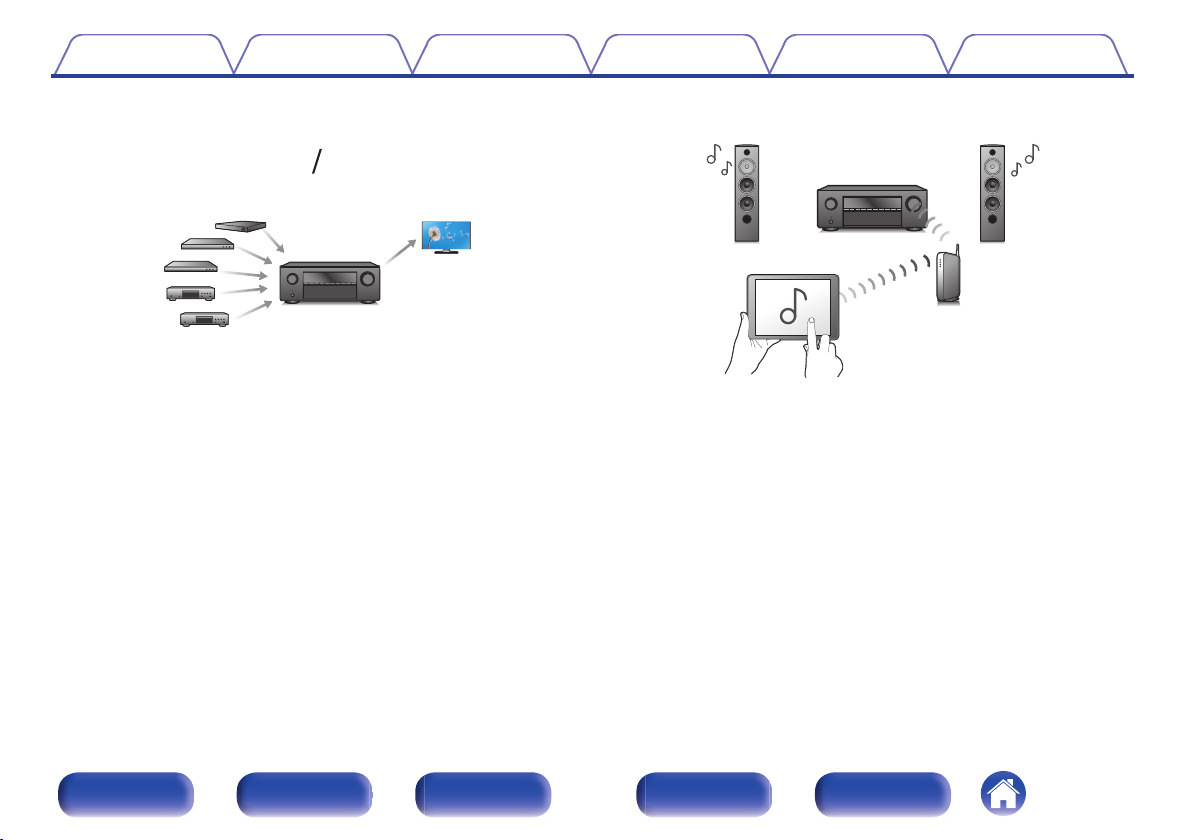
HDMI connections enable connection to various digital AV
0
devices (5 inputs, 1 output)
.
This unit is equipped with 5 HDMI inputs and 1 HDMI output enabling
connection to various HDMI compatible devices such as Blu-ray Disc
players, game consoles and HD video camcorders.
0
The device is equipped with a AirPlay® function in addition to
network functions such as Internet radio etc. (v p. 87)
.
You can enjoy a wide variety of content, including listening to Internet
Radio, playing audio files stored on your PC.
This unit also supports Apple AirPlay which lets you stream your music
library from an iPhone®, iPad®, iPod touch® or iTunes®.
0
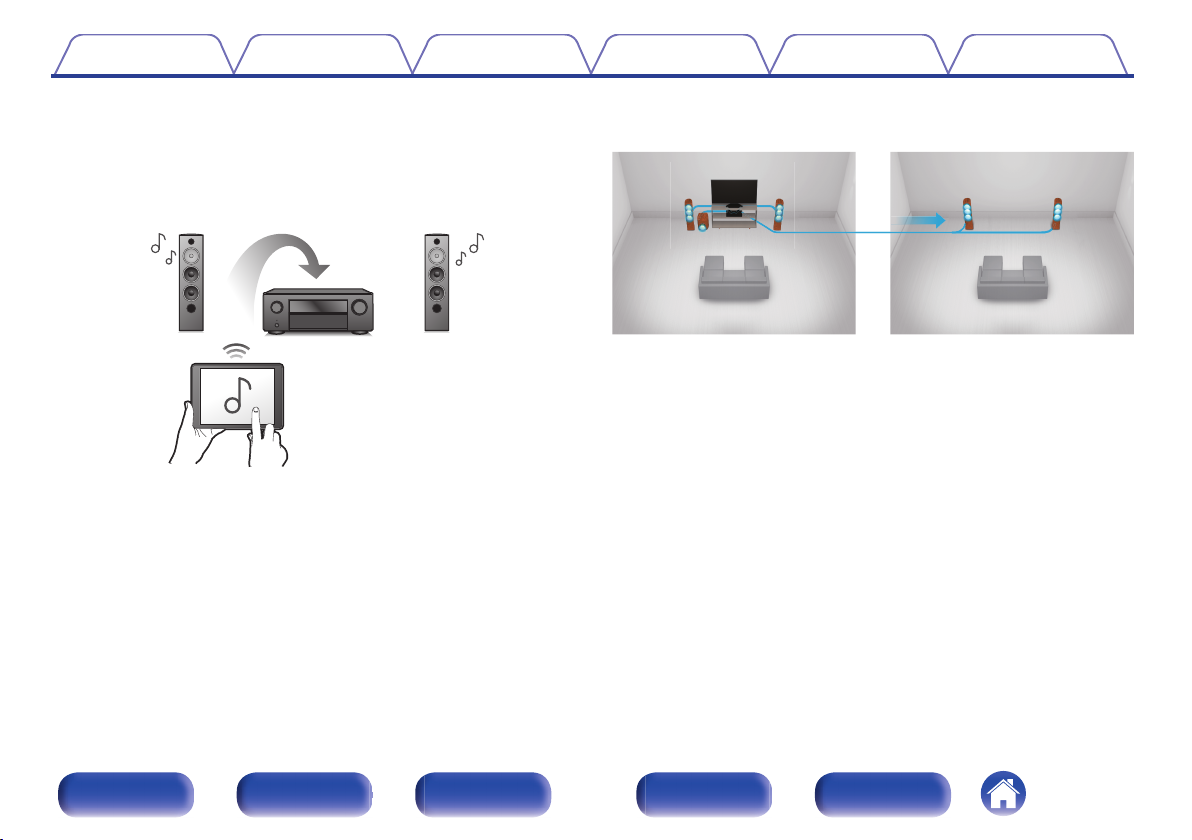
Supports AirPlay 2® wireless audio
Sync multiple AirPlay 2 compatible devices/speakers for simultaneous
playback.
This unit supports AirPlay 2 and requires iOS 11.4 or later.
Front panel Display Rear panel Remote Index
11
Contents
Connections Playback Settings Tips Appendix
Playback of DSD and FLAC files via USB and networks
0
This unit supports the playback of high resolution audio formats such as
DSD (5.6 MHz) and FLAC 192 kHz files. It provides high quality
playback of high resolution files.
Wireless connection with Bluetooth devices can be carried out
0
easily (v p. 52)
.
You can enjoy music simply by connecting wirelessly with your
smartphone, tablet, PC, etc.
Multi-Room audio (v p. 97)
0
.
You can select and play back the respective inputs in MAIN ZONE and
ZONE2.
In addition, when the All Zone Stereo function is used, the music being
played back in MAIN ZONE can be enjoyed in all the zones at the same
time. This is useful when you want to let the BGM propagate throughout
the whole house.
Energy-saving design
0
This unit is equipped with an ECO Mode function that allows you to
enjoy music and movies while reducing the power consumption during
use, and also an auto-standby function that automatically turns off the
power supply when the unit is not in use. This helps reduce
unnecessary power use.
Front panel Display Rear panel Remote Index
12
Contents
0
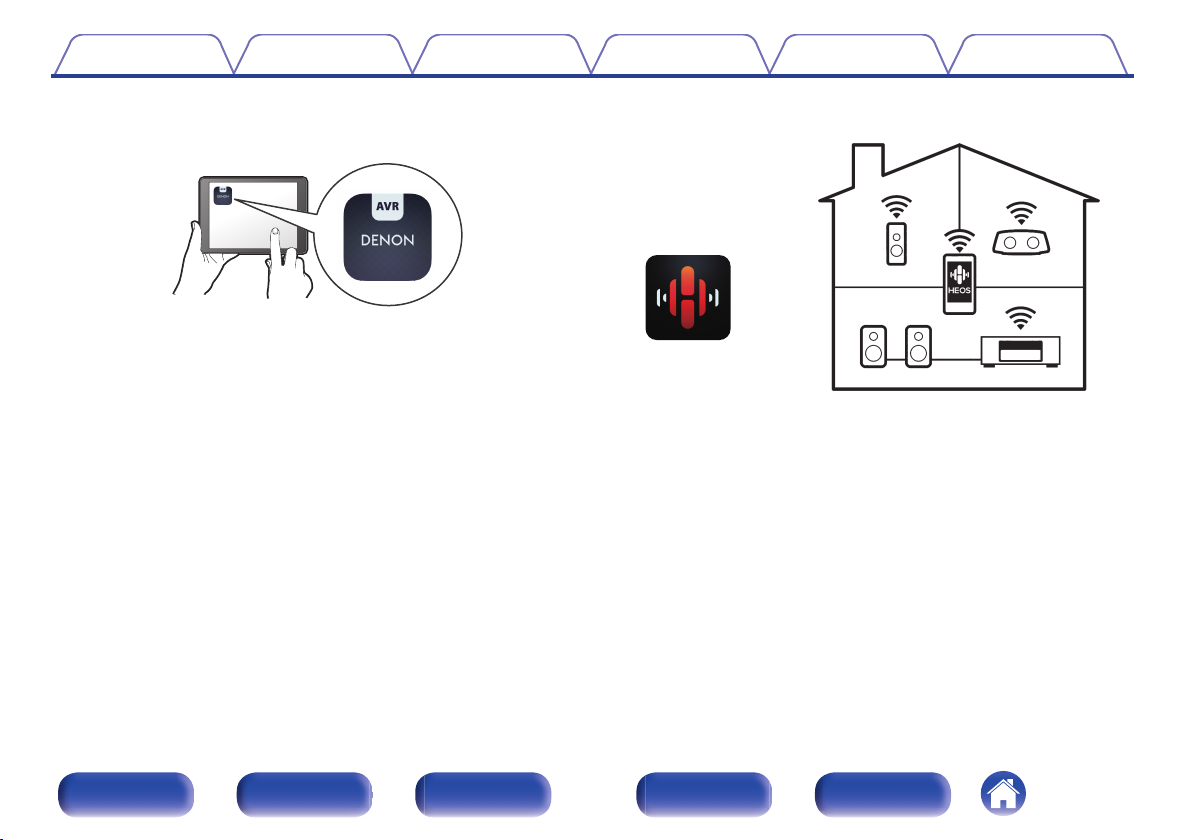
Compatible with the “Denon 2016 AVR Remote” Appz for
Connections Playback Settings Tips Appendix
performing basic operations of the unit with an iPad, iPhone or
Android™ devices (Google, Amazon Kindle Fire)
.
Along with many new features, the graphics and user interface have
been completely overhauled. The new app gives you full control of this
unit as well as access to its setup menu for detailed adjustments from
your phones or tablets. “Denon 2016 AVR Remote” App also gives you
quick access to the receiver’s status display, option menus, Denon Bluray Disc player control, and online owner’s manual for your
convenience.
Download the appropriate “Denon 2016 AVR Remote” App for your iOS or
z
Android devices. This unit needs to be connected to the same LAN or Wi-Fi
(wireless LAN) network that the iPad, iPhone or Android™ is connected to.
HEOS provides streaming music from your favorite online music
0
sources
.
HEOS wireless multi-room sound system that enables you to enjoy your
favorite music anywhere and everywhere around your home. By utilizing
your existing home network and the HEOS App (available for iOS,
Android and Amazon devices), you can explore, browse, and play
music from your own music library or from many online streaming music
services.
When multiple HEOS devices are connected to the same network,
HEOS devices can be grouped to play back the same music on all
devices simultaneously, or different music can be played on each
separate HEOS device.
Front panel Display Rear panel Remote Index
13
Contents Connections Playback Settings Tips Appendix
Easy operation
“Setup Assistant” provides easy-to-follow setup instructions
0
First select the language when prompted. Then simply follow the
instructions displayed on the TV screen to set up the speakers, network,
etc.
Easy to use Graphical User Interface
0
This unit is equipped with a Graphical User Interface for improved
operability.
Front panel Display Rear panel Remote Index
14
Contents
Connections Playback Settings Tips Appendix
Part names and functions
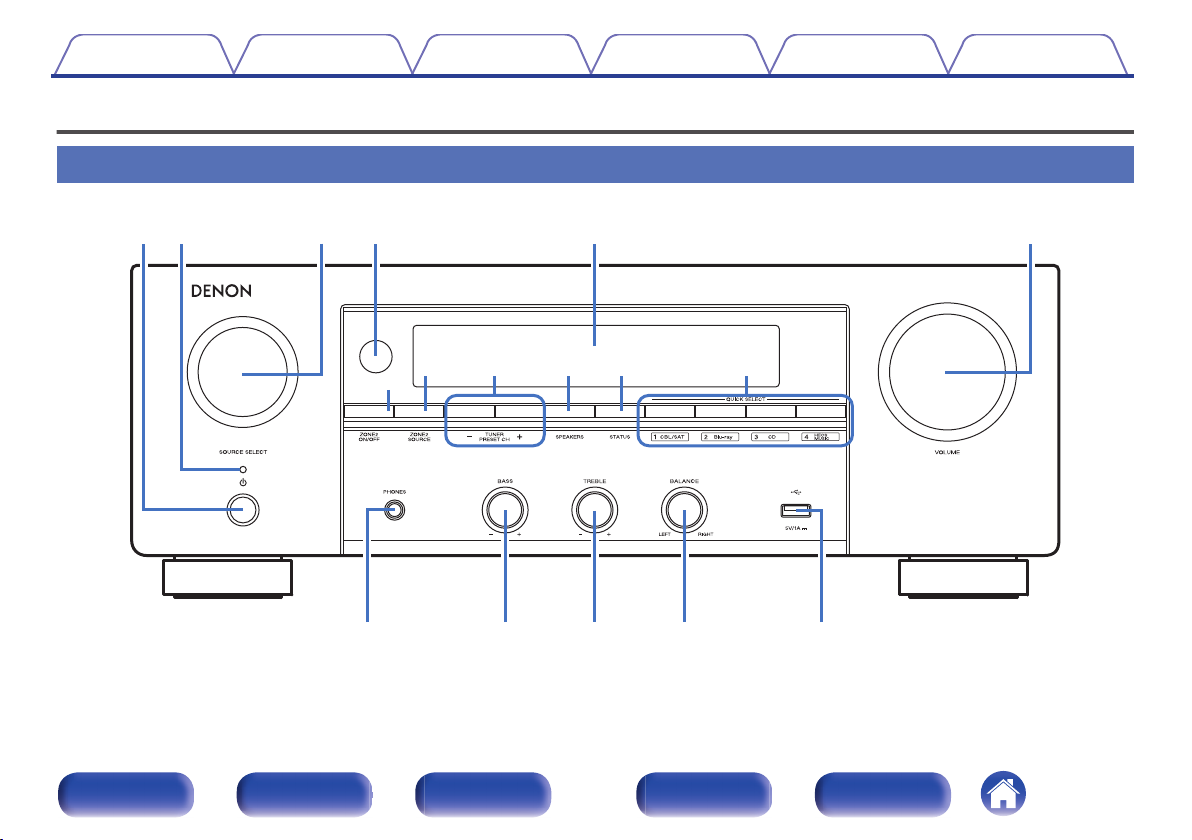
Front panel
.
For details, see the next page.
Front panel Display Rear panel Remote Index
15
Contents
.
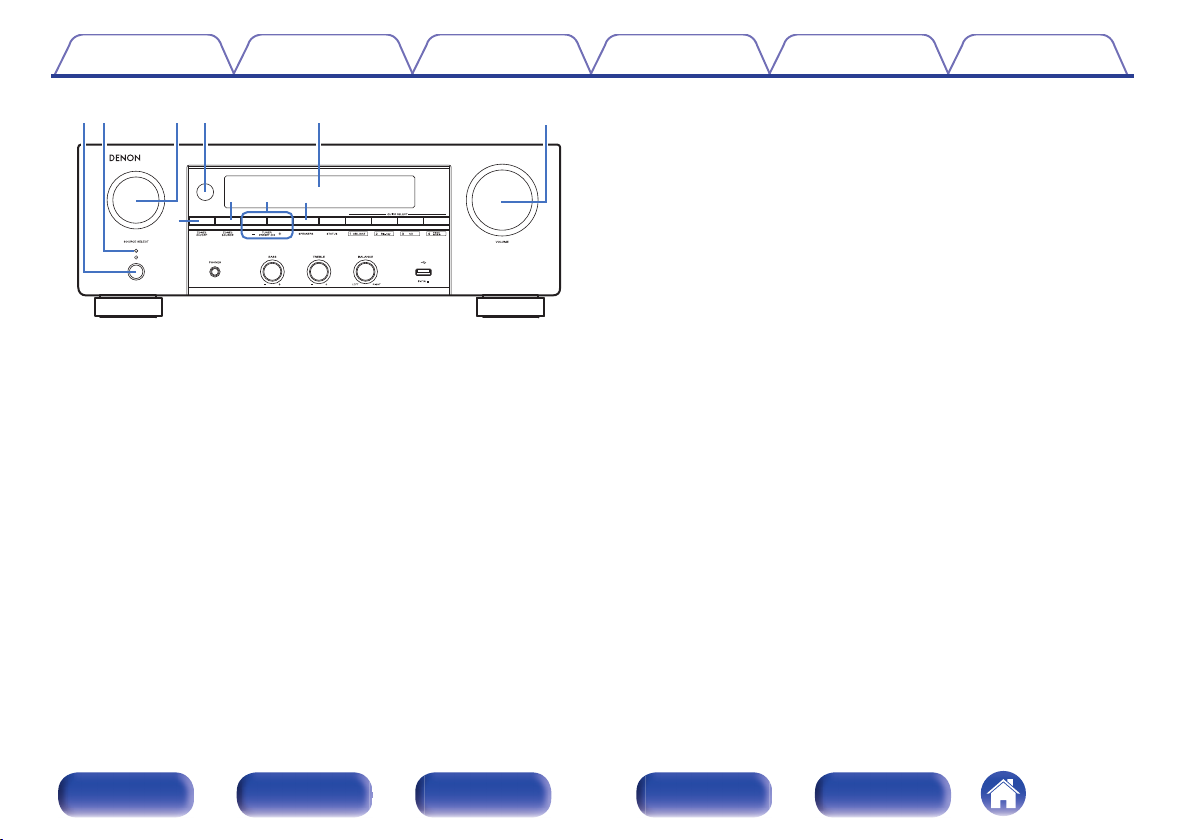
Power operation button (X)
A
Used to turn the power of the MAIN ZONE (room where this unit is
located) on/off (standby). (v p. 46)
Power indicator
B
This is lit as follows according to the power status:
Green: Power on
0
Off: Normal standby
0
Red:
0
0
When “HDMI PassThrough” is set to “On” (v p. 125)
0
When “HDMI Control” is set to “On” (v p. 126)
0
When “Network Control” is set to “Always On” (v p. 143)
Connections Playback Settings Tips Appendix
SOURCE SELECT knob
C
This selects the input source. (v p. 46)
Remote control sensor
D
This receives signals from the remote control unit. (v p. 9)
Display
E
This displays various pieces of information. (v p. 18)
MASTER VOLUME knob
F
This adjusts the volume level. (v p. 47)
ZONE2 ON/OFF button
G
This turns the power of ZONE2 (another room) on/off. (v p. 114)
ZONE2 SOURCE button
H
This selects the input source for ZONE2. (v p. 114)
Tuner preset channel buttons
I
(TUNER PRESET CH +, –)
These select preset broadcast stations. (v p. 69)
Speaker switching button (SPEAKERS)
J
These select the speaker for audio output.
Front panel Display Rear panel Remote Index
16
Contents
.
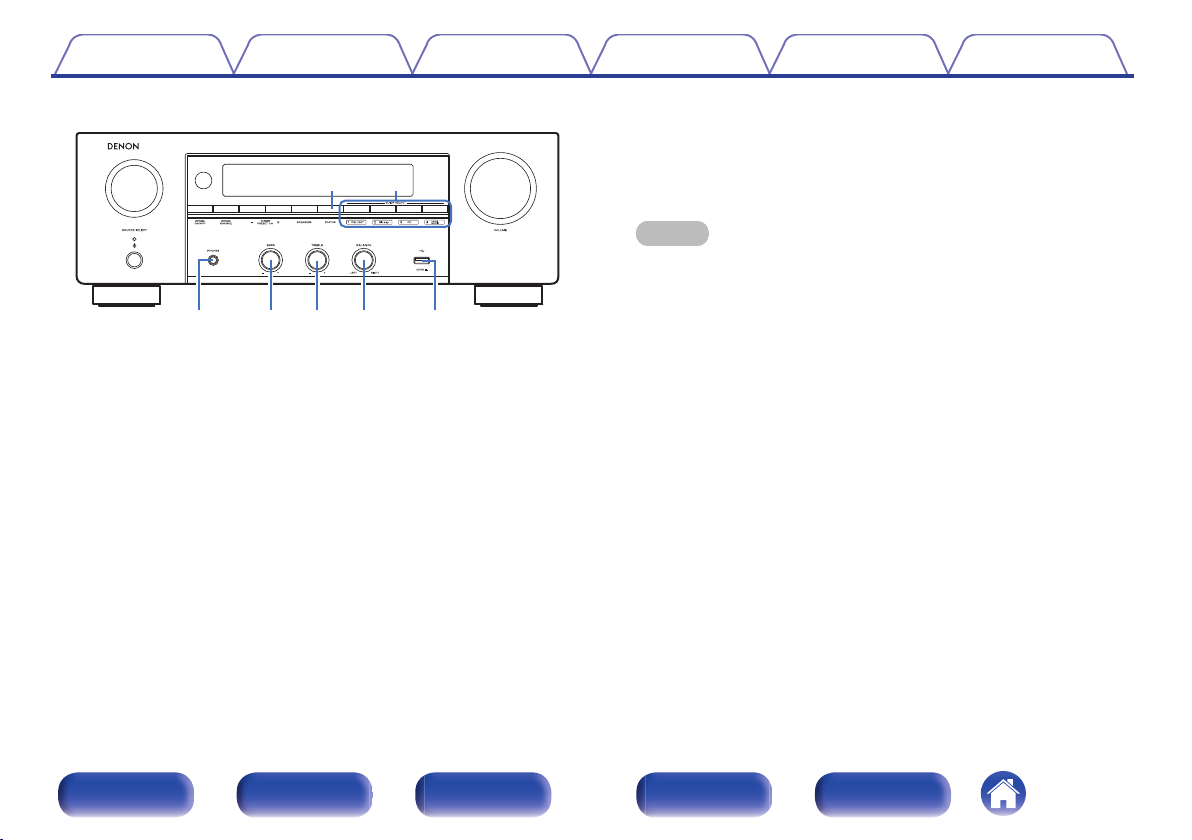
STATUS button
K
Each press of this switches the status information that is shown on the
display.
QUICK SELECT buttons
L
With a single press of any of these buttons, you can call up various
settings you’ve registered to each button such as the input source,
volume level and sound mode settings. (v p. 105)
Connections Playback Settings Tips Appendix
Headphones jack (PHONES)
M
This is used to connect headphones.
When the headphones are plugged into this jack, audio will no longer
be output from the connected speakers or from the SUBWOOFER
connectors.
NOTE
To prevent hearing loss, do not raise the volume level excessively when using
0
headphones.
Bass control knob (BASS)
N
This setting adjusts the volume level for the bass.
Treble control knob (TREBLE)
O
This setting adjusts the volume level for the treble.
Balance knob (BALANCE)
P
This adjusts the balance of the volume output from the left and right
speakers.
Q
USB port (T)
This is used to connect USB storages (such as USB memory devices).
(v p. 39)
Front panel Display Rear panel Remote Index
17
Contents Connections Playback Settings Tips Appendix
Display
.
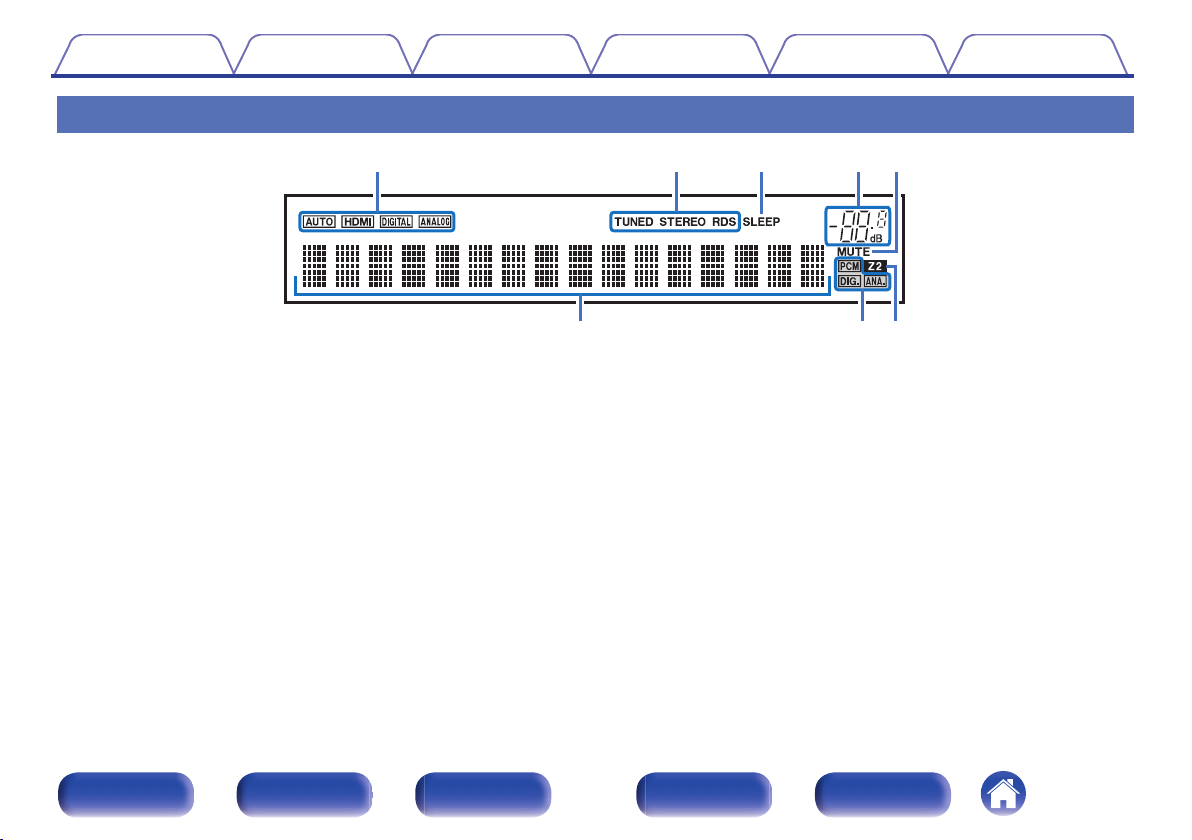
Input mode indicators
A
These light according to the audio input mode settings of each input
source. (v p. 134)
Tuner reception mode indicators
B
These light up according to the reception conditions when the input
source is set to “Tuner”.
TUNED: Lights up when the broadcast is properly tuned in.
STEREO: Lights up when receiving FM stereo broadcasts.
RDS: Lights up when receiving RDS broadcasts.
Sleep timer indicator
C
This lights when the sleep mode is selected. (v p. 103)
Volume indicator
D
MUTE indicator
E
This blinks while the sound is muted. (v p. 47)
Information display
F
The input source name, sound mode, setting values and other
information are displayed here.
Input signal indicators
G
The respective indicator will light corresponding to the input signal.
(v p. 134)
ZONE2 indicator
H
This lights up when ZONE2 (another room) power is turned on.
(v p. 114)
Front panel Display Rear panel Remote Index
18

Contents
Connections Playback Settings Tips Appendix
Rear panel
.
For details, see the next page.
Front panel Display Rear panel Remote Index
19
Contents
.
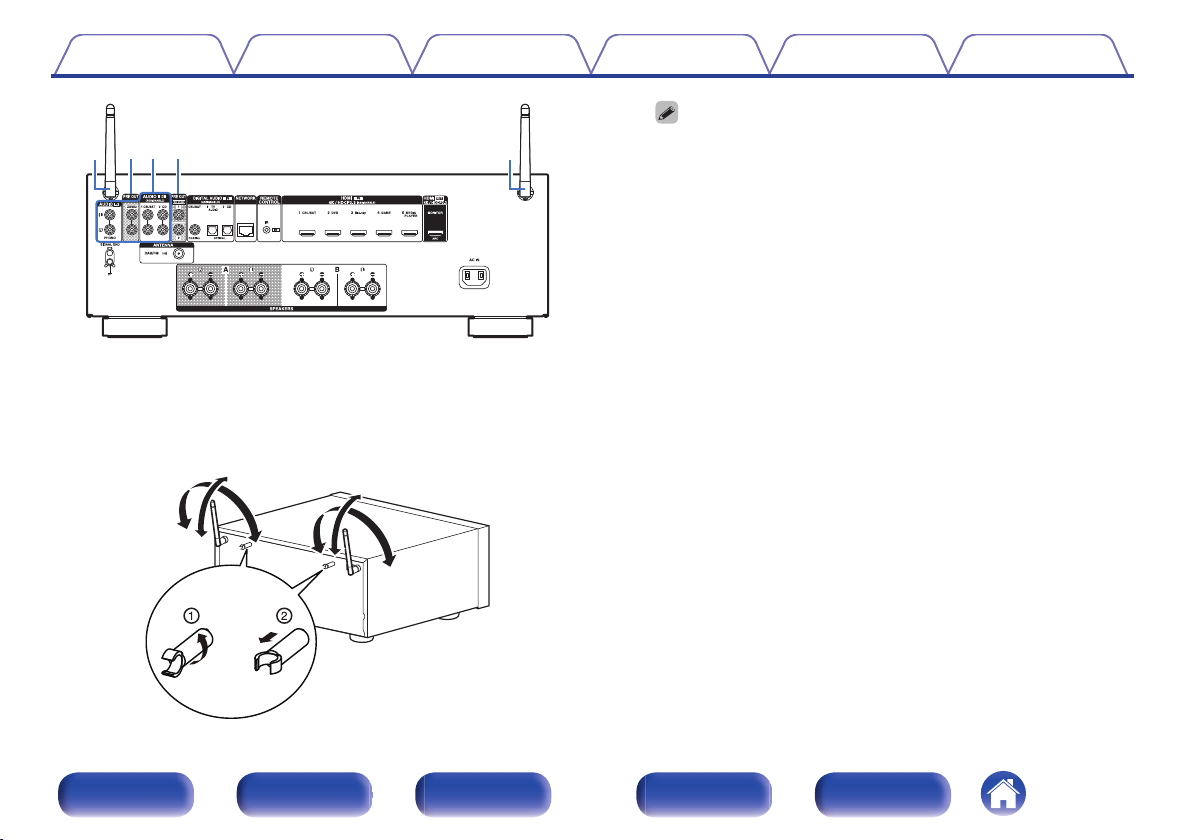
Rod antennas for Bluetooth/wireless LAN
A
Connections Playback Settings Tips Appendix
Stand this antenna upright when connecting to a network via wireless
LAN, or when connecting to a handheld device via Bluetooth.
(v p. 42)
The antenna clip can be removed from the rear panel.
0
Rotate the antenna clip 90 degrees to the left.
A
Pull the antenna clip out towards yourself.
B
The antenna clip is needed when transporting this unit. Keep it in a
0
safe place.
Attach the antenna clip by following the steps for removing it in
0
reverse.
PRE OUT connectors
B
Used to connect a subwoofer with built-in amplifier or power amplifier
for ZONE2.
“Connecting the subwoofer” (v p. 28)
0
“Connecting ZONE2” (v p. 113)
0
Analog audio connectors (AUDIO)
C
Used to connect devices equipped with analog audio connectors.
“Connecting a set-top box (Satellite tuner/cable TV)” (v p. 36)
0
“Connecting a DVD player or Blu-ray Disc player” (v p. 37)
0
“Connecting a turntable” (v p. 38)
0
Front panel Display Rear panel Remote Index
.
20
Contents Connections Playback Settings Tips Appendix
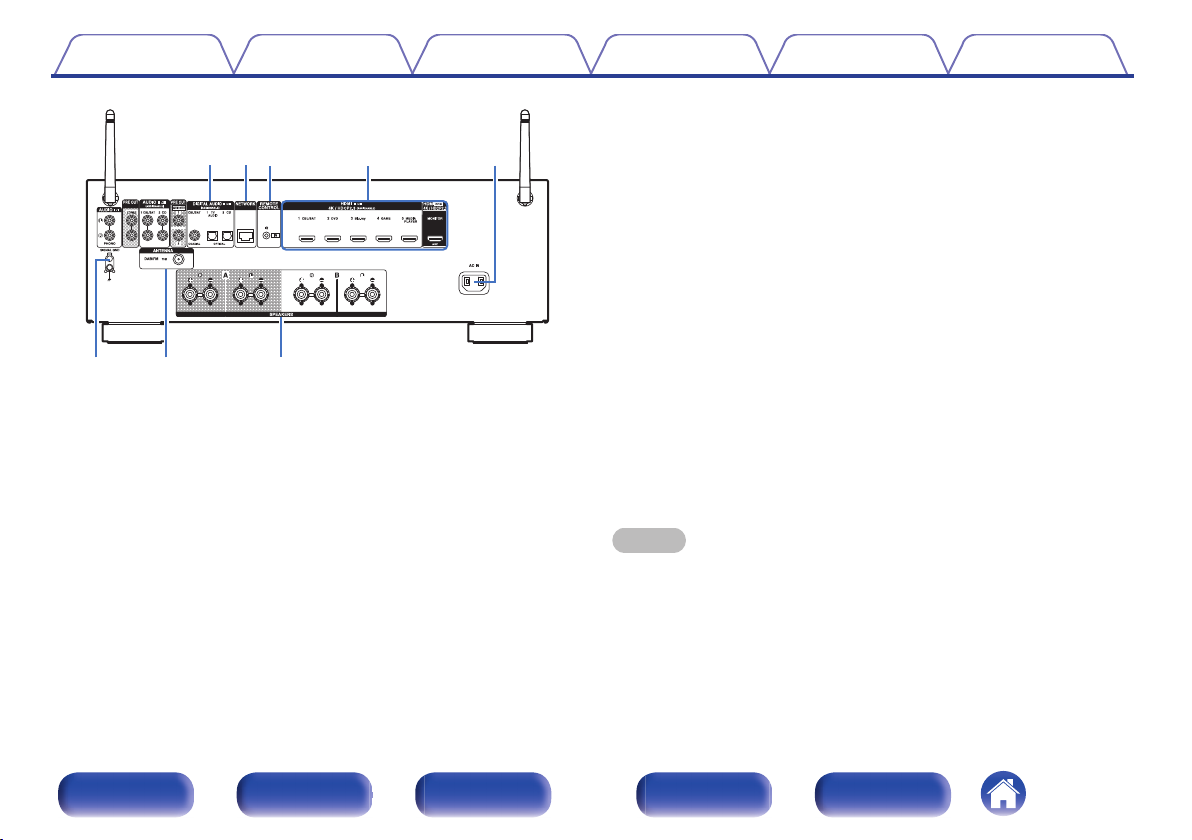
REMOTE CONTROL jack
F
Used to connect infrared receivers/transmitters in order to operate this
unit and external devices from a different room. (v p. 43)
HDMI connectors
G
Used to connect devices equipped with HDMI connectors.
“Connection 1 : TV equipped with an HDMI connector and
0
compatible with the ARC (Audio Return Channel)” (v p. 33)
“Connection 2 : TV equipped with an HDMI connector and
0
incompatible with the ARC (Audio Return Channel)” (v p. 34)
“Connecting a set-top box (Satellite tuner/cable TV)” (v p. 36)
0
“Connecting a DVD player or Blu-ray Disc player” (v p. 37)
0
AC inlet (AC IN)
H
.
Digital audio connectors (DIGITAL AUDIO)
D
Used to connect devices equipped with digital audio connectors.
“Connection 2 : TV equipped with an HDMI connector and
0
incompatible with the ARC (Audio Return Channel)” (v p. 34)
“Connecting a set-top box (Satellite tuner/cable TV)” (v p. 36)
0
NETWORK connector
E
Used to connect to a LAN cable when connecting to a wired LAN
network. (v p. 41)
Used to connect the power cord. (v p. 44)
SIGNAL GND terminal
I
Used to connect a ground wire for the turntable. (v p. 38)
DAB/FM antenna terminal (ANTENNA)
J
Used to connect a DAB/FM antenna. (v p. 40)
Speaker terminals (SPEAKERS)
K
Used to connect speakers. (v p. 27)
NOTE
Do not touch the inner pins of the connectors on the rear panel. Electrostatic
0
discharge may cause permanent damage to the unit.
Front panel Display Rear panel Remote Index
21
Contents
Connections Playback Settings Tips Appendix
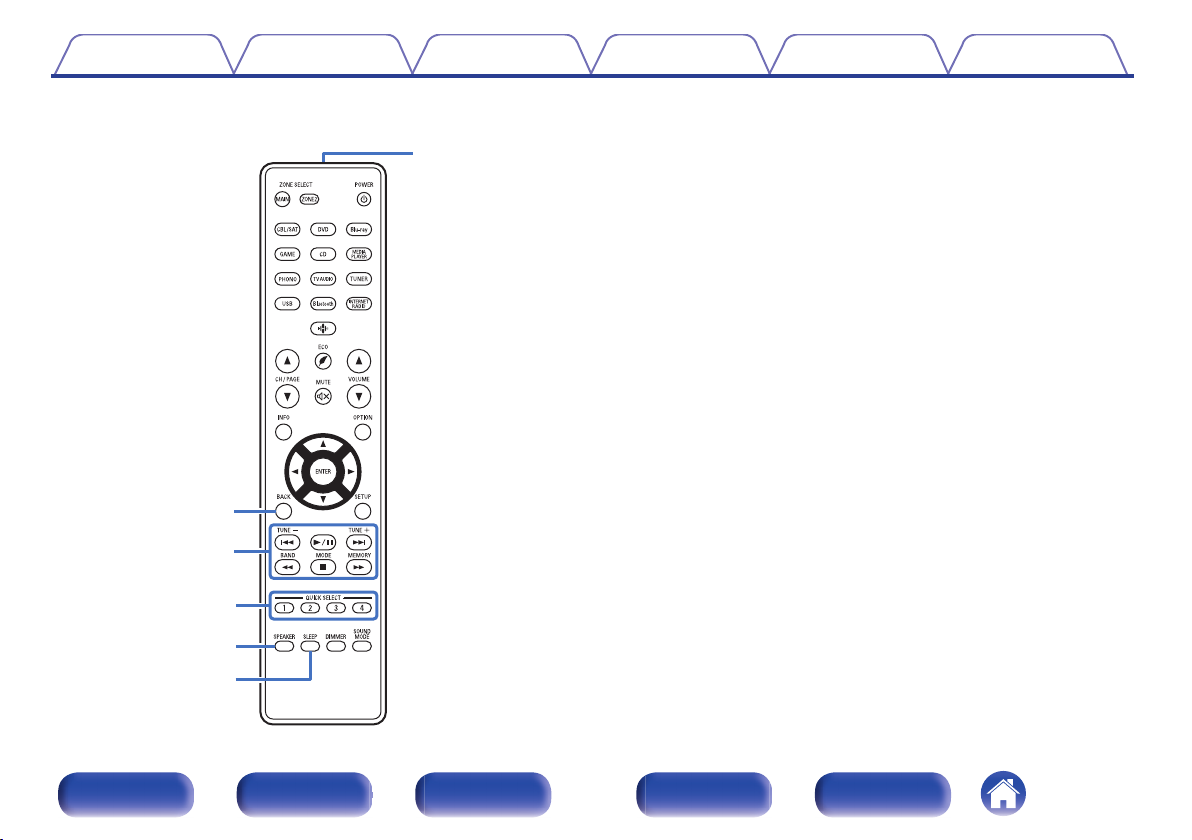
Remote control unit
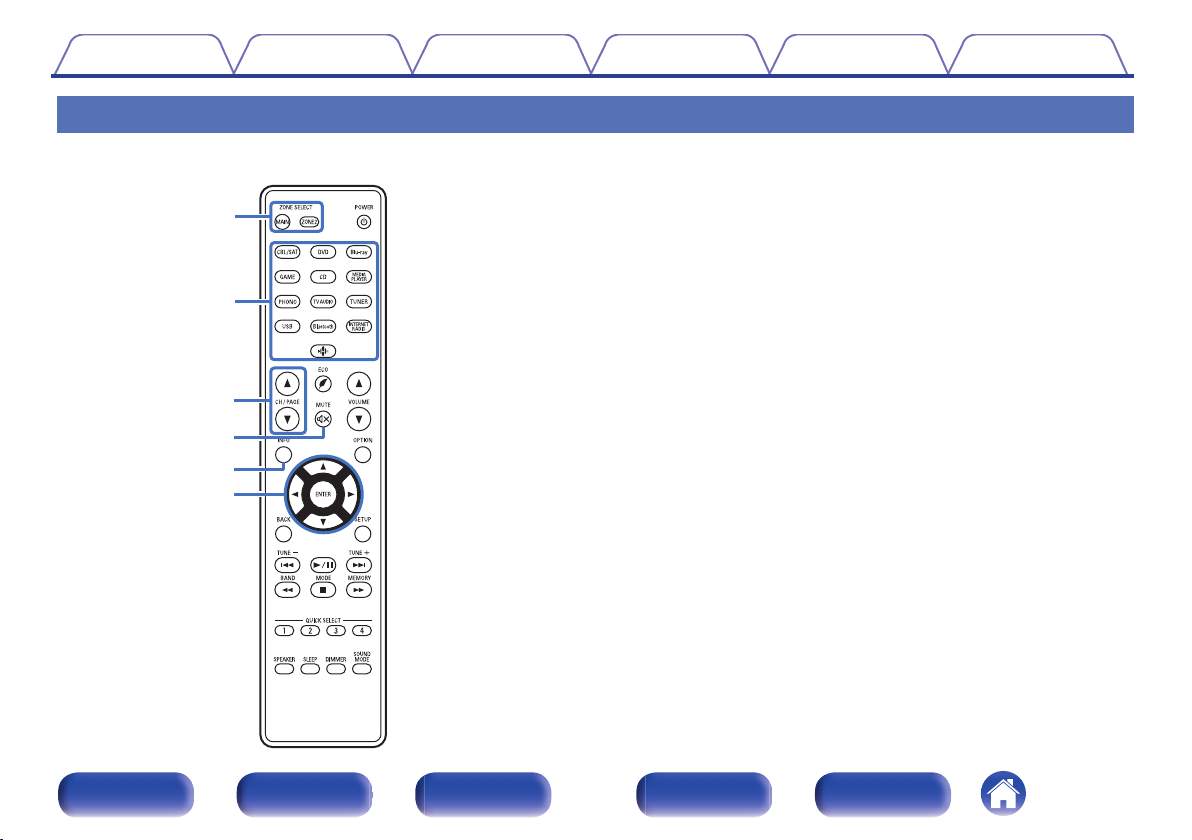
ZONE SELECT buttons
A
These switch the zone (MAIN ZONE, ZONE2) that is operated through
the remote control unit.
“Playback in ZONE2” (v p. 114)
0
“Menu operations” (v p. 120)
0
Input source select buttons
B
These selects the input source.
“Selecting the input source” (v p. 46)
0
“Playback in ZONE2” (v p. 114)
0
Channel/page search buttons (CH/PAGE df)
C
These select radio stations registered to presets or switch pages.
(v p. 69)
MUTE button (:)
D
This mutes the output audio.
“Turning off the sound temporarily (Muting)” (v p. 47)
0
“Turning off the sound temporarily (Muting) (ZONE2)” (v p. 115)
0
Information button (INFO)
E
This displays the status information on the TV screen. (v p. 156)
Cursor buttons (uio p)
F
These select items.
Front panel Display Rear panel Remote Index
22
Contents
Connections Playback Settings Tips Appendix
BACK button
G
This returns to the previous screen.
System buttons
H
These perform playback related operations.
Tuning up / Tuning down buttons (TUNE +, –)
These operate the tuner. (v p. 57)
Reception band select button (BAND)
This switches the reception band. (v p. 58, 63)
Tune mode select button (MODE)
This switches the tuning mode. (v p. 62)
Preset memory button (MEMORY)
The current broadcast station that is preset. (v p. 68)
Operating CD player. (v p. 159)
QUICK SELECT buttons (1 – 4)
I
These call up settings registered to each button, such as input source,
volume level and sound mode settings. (v p. 105)
Speaker switching button (SPEAKERS)
J
These select the speaker for audio output.
SLEEP button
K
This sets the sleep timer. (v p. 103)
Remote control signal transmitter
L
This transmits signals from the remote control unit. (v p. 9)
Front panel Display Rear panel Remote Index
23
Contents
Connections Playback Settings Tips Appendix
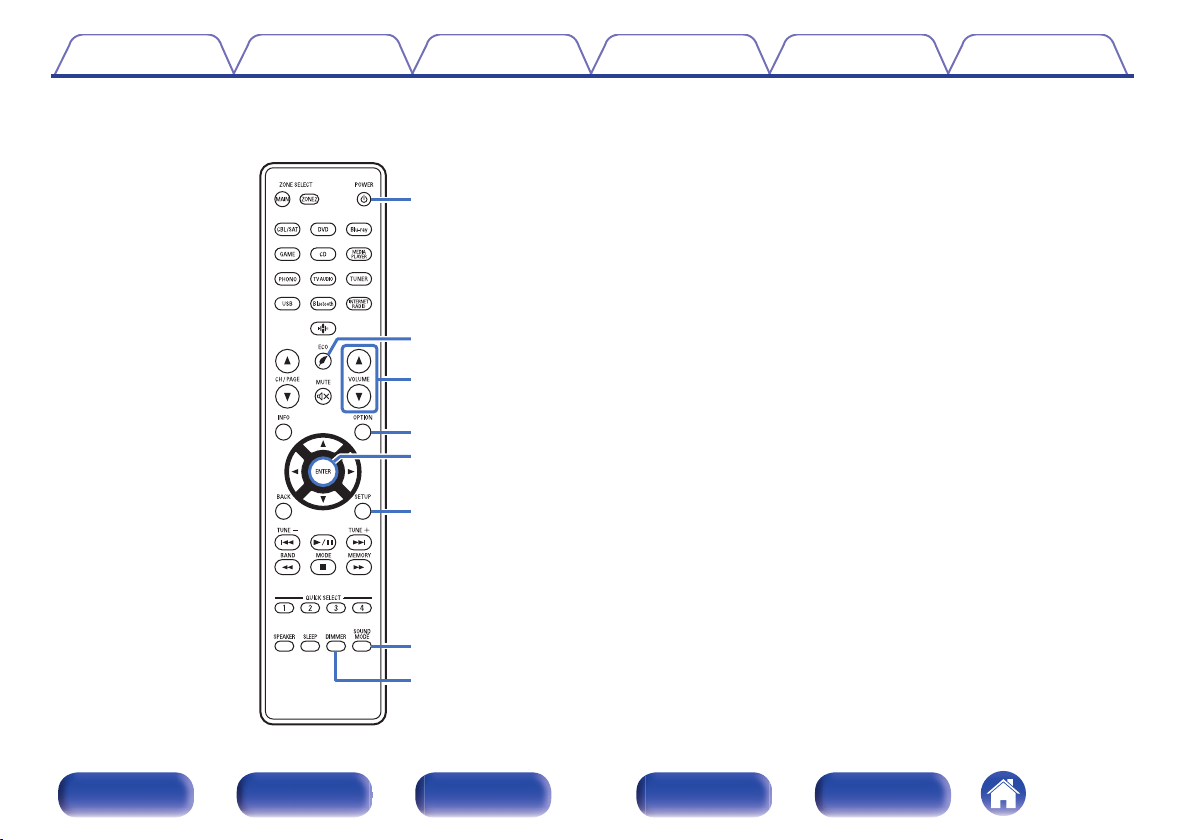
POWER button (X)
M
This turns the power on/off.
“Turning the power on” (v p. 46)
0
“Playback in ZONE2” (v p. 114)
0
N
ECO Mode button (G)
This switches to ECO Mode. (v p. 146)
VOLUME buttons (df)
O
These adjusts the volume level.
“Adjusting the volume” (v p. 47)
0
“Adjusting the volume (ZONE2)” (v p. 115)
0
OPTION button
P
This displays the option menu on the TV screen.
ENTER button
Q
This determines the selection.
SETUP button
R
This displays the menu on the TV screen. (v p. 120)
SOUND MODE button
S
These select the sound mode. (v p. 98)
DIMMER button
T
Each press of this switches the brightness of the display. (v p. 151)
Front panel Display Rear panel Remote Index
24
Contents Connections Playback Settings Tips Appendix
o
Contents
Speaker installation 26
Connecting speakers 27
Connecting a TV 32
Connecting a playback device 35
Connecting a USB memory device to the USB port 39
Connecting a DAB/FM antenna 40
Connecting to a home network (LAN) 41
Connecting an external control device 43
Connecting the power cord 44
NOTE
Do not plug in the power cord until all connections have been completed.
0
However, when the “Setup Assistant” is running, follow the instructions in the
“Setup Assistant” (page 8 in the separate “Quick Start Guide”) screen for making
connections. (During “Setup Assistant” operation, the input/output connectors do
not conduct current.)
Do not bundle power cords together with connection cables. Doing so can result in
0
noise.
o
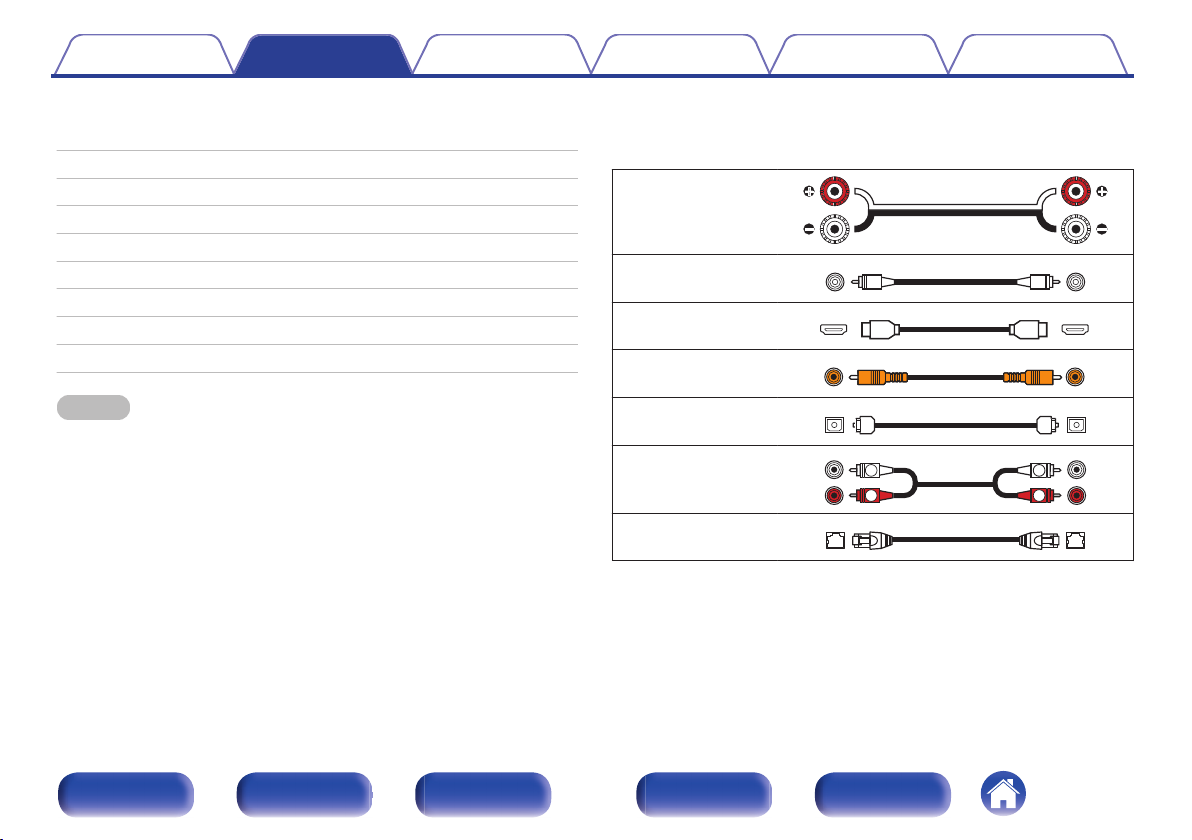
Cables used for connections
Provide necessary cables according to the devices you want to
connect.
Speaker cable
.
Subwoofer cable
HDMI cable
Coaxial digital cable
Optical cable
.
.
.
.
Audio cable
.
LAN cable
.
Front panel Display Rear panel Remote Index
25
Contents Connections Playback Settings Tips Appendix
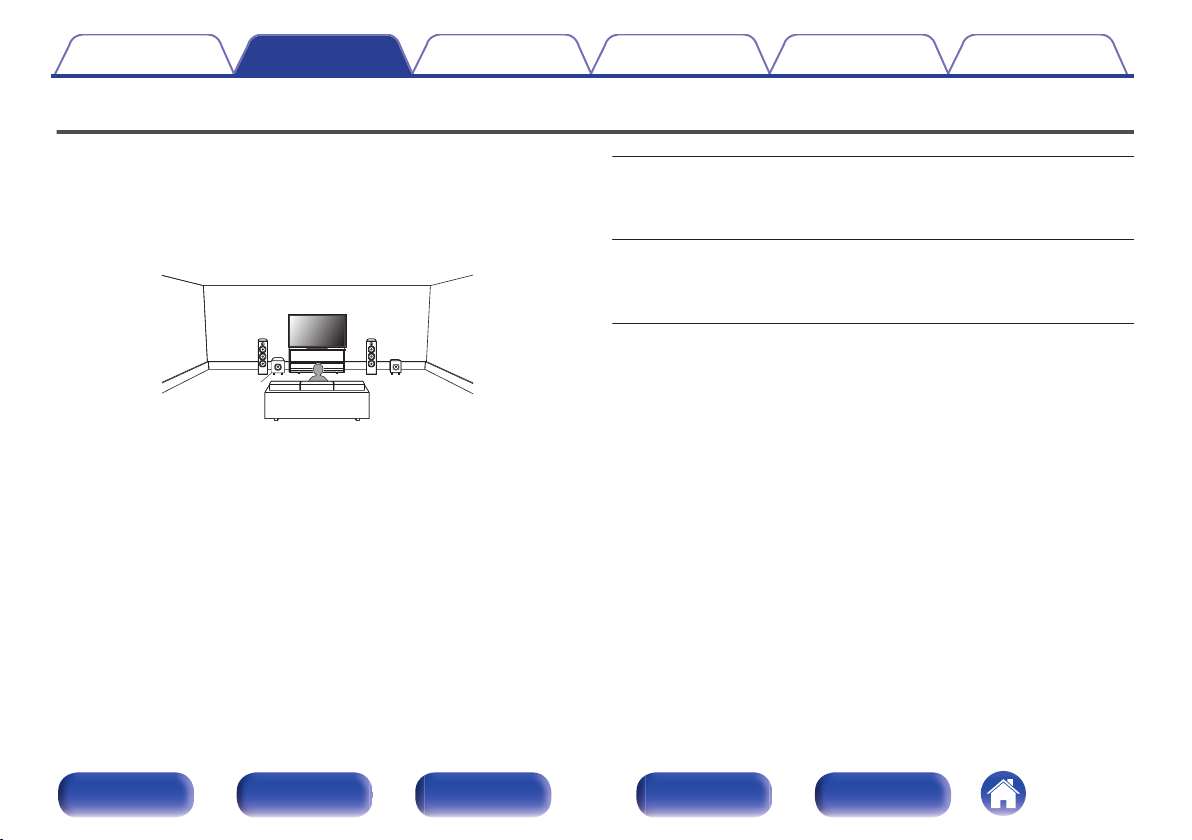
Speaker installation
Determine the speaker system depending on the number of speakers you
are using and install each speaker and subwoofer in the room.
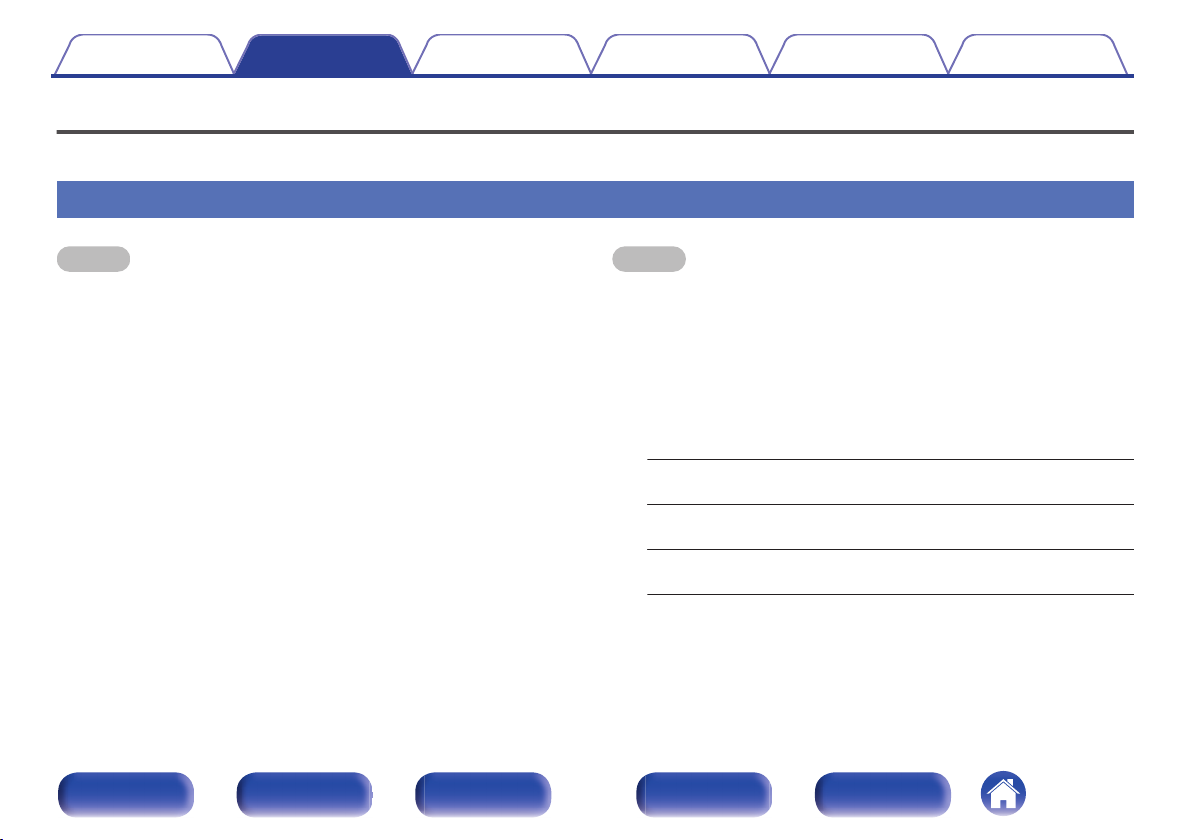
Speaker installation is explained using this example of a typical
installation.
.
L/R
(LEFT/RIGHT
speaker):
SW 1/2
(Subwoofer):
Place the LEFT and RIGHT speakers an equal
distance from the main listening position. The
distance between each speaker and your TV
should also be the same.
Place the SUBWOOFER at a convenient location
near the speakers. If you have two subwoofers,
place them asymmetrically across the front of
your room.
Front panel Display Rear panel Remote Index
26
Contents
Connections Playback Settings Tips Appendix
Connecting speakers
Here we connect the speakers in the room to this unit.
Before connecting speakers
NOTE
Disconnect this unit’s power plug from the power outlet before connecting the
0
speakers. Also, turn off the subwoofer.
Connect so that the speaker cable core wires do not protrude from the speaker
0
terminal. The protection circuit may be activated if the core wires touch the rear
panel or if the + and — sides touch each other. (“Protection circuit” (v p. 191))
Never touch the speaker terminals while the power cord is connected. Doing so
0
could result in electric shock. When the “Setup Assistant” (page 8 in the separate
“Quick Start Guide”) is running, follow the instructions in the “Setup Assistant”
screen for making connections. (Power is not supplied to the speaker terminals
while the “Setup Assistant” is running.)
Use speakers with an impedance of 4 – 16 Ω/ohms.
0
Front panel Display Rear panel Remote Index
NOTE
Carry out the following settings when using a speaker with an impedance of 4 – 6
0
Ω/ohms.
1. Press and hold the main unit’s ZONE2 SOURCE and STATUS at the same
time for at least 3 seconds.
“V.Format:< PAL>” appears on the display.
2. Press SPEAKERS on the main unit three times.
“Sp.Imp.:<8ohms>” appears on the display.
3. Press TUNER PRESET CH + or TUNER PRESET CH — on the main unit to
select the impedance.
8ohms
(Default):
6ohms:
4ohms:
4. Press the main unit’s STATUS to complete the setting.
Select when the impedance for all of the
connected speakers is 8 Ω/ohms or over.
Select when the impedance for any of the
connected speakers is 6 Ω/ohms.
Select when the impedance for any of the
connected speakers is 4 Ω/ohms.
27
Contents
Connections Playback Settings Tips Appendix
o
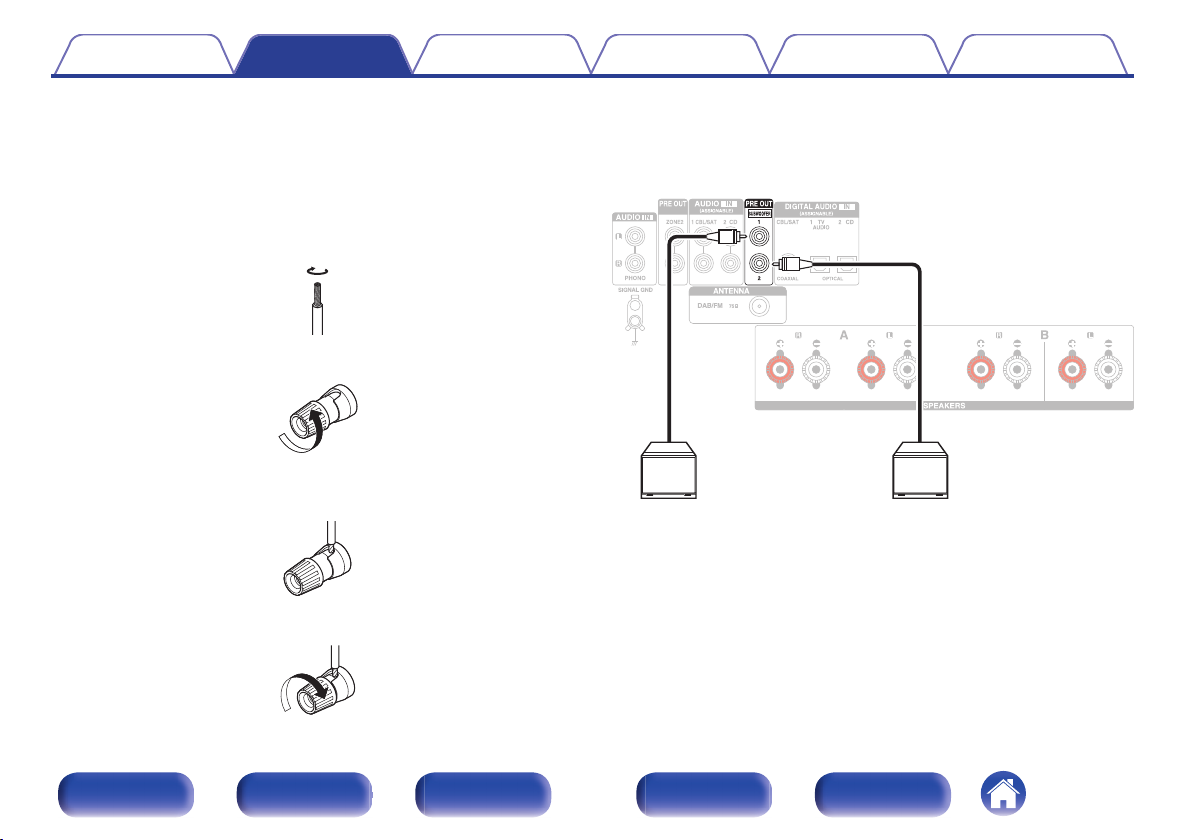
Connecting the speaker cables
Carefully check the left (L) and right (R) channels and + (red) and –
(black) polarities on the speakers being connected to this unit, and be
sure to connect the channels and polarities correctly.
Peel off about 10 mm of sheathing from the tip of the
1
speaker cable, then either twist the core wire tightly or
terminate it.
.
Turn the speaker terminal counterclockwise to loosen it.
2
.
Insert the speaker cable’s core wire to the hilt into the
3
speaker terminal.
.
Turn the speaker terminal clockwise to tighten it.
4
o
Connecting the subwoofer
Use a subwoofer cable to connect the subwoofer. Two subwoofers can
be connected to this unit.
The same signal is output from the respective subwoofer terminals.
.
.
Front panel Display Rear panel Remote Index
28
Contents
Connections Playback Settings Tips Appendix
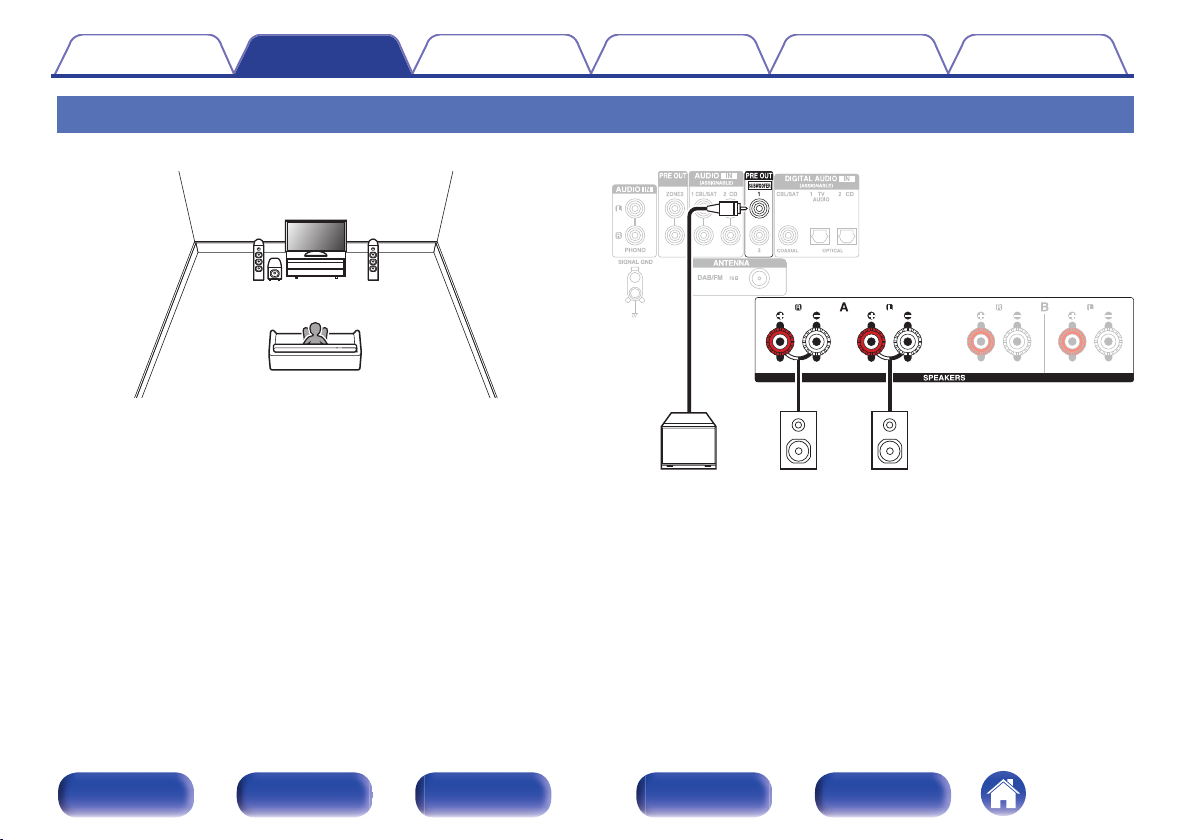
Connecting 2.1-channel speakers
This serves as a basic 2.1-channel surround system.
.
.
Front panel Display Rear panel Remote Index
29
SW
R (A) L (A)
R (B) L (B)
Contents
Connections Playback Settings Tips Appendix
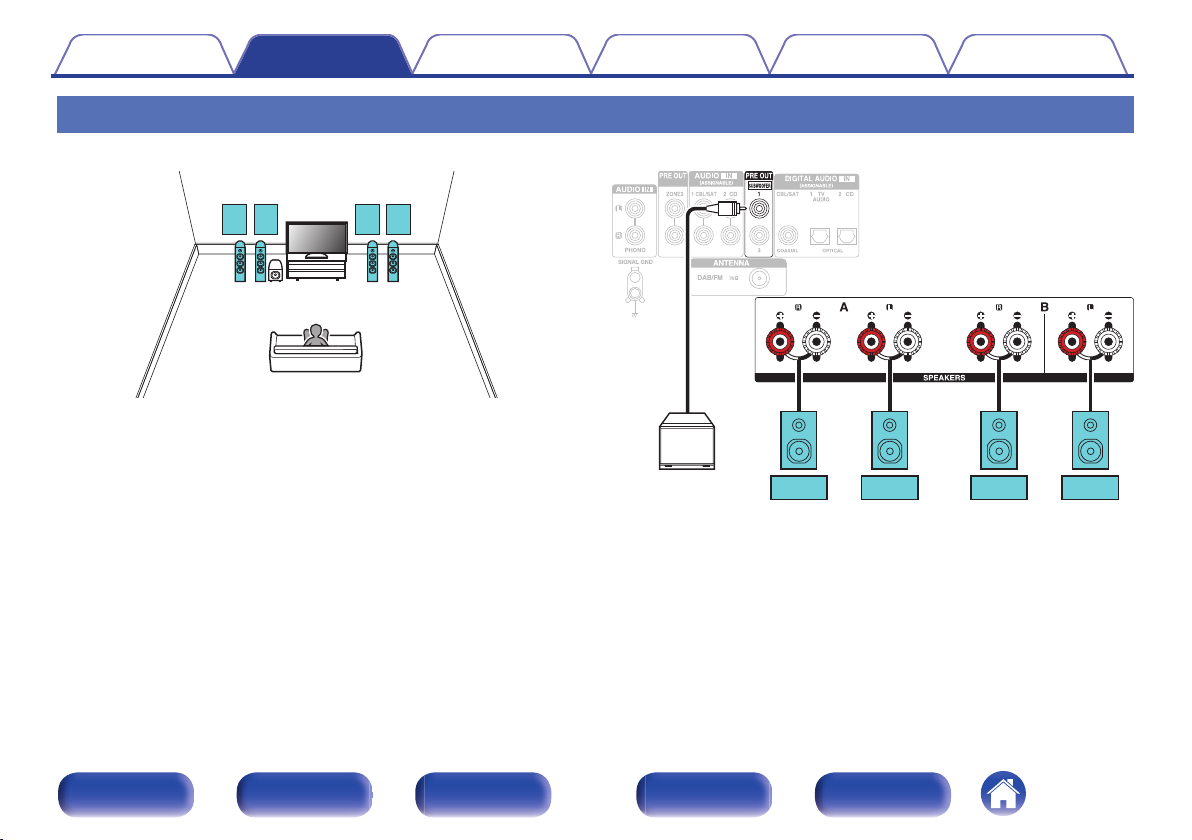
Second pair of speaker
This system enables switching playback between speakers A and B as desired.
.
CAUTION:
Set speaker impedance to “4ohms” before performing simultaneous
0
playback from speakers A and B. (v p. 27)
.
Front panel Display Rear panel Remote Index
30
Loading…
Denon DRA-800H Specification
The Denon DRA-800H is a sophisticated stereo network receiver designed to deliver high-quality audio performance for both music enthusiasts and home theater systems. This receiver seamlessly integrates modern streaming functionalities with traditional audio-visual components, offering a versatile solution for diverse audio needs. At its core, the DRA-800H is powered by a high-current amplifier with a robust 100 watts per channel at 8 ohms, ensuring powerful and clear sound reproduction. The device supports a wide range of high-resolution audio formats, including DSD, FLAC, ALAC, and WAV, providing users with the flexibility to enjoy various audio sources at the best quality.
Equipped with advanced HDMI connectivity, the DRA-800H includes five HDMI inputs and one output, all supporting 4K Ultra HD 60Hz video, HDR10, HLG, and 4:4:4 Pure Color sub-sampling, ensuring compatibility with the latest video standards. The receiver also includes support for eARC (enhanced Audio Return Channel) for seamless audio transmission. For wireless streaming, it features built-in HEOS technology, enabling multi-room audio and integration with popular streaming services like Spotify, Amazon Music, and Tidal. The unit is compatible with voice control platforms such as Amazon Alexa, Google Assistant, and Apple Siri, enhancing user convenience through hands-free operation.
Additionally, the DRA-800H offers extensive connectivity options, including phono input for vinyl enthusiasts, digital inputs, and pre-amp outputs, accommodating a wide range of audio sources. Its intuitive setup assistant and graphical user interface ensure easy installation and configuration. With a focus on delivering superior sound quality and versatile functionality, the Denon DRA-800H stands out as a premium choice for those seeking a high-performance stereo receiver.
Denon DRA-800H F.A.Q.
To connect your Denon DRA-800H to Wi-Fi, press the ‘Setup’ button on the remote, navigate to ‘Network,’ then select ‘Wi-Fi Setup.’ Choose your network from the list and enter the password when prompted.
Ensure that the speaker wires are properly connected to both the receiver and the speakers. Also, check that the correct input source is selected and the volume is turned up.
To perform a factory reset, turn off the unit and then press and hold the ‘Tuner Preset Ch +’, ‘Tuner Preset Ch -‘, and ‘Power’ buttons simultaneously until ‘Initialized’ appears on the display.
Yes, you can control your Denon DRA-800H using the Denon 2016 AVR Remote App, available for both iOS and Android devices.
Ensure that the receiver is within range of the Bluetooth device and that there are no obstacles or interference. Also, try disconnecting and reconnecting the Bluetooth device.
Press the ‘Setup’ button on the remote, go to ‘General,’ then ‘Firmware,’ and select ‘Update.’ Follow the on-screen instructions to complete the update process.
Regularly dust the exterior with a soft, dry cloth. Ensure that the ventilation openings are unobstructed and periodically check for firmware updates to keep the system functioning optimally.
Consider upgrading your speaker cables, ensuring speaker placement is optimal, and using high-quality audio sources. Additionally, adjust the equalizer settings to suit your listening preferences.
Yes, you can connect a turntable to the Denon DRA-800H using the dedicated phono input, which is designed for turntables with a moving magnet cartridge.
Use the HEOS app to set up and control multi-room audio. Ensure that all HEOS compatible devices are connected to the same network to stream music throughout your home.
Report abuse
Libble takes abuse of its services very seriously. We’re committed to dealing with such abuse according to the laws in your country of residence. When you submit a report, we’ll investigate it and take the appropriate action. We’ll get back to you only if we require additional details or have more information to share.
Product:
Get your user manual by e-mail
Enter your email address to receive the manual of Denon DRA-800H in the language / languages: English as an attachment in your email.
The manual is 10,95 mb in size.
You will receive the manual in your email within minutes. If you have not received an email, then probably have entered the wrong email address or your mailbox is too full. In addition, it may be that your ISP may have a maximum size for emails to receive.
The manual is sent by email. Check your email
If you have not received an email with the manual within fifteen minutes, it may be that you have a entered a wrong email address or that your ISP has set a maximum size to receive email that is smaller than the size of the manual.
Are you looking for the manual for Denon DRA-800H? You are in the right place. Below the document viewer for Denon DRA-800H manual in PDF format. To save your time, we say that the most common problems with Denon DRA-800H can be found in the manual in the «Troubleshooting» section. Check the appropriate page number in the table of contents, and then enter it in the page number box on the right side of the document viewer for Denon DRA-800H.
If you have questions about the Denon DRA-800H device, use the form at the bottom of the page and ask our community a question.
Remember! Reading the Denon DRA-800H user manual and adhering to the rules of using the device provided there, greatly help in its effective use. It is important to correctly configure Denon DRA-800H, it will save resources needed to use it. In case of problems, you will also find recommended companies that can properly fix Denon DRA-800H. One of the most important reasons why you should read the Denon DRA-800H user manual is that to take advantage of the warranty provided on Denon DRA-800H — the device must be used in accordance with the manufacturer’s recommendations presented in user manual.
If you want to download Denon DRA-800H manual, use the «Download» button below. You can easily view the downloaded version and print selected manual pages Denon DRA-800H. All manuals on our website are available in PDF format, which is the most universal format that is as easy to use as possible on all operating systems.