

Thank you for selecting the ZOOM RFX-2000 (hereafter simply called the «RFX-2000«). The
RFX-2000 is a sophisticated digital reverb and multi-effect processor with the following features
and functions.
Please take the time to read this manual carefully so as to get the most out of your RFX-2000 and to
ensure optimum performance and reliability. Retain this manual, the warranty card and all other
documentation for future reference.
* Windows 95 and Windows 98 are registered trademarks of Microsoft Corporation.
* Macintosh is a registered trademark of Apple Computer Inc.
• Versatile effects and high-quality reverb
The RFX-2000 comes with a full complement of 48 preset effects (8 effects x 6 banks). The
reverb effects alone allow 121 different settings. The convincing sound stage created by the
RFX-2000 far surpasses anything else available in this class.
• 100 patch memory for immediate use
Up to 100 patches (effect settings) can be stored in the internal memory. Calling up any patch is
quick and easy.
• Supplied editing software
The RFX-2000 is supplied with nifty software that lets you manage and edit patches on a
computer. (Versions for Windows 95/98 and Macintosh are included.) Besides patch editing and
management, the software also provides access to eight additional effects including a 31-band
graphic equalizer and a 20-tap delay effect.
• Digital output
The S/PDIF output (with optical and coaxial connectors) allows connection to consumer
equipment with digital input (digital multitrack recorder, MD recorder, DAT recorder or
similar), keeping the signal in the digital domain.
• MIC IN jack
The dedicated microphone jack on the front panel comes in handy for creating vocal effects
without having to make cumbersome connections in the rear. Controlling the VOCODER effect
is a snap thanks to this feature.
• Built-in tap input
Time-based parameters such as delay time can be entered directly, using the tap input feature.
This makes it easy for example to match the delay time to the tempo of a song.
• MIDI based control
Functions such as patch switching, real-time parameter control, and storing of patch data on
external equipment can be performed via a MIDI link.
OPERATION MANUAL
Controls and Functions ••••••••••••••••• 2
Front Panel ••••••••••••••••••••••••••• 2
Rear Panel •••••••••••••••••••••••••••• 2
Rack Mounting •••••••••••••••••••••••••• 4
Getting Connected •••••••••••••••••••••• 4
Trying Out the Effects ••••••••••••••••••• 6
Editing a Patch •••••••••••••••••••••••••• 7
Useful Functions ••••••••••••••••••••••••• 8
Using the MIDI Control Function ••••• 10
Returning the RFX-2000
to the Factory Default Settings ••••••••• 13
RFX-2000 Effects •••••••••••••••••••••• 14
Supplied Software •••••••••••••••••••••• 24
Troubleshooting •••••••••••••••••••••••• 24
Specifications •••••••••••••••••••••••••• 25
MIDI Implimentation Chart ••••••••••••• 26
Safety Precautions/Usage Precautions
••••• 27
Introduction
Contents
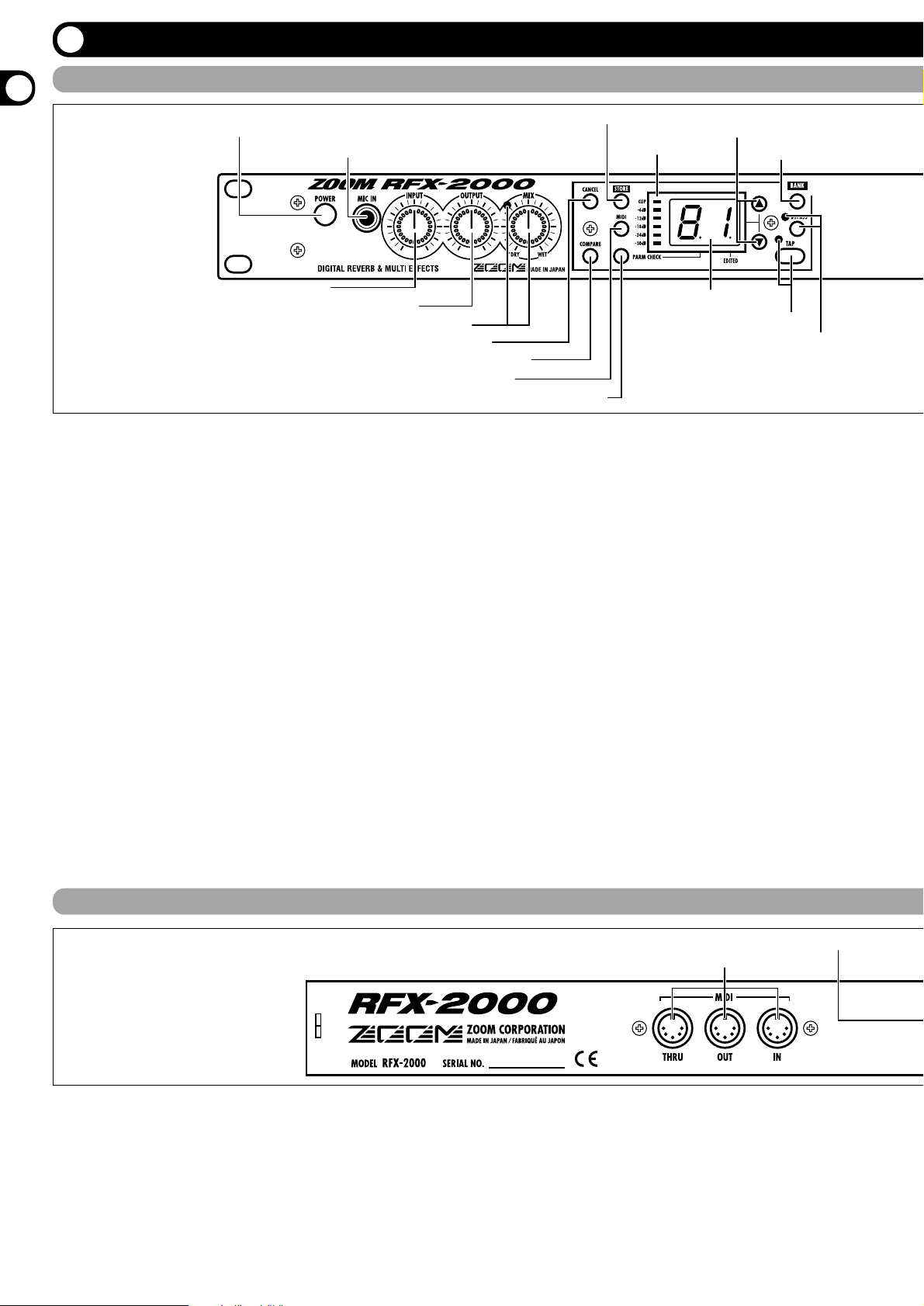
Controls and Functions
(1) POWER switch
Serves to turn the unit on and off.
(2) MIC IN jack
A dynamic microphone with an output impedance of
about 600 ohms can be connected here. Normally the
input signal from this jack is mixed with the signal from
the rear-panel INPUT jacks and sent to the internal effect
circuitry. When the VOCODER effect is selected, the
mike input signal serves for controlling the sound
character and the envelope (volume change curve) of the
effect.
(3) INPUT control
Serves to adjust the signal from the INPUT jacks and the
MIC IN jack.
(4) OUTPUT control
Serves to adjust the level of the signal supplied at the
OUTPUT jacks.
(5) MIX control and LED
Serves to adjust the balance between original sound
(DRY) and effect sound (WET). When the control is
turned fully counterclockwise, only the original sound is
output. When the control is turned fully clockwise, only
the effect sound is output. If the mixing balance setting
was changed since the last store operation, the LED lights
up.
(6) CANCEL key
Serves to cancel a store operation.
(7) COMPARE key
When a patch (group of stored effect settings) is being
edited, this key can be used to compare the sound before
and after the edit.
(8) MIDI key
This key is used to make various MIDI settings.
(9) PARM CHECK key
Serves for checking effect parameter settings.
(10) STORE key
Used for storing patches in memory and other functions.
(11) Level meter
These indicators show the signal input level.
Front Panel
Rear Panel
(1) POWER switch
(2) MIC IN jack
(3) INPUT control
(4) OUTPUT control
(5) MIX control and LED
(6) CANCEL key
(7) COMPARE key
(8) MIDI key
(9) PARM CHECK key
(10) STORE key
(11) Level meter
(12) VALUE UP/DOWN keys
(13) BANK key
(14) Display
(15) TAP key and LED
(16) BYPASS key and LED
(1) MIDI connectors
(2) BYPASS jack
(1) MIDI connectors
Serves for connection to the MIDI interface of a
computer or to a MIDI keyboard or similar. This allows
patch switching from external equipment or control of the
entire operation of the RFX-2000 from a computer, using
the supplied editor/librarian software.
(2) BYPASS jack
Serves for connection of the foot switch FS01 (option) for
switching effects on and off.
(3) DIGITAL OUT connectors
The same signal as available at the OUTPUT jacks is
carried by these connectors in S/PDIF digital format. This
can be used to supply the signal to consumer equipment
with a digital input, such as a digital multitrack recorder,
Controls and Functions
2
ZOOM RFX-2000
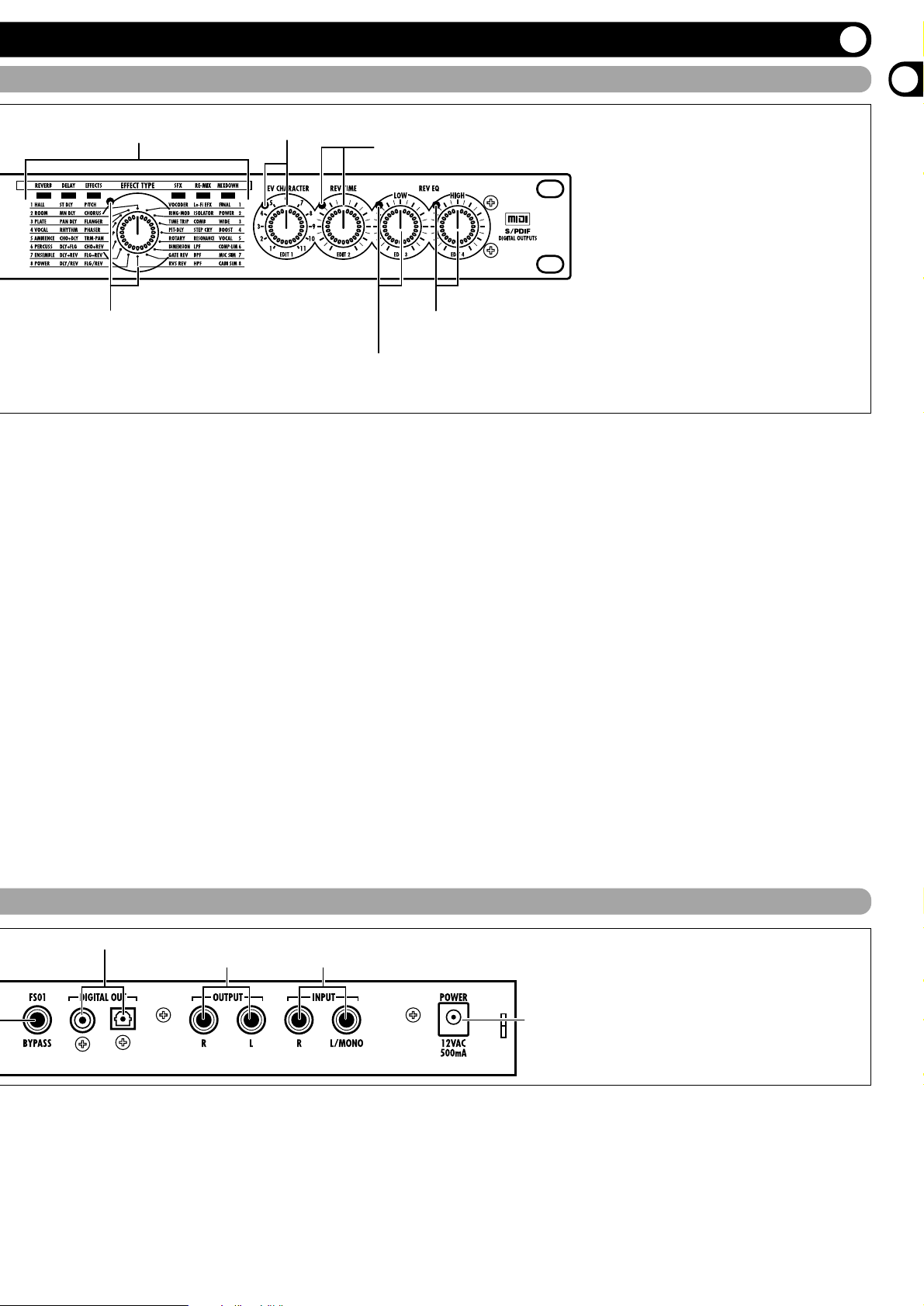
(17) BANK LEDs
(18) EFFECT TYPE selector and LED
(19) REV CHARACTER (EDIT 1) control and LED
(20) REV TIME (EDIT 2) control and LED
(21) REV EQ LOW (EDIT 3) control and LED
(22) REV EQ HIGH (EDIT 4) control and LED
(3) DIGITAL OUT connectors
(4) OUTPUT jacks (5) INPUT jacks
(6) POWER (AC adapter) connector
(12) VALUE UP/DOWN keys
Serve for switching patches and changing parameter
values. Holding down one key while pressing the other
results in a fast change.
(13) BANK key
Serves to select the effect bank (group of effects arranged
by general type).
(14) Display
Shows various information such as patch numbers and
parameter values.
(15) TAP key and LED
This key serves for tap input of time-based parameters
such as delay time and rate. When an effect where tap
input can be used is selected, the LED flashes with a
frequency that indicates the current setting. When an
effect where tap input cannot be used is selected, the LED
is out.
(16) BYPASS key and LED
Serves to set the unit to the bypass condition where only
the original sound is output. In this condition, the LED is
lit.
(17) BANK LEDs
These indicators show which bank is currently selected.
When the EXTRA bank (only selectable with the
supplied software) is selected, all six LEDs are lit.
(18) EFFECT TYPE selector and LED
Serves to choose an effect from the currently selected
bank. If the setting was changed since the last store
operation, the LED lights up.
(19) REV CHARACTER (EDIT 1) control and LED
(20) REV TIME (EDIT 2) control and LED
(21) REV EQ LOW (EDIT 3) control and LED
(22) REV EQ HIGH (EDIT 4) control and LED
These controls allow the user to adjust effect parameters
to a desired value. Which parameters can be adjusted
depends on the currently selected effect. If a setting was
changed since the last store operation, the respective LED
lights up.
MD recorder, or DAT recorder. The optical and coaxial
output connectors can be used at the same time. The
OUTPUT control is not active in this case.
(4) OUTPUT jacks
Connect these jacks to the recorder or playback system.
(5) INPUT jacks
Connect a line-level source, such as an instrument or CD
player to these jacks. If a plug is inserted only in the
L/MONO jack, the signal from this plug will be supplied
to both channels.
(6) POWER (AC adapter) connector
The supplied AC adapter is to be connected here for
powering the unit.
Controls and Functions
Controls and Functions
ZOOM RFX-2000
3

Rack Mounting/Getting Connected
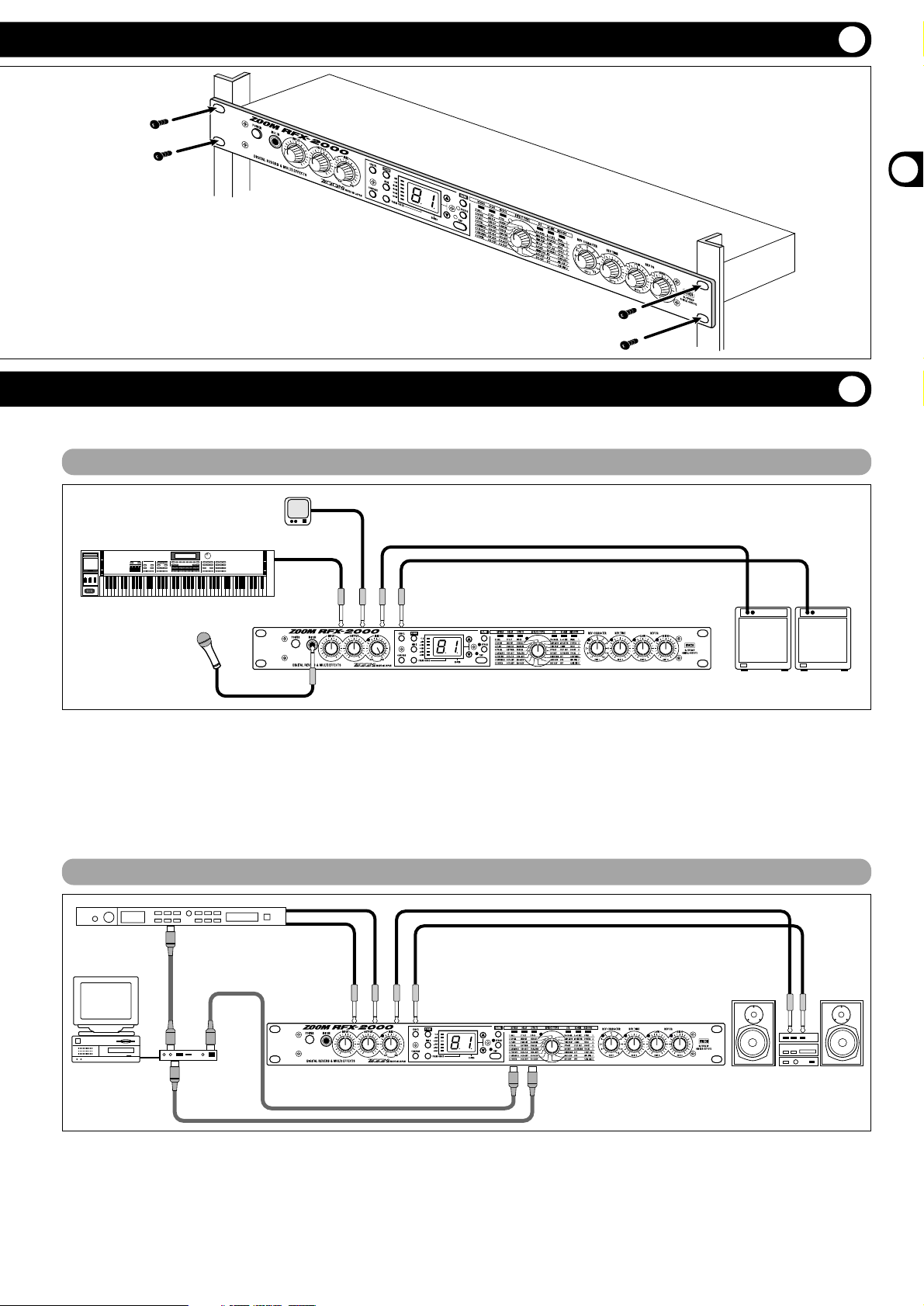
This is an example for inserting the RFX-2000 between the
sound source such as a microphone or instrument and a
playback system or multi-track recorder (MTR). A stereo
source should be connected to the INPUT L/MONO and R
jacks. A mono source should be connected to the L/MONO
jack only.
In this example, the balance between original sound and effect
sound is adjusted with the MIX control of the RFX- 2000.
When a component with an S/PDIF digital input (such as a
digital multitrack recorder, MD recorder, or DAT recorder) is
used, the connection can be made in the digital domain.
This section shows how to connect the RFX-2000 to the sound source and to the playback system.
This is an example for connecting the RFX-2000 to the
send/return jacks of a mixer or multi-track recorder. Connect
the send jack of the mixer or MTR to the INPUT L/MONO
jack of the RFX-2000, and connect the OUTPUT L/R jacks of
the RFX-2000 to the return jacks (or the stereo line input
jacks) of the mixer or MTR.
When a component with an S/PDIF digital input (such as a
digital multitrack recorder, MD recorder, or DAT recorder) is
used, the connection can be made in the digital domain.
In this configuration, the MIX control of the RFX-2000 should
be set so that it outputs only the effect sound, and the balance
between original sound and effect sound should be adjusted at
the mixer or multi-track recorder. If the mixer or multi-track
recorder has a stereo send output, supplying the send signal to
the RFX-2000 in stereo is also possible.
Insert Connection
Send/Return Connection
The RFX-2000 is compatible with international 19-inch rack
standards (EIA, DIN). Because the unit has been designed for
rack installation, it is preferable to operate the unit in this
way, rather than simply placing it on a table or similar. Align
the four screw holes with the rack screw holes and securely
fasten the unit to the rack with screws.
• The RFX-2000 uses a metal frame, making
the unit heavier than it might seem at first
glance. While installing the unit in a rack,
carefully support the weight of the unit
until all screws are securely tightened.
Otherwise the unit may drop, possibly
causing injury to persons or damage to
itself or to other equipment.
• Do not directly stack the unit on top of
other equipment. Otherwise heat may
lead to a fire risk or cause performance
degradation.
• Before installation, always unplug any connecting
cables and the AC adapter cable. Otherwise the
equipment or the cables may be damaged.
• Make sure that the rack in which the unit is
installed is placed on a firm, solid surface, so that
it cannot shake or topple over. Otherwise there is
a risk of injury to persons or damage to the unit
or to other equipment.
Rack Mounting
Getting Connected
4
ZOOM RFX-2000
Rhythm machine, synthesizer, or similar
R
Guitar effect
L
FS01
FS01
INPUT
Guitar
Microphone
INPUT
L/MONO
MIC IN
R
OUTPUT BYPASS
L
R
FS01
INPUT
L/MONO
OUTPUT
R
L
BYPASS
FS01
FS01
RFX-2000
Mixer or
lifier/speaker
am
FS01
RETURN
L
SEND
R
RFX-2000
Mixer or MTR
Using the VOCODER Effect
Controlling the RFX-2000 Effects from a Computer
* Rack mount screws are not
supplied with the unit.
MIDI IN MIDI OUT
MIDI IN
OUTPUT
R
L
L
INPUT
R
MIDI
OUT
MIDI IN
RFX-2000
Sound source
module
Computer
MIDI interface
Playback system
The supplied software can be used to edit the patches of the
RFX-2000, switch the patches in conjunction with other
sequencer software, and to control patch switching and make
parameter changes. To enable these functions, make
connections as shown above.
Note: For information on software installation, please
refer to the separate sheet. For information on
how to use the software, please refer to the
documentation included on the CD-ROM.
OUTPUT
RR
L/MONO
L
INPUT
MIC IN
Keyboard amplifiers
Microphone
Synthesizer
MD player or sampler or similar
with recorded voice
RFX-2000
This is a connection example for using the VOCODER effect
from the SFX bank. Connect a dynamic microphone to the
front-panel MIC IN jack on the RFX-2000. Connect a
synthesizer or other instrument to the rear-panel INPUT
L/MONO jack. You can then use the mike to vary the
envelope (volume change curve) and the sound character of
the VOCODER effect.
If nothing is connected to the MIC IN jack, the signal supplied
to the INPUT L/MONO jack is controlled by the signal
supplied to the INPUT R jack.
Rack Mounting
Getting Connected
Rack Mounting/Getting Connected
ZOOM RFX-2000
5
6
ZOOM RFX-2000
1. To set the RFX-2000 to the bypass mode,
press the BYPASS key while the unit is in play
mode.
The BYPASS indicator lights up.
The RFX-2000 has two different bypass states, depending
on the effect in the currently selected patch. (For
information on which effects use which bypass type,
please refer to pages 14 — 23.)
• WET MUTE
In this condition, only the effect sound is muted and the
original sound is output. The level of the original sound
output depends on the MIX control position. Therefore
there may be a drop in volume or the sound may be
entirely cut off.
• DRY THRU
The original sound is output without any processing.
The setting of the MIX control has no effect on the
volume level.
2. To cancel the bypass mode and return the
RFX-2000 to the normal state, press the
BYPASS key once more.
Trying Out the Effects
Trying Out the Effects
Power UP
Selecting a Patch
Bypassing the Effects
This section is intended to familiarize you with the basic operation steps of the RFX-2000.
1. Verify that the AC adapter, sound source, and
playback system are correctly connected to
the RFX-2000.
The INPUT control and OUTPUT control of the RFX2000 as well as the volume control of the playback
system should be set to minimum.
2. Turn on the system in the following order:
sound source RFX-2000 playback system.
3. While playing the sound source, turn up the
INPUT control of the RFX-2000 to adjust the
input level.
To minimize noise and distortion, the INPUT control
should be set as high as possible without causing the
CLIP LED to light.
4. Adjust the OUTPUT control and the volume
control of the playback equipment to obtain a
suitable playback volume.
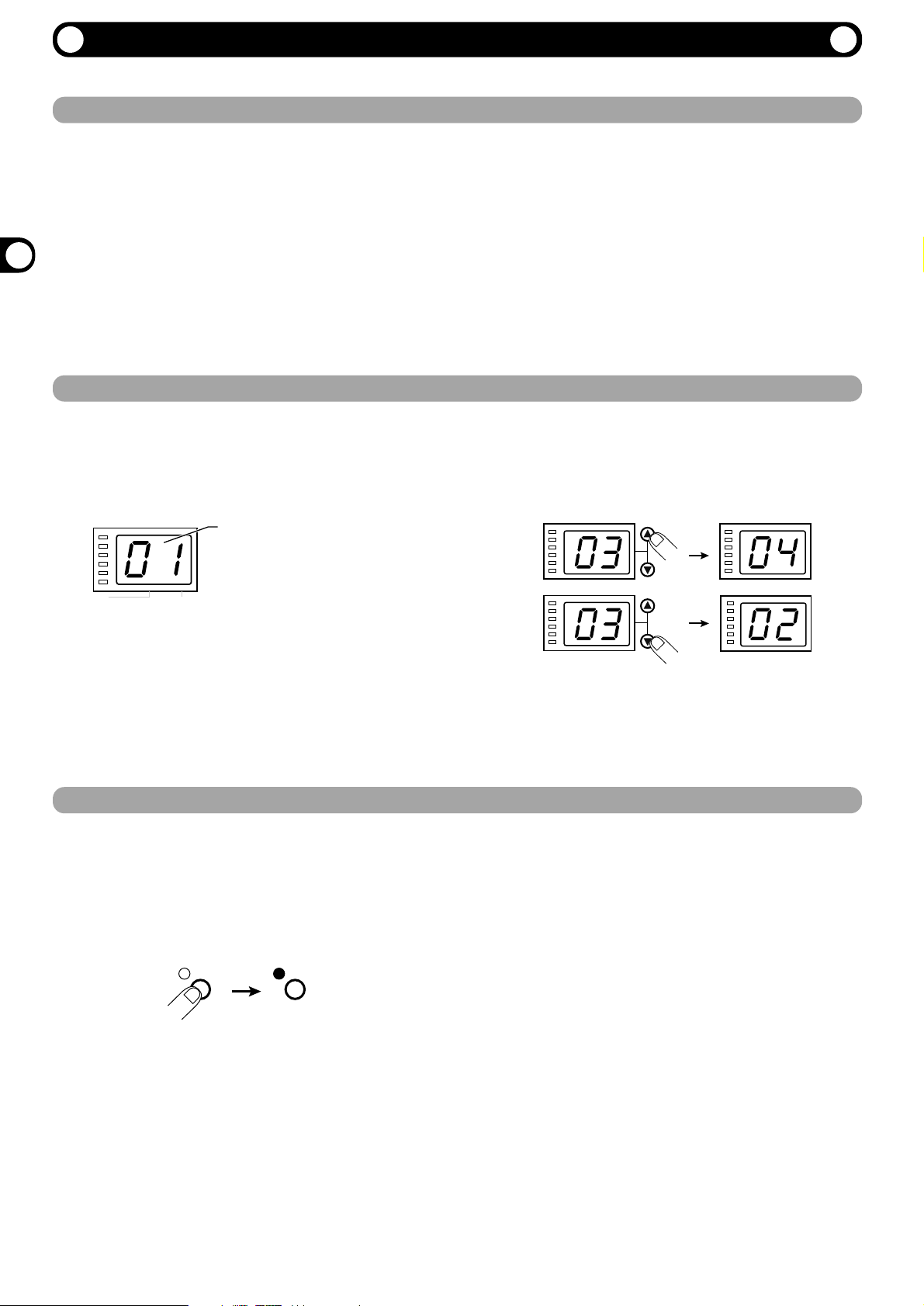
1. Use the VALUE UP/DOWN keys to select the
number of the desired patch.
The VALUE UP key switches to higher patch numbers
and the VALUE DOWN key to lower patch numbers.
2. While playing the instrument or producing
sound from the sound source, switch patches
to check out the resulting sound.
The memory of the RFX-2000 contains 100 stored patches. The display shows the number of the currently selected patch (01,
02,…99, 00). This condition is called the play mode.
To switch patches, proceed as described below. We suggest that you simply try out various patches to see what kind of sound the
unit can produce.
You can temporarily turn effect processing off, so that only the original sound is output. This is useful to quickly check the
change brought about by an effect.
CLIP
-6dB
-12dB
-24dB
-36dB
-48dB
PARM CHECK
EDITED
Number of the currently
selected patch
(01, 02,…99, 00)
BYPASS BYPASS

ZOOM RFX-2000
7
BANK key
The BANK key serves to select the effect bank (group of
effects arranged by general type). Which banks are available
depends on the current BANK position.
• Left side BANK selected
Pressing the BANK key cycles through the following banks:
REVERB DELAY EFFECTS REVERB etc.
• Right side BANK selected
Pressing the BANK key cycles through the following banks:
SFX RE-MIX MIXDOWN SFX etc.
• When a changed bank is returned to the original setting,
the respective BANK LED flashes for 1 second.
Note:
For patches where the EXTRA bank is selected, all six
BANK LEDs light up.
EFFECT TYPE selector
This selector serves to choose the effect. As shown below,
effects can be chosen from two banks, depending on the
setting currently selected with the BANK key.
• When the EFFECT TYPE selector is moved, the display
shows the effect number (1 — 8 in the normal banks) for
about 2 seconds.
• When the effect number is changed from the last stored
condition, the LED of the EFFECT TYPE selector lights
up. When the setting is returned to the original effect, the
LED goes out.
• When calling up a patch, the LED of the bank where the
patch is stored lights up.
Editing a Patch
Editing a Patch
Selecting an Effect
If any parameter is changed from the stored condition, the new
parameter value is shown on the display for about 2 seconds,
and the EDITED mark (.) at the right edge of the display
appears. This indicates that the current patch has been edited.
Because the LED of the control knob that was used to adjust
the value also lights, it is easy to see which parameter has been
edited.
Note:
When the effect is changed, the LEDs of all control knobs
except the MIX control light up.
A patch called up from memory can be edited using the front-panel controls. You can for example select different effects and
adjust effect intensity and other parameters.
The effect determines the type of sound processing that is performed. To select an effect, use the BANK key and EFFECT TYPE
selector.
Parameter
LED lights
EDITED mark (.) shown
EDITED
changed
Bank switching
REVERB or SFX bank selected
BANK
DELAY EFFECTSREVERB
BANK key
Bank switching
RE-MIX MIXDOWNSFX
BANK key
DELAY or RE-MIX bank selected
EFFECTS or MIXDOWN bank selected
8
ZOOM RFX-2000
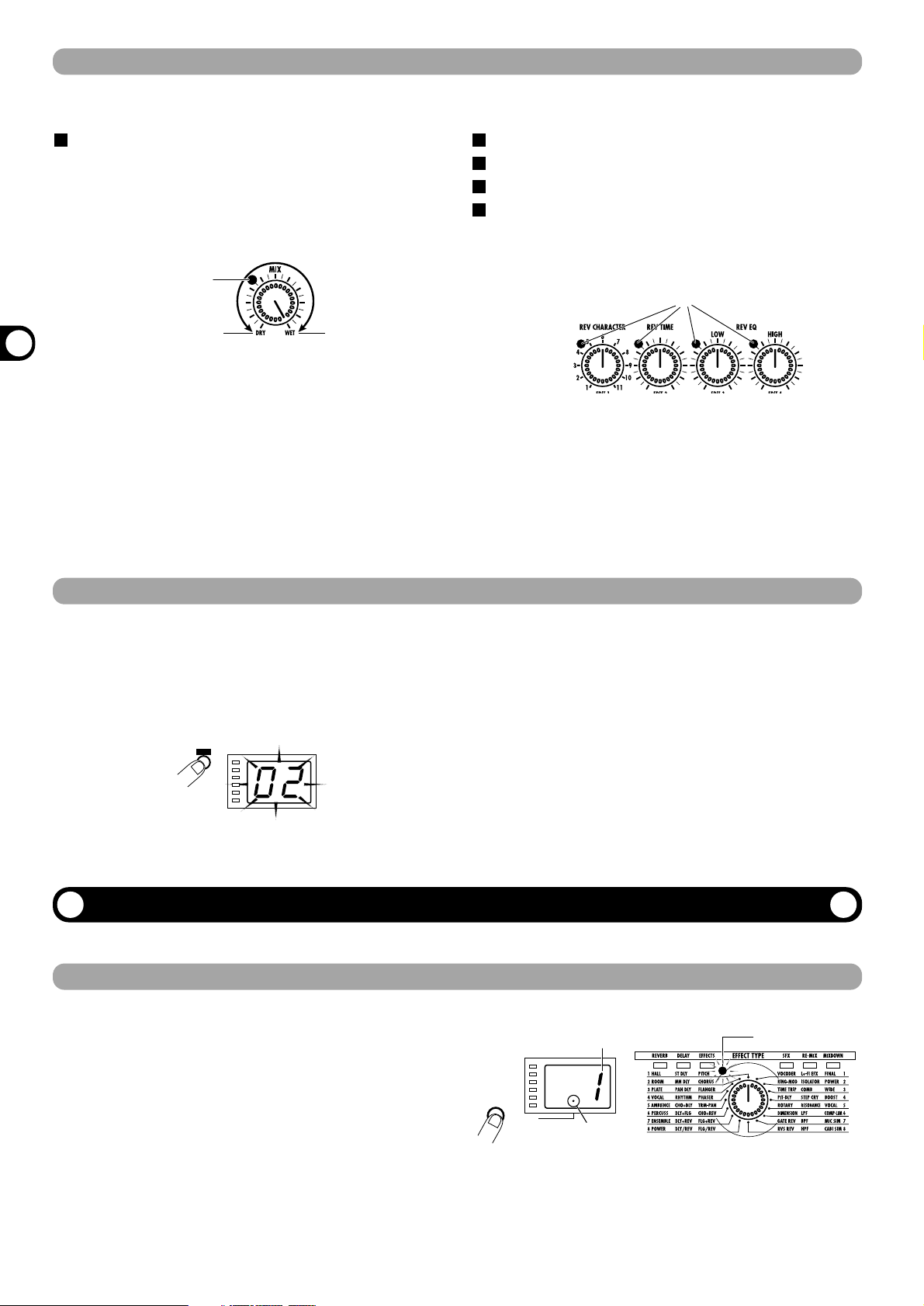
MIX control
The MIX control serves to adjust the balance between original
sound (DRY) and effect sound (WET). When the control is
turned fully counterclockwise, only the original sound is
output. When the control is turned fully clockwise, only the
effect sound is output.
• When the MIX control is moved, the mixing balance
setting (0 — 99) is shown on the display for about 2
seconds.
• When the mixing balance setting is changed from the
last stored condition, the LED of the MIX control lights
up. When the setting is returned to the original value, the
LED goes out.
REV CHARACTER (EDIT 1) control
REV TIME (EDIT 2) control
REV EQ LOW (EDIT 3) control
REV EQ HIGH (EDIT 4) control
These controls serve to edit parameters of the currently
selected effect. (For information on which parameters can be
edited for which effect, please refer to pages 14 — 23.)
• When any of the above controls is moved, the
corresponding parameter value is shown for 2 seconds
on the display.
•
When a parameter setting is changed from the last stored
condition, the LED of the respective control lights up.
When the setting is returned to the original value, the LED
goes out. When the effect is switched, the LEDs of all
controls except the MIX control light up.
Useful Functions
Editing a Patch /Useful Functions
Changing the Value of an Effect Parameter
Checking the parameter value (parameter check)
1. Select the patch and edit it.
2. Press the STORE key.
The patch number on the display flashes.
3. Use the VALUE UP/DOWN keys to select the
patch number in which you want to store
the patch.
When wishing to use the same patch number, this step is
not necessary.
4. Press the STORE key once more to execute
the store operation.
The patch is stored in memory and the flashing of the
display stops.
If you press the CANCEL key instead of the STORE key,
the operation is aborted and the unit reverts to the
condition of step 1.
1. Press the PARM CHECK key.
The PARM CHECK mark (.) in the center of the display
appears and the EFFECT TYPE selector LED flashes for
about 2 seconds.
This indicates that the effect setting is being checked. The
number of the currently selected effect (1 —  is shown
for about 2 seconds on the display. The display then
reverts to the original condition.
2. To check another parameter, press the PARM
CHECK key again before the display
indication reverts to the previous condition.
Storing an Edited Patch
The RFX-2000 offers various handy functions for editing patches.
You can also check a parameter value without moving its associated front-panel control.
Each effect of the RFX-2000 consists of certain effect parameters which determine the intensity and tone character of the effect.
Effect parameters can be adjusted with the following edit controls.
If an edited patch is not stored in memory, the edited contents will be lost when another patch is selected. When wishing to keep
the edited patch, store it in memory as follows.
Lights up when mixing
balance was changed
Original sound only
Effect sound only
Lights up when parameter was edited
STORE
STORE key
Effect number
PARM CHECK
PARM CHECK mark (.)
PARM CHECK key
LED flashes

ZOOM RFX-2000
9
With each push of the PARM CHECK key, the parameter
to be checked is advanced successively.
REV CHARACTER
Parameter adjusted with REV CHARACTER (EDIT 1)
control
REV TIME
Parameter adjusted with REV TIME (EDIT 2) control
REV EQ LOW
Parameter adjusted with REV EQ LOW (EDIT 3) control
Useful Functions
Comparing the Sound Before and After Edit (Compare Function)
1. Press the COMPARE key.
The currently edited patch is temporarily returned to the
condition before editing. The indication «CP» and the
patch number flash alternately on the display, and the
«EDITED» mark is out.
2. To return to editing, press the COMPARE key
once more (or press the CANCEL key).
• If desired, you can check the original value of each
parameter by pressing the PARM CHECK key while the
unit is in the compare mode.
• Moving any of the controls in compare mode has no
effect.
Setting Parameters With the Tap Key (Tap Input)
1. Select a patch for which tap input is possible.
Whether tap input is possible or not depends on the effect
selected for that patch (see pages 14 — 23). When a patch
for which tap input is possible is selected, the TAP LED
flashes.
2. Hit the TAP key several times in the desired
interval.
The delay time or rate is set according to the tap interval
and the tap beat parameter set for the respective patch
(see page 12).
3. If desired, store the patch.
The parameter changed by tap input will revert to the
original setting when the patch is switched. If wishing to
retain the change, you should therefore store the patch.
• The parameter which can be set by tap input is preset
(see pages 14 — 23).
• The maximum interval that can be measured by the tap
input function is 2 seconds.
• If the tap input interval is outside the setting range for
that parameter, it will be corrected to an acceptable
value.
• If a parameter was set by tap input and is then changed
by moving the control knob for that parameter, the
control knob setting will override the tap input.
This function allows you to compare the currently edited sound to the sound before editing.
The RFX-2000 allows input of time-based parameters by tapping the TAP key at the desired intervals. For example, the flanger
modulation speed or delay time can be easily matched to the tempo of a song in this way.
PARM CHECK
PARM CHECK
PARM CHECK
COMPARE key
COMPARE
Shown
alternately
TAP
Loading…
Document Download |
‹
›
Zoom RFX-2000 Manual Online:
4.05,
2080
votes
Zoom RFX-2000 User Manual
Zoom RFX-2000 User Guide
Zoom RFX-2000 Online Manual
Text of Zoom RFX-2000 User Guide:
More Instructions:
|
Zoom RFX-2000 Quick start manual
|
DOWNLOAD |
Related Products and Documents (Musical Instrument Amplifier):
-
Zoom 9002 Pro Musical Instrument Amplifier Operation manual
9002 Pro
zoom/9002-pro.pdf, 12 -
Zoom MultiStomp MS-50G Musical Instrument Amplifier Parameter manual
MultiStomp MS-50G
zoom/multistomp-ms-50g.pdf, 12 -
Zoom 507 REVERB Musical Instrument Amplifier Operation manual
507 REVERB
zoom/507-reverb.pdf, 6 -
Zoom G1X Musical Instrument Amplifier Operation manual
G1X
zoom/g1x.pdf, 16 -
Zoom 606 Guitar Musical Instrument Amplifier Operation manual
606 Guitar
zoom/606-guitar.pdf, 21 -
Zoom G3 Musical Instrument Amplifier Operation manual
G3
zoom/g3.pdf, 60 -
Zoom 707II Guitar Musical Instrument Amplifier Operation manual
707II Guitar
zoom/707ii-guitar.pdf, 40 -
Zoom GFX-1 Musical Instrument Amplifier Operation manual
GFX-1
zoom/gfx-1.pdf, 40
Comparable Devices:
| # | Manufacturer | Model | Document Type | File | Updated | Pages | Size |
|---|---|---|---|---|---|---|---|
| 1 | Samsung | L110 | Operation & user’s manual | samsung/l110-EO2.pdf | 06 Oct 2023 | 103 | 7.93 Mb |
| 2 | Monessen Hearth | HBDV300N/PV7 | Operation & user’s manual | monessen-hearth/hbdv300n-pv7-46D.pdf | 15 May 2024 | 64 | |
| 3 | Glastender | BB48-L1-BSN(LR) | Features & specifications | glastender/bb48-l1-bsn-lr-7M2.pdf | 28 Jan 2024 | 2 | 0.42 Mb |
| 4 | Supermicro | SBI-7425C-S3 | Operation & user’s manual | supermicro/sbi-7425c-s3-22U.pdf | 23 Jan 2025 | 86 | |
| 5 | ProForm | 580 si | Operation & user’s manual | proform/580-si-4R7.pdf | 11 Nov 2023 | 19 | |
| 6 | Sanyo Denki | A11H | Instruction manual | sanyo-denki/a11h-45Q.pdf | 29 Jan 2024 | 65 | 4.6 Mb |
Similar Resources:
Musical Instrument Amplifier Instructions:
-
Vorwerk Vacuum Cleaner kobold SPB100
Vacuum Cleaner PDF Operation & user’s manual
kobold SPB100, 204
-
MSI Motherboard K8N Neo4-FX
MSI K8N Neo4-FX Guide (Doc Type: Motherboard Operation & user’s manual)
K8N Neo4-FX, 99
-
horsch Farm Equipment Pronto 6 NT
Farm Equipment #JCH7G6
Pronto 6 NT, 96
-
Kramer Switch VS-21HDCP-IR
VS-21HDCP-IR (Switch ePDF User Guide, #P5LU92)
VS-21HDCP-IR, 19
-
BENRO Camera Accessories BH Series
BENRO BH Series Manual (Operating instructions), @GU738Y
BH Series, 2
-
Yamaha Motorcycle diversion 900 XJ900S
diversion 900 XJ900S Owner’s manual — T9QYPS
diversion 900 XJ900S, 102
-
laerdal Medical Equipment LCSU 4
Operation & user’s manual for laerdal LCSU 4 Medical Equipment
LCSU 4, 16
-
Sharp Printer DX-B350P
Sharp Printer Operation & user’s manual (File: sharp-dx-b350p-operation-user-s-manual-146, Wed 12.2024)
DX-B350P, 146
-
Vega Transmitter VEGABAR 82
Vega Transmitter Operating instructions manual (File: vega-vegabar-82-operating-instructions-manual-80, 02.01.2025)
VEGABAR 82, 80
-
Sony MP3 Player NW-MS77DR
NW-MS77DR Service manual — WJFK5M
NW-MS77DR, 26
-
Datakom Measuring Instruments DKM-409
DKM-409 Manual — IG3WPD
DKM-409, 36
-
LumeWay Automobile Accessories EA-450
#TA384K EA-450: LumeWay Automobile Accessories Owner Documentation
EA-450, 12
Comments, Questions and Opinions:
- Addeddate
- 2022-04-03 16:52:18
- Identifier
- manuallib-id-2666411
- Identifier-ark
- ark:/13960/s2s5q10d6km
- Ocr
- tesseract 5.0.0-1-g862e
- Ocr_autonomous
- true
- Ocr_detected_lang
- en
- Ocr_detected_lang_conf
- 1.0000
- Ocr_detected_script
- Latin
- Ocr_detected_script_conf
- 1.0000
- Ocr_module_version
- 0.0.15
- Ocr_parameters
- -l eng+lat+Latin
- Page_number_confidence
- 92.59
comment
Reviews
There are no reviews yet. Be the first one to
write a review.
57
Views
DOWNLOAD OPTIONS
Temporarily Unavailable
DAISY
For users with print-disabilities
Temporarily Unavailable
EPUB
Uploaded by
chris85
on
Are you looking for the manual for Zoom RFX2000? You are in the right place. Below the document viewer for Zoom RFX2000 manual in PDF format. To save your time, we say that the most common problems with Zoom RFX2000 can be found in the manual in the «Troubleshooting» section. Check the appropriate page number in the table of contents, and then enter it in the page number box on the right side of the document viewer for Zoom RFX2000.
If you have questions about the Zoom RFX2000 device, use the form at the bottom of the page and ask our community a question.
Remember! Reading the Zoom RFX2000 user manual and adhering to the rules of using the device provided there, greatly help in its effective use. It is important to correctly configure Zoom RFX2000, it will save resources needed to use it. In case of problems, you will also find recommended companies that can properly fix Zoom RFX2000. One of the most important reasons why you should read the Zoom RFX2000 user manual is that to take advantage of the warranty provided on Zoom RFX2000 — the device must be used in accordance with the manufacturer’s recommendations presented in user manual.
If you want to download Zoom RFX2000 manual, use the «Download» button below. You can easily view the downloaded version and print selected manual pages Zoom RFX2000. All manuals on our website are available in PDF format, which is the most universal format that is as easy to use as possible on all operating systems.
Thank you for selecting the ZOOM RFX-2000 (hereafter simply called the «RFX-2000«). The
RFX-2000 is a sophisticated digital reverb and multi-effect processor with the following features
and functions.
Please take the time to read this manual carefully so as to get the most out of your RFX-2000 and to
ensure optimum performance and reliability. Retain this manual, the warranty card and all other
documentation for future reference.
* Windows 95 and Windows 98 are registered trademarks of Microsoft Corporation.
* Macintosh is a registered trademark of Apple Computer Inc.
• Versatile effects and high-quality reverb
The RFX-2000 comes with a full complement of 48 preset effects (8 effects x 6 banks). The
reverb effects alone allow 121 different settings. The convincing sound stage created by the
RFX-2000 far surpasses anything else available in this class.
• 100 patch memory for immediate use
Up to 100 patches (effect settings) can be stored in the internal memory. Calling up any patch is
quick and easy.
• Supplied editing software
The RFX-2000 is supplied with nifty software that lets you manage and edit patches on a
computer. (Versions for Windows 95/98 and Macintosh are included.) Besides patch editing and
management, the software also provides access to eight additional effects including a 31-band
graphic equalizer and a 20-tap delay effect.
• Digital output
The S/PDIF output (with optical and coaxial connectors) allows connection to consumer
equipment with digital input (digital multitrack recorder, MD recorder, DAT recorder or
similar), keeping the signal in the digital domain.
• MIC IN jack
The dedicated microphone jack on the front panel comes in handy for creating vocal effects
without having to make cumbersome connections in the rear. Controlling the VOCODER effect
is a snap thanks to this feature.
• Built-in tap input
Time-based parameters such as delay time can be entered directly, using the tap input feature.
This makes it easy for example to match the delay time to the tempo of a song.
• MIDI based control
Functions such as patch switching, real-time parameter control, and storing of patch data on
external equipment can be performed via a MIDI link.
OPERATION MANUAL
Controls and Functions ••••••••••••••••• 2
Front Panel ••••••••••••••••••••••••••• 2
Rear Panel •••••••••••••••••••••••••••• 2
Rack Mounting •••••••••••••••••••••••••• 4
Getting Connected •••••••••••••••••••••• 4
Trying Out the Effects ••••••••••••••••••• 6
Editing a Patch •••••••••••••••••••••••••• 7
Useful Functions ••••••••••••••••••••••••• 8
Using the MIDI Control Function ••••• 10
Returning the RFX-2000
to the Factory Default Settings ••••••••• 13
RFX-2000 Effects •••••••••••••••••••••• 14
Supplied Software •••••••••••••••••••••• 24
Troubleshooting •••••••••••••••••••••••• 24
Specifications •••••••••••••••••••••••••• 25
MIDI Implimentation Chart ••••••••••••• 26
Safety Precautions/Usage Precautions
••••• 27
Introduction
Contents