
View the manual for the Yamaha WXC-50 here, for free. This manual comes under the category receivers and has been rated by 8 people with an average of a 8.8.
This manual is available in the following languages: English. Do you have a question about the Yamaha WXC-50 or do you need help?
Ask your question here
Yamaha WXC-50 specifications
Below you will find the product specifications and the manual specifications of the Yamaha WXC-50.
The Yamaha WXC-50 receiver is a compact and versatile audio device. It features a signal-to-noise ratio (SNR) of 112 dB, ensuring high-quality sound reproduction with minimal background noise. The total harmonic distortion (THD) is rated at just 0.003%, ensuring accurate audio reproduction without any unwanted distortion.
For connectivity, the WXC-50 offers speaker connectivity via RCA connectors, allowing easy integration with a variety of speaker systems. It also includes one audio (L/R) input and one audio (L/R) output, providing flexibility for connecting external devices or amplifiers.
In terms of additional features, the receiver includes a USB 2.0 port for connecting and playing audio files directly from USB storage devices. With a power consumption of only 1.8 W in standby mode, the WXC-50 is energy-efficient.
In terms of physical dimensions, the WXC-50 has a width of 215 mm, a depth of 245.9 mm, and a height of 51.5 mm. It weighs 1440 g, making it compact and lightweight, suitable for placement in various setups.
The WXC-50 also features an AC (power) input, allowing it to be easily connected to a power source. With its sleek and minimalistic design, it can be seamlessly integrated into any audio setup.
Overall, the Yamaha WXC-50 receiver provides a reliable and compact solution for enhancing audio performance. With its high signal-to-noise ratio, low total harmonic distortion, and versatile connectivity options, it offers a versatile and high-quality audio experience for users.
Peak power per channel
— W
Speakers connectivity type
RCA
Power consumption (standby)
1.8 W
General
| Brand | Yamaha |
| Model | WXC-50 | WXC-50 DARK SIL |
| Product | receiver |
| EAN | 4957812602488 |
| Language | English |
| Filetype | User manual (PDF) |
Audio
| Peak power per channel | — W |
| Audio output channels | — channels |
| Amplifier class | — |
| Signal-to-Noise Ratio (SNR) | 112 dB |
| Total Harmonic Distortion (THD) | 0.003 % |
Ports & interfaces
| Speakers connectivity type | RCA |
| Audio (L/R) in | 1 |
| USB 2.0 ports quantity | 1 |
| Audio (L/R) out | 1 |
| AC (power) in | Yes |
| Digital audio optical in | 1 |
| Digital audio optical out | 1 |
| Digital audio coaxial out | 1 |
| Pre out port | Yes |
Power
| Power consumption (standby) | 1.8 W |
Weight & dimensions
| Width | 215 mm |
| Depth | 245.9 mm |
| Height | 51.5 mm |
| Weight | 1440 g |
Technical details
| Purpose | Home |
| Connectivity technology | Wireless |
| Product color | Silver |
| Yes |
show more
Frequently Asked Questions
Can’t find the answer to your question in the manual? You may find the answer to your question in the FAQs about the Yamaha WXC-50 below.
How do I connect my Yamaha WXC-50 receiver to my audio sources?
To connect your audio sources, use the provided RCA or optical cables. Connect one end to the corresponding outputs on the source device, and the other end to the corresponding inputs on the receiver.
How can I set up my Yamaha WXC-50 to stream music via Bluetooth?
To stream music via Bluetooth, access the receiver’s settings menu and navigate to the Bluetooth settings. Enable Bluetooth pairing mode on your device, and then select the receiver from the list of available devices. Follow the on-screen instructions to complete the pairing process.
What do the different LED indicator lights on the Yamaha WXC-50 indicate?
The LED indicator lights on the receiver provide important information. For example, a solid blue light indicates a successful connection, while a blinking red light may indicate an error or an improperly connected device. Pay attention to these indicators for troubleshooting purposes.
How can I adjust the equalizer settings on the Yamaha WXC-50?
To adjust the equalizer settings, access the receiver’s equalizer menu. From there, you can fine-tune the bass, treble, and other audio parameters according to your preferences. Experiment with different settings to achieve the desired sound quality.
How can I connect my Yamaha WXC-50 to a Wi-Fi network?
To connect the receiver to a Wi-Fi network, access the network settings menu. Select the desired Wi-Fi network from the available options and enter the network password if required. Once connected, you can enjoy wireless streaming and network audio playback.
Is the Signal-to-Noise Ratio (SNR) of Yamaha WXC-50 high?
Yes, the Signal-to-Noise Ratio (SNR) of Yamaha WXC-50 is 112 dB, which is considered high. This means that the receiver can provide a clear and low-noise audio output.
Does Yamaha WXC-50 have a low Total Harmonic Distortion (THD)?
Yes, Yamaha WXC-50 has a Total Harmonic Distortion (THD) of 0.003%, which is very low. This means that the receiver can reproduce audio with minimal distortion, resulting in high-quality sound.
What type of speakers connectivity does Yamaha WXC-50 support?
Yamaha WXC-50 supports RCA speakers connectivity, providing a traditional and reliable connection option for external speakers.
Does Yamaha WXC-50 have a USB 2.0 port?
Yes, Yamaha WXC-50 has one USB 2.0 port. This allows users to connect and play audio files from USB devices, providing a convenient option for music playback.
Can Yamaha WXC-50 be connected to a digital audio optical device?
Yes, Yamaha WXC-50 has both a digital audio optical in and a digital audio optical out. This allows users to connect and transfer digital audio signals to and from compatible devices, expanding the connectivity options of the receiver.
What is the weight of the Yamaha WXC-50?
The Yamaha WXC-50 has a weight of 1440 g.
Can bluetooth devices of different brands be connected to each other?
Yes, bluetooth is a universal method that allows different devices equipped with bluetooth to connect to each other.
What is the height of the Yamaha WXC-50?
The Yamaha WXC-50 has a height of 51.5 mm.
What is the width of the Yamaha WXC-50?
The Yamaha WXC-50 has a width of 215 mm.
What is bluetooth?
Bluetooth is a way of exchanging data wirelessly between electronic devices via radio waves. The distance between the two devices that exchange data can in most cases be no more than ten metres.
What is the depth of the Yamaha WXC-50?
The Yamaha WXC-50 has a depth of 245.9 mm.
What is HDMI?
HDMI stands for High-Definition Multimedia Interface. An HDMI cable is used to transport audio and video signals between devices.
When is my volume too loud?
A volume above 80 decibels can be harmful to hearing. When the volume exceeds 120 decibels, direct damage can even occur. The chance of hearing damage depends on the listening frequency and duration.
How can I best clean my receiver?
A slightly damp cleaning cloth or soft, dust-free cloth works best to remove fingerprints. Dust in hard-to-reach places is best removed with compressed air.
Wat is Dolby Atmos?
Dolby Atmos is a technology that ensures that the sound is reflected from the ceiling to where you are listening. This makes it possible to create a 5.1 effect with only 1 speaker.
Is the manual of the Yamaha WXC-50 available in English?
Yes, the manual of the Yamaha WXC-50 is available in English .
Is your question not listed? Ask your question here
Wireless Streaming Pre-Amplifier
Owner’s Manual (Advanced)
Read “IMPORTANT SAFETY INSTRUCTIONS” described in the Owner’s Manual (Basic) before using the unit.
EN

CONTENTS
BEFORE USING THE UNIT 4
Accessories…………………………………………………………………………………… 4
Preparing the remote control……………………………………………………………………………………………………………………………. 4
Preparing the wireless antenna………………………………………………………………………………………………………………………… 4
About this manual………………………………………………………………………… 4
Features……………………………………………………………………………………….. 5
Enjoying music easily………………………………………………………………………………………………………………………………………….. 5
Sharing music with MusicCast compatible devices………………………………………………………………………………………. 5
Part names and functions……………………………………………………………….
Front panel
Rear panel…………………………………………………………………………………………………………………………………………………………….. 7
Remote control……………………………………………………………………………………………………………………………………………………. 9
Indicators on the front panel…………………………………………………………………………………………………………………………… 10
PREPARATIONS 11
Placing the unit…………………………………………………………………………… 11
Horizontal placement………………………………………………………………………………………………………………………………………. 11
Vertical placement……………………………………………………………………………………………………………………………………………. 11
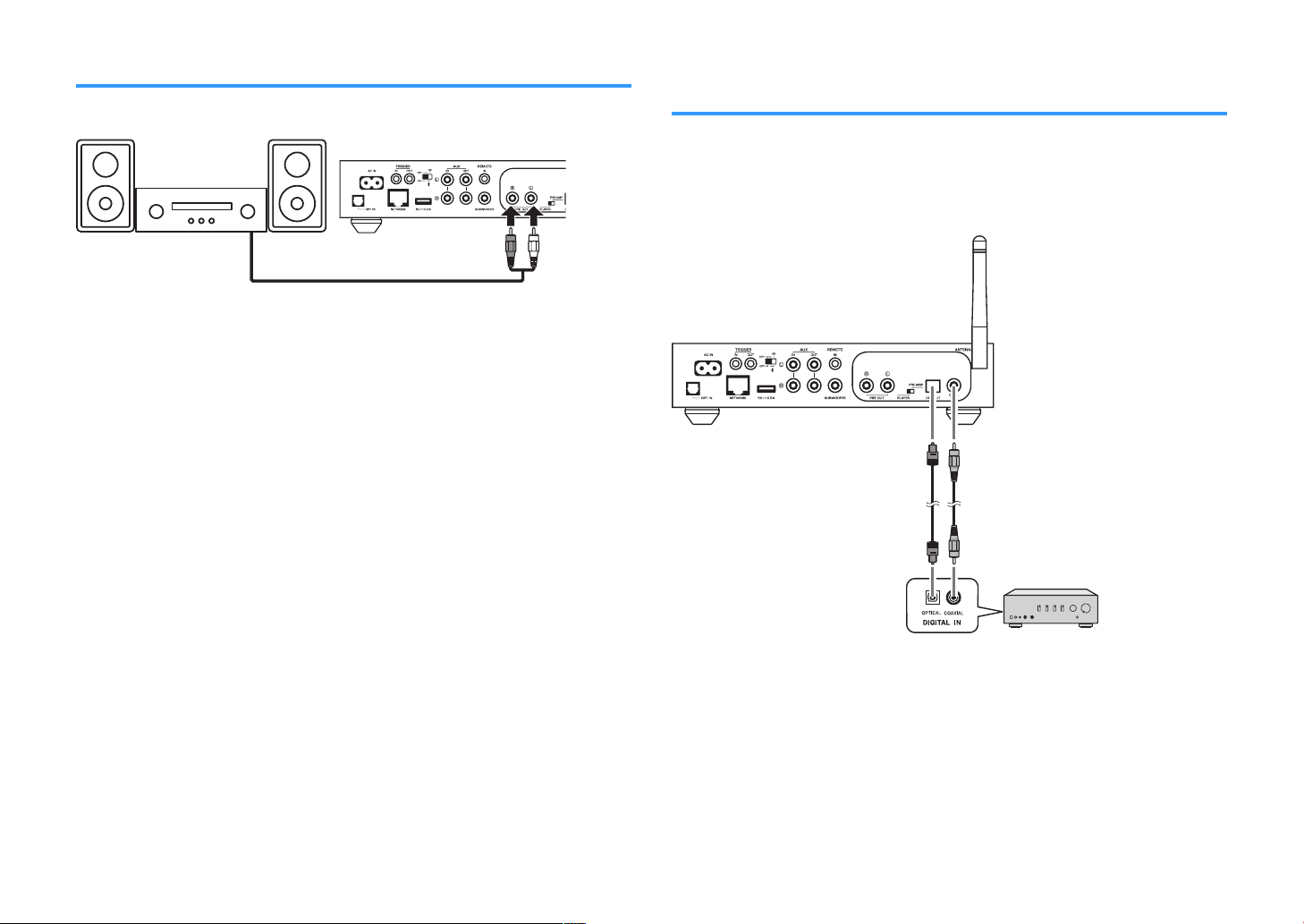
Connecting an audio system………………………………………………………… 11
For an audio system with analog stereo audio input………………………………………………………………………………….. 12
For an audio system with digital optical / coaxial audio input………………………………………………………………….. 12
For other audio systems…………………………………………………………………………………………………………………………………… 13
Connecting a power amplifier……………………………………………………… 13
Connecting a subwoofer……………………………………………………………… 14
Connecting external devices……………………………………………………….. 14
For an external device with digital optical audio output……………………………………………………………………………. 14
For an external device with analog stereo audio output……………………………………………………………………………. 14
Connecting the power cable………………………………………………………… 15
Setting the power to on/standby…………………………………………………. 15
…………………………………………………………………………………………………………………………………………………………… 6
Connecting to a network……………………………………………………………… 15
Connecting to a network wirelessly………………………………………………………………………………………………………………. 15
Connecting to a wired network………………………………………………………………………………………………………………………. 17
Setting the MusicCast………………………………………………………………….. 18
Installing MusicCast CONTROLLER to your mobile device…………………………………………………………………………. 18
Adding the unit to the MusicCast network…………………………………………………………………………………………………… 18
PLAYBACK 19
Playing back music with MusicCast CONTROLLER…………………………. 19
6
Music on a mobile device………………………………………………………………………………………………………………………………… 19
Internet radio…………………………………………………………………………………………………………………………………………………….. 19
Music stored on media servers (PCs/NAS)…………………………………………………………………………………………………….. 20
Online streaming services……………………………………………………………………………………………………………………………….. 20
Music stored on a USB storage device…………………………………………………………………………………………………………… 21
Registering the song/station being played back to a preset……………………………………………………………………… 21
Playing back music from other devices………………………………………… 22
Listening to music from an external source………………………………………………………………………………………………….. 22
Playing back music with Bluetooth®………………………………………………………………………………………………………………. 23
Playing back music with AirPlay……………………………………………………………………………………………………………………… 25
OPERATING THE UNIT FROM A WEB BROWSER
Web control using a PC………………………………………………………………… 27
Displaying the Web Control screen………………………………………………. 27
Configuring with Windows……………………………………………………………………………………………………………………………… 27
Configuring with Mac OS…………………………………………………………………………………………………………………………………. 27
Operating on the Web Control screen………………………………………….. 29
CONFIGURING ADVANCED FEATURES 30
Configuration from a web browser………………………………………………. 30
SETTINGS1………………………………………………………………………………………………………………………………………………………….. 30
SETTINGS2………………………………………………………………………………………………………………………………………………………….. 31
27
2
En

Configuration on Advanced Settings screen in mobile device app
…………………………………………………………………………………………………… 34
APPENDIX 37
Updating the unit’s firmware via the network………………………………. 37
Updating with MusicCast CONTROLLER……………………………………………………………………………………………………….. 37
Updating with a USB memory device……………………………………………………………………………………………………………. 37
Setting up the wireless connection manually……………………………….. 38
Restarting the unit………………………………………………………………………. 38
Restoring the default settings……………………………………………………… 38
Troubleshooting…………………………………………………………………………. 40
General……………………………………………………………………………………………………………………………………………………………….. 40
Network………………………………………………………………………………………………………………………………………………………………. 41
Bluetooth®………………………………………………………………………………………………………………………………………………………….. 42
Error table of STATUS indicator……………………………………………………. 43
Glossary……………………………………………………………………………………… 44
Trademarks………………………………………………………………………………… 44
Supported devices and file formats……………………………………………… 45
Supported devices……………………………………………………………………………………………………………………………………………. 45
File formats………………………………………………………………………………………………………………………………………………………… 45
Specifications……………………………………………………………………………… 46
3
En

BEFORE USING THE UNIT
Accessories
Confirm that all the following items are included in the package.
£ Remote control £ Wireless antenna
Preparing the wireless antenna
Connect the wireless antenna and stand it upright.
£ Stand x 2 £ Non-skid pad (6 pads, including 2 spares)
£ Power cable
£ Owner’s Manual (Basic)
Preparing the remote control
Remove the insulation sheet of the remote control before using.
Notice
▪ Do not apply excessive force on the wireless antenna. Doing so may damage the antenna.
▪ Check the direction that the bending joint of the antenna is able to move, and bend the antenna only in
that direction.
▪ Do not remove the antenna.
About this manual
• In this manual, iOS and Android mobile devices are collectively referred to as
“mobile devices”. The specific type of mobile device is noted in explanations as
needed.
• This manual describes the iPhone, iPad and iPod Touch collectively as the “iPhone”.
• Due to product improvements, specifications and appearance are subject to
change without notice.
• Updates offering improved functionality of the dedicated “MusicCast
CONTROLLER” app for mobile devices may become available without prior notice.
Notice:
Indicates precautions for use to avoid the possibility of malfunction/damage to the unit.
Note:
Indicates instructions and supplementary explanations for optimum use.
4
En

Features
Play back music from
internet radio and online
streaming services.
Play back music files
stored on a USB
storage device.
Play back audio from
TV and other external
devices.
Select the input source, play back
music, and adjust the volume
using MusicCast CONTROLLER.
Play back music files in PCs and
DLNA servers.
The unit
The unit is equipped with full of useful functions.
Enjoying music easily
Using the free dedicated application “MusicCast CONTROLLER” on your mobile
device such as a smartphone, you can easily select music to play back and configure
the unit without the remote control. For details, search for “MusicCast CONTROLLER”
on the App Store or Google Play™.
MusicCast CONTROLLER capabilities
n
• Play back music files stored on a USB storage device
Note
In order to select music files in PCs and DLNA servers or music files stored on a USB storage device, the
dedicated application “MusicCast CONTROLLER” for mobile devices is necessary.
Operating and configuring the unit
• Select the input source, adjust the volume and mute the audio output
• Select from a wide variety of sound processing features
Capabilities without MusicCast CONTROLLER
n
• Play back audio from external devices (TVs, CD players, etc.)
• Play back music files stored on a Bluetooth device, and enjoy music played back on
the unit using Bluetooth speakers/headphones
• Play back iTunes or iPhone/iPad/iPod touch music via a network with AirPlay
Sharing music with MusicCast compatible devices
By connecting the unit and MusicCast compatible devices in different rooms to a
network, you can easily share and enjoy music with MusicCast compatible devices
anywhere in your house.
Selecting and playing back various content
• Play back music from your mobile device
• Select an Internet radio station
• Select a streaming service
• Play back music files in PCs and DLNA servers
5
En

Part names and functions
The part names and functions of the unit and the supplied remote control are as follows.
Front panel
1
Remote control sensor
Receives remote control signals.
2
z (power) key
Turns the unit’s power to on/standby.
3
(input) key
Selects an input source.
Holding down for 3 seconds allows the wireless network
connection to be configured using the wireless LAN
router’s WPS button (p.16).
4
(play/pause) (CONNECT) key
Resumes playback or stops playback temporarily.
Holding down for 5 seconds allows the network settings to
be configured using the MusicCast CONTROLLER app
18
).
(p.
5
STATUS indicator
Indicates the selected input source and unit status
depending on its color and whether it is lit or flashing.
Note
For details, refer to “Indicators on the front panel” (p.10)
6
NET indicator
Lights up while the unit is connected to the wired or
wireless (Wi-Fi) network.
7
Bluetooth indicator
Lights up while the Bluetooth connection is established.
8
Volume knob
Adjusts the volume.
6
En

Rear panel
oml n
a b c d e f kg h i j
1
AC IN jack
For connecting the supplied power cable (p.15).
2
TRIGGER IN/OUT jacks
For connecting to an external device that supports the
trigger function (
3
Wireless switch
Turns on/off wireless communications (wireless LAN
connection and Bluetooth).
Position Function
Note
After changing this switch, be sure to disconnect the power cable
from the AC wall outlet and plug it again.
4
AUX IN jacks
For connecting to audio components (such as audio
players) equipped with analog output (p.
p.
13, p.14).
Enables the wireless LAN and Bluetooth
connection.
Enables the Bluetooth connection only. Use a
wired LAN connection if connecting to a
network.
Disables the wireless LAN and Bluetooth
connection. Use a wired LAN connection if
connecting to a network.
14).
5
AUX OUT jacks
For connecting to audio components (such as pre-main
amplifiers) equipped with analog input.
6
REMOTE IN jack
For connecting to an external component for remote
control.
By connecting an infrared receiver to the REMOTE IN jack,
you can operate the unit using the supplied remote control
even if the unit is stored out of sight.
7
PRE OUT jacks
For connecting to audio components (such as minisystems, Hi-Fi components, AV receivers or power
amplifiers) equipped with analog input (p.12).
8
Mode switch
For switching the unit between player mode and preamp
mode.
Mode Function
The volume is controlled by audio devices
connected to the PRE OUT / OPT OUT / COAX
PLAYER
PRE AMP
9
OPT OUT jack
For connecting to audio components equipped with optical
digital input (p.12).
:
COAX OUT jack
For connecting to audio components equipped with coaxial
digital input (p.12).
A
Wireless antenna
For a wireless (Wi-Fi) connection to a network and a
Bluetooth connection (
7
En
OUT jacks. The unit outputs audio at maximum
volume. Additionally, some sound processing
effects (Equalizer, Enhancer, Bass Extension,
Direct, Monaural Downmix and Speaker Type)
are disabled.
The volume is controlled by the unit or by
MusicCast CONTROLLER.
p.4).

B
OPT IN jack
For connecting to audio components equipped with optical
digital output (p.14).
C
NETWORK jack
For a wired connection to a network (p.17).
Note
▪ When using a wireless LAN connection (Wi-Fi), a wired LAN
connection is not necessary.
▪ When playing back high resolution contents (p.44) via the
network, we recommend using the wired network connection
for stable playback.
D
USB jack
For connecting a USB storage device (p.21).
E
SUBWOOFER jack
For connecting to a subwoofer with built-in amplifier
(p.14).
8
En

Remote control
Within 6 m (20 ft)
30° 30°
CR2025 type Lithium
battery
1
z (power) key
Turns the unit’s power to on/standby.
2
Input source selection keys
Selects the input source for playback.
(Bluetooth)
NET* Network input
USB* USB jack
OPT OPT IN jack
AUX AUX IN jack
* In order to select content, the dedicated application
“MusicCast CONTROLLER” for mobile devices is
necessary.
Note
The selected input source is indicated by the status indicator on
the front panel (p.10).
3
Volume adjustment keys
Adjusts the volume.
Bluetooth input
+/- Adjusts the volume for playback.
(Mute)
Note
To adjust the maximum volume, see “CONFIGURING
ADVANCED FEATURES” (p.30).
4
PRESET keys
Presets PC/NAS albums or songs, Internet radio stations
and streaming stations on the unit.
To register a song/station, press and hold any one of the
PRESET keys (1 to 6) for 3 seconds. After a song/station is
registered to a PRESET key, it can be played back by
simply pressing that key (p.21).
5
USB/NET operation keys
Controls playback when selecting USB or NET as the input
source.
f
ad
g
Operating by the remote control
n
Point the remote control at the remote control sensor on
the unit and remain within the operating range shown
below.
Mutes the speaker output.
Skips to the beginning of the song being played
back (press and hold to skip to the previous song).
Plays/pauses.
Skips to the next song.
Replacing the battery
n
While pushing the release tab in
1
direction “A”, slide out the battery
holder in direction “B” as shown below.
Check the “+” of the battery and set it
2
on the battery holder.
Insert the battery holder in the correct
3
direction.
9
En

Indicators on the front panel
The selected input source and unit status are indicated by three indicators on the front
panel. Indications depending on their color and condition (lit or flashing) are shown
below.
1
STATUS indicator
— Unlit Standby
Red
Blue Lit Bluetooth input
Green Lit Network input
Pink Lit AirPlay input
Sky blue Lit USB input
Purple Lit Optical digital input
White Lit AUX input
Note
▪ The indicator is lit with the same color as the input source selection key on the remote control.
▪ For details on error indications, see “Error table of STATUS indicator” (p.43).
2
NET indicator
— Unlit Standby
Green
Note
For details on network connections, see “Connecting to a network” (p.15).
3
(Bluetooth) indicator
Lit Network standby or Bluetooth standby
Flashing Error occurred
Lit Network connected
Flashing Setting up a network connection
— Unlit Standby
Blue
Note
For details on Bluetooth connections, see “Playing back music with Bluetooth®” (p.23).
Lit Bluetooth connected
Flashing Performing pairing
10
En

PREPARATIONS
Placing the unit
Place the unit horizontally or vertically according to the place in your room.
Note
Allow ventilation space of at least 10 cm (4 in.) on the top, side and back of the unit.
Horizontal placement
When placing the unit horizontally, affix the non-skid pads on the feet.
Vertical placement
When placing the unit vertically, loosen the screws to remove the feet and attach the
stands to the unit.
Note
Be careful not to lose the removed feet and screws (there are 4 of each).
Connecting an audio system
Connect an audio system with a volume control function (such as mini-systems, Hi-Fi
components or AV amplifiers) to the unit.
Note
▪ Flip the mode switch according to your audio system (p.7).
– Volume control by the unit or “MusicCast CONTROLLER”: PRE AMP
– Volume control by audio system: PLAYER
▪ Turn the unit to standby before flipping the mode switch.
11
En
Mini-system / Hi-Fi audio system
AV amplifier (digital input)
For an audio system with analog stereo audio input
Connect an audio system to the unit with a commercially available analog stereo pin
cable.
For an audio system with digital optical / coaxial
audio input
Connect an audio system to the unit with a commercially available digital optical or
digital coaxial cable.
Note
▪ The digital audio output from the unit cannot be recorded.
▪ DSD signals are not output.
12
En

Monaural mini-plug cable
Stereo pin cable (RCA cable)
(Example) A-S1100
For other audio systems
In the following connection setup which connects a Yamaha Hi-Fi amplifier (A-S series)
to the unit, when the unit is turned to on or standby, the A-S series amplifier is also
turned to on or standby automatically.
Note
▪ Turn the unit to standby before flipping the mode switch.
▪ For more information about this trigger function, refer to the Owner’s Manual of the A-S series amplifier.
Connecting a power amplifier
Connect audio devices without a volume control function such as power amplifiers to
the unit. Set the mode switch to PRE AMP
Note
▪
To prevent loud sound or unexpected noise, before connecting a power amplifier, be sure to remove the
unit’s power cable from the AC wall outlet and turn off the power amplifier.
▪ Turn the unit to standby before flipping the mode switch.
Connect a power amplifier to the unit with a commercially available analog stereo pin
cable.
.
Note
Control the volume using the volume knob on the front panel of the unit, the remote control or “MusicCast
CONTROLLER”.
13
En

Connecting a subwoofer
Yamaha subwoofer
SYSTEM
CONNECTION
Connecting external devices
Connect a subwoofer (with built-in amplifier) to the unit with a commercially available
audio pin cable.
Note
Before connecting a subwoofer, remove the unit’s power cable from the AC wall outlet and turn off the
subwoofer.
Note
▪ You can adjust the volume or high frequency cut off control when the subwoofer is equipped with those
functions.
▪ If a Yamaha subwoofer has system connection support, its power can be controlled in synchronization
with the unit’s power through the trigger function. If the subwoofer is connected to the unit with a
commercially available mini-plug cable, switching the unit between on and standby will automatically turn
the subwoofer on and off. For details, refer to the instruction manual for the subwoofer.
Connect external devices such as a TV or CD player to the unit.
For an external device with digital optical audio
output
Use a commercially available digital optical cable.
For an external device with analog stereo audio
output
Use a commercially available analog stereo pin cable.
14
En

Connecting the power cable
Internet
Wireless router
Modem
The unit
Mobile device (such
as iPhone)
After all the connections are complete, plug the supplied power cable into the AC IN
jack on the rear panel, and then plug the power cable to an AC wall outlet.
Setting the power to on/standby
Use the z (power) key on the front panel or on the remote control to switch the unit’s
power between on and standby.
Connecting to a network
Select whether to use a wired or wireless network connection, depending on your
network environment.
Connecting with a wireless router (access point)
Select a connection method listed below according to your network environment.
• Connecting with the MusicCast CONTROLLER
– Follow the instructions in the MusicCast CONTROLLER screen (p.18)
• Connecting using the Wi-Fi setting of an iOS device (iPhone/iPad/iPod Touch)
– Share the Wi-Fi settings of the iOS device (p.16)
• Connecting using the WPS push button on the wireless router (access point)
– Set up using the WPS push button (p.16)
• Connecting with a wireless router (access point) without a WPS push button
– Set up the wireless connection manually (p.38)
Connecting with a wired router
• Connect using the automatic setup function of the router
– Connect to a network by simply connecting to it with a cable (p.17)
Note
When playing back high resolution contents (p.44) via the network, we recommend using the wired network
connection for stable playback.
Connecting to a network wirelessly
Connect the unit to a wireless router (access point) using a wireless connection (WiFi). You can also connect the unit to a wireless network with the MusicCast
CONTROLLER (p.18).
Note
For a wireless connection, turn on the wireless switch on the rear panel.
15
En
Loading…
Yamaha WXC-50 Amplifier PDF User Guides and Manuals for Free Download: Found (3) Manuals for Yamaha WXC-50 Device Model (Service Manual, Owner’s Manual)
The Yamaha WXC-50 is a versatile and robust network streaming pre-amplifier that offers a seamless blend of modern technology and classic audio performance. Designed for music lovers and audiophiles alike, this device opens the door to a broad range of streaming options, high-resolution audio formats, and multi-room capabilities. With its sleek aesthetic and user-friendly features, the WXC-50 stands out in the crowded market of wireless audio devices.
One of the most significant advantages of the Yamaha WXC-50 is its extensive connectivity options. It allows users to stream audio from various sources, including popular services like Spotify, Tidal, and Deezer. Additionally, the WXC-50 supports Bluetooth and AirPlay, enabling direct streaming from smartphones and tablets. Here are some highlighted features:
- Multi-Room Audio: The WXC-50 can lead to a more immersive listening experience by connecting with other Yamaha devices. You can sync multiple units throughout your home, allowing you to enjoy your favorite music in different rooms.
- High-Resolution Audio Support: This device supports various audio formats, including FLAC and WAV, at resolutions up to 24-bit/192kHz, which means you can experience audio fidelity closer to the original studio recording.
- Easy Setup: The WXC-50 is designed for easy installation and setup. You can quickly configure it using the MusicCast app, giving you control over your music library with a few taps on your smartphone.
Another remarkable aspect of the Yamaha WXC-50 is its compatibility with the MusicCast system. MusicCast allows you to integrate the WXC-50 into a larger ecosystem of compatible devices and stream music from any room in your home. This flexibility is perfect for those who value convenience and a streamlined listening experience.
The audio output options are impressive as well. The Yamaha WXC-50 includes both optical and coaxial digital outputs, as well as a pair of analog RCA outputs. This allows you to connect the WXC-50 to a variety of audio equipment, from high-end stereo systems to TV sound setups. Moreover, the internal DAC delivers exceptional sound quality, ensuring that even the most discerning listeners will appreciate its performance.
While the WXC-50 has many strengths, it’s essential to note some minor downsides. For instance, the initial setup can be complicated for users unfamiliar with network devices. A solid understanding of home networks may be necessary to navigate some configurations. Additionally, although the unit excels at playing high-resolution audio, some users might miss the deeper bass response found in dedicated amplifiers or receivers.
In conclusion, the Yamaha WXC-50 is a feature-rich network streaming pre-amplifier that offers a remarkable combination of streaming capabilities and high-quality audio performance. Its ability to integrate with other devices in the MusicCast ecosystem, along with support for high-resolution audio formats, makes it a worthy contender for anyone looking to upgrade their audio system. Whether for casual listening or serious audiophile pursuits, the WXC-50 has the versatility and sound quality to satisfy a wide range of users.
The Yamaha WXC-50 is a compact, yet powerful network audio player that is designed to elevate your home audio experience. With a sleek design and a plethora of features, it stands out as a versatile option for audiophiles and casual listeners alike. This device is perfect for those looking to integrate streaming services into their existing audio setup without compromising sound quality.
One of the standout features of the WXC-50 is its seamless integration with various streaming services. Whether you prefer Spotify, Tidal, or Apple Music, this device supports them all, providing an unparalleled level of convenience. You can easily access thousands of songs and playlists right from your mobile device, making your listening experience more enjoyable and user-friendly.
The WXC-50 is equipped with Bluetooth and Wi-Fi connectivity, allowing you to stream music from your smartphone, tablet, or computer effortlessly. The built-in support for Hi-Res Audio ensures that you receive crisp and clear sound quality, regardless of the source. This feature is particularly beneficial for those who prioritize audio fidelity in their listening habits.
In terms of specifications, the WXC-50 boasts a 24-bit/192kHz DAC, ensuring that high-resolution audio files are played back with remarkable accuracy. It also supports a variety of audio formats, including FLAC, WAV, and ALAC, making it an ideal choice for those who have extensive digital music libraries. The digital coaxial, optical, and line outputs provide flexibility in connecting the WXC-50 to various audio systems, enhancing its usability within any setup.
Another notable aspect of the Yamaha WXC-50 is its compatibility with multi-room audio systems, which is powered by Yamaha’s MusicCast technology. This allows you to synchronize music across different rooms in your home, allowing for a cohesive listening experience. You can control multiple devices within the MusicCast ecosystem through the intuitive app, which is available for both iOS and Android devices.
Users will also appreciate the ability to use voice control through compatible devices, making it easier to manage playback without needing to be in front of the device. This hands-free functionality is a game-changer for those who prefer a more convenient way to enjoy their music.
In terms of build quality, the WXC-50 is designed with durability and aesthetics in mind. Its minimalist design ensures it fits well into any decor, while the sturdy construction promises to withstand daily use. This is an important consideration for those who value both style and functionality in their audio equipment.
Overall, the Yamaha WXC-50 is an impressive network audio player that offers a wide range of features and outstanding sound quality. Whether you are streaming music from popular services or playing high-resolution audio files, this device delivers a rich audio experience that will delight any listener. With its ease of use, compatibility with various formats, and integration into multi-room setups, the WXC-50 is an excellent choice for anyone looking to enhance their audio experience at home.
- Brand: Yamaha
- Model: WXC-50
- Date of Release: 2019
- Audio Formats Supported: FLAC, WAV, ALAC, MP3, AAC, etc.
- Resolution: 24-bit/192kHz
- Connectivity Options: Wi-Fi, Bluetooth, Digital Coaxial, Optical, Line out
- Multi-Room Capability: Yes (via MusicCast)
Related WXC-50 Manuals and Guides
Type: Owner’s manual
Brand: Yamaha
Category: Amplifier
Pages: 28 2.63 Mb
Type: Owner’s manual
Brand: Yamaha
Category: Amplifier
Pages: 19 0.47 Mb
Type: Owner’s manual
Brand: Yamaha
Category: Amplifier
Pages: 12 2.1 Mb
Type: Owner’s manual
Brand: Yamaha
Category: Amplifier
Pages: 59 2.19 Mb
Type: Service manual
Brand: LTO
Category: Amplifier
Pages: 48
Type: Owner’s manual
Brand: Pioneer
Category: Amplifier
Pages: 18
Type: Service manual
Brand: Hitachi
Category: Amplifier
Pages: 22
Type: Instruction manual
Brand: Tempo Fitness
Category: Amplifier
Pages: 2 0.91 Mb
Type: Instruction & operation manual
Brand: Harman Kardon
Category: Amplifier
Pages: 19 0.15 Mb
Type: Service manual
Brand: NAD
Category: Amplifier
Pages: 38
Type: Instruction manual
Brand: Kenwood
Category: Amplifier
Pages: 16
Type: Service manual
Brand: Kenwood
Category: Amplifier
Pages: 24