
IMPORTANT SAFETY INSTRUCTIONS
i
•
Explanation of Graphical Symbols
The lightning flash with arrowhead symbol, within an
equilateral triangle, is intended to alert you to the
presence of uninsulated “dangerous voltage” within
the product’s enclosure that may be of sufficient
magnitude to constitute a risk of electric shock to
persons.
The exclamation point within an equilateral triangle
is intended to alert you to the presence of important
operating and maintenance (servicing) instructions in
the literature accompanying the appliance.
1
Read Instructions – All the safety and operating instructions
should be read before the product is operated.
2
Retain Instructions – The safety and operating instructions
should be retained for future reference.
3
Heed Warnings – All warnings on the product and in the
operating instructions should be adhered to.
4
Follow Instructions – All operating and use instructions
should be followed.
5
Cleaning – Unplug this product from the wall outlet before
cleaning. Do not use liquid cleaners or aerosol cleaners.
6
Attachments – Do not use attachments not recommended by
the product manufacturer as they may cause hazards.
7
Water and Moisture – Do not use this product near water –
for example, near a bath tub, wash bowl, kitchen sink, or
laundry tub; in a wet basement; or near a swimming pool;
and the like.
8
Accessories – Do not place this product on an unstable cart,
stand, tripod, bracket, or table. The product may fall,
causing serious injury to a child or adult, and serious
damage to the product. Use only with a cart, stand, tripod,
bracket, or table recommended by the manufacturer, or sold
with the product. Any mounting of the product should
follow the manufacturer’s instructions, and should use a
mounting accessory recommended by the manufacturer.
9
A product and cart combination should be moved with care.
Quick stops, excessive force, and uneven surfaces may
cause the product and cart combination to
overturn.
10
Ventilation – Slots and openings in the cabinet are provided
for ventilation and to ensure reliable operation of the
product and to protect it from overheating, and these
openings must not be blocked or covered. The openings
should never be blocked by placing the product on a bed,
sofa, rug, or other similar surface. This product should not
be placed in a built-in installation such as a bookcase or rack
unless proper ventilation is provided or the manufacturer’s
instructions have been adhered to.
11
Power Sources – This product should be operated only from
the type of power source indicated on the marking label. If
you are not sure of the type of power supply to your home,
consult your product dealer or local power company. For
products intended to operate from battery power, or other
sources, refer to the operating instructions.
12
Grounding or Polarization – This product may be equipped
with a polarized alternating current line plug (a plug having
one blade wider than the other). This plug will fit into the
power outlet only one way. This is a safety feature. If you
are unable to insert the plug fully into the outlet, try
reversing the plug. If the plug should still fail to fit, contact
your electrician to replace your obsolete outlet. Do not
defeat the safety purpose of the polarized plug.
13
Power-Cord Protection – Power-supply cords should be
routed so that they are not likely to be walked on or pinched
by items placed upon or against them, paying particular
attention to cords at plugs, convenience receptacles, and the
point where they exit from the product.
14
Lightning – For added protection for this product during a
lightning storm, or when it is left unattended and unused for
long periods of time, unplug it from the wall outlet and
disconnect the antenna or cable system. This will prevent
damage to the product due to lightning and power-line
surges.
15
Power Lines – An outside antenna system should not be
located in the vicinity of overhead power lines or other
electric light or power circuits, or where it can fall into such
power lines or circuits. When installing an outside antenna
system, extreme care should be taken to keep from touching
such power lines or circuits as contact with them might be
fatal.
16
Overloading – Do not overload wall outlets, extension
cords, or integral convenience receptacles as this can result
in a risk of fire or electric shock.
17
Object and Liquid Entry – Never push objects of any kind
into this product through openings as they may touch
dangerous voltage points or short-out parts that could result
in a fire or electric shock. Never spill liquid of any kind on
the product.
18
Servicing – Do not attempt to service this product yourself
as opening or removing covers may expose you to
dangerous voltage or other hazards. Refer all servicing to
qualified service personnel.
19
Damage Requiring Service – Unplug this product from the
wall outlet and refer servicing to qualified service personnel
under the following conditions:
a)
When the power-supply cord or plug is damaged,
b)
If liquid has been spilled, or objects have fallen into the
product,
c)
If the product has been exposed to rain or water,
IMPORTANT SAFETY INSTRUCTIONS
CAUTION
CAUTION: TO REDUCE THE RISK OF
ELECTRIC SHOCK, DO NOT REMOVE
COVER (OR BACK). NO USER-SERVICEABLE
PARTS INSIDE. REFER SERVICING TO
QUALIFIED SERVICE PERSONNEL.
RISK OF ELECTRIC SHOCK
DO NOT OPEN
-
Page 1: Yamaha HTR-5940
YAMAHA ELECTRONICS CORPORATION, USA 6660 ORANGETHO RPE AVE., BUEN A PARK, CALIF. 90620, U.S.A. YAMAHA CANADA MUSIC LTD. 135 MILNER AVE., SCARBO ROUGH, ONTARIO M1S 3R1, CAN ADA YAMAHA ELECTRONIK EUROPA G.m.b.H. SIEMENSSTR. 22-34, 25462 RE LLINGEN BEI HAMBURG , GERMANY YAMAHA ELECTRONIQUE FRANCE S.A. RUE AMBROISE CROIZA T BP70 CROISSY-BEAUB OURG 7731[…]
-
Page 2: Yamaha HTR-5940
IMPORTANT SAFETY INSTRUCTIONS i • Explanation of Graphical Symbols The lightning flash wit h arrowhead symbol, within an equilateral tr iangle, is in tended to alert yo u to the presence of uninsulated “dangerous voltage” within the product’ s enclosure that may be of sufficient magnitude to constitute a risk of electric shock to person s. […]
-
Page 3: Yamaha HTR-5940
IMPORTANT SAFETY INSTRUCTIONS ii EXAMPLE OF ANTENNA GROUNDING MAST GROUND CLAMP ANTENNA LEAD IN WIRE ANTENNA DISCHARGE UNIT (NEC SECTION 810–20) GROUNDING CONDUCTORS (NEC SECTION 810–21) GROUND CLAMPS POWER SERVICE GROUNDING ELECTRODE SYSTEM (NEC ART 250. PART H) ELECTRIC SERVICE EQUIPMENT NEC – NATIONAL ELECTRICAL CODE d) If the product does[…]
-
Page 4: Yamaha HTR-5940
CAUTION: READ THIS BEFO RE OPERATING YOUR UNIT. iii 1 T o assure the finest performance, please read this manual carefully . K eep it in a safe place for f uture reference. 2 Install this sound system in a well ventilated, cool, dry , c lean place – away fro m direct sunlight, heat sources, vibration, dust, moisture, and/or cold. Allow ventilatio[…]
-
Page 5: Yamaha HTR-5940
1 PREP ARA TION INTRODUCTION BAS I C OPERA TION SOUND FIELD PROGRAMS AD V ANCED OPERA TION ADDITIONAL INFORMA TION FEATU RES …. ……… ………… ………. ………… ………. …. 2 GETTING STARTED … ………. ………… ………… ……. 3 Supplied accessories ………….. ……………. …………… ….. 3 Installing […]
-
Page 6: Yamaha HTR-5940
FEATURES 2 Built-in 6-channel power amplifier ◆ Minimum RMS output po wer (0.06% THD, 20 Hz to 20 kHz, 8 Ω ) Front: 90 W + 90 W Center: 90 W Surround: 90 W + 90 W Surround back: 90 W Sound field features ◆ Proprietary Y AMAHA technology for the creation of sound fields ◆ Dolby Digita l/Dolb y Digital EX decoder ◆ DTS/DTS-ES Matrix 6.1, Di[…]
-
Page 7: Yamaha HTR-5940
GETTING STARTED 3 INTRODUCTION Check that you recei ved all of the follo wing parts. 1 T ake off the battery compar tment cover . 2 Insert the two supplied batteries (AA, R6, UM-3) accor ding to the polarity markings (+ and –) on the inside of the battery compartment. 3 Snap the battery comp artment co ver bac k into place. • Change all of the […]
-
Page 8: Yamaha HTR-5940
CONTROLS AND FUNCTIONS 4 The XM Satellite Radio controlling func tions in the following b uttons (SEARCH MODE, CA TEGOR Y, PRESET/TUNING/CH l / h , MEMOR Y , and DISPLA Y ) are only applicable to the U.S.A. model and are oper ational only when “XM” is selected as the input source . For details, see “XM Satellite Radio controls and functions?[…]
-
Page 9: Yamaha HTR-5940
CONTROLS AND FUNCTIONS 5 INTRODUCTION 8 Fro nt panel displa y Show s information about the oper ational statu s of this unit (see page 9). 9 TUNING MODE (A UT O/MAN’L) Switches between automatic tu ning (the A UT O indicator is turned on) and manual tuni ng (the A UTO indicator is turned of f) (see page 44). 0 VO L U M E Controls the output le ve[…]
-
Page 10: Yamaha HTR-5940
CONTROLS AND FUNCTIONS 6 This section describes the function of ea ch control on the remote control used to control this unit. T o operate other components, see “REMO TE CONTR OL FEA TURES” on page 86. t • The XM Satellite Radio controlling functions in the followi ng b uttons (XM, XM MEMOR Y , SRCH MODE, DISPLA Y, cursor buttons u / d / j / […]
-
Page 11: Yamaha HTR-5940
CONTROLS AND FUNCTIONS 7 INTRODUCTION 8 Cursor buttons u / d / j / i , ENTER Select and adjust the sound field program parameters or the “SET MENU” para meters. 9 RETURN Returns to the pre vious menu le ve l when adjusting the “SET MENU” parame ters. 0 TRANSMIT indicato r Flashes while the remote control is sending infrared signals. A ST AN[…]
-
Page 12: Yamaha HTR-5940
CONTROLS AND FUNCTIONS 8 ■ Contr olling the TUNER functions Set the component selector sw itch to SOURCE and then press TUNER to select “T UNER” as the input source. 4 Numeric buttons Use numbers 1 through 8 to select preset stations. 7 BAND Switches the reception ba nd between FM and AM (see page 44). 8 A–ECA T . j / i , PRESET/CH u / d Pr[…]
-
Page 13: Yamaha HTR-5940
CONTROLS AND FUNCTIONS 9 INTRODUCTION The XM is only applicable to the U.S.A. m odel and the cursor on the left of the XM in dicator lights up only when “XM” is select ed as the input source. For details, see “Basic XM Satellite Radio operations” on pa ge 54. 1 Decoder indicator s The respectiv e indicator lights up when any of the decoders[…]
-
Page 14: Yamaha HTR-5940
CONTROLS AND FUNCTIONS 10 F Headphones indicator Lights up when headphones are connected (see page 32). G NIGHT indica tor Lights up when you select a night listening mode (see page 32). H HiFi DSP indicator Lights up when you select a HiFi DSP sound field program (see page 63). I Multi-inf ormation disp lay Show s the name of the current sound fie[…]
-
Page 15: Yamaha HTR-5940
CONTROLS AND FUNCTIONS 11 INTRODUCTION 1 Video component jac ks See pages 18 and 19 for connection information. 2 A udio component jac ks See page 21 for connection information. 3 MUL TI CH INPUT jacks See page 22 for connection information. 4 SUBWOOFER OUTPUT jac k See page 14 for connection information. 5 DIGIT AL INPUT jacks See page 19 for conn[…]
-
Page 16: Yamaha HTR-5940
CONNECTIONS 12 The speaker layout belo w sho ws the standard ITU-R * speaker setting. Y ou can use it to enjo y CINEMA DSP and multi-channel audio sources. * ITU-R is the radio commun ication sector of the ITU (International T e lecommunication Union). Fro nt speaker s (FL and FR) The front speak ers are used fo r the main source sound plus effect […]
-
Page 17: Yamaha HTR-5940
13 CONNECTIONS PREP ARA TION Be sure to connec t the left cha nnel (L), right ch annel (R), “+” (red) and “–” ( black) properly . If the connections are f aulty , no sound will be heard from th e speakers, and if the polarity of the speake r connections is incorrect, the sound will be unnatural and lack bass. • Before connecting the spe[…]
-
Page 18: Yamaha HTR-5940
14 CONNECTIONS FRONT terminals Connect one or two front spea ker systems (1, 2) to these terminals. If you use only one front speaker system, connect it to the FR ONT A or B terminal. CENTER terminals Connect a center speaker (3) to these terminals. SURROUND terminals Connect surround speakers (4, 5) to these terminals. SURROUND B A CK terminals Co[…]
-
Page 19: Yamaha HTR-5940
15 CONNECTIONS PREP ARA TION ■ Connecting the speaker cab le 1 Remove ap pro ximately 10 mm (0.4 in) of insulation from the end of each speaker cable and then twist the exposed wires of the cable together to pr e vent short circuits. 2 Loosen the knob. 3 Insert one bare wire into the hole on the side of each terminal. 4 Tighten the knob to secure[…]
-
Page 20: Yamaha HTR-5940
16 CONNECTIONS ■ Aud i o j a cks This unit has four types of audio jacks. Connection depends on the a vailability of audio jacks on your other components. A UDIO jacks For con ventional analog audio si gnals transmitted via left and right analog audio cables . Connect red plugs to the right jacks and white pl ugs to the left jacks. PORT ABLE jack[…]
-
Page 21: Yamaha HTR-5940
17 CONNECTIONS PREP ARA TION P ■ A udio signal flow f or A UDIO OUT (REC) This unit handles digital and analog signals independently . Thus, audio signals inp ut at the analog jacks ar e output only at th e analog A UDIO OUT (REC) jacks. ■ Video signal flo w f or MONIT OR OUT Audio and video signal flow Note L R R L PORT ABLE A UDIO Output A UD[…]
-
Page 22: Yamaha HTR-5940
18 CONNECTIONS Connect your TV to the VIDEO MONIT OR OUT jack, the S VIDEO MONITOR OUT jack or the COMPONENT VIDEO MONITOR OUT jacks of this unit. Do not connect this unit or othe r components to the A C power supply until all connections between components are complete . Connecting a TV CA UTION MONITOR OUT COMPONENT VIDEO VIDEO S VIDEO MONITOR OU[…]
-
Page 23: Yamaha HTR-5940
19 CONNECTIONS PREP ARA TION Connect your D VD player , D VD player , VCR or STB (set-top bo x) using the same type of video connecti ons as those made for your TV (see page 18) . The cable TV recei v er and the sate llite recei v er are e xamples of the STB. Do not connect this u nit or other components to the A C power suppl y until al l connecti[…]
-
Page 24: Yamaha HTR-5940
20 CONNECTIONS ■ Connecting a D VD recorder or a VCR ■ Connecting an STB AUDIO DVR COMPONENT VIDEO IN OUT DVR IN OUT DVR VIDEO S VIDEO P R P B Y V S V S R L R L P R P B Y D VD recor der or VCR V ideo out S-video out S-video in Component v ideo out Audio out V i deo in Audio in (U .S.A. model) AUDIO DIGIT AL INPUT DTV/CBL DTV/CBL COMPONENT VIDEO[…]
-
Page 25: Yamaha HTR-5940
21 CONNECTIONS PREP ARA TION Connect your CD player , MD player or tape deck via analog connection. Do not connect this u nit or other components to the A C power suppl y until al l connections between componen ts are com plete. T o make a digital connection to a component other than the de fault component assigned to each DIGIT AL INPUT jack, sele[…]
-
Page 26: Yamaha HTR-5940
22 CONNECTIONS This unit is equipped with 6 additional inp ut jacks (FR ONT L/R, CENTER, SURR OUND L/R and SUBWOOFER) for discrete mu lti-channel input from a multi-format player , exter nal decoder , sound processor or pre-amplifier . Connect th e output jacks on your multi- format player or external decoder to the MUL TI CH INPUT jacks. Be sure t[…]
-
Page 27: Yamaha HTR-5940
23 CONNECTIONS PREP ARA TION Both FM and AM indoor ante nnas are supplied with this unit. In genera l, these anten n as should provi de suf fici ent signal strength. Connect ea ch antenna correctly to designated terminals. • Be sure to set the tuner fre qu ency step (Asia and General models only) according to th e fr equency spacing in your area […]
-
Page 28: Yamaha HTR-5940
24 CONNECTIONS Once all connections are co mplete, plug the power cabl e into the A C wall outlet. V O L T A GE SELECT OR (Asia and General models only) The V OL T A GE SELECTOR on the rear panel of this unit must be set for your loca l voltage BEFORE plugging the power c able into the A C wa ll outlet. Improper setting of the V OL T A GE SELECTOR […]
-
Page 29: Yamaha HTR-5940
25 CONNECTIONS PREP ARA TION If you are to use 4 or 6 ohm speakers, set “SP IMP .” to “6 Ω MIN” as follo ws BEFORE using this unit. 1 Make sure this unit is set to the standby mode. See page 26 for details abo ut turning on this unit or standby mode. 2 Press and hold STRAIG HT (EFFECT) on the front panel and then press ST ANDBY/ON to turn[…]
-
Page 30: Yamaha HTR-5940
26 CONNECTIONS When all connections are complete, turn on this un it. ■ T urning on the power Press ST ANDBY/ON on the fr ont panel (or PO WER on the re mote cont rol) to turn on this unit. ■ Setting this unit to the standb y mode Press ST ANDBY/ON on the front panel again (or ST ANDBY on the remote co ntrol) to set this unit to the standby mod[…]
-
Page 31: Yamaha HTR-5940
BASIC SETUP 27 PREP ARA TION The “B ASIC SETUP” feature is a useful way to set up your system quickly and with minimal effort. • Make sure you disconnect your headp hones from this unit. • If you wish to configur e this unit manually using more pr ecise adjustments, use the detaile d parameters in “SOUND MENU” (see page 78). • Alterin[…]
-
Page 32: Yamaha HTR-5940
28 BASIC SETUP 5 Press d to select “SUBWOOFER” and then j / i to select the desired setting. Choices: YES , NONE • Select “YES” if you hav e a subwoofer in your system. • Select “NONE” if you do not hav e a subwoofer in your system. 6 Press d to select “SPEAKERS” and then j / i to select the number of speakers connected to this […]
-
Page 33: Yamaha HTR-5940
29 BASIC SETUP PREP ARA TION 9 Press j / i to select the desired setting. Choices: YES , NO • Select “YES” to compl ete the setup procedure if the test tone le v els from each speaker were satisfactory . • Select “NO” to proc eed to the speak er le vel adjustment menu to balance the output le vel of each speaker . 10 Press ENTER to conf[…]
-
Page 34: Yamaha HTR-5940
PLAYBACK 30 — Extreme caution should be exer cised when y ou play bac k CDs encoded in DTS. If y ou pla y bac k a CD encoded in DTS on a DTS-in compatible CD player , you will onl y hear some unwanted noise that ma y damage your speakers. Check whether your CD pla y er supports CDs encoded in DTS. Also, check the sound output le vel of y our CD p[…]
-
Page 35: Yamaha HTR-5940
31 PLAYBACK BAS I C OPERA TION 5 Rotate V OLUME on the front panel (or press V OLUME +/– on the remote control) to adjust the v olume to the de sired output level. 6 Press T ONE CONTROL on the front panel repeatedly to select “TREBLE” or “B ASS” and then press B ASS/TREBLE +/– buttons to adjust the corresponding frequency response level[…]
-
Page 36: Yamaha HTR-5940
USING OTHER FEATURES 32 SILENT CINEMA allows you to enjo y multi-channel music or movie sound, includ ing Dolby Digital and DTS sources, through ordinary headphones. SILENT CINEMA acti vates automatic ally whene v er you connect headphones to the PHONES jack while listening to CINEMA D SP or HiFi DSP sound field programs (see page 63). When acti va[…]
-
Page 37: Yamaha HTR-5940
33 USING OTHER FEATURES BAS I C OPERA TION y “NIGHT :CINEMA” and “NIGHT :MUSIC” adjustments are stored independently . • Y ou cannot use the night listening modes when the “DIRECT STEREO” program (see page 38) is selected or when the componen t connected to the MUL TI CH INPUT jacks is selected as the input source (see page 37) even t[…]
-
Page 38: Yamaha HTR-5940
34 USING OTHER FEATURES Use this feature to automa tically set this unit to th e standby mode after a certain amount of time. The sleep timer is useful when you are goi ng to sleep while this unit is playing or recording a s ource. The sleep timer also automatically turns of f an y external components connected to A C OUTLET(S) (see page 24). 1 Pre[…]
-
Page 39: Yamaha HTR-5940
35 USING OTHER FEATURES BAS I C OPERA TION Y ou can adjust the output level of each speaker while listening to a music source. This is also possible when playing sources input at the MUL TI CH INPUT jacks. This operation will override the level adjustments made in “B ASIC SETUP” (see page 27) a nd “SP LEVEL” (see page 79). y This operation […]
-
Page 40: Yamaha HTR-5940
36 USING OTHER FEATURES Compression artif acts (such as the MP3 format) are created by a lossy compressi on scheme where the audio is resampled to lo wer the bitrate and to remov e sounds that are indistinguishable to t ypical human hearing. The Compressed Music Enhancer feat ure of this unit enhances your listening experience by re generating the […]
-
Page 41: Yamaha HTR-5940
37 USING OTHER FEATURES BAS I C OPERA TION t Use this feature to select th e component connected to the MUL TI CH INPUT jacks (see page 22) as the input source. Press MUL TI CH INPUT on the fr ont panel (or MUL TI CH IN on the remote contr ol) so that “MUL TI CH INPUT” appears in the fron t panel display . MULTI CH INPUT When “MUL TI CH INPUT[…]
-
Page 42: Yamaha HTR-5940
38 USING OTHER FEATURES The “DIRECT STEREO” mod e allo ws sources to bypass the decoders and DSP processo rs of this unit so that you can enjoy pure hi-fi sound from 2-channel PCM and analog sources. Set the component selector switch to AMP and then press DIRECT ST . on the remote control to select “DIRECT STEREO”. • T o av oid unexpected[…]
-
Page 43: Yamaha HTR-5940
39 USING OTHER FEATURES BAS I C OPERA TION The following information a ppears in the front panel display for a few seconds. Signal format Signal format display . When this unit cannot detect a digital signal, it automati cally switches to analog input. Display status: Analog, Digi tal, Dolb y Digital, DTS, PCM, Unkno wn Digital “Unknown Digital?[…]
-
Page 44: Yamaha HTR-5940
ENJOYING SURROUND SOUND 40 If you connected a surround back speaker , use this feature to enjoy 6.1-channel playback for multi-channel sources using the Dolby Pro Logic IIx, Dolby Digital EX or DTS-ES decoders. 1 Set the component selector switch to AMP and then press EXTD SUR. on the remote control repeatedl y to switch between 5.1 and 6.1-cha nne[…]
-
Page 45: Yamaha HTR-5940
41 ENJOYING SURROUND SOUND BAS I C OPERA TION Signals input from 2-channel sources can also be played back on multi-channels. 1 Set the compon ent selector switch to AMP and then press ST AN D ARD on the remote control repeatedl y to switch between the “SUR. ST AND ARD” and “SUR. ENHANCED” programs or press MO VIE to select the “MO VIE TH[…]
-
Page 46: Yamaha HTR-5940
42 ENJOYING SURROUND SOUND V irtual CINEMA DSP allows you to enjoy the CINEMA DSP programs without surround speak ers. It creates virtual speakers to reproduc e the natural sound fi eld. If you set “SUR. LR” to “ NONE” (see page 78), V irtual CINEMA DSP activ a tes au tomatically whene v er you select a CINEMA DSP sound fi eld program (see […]
-
Page 47: Yamaha HTR-5940
RECORDING 43 BAS I C OPERA TION Recording adjustments and other operati ons are performed fr om the recordi ng components. Refer to the operating instructions for those components. • When this unit is set to the standby mode, you cannot r ecord between other componen ts connected to this unit. • The setting of the TONE CONTROL (see page 31), V […]
-
Page 48: Yamaha HTR-5940
FM/AM TUNING 44 There are 2 tuning methods: automatic a nd manual. Automatic tuning is ef fecti ve when st ation signals are strong and there is no interference. If the signal from the station you w ant to select is weak, tu ne into it manually . Y ou can also use the automatic and manual preset tun ing features to store up to 40 stations (A1 to E8[…]
-
Page 49: Yamaha HTR-5940
45 FM/AM TUNING BAS I C OPERA TION If the signal recei ved from the station you w ant to select is weak, tune into it manually . Manually tuning into an FM st ation automa tically switches the tuner to monaural reception to increase the signal quality . 1 Rotate the INPUT selector to select “TUNER” as the input source. 2 Press FM/AM to select t[…]
-
Page 50: Yamaha HTR-5940
46 FM/AM TUNING Y ou ca n use the auto matic pres et tuning feature to store FM stations with strong signals up to 40 (A1 to E8: 8 preset station numbers in ea ch of the 5 preset station groups) of those stations in order . Y ou can then recall any preset statio n easily by sele cting the preset station number . 1 Rotate the INPUT selector to selec[…]
-
Page 51: Yamaha HTR-5940
47 FM/AM TUNING BAS I C OPERA TION ■ A utomatic preset tu ning options Y ou can specify the preset number from which this unit stores FM stations and/or be gins tuning to ward lo wer frequencies. First carry out steps 1 through 3 in “ Automatic preset tuning ” on page 46. • Press A/B/C/D/E an d then PRESET/TUNING/ CH l / h to select the pre[…]
-
Page 52: Yamaha HTR-5940
48 FM/AM TUNING 4 Press PRESET/TUNING/CH l / h to select a preset station number (1 to
 while the MEMOR Y indicato r is flashing. • Press h to select a higher preset station number . • Press l to select a lower preset station numb er . 5 Press MEMOR Y (MAN’L/A UT O FM) while the MEMOR Y indicato r is flashing. The station band and frequenc […]
 -
Page 53: Yamaha HTR-5940
49 FM/AM TUNING BAS I C OPERA TION 2 Press PRESET/TUNING/CH l / h on the front panel (or PRESET/CH u / d on the remote control) to select the desired preset station number (1 to 8). The preset station group a nd number appear in the front panel display along w ith the station band and frequency . y Y ou can select the desired preset st ation number[…]
-
Page 54: Yamaha HTR-5940
50 FM/AM TUNING 3 Select preset station “A5” using A/B/C/D/E and PRESET/TUNING/CH l / h . “A5” and the MEMOR Y indi cator flash i n the front panel display . See “Selecti ng preset stations” on page 48. 4 Press EDIT again. “EDIT E1–A5” appears in the front panel display and the assignments of the two preset stations are exchanged.[…]
-
Page 55: Yamaha HTR-5940
XM® SATELLITE RADIO TUNING 51 BAS I C OPERA TION XM Satellite Radio is the satell ite radio service with milli ons of listeners across the United Stat es, broadcasting li v e daily . The XM Satellite Radio channel li neup includes more than 150 di gital channels of choice from coast to coast: 67 commercial-free music cha nnels, featuring hip hop t[…]
-
Page 56: Yamaha HTR-5940
52 XM® SATELLITE RADIO TUNING The following controls are av ailable only wh en “XM” is selected as the input source. Rotate the INPUT selector on the front pan el (or set the component selector switch to SOURCE and then press XM on the remote control) to se lect “XM” as the input sour ce. ■ Front pa nel functions 1 SEARCH MODE Changes th[…]
-
Page 57: Yamaha HTR-5940
53 XM® SATELLITE RADIO TUNING BAS I C OPERA TION T o sign up for an account w ith the XM Satellite Radio service, an XM Sa tellite Radio ID number is requ ired. Follo w the procedure belo w to check your ID number , and then visit the website at “http://acti v ate.xmrad io.com” or call “1-800-XM-RADIO (1-800-967-2346)” with a major credit […]
-
Page 58: Yamaha HTR-5940
54 XM® SATELLITE RADIO TUNING 1 Set the component selector switch to SOURCE and then press XM on the remote control to select “XM” as the input sour ce. The cursor on the left of the XM indicator lights up in the front panel display a nd the XM Satellite Radio information (such as cha nnel number , channel name, category , artist name, or song[…]
-
Page 59: Yamaha HTR-5940
55 XM® SATELLITE RADIO TUNING BAS I C OPERA TION Y ou can search for the desired channel using one of the three search modes (Al l Channel Search, Category Search, and Preset Search mo des). Y ou can also enter the cha nnel number directly to select th e desired channel by using the Direct Number Access mode (see page 58). ■ All Channel Sear ch […]
-
Page 60: Yamaha HTR-5940
56 XM® SATELLITE RADIO TUNING ■ Category Sear ch mode 1 Rotate the INPU T selector on the fro nt panel (or set the component selector switch to SOURCE and then press XM on the remote control) to select “XM” as the input source. 2 Press SEARCH MODE on the front panel (or SRCH MODE on th e remote contr ol) repeatedly to select “CA T SEARCH?[…]
-
Page 61: Yamaha HTR-5940
57 XM® SATELLITE RADIO TUNING BAS I C OPERA TION ■ Preset Sear ch mo de Prior to selecting a preset cha nnel in the Preset Search mode, you must preset XM Sa tellite Radio channels. For details, see “Setting th e XM Satellite Radio preset channels” on page 59. y All preset channels (A1 to E8) recalls “001 Previe w” by the initial factory[…]
-
Page 62: Yamaha HTR-5940
58 XM® SATELLITE RADIO TUNING ■ Direct Number Acces s mode 1 Set the component selector switch to SOURCE and then press XM on the remote control to select “XM” as the input sour ce. 2 Press SRCH MODE on the remote control repeatedly to select “ALL CH SEARCH” or “CA T SEARCH”. 3 Press the numeric buttons on the remote control to enter[…]
-
Page 63: Yamaha HTR-5940
59 XM® SATELLITE RADIO TUNING BAS I C OPERA TION Y ou can use this feature to store up to 40 XM Satellite Radio channels (A1 to E8: 8 preset channel numbers in each of the 5 preset channel groups). Y ou can th en recall any preset channel easily by selecting the preset channel group and number as described in “Preset Search mode” on page 57. 1[…]
-
Page 64: Yamaha HTR-5940
60 XM® SATELLITE RADIO TUNING 4 Press PRESET/TUNING/CH l / h on the front panel (or PRESET/CH u / d on the remote control) repeated ly to select a preset channel number (1 to
while the MEMOR Y indicator is flashing. The preset cha nnel number appears in the front panel display . 5 Press MEMOR Y on the fr ont panel (or XM MEMOR Y on the remote c[…] -
Page 65: Yamaha HTR-5940
61 XM® SATELLITE RADIO TUNING BAS I C OPERA TION When the c hannel number / name is displa yed: When the channel category is displayed: When the artist name / song title is displa yed: y • The front panel display can in dicate up to 14 alphanumeric characters at once. Y ou can set whether to display the XM Satellite Radio information in the fr o[…]
-
Page 66: Yamaha HTR-5940
SOUND FIELD PROGRAMS 62 What really crea tes the rich, full tones of a live instrument are the multiple reflections from the walls o f the room. In addition to making the sound liv e, these reflec tions enable us to tell where the player is situated as we ll as the size and shape of the room in which we are sitting. ■ Elements of a sound field Th[…]
-
Page 67: Yamaha HTR-5940
63 SOUND FIELD PROGRAMS SOUND FIELD PROGRAMS This unit is equipped with a variety of precise digital de coders that allo w you to enjoy multi-channel playback from almost any stereo or multi-channel sound source. This unit is also equipped with a Y AMAHA digital sound field processing (DSP) chip containing sev era l sound field programs which you c[…]
-
Page 68: Yamaha HTR-5940
64 SOUND FIELD PROGRAMS ■ For music source s Y ou can select from the following sound f i elds when playing music sources, like CD, FM/AM broadcasting, tapes, etc. y Press the PR OGRAM l / h buttons on the front panel (or set the component sel ector switch to AMP and then press one of the sound field program selector buttons on the remote contr o[…]
-
Page 69: Yamaha HTR-5940
65 SOUND FIELD PROGRAMS SOUND FIELD PROGRAMS Y ou can enjoy good quality sou nd with the initial f actory settings. Although you do not ha v e to change the initial factory settings, you can change some of the parameters to better suit the input source or your listening room. • Use the “P ARAM. INI” feature in “OPTIO N MENU” to initialize[…]
-
Page 70: Yamaha HTR-5940
66 SOUND FIELD PROGRAMS ■ Sound field parame ter descriptions Y ou can adjust the v alues of certain digi tal sound f ield parameters so that the sound f ields are recreated accurately in your listening room. Not all of the follo wing parameters are found in e v ery program. y T o change sound field par ameter settings to suit yo ur listening en […]
-
Page 71: Yamaha HTR-5940
67 SOUND FIELD PROGRAMS SOUND FIELD PROGRAMS ROOM SIZE P.ROOM SIZE S.ROOM SIZE SB RM SIZE Room size. Presence, su rround and s urround back r oom size . Adjusts the apparent size of the surround sound f ield. The lar ger the v alue, the larger the su rround sound f ield becomes. As the sound is repeatedly reflected ar ound a room, the la rger the h[…]
-
Page 72: Yamaha HTR-5940
68 SOUND FIELD PROGRAMS REV.TIME Re verberation time. Adjusts the amount of time taken for the dense, subsequent re verberation sound to decay by 60 dB at 1 kHz. This chan ges the apparent size of the acoustic environment over an e xtremely wide range. Set a longe r re v erberation time for “dead” sources and listening room en vironments, and a[…]
-
Page 73: Yamaha HTR-5940
69 SOUND FIELD PROGRAMS SOUND FIELD PROGRAMS REV.LEVEL Re verberation le vel. Adjusts the volume of the rev erberation so und. The larger the v alue, the stronger the rev erberation becomes. Control range: 0 to 100% 2ch Stereo DIRECT 2-channel stereo direct. Bypasses the decoders and DSP processors of this unit for pure hi-f i stereo sound when pla[…]
-
Page 74: Yamaha HTR-5940
70 SOUND FIELD PROGRAMS y The “Pro Logic IIx Music”, “Pro Logic II Music”, and DTS Neo:6 Music” para meters can be set only when “SUR. ST ANDARD” is selected. Set the component selector switch to AMP and then press ST ANDARD on the re mote control repeatedly to select “S UR. ST AND ARD” (see pag e 41). Sound field pa rameter Featu[…]
-
Page 75: Yamaha HTR-5940
71 SOUND FIELD PROGRAMS SOUND FIELD PROGRAMS Sound output from each speaker de pends on the type of audio signals being input. Refer to the diagrams in the table below to understand the speaker layout for each sound f ield program. Be advised that there may be no or not eno ugh sound output from speaker s depending on the type of input source being[…]
-
Page 76: Yamaha HTR-5940
72 SOUND FIELD PROGRAMS MOVIE THEATER Spectacle Sci-Fi Adventure General SUR. STANDARD DOLBY DIGITAL PRO LOGIC DTS Pro Logic Pro Logic SUR. STANDARD PLII Movie PLII Music PLII Game PLIIx Movie PLIIx Music PLIIx Game Pro Logic II/Pro Logic IIx Pro Logic II Pro Logic IIx SUR. STANDARD Neo:6 Cinema Neo:6 Music Cinema Cinema/Music Music SUR. STANDARD N[…]
-
Page 77: Yamaha HTR-5940
73 SOUND FIELD PROGRAMS SOUND FIELD PROGRAMS SUR. ENHANCED DOLBY DIGITAL PRO LOGIC DTS Pro Logic Pro Logic SUR. ENHANCED PLII Movie PLIIx Movie Pro Logic II Pro Logic IIx SUR. ENHANCED Neo:6 Cinema STRAIGHT Monaural playback DIRECT STEREO Monaural playback Sound fiel d prog ram 2-channel audio (monaural) 2-channel audio (stereo) 5.1/6.1-channel aud[…]
-
Page 78: Yamaha HTR-5940
SET MENU 74 Y ou can use the follo wing parameters in “SET MENU” to adj ust a variet y of syst em settings and cust omize the w ay this unit operates. Change the ini tial settings (indicated in bold under ea ch parameter) to reflect the needs of your listening en vironment. ■ BA SIC SETUP BASIC SETUP Use this feature to set up yo ur system qu[…]
-
Page 79: Yamaha HTR-5940
75 SET MENU AD V ANCED OPERA TION Option menu 3 OPTION MENU Use this menu to manually adjust the optional system parameters. The “XM RADIO SET” parameter is onl y applicable to the U.S.A. model. Par a m e te r Features Pag e A)DISPLAY SET Adjusts the bright ness of the display . 83 B)MEMORY GUARD Locks sound field program param eters and o ther[…]
-
Page 80: Yamaha HTR-5940
76 SET MENU Use the remote control to access an d adjust each parameter . y • Y ou can change the “SET MENU” parameters while this unit is reproducing soun d. • If you pr ess one of th e sound field prog ram selector buttons during the “SET MENU ” operation, the “SET ME NU” operation is canceled. • Repeat the following procedur e […]
-
Page 81: Yamaha HTR-5940
77 SET MENU AD V ANCED OPERA TION 5 Press u / d repeatedly and then press ENTER to select and enter the desired submenu. Repeat steps 5 and 6 to na vigate to and ent er the items you want to adjust. T o return to the previous menu le vel, press RETURN. 6 Press u / d to select the desired parameter and then j / i to change the parameter settings. ?[…]
-
Page 82: Yamaha HTR-5940
78 SET MENU Use this menu to manually adjust any speaker settings or compensate for video signal proces sing delays when using LCD monitors or projectors. ■ Speaker sett ings A)SPEAKER SET Use this feature to manual ly adjust an y speaker setti ngs. y If you are not satisfied with the bass sounds from your speakers, you can change these settings […]
-
Page 83: Yamaha HTR-5940
79 SET MENU AD V ANCED OPERA TION LFE/Bass out BASS OUT Use this feature to sele ct the speak ers that output the LF E (low- frequency ef fect) and the lo w-frequency signals. Choices: SW FR, FRNT, BO TH • Select “SWFR” (subwoofe r) if you connected a subwoofer . The LFE signals as well as the lo w- frequency sign als of other speak ers set t[…]
-
Page 84: Yamaha HTR-5940
80 SET MENU ■ Speaker distan ce C)SP DISTANCE Use this feature to manual ly adjust the distance of each speaker and the delay applied to the respecti ve channe l. Ideally , each speaker should be the same distance from the main listening position. Howe ve r , this is not possible in most home situati ons. Thus, a certain amount o f delay must be […]
-
Page 85: Yamaha HTR-5940
81 SET MENU AD V ANCED OPERA TION ■ Dynamic range F)D. RANGE Use this feature to select the amount of dynamic range compression to be applied to your speakers or headphones. This setting is ef fecti v e only when this unit is decoding Dolby Digital and DTS signals. Speaker SP D.R Adjusts th e speak er compression. Headphone HP D.R Adjusts the hea[…]
-
Page 86: Yamaha HTR-5940
82 SET MENU ■ Input mode B)INPUT MODE Use this feature to set this unit to reset “I NPUT MODE” back to “A UTO” (see page 33) regardless of the pre vious setting or to recall the last input mode (“A UT O”, “DTS”, or “AN ALOG”) used for that source whene ver you turn on this unit. Choices: AU T O , LAST • Select “A UTO” to[…]
-
Page 87: Yamaha HTR-5940
83 SET MENU AD V ANCED OPERA TION Use this menu to adjust the optional system par ameters. ■ Display settings A)DISPLAY SET Dimmer DIMMER Use this feature to adjust the brightness of the front panel display . Control range: – 4 to 0 Control step: 1 •P r e s s j to make the front panel display dimmer . •P r e s s i to make the front panel di[…]
-
Page 88: Yamaha HTR-5940
ADVANCED SETUP 84 This unit has additional menus th at are displayed in the front panel disp lay . The adv anced setup menu of fers additional operations to adjust and cust omize the way this unit operate s. Change the init ial settings (indicate d in bold under each parameter) to reflect the need s of your listening en vironment. • The settings […]
-
Page 89: Yamaha HTR-5940
85 ADVANCED SETUP AD V ANCED OPERA TION ■ Speaker impedance SP IMP. Use this feature to set the speak er impedance of this unit so that it matches that of your speakers. Choices: 8 Ω MIN , 6 Ω MIN • Select “8 Ω MIN” to set the speaker impedance to 8 Ω. • Select “6 Ω MIN” to set the speaker impedance to 6 Ω. * The Canada mo[…]
-
Page 90: Yamaha HTR-5940
REMOTE CONTROL FEATURES 86 In addition to controlling this unit, the remote control can also operate other audiovisual component s made by Y AMAHA and other manufacture rs. T o control your TV or other components, you mu st set the appropriate re mote control code for each input source (see page 8 8). ■ Controlling this unit Set the component sel[…]
-
Page 91: Yamaha HTR-5940
87 REMOTE CONTROL FEATURES AD V ANCED OPERA TION ■ Controlling other compone nts Set the component selector sw itch to SOURCE to control other components sele cted with the input selector buttons, , or . Y ou must set the appropriate remote control code for each input source (see page 88). The follo wing table show s the function of each control […]
-
Page 92: Yamaha HTR-5940
88 REMOTE CONTROL FEATURES Y ou can control your TV and other components by setting the appropriate remote control code for each inpu t source. For a complete list of availabl e remote cont ro l codes, refer to “LIST OF REMOTE CONTR OL CODES” at the end of this manual. The following table sho ws the default component in the “Library” (compo[…]
-
Page 93: Yamaha HTR-5940
89 REMOTE CONTROL FEATURES AD V ANCED OPERA TION Y ou can operate multiple Y AMAHA receivers or amplifiers in the same room wi th the supplied remot e control simulta neously . Set the appropriate library code to select and operate the de sired compone nt with the supplied remote control. ■ Setting remote control AMP ID library codes Select one o[…]
-
Page 94: Yamaha HTR-5940
90 REMOTE CONTROL FEATURES ■ Setting remote control XM ID library codes (U .S.A. model only ) Select one oF the follo wing codes to set the remote cont rol XM ID library code for the component you want to use. 1 Press XM to select “XM” as the input source. 2 Press CODE SET using a ballpoint pen or a similar object. The TRANSMIT indicato r on […]
-
Page 95: Yamaha HTR-5940
RESETTING THE SYSTEM 91 AD V ANCED OPERA TION Use this feature to reset all the para meters of this unit to the initial f actory sett ings. • This procedure completely resets all the parameters of this unit including the “SET MENU” parameters. Howeve r , the advanced se tup menu parameters will not be initialized. • The initial factory set […]
-
Page 96: Yamaha HTR-5940
TROUBLESHOOTING 92 Refer to the table below when this un it does not function properly . If the proble m you are experiencing is not listed belo w or if the instruc tion belo w does not help, set this unit t o th e standb y mode, disconnect the power cable, and contact the nearest authorized Y AMAHA dealer or s ervice center . ■ General TROUBLESH[…]
-
Page 97: Yamaha HTR-5940
93 TROUBLESHOOTING ADDITIONAL INFORMA TION Prob lem Cause Remed y See page The sound su ddenly goes off. The protect ion circuitr y has been act iv ated because of a short circu it, etc. Check that the speaker i mpedance set ting is corr ect. 25 Check that the speaker wir es are not t ouching eac h other and the n turn this uni t back on. — The s[…]
-
Page 98: Yamaha HTR-5940
94 TROUBLESHOOTING Problem Ca use Remedy See page Dolby Digital or DTS sources cannot be played. (Dolb y Digital or DTS indicator in the front panel display does not ligh t up.) The connecte d componen t is not se t to output Dolby Dig ital or DTS digital signals. Make an appropriat e setting fol lowing the operating instruct ions for your componen[…]
-
Page 99: Yamaha HTR-5940
95 TROUBLESHOOTING ADDITIONAL INFORMA TION ■ T uner ■ XM Satellite Radio (U.S.A. model only) If an operation takes longer than usual or an error occurs, one of the follo wing messages may appear in the front panel display . In this case, read the caus e and follo w the co rresponding remedies. Prob lem Cause Remed y See page FM FM stereo r ecep[…]
-
Page 100: Yamaha HTR-5940
96 TROUBLESHOOTING ■ Remote contr ol Problem Ca use Remedy See page The remote control does not work nor function properly . Wrong dist ance or ang le. The remote control fu nctions within a max imum range of 6 m (20 ft) an d no more than 30 degrees off- axis from the fron t panel. 8 Direct sun light or ligh ting (from an inv erter type of fluore[…]
-
Page 101: Yamaha HTR-5940
GLOSSARY 97 ADDITIONAL INFORMA TION ■ Dolby Digital Dolby Digital is a digital surround sound system that giv es you completely independent mu lti-channel audio. W ith 3 front channels (front L/R and center), and 2 surround stereo channels, Dolb y Digita l pro vides 5 full-range audio channels. W ith an additional channel especially for bass ef f[…]
-
Page 102: Yamaha HTR-5940
98 GLOSSARY ■ LFE 0.1 channel This channel reproduces lo w-frequenc y signals. The frequency range of this channe l is from 20 Hz to 120 Hz. This channel is counted as 0. 1 because it only enforces a low-frequenc y range compared to the full-range reproduced by the other 5/6 ch annels in Dolby Digital or DTS 5.1/6.1-ch annel systems. ■ Neo:6 Ne[…]
-
Page 103: Yamaha HTR-5940
99 GLOSSARY ADDITIONAL INFORMA TION ■ CINEMA DSP Since the Dolby Surround and DTS systems were originally designed for use in mo vie theaters, their ef fect is best felt in a t heater havi ng man y speakers designed for acoustic effects. Since home conditions, such as room size, wall material, number of speakers, and so on, can dif fer so widely […]
-
Page 104: Yamaha HTR-5940
SPECIFICATIONS 100 A UDIO SECTION • Mi nimum RMS Ou tput Power for Front, C enter, Surround, Surround ba ck 20 Hz to 20 kHz, 0.06% THD, 8 Ω ……. ………………….. …….. 90 W • Maximum Power (EIAJ) [Asia, China, K orea a nd General models] 1 kHz, 10% THD, 8 Ω ………………………… ………………. …… 130 W • D y[…]
-
Page 105: Yamaha HTR-5940
APPENDIX-i LIST OF REMO TE CONTROL CODES CABLE TV RECEIVER ABC 10003, 10008, 10014, 10017, 10033 AMERICAST 10899 BELL & HOWELL 10014 BELL SOUTH 10899 CLEARMASTER 10883 CLEARMAX 10883 COOLMAX 10883 DIGEO 11187 DIGI 10637 DIRECTOR 10476 DUMONT 10637 GENERAL INSTR UMENT 10003, 10276, 10476, 10810 GOLDST AR 10144 HAMLIN 10009, 10273 I3 MICRO 11602 […]
-
Page 106: Yamaha HTR-5940
APPENDIX-ii R OKU 11486 SAMSUNG 111 90, 11490 SASEM 11641 SENSOR Y SCIENCE 11126 SHARP 11010 SMC 11456 SONY 11272, 11324, 11364 ST A CK 9 11272 STREAMZAP 11309 SYL V ANIA 11563 SYSTEMAX 11272 T AGAR SYSTEMS 11272 TELEMANN 11604 TOSHIB A 11272 TOUCH 11272 VIEWSONIC 11272, 11329 VIZIO 11126 V OODOO 11272 ZT GROUP 11272 TV ADMIRAL 20093, 20463 AD VENT[…]
-
Page 107: Yamaha HTR-5940
APPENDIX-iii SQUAREVIEW 20171 SSS 20180 ST ARLITE 20180 STUDIO EXPERIENCE 20843 SUPERSCAN 20093, 20864 SUPREME 2000 0 SV A 20587, 20748, 20865, 20870, 20871, 20872 SYL V A NIA 20030, 20054, 20171, 21931, 21944 SYMPHONIC 20171, 20 180, 21904 T AND Y 20093 T A TUNG 21756 TECHNICS 20051, 20250 TECHVIEW 20847 TECHWOOD 20051 TEKNIKA 20054, 20060, 20092,[…]
-
Page 108: Yamaha HTR-5940
APPENDIX-iv STS 30042 SYL V ANIA 30035, 3 0043, 30081, 30593, 31593 SYMPHONIC 30593, 3 1593 SYSTEMAX 31972 T AGAR SYSTEMS 31972 T A TUNG 30041 TEAC 30041 TECHNICS 30035, 30162 TEKNIKA 30035, 30037 TIV O 30618, 30636, 30739, 31503 TMK 30240 TOSHIB A 300 43, 30045, 30209, 31008, 31972, 31988 TO TEVISION 30037, 30240 TOUCH 31972 UNITECH 30240 VECTOR 3[…]
-
Page 109: Yamaha HTR-5940
APPENDIX-v P ANASONIC 50490, 51010, 51011 PHILIPS 50646 PIONEER 50631, 51475, 51476 POLAROID 51086 RCA 50522 SAMSUNG 50490 SENSOR Y SCIENCE| 51158 SHARP 50675, 51550, 51556, 50630 SONY 51033, 51069, 51070, 51431 SYL V A NIA 50675 TOSHIB A 51510 VICTOR 51275 Y AMAHA 51544 ZENITH 50741 CD PLA YER AIW A 60157 ARCAM 60157 BURMESTER 60420 CALIFORNIA A U[…]
-
Page 110: Yamaha HTR-5940
APPENDIX-vi TECHNICS 80039, 80309, 81308, 81518 THORENS 81189 TOSHIB A 80135 VICTOR 80074 W ARDS 80014, 80054, 80158, 80189 XM 81406, 8 1414 Y AMAHA 80176, 81176, 81276, 81331, 81375, 81908, (TUNER ID1) 81916 (TUNER ID2) 81917 (XM ID1) 81918 (XM ID 2) 81919[…]
-
Page 111: Yamaha HTR-5940
YAMAHA ELECTRONICS CORPORATION, USA 6660 ORANGETHO RPE AVE., BUEN A PARK, CALIF. 90620, U.S.A. YAMAHA CANADA MUSIC LTD. 135 MILNER AVE., SCARBO ROUGH, ONTARIO M1S 3R1, CAN ADA YAMAHA ELECTRONIK EUROPA G.m.b.H. SIEMENSSTR. 22-34, 25462 RE LLINGEN BEI HAMBURG , GERMANY YAMAHA ELECTRONIQUE FRANCE S.A. RUE AMBROISE CROIZA T BP70 CROISSY-BEAUB OURG 7731[…]
-
Page 112: Yamaha HTR-5940
NS- P430/ NS- P436 (NS-P430/NS-P436: NX-430P + NX-C430 + YST -SW015) HOME CINEMA 5.1CH SPEAKER P ACKAGE/ HOME CINEMA 6.1CH SPEAKER P ACKAGE O WNER’S MANU AL U B NS-P430-436(UB)-PREc 03.2.28, 7:02 PM 1[…]
-
Page 113: Yamaha HTR-5940
II • Explanation of Graphical Symbols The lightning flash with arrowhead symbol, within an equilateral triangle, is intended to aler t you to the presence of uninsulated “dangerous voltage” within the product’s enclosure that may be of sufficient magnitude to constitute a risk of electric shock to persons. The exclamation point within an eq[…]
-
Page 114: Yamaha HTR-5940
III W e W ant Y ou Listening For A Lifetime Y AMAHA and the Electronic Industr ies Association ’ s Consumer Electronics Group want y ou to get the most out of your equipment b y pla ying it at a safe le vel. One that lets the sound come through loud and clear without annoying blaring or distor tion – and, most impor tantly , without affecting y[…]
-
Page 115: Yamaha HTR-5940
IV Speaker cab les Subwoof er cable F asteners (f or NX-C430) Nonskid pads (for YST -SW015) Main and rear speakers (and rear center speaker f or NS-P436) Center speaker Subwoof er UNP A CKING Please check to mak e sure all listed items are included. [4m] [15m] X 2 X 3 NX-430P NX-C430 YST -SW015 X 2 < NS-P430 > X 3 < NS-P436 > X 4 < N[…]
-
Page 116: Yamaha HTR-5940
English E- 1 ● T o assure the finest perf ormance, please read this manual carefully . K eep it in a safe place for future ref erence. ● Install the speakers in a cool, dry , clean place – awa y from windows, heat sources , sources of e xcessive vibr ation, dust, moisture and cold. Avoid sources of humming (tr ansf ormers, motors). T o prev e[…]
-
Page 117: Yamaha HTR-5940
E- 2 CONTENTS IMPORT ANT SAFETY INSTR UCTIONS …….. II UNP A CKING ………………………………………….. IV CA UTION ………………………………………………… 1 COMPONENTS OF THE P ACKA GE ………….. 2 SETTING UP THE SPEAKERS …………………. 3 Placing the subwoof er …………………………….. 4 Pl[…]
-
Page 118: Yamaha HTR-5940
English E- 3 SETTING UP THE SPEAKERS Before making connections , place all speak ers in their respective positions . The positioning of the speak ers is important because it controls the whole sound quality of this system. Place the speakers depending on y our listening position by f ollowing the instructions below . Speaker configuration < NS-P[…]
-
Page 119: Yamaha HTR-5940
E- 4 䡵 Placing the subw oofer It is recommended to place the subwoof er on the outside of either the right or the left main speaker . (See fig. Å .) The placement shown in fig. ı is also possible, ho we v er , if the subwoof er system is placed directly f acing the wall, the bass eff ect may die because the sound from it and the sound reflected[…]
-
Page 120: Yamaha HTR-5940
English E- 5 䡵 Mounting the main/rear/center speaker s (and rear center speaker f or NS-P436) on the wall Y ou can mount the main, rear and/or center speakers (and/ or rear center speaker f or NS-P436) on a wall. T o mount the speakers on a wall, use the holes of the brac kets attached on the speak ers ’ back panels. 1 F asten two scre ws into […]
-
Page 121: Yamaha HTR-5940
E- 6 The front cov er is f astened to the enclosure at f our points and can be remov ed if desired. T o remove the co ver , hold on to both sides and slowly pull str aight awa y from the speaker . T o reattach, line up the f our holes on the inner surface of the co v er with the f our corresponding pegs on the speaker and push gently . Note When th[…]
-
Page 122: Yamaha HTR-5940
English E- 7 SPEAKERS MAIN OUTPUT SUB WOOFER CENTER REAR CENTER L R L R L R A — — + + — + — + — + B REAR (SURROUND) INPUT /MONO OFF LOW HIGH AUTO STANDBY NORM REV PHASE POWER ON OFF 110V – 120V 220V – 240V VOLTAGE SELECTOR INPUT /MONO OFF LOW HIGH AUTO STANDBY NORM REV PHASE CENTER CENTER FRONT R FRONT R FRONT L FRONT L REAR C REAR C […]
-
Page 123: Yamaha HTR-5940
E- 8 ● Connect the main, center and rear speakers (and rear center speaker f or NS-P436) to the speak er output terminals of your amplifier with the provided speak er cables. * The provided speak er cables ha v e labels marked FRONT L, FR ONT R, CENTER, REAR L, REAR R (and REAR C f or NS-P436). Connect each speaker cable to the corresponding spea[…]
-
Page 124: Yamaha HTR-5940
English E- 9 Main speakers Center speaker Use the provided speak er cables (4 m). One side of the speaker cab le is red and the other side is blac k. Connect the (+) terminals on both the speaker and the amplifier using the red side of the cable . Connect the ( – ) terminals on both components using the black side. Red: positiv e (+) Black: negat[…]
-
Page 125: Yamaha HTR-5940
E- 10 USING THE SUBW OOFER (YST -SW015) 䡵 Contr ols and their functions 1 P ow er indicator Lights up in green while the subwoof er is on. Lights up in red while the subwoof er is set in the standby mode b y the operation of the automatic po wer- s witching function. Goes off when the subwoof er is set in the standby mode. 2 ST ANDBY/ON button Pr[…]
-
Page 126: Yamaha HTR-5940
English E- 11 7 PO WER s witch Normally , set this switch to the ON position to use the subwoof er . In this state, y ou can turn on the subwoofer or turn the subwoofer into the standb y mode by pressing the ST ANDBY/ON ( 2 ) button. Set this switch to the OFF position to completely cut off the subwoof er ’ s power supply from the AC line . 8 INP[…]
-
Page 127: Yamaha HTR-5940
E- 12 1 Set the V OLUME control to minimum (0). 2 T ur n on the power of all the other components. 3 Make sure that the PO WER s witch is set to the ON position, then press the ST ANDBY/ ON button to turn on the subwoof er . * The P o wer indicator lights up in green. 4 Pla y a source containing low-frequency components and adjust the amplifier ’[…]
-
Page 128: Yamaha HTR-5940
English E- 13 䡵 Frequency c haracteristics Adjustment of the V OLUME control, the HIGH CUT control and the PHASE s witch should be changed depending on the room size, the distance from the subw oof er to the main speakers , sources, etc. Follo wing figures show the optim um adjustment of each control and the frequency characteristics when this su[…]
-
Page 129: Yamaha HTR-5940
E- 14 AD V ANCED Y AMAHA A CTIVE SER V O TECHNOLOGY (f or YST -SW015) The theory of Y amaha Active Servo T echnology has been based upon two major f actors, the Helmholtz resonator and negative-impedance driv e. Active Servo Processing speakers reproduce the bass frequencies through an “ air woof er ” , which is a por t or opening in the speake[…]
-
Page 130: Yamaha HTR-5940
English E- 15 Prob lem No sound. Sound level is too lo w . What to Do Connect them securely . Connect them correctly , that is L (left) to L, R (right) to R, “ + ” to “ + ” and “–” to “–” . Cause Speaker cab les are not connected securely . Speaker cab les are not connected correctly . TR OUBLESHOO TING Refer to the chart below […]
-
Page 131: Yamaha HTR-5940
E- 16 SPECIFICA TIONS 䡵 NX-430P , NX-C430 T ype …………… 2-wa y acoustic-suspension speaker system Magnetic shielding type Driver < NX-430P > ………………….. Coaxial 2-way [5 cm (2”) cone and 1.3 cm (1/2”) dome] speaker x 1 5 cm (2”) full range cone speak er x 1 < NX-C430 > …………………. Coaxial 2-way [5 […]
Предпросмотр документа
· инструкция (руководство, документация) для ресивера Yamaha RX-V459 (HTR-5940)
·
27 июля 2024 етырий
сервис мануал ( схема )
Файл: man3695-yamaha_rx-v459_htr-5940_dsp-ax459_htr-5935_av_receiver_av_amplifier.pdf
Размер: 14.43 Мб
Открыть файл
386 просмотров
добавить комментарий

HTR-5940
AV Receive r
U
OWNER’S MANUAL

IMPORTANT SAFETY INSTRUCTIONS
IMPORTANT SAFETY INSTRUCTIONS
CAUTION
RISK OF ELECTRIC SHOCK
DO NOT OPEN
CAUTION: TO REDUCE THE RISK OF
ELECTRIC SHOCK, DO NOT REMOVE
COVER (OR BACK). NO USER-SERVICEABLE
PARTS INSIDE. REFER SERVICING TO
QUALIFIED SERVICE PERSONNEL.
• Explanation of Graphical Symbols
The lightning flash with arrowhead symbol, within an
equilateral triangle, is intended to alert you to the
presence of uninsulated “dangerous voltage” within
the product’s enclosure that may be of sufficient
magnitude to constitute a risk of electric shock to
persons.
The exclamation point within an equilateral triangle
is intended to alert you to the presence of important
operating and maintenance (servicing) instructions in
the literature accompanying the appliance.
1 Read Instructions – All the safety and operating instructions
should be read before the product is operated.
2 Retain Instructions – The safety and operating instructions
should be retained for future reference.
3 Heed Warnings – All warnings on the product and in the
operating instructions should be adhered to.
4 Follow Instructions – All operating and use instructions
should be followed.
5 Cleaning – Unplug this product from the wall outlet before
cleaning. Do not use liquid cleaners or aerosol cleaners.
6 Attachments – Do not use attachments not recommended by
the product manufacturer as they may cause hazards.
7 Water and Moisture – Do not use this product near water –
for example, near a bath tub, wash bowl, kitchen sink, or
laundry tub; in a wet basement; or near a swimming pool;
and the like.
8 Accessories – Do not place this product on an unstable cart,
stand, tripod, bracket, or table. The product may fall,
causing serious injury to a child or adult, and serious
damage to the product. Use only with a cart, stand, tripod,
bracket, or table recommended by the manufacturer, or sold
with the product. Any mounting of the product should
follow the manufacturer’s instructions, and should use a
mounting accessory recommended by the manufacturer.
9 A product and cart combination should be moved with care.
Quick stops, excessive force, and uneven surfaces may
cause the product and cart combination to
overturn.
10 Ventilation – Slots and openings in the cabinet are provided
for ventilation and to ensure reliable operation of the
product and to protect it from overheating, and these
openings must not be blocked or covered. The openings
should never be blocked by placing the product on a bed,
sofa, rug, or other similar surface. This product should not
be placed in a built-in installation such as a bookcase or rack
unless proper ventilation is provided or the manufacturer’s
instructions have been adhered to.
11 Power Sources – This product should be operated only from
the type of power source indicated on the marking label. If
you are not sure of the type of power supply to your home,
consult your product dealer or local power company. For
products intended to operate from battery power, or other
sources, refer to the operating instructions.
12 Grounding or Polarization – This product may be equipped
with a polarized alternating current line plug (a plug having
one blade wider than the other). This plug will fit into the
power outlet only one way. This is a safety feature. If you
are unable to insert the plug fully into the outlet, try
reversing the plug. If the plug should still fail to fit, contact
your electrician to replace your obsolete outlet. Do not
defeat the safety purpose of the polarized plug.
13 Power-Cord Protection – Power-supply cords should be
routed so that they are not likely to be walked on or pinched
by items placed upon or against them, paying particular
attention to cords at plugs, convenience receptacles, and the
point where they exit from the product.
14 Lightning – For added protection for this product during a
lightning storm, or when it is left unattended and unused for
long periods of time, unplug it from the wall outlet and
disconnect the antenna or cable system. This will prevent
damage to the product due to lightning and power-line
surges.
15 Power Lines – An outside antenna system should not be
located in the vicinity of overhead power lines or other
electric light or power circuits, or where it can fall into such
power lines or circuits. When installing an outside antenna
system, extreme care should be taken to keep from touching
such power lines or circuits as contact with them might be
fatal.
16 Overloading – Do not overload wall outlets, extension
cords, or integral convenience receptacles as this can result
in a risk of fire or electric shock.
17 Object and Liquid Entry – Never push objects of any kind
into this product through openings as they may touch
dangerous voltage points or short-out parts that could result
in a fire or electric shock. Never spill liquid of any kind on
the product.
18 Servicing – Do not attempt to service this product yourself
as opening or removing covers may expose you to
dangerous voltage or other hazards. Refer all servicing to
qualified service personnel.
19 Damage Requiring Service – Unplug this product from the
wall outlet and refer servicing to qualified service personnel
under the following conditions:
a) When the power-supply cord or plug is damaged,
b) If liquid has been spilled, or objects have fallen into the
product,
c) If the product has been exposed to rain or water,
i

IMPORTANT SAFETY INSTRUCTIONS
d) If the product does not operate normally by following
the operating instructions. Adjust only those controls
that are covered by the operating instructions as an
improper adjustment of other controls may result in
damage and will often require extensive work by a
qualified technician to restore the product to its normal
operation,
e) If the product has been dropped or damaged in any
way, and
f) When the product exhibits a distinct change in perfor-
mance — this indicates a need for service.
20 Replacement Parts – When replacement parts are required,
be sure the service technician has used replacement parts
specified by the manufacturer or have the same
characteristics as the original part. Unauthorized
substitutions may result in fire, electric shock, or other
hazards.
21 Safety Check – Upon completion of any service or repairs to
this product, ask the service technician to perform safety
checks to determine that the product is in proper operating
condition.
22 Wall or Ceiling Mounting – This unit should be mounted
to a wall or ceiling only as recommended by the
manufacturer.
23 Heat – The product should be situated away from heat
sources such as radiators, heat registers, stoves, or other
products (including amplifiers) that produce heat.
Note to CATV system installer:
This reminder is provided to call the CATV system installer’s
attention to Article 820-40 of the NEC that provides
guidelines for proper grounding and, in particular, specifies
that the cable ground shall be connected to the grounding
system of the building, as close to the point of cable entry as
practical.
24 Outdoor Antenna Grounding – If an outside antenna or
cable system is connected to the product, be sure the antenna
or cable system is grounded so as to provide some
protection against voltage surges and built-up static charges.
Article 810 of the National Electrical Code, ANSI/NFPA 70,
provides information with regard to proper grounding of the
mast and supporting structure, grounding of the lead-in wire
to an antenna discharge unit, size of grounding conductors,
location of antenna discharge unit, connection to grounding
electrodes, and requirements for the grounding electrode.
EXAMPLE OF ANTENNA GROUNDING
ANTENNA
LEAD IN
WIRE
ANTENNA
DISCHARGE UNIT
(NEC SECTION 810–20)
GROUNDING CONDUCTORS
(NEC SECTION 810–21)
GROUND CLAMPS
ELECTRIC
SERVICE
EQUIPMENT
NEC – NATIONAL ELECTRICAL CODE
MAST
GROUND
CLAMP
POWER SERVICE GROUNDING
ELECTRODE SYSTEM
(NEC ART 250. PART H)
FCC INFORMATION (for US customers)
1 IMPORTANT NOTICE: DO NOT MODIFY THIS
UNIT!
This product, when installed as indicated in the
instructions contained in this manual, meets FCC
requirements. Modifications not expressly approved by
Yamaha may void your authority, granted by the FCC, to
use the product.
2 IMPORTANT: When connecting this product to
accessories and/or another product use only high quality
shielded cables. Cable/s supplied with this product MUST
be used. Follow all installation instructions. Failure to
follow instructions could void your FCC authorization to
use this product in the USA.
3 NOTE: This product has been tested and found to comply
with the requirements listed in FCC Regulations, Part 15
for Class “B” digital devices. Compliance with these
requirements provides a reasonable level of assurance that
your use of this product in a residential environment will
not result in harmful interference with other electronic
devices.
This equipment generates/uses radio frequencies and, if
not installed and used according to the instructions found
in the users manual, may cause interference harmful to the
operation of other electronic devices.
Compliance with FCC regulations does not guarantee that
interference will not occur in all installations. If this
product is found to be the source of interference, which
can be determined by turning this unit “OFF” and “ON”,
please try to eliminate the problem by using one of the
following measures:
Relocate either this product or the device that is being
affected by the interference.
Utilize power outlets that are on different branch (circuit
breaker or fuse) circuits or install AC line filter/s.
In the case of radio or TV interference, relocate/reorient
the antenna. If the antenna lead-in is 300 ohm ribbon lead,
change the lead-in to coaxial type cable.
If these corrective measures do not produce satisfactory
results, please contact the local retailer authorized to
distribute this type of product. If you can not locate the
appropriate retailer, please contact Yamaha Electronics
Corp., U.S.A. 6660 Orangethorpe Ave, Buena Park, CA
90620.
The above statements apply ONLY to those products
distributed by Yamaha Corporation of America or its
subsidiaries.
ii
CAUTION: READ THIS BEFORE OPERATING YOUR UNIT.
CAUTION: READ THIS BEFORE OPERATING YOUR UNIT.
1 To assure the finest performance, please read this manual
carefully. Keep it in a safe place for future reference.
2 Install this sound system in a well ventilated, cool, dry, clean
place – away from direct sunlight, heat sources, vibration,
dust, moisture, and/or cold. Allow ventilation space of at
least 30 cm on the top, 20 cm on the left and right, and 20
cm on the back of this unit.
3 Locate this unit away from other electrical appliances,
motors, or transformers to avoid humming sounds.
4 Do not expose this unit to sudden temperature changes from
cold to hot, and do not locate this unit in a environment with
high humidity (i.e. a room with a humidifier) to prevent
condensation inside this unit, which may cause an electrical
shock, fire, damage to this unit, and/or personal injury.
5 Avoid installing this unit where foreign object may fall onto
this unit and/or this unit may be exposed to liquid dripping
or splashing. On the top of this unit, do not place:
– Other components, as they may cause damage and/or
discoloration on the surface of this unit.
– Burning objects (i.e. candles), as they may cause fire,
damage to this unit, and/or personal injury.
– Containers with liquid in them, as they may fall and
liquid may cause electrical shock to the user and/or
damage to this unit.
6 Do not cover this unit with a newspaper, tablecloth, curtain,
etc. in order not to obstruct heat radiation. If the temperature
inside this unit rises, it may cause fire, damage to this unit,
and/or personal injury.
7 Do not plug in this unit to a wall outlet until all connections
are complete.
8 Do not operate this unit upside-down. It may overheat,
possibly causing damage.
9 Do not use force on switches, knobs and/or cords.
10 When disconnecting the power cable from the wall outlet,
grasp the plug; do not pull the cord.
11 Do not clean this unit with chemical solvents; this might
damage the finish. Use a clean, dry cloth.
12 Only voltage specified on this unit must be used. Using this
unit with a higher voltage than specified is dangerous and
may cause fire, damage to this unit, and/or personal injury.
YAMAHA will not be held responsible for any damage
resulting from use of this unit with a voltage other than
specified.
13 To prevent damage by lightning, keep the power cable and
outdoor antennas disconnected from a wall outlet or this unit
during a lightning storm.
14 Do not attempt to modify or fix this unit. Contact qualified
YAMAHA service personnel when any service is needed.
The cabinet should never be opened for any reasons.
15 When not planning to use this unit for long periods of time
(i.e. vacation), disconnect the AC power plug from the wall
outlet.
16 Install this unit near the AC wall outlet where the power
cable plug can be reached easily.
17 Be sure to read the “TROUBLESHOOTING” section on
common operating errors before concluding that this unit is
faulty.
18 Before moving this unit, press STANDBY/ON to set this
unit in the standby mode, and then disconnect the power
cable from the AC wall outlet.
19 VOLTAGE SELECTOR (Asia and General models only)
The VOLTAGE SELECTOR on the rear panel of this unit
must be set for your local main voltage BEFORE plugging
into the AC wall outlet. Voltages are:
Asia model ………………………. 220/230–240 V AC, 50/60 Hz
General model …….. 110/120/220/230–240 V AC, 50/60 Hz
WARNING
TO REDUCE THE RISK OF FIRE OR ELECTRIC
SHOCK, DO NOT EXPOSE THIS UNIT TO RAIN
OR MOISTURE.
This unit is not disconnected from the AC power
source as long as it is connected to the wall outlet, even
if this unit itself is turned off. In this state, this unit is
designed to consume a very small quantity of power.
FOR CANADIAN CUSTOMERS
To prevent electric shock, match wide blade of plug to
wide slot and fully insert.
This Class B digital apparatus complies with Canadian
ICES-003.
IMPORTANT
Please record the serial number of this unit in the space
below.
MODEL:
Serial No.:
The serial number is located on the rear panel of this
unit. Retain this Owner’s Manual in a safe place for
future reference.
We Want You Listening For A Lifetime
YAMAHA and the Electronic Industries Association’s Consumer Electronics Group want you to get the most out of your
equipment by playing it at a safe level. One that lets the sound come through loud and clear without annoying blaring or
distortion – and, most importantly, without affecting your sensitive hearing.
Since hearing damage from loud sounds is often undetectable until it is too late, YA M A H A and the Electronic Industries
Association’s Consumer Electronics Group recommend you to avoid prolonged exposure from excessive volume levels.
iii

CONTENTS
INTRODUCTION
FEATURES……………………………………………………. 2
GETTING STARTED…………………………………….. 3
Supplied accessories ………………………………………….. 3
Installing batteries in the remote control ………………. 3
CONTROLS AND FUNCTIONS ……………………. 4
Front panel ……………………………………………………….. 4
Remote control………………………………………………….. 6
Front panel display ……………………………………………. 9
Rear panel ………………………………………………………. 11
PREPARATION
CONNECTIONS ………………………………………….. 12
Placing speakers………………………………………………. 12
Connecting speakers ………………………………………… 13
Information on jacks and cable plugs …………………. 16
Audio and video signal flow……………………………… 17
Connecting a TV……………………………………………… 18
Connecting a DVD player,
a DVD recorder, a VCR or an STB ………………… 19
Connecting a CD player, an MD player
or a tape deck………………………………………………. 21
Connecting a multi-format player
or an external decoder ………………………………….. 22
Connecting a game console,
a video camera or a portable audio player……….. 22
Connecting the FM and AM antennas ………………… 23
Connecting the power cable………………………………. 24
Setting the speaker impedance…………………………… 25
Turning on this unit or setting it
to the standby mode……………………………………… 26
BASIC SETUP ……………………………………………… 27
BASIC OPERATION
PLAYBACK…………………………………………………. 30
USING OTHER FEATURES………………………… 32
Using SILENT CINEMA …………………………………. 32
Muting the audio output……………………………………. 32
Selecting the night listening mode……………………… 32
Selecting the input mode ………………………………….. 33
Using the sleep timer ……………………………………….. 34
Adjusting the speaker level……………………………….. 35
Selecting the Compressed Music
Enhancer mode ……………………………………………. 36
Selecting the MULTI CH INPUT component……… 37
Enjoying multi-channel sources
in 2-channel stereo……………………………………….. 37
Enjoying unprocessed input sources…………………… 37
Enjoying pure hi-fi stereo sound………………………… 38
Displaying the input source information …………….. 38
Playing video sources in the background ……………. 39
ENJOYING SURROUND SOUND …………………40
Enjoying multi-channel sources in surround ……….. 40
Enjoying 2-channel sources in surround……………… 41
Using Virtual CINEMA DSP ……………………………. 42
RECORDING………………………………………………..43
FM/AM TUNING…………………………………………..44
Automatic tuning …………………………………………….. 44
Manual tuning…………………………………………………. 45
Automatic preset tuning……………………………………. 46
Manual preset tuning ……………………………………….. 47
Selecting preset stations……………………………………. 48
Exchanging preset stations ……………………………….. 49
XM® SATELLITE RADIO TUNING……………..51
Connecting the XM Connect-and-Play
digital antenna accessory………………………………. 51
XM Satellite Radio controls and functions………….. 52
Activating XM Satellite Radio ………………………….. 53
Basic XM Satellite Radio operations………………….. 54
Selecting the XM Satellite Radio search mode ……. 55
Setting the XM Satellite Radio preset channels …… 59
Displaying the XM Satellite Radio information…… 60
SOUND FIELD PROGRAMS
SOUND FIELD PROGRAMS ………………………..62
Selecting sound field programs …………………………. 62
Sound field program descriptions ………………………. 63
Changing sound field parameter settings…………….. 65
Sound field program speaker layouts …………………. 71
ADVANCED OPERATION
SET MENU ……………………………………………………74
Using SET MENU…………………………………………… 76
1 SOUND MENU……………………………………………. 78
2 INPUT MENU……………………………………………… 81
3 OPTION MENU…………………………………………… 83
ADVANCED SETUP ……………………………………..84
REMOTE CONTROL FEATURES ……………….86
Controlling this unit, a TV,
or other components …………………………………….. 86
Setting remote control codes …………………………….. 88
Setting library codes ………………………………………… 89
Resetting all remote control codes……………………… 90
RESETTING THE SYSTEM………………………….91
ADDITIONAL INFORMATION
TROUBLESHOOTING …………………………………92
GLOSSARY…………………………………………………..97
Audio information …………………………………………… 97
Video information……………………………………………. 98
Sound field program information ………………………. 99
SPECIFICATIONS………………………………………100
PREPARATIONINTRODUCTION
OPERATION
BASIC
SOUND FIELD
PROGRAMS
OPERATION
ADVANCED
INFORMATION
ADDITIONAL
1

FEATURES
FEATURES
Built-in 6-channel power amplifier
◆ Minimum RMS output power
(0.06% THD, 20 Hz to 20 kHz, 8 Ω)
Front: 90 W + 90 W
Center: 90 W
Surround: 90 W + 90 W
Surround back: 90 W
Sound field features
◆ Proprietary YAMAHA technology for the creation of
sound fields
◆ Dolby Digital/Dolby Digital EX decoder
◆ DTS/DTS-ES Matrix 6.1, Discrete 6.1, DTS Neo:6,
DTS 96/24 decoder
◆ Dolby Pro Logic/Dolby Pro Logic II/
Dolby Pro Logic IIx decoder
◆ Neural Surround decoder (U.S.A. and Canada models
only)
◆ Virtual CINEMA DSP
◆ SILENT CINEMA
™
Sophisticated AM/FM tuner
◆ 40-station random and direct preset tuning
◆ Automatic preset tuning
◆ Preset station shifting capability (preset editing)
XM Satellite Radio (U.S.A. model only)
◆ XM Satellite Radio tuning capability (using the “XM
Connect-and-Play digital antenna accessory” sold
separately)
◆ Neural Surround decoder to play back the surround
sound content of the XM Satellite Radio broadcasts in
multi-channels, resulting in a full surround sound
experience
Other features
◆ 192-kHz/24-bit D/A converter
◆ 6 additional input jacks for discrete multi-channel input
◆ S-video signal input/output capability
◆ Component video input/output capability
(3 COMPONENT VIDEO INs and 1 MONITOR
OUT)
◆ Optical and coaxial digital audio signal jacks
◆ Sleep timer
◆ Cinema and music night listening modes
◆ Remote control with preset remote control codes,
backlighting input selector buttons
◆ PORTABLE mini analog input jack on the front panel
for a portable audio player
◆ Compressed Music Enhancer mode to improve the
sound quality of compression artifacts (such as the
MP3 format) to that of a high-quality stereo
Notes
• y indicates a tip for your operation.
• Some operations can be performed by using either the buttons on the front panel or the ones on the remote control. In case the button
names differ between the front panel and the remote control, the button name on the remote control is given in parentheses.
• This manual is printed prior to production. Design and specifications are subject to change in part as a result of improvements, etc. In
case of differences between the manual and product, the product has priority.
“
Manufactured under license from Dolby Laboratories.
“Dolby”, “Pro Logic”, and the double-D symbol are trademarks
of Dolby Laboratories.
Manufactured under license from Digital Theater Systems, Inc.
“DTS”, “DTS-ES”, “NEO:6”, and “DTS 96/24” are trademarks
of Digital Theater Systems, Inc. Copyright 1996, 2003 Digital
Theater Systems, Inc. All right reserved.
“SILENT CINEMA” is a trademark of YAMAHA
CORPORATION.
The XM name and related logos are registered trademarks of XM
Satellite Radio Inc.
Neural Surround
by Neural Audio Corporation.
™
name and related logos are trademarks owned
2

GETTING STARTED
Supplied accessories
Check that you received all of the following parts.
Remote control
Batteries (2)
TRANSMITCODE SET
STANDBY
POWERPOWER
AVTV
MD
CD-R XM
CD
CBL
DVD DTV
TUNER
V-AUX DVR
TV VOL TV CH
TV MUTE TV INPUT
STEREO
MUSIC
ENTERTAIN
1
2
SELECT
EXTD SUR.
STANDARD
5
6
SPEAKERS
ENHANCER
NIGHT
9
0
PRESET/CH
LEVEL
BAND
ENTER
A-E/CAT. A-E/CAT.
XM MEMORY
REC
DISC SKIP
VOLUME
POWER
SLEEP
MULTI CH IN
AMP
SOURCE
TV
MUTE
MOVIE
3
4
DIRECT ST.
7
8
STRAIGHT
10
ENT.
EFFECT
SET MENU
MENUTITLE
SRCH MODE
DISPLAYRETURN
AUDIO
(AA, R6, UM-3)
Indoor FM antenna
(U.S.A., Canada, China, Asia
and General models)
AM loop antenna
Indoor FM antenna
(U.K., Europe, Australia
and Korea models)
GETTING STARTED
INTRODUCTION
75-ohm/300-ohm antenna
adapter (U.K. model only)
Installing batteries in the remote control
1
1 Take off the battery compartment cover.
2 Insert the two supplied batteries
(AA, R6, UM-3) according to the polarity
markings (+ and –) on the inside of the
battery compartment.
3 Snap the battery compartment cover back
into place.
3
2
Notes
• Change all of the batteries if you notice the following
conditions:
– The operation range of the remote control decreases.
– The TRANSMIT indicator does not flash or its light becomes
dim.
• Do not use an old battery together with a new one.
• Do not use different types of batteries (such as alkaline and
manganese batteries) together. Read the packaging carefully as
these different types of batteries may have the same shape and
color.
• If the batteries have leaked, dispose of them immediately. Avoid
touching the leaked material or letting it come into contact with
clothing, etc. Clean the battery compartment thoroughly before
installing new batteries.
• Do not throw away batteries with general house waste; dispose
of them correctly in accordance with your local regulations.
• If the remote control is without batteries for more than 2
minutes, or if exhausted batteries remain in the remote control,
the contents of the memory may be cleared. When the memory
is cleared, insert new batteries, set up the remote control code
and program any acquired functions that may have been
cleared.
3

CONTROLS AND FUNCTIONS
CONTROLS AND FUNCTIONS
Front panel
Note
The XM Satellite Radio controlling functions in the following buttons (SEARCH MODE, CATEGORY, PRESET/TUNING/CH l / h,
MEMORY, and DISPLAY) are only applicable to the U.S.A. model and are operational only when “XM” is selected as the input source.
For details, see “XM Satellite Radio controls and functions” on page 52.
214356897
STANDBY
/ON
STRAIGHT
EFFECT
EDIT
FM/AM
A/B/C/D/E
CATEGORY
l PROGRAM h
BASS/TREBLE
PRESET/TUNING
SEARCH MODE
PHONES
SILENT CINEMA
A
SPEAKERS
B
BA
TONE CONTROL
CF
1 STANDBY/ON
Turns on this unit or set it to the standby mode
(see page 26).
Notes
• In the standby mode, this unit consumes a small amount of
power in order to receive infrared signals from the remote
control.
• When you turn on this unit, there will be a 4 to 5-second delay
before this unit can reproduce sound.
2 Remote control sensor
Receives signals from the remote control (see page 8).
3 PRESET/TUNING, EDIT
• Switches the function of PRESET/TUNING/CH l / h
between selecting preset station numbers and selecting the
tuning frequency.
• Edits the assignments of preset stations (see page 49).
4 FM/AM
Switches the reception band between FM and AM when
“TUNER” is selected as the input source (see page 44).
VOLUME
l
PRESET/TUNING/CH
h
MEMORY
TUNING MODE
DISPLAY
AUTO/MAN’LMAN’L/AUTO FMLEVELNEXT
INPUT MODE
INPUT
MULTI CH
INPUT
VIDEO AUX
VIDEO PORTABLEL AUDIO R
(U.S.A. model)
GHIED
J
5 A/B/C/D/E, NEXT
• Selects one of the 5 preset station groups (A to E) when
“TUNER” is selected as the input source (see page 44).
• Selects the speaker channel whose output level you
want to adjust when “TUNER” is not selected as the
input source (see page 35).
6 PRESET/TUNING/CH l / h, LEVEL +/–
buttons
• Selects one of the 8 preset station numbers (1 to 
when “TUNER” is selected as the input source. The
colon (:) is displayed in the front panel display
(see page 48).
• Selects the tuning frequency when “TUNER” is
selected as the input source. The colon (:) is not
displayed in the front panel display (see page 45).
• Adjusts the level of the speaker channel selected using
NEXT when “TUNER” is not selected as the input
source (see page 35).
7 MEMORY (MAN’L/AUTO FM)
Stores a preset station in the memory. Hold down this
button for more than 3 seconds to start automatic preset
tuning (see page 46).
0
4

CONTROLS AND FUNCTIONS
8 Front panel display
Shows information about the operational status of this unit
(see page 9).
9 TUNING MODE (AUTO/MAN’L)
Switches between automatic tuning (the AUTO indicator
is turned on) and manual tuning (the AUTO indicator is
turned off) (see page 44).
0 VOLUME
Controls the output level of all audio channels.
y
This does not affect the AUDIO OUT (REC) level.
A PHONES (SILENT CINEMA) jack
Outputs audio signals for private listening with
headphones (see page 32).
Notes
• When you connect headphones, no signals are output at the
SUBWOOFER OUTPUT jack or the speaker terminals.
• All Dolby Digital and DTS audio signals are mixed down to the
left and right headphone channels.
B SPEAKERS A/B buttons
Turns on or off the set of front speakers connected to the A
and/or B terminals on the rear panel each time the
corresponding button is pressed.
C STRAIGHT (EFFECT)
Turns the sound field programs off or on. When
“STRAIGHT” is selected, 2-channel or multi-channel
input signals are output directly from their respective
speakers without effect processing (see page 37).
I MULTI CH INPUT
Selects the input source connected to the MULTI CH
INPUT jacks (see page 37).
INTRODUCTION
Note
The input source connected to the MULTI CH INPUT jacks takes
priority over the source selected with the INPUT selector on the
front panel (or the input selector buttons on the remote control).
J VIDEO AUX jacks
Input audio and video signals from a portable external
source such as a game console, a video camera or a
portable audio player (see page 22).
y
To reproduce the source signals input at these jacks, select
“V-AUX” as the input source.
Note
The audio signals input at the PORTABLE mini jack take priority
over the ones input at the AUDIO L/R jacks.
D TONE CONTROL
Selects “BASS” or “TREBLE” to adjust the total balance
of the front left and right speakers in conjunction with the
BASS/TREBLE +/– buttons (see page 31).
E BASS/TREBLE +/– buttons
Adjust the bass/treble balance of the front left and right
speakers in conjunction with TONE CONTROL
(see page 31).
F PROGRAM l / h buttons
Selects sound field programs (see page 62).
G INPUT MODE
Selects either digital or analog input signals exclusively or
sets this unit to automatically detect the type of input
signals and select the corresponding input signals when
one component is connected via both digital and analog
connections (see page 33).
H INPUT selector
Selects the desired input source.
5
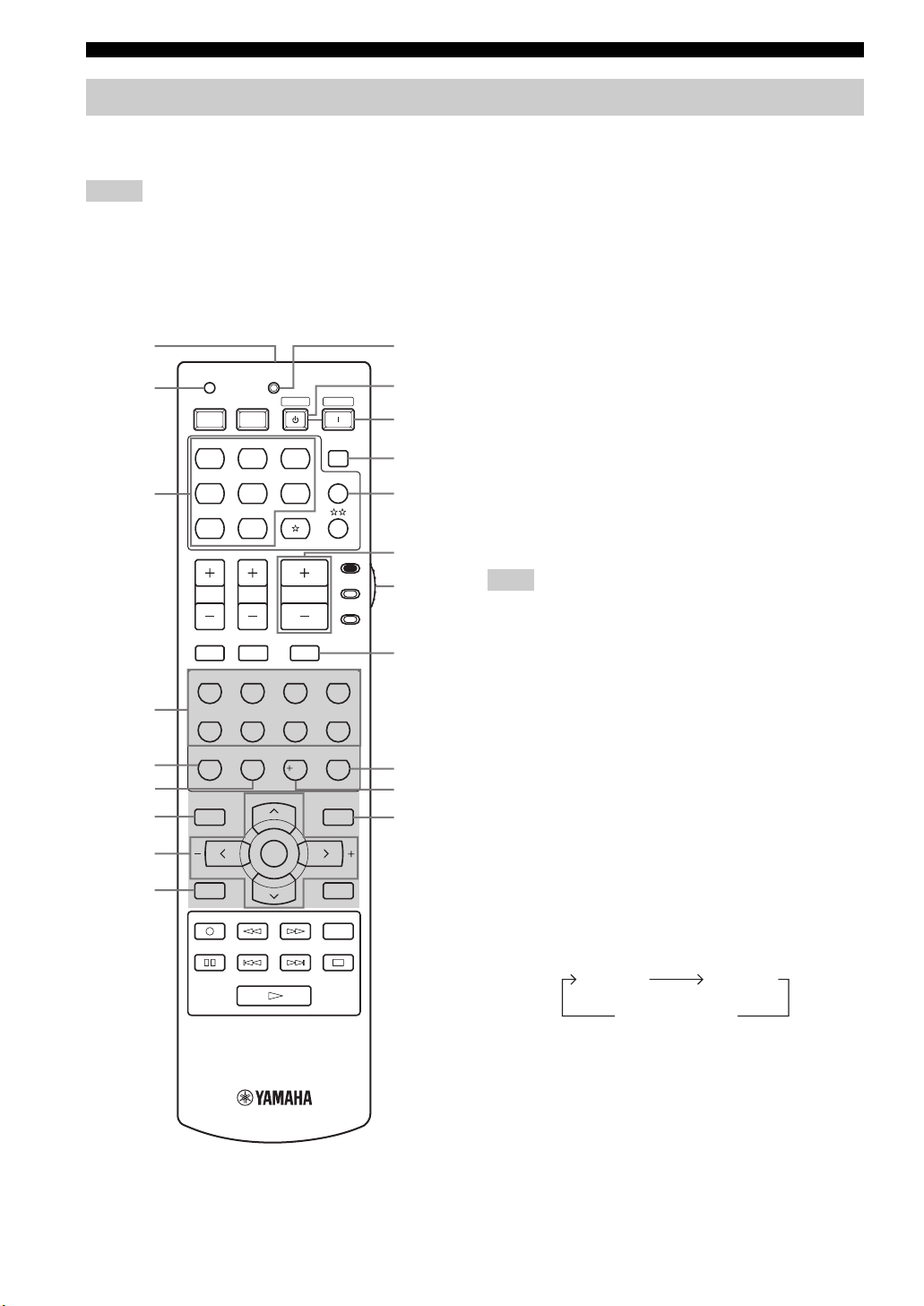
CONTROLS AND FUNCTIONS
Remote control
This section describes the function of each control on the remote control used to control this unit. To operate other
components, see “REMOTE CONTROL FEATURES” on page 86.
t
Notes
• The XM Satellite Radio controlling functions in the following buttons (XM, XM MEMORY, SRCH MODE, DISPLAY, cursor
buttons u / d / j / i, numeric buttons and ENT.) are only applicable to the U.S.A. model and are operational only when “XM” is
selected as the input source. For details, see “XM Satellite Radio controls and functions” on page 52.
• The operation mode of the remote control buttons in the shaded area below depends on the component selector switch position. Set the
component selector switch to AMP to control this unit. To control the TUNER functions, set the component selector switch to
SOURCE and then press TUNER to select the “TUNER” as the input source.
1
2
3
4
5
6
7
8
9
TRANSMITCODE SET
STANDBY
POWERPOWER
AVTV
MD
CD-R XM
CD
CBL
DVD DTV
V-AU X DVR
TV VOL TV CH
TV MUTE TV INPUT
STEREO
1
STANDARD
5
SPEAKERS
9
LEVEL
BAND
A-E/CAT. A-E/CAT.
XM MEMORY
REC
DISC SKIP
MUSIC
2
SELECT
6
ENHANCER
0
ENTERTAIN
EXTD SUR.
PRESET/CH
ENTER
TUNER
VOLUME
MUTE
3
7
NIGHT
10
POWER
SLEEP
MULTI CH IN
AMP
SOURCE
MOVIE
4
DIRECT ST.
8
STRAIGHT
ENT.
EFFECT
SET MENU
MENUTITLE
SRCH MODE
DISPLAYRETURN
AUDIO
0
A
B
C
D
E
F
TV
G
H
I
J
■ Controlling this unit
Set the component selector switch to AMP to control this
unit.
1 Infrared window
Outputs infrared control signals. Aim this window at the
component you want to operate (see page 8).
2 CODE SET
Use to set up remote control codes (see page 88).
3 Input selector buttons
Select the input source.
Note
The corresponding input selector button for the currently selected
input source lights up for approximately 5 seconds after you press
any buttons on the remote control, showing which source
component is currently being operated.
4 Sound field program selector buttons
Select sound field programs (see page 62).
– Use SELECT to play back 2-channel sources in
surround (see page 41).
– Use EXTD SUR. to switch between 5.1 and 6.1-
channel playback of multi-channel sources (see
page 40).
– Use DIRECT ST. to play back 2-channel sources in
hi-fi stereo sound (see page 38).
5 SPEAKERS
Turns on or off the set of front speakers connected to the
FRONT A and/or B terminals on the rear panel. Press this
button repeatedly to toggle as follows:
A on B on
A and B off
6 ENHANCER
Turns on or off the Compressed Music Enhancer mode
(see page 36).
7 LEVEL
(U.S.A. model)
Selects the speaker channel to be adjusted (see page 35).
6

CONTROLS AND FUNCTIONS
8 Cursor buttons u / d / j / i, ENTER
Select and adjust the sound field program parameters or
the “SET MENU” parameters.
9 RETURN
Returns to the previous menu level when adjusting the
“SET MENU” parameters.
0 TRANSMIT indicator
Flashes while the remote control is sending infrared
signals.
A STANDBY
Sets this unit to the standby mode (see page 26).
B POWER
Turns on this unit (see page 26).
C SLEEP
Sets the sleep timer (see page 34).
D MULTI CH IN
Selects the component connected to the MULTI CH
INPUT jacks as the input source when using an external
decoder, etc. (see page 37).
E VOLUME +/–
Increases or decreases the volume level.
F Component selector switch
Selects the operation mode of the remote control buttons
in the shaded area.
AMP
Operates this unit.
SOURCE
Operates the component selected with an input
selector button (see page 87).
TV
Operates the TV assigned to either DTV/CBL or
(see page 86).
Notes
• To set the remote control codes for other components, see
page 88.
• When you set the remote control codes for both DTV/CBL and
(see page 87), priority is given to the one set for DTV/
CBL.
G MUTE
Mutes the audio output. Press again to restore the audio
output to the previous volume level (see page 32).
H STRAIGHT (EFFECT)
Turns the sound field programs off or on. When
“STRAIGHT” is selected, 2-channel or multi-channel
input signals are output directly from their respective
speakers without effect processing (see page 37).
I NIGHT
Turns on or off the night listening modes (see page 32).
INTRODUCTION
J SET MENU
Enters “SET MENU” (see page 76).
7

CONTROLS AND FUNCTIONS
■ Controlling the TUNER functions
Set the component selector switch to SOURCE and then
press TUNER to select “TUNER” as the input source.
4 Numeric buttons
Use numbers 1 through 8 to select preset stations.
7 BAND
Switches the reception band between FM and AM
(see page 44).
8 A–ECAT. j / i, PRESET/CH u / d
Press A–ECAT. j / i to select a preset station group
(A to E) and PRESET/CH u / d to select a preset station
number (1 to (see page 48).
■ Using the remote control
The remote control transmits a directional infrared ray.
Be sure to aim the remote control directly at the remote
control sensor on the main unit during operation.
(U.S.A. model)
STANDBY
/ON
PHONES
SPEAKERS
SILENT CINEMA
FM/AM
PRESET/TUNING
A/B/C/D/E
l
PRESET/TUNING/CH
h
MEMORY
CATEGORY
SEARCH MODE
EDIT
l PROGRAM h
STRAIGHT
BA
EFFECT
TONE CONTROL
T
MI
S
RAN
T
E SET
COD
POWER
DBY
N
STA
OWER
P
POWER
V
A
T
V
P
E
E
L
S
D
M
M
X
R
—
D
C
D
C
N
I
C
H
I
LT
MU
L
B
C
R
E
N
U
T
V
T
D
D
V
D
R
V
D
X
U
A
—
V
MP
A
E
C
R
U
S
O
H
C
E
T
V
M
U
L
O
V
L
O
V
T
V
T
V
T
E
U
M
T
U
P
N
I
T
V
E
T
U
V
M
T
E
I
V
O
M
I
N
A
R
T
E
T
E
N
I
C
S
U
M
O
E
R
T
E
S
4
3
2
1
T
.
T
S
C
I
R
E
D
.
U
R
S
D
T
X
E
T
C
E
L
E
S
D
R
D
A
N
A
S
T
8
7
6
5
T
H
G
I
A
R
T
S
T
H
G
I
N
R
E
C
N
A
H
N
E
S
R
E
A
K
E
P
S
.
T
N
E
10
0
9
T
C
E
F
F
E
C
H
T/
S
E
E
P
R
U
N
E
M
T
S
E
L
E
V
E
L
U
N
E
M
E
L
T
I
T
E
D
O
M
H
C
SR
D
N
A
B
R
E
T
N
E
T
.
/
CA
E
—
A
.
T
A
/
C
—
E
A
AY
P
L
S
I
D
N
R
U
T
R
E
Y
R
O
M
E
M
X
M
C
E
R
IO
D
U
A
P
I
S
K
C
I
S
D
INPUT
INPUT MODE
BASS/TREBLE
Approximately 6 m (20 ft)
30 30
Notes
• Do not spill water or other liquids on the remote control.
• Do not drop the remote control.
• Do not leave or store the remote control in the following types
of conditions:
– places of high humidity, such as near a bath
– places of high temperatures, such as near a heater or stove
– places of extremely low temperatures
– dusty places
VOLUME
TUNING MODE
DISPLAY
AUTO/MAN’LMAN’L/AUTO FMLEVELNEXT
VIDEO AUX
MULTI CH
INPUT
VIDEO PORTABLEL AUDIO R
8

Front panel display
CONTROLS AND FUNCTIONS
Note
The XM is only applicable to the U.S.A. model and the cursor on the left of the XM indicator lights up only when “XM” is selected as
the input source. For details, see “Basic XM Satellite Radio operations” on page 54.
134567 A
t
MATRIX DISCRETE
q EX
q PL x
PCM
C
1 Decoder indicators
The respective indicator lights up when any of the
decoders of this unit function.
Note
The neural indicator is only applicable to the U.S.A. and Canada
models and lights up only when the Neural Surround decoder is
selected (see pages 41).
2 ENHANCER indicator
Lights up when the Compressed Music Enhancer mode is
turned on (see page 36).
3 Sound field indicators
Light up to indicate the active DSP sound fields.
2
96
24
ENHANCER
q
DIGITAL
q PL
q PL
neural
Presence DSP sound field
Surround left
DSP sound field
Surround back DSP sound field
E
SILENT CINEMA
SP
A B
NIGHTSTANDARD
HiFi DSP
VIRTUAL
DGFHI JLKNM
7 CINEMA DSP indicator
Lights up when you select a CINEMA DSP sound field
program (see page 63).
8 AUTO indicator
Lights up when this unit is in the automatic tuning mode
(see page 44).
9 TUNED indicator
Lights up when this unit is tuned into a station
(see page 44).
0 STEREO indicator
Lights up when this unit is receiving a strong signal for an
FM stereo broadcast while the AUTO indicator is lit
(see page 44).
A MEMORY indicator
Listening position
Surround right
DSP sound field
Flashes to show that a station can be stored (see page 46).
B VOLUME level indicator
Indicates the current volume level.
908B
MUTE
ft
mS
dB
VOLUME
96/24
LFE
LCR
SL SB SR
dB
TUNED
AUTO
PTYPTY
PSHOLD RT
(U.K. and Europe models only)
O
STEREO
EON
CT
MEMORY
SLEEP
C PCM indicator
4 VIRTUAL indicator
Lights up when Virtual CINEMA DSP is active (see
page 42).
5 Input source indicators
The corresponding cursor lights up to show the currently
selected input source.
6 SILENT CINEMA indicator
Lights up when headphones are connected and a sound
Lights up when this unit is reproducing PCM (Pulse Code
Modulation) digital audio signals.
D STANDARD indicator
Lights up when the “SUR. STANDARD” or
“SUR. ENHANCED” programs are selected (see
page 41).
E SP A B indicators
Light up according to the set of front speakers selected.
field program is selected (see page 32).
INTRODUCTION
9

CONTROLS AND FUNCTIONS
F Headphones indicator
Lights up when headphones are connected (see page 32).
G NIGHT indicator
Lights up when you select a night listening mode
(see page 32).
H HiFi DSP indicator
Lights up when you select a HiFi DSP sound field
program (see page 63).
I Multi-information display
Shows the name of the current sound field program and
other information when adjusting or changing settings.
J SLEEP indicator
Lights up while the sleep timer is on (see page 34).
K MUTE indicator
Flashes while the MUTE function is on (see page 32).
L 96/24 indicator
Lights up when a DTS 96/24 signal is input to this unit.
M Input channel indicators
Indicate the channel components of the current digital
input signal (see page 28).
N LFE indicator
Lights up when the input signal contains the LFE signal.
O Radio Data System indicators
(U.K. and Europe models only)
Lights up when the Radio Data System data is being
received.
EON
Lights up when the EON data service is being
received.
PTY HOLD
Lights up while searching for the Radio Data System
stations in the PTY SEEK mode.
10

Rear panel
CONTROLS AND FUNCTIONS
AUDIO AUDIO
CD
(PLAY)
IN OUT
DTV/CBL
DVR DVD DTV/CBL
FM ANT
UNBAL.
MONITOR
OUT
75Ω
A
B
DVD
VIDEO S VIDEO
TUNER SPEAKERS
AM
ANT
GND
8
MULTI CH INPUT
CENTER
MD/
OUT
IN
CD-R
FRONT
(REC)
SUB
SURROUND
WOOFER
OUT
IN
DVR
MONITOR
OUT
FRONT
90
1 Video component jacks
See pages 18 and 19 for connection information.
2 Audio component jacks
See page 21 for connection information.
3 MULTI CH INPUT jacks
See page 22 for connection information.
4 SUBWOOFER OUTPUT jack
See page 14 for connection information.
5 DIGITAL INPUT jacks
See page 19 for connection information.
6 XM jack (U.S.A. model only)
See page 51 for connection information.
OUTPUT DIGITAL INPUT
SUB
WOOFER
CENTER
SURROUND
DVD DVD
SURROUND BACK
DTV/CBL
OPTICAL
7 COMPONENT VIDEO jacks
See pages 18 and 19 for connection information.
8 Antenna terminals
See page 23 for connection information.
9 Speaker terminals
See page 13 for connection information.
0 AC OUTLET(S)
Use to supply power to your other audiovisual
components.
See page 24 for details.
■ VOLTAGE SELECTOR
(Asia and General models only)
See page 24 for details.
COAXIAL
7654321
XM
COMPONENT VIDEO
DVD DVR
P
RPBY
AC OUTLETS
PRPBY
MONITOR OUTDTV/CBL
INTRODUCTION
(U.S.A. model)
11

CONNECTIONS
Placing speakers
CONNECTIONS
The speaker layout below shows the standard ITU-R*
speaker setting. You can use it to enjoy CINEMA DSP and
multi-channel audio sources.
*
ITU-R is the radio communication sector of the ITU
(International Telecommunication Union).
FL
SL
SL
C
30˚
60˚
80˚
SB
FR
SR
SR
FR
FL
SW
SR
C
SL
SB
1.8 m (6 ft)
Front speakers (FL and FR)
The front speakers are used for the main source sound plus
effect sounds. Place these speakers at an equal distance
from the ideal listening position. The distance of each
speaker from each side of the video monitor should be the
same.
Center speaker (C)
The center speaker is for the center channel sounds
(dialog, vocals, etc.). If for some reason it is not practical
to use a center speaker, you can do without it. Best results,
however, are obtained with the full system. Place the
center speaker centrally between the front speakers and as
close to the monitor as possible, such as directly over or
under it.
Surround speakers (SL and SR)
The surround speakers are used for effect and surround
sounds. Place these speakers behind your listening
position, facing slightly inwards, about 1.8 m (6 ft) above
the floor.
Surround back speaker (SB)
The surround back speaker supplements the surround
speakers and provides more realistic front-to-back
transitions. Place this speaker directly behind the listening
position and at the same height as the surround speakers.
Subwoofer (SW)
The use of a subwoofer with a built-in amplifier, such as
the YAMAHA Active Servo Processing Subwoofer
System, is effective not only for reinforcing bass
frequencies from any or all channels, but also for hi-fi
stereo reproduction of the LFE (low-frequency effect)
channel included in Dolby Digital and DTS sources. The
position of the subwoofer is not so critical, because low
bass sounds are not highly directional. But it is better to
place the subwoofer near the front speakers. Turn it
slightly toward the center of the room to reduce wall
reflections.
12

CONNECTIONS
Connecting speakers
Be sure to connect the left channel (L), right channel (R), “+” (red) and “–” (black) properly. If the connections are faulty,
no sound will be heard from the speakers, and if the polarity of the speaker connections is incorrect, the sound will be
unnatural and lack bass.
CAUTION
• Before connecting the speakers, make sure that this unit is in the standby mode (see page 26).
• Do not let the bare speaker wires touch each other or do not let them touch any metal part of this
unit. This could damage this unit and/or speakers.
• Use magnetically shielded speakers. If this type of speakers still creates the interference with the
monitor, place the speakers away from the monitor.
• If you are to use 4 or 6 ohm speakers, be sure to set “SP IMP.” to “6ΩMIN” before using this unit
(see page 25).
Notes
• A speaker cord is actually a pair of insulated cables running side by side. Cables are colored or shaped differently, perhaps with a
stripe, groove or ridge. Connect the striped (grooved, etc.) cable to the “+” (red) terminals of this unit and your speaker. Connect the
plain cable to the “–” (black) terminals.
• The low-frequency signals of other speakers set to “SML” (or “SMALL”) or to “NONE” in “SPEAKER SET” (see pages 78 and 79)
are directed to the speakers selected in “BASS OUT” (see page 79).
Front speakers (A)
Right
Left
PREPARATION
Surround speakers
Subwoofer
Right Left
7
21
OUTPUT
SUB
WOOFER
FRONT
A
B
SPEAKERS
SURROUND
CENTERCLASS 2 WIRING SURROUND BACK
54
(U.S.A. model)
Front
speakers
(B)
3
Center
speaker
6
Surround back
speaker
13

CONNECTIONS
FRONT terminals
Connect one or two front speaker systems (1, 2) to these
terminals. If you use only one front speaker system,
connect it to the FRONT A or B terminal.
CENTER terminals
Connect a center speaker (3) to these terminals.
SURROUND terminals
Connect surround speakers (4, 5) to these terminals.
SURROUND BACK terminals
Connect a surround back speaker (6) to these terminals.
SUBWOOFER jack
Connect a subwoofer with a built-in amplifier (7) (such as
the YAMAHA Active Servo Processing Subwoofer
System) to this jack.
1
7
2
3
5
Speaker layout
4
6
14

CONNECTIONS
■ Connecting the speaker cable
1 Remove approximately 10 mm (0.4 in) of
insulation from the end of each speaker
cable and then twist the exposed wires of the
cable together to prevent short circuits.
10 mm (0.4 in)
2 Loosen the knob.
Red: positive (+)
Black: negative (–)
■ Connecting the banana plug
(except U.K., Europe and Asia models)
The banana plug is a single-pole electrical connector
widely used to terminate speaker cables.
Banana plug
PREPARATION
1 Tighten the knob.
2 Insert the banana plug connector into the
end of the corresponding terminal.
3 Insert one bare wire into the hole on the side
of each terminal.
Red: positive (+)
Black: negative (–)
4 Tighten the knob to secure the wire.
Red: positive (+)
Red: positive (+)
Black: negative (–)
Black: negative (–)
15

CONNECTIONS
Information on jacks and cable plugs
Audio jacks and cables Video jacks and cables
L
AUDIO
PORTABLE
R
DIGITAL AUDIO
COAXIAL
DIGITAL AUDIO
OPTICAL
VIDEO S VIDEO
COMPONENT VIDEO
Y PB PR
(Red)(White) (Orange)
L
Left and right
analog audio
cable plug
R
M
Stereo
analog
audio
mini cable
plug
C
Coaxial
digital
audio cable
plug
O
Optical
digital
audio cable
plug
■ Audio jacks
This unit has four types of audio jacks. Connection
depends on the availability of audio jacks on your other
components.
AUDIO jacks
For conventional analog audio signals transmitted via left
and right analog audio cables. Connect red plugs to the
right jacks and white plugs to the left jacks.
PORTABLE jack
For analog audio signals transmitted via stereo analog
audio mini cables.
DIGITAL AUDIO COAXIAL jacks
For digital audio signals transmitted via coaxial digital
audio cables.
DIGITAL AUDIO OPTICAL jacks
For digital audio signals transmitted via optical digital
audio cables.
(Blue)(Green)(Yellow)
(Red)
V
Composite
video cable
plug
S
S-video
cable plug
Y
Component
video cable
PB
plug
R
P
■ Video jacks
This unit has three types of video jacks. Connection
depends on the availability of input jacks on your video
monitor.
VIDEO jacks
For conventional composite video signals transmitted via
composite video cables.
S VIDEO jacks
For S-video signals, separated into the luminance (Y) and
chrominance (C) video signals transmitted on separate
wires of S-video cables.
COMPONENT VIDEO jacks
For component video signals, separated into the
luminance (Y) and chrominance (P
transmitted on separate wires of component video cables.
B, PR) video signals
Notes
• You can use the digital jacks to input PCM, Dolby Digital and
DTS bitstreams. When you connect components to both the
COAXIAL and OPTICAL jacks, priority is given to the signals
input at the COAXIAL jack. All digital input jacks are
compatible with 96-kHz sampling digital signals.
• Pull out the cap from the optical jack before you connect the
fiber optic cable. Do not discard the cap. When you are not
using the optical jack, be sure to put the cap back in place. This
cap protects the jack from dust.
16

P
Audio and video signal flow
■ Audio signal flow for AUDIO OUT (REC)
CONNECTIONS
Input
AUDIO
Output
AUDIO OUT (REC)
L RRL
Analog audio
PORTABLE
Analog output
Note
This unit handles digital and analog signals independently. Thus, audio signals input at the analog jacks are output only at the analog
AUDIO OUT (REC) jacks.
■ Video signal flow for MONITOR OUT
Input
Y PBP
R
Output
(MONITOR OUT)
Y PBP
R
COMPONENT
VIDEO
S VIDEO
Analog video
PREPARATION
VIDEO
Through
17

CONNECTIONS
Connecting a TV
Connect your TV to the VIDEO MONITOR OUT jack, the S VIDEO MONITOR OUT jack or the COMPONENT
VIDEO MONITOR OUT jacks of this unit.
CAUTION
Do not connect this unit or other components to the AC power supply until all connections between
components are complete.
MONITOR
VIDEO S VIDEO
OUT
V
MONITOR
OUT
Video in
S
S-video in
TV
Component video in
COMPONENT VIDEO
PRPBY
MONITOR OUT
(U.S.A. model)
PRPBY
18

CONNECTIONS
Connecting a DVD player, a DVD recorder, a VCR or an STB
Connect your DVD player, DVD player, VCR or STB (set-top box) using the same type of video connections as those
made for your TV (see page 18). The cable TV receiver and the satellite receiver are examples of the STB.
CAUTION
Do not connect this unit or other components to the AC power supply until all connections between
components are complete.
Notes
• Be sure to make the same type of video connections as those made for your TV (see page 18). For example, if you connected your TV
to the VIDEO MONITOR OUT jack of this unit, connect your other components to the VIDEO jacks.
• To make a digital connection to a component other than the default component assigned to each DIGITAL INPUT jack, select the
corresponding setting for “OPTICAL IN”, or “COAXIAL IN” in “INPUT ASSIGN” (see page 81).
• If you connect your DVD player to both the DIGITAL INPUT (OPTICAL) and the DIGITAL INPUT (COAXIAL) jacks, priority is
given to the signals input at the DIGITAL INPUT (COAXIAL) jack
■ Connecting a DVD player
PREPARATION
AUDIO
DVD
VIDEO S VIDEO
V
LR
DVD
S
S-Video out
Audio out
Video out
Optical audio out
DVD Player
DIGITAL INPUT
DVD DVD
COAXIAL
OPTICAL
O
C
Coaxial audio out
Component video out
Y PB
COMPONENT VIDEO
DVD
P
RPBY
(U.S.A. model)
PR
19

CONNECTIONS
■ Connecting a DVD recorder or a VCR
AUDIO
COMPONENT VIDEO
DVR
RPBY
P
IN OUT
DVR
VIDEO S VIDEO
V
R L R L
V
■ Connecting an STB
Audio out
Video out
OUT
IN
DVR
S-video out S-video in
Audio in
Video in
Video out
Audio out
Cable TV receiver or
satellite receiver
S
DVD recorder or
VCR
Component video out
Optical audio out
S
Component video out
(U.S.A. model)
PRPBY
20
S-video out
LR
V Y PB PR
AUDIO
DTV/CBL
VIDEO S VIDEO
S
DTV/CBL
O
DTV/CBL
OPTICAL
DIGITAL INPUT
COMPONENT VIDEO
DTV/CBL
RPBY
P
(U.S.A. model)

CONNECTIONS
Connecting a CD player, an MD player or a tape deck
Connect your CD player, MD player or tape deck via analog connection.
CAUTION
Do not connect this unit or other components to the AC power supply until all connections between
components are complete.
Note
To make a digital connection to a component other than the default component assigned to each DIGITAL INPUT jack, select the
corresponding setting for “OPTICAL IN” or “COAXIAL IN” in “INPUT ASSIGN” (see page 81).
CD Player
Audio out
LR
PREPARATION
Audio out
AUDIO
MD/
OUT
IN
CD-R
CD
(REC)
(PLAY)
LR LR
Audio in
MD recorder or
tape deck
DIGITAL INPUT
DVD DVD
DTV/CBL
OPTICAL
COAXIAL
(U.S.A. model)
21

CONNECTIONS
Connecting a multi-format player
or an external decoder
This unit is equipped with 6 additional input jacks
(FRONT L/R, CENTER, SURROUND L/R and
SUBWOOFER) for discrete multi-channel input from a
multi-format player, external decoder, sound processor or
pre-amplifier. Connect the output jacks on your multiformat player or external decoder to the MULTI CH
INPUT jacks. Be sure to match the left and right output
jacks to the left and right input jacks for the front and
surround channels.
CAUTION
Do not connect this unit or other components to
the AC power supply until all connections
between components are complete.
Notes
• When you select the component connected to the MULTI CH
INPUT jacks as the input source (see page 37), this unit
automatically turns off the digital sound field processor, and
you cannot select sound field programs.
• This unit does not redirect signals input at the MULTI CH
INPUT jacks to accommodate for missing speakers. We
recommend that you connect at least a 5.1-channel speaker
system before using this feature.
• When headphones are used, signals are output only from the
front left and right channels.
Connecting a game console,
a video camera or a portable audio
player
Use the VIDEO AUX jacks on the front panel to connect a
game console, a video camera or a portable audio player to
this unit.
CAUTION
Be sure to turn off the volume of this unit and
other components before making connections.
Note
The audio signals input at the PORTABLE mini jack take priority
over the ones input at the AUDIO L/R jacks.
(U.S.A. model)
VOLUME
STANDBY
/ON
PHONES
SPEAKERS
BA
SILENT CINEMA
Video out Audio out
PRESET/TUNING
SEARCH MODE
EDIT
STRAIGHT
EFFECT
TONE CONTROL
V
FM/AM
A/B/C/D/E
CATEGORY
l PROGRAM h
BASS/TREBLE
VIDEO AUX
VIDEO PORTABLEL AUDIO R
L
l
PRESET/TUNING/CH
h
MEMORY
TUNING MODE
DISPLAY
AUTO/MAN’LMAN’L/AUTO FMLEVELNEXT
INPUT
INPUT MODE
MULTI CH
INPUT
R
VIDEO AUX
VIDEO PORTABLEL AUDIO R
M
Audio
out
MULTI CH INPUT
FRONT
L R L R
Front out Surround
out
Multi-format player or
external decoder
SURROUND
Subwoofer
CENTER
SUB
WOOFER
out
Center
out
Game console or
video camera
Portable audio
player
22

Connecting the FM and AM antennas
Both FM and AM indoor antennas are supplied with this
unit. In general, these antennas should provide sufficient
signal strength. Connect each antenna correctly to
designated terminals.
Notes
• Be sure to set the tuner frequency step (Asia and General
models only) according to the frequency spacing in your area
(see page 85).
• The AM loop antenna should be placed away from this unit.
• The AM loop antenna should always be connected, even if an
outdoor AM antenna is connected to this unit.
• A properly installed outdoor antenna provides clearer reception
than an indoor one. If you experience poor reception quality,
install an outdoor antenna. Consult the nearest authorized
YAMAHA dealer or service center about outdoor antennas.
M loop antenna
(supplied)
Indoor FM antenna
(supplied)
CONNECTIONS
2 Press and hold the tab of the AM ANT
terminal.
3 Insert one of the AM loop antenna lead wires
into the AM ANT terminal.
PREPARATION
4 Release the tab of the AM ANT terminal back
into place.
5 Repeat steps 2 through 4 to connect the
other lead wire to the GND terminal.
TUNER
FM ANT
AM
ANT
Outdoor AM antenna
Use a 5 to 10 m (16.4 to 32.8 ft) of
vinyl-covered wire extended outdoors
from a window.
75
Ω
GND
UNBAL.
(U.S.A. model)
Ground
For maximum safety and
minimum interference,
connect the antenna GND
terminal to a good earth
ground. A good earth
ground is a metal stake
driven into moist earth.
■ Connecting the AM loop antenna
1 Set up the AM loop antenna.
y
Once you have properly connected the AM loop antenna to
this unit, orient the AM loop antenna for the best reception
when you tune into AM stations (see page 44).
23

CONNECTIONS
Connecting the power cable
Once all connections are complete, plug the power cable into the AC wall outlet.
(U.S.A. model)
AC OUTLETS
To the AC wall outlet
CAUTION
VOLTAGE SELECTOR
(Asia and General models only)
The VOLTAGE SELECTOR on the rear panel of this unit
must be set for your local voltage BEFORE plugging the
power cable into the AC wall outlet. Improper setting of
the VOLTAGE SELECTOR may cause damage to this
unit and create a potential fire hazard.
Rotate the VOLTAGE SELECTOR clockwise or
counterclockwise to the correct position using a
straight slot screwdriver.
Voltages are as follows:
Asia model ……………………. 220/230–240 V AC, 50/60 Hz
General model …..110/120/220/230–240 V AC, 50/60 Hz
VOLTAGE
SELECTOR
230240V
Voltage indication
AC OUTLET(S) (SWITCHED)
U.K. and Australia models………………………………. 1 outlet
Korea model……………………………………………………… None
Other models………………………………………………… 2 outlets
Use these outlet(s) to supply power to any connected
components. Connect the power cable of your other
components to these outlet(s). Power to these outlet(s) is
supplied when this unit is turned on. However, power to
these outlet(s) is cut off when this unit is in the standby
mode or the power cable of this unit is disconnected from
the AC wall outlet. For information on the maximum
power or the total power consumption of the components
that can be connected to these outlet(s), see
“SPECIFICATIONS” on page 100.
Memory back-up
The memory back-up circuit prevents the stored data
from being lost even if this unit is in the standby mode.
However, the stored data will be lost in case the power
cable is disconnected from the AC wall outlet or if the
power supply is cut off for more than one week.
24

Setting the speaker impedance
CONNECTIONS
CAUTION
If you are to use 4 or 6 ohm speakers, set “SP
IMP.” to “6ΩMIN” as follows BEFORE using this
unit.
(U.S.A. model)
VOLUME
STANDBY
2,5
SILENT CINEMA
/ON
PHONES
SPEAKERS
BA
SEARCH MODE
2,4
PRESET/TUNING
TONE CONTROL
FM/AM
A/B/C/D/E
l
PRESET/TUNING/CH
h
MEMORY
CATEGORY
EDIT
l PROGRAM h
STRAIGHT
EFFECT
BASS/TREBLE
TUNING MODE
DISPLAY
AUTO/MAN’LMAN’L/AUTO FMLEVELNEXT
INPUT
INPUT MODE
MULTI CH
INPUT
VIDEO AUX
VIDEO PORTABLEL AUDIO R
3
1 Make sure this unit is set to the standby
mode.
See page 26 for details about turning on this unit or
standby mode.
2 Press and hold STRAIGHT (EFFECT) on the
front panel and then press STANDBY/ON to
turn on this unit.
This unit turns on, and the advanced setup menu
appears in the front panel display.
3 Press PROGRAM l / h buttons on the front
panel to select “SP IMP.”.
The following display appears in the front panel
display.
l PROGRAM h
PREPARATION
SP IMP.-8 MIN
4 Press STRAIGHT (EFFECT) on the front
panel repeatedly to select “6ΩMIN”.
The following display appears in the front panel
display.
STRAIGHT
EFFECT
SP IMP.-6 MIN
STRAIGHT
EFFECT
While holding
down
STANDBY
/ON
5 Press STANDBY/ON on the front panel to
save the new setting and set this unit to the
standby mode.
STANDBY
/ON
Note
The setting you made is reflected next time you turn on this unit.
25

CONNECTIONS
AMP
SOURCE
TV
VOLUME
TV VOL TV CH
TRANSMITCODE SET
STANDBY
POWER
POWERPOWER
CD
AVTV
MULTI CH IN
SLEEP
CD-R XM
DVD DTV
MD
CBL
TUNER
V-AUX DVR
Turning on this unit or setting it to the standby mode
When all connections are complete, turn on this unit.
S
STANDBY/ON
STANDBY
/ON
PHONES
SPEAKERS
BA
SILENT CINEMA
FM/AM
PRESET/TUNING
A/B/C/D/E
l
PRESET/TUNING/CH
CATEGORY
SEARCH MODE
EDIT
l
PROGRAM
STRAIGHT
EFFECT
TONE CONTROL
BASS/TREBLE
h
h
INPUT MODE
MEMORY
TUNING MODE
DISPLAY
AUTO/MAN’LMAN’L/AUTO FMLEVELNEXT
INPUT
MULTI CH
INPUT
(U.S.A. model)
VOLUME
VIDEO AUX
VIDEO PORTABLEL AUDIO R
(U.S.A. model)
STANDBY
POWER
■ Turning on the power
Press STANDBY/ON on the front panel (or
POWER on the remote control) to turn on this
unit.
STANDBY
/ON
or
Front panel Remote control
POWER
■ Setting this unit to the standby mode
Press STANDBY/ON on the front panel again (or
STANDBY on the remote control) to set this unit
to the standby mode.
STANDBY
/ON
or
Front panel Remote control
STANDBY
26
Loading…
Найди любой мануал:
Например: Sony VGN-FW460J/T
Вы можете бесплатно скачать Руководство по эксплуатации для Yamaha HTR-5940.
Также вы сможете прочесть онлайн этот документ без скачивания.
Скачать Руководство по эксплуатации для Yamaha HTR-5940
Тип файла
PDF
Размер
2.52 Mb
Кол-во страниц
131
Просмотров
7930
Читать онлайн Руководство по эксплуатации для Yamaha HTR-5940 (Страница 1)

Другие Стереоресиверы Yamaha HTR-5940
Топ Yamaha Стереоресиверы
Ранее вы смотрели
Эта страница полезна для вас? Поделитесь ссылкой: