
C118 M118/M118i
WorkCentreCopyCentre
User Guide
701P42721_EN

Prepared by:
The Document Company Xerox
GKLS European Operations
Bessemer Road
Welwyn Garden City
Hertfordshire
AL7 1HE
ENGLAND
© 2004 by Fuji Xerox Co., Ltd. All rights reserved.
Copyright protection claimed includes all forms and matters of copyrighted material and
information now allowed by statutory or judicial law or hereinafter granted, including without
limitations, material generated from the software programs which are displayed on the screen,
such as icons, screen displays, looks etc.
®
Xerox
, The Document Company®, the digital X® and all Xerox products mentioned in this
publication are trademarks of Xerox Corporation. Product names and trademarks of other
companies are hereby acknowledged.
See the About License section for detailed information on licensed products.
The information in this document is correct at the time of publication. Xerox reserves the right
at any time to change the information without notice. Changes and technical updates will be
added in subsequent editions of the documentation. For the latest information go to
www.xerox.com
.
Products Subject To Ordinary Export Regulations
An export of this product is strictly limited in accordance with Laws concerning Foreign
Exchange and Foreign Trade of Japan and/or the export control regulations of the United
States. You must obtain, if you wish to export this product, any appropriate export license from
the Japanese Government or its agency and/or re-export approval from the U.S. Government
or its agency.
Products Subject To Supplementary Export Regulations
An export of this product is strictly limited in accordance with Laws concerning Foreign
Exchange and Foreign Trade of Japan and/or the export control regulations of the United
States. You must obtain, if you know the product is to be used, or was used for development,
manufacturing or use of any mass destructive weapons including nuclear weapon, chemical
weapon or biological weapon because of a dealing document such as legal contract or
information from the importer, any appropriate export license from the Japanese Government
or its agency and/or re-export approval from the U.S. Government or its agency.

Table of Contents
Table of Contents………………………………………………………………………….3
1 Before Using the Machine ………………………………………………………….11
Xerox Welcome Center ………………………………………………………………..11
Conventions ……………………………………………………………………………….12
Related Information Sources…………………………………………………………14
Safety Notes……………………………………………………………………………….14
WARNING — Electrical Safety Information …………………………………..15
Laser Safety Information…………………………………………………………..16
Operational Safety Information………………………………………………….16
Maintenance Information ………………………………………………………….17
Ozone Safety Information…………………………………………………………17
For Consumables ……………………………………………………………………18
Radio Frequency Emissions……………………………………………………..18
Product Safety Certification ………………………………………………………18
Table of Contents
Regulatory Information…………………………………………………………………19
CE Mark…………………………………………………………………………………19
For FAX Function…………………………………………………………………….19
Regulatory Information for RFID………………………………………………..22
Environmental Compliance …………………………………………………………..22
USA ………………………………………………………………………………………22
Canada ………………………………………………………………………………….23
Europe …………………………………………………………………………………..23
About License……………………………………………………………………………..23
Illegal Copies………………………………………………………………………………26
USA ………………………………………………………………………………………26
Canada ………………………………………………………………………………….27
Other countries ……………………………………………………………………….28
Product Recycling and Disposal…………………………………………………….29
2 Product Overview………………………………………………………………………31
Identifying the Machine Components……………………………………………..31
System Controls………………………………………………………………………….33
Power On/Off………………………………………………………………………………34
Powering On…………………………………………………………………………..34
Powering Off…………………………………………………………………………..35
Xerox CopyCentre/WorkCentre 118 User Guide 3

Ground Fault Interrupter (GFI) ………………………………………………………35
Power Saver Modes…………………………………………………………………….36
Changing the Default Time Settings ……………………………………………… 37
Modes ……………………………………………………………………………………….38
Copy ……………………………………………………………………………………..38
Fax………………………………………………………………………………………..39
E-mail ……………………………………………………………………………………39
Log In/Out………………………………………………………………………………39
Job Status………………………………………………………………………………40
Machine Status……………………………………………………………………….41
Auditron Access Screen……………………………………………………………….47
Recycled Paper…………………………………………………………………………..48
3 Copy …………………………………………………………………………………………49
Copying Procedure ……………………………………………………………………..49
1. Load the Documents ……………………………………………………………49
2. Select the Features ……………………………………………………………..51
3. Enter the Quantity………………………………………………………………..52
4. Start the Copy Job……………………………………………………………….52
5. Confirm the Copy Job in the Job Status………………………………….53
Stop the Copy Job…………………………………………………………………..53
Copying Features………………………………………………………………………..54
Paper Supply………………………………………………………………………….54
Reduce/Enlarge………………………………………………………………………56
Lighten/Darken ……………………………………………………………………….57
Original Type ………………………………………………………………………….57
Multiple-Up …………………………………………………………………………….58
2 Sided ………………………………………………………………………………….58
Output……………………………………………………………………………………59
Mixed Size Originals………………………………………………………………..60
4 Fax ……………………………………………………………………………………………61
Fax Procedure…………………………………………………………………………….61
1. Load the Documents ……………………………………………………………61
2. Select the Features ……………………………………………………………..62
3. Specify the Destination…………………………………………………………63
4. Start the Fax Job …………………………………………………………………64
5. Confirm the Fax Job in the Job Status ……………………………………64
Stop the Fax Job …………………………………………………………………….64
4 Xerox CopyCentre/WorkCentre 118 User Guide

Table of Contents
Specifying Destinations………………………………………………………………..65
Address Enter/Next………………………………………………………………….66
Address Book …………………………………………………………………………66
Speed Dial ……………………………………………………………………………..67
One Touch Dial……………………………………………………………………….67
Relay Broadcast ……………………………………………………………………..68
Fax Features ………………………………………………………………………………68
Resolution………………………………………………………………………………69
Lighten/Darken ……………………………………………………………………….70
Scan Size……………………………………………………………………………….70
Reduce/Enlarge………………………………………………………………………71
Send Header…………………………………………………………………………..71
Transmission Report………………………………………………………………..72
F Code…………………………………………………………………………………..73
Overseas Communication ………………………………………………………..74
Delayed Start………………………………………………………………………….74
Multiple-Up……………………………………………………………………………..75
Priority Send …………………………………………………………………………..75
Recipient Print Sets …………………………………………………………………75
Direct Send…………………………………………………………………………….76
2 Sided Originals …………………………………………………………………….76
Polling……………………………………………………………………………………77
Bulletin Board …………………………………………………………………………78
Mailbox ………………………………………………………………………………….80
Chain Dialing ………………………………………………………………………….80
On-Hook ………………………………………………………………………………..81
5 E-mail………………………………………………………………………………………..83
E-mail Procedure…………………………………………………………………………83
1. Load the Documents…………………………………………………………….83
2. Select the Features………………………………………………………………84
3. Specify the Destination…………………………………………………………85
4. Start the E-mail Job ……………………………………………………………..85
5. Confirm the E-mail Job in the Job Status ………………………………..86
Stop the E-mail Job …………………………………………………………………86
Specifying Destinations………………………………………………………………..87
E-mail Address ……………………………………………………………………….87
Address Enter/Next………………………………………………………………….87
Address Book …………………………………………………………………………88
Speed Dial ……………………………………………………………………………..89
Xerox CopyCentre/WorkCentre 118 User Guide 5

One Touch Dial……………………………………………………………………….89
E-mail Features…………………………………………………………………………..90
Resolution………………………………………………………………………………90
Lighten/Darken ……………………………………………………………………….91
Scan Size ………………………………………………………………………………91
Reduce/Enlarge………………………………………………………………………92
File Format …………………………………………………………………………….92
Transmission Report ……………………………………………………………….92
2 Sided Originals …………………………………………………………………….93
Sender…………………………………………………………………………………..94
6 Print ………………………………………………………………………………………….95
Print Driver Features……………………………………………………………………95
7 CentreWare Internet Services ……………………………………………………. 97
Target Computers……………………………………………………………………97
Accessing CentreWare Internet Services…………………………………… 98
Standard Features — CentreWare Internet Services…………………………. 98
Interface Options …………………………………………………………………….98
Jobs…………………………………………………………………………………………..99
Job List ………………………………………………………………………………….99
Job History List……………………………………………………………………..100
Status ………………………………………………………………………………………101
General………………………………………………………………………………..101
Trays……………………………………………………………………………………101
Consumables………………………………………………………………………..102
Properties…………………………………………………………………………………102
Properties Features……………………………………………………………….103
Maintenance……………………………………………………………………………..115
Support…………………………………………………………………………………….115
8 Paper and Other Media……………………………………………………………. 117
Loading Paper…………………………………………………………………………..117
Preparing Paper for Loading …………………………………………………..117
Loading Paper into the Paper Trays…………………………………………117
Tray 5 (Bypass Tray)…………………………………………………………….. 119
Auto Tray Switching……………………………………………………………….120
Storing and Handling Paper ……………………………………………………….. 120
Supported Paper Sizes and Types ………………………………………………120
6 Xerox CopyCentre/WorkCentre 118 User Guide

Table of Contents
Supported Paper Sizes…………………………………………………………..121
Supported Paper Types………………………………………………………….123
9 Setups …………………………………………………………………………………….125
Setups Procedure………………………………………………………………………125
System Settings ………………………………………………………………………..126
Change Password……………………………………………………………………..126
Common Settings………………………………………………………………………127
Screen Default………………………………………………………………………127
Timer Settings……………………………………………………………………….127
Audio Tones………………………………………………………………………….128
Notification Tone……………………………………………………………………129
Auto Repeat………………………………………………………………………….129
Offset Stacking ……………………………………………………………………..130
Country Code (ISO)……………………………………………………………….130
Millimeters/Inches………………………………………………………………….131
AB Series/Inches …………………………………………………………………..131
Auditron Administration ………………………………………………………………131
Copy Settings……………………………………………………………………………133
Original Type ………………………………………………………………………..133
Lighten/Darken ……………………………………………………………………..134
Paper Supply ………………………………………………………………………..134
Reduce/Enlarge…………………………………………………………………….134
2 Sided ………………………………………………………………………………..135
Output………………………………………………………………………………….135
Paper Type …………………………………………………………………………..136
Auto Tray Switch……………………………………………………………………136
Image Rotation ……………………………………………………………………..136
Tray Priority ………………………………………………………………………….136
Customize Screens………………………………………………………………..136
Print Settings …………………………………………………………………………….137
Network/Port…………………………………………………………………………137
System Settings…………………………………………………………………….142
Printer Settings ……………………………………………………………………..143
Allocate Memory……………………………………………………………………145
Initialize/Delete Data………………………………………………………………145
Software Option…………………………………………………………………….146
Fax Settings ……………………………………………………………………………..146
Date/Time …………………………………………………………………………….147
Xerox CopyCentre/WorkCentre 118 User Guide 7

Daylight Savings……………………………………………………………………147
Fax Send Settings …………………………………………………………………148
Receive Settings……………………………………………………………………149
F Code…………………………………………………………………………………151
Local Terminal Information……………………………………………………..152
Direct Send…………………………………………………………………………..153
Fax Receiving Mode……………………………………………………………… 153
Report Settings……………………………………………………………………..153
Customize Screens ……………………………………………………………….154
E-mail Settings ………………………………………………………………………….154
Resolution…………………………………………………………………………….155
Lighten/Darken ……………………………………………………………………..156
Reduce/Enlarge…………………………………………………………………….156
Scan Size …………………………………………………………………………….156
File Format …………………………………………………………………………..157
Transmission Report ……………………………………………………………..157
Customize Screens ……………………………………………………………….157
Screen Contrast ………………………………………………………………………..158
Create/Delete ……………………………………………………………………………158
Speed Dial……………………………………………………………………………159
Fax Program…………………………………………………………………………160
Bulletin Board ……………………………………………………………………….161
Mailbox ………………………………………………………………………………..162
10 Maintenance ……………………………………………………………………………165
Ordering Supplies ……………………………………………………………………..165
Cleaning the Machine ………………………………………………………………..165
The Document Glass and Constant Velocity Transport Glass ……..165
The Control Panel and Screen ………………………………………………..166
The Document Feeder and Output Trays………………………………….166
Replacing the Drum Cartridge……………………………………………………..166
Removing the Old Drum Cartridge …………………………………………..166
Recycling the Drum Cartridge …………………………………………………167
Inserting the New Drum Cartridge…………………………………………… 167
Replacing the Toner Cartridge……………………………………………………. 169
Removing the Old Toner Cartridge…………………………………………..169
Inserting the New Toner Cartridge ………………………………………….. 170
11 Problem Solving………………………………………………………………………171
Fault Clearance Procedure …………………………………………………………171
8 Xerox CopyCentre/WorkCentre 118 User Guide

Table of Contents
Paper Jams ………………………………………………………………………………172
Paper Jams in Cover A…………………………………………………………..173
Paper Jams in Cover B…………………………………………………………..175
Paper Jams in Cover C…………………………………………………………..175
Paper Jams in Cover D…………………………………………………………..176
Paper Jams in Exit…………………………………………………………………176
Paper Jams in Trays 1, 2, 3, and 4 (2–4 are Optional)………………..177
Paper Jams in Tray 5 (Bypass Tray) ………………………………………..177
Document Jams ………………………………………………………………………..177
Paper Jams in the Document Feeder Cover ……………………………..177
Paper Jams in the Document Exit ……………………………………………179
Troubleshooting Tables………………………………………………………………179
Fault Codes………………………………………………………………………………185
Output Quality …………………………………………………………………………..194
Xerox Welcome Center ………………………………………………………………194
12 Specifications………………………………………………………………………….197
Machine Specifications……………………………………………………………….197
Document Size Detection Table…………………………………………………..198
When Using the Copy Feature ………………………………………………..198
When Using the Fax Feature…………………………………………………..200
When Using the E-mail Feature……………………………………………….205
Paper Supply…………………………………………………………………………….207
Paper Output…………………………………………………………………………….210
Electrical Specifications………………………………………………………………210
Specifications for the Fax Feature………………………………………………..210
13 Appendix…………………………………………………………………………………213
Country Code List………………………………………………………………………213
Cautions and Limitations…………………………………………………………….216
Document Jams, Paper Jams, and Paper Out during Copying…….216
Registered Data such as Forms ………………………………………………216
14 Glossary………………………………………………………………………………….217
Terms Defined…………………………………………………………………………..217
15 Index……………………………………………………………………………………….225
Xerox CopyCentre/WorkCentre 118 User Guide 9

10 Xerox CopyCentre/WorkCentre 118 User Guide
1 Before Using the Machine
Welcome to the Xerox family of CopyCentre/WorkCentre products.
This User Guide provides detailed information, technical specifications and procedures
for using the integral features of the machine.
Xerox Welcome Center
If you need assistance during or after product installation, visit the Xerox web site for
on-line solutions and support.
www.xerox.com
If you require further assistance, contact our experts at the Xerox Welcome Center. A
local representative telephone number may have been provided when the product was
installed. For convenience and future reference, please record the telephone number
in the space below.
Welcome Center or local representative telephone number:
#
Xerox US Welcome Center: 1-800-821-2797
Xerox Canada Welcome Center: 1-800-93-XEROX (1-800-939-3769)
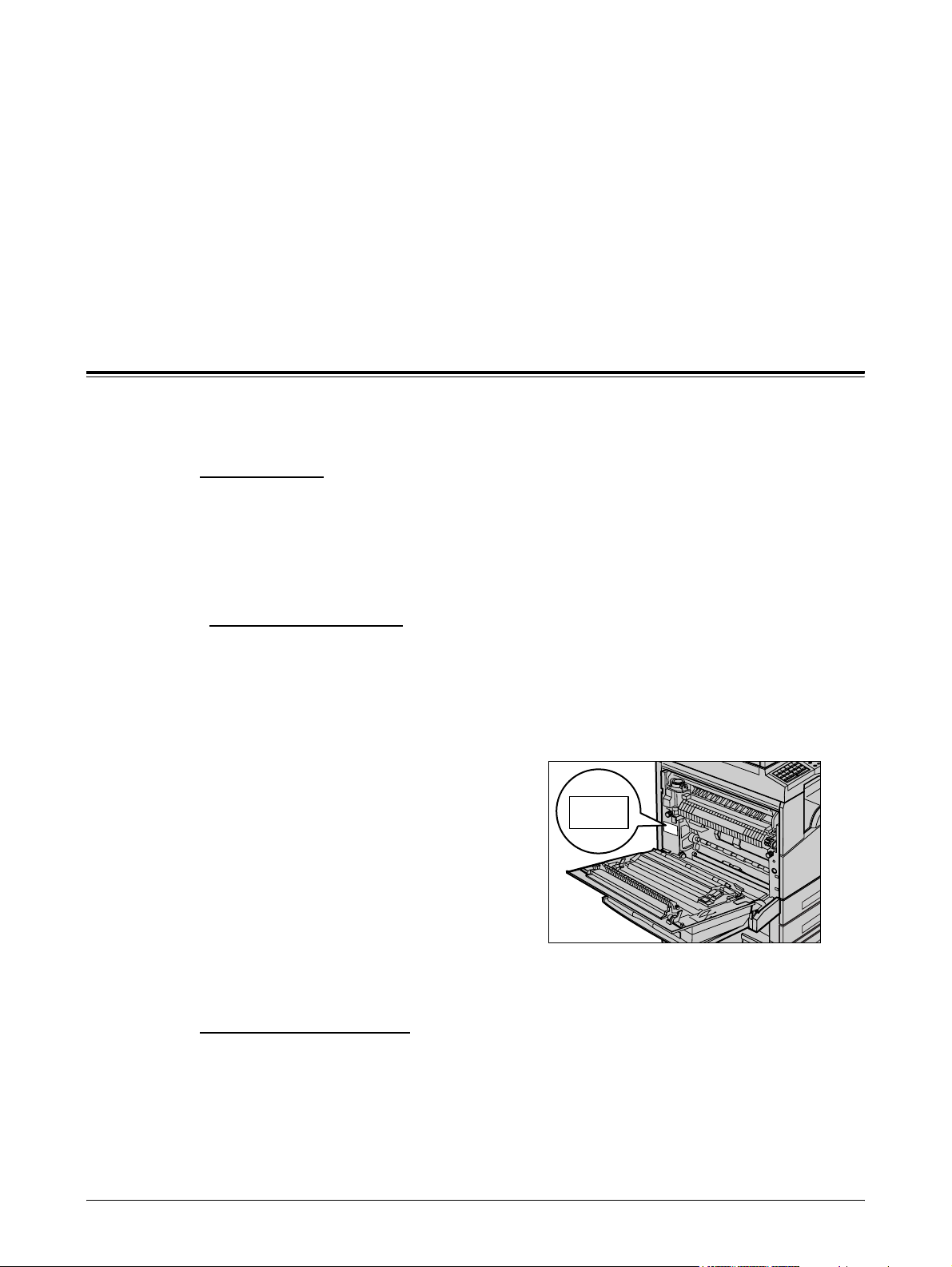
When you call the Welcome Center you will need the serial number which is located on
the left side of the machine behind Cover A, as shown in the diagram.
For your convenience, record the serial number in the space below.
Serial Number:
Keep a record of any error messages. This information helps us solve problems faster.
Xerox CopyCentre/WorkCentre 118 User Guide 11
1 Before Using the Machine
Conventions
This section describes the conventions used throughout this User Guide. In this guide,
you will find that some terms are used interchangeably:
• Paper is synonymous with media.
• Document is synonymous with original.
• Xerox CopyCentre/WorkCentre 118 is synonymous with the machine.
Key Operator
Key Operator describes the person who is responsible for hardware maintenance.
Orientation
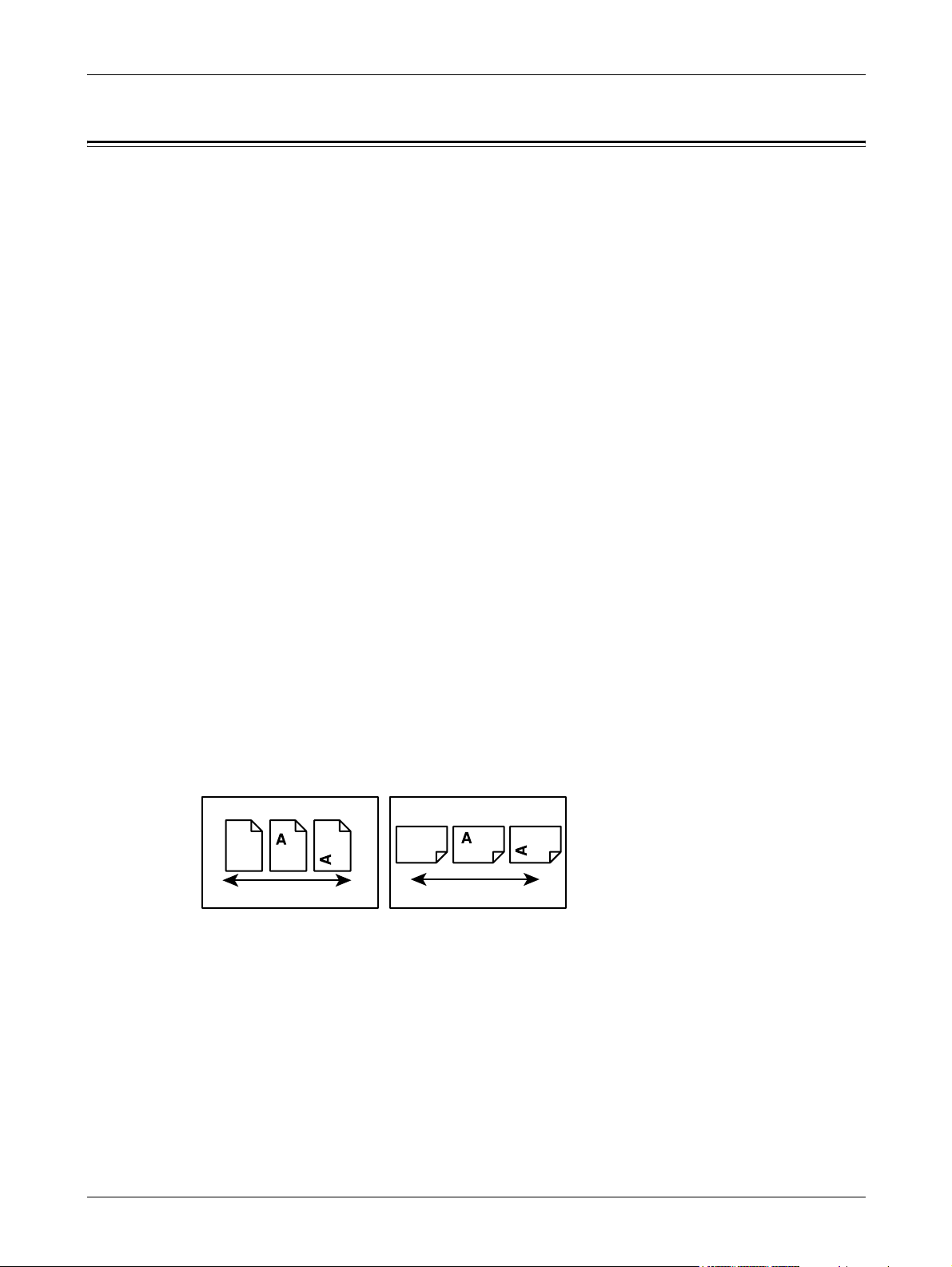
Orientation is used to mean the direction of images on the page. When the image is
upright, the paper (or other media) can be either long edge feed or short edge feed.
Long Edge Feed (LEF)
When loading documents long edge feed into the document feeder, load with one of
the long edges facing into the document feeder. The short edges appear at the top and
bottom of the paper, facing the front and back of the document feeder. When loading
paper long edge feed into a paper tray, place the paper with one of the long edges on
the left-hand side and one of the short edges toward the front of the tray.
Short Edge Feed (SEF)
When loading documents short edge feed into the document feeder, load with one of
the short edges facing into the document feeder. The long edges appear on the top and
bottom of the paper, facing the front and back of the document feeder. When loading
paper short edge feed into a paper tray, place the paper with one of the short edges on
the left-hand side and one of the long edges toward the front of the tray.
LEF Orientation SEF Orientation
Paper feed direction Paper feed direction
Text in [Square Brackets]
Indicate that these are names of the screens, tabs, buttons, features and option
categories on the screen. They are also used when referring to file and folder names
on a PC.
For example:
• Select [Original Type] on the [Image Quality] screen.
• Select [Save].
12 Xerox CopyCentre/WorkCentre 118 User Guide

Text in <Angle Brackets>
Indicate that these are names of the hard buttons, numeric or symbol buttons, lights on
the control panel or symbols on the power switch label.
For example:
• Press the <Job Status> button to display the Job Status screen.
• Press the <C> button on the control panel to clear the suspended job.
Italic Typeface
The Italic Typeface is used to indicate references to other sections and chapters.
For example:
• For information about cleaning the document glass, refer to the Maintenance
chapter on page 165.
• Paper Supply – page 54.
Warnings
Warnings are statements that alert you to the possibility of personal harm.
Conventions
Cautions
Notes
For example:
WARNING: This product must be connected to a protective earth circuit.
Cautions are statements that suggest the possibility of mechanical damage as a result
of an action.
For example:
CAUTION: Use of controls, adjustments or performance of procedures other
than those specified herein may result in hazardous light exposure.
Notes are statements that provide additional information.
For example:
NOTE: If the document feeder is not fitted to the machine, this feature is not available.
Xerox CopyCentre/WorkCentre 118 User Guide 13
1 Before Using the Machine
Related Information Sources
The following additional sources of information are available for the machine.
• Xerox CopyCentre/WorkCentre 118 Quick Reference Guide
• Xerox CopyCentre/WorkCentre 118 System Administration Guide
• The On-line Help system (Print Drivers and CentreWare Utilities)
• The CentreWare Utilities Documentation (HTML)
NOTE: The screens shown in this guide apply to a fully configured machine, so they
may not exactly represent the configuration in use.
Safety Notes
Read these safety notes carefully before using this product to make sure you operate
the equipment safely.
Your Xerox/Fuji Xerox product and recommended supplies have been designed and
tested to meet strict safety requirements. These include safety agency approval, and
compliance to established environmental standards. Please read the following
instructions carefully before operating the product and refer to them as needed to
ensure the continued safe operation of your product.
The safety and environment testing and performance of this product have been verified
using Xerox materials only.
WARNING: Any unauthorized alteration, which may include the addition of new
functions or connection of external devices, may impact the product
certification. Please contact your authorized Service Provider for more
information.
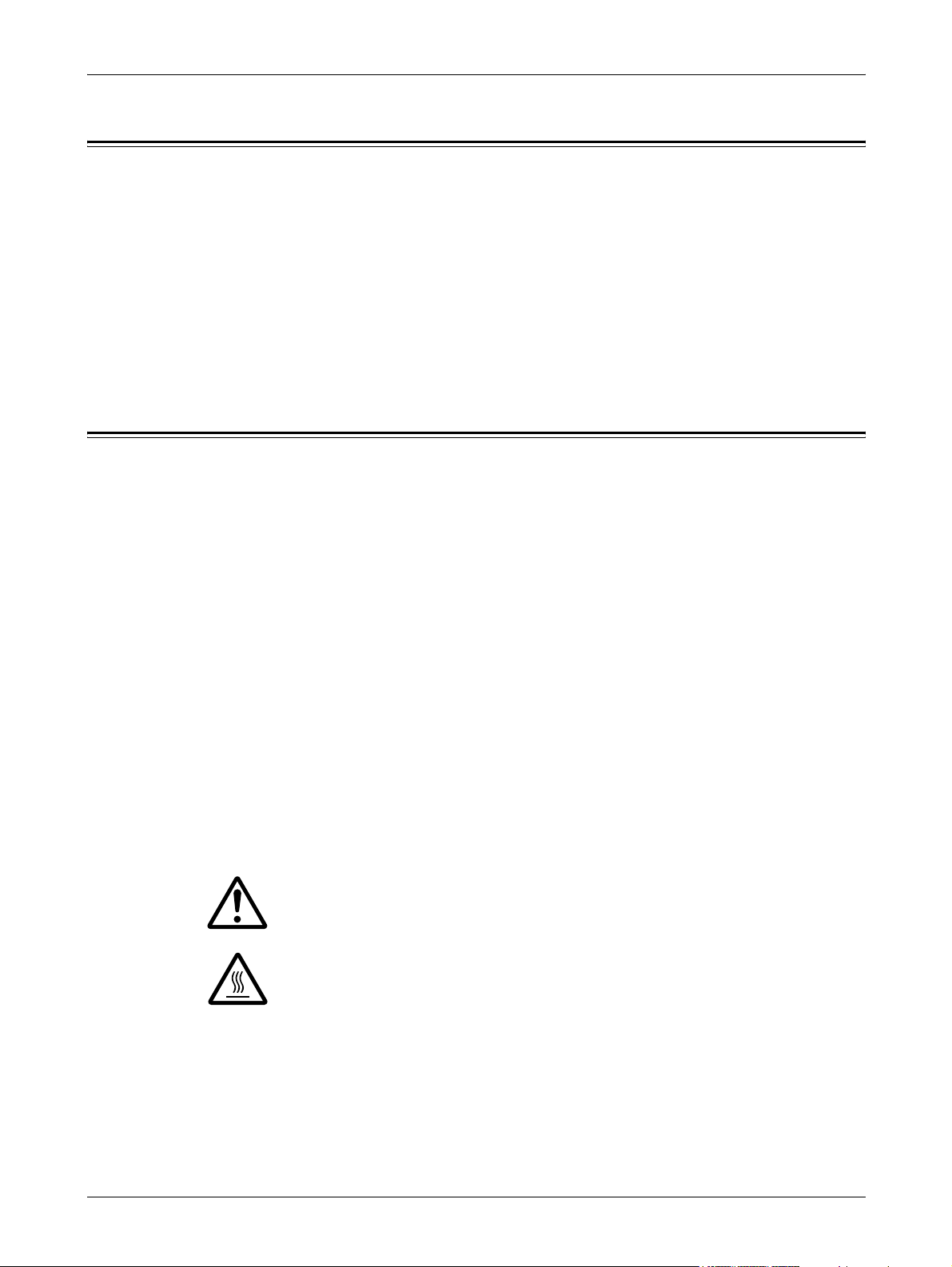
Warning Markings
All warning instructions marked on or supplied with the product should be followed.
Warning This WARNING alerts users to areas of the product where there is
the possibility of personal injury.
Warning This WARNING alerts users to areas of the product where there
are heated surfaces, which should not be touched.
Electrical Supply
This product shall be operated from the type of electrical supply indicated on the
product’s data plate label. If you are not sure that your electrical supply meets the
requirements, please consult your local power company for advice.
14 Xerox CopyCentre/WorkCentre 118 User Guide

WARNING: This product must be connected to a protective earth
circuit.
This product is supplied with a plug that has a protective earth pin. This plug
will fit only into an earthed electrical outlet. This is a safety feature. To avoid risk of
electric shock, contact your electrician to replace the electrical outlet if you are unable
to insert the plug into it. Never use an earthed adapter plug to connect the product to
an electrical outlet that lacks an earth connection terminal.
Operator Accessible Areas
This equipment has been designed to restrict operator access to safe areas only.
Operator access to hazardous areas is restricted with covers or guards, which would
require a tool to remove. Never remove these covers or guards.
Maintenance
Any operator product maintenance procedures will be described in the customer
documentation supplied with the product. Do not carry out any maintenance
procedures on this product which are not described in the customer documentation.
Safety Notes
Cleaning Your Product
Before cleaning this product, unplug the product from the electrical outlet. Always use
materials specified for this product. The use of other materials may result in poor
performance and may create a hazardous situation. Do not use aerosol cleaners, they
may be explosive and flammable under certain circumstances.
WARNING — Electrical Safety Information
Z Only use the power cord supplied with this equipment.
Z Plug the power cord directly into a grounded electrical outlet easily accessible. Do
not use an extension cord. If you do not know whether an outlet is grounded, consult
a qualified electrician.
Z This equipment is to be used on a branch circuit that has larger capacity than rated
ampere and voltage of this machine. See data plate on the rear panel for the rated
ampere and voltage of this equipment. If the machine needs to be moved to a
different location, contact a Xerox Service Representative or your authorized local
representative or service support organization.
Z Improper connection of the equipment-grounding conductor can result in an electric
shock.
X Do not place this equipment where people might step on or trip over the power cord.
X Do not place objects on the power cord.
X Do not override or disable electrical or mechanical interlocks.
X Do not obstruct the ventilation openings.
X Never push objects of any kind into slots or openings on the equipment.
Xerox CopyCentre/WorkCentre 118 User Guide 15

1 Before Using the Machine
Z If any of the following conditions occur, switch off the power to the machine
immediately and disconnect the power cord from the electrical outlet. Call an
authorized local service representative to correct the problem.
– The equipment emits unusual noises or odors.
– The power cord is damaged or frayed.
– A wall panel circuit breaker, fuse, or other safety device has been tripped.
– Liquid has spilled into the equipment.
– The equipment is exposed to water.
– Any part of the equipment is damaged.
Disconnect Device
The power cable is the disconnect device for this equipment. It is attached to the side
of the machine as a plug-in device. To remove all electrical power from the equipment,
disconnect the power cable from the electrical outlet.
Laser Safety Information
CAUTION: Use of controls, adjustments or performance of procedures other
than those specified herein may result in hazardous light exposure.
With specific regard to laser safety, the equipment complies with performance
standards for laser products set by government, national and international agencies as
a Class 1 laser product. It does not emit hazardous light, as the beam is totally enclosed
during all phases of customer operation and maintenance.
Operational Safety Information
To ensure the continued safe operation of your Xerox/Fuji Xerox equipment, follow
these safety guidelines at all times.
Do These:
• Always connect equipment to a correctly grounded power outlet. If in doubt, have
the outlet checked by a qualified electrician.
Z This equipment must be connected to a protective earth circuit.
This equipment is supplied with a plug that has a protective earth pin. This plug will
fit only into an earthed electrical outlet. This is a safety feature. To avoid risk of
electric shock, contact your electrician to replace the electrical outlet if you are
unable to insert the plug into it. Never use a plug that lacks an earth connection
terminal to connect the product to an electrical outlet.
• Always follow all warnings and instructions that are marked on or supplied with the
equipment.
• Always exercise care when moving or relocating equipment. Please contact your
local Xerox/Fuji Xerox Service Department, or your local support organization to
arrange relocation of the product to a location outside of your building.
16 Xerox CopyCentre/WorkCentre 118 User Guide

• Always locate the equipment in an area that has adequate ventilation, and space for
servicing. See installation instructions for minimum dimensions.
• Always use materials and supplies specifically designed for your Xerox/Fuji Xerox
equipment. Use of unsuitable materials may result in poor performance.
• Always unplug this equipment from the electrical outlet before cleaning.
Do Not Do These:
• Never use a plug that lacks an earth connection terminal to connect the product to
an electrical outlet.
• Never attempt any maintenance procedures that are not specifically described in the
customer documentation.
• This equipment should not be placed in a built-in unit unless proper ventilation is
provided. Please contact your authorized local dealer for further information.
• Never remove covers or guards that are fastened with screws. There are no
operator serviceable areas within these covers.
• Never locate the equipment near a radiator or any other heat source.
Safety Notes
• Never push objects of any kind into the ventilation openings.
• Never override or “cheat” any of the electrical or mechanical interlock devices.
• Never operate the equipment if you notice unusual noises or odors. Disconnect the
power cord from the electrical outlet and contact your local Xerox/Fuji Xerox Service
Representative or Service Provider immediately.
Maintenance Information
Do not attempt any maintenance procedures that are not specifically described in the
customer documentation supplied with your machine.
• Do not use aerosol cleaners. The use of cleaners that are not approved may cause
poor performance of the equipment, and could create a dangerous condition.
• Use supplies and cleaning materials only as directed in customer documentation.
Keep all these materials out of the reach of children.
• Do not remove covers or guards that are fastened with screws. There are no parts
behind these covers that you can maintain or service.
• Do not perform any maintenance procedures unless you have been trained to do
them by an authorized local dealer or unless a procedure is specifically described in
the customer documentation.
Ozone Safety Information
This product will produce ozone during normal operation. The ozone produced is
heavier than air and is dependent on copy volume. Adhering to the correct
environmental conditions as specified in the Xerox installation instructions will ensure
that the concentration levels meet safe limits.
Xerox CopyCentre/WorkCentre 118 User Guide 17

1 Before Using the Machine
If you need additional information about ozone, please request the publication Ozone
by calling 1-800-828-6571 in the United States and Canada. In other markets please
contact your Service Provider.
For Consumables
Store all consumables in accordance with the instructions given on the package or
container.
Z Keep all consumables away from the reach of children.
Z Never throw toner, toner cartridges or toner containers into an open flame.
Radio Frequency Emissions
United States, Canada, Europe, Australia/New Zealand
NOTE: This equipment has been tested and found to comply with the limits for a class
A digital device, pursuant to Part 15 of the FCC Rules. These limits are designed to
provide reasonable protection against harmful interference when the equipment is
operated in a commercial environment. This equipment generates, uses, and can
radiate radio frequency energy and, if not installed and used in accordance with the
customer documentation, may cause harmful interference to radio communications.
Operation of this equipment in a residential area is likely to cause harmful interference
in which case the user is required to correct the interference at their own expense.
Changes and modifications to this equipment not specifically approved by Xerox/Fuji
Xerox may void the user’s authority to operate this equipment.
Shielded interface cables must be used with this equipment to maintain compliance
with FCC regulations in the United States and the Radiocommunications Act 1992 in
Australia/New Zealand as applicable.
Product Safety Certification
This product is certified by the following Agency using the Safety standards listed.
Agency Standard
Underwriters Laboratories Inc. UL60950-1 1st (2003) (USA/Canada)
NEMKO IEC60950-1 Edition 1 (2001)
This product was manufactured under a registered ISO9001 Quality system.
18 Xerox CopyCentre/WorkCentre 118 User Guide

Regulatory Information
CE Mark
The CE mark applied to this product symbolizes Xerox’s declaration of conformity with
the following applicable Directives of the European Union as of the dates indicated:
January 1, 1995: Council Directive 72/23/EEC amended by Council directive 93/68/
EEC, approximation of the laws of the member states related to low voltage equipment.
January 1, 1996: Council directive 89/336/EEC, approximation of the laws of the
member states related to electromagnetic compatibility.
March 9, 1999: Council Directive 99/5/EC, on radio equipment and telecommunications
terminal equipment and the mutual recognition of their conformity.
A full declaration of conformity, defining the relevant directives and referenced
standards, can be obtained from your authorized local dealer.
WARNING: In order to allow this equipment to operate in proximity to Industrial
Scientific and Medical (ISM) equipment, the external radiation from the ISM
equipment may have to be limited or special mitigation measures taken.
Regulatory Information
WARNING: This is a Class A product. In a domestic environment the product may
cause radio frequency interference, in which case the user may be required to
take adequate measures.
WARNING: Shielded interface cables must be used with this product to maintain
compliance with Council Directive 89/336/EEC.
WARNING: Use AWG26 or thicker telephone line to this equipment.
For FAX Function
USA
FAX Send Header Requirements:
The Telephone Consumer Protection Act of 1991 makes it unlawful for any person to
use a computer or other electronic device, including a FAX machine, to send any
message unless such message clearly contains in a margin at the top or bottom of each
transmitted page or on the first page of the transmission, the date and time it is sent
and an identification of the business or other entity, or other individual sending the
message and the telephone number of the sending machine or such business, other
entity or individual. The telephone number provided may not be a 900 number or any
other number for which charges exceed local or long distance transmission charges.
In order to program this information into your machine, refer to customer
documentation and follow the steps provided.
Xerox CopyCentre/WorkCentre 118 User Guide 19

1 Before Using the Machine
Data Coupler Information:
This equipment complies with Part 68 of the FCC rules and the requirements adopted
by the Administrative Council for Terminal Attachments (ACTA). On the rear of this
equipment is a label that contains, among other information, a product identifier in the
format US:AAAEQ##TXXXX. If requested, this number must be provided to the
Telephone Company.
A plug and jack used to connect this equipment to the premises wiring and telephone
network must comply with the applicable FCC Part 68 rules and requirements adopted
by the ACTA. A compliant telephone cord and modular plug is provided with this
product. It is designed to be connected to a compatible modular jack that is also
compliant. See installation instructions for details.
You may safely connect the machine to the following standard modular jack: USOC RJ11C using the compliant telephone line cord (with modular plugs) provided with the
installation kit. See installation instructions for details.
The Ringer Equivalence Number (REN) is used to determine the number of devices
that may be connected to a telephone line. Excessive RENs on a telephone line may
result in the devices not ringing in response to an incoming call. In most but not all
areas, the sum of RENs should not exceed five (5.0). To be certain of the number of
devices that may be connected to a line, as determined by the total RENs, contact the
local Telephone Company. For products approved after July 23, 2001, the REN for this
product is part of the product identifier that has the format US:AAAEQ##TXXXX. The
digits represented by ## are the REN without a decimal point (e.g., 03 is a REN of 0.3).
For earlier products, the REN is separately shown on the label.
If this Xerox equipment causes harm to the telephone network, the Telephone
Company will notify you in advance that temporary discontinuance of service may be
required. But if advance notice is not practical, the Telephone Company will notify the
customer as soon as possible. Also, you will be advised of your right to file a complaint
with the FCC if you believe it is necessary.
The Telephone Company may make changes in its facilities, equipment, operations or
procedures that could affect the operation of the equipment. If this happens, the
Telephone Company will provide advance notice in order for you to make necessary
modifications to maintain uninterrupted service.
If trouble is experienced with this Xerox equipment, for repair or warranty information,
please contact the appropriate service center; details of which are displayed either on
the machine or contained within the User Guide. If the equipment is causing harm to
the telephone network, the Telephone Company may request that you disconnect the
equipment until the problem is resolved.
Repairs to the machine should be made only by a Xerox Service Representative or an
authorized Xerox Service Provider. This applies at any time during or after the service
warranty period. If unauthorized repair is performed, the remainder of the warranty
period is null and void. This equipment must not be used on party lines. Connection to
party line service is subject to state tariffs. Contact the state public utility commission,
public service commission or corporation commission for information.
20 Xerox CopyCentre/WorkCentre 118 User Guide

CANADA
Regulatory Information
If your office has specially wired alarm equipment connected to the telephone line,
make sure that the installation of this Xerox equipment does not disable your alarm
equipment. If you have questions about what will disable alarm equipment, consult your
Telephone Company or a qualified installer.
NOTE: The Industry Canada label identifies certified equipment. This certification
means that the equipment meets certain telecommunications network protective,
operational and safety requirements as prescribed in the appropriate Terminal
Equipment Technical Requirements document(s). The Department does not
guarantee the equipment will operate to the user’s satisfaction.
Before installing this equipment, users must make sure that it is permissible to be
connected to the facilities of the local telecommunications company. The equipment
must also be installed using an acceptable method of connection. The customer should
be aware that compliance with the above conditions may not prevent degradation of
service in some situations.
Repairs to certified equipment should be coordinated by a representative designated
by the supplier. Any repairs or alterations made by the user to this equipment, or
equipment malfunctions, may give the telecommunications company cause to request
the user to disconnect the equipment.
EUROPE
Users should make sure for their own protection that the electrical ground connections
of the power utility, telephone lines and internal metallic water pipe systems, if present,
are connected together. This precaution may be particularly important in rural areas.
CAUTION: Users should not attempt to make such connections themselves, but
should contact the appropriate electric inspection authority, or electrician, as
appropriate.
NOTE: The Ringer Equivalence Number (REN) assigned to each terminal device
provides an indication of the maximum number of terminals allowed to be connected
to a telephone interface. The termination on an interface may consist of any
combination of devices subject only to the requirement that the sum of the Ringer
Equivalent Numbers of all of the devices does not exceed 5. The Canadian REN value
of this equipment is 0.3.
Radio Equipment & Telecommunications Terminal Equipment Directive:
This Xerox product has been self-certified by Xerox for pan-European single terminal
connection to the analogue public switched telephone network (PSTN) in accordance
with Directive 1999/5/EC. The product has been designed to work with the national
PSTNs and compatible PBXs of the following countries:
Xerox CopyCentre/WorkCentre 118 User Guide 21
1 Before Using the Machine
Austria Belgium Bulgaria Czech Republic
Denmark Finland France Germany
Greece Hungary Iceland Ireland
Italy Luxembourg Netherlands Norway
Poland Portugal Romania Spain
Sweden Switzerland United Kingdom
In the event of a problem you should contact your authorized local dealer in the first
instance. This product has been tested to and is compliant with TBR21, a specification
for terminal equipment for use on analogue-switched telephone networks in the
European Economic Area. The product may be configured to be compatible with other
countries’ networks. Please contact your authorized local dealer if it needs to be
reconnected to another country’s network. There are no user-adjustable settings in the
product.
NOTE: Although this product can use either loop disconnect (pulse) or DTMF (tone)
signaling, it is recommended that it is set to use DTMF signaling. DTMF signaling
provides reliable and faster call setup.
Modification of this product, connection to external control software or to external
control apparatus not authorized by Xerox, will invalidate its certification.
Regulatory Information for RFID
This product generates 13.56 MHz using an Inductive Loop System as a radio
frequency identification system device (RFID). This system is certified in compliance
with European Council Directive 99/5/EC and applicable local laws or regulations as
applicable.
Environmental Compliance
USA
Energy Star
®
As an ENERGY STAR® partner, Xerox Corporation/Fuji Xerox has determined that the
basic configuration of this product meets the ENERGY STAR
efficiency.
The ENERGY STAR
®
and ENERGY STAR MARK are registered United States
trademarks.
The ENERGY STAR
®
Office Equipment Program is a team effort between U.S.,
European Union and Japanese governments and the office equipment industry to
promote energy-efficient copiers, printers, fax, multifunction machine, personal
computers, and monitors. Reducing product energy consumption helps combat smog,
®
guidelines for energy
22 Xerox CopyCentre/WorkCentre 118 User Guide
Canada
About License
acid rain and long-term changes to the climate by decreasing the emissions that result
from generating electricity.
Xerox ENERGY STAR
®
equipment is preset at the factory to enter a “low power” state
and/or shut off completely after a specified period of use. These energy-saving features
can reduce product energy consumption by half when compared to conventional
equipment.
Recovery times from low power mode: 25 sec.
Recommended types of recycled paper: Type 3R91165
Environmental Choice
Terra Choice Environmental Services, Inc. of Canada has verified that this product
conforms to all applicable Environmental Choice
minimized impact to the environment.
As a participant in the Environmental Choice
determined that this product meets the Environmental Choice
efficiency.
Environment Canada established the Environmental Choice
consumers identify environmentally responsible products and services. Copier, printer,
digital press and fax products must meet energy efficiency and emissions criteria, and
exhibit compatibility with recycled supplies. Currently, Environmental Choice
more than 1600 approved products and 140 licensees. Xerox has been a leader in
offering EcoLogo
Europe
Energy
Xerox Corporation has designed and tested this product to meet the energy restrictions
required to establish Group for Energy Efficient Appliances (GEEA) compliance and
has notified the registration authorities.
M
M
EcoLogoM requirements for
M
M
approved products.
program, Xerox Corporation has
M
guidelines for energy
M
program in 1988 to help
M
has
About License
JPEG Code
Our printer software uses some of the codes defined by the Independent JPEG Group.
Heimdal
Copyright © 2000 Kungliga Tekniska Högskolan (Royal Institute of Technology,
Stockholm, Sweden). All rights reserved.
Xerox CopyCentre/WorkCentre 118 User Guide 23

1 Before Using the Machine
Redistribution and use in source and binary forms, with or without modification, are
permitted provided that the following conditions are met:
1. Redistributions of source code must retain the above copyright notice, this list of
conditions and the following disclaimer.
2. Redistributions in binary form must reproduce the above copyright notice, this list of
conditions and the following disclaimer in the documentation and/or other materials
provided with the distribution.
3. Neither the name of the Institute nor the names of its contributors may be used to
endorse or promote products derived from this software without specific prior written
permission.
THIS SOFTWARE IS PROVIDED BY THE INSTITUTE AND CONTRIBUTORS “AS IS”
AND ANY EXPRESS OR IMPLIED WARRANTIES, INCLUDING, BUT NOT LIMITED
TO, THE IMPLIED WARRANTIES OF MERCHANTABILITY AND FITNESS FOR A
PARTICULAR PURPOSE ARE DISCLAIMED. IN NO EVENT SHALL THE INSTITUTE
OR CONTRIBUTORS BE LIABLE FOR ANY DIRECT, INDIRECT, INCIDENTAL,
SPECIAL, EXEMPLARY, OR CONSEQUENTIAL DAMAGES (INCLUDING, BUT NOT
LIMITED TO, PROCUREMENT OF SUBSTITUTE GOODS OR SERVICES; LOSS OF
USE, DATA, OR PROFITS; OR BUSINESS INTERRUPTION) HOWEVER CAUSED
AND ON ANY THEORY OF LIABILITY, WHETHER IN CONTRACT, STRICT
LIABILITY, OR TORT (INCLUDING NEGLIGENCE OR OTHERWISE) ARISING IN
ANY WAY OUT OF THE USE OF THIS SOFTWARE, EVEN IF ADVISED OF THE
POSSIBILITY OF SUCH DAMAGE.
OpenSSL
Copyright © 1998-2003 The OpenSSL Project. All rights reserved.
Redistribution and use in source and binary forms, with or without modification, are
permitted provided that the following conditions are met:
1. Redistributions of source code must retain the above copyright notice, this list of
conditions and the following disclaimer.
2. Redistributions in binary form must reproduce the above copyright notice, this list of
conditions and the following disclaimer in the documentation and/or other materials
provided with the distribution.
3. All advertising materials mentioning features or use of this software must display the
following acknowledgment:
“This product includes software developed by the OpenSSL Project for use in the
OpenSSL Toolkit. (http://www.openssl.org/)”
4. The names “OpenSSL Toolkit” and “OpenSSL Project” must not be used to endorse
or promote products derived from this software without prior written permission. For
written permission, please contact openssl-core@openssl.org.
5. Products derived from this software may not be called “OpenSSL” nor may
“OpenSSL” appear in their names without prior written permission of the OpenSSL
Project.
6. Redistributions of any form whatsoever must retain the following acknowledgment:
“This product includes software developed by the OpenSSL Project for use in the
OpenSSL Toolkit (http://www.openssl.org/)”
24 Xerox CopyCentre/WorkCentre 118 User Guide

THIS SOFTWARE IS PROVIDED BY THE OpenSSL PROJECT “AS IS” AND ANY
EXPRESSED OR IMPLIED WARRANTIES, INCLUDING, BUT NOT LIMITED TO,
THE IMPLIED WARRANTIES OF MERCHANTABILITY AND FITNESS FOR A
PARTICULAR PURPOSE ARE DISCLAIMED. IN NO EVENT SHALL THE OpenSSL
PROJECT OR ITS CONTRIBUTORS BE LIABLE FOR ANY DIRECT, INDIRECT,
INCIDENTAL, SPECIAL, EXEMPLARY, OR CONSEQUENTIAL DAMAGES
(INCLUDING, BUT NOT LIMITED TO, PROCUREMENT OF SUBSTITUTE GOODS
OR SERVICES; LOSS OF USE, DATA, OR PROFITS; OR BUSINESS
INTERRUPTION) HOWEVER CAUSED AND ON ANY THEORY OF LIABILITY,
WHETHER IN CONTRACT, STRICT LIABILITY, OR TORT (INCLUDING
NEGLIGENCE OR OTHERWISE) ARISING IN ANY WAY OUT OF THE USE OF THIS
SOFTWARE, EVEN IF ADVISED OF THE POSSIBILITY OF SUCH DAMAGE.
This product includes cryptographic software written by Eric Young
(eay@cryptsoft.com). This product includes software written by Tim Hudson
(tjh@cryptsoft.com).
Original SSLeay
Copyright © 1995-1998 Eric Young (eay@cryptsoft.com) All rights reserved.
This package is an SSL implementation written by Eric Young (eay@cryptsoft.com).
About License
The implementation was written so as to conform with Netscapes SSL.
This library is free for commercial and non-commercial use as long as the following
conditions are adhered to. The following conditions apply to all code found in this
distribution, be it the RC4, RSA, lhash, DES, etc., code; not just the SSL code. The SSL
documentation included with this distribution is covered by the same copyright terms
except that the holder is Tim Hudson (tjh@cryptsoft.com).
Copyright remains Eric Young’s, and as such any Copyright notices in the code are not
to be removed. If this package is used in a product, Eric Young should be given
attribution as the author of the parts of the library used. This can be in the form of a
textual message at program startup or in documentation (online or textual) provided
with the package.
Redistribution and use in source and binary forms, with or without modification, are
permitted provided that the following conditions are met:
1. Redistributions of source code must retain the copyright notice, this list of conditions
and the following disclaimer.
2. Redistributions in binary form must reproduce the above copyright notice, this list of
conditions and the following disclaimer in the documentation and/or other materials
provided with the distribution.
3. All advertising materials mentioning features or use of this software must display the
following acknowledgement:
“This product includes cryptographic software written by Eric Young
(eay@cryptsoft.com)”
The word ‘cryptographic’ can be left out if the rouines from the library being used are
not cryptographic related :-).
Xerox CopyCentre/WorkCentre 118 User Guide 25

1 Before Using the Machine
4. If you include any Windows specific code (or a derivative thereof) from the apps
directory (application code) you must include an acknowledgement:
“This product includes software written by Tim Hudson (tjh@cryptsoft.com)”
THIS SOFTWARE IS PROVIDED BY ERIC YOUNG “AS IS” AND ANY EXPRESS OR
IMPLIED WARRANTIES, INCLUDING, BUT NOT LIMITED TO, THE IMPLIED
WARRANTIES OF MERCHANTABILITY AND FITNESS FOR A PARTICULAR
PURPOSE ARE DISCLAIMED. IN NO EVENT SHALL THE AUTHOR OR
CONTRIBUTORS BE LIABLE FOR ANY DIRECT, INDIRECT, INCIDENTAL,
SPECIAL, EXEMPLARY, OR CONSEQUENTIAL DAMAGES (INCLUDING, BUT NOT
LIMITED TO, PROCUREMENT OF SUBSTITUTE GOODS OR SERVICES; LOSS OF
USE, DATA, OR PROFITS; OR BUSINESS INTERRUPTION) HOWEVER CAUSED
AND ON ANY THEORY OF LIABILITY, WHETHER IN CONTRACT, STRICT
LIABILITY, OR TORT (INCLUDING NEGLIGENCE OR OTHERWISE) ARISING IN
ANY WAY OUT OF THE USE OF THIS SOFTWARE, EVEN IF ADVISED OF THE
POSSIBILITY OF SUCH DAMAGE.
The license and distribution terms for any publicly available version or derivative of this
code cannot be changed i.e., this code cannot simply be copied and put under another
distribution license (including the GNU Public License).
Illegal Copies
USA
Congress, by statute, has forbidden the reproduction of the following subjects under
certain circumstances. Penalties of fine or imprisonment may be imposed on those
guilty of making such reproductions.
1. Obligations or Securities of the United States Government, such as:
Certificates of Indebtedness National Bank Currency
Coupons from Bonds Federal Reserve Bank Notes
Silver Certificates Gold Certificates
United States Bonds Treasury Notes
Federal Reserve Notes Fractional Notes
Certificates of Deposit Paper Money
Bonds and Obligations of certain agencies of the government, such as FHA, etc.
Bonds (U.S. Savings Bonds may be photographed only for publicity purposes in
connection with the campaign for the sale of such bonds.)
Internal Revenue Stamps. If it is necessary to reproduce a legal document on which
there is a canceled revenue stamp, this may be done provided the reproduction of
the document is performed for lawful purposes.
Postage Stamps, canceled or uncanceled. For philatelic purposes, Postage Stamps
may be photographed, provided the reproduction is in black and white and is less
than 75% or more than 150% of the linear dimensions of the original.
26 Xerox CopyCentre/WorkCentre 118 User Guide

Illegal Copies
Postal Money Orders.
Bills, Checks, or Draft of money drawn by or upon authorized officers of the United
States.
Stamps and other representatives of value, of whatever denomination, which have
been or may be issued under any Act of Congress.
2. Adjusted Compensation Certificates for Veterans of the World Wars.
3. Obligations or Securities of any Foreign Government, Bank, or Corporation.
4. Copyrighted materials, unless permission of the copyright owner has been obtained
or the reproduction falls within the “fair use” or library reproduction rights provisions
of the copyright law. Further information of these provisions may be obtained from
the Copyright Office, Library of Congress, Washington, D.C. 20559. Ask for Circular
R21.
5. Certificates of Citizenship or Naturalization. Foreign Naturalization Certificates may
be photographed.
6. Passports. Foreign Passports may be photographed.
7. Immigration Papers.
8. Draft Registration Cards.
Canada
9. Selective Service Induction Papers that bear any of the following Registrant’s
information:
Earnings or Income Dependency Status
Court Record Previous military service
Physical or mental condition
Exception: United States military discharge certificates may be photographed.
10.Badges, Identification Cards, Passes, or Insignia carried by military personnel, or by
members of the various Federal Departments, such as FBI, Treasury, etc. (unless
photograph is ordered by the head of such department or bureau.)
Reproducing the following is also prohibited in certain states:
Automobile Licenses — Drivers’ Licenses — Automobile Certificates of Title.
The above list is not all inclusive, and no liability is assumed for its completeness or
accuracy. In case of doubt, consult your attorney.
Parliament, by statute, has forbidden the reproduction of the following subjects under
certain circumstances. Penalties of fine or imprisonment may be imposed on those
guilty of making such reproductions.
1. Current bank notes or current paper money.
2. Obligations or securities of a government or bank.
3. Exchequer bill paper or revenue paper.
4. The public seal of Canada or of a province, or the seal of a public body or authority
in Canada, or of a court of law.
Xerox CopyCentre/WorkCentre 118 User Guide 27

1 Before Using the Machine
5. Proclamations, orders, regulations or appointments, or notices thereof (with intent
to falsely cause same to purport to have been printed by the Queen’s Printer for
Canada, or the equivalent printer for a province).
6. Marks, brands, seals, wrappers or designs used by or on behalf of the Government
of Canada or of a province, the government of a state other than Canada or a
department, board, Commission or agency established by the Government of
Canada or of a province or of a government of a state other than Canada.
7. Impressed or adhesive stamps used for the purpose of revenue by the Government
of Canada or of a province or by the government of a state other than Canada.
8. Documents, registers or records kept by public officials charged with the duty of
making or issuing certified copies thereof, where the copy falsely purports to be a
certified copy thereof.
9. Copyrighted material or trademarks of any manner or kind without the consent of the
copyright or trademark owner.
The above list is provided for your convenience and assistance, but it is not allinclusive, and no liability is assumed for its completeness accuracy. In case of doubt,
consult your solicitor.
Other countries
Copying certain documents may be illegal in your country. Penalties of fine or
imprisonment may be imposed on those found guilty of making such reproductions.
• Currency notes
• Bank notes and cheques
• Bank and government bonds and securities
• Passports and identification cards
• Copyright material or trademarks without the consent of the owner
• Postage stamps and other negotiable instruments
This list is not inclusive and no liability is assumed for either its completeness or
accuracy. In case of doubt, contact your legal counsel.
28 Xerox CopyCentre/WorkCentre 118 User Guide

Product Recycling and Disposal
Xerox operates a worldwide equipment take-back and reuse/recycle program. Contact
your Xerox Sales Representative (1-800-ASK-XEROX) to determine whether this
Xerox product is part of the program. For more information about Xerox environmental
programs, visit www.xerox.com/environment.html
If your product is not part of the Xerox program and you are managing its disposal,
please note that the product may contain lead and other materials whose disposal may
be regulated due to environmental considerations. The presence of lead is fully
consistent with global regulations applicable at the time that this product was placed on
the market. For recycling and disposal information, contact your local authorities. In the
United States, you may also refer to the Electronic Industries Alliance web site:
www.eiae.org
.
Product Recycling and Disposal
.
Xerox CopyCentre/WorkCentre 118 User Guide 29

1 Before Using the Machine
30 Xerox CopyCentre/WorkCentre 118 User Guide
Loading…
214 страниц подробных инструкций и пользовательских руководств по эксплуатации на русском
Хранение и обращение с бумагой
Руководство пользователя Xerox CopyCentre/WorkCentre 118
131
Автопереключение лотков
Машина автоматически переключает лотки с одного на другой при следующих
условиях.
• Когда при печати в активном лотке заканчивается бумага.
• Когда формат бумаги в лотке отличается от заданного до этого.
• Когда начинается подача бумаги, а выбранный лоток открыт.
• Когда начинается подача бумаги, а выбранный лоток неисправен.
Если опция [Снабжение бумагой] не установлена на [Авто], и если ни один лоток
не содержит бумаги такого же формата, типа и ориентации, печать
прекращается, и поступает сообщение о том, что в лотке X закончилась бумага.
ПРИМЕЧАНИЕ: Режим автопереключения лотков не поддерживается для
обходного лотка.
ПРИМЕЧАНИЕ: Для автопереключения лотков следует включить доступ
главного оператора и указать лотки и приоритеты. Подробную информацию
см. раздел Автопереключение лотков в главе Настройки на стр. 147 и
Приоритет лотков в главе Настройки на стр. 147.
Если лоток не используется, его можно открывать и загружать в него бумагу по
ходу работы. Работающий лоток открывать нельзя. Это приведет к остановке
аппарата.
Хранение и обращение с бумагой
Используйте только высококачественную бумагу, пригодную для ксерографии.
Применение поврежденной, скрученной или влажной бумаги может привести к
застреваниям и ухудшению качества изображения. При хранении бумаги
соблюдайте следующие несложные правила:
• Храните бумагу в сухом месте, вдали от источников тепла или холода,
например, батарей отопления или открытых окон.
• Храните бумагу на плоской полке или паллете выше уровня пола.
• Не распаковывайте бумагу до тех пор, пока не будете готовы ее использовать.
• Упаковывайте частично использованные пачки.
ПРИМЕЧАНИЕ: Не следует хранить бумагу в лотках.

8 Бумага и другие материалы для печати
132
Руководство пользователя Xerox CopyCentre/WorkCentre 118
Поддерживаемые форматы и типы бумаги
В данном разделе приведен список форматов и типов бумаги, которые можно
использовать в этой машине.
Поддерживаемые форматы бумаги
Ниже приведен список форматов бумаги, поддерживаемых каждым лотком и
дуплексным модулем.
ПРИМЕЧАНИЕ: Для получения информации о емкости каждого лотка см. раздел
Снабжение бумагой в главе Технические характеристики на стр. 222.
Стандартные форматы
Формат бумаги
Страны Латинской Америки
Страны Европы и Ближнего
Востока
Канада и США
Формат
Ширина
(мм)
Длина
(мм)
Лоток
1–4
Лоток 5
(обхо-
дной)
Дуплек-
сный
модуль
Лоток
1–4
Лоток 5
(обхо-
дной)
Дуплек-
сный
модуль
Лоток
1–4
Лоток 5
(обхо-
дной)
Дуплек-
сный
модуль
A6 SEF
105
148
X
O
X
X
O
X
X
O
X
A6 LEF
148
105
X
O
X
X
O
X
X
O
X
B6 SEF
128.5
182
X
O
X
X
O
X
X
O
X
Statement/
Invoice SEF
139.7
215.9
X
O
O
X
O
O
O
O
O
Statement/
Invoice LEF
215.9
139.7
X
O
X
X
O
X
X
O
X
A5 SEF
148
210
O
O
O
O
O
O
X
O
O
A5 LEF
210
148
X
O
X
X
O
X
X
O
X
B5 SEF
182
257
O
O
O
O
O
O
O
O
O
B5 LEF
257
182
X
O
O
X
O
O
X
O
O
A4 SEF
210
297
O
O
O
O
O
O
O
O
O
A4 LEF
297
210
O
O
O
O
O
O
O
O
O
8.5 х 11” SEF
(Letter)
215.9
279.4
O
O
O
O
O
O
O
O
O
8.5 х 11” LEF
(Letter)
279.4
215.9
O
O
O
O
O
O
O
O
O
8.5 х 13” SEF
(Legal)
215.9
330.2
O
O
O
O
O
O
O
O
O
8.5 х 14” SEF
(Legal)
215.9
355.6
O
O
O
O
O
O
O
O
O
B4 SEF
257
364
O
O
O
O
O
O
O
O
O
Executive SEF
184.2
266.7
X
O
X
X
O
X
X
O
X
Executive LEF
266.7
184.2
O
O
O
O
O
O
O
O
O
11 х 17” SEF
279.4
431.8
O
O
O
O
O
O
O
O
O
A3 SEF
297
420
O
O
O
O
O
O
O
O
O
3.5 х 5.5” SEF
88.9
139.7
X
O
X
X
O
X
X
O
X
Postcard LEF
152.4
101.6
X
O
X
X
O
X
X
O
X

Поддерживаемые форматы и типы бумаги
Руководство пользователя Xerox CopyCentre/WorkCentre 118
133
O:
Доступно
X:
Недоступно
LEF: Подача длинной кромкой
SEF: Подача короткой кромкой
Нестандартные форматы
Конверты
Monarch LEF
190.5
98.4
X
O
X
X
O
X
X
O
X
Конверты DL
LEF
220
110
X
O
X
X
O
X
X
O
X
Конверты C4
SEF
229
324
X
O
X
X
O
X
X
O
X
Конверты C5
LEF
229
162
X
O
X
X
O
X
X
O
X
Коверты
Commercial 10
LEF
241.3
104.8
X
O
X
X
O
X
X
O
X
Формат
бумаги
Лотки 1 – 4
Лоток 5
(обходной
лоток)
Дуплексный модуль
Ширина
Недоступно
89 – 297 мм
89 – 297 мм
Недоступно
Длина
98 – 432 мм
99 – 432 мм
Формат бумаги
Страны Латинской Америки
Страны Европы и Ближнего
Востока
Канада и США
Формат
Ширина
(мм)
Длина
(мм)
Лоток
1–4
Лоток 5
(обхо-
дной)
Дуплек-
сный
модуль
Лоток
1–4
Лоток 5
(обхо-
дной)
Дуплек-
сный
модуль
Лоток
1–4
Лоток 5
(обхо-
дной)
Дуплек-
сный
модуль

8 Бумага и другие материалы для печати
134
Руководство пользователя Xerox CopyCentre/WorkCentre 118
Поддерживаемые типы бумаги
Ниже приведен список типов бумаги, поддерживаемых каждым лотком и
дуплексным модулем.
O
: Доступно
X
: Недоступно
• При использовании Arjo Wiggins Conqueror High Speed Laser Laid CON90F
(64010283), выберите тип бумаги Плотная 1.
• При выборе [Тонкая] снизится температура фьюзера при печати. Выбирайте
эту опцию при скручивании бумаги или при возникновении других проблем,
вызванных высокой температурой закрепления.
• При выборе опций [Наклейки], [Плотная 1] или [Плотная 2] загружайте бумагу
для подачи длинной кромкой. При загрузке для подачи короткой кромкой
возможна неправильная подача и снижение качества печати.
• Некоторые типы бумаги «Плотная 2» в зависимости от условий среды могут
плохо подаваться, а также может снижаться качество печати.
Тип бумаги
Лоток 1
Лотки 2, 3, 4
Лоток 5
(обходной
лоток)
Дуплексный
модуль
Обычная
бумага
O
O
O
O
Прозрачная
пленка
X
O
O
X
Наклейки
X
O
O
X
Тонкая
X
O
O
X
Плотная 1
(90 – 169 г/м
2
)
X
O
O
X
Плотная 2
(170–216 г/м
2
)
X
O
O
X

Руководство пользователя Xerox CopyCentre/WorkCentre 118
135
9 Настройки
Данная глава предназначена для главного оператора. В ней описано, как
изменять предустановки машины, как настраивать различные позиции,
например, почтовые ящики и книгу адресов, и как задавать или изменять
конфигурацию настроек аудитрона.
ПРИМЕЧАНИЕ: В зависимости от конфигурации машины некоторые параметры
могут быть недоступны.
Процедура настройки
Для изменения настроек по умолчанию, регистрации позиций, например, почтовых
ящиков и книги адресов, и задания конфигурации аудитрона выполните следующее.
1.
Нажмите кнопку <Регистрация/
Выход> на панели управления.
ПРИМЕЧАНИЕ: Если включена функция
аудитрона, для отображения [настроек
системы] нажмите кнопку <J>.
2.
Выберите нужную опцию с помощью
кнопки <Выбор>.
Системные настройки – страница
136
Контраст экрана – страница 171
Создать/Удалить – страница 171
3.
Если вы выбрали опцию [Настройки
системы], введите пароль главного
оператора с алфавитно-цифровой
клавиатуры на панели управления и
выберите опцию [Подтвердить] с
помощью кнопки <Выбор> или
нажмите кнопку <Ввод>.
ПРИМЕЧАНИЕ: Пароль по умолчанию “11111”. Для получения информации об
изменениии пароля см. раздел Изменить пароль на стр. 136.
4.
Выполните необходимые операции.
<Регистрация/Выход>

9 Настройки
136
Руководство пользователя Xerox CopyCentre/WorkCentre 118
Системные настройки
На этом экране можно выбрать параметры настроек, которые нужно
отрегулировать или изменить. Дополнительную информацию см. на страницах.
Изменить пароль – страница 136
Общие настройки – страница 137
Администрирование аудитрона – страница 142
Настройки копирования – страница 144
Настройки печати – страница 148
Настройки факса – страница 158
Настройки электронной почты – страница 167
1.
Выберите [Настройки системы] на
экране Настройки системы с
помощью кнопки <Выбор>.
2.
Введите пароль главного оператора, используя алфавитно-цифровую
клавиатуру на панели управления.
ПРИМЕЧАНИЕ: Пароль главного оператора по умолчанию “11111”. Для
получения информации об изменении пароля см. раздел Изменить пароль на
стр. 143.
3.
Подтвердите с помощью кнопки <Выбор> или нажмите кнопку <Ввод>.
4.
Выберите нужную опцию.
5.
Нажмите кнопку <Ввод>.
Изменить пароль
На этом экране можно изменить требуемый пароль, нажав <Регистрация/выход>,
а затем выбрав [Настройки системы]. Количество символов пароля должно быть
от 1 до 12.
1.
Выберите [Сменить пароль] на
экране [Настройки системы] с
помощью кнопки <Выбор>.
2.
Нажмите кнопку <Ввод>.
3.
Введите новый пароль, используя алфавитно-цифровую клавиатуру на
панели управления.
4.
Нажмите кнопку <Ввод>.
5.
Подтвердите пароль, введя его еще раз, как вы это делали на этапе 3.
6.
Нажмите кнопку <Ввод>.

Общие настройки
Руководство пользователя Xerox CopyCentre/WorkCentre 118
137
Общие настройки
На этом экране можно задать конфигурацию или изменить настройки машины,
общие для главных ее функций, т. е. копирования, факсимильной передачи и
электронной почты.
Экран по умолчанию – страница 137
Настройки таймера – страница 138
Звуковые сигналы – страница 138
Сигнал уведомления – страница 139
Автоповтор – страница 140
Вывод со сдвигом – страница 140
Код страны (ISO) – страница 140
1.
Выберите [Общие настройки] на
экране [Системные настройки] с
помощью кнопки <Выбрать>.
2.
Нажмите кнопку <Ввод>.
3.
Выберите нужную опцию с помощью кнопки <Выбор>.
4.
Нажмите кнопку <Ввод>.
Экран по умолчанию
Эту опцию используют для выбора экрана, отображаемого после включения или
перезагрузки аппарата.
Копирование
Выбор экрана Копия.
Факс
Выбор экрана Факс.

9 Настройки
138
Руководство пользователя Xerox CopyCentre/WorkCentre 118
Настройки таймера
Эту опцию используют для настройки таймера. Таймер используется аппаратом
для разных целей, например, для перехода в режим экономии энергии или для
сброса запрограммированных настроек по истечении указанного периода.
Автосброс
Если включен этот режим, машина сбрасывает запрограммированные
настройки, если на ней не производят каких-либо операций в течение указанного
времени. Этот временной промежуток можно выбирать в пределах от 1 до
4 минут.
Режим экономии энергии
Перевод аппарата в режим экономии энергии, если на нем в течение заданного
времени (от 1 до 60 минут) не производят никаких операций, и в режим сна, если
он находится в режиме экономии энергии в течение заданного времени (от 1 до
239 минут). В режиме сна машина экономит больше энергии, чем в режиме
низкого энергопотребления. Установите общее время режима низкого
энергопотребления и режима сна в пределах 240 минут.
Таймер сканирования
Если нажать кнопку <Старт> и сканировать документ со стекла экспонирования,
аппарат отобразит экран, на котором можно выбрать сканировать или нет
следующий оригинал. Эта опция позволяет указывать время отображения экрана
в пределах от 1 до 20 секунд. Если в течение определенного времени после
начала отображения экрана никаких действий не производится, аппарат
полагает, что больше оригиналов для сканирования нет, и обрабатывает
текущее задание.
Звуковые сигналы
Эту опцию используют для настройки звуковых сигналов для различных
действий. Укажите, следует ли для каждого действия задавать свой звуковой
сигнал.
Выбор на панели
Укажите, следует ли активизировать звуковой сигнал при нажатии кнопки на
панели.

Общие настройки
Руководство пользователя Xerox CopyCentre/WorkCentre 118
139
Предупредительный сигнал
Укажите, следует ли активизировать звуковой сигнал при нажатии
несоответствующей кнопки на панели.
База
Укажите, включать ли звуковой сигнал, если нажата кнопка переключения, и
оставлена в исходном положении.
Работа завершена
Укажите, активизировать ли звуковой сигнал по окончании работы.
Аппарат готов
Укажите, активизировать ли звуковой сигнал при готовности аппарата к работе.
Уведомление
Укажите, активизировать ли звуковой сигнал при переходе аппарата к
первоначальному статусу.
Сигнал предупреждения окончание тонера
Укажите, активизировать ли звуковой сигнал при близком окончании тонера.
Предупреждение
Укажите, активизировать ли звуковой сигнал при возникновении ошибки,
например, при застревании, недостатке тонера или при ошибке передачи факса.
Сигнал линии
Укажите, активизировать ли звуковой сигнал при работе с сигналом линии. Эта
опция позволяет слышать сигнал звонка и ответа при соединении с назначением.
При наборе без снятия трубки эту опцию рекомендуется включить. См. раздел
Без снятия трубки в главе Факс на стр. 90.
Сигнал уведомления
Если эта опция включена, перед переходом в режим низкого энергопотребления
или перед сбросом настроек аппарат выдает соответствующее сообщение.
Автоочистка
Перед сбросом настроек выводится сообщение.
Режим низкого энергопотребления
Перед переходом в режим низкого энергопотребления выводится сообщение.

9 Настройки
140
Руководство пользователя Xerox CopyCentre/WorkCentre 118
Длительность
Перед переходом в режим низкого энергопотребления или перед сбросом
настроек в течение выбранного времени отображается сообщение. Выбирайте
время в пределах от 1 до 10 секунд. Можно указать время для сообщения, когда
включен режим [Автосброс] или [Режим низкого энергопотребления].
Автоповтор
Эту функцию используют для задания автоматического повтора нажатия кнопки
после того как кнопка была нажата в течение определенного времени. Это
сокращает количество нажатий на кнопку. Если опция включена, укажите
[Повторный старт] и [Интервал повтора].
Повторный старт – Укажите период, в течение которого кнопка должна быть
нажата, чтобы эта опция сработала.
Интервал повтора – Укажите интервал для изменения значений настроек.
Вывод со сдвигом
Эту опцию используют для задания вывода готовых работ со сдвигом.
Код страны (ISO)
Эта опция задает код страны для следующих местных настроек.
• Формат бумаги
• Перевод часов
• Формат даты и времени
• Подтверждение соединения факса
Для получения информации об установке кода страны см. раздел Коды стран на
стр. 227. Для получения информации о форматах бумаги см. раздел Таблица
автоопределения формата оригинала на стр. 213.

25:14
#92 Замена девелопера Xerox WC 5325 \ 5330 \ 5335 \ 5222 \ 5225 \ 5230 \ C118 \ 123 | Phaser 5500
07:21
Восстановление фьюзера (печки) Xerox WorkCentre 5222, 5225, 5325, 5330, 5335, Pro 123, 128, 133
05:45
Заправка WorkCentre Pro 123 / 128 / 133 (006R01182)
07:15
#17 Копир Xerox CopyCentre c118 заминает и застревает бумага | Застревание бумаги — ошибка E3-1000
03:09
#20 Копир Xerox CopyCentre c123 замятие бумаги | Не печатает | Xerox ошибка — Paper Jam 077-901
01:05
Замена тонер картриджа МФУ Xerox M118
Нажмите на кнопку для помощи
View the manual for the Xerox CopyCentre C118 here, for free. This user manual comes under the category printers and has been rated by 1 people with an average of a 7.2. This manual is available in the following languages: English. Do you have a question about the Xerox CopyCentre C118?
Ask your question here
Frequently asked questions
Can’t find the answer to your question in the manual? You may find the answer to your question in the FAQs about the Xerox CopyCentre C118 below.
What is the best way to remove jammed paper from my printer?
It is best to gently pull the paper out of the printer. Turn the printer off, and make sure that the printhead is not hanging over the paper and that no paper remains in the printer.
How come my prints are of poor quality?
There can be various reasons for poor print quality. Check if the cartridges or toners are full. If so, inkjet printers often require cleaning the printer, the cartridges have dried out, or the print head is broken. With laser printers, calibrating the laser printer is recommended.
How come my printer does not accept original cartridges?
Non-genuine cartridges may not be recognised by the printer. In that case you will receive a message that the cartridge is empty. The manual of the purchased cartridge usually contains the solution, if this does not work, it is advisable to contact the seller.
How come my inkjet printer has black stripes?
In most cases, the inkjet printer cartridge is broken and the cartridge needs to be replaced.
What is the difference between a laser printer and an inkjet printer?
A laser printer prints with a toner and an inkjet printer prints with ink.
What does DPI stand for?
DPI stands for Dots Per Inch and is the number of ink droplets (per inch) that end up on the paper when printing.
Is the manual of the Xerox CopyCentre C118 available in English?
Yes, the manual of the Xerox CopyCentre C118 is available in English .
Is your question not listed? Ask your question here
- Инструкции и руководства
- Бренды
- Xerox
- CopyCentre 118
- Руководство Пользователя
C118
M118/M118i
WorkCentre
CopyCentre
Xerox CopyCentre/
WorkCentre 118
Краткое руководство
604P17423