
Table of Contents
- Xbox TLL-00001 Wireless Headset
- Specifications
- Introduction
- COMFORTABLE DESIGN
- WIRELESS PAIRING
- CONNECT TO MOBILE DEVICES
- HOW TO CHANGE HEADSET SETTINGS
- FAQs
- Video
- Read User Manual Online (PDF format)
- Download This Manual (PDF format)
Xbox TLL-00001 Wireless Headset

Specifications
- BRAND: Xbox
- CONNECTIVITY: Wireless
- COMPATIBILITY: Xbox Series X|S, Xbox One, and Windows 10 Devices
- PRODUCT DIMENSIONS: 2 x 9 x 4.2 inches; 1 Pounds
- BINDING: Video Game
- ITEM MODEL NUMBER: TLL-00001
- ITEM WEIGHT: 1 pounds
- BATTERIES: 1 Lithium Ion batteries required
Introduction
With the Xbox Wireless Headset, you can game clearly while being surrounded by
spatial sound technologies like Windows Sonic, Dolby Atmos, and DTS
Headphone:X. Voice isolation and auto-mute cut down on background noise for
clearer chat. During prolonged play sessions, the flexible, lightweight design
with an adjustable headband provides a more pleasant experience, and rotating
earcup controls offer a simple, quick way to change the volume and game/chat
balance. Utilize the Xbox Accessories app to fine-tune your headset for a
personalized audio experience. Without the need for dongles or a base station,
pair to your Xbox Wireless radio and connect to your mobile device via
Bluetooth for on-the-go music or chat. You can even pair to your phone and
Xbox at the same time to chat with a friend on your Xbox.
COMFORTABLE DESIGN
During prolonged play sessions, the flexible, lightweight design with an
adjustable headband provides a more pleasant experience, and rotating earcup
controls offer a simple and quick way to change the volume and game/chat
balance.
WIRELESS PAIRING
With Xbox Wireless radio, you may connect directly to your console without the
use of dongles, wires, or a base station.
AUTO-MUTE AND VOICE ISOLATION
Voice isolation and auto-mute help to cut down on background noise and improve
chat clarity.
CONNECT TO MOBILE DEVICES
Bluetooth connections allow for on-the-go music and communication.
HOW TO SETUP WIRESLESS HEADSET ON XBOX
Scan for available devices in your device’s Bluetooth connections menu. In the
list of compatible devices, the headset should show up as Xbox Wireless
Headset. The power light will cease blinking when the headset establishes a
connection with your device.
HOW TO CHANGE HEADSET SETTINGS
- To access the user manual, press the Xbox button, then choose Profile & system > Settings > General > Volume & audio output.
- Select a format from the Headset format dropdown menu under Headset audio.
FAQs
How can we speed up time so that we may already receive our
preorders?****
While a few beings have succeeded in speeding up time utilizing mystical
objects like the Eye of Agamotto, we do not advise doing so because of
potential universe-altering consequences. Your perseverance will eventually
pay off.
Is it possible to use Discord on your phone and connect to your Xbox
console and mobile Bluetooth at the same time?****
Yes, you may connect your Xbox Wireless Headset to both your mobile device and
Xbox console at the same time using Bluetooth.
Remember that the MSRP is $99; why should I pay more?****
You mentioned that the recommended manufacturer retail price for the Xbox
Wireless Headset is $99.99; you should pay that amount when purchasing
directly from Amazon.
What systems work together?****
The Xbox Wireless Headset works with Xbox Series X/S, Xbox One, and Windows 10
devices, to answer your question. It can also Bluetooth-connect to mobile
devices.
How wide is this range, exactly?****
The Bluetooth range between the headset and a compatible smartphone can reach
33 feet, while the Xbox Wireless range between the headset and an Xbox console
can reach 20 feet (6 meters) (10m).
Is the Amazon description inaccurate, or does this genuinely support
Dolby Atmos?****
Answer: For many years, the Xbox one through series x/s have supported stereo
headphones with Atmos, DTS:X, and Windows Sonic. Although sonic is still good,
Atmos and DTS:X offer the best spatial audio.
Can you use this wired with a 3.5mm jack?****
A 14-inch USB-C charging cable is included with the Xbox Wireless Headset.
Although it is incompatible with 3.5mm jacks, you can use it wired by
purchasing a longer USB-C cable.
Is the cord permanently connected to the headset or is it removable?****
The cord cannot be removed.
Does it link to the Xbox just or does it also have Bluetooth?****
Xbox Wireless Headset uses Xbox wireless radio to connect wirelessly to Xbox
X/S and Xbox One consoles without the use of dongles or cords, yet having
built-in Bluetooth support for connecting to Windows 10 PCs and mobile
devices.
Is this 7.1 surround or stereo?****
Microsoft’s Xbox Wireless Headset is compatible with DTS Headphone:X on Xbox
Series X|S and Xbox One, Dolby Atmos, and Windows Sonic spatial audio
technologies.
How soon will Microsoft begin offering the headsets for sale on
Amazon?****
The Xbox Wireless Headset is now available for purchase on Amazon. Please
return to Amazon if you haven’t been able to buy one. Future availability of
more is something we are actively pursuing.
Will Windows 10 support the Xbox wireless USB adapter? In that case,
would using Wireless rather than Bluetooth improve the PC headset audio
quality?****
Yes, Xbox Wireless Headset and Xbox Wireless Adapter for Windows 10 are
compatible. Bluetooth and the Xbox Wireless Adapter should both provide
equivalent audio quality.
Is this both Bluetooth and wired?****
This headset does not support Bluetooth and is corded instead.
Does this headset microphone function with wired controllers?****
The 3.5mm stereo headset jack on your Xbox controller is compatible with this
controller.
Does this include the same software as the wireless version’s
equalizer?****
The EQ software is a terrific asset for the wireless version, and it appears
from the instructions inside the package that you may use it to connect to the
Xbox Accessories app. With this corded version, I tried to do the same thing,
but it never shows up, so I’m stuck using the default EQ. Out of the Box is
fairly balanced, which is a plus. Not flawless, but not a wireless one’s
muddled bass overload.
Video
Read User Manual Online (PDF format)
Read User Manual Online (PDF format) >>
Download This Manual (PDF format)
Download this manual >>
The Xbox Wireless Headset can be used for far more than just your Xbox console. Find out how to pair the headphones here.

Microsoft’s newly released Xbox Wireless Headset is a great an affordable set of headphones targeted towards Xbox gamers. However, despite the marketing focusing on the console gaming brand, the new headset can be paired to a huge number of other devices.
Due to the headset’s inclusion of Bluetooth connectivity on top of the Xbox’s wireless tech, the headset is a lot more versatile than it first appears. With that in mind, here’s how you pair the Xbox Wireless Headset to your console, phone, PC and other devices.
How to pair Xbox Wireless Headset to console
The first device you’ll likely pair your Xbox Wireless Headset is likely going to be your Xbox console. Xbox One, Xbox One X, Xbox Series S or Xbox Series X, they all connect in the exact same way. To connect the headset, turn the device on by pressing the green button on the back of the left ear cup. Secondly, hold the green button for four seconds until the headphones make a pulsing sound.
You’ll now have to navigate over to the Xbox console. Find the sync button on your Xbox console and press it. On the base Xbox One, you’ll have to press the silver button on the left of the console. On other Xbox consoles, press the small button that’s not the disc eject button.
If you can’t be bothered to find the sync button, you can also plug the headset in by using a USB-C to USB-A cable.
How to pair Xbox Wireless Headset to PC
The Xbox Headset can be connected to your PC in two different ways. For starters, the headset can connect through Bluetooth. Secondly, the headset can connect through pairing to the Xbox Wireless Adapter that’s usually reserved for older Xbox controllers.
To pair through Bluetooth, hold the green sync button on the headset for four seconds to ready it for connection. Now, go into your Settings, Devices, Bluetooth and other devices and then wait for the headset to appear. As soon as it appears, click on the headset and wait for it to pair.
If you own an Xbox Wireless Adapter, you can connect the headset through that. Firstly, plug the Adapter into a USB port on your PC. Next, hold the green sync button for four seconds until the headset makes a pulsing sound. Much like with connecting an Xbox controller, your headset should connect automatically.
Read More: How to use Steam Remote Play Together
Pair the Headset to Android or iOS devices
Pairing the Xbox Headset to an Android or iOS device is as easy as connecting any Bluetooth device to your phone. For starters, turn on your device’s Bluetooth. Secondly, hold the green sync button for four seconds. The Headset should now appear in the list of discoverable devices. Simply press on the option and it should connect.
Read More: Xbox Wireless Headset review!
WIRELESS HEadSEt
CaSquE SanS fIL
audífonoS InaLámbRICoS
X123310601_man.indd 1 7/26/2006 9:25:59 AM
3
English
19
français
35
Español
X123310601_man.indd 2 7/26/2006 9:26:00 AM
english
3
Thanks for choosing the Xbox 360
Wireless Headset. The headset’s small
size, wireless design, and noisecanceling microphone let you
conveniently chat with and send voice
messages to other gamers—both in
game and out of game—as well as
use voice commands in games that
support voice-command functionality.
To use this product, you need an
Xbox Live® membership. For more
information about Xbox Live, see
your Xbox 360 Setup manual
(Volume 1). The Xbox 360 Wireless
Headset is for use exclusively with
the Xbox 360™ video game and
entertainment system.
Your new headset gives you:
• 2.4-GHz wireless technology with
up to 9-meter (30-foot) range.
• Up to 8 hours of play per full
battery charge.
• Audible low-power warnings.
• Volume/mute controls.
• Battery gauge accessible from
the Xbox Guide.
To enhance your experience with the
wireless headset, try the Xbox 360
Wireless Controller. If you’re looking to
expand your wireless experience,
consider purchasing the Xbox 360
Universal Media Remote and the Xbox
360 Wireless Networking Adapter.
Before using this product, read
this manual and the Xbox 360
console manuals for important
safety and health information. Keep
all manuals for future reference.
For replacement manuals, go to
www.xbox.com/support or call
Xbox Customer Support (see “If
You Need More Help”).
The limited warranty covering this
product is contained in the Xbox 360
Warranty manual (Volume 2).
WARNING
english
Xbox 360 Wireless Headset
X123310601_man.indd 3 7/26/2006 9:26:00 AM

Electrical Safety
As with many other electrical devices, failure to take the following
precautions can result in serious injury or death from electric shock or
re or damage to the wireless headset.
Select an appropriate power source for your wireless headset:
• Use only the AC power adapter that came with your wireless headset
or that you received from an authorized repair center.
• Do not use non-standard power sources, such as generators or
inverters, even if the voltage and frequency appear acceptable. Only
use AC power provided by a standard wall outlet.
• Do not allow the headset or the AC power adapter to get wet.
To avoid damaging the adapter or the headset, unplug your headset’s
AC power adapter during lightning storms or when unused for long
periods of time.
When the headset is connected to the AC power adapter it should not
be worn.
Battery Safety
The wireless headset contains a built-in battery, improper use of which
may result in explosion. Do not heat, open, puncture, mutilate, or dispose
of the headset in re.
Power/mute button
Volume-up button
Volume—down button
DC input
Connect button
Lights
Earloop
Microphone
Earpiece
4
3
2
1
X123310601_man.indd 4 7/26/2006 9:26:00 AM
seT UP YOUR WiReless heADseT
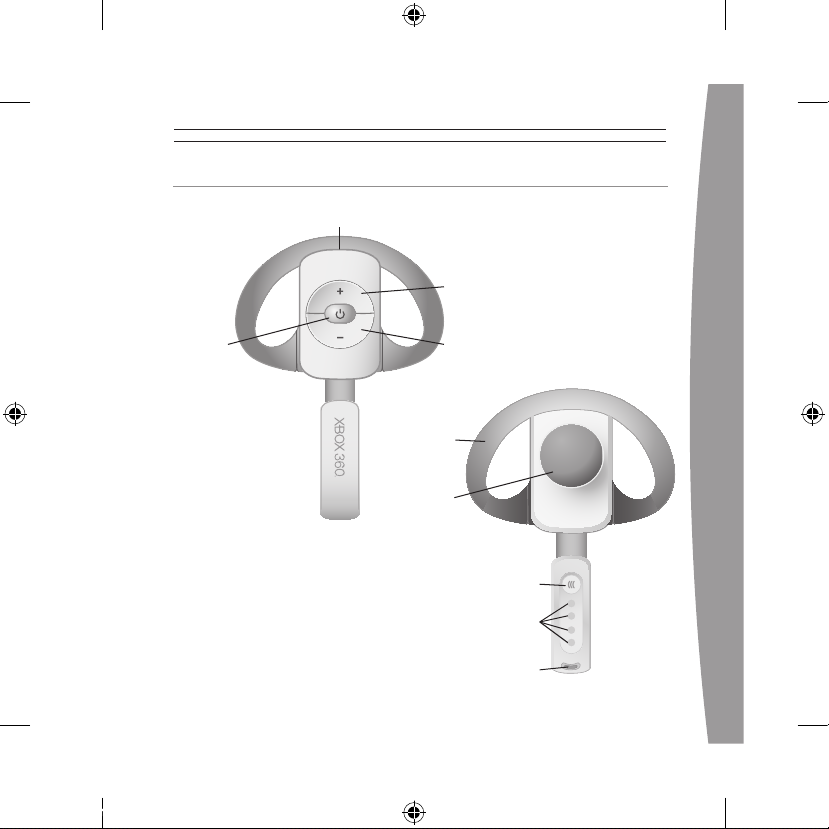
Power/mute button
Volume-up button
Volume-down button
DC input
Connect button
Lights
Earloop
Microphone
Earpiece
4
3
2
1
Connect button
Lights
Earloop
Microphone
Earpiece
4
3
2
1
X123310601_man.indd 5 7/26/2006 9:26:00 AM

Before you can use your Xbox 360
Wireless Headset with your Xbox
360 console, you need to:
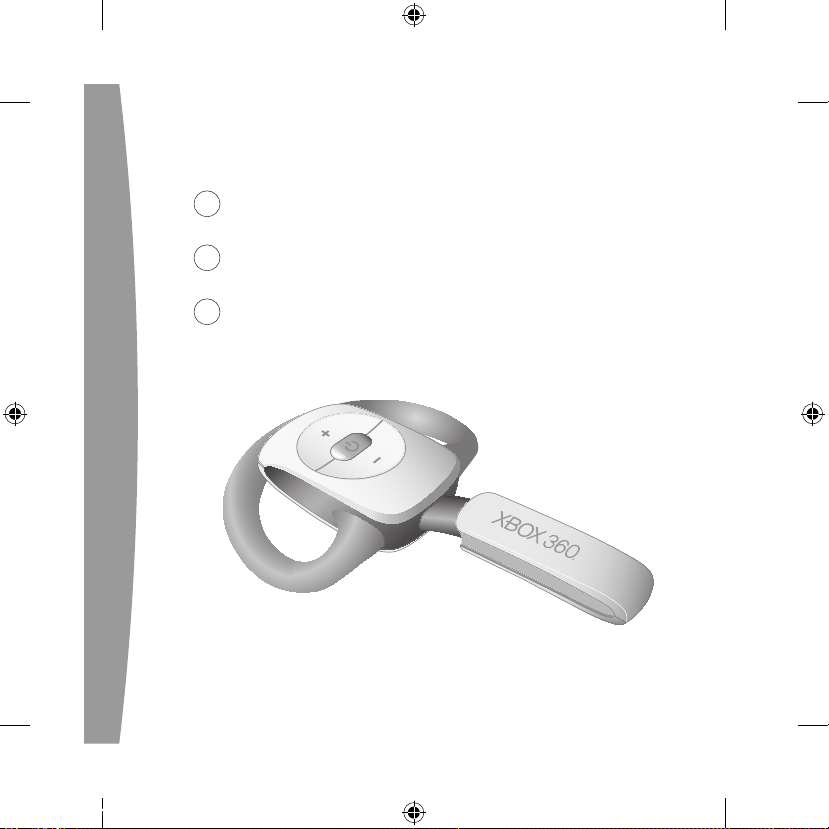
1 Charge its battery.
2 Introduce the headset to the
console by wirelessly connecting
the two.
3 Put it on.
ChARge YOUR heADseT
Charge your Xbox 360 Wireless
Headset before rst use and
whenever its built-in battery is
depleted. To charge or recharge the
headset, connect one end of the AC
power adapter to an AC power outlet
and the other end to the headset’s
power input.
While the headset is charging, the
four lights on the headset will ash
green in sequence (1, 2, 3, 4, off).
When charging is complete, all four
lights will blink in unison to signify
that the headset is ready for use.
NOTES
• Fully charging the battery can
take up to four hours using the
supplied AC power adapter.
• If your headset is wirelessly
connected to a console,
connecting it to the AC power
adapter will disconnect it from
the console.
• The headset is not functional
when it is connected to the AC
power adapter.
• If the headset is unused for a long
time, its battery may lose its
charge. If this occurs, simply
recharge the headset normally.
• The headset may become warm
while charging.
X123310601_man.indd 6 7/26/2006 9:26:00 AM
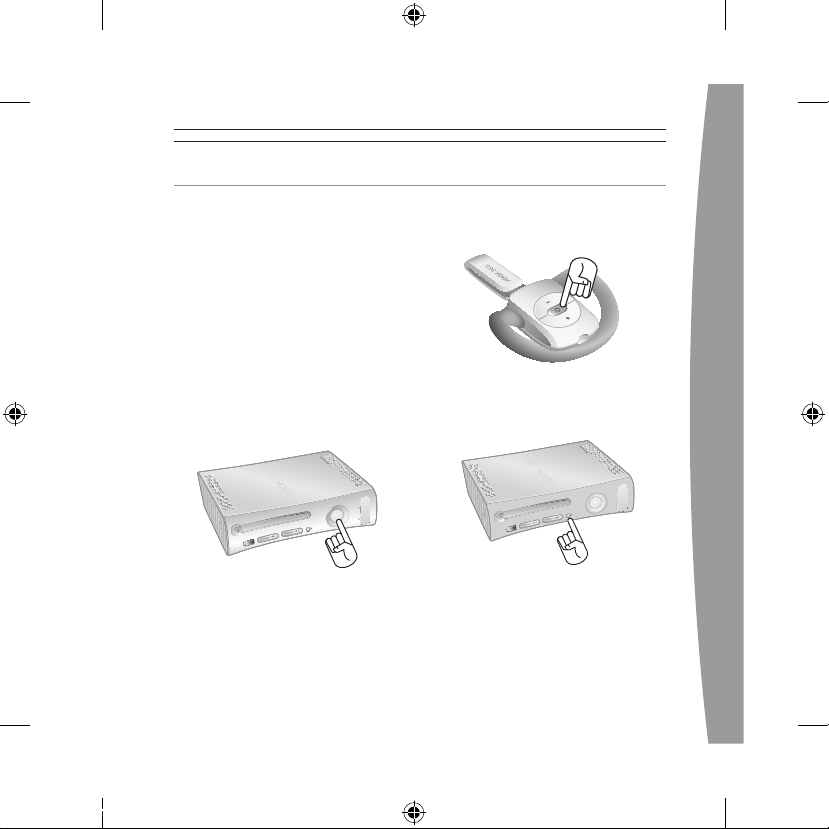
Connect the headset to your console
by rst pressing the connect button
on the console and then pressing
and holding the connect button on
the headset for one or more
seconds. You have a 20-second
window in which to establish
the connection.
To connect your wireless headset to
your console:
1 If your console is not on, press the
power button to turn on
the console.
2 If your headset is not on, press the
headset’s power button to turn on
the headset.
3 Press and release the connect
button on the console.
4 Press and hold the connect button
on the headset for one or more
seconds. The headset will
automatically be assigned to the
COnneCT YOUR heADseT
X123310601_man.indd 7 7/26/2006 9:26:04 AM
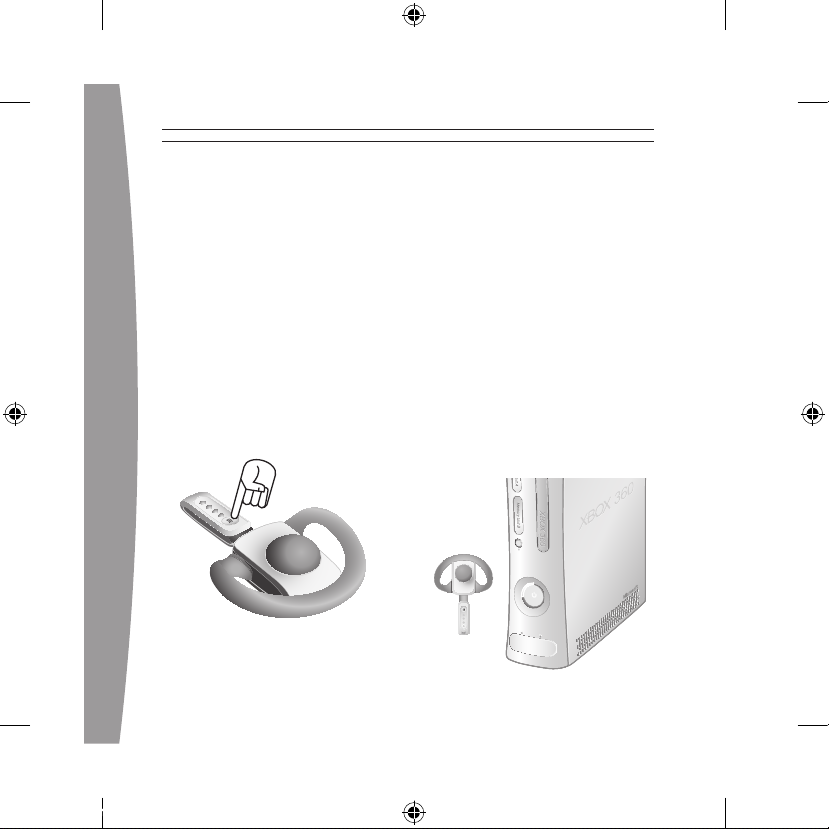
rst available quadrant in the
console’s Ring of Light.
If a controller is connected to
quadrant 1, the system will
associate the headset with
quadrant 1. If another wireless
headset is already associated with
quadrant 1, your headset will be
associated with quadrant 2.
5 If you want to associate the
headset with a controller on a
different quadrant, press the
headset’s connect button to
manually advance the quadrant to
match the quadrant of your
desired controller.
For example, to associate the
headset with a controller
connected to quadrant 3, press
the connect button three times
within 20 seconds of initiating the
connection process. The headset
will emit a single beep as you
select the rst quadrant, two
beeps as you select the second
quadrant, and three as you select
the third.
6 After the Ring of Light on the
console spins and ashes once,
the headset is connected. The
quadrant that remains lit indicates
the headset’s position. The
corresponding light on the
headset conrms the quadrant.
X123310601_man.indd 8 7/26/2006 9:26:05 AM

NOTES
• To use the headset, you must be
signed in with a gamer prole. The
rst time you use the headset, you
must connect to Xbox Live. For
information about Xbox Live, visit
www.xbox.com/live.
• You can connect up to four wireless
headsets to a console at one time.
Each connected headset is assigned
to a quadrant on the Ring of Light.
• Before you can connect a wireless
headset, at least one quadrant must
be free (unlit). To disconnect a
wireless controller, press and hold
the Xbox Guide button for three
seconds, and then turn the controller
off. To disconnect a wired controller,
unplug its cable from the console.
• If you plan to connect multiple
controllers and multiple wireless
headsets, connect a wireless
headset rst, alternating between
each headset and its intended
controller.
• A controller is not required for the
headset to work with the console. If
you’re not using a controller, the
headset will occupy its own
quadrant on the Ring of Light. If you
have a friends list, you can open a
chat window or send a voice
message using the wireless headset
and either the Xbox 360 Media
Remote or the Xbox 360 Universal
Media Remote.
• An Xbox 360 Headset (wired)
takes precedence over a wireless
headset. A wireless headset cannot
be associated with a controller
that is connected to a wired
headset. To use a wireless headset
instead, disconnect the wired
headset and then repeat the
wireless connection steps.
• When you turn off your console, the
headset also turns off. It will still be
connected the next time you turn on
the console.
• Your headset is connected to only
one console at a time. You can
connect to a new console at any
time, but your connection to the
previously connected console will
be lost.
• The Xbox 360 Wireless Headset
works only within 9 meters (30
feet) of the console. Objects
between the controller and the
console can reduce this range.
X123310601_man.indd 9 7/26/2006 9:26:05 AM
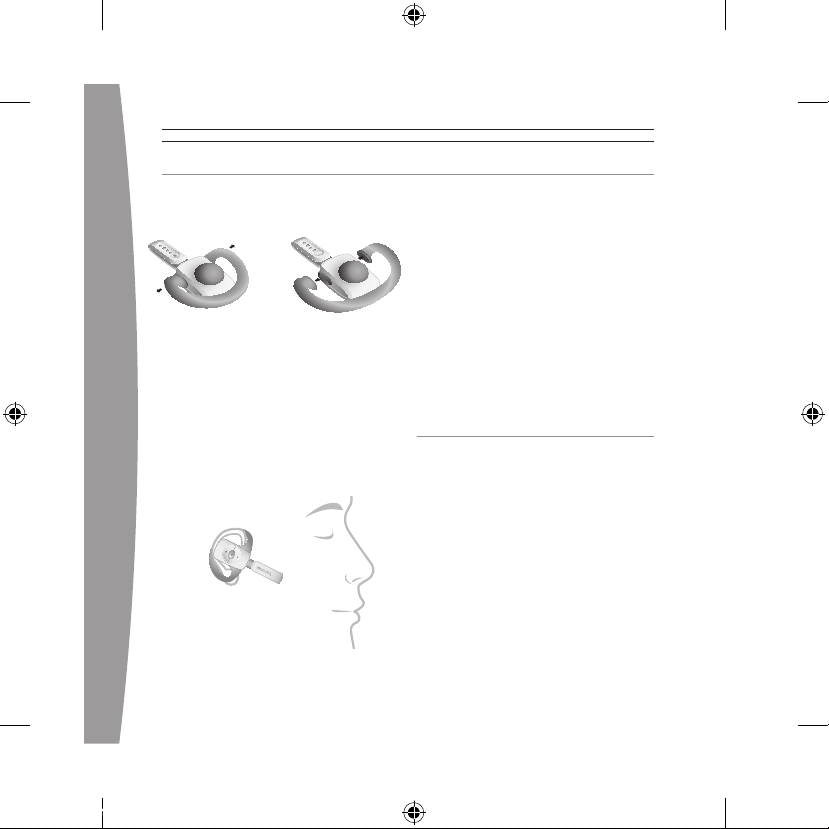
1 Choose a headset earloop. If the
earloop does not t comfortably,
try the other earloop.
Earloops snap off and on and will
only connect in the correct
orientation. Do not force an
earloop on. To ensure proper t,
use only the earloops supplied
with the headset.
2 Fit the headset snugly over either
ear such that its padded earpiece
rests comfortably over your ear.
3 Adjust the microphone.
4 Start your game or chat and use
the volume-up and volume-down
buttons to adjust the volume to a
comfortable level.
NOTE
The microphone can be adjusted
up and down and in and out.
Do not force its position, however,
as the microphone can break
under pressure.
USING YOUR HEADSET
Turn Your Headset On and Off
Press the power button to turn the
headset on; press and hold the
power button to turn it off. When
you turn off your console, the
wireless headset will turn
off automatically.
The next time you turn on your
console and your headset, they will
still be wirelessly connected and the
volume setting on the headset will
be exactly as you left it.
PUT ON YOUR HEADSET
X123310601_man.indd 10 7/26/2006 9:26:05 AM
Adjust Your Listening Level
To adjust the listening level of the
headset, press either the volume-up
or the volume-down button.
Press and hold either button to
continuously raise or lower
the volume.
To temporarily mute voice
transmission, briey press the power
button. Press the power button again
to turn mute off. Two beeps will
conrm mute on/off.
!Hearing Loss
Extended exposure to high
volumes when using a headset
may result in temporary or
permanent hearing loss.
Low-Power Warning
The headset emits the following
low-power warnings:
• 2 audible tones:
about 30
minutes of battery life remaining.
• 3 audible tones:
about 5 minutes
of battery life remaining.
CLEANING YOUR HEADSET
Clean only with a dry or slightly
damp cloth. Using cleaning solutions
may damage your headset.
CARING FOR YOUR HEADSET
To prevent damage to your product,
store it in a dry location where it will
not be crushed by heavier items. Do
not leave the product or its
accessories in places where they
could cause people to slip or trip. Do
not sit or step on it.
X123310601_man.indd 11 7/26/2006 9:26:05 AM

If you encounter problems, try the
possible solutions provided below.
Wireless Headset Does Not Work
To turn on the wireless headset,
press the headset’s power button. To
connect the wireless headset to your
console, press the connect button on
the console, and then press and hold
the connect button on the headset.
You must press the connect buttons
within 20 seconds of each other. If
you’ve done this and the headset
does not work:
• Make sure your console is
connected to Xbox Live. The rst
time you use the headset, you
must connect to Xbox Live. For
information about Xbox Live, visit
www.xbox.com/live.
• Move the headset closer to
the console.
• Make sure the battery is
freshly charged.
• Keep the console and headset at
least three feet away from large
metal objects such as le cabinets
and refrigerators.
• Metallic decorations or stickers on
the console or headset can
interfere with wireless headset
performance. Remove decorations
and try connecting again.
• Make sure the front of the console
is positioned in the direction of
the headset and away from
nearby walls.
• If you have four wireless
controllers connected to your
console, you will need to
disconnect one of them in order to
connect a wireless headset.
To disconnect a wireless
controller, press and hold the
Xbox Guide button for three
seconds, and then turn it off. To
disconnect a wired controller,
unplug its cable from the console.
• Cordless phones (2.4-GHz),
wireless LANs, wireless video
transmitters, microwave ovens,
some mobile/cell phones, and
Bluetooth headsets can interfere
with the operation of the headset.
Turn these off or unplug them and
try connecting again.
TROUBLESHOOTING
X123310601_man.indd 12 7/26/2006 9:26:05 AM

• If nothing else works, you can
reset the headset by pressing and
holding the power button for two
seconds or more. Turn off your
console and then repeat the
wireless connection steps.
Earpiece Emits No Sound
Make sure the headset is wirelessly
connected to your console. Try
adjusting the volume using the
volume controls on the headset.
Others Can’t Hear You
Make sure the headset is wirelessly
connected to your console and that
your headset isn’t muted (briey
press the power button to either
mute or unmute the headset).
Make sure that voice isn’t muted in
the Xbox Guide (go to Personal
Settings, Voice). Check your game
manual to determine whether you
need to push a button while speaking.
Chat Doesn’t Work
Make sure the headset is wirelessly
connected to your console and that
your headset isn’t muted (briey
press the power button to either
mute or unmute the headset).
Make sure your console’s Family
Settings for Xbox Live allow
communication with other gamers.
Battery Doesn’t Charge
If the AC power adapter is connected
to the headset and the battery fails
to charge, the headset ’s rst two
lights will ash in sequence (1, 1 and
2; 1, 1 and 2; etc.) to signal an
error condition.
If this occurs, the headset may be
too hot or too cold. Leave the
headset connected to the power
adapter long enough for its
temperature to settle, at which point
the battery should charge normally.
If the error condition persists and the
headset appears to be at room
temperature, call Xbox Customer
Support (see “If You Need
More Help”).
X123310601_man.indd 13 7/26/2006 9:26:05 AM
IF YOU NEED MORE HELP
Go to www.xbox.com/support or call
Xbox Customer Support:
• United States and Canada:
1-800-4MY-XBOX (1-800-469-9269)
TTY users: 1-866-740-XBOX
(1-866-740-9269)
• Mexico: 001-866-745-83-12
(TTY users: 001-866-251-26-21)
• Colombia: 01-800-912-1830
• Brazil: 0800-891-9835
• Chile: 1230-020-6001
Do not take your Xbox 360 console
or its accessories to your retailer for
repair or service unless instructed
to do so by an Xbox Customer
Support representative.
Do Not Attempt Repairs
Do not attempt to take apart,
service, or modify the Xbox 360
console, power supply, or its
accessories in any way. Doing so
could present the risk of serious
injury or death from electric shock
or re, and for safety reasons it
will void your warranty.
X123310601_man.indd 14 7/26/2006 9:26:06 AM
DisPOsAl OF WAsTe eleCTRiCAl
AnD eleCTROniC eQUiPMenT
(Weee) in The eUROPeAn UniOn
AnD OTheR COUnTRies WiTh
sePARATe COlleCTiOn sYsTeMs
This symbol on the product or its
packaging means that this product
must not be disposed of with your
household waste. Instead, it is your
responsibility to hand this over to an
applicable collection point for the
recycling of electrical and electronic
equipment. This separate collection
and recycling will help to conserve
natural resources and prevent
potential negative consequences for
human health and the environment,
which inappropriate disposal could
cause due to the possible presence
of hazardous substances in
electrical and electronic equipment.
For more information about where
to drop off your electrical and
electronic waste, please contact
your local city/municipality office,
your household waste disposal
service, or the shop where you
purchased this product. Contact
weee@microsoft.com for additional
information on WEEE.
X123310601_man.indd 15 7/26/2006 9:26:06 AM

FOR CUSTOMERS IN THE
UNITED STATES
This device complies with Part 15 of
the FCC Rules. Operation is subject to
the following two conditions:
(1) This device may not cause harmful
interference, and
(2) This device must accept any
interference received, including
interference that may cause
undesired operation.
Trade Name: Microsoft Corp.
Address: One Microsoft Way
Redmond, WA 98052 U.S.A.
Responsible
Party:
Microsoft Corporation
Telephone
No.:
(800) 4MY-XBOX
This equipment has been tested and
found to comply with the limits for a
Class B digital device, pursuant to
Part 15 of the FCC rules. These limits
are designed to provide reasonable
protection against harmful
interference in a residential
installation. This equipment
generates, uses, and can radiate
radio frequency energy and, if not
installed and used in accordance
with the instructions, may cause
harmful interference to radio
communications. However, there is
no guarantee that interference will
not occur in a particular installation.
If this equipment does cause harmful
interference to radio or television
reception, which can be determined
by turning the equipment off and on,
the user is encouraged to try to
correct the interference by one or
more of the following measures:
• Reorient or relocate the
receiving antenna.
• Increase the separation between
the equipment and receiver.
• Connect the equipment into an
outlet on a circuit different from
that to which the receiver
is connected.
• Consult the dealer or an
experienced radio/TV technician
for help.
X123310601_man.indd 16 7/26/2006 9:26:06 AM
Loading…
Модель с качественным звуком для полного погружения в игру.

Относительно недавно в моей жизни появилась Xbox Series X, а в придачу — бессонные ночи за играми. Меня такое положение вещей устраивало, а вот моего молодого человека — не очень, так как звуки мешали ему спать. Выбор был небольшой: или не играть ночами, или покупать наушники. Конечно же, второй вариант меня устроил больше.
Я рассматривала разные модели и в итоге остановилась на гарнитуре Microsoft Xbox Wireless Headset — она недорогая, симпатично выглядит, специально заточена под игры. А ещё — от того же бренда, что и приставка.
Комплектация и дизайн
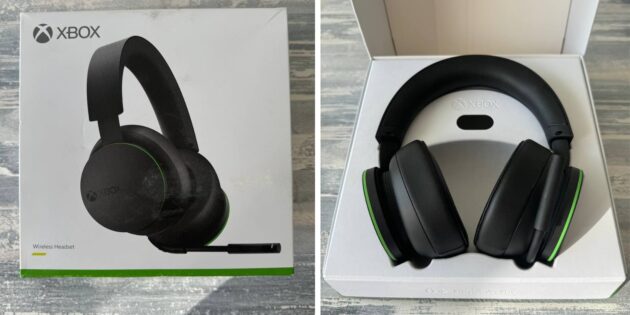
Комплектация, честно говоря, скудная. В коробке находятся только наушники и инструкция — даже зарядного кабеля нет. Хоть на официальном сайте и указано, что необходимый USB‑C будет в комплекте.
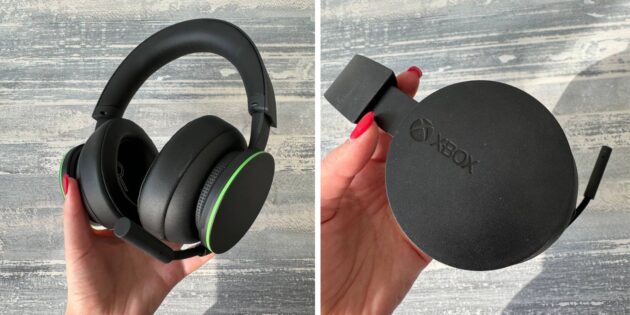
Дизайн лаконичный: гарнитура чёрного цвета украшена лишь тонкими зелёными полосами. Ничего лишнего. Оголовье покрыто пеной и регулируется по размеру. Амбушюры овальной формы также покрыты пеной и искусственной кожей. Они прилегают к ушам плотно, но при этом не давят. Конструкция лёгкая, посадка комфортная, что позволяет играть часы напролёт, не ощущая дискомфорта.
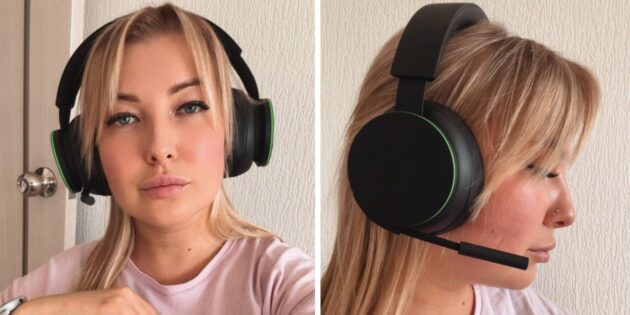
Слева находится микрофон на гибкой ножке, положение которого можно менять, подбирая наиболее удобное для себя. Во время работы горит подсветка. И это очень удобно: так всегда будешь помнить о включённом микрофоне и не ляпнешь чего‑то лишнего.
Подключение и управление
Для подключения к телевизору, смартфону используется Bluetooth. К приставке же наушники подключаются по протоколу Xbox Wireless. Управление осуществляется с помощью механических кнопок, расположенных на левой чашке, и поворотных механизмов. Длинная зелёная кнопка отвечает за включение и отключение устройства, чёрная со значком микрофона — за включение и выключение микрофона.
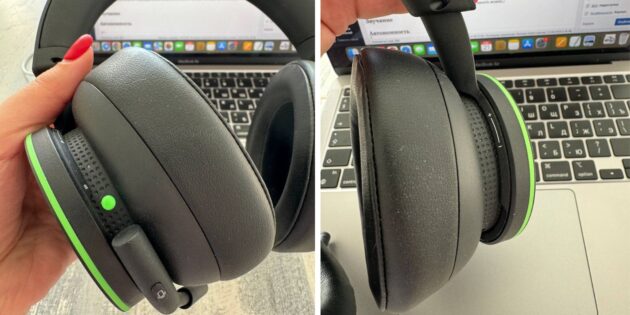
Прибавлять и убавлять громкость можно, поворачивая вращающийся элемент на правой чашке. На левой расположен точно такой же, но он отвечает за баланс громкости игры и голосового чата. Это очень удобно, когда необходимо общаться с членами команды и при этом следить за происходящим в игре.
Если подключить наушники к Xbox, то с помощью «Аксессуары Xbox» получится настроить эквалайзер, усилить низкие частоты, автоматическое отключение звука, яркость подсветки. Хорошо, что есть такая возможность, но лукавить не буду: я зашла туда при первом подключении, посмотрела, что можно сделать, но ничего особо не трогала, так как, на мой взгляд, всё было хорошо оптимизировано и настроено сразу «из коробки».
Звучание
Наушники поддерживают технологии пространственного звука Windows Sonic, Dolby Atmos и DTS Headphone:X. Они обеспечивают чистый звук, благодаря которому можно полностью погрузиться в процесс и не отвлекаться. И это не просто громкие слова. Звук на самом деле кристально чистый, передаётся без задержек и качественно отражает даже малейшие шорохи в игре.
Автономность
Производитель обещает около 15 часов использования на одном заряде, и в жизни получается примерно столько же. 30‑минутная зарядка обеспечивает ещё 4 часа беспрерывной игры. Этого более чем достаточно, чтобы наслаждаться процессом и не отвлекаться на подпитку устройства. Сколько занимает один полный цикл заряда, сказать не могу — обычно ставлю их подзаряжаться на день, чтобы затем вернуться домой и снова сесть за игрушки.
Вывод
Наушники строго выглядят, классно звучат, удобно сидят, долго держат заряд, интуитивно управляются — впечатления от использования максимально положительные. Стоят они сейчас 12 390 рублей, и это та сумма, которую точно не жаль отдать за действительно качественный гаджет.
Manual
View the manual for the Microsoft Xbox 360 Wireless Headset here, for free. This user manual comes under the category headset and has been rated by 1 people with an average of a 6. This manual is available in the following languages: English. Do you have a question about the Microsoft Xbox 360 Wireless Headset?
Ask your question here
Frequently asked questions
Can’t find the answer to your question in the manual? You may find the answer to your question in the FAQs about the Microsoft Xbox 360 Wireless Headset below.
When is my volume too loud?
A volume above 80 decibels can be harmful to hearing. When the volume exceeds 120 decibels, direct damage can even occur. The chance of hearing damage depends on the listening frequency and duration.
What is noise cancelling?
Noise cancelling ensures that ambient noise is reduced.
Can I make hands-free calls with my headset?
The newer headset generally have a small microphone built in which allows for calling.
Is the manual of the Microsoft Xbox 360 Wireless Headset available in English?
Yes, the manual of the Microsoft Xbox 360 Wireless Headset is available in English .
Is your question not listed? Ask your question here