
В 2020 г. компания решила порадовать нас и выпустила обновленную версию карманного Wi-Fi роутера- Huawei E5576-320. Как и предыдущие аналоги основной особенностью сетевого устройства является наличии батареи и Wi-Fi модуля. Таким образом роутер не привязан к розетке и способен подключить несколько устройств по беспроводной сети Wi-Fi, а это значит что его можно использовать: на природе, даче, прогулке, в путешествии, автомобиле и т.д.
Обзор мобильного Wi-Fi роутера Huawei e5576-320
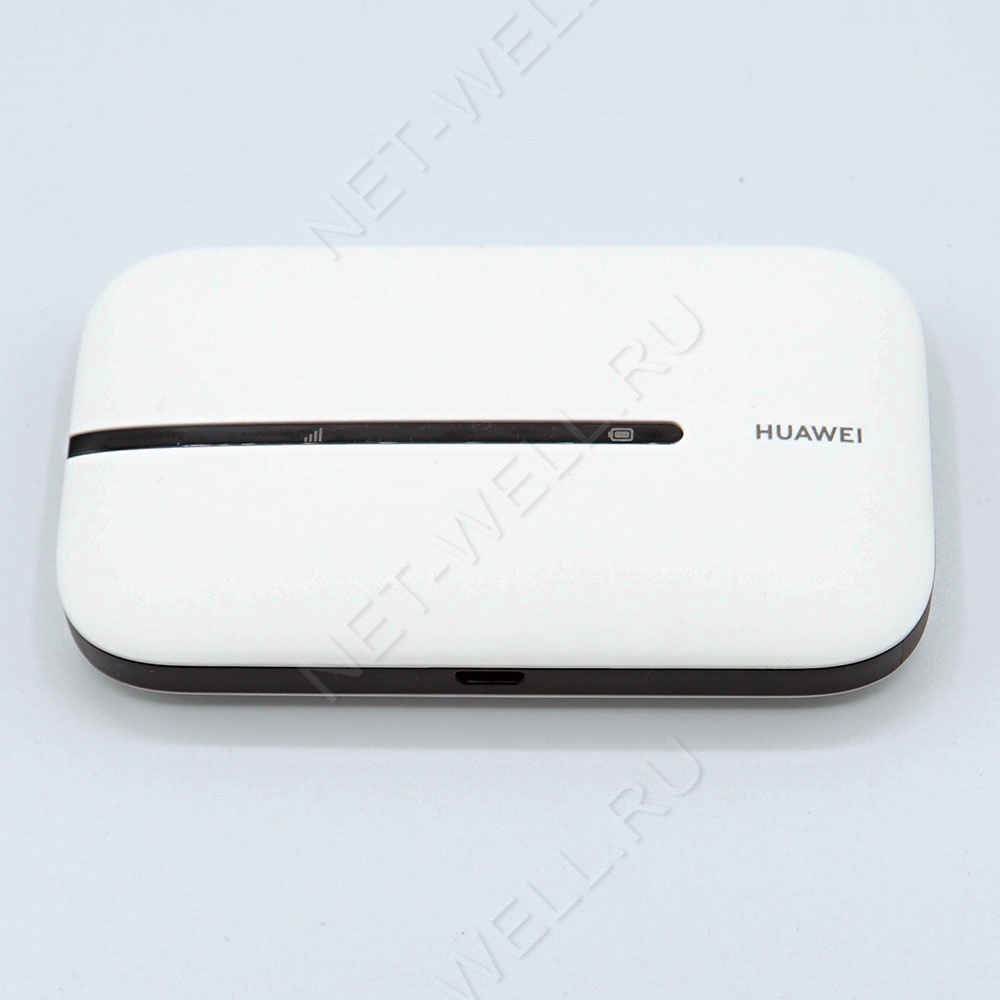
Внешний вид Huawei E5576.
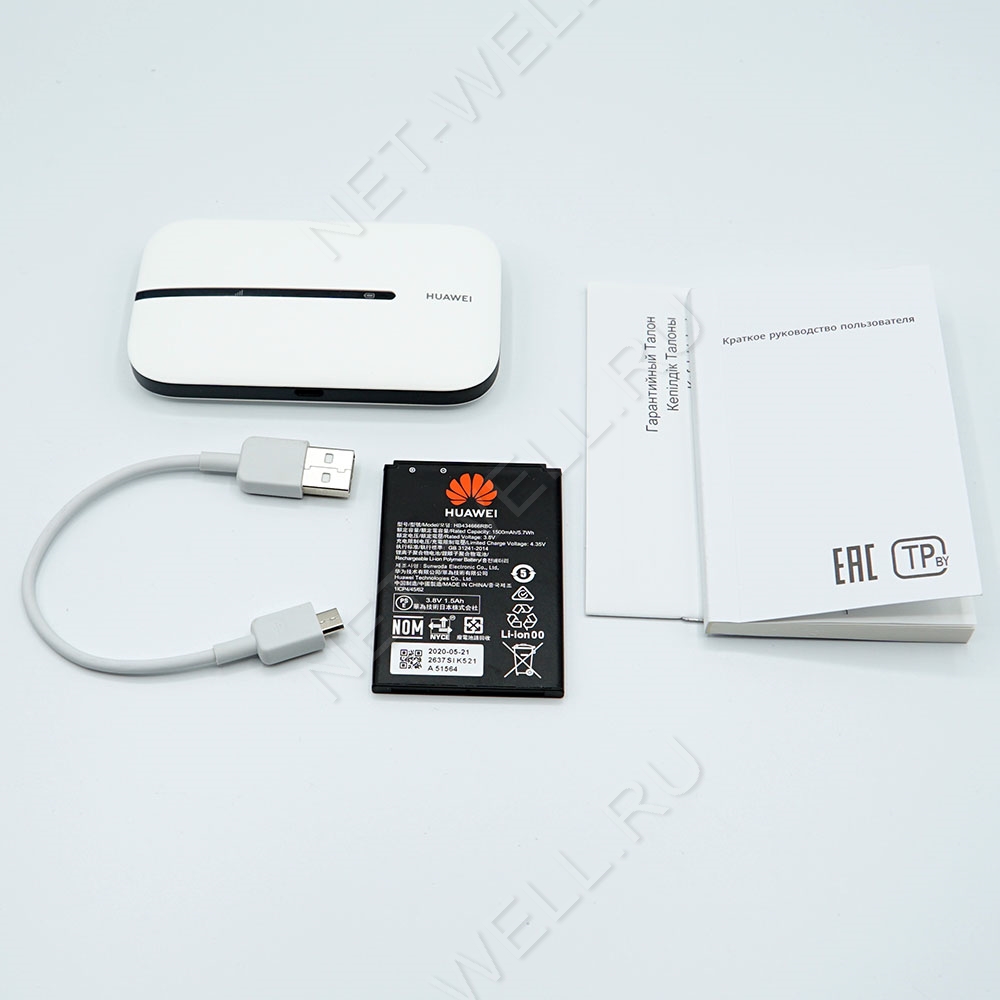
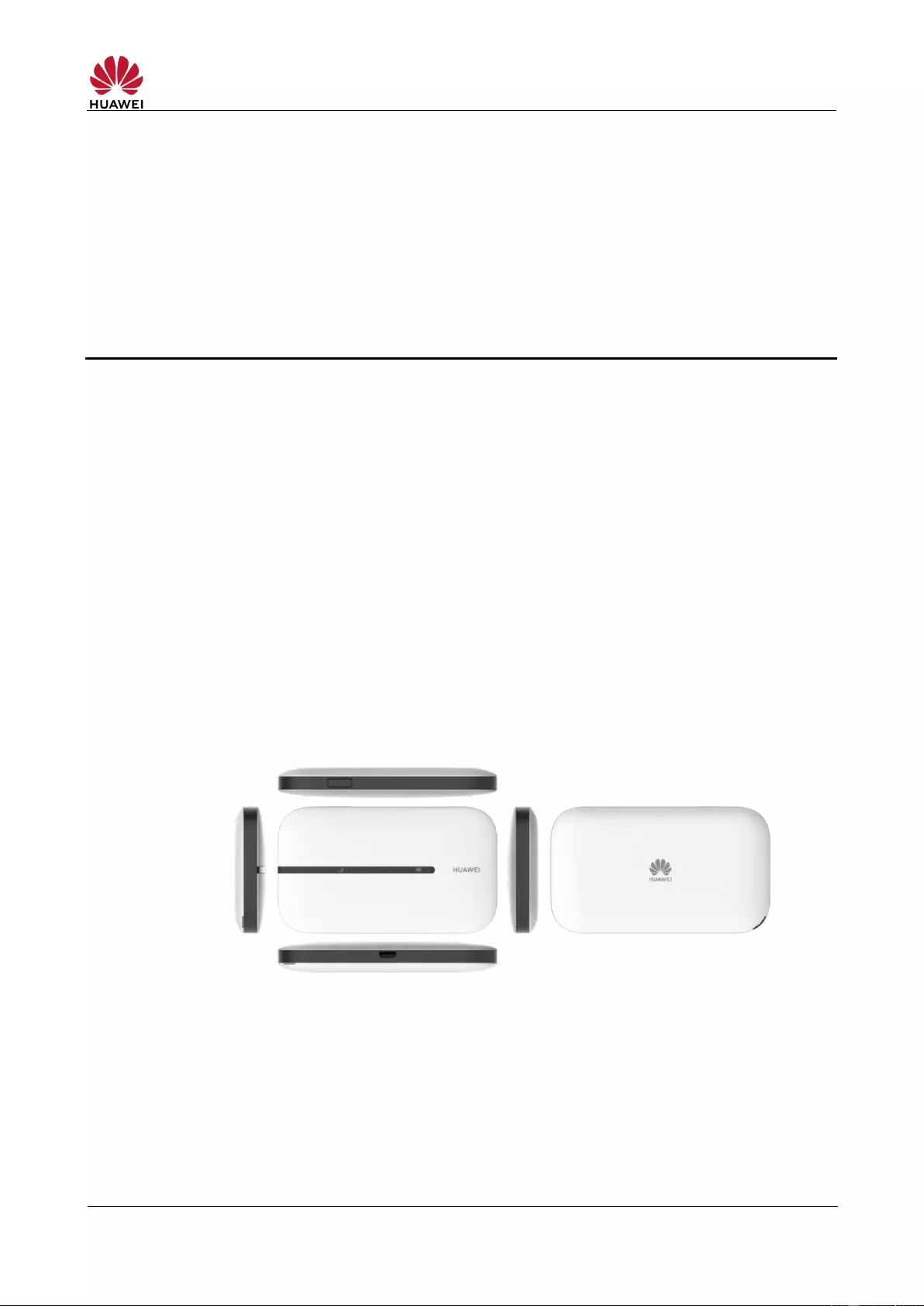
Роутер можно смело назвать карманным, поскольку он очень не большого размера 100 х 58 х14 мм и вес всего 72 г. Выпускается в двух цветах: черный и белый (к нам попал роутер белого цвета). Пластик не глянцевый, отпечатков и следов на нем не остается. Спереди можно увидеть темную полосу, на которой расположились два индикатора: батареи и мобильного сигнала и надпись Huawei.
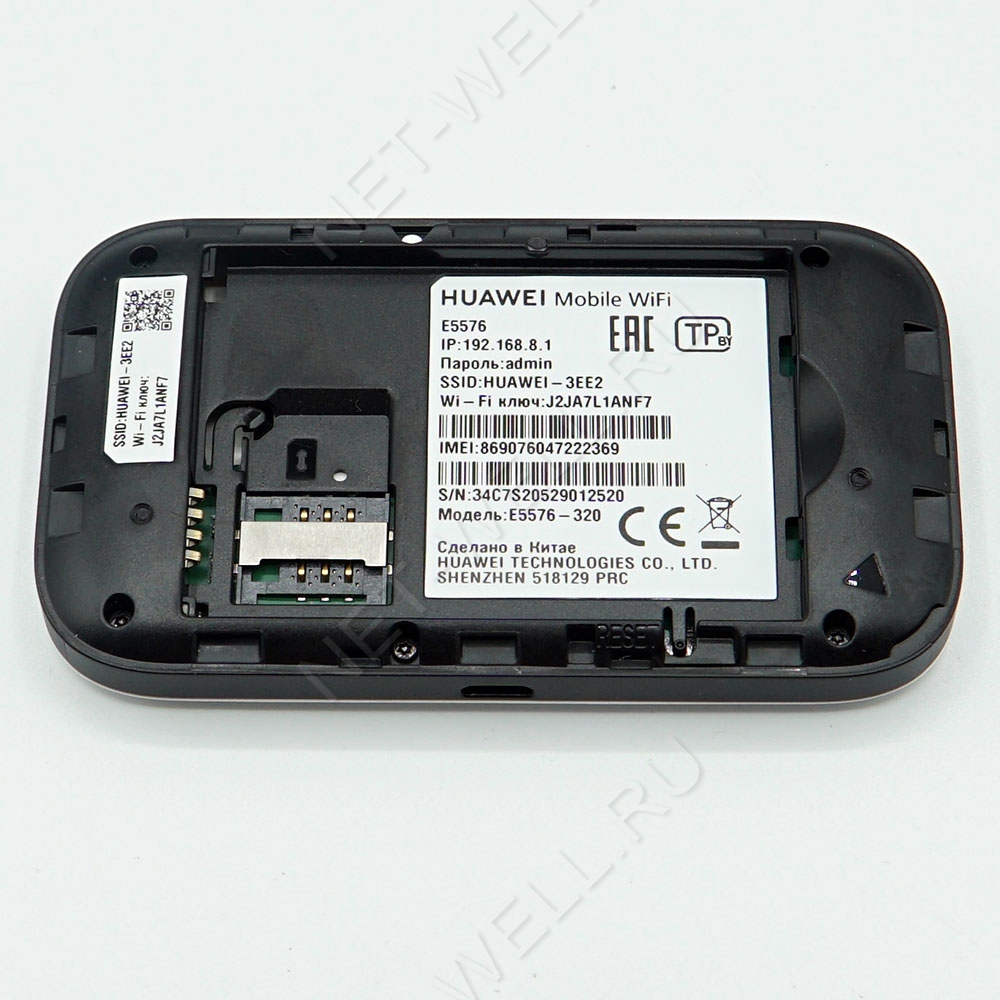
Сзади, сняв крышку можно увидеть слот для сим карты (sim стандартного размера). Имя Wi-Fi сети и пароль, как вы можете понять роутер уже настроен и не требует первичной настройки, но при желании имя и пароль можно изменить через веб интерфейс. Кнопка «Reset» — служит для сброса настроек до заводских.
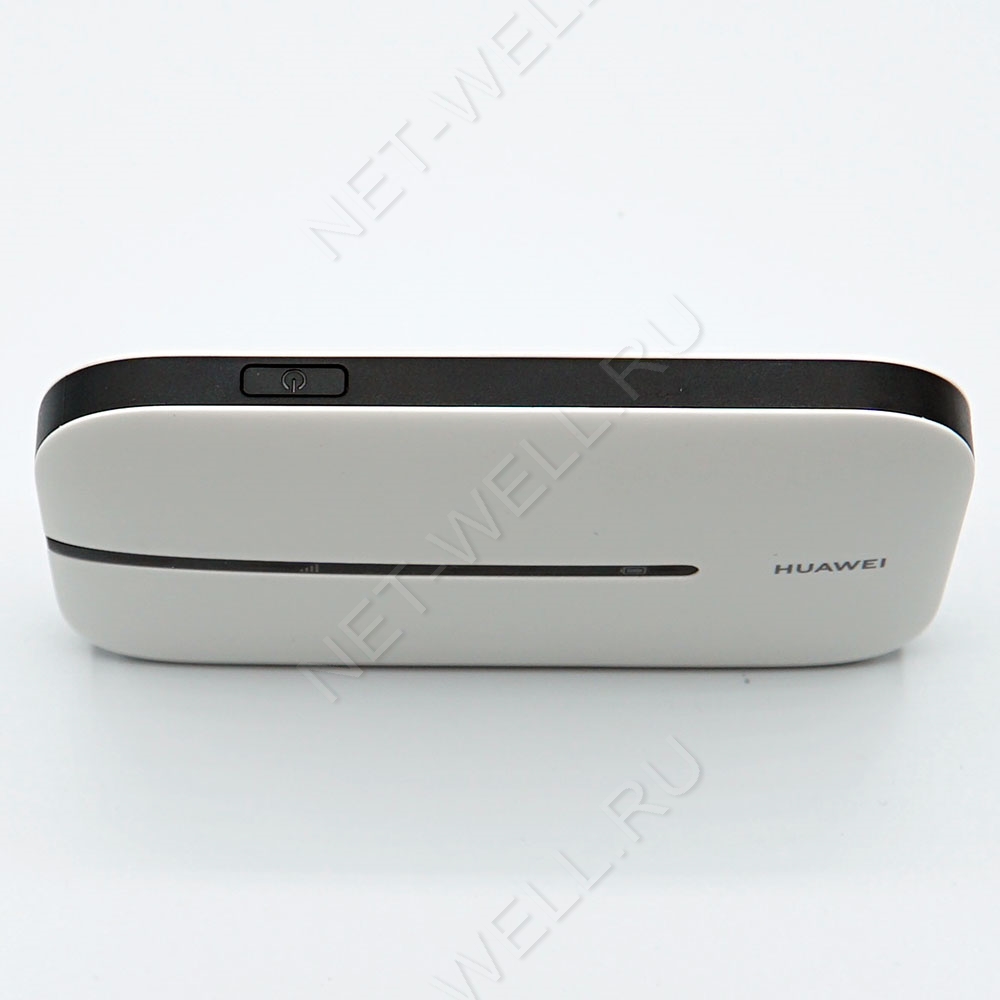
Сверху кнопка включения/ выключения.
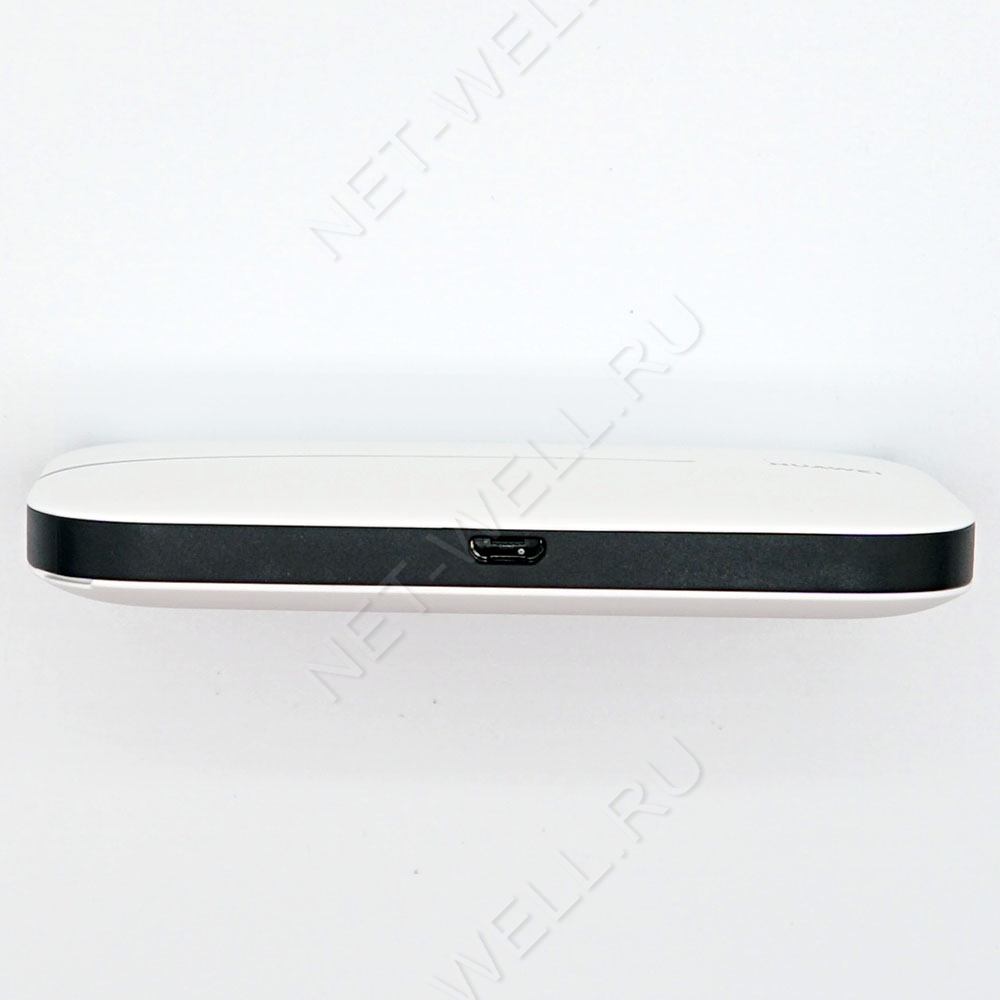
С противоположенной стороны разъем microUSB.
На внешний вид Хуавей 5576 можно охарактеризовать одним словом- минимализм, никаких лишних деталей, все максимально просто и функционально.
Технические характеристики Huawei E5576-320
3G/ 4G Wi-Fi роутер имеет съемную батарею 1500 мА/ч, что, по заверению производителя, позволит использовать его без подзарядки до 6 часов.
Wi-Fi модуль работает на частоте 2,4 ГГц (802.11 b/g/n), позволяет одновременно подключить до 16 устройств. Так же можно подключить устройство по USB кабелю к компьютеру/ ноутбуку и пользоваться Интернетом.
Модификация 320 предназначена для России, а это значит что он поддерживает все российские частоты. То же касается и операторов. мобильный роутер работает со всеми операторами: МТС, Билайн, Мегафон, Теле2, Ростелеком и т.д.
Поддерживает сети 3G :UMTS, HSPA, HSPA+,DCHSPA и 4G: LTE FDD и LTE TDD. Скорость в 3G входящая до 42,5 Мбит/с, исходящая до 5,76 Мбит/с и 4G/ LTE входящая до 150 Мбит/с, исходящая до 50 Мбит/с.
Комплектация: 3G/ 4G Wi-Fi роутер, кабель USB- microUSB, документация.
Настройка Huawei e5576
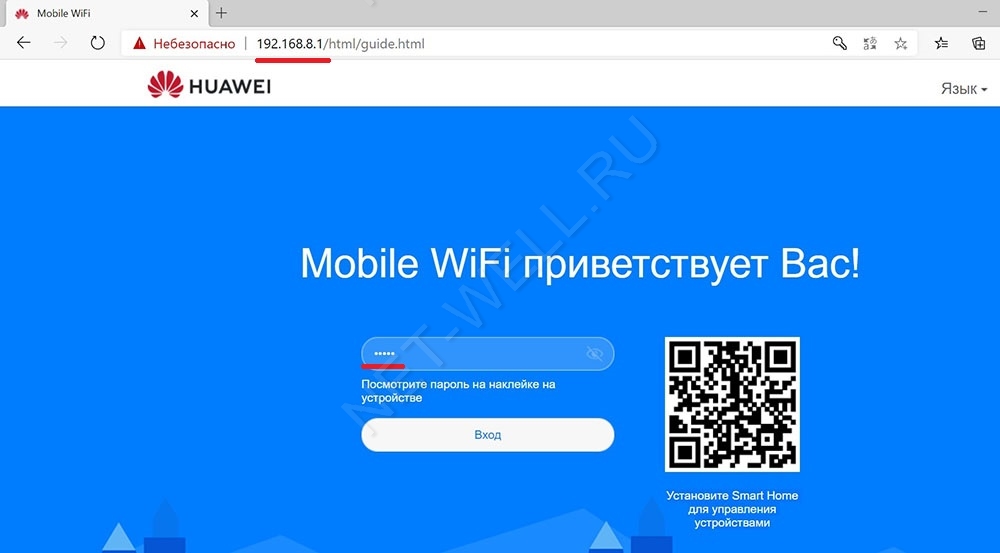
Для настройки можно использовать не только компьютер/ ноутбук, но и смартфон или планшет. Первое, что необходимо сделать — включить роутер и подключиться по Wi-Fi или кабелю. Для смартфонов и планшетов существую приложения для настройки, поскольку функционал этих приложений урезан и работают они не всегда идеально, мы рекомендуем настраивать через веб интерфейс. Для этого откройте любой браузер и в адресной строке введите 192.168.8.1, пароль admin (по умолчанию).
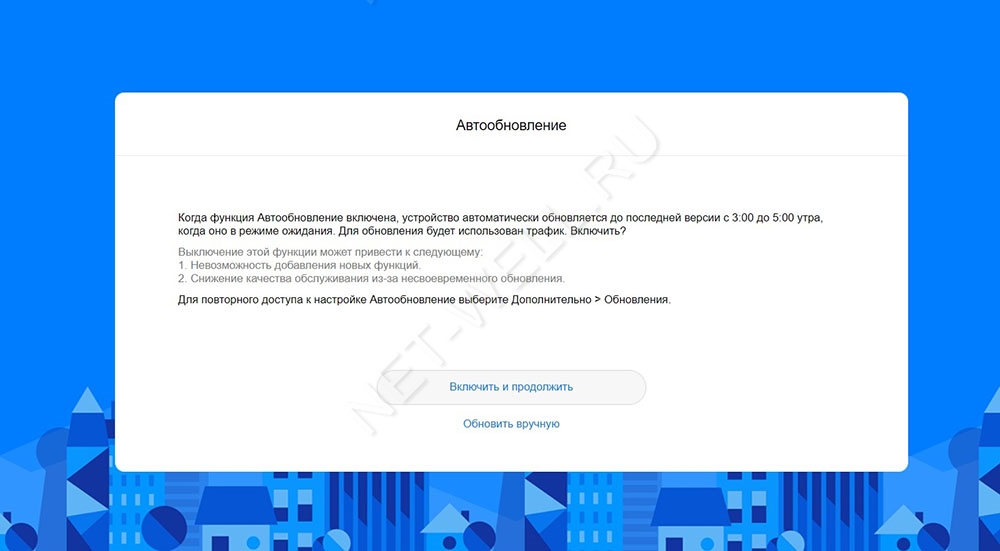
При первом включении будет предложено включить обновления, нажмите «Включить и продолжить».
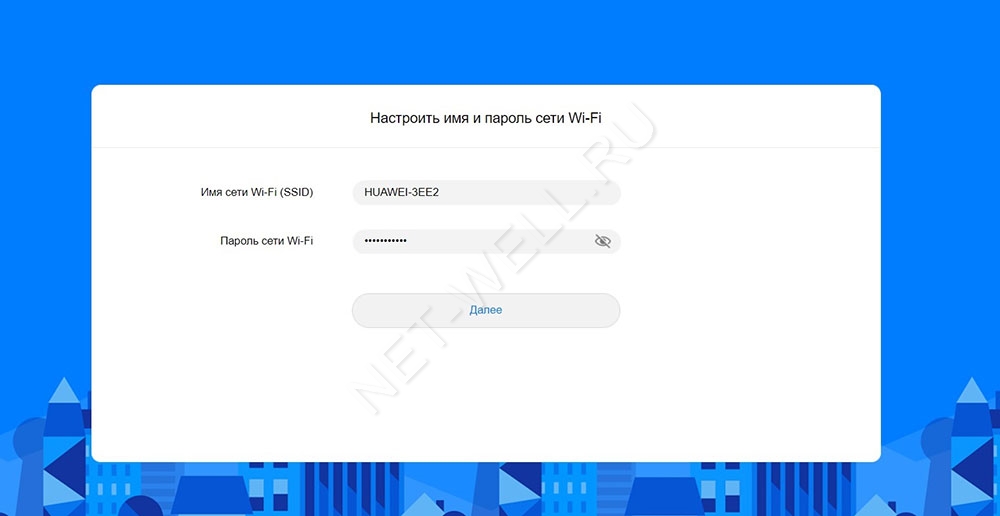
Следующим шагом можно изменить имя беспроводной Wi-Fi сети или пароль, можете оставить по умолчанию и нажать кнопку «Далее».
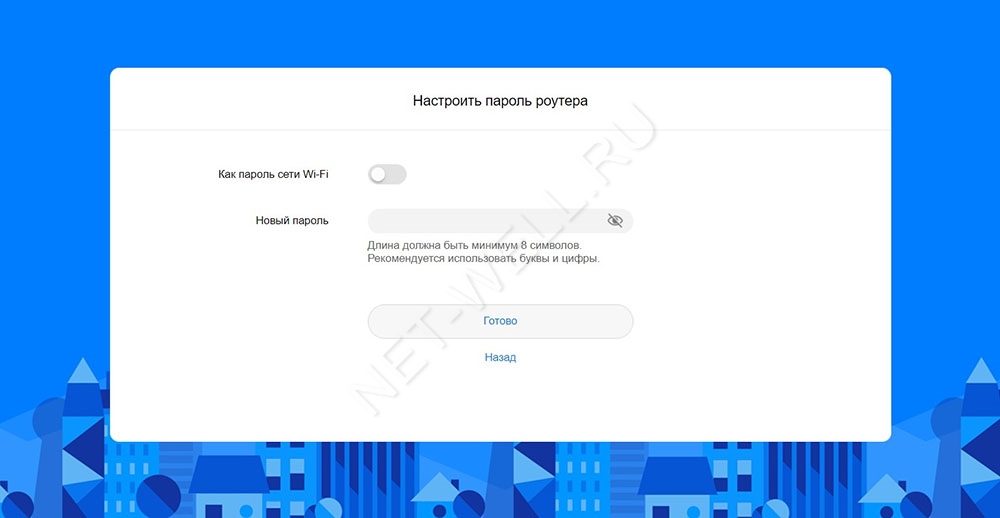
Затем нужно указать новый пароль для веб интерфейса (вместо admin), рекомендуем выбрать «Как пароль Wi-Fi сети» и нажать «Готово».
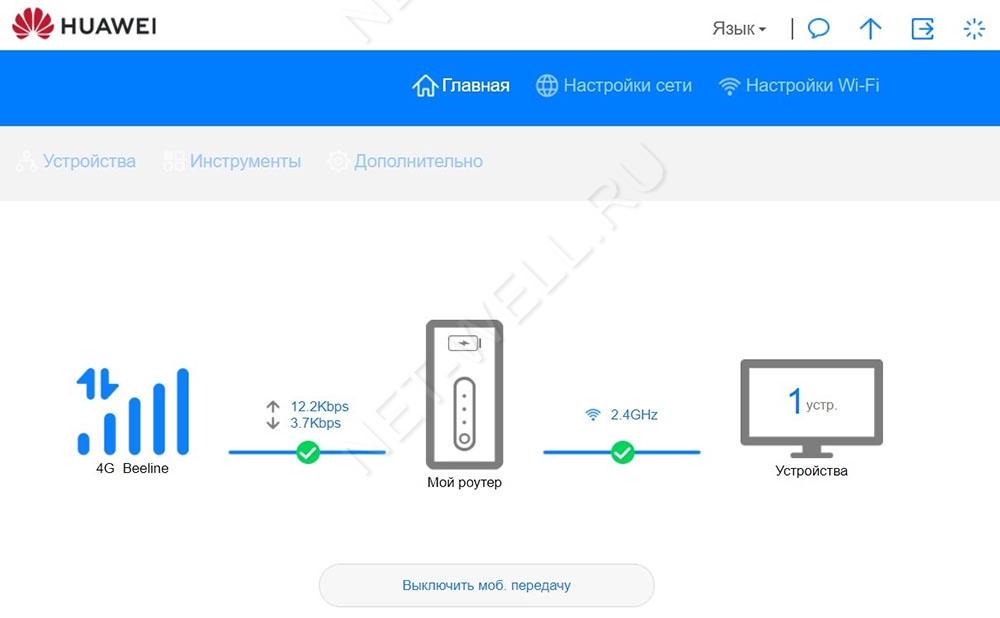
Откроется меню Главная, на которой можно увидеть уровень сигнала (в делениях), какую сеть ловит роутер (3G или 4G), сколько устройств подключено и т.д.
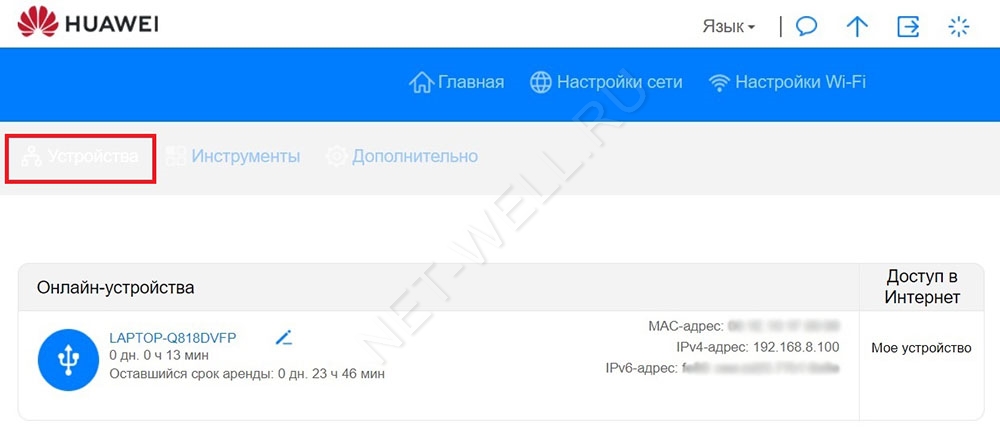
В меню Устройства можно увидеть какие устройства сейчас подключены к Huawei e5576.
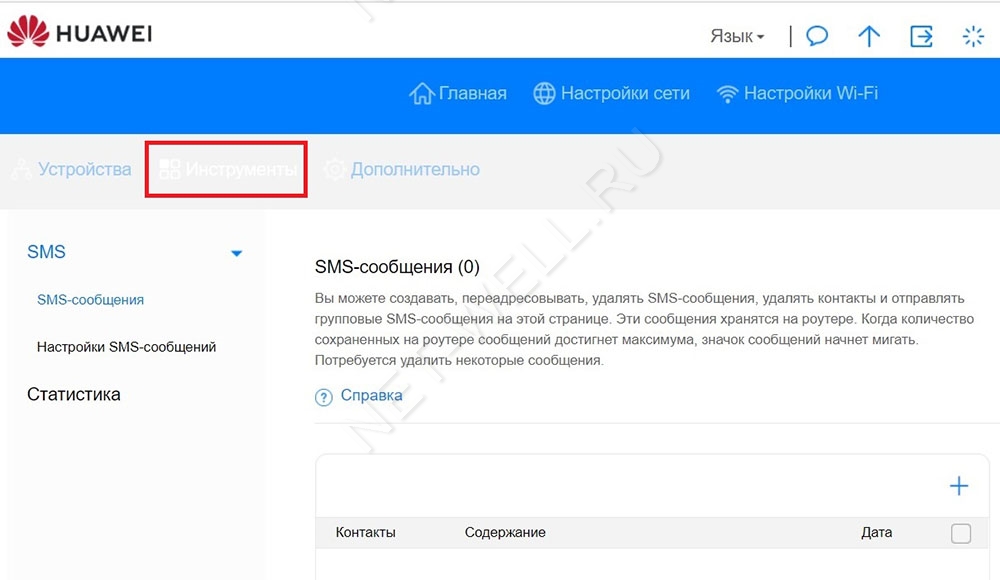
В меню Инструменты, можно прочитать СМС сообщения и посмотреть Статистику.
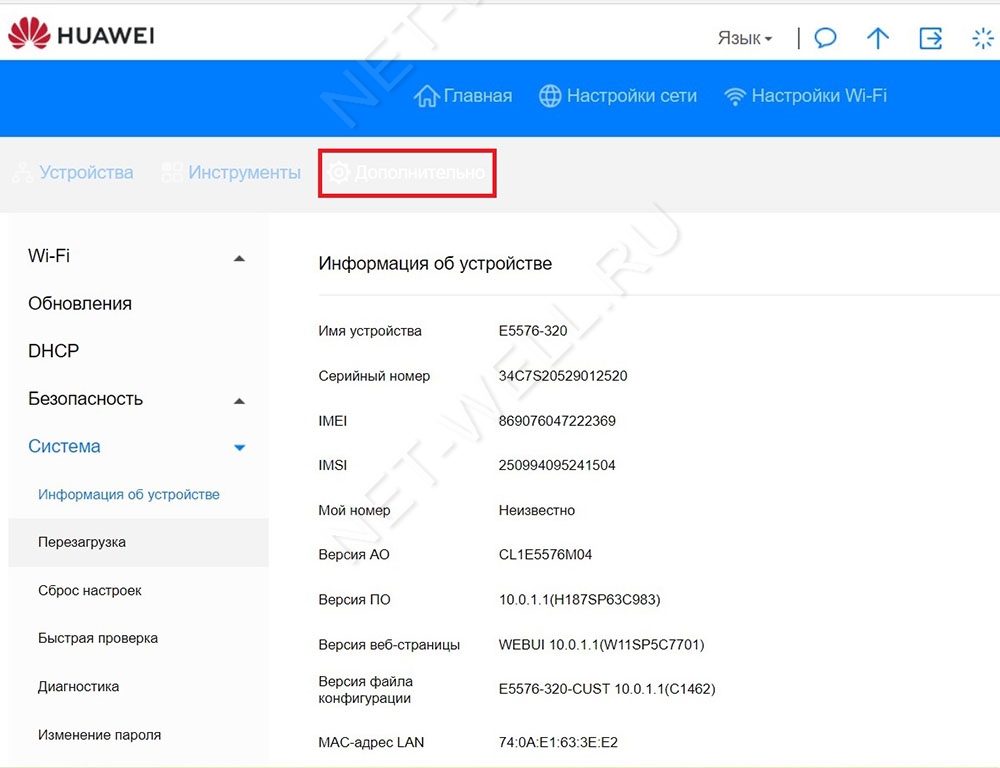
Во вкладке Дополнительно можно включить или отключить обновления, настроить безопасность, посмотреть основную информацию об устройстве и т.д.
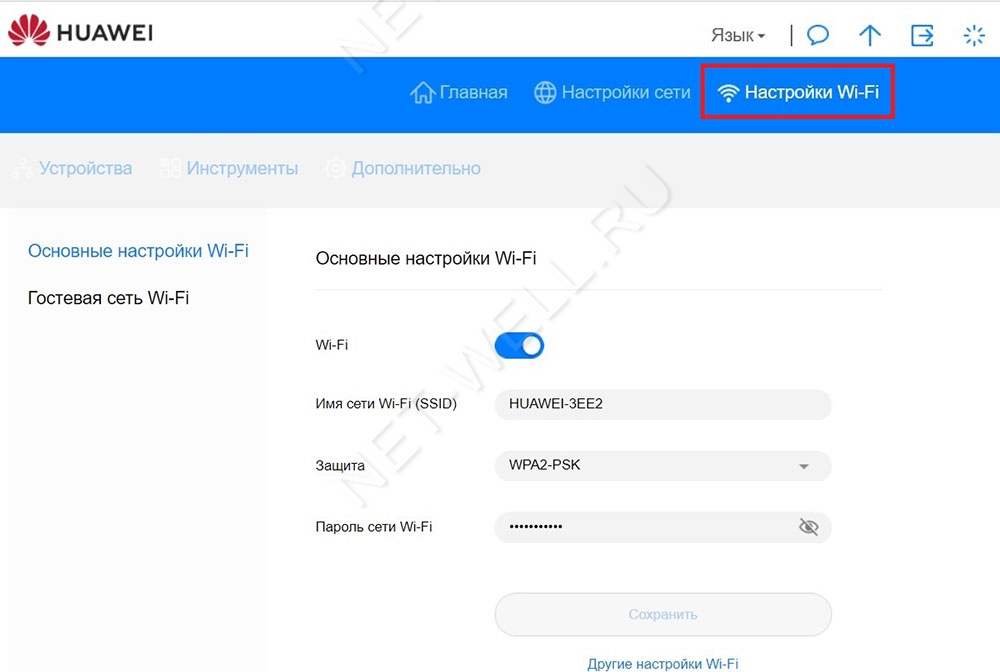
В меню Настройки Wi-Fi можно включить или отключить Wi-Fi раздачу, изменить имя и пароль беспроводной сети. В подменю Гостевая сеть Wi-Fi можно включить гостевую сеть, она необходима если вы хотите предоставить Интернет устройствам, но без доступа к локальным ресурсам, обычно применяется в офисах.
Вывод.
В целом Huawei e5576-320 оставляет о себе приятные впечатления, не большой, не тяжелый, не дорогой, все основные функции есть. Единственное что могли бы добавить это два разъема для подключения внешних 3G/ 4G антенн.
Краткое руководство пользователя
Установка SIM-карты
micro-SIM (3FF)
mini-SIM (2FF) nano-SIM (4FF)
Установите SIM-карту в слот стороной с чипом вниз и
скошенным уголком наружу.
Снимите заднюю крышку, чтобы посмотреть имя
(SSID) и пароль (Wi-Fi ключ) сети Wi-Fi® по
умолчанию.
1
Включение устройства Mobile
WiFi
Чтобы включить Mobile WiFi, нажмите и удерживайте
кнопку питания. После включения устройство Mobile
WiFi автоматически выполнит поиск мобильной сети.
Зеленый: сильный сигнал
Желтый: слабый сигнал
Красный: нет доступа в Интернет
Информацию о том, что делать, если индикатор
уровня сигнала на устройстве Mobile WiFi горит
красным или желтым, можно найти в разделе
Вопросы и ответы.
2
Доступ в Интернет
xxxxxxxx
SSID: XXXXXX-XXXX
Wi-Fi ключ: XXXXXXXX
Для получения доступа в Интернет подключите Ваше
устройство к устройству Mobile WiFi. Снимите заднюю
крышку, чтобы посмотреть имя (SSID) и пароль (Wi-Fi
ключ) сети Wi-Fi по умолчанию.
Информацию о том, что делать, если Вы не
можете получить доступ в Интернет после
подключения к устройству Mobile WiFi, можно
найти в разделе Вопросы и ответы.
3
Управление устройством
С помощью приложения: отсканируйте QR-код ниже,
чтобы загрузить приложение HUAWEI SmartHome
для управления устройством Mobile WiFi, например
для изменения имени или пароля сети Wi-Fi либо
проверки трафика.
Если Вы не можете добавить устройство в
приложении, убедитесь, что используется
последняя версия приложения.
С помощью браузера: в браузере мобильного
телефона или компьютера введите 192.168.8.1, чтобы
открыть веб-страницу конфигурации устройства
Mobile WiFi. Пароль по умолчанию для входа в
систему — admin.
• Если не удается открыть веб-страницу
конфигурации, проверьте, подключен ли
мобильный телефон или компьютер к
устройству Mobile WiFi.
• Для обеспечения защиты Ваших данных
рекомендуется изменить имя и пароль сети WiFi по умолчанию, а также пароль по
умолчанию для входа в систему.
4
Зарядка
Красный: низкий уровень заряда батареи.
Зарядите устройство Mobile WiFi.
Используйте официальный кабель для зарядки и
адаптер питания Huawei.
Адаптер питания не входит в комплект поставки
и приобретается отдельно.
5
Внешний вид
Индикатор
уровня сигнала
Индикатор
заряда батареи
Слот для
установки SIMкарты
Чтобы выключить устройство Mobile WiFi: нажмите
и удерживайте кнопку питания, пока индикаторы не
погаснут.
Чтобы восстановить заводские настройки
устройства Mobile WiFi: в процессе включения
устройства Mobile WiFi нажмите и удерживайте
булавкой кнопку сброса настроек. Когда все
индикаторы начнут мигать, сброс настроек будет
завершен.
Кнопка питания
Кнопка сброса
настроек
6
Вопросы и ответы
Что делать, если индикатор уровня сигнала
на устройстве Mobile WiFi горит красным и
нет доступа в Интернет?
• Убедитесь, что используется правильный формат
SIM-карты и SIM-карта корректно установлена в
слоте.
• Убедитесь, что на счете SIM-карты достаточно
средств. Если используется новая SIM-карта,
убедитесь, что она поддерживает доступ в
Интернет.
• Возможно, включена функция ввода PIN-кода. 1)
Откройте приложение HUAWEI SmartHome,
выберите Дополнительные настройки (Advanced
Settings) > Ввод PIN-кода (PIN Management) и
введите корректный PIN-код. 2) Выключите эту
функцию, если не хотите постоянно вводить PINкод.
• Если проблема не решена, восстановите заводские
настройки устройства Mobile WiFi и повторите
попытку.
Что делать, если индикатор уровня сигнала
на устройстве Mobile WiFi горит желтым,
уровень сигнала слабый или скорость сети
низкая?
• Переместите устройство Mobile WiFi ближе к окну
или на открытое место.
• Если в месте расположения устройства Mobile WiFi
устойчивый прием сигнала на мобильном
телефоне, восстановите заводские настройки
устройства Mobile WiFi и повторите попытку.
7
Информацию о восстановлении заводских
настроек устройства Mobile WiFi можно найти в
разделе Внешний вид.
Что делать, если не удается подключиться
к устройству Mobile WiFi после
определенного периода бездействия?
Возможно, устройство Mobile WiFi перешло в спящий
режим или выключилось.
• Нажмите на кнопку питания на устройстве Mobile
WiFi. Если индикаторы загорятся, устройство Mobile
WiFi было в спящем режиме. В этом режиме
устройство Mobile WiFi автоматически выключает
Wi-Fi для энергосбережения. Вы можете выключить
спящий режим в приложении HUAWEI SmartHome.
• Если после нажатия на кнопку питания устройство
Mobile WiFi не реагирует, оно выключено. Нажмите
и удерживайте кнопку питания, чтобы включить
устройство.
Выключайте устройство Mobile WiFi в месте, где
запрещено использование беспроводных
устройств (например, на борту самолета).
Почему не удается открыть веб-страницу
конфигурации вводом 192.168.8.1 в
браузере?
Возможно, это связано с конфликтом IP-адресов в
случаях, когда устройство Mobile WiFi назначает себе
новый IP-адрес. Введите 192.168.9.1 и проверьте,
решена ли проблема.
8
Уведомления
Copyright © Huawei Technologies Co., Ltd.
2019. Все права защищены.
Воспроизводство или передача данного документа
или какой-либо его части в любой форме и любыми
средствами без предварительного письменного
разрешения компании Huawei Technologies Co., Ltd. и
ее аффилированных лиц запрещена.
Описанное в настоящем руководстве устройство
может включать в себя охраняемое авторским
правом программное обеспечение компании Huawei
Technologies Co., Ltd. и возможных лицензиаров.
Воспроизводство, распространение, модификация,
декомпилирование, демонтаж, декодирование,
извлечение, обратное проектирование, сдача в
аренду или субаренду, или передача указанного
программного обеспечения запрещена без
разрешения соответствующего владельца авторского
права, при условии, что указанные запреты не
противоречат применимым законам.
Товарные знаки
, и являются товарными
знаками Huawei Technologies Co., Ltd.
LTE является товарным знаком Европейского
института телекоммуникационных стандартов (ETSI).
Wi-Fi®, логотип Wi-Fi CERTIFIED и логотип Wi-Fi
являются товарными знаками альянса Wi-Fi Alliance.
Другие товарные знаки, наименования изделий, услуг
и компаний, упомянутые в настоящем руководстве,
принадлежат их владельцам.
9
Loading…
View the manual for the Huawei E5576-320 here, for free. This manual comes under the category routers and has been rated by 94 people with an average of a 8.2. This manual is available in the following languages: English. Do you have a question about the Huawei E5576-320 or do you need help?
Ask your question here
Huawei E5576-320 specifications
Below you will find the product specifications and the manual specifications of the Huawei E5576-320.
The Huawei E5576-320 is a cellular wireless network equipment that allows users to access the internet on the go. This device supports 3G and 4G data networks, adhering to UMTS 3G standards. It has a single SIM card slot, so users can access mobile data through their existing data plans.
For those who require additional data, the Huawei E5576-320 also supports 3G/4G USB modem compatibility. The device lacks Ethernet WAN, so users must rely solely on mobile data networks.
The router provides a WLAN data transfer rate of up to 150 Mbit/s maximum. This makes it suitable for browsing the web, streaming music, and even videoconferencing. The wireless network offers a significant improvement over the standard mobile data network, providing faster and more stable data transfers.
Designed with portability in mind; the Huawei E5576-320 is sleek and compact. At 9.8 centimeters in length and 6.2 centimeters in width, the router is perfect for those on the go. It’s also lightweight, weighing in at a mere 80 grams.
In summary, the Huawei E5576-320 is a reliable and portable cellular wireless network equipment that supports both 3G and 4G data networks. With its single SIM card slot, WLAN data transfer rate of up to 150 Mbit/s, and compatibility with 3G/4G USB modems, this router has everything needed to stay connected on the go.
Device type
Cellular wireless network equipment
Wi-Fi band
Single-band (2.4 GHz)
General
| Brand | Huawei |
| Model | E5576-320 | 51071RYN |
| Product | router |
| EAN | 6901443319169, 5715063313985 |
| Language | English |
| Filetype | User manual (PDF) |
Design
| Device type | Cellular wireless network equipment |
| Product colour | White |
| LED indicators | LTE, Status |
| Product type | Portable router |
| On/off switch | Yes |
| Product colour | White |
| LED indicators | LTE, Status |
| Reset button | Yes |
| Market positioning | Portable |
| Housing material | Plastic |
| Mounting | Wall mounting |
Mobile network
| Data network | 3G, 4G |
| 3G standards | UMTS |
| 4G standard | LTE-FDD |
| Number of SIM cards | 1 |
| 3G standards | UMTS |
| 4G standard | LTE-FDD |
| 3G | Yes |
| 4G | Yes |
| 4G bands supported | 700,800,900,1800,2100,2600 MHz |
| UMTS bands supported | 900,2100 MHz |
| Short Message Service (SMS) | Yes |
| 4G bands supported | 700,800,900,1800,2100,2600 MHz |
| UMTS bands supported | 900,2100 MHz |
| Short Message Service (SMS) | Yes |
WAN connection
| Ethernet WAN | No |
| DSL WAN | — |
| SIM card slot | Yes |
| 3G/4G USB modem compatibility | Yes |
Wireless LAN features
| Wi-Fi band | Single-band (2.4 GHz) |
| Top Wi-Fi standard | Wi-Fi 4 (802.11n) |
| WLAN data transfer rate (max) | 150 Mbit/s |
| Wi-Fi standards | 802.11b, 802.11g, Wi-Fi 4 (802.11n) |
| Wi-Fi standards | 802.11b, 802.11g, Wi-Fi 4 (802.11n) |
| Wi-Fi standards | 802.11b, 802.11g, Wi-Fi 4 (802.11n) |
| Wi-Fi | Yes |
Network
| Ethernet LAN | No |
| Ethernet LAN interface type | Not available |
| Networking standards | — |
| DHCP server | Yes |
Antenna
Power
| Power source type | Battery |
| Battery capacity | 1500 mAh |
| Battery life (max) | 6 h |
| Output current | 1 A |
| Output voltage | 5 V |
| AC input voltage | 100 — 240 V |
| Battery voltage | 3.8 V |
| Battery capacity | 1500 mAh |
| Battery voltage | 3.8 V |
| Power source type | Battery |
| Battery capacity | 1500 mAh |
| Output current | 1 A |
| Output voltage | 5 V |
| AC input voltage | 100 — 240 V |
| Battery voltage | 3.8 V |
Ports & interfaces
| Ethernet LAN (RJ-45) ports | 0 |
| USB port | Yes |
| Memory card slot(s) | No |
| Ethernet LAN (RJ-45) ports | 0 |
| USB port | Yes |
Weight & dimensions
| Width | 100 mm |
| Depth | 58 mm |
| Height | 14 mm |
| Weight | 71 g |
| Width | 100 mm |
| Depth | 58 mm |
| Height | 14 mm |
| Weight | 71 g |
| Width | 100 mm |
| Depth | 58 mm |
| Height | 14 mm |
| Weight | 71 g |
Packaging data
| Package width | 112 mm |
| Package depth | 74 mm |
| Package height | 38 mm |
| Package weight | 117 g |
| Package width | 112 mm |
| Package depth | 74 mm |
| Package height | 38 mm |
| Package weight | 117 g |
Packaging content
| Cables included | USB |
| Cables included | USB |
Protocols
| DHCP server | Yes |
| Universal Plug and Play (UPnP) | Yes |
Security
| Security algorithms | SSID, WEP, WPA, WPA2-PSK |
| Network address translation (NAT) | Yes |
| DMZ support | Yes |
| IP address filtering | Yes |
| Guest access | Yes |
| MAC address filtering | Yes |
| Security algorithms | SSID, WEP, WPA, WPA2-PSK |
| Network address translation (NAT) | Yes |
| DMZ support | Yes |
| Security algorithms | SSID, WEP, WPA, WPA2-PSK |
| Network address translation (NAT) | Yes |
| DMZ support | Yes |
| IP address filtering | Yes |
System requirements
| Windows operating systems supported | Windows 10, Windows 7, Windows 8, Windows 8.1 |
| Mac operating systems supported | Mac OS X 10.10 Yosemite, Mac OS X 10.11 El Capitan, Mac OS X 10.12 Sierra, Mac OS X 10.9 Mavericks |
Management features
Operational conditions
| Operating temperature (T-T) | 0 — 35 °C |
| Storage temperature (T-T) | -20 — 60 °C |
| Operating relative humidity (H-H) | 5 — 95 % |
| Operating temperature (T-T) | 0 — 35 °C |
| Operating relative humidity (H-H) | 5 — 95 % |
| Operating temperature (T-T) | 0 — 35 °C |
| Storage temperature (T-T) | -20 — 60 °C |
| Operating relative humidity (H-H) | 5 — 95 % |
Features
| Internal memory | 128 MB |
| Flash memory | 128 MB |
| Product colour | White |
| LED indicators | LTE, Status |
| Reset button | Yes |
| Short Message Service (SMS) | Yes |
| Device type | Cellular wireless network equipment |
Ethernet LAN features
| Ethernet LAN | No |
| Ethernet LAN (RJ-45) ports | 0 |
| Ethernet LAN | No |
| Ethernet LAN interface type | Not available |
| Networking standards | — |
| DHCP server | Yes |
Other features
| Mobile network generation | 3G |
Data transmission
| UMTS bands supported | 900,2100 MHz |
Technical details
| Package width | 112 mm |
| Package depth | 74 mm |
| Package height | 38 mm |
| Package weight | 117 g |
Performance
| Antenna type | Internal |
| Windows operating systems supported | Windows 10, Windows 7, Windows 8, Windows 8.1 |
| Mac operating systems supported | Mac OS X 10.10 Yosemite, Mac OS X 10.11 El Capitan, Mac OS X 10.12 Sierra, Mac OS X 10.9 Mavericks |
show more
Questions & answers
Can’t find the answer to your question in the manual? You may find the answer to your question in the FAQs about the Huawei E5576-320 below.
How to Troubleshoot Huawei E5576-320 Router Login Issues
What is the weight of the Huawei E5576-320?
The Huawei E5576-320 has a weight of 71 g.
What is the height of the Huawei E5576-320?
The Huawei E5576-320 has a height of 14 mm.
What is the width of the Huawei E5576-320?
The Huawei E5576-320 has a width of 100 mm.
What is the depth of the Huawei E5576-320?
The Huawei E5576-320 has a depth of 58 mm.
What does the download speed on the internet depend on?
The download speed on the internet depends on the type of connection you have. If you have a 25 Mb/s connection this means that theoretically you should be able to download 25 MB per second.
What is the difference between a router and a modem?
A modem provides the internet connection via the internet provider. A router then distributes the Internet signal to the devices connected to the router.
Is WIFI radiation harmful?
WIFI is a radio frequency signal in the form of non-ionising radiation. This radiation cannot damage cells and tissues and is therefore not harmful to human health.
Is the manual of the Huawei E5576-320 available in English?
Yes, the manual of the Huawei E5576-320 is available in English .
Is your question not listed? Ask your question here
Displayed below is the user manual for E5576-320 by Huawei which is a product in the Cellular Network Devices category.
This manual has pages.

HUAWEI E5576-320 Mobile WiFi
V100R001
HUAWEI TECHNOLOGIES CO., LTD.

HUAWEI E5576-320 Mobile WiFi V100R001
Product Description
Huawei Technologies Co., Ltd. provides customers with comprehensive technical support and service.
Please feel free to contact our local office or company headquarters.
Huawei Technologies Co., Ltd.
Huawei Industrial Base
Bantian, Longgang
Shenzhen 518129
People’s Republic of China
http://consumer.huawei.com/en/
Copyright © Huawei Technologies Co., Ltd. 2019. All rights reserved.
No part of this document may be reproduced or transmitted in any form or by any means without prior
written consent of Huawei Technologies Co., Ltd.
Trademarks and Permissions
and other Huawei trademarks are trademarks of Huawei Technologies Co., Ltd.
All other trademarks and trade names mentioned in this document are the property of their respective
holders.
Notice
The information in this document is subject to change without notice. Every effort has been made in the
preparation of this document to ensure accuracy of the contents, but all statements, information, and
recommendations in this document do not constitute a warranty of any kind, express or implied.
HUAWEI E5576-320 Mobile WiFi V100R001
Product Description
About This Document
Summary
This document introduces the major functions, supported services, and system
architecture of the HUAWEI E5576-320 Mobile WiFi.
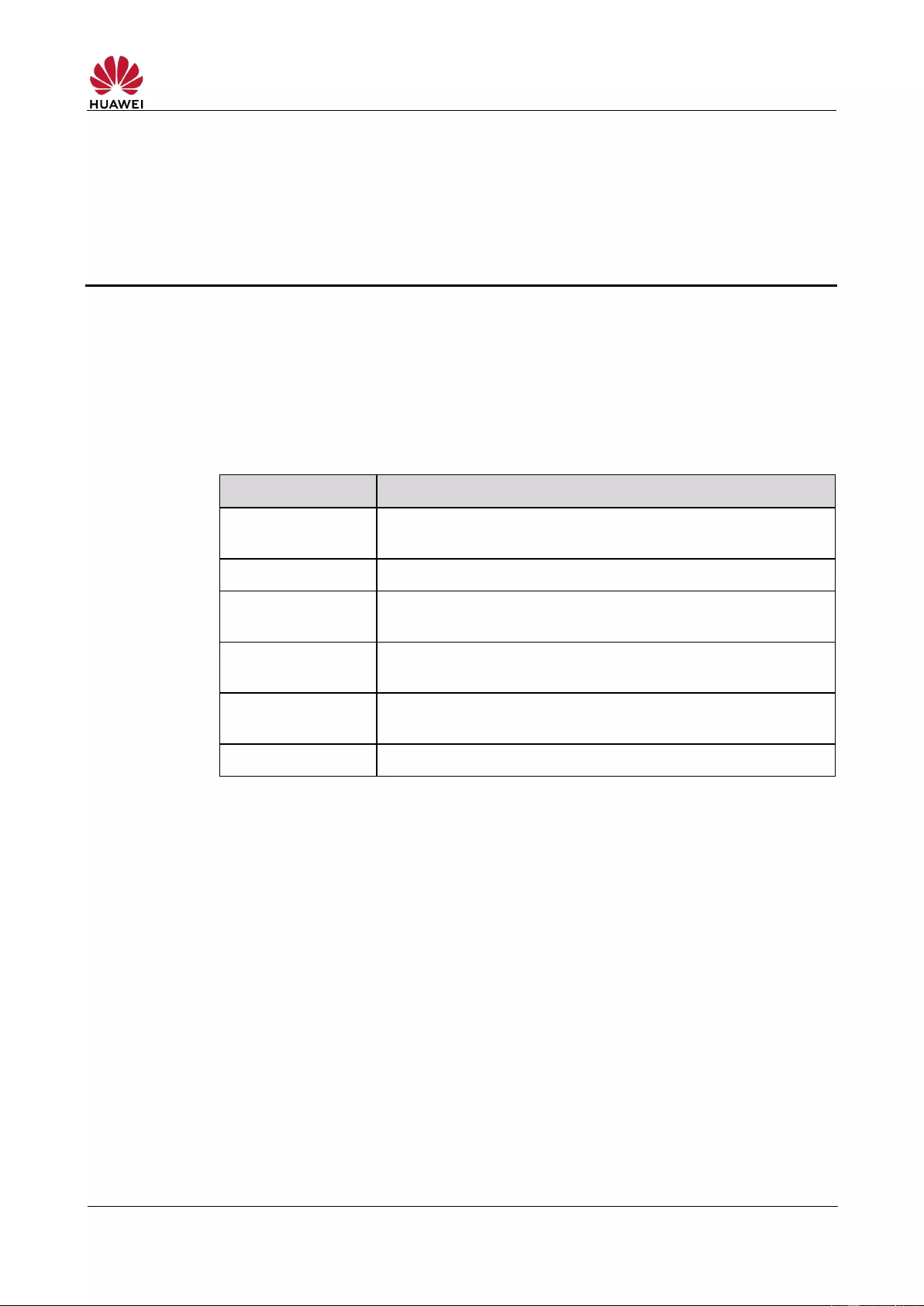
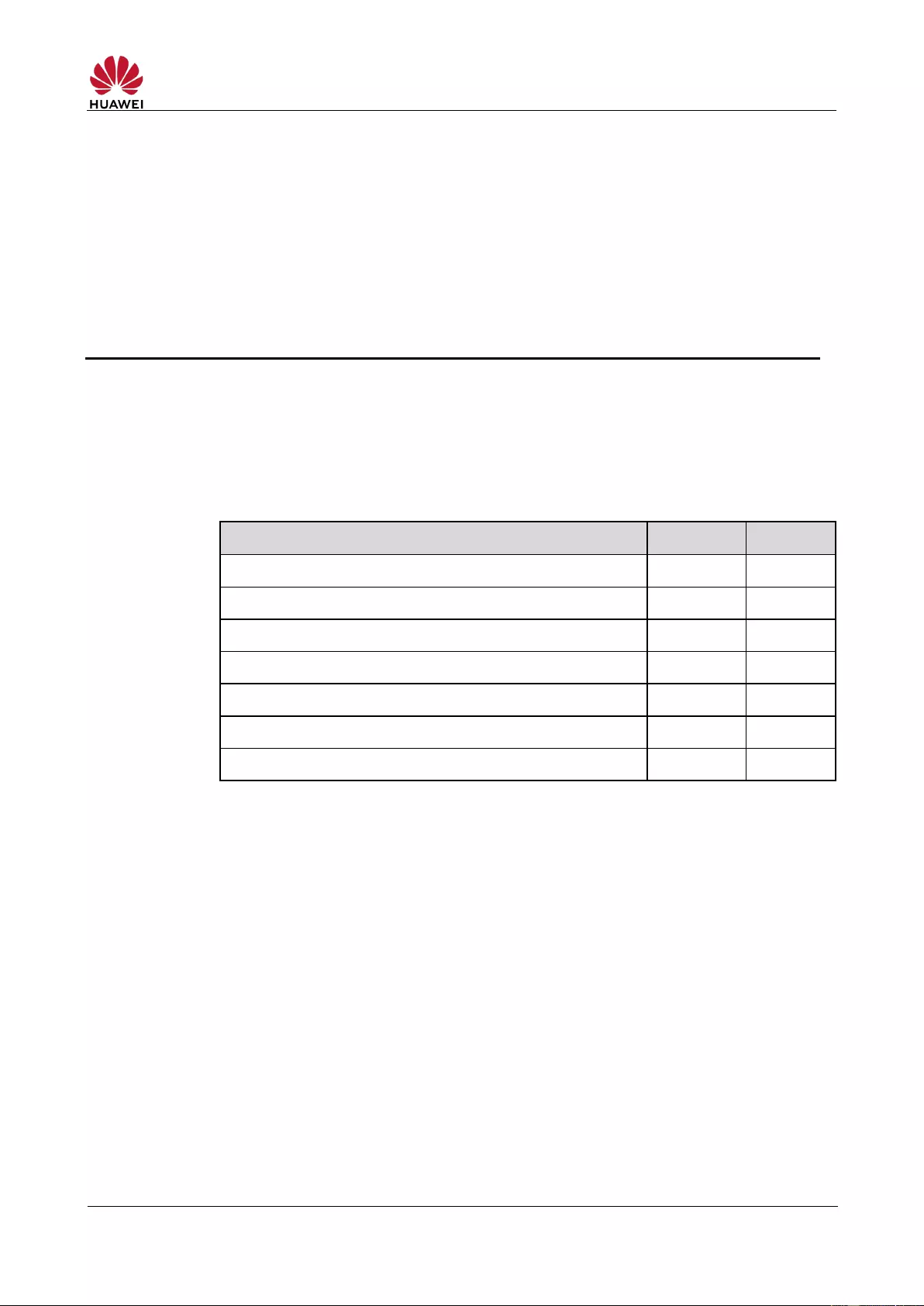
The following table lists the contents of this document.
Supported network modes, basic services and functions, and
the appearance of the product
Major features and technical specifications
3 Services and
Applications
Items contained in the packaging box
HUAWEI E5576-320 Mobile WiFi V100R001
Product Description
History

HUAWEI E5576-320 Mobile WiFi V100R001
Product Description
Contents
1 Overview ………………………………………………………………………………………………………….. 6
1.1 Introduction ……………………………………………………………………………………………………………………… 6
1.2 Optional Features …………………………………………………………………………………………………………….. 6
2 Features …………………………………………………………………………………………………………… 7
2.1 Main Features …………………………………………………………………………………………………………………. 7
2.2 Technical Specifications ……………………………………………………….…………………………………………… 8
2.2.1 Hardware …………………………..……………………………………………………………………………………. 8
2.2.2 Software …………………………..……………………………………………………………………………………. 10
3 Services and Applications ………………………………………………………………………………. 12
3.1 Data Service ………………………………………………………………………………………………………………….. 12
3.1.1 Wireless Modem …………………………………………………………………………………………………….. 12
3.1.2 USB Modem ………………………………………………………………………………………………………….. 13
3.1.3 LTE/3G/Wi-Fi Auto Offload ………………………………………………………………………………………. 13
3.2 SMS ……………………………………………………………………………………………………………………………… 13
4 System Architecture ……………………………………………………………………………………….. 14
4.1 System Architecture ……………………………………………………………………………………………………….. 14
4.2 Functional Modules ………………………………………………………………………………………………………… 14
5 Packaging Box Items ………………………………………………………………………………………. 16
6 Appendix ………………………………………………………………………………………………………… 17
A Acronyms and Abbreviations ………………………………………………………………………….. 18
HUAWEI E5576-320 Mobile WiFi V100R001
Product Description
1 Overview
1.1 Introduction
HUAWEI E5576-320 Mobile WiFi (hereinafter referred to as the E5576-320) is a
high-speed packet access mobile hotspot. It is a multi-mode wireless terminal for
SOHO (Small Office and Home Office) and business professionals.
It provides users with packet data services and SMS through multiple network modes.
You can connect the micro USB port on the E5576-320 to a computer using a micro
USB data cable, or connect multiple devices to the E5576-320 over Wi-Fi. In the
service area of the network, the E5576-320 allows you to surf the Internet and
send/receive messages/emails, providing you with a fast, reliable, and convenient
user experience. It also helps carriers improve their average revenue per user
(ARPU).
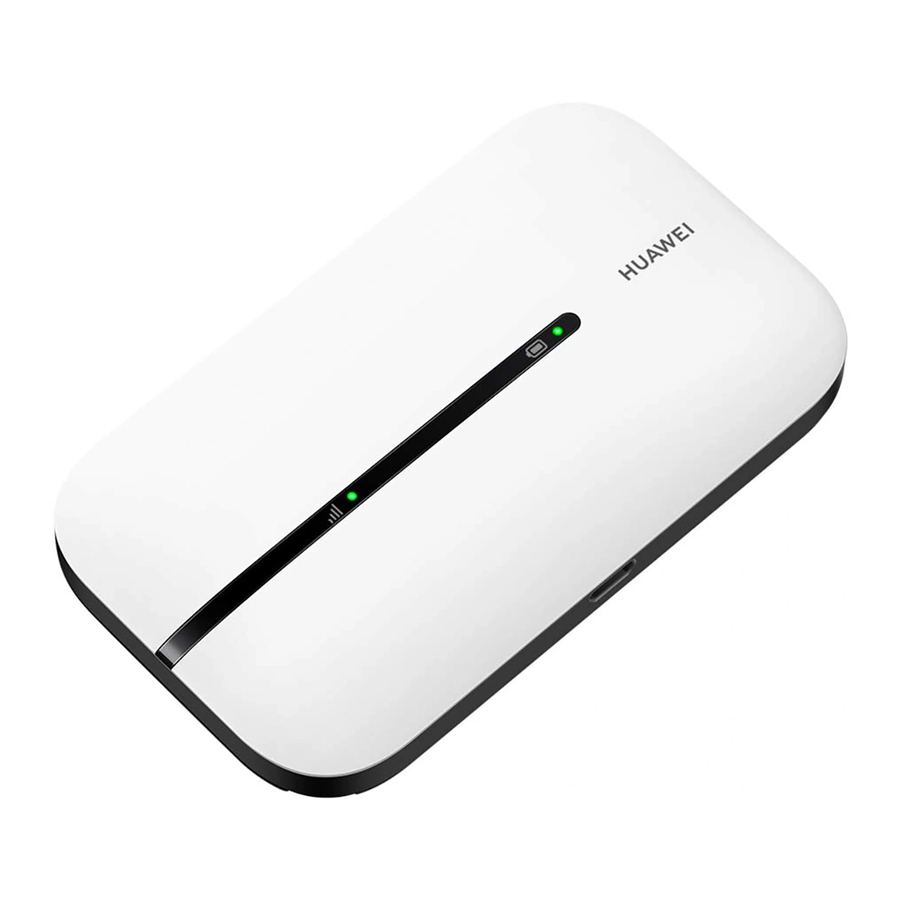
Figure 1-1 shows the appearance of the E5576-320.
Figure 1-1 E5576-320 appearance
1.2 Optional Features
Optional features refer to features that are not supported on the standard version.
These features can be customized according to carrier or customer requirements. The
E5576-320’s optional features include the following:
SIM lock

HUAWEI E5576-320 Mobile WiFi V100R001
Product Description
2 Features
2.1 Main Features
The E5576-320 features:
LTE FDD (DL) packet data service of up to 150 Mbps
LTE FDD (UL) packet data service of up to 50 Mbps
LTE TDD (DL) packet data service of up to 112 Mbps
LTE TDD (UL) packet data service of up to 10 Mbps
DC-HSPA+ (DL) packet data service of up to 42 Mbps
HSPA+ (DL) packet data service of up to 21 Mbps
HSDPA (DL) packet data service of up to 14.4 Mbps
HSUPA (UL) packet data service of up to 5.76 Mbps
UMTS (UL/DL) packet data service of up to 384 Kbps
SMS based on LTE/WCDMA
Built-in LTE/WCDMA and Wi-Fi antenna
2.4 GHz Wi-Fi
LTE/3G/Wi—Fi auto offload
Compatible with HUAWEI SmartHome app
Plug and Play
IPv4v6 dual stack
Built-in DHCP Server, DNS RELAY, and NAT
Online software upgrade
Traffic statistics
WPS
Standard Micro USB port
Compatible with Windows 7, Windows 8, Windows 8.1, Windows 10 (excluding
Windows RT), MAC OS X 10.9, 10.10, 10.11 and 10.12 with latest upgrades
HUAWEI E5576-320 Mobile WiFi V100R001
Product Description
2.2 Technical Specifications
2.2.1 Hardware
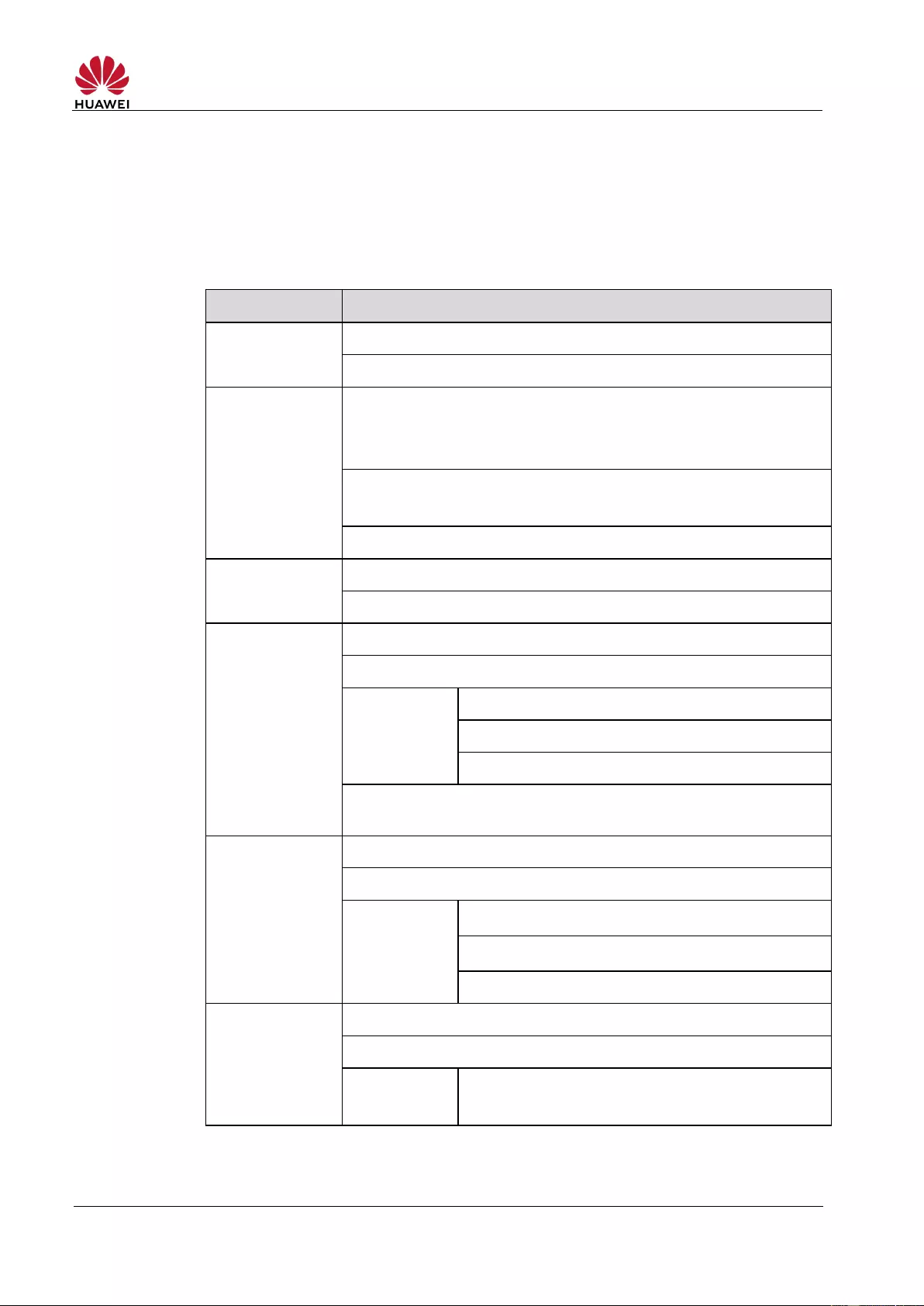
Table 2-1 lists the hardware specifications.
Table 2-1 Hardware specifications
WAN: LTE FDD/LTE TDD/DC—HSPA+/HSPA+/HSPA/UMTS
Wi-Fi/WLAN: IEEE 802.11b/g/n
LTE FDD: B1/B3/B7/B8/B20/B28
LTE TDD: B38
See Appendix for supported LTE channel bandwidths
DC-HSPA+/HSPA+/HSPA/UMTS:
Band1 (2100 MHz) /Band 8 (900 MHz)
LTE: Conforms to Power Class 3 Definition
WCDMA/HSPA/HSPA+: Conforms to Power Class 3 Definition
Note: The value above represents a typical transmit power in
Wi-Fi/WLAN mode, and may vary slightly by device.
WCDMA/HSPA/HSPA+: Conforms to 3GPP
802.11b: —76 dBm@11 Mbps/-82 dBm@1 Mbps
HT20: Supports MCS0–MCS7; Up to 72.2 Mbps.
HT40: Supports MCS0–MCS7; Up to 150 Mbps.
HUAWEI E5576-320 Mobile WiFi V100R001
Product Description
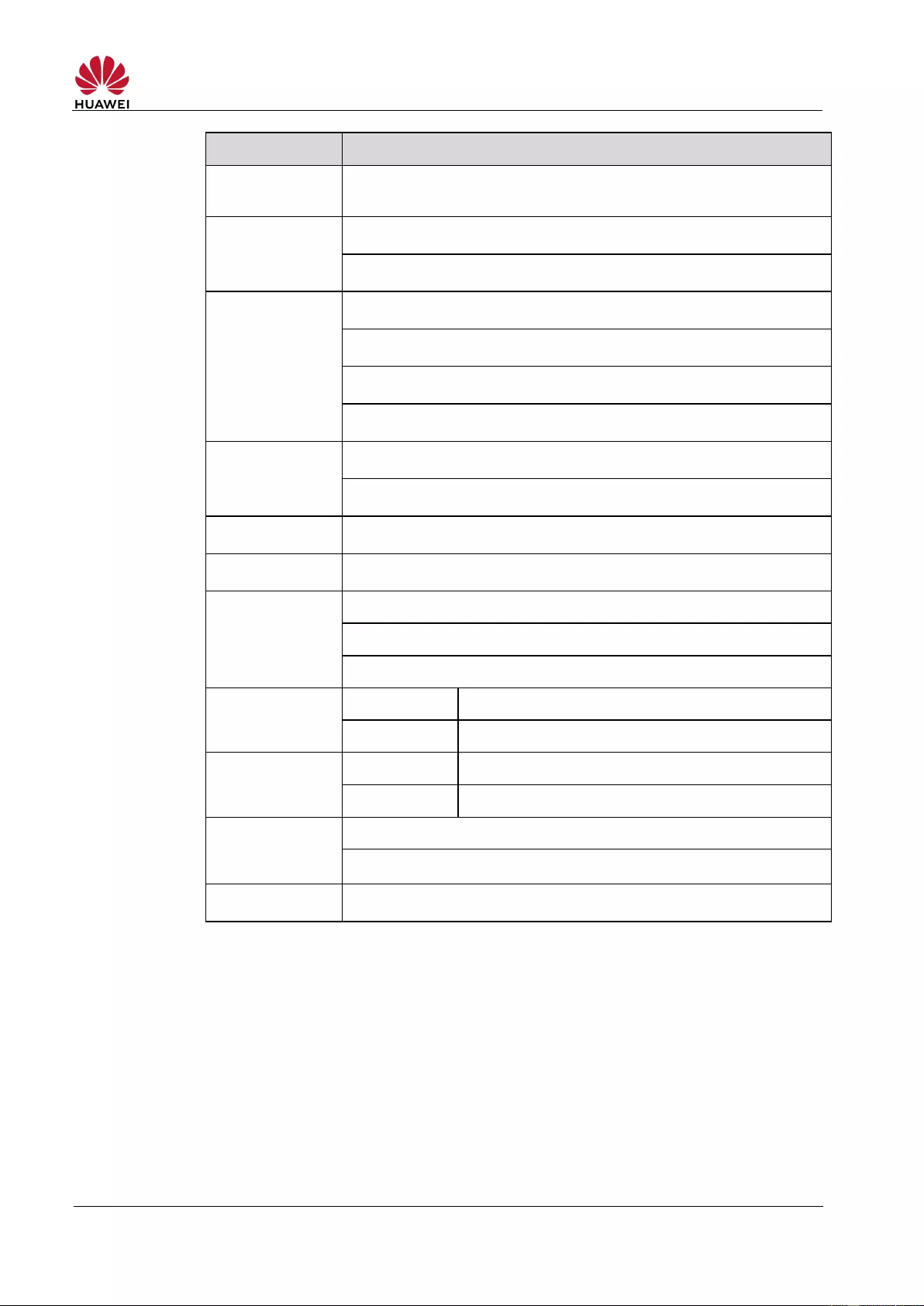
Type: Rechargeable lithium battery (removable)
Capacity: 3.8 V, 1500 mAh
Maximum working hours: 6 (depending on the network)
Maximum standby hours: 350 (depending on the network)
LED signal, battery indicators
Power button, Reset button
Built-in LTE/UMTS main antenna
Built-in LTE/UMTS diversity antenna
Built-in WLAN/Wi-Fi antenna
Approximately 72 g (including the battery)
Operating temperature: 0°C to 35°C
Storage temperature: –20°C to +60°C
5% to 95% (non-condensing)
HUAWEI E5576-320 Mobile WiFi V100R001
Product Description
2.2.2 Software
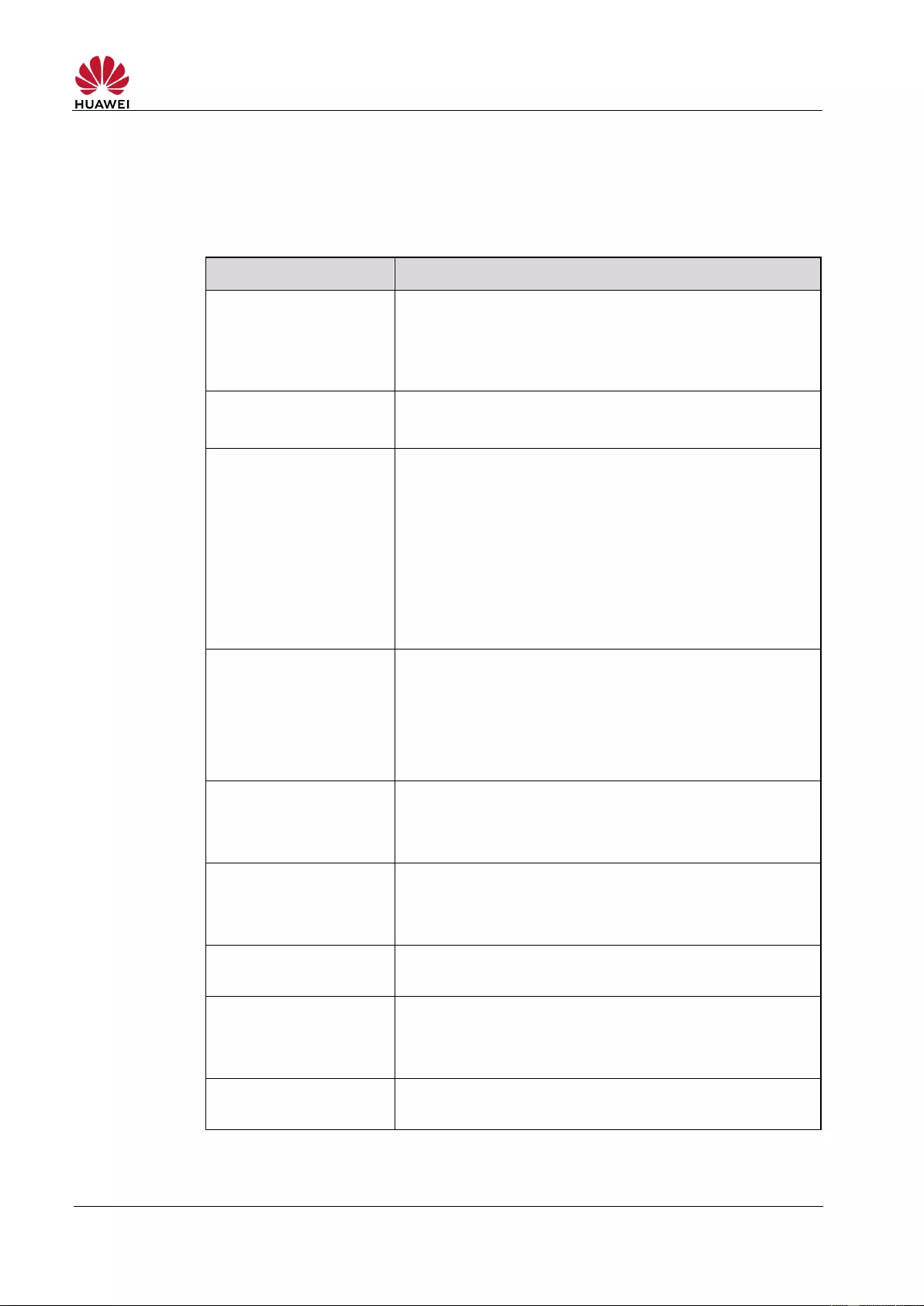
Table 2-2 lists the software specifications.
Table 2-2 software specifications
Write/send/receive short messages
Send/receive extra-long messages
Storage: Up to 500 messages can be saved in the
internal memory of the E5576-320
Create, delete, or edit APN
Set up network connection
SSID broadcasting and hiding
None (Open), WEP, WPA2-PSK, and
WPA/WPA2-PSK encryption
Automatic adjustment of Wi-Fi speed
Display STA status
Turn off Wi-Fi automatically
MAC address filtering
Guest SSID
Enable and disable firewall
LAN IP Filtering
Virtual Server
DMZ
UPnP
CONE NAT
Symmetric NAT
ALG
Enable and disable DHCP server
Configure DHCP server address pool
Set DHCP lease time
LTE/3G/Wi-Fi auto
offload (Wi-Fi Extender)
Access WAN via LTE/3G/Wi—Fi
DHCPv4v6 server and client
DNSv4v6 server and client
Display IPv4v6 WAN address
Network connection settings: Automatic/manual network
selection and registration
HUAWEI E5576-320 Mobile WiFi V100R001
Product Description
Display network status including signal strength, carrier
name, system mode, and so on
PIN management: activate/deactivate PIN, verify
PIN/PUK, and modify PIN
Windows 7, Windows 8, Windows 8.1, Windows 10
(excluding Windows RT). Mac OS X 10.9, 10.10, 10.11
and 10.12 with latest updates
Your computer should also meet the recommended
hardware requirements for the operating system
installed
HUAWEI E5576-320 Mobile WiFi V100R001
Product Description
3 Services and Applications
3.1 Data Service
3.1.1 Wireless Modem
The E5576-320 can be used as a wireless modem when the Wi—Fi is enabled. You can
directly use the default settings (or configure APN on the E5576-320‘s web-based
management page) to set up a wireless network, after which you will be able to
access the Internet.
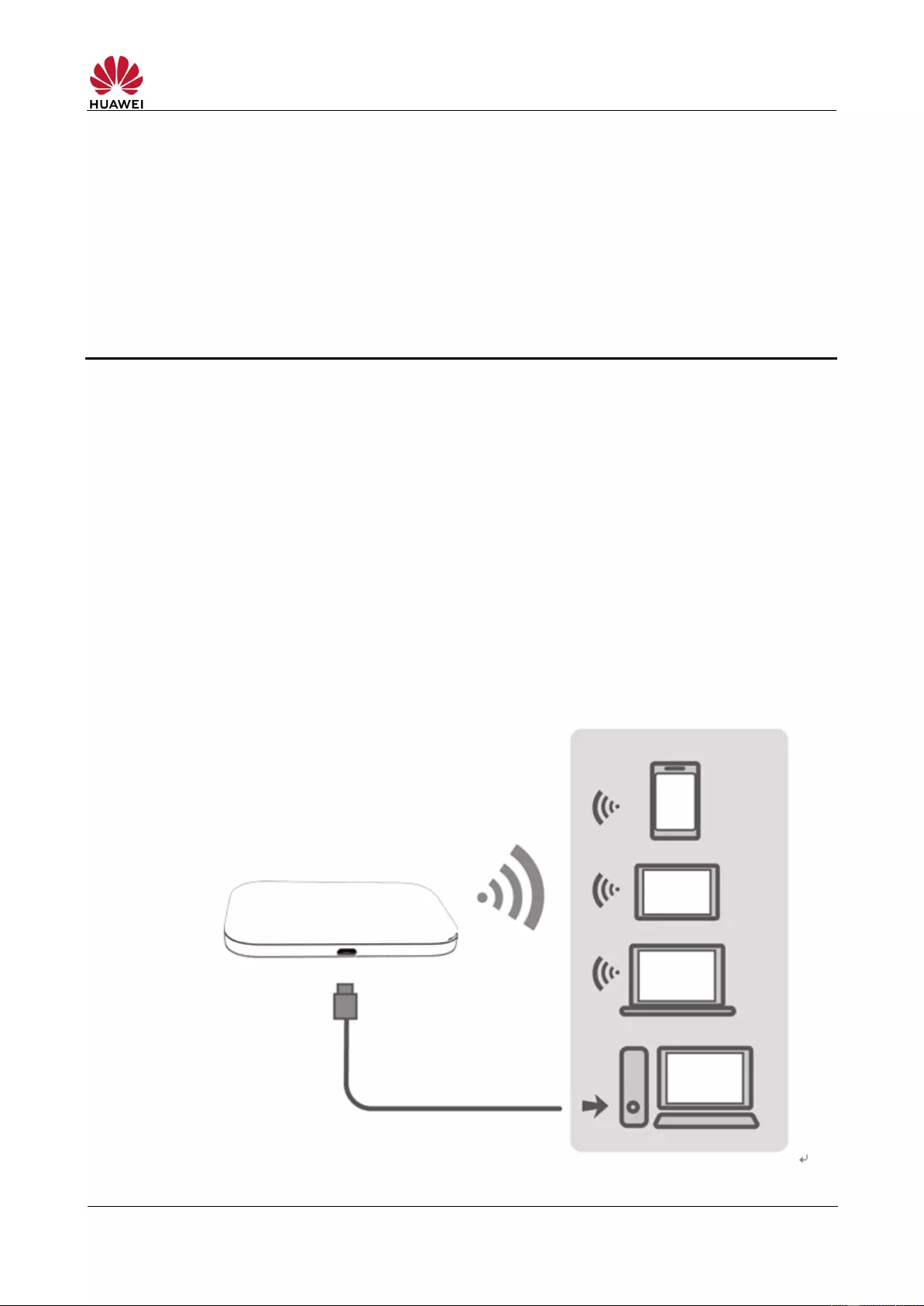
A maximum of 16 wireless devices can access the E5576-320‘s 2.4 GHz Wi—Fi
network at the same time.
Figure 3-1 Multi-device access via Wi-Fi and micro USB port at the same time
HUAWEI E5576-320 Mobile WiFi V100R001
Product Description
3.1.2 USB Modem
After you connect the E5576-320 and a PC with a USB data cable, the E5576-320‘s
web-based management page will display on the PC desktop automatically. You can
directly use the default APN settings (or configure the APN on the page) to set up a
network connection, after which you can access the Internet.
Figure 3-2 One-device access via micro USB port
3.1.3 LTE/3G/Wi-Fi Auto Offload
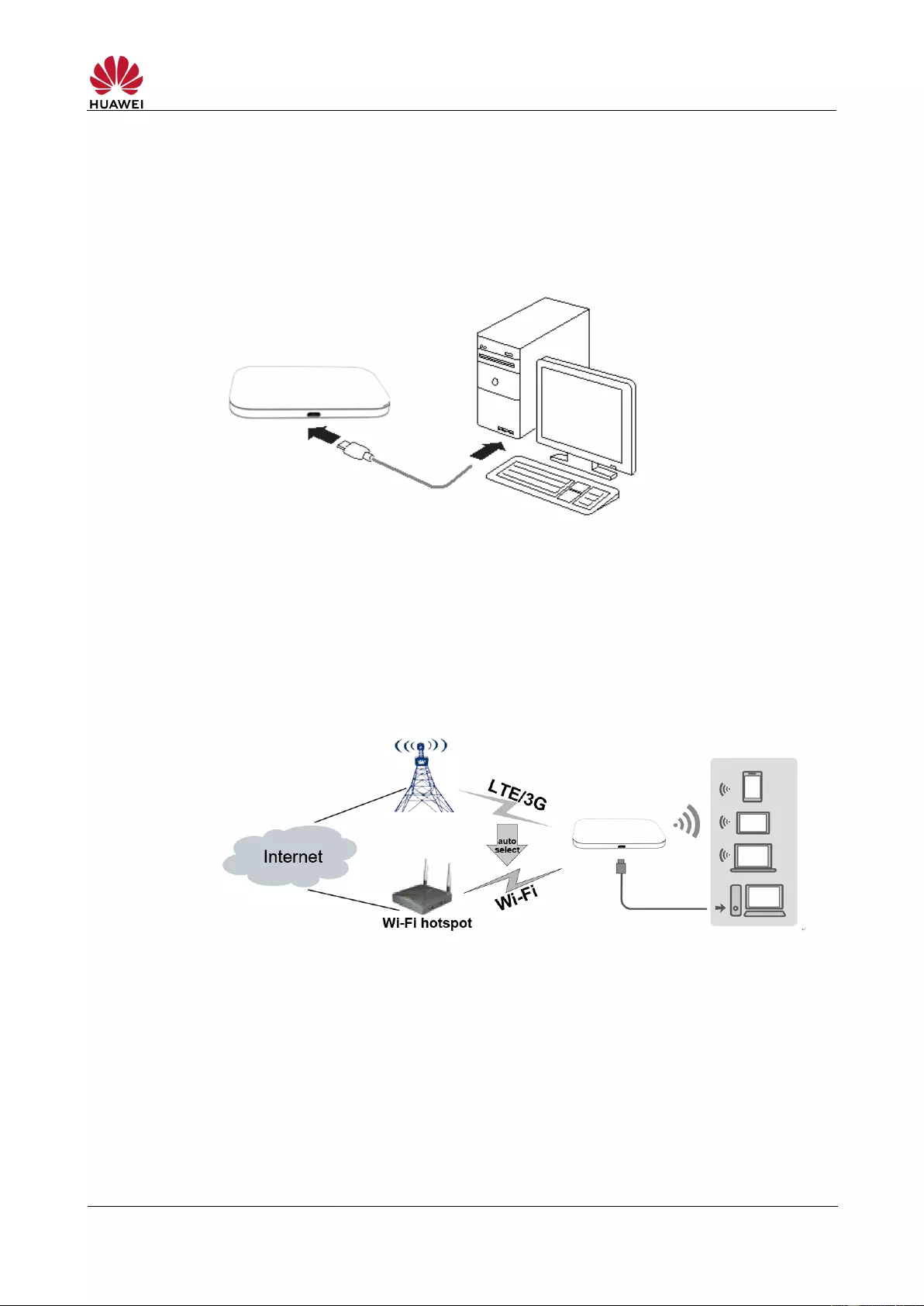
The E5576-320 allows you to access the Internet via LTE, 3G or Wi-Fi. When you are
using the E5576—320 in areas with a Wi-Fi hotspot, for example, an airport, a cafe, a
hotel, or your home, the E5576-320 switches to the Wi—Fi network to save your
LTE/3G network data usage.
Figure 3-3 LTE/3G/Wi-Fi auto offload
3.2 SMS
The E5576-320 supports message writing/sending/receiving. You can manage
messages in the Inbox, Outbox, and Drafts on the E5576-320‘s web-based
management page.
HUAWEI E5576-320 Mobile WiFi V100R001
Product Description
4 System Architecture
4.1 System Architecture
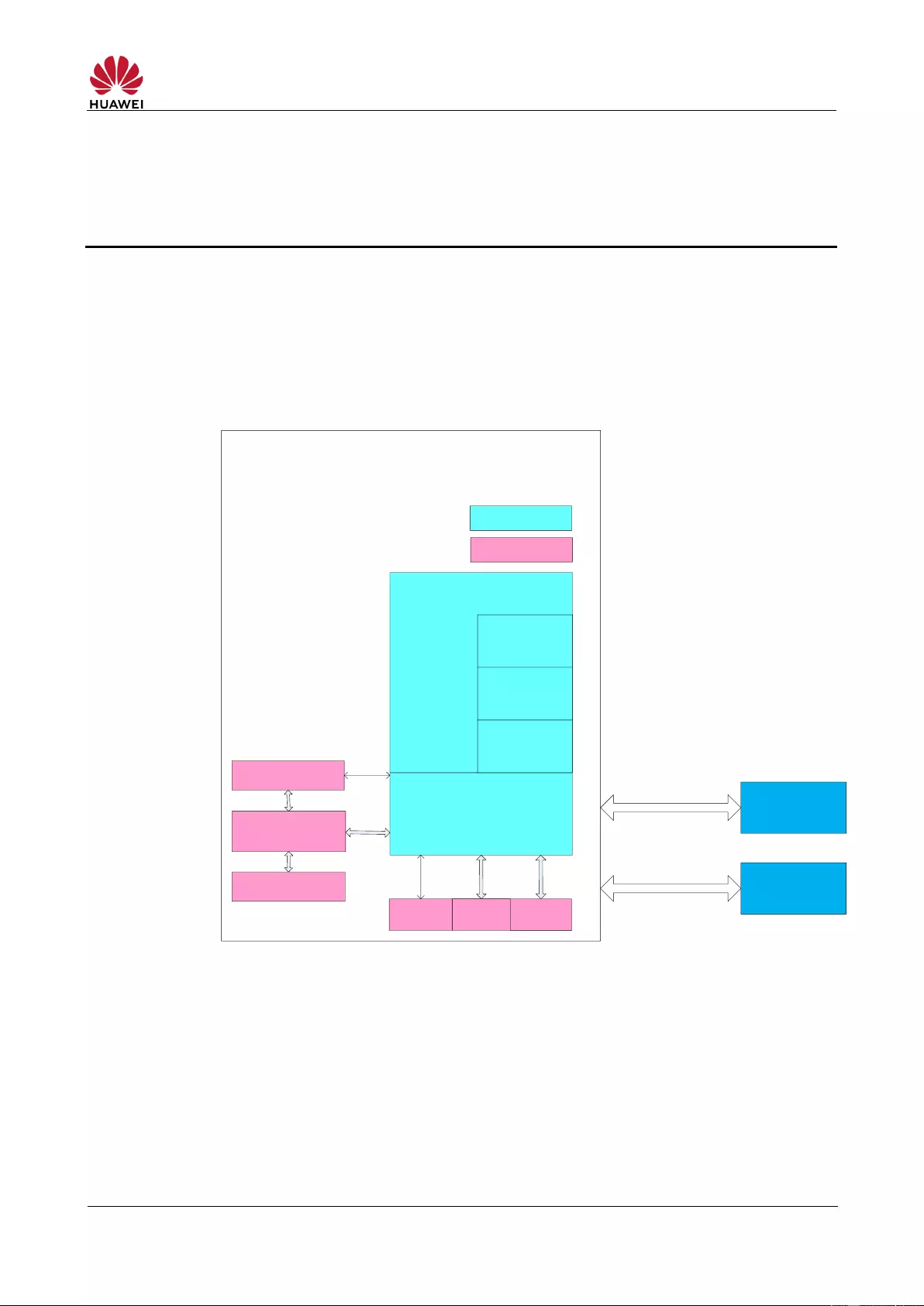
Figure 4-1 shows the system architecture of the E5576-320.
Figure 4-1 System architecture of the E5576—320
4.2 Functional Modules
1. Radio frequency module: Sends/receives radio signals and
modulates/demodulates radio signals and baseband signals.
2. Baseband signal processing module: Processes LTE FDD/LTE
TDD/DC-HSPA+/HSPA+/UMTS baseband signals, including:
Protocol stack
Bottom layer drivers
(include USB, Wi-Fi
and user interface)
Application
systerm
Web page
Web server
User
interface USB
Wi-Fi
Baseband signal
processing
Radio frequency
module
Power module
Software module
Mobile WiFi
PC
Mobile
phone/Tablet
USB/Wi-Fi
Wi-Fi
Hardware module

HUAWEI E5576-320 Mobile WiFi V100R001
Product Description
Modulating/demodulating LTE FDD/LTE TDD/DC-HSPA+/HSPA+/UMTS
baseband signals
Encoding/decoding LTE FDD/LTE TDD/DC-HSPA+/HSPA+/UMTS channels
3. Bottom layer driver: Drives peripherals, including USB devices, Wi-Fi devices,
indicators, buttons and SIM cards.
4. Protocol stack system: Processes protocols of LTE FDD/LTE
TDD/DC—HSPA+/HSPA+/UMTS and TCP/IP.
5. Application system: Provides SMS, PS domain service, Wi-Fi configuration,
network service, web service and web-based management page. Users can
configure system settings on the web-based management page.
6. User interface: Provides man-machine interaction, including indicators and
buttons.
HUAWEI E5576-320 Mobile WiFi V100R001
Product Description
5 Packaging Box Items
This chapter describes the items contained in the packaging box of the E5576-320.
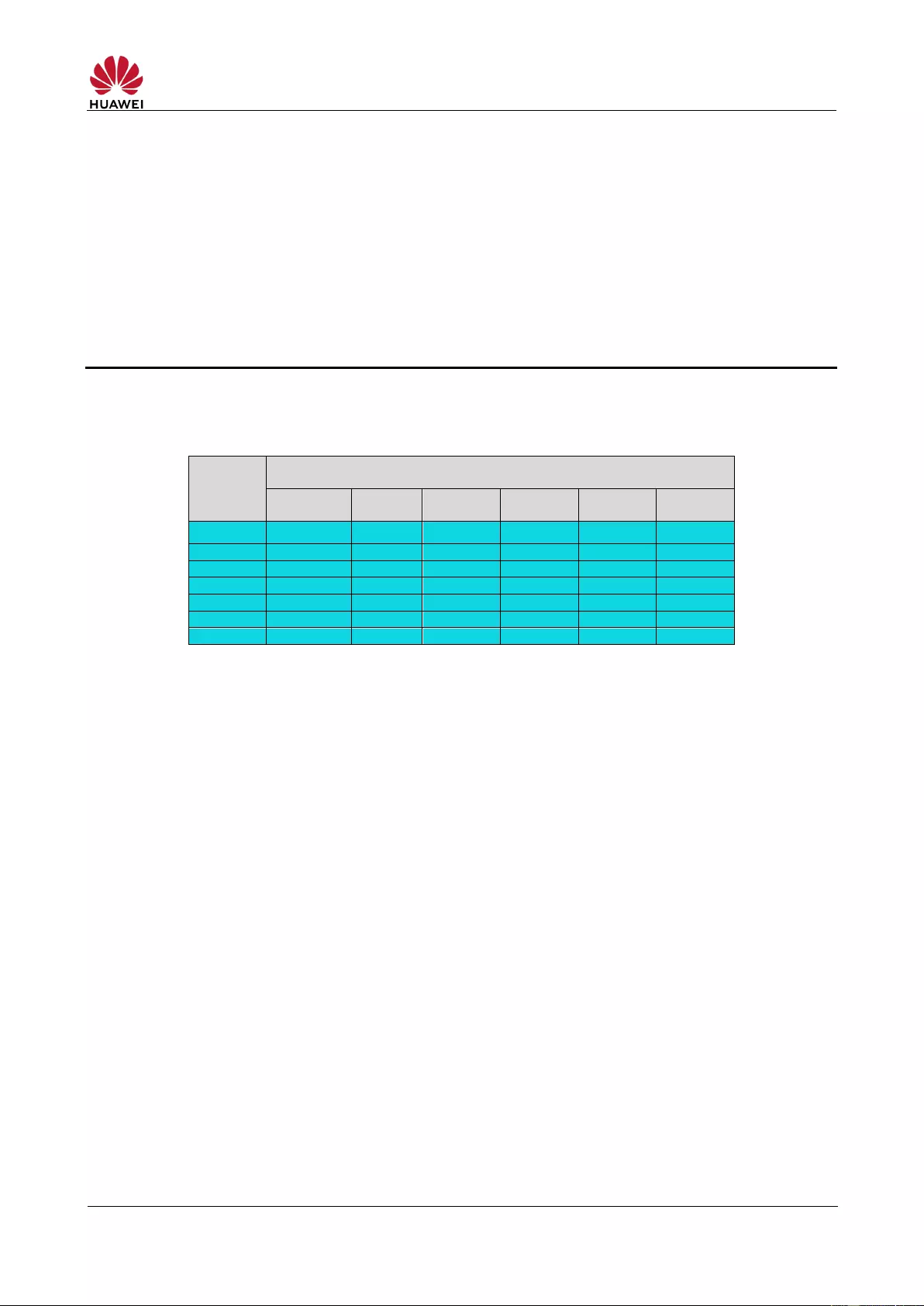
Table 5-1 lists the items contained in the packaging box of the E5576-320.
Table 5-1 Packaging box items of the E5576—320
Rechargeable battery (removable)
Quick Start Guide (Including safety information)
HUAWEI E5576-320 Mobile WiFi V100R001
Product Description
6 Appendix
Table 6-1 Shows the LTE bandwidths supported by the E5576-320.

HUAWEI E5576-320 Mobile WiFi V100R001
Product Description
A Acronyms and Abbreviations
Advanced Encryption Standard
Application Level Gateway
American Standard Code for Information Interchange
Dynamic Host Configuration Protocol
Frequency Division Duplex
High Speed Packet Access Plus
High Speed Uplink Packet Access
High Speed Downlink Packet Access
Institute of Electrical and Electronics Engineers

HUAWEI E5576-320 Mobile WiFi V100R001
Product Description
Network Address Translation
Personal Identification Number
Subscriber Identity Module
Universal Mobile Telecommunications System
Wireless Local Area Network
Huawei E5576-320 Wireless Router Manual
Inserting the SIM Card
Insert the SIM card into the slot with its chip side facing down and the notched side facing out.

Remove the back cover to view the default Wi-Fi® name (SSID) and password (Wi-Fi Key).
Powering on the Mobile WiFi
Press and hold the Power button to power on the Mobile WiFi. Your Mobile WiFi searches for mobile network signals automatically after it is powered on.

| Green: Strong signal | |
| Yellow: Weak signal | |
| Red: No Internet access |
Refer to the FAQs section below if the Signal indicator on your Mobile WiFi is red or yellow.
Accessing the Internet
Connect your device to the Mobile WiFi to access the Internet. Remove the back cover to view the default Wi-Fi name (SSID) and password (Wi-Fi Key).
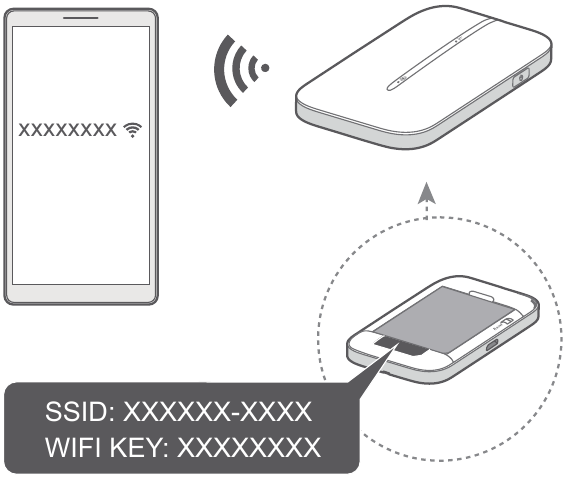
Refer to the FAQs section below if you cannot access the Internet after you have connected to your Mobile WiFi.
Device Management
Using app: You may scan the QR code below to download HUAWEI SmartHome App to manage your Mobile WiFi, for example, changing your Wi-Fi name or password, or checking data usage.
If you cannot add device in the app, please check if you are using the latest version.
Using browser: Enter 192.168.8.1 into the browser on your mobile phone or computer to go to your Mobile WiFi’s webbased management page. The default login password is admin.
- If you cannot visit the web-based management page, check whether your mobile phone or computer is connected to your Mobile WiFi.
- We suggest that you modify the default Wi-Fi name and password, and the default login password to ensure that your data is secure.
Charging
Red: Low battery power. Please charge your Mobile WiFi.

Please use the original Huawei charging cable and power adapter.
The power adapter is an optional accessory that you can purchase from retailers.
Appearance
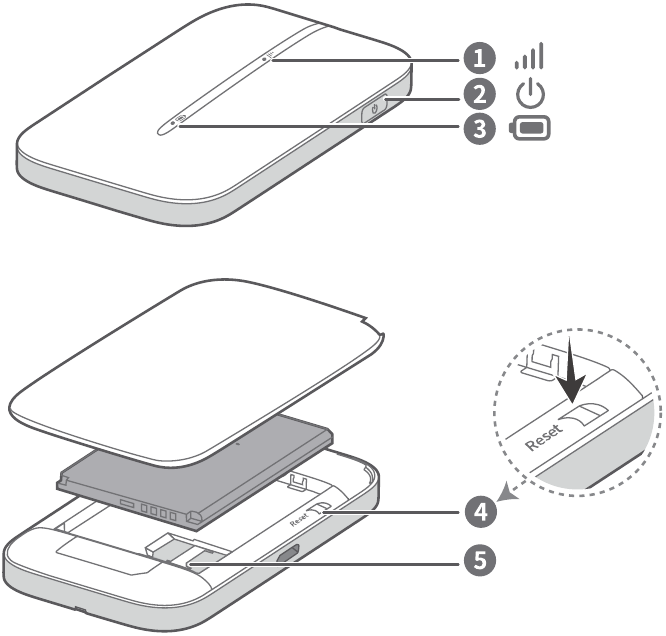
- Signal indicator
- Power button
- Battery indicator
- Reset button
- SIM card slot
To power off the Mobile WiFi: Press and hold the Power button until all indicators turn off.
To restore the Mobile WiFi to its factory settings: Use a pin to press and hold the Reset button while your Mobile WiFi is powered on. When all indicators start to flash, the reset is complete.
FAQs
What should I do if the Signal indicator on my Mobile WiFi is red and I do not have Internet access?
- Make sure that the SIM card is the right size and inserted correctly into the slot.
- Confirm that your SIM card has sufficient balance. If your SIM card is new, ensure that it has Internet access.
- The PIN verification feature may have been enabled.
- Open the HUAWEI SmartHome App, and go to Advanced Settings > PIN Management to enter the correct PIN code.
- Disable this feature if you don’t want to enter your PIN on a regular basis.
- If the issue persists, restore your Mobile WiFi to its factory settings and try again.
What should I do if the Signal indicator on my Mobile WiFi is yellow, the signal strength is weak, or the network speed is slow?
- Move your Mobile WiFi closer to a window or use it in an open area to receive better signal.
- However, if your mobile phone receives good signal strength at the same spot where your Mobile WiFi is placed, restore your Mobile WiFi to its factory settings and try again.
Refer to the Appearance section above to restore your Mobile WiFi to its factory settings.
What should I do if I can’t connect to my Mobile WiFi after a period of inactivity?
Your Mobile WiFi may be in sleep mode or powered off.
- Press the Power button on your Mobile WiFi. If indicators light up, your Mobile WiFi was in sleep mode. In this mode, your Mobile WiFi automatically disables Wi-Fi to save power. You can disable the sleep mode through the HUAWEI SmartHome App.
- If there is no response after you press the Power button, your Mobile WiFi is powered off. Press and hold the Power button to power it back on.
Avoid using your Mobile WiFi where active wireless devices are prohibited (such as during flights), and ensure that it is powered off.
Why can’t I access the web-based management page by entering 192.168.8.1 on my browser?
This is likely due to an IP address conflict when the Mobile WiFi assigns itself a new IP address. Please try entering 192.168.9.1 and see if this resolves the issue.
Legal Notice
Copyright © Huawei Technologies Co., Ltd.
2019. All rights reserved.
No part of this manual may be reproduced or transmitted in any form or by any means without prior written consent of Huawei Technologies Co., Ltd. and its affiliates («Huawei»). The product described in this manual may include copyrighted software of Huawei and possible licensors. Customers shall not in any manner reproduce, distribute, modify, decompile, disassemble, decrypt, extract, reverse engineer, lease, assign, or sublicense the said software, unless such restrictions are prohibited by applicable laws or such actions are approved by respective copyright holders.
Trademarks and Permissions
, HUAWEI , and are trademarks or registered trademarks of Huawei Technologies Co., Ltd. LTE is a trademark of ETSI.
Wi-Fi ®, the Wi-Fi CERTIFIED logo, and the Wi-Fi logo are trademarks of Wi-Fi Alliance.
Other trademarks, product, service and company names mentioned may be the property of their respective owners.
Notice
Some features of the product and its accessories described herein rely on the software installed, capacities and settings of local network, and therefore may not be activated or may be limited by local network operators or network service providers.
Thus, the descriptions herein may not exactly match the product or its accessories which you purchase.
Videos
Huawei E5576-320 Wireless Router Connection and Setup Video
Documents / Resources
Download manual
Here you can download full pdf version of manual, it may contain additional safety instructions, warranty information, FCC rules, etc.
Download Huawei E5576-320 Wireless Router Manual