
Skip to content
Get Code 【hiseeu88】10% OFF for Your First Purchase!!!
Get Code 【hiseeu88】10% OFF for Your First Purchase!!!
Get Code 【hiseeu88】10% OFF for Your First Purchase!!!
Get Code 【hiseeu88】10% OFF for Your First Purchase!!!
Get Code 【hiseeu88】10% OFF for Your First Purchase!!!
Get Code 【hiseeu88】10% OFF for Your First Purchase!!!
Get Code 【hiseeu88】10% OFF for Your First Purchase!!!
Get Code 【hiseeu88】10% OFF for Your First Purchase!!!
Get Code 【hiseeu88】10% OFF for Your First Purchase!!!
Get Code 【hiseeu88】10% OFF for Your First Purchase!!!
Get Code 【hiseeu88】10% OFF for Your First Purchase!!!
Get Code 【hiseeu88】10% OFF for Your First Purchase!!!
Whatsapp:+86 15819273829
Search
Free shipping on All Orders. No Minimum Purchase.
0 items
My wish list
Sign in
or
Create an account
Log in
Cart
0 items
Product
View All
Help
Log in
Cart
0 items
Download Center
Download Center
App & Client
User Manual
Support Articles
Video Tutorial
Hiseeu User Manual
Read the manual for the details of the camera.
Wireless Camera
Applicable to Hiseeu Wireless Wifi Cameras,Solar Cameras,4G LTE Cellular Cameras
Y Series Wired Cameras
Suitable for Hiseeu Y Series Wired Cameras&POE Cameras
X Series Wired Cameras
Suitable for Hiseeu X Series Wired Cameras&POE Cameras
Can’t find what you need?
contact us
- Home
- Search
- Collection
- Account
-
Cart
0 items
Smart IP Camera
(Quick Guide)
Email [email protected]
whatsapp: +8613392810296
web: www.hiseeu.com
Tel 1917338-1084
(Available Pacific Time: 5:00pm-12:00pm)
Please read the Quick Guide carefully before
Using the product and keep it properly
Device Installation and Configuration
This manual is suitable for various types of c4 cameras-(The appearance may be different due to different hatches. The details are subject to the receiplThis manual is Only for the Installation Instructions of this series of equipment.)
- Wireless Pan-tilt IP Camera
- WiFi MINI Dome Cmaera
- WiFi Bullet Cmaera
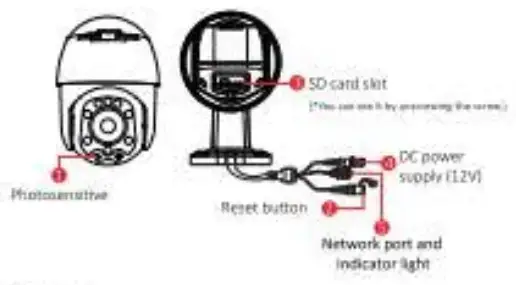
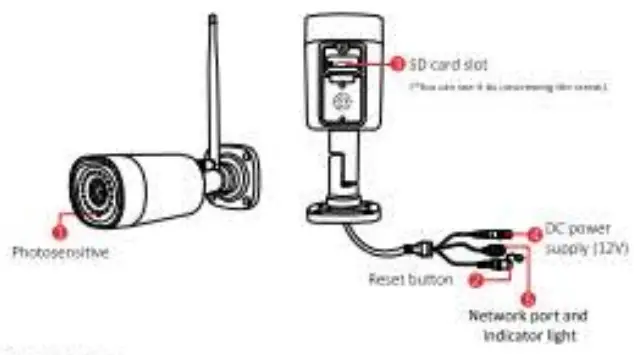
Descronon
- Photosensitive
Collect ambient rumincolty value, turn On the infrared light when the current illuminance is less than 3 lux - . Reset button
The working state of the device, log pen 3.5 seconds to restore the factory, the Lerner, will have a *ace y01110 brOadtdal. - SD card salt
Tr card, storage video, and playback video. - DC power supply
Power input - Network peat and indicator light
connect the Lan cable and check the current device status indicated’ Behl Software Installation LAPP Download and Installation Users can search ‘EseeCloud’ on the APR store Of on Google Plato. SUB I the OR code Woa to install the APP
Software installation
- APP Download and Installation
Users can search “EsteCloud” on the APP store or on Google Plater ild11 the OR e.o0e below to Install the APP
Note. For 105 system. It requires 105 8 0 versos or above. hr AndroctArdront 4 4 or Dhow
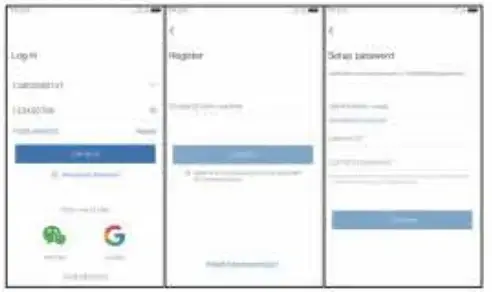
- Register Account
1,60 to login interface. cick ‘register’ 12NlegIster with your phone number or email addresses ca ICOnfimy “.a verhcaban code will sera to ru• email or your phone 13)put the verification code and set up vow own oast:AN: rd. then click “confirm” to complete.
Wifi Configuration add process
1) Add WWI mode (optional)
- Power an the device, ‘,yea fee the Indicator iglu to flash slowly, connect to the 113C)00( hotipot In the phone setting, the password 11111111:(1 sem e l?
- Open the APP and dick the ‘4’ in the upper right corner to enter the scan code tittelf40e; figure 2
- Scan the eft code on the device,;
- On the search device interface, click 4Ader: figure 41
- To view and use via WiFi or other networks, please select Remote View, If there is no network if you connect to the camera at close range. please select local Direct Connection. H.Fore
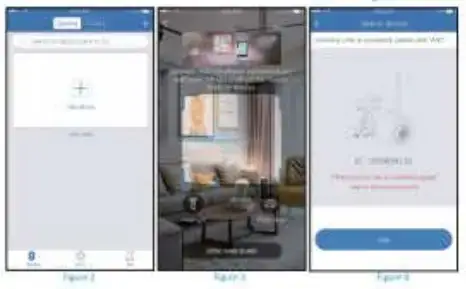
2. Remote View adding process
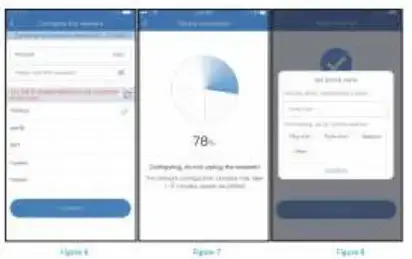
- Select ”Remote View’ to add. connect the device to Wife, select the correct Wirt. enter the password,(Figure6)
- Please wait patiently during the device configuration netivotkvitgure(Figure7)
- The device s successfully added, please set a name and password for the device.(Figure8)
View Alarm, Preview, and Playback
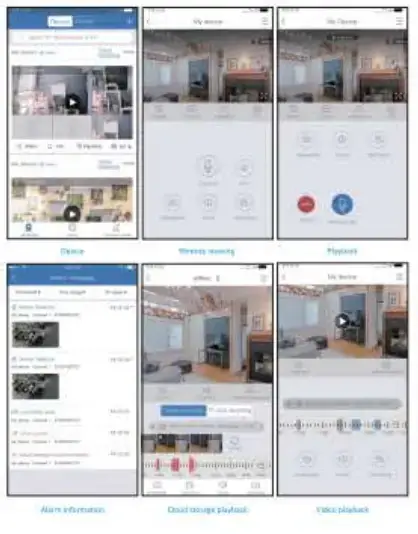
- Lid the push .nronnerron or “Info’ buron to new the alarm information of the camera
- Click the cOrretOoncling play Icon on the device kit to enter the memos interface to view real-time video and have voice intercom &Cie: Elbe playback or cloud icon to view the video which is on the device or el the cloud
- Tap the share icon to share the can with others.
With the function on. the *op coil push an alum message 10 you when an another iS: fared Ctck ‘Semmes’ ar.4 case “Motion Detection recording”. I, On the-moon detector. ‘Motion Recording’ and “Enable motion Meow nonficanons’ i you sant to enable alarm sc‘ihrtenahle ‘Enable etymon detection alarm uteri. if not. Pima date it
Match code the camera to wireless N VR
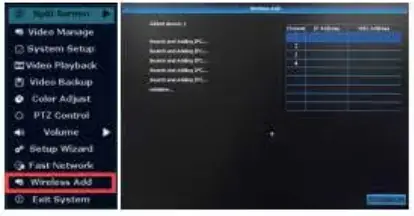
- wireless touch screen system 1 Re& click your NA moo:e aid choose kiss ac1d.
- Press the camera reset button for 10 seconds.
- Wad it snows camera IP >Mom 172 20.14 ••.
- If no IP address, Fri reset caner a tee Steer& times. Men you can but. blow 6 the video for Wu Cheek: •
2. Wireless touch screen
- Dick the rem. dick the lane’ tat. an! dick the laat.ch Code’ module
- Cask Om ‘Match Code button. After the Admit is successful, click the ‘Stop” button
To view on Eseecloud software on PC
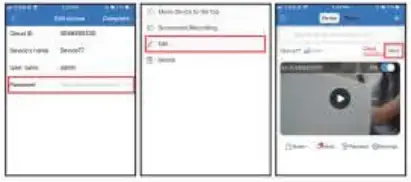
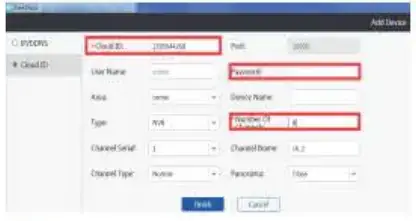
Input cloud ID (on your camera body or go to Eseedocd phone app Settings Dresses ID) Input User Name and Password on potion° app dolt More-EdWshow She clean yOu wall led the &once password sou we log RS
- ‘Select ‘Add’
- Select ‘Cloud Irtentef the cloud IDl9 or 10 numbers). You can hold your camera body or go to Eseecicud phone app kitbags-Device’s ID
- Usemame is adorned
- Password n the one you set for the camera
- Channels. Input 1
- Click Confirm and you will we the rest
FAQ
Ql. What can I do if the Wris setting failed?
- Be sure it is powered up COreKliy and yea rotate 450 when plugged men cameral
- Please put the camera new to the rater, Leo than S meters on animal setup
- Re dwelt your W., I password is tared and there are no special characters M n ! such as • I?gettS741
- Be sure your routers win SAD was rot hidden and O’s trectuerCY is 2 46. the CaMeras00eSnt works with 56
- When Mai is set done. please do not put the camera too far away from the route the sure Its under the will <Overeat 15 20 meters
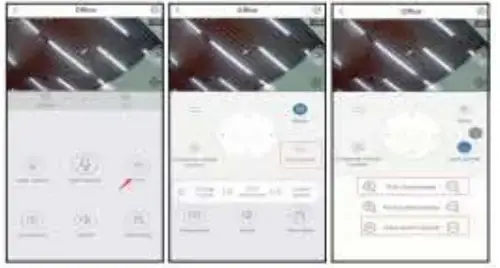
Q2. 140w to use the PTZ function? (only for 5ic digit& general 1. Zoom on the free cloud app. goes to the camera -ve screen. dick ‘PTZ’ in the lower right corner, you can control it to rotate up, down. left and net, click ‘View Loom in/outs to zoom year camera
2. Zoom on the NVR monitor on the camera image seh click the mouse, it will show a small menu, click “zoom in then scroll the mouse to satin the camera
3. tan camera up/down, right net on NVR trxxOtot: on the um era image-led click the mouse, it will snow a smut menu,clia’PTZ Control.
Then It will show a new menu. YOU can control it to turn the camera down and rightist.
Q3. how to tell or change a new password?
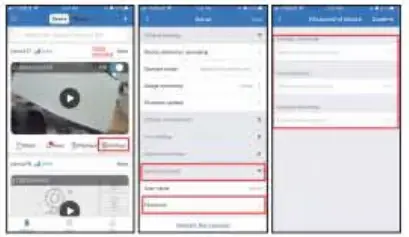
To protect your privacy, niece set a new password at ma earliest teoyemenre Click ‘Settings’ to enter the Camera Setting menu and select-mg ‘Password” to et or change a new password.
a) Original password: No password by tsetse’s and leave it blank;
b) New password: Set yours on Password 16-10 clips. no special characters.
c) Confirm passwOrd input your password again, confirm it
Q4 How to reset the camera to factory setting?
Keep the camera plugged in, press the reset button for 5-Ss until you hear the prompt tone “restore to factory settings. for example WHINOZA camera
Q5. Now to set the full color insegellonly for Full-color camera)
- Set on Fseenouct app sarongs. Advanced sarongs Video quality settings Mode Full color
- Set On NSA monitor: on the camera mace left In the mouse. show a small menu la ‘Color Adjust”
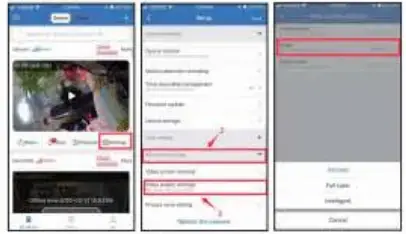
Select ‘mut mode–full-color mode, camera at night the white light will smarty camera mace will be colorful.
Q6. What’s the meaning of intelligent’ on light control?
After selecting me ftntelligeM. at night the camera will automatically switch CO infrared night mode, and the image will turn black and white. When tee movement n detected, lboca€1.4 will turn on for 30 seconds and then turn off
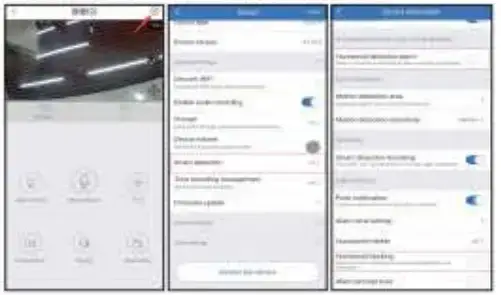
Q7. How to set up Auto Tracking and Human Detection?
Go to the camera Lore screen, dirk setting—smart detection —turn on Humanoid tracking and Humanoid detection alarm Vi’lsen someone passes by, the camera will automatically track and record It. Only when a person is detected the alarm notification will be sent
Q8. How to use 5X Optical Zoom on NVR and mobile phone?
(of* for 5)( optical camera) I Zoom in the Fueeeskur! An app so to the drrxq live screen Click “PIZ’, select Lena Control, you can select view zoom in/out and pull close/away to zoom yOur camera
2 Zoom in the NVR. on the camera image left-click the mouser it will thaw a smart menu. click ‘pie control’ it will show a new menu, ‘lieu can zoom ince out on this interlace.
This device complies with part 15 of the FCC Rules. Operation is subject to the following two conditions: (1) This device may not cause harmful interference, and (2)this device must accept any interference received, including interference that may cause undesired operation.
Any changes or modifications not expressly approved by the party responsible for compliance could void the user’s authority to operate the equipment.
Note: This equipment has been tested and found to comply with the limits for a Class B digital device, pursuant to part 15 of the FCC Rules. These limits are designed to provide reasonable protection against harmful interference in a residential installation. This equipment generates uses and can radiate radio frequency energy and, if not installed and used in accordance with the instructions, may cause harmful interference to radio communications. However, there is no guarantee that interference will not occur in a particular installation. If this equipment does cause harmful interference to radio or television reception, which can be determined by turning the equipment off and on, the user is encouraged to try to correct the interference by one or more of the following measures:
- Reorient or relocate the receiving antenna.
- Increase the separation between the equipment and receiver.
- Connect the equipment into an outlet on a circuit different from that to which the receiver is connected.
- Consult the dealer or an experienced radio/TV technician for help.
This equipment complies with FCC radiation exposure limits set forth for an uncontrolled environment. This equipment should be installed and operated with a minimum distance of 20cm between the radiator & your body.
- June 9, 2024
- Hiseeu
Table of Contents
- HISEEU A021 Smart IP Camera
- Device Installation and Configuration
- Description
- Software Installation
- Add process
- Share to second phone
- Remote Access on PC Client
- FAQ
- Read User Manual Online (PDF format)
- Download This Manual (PDF format)
HISEEU A021 Smart IP Camera
Email: support@hiseeu.com
WhatsApp: +8618126465980
Please read the Quick Guide carefully before using the product and keep it
properly.
Letter of Thanks
Friend of Hiseeu;
Thanks for your trust to purchase wireless security camera from Hiseeu and
please accept our sincere appreciation here.
Thanks again for your great support. With the support, we will not only insist
on our dream, but also do our best to develop Hiseeu products. We are looking
forward to your suggestions, which would help Hiseeu become a world-leading
brand in innovating video surveillance products arnd solutions front.
Hiseeu CCTV always places customers’ needs as our top priarity. From raw
materials purchasing to product shipping, we carefully test every process. Our
qualified cameras are built with advanced chipset and each power plug
certificated with CE,FCC and UL for safety. Each camera is strictly tested
before shipment.
As the growing company, we will release new products in global market
regularly. If you are interested in any Hiseeu new releasing products, please
let us know anytime.
If you are satistied with our product or service, could you please take a
minute to share your product experience on Aliexpress? Your precious customer
review will help us shape our business to the best and let other customers
know more about
Hiseeu product and service, your unwavering support and patronage is our
motivation to go further.
On behalf of all colleagues in Hiseeu CCTV, we sincerely appreciate your
trust.
Please let us know if there is anything we can do to assist you further. If
you have any questions, please feel free to contact us via email:
support@hiseeu.com.
Thanks again and wish you all the best.
Your Sincerely,
All staffs in Hiseeu CCTV
Device Installation and Configuration
This manual is suitable for various types of cameras.
(The appearance may be different due to different batches. The details are
subject to the receipt. This manual is only for the installation instructions
of this series of equipment.)
Description

-
Photosensitive
Collect ambient luminosity value, turn on the infrared light when the current
illuminance is less than 3 Lux. -
Reset button
The working state of the device, press 10 seconds to restore factory settings,
the camera will have a voice prompt broadcast. -
SD card slot
TF card, storage video and playback video. -
DC power supply
Power input -
Network port and indicator light
Connect the Lan cable and check the current device status indicator light.
Software Installation
-
APP Download and Installation
Users can search “ICSee» on Apple store or on Google Play, or scan the QR code
below to install the APP.
Note: For iOS system, it requires iOS 8.0 version or above.
For Android,Version:V2.0.2. or above. -
Register Account
-
Go to login interface, click “sign up”
-
Register with your phone number or email address, click”confirm “, a verification code will send to your email or your phone ( If you use phone number to sign up, please add+ 1 in front of your phone number)
-
Input the verification code and set up your own password, then click “confirm” to complete.

Add process
A. Wi-Fi Smart Connection (all kinds of cameras can use, 5GHz WiFi is not
supported)
Power on the device, reset camera, wait about 30 seconds. Start up of Voice
prompt.
- Click on “+”, then click on “WIFI camera”.
- Power on the camera interface, click “Next”, then click “Next”. again to confirm that the camera is in the state of distribution network.
- In Router setting, input your WIFI name and password, click “confirm” to complete.
- Turn on the QR code of mobile phone,click “Next”, a QR code will show on the mobile phone.
- Using the device to scan the QR code on the mobile phone, according to the operation the figure shows, then proceed to the next step after hearing the prompt tone or seeing the light status.
- Set a password for the device

AP mode connection (all kinds of cameras can use}
Power on the device, reset the camera, Wait about 30 seconds. Start up of
Voice prompt, then click reset button over 3 times, you will hear a sound
“entry AP mode”.
- Go to ICsee APP, click”+”~ Other distribution networks and adding methods.
- Select “AP Distribution Network”.
- Add camera (AP mode), click “Next step”.
- Go to your phone WiFi Setting, Select device hotpot name robot_xxx or camera_xxx, input the password: 1234567890.
- In Router setting, input your WIFI password, click “confirm” to complete.
- Wait for connecting, connection successful.
- Set a password for the device


Add the camera on same router ( which has wired port)
PS: use a LAN cable to connect camera with your router, keep phone
connecting to WIFI, which is on same gateway with camera
- Go to ICsee APP, click”+”~ Other distribution networks and adding methods.
- Select “Nearby Cameras”.
- Find the device named robot_xxx, then click it.
- Connection successful, click setting~ Network Settings.
- Select Routing mode, input your WIFI password, click “Save” to complete.
- Wait for connecting, connection successful, unplug the LAN cable.

- On your phone, click “Share”, a QR code will show up.
- On another phone, go to ICsee APP, click “+ “~ From sharing.
- Scan the QR code, the camera will added to the phone automatically.

View Alarm , Preview and Playback
- Click” Message” to view the alarm information of the camera.
- Click the corresponding play icon on the device list to enter the preview interface to view real-time video and have voice intercom.
- Click the playback or cloud icon to view the video which is on the device or in the cloud. (some cameras don’t support cloud service)

Motion Detection Alarm
With the function on, the App will push an alarm message to you when a motion
is triggered.
Click “Settings” and choose “Smart Alarm”, open “Smart Alarm”,”Alarm Push” and
“Alarm Action, take a video and snapshot”.
If you want to enable alarm sound, enable “Alarm Action”,”Device Beep”, if
not, please disable it.
If you want to set a period for motion detect, please click “Alarm Time” to
set.
For record Setting, please Enable the Record Switch.

If you think there are too many alarms for motion detect, just want to detect
people alarm. Please turn on “Human Shape Detection”, it will decrease extra
wrong alarm. ( Human Shape Detection just some type of camera support)
Remote Access on PC Client
Please contact vendor for PC Client download Link and video instructions.
(https://download.xm030.cn/d/MDAwMDA2NDE=)
- Download PC Client “VMS” and installed
- Remain the default User Name and Password. Click “SIGN IN”
- “Device Manager”
- Manual Add, Enter Cloud ID Number
- Show connected (Connected Successfully)-Home-Live View.
IN Live View~ Select the display location and double-click the device ( serial
number)


FAQ
Ql. For PTZ camera, how to use zoom function?
This is a digital zoom camera, you can zoom in with the bar under the video,
move the circle to the right or left to zoom in or out.
Q2. How to open color night vision? (some cameras can’t support, all refer
to product detail on Amazon)
- Go to ICsee APP to play
- Click “Lighting”~ Mode 1: White light Mode 2: Normal Mode 3: Double Light Vigilance <]x4
- A. Choose “White light”. When it is at dark, camera will show white light, and image will show color
- B. Choose “Normal”. When it is at dark, camera will show red light and that light can’t turn off, image will show black and white
- C. Choose “Double Light Vigilance”. When it motion detection, camera will show white light and flash, image will show color.

Q3. How to flip picture
- Go to ICsee APP
- Click “Settings”~ Basic Settings~ Flip Left-Right/ Flip Upside-Down
Q4. How to find camera’s ip address ?
- Keep camera work on the same router with your computer/better use LAN cable to connect camera with your router
- Install Device manage software on computer: http://www.hiseeu.com/images/article/201902lStrecge.zip
- Click search- choose ip address- change camera’s ip addressSame to pc- Modify- confirm “Save conifg to device successful”search again
- If with the same gateway, you can directly use ip address to login in IE browser (user name: admin password: as you set)

QS. IF forget
password, how to find it?
- Press reset button on camera over 10 seconds, start up of Voice prompt.
- Go to connect camera on APP again.
QG. IF camera show offiine, how to solve ?
- Check the power supply is working properly or not.
- Take camera near your router, maybe signal is weak.
- If still can’t make it on line, use an Ethernet cable connect to router and check LAN port blink or not.
- Contact with our after-sale service. (WhatsApp: +8618126465980/ Email to: support@hiseeu.com)
Q7. About recording/ SD card
- Currently, the camera supports FAT32G format Class6, Class10 TF Card, max supports 128G. When the TF Card is full.it will delete earlier video automatically and loop recording
- If your camera can’t recognize SD card, please check SD card format~ power camera off~ insert SD card~ power camera~ reset camera to check.
- NVR can also be used for video recording management of multiple cameras
QB. About Cloud service
-
Some camera support this function, some cameras don’t support.
Please refer to Product Link on our store. -
In generally, there are 7 days to experience for free.
-
If you don’t need it, don’t open this function.
-
There’s a charge for this function.
Thanks for reading, if our product is perfect, hope you can give us full stars
feedback. More information, please contact with our after-sale service.
Email: support@hiseeu.com
WhatsApp: +8618126465980
Read User Manual Online (PDF format)
Read User Manual Online (PDF format) >>
Download This Manual (PDF format)
Download this manual >>
Efficiently configure your Hiseeu IP cameras with our top-rated iSpy or Agent DVR applications. Our robust free surveillance software includes a dedicated wizard tailored for Hiseeu models, simplifying the entire setup process. Additionally, take advantage of ONVIF and RTSP compatibility to ensure versatile connection options across different platforms. Whether for home security or office surveillance, Hiseeu cameras coupled with our software provide reliable and secure monitoring solutions.
Download Free Hiseeu Compatible Software
Explore Agent DVR: the ultimate free AI surveillance software. Effortlessly install and access real-time detection of people, vehicles, and objects. This advanced solution offers a user-friendly interface on any device, supports unlimited cameras, and simplifies remote access without needing port forwarding. Secure and enhance your property with Agent DVR’s powerful monitoring capabilities. Download now for round-the-clock safety and peace of mind!
*For secured remote access or business use see Pricing
Tip: Click a model to generate a video connection URL for your Hiseeu camera
| Models | Type | Protocol | URL |
|---|---|---|---|
| 008, 5323-w, BH312, c30, HB312, HB612, HB612-P, HS611, HSY-P2, NVR, Other, TZ-HB312, TZ-HB612, tz-hc913, whd303, WHD405, WTW-IPC | JPEG | http:// | snapshot.jpg?user=[USERNAME]&pwd=[PASSWORD]&strm=[CHANNEL] |
| 121w1w2, fh2e, WHD612 | FFMPEG | rtsp:// | /cam1/mpeg4 |
| 28DGPOE4MP, 50X10_32M, 50×40-SW, akit-4ahbb12, B004-V2.0, BP215-P, FH1D, FH2E, H.265, hb 215, hb 215-p, HB212, HB215-P, hb612, HB615-P, HB624, HB712-PZ, HC615-p, HC615-P, hc61x, HC725-P, HD115-PZ, HD812-P, HM110, HS614-P, hsy-a1008nm, hsy-hb612-p, HYS-HB612-P, Other, WHD103Z, WHD303, WHD312B, WHD313, WHD313B, WHD318, WHD712, WHD812B, WHD818B | FFMPEG | rtsp:// | /user=[USERNAME]_password=[PASSWORD]_channel=1_stream=0.sdp |
| 4hb611, hsy-fhy-1080p, K8208-W, Nvr, Other | JPEG | http:// | cgi-bin/snapshot.cgi?chn=[CHANNEL]&u=[USERNAME]&p=[PASSWORD] |
| 5323-W, B07JQZQRVG, FJ2C, hb612, hsy-fhy-1080p, HSY-P2, Other, TZ-HB312, WHD303 | JPEG | http:// | /snapshot.jpg?user=[USERNAME]&pwd=[PASSWORD]&strm=0 |
| 5323-W, HB312, hb612-p, NVR, Other, TZ-HB612, whd303, WHD405 | JPEG | http:// | snapshot.jpg?user=[USERNAME]&pwd=[PASSWORD] |
| advr-10v-4 | JPEG | http:// | /snap.jpg?JpegCam=0 |
| B0BW9CSZDV, HB312, HB915B-PA, Other | JPEG | http:// | /snapshot.jpg?user=[USERNAME]&pwd=[PASSWORD]&strm=1 |
| C5-Q-AP | JPEG | http:// | /snapshot.jpg |
| FH1D, HB215, hb613-p, HB-613P, HB615-P, HB815, hc61x, HD812-P, HD918-P, IP-1, IPC_NT98566_80N80PS-R_S38, kaka223, WHD812, WHD812B, XM-103 | FFMPEG | rtsp:// | /1 |
| fh2e, HD685-P | FFMPEG | rtsp:// | /0 |
| fv4, HC612, HD815-P, HD918-P, HI3516, Other, ptz, WHD312B | FFMPEG | rtsp:// | /user=[USERNAME]&password=[PASSWORD]&channel=1&stream=0.sdp? |
| HB215-P, Other, WHD303, WHD312B, WHD812, WHD812B | FFMPEG | rtsp:// | /11 |
| HB215-P | FFMPEG | rtsp:// | /cam/realmonitor?channel=3&subtype=1 |
| HB312-p, hd812-p, whd312, WHD712, WHD812B, WHD813B | FFMPEG | rtsp:// | /user=[USERNAME]&password=[PASSWORD]&channel=1&stream=0.sdp?real_stream—rtp-caching=100 |
| hb612, HC612, OUTSIDE, WHD303, WHD813B, WHDA14 | FFMPEG | rtsp:// | /ch0_0.264 |
| HB615-P | JPEG | http:// | /snap.jpg?JpegCam=1 |
| HB615-P | FFMPEG | rtsp:// | /user=[USERNAME]_password=[PASSWORD]_channel=1_stream=0.sdp?real_stream |
| HB848-P, k8208-3W, WHD315 | FFMPEG | rtsp:// | /live/main |
| HB848-P | FFMPEG | rtsp:// | /live/sub |
| hsy-fhy-1080p, R80X20-PQ, WHD813B, WS318 | FFMPEG | rtsp:// | /user=[USERNAME]_password=[PASSWORD]_channel=2_stream=0.sdp |
| IP-1 | JPEG | http:// | /cgi-bin/snapshot.cgi?chn=0&u=[USERNAME]&p=[PASSWORD] |
| K8208-3W | MJPEG | http:// | /?action=stream |
| Other | JPEG | http:// | snapshot.cgi?user=[USERNAME]&pwd=[PASSWORD] |
| Other | JPEG | http:// | tmpfs/auto.jpg |
| R80X30-PQ | FFMPEG | rtsp:// | /user=[USERNAME]_password=[PASSWORD]_channel=0_stream=0.sdp |
| R80X30-PQ | FFMPEG | http:// | /img/video.asf |
| VCAM2 | VLC | http:// | img/video.asf |
| WHD303 | JPEG | http:// | /snapshot.jpg?user=[USERNAME]&pwd=[PASSWORD] |
| WHD312B, WHD612 | FFMPEG | rtsp:// | /live/ch0 |
| WHD812B | MJPEG | http:// | /video.cgi?resolution=VGA |
* iSpyConnect has no affiliation, connection, or association with Hiseeu’s products. The connection details provided here are crowd sourced from the community and may be incomplete, inaccurate or out of date. We provide no guarantee or warranty that you will be able to connect to your cameras using these URLs.
Other makes starting with «H»
| H | H SeriesH.264H.264 Network DvrH.264 Vga Wireless Cube CameraH.265H.viewH264 Vga Wireless Cube CameraH2md4aH3 137H3518eH6837wiHaconHaiHaivisonHaizHamaHamletHamrabiHamrolHamrolteHanbangHandy Ip CamHangzhouHanhwaHanlinHanweiHanwhaHarexHatakeHaucamHauppaugeHaustuerHauweiHawkHawk VisionHawkcamHawkiHawkingHawqHayearHbellH-camHdHd CameraHd CloudcamHd Ip Camera DepanHd Ip Dome-2Hd IpcHd LinkHd MegapixelHd MinicamHd WirelessHdcamHdcviHddcamHd-ip DomeHdipcHdipcamHdlHdp-1100ptHdproHdsHdviewHeanworldHedHedenHeetooHeimlinkHeimvisionHeiseeHeitelHeivisionHeiwellHeliosHemkameraHenelecHengdaHengstarHenndaHenselHerkulesHerospeedHesaHesavisionHessuHe-wifiHexaHeystopHfwsHhiHi SiliconHi ViewHi3507Hi3518Hi5HicamHicc-2300tHicc-p-3100HichipHidetechHidrokemelHifocusHi-focusHi-funHiinaHiinakasHijack Hq NvrHi-jinHikamHikariHikiHikityHiklookHikvisionHikwonHillsHilookHiltronHipHip2pHipcamHiproHiseeHiseeuHisenseHisiliconHisomuHistreamHisungHitekHitronHivdc-2300vHiviewHivisionHiwatchHjshiHjtHkesHncHodelyHofstaHokamHoldoorHolovisionHome LifeHomecareHomediaHomeguardHome-itHomeseerHomevizHomewizardHondgdaHonestechHoneywellHongdaHongjingtianHonicHootooHopewayHopewell-cctv.comHorstekHosafeHosftraHoswellHozelecHpHqcamHqvisionHr04HrvHs Ip CameraHs IpscHscomilaHsmartlinkHsvHtaHtcHtconeHuacamHuashiHuaweiHubbleHuisunHumcamHungtekHuntHunterHusierHutermannHuvironHv3cHvcamHviewHvrHx-635kHxviewHy Outdoor Ip CameraHybsysHyobalcHyundaiHzconnect |
|---|
More Sources
* iSpyConnect has no affiliation, connection, or association with Hiseeu’s products. The connection details provided here are crowd sourced from the community and may be incomplete, inaccurate or out of date. We provide no guarantee or warranty that you will be able to connect to your cameras using these URLs.
There are two connection options in Camlytics smart camera software for Windows PC to login and view your Hiseeu IP camera. Those are automatic discovery (you’ll see your camera in our software) and manual discovery (without camera website).
If you cannot find your Hiseeu CCTV camera in the left section or it isn’t working with Camlytics software app, click «Manual» in Discovery section to setup your Hiseeu cameras with direct RTSP or HTTP stream URL.
If you could not connect your camera, please refer to the documentation
You can connect Hiseeu to Camlytics to add the following video analytics capabilities to your camera:
| Model | Protocol | Path | Port |
|---|---|---|---|
|
50X10_32M |
rtsp:// | /user=admin_password=tlJwpbo6_channel=1_stream=0.sdp | 554 |
|
HB712-PZ |
rtsp:// | /user=admin_password=tlJwpbo6_channel=1_stream=0.sdp | 554 |
|
hsy-hb612-p |
rtsp:// | /user=admin_password=tlJwpbo6_channel=1_stream=0.sdp | 554 |
|
HSY-P2 |
http:// | snapshot.jpg?user=[USERNAME]&pwd=[PASSWORD]&strm=[CHANNEL] | 80 |
|
HYS-HB612-P |
rtsp:// | /user=admin_password=tlJwpbo6_channel=1_stream=0.sdp | 554 |
|
Other |
rtsp:// | /user=admin_password=tlJwpbo6_channel=1_stream=0.sdp | 554 |
|
Other |
http:// | snapshot.jpg?user=[USERNAME]&pwd=[PASSWORD]&strm=[CHANNEL] | 80 |
|
Other |
http:// | cgi-bin/snapshot.cgi?chn=[CHANNEL]&u=[USERNAME]&p=[PASSWORD] | 80 |
|
Other |
http:// | snapshot.jpg?user=[USERNAME]&pwd=[PASSWORD] | 80 |
|
Other |
http:// | snapshot.cgi?user=[USERNAME]&pwd=[PASSWORD] | 80 |
|
VCAM2 |
http:// | img/video.asf | 80 |
|
HS611 |
http:// | snapshot.jpg?user=[USERNAME]&pwd=[PASSWORD]&strm=[CHANNEL] | 80 |
|
hsy-fhy-1080p |
http:// | cgi-bin/snapshot.cgi?chn=[CHANNEL]&u=[USERNAME]&p=[PASSWORD] | 80 |
|
IP-1 |
rtsp:// | /1 | 554 |
|
Other |
rtsp:// | /11 | 10554 |
|
Other |
http:// | tmpfs/auto.jpg | 10554 |
|
4hb611 |
http:// | cgi-bin/snapshot.cgi?chn=[CHANNEL]&u=[USERNAME]&p=[PASSWORD] | 80 |
|
akit-4ahbb12 |
rtsp:// | /user=admin_password=tlJwpbo6_channel=1_stream=0.sdp | 554 |
|
HB312 |
http:// | snapshot.jpg?user=[USERNAME]&pwd=[PASSWORD]&strm=[CHANNEL] | 80 |
|
hb612 |
rtsp:// | /user=admin_password=tlJwpbo6_channel=1_stream=0.sdp | 554 |
|
hb612-p |
http:// | snapshot.jpg?user=[USERNAME]&pwd=[PASSWORD] | 80 |
|
HB612-P |
http:// | snapshot.jpg?user=[USERNAME]&pwd=[PASSWORD]&strm=[CHANNEL] | 80 |
|
HB624 |
rtsp:// | /user=admin_password=tlJwpbo6_channel=1_stream=0.sdp | 10554 |
|
HC615-p |
rtsp:// | /user=admin_password=1NcP1IZU_channel=1_stream=0.sdp | 554 |
|
K8208-W |
http:// | cgi-bin/snapshot.cgi?chn=[CHANNEL]&u=[USERNAME]&p=[PASSWORD] | 80 |
|
Nvr |
http:// | cgi-bin/snapshot.cgi?chn=[CHANNEL]&u=[USERNAME]&p=[PASSWORD] | 80 |
|
Other |
rtsp:// | /user=admin_password=tlJwpbo6_channel=1_stream=0.sdp | 10554 |
|
TZ-HB612 |
http:// | snapshot.jpg?user=[USERNAME]&pwd=[PASSWORD]&strm=[CHANNEL] | 80 |
|
008 |
http:// | snapshot.jpg?user=[USERNAME]&pwd=[PASSWORD]&strm=[CHANNEL] | 80 |
|
50X10_32M |
rtsp:// | /user=[USERNAME]_password=[PASSWORD]_channel=1_stream=0.sdp | 554 |
|
5323-w |
http:// | snapshot.jpg?user=[USERNAME]&pwd=[PASSWORD]&strm=[CHANNEL] | 80 |
|
akit-4ahbb12 |
rtsp:// | /user=[USERNAME]_password=[PASSWORD]_channel=1_stream=0.sdp | 554 |
|
BH312 |
http:// | snapshot.jpg?user=[USERNAME]&pwd=[PASSWORD]&strm=[CHANNEL] | 80 |
|
BP215-P |
rtsp:// | /user=[USERNAME]_password=[PASSWORD]_channel=1_stream=0.sdp | 554 |
|
FH1D |
rtsp:// | /user=[USERNAME]_password=[PASSWORD]_channel=1_stream=0.sdp | 554 |
|
fv4 |
rtsp:// | /user=[USERNAME]&password=[PASSWORD]&channel=1&stream=0.sdp? | 10554 |
|
H.265 |
rtsp:// | /user=[USERNAME]_password=[PASSWORD]_channel=1_stream=0.sdp | 554 |
|
hb 215 |
rtsp:// | /user=[USERNAME]_password=[PASSWORD]_channel=1_stream=0.sdp | 554 |
|
hb 215-p |
rtsp:// | /user=[USERNAME]_password=[PASSWORD]_channel=1_stream=0.sdp | 554 |
|
HB212 |
rtsp:// | /user=[USERNAME]_password=[PASSWORD]_channel=1_stream=0.sdp | 554 |
|
HB215 |
rtsp:// | /1 | 554 |
|
HB215-P |
rtsp:// | /11 | 554 |
|
HB215-P |
rtsp:// | /cam/realmonitor?channel=3&subtype=1 | 554 |
|
HB312 |
http:// | snapshot.jpg?user=[USERNAME]&pwd=[PASSWORD] | 80 |
|
HB312 |
http:// | /snapshot.jpg?user=[USERNAME]&pwd=[PASSWORD]&strm=1 | 80 |
|
HB312-p |
rtsp:// | /user=[USERNAME]&password=[PASSWORD]&channel=1&stream=0.sdp?real_stream—rtp-caching=100 | 554 |
|
hb612 |
rtsp:// | /user=[USERNAME]_password=[PASSWORD]_channel=1_stream=0.sdp | 554 |
|
hb612 |
rtsp:// | /ch0_0.264 | 554 |
|
HB612 |
http:// | snapshot.jpg?user=[USERNAME]&pwd=[PASSWORD]&strm=[CHANNEL] | 80 |
|
hb613-p |
rtsp:// | /1 | 554 |
|
HB615-P |
rtsp:// | /1 | 554 |
|
HB615-P |
rtsp:// | /user=[USERNAME]_password=[PASSWORD]_channel=1_stream=0.sdp | 554 |
|
HB615-P |
rtsp:// | /user=[USERNAME]_password=[PASSWORD]_channel=1_stream=0.sdp?real_stream | 554 |
|
HB624 |
rtsp:// | /user=[USERNAME]_password=[PASSWORD]_channel=1_stream=0.sdp | 10554 |
|
HB712-PZ |
rtsp:// | /user=[USERNAME]_password=[PASSWORD]_channel=1_stream=0.sdp | 554 |
|
HB815 |
rtsp:// | /1 | 554 |
|
HC615-p |
rtsp:// | /user=[USERNAME]_password=[PASSWORD]_channel=1_stream=0.sdp | 554 |
|
hc61x |
rtsp:// | /user=[USERNAME]_password=[PASSWORD]_channel=1_stream=0.sdp | 554 |
|
hc61x |
rtsp:// | /1 | 554 |
|
hd812-p |
rtsp:// | /user=[USERNAME]&password=[PASSWORD]&channel=1&stream=0.sdp?real_stream—rtp-caching=100 | 554 |
|
HD812-P |
rtsp:// | /user=[USERNAME]_password=[PASSWORD]_channel=1_stream=0.sdp | 554 |
|
HD812-P |
rtsp:// | /1 | 554 |
|
HM110 |
rtsp:// | /user=[USERNAME]_password=[PASSWORD]_channel=1_stream=0.sdp | 554 |
|
hsy-a1008nm |
rtsp:// | /user=[USERNAME]_password=[PASSWORD]_channel=1_stream=0.sdp | 554 |
|
hsy-fhy-1080p |
rtsp:// | /user=[USERNAME]_password=[PASSWORD]_channel=2_stream=0.sdp | 554 |
|
hsy-hb612-p |
rtsp:// | /user=[USERNAME]_password=[PASSWORD]_channel=1_stream=0.sdp | 554 |
|
HYS-HB612-P |
rtsp:// | /user=[USERNAME]_password=[PASSWORD]_channel=1_stream=0.sdp | 554 |
|
k8208-3W |
rtsp:// | /live/main | 80 |
|
K8208-3W |
http:// | /?action=stream | 80 |
|
NVR |
http:// | snapshot.jpg?user=[USERNAME]&pwd=[PASSWORD] | 80 |
|
NVR |
http:// | snapshot.jpg?user=[USERNAME]&pwd=[PASSWORD]&strm=[CHANNEL] | 80 |
|
Other |
rtsp:// | /user=[USERNAME]_password=[PASSWORD]_channel=1_stream=0.sdp | 554 |
|
Other |
rtsp:// | /user=[USERNAME]_password=[PASSWORD]_channel=1_stream=0.sdp | 10554 |
|
R80X30-PQ |
rtsp:// | /user=[USERNAME]_password=[PASSWORD]_channel=0_stream=0.sdp | 554 |
|
R80X30-PQ |
http:// | /img/video.asf | 80 |
|
whd303 |
http:// | snapshot.jpg?user=[USERNAME]&pwd=[PASSWORD]&strm=[CHANNEL] | 80 |
|
whd303 |
http:// | snapshot.jpg?user=[USERNAME]&pwd=[PASSWORD] | 80 |
|
WHD303 |
http:// | /snapshot.jpg?user=[USERNAME]&pwd=[PASSWORD]&strm=0 | 80 |
|
WHD303 |
http:// | /snapshot.jpg?user=[USERNAME]&pwd=[PASSWORD] | 80 |
|
WHD303 |
rtsp:// | /user=[USERNAME]_password=[PASSWORD]_channel=1_stream=0.sdp | 554 |
|
WHD303 |
rtsp:// | /11 | 554 |
|
WHD712 |
rtsp:// | /user=[USERNAME]&password=[PASSWORD]&channel=1&stream=0.sdp?real_stream—rtp-caching=100 | 554 |
|
WHD712 |
rtsp:// | /user=[USERNAME]_password=[PASSWORD]_channel=1_stream=0.sdp | 554 |
|
WHD812 |
rtsp:// | /11 | 554 |
|
WHD812B |
rtsp:// | /user=[USERNAME]&password=[PASSWORD]&channel=1&stream=0.sdp?real_stream—rtp-caching=100 | 554 |
|
WHD812B |
rtsp:// | /user=[USERNAME]_password=[PASSWORD]_channel=1_stream=0.sdp | 10554 |
|
WHD812B |
http:// | /video.cgi?resolution=VGA | 80 |
|
R80X20-PQ |
rtsp:// | /user=[USERNAME]_password=[PASSWORD]_channel=2_stream=0.sdp | 554 |
|
XM-103 |
rtsp:// | /1 | 554 |
|
FH1D |
rtsp:// | /1 | 554 |
|
WHD312B |
rtsp:// | /11 | 554 |
|
whd312 |
rtsp:// | /user=[USERNAME]&password=[PASSWORD]&channel=1&stream=0.sdp?real_stream—rtp-caching=100 | 554 |
|
WHD312B |
rtsp:// | /user=[USERNAME]_password=[PASSWORD]_channel=1_stream=0.sdp | 554 |
|
WHD312B |
rtsp:// | /user=[USERNAME]&password=[PASSWORD]&channel=1&stream=0.sdp? | 554 |
|
WHD813B |
rtsp:// | /user=[USERNAME]&password=[PASSWORD]&channel=1&stream=0.sdp?real_stream—rtp-caching=100 | 554 |
|
HD815-P |
rtsp:// | /user=[USERNAME]&password=[PASSWORD]&channel=1&stream=0.sdp? | 554 |
|
WHD313B |
rtsp:// | /user=[USERNAME]_password=[PASSWORD]_channel=1_stream=0.sdp | 554 |
|
50×40-SW |
rtsp:// | /user=[USERNAME]_password=[PASSWORD]_channel=1_stream=0.sdp | 554 |
|
hb612 |
http:// | /snapshot.jpg?user=[USERNAME]&pwd=[PASSWORD]&strm=0 | 80 |
|
IP-1 |
http:// | /cgi-bin/snapshot.cgi?chn=0&u=[USERNAME]&p=[PASSWORD] | 80 |
Camlytics has no affiliation, connection, or association with Hiseeu products. The connection links can be incomplete, inaccurate or both. We provide no warranty that you will successfully connect using these URLs or that Hiseeu products are compatible with Camlytics.