
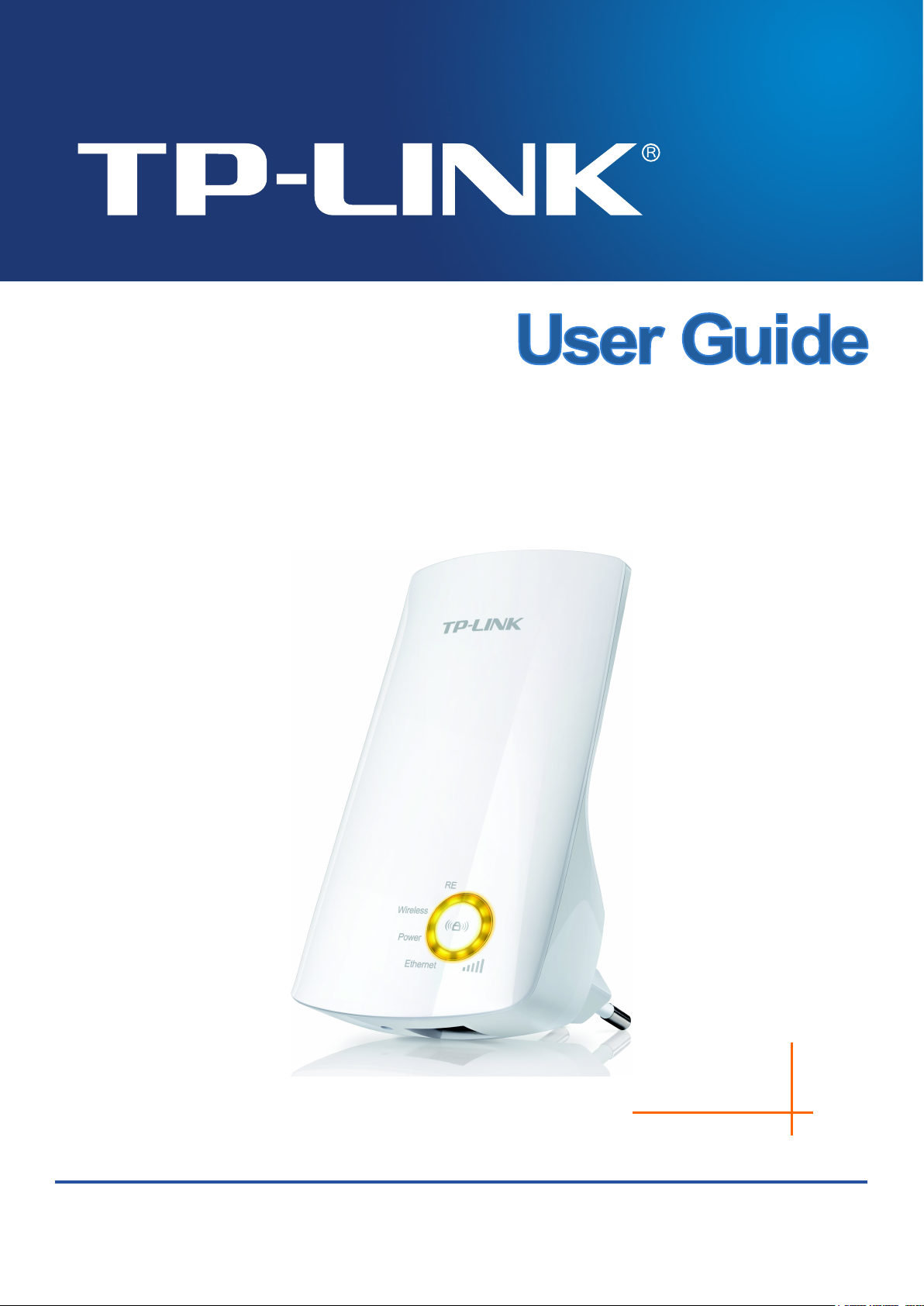
TL-WA750RE
150Mbps Universal WiFi Range Extender

COPYRIGHT & TRADEMARKS
Specifications are subject to change without notice. is a registered trademark of
TP-LINK TECHNOLOGIES CO., LTD. Other brands and product names are trademarks or
registered trademarks of their respective holders.
No part of the specifications may be reproduced in any form or by any means or used to make any
derivative such as translation, transformation, or adaptation without permission from TP-LINK
TECHNOLOGIES CO., LTD. Copyright © 2013 TP-LINK TECHNOLOGIES CO., LTD.
All rights reserved.
http://www.tp-link.com

FCC STATEMENT
This equipment has been tested and found to comply with the limits for a Class B digital device,
pursuant to part 15 of the FCC Rules. These limits are designed to provide reasonable protection
against harmful interference in a residential installation. This equipment generates, uses and can
radiate radio frequency energy and, if not installed and used in accordance with the instructions,
may cause harmful interference to radio communications. However, there is no guarantee that
interference will not occur in a particular installation. If this equipment does cause harmful
interference to radio or television reception, which can be determined by turning the equipment off
and on, the user is encouraged to try to correct the interference by one or more of the following
measures:
• Reorient or relocate the receiving antenna.
• Increase the separation between the equipment and receiver.
• Connect the equipment into an outlet on a circuit different from that to which the receiver
is connected.
• Consult the dealer or an experienced radio/ TV technician for help.
This device complies with part 15 of the FCC Rules. Operation is subject to the following two
conditions:
1) This device may not cause harmful interference.
2) This device must accept any interference received, including interference that may
cause undesired operation.
Any changes or modifications not expressly approved by the party responsible for compliance
could void the user’s authority to operate the equipment.
Note: The manufacturer is not responsible for any radio or tv interference caused by unauthorized
modifications to this equipment. Such modifications could void the user’s authority to operate the
equipment.
FCC RF Radiation Exposure Statement
This equipment complies with FCC RF radiation exposure limits set forth for an uncontrolled
environment. This device and its antenna must not be co-located or operating in conjunction with
any other antenna or transmitter.
“To comply with FCC RF exposure compliance requirements, this grant is applicable to only
Mobile Configurations. The antennas used for this transmitter must be installed to provide a
separation distance of at least 20 cm from all persons and must not be co-located or operating in
conjunction with any other antenna or transmitter.”

CE Mark Warning
This is a class B product. In a domestic environment, this product may cause radio interference, in
which case the user may be required to take adequate measures.
This device has been designed to operate with the antennas listed below, and having a maximum
gain of 3 dBi. Antennas not included in this list or having a gain greater than 3 dBi are strictly
prohibited for use with this device. The required antenna impedance is 50 ohms.
To reduce potential radio interference to other users, the antenna type and its gain should be so
chosen that the equivalent isotropically radiated power (e.i.r.p.) is not more than that permitted for
successful communication.
Canadian Compliance Statement
This device complies with Industry Canada license-exempt RSS standard(s). Operation is subject
to the following two conditions:
(1)This device may not cause interference, and
(2)This device must accept any interference, including interference that may cause undesired
operation of the device.
Cet appareil est conforme aux norms CNR exemptes de licence d’Industrie Canada. Le
fonctionnement est soumis aux deux conditions suivantes:
(1)cet appareil ne doit pas provoquer d’interférences et
(2)cet appareil doit accepter toute interférence, y compris celles susceptibles de provoquer un
fonctionnement non souhaité de l’appareil.
Industry Canada Statement
Complies with the Canadian ICES-003 Class B specifications.
Cet appareil numérique de la classe B est conforme à la norme NMB-003 du Canada.
This device complies with RSS 210 of Industry Canada. This Class B device meets all the
requirements of the Canadian interference-causing equipment regulations.
Cet appareil numérique de la Classe B respecte toutes les exigences du Règlement sur le
matériel brouilleur du Canada.
Korea Warning Statements
당해 무선설비는 운용중 전파혼신 가능성이 있음.
NCC Notice & BSMI Notice
注意!
依據 低功率電波輻射性電機管理辦法
第十二條 經型式認證合格之低功率射頻電機,費經許可,公司、商號或使用者均不得擅自變更頻
率、加大功率或變更原設計之特性或功能。
第十四條 低功率射頻電機之使用不得影響飛航安全及干擾合法通行;經發現有干擾現象時,應立
即停用,并改善至無干擾時方得繼續使用。前項合法通信,指依電信規定作業之無線電信。低功率
射頻電機需忍受合法通信或工業、科學以及醫療用電波輻射性電機設備之干擾。
安全諮詢及注意事項
● 請使用原裝電源供應器或只能按照本產品注明的電源類型使用本產品。
● 清潔本產品之前請先拔掉電源線。請勿使用液體、噴霧清潔劑或濕布進行清潔。
● 注意防潮,請勿將水或其他液體潑灑到本產品上。
● 插槽與開口供通風使用,以確保本產品的操作可靠並防止過熱,請勿堵塞或覆蓋開口。
● 請勿將本產品置放於靠近熱源的地方。除非有正常的通風,否則不可放在密閉位置中。
● 請不要私自打開機殼,不要嘗試自行維修本產品,請由授權的專業人士進行此項工作。
Продукт сертифіковано згідно с правилами системи УкрСЕПРО на відповідність вимогам
нормативних документів та вимогам, що передбачені чинними законодавчими актами
України.
Safety Information
When product has power button, the power button is one of the way to shut off the product;
when there is no power button, the only way to completely shut off power is to disconnect the
product or the power adapter from the power source.
Don’t disassemble the product, or make repairs yourself. You run the risk of electric shock
and voiding the limited warranty. If you need service, please contact us.
Avoid water and wet locations.
This product can be used in the following countries:
TP-LINK TECHNOLOGIES CO., LTD
DECLARATION OF CONFORMITY
For the following equipment:
Product Description: 150Mbps Universal WiFi Range Extender
Model No.: TL-WA750RE
Trademark: TP-LINK
We declare under our own responsibility that the above products satisfy all the technical
regulations applicable to the product within the scope of Council Directives:
Directives 1999/5/EC, Directives 2004/108/EC, Directives 2006/95/EC, Directives 1999/519/EC,
Directives 2011/65/EU
The above product is in conformity with the following standards or other normative documents
ETSI EN 300 328 V1.7.1: 2006
ETSI EN 301 489-1 V1.9.2:2011& ETSI EN 301 489-17 V2.1.1:2009
EN 55022:2010
EN 55024:2010
EN 61000-3-2:2006+A1:2009+A2:2009
EN 61000-3-3:2008
EN60950-1:2006+A11:2009+A1:2010+A12:2011
EN62311:2008
The product carries the CE Mark:
Person responsible for marking this declaration:
Yang Hongliang
Product Manager of International Business
Date of Issue: 2013
TP-LINK TECHNOLOGIES CO., LTD.
Building 24 (floors 1, 3, 4, 5), and 28 (floors 1-4) Central Science and Technology Park,
Shennan Rd, Nanshan, Shenzhen, China

CONTENTS
Package Contents ………………………………………………………………………………………. 1
Chapter 1 Introduction ………………………………………………………………………………. 2
1.1 Product Overview …………………………………………………………………………………. 2
1.2 Main Features ……………………………………………………………………………………… 2
1.3 Appearance …………………………………………………………………………………………. 2
Chapter 2 Hardware Installation ………………………………………………………………… 4
2.1 Before You Begin …………………………………………………………………………………. 4
2.2 Basic Requirements ……………………………………………………………………………… 5
2.3 Connecting the Device ………………………………………………………………………….. 5
Chapter 3 Quick Installation Guide …………………………………………………………….. 6
Chapter 4 Configure the Device ……………………………………………………………….. 10
4.1 Status ……………………………………………………………………………………………….. 10
4.2 Quick Setup ………………………………………………………………………………………. 11
4.3 WPS …………………………………………………………………………………………………. 11
4.4 Profile ……………………………………………………………………………………………….. 17
4.5 Network …………………………………………………………………………………………….. 18
4.6 Wireless ……………………………………………………………………………………………. 19
4.6.1 Wireless Settings ………………………………………………………………………………… 20
4.6.2 Wireless Security ………………………………………………………………………………… 21
4.6.3 Wireless MAC Filtering ………………………………………………………………………… 23
4.6.4 Wireless Advanced ……………………………………………………………………………… 25
4.6.5 Wireless Statistics ……………………………………………………………………………….. 26
4.6.6 Throughput Monitor …………………………………………………………………………….. 27
4.7 DHCP ……………………………………………………………………………………………….. 28
4.7.1 DHCP Settings ……………………………………………………………………………………. 28
4.7.2 DHCP Client List …………………………………………………………………………………. 29
4.8 System Tools …………………………………………………………………………………….. 30
4.8.1 Firmware Upgrade ………………………………………………………………………………. 30
4.8.2 Factory Defaults ………………………………………………………………………………….. 31
4.8.3 Backup & Restore ……………………………………………………………………………….. 32
4.8.4 Reboot ………………………………………………………………………………………………. 32
4.8.5 Password …………………………………………………………………………………………… 33
4.8.6 System Log ………………………………………………………………………………………… 33
Appendix A: Factory Defaults ……………………………………………………………………. 35
Appendix B: Troubleshooting ……………………………………………………………………. 36
Appendix C: Specifications ……………………………………………………………………….. 38
Appendix D: Glossary ……………………………………………………………………………….. 39

150Mbps Universal WiFi Range Extender User Guide
Package Contents
The following items should be found in your package:
TL-WA750RE 150Mbps Universal WiFi Range Extender
Ethernet Cable
Quick Installation Guide
Resource CD for TL-WA750RE 150Mbps Universal WiFi Range Extender, including only this
User Guide.
Note:
Make sure that the package contains the above items. If any of the listed items is damaged or
missing, please contact your distributor.
Conventions
The Range Extender, the Device or TL-WA750RE mentioned in this User guide stands for
TL-WA750RE 150Mbps Universal WiFi Range Extender without any explanations.
Parameters provided in the pictures are just references for setting up the product, which may differ
from the actual situation. You can set the parameters according to your demand.
The power plug may differ from the picture illustrated in this UG due to different regional power
specifications. Here we just take that of EU version for example.
1
150Mbps Universal WiFi Range Extender User Guide
Chapter 1 Introduction
1.1 Product Overview
The TL-WA750RE 150Mbps Universal WiFi Range Extender is dedicated to Small Office/Home
Office (SOHO) wireless network solutions. It will enlarge your existing wireless network and
mobility within your wireless network while also allowing you to connect a wired device to a
wireless environment. Increased mobility and the absence of cabling will be beneficial for your
network.
With using IEEE 802.11n wireless technology, this device can transmit wireless data at the rate of
up to 150Mbps. With multiple protection measures, including wireless LAN 64/128/152-bit WEP
encryption, Wi-Fi protected Access (WPA2-PSK, WPA-PSK), the TL-WA750RE 150Mbps
Universal WiFi Range Extender delivers complete data privacy.
It supports an easy wireless connection to the root AP (equipped with WPS/QSS button) by
pressing the RE button on the front panel. It also supports an easy, web-based setup for
installation and management. Even though you may not be familiar with the Range Extender, you
can easily configure it with the help of this Guide. Before installing the Range Extender, please
look through this Guide to get the full information of the TL-WA750RE 150Mbps Universal WiFi
Range Extender.
1.2 Main Features
Applies IEEE 802.11n wireless technology
Supports multiple encryption security types including: 64/128/152-bit WEP and
WPA/WPA2-Personal
Supports built-in DHCP server
Supports two operating modes: Range Extender Mode 1 and Range Extender Mode 2
Supports firmware upgrade
Supports web management
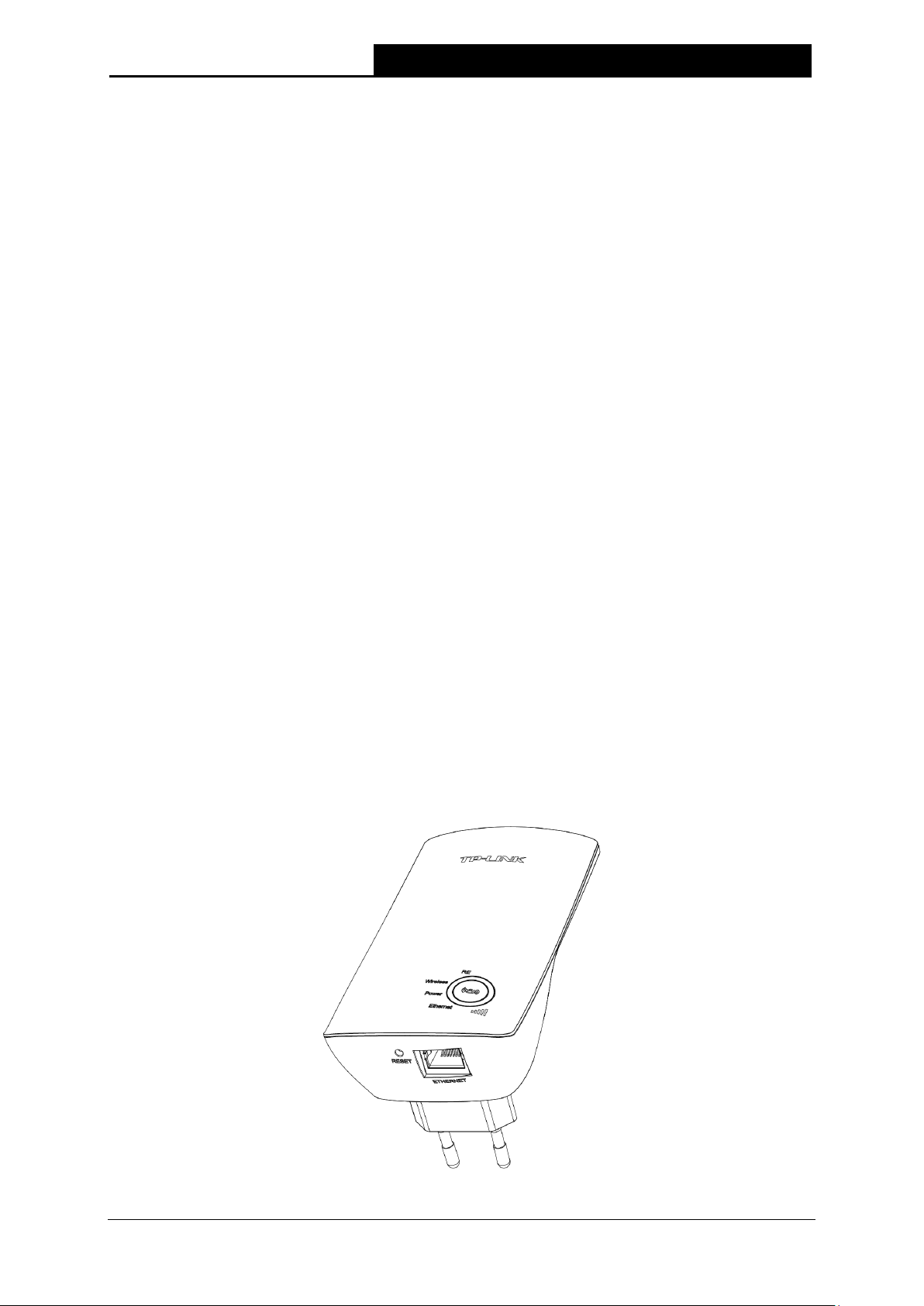
1.3 Appearance
Figure 1-1
2
150Mbps Universal WiFi Range Extender User Guide
The Range Extender is connected the router successfully.
The Range Extender is not connected any router yet.
Signal is transferring. And it also shows the current signal strength
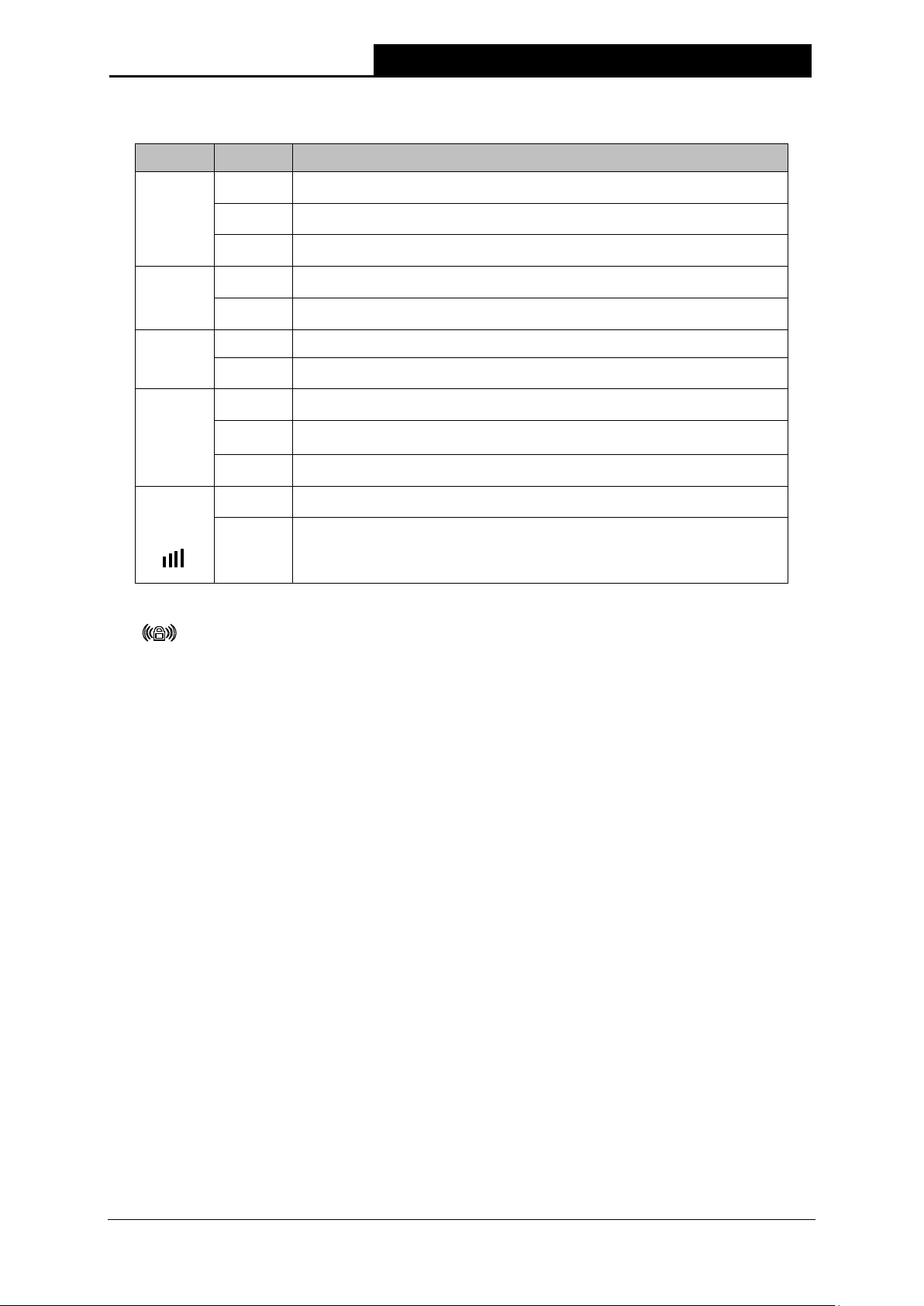
LED Explanation:
Name Status Indication
On
RE
Flashing
The Range Extender is connecting the router.
Off
Off
Wireless
Flashing
The Wireless function is disabled.
The Wireless function is enabled.
Off No Power.
Power
On
Ethernet
Signal
Strength
Off
On
Flashing
Off
Solid
(1~5)
There is no device linked to the corresponding port.
There is a device linked to the corresponding port but no activity.
There is an active device linked to the corresponding port.
the range extender received from the root AP after successful
Table 1-1
(RANGE EXTENDER/WPS): If your Wireless router or AP supports WPS or QSS
function, you can press the WPS or QSS button and then press the RANGE EXTENDER
button to establish a secure connection between the Wireless router (or AP) and the Range
Extender TL-WA750RE.
RESET: This button is used to restore the Range Extender’s factory default settings.
There are two ways to reset the Range Extender’s factory defaults:
Method One: With the Range Extender powered on, use a pin to press and hold the RESET
button (about 8 seconds) until the System LED becomes quick-flash from slow-flash. And
then release the button and wait the Range Extender to reboot to its factory default settings.
Method Two: Restore the default settings from “System Tools > Factory Defaults” of the
Range Extender’s Web-based management page.
ETHERNET: One 10/100Mbps RJ45 Ethernet port used to add wireless connectivity to an
Ethernet-enabled device such as Internet TV, DVR, Gaming console and so on. Please note
that this port is not allowed to be connected with router or AP.
3
150Mbps Universal WiFi Range Extender User Guide
Chapter 2 Hardware Installation
2.1 Before You Begin
Please read this User Guide carefully before installing and using the equipment. The operating
distance range of your wireless connection can vary significantly depending on the physical
position of the wireless devices. Factors that can weaken signals by getting in the way of your
network’s radio waves are metal appliances or obstructions, and walls. Typical ranges vary based
on the types of materials and background RF (radio frequency) noise in your home or office.
In order to optimize the performance of TL-WA750RE, please follow the instructions below to
achieve an ideal location (please make sure it is always within the wireless coverage of the
wireless router).
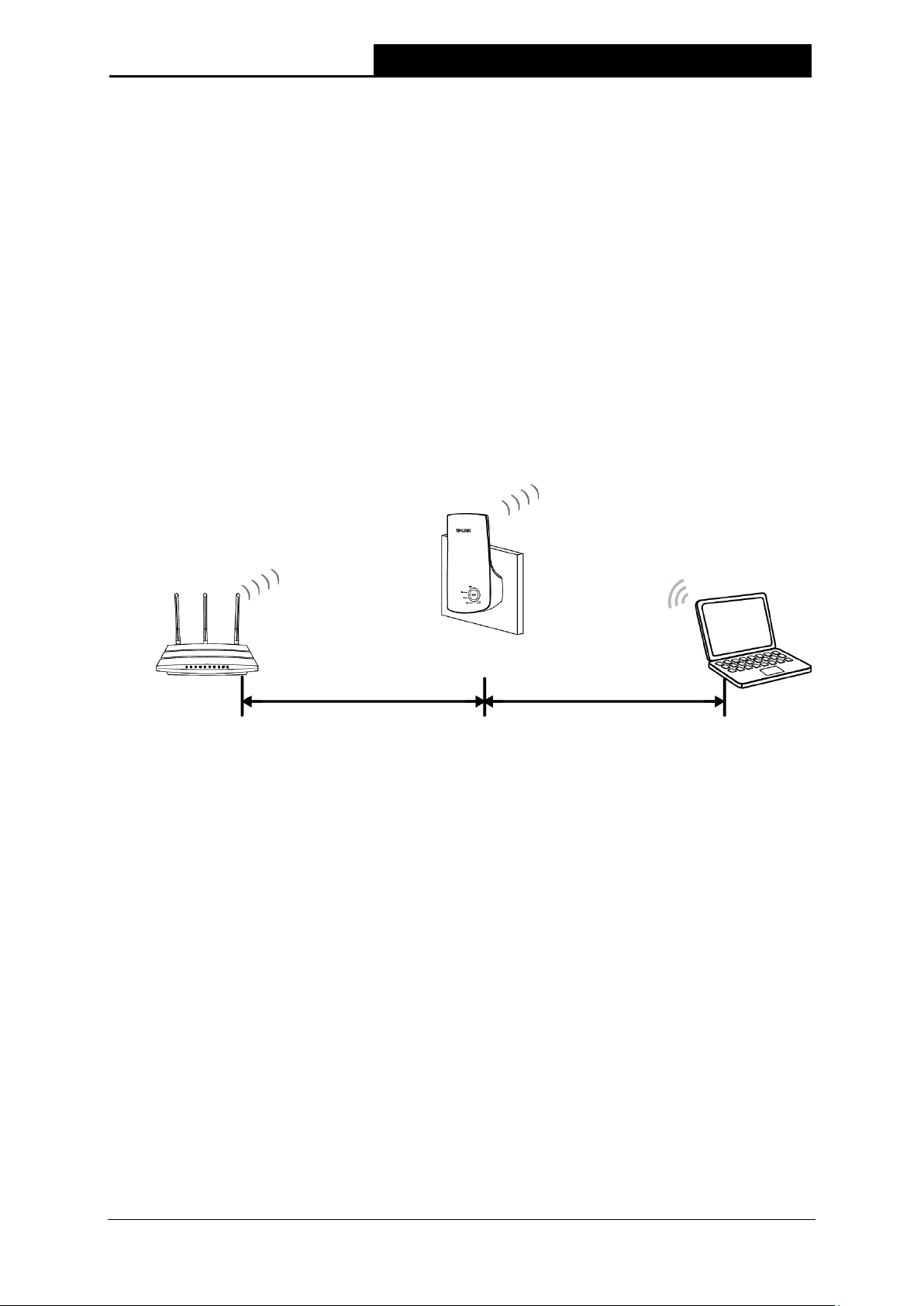
1) Half-way Between — Generally, the ideal location for TL-WA750RE is half-way between the
Wireless router and Wireless Client. If the wireless signal is not satisfactory, you may place
TL-WA750RE somewhat nearer to the Wireless router.
2) No Obstacles and Spacious — Clear obstacles in the way between TL-WA750RE and
Wireless router. It’s better to locate it in a spacious place, such as near the corridors.
3) No Interference — Keep TL-WA750RE far away from wireless interference, which may come
from electrical appliances that works in the same frequency band as TL-WA750RE, such as
Blue tooth devices, cordless phones, microwave ovens, etc.
4) 3 Signal Lights — You can also find an ideal location via the signal lights on the front panel of
TL-WA750RE. These lights show the strength of signal your range extender receives from
the root AP. It’s recommended that you choose a location where at least 3 signal lights light
up, in order to guarantee a good performance.
Note:
TP-LINK recommends that you connect to the Range Extender when your home network
connection is poor, or when you want a larger wireless coverage to eliminate “dead zones”. As in
compliance with the wireless transmission protocol, all the Range Extender devices are set to
work in half-duplex instead of full-duplex mode. In other words, the Range Extender has to
process one-way communication between your root Wireless router (or AP) and the terminal
clients; so the transmission time will be double-increased, while the speed will be decreased.
4
150Mbps Universal WiFi Range Extender User Guide
2.2 Basic Requirements
Place your Range Extender in a well-ventilated place far from direct sunlight, any heater or
heating vent.
Leave at least 2 inches (5cm) space around the device for heat dissipation.
Turn off your Range Extender and unplug the power adapter in a lighting storm to avoid
damage.
Use Web browser, such as Microsoft Internet Explorer 5.0 or above, Netscape Navigator 6.0
or above.
Operating temperature of the Range Extender should be 0℃~40℃ (32℉~104℉).
Operating humidity of the Range Extender should be 10%~90%RH (Non-condensing).
2.3 Connecting the Device
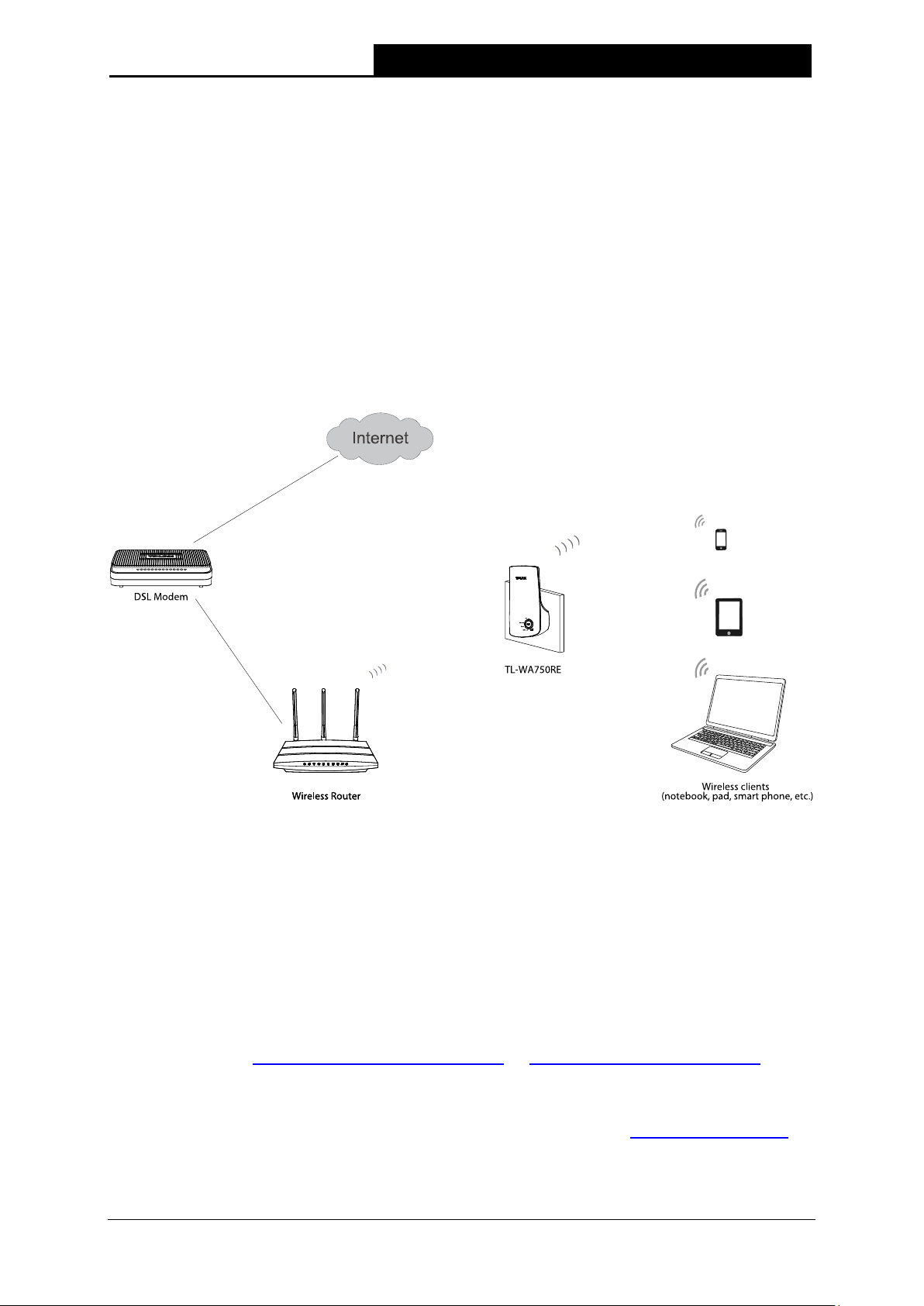
Figure 2-1 Typical connection of TL-WA750RE
To establish a typical connection of the Range Extender, please take the following steps:
1. Connect the Cable/DSL modem to a Wireless router with an Ethernet cable.
2. Plug your TL-WA750RE directly to a standard electrical wall socket, which is next to the
Wireless router.
3. Connect your Wireless Clients (such as notebook, pad, smart phone, etc.) to TL-WA750RE
wirelessly. Or you can connect your PC to the sole LAN port of Range Extender via an
Ethernet cable.
4. Log in the web-based management page of TL-WA750RE and complete the configurations.
(Please refer to Chapter 3 Quick Installation Guide or Chapter 4 Configure the Device
for the
configurations, as you need.) Through the web page configuration you can successfully
connect TL-WA750RE to the wireless router.
5. Adjust an ideal location for TL-WA750RE. (Please refer to Section 2.1 Before You Begin for
detailed information about ideal location.)
5
150Mbps Universal WiFi Range Extender User Guide
Chapter 3 Quick Installation Guide
This chapter will guide you to configure your PC to communicate with the Range Extender and to
configure and manage the TL-WA750RE 150Mbps Universal WiFi Range Extender easily with a
Web-based utility.
With a Web-based utility, it is easy to configure and manage the TL-WA750RE 150Mbps Universal
WiFi Range Extender. The Web-based utility can be used on any Windows, Macintosh or UNIX
OS with a Web browser, such as Microsoft Internet Explorer, Mozilla Firefox or Apple Safari.
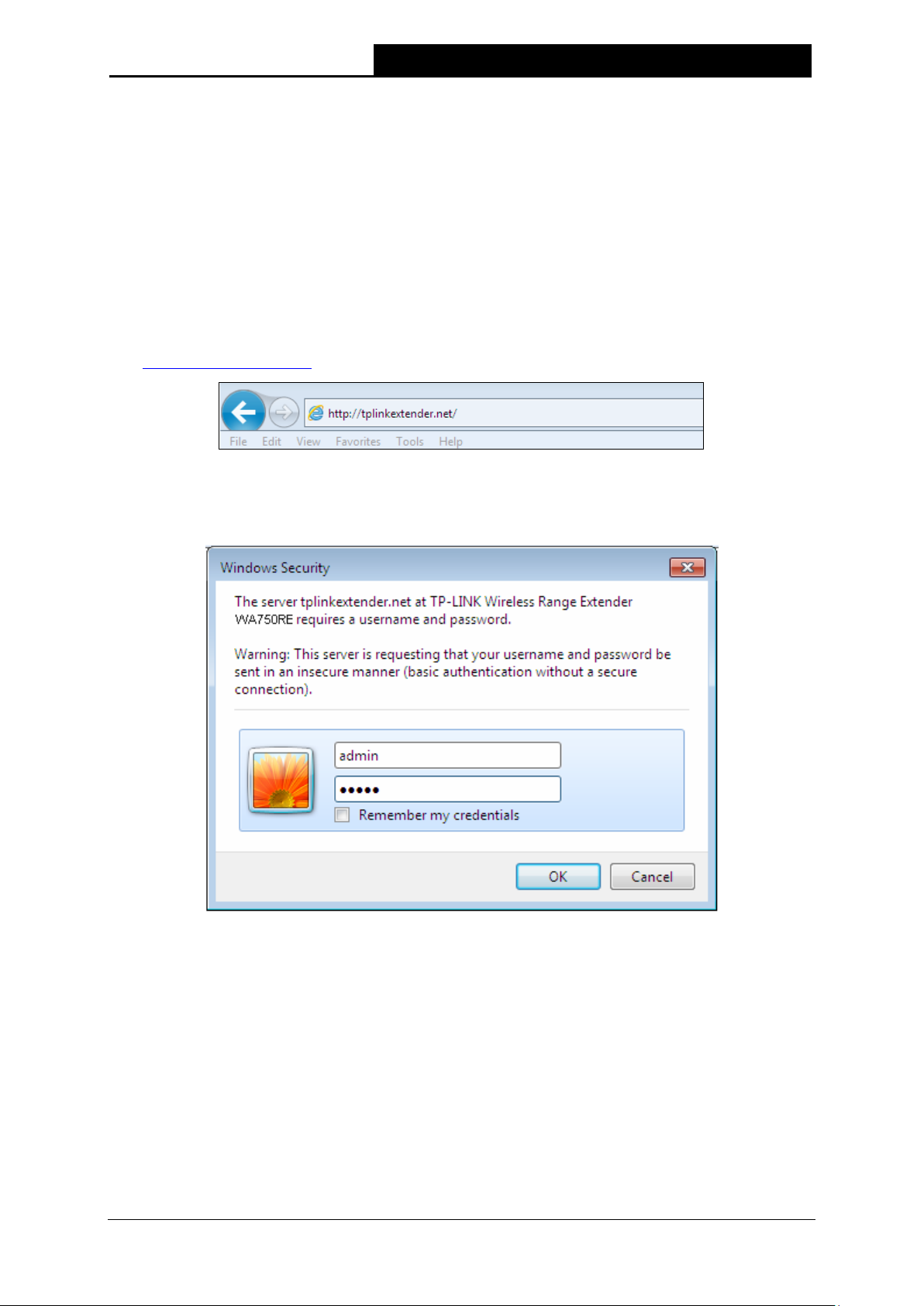
1. To access the configuration utility, open a web-browser and type in the domain name
http://tplinkextender.net in the address field of the browser.
Figure 3-1 Login to the Range Extender
After a moment, a login window will appear as shown in Figure 3-2. Enter admin for the User
Name and Password (both in lower case letters). Then click OK or press Enter.
Figure 3-2 Login Windows
Note:
If the above screen does not prompt, it means that your web-browser has been set to a proxy. Go
to Tools menu > Internet Options > Connections > LAN Settings, in the screen that appears,
cancel the Using Proxy checkbox, and click OK to finish it.
6
150Mbps Universal WiFi Range Extender User Guide
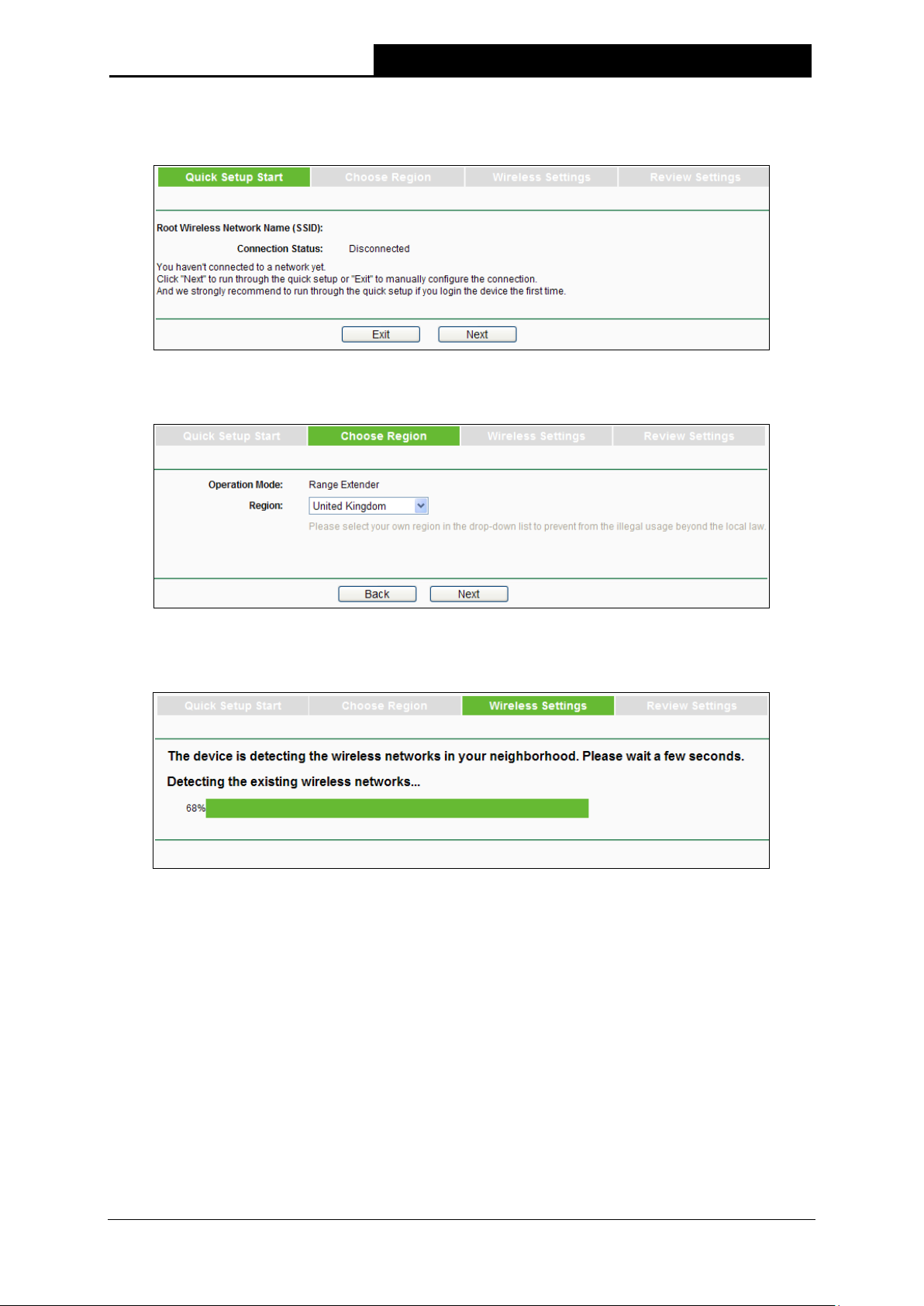
2. After successful login, there will pop up the Quick Setup Start page. Click Next to get the
quick setup started.
Figure 3-3 Quick Setup Start
3. Figure 3-4 will appear for you to choose the region. Then click Next to continue.
Figure 3-4 Quick Setup – Choose Region
4. The device will detect the existing wireless networks. Please wait for a while.
Figure 3-5 Quick Setup – Detect Existing Networks
7
150Mbps Universal WiFi Range Extender User Guide
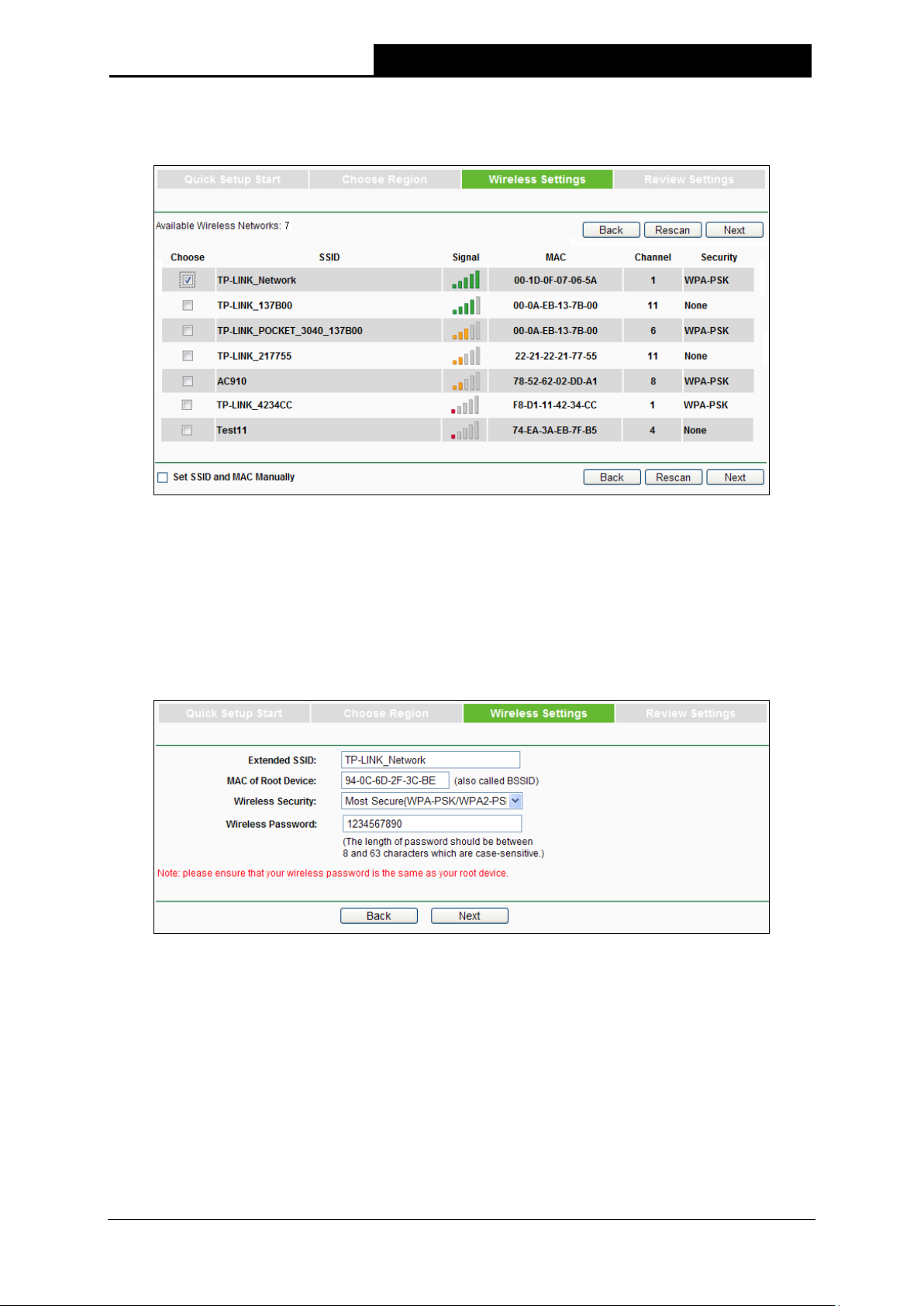
5. A list of available wireless networks will appear. Check the box before the SSID of your
desired network, and then click Next.
Figure 3-6 Quick Setup – Available Wireless Networks
Note:
If you could not find your wireless network name (SSID) in the list, you can click
redetect it or tick the checkbox before «Set SSID and MAC Manually» to manually configure the
wireless settings.
6. Wireless Settings page will appear as shown in Figure 3-7. Please enter the Wireless
Password of your selected target network and then click Next to continue.
Figure 3-7 Quick Setup – Wireless Settings
Rescan
to
8
Loading…
182926
Не так давно я уже писал о настройке повторителя Wi-Fi сети TP-Link TL-WA850RE. А в этой статье мы будем настраивать репитер TP-Link AC750 RE200. Его основное отличие в том, что это двухдиапазонный усилитель Wi-Fi сети. То есть, он может одновременно расширять покрытие беспроводной сети на двух частотах 2.4GHz, и 5GHz. Модель AC750 RE200 подойдет в том случае, если у вас двухдиапазонный маршрутизатор, и вы одновременно используете есть на обоих частотах. Если же вы только собираетесь покупать повторитель, ищите хорошую модель, и у вас обычный роутер который раздает Wi-Fi на одной частоте (2.4GHz), то можете купить модель TL-WA850RE. Или RE200, с запасом на будущее, если поменяете роутер на двухдиапазонный.
Я настроил свой TP-Link AC750 RE200 за одну минуту. Ровно столько времени нужно для того, чтобы включить репитер в розетку, нажать кнопку WPS на роутере, и на самом репитере. После чего, этот ретранслятор сам подключается к роутеру, и начинает расширять беспроводную сеть. К тому же, у меня таким способом получилось усилить сигнал Wi-Fi сети в двух диапазонах 2.4GHz, и 5GHz. Есть информация, что через кнопку WPS не всегда получается настроить ретранслятор сразу для двух частот, нужно делать это через панель управления. Мы рассмотрим этот вариант в статье. Настраивал я этот репитер с двухдиапазонным роутером TP-Link Archer C20i.
Усиление сигнала Wi-Fi сети на частотах 2.4GHz, и 5GHz с помощью TP-Link RE200
Давайте сначала рассмотрим быструю настройку с помощью кнопки WPS. Скорее всего, на вашем маршрутизаторе есть такая кнопка. Если ее нет, или этот способ не сработает, то ниже я покажу как все настроить через панель управления самого ретранслятора.
Первым делом, включите повторитель в розетку, и подождите секунд 15, пока он загрузится. Затем, на роутере нажмите кнопку WPS. На моем TP-Link Archer C20i она выглядит вот так:

Важно! Не держите кнопку WPS на роутере нажатой слишком долго. Особенно, если она подписана «WPS/Reset». Примерно через 5 секунд после нажатия на кнопку, будут сброшены настройки роутера к заводским.
После нажатия на кнопку на маршрутизаторе, сразу идем, и нажимаем кнопку WPS на репитере TP-Link AC750 RE200.

Как вы можете увидеть на скриншоте выше, у меня загорелись индикаторы возле 5G, и 2.4G. Это значит, что ретранслятор уже усиливает беспроводную сеть в двух диапазонах. Если горит красный индикатор, то это значит, что сигнал от роутера очень слабый, и нужно установить репитер ближе к точке доступа. А если индикатор возле какой-то сети вообще не загорелся, но у вас роутер транслирует сеть на двух частотах, то это значит, что нужно попробовать настроить AC750 RE200 через панель управления. Так как подключится сразу к двум сетям через кнопку WPS, и усиливать их, не всегда получается.
Настройка TP-Link AC750 RE200 через панель управления
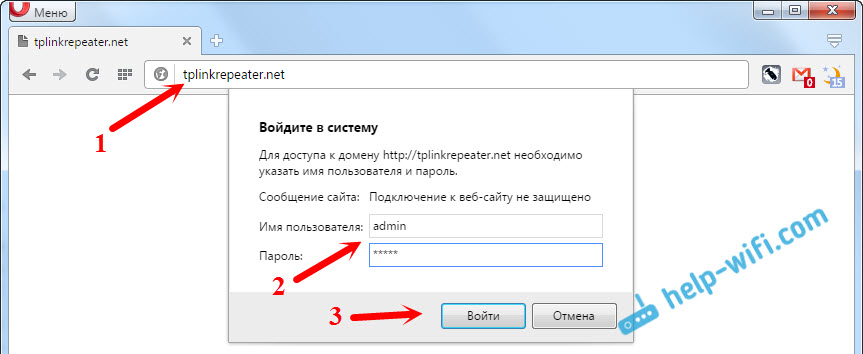
Включите репитер в розетку, и подключитесь к нему по Wi-Fi, или с помощью сетевого кабеля. Откройте браузер, и перейдите по адресу tplinkrepeater.net. Появится страница авторизации. Стандартный пароль и логин: admin и admin. Откроются настройки ретранслятора TP-Link AC750 RE200.
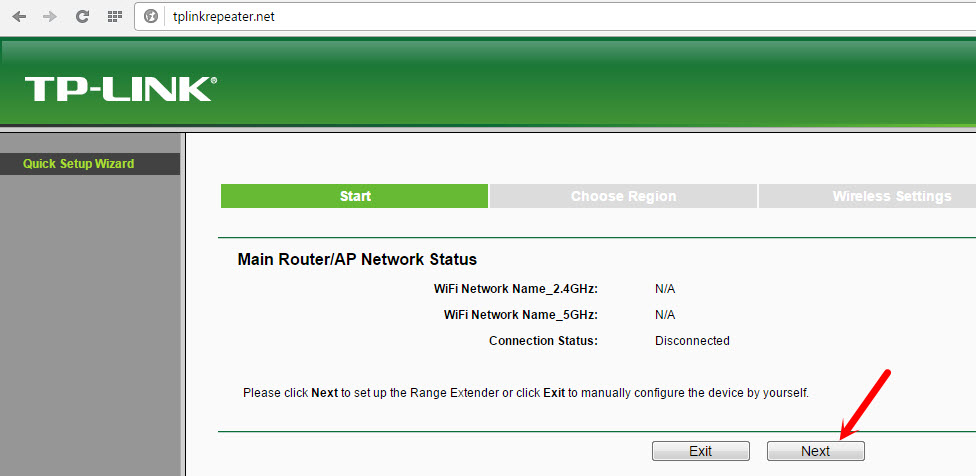
Скорее всего, перед вами сразу появится окно с мастером быстрой настройки (если нет, то перейдите на вкладку Wireless — Connect To Existing Network). Просто нажмите на кнопку «Next».
Выберите свой регион.

Дальше репитер выполнит поиск сетей на частоте 2.4ГГц. Выделите свою сеть, и нажмите кнопку «Next».

В следующем окне нужно только указать пароль от Wi-Fi сети, которую вы хотите расширить.

Дальше репитер начнет поиск сетей на частоте 5GHz.

Подключаемся к своей сети на другом диапазоне точно так же, как я показывал выше. Нужно только выбрать сеть, уже на частоте 5GHz и указать пароль к ней.
В итоге, роутер должен выдать информацию по всем настройкам, и нам нужно только нажать на кнопку «Finish».

Репитер перезагрузится, и начнет усиливать ваши Wi-Fi сети. Обратите только внимание на индикаторы на самом устройстве, которые возле 5G, и 2.4G. Они должны гореть зеленым цветом. Если горят красным, то установите репитер ближе к роутеру. Вообще, советую выбрать такое расположение усилителя, что бы он находился в зоне стабильного сигнала от маршрутизатора, и максимально покрывал сигналом нужную вам площадь.
Несколько полезных советов:
1
После настройки, вы сможете отключать TP-Link AC750 RE200, и включать его в другом месте. Повторно настройку выполнять не нужно, все будет работать. Главное, чтобы повторитель был в зоне покрытия Wi-Fi сети, которую вы хотите усилить.
2
На повторителе есть один Ethernet порт, а в комплекте есть сетевой кабель. Это значит, что вы можете подключить к интернету одно устройство по кабелю (игровую приставку, стационарный компьютер, Smart TV). Устройство, у которого нет возможности подключится к интернету по Wi-Fi.
3
Вы всегда можете сбросить настройки AC750 RE200 и выполнить его повторную настройку. Снизу есть кнопка Reset. Нажмите на нее чем-то острым, подержите примерно 10 секунд, и настройки повторителя будут сброшены к заводским.

4
Если вы заметил какие-то проблемы в работе этого ретранслятора, или у вас не получается что-то настроить, то попробуйте обновить прошивку. Достаточно скачать новую версию прошивки для модели AC750 RE200 с сайта TP-Link, зайти в настройки повторителя на вкладку System Tools — Firmware Upgrade, выбрать файл прошивки с расширением .bin, и запустить процесс обновления. Только смотрите, чтобы скачанная прошивка была для вашей аппаратной версии. Аппаратная версия указана на самом устройстве.
-
Страница 1
TL-WA750RE 15 0Mbps Universal WiFi Range Exte nder R EV 1.0. 0 1910010798[…]
-
Страница 2
COPYRIGHT & TRAD EMARKS Specific ations are subject t o change without notic e. is a registered t rademark of TP — LINK TECHNOLOGIES CO., L TD. Other brands and pr oduct names are trademarks or registered tradem arks of their res pective holders. No part of the specific ations may be reproduced in any form or by any means or used to make any de[…]
-
Страница 3
FCC STATEMENT This equipment has been t ested and found to comply with t he limits for a Class B digital device, pursuant to part 15 of the FCC Rules . These limits are des igned to provid e reasonable protection against harmf ul interference i n a residential i nstallation. This equipment ge nerates, uses and can radiate radio f requency energy an[…]
-
Страница 4
CE Mark Warning This is a class B product . In a domestic environm ent, this product may cause radio interfere nce, in which case the user m ay be required to t ake adequate measure s. This device has been des igned to operate with the antennas l isted below, and having a maxi mum gain of 3 dBi . Antennas not inc luded in this list or having a gain[…]
-
Страница 5
第十四條 低功率射頻電機之使用不得影響飛航安全及干擾合法通行;經發現有干擾現象時,應立 即停用,并改善至無干擾時方得繼續使用。前項合法通信,指依電信規定作業之無線電信。 低功率 射頻電機需忍受合法通信或工業、科學以及醫療用電波輻射性電機設?[…]
-
Страница 6
TP — LINK TECHNOLO GIES CO., L TD TP — LINK TECHNOLOGIES CO., LTD. Building 24 (floors 1, 3, 4, 5) , and 28 (floors 1 — 4) Centr al Science and Technology Park, Shennan Rd, Nanshan, Shenzhen, China DECLARA TION OF CONFORMITY For the following equi pment: Product Descri ption: 15 0Mbps Universal Wi Fi Range Extender Model No.: TL -W A7 50RE T radema[…]
-
Страница 7
CONTENTS Package Contents ………………………………………………………………………………………. 1 Chapter 1 Introduction ………………………………………………………………………………. 2 1.1 Product Ov erview ……………………………………………………………………….[…]
-
Страница 8
TL -WA 750RE 15 0Mbps Universal Wi Fi Range E xtender User Guide 1 Package Contents The following i tem s should be f ound in your package : TL -WA 75 0RE 150Mbps Universal Wi Fi Range E xtender Ethernet Cable Quick Instal lation Guide Resource CD for TL -WA 750RE 150Mbps Universal Wi Fi Range Extender, including only t hi s User Gu[…]
-
Страница 9
TL -WA 750RE 15 0Mbps Universal Wi Fi Range E xtender User Guide 2 Chapter 1 Introduction 1.1 Product Overvie w The TL -WA 75 0RE 150Mbps Univers al Wi Fi Range Extender i s dedicated to Small Offic e/Home Office (SOHO) wireles s network solut ions. It will enlarge your existing wireless network and mobility withi n your wireless network while also[…]
-
Страница 10
TL -WA 750RE 15 0Mbps Universal Wi Fi Range E xtender User Guide 3 LED Explanation : Name Status Indication RE On The Range Extender is c onnected the router successfully . Flashing The Range E xtender is connecti ng the router . Off The Range Extender is not connected any router yet . Wireless Off Th e Wireless funct ion is disabled . Flashing[…]
-
Страница 11
TL -WA 750RE 15 0Mbps Universal Wi Fi Range E xtender User Guide 4 Chapter 2 Hardware Inst allation 2.1 Before Y ou Begin Please read thi s User Guide carefull y before install ing and usin g the equipment . The operating distance range of you r wireless connec tion can vary signif icantly depending o n the physica l position of the wireles s devic[…]
-
Страница 12
TL -WA 750RE 15 0Mbps Universal Wi Fi Range E xtender User Guide 5 2.2 Basic Requ irement s P lace your Range Extender in a wel l — ventilated place f ar from direct sunlight, any heat er or heating vent . L eave at least 2 inches (5cm) space around the devi ce for heat diss ipation . Turn off your Range Extende r and unplug the power a[…]
-
Страница 13
TL -WA 750RE 15 0Mbps Universal Wi Fi Range E xtender User Guide 6 Chapter 3 Quick Installation Guide This chapter wil l guide you to c onfigure your PC to c ommunicate with t he Range Extender and t o configure an d manage the TL -WA 750 RE 150Mbps Unive rsal Wi Fi Range Extender eas ily with a Web — based utili ty. With a Web — based utili ty, it[…]
-
Страница 14
TL -WA 750RE 15 0Mbps Universal Wi Fi Range E xtender User Guide 7 2. After suc cessful log i n, there will pop up the Quick Setup Start page. Click Next to get the quick set up started. Figure 3-3 Quick Setup S tart 3. Figure 3-4 will appear for you to choose t he region . Then cli ck Next to conti nue. Figure 3-4 Quick Setup – Choose Region 4. […]
-
Страница 15
TL -WA 750RE 15 0Mbps Universal Wi Fi Range E xtender User Guide 8 5. A list of available wirele ss network s will appear. Check the box bef ore the SSID of your desired network, and then click Next . Figure 3-6 Quick Setup – Available Wirel ess Networks Note: I f you could not find your wi reless network na me (SSID) in the lis t, you can cl[…]
-
Страница 16
TL -WA 750RE 15 0Mbps Universal Wi Fi Range E xtender User Guide 9 7. Double — check your wireless setti ng and network setting on the page as shown i n Figure 3-8 . If verified, clic k Finish to complete the Quic k Setup. If there is anything wrong, cli ck Back to return the previous pag es and reconfigure i t. Figure 3-8 Quick Setup – Review Se[…]
-
Страница 17
TL -WA 750RE 15 0Mbps Universal Wi Fi Range E xtender User Guide 10 Chapter 4 Configure t he Device This Chapter des cribes how to conf igure your Ra nge Extender via t he web — based managem ent page. The TL -WA 75 0RE 150Mbps Univers al Wi Fi Range Extender is easy to conf igure and manage with t he Web — based (Internet Explorer, N etscape ® Na[…]
-
Страница 18
TL -WA 750RE 15 0Mbps Universal Wi Fi Range E xtender User Guide 11 Firmware Versio n — This field di splays the current fi rmware version of the Range Extender . Hardware Versio n — This field displ ays the current hardware ver sion of the Range Extend er . Connection Status to Exi sting Network — This part shows you the current inform[…]
-
Страница 19
TL -WA 750RE 15 0Mbps Universal Wi Fi Range E xtender User Guide 12 Figure 4-2 WPS — Enabled Operation Mode — Displays the current operation mode of the device. WPS Status — To enable or disabl e the WPS function here. Current PIN — The current value of t he device ‘s PIN is displayed here. The default PIN of the device can be f ou[…]
-
Страница 20
TL -WA 750RE 15 0Mbps Universal Wi Fi Range E xtender User Guide 13 Method One: Push the button of the Range Extender an d Wireless Adapter Step 1: Keep the “ WPS Status ” as Enabled and click the Add D evice button in Figure 4-2 , then the following sc reen will app ear. Figure 4-3 Add A New Device Step 2: Choose “ Pre ss the button of the n[…]
-
Страница 21
TL -WA 750RE 15 0Mbps Universal Wi Fi Range E xtender User Guide 14 Step 4: Wait unt il the next screen appe ars. Click OK to c omplete the WPS c onfiguration. Figure 4-5 The WPS Configuration Sc reen of Wireless Adapter Method Two: Enter the PIN into my Range Extender Step 1: Configur e the wireless adapt er. Pleas e c hoose “ Enter the PI N of […]
-
Страница 22
TL -WA 750RE 15 0Mbps Universal Wi Fi Range E xtender User Guide 15 Step 2: Configur e the router . Keep the default “ WPS Status ” as Enabled and click the Add device button in Figure 4-2 , then the f ollo w ing screen wil l appear . Figure 4-7 Step 3: Choose Ent er the new device’s PIN and e nter t he PIN code of the wi reless adapt er i[…]
-
Страница 23
TL -WA 750RE 15 0Mbps Universal Wi Fi Range E xtender User Guide 16 Figure 4-9 The WPS Configuration Sc reen of Wireless Adapter Note: The default PIN code of the Range Exte nder can be found in its label or the W PS configuration screen as Figure 4- 2 . You will see the f ollowing screen when the new device has s uccessfully c onnected to the […]
-
Страница 24
TL -WA 750RE 15 0Mbps Universal Wi Fi Range E xtender User Guide 17 4.4 Profile Profile funct ion can help you remember pre viously connec ted wireless net works . Y ou can Edit , Delete or Add profil es in this page (as shown in Figure 4- 11 ) for your convenient reconnection later on . Figure 4- 11 Prof ile Choose — You can choos e any one wi[…]
-
Страница 25
TL -WA 750RE 15 0Mbps Universal Wi Fi Range E xtender User Guide 18 Profile Name — The name you give to your wireless network s . B y default, it’s the same as root SSID, but you can c hange it to any other names that you can easily remember a nd distinguish. Root SSID — The wireless network name of your root A P this profile will c on[…]
-
Страница 26
TL -WA 750RE 15 0Mbps Universal Wi Fi Range E xtender User Guide 19 Figure 4- 15 LAN MAC Address — The physic al address of the LAN port, as seen from the LAN. The value can n ot be changed. Typ e — Several IP t ypes are supported, i ncluding: (1) Static IP ; (2) Smar t IP (DHCP), and they are explained below. Static IP — In this type, […]
-
Страница 27
TL -WA 750RE 15 0Mbps Universal Wi Fi Range E xtender User Guide 20 There are six submenus under the Wirel ess menu (shown in Figure 4- 16 ): Wireless Settin gs , Wireless Securit y , Wireless MAC Filtering , Wireless Advanced , Wireless S tatistics and Throughput Monitor . Click any of them, and you will be able t o configure the corresponding fun[…]
-
Страница 28
TL -WA 750RE 15 0Mbps Universal Wi Fi Range E xtender User Guide 21 Wireless Name of R oot AP — The SSID of the AP your device is going to connec t to as a client. You can als o use the search functi on to select the SSID to join. MAC Address of R oot AP — The B SSID of the AP your device i s going to connect to as a client. You can als o u[…]
-
Страница 29
TL -WA 750RE 15 0Mbps Universal Wi Fi Range E xtender User Guide 22 Figure 4- 18 Wireless Security Operation Mode — Shows the current operation mode. Disable Securi ty — Check this box radi o button to disable wire less securit y. If disabled, the wireless st ations will be able to connec t this device wit hout encryption. It is strongly re[…]
-
Страница 30
TL -WA 750RE 15 0Mbps Universal Wi Fi Range E xtender User Guide 23 2) Shared Ke y — Select 802.11 Shared K ey authentication t ype. 3) Open System — Select 802.11 Open System aut hentication t ype . • WEP Key Forma t — You can select ASCII or Hexadecimal format. ASCII format stands for any combinat ion of keyboard c haracters i n the specified l[…]
-
Страница 31
TL -WA 750RE 15 0Mbps Universal Wi Fi Range E xtender User Guide 24 Operation Mode — S how s t he c urrent operation mode. Wireless MAC F iltering — Click the Enable button to trigger the W ireless MA C Address Filtering function . The default s etting is disabled. To Add a Wireless M AC Address filt ering entry, click the Add New… button[…]
-
Страница 32
TL -WA 750RE 15 0Mbps Universal Wi Fi Range E xtender User Guide 25 Click the Disable All but ton to make all entries disabled. Click the Delete All butt on to delete all entries Click the Next button to go to the next page and clic k the Previous button to return to the previous page. For exampl e: If you des ire that t he wireless station A with […]
-
Страница 33
TL -WA 750RE 15 0Mbps Universal Wi Fi Range E xtender User Guide 26 Operation Mode — S how s t he c urrent Operation Mode. T ransmit Pow er — S pecif ies the transmit power of the device . You can select Hi gh , Middle or Low which you woul d like. High is the defaul t setting and is recommended. Beacon Interval — S pecifi es a value be[…]
-
Страница 34
TL -WA 750RE 15 0Mbps Universal Wi Fi Range E xtender User Guide 27 Current Status — The connected wi reless stati on’s running status, one of S TA — AUTH / STA — ASSOC / STA — JOIN ED / WPA / WPA -P SK / W PA2 / WPA2 -P SK / AP — UP / AP — DOWN / Disconnected . Received Packets — pac kets recei ved by the station . Sent Packets — […]
-
Страница 35
TL -WA 750RE 15 0Mbps Universal Wi Fi Range E xtender User Guide 28 Click the Start button to start wi reless throughput moni tor. Click the Stop button to stop wireles s throughput monitor. 4.7 DHCP DHCP stands for Dynam ic Host Configuration P rotocol. T he DHCP Server will aut omatically assig n dynamic IP addresses to the computers on the netwo[…]
-
Страница 36
TL -WA 750RE 15 0Mbps Universal Wi Fi Range E xtender User Guide 29 Figure 4- 26 DHCP Settings – Enabled DHCP Se rver — Select ing the radio button bef ore Disable/E nable will disabl e/enable the DHCP server on your Range Ext ender. T he defa ult setting is Enable . If you dis able the Server, you must have another DHCP s erver within your n[…]
-
Страница 37
TL -WA 750RE 15 0Mbps Universal Wi Fi Range E xtender User Guide 30 Figure 4- 27 DHCP Clients List ID — Here displays the index of the DHCP client . Client Name — Here dis plays the name of the DHC P client. MAC Address — Here dis plays the MAC addr ess of the DHCP client . Assigned IP — Here displays the IP address that the Range E[…]
-
Страница 38
TL -WA 750RE 15 0Mbps Universal Wi Fi Range E xtender User Guide 31 Figure 4- 29 Firmware Up grade New firmware versions are posted at http://www .tp — link.com and can be downl oaded for free. Firmware Versio n — Here displays the current firmware v ers ion. Hardware Versio n — Here displays t he current hardware versi on. The hardware ve […]
-
Страница 39
TL -WA 750RE 15 0Mbps Universal Wi Fi Range E xtender User Guide 32 Click Restore to reset all configuration set tings to their default values . 1) D efault User Name : admi n 2) D efault Passw ord : admin 3) D efault IP Address : 192. 168. 0. 254 4) D efault Subnet Mask : 255.255.255.0 Note: Any settings you have saved will be los t when the d[…]
-
Страница 40
TL -WA 750RE 15 0Mbps Universal Wi Fi Range E xtender User Guide 33 Click the Reboot button to reboot the device . Some settings of the device will tak e effect only after rebooti ng, which inc lude: 3) Change LAN IP Address (System will reboot autom aticall y) . 4) Change the Wireless c onfigurations. 5) Change the Web Management P ort. 6) Upgrade[…]
-
Страница 41
TL -WA 750RE 15 0Mbps Universal Wi Fi Range E xtender User Guide 34 Figure 4- 34 System Log The device can keep logs of all traff ic. You can query the lo gs to find what ha ppened to the devic e . Log Type — By selecting the log type, only logs of this type will be shown. Log Level — By sele cting the log level, only logs of this l evel wi[…]
-
Страница 42
TL -WA 750RE 15 0Mbps Universal Wi Fi Range E xtender User Guide 35 Appendix A: Factory Defaults Item Default Valu e Common Default Setting s Username admin Password admin IP Address 192.16 8. 0. 254 Subnet Mask 255.255.255. 0 Domain http: //tplinkextende r.net Wireless SSID TP — LINK _ Extend er_XXXXXX Wireless Securit y Disabled Wireless MAC Addr[…]
-
Страница 43
TL -WA 750RE 15 0Mbps Universal Wi Fi Range E xtender User Guide 36 Appendix B: Trouble shooting T1. How do I restore my Range Extender’ s configuration to its factor y default s ettings? There are TWO methods available to rest ore the factory defaul ts. Method 1: With the Range Ext ender TL -WA 75 0RE powered on, use a pi n to press and hold the[…]
-
Страница 44
TL -WA 750RE 15 0Mbps Universal Wi Fi Range E xtender User Guide 37 2) Try to obtain an IP address and gat eway; if suc ceed, open your web — br owser, enter th e default domain ht tp://tplink extender.net in the address field and get logged in. If you are unable to log in, pleas e RESET the device, and then use the def ault IP address to get into […]
-
Страница 45
TL -WA 750RE 15 0Mbps Universal Wi Fi Range E xtender User Guide 38 Appendix C : Specifi cations General Standards and P rotocols IE EE 802.3, 802.3u, 802.11n, 802.11b and 802.11g, TCP/I P, DHCP Safety & Emi ssion FCC, CE Ports One 10/100 M Auto — Negotiat ion LAN RJ45 port Wireless Frequency Band 2.4~2.4835GHz Radio Data Rate 11n : up to 150[…]
-
Страница 46
TL -WA 750RE 15 0Mbps Universal Wi Fi Range E xtender User Guide 39 Appendix D : Glos sary 802.11b — The 802.11b standard spec ifies a wireless net working at 11 Mbps using direct — sequenc e spread — spectrum (DS SS) technology and op erating in the unlic ensed radio spectrum at 2.4GHz, and W EP encryption for securit y. 802.11b networks are a[…]
-
Страница 47
TL -WA 750RE 15 0Mbps Universal Wi Fi Range E xtender User Guide 40 WPA (Wi — Fi P rotec ted A ccess ) — WPA is a security t echnology for wirel ess networks that improves on the aut hentication and enc ryption features of W EP (Wired Equival ent Privacy). I n fact, WPA was develo ped by the network ing indust ry in response to t he shortcoming[…]
На чтение3 мин
Опубликовано
Обновлено
Tp link tl wa750re — это устройство, которое позволяет расширить зону покрытия Wi-Fi сети и улучшить сигнал в недостаточно покрываемых областях. Настройка данного устройства может быть немного сложной для новичков, поэтому в этой статье мы предоставим пошаговую инструкцию, которая поможет вам правильно настроить Tp link tl wa750re.
Первым шагом для настройки Tp link tl wa750re является подключение устройства к вашему компьютеру или ноутбуку. Для этого вам понадобится Ethernet-кабель, который нужно подключить к Ethernet-порту на задней панели устройства и к порту Ethernet на вашем компьютере.
После подключения, откройте браузер на вашем компьютере и введите IP-адрес Tp link tl wa750re в адресную строку. IP-адрес должен быть указан в руководстве пользователя или может быть найден на задней панели устройства. Нажмите клавишу Enter, чтобы открыть страницу настроек.
На странице настроек вам нужно будет ввести имя пользователя и пароль. По умолчанию имя пользователя и пароль обычно admin. Введите эти данные и нажмите кнопку Войти или OK, чтобы продолжить.
Раздел 1: Подготовка к настройке
Перед тем, как приступить к настройке TP-Link TL-WA750RE, убедитесь, что вы выполните следующие шаги подготовки:
- Подключите TL-WA750RE к источнику питания и дождитесь, пока индикатор питания перейдет в режим работы.
- Убедитесь, что ваш компьютер или мобильное устройство подключены к Wi-Fi сети, которую вы хотите расширить.
- Убедитесь, что у вас есть доступ к интернету через ваш роутер.
- Удостоверьтесь, что на устройстве, с которым вы планируете использовать TL-WA750RE, установлен браузер.
После выполнения всех этих шагов вы можете переходить к следующему разделу для начала процесса настройки.
Раздел 2: Подключение устройства
Шаг 1: Распакуйте устройство и найдите кабель питания.
Шаг 2: Вставьте один конец кабеля питания в разъем на задней панели Tp link tl wa750re, а другой конец подключите к розетке.
Шаг 3: Дождитесь, пока индикатор питания на устройстве загорится зеленым светом, чтобы убедиться, что оно подключено к электропитанию.
Шаг 4: Найдите кнопку WPS на роутере и на устройстве Tp link tl wa750re. Нажмите и удерживайте кнопку WPS на роутере в течение 2-3 секунд, затем нажмите и удерживайте кнопку WPS на Tp link tl wa750re в течение 2-3 секунд.
Шаг 5: Подождите несколько минут, пока индикатор подключения на роутере и Tp link tl wa750re не загорится зеленым светом, чтобы подтвердить успешное подключение.
Шаг 6: Теперь ваше устройство Tp link tl wa750re подключено к вашему роутеру и готово к использованию.
Раздел 3: Вход в панель управления
Для начала настройки вашего устройства Tp link tl wa750re необходимо войти в панель управления, где вы сможете производить все необходимые настройки и изменения.
Для того чтобы войти в панель управления, выполните следующие действия:
- Подключите ваш компьютер или ноутбук к устройству Tp link tl wa750re с помощью электрического кабеля.
- Откройте веб-браузер и введите адрес IP-адрес вашего устройства Tp link tl wa750re в адресной строке. Обычно это 192.168.0.254.
- Нажмите клавишу Enter на клавиатуре.
После выполнения этих действий вы должны попасть на страницу входа в панель управления вашего устройства Tp link tl wa750re.
На странице входа вам необходимо ввести свой логин и пароль, которые по умолчанию заданы для вашего устройства. Обратитесь к документации к вашему устройству или к руководству пользователя, чтобы узнать эти данные.
Примечание:
Настройка TP-Link tl wa750re должна выполняться только на компьютере или ноутбуке, подключенном по проводу Ethernet непосредственно к устройству.
Используйте только кабель Ethernet для подключения компьютера или ноутбука к устройству. Подключение через Wi-Fi может вызвать проблемы с доступом к панели управления.
Для обеспечения безопасности вашей сети, рекомендуется изменить пароль администратора после первого входа в панель управления.
Раздел 4: Настройка Wi-Fi
Шаг 1: Подключите ваш компьютер или ноутбук к устройству TP-Link TL-WA750RE с помощью Ethernet-кабеля.
Шаг 2: Откройте веб-браузер и введите IP-адрес устройства (по умолчанию — 192.168.0.254) в адресной строке. Нажмите Enter, чтобы перейти к настройкам.
Шаг 3: Введите имя пользователя и пароль для входа в административный интерфейс устройства. По умолчанию имя пользователя и пароль — admin.
Шаг 4: В левой панели выберите вкладку «Настройка Wi-Fi».
Шаг 5: В разделе «Имя сети (SSID)» введите имя Wi-Fi сети, которое будет отображаться для устройств в вашей сети.
Шаг 6: В разделе «Канал» выберите наиболее подходящий канал для вашего региона.
Шаг 7: Опционально, вы можете включить функцию «Скрыть SSID», чтобы скрыть имя вашей Wi-Fi сети от других устройств.
Шаг 8: В разделе «Шифрование» установите тип шифрования (например, WPA2-PSK) и введите пароль для доступа к вашей Wi-Fi сети.
Шаг 9: Нажмите кнопку «Сохранить», чтобы сохранить настройки.
Примечание: После изменения настроек Wi-Fi, вам может потребоваться переподключиться к новой Wi-Fi сети.
TP-Link TL-WA750RE
Wi-Fi Range Extender
Quick
Installation
Guide
7106508578 REV3.0.0
For technical support, the user guide and other
information, please visit https://www.tp-link.com/support/,
or simply scan the QR code.
TP-Link Technologies Co., Ltd.
Specications are subject to change without notice. is a
registered trademark of TP-Link Technologies Co., Ltd. Other brands
and product names are trademarks or registered trademarks of their
respective holders.
No part of the specications may be reproduced in any form or by
any means or used to make any derivative such as translation,
transformation, or adaptation without permission from TP-Link
Technologies Co., Ltd. Copyright © 2020 TP-Link Technologies Co.,
Ltd. All rights reserved.
*Images may dier from actual products.
Инструкция
Посмотреть инструкция для TP-Link TL-WA750RE бесплатно. Руководство относится к категории wi-fi ретрансляторы, 7 человек(а) дали ему среднюю оценку 8.4. Руководство доступно на следующих языках: русский, английский. У вас есть вопрос о TP-Link TL-WA750RE или вам нужна помощь?
Задайте свой вопрос здесь
Изображения продукта (9)

Ниже вы найдете технические характеристики изделия и руководства по эксплуатации TP-Link TL-WA750RE.
TP-Link TL-WA750RE — это wifi-репитер, который работает в качестве передатчика и приемника сети. Он имеет скорость передачи данных 150 Мбит/с и поддерживает стандарты сетевого оборудования IEEE 802.11b, IEEE 802.11g, IEEE 802.11n, IEEE 802.3 и IEEE 802.3u. Репитер также оборудован светодиодными индикаторами.
Основная функция устройства — увеличение радиуса действия беспроводной сети в труднодоступных местах. Его компактные размеры и возможность крепления на стену облегчают установку и перемещение. Есть кнопка Range Extender для быстрого расширения покрытия беспроводной сети. Репитер имеет также один порт Ethernet для подключения кабельных устройств.
TL-WA750RE обладает скоростью 150 Мбит/с, что обеспечивает стабильное воспроизведение HD-видео, потоковую передачу музыки и онлайн-игры. Его портативный дизайн делает его удобным в использовании в различных местах. Устройство может также работать как беспроводной адаптер, трансформируя кабельное устройство в беспроводное.
Тип
Сетевой передатчик и приемник
Светодиодные индикаторы
Да
Свивка кабеля
10/100Base-T(X)
Количество портов Ethernet LAN ( RJ-45)
1
Потребляемая мощность (в обычном режиме)
3 W
Главная
| Бренд | TP-Link |
| Модель | TL-WA750RE | TL-WA750RE |
| Изделие | wi-fi ретранслятор |
| EAN | 5052916746256, 6935364070649, 6935364070755, 845973070762, 9154401796282, 0845973070762, 4054842122617, 8459730707628, 0994377639171, 5054533246843, 5053086334298 |
| Язык | русский, английский |
| Тип файла | Руководство пользователя (PDF), Техническая спецификация (PDF) |
Производительность
| Тип | Сетевой передатчик и приемник |
| Максимальное расстояние передачи | — m |
| Скорость передачи данных | 150 Мбит/с |
| Поддерживаемые операционные системы Windows | Windows 2000, Windows 98SE, Windows NT, Windows Vista Business, Windows Vista Business x64, Windows Vista Enterprise, Windows Vista Enterprise x64, Windows Vista Home Basic, Windows Vista Home Basic x64, Windows Vista Home Premium, Windows Vista Home Premium x64, Windows Vista Ultimate, Windows Vista Ultimate x64, Windows XP Home, Windows XP Home x64, Windows XP Professional, Windows XP Professional x64 |
| Поддерживаемые операционные системы Mac | Да |
| Поддерживаемые операционные системы Linux | Да |
Дизайн
| Светодиодные индикаторы | Да |
| Цвет товара | Белый |
Сеть
| Свивка кабеля | 10/100Base-T(X) |
| Стандарты сети | IEEE 802.11b, IEEE 802.11g, IEEE 802.11n, IEEE 802.3, IEEE 802.3u |
| Wi-Fi | Да |
| Алгоритмы шифрования данных | WPA-PSK, WPA2-PSK |
| Wi-Fi стандартов | 802.11b, 802.11g, Wi-Fi 4 (802.11n) |
Порты и интерфейсы
| Количество портов Ethernet LAN ( RJ-45) | 1 |
Энергопитание
| Потребляемая мощность (в обычном режиме) | 3 W |
| Внешний адаптер питания | Нет |
Вес и размеры
| Ширина | 110 mm |
| Глубина | 65.8 mm |
| Высота | 75.2 mm |
Содержимое упаковки
| Поставляемые кабели | LAN (RJ-45) |
| Краткая инструкция пользователя | Да |
Прочие свойства
| Диапазон рабочих температур | 32 — 104 °F |
Условия эксплуатации
| Диапазон температур при эксплуатации | 0 — 40 °C |
| Диапазон температур при хранении | -40 — 70 °C |
| Диапазон относительной влажности при эксплуатации | 10 — 90 % |
| Диапазон относительной влажности при хранении | 5 — 90 % |
показать больше
Часто задаваемые вопросы
Не можете найти ответ на свой вопрос в руководстве? Вы можете найти ответ на свой вопрос ниже, в разделе часто задаваемых вопросов о TP-Link TL-WA750RE.
Какая высота TP-Link TL-WA750RE?
TP-Link TL-WA750RE имеет высоту 75.2 mm.
Какая ширина TP-Link TL-WA750RE?
TP-Link TL-WA750RE имеет ширину 110 mm.
Какая толщина TP-Link TL-WA750RE?
TP-Link TL-WA750RE имеет толщину 65.8 mm.
От чего зависит скорость загрузки в Интернете?
Скорость загрузки в Интернете зависит от вашего типа соединения. Если ваша скорость составляет 25 Мб/сек, это означает, что теоретически скорость загрузки будет составлять 25 Мб/сек.
В чем разница между роутером и модемом?
Модем обеспечивает подключение к Интернету через интернет-провайдера. Затем маршрутизатор распределяет через Интернет сигнал на подключенные к маршрутизатору устройства.
Вредно ли Wi-Fi-излучение?
Wi-Fi — радиочастотный сигнал в виде неионизирующего излучения. Это излучение не может повредить клетки и ткани и, следовательно, не наносит вреда здоровью.
Инструкция TP-Link TL-WA750RE доступно в русский?
Да, руководствоTP-Link TL-WA750RE доступно врусский .
Не нашли свой вопрос? Задайте свой вопрос здесь