
Quick SQL RECOVERY
Go to Start Menu » Programs » SysTools® SQL Recovery Software. The following screen will appear after that:

Open MDF File
From the software menu, click on “Open” to browse and open the desired MDF file from its location:

Browse MDF Files
Now, select the damaged MDF file and click on “Open”.

Select Quick Scan for normal corruption of database files. This option can be opted for scanning MDF files faster. Check the Auto detect option, if you want to detect the SQL Server version of your MDF file automatically.

If the software is unable to auto detect SQL Server version then you can also select the SQL Server Version of your MDF File manually.

Select NDF Options which is the second tab. select the first radio button to detect NDF file automatically:
Important Note: The NDF file must be associated with the Primary database, i.e., the selected MDF file.

Choose the second radio button to add NDF files manually, Then Click on Add Files / Add Folder option to add the NDF files to be recovered. After that click OK.

The SQL Recovery Software will display the scanning report after performing Quick Scan operation on MDF file.

Software will prompt a note for Quick Scan results and recommend to use Advance scan if the expected results not found by Quick Scan. Click OK to preview SQL database items.

The software will preview the database objects such as tables, views , stored procedure, rules, triggers, Functions etc.

This software supports the unicode character. The user will not be able to properly view the data, but the data will be exported properly.

After previewing all the tables, triggers, and all the other elements. Click on Export to begin exporting recovered database.

Export As SQL Server Database
Software will allow you to fetch the available SQL Server Names by clicking on drop-down arrow

You can enter the SQL Server Name manually, if the software doesn’t shows the desired Server Name and then Select the Windows Authentication , if you are using this Authentication Mode to access your database.

If you are using SQL Server Authentication then enter the SQL Server Name and Login Creadentials for SQL Server

Select Create New Database to export recovered data on it or Choose Export to Existing Database to Overwrite the recovered database on an Existing database.

- Create New Database
- Export to Existing Database
Create New Database
Software provides the option to export the recovered data by creating a new database. Just type the Database Name, which has not been already created in your SQL Server databases.

Software will display default Collation type for your database.
Collation refers to a set of rules that determine how data is sorted and compared. Character data is sorted using rules that define the correct character sequence, with options for specifying case-sensitivity, accent marks, kana character types, and character width.

Click on drop-down arrow to choose desired Collation type for your database. Know How to Choose Collation Type According to Your Database Click Here

Now, Click on check box to export the desired components of database

Choose either of the options: export the MDF file With Only Schema or With Schema & Data.

If you save the database components (tables/views/Procedures) with only schema then the software will export the schema/structure of selected database components.

Next, the software will confirms the data to be exported with only schema option
An ‘Export Completed‘ window will appear on screen confirming the successful export of the database. Click on OK:

The software will show the status of exported records. Click on Close.

Software ask you to export the detail to a .csv file. Click on Yes.
Browse the folder to save the .csv file or you can also make a folder to export the .csv file detail.
You can check the .csv file detail by opening it.

You can also view the recovered database by expanding the databases in SQL Server.
If you want to save the database components with both schema and data then select With Schema & Data. Then Click on Export, the software will export the schema with data of selected components

An ‘Export Completed‘ window will appear on screen confirming the successful export of the database. Click on OK:

The software will show the status of exported records. Click on Close.

Software ask you to export the detail to a .csv file. Click on Yes.

Browse the folder to save the .csv file or you can also make a folder to export the .csv file detail.
You can check the .csv file detail by opening it.

To check recovered database on SQL Server just expand the databases.
Export to Existing Database
This option will allow you to export the database to an existing database. Once the Server Name and Authentication fullfilled successfully, you just need to fetch the database on which you want to overwrite the recovered database.

Once the Database fetched successfully, then just select the database components by checking or unchecking them.

Next, Choose either of the options: export the MDF file With Only Schema or With Schema & Data.

If you save the database components (tables/views/Procedures) with only schema then the software will export the schema/structure of selected database components.

An ‘Export Completed‘ window will appear on screen confirming the successful export of the database. Click on OK:

The software will show the status of exported records. Click on Close.

Software ask you to export the detail to a .csv file. Click on Yes.

Browse the folder to save the .csv file or you can also make a folder to export the .csv file detail.
You can check the .csv file detail by opening it.

To check recovered database on SQL Server just expand the databases.
If you want to save the database components with both schema and data then select With Schema & Data. Then Click on Export, the software will export the schema with data of selected components.

An ‘Export Completed‘ window will appear on screen confirming the successful export of the database. Click on OK:

The software will show the status of exported records. Click on Close.

Software ask you to export the detail to a .csv file. Click on Yes.

Browse the folder to save the .csv file or you can also make a folder to export the .csv file detail.
You can check the .csv file detail by opening it.

To check recovered database on SQL Server just expand the databases.
Export as SQL Server Compatible Script
A .sql file will get created if you choose to export & save the file as SQL Server Compatible SQL Script.

Now check the desired components to be exported from the recovered database.

Next, Choose either of the options: export the MDF file With Only Schema or With Schema & Data.

If you save the database components (tables/views/Procedures) with only schema then the software will export the schema/structure of selected database components.

Next, the software will confirms the data to be exported with only schema option

Browse the location to save .sql file
An ‘Export Completed‘ window will appear on screen confirming the successful export of the database. Click on OK:

After the completion of the recovery process, the software will let you know about the completion process. Click on Close:

Navigate from location where you saved recovered SQL database.

If you want to save the database components with both schema and data then select With Schema & Data Option. Then Click on Save, the software will save the schema with data of selected components

Browse the location to save .sql file
An ‘Export Completed‘ window will appear on screen confirming the successful export of the database. Click on OK:

After the completion of the recovery process, the software will let you know about the completion process. Click on Close:

Navigate from location where you saved recovered SQL database.

Export as CSV
Choose «CSV» option to export recovered table records into CSV format

Now check the desired tables to be exported from the recovered database.

Next, Choose either of the options: export database tables With Only Schema or With Schema & Data.

If you save the database tables with only schema then the software will export the schema/structure of selected tables.

Next, the software will confirms the data to be exported with only schema option

Browse the location to save CSV file

An ‘Export Completed‘ window will appear on screen confirming the successful export of the database. Click on OK:

After the completion of the export process, the software will let you know about the completion process. Click on Close:

Navigate from location where you saved CSV file.

If you want to save tables with both schema and data then select With Schema & Data Option. Then Click on Save, the software will save the schema with data of selected tables

Browse the location to save CSV file
An ‘Export Completed‘ window will appear on screen confirming the successful export of the database. Click on OK:

After the completion of the process, the software will let you know about the completion process. Click on Close:

Navigate from location where you saved the CSV file.

Now check the desired tables to be exported from the recovered database.
ADVANCE (CUSTOMIZED) RECOVERY
Go to Start Menu » Programs » SysTools® SQL Recovery Software The following screen will appear after that:
Open MDF File
From the software menu, click on “Open” to browse and open the desired MDF file from its location:
Browse MDF Files
Now, select the damaged MDF file and click on “Open”.
Select Advance Scan for Highly corrupted database files (MDF/NDF).
Check the Auto detect option, if you want to detect the SQL Server version of your MDF file automatically.
Also Check Recover Deleted Objects option, if you want to recover deleted tables, stored procedures, functions, views, triggers, indexes, etc.

You can also select the SQL Server Version of your MDF File manually. The user can check preview deleted records option in case if the user wants to preview permanently deleted records in red color.

Select NDF Options which is the second tab. select the first radio button to detect NDF file automatically:
Important Note: The NDF file must be associated with the Primary database, i.e., the selected MDF file.

Choose the second radio button to add NDF files manually, Then Click on Add Files / Add Folder option to add the NDF files to be recovered.

After selecting the NDF file, i.e. secondary file of SQL server. Click OK:

The software will show a summarized detail of the selected MDF files and an automatic scanning of the MDF files of SQL Server database will take place.

You can also save the MDF file scanning in .str file. If you want to save .str file, then click on Yes button given on the prompt screen, otherwise click on No.

Select the location for saving .str file and click on Save:

Preview Database Items
Preview recovered database of MDF and NDF files: Software will show the entire contents of the repaired MDF and NDF files such as; tables, triggers, stored procedures, views, etc.
Also, the user can preview deleted SQL database objects like stored procedures, tables, indexes, functions, triggers, views, etc.

This software Provides support for Unicode Stored procedures, functions, views, etc. The user will not be able to view the data. But after the export process, the data will be exported properly.
The user can recover unicode type stored procedure.

The user can recover unicode Views.

The user can recover unicode rules by using this software.

Export MDF or NDF File
There will be a display of all the tables, triggers, and all the other elements. Click on Export to begin exporting recovered database.

Export Option
To export the database, select an output format for saving the exported database as:
You can choose among the following options:
(1) SQL Server Database
(2) SQL Server Compatible Scripts
(3) CSV File Format

- Export As SQL Server Database
- Export As SQL Server Compatible Script
- Export As CSV
Export to SQL Server Database
Software will allow you to fetch the available SQL Server Names by clicking on drop-down arrow

You can enter the SQL Server Name manually, if the software doesn’t shows the desired Server Name and then Select the Windows Authentication , if you are using this Authentication Mode to access your database.

If you are using SQL Server Authentication then enter the SQL Server Name and Login Creadentials for SQL Server

Select Create New Database to export recovered data on it or Choose Export to Existing Database to Overwrite the recovered database on an Existing database.

- Create New Database
- Export to Existing Database
Create New Database
The Software provides the option to export the recovered data by creating a new database. Just type the Database Name, which has not been already created in your SQL Server databases.

Software will display default Collation type for your database.
Collation refers to a set of rules that determine how data is sorted and compared. Character data is sorted using rules that define the correct character sequence, with options for specifying case-sensitivity, accent marks, kana character types, and character width.

Click on drop-down arrow to choose desired Collation type for your database. Know How to Choose Collation Type According to Your Database Click Here
Now, Click on check box to export the desired components of database

Choose either of the options: export the MDF file With Only Schema or With Schema & Data.

If you save the database components (tables/views/Procedures) with only schema then the software will export the schema/structure of selected database components. You can check the Export Deleted Objects box to export SQL database deleted objects like tables, stored procedures, triggers, views, functions, etc.

Next, the software will confirms the data to be exported with only schema option
An ‘Export Completed‘ window will appear on screen confirming the successful export of the database. Click on OK:
The software will show the status of exported records. Click on Close.
Software ask you to export the detail to a .csv file. Click on Yes.
Browse the folder to save the .csv file or you can also make a folder to export the .csv file detail.
You can check the .csv file detail by opening it.
You can also view the recovered database by expanding the databases in SQL Server.
If you want to save the database components with both schema and data then select With Schema & Data.

Next, Check on Export Deleted Records and Export Deleted Objects, If you want to recover deleted records and objects like stored procedures, tables, functions, triggers, views, indexes, etc. Then Click on Export, the software will export the schema with data of selected components.

An ‘Export Completed‘ window will appear on screen confirming the successful export of the database. Click on OK:
The software will show the status of exported records. Click on Close.
Software ask you to export the detail to a .csv file. Click on Yes.
Browse the folder to save the .csv file or you can also make a folder to export the .csv file detail.
You can check the .csv file detail by opening it.
To check recovered database on SQL Server just expand the databases.
Export to Existing Database
This option will allow you to export the database to an existing database. Once the Server Name and Authentication fullfilled successfully, you just need to fetch the database on which you want to overwrite the recovered database.

Once the Database fetched successfully, then just select the database components including deleted by checking or unchecking them.

Next, Choose either of the options: export the MDF file With Only Schema or With Schema & Data.

If you save the database components (tables/views/Procedures) with only schema then the software will export the schema/structure of selected database components. Also, check the Export Deleted Objects to export deleted tables, stored procedures, triggers, views, functions, indexes, etc.

An ‘Export Completed ‘ window will appear on screen confirming the successful export of the database. Click on OK:
The software will show the status of exported records. Click on Close.
Software ask you to export the detail to a .csv file. Click on Yes.
Browse the folder to save the .csv file or you can also make a folder to export the .csv file detail.
You can check the .csv file detail by opening it.
To check recovered database on SQL Server just expand the databases.
If you want to save the database components with both schema and data then select With Schema & Data.

Next, Check on Export Deleted Records and Export Deleted Objects, If you want to recover deleted records and objects such as stored procedures, functions, views, triggers, indexes, rules, etc. Then Click on Export, the software will export the schema with data of selected components.

An ‘Export Completed‘ Window will appear on screen confirming the successful export of the database. Click on OK:
The software will show the status of exported records. Click on Close.
Software ask you to export the detail to a .csv file. Click on Yes.
Browse the folder to save the .csv file or you can also make a folder to export the .csv file detail.
You can check the .csv file detail by opening it.
To check recovered database on SQL Server just expand the databases.
Export as SQL Server Compatible Script
A .sql file will get created if you choose to export & save the file as SQL Server Compatible SQL Script.

Now check the desired components to be exported from the recovered database.

Next, Choose either of the options: export the MDF file With Only Schema or With Schema & Data.

If you save the database components (tables/views/Procedures) with only schema then the software will export the schema/structure of selected database components. Also, check the Export Deleted Objects to export the deleted database objects.

Next, the software will confirms the data to be exported with only schema option
Browse the location to save .sql file
An ‘Export Completed‘ window will appear on screen confirming the successful export of the database. Click on OK:
After the completion of the recovery process, the software will let you know about the completion process. Click on Close:
Navigate from location where you saved recovered SQL database.
If you want to save the database components with both schema and data then select With Schema & Data Option.

Next, Check on Export Deleted Records and Export Deleted Objects boxes, If you want to recover deleted records and deleted objects. Then Click on Save, the software will save the schema with data of selected components.

Browse the location to save .sql file
An ‘Export Completed‘ window will appear on screen confirming the successful export of the database. Click on OK:
After the completion of the recovery process, the software will let you know about the completion process. Click on Close:
Navigate from location where you saved recovered SQL database.
Export as CSV
Choose «CSV» option to export recovered table records into CSV format

Now check the desired tables to be exported from the recovered database.

Next, Choose either of the options: export database tables With Only Schema or With Schema & Data.

If you save the database tables with only schema then the software will export the schema/structure of selected tables. Also, check the Export Deleted Objects to export the deleted database tables. Click on Save:

Next, the software will confirms the data to be exported with only schema option

Browse the location to save CSV file

An ‘Export Completed‘ window will appear on screen confirming the successful export of the database. Click on OK:

After the completion of the export process, the software will let you know about the completion process. Click on Close:

Navigate from location where you saved CSV file.

If you want to save tables with both schema and data then select With Schema & Data Option. Then Click on Save, the software will save the schema with data of selected tables

Check on Export Deleted Records and Export Deleted Objects boxes, If you want to export deleted table records. Then Click on Save, the software will save the schema with data of selected tables.

Browse the location to save CSV file

An ‘Export Completed‘ window will appear on screen confirming the successful export of the database. Click on OK:
After the completion of the export process, the software will let you know about the completion process. Click on Close:

Navigate from location where you saved the CSV file.

Восстановление повреждённых баз данных
Программа SysTools SQL Recovery позволяет легко загружать повреждённые базы данных и восстанавливать потерянные данные. Она имеет небольшой размер, проста в использовании и не требует много системных ресурсов.
Интерфейс и функции
Рабочее пространство программы предоставляет необходимую информацию, а боковая панель позволяет просматривать элементы базы данных, которые отображаются в виде таблицы для лучшего анализа. С помощью этого инструмента можно восстановить данные из последних версий баз данных SQL Server. Всё, что вам нужно, — это файл MDF, чтобы программа могла извлечь данные. Загрузка файла позволяет настроить несколько параметров, которые служат руководством для сканера приложения. Вы можете вручную выбрать версию SQL Server или позволить программе распознать её автоматически.
Боковая панель представляет собой древовидное представление содержимого, которое включает таблицы, процедуры, правила, триггеры и даже функции. В программе нет функций редактирования, чтобы случайно не повредить данные.
Экспорт данных
При экспорте вы можете выбрать базу данных SQL Server или совместимые SQL-скрипты. Необходимо указать учётные данные и возможность создать целевую базу данных. Кроме того, программа позволяет выбирать, какие элементы экспортировать, а также создавать только схему или экспортировать данные.
Заключение
SysTools SQL Recovery — это инструмент для обслуживания сервера, который может пригодиться для безопасного восстановления данных. Он использует мало ресурсов вашей системы и имеет удобный интерфейс, который позволяет быстро приступить к работе. Это эффективный способ восстановить только нужные части данных и вернуть их в рабочее состояние.
Плюсы:
- Небольшой размер программы.
- Простота использования.
- Не требует много системных ресурсов.
- Возможность восстановления данных из последних версий SQL Server.
Скачать с официальной страницы
SysTools SQL Recovery
Похожие программы
| Нейросеть подберет аналоги SysTools SQL Recovery | |
| Категория | Утилиты для баз данных |
| Разработчик | SysTools Software |
| Размер | 8.6 MB |
| Лицензия | Demo |
| ОС |
|
NOTE: This was my experiment with database corruption. If your database is corrupted, you should contact professionals who do this as their primary job. Always make sure that you do experiments on the copy of your database on your development server, rather than on production server. Let us learn about Recover Database Corruption.
SQL Server helps to maintain the pace of managing database orderly, following the step by step procedure of updating and handling the Structured Query Language. Duties and responsibilities of database administrator are ever changing as well as challenging from the proper implementation of the system process of being prepared with the recovery solutions for cases of emergency. DBA (Database Administrator) should make sure that the database gets recovered and restored if error messages trouble or corruption issues are reported in the Server. SQL database may get corrupted, inaccessible or even dropped for what so ever probable reasons. The efficiency of an SQL Server admin is calculated according to the reliability, completeness and perfection exhibited by the recovery process they selected. SQL Recovery software can prove to be a perfect solution for most of the SQL MDF and NDF related corruption issues.
Recover Database Corruption
SysTools SQL Recovery software is the tool of choice by many SQL DBA because of the multiple functionalities it exhibits while resolving the troubles with SQL database files. The main peculiarity of this tool is that it succeeds where even the inbuilt disaster recovery options for MS SQL server fails. The procedures usually practiced by DBA after SQL database corruption is declining towards failure because of the complex, incomplete steps they provide. The disaster recovery points set by Microsoft® for SQL server like Database mirroring, Transactional replication/warm standby server, Failover clustering, or the most preferred backup and restore feature is reported to end up in disaster if attempt to restore the database went wrong. Here comes the relevance of SQL Recovery software that works with perfection with all the user friendly features added to make SQL MDF/NDF file recovery successful one.
What Makes SysTools SQL Recovery Software One Outstanding Solution?
SQL Recovery software has been selected the most amongst many other names available in the online market belonging to the similar arena. The tool holds accuracy of provisioning SQL database recovery owing to its features and updates. Capability to restore database from corrupt to healthy format even after the encounter of error messages related to the issues like database not mounting, damaged RAID Strip, etc. Also the potential of repairing the database out of failure in Raid Rebuild attempt, RAID setup, etc. with regard to RAID controller and RAID array along with software/ hardware troubles, file system/OS failure etc. is amongst its greatest praise. Some of the software qualities have been listed with the vision of making it easier for SQL Server Administrators or users to confirm the best possible solution for their database recovery.
Performance Enhancers
- Quick and Advance Scan feature to make scanning of MDF/NDF file specific. For normal file corruption the option for quick scan is suggested, but for severe corruption issues the advance scans is the one to select.
- MDF and NDF database file recovery process is possible for the SQL server version 2012, 2008, 2005, 2000 and 2008 R2.
- Advance scan and repair process offered for tackling with both; primary and secondary database corruption / inaccessibility.
- Deleted SQL database recovery is also offered (tried and tested) with the assurance of database recovery along with maintenance of processing accuracy without data loss.
- Recover SQL Rules, Triggers, Stored Procedures, Functions, Views, Rules, Triggers, primary and unique keys.
Potentiality At Recovery
- Save database scan as .str files to face situational needs where either the process got interrupted or was intentionally intervened due to the large size.
- Auto detection of SQL Server version made the process run without any trouble of platform mismatch.
- SQL Server compatible SQL scripts can be created in case the database has to be created in the absence of SQL Server setup.
- Recover SQL database in case even if the DBCC CHECKDB command fails to give accurate results.
- XML data is also recoverable if XML type columns or variables are created in SQL Server.
Software Pros Reflecting Facilitative Proficiency
Erroneous Corruption State
Error based corruption is the worst of all as compared to others, especially when the messages don’t reflect the cause of occurrence while pose a database inaccessible. Recovering data from such circumstances using this program is effectual due to the guarantee of recovery it extends to users even after a delay at being attended. Delay caused at attending error based issues encountered in SQL Server lead to severity, thus, diminishing the probability of recovery; which certainly isn’t the case with SQL database recovery program.
Damaged Allocation Pages
A lot of complexity is involved in recovering allocation pages while the most challenging thing about it is that; an entire database has to be repaired for a single allocation page to be recovered from the damage. The SQL MDF recovery program is well equipped with the convenience and freedom of recovering tables, views, triggers, etc. Selectively as per the requirement is. This helpfully reduces the Recovery Time Objective for database recovery without compromising on Recovery Point Objective.
Database In Suspect Mode
An SQL Server database gets caught up into suspect mode in the extreme of cases due to; corruption or severe internal damage. SQL Server takes this step in order to maintain the consistency of transaction under the Relational Database Management System’s ACID property. But fortunately recovery from even this case of damage has been tried and tested with the SQL database recovery program with successful results.
NOTE: Unlike other recovery methods; while using SQL Recovery program, Server downtime won’t be faced as it is an independent application that is executable without SQL Server availability. Hence, you can continue working on the Server (with other databases) while the recovery is in progress.
The tool is capable to resolve most of the corruption issues that could possibly take place in an SQL database like: schema corruption, consistency corruption etc. Taking any scenario where DBCC CHECKDB command fails the SQL Recovery tool helps to recover the data maintaining integrity in intact form. Manual SQL database repair trouble can be resolved with the user friendly interface proposed by software for SQL Recovery.
NOTE: Free demo setup of the software is meant for trying out your hand on the tool before going to purchase its full version to gain confidence of performance perfection. However, it is limited to save only the STR file and show a preview of the entire scanned content of MDF/NDF files. To export and save recovered data, full version license is apparently required.
How Software Proceed to Resolve SQL Database Corruption?
Once the software is downloaded and installed in any of the Win OS versions, users can run it following the default path as:
Start>>All Programs>> SysTools® SQL Recovery Software>>SysTools® SQL Recovery Software

- Select option to open MDF file from the system location it is saved at.
- To load the damaged MDF file browse the location, select the file and then Click Open.
MDF and NDF file recovery is possible for that users need to customize the options:
- Under tab for Scan Options, Select Auto detect SQL server file (. mdf) version to let tool, identify the file version or in case if you know the current version you can manually select the SQL Server version (make sure you select the correct version of SQL Server because wrong selection can result in inconsistent results.)
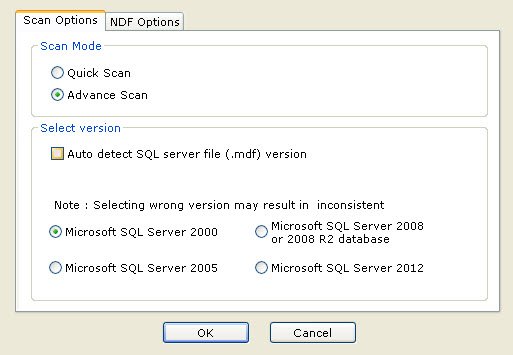
- Under tab for NDF Options, select “Let Me Choose SQL Server Secondary Database Files”, select options to Add files, Folder or Remove File respectively according to the requirement and then Click OK.

- Browse, locate, select NDF file and Click Open.
- Later, the process report of automated MDF file scanning can be seen.
- To save time and effort of scanning large MDF files, user can save the scan as STR files. If want to get .str files, click Yes, otherwise go for NO and proceed to the next step.
- To save the STR file, select a desired location for its storage. Click Save.
- Preview tables, stored procedures, triggers, rules, etc in the preview screen for MDF/NDF files.
- Select Export option to save recovered database items from MDF and NDF files.
To save the SQL database files safely in healthy format, customize the options:
To export and save data as MDF file:
- To export recovered data as MDF format go for “export as SQL Server database”.
- Select “Create Destination Database”.
- For SQL Server authentication, fill in the database credentials i.e. server name, database name, user name, password.
- Select export feature as “with only schema” or “with schema and data”.
- Click Export/Save option.
To export and save data as SQL Server compatible SQL scripts:
- Check and select the desired component of the SQL database file that you want to be exported.
- “With only Schema” or “with Schema and data” you can export SQL database.
- Click Export/Save option to export recovered data as SQL Server compatible SQL scripts.
- Browse location to save the output SQL file and click OK.
- Get progress report of SQL scripts saving process.
Click OK to complete the Export process.
Secondary Measure For SQL Database Recovery
In case the time taken for recovering corrupt SQL database doesn’t suit you and a healthy LOG file for the same MDF is available then; try SysTools SQL Log Analyzer. The application helps analyze transactions performed on a database and recover for which it employs the usage of the corresponding LOG file. The combination of a log analysis and database recovery program helps in reducing the Recovery Time Objective to a lower extent as compared to that of the SQL Recovery program.
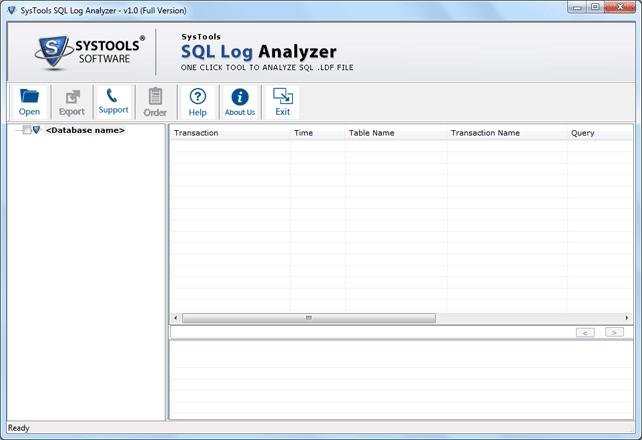
Have a look at its processing technique:
- Log file along with the corresponding MDF file is required for recovering the database through thorough analysis of its transaction.

- The software automatically loads the corresponding SQL database for the LDF file you browse for, in case both the files are available in a same folder. Also, you can browse and add the associated MDF file manually in case of its availability in a different location.

- Transaction details of the selected Log file are listed soon after the scan is completed, letting you preview all the operations performed on the associated database.
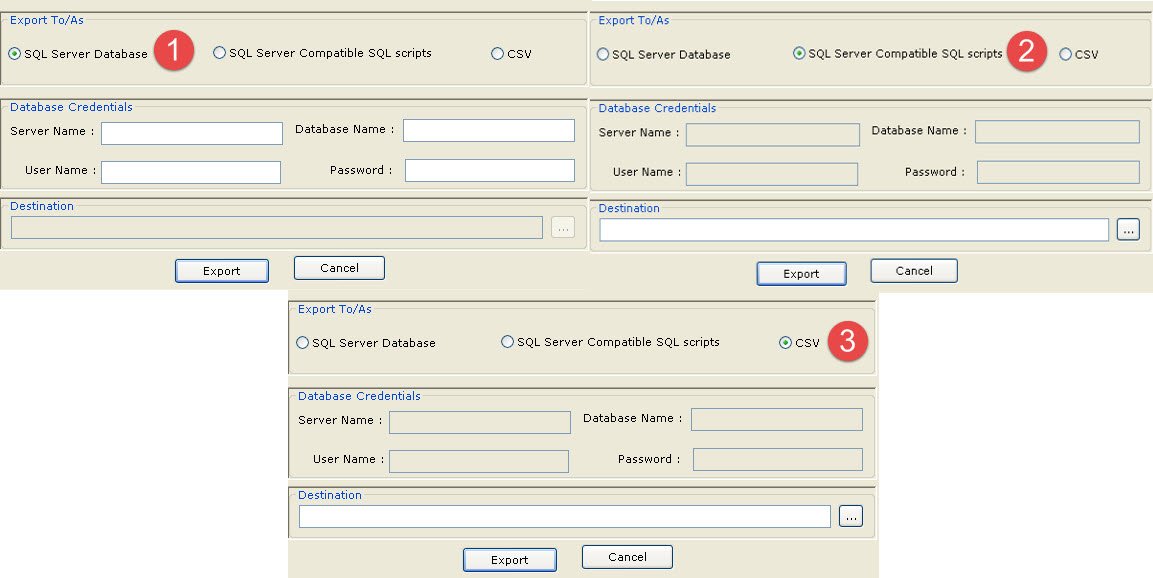
- Meanwhile, for exporting database, you are provisioned with three respective options:
- SQL Server Database (If SQL Server is available)
- SQL Server compatible SQL Scripts (Unavailability of Server)
- CSV (For transaction log details)
End Observation And Conclusion: With the widespread usage of SQL Servers worldwide, especially by large scale organizations makes downtime of the Server due to damaged database unaffordable. Meanwhile, SQL Recovery and SQL Log Analyzer both are predominantly dependable for resolving cases of MDF / NDF file corruption. A wise selection is all what it takes to overcome the trouble caused by an inaccessible SQL Server database.
I hope this blog has shared some knowledge about Recover Database Corruption.
NOTE: This was my personal experiment with database corruption. Always make sure that you do experiments on the copy of your database on your development server, rather than on production server. Once verified that your database is 100% recovered, you should experiment on your database. This blog takes no responsibilities whatsoever.
Reference: Pinal Dave (https://blog.sqlauthority.com)
The 21st century is indeed the digital era. This means that almost no work is done manually. Machines and applications are doing it all for us. Hence, long gone are the days of physical labor.
But well, modern days have modern problems. And for them, there are modern solutions as well.
When we speak about the modern era, there is no debate about desktops and laptops ruling the world. But the mechanical fatigue that they face is in a way ceasing the speed. And to be honest, these problems take much time to get fixed.
For example, database corruption and MDF and NDF database file problems. And with them comes the issue of deleted tables or databases. This can create a huge complication while you are working or keeping track.
But as said earlier, modern problems seek modern solutions. Hence, you need to think of advanced technologies and techniques, to be specific, for solving the issue. Therefore, we have brought to light the most impressive name when it comes to restoring a deleted database or fixing corruption problems: the systools SQL recovery.
Many users have praised this tool. The tool is carefully designed to fight against database corruption and repair corrupt MDF and NDF SQL server files.
But as we all know, every application, tool, or product is not perfect. Hence knowing all ins and outs is essential. So, here is the detailed review of Systools SQL recovery. Hold tight!
Systools SQL Recovery
View Price on Official Site
Overview of Main Features of Systools SQL Recovery:
We have already discussed that every tool comes with its pros and cons. When speaking of Systools SQL recovery, the features are so impressive that you are bound to fall in love with them. So let us look into the features in detail.
● SQL file recovery:
The Systools SQL recovery software is worth praising when it comes to fixing corrupt files. Starting from SQL Table repair, restoration of stored procedure, triggers, primary keys, unique keys are taken care of. Additionally, rules, views, functions, and every other type of SQL database component are well managed by this software.
● Two modes for repairing:
SQL database recovery lets you access it in two modes. The two scanning modes have been creatively designed for a superior experience with the software. Therefore, you can choose from the quick scan or an advanced option. The former can be used for normal database corruption, and the latter you might use while there is an acute disaster regarding SQL server database corruption.
● MDF and NDF file recovery:
The Systool SQL lets you manage the MDF and NDF files as well. You can easily restore the primary and secondary database files by the software. The MDF Recovery software actually scans and recovers both files. Along with it, the deleted table’s data can also be restored. Isn’t it impressive?
● SQL Table’s data:
This is one of the most appreciated features of the software. Suppose you have knowingly or unknowingly deleted SQL tables. The primary anxiety at that time is of recovering the data. And with the SQL database repair tool, you can easily recover the table’s data. Additionally, it restores deleted functions, triggers, procedures, rules, indexes, views, etc. All these can be done without backup.
● Primary and foreign key support:
Another fantastic feature of this software is the ability to support keys. While restoring the table’s database, the SQL recovery tool provides support for keys. After exporting the database, it can help both primary and foreign keys, for that matter.
● User schema:
The standard database tables that come with user-defined schemas can be supported. Moreover, they are exportable. The recovery of the database is supported by the MDF recovery software. No matter even if the corresponding tables consist of user-defined schemas, you are ready to go always!
● OS support:
This application or software is windows based software. Hence it can function the best with windows OS. The latest OS, Windows 10, is also supported by this. Additionally, people having 64-bit versions can smoothly run the software. The software supports both the 32 bit and 64-bit versions. So, you may comfortably get your hands on it.
● Save large file scan:
Well, all of us are well aware of the fact that the scanning part takes a long period. However, in some applications, you can not save the larger scans. Hence, once you start scanning, you need to finish the task. But in this case, you can store the scanned file as a .str file in your desired location. If, in any case, the scanning is interrupted in the middle, you can start by just downloading the .str file simply!
● Database component preview:
The preview feature of Systools SQL recovery software is impressive. It will preview all the restored components in its own preview window. Components like triggers, indexes, procedures are visible there.
● Exporting to SQL server database:
This feature has been carefully added if you want to restore the SQL Server database from the MDF file to the live SQL Server database. However, the necessary database credentials should be provided, like database name, server name, user name, and password. Additionally, this tool offers a feature of dynamic collation settings for exporting the restored database. And that too in any language ( in particular environment obviously)!
● XML data support:
The Systools SQL recovery software supports XML data as well. When you are restoring or recovering your database, the XML data can also be extracted. If you have stored the XML document or variables and columns of XML type, well, you can comfortably restore the data!
● Exporting selective SQL files:
This software is smart enough to let you export the selective SQL files. You can now select desired items from the MDF and NDF files and save them. The MDF recovery component of this software allows you to check or uncheck items every time. Hence, the selection process is made easier.
● Advanced data support:
Since technology is advancing day by day, the data types are also changing. Hence, supporting the contemporary data types is crucial when it comes to software. Thankfully, the Systools SQL recovery software comes with an advanced data support system. For example, the application can support ASCII, Unicode XML, geometry and geography data, datetime2, and many other data types.
● Exporting SQL scripts:
When you export a file to SQL server compatible SQL script, automatically, a .sql file is created. And this file can be stored in any machine and in any location. Later you may use it to recover data on any SQL server.
● Exporting schema or schema and data:
This feature is another useful feature to mention in the list. While restoring and exporting files, you are allowed to export the database containing only the schema of particular tables. But well, you can easily export tables with schema and data.
Systools SQL Recovery Overview
Pros & Coons – Systools SQL Recovery Review
Pros:
- MDF and NDF file recovery
- dual scanning mode
- Cn recover multiple secondary databases
- Allows recovering tables, indexes, triggers, functions, etc.
- Auto-detection of SQL server version
- Advanced data support
- Allows to save large file scan
- Lets you see the deleted SQL objects.
- Latest Windows OS support
- A one-time investment application
Cons:
- Not applicable for MAC OS+
View Price on Official Site
Steps of working with Systools SQL recovery:
This software is simple enough to work with. And it can be installed and used in windows in just a blink. Let us know the steps then.
- Step 1: First, download the SQL recovery software to your device.
- Step 2: Once done, install the application and click on ‘open.’
- After doing that, search for MDF files on your device and click on open.
- Step 3:Now, it is time for scanning. There are two modes through which you can accomplish the scanning task. In an acute situation, choose an advanced scan.
- Step 4: After that, select the SQL server version. If you can manually detect it, it is well and good. And in case you are clueless, select the Auto-detect SQL server (.mdf) file option.
- Step 5: Make sure you check the deleted objects preview if you want to foresee them.
- Step 6: For recovering SQL database objects, click on the Export button.
- Step 7: Finally, select the database authentication mode and choose the items you want to export.
Final thoughts:
The systools SQL recovery software is one of the most appreciated applications in the tech world. It has received a lot of positive feedback. It is a trustworthy and reliable application that does not harm your device. Additionally, the application is free from all sorts of malware or virus-related complications. Hence, you may blindly get your hands on it.
There are two versions of this application. One is a free trial demo version. After testing the free version, the application allows the users to purchase the licensed version of the software.
However, if you are a Mac user, then this application is not your cup of tea. Since it is a windows based application, it can not be operated on Mac. That is, to be honest, the only flaw of the software. Other than that, people have appreciated and praised the services a lot. So, think about it and give it a go!
In business organizations, most of the application’s back end operations rely on database systems like Microsoft SQL Server. SQL Server helps to manage the database which ultimately houses all the storage information. SQL Server is responsible for all the back end operations for hundreds of applications and so we can easily retrieve information through a series of SQL queries. Nevertheless, if a SQL database gets corrupted; will the processes of the entire organization come to stand still? Well if the data maintained in the database are not recovered, then there are chances of the disruption of the processes concerned with the entire organization. However, if you are lucky enough to get through a software like SQL Recovery then things are really going to shape in a good way and you will be able to recover all your data items from any corrupted database.
–> Here is a closer look on the features of “SQL Recovery” utility to realize what it offers to users:
Disclaimer: This is not a paid review, and reflects my own experience while working with the product.
The SQL Recovery utility from [SysTools Group] proves to be a transformational approach for recovering the corrupted database of SQL Server. Being completely a Windows based tool, it has been developed with the basic motive of recovering damaged data from the MDF and NDF files of SQL server by saving the extracted data on Windows Operating system. Later, you can export the extracted data directly into SQL server. It is just simple to rely on this masterpiece utility that gets your work done in some seconds. You get to recover the tables, rows, columns while not worrying about any data loss. To take a lead on the recovery process, let us first get started with some notable features of the application.
–> Basic Potentialities of the Recovery Tool:
1. Provides a convenient option to save the scan of the corrupted database as .str file format that can be handy at times when there is any kind of interruption in the transaction process of SQL Server.
2. The automatic detection of SQL Server version helps to run the recovery process without any kind of confusion.
3. Often users or system administrators employ DBCC CHECKDB command to resolve the corruption related issues. However, there are occasions when the DBCC CHECKDB fails to perform and in such situations user can definitely trust on this recovery tool.
4. Supports the recovery of XML data if the user has created XML type variables or columns on SQL Server.
–> Functionality in Details:
Some of the functionalities of the program are completely beneficial to users. Have a look on these functional aspects, to know more about this software.
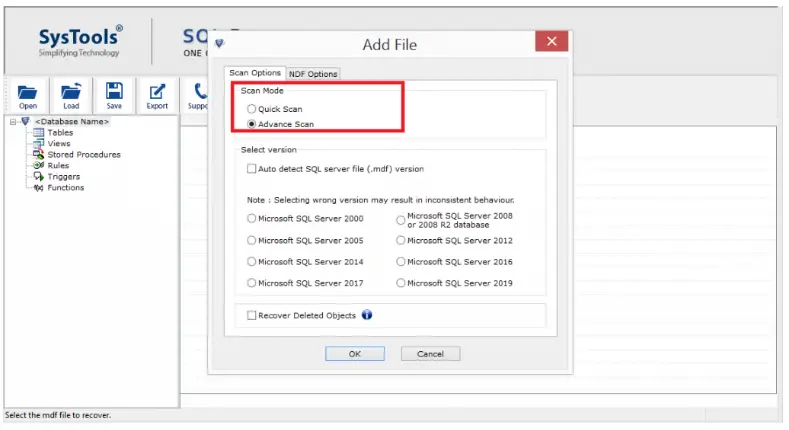
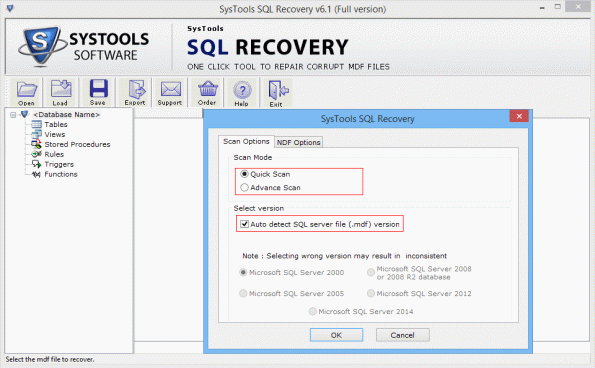
1. Scanning options: For recovering the MDF and NDF files, users are provided with two feasible options (as shown in image below):
– Quick scan: select this option, for faster scanning of MDF files.
– Advance scan: If your files are highly corrupted then choose this option.
2. Preview the Database Items: Once the MDF and the NDF database of SQL server are recovered, you will get a preview of all the contents of the database. Users will get to see all the repaired data items like tables, views, triggers, etc.

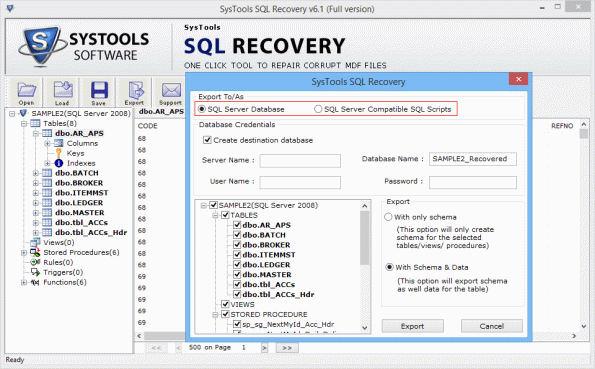
3. Flexible Export Options: For exporting the recovered database, users can select any one of the option
(1) SQL Server Database and
(2) SQL Server Compatible Scripts
– Export Directly To Live SQL Server: If you are interested to place your files directly into the Live SQL Server then provide the details of database such as Server name, username, password, etc. and export the data conveniently to the database of server without any data loss.
– Export as SQL Server Compatible Scripts: If you select this option for exporting the recovered database to SQL Server, then a .sql file is created that can be easily saved on your system. This file will help you to restore data into the server anytime.
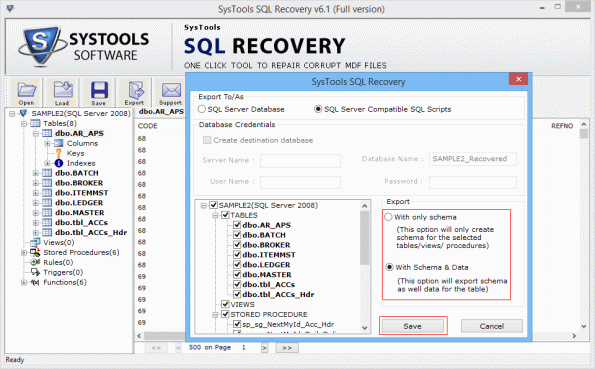
4. Export MDF with/without schema: While exporting the recovered MDF database, the software facilitates users to export the database with only the schema of tables, stored procedures, etc. However, you also have the option to export MDF data with both schema and data.
5. Export Deleted Records: Another attributed feature of the tool is that while exporting the database to the server, you have the option to export the deleted rows, tables, or column again to the database. A prompt appears on the screen, if you are interested for exporting the deleted data to the database, select yes otherwise click on no.
The demo version of the SQL Recovery utility is available for users to test its functionality in details. However, with the free trial version you will be able to recover all the items of the corrupted SQL database and onlypreview them. To export or save the recovered database, you need to go for the licensed version of the application.
The setup file is of 6.10 MB and it gets easily installed on the system. The latest version 6.1 has come up with features that are more promising and provides capabilities of improved speed and accuracy while working on the application. SQL Recovery tool is completely compatible with Windows 8.1 and all other previous versions.
–> Working Areas:
– You cannot add multiple MDF files with the software. However, there is an option to add multiple files and folders when you select a NDF file
– The software does not provide a process summary report of what all items are exported to the SQL Server. Users do not get an idea about the details of items exported to SQL Server database
–> Wrapping it up:
Offering an efficient recovery process, strong performance, and incredible operability the SQL Recovery Tool comes out successfully to delivers on all fronts. Further, the array of options and the user specific customizations provided by the software rightfully claims it as the best one among its competitors.