

IT
Recording videos
from HDD camcorders ………………………
Recording videos
from DVD camcorders……………………….
Recording videos
from DV camcorders …………………………
Recording videos
from miscellaneous video devices ………
Recording photos
from memory cards …………………………..
Recording photos
from HDD camcorders ………………………
Video Recordable
DVD Drive
Operating Instructions
JP
FR
DE
ES
IT
CS
VRD-MC3
© 2006 Sony Corporation

Safety
Regulations
WARNING
You are cautioned that any changes or
modifications not expressly approved in this
manual could void your authority to operate
this equipment.
To reduce the risk of fire or electric shock, do
not expose this apparatus to rain or moisture.
To avoid electrical shock, do not open the
cabinet. Refer servicing to qualified personnel
only.
CAUTION:
As the laser beam in the VRD-MC3 is harmful
to the eyes, do not attempt to disassemble the
cabinet. Refer servicing to qualified personnel
only.
The use of optical instruments with this
product will increase eye hazard.
The use of controls or adjustments or
performance of procedures other than those
specified herein may result in hazardous
radiation exposure.
The VRD-MC3 is classified as a CLASS 1
LASER PRODUCT.
The CLASS 1 LASER PRODUCT notice is
located on the enclosure.
Bei diesem VRD-MC3 handelt es sich um ein
Laser-Produkt der Klasse 1.
Das Etikett mit der Aufschrift LASER
KLASSE 1 PRODUKT befindet sich auf dem
Gehäuse.
CLASS 1
LASER PRODUCT
LASER KLASSE 1
PRODUKT
LUOKAN 1 LASERLAITE
KLASS 1 LASER APPARAT
FCC Compliance:
This equipment has been tested and found to
comply with the limits for a Class B digital
device, pursuant to Part 15 of the FCC Rules.
These limits are designed to provide
reasonable protection against harmful
interference in a residential installation. This
equipment generates, uses, and can radiate
radio frequency energy and, if not installed and
used in accordance with the instructions, may
cause harmful interference to radio
communications. However, there is no
guarantee that interference will not occur in a
particular installation. If this equipment does
cause harmful interference to radio or
television reception, which can be determined
by turning the equipment off and on, the user is
encouraged to try to correct the interference by
one or more of the following measures:
• Reorient or relocate the receiving antenna.
• Increase the separation between the
equipment and receiver.
• Connect the equipment into an outlet on a
circuit different from that to which the
receiver is connected.
• Consult the dealer or an experienced radio/
TV technician for help.
The shielded interface cable recommended in
this manual must be used with this equipment
in order to comply with the limits for a digital
device pursuant to Subpart B of Part 15 of FCC
Rules.
Notes:
If you have any questions about this product,
visit the user support web site listed in
“Support Overview” on page 82. The
telephone number below is not for customer
service but only for official purposes.
Declaration of Conformity
Trade Name: SONY
Model No.: VRD-MC3
Responsible Party: Sony Electronics Inc.
Address: 16530 Via Esprillo,
Telephone No.: 858-942-2230
This device complies with Part 15 of the FCC
Rules. Operation is subject to the following two
conditions:
(1) This device may not cause harmful
interference, and
(2) This device must accept any interference
received, including interference that may
cause undesired operation.
San Diego, CA 92127
U.S.A.
2

CE Sicherheitsbestimmungen
Diese Ausrüstung erfüllt die Europäischen
EMC-Bestimmungen für die Verwendung in
folgender / folgenden Umgebung (en):
• Wohngegenden
• Gewerbegebiete
• Leichtindustriegebiete (Diese Ausrüstung
erfüllt die Bestimmungen der Norm
EN55022, Klasse B.)
CAUTION:
The mains plug on this equipment must be used
to disconnect mains power.
Please ensure that the socket outlet is installed
near the equipment and shall be easily
accessible.
Achtung:
Zur Trennung vom Netz ist der Netzsecker aus
der Steckdose zu ziehen, welche sich in der
Nähe des Gerätes befinden muß und leicht
zugänlich sein soll.
Compliance
Statements
Disposal of Old Electrical &
Electronic Equipment (Applicable in
the European Union and other
European countries with separate
collection systems)
This symbol on the product or
on its packaging indicates that
this product shall not be treated
as household waste. Instead it
shall be handed over to the
applicable collection point for
the recycling of electrical and
electronic equipment. By ensuring this
product is disposed of correctly, you will
help prevent potential negative
consequences for the environment and
human health, which could otherwise be
caused by inappropriate waste handling of
this product. The recycling of materials will
help to conserve natural resources. For more
detailed information about recycling of this
product, please contact your local Civic
Office, your household waste disposal
service or the shop where you purchased the
product.
3

Table of Contents
Safety Regulations …………………….. 2
Compliance Statements ……………… 3
Introducing DVDirect
Introduction ……………………………… 7
Features ……………………………………. 8
Package Contents ……………………….9
Parts and Controls …………………….10
Turning the Power On/Off ………… 14
Auto Setup Navigation …………… 15
Inserting a Disc ……………………….. 17
Inserting a Memory Card ………….. 19
Creating a Video DVD
Creating a Video DVD …………….. 20
Types of Recording ………………..20
Supported Camcorders/Video
Devices and Recording Modes … 23
Writable Discs That Can Be Used
for Creating Video DVDs ……….25
About Created Video DVDs …… 26
One Touch Recording Through HDD
Camcorder Control
(DVD BURN) ………………………… 28
One Touch Recording
(Full Recording) ……………………31
Incremental Recording ……………. 35
Consolidation Recording …………. 39
Normal Video Recording ………..42
Previewing a Video DVD …………. 46
Creating/Viewing a Photo
DVD
Creating a Photo DVD ………………48
Types of Recording …………………48
Types of Photo DVD ………………48
Supported Memory Cards and
Camcorders ……………………………49
Writable Discs That Can Be Used
for Creating Photo DVDs ………..49
About Created Photo DVDs …….50
Recording Photos Stored on a
Memory Card ………………………….51
Recording Photos Stored on an HDD
Camcorder ………………………………54
Viewing and Printing Photos ……..58
Setup
Using the Setup Menu ……………….61
Rec Quality ………………………….62
Auto Stop Timer …………………..62
Auto Chaptering ……………………63
DVD Menu ………………………63
Slideshow BGM ……………………63
Slideshow Creation ……………….64
PC Connect ……………………………64
Finalize disc …………………………..64
Erase disc ………………………………67
System …………………………………..68
Demo …………………………………….68
Color System …………………………69
Language ……………………………….69
4

Using the DVDirect With a
Computer
System Requirements ……………….70
Setting Up the Computer ………….. 71
Installing the Software …………….71
Connecting the DVDirect to a
Computer ………………………………72
Disconnection ………………………..73
Using Memory Card Slots ……….73
Using the Bundled Software ……… 74
Launching “Nero StartSmart” …. 74
Notes on Using Other Software
With the DVDirect …………………74
Additional Information
About Discs …………………………….75
Compatible Writable Discs ……..75
Recommended Writable Discs … 76
Writable Discs and
Compatibility …………………………76
Precautions on Writing/Playing
Discs …………………………………….77
About Memory Cards ……………….79
About “Memory Stick” …………..79
About the CompactFlash/SD/
xD-Picture Cards ……………………80
Precautions ………………………………81
Support Overview …………………….82
User Support Web Site ……………82
System Software Updates ………..82
Technical Support …………………..82
Specifications …………………………..83
5

• Pentium is a registered trademark of Intel Corporation.
• Microsoft and Windows are registered trademarks of Microsoft Corporation.
• Other system and product names used herein are registered trademarks or trademarks of their
respective manufacturers, although the ™ and ® marks are not used in the text.
• Manufactured under license from Dolby Laboratories.
Dolby and the double-D symbol are trademarks of Dolby Laboratories.
• Memory Stick and the memory stick logo are trademarks, or registered trademarks of Sony
Corporation.
❑ Our product warranty is valid only when the supplied accessories (including software)
are used in the specified or recommended system environment, in accordance with the
documentation, and applies only to this DVDirect. Our customer service and user
support apply only under these product warranty conditions.
❑ Please note that we cannot accept responsibility for failure of the computer or other
devices, incompatibility with special hardware, operating problems caused by improper
installation of software, loss of data, discs or other accidental or incidental damage that
might occur when using this product.
❑ The guarantee and user support for this product are valid only within the countries or
sales regions specified on the warranty card.
❑ Copyright laws prohibit the copying in part or in full of the supplied software and
documentation, or loaning the software, without obtaining permission of the copyright
holder.
❑ We cannot accept responsibility for any direct or indirect financial damage or loss of
profit that might occur when using the supplied software.
❑ The supplied software can only be used with this product.
❑ Specifications of the supplied software may be changed without notice in the interest of
product improvement.
Please Record Responsibly
Before copying anything onto a disc, please be sure that you are not violating copyright
laws. Most software companies allow you to make a backup or archive copy of software.
Check your software’s license agreement for details.
Copyrights
• Television programs, films, video tapes, discs, and other materials may be copyrighted.
Unauthorized recording of such material may be contrary to the provisions of the
copyright laws. Also, use of this product with cable television transmission may require
authorization from the cable television transmitter and/or program owner.
6

B
Introducing DVDirect
Introduction
Burning video DVDs
❑ You can record videos from connected
video cameras and AV devices directly
onto DVDs without using a computer.
❑ You can burn the entire contents of your
HDD, DVD, or DV camcorder onto a
DVD with one touch of the record
button.
Auto Setup Navigation
The DVDirect automatically detects inserted memory cards and discs and input signals
from connected devices. It then displays a message prompting the next necessary
operation. Preparations for recording are made without any complicated button
operations.
Burning photo DVDs
❑ You can archive photos from a memory
card or HDD camcorder directly onto a
DVD without using a computer.
❑ You can also create slideshows of the
photos that will be playable on most
DVD players.
Introducing DVDirect
Direct printing operation
You can print out photos recorded on DVDs or memory cards by connecting the DVDirect
to a PictBridge-compatible printer using the supplied USB cable.
Computer-controlled operation
The DVDirect can be used as a high speed DVD/CD drive with Hi-Speed USB (USB 2.0compatible) interface when connected to a computer via USB cable.
The DVDirect supports high speed recording to the latest format discs such as DVD+R
double layer and DVD-R dual layer discs.
7

Features
Depending on the type of device that is connected, you can perform the following
operations with the DVDirect.
In this manual, different icons for each operation appear in section headings and page
corners to make sections that relate to the operations you intend to perform easier to find.
Recording videos from HDD camcorders
Create a DVD using video taken with an HDD camcorder*(connected via a USB cable).
Available functions:
One Touch Recording Through HDD Camcorder Control (DVD BURN) 1 page 28
One Touch Recording (Full Recording) 1 page 31
Incremental Recording 1 page 35
Recording videos from DVD camcorders
Create a DVD using video taken with a DVD camcorder*
and stored on an 8-cm disc.
Available functions:
One Touch Recording (Full Recording) 1 page 31
Consolidation Recording 1 page 39
Recording videos from DV camcorders
Create a DVD using video taken with a DV camcorder.
Available functions:
One Touch Recording (Full Recording) 1 page 31
Recording videos from miscellaneous video devices
Create a DVD using video taken with an HDD, DVD, DV, or D8 camcorder, or using
video from any other video device equipped with a video output connector. To connect a
device, use the AV cable supplied with your camera or standard video or S-video cables.
Available functions:
Normal Video Recording 1 page 42
(connected via a USB cable)
Recording photos from memory cards
Create a DVD using photos taken with a digital still camera and stored on a memory card.
Available functions:
Recording Photos Stored on a Memory Card 1 page 51
Recording photos from HDD camcorders
Create a DVD using photos taken with an HDD camcorder
*
.
Available functions:
Recording Photos Stored on an HDD Camcorder 1 page 54
* In this manual, “HDD camcorder” refers to the Sony HDD Handycam® and “DVD camcorder” refers to
the Sony DVD Handycam
described in this manual apply only when the Sony HDD Handycam
For details, see page 23 and 49.
®
. The functions available when a camera is connected via USB cable as
®
or Sony DVD Handycam® is used.
8
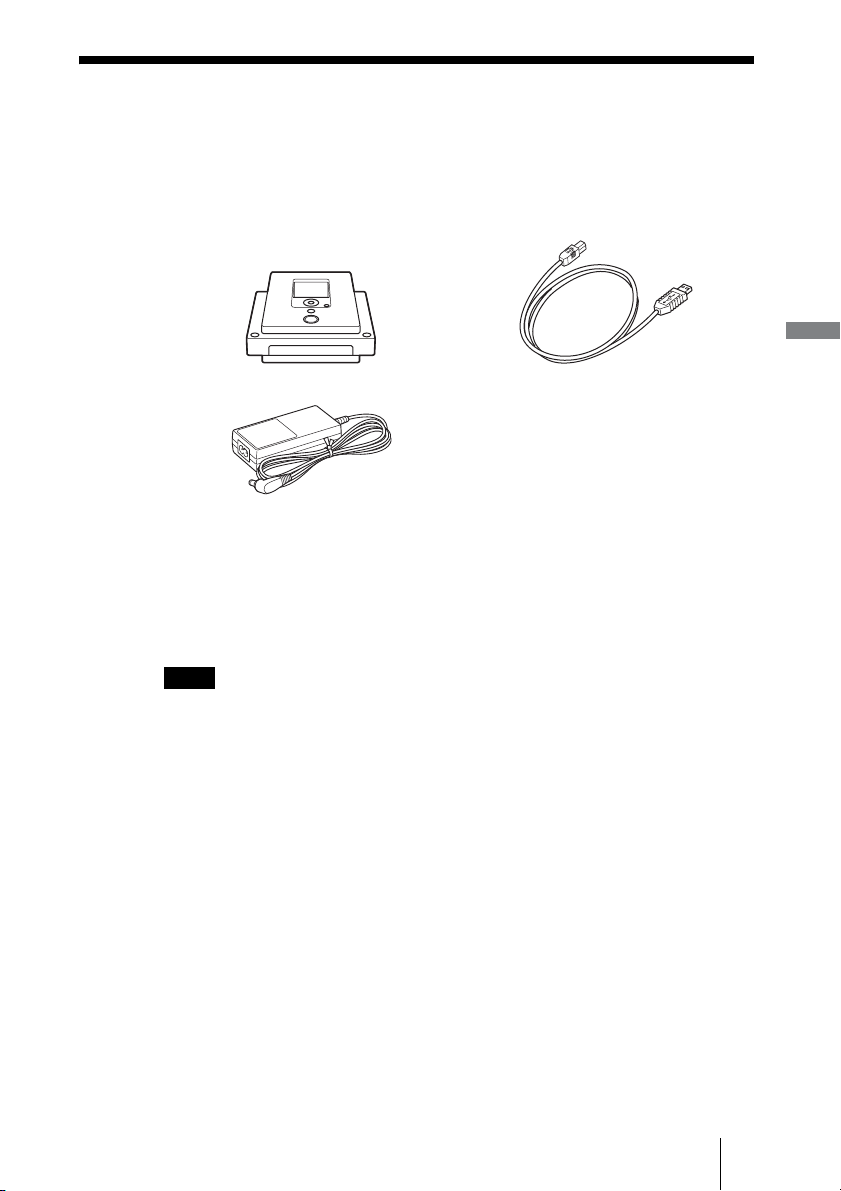
Package Contents
Please confirm that the package contains the following items. If any of these
items are missing or damaged, please contact your dealer.
• DVDirect • Hi-Speed USB cable (for PC/Printer
• AC adaptor
• AC power cord
• Quick Start Guide
• Operating Instructions (this document)
• Software disc
• Warranty card
connection)
Introducing DVDirect
Note
Make sure that you back up the supplied software disc on another disc as the software disc is
not sold separately.
9

Parts and Controls
Front and rear
54231
A 1 (Power) button
Turns the DVDirect on or off.
B Emergency eject hole
If you cannot open the disc tray with the (Eject) button, turn off your computer, and
then insert a thin, elongated object into this hole to eject the disc tray manually.
C Top panel
The buttons and display for operating the DVDirect are located here (page 11).
D Disc tray
Insert a disc here with the label side up (page 17).
E (Eject) button
Opens and closes the disc tray.
F DC IN connector
Connect the supplied AC adaptor here (page 14).
10
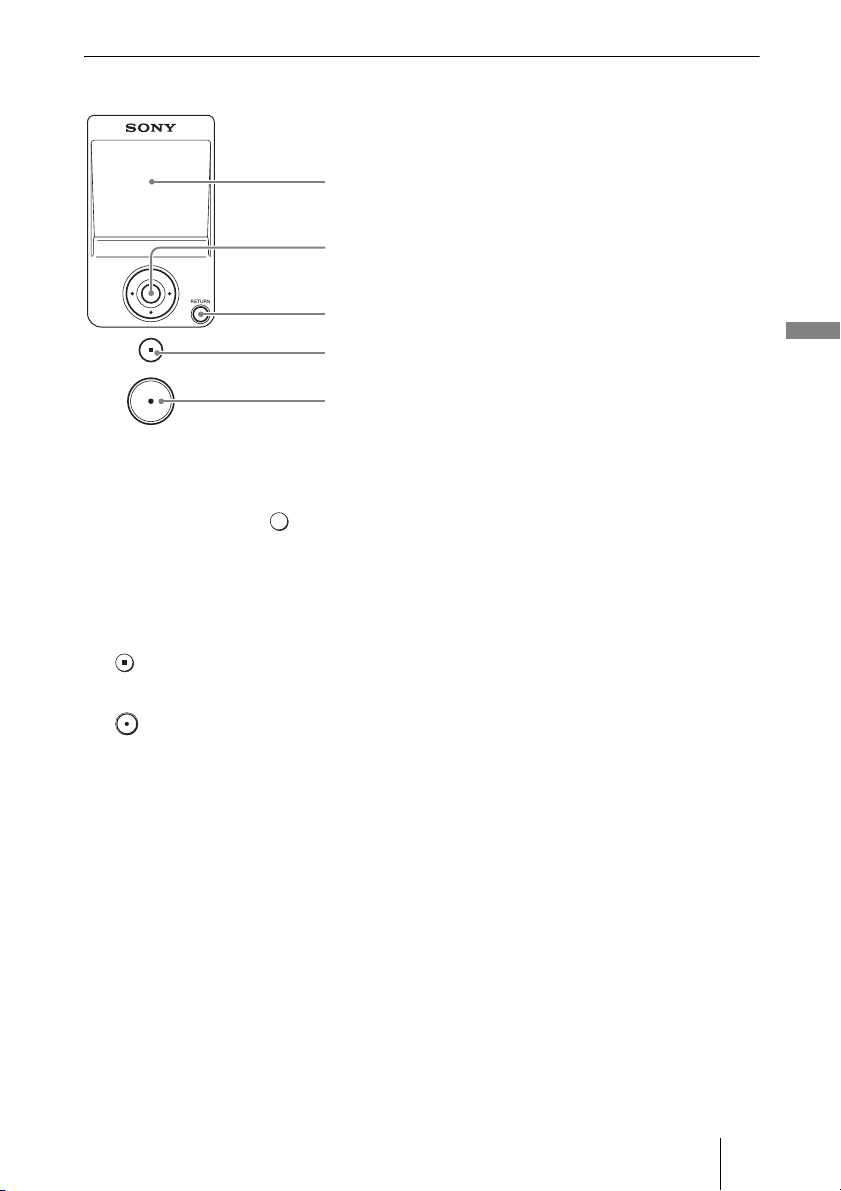
Top panel
1
2
3
4
5
A Display window
Displays a menu screen, images from a playback device, or photos from a memory card.
B Mm<,cursor / (Select) button
Selects a function.
C RETURN button
This returns the display to the main menu screen or to the previous screen when navigating
menus.
D (Stop) button
Stops recording.
E (Record) button
Starts recording.
Lights red during recording.
Introducing DVDirect
11

Left side panel
A USB connector (Type B)
Connect the supplied USB cable here
when connecting the DVDirect to a
computer or printer.
B USB connector (Type A)
Connect the USB cable here when
connecting a HDD or DVD camcorder.
Note
Only Sony HDD or DVD camcorder input is
supported.
C AUDIO IN L/R connectors
Connect the audio plugs of an AV cable
(not supplied) here when connecting the
DVDirect to a video device, such as a
video camera or VCR.
D VIDEO IN connector
Connect the video plug of an AV cable
(not supplied) here when connecting the
DVDirect to a video device, such as a
video camera or VCR.
E S VIDEO IN connector
Connect an S-video cable (not supplied)
here when connecting the DVDirect to a
video device with an S-video connector,
such as a video camera or VCR.
F DV IN connector (4-pin)
Connect a DV (i.LINK) cable (not
supplied) here when connecting the
DVDirect to a digital video camera.
12

Right side panel
A Memory card LED
Lights amber when accessing the memory card.
B Memory Stick Duo slot
Insert a “Memory Stick Duo” here.
C Multi memory card slot
Insert a “Memory Stick,” SD Card, or xD-Picture Card here.
Introducing DVDirect
D CompactFlash card slot
Insert a CompactFlash card here.
Note
You can use the memory card slot for both stand-alone and computer operation.
13

B
Introducing DVDirect
Turning the Power On/Off
1 Connect the supplied AC power cord to the AC adaptor.
2 Insert the power plug of the AC adaptor into the DVDirect’s DC
IN connector.
3 Insert the power plug of the AC power cord into a power outlet.
Notes
• Be sure to use the supplied AC power cord.
• Do not use damaged cables, such as cables with deformed connectors.
4 Press the 1 (Power) button.
14
After the display window lights and the DVDirect logo appears, a different
screen appears depending on the DVDirect’s current status.
,
To turn power off
Press the 1 (Power) button again.

Auto Setup Navigation
After the power is turned on, the DVDirect automatically detects inserted
memory cards and DVD discs and input signals from connected devices. A
message indicating how to prepare for recording then appears in the display
window. By following this message, you can automatically move on to the
recording procedure you intended without complicated button operations.
Messages and illustrations indicate the
operations to perform next.
Accessing functions from the main menu
You can perform recording procedures manually by selecting options from the
main menu. You can also go to the setup screen (Setup menu) from the main
menu for various settings.
Press the RETURN button when [[RETURN] Menu] is displayed at the bottom
right of the display window to return to the main menu.
Introducing DVDirect
Insert DVD, memory card, or
setup and connect video device.
,
Menu
15

Press M or m to select the desired operation, and press the (Select) button.
DV Camcorder/Video , DVD: Create a video DVD from a digital video camcorder
HDD/DVD Camcorder , DVD: Create a video DVD from an HDD or DVD camcorder
Photo , DVD: Create a photo DVD (page 48).
DVD Video Preview: Playback a created video DVD (page 46).
Photo View/Print: Display or print out photos (page 58).
Setup: Configure various settings (page 61).
Note
When connecting an HDD or DVD camcorder to the VIDEO IN or S VIDEO IN connector
with an AV or S-video cable respectively, select [DV Camcorder/Video , DVD].
connected via a DV (i.LINK) cable or from a video
device connected via a video or S-video cable
(
page 31, 42).
connected via a USB cable (
page 28, 31, 35, 39).
16

Inserting a Disc
To insert a disc, perform the following while the DVDirect is turned on.
1 Press the (Eject) button.
The disc tray ejects.
2 Place the disc in the disc tray with its label facing up, and press
the (Eject) button again.
Notes
• Do not touch the recording side of the disc.
• When inserting the disc, make sure it rests flat under the four tabs on the disc tray.
Introducing DVDirect
When the (Eject) button is pressed again, the disc tray closes and the DVDirect starts
reading the inserted disc.
17

When a new disc is inserted
When a new disc is inserted, the disc will be formatted automatically. If the
new disc inserted is a DVD+R disc, a message prompting you to select an input
source appears.
To continue with operations, press M or m to select a source to record from,
and press the (Select) button.
Note
• If a disc that cannot be recorded on is inserted, an indication message appears. If this
occurs, confirm all the compatible discs and replace the disc.
18

Inserting a Memory Card
Insert the memory card into its corresponding memory card slot.
CFSD xD
Memory
Stick Duo
Memory Stick Duo
Push the “Memory
Stick Duo” into the slot
until you hear a click.
To remove, push the
“Memory Stick Duo”
and pull out.
Notes
• Insert only one memory card into a memory card slot. Furthermore, do not use more
than one memory card slot at a time.
• Do not insert another memory card while recording onto a disc is in progress. Doing
so may cause a writing error.
• Do not insert a “Memory Stick Duo” with a Memory Stick Duo adaptor into the multi
memory card slot.
• The CompactFlash card stays half exposed.
Memory
Stick
SD Card
xD-Picture Card
Memory Stick/SD
Card/xD-Picture Card
Push the card into the
slot until you hear a
click.
To remove, push the
card and pull out.
CompactFlash
CompactFlash
Push the card into the
CompactFlash slot.
To remove, pull out
the CompactFlash
card.
Introducing DVDirect
• Never remove the memory card while the memory card LED is lit. Otherwise data in
the memory card may be damaged.
• Do not remove the memory card while recording onto a disc.
19

B
Creating a Video DVD
Creating a Video DVD
You can use the DVDirect as a stand-alone DVD recorder to burn videos
directly onto DVDs from a connected HDD, DVD, or DV camcorder or video
device such as a VCR or DVR.
You can play the created video DVD on other DVD devices or the DVD drives
of computers.
Types of Recording
Five types of recording are available for creating video DVDs: DVD BURN,
Full Recording, Incremental Recording, Consolidation Recording, and Normal
Video Recording.
DVD BURN (One Touch Recording Through HDD Camcorder
Control) (page 28)
This mode allows you to record video from an HDD camcorder onto a disc by
simply pressing the DVD BURN button on the camera or Handycam Station
(or touching the [DVD BURN] button in the camera’s LCD screen).
The actual recording process is the same as that of Incremental Recording (see
below), and you can record additional video onto a disc that has been
previously recorded on.
20
Full Recording (One touch recording) (page 31)
This mode allows you to record video from a digital video camera connected
to the DVDirect with a single touch of the (Record) button onto a DVD.
The video is recorded as follows:
HDD camcorder
The entire video content of the camera is recorded onto a disc. (Several discs
may be required depending on the length of the video.)

DVD camcorder
The entire video content of the camera’s 8-cm disc is recorded onto a 12-cm
disc.
DV camcorder
The entire content of the videotape is recorded onto a single disc.
The DVDirect controls the camera during the entire process, and completes
creation of the video DVD. The completed DVD is automatically finalized,
allowing immediate playback on DVD players.
Creating a Video DVD
Incremental Recording (page 35)
This mode allows you to record the content of an HDD camcorder connected
via a USB cable onto a disc. Using this mode, you can record only the newly
taken contents of a camera whose previous contents have already been
recorded onto a disc.
21

Consolidation Recording (page 39)
This mode allows you to record the contents of multiple 8-cm discs from a
DVD camcorder onto the corresponding number of 12-cm discs.
Normal Video Recording (page 42)
This mode allows you to create a video DVD using the (Record) and
(Stop) buttons on the DVDirect and the play, pause, and stop buttons on the
device connected to the DVDirect. You can record from any video device with
a video output connector.
22

Supported Camcorders/Video Devices and Recording Modes
The recording methods available differ as follows, depending on the type of
camera or device connected to the DVDirect.
Type of Device Interface
Sony HDD
camcorder
Sony DVD
camcorder
1)
1)
USB
USB
DV camcorder2)DV IN
D8 camcorder2)DV IN
HDV
camcorder
2)3)
DV IN
S VIDEO
MICROMV
camcorder
IN
VIDEO
IN
HDD or DVD
camcorders
from other
manufacturers
All camcorders
and video
devices
(analog input)
1)
2)
3)
S VIDEO
IN
VIDEO
IN
S VIDEO
IN
VIDEO
IN
Camcorders equipped with HD (AVCHD) format are not supported.
Operation compatibility is confirmed with Sony DV, D8, and HDV camcorders only.
Only tapes recorded in DV format are supported.
DVD
BURN
Full
Recording
Incremental
Recording
Consolida
-tion
Recording
Normal
Video
Recording
Creating a Video DVD
Notes on presetting camcorders
• The “USB SPEED” setting on HDD and DVD camcorders must be set to
“AUTO.” (“AUTO” is the default setting.)
• The “A/V t DV OUT” setting on DV camcorders must be set to “OFF.”
(“OFF” is the default setting.)
23

Notes on time required for recording
When recording from an HDD or DVD camcorder connected via USB cable,
the length of time required depends on the REC mode (HQ, SP, or LP) used to
shoot the video and the number of scenes the video contains. In general, videos
shot in higher image quality modes take longer to be recorded onto a disc. The
following provides a general estimate* of the time required to record a 1-hour
video containing one scene onto a disc.
When recording from an HDD camcorder
HQ mode: about 30 min (1/2 of the video playback length)
SP mode: about 20 min (1/3 of the video playback length)
LP mode: about 10 min (1/6 of the video playback length)
When recording from a DVD camcorder
HQ mode: about 60 min (almost equal to the video playback length)
SP mode: about 40 min (2/3 of the video playback length)
LP mode: about 20 min (1/3 of the video playback length)
* Depending on circumstances, the length of time required to record may be equal to or more
than the video playback length.
24

Writable Discs That Can Be Used for Creating Video DVDs
Compatible disc types for recording differ as follows, depending on the type
of video device and connection interface you are using.
Type of Device Interface DVD-R
Sony HDD
camcorder
Sony DVD
camcorder
DV camcorder DV IN
D8 camcorder DV IN
HDV
camcorder*
MICROMV
camcorder
HDD or DVD
camcorders
from other
manufacturers
All camcorders
and video
devices (analog
input)
USB
USB
DV IN
S VIDEO
IN
VIDEO
IN
S VIDEO
IN
VIDEO
IN
S VIDEO
IN
VIDEO
IN
Notes on creating video DVDs
• You cannot record videos with copy-protected signals (commercial DVDs,
VHS software, some programs from satellite or CATV receivers, etc.).
• You cannot make incremental recordings on discs that have been created
using a computer or other DVD recorder.
•
When adding video to a video DVD created using a DVD+R disc, you must use
the same interface used during the previous recording to connect the video
device and the DVDirect. For example, you cannot add video from a DVD
camcorder connected via an S-video or video input cable onto a DVD+R disc
with video dubbed from a DVD camcorder that was connected via a USB cable.
•
When recording video from an HDD camcorder onto a disc, only the video
images stored in the camera are available for recording. You cannot record both
the video and still images stored in the camera onto a disc at the same time.
• When using a DVD camcorder, recording is not possible when the disc
inside the DVD camcorder is a DVD-RW disc with video recorded in
DVD-VR format.
DVD-R
DL
DVD-RW DVD+R
DVD+R
DL
DVD+RW
Creating a Video DVD
25

About Created Video DVDs
Titles and chapters
The contents of a DVD consist of sections, called titles, and smaller subsections, called chapters. When you create a video DVD with the DVDirect,
titles and chapters are created as follows:
For discs created through normal video recording or recording
from DV camcorders connected via DV (i.LINK) cable
Titles are created between the points where you start and stop a recording on
the DVDirect.
Chapters are created according to the [Auto Chaptering] setting configured in
the Setup menu (page 63).
Start Rec. Stop/Start
Title 1
Title 2
Stop Rec.
Chapters
Chapter marks
Chapters
Chapter marks
For discs created through recording from HDD or DVD
camcorders connected via USB cable
Titles are created at points in the video where the date recorded, REC mode
(from HQ or SP to LP or vice versa), and aspect ratio (from 4:3 to 16:9 or vice
versa) change.
Chapters are created for each scene taken with the HDD or DVD camcorder.
(Scenes are created each time recording is started and then stopped.)
Note
Up to 49 titles per disc and 99 chapters per title can be created. This number may decrease
depending on the quality of the videos.
26

DVD menus
A DVD menu is displayed each time a DVD is inserted into a DVD player and
serves as a title page or table of contents for the video DVD.
You can create DVDs that display thumbnail images of titles in their menu
screens. You can select from four different menu styles when creating video
DVDs with the DVDirect (page 63).
Creating a Video DVD
27
Loading…

Operating Instructions
© 2006 Sony Corporation
IT
JP
FR
DE
ES
IT
CS
Recording videos
from HDD camcorders ………………………
Recording videos
from DVD camcorders……………………….
Recording videos
from DV camcorders …………………………
Recording videos
from miscellaneous video devices ………
Recording photos
from memory cards …………………………..
Recording photos
from HDD camcorders ………………………
Video Recordable
DVD Drive
VRD-MC3
Sony Branded Optical Storage
Stand-alone features – no PC required!
• Direct, real-time video DVD recording from virtually any camcorder, VCR, or Digital
Video Recorder
• Direct, real time recording of digital photos to DVD recording from Memory Stick,
®
Memory Stick Duo,
™
Secure Digital
™
(SD), Compact Flash,
®
or xD Picture Card
™
camera memory cards
• Preview video and digital pictures on built-in color 2.5” LCD screen
• Connect PictBridge
™
compatible photo printers to DVDirect for direct printing of digital
pictures from photo DVD or memory cards
• Convenient DVD recording from Sony HDD Handycam
®
Camera — records all video or just
what’s new and changed since last DVD burn, at up to 6X speed
• Consolidate multiple mini camcorder DVDs to full size DVD
Computer Attached Operation
• Connect to computer via USB 2.0 for making copies of home video or photo DVDs to share
• Create advanced DVD projects with customized menus, video editing, and more
• Includes award winning Nero
®
7 Essentials software suite
VRD-MC
3
DVDirect
®
MC
3 Multi-Function DVD Recorder
Introducing the VRD-MC3, the next generation DVDirect DVD recorder. Transfer home
video and digital photos to DVD, quickly and easily – No PC needed. Connect virtually any
camcorder, VCR, even Digital Video Recorder (DVR) and record video to DVD in real time.
Insert a Memory Stick,
™
Memory Stick Duo,
™
Secure Digital
™
(SD), xD Picture card,
™
or
Compact Flash
®
(CF) memory card into the MC3 recorder and record digital picture directly
to DVD as a slideshow, or for photo storage. Enhanced connectivity to Sony HDD
Handycam
®
family will record video from HDD to DVD at up to 6X speed and even “span”
multiple DVDs if the video exceeds the capacity of a single DVD. Connect to Windows
®
XP/2000 PC to make DVD copies to share. Capability, flexibility, and ease of use make the
DVDirect MC3 a DVD recorder like no other
™
!
Sony VRD MC3 Quick Start Guide
Quick Start Guide
1 pages
en
Operating Instruction
88 pages
en
Sony VRD MC3 Specification
The Sony VRD-MC3 is a versatile DVD recorder designed to simplify the process of transferring and archiving multimedia content from various sources directly onto DVDs without the need for a computer. It features a compact design with dimensions that make it suitable for desktop use, providing flexibility and convenience for users who need to manage digital content efficiently. The VRD-MC3 is equipped with multiple input options, including Memory Stick, SD card, Compact Flash, and USB ports, allowing direct connectivity with a wide range of digital devices such as cameras and camcorders. This recorder supports both NTSC and PAL video formats, ensuring compatibility with international video standards. It can create DVDs from analog sources via its composite and S-video inputs, making it an excellent tool for digitizing older media formats. The device supports DVD+R, DVD+RW, DVD-R, and DVD-RW formats, offering users a choice in their preferred media type for recording. The VRD-MC3 features a user-friendly interface with an LCD screen that facilitates easy navigation through its menu options, enabling straightforward operation. It allows for real-time DVD creation with features such as one-touch dubbing, which simplifies the process even further. The unit also includes basic editing functions, providing users the ability to create customized DVD menus and title screens. The VRD-MC3 is powered by a standard AC adapter and requires no additional software installation, making it a standalone solution for personal and professional use. Overall, the Sony VRD-MC3 combines functionality and ease of use, catering to individuals seeking a reliable method to preserve and share their digital memories.
Sony VRD MC3 F.A.Q.
To connect your Sony VRD-MC3 to a camcorder, use the supplied i.LINK cable for digital video devices with a DV port. For analog camcorders, use AV cables and connect the video and audio outputs to the VRD-MC3’s input jacks.
Ensure that the USB flash drive is formatted in FAT32, as the VRD-MC3 may not support other file systems. Also, check the USB drive for any compatibility issues and try using a different USB port if available.
Check if the power cord is securely connected to the device and the outlet. Ensure the outlet is functional by using another device. If the VRD-MC3 still does not power on, try using a different power cord or contact Sony support.
Yes, you can create photo slideshows by connecting a USB device containing your images or directly inserting a memory card into the VRD-MC3. Follow the on-screen instructions to compile and burn your slideshow onto a DVD.
The Sony VRD-MC3 is compatible with DVD+R, DVD+RW, DVD-R, and DVD-RW discs. Make sure to use discs from reputable brands to ensure reliable performance.
To update the firmware, check Sony’s official website for any available updates. Follow the instructions provided, usually involving downloading the update to a USB drive and following on-screen instructions after connecting it to the VRD-MC3.
Ensure the disc is finalized after recording, as unfinalized discs may not play on other DVD players. Check compatibility with the player and try using a different brand or type of disc if problems persist.
Use a lens cleaning disc specifically designed for DVD players. Follow the cleaning disc instructions to safely clean the lens without damaging it. Avoid opening the device as it may void the warranty.
Check the quality of the original recording and ensure all cables are securely connected. Try using higher-quality discs and ensure the recording settings on the device are set to a high-quality mode.
Insert the memory card into the appropriate slot on the VRD-MC3. Select the video files you wish to transfer using the on-screen menu, and follow the prompts to burn them to a DVD.
FAQ: Types of Manuals and Their Contents
Sony VRD-MC3 Manuals come in various types, each serving a specific purpose to help users effectively operate and maintain their devices. Here are the common types of Sony VRD-MC3 User Guides and the information they typically include:
- User Manuals: Provide comprehensive instructions on how to use the device, including setup, features, and operation. They often include troubleshooting tips, safety information, and maintenance guidelines.
- Service Instructions: Designed for technicians and repair professionals, these manuals offer detailed information on diagnosing and repairing issues with the device. They include schematics, parts lists, and step-by-step repair procedures.
- Installation Guides: Focus on the installation process of the device, providing detailed instructions and diagrams for proper setup. They are essential for ensuring the device is installed correctly and safely.
- Maintenance Manuals: Provide guidance on routine maintenance tasks to keep the device in optimal condition. They cover cleaning procedures, part replacements, and regular servicing tips.
- Quick Start Guides: Offer a concise overview of the essential steps needed to get the device up and running quickly. They are ideal for users who need immediate assistance with basic setup and operation.
Each type of Sony VRD-MC3 instruction is designed to address specific needs, ensuring users have the necessary information to use, maintain, and repair their devices effectively.
Related Instructions for Sony VRD-MC3:
3
HT-SF100
Quick setup manual Sony Home Theater System Quick setup manual (File: sony-ht-sf100-home-theater-system-2, Fri 03.2025)
2
814
155
4
PMW400K
Manual Sony PMW400K Manual (Manual ), @3H452S
129
1020
215
5
XPERIA micro ST23i
60
128
20
6
Cyber-shot DSC-HX99
Startup manual #NW72JQ: Cyber-shot DSC-HX99 Digital Camera Startup manual
2
352
60
DVR Devices by Other Brands:
|
ESP DVR8iP Operation & User’s Manual PDF Manual (@I87V3R), ESP DVR8iP DVR (Wed 10.2024) User’s Manual 16 Oct 2024 | 33 |
|
|
Tascam DR-07 Owner’s Manual DR-07 Owner’s manual — 4P3JLM DR-07 29 Mar 2025 | 96 |
|
|
Mitsubishi Electric DX-TL4516E Specifications DX-TL4516E Specifications — 2W324N In today’s world, the demands on surveillance technology 02 Dec 2024 | 2 |
|
|
Panasonic WJND200 — NETWORK DISK RECORDER Specifications WJND200 — NETWORK DISK RECORDER Specifications — BH6465 Network Disk Recorder with 2 removable HDD slots for 22 Nov 2024 | 2 |
Categories:
Terminal Block
Professional Video Accessories
Monocular
Single board computers
Industrial Equipment
Enclosure