
Наверное вы задавались вопросом, а можно ли упростить себе переустановку системы.
Конечно вы подразумеваете что переустановка Windows включает установку драйверов и нужного ПО. Office, Браузер и так далее.
Программа называется Silent Install Helper. Ссылка на sourceforge программы: sourceforge.net/projects/sih
Программа скачивается и запускается без установки.
Главное окно программы:

Эта программа обладает огромными возможностями для автоматизации установки.
Программа может создать скрипт для авто установки софта.
И так же установить весь софт прямо из программы.
Нам нужно создать скрипт для установки.
В Menu Bar в интерфейсе нам нужно выбрать пункт Installer.

В зависимости если от наших хотелок мы можем выбрать папку с инсталляторами или отдельно инсталляторы.
И после добавление всех установщиков нажимаем на галочку возле каждого инсталлятора.

И потом нажимаем пункт Tools нажимаем пункт Create *.cmd file.
Программа про анализирует установщик и создаст скрипт или запустит установку.

И сохраняем этот файл куда-то.

Программа создаст файл с примерно таким контентом:
pause
C:\Users\CtoZaPizdec\Downloads\VSCodeUserSetup-x64-1.51.0.exe
C:\Users\CtoZaPizdec\Documents\Microsoft Office 2007 Standard SP3 12.0.6734.5000 RePack by KpoJIuK.v2015.10.exe -y
C:\Users\CtoZaPizdec\Documents\PaperASMCV1000.exe /SILENT /SUPPRESSMSGBOXES /NORESTART /SP-
pause
Программа проанализирует инсталлятор и создаст скрипт для тихой установки программ если это возможно.
- Автоматическое скачивание и установка программ при помощи ZipSoft
- Установка программ при помощи Silent Install Helper
- Автоматическая установка приложений при помощи IObit Software Updater
- Автоматическая установка программ при помощи Ninite
При первом включении нового компьютера или после очередной переустановки операционной системы возникает необходимость в установке программ. Традиционно их инсталляция осуществляется в ручном режиме, т.е. пользователю приходится работать с каждым инсталлятором (установщиком) программы по отдельности. Чем больше приложений нужно установить, тем больше времени займет процесс с целом. Но существует более быстрый способ инсталляции большого числа программ.
Речь идет об использовании менеджеров приложений — специализированного ПО, предназначенного для автоматической или полуавтоматической массовой установки программ. Также отметим, что что некоторые утилиты этого типа позволяют не только устанавливать новые, но и обновлять уже установленные программы.
Автоматическое скачивание и установка программ при помощи ZipSoft
ZipSoft — распространяющаяся бесплатно утилита для автоматической установки и обновления программ для компьютеров под управлением Windows 7/8/8.1/10/11. При помощи ZipSoft можно в несколько кликов установить и/или обновить наиболее востребованные приложения — видео- и аудиоплееры, графические редакторы, браузеры, менеджеры загрузок, читалки и редакторы электронных книг и документов, системные утилиты, мессенджеры, антивирусы и многое другое.
Программа ZipSoft интуитивно понятна в использовании, потому ее можно рекомендовать даже начинающим пользователям ПК. Так, установка с ее помощью приложений осуществляется в 4 этапа, два из которых (последних) — проходят автоматически:
1. Перемещаясь по вкладкам, находим требуемые приложения, затем кликаем по кнопке «+» напротив их названий. Отметим, что ZipSoft предусмотрен встроенный поиск программ по названию. Пример использования поиска приведен на этом скриншоте:
2. Как только список устанавливаемых программ будет сформирован, кликаем по кнопке Скачать в правом нижнем углу:
3. Далее нужно дождаться окончания процесса скачивания инсталляторов выбранных программ.
4. И последний этап — дожидаемся установки выбранных программ:
Если здесь кликнуть по кнопке Следить за обновлениями, ZipSoft отобразит установленные программы. В случае наличия обновлений их можно будет обновить, кликнув по соответствующей кнопке напротив названия приложения:
Установка программ при помощи Silent Install Helper
Программа Silent Install Helper также позволяет устанавливать сразу много программ в Windows, однако предназначена она, скорее, для опытных пользователей (впрочем, пользоваться ею не так уж и сложно). Процесс инсталляции приложений при помощи Silent Install Helper кардинально отличается от такового у ZipSoft. Утилита не способна самостоятельно скачивать установщики ПО — это придется делать вручную. Зато в результате пользователь получит инсталлятор, который можно будет запускать на любом компьютере (отвечающем требованиям устанавливаемых приложений) для быстрой установки большого числа программ сразу в автоматическом режиме.
Работа с Silent Install Helper выглядит следующим образом:
- Первое, что потребуется — скачать инсталляторы требуемых программ с официального сайта или другого источника в сети. Для примера мы будем устанавливать просмотрщик изображений ACDSee и утилиту для отладки памяти CheatEngine. Добавляем инсталляторы в основное окно Silent Install Helper простым перетаскиванием мыши:
- Отмечаем галочками программы, которые требуется добавить в создаваемый универсальный инсталлятор, после чего из меню Инструменты запускаем функцию Создать cmd-файл:
- Далее программа предложит сохранить сгенерированный файл setup.cmd (назвать можно по своему усмотрению). Сохраняем его в ту же папку, где хранятся инсталляторы:
На этом работу с программой Silent Install Helper можно завершить. Теперь для установки приложений будет достаточно запустить сгенерированный CMD-файл — инсталляция пройдет полностью в автоматическом режиме. При необходимости CMD-файл вместе с установщиками можно переслать через интернет в архиве или просто скопировать на флешку для установки программ на любом другом компьютере (главное, чтобы его технические характеристики и характеристики операционной системы отвечали требованиям устанавливаемых программ).
Автоматическая установка приложений при помощи IObit Software Updater
Условно-бесплатная программа
Утилита IObit Software Updater хоть и предназначена, в первую очередь, для автоматического обновления уже установленных на компьютере приложений, но с ее помощью их также можно устанавливать. По многим критериям IObit Software Updater является аналогом ZipSoft. Программа также позволяет автоматически и в пакетном режиме устанавливать на компьютер популярные браузеры, утилиты для удаленного доступа, антивирусы и антивирусные сканеры, мессенджеры, аудио- и видеоплееры, редакторы, системные утилиты и т.д.
Использование программы IObit Software Updater не должно вызвать сложностей даже у начинающих пользователей ПК:
- Сразу после запуска IObit Software Updater отобразит список уже установленных на компьютер программ и предложит обновить их, если обновления присутствуют.
- Доступные для установки программы находятся во вкладке Рекомендации, которая, в свою очередь, разбита на несколько категорий. У IObit Software Updater отсутствует поиск, потому приложения для установки придется искать самостоятельно. Нужные программы отмечаем галочками, а затем кликаем по кнопке Установить сейчас в правом верхнем углу главного окна:
- Запустится процесс скачивания и установки выбранных программ:
- По завершению установки на экране отобразится соответствующее сообщение:
На этом работа с программой IObit Software Updater заканчивается.
Автоматическая установка программ при помощи Ninite
Ninite — не столько программа, сколько веб-сервис, позволяющий сгенерировать небольшую утилиту, которая, в свою очередь, скачает и установит на компьютер заранее выбранные (на сайте веб-сервиса) приложения. Сервисом можно пользоваться как на платной, так и на бесплатной основе. При оплате можно будет установить на компьютер утилиту Ninite Pro, которая позволит, в т.ч., устанавливать, удалять и обновлять приложения удаленно (примерно то же самое можно будет делать и из личного кабинета на официальном сайте программы).
Приведем инструкцию по использованию бесплатной версии Ninite:
- Открываем официальный сайт сервиса. В разделе Pick the apps you want отмечаем галочками приложения, которые требуется установить. Отметим, если какая-либо из выбранных программ уже установлена на компьютер, Ninite автоматические обновит ее.
- Прокручивает страницу вниз до раздела Download and run your custom installer/updater и нажимаем кнопку Get Your Ninite.
- Откроется новая страница и начнется скачивание утилиты Ninite (кликните по ссылке retry the download в разделе Download, если скачивание программы не запускается).
- Сохраняем EXE-файл в любую папку на компьютере и запускаем его (название EXE-файла зависит от выбранных на первом шаге программ, в нашем случае он называется Ninite AIMP Skype Installer.exe).
- Останется только дождаться окончания процесса установки программ.
На этом и завершим.
Skip to content
After you have gone through the ordeal of fresh installation of Windows in your PC, you still have more to go through and install third party applications like browsers, e-mail clients, antivirus products to name a few. For each of these applications, you have to go through the installation wizards which not only takes a great deal of time but also makes the whole process a bit tedious and frustrating. If you want to save your time and install the applications silently in the background without any user interaction, then you can make use of the Silent Install Helper. Silent Install Helper is an open-source application that can batch install multiple applications using the secret silent switches of their respective installers.
You can download the Silent Install Helper from its sourceForge webpage. The downloaded program itself does not require any installation. It is a portable program and can be used immediately after downloading it. The main user interface is pretty straightforward.
The first thing you have to do is add installers to the Silent Install Helper. You can add a single installer at a time or you can add an entire folder containing all your setup installers. It would analyze each of the setup installers using the PEiD program to find out what type of installers they are. After the analysis is complete, you can select the installers that you want to install. Then you can click on the Start button to start the installations of all those setup installers one by one. You will not see any user confirmations, no windows, no dialog boxes and no progress. The only thing you would notice is hard disk activity indicating that the applications are being installed in Windows.

Not all the installer types are detected, but Silent Install Helper still tries to launch them using the /s switch which might work. But you can choose to skip the undetected installer types in the options.
Silent Install Helper also allows you to save the batch script for the selected application in form of a CMD file. There is also an option about what action should be taken once the batch installation has finished. For example, you can choose to reboot your PC after all applications have been installed silently.
Silent Install Helper is a very useful Windows program when you want to install multiple applications silently without any user interaction in the background. It supports all the popular installer types like Inno Setup, Install Shield, Wise Installer, NSIS, RAR SFX, Winzip SFX, Nullsoft PiMP, MSI, Ghost Install Wizard etc. You can save a lot of time and headache using the Silent Help Installer.
We use cookies on our website to give you the most relevant experience by remembering your preferences and repeat visits. By clicking “Accept”, you consent to the use of ALL the cookies.
Introduction
Are you tired of manually installing applications on your Windows system? Do you want to streamline your installation process and save time? Look no further than Silent Install Helper, a powerful program that allows you to automate the installation process of your applications. In this article, we will explore the features and benefits of Silent Install Helper and how it can simplify your life as a Windows user.
What is Silent Install Helper?
Silent Install Helper is a program that enables you to automate the installation process of your applications. It supports a wide range of installer types, including Inno Setup, Smart Installer, Wise installer, Nullsoft NSIS installer, RAR SFX, ZIP SFX, Microsoft Installer, and Ghost Install Wizard. This means that you can use Silent Install Helper to install applications without having to manually interact with the installation process.
Benefits of Using Silent Install Helper
So, why should you use Silent Install Helper? Here are some of the benefits of using this program:
- Time-saving: With Silent Install Helper, you can automate the installation process of your applications, saving you time and effort.
- Efficient: Silent Install Helper allows you to install multiple applications at once, making it an efficient way to install software.
- Reduced errors: By automating the installation process, you can reduce the likelihood of errors occurring during installation.
- Improved productivity: With Silent Install Helper, you can focus on other tasks while the installation process runs in the background.
How to Use Silent Install Helper
Using Silent Install Helper is a straightforward process. Here are the steps to follow:
- Download and install Silent Install Helper: You can download Silent Install Helper from the official website. Once downloaded, install the program on your Windows system.
- Choose the installer type: Silent Install Helper supports a wide range of installer types. Choose the type of installer that you want to use.
- Specify the installation parameters: Depending on the installer type, you may need to specify installation parameters, such as the installation directory or the language to use.
- Run the installation process: Once you have specified the installation parameters, run the installation process. Silent Install Helper will take care of the rest.
Supported Installer Types
Silent Install Helper supports a wide range of installer types, including:
- Inno Setup: Inno Setup is a popular installer type that is widely used for creating installers for Windows applications.
- Smart Installer: Smart Installer is a type of installer that is designed to provide a seamless installation experience for users.
- Wise installer: Wise installer is a type of installer that is designed to provide a user-friendly installation experience.
- Nullsoft NSIS installer: Nullsoft NSIS installer is a type of installer that is designed to provide a flexible and customizable installation experience.
- RAR SFX: RAR SFX is a type of installer that is designed to provide a compact and efficient installation experience.
- ZIP SFX: ZIP SFX is a type of installer that is designed to provide a compact and efficient installation experience.
- Microsoft Installer: Microsoft Installer is a type of installer that is designed to provide a seamless installation experience for users.
- Ghost Install Wizard: Ghost Install Wizard is a type of installer that is designed to provide a user-friendly installation experience.
Conclusion
Silent Install Helper is a powerful program that allows you to automate the installation process of your applications. With its support for a wide range of installer types, Silent Install Helper makes it easy to install applications without having to manually interact with the installation process. Whether you are a system administrator or a power user, Silent Install Helper is a valuable tool that can simplify your life and save you time.
System Requirements
Silent Install Helper requires the following system requirements to run:
- Windows: Silent Install Helper is compatible with Windows 10, Windows 8, Windows 7, and Windows XP.
- Processor: Silent Install Helper requires a 1 GHz processor or faster to run.
- Memory: Silent Install Helper requires 512 MB of RAM or more to run.
- Hard disk space: Silent Install Helper requires 10 MB of free hard disk space to run.
Troubleshooting
If you encounter any issues while using Silent Install Helper, here are some troubleshooting tips to help you resolve the problem:
- Check the system requirements: Make sure that your system meets the minimum system requirements to run Silent Install Helper.
- Check the installer type: Make sure that you have chosen the correct installer type for your application.
- Check the installation parameters: Make sure that you have specified the correct installation parameters for your application.
- Check the installation log: Check the installation log to see if there are any errors or warnings that may be causing the issue.
FAQs
Here are some frequently asked questions about Silent Install Helper:
- Q: What is Silent Install Helper?
A: Silent Install Helper is a program that allows you to automate the installation process of your applications. - Q: What installer types does Silent Install Helper support?
A: Silent Install Helper supports a wide range of installer types, including Inno Setup, Smart Installer, Wise installer, Nullsoft NSIS installer, RAR SFX, ZIP SFX, Microsoft Installer, and Ghost Install Wizard. - Q: How do I use Silent Install Helper?
A: To use Silent Install Helper, download and install the program, choose the installer type, specify the installation parameters, and run the installation process.
Conclusion
Q: What is Silent Install Helper?
A: Silent Install Helper is a program that allows you to automate the installation process of your applications. It supports a wide range of installer types, including Inno Setup, Smart Installer, Wise installer, Nullsoft NSIS installer, RAR SFX, ZIP SFX, Microsoft Installer, and Ghost Install Wizard.
Q: What are the system requirements for Silent Install Helper?
A: Silent Install Helper requires the following system requirements to run:
- Windows: Silent Install Helper is compatible with Windows 10, Windows 8, Windows 7, and Windows XP.
- Processor: Silent Install Helper requires a 1 GHz processor or faster to run.
- Memory: Silent Install Helper requires 512 MB of RAM or more to run.
- Hard disk space: Silent Install Helper requires 10 MB of free hard disk space to run.
Q: How do I use Silent Install Helper?
A: To use Silent Install Helper, follow these steps:
- Download and install Silent Install Helper: You can download Silent Install Helper from the official website. Once downloaded, install the program on your Windows system.
- Choose the installer type: Silent Install Helper supports a wide range of installer types. Choose the type of installer that you want to use.
- Specify the installation parameters: Depending on the installer type, you may need to specify installation parameters, such as the installation directory or the language to use.
- Run the installation process: Once you have specified the installation parameters, run the installation process. Silent Install Helper will take care of the rest.
Q: What installer types does Silent Install Helper support?
A: Silent Install Helper supports the following installer types:
- Inno Setup: Inno Setup is a popular installer type that is widely used for creating installers for Windows applications.
- Smart Installer: Smart Installer is a type of installer that is designed to provide a seamless installation experience for users.
- Wise installer: Wise installer is a type of installer that is designed to provide a user-friendly installation experience.
- Nullsoft NSIS installer: Nullsoft NSIS installer is a type of installer that is designed to provide a flexible and customizable installation experience.
- RAR SFX: RAR SFX is a type of installer that is designed to provide a compact and efficient installation experience.
- ZIP SFX: ZIP SFX is a type of installer that is designed to provide a compact and efficient installation experience.
- Microsoft Installer: Microsoft Installer is a type of installer that is designed to provide a seamless installation experience for users.
- Ghost Install Wizard: Ghost Install Wizard is a type of installer that is designed to provide a user-friendly installation experience.
Q: Can I customize the installation process with Silent Install Helper?
A: Yes, you can customize the installation process with Silent Install Helper. Depending on the installer type, you may be able to specify installation parameters, such as the installation directory or the language to use.
Q: Is Silent Install Helper compatible with 64-bit systems?
A: Yes, Silent Install Helper is compatible with 64-bit systems. You can use Silent Install Helper on Windows 10, Windows 8, and Windows 7 64-bit systems.
Q: Can I use Silent Install Helper to install multiple applications at once?
A: Yes, you can use Silent Install Helper to install multiple applications at once. Simply specify the installation parameters for each application and run the installation process.
Q: Is Silent Install Helper free to use?
A: Yes, Silent Install Helper is free to use. You can download and install the program without any cost.
Q: Where can I download Silent Install Helper?
A: You can download Silent Install Helper from the official website. Simply click on the download link and follow the installation instructions.
Q: Can I contact the Silent Install Helper support team for help?
A: Yes, you can contact the Silent Install Helper support team for help. You can submit a support request through the official website or contact the support team directly.
Conclusion
In conclusion, Silent Install Helper is a powerful program that allows you to automate the installation process of your applications. With its support for a wide range of installer types, Silent Install Helper makes it easy to install applications without having to manually interact with the installation process. Whether you are a system administrator or a power user, Silent Install Helper is a valuable tool that can simplify your life and save you time.
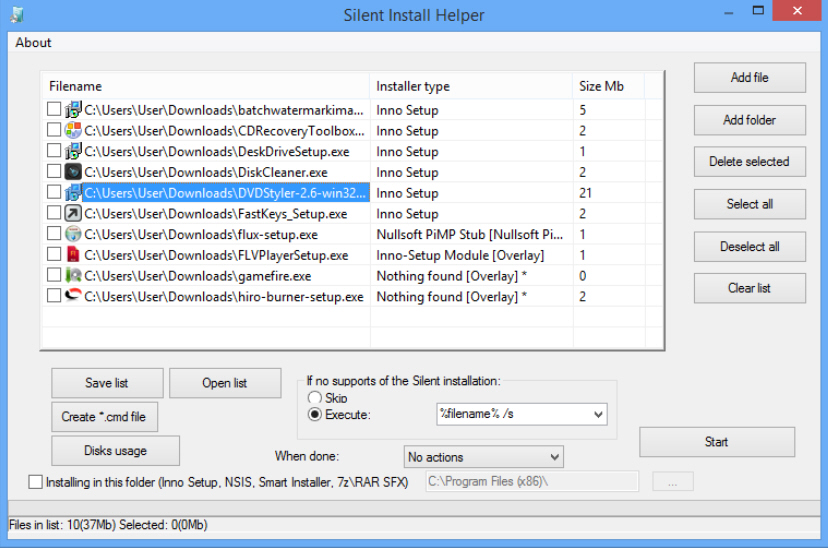
When you need to install several programs, perhaps because you’re configuring a new PC, then the obvious approach is just to run one setup program after another. It’s simple, straightforward, and will work. But it also takes a while, as you’re forced to repeat more or less the same tedious procedure each time: look at the splash screen, choose an installation folder, agree to the license, and so on.
Silent Install Helper can make this very much easier, by running any supported installers silently. Point the program at 1, 10 or a hundred setup programs, it’s not a problem — they can all then be installed automatically, no user interaction required, the applications will just appear on your hard drive with their default settings.
To begin, drag and drop your chosen setup files onto the program. Silent Install Helper analyses each executable to try and identify its type, briefly displaying a pop-up window with some technical information.
Once this process is complete you’ll be presented with a table listing your setup programs, and their installation type. If this is based on a known installer (Inno Setup, Smart, Wise, Nullsoft NSIS, RAR SFX, ZIP SFX, Microsoft, Ghost Install Wizard are supported), it should be possible to install it silently. But if its Installer Type is listed as «Nothing found» then this means it’s not been recognized, and you’ll only be able to run a standard installation.
Any unsupported setup programs can easily be removed from the list (right-click each one in turn, select «Delete»). To install whatever programs remain, click Select All > Start. Depending on your installers, you may see brief pop-up messages alerting you that a particular setup program is being launched, but otherwise that should be it. You’ll see no dialog boxes, no requests for information, not even a message from Silent Install Helper to tell you the process is over — your applications just get installed.
If you’d like to easily repeat this procedure on multiple PCs, though, you might alternatively select the installers and click «Create *.cmd file». This produces a script which you can save along with the setup programs. Copy these to any PC, double-click the «setup.cmd» file and your programs will be installed automatically.
This is plainly a very basic solution. If you just want to install 3 or 4 big-name tools, something like Ninite will provide everything you need, including the latest versions, by checking a few boxes — no need to mess around with scripts.
Silent Install Helper does have advantages, though: it supports many more applications, and the ability to create and work with CMD files gives you far greater control over the setup process. If you need an easier way to manage multiple installations, then it’s worth a look.