
Уважаемый пользователь,
Данные Рекомендации призваны помочь сотрудникам медицинской организации, выдавшей направление на рентгенологическое обследование, в работе с записью 3D рентгенологического исследования, выполненного в ООО «Стоматологический центр «СТОМУС».
В СЦ «СТОМУС» 3D рентгенодиагностические исследования (КЛКТ) проводятся на дентальных томографах AXEOS (DENTSPLY-SIRONA, Германия) и WHITEFOX (ACTEON, Германия)
Запись 3D исследований, выполненных на дентальном томографе AXEOS, на съемный цифровой носитель возможна в программах «GALILEOS Viewer» и/или «Sidexis 4» (включает формат DICOM). Просим в направлении на исследование уточнять предпочтительную программу для записи.
Запись 3D исследований, выполненных на дентальном томографе WHITEFOX, на съемный цифровой носитель стандартно производится в оригинальной программе просмотра, интегрированной в аппарат. Для записи исследования в формате DICOM необходимо заранее уведомить рентгенолаборанта.
Для пересылки рентгенологического исследования по электронному адресу, указанному в договоре возмездного оказания услуг с ООО «СЦ «СТОМУС», можно обратиться по телефону в центральную регистратуру СЦ «СТОМУС» или направить заявку через сайт клиники.
Для пересылки рентгенологического исследования по иным электронным адресам, не указанным в договоре возмездного оказания услуг, необходимо лично обратиться в центральную регистратуру СЦ «СТОМУС».
Для запуска программы просмотра рентгенологического изображения на персональном компьютере необходимы права локального администратора компьютера.
ПРОСМОТР ИССЛЕДОВАНИЙ В ФОРМАТЕ «GALILEOS VIEWER»
СИСТЕМНЫЕ ТРЕБОВАНИЯ ДЛЯ ПРОСМОТРА:
- Объем оперативной памяти (RAM): не менее 4 ГБ.
- Операционная система (ОС): Microsoft Windows 7 (предпочтительно — 64-битные ОС).
- Наличие 3D ускорителя («видеокарты»). Поддерживаются видеокарты «nVidia GeForce / RTX» или «AMD Radeon» любого поколения. Графическая подсистема «Intel Graphics» (часто встраивается в материнские платы и ноутбуки) обеспечит возможность просмотра при объеме оперативной памяти более 4 ГБ.
- Для установки программы просмотра на персональном компьютере необходимы права локального администратора компьютера.
ПРОСМОТР ИССЛЕДОВАНИЯ ПРИ ЗАПИСИ В ФОРМАТЕ «SIDEXIS 4»
СИСТЕМНЫЕ ТРЕБОВАНИЯ ДЛЯ ПРОСМОТРА:
- Объем оперативной памяти (RAM): не менее 8 ГБ (при наличии отдельной видеокарты) или не менее 12ГБ (при наличии встроенной графической подсистемы)
- Операционная система (ОС): Microsoft Windows 7, 8,10, 11 (предпочтительно — 64-битные ОС). Старые ОС (MS Windows XP, Vista) — не поддерживаются.
- Наличие 3D ускорителя («видеокарты»). Поддерживаются видеокарты «nVidia GeForce / RTX» или «AMD Radeon» любого поколения. Графическая подсистема «Intel Graphics» (часто встраивается в материнские платы и ноутбуки) может использоваться при объеме оперативной памяти не менее 12 ГБ.
- Для установки программы просмотра на персональном компьютере необходимы права локального администратора компьютера.
ПРОСМОТР ИССЛЕДОВАНИЙ СОЗДАННЫХ КОМПЬЮТЕРНЫМ ТОМОГРАФОМ «WHITEFOX»
СИСТЕМНЫЕ ТРЕБОВАНИЯ ДЛЯ ПРОСМОТРА:
- Объем оперативной памяти (RAM): не менее 4 ГБ.
- Операционная система (ОС): Microsoft Windows 7, 8, 10, 11 (64-битные ОС предпочтительнее). Старые ОС (MS Windows XP, Vista) — не поддерживаются.
- Наличие 3D ускорителя. Поддерживаются видеокарты «nVidia GeForce / RTX» или «AMD Radeon» любого поколения. Графическая подсистема «Intel Graphics» (часто встраивается в материнские платы и ноутбуки) может использоваться при объеме оперативной памяти более 4ГБ.
Вы можете обратиться за помощью наших IT специалистов в часы работы ООО «СЦ «СТОМУС». Всегда будем рады Вам помочь.
Телефоны для обращений: 408-70-70, 448-2-448
Сайт: https://stomus.ru
kÉï=~ë=çÑW=
MPKOMNS
pfabufp=Q
pзСнп~кЙ=оЙклбзе=sQKNKP
pЙкобЕЙ=j~ем~д
SIDEXIS 4 service manual
bеЦдблЬ
bеЦдблЬ
=


Sirona Dental Systems GmbH Table of contents
Service Manual SIDEXIS 4
Table of contents
1
2
About this Service Manual…………………………………………………………………………… 5
1.1 Structure of the document …………………………………………………………………. 5
1.1.1 Identification of the danger levels……………………………………………. 5
1.1.2 Formats and symbols used ……………………………………………………. 6
1.2 Scope …………………………………………………………………………………………….. 6
1.3 Other relevant documents …………………………………………………………………. 6
Configuring software…………………………………………………………………………………… 7
2.1 Configuration menu ………………………………………………………………………….. 7
2.1.1 «General settings»…………………………………………………………………. 10
2.1.2 «Patient settings» ………………………………………………………………….. 21
2.1.3 «Exposure»…………………………………………………………………………… 22
2.1.4 «Output» ………………………………………………………………………………. 29
2.1.5 «SIDEXIS Manager» ……………………………………………………………… 32
2.2 Call up the configuration menu…………………………………………………………… 35
2.3 Personalizing SIDEXIS 4…………………………………………………………………… 36
2.3.1 Setting the program language………………………………………………… 36
2.3.2 Practice-specific settings……………………………………………………….. 38
2.3.2.1 Enter practice information…………………………………………. 39
2.3.2.2 Define practice logo…………………………………………………. 40
2.3.2.3 Configure headers for printing…………………………………… 42
2.3.2.4 Selecting the dental notation …………………………………….. 45
2.3.3 Set up communication partners………………………………………………. 47
2.3.4 User set up/administration……………………………………………………… 49
bеЦдблЬ
3
4
64 58 983 D3592
D3592.076.01.03.02 03.2016
Configuring the computer ……………………………………………………………………………. 51
3.1 Free hard disk space for PDATA………………………………………………………… 51
Data and database …………………………………………………………………………………….. 52
4.1 Data migration …………………………………………………………………………………. 53
4.2 Data backup ……………………………………………………………………………………. 53
4.2.1 Data backup via «Windows task scheduler» ……………………………… 54
4.2.2 Data backup via the «SQL Management Studio»……………………….. 55
4.3 Restoring database ………………………………………………………………………….. 59
4.4 Installing database …………………………………………………………………………… 64
4.5 Database movement ………………………………………………………………………… 65
4.5.1 Moving the SQL server………………………………………………………….. 65
4.5.1.1 Prepare the “new” SQL server…………………………………… 65
4.5.1.2 Backing up the “old” SQL server ……………………………….. 65
3

Table of contents Sirona Dental Systems GmbH
Service Manual SIDEXIS 4
4.5.1.3 Restoring database to the «new» SQL server……………….. 65
4.5.1.4 Execute provisioning ………………………………………………… 66
4.5.2 Moving the PDATA folder……………………………………………………….. 68
4.5.2.1 Move the PDATA folder to a bigger hard disk “within the
computer”
4.5.2.2 Migrate the data (PDATA) to a new “remote” file server …68
4.6 Disconnecting CEREC database (if available)………………………………………. 72
68
5
6
7
Special features with 64bit operating systems ………………………………………………… 73
5.1 Astra Plugin……………………………………………………………………………………… 73
Troubleshooting………………………………………………………………………………………….. 75
6.1 Errors during installation ……………………………………………………………………. 75
6.1.1 DVD setup……………………………………………………………………………. 75
6.1.2 SQL server installation …………………………………………………………… 75
6.1.3 Server provisioning ……………………………………………………………….. 75
6.2 Error during reference run………………………………………………………………….. 76
6.2.1 On the SIDEXIS 4 workstation ………………………………………………… 76
6.3 Errors when establishing exposure readiness ………………………………………. 79
6.4 Errors when executing TWAIN devices………………………………………………… 80
6.5 Errors during SLIDA communication……………………………………………………. 80
Other ………………………………………………………………………………………………………… 81
7.1 Uninstalling X-ray log book ………………………………………………………………… 81
7.2 Changing the SQL database port………………………………………………………… 82
7.3 Switching service ports ……………………………………………………………………… 85
4 D3592.076.01.03.02 03.2016
64 58 983 D3592
Sirona Dental Systems GmbH 1About this Service Manual
Service Manual SIDEXIS 4 1.1Structure of the document
About this Service Manual
1
1.1
Structure of the document
1.1.1 Identification of the danger levels
To prevent personal injury and material damage, please observe the
warning and safety information provided in these operating instructions.
Such information is highlighted as follows:
DANGER
An imminent danger that could result in serious bodily injury or death.
WARNING
A possibly dangerous situation that could result in serious bodily injury
or death.
CAUTION
A possibly dangerous situation that could result in slight bodily injury.
NOTICE
A possibly harmful situation which could lead to damage of the product
or an object in its environment.
bеЦдблЬ
IMPORTANT
Application instructions and other important information.
Tip: Information on making work easier.
64 58 983 D3592
D3592.076.01.03.02 03.2016
5
1About this Service Manual Sirona Dental Systems GmbH
1.2Scope Service Manual SIDEXIS 4
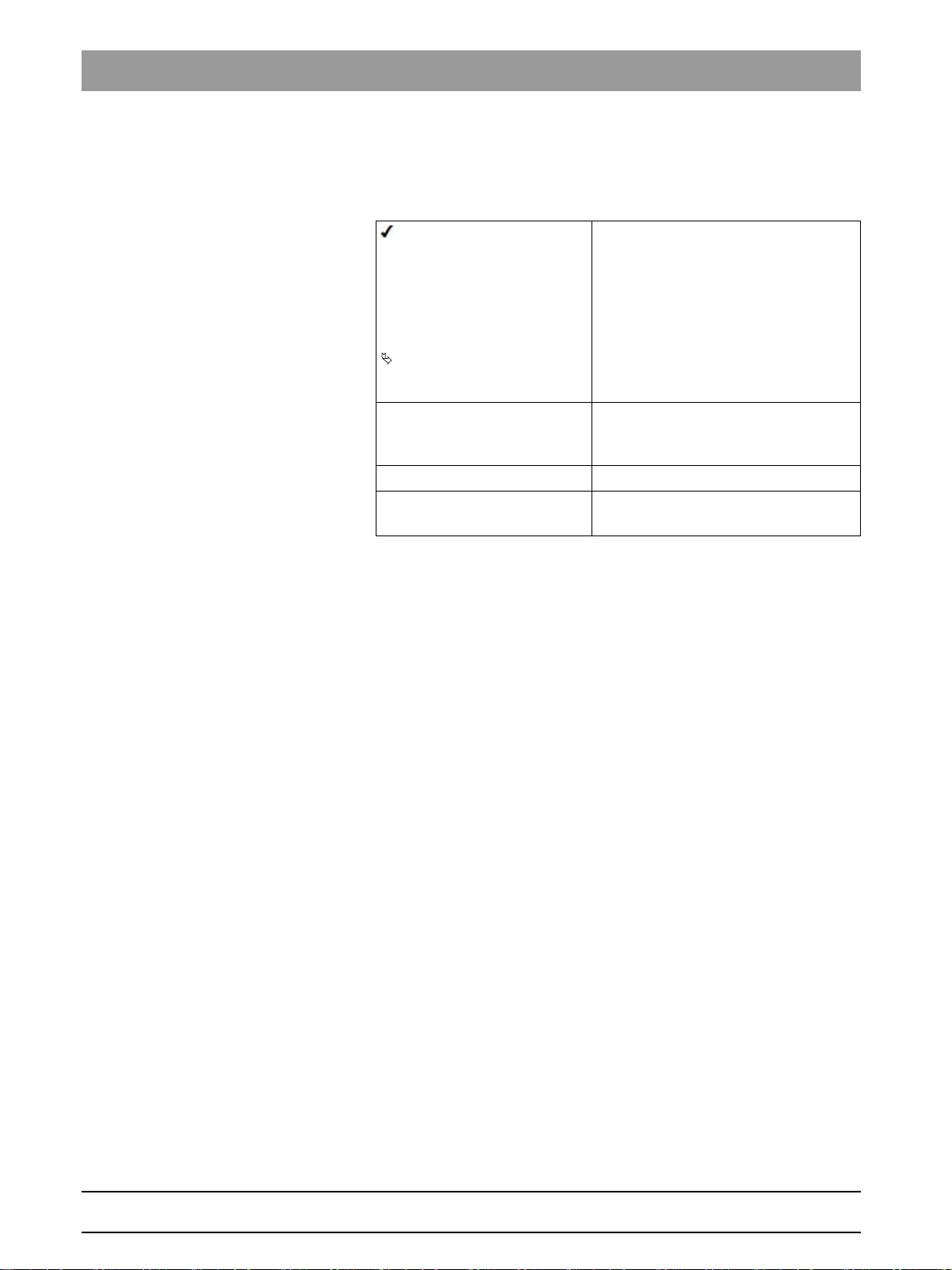
1.1.2 Formats and symbols used
The formats and symbols used in this document have the following
meaning:
1.2
1.3
Prerequisite
1. First action step
2. Second action step
or
➢ Alternative action
Result
➢ Individual action step
See «Formats and symbols
used [ → 6]»
● List Designates a list.
«Command / menu item» Indicates commands, menu items or
Prompts you to do something.
Identifies a reference to another text
passage and specifies its page
number.
quotations.
Scope
This Service Manual describes the servicing of the software SIDEXIS 4.
It is intended for use exclusively by trained and authorized distributors
and service technicians.
Other relevant documents
In addition to this manual, you need the following documents:
Installation Instructions
● SIDEXIS 4 Installation Instructions: REF 64 47 200
DVD text
Current service documentation, such as the Service Manual, can be
downloaded from the Sirona dealer website.
System requirements can be found in the
SIDEXIS 4 DVD.
«readme.html»
file on the
6 D3592.076.01.03.02 03.2016
64 58 983 D3592
Sirona Dental Systems GmbH 2Configuring software
Service Manual SIDEXIS 4 2.1Configuration menu
Configuring software
2
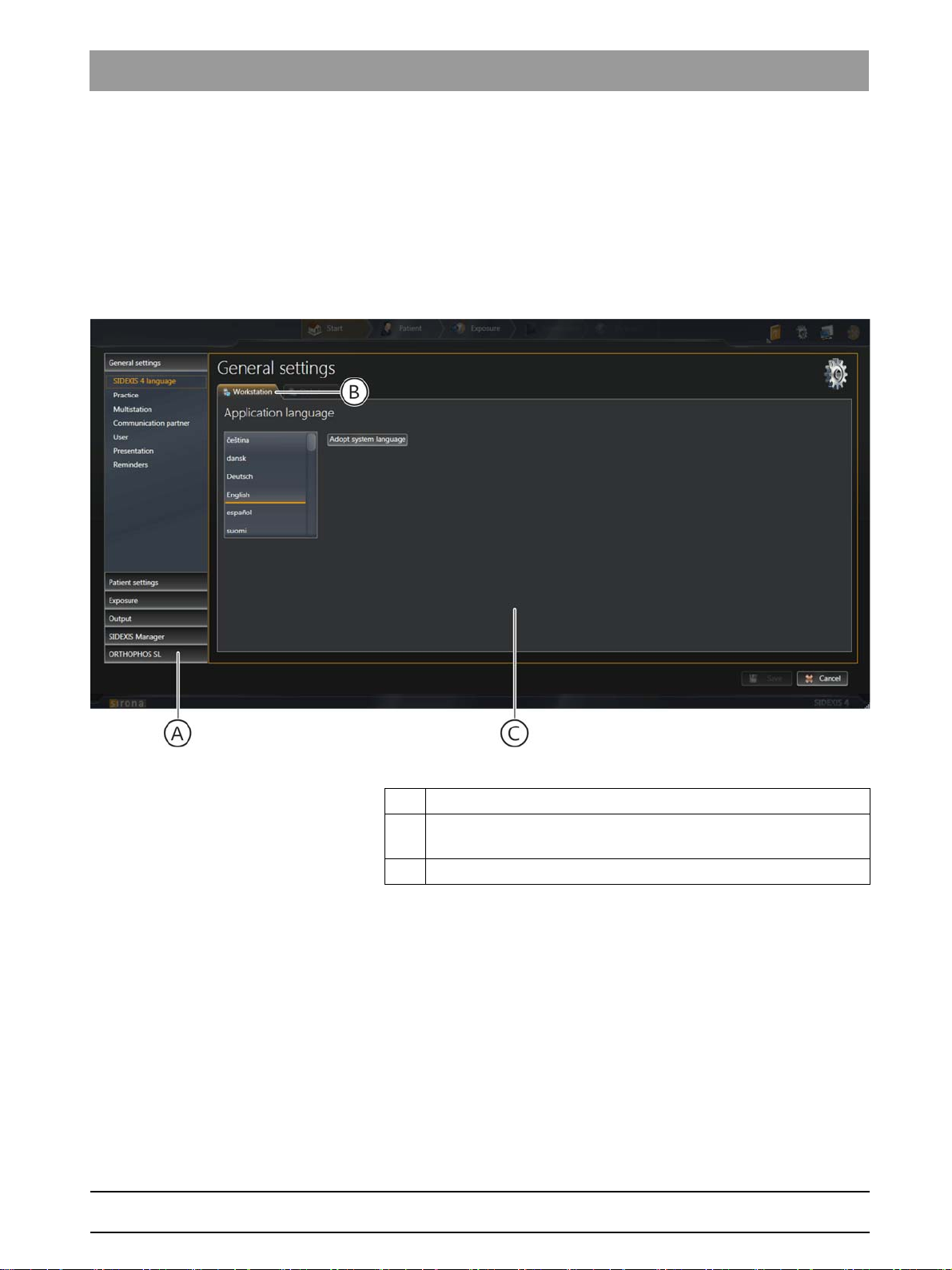
Configuration of SIDEXIS 4 takes place via a Configuration menu [→7],
which you SIDEXIS 4can open [ → 35] via the cog symbol in the headline.
2.1
Configuration menu
You can adjust SIDEXIS 4 according to the requirements of your practice.
To do this, you are provided with a clear configuration menu
bеЦдблЬ
Configuration menu, e.g. the «Application language» menu
A Structure tree with buttons for menu selection
B Display tab: displays whether the menu contains global, user-
specific, or workstation-related settings.
C Menu
The menus for presetting the program are compiled into groups.
●
«General Settings»
●
«Patient Settings»
●
«Acquisition»
●
«Output»
●
«SIDEXIS Tools»
NOTE: If plug-ins for treatment units that require settings are installed in
SIDEXIS 4, these are also displayed as buttons here.
64 58 983 D3592
D3592.076.01.03.02 03.2016
7

2Configuring software Sirona Dental Systems GmbH
2.1Configuration menu Service Manual SIDEXIS 4
By clicking on the group name (E) (e.g.
«General Settings»
(F) for the relevant menu become visible.
When you click on a button, the corresponding menu opens.
) the buttons
8 D3592.076.01.03.02 03.2016
64 58 983 D3592

Sirona Dental Systems GmbH 2Configuring software
Service Manual SIDEXIS 4 2.1Configuration menu
Identifying changes to the configuration
Identifying a change to the configuration that has not yet been saved
If you have made changes in the configuration menu and these have not
yet been saved, the corresponding buttons in the structure tree (H) are
labeled with an * (I). This identification is deleted again once the
configuration is saved.
Saving the changes To save the changes to the configuration click on the
on the bottom right of the configuration menu. The changes are saved
and the menu closes.
Closing the configuration menu with no
changes
If you wish to close the configuration menu without saving the changes to
the configuration, click on the
discarded and the menu closes.
«Cancel»
button (G). The changes are
«Save»
bеЦдблЬ
button (J)
64 58 983 D3592
D3592.076.01.03.02 03.2016
9
2Configuring software Sirona Dental Systems GmbH
2.1Configuration menu Service Manual SIDEXIS 4
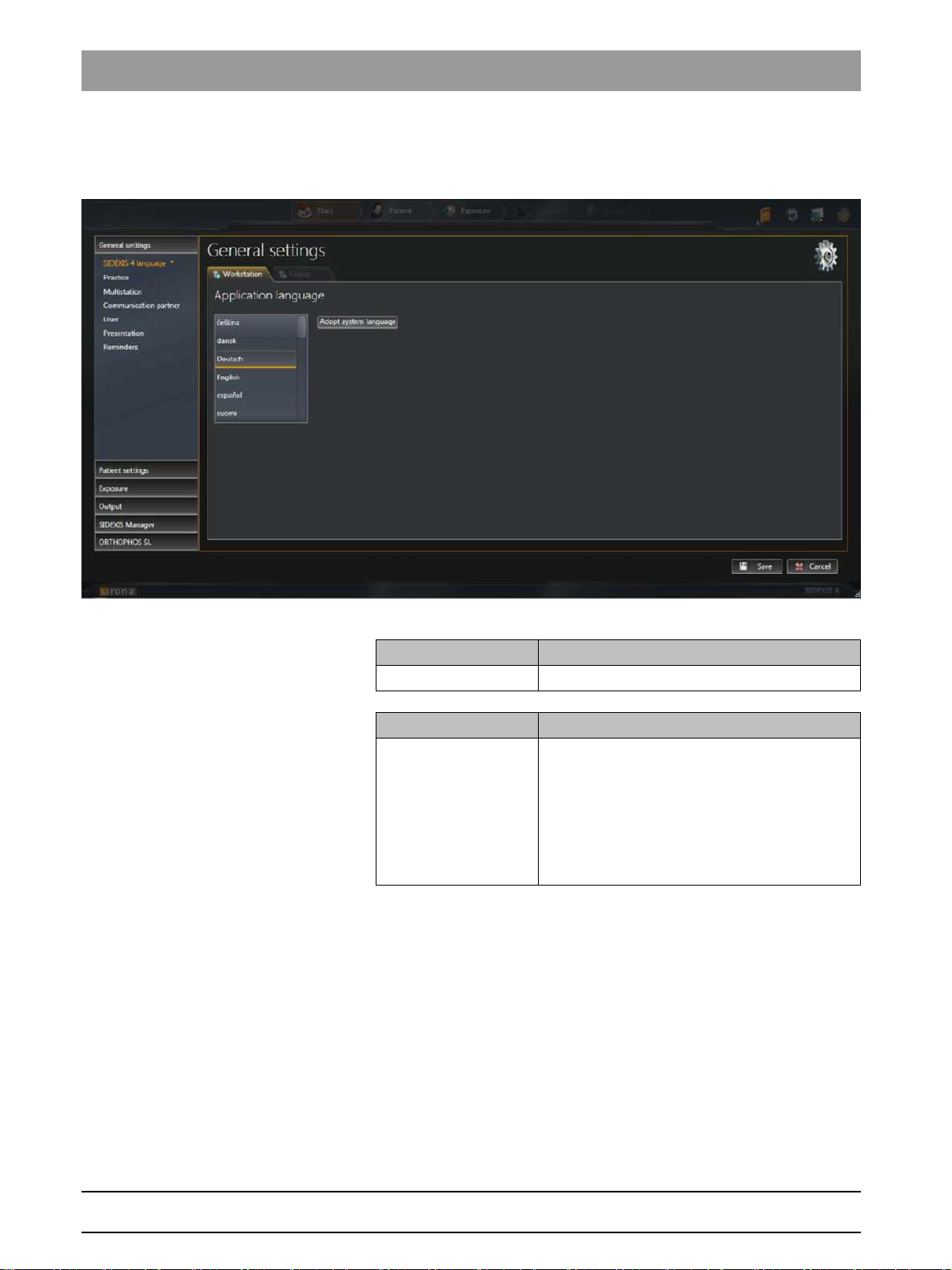
2.1.1 «General settings»
«Language SIDEXIS 4» User-specific
«Application language» menu
settings for the program language
List field Function
Application language Selecting the program language
Button Function
«Adopt system
language»
Select system language as the program
language.
The currently set system language is adopted
as the program language. If the system
language is not available as program language,
English is automatically used as the program
language.
10 D3592.076.01.03.02 03.2016
64 58 983 D3592

Sirona Dental Systems GmbH 2Configuring software
Service Manual SIDEXIS 4 2.1Configuration menu
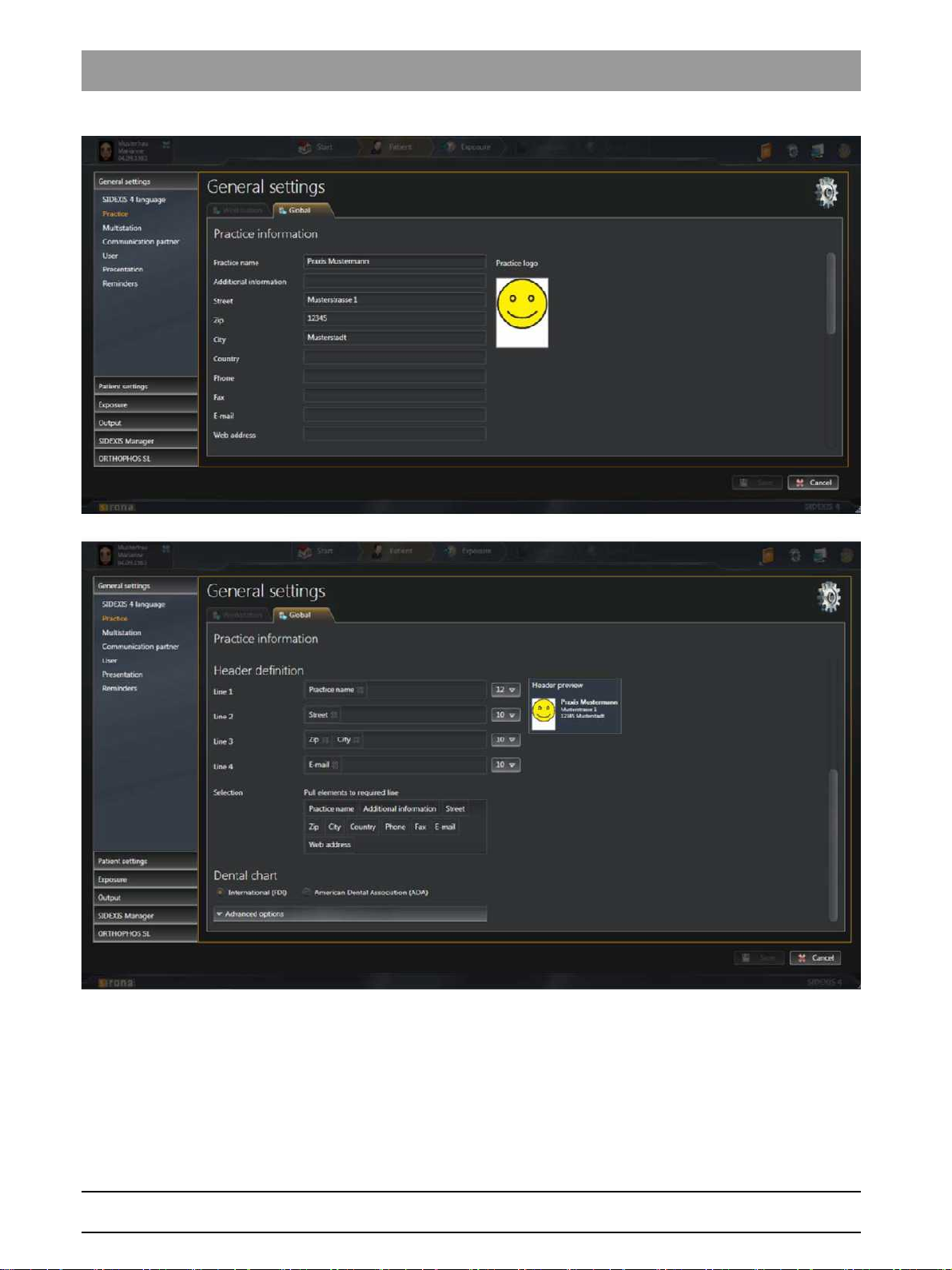
«Praxis» Global
printout
«General Settings»
The
●
«Praxis Settings»
●
«Header definition»
●
«Dental chart»
You can move the menu up or down in the window using the scrollbar to
the right of the menu.
settings for the practice data; e.g. how data is displayed on a
menu contains the following sub-areas:
bеЦдблЬ
64 58 983 D3592
D3592.076.01.03.02 03.2016
11
2Configuring software Sirona Dental Systems GmbH
2.1Configuration menu Service Manual SIDEXIS 4
«Praxis Settings» menu
12 D3592.076.01.03.02 03.2016
64 58 983 D3592

Sirona Dental Systems GmbH 2Configuring software
Service Manual SIDEXIS 4 2.1Configuration menu
Example of a practice address in a printout
Entry fields Entry
«Praxis name»
«Additional
Name of the practice
Any additional information
information»
«Street»
«Zip»
«City»
«Country»
«Phone»
«Fax»
«E-Mail»
«Web address»
Option button Option button activated
«International (FDI)»
«American Dental
Street
Zip code
City
Country
Phone number
Fax number
Email address
Website
International dental notation is used
American dental notation is used
Association (ADA)»
bеЦдблЬ
Button Function
«Praxis logo»
«Show preview»
Another check box appears by clicking on the
Check box Function
«Temporarily show
deleted media»
The configuration for displaying the practice address in the printout is
described in the Personalizing SIDEXIS 4 ⇒ Practice-specific
settings [ → 38] section.
SH multi-user
Define practice logo for printouts
Preview the display of practice data;
e.g. on printouts
«Advanced options»
Display deleted media temporarily in
for reactivation.
button.
«Timeline»
64 58 983 D3592
D3592.076.01.03.02 03.2016
13
2Configuring software Sirona Dental Systems GmbH
2.1Configuration menu Service Manual SIDEXIS 4
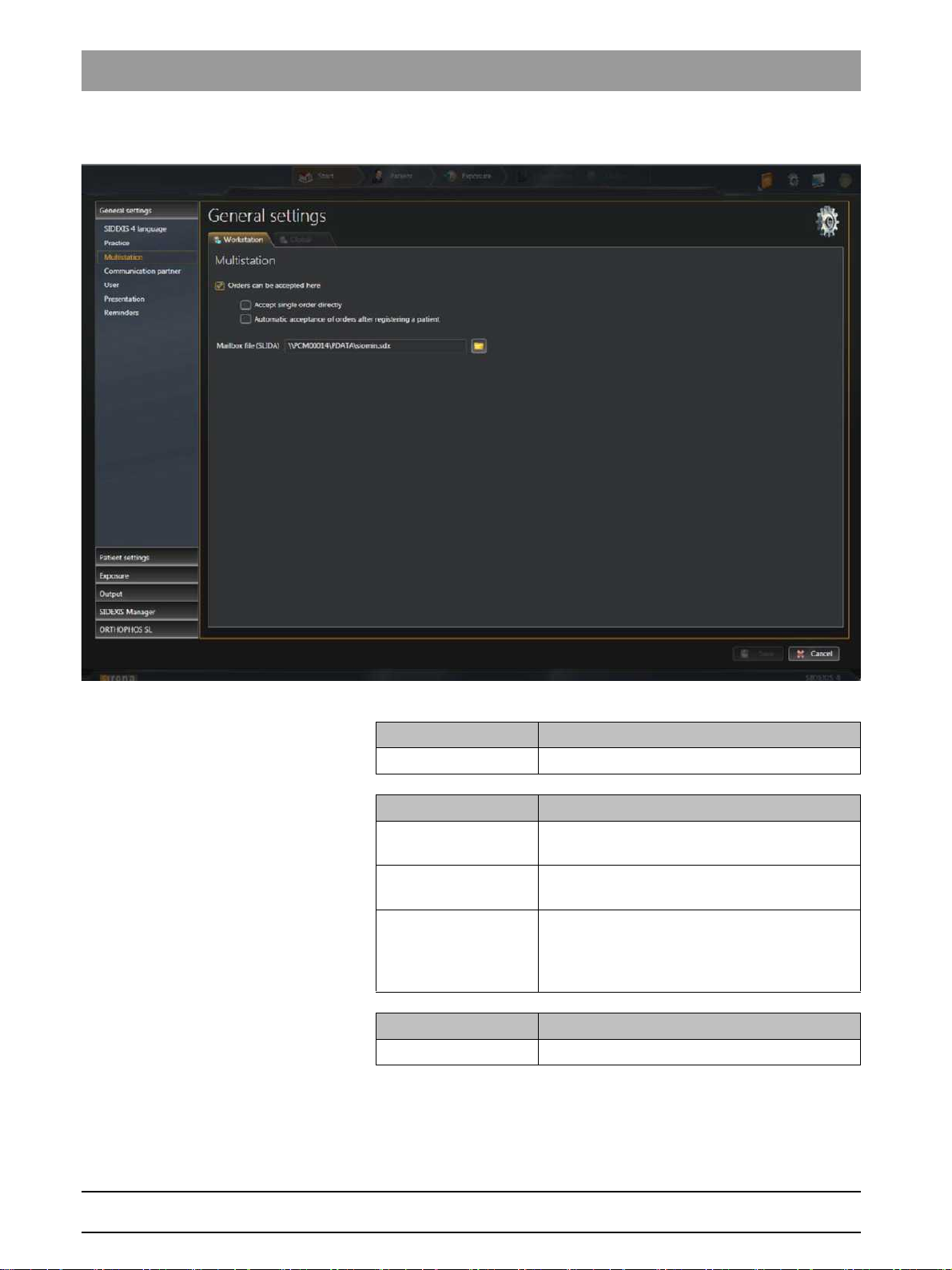
«Multistation» Workstation-related
settings for multi-user operation
«Multistation capability» menu
Entry fields Entry
«Mailbox File (SLIDA)»
Path to the PAS mailbox file
Check box Check box activated
«Orders can be
accepted here»
«Accept a single order
X-ray jobs are taken automatically from the
PAS
X-ray jobs are added to the job list
directly»
«Automatic
acceptance of orders
X-ray jobs are added to the job list once the
patient is logged in
after registering a
patient»
Button Function
Folder icon Path selection
SH communication partner
14 D3592.076.01.03.02 03.2016
64 58 983 D3592
Sirona Dental Systems GmbH 2Configuring software
Service Manual SIDEXIS 4 2.1Configuration menu
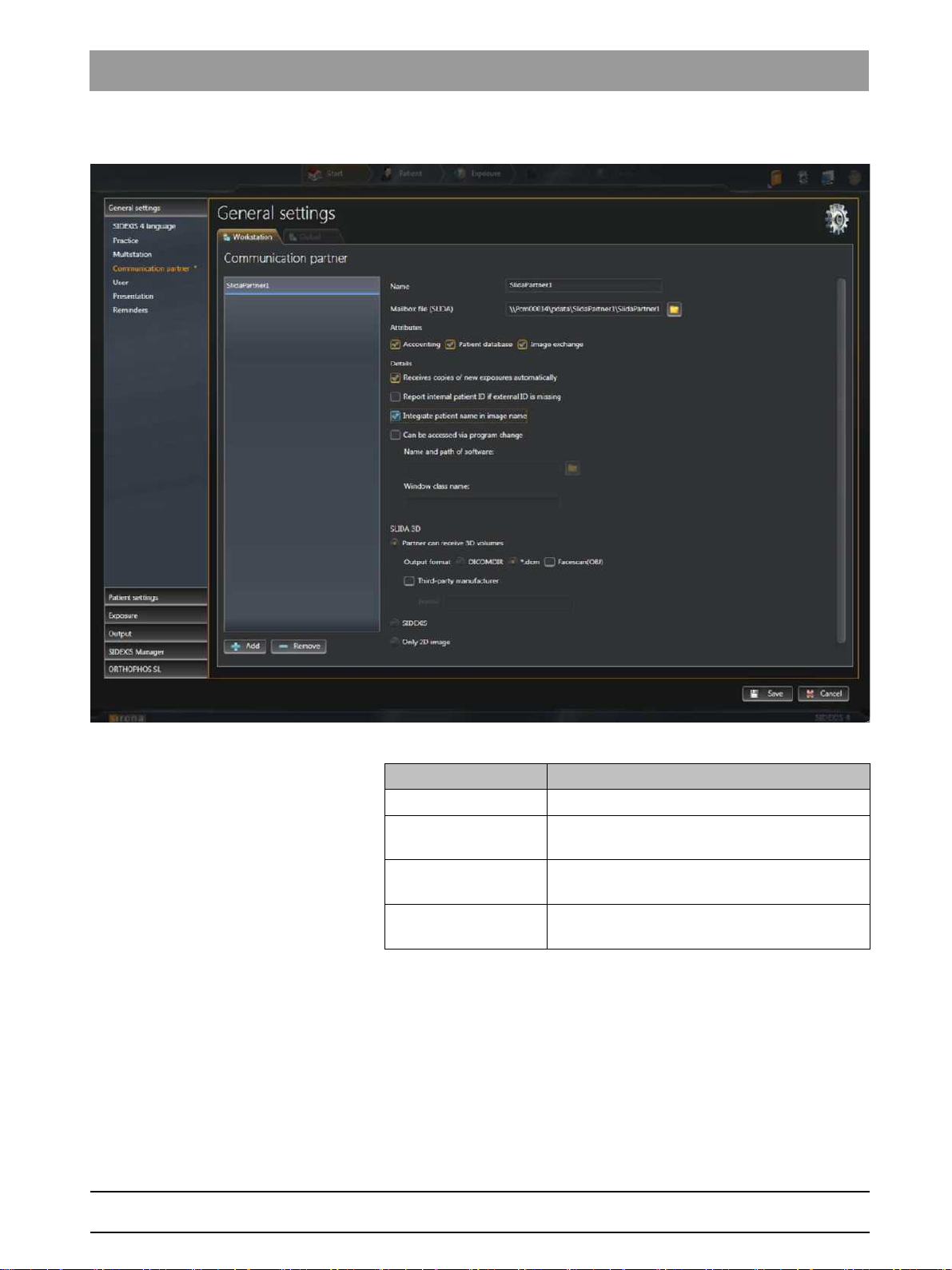
«Communication partners» Workstation-related
setup of a communication partner
bеЦдблЬ
Menu «Communication partners»
Entry fields Entry
«Name»
«Mailbox File (SLIDA)»
«Name and path of the
Name of communication partner
Path to the practice mailbox file for the
communication partner
Name and path of the communication program
SW»
«Window class name»
Identification key for the communication
program
64 58 983 D3592
D3592.076.01.03.02 03.2016
15

2Configuring software Sirona Dental Systems GmbH
2.1Configuration menu Service Manual SIDEXIS 4
Check box Check box activated
«Accounting»
Attributes are defined for communication
«Patient database»
«Image exchange»
«Automatically
receives a copy of new
With each exposure a copy is placed in the
folder in which the mailbox file is located.
exposures»
«Report internal patient
ID if external is
missing»
«Integrate patient
name in image file
If there is no external file card index number
available from the PAS for a patient, the
internal SIDEXIS 4 card index number is
transmitted to the communication partner to
identify the patient.
Patient name is integrated into the file name
during media transfer
name»
«Can be accessed by
program change»
Activates the entry fields
and
SW»
«Window class name»
«Name and path of the
Option buttons Function
«Remove»
«Add»
Button Function
«Remove»
«Add»
Menu area
Entry fields Entry
«SLIDA 3D»
«Profile»
Check box Check box activated
«Third-patry
Remove communication partners
Add communication partners
Remove communication partners
Add communication partners
:
Profile of the external manufacturer
External manufacturer available
manufacturer»
«Facescan(OBJ)»
The Facescan OBJ file (if available) is also
exported.
16 D3592.076.01.03.02 03.2016
64 58 983 D3592
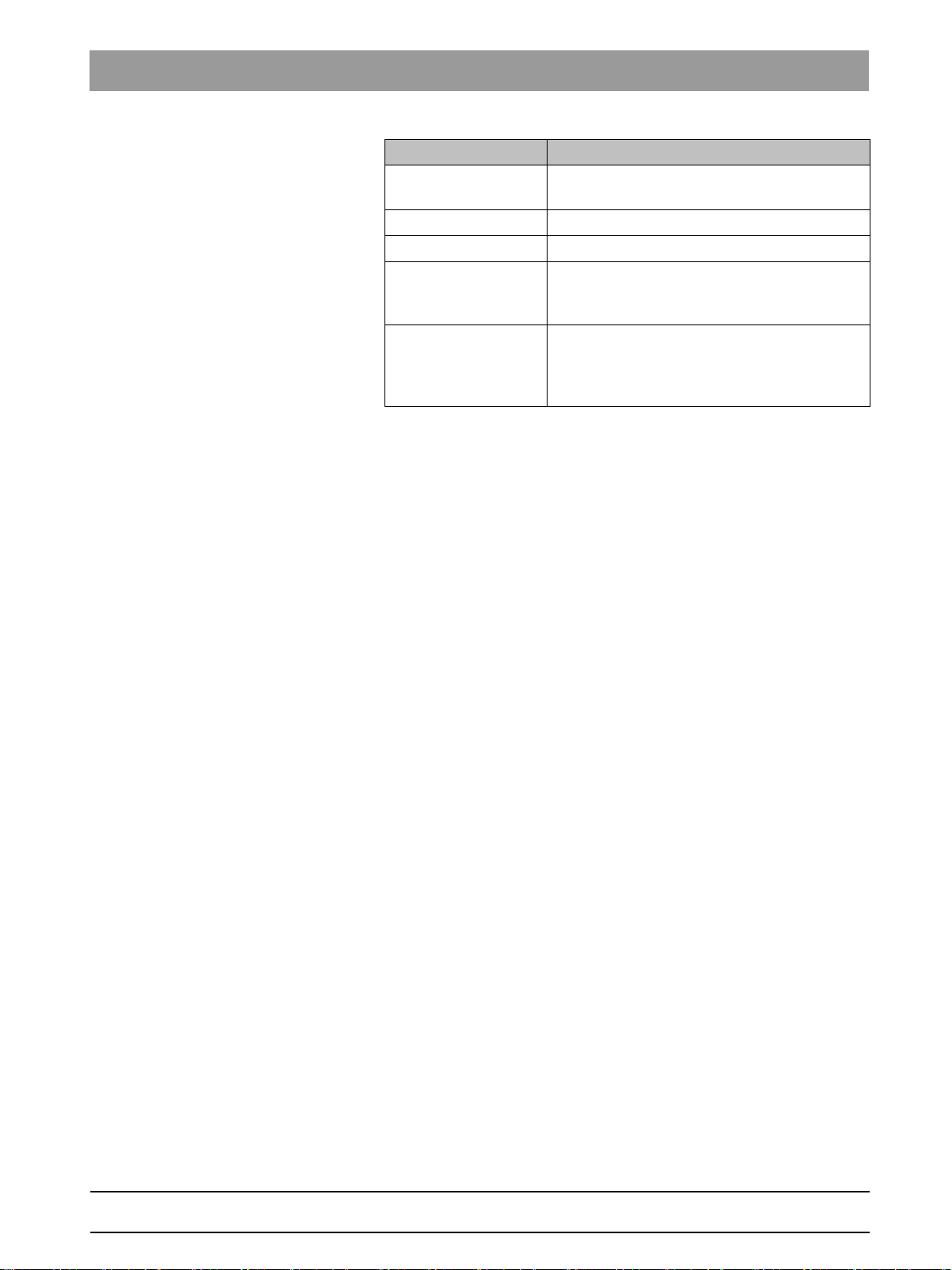
Sirona Dental Systems GmbH 2Configuring software
Service Manual SIDEXIS 4 2.1Configuration menu
Option buttons Function
«Partner can receive
3D volumes»
«DICOMDIR»
«*.dcm»
«Sidexis»
«Only 2D image»
The communication partner can receive 3D
volumes.
DICOMDIR
Gathering DCM files
Exporting the 3D volumes as DICOMDIR.
3D volumes that are exported in this type, can
be reimported in SIDEXIS 4.
Only 2D thumbnail.
Communication partners who cannot receive
the 3D volumes receive a 2D thumbnail in tiff
format.
bеЦдблЬ
64 58 983 D3592
D3592.076.01.03.02 03.2016
17
2Configuring software Sirona Dental Systems GmbH
2.1Configuration menu Service Manual SIDEXIS 4
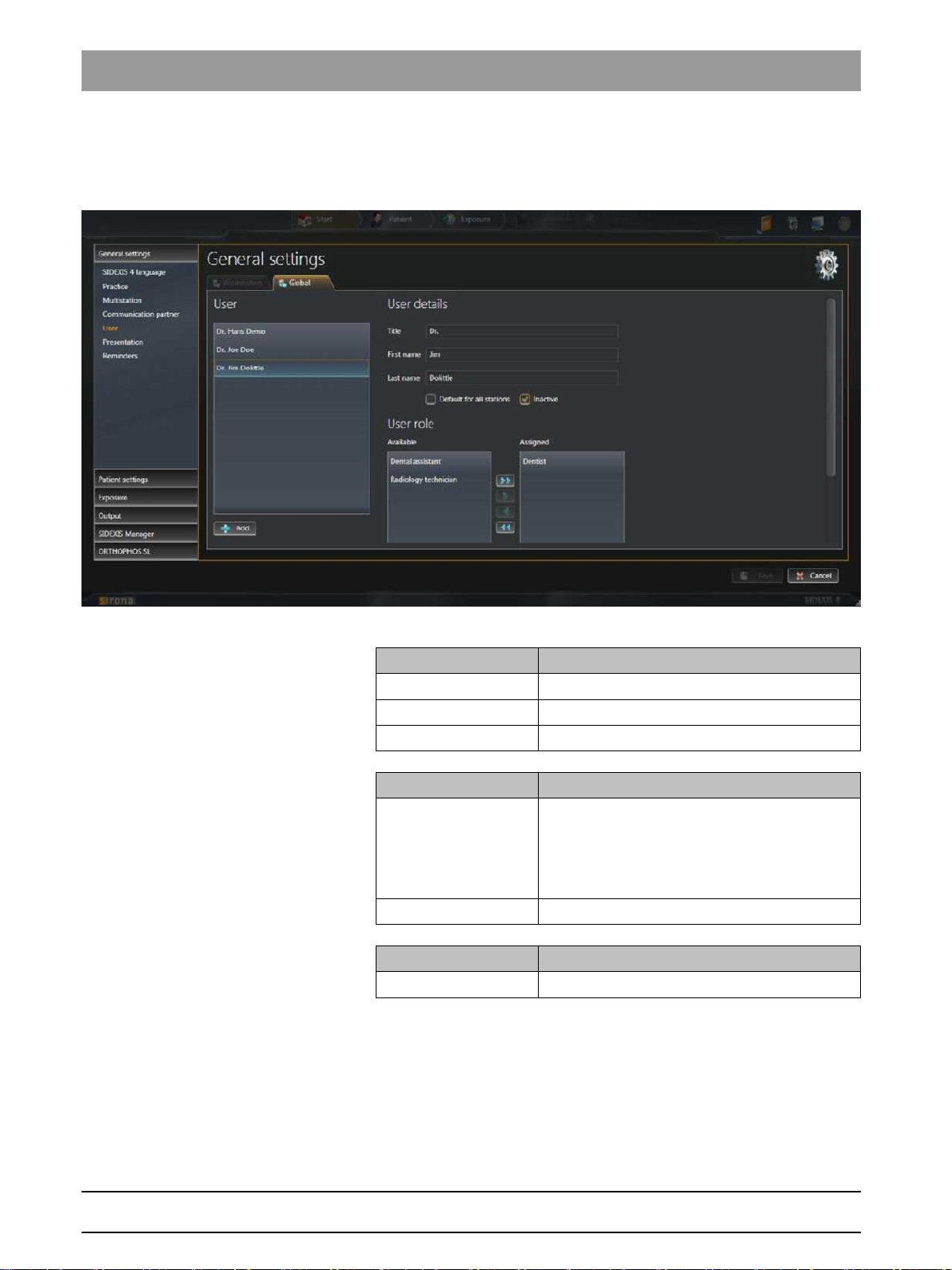
«User» Global
Users set up here are entered into different list fields of SIDEXIS 4 (e.g.
when entering the indication prior to exposure) and can be selected there.
user setup.
«User/User details/User role» menu
Entry fields Entry
«Title»
«First name»
«Last name»
Check box Check box activated
«Default for all
stations»
«Inactive»
Button Function
«Add»
Title of the user
First name of the user
Surname of the user
Selected users are defined as standard
consultants.
If a patient is not assigned to a consultant, this
standard consultant is suggested as the main
consultant in the menus.
Deactivate user
Add new user
18 D3592.076.01.03.02 03.2016
64 58 983 D3592
Sirona Dental Systems GmbH 2Configuring software
Service Manual SIDEXIS 4 2.1Configuration menu
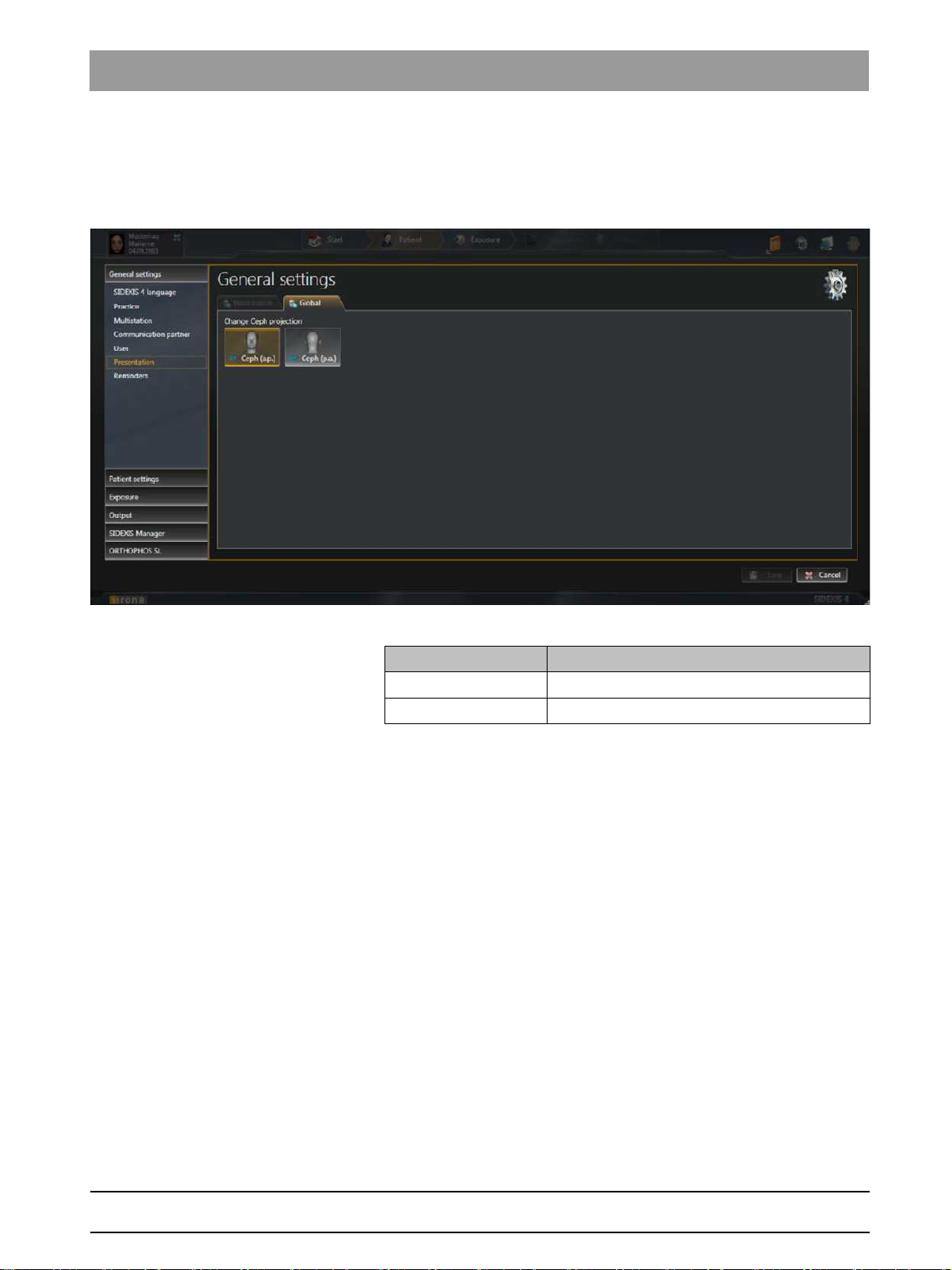
«Presentation» Global
The
«Presentation»
ceph projection from
(p.a.)»
settings for the ceph projection.
configuration menu can be used to switch the
«CA Ceph (a.p.)»
.
(factory settings) to
«CA»
«CP Ceph
bеЦдблЬ
«Presentation» menu
Button Function
«CA Ceph (a.p.)» «CA»
«CP Ceph (p.a.)» «CA»
anterior – posterior projection
posterior – anterior projection
64 58 983 D3592
D3592.076.01.03.02 03.2016
19

2Configuring software Sirona Dental Systems GmbH
2.1Configuration menu Service Manual SIDEXIS 4
«Reminder» Global
Via the
as reminders in the list of appointments in the
«Reminder» menu
settings for the diary.
«Reminder»
configuration menu, entries are defined that appear
«Start»
work area.
Entry fields Entry
«Name»
«Interval (in days)»
«Executing Program»
«Next reminder»
Check box Check box activated
«Set automatically to
done»
«Enable Reminder»
Button Function
«Add»
«Remove»
Folder icon Path selection
Appointment title
Interval for automatically creating regular
appointments in the diary
Selecting the program that should be started
when clicking on an appointment in the diary.
Date of the next appointment
Appointments are automatically set to the
«Completed» status after clicking on them in the
diary.
The defined appointment is activated and
appears in the diary
Add new appointment
Delete existing appointment
20 D3592.076.01.03.02 03.2016
64 58 983 D3592
Sirona Dental Systems GmbH 2Configuring software
Service Manual SIDEXIS 4 2.1Configuration menu
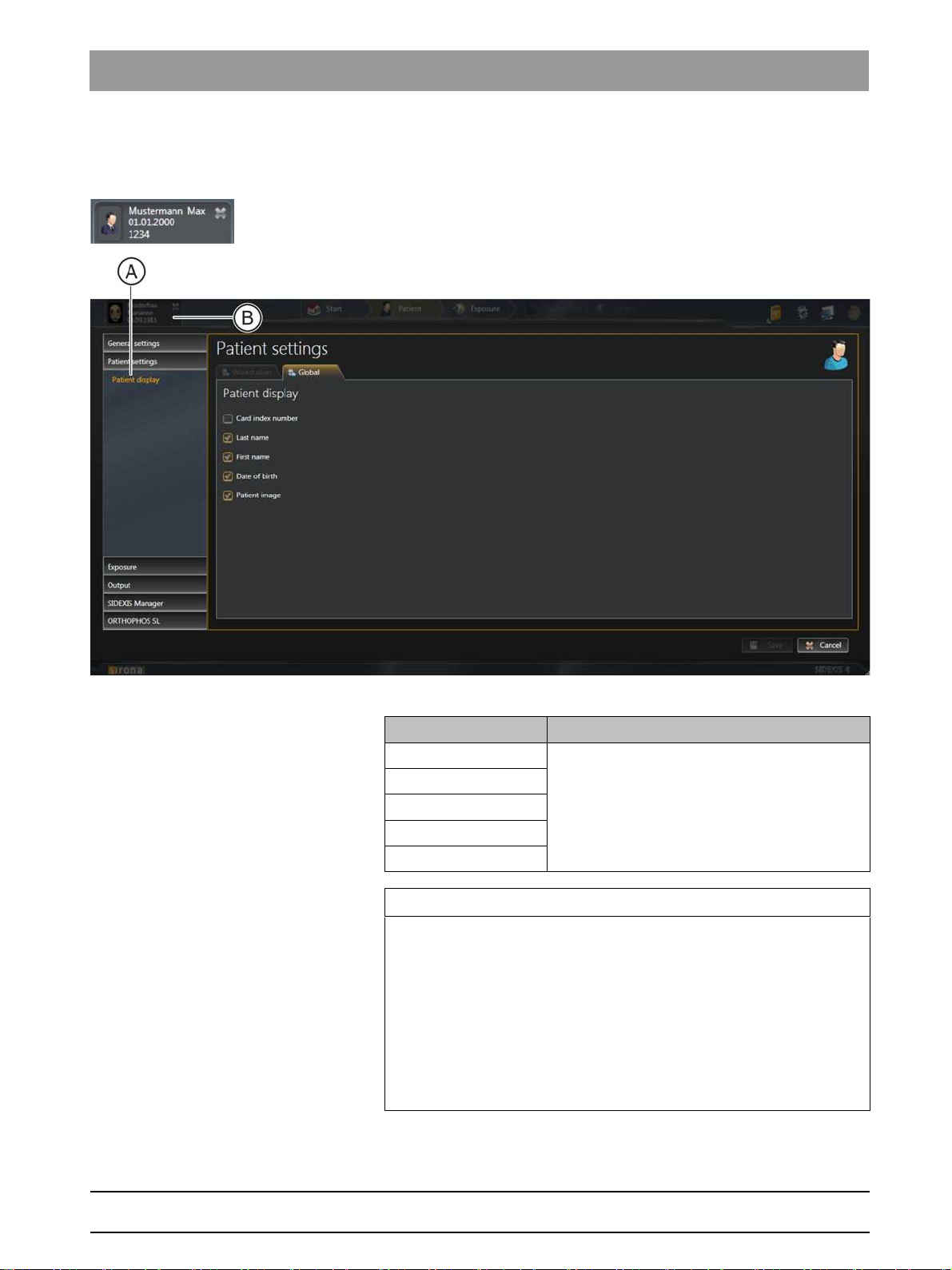
2.1.2 «Patient settings»
«Patient display»
Global
settings for displaying the logged in patient in the header line
«Patient display» menu
Check box Check box activated
«Card-index no.»
Information is displayed in the header line
«Last name»
«First name»
«Date of birth»
«Patient image»
Card index number
IMPORTANT
At least the
,
«First name»
a patient.
If just the
must be entered for each patient.
If a patient is logged in for whom this does not apply (no card index
number, even though only the
the configuration, with the exception of check box
red text
in patient.
«Card-index no.»
, and
«Date of birth»
«Card-index no.»
check box or the check boxes
check box is checked, a card index number
«Card-index no.»
«Not clearly identifiable»
«Last name»
must be checked to uniquely identify
check box is ticked in
«Patient image»
appears in the display for the logged-
bеЦдблЬ
), the
64 58 983 D3592
D3592.076.01.03.02 03.2016
21
2Configuring software Sirona Dental Systems GmbH
2.1Configuration menu Service Manual SIDEXIS 4
2.1.3 «Exposure»
«Import» User-specific
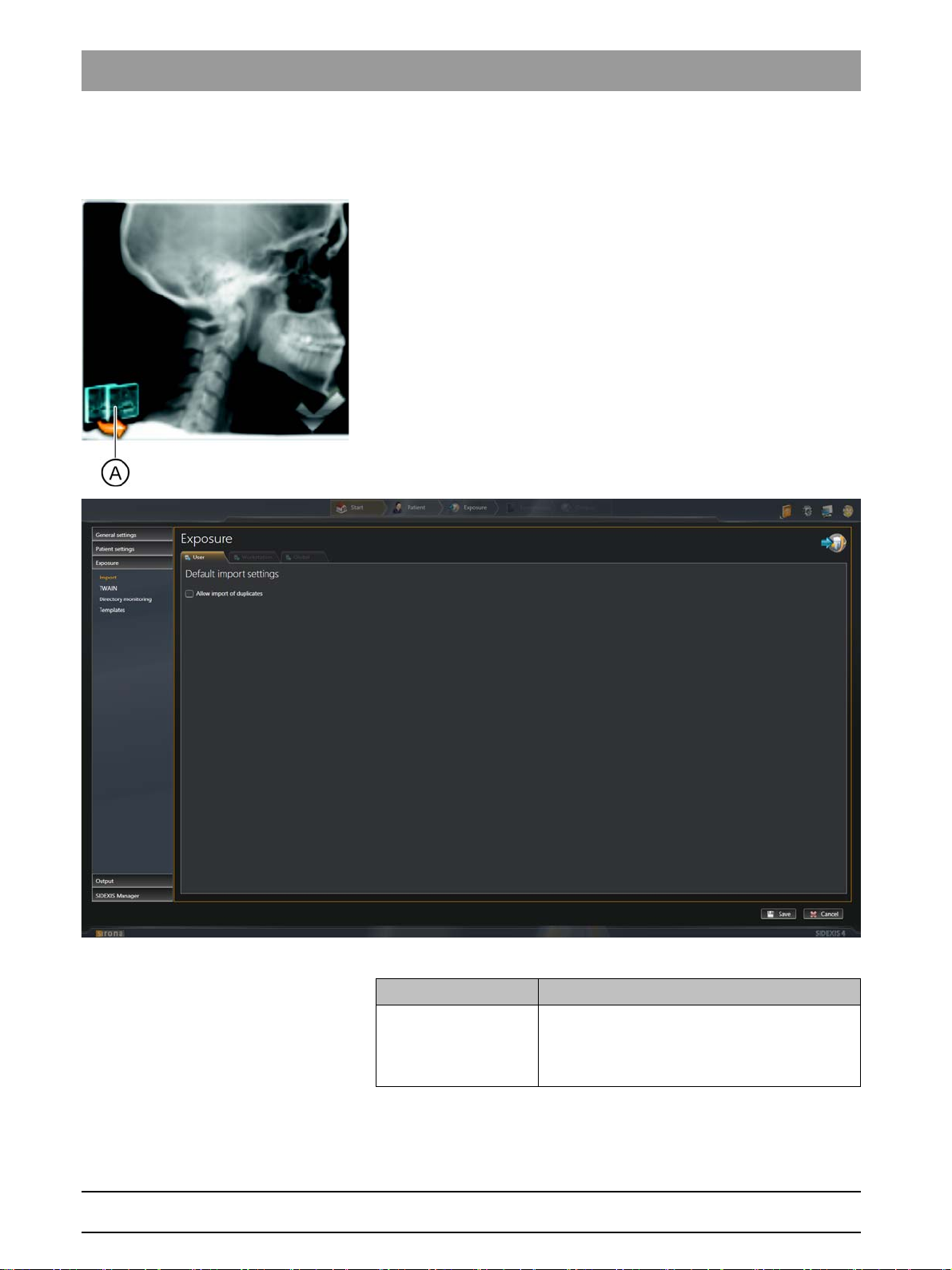
When importing media items, a check is performed to see whether the
media item is already in the SIDEXIS 4 database. If the check box is
deactivated (factory setting), an icon (A) is displayed to signal that an
import is not possible when attempts are made to import media items that
are already available.
«File Import»
In the
through the
database)»
check box.
settings for importing available media
menu you can cancel the import of the duplicate once
«Allow import of duplicates (if image already exists in
«Default Import Settings» menu
Check box Check box activated
«Allow import of
duplicates (if image
already exists in
If a media item to be imported is already
present in the database, this is still imported as
a duplicate.
database)»
22 D3592.076.01.03.02 03.2016
64 58 983 D3592

Sirona Dental Systems GmbH 2Configuring software
Service Manual SIDEXIS 4 2.1Configuration menu
«TWAIN» Workstation-related
settings for TWAIN devices
bеЦдблЬ
«TWAIN devices» menu
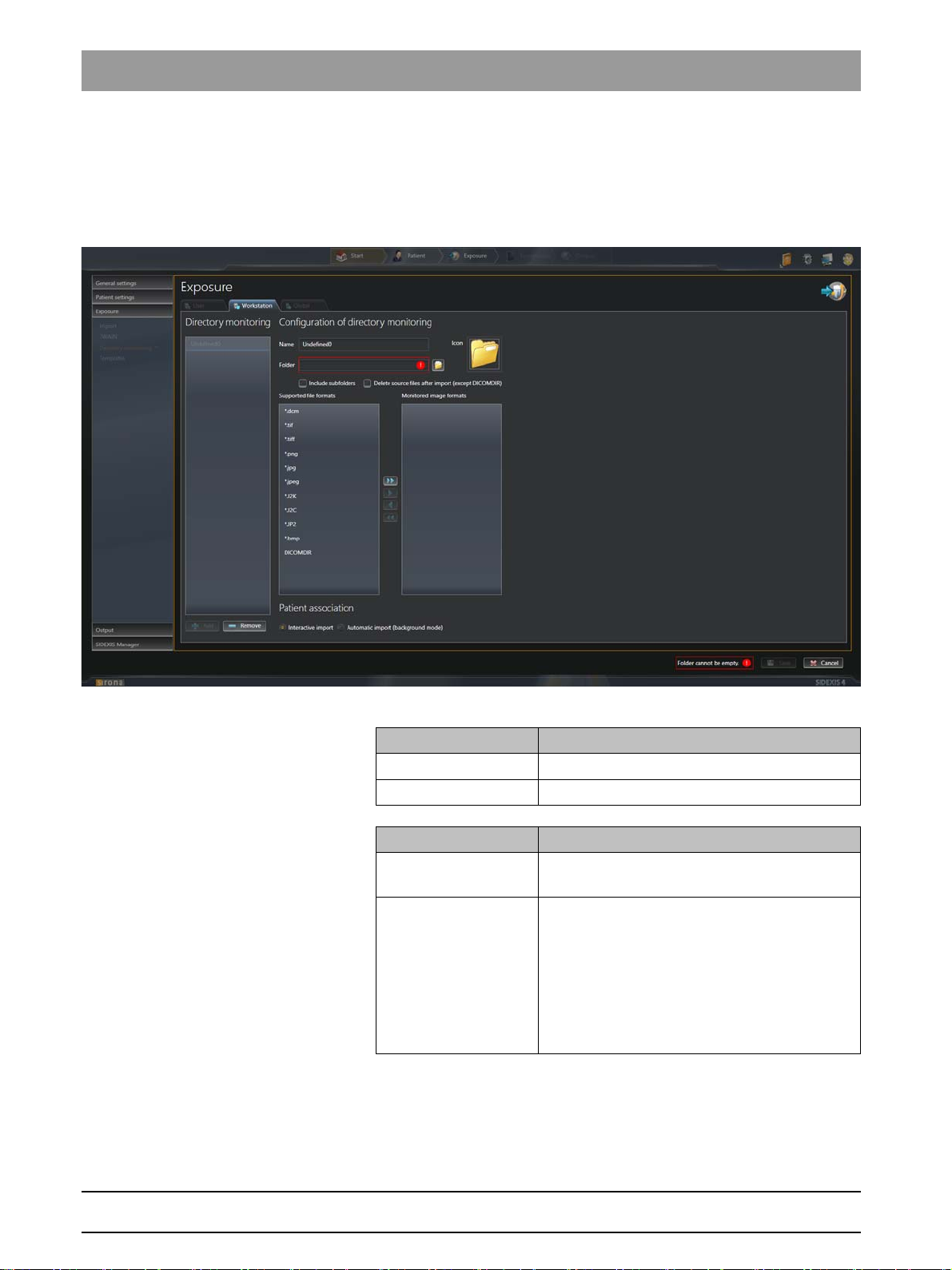
You can set the TWAIN connection via the check boxes in the
devices»
menu.
«TWAIN
64 58 983 D3592
D3592.076.01.03.02 03.2016
23
2Configuring software Sirona Dental Systems GmbH
2.1Configuration menu Service Manual SIDEXIS 4
«File watcher» Workstation-related
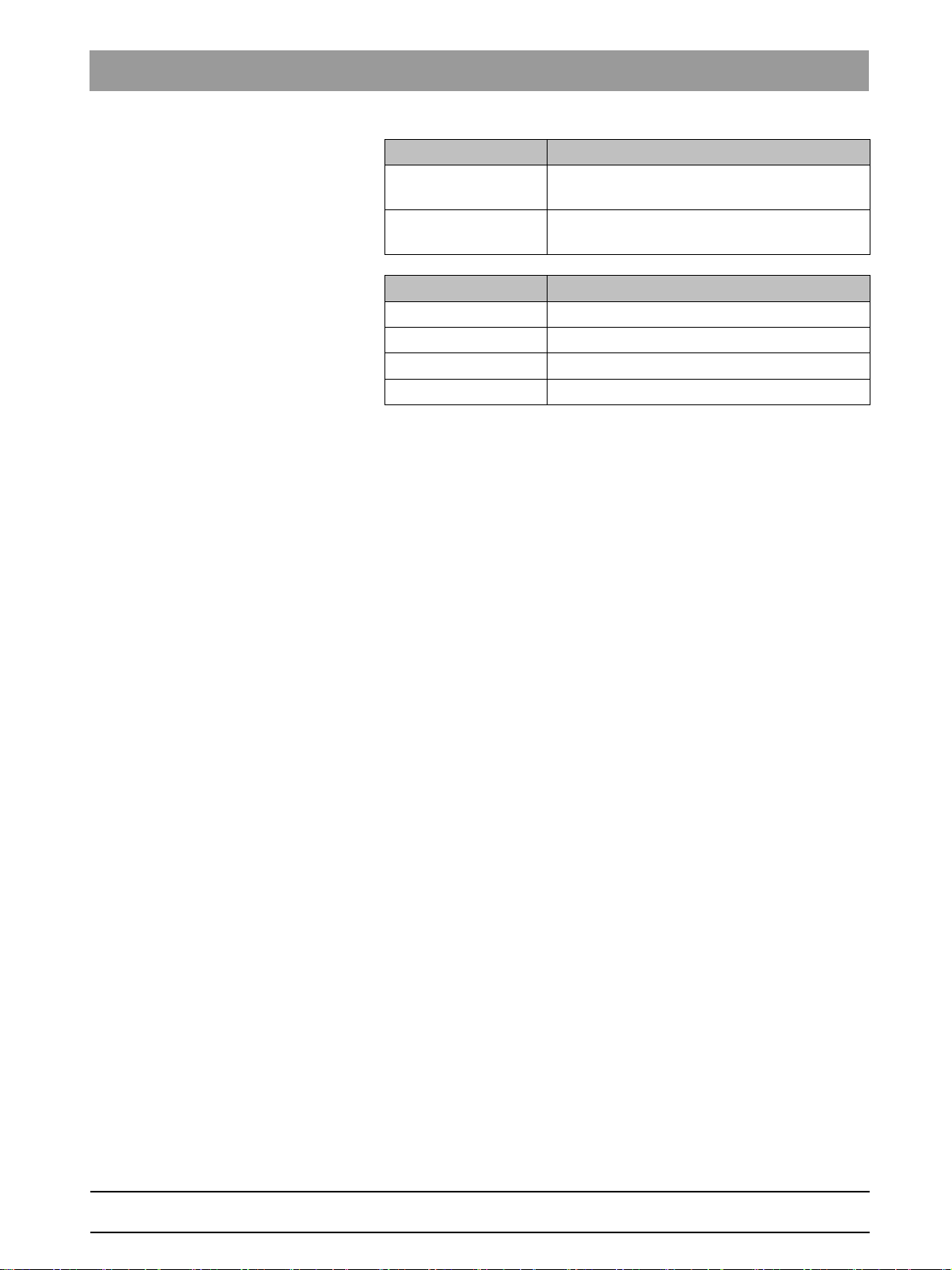
Via the directory monitoring, you can set up an automatic import of media
items from a «monitored» folder. Via the
create and delete «monitored» folders and specify which media items are
to be automatically imported with which patient assignment.
settings for directory monitoring for media imports
«File watchers»
menu, you can
«File watchers» menu
Entry fields Entry
«Name»
«Folder»
Check box Check box activated
«include subfolders»
«delete source files
after import»
Name of the practice
Any additional information
Media items that sit in subfolders of monitored
folders are also imported.
The original files are deleted in the monitored
folder after the import.
NOTE: The «deleted» files are not actually
deleted, but are moved from the import to the
«temp» folder. The temp folder must therefore
be deleted every now and then. You can
access the required directory using the
environment variable «%TMP%».
24 D3592.076.01.03.02 03.2016
64 58 983 D3592
Sirona Dental Systems GmbH 2Configuring software
Service Manual SIDEXIS 4 2.1Configuration menu
Option button Option button activated
«interactive import»
«automatic import
(background mode)»
Button Function
«Add»
«Remove»
«Icon»
Folder icon Path selection
Media items are assigned manually to patients
during imports.
The assignment of media items (tif, tiff) to
patients is done automatically through DICOM.
Add monitored folder
Delete monitored folder
Define icon for the monitored folder
bеЦдблЬ
64 58 983 D3592
D3592.076.01.03.02 03.2016
25
2Configuring software Sirona Dental Systems GmbH
2.1Configuration menu Service Manual SIDEXIS 4
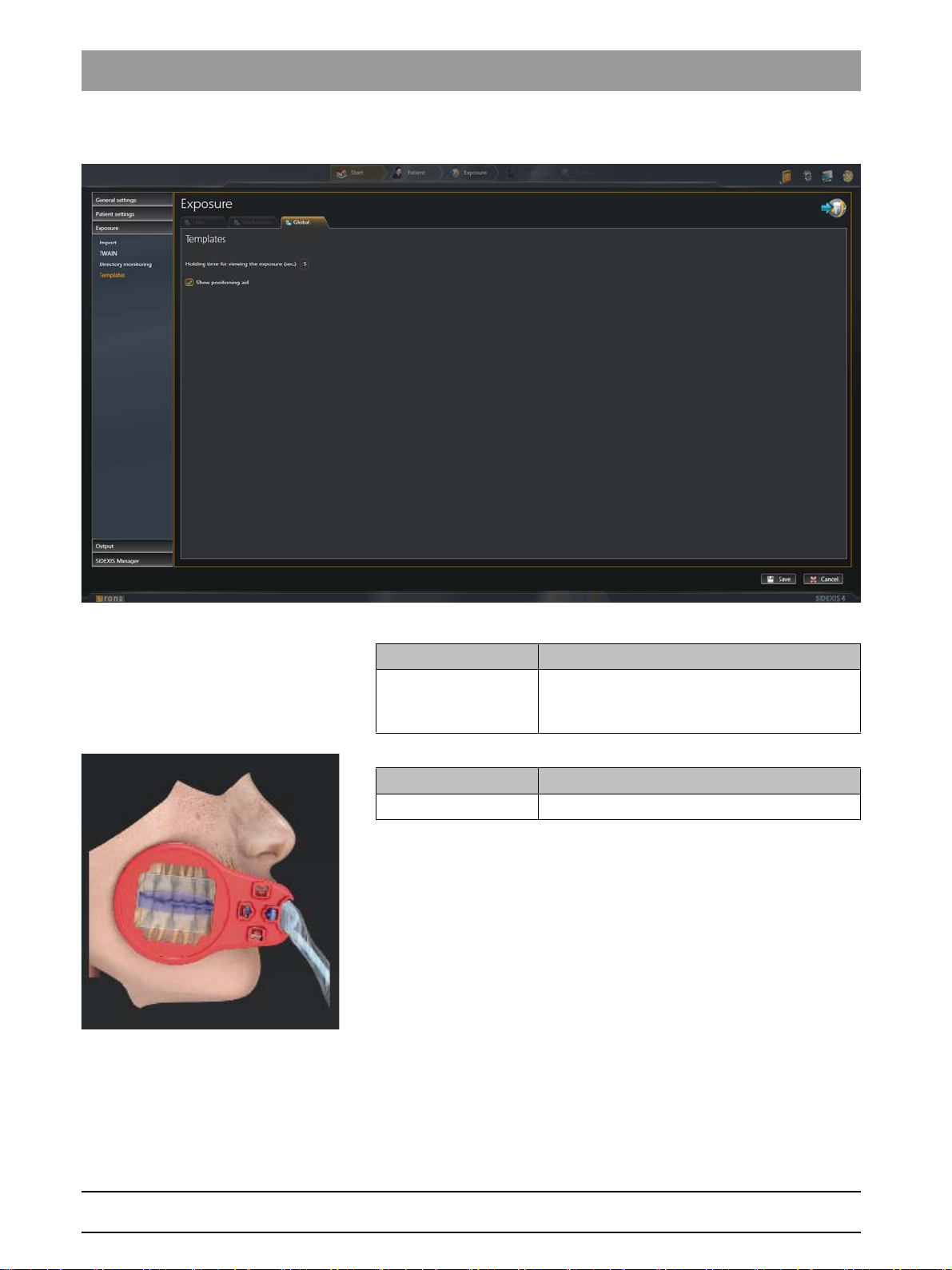
«Templates» Global
settings for the exposure series
«Templates» menu
Entry fields Entry
«Holding time for
viewing the exposure
Time interval between the exposure appearing
and the request for triggering the next exposure
(sec.)»
Check box Check box activated
«Show positioning aid»
Activate positioning aid for the exposure series
26 D3592.076.01.03.02 03.2016
64 58 983 D3592
Sirona Dental Systems GmbH 2Configuring software
Service Manual SIDEXIS 4 2.1Configuration menu
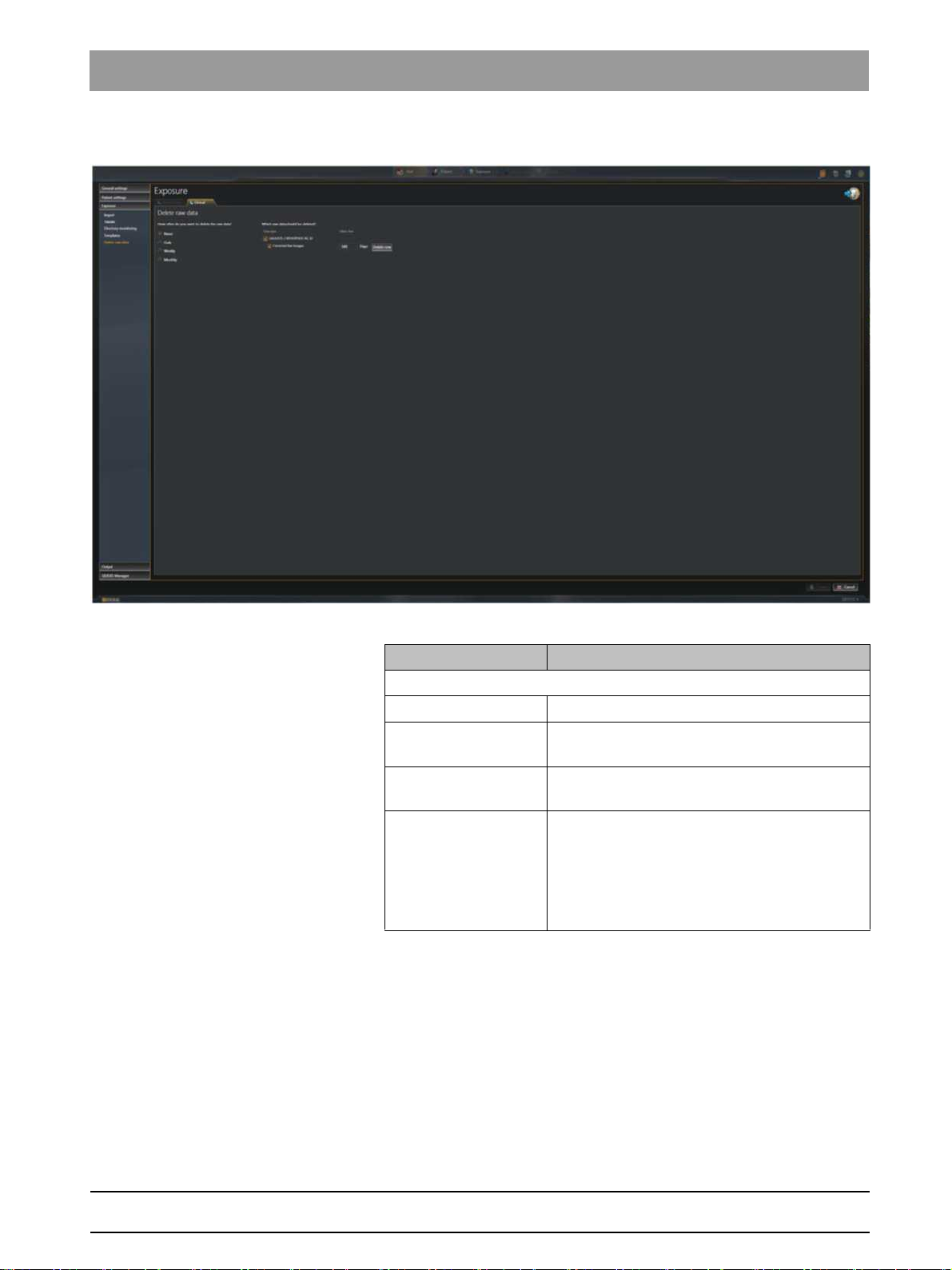
«Delete raw data» Global
settings for deleting raw data
bеЦдблЬ
«Delete raw data» menu
Option buttons Entry
Configuration of the deletion frequency
«Never»
«Daily»
«Weelky»
«Monthly»
No raw data is deleted.
Raw data is deleted daily;
time can be adjusted
Raw data is deleted weekly;
weekday and time can be adjusted
Raw data is deleted monthly;
day of the month (1-31) and time can be
adjusted
NOTE: If a month has less days than the set
day, the raw data is deleted on the last day of
the month.
64 58 983 D3592
D3592.076.01.03.02 03.2016
27
Loading…
1. Install the IOC Snapshot software. If you need a link for the download it is:
https://iocsnapshot.com/IOC_Snapshot.exe
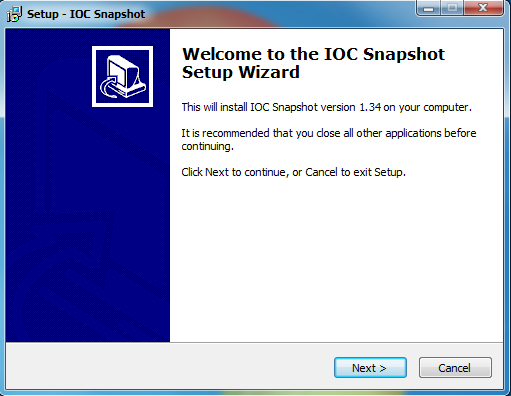
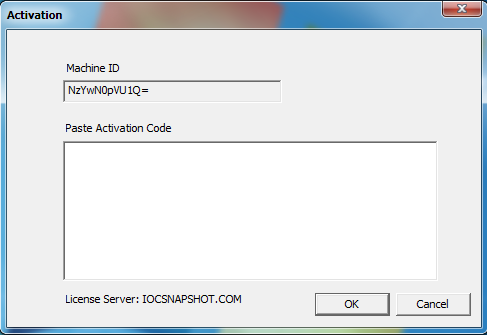
Enter in the license key when you see this window. If you would like to use a trial key, this one is good for 2 weeks.
846S-95GY-DWQ4-CU35-2YHD-H8VX-14C6-2UWZ
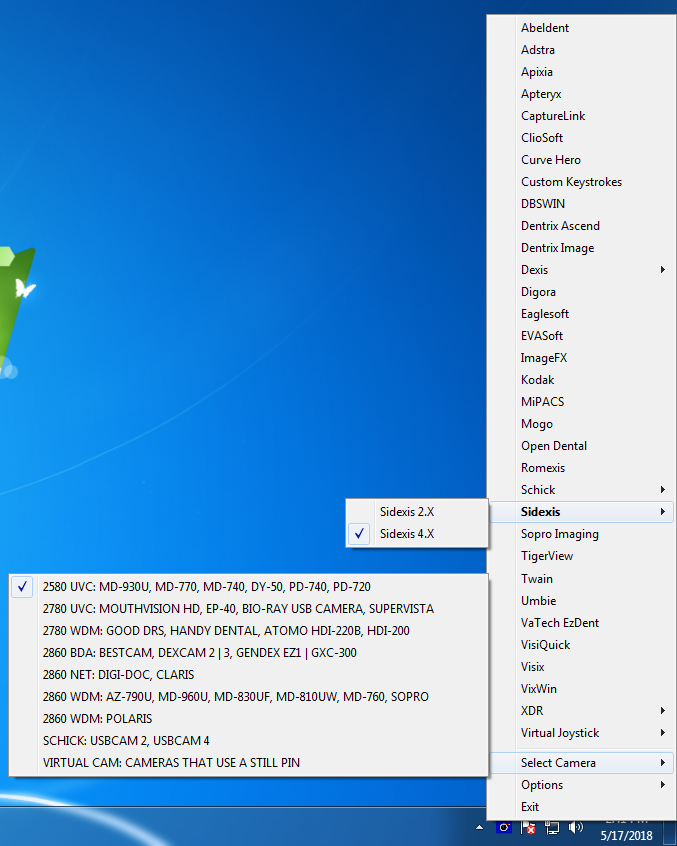
2. After the installation you will see a blue camera icon in your system tray, right click it and use your mouse to hover over Sidexis, then select Sidexis 4.X in the list of programs. Right click the blue camera again and go to Select Camera, and choose the camera you want to work with. The checkmark boxes should look similar to this:
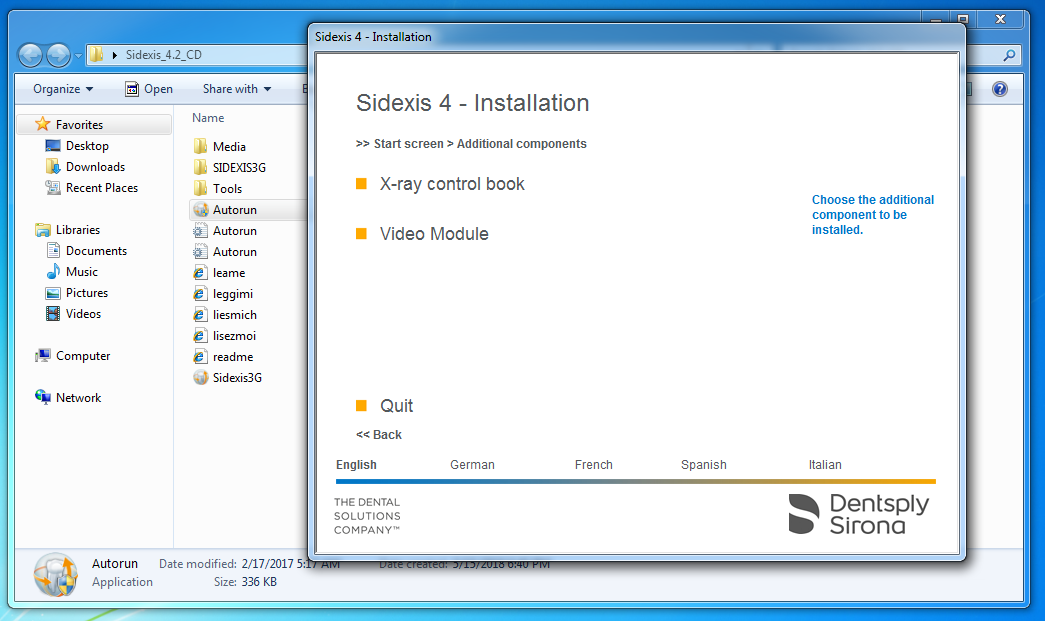
3. From the Sidexis 4.X CD, run the AutoRun program, and then click on Additional Components, then click Video Module and install the 64 bit Video Module.
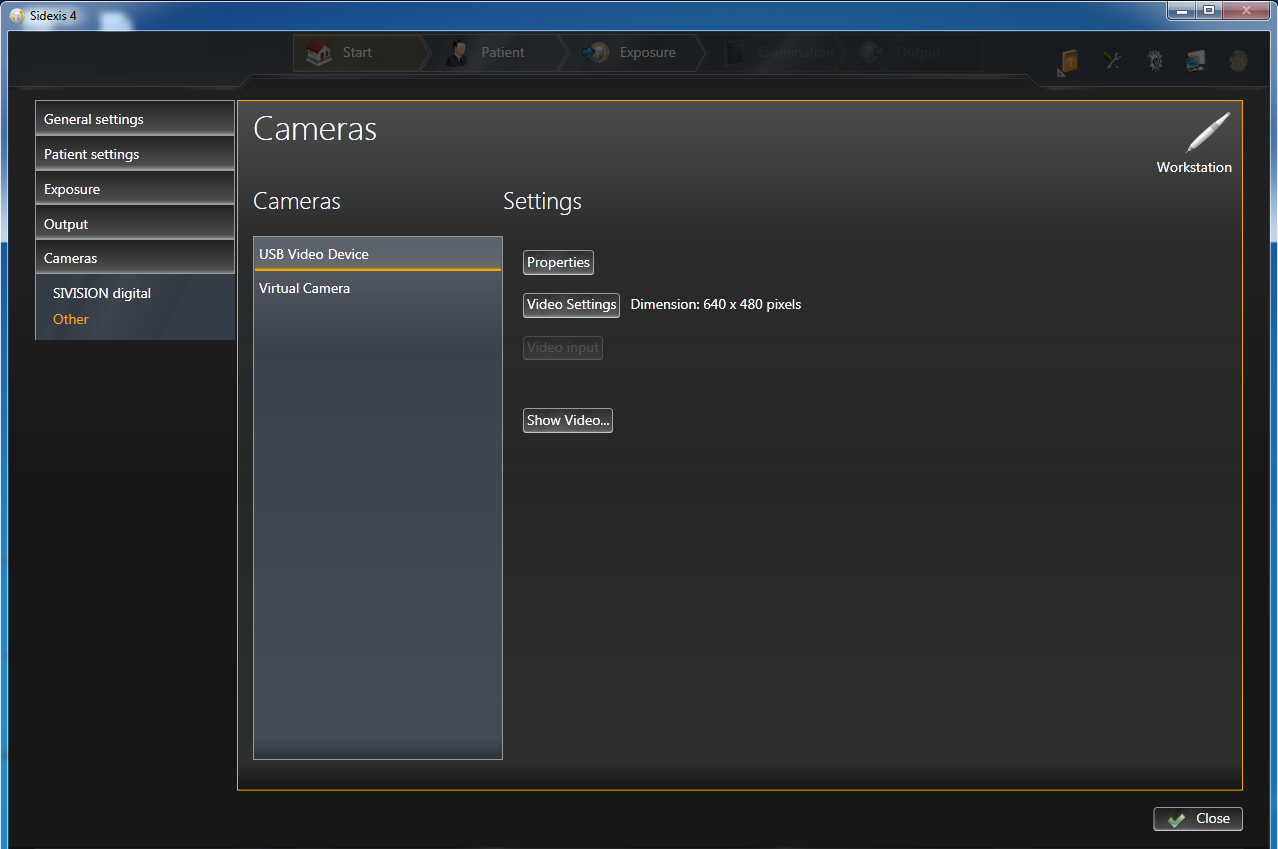
4. Open Sidexis, then click the gear in the top right of the program, then click on Cameras. Then click Other, and chose the camera you want to use. You can also use the 64 bit Virtual Camera direct show filter if you have a camera that uses a Still Pin.
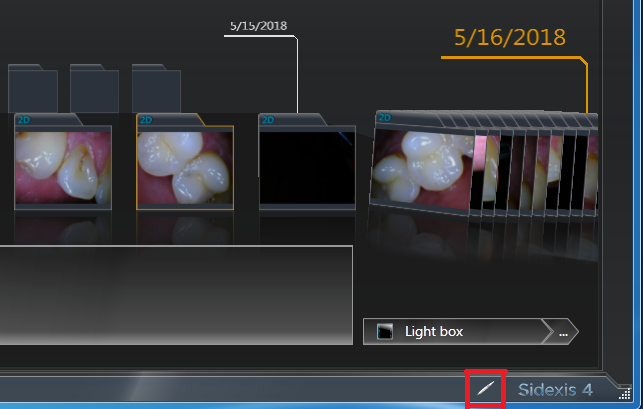
5. Open a patient in Sidexis, then click the intraoral camera icon in the bottom right corner of the program.
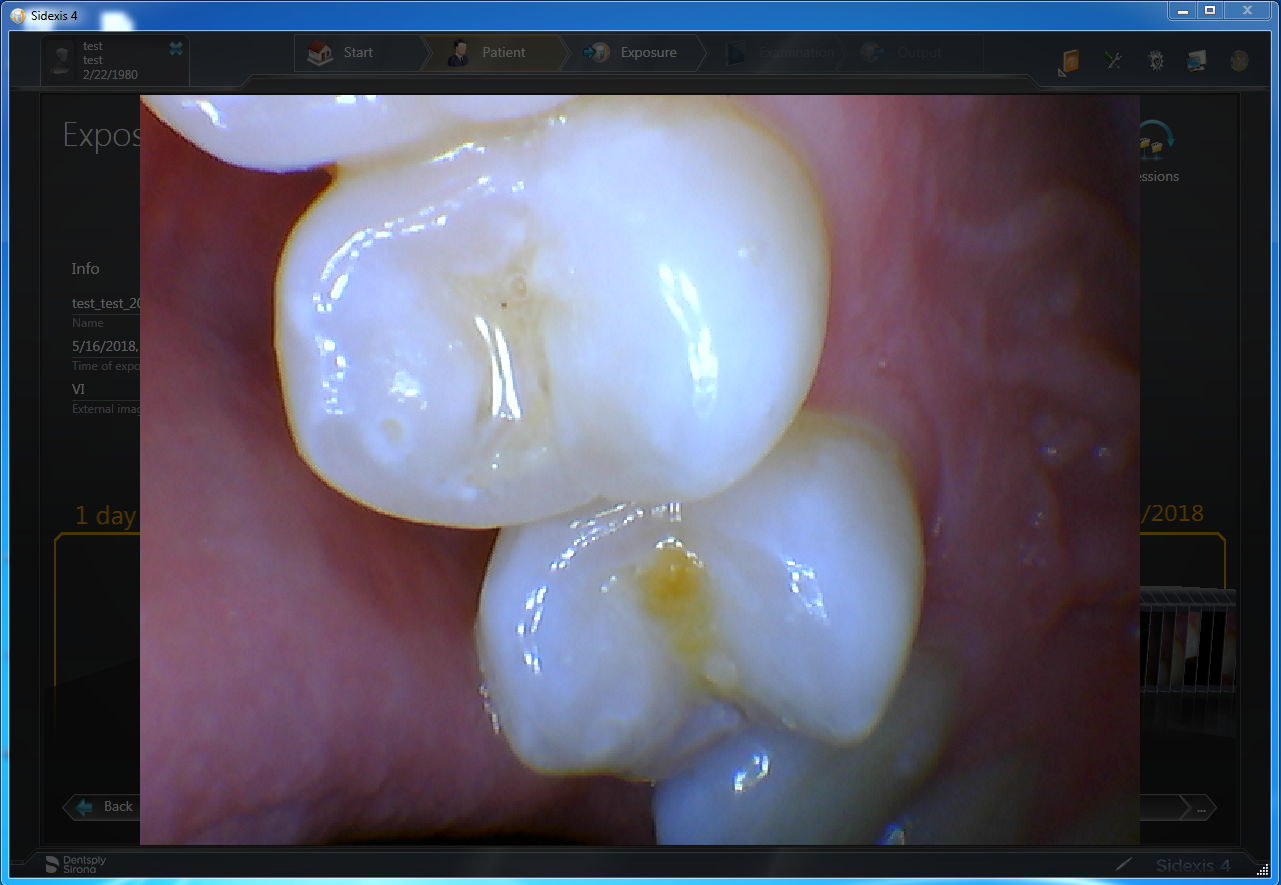
6. Now you may take images with your camera, including the capture button, when you are finished taking images press the escape key on the keyboard. All finished!
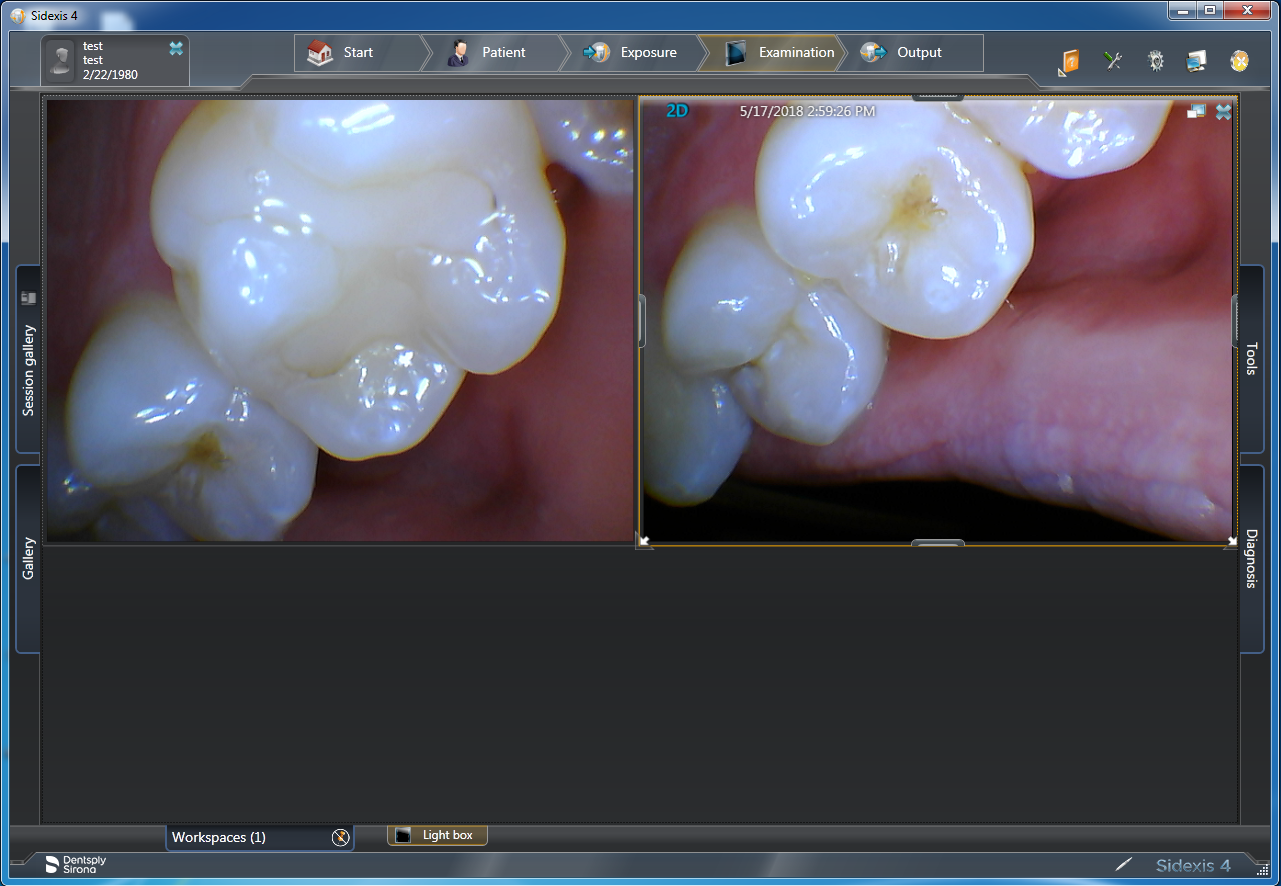
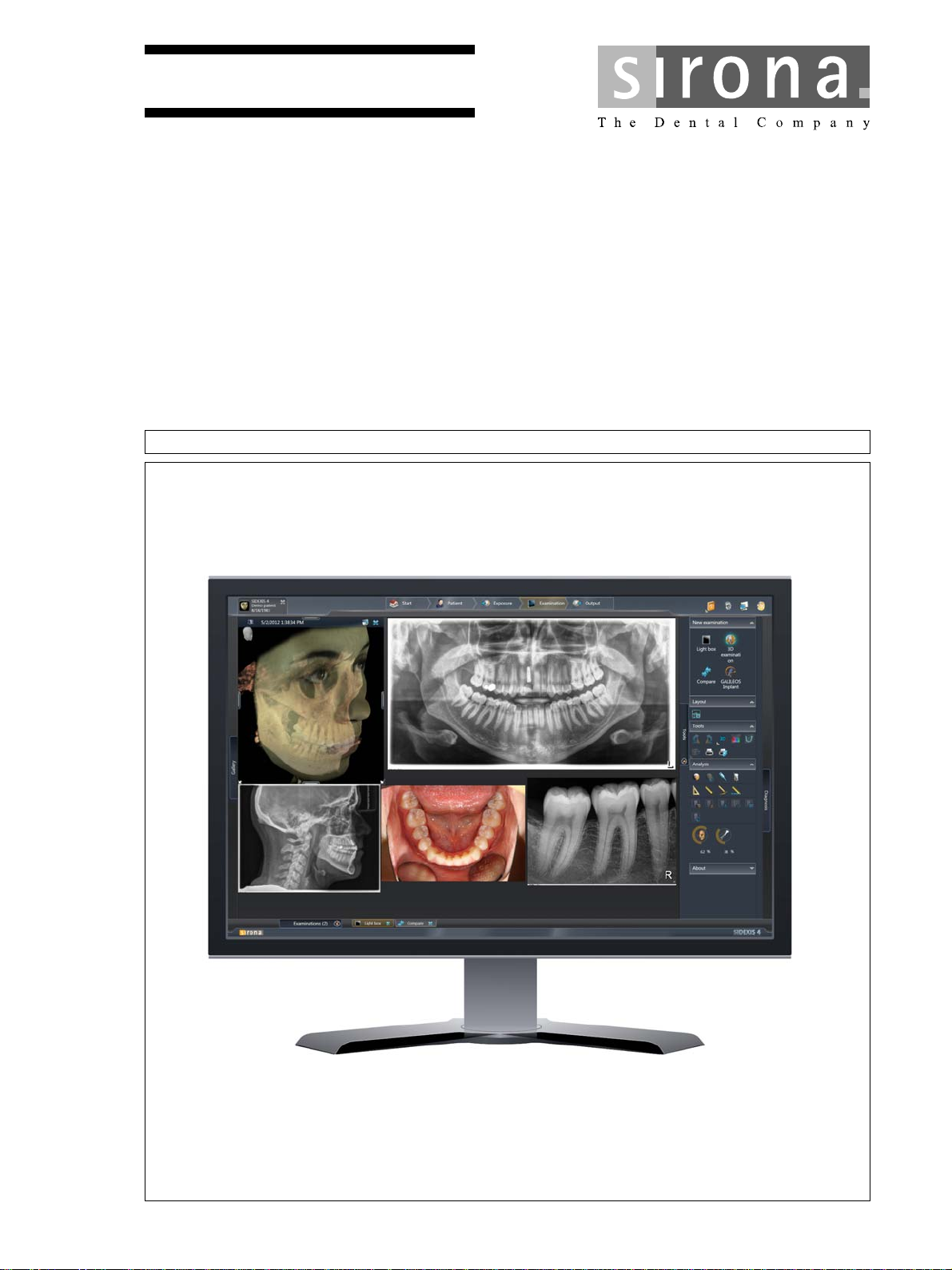
Sidexis 4 предоставляет ряд важных функций для съемки пациента, управления изображениями, анализа, диагностики, консультации и простой передачи изображений. Наиболее часто используемые инструменты выделены и их легко найти, что позволяет вам работать интуитивно.
Sidexis 4 – это программное обеспечение для точной диагностики. Благодаря своему современному и интуитивному интерфейсу Sidexis 4 эффективно структурирует рабочий процесс и служит основой для диагностики и планирования дальнейшего лечения.
Теперь у вас есть все необходимое для эффективной работы. Для достижения оптимальных результатов с помощью Sidexis 4 используйте преимущества интегрированных стоматологических рабочих процессов. Программное обеспечение для получения и обработки рентгеновских снимков экономит время, абсолютно безопасно и улучшает результаты лечения. Отмеченный наградами современный пользовательский интерфейс делает его невероятно простым в управлении. Sidexis 4 предоставляет ряд важных функций для съемки пациента, управления изображениями, анализа, диагностики, консультации и простой передачи изображений. Наиболее часто используемые инструменты выделены и их легко найти, что позволяет вам работать интуитивно.
- Интегрированные рабочие процессы, открывающие новые возможности для расширения спектра услуг
Используя Sidexis 4 в качестве ядра системы, вы имеете дело с интегрированными решениями для рабочих процессов от Dentsply Sirona, которые предоставляют возможности для имплантологии, эндодонтии, лечения апноэ сна и дисфункции ВНЧС.
- Современный дизайн упрощает интуитивное использование
Отличная структура программного обеспечения обеспечивает меньшее количество ошибок и более эффективный рабочий процесс, экономя время и деньги вашей клиники.
- Лучшая поддержка для комплексной диагностики 2D и 3D в одном окне
Выбранные исследования отображаются в окне просмотра все вместе независимо от типа, будь то 2D-, 3D- или интраоральные снимки.
- Постоянная поддержка открывает новые возможности
Частые обновления предоставляют новые функции и улучшения программного обеспечения и технологий, повышая ценность ваших рабочих процессов.