

Samsung Multifunction Xpress
C48x series
C48xW series
C48xFN series
C48xFW series
User’s Guide
User’s Guide
BASIC
BASIC
This guide provides information concerning the installation, basic operation
and troubleshooting on windows.
ADVANCED
This guide provides information about the installation, advanced configuration, operation
and troubleshooting on various OS environments.
Some features may not be available depending on models or countries.
1. Introduction
3. Maintenance
Key benefits 5
Features by model 7
Useful to know 12
About this user’s guide 13
Safety information 14
Machine overview 20
Control panel overview 24
Turning on the machine 29
Installing the driver locally 30
Reinstalling the driver 32
2. Menu Overview and Basic Setup
Menu overview 34
Machine’s basic settings 42
Ordering supplies and accessories 81
Available supplies 82
Available maintenance parts 84
Storing the toner cartridge 85
Redistributing toner 87
Replacing the toner cartridge 90
Replacing the imaging unit 92
Replacing the waste toner container 95
Monitoring the supplies life 98
Setting the toner low alert 99
Cleaning the machine 100
Tips for moving & storing your machine 105
4. Troubleshooting
Media and tray 44
Basic printing 59
Basic copying 65
Basic scanning 69
Basic faxing 71
Using USB memory device 75
Tips for avoiding paper jams 107
Clearing paper jams 108
Understanding the status LED 115
Understanding display messages 117
2
5. Appendix
Specifications 125
Regulatory information 133
Copyright 146
3

1. Introduction
This chapter provides information you need to know before using the machine.
•Key benefits 5
• Features by model 7
• Useful to know 12
• About this user’s guide 13
• Safety information 14
• Machine overview 20
• Control panel overview 24
• Turning on the machine 28
• Installing the driver locally 29
• Reinstalling the driver 31
Key benefits
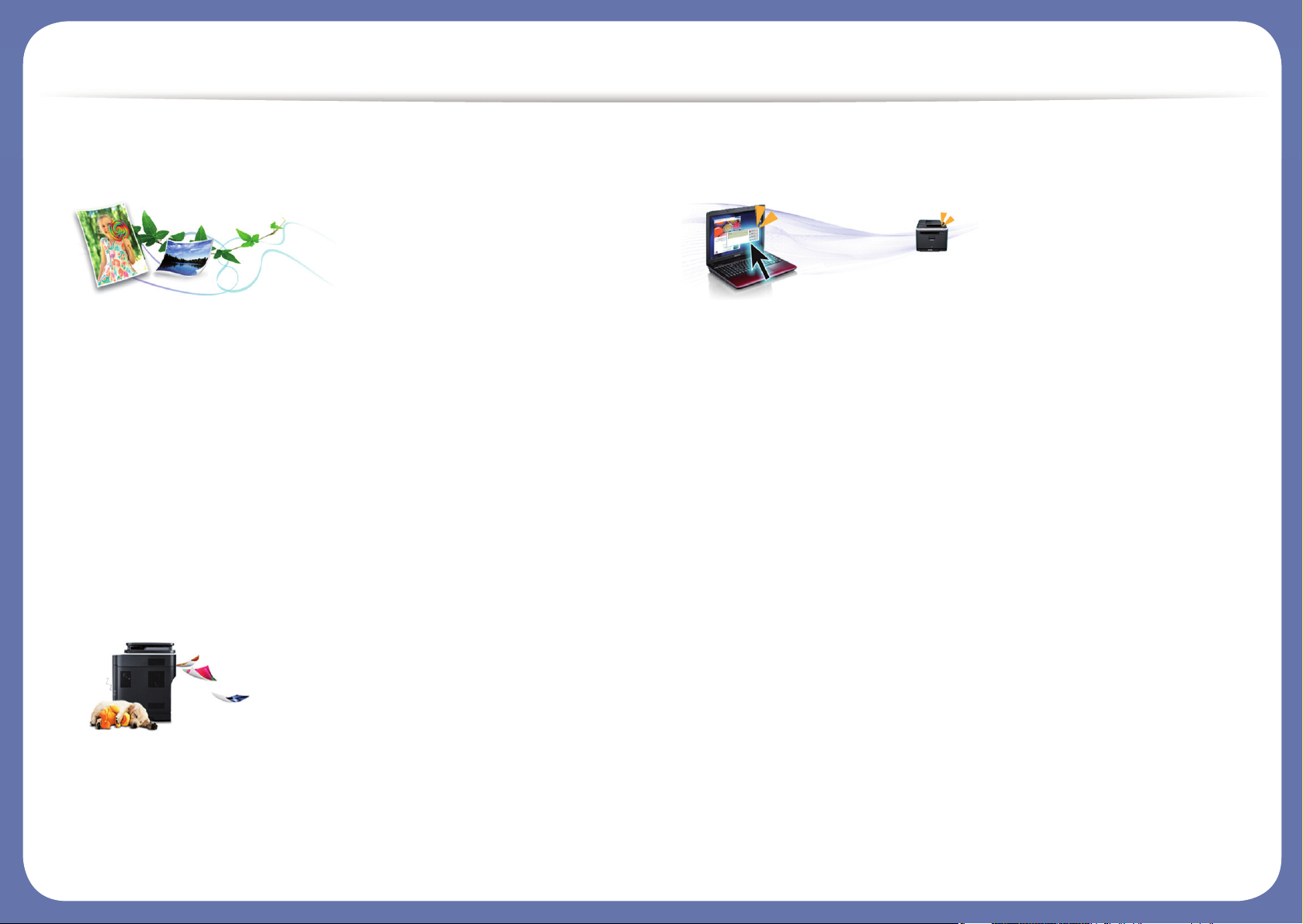
Environmentally friendly
• To save toner and paper, this machine supports Eco feature (see «Eco
printing» on page 58).
• To save paper, you can print multiple pages on one single sheet of paper
(see «Using advanced print features» on page 231).
• To save paper, you can print on both sides of the paper (double-sided
printing) (Manual) (see «Using advanced print features» on page 231).
• To save electricity, this machine automatically conserves electricity by
substantially reducing power consumption when not in use.
• We recommend using recycled paper for saving energy.
Fast high resolution printing
• You can print in a full range of colors using cyan, magenta, yellow, and black.
• You can print with a resolution of up to 2,400 x 600 dpi effective output (600
x 600 x 2 bit).
• Fast, on-demand printing.
Convenience
• Simply touch your cell phone on the NFC tag on your printer and get the
print job done (see «Using the NFC feature» on page 187).
• You can print on the go from your smartphone or computer using Samsung
Cloud Print apps (see «Samsung Cloud Print» on page 198).
• You can print on the go from your smartphone or computer using Google
Cloud Print enabled apps (see «Google Cloud Print™» on page 201).
• Easy Capture Manager allows you to easily edit and print whatever you
captured using the Print Screen key on the keyboard (see «Easy Capture
Manager» on page 259).
• Samsung Easy Printer Manager and Printing Status is a program that
monitors and informs you of the machine’s status and allows you to
customize the machine’s settings (see «Using Samsung Easy Printer
Manager» on page 268 or «Using Samsung Printer Status» on page 271).
• Samsung Easy Document Creator is an application to help users compile
and share large documents or other scanned or faxed information digitally.
(see «Using Samsung Easy Document Creator» on page 270).
• Smart Update allows you to check for the latest software and install the
latest version during the printer driver installation process. This is available
only for Windows.
• If you have Internet access, you can get help, support application, machine
drivers, manuals, and order information from the Samsung website,
www.samsung.com > find your product > Support or Downloads.

Key benefits
Wide range of functionality and application support
• Supports various paper sizes (see «Print media specifications» on page 127).
• Print watermark: You can customize your documents with words, such as
“CONFIDENTIAL” (see «Using advanced print features» on page 231).
• Print posters: The text and pictures of each page of your document are
magnified and printed across the multiple sheets of paper and can then be
taped together to form a poster (see «Using advanced print features» on
page 231).
• You can print in various operating systems (see «System requirements» on
page 130).
• Your machine is equipped with a USB interface and/or a network interface.
Supports various wireless network setting method
• Using the WPS (Wi-Fi Protected Setup™) button
— You can easily connect to a wireless network using the WPS button on
the machine and the access point (a wireless router).
• Using the USB cable or a network cable
— You can connect and set various wireless network settings using a USB
cable or a network cable.
• Using the Wi-Fi Direct
— You can conveniently print from your mobile device using the Wi-Fi or
Wi-Fi Direct feature.
See «Introducing wireless set up methods» on page 168.

Features by model
Some features and optional goods may not be available depending on model or country.
Operating System
(●: Supported, Blank: Not supported)
Operating System C48x series C48xW series C48xFN series C48xFW series
Windows ● ● ● ●
Mac ● ● ● ●
Linux ● ● ● ●

Features by model
Software
You can install the printer driver and software when you insert the software CD into your CD-ROM drive.
For Windows, select the printer driver and software in the Select Software to Install window.
Software C48x series C48xW series C48xFN series C48xFW series
SPL printer driver ● ● ● ●
PCL printer driver ● ● ● ●
PS printer driver
a
● ● ● ●
XPS printer driver
a
● ● ● ●
Samsung Easy
Printer Manager
Scan to PC settings
●
b
● ● ●
Fax to PC settings ● ●
Advanced Setting ● ● ● ●
Samsung Easy Document Creator
a
● ● ● ●
Samsung Easy Color Manager ● ● ● ●
Samsung Printer Status ● ● ● ●
Samsung Printer Center ● ● ● ●
SyncThru™ Web Service ● ● ●
Samsung Eco Driver Pack
c
● ● ● ●
Features by model
(●: Supported, Blank: Not supported)
Samsung Stylish Driver Pack
d
● ● ● ●
SyncThru™ Web Service ● ● ● ●
Fax Samsung Network PC
Fax
● ●
Scan Twain scan driver ● ● ● ●
WIA scan driver ● ● ● ●
a. Download the software from the Samsung website and install it: (http://www.samsung.com > find your product > Support or Downloads). Before installing, check whether your
computer’s OS support the software.
b. Some models do not support this feature. If this feature doesn’t appear in the menu of Samsung Easy Printer Manager, then this feature is not available on your model.
c. To use the Easy Eco Driver features, the Eco Driver Pack must be installed.
d. The printer driver includes a user interface that is optimized for touchscreens. To use this UI, click Samsung Printer Center > Device Options and then select Stylish User Interface
(see «Using Samsung Printer Center» on page 262).
Software C48x series C48xW series C48xFN series C48xFW series

Features by model
Variety feature
(●: Supported, Blank: Not supported)
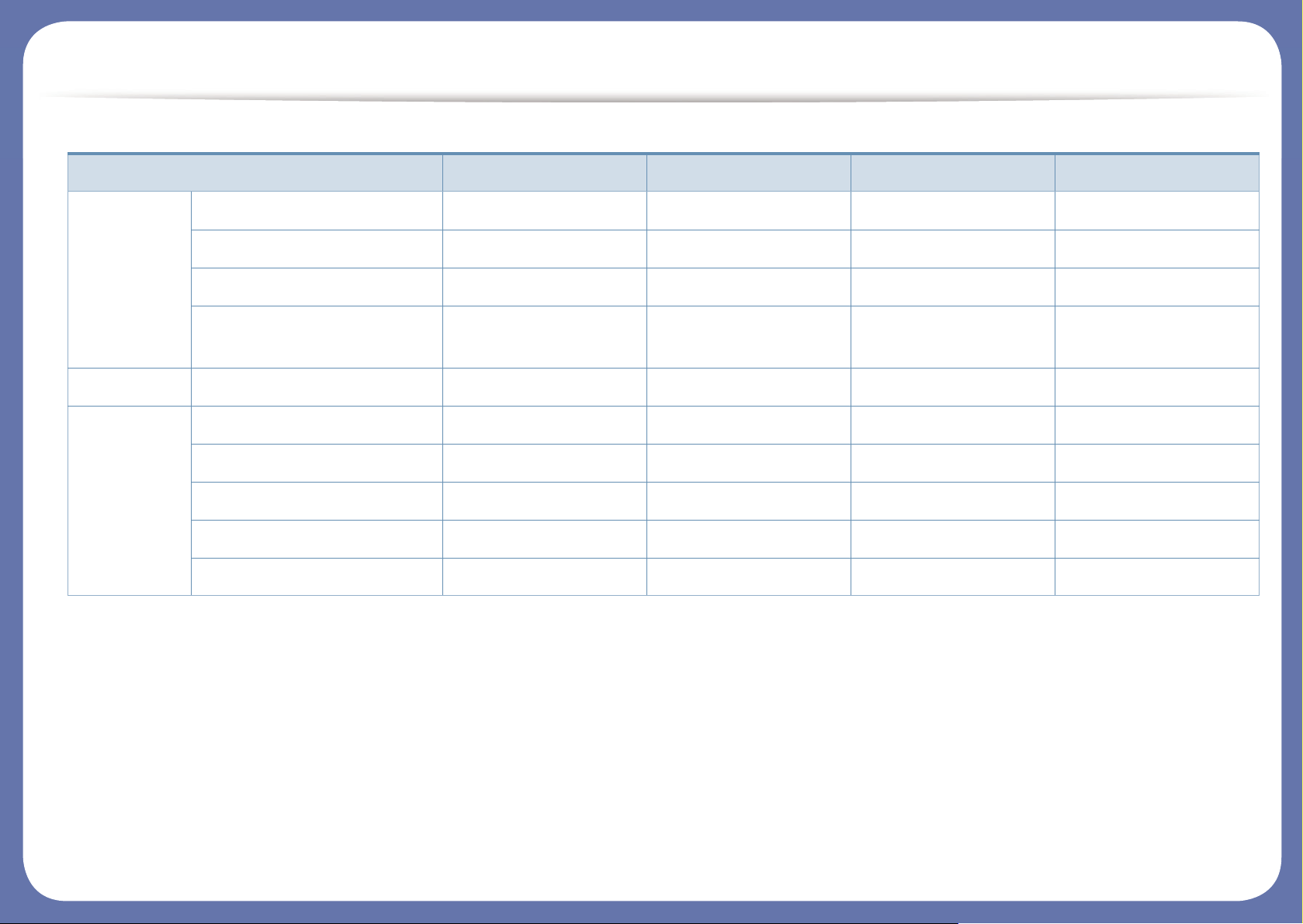
Features C48x series C48xW series C48xFN series C48xFW series
Hi-Speed USB 2.0 ● ● ● ●
Network Interface Ethernet 10/100 Base TX
wired LAN
● ● ●
Network Interface 802.11b/g/n wireless LAN
a
a. Depending on your country, wireless LAN card may not be available. For some countries, only 802.11 b/g can be applied. Contact your local Samsung dealer or the retailer where you
bought your machine.
● ●
NFC (Near Field Communication) ● ●
Mopria™ ● ● ●
Samsung Cloud Print ● ● ●
Google Cloud Print™ ● ● ●
AirPrint ● ● ●
Eco printing (Control panel) ● ● ●
Duplex (2-sided) printing (Manual)
b
b. Windows only.
● ● ● ●
USB memory interface ● ● ●
Automatic Document Feeder (ADF) ● ●
Features by model
(●: Supported, Blank: Not supported)
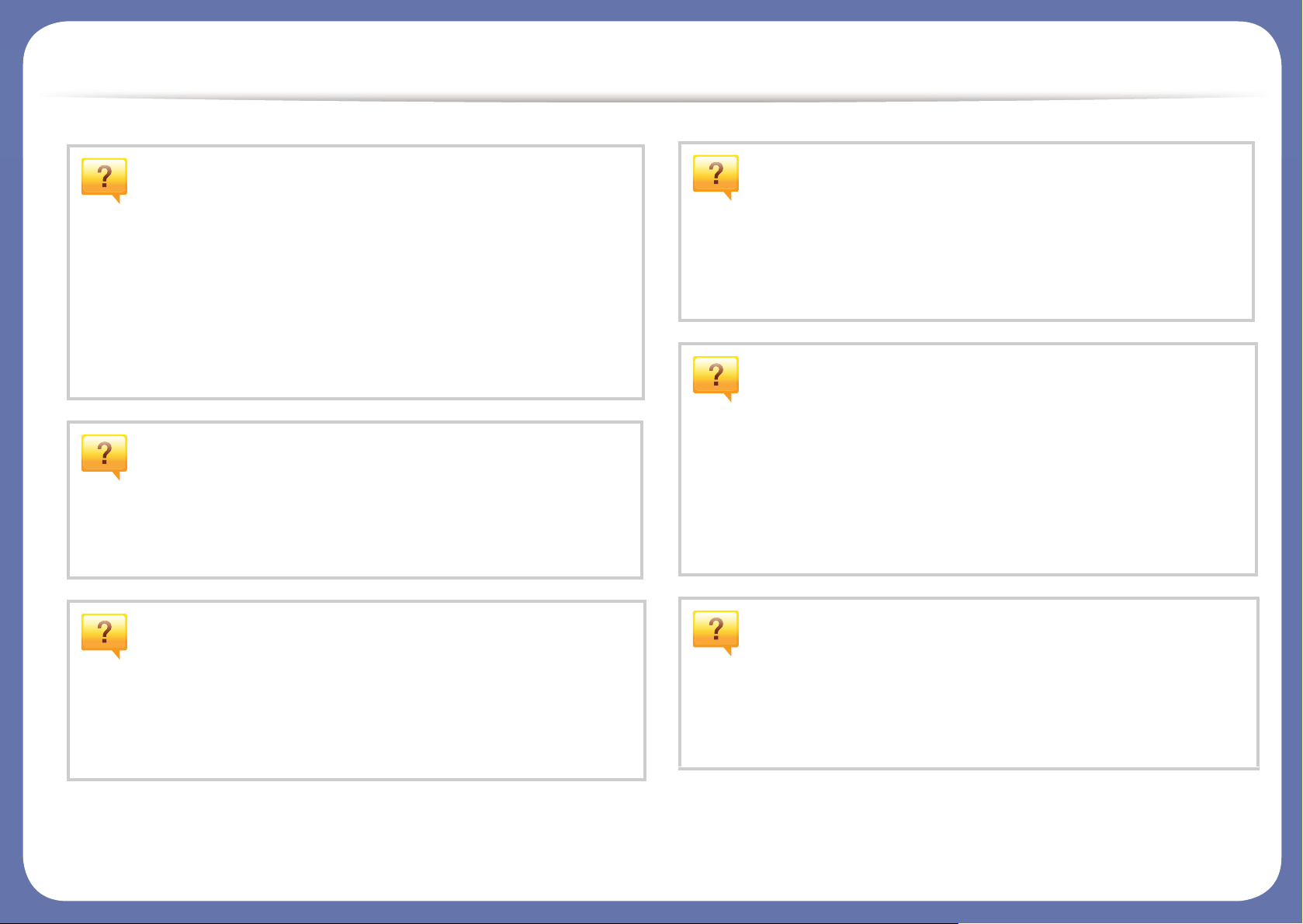
Features C48x series C48xW series C48xFN series C48xFW series
Fax Multi-send ● ●
Delay send ● ●
Secure receive ● ●
Send/ Receive forward — fax/
Email
● ●
Scan Scan to PC ● ● ●
Copy ID card copying ● ● ● ●
Reduced or enlarged copying ● ● ● ●
Collation ● ● ● ●
2-up/4-up ● ● ● ●
Adjust background ● ● ● ●
Useful to know
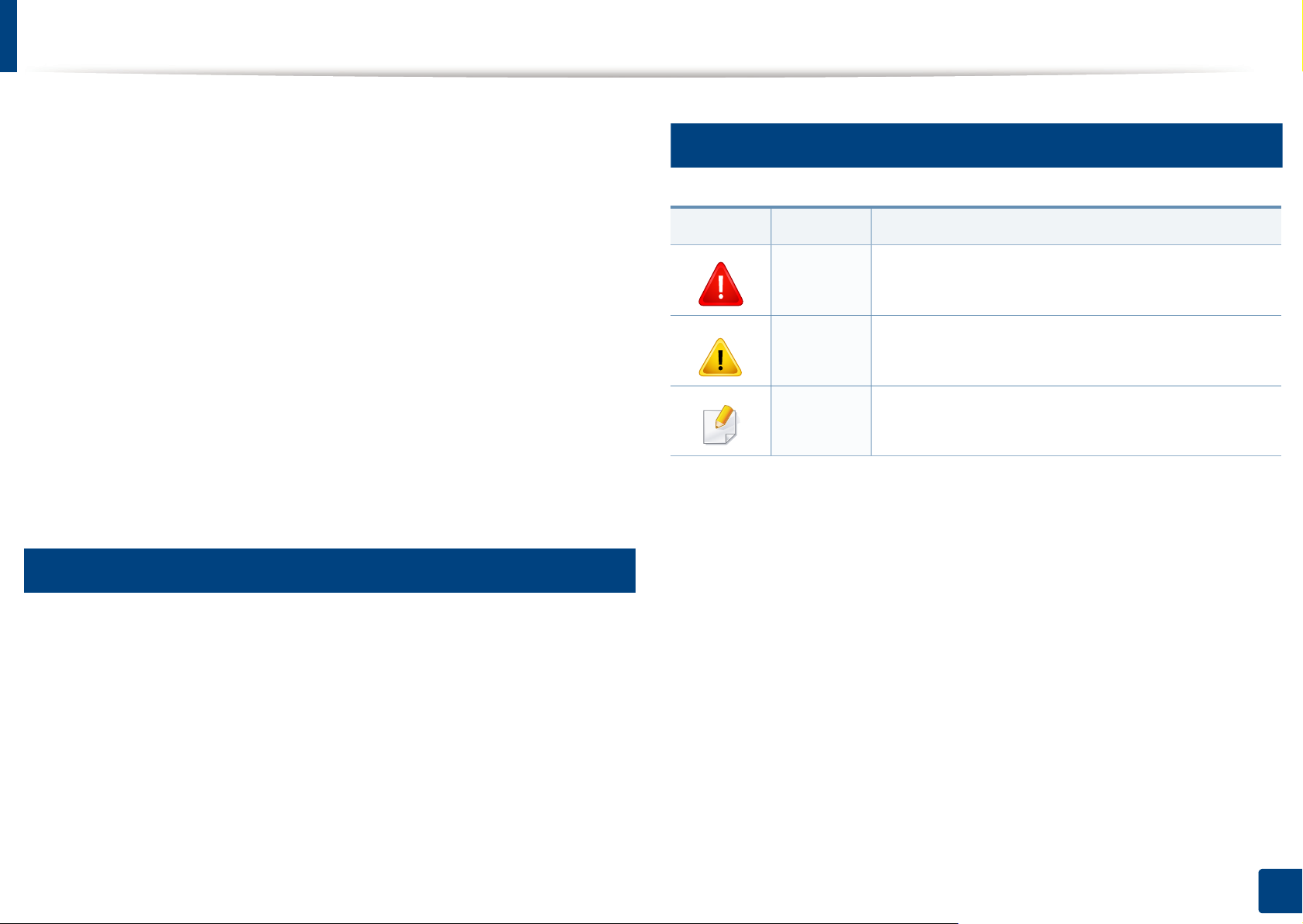
The machine does not print.
• Open the print queue list and remove the document from the
list (see «Canceling a print job» on page 55).
• Remove the driver and install it again (see «Installing the driver
locally» on page 29).
• Select your machine as your default machine in your Windows
(see «Setting your machine as a default machine» on page
230).
Where can I purchase accessories or supplies?
• Inquire at a Samsung distributor or your retailer.
• Visit www.samsung.com/supplies. Select your country/region
to view product service information.
A paper jam has occurred.
• Open and close the cover (see «Front view» on page 21).
• Check the instructions on removing jammed paper in this
manual and troubleshoot accordingly (see «Clearing paper
jams» on page 108).
Printouts are blurry.
• The toner level might be low or uneven. Shake the toner
cartridge (see «Redistributing toner» on page 85).
• Try a different print resolution setting (see «Opening printing
preferences» on page 56).
• Replace the toner cartridge (see «Replacing the toner
cartridge» on page 87).
The status LED flashes or remains constantly on.
• Turn the product off and on again.
• Check the meanings of LED indications in this manual and
troubleshoot accordingly (see «Understanding the status LED»
on page 115).
Where can I download the machine’s driver?
• You can get help, support application, machine drivers,
manuals, and order information from the Samsung website,
www.samsung.com > find your product > Support or
Downloads.
About this user’s guide
This user’s guide provides information for your basic understanding of the
machine as well as detailed steps to explain machine usage.
• Do not discard this manual, and keep it for future reference.
• Read the safety information before using the machine.
• If you have a problem using the machine, refer to the troubleshooting
chapter.
• Terms used in this user’s guide are explained in the glossary chapter.
• All illustrations in this user’s guide may differ from your machine depending
on its options or model you purchased.
• The screenshots in this administrator’s guide may differ from your machine
depending on the machine’s firmware/driver version.
• The procedures in this user’s guide are mainly based on Windows 7.
1
2
General icons
Icon Text Description
Used to alert users to the possibility of personal injury.
Warning
Gives users information to protect the machine from
Caution
Note
possible mechanical damage or malfunction.
Provides additional information or detailed
specification of the machine function and feature.
Conventions
Some terms in this guide are used interchangeably, as below:
• Document is synonymous with original.
• Paper is synonymous with media, or print media.
• Machine refers to printer or MFP.
1. Introduction
13
Safety information
These warnings and precautions are included to prevent injury to you and
others, and to prevent any potential damage to your machine. Be sure to read
and understand all of these instructions before using the machine. After reading
this section, keep it in a safe place for future reference.
3
Important safety symbols
Explanation of all icons and signs used in this chapter
Warning
Caution
Hazards or unsafe practices that may result in severe
personal injury or death.
Hazards or unsafe practices that may result in minor
personal injury or property damage.
4
Operating environment
Warning
Do not use if the power cord is damaged or if the electrical outlet is
not grounded.
This could result in electric shock or fire.
Do not place anything on top of the machine (water, small metal or
heavy objects, candles, lit cigarettes, etc.).
This could result in electric shock or fire.
• If the machine gets overheated, it releases smoke, makes
strange noises, or generates an odd odor, immediately turn off
the power switch and unplug the machine.
Do not attempt.
• The user should be able to access the power outlet in case of
emergencies that might require the user to pull the plug out.
This could result in electric shock or fire.
Do not bend, or place heavy objects on the power cord.
Stepping on or allowing the power cord to be crushed by a heavy
object could result in electric shock or fire.
Do not remove the plug by pulling on the cord; do not handle the
plug with wet hands.
This could result in electric shock or fire.
1. Introduction
14

Safety information
5
Caution
During an electrical storm or for a period of non-operation,
remove the power plug from the electrical outlet.
This could result in electric shock or fire.
Be careful, the paper output area is hot.
Burns could occur.
If the machine has been dropped, or if the cabinet appears
damaged, unplug the machine from all interface connections and
request assistance from qualified service personnel.
Otherwise, this could result in electric shock or fire.
If the machine does not operate properly after these instructions
have been followed, unplug the machine from all interface
connections and request assistance from qualified service
personnel.
Otherwise, this could result in electric shock or fire.
Operating method
Caution
Do not forcefully pull the paper out during printing.
It can cause damage to the machine.
Be careful not to put your hand between the machine and paper
tray.
You may get injured.
Be care when replacing paper or removing jammed paper.
New paper has sharp edges and can cause painful cuts.
When printing large quantities, the bottom part of the paper
output area may get hot. Do not allow children to touch.
If the plug does not easily enter the electrical outlet, do not
attempt to force it in.
Call an electrician to change the electrical outlet, or this could
result in electric shock.
Do not allow pets to chew on the AC power, telephone or PC
interface cords.
This could result in electric shock or fire and/or injury to your pet.
Burns can occur.
When r emov ing j amme d pap er, d o not use t weez ers o r sha rp m etal
objects.
It can damage the machine.
Do not allow too many papers to stack up in the paper output tray.
It can damage the machine.
1. Introduction
15
Safety information
Do not block or push objects into the ventilation opening.
This could result in elevated component temperatures which can
cause damage or fire.
Use of controls or adjustments or performance of procedures other
than those specified herein may result in hazardous radiation
exposure.
This machine’s power reception device is the power cord.
To switch off the power supply, remove the power cord from the
electrical outlet.
6
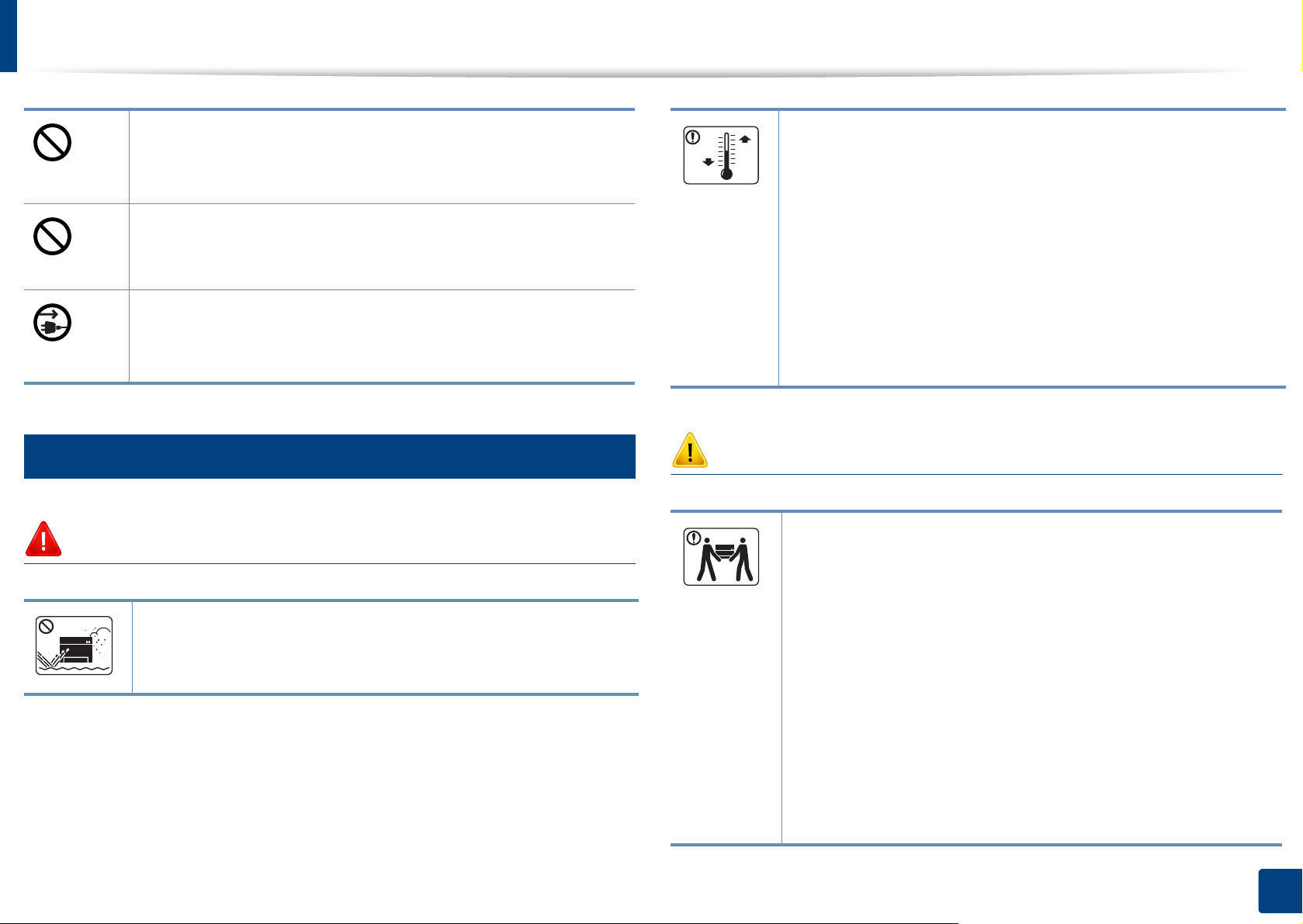
Installation / Moving
Warning
Do not place the machine in an area with dust, humidity, or water
leaks.
This could result in electric shock or fire.
Place the machine in the environment where it meets the
operating temperature and humidity specification.
Do not use the machine when it is below freezing temperature or
has recently been moved from a location below freezing
temperature. Doing so may damage the machine. Only operate the
machine when the internal temperature of the machine is within
the operating temperature and humidity specifications.
Otherwise, quality problems can occur and cause damage to the
machine.
See «General specifications» on page 125.
Caution
Before moving the machine, turn the power off and disconnect all
cords. The information below are only suggestions based on the
units weight.If you have a medical condition that prevents you
from lifting, do not lift the machine. Ask for help, and always use
the appropriate amount of people to lift the device safely.
Then lift the machine:
• If the machine weighs under 20 kg (44.09 lbs), lift with 1 person.
• If the machine weighs 20 kg (44.09 lbs) — 40kg (88.18 lbs), lift
with 2 people.
• If the machine weighs more than 40 kg (88.18 lbs), lift with 4 or
more people.
The machine could fall, causing injury or machine damage.
1. Introduction
16

Safety information
Choose a flat surface with enough space for ventilation to place
the machine. Also consider the space required to open the cover
and trays.
The place should be well-ventilated and be far from direct light,
heat, and humidity.
When using the machine for a long period of time or printing a
large number of pages in a non-ventilated space, it could pollute
the air and be harmful to your health. Place the machine in a wellventilated space or open a window to circulate the air periodically.
Do not place the machine on an unstable surface.
The machine could fall, causing injury or machine damage.
Use only No.26 AWG
Otherwise, it can cause damage to the machine.
Make sure you plug the power cord into a grounded electrical
outlet.
a
or larger, telephone line cord, if necessary.
Do not put a cover over the machine or place it in an airtight
location, such as a closet.
If the machine is not well-ventilated, this could result in fire.
Do not overload wall outlets and extension cords.
This can diminish performance, and could result in electric shock
or fire.
The machine should be connected tothe power level which is
specified on the label.
If you are unsure and want to check the power level you are using,
contact the electrical utility company.
a. AWG: American Wire Gauge
7
Maintenance / Checking
Otherwise, this could result in electric shock or fire.
Use the power cord supplied with your machine for safe
operation. If you are using a cord which is longer than 2 meters (6
feet) with a 110V machine, then the gauge should be 16 AWG or
larger.
Otherwise, it can cause damage to the machine, and could result
in electric shock or fire.
Caution
Unplug this product from the wall outlet before cleaning the
inside of the machine. Do not clean the machine with benzene,
paint thinner or alcohol; do not spray water directly into the
machine.
This could result in electric shock or fire.
1. Introduction
17

Safety information
When you are working inside the machine replacing supplies or
cleaning the inside, do not operate the machine.
You could get injured.
8
Supply usage
Keep cleaning supplies away from children.
Children could get hurt.
Do not disassemble, repair or rebuild the machine by yourself.
It can damage the machine. Call a certified technician when the
machine needs repairing.
To clean and operate the machine, strictly follow the user’s guide
provided with the machine.
Otherwise, you could damage the machine.
Keep the power cable and the contact surface of the plug clean
from dust or water.
Otherwise, this could result in electric shock or fire.
• Do not remove any covers or guards that are fastened with
screws.
• Fuser units should only be repaired by a certified service
technician. Repair by non-certified technicians could result in
fire or electric shock.
• The machine should only be repaired by a Samsung service
technician.
Caution
Do not disassemble the toner cartridge.
Toner dust can be dangerous if inhaled or ingested.
Do not burn any of the supplies such as toner cartridge or fuser
unit.
This could cause an explosion or uncontrollable fire.
When storing supplies such as toner cartridges, keep them away
from children.
Toner dust can be dangerous if inhaled or ingested.
For supplies that contain toner dust (toner cartridge, waste toner
bottle, imaging unit, etc.) follow the instructions below.
• When disposing of the supplies, follow the instructions for
disposal. Refer to the reseller for disposal instructions.
• Do not wash the supplies.
• For a waste toner bottle, do not reuse it after emptying the
bottle.
If you do not follow the instructions above, it may cause machine
malfunction and environmental pollution. The warranty does not
cover damages caused by a user’s carelessness.
1. Introduction
18
Safety information
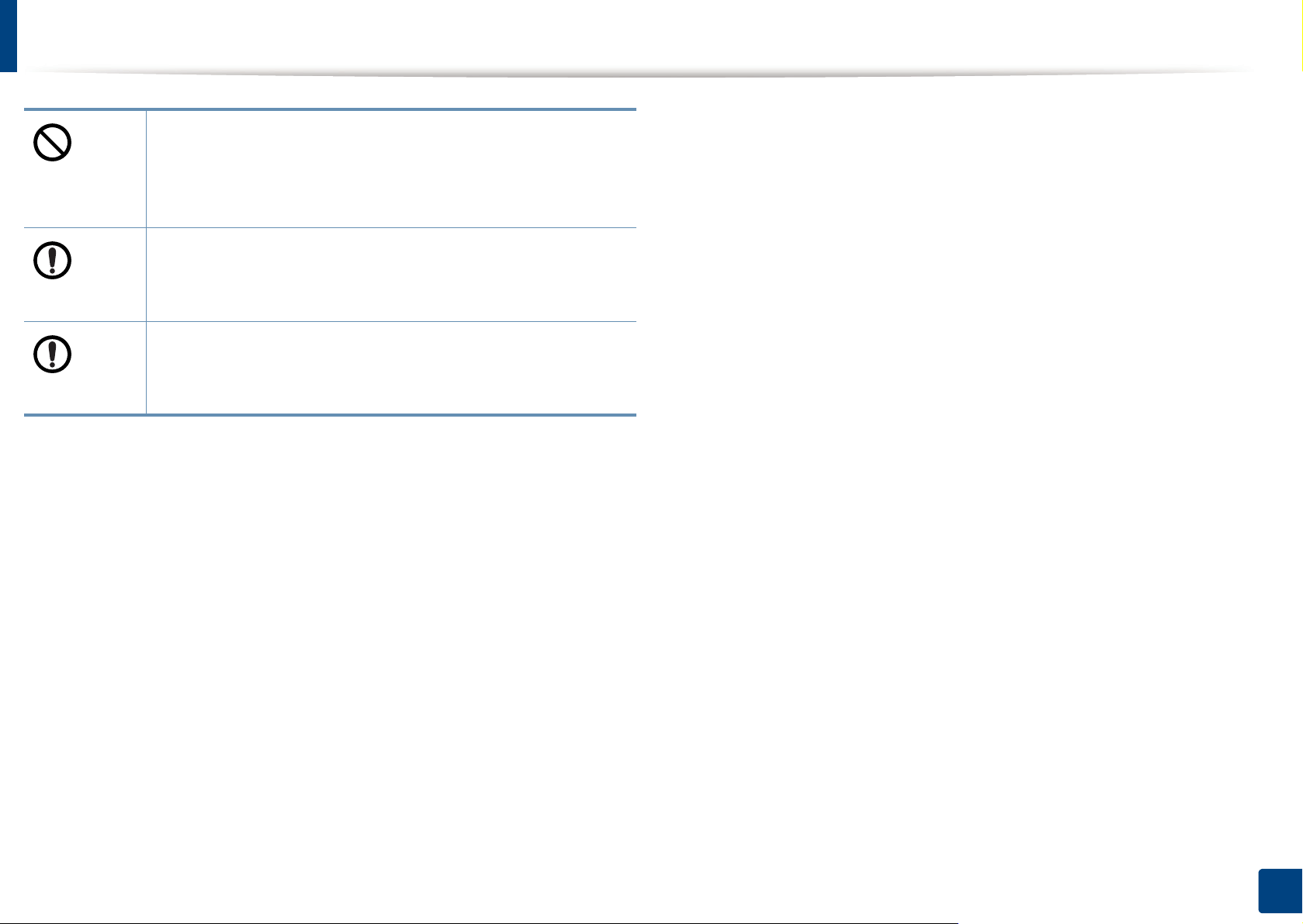
Using recycled supplies, such as toner, can cause damage to the
machine.
In case of damage due to the use of recycled supplies, a service
fee will be charged.
When toner gets on your clothing, do not use hot water to wash
it.
Hot water sets toner into fabric. Use cold water.
When changing the toner cartridge or removing jammed paper,
be careful not to let toner dust touch your body or clothes.
Toner dust can be dangerous if inhaled or ingested.
1. Introduction
19
Machine overview
9
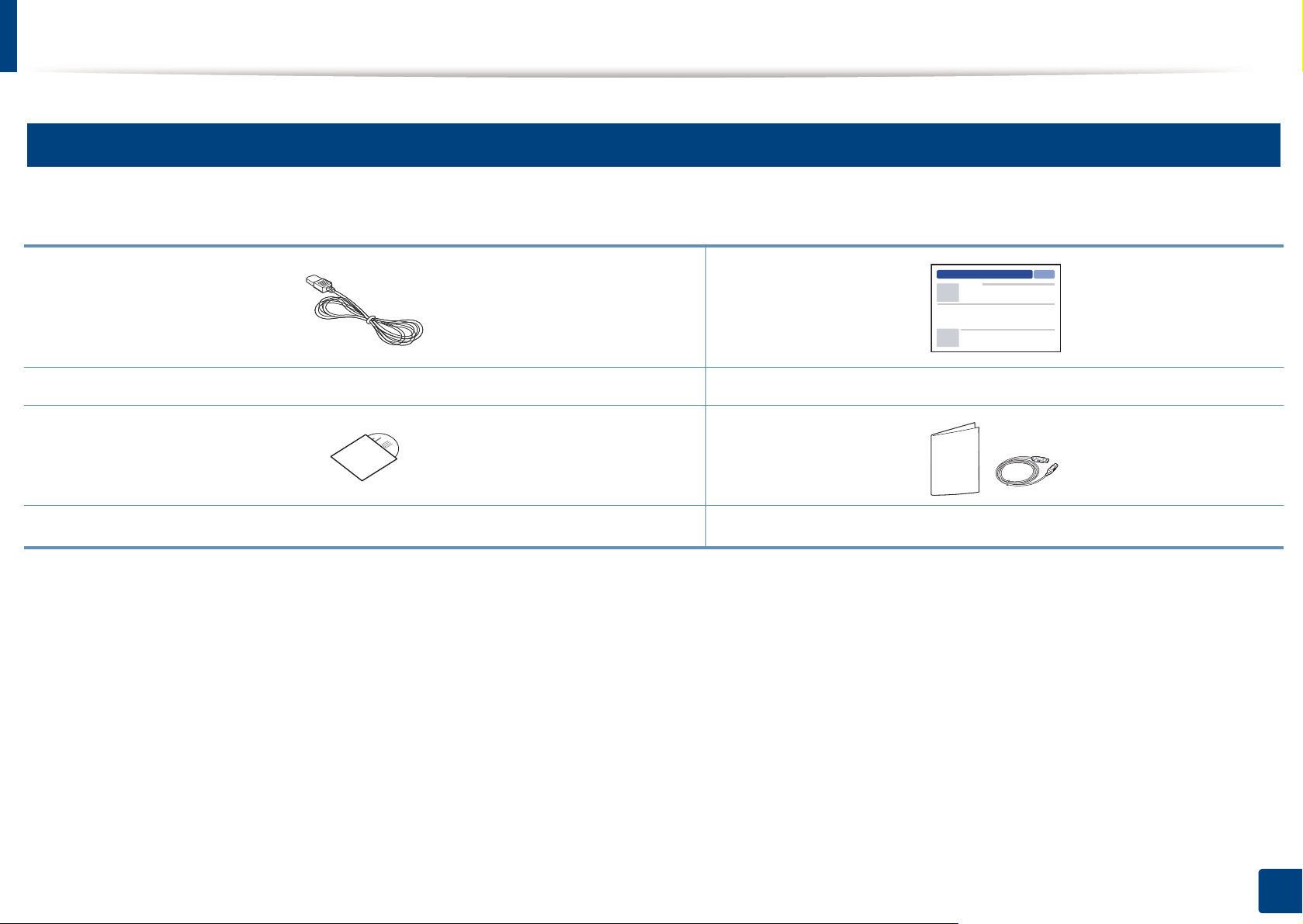
Components
The actual component may differ from the illustration below. Some components may change depending on the configuration.
Power cord Quick installation guide
Software CD
a. The software CD contains the print drivers, user’s guide, and software applications.
b. Miscellaneous accessories included with your machine may vary by country of purchase and specific model.
a
Misc. accessories
b
1. Introduction
20

Machine overview
10
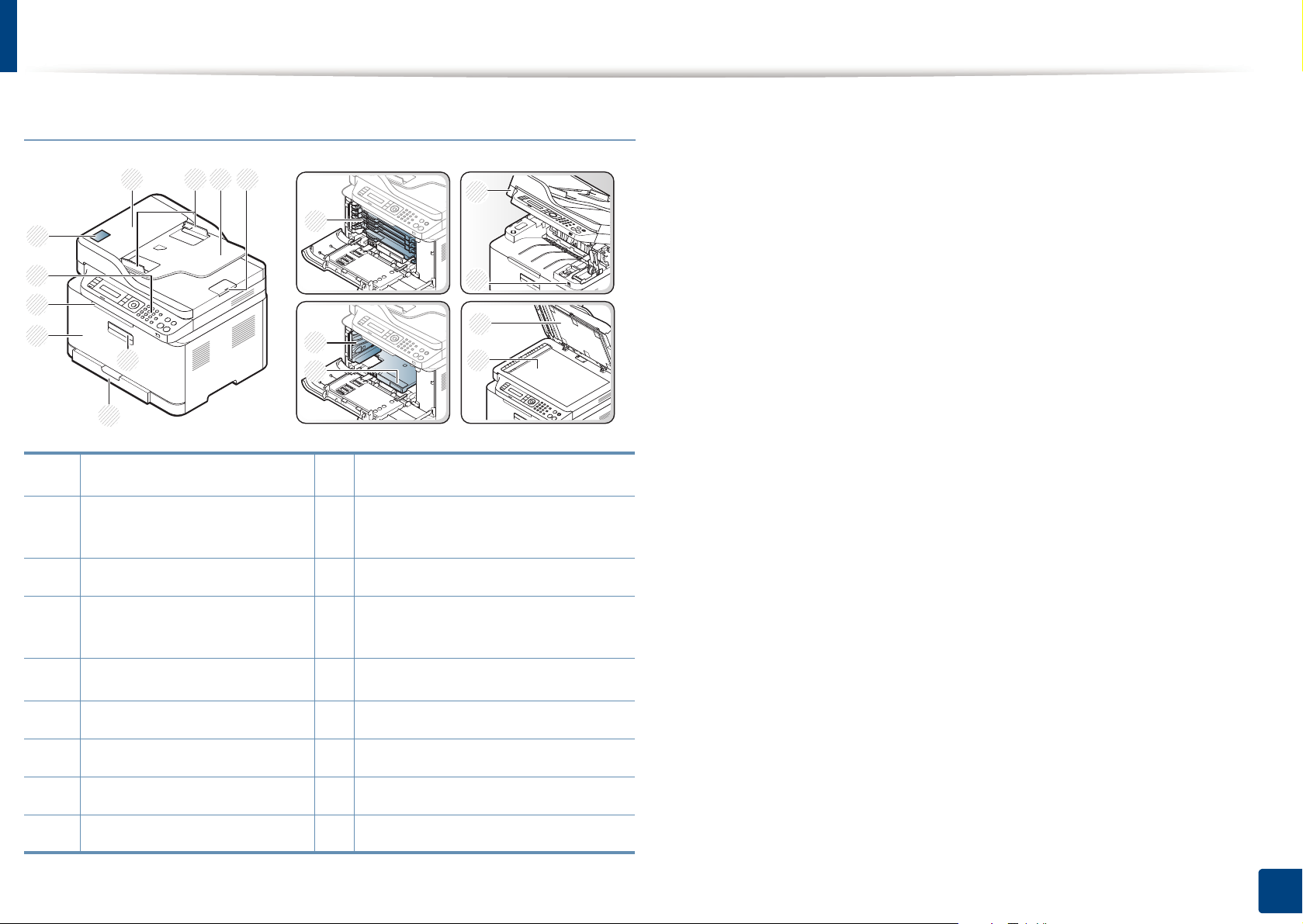
Front view
• This illustration may differ from your machine depending on your model.
There are various types of machine.
• Some features and optional goods may not be available depending on
model or country (see «Features by model» on page 7).
C48x/C48xW series
4
Front door
5
Output support
11
Scan unit
12
USB memory port
6 Control panel 13 Scanner glass
7
NFC tag
a. Close the scanner lid before opening the scan unit.
b. Be careful not to pinch your fingers.
c. C48xW series only.
c
a b
c
1
8
7
6
5
4
2
3
9
10
11
12
13
1 Scanner lid 8 Toner cartridges
2 Front handle 9 Waste toner container
3Tray 10Imaging unit
1. Introduction
21
Machine overview
C48xFN/C48xFW series
1 3
10
9
8
7
5
6
1
Document feeder cover
2 Document feeder width
guide
2 4
11
12
13
10
NFC tag
11
Toner cartridges
a. C48xFW series only.
b. Close the scanner lid before opening the scan unit.
c. Be careful not to pinch your fingers.
14
15
16
17
a
3 Document feeder input tray 12 Waste toner container
4 Document feeder output
support
5
Front handle
6 Tray 15 USB memory port
7 Front cover 16 Scanner lid
8 Output support 17 Scanner glass
9 Control panel
13
Imaging unit
14
Scan unit
b c
1. Introduction
22
Machine overview
11
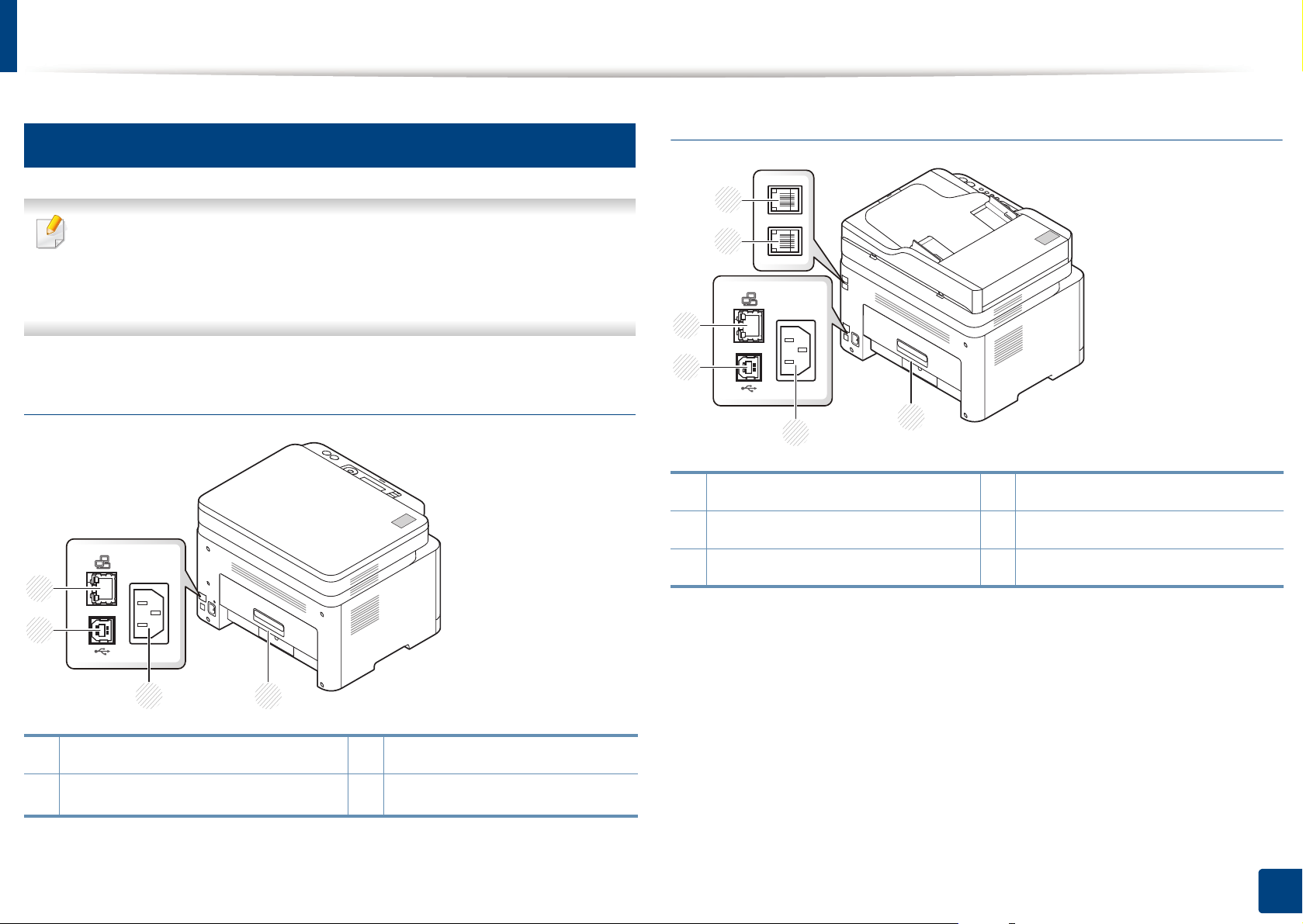
Rear view
C48xFN/C48xFW series
• This illustration may differ from your machine depending on your model.
There are various types of machine.
• Some features and optional goods may not be available depending on
model or country (see «Features by model» on page 7).
C48x/C48xW series
6
5
4
3
1
2
1 Rear cover 4 Network port
2 Power receptacle 5 Telephone line socket (LINE)
3 USB port 6 Extension telephone socket (EXT.)
1 Rear cover 3 USB port
2
Power receptacle
a. C48xW series only.
4
Network port
a
1. Introduction
23
Control panel overview
2
1
3 5
6
7
8
9 10
11
13
12
4
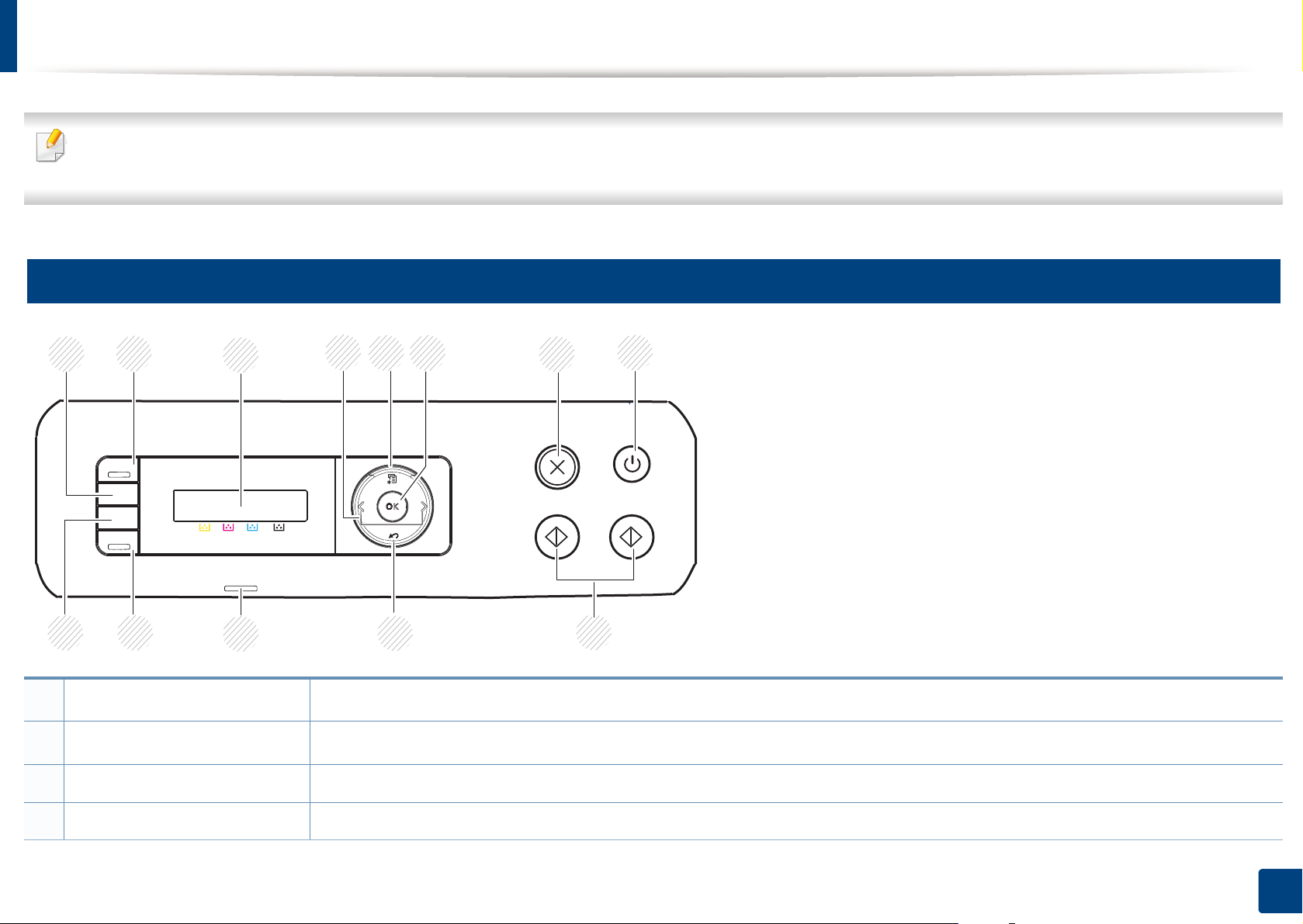
• This control panel may differ from your machine depending on its model. There are various types of control panels.
• Some features and optional goods may not be available depending on model or country (see «Features by model» on page 7).
12
C48x/C48xW series
1
2
a
WPS
Scan to
a
Configures the wireless network connection easily without a computer (see «Using the WPS Settings menu» on page 169).
Switches between scan and copy mode. The Scan to LED turns on scan mode and turns off on copy mode.
3 Display screen Shows the current status and displays prompts during an operation.
4 Arrows Scrolls through the options available in the selected menu and increases or decreases values.
1. Introduction
24

Control panel overview
5
Menu
6 OK Confirms the selection on the screen.
7
Stop/Clear
8
Power/Wake Up
9
Start
10
Back
11
Status/Wireless LED
Status LED
12
Eco
a
b
a
Opens Menu mode and scrolls through the available menus (see «Menu overview» on page 34).
Stops an operations at any time.
Turns the power on or off, or wakes up the machine from the power save mode. If you need to turn the machine off, press this
button for more than three seconds when the machine is in ready mode.
Starts a job.
Sends you back to the upper menu level.
Indicates the status of your machine (see «Understanding the status LED» on page 115).
Turn into eco mode to reduce toner consumption and paper usage when pc-printing and copying only (see «Eco printing» on page
58).
13
Direct USB
a. C48xW series only.
b. C48x series only.
a
Allows you to directly print files stored on a USB memory device when it is inserted into the USB port on the front of your machine.
1. Introduction
25
Control panel overview
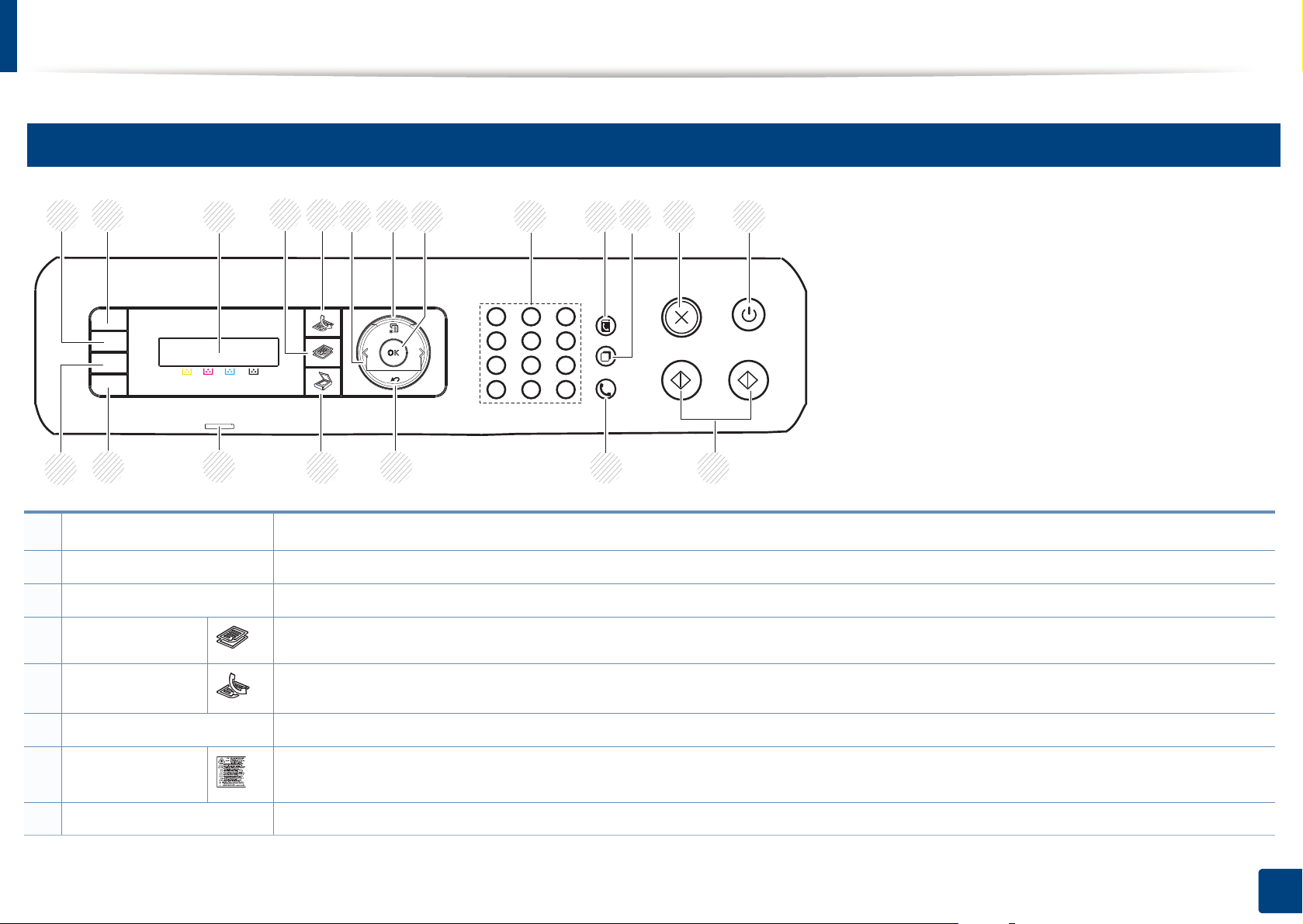
13
C48xFN/C48xFW series
1
2
WPS
19
a
20
1
3
18
4
5
17
Configures the wireless network connection easily without a computer (see «Using the WPS Settings menu» on page 169).
6
7
8 9 10 11
16
12
15 14
13
2 ID Copy Allows you to copy both sides of an ID card like a driver’s license on a single side of paper (see «ID card copying» on page 62).
3 Display screen Shows the current status and displays prompts during an operation.
4
Copy
Switches to Copy mode.
5
Fax
Switches to Fax mode.
6 Arrows Scrolls through the options available in the selected menu and increases or decreases values.
7
Menu
Opens Menu mode and scrolls through the available menus (see «Menu overview» on page 34).
8 OK Confirms the selection on the screen.
1. Introduction
26

Control panel overview
9 Numeric keypad Dials a number or enters alphanumeric characters (see «Keypad letters and numbers» on page 226).
10 Address Book Allows you to store frequently used fax numbers or search for stored fax numbers (see «Setting up the fax address book» on page 227).
11
Redial/Pause
12
Stop/Clear
13
Power/Wake Up
14
Start
15
On Hook Dial
16
Back
17
Scan
18
Status/Wireless LED
Status LED
Redials the recently sent fax number or received caller ID in ready mode, or inserts a pause(-) into a fax number in edit mode (see
«Redialing the fax number» on page 249).
Stops an operations at any time.
Turns the power on or off, or wakes up the machine from the power save mode. If you need to turn the machine off, press this button
for more than three seconds when the machine is in ready mode.
Starts a job.
When you press this button, you can hear a dial tone. Then enter a fax number. It is similar to making a call using speaker phone (see
«Receiving manually in Tel mode» on page 254).
Sends you back to the upper menu level.
Switches to Scan mode.
a
b
Indicates the status of your machine (see «Understanding the status LED» on page 115).
19 Eco Turn into eco mode to reduce toner consumption and paper usage when pc-printing and copying only (see «Eco printing» on page 58).
20 Direct USB Allows you to directly print files stored on a USB memory device when it is inserted into the USB port on the front of your machine.
a. C48xFW series only.
b. C48xFN series only.
1. Introduction
27
Turning on the machine
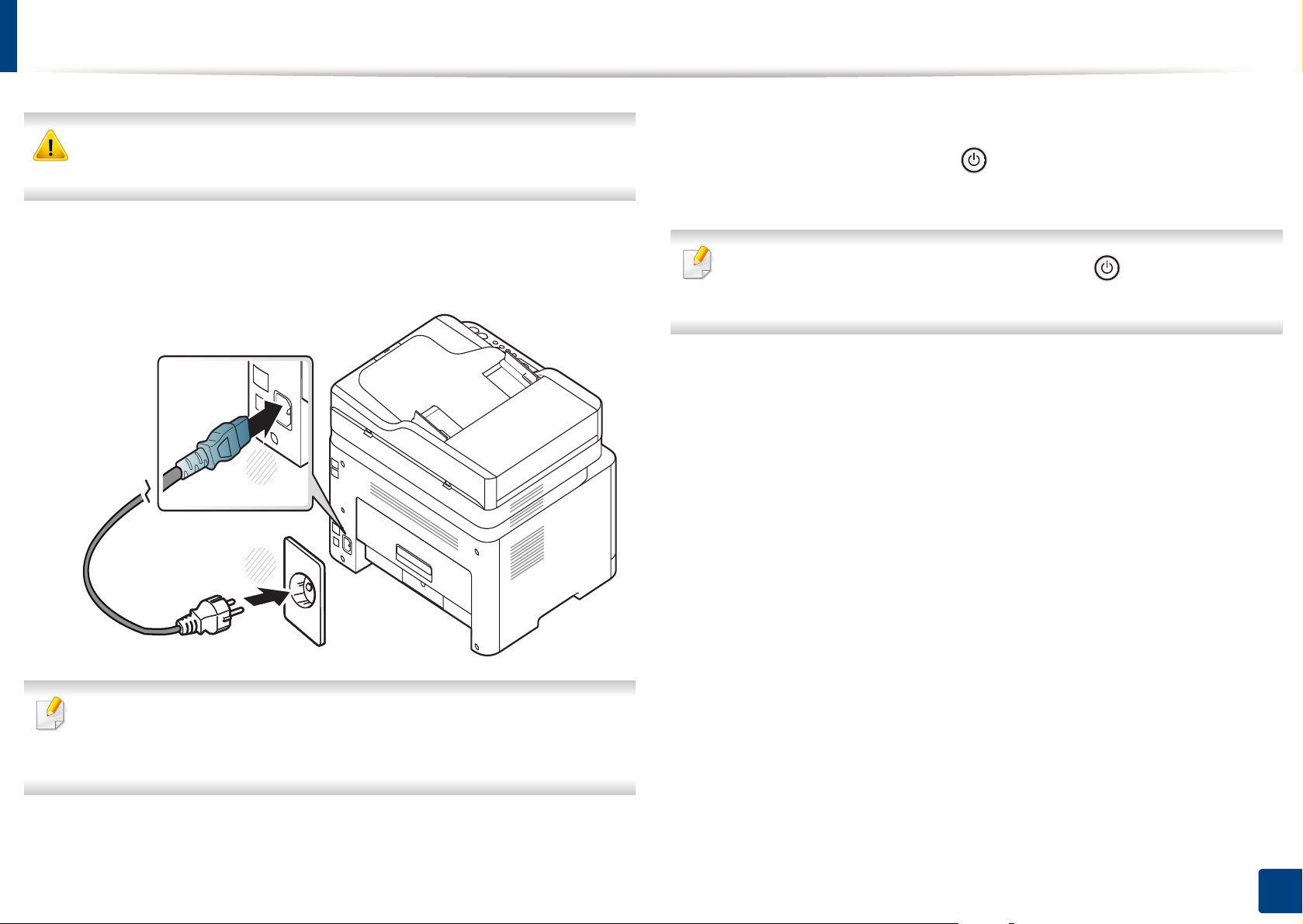
Power is turned on automatically.
2
Keep in mind that you should use the power cord supplied with the
machine. Otherwise, it can cause damage or fire to the machine.
Connect the machine to the electricity supply first.
1
For C48x/C48xW series, press (Power/Wake Up) button on the
control panel.
If you want to turn the power off, press and hold (Power/Wake Up)
Turn the switch on if the machine has a power switch.
button for about 3 seconds.
1
2
Illustrations on this user’s guide may differ from your machine depending
on its options or models. Check your machine type (see «Front view» on
page 21).
1. Introduction
28
Installing the driver locally
A locally connected machine is a machine directly attached to your computer
using a USB cable. If your machine is attached to a network, skip the following
steps below and go on to installing a network connected machine’s driver (see
«Installing driver over the network» on page 160).
• If you are a Mac or Linux operating systems user, refer to the «Installation
for Mac» on page 151 or «Installation for Linux» on page 153.
• The installation window in this User’s Guide may differ depending on the
machine and interface in use.
• Only use a USB cable no longer than 3 meters (118 inches).
14
Windows
Make sure that the machine is connected to your computer and
1
powered on.
Insert the supplied software CD into your CD-ROM drive.
2
If the installation window does not appear, click Start > All programs >
Accessories > Run.
X:\Setup.exe replacing “X” with the letter, which represents your CDROM drive and click OK.
• For Windows 8,
If the installation window does not appear, from Charms, select
Search > Apps and search for Run. Type in X:\Setup.exe, replacing
“X” with the letter that represents your CD-ROM drive and click OK.
If “Tap to choose what happens with this disc.” pop-up window
appears, click the window and select Run Setup.exe.
Review and accept the installation agreements in the installation
3
window. Then, click Next.
Select USB on the Printer Connection Type screen. Then, click Next.
4
Follow the instructions in the installation window.
5
1. Introduction
29

Installing the driver locally
You can select the software applications in the Select Software to Install
window.
From the Windows 8 Start Screen
• The V4 driver is automatically downloaded from the Windows Update if
your computer is connected to the Internet. If not, you can manually
download the V4 driver from Samsung website, www.samsung.com >
find your product > Support or downloads.
• You can download Samsung Printer Experience app from the Windows
Store. You need have a Microsoft account to use the Windows Store.
1 From Charms, select Search.
2 Click Store.
3 Search and click Samsung Printer Experience.
4 Click Install.
Make sure that your computer is connected to the Internet and powered
1
on.
Make sure that the machine is powered on.
2
Connect the computer and the machine with a USB cable.
3
The driver is automatically installed from the Windows Update.
• If you install the driver using the supplied software CD, V4 driver is not
installed. If you want to use the V4 driver in the Desktop screen, you can
download from the Samsung website, www.samsung.com >find your
product > Support or downloads.
• If you want to install Samsung’s printer management tools, you need to
install them using the supplied software CD.
1. Introduction
30
Loading…
Samsung Xpress SL-C480W
Samsung Multifunction Xpress
C48x series C48xW series C48xFN series
C48xFW series
BASIC
User’s Guide
BASIC
User’s Guide
This guide provides information concerning the installation, basic operation and troubleshooting on windows.
ADVANCED
This guide provides information about the installation, advanced configuration, operation
and troubleshooting on various OS environments.
Some features may not be available depending on models or countries.
View the manual for the Samsung Xpress SL-C480W here, for free. This user manual comes under the category printers and has been rated by 3 people with an average of a 7.8. This manual is available in the following languages: English. Do you have a question about the Samsung Xpress SL-C480W?
Ask your question here
Index
- User’s Guide
- ADVANCED
- Glossary
- Contact SAMSUNG worldwide
- Index
Product Images (2)


Samsung Xpress SL-C480W specifications
Below you will find the product specifications and the manual specifications of the Samsung Xpress SL-C480W.
The Samsung Xpress SL-C480W is a printer that is designed for use in home and small business settings. It is a color laser printer that is capable of printing up to 19 pages per minute in both black and white and color. With a print resolution of up to 2400 x 600 dpi, it produces high-quality prints that are clear and sharp.
The printer is also equipped with wireless connectivity options such as Wi-Fi Direct, NFC, and Mobile Print. This allows users to print from their smartphones and tablets using the Samsung Mobile Print app. It also supports printing from cloud services such as Samsung Cloud Print, Google Cloud Print, and AirPrint.
In addition to its printing capabilities, the SL-C480W also functions as a scanner and copier. It has a 600 MHz processor and 128 MB of memory, which enable it to handle complex printing tasks with ease. The paper tray can hold up to 150 sheets of paper, and it can print on a variety of paper sizes and types, including envelopes, labels, and cardstock.
Overall, the Samsung Xpress SL-C480W is a reliable and versatile printer that offers a range of features that are well-suited to the needs of home and small business users.
General
| Brand | Samsung |
| Model | Xpress SL-C480W |
| Product | printer |
| Language | English |
| Filetype | User manual (PDF) |
Frequently asked questions
Can’t find the answer to your question in the manual? You may find the answer to your question in the FAQs about the Samsung Xpress SL-C480W below.
What is the best way to remove jammed paper from my printer?
It is best to gently pull the paper out of the printer. Turn the printer off, and make sure that the printhead is not hanging over the paper and that no paper remains in the printer.
How come my prints are of poor quality?
There can be various reasons for poor print quality. Check if the cartridges or toners are full. If so, inkjet printers often require cleaning the printer, the cartridges have dried out, or the print head is broken. With laser printers, calibrating the laser printer is recommended.
How come my printer does not accept original cartridges?
Non-genuine cartridges may not be recognised by the printer. In that case you will receive a message that the cartridge is empty. The manual of the purchased cartridge usually contains the solution, if this does not work, it is advisable to contact the seller.
How come my inkjet printer has black stripes?
In most cases, the inkjet printer cartridge is broken and the cartridge needs to be replaced.
What is the difference between a laser printer and an inkjet printer?
A laser printer prints with a toner and an inkjet printer prints with ink.
What does DPI stand for?
DPI stands for Dots Per Inch and is the number of ink droplets (per inch) that end up on the paper when printing.
Is the manual of the Samsung Xpress SL-C480W available in English?
Yes, the manual of the Samsung Xpress SL-C480W is available in English .
Is your question not listed? Ask your question here
View the manual for the Samsung SL-C480W here, for free. This manual comes under the category printers and has been rated by 34 people with an average of a 8.1. This manual is available in the following languages: English. Do you have a question about the Samsung SL-C480W or do you need help?
Ask your question here
Samsung SL-C480W specifications
Below you will find the product specifications and the manual specifications of the Samsung SL-C480W.
The Samsung SL-C480W is a laser colour printer that offers additional features such as scanning and copying. The printer has a maximum duty cycle of 20000 pages per month, which makes it suitable for both home and office use. The SL-C480W has a manual duplex printing mode and a processor frequency of 800 MHz, which ensures smooth and efficient printing.
The printer has a print speed of 18 pages per minute for black and white documents in normal quality on A4 or US Letter paper. The maximum resolution of the printer is 2400 x 600 DPI, which guarantees clear and crisp prints. The time to first page for black and white documents in normal quality is 14 seconds.
The Samsung SL-C480W includes a colour scanner that offers a maximum scanning resolution of 600 x 600 DPI, which ensures high-quality scans of documents and images. The scanner lid is hinged to allow scanning of bulky items such as books.
The printer does not have fax capability. The dimensions of the printer are 406.0 x 362.0 x 288.6 millimeters and it weighs 12.89 kilograms. The SL-C480W features Wi-Fi Direct and NFC technology, which allows easy wireless printing from mobile devices such as smartphones and tablets.
In conclusion, the Samsung SL-C480W is a reliable and efficient printer that offers high-quality printing, scanning and copying capabilities.
Maximum duty cycle
20000 pages per month
Processor frequency
800 MHz
General
| Brand | Samsung |
| Model | SL-C480W | SL-C480W |
| Product | printer |
| EAN | 4053162879683, 5712505597590, 8806086700078, 8806086700085, 8806086886062 |
| Language | English |
| Filetype | Manual (PDF) |
Printing
| Print technology | Laser |
| Printing | Colour printing |
| Duplex printing mode | Manual |
| Print speed (black, normal quality, A4/US Letter) | 18 ppm |
| Maximum resolution | 2400 x 600 DPI |
| Print speed (colour, normal quality, A4/US Letter) | 4 ppm |
| Time to first page (black, normal) | 14 s |
| Time to first page (colour, normal) | 26 s |
| Duplex printing | No |
Copying
| Copying | Colour copying |
| Maximum copy resolution | — DPI |
| Copy speed (black, normal quality, A4) | 18 cpm |
| Copy speed (colour, normal quality, A4) | 4 cpm |
| Copier resize | 25 — 400 % |
| Maximum number of copies | 999 copies |
| Time to first copy (black, normal) | 14 s |
| Time to first copy (colour, normal) | 36 s |
| Auto fit function | Yes |
| Duplex copying | No |
Scanning
| Scanning | Colour scanning |
| Optical scanning resolution | 1200 x 1200 DPI |
| Maximum scan resolution | 4800 x 4800 DPI |
| Scanner type | ADF scanner |
| Scan to | USB |
| Scan drivers | TWAIN, WIA |
| Scan technology | CIS |
| Duplex scanning | No |
Fax
| Faxing | No |
| Duplex faxing | No |
Features
| Maximum duty cycle | 20000 pages per month |
| Digital sender | — |
| Page description languages | PCL 5c, PCL 6C, PostScript 3, SPL-C, URF |
Performance
| Processor frequency | 800 MHz |
| Internal memory | 128 MB |
| Card reader integrated | — |
| Sound pressure level (copying) | 52 dB |
| Sound pressure level (printing) | 48 dB |
Input & output capacity
| Total input capacity | 150 sheets |
| Paper input type | Cassette |
| Total output capacity | 50 sheets |
Paper handling
| Maximum ISO A-series paper size | A4 |
| Paper tray media types | Bond paper, Card stock, Glossy paper, Labels, Plain paper, Pre-Printed, Recycled paper, Thick paper, Thin paper |
| ISO A-series sizes (A0…A9) | A4 |
| Paper tray media weight | 60 — 220 g/m² |
| Custom media width | 76 — 216 mm |
| Custom media length | 152.4 x 355.6 mm |
Design
| Display | LCD |
| Display number of lines | 2 lines |
| Product colour | Black, White |
| Built-in display | Yes |
| Market positioning | Business |
Network
| Ethernet LAN | Yes |
| Wi-Fi | Yes |
| Ethernet LAN data rates | 10, 100 Mbit/s |
| Wi-Fi standards | 802.11b, 802.11g, Wi-Fi 4 (802.11n) |
| Mobile printing technologies | Samsung Mobile Print |
| Cabling technology | 10/100Base-T(X) |
Ports & interfaces
| Direct printing | — |
| Standard interfaces | Ethernet, USB 2.0, Wireless LAN |
| USB port | Yes |
Power
| Power consumption (average operating) | — W |
| Power consumption (PowerSave) | 1.5 W |
| Power consumption (standby) | 60 W |
| Power consumption (printing) | 290 W |
System requirements
| Windows operating systems supported | Yes |
| Mac operating systems supported | Yes |
| Linux operating systems supported | Yes |
| Other operating systems supported | Android, iOS |
| Server operating systems supported | Windows Server 2003, Windows Server 2008, Windows Server 2008 R2 |
Weight & dimensions
| Width | 406 mm |
| Depth | 362 mm |
| Height | 288.6 mm |
| Weight | 12890 g |
show more
Frequently Asked Questions
Can’t find the answer to your question in the manual? You may find the answer to your question in the FAQs about the Samsung SL-C480W below.
Why is my printer not connecting to Wi-Fi?
Ensure that the printer is within the Wi-Fi range, check if the Wi-Fi is enabled on the printer, and ensure you are entering the correct Wi-Fi credentials.
How can I clear a paper jam in my printer?
Firstly, switch off the printer and disconnect it from the power supply. Open the printer’s cover and carefully remove any paper that is visibly stuck. If required, consult the manual for detailed guidance on how to clear paper jams.
Why does my printer display a low ink/toner warning even though it is new?
Sometimes, the ink or toner levels need to be manually reset after installing a new cartridge. Refer to the manual for instructions on how to reset the ink/toner levels to ensure accurate warnings.
What is the optical scanning resolution of the Samsung SL-C480W?
The optical scanning resolution of the Samsung SL-C480W is 1200 x 1200 DPI. This indicates the level of detail and clarity that can be achieved when scanning documents. A higher DPI generally results in sharper and more accurate scanned images. Therefore, the Samsung SL-C480W offers a good resolution for scanning documents.
What should I do if my printed documents have streaks or smudges?
Please ensure that the toner cartridges are correctly installed. If they are, use a soft, lint-free cloth to clean the inside of the printer. If the problem persists, consult the manual for detailed instructions on how to clean the printer.
How can I change the toner cartridges in my printer?
Open the printer’s front panel and remove the old toner cartridge by pulling it out. Take the new cartridge out of its packaging, gently shake it from side to side, and place it into the appropriate slot. Close the front panel and follow any prompts on the display, if applicable.
Does the Samsung SL-C480W have faxing capabilities?
No, the Samsung SL-C480W does not have faxing capabilities. This means that users will need to use alternative methods to send and receive faxes. However, this also means that the printer is more focused on printing, copying, and scanning functions.
What is the maximum duty cycle of the Samsung SL-C480W?
The maximum duty cycle of the Samsung SL-C480W is 20000 pages per month. This indicates that the printer is designed to handle high volumes of printing and can be suitable for small to medium-sized businesses or offices with moderate printing needs.
Is the Samsung SL-C480W capable of double-sided printing?
Yes, the Samsung SL-C480W has duplex printing capabilities. However, it is manual duplexing, which means that users will need to manually flip the pages to print on both sides. This feature can be useful for saving paper and reducing printing costs.
What is the processor frequency of the Samsung SL-C480W?
The processor frequency of the Samsung SL-C480W is 800 MHz. This indicates the speed at which the printer can process print and copy jobs. While 800 MHz is not the highest processor frequency available, it is still sufficient for most standard printing needs.
What is the weight of the Samsung SL-C480W?
The Samsung SL-C480W has a weight of 12890 g.
What is the height of the Samsung SL-C480W?
The Samsung SL-C480W has a height of 288.6 mm.
What is the width of the Samsung SL-C480W?
The Samsung SL-C480W has a width of 406 mm.
What is the depth of the Samsung SL-C480W?
The Samsung SL-C480W has a depth of 362 mm.
What is the best way to remove jammed paper from my printer?
It is best to gently pull the paper out of the printer. Turn the printer off, and make sure that the printhead is not hanging over the paper and that no paper remains in the printer.
How come my prints are of poor quality?
There can be various reasons for poor print quality. Check if the cartridges or toners are full. If so, inkjet printers often require cleaning the printer, the cartridges have dried out, or the print head is broken. With laser printers, calibrating the laser printer is recommended.
How come my printer does not accept original cartridges?
Non-genuine cartridges may not be recognised by the printer. In that case you will receive a message that the cartridge is empty. The manual of the purchased cartridge usually contains the solution, if this does not work, it is advisable to contact the seller.
How come my inkjet printer has black stripes?
In most cases, the inkjet printer cartridge is broken and the cartridge needs to be replaced.
What is the difference between a laser printer and an inkjet printer?
A laser printer prints with a toner and an inkjet printer prints with ink.
What does DPI stand for?
DPI stands for Dots Per Inch and is the number of ink droplets (per inch) that end up on the paper when printing.
Is the manual of the Samsung SL-C480W available in English?
Yes, the manual of the Samsung SL-C480W is available in English .
Is your question not listed? Ask your question here
|
Код: 46853 Извините, товара сейчас нет в наличии
Бесплатная доставка Извините, товара сейчас нет в наличии Сравнить Новости интернет-магазина «Лаукар»:23.04.2025 26.02.2025 17.02.2025 Дополнительная информация в категории МФУ:Принтеры и МФУ — особенности и термины Таблица Авторизованных сервисных центров по брендам. Описание Инструкция Отзывы (0) В интернет-магазине бытовой техники «Лаукар» Вы можете скачать инструкцию к товару МФУ Samsung SL-C480W лазерный совершенно бесплатно. Все инструкции, представленные на сайте интернет-магазина бытовой техники «Лаукар», предоставляются производителем товара. Для того чтобы скачать инструкцию, Вам необходимо нажать на ссылку «скачать инструкцию», расположенную ниже, а в случае, если ссылки нет, Скачать инструкцию Смотреть инструкцию 
Фирма-производитель оставляет за собой право на внесение изменений в конструкцию, дизайн и комплектацию товара: МФУ Samsung SL-C480W лазерный. Пожалуйста, сверяйте информацию о товаре с информацией на |
Samsung Xpress SL-C480W color multifunction laser printer: practical, technological, economical, and efficient. Convenient, the printer installs quickly and easily, wirelessly, without a USB connection, and without an installation CD. Your OS is first directly selected by your printer which will automatically install the driver so that you can take advantage of all of its features as quickly as possible, which will be accessible to you without contact: printer, scanner, and copier. Also, thanks to technologies developed by Samsung, prints are more detailed, and even the most complex images and small texts are rendered correctly. Versatile, the Samsung Xpress SL-C480W supports a variety of paper types to meet all of your printing needs. Compatible media range, up to 220 g / m², includes A4, A5, A6, Letter, Legal, Executive, Folio, ISO B5, JIS B5, Transparencies (mono only), Glossy Photo 220 g / m², Envelopes, Labels, Business Cards and Recycled.
Economically, it is equipped with an EASY ECO print driver that uses less toner and less paper for greener printing solutions. The One Touch Eco button, on the other hand, cuts your paper and toner expenses with just one touch. Powerful, the Samsung Xpress SL-C480W ensures fast and clean prints with a speed of up to 18 pages per minute in black and 4 in color thanks to its 800 Mhz processor and its 128 MB of memory. It also prints smoother, more detailed images thanks to its effective 2400 x 600 dpi resolution, coupled with ReCP (Rendering Engine for Clean Page) technology, for crisp, crisp results. For even more quality, the Smart Color Management System (CMS) further improves the quality of your mobile prints with automatic image adjustment features to optimize the sharpness and remove white space.
Once installed, you can benefit from the advantages of its advanced NFC technology and direct WiFi compatibility allowing you to print your documents simply by bringing your compatible smartphone or tablet with the free Samsung Mobile Print App on your mobile device! This iOS, Android, Microsoft Windows phone, and Amazon Kindle-compatible app enables fast, contactless, and effortless printing wherever you are. This device is also compatible with Samsung Mobile PrintTM, Samsung Cloud Print, Google Print, and AirPrint for even more mobile printing options. The Samsung Xpress SL-C480W is also equipped with WPS, a technology that allows you to connect to WiFi with a single button easily.
Samsung SL-C480W Driver and Manual
Samsung Xpress SL-C480W Printer Features
Samsung Xpress SL-C480W printer supports Google Cloud Print, and mobile printing through AirPrint or via Samsung’s MobilePrint app. Check below for technical features of the printer:
- The + of the model: Wireless
- Use: Photo printing + office automation
- Connectivity: USB, WIFI, WIFI DIRECT, NFC, Ethernet
- Screen: 2 lines 16 characters
- Number of cartridges: 4
- Printing from smartphone/tablet: Yes
- Cartridge / Toner: CLT-C404S / ELSCLT-M404S / ELSCLT-Y404S / ELS
- Printing technology: Laser
- Print speed in black: 18 ppm
- Color print speed: 4 ipm
- Maximum print resolution: 2400 x 600 dpi (ppi)
- Scan resolution: Up to 4800 dpi
- Input tray capacity: 150 sheets
- Output bin capacity: 50 sheets
Read Also: Samsung Xpress SL-M2020W Driver and Manual
Download the Samsung Xpress SL-C480W Driver and Manuals
You can download the Samsung Xpress SL-C480W driver, and then read the printer manual to set up your printer properly.
Samsung Xpress SL-C480W Driver:
Windows driver:
Samsung SL-C480W Series Print Driver Download
Filename: C48x_Series_WIN_UPD_V3.00.16.00.01_CDV1.23.exe
File Size: 56.7 MB
Samsung C480W Series Scan Driver Download
Filename: C48x_Series_WIN_Scanner_V3.32.12.20_CDV1.23.exe
File Size: 46.8 MB
macOS driver:
Samsung Universal Print and Scan Driver Download
Filename: Samsung_Mac_10.15_Driver_V3.92.00.dmg
File Size: 20.5 MB
Samsung Xpress SL-C480W Printer Manual:
Samsung Xpress SL-C48x, SL-C48xW, SL-C48xFN, SL-C48xFW Color Laser MFP series – User Guide Download
File Size: 36.71MB
Samsung Xpress SL-C480, SL-C480W Color Laser MFP – Quick Installation Guide Download
File Size: 1.92MB