
В нашей сегодняшней статье мы рассмотрим пошаговую инструкцию по подключению и настройке гигабитного роутера TP-Link Archer AX50. Это одна из самых новых моделей в линейке маршрутизаторов от TP-Link. AX50 может работать одновременно на двух частотах — 2.4 ГГц и 5 ГГц. Оснащен пятью гигабитными портами. Ключевой особенностью Archer AX50 является поддержка стандарта Wi-Fi 6 — новейшего поколения Wi-Fi, способного обеспечить максимальную суммарную скорость передачи данных до 3000 Мбит/с. Кроме того, стандарт Wi-Fi 6 позволяет подключить к роутеру в 4 раза больше устройств, чем стандарт Wi-Fi 5. Здесь следует отметить, что для достижения таких результатов все подключаемые к роутеру устройства также должны поддерживать стандарт Wi-Fi 6.
Приступим к подключению и настройке Archer AX50.
Подключите Ваш роутер TP-Link Archer AX50 к электросети. Интернет-кабель провайдера, приходящий из подъезда в квартиру, вставьте в порт WAN (порт синего цвета).

Если Ваш интернет-провайдер использует фиксацию по mac-адресу, то Вам следует обратиться в службу техподдержки для привязки mac-адреса роутера. Без этого действия интернет работать не будет.
Теперь нужно подключиться к сети Wi-Fi. Данные для подключения указаны на нижней стороне роутера. SSID — это название сети Wi-Fi, Wireless Password/PIN — это пароль для входа в сеть.

Находим в списке доступных сетей Wi-Fi нужную нам сеть. Вводим пароль для подключения к сети.
Далее рассмотрим пошаговые действия по настройке беспроводной сети.
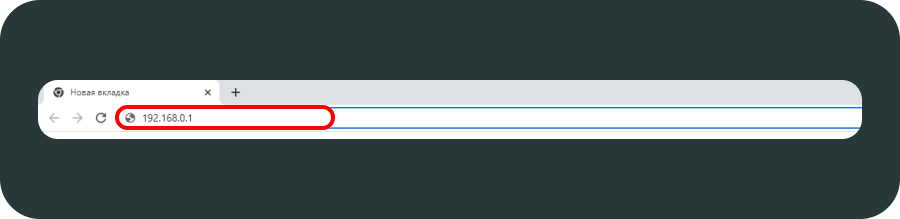
Шаг 1. Заходим в веб-интерфейс роутера. Для этого в браузере в верхней строке вводим:
192.168.0.1. или tplinkwifi.net.

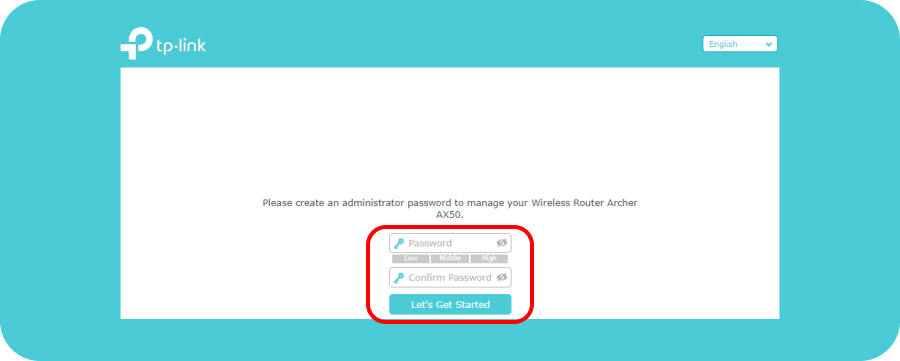
Шаг 2. В открывшемся окне меняем язык, а также создаем пароль для входа в веб-интерфейс роутера.

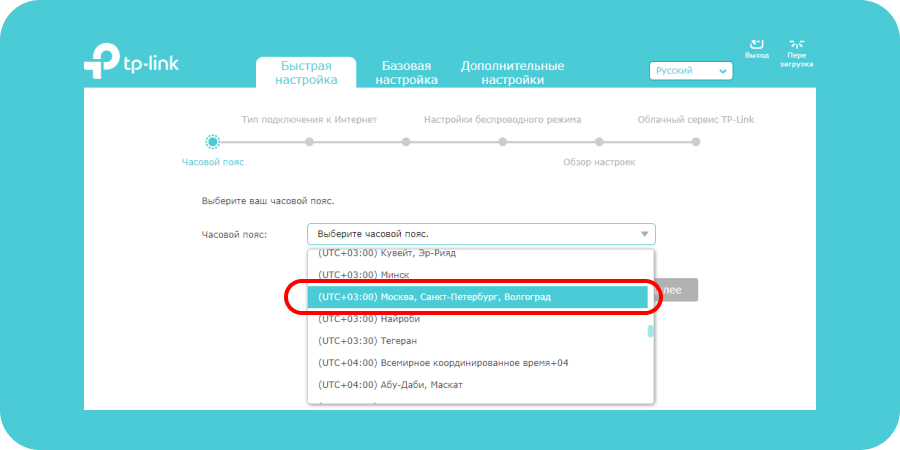
Шаг 3. Проходим на вкладку «Быстрая настройка». Выбираем из списка свой часовой пояс (Москва). Нажимаем «Далее».

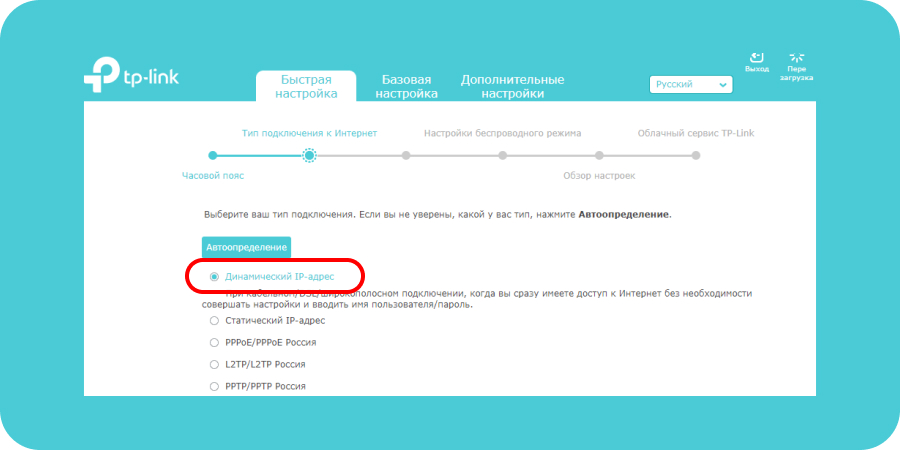
Шаг 4. Тип подключения к Интернет выбираем — «Динамический IP-адрес». Нажимаем «Далее».

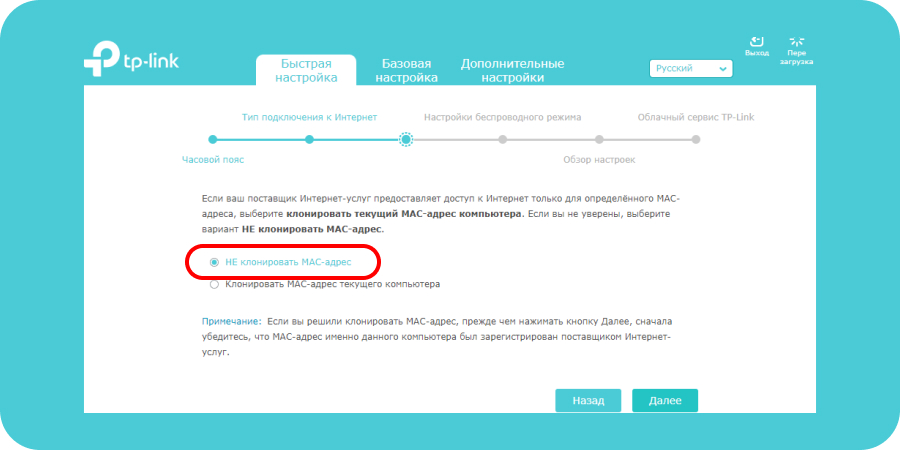
Шаг 5. MAC-адрес — ставим галочку на пункт «Не клонировать MAC-адрес». Нажимаем «Далее».

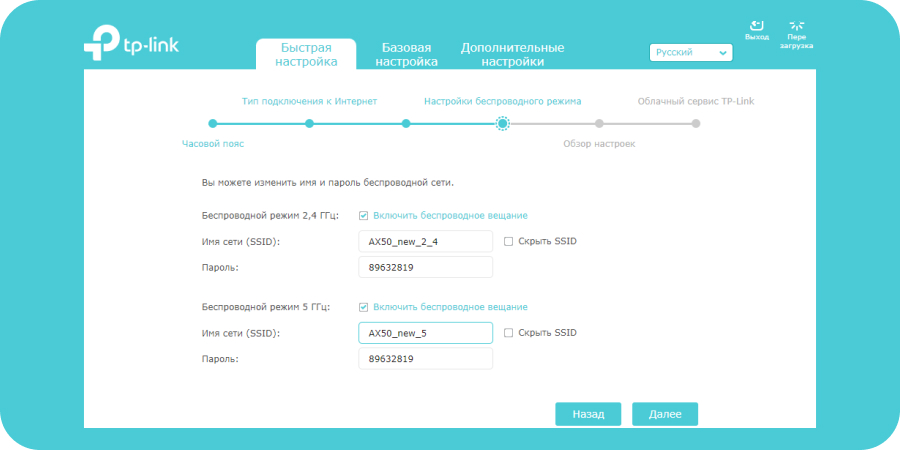
Шаг 6. Настройки беспроводного режима. В данном разделе указаны SSID (название) и пароль сетей Wi-Fi для каждой из двух частот.

Мы можем задать свои значения для каждой сети или оставить параметры по умолчанию.

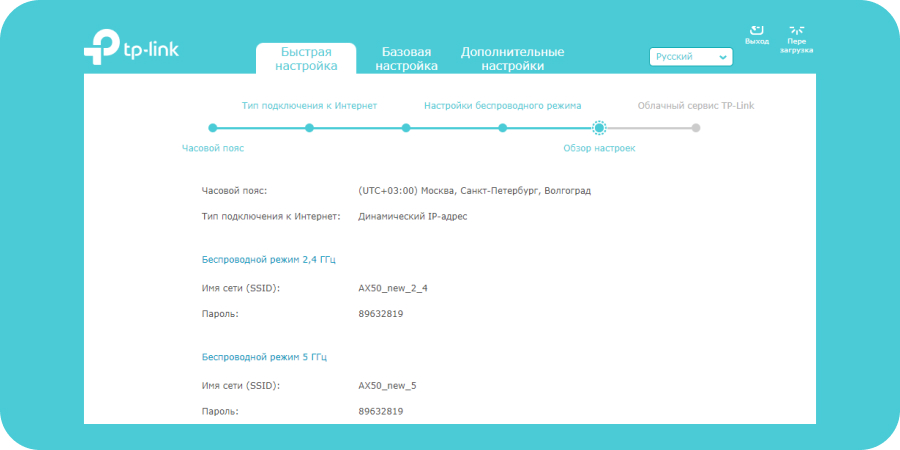
Шаг 7. Обзор настроек. Проверяем все наши введенные параметры.

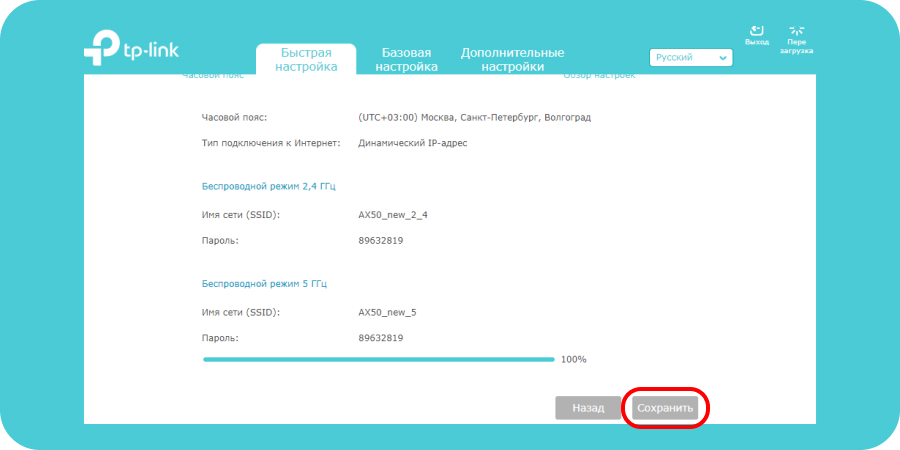
Нажимаем «Сохранить».

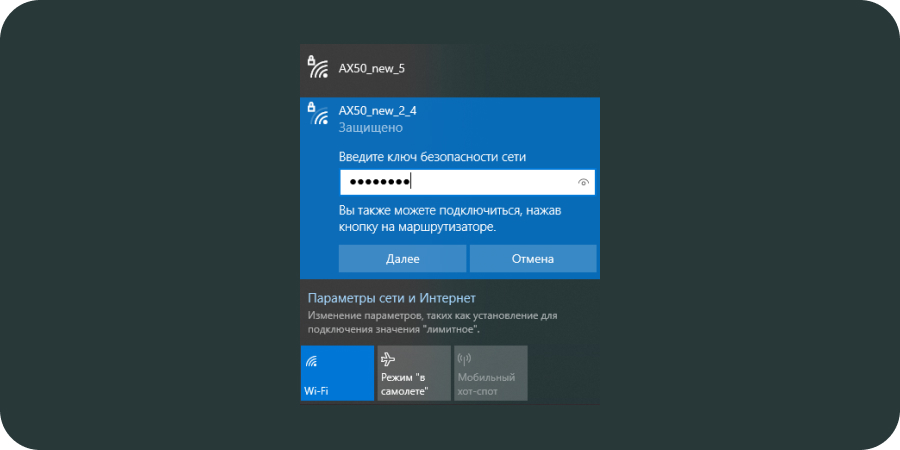
Шаг 8. Для того, чтобы измененные параметры вступили с силу, нам нужно переподключиться к новой беспроводной сети. Находим в списке доступных Wi-Fi сетей нашу новую сеть. Подключаемся к ней.
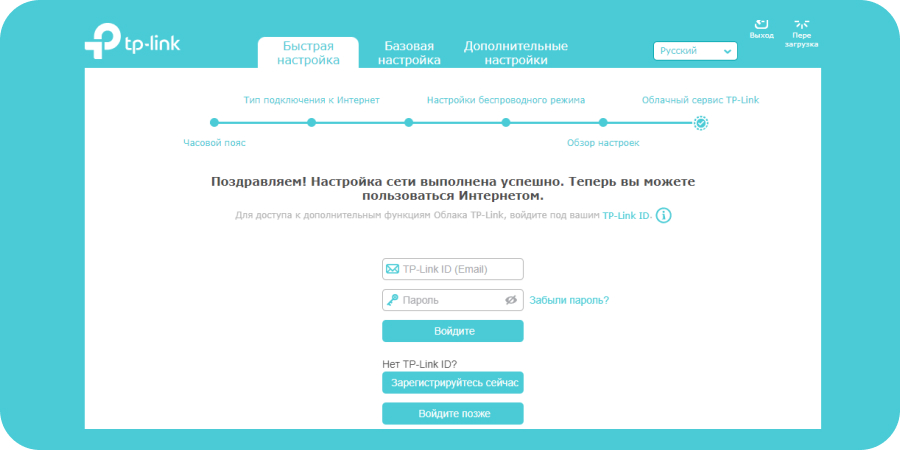
Шаг 9. Быстрая настройка роутера Archer AX50 успешно завершена.

Шаг 10. Далее рассмотрим дополнительные настройки роутера. Проходим на вкладку «Дополнительные настройки».
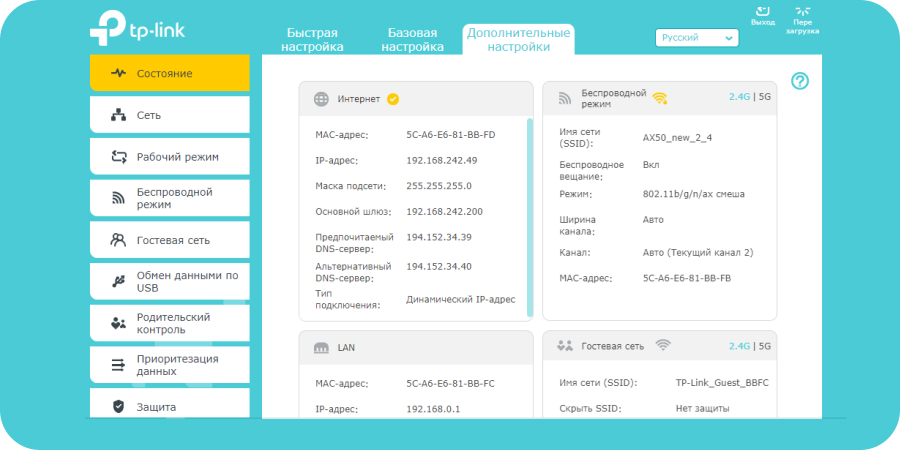
Состояние. В данном разделе мы можем посмотреть состояние беспроводной сети, основной режим работы и параметры.

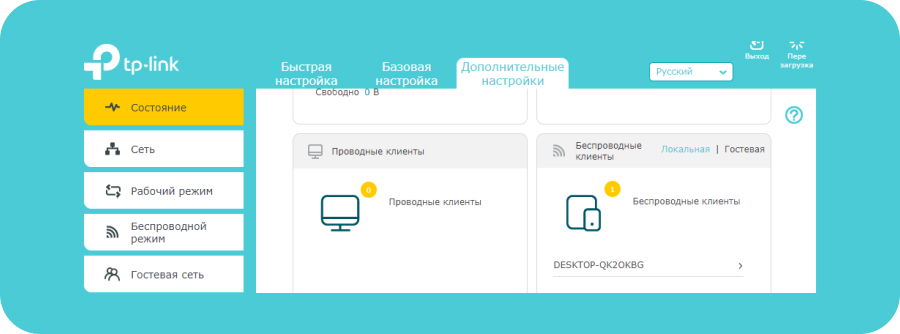
Беспроводные клиенты. Данная вкладка показывает, сколько и каких беспроводных устройств подключено к роутеру.

Сеть. Пройдя на данную вкладку, мы можем посмотреть и, при необходимости, изменить основные параметры беспроводной сети. Рассмотрим каждый из пунктов вкладки «Сеть» подробнее.
-
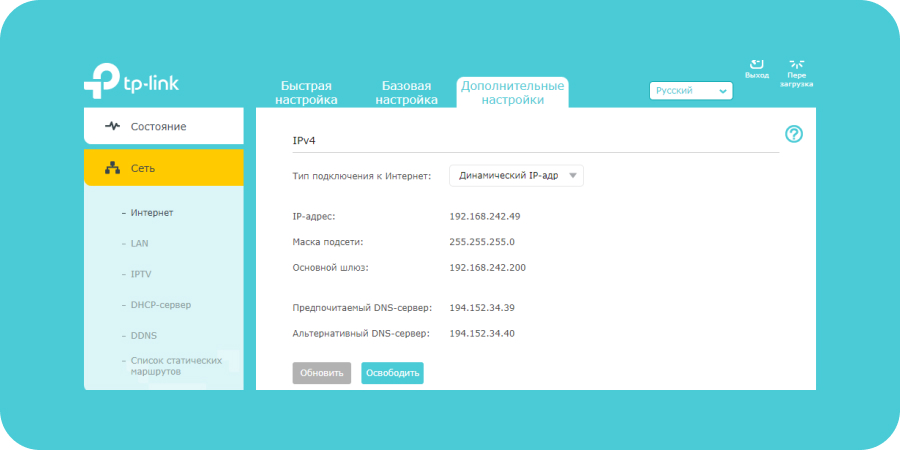
Интернет. Указаны параметры подключения к Интернету — тип подключения, IP-адрес, маска подсети, шлюз и DNS-сервер. Если тип подключения к Интернету — динамический IP, то все эти параметры роутер получает автоматически от провайдера.
-
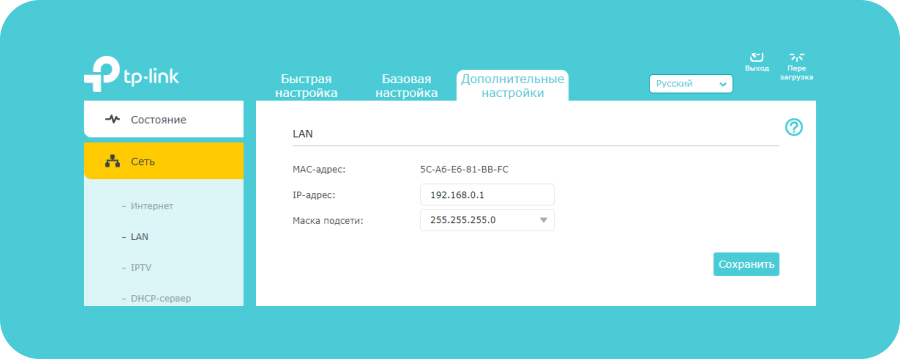
LAN. В разделе LAN мы можем посмотреть MAC-адрес роутера, а также IP-адрес. При необходимости можно изменить IP-адрес (к примеру, роутер настраивается как дополнительный для расширения покрытия Wi-Fi).
-
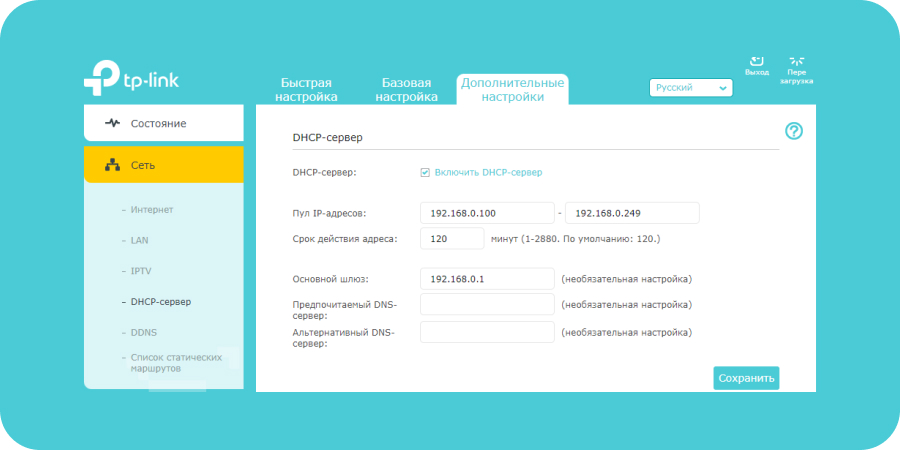
DHCP — сервер. В данном разделе указаны основные характеристики DHCP. Они выставлены по умолчанию. Для домашнего пользования данные параметры вполне оптимальны, и изменять их нет необходимости.


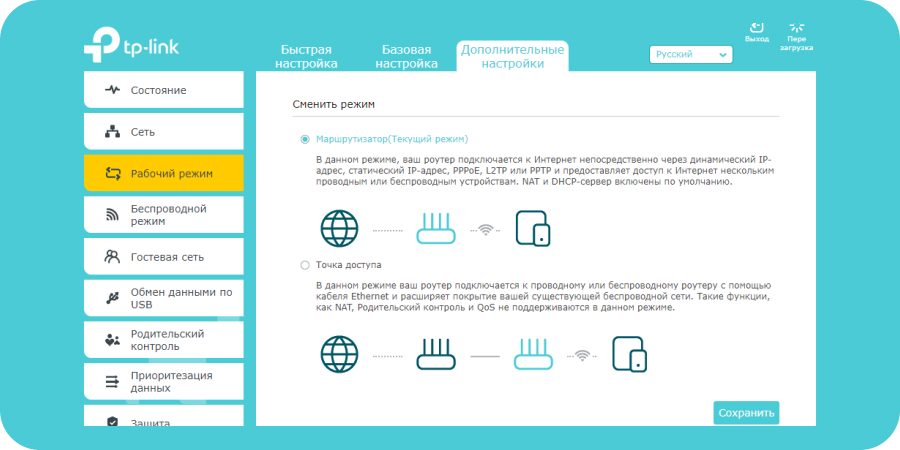
Рабочий режим. Данная вкладка показывает, в каком режиме работает роутер. Здесь же настраивается подключение роутера как точки доступа.

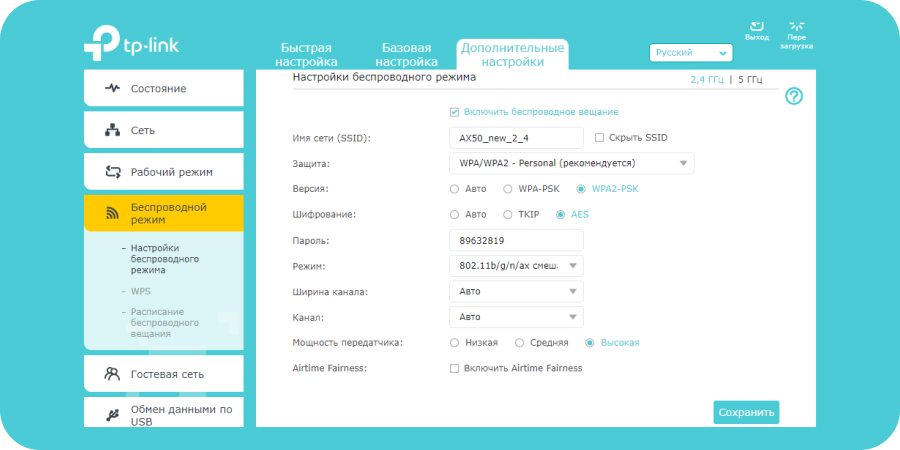
Беспроводной режим. Пройдя на данную вкладку, мы можем изменить параметры беспроводного подключения.
-
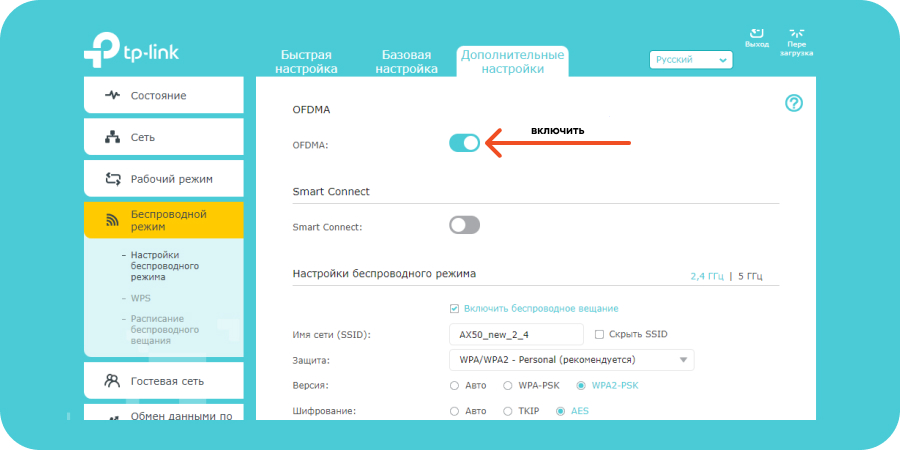
Настройки беспроводного режима. Проверяем, включена ли функция OFDMA. OFDMA — технология является ключевой для всех роутеров стандарта Wi-Fi 6.
-
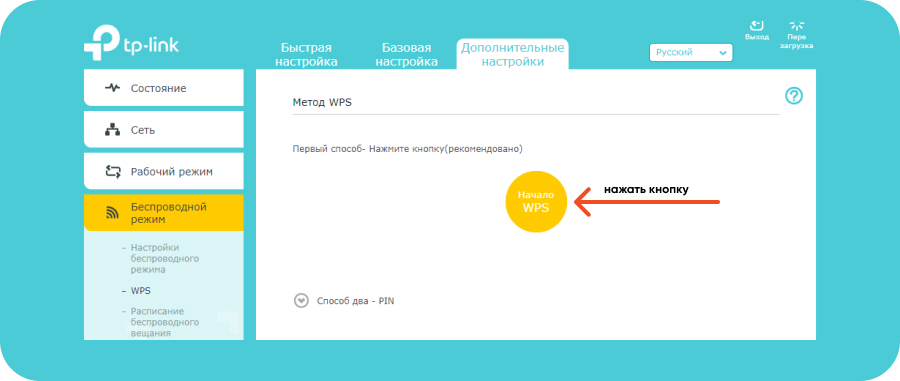
WPS. Функция WPS дает возможность подключаться к роутеру без ввода пароля Wi-Fi сети. Для этого нажимаем кнопку «Начало WPS» в пункте «WPS».
-
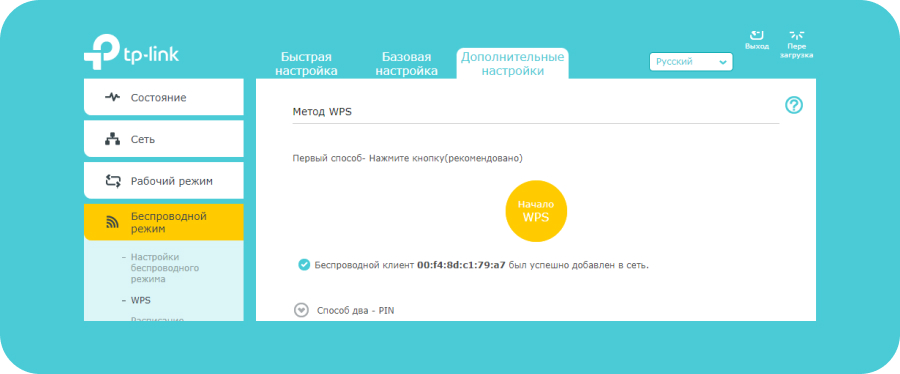
Далее в списке доступных Wi-Fi сетей на подключаемом к роутеру устройстве выбираем нужную нам сеть. Как видим, появилась надпись «Вы также можете подключиться, нажав кнопку на маршрутизаторе».
-
Нажимаем на роутере кнопку «WPS». После этого устройство подключится к Wi-Fi сети без ввода пароля.


Параметры шифрования, рабочий режим, характеристики канала — данные значения оставляем по умолчанию.


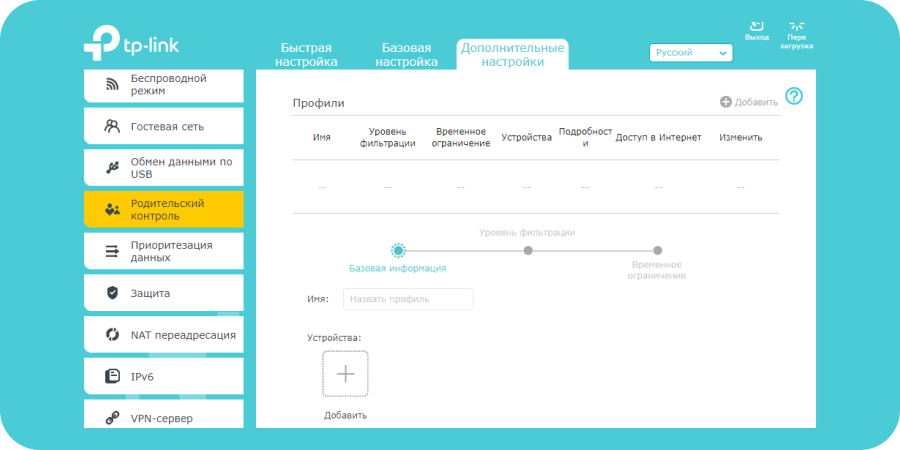
Родительский контроль. В данном разделе можно настроить ограничение доступа в Интернет для определенных устройств, запрет доступа на конкретные сайты, а также настроить расписание выхода в сеть.

Мы рассмотрели основные настройки гигабитного Wi-Fi 6 роутера TP-Link Archer AX50.
Мадина А.
About This Guide
This guide is a complement of Quick Installation Guide. The Quick Installation Guide instructs you on quick internet setup, and this guide provides details of each function and shows you the way to configure these functions appropriate to your needs.
When using this guide, please notice that features available of the router may vary by model and software version. Router availability may also vary by region or ISP. All images, steps, and descriptions in this guide are only examples and may not reflect your actual experience.
Conventions
In this guide the following conventions are used:
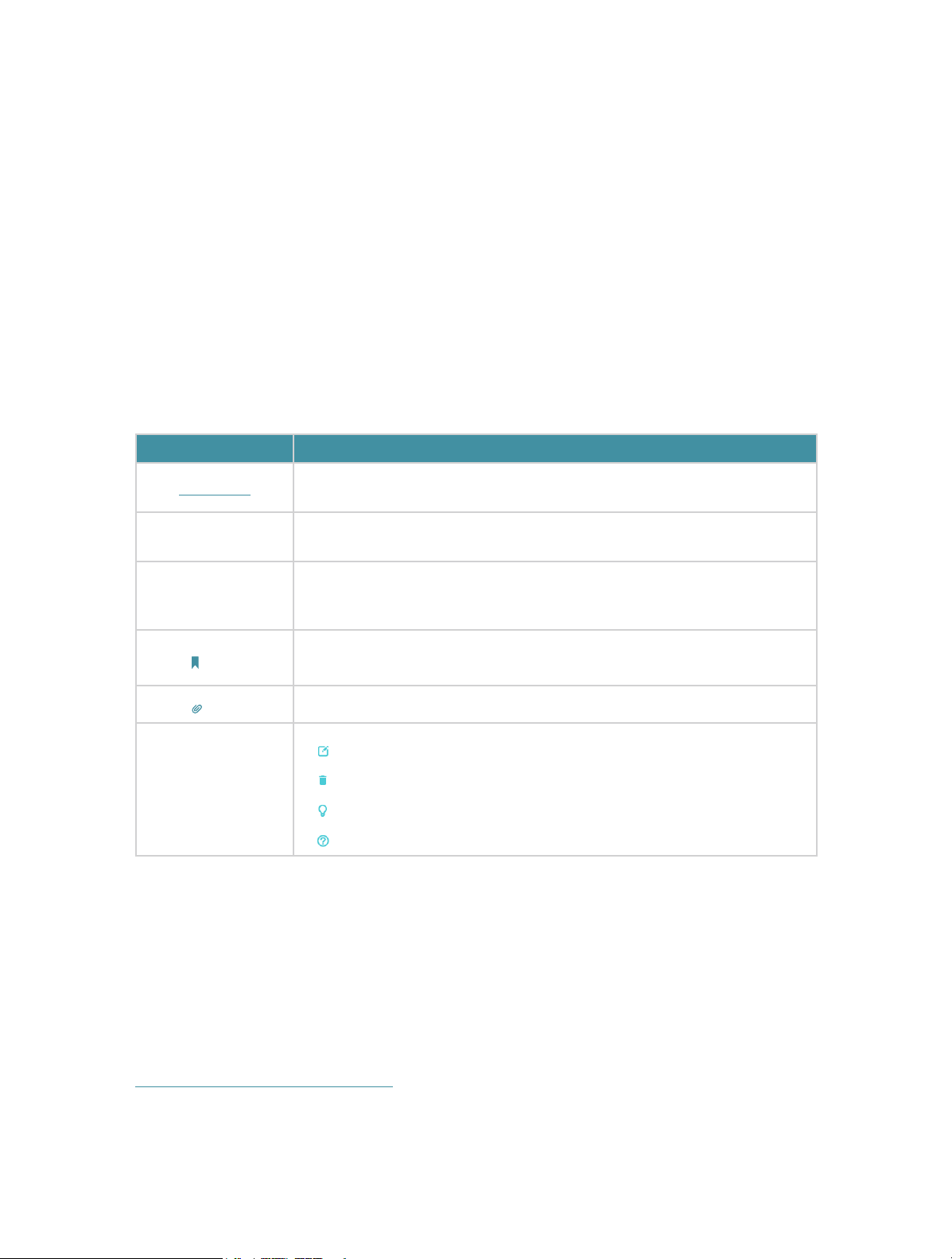
|
Convention |
Description |
|
Underlined |
Underlined words or phrases are hyperlinks. You can click to redirect to a website or a specific section. |
|
Teal |
Contents to be emphasized and texts on the web page are in teal, including the menus, items, buttons, etc. |
|
> |
The menu structures to show the path to load the corresponding page. For example, Advanced > Wireless > MAC Filtering means the MAC Filtering function page is under the Wireless menu that is located in the Advanced tab. |
|
Note: |
•Ignoring this type of note might result in a malfunction or damage to the device. |
|
Tips: |
Indicates important information that helps you make better use of your device. |
|
symbols on the web page |
• click to edit the corresponding entry. • click to delete the corresponding entry. • click to enable or disable the corresponding entry. • click to view more information about items on the page. |
*Maximum wireless signal rates are the physical rates derived from IEEE Standard 802.11 specifications. Actual wireless data throughput and wireless coverage are not guaranteed and will vary as a result of network conditions, client limitations, and environmental factors, including building materials, obstacles, volume and density of traffic, and client location.
*Use of 1024-QAM requires clients to also support those functions.
More Info
The latest software, management app and utility can be found at Download Center at https://www.tp-link.com/support.
The Quick Installation Guide can be found where you find this guide or inside the package of the router.
Specifications can be found on the product page at https://www.tp-link.com.
The TP-Link Community is provided for you to discuss our products at
https://community.tp-link.com.
Our Technical Support contact information can be found at the Contact Technical Support page at https://www.tp-link.com/support.
Содержание статьи:
- Настройка TP-LINK Archer (AX50)
- ШАГ 1: распаковка, подкл. кабелей
- ШАГ 2: уточняем название сети и пароль для первичного подключения
- ШАГ 3: настраиваем доступ к сети интернет, Wi-Fi сеть
- ШАГ 4: доп. настройки (опционально, обзор)
- Вопросы и ответы: 1
Доброго дня!
В сегодняшней заметке хочу остановиться на настройке бюджетного роутера AX50 из популярной линейки TP-LINK Archer, позволяющим организовать дома Wi-Fi 6 (скорость до 2402 Мбит/с на 5 ГГц и до 574 Мбит/с на 2,4 ГГц // Если верить рекламе 😉).
Чем вообще интересна эта линейка роутеров (помимо Wi-Fi 6):
- несколько антенн (4-8) + технология Beamforming позволяют обеспечить достаточно неплохое покрытие (за 1-2 стенками с Wi-Fi сетью вполне себе можно работать);
- технология OFDMA — позволяет увеличить производительность работы сети, при подкл. нескольких устройств к роутеру;
- низкая задержка (пинг) — актуально для любителей онлайн-игр. Разработчики утверждают, что им удалось добиться снижения отклика до 75% по сравнению с предыдущими линейками роутеров;
- встроенный антивирус + родительский контроль (опасные ресурсы будут автоматически заблокированы роутером при вкл. соответствующих опций // На основе антивируса Trend Micro);
- двухдиапазонный: 2,4 + 5 GHz сеть работает одновременно;
- русский веб-интерфейс (личный кабинет), всё продумано и удобно. Благодаря этому настраивать роутер относительно легко и просто.
Как видите, роутер из данной линейки может стать неплохим домашним устройством для подкл. к сети Интернет (особенно, если ваш «старый» маршрутизатор стал постоянно подвисать, перезагружаться…).
Собственно, теперь подробнее о подключении и настройке…
📌Примечание!
Приобрести роутер TP-LINK Archer ax50 и др. — можно на офиц. сайте Tp-Link (там все ссылки на комп. магазины представлены: Озон, DNS, Яндекс-маркет и т.д.
*
Настройка TP-LINK Archer (AX50)
ШАГ 1: распаковка, подкл. кабелей
Упаковка и комплектация AX50 стандартны — внутри картонной коробки:
- сам роутер (с установленными 4-ю антеннами);
- блок питания;
- один LAN-кабель (в принципе, он и не нужен, если вы не собираетесь подключать стационарный ПК к роутеру);
- инструкция по эксплуатации. Пару фото ниже… 👇
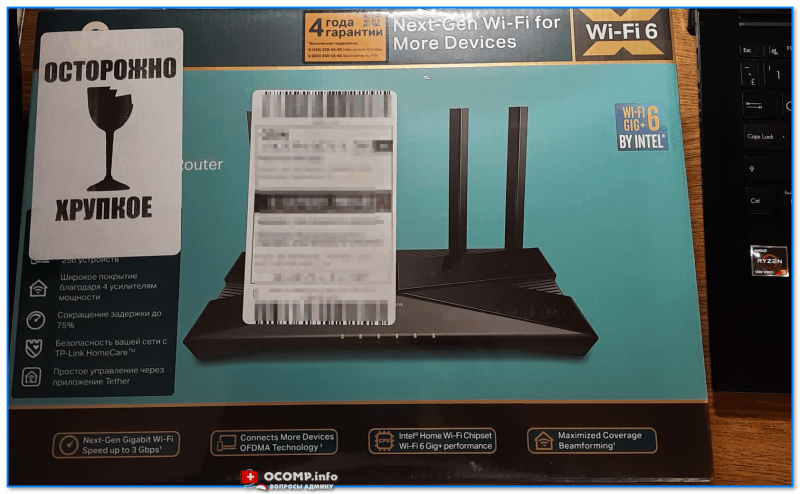
Упаковка AX50 (вид спереди)
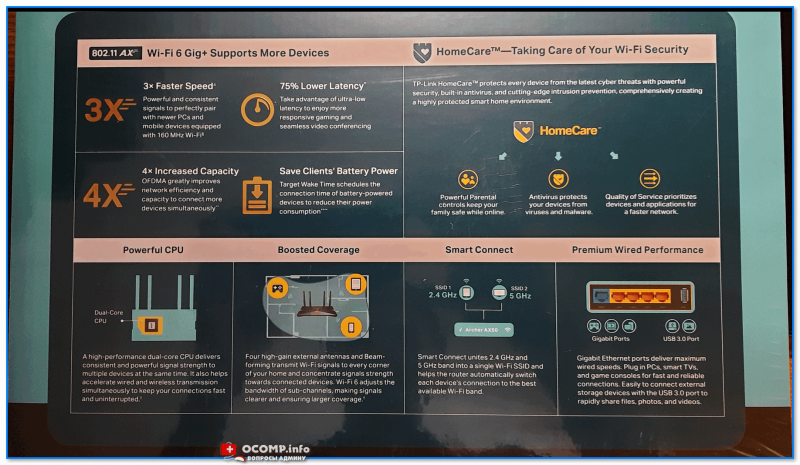
Упаковка AX50 (вид сзади)
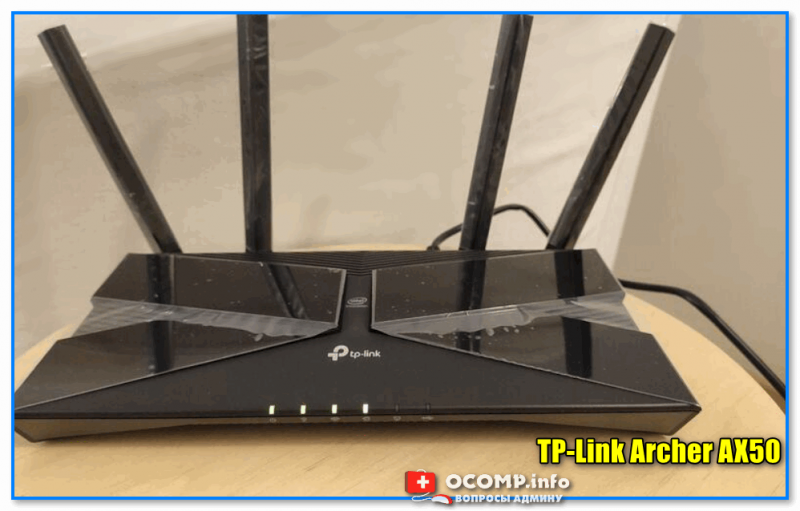
TP-Link Archer AX50
📌Что касается подключения — то здесь все стандартно:
- после того, как вынете роутер из коробки — подключите к WAN-порту кабель от Интернет-провайдера, а к порту Power — адаптер питания;
- при необходимости: к одному из LAN-портов (их здесь 4) — подключите компьютер (благо, что кабель идет в комплекте к роутеру);
- нажмите кнопку включения устройства (цифра-3 на фото ниже);
- на корпусе устройства должен загореться зеленый светодиод питания;
- Всё! Теперь понадобиться компьютер (ноутбук) для настройки устройства… См. следующий шаг.
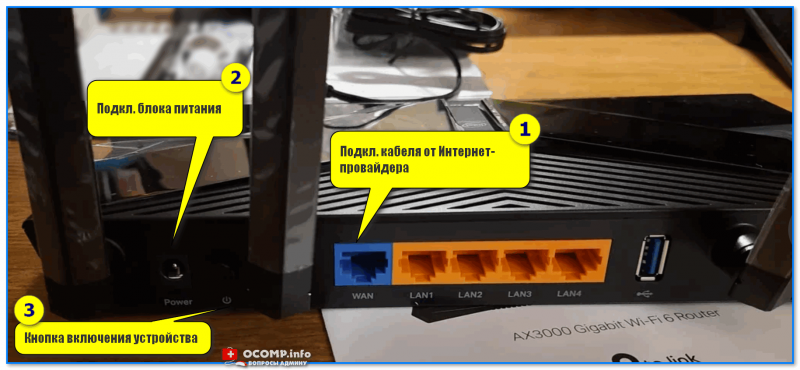
TP-Link Archer AX50 — вид сзади
*
ШАГ 2: уточняем название сети и пароль для первичного подключения
Этот шаг понадобиться в том случае, когда вы будете настраивать роутер с компьютера/ноутбука, подключившись к Wi-Fi сети (если вы подключили ПК с помощью LAN-кабеля — этот шаг можно опустить).
*
Переверните роутер — на его дне должна быть фирменная заводская наклейка с важной информацией для настройки устройства:
- название Wi-Fi сети по умолчанию (например, «TP-Link_609C»);
- пароль для подключения к этой Wi-Fi сети;
- адрес странички настроек роутера (на текущий день актуальный адрес: tplinkwifi.net).
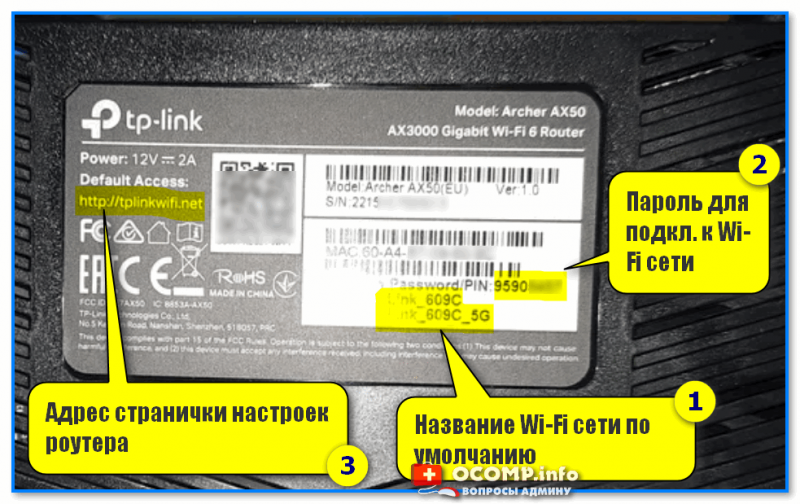
Наклейка на корпусе устройства
Теперь нужно кликнуть по значку сети в трее Windows (рядом с часами), в появившемся окне выбрать Wi-Fi сеть (название нужной вы уже должны знать 👆) и ввести пароль (который был на наклейке 👆).
Если все введено корректно — ноутбук (компьютер) должен подключиться к Wi-Fi сети (но она пока еще может быть без доступа к Интернету!).
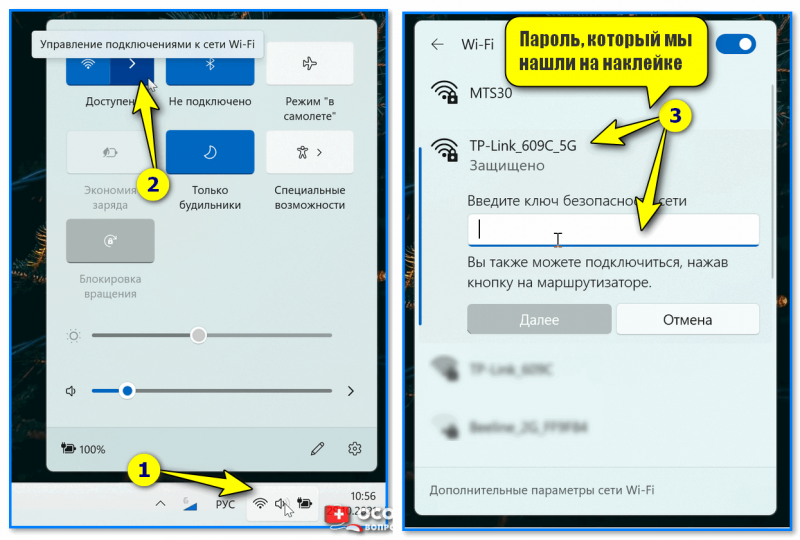
Подключаемся к Wi-Fi сети
*
ШАГ 3: настраиваем доступ к сети интернет, Wi-Fi сеть
Чтобы вы смогли войти в веб-интерфейс (личный кабинет) роутера — ваш компьютер должен быть подключен к его Wi-Fi сети (см. ШАГ 2), либо соединен с ним LAN-кабелем!
*
Теперь нужно запустить браузер (рекомендуется Edge или Chrome) и перейти по адресу:
- tplinkwifi.net (тот, который был на наклейке);
- 192.168.0.1 (работает на большинстве роутеров TP-Link. К линейке Archer подходит).
- если ни тот, ни другой адрес не откроет страницу настроек — 📌прочитайте эту заметку.
*
Если все предыдущие шаги вы выполнили правильно — перед вами появится страничка с предложением задать пароль администратора. Это нужно для того, чтобы никто, кроме вас, не мог изменять настройки как ему заблагорассудиться.
Прим.: пароль можно установить любой…
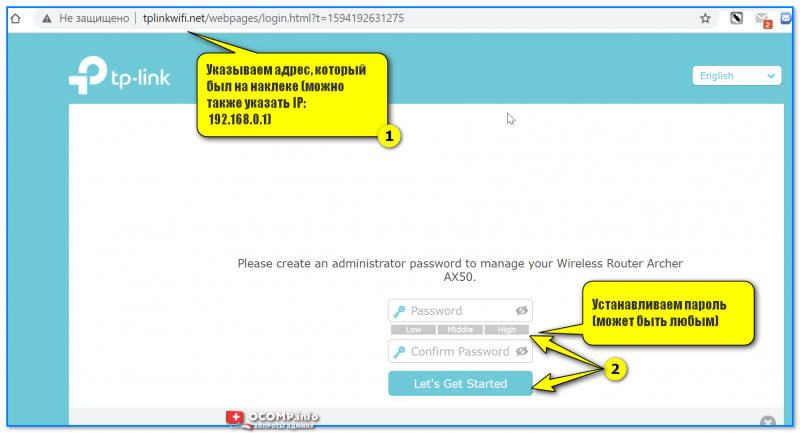
Первый вход в настройки роутера
Далее появится окно быстрой настройки (Quick Setup) — рекомендую сразу же включить русский язык (справа, в углу) и перейти в режим расширенных настроек (Advanced).
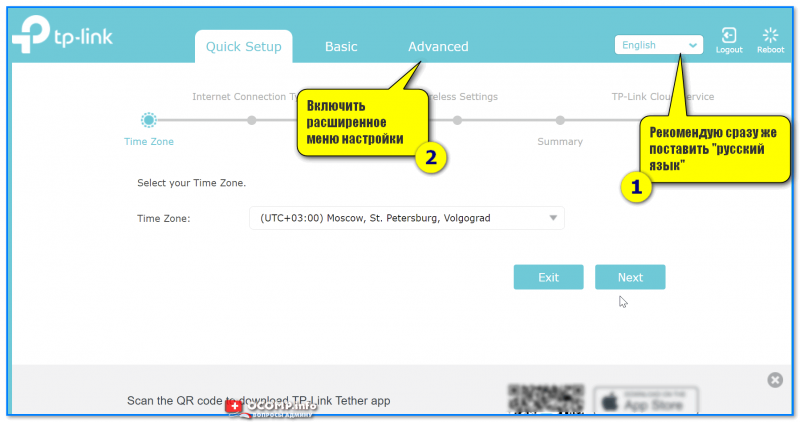
Включаем русский в меню
📌 Следующий важный момент: настройка доступ в Интернет. Для этого нужно открыть вкладку «Сеть /интернет» и:
- указать тип подключения к сети (📌возможно понадобиться указать также IP-адреса, пароли, и пр. информацию. Эти данные должен предоставить вам ваш Интернет-провайдер, обычно, они есть в договоре на оказание услуг связи!);
- нажать кнопку «Сохранить». 👇
Если все настройки введены корректно — через некоторое время на устройствах, подключенных к роутеру, должно появиться подключение к Интернету!
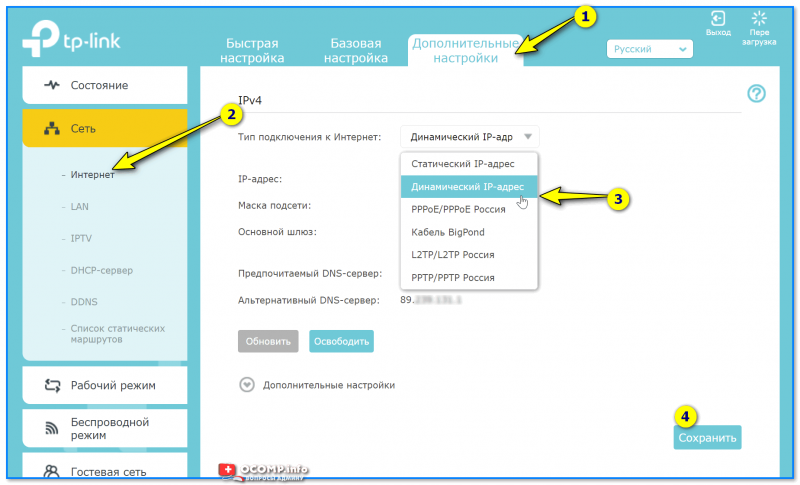
Настройка доступа в интернет
📌Еще один важный момент: поменять название Wi-Fi сети, пароль, проверить уровень сигнала и пр. Сделать это можно в разделе «Настройка беспроводного режима». См. скрин ниже. 👇
На что обратить внимание:
- желательно включить опцию OFDMA (В Wi-Fi 6 OFDMA — одна из важнейших функций для повышения производительности сети);
- имя сети и пароль рекомендуется изменить (не использовать те, что были на наклейке по умолчанию);
- установить нужную мощность передатчика (слабая, средняя, сильная);
- задать нужный канал (при необходимости) и пр.
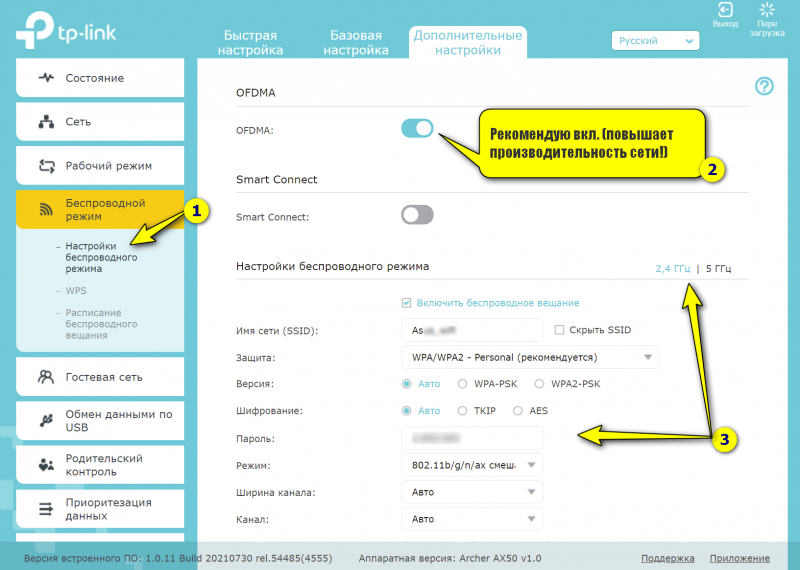
Настройки беспроводного режима
Собственно, на этом базовая настройка роутера завершена. После этого у вас должен быть доступ к сети Интернет у всех устройств, которые подключены к роутеру (через Wi-Fi / или LAN-кабель).
В следующем шаге я покажу еще неск. скринов с интересными настройками роутера (однако, задавать их не обязательно, и нужно это далеко не всем!).
*
ШАГ 4: доп. настройки (опционально, обзор)
Вкладка «Состояние»
Позволяет узнать, подключен ли роутер к Интернету, посмотреть IP-адреса, нагрузку на ядра ЦП, память, сколько проводных и беспроводных устройств подключено к нему.
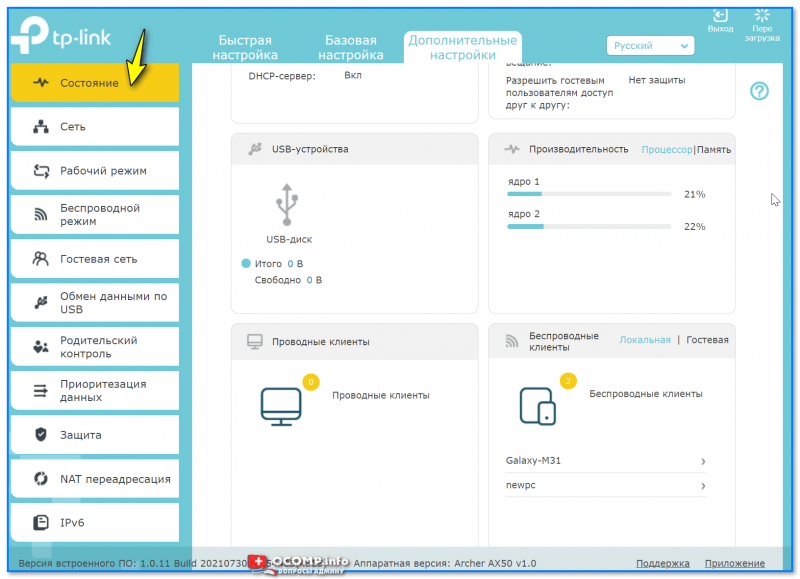
Вкладка состояния — TP-Link Archer (AX50)
*
Вкладка «Сеть»
Отвечает за настройки доступа к сети Интернет, IPTV, LAN, DHCP и пр. параметры (в общем-то, многое как и у других роутеров — почти «ничего» уникального в этой вкладке нет). См неск. скринов ниже… 👇
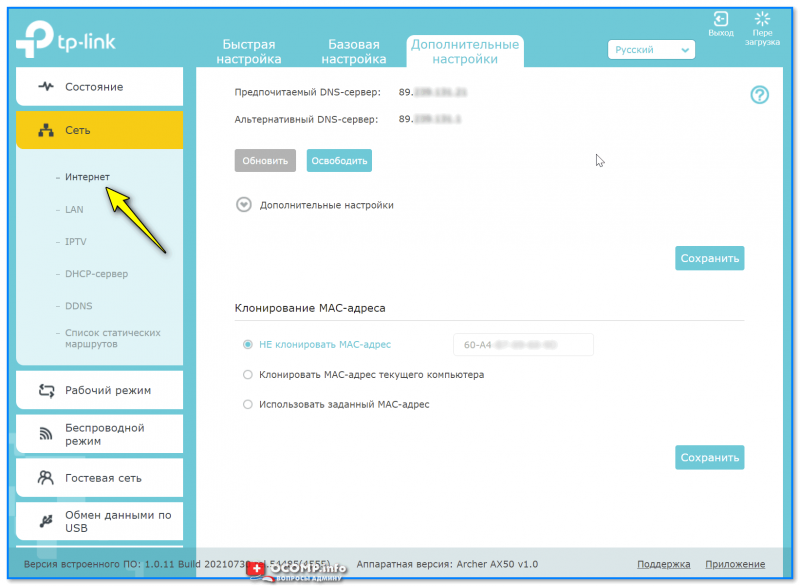
Интернет
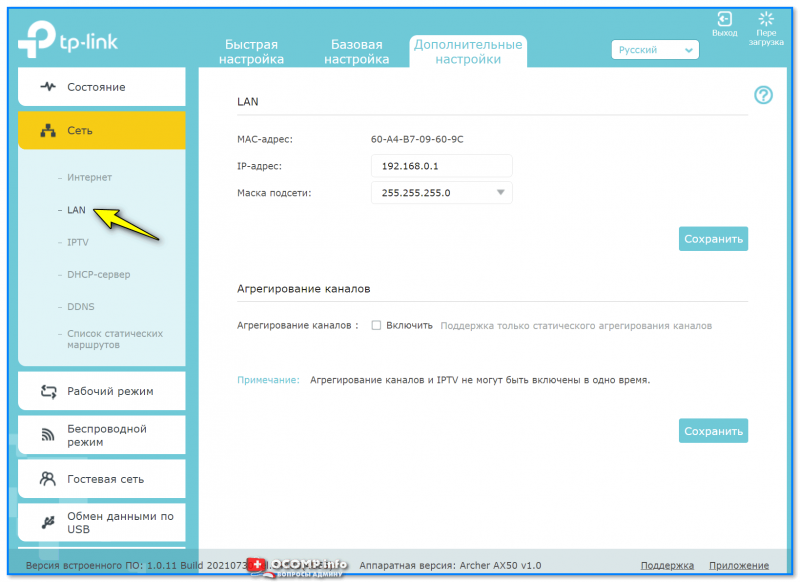
LAN
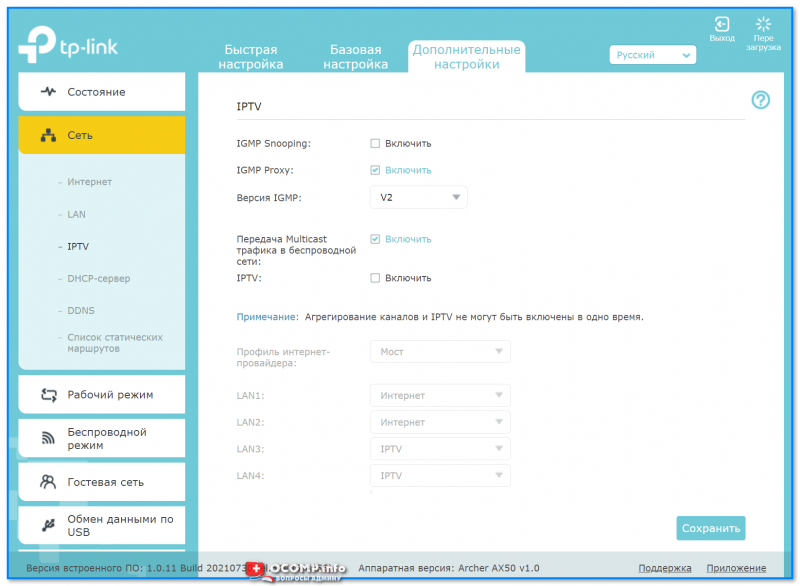
IPTV
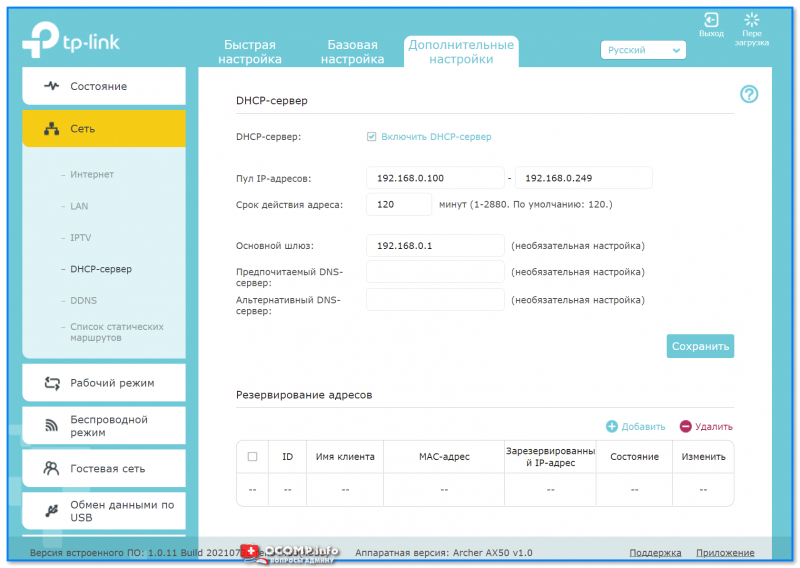
DHCP-сервер
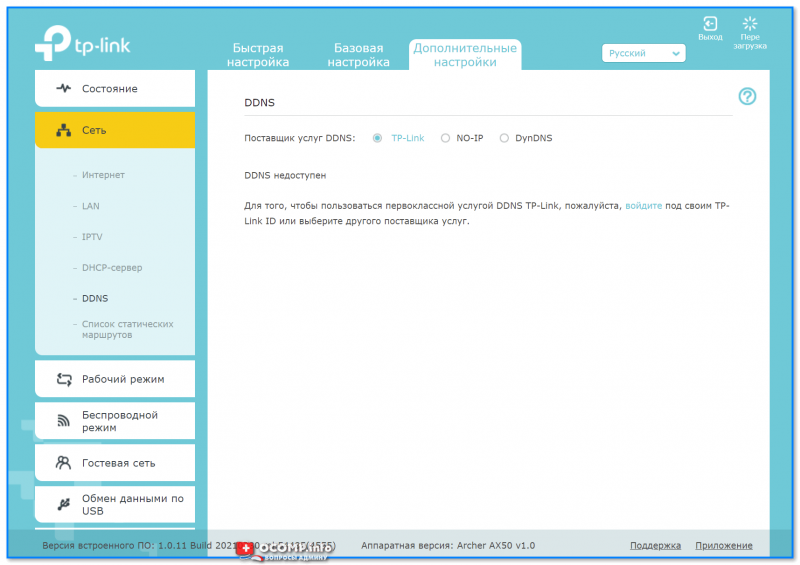
DDNS
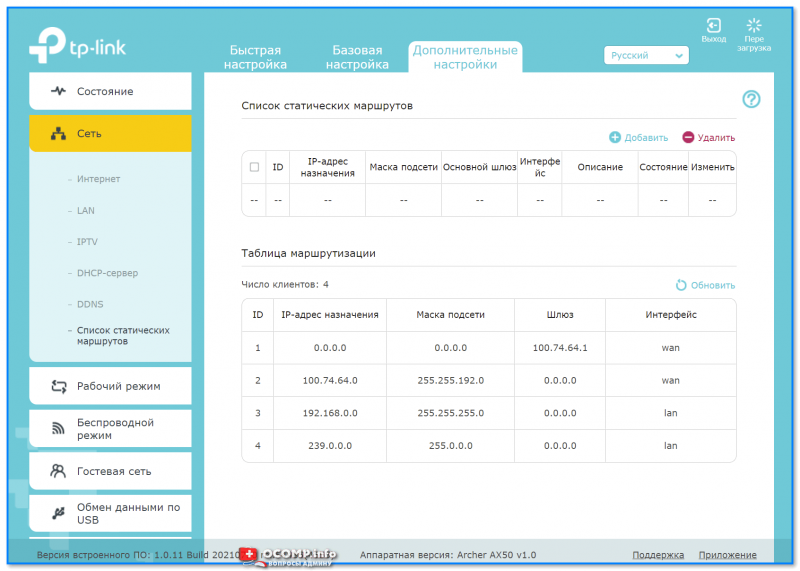
Список статических маршрутов
*
Вкладка «Рабочий режим»
Предназначена для переключения работы устройства с маршрутизатора в режим точки доступа (это может быть весьма удобно, если вам нужно расширить уже существующую Wi-Fi сеть).
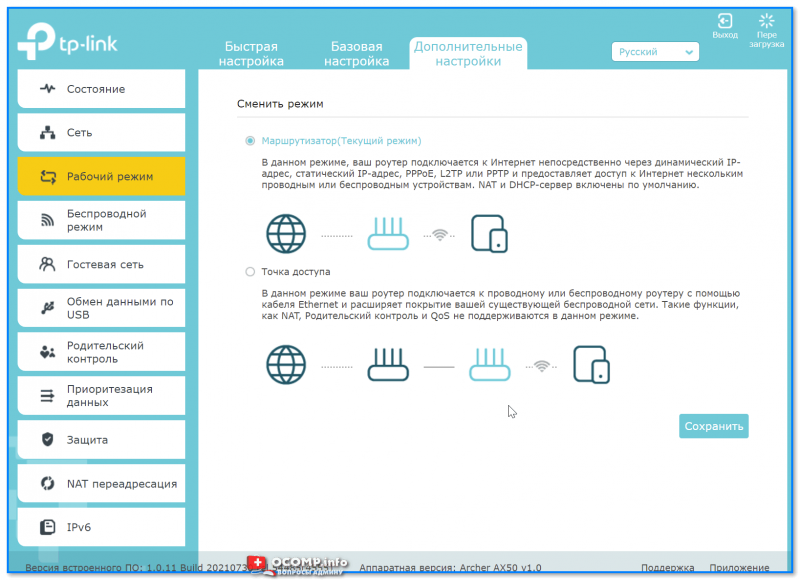
Рабочий режим
*
Вкладка «Беспроводной режим»
Настройка Wi-Fi сети: название, пароль, выбор канала и его ширины, уровень сигнала, расписание работы сети и т.д. (например, можно настроить работу роутера так, чтобы ночью он автоматически выключался, а днем — автоматически включался // без вашего участия 👌).
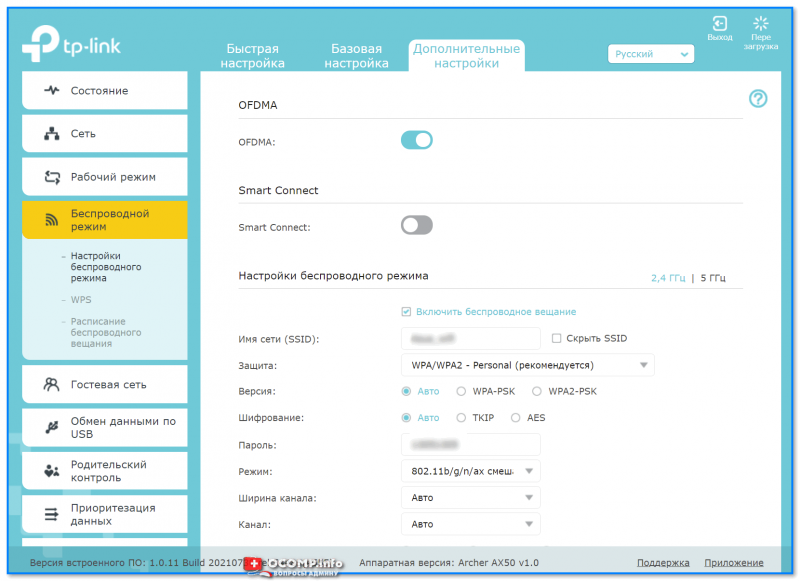
Настройки беспроводного режима
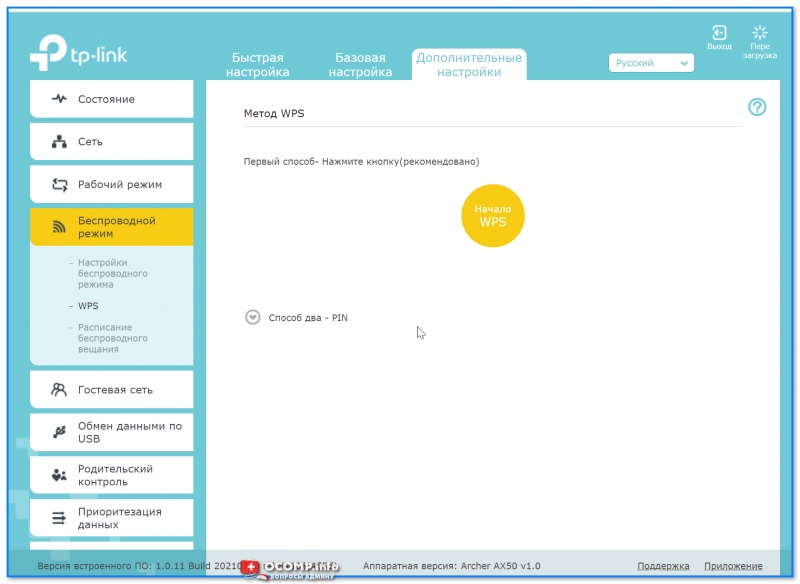
WPS
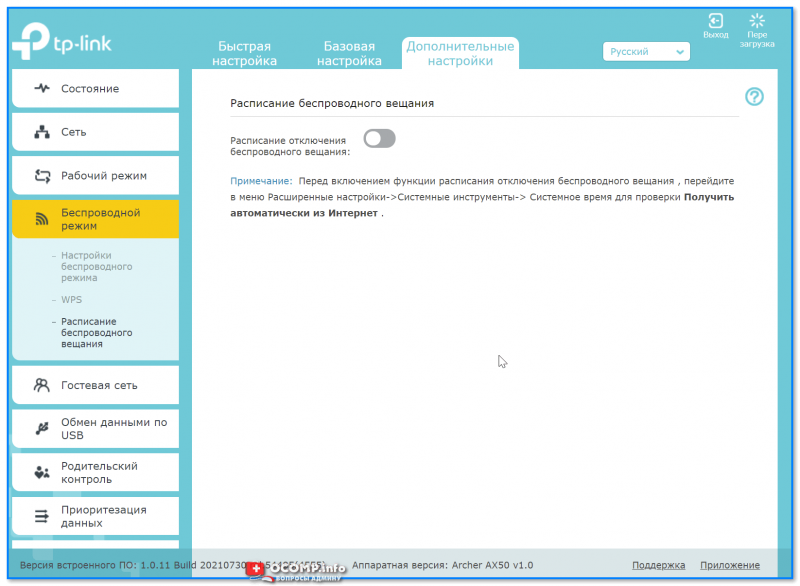
Расписание беспроводного вещания
*
Вкладка «Гостевая сеть»
Предназначена для создания доп. Wi-Fi сети, которая может использоваться для выхода в Интернет вашим гостям, посетителям, клиентам (в общем тем людям, которым вы хотите дать возможность выхода в Интернет, но при этом не доверяете доступ к своим ПК и ноутбукам, подключенным к основной сети. Прим.: при подключении к гостевой сети — нельзя увидеть устройства, подключенные к основной сети!).
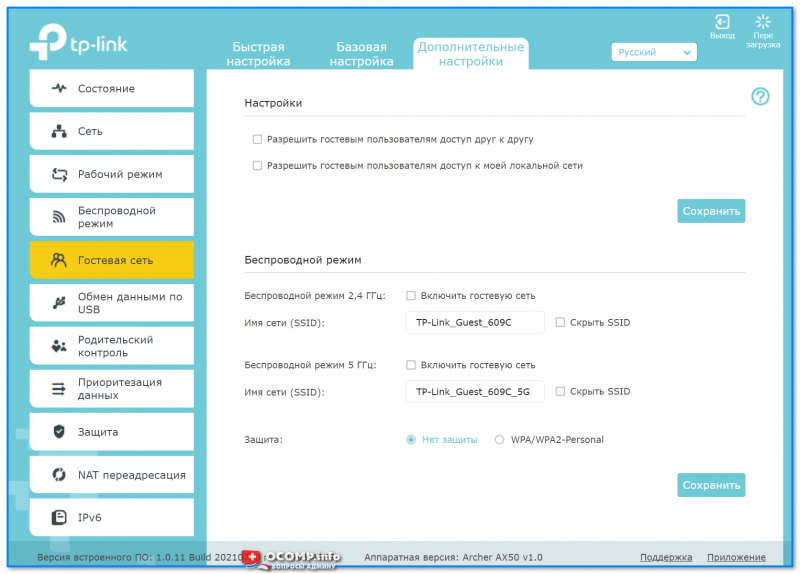
Гостевая сеть
*
Вкладка «Обмен данными по USB»
Позволяет создать FTP-сервер (общий диск) для всех пользователей, подключенных к вашему роутеру. Может быть весьма удобно, если у вас есть большой внешний диск, и вы хотите получить к нему доступ со всех домашних устройств.
Причем, есть опция для создания FTP-сервера с доступом по Интернету.
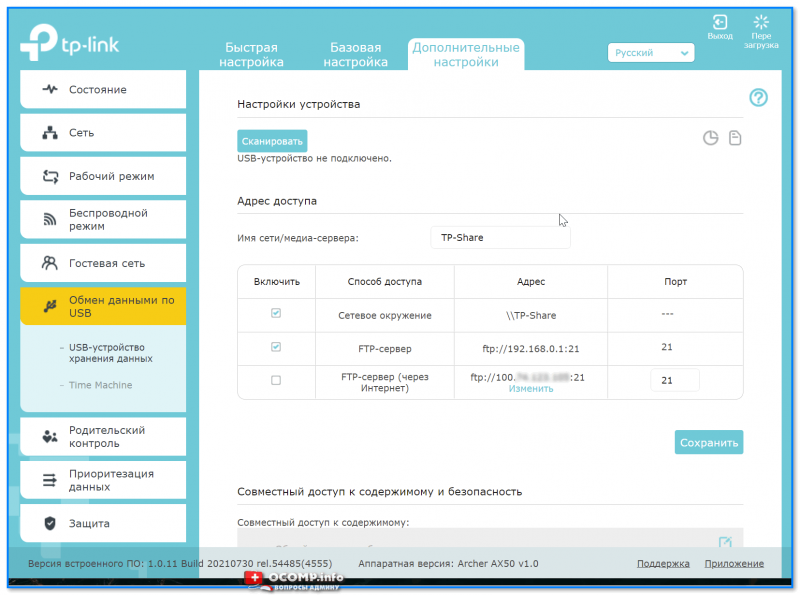
USB-устройство для хранения данных
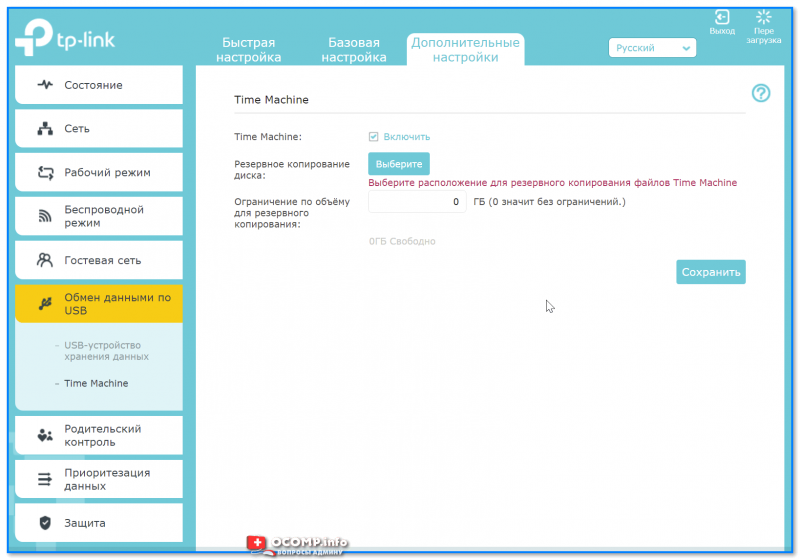
Time Machine
*
Вкладка «Родительский контроль»
Предназначена для ограничения доступа к Интернету. Например, можно запретить просматривать определенные группы сайтов (либо поставить ограничение по времени работы Интернета).
Обычно, используется для ограничения доступа «детского» ПК…
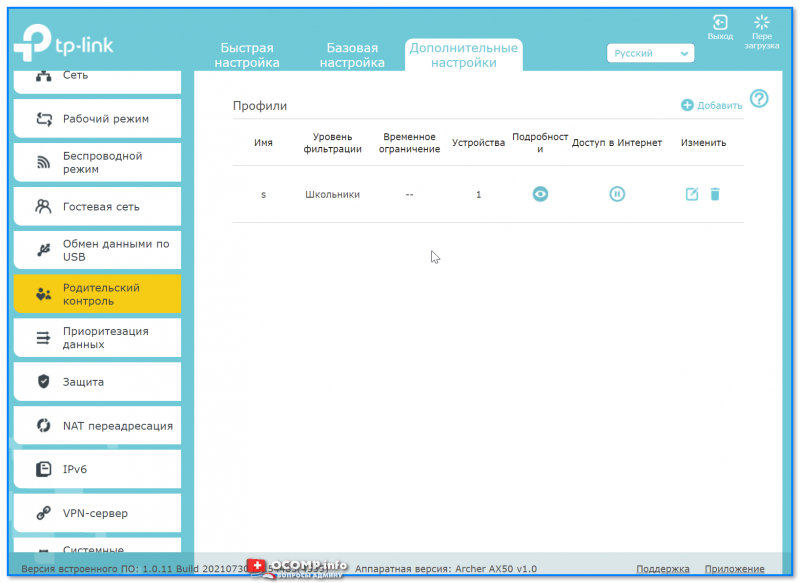
Родительский контроль
*
Вкладка «Приоритезация данных»
Эта вкладка позволяет ограничить скорость доступа определенных устройств (например, если у вас подключено 2 компьютера к сети — вы можете одному из них поставить ограничение: не более 5 Мбайт\с и тем самым, он не будет забивать весь канал связи…).
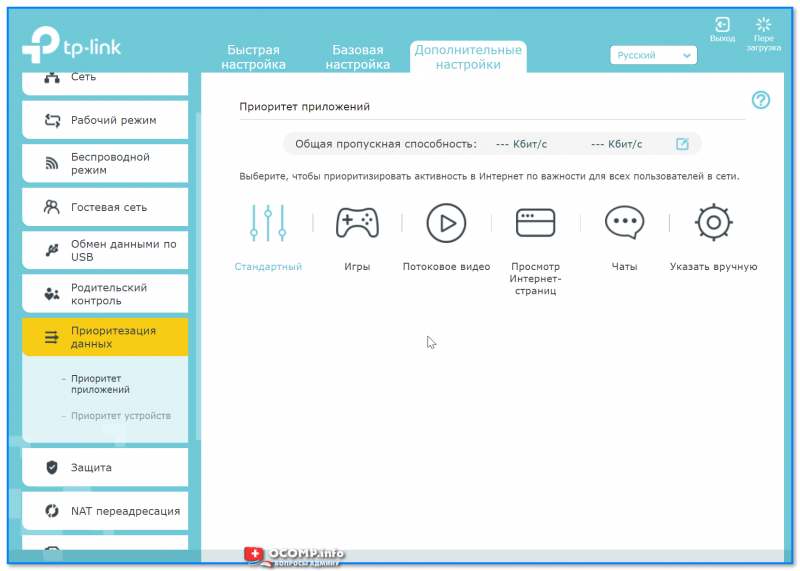
Приоритет приложений
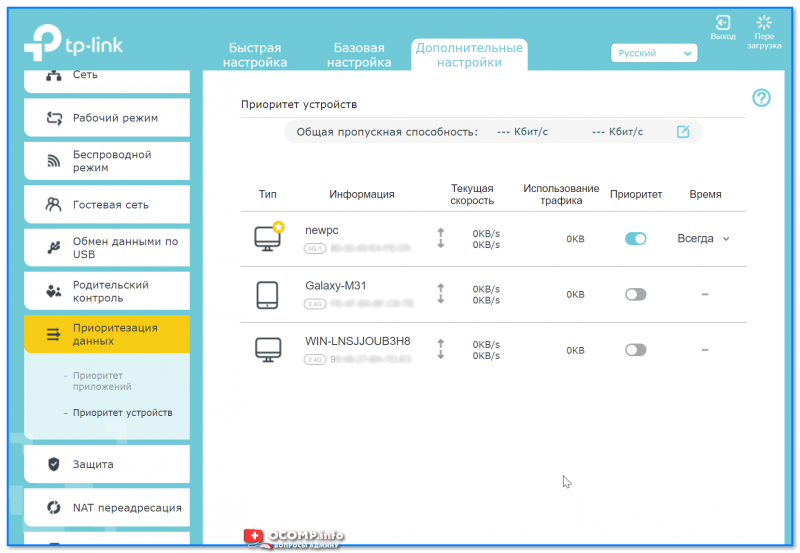
Приоритет устройств
*
Вкладка «Защита»
Предназначена для вкл. антивирусной проверки открываемых веб-страничек (Trend Micro), контроля доступа устройств (например, можно создать белый список устройств, которым разрешается подключаться к Wi-Fi сети, а всех остальных блокировать).
Также есть возможность «привязать» IP и MAC-адреса: т.е. сделать так, чтобы при каждом подключении компьютера к роутеру — ему выдавался один и тот же IP-адрес (это может быть нужно для проброски портов или для организации сетевых игр).
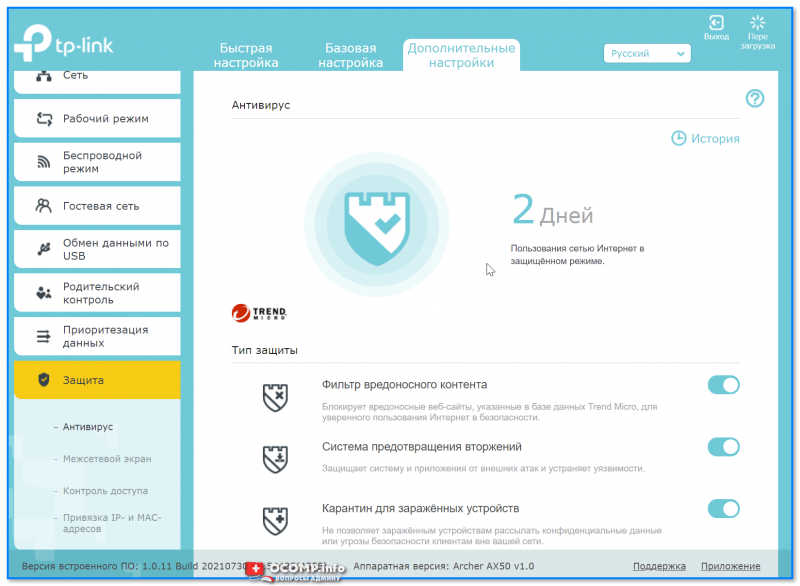
Антивирус
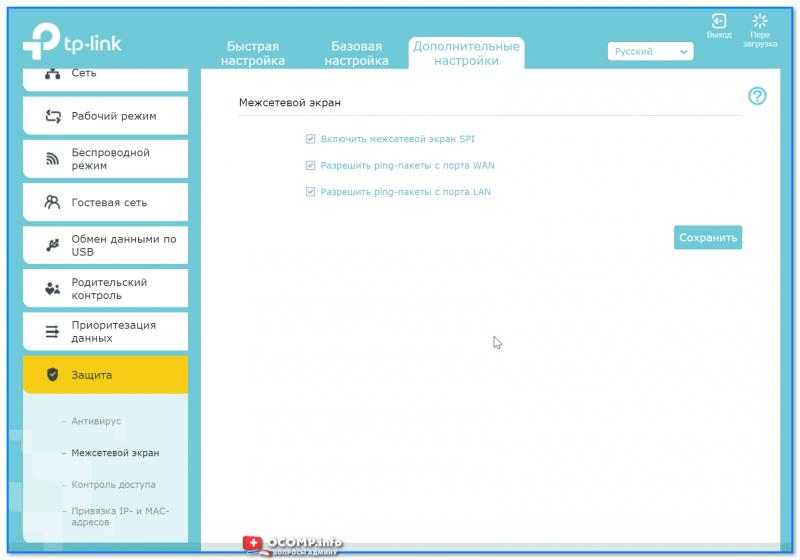
Межсетевой экран
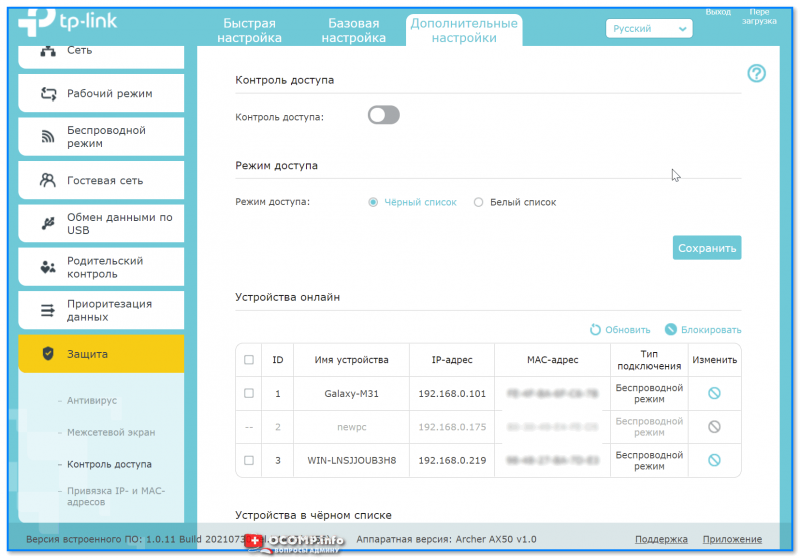
Контроль доступа
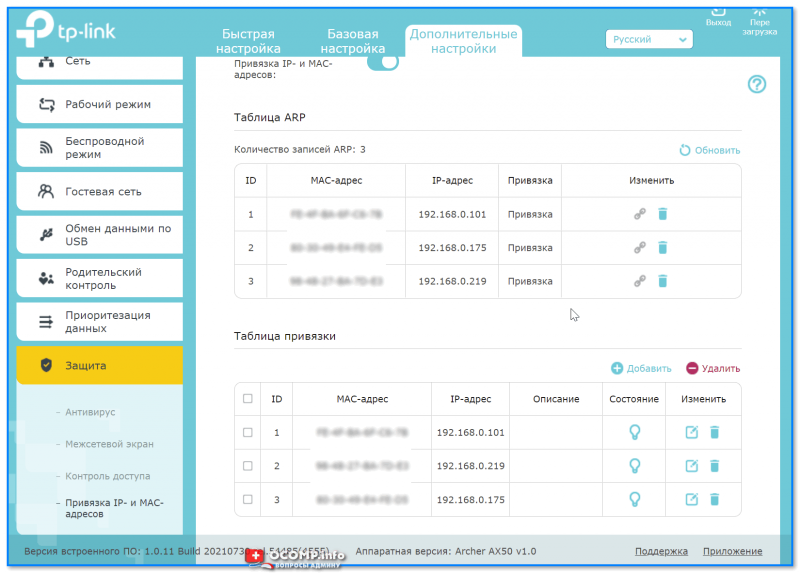
Привязка IP и MAC-адреса
*
Вкладка «NAT переадресация»
«Тонкая» настройка сети: можно создать виртуальный сервер (и разместить на нем сайт, например), пробросить порты, вкл. функцию DMZ-хост (полезна для игр, чтобы не пробрасывать «все подряд» порты) и пр.
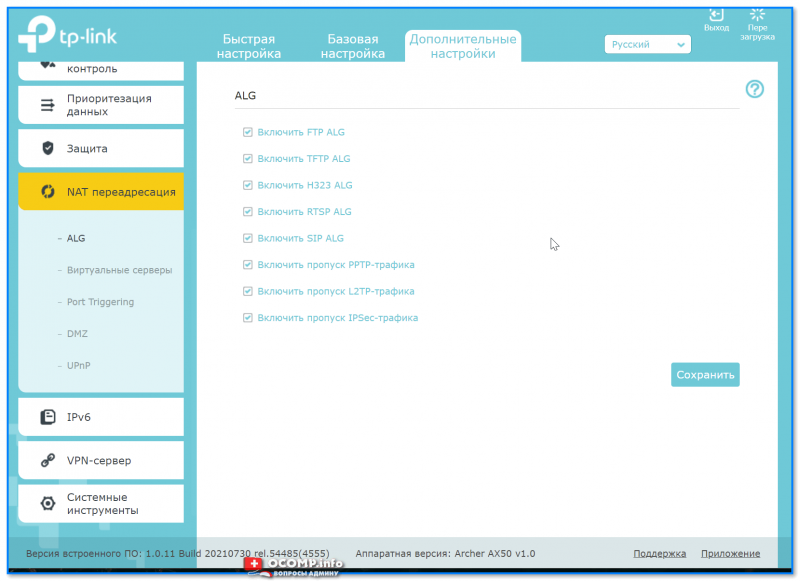
ALG
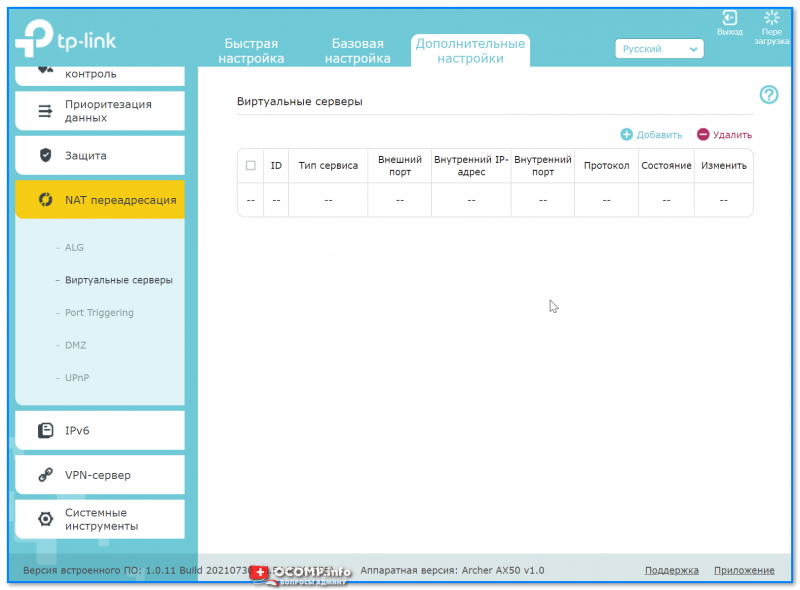
Виртуальные серверы
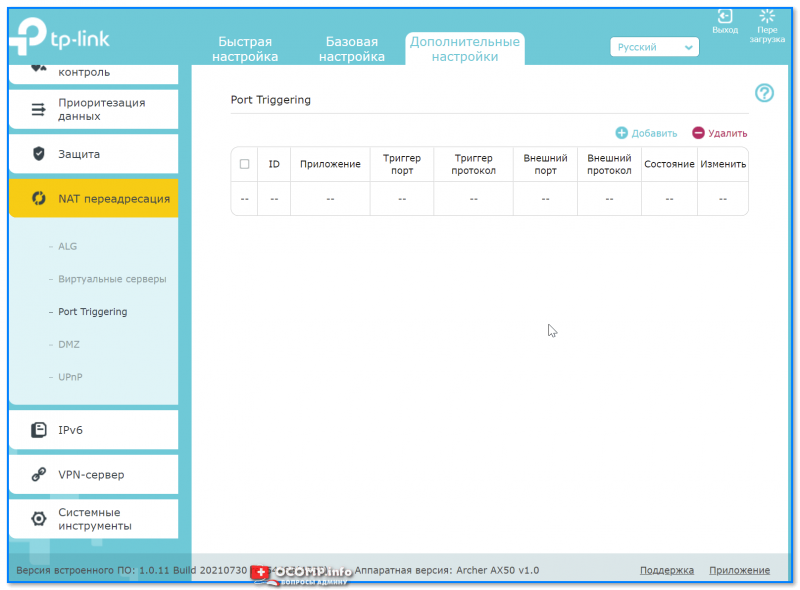
Port Triggering
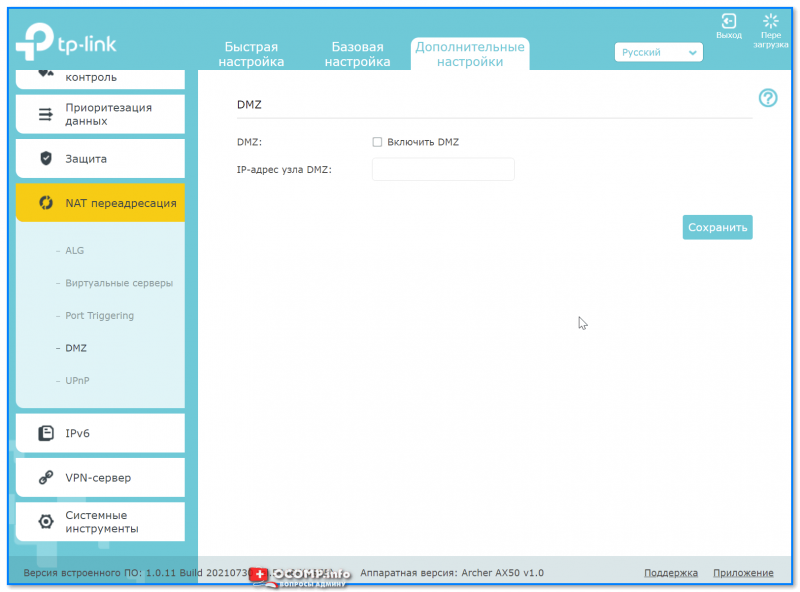
DMZ
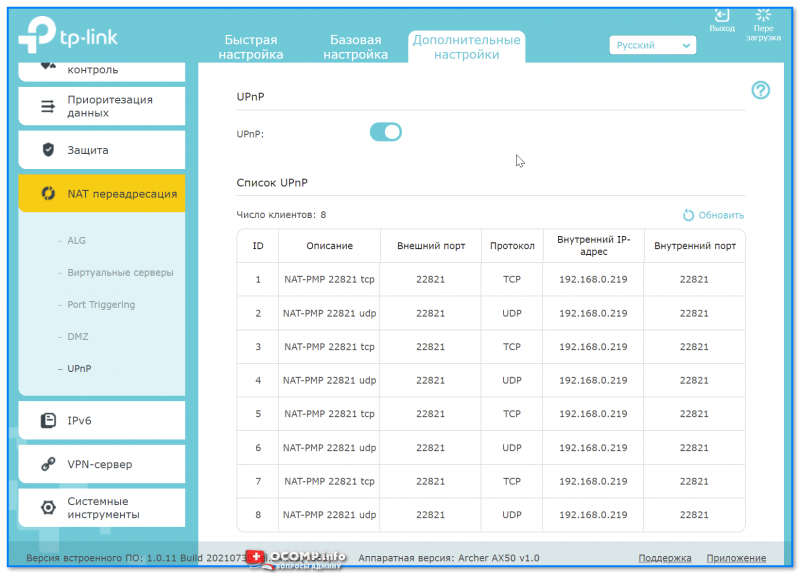
UPnP
*
Вкладка «IPv6»
Включение и настройка протокола IPv6.
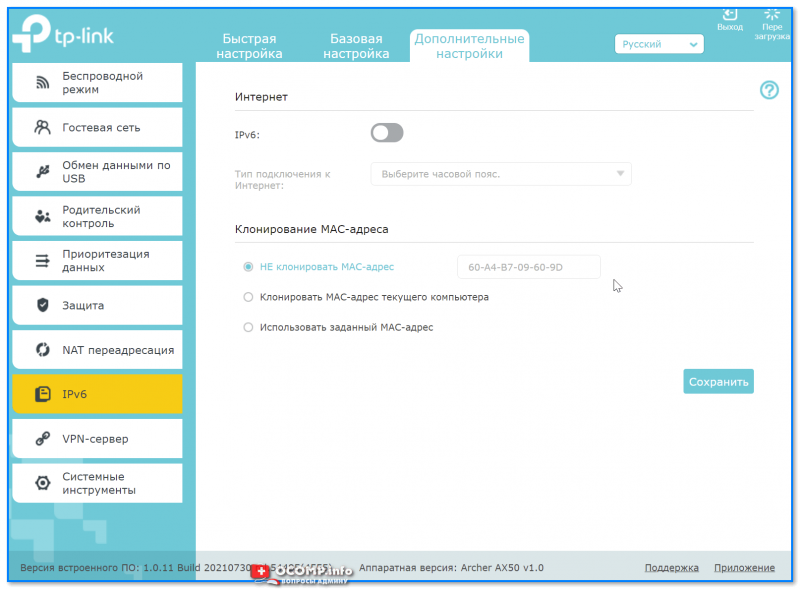
IPv6
*
Вкладка «VPN-сервер»
Предназначена для настройки VPN: причем, можно создать собственный сервер (чтобы к нему можно было подключиться издалека), так и настроить подключение к стороннему.
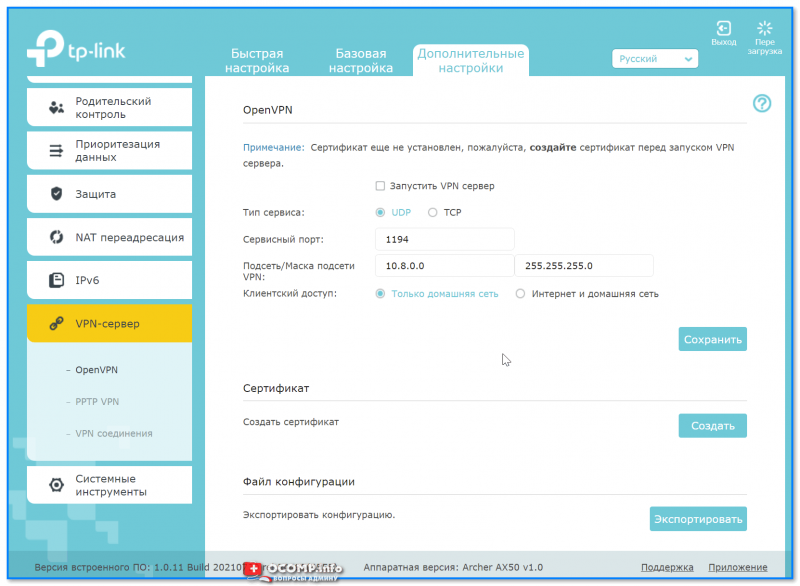
Open VPN
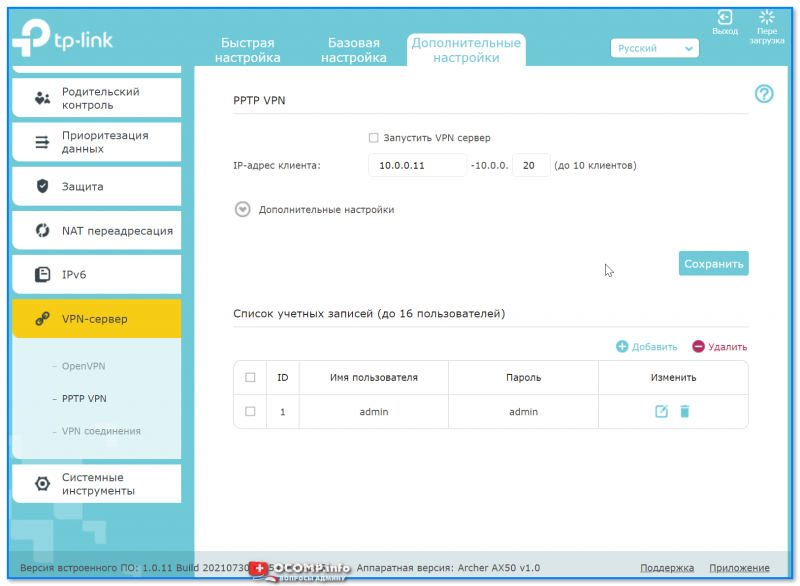
PPTP VPN
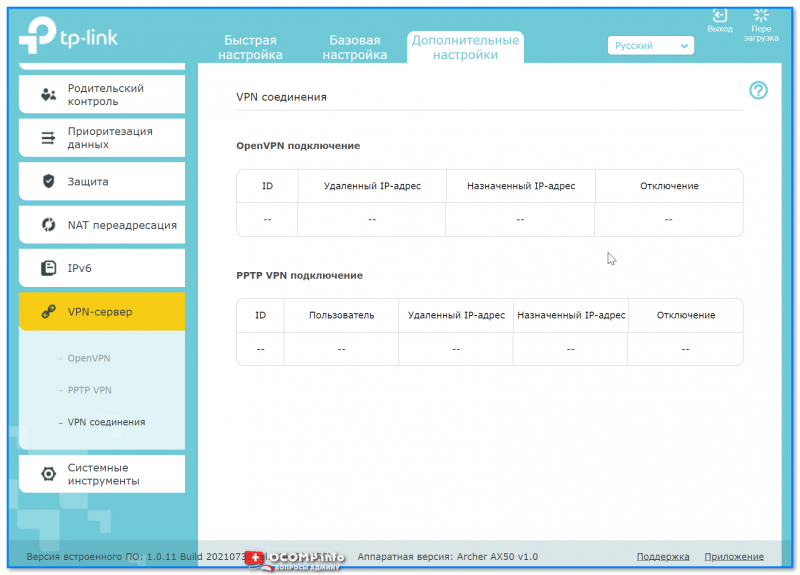
VPN соединения
*
Вкладка «Системные инструменты»
С помощью этой вкладки можно настроить системное время роутера, работу индикаторов, обновить прошивку, вкл. мониторинг трафика, проверить пинг, и др.
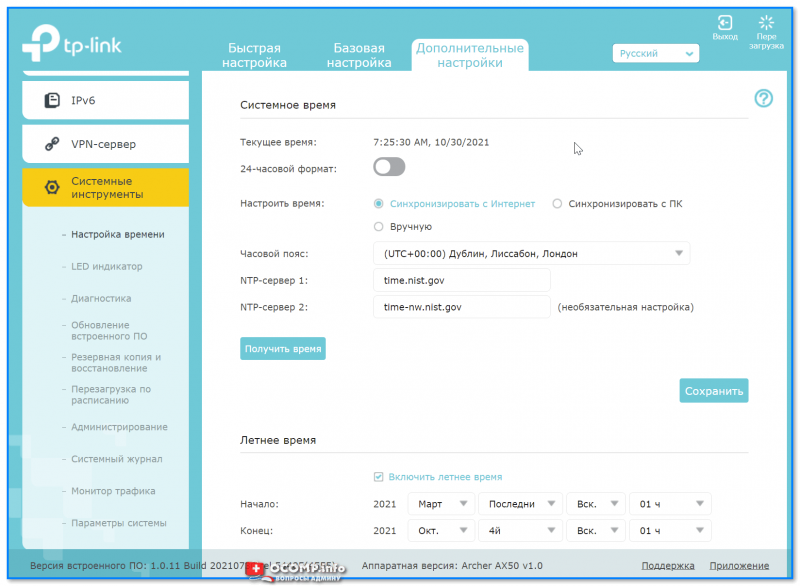
Настройка времени
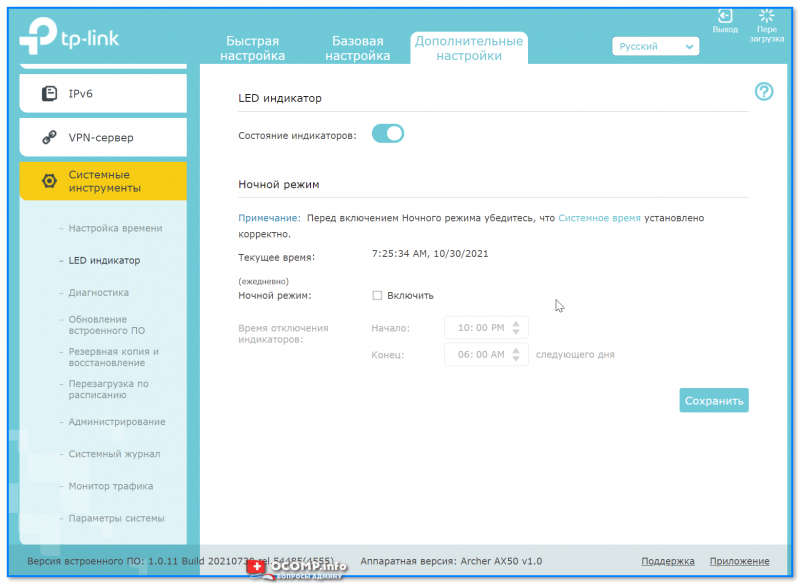
LED индикатор
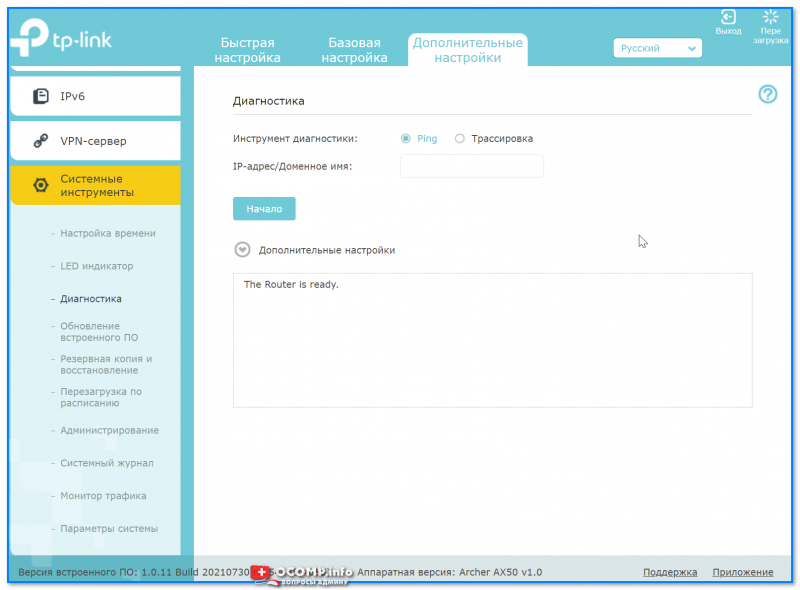
Диагностика
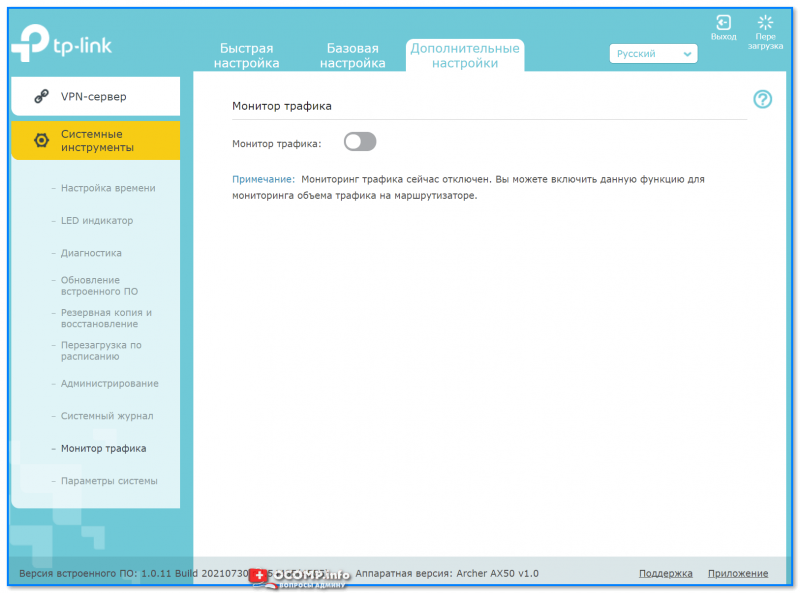
Монитор трафика
*
Дополнения по теме — приветствуются!
На сегодня пока все, успехов!
👋

User Guide
AX3000 Gigabit Wi-Fi 6 Router
Archer AX50
REV1.0.0 1910012590

Contents
About This Guide ……………………………………………………………………………………………1
Chapter 1. Get to Know About Your Router . . . . . . . . . . . . . . . . . . . . . . . . . . . 3
1. 1. Product Overview. . . . . . . . . . . . . . . . . . . . . . . . . . . . . . . . . . . . . . . . . . . . . . . . . . . . . . . . . . . . 4
1. 2. Appearance . . . . . . . . . . . . . . . . . . . . . . . . . . . . . . . . . . . . . . . . . . . . . . . . . . . . . . . . . . . . . . . . . 4
1. 2. 1. Top Panel . . . . . . . . . . . . . . . . . . . . . . . . . . . . . . . . . . . . . . . . . . . . . . . . . . . . . . . . . . . . . 4
1. 2. 2. The Back Panel. . . . . . . . . . . . . . . . . . . . . . . . . . . . . . . . . . . . . . . . . . . . . . . . . . . . . . . . 5
Chapter 2. Connect the Hardware . . . . . . . . . . . . . . . . . . . . . . . . . . . . . . . . . . . .7
2. 1. Position Your Router . . . . . . . . . . . . . . . . . . . . . . . . . . . . . . . . . . . . . . . . . . . . . . . . . . . . . . . . . 8
2. 2. Connect Your Router. . . . . . . . . . . . . . . . . . . . . . . . . . . . . . . . . . . . . . . . . . . . . . . . . . . . . . . . . 8
Chapter 3. Log In to Your Router. . . . . . . . . . . . . . . . . . . . . . . . . . . . . . . . . . . . 11
Chapter 4. Set Up Internet Connection . . . . . . . . . . . . . . . . . . . . . . . . . . . . . 13
4. 1. Use Quick Setup Wizard . . . . . . . . . . . . . . . . . . . . . . . . . . . . . . . . . . . . . . . . . . . . . . . . . . . . 14
4. 2. Quick Setup Via TP-Link Tether App. . . . . . . . . . . . . . . . . . . . . . . . . . . . . . . . . . . . . . . . . 14
4. 3. Manually Set Up Your Internet Connection . . . . . . . . . . . . . . . . . . . . . . . . . . . . . . . . . . 15
4. 4. Set Up the Router as an Access Point . . . . . . . . . . . . . . . . . . . . . . . . . . . . . . . . . . . . . . . 19
4. 5. Set Up an IPv6 Internet Connection . . . . . . . . . . . . . . . . . . . . . . . . . . . . . . . . . . . . . . . . . 20
Chapter 5. TP-Link Cloud Service . . . . . . . . . . . . . . . . . . . . . . . . . . . . . . . . . . 24
5. 1. Register a TP-Link ID. . . . . . . . . . . . . . . . . . . . . . . . . . . . . . . . . . . . . . . . . . . . . . . . . . . . . . . . 25
5. 2. Change Your TP-Link ID Information. . . . . . . . . . . . . . . . . . . . . . . . . . . . . . . . . . . . . . . . . 25
5. 3. Manage the User TP-Link IDs . . . . . . . . . . . . . . . . . . . . . . . . . . . . . . . . . . . . . . . . . . . . . . . 26
5. 3. 1. Add TP-Link ID to Manage the Router. . . . . . . . . . . . . . . . . . . . . . . . . . . . . . . . . 27
5. 3. 2. Remove TP-Link ID(s) from Managing the Router . . . . . . . . . . . . . . . . . . . . . . 27
5. 4. Manage the Router via the TP-Link Tether App . . . . . . . . . . . . . . . . . . . . . . . . . . . . . . 28
Chapter 6. Guest Network. . . . . . . . . . . . . . . . . . . . . . . . . . . . . . . . . . . . . . . . . . 29
6. 1. Create a Network for Guests . . . . . . . . . . . . . . . . . . . . . . . . . . . . . . . . . . . . . . . . . . . . . . . 30
6. 2. Customize Guest Network Options. . . . . . . . . . . . . . . . . . . . . . . . . . . . . . . . . . . . . . . . . . 31
Chapter 7. USB Settings. . . . . . . . . . . . . . . . . . . . . . . . . . . . . . . . . . . . . . . . . . . . 32
7. 1. Access the USB Storage Device . . . . . . . . . . . . . . . . . . . . . . . . . . . . . . . . . . . . . . . . . . . . 33

7. 1. 1. Access the USB Device Locally. . . . . . . . . . . . . . . . . . . . . . . . . . . . . . . . . . . . . . . 33
7. 1. 2. Access the USB Device Remotely . . . . . . . . . . . . . . . . . . . . . . . . . . . . . . . . . . . . 34
7. 1. 3. Customize the Access Settings. . . . . . . . . . . . . . . . . . . . . . . . . . . . . . . . . . . . . . . 36
7. 2. Media Sharing . . . . . . . . . . . . . . . . . . . . . . . . . . . . . . . . . . . . . . . . . . . . . . . . . . . . . . . . . . . . . . 38
7. 3. Time Machine . . . . . . . . . . . . . . . . . . . . . . . . . . . . . . . . . . . . . . . . . . . . . . . . . . . . . . . . . . . . . . 39
Chapter 8. HomeCare – Parental Controls, QoS, Anti-Virus. . . . . . . . . . 41
Chapter 9. Network Security . . . . . . . . . . . . . . . . . . . . . . . . . . . . . . . . . . . . . . . 43
9. 1. Firewall . . . . . . . . . . . . . . . . . . . . . . . . . . . . . . . . . . . . . . . . . . . . . . . . . . . . . . . . . . . . . . . . . . . . . 44
9. 2. Access Control . . . . . . . . . . . . . . . . . . . . . . . . . . . . . . . . . . . . . . . . . . . . . . . . . . . . . . . . . . . . . 44
9. 3. IP & MAC Binding . . . . . . . . . . . . . . . . . . . . . . . . . . . . . . . . . . . . . . . . . . . . . . . . . . . . . . . . . . . 46
Chapter 10. NAT Forwarding. . . . . . . . . . . . . . . . . . . . . . . . . . . . . . . . . . . . . . . . . 47
10. 1. Share Local Resources on the Internet by Virtual Servers. . . . . . . . . . . . . . . . . . . . 48
10. 2. Open Ports Dynamically by Port Triggering . . . . . . . . . . . . . . . . . . . . . . . . . . . . . . . . . . 49
10. 3. Make Applications Free from Port Restriction by DMZ . . . . . . . . . . . . . . . . . . . . . . . 50
10. 4. Make Xbox Online Games Run Smoothly by UPnP . . . . . . . . . . . . . . . . . . . . . . . . . . . 51
Chapter 11. VPN Server . . . . . . . . . . . . . . . . . . . . . . . . . . . . . . . . . . . . . . . . . . . . . 53
11. 1. Use OpenVPN to Access Your Home Network . . . . . . . . . . . . . . . . . . . . . . . . . . . . . . . 54
11. 2. Use PPTP VPN to Access Your Home Network . . . . . . . . . . . . . . . . . . . . . . . . . . . . . . 55
Chapter 12. Customize Your Network Settings. . . . . . . . . . . . . . . . . . . . . . . 61
12. 1. Change the LAN Settings . . . . . . . . . . . . . . . . . . . . . . . . . . . . . . . . . . . . . . . . . . . . . . . . . . . 62
12. 2. Set Up Link Aggregation . . . . . . . . . . . . . . . . . . . . . . . . . . . . . . . . . . . . . . . . . . . . . . . . . . . . 62
12. 3. Configure to Support IPTV Service. . . . . . . . . . . . . . . . . . . . . . . . . . . . . . . . . . . . . . . . . . 63
12. 4. Specify DHCP Server Settings . . . . . . . . . . . . . . . . . . . . . . . . . . . . . . . . . . . . . . . . . . . . . . 64
12. 5. Set Up a Dynamic DNS Service Account . . . . . . . . . . . . . . . . . . . . . . . . . . . . . . . . . . . . 65
12. 6. Create Static Routes . . . . . . . . . . . . . . . . . . . . . . . . . . . . . . . . . . . . . . . . . . . . . . . . . . . . . . . . 67
12. 7. Specify Wireless Settings. . . . . . . . . . . . . . . . . . . . . . . . . . . . . . . . . . . . . . . . . . . . . . . . . . . 69
12. 8. Use WPS for Wireless Connection . . . . . . . . . . . . . . . . . . . . . . . . . . . . . . . . . . . . . . . . . . 71
12. 8. 1. Push the WPS Button . . . . . . . . . . . . . . . . . . . . . . . . . . . . . . . . . . . . . . . . . . . . . . . 72
12. 8. 2. Connect via the Router’s PIN . . . . . . . . . . . . . . . . . . . . . . . . . . . . . . . . . . . . . . . . 72
12. 8. 3. Connect via the Client’s PIN . . . . . . . . . . . . . . . . . . . . . . . . . . . . . . . . . . . . . . . . . 72
12. 9. Schedule Your Wireless Function . . . . . . . . . . . . . . . . . . . . . . . . . . . . . . . . . . . . . . . . . . . 73
Chapter 13. Manage the Router . . . . . . . . . . . . . . . . . . . . . . . . . . . . . . . . . . . . . 74
13. 1. Set Up System Time . . . . . . . . . . . . . . . . . . . . . . . . . . . . . . . . . . . . . . . . . . . . . . . . . . . . . . . . 75

13. 2. Control LEDs . . . . . . . . . . . . . . . . . . . . . . . . . . . . . . . . . . . . . . . . . . . . . . . . . . . . . . . . . . . . . . . 77
13. 3. Test the Network Connectivity . . . . . . . . . . . . . . . . . . . . . . . . . . . . . . . . . . . . . . . . . . . . . . 77
13. 4. Upgrade the Firmware . . . . . . . . . . . . . . . . . . . . . . . . . . . . . . . . . . . . . . . . . . . . . . . . . . . . . . 79
13. 4. 1. Online Upgrade . . . . . . . . . . . . . . . . . . . . . . . . . . . . . . . . . . . . . . . . . . . . . . . . . . . . . 79
13. 4. 2. Manual Upgrade . . . . . . . . . . . . . . . . . . . . . . . . . . . . . . . . . . . . . . . . . . . . . . . . . . . . 80
13. 4. 3. Restore Interrupted Upgrade After Power Failure . . . . . . . . . . . . . . . . . . . . 80
13. 5. Backup and Restore Configuration Settings . . . . . . . . . . . . . . . . . . . . . . . . . . . . . . . . . 81
13. 6. Set the Router to Reboot Regularly. . . . . . . . . . . . . . . . . . . . . . . . . . . . . . . . . . . . . . . . . . 82
13. 7. Change the Administrator Account. . . . . . . . . . . . . . . . . . . . . . . . . . . . . . . . . . . . . . . . . . 83
13. 8. Password Recovery. . . . . . . . . . . . . . . . . . . . . . . . . . . . . . . . . . . . . . . . . . . . . . . . . . . . . . . . . 83
13. 9. Local Management . . . . . . . . . . . . . . . . . . . . . . . . . . . . . . . . . . . . . . . . . . . . . . . . . . . . . . . . . 84
13. 10. Remote Management. . . . . . . . . . . . . . . . . . . . . . . . . . . . . . . . . . . . . . . . . . . . . . . . . . . . . . . 86
13. 11. System Log. . . . . . . . . . . . . . . . . . . . . . . . . . . . . . . . . . . . . . . . . . . . . . . . . . . . . . . . . . . . . . . . . 86
13. 12. Monitor the Internet Traffic Statistics. . . . . . . . . . . . . . . . . . . . . . . . . . . . . . . . . . . . . . . . 88
13. 13. System Parameters. . . . . . . . . . . . . . . . . . . . . . . . . . . . . . . . . . . . . . . . . . . . . . . . . . . . . . . . . 89
13. 13. 1. 2.4GHz/5GHz Wireless. . . . . . . . . . . . . . . . . . . . . . . . . . . . . . . . . . . . . . . . . . . . . 89
13. 13. 2. NAT . . . . . . . . . . . . . . . . . . . . . . . . . . . . . . . . . . . . . . . . . . . . . . . . . . . . . . . . . . . . . . . 91
13. 13. 3. Internet Port Negotiation Speed Setting . . . . . . . . . . . . . . . . . . . . . . . . . . . 91
13. 14. Log Out. . . . . . . . . . . . . . . . . . . . . . . . . . . . . . . . . . . . . . . . . . . . . . . . . . . . . . . . . . . . . . . . . . . . . 91
Chapter 14. Work with Alexa . . . . . . . . . . . . . . . . . . . . . . . . . . . . . . . . . . . . . . . . 92
FAQ ……………………………………………………………………………………………………………….. 94
About This Guide
This guide is a complement of Quick Installation Guide. The Quick Installation Guide
instructs you on quick internet setup, and this guide provides details of each function
and shows you the way to configure these functions appropriate to your needs.
When using this guide, please notice that features available of the router may vary
by model and software version. Router availability may also vary by region or ISP. All
images, steps, and descriptions in this guide are only examples and may not reflect
your actual experience.
Conventions
In this guide the following conventions are used:
Convention Description
Underlined
Teal
>
Note:
Tips:
symbols on the web
page
*Maximum wireless signal rates are the physical rates derived from IEEE Standard 802.11
specifications. Actual wireless data throughput and wireless coverage are not guaranteed and
will vary as a result of network conditions, client limitations, and environmental factors, including
building materials, obstacles, volume and density of traffic, and client location.
*Use of 1024-QAM requires clients to also support those functions.
Underlined words or phrases are hyperlinks. You can click to redirect to a
website or a specific section.
Contents to be emphasized and texts on the web page are in teal, including the
menus, items, buttons, etc.
The menu structures to show the path to load the corresponding page.
For example, Advanced > Wireless > MAC Filtering means the MAC Filtering
function page is under the Wireless menu that is located in the Advanced tab.
• Ignoring this type of note might result in a malfunction or damage to the
device.
Indicates important information that helps you make better use of your device.
click to edit the corresponding entry.
•
click to delete the corresponding entry.
•
click to enable or disable the corresponding entry.
•
click to view more information about items on the page.
•
More Info
The latest software, management app and utility can be found at Download Center at
https://www.tp-link.com/support.
The Quick Installation Guide can be found where you find this guide or inside the
package of the router.
1

Specifications can be found on the product page at https://www.tp-link.com.
The TP-Link Community is provided for you to discuss our products at
https://community.tp-link.com.
Our Technical Support contact information can be found at the Contact Technical
Support page at https://www.tp-link.com/support.
2

Chapter 1
Get to Know About Your
Router
This chapter introduces what the router can do and shows its appearance.
It chapter contains the following sections:
• Product Overview
• Appearance
Chapter 1
Get to Know About Your Router
1. 1. Product Overview
TP-Link AX router, with next-generation 802.11ax Wi-Fi Technology, achieves WiFi performance at its ultimate level. The revolutionary combination of OFDMA and
1024QAM improve throughput by 4 times and dramatically increase the whole network
capacity and efficiency. It’s also backwards compatible with 802.11a/b/g/n/ac.
Moreover, it is simple and convenient to set up and use the TP-Link router due to its
intuitive web interface and the powerful Tether app.
1. 2. Appearance
1. 2. 1. Top Panel
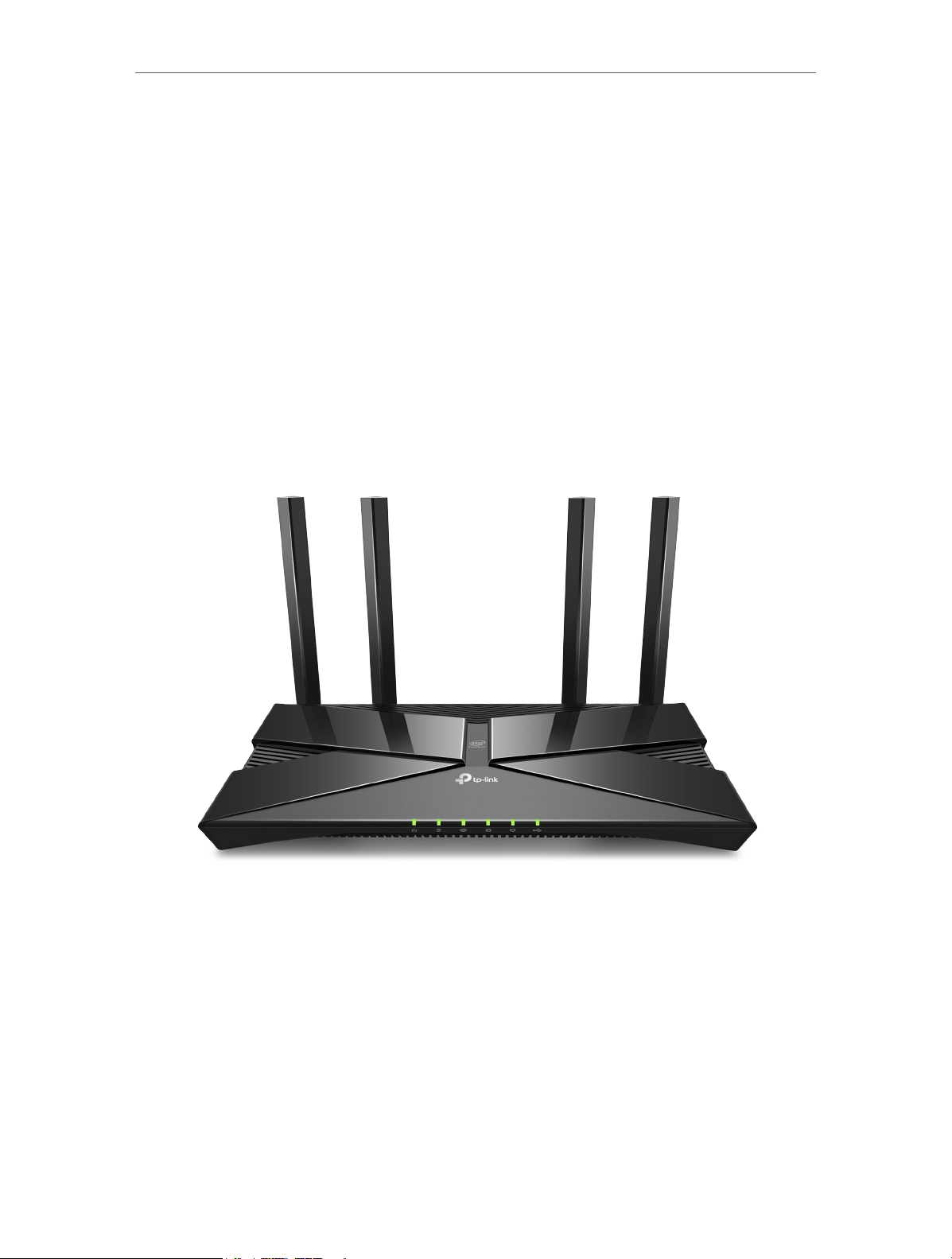
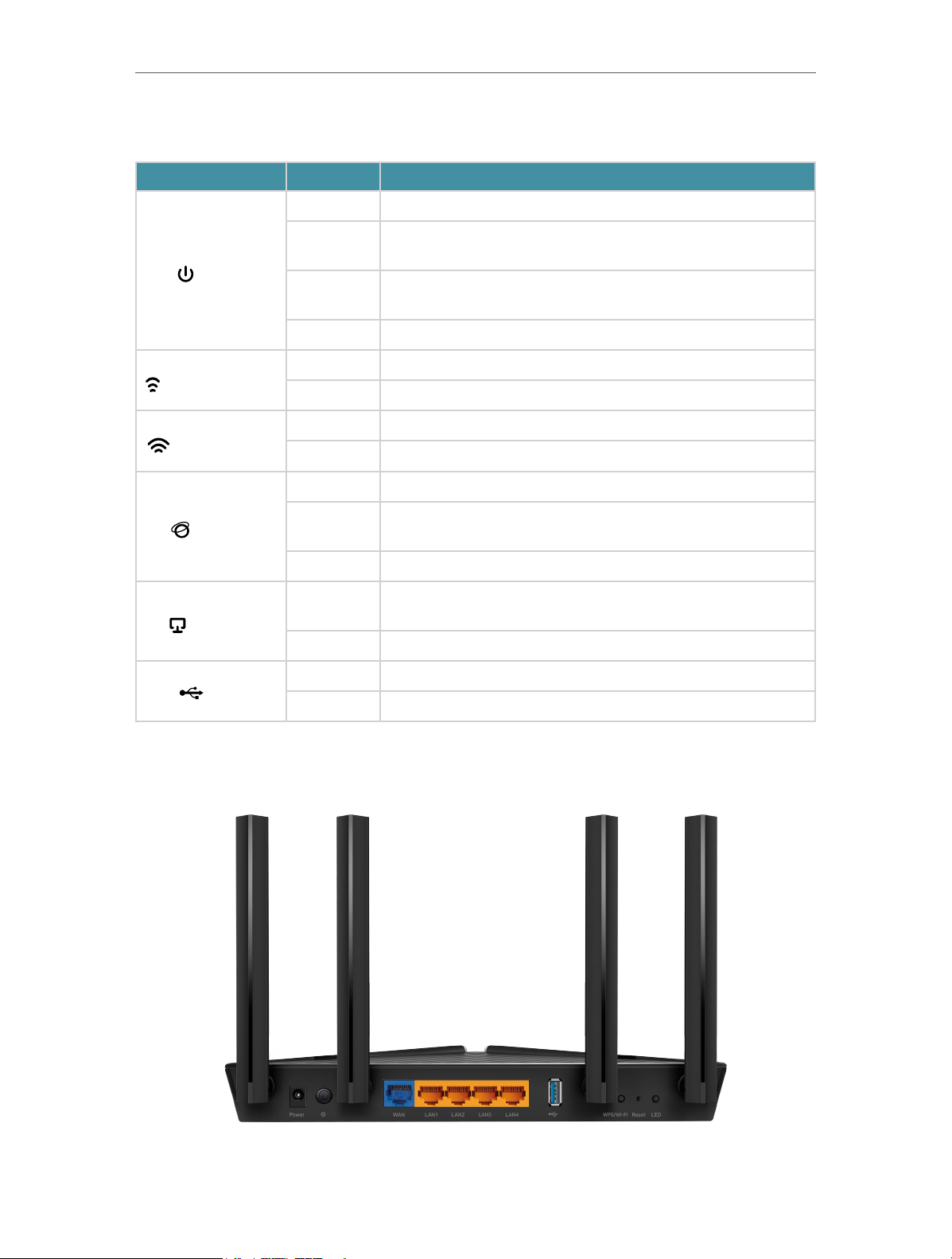
The router’s LEDs (view from left to right) are located on the front. You can check the
router’s working status by following the LED Explanation table.
4
Chapter 1
LED Explanation
LED Status Indication
Get to Know About Your Router
On The system has started up successfully.
(Power)
(2.4GHz Wireless)
(5GHz Wireless)
(Internet)
(Ethernet)
(USB)
Flashing
slowly
Flashing
quickly
Off Power is off.
On The 2.4GHz wireless band is enabled.
Off The 2.4GHz wireless band is disabled.
On The 5GHz wireless band is enabled.
Off The 5GHz wireless band is disabled.
Green On Internet service is available.
Orange On
Off The router’s WAN port is unplugged.
On
Off No powered-on device is connected to the router’s LAN port.
On The USB device is identified and ready to use.
Off No USB device is plugged in to the USB port.
The system is starting up or the firmware is being upgraded. Do
not disconnect or power off your router.
WPS connection is in process.
The router’s WAN port is connected, but the internet service is
not available.
At least one powered-on device is connected to the router’s LAN
port.
1. 2. 2. The Back Panel
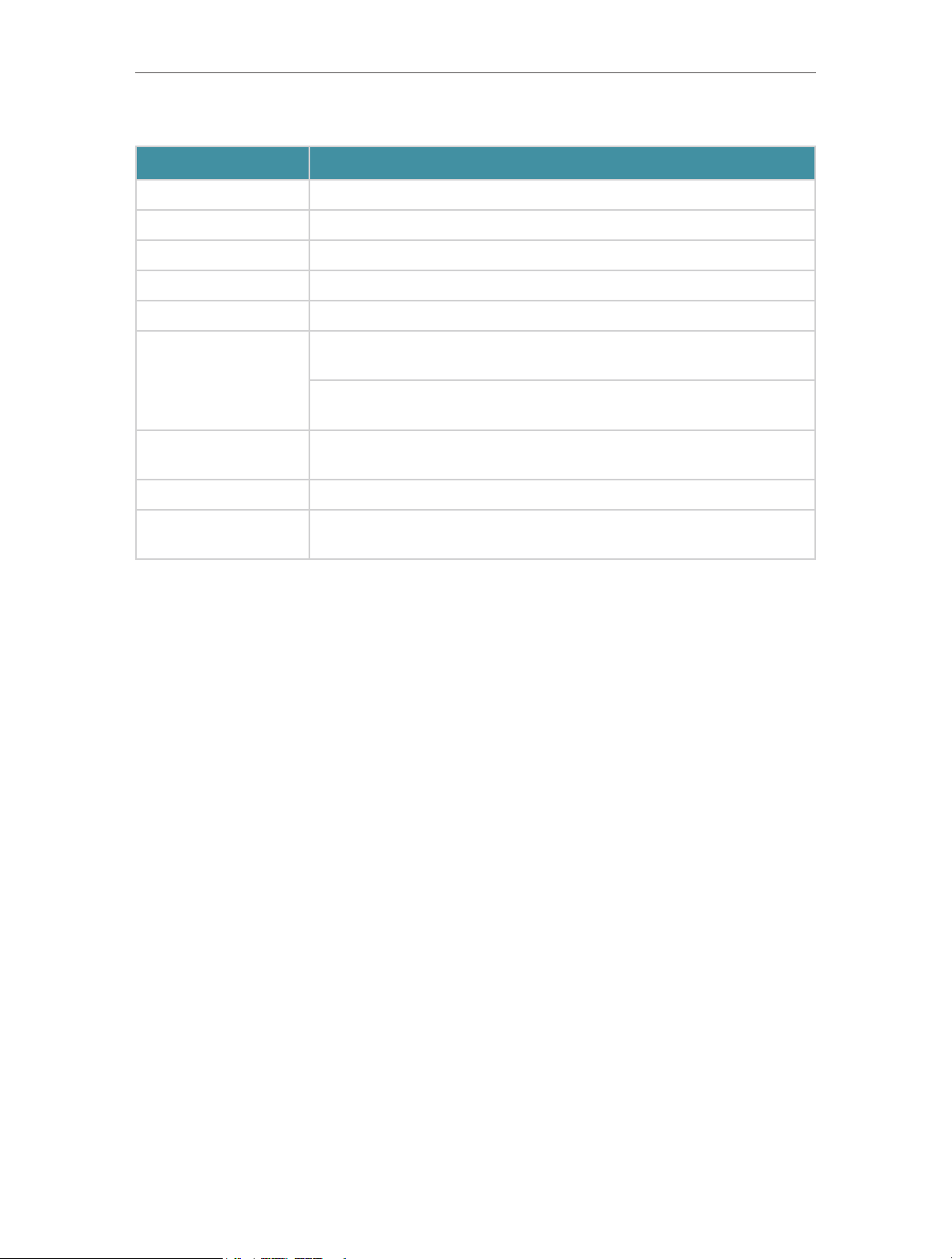
The following parts (view from left to right) are located on the back panel.
5
Chapter 1
Get to Know About Your Router
Button and Port Explanation
Item Description
Power Port For connecting the router to a power socket via the provided power adapter.
Power On/Off Button Press this button to power on or off the router.
WAN Port For connecting to a DSL/Cable modem, or an Ethernet jack.
LAN Ports (1/2/3/4) For connecting your PC or other wired devices to the router.
USB Port For connecting to a USB storage device.
Press the button for 1 second, and immediately press the WPS button on
WPS/Wi-Fi Button
your client to start the WPS process.
Press and hold the button for 2 seconds to turn on or off the wireless
function of your router.
Reset Button
LED Button Press the button for 1 second to turn on or off the LEDs of your router.
Antennas
Press and hold the button until all LEDs turn on to reset the router to its
factory default settings.
Used for wireless operation and data transmit. Upright them for the best
Wi-Fi performance.
6

Chapter 2
Connect the Hardware
This chapter contains the following sections:
• Position Your Router
• Connect Your Router
Chapter 2
Connect the Hardware
2. 1. Position Your Router
• The product should not be located in a place where it will be exposed to moisture or
excessive heat.
• Place the router in a location where it can be connected to multiple devices as well as
to a power source.
• Make sure the cables and power cord are safely placed out of the way so they do not
create a tripping hazard.
• The router can be placed on a shelf or desktop.
• Keep the router away from devices with strong electromagnetic interference, such as
Bluetooth devices, cordless phones and microwaves.
2. 2. Connect Your Router
Before you start, turn off your modem, if any, and remove the backup battery if it has
one. And place the router horizontally and orient the antennas vertically.
Follow the steps below to connect your router.
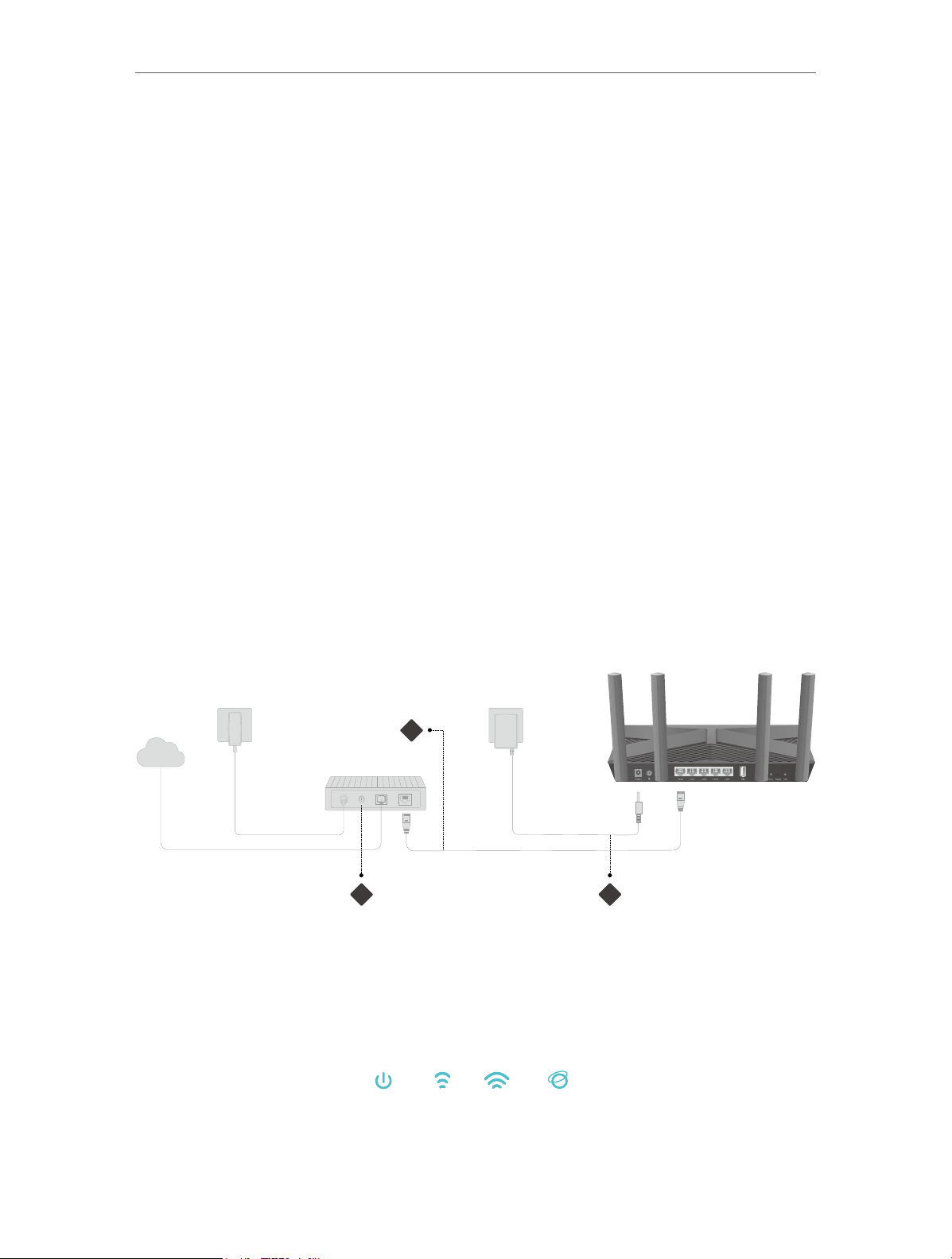
If your internet connection is through an Ethernet cable directly from the wall instead
of through a DSL / Cable / Satellite modem, connect the Ethernet cable to the router’s
WAN port, and then follow steps 3 and 4 to complete the hardware connection.
1
Internet
2 3
1. Connect the modem to the router’s WAN port with an Ethernet cable.
2. Turn on the modem, and then wait about 2 minutes for it to restart.
3. Connect the power adapter to the router and turn on the router.
4. Verify that the hardware connection is correct by checking the following LEDs.
Power
On
2.4G
On
5G
On
Internet
On
8
Chapter 2
Connections are available
Wireless Network Connection
Note:
Note: If the 2.4GHz LED and 5GHz LED are off, press and hold the WPS/Wi-Fi button on the back for more than 2 seconds.
Both the LEDs should turn solid on.
Connect the Hardware
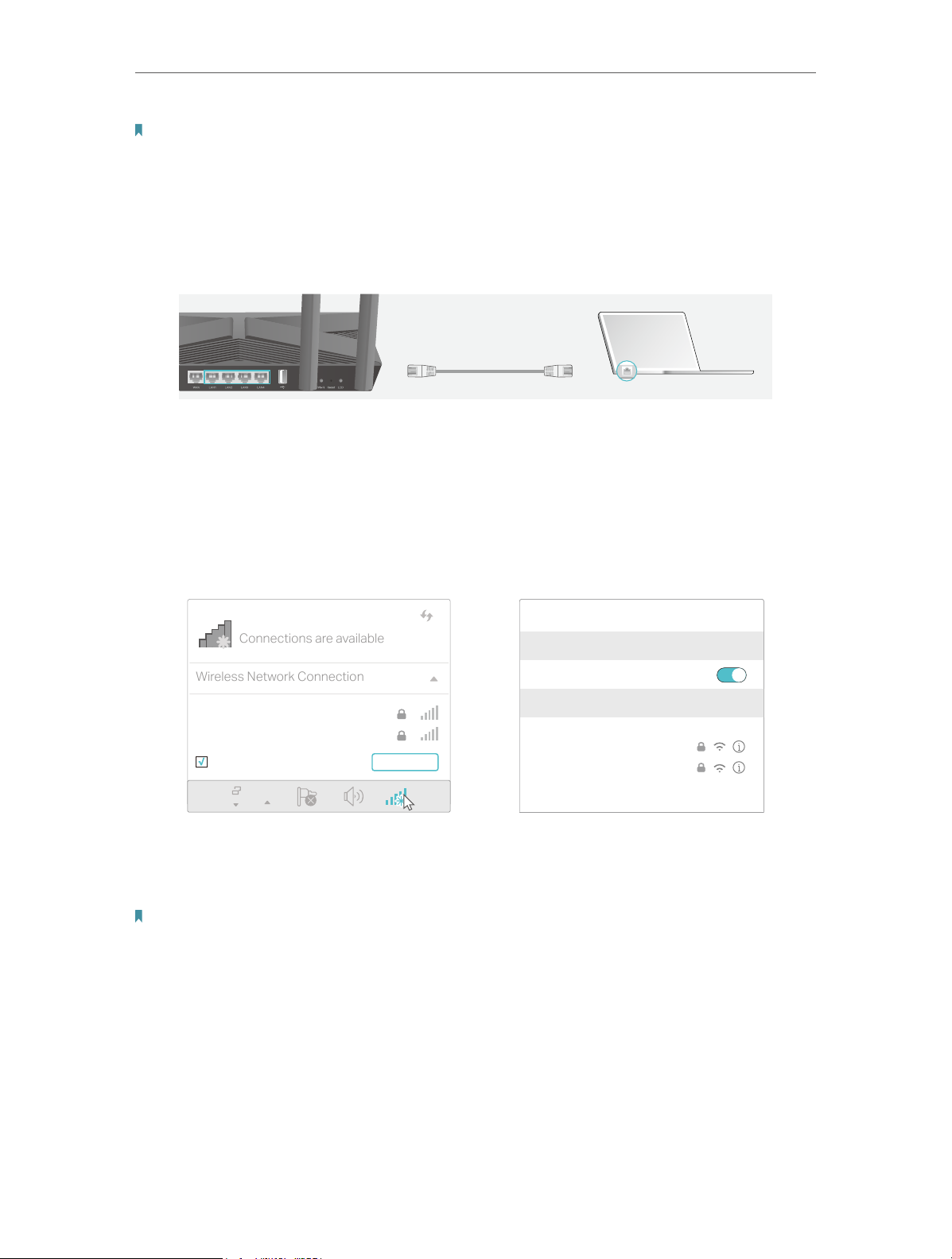
5. Connect your computer to the router.
• Method 1: Wired
Turn off the Wi-Fi on your computer and connect the devices as shown below.
Ethernet cable
• Method 2: Wirelessly
1 ) Find the SSID (Network Name) and Wireless Password printed on the label at
the bottom of the router.
2 ) Click the network icon of your computer or go to Wi-Fi Settings of your smart
device, and then select the SSID to join the network.
Smart DeviceComputer
< Settings
Wi-Fi
TP-Link_XXXX
TP-Link_XXXX_5G
Connect automatically Connect
OR
CHOOSE A NETWORK…
TP-Link_XXXX
TP-Link_XXXX_5G
Other…
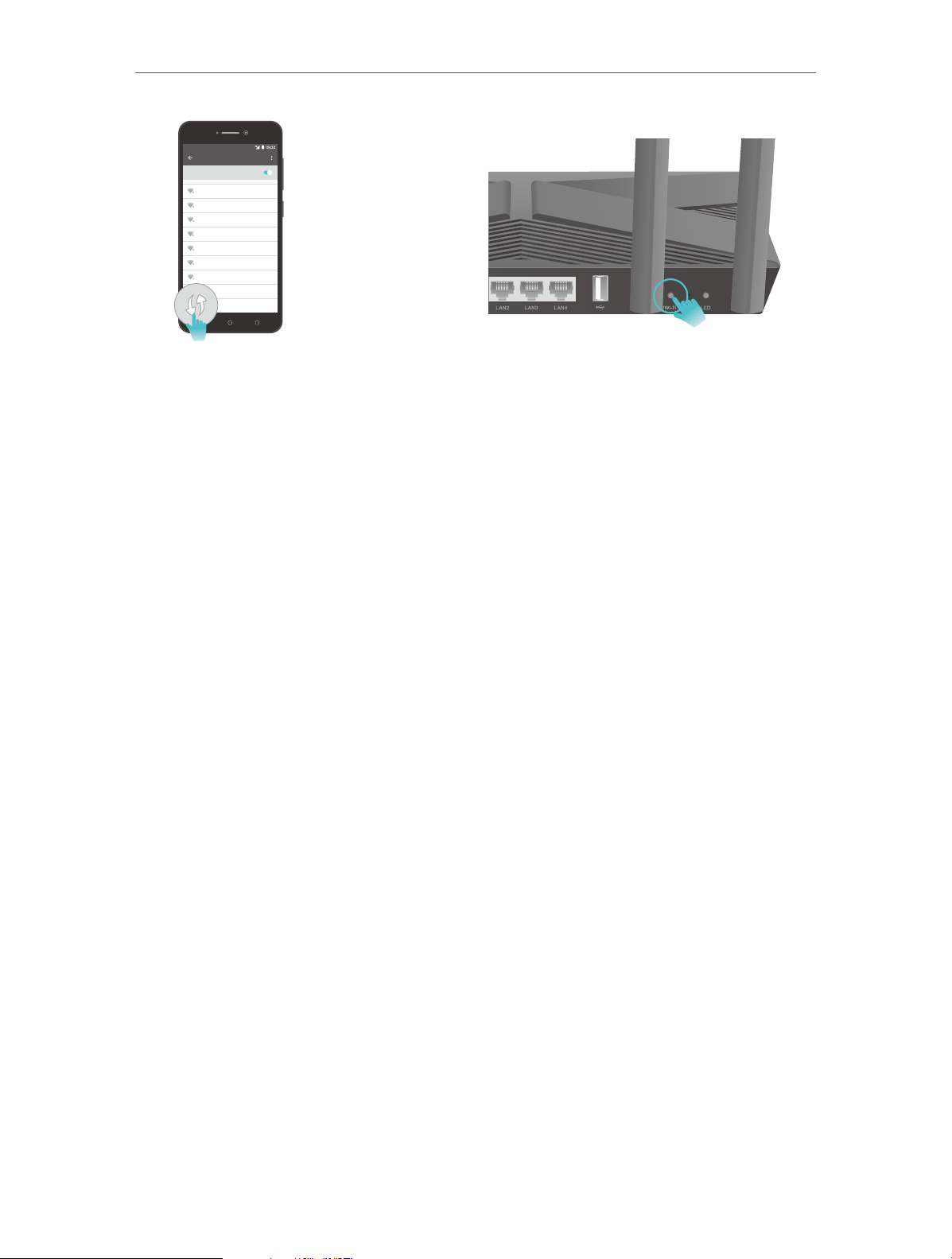
• Method 3: Use the WPS button
Wireless devices that support WPS, including Android phones, tablets, and most USB
network cards, can be connected to your router through this method.
Note:
• WPS is not supported by iOS devices.
• The WPS function cannot be configured if the wireless function of the router is disabled. Also, the WPS function will be
disabled if your wireless encryption is WEP. Please make sure the wireless function is enabled and is configured with
the appropriate encryption before configuring the WPS.
1 ) Tab the WPS icon on the device’s screen. Here we take an Android phone for
instance.
Wi-Fi
2 ) Within two minutes, press the WPS button on your router.
9
Chapter 2
WLAN
On
TP-Link
MyHome
David
HomeNetwork
TP-Link_Home
TP-Link_Router
Test
Connect the Hardware
close to
10

Chapter 3
Log In to Your Router
Chapter 3
Log In to Your Router
With a web-based utility, it is easy to configure and manage the router. The web-based
utility can be used on any Windows, Mac OS or UNIX OS with a Web browser, such as
Microsoft Internet Explorer, Mozilla Firefox or Apple Safari.
Follow the steps below to log in to your router.
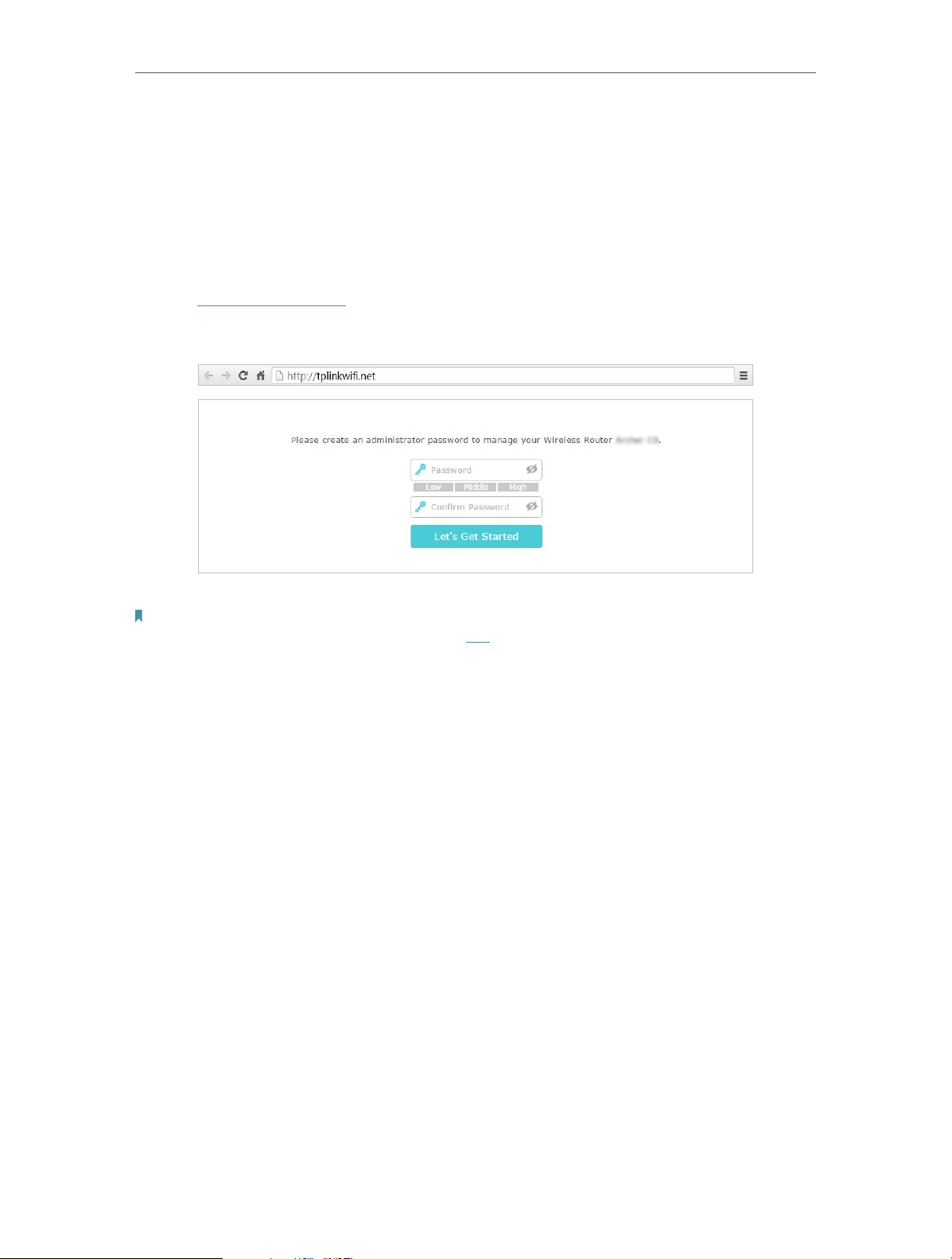
1. Set up the TCP/IP Protocol in Obtain an IP address automatically mode on your
computer.
2. Visit http://tplinkwifi.net, and create a login password for secure management
purposes. Then click Let’s Get Started to log in.
Note:
• If the login window does not appear, please refer to the FAQ Section.
• If you have registered a TP-Link ID and bound your cloud router to it, the login password you created here will be
invalid. Please log in to the cloud router using your TP-Link ID.
12

Chapter 4
Set Up Internet Connection
This chapter introduces how to connect your router to the internet. The router is
equipped with a web-based Quick Setup wizard. It has necessary ISP information built
in, automates many of the steps and verifies that those steps have been successfully
completed. Furthermore, you can also set up an IPv6 connection if your ISP provides
IPv6 service.
It contains the following sections:
• Use Quick Setup Wizard
• Quick Setup Via TP-Link Tether App
• Manually Set Up Your Internet Connection
• Set Up the Router as an Access Point
• Set Up an IPv6 Internet Connection
Chapter 4
Set Up Internet Connection
4. 1. Use Quick Setup Wizard
The Quick Setup Wizard will guide you to set up your router.
Tips:
If you need the IPv6 internet connection, please refer to the section of Set Up an IPv6 Internet Connection.
Follow the steps below to set up your router.
1. Visit http://tplinkwifi.net, and log in with the password you set for the router.
2. Click Quick Setup on the top of the page. Then follow the step-by-step instructions
to connect your router to the internet.
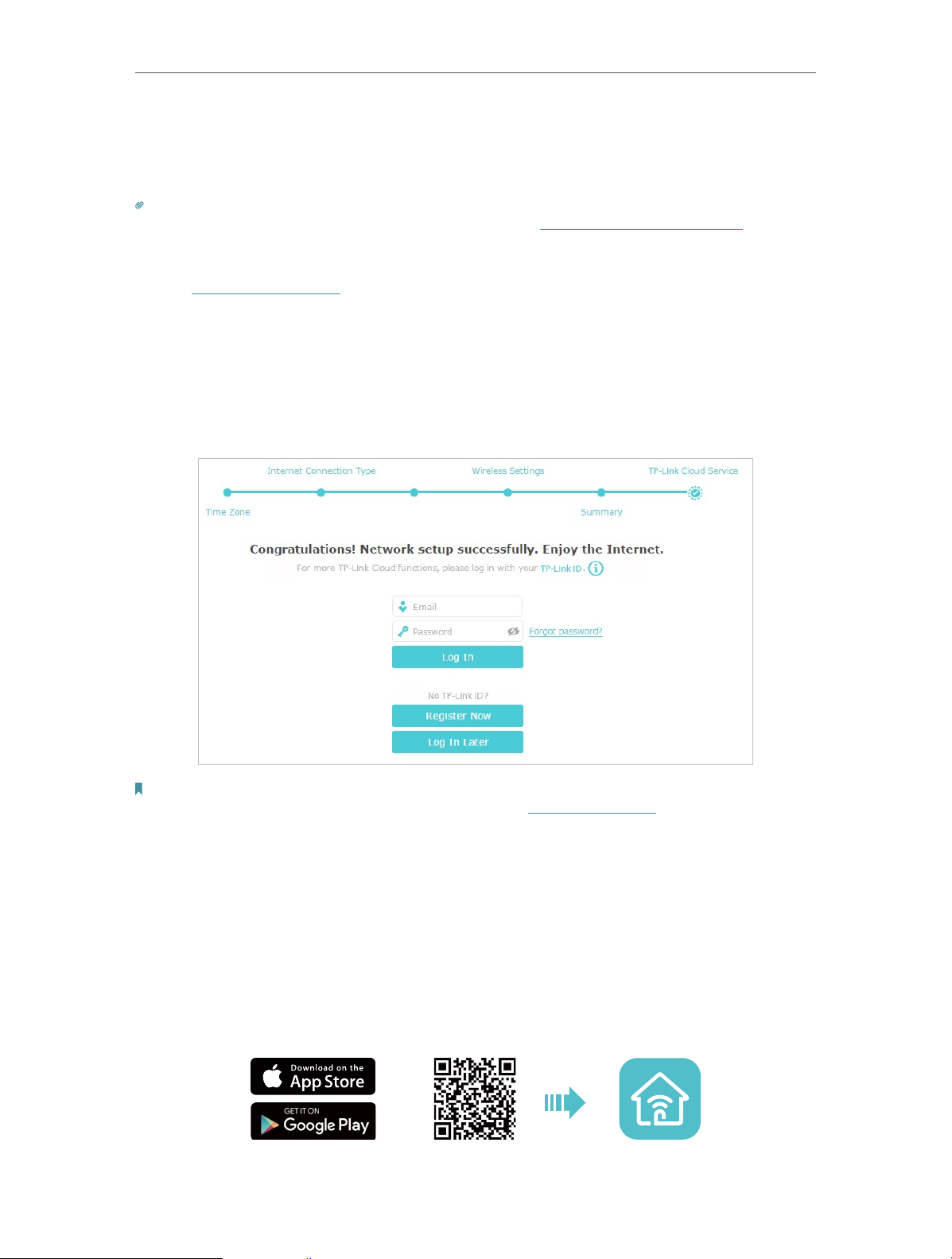
3. To enjoy a more complete service from TP-Link (remote management, TP-Link DDNS,
and more), log in with your TP-Link ID or click Register Now to get one. Then follow the
instructions to bind the cloud router to your TP-Link ID.
Note:
• To learn more about the TP-Link Cloud service, please refer to the TP-Link Cloud Service section.
• If you do not want to register a TP-Link ID now, you may click Log In Later to proceed.
• If you have changed the preset wireless network name (SSID) and wireless password during the Quick Setup process,
all your wireless devices must use the new SSID and password to connect to the router.
4. 2. Quick Setup Via TP-Link Tether App
The Tether app runs on iOS and Android devices, such as smartphones and tablets.
1. Launch the Apple App Store or Google Play store and search “TP-Link Tether” or
simply scan the QR code to download and install the app.
OR
14
Chapter 4
2. Connect your device to the router’s wireless network.
Set Up Internet Connection
3. Launch the Tether app, tap the
+ button and select Router > Wireless Router. Follow
the steps to complete the setup and connect to the internet.
4. Connect your devices to the newly configured wireless networks of the router and
enjoy the internet!
4. 3. Manually Set Up Your Internet Connection
In this part, you can check your current internet connection settings. You can also
modify the settings according to the service information provided by your ISP.
Follow the steps below to check or modify your internet connection settings.
1. Visit http://tplinkwifi.net, and log in with your TP-Link ID or the password you set for
the router.
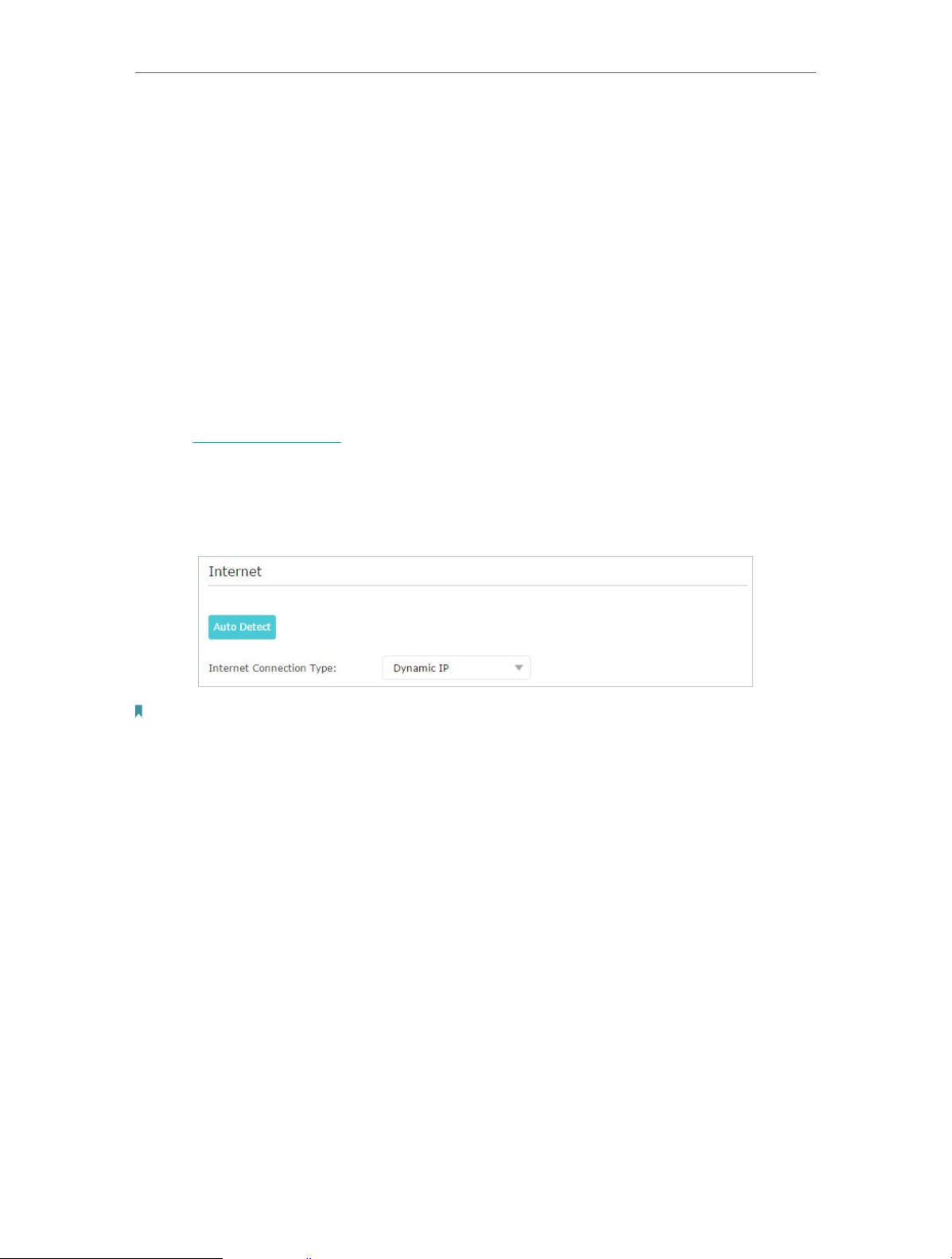
2. Go to Basic > Internet.
3. Select your internet connection type from the drop-down list.
Note:
If you are unsure of what your connection type is, click Auto Detect. Since different connection types require different
cables and connection information, you can also refer to the demonstrations in Step 4 to determine your connection
type.
4. Follow the instructions on the page to continue the configuration. Parameters on the
figures are just used for demonstration.
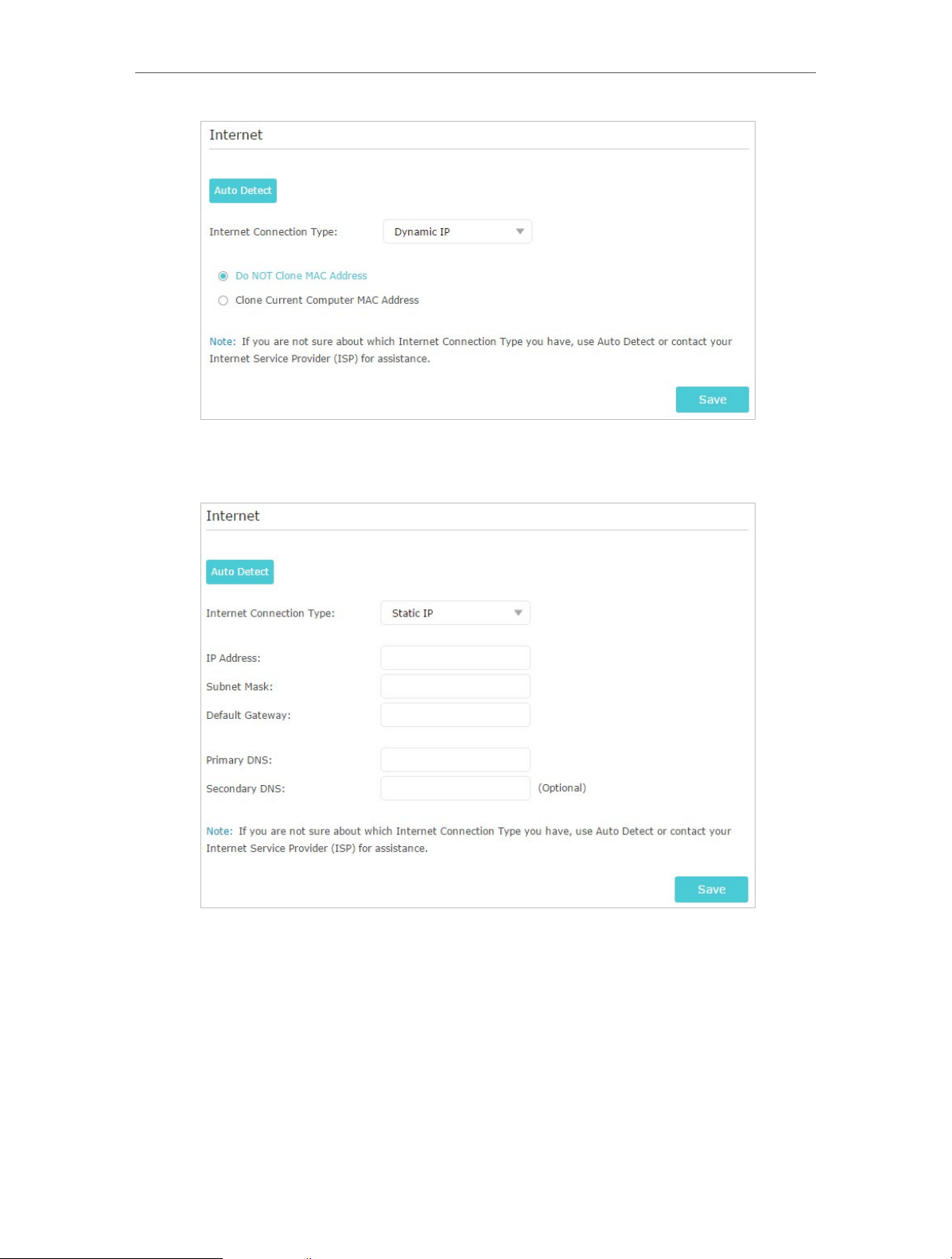
1 ) If you choose Dynamic IP, you need to select whether to clone the MAC address.
Dynamic IP users are usually equipped with a cable TV or fiber cable.
15
Chapter 4
Set Up Internet Connection
2 ) If you choose Static IP, enter the information provided by your ISP in the
corresponding fields.
3 ) If you choose PPPoE, enter the username and password provided by your ISP.
PPPoE users usually have DSL cable modems.
16
Chapter 4
Set Up Internet Connection
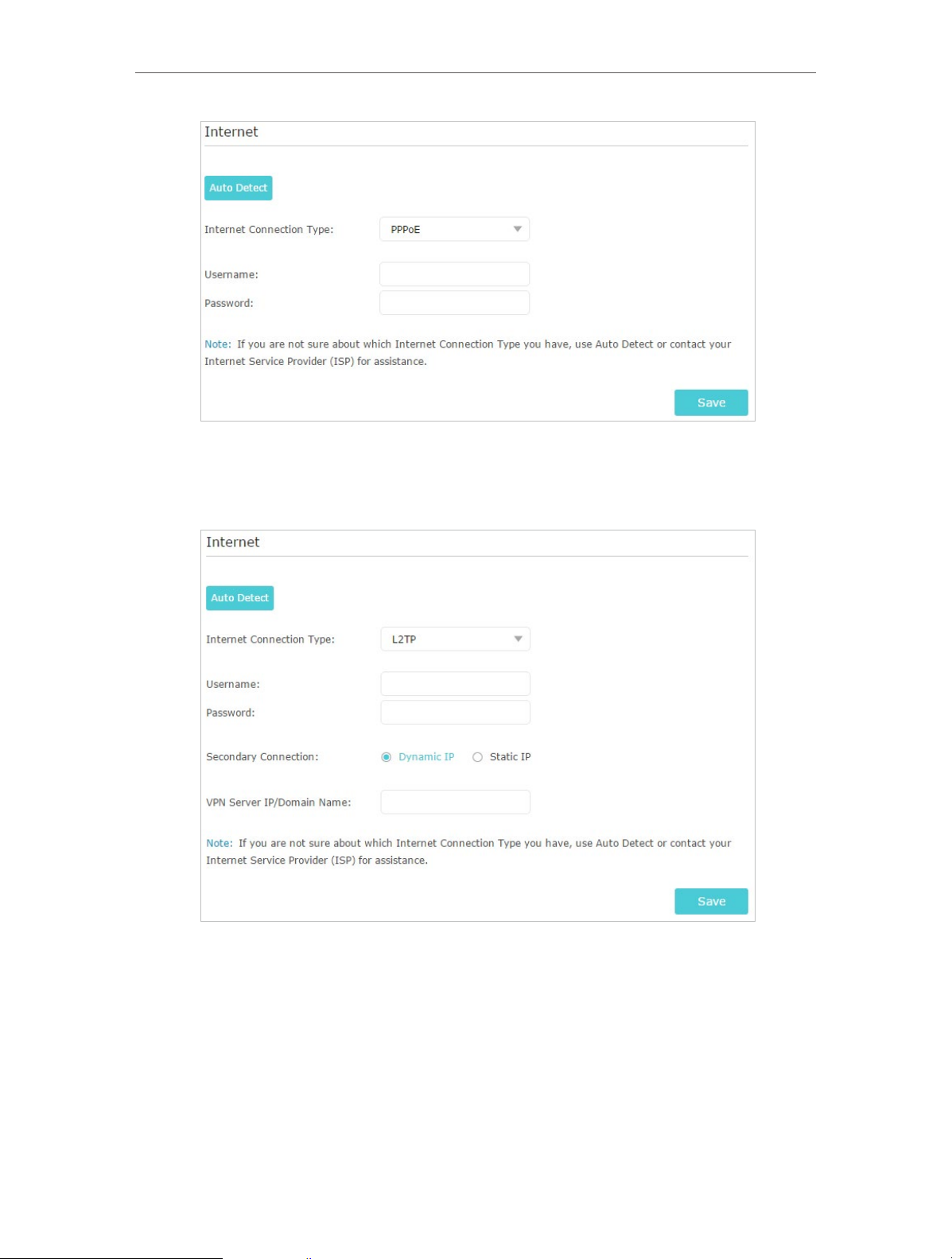
4 ) If you choose L2TP, enter the username and password and choose the
Secondary Connection provided by your ISP. Different parameters are needed
according to the Secondary Connection you have chosen.
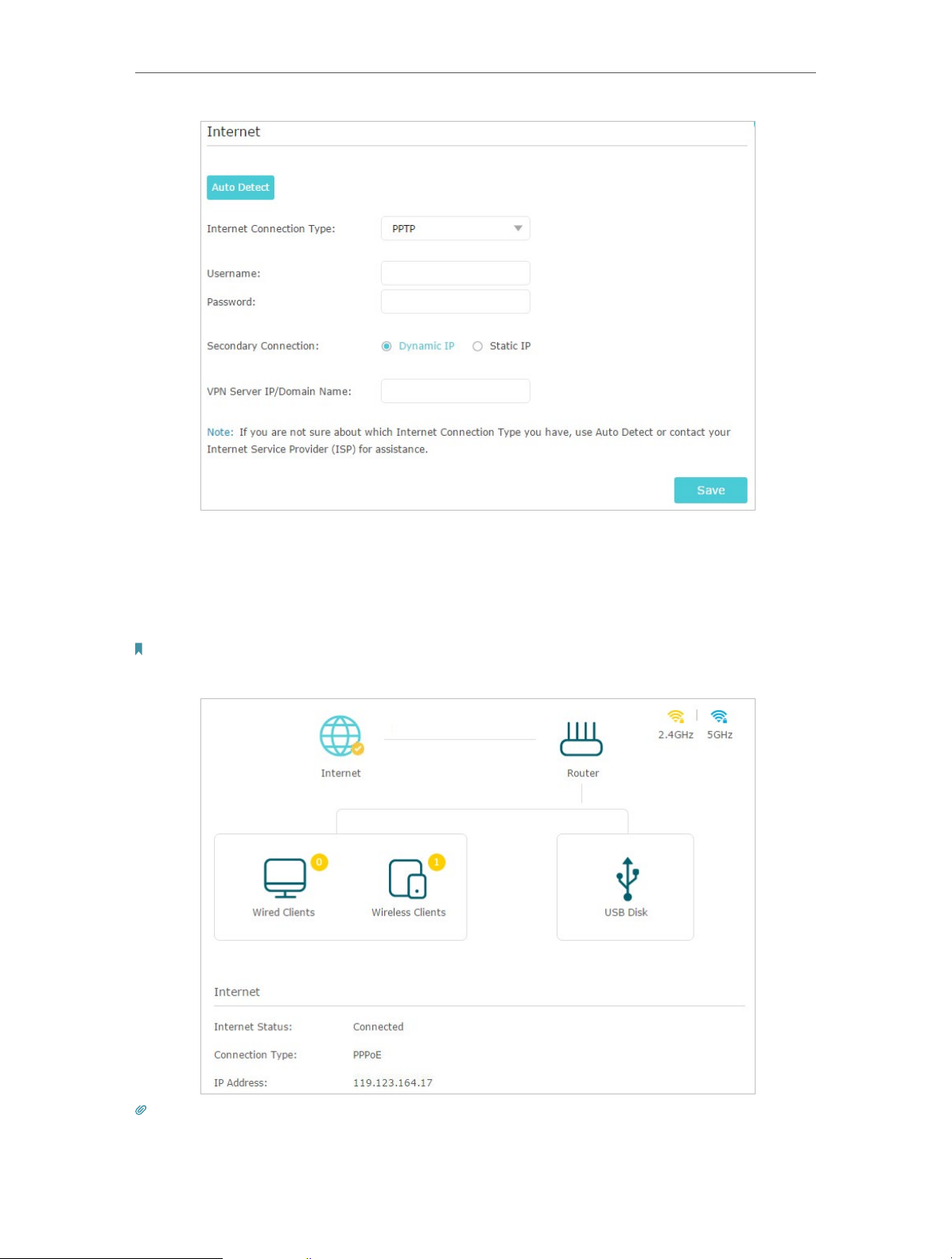
5 ) If you choose PPTP, enter the username and password, and choose the
Secondary Connection provided by your ISP. Different parameters are needed
according to the Secondary Connection you have chosen.
17
Chapter 4
Set Up Internet Connection
5. Click Save.
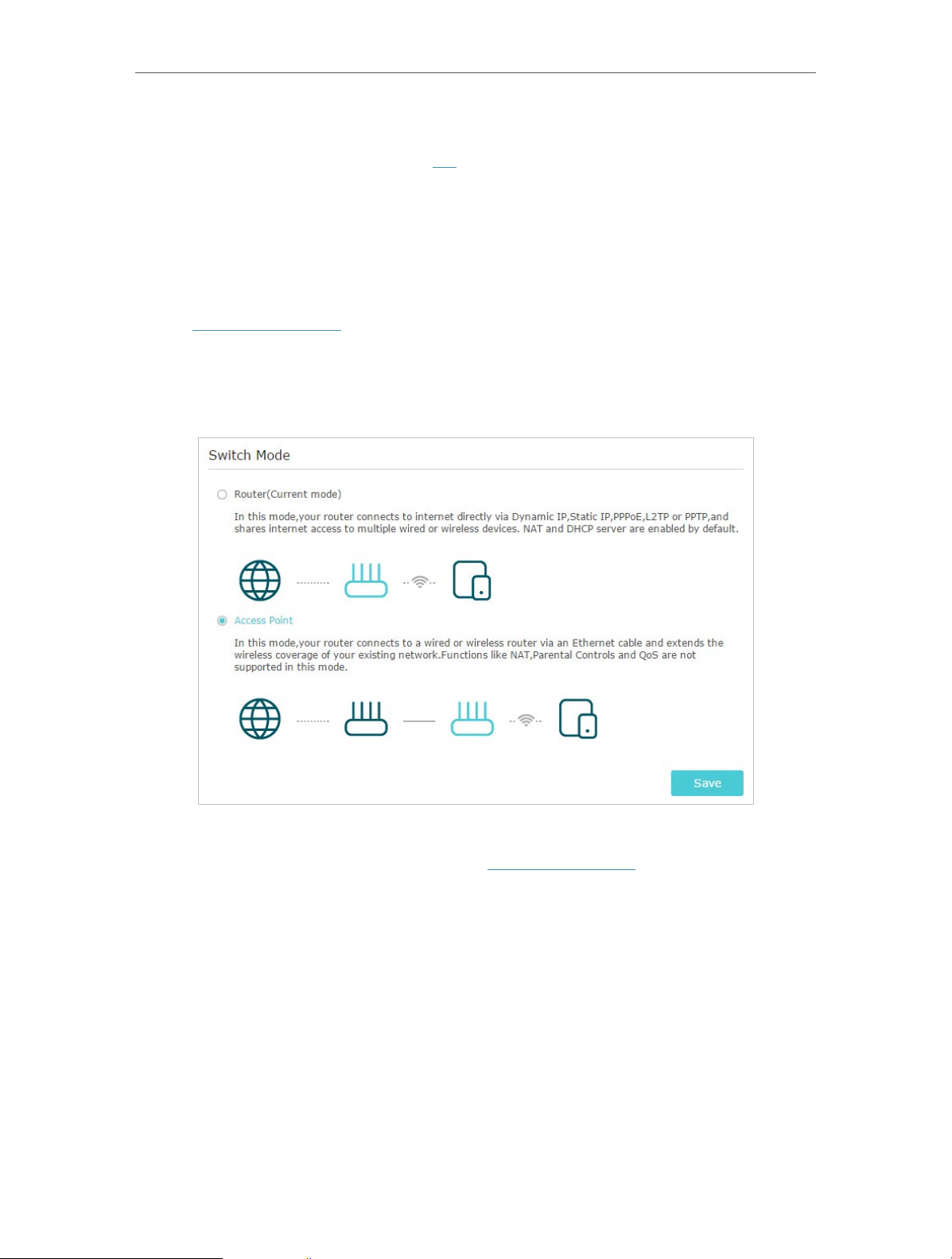
6. To check your internet connection, click Network Map on the left of the page. After
the connection succeeds, the screen will display as follows. Here we take PPPoE as
an example.
Note:
It may take 1-2 minutes to make the settings valid.
Tips:
• If your internet connection type is BigPond Cable, please go to Advanced > Network > Internet to set your router.
18
Chapter 4
• If you use Dynamic IP and PPPoE and you are provided with any other parameters that are not required on the page,
please go to Advanced > Network > Internet to complete the configuration.
• If you still cannot access the internet, refer to the FAQ section for further instructions.
Set Up Internet Connection
4. 4. Set Up the Router as an Access Point
The router can work as an access point, transforming your existing wired network to a
wireless one.
1. Visit http://tplinkwifi.net, and log in with your TP-Link ID or the password you set for
the router.
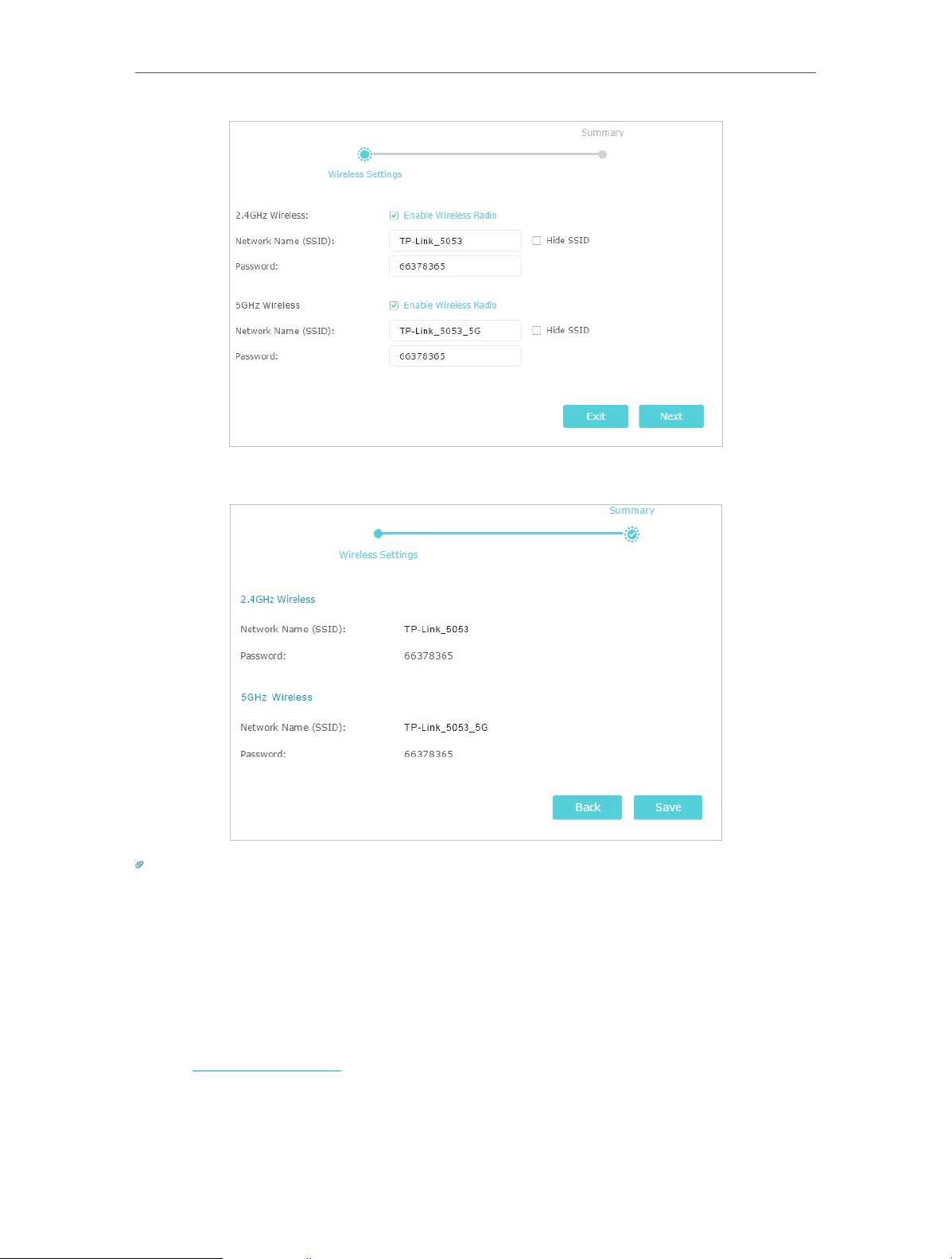
2. Go to Advanced > Operation Mode, select Access Point and click Save. The router
will reboot and switch to Access Point mode.
3. After rebooting, connect the router to your existing wired router via an Ethernet cable.
4. Log in again to the web management page http://tplinkwifi.net, and click Quick Setup.
5. Configure your wireless settings and click Next.
19
Chapter 4
Set Up Internet Connection
6. Confirm the information and click Save. Now, you can enjoy Wi-Fi.
Tips:
• Functions, such as NAT Forwarding, are not supported in the Access Point mode.
• Functions, such as Guest Network, are the same as those in the Router mode.
4. 5. Set Up an IPv6 Internet Connection
Your ISP provides information about one of the following IPv6 internet connection types:
PPPoE, Dynamic IP(SLAAC/DHCPv6), Static IP, 6to4 tunnel, Pass-Through (Bridge).
1. Visit http://tplinkwifi.net, and log in with your TP-Link ID or the password you set for
the router.
2. Go to Advanced > IPv6.
3. Enable IPv6 and select the internet connection type provided by your ISP.
20
Chapter 4
Tips:
If you do not know what your internet connection type is, contact your ISP or judge according to the already known
information provided by your ISP.
Set Up Internet Connection
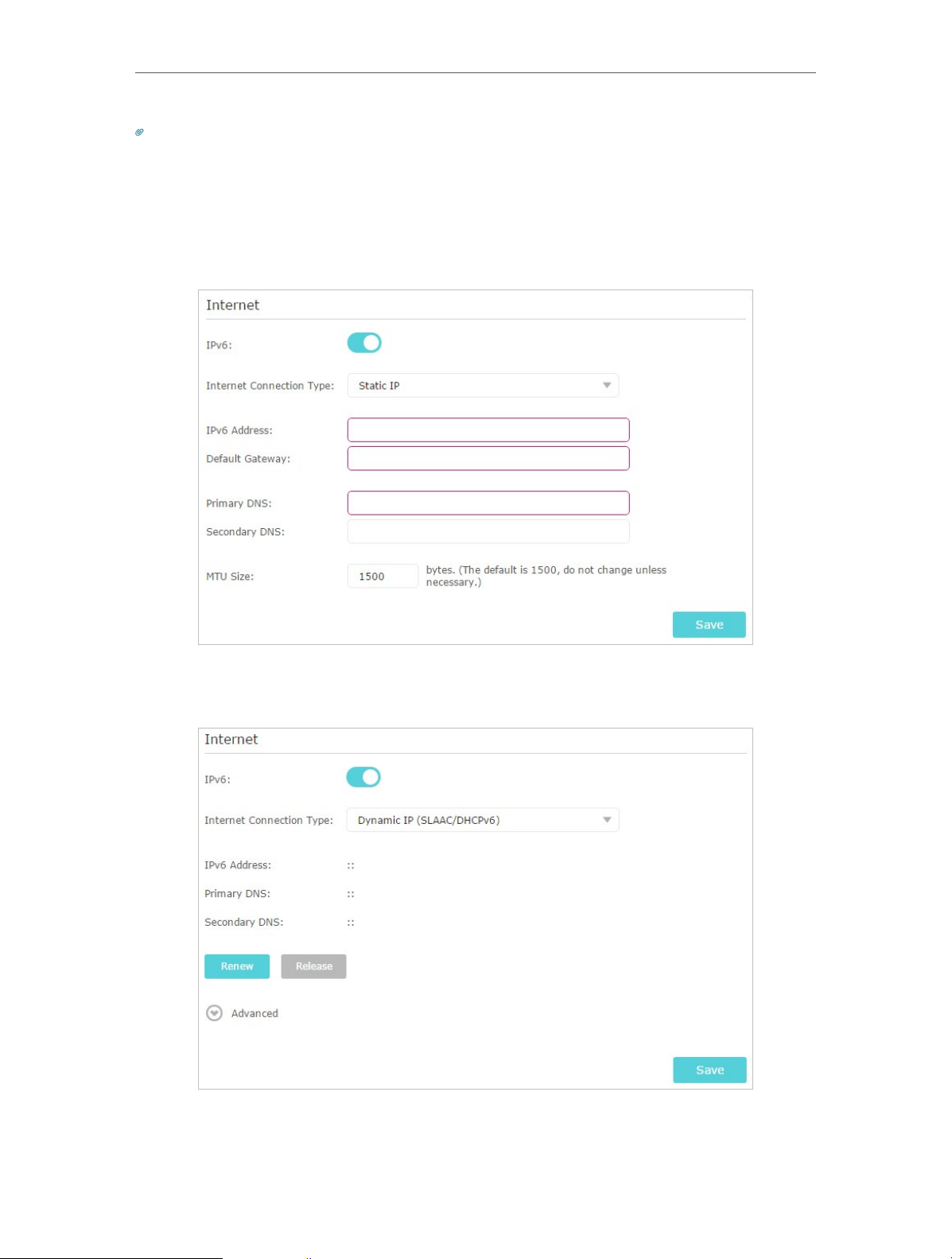
4. Fill in information as required by different connection types. Red blanks must be filled
in.
1 ) Static IP: Fill in blanks and click Save.
2 ) Dynamic IP(SLAAC/DHCPv6): Click Advanced to input further information if
your ISP requires. Click Save and then click Renew.
21
Chapter 4
Set Up Internet Connection
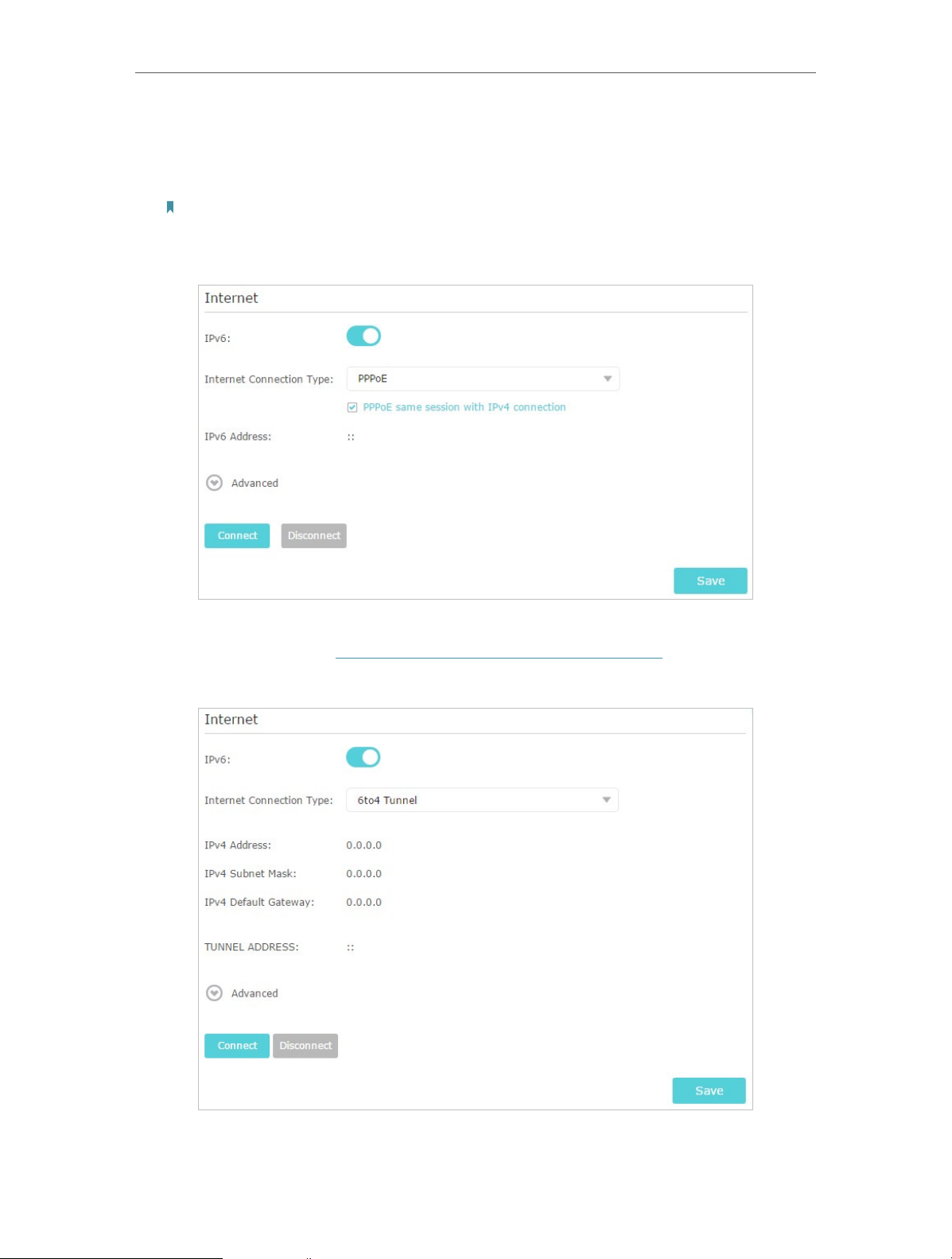
3 ) PPPoE: By default, the router uses the IPv4 account to connect to the IPv6
server. Click Advanced to input further information if your ISP requires. Click
Save and then click Connect.
Note:
If your ISP provides two separate accounts for the IPv4 and IPv6 connections, please untick the PPPoE same
session with IPv4 connection checkbox and manually enter the username and password for the IPv6 connection.
4 ) 6to4 Tunnel: An IPv4 internet connection type is a prerequisite for this
connection type (Manually Set Up Your Internet Connection). Click Advanced to
input further information if your ISP requires. Click Save and then click Connect.
5 ) Pass-Through (Bridge): Click Save and skip to Step 6.
22
Chapter 4
Set Up Internet Connection
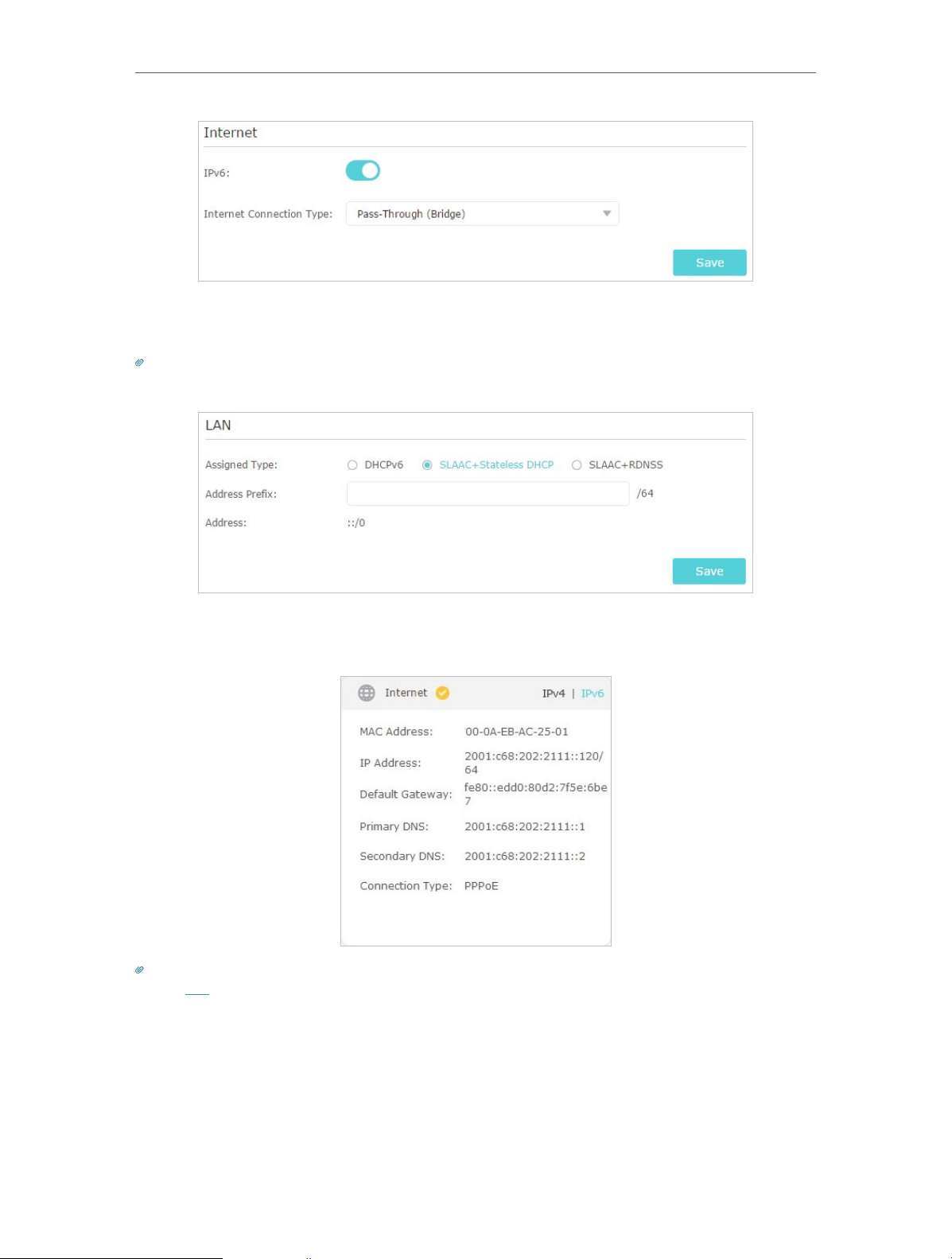
5. Configure LAN ports. Windows users are recommended to choose from the first two
types. Fill in Address Prefix provided by your ISP, and click Save.
Tips:
Find Help on the web management page to know more about items.
6. Click Status to check whether you have successfully set up an IPv6 connection. The
following figure is an example of a successful PPPoE configuration.
Tips:
Visit the FAQ section if there is no internet connection.
23

Chapter 5
TP-Link Cloud Service
TP-Link Cloud service provides a better way to manage your cloud devices. Log in to
your router with a TP-Link ID, and you can easily monitor and manage your home network
when you are out and about via the Tether app on your smartphone or tablet. To ensure
that your router stays new and gets better over time, the TP-Link Cloud will notify you
when an important firmware upgrade is available. Surely you can also manage multiple
TP-Link Cloud devices with a single TP-Link ID.
This chapter introduces how to register a new TP-Link ID, bind or unbind TP-Link IDs
to manage your router, and the Tether app with which you can manage your home
network no matter where you may find yourself.
It contains the following sections:
• Register a TP-Link ID
• Change Your TP-Link ID Information
• Manage the User TP-Link IDs
• Manage the Router via the TP-Link Tether App
Chapter 5
TP-Link Cloud Service
5. 1. Register a TP-Link ID
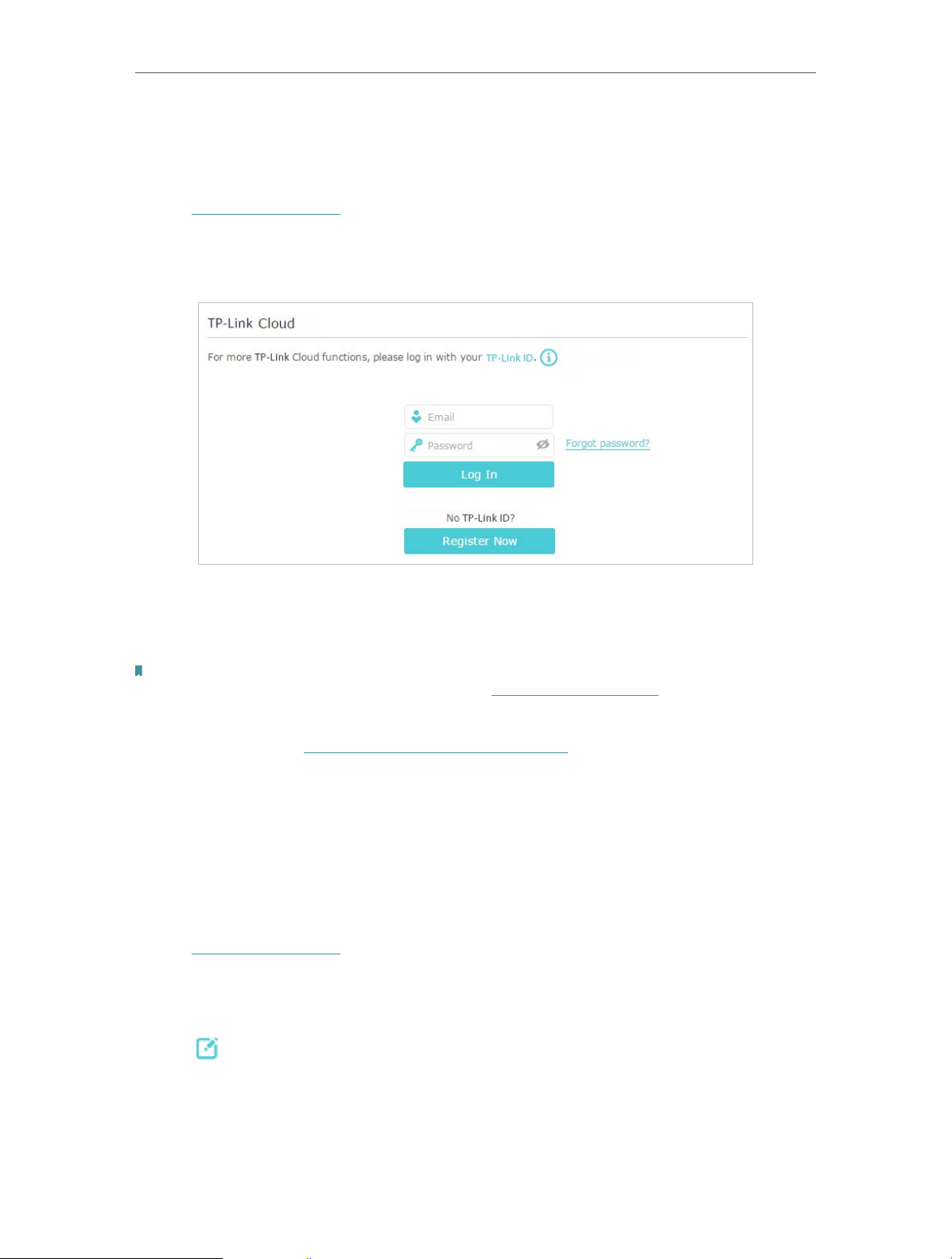
If you have skipped the registration during the Quick Setup process, you can:
1. Visit http://tplinkwifi.net, and log in with the password you set for the router.
2. Go to Basic > TP-Link Cloud.
3. Click Register Now and follow the instructions to register a TP-Link ID.
4. After activating your TP-Link ID, come back to the TP-Link Cloud page to log in. The
TP-Link ID used to log in to the router for the first time will be automatically bound as
an Admin.
Note:
• To learn more about the Admin and User TP-Link ID, refer to Manage the User TP-Link IDs.
• Once the router is bound to your TP-Link ID, you need to log in to the router with the TP-Link ID.
• Once you have registered a TP-Link ID on the web management page, you can only register another TP-Link ID via the
Tether APP. Please refer to Manage the Router via the TP-Link Tether App to install the app and register a new one.
• If you want to unbind the admin TP-Link ID from your router, please go to Basic > TP-Link Cloud, an click Unbind in the
Device Information section.
5. 2. Change Your TP-Link ID Information
Follow the steps below to change your email address and password of your TP-Link ID
as needed.
1. Visit http://tplinkwifi.net, and log in with your TP-Link ID.
2. Go to Basic > TP-Link Cloud, and focus on the Account Information section.
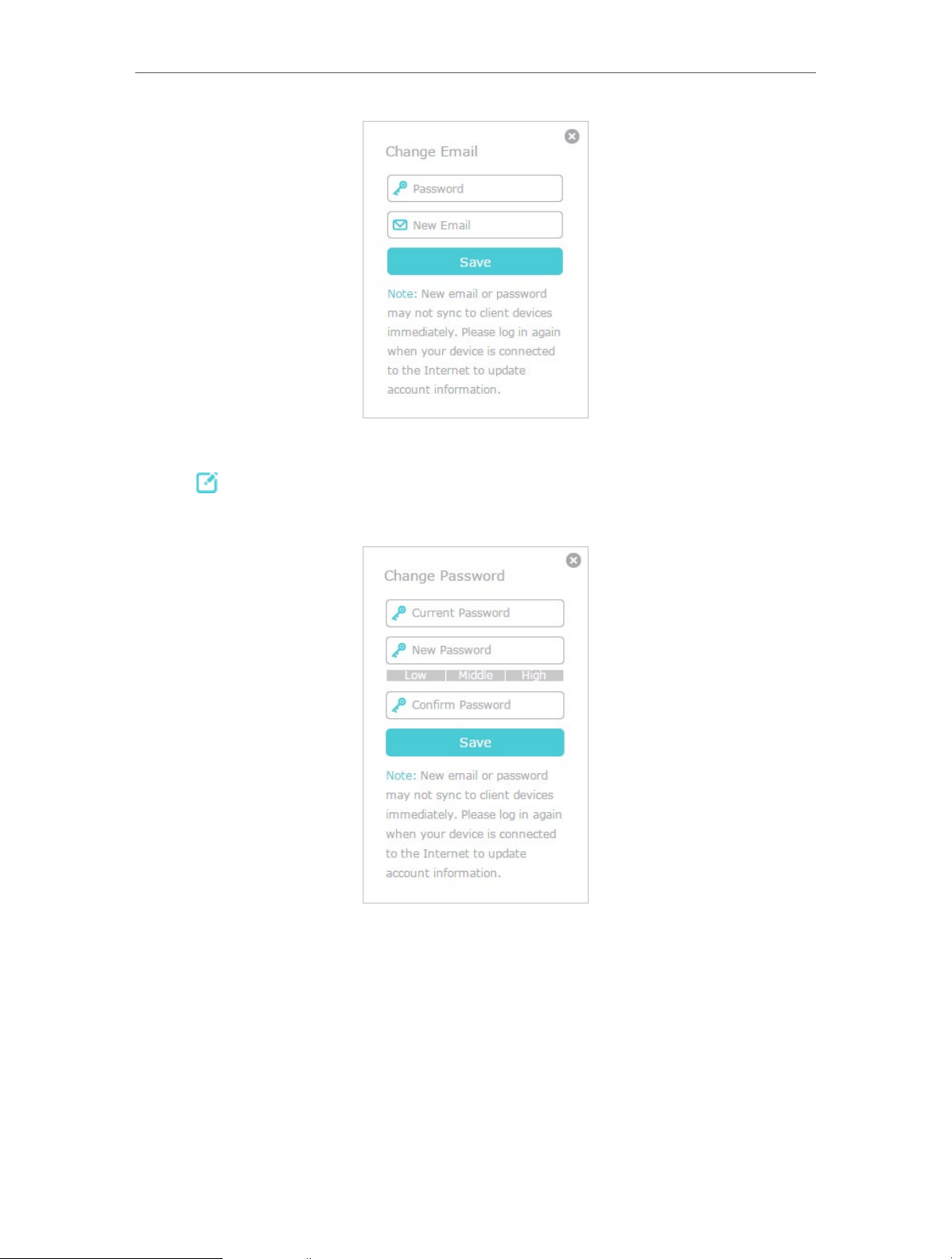
• To change your email address:
1. Click
behind the Email.
2. Enter the password of your TP-Link ID, then a new email address. And click Save.
25
Chapter 5
• To change your password:
TP-Link Cloud Service
1. Click
2. Enter the current password, then a new password twice. And click Save.
behind the Password.
5. 3. Manage the User TP-Link IDs
The TP-Link ID used to log in to the router for the first time will be automatically bound
as the Admin account. An admin account can add or remove other TP-Link IDs to or
from the same router as Users. All accounts can monitor and manage the router locally
or remotely, but user accounts cannot:
• Reset the router to its factory default settings either on the web management page
or in the Tether app.
26
Loading…

Wi-Fi роутер TP-LINK Archer AX50 — двухдиапазонный маршрутизатор с двухъядерным процессором и 512 Мб оперативной памяти, который гарантирует максимальную производительность даже при пиковых нагрузках. Поддержка стандарта WiFi 6 обеспечивает стабильное соединение, меньшую задержку и сверхвысокую пропускную способность, что позволяет одновременно подключать несколько устройств. Модуль FEM дополнительно увеличивает мощность сигнала в зоне покрытия сети.
TP Link Archer AX3000 / AX50 — настройка
В данной статье мы представим пошаговое руководство по настройке и подключению гигабитного роутера TP-Link Archer AX50. Этот роутер является одним из последних приобретений в линейке устройств TP-Link. Archer AX50 обеспечивает работу на двух частотах — 2,4 ГГц и 5 ГГц, и имеет пять гигабитных портов. Одной из ключевых особенностей Archer AX50 является поддержка стандарта Wi-Fi 6, представляющего собой последнее поколение Wi-Fi, способное достигать максимальной скорости передачи данных до 3000 Мбит/с. Кроме того, стандарт Wi-Fi 6 позволяет подключать к роутеру вчетверо больше устройств, чем предыдущий стандарт Wi-Fi 5. Важно отметить, что для получения указанных результатов все устройства, подключенные к роутеру, также должны поддерживать стандарт Wi-Fi 6.
Подключение роутера
Подключите Ваш роутер TP-Link Archer AX50 к электросети. Интернет-кабель провайдера, приходящий из подъезда в квартиру, вставьте в порт WAN (порт синего цвета).
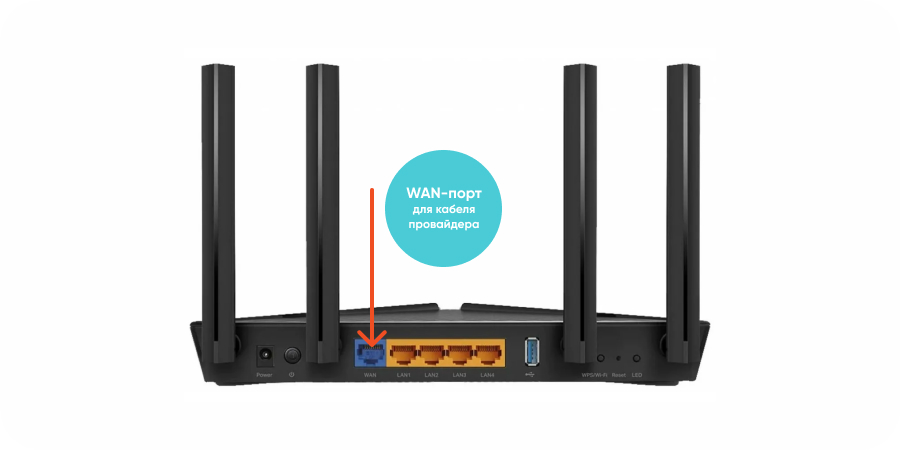
Если Ваш интернет-провайдер использует фиксацию по mac-адресу, то Вам следует обратиться в службу техподдержки для привязки mac-адреса роутера. Без этого действия интернет работать не будет.
Подключение к Wi-Fi
Теперь нужно подключиться к сети Wi-Fi. Данные для подключения указаны на нижней стороне роутера. SSID — это название сети Wi-Fi, Wireless Password/PIN — это пароль для входа в сеть.
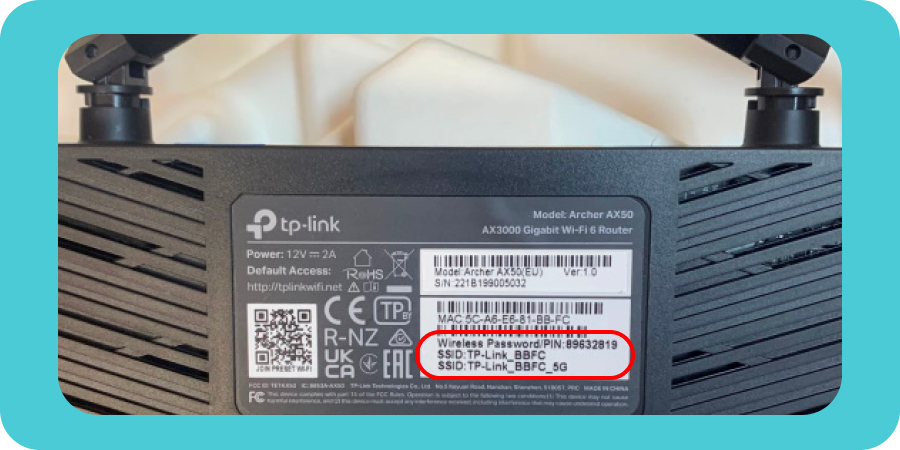
Находим в списке доступных сетей Wi-Fi нужную нам сеть. Вводим пароль для подключения к сети.

Настройка беспроводной сети
Шаг 1. Заходим в веб-интерфейс роутера. Для этого в браузере в верхней строке вводим: 192.168.0.1. или tplinkwifi.net.
Шаг 2. В открывшемся окне меняем язык, а также создаем пароль для входа в веб-интерфейс роутера.
Шаг 3. Проходим на вкладку «Быстрая настройка». Выбираем из списка свой часовой пояс (Москва). Нажимаем «Далее».
Шаг 4. Тип подключения к Интернет выбираем — «Динамический IP-адрес». Нажимаем «Далее».
Шаг 5. MAC-адрес — ставим галочку на пункт «Не клонировать MAC-адрес». Нажимаем «Далее».
Шаг 6. Настройки беспроводного режима. В данном разделе указаны SSID (название) и пароль сетей Wi-Fi для каждой из двух частот.
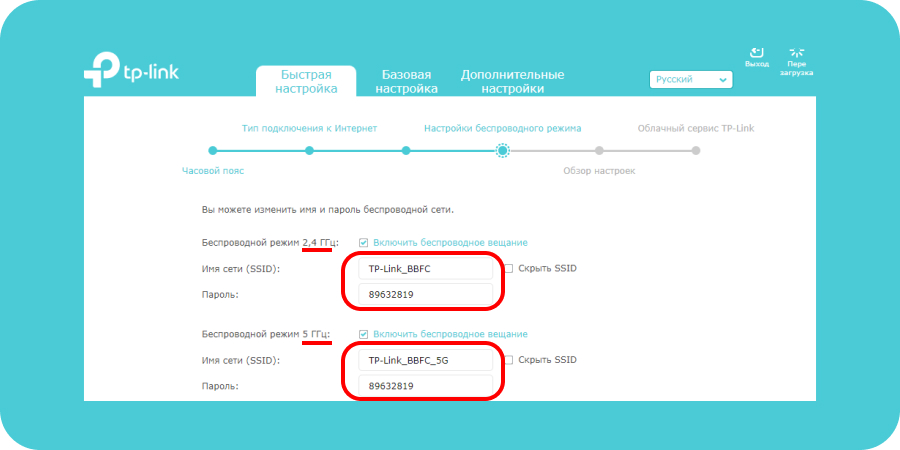
Мы можем задать свои значения для каждой сети или оставить параметры по умолчанию.
Шаг 7. Обзор настроек. Проверяем все наши введенные параметры.
Нажимаем «Сохранить».
Шаг 8. Для того, чтобы измененные параметры вступили с силу, нам нужно переподключиться к новой беспроводной сети. Находим в списке доступных Wi-Fi сетей нашу новую сеть. Подключаемся к ней.
Шаг 9. Быстрая настройка роутера Archer AX50 успешно завершена.
Дополнительные настройки роутера
Шаг 10. Далее рассмотрим дополнительные настройки роутера. Проходим на вкладку «Дополнительные настройки».
Раздел Состояние
В данном разделе мы можем посмотреть состояние беспроводной сети, основной режим работы и параметры.
Беспроводные клиенты
Данная вкладка показывает, сколько и каких беспроводных устройств подключено к роутеру.
Раздел Сеть
Пройдя на данную вкладку, мы можем посмотреть и, при необходимости, изменить основные параметры беспроводной сети. Рассмотрим каждый из пунктов вкладки «Сеть» подробнее.
Интернет
Указаны параметры подключения к Интернету — тип подключения, IP-адрес, маска подсети, шлюз и DNS-сервер. Если тип подключения к Интернету — динамический IP, то все эти параметры роутер получает автоматически от провайдера.
Раздел LAN
В разделе LAN мы можем посмотреть MAC-адрес роутера, а также IP-адрес. При необходимости можно изменить IP-адрес (к примеру, роутер настраивается как дополнительный для расширения покрытия Wi-Fi).
Раздел DHCP — сервер
В данном разделе указаны основные характеристики DHCP. Они выставлены по умолчанию. Для домашнего пользования данные параметры вполне оптимальны, и изменять их нет необходимости.
Раздел Рабочий режим
Данная вкладка показывает, в каком режиме работает роутер. Здесь же настраивается подключение роутера как точки доступа.
Беспроводной режим
Пройдя на данную вкладку, мы можем изменить параметры беспроводного подключения.
Настройки беспроводного режима
Проверяем, включена ли функция OFDMA. OFDMA — технология является ключевой для всех роутеров стандарта Wi-Fi 6.
Параметры шифрования, рабочий режим, характеристики канала — данные значения оставляем по умолчанию.
Раздел WPS
Функция WPS дает возможность подключаться к роутеру без ввода пароля Wi-Fi сети. Для этого нажимаем кнопку «Начало WPS» в пункте «WPS».
Далее в списке доступных Wi-Fi сетей на подключаемом к роутеру устройстве выбираем нужную нам сеть. Как видим, появилась надпись «Вы также можете подключиться, нажав кнопку на маршрутизаторе».

Нажимаем на роутере кнопку «WPS». После этого устройство подключится к Wi-Fi сети без ввода пароля.
Раздел Родительский контроль
В данном разделе можно настроить ограничение доступа в Интернет для определенных устройств, запрет доступа на конкретные сайты, а также настроить расписание выхода в сеть
Настройка гигабитного Wi-Fi 6 роутера TP-Link Archer AX50 завершена.