

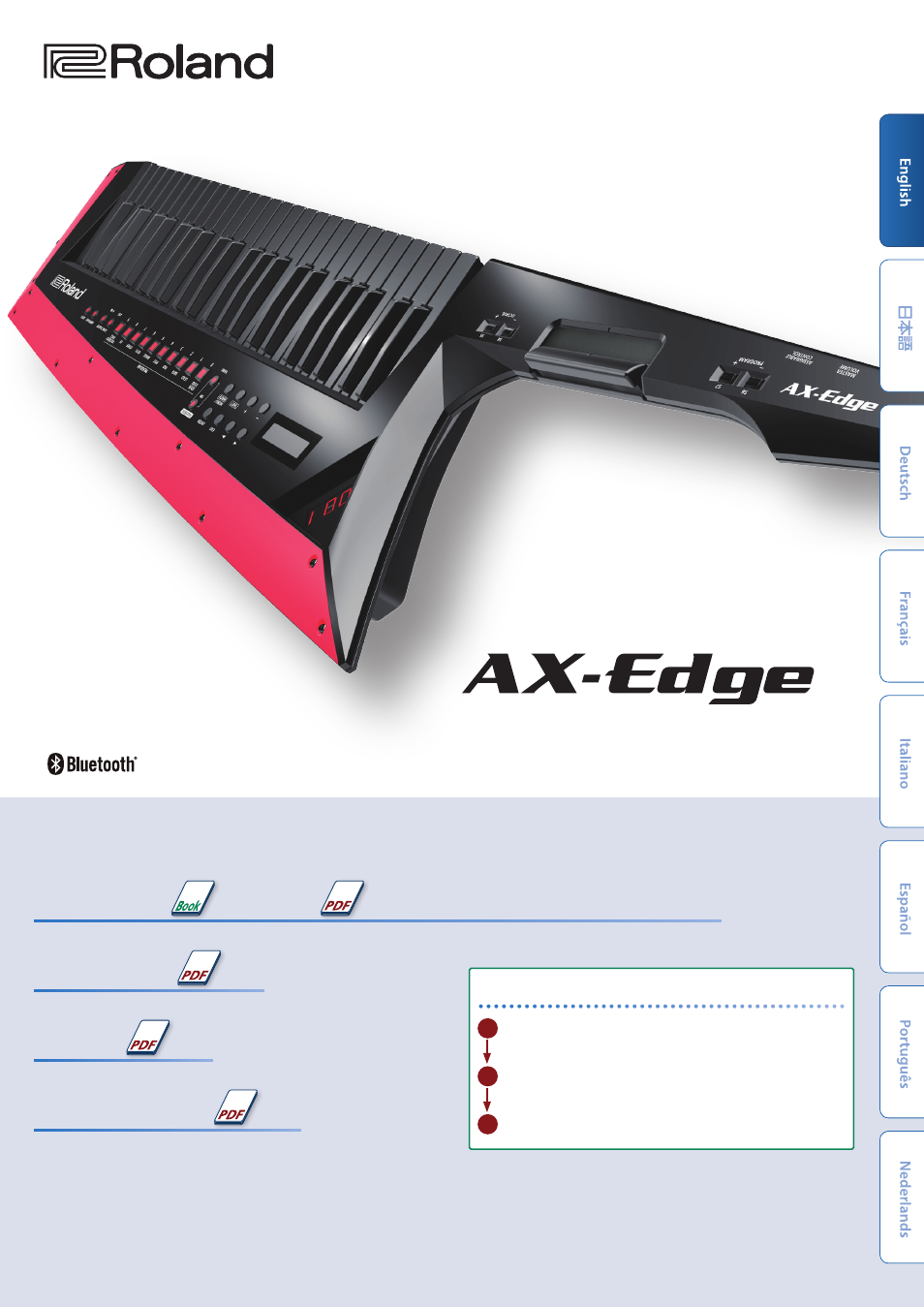
Owner’s Manual
About the AX-Edge’s manuals
Owner’s Manual (This document), (The latest version of the PDF is available on the web.)
Read this first. It explains the basic things you need to know in order to use the AX-Edge.
Parameter Guide
This explains all parameters of the AX-Edge.
To obtain the PDF manual
1 Access https://www.roland.com/support/
Sound List
This is a list of the sounds built into the AX-Edge.
MIDI Implementation
This is detailed information about MIDI messages.
Before using this unit, carefully read “USING THE UNIT SAFELY” and “IMPORTANT NOTES” (the leaet “USING THE UNIT SAFELY” and the Owner’s Manual (p. 22)). After
reading, keep the document(s) where it will be available for immediate reference.
© 2018 Roland Corporation
2 In the Support menu, choose “Owner’s Manual”
3 Choose “AX-Edge”

Contents
Introduction . . . . . . . . . . . . . . . . . . . . . . . . . . . . . . . . . . . . . . . . . . . . . . 3
: Overview of the AX-Edge. . . . . . . . . . . . . . . . . . . . . . . . . . . . . . . 3
Panel Descriptions
: Top Panel . . . . . . . . . . . . . . . . . . . . . . . . . . . . . . . . . . . . . . . . . . . . . . . . . 4
: Bottom Panel. . . . . . . . . . . . . . . . . . . . . . . . . . . . . . . . . . . . . . . . . . . . . 5
Installing the Batteries . . . . . . . . . . . . . . . . . . . . . . . . . . . . . . . . . . . . 5
: Rear Panel . . . . . . . . . . . . . . . . . . . . . . . . . . . . . . . . . . . . . . . . . . . . . . . . 6
Connecting External Equipment . . . . . . . . . . . . . . . . . . . . . . . . . 7
: Turning the AX-Edge On. . . . . . . . . . . . . . . . . . . . . . . . . . . . . . . . 8
Turning Off the Power. . . . . . . . . . . . . . . . . . . . . . . . . . . . . . . . . . . . . 8
: Adjusting the Overall Volume (Master Volume) . . . . . . . . . 8
: Making the Power Automatically Turn Off After a
Time
(Auto Off) . . . . . . . . . . . . . . . . . . . . . . . . . . . . . . . . . . . . . . . . . . . . . 8
: Replacing the Blade Panel . . . . . . . . . . . . . . . . . . . . . . . . . . . . . 8
Playing
. . . . . . . . . . . . . . . . . . . . . . . . . . . . . . . . . . . . . . . . . . . . . . . . . . . . . . 9
: Selecting a Sound (Program) . . . . . . . . . . . . . . . . . . . . . . . . . . . . . 9
: Registering Frequently-Used Sounds to Buttons
(FAVORITE). . . . . . . . . . . . . . . . . . . . . . . . . . . . . . . . . . . . . . . . . . . . . . . . . . . 9
Registering a Favorite . . . . . . . . . . . . . . . . . . . . . . . . . . . . . . . . . . . . . 9
Recalling a Favorite. . . . . . . . . . . . . . . . . . . . . . . . . . . . . . . . . . . . . . . . 9
Switching the Favorite Bank . . . . . . . . . . . . . . . . . . . . . . . . . . . . . . 9
Using the Performance Functions
: Using the Buttons and Controllers. . . . . . . . . . . . . . . . . . . . 10
Raising/Lowering the Key Range (Octave Shift) . . . . . . . . . . . . 10
Smoothly Changing the Pitch (Portamento) . . . . . . . . . . . . . . . . 10
Sustaining the Notes (Hold) . . . . . . . . . . . . . . . . . . . . . . . . . . . . . . . . 10
Layering the Same Tone to Thicken the Sound (Unison) . . 11
Preventing the Sound from Changing During Performance
(Lock). . . . . . . . . . . . . . . . . . . . . . . . . . . . . . . . . . . . . . . . . . . . . . . . 11
: Modifying the Sound While You Perform . . . . . . . . . . . . 11
Using the MODULATION BAR . . . . . . . . . . . . . . . . . . . . . . . . . . . . . 11
Using the RIBBON CONTROLLER. . . . . . . . . . . . . . . . . . . . . . . . . . 11
Using the Control Buttons and Knob
([S1]–[S7] Buttons / [ASSIGNABLE CONTROL] Knob) . . . . . . . . . . . . . . . . 12
Using a Pedal . . . . . . . . . . . . . . . . . . . . . . . . . . . . . . . . . . . . . . . . . . . . . . 12
Modifying the Sound by Applying Further Pressure to
the Key
(Aftertouch) . . . . . . . . . . . . . . . . . . . . . . . . . . . . . . . . . . . . . . . . . 12
: Assigning the Function of Each Controller. . . . . . . . . . . 12
. . . . . . . . . . . . . . . . . . . . . . . . . . . . . . . . . . . . . 4
. . . . . . . . . . . . . . . . 10
Using Other Performance Functions. . . . . . . . . . . . . 13
: Performing Along with an Audio File from a USB
Flash Drive
: Playing Arpeggios (Arpeggio) . . . . . . . . . . . . . . . . . . . . . . . . . . . . 13
: Using the Vocoder (Vocoder) . . . . . . . . . . . . . . . . . . . . . . . . . . . . . 14
Editing the Vocoder Settings . . . . . . . . . . . . . . . . . . . . . . . . . . . . . 14
Adjusting the Mic Sensitivity . . . . . . . . . . . . . . . . . . . . . . . . . . . . . 14
: Using the AX-Edge as a Master Keyboard. . . . . . . . . . . . 15
Editing the Sound
: Editing the System Effects . . . . . . . . . . . . . . . . . . . . . . . . . . . . . 16
: Editing a Program . . . . . . . . . . . . . . . . . . . . . . . . . . . . . . . . . . . . . . . 16
Saving a Program (Program Write) . . . . . . . . . . . . . . . . . . . . . . . . . . . 16
Connecting External Equipment
: Connecting a MIDI Device (MIDI IN/OUT Connectors). . . . . 17
: Connecting a Computer (USB COMPUTER Port). . . . . . . . . . . 17
Attaching the Ferrite Core . . . . . . . . . . . . . . . . . . . . . . . . . . . . . . . . 17
: Connecting a Bluetooth® Device . . . . . . . . . . . . . . . . . . . . . . 17
Other Functions
: Checking the Remaining Battery Charge . . . . . . . . . . . . 18
: Convenient Functions (UTILITY ) . . . . . . . . . . . . . . . . . . . . . . . . . 18
: Returning to the Factory Settings (FACTORY RESET) . . . 18
: Backing Up Data to USB Flash Drive (BACKUP) . . . . . . . . 19
: Restoring Backup Data (RESTORE) . . . . . . . . . . . . . . . . . . . . . . . 19
: Formatting a USB Flash Drive (FORMAT USB MEMORY) . . 20
: Editing the System Settings (SYSTEM) . . . . . . . . . . . . . . . . . . 20
Saving the System Settings (System Write). . . . . . . . . . . . . . . . . . 20
Viewing the Program Version (VERSION INFO) . . . . . . . . . . . . . . 20
Main Specifications
USING THE UNIT SAFELY
IMPORTANT NOTES
(Song Player). . . . . . . . . . . . . . . . . . . . . . . . . . . . . . . . . . . 13
. . . . . . . . . . . . . . . . . . . . . . . . . . . . . . . . . . . . . . 16
. . . . . . . . . . . . . . . . . . 17
. . . . . . . . . . . . . . . . . . . . . . . . . . . . . . . . . . . . . . . . . 18
. . . . . . . . . . . . . . . . . . . . . . . . . . . . . . . . . . . . 21
. . . . . . . . . . . . . . . . . . . . . . . . . . . . . 22
. . . . . . . . . . . . . . . . . . . . . . . . . . . . . . . . . . . . 22
2

Introduction
Overview of the AX-Edge
Owner’s Manual
AX-Edge
Program
Part 4
Part 3
Part 2
Part 1
Tone
Vocoder part
Carier (tone)
Keyboard
Button/Knob Modulation Bar Ribbon Controller
Sound Generator Section
Partial 1–4 MFX EQ
Arpeggio
Partial 1–4 MFX EQ
Vocoder
Effect
Controller Section
LEVEL
LEVEL
IFX
System Effect
Reverb
Chorus/Delay
Master Comp/EQ
OUTPUT
System
MIC INPUT
Controller Section
The controller section is what you use for performing.
When you press or release the keyboard or press the modulation lever, the controller section sends performance data to the sound
generator section.
The controller section of the AX-Edge consists of the keyboard, the MODULATION BAR, the RIBBON CONTROLLER, and the panel
buttons and knobs.
Sound Generator Section
The sound generator section creates the sound.
It receives performance data sent from the controller section, and produces sound.
Program
On the AX-Edge, “programs” are the units by which you switch sounds.
A program consists of four parts and a vocoder part, and also contains arpeggio and effect settings for that program.
Tone
You can select one tone (sound) for each part.
A tone consists of four elements of sound (partials), and you can specify a multi-effect (MFX) for each tone.
You can also edit tones by using an editor app (AX-Edge Editor) on your smartphone.
Effect
The AX-Edge is equipped with a multi-effect for each tone (MFX), a multi-effect that can be specified for each program (IFX), and reverb,
chorus/delay, compressor, and EQ effects that are applied to the final output (system effects).
Reverb and chorus/delay can also be specified and selected for each program.
System
System memory contains system parameter settings that specify how the AX-Edge is to operate.
&
“Editing the System Settings (SYSTEM)” (p. 20)
3

Panel Descriptions
Top Panel
1 2 3 4 5 6
1 Display
Bank/number display
A three-digit display that shows the bank and number of the
currently selected sound.
LCD display
Shows various information for the operation.
2 Basic operation buttons
Cursor [K] [J] buttons
Move the cursor left/right.
These also switch screens.
[–] [+] buttons
Modify values.
If you keep on holding down one button while pressing the
other, the value change accelerates.
[EXIT] button
Returns you to the previous screen.
In some screens, this cancels the operation currently being
executed.
[ENTER] button
Press this to confirm a value or execute an operation.
[SHIFT] button
Used together with other buttons to execute various functions.
[MENU/WRITE] button
The MENU screen appears.
Use this together with the [SHIFT] button to save sounds or
system settings (p. 12, p. 20).
3 FAVORITE
FAVORITE [ON] button
Turns the FAVORITE function on/off.
FAVORITE [BANK] button
Selects the bank of FAVORITE memories (p. 9) in which you can
register your favorite sounds (programs).
4 PROGRAM buttons
[EDGE LEAD]–[VOCODER/VOICE] buttons
[0]–[9] buttons
Select the category of sounds (programs).
When the [FAVORITE] button or the [BANK] button is lit, these
function as [0]–[9] buttons.
page 9
page 4
5 SONG PLAYER
SONG PLAYER [LIST] button
Displays the song list.
SONG PLAYER [s] button
Plays/stops the selected song.
page 13
6 ARPEGGIO/LOCK
[ARPEGGIO] button
Turns the arpeggio function on/off.
[LOCK] button
Long-press this button to turn panel lock on/off (a function that
disables panel operations).
page 13
page 11
7 Neck control section (Top Panel)
[MASTER VOLUME] knob
Adjusts the overall volume.
[ASSIGNABLE CONTROL] knob
Controls the parameter that’s assigned to the knob.
PROGRAM [–] [+] buttons ([S6], [S7] buttons)
Each time you press a button, the sound (program) is switched
consecutively.
If the Favorite function is on, you’ll switch consecutively through
the sounds that are registered as Favorites.
MODULATION BAR
Press the MODULATION BAR to add modulation to the notes
you are playing.
RIBBON CONTROLLER
Slide your finger towards the left or right on this ribbon to
change the pitch of the notes.
You can modify the sound by pressing the controller with your
finger.
OCTAVE [–] [+] buttons ([S4], [S5] buttons)
These buttons are used to transpose the AX-Edge’s keyboard in
steps of one octave.
page 9
page 11
page 11
page 10
4

Bottom Panel
Owner’s Manual
8 8
8 Strap pins
Attach the included strap here.
Choose two pin locations as appropriate for your performing
style.
9 Battery compartment
Install eight AA nickel-metal hydride batteries.
&
“Installing the Batteries” (p. 5)
10 Neck control section (Bottom panel)
8
8
9
Installing the Batteries
Eight AA batteries are required to run the AX-Edge on battery
power. We recommend the use of rechargeable AA-type Ni-MH
batteries. With these batteries you can expect about four hours
of continuous operation, although this depends on how the AX-Edge
is being used.
* When turning the unit over, be careful so as to protect the buttons and
knobs from damage. Also, handle the unit carefully; do not drop it.
* If you handle batteries improperly, you risk explosion and fluid leakage.
Make sure that you carefully observe all of the items related to batteries
that are listed in “USING THE UNIT SAFELY” and “IMPORTANT NOTES”
(leaflet “USING THE UNIT SAFELY” and Owner’s manual (p. 22)).
1.
Turn off the power of the AX-Edge (p. 8).
2.
While pressing inward on the tabs of the bottom panel
battery compartment cover, remove the cover.
[PORTAMENTO] button
Turns portamento on/off.
This produces a smooth change to the next pitch.
[HOLD] button
Turns hold on/off.
This sustains the notes you play.
[UNISON] button
Turns unison on/off.
This makes the sound richer by layering the same tone.
* You can change the parameters that are controlled by the [S1]–[S7]
buttons, MODULATION BAR, RIBBON CONTROLLER, control knob,
and pedal.
For details, refer to “Assigning the Function of Each Controller” (p. 12).
([S1] button)
([S2] button)
([S3] button)
page 10
page 10
page 11
(a) While pressing the tabs
(b) Lift up
3.
Insert the batteries into the battery compartment, taking
care to observe the “+” and “–” polarity.
Be sure that the “+” and “-” markings on the batteries are
oriented correctly.
4.
Close the battery compartment cover.
5

Panel Descriptions
Rear Panel
* To prevent malfunction and equipment failure, always turn down the volume, and turn off all the units before making any connections.
B C I J K
PHONES
MIC INPUT/Volume
Sound module, synthesizer
H
(receiving device)
Sequencer, stage piano
(transmitting device)
MIDI
Expression pedal (EV-5)
PEDAL USB flash drive Computer
or
Pedal switch (DP series)
D E F
A
OUTPUT
G
A OUTPUT (L/MONO, R) jacks
These are output jacks for audio signals. Connect them to your
amp or wireless transmitter.
Use the L/MONO jack if you’re outputting in mono.
B PHONES jack
You can connect a set of headphones here.
C MIC INPUT
MIC INPUT jack
Connect a dynamic microphone here.
[MIC INPUT Volume] knob
Adjusts the volume of the mic input.
D Cord hook
If the included AC adaptor is connected to the DC IN jack, secure
the cord to this hook to prevent it from being accidentally
disconnected.
* Use the cord hook to secure the cord of the AC adaptor as shown in the
illustration.
E DC IN jack
Connect the included AC adaptor here.
* Place the AC adaptor so the side with the indicator (see illustration)
faces upwards and the side with textual information faces downwards.
The indicator will light when you plug the AC adaptor into an AC outlet.
* Use only the included AC adaptor. Using any other adaptor may result
in malfunctions or electric shock.
* We recommend that you keep batteries installed in the unit even
though you’ll be powering it with the AC adaptor. That way, you’ll be
able to continue a performance even if the cord of the AC adaptor gets
accidentally disconnected from the unit.
* If you won’t be using the unit for an extended period of time,
disconnect the AC adaptor from the AC outlet.
F [POWER] switch
This turns the power on/off.
* Before turning the unit on/off, always be sure to turn the volume down.
Even with the volume turned down, you might hear some sound when
switching the unit on/off. However, this is normal and does not indicate
a malfunction.
AC Adaptor
Indicator
Power Cord
AC Outlet
G Ground terminal
Depending on the circumstances of a particular setup, you
may experience a discomforting sensation, or perceive that the
surface feels gritty to the touch when you touch this device,
microphones connected to it, or the metal portions of other
objects, such as guitars. This is due to an infinitesimal electrical
charge, which is absolutely harmless. However, if you are concerned about this, connect the ground terminal (see figure) with
an external ground. When the unit is grounded, a slight hum
may occur, depending on the particulars of your installation. If
you are unsure of the connection method, contact the nearest
Roland Service Center, or an authorized Roland distributor, as
listed on the “Information” page.
Unsuitable places for connection
5
Water pipes (may result in shock or electrocution)
5
Gas pipes (may result in fire or explosion)
5
Telephone-line ground or lightning rod (may be dangerous in the
event of lightning)
H MIDI (IN/OUT) port
Used for connecting external MIDI devices and for transmission
of MIDI messages.
I PEDAL jack
Connect a separately sold Roland DP series or EV-5 pedal.
* Use only the specified expression pedal. By connecting any other
expression pedals, you risk causing malfunction and/or damage to the
unit.
J USB MEMORY port
You can connect a USB flash drive here.
Connect or disconnect the USB flash drive while the AX-Edge is
powered-off.
* Use a commercially available USB flash drive or a USB flash drive
sold by Roland. However, we cannot guarantee that all commercially
available USB flash drives will work with this unit.
K USB COMPUTER port
Use a USB cable to connect this port to a USB port of your
computer.
This allows the AX-Edge to operate as a USB MIDI device.
There’s no need to install a driver.
6

Owner’s Manual
Connecting External Equipment
Connecting to an amp or mixer
The AX-Edge does not have an internal amp or speakers. In order
to produce sound, you’ll need to connect it to an audio device
such as a keyboard amp, monitor speakers, or a stereo set, or use
headphones.
1.
Connect the rear panel OUTPUT jacks to the input jacks of
your external device.
Amp or mixer
Make connections using a 1/4” unbalanced (mono) cable. Use a
cable that has the appropriate type of plug for connecting to the
input jack of your device.
* If you’re using a mono audio device, connect the cable to the L/MONO
OUTPUT jack.
If you’re using headphones, connect them to the PHONES jack. In
this case there’s no need to connect any other audio device.
Controlling a MIDI sound module
1.
Connect the AX-Edge’s MIDI OUT connector to the MIDI IN
connector of the sound module or synthesizer that you
want to control.
MIDI OUT
AX-Edge (transmits MIDI messages)
* As needed, connect the sound module or synthesizer to your amp or
speaker. For details, refer to the owner’s manual of the sound module
or synthesizer that you’re using.
MIDI IN
Module, synthesizer, etc.
(receives MIDI messages)
Controlling the AX-Edge from an external MIDI device
The AX-Edge can receive MIDI messages and produce sound using
the program that’s selected on its sound generator.
1.
Connect the MIDI OUT connector of your controlling
device to the AX-Edge’s MIDI IN connector.
MIDI IN
MIDI OUT
Connecting via a wireless system to an amp, etc.
If you use a commercially available wireless system and operate
the AX-Edge on batteries, you’ll be able to perform while moving
around on stage free of any cables.
* Be sure to use a wireless transmitter that complies with the wireless
regulations that are applicable in your area.
1.
Connect the wireless transmitter to the rear panel
OUTPUT jacks.
Wireless transmitters
* The shape of the connector depends on the wireless transmitter that
you’re using.
* If the amp that you’re using has only a mono channel, connect only one
transmitter to the L/MONO jack of the AX-Edge.
2.
Connect the audio output of the wireless receiver to your
mixer or amp.
AX-Edge (receives MIDI messages)
Synthesizer, stage piano, etc.
(transmits MIDI messages)
MEMO
To specify the MIDI transmit/receive channels, edit the system
parameters Basic Channel and Program Control Channel. If you’re
using the master keyboard function, edit the program parameters to
specify the MIDI transmit channel of each part.
For details, refer to “Parameter Guide” (PDF).
Connecting a computer or sequencer
If you want to connect the AX-Edge to a computer in which you’ve
installed sequencer software or a software sound module, and
use the AX-Edge as a master keyboard to record or perform, make
connections as follows.
USB port
AX-Edge (records and transmits MIDI messages)
Computer or sequencer
(records and transmits MIDI
messages)
USB port
7
Loading…
Before using this unit, carefully read USING THE UNIT SAFELY and IMPORTANT NOTES (the leaflet USING THE UNIT SAFELY and the Owners Manual (p. 22)). After reading, keep the document(s) where it will be available for immediate reference.
2018 Roland Corporation
About the AX-Edges manuals
Owners Manual (This document), (The latest version of the PDF is available on the web.)
Read this first. It explains the basic things you need to know in order to use the AX-Edge.
Parameter Guide This explains all parameters of the AX-Edge.
Sound List This is a list of the sounds built into the AX-Edge.
MIDI Implementation This is detailed information about MIDI messages.
To obtain the PDF manual
1 Access https://www.roland.com/support/
2 In the Support menu, choose Owners Manual
3 Choose AX-Edge
Owners Manual
Contents
Introduction . . . . . . . . . . . . . . . . . . . . . . . . . . . . . . . . . . . . . . . . . . . . . . 3 : Overview of the AX-Edge. . . . . . . . . . . . . . . . . . . . . . . . . . . . . . . 3
Panel Descriptions . . . . . . . . . . . . . . . . . . . . . . . . . . . . . . . . . . . . . 4 : Top Panel . . . . . . . . . . . . . . . . . . . . . . . . . . . . . . . . . . . . . . . . . . . . . . . . . 4 : Bottom Panel. . . . . . . . . . . . . . . . . . . . . . . . . . . . . . . . . . . . . . . . . . . . . 5 Installing the Batteries . . . . . . . . . . . . . . . . . . . . . . . . . . . . . . . . . . . . 5
: Rear Panel . . . . . . . . . . . . . . . . . . . . . . . . . . . . . . . . . . . . . . . . . . . . . . . . 6 Connecting External Equipment . . . . . . . . . . . . . . . . . . . . . . . . . 7
: Turning the AX-Edge On. . . . . . . . . . . . . . . . . . . . . . . . . . . . . . . . 8 Turning Off the Power. . . . . . . . . . . . . . . . . . . . . . . . . . . . . . . . . . . . . 8
: Adjusting the Overall Volume (Master Volume) . . . . . . . . . 8 : Making the Power Automatically Turn Off After a Time (Auto Off ) . . . . . . . . . . . . . . . . . . . . . . . . . . . . . . . . . . . . . . . . . . . . . 8
: Replacing the Edge Blade . . . . . . . . . . . . . . . . . . . . . . . . . . . . . . 8
Playing. . . . . . . . . . . . . . . . . . . . . . . . . . . . . . . . . . . . . . . . . . . . . . . . . . . . . . 9
: Selecting a Sound (Program) . . . . . . . . . . . . . . . . . . . . . . . . . . . . . 9 : Registering Frequently-Used Sounds to Buttons (FAVORITE) . . . . . . . . . . . . . . . . . . . . . . . . . . . . . . . . . . . . . . . . . . . . . . . . . . . 9 Registering a Favorite . . . . . . . . . . . . . . . . . . . . . . . . . . . . . . . . . . . . . 9 Recalling a Favorite. . . . . . . . . . . . . . . . . . . . . . . . . . . . . . . . . . . . . . . . 9 Switching the Favorite Bank . . . . . . . . . . . . . . . . . . . . . . . . . . . . . . 9 Deleting a Favorite . . . . . . . . . . . . . . . . . . . . . . . . . . . . . . . . . . . . . . . . 9
Using the Performance Functions . . . . . . . . . . . . . . . . 10 : Using the Buttons and Controllers . . . . . . . . . . . . . . . . . . . . 10 Raising/Lowering the Key Range (Octave Shift) . . . . . . . . . . . . 10 Smoothly Changing the Pitch (Portamento) . . . . . . . . . . . . . . . . 10 Sustaining the Notes (Hold) . . . . . . . . . . . . . . . . . . . . . . . . . . . . . . . . 10 Layering the Same Tone to Thicken the Sound (Unison) . . 11 Preventing the Sound from Changing During Perfor- mance (Lock). . . . . . . . . . . . . . . . . . . . . . . . . . . . . . . . . . . . . . . . . . . . . . . . 11
: Modifying the Sound While You Perform . . . . . . . . . . . . 11 Using the MODULATION BAR . . . . . . . . . . . . . . . . . . . . . . . . . . . . . 11 Using the RIBBON CONTROLLER. . . . . . . . . . . . . . . . . . . . . . . . . . 11 Using the Control Buttons and Knob ([S1][S7] Buttons / [ASSIGNABLE CONTROL] Knob) . . . . . . . . . . . . . . . . 12 Using a Pedal . . . . . . . . . . . . . . . . . . . . . . . . . . . . . . . . . . . . . . . . . . . . . . 12 Modifying the Sound by Applying Further Pressure to the Key (Aftertouch) . . . . . . . . . . . . . . . . . . . . . . . . . . . . . . . . . . . . . . . . . 12
: Assigning the Function of Each Controller. . . . . . . . . . . 12
Using Other Performance Functions. . . . . . . . . . . . . 13 : Performing Along with an Audio File from a USB Flash Drive (Song Player). . . . . . . . . . . . . . . . . . . . . . . . . . . . . . . . . . . 13
: Playing Arpeggios (Arpeggio) . . . . . . . . . . . . . . . . . . . . . . . . . . . . 13 : Using the Vocoder (Vocoder) . . . . . . . . . . . . . . . . . . . . . . . . . . . . . 14 Editing the Vocoder Settings . . . . . . . . . . . . . . . . . . . . . . . . . . . . . 14 Adjusting the Mic Sensitivity . . . . . . . . . . . . . . . . . . . . . . . . . . . . . 14
: Using the AX-Edge as a Master Keyboard . . . . . . . . . . . . 15
Editing the Sound . . . . . . . . . . . . . . . . . . . . . . . . . . . . . . . . . . . . . . 16 : Editing the System Effects . . . . . . . . . . . . . . . . . . . . . . . . . . . . . 16 : Editing a Program . . . . . . . . . . . . . . . . . . . . . . . . . . . . . . . . . . . . . . . 16 Saving a Program (Program Write) . . . . . . . . . . . . . . . . . . . . . . . . . . . 16
Connecting External Equipment . . . . . . . . . . . . . . . . . . 17
: Connecting a MIDI Device (MIDI IN/OUT Connectors). . . . . 17 : Connecting a Computer (USB COMPUTER Port). . . . . . . . . . . 17 Attaching the Ferrite Core . . . . . . . . . . . . . . . . . . . . . . . . . . . . . . . . 17
: Connecting a Bluetooth Device . . . . . . . . . . . . . . . . . . . . . . 17
Other Functions . . . . . . . . . . . . . . . . . . . . . . . . . . . . . . . . . . . . . . . . . 18 : Checking the Remaining Battery Charge . . . . . . . . . . . . 18 : Convenient Functions (UTILITY). . . . . . . . . . . . . . . . . . . . . . . . . 18 : Backing Up Data to USB Flash Drive (BACKUP) . . . . . . . . 18 : Restoring Backup Data (RESTORE) . . . . . . . . . . . . . . . . . . . . . . . 19 : Adding Sounds (IMPORT TONE) . . . . . . . . . . . . . . . . . . . . . . . . . . . 19 : Returning to the Factory Settings (FACTORY RESET) . . . 19 : Initializing the User Data (RESET USR DATA). . . . . . . . . . . . . . 19 : Initializing the User Licenses (REMOVE LICENSE) . . . . . . . . 20 : Formatting a USB Flash Drive (USB MEM FORMAT) . . . . . . 20 : Editing the System Settings (SYSTEM) . . . . . . . . . . . . . . . . . . 20 Saving the System Settings (System Write). . . . . . . . . . . . . . . . . . 20 Viewing the Program Version (VERSION INFO) . . . . . . . . . . . . . . 20
Main Specifications . . . . . . . . . . . . . . . . . . . . . . . . . . . . . . . . . . . . 21
USING THE UNIT SAFELY . . . . . . . . . . . . . . . . . . . . . . . . . . . . . 22
IMPORTANT NOTES . . . . . . . . . . . . . . . . . . . . . . . . . . . . . . . . . . . . 22
2
Introduction
Overview of the AX-Edge
AX-Edge
Sound Generator Section
Program System Effect
Controller Section
Keyboard Button/Knob Modulation Bar Ribbon Controller
Master Comp/EQ
Reverb
Chorus/Delay
OUTPUT
Part 4
Part 3
Part 2
Part 1
Tone
Partial 14 MFX EQ
LEVEL
Vocoder part
Carier (tone)
Partial 14 EQ
LEVEL
Vocoder
Effect
Arpeggio
MIC INPUT
System
IFX
Controller Section The controller section is what you use for performing. When you press or release the keyboard or press the modulation lever, the controller section sends performance data to the sound generator section. The controller section of the AX-Edge consists of the keyboard, the MODULATION BAR, the RIBBON CONTROLLER, and the panel buttons and knobs.
Sound Generator Section The sound generator section creates the sound. It receives performance data sent from the controller section, and produces sound.
Program On the AX-Edge, programs are the units by which you switch sounds. A program consists of four parts and a vocoder part, and also contains arpeggio and effect settings for that program.
Tone You can select one tone (sound) for each part. A tone consists of four elements of sound (partials), and you can specify a multi-effect (MFX) for each tone. You can also edit tones by using an editor app (AX-Edge Editor) on your smartphone.
Effect The AX-Edge is equipped with a multi-effect for each tone (MFX), a multi-effect that can be specified for each program (IFX), and reverb, chorus/delay, compressor, and EQ effects that are applied to the final output (system effects). Reverb and chorus/delay can also be specified and selected for each program.
System System memory contains system parameter settings that specify how the AX-Edge is to operate. & Editing the System Settings (SYSTEM) (p. 20)
3
Owners Manual
Panel Descriptions
Top Panel
1 2 3 4 5 6
1 Display
Bank/number display
A three-digit display that shows the bank and number of the currently selected sound.
LCD display
Shows various information for the operation.
2 Basic operation buttons
Cursor [K] [J] buttons
Move the cursor left/right. These also switch screens.
[] [+] buttons
Modify values. If you keep on holding down one button while pressing the other, the value change accelerates.
[EXIT] button
Returns you to the previous screen. In some screens, this cancels the operation currently being executed.
[ENTER] button
Press this to confirm a value or execute an operation.
[SHIFT] button
Used together with other buttons to execute various functions.
[MENU/WRITE] button
The MENU screen appears. Use this together with the [SHIFT] button to save sounds or system settings (p. 12, p. 20).
3 FAVORITE
FAVORITE [ON] button
Turns the FAVORITE function on/off.
FAVORITE [BANK] button
Selects the bank of FAVORITE memories (p. 9) in which you can register your favorite sounds (programs).
4 PROGRAM buttons
[EDGE LEAD][VOCODER/VOICE] buttons [0][9] buttons Select the category of sounds (programs). When the [FAVORITE] button or the [BANK] button is lit, these function as [0][9] buttons.
5 SONG PLAYER
SONG PLAYER [LIST] button
Displays the song list.
SONG PLAYER [s] button
Plays/stops the selected song.
6 ARPEGGIO/LOCK
[ARPEGGIO] button
Turns the arpeggio function on/off.
[LOCK] button
Long-press this button to turn panel lock on/off (a function that disables panel operations).
7 Neck control section (Top Panel)
[MASTER VOLUME] knob
Adjusts the overall volume.
[ASSIGNABLE CONTROL] knob
Controls the parameter thats assigned to the knob.
PROGRAM [] [+] buttons ([S6], [S7] buttons)
Each time you press a button, the sound (program) is switched consecutively. If the Favorite function is on, youll switch consecutively through the sounds that are registered as Favorites.
MODULATION BAR
Press the MODULATION BAR to add modulation to the notes you are playing.
RIBBON CONTROLLER
Slide your finger towards the left or right on this ribbon to change the pitch of the notes. You can modify the sound by pressing the controller with your finger.
OCTAVE [] [+] buttons ([S4], [S5] buttons)
These buttons are used to transpose the AX-Edges keyboard in steps of one octave.
page 9
page 4
page 13
page 13
page 11
page 9
page 11
page 11
page 10
4
Bottom Panel
8 8
9
8
8
8 Strap pins
Attach the included strap here. Choose two pin locations as appropriate for your performing style.
9 Battery compartment
Install eight AA nickel-metal hydride batteries. & Installing the Batteries (p. 5)
10 Neck control section (Bottom panel)
[PORTAMENTO] button ([S1] button)
Turns portamento on/off. This produces a smooth change to the next pitch.
[HOLD] button ([S2] button)
Turns hold on/off. This sustains the notes you play.
[UNISON] button ([S3] button)
Turns unison on/off. This makes the sound richer by layering the same tone.
* You can change the parameters that are controlled by the [S1][S7] buttons, MODULATION BAR, RIBBON CONTROLLER, control knob, and pedal. For details, refer to Assigning the Function of Each Controller (p. 12).
Installing the Batteries Eight AA batteries are required to run the AX-Edge on battery power. We recommend the use of rechargeable AA-type Ni-MH batteries. With these batteries you can expect about four hours of continuous operation, although this depends on how the AX-Edge is being used. * When turning the unit over, be careful so as to protect the buttons and
knobs from damage. Also, handle the unit carefully; do not drop it. * If you handle batteries improperly, you risk explosion and fluid leakage.
Make sure that you carefully observe all of the items related to batteries that are listed in USING THE UNIT SAFELY and IMPORTANT NOTES (leaflet USING THE UNIT SAFELY and Owners manual (p. 22)).
1. Turn off the power of the AX-Edge (p. 8).
2. While pressing inward on the tabs of the bottom panel battery compartment cover, remove the cover.
(a) While pressing the tabs
(b) Lift up
3. Insert the batteries into the battery compartment, taking care to observe the + and polarity.
Be sure that the + and — markings on the batteries are oriented correctly.
4. Close the battery compartment cover.
page 10
page 10
page 11
5
Owners Manual
Panel Descriptions
Rear Panel * To prevent malfunction and equipment failure, always turn down the volume, and turn off all the units before making any connections.
D E F
G
OUTPUT
PHONES MIC INPUT/Volume PEDAL USB flash drive Computer
Expression pedal (EV-5)
or
Pedal switch (DP series)
A
B C I J K
MIDI
H Sound module, synthesizer (receiving device)
Sequencer, stage piano (transmitting device)
AC Adaptor
Indicator
Power Cord
AC Outlet
A OUTPUT (L/MONO, R) jacks
These are output jacks for audio signals. Connect them to your amp or wireless transmitter. Use the L/MONO jack if youre outputting in mono.
B PHONES jack
You can connect a set of headphones here.
C MIC INPUT
MIC INPUT jack
Connect a dynamic microphone here.
[MIC INPUT Volume] knob
Adjusts the volume of the mic input.
D Cord hook
If the included AC adaptor is connected to the DC IN jack, secure the cord to this hook to prevent it from being accidentally disconnected.
* Use the cord hook to secure the cord of the AC adaptor as shown in the illustration.
E DC IN jack
Connect the included AC adaptor here. * Place the AC adaptor so the side with the indicator (see illustration)
faces upwards and the side with textual information faces downwards. The indicator will light when you plug the AC adaptor into an AC outlet.
* Use only the included AC adaptor. Using any other adaptor may result in malfunctions or electric shock.
* We recommend that you keep batteries installed in the unit even though youll be powering it with the AC adaptor. That way, youll be able to continue a performance even if the cord of the AC adaptor gets accidentally disconnected from the unit.
* If you wont be using the unit for an extended period of time, disconnect the AC adaptor from the AC outlet.
F [POWER] switch
This turns the power on/off. * Before turning the unit on/off, always be sure to turn the volume down.
Even with the volume turned down, you might hear some sound when switching the unit on/off. However, this is normal and does not indicate a malfunction.
G Ground terminal
Depending on the circumstances of a particular setup, you may experience a discomforting sensation, or perceive that the surface feels gritty to the touch when you touch this device, microphones connected to it, or the metal portions of other objects, such as guitars. This is due to an infinitesimal electrical charge, which is absolutely harmless. However, if you are con- cerned about this, connect the ground terminal (see figure) with an external ground. When the unit is grounded, a slight hum may occur, depending on the particulars of your installation. If you are unsure of the connection method, contact the nearest Roland Service Center, or an authorized Roland distributor, as listed on the Information page.
Unsuitable places for connection 5 Water pipes (may result in shock or electrocution) 5 Gas pipes (may result in fire or explosion) 5 Telephone-line ground or lightning rod (may be dangerous in the
event of lightning)
H MIDI (IN/OUT) port
Used for connecting external MIDI devices and for transmission of MIDI messages.
I PEDAL jack
Connect a separately sold Roland DP series or EV-5 pedal. * Use only the specified expression pedal. By connecting any other
expression pedals, you risk causing malfunction and/or damage to the unit.
J USB MEMORY port
You can connect a USB flash drive here. Connect or disconnect the USB flash drive while the AX-Edge is powered-off.
* Use a commercially available USB flash drive or a USB flash drive sold by Roland. However, we cannot guarantee that all commercially available USB flash drives will work with this unit.
K USB COMPUTER port
Use a USB cable to connect this port to a USB port of your computer. This allows the AX-Edge to operate as a USB MIDI device. Theres no need to install a driver.
6
Connecting External Equipment
Connecting to an amp or mixer
The AX-Edge does not have an internal amp or speakers. In order to produce sound, youll need to connect it to an audio device such as a keyboard amp, monitor speakers, or a stereo set, or use headphones.
1. Connect the rear panel OUTPUT jacks to the input jacks of your external device.
Amp or mixer
Make connections using a 1/4 unbalanced (mono) cable. Use a cable that has the appropriate type of plug for connecting to the input jack of your device.
* If youre using a mono audio device, connect the cable to the L/MONO OUTPUT jack.
If youre using headphones, connect them to the PHONES jack. In this case theres no need to connect any other audio device.
Connecting via a wireless system to an amp, etc.
If you use a commercially available wireless system and operate the AX-Edge on batteries, youll be able to perform while moving around on stage free of any cables. * Be sure to use a wireless transmitter that complies with the wireless
regulations that are applicable in your area.
1. Connect the wireless transmitter to the rear panel OUTPUT jacks.
Wireless transmitters
* The shape of the connector depends on the wireless transmitter that youre using.
* If the amp that youre using has only a mono channel, connect only one transmitter to the L/MONO jack of the AX-Edge.
2. Connect the audio output of the wireless receiver to your mixer or amp.
Controlling a MIDI sound module
1. Connect the AX-Edges MIDI OUT connector to the MIDI IN connector of the sound module or synthesizer that you want to control.
MIDI OUT
MIDI INAX-Edge (transmits MIDI messages)
Module, synthesizer, etc. (receives MIDI messages)
* As needed, connect the sound module or synthesizer to your amp or speaker. For details, refer to the owners manual of the sound module or synthesizer that youre using.
Controlling the AX-Edge from an external MIDI device
The AX-Edge can receive MIDI messages and produce sound using the program thats selected on its sound generator.
1. Connect the MIDI OUT connector of your controlling device to the AX-Edges MIDI IN connector.
MIDI IN
MIDI OUT
AX-Edge (receives MIDI messages)
Synthesizer, stage piano, etc. (transmits MIDI messages)
MEMO
To specify the MIDI transmit/receive channels, edit the system parameters Basic Channel and Program Control Channel. If youre using the master keyboard function, edit the program parameters to specify the MIDI transmit channel of each part. For details, refer to Parameter Guide (PDF).
Connecting a computer or sequencer
If you want to connect the AX-Edge to a computer in which youve installed sequencer software or a software sound module, and use the AX-Edge as a master keyboard to record or perform, make connections as follows.
USB port
AX-Edge (records and transmits MIDI messages) USB port
Computer or sequencer (records and transmits MIDI
messages)
7
Owners Manual
Turning the AX-Edge On
1. Power-on the equipment in the order of AX-Edge 0 connected devices.
* In order to protect its circuitry, the AX-Edge waits for a while after being powered-on before it begins operating.
2. Switch on power to the connected equipment, and raise the volume to an appropriate level.
* The power to this unit will be turned off automatically after a predetermined amount of time has passed since it was last used for playing music, or its buttons or controls were operated (Auto Off function).
If you do not want the power to be turned off automatically, disengage the Auto Off function. & Making the Power Automatically Turn Off After a Time (Auto Off)
(p. 
5 Unsaved data is lost when the power turns off. Before turning the power off, save the data that you want to keep.
5 To restore power, turn the power on again.
Turning Off the Power
1. Power-off the equipment in the order of the connected devices 0 AX-Edge.
Adjusting the Overall Volume (Master Volume)
Adjusts the overall volume.
1. Adjust the [MASTER VOLUME] knob located in the neck control section.
Making the Power Automatically Turn Off After a Time (Auto Off)
1. Press the [MENU/WRITE] button.
2. Use the cursor [K] [J] buttons to select SYSTEM, and then press the [ENTER] button.
3. Use the cursor [K] [J] buttons to select Auto Off, and use the [] [+] buttons to change the setting.
If you dont want the unit to turn off automatically, choose OFF setting.
Parameter Cursor [K] [J]
Value [] [+]
Auto Off OFF, 30min, 240min
4. To save the setting, hold down the [SHIFT] button and press the [MENU/WRITE] button.
A confirmation message appears.
Write System ?
[Exit]:N [Ent]:Y
* Save the system settings while the system setting screen is displayed. You cant write the system settings unless youre in the system setting screen.
5. To execute, press the [ENTER] button.
If you decide to cancel, press the [EXIT] button.
Replacing the Edge Blade The AX-Edge comes with one replacement Edge Blade.
Edge Blade
1. Use the included hex key to remove the screws.
2. Exchange the Edge Blade.
3. Attach the screws.
NOTE
Tightening the screws excessively could damage the panel or the AX-Edge itself. Take care not to tighten the screws excessively.
Panel Descriptions
8
Playing
Selecting a Sound (Program)
The sounds (programs) of the AX-Edge are organized into ten category, with 32 programs in each category.
1. Press the [EDGE LEAD][VOCODER/VOICE] buttons to select the category.
2. Use the [] [+] buttons to switch programs.
Category number Program number within the category
MEMO
5 If you keep on holding down one button while pressing the other, the value change accelerates.
5 You can also switch categories by holding down the [SHIFT] button and using the [] [+] buttons.
5 You can switch programs by using the PROGRAM [] [+] buttons located in the neck control section.
Registering Frequently-Used Sounds to Buttons (FAVORITE)
Favorite is a function that lets you register frequently-used sounds (programs) so that they can be recalled by a single button. The Favorite registers the number of the program.
Favorite Bank 9
Favorite Bank 0
Favorite 09
MEMO
5 With Favorites 09 as one set, you can register a total of ten sets in the Favorite banks.
5 Use the ten buttons [0][9] to recall or register programs.
NOTE
If youre editing a program, save that program first before you register it as a Favorite.
Registering a Favorite
1. Select the program that you want to register.
2. Press the FAVORITE [BANK] button to make it light.
3. Press a [0][9] button to select the registration- destination bank.
4. Hold down the FAVORITE [ON] button and press the [0] [9] button in which you want to register the program.
The currently selected program is registered to that button.
Recalling a Favorite
1. Press the FAVORITE [ON] button to make it light.
The [0][9] buttons act as Favorite select buttons. When the FAVORITE function is on, the bank/number display shows the following.
1 — 3
Bank number Favorite number
2. Press a [0][9] button to select a Favorite.
If you press a button in which a Favorite has not yet been registered, the screen indicates Not Registered!
Switching the Favorite Bank
1. Press the FAVORITE [BANK] button to make it light.
The button ([0][9]) corresponding to the currently selected bank blinks.
2. Press a [0][9] button to select a bank.
MEMO
If only the bank number is shown in the display, use the [0][9] buttons to select a favorite.
Deleting a Favorite
1. Switch to the bank in which the favorite is registered.
2. Press the FAVORITE [ON] button to make it light.
3. While holding down the [SHIFT] button, press the single [0][9] button in which the favorite is registered.
A confirmation message appears. If you decide to cancel, press the [EXIT] button. If you press a button in which no favorite is registered, the screen indicated Not Registered!
4. Press the [ENTER] button.
A confirmation message appears once again.
5. To execute, press the [ENTER] button once again.
9
Owners Manual
Using the Performance Functions
The AX-Edge provides numerous functions that you can use to make your performance more expressive, shift the pitch, etc.
Using the Buttons and Controllers
Raising/Lowering the Key Range (Octave Shift)
Heres how to shift the pitch range of the keyboard in units of an octave.
1. Press the OCTAVE [] or [+] button.
MEMO
5 You can shift the pitch a maximum of 3 octaves. If the octave is shifted, the OCTAVE [] button or [+] button is lit.
5 To return to the original key range, press the OCTAVE [] button and [+] button simultaneously.
Shifting the key range only while the button is held
Heres how to change the setting so that the pitch range of the keyboard is shifted one octave up or down only while you hold down the OCTAVE [] [+] button. When you release the button, the keyboard returns to its normal pitch range.
1. Press the [MENU/WRITE] button.
2. Use the cursor [K] [J] buttons to select SYSTEM, and then press the [ENTER] button.
3. Use the cursor [K] [J] buttons to select S4 (M), and use the [] [+] buttons to change the value to MOMENTARY.
4. Next, use the cursor [K] [J] buttons to select S5 (M), and use the [] [+] buttons to change the value to MOMENTARY.
Menu
Parameter Cursor [K] [J]
Value [] [+]
CTRL BUTTON
S4 (M) MOMENTARY: The octave is shifted up/down only while you hold down the button.
LATCH: The octave is shifted up/ down each time you press the button (maximum of 3 octaves).
S5 (M)
5. If you want to save the setting, execute the System Write operation. & Saving the System Settings (System Write) (p. 20)
* You can assign a function other than OCTAVE [] [+] to these buttons. For details on how to assign a function to these buttons, refer to Assigning the Function of Each Controller (p. 12).
Smoothly Changing the Pitch (Portamento)
Portamento is a function that smoothly changes the pitch from that of the first-played key to that of the next-played key. Portamento turns on/off each time you press the [PORTAMENTO] button.
MEMO
The way in which portamento is applied differs depending on the settings of the selected tone.
Applying portamento only while you hold down the button
Heres how to make portamento turn on only while the [POR- TAMENTO] button is held down. When you release the button, portamento turns off.
1. Press the [MENU/WRITE] button.
2. Use the cursor [K] [J] button to select SYSTEM, and then press the [ENTER] button.
3. Use the cursor [K] [J] buttons to select S1 (M), and use the [] [+] buttons to change the value to MOMENTARY.
Menu
Parameter Cursor [K] [J]
Value [] [+]
CTRL BUTTON S1 (M)
MOMENTARY: Portamento is on only while you hold down the button.
LATCH: Portamento turns on/off each time you press the button.
4. If you want to save the setting, execute the System Write operation. & Saving the System Settings (System Write) (p. 20)
* You can assign a function other than [PORTAMENTO] to this button. For details on how to assign a function to this button, refer to Assigning the Function of Each Controller (p. 12).
Sustaining the Notes (Hold)
This function sustains the notes you play on the keyboard, just like the damper pedal of an acoustic piano. Hold is on while you hold down the [HOLD] button. When you play a note and press the [HOLD] button, the notes are sustained.
Using the button to switch hold on/off
Heres how to make Hold switch on/off each time you press the [HOLD] button.
1. Press the [MENU/WRITE] button.
2. Use the cursor [K] [J] buttons to select SYSTEM, and then press the [ENTER] button.
3. Use the cursor [K] [J] buttons to select S2 (M), and use the [] [+] buttons to change the value to LATCH.
Menu
Parameter Cursor [K] [J]
Value [] [+]
CTRL BUTTON S2 (M)
MOMENTARY: The hold function is on only while you hold down the button.
LATCH: The hold function turns on/ off each time you press the button.
10
4. If you want to save the setting, execute the System Write operation. & Saving the System Settings (System Write) (p. 20)
* You can assign a function other than [HOLD] to this button. For details on how to assign a function to this button, refer to Assigning the Function of Each Controller (p. 12).
Layering the Same Tone to Thicken the Sound (Unison)
If you turn Unison on, the sound is thickened by layering an identical but slightly pitch-shifted tone onto the tone of part 1. Unison turns on/off each time you press the [UNISON] button.
MEMO
5 The depth of the effect differs depending on the settings of the tone thats selected.
Turning unison on only while you hold down the button
Heres how to make the unison function turn on only while you hold down the [UNISON] button. When you release the button, unison turns off.
1. Press the [MENU/WRITE] button.
2. Use the cursor [K] [J] buttons to select SYSTEM, and then press the [ENTER] button.
3. Use the cursor [K] [J] buttons to select S3 (M), and use the [] [+] buttons to change the value to MOMENTARY.
4. If you want to save the setting, execute the System Write operation. & Saving the System Settings (System Write) (p. 20)
* You can assign a function other than [UNISON] to this button. For details on how to assign a function to this button, refer to Assigning the Function of Each Controller (p. 12).
Preventing the Sound from Changing During Performance (Lock)
You can disable some of the AX-Edges buttons to prevent the sound from being inadvertently switched if you press a button accidentally.
1. Hold down the [LOCK] button until it is lit.
The lock function turns on, and the buttons other than in the neck control section are disabled. To return to the normal state, once again hold down the [LOCK] button until it is unlit.
MEMO
5 The lock function does not apply to the buttons of the neck control section.
5 The lock function is valid only in the top screen (the program select screen).
Modifying the Sound While You Perform
The AX-Edge lets you use various controllers to modify the sound while you perform.
Using the MODULATION BAR Press the MODULATION BAR to apply modulation.
* The effect applied by the MODULATION BAR differs depending on the setting. Normally, pressing the MODULATION BAR applies a vibrato effect. To change the setting, refer to Assigning the Function of Each Controller (p. 12).
Using the RIBBON CONTROLLER You can modify the sound by pressing your finger on the RIBBON CONTROLLER and moving it to left or right. For this controller, the sound also changes according to the pressure of your finger.
* The effect applied by the RIBBON CONTROLLER differs depending on the setting. Normally, left/right motion operates as pitch bend to change the pitch. Pressure on the controller applies a vibrato-type effect. To change the setting, refer to Assigning the Function of Each Controller (p. 12).
Disabling the RIBBON CONTROLLER
You can disable the AX-Edges RIBBON CONTROLLER operations if you like. This is convenient when you want to apply an effect only in response to left/right movement or only in response to pressure.
1. Press the [MENU/WRITE] button.
2. Use the cursor [K] [J] buttons to select SYSTEM, and then press the [ENTER] button.
3. Use the cursor [K] [J] buttons to select a parameter, and use the [] [+] buttons to change the value.
Menu [SHIFT] + cursor [K] [J]
Parameter Cursor [K] [J]
Value [] [+]
CTRL RIBBON
Posi (Position) OFF: Left/right operation is disabled.
Pres (Pressure) OFF: Pressure operation is disabled.
Various other settings are also available. For details, refer to Parameter Guide (PDF).
MEMO
5 If you want to save the setting, execute the System Write operation. & Saving the System Settings (System Write) (p. 20)
5 Depending on the settings of the program, operation might not be disabled even if you change the system settings. For details, refer to the parameter guide.
11
Owners Manual
Using the Control Buttons and Knob ([S1][S7] Buttons / [ASSIGNABLE CONTROL] Knob)
You can assign various parameters to the control buttons ([S1][S7] buttons) and the [ASSIGNABLE CONTROL] knob of the neck control section, and use them to modify the sound.
S1 S2 S3
S4
S6
[ASSIGNABLE CONTROL] knob
S5
S7
For each control button and knob, you can specify what happens when the controller is operated. For details, refer to Assigning the Function of Each Controller (p. 12).
MEMO
The knob value does not automatically return to its original state, so if you dont want to apply the effect, return the knob to 0.
Using a Pedal You can assign various parameters to a pedal switch or expression pedal connected to the PEDAL jack, and use the switch or pedal to modify the sound or control a function. The effect controlled by the pedal differs depending on the setting. You can specify the effect of operating a pedal switch or expression pedal. For details, refer to Assigning the Function of Each Controller (p. 12).
Modifying the Sound by Applying Further Pressure to the Key (Aftertouch)
The keyboard of the AX-Edge is equipped with an aftertouch sensor. You can modify the sound by applying pressure to the keyboard. The effect applied by aftertouch differs depending on the tone parameter setting. This needs to be specified using the AX-Edge Editor software. For details, refer to AX-Edge Editors manual.
Assigning the Function of Each Controller
You can change the parameters that are controlled by the [S1][S7] buttons, MODULATION BAR, RIBBON CONTROLLER, control knob, and pedal.
1. Press the [MENU/WRITE] button.
2. Use the cursor [K] [J] button to select SYSTEM, and then press the [ENTER] button.
3. Use the cursor [K] [J] buttons to select a parameter, and use the [] [+] buttons to change its value.
Menu
Parameter Cursor [K] [J]
Value [] [+]
CTRL BUTTON
S1 (F) S7 (F) Specify the parameters that are assigned to the [S1][S7] buttons.
S1 (M) S7 (M)
Specify the operating mode of the [S1] [S7] buttons.
MOMENTARY: The function is on only while you hold down the button.
LATCH: The function turns on/off each time you press the button.
CTRL KNOB Func Specifies the parameter that is assigned to the [ASSIGNABLE CONTROL] knob.
CTRL PEDAL Func
Specifies the parameter that is assigned to the pedal.
Pole Specifies the polarity of the pedal.
CTRL RIBBON
Posi Specifies the parameter that is assigned to the RIBBON CONTROLLER (left/right direction).
Pres Specifies the parameter that is assigned to the RIBBON CONTROLLER (pressure).
CTRL MOD BAR
Func Specifies the parameter that is assigned to the MODULATION BAR.
For details, refer to Parameter Guide (English) (PDF).
4. If you want to save the setting, execute the System Write operation. & Saving the System Settings (System Write) (p. 20)
MEMO
The settings of these controllers can be specified and remembered individually for each program. This is convenient when you want to switch the controller assignments for each sound (program). In the program control parameters, change each controllers Source (Src) from System (SYS) to Program (PRG). For details, refer to Parameter Guide (PDF).
Using the Performance Functions
12
Using Other Performance Functions
Performing Along with an Audio File from a USB Flash Drive (Song Player)
You can copy an audio file (MP3 or WAV) from your computer to a USB flash drive, and perform on the AX-Edge while that audio file plays back.
1. Format your USB flash drive on the AX-Edge. & Formatting a USB Flash Drive (USB MEM FORMAT) (p.
20)
MEMO
5 Use a commercially available USB flash drive or a USB flash drive sold by Roland. However, we cannot guarantee operation with all commercially available flash drives.
5 We recommend that you use single-byte alphanumeric characters for the file name. If you use double-byte characters, the file name will not be shown correctly in the display.
2. Copy the audio file into the SONG LIST folder.
Audio files that can be played
MP3
Format MPEG-1 audio layer 3
Sampling Frequency 48 kHz
Bit rate 32/40/48/56/64/80/96/112/128/160/192/224/ 256/320 kbps, VBR (Variable Bit Rate)
WAV
Sampling Frequency 48 kHz
Bit Depth 16/24-bit
* For both MP3 and WAV, the only sampling frequency supported is 48 kHz. If your file has a sampling frequency of other than 48 kHz, use software on your computer to convert it to 48 kHz beforehand.
3. Connect the USB flash drive to the USB MEMORY port of the AX-Edge.
4. Press the SONG PLAYER [LIST] button.
The LCD display shows the audio files.
5. Use the cursor [K] [J] buttons to select a song.
NOTE
If the name of the audio file contains double-byte characters, it is not shown correctly in the LCD display.
6. Press the SONG PLAYER [s] button to play.
Press the SONG PLAYER [s] button once again to stop.
MEMO
5 Use the [] [+] buttons to adjust the volume of the song. 5 If you want to save the volume setting, execute the System Write
operation.
& Saving the System Settings (System Write) (p. 20)
Playing Arpeggios (Arpeggio)
To turn on the arpeggio function, press the [ARPEGGIO] button to make it light. An arpeggio is a performance technique in which the notes of a chord are played at different times.
1. Press the [ARPEGGIO] button to make it light.
2. Hold down keys on the keyboard.
An arpeggio plays.
Editing the arpeggio
Arpeggio settings are saved individually for each program.
1. Hold down the [SHIFT] button and press the [ARPEGGIO] button.
MEMO
You can also access the same screen by pressing the [MENU/WRITE] button and selecting ARPEGGIO.
2. Use the cursor [K] [J] buttons to select the item that you want to edit.
3. Use the [] [+] buttons to edit the value.
For details on the parameters, refer to Parameter Guide (English) (PDF).
4. If you want to save the setting, execute the Program Write operation. & Saving a Program
Before using this unit, carefully read “USING THE UNIT SAFELY” and “IMPORTANT NOTES” (the leaflet “USING THE UNIT SAFELY” and the Owner’s Manual (p. 22)). After
reading, keep the document(s) where it will be available for immediate reference.
© 2018 Roland Corporation
About the AX-Edge’s ma
nuals
Owner’s Manual
(This document)
,
(The latest version of the PDF is available on the web.)
Read this first. It explains the basic things you need to know in order to use the AX-Edge.
Parameter Guide
This explains all parameters of the AX-Edge.
Sound List
This is a list of the sounds built into the AX-Edge.
MIDI Implementation
This is detailed information about MIDI messages.
To obtain the PDF manual
1
Access
https://www.roland.com/support/
2
In the Support menu, choose “Owner’s Manual”
3
Choose “AX-Edge”
Owner’s Manual
Roland AX-EDGE Synthesizer PDF User Guides and Manuals for Free Download: Found (3) Manuals for Roland AX-EDGE Device Model (Owner’s Manual, Install Manual, Parameter Manual)
The Roland AX-EDGE is a remarkable musical instrument that embodies innovation and creativity in the world of performance synthesizers. Tailored for musicians, specifically keyboardists, this product blends functionality with aesthetic appeal, creating an engaging experience for players on stage. In this review, we will delve into the key features, performance attributes, and overall value of the Roland AX-EDGE.
One of the standout features of the Roland AX-EDGE is its sleek and futuristic design. The instrument is not only visually striking but also ergonomically designed to ensure ease of playability while standing. This thoughtful construction allows musicians to move freely during performances, enhancing their stage presence. The lightweight body makes it easy to transport without compromising durability, making it ideal for touring artists.
Another significant aspect of the AX-EDGE is its extensive sound engine. Roland has integrated a sophisticated sound engine that provides an array of synthesizer sounds, from classic analog to cutting-edge digital tones. Artists can explore a vast library of presets that cover various genres, making it a versatile tool for both live performances and studio recordings. With the option to customize sounds, musicians can push their creativity to new limits.
The user interface is intuitive, featuring an extensive selection of knobs, sliders, and buttons that put sound design and performance control at the musician’s fingertips. The illuminated touch-sensitive keys provide added feedback while playing, allowing for dynamic expression. Coupled with the onboard capabilities like layering and splitting sounds, the AX-EDGE empowers performers to create rich and complex soundscapes with ease.
Accompanying its impressive sound capabilities, the Roland AX-EDGE also offers a variety of performance-oriented features. Some of these include:
- Built-in effects: A range of effects such as reverb, chorus, and delay enhance sounds and keep performances engaging.
- Onboard sequencer: Allows musicians to create backing tracks or complex arrangements without relying on external devices.
- Touchpad control: The pitch bend and modulation are all easily accessible via a large touchpad that responds fluidly and intuitively.
- Bluetooth MIDI: Make wireless connections to other devices for added versatility in composing and performing.
In terms of connectivity, the AX-EDGE impresses with multiple outputs, MIDI support, and the aforementioned Bluetooth capability, providing flexibility in routing signals to various gear. Whether connecting to an amplifier, PA system, or simply controlling other MIDI-equipped devices, the adaptability of the AX-EDGE ensures it fits seamlessly into any setup.
For the aspiring or seasoned musician, the Roland AX-EDGE is more than just a performance tool; it’s a bridge to endless possibilities. Its combination of innovative technology, striking aesthetics, and unparalleled sound design enhances the way artists express themselves. Moreover, the intuitive interface and extensive features make it accessible for musicians of all skill levels, ensuring everyone can find joy in making music with this instrument.
As we conclude our review, it is clear that the Roland AX-EDGE stands out in a crowded market of synthesizers, combining style, functionality, and performance capabilities. Whether for live gigs, studio work, or personal exploration, this instrument is designed to impress. Musicians looking for a reliable and inspiring synthesizer should certainly consider the Roland AX-EDGE as their next musical partner.
Are you looking for the manual for Roland AX-Edge? You are in the right place. Below the document viewer for Roland AX-Edge manual in PDF format. To save your time, we say that the most common problems with Roland AX-Edge can be found in the manual in the «Troubleshooting» section. Check the appropriate page number in the table of contents, and then enter it in the page number box on the right side of the document viewer for Roland AX-Edge.
If you have questions about the Roland AX-Edge device, use the form at the bottom of the page and ask our community a question.
Remember! Reading the Roland AX-Edge user manual and adhering to the rules of using the device provided there, greatly help in its effective use. It is important to correctly configure Roland AX-Edge, it will save resources needed to use it. In case of problems, you will also find recommended companies that can properly fix Roland AX-Edge. One of the most important reasons why you should read the Roland AX-Edge user manual is that to take advantage of the warranty provided on Roland AX-Edge — the device must be used in accordance with the manufacturer’s recommendations presented in user manual.
If you want to download Roland AX-Edge manual, use the «Download» button below. You can easily view the downloaded version and print selected manual pages Roland AX-Edge. All manuals on our website are available in PDF format, which is the most universal format that is as easy to use as possible on all operating systems.