
Данное руководство содержит подробные инструкции и сведения о функционировании и использовании принтера Ricoh SP 150 / SP 150w / SP 150SU / SP 150 SUw. Перед использованием устройства внимательно ознакомьтесь с данным руководством для получения информации о его возможностях и мерах безопасности.
Содержание руководства:
1. Описание компонентов;
2. Настройка принтера;
3. Материалы для печати;
4. Идет печать;
5. Драйверы;
6. Печать по Wi-Fi;
7. Кнопки и индикаторы;
8. Обслуживание устройства;
9. Устранение неисправностей;
10. Конфигурации принтера (ВЕБ-страница);
11. Приложение.
Скачать руководство
Все материалы на сайте представлены исключительно для ознакомления. Все торговые марки и права на публикуемые материалы принадлежат их владельцам.
All materials on the site are presented solely for information. All trademarks and copyrights in the published materials belong to their respective owners.

series
User Guide
for “RICOH
Printer”
Overview
Windows version
Mac version
Android/iOS version
Troubleshooting


TABLE OF CONTENTS
How to Read the Manual ………………………………………………………………………………………………………………. 2
1. Over view
Introduction to “RICOH Printer” …………………………………………………………………………………………………….. 4
Operating environments ………………………………………………………………………………………………………………… 4
2. Windows version
Installation …………………………………………………………………………………………………………………………………….. 5
Starting the program ……………………………………………………………………………………………………………………… 6
Functions Page ………………………………………………………………………………………………………………………………. 8
Print ……………………………………………………………………………………………………………………………………………..10
Copy (Supported on SP 150SU/SP 150SUw only) ………………………………………………………………………. 13
Scan (Supported on SP 150SU/SP 150SUw only) ……………………………………………………………………….18
Settings ……………………………………………………………………………………………………………………………………….. 21
3. Mac version
Installation ……………………………………………………………………………………………………………………………………26
Copy (Supported on SP 150SU/SP 150SUw only) ……………………………………………………………………….26
Setting (Supported on SP 150w/SP 150SUw only) ………………………………………………………………………28
4. Android/iOS version
Installation ……………………………………………………………………………………………………………………………………29
Starting the program …………………………………………………………………………………………………………………….29
Functions Page ……………………………………………………………………………………………………………………………..31
Print ……………………………………………………………………………………………………………………………………………..32
Copy (Supported on SP 150SU/SP 150SUw only) ……………………………………………………………………….33
Scan (Supported on SP 150SU/SP 150SUw only) ……………………………………………………………………….35
Settings ………………………………………………………………………………………………………………………………………..36
5. Troubleshooting
Common problems encountered …………………………………………………………………………………………………..42
Error Messages on the Screen …………………………………………………………………………………………………….. 44
Error Codes on the Screen ……………………………………………………………………………………………………………45
Tips to Avoid Paper Jams ………………………………………………………………………………………………………………46
1
How to Read the Manual
Symbols Used in the Manual
The symbols used in this manual have the following meanings.
Indicates an explanation containing points to pay attention to when operating the software, restrictions, or other information. Be sure to read the explanation.
Indicates an explanation containing information that is useful to know, a supplementary operating
procedure, or other information.
Indicates reference information that may be helpful.
[ ]
Indicates a screen item or button name.
Introduction
This manual contains detailed instructions and notes on the operation and use of this machine. For
your safety and benet, read this manual carefully before using the machine. Keep this manual in a
handy place for quick reference.
Legal Prohibition
Do not copy or print any item for which reproduction is prohibited by law.
Copying or printing the following items is generally prohibited by local law:
bank notes, revenue stamps, bonds, stock certicates, bank drafts, checks, passports, driver’s
licenses.
The preceding list is meant as a guide only and is not inclusive. We assume no responsibility for its
completeness or accuracy. If you have any questions concerning the legality of copying or printing
certain items, consult with your legal advisor.
This machine is equipped with a function that prevents making counterfeit bank bills. Due to this function the original images similar to bank bills may not be copied properly.
2

Disclaimer
Contents of this manual are subject to change without prior notice. In no event will the company be
liable for direct, indirect, special, incidental, or consequential damages as a result of handling or
operating the machine.
To the maximum extent permitted by applicable laws, in no event will the manufacturer be liable for
any damages whatsoever arising out of failures of this machine, losses of the registered data, or the
use or non-use of this product and operation manuals provided with it.
Make sure that you always copy or have backups of the data registered in this machine. Documents
or data might be erased due to your operational errors or malfunctions of the machine.
In no event will the manufacturer be responsible for any documents created by you using this machine
or any results from the data executed by you.
For good output quality, the manufacturer recommends that you use genuine toner from the manufacturer.
The manufacturer shall not be responsible for any damage or expense that might result from the use
of parts other than genuine parts from the manufacturer with your ofce products.
Two kinds of size notation are employed in this manual.
Some illustrations or explanations in this guide may differ from your product due to improvement or
change in the product.
3

1. Overview
1. Overview
Introduction to “RICOH Printer”
“RICOH Printer” is a software specially designed for this series of RICOH printers. As an improvement over using the conventional control panel on the printer, “RICOH Printer” lets you control the
printer from your computer or tablet for a seamless, integrated user experience.
Operating environments
“RICOH Printer” is compatible with
• 32-bit and 64-bit Windows Vista/7/8/8.1/10, Windows Server 2003/2008, and 64-bit
Windows Server 2008 R2/Server 2012/Server 2012 R2 operating systems
• Mac OS X 10.8 or later
• Linux
4
2. Windows version
Installation
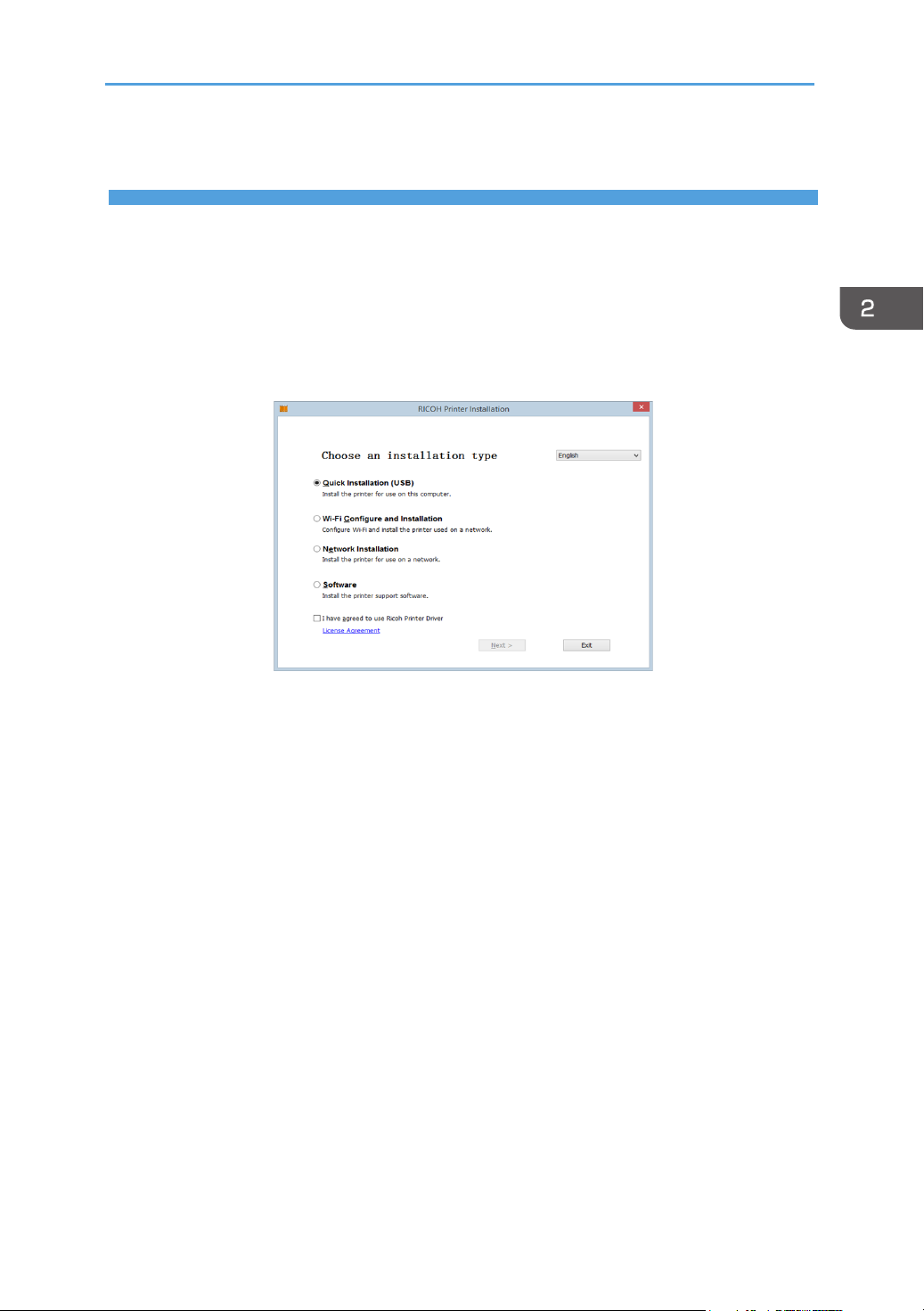
Install the software on your computer in any of the following ways:
• Run the installation program in the CD ROM provided with the printer, and then select the appropriate installation option.
• Download and install the software from the RICOH ofcial website at:
http://www.ricoh.com/printers/sp150/support/gateway/
5
2. Windows version
Starting the program
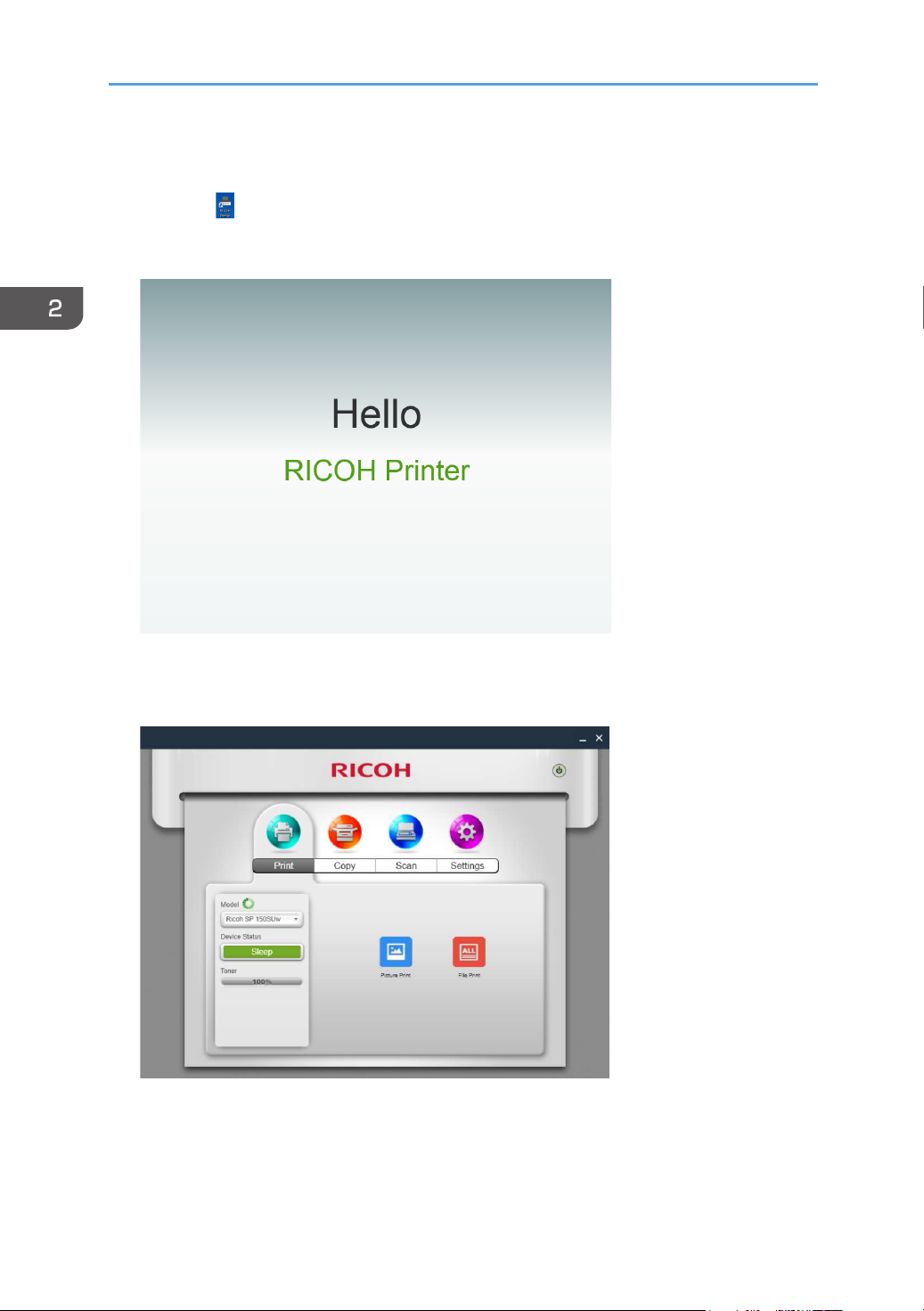
1. Click the
starts, it displays the welcome screen below and begins searching for available
printers in the background.
2. The program rst searches for available printers and displays them as a list.
Next, it checks if the rst printer on the list is online. If so, a functions page specic to the printer’s model is displayed. The rst page is the Print page.
icon on the desktop to open “RICOH Printer”. After the program
6
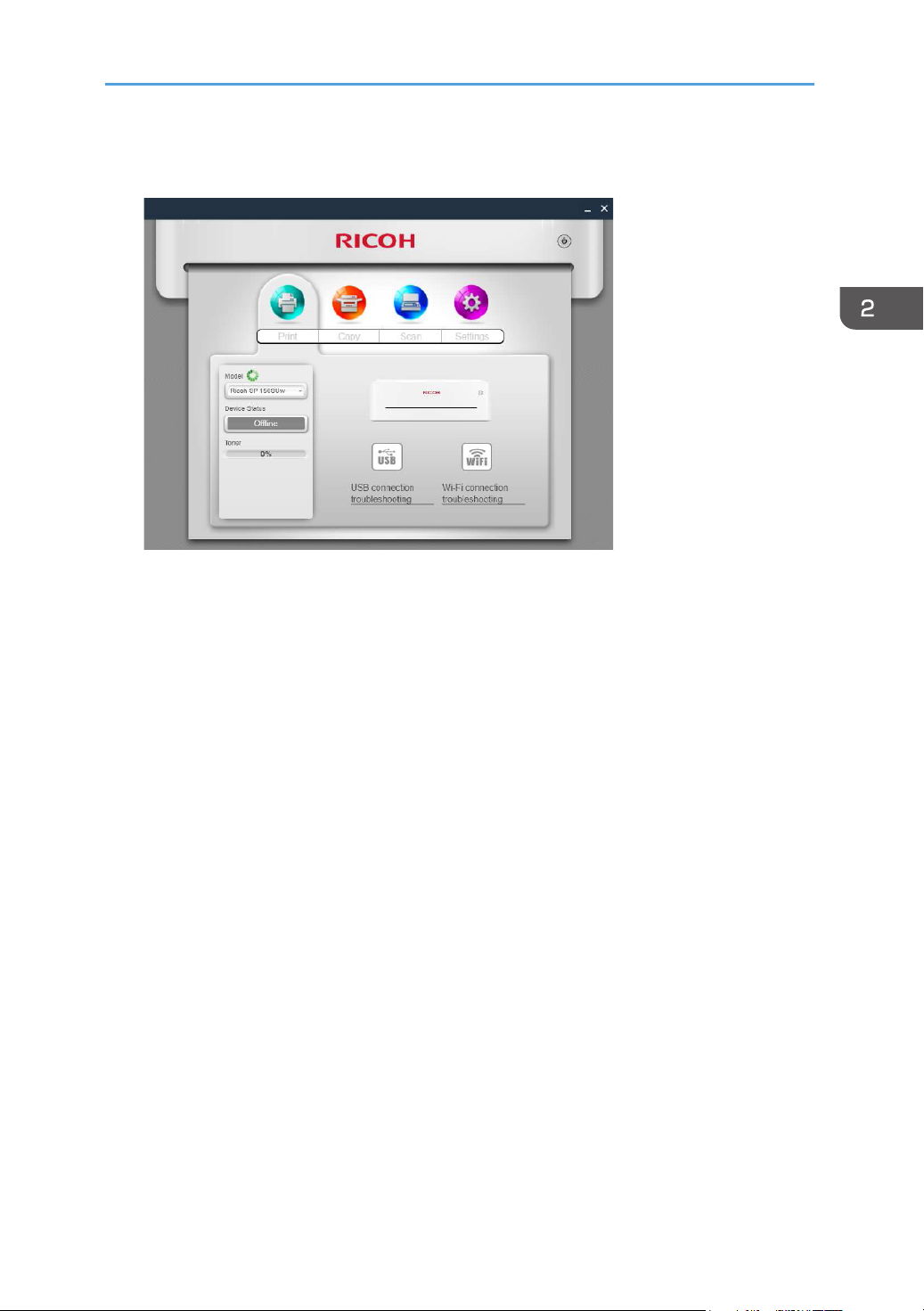
3. If no online printers are found, the program will prompt you to check for connection errors before searching for available printers again.
7
2. Windows version
Functions Page
Select and click a function icon (Print, Copy, Scan, Settings) from the top of the main page to display
the page corresponding to the function selected.
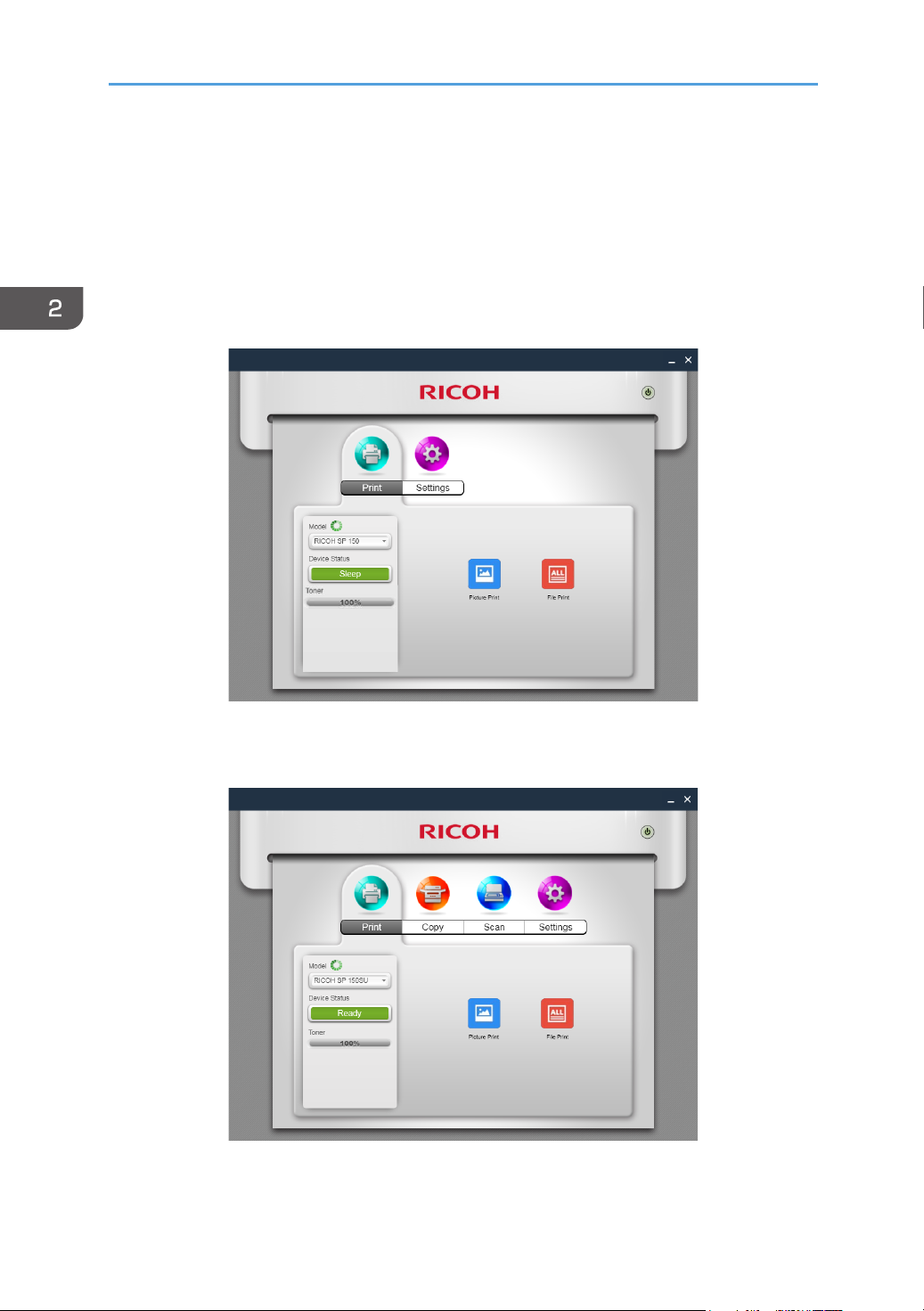
The Model dropdown list shows all printers in the system’s “Devices and Printers” that are compatible
with “RICOH Printer”.
If a single-function printer (SP 150/SP 150 w) is selected, the Print and Settings icons will display.
If an Multi-Function Laser Printer (SP 150SU/SP 150SUw) is selected, the full list of functions will
display.
8
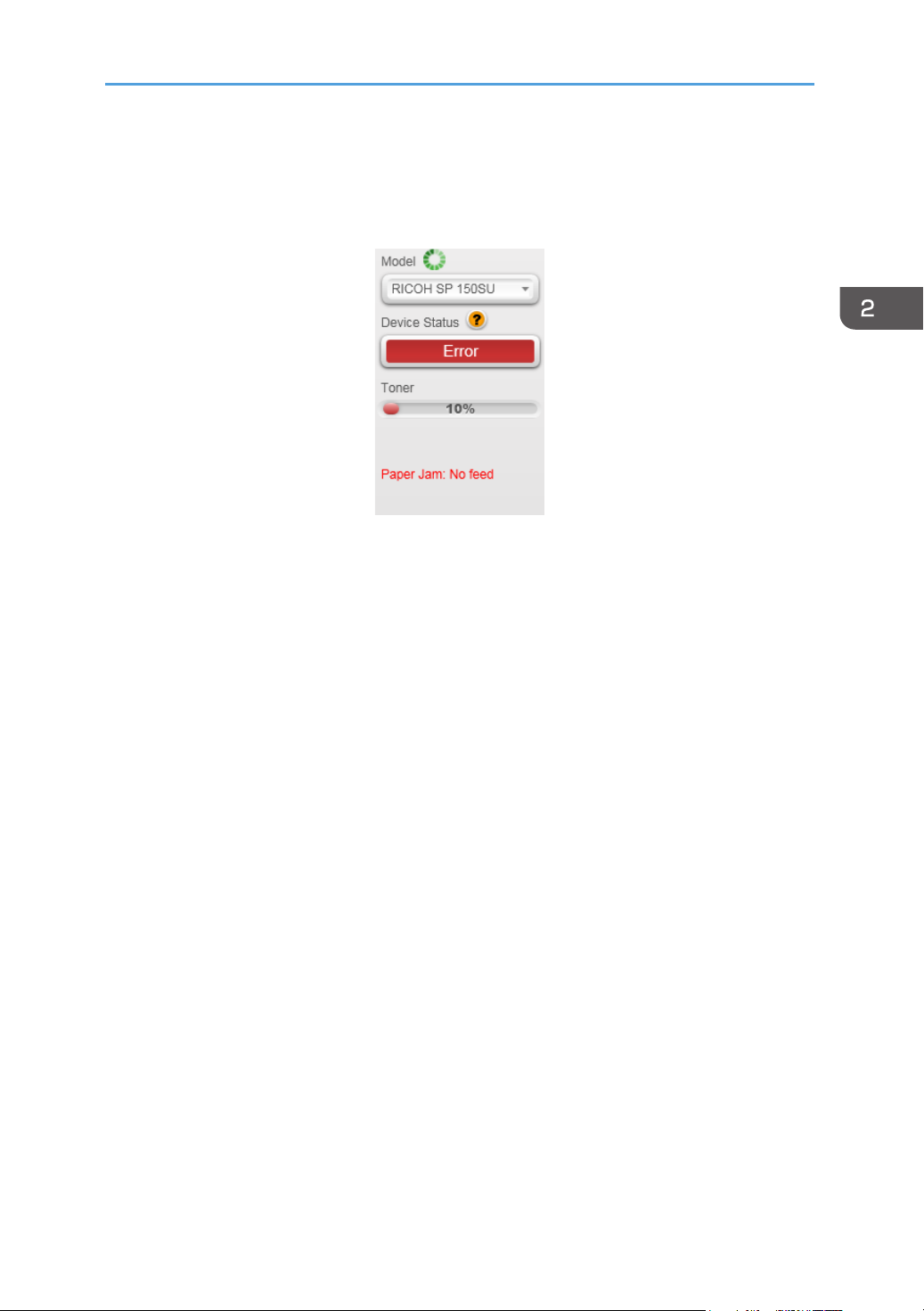
The Status page shows the current status of the printer, which can be Ready, Busy, Sleep, Error or
Ofine. The printer’s status is described in words at the bottom of the window. When the printer encounters an error, these words will be in red. If a question mark appears next to “Device Status”, click
it and troubleshoot the error as instructed by the animation.
9
2. Windows version
Picture Print
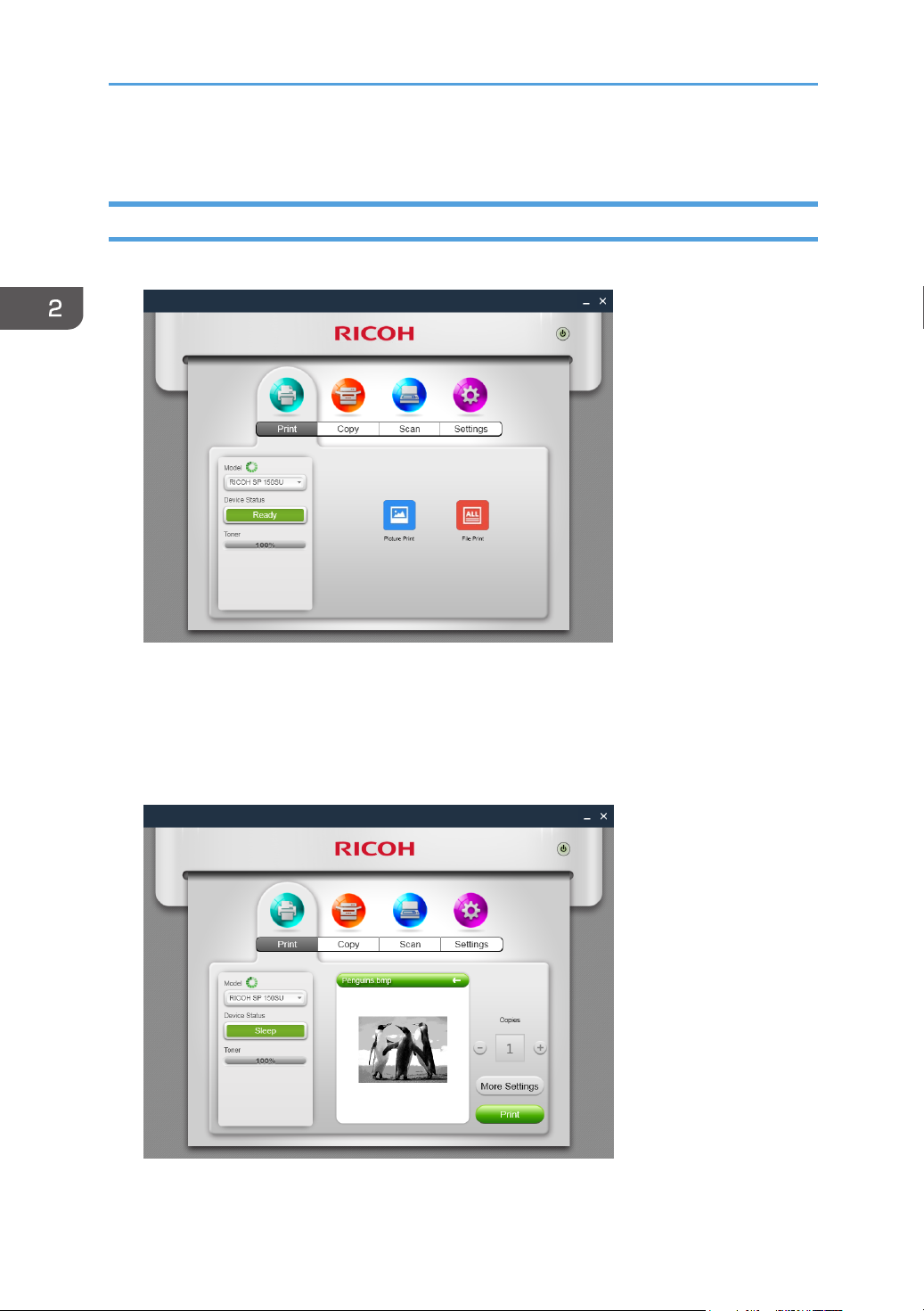
1. Click [Picture Print] on the Print page to enter the picture selection page.
2. You can select a single or multiple images for printing from the picture selection
page. The program supports the printing of images in TIFF, BMP, PNG and JPEG
formats.
Click the [OK] button after selecting the le to go to the Print page. On the Print
page, set the printing parameters required, then click the [Print] button to start
printing.
10
File Print
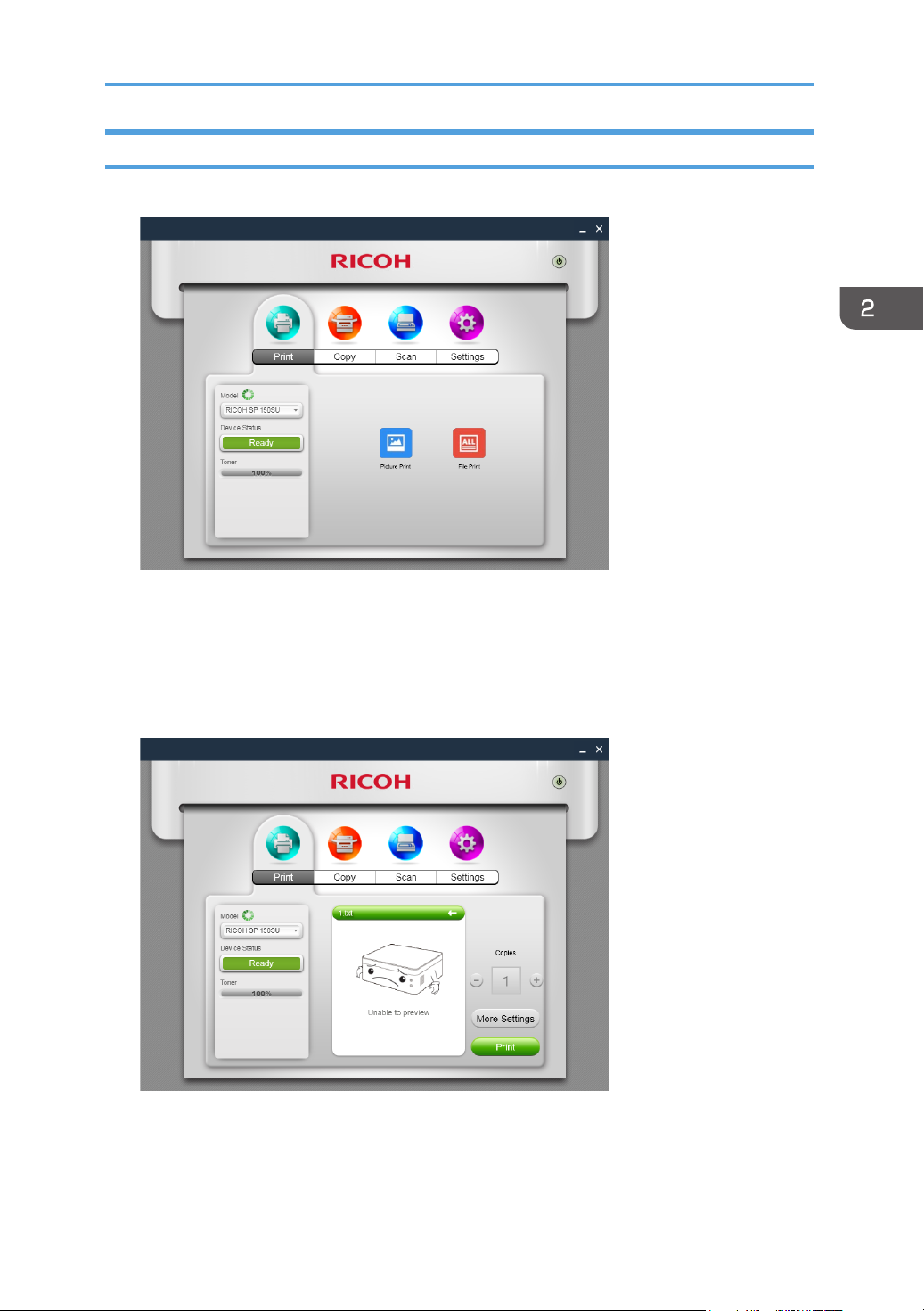
1. Click [File Print] on the Print page to enter the le selection page.
2. From the le selection page, select the le you want to print. If the Windows sys—
tem does not support the printing of the selected le, the user will be notied.
3. Click the [OK] button after selecting the le to go to the Print page. On the Print
page, set the printing parameters required, then click the [Print] button to start
printing. If the selected le cannot be previewed, the preview window will show
[Unable to preview].
11
2. Windows version
Manual Duplex Printing
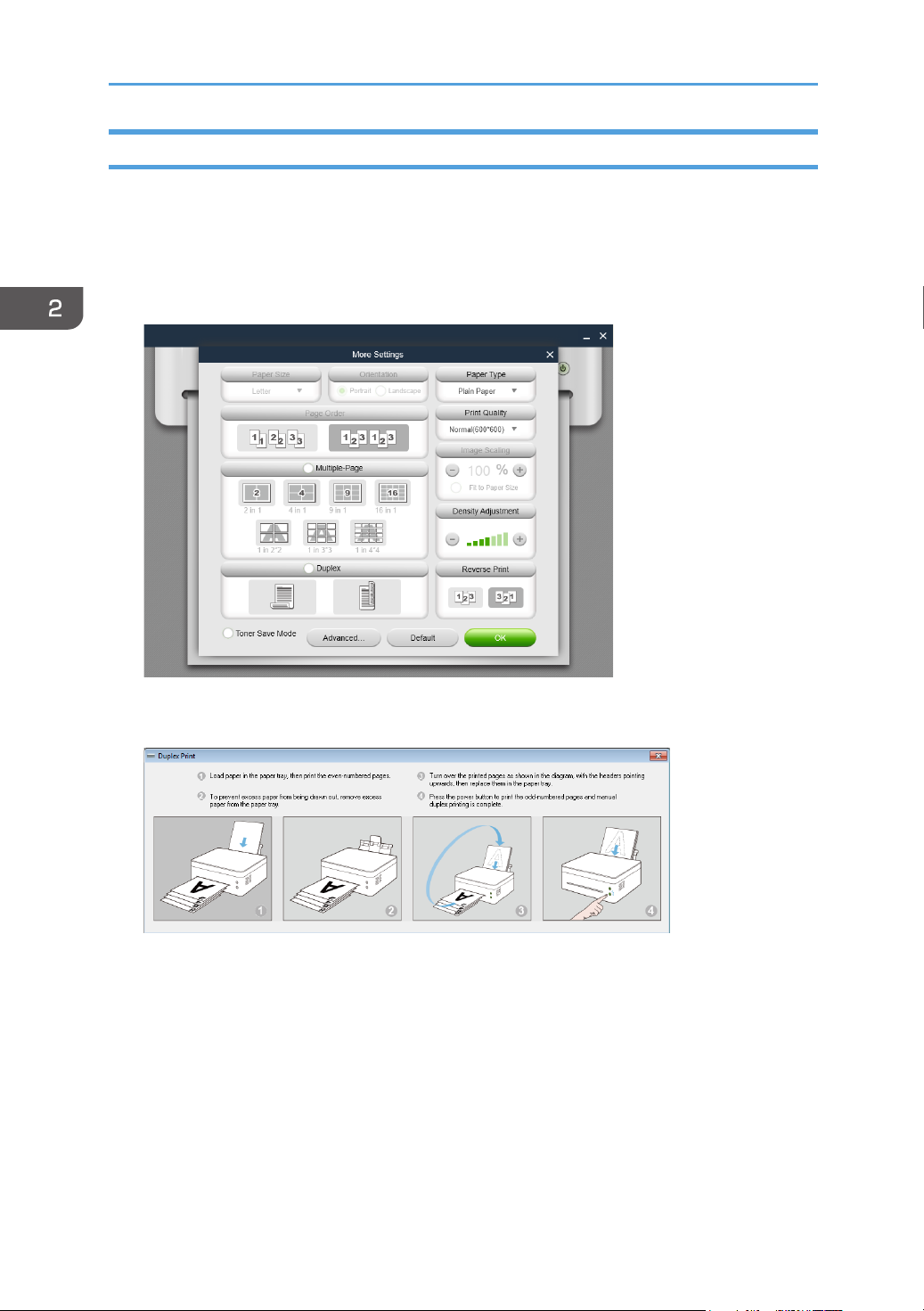
If you wish to print more than 2 pages, you can choose to use manual duplex printing.
1. After selecting your print content, click the [More Settings] button on the Print
page.
2. In the More Settings page, check the [Duplex] option and select the type of
duplex printing, then click [OK].
3. On the Print page, click the [Print] button. The duplex printing window will display and the printer will begin printing the even-numbered pages;
4. After the even-numbered pages are printed, remove all excess paper from the
paper tray as instructed on screen, then turn over the printed pages. Press the
Power button on the printer to print the odd-numbered pages.
5. Manual duplex printing is complete.
12
Copy (Supported on SP 150SU/SP 150SUw
only)
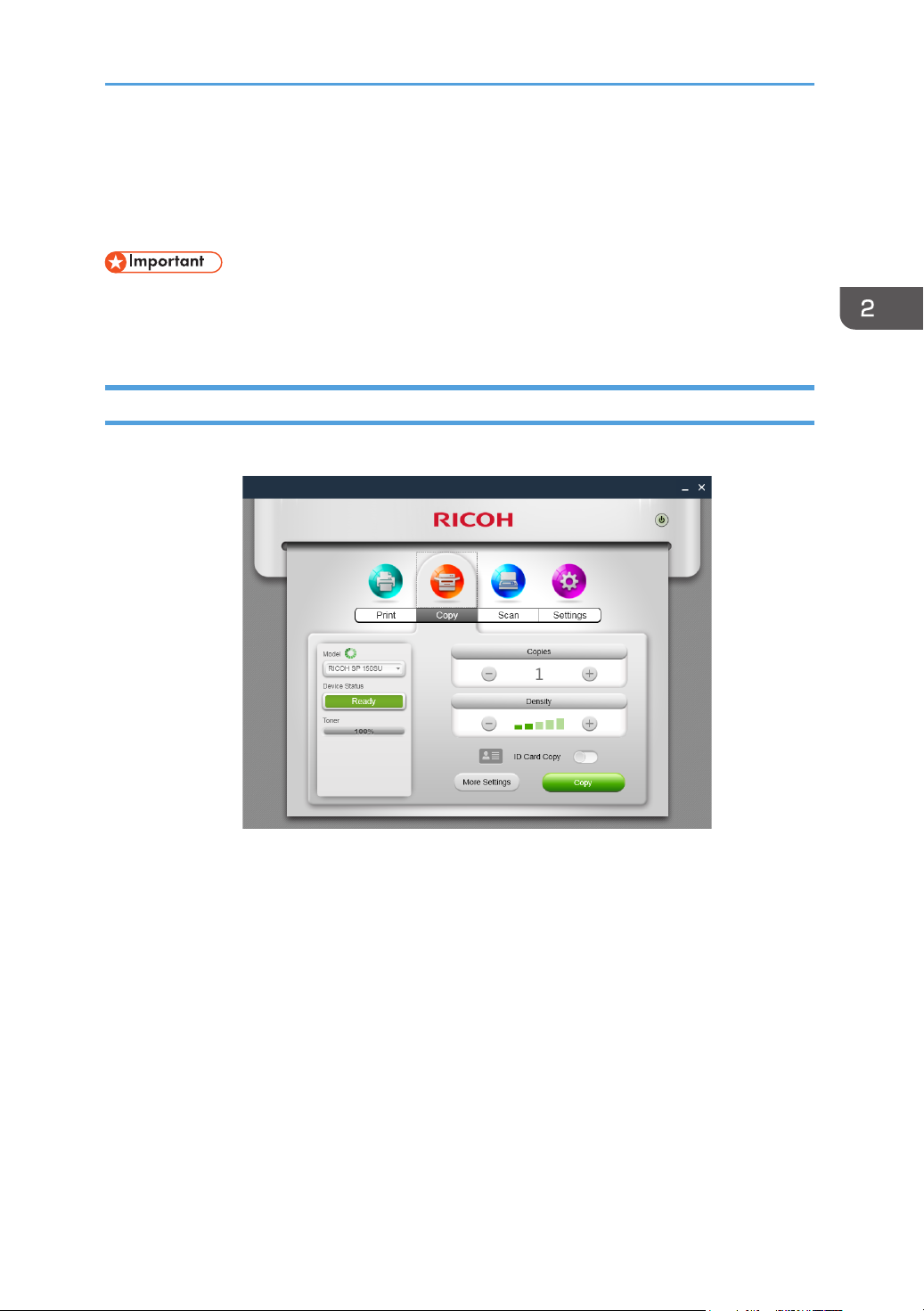
• The settings made with this application will only apply when the printer is operated using the
application. For example, even if you press the Start key on the printer after setting Combine
Printing using this application, Combine Printing will not be executed. In this case, click the
[Copy] button on the app.
Regular Copy
On the Copy page, set all the required parameters, and then click the [Copy] button.
13
Loading…
Хорошее руководство по эксплуатации
Законодательство обязывает продавца передать покупателю, вместе с товаром, руководство по эксплуатации Ricoh SP 150SUW. Отсутствие инструкции либо неправильная информация, переданная потребителю, составляют основание для рекламации в связи с несоответствием устройства с договором. В законодательстве допускается предоставлении руководства в другой, чем бумажная форме, что, в последнее время, часто используется, предоставляя графическую или электронную форму инструкции Ricoh SP 150SUW или обучающее видео для пользователей. Условием остается четкая и понятная форма.
Что такое руководство?
Слово происходит от латинского «instructio», тоесть привести в порядок. Следовательно в инструкции Ricoh SP 150SUW можно найти описание этапов поведения. Цель инструкции заключается в облегчении запуска, использования оборудования либо выполнения определенной деятельности. Инструкция является набором информации о предмете/услуге, подсказкой.
К сожалению немного пользователей находит время для чтения инструкций Ricoh SP 150SUW, и хорошая инструкция позволяет не только узнать ряд дополнительных функций приобретенного устройства, но и позволяет избежать возникновения большинства поломок.
Из чего должно состоять идеальное руководство по эксплуатации?
Прежде всего в инструкции Ricoh SP 150SUW должна находится:
— информация относительно технических данных устройства Ricoh SP 150SUW
— название производителя и год производства оборудования Ricoh SP 150SUW
— правила обслуживания, настройки и ухода за оборудованием Ricoh SP 150SUW
— знаки безопасности и сертификаты, подтверждающие соответствие стандартам
Почему мы не читаем инструкций?
Как правило из-за нехватки времени и уверенности в отдельных функциональностях приобретенных устройств. К сожалению само подсоединение и запуск Ricoh SP 150SUW это слишком мало. Инструкция заключает ряд отдельных указаний, касающихся функциональности, принципов безопасности, способов ухода (даже то, какие средства стоит использовать), возможных поломок Ricoh SP 150SUW и способов решения проблем, возникающих во время использования. И наконец то, в инструкции можно найти адресные данные сайта Ricoh, в случае отсутствия эффективности предлагаемых решений. Сейчас очень большой популярностью пользуются инструкции в форме интересных анимаций или видео материалов, которое лучше, чем брошюра воспринимаются пользователем. Такой вид инструкции позволяет пользователю просмотреть весь фильм, не пропуская спецификацию и сложные технические описания Ricoh SP 150SUW, как это часто бывает в случае бумажной версии.
Почему стоит читать инструкции?
Прежде всего здесь мы найдем ответы касательно конструкции, возможностей устройства Ricoh SP 150SUW, использования отдельных аксессуаров и ряд информации, позволяющей вполне использовать все функции и упрощения.
После удачной покупки оборудования/устройства стоит посвятить несколько минут для ознакомления с каждой частью инструкции Ricoh SP 150SUW. Сейчас их старательно готовят или переводят, чтобы они были не только понятными для пользователя, но и чтобы выполняли свою основную информационно-поддерживающую функцию.
Setup Guide
Installationsanleitung / Manuel d’installation / Guida all’installazione / Installationsvejledning / Guía de instalación / Installatiehandleiding /
Oppsettveiledning / Guia de Conguração / Guia de instalação / Asennusohje / Installationsguide / Guia d’instal·lació / Průvodce instalací /
Telepítési útmutató / Podręcznik instalacji / Kurulum Rehberi / Οδηγός εγκατάστασης / Руководство по установке / セットアップガイド /
安装指南 / 安裝指南 / Hướng dẫn cài đặt /
/ Panduan Pengaturan / / / /
40 cm
(15.7 inches)
10 cm
(3.9 inches)
45 cm
(17.7 inches)
10 cm
(3.9 inches)
20 cm
(7.8 inches)
40 cm
(15.7 inches)
10 cm
(3.9 inches)
20 cm
(7.8 inches)
45 cm
(17.7 inches)
10 cm
(3.9 inches)
17.5
63.5
Power Source / Stromquelle / Source d’alimentation /
Alimentazione / Strømkilde / Alimentación eléctrica /
Stroombron / Strømkilde / Fonte de alimentação /
Fonte de alimentação / Virtalähde / Strömförsörjning /
Font d’alimentació / Napájení / Tápellátás / Źródło
zasilania / Güç Kaynağı /
Πηγή Τροφοδοσίας Ρεύματος
/
Параметры электрической сети / 電源 / 电源 / 電源 /
Nguồn điện /
แหล่งจ่ายไฟ
/ Sumber Daya /
बिजली का त / শর উৎস
/
/
120 V, 60 Hz, 7 A
220 — 240 V, 50/60 Hz, 5 A
DPJ103
1
1
2
EN
For safe and correct use, please be sure to read the
Safety Information before using the machine.
DE
Um einen sicheren und korrekten Gerätebetrieb
zu gewährleisten, lesen Sie bitte die Sicherheit—
shinweise sorgfältig durch, bevor Sie das Gerät
verwenden.
FR
Andegarantiruneutilisationcorrecteetsans
danger, veuillez lire les consignes de sécurité avant
d’utiliser l’appareil.
IT
È sempre consigliabile leggere la sezione Informazi—
oni sulla sicurezza per essere certi di utilizzare la
macchina in modo sicuro e corretto.
DA
Denne vejledning beskriver proceduren for instal—
lation af denne maskine.
ES
Para un uso correcto y seguro, lea la Información
de seguridad antes de utilizar esta máquina.
NL
Lees de veiligheidsinformatie door voordat u het
apparaat in gebruik neemt. Zo weet u zeker dat u
het apparaat veilig en op de juiste wijze gebruikt.
NO
Av sikkerhetsårsaker og for å sikre korrekt bruk,
bør du lese ”Sikkerhetsinformasjon” før du tar
maskinen i bruk.
PT-PT
Paraumautilizaçãoseguraecorrecta,certique-se
de que lê as Informações de Segurança antes de
utilizar o equipamento.
PT-BR
Paraumautilizaçãoseguraecorreta,certique-se
de ler as Informações de segurança antes de usar
o equipamento.
FI
Varmista laitteen turvallinen ja oikea käyttö luke—
malla turvallisuustiedot ennen laitteen käyttämistä.
SV
För säker och korrekt användning ska du läsa
avsnittet Säkerhetsinformation innan du använder
maskinen.
CA
Per tal de fer-ne un ús correcte i segur, assegureu-
vos de llegir la Informació de seguretat abans
d’utilitzar la màquina.
CS
Probezpečnéasprávné použití tiskárnysipřed
zahájenímprácepročtětečástBezpečnostníinfor—
mace.
HU
Abiztonságosésmegfelelőüzemeltetésérdekében
akészülékhasználataelőttolvassaelaBiztonsági
tudnivalók-at.
PL
Abybezpiecznie i prawidłowo korzystać z
urządzenia,patrzZasadybezpieczeństw.
TR
Güvenli ve doğru kullanım için makineyikul—
lanmadan
önce lütfen Güvenlik Bilgisi’ni
okuduğunuzdaneminolun.
EL
Γιαασφαλήκαιορθήχρήση,παρακαλώφροντίστε
ναδιαβάσετε τις Πληροφορίες Ασφάλειας πριν
χρησιμοποιήσετετομηχάνημα.
RU
В целях безопасного и правильного
использования обязательно прочтите
руководство“Техникабезопасности”перед
началомэксплуатацииаппарата.
JA
安全に正しくお使いいただくために、操作の前には必
ず『安全上のご注意』をお読みください。
ZH-cn
为了安全正确地使用本机器,在使用之前,请务
必仔细阅读《安全信息》。
ZH-tw
為了安全與正確的使用,使用機器前請務必閱讀
「安全資訊」。
VI
Để sử dụng an toàn và đúng cách, vui lòng
đảm bảo đã đọc Thông tin An toàn trước
khi sử dụng máy.
TH
ID
Agar dapat menggunakan mesin dengan aman
dan benar, pastikan untuk membaca Informasi
Keselamatan sebelum menggunakan mesin.
HI
,
BN
A
R
UR
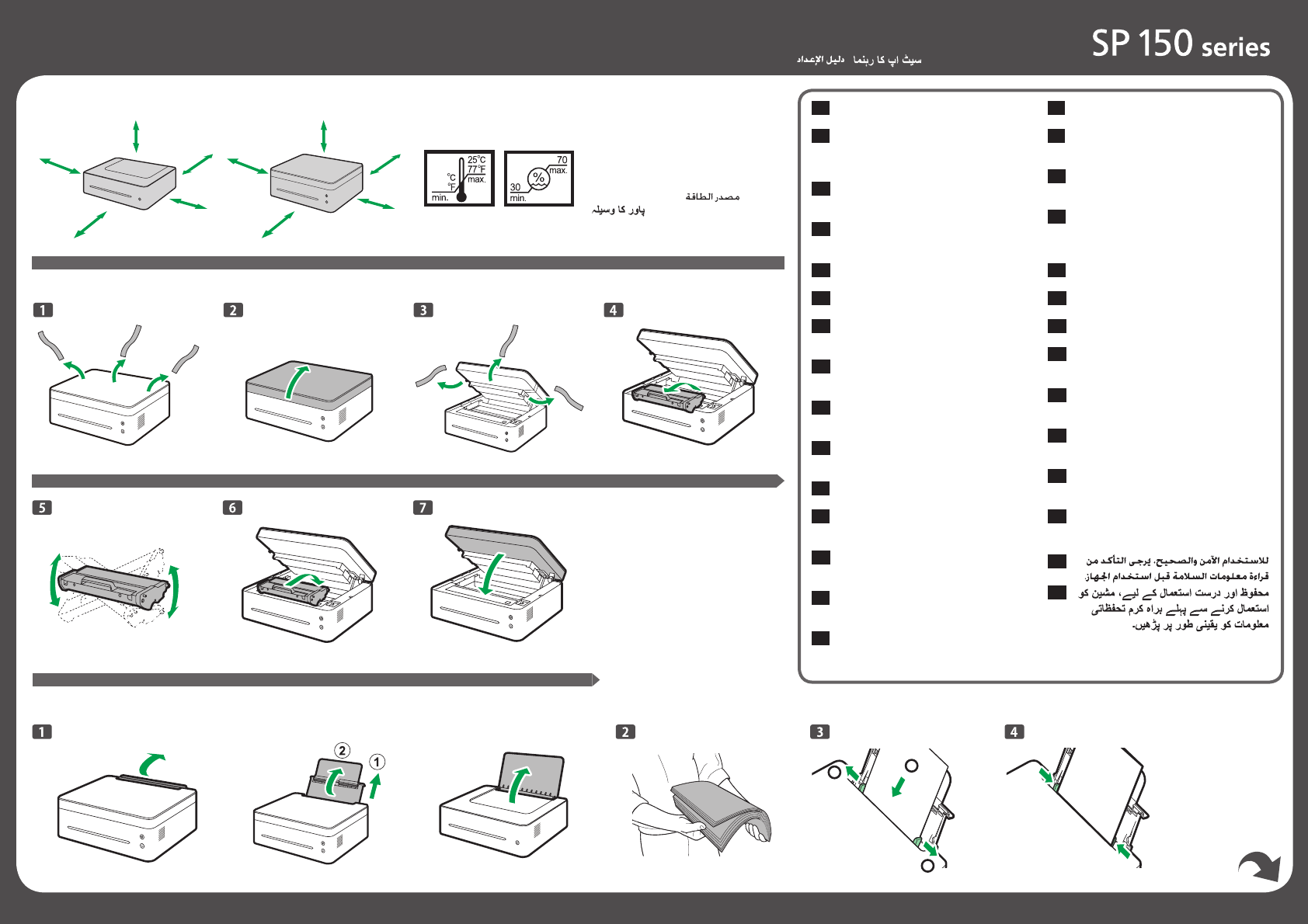
1. Unpacking
2. Loading Papers
SP 150/SP 150w
SP 150SU/SP 150SUw