
Zoom H2n
Operation manual
©ZOOM Corporation
Reproduction or duplication of this manual without
permission, in whole or in part, is prohibited.
View the manual for the Zoom H2n here, for free. This user manual comes under the category audio recorder and has been rated by 24 people with an average of a 8.4. This manual is available in the following languages: English. Do you have a question about the Zoom H2n?
Ask your question here
Product Images (7)

Zoom H2n specifications
Below you will find the product specifications and the manual specifications of the Zoom H2n.
The Zoom H2n is an audio recorder equipped with a built-in microphone that supports MP3, PCM, and WAV audio formats. The recorder’s LCD display has a resolution of 128 x 64 pixels designed for easy navigation. The device also features a built-in speaker with an output power of 400mW, suitable for playback on-the-go. The Zoom H2n comes equipped with a USB interface, microphone in, and headphone out for easy connectivity. This versatile device allows for recording high-quality audio, whether it be for music, podcasts, or interviews.
The device is small and compact, measuring 6.1 centimeters by 13.7 centimeters by 4.4 centimeters in size, and is easy to carry around. The recorder’s design is sleek, completed with a black matte finish that gives it a professional look. The Zoom H2n’s built-in microphone is designed to capture sound from all directions, ensuring that it records premium audio, while the microphone in allows for the attachment of external microphones, further increasing its audio recording capabilities.
Overall, the Zoom H2n audio recorder is a reliable and useful tool that can be used for a variety of audio recording needs. Its portability, ease of use, and ability to capture high-quality audio make it a valuable accessory for podcasters, musicians, filmmakers, journalists, and any other individuals needing a quality audio recorder. Furthermore, the device’s connectivity options are an added bonus, allowing for easy transfer of audio files to other devices.
Maximum recording time
— h
Media types supported
Flash card
General
| Brand | Zoom |
| Model | H2n | H2N |
| Product | audio recorder |
| EAN | 2050002399242, 4016138708172, 4515260010080, 4515260010097, 798304150940, 884354010065, 0884354010065, 0798304150940 |
| Language | English |
| Filetype | User manual (PDF), Installation Guide (PDF), Safety instructions (PDF) |
Audio
| Maximum recording time | — h |
| Recording modes | Pulse-code modulation (PCM) |
| Built-in microphone | Yes |
| Audio formats supported | MP3, PCM, WAV |
| MP3 bit rates | 48 — 320 Kbit/s |
Display
| Display type | LCD |
| Display resolution | 128 x 64 pixels |
Loudspeakers
| Built-in speaker(s) | Yes |
| Number of built-in speakers | 1 |
| Output power | 400 mW |
Ports & interfaces
| Interface | USB |
| USB connector type | Mini-USB B |
| Microphone in | Yes |
| Headphone out | Yes |
Radio
Storage
| Media types supported | Flash card |
Battery
| Compatible battery sizes | AA |
| Battery life (max) | 20 h |
| Number of batteries supported | 2 |
Technical details
| Product colour | Black |
| Microphone input impedance | 2000 Ω |
| AC adapter included | Yes |
| Headphone outputs | 1 |
Weight & dimensions
| Width | 67.6 mm |
| Depth | 113.8 mm |
| Height | 42.7 mm |
| Weight | 130 g |
show more
Frequently asked questions
Can’t find the answer to your question in the manual? You may find the answer to your question in the FAQs about the Zoom H2n below.
How to Troubleshoot HOLD Message on Zoom H2n Recorder
What is the weight of the Zoom H2n?
The Zoom H2n has a weight of 130 g.
What is the height of the Zoom H2n?
The Zoom H2n has a height of 42.7 mm.
What is the width of the Zoom H2n?
The Zoom H2n has a width of 67.6 mm.
What is the depth of the Zoom H2n?
The Zoom H2n has a depth of 113.8 mm.
What is the screen resolution of the display of the Zoom H2n?
The screen resolution of the Zoom H2n is 128 x 64 pixels.
What type of USB connection does the Zoom H2n have?
The Zoom H2n has a Mini-USB B connection.
Is the manual of the Zoom H2n available in English?
Yes, the manual of the Zoom H2n is available in English .
Is your question not listed? Ask your question here
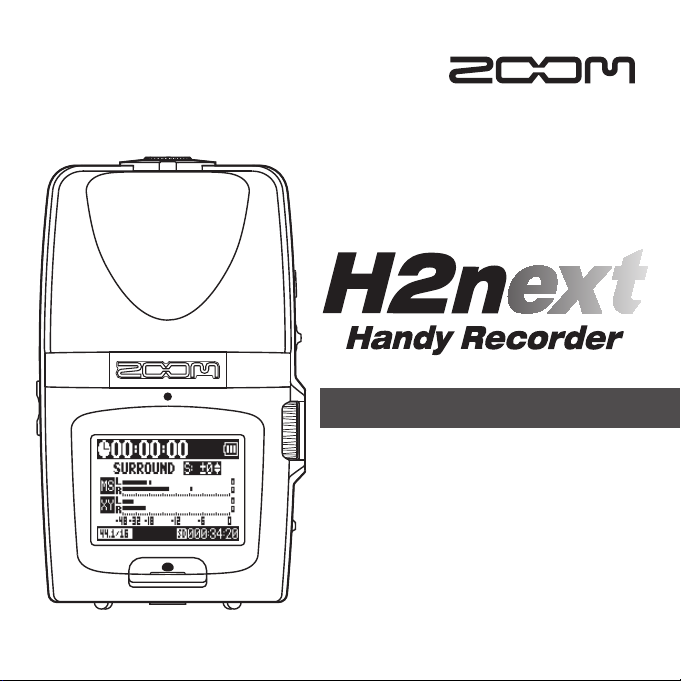
Operation manual
©ZOOM Corporation
Reproduction or duplication of this manual without
permission, in whole or in part, is prohibited.
Usage and safety precautions
02
Usage and safety precautions
03
H2n
Handy Recorder
Usage and safety precautions
SAFETY PRECAUTIONS
In this man ual , symbols are us ed to highligh t
war nin gs an d cauti on s that you mu st read to
prevent accidents. The meanings of these symbols
are as follows:
Som eth ing th at coul d cause ser ious
injury or death.
Something that could cause inju ry or
damage to the equipment.
Other symbols
Required (mandatory) actions
Prohibited actions
Warning
Operation using an AC adapter
Use only a ZOOM AD-17 (sold separately) AC
adapter with this unit.
Do not use do anything that could exceed the
ratings o f outlets a nd other electrical wiring
equi pmen t. Before using the equipme nt in
a foreign country or oth er region w here the
electr ical voltage differs fr om that i ndicat ed
on the AC adapter, always consult with a shop
that carries ZOOM produ cts beforehand and
use the appropriate AC adapter.
Operation using batteries
Use 2 conv en ti onal 1.5- vo lt AA batt er ie s
(alkaline or nickel-metal hydride).
Read battery warning labels carefully.
Always close the battery compartment cover
when using the unit.
Alterations
Never open the case or attempt to modify the
product.
Precautions
Product handling
Do not drop, bump or apply excessive force to
the unit.
Be car eful not to allow fore ign objec ts or
liquids to enter the unit.
Operating environment
Do not use in extremely high or low tempera-
tures.
Do n ot use near heaters, stoves and oth er
heat sources.
Do no t use in very hi gh hu mid it y or near
splashing water.
Do not use in places with excessive vibrations.
Do not use in places wi th excessive dust or
sand.
AC adapter handling
When disconnecting the AC adapter from an
outl et, always pull the body of the adap ter
itself.
During lightning stor ms or w hen not using
the unit for a long time, disconnect the power
plug from the AC outlet.
Battery handling
Insta ll the ba tte ri es wit h the corr ec t +/-
orientation.
Use a specifi ed battery type. Do not mix new
and old batteries or different brands or types
at the same time. Wh en not u sing the unit
for an extended period of time, r emove the
batteries from the unit.
If a battery leak should occur, wipe the battery
compartment and the battery terminals
carefully to remove all battery residue.
Connecting cables with input and output
jacks
Always turn the power OFF for all equipment
before connecting any cables.
Always disconnect all connection cables and
the AC adapter before moving the unit.
Volume
Do not use the product at a loud volume for a
long time.
Usage Precautions
Interference with other electrical equipment
In consideration of safety, the
been designed to minimize the emission of
electromagnetic radiation from the device and to
minimize external electromagne tic interference.
However, equipment that is very susceptible to
interference or that emits powerful electromagnetic
waves could result in interference if placed nearby.
If this occurs, place the
has
and the other
device farther apart. With any type of electronic
device that uses digital control, including the
, electromagnetic interference could cause
malfunction, corrupt or destroy data and result in
other unexpected trouble. Always use caution.
Cleaning
Use a soft cloth to clean the panels of the unit if
they become dirty. If necessary, use a damp cloth
that has been wrung out well. Never use abrasive
cle ans er s, wax or so lve nts , inclu di ng alco hol ,
benzene and paint thinner.
Malfunction
If th e uni t beco me s bro ken or malf un ct io ns ,
immediately disconnect the AC adapter, turn the
power OFF and disconnect other cables. Contact
the store where you bo ught the unit or ZOOM
ser vice w ith the follo wing informa tion: prod uct
mod el , serial numb er an d speci fi c symp tom s
of failure or malfun ction, along with your name,
address and telephone number.
Copyrights
•Windows, Windows Vista, Windows XP and
Windows 7 are trademarks or registered trademarks
of Microsoft Corporation. •Macintosh and Mac OS
are trademarks or registered trademarks of Apple
Inc. •The SD and SDHC logos are trademarks.
•The use of MPEG Layer-3 audio compression
technology is licensed from Fraunhofer IIS and
Sisvel SpA.
* All other product names, trademarks and company names
in this docu ment are t he p ropert y of t heir respec tive
owners.
Introduction
05
H2n
Handy Recorder
Introduction
Thank you very much for purchasing a ZOOM Handy Recorder.
The features of the
include the following.
• Four-channel recording captures sound in 360°
The built in microphones are divided into mid-side (MS) mics on the rear side
and XY mics on the front side. This independent placement allows you to record
sound coming from every direction. This unrestricted range means you can
record diverse sound sources in all kinds of conditions.
• New microphone array allows control of stereo width
The MS m ic includ es a dire ctional m id mic that covers the f ront and a
bidirectional side mic that covers both sides. By controlling the amount of side
mic signal, you can freely adjust the stereo width of recordings.
• Stereo recording is clear and three-dimensional
Using the XY mic, you can realize three-dimensional stereo recordings that
faithfully capture a sense of depth.
• Uninterrupted long recordings possible at high-quality
Recording is possible without interruption for very long times. You can even fi ll
an entire 32GB SDHC card in one session!
• Runs for a long time on standard batteries
You can record for up to 20 hours (44.1kHz/16bit WAV format) with one set of
alkaline batteries. So, even in situations where you must rely on batteries, you
can keep recording without worrying about the time.
• Use as an SD card reader and computer audio interface
The built-in USB 2.0 high-speed port allows direct connection with a computer.
Use the recorder as an SD card reader with a computer to transfer recordings to
your computer for use in DAW software or to burn them to CDs. You can even
use the recorder as a computer audio interface at USB 1.0 speed.
• Tuner, metronome and other practice features
In addition to standard chromatic tuning, the tuner also supports seven-string
guitar, five-string bass and alternate tunings. The convenient metronome can
even provide a count in and the speed and pitch of playback can be adjusted,
making it a useful practice companion.
Please read this manual carefully to fully understand the
you can maximize your use of its features. After reading the manual once,
please keep it with the warranty in a safe place.
so that
Package contents
07
H2n
Handy Recorder
Contents
Operation manual
©ZOOM Corporation
Reproduction or duplication of this manual without
permission, in whole or in part, is prohibited.
Usage and safety precautions ……………………. 02
Introduction …………………………………………….. 04
Contents ………………………………………………… 06
Package contents …………………………………….. 07
Part names ……………………………………………… 08
Display …………………………………………………… 10
Preparation
Powering the recorder……………………………….12
Using batteries ……………………………………..12
Using an AC adapter (sold separately) ……… 12
Installing an SD card ………………………………… 13
Turning the power ON and OFF …………………. 14
Turning the power ON …………………………… 14
Turning the power OFF ………………………….. 14
Using the hold function ………………………….15
Connecting an external mic ………………………. 16
Using plug-in power………………………………. 16
Setting the date and time ………………………….. 17
Setting the battery type …………………………….18
Recording
Recording mode overview ………………………… 20
Mid-side (MS) stereo mode ……………………. 20
XY stereo mode ……………………………………. 20
2ch and 4ch surround modes …………………. 21
Selecting the recording mode ……………………. 22
Adjusting the S level (MS stereo,
2ch/4ch surround modes) ………………………. 22
Using MS-RAW mode (WAV format only) … 23
Selecting where recordings are saved ………… 23
Recording manually ………………………………….. 24
Recording automatically ……………………………. 26
Pre-recording …………………………………………… 28
Counting in before recording …………………….. 29
Playback
Playing back recordings …………………………….. 30
Selecting the fi le to playback from a list ……… 32
Changing the playback speed …………………….33
Loop playback of a set interval (AB REPEAT) .. 34
Changing the play mode ……………………………36
Adjusting the playback pitch
(KEY CONTROL) ……………………………………… 38
Changing the S level (MS-RAW only) ………….. 39
Mixing a 4ch surround fi le …………………………. 40
Checking & Editing Files
Checking fi le information ………………………….. 42
Checking track marks (WAV fi les only) ………… 43
Changing fi le names (Stereo fi les only) ……….. 44
Convert WAV fi les into MP3 fi les
(Stereo fi les only) …………………………………….. 46
Normalizing WAV fi les ………………………………. 48
Dividing fi les (Stereo fi les only) ………………….. 50
Deleting fi les …………………………………………… 52
Deleting all fi les in a folder ………………………… 53
Converting MS-RAW fi les into stereo fi les ….. 54
Converting 4ch surround fi les into
stereo fi les ……………………………………………… 56
Using USB
Exchanging fi les with a computer
(Card reader) …………………………………………… 58
Audio interface use (MS/XY stereo and
2ch surround modes only) …………………………. 60
Tuner
Using the tuner ………………………………………..62
Metronome
Using the metronome ………………………………. 64
Various settings
Reducing noise (LO CUT) ………………………….. 66
Monitoring the input signal ………………………..67
Compressing/limiting the input signal …………. 68
Automatically adjusting the input gain …………70
Monitoring MS-RAW signals
(MS stereo mode only) …………………………….. 71
Setting the recording format ……………………… 72
Changing automatic recording settings ……….. 74
Setting how fi les are named
(Stereo fi les only) …………………………………….. 76
Pausing recording when adding marks
(WAV format only) …………………………………… 77
Changing the display backlight time ……………. 78
Adjusting the display contrast ……………………. 79
Checking the software versions …………………. 80
Restoring the unit to its factory settings ……… 81
Checking the open capacity of the SD card …. 82
Formatting an SD card……………………………….83
Other functions
Updating the system software …………………… 84
Using SD cards from older H series
recorders ………………………………………………… 85
Using a remote control ……………………………. 86
Troubleshooting ……………………………………….. 87
Specifi cations ………………………………………….. 88
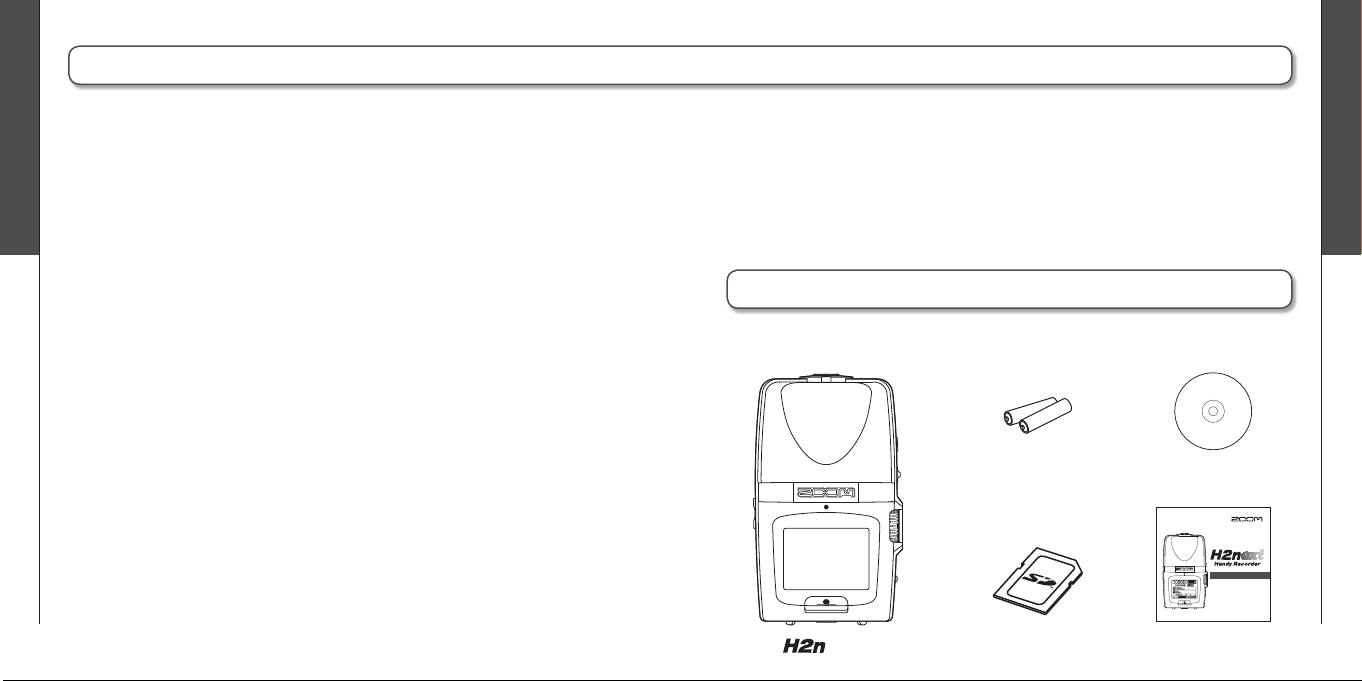
Package contents
Please confi rm that the package contains the following items.
2 AA batteries
(for testing the unit)
recorder
SD card
(2GB)
Wave Lab LE
Installer CD
Operation manual
(this document)
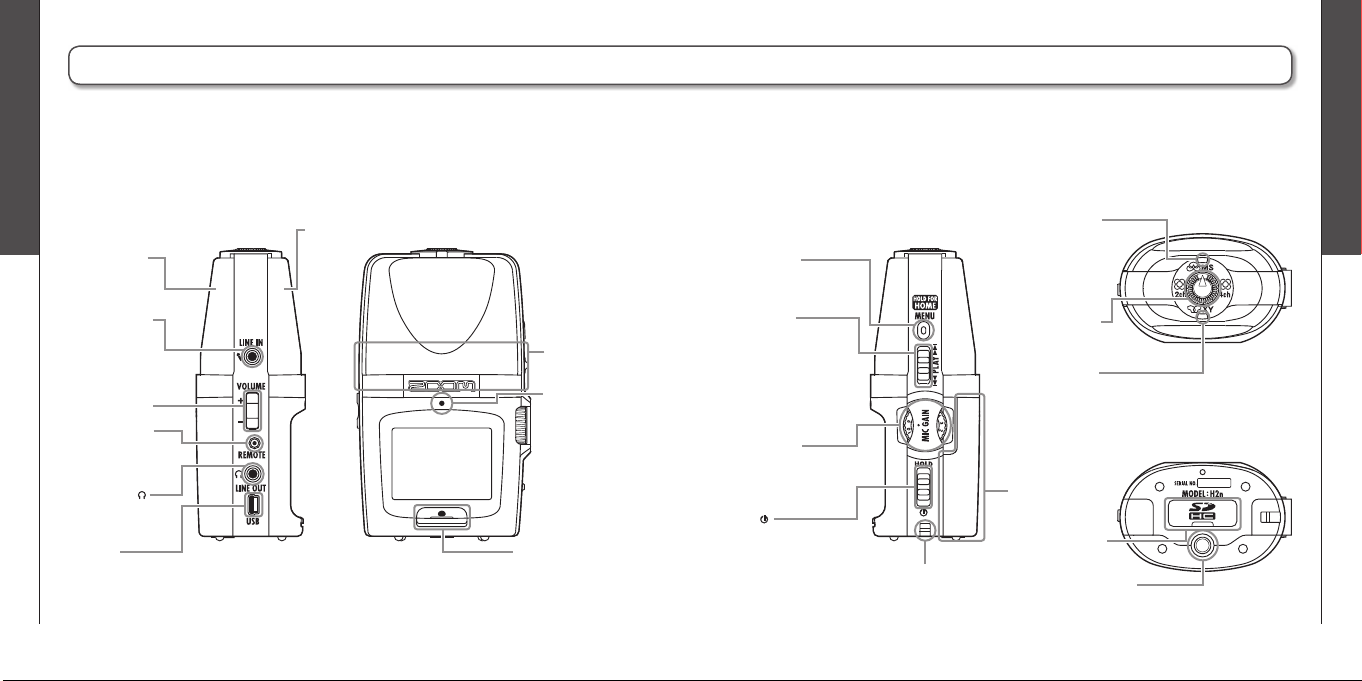
Part names
09
H2n
Handy Recorder
Part names
Left side Right side Top
Bottom
Front
Record button
Speaker
LINE IN jack for
mic/line input
(can provide
plug-in power)
Remote control
jack (Remote
control sold
separately)
Headphones
/LINE OUT jack
MS stereo mic
XY stereo mic
Recording
indicator
MIC GAIN dial
Adjusts mic
input gain
Strap attachment
(Use to prevent dropping)
PLAY control
Press to play/pause
(in menu, set item)
Shift up/down to search
forward/backward
(in menu, select item)
MS mic indicator
Lights when the MS
mic (rear) is ON.
Flashes when the
input signal is
distorting.
XY mic indicator
Lights when the XY
mic (front) is ON.
Flashes when the
input signal is
distorting.
Recording mode
selection dial
Battery
compartment
cover
SD card slot cover
MENU button
Volume control
USB port
Tripod mounting socket
Power
/HOLD switch
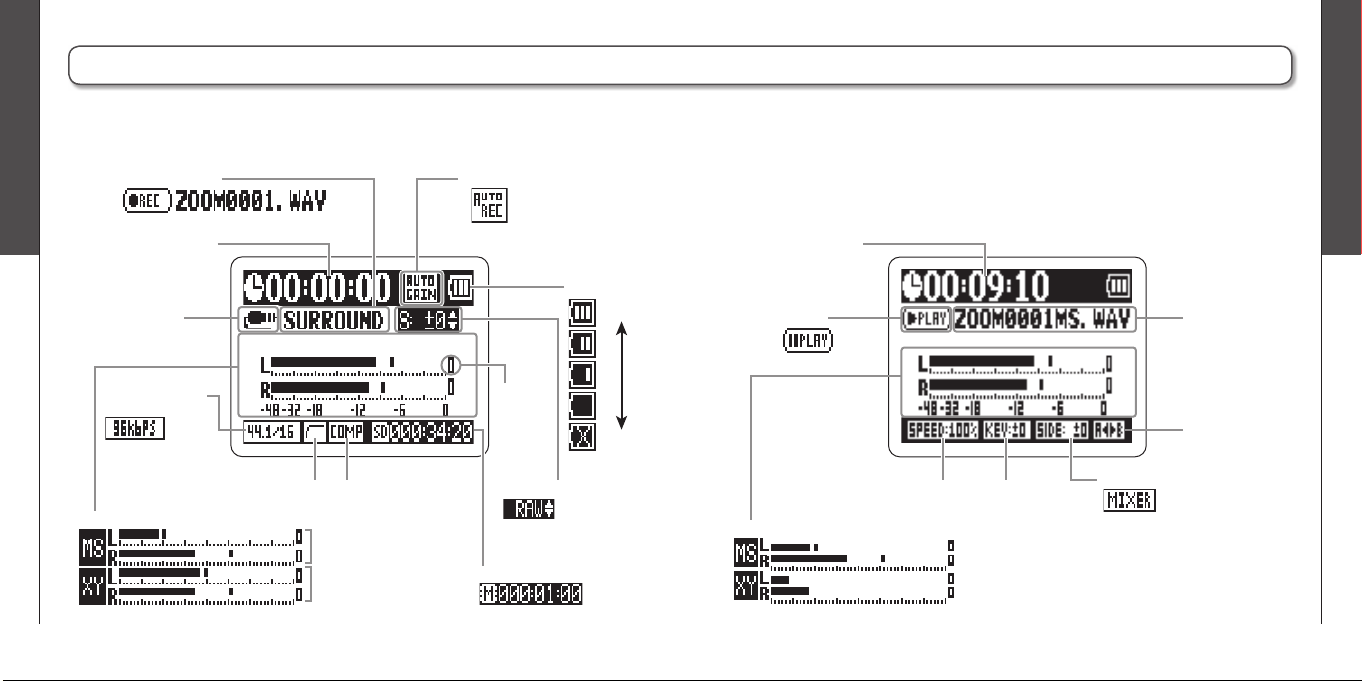
Display
11
H2n
Handy Recorder
Display
Recording time
LINE IN jack in
use indicator
Home (recording) screen Playback screen
Recording mode
(File name shown during recording)
Recording level
MS mic recording level
Remaining recordable time
(When using built-in memory)
Side level adjustment
(When set to MS-RAW)
LO CUT
indicator
Clipping
indicator
(When AUTO REC enabled)
AUTO GAIN/AUTO REC indicator
Full
Empty
COMP/LIMITER
indicator
XY mic recording level
(Appearance in 4ch surround mode)
Playback time
Playing
(Playback paused)
File name
AB repeat
Playback level
(Appearance in 4ch surround mode)
Playback speed Key control
Side mic level
Mixer
(when in 4ch surround mode)
Remaining
battery level
indicator
Recording format
(WAV example)
(MP3 example)

Preparation
Powering the recorder
12
Preparation
Installing an SD card
13
H2n
Handy Recorder
Press here
and slide down
Powering the recorder
Using batteries
Turn the power OFF, and then remove the battery cover.
1.
Insert batteries.
2.
Close the cover.
3.
NOTE
∙ Use alkaline or nickel-metal hydride batteries.
∙ If the “Low battery!” warning appears, turn the power OFF
soon and put in new batteries.
∙ Set the type of battery used. (➝P.18)
Using an AC adapter (sold separately)
Connect the cable to the USB port.
1.
Plug the adapter into a power outlet.
2.
Installing an SD card
After turning the power OFF, open the SD card slot cover.
1.
Insert the card into the slot.
2.
To remove a card, push it further into
the slot and then pull it out.
NOTE
∙ Always turn the power OFF before inserting or removing an SD card. Doing so
when the power is ON could cause data to be lost.
∙ Be sure to insert the SD card correctly, using the cut-off corner illustration next
to the slot as a guide.
∙ The built-in memory will be used if no SD card is in the recorder.
∙ Format the SD card if necessary. (➝ P.83)
HINT
Built-in memory
∙ The built-in memory only keeps the most recent recording.
∙ The recording format is fi xed at 96kbps MP3.
∙ It cannot be used to record in 4ch surround or MS-RAW modes.
∙ Recording time is limited to 1 minute.
∙ Recordings saved to the built-in memory cannot be copied to an SD card or a
computer.
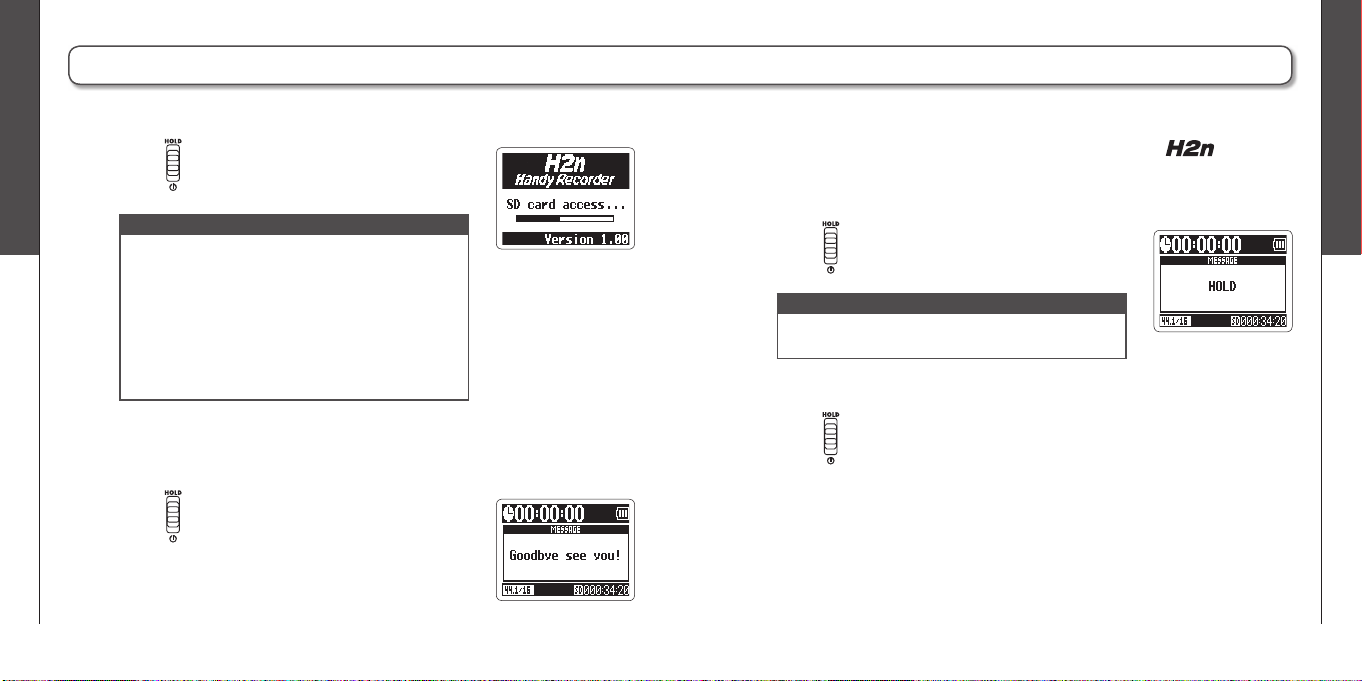
Preparation
Turning the power ON and OFF
14
Preparation
Turning the power ON and OFF
15
H2n
Handy Recorder
Turning the power ON and OFF
Turning the power ON Using the hold function
Slide down.
•
NOTE
∙ If “No SD card!” appears, confi rm that an SD card is
correctly inserted into the recorder.
∙ If “Ca r d Prote c t e d” a p p e ars , S D ca r d w r i t e
prote ct io n is ON. Turn wr it e prot ec tion OF F by
sliding the “Lock” switch on the card.
∙ If “Invalid card” appears, the card format is
incorrect. Use a different card or format the card.
(➝ P.83)
In order to prevent accidental operation during recording, the has a hold
function that disables the use of controls other than the MIC GAIN.
Enabling the hold function
Slide up to the HOLD position.
•
NOTE
Even when the hold function is on, the remote control
(sold separately) can still be used.
Disabling the hold function
Slide back to the middle.
•
Turning the power OFF
Slide down and hold it until “Goodbye
•
see you!” appears on the screen.

Preparation
Connecting an external mic
16
Preparation
Setting the date and time
17
H2n
Handy Recorder
Connecting an external mic
Connect an external mic (sold separately) to the LINE IN jack.
1.
NOTE
∙ An external mic can be used instead of the XY stereo mic.
∙ An external mic cannot be used with MS Stereo mode.
Using plug-in power
Make the following setting before connecting a mic that requires plug-in power.
Press .
1.
Use to select INPUT, and then
2.
press .
Use to select PLUG-IN POWER,
3.
and then press .
Use to select ON, and then
4.
press .
The date and time is added to recording fi les automatically, so set it correctly
whenever the batteries are replaced.
1.
2.
3.
4.
5.
Setting the date and time
Press .
Use to select SYSTEM, and then press .
Use to select DATE/TIME, and then
press .
Adjust the settings.
Use to move the cursor
Press to select the item
Use to change the value
Press to confi rm the setting
Use to select OK, and then press .
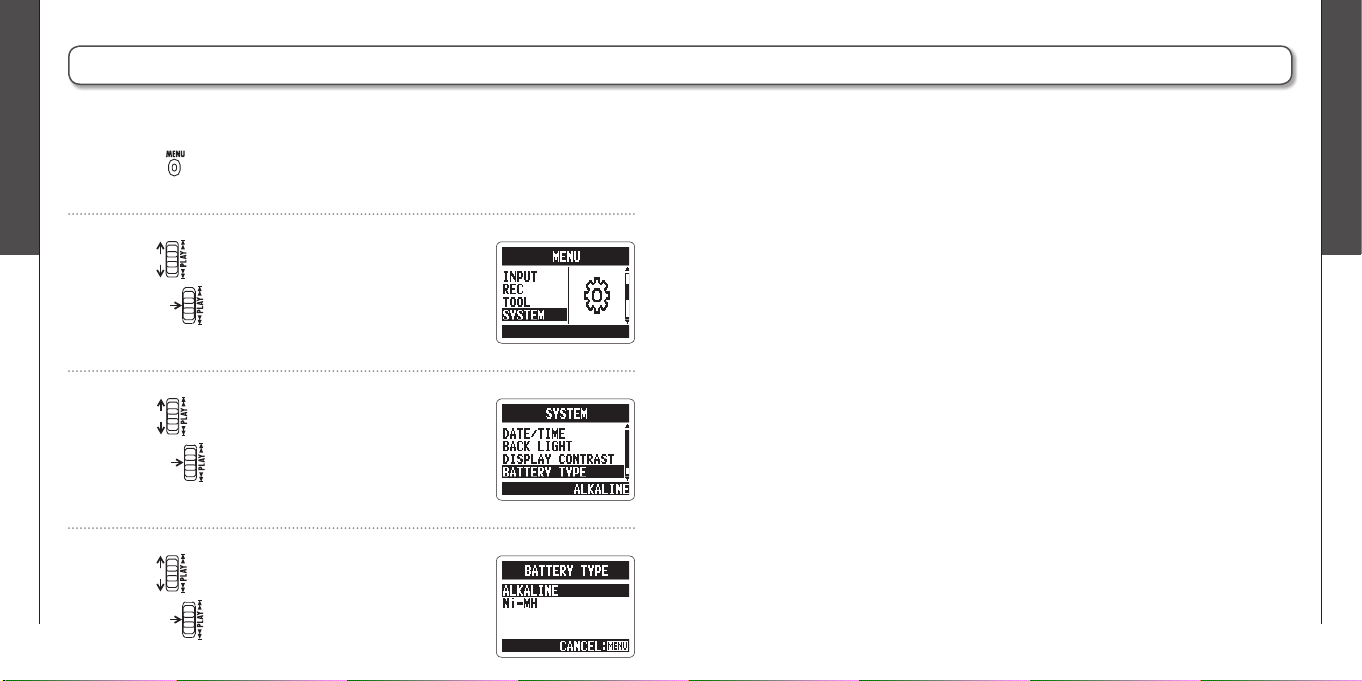
Preparation
Setting the battery type
18
Preparation
Setting the battery type
19
H2n
Handy Recorder
Setting the battery type
Set the battery type in order to show the remaining battery charge accurately.
Press .
1.
Use to select SYSTEM, and then
2.
press .
Use to select BATTERY TYPE, and then
3.
press .
Use to select the battery type, and then
4.
press .
Recording
Recording mode overview
20
Recording
Recording mode overview
21
H2n
Handy Recorder
L
LR
R
Mid
Side
(adjustable)
90°
Display
(front) side
LR
90°
Display
(front) side
L R
Mid
Side
(adjustable)
Display
(front) side
Recording mode overview
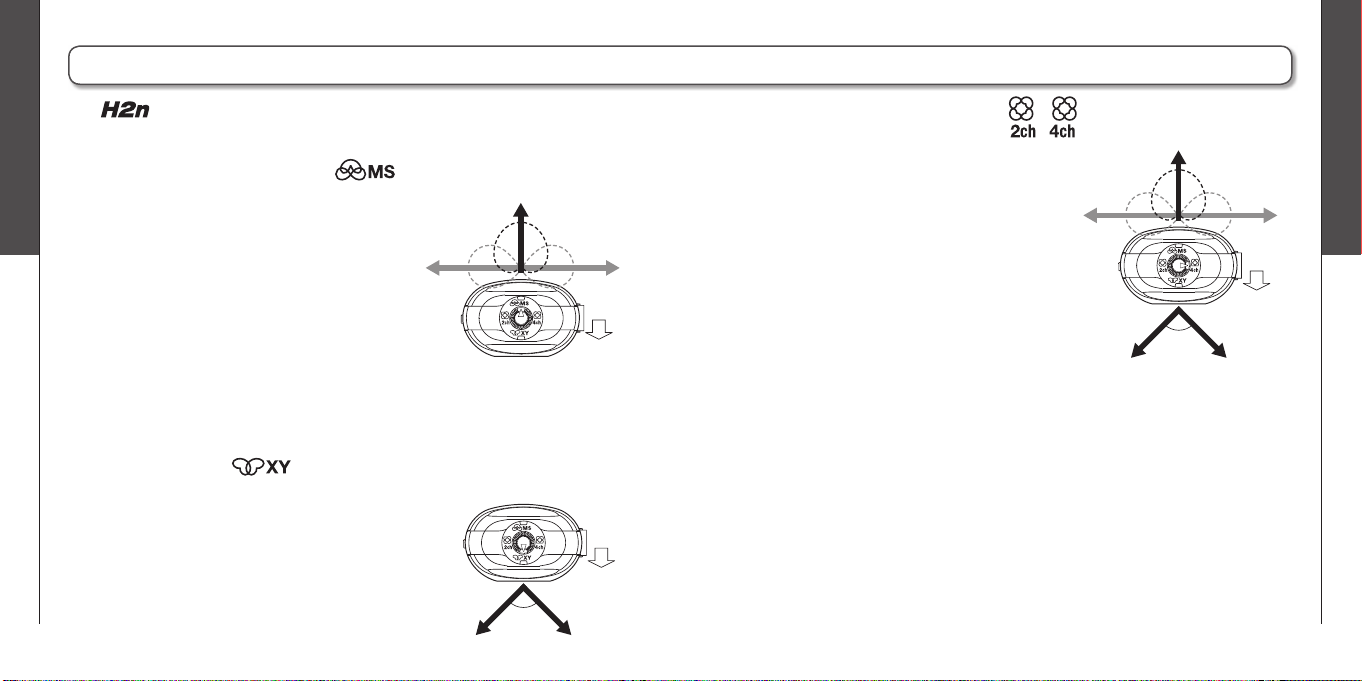
The has four recording modes that can be selected according to your
purposes.
Mid-side (MS) stereo mode
This mode uses a mid mic to capture the sound
directly ahead and a bidirectional side mic to
capture sound from left and right.
The recording level of the side mic (S level) can
be adjusted, allowing the stereo width to be
changed. If you record with the S level set to
MS-RAW, you can also adjust the S level after
recording.
MS mics can capture a rich stereo image, so it is ideal for recording sounds in
wide and open conditions, including orchestras, live concerts and soundscapes.
XY stereo mode
This mode records in stereo with mics at 90º angles.
This allows a natural, deep and accurate sound image
to be captured, making it optimal for recording sources
nearby, including solo performances, chamber music,
interviews, live rehearsals and fi eld recordings.
2ch and 4ch surround modes
Sound can be captured in all directions using
both MS and XY mics.
You can select 2ch, which mixes the signals
from the MS and XY mics, or 4ch, which records
the signals from the MS and XY mics separately.
With 4ch surround, you can adjust the balance
between the MS and XY signals after recording.
The S level can be adjusted for both 2ch and 4ch
recordings.
These modes are suitable for recording live
rehearsals, studio sessions, business meetings and soundscapes, for example.
Recording
Selecting the recording mode
22
Recording
Selecting where recordings are saved
23
H2n
Handy Recorder
Wide The graphic changes along with the value Narrow
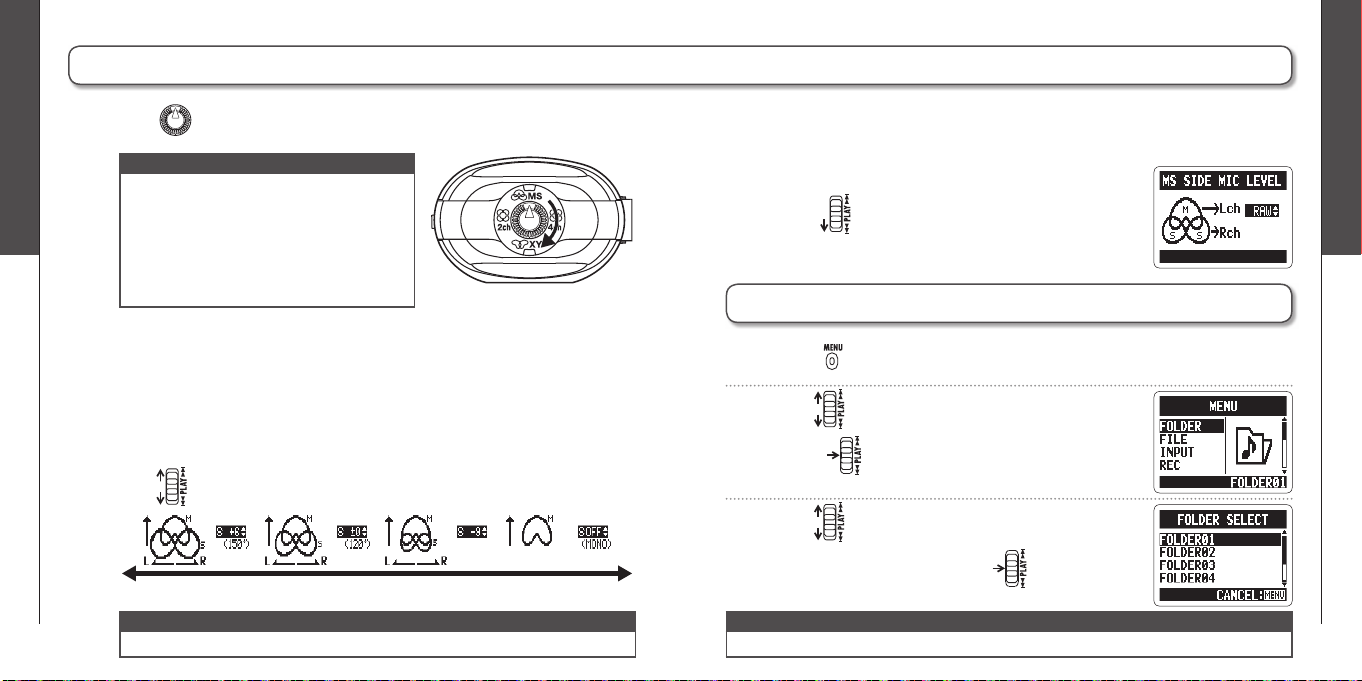
Selecting the recording mode
Turn so that the triangle points to the desired mode.
1.
NOTE
∙ The 4ch surround mode can only be used
when an SD card is in the unit.
∙ In 4ch surround mode, only WAV formats
(44.1/48kHz, 16/24bit) can be used.
∙ In 4ch su rroun d mode, two stere o files
are created (MS mic recording and XY mic
recording).
Make settings for the recording mode.
2.
Adjusting the S level (MS stereo, 2ch/4ch surround modes)
You can adjust the stereo width (S level) before recording.
Use to adjust the stereo width.
•
NOTE
Set to OFF, RAW or between –24 and +6 dB.
Using MS-RAW mode (WAV format only)
If you want to adjust the stereo width after recording, record using MS-RAW
mode.
Hold down until RAW appears.
•
Selecting where recordings are saved
Press .
1.
Use to select FOLDER, and then
2.
press .
Use to select the folder where you want
3.
to save fi les, and then press .
NOTE
Select from among 10 folders. There are separate sets of folders for stereo and 4ch recordings.
Recording
Recording manually
24
Recording
Recording manually
25
H2n
Handy Recorder
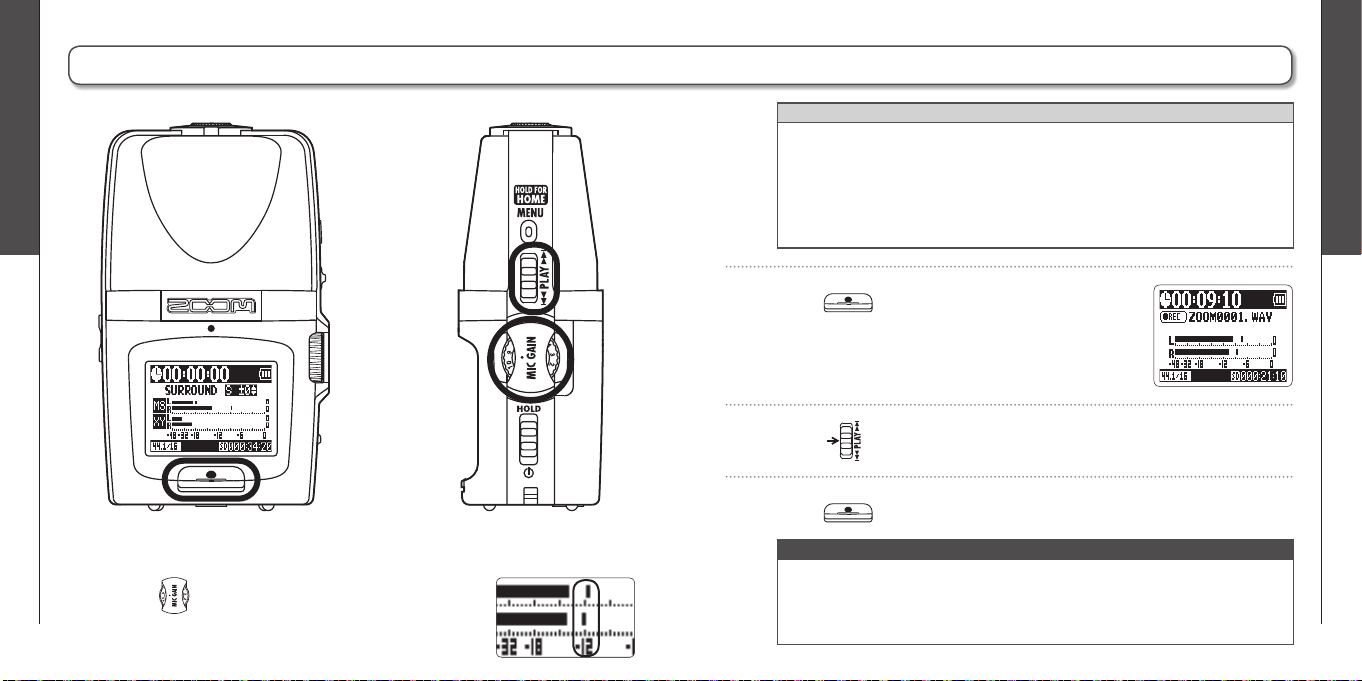
Recording manually
Turn to adjust the input level.
1.
HINT
∙ Adjust the MIC GAIN so that the peak level stays around -12 dB.
∙ If an input signal is too strong, the MS/XY ind icator on the to p will flash
immediately.
∙ The recorder can also adjust mic gain automatically. (➝ P.70)
∙ You can change the recording format beforehand. (➝ P.72)
∙ The mic can also be set to cut wind and other unwanted noise. (➝ P.66)
Press to start recording.
2.
Press to add a mark.
3.
Press to stop recording.
4.
NOTE
∙ One fi le can have a maximum of 99 marks.
∙ The mic can also be set to pause immediately after adding a mark. (➝ P.77)
∙ During recording, if the size of the fi le exceeds 2 GB, recording will continue in
a new fi le that will be created automatically.

Recording
Recording automatically
26
Recording
Recording automatically
27
H2n
Handy Recorder
Recording automatically
The mic can be set to start and stop recording automatically in response to
changes in the input level.
Press .
1.
Use to select REC, and then press .
2.
Use to select AUTO REC, and then
3.
press .
Use to select ON/OFF, and then
4.
press .
5.
6.
7.
Use to select ON, and then press .
NOTE
Ot he r s etti ngs c an als o be mad e for a uto ma tic
recording. (➝ P.74)
After the home screen reopens, press
to put the recorder in standby.
Recording will start automatically when the input
signal exceeds the REC START LEVEL.
Recording will stop automatically when the input
signal becomes less than the REC STOP LEVEL.
Press to end recording standby and
stop recording.
NOTE
Automati c re cording can only be u sed wit h an SD
card.
Recording
Pre-recording
28
Recording
Counting in before recording
29
H2n
Handy Recorder
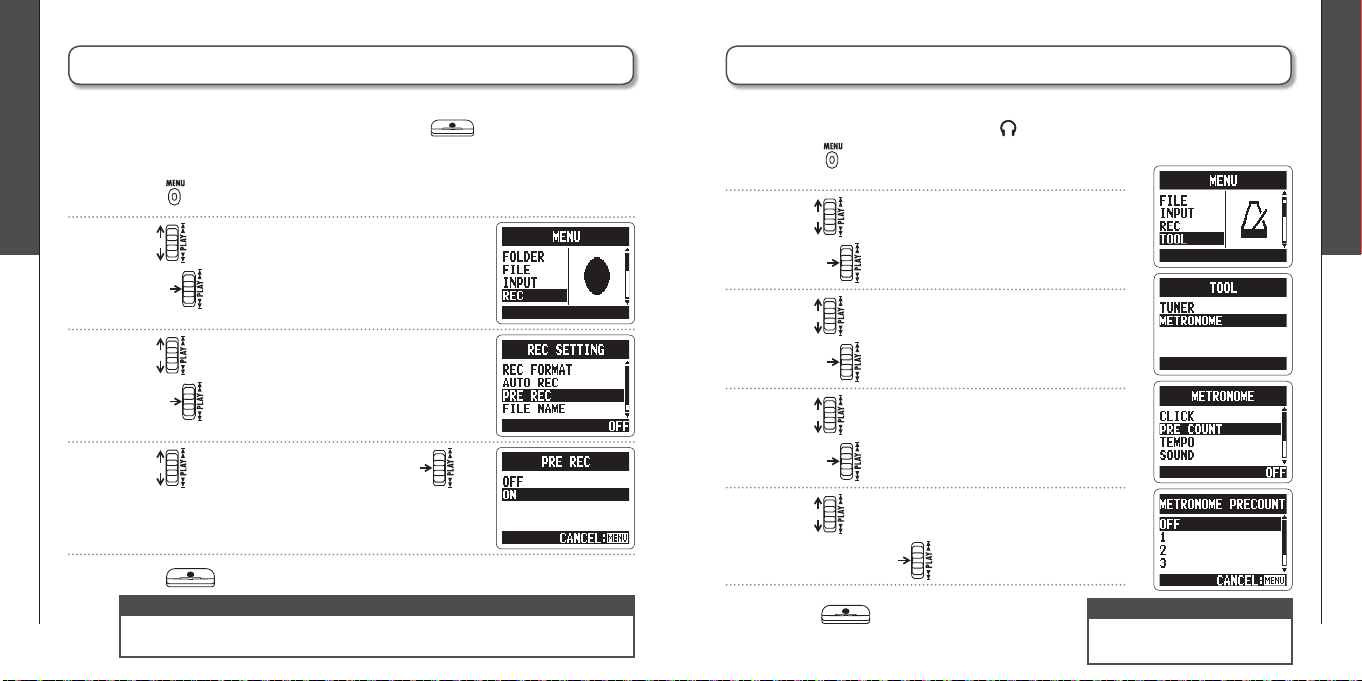
Pre-recording
When pre-recording is on, this recorder can continuously capture two seconds of
sound before recording is started manually. When is pressed, these two
seconds are included at the beginning of the recording. This is useful when, for
example, performances start suddenly.
Press .
1.
Use to select REC, and then
2.
press .
Use to select PRE REC, and then
3.
press .
Use to select ON, and then press .
4.
Press after returning to the home screen to start recording.
5.
NOTE
PRE REC cannot be used at the same time as the metronome PRE COUNT function.
∙
∙ Pre-recording can only be used with an SD card.
Counting in before recording
The built-in metronome can play a count-in sound before recording starts. This
pre-count sound is output through the /LINE OUT jack.
Press .
1.
Use to select TOOL, and then
2.
press .
Use to select METRONOME, and then
3.
press .
Use to select PRE COUNT, and then
4.
press .
Use to select the pre-count number,
5.
and then press .
Press after returning to the home
6.
screen to start pre-count and recording.
NOTE
PRE COUNT cannot be used at
the same time as PRE REC.
Loading…
View the manual for the Zoom H2n here, for free. This manual comes under the category audio recorder and has been rated by 24 people with an average of a 8.4. This manual is available in the following languages: English. Do you have a question about the Zoom H2n or do you need help?
Ask your question here
Zoom H2n specifications
Below you will find the product specifications and the manual specifications of the Zoom H2n.
The Zoom H2n is an audio recorder that features a built-in microphone and supports MP3, PCM, and WAV audio formats. The recorder’s LCD display has a resolution of 128 x 64 pixels. The device is equipped with a single built-in speaker that provides an output power of 400 mW. The Zoom H2n also comes with a USB interface that allows for easy connectivity with other devices. Its microphone input and headphone output make it easy to connect external audio equipment.
The Zoom H2n’s compact design makes it portable and easy to use. The recorder’s built-in microphone makes it ideal for recording audio in a variety of settings. Its numerous audio format options make it versatile and able to handle a wide range of audio recording needs. The LCD display provides a clear view of the recorder’s settings and status. The built-in speaker ensures that users can immediately playback their recordings with ease.
Overall, the Zoom H2n is a reliable and durable audio recorder that provides excellent sound quality. Its portability makes it convenient for users who are constantly on the go. Its various features make it a great choice for anyone looking for a versatile audio recorder that can handle a variety of audio recording needs.
Maximum recording time
— h
Media types supported
Flash card
General
| Brand | Zoom |
| Model | H2n | H2N |
| Product | audio recorder |
| EAN | 2050002399242, 4016138708172, 4515260010080, 4515260010097, 798304150940, 884354010065, 0884354010065, 0798304150940 |
| Language | English |
| Filetype | User manual (PDF), Installation Guide (PDF), Safety instructions (PDF) |
Audio
| Maximum recording time | — h |
| Recording modes | Pulse-code modulation (PCM) |
| Built-in microphone | Yes |
| Audio formats supported | MP3, PCM, WAV |
| MP3 bit rates | 48 — 320 Kbit/s |
Display
| Display type | LCD |
| Display resolution | 128 x 64 pixels |
Loudspeakers
| Built-in speaker(s) | Yes |
| Number of built-in speakers | 1 |
| Output power | 400 mW |
Ports & interfaces
| Interface | USB |
| USB connector type | Mini-USB B |
| Microphone in | Yes |
| Headphone out | Yes |
Radio
Storage
| Media types supported | Flash card |
Battery
| Compatible battery sizes | AA |
| Battery life (max) | 20 h |
| Number of batteries supported | 2 |
Technical details
| Product colour | Black |
| Microphone input impedance | 2000 Ω |
| AC adapter included | Yes |
| Headphone outputs | 1 |
Weight & dimensions
| Width | 67.6 mm |
| Depth | 113.8 mm |
| Height | 42.7 mm |
| Weight | 130 g |
show more
Questions & answers
Can’t find the answer to your question in the manual? You may find the answer to your question in the FAQs about the Zoom H2n below.
How to Troubleshoot HOLD Message on Zoom H2n Recorder
What is the weight of the Zoom H2n?
The Zoom H2n has a weight of 130 g.
What is the height of the Zoom H2n?
The Zoom H2n has a height of 42.7 mm.
What is the width of the Zoom H2n?
The Zoom H2n has a width of 67.6 mm.
What is the depth of the Zoom H2n?
The Zoom H2n has a depth of 113.8 mm.
What is the screen resolution of the display of the Zoom H2n?
The screen resolution of the Zoom H2n is 128 x 64 pixels.
What type of USB connection does the Zoom H2n have?
The Zoom H2n has a Mini-USB B connection.
Is the manual of the Zoom H2n available in English?
Yes, the manual of the Zoom H2n is available in English .
Is your question not listed? Ask your question here
Zoom H2n
Operation manual
©ZOOM Corporation
Reproduction or duplication of this manual without
permission, in whole or in part, is prohibited.
View the manual for the Zoom H2n here, for free. This manual comes under the category audio recorder and has been rated by 24 people with an average of a 8.4.
This manual is available in the following languages: English. Do you have a question about the Zoom H2n or do you need help?
Ask your question here
Product Images (7)

Zoom H2n specifications
Below you will find the product specifications and the manual specifications of the Zoom H2n.
The Zoom H2n is an audio recorder equipped with a built-in microphone, making it a convenient option for capturing high-quality audio. It supports various audio formats, including MP3, PCM, and WAV, providing flexibility for different recording needs. The device features an LCD display with a resolution of 128 x 64 pixels, offering clear visual feedback while navigating its functions.
With a built-in speaker, the Zoom H2n allows users to listen to recorded audio directly from the device. The output power of 400 mW ensures sufficient volume for playback. The recorder is designed with usability in mind, featuring a USB interface for easy connection to computers or other compatible devices. Additionally, it includes a microphone input and a headphone output, enabling further audio customization and monitoring options.
The Zoom H2n’s compact size and lightweight construction make it highly portable, suitable for on-the-go recording situations. Its durable build ensures long-term reliability, and its premium materials contribute to its overall sturdiness. The device adheres to the metric system, with measurements given in centimeters.
Please note that this objective description focuses solely on the specifications of the product and does not provide any subjective evaluation or opinions.
Maximum recording time
— h
Media types supported
Flash card
General
| Brand | Zoom |
| Model | H2n | H2N |
| Product | audio recorder |
| EAN | 2050002399242, 4016138708172, 4515260010080, 4515260010097, 798304150940, 884354010065, 0884354010065, 0798304150940 |
| Language | English |
| Filetype | User manual (PDF), Installation Guide (PDF), Safety instructions (PDF) |
Audio
| Maximum recording time | — h |
| Recording modes | Pulse-code modulation (PCM) |
| Built-in microphone | Yes |
| Audio formats supported | MP3, PCM, WAV |
| MP3 bit rates | 48 — 320 Kbit/s |
Display
| Display type | LCD |
| Display resolution | 128 x 64 pixels |
Loudspeakers
| Built-in speaker(s) | Yes |
| Number of built-in speakers | 1 |
| Output power | 400 mW |
Ports & interfaces
| Interface | USB |
| USB connector type | Mini-USB B |
| Microphone in | Yes |
| Headphone out | Yes |
Radio
Storage
| Media types supported | Flash card |
Battery
| Compatible battery sizes | AA |
| Battery life (max) | 20 h |
| Number of batteries supported | 2 |
Technical details
| Product color | Black |
| Microphone input impedance | 2000 Ω |
| AC adapter included | Yes |
| Headphone outputs | 1 |
Weight & dimensions
| Width | 67.6 mm |
| Depth | 113.8 mm |
| Height | 42.7 mm |
| Weight | 130 g |
show more
Frequently Asked Questions
Can’t find the answer to your question in the manual? You may find the answer to your question in the FAQs about the Zoom H2n below.
How to Troubleshoot HOLD Message on Zoom H2n Recorder
Is it possible to connect external microphones to the Zoom H2n?
Absolutely! The Zoom H2n provides two inputs for external microphones, labeled Mic/Line In. You can connect compatible microphones to these inputs using appropriate cables and utilize their capabilities alongside the built-in microphones.
How do I adjust the input level on the Zoom H2n audio recorder?
To adjust the input level on your Zoom H2n, locate the Input Level buttons on the side panel of the device. Press the ‘+’ button to increase the input level and the ‘-‘ button to decrease it.
What is the maximum recording resolution supported by the Zoom H2n?
The Zoom H2n supports a maximum recording resolution of 24-bit/96kHz. This high-resolution format ensures excellent audio quality for your recordings.
How can I switch between different microphone patterns on the Zoom H2n?
To switch between different microphone patterns on your Zoom H2n, press the Mic Pattern button located on the front panel of the recorder. This button allows you to select from different options, such as XY, Mid-Side, 2-Channel, and 4-Channel.
How can I adjust the playback speed of recorded audio on the Zoom H2n?
If you need to adjust the playback speed of recorded audio on your Zoom H2n, navigate to the Menu Settings and select Playback Speed. From there, you can choose a desired playback speed, ranging from 50% to 150%, to suit your needs.
Does the Zoom H2n have a built-in microphone?
Yes, the Zoom H2n has a built-in microphone. This is convenient for users as it eliminates the need to carry an external microphone.
What audio formats are supported by the Zoom H2n?
The Zoom H2n supports MP3, PCM, and WAV audio formats. This allows users to choose the format that best suits their needs and preferences.
Does the Zoom H2n have a built-in speaker?
Yes, the Zoom H2n has a built-in speaker. This is useful for users who want to play back their recordings without the need for external speakers or headphones.
What is the output power of the Zoom H2n?
The Zoom H2n has an output power of 400 mW. This is a high output power, allowing users to listen to their recordings at a loud volume.
How long is the battery life of the Zoom H2n?
The Zoom H2n has a maximum battery life of 20 hours. This is a relatively long battery life and ensures that users can record for extended periods of time without worrying about the battery running out.
What is the weight of the Zoom H2n?
The Zoom H2n has a weight of 130 g.
What is the height of the Zoom H2n?
The Zoom H2n has a height of 42.7 mm.
What is the width of the Zoom H2n?
The Zoom H2n has a width of 67.6 mm.
What is the depth of the Zoom H2n?
The Zoom H2n has a depth of 113.8 mm.
What is the screen resolution of the display of the Zoom H2n?
The screen resolution of the Zoom H2n is 128 x 64 pixels.
What type of USB connection does the Zoom H2n have?
The Zoom H2n has a Mini-USB B connection.
Is the manual of the Zoom H2n available in English?
Yes, the manual of the Zoom H2n is available in English .
Is your question not listed? Ask your question here
View the manual for the Zoom H2n here, for free. This manual comes under the category audio recorder and has been rated by 24 people with an average of a 8.4. This manual is available in the following languages: English. Do you have a question about the Zoom H2n or do you need help?
Ask your question here
Zoom H2n specifications
Below you will find the product specifications and the manual specifications of the Zoom H2n.
The Zoom H2n is an audio recorder equipped with a built-in microphone that supports MP3, PCM, and WAV audio formats. It features an LCD display with a resolution of 128×64 pixels, allowing for easy navigation of its various functions. Additionally, the audio recorder comes equipped with one built-in speaker delivering an output power of 400 mW. The device’s interface includes a USB which facilitates quick and easy transfer of audio files to and from other devices. The audio recorder also offers microphone in and headphone out options, providing the user with the capability to connect external microphones and headphones.
Constructed with durable materials, the Zoom H2n ensures reliability over time. The microphone is placed in an optimum position on the unit and delivers clear, high-quality sound. The device’s compact size and portability make it an ideal solution for anyone needing to record audio on the go.
In conclusion, the Zoom H2n is a user-friendly audio recorder with features such as built-in microphone, USB interface, and microphone in/headphone out. It is built with durable materials and offers high-quality audio, making it an ideal solution for anyone in need of a portable audio recording device.
Maximum recording time
— h
Media types supported
Flash card
General
| Brand | Zoom |
| Model | H2n | H2N |
| Product | audio recorder |
| EAN | 2050002399242, 4016138708172, 4515260010080, 4515260010097, 798304150940, 884354010065, 0884354010065, 0798304150940 |
| Language | English |
| Filetype | User manual (PDF), Installation Guide (PDF), Safety instructions (PDF) |
Audio
| Maximum recording time | — h |
| Recording modes | Pulse-code modulation (PCM) |
| Built-in microphone | Yes |
| Audio formats supported | MP3, PCM, WAV |
| MP3 bit rates | 48 — 320 Kbit/s |
Display
| Display type | LCD |
| Display resolution | 128 x 64 pixels |
Loudspeakers
| Built-in speaker(s) | Yes |
| Number of built-in speakers | 1 |
| Output power | 400 mW |
Ports & interfaces
| Interface | USB |
| USB connector type | Mini-USB B |
| Microphone in | Yes |
| Headphone out | Yes |
Radio
Storage
| Media types supported | Flash card |
Battery
| Compatible battery sizes | AA |
| Battery life (max) | 20 h |
| Number of batteries supported | 2 |
Technical details
| Product colour | Black |
| Microphone input impedance | 2000 Ω |
| AC adapter included | Yes |
| Headphone outputs | 1 |
Weight & dimensions
| Width | 67.6 mm |
| Depth | 113.8 mm |
| Height | 42.7 mm |
| Weight | 130 g |
show more
Frequently Asked Questions
Can’t find the answer to your question in the manual? You may find the answer to your question in the FAQs about the Zoom H2n below.
How to Troubleshoot HOLD Message on Zoom H2n Recorder
What is the weight of the Zoom H2n?
The Zoom H2n has a weight of 130 g.
What is the height of the Zoom H2n?
The Zoom H2n has a height of 42.7 mm.
What is the width of the Zoom H2n?
The Zoom H2n has a width of 67.6 mm.
What is the depth of the Zoom H2n?
The Zoom H2n has a depth of 113.8 mm.
What is the screen resolution of the display of the Zoom H2n?
The screen resolution of the Zoom H2n is 128 x 64 pixels.
What type of USB connection does the Zoom H2n have?
The Zoom H2n has a Mini-USB B connection.
Is the manual of the Zoom H2n available in English?
Yes, the manual of the Zoom H2n is available in English .
Is your question not listed? Ask your question here