
WHAT’S INSIDE / WHAT’S NEEDED
WHAT’S INSIDE
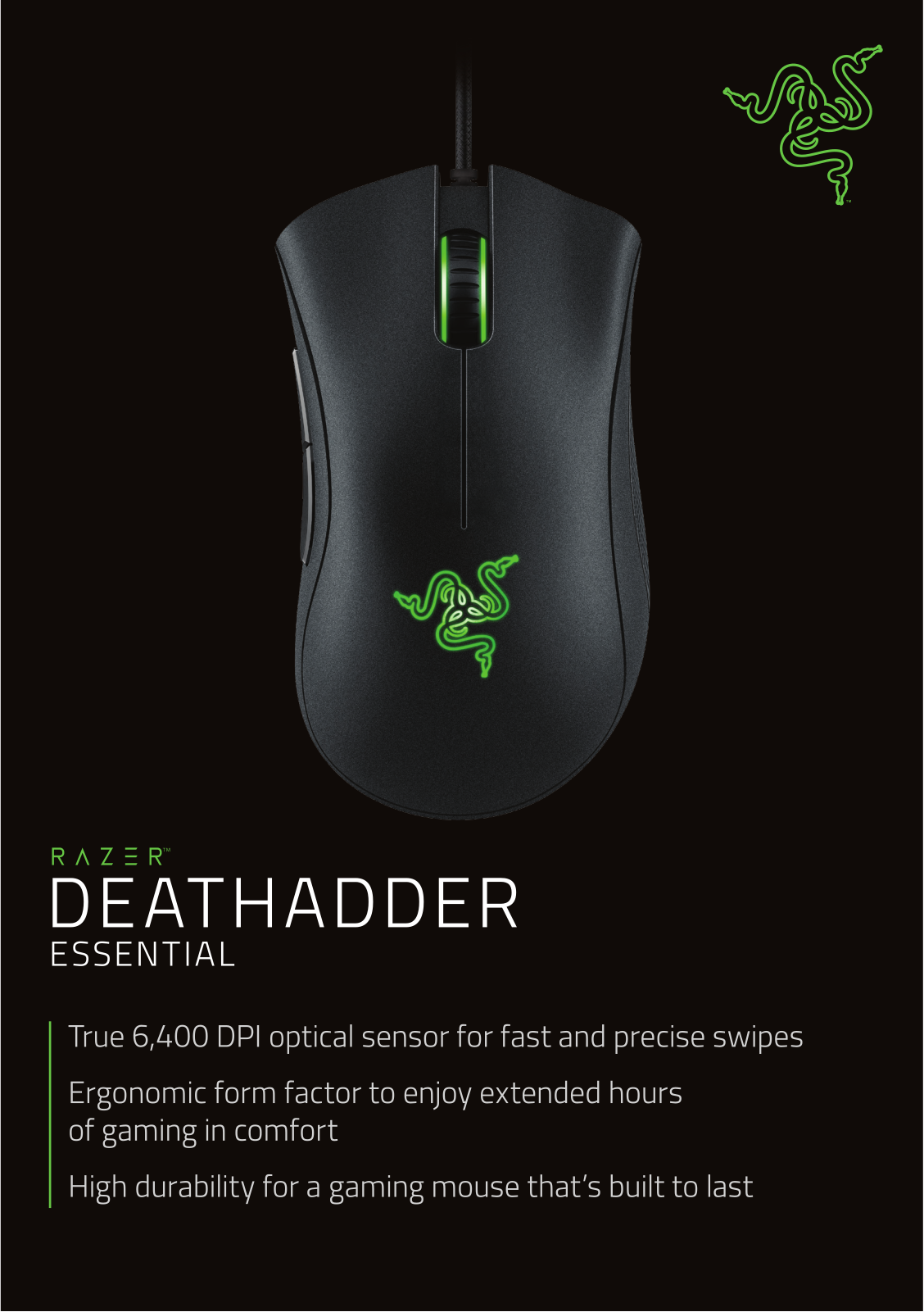
Razer DeathAdder Essential
- A. Left mouse button
- B. Right mouse button
- C. Scroll wheel
- D. Mouse button 5
- E. Mouse button 4
- F. True 6,400 DPI optical sensor
- G. Ultraslick mouse feet
WHAT’S NEEDED
PRODUCT REQUIREMENTS
- USB Type-A port
RAZER SYNAPSE REQUIREMENTS
- Windows® 7 64-bit (or higher)
- Internet connection for software installation
LET’S GET YOU COVERED
- You’ve got a great device in your hands, complete with a 2-year limited warranty coverage. Now maximize its potential and score exclusive Razer benefits by registering at razerid.razer.com
- Got a question? Ask the Razer Support Team at support.razer.com
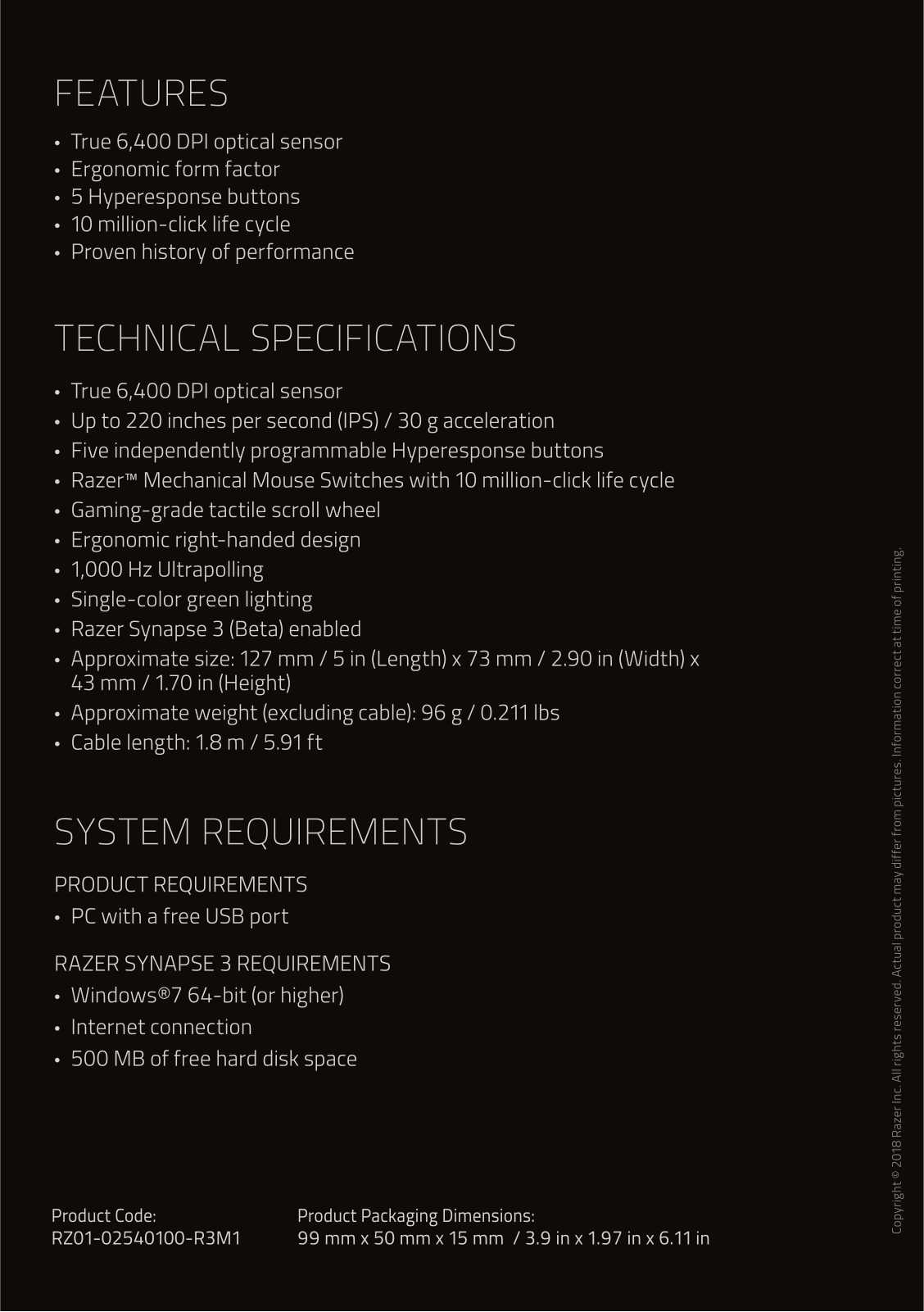
TECHNICAL SPECIFICATIONS
- True 6,400 DPI optical sensor
- Up to 220 inches per second (IPS) / 30 G acceleration
- Five independently programmable Hyperesponse buttons
- Razer™ Mechanical Mouse Switches with 10 million-click life cycle
- Gaming-grade tactile scroll wheel
- Ergonomic right-handed design
- 1000 Hz Ultrapolling
- Single-color green lighting
- Razer Synapse 3 enabled
APPROXIMATE SIZE & WEIGHT
- Length: 127 mm / 5.0 in
- Width: 73 mm / 2.90 in
- Height: 43 mm / 1.70 in
- Weight: 96 g / 0.211 lbs
GETTING STARTED
- Connect your Razer device to the USB port of your computer.
- Change your mouse’s DPI to match your playstyle by pressing the DPI cycle button, or use the Razer Synapse app to fine-tune your own sensitivity setting and even customize its lighting.
- Install Razer Synapse when prompted or download the installer from razer.com/synapse
CONFIGURING YOUR RAZER DEATHADDER ESSENTIAL
- An internet connection is required for installation, updates, and cloud-based features. Registering for a Razer ID account is recommended, but optional. All listed features are subject to change based on the current software version, connected device(s), and supported apps and software.
SYNAPSE TAB
MOUSE TAB
- The Mouse tab is the main tab for your Razer DeathAdder Essential. From here, you can change your device’s settings, such as button assignment, DPI sensitivity, and lighting. Changes made under this tab are automatically saved to your system and cloud storage
- Customize
- The Customize subtab is for modifying your mouse’s button assignments
- Profile
- Profile is a data storage for keeping all your Razer peripherals’ settings. By default, the profile name is based on your system’s name. To add, rename, duplicate, or delete a profile, simply press the Miscellaneous button
- Hypershift
- Hypershift mode is a secondary set of button assignments that is activated when the Hypershift key is held down. By default, the Hypershift key is assigned to the fn key of your Razer Synapse-supported keyboard however, you can also assign any mouse button as a Hypershift key.
- Sidebar
- Clicking the Sidebar button will reveal all current button assignments for your Razer DeathAdder Essential
- Default
- This option enables you to return the mouse button to its original setting.
- Keyboard Function
- This option changes the button assignment into a keyboard function. You can also choose to enable Turbo mode, which allows you to emulate a repeated keyboard function while the button is held down.
- Mouse Function
- This option substitutes the current button assignment for another mouse function. Listed below are the functions that you can choose from:
- Left Click – Performs a left mouse click using the assigned button.
- Right Click – Performs a right mouse click using the assigned button.
- Scroll Click – Activates the universal scrolling function.
- Double Click – Performs a double left click using the assigned button.
- Mouse Button 4 – Performs a “Backward” command for most internet browsers.
- Mouse Button 5 – Performs a “Forward” command for most internet browsers.
- Scroll Up – Performs a “Scroll Up” command using the assigned button.
- Scroll Down – Performs a “Scroll Down” command using the assigned button.
- Scroll Left – Performs a “Scroll Left” command using the assigned button
- Macro
- A Macro is a prerecorded sequence of keystrokes and button presses that is executed with precise timing. By setting the button function to Macro, you can conveniently execute a chain of commands. This function will only be visible when the Macro module is installed.
- Inter-device
- Inter-device allows you to change the functionality of other Razer Synapse-enabled devices. Some of these functionalities are device-specific, such as using your Razer gaming keyboard to change the
- Multimedia
- This option allows you to assign multimedia controls to your Razer device. Listed below are the multimedia controls you can choose from:
- Volume Down – Decreases the audio output.
- Volume Up – Increases the audio output.
- Mute Volume – Mutes the audio.
- Mic Volume Up – Increases the microphone volume.
- Mic Volume Down – Decreases the microphone volume.
- Mute Mic – Mutes the microphone.
- Mute All – Mutes both the microphone and audio output.
- Play / Pause – Play, pause, or resume playback of the current media.
- Previous Track – Play the previous media track.
- Next Track – Play the next media track
- Windows Shortcuts
- This option allows you to assign your preferred button to a Windows Operating System shortcut command. For more information, please visit: support.microsoft.com/kb/126449
Performance
- The Performance subtab allows you to modify the sensitivity, acceleration, and polling rate
- Sensitivity
Sensitivity refers to the distance the cursor will travel based on how far the mouse moves. The higher the DPI, the farther the cursor will travel given the same distance of mouse movement. - Polling Rate
- The higher the polling rate, the more often the computer receives information about the status of your mouse, thus increasing the mouse pointer’s reaction time. You can switch between 125Hz (8ms), 500Hz (2ms), and 1000Hz (1ms) by selecting your desired polling rate on the dropdown menu.
- Mouse Properties
- From here, you can access the Windows Mouse Properties, where you modify operating system settings that can directly affect your Razer DeathAdder Essential.
Lighting
- The Lighting subtab enables you to modify your Razer device’s light settings
- Brightness
- You can turn off your Razer device’s lighting by toggling the Brightness option or increasing/decreasing the luminance using the slider.
PROFILES TAB
SETTINGS WINDOW
- The Settings window, accessible by clicking the button on Razer Synapse, enables you to configure the startup behavior and display language of Razer Synapse, view the master guides of each connected Razer device, or perform a factory reset on any connected Razer device.
- About tab
- The About tab displays brief software information, a copyright statement, and provides relevant links for its terms of use. You may also use this tab to check for software updates, or as a quick access to Razer’s social communities
SAFETY AND MAINTENANCE
SAFETY GUIDELINES
In order to achieve maximum safety while using your Razer DeathAdder Essential, we suggest that you adopt the following guidelines:
- Should you have trouble operating the device properly and troubleshooting does not work, unplug the device and contact the Razer hotline or go to support.razer.com for support.
- Do not take apart the device (doing so will void your warranty), and do not attempt to operate it under abnormal current loads.
- Keep the device away from liquid, humidity or moisture. Operate the device only within the specific temperature range of 0°C (32°F) to 40°C (104°F). Should the temperature exceed this range, unplug and/or switch off the device in order to let the temperature stabilize to an optimal level.
MAINTENANCE AND USE
- The Razer DeathAdder Essential requires minimal maintenance to keep it in optimum condition. Once a month we recommend you unplug the device from the computer and clean it using a soft cloth or cotton swab to prevent dirt buildup. Do not use soap or harsh cleaning agents.
- To get the ultimate experience in movement and control, we highly recommend a premium mouse mat from Razer. Some surfaces will cause undue wear on the feet, requiring constant care and eventual replacement.
- Do note that the sensor of the Razer DeathAdder Essential is ‘tuned’ or optimized especially for the Razer mouse mats. This means that the sensor has been tested extensively to confirm that the Razer DeathAdder Essential reads and tracks best on Razer mouse mats.
LIMITED PRODUCT WARRANTY
- For the latest and current terms of the Limited Product Warranty, please visit razer.com/warranty
- LIMITATION OF LIABILITY
- Razer shall in no event be liable for any lost profits, loss of information or data, special, incidental, indirect, punitive or consequential or incidental damages, arising in any way out of the distribution of, sale of, resale of, use of, or inability to use the Product. In no event shall Razer’s liability exceed the retail purchase price of the Product.
- GENERAL
- These terms shall be governed by and construed under the laws of the jurisdiction in which the Product was purchased. If any term herein is held to be invalid or unenforceable, then such term (in so far as it is invalid or unenforceable) shall be given no effect and deemed to be excluded without invalidating any of the remaining terms. Razer reserves the right to amend any term at any time without notice
For more manuals by Razer, visit ManualsLibraryy
Razer DeathAdder Essential Gaming Mouse-FAQs
- June 12, 2024
- Razer
Table of Contents
- RAZER DeathAdder Essential Gaming Mouse
- PACKAGE CONTENTS / SYSTEM REQUIREMENTS
- PACKAGE CONTENTS
- SYSTEM REQUIREMENTS
- REGISTRATION / TECHNICAL SUPPORT
- TECHNICAL SPECIFICATIONS
- DEVICE LAYOUT
- INSTALLING RAZER SYNAPSE 3 FOR YOUR RAZER DEATHADDER ESSENTIAL
- CONFIGURING RAZE DEATHADDER ESSENTIAL VIA RAZER SYNAPSE 3
- SAFETY AND MAINTENANCE
- LEGALESE
- References
- Read User Manual Online (PDF format)
- Download This Manual (PDF format)

RAZER DeathAdder Essential Gaming Mouse
The Razer DeathAdder Essential is the essential gaming mouse to kickstart a
proper gaming rig. The 6,400 DPI optical sensor enables fast and precise
swipes for great control, while an ergonomic form allows extended hours of
gaming. It’s also built for durability, featuring 5 Hyperesponse buttons that
can go up to 10 million clicks.
PACKAGE CONTENTS / SYSTEM REQUIREMENTS
PACKAGE CONTENTS
- Razer DeathAdder Essential
- Important Product Information Guide
SYSTEM REQUIREMENTS
HARDWARE REQUIREMENTS
- PC with a free USB port
RAZER SYNAPSE 3 REQUIREMENTS
- Windows® 7 64-bit (or higher)
- Internet connection
- 500 MB of free hard disk space
REGISTRATION / TECHNICAL SUPPORT
REGISTRATION
- Register your product online at razerid.razer.com/warranty to get real-time information on your product’s warranty status.
- If you haven’t registered for a Razer ID yet, register now at razerid.razer.com to get a wide range of Razer benefits.
TECHNICAL SUPPORT
- 2 years limited manufacturer’s warranty.
- Free online technical support at support.razer.com.
TECHNICAL SPECIFICATIONS
- True 6,400 DPI optical sensor
- Up to 220 inches per second (IPS) / 30 G acceleration
- Five independently programmable Hyperesponse buttons
- Razer™ Mechanical Mouse Switches with 10 million-click life cycle
- Gaming-grade tactile scroll wheel
- Ergonomic right-handed design
- 1000 Hz Ultrapolling
- Single-color green lighting
- 3 Razer Synapse 3 (Beta) enabled
APPROXIMATE SIZE & WEIGHT
- Length: 127 mm / 5.0 in
- Width: 73.0 mm / 2.90 in
- Height: 43.0 mm / 1.70 in
- Weight: 96 g / 0.21 lbs
- Cable Length: 2.1 m / 6.89 ft
DEVICE LAYOUT
- A. Left mouse button
- B. Right mouse button
- C. Scroll wheel
- D. Mouse button 5
- E. Mouse button 4
- F. True 6,400 DPI optical sensor
- G. Ultra slick mouse feet
INSTALLING RAZER SYNAPSE 3 FOR YOUR RAZER DEATHADDER ESSENTIAL

- Make sure your Razer device is connected to the USB port of your computer.
- Install Razer Synapse 3 when prompted* or download the installer from razer.com/synapse.
- Create your Razer ID or log in using an existing account.
Applicable for Windows 8 or later.
CONFIGURING RAZE DEATHADDER ESSENTIAL VIA RAZER SYNAPSE 3
Disclaimer: The features listed here require you to log in to Razer
Synapse. These features are also subject to change based on the current
software version and your Operating System.
-
SYNAPSE
The Synapse tab is your default tab when you first launch Razer Synapse 3.
This tab allows you to navigate the Dashboard subtab. -
DASHBOARD
The Dashboard subtab is an overview of your Razer Synapse 3 where you can
access all your Razer devices, modules, and online services.
-
MOUSE
The Mouse tab is the main tab for your Razer DeathAdder Essential. From here,
you can change your device’s settings such as button assignment, DPI
sensitivity, and lighting. Changes made under this tab are automatically saved
to your system and cloud storage. -
CUSTOMIZE
The Customize subtab is for modifing your mouse’s button assignments.
-
Hypershift
Hypershift mode is a secondary set of button assignments that is activated
when the Hypershift key is held down. By default, the Hypershift key is
assigned to the FN key of your Razer Synapse 3 supported keyboard however, you
can also assign any mouse button as a Hypershift key. -
Sidebar
Clicking the Sidebar button will reveal all current button assignments for
your Razer DeathAdder Essential.


Alternatively, you can skip to a specific button assignment by selecting it on
the Customize tab.

Upon selecting a button assignment, you may then change it to one of the
following functions:
Default
This option enables you to return the mouse button to its original setting.
Keyboard Function
This option changes the button assignment into a keyboard function. You can
also choose enable Turbo mode which allows you to emulate repeatedly pressing
the keyboard function while the button is held down.
Mouse Function
This option substitutes the current button assignment into another mouse
function. Listed below are the functions which you can choose from:
- Left Click – Performs a left mouse click using the assigned button.
- Right Click – Performs. right mouse click using the assigned button.
- Scroll Click – Activates the universal scrolling function.
- Double Click – Performs a double left click using the assigned button.
- Mouse Button 4 – Performs a “Backward” command for most internet browsers.
- Mouse Button 5 – Performs a “Forward” command for most internet browsers.
- Scroll Up – Performs a “Scroll Up” command using the assigned button.
- Scroll Down – Performs a “Scroll Down” command using the assigned button.
- Scroll Left – Performs a “Scroll Left” command using the assigned button.
- Scroll Right – Performs a “Scroll Right” command using the assigned button.
- Repeat Scroll Up – Continuously performs a “Scroll Up” command while the assigned button is pressed.
- Repeat Scroll Down – Continuously performs a “Scroll Down” command while the assigned button is pressed.
You can also choose to enable Turbo mode in some of the mouse functions which
allow you to emulate repeatedly pressing and releasing said function while the
button is held down.
Sensitivity
This function allows you to manipulate the DPI setting of your Razer
DeathAdder Essential with a touch of a button. Listed below are the
Sensitivity options and their description:
- Sensitivity Clutch – Changes the sensitivity to a predefined DPI while the designated button is held down. Releasing the button will return it to the previous sensitivity.
- Sensitivity Stage Up – Increases the current sensitivity by one stage.
- Sensitivity Stage Down – Decreases the current sensitivity by one stage.
- On-The-Fly Sensitivity – Pressing the designated button and moving the scroll wheel either up or down will increase or decrease the current DPI respectively.
- Cycle Up Sensitivity Stages – Increases the current sensitivity stage by one. Once it reaches the highest sensitivity stage, it will return to stage 1 when the button is pressed again.
- Cycle Down Sensitivity Stages – Decreases the current sensitivity stage by one. Once it reaches stage 1, it will return to the highest sensitivity stage when the button is pressed again. Click here to learn more about Sensitivity Stages
Macro
A Macro is a prerecorded sequence of keystrokes and button presses that is
executed with precise timing. By setting the button function to Macro, you can
conveniently execute a chain of commands. Click here to learn more about
Macros
Switch Profile
Switch Profile enables you to quickly change profiles and load a new set of
button assignments. An on-screen notification will appear whenever you switch
profiles.
Razer Hypershift
Setting the button to Razer Hypershift will allow you to activate Hypershift
mode as long as the button is held down.
Launch Program
Launch Program enables you to open an app or a website using the assigned
button. When you select Launch Program, two choices will appear which requires
you to search for a specific app yo want to open, or write the address of the
website you want to visit.
Multimedia
This option allows you to assign multimedia controls to your Razer device.
Listed below are the multimedia controls vou can choose from:
- Volume Down – Decreases the audio output.
- Volume Up – Increases the audio output.
- Mute Volume – Mutes the audio.
- Mic Volume Up – Increases the microphone volume.
- Mic Volume Down – Decreases the microphone volume.
- Mute Mic – Mutes the microphone.
- Mute All – Mutes both microphone and audio output.
- Play / Pause – Play, pause, or resume playback of the current media.
- Previous Track – Play the previous media track.
- Next Track – Play the next media track.
Windows Shortcuts
This option allows you to assign the mouse button into Windows Operating
System shortcut command. For more information, please visit:
http://support.microsoft.com/kb/126449
Text Function
Text Function enables you to type a prewritten text with a touch of a button.
Simply write your desired text on the given field and your text will be typed
whenever the assigned button is pressed. This function has full Unicode
support and you can also insert special symbols from character maps.
Disable
This option renders the assigned key unusable. Use Disable if you do not want
to use the mouse button or if it interferes with your gaming.
PERFORMANCE
The Performance subtab allows you to modify the sensitivity, acceleration, and
polling rate.

Listed below are the performance options and their descriptions.
- Sensitivity: Sensitivity refers to the distance the cursor will travel based on how far the mouse moved. The higher the DPI, the farther the cursor will travel given the same distance of mouse movement.
- View Sensitivity Stages: A sensitivity stage is a preset sensitivity value. You can create up to 5 different sensitivity stages which you can cycle through using the sensitivity stage up/down buttons. You may use the Enable X-Y Sensitivity concurrently with this option.
- Polling Rate: The higher the polling rate, the more often the computer receives information about the status of your mouse, thus increasing the mouse pointer’s reaction time. You can switch between 125Hz (8ms), 500Hz (2ms) and 1000Hz (1ms) by selecting your desired polling rate on the dropdown menu.
- Mouse Properties: From here, you can access the Windows Mouse Properties where you modify operating system settings that can directly affect your Razer DeathAdder Essential.
LIGHTING
The Lighting subtab enables you to modify your Raze device’s light settings
.

- Brightness: You can turn off your Razer device’s lighting by toggling the Brightness option or increase/decrease the luminance using the slider.
- Switch Off Lighting: This is a power saving tool which allows you to disable your device’s lighting in response to your system’s display turning off and/or automatically power down when your Razer DeathAdder Essential has been idle for a set amount of time.
- Effects: A number of effects can be selected and applied to your mouse’s lighting, as listed here:

PROFILES
The Profiles tab is a convenient way of managing all your profiles and linking
them to your games and applications.
DEVICES
View which Razer device is using a specific profile using the Devices subtab.
To create a new profile within the selected device, simply click the add
button (+). To rename, duplicate, or delete a profile, simply press the
Miscellaneous button (•••). Each profile can be set to automatically activate
when you run an application using the Link Games option.

LINKED GAMES
The Linked Games subtab gives you the flexibility to add games, view
peripherals that are linked to games, or search for added games. You can also
sort games based on alphabetical order, last played, or most played. Added
games will still be listed here even if it is not linked to a Razer device
.

MACROS
If you need to accurately execute a series of complex commands then You need a
Macro. A macro is a set of recorded keystrokes, button presses, and cursor
movements.
MY MACROS
The My Macros tab allows you to create, edit, and organize these macros so
that you can assign them to your mouse buttons. You can also share macros with
others using the import button and export button.

There are also other options available in the macro section such as creating a
new macro by clicking the add button, delete the current macro by clicking the
trash button and duplicate the current macro using the copy button .
To create a macro, simply select a macro name to store your commands, then
click the Record menu. Assign a key or button for the macro on Shortcut Key
field, select a delay, and select if you want to include mouse movement
tracking. Once you have chosen the settings for the macro, click the Start
button. After a brief countdown, all your keystrokes and button presses will
be recorded on the macro screen. When you are done recording your macro
commands, click on the Stop button to end the session.

Once you have recorded a macro, you may edit the commands you have entered by
selecting each command on the macro screen. Each keystroke or button press is
arranged sequentially with the first command shown at the top of the screen.
The Insert menu allows you to put in additional key strokes, button presses,
type texts, run commands, loop a set of commands, or insert an entire macro
group.

- Key Binds: The Key binds option allows you to view the Shortcut Keys for the selected macro.
- Properties: The Properties option enables you to individually edit commands, adjust their delay, change actions, and also change the total duration of the macro so that it executes faster or slower.
SETTINGS WINDOW
The Settings window, accessible by clicking the button on Razer Synapse 3,
enables you to configure the startup behavior, change language, view your
Razer device’s master guide, or perform factory reset on any connected Razer
device.

General tab
The default tab of the Settings window, The General tab enables you to change
the software’s display language and start-up behavior, or view the master
guide of all connected Razer devices.
Reset tab
The Reset tab allows you to perform a factory reset on all connected Razer
devices with on-board memory. All profiles stored on the selected device’s on-
board memory will be erased.
Note: Performing a factory reset on devices without on-board memory will
only create a new profile for your device on Razer Synapse 3 using the default
settings.
About tab
The About tab displays brief software information, its copyright statement,
and also provides relevant links for its terms of use. You may also use this
tab to check for software updates, or as a quick access to Razer’s social
communities.
SAFETY AND MAINTENANCE
SAFETY GUIDELINES
- In order to achieve maximum safety while using your Razer DeathAdder Essential, we suggest that you adopt the following guidelines:
- Should you have trouble operating the device properly and troubleshooting does not work, unplug the device and contact the Razer hotline or go to support.razer.com for assistance.
- Do not take apart the device (doing so will void your warranty) and do not attempt to operate it under abnormal current loads.
- Keep the device away from liquid, humidity or moisture. Operate the device only within the specific temperature range of 0°C (32 °F) to 40°C (104 ° F). Should the temperature exceed this range, unplug and/or switch off the device in order to let the temperature stabilize to an optimal level.
COMFORT
Research has shown that long periods of repetitive motion, improper
positioning of your computer peripherals, incorrect body position, and poor
habits may be associated with physical discomfort and injury to nerves,
tendons, and muscles. Below are some guidelines to avoid injury and ensure
optimum comfort while using your Razer DeathAdder Essential.
- Position your keyboard and monitor directly in front of you with your mouse next to it. Place your elbows next to your side, not too far away and your keyboard within easy reach.
- Adjust the height of your chair and table so that the keyboard and mouse are at or below elbow-height.
- Keep your feet well supported, posture straight and your shoulders relaxed.
- During gameplay, relax your wrist and keep it straight. If you do the same tasks with your hands repeatedly, try not to bend, extend or twist your hands for long periods.
- Do not rest your wrists on hard surfaces for long periods. Use a wrist rest to support your wrist while gaming.
- Customize the keys on your keyboard to suit your style of gaming in order to minimize repetitive or awkward motions while gaming.
- Do not sit in the same position all day. Get up, step away from your desk and do exercises to stretch your arms, shoulders, neck and legs.
If you should experience any physical discomfort while using your mouse, such
as pain, numbness, or tingling in your hands, wrists, elbows, shoulders, neck
or back, please consult a qualified medical doctor immediately.
MAINTENANCE AND USE
- The Raze DeathAdder Essential requires minimum maintenance to keep it in optimum condition.
- Once a month we recommend you unplug the device from the computer and clean it using a soft a cloth or cotton swab with a bit of warm water to prevent dirt buildup. Do not use soap or harsh cleaning agents.
- To get the ultimate experience in movement and control, we highly recommend a premium mouse mat from Razer. Some surfaces will cause undue wear on the feet requiring constant care and eventual replacement.
- Do note that the sensor of the Raze DeathAdder Essential is ‘tuned’ or optimized especially for the Razer mouse mats. This means that the sensor has been tested extensively to confirm that the Razer DeathAdder Essential reads and tracks best on Razer mouse mats.
LEGALESE
COPYRIGHT AND INTELLECTUAL PROPERTY INFORMATION
©2018 Razer Inc. All rights reserved. Razer, the triple-headed snake logo,
Razer logo, “For Gamers. By Gamers.”, and “Powered by Razer Chroma” logo are
trademarks or registered trademarks of Razer Inc. and/or affiliated companies
in the United States or other countries. All other trademarks and trade names
are the property of their respective owners and other company and product
names mentioned herein may be trademarks of their respective companies.
Windows and the Windows logo are trademarks or registered trademarks of the
Microsoft group of companies.
Razer Inc. (“Razer”) may have copyright, trademarks, trade secrets, patents,
patent applications, or other intellectual property rights (whether registered
or unregistered) concerning the product in this guide. Furnishing of this
guide does not give you a license to any such copyright, trademark, patent or
other intellectual property right. The Razer DeathAdder Essential (the
“Product”) may differ from pictures whether on packaging or otherwise. Razer
assumes no responsibility for such differences or for any errors that may
appear. Information contained herein is subject to change without notice.
LIMITED PRODUCT WARRANTY
For the latest and current terms of the Limited Product Warranty, please visit
razer.com/warranty.
LIMITATION OF LIABILITY
Razer shall in no event be liable for any lost profits, loss of information or
data, special, incidental, indirect, punitive or consequential or incidental
damages, arising in any way out of distribution of, sale of, resale of, use
of, or inability to use the Product. In no event shall Razer’s liability
exceed the retail purchase price of the Product.
GENERAL
These terms shall be governed by and construed under the laws of the
jurisdiction in which the Product was purchased. If any term herein is held to
be invalid or unenforceable, then such term (in so far as it is invalid or
unenforceable) shall be given no effect and deemed to be excluded without
invalidating any of the remaining terms. Razer reserves the right to amend any
term at any time without notice.
References
- Razer ID
- Razer ID
- Keyboard shortcuts in Windows — Microsoft Support
- Razer Warranty Policy | Razer United States
Read User Manual Online (PDF format)
Read User Manual Online (PDF format) >>
Download This Manual (PDF format)
Download this manual >>
The Razer DeathAdder Essential is a must to start a proper gaming station. With 6,400 DPI optical sensors, it enables fast and precise tracking for great control.
The DeathAdder’s legendary ergonomic design provides comfort over extended hours of gaming while providing full control with five programmable Hyperesponse buttons that can last up to 10 million clicks.
Device Layout

- Left mouse button
- Right mouse button
- Scroll wheel
- Mouse button 5
- Mouse button 4
- True 6,400 DPI optical sensor
- Ultraslick mouse feet
Full Technical Specifications
| Category | Specification |
|---|---|
| Variation | Razer DeathAdder Essential |
| Sensitivity | True 6,400 DPI optical sensor |
| Acceleration | Up to 220 inches per second (IPS) / 30 G acceleration |
| Ultrapolling | 1000 Hz Ultrapolling |
| Razer Synapse Support | Razer Synapse 3 enabled |
| Razer Chroma |
|
| Design Factor | Ergonomic right-handed design |
| Gaming Console Compatibility | Compatible with Xbox One for basic input |
| Programmable Buttons | 5 Independently programmable Hyperesponse buttons |
| Cable Type | 1.8m / 5.91 ft |
| Razer Mechanical Switches | Razer™ Mechanical Mouse Switches with 10 million-click life cycle |
| Scroll Type | Gaming-grade tactile scroll wheel |
| Approx. Dimensions |
|
| Approx. Weight | 96 g / 0.211 lbs (Excluding Cable) |
| Available colors |
|
How To
How do I change the settings of my Razer mouse?
Download and install Razer Synapse to change the settings of your Razer mouse such as key binds, macros, and other functions.
How do I adjust the polling rate on a Razer mouse?
Polling rate is the measure of how many times your mouse reports its position to your computer. If your mouse’s polling rate is set to 100Hz, it means it’s reporting its position to your computer at 100 times in 1 second, or in every 10 milliseconds.
See the answer below for more details.
- How to adjust the polling rate on a Razer mouse
How do I adjust the DPI setting on a Razer mouse through Razer Synapse?
How do I manually change the DPI Sensitivity on a Razer mouse?
How do I assign macros to my Razer mouse buttons?
Macros are recordings of series of actions performed by the user with their device. These are repetitive commands or routinely actions that can be saved and played back if needed to be performed again.
You can view the video below for instructions or review a copy of the video transcript.
See the answers below for more details.
- How to create or delete macros on Razer Synapse
How do I clean my Razer mouse?
Razer devices are built to last extreme gaming sessions and productive work, but dirt and grime accumulate over time and hamper performance and experience.
See the answer below for detailed instructions.
- How to clean your Razer devices
General Information
Does the Razer DeathAdder Essential have onboard memory?
No, the Razer DeathAdder Essential does not come with onboard memory.
What is the difference between the Speedflex cable and braided cable?
Speedflex cable is lighter, softer, and creates less drag than braided cable. It has greater flexibility and minimal drag for unhindered swipes, allowing for smooth control during your matches.
Please see our warranty policy for a complete review of our warranty policy.
You are eligible for Limited Warranty support for the following periods of time commencing upon the date of retail purchase of your Product (Warranty Period).
| Product | Warranty Period |
|---|---|
| 2021 and Older Model Laptops | 1 yeara |
| 2022 and Newer Model Laptops | 1 yeara 2-year limited battery warrantya |
| Razer Viper Mini Signature Edition | 3 year |
| Razer Phone and Phone Accessories | 1 year |
| Razer Edge Gaming Handhelds | 1 year |
| Razer Mice | 2 years |
| Razer Keyboards and Keypads | 2 yearsb |
| Razer Headsets, Earphones and Earbuds | 2 yearsb |
| Razer Wireless Mouse and Mat Bundles | 2 yearsb |
| Razer Mouse Mats | 1 yearc |
| Razer Speaker Systems and Broadcaster Devices | 1 year |
| Razer Controllers and Chargers | 1 year |
| Razer Routers (except Singtel) | 1 year |
| Razer Routers (Singtel) | 2 years |
| Razer Monitors | 1 year |
| Smart Watches and Eyewear | 2 years |
| Razer Case Fans | 2 years |
| Razer Liquid Cooling | 2 years |
| Razer Power Supplies | 5 years |
| Razer Fan and RGB Controllers | 2 years |
| Razer Cases | 1 year |
| Razer System Accessories | 1 year |
| Razer Docks | 1 year |
| Wearable Air Purifiers | 1 year |
| Razer Gaming Accessories | 1 yearc |
| Razer Rechargeable Batteries for Wireless Devices | 1 yeard |
| Razer Gaming Chairs | 3 yearse |
| Chair Frame, mechanisms and armrests | Up to 5 years |
| Mesh backing and seat pan | Up to 1 year |
All new Products will have the Warranty Periods listed above, subject to applicable local law. Certain «end of life», sell out or discontinued Products may have a shorter Warranty Period; this will be clearly marked at the time of purchase and the given Warranty Period will be stated at that time. Refurbished Products purchased from Razer.com will have the lesser of a 1 year warranty period or the warranty period as stated above. Refurbished products not purchased from Razer.com will have a 90 day warranty period. If you are uncertain whether your Product is eligible for Limited Warranty support, please contact our support team for clarification.
Please note that third-party products may be covered by the product manufacturer’s warranty and these warranty terms are exclusively provided by the product manufacturer. Razer does not offer a warranty for third-party products. If you need product or warranty support with your third-party product, please contact the product manufacturer. Please consult the product documentation provided by the product manufacturer for details.
If you are uncertain whether your Product is eligible for Limited Warranty support, please contact our support team for clarification.
[a] If you are a customer outside of the U.S. and have validly purchased a Razer Extended Warranty for your product, the Warranty Period shall be extended for another one (1) year period, to be a total of two (2) years commencing upon the date of retail purchase of your Razer Product. The Razer Extended Warranty does not apply to batteries. Aside from the change to Warranty Period, the Razer Extended Warranty does not alter any other terms and conditions of the Limited Warranty.
[b] Products purchased prior to October 1st, 2018 maintain the original 1 year warranty (keyboards with mechanical switches maintain original 2 year warranty).
[c] Warranty period for Razer Firefly HyperFlux is 2 years.
[d] Products purchased prior to October 1st, 2018 maintain the original 6 month warranty.
[e] Limited Warranty: The Razer Iskur is free from defects in workmanship, materials and construction for three years from the date of purchase. In the event that a defect is found, the manufacturer will either repair or replace the defective item, at its discretion. Exclusions and Limitations: This Limited Warranty does not cover cosmetic damage, minor cosmetic abnormalities and normal wear and tear, including without limitation scratches, dents, discoloration and tears in the head pillow, seat cushion, PU leather, Armrest and stitches of the upholstery.
No results available
View All
Views: 389
RAZER DEATHADDER ESSENTIAL Master Guide
PACKAGE CONTENTS / SYSTEM REQUIREMENTS
PACKAGE CONTENTS
- Razer Death Adder Essential
- Important Product Information Guide
SYSTEM REQUIREMENTS
HARDWARE REQUIREMENTS
• PC with a free USB port
RAZER SYNAPSE 3 REQUIREMENTS
- Windows® 7 64-bit (or higher)
- Internet connection
- 500 MB of free hard disk space
REGISTRATION / TECHNICAL SUPPORT
REGISTRATION
Register your product online at razerid.razer.com/warranty to get real-time information on your
product’s warranty status. If you haven’t registered for a Razer ID yet, register now at razerid.razer.com to get a wide range of
Razer benefits.
TECHNICAL SUPPORT
- 2 years limited manufacturer’s warranty.
- Free online technical support at support.razer.com.
TEC HNICAL SPECIFICATIONS
TECHNICAL SPECIFICATIONS
- True 6,400 DPI optical sensor
- Up to 220 inches per second (IPS) / 30 G acceleration
- Five independently programmable Hype response buttons
- Razerm Mechanical Mouse Switches with 10 million -click life cycle
- Gaming-grade tactile scroll wheel
- Ergonomic right-handed design
- 1000 Hz Ultrapolling
- Single-color green lighting
- Razer Synapse 3 (Beta) enabled
APPROXIMATE SIZE & WEIGHT
- Length: 127 mm / 5.0 in
- Width: 73.0 mm / 2.90 in
- Height: 43.0 mm / 1.70 in
- Weight: 96 g / 0.21 lbs
- Cable Length: 2.1 m / 6.89 ft
DEVICE LAYOUT
- Left mouse button
- Right mouse button
- Scroll wheel
- Mouse button 5
- Mouse button 4
- True 6,400 DPI optical sensor
- Ultra slick mouse feet
INSTALLING RAZER SYNAPSE 3 FOR YOUR RAZE DEATHADDER
ESSENTIAL
Step 1: Make sure your Razer device is connected to the USB port of your computer.
Step 2: Install Razer Synapse 3 when prompted* or download the installer from razer.com/synapse.
Step 3: Create your Razer ID or log in using an existing account.
CONFIGURING RAZER DEATHADDER ESSENTIAL VIA RAZER SYNAPSE З
SYNAPSE
The Synapse tab is your default tab when you first launch Razer Synapse 3. This tab allows you to navigate the Dashboard subtab.
DASHBOARD
The Dashboard subtab is an overview of vour Razer Synapse 3 where you can access all your Razer devices, modules, and online services.
MOUSE
The Mouse tab is the main tab for your Razer Death Adder Essential. From here, you can change
your device’s settings such as button assignment, DPI sensitivity, and lighting. Changes made
under this tab are automatically saved to your system and cloud storage.
CUSTOMIZE
The Customize subtab is for modifying your mouse’s button assignments.
Hyper shift
Hyper shift mode is a secondary set of button assignments that is activated when the Hyper shift key is held down. By default, the Hyper shift key is assigned to the FN key of your Razer Synapse 3 supported keyboard however, you can also assign any mouse button as a Hyper shift key.
Clicking the Sidebar button will reveal all current button assignments for your Razer Death Adder Essential.
Alternatively, you can skip to a specific button assignment by selecting it on the Customize tab.
Upon selecting a button assignment, you may then change it to one of the following functions:
Default
This option enables you to return the mouse button to its original setting.
Kevboard Function
This option changes the button assignment into a keyboard function. You can also choose enable Turbo mode which allows you to emulate repeatedly pressing the keyboard function while the button is held down.
Mouse Function
This option substitutes the current button assignment into another mouse function. Listed below are the functions which you can choose from:
- Left Click – Performs a left mouse click using the assigned button.
- Right Click – Performs a right mouse click using the assigned button.
- Scroll Click – Activates the universal scrolling function.
- Double Click – Performs a double left click using the assigned button.
- Mouse Button 4 – Performs a “Backward” command for most internet browsers.
- Mouse Button 5 – Performs a “Forward” command for most internet browsers.
- Scroll Up – Performs a “Scroll Up” command using the assigned button.
- Scroll Down – Performs a “Scroll Down” command using the assigned button.
- Scroll Left – Performs a “Scroll Left” command using the assigned button.
- Scroll Right – Performs a “Scroll Right command using the assigned button.
- Repeat Scroll Up – Continuously performs a “Scroll Up” command while the assigned button is pressed.
- Repeat Scroll Down – Continuously performs a “Scroll Down” command while the assigned button is pressed.
You can also choose to enable Turbo mode in some of the mouse functions which allow you to emulate repeatedly pressing and releasing said function while the button is held down.
Sensitivity
This function allows you to manipulate the DPI setting of your Razer Death Adder Essential with a touch of a button. Listed below are the Sensitivity options and their description:
- Sensitivity Clutch – Changes the sensitivity to a predefined DPI while the designated button is held down. Releasing the button will return it to the previous sensitivity.
- Sensitivity Stage Up – Increases the current sensitivity by one stage.
- Sensitivity Stage Dowm – Decreases the current sensitivity by one stage.
- On-The-Fly Sensitivity – Pressing the designated button and moving the scroll wheel either up or down will increase or decrease the current DPI respectively.
- Cycle Up Sensitivity Stages – Increases the current sensitivity stage by one. Once it reaches the highest sensitivity stage, it will return to stage 1 when the button is pressed again.
- Cycle Down Sensitivity Stages – Decreases the current sensitivity stage by one. Once it reaches stage 1. it will return to the highest sensitivity stage when the button is pressed again- , Click here to learn more about Sensitivity Stages
Macro
A Macro is a prerecorded sequence of keystrokes and button presses that is executed with precise timing. By setting the button function to Macro, you can conveniently execute a chain of commands. Click here to learn more about Macros
Switch Profile
Switch Profile enables you to quickly change profiles and load a new set of button assignments. An on screen notification will appear whenever you switch profiles.
Razer Hyper shift
Setting the button to Razer Hyper shift will allow you to activate Hyper shift mode as long as the button is held down.
Launch Program
Launch Program enables you to open an app or a website using the assigned button. When you select Launch Program, two choices will appear which requires you to search for a specific app you want to open, or write the address of the website you want to visit.
Multimedia
This option allows you to assign multimedia controls to your Razer device. Listed below are the multimedia controls you can choose from:
- Volume Down – Decreases the audio output
- Volume Up – Increases the audio output.
- Mute Volume – Mutes the audio.
- Mic Volume Up – Increases the microphone volume.
- Mic Volume Down – Decreases the microphone volume.
- Mute Mic – Mutes the microphone.
- Mute All – Mutes both microphone and audio output.
- Play / Pause – Play, pause, or resume playback of the current media.
- Previous Track – Play the previous media track.
- Next Track – Play the next media track.
Windows Shortcuts
This option allows you to assign the mouse button into a Windows Operating System shortcut command. For more information, please visit: http://support.microsoft.com/kb/126449
Text Function
Text Function enables you to type a rewritten text with a touch of a button. Simply write your desired text on the given field and your text will be typed whenever the assigned button is pressed. This function has full Unicode support and you can also insert special symbols from character maps.
Disable
This option renders the assigned key unusable. Use Disable if you do not want to use the mouse
button or if it interferes with your gaming.
PERFORMANCE
The Performance subtab allows you to modify the sensitivity, acceleration, and polling rate.
Listed below are the performance options and their descriptions.
Sensitivitv
Sensitivity refers to the distance the cursor will travel based on how far the mouse moved. The higher the DPI, the farther the cursor will travel given the same distance of mouse movement.
View Sensitivity Stages
A sensitivity stage is a preset sensitivity value. You can create up to 5 different sensitivity stages which you can cycle through using the sensitivity stage up/down buttons. You may use the Enable X-Y Sensitivity concurrently with this option.
Polling Rate
The higher the polling rate, the more often the computer receives information about the status of your mouse, thus increasing the mouse pointer’s reaction time. You can switch between 125Hz (8ms), 500Hz (2ms) and 1000Hz (1ms) by selecting your desired polling rate on the dropdown menu.
Mouse Properties
From here, you can access the Windows Mouse Properties where you modify operating system settings that can directly affect your Razer Death Adder Essential.
LIGHTING
The Lighting subtab enables you to modify your Razer device’s light settings.
Brightness
You can turn off your Razer device’s lighting by toggling the Brightness option or increase/decrease the luminance using the slider.
Switch Off Lighting
This is a power saving tool which allows you to disable your device’s lighting in response to your system’s display turning off and/or automatically power down when your Razer Death Adder Essential has been idle for a set amount of time.
Effects
A number of effects can be selected and applied to your mouse’s lighting, as listed here:
PROFILES
The Profiles tab is a convenient way of managing all your profiles and linking them to your games and applications.
DEVICES
View which Razer device is using a specific profile using the Devices subtab. To create a new profile within the selected device, simply click the add button (+).To rename, duplicate, or delete a profile, simply press the Miscellaneous button ( ••• ). Each profile can be set to automatically activate when you run an application using the Link Games option.
LINKED GAMES
The Linked Games subtab gives you the flexibility to add games, view peripherals that are linked to games, or search for added games. You can also sort games based on alphabetical order, last played, or most played. Added games will still be listed here even if it is not linked to a Razer device.
MACROS
If you need to accurately execute a series of complex commands then you need a Macro. A macro is a set of recorded keystrokes, button presses, and cursor movements.
MY MACROS
The My Macros tab allows you to create, edit, and organize these macros so that you can assign them to your mouse buttons. You can also share macros with others using the import button and export button
There are also other options available in the macro section such as creating a new macro by clicking the add button , delete the current macro by clicking the trash button , and duplicate the current macro using the copy button .
To create a macro, simply select a macro name to store your commands, then click the Record menu. Assign a key or button for the macro on Shortcut Key field, select a delay, and select if you want to include mouse movement tracking. Once you have chosen the settings for the macro, click the Start button . After a brief countdown, all your keystrokes and button presses will be recorded on the macro screen. When you are done recording your macro commands, click on the Stop button to end the session.
Once you have recorded a macro, you may edit the commands you have entered by selecting each command on the macro screen. Each keystroke or button press is arranged sequentially with the first command shown at the top of the screen. The Insert menu allows you to put in additional keystrokes, button presses, type texts, run commands, loop a set of commands, or insert an entire macro group.
Kev Binds
The Key binds option allows you to view the Shortcut Keys for the selected macro.
Properties
The Properties option enables you to individually edit commands, adjust their delay, change actions, and also change the total duration of the macro so that it executes faster or slower.
SETTINGS WINDOW
The Settings window, accessible by clicking the button on Razer Synapse 3, enables you to configure the startup behavior, change language, view your Razer device’s master guide, or perform factory reset on any connected Razer device.
General tab
The default tab of the Settings window, The General tab enables you to change the software’s
display language and start-up behavior, or view the master guide of all connected Razer devices.
Reset tab
The Reset tab allows you to perform a factory reset on all connected Razer devices with on-board
memory. All profiles stored on the selected device’s on-board memory will be erased.
Note: Performing a factory reset on devices without on-board memory will only create a new profile for
your device on Razer Synapse 3 using the default settings.
About tab
The About tab displays brief software information, its copyright statement, and also provides
relevant links for its terms of use. You may also use this tab to check for software updates, or as a
quick access to Razer’s social communities.
SAFETY AND MAINTENANCE
SAFETY GUIDELINES
In order to achieve maximum safety while using your Razer Death Adder Essential, we suggest that you adopt the following guidelines:
Should you have trouble operating the device properly and troubleshooting does not work, unplug the device and contact the Razer hotline or go to supportrazer.com for assistance. Do not take apart the device (doing so will void your warranty) and do not attempt to operate it
under abnormal current loads. Keep the device away from liquid, humidity or moisture. Operate the device only within the specific
temperature range of 0°C (32°F) to 40°C (104 °F). Should the temperature exceed this range, unplug and/or switch off the device in order to let the temperature stabilize to an optimal level.
COMFORT
Research has shown that long periods of repetitive motion, improper positioning of your computer peripherals, incorrect body position, and poor habits may be associated with physical discomfort and injury to nerves, tendons, and muscles. Below are some guidelines to avoid injury and ensure optimum comfort while using your Razer Death Adder Essential.
- Position your keyboard and monitor directly in front of you with your mouse next to it. Place your elbows next to your side, not too far away and your keyboard within easy reach.
- Adjust the height of your chair and table so that the keyboard and mouse are at or below elbow-height.
- Keep your feet well supported, posture straight and your shoulders relaxed.
- During gameplay, relax your wrist and keep it straight. If you do the same tasks with your hands repeatedly, try not to bend, extend or twist your hands for long periods.
- Do not rest your wrists on hard surfaces for long periods. Use a wrist rest to support your wrist while gaming.
- Customize the keys on your keyboard to suit your style of gaming in order to minimize repetitive or awkward motions while gaming.
- Do not sit in the same position all day. Get up, step away from your desk and do exercises to stretch your arms, shoulders, neck and legs.
If you should experience any physical discomfort while using your mouse, such as pain, numbness, or tingling in your hands, wrists, elbows, shoulders, neck or back, please consult a qualified medical doctor immediately.
MAINTENANCE AND USE
The Razer Death Adder Essential requires minimum maintenance to keep it in optimum condition. Once a month we recommend you unplug the device from the computer and clean it using a soft cloth or cotton swab with a bit of warm water to prevent dirt buildup. Do not use soap or harsh cleaning agents. To get the ultimate experience in movement and control, we highly recommend a premium mouse mat from Razer. Some surfaces will cause undue wear on the feet requiring constant care and eventual replacement. Do note that the sensor of the Razer Death Adder Essential is ‘tuned’ or optimized especially for the Razer mouse mats. This means that the sensor has been tested extensively to confirm that the Razer Death Adder Essential reads and tracks best on Razer mouse mats.
LEGALESE
COPYRIGHT AND INTELLECTUAL PROPERTY INFORMATION
©2018 Razer Inc. All rights reserved. Razer, the triple-headed snake logo, Razer logo, “For Gamers. By Gamers.”, and “Powered by Razer Chroma” logo are trademarks or registered trademarks of Razer Inc. and/or affiliated companies in the United States or other countries. All other trademarks and trade names are the property of their respective owners and other company and product names mentioned herein may be trademarks of their respective companies. Windows and the Windows logo are trademarks or registered trademarks of the Microsoft group of companies. Razer Inc. (“Razer”) may have copyright, trademarks, trade secrets, patents, patent applications, or other intellectual property rights (whether registered or unregistered) concerning the product in this guide. Furnishing of this guide does not give you a license to any such copyright, trademark, patent or other intellectual property right. The Razer Death Adder Essential (the “Product”) may differ from pictures whether on packaging or otherwise. Razer assumes no responsibility for such differences or for any errors that may appear. Information contained herein is subject to change without notice.
LIMITED PRODUCT WARRANTY
For the latest and current terms of the Limited Product Warranty, please visit razer.com/warranty.
LIMITATION OF LIABILITY
Razer shall in no event be liable for any lost profits, loss of information or data, special, incidental, indirect, punitive or consequential or incidental damages, arising in any way out of distribution of, sale of, resale of, use of, or inability to use the Product. In no event shall Razer’s liability exceed the retail purchase price of the Product.
GENERAL
These terms shall be governed by and construed under the laws of the jurisdiction in which the Product was purchased. If any term herein is held to be invalid or unenforceable, then such term (in so far as it is invalid or unenforceable) shall be given no effect and deemed to be excluded without invalidating any of the remaining terms. Razer reserves the right to amend any term at any time without notice.
Download PDF Link
DeathAdderEssential-00000110-en
https://www.razer.com/gaming-mice/razer-deathadder-essential
Razer
Loading…
B
- BlackWidow Ultimate 2017
- BlackWidow Ultimate Stealth
- BlackWidow Ultimate Stealth 2013
- BlackWidow Ultimate Stealth Edition
- BlackWidow V32
- BlackWidow V3 Pro
- BlackWidow V3 Tenkeyless2
- BlackWidow X Chroma3
- BlackWidow X Tournament
- Blackwindow Tournament
- Blackwindow Ultimate
- Blackwindow X Tournament
- Blade4
- Blade 142
- Blade 14″» (2013)
- Blade 173
- Blade 17″» (2012)
- Blade Pro 177
- Blade Pro 17″» (2013)
- Blade Pro RZ09-0220
- Blade RZ09-02385
- Blade RZ09-02386
- Blade Stealth RZ09-0168
- Book 13
- BOOMSLANG
- Boomslang 1000
- Boomslang 2000
- Boomslang 2007
C
- Carcharias5
- CASQUE GAMING KRAKEN PRO VERT
- Chimaera3
- Chimaera 5.13
- Chroma2
- CHROMA HDK
- COPPERHEAD8
- Cyclosa2
- Cynosa Chroma2
- Cynosa Chroma Pro
- Cynosa Pro
- Cynosa V2
D
- Deathadder10
- DeathAdder 20132
- DeathAdder 2013 World of Tanks
- DeathAdder 3500
- DeathAdder 3.5G
- DeathAdder 3.5G Black Edition
- DeathAdder Chroma
- DEATHADDER CHROMA GAMING2
- DEATHADDER ELITE2
- DeathAdder Essential2
- DeathAdder Expert
- DeathAdder Left Hand Edition2
- Deathstalker3
- DeathStalker Chroma3
- DEATHSTALKER EXP.GAM.KB2
- DeathStalker Ultimate2
- Destiny 2 ManO’War Tournament Edition
- Destructor
- DGRFG5
- DGRFG62
- DiamondBack3
- DIAMONDBACK 3G
- D.va Razer Abyssus Elite
E
- Edge3
- Edge Pro
- ELADE
- ELECT??
- Electra2
- Electra V23
F
- Ferox
- Firefly
- Firefly V2
- Forge TV
G
- Game Booster
- GOLIATHUS2
- Goliathus 2013 Control Extended
- Goliathus 2013 Control Medium
- Goliathus 2013 Speed Extended
- Goliathus 2013 Speed Large
- Goliathus Control Extended
- Goliathus Control FissureEdEx
- Goliathus Destiny 2
- Goliathus Extended Chroma
- Goliathus Speed Medium
- Goliathus Speed Small
- Goliathus, World of Tanks
H
- Hammerhead5
- Hammerhead BT2
- Hammerhead Duo
- Hammerhead Pro2
- Hammerhead Pro V2
- Huntsman
- Hydra3
I
- Ifrit
- Imperator3
- Imperator 20122
- Iskur
- Iskur X
J
- Junglecat
K
- Kabuto
Loading…
Loading…
Nothing found
DeathAdder Essential
User Manual
2 pgs712.76 Kb0
User Manual
25 pgs2.73 Mb0
Table of contents
Loading…
…
Razer User Manual
Download
Specifications and Main Features
Frequently Asked Questions
User Manual
Loading…
+ hidden pages
You need points to download manuals.
1 point = 1 manual.
You can buy points or you can get point for every manual you upload.
Buy points
Upload your manuals