
RAD Video Tools — программа, предназначенная для просмотра и конвертирования видео файлов в понятный движку Мафии формат bik. Также можно обрезать видео по времени, или создать из Bink-файла exe-файл, который будет проигрываться на любом компьютере. Остальные функции описаны ниже. Программа бесплатна, актуальная версия 2.3.3.3 вышла в декабре 2013.
Использование[]
Предельно простой интерфейс программы состоит из одного окна. После запуска radvideo.exe выбираем в ее проводнике нужный файл, далее для проигрывания нажимаем кнопку «play», для конвертирования в bik формат — «Bink it!»
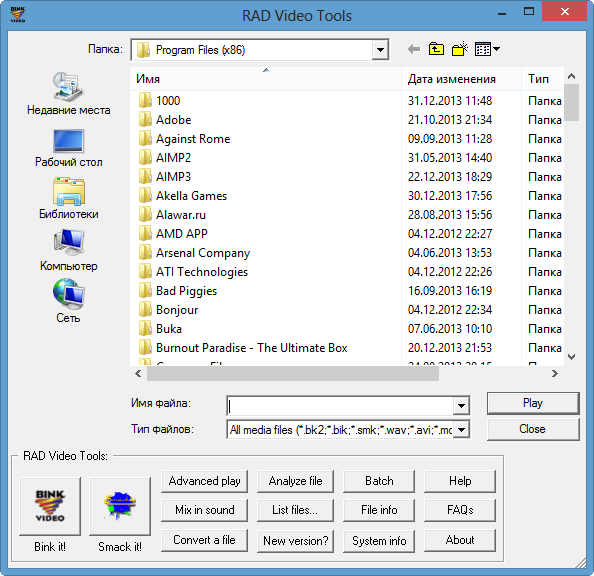
Остальные функции — значения кнопок:
- Smack it! — перекодировать файл в smk.
- Advanced play — воспроизвести файл с указанными параметрами. Там же можно перекодировать bik в exe (самовоспроизводимый видеофайл).
- Mix in sound — импорт звуковой дорожки в файл bik, без перекодирования видео. Указать для аудио особые параметры.
- Convert a file — конвертировать bik или smk в avi, wav и другие форматы.
- Analyze file — файл в формате bik или smk подвергается анализу по шкале количества байтов на кадр (bytes per frame).
- List files — объединение файлов в своеобразные плейлисты.
- New version? — проверка новой версии, направляет нас на сайт разработчика.
- Batch — составляет очередь команд для обработки файла или нескольких. Пакетная обработка файлов по заранее заданному скрипту.
- File info — информация о файле (высота, ширина, количество кадров, цветовая частота, частота кадров, длительность и т. д.)
- System info — информация о вашей системе (наименование системы, процессора, видеокарты, физическая память и т.д.)
- Help — отправляет на сайт со справкой.
- FAQs — отправляет на сайт с ЧаВо.
- About — информация о программе.
- Close — закрыть программу.
Software you will need:
- Rad Video Tools (Free)
- QuickTime 7 (Free)
(You will need Rad Video Tools to encode mov files made by Quicktime 4.0 or 5.0.)
In this guide I used a trailer from http://www.drfoster.f2s.com/ . You can download the same one and follow the guide, it might be easier if this is your first time.
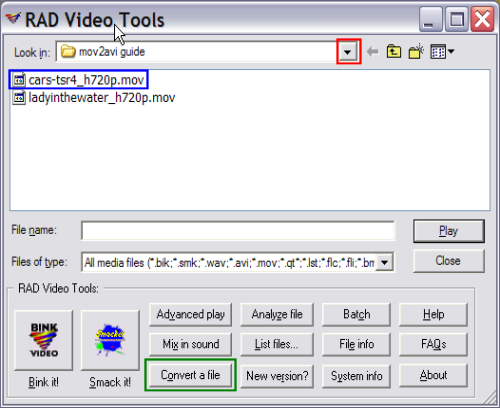
1. Start up Rad Video Tools and find the .mov file that you wish to convert. After you have found it and selected it, click the «Convert a file» button. (Screen Shot Below)
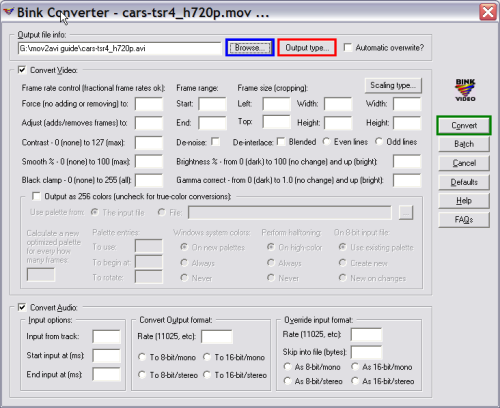
2. Now the «Bink Converter» screen will come up. Click the «Output type…» button and then click «AVI file». Then click the «Browse» button and select a destination directory. Now click the «Convert» button. (Screen Shot Below)
3. After clicking the «Convert» button, the «Bink Converter» and «Video Compression» screens will pop up. From here you would pick the type of compression (codec) to be used in the conversion. Apart from the «Full Frame (Uncompressed)» option (produces files that are too large), codecs such as DivX, XviD, Cinepack, Indeo, are all good choices. If you have lossless codecs installed, then these would be even better. If you wish to convert to DivX/XviD, it doesn’t really matter which codec you choose or the codec options, as you can use AutoGK later on to optimize the encoding (see last step). Once you have selected the codec and codec options, click ok. (Screen Shot Below)
[If you receive this error message, just click ok and download the application Total Recorder 3.0+. After starting this application you must press the recording button and start your Quick Time Movie. Total Recorder will only record the sound that comes from the Quick Time Movie. After recording, you have to save it as a .wav and multiplex it for TMPGEnc program or similar.] (Screen Shot of Error Message Below)
After clicking ok, the «Bink Converter» will come up and display all the current information it has for the .avi you are creating. It will also show you how long the conversion is going to take. (Screen Shot Below)
When it completes, you should see this screen. (Screen Shot Below)
You have just managed to successfully convert your QuickTime .mov file to AVI. The AVI file that you now may not be optimized for size and quality. To make the AVI smaller and retain the current quality, you can try converting the AVI to DivX/XviD format with MP3 audio, and instructions on how to do this can be found in this guide:
http://www.divx-digest.com/articles/autogk.html#step1
ВНИМАНИЕ!!! Все предоставленные программы, плагины и скрипты подходят только для серверов на платформе Windows!
Если у вас другая платформа, сообщите об этом НАМ, и мы найдём всё, что вам нужно (если, конечно, оно существует  )!
)!
|
RAD Video Tools |
||||||
|
|
|
Learn how to easily convert a Bink Video file to a universal AVI, WAV, or MP4 video using Rad Game Tools.
Bink has been the standard for video in video games since it was published due to its excelent performance, support and reliability. Years ago, deciding to add video playback to a crossplatform game engine was a nightmare because you had to study the API for each platform, figure out the format that they use, test it and trying to configure the optimum ratio between video quality and video size (this was quite important when games were played directly from the game disc). This of course was prone to errors, and added hundreds of programmers hours in development and debugging time that maybe wasn’t that critical for the game. That’s when Bink came out to the rescue with a very flexible and working library, making it easy to developers to display videos in windows or render into textures.
In the last days I decided to play one of my favorites videogames of all time (Bioshock 2) once again with a new video card (RTX 2060 Super) to see how it performed. After installing and testing I wanted to extract videos and images of the game in the installation directory, however the content was in this (new for me) BIK format that was unplayable without the RAD Video player and wanted to convert them to a regular format that I can share with anyone nowadays (MP4). After some research, I found out it wasn’t that easy to convert it specially when you don’t want to install a complex trial software that promises that it will convert the file to any video format but at the end I had to pay to unlock the codec. Then I found that Rad Game Tools, the developers of the Bink Video Codec offers a free tool to do exactly what I needed.
In this short article, I will explain to you how to easily convert Bink Video files (BIK) to MP4, AVI or WMV in Windows using RAD Video Tools.
1. Download Rad Game Tools
The first thing you need to do is to download the official Rad Game Tools kit from the official website of Rad Game Tools here. On their official website, you need to download RADTools.7z and extract its content in some directory. You will find an installer namely radtools.exe, proceed with the installation in Windows as you would do with any wizard.
Once the installation finishes, you will find the executables at the default directory C:\Program Files (x86)\RADVideo (if you didn’t change it):
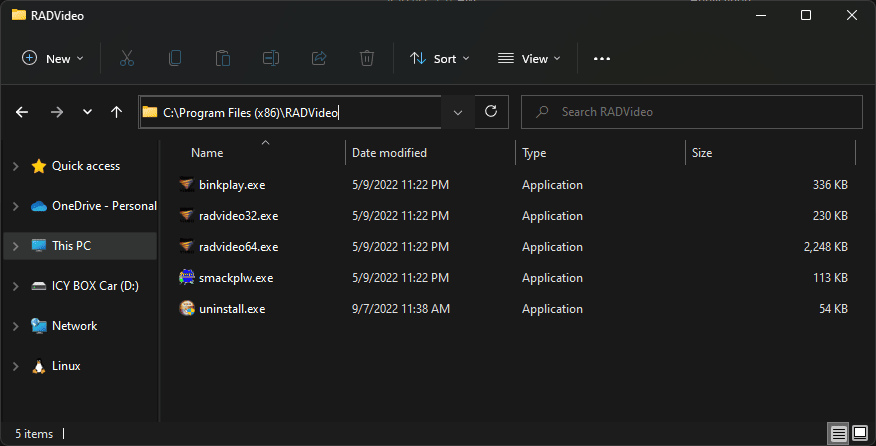
Those tools are the only thing you need to do in order to convert a BIK file into multiple formats.
2. Converting the file
There are 2 ways of converting the files using the Bink Converter, the first option is to do it graphically using the GUI and the other way is to do it through the command line.
2.1. Using the Graphical User Interface (GUI)
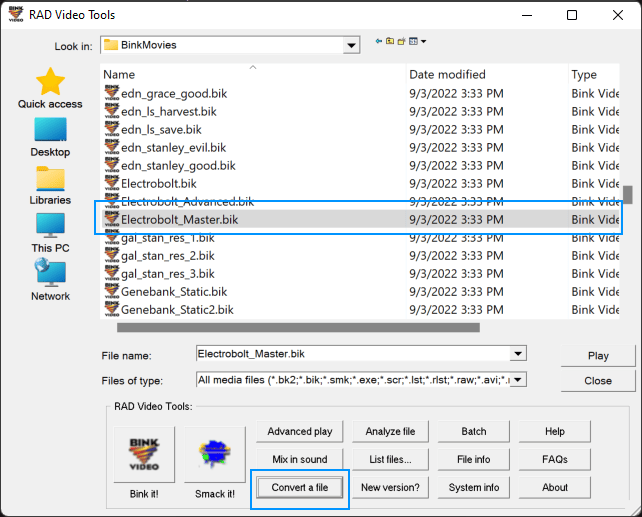
The first options is quite comfortable if you can do it through the graphical user interface. The only thing you need to do is to launch Rad Video Tools (radvideo64.exe or radvideo32.exe depending on the architecture of your PC). In this new window that will appear, you need to search for the directory where your BIK file is located, in my case I have plenty of them. Select one or multiple files (holding CTRL while selecting multiple files) in this file browser and click on Convert a file:
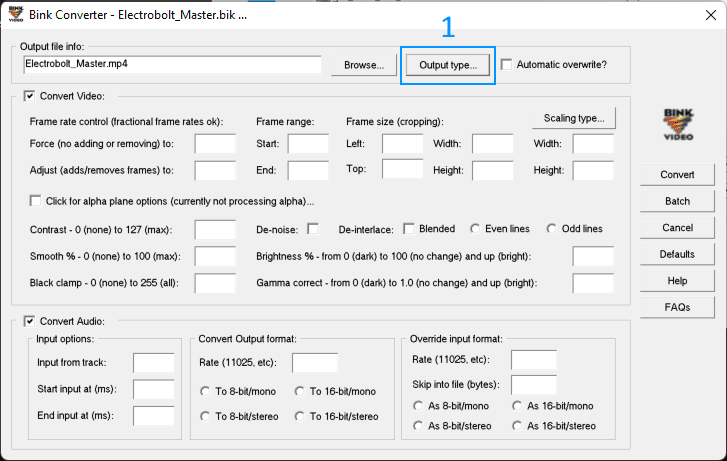
After selecting your file or multiple files and pressing convert a file, the following new dialog will appear. In this dialog you need to select the output type:
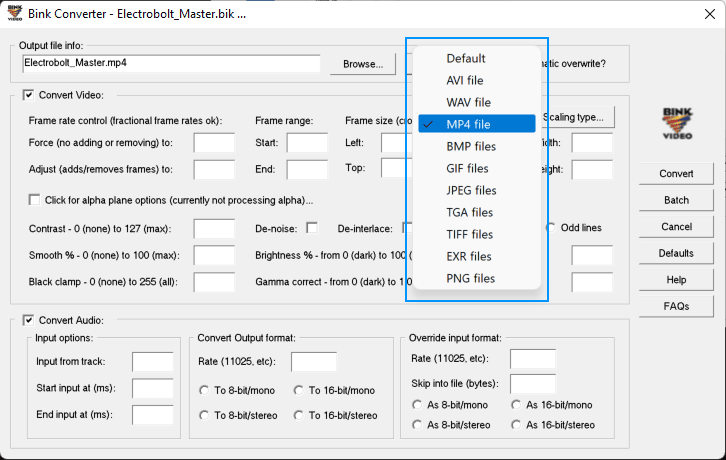
This refers basically to the output format of the video that you’re trying to convert, in my case I will use MP4:
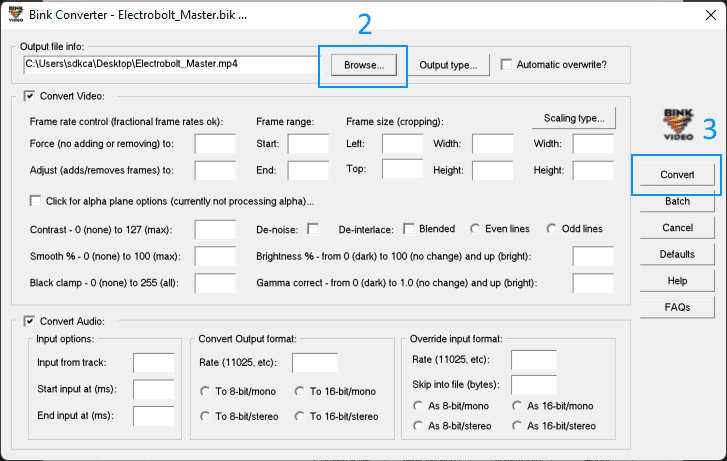
After specifying the output format, you need to specify the output file path. To do this, click on Browse and select a location in your computer through the Windows File Explorer. After choosing the directory, click on Convert to start the video conversion:
Once you press Convert, the file conversion will start and you will see the following window with some details about the progress of the conversion:
And there you go! In this case, the Electrobolt_Master.mp4 file is now saved in my desktop and I can play it with any video player that supports the MP4 format. Of course you may do the same with another format such as AVI or WAV.
2.2. Using the Bink Converter through the CLI
The radvideo64.exe binary provides a command line interface that you can use to convert bink video files to other formats through the BinkConv parameter. This parameter works like this:
radvideo64 BinkConv "input-video.bik" "output_video.mp4"In Windows, the command would look like this:
"C:\Program Files (x86)\RADVideo\radvideo64.exe" BinkConv "C:\Program Files (x86)\RADVideo\video.bik" "C:\Program Files (x86)\RADVideo\video.mp4"You can specify multiple switches, as specified in the following list:
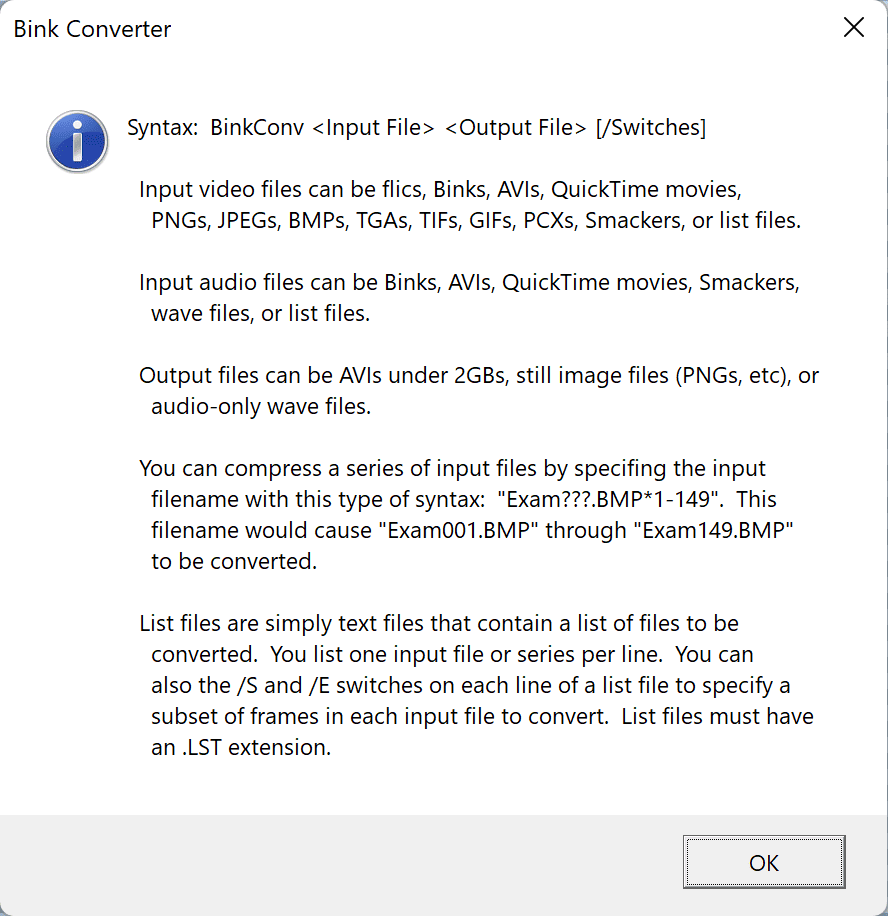
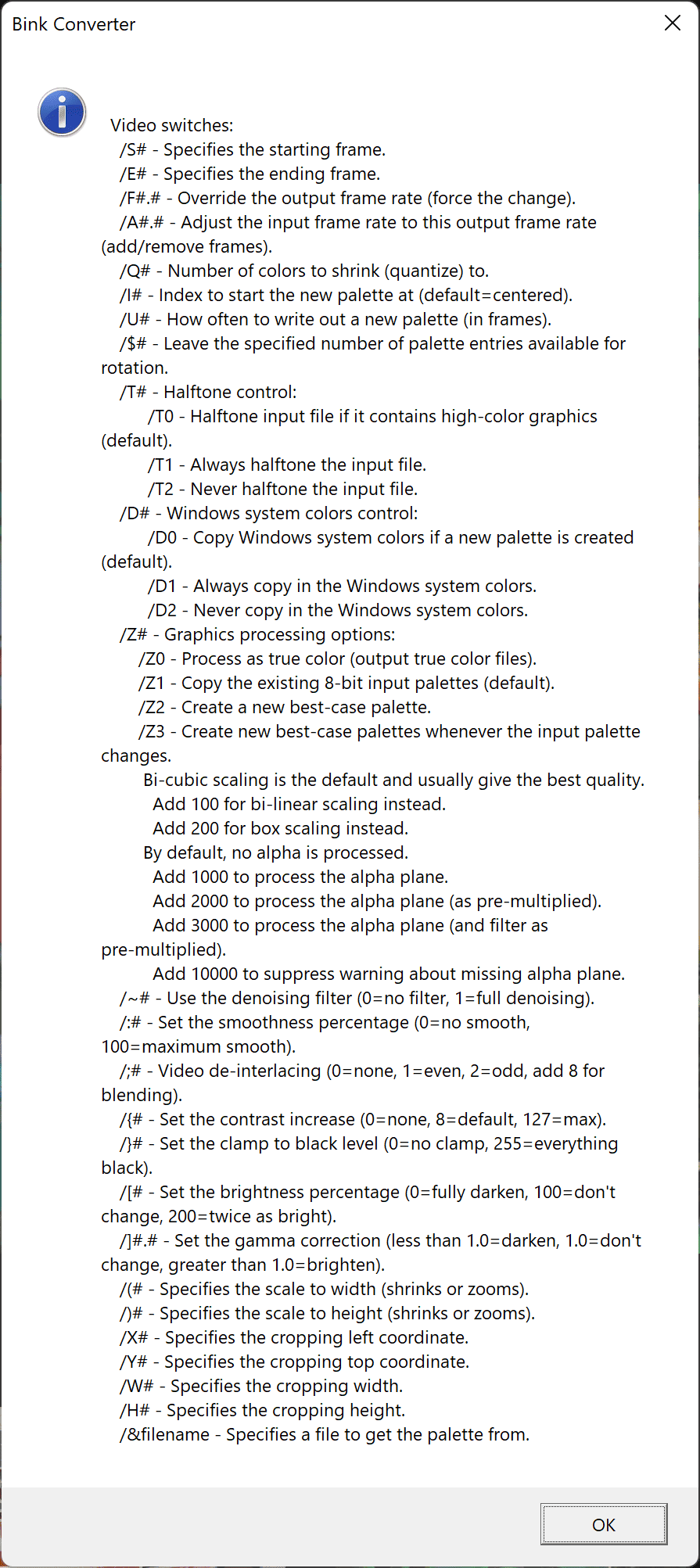
The following list includes the video switches that you can add:
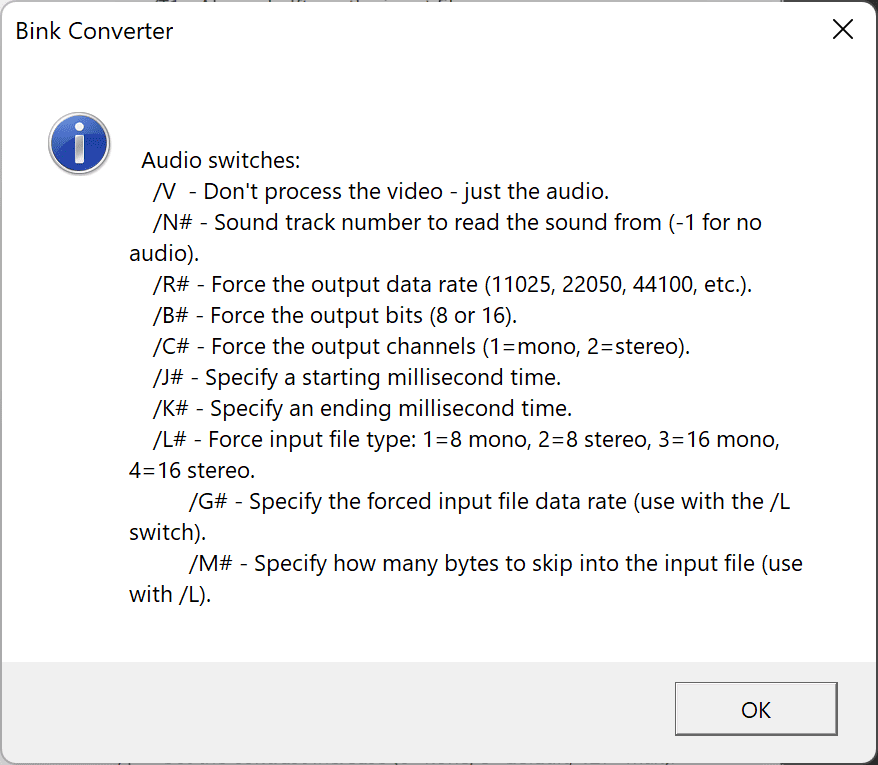
And the audio switches:
And that’s it! You may integrate this with your own application to convert files on demand.
Happy coding ❤️!