
These are instructions on how to use the QFIL Tool to flash or install stock firmware (ROM) on devices powered by Qualcomm chipsets.
Note: The QFIL Tool is a part of the QPST Tool. To use it effectively, you need to install QPST Tool on your computer.
How to install Firmware using the QFIL Tool
- Download and install Qualcomm USB Driver on your computer. If you’ve already installed the Qualcomm Drivers, you can SKIP this step.
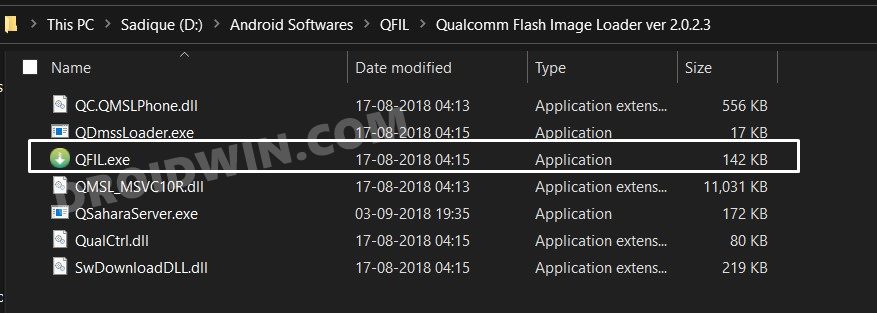
- Download the Qualcomm Flash Image Loader (QFIL) and extract it on your computer. Once extracted, you will see the following files:
- Open QFIL.exe:
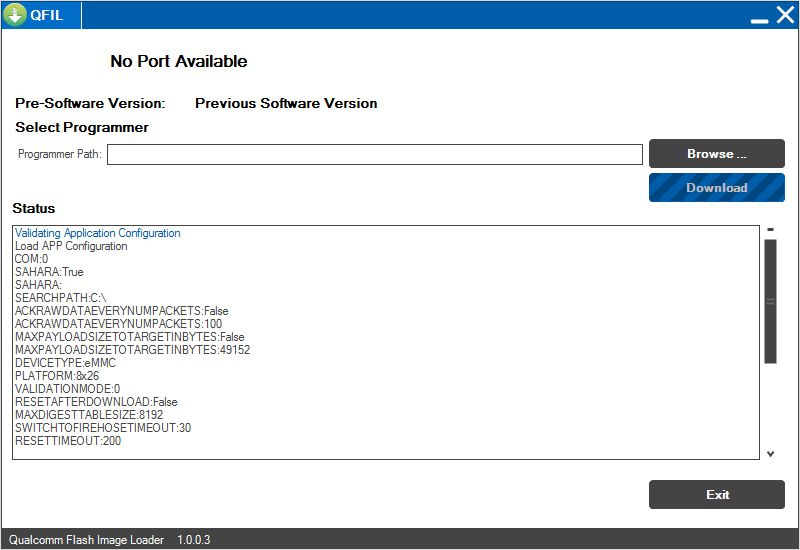
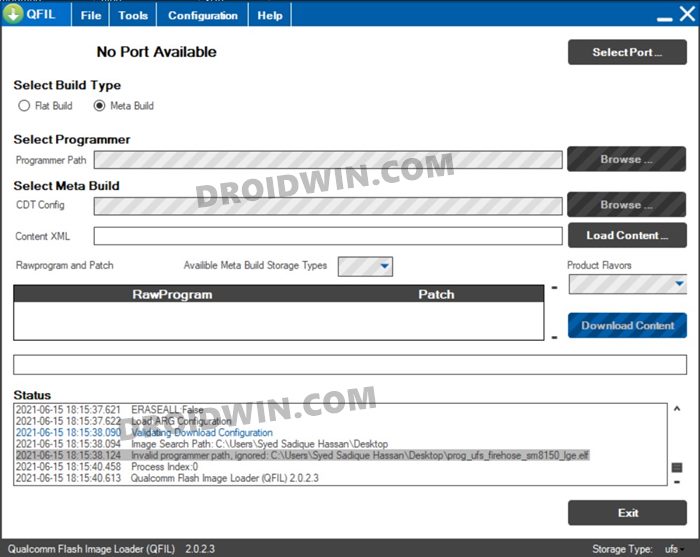
- After launching the QFIL Tool, you will see the following screen on your computer:
- Switch Off/Power Off your Smartphone or Tablet.
- After turning off your device, press and hold the Volume UP key while connecting it to the computer via the USB cable.
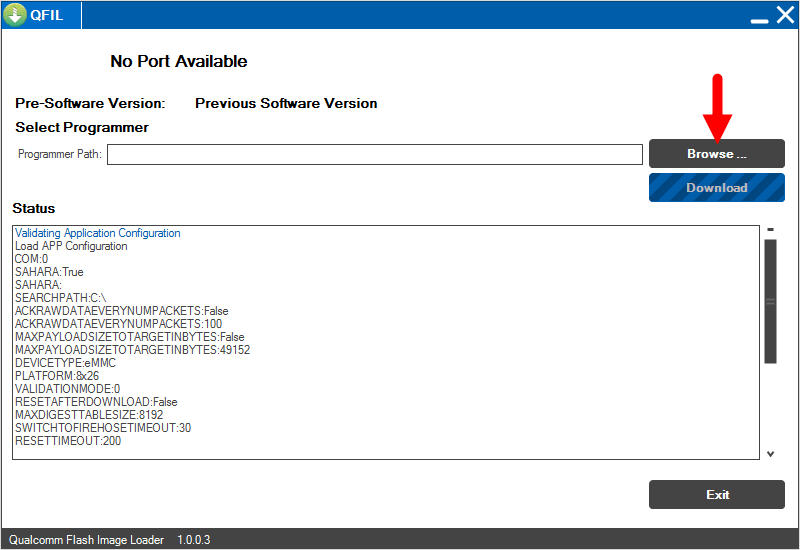
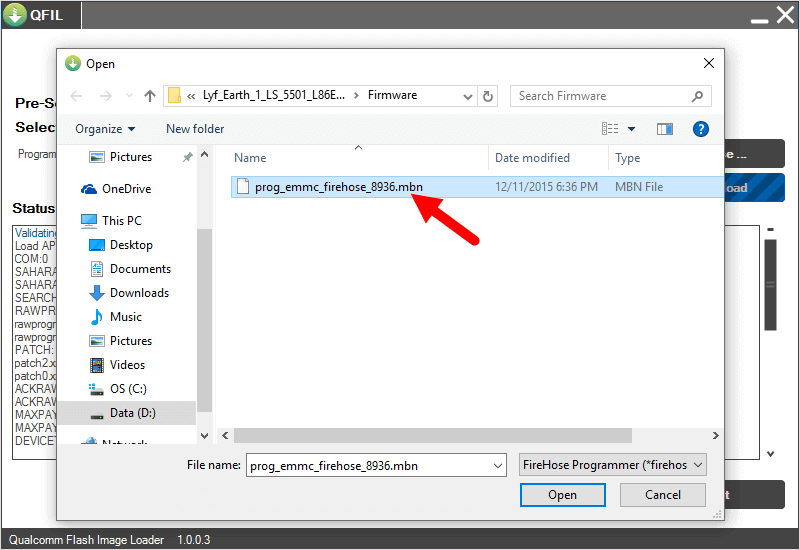
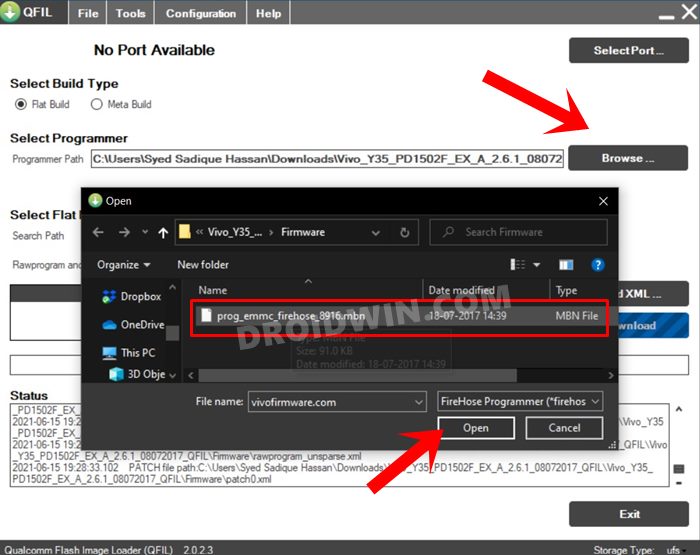
- Click the Browse button and select the firmware file (.mbn).
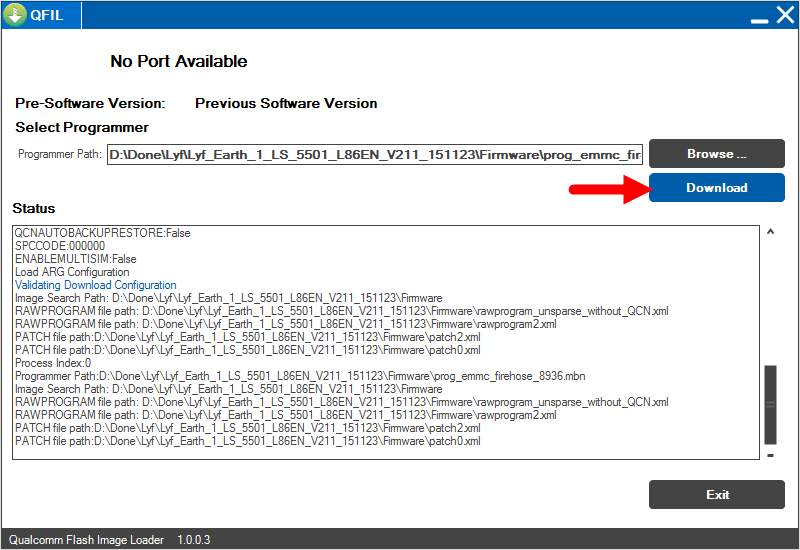
- Click the Download button to start the flashing process.
- The flashing process might take 10-15 minutes to finish.
- After the flashing process is complete, your device will automatically reboot.
Congratulations! You can now disconnect the device from the computer and proceed to set it up for use.
Readme Once:
[*] Caution: Flashing or installing stock firmware will erase your device’s data, including photos, videos, contacts, and messages. It’s essential to back up all your data before proceeding with the abovementioned steps.
[*] Download Qualcomm USB Driver: If you are looking for Qualcomm USB Driver, then head over to the Qualcomm USB Driver website.
[*] Credits: QFIL Tool is Created by Qualcomm Technologies, Inc. So, full credit goes to them for sharing the tool for free.
Do you know how to use QFIL Tool to flash Qualcomm Stock firmware? If not, then don’t worry. This article will guide you to install official stock ROM on any Qualcomm smartphone using Qualcomm Flash Image Loader (QFIL) Tool. As you know, most OEM Android devices use Fastboot mode to install an official software update. Moreover, some OEMs also use their own proprietary Android flashing tool to install stock firmware files.
Samsung uses Odin, Xiaomi uses Mi Flash Tool for Xiaomi, Mi, Redmi, and Poco devices. Moreover, Sony has Sony Mobile Flasher Tool, LG has LG Flash Tool and LGUP Tool. If you own a Spreadtrum Android device, you can use SPD Research Tool, SPD Flash Tool, or SPD Factory Tool to flash the firmware. Furthermore, MediaTek Android device owners use the famous SP Flash Tool. Similarly, QFIL is used for Qualcomm-based phones.
However, all these stock firmware flashing tools work only when your Android device is booted into a specific mode/interface, such as Download mode, Fastboot Mode, etc. So what if your phone is hard bricked and cannot boot into fastboot or download mode? Is it still possible to install a stock ROM on your phone? Well, the answer is yes. All you need is the Qualcomm Flash Image Loader Tool.
If your phone gets bricked by flashing TWRP or OrangeFox recovery, or any Custom ROM, you can unbrick and restore default settings using QFIL Flash Tool. Moreover, if your phone is stuck in the boot loop or has black screen issues, flashing a stock ROM is the best solution for you. Since most manufacturers use Qualcomm chipset on their devices, it becomes easy to use Qualcomm Flash Tool and manually update it to the official Stock firmware.
How to Install MBN Firmware using QFIL
Are you ready to use Qualcomm Flash Image Loader Tool to install the MBN Stock ROM on your Qualcomm SoC phone? If yes, then let’s get started.
Disclaimer
We at Droid Thunder are not liable for any damage after/during the firmware flashing process. This process will wipe out your complete phone data. Hence, a backup is a must. Since the process is risky, follow the guidelines mentioned below carefully.
Requirements
- You’ll need a Windows computer with a USB cable.
- Charge your Qualcomm device to a minimum of 50%.
- Backup your device data and settings using any Backup app.
- Install Qualcomm USB drivers on your Windows PC.
Downloads
QFIL Tool Latest Version
Steps to Use QFIL Tool to Flash Stock Firmware
- Download the Qualcomm Stock Firmware zip file and extract it on your PC.
- Download & extract Qualcomm Flash Image Loader (QFIL) Tool on your computer.
- You’ll see the following files in the extracted QFIL folder:
- Double-click QFIL.exe.
- This will launch the QFIL Tool on your screen.
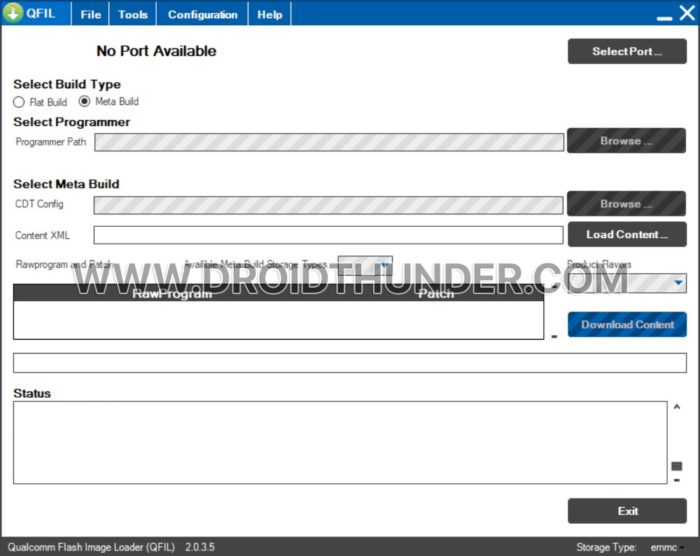
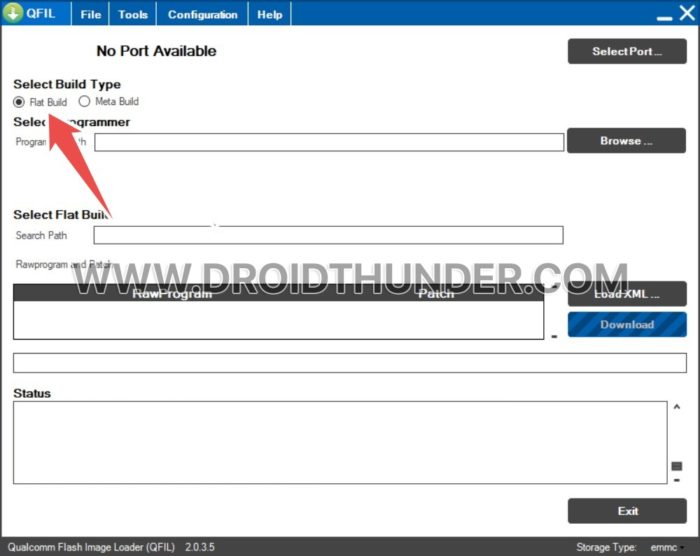
- In the Build Type section, select Flat Build.
- Power off your Android device.
- Once your device is switched off, press and hold the Volume Up button.
- At the same time, connect your device to the computer using a USB cable.
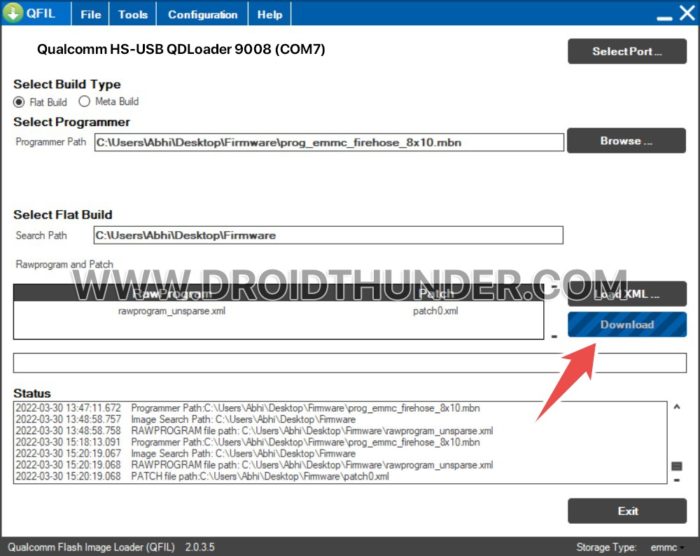
- Under the Select Programmer section, click on Browse and locate the Qualcomm firmware file in MBN or ELF format (for example: prog_emmc_firehose_8x10.mbn).
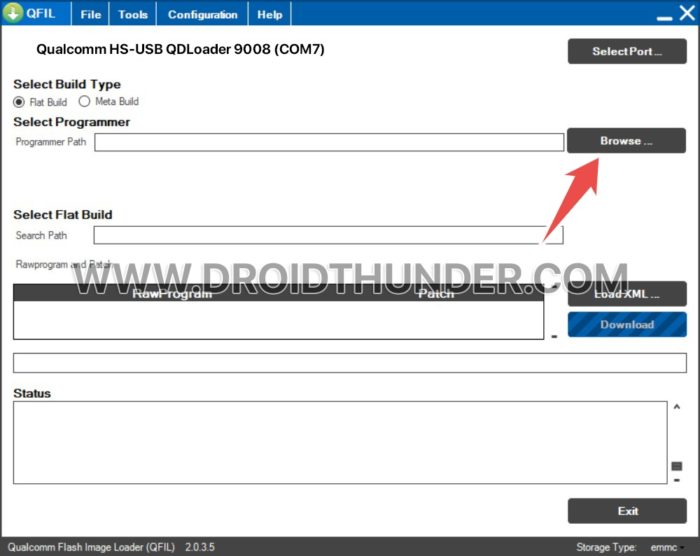
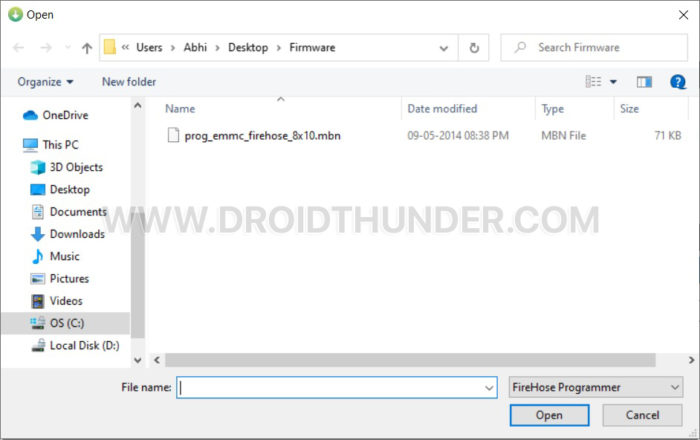
- Similarly, click on Load XML and select RawProgram (rawprogram_unsparse_upgrade.xml) and Patch files (Patch0.xml) in XML format.
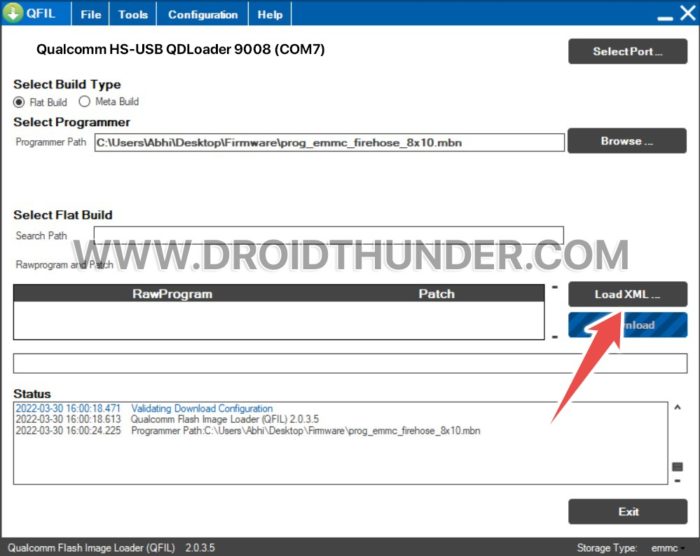
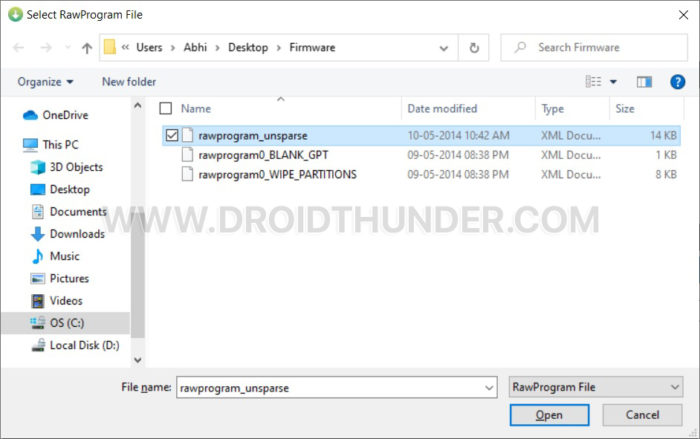
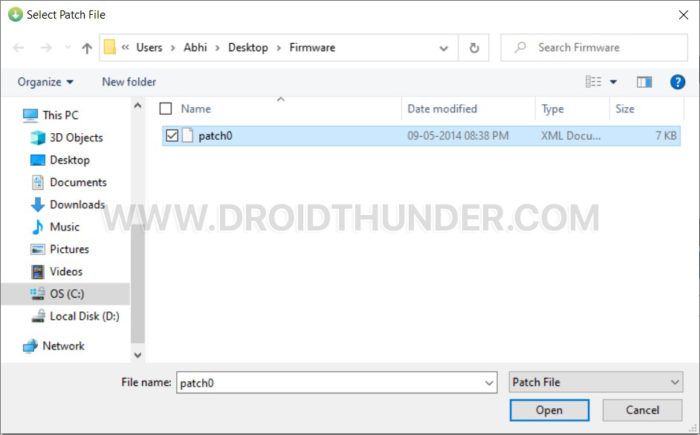
Note: These RawProgram and Patch files are included within the firmware file. In case these files are not present, that means your device or firmware does not support XML program files. At such time, skip this step. Also, note that there might be multiple raw program files. If you choose rawprogram_unsparse_upgrade.xml, your device will not lose any data. However, if you select the rawprogram_unsparse.xml file, you’ll lose IMEI, WiFi/Bluetooth Address, and RF Calibration data.
- Lastly, click on the Download button to start the flashing process.
Wrapping Up
Finally! This is how you can flash Qualcomm Stock ROM using QFIL Tool. If you have any questions about this tutorial, do let us know in the comments below.
Все способы:
- Скачать Qualcomm Flash Image Loader (QFIL) бесплатно
- Подключение устройств
- Загрузка образа прошивки и других компонентов в приложение
- Логирование
- Дополнительные возможности
- Настройки
- Достоинства
- Недостатки
- Вопросы и ответы: 11
Скачать Qualcomm Flash Image Loader (QFIL) бесплатно
Загрузить последнюю версию приложения
QFIL – специализированное программное средство, главной функцией которого является перезапись системных разделов памяти (прошивка) Android-устройств, построенных на базе аппаратной платформы Qualcomm.
QFIL входит в состав программного комплекса Qualcomm Products Support Tools (QPST), предназначенного в большей степени для использования квалифицированными специалистами, чем рядовыми пользователями. При этом приложение может эксплуатироваться автономно (вне зависимости от наличия или отсутствия остальных компонентов QPST на компьютере) и часто применяется обычными владельцами Андроид-девайсов при самостоятельном программном ремонте смартфонов и планшетов, системное ПО которых подверглось серьёзным повреждениям.

Рассмотрим основные функции КуФИЛ, которые могут быть задействованы неспециалистами в области обслуживания Qualcomm-аппаратов.
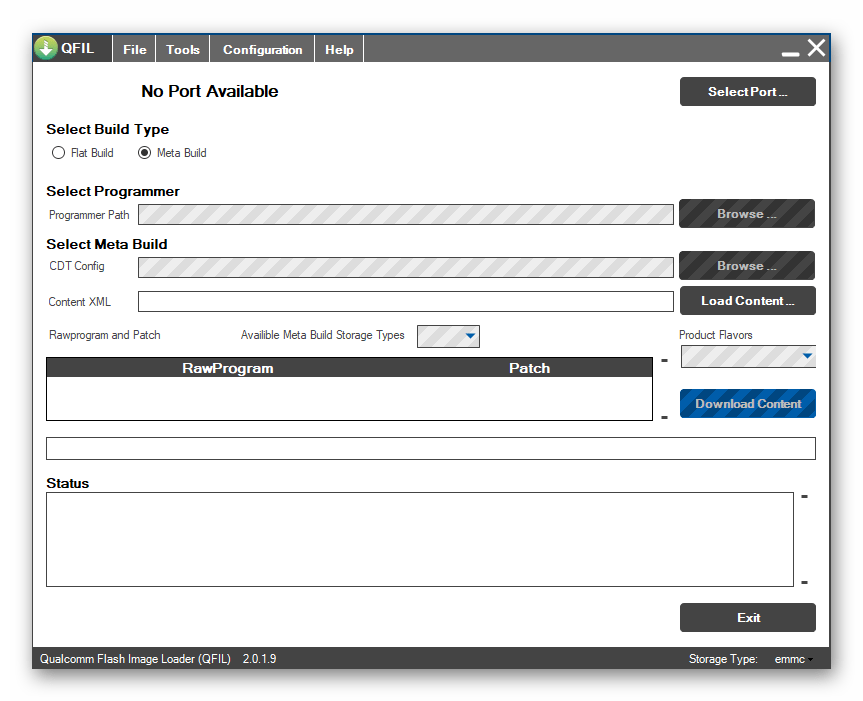
Подключение устройств
Для выполнения основного своего предназначения – перезаписи содержимого микросхем flash-памяти Qualcomm-устройств данными из файл-образов приложение QFIL должно быть сопряжено с аппаратом, находящемся в особом состоянии — Emergency Download (режим EDL).
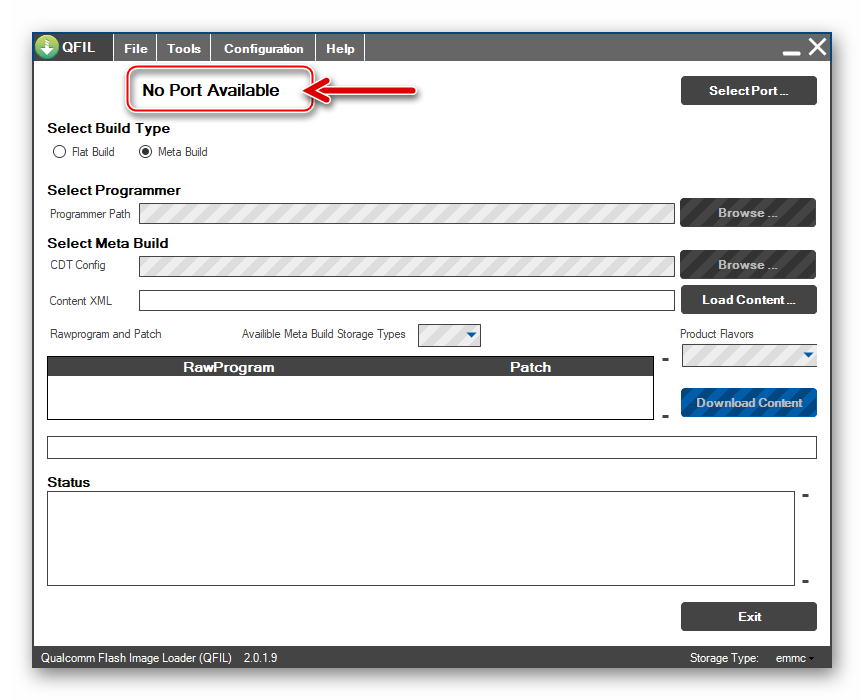
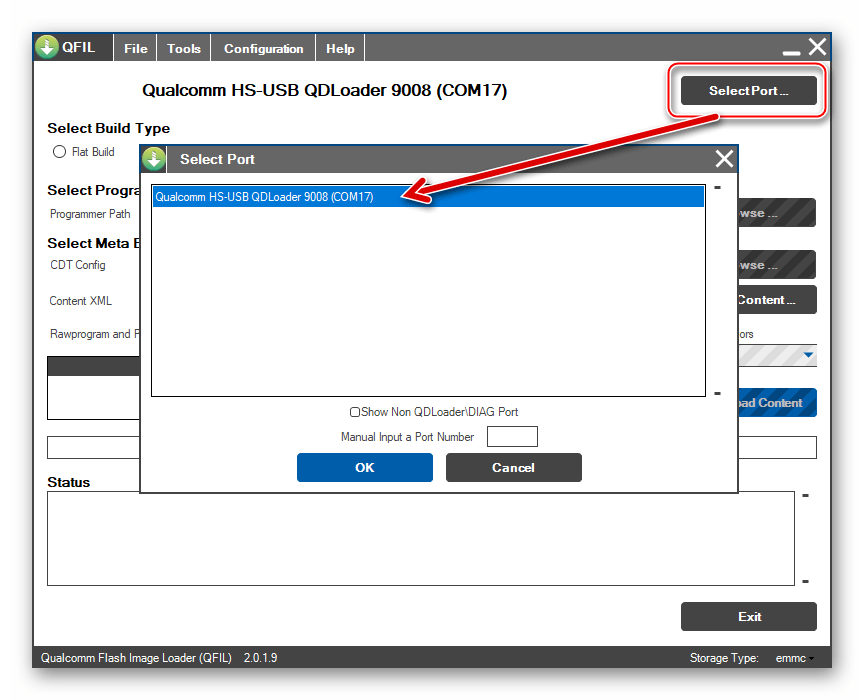
В указанный режим устройства, системное ПО которых было серьезно повреждено, часто переключаются самостоятельно, но также перевод в состояние может быть инициирован пользователем целенаправленно. Для контроля со стороны пользователя за правильностью подключения прошиваемых аппаратов в QFIL присутствует индикация – если программа «видит» девайс в режиме, подходящем для перезаписи памяти, в ее окне отображается наименование «Qualcomm HS-USB QDLoader 9008» и номер COM-порта.
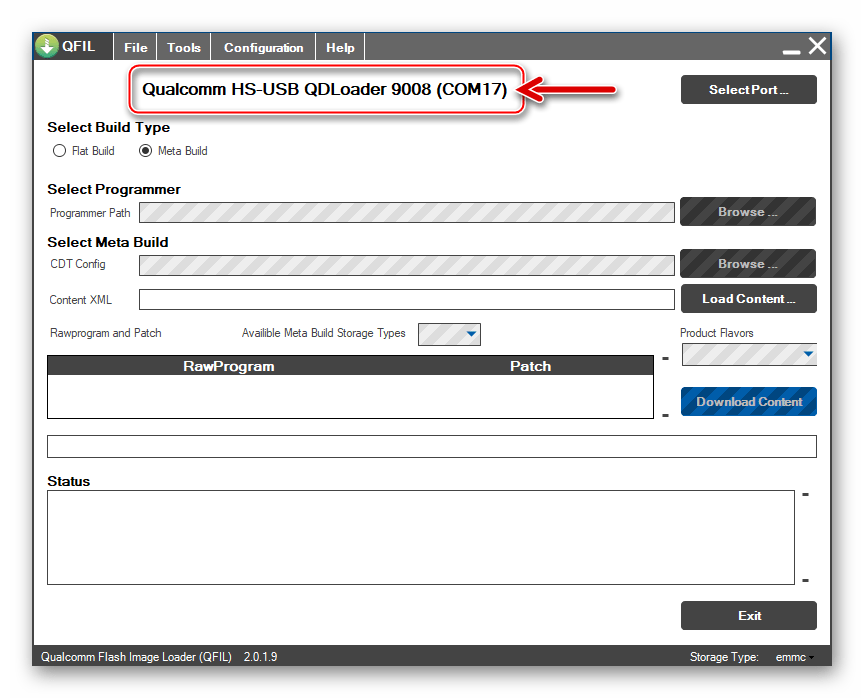
Если к компьютеру, используемому в качестве инструмента для прошивки/восстановления Android, подсоединено несколько Qualcomm-девайсов в режиме EDL, между ними можно легко переключаться с помощью кнопки «Select Port».
Загрузка образа прошивки и других компонентов в приложение
QFIL является практически универсальным решением в отношении устройств, созданных на базе аппаратной платформы Qualcomm, а значит, подходит для работы с огромным числом моделей смартфонов и планшетных ПК. При этом эффективное выполнение приложением своей главной функции зависит во многом от пакета с файлами, предназначенными для переноса в системные разделы конкретной модели девайса. QFIL способен работать с двумя типами сборок (Build Type) таких пакетов – «Flat Build» и «Meta Build».
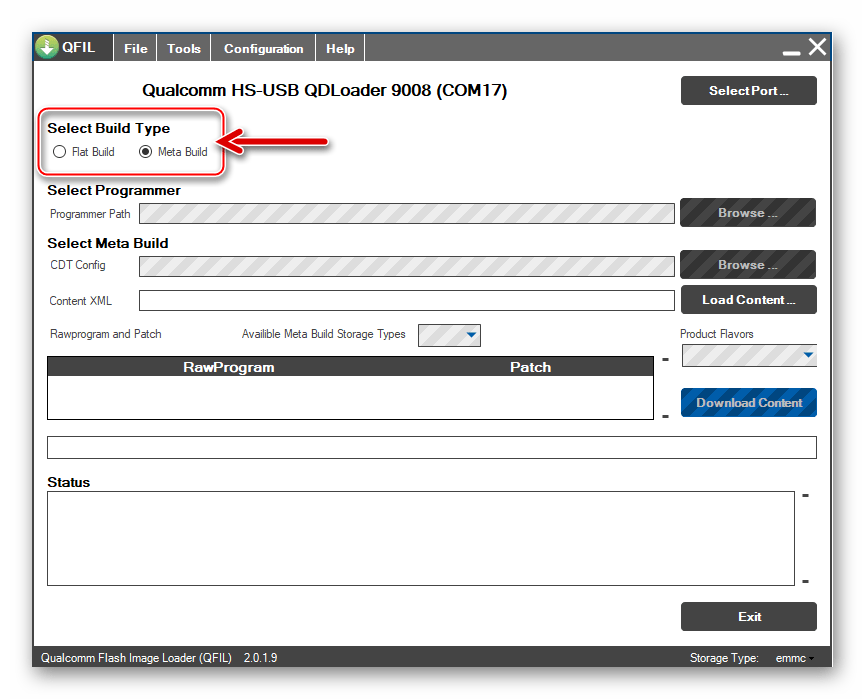
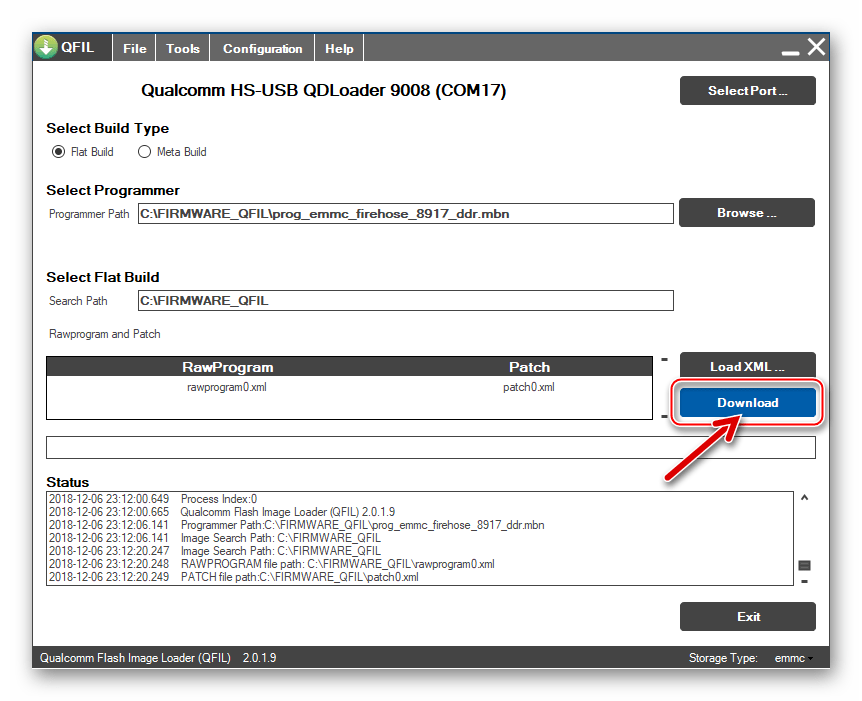
Перед тем как указывать приложению место расположение компонентов системного ПО Android-девайса, следует выбрать тип сборки прошивки – для этого в окне КуФИЛ присутствует специальный переключатель-радиокнопка.
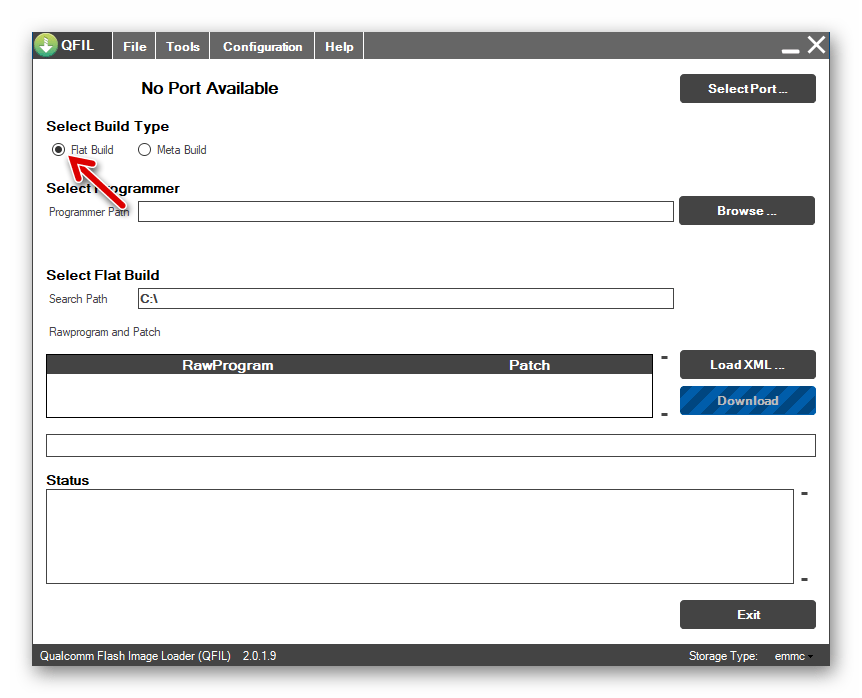
Несмотря на то, что QFIL позиционируется в качестве средства для эксплуатации профессионалами, которые должны обладать рядом специфических знаний, интерфейс приложения совершенно не перегружен «лишними» либо «непонятными» элементами.
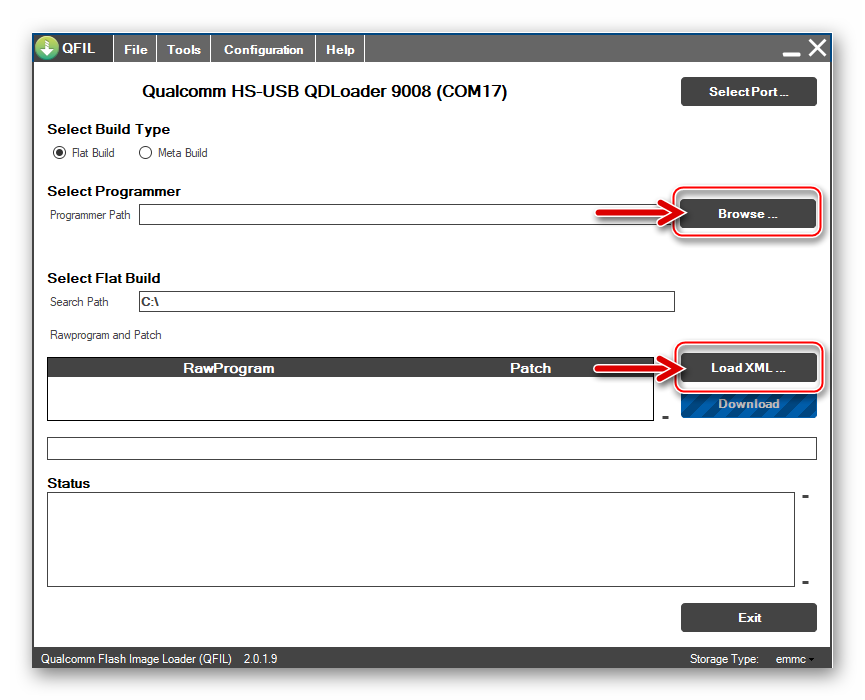
В большинстве ситуаций, все что требуется от пользователя для проведения прошивки Qualcomm-аппарата — это указать пути расположения файлов из пакета, содержащего образ мобильной ОС для модели, с помощью кнопок выбора компонентов, инициировать процедуру перезаписи памяти девайса нажатием «Download», а затем ожидать, пока QFIL автоматически выполнит все манипуляции.
Логирование
Результат каждой манипуляции, проводимой с помощью КуФИЛа фиксируется приложением, а информация о происходящем в каждый момент времени транслируется в специальном поле «Status».
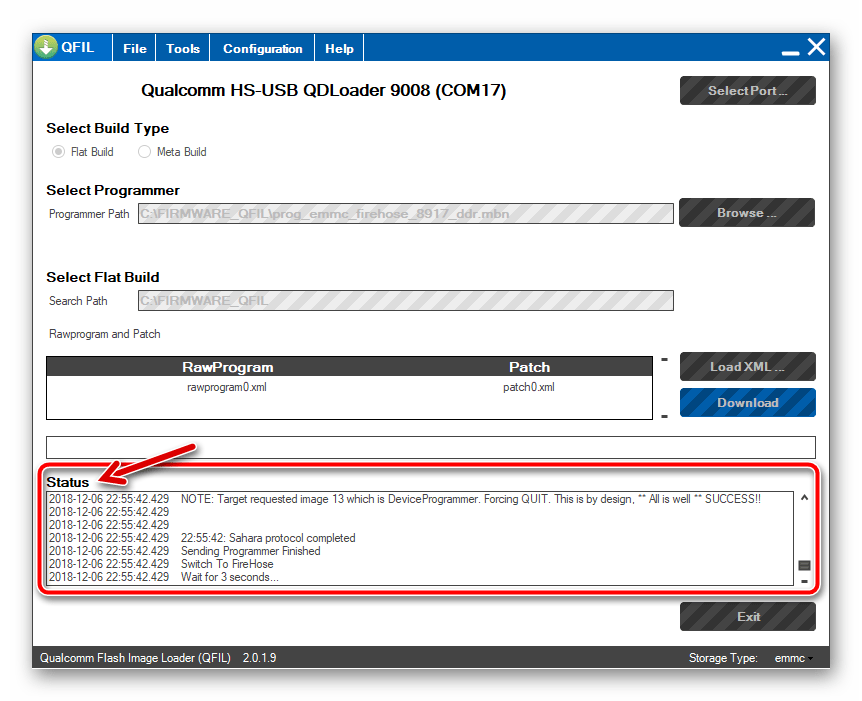
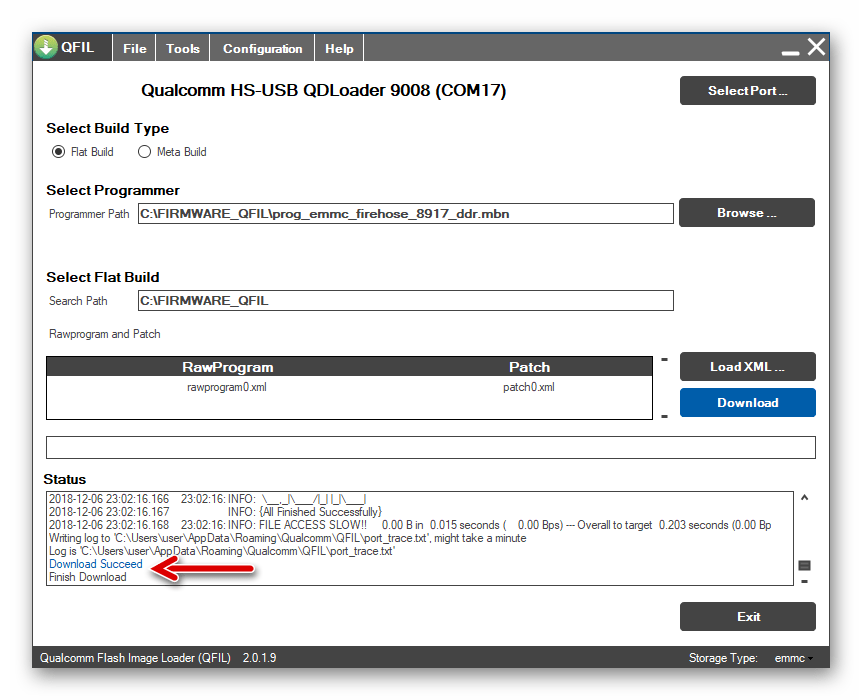
Профессионалу ознакомление с логом проводимой или уже завершенной процедуры позволяет сделать выводы о причинах сбоев, если они возникают во время работы приложения, а обычному пользователю констатация событий дает возможность получить достоверные данные о том, что процесс прошивки девайса идет либо завершился успехом/ошибкой.
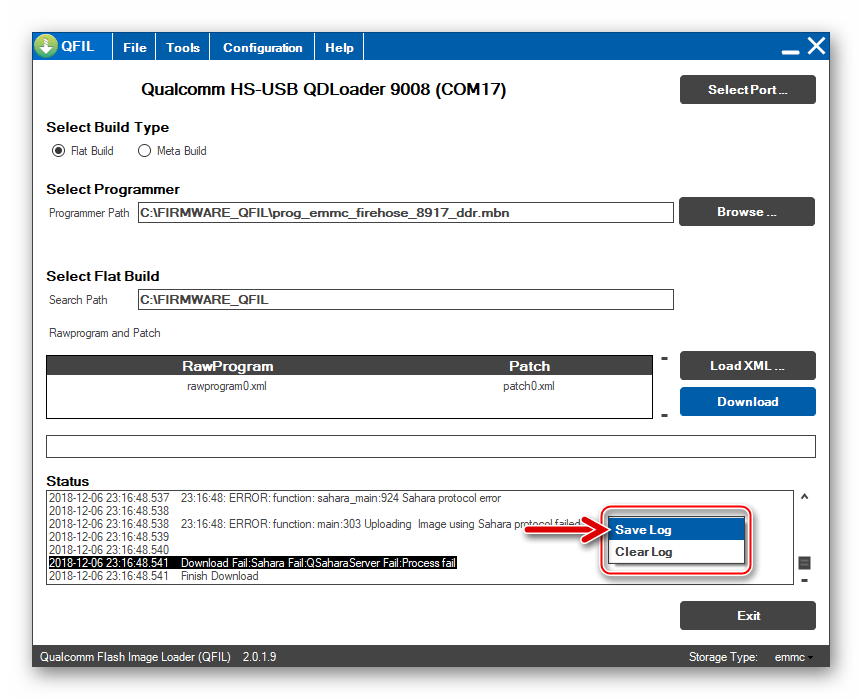
Для более глубокого анализа или, к примеру, пересылки специалисту с целью получения консультации, в QFIL предусмотрена возможность сохранения записей о произошедших событиях в лог-файл.
Дополнительные возможности
Помимо интеграции готового пакета, содержащего компоненты ОС Android, в память Qualcomm-девайсов с целью восстановления работоспособности их программной части, в QFIL предусмотрены возможности проведения ряда специфических и/или сопутствующих прошивке процедур.
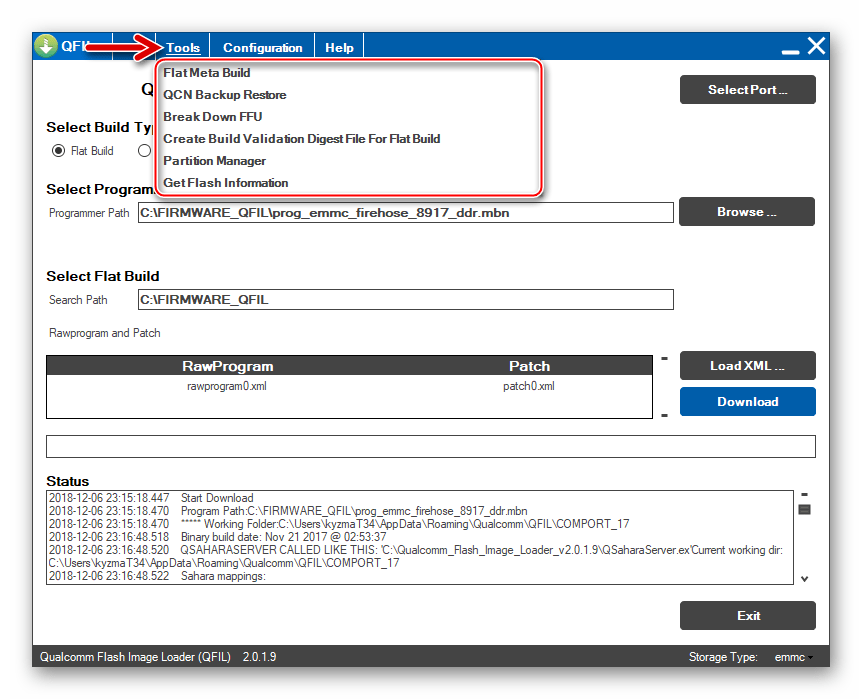
Наиболее полезной и часто используемой обычными пользователями функцией QFIL из перечня дополнительных является сохранение бэкапа значений параметров, записанных в разделе «EFS» памяти девайса. В указанной области содержатся сведения (калибровки) необходимые для правильного функционирования беспроводных сетей на Qualcomm-устройствах, в частности IMEI-идентификатор(ы). QFIL позволяет очень быстро и легко сохранить калибровки в специализированный QCN-файл, а также впоследствии восстановить EFS-раздел памяти мобильного девайса из резервной копии, если такая необходимость возникнет.
Настройки
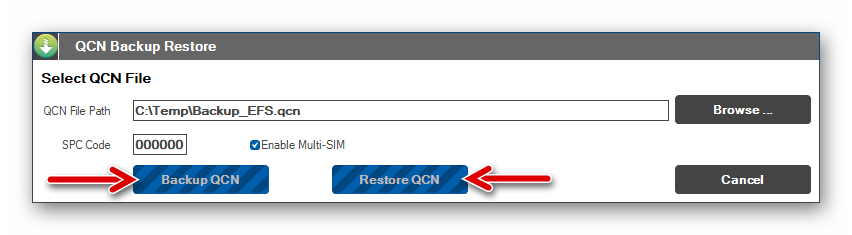
В завершение обзора Qualcomm Flash Image Loader еще раз акцентируем внимание на предназначении инструмента – он создан для профессионального применения специалистами, обладающими рядом знаний и пониманием смысла осуществляемых приложением операций. Именно такие люди могут полностью реализовать потенциал QFIL и полностью, а главное, правильно настроить программу для решения конкретной задачи.
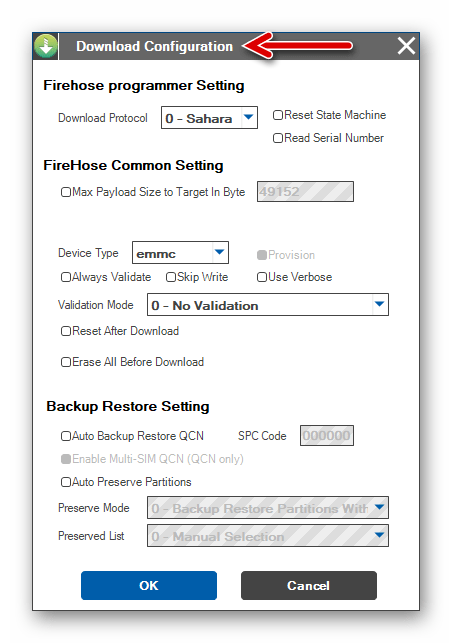
Рядовому, а тем более неопытному пользователю, применяющему средство по инструкции действенной в отношении отдельной модели Android-устройства, параметры КуФИЛа, установленные по умолчанию, лучше не изменять, а инструмент в целом использовать лишь в крайнем случае и при уверенности в правильности собственных действий.
Достоинства
- Широчайший перечень поддерживаемых моделей Android-девайсов;
- Простой интерфейс;
- Высочайшая эффективность при правильном выборе пакета прошивки;
- В некоторых случаях единственный инструмент, способный восстановить серьезно поврежденное системное ПО Qualcomm-аппарата.
Недостатки
- Отсутствие русскоязычного интерфейса;
- Справка по приложению может быть получена исключительно онлайн и только при наличии доступа к закрытому от широкой публики разделу веб-сайта Qualcomm;
- Необходимость инсталлировать дополнительное ПО для работоспособности средства (Microsoft Visual C++ Redistributable Package);
- При неправильном применении, вследствие недостаточного количества знаний и опыта у пользователя, может повредить девайс.
Пользователями мобильных Android-девайсов, построенных на базе процессоров Qualcomm, приложение QFIL может и должно рассматриваться в качестве мощного и эффективного инструмента, в большинстве случаев способного помочь при восстановлении поврежденного системного ПО смартфона или планшета. При всех преимуществах использовать средство следует аккуратно и лишь в крайнем случае.
In this particular post We will Talk About, How can You flash Qualcomm Devices, Qualcomm CPU Flashing Guide. Things you need to know before flashing the Qualcomm devices.
Now Let’s Start…
There Are Many Brands In The Market That Are Using Qualcomm CPU In their Phones,
Also, the Most Useable CPU In The Smartphone is Qualcomm.
Example:– Xiaomi, Vivo, Samsung, Asus, Nokia, Motorola, Oneplus, Oppo, Realme Etc.
Note:- For Oppo, Realme, Samsung, Nokia You can’t Flash in QFIL. They use their Own Flash tool.
If You want to Confirm that Your phone has Qualcomm CPU,
Then simply Google it.
With Your phone Brand name & Model Name write in the last CPU type, & Chipset,
Qualcomm is Using the Snapdragon Series In their Smartphone So that you can easily identify it.
Requirements For Qualcomm CPU Flashing?
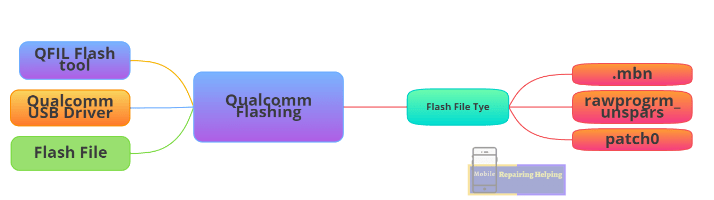
- QFIL Flash tool — Download the Latest Version From ➡ HERE (Qfiltool.com)
- Qualcomm USB Driver ⇐ (If Already Driver is Installed In Your PC Then Skip)
- Flash file — (Firmware, Stock Rom) It’s Always Recommended to Download Same version Or Latest version Flash File.
The phone should have at least 30-50 percent of battery to perform the Flashing Process.
-
QFIL Flash tool
QFIL Flash (Qualcomm Flash Image Loader) tool is A free Official Software Tool, QFIL Tool allows You to flash the Stock Firmware (XML based) on your Qualcomm smartphone phone.
Where To Download Flash File For Qualcomm Devices?
As I already shared with You in the MTK Flashing Guide Post.
There Are many websites for flash file Download.
simply Google it. Your Phone model with Brand name And Add Flash File in the last.
You will get many results For Flash File, Simply Download From there.
How to Flash Qualcomm CPU Devices?
Make sure You download the Above Requirements, & Extract
♦ Now You have to Open Flash Tool, Go to Tool Folder Click On QFIL.exe Run As Administrator.
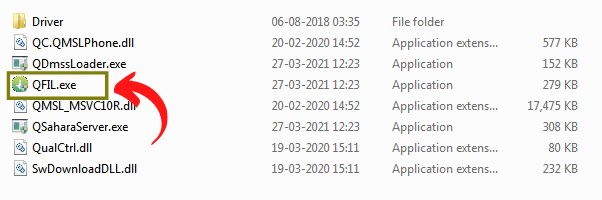
IF Ask permission Click Yes.
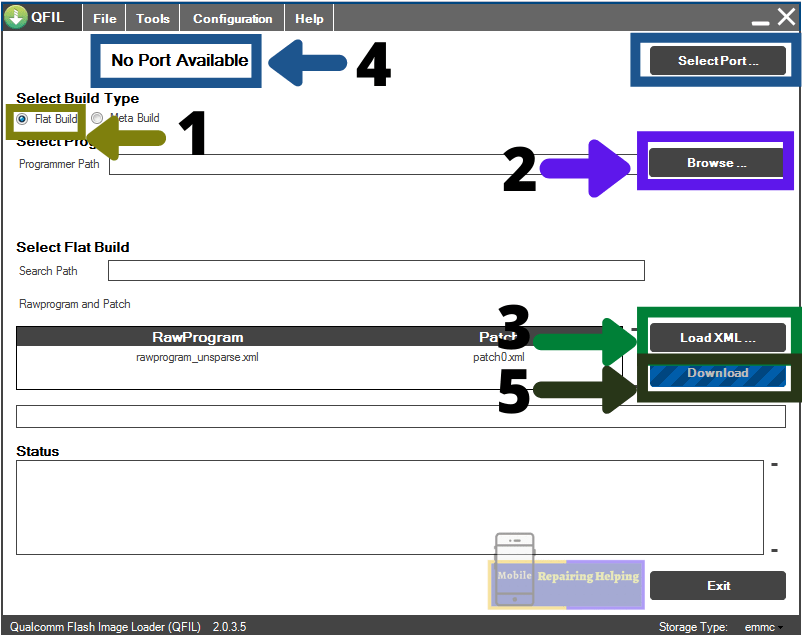
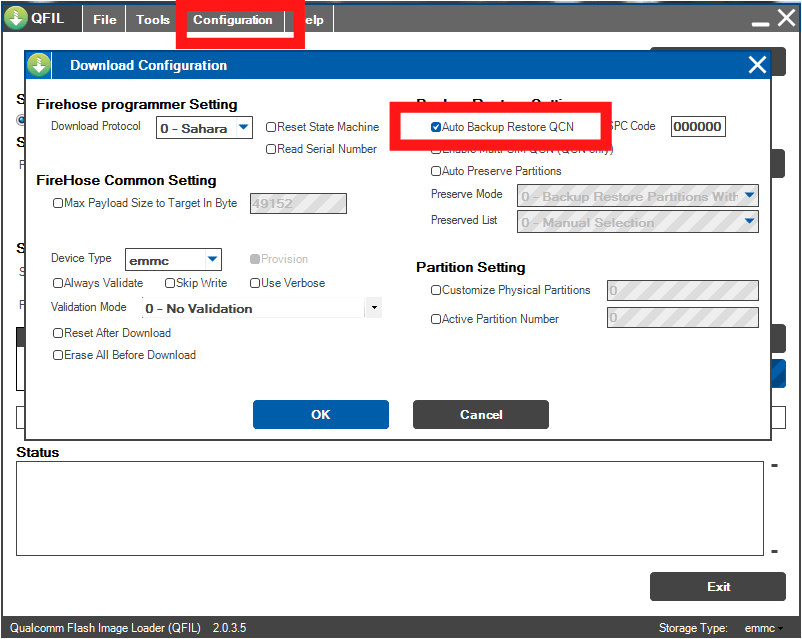
♦ Before Flashing, Make sure the Auto backup restore QCN option is checked.
-
1–Select Build Type
♦ Here You have to Select Flat Build.
-
2– Browse Tab
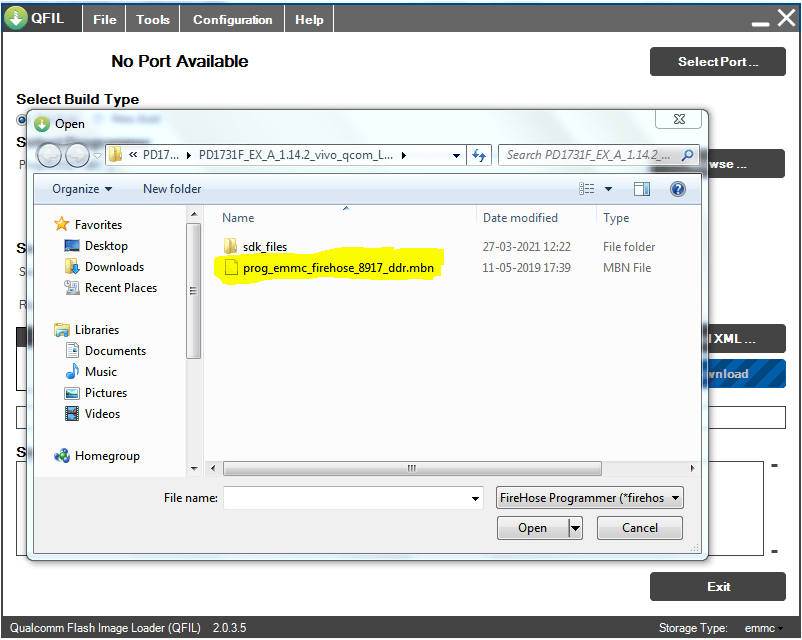
♦ Here You have to Select the .mbn File From the flash File Folder.
-
3– Load XML Tab
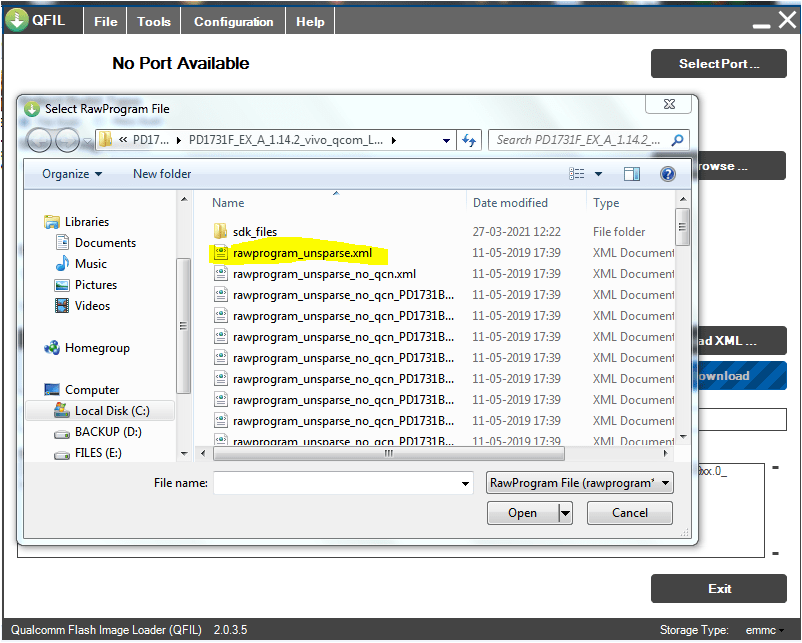
♦ Here You have to Select rawprogram_unsparse.xml file
or you can Also select rawprogram_No_qcn.Xml
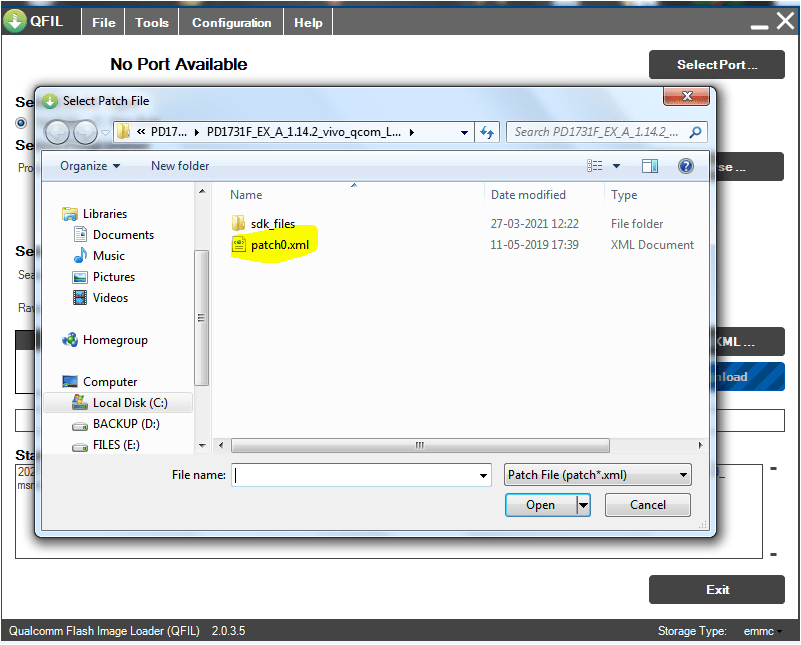
♦ Then You have to Select patch0.xml File
-
4– Port Option
♦ After File Selection, Here you have to Connect the phone in EDL mode 9008 PORT (Emergency Download Mode)
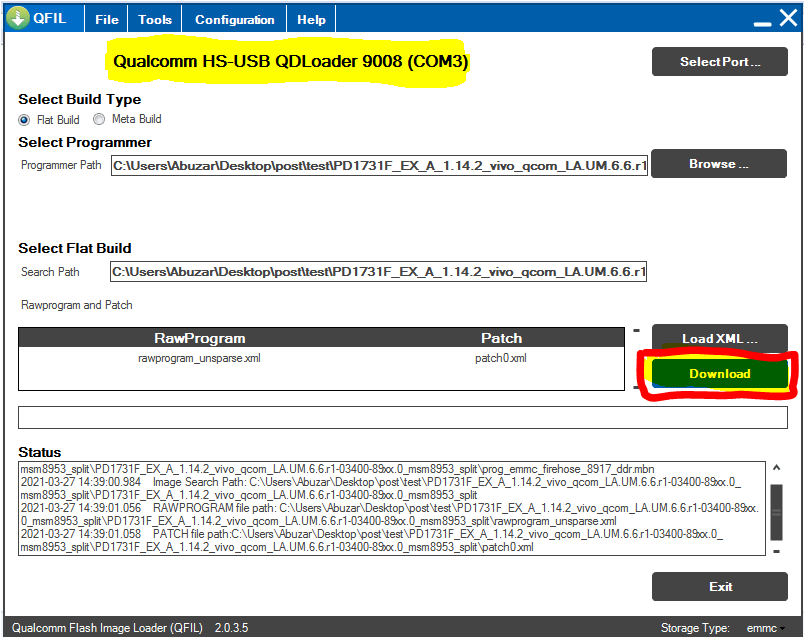
For Qualcomm devices, You can Connect the phone To EDL Mode before flash.
How to Access EDL mode in Qualcomm Devices?
This Process will be Work On Switch Off Condition
1–Press & Hold Volume UP key + Volume DOWN Key (Connect USB Cable) For Old Security Devices
2– In Some Qualcomm phones, You can use EDL Deep Flash Cable
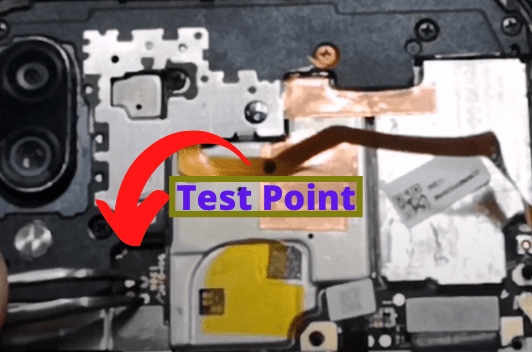
3– PCB Test Point
It Depends On the Brand, each brand has a Different Test Point location on a mobile Motherboard, You can Search for Test Point According to Your Model on Google.
Remove the battery Connector (the battery is not required for EDL mode)
Then Simply Short those Two Points Via Tweezer (Connect USB cable)
After Connect Phone You can see in The Device manager Highlighted in Ports Section Qualcomm HS-USB QDLoader 9008
-
5– Download button
♦ Now Simply Click On Download
Note:– Don’t touch the Phone while Flashing.
The flashing process may take Some time,
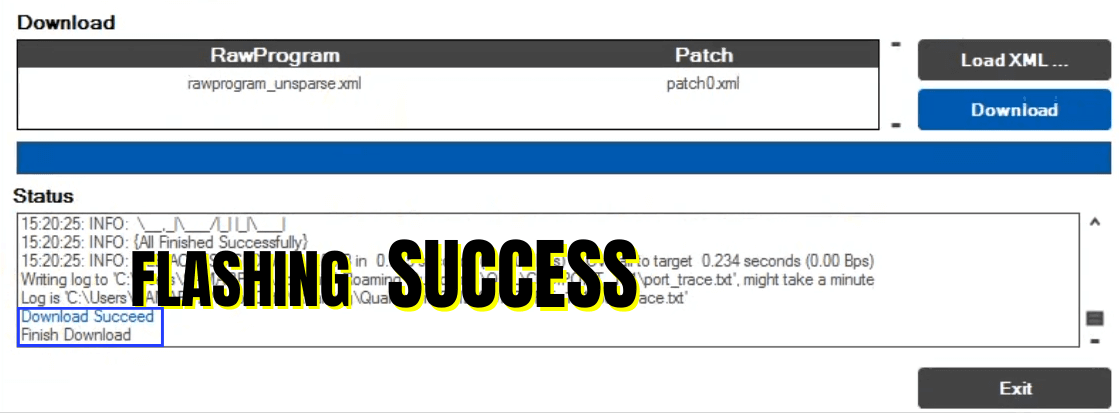
After Flashing Success connects the battery connector, power on the phone.
Now it’s Done You Are Successfully Flash Qualcomm Phone.
What to Do If The Phone Does Not Switch On After Flashing Or If You Get Any error in Qualcomm CPU Devices?
In This Condition, First You have to try the Above method.
IF You get Any error then You can Try Below Solutions.
- Try with a different version of the Flash Tool
- Try with ➡ QPST Tool (Qpsttool.com)
- Try to change Flash File
- Try To Check Mobile Battery, Charge or not
- Also IF You have UMT Dongle then You have to Try in UMT or Any Other Tool ( we will see Umt Guide in Upcoming Post)
IF Your issue does not solve After Tried Above Solutions, Then search Solution On YouTube And Google.
IF Your Phone Still Not On Maybe there is a Hardware issue or an EMMC issue.
What’s the difference between Flat build and Meta build?
The difference is in the content of the firmware and folder structure. Flat build contains patch.xml in the same folder with other files while Meta build contains contents.xml in the root of the folder.
-
Meta build:
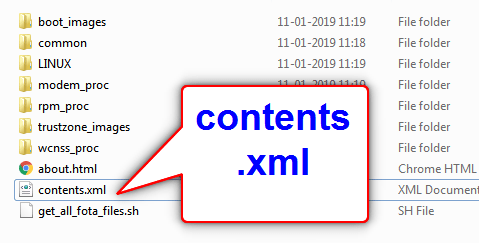
If You See Contents.XML file In Flash File Folder, Then You have to flash in the Meta Build tab.
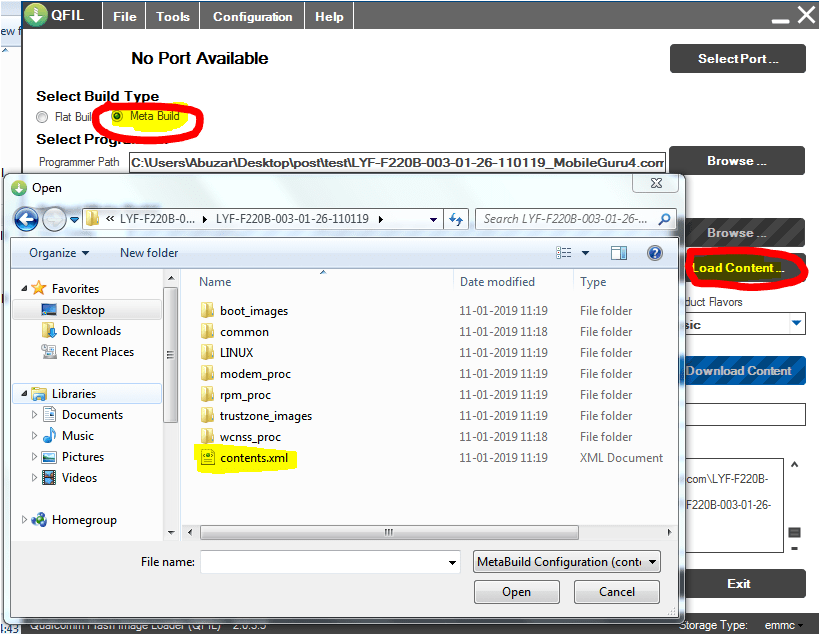
Then You have to Connect the phone in EDL mode, and Simply Click On Download Content Button.
IF you get any error in this Process, then simply change the tool, try with a different version.
Or Try With QPST Tool,
You can Also Use Qflash-tool For content type Flash Files
Download Qflash-tool from here ⇒ Qflash-tool
-
Download Fail Sahara Fail error in QFIL
With QFIL, one error You will eventually encounter is the Download Fail: Sahara Fail: QSaharaServer Fail: process fail error.
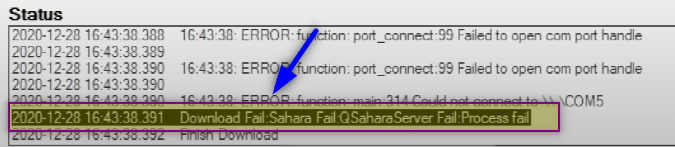
There are a number of reasons You may get this error so let’s see their Solutions.
Reasons for QFIL Sahara failure and solutions
- Incompatible firmware:- If you are trying to flash the wrong firmware or version of your device you may run into this error.
- using an old QFIL version:- you may run into this error while using an old version of QFIL.try with the latest version.
- using QFIL standalone:- There are two formats of QFIL- one which is co-installed with QPST and QFIL standalone . in case you’re encountering Sahara fail while using the QFIL standalone then install the latest version of QPST and use the QFIL that comes with it.
- Incompatible programmer file:- You Will usually find multiple programmer files (with firehose in the name) in your firmware, in case you do then consider trying the others in the firmware. If not, try With A different Flash File.
- Space in file path:- Check the file path to your firmware and ensure there’s no space in any of the directory names Example: C:\Users\Hovatek\Desktop\Hovatek_files\QFIL_Qualcomm instead of
C:\Users\Hovatek\Desktop\Hovatek files\QFIL Qualcomm
- Entering EDL Mode too early:- Entering and leaving the device in EDL mode for too long before flash should cause a Sahara error due to timeout. putting the device into EDL mode should be the last thing you do just before clicking download (which initiates flashing)
(Credits: Source hovatek.com)
I hope You understand All the Above Things About the Qualcomm CPU flashing guide.
Feel free to write in the comment section below. If You Have Any Query Regarding This Topic,
For Next Post Follow ➡ SPD Flashing Guide
In this guide, we will show you the steps to download, install and use the QFIL Tool to flash the MBN and XML firmware file. Qualcomm devices have the biggest share in the smartphone industry and this isn’t going to change anytime soon. Not only for the general users, but the devices with Qualcomm Snapdragon chipset also behold a plethora of opportunities for the tech enthusiasts as well.
However, no matter if you are a general user or a geek, there’s an important tool that you need to get hold of. And that is Qualcomm’s very own QFIL Tool. In this flash firmware guide, we will show you the steps to download, install and use the QFIL Tool to flash MBF and XML firmware. Without any further ado, let’s get started.
Table of Contents
What is QFIL Tool?
Qualcomm Flash Image Loader, or more popularly known as QFIL, is used to flash the stock firmware onto the Qualcomm Snapdragon devices. Apart from that, there is a plentitude of other functionalities that it beholds. Let’s check them out:
Unbrick and Fix Bootloop
By flashing the stock ROM onto your device, you could unbrick it as well as fix the bootloop issues.
Flash ELF and MBN Firmware
Talking about flashing firmware, it supports both the ELF and MBN firmware formats.
Portable Application
Being a portable app, you don’t need to install it on your PC. You could simply extract the tool and start working right away.
Download Latest Qualcomm Flash Image Loader QFIL Tool
You could now download the latest version of the QFIL Tool from the below link right away. Likewise, we have shared some older builds of this tool, in case, you might need it.
- Qfil_v2.0.3.5: Download
- Qfil_v2.0.3.4: Download
- QFIL_v2.0.2.3: Download
- QFIL_v2.0.1.9: Download
- QFIL_v2.0.1.8: Download
- QFIL_v2.0.1.7: Download
- QFIL_v2.0.1.1: Download
- QFIL_v2.0.0.5: Download
- QFIL_v2.0.0.4: Download
- QFIL_v2.0.0.3: Download
- QFIL_v2.0.0.2: Download
- QFIL_v2.0.0.0: Download
- QFIL_v1.0.0.3: Download
Download ELF/MBN Firmware
Now, download the MBN or ELF firmware corresponding to your device. This file will then be loaded onto the QFIL Tool and flashed onto your device. Make sure that you download the firmware corresponding to your device’s model number and the region as well. As far as the download links are concerned, there’s no official site as such. Google it and you shall get a plethora of sites offering these firmwares.
As already mentioned, this is a portable app, hence you don’t need to install it. Just extract it to any convenient location on your PC and double click on the QFIL.EXE file to launch the tool. With that said, let’s now move over to the next step to download, install and use the QFIL Tool to flash MBF and XML firmware.
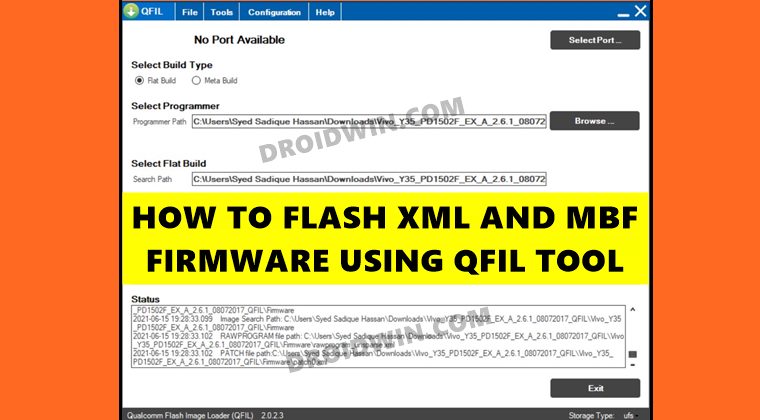
How to Use QFIL Tool
- To begin with, power off your device.
- Then press and hold the Volume Up key and connect your device to the PC via USB cable.
- Now double-click on the QFIL.exe file to open the tool.
- First off, select Flat Build under the Build Type section.

- Then click on the Browse button under the Select Programmer section, next to Programmer Path.
- Navigate to the MBN firmware file present inside the stock firmware and select it. The filename would be something along the lines of prog_emmc_firehose_****.mbn.

- Then click on the Load XML button, navigate to the firmware and select the rawprogram() file present there.

- Finally, hit the Download button and wait for the process to complete, which might take even up to 10-15 minutes.
- Once done, your device shall boot to the OS. You may now unplug the device from your PC and close the tool as well.

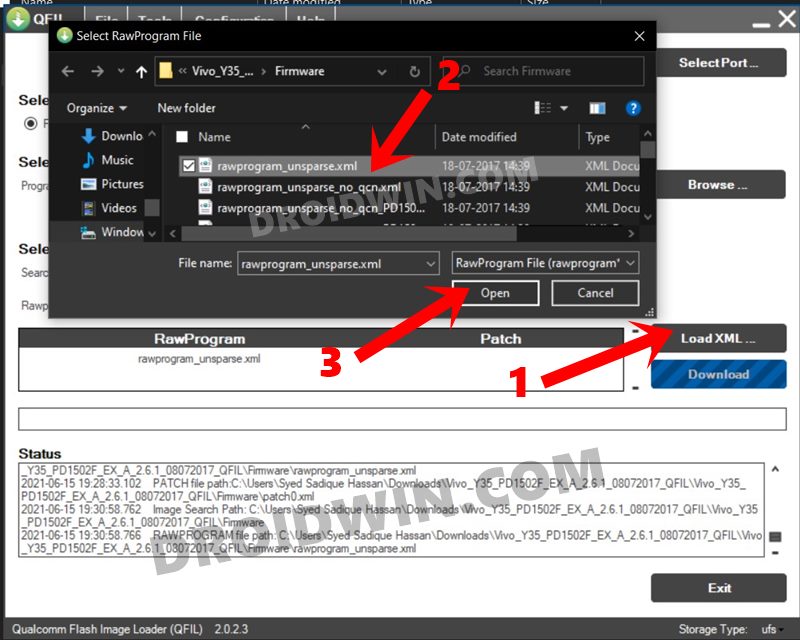
So this was all from this guide on how to download, install and use the QFIL Tool to flash the MBF and XML firmware file. If you have any queries concerning the aforementioned steps, do let us know in the comments. We will get back to you with a solution at the earliest.
Fix QFIL Download Fail Firehose Fail FHLoader Fail Process Fail
If you are getting the QFIL Download Fail Firehose Fail FHLoader Fail Process Fail error, then the fix is fairly simple. You need to download and install the QPST version v2.7.496. The rest of the flashing instructions are the same as mentioned above.
- How to Fix Sahara Fail/QSaharaServer Fail/Process Fail Error in QFIL Tool
- How to Extract KDZ, TOT, or DZ LG Firmware
- Boot any (Bricked/Unbricked) Android Device to EDL Mode
- Qualcomm HS-USB QDLoader 9008 Drivers: Download & Install