
Установка и настройка
Принтер Xerox
®
Phaser
®
6020
31
Руководство пользователя
Подключение с помощью поиска сетей
1.
Вставьте Software and Documentation disc (Диск с программным обеспечением и
документацией) в соответствующий привод компьютера. Если программа не запустится
автоматически, следует перейти к соответствующему диску и дважды щелкнуть файл
установки
Setup.exe.
2.
Выберите пункт Setup Printer and Install Software (Настройка принтера и установка
программного обеспечения).
3.
В окне лицензионного соглашения выберите Принимаю и нажмите кнопку Далее.
4.
В окне «Select a Connection Method» (Выберите тип подключения) выберите Wireless
(Беспроводное).
5.
В окне «Select a Wireless Setup Method» (Выберите способ настройки беспроводной сети)
выберите
Search for Networks (Поиск сетей).
6.
Проверьте правильность подключения кабеля USB.
7.
Выберите сеть и нажмите кнопку Далее.
8.
Введите кодовую фразу для беспроводной сети и нажмите кнопку Далее.
9.
В окне «Настройка принтера» нажмите кнопку Далее. Если требуется установить
настройки протокола IP вручную, нажмите кнопку
Дополнительно.
10.
При появлении указания отсоедините USB-кабель от принтера и нажмите кнопку Далее.
11.
Выберите принтер в списке.
Примечание:
Принтеру можно присвоить имя и открыть к нему доступ по сети, а также
назначить его принтером по умолчанию.
12.
Выберите пункт Установить драйвер принтера и нажмите кнопку Далее.
13.
В окне «Программное обеспечение и документация» снимите флажки для нежелательных
параметров.
14.
Нажмите кнопку Далее.
15.
Чтобы завершить установку, нажмите кнопку Готово.
Подключение с помощью функции Wi-Fi Direct
К принтеру можно подключаться с беспроводных мобильных устройств, такие как планшеты,
ноутбуки и смартфоны, с помощью функции Wi-Fi Direct.
Примечание:
Режим Wi-Fi Direct включен по умолчанию.
Включение функции Wi-Fi Direct
Для использования функции Wi-Fi Direct принтер должен быть подключен к компьютеру
кабелем USB или по беспроводной сети. См. раздел
Подключение принтера
Включение функции Wi-Fi Direct с компьютера:
1.
В программе настройки принтера перейдите на вкладку Обслуживание принтера.
2.
Выберите Сетевые настройки.
3.
В разделе «Wi-Fi Direct Setup» (Настройка Wi-Fi Direct) выберите Включить.
4.
Нажмите кнопку Применить новые настройки.
|
Код: 109809 Извините, товара сейчас нет в наличии
Бесплатная доставка Извините, товара сейчас нет в наличии Сравнить Новости интернет-магазина «Лаукар»:23.04.2025 26.02.2025 17.02.2025 Дополнительная информация в категории Лазерный принтер:Таблица Авторизованных сервисных центров по брендам. Описание Инструкция Отзывы (0) В интернет-магазине бытовой техники «Лаукар» Вы можете скачать инструкцию к товару Лазерный принтер Xerox Phaser 6020 совершенно бесплатно. Все инструкции, представленные на сайте интернет-магазина бытовой техники «Лаукар», предоставляются производителем товара. Для того чтобы скачать инструкцию, Вам необходимо нажать на ссылку «скачать инструкцию», расположенную ниже, а в случае, если ссылки нет, Скачать инструкцию Смотреть инструкцию 
Фирма-производитель оставляет за собой право на внесение изменений в конструкцию, дизайн и комплектацию товара: Лазерный принтер Xerox Phaser 6020. Пожалуйста, сверяйте информацию о товаре с информацией на |

Xerox® Phaser® 6020
Color Printer
Imprimante couleur
User Guide
Guide d’utilisation
Italiano Guida per l’utente
Deutsch Benutzerhandbuch
Español Guía del usuario
Português Guia do usuário
Nederlands Gebruikershandleiding
Svenska Användarhandbok
Dansk Betjeningsvejledning
Suomi Käyttöopas
Norsk Brukerhåndbok
Русский Руководство пользователя
Čeština Uživatelská příručka
Polski Przewodnik użytkownika
Magyar
Felhasználói útmutató
Türkçe
Kullanıcı Kılavuzu
Ελληνικά Εγχειρίδιο χρήστη

© 2015 Xerox Corporation. All rights reserved. Unpublished rights reserved under the copyright laws of the United States. Contents of
this publication may not be reproduced in any form without permission of Xerox Corporation.
Copyright protection claimed includes all forms of matters of copyrightable materials and information now allowed by statutory or
judicial law or hereinafter granted, including without limitation, material generated from the software programs which are displayed on
the screen such as styles, templates, icons, screen displays, looks, and so on.
®
Xerox
and Xerox and Design®, Phaser®, PhaserSMART®, PhaserMatch®, PhaserCal®, PhaserMeter™, CentreWare®, PagePack®, eClick®,
PrintingScout
Secure Access Unified ID System
®
, Walk-Up®, WorkCentre®, FreeFlow®, SMARTsend®, Scan to PC Desktop®, MeterAssistant®, SuppliesAssistant®, Xerox
®
, Xerox Extensible Interface Platform®, ColorQube®, Global Print Driver®, and Mobile Express Driver®
are trademarks of Xerox Corporation in the United States and/or other countries.
®
Reader®, Adobe® Type Manager®, ATM™, Flash®, Macromedia®, Photoshop®, and PostScript® are trademarks of
Adobe
Adobe Systems Incorporated in the United States and/or other countries.
Apple, Bonjour, EtherTalk, TrueType, iPad, iPhone, iPod, iPod touch, Mac and Mac OS are trademarks of Apple Inc., registered in the U.S.
and other countries. AirPrint and the AirPrint logo are trademarks of Apple Inc.
®
, HP-UX®, and PCL® are trademarks of Hewlett-Packard Corporation in the United States and/or other countries.
HP-GL
®
IBM
and AIX® are trademarks of International Business Machines Corporation in the United States and/or other countries.
Microsoft
®
, Windows Vista®, Windows®, and Windows Server® are trademarks of Microsoft Corporation in the United States and other
countries.
®
Novell
, NetWare®, NDPS®, NDS®, IPX™, and Novell Distributed Print Services™ are trademarks of Novell, Inc. in the United States and
other countries.
®
SGI
and IRIX® are trademarks of Silicon Graphics International Corp. or its subsidiaries in the United States and/or other countries.
Sun, Sun Microsystems, and Solaris are trademarks or registered trademarks of Oracle and/or its affiliates in the United States and
other countries.
®
McAfee
, ePolicy Orchestrator®, and McAfee ePO™ are trademarks or registered trademarks of McAfee, Inc. in the United States and
other countries.
®
UNIX
is a trademark in the United States and other countries, licensed exclusively through X/ Open Company Limited.
®
PANTONE
and other Pantone, Inc. trademarks are the property of Pantone, Inc.
Document version 1.1: February 2015
BR9749_en-us

Contents
1 Safety 9
Notices and Safety ……………………………………………………………………………………………………………………………………….. 10
Electrical Safety …………………………………………………………………………………………………………………………………………….. 11
General Guidelines ………………………………………………………………………………………………………………………………… 11
Power Cord ……………………………………………………………………………………………………………………………………………… 12
Emergency Turn Off ……………………………………………………………………………………………………………………………… 12
Operational Safety ……………………………………………………………………………………………………………………………………….. 13
Operational Guidelines …………………………………………………………………………………………………………………………. 13
Ozone Release ………………………………………………………………………………………………………………………………………… 13
Printer Location ……………………………………………………………………………………………………………………………………… 14
Printer Supplies ………………………………………………………………………………………………………………………………………. 14
Maintenance Safety …………………………………………………………………………………………………………………………………….. 15
Printer Symbols ……………………………………………………………………………………………………………………………………………… 16
Environmental, Health, and Safety Contact Information ……………………………………………………………………. 17
2 Features 19
Parts of the Printer ……………………………………………………………………………………………………………………………………….. 20
Front View ……………………………………………………………………………………………………………………………………………….. 20
Rear View ………………………………………………………………………………………………………………………………………………… 20
Control Panel ………………………………………………………………………………………………………………………………………….. 21
Information Pages ……………………………………………………………………………………………………………………………………….. 22
Printing the Printer Information Pages from the Control Panel ………………………………………………….. 22
Printing the Printer Information Pages from Your Computer ……………………………………………………… 22
Power Saver Mode ………………………………………………………………………………………………………………………………………… 23
Changing Power Saver Mode Settings Using Windows ………………………………………………………………… 23
Exiting Power Saver Mode ……………………………………………………………………………………………………………………
Administrative Features ………………………………………………………………………………………………………………………………. 24
Finding the IP Address of Your Printer ……………………………………………………………………………………………… 24
CentreWare Internet Services …………………………………………………………………………………………………………….. 24
More Information …………………………………………………………………………………………………………………………………………. 25
23
3 Installation and Setup 27
Installation and Setup Overview ……………………………………………………………………………………………………………….. 28
Selecting a Location for the Printer ………………………………………………………………………………………………………….. 29
Connecting the Printer…………………………………………………………………………………………………………………………………. 30
Selecting a Connection Method …………………………………………………………………………………………………………. 30
Connecting to a Computer Using USB ……………………………………………………………………………………………… 31
Connecting to a Wireless Network …………………………………………………………………………………………………….. 31
Connecting to Wi-Fi Direct ………………………………………………………………………………………………………………….. 33
Installing the Software ………………………………………………………………………………………………………………………………… 34
®
Xerox
User Guide
Phaser® 6020 Printer 3

Contents
Operating System Requirements ……………………………………………………………………………………………………….. 34
Installing the Print Drivers for a Windows Network Printer ………………………………………………………….. 35
Installing the Print Drivers for a Windows USB Printer …………………………………………………………………. 35
Installing the Drivers and Utilities for Macintosh OS X Version 10.5 and Later ………………………. 36
Configuring Network Settings ……………………………………………………………………………………………………………………. 38
About TCP/IP and IP Addresses …………………………………………………………………………………………………………. 38
Assigning the IP Address of the Printer …………………………………………………………………………………………….. 38
Configuring General Settings Using CentreWare Internet Services ………………………………………………….. 40
Viewing Printer Information ……………………………………………………………………………………………………………….. 40
Configuring Printer Defaults ……………………………………………………………………………………………………………….. 40
Resetting the Printer ……………………………………………………………………………………………………………………………… 41
Configuring Security Settings Using CentreWare Internet Services ………………………………………………….. 42
Opening the Security Menu …………………………………………………………………………………………………………………. 42
Configuring Administrative Security Settings …………………………………………………………………………………. 42
Configuring the Host Access List ………………………………………………………………………………………………………… 43
Managing Certificates ………………………………………………………………………………………………………………………….. 45
Configuring AirPrint ……………………………………………………………………………………………………………………………………… 47
Installing the Printer as a Web Services Device ……………………………………………………………………………………… 48
4 Paper and Media 49
Supported Paper …………………………………………………………………………………………………………………………………………… 50
Ordering Paper ……………………………………………………………………………………………………………………………………….. 50
General Paper Loading Guidelines …………………………………………………………………………………………………….. 50
Paper That Can Damage Your Printer ………………………………………………………………………………………………. 51
Paper Storage Guidelines …………………………………………………………………………………………………………………….. 51
Supported Paper Types and Weights ………………………………………………………………………………………………… 52
Supported Standard Paper Sizes …………………………………………………………………………………………………………
52
Supported Custom Paper Sizes …………………………………………………………………………………………………………… 52
Loading Paper ……………………………………………………………………………………………………………………………………………….. 53
Printing on Special Paper …………………………………………………………………………………………………………………………….. 56
Envelopes ………………………………………………………………………………………………………………………………………………… 56
Printing Labels ………………………………………………………………………………………………………………………………………… 59
Printing on Glossy Cardstock ………………………………………………………………………………………………………………. 59
5 Printing 61
Printing Overview ………………………………………………………………………………………………………………………………………….. 62
Selecting Printing Options …………………………………………………………………………………………………………………………… 63
Windows Printing Options …………………………………………………………………………………………………………………… 63
Macintosh Printing Options …………………………………………………………………………………………………………………. 65
Printing from Mobile Devices …………………………………………………………………………………………………………………….. 66
Printing with Wi-Fi Direct …………………………………………………………………………………………………………………….. 66
Printing with AirPrint …………………………………………………………………………………………………………………………….. 66
Printing with Xerox
Using Custom Paper Sizes …………………………………………………………………………………………………………………………… 68
Defining Custom Paper Sizes ………………………………………………………………………………………………………………. 68
®
PrintBack …………………………………………………………………………………………………………… 67
4 Xerox
User Guide
®
Phaser® 6020 Printer

Contents
Printing on Custom Paper Sizes ………………………………………………………………………………………………………….. 69
Printing on Both Sides of the Paper ………………………………………………………………………………………………………….. 71
Setting Up 2-Sided Printing …………………………………………………………………………………………………………………. 71
Loading Paper for Manual 2-Sided Printing …………………………………………………………………………………….. 72
6 Maintenance 73
Cleaning the Printer ……………………………………………………………………………………………………………………………………… 74
General Precautions ………………………………………………………………………………………………………………………………. 74
Cleaning the Exterior …………………………………………………………………………………………………………………………….. 75
Cleaning the Interior …………………………………………………………………………………………………………………………….. 75
Ordering Supplies ………………………………………………………………………………………………………………………………………….. 80
Consumables ………………………………………………………………………………………………………………………………………….. 80
When to Order Supplies ……………………………………………………………………………………………………………………….. 80
Recycling Supplies …………………………………………………………………………………………………………………………………. 80
Toner Cartridges ……………………………………………………………………………………………………………………………………………. 81
General Precautions ………………………………………………………………………………………………………………………………. 81
Replacing a Toner Cartridge ……………………………………………………………………………………………………………….. 81
Refreshing the Toner …………………………………………………………………………………………………………………………….. 82
Cleaning the Developer ………………………………………………………………………………………………………………………… 82
Adjustments and Maintenance Procedures ……………………………………………………………………………………………. 83
Color Registration ………………………………………………………………………………………………………………………………….. 83
Adjusting the Paper Type …………………………………………………………………………………………………………………….. 83
Adjusting the Bias Transfer Roller ……………………………………………………………………………………………………… 84
Adjusting the Fuser ……………………………………………………………………………………………………………………………….. 84
Refreshing the Bias Transfer Roller ……………………………………………………………………………………………………. 84
Adjusting the Altitude…………………………………………………………………………………………………………………………… 84
Checking Page Counts …………………………………………………………………………………………………………………………………. 85
Moving the Printer ………………………………………………………………………………………………………………………………………… 86
7 Troubleshooting 89
General Troubleshooting …………………………………………………………………………………………………………………………….. 90
Printer Does Not Turn On …………………………………………………………………………………………………………………….. 90
Printer Resets or Turns Off Frequently ………………………………………………………………………………………………. 90
Printer Does Not Print …………………………………………………………………………………………………………………………… 91
Printing Takes Too Long ………………………………………………………………………………………………………………………. 92
Printer is Making Unusual Noises ………………………………………………………………………………………………………. 92
Condensation has Formed Inside the Printer ………………………………………………………………………………….. 92
Paper Jams …………………………………………………………………………………………………………………………………………………….. 93
Minimizing Paper Jams ………………………………………………………………………………………………………………………… 93
Locating Paper Jams …………………………………………………………………………………………………………………………….. 95
Clearing Paper Jams ……………………………………………………………………………………………………………………………… 96
Troubleshooting Paper Jams ………………………………………………………………………………………………………………. 99
Print-Quality Problems ……………………………………………………………………………………………………………………………….. 101
Controlling Print Quality …………………………………………………………………………………………………………………….. 101
Solving Print-Quality Problems ………………………………………………………………………………………………………….. 102
Xerox
User Guide
®
Phaser® 6020 Printer 5

Contents
Getting Help …………………………………………………………………………………………………………………………………………………. 107
Printer Error Indicators ……………………………………………………………………………………………………………………….. 107
PrintingScout Alerts …………………………………………………………………………………………………………………………….. 108
Online Support Assistant ……………………………………………………………………………………………………………………. 108
A Specifications 109
Standard Features ………………………………………………………………………………………………………………………………………. 110
Physical Specifications……………………………………………………………………………………………………………………………….. 111
Dimensions and Weight …………………………………………………………………………………………………………………….. 111
Total Space Requirements …………………………………………………………………………………………………………………. 111
Clearance Requirements …………………………………………………………………………………………………………………….. 111
Environmental Specifications …………………………………………………………………………………………………………………… 112
Temperature …………………………………………………………………………………………………………………………………………. 112
Relative Humidity ………………………………………………………………………………………………………………………………… 112
Elevation ………………………………………………………………………………………………………………………………………………… 112
Electrical Specifications ……………………………………………………………………………………………………………………………… 113
Power Supply Voltage and Frequency …………………………………………………………………………………………….. 113
Power Consumption ……………………………………………………………………………………………………………………………. 113
ENERGY STAR Qualified Product ……………………………………………………………………………………………………… 113
Performance Specifications ………………………………………………………………………………………………………………………. 114
Controller Specifications ……………………………………………………………………………………………………………………………. 115
Processor ………………………………………………………………………………………………………………………………………………… 115
Memory ………………………………………………………………………………………………………………………………………………….. 115
Interfaces ………………………………………………………………………………………………………………………………………………. 115
B Regulatory Information 117
Basic Regulations ………………………………………………………………………………………………………………………………………… 118
United States FCC Regulations …………………………………………………………………………………………………………. 118
Canada …………………………………………………………………………………………………………………………………………………… 118
European Union …………………………………………………………………………………………………………………………………… 119
European Union Lot 4 Imaging Equipment Agreement Environmental Information ………….. 119
Germany ………………………………………………………………………………………………………………………………………………… 121
Turkey RoHS Regulation …………………………………………………………………………………………………………………….. 121
Regulatory Information for 2.4 GHz Wireless Network Adapter ……………………………………………….. 122
Material Safety Data Sheets…………………………………………………………………………………………………………………….. 123
C Recycling and Disposal 125
All Countries …………………………………………………………………………………………………………………………………………………. 126
North America ……………………………………………………………………………………………………………………………………………… 127
European Union …………………………………………………………………………………………………………………………………………… 128
Domestic/Household Environment ………………………………………………………………………………………………….. 128
Professional/Business Environment …………………………………………………………………………………………………. 128
Collection and Disposal of Equipment and Batteries …………………………………………………………………… 129
Battery Symbol Note …………………………………………………………………………………………………………………………… 129
Battery Removal …………………………………………………………………………………………………………………………………… 129
6 Xerox
User Guide
®
Phaser® 6020 Printer

Other Countries……………………………………………………………………………………………………………………………………………. 130
Contents
Xerox
®
Phaser® 6020 Printer 7
User Guide


This chapter includes:
• Notices and Safety ………………………………………………………………………………………………………………………………………….. 10
• Electrical Safety ……………………………………………………………………………………………………………………………………………….. 11
• Operational Safety ………………………………………………………………………………………………………………………………………….. 13
• Maintenance Safety ……………………………………………………………………………………………………………………………………….. 15
• Printer Symbols ………………………………………………………………………………………………………………………………………………… 16
• Environmental, Health, and Safety Contact Information ………………………………………………………………………. 17
Your printer and the recommended supplies have been designed and tested to meet strict safety
requirements. Attention to the following information ensures the continued safe operation of your Xerox
printer.
Xerox
User Guide
®
Phaser® 6020 Printer 9

Safety
Notices and Safety
Please read the following instructions carefully before operating your printer. Refer to these instructions
to ensure the continued safe operation of your printer.
®
Your Xerox
include safety agency evaluation and certification, and compliance with electromagnetic regulations
and established environmental standards.
The safety and environment testing and performance of this product have been verified using Xerox
materials only.
Note: Unauthorized alterations, which can include the addition of new functions or connection of
external devices, can affect the product certification. Please contact your Xerox representative for
more information.
printer and supplies are designed and tested to meet strict safety requirements. These
®
10 Xerox
User Guide
®
Phaser® 6020 Printer

Safety
• Emergency Turn Off ………………………………………………………………………………………………………………………………………… 12
Electrical Safety
This section includes:
• General Guidelines ………………………………………………………………………………………………………………………………………….. 11
• Power Cord ………………………………………………………………………………………………………………………………………………………… 12
General Guidelines
WARNINGS:
• Do not push objects into slots or openings on the printer. Touching a voltage point or shorting
out a part could result in fire or electric shock.
• Do not remove the covers or guards that are fastened with screws unless you are installing
optional equipment and are instructed to do so. Turn off the printer when performing these
installations. Disconnect the power cord when removing covers and guards for installing optional
equipment. Except for user-installable options, there are no parts that you can maintain or
service behind these covers.
The following are hazards to your safety:
• The power cord is damaged or frayed.
• Liquid is spilled into the printer.
• The printer is exposed to water.
• The printer emits smoke, or the surface is unusually hot.
• The printer emits unusual noise or odors.
• The printer causes a circuit breaker, fuse, or other safety device to activate.
If any of these conditions occur, do the following:
1. Turn off the printer immediately.
2. Disconnect the power cord from the electrical outlet.
3. Call an authorized service representative.
Xerox
User Guide
®
Phaser® 6020 Printer 11

Safety
Power Cord
Use the power cord supplied with your printer.
• Plug the power cord directly into a properly grounded electrical outlet. Ensure that each end of the
cord is connected securely. If you do not know if an outlet is grounded, ask an electrician to check
the outlet.
WARNING: To avoid risk of fire or electrical shock, do not use extension cords, power strips, or power
plugs for more than 90 days. When a permanent outlet receptacle cannot be installed, use only one
factory-assembled extension cord of the appropriate gauge per printer or multifunction printer.
Always adhere to national and local building, fire, and electrical codes regarding length of cord,
conductor size, grounding, and protection.
• Do not use a ground adapter plug to connect the printer to an electrical outlet that does not have a
ground connection terminal.
• Verify that the printer is plugged into an outlet that is providing the correct voltage and power.
Review the electrical specification of the printer with an electrician if necessary.
• Do not place the printer in an area where people can step on the power cord.
• Do not place objects on the power cord.
• Do not plug or unplug the power cord while the power switch is in the On position.
• If the power cord becomes frayed or worn, replace it.
• To avoid electrical shock and damage to the cord, grasp the plug when unplugging the power cord.
The power cord is attached to the printer as a plug-in device on the back of the printer. If it is necessary
to disconnect all electrical power from the printer, disconnect the power cord from the electrical outlet.
Emergency Turn Off
If any of the following conditions occur, turn off the printer immediately and disconnect the power cord
from the electrical outlet. Contact an authorized Xerox service representative to correct the problem if:
• The equipment emits unusual odors or makes unusual noises.
• The power cable is damaged or frayed.
• A wall panel circuit breaker, fuse, or other safety device has been tripped.
• Liquid is spilled into the printer.
• The printer is exposed to water.
• Any part of the printer is damaged.
12 Xerox
User Guide
®
Phaser® 6020 Printer

Safety
Operational Safety
Your printer and supplies were designed and tested to meet strict safety requirements. These include
safety agency examination, approval, and compliance with established environmental standards.
Your attention to the following safety guidelines helps to ensure the continued, safe operation of your
printer.
Operational Guidelines
• Do not remove any trays while the printer is printing.
• Do not open the doors when the printer is printing.
• Do not move the printer while is printing.
• Keep hands, hair, neckties, and so on away from the exit and feed rollers.
• Covers, which require tools for removal, protect the hazard areas within the printer. Do not remove
the protective covers.
• Do not override any electrical or mechanical interlock devices.
• Do not attempt to remove paper that is jammed deeply inside the product. Switch off the product
promptly and contact your local Xerox representative.
WARNING: The metallic surfaces in the fuser area are hot. Always use caution when removing paper
jams from this area and avoid touching any metallic surfaces.
Ozone Release
This printer produces ozone during normal operation. The amount of ozone produced is dependent on
copy volume. Ozone is heavier than air and is not produced in amounts large enough to harm anyone.
Install the printer in a well-ventilated room.
For more information in the United States and Canada, go to www.xerox.com/environment. In other
markets, please contact your local Xerox representative or go to www.xerox.com/environment_europe.
Xerox
User Guide
®
Phaser® 6020 Printer 13

Safety
Printer Location
• Place the printer on a level, solid, non-vibrating surface with adequate strength to hold its weight.
To find the weight for your printer configuration, see Physical Specifications on page 111.
• Do not block or cover the slots or openings on the printer. These openings are provided for
ventilation and to prevent overheating of the printer.
• Place the printer in an area where there is adequate space for operation and servicing.
• Place the printer in a dust-free area.
• Do not store or operate the printer in an extremely hot, cold, or humid environment.
• Do not place the printer near a heat source.
• Do not place the printer in direct sunlight to avoid exposure to light-sensitive components.
• Do not place the printer where it is directly exposed to the cold air flow from an air conditioning
system.
• Do not place the printer in locations susceptible to vibrations.
• For optimum performance, use the printer at the elevations specified in Elevation on page 112.
Printer Supplies
• Use the supplies designed for your printer. The use of unsuitable materials can cause poor
performance and a possible safety hazard.
• Follow all warnings and instructions marked on, or supplied with, the product, options, and supplies.
• Store all consumables in accordance with the instructions given on the package or container.
• Keep all consumables away from the reach of children.
• Never throw toner, print/drum cartridges, or toner containers into an open flame.
• When handling cartridges, for example toner and such, avoid skin or eye contact. Eye contact can
cause irritation and inflammation. Do not attempt to disassemble the cartridge, which can increase
the risk of skin or eye contact.
CAUTION: Use of non-Xerox supplies is not recommended. The Xerox Warranty, Service Agreement,
and Total Satisfaction Guarantee do not cover damage, malfunction, or degradation of performance
caused by use of non-Xerox supplies, or the use of Xerox supplies not specified for this printer. The
Total Satisfaction Guarantee is available in the United States and Canada. Coverage could vary
outside these areas. Please contact your Xerox representative for details.
14 Xerox
User Guide
®
Phaser® 6020 Printer

Safety
Maintenance Safety
• Do not attempt any maintenance procedure that is not specifically described in the documentation
supplied with your printer.
• Clean with a dry lint-free cloth only.
®
• Do not burn any consumables or routine maintenance items. For information on Xerox
recycling programs, go to www.xerox.com/gwa.
WARNING:
Do not use aerosol cleaners. Aerosol cleaners can cause explosions or fires when used on
electromechanical equipment.
supplies
Xerox
User Guide
®
Phaser® 6020 Printer 15
Safety
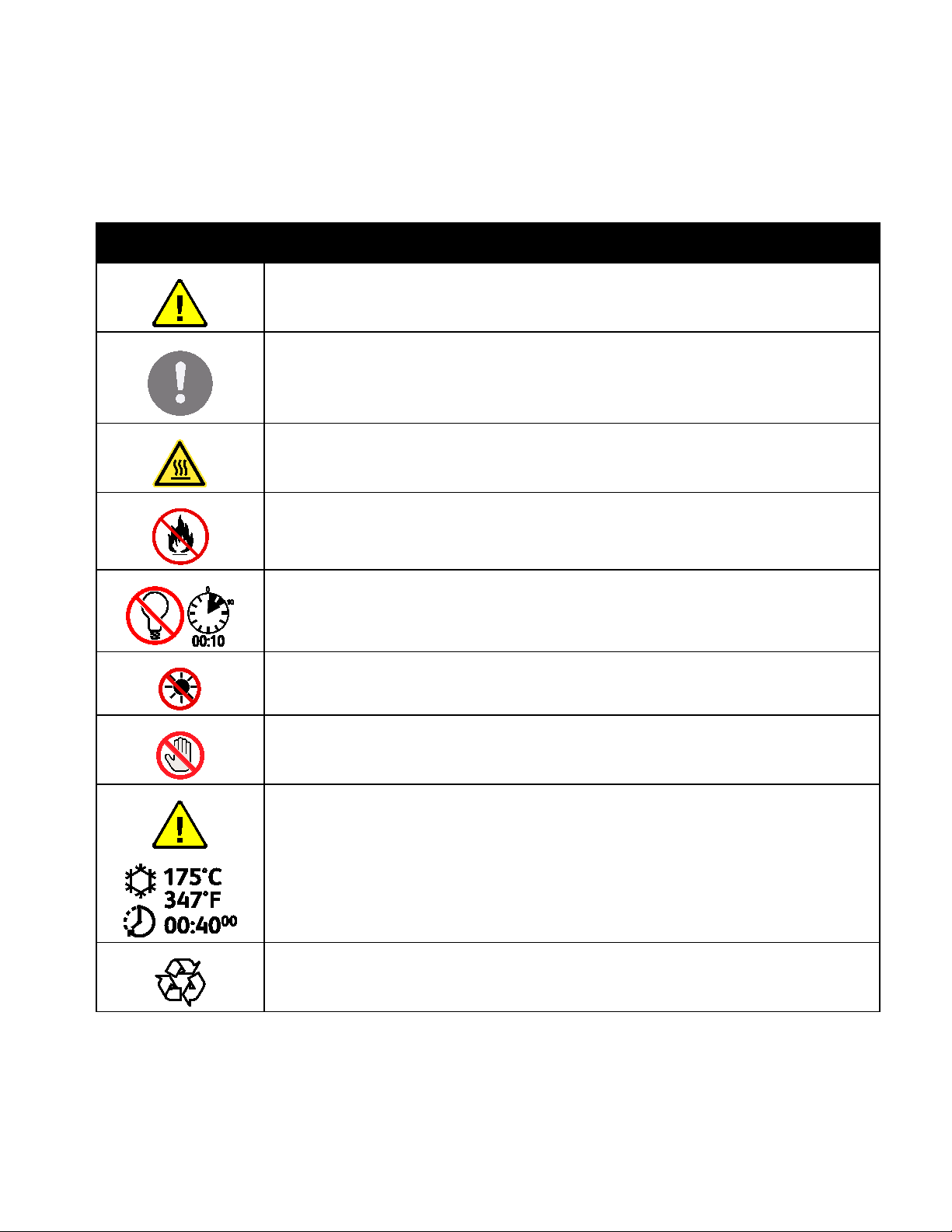
Printer Symbols
Symbol Description
Warning:
Indicates a hazard which, if not avoided, could result in death or serious injury.
Caution:
Indicates a mandatory action to take in order to avoid damage to the property.
Hot surface on or in the printer. Use caution to avoid personal injury.
Do not burn the item.
Do not expose the imaging unit to light for more than 10 minutes.
Do not expose the imaging unit to direct sunlight.
Do not touch the part or area of the printer.
Warning:
Wait for the printer to cool for the specified time before touching the fuser.
This item can be recycled. For details, see Recycling and Disposal on page 125.
16 Xerox
User Guide
®
Phaser® 6020 Printer

Safety
Environmental, Health, and Safety Contact
Information
For more information on Environment, Health, and Safety in relation to this Xerox product and supplies,
contact the following customer help lines:
United States and Canada: 1-800-ASK-XEROX (1-800-275-9376)
For product safety information in the United States and Canada, go to www.xerox.com/environment.
For product safety information in Europe, go to www.xerox.com/environment_europe.
Xerox
User Guide
®
Phaser® 6020 Printer 17


• More Information ……………………………………………………………………………………………………………………………………………. 25
This chapter includes:
• Parts of the Printer…………………………………………………………………………………………………………………………………………… 20
• Information Pages ………………………………………………………………………………………………………………………………………….. 22
• Power Saver Mode …………………………………………………………………………………………………………………………………………… 23
• Administrative Features …………………………………………………………………………………………………………………………………. 24
®
Xerox
User Guide
Phaser® 6020 Printer 19
Features
• Control Panel…………………………………………………………………………………………………………………………………………………….. 21
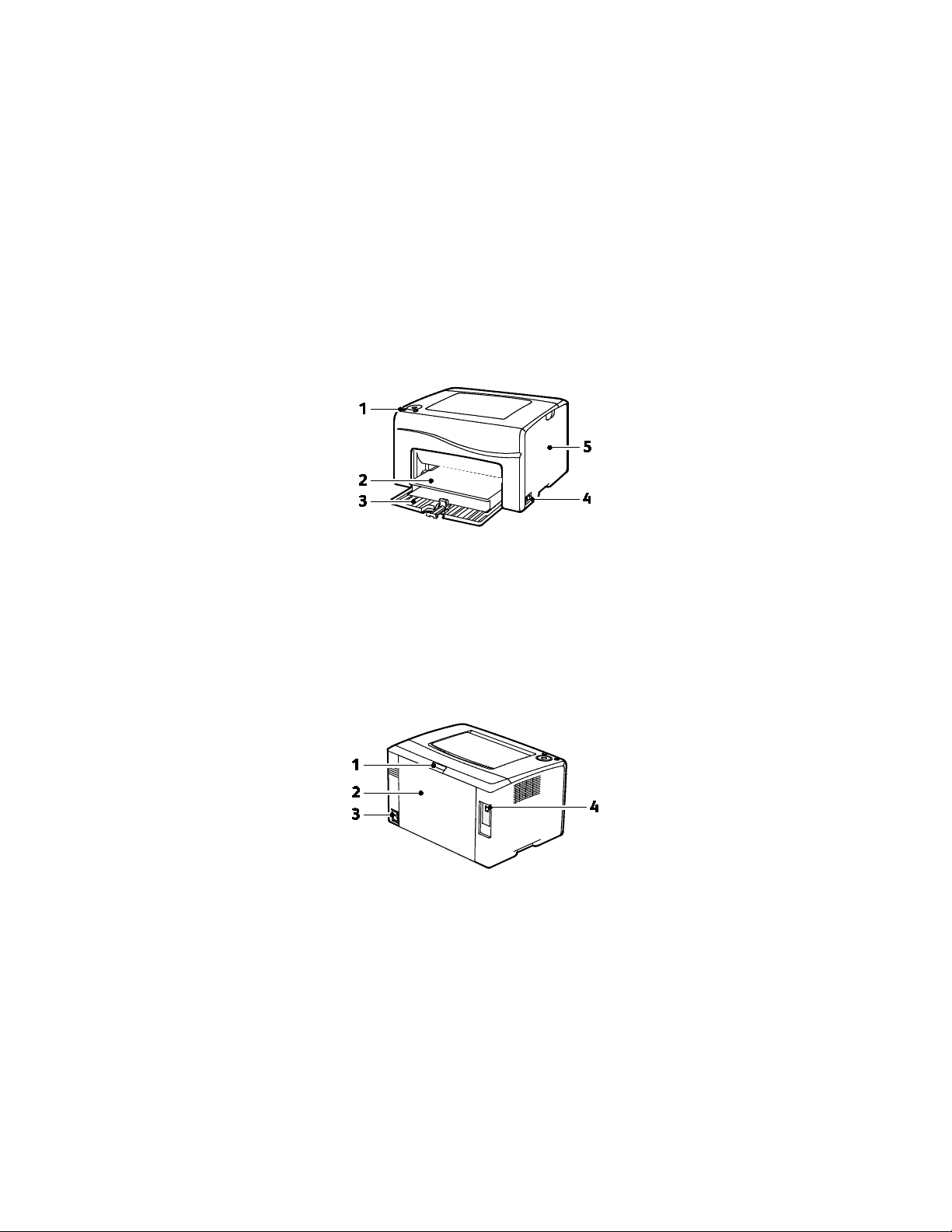
Parts of the Printer
This section includes:
• Front View …………………………………………………………………………………………………………………………………………………………. 20
• Rear View …………………………………………………………………………………………………………………………………………………………… 20
Front View
1. Control Panel
2. Dust Cover
3. Paper Tray
4. Power Switch
5. Side Door
Rear View
1. Rear Door Release Button
2. Rear Door
3. Power Connector
4. USB Port
20 Xerox
®
Phaser® 6020 Printer
User Guide
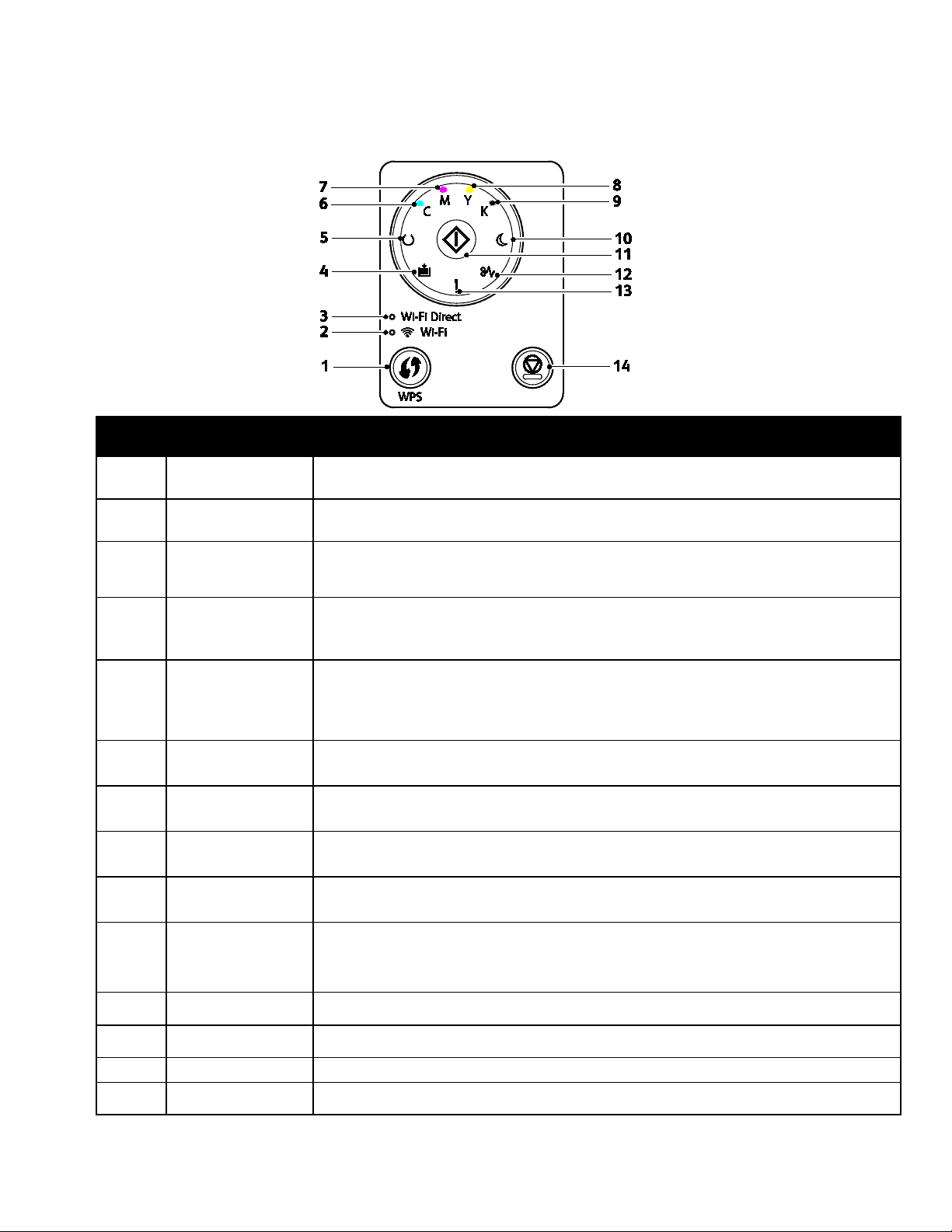
Control Panel
Features
Item Name Description
1
2
3
4
5
6
7
8
9
10
WPS Button To establish a wireless connection, first, press the button on the printer, then press the
button on your wireless router.
Wi-Fi Light This light indicates that a wireless connection is established between the printer and the
wireless router.
Wi-Fi Direct® Light This light flashes to indicate that there is a connection between the printer and a
wireless device, such as a smart phone or tablet.
Load Paper Light This light flashes if there is a jam in the paper tray, the printer is out of paper, or there is
a paper size mismatch.
If the light is on but not flashing, see Troubleshooting on page 89.
Ready/Data Light The light appears green when the printer is ready to receive data, and blinks when the
printer is busy receiving data.
If the Ready/Data and the Power Saver lights are both flashing, the printer is canceling a
print job.
Cyan Toner Light This light indicates that the Cyan toner is low.
Flashing indicates that the toner is empty or non-Xerox
Magenta Toner
Light
This light indicates that the Magenta toner is low.
Flashing indicates that the toner is empty or non-Xerox
Yellow Toner Light This light indicates that the Yellow toner is low.
Flashing indicates that the toner is empty or non-Xerox
Black Toner Light This light indicates that the Black toner is low.
Flashing indicates that the toner is empty or non-Xerox
Power Saver Light This light indicates that the printer is in Low Power or Sleep mode.
If the Ready/Data and the Power Saver lights are both flashing, the printer is canceling a
print job.
®
toner is installed.
®
toner is installed.
®
toner is installed.
®
toner is installed.
11
12
OK
Jam Light This light indicates that there is a paper jam in the printer.
To resume the print job, press OK.
13 Error Light This light indicates an error condition or warning that requires your attention.
14
Xerox
Cancel Button To end printing jobs, press this button.
®
Phaser® 6020 Printer 21
User Guide

Features
Information Pages
Your printer has a printable set of information pages. These pages include configuration, panel settings,
error history, and more.
Printing the Printer Information Pages from the Control Panel
To print the information pages, at the control panel, press and hold the OK button for approximately
four seconds until the printer activates.
Printing the Printer Information Pages from Your Computer
You can use the Xerox® Office Printing utility included on your installation CD to print the following:
• Configuration Page
• Panel Settings
• Job History
• Error History
• Demonstration Page
To print information pages:
Note: The following procedure is for Windows 7.
1. Click Start > All Programs > Xerox Office Printing > Phaser 6020 > Printer Settings Utility.
2. Click the Printer Settings Report tab.
3. Click Information Pages.
4. Select the page that you want to print.
22 Xerox
User Guide
®
Phaser® 6020 Printer

Features
Power Saver Mode
You can set the time the printer spends idle in ready mode before the printer transitions to a lower
power level.
There are two levels of Power Saver mode.
• Mode 1 (Low Power): The printer shifts from Ready mode to Low Power mode to reduce standby
power consumption.
• Mode 2 (Sleep): The printer shifts from Low Power mode to Sleep mode for a greater reduction in
power consumption.
Changing Power Saver Mode Settings Using Windows
To change the Power Saver mode settings:
1. Launch the Printer Setting Utility, then select the Printer Maintenance tab.
2. For Mode 1 and Mode 2, select the number of minutes.
Exiting Power Saver Mode
The printer exits Power Saver mode automatically when it receives data from a connected device.
To exit Power Saver mode manually, on the control panel, press the Power Saver button.
Xerox
User Guide
®
Phaser® 6020 Printer 23

Features
Administrative Features
Finding the IP Address of Your Printer
You can view the IP address of your printer on the Configuration Page.
CentreWare Internet Services
CentreWare Internet Services is the administration and configuration software installed on the
embedded Web server in the printer. It allows you to configure and administer the printer from a Web
browser.
CentreWare Internet Services requires:
• A TCP/IP connection between the printer and the network in Windows, Macintosh, UNIX, or Linux
environments.
• TCP/IP and HTTP enabled on the printer.
• A network-connected computer with a Web browser.
Accessing CentreWare Internet Services
At your computer, open a Web browser, in the address field, type the IP address of the printer, then press
Enter or Return.
Logging In to CentreWare Internet Services
When Administrator Mode is enabled, the Jobs, Address Book, Properties, and Support tabs are locked
until you enter the administrator user name and password.
To log in to CentreWare Internet Services as the administrator:
1. At your computer, open a Web browser, in the address field, type the IP address of the printer, then
press Enter or Return.
Note: If you do not know the IP address of your printer, see Finding the IP Address of Your Printer on
page 24.
2. Click the Jobs, Address Book, Properties, or Support tab.
3. Type the administrator user name.
4. Type your password, then click Login.
24 Xerox
®
Phaser® 6020 Printer
User Guide
More Information
You can obtain more information about your printer from these sources:
Resource Location
Features
Installation Guide
Quick Use Guide
Other documentation for your printer www.xerox.com/office/6020docs
Technical support information for your printer;
including online technical support, Online Support
Assistant, and driver downloads.
Information Pages Print from the control panel, or from CentreWare
CentreWare Internet Services documentation
Order supplies for your printer www.xerox.com/office/6020supplies
A resource for tools and information, including
interactive tutorials, printing templates, helpful tips,
and customized features to meet your individual
needs.
Local sales and support center www.xerox.com/office/worldcontacts
Printer registration www.xerox.com/office/register
Xerox® Direct online store www.direct.xerox.com/
Packaged with the printer.
Packaged with the printer.
www.xerox.com/office/6020support
Internet Services, click Status > Information Pages.
In CentreWare Internet Services, click Help.
www.xerox.com/office/businessresourcecenter
Xerox
User Guide
®
Phaser® 6020 Printer 25


• Installing the Printer as a Web Services Device ………………………………………………………………………………………… 48
Online Support Assistant at www.xerox.com/office/6020support
This chapter includes:
• Installation and Setup Overview ………………………………………………………………………………………………………………….. 28
• Selecting a Location for the Printer ……………………………………………………………………………………………………………… 29
• Connecting the Printer ……………………………………………………………………………………………………………………………………. 30
• Installing the Software …………………………………………………………………………………………………………………………………… 34
• Configuring Network Settings ………………………………………………………………………………………………………………………. 38
• Configuring General Settings Using CentreWare Internet Services …………………………………………………….. 40
• Configuring Security Settings Using CentreWare Internet Services …………………………………………………….. 42
• Configuring AirPrint ………………………………………………………………………………………………………………………………………… 47
See also:
Installation Guide packaged with your printer.
®
Xerox
User Guide
Phaser® 6020 Printer 27

Installation and Setup
Installing the Software on page 34
Installation and Setup Overview
Before printing, your computer and the printer must be plugged in, turned on, and connected. Configure
the initial settings of the printer, then install the print driver software and utilities on your computer.
You can connect to your printer directly from your computer using a USB cable or a wireless network
connection.
Note: If the Software and Documentation disc is not available, you can download the latest drivers
from www.xerox.com/office/6020drivers.
See also:
Selecting a Location for the Printer on page 29
Choosing a Connection Method on page 30
Connecting the Printer on page 30
Configuring Network Settings on page 38
28 Xerox
User Guide
®
Phaser® 6020 Printer

Installation and Setup
Clearance Requirements on page 111
Selecting a Location for the Printer
1. Select a dust-free area with temperatures from 10–32°C (50–90°F), and relative humidity 15–85%.
Note: Sudden temperature fluctuations can affect print quality. Rapid heating of a cold room can
cause condensation inside the printer, directly interfering with image transfer.
2. Place the printer on a level, solid, non-vibrating surface with adequate strength for the weight of the
printer. The printer must be horizontal with all four feet in solid contact with the surface. To find the
weight for your printer configuration, see Physical Specifications on page 111.
After positioning the printer, you are ready to connect it to the power source and computer or network.
See also:
Total Space Requirements on page 111
Xerox
User Guide
®
Phaser® 6020 Printer 29

Installation and Setup
• Connecting to Wi-Fi Direct …………………………………………………………………………………………………………………………….. 33
Connecting the Printer
This section includes:
• Selecting a Connection Method …………………………………………………………………………………………………………………… 30
• Connecting to a Computer Using USB ……………………………………………………………………………………………………….. 31
• Connecting to a Wireless Network……………………………………………………………………………………………………………….. 31
Selecting a Connection Method
You can connect to your printer directly from your computer using a USB cable or Wi-Fi Direct, or over a
wireless network using WPS. A USB connection is a direct connection and is the easiest to set up. A
wireless connection is used for networking. If you are using a network connection, it is important to
understand how your computer is connected to the network. For details, see About TCP/IP and IP
Addresses on page 38.
Note: Hardware and cabling requirements vary for the different connection methods. Routers, network
hubs, network switches, and modems are not included with your printer and must be purchased
separately.
• Wireless Network: If your computer includes a wireless router or wireless access point, you can
connect the printer to the network with a wireless connection. A wireless network connection
provides the same access and services as a wired connection provides. A wireless network
connection is typically faster than USB and allows direct access to the setting of the printer using
CentreWare Internet Services.
• USB: If you connect the printer to one computer and do not have a network, you can use a USB
connection.
Note: A USB connection does not provide access to CentreWare Internet Services.
• Wi-Fi Direct: You can connect to the printer with a Wi-Fi mobile device using Wi-Fi Direct. Xerox
recommends that only one user at a time accesses the printer using Wi-Fi Direct.
30 Xerox
User Guide
®
Phaser® 6020 Printer
Loading…
Каждый пользователь, который пользовался принтером Xerox Phaser 6020 знает, что устройство на порядок лучше своих конкурентов. Принтер отличается своей производительностью, качеством и скоростью печати. Однако, как и у любого технического устройства, у принтера Xerox Phaser 6020 есть свои особенности, в частности, настройка устройства может стать серьезной проблемой для многих пользователей.
Чтобы избежать ненужных затрат времени и нервов, необходимо внимательно ознакомиться с процессом настройки. В этой статье представлено пошаговое руководство по настройке принтера Xerox Phaser 6020, которое поможет пользователям легко настроить устройство и начать успешную работу с ним.
Перед тем, как начать настройку, необходимо убедиться, что устройство подключено к электрической сети, и все кабели подключены корректно. Также стоит убедиться, что принтер Xerox Phaser 6020 успешно совместим с операционной системой вашего компьютера.
Содержание
- Проверка комплектации
- Шаг 1: Проверьте состояние коробки
- Шаг 2: Проверьте содержимое коробки
- Установка драйверов
- Скачивание драйверов с официального сайта
- Установка драйверов из комплекта поставки
- Подключение к сети
- Шаг 1: Выбор типа подключения
- Шаг 2: Подключение Ethernet-кабеля
- Шаг 3: Подключение к Wi-Fi
- Настройка бумаги и формата печати
- Выбор типа и размера бумаги
- Настройка формата печати
- Настройка качества печати
- Выбор режима печати
- Настройка яркости и контрастности
- Выбор качества печати для изображений
- Выбор типа бумаги
- Настройка сканирования и копирования
- Сканирование документов
- Копирование документов
- Техническая поддержка и обслуживание
- Техническая поддержка
- Обслуживание устройства
- Вопрос-ответ
- Как подключить принтер Xerox Phaser 6020 к компьютеру?
- Какие драйвера нужно установить для работы принтера Xerox Phaser 6020?
- Какие настройки нужно выбрать при установке драйверов для принтера Xerox Phaser 6020?
- Как проверить, что драйверы для принтера Xerox Phaser 6020 установлены правильно?
- Как изменить настройки качества печати на принтере Xerox Phaser 6020?
- Как изменить настройки подключения Wi-Fi на принтере Xerox Phaser 6020?
- Как очистить принтер Xerox Phaser 6020?
Проверка комплектации
Шаг 1: Проверьте состояние коробки
Перед тем, как начать работу с принтером, необходимо убедиться, что его комплектация полная. Для этого вам нужно проверить состояние коробки, в которой он был упакован.
- Убедитесь, что коробка не пострадала в процессе доставки и не имеет вмятин или трещин.
- Проверьте, что все комплектующие находятся в коробке и не повреждены.
- Убедитесь, что внутренняя упаковка не нарушена и не имеет повреждений.
Если вы обнаружили повреждения или неисправности комплектующих, обращайтесь в сервисный центр продавца для замены.
Шаг 2: Проверьте содержимое коробки
После того, как вы убедились, что коробка находится в полном порядке, следующим шагом будет проверка комплектации. Проверьте, что в коробке находятся следующие компоненты:
- Принтер Xerox Phaser 6020
- Тонер-картридж
- Инструкция по эксплуатации
- Кабель питания
- Кабель USB для подключения к компьютеру
- Диск с драйверами и ПО
Если какой-то компонент отсутствует, обратитесь к продавцу для их дополнения.
Установка драйверов
Чтобы принтер Xerox Phaser 6020 работал правильно, вам необходимо установить соответствующий драйвер на свой компьютер. Драйверы можно скачать с официального сайта производителя или из комплекта поставки принтера.
Скачивание драйверов с официального сайта
Для того, чтобы скачать драйверы с официального сайта Xerox, вам нужно:
- Перейти на сайт поддержки Xerox.
- Выбрать модель своего принтера из списка.
- Выбрать операционную систему, которую вы используете на своем компьютере.
- Скачать драйвер и установочный пакет.
После того, как вы скачали драйвер, запустите установочный пакет и следуйте инструкциям на экране.
Установка драйверов из комплекта поставки
Если у вас есть комплект поставки принтера Xerox Phaser 6020, то драйверы уже находятся на диске. Для установки драйверов из комплекта поставки выполните следующие действия:
- Вставьте диск в дисковод компьютера.
- Запустите установку драйверов.
- Следуйте инструкциям на экране.
После установки драйверов перезагрузите компьютер и подключите принтер к нему при помощи USB-кабеля. Принтер должен автоматически установиться и настройки должны быть произведены успешно.
Подключение к сети
Шаг 1: Выбор типа подключения
Перед началом работы с печатной машиной Xerox Phaser 6020 необходимо выбрать тип подключения к сети. Для этого на устройстве есть два варианта: через проводное соединение Ethernet или через Wi-Fi.
- Выберите подходящий тип подключения в зависимости от наличия доступа к сети и расположения устройства. Если возможно, рекомендуется использовать проводное соединение Ethernet.
- Перед настройкой Wi-Fi убедитесь в том, что в вашей сети есть точка доступа, к которой можно подключить принтер.
Шаг 2: Подключение Ethernet-кабеля
Если вы выбрали проводное соединение, необходимо подключить Ethernet-кабель к принтеру и местной сети. Для этого:
- Подключите один конец Ethernet-кабеля к порту на задней панели принтера.
- Подключите другой конец к свободному порту в локальной сети или напрямую к компьютеру, если он является сервером печати.
- Убедитесь, что проводное соединение установлено, зажгите принтер и перейдите к настройке IP-адреса.
Шаг 3: Подключение к Wi-Fi
Для подключения к Wi-Fi необходимо выполнить следующие шаги:
- Настройте точку доступа Wi-Fi согласно инструкции по использованию.
- На принтере нажмите кнопку Wi-Fi и выберите доступную сеть из списка.
- Введите пароль для подключения к сети.
- Убедитесь, что принтер подключен к Wi-Fi, зажгите его и перейдите к настройке IP-адреса.
Настройка бумаги и формата печати
Выбор типа и размера бумаги
Перед началом работы с оборудованием необходимо выбрать тип и размер бумаги, на которую будет осуществляться печать.
В меню настроек принтера следует выбрать соответствующие параметры. В случае необходимости, можно создать собственный тип бумаги, задав его размеры в миллиметрах.
Настройка формата печати
Формат печати – это основные параметры (ориентация, масштабирование, поля), определяющие способ отображения документа на бумаге.
Для настройки формата печати необходимо выбрать соответствующий пункт в меню настроек принтера и задать требуемые параметры. Некоторые принтеры могут предложить автоматически определить параметры формата печати в зависимости от типа выбранной бумаги.
- Ориентация – горизонтальная или вертикальная;
- Масштабирование – уменьшение или увеличение размеров документа;
- Поля – отступы от края бумаги.
После выбора всех необходимых параметров следует сохранить настройки и проверить правильность вывода документа на печать.
Настройка качества печати
Выбор режима печати
Принтер Xerox Phaser 6020 имеет несколько режимов печати, которые позволяют настроить качество печати в зависимости от ваших потребностей. Режим «Эконом» позволяет экономить тонер и увеличивать количество распечатанных документов. Режим «Нормальный» обеспечивает стандартное качество печати. Режим «Профессиональный» обеспечивает наилучшее качество печати, но затраты на тонер будут выше.
Настройка яркости и контрастности
Если вы хотите настроить яркость или контрастность печатаемого документа, то следует воспользоваться соответствующими настройками в драйвере принтера. Для этого нужно зайти в настройки драйвера и выбрать раздел «Настройки изображения». Здесь вы сможете настроить яркость и контрастность с помощью соответствующих слайдеров.
Выбор качества печати для изображений
Если вы печатаете фотографии или другие изображения с высокой детализацией, то следует выбрать максимальное качество печати. Для этого нужно зайти в настройки драйвера и выбрать раздел «Настройки изображения». Здесь вы сможете выбрать максимальное качество печати для изображений.
Выбор типа бумаги
Выбор правильного типа бумаги может значительно повлиять на качество печати. Если вы печатаете на обычной бумаге, то следует выбрать соответствующий тип бумаги в настройках драйвера принтера. Если вы печатаете на глянцевой бумаге, то следует выбрать соответствующий тип бумаги для глянцевой печати.
Используя эти настройки, вы сможете получить оптимальное качество печати на принтере Xerox Phaser 6020. Помните, что настройки качества печати могут отличаться в зависимости от вашего документа и задачи, поэтому не стесняйтесь экспериментировать с настройками, чтобы найти оптимальный вариант.
Настройка сканирования и копирования
Сканирование документов
Для начала настройте принтер Xerox Phaser 6020 на сканирование. В меню управления выберите «Сканирование», затем «Образ». Вы можете выбрать, сканировать в формате PDF или JPEG. Выберите нужное разрешение сканирования и задайте путь сохранения файлов.
Чтобы сканировать, поместите документ на стекло сканера, нажмите кнопку «Сканировать» на значке меню управления. После завершения сканирования, сохраненный файл будет находиться в выбранной папке.
Копирование документов
Для копирования документов на принтере Xerox Phaser 6020 нужно поместить оригинал на стекло сканера или в автоматический податчик бумаги. На значке меню управления выберите «Копирование». Выберите нужное разрешение и количество копий и нажмите кнопку «Старт».
Если нужно настроить дополнительные параметры копирования, такие как увеличение/уменьшение размера, выбор бумажного формата, наличие двусторонней печати и другие, выберите «Дополнительно» на значке меню управления и задайте нужные параметры.
Обратите внимание, что для копирования двухсторонних документов необходимо дополнительно настроить двустороннюю печать. Выберите «Двусторонняя печать» в меню управления и задайте нужные параметры, если необходимо.
Техническая поддержка и обслуживание
Техническая поддержка
Компания Xerox предоставляет своим клиентам высококвалифицированную техническую поддержку. Если у вас возникли какие-либо технические проблемы с устройством Phaser 6020, вы можете обратиться за помощью в наш центр поддержки.
Наша техническая поддержка работает 24/7 и доступна для клиентов по всему миру. Для того, чтобы связаться с нами, вы можете использовать телефон, электронную почту или онлайн-чат.
Кроме того, у нас имеется раздел «Часто задаваемые вопросы», где вы можете найти ответы на наиболее распространенные вопросы и проблемы, связанные с устройством Phaser 6020.
Обслуживание устройства
Для того чтобы гарантировать длительный срок службы устройства Phaser 6020 и его надежную работу, необходимо регулярно проводить его техническое обслуживание.
Обслуживание устройства должно проводиться только квалифицированными специалистами. Если вы не уверены в своих навыках, не пытайтесь самостоятельно ремонтировать принтер – это может привести к серьезным повреждениям или поломке устройства.
Компания Xerox предоставляет услуги по техническому обслуживанию устройства Phaser 6020. Вы можете заказать нашу услугу и наш специалист проведет профессиональную диагностику принтера, заменит необходимые запчасти и проведет все необходимые настройки.
Помните, что регулярное обслуживание устройства помогает предотвратить возможные проблемы и сбои в работе принтера, а также увеличивает его продолжительность службы.
Вопрос-ответ
Как подключить принтер Xerox Phaser 6020 к компьютеру?
Для подключения используйте USB-кабель. Один конец кабеля должен быть подключен к принтеру, а другой к компьютеру. Далее установите нужные драйвера для принтера.
Какие драйвера нужно установить для работы принтера Xerox Phaser 6020?
Для работы принтера можно скачать драйверы с официального сайта производителя. При установке драйверов выберите соответствующую операционную систему и тип устройства (принтер). Установка драйверов может занять некоторое время.
Какие настройки нужно выбрать при установке драйверов для принтера Xerox Phaser 6020?
При установке драйверов необходимо выбрать подключение к принтеру через USB. Также нужно указать, какой принтер используется и какие расширения драйверов необходимы для его работы. Все настройки можно увидеть в процессе установки драйверов.
Как проверить, что драйверы для принтера Xerox Phaser 6020 установлены правильно?
Для проверки необходимо открыть любой документ и выбрать опцию «Печать». В окне выбора принтера должен появиться вариант «Xerox Phaser 6020». Если он есть в списке, значит, драйверы установлены правильно. Если принтера в списке нет, необходимо переустановить драйвера.
Как изменить настройки качества печати на принтере Xerox Phaser 6020?
Для изменения настроек качества печати нужно открыть печатную очередь и выбрать свойства принтера. Во вкладке «Качество печати» можно выбрать различные параметры, такие как разрешение печати, яркость и контрастность изображения, качество печати и т.д.
Как изменить настройки подключения Wi-Fi на принтере Xerox Phaser 6020?
Для изменения настроек Wi-Fi подключения нужно войти в меню принтера при помощи панели управления на самом принтере. Далее выбрать опцию «Wi-Fi» и настроить параметры подключения: SSID, пароль и т.д. Также можно использовать специальное ПО для управления принтером с компьютера и изменять настройки Wi-Fi в нём.
Как очистить принтер Xerox Phaser 6020?
Для очистки принтера нужно снять крышку и аккуратно удалить собранный тонер или бумагу из гнезда. Далее обработать внутренние детали принтера специальными средствами для чистки принтеров и оставить воздушный поток для высыхания всех элементов. Очистку лучше производить регулярно, чтобы избежать накопления пыли в принтере.