
Центр безопасности данных
Информация о посещаемых вами сайтах сохраняется в браузере и может быть извлечена из него, в основном в виде файлов cookie. Это могут быть сведения о вас, ваших предпочтениях и устройстве, которые в основном необходимы для повышения удобства работы с сайтом. Такая информация обычно не служит непосредственно для идентификации пользователей, а лишь учитывает ваши интересы при использовании сетевых ресурсов.
Мы уважаем право на неприкосновенность частной жизни, поэтому вы можете установить запрет на использование некоторых типов файлов cookie.
Для получения дополнительных сведений и изменения настроек по умолчанию щёлкните по заголовку каждой категории.
Однако обратите внимание, что блокировка определённых типов файлов cookie может повлиять на удобство работы с сайтом и нашими сервисами, включая LiveChat.
Дополнительная информация
Управление настройками согласия
Обязательные файлы cookie
Всегда активно
Эти файлы cookie необходимы для работы веб-сайта и не могут быть деактивированы в наших системах. Как правило, они активируются только в ответ на ваши действия, аналогичные запросу услуг, такие как настройка уровня конфиденциальности, вход в систему или заполнение форм. Вы можете настроить браузер таким образом, чтобы он блокировал эти файлы cookie или предупреждал вас об их использовании, но в таком случае некоторые разделы веб-сайта не будут работать. Эти файлы cookie не хранят никакой личной информации.
Аналитические/рабочие файлы cookie
Всегда активно
Эти файлы cookie позволяют нам подсчитывать количество посетителей и источники трафика, чтобы оценивать и улучшать работу нашего веб-сайта. Они помогают нам узнавать, какие страницы являются наиболее и наименее популярными, а также отслеживать перемещение пользователей по сайту.
Все данные, собираемые с помощью файлов cookie данного типа, обобщаются и поэтому остаются анонимными. Если вы запретите эти файлы cookie, мы не узнаем, когда вы посещали наш сайт, и не сможем отслеживать его работу.
Информация об использовании содержимого, собранная с помощью файлов cookie, может быть объединена с собранной ранее информацией и использована для анализа, понимания и составления отчётов об общем использовании сайтов. Эти файлы cookie не используются для персонализации наших веб-сайтов и/или отображения контекстной рекламы для вас на других ресурсах.
Функциональные файлы cookie
Функциональные файлы cookie
Эти файлы cookie позволяют использовать дополнительные функции веб-сайта и настраивать его в соответствии со своими предпочтениями. Такие файлы могут размещаться нами или сторонними разработчиками, сервисы которых мы добавили на наши страницы.
Если вы запретите эти файлы cookie, то все сервисы или некоторые из них (например, LiveChat или рейтинги и обзоры) могут работать неправильно.
Рекламные и целевые файлы cookie
Рекламные и целевые файлы cookie
Эти файлы cookie настраиваются через веб-сайт нашими партнёрами по рекламе, которые могут использовать их для сбора данных о ваших интересах и отображения актуальной для вас рекламы на других сайтах.
Они не хранят личную информацию напрямую, а работают посредством уникальной идентификации браузера и устройства. Если вы запретите эти файлы cookie, вы не увидите адресную рекламу на различных сайтах.
Файлы cookie социальных сетей
Файлы cookie социальных сетей
Эти файлы cookie устанавливаются различными социальными сетями, функции которых добавлены на наш сайт. Они позволяют вам обмениваться информацией с друзьями и публиковать её на ваших страницах. Эти файлы cookie отслеживают посещаемые страницы в браузере и собирают информацию о ваших интересах. Это может отразиться на содержимом и сообщениях, отображаемых на других сайтах.
Если вы запретите эти файлы cookie, вы не сможете пользоваться этими функциями обмена данных.
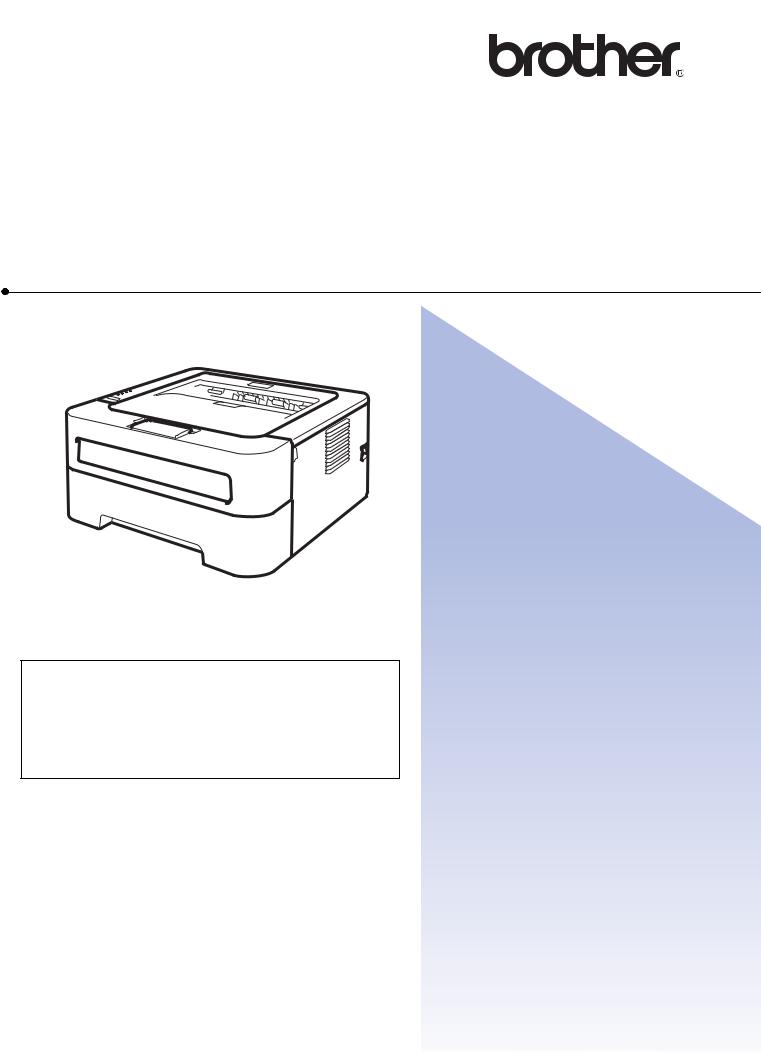
Brother Laser Printer
USER’S GUIDE
HL-2230
HL-2240
HL-2240D
HL-2242D
HL-2250DN
HL-2270DW
For visually-impaired users
You can read this manual with Screen
Reader ‘text-to-speech’ software.
You must set up the hardware and install the driver before you can use the machine.
Please use the Quick Setup Guide to set up the machine. You can find a printed copy in the box. Please read this User’s Guide thoroughly before you use the machine.
Please visit us at http://solutions.brother.com/ where you can get product support, the latest driver updates and utilities, and answers to frequently asked questions (FAQs) and technical questions.
Note: Not all models are available in all countries.
Version A
USA/CAN
Using this guide
Symbols used in this guide
The following symbols and conventions are used throughout the documentation.
WARNING indicates a potentially hazardous situation which, if not avoided, could result in death or serious injuries.
CAUTION indicates a potentially hazardous situation which, if not avoided, may result in minor or moderate injuries.
IMPORTANT indicates a potentially hazardous situation which, if not avoided, may result in damage to property or loss of product functionality.
Hot Surface icons warn you not to touch machine parts that are hot.
Notes tell you how you should respond to a situation that may arise or give tips about how the operation works with other features.

Table of Contents |
||
|
1 |
Printing Methods |
1 |
|
About this machine …………………………………………………………………………………………………………………… |
1 |
|
|
Front view and Back view…………………………………………………………………………………………………….. |
1 |
|
|
Acceptable paper and other print media………………………………………………………………………………………. |
3 |
|
|
Recommended paper and print media …………………………………………………………………………………… |
3 |
|
|
Type and size of paper ………………………………………………………………………………………………………… |
3 |
|
|
Handling and using special paper …………………………………………………………………………………………. |
6 |
|
|
Unprintable area …………………………………………………………………………………………………………………. |
9 |
|
|
Printing methods…………………………………………………………………………………………………………………….. |
10 |
|
|
Printing on plain paper, recycled paper, bond paper, thin paper or thick paper ………………………….. |
10 |
|
|
Printing on labels or envelopes …………………………………………………………………………………………… |
15 |
|
|
Duplex printing……………………………………………………………………………………………………………………….. |
20 |
|
|
Guidelines for printing on both sides of the paper ………………………………………………………………….. |
20 |
|
|
Automatic duplex printing (HL-2240D / HL-2242D / HL-2250DN / HL-2270DW only)………………….. |
21 |
|
|
Manual duplex printing ………………………………………………………………………………………………………. |
22 |
|
|
2 |
Driver and Software |
23 |
|
Printer driver ………………………………………………………………………………………………………………………….. |
23 |
|
|
Features in the printer driver (for Windows®) ………………………………………………………………………… |
25 |
|
|
Features in the printer driver (for Macintosh) ………………………………………………………………………… |
39 |
|
|
Uninstalling the printer driver ……………………………………………………………………………………………………. |
51 |
|
|
Printer driver for Windows® ………………………………………………………………………………………………… |
51 |
|
|
Printer driver for Macintosh ………………………………………………………………………………………………… |
51 |
|
|
Software ……………………………………………………………………………………………………………………………….. |
52 |
|
|
Software for networks (HL-2250DN / HL-2270DW only) …………………………………………………………. |
52 |
|
|
Remote Printer Console (For Windows® only) …………………………………………………………………….. |
52 |
|
|
3 |
Control Panel |
53 |
|
LEDs (Light Emitting Diodes)……………………………………………………………………………………………………. |
53 |
|
|
Service call indications ……………………………………………………………………………………………………………. |
58 |
|
|
Go button………………………………………………………………………………………………………………………………. |
60 |
|
|
Print a test page ……………………………………………………………………………………………………………….. |
61 |
|
|
Print a Printer Settings page……………………………………………………………………………………………….. |
62 |
|
|
Print Fonts (HL-2250DN / HL-2270DW only) ………………………………………………………………………… |
63 |
|
|
Print a WLAN report (HL-2270DW only)……………………………………………………………………………….. |
64 |
|
|
Default settings…………………………………………………………………………………………………………………. |
64 |
|
|
4 |
Routine Maintenance |
66 |
|
Replacing consumable items……………………………………………………………………………………………………. |
66 |
|
|
Consumables……………………………………………………………………………………………………………………. |
66 |
|
|
Before replacing the consumable items ……………………………………………………………………………….. |
67 |
|
|
Toner cartridge …………………………………………………………………………………………………………………. |
70 |
|
|
Drum unit …………………………………………………………………………………………………………………………. |
76 |

|
Cleaning ……………………………………………………………………………………………………………………………….. |
82 |
|
|
Cleaning the outside of the machine ……………………………………………………………………………………. |
83 |
|
|
Cleaning the corona wire……………………………………………………………………………………………………. |
84 |
|
|
Cleaning the drum unit ………………………………………………………………………………………………………. |
86 |
|
|
Cleaning the paper pick-up roller…………………………………………………………………………………………. |
93 |
|
|
Packing and shipping the machine……………………………………………………………………………………………. |
95 |
|
|
5 |
Troubleshooting |
99 |
|
Identifying your problem ………………………………………………………………………………………………………….. |
99 |
|
|
Error messages in the Status Monitor ……………………………………………………………………………………… |
100 |
|
|
Paper handling …………………………………………………………………………………………………………………….. |
102 |
|
|
Paper jams and how to clear them ………………………………………………………………………………………….. |
104 |
|
|
Improving the print quality………………………………………………………………………………………………………. |
111 |
|
|
Solving print problems …………………………………………………………………………………………………………… |
118 |
|
|
Network problems (HL-2250DN / HL-2270DW only) ………………………………………………………………….. |
119 |
|
|
Other problems …………………………………………………………………………………………………………………….. |
119 |
|
|
For Macintosh with USB …………………………………………………………………………………………………… |
119 |
|
|
A |
Appendix |
120 |
|
Machine specifications…………………………………………………………………………………………………………… |
120 |
|
|
Engine …………………………………………………………………………………………………………………………… |
120 |
|
|
Controller ……………………………………………………………………………………………………………………….. |
121 |
|
|
Software ………………………………………………………………………………………………………………………… |
122 |
|
|
Control panel ………………………………………………………………………………………………………………….. |
122 |
|
|
Paper handling ……………………………………………………………………………………………………………….. |
122 |
|
|
Media specifications ………………………………………………………………………………………………………… |
123 |
|
|
Supplies…………………………………………………………………………………………………………………………. |
123 |
|
|
Dimensions / weights……………………………………………………………………………………………………….. |
123 |
|
|
Other……………………………………………………………………………………………………………………………… |
124 |
|
|
Computer requirements……………………………………………………………………………………………………. |
125 |
|
|
Important information for choosing your paper…………………………………………………………………….. |
126 |
|
|
Symbol and character sets (HL-2250DN / HL-2270DW only) ……………………………………………………… |
129 |
|
|
How to use Web Based Management (Web browser) ………………………………………………………….. |
129 |
|
|
Symbol and character sets list…………………………………………………………………………………………… |
130 |
|
|
Quick reference for bar code control commands |
||
|
(HL-2250DN / HL-2270DW only)………………………………………………………………………………………….. |
132 |
|
|
Print bar codes or expanded characters……………………………………………………………………………… |
132 |
|
|
B |
Appendix (for Europe and Other Countries) |
139 |
|
Brother numbers …………………………………………………………………………………………………………………… |
139 |
|
|
C |
Appendix (for USA and Canada) |
140 |
|
Brother numbers …………………………………………………………………………………………………………………… |
140 |
|
|
D |
Index |
143 |
iii

1 Printing Methods
1
About this machine
Front view and Back view
1
2
11
|
3 |
|
|
10 |
|
|
9 |
|
|
4 |
|
|
5 |
|
|
6 |
8 |
|
7 |
1Face-down output tray support flap 2 (support flap 2)
2Face-down output tray support flap 1 (support flap 1)
3Control panel
4Manual feed paper guide
5Manual feed slot
6Manual feed slot cover
7Paper tray
8Front cover
9Power switch
10Ventilation hole
11Face-down output tray
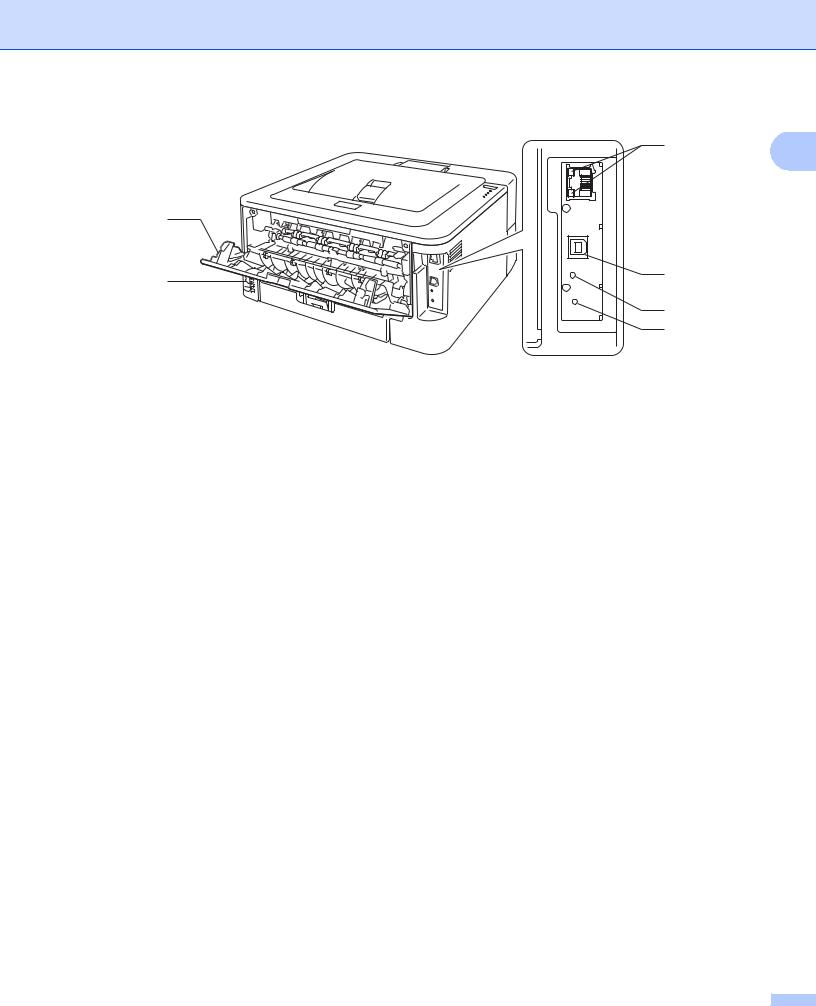
Printing Methods
1
2
1Back cover (Face-up output tray when open)
2AC power connector
3HL-2270DW: Wireless setup button
4HL-2270DW: Wireless Activity LED
5USB interface connector
6HL-2250DN / HL-2270DW: 10BASE-T/100BASE-TX port
7HL-2250DN / HL-2270DW: Network status LEDs
6
4
3

Printing Methods
Acceptable paper and other print media
1
Print quality may vary according to the type of paper you are using.
You can use the following types of print media: thin paper, plain paper, thick paper, bond paper, recycled paper, labels or envelopes.
For best results, follow the instructions below:
DO NOT put different types of paper in the paper tray at the same time because it may cause paper jams or misfeeds.
For proper printing, you must choose the same paper size from your software application as the paper in the tray.
Avoid touching the printed surface of the paper immediately after printing.
Before you buy a lot of paper, test a small quantity to make sure that the paper is suitable.
Recommended paper and print media
|
Europe |
USA |
|
|
Plain paper |
Xerox Premier TCF 80 g/m2 |
Xerox 4200 20 lb |
|
Xerox Business 80 g/m2 |
Hammermill Laser Print 24 lb (90g/m2) |
|
|
Recycled paper |
Xerox Recycled Supreme 80 g/m2 |
(No specific brand recommended) |
|
Labels |
Avery laser label L7163 |
Avery laser labels white #5160 |
|
Envelopes |
Antalis River series (DL) |
(No specific brand recommended) |
Type and size of paper
The machine feeds paper from the installed paper tray or the manual feed slot.
The names for the paper trays in the printer driver and this guide are as follows:
|
Paper tray |
Tray 1 |
|
Manual feed slot |
Manual |
|
Duplex tray for automatic duplex |
DX |
|
printing (HL-2240D / HL-2242D / |
|
|
HL-2250DN / HL-2270DW only) |
|
When looking at this page, you can jump to the page for each printing method by clicking p in the table.
|
Media type |
Tray 1 |
Manual |
DX |
Choose the media type |
|
from the printer driver |
||||
|
Plain paper |
p |
p |
p |
Plain Paper |
|
75 to 105 g/m2 (20 to 28 lb) |
||||
|
Recycled paper |
p |
p |
p |
Recycled Paper |

Printing Methods
|
Media type |
Tray 1 |
Manual |
DX |
Choose the media type |
1 |
|||||||
|
from the printer driver |
||||||||||||
|
Bond paper |
Bond Paper |
|||||||||||
|
Rough paper– 60 to 163 g/m2 |
p |
|||||||||||
|
(16 to 43 lb) |
||||||||||||
|
Thin paper |
p |
p |
p |
Thin Paper |
||||||||
|
60 to 75 g/m2(16 to 20 lb) |
||||||||||||
|
Thick paper |
p |
Thick Paper or Thicker |
||||||||||
|
105 to 163 g/m2(28 to 43 lb) |
Paper |
|||||||||||
|
Labels |
p |
Label |
||||||||||
|
A4 or Letter |
||||||||||||
|
Envelopes |
Envelopes |
|||||||||||
|
p |
Env. Thin |
|||||||||||
|
Env. Thick |
||||||||||||
|
Tray 1 |
Manual |
DX |
||||||||||
|
Paper size |
A4, Letter, B5 (ISO/JIS), A5, A5 |
Width: 76.2 to 216 mm (3 to 8.5 in.) |
Letter, Legal 1, |
|||||||||
|
(Long Edge), B6 (ISO), A6, |
Length: 116 to 406.4 mm (4.6 to |
Folio 1 |
||||||||||
|
Executive, Legal 1, Folio 1 |
16 in.) |
|||||||||||
|
Number of sheets |
250 sheets |
Single sheet |
||||||||||
|
(80 g/m2 / 20 lb) |
||||||||||||
|
1 Legal or Folio size paper is not available in some regions outside the USA and Canada. |

Printing Methods
Recommended paper specifications
|
The following paper specifications are suitable for this machine. |
1 |
||
|
Basis weight |
75-90 g/m2 (20-24 lb) |
||
|
Thickness |
80-110 m |
||
|
Roughness |
Higher than 20 sec. |
||
|
Stiffness |
90-150 cm3/100 |
||
|
Grain direction |
Long grain |
||
|
Volume resistivity |
10e9-10e11 ohm |
||
|
Surface resistivity |
10e9-10e12 ohm-cm |
||
|
Filler |
CaCO3 (Neutral) |
||
|
Ash content |
Below 23 wt% |
||
|
Brightness |
Higher than 80% |
||
|
Opacity |
Higher than 85% |
||
Use paper that is made for plain-paper copying.
Use paper that is 75 to 90 g/m2 (20 to 24 lb).
Use long grain paper with a neutral Ph value, and a moisture content of approx. 5%.
This machine can use recycled paper that meets DIN 19309 specifications.
(To help you choose which paper to use with this machine, see Important information for choosing your paper on page 126.)
Printing Methods
Handling and using special paper
|
1 |
||
|
The machine is designed to work well with most types of xerographic and bond paper. However, some paper |
||
|
variables may have an effect on print quality or handling reliability. Always test samples of paper before |
||
|
purchasing to ensure desirable performance. Store paper in its original packaging and keep it sealed. Keep |
||
|
the paper flat and away from moisture, direct sunlight and heat. |
Some important guidelines when selecting paper are:
DO NOT use inkjet paper because it may cause a paper jam or damage your machine.
Preprinted paper must use ink that can withstand the temperature of the machine’s fusing process 200 degrees centigrade (392 degrees Fahrenheit).
If you use bond paper, paper having a rough surface or paper that is wrinkled or creased, the paper may exhibit degraded performance.
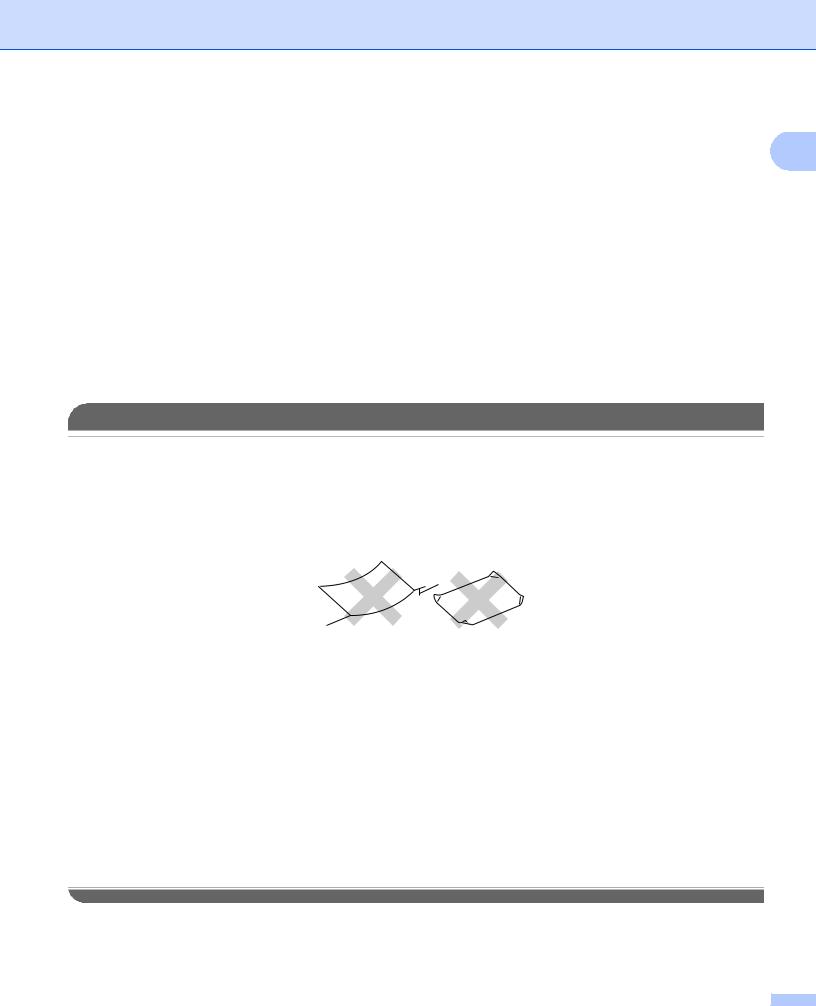
Types of paper to avoid
IMPORTANT
Some types of paper may not perform well or may cause damage to your machine.
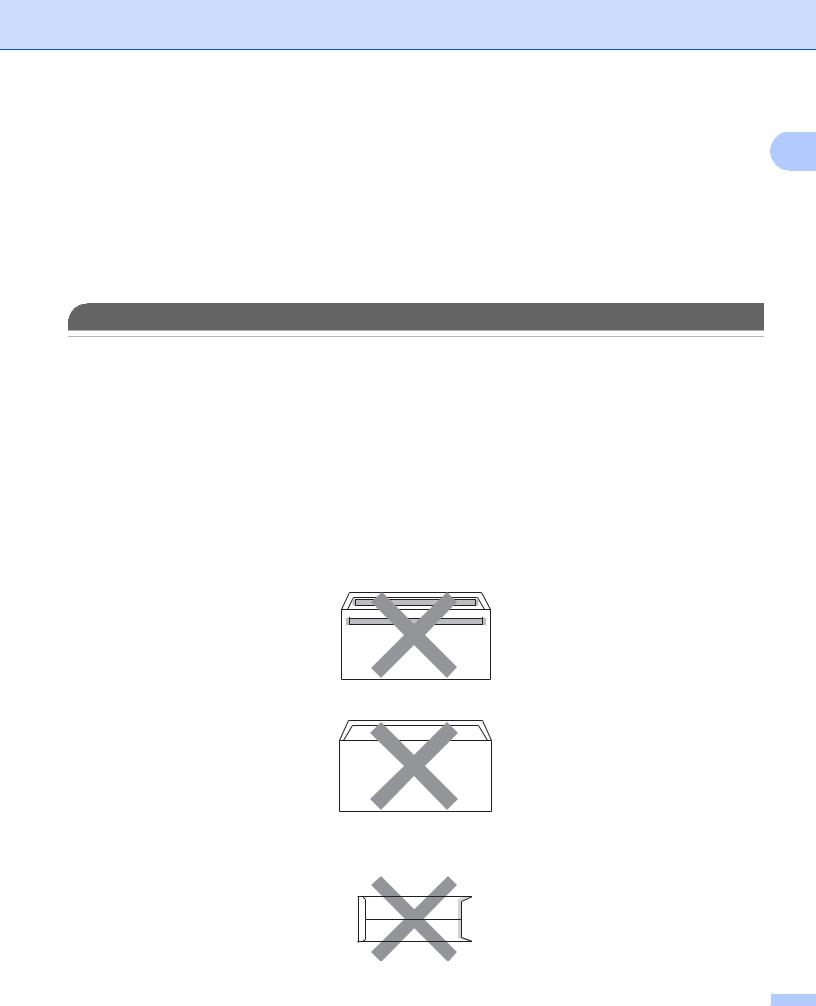
DO NOT use paper:
•that is highly textured
•that is extremely smooth or shiny
•that is curled or warped
1
1
1 A curl of 2 mm (0.08 in.) or greater may cause jams to occur.
•that is coated or has a chemical finish
•that is damaged, creased or folded
•that exceeds the recommended weight specification in this guide
•with tabs and staples
•with letterheads using low temperature dyes or thermography
•that is multipart or carbonless
•that is designed for inkjet printing
If you use any of the types of paper listed above, they may damage your machine. This damage is not covered under any Brother warranty or service agreement.
Printing Methods
Envelopes
|
Most envelopes designed for laser printers will be suitable for your machine. However, some envelopes may |
1 |
have feed and print-quality problems because of the way they have been made. A suitable envelope should have edges with straight, well-creased folds and the leading edge should not be thicker than two sheets of paper. The envelope should lie flat and not be of baggy or flimsy construction. You should buy quality envelopes from a supplier who understands that you will be using the envelopes in a laser machine.
We recommend that you print a test envelope to make sure the print results are what you want.
Types of envelopes to avoid
IMPORTANT
DO NOT use envelopes:
•that are damaged, curled, wrinkled, irregularly shaped, extremely shiny or textured envelopes.
•with clasps, staples, snaps, tie strings, self-adhesive components, windows, holes, cutouts or perforations.
•that are of a baggy construction, not sharply creased, embossed (have raised writing on them) or preprinted on the inside.
•that were previously printed by a laser / LED printer.
•that cannot be arranged when put in a pile.
•that are made of paper that weighs more than the paper weight specifications for the machine.
•with edges that are not straight or consistently square.
•with glue on surface as shown in figure below
•with double flaps as shown in figure below
•with sealing flaps that are not folded down when purchased
•with sealing flaps as shown in figure below
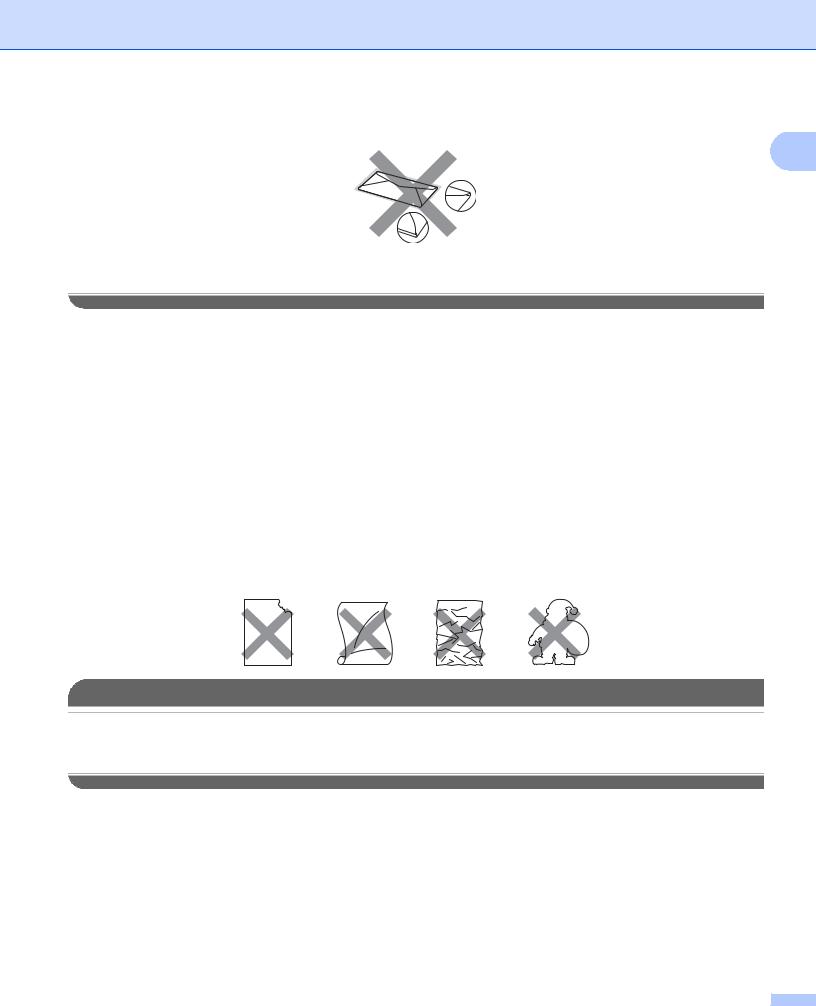
Printing Methods
• with each side folded as shown in figure below
1
If you use any of the types of envelopes listed above, they may damage your machine. This damage may not be covered under any Brother warranty or service agreement.
Labels
The machine will print on most types of labels designed for use with a laser printer. Labels should have an adhesive that is acrylic-based since this material is more stable at the high temperatures in the fuser unit. Adhesives should not come in contact with any part of the machine, because the label stock may stick to the drum unit or rollers and cause jams and print quality problems. No adhesive should be exposed between the labels. Labels should be arranged so that they cover the entire length and width of the sheet. Using labels with spaces may result in labels peeling off and causing serious jams or print problems.
All labels used in this machine must be able to withstand a temperature of 200 degrees centigrade (392 degrees Fahrenheit) for a period of 0.1 seconds.
Do not feed a label sheet through the machine more than one time.
Types of labels to avoid
Do not use labels that are damaged, curled, wrinkled or an unusual shape.
IMPORTANT
•Avoid feeding labels with the carrier sheet exposed because your machine will be damaged.
•Label sheets should not exceed the paper weight specifications described in this User’s Guide. Labels exceeding this specification may not feed or print properly and may cause damage to your machine.

Printing Methods
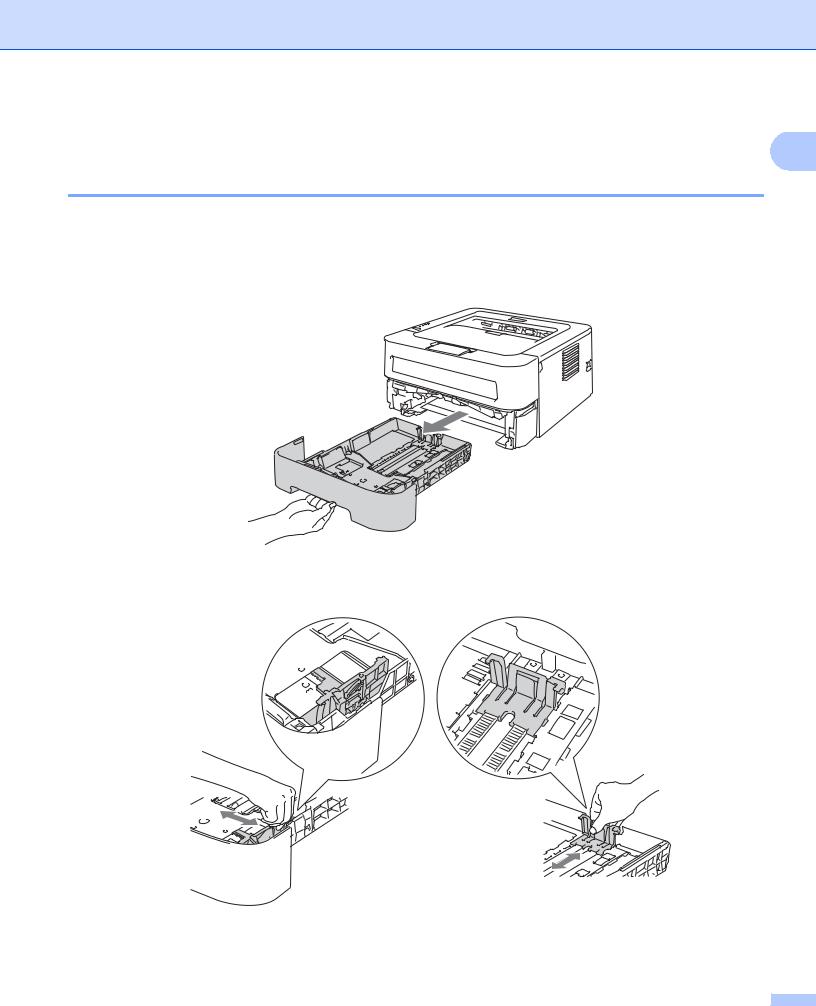
Unprintable area
|
1 |
||
|
The area of the paper that cannot be printed on is shown in the table below: |
||
|
Portrait |
||
|
1 |
|
2 |
4 |
|||||||||||||||
|
3 |
||||||||||||||||
|
A4 |
Letter |
Legal |
B5 (ISO) |
Executive |
A5 |
A6 |
B6 (ISO) |
|||||||||
|
1 |
4.23 mm |
4.23 mm |
4.23 mm |
4.23 mm |
4.23 mm |
4.23 mm |
4.23 mm |
4.23 mm |
||||||||
|
(0.16 in.) |
(0.16 in.) |
(0.16 in.) |
(0.16 in.) |
(0.16 in.) |
(0.16 in.) |
(0.16 in.) |
(0.16 in.) |
|||||||||
|
2 |
6.01 mm |
6.35 mm |
6.35 mm |
6.01 mm |
6.35 mm |
6.01 mm |
6.01 mm |
6.01 mm |
||||||||
|
(0.24 in.) |
(0.25 in.) |
(0.25 in.) |
(0.24 in.) |
(0.25 in.) |
(0.24 in.) |
(0.24 in.) |
(0.24 in.) |
|||||||||
|
3 |
4.23 mm |
4.23 mm |
4.23 mm |
4.23 mm |
4.23 mm |
4.23 mm |
4.23 mm |
4.23 mm |
||||||||
|
(0.16 in.) |
(0.16 in.) |
(0.16 in.) |
(0.16 in.) |
(0.16 in.) |
(0.16 in.) |
(0.16 in.) |
(0.16 in.) |
|||||||||
|
4 |
6.01 mm |
6.35 mm |
6.35 mm |
6.01 mm |
6.35 mm |
6.01 mm |
6.01 mm |
6.01 mm |
||||||||
|
(0.24 in.) |
(0.25 in.) |
(0.25 in.) |
(0.24 in.) |
(0.25 in.) |
(0.24 in.) |
(0.24 in.) |
(0.24 in.) |
Landscape
1
|
2 |
4 |
|||||||||||||||||
|
3 |
||||||||||||||||||
|
A4 |
Letter |
Legal |
B5 (ISO) |
Executive |
A5 |
A6 |
B6 (ISO) |
|||||||||||
|
1 |
4.23 mm |
4.23 mm |
4.23 mm |
4.23 mm |
4.23 mm |
4.23 mm |
4.23 mm |
4.23 mm |
||||||||||
|
(0.16 in.) |
(0.16 in.) |
(0.16 in.) |
(0.16 in.) |
(0.16 in.) |
(0.16 in.) |
(0.16 in.) |
(0.16 in.) |
|||||||||||
|
2 |
5.0 mm |
5.08 mm |
5.08 mm |
5.0 mm |
5.08 mm |
5.0 mm |
5.0 mm |
5.0 mm |
||||||||||
|
(0.19 in.) |
(0.2 in.) |
(0.2 in.) |
(0.19 in.) |
(0.2 in.) |
(0.19 in.) |
(0.19 in.) |
(0.19 in.) |
|||||||||||
|
3 |
4.23 mm |
4.23 mm |
4.23 mm |
4.23 mm |
4.23 mm |
4.23 mm |
4.23 mm |
4.23 mm |
||||||||||
|
(0.16 in.) |
(0.16 in.) |
(0.16 in.) |
(0.16 in.) |
(0.16 in.) |
(0.16 in.) |
(0.16 in.) |
(0.16 in.) |
|||||||||||
|
4 |
5.0 mm |
5.08 mm |
5.08 mm |
5.0 mm |
5.08 mm |
5.0 mm |
5.0 mm |
5.0 mm |
||||||||||
|
(0.19 in.) |
(0.2 in.) |
(0.2 in.) |
(0.19 in.) |
(0.2 in.) |
(0.19 in.) |
(0.19 in.) |
(0.19 in.) |
Printing Methods
Printing methods
1
Printing on plain paper, recycled paper, bond paper, thin paper or thick paper
Printing from the paper tray (plain paper, recycled paper and thin paper only)
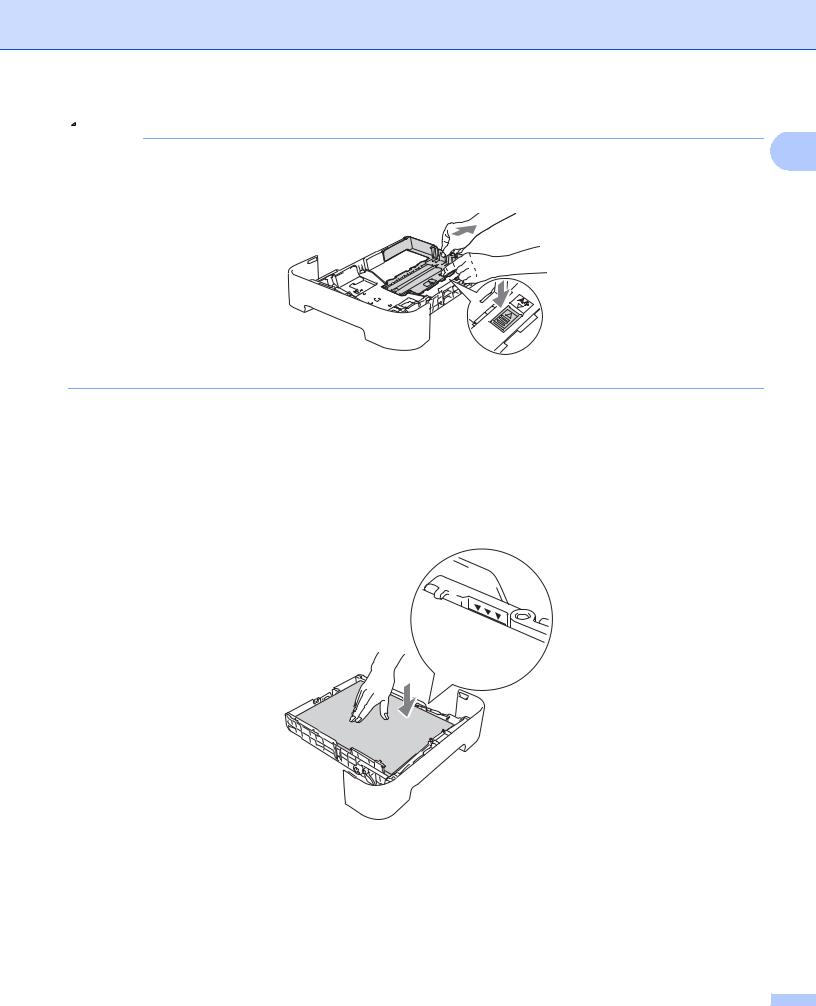
(For the recommended paper to use, see Type and size of paper on page 3.) a Pull the paper tray completely out of the machine.
b While pressing the green paper-guide release lever, slide the paper guides to fit the paper size. Make sure that the guides are firmly in the slots.
10
Printing Methods
Note
For Legal or Folio size paper, press the release button in the bottom of the paper tray and then pull out the 1 back of the paper tray. (Legal or Folio size paper is not available in some regions.)
c Put paper in the tray and make sure:
The paper is below the maximum paper mark (b b b). Over filling the paper tray will cause paper jams.
The side to be printed on must be face down.
The paper guides touch the sides of the paper so it will feed properly.
d Put the paper tray firmly back in the machine. Make sure that it is completely inserted into the machine.
11
|
Printing Methods |
|
|
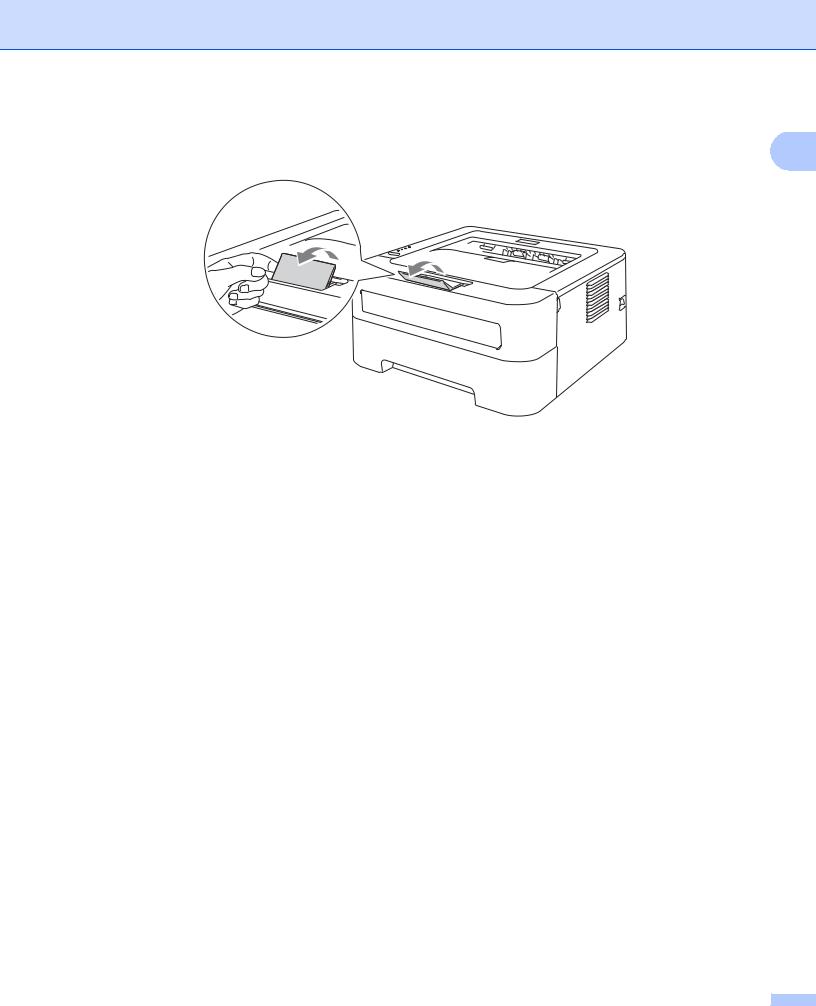
e Lift up the support flap 1 to prevent paper from sliding off the face-down output tray, or remove each page |
|
|
as soon as it comes out of the machine. |
1 |
f Choose the following from each drop-down list of the printer driver.
Paper Size
|
A4 |
Letter |
Legal 1 |
Executive |
A5 |
B5 |
|
B6 |
A6 |
Folio 1 |
JIS B5 |
A5 Long Edge |
1 Legal or Folio size paper is not available in some regions outside the USA and Canada.
Media Type
|
Plain Paper |
Thin Paper |
Recycled Paper |
|
Paper Source |
Tray 1
For any other settings, see Driver and Software in Chapter 2. g Send the print data to the machine.
12
Printing Methods
Printing from the Manual feed slot
|
(For the recommended paper to use, see Type and size of paper on page 3.) |
1 |
Note
The machine automatically turns on the Manual Feed mode when you put paper in the manual feed slot.
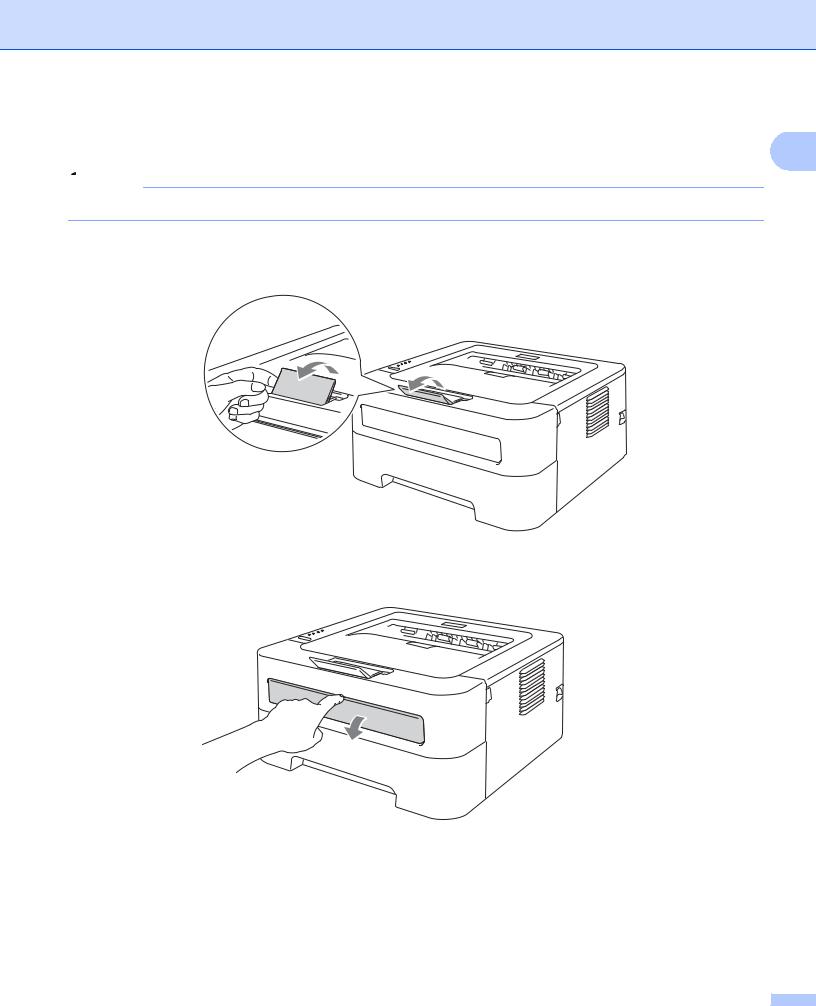
a Lift up the support flap 1 to prevent paper from sliding off the face-down output tray, or remove each page as soon as it comes out of the machine.
b Open the manual feed slot cover.
13
Printing Methods
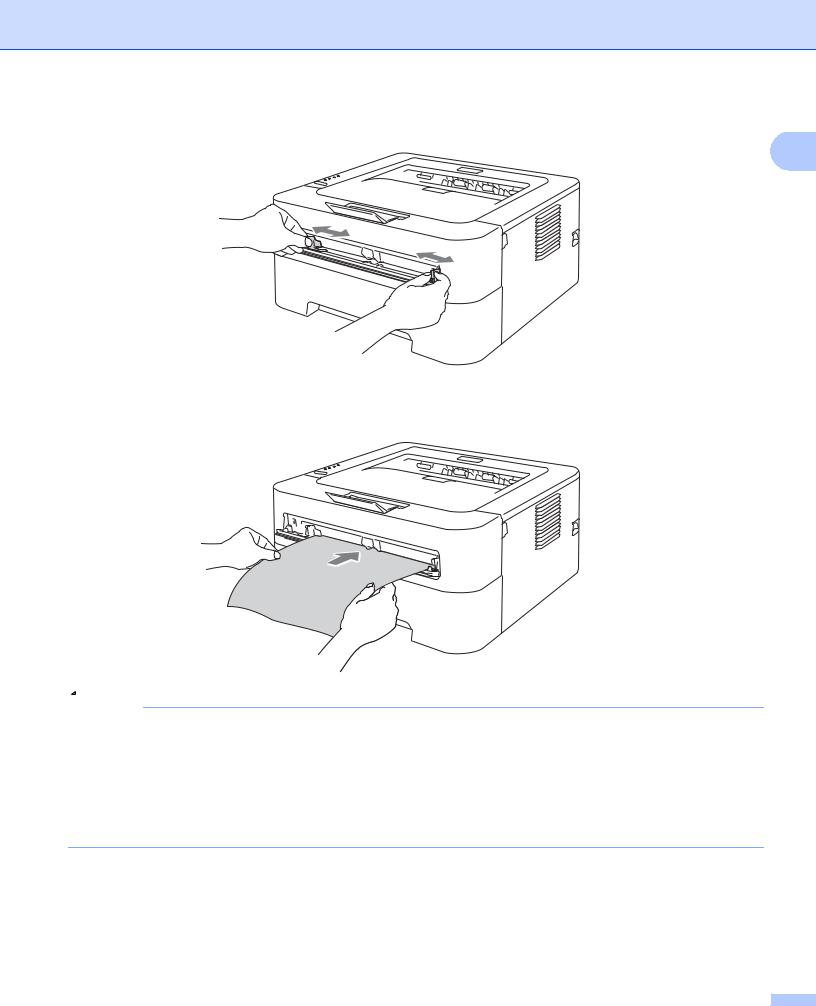
c Using both hands, slide the manual feed paper guides to the width of the paper that you are going to use.
1
d Using both hands, put one piece of paper in the manual feed slot until the front edge of the paper touches the paper feed roller. When you feel the machine pull in the paper, let go.
Note
•Put the paper into the manual feed slot with the side to be printed face up.
•Make sure that the paper is straight and in the correct position on the manual feed slot. If it is not, the paper may not be fed properly, resulting in a skewed printout or a paper jam.
•DO NOT put more than one piece of paper in the manual feed slot at any one time, as it may cause a jam.
•If you put any media in the manual feed slot before the machine is in the Ready mode, the media may be ejected without being printed on.
14
Printing Methods
e Choose the following from each drop-down list of the printer driver.
|
Paper Size |
1 |
|
Width: |
76.2 to 216 mm (3 to 8.5 in.) |
|
Length: |
116 to 406.4 mm (4.6 to 16 in.) |
You can use all paper sizes specified for the tray which you use.
Media Type
Plain Paper Thin Paper Thick Paper Thicker Paper Bond Paper Recycled Paper Paper Source
Manual
For any other settings, see Driver and Software in Chapter 2. f Send the print data to the machine.
g After the printed page comes out of the machine, put in the next sheet of paper as in Step d above. Repeat for each page that you want to print.
Printing on labels or envelopes
When the face-up output tray is pulled down, the machine has a straight paper path from the manual feed slot through to the back of the machine. Use this paper feed and output method when you want to print on labels or envelopes. (For the recommended paper to use, see Acceptable paper and other print media on page 3 and Types of envelopes to avoid on page 7.)
Note
The machine automatically turns on the Manual Feed mode when you put paper in the manual feed slot.
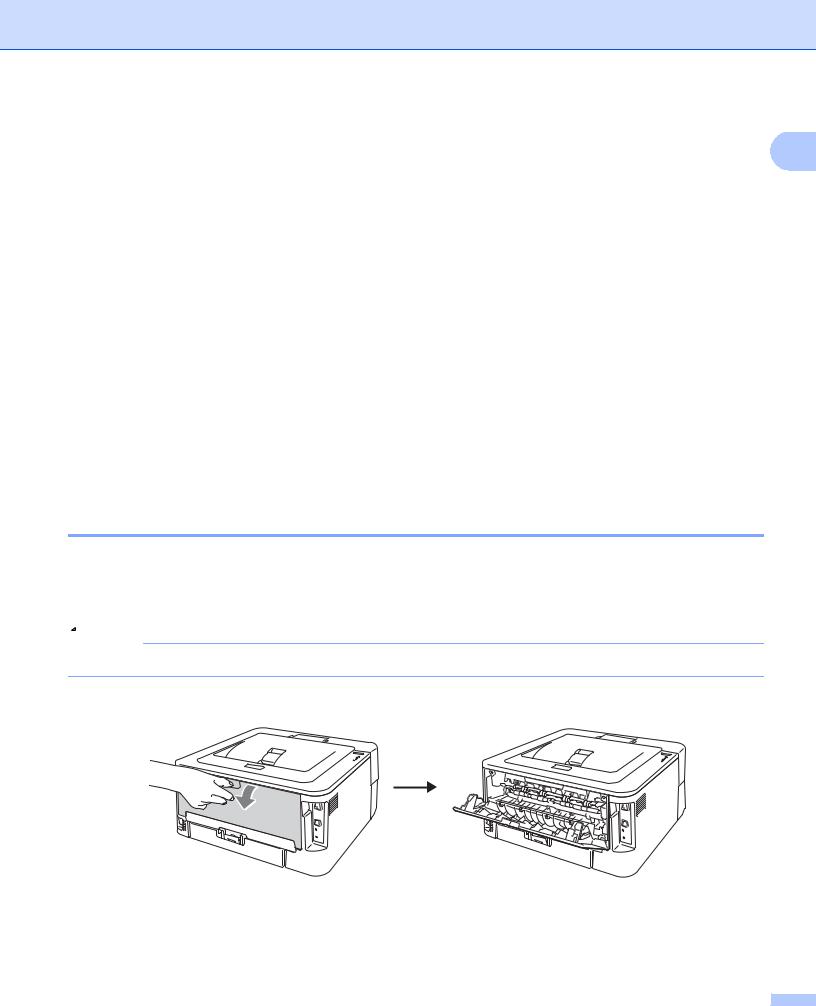
a Open the back cover (face-up output tray).
15
|
Printing Methods |
|
|
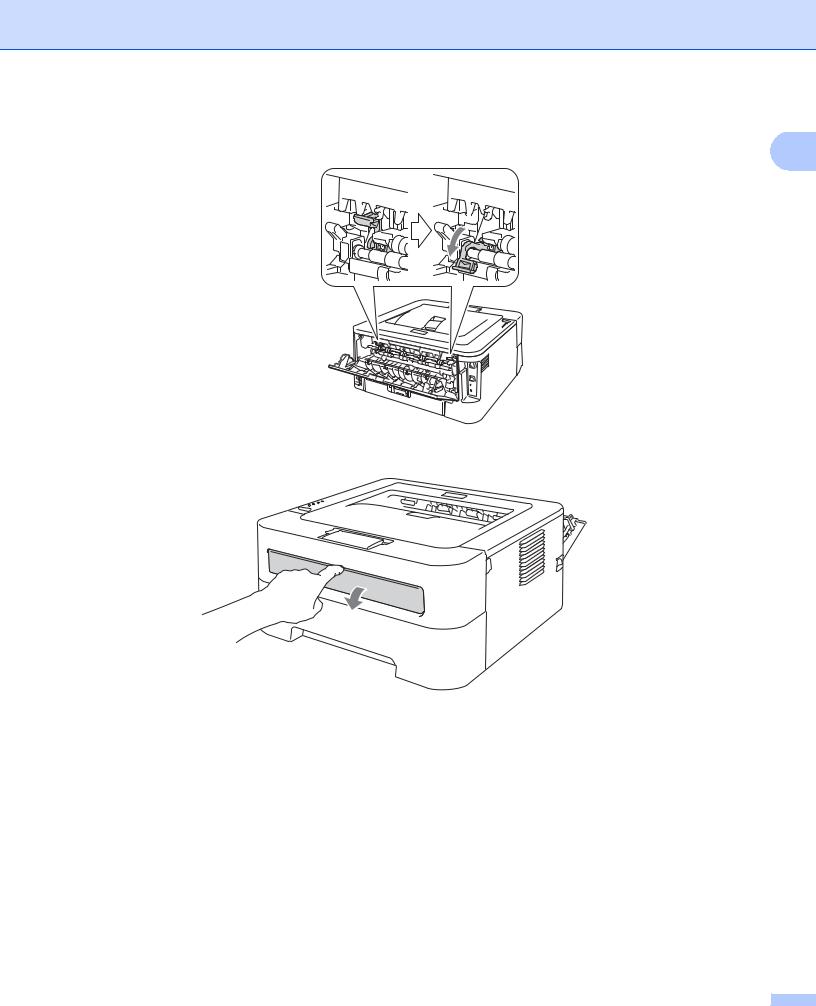
b <For printing envelopes only> Pull down the two green levers, one on the left-hand side and one on the |
|
|
right-hand side, as shown in the illustration below. |
1 |
c Open the manual feed slot cover.
16
Printing Methods
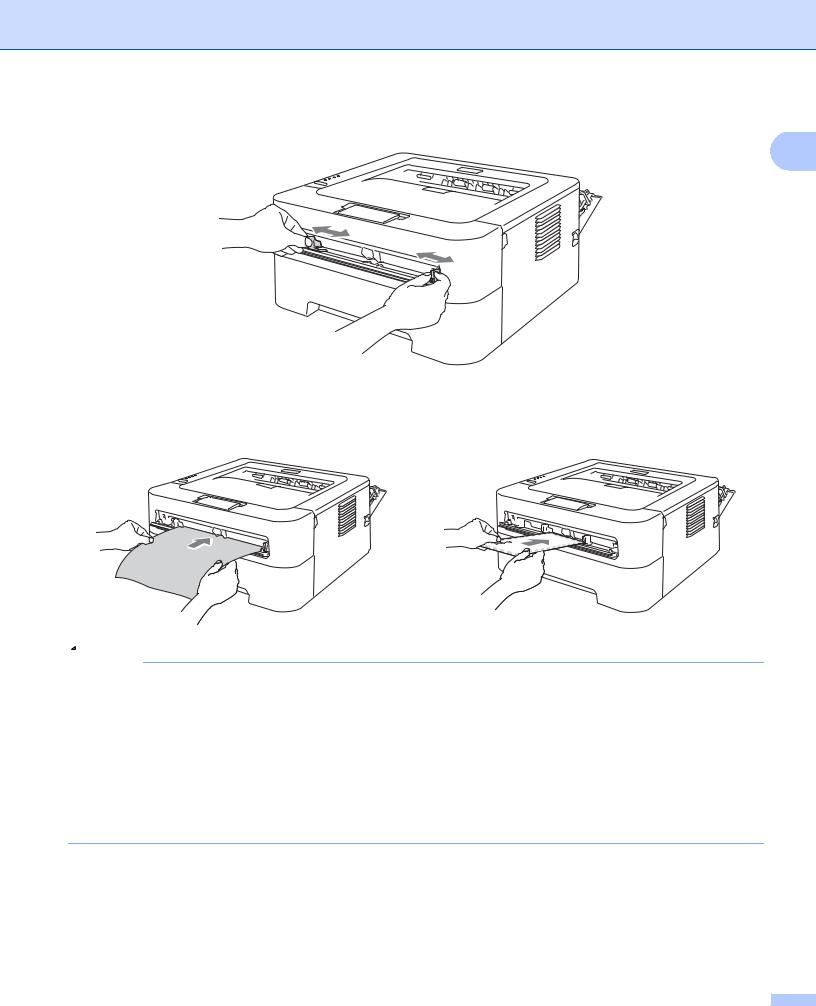
d Using both hands, slide the manual feed paper guides to the width of the paper that you are going to use.
1
e Using both hands, put one full sheet of labels or one envelope in the manual feed slot until the front edge touches the paper feed roller. When you feel the machine pull it in, let go.
Note
•Put one full sheet of labels or one envelope into the manual feed slot with the side to be printed face up.
•Make sure that the full sheet of labels or the envelope is straight and in the proper position on the manual feed slot. If it is not, it may not be fed properly, resulting in a skewed printout or a paper jam.
•DO NOT put more than one full sheet of labels or one envelope in the manual feed slot at any one time, as it may cause a jam.
•DO NOT insert a labels sheet that has previously been used or is missing any labels.
•If you put any Media (paper, envelope and so on) in the manual feed slot before the machine is in the Ready mode, the media may be ejected without being printed on.
17

Printing Methods
f Choose the following from each drop-down list menu of the printer driver.
|
Paper Size |
1 |
|||
|
Envelopes |
||||
|
Com-10 |
DL |
C5 |
Monarch |
DL Long Edge |
Customized paper size 1
1You can define your original paper size by choosing User Defined… in Windows® printer driver or Manage Custom Sizes… in Macintosh printer drivers.
|
Label |
|||
|
A4 |
Letter |
||
|
Media Type |
|||
|
Envelopes |
Env. Thin |
Env. Thick |
Label |
|
Paper Source |
|||
|
Manual |
Note
•When you use Envelope #10, choose Com-10 for the Paper Size.
•For other envelopes that are not listed in the printer driver, such as Envelope #9 or Envelope C6, choose User Defined… (for Windows® printer driver) or Manage Custom Sizes… (for Macintosh printer driver). For more information on envelope sizes, see Paper size on page 127.
g Send the print data to the machine.
h After the printed page comes out of the machine, put in the next full sheet of labels or envelope as shown in Step e. Repeat for each page that you want to print.
i <For printing envelopes only>When you have finished printing, reset the two green levers that were pulled down in step b back to their original positions.
18

Printing Methods
Note
• Remove each sheet of labels or envelope as soon as it has been printed. Stacking them may cause the 1 paper to jam or curl.
•If an envelope is creased after they are printed, see Improving the print quality on page 111.
•If envelopes get smudged during printing set the Media Type to Thick Paper or Thicker Paper to increase the fixing temperature.
•(For Windows® users) If the DL size double flap envelopes are creased after printing, choose DL Long Edge in Paper Size, from the Basic tab. Put a new DL size double-flap envelope in the manual feed slot with the longest edge of the envelope in first, then print again.
•Envelope joints that are sealed by the manufacturer should be secure.
•All sides of the envelope should be properly folded without wrinkles or creases.
19

Printing Methods
Duplex printing
1
The supplied printer drivers for Windows® 2000 or greater and Mac OS X 10.4.11 or greater all enable duplex printing. For more information about how to choose the settings, see the Help text in the printer driver.
Guidelines for printing on both sides of the paper
If the paper is thin, it may wrinkle.
If paper is curled, straighten it and then put it back in the paper tray or the manual feed slot. If the paper continues to curl, replace the paper.
If the paper is not feeding properly, it may be curled. Remove the paper and straighten it. If the paper continues to curl, replace the paper.
When you use the manual duplex function, it is possible that there may be paper jams or poor print quality. (If there is a paper jam, see Paper jams and how to clear them on page 104. If you have a print quality problem, see Improving the print quality on page 111.)
Note
•Make sure that the paper tray is completely inserted to the machine.
•You should use plain paper, recycled paper or thin paper. Do not use bond paper.
20

|
Printing Methods |
|
|
Automatic duplex printing (HL-2240D / HL-2242D / HL-2250DN / HL-2270DW |
|
|
only) |
1 |
If you are using the Macintosh Printer Driver, see Automatic Duplex Printing (HL-2240D / HL-2242D / HL2250DN / HL-2270DW only) on page 48.
a Choose the following settings from each menu of the printer driver.
Paper Size
1 Legal or Folio size paper is not available in some regions outside the USA and Canada.
Media Type
|
Plain Paper |
Thin Paper |
Recycled Paper |
|
Paper Source |
||
|
Tray 1 |
Manual |
|
|
Duplex / Booklet |
Duplex
Duplex Type in Duplex Settings
There are four options for each orientation. (See Duplex / Booklet on page 28.)
Binding Offset in Duplex Settings
You can specify the offset for binding. (See Duplex / Booklet on page 28.)
For any other settings, see Driver and Software in Chapter 2.
b Send the print data to the machine. The machine will print on both sides of the paper automatically.
21

Printing Methods
Manual duplex printing
|
1 |
||
|
If you are using the Macintosh Printer Driver, see Manual Duplex Printing on page 47. |
||
|
a Choose the following settings from each drop-down list of the printer driver. |
Paper Size
You can use all the paper sizes specified for the tray you are using.
Media Type
You can use all the media types specified for the tray you are using except media that has a specified print side, such as envelopes and labels.
Paper Source
|
Tray 1 |
Manual |
|
Duplex / Booklet |
Duplex (Manual)
Duplex Type in Duplex Settings
There are four options for each orientation. (See Duplex / Booklet on page 28.)
Binding Offset in Duplex Settings
You can specify the offset for binding. (See Duplex / Booklet on page 28.)
For any other settings, see Driver and Software in Chapter 2.
b Send the print data to the machine. The machine will print all the even-numbered pages on one side of the paper first. Then, the Windows® driver instructs you (with a pop-up message) to reinsert the paper to print the odd-numbered pages.
Note
Before reinserting the paper, straighten it well, or you may get a paper jam. Very thin or thick paper is not recommended.
22

2 Driver and Software
Printer driver
2
A printer driver is software that translates data from the format used by a computer to the format that a particular machine needs. Typically, this format is page description language (PDL).
The printer drivers for the supported versions of Windows® and Macintosh are on the CD-ROM we have supplied or on the Brother Solutions Center at http://solutions.brother.com/. Install the drivers by following the Quick Setup Guide. The latest printer driver can be downloaded from the Brother Solutions Center at http://solutions.brother.com/.
(If you want to uninstall the printer driver, see Uninstalling the printer driver on page 51.)
For Windows®
Windows® printer driver
For Macintosh
Macintosh printer driver
For Linux 1 2
CUPS printer driver
LPD / LPRng printer driver
1Download the printer driver for Linux from http://solutions.brother.com/ or a link on the supplied CD-ROM.
2Depending on Linux distributions, the driver may not be available.
Note
•For more information about Linux printer driver, visit us at http://solutions.brother.com/.
•The printer driver for Linux may be released after the initial release of this product.
23

Driver and Software
You can change the following printer settings when you print from your computer:
Paper Size
Orientation
Media Type
Resolution
Print Settings
Multiple Page
Duplex / Booklet 1
Paper Source
Scaling
Reverse Print
Use Watermark 1
Header-Footer Print 1
Toner Save Mode
Administrator 1
Use Reprint 1
Sleep Time
Macro 1 2
Density Adjustment 1
Error Message Printout 1
Improve Print Output
Skip Blank Page
Print Profiles 1
1These settings are not available with the Macintosh printer driver.
2These settings are not available with the HL-2230, HL-2240, HL-2240D and HL-2242D.
24
Driver and Software
Features in the printer driver (for Windows®)
(For more information, see the Help text in the printer driver.)
•The screens in this section are from Windows® XP. The screens on your computer will vary depending on your operating system.
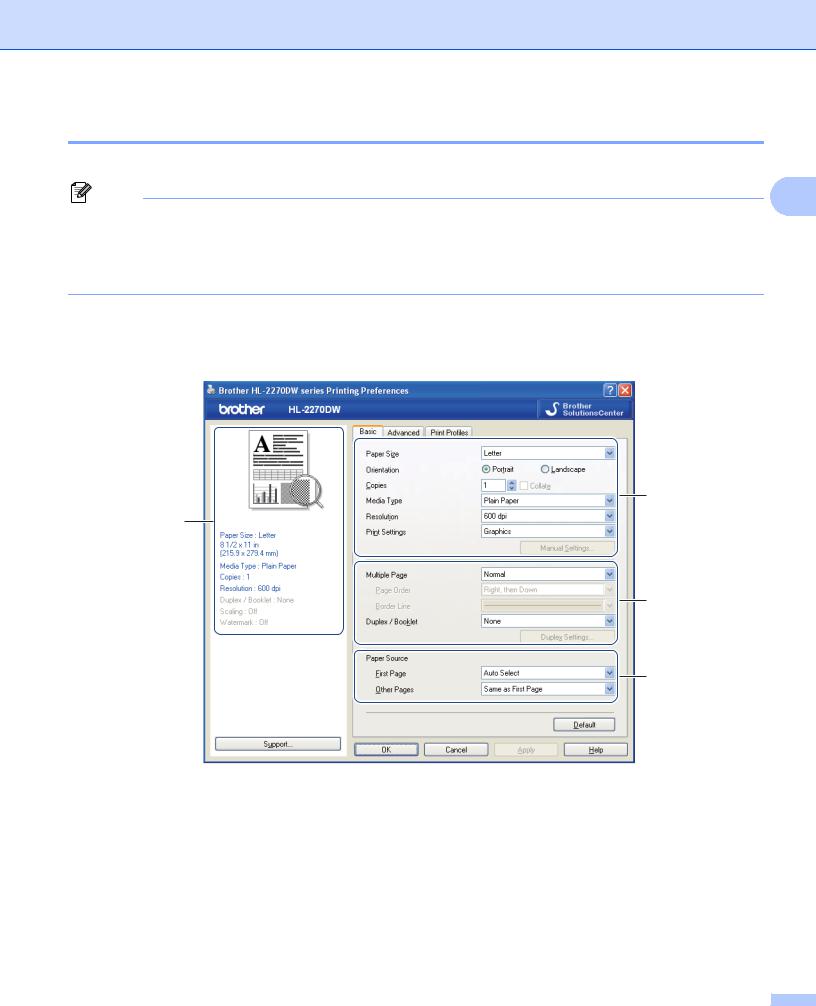
•You can access the Printing Preferences dialog box by clicking Printing Preferences… in the General tab of the Printer Properties dialog box.
Basic tab
You can also change settings by clicking the illustration on the left side of the Basic tab.
1
4
2
3
a b c
Choose Paper Size, Orientation, Copies, Media Type, Resolution and Print Settings (1).
Choose Multiple Page and Duplex / Booklet setting (2).
Choose Paper Source (3).
d Click OK to apply your chosen settings.
To return to the default settings, click Default, then OK.
25
Driver and Software
Note
This area (4) shows the current settings.
From the drop-down box choose the Paper Size you are using.
Orientation
Orientation selects the position of how your document will be printed (Portrait or Landscape).
Copies
The copies selection sets the number of copies that will be printed.
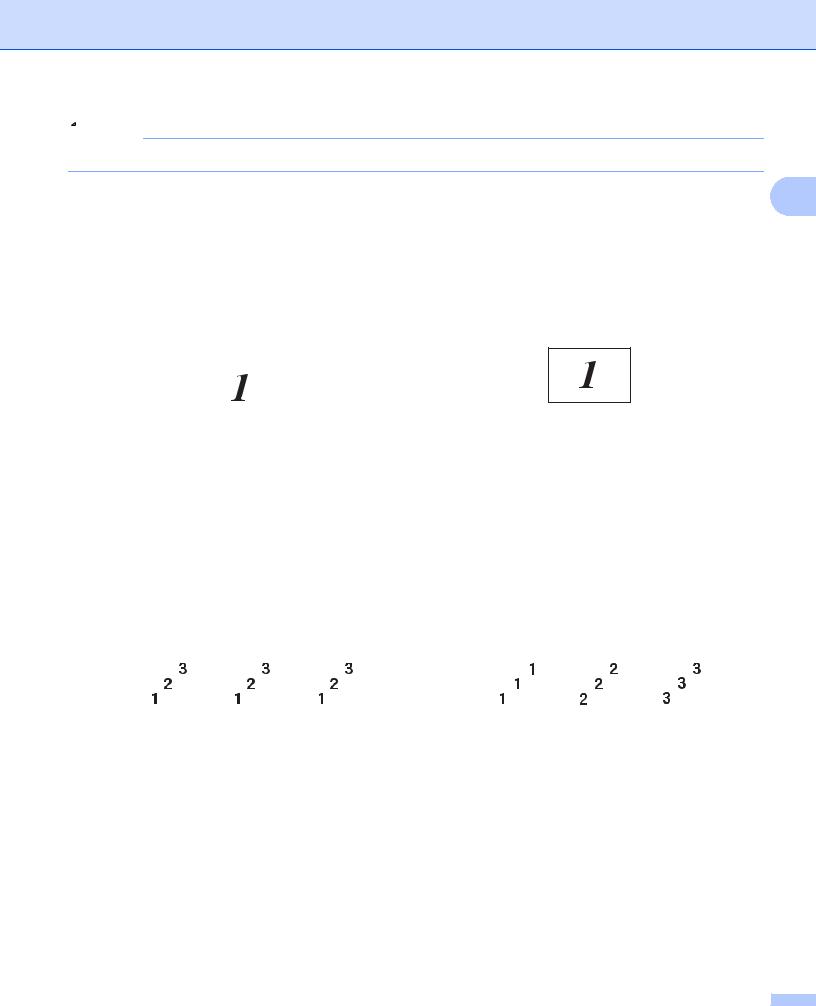
Collate
With the Collate check box selected, one complete copy of your document will be printed and then will be repeated for the number of copies you selected. If the Collate check box is not selected, then each page will be printed for all the copies selected before the next page of the document is printed.
|
Collate checked |
Collate non-checked |
||||||||||||||||||||||||||||
26
Loading…
Просмотр
Доступно к просмотру 154 страницы. Рекомендуем вам скачать файл инструкции, поскольку онлайн просмотр документа может сильно отличаться от оригинала.
-
Лазерный принтер Brother
РУКОВОДСТВО ПОЛЬЗОВАТЕЛЯ
HL-2130
HL-2132
HL-2220
HL-2230
HL-2240
HL-2240D
HL-2242D
HL-2250DN
HL-2270DW
Для пользователей с нарушением зрения
Данное руководство можно прочитать с
помощью программного обеспечения Screen
Reader для преобразования текста в речь.
Перед использованием этого аппарата необходимо настроить оборудование и установить драйвер.
Для установки аппарата используйте Руководство по быстрой установке. Печатный экземпляр находится в
коробке.
Перед использованием аппарата внимательно прочитайте настоящее Руководство пользователя.
Посетите наш веб-сайт по адресу http://solutions.brother.com/, где можно получить поддержку по продукции,
загрузить последние обновления драйверов и утилит, а также просмотреть ответы на часто задаваемые
вопросы (FAQ) и на технические вопросы.
Примечание. Некоторые модели поставляются не во все страны.
Версия A
RUS
-
Использование данного руководства
Символы, используемые в данном руководстве
В документации используются следующие символы и соглашения.
Знак ПРЕДУПРЕЖДЕНИЕ указывает на потенциально опасную
ситуацию, которая, если ее не предотвратить, может привести к
смертельному исходу или получению тяжелых травм.
Знак ОСТОРОЖНО указывает на потенциально опасную ситуацию,
которая, если ее не предотвратить, может привести к получению легких
или средних травм.
Знак ВАЖНАЯ ИНФОРМАЦИЯ указывает на потенциально опасную
ситуацию, которая может привести к повреждению имущества или
потере функциональности изделия.
Значок «Горячая поверхность» предупреждает о том, что не следует
прикасаться к горячим деталям устройства.
В примечаниях описывается способ действия в возникшей ситуации и
содержатся советы по работе той или иной операции с другими
функциями.
i
-
Содержание
1     Способы печати                                                                                1
Информация о данном аппарате............................................................................................................1
Вид спереди и вид сзади...................................................................................................................1
Допустимая бумага и другие материалы для печати ...........................................................................3
Рекомендованная бумага и носители для печати ..........................................................................3
Тип и формат бумаги.........................................................................................................................4
Обращение со специальной бумагой и ее использование ............................................................6
Непечатаемая область......................................................................................................................9
Способы печати .....................................................................................................................................10
Печать на обычной бумаге, бумаге из вторсырья, высокосортной бумаге, тонкой бумаге или
плотной бумаге ............................................................................................................................10
Печать на этикетках или конвертах ...............................................................................................15
Двусторонняя печать.............................................................................................................................20
Рекомендации по печати на обеих сторонах бумаги....................................................................20
Автоматическая двусторонняя печать
(только HL-2240D/HL-2242D/HL-2250DN/HL-2270DW) .............................................................21
Ручная двусторонняя печать ..........................................................................................................22
2     Драйвер и программное обеспечение                                                            23
Драйвер принтера..................................................................................................................................23
®
Возможности драйвера принтера (для Windows ) .......................................................................25
Возможности драйвера принтера (для Macintosh)........................................................................39
Удаление драйвера принтера...............................................................................................................51
®
Драйвер принтера для Windows ...................................................................................................51
Драйвер принтера для Macintosh ...................................................................................................51
Программное обеспечение ...................................................................................................................52
Программное обеспечение для сетей (только HL-2250DN/HL-2270DW) ....................................52
®
Remote Printer Console (только для Windows ) ............................................................................52
3     Панель управления                                                                            53
Светодиоды............................................................................................................................................53
Индикация сервисного вызова..............................................................................................................58
Кнопка Go (Пуск)....................................................................................................................................60
Печать пробной страницы ..............................................................................................................61
Печать страницы параметров принтера........................................................................................62
Печать шрифтов (только HL-2250DN/HL-2270DW).......................................................................63
Печать отчета о беспроводной сети (только для HL-2270DW)....................................................64
Настройки по умолчанию................................................................................................................64
4     Регулярное техническое обслуживание                                                          66
Замена расходных материалов............................................................................................................66
Расходные материалы ....................................................................................................................66
Перед заменой расходных материалов.........................................................................................67
Тонер-картридж ...............................................................................................................................70
Фотобарабан ....................................................................................................................................77
ii
- 1
- 2
- 3
- 4
- 154
Have a look at the manual Brother HL 2240DR User Manual online for free. It’s possible to download the document as PDF or print. UserManuals.tech offer 331 Brother manuals and user’s guides for free. Share the user manual or guide on Facebook, Twitter or Google+.
							USER’S GUIDE
Brother Laser Printer
HL-2130
HL-2132
HL-2135W
HL-2220
HL-2230
HL-2240
HL-2240D
HL-2242D
HL-2250DN
HL-2270DW

For visually-impaired users
You can read this manual with Screen
Reader ‘text-to-speech’ software.
You must set up the hardware and install the driver before you can use the machine.
Please use the Quick Setup Guide to set up the machine. You can find a printed copy in the box.
Please read this User’s Guide thoroughly before you use the machine.
Please visit us at http://solutions.brother.com/
 where you can get product support, the latest driver updates and
utilities, and answers to frequently asked questions (FAQs) and technical questions.
Note: Not all models are available in all countries.
Version C
UK/IRE
							i
Using this guide
Symbols used in this guide
The following symbols and conventions are used throughout the documentation.
 WARNING indicates a potentially hazardous situation which, if not avoided,
could result in death or serious injuries.
 CAUTION indicates a potentially hazardous situation which, if not avoided,
may result in minor or moderate injuries.
 IMPORTANT indicates a potentially hazardous situation which, if not
avoided, may result in damage to property or loss of product functionality.

Hot Surface icons warn you not to touch machine parts that are hot.
 Notes tell you how you should respond to a situation that may arise or give
tips about how the operation works with other features.
							ii
Table of Contents
1 Printing Methods 1
About this machine ....................................................................................................................................1
Front view and Back view ....................................................................................................................1
Acceptable paper and other print media ....................................................................................................3
Recommended paper and print media ................................................................................................3
Type and size of paper ........................................................................................................................4
Handling and using special paper .......................................................................................................6
Unprintable area ..................................................................................................................................9
Printing methods ......................................................................................................................................10
Printing on plain paper, recycled paper, bond paper, thin paper or thick paper ................................10
Printing on labels or envelopes .........................................................................................................15
Duplex printing .........................................................................................................................................20
Guidelines for printing on both sides of the paper .............................................................................20
Automatic duplex printing (HL-2240D / HL-2242D / HL-2250DN / HL-2270DW only).......................21
Manual duplex printing ......................................................................................................................22
2 Driver and Software 23
Printer driver ............................................................................................................................................23
Features in the printer driver (for Windows®) ....................................................................................25
Features in the printer driver (for Macintosh) ....................................................................................39
Uninstalling the printer driver ...................................................................................................................51
Printer driver for Windows
®...............................................................................................................51
Printer driver for Macintosh ...............................................................................................................51
Software ..................................................................................................................................................52
Software for networks (HL-2135W / HL-2250DN / HL-2270DW only) ...............................................52
Remote Printer Console  (For Windows
® only)  ................................................................................52
3 Control Panel53
LEDs (Light Emitting Diodes)...................................................................................................................53
Service call indications ............................................................................................................................58
Go button .................................................................................................................................................60
Print a test page ................................................................................................................................61
Print a Printer Settings page..............................................................................................................62
Print Fonts (HL-2250DN / HL-2270DW only) ....................................................................................63
Print a WLAN report (HL-2135W / HL-2270DW only) .......................................................................64
Default settings ..................................................................................................................................64
4 Routine Maintenance 66
Replacing consumable items ...................................................................................................................66
Consumables.....................................................................................................................................66
Before replacing the consumable items ............................................................................................67
Toner cartridge ..................................................................................................................................70
Drum unit ...........................................................................................................................................77
							iii
Cleaning ..................................................................................................................................................83
Cleaning the outside of the machine .................................................................................................84
Cleaning the corona wire ...................................................................................................................85
Cleaning the drum unit ......................................................................................................................87
Cleaning the paper pick-up roller.......................................................................................................94
Packing and shipping the machine ..........................................................................................................96
5 Troubleshooting 100
Identifying your problem ........................................................................................................................100
Error messages in the Status Monitor ...................................................................................................101
Paper handling ......................................................................................................................................103
Paper jams and how to clear them ........................................................................................................105
Improving the print quality......................................................................................................................112
Solving print problems ...........................................................................................................................119
Network problems (HL-2135W / HL-2250DN / HL-2270DW only) .........................................................120
Other problems ......................................................................................................................................120
For Macintosh with USB ..................................................................................................................120
A Appendix121
Machine specifications...........................................................................................................................121
Engine .............................................................................................................................................121
Controller .........................................................................................................................................122
Software ..........................................................................................................................................123
Control panel ...................................................................................................................................123
Paper handling ................................................................................................................................123
Media specifications ........................................................................................................................124
Supplies ...........................................................................................................................................125
Dimensions / weights.......................................................................................................................125
Other................................................................................................................................................126
Computer requirements ...................................................................................................................127
Important information for choosing your paper ................................................................................128
Symbol and character sets (HL-2250DN / HL-2270DW only) ...............................................................131
How to use Web Based Management (Web browser)....................................................................131
Symbol and character sets list.........................................................................................................132
Quick reference for bar code control commands
(HL-2250DN / HL-2270DW only) ........................................................................................................134
Print bar codes or expanded characters..........................................................................................134
B Appendix (for Europe and Other Countries) 141
Brother numbers ....................................................................................................................................141
C Appendix (for USA and Canada) 142
Brother numbers ....................................................................................................................................142
D Index145
							1
1
1
About this machine1
Front view and Back view1

1 Face-down output tray support flap 2 (support flap 2)
2 Face-down output tray support flap 1 (support flap 1)
3 Control panel
4 Manual feed paper guide
5 Manual feed slot
6 Manual feed slot cover (Not available for HL-2130 / HL-2132 / HL-2135W / HL-2220)
7 Paper tray
8 Front cover
9 Power switch
10 Ventilation hole
11 Face-down output tray
Note
The illustrations in this guide show the HL-2270DW.

Printing Methods1
1
2
3
4
6
7
11
9
10
5
8
							Printing Methods
2
1

1 Back cover (Face-up output tray when open)
2 AC power connector
3 HL-2135W / HL-2270DW: Wireless setup button
4 HL-2135W / HL-2270DW: Wireless Activity LED
5 USB interface connector
6 HL-2250DN / HL-2270DW: 10BASE-T/100BASE-TX port
7 HL-2250DN / HL-2270DW: Network status LEDs
1
2
7
6
5
3
4
Printing Methods 3 1 Acceptable paper and other print media1 Print quality may vary according to the type of paper you are using. You can use the following types of print media: thin paper, plain paper, thick paper, bond paper, recycled paper, labels or envelopes. For best results, follow the instructions below: DO NOT put different types of paper in the paper tray at the same time because it may cause paper jams or misfeeds. For proper printing, you must choose the same paper size from your software application as the paper in the tray. Avoid touching the printed surface of the paper immediately after printing. Before you buy a lot of paper, test a small quantity to make sure that the paper is suitable. Recommended paper and print media1 EuropeUSA Plain paper Xerox Premier TCF 80 g/m 2 Xerox Business 80 g/m2 Xerox 4200 20 lb Hammermill Laser Print 24 lb (90g/m 2) Recycled paper Xerox Recycled Supreme 80 g/m 2(No specific brand recommended) LabelsAvery laser label L7163 Avery laser labels white #5160 EnvelopesAntalis River series (DL) (No specific brand recommended)
							Printing Methods
4
1
Type and size of paper1
The machine feeds paper from the installed paper tray or the manual feed slot.
The names for the paper trays in the printer driver and this guide are as follows:
When looking at this page, you can jump to the page for each printing method by clicking p in the table.
Paper tray Tray 1
Manual feed slot Manual
Duplex tray for automatic duplex
printing (HL-2240D / HL-2242D /
HL-2250DN / HL-2270DW only)DX
Media typeTray 1ManualDXChoose the media type
from the printer driver
Plain paper
75 to 105 g/m
2 (20 to 28 lb)pppPlain Paper
Recycled paperpppRecycled Paper
Bond paper
Rough paper– 60 to 163 g/m
2
(16 to 43 lb)pBond Paper
Thin paper
60 to 75 g/m
2(16 to 20 lb)pppThin Paper
Thick paper
105 to 163 g/m
2(28 to 43 lb)pThick Paper or Thicker
Paper
Labelsp
A4 or LetterLabel
Envelopes
pEnvelopes
Env. Thin
Env. Thick
Tray 1ManualDX
Paper sizeA4, Letter, B5 (ISO/JIS), A5, A5
(Long Edge), B6 (ISO), A6,
ExecutiveWidth: 76.2 to 216 mm (3 to 8.5 in.)
Length: 116 to 406.4 mm (4.6 to
16 in.)A4
Number of sheets
(80 g/m
2 / 20 lb)250 sheets Single sheet
Printing Methods 5 1 Recommended paper specifications1 The following paper specifications are suitable for this machine. Use paper that is made for plain-paper copying. Use paper that is 75 to 90 g/m 2 (20 to 24 lb). Use long grain paper with a neutral Ph value, and a moisture content of approx. 5%. This machine can use recycled paper that meets DIN 19309 specifications. (To help you choose which paper to use with this machine, see Important information for choosing your paper on page 128.) Basis weight 75-90 g/m2 (20-24 lb) Thickness 80-110 m Roughness Higher than 20 sec. Stiffness 90-150 cm 3/100 Grain direction Long grain Volume resistivity 10e 9-10e11 ohm Surface resistivity 10e 9-10e12 ohm-cm Filler CaCO 3 (Neutral) Ash content Below 23 wt% Brightness Higher than 80% Opacity Higher than 85%
Printing Methods 6 1 Handling and using special paper1 The machine is designed to work well with most types of xerographic and bond paper. However, some paper variables may have an effect on print quality or handling reliability. Always test samples of paper before purchasing to ensure desirable performance. Store paper in its original packaging and keep it sealed. Keep the paper flat and away from moisture, direct sunlight and heat. Some important guidelines when selecting paper are: DO NOT use inkjet paper because it may cause a paper jam or damage your machine. Preprinted paper must use ink that can withstand the temperature of the machine’s fusing process 200 degrees centigrade (392 degrees Fahrenheit). If you use bond paper, paper having a rough surface or paper that is wrinkled or creased, the paper may exhibit degraded performance. Types of paper to avoid1 IMPORTANT Some types of paper may not perform well or may cause damage to your machine. DO NOT use paper: • that is highly textured • that is extremely smooth or shiny • that is curled or warped 1 A curl of 2 mm (0.08 in.) or greater may cause jams to occur. • that is coated or has a chemical finish • that is damaged, creased or folded • that exceeds the recommended weight specification in this guide • with tabs and staples • with letterheads using low temperature dyes or thermography • that is multipart or carbonless • that is designed for inkjet printing If you use any of the types of paper listed above, they may damage your machine. This damage is not covered under any Brother warranty or service agreement. 11
All Brother manuals
Comments (0)
Related Manuals for Brother HL 2240DR User Manual
Brother HL-2240DR
РУКОВОДСТВО ПОЛЬЗОВАТЕЛЯ
Лазерный принтер Brother
HL-2130
HL-2132
HL-2220
HL-2230
HL-2240
HL-2240D
HL-2242D
HL-2250DN
HL-2270DW
Для пользователей с нарушением зрения
Данное руководство можно прочитать с
помощью программного обеспечения Screen
Reader для преобразования текста в речь.
Перед использованием этого аппарата необходимо настроить оборудование и установить драйвер.
Для установки аппарата используйте Руководство по быстрой установке. Печатный экземпляр находится в
коробке.
Перед использованием аппарата внимательно прочитайте настоящее Руководство пользователя.
Посетите наш веб—сайт по адресу http://solutions.brother.com/
, где можно получить поддержку по продукции,
загрузить последние обновления драйверов и утилит, а также просмотреть ответы на часто задаваемые
вопросы (FAQ) и на технические вопросы.
Примечание. Некоторые модели поставляются не во все страны.
Версия A
RUS
Инструкция
Посмотреть инструкция для Brother HL-2240DR бесплатно. Руководство относится к категории принтеры, 1 человек(а) дали ему среднюю оценку 9.4. Руководство доступно на следующих языках: русский. У вас есть вопрос о Brother HL-2240DR или вам нужна помощь?
Задайте свой вопрос здесь
Изображения продукта (2)


Ниже вы найдете технические характеристики изделия и руководства по эксплуатации Brother HL-2240DR.
Главная
| Бренд | Brother |
| Модель | HL-2240DR |
| Изделие | принтер |
| Язык | русский |
| Тип файла | Руководство пользователя (PDF) |
Часто задаваемые вопросы
Не можете найти ответ на свой вопрос в руководстве? Вы можете найти ответ на свой вопрос ниже, в разделе часто задаваемых вопросов о Brother HL-2240DR.
Как удалить замятую бумагу из принтера?
Лучше всего аккуратно вытянуть бумагу из принтера. Выключите принтер и убедитесь, что печатающий узел не нависает над бумагой и что в принтере не осталось бумаги.
Чем обусловлено плохое качество печати?
Причины плохого качества печати могут быть разными. Убедитесь, что картридж заполнен, а тонер имеется в достаточном количестве. Если такой проблемы нет, причина может заключаться в том, что струйному принтеру требуется чистка, высох картридж или сломан печатающий узел. Для лазерного принтера рекомендуется выполнить калибровку.
Почему после установки оригинального картриджа принтер не работает?
Принтер может не распознать неоригинальный картридж. В этом случае вы получите сообщение о том, что картридж пуст. В инструкции к приобретенному картриджу обычно указаны способы устранения проблемы. Если это сделать не удалось, рекомендуется обратиться к продавцу.
Почему при печати на струйном принтере появляются черные полосы?
В большинстве случаев это обусловлено поломкой картриджа струйного принтера. Необходимо заменить картридж.
В чем разница между лазерным и струйным принтером?
Лазерный принтер печатает тонером, а струйный — чернилами.
Что означает аббревиатура DPI?
DPI обозначает Dots Per Inch и представляет собой количество капель чернил (на дюйм), которые подаются на бумагу при печати.
Инструкция Brother HL-2240DR доступно в русский?
Да, руководствоBrother HL-2240DR доступно врусский .
Не нашли свой вопрос? Задайте свой вопрос здесь