
EPSON
Loading…
W
- WF-3725DWF3
- WF-3730 Series2
- WF-3820DWF2
- WF-38232
- WF-4010
- WF-4011
- WF-4015
- WF-4020
- WF-4095
- WF-4510
- WF-4520
- WF-4521
- WF-4525
- WF-4530
- WF-46304
- WF-4630DWF3
- WF-46404
- WF-4640DTWF4
- WF-47204
- WF-4720DWF3
- WF-4720 Series2
- WF-4725DWF3
- WF-47303
- WF-4730 Series2
- WF-47403
- WF-4740DTWF2
- WF-4740 Series2
- WF-4745DTWF
- WF-48202
- WF-4820DWF2
- WF-4830
- WF-4830DTWF2
- WF-51102
- WF-5110DW
- WF-51904
- WF-5190DW2
- WF-5191
- WF-56202
- WF-5620DWF2
- WF-56902
- WF-5690DW
- WF-6090
- WF-6090D2TWC2
- WF-6090DTWC3
- WF-6090DW
- WF-65303
- WF-65903
- WF-70102
- WF-70112
- WF-70122
- WF-70155
- WF-70182
- WF-71105
- WF-7110DTW2
- WF-7111
- WF-72103
- WF-7210DTW3
- WF-7210 series3
- WF-75103
- WF-75112
- WF-75159
- WF-75203
- WF-75212
- WF-75258
- WF-76108
- WF-7610DWF2
- WF-7610 series
- WF-7611
- WF-76206
- WF-7620 series
- WF-77103
- WF-7710DWF3
- WF-7710 series2
- WF-7715DWF
- WF-77202
- WF-7720DTWF4
- WF-7720 Series2
- WF-78202
- WF-7830
- WF-7830DTWF2
- WF-7835DTWF
- WF-78403
- WF-7840DTWF3
- WF-8010
- WF-8010DW
- WF-80904
- WF-8090DW2
- WF-8510
- WF-8510DWF
- WF-8590
- WF-8590-C
- WF-8590DWF
- WF-B4023
- WF-B4533
- WF-BM4590
- WF-C175903
- WF-C17590D4TWF
- WF-C17590 Series
- WF-C205905
- WF-C20590 Series
Loading…
Loading…
Nothing found
WF-7015
Service manual
84 pgs37.2 Mb0
Service Manual
84 pgs4.7 Mb0
User Manual
2 pgs725.84 Kb1
User Manual [fr]
2 pgs731.45 Kb0
User Manual [fr]
2 pgs457.39 Kb0
Table of contents
Loading…
…
EPSON User Manual
Download
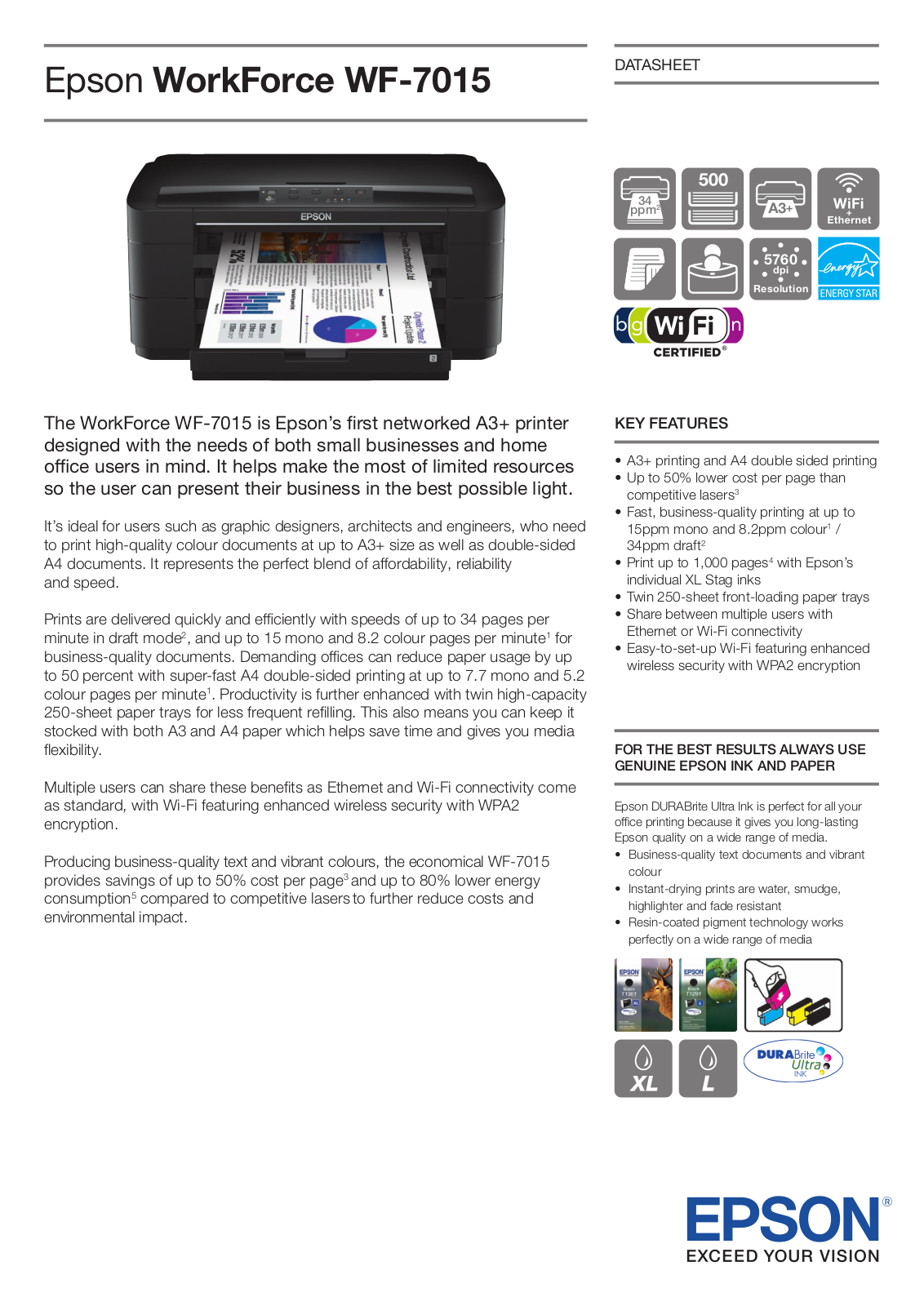
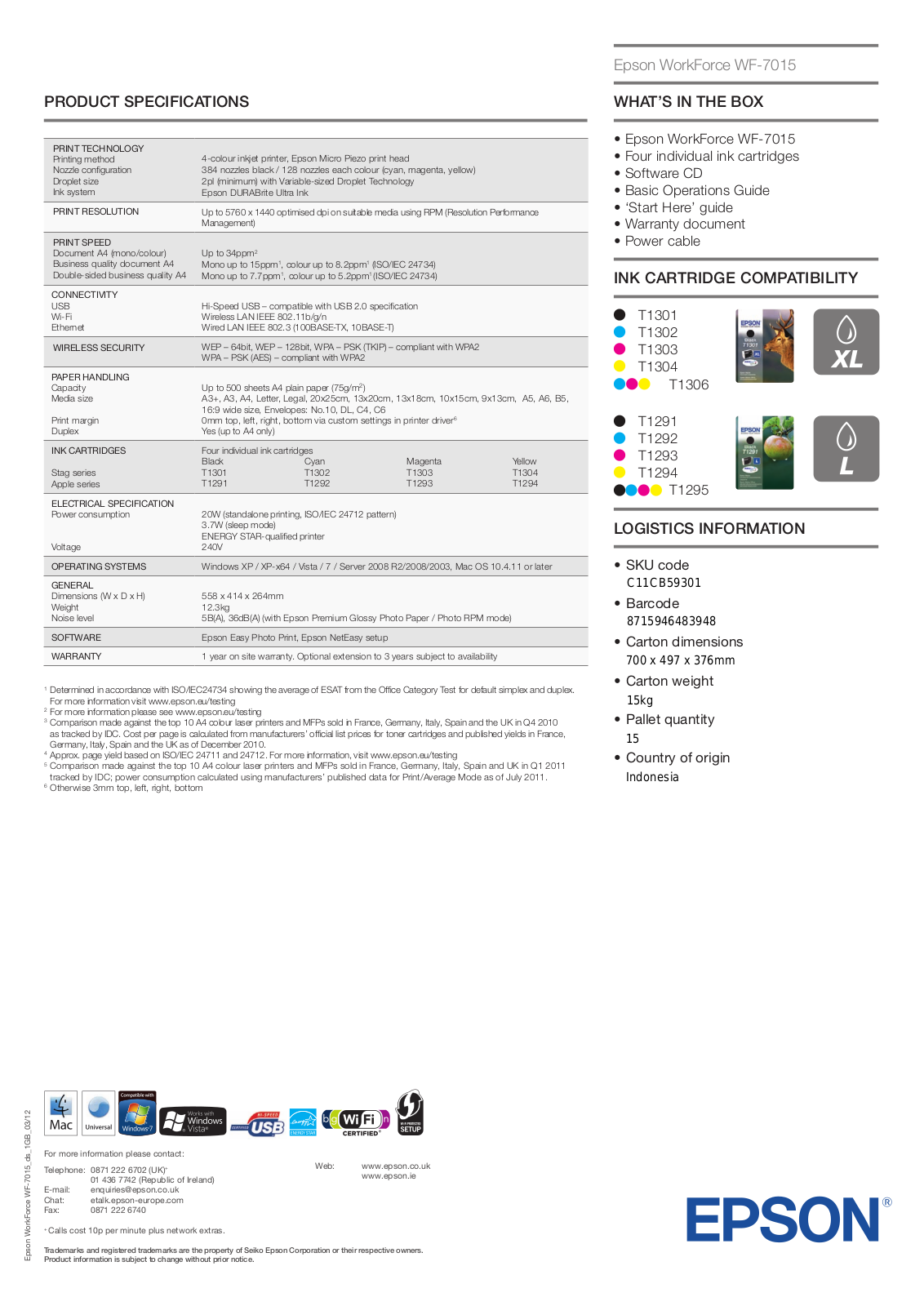
Specifications and Main Features
Frequently Asked Questions
User Manual
Loading…
+ hidden pages
You need points to download manuals.
1 point = 1 manual.
You can buy points or you can get point for every manual you upload.
Buy points
Upload your manuals
Additional Information:
Print, scan, and share directly from your iPhone®, iPad®, or iPod® Touch. Print photos, emails, webpages and files including Microsoft® Word, Excel®, PowerPoint® and PDF documents. Also supports Box, Dropbox, Evernote®*1, Google Drive™ and Microsoft OneDrive™. Epson iPrint makes printing easy and convenient whether your printer is in the next room or across the world. Key Features • Print, scan, and share directly from your iPhone, iPod Touch or iPad • Print from anywhere in the world to email-enabled Epson printers using remote print functionality • Print photos, PDFs and Microsoft Office documents such as Word, Excel and PowerPoint • Print stored files, email attachments, and online files from Box, Dropbox, Evernote, Google Drive and Microsoft OneDrive • Capture a document with your device camera, format, enhance, then save, ready to print • Scan from your Epson all-in-one and share your file (save to your device, send via email or save online) • Copy documents and photos using your mobile device and a nearby Epson printer • Transfer files between your device and an SD card or USB drive via an Epson printer • Check your printer’s status and ink levels • Print within a complex network environment using manual IP printer setup • Get help with a built-in FAQ section Advanced Features • Print high quality photos with automatic backlight and color cast correction • Choose and print multiple photos • Print your email attachments and stored files • Configure your print options including paper size and type, number of copies, page range and one- or two-sided printing • Print with and without borders • Switch between color or monochrome printing • Choose from different scanning resolutions and image types • Optimize print quality • Buy ink and supplies for your printer • Setup & register to Epson Connect • Manage remote printers
How to install a CISS onto an Epson WF7015
1. Place the CISS on the right side of the printer
(pic. 1) and straighten the pipe.
Check if the color order on the sticker of the printer
matches the order of color silicon plugs onto the cartridges.
In case of a mismatch the order should be changed!
pic. 1 pic. 2
2.Pulloutthesmallplugsandcarefullyinsertairl—
ters instead (pic. 2). Keep the small plugs — you will have to
insertthem backinstead ofair ltersif youneed totransport
you printer or CISS itself.
3. Plug in the printer to the electric network. Lift the
lid of the printer. After the carriage moves into the “cartridge
Set the carriage in a position which will allow you to hold it
with both hands (pic.  and carefully push the cartridges down
 and carefully push the cartridges down
 until they click in. Make sure that all the four cartridges are
properly clicked in.
6. Place the Clips left from the middle of the prin-
ter (pic.9). Place the second Clips. Fix the ink pipe into it
(pic. 10). Make sure that there is no twist in the pipe to en—
sure the proper operation of the printer.
7. Move the carriage into the extreme left position
(pic. 11), and then to the extreme right position (pic. 12).
pulling the pipe with the other one in the needed direction
(pic. 13, pic. 14).
9. The ink tanks should be placed 8 cm above the
level of the printer, not higher and not lower (pic. 16)
10. Plug in the printer to the electric network.
11. Switch the printer on . The printer will show you
about the need to change the cartridges (pic. 15). Perform the
chip resetting procedure described in the section “Resetting the
ink level”.
After the printer shows that it’s ready for operation
you should perform the type head condition test. On your com-
puter by choosing the Start — Printers and faxesand clicking the
right mouse button on your printer to select Printing preferences
pic. 3 pic. 4
pic. 5 pic. 6
change” position (pic. 3), unplug the printer from the electric
network by pulling the power cable out of the socket.
4. Use a screwdriver to remove the cover (pic. 4). In—
sert it in between the clip and the carriage. Bend the clip right—
wards (pic. 5) until you are able to remove the cover (pic. 6).
Take off the cover. The printer will work even if the clip is bro—
ken.
5. Insert the cartridge block into the carriage (pic. 7).
pic. 7 pic. 8
pic. 14pic. 13
pic. 9 pic. 10
pic. 11 pic. 12
pic. 17
pic. 18
Check that there is no twist along the pipe and that it doesn’t
interfere with the movement of the carriage. The pipe should
not be slack.
8. If the pipe is shorter than needed, pull it out in
the needed direction by holding the Clips with one hand and
– Maintenance – Nozzle check(pic. 17, pic 18).
12. In order to transport the printer replace the air
lters with the small plugs. Do not leave the printer without
cartridges or a CISS, otherwise the printhead will dry up. Any
movement of the printer from one place to another should be
performed with utmost care and compliance with the transpor—
tation rules, otherwise moving the tank may result in ink leak—
ing into the printer which will disable the device.
pic. 15
pic. 16
|
Код: 34787 Извините, товара сейчас нет в наличии
Бесплатная доставка Извините, товара сейчас нет в наличии Сравнить Новости интернет-магазина «Лаукар»:23.04.2025 26.02.2025 17.02.2025 Дополнительная информация в категории Струйный принтер:Таблица Авторизованных сервисных центров по брендам. Описание Инструкция Отзывы (0) В интернет-магазине бытовой техники «Лаукар» Вы можете скачать инструкцию к товару Струйный принтер Epson WorkForce WF-7015 Wi-Fi A3 совершенно бесплатно. Все инструкции, представленные на сайте интернет-магазина бытовой техники «Лаукар», предоставляются производителем товара. Для того чтобы скачать инструкцию, Вам необходимо нажать на ссылку «скачать инструкцию», расположенную ниже, а в случае, если ссылки нет, Скачать инструкцию Смотреть инструкцию 
Фирма-производитель оставляет за собой право на внесение изменений в конструкцию, дизайн и комплектацию товара: Струйный принтер Epson WorkForce WF-7015 Wi-Fi A3. Пожалуйста, сверяйте информацию о товаре с информацией на |
A good user manual
The rules should oblige the seller to give the purchaser an operating instrucion of Epson Workforce WF-7015, along with an item. The lack of an instruction or false information given to customer shall constitute grounds to apply for a complaint because of nonconformity of goods with the contract. In accordance with the law, a customer can receive an instruction in non-paper form; lately graphic and electronic forms of the manuals, as well as instructional videos have been majorly used. A necessary precondition for this is the unmistakable, legible character of an instruction.
What is an instruction?
The term originates from the Latin word „instructio”, which means organizing. Therefore, in an instruction of Epson Workforce WF-7015 one could find a process description. An instruction’s purpose is to teach, to ease the start-up and an item’s use or performance of certain activities. An instruction is a compilation of information about an item/a service, it is a clue.
Unfortunately, only a few customers devote their time to read an instruction of Epson Workforce WF-7015. A good user manual introduces us to a number of additional functionalities of the purchased item, and also helps us to avoid the formation of most of the defects.
What should a perfect user manual contain?
First and foremost, an user manual of Epson Workforce WF-7015 should contain:
— informations concerning technical data of Epson Workforce WF-7015
— name of the manufacturer and a year of construction of the Epson Workforce WF-7015 item
— rules of operation, control and maintenance of the Epson Workforce WF-7015 item
— safety signs and mark certificates which confirm compatibility with appropriate standards
Why don’t we read the manuals?
Usually it results from the lack of time and certainty about functionalities of purchased items. Unfortunately, networking and start-up of Epson Workforce WF-7015 alone are not enough. An instruction contains a number of clues concerning respective functionalities, safety rules, maintenance methods (what means should be used), eventual defects of Epson Workforce WF-7015, and methods of problem resolution. Eventually, when one still can’t find the answer to his problems, he will be directed to the Epson service. Lately animated manuals and instructional videos are quite popular among customers. These kinds of user manuals are effective; they assure that a customer will familiarize himself with the whole material, and won’t skip complicated, technical information of Epson Workforce WF-7015.
Why one should read the manuals?
It is mostly in the manuals where we will find the details concerning construction and possibility of the Epson Workforce WF-7015 item, and its use of respective accessory, as well as information concerning all the functions and facilities.
After a successful purchase of an item one should find a moment and get to know with every part of an instruction. Currently the manuals are carefully prearranged and translated, so they could be fully understood by its users. The manuals will serve as an informational aid.