
Plantronics Voyager 3200
Bluetooth Headset System
User Guide
Manual
View the manual for the Plantronics Voyager 3200 here, for free. This manual comes under the category headphones and has been rated by 3 people with an average of a 6.7.
This manual is available in the following languages: English. Do you have a question about the Plantronics Voyager 3200 or do you need help?
Ask your question here
Index
- Contents
- Headset overview
- Charge
- Fit
- Pair
- Load software
- The Basics
- More Features
- Update firmware
- Troubleshooting
- Support
Product Images (4)

Plantronics Voyager 3200 specifications
Below you will find the product specifications and the manual specifications of the Plantronics Voyager 3200.
The Plantronics Voyager 3200 is a wireless headset that weighs 9 grams, making it lightweight and portable. It features a rechargeable battery with a capacity of 93 milliampere-hours (mAh), enabling it to be used for extended periods without needing to be charged frequently.
Equipped with Bluetooth version 4.1 and A2DP Bluetooth profiles, the Voyager 3200 allows for seamless wireless connectivity with compatible devices. It utilizes digital signal processing (DSP) technology, enhancing the audio quality by reducing background noise and optimizing sound.
With a wireless range of 30 meters, users can enjoy freedom of movement without compromising on audio quality or connectivity. The headset also offers the convenience of microphone mute function, allowing individuals to mute the microphone during calls or when not in use.
The recharge time for the battery is 1.5 hours, ensuring quick and efficient charging. Once fully charged, the Voyager 3200 provides up to 6 hours of continuous audio playback time. This extended playback time allows users to enjoy their favorite music, podcasts, or audiobooks without interruption.
As a wireless headset, the Voyager 3200 falls under the category of headphones. It uses Bluetooth technology as its connectivity technology, enabling wireless communication with compatible devices.
Overall, the Plantronics Voyager 3200 offers a lightweight and portable solution for individuals seeking a wireless headset with reliable connectivity, enhanced audio quality, and a long battery life.
Operating temperature (T-T)
0 — 40 °C
Digital Signal Processing (DSP)
Yes
General
| Brand | Plantronics |
| Model | Voyager 3200 | 207350-05 |
| Product | headphone |
| EAN | 5033588050056 |
| Language | English |
| Filetype | User manual (PDF) |
Weight & dimensions
Battery
| Battery capacity | 93 mAh |
| Rechargeable battery | Yes |
| Battery recharge time | 1.5 h |
| Continuous audio playback time | 6 h |
Operational conditions
| Operating temperature (T-T) | 0 — 40 °C |
Ports & interfaces
| Bluetooth version | 4.1 |
| Bluetooth profiles | A2DP |
| Wireless range | 30 m |
| Connectivity technology | Wireless |
| Bluetooth | Yes |
| 3.5 mm connector | No |
| USB connectivity | No |
Microphone
| Microphone mute | Yes |
| Yes | |
| Microphone type | Boom |
Other features
| Digital Signal Processing (DSP) | Yes |
| 2.5 mm connector | No |
Performance
| Product type | Headset |
| Product color | Black |
| Headset type | Monaural |
| Wearing style | In-ear |
| Recommended usage | Office/Call center |
Headphones
show more
Frequently Asked Questions
Can’t find the answer to your question in the manual? You may find the answer to your question in the FAQs about the Plantronics Voyager 3200 below.
How do I pair my Plantronics Voyager 3200 headphones with my device?
To pair your Plantronics Voyager 3200 headphones, simply ensure that Bluetooth is enabled on your device and then press and hold the Call button on the headphones until the Bluetooth LED flashes red and blue. Once the headphones appear in the list of available devices on your device’s Bluetooth settings, select them to complete the pairing process.
How can I answer or end a call using my Plantronics Voyager 3200 headphones?
To answer a call, simply press the Call button on your headphones. To end a call, press the same button again. You can also use voice commands to answer or end calls if your device supports this feature.
How do I adjust the volume on my Plantronics Voyager 3200 headphones?
The volume can be adjusted by pressing the Volume Up (+) or Volume Down (-) buttons on the side of the headphones. Keep in mind that the volume control on your device may also affect the overall volume level.
Is it possible to mute the microphone on the Plantronics Voyager 3200 headphones during a call?
Yes, you can mute the microphone during a call by tapping the Mute button located on the back of the headphones. The Mute button will light up when the microphone is muted. To unmute, simply tap the Mute button again.
How can I charge my Plantronics Voyager 3200 headphones?
Charging your headphones is simple. Connect the provided charging cable to the charging port located at the bottom of the headphones, and then plug the other end into a power source such as a USB port on your computer or a wall adapter. The LED indicator will turn solid red while the headphones are charging and will turn off once fully charged.
Does the Plantronics Voyager 3200 have a rechargeable battery?
Yes, the Plantronics Voyager 3200 has a rechargeable battery. This means that users do not need to constantly replace the battery, saving them time and money.
What is the battery capacity of the Plantronics Voyager 3200?
The battery capacity of the Plantronics Voyager 3200 is 93 mAh. This means that the headphone can provide a decent amount of battery life for users.
Does the Plantronics Voyager 3200 have noise-canceling microphones?
Yes, the Plantronics Voyager 3200 has noise-canceling microphones. This feature helps to reduce background noise, allowing for clearer and more focused communication.
What is the wireless range of the Plantronics Voyager 3200?
The wireless range of the Plantronics Voyager 3200 is 30 meters. This means that users can move around freely without worrying about losing connection to their device.
Is the Plantronics Voyager 3200 compatible with devices that have a 3.5 mm connector?
No, the Plantronics Voyager 3200 does not have a 3.5 mm connector. This means that it cannot be directly connected to devices that have this type of connector.
What is the weight of the Plantronics Voyager 3200?
The Plantronics Voyager 3200 has a weight of 9 g.
What is bluetooth?
Bluetooth is a way of exchanging data wirelessly between electronic devices via radio waves. The distance between the two devices that exchange data can in most cases be no more than ten metres.
When is my volume too loud?
A volume above 80 decibels can be harmful to hearing. When the volume exceeds 120 decibels, direct damage can even occur. The chance of hearing damage depends on the listening frequency and duration.
What is noise cancelling?
Noise cancelling ensures that ambient noise is reduced.
How long does it take to charge the battery of the Plantronics Voyager 3200?
It takes 1.5 h to charge the battery of the Plantronics Voyager 3200.
Can I make hands-free calls with my headphone?
The newer headphones generally have a small microphone built in which allows for calling.
Is the manual of the Plantronics Voyager 3200 available in English?
Yes, the manual of the Plantronics Voyager 3200 is available in English .
Is your question not listed? Ask your question here

Voyager 3200 UC
Micro-casque/oreillette Bluetooth
Guide de l’utilisateur

Sommaire
Présentation du casque 3
Soyez prudent 3
Présentation de l’étui de chargement 4
Chargement 5
Vérifier l’état de charge de l’oreillette 5
Utiliser l’étui de chargement 6
Port 7
Réglage du port 7
Couplage 8
Couplage Bluetooth 8
Utilisation sur ordinateur 8
Configuration multimédia 8
Adaptateur Bluetooth USB 9
Coupler à nouveau l’adaptateur USB 9
Couplage NFC 9
Mode d’appairage (connexion Bluetooth) 10
Charger le logiciel 11
Fonctions de base 12
Passer/Prendre/Terminer des appels 12
Commandes vocales 13
Régler le volume 13
Lire et mettre en pause des
Utiliser les capteurs 13
Autres caractéristiques : 15
Sélectionner la langue 15
Modifier les commandes vocales « répondre/ignorer » 15
Utiliser deux téléphones 15
Modifier la configuration de l’oreillette 16
Mettre à jour le micrologiciel 17
Récupération micro-casque/oreillette 17
Dépannage 18
Assistance 19
fichiers audio 13
2
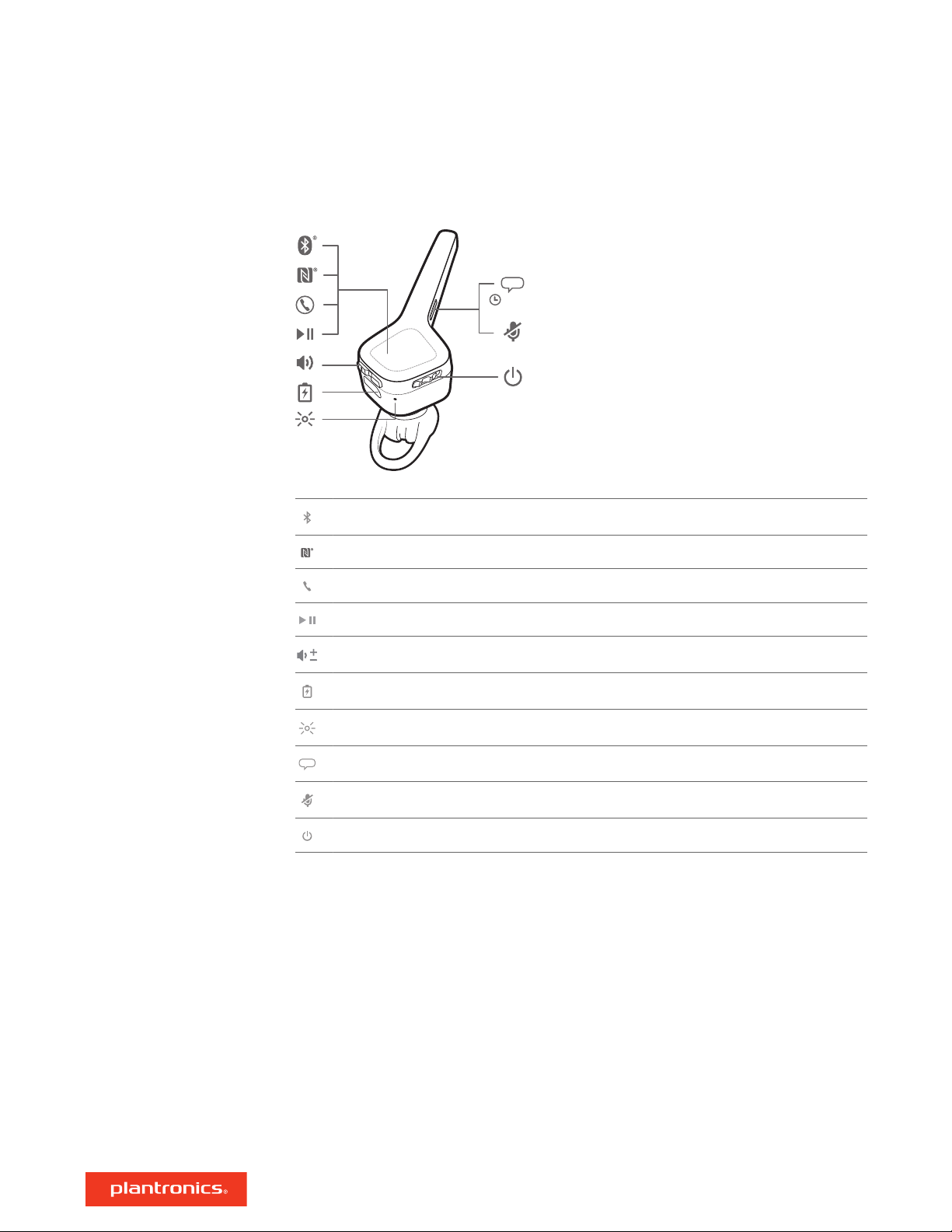
Présentation du casque
Couplage Bluetooth
Soyez prudent
Couplage NFC
Appel
Lecture/Pause
Volume
Port de chargement micro-USB
Témoin lumineux (LED) de l’oreillette
Commandes vocales (Siri, Google Now et Cortana)
Mode secret
Mise sous tension
Avant d’utiliser votre nouvel appareil, consultez le guide de sécurité pour connaître les
informations importantes relatives à l’usage de votre nouveau produit.
3
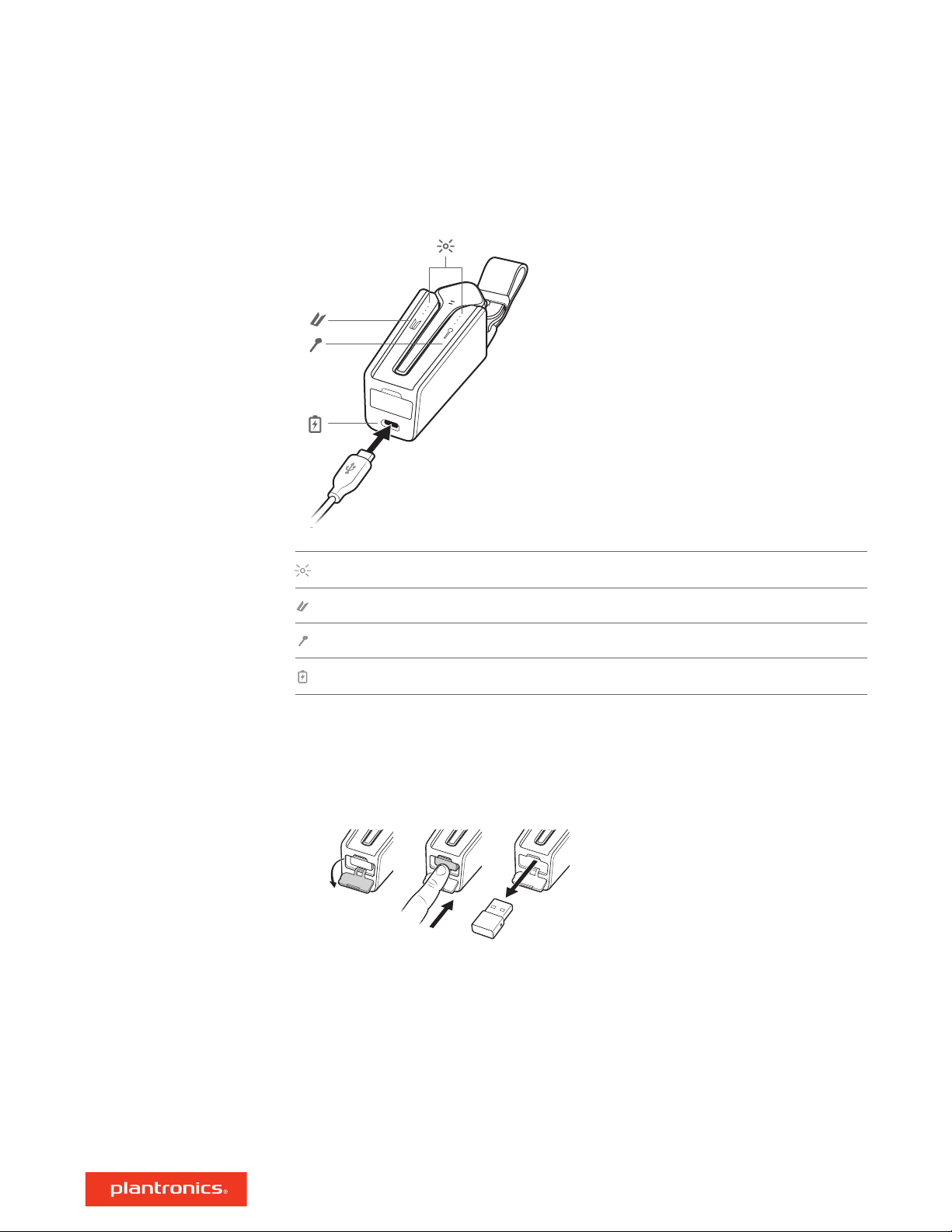
Présentation de l’étui de
chargement
Témoins de l’étui de chargement : indiquent l’état de la batterie de l’étui ou de l’oreillette
Etui de chargement : touchez l’icône pour afficher l’état de la batterie de l’étui de chargement
Oreillette : appuyez sur l’icône pour afficher l’état de la batterie de l’oreillette
Port de chargement micro-USB
Il faut environ 90 minutes pour recharger entièrement l’étui de chargement. Lorsque sa batterie
est complètement chargée, l’étui de chargement offre 10 heures d’autonomie supplémentaire à
l’oreillette.
L’adaptateur Bluetooth USB en option est rangé dans l’étui de chargement.
4
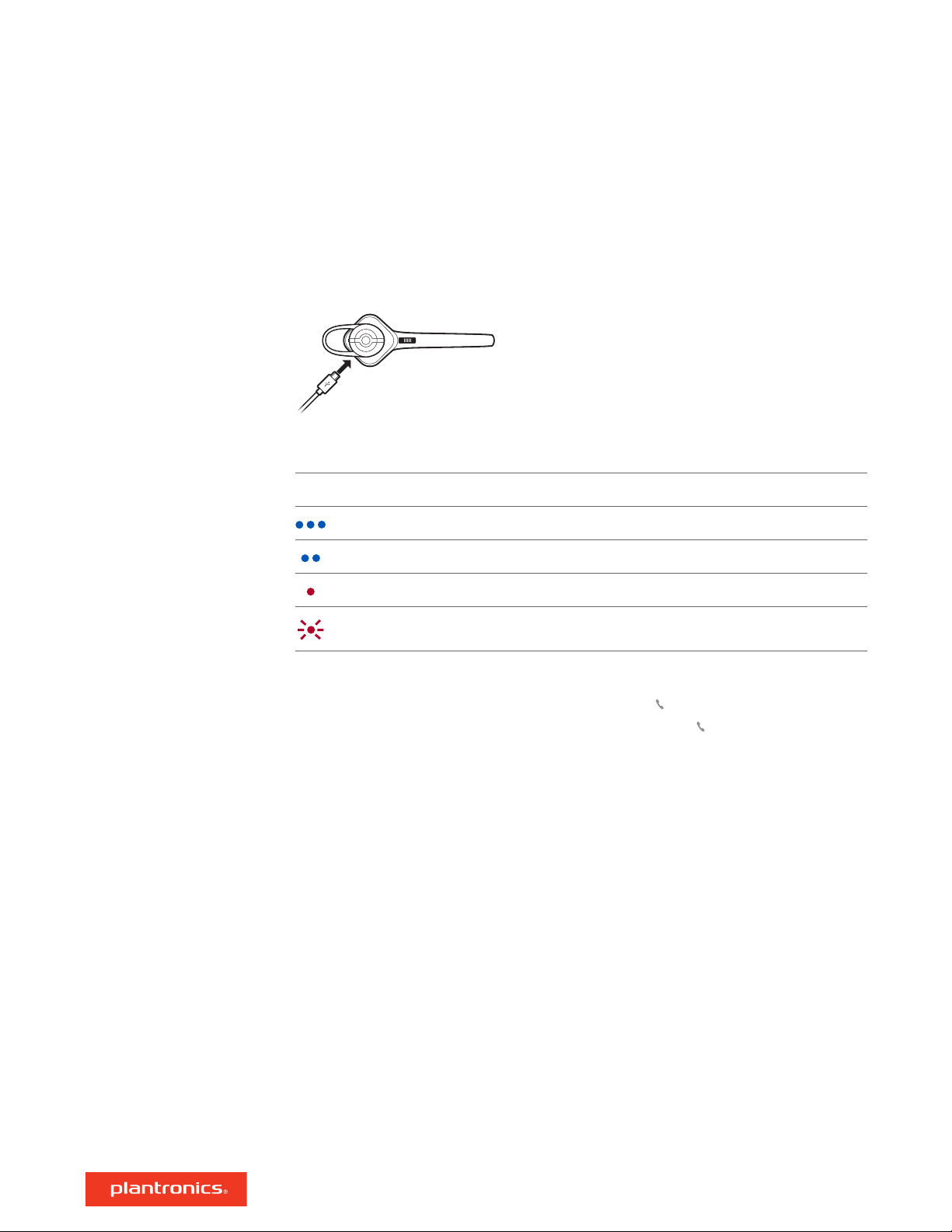
Chargement
Il faut environ 90 minutes pour recharger entièrement l’oreillette. Le témoin lumineux s’éteint
lorsque la charge est terminée.
ASTUCE Pour réinitialiser la précision de l’invite du temps de conversation, épuisez la batterie de
l’oreillette, puis chargez-la complètement.
Comportement du témoin lumineux de l’oreillette lors du chargement avec câble micro-USB
Arrêt Chargement terminé
Niveau de batterie élevé
Vérifier l’état de charge de
l’oreillette
Niveau de batterie moyen
Batterie faible
Niveau de batterie critique
Il existe plusieurs méthodes pour vérifier l’état de la batterie de l’appareil.
1 Lorsque vous portez l’oreillette, appuyez sur le bouton d’appel et écoutez l’alerte vocale.
2 Lorsque vous ne portez pas l’oreillette, appuyez sur le bouton d’appel et observez les témoins
lumineux de l’appareil.
3 Consultez l’écran d’accueil de Plantronics Hub.
5
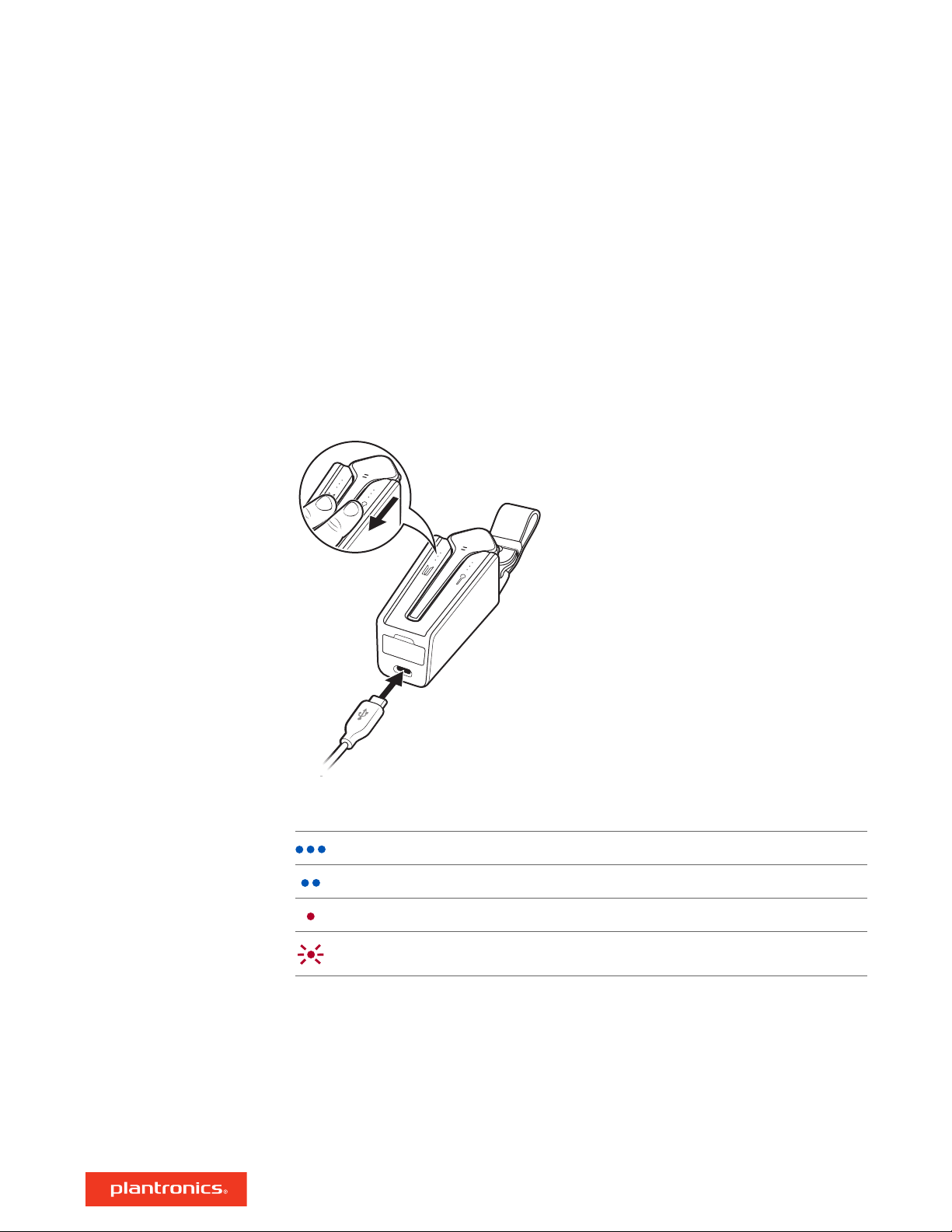
Utiliser l’étui de
chargement
Un étui dont le chargement est complet peut fournir 10 heures supplémentaires d’autonomie en
conversation avec l’oreillette. Il faut environ 90 minutes pour recharger entièrement l’étui de
chargement. Il faut environ 2 heures pour recharger entièrement l’oreillette et l’étui de
chargement.
IMPORTANT L’étui de chargement est placé en mode veille prolongée après la fabrication pour
économiser de l’énergie et protéger la batterie. Pour sortir l’étui de chargement du mode veille,
branchez-le à une source d’alimentation pendant au moins 1 minute. Les témoins lumineux clignotent
lors de la charge.
Vérifiez l’état de la batterie de l’étui de chargement ou de l’oreillette en appuyant ou en passant
votre doigt sur les icônes tactiles de l’appareil. Les témoins lumineux indiquent l’état de la batterie.
Témoins lumineux d’état de la batterie pour étui de chargement et oreillette
Niveau de batterie élevé
Niveau de batterie moyen
Batterie faible
Niveau de batterie critique. Rechargez l’étui de chargement ou l’oreillette
6
Loading…
Table of Contents
- Headset Overview
- Charge
- Load software
- The Basics
- More Features
- Update firmware
- Troubleshooting
- Support
- References
- Read User Manual Online (PDF format)
- Download This Manual (PDF format)
Voyager 3200 Series Bluetooth Headset
User Guide
Headset Overview
| Bluetooth pair
—|—
| Near Field Communication (NFC) pair
| Call
| Play/Pause
| Volume
| Micro-USB charge port
| Headset LED (indicator light)
| Voice control (Siri, Google Now, Cortana)
| Mute
| Power
Be safe
Please read the safety guide for important safety, charging, battery, and
regulatory information before using your new headset.
Optional charge case
overview
| Charge case LEDs; indicates case/headset battery status
—|—
| Charge case: Touch the icon to display the charge case battery status
| Headset: Touch the icon to display the headset battery status
| Micro-USB charge port
It takes 90 minutes to fully charge the charging case. When fully charged, the
charging case provides an extra 10 hours of battery life for the headset.
Charge
It takes 90 minutes to fully charge the headset. The indicator light turns off
once charging is complete.
TIP To reset the accuracy of the talk time prompt, deplete the headset battery
then charge it fully.
TIP To check the headset battery status, tap the Call button while wearing
your headset or tap the Voice button and say “check the battery.”
Check the headset battery status
There are several ways to check your headset battery status.
- Wearing the headset, tap the Call button, and listen to the voice alert.
- When not wearing the headset, tap the Call button and observe the headset LEDs.
- Check Plantronics Hub home screen.
Use the charging case
A fully charged case can supply an additional 10 hours of headset talk time.
It takes 90 minutes to fully charge the charging case. It takes 2 hours to
fully charge the headset and charge the case together.
IMPORTANT The charging case is placed in deep sleep mode after
manufacturing to save power and protect the battery. To wake up, up the
charging case, and plug it into a power source for a minimum of 1 minute. The
LEDs flash when charging.
Check the charge case or headset battery status by touching/swiping either the
case or headset icons. The LEDs indicate the battery status.

Battery status LEDs for charge case and headset
| Battery high
—|—
| Battery medium
| Battery low
| Battery critical; Recharge case/headset
Fit
Adjust the fit
The loop of the gel ear tip tucks into the back curve of your ear for a stable
fit.
- With the headset powered off, replace the ear tip with an alternate size if it feels loose or tight in your ear.
- To adjust the fit, rotate the ear tip on the headset or add the optional clip-on earloop.*


NOTE *Using clip-on earloop may decrease sensor sensitivity. Turn off
sensors for better performance.
Pair
NOTE If your phone supports Near Field Communication (NFC), go to NFC
pairing.
Bluetooth pairing
-
Wearing your headset, power it on. You hear “pairing” in the default language. The headset LED flashes red and blue.
-
Activate Bluetooth ® on your phone to search for new devices.
• iPhone > Settings > Bluetooth > On
• Android > Settings > Bluetooth > On > Scan
NOTE *Menus may vary by device. -
Select “ PLT V3200 Series.” If necessary, enter four zeros (0000) for the passcode or accept the connection. Once successfully paired, you hear “pairing successful.”
NFC pairing
- Ensure NFC is on and your phone’s display is unlocked.
- Tap and hold the headphones to the phone’s NFC tag location until the NFC pairing completes. If necessary, accept the connection.
TIP Keep an eye on your Smartphone’s screen for prompts to start and accept
the pairing process.
NOTE The headphone’s NFC tag is located on the outside of the left ear
cup. Phone NFC tag locations vary.
Pair mode
With your headset powered on, press and hold the Call button until you hear
“pairing.”
Load software
- Download Plantronics Hub for iOS/Android by visiting plantronics.com/software, the App Store, or Google Play.
- Download Plantronics Hub for Windows/Mac by visiting plantronics.com/software.

Manage your headset settings with your computer or mobile device with
Plantronics Hub for Windows and Mac or Plantronics Hub for iOS and Android,
respectively.
| Plantronics Hub | iOS and Android | Windows and Mac |
|---|---|---|
| Call control for softphones | available for some softphones | X |
| Change headset language | X | X |
| Update firmware | X | X |
| Turn features on/off | X | X |
| View user guide | X | X |
| Battery meter | X | X |
| Find MyHeadset | X |
The Basics
Make/Take/End Calls
Answer a call
Choose:
- Put on the headset to answer calls, or
- Say “answer” after the call is announced, or
- Tap the Call button
Answer a second call
First, tap the Call button to end the current call, then tap the Call button
again to answer a new call.
End a call
Tap the Call button to end the current call.
Reject a call
Choose:
- Say “ignore” after the call is announced, or
- Press the Call button for 2 seconds
Redial last outgoing call
Double-tap the Call button .
Mute
During a conversation, press the Mute button. You hear “mute on” or “mute
off.”
Mute reminder
If the mute reminder is on, an alert repeats when you speak to remind you that
mute is activated.
Customize your settings in Plantronics Hub.
Caller Announcement (mobile phone only)
When wearing your headset, you will hear the name of a contact calling so you
can decide whether to answer or ignore the call without having to check the
phone screen.
An incoming caller name is announced:
- if your phone supports Phone Book Access Profile (PBAP)
- if you granted access to your contacts during the pairing process (for many mobile phones, this is preset out-of-the-box and may not be necessary)
Voice control
Siri, Google Now ™, Cortana When not on a call, press and hold the Voice
button for 2 seconds until you hear the tone. Wait for the phone prompt to
activate voice dialing, search, and other smartphone voice controls.
Adjust the volume
Toggle the Volume button up (+) or down (–) during a call or while streaming
audio.
While not on a call or streaming audio you can toggle the Volume button to
adjust the volume level for Caller Announce and other voice prompts.
Play or pause streaming audio
When not on a call, press the Play/Pause button for 2 seconds to either pause
or resume playback of streaming audio.
NOTE You must pause your streaming audio before you use your headset’s
voice commands to initiate an outbound call with your headset (call back or
voice dial).
NOTE If you power off the headset or go out of phone range while
streaming audio, your headset will not play/pause the stream upon reconnecting
until you manually resume streaming with your phone.
Use sensors
Smart sensors respond when you put on or take off your headset. Customize
with Plantronics Hub.
Below describes the default settings.
With active sensors| putting on the headset will:| taking off the headset
will:
—|—|—
Mobile/softphone call| answer the call| keep call in the headset
Music/media| resume music/media (if playing
previous to taking off)| pause music/media (if playing)
Lock headset| unlock the Call button| lock the Call button to avoid
accidental calls
NOTE *Functionality varies by application. May not function with web-
based apps.
Reset sensors
You may need to reset the sensors if they are not working as expected.
To reset your sensors, connect the headset directly to your computer’s USB
port, and place it, with the ear tip up, on a flat non-metallic surface for
more than 10 seconds.

Disable sensors
You can disable your headset’s smart sensors in several ways:
- Manage sensors through Plantronics Hub software
- Hold both the Mute and Call buttons for more than 4 seconds until the LED flashes purple and then red. Repeat to reactivate; the LED flashes purple then blue
NOTE Sensors cannot be disabled while streaming audio.
More Features
Select language
You can wirelessly charge your headset language using Plantronics Hub
software. Download:
plantronics.com/software. Choose:
- With your headset paired to your smartphone, select headset language in Plantronics Hub for iOS/ Android
- With your headset connected to your computer via a USB adapter or cable, select headset language in Plantronics Hub for Windows/Mac
USB adapter not included in all models.
Voice alerts list
Following is a list of common voice alerts. You can use Plantronics Hub to
customize some of these alerts. Download Plantronics Hub at
plantronics.com/software
• “Answering call”
• “Battery low”
• “Redialing last outgoing call”
• “Incoming call”
• “Mute on/mute off”
• “No phone is connected”
• “Pairing”| • “Pairing incomplete, restart headset”
• “Pairing successful”
• “Power on/off”
• “Phone X connected/disconnected”
• “Recharge headset”
• “Smart sensors on/off”
• “Battery high”
• “Volume maximum/minimum”
—|—
Modify the answer/ignore voice commands
Enable or disable the answer/ignore voice commands using Plantronics Hub.
Visit plantronics.com/software
Use two phones
Multipoint technology lets you pair a second phone and answer calls from
either phone.
Once you have paired your two phones, it’s easy to answer calls from either
phone.
When on a call, you will hear a ringtone notification of the incoming call
from the second paired phone. To answer a second call from the other phone,
you must end the current call (tap the Call button) so the new call
automatically answers.
If you choose to not answer the second call, it will go to voicemail.
Change headset settings
You can manage your headset settings by using Plantronics Hub for Windows/Mac
on your computer or Plantronics Hub for iOS/Android on your mobile device.
Visit plantronics.com/software.
Settings that can be changed include:
• Headset language
• Answering call alert
• Mute
• Mute reminder
• Smart sensors
• Firmware update
• Streaming audio (A2DP)| • HD Voice (wideband audio)
• Caller ID on/off
• Call answer/ignore
• Audio channel tone
• Restore default settings
• Find MyHeadset: clear event history
—|—
Update firmware
Keep your firmware up-to-date to improve performance and add new features to
your headset.
Update your firmware using your computer or mobile device with Plantronics Hub
for Windows/Mac or Plantronics Hub for iOS/Android, respectively. Download
Plantronics Hub at
plantronics.com/software. Choose:
- Plantronics Hub for Windows/Mac: With your headset connected to your computer, check Updates for available firmware update
- Plantronics Hub for iOS/Android: With your headset paired to your smartphone, check Settings for available firmware updates While updating firmware:
- Remove your headset from your ear. Do not use your headset or device until the update is complete.
- Disconnect your headset from other devices such as phones, tablets, and computers
- Do not start a second update from a second device
- Do not stream media on your smartphone
- Do not answer or place a call
NOTE Smartphone: If you receive a lot of calls, emails, or texts, try
turning on the Do Not Disturb feature in your smartphone’s settings while you
update.
Headset recovery
If you have several failed attempts at an over-the-air firmware update, or if
your headset becomes unresponsive, take the following steps:
- Download and install Plantronics Hub for Windows/Mac at plantronics.com/software
- Connect your headset to your computer using a USB cable
- Open Plantronics Hub, go to Help > Support > Firmware Updates & Recovery, and enter your Product ID (PID) to complete the recovery
Find your Product ID (PID). Choose:
- Plantronics Hub’s headset recovery instructions
- Plantronics Hub’s home screen
Troubleshooting
Callers can’t hear me.| • Ensure the headset is paired and connected to your
phone.
• On your smartphone, check the audio source to make sure that the audio is
directed to the headset and not another audio output.
• Reposition the headset on your ear as the sensors may not be detecting it is
on.
• Reset your sensors to recalibrate them. See Reset sensors.
• Disable your sensors as they may be incompatible with your specific ear
shape.
• Using your clip-on earloop may decrease sensor sensitivity. Turn off sensors
for better performance.
• Disable HD Voice (Wideband Audio) with the Plantronics Hub application as
this setting may be incompatible with your phone.
—|—
I can’t hear callers or music.| • Ensure the headset is paired and connected
to your phone.
• On your smartphone, check the audio source to make sure that the audio is
directed to the headset and not another audio output.
• Reposition the headset on your ear as the sensors may not be detecting it is
on.
• Reset your sensors to recalibrate them. See Reset sensors.
• Disable your sensors as they may be incompatible with your specific ear
shape.
• Using your clip-on earloop may decrease sensor sensitivity. Turn off sensors
for better performance.
My headset will not achieve 6 hours
of talk time after it is fully charged.| • Ensure the headset is paired and
connected to your phone.
• Disable HD Voice (Wideband Audio) which uses more power.
• Completely discharge your headset’s battery then give it a full charge.
• Some phones have less efficient Bluetooth connections and will not allow for
an optimal talk time of 6 hours. The talk time remaining estimate is partly
calculated by your historical use so inconstancies in an estimate may occur
based on your particular use patterns.
Support
0800 410014
For warranty details, go to
plantronics.com/warranty.
NEED MORE HELP?
plantronics.com/support
Plantronics, Inc.
345 Encinal Street
Santa Cruz, CA 95060
United States| Plantronics B.V.
Scorpius 171
2132 LR Hoofddorp
Netherlands
—|—
© 2017 Plantronics and Voyager are trademarks of Plantronics, Inc. registered
in the US and other countries, and PLT is a trademark of Plantronics, Inc.
The Bluetooth trademark is owned by Bluetooth SIG, Inc. and any use of the
mark by Plantronics, Inc. is under license. Google Play and the Google Play
logo are trademarks of Google Inc. The N-Mark is a trademark or registered
trademark of NFC Forum, Inc. in the United States and in other countries. All
other trademarks are the property of their respective owners.
Patents: US 9,264,792; D717,771; D730,877; D766,209; patents pending.
208303-06 (06.17)
References
- Poly | Video Conferencing, Conference Phones & Headsets | Poly, formerly Plantronics & Polycom
- plantronics.com/software
Read User Manual Online (PDF format)
Read User Manual Online (PDF format) >>
Download This Manual (PDF format)
Download this manual >>
Voyager 3200 Series Bluetooth Headset
User Guide
Contents
Headset overview 3 Be safe 3 Optional charge case overview 4
Charge 5 Check headset battery status 5 Use the charge case 6
Fit 7 Adjust the fit 7
Pair 8 Bluetooth pairing 8 NFC pairing 8 Pair mode 8
Load software 9
The Basics 10 Make/Take/End Calls 10 Voice control 11 Adjust the volume 11 Play or pause streaming audio 11 Use sensors 11
More Features 13 Select language 13 Modify the answer/ignore voice commands 13 Use two phones 13 Change headset settings 13
Update firmware 15 Headset recovery 15
Troubleshooting 16
Support 17
2
00:02
Bluetooth pair
Near Field Communication (NFC) pair
Call
Play/Pause
Volume
Micro-USB charge port
Headset LED (indicator light)
Voice control (Siri, Google Now, Cortana)
Mute
Power
Please read the safety guide for important safety, charging, battery and regulatory information before using your new headset.
Headset overview
Be safe
3
Charge case LEDs; indicates case/headset battery status
Charge case: Touch the icon to display the charge case battery status
Headset: Touch the icon to display the headset battery status
Micro-USB charge port
It takes 90 minutes to fully charge the charge case. When fully charged, the charge case provides an extra 10 hours of battery life for the headset.
Optional charge case overview
4
It takes 90 minutes to fully charge the headset. The indicator light turns off once charging is complete. TIP To reset the accuracy of the talk time prompt, deplete the headset battery then charge fully.
TIP To check the headset battery status, tap the Call button while wearing your headset or tap the Voice button and say check battery.
There are several ways to check your headset battery status.
1 Wearing the headset, tap the Call button and listen to the voice alert.
2 When not wearing the headset, tap the Call button and observe the headset LEDs.
3 Check Plantronics Hub home screen.
Charge
Check headset battery status
5
A fully charged case can supply an additional 10 hours of headset talk time. It takes 90 minutes to fully charge the charge case. It takes 2 hours to fully charge the headset and charge case together.
IMPORTANT The charge case is placed in deep sleep mode after manufacturing to save power and protect the battery. To wake-up the charge case, plug it into a power source for a minimum of 1 minute. The LED’s flash when charging.
Check the charge case or headset battery status by touching/swiping either the case or headset icons. The LEDs indicate the battery status.
Battery status LEDs for charge case and headset
Battery high
Battery medium
Battery low
Battery critical; Recharge case/headset
Use the charge case
6
The loop of the gel eartip tucks into the back curve of your ear for a stable fit.
1 With the headset powered off, replace the eartip with an alternate size if it feels loose or tight in you ear.
2 To adjust the t, rotate the eartip on the headset or add the optional clip-on earloop.*
NOTE *Using clip-on earloop may decrease sensor sensitivity. Turn off sensors for better performance.
Fit
Adjust the fit
7
NOTE If your phone supports Near Field Communication (NFC), go to NFC pairing.
1 Wearing your headset, power it on. You hear «pairing» in the default language. The headset LED flashes red and blue.
2 Activate Bluetooth on your phone to search for new devices. iPhone > Settings > Bluetooth > On*
Android > Settings > Bluetooth > On > Scan*
NOTE *Menus may vary by device.
3 Select PLT V3200 Series. If necessary, enter four zeros (0000) for the passcode or accept the connection. Once successfully paired, you hear pairing successful.»
1 Ensure NFC is on and your phones display is unlocked.
2 Tap and hold the headphones to the phones NFC tag location until NFC pairing completes. If necessary, accept the connection. TIP Keep an eye on your Smartphone’s screen for prompts to start and accept the pairing process.
NOTE The headphones NFC tag is located on the outside of the left ear cup. Phone NFC tag locations vary.
With your headset powered on, press and hold the Call button until you hear «pairing.»
Pair
Bluetooth pairing
NFC pairing
Pair mode
8
Download Plantronics Hub for iOS/Android by visiting plantronics.com/software, the App Store or Google Play.
Download Plantronics Hub for Windows/Mac by visiting plantronics.com/software.
Manage your headset settings with your computer or mobile device with Plantronics Hub for Windows and Mac or Plantronics Hub for iOS and Android, respectively.
Plantronics Hub iOS and Android Windows and Mac
Call control for softphones available for some softphones
X
Change headset language X X
Update firmware X X
Turn features on/off X X
View user guide X X
Battery meter X X
Find MyHeadset X
Load software
9
00:02
Answer a call Choose:
Put on the headset to answer call, or
Say answer after call is announced, or
Tap the Call button
Answer a second call First, tap the Call button to end current call, then tap the Call button again to answer new call.
End a call Tap the Call button to end current call.
Reject a call Choose:
Say ignore after call is announced, or
Press Call button for 2 seconds
Redial last outgoing call Double-tap the Call button.
Mute During a conversation, press the Mute button. You hear mute on or mute off.»
Mute reminder If mute reminder is on, an alert repeats when you speak to remind you that mute is activated. Customize your settings in Plantronics Hub.
Caller Announcement (mobile phone only) When wearing your headset, you will hear the name of a contact calling so you can decide whether to answer or ignore the call without having to check the phone screen.
An incoming caller name is announced:
if your phone supports Phone Book Access Profile (PBAP)
if you granted access to your contacts during pairing process (for many mobile phones, this is preset out-of-the box and may not be necessary)
The Basics
Make/Take/End Calls
10
if the caller is stored in the phone’s contacts list
An incoming caller name is not announced: if the caller is unknown, unlisted, blocked, or the language is not supported.
Siri, Google Now, Cortana When not on a call, press and hold the Voice button for 2 seconds until you hear the tone. Wait for the phone prompt to activate voice dialing, search, and other smartphone voice controls.
Toggle the Volume button up (+) or down () during a call or while streaming audio. While not on a call or streaming audio you can toggle the Volume button to adjust the volume level for Caller Announce and other voice prompts.
When not on a call, press the Play/Pause button for 2 seconds to either pause or resume playback of streaming audio. NOTE You must pause your streaming audio before you use your headset’s voice commands to initiate an outbound call with your headset (call back or voice dial).
NOTE If you power off the headset or go out of phone range while streaming audio, your headset will not play/pause the stream upon reconnecting until you manually resume streaming with your phone.
Smart sensors respond when you put on or take off your headset. Customize with Plantronics Hub. Below describes default settings.
With active sensors putting on the headset will: taking off the headset will:
Mobile/softphone call answer the call keep call in headset
Music/media resume music/media (if playing previous to taking off)*
pause music/media (if playing)*
Lock headset unlock the Call button lock the Call button to avoid accidental calls
NOTE *Functionality varies by application. May not function with web-based apps.
Reset sensors You may need to reset the sensors if they are not working as expected.
To reset your sensors, connect the headset directly to your computer’s USB port, and place it, with the eartip up, on a flat non-metallic surface for more than 10 seconds.
Disable sensors You can disable your headset smart sensors several ways:
Manage sensors through Plantronics Hub software
Voice control
Adjust the volume
Play or pause streaming audio
Use sensors
11
Hold both the Mute and Call buttons for more than 4 seconds until the LED flashes purple then red. Repeat to reactivate; the LED flashes purple then blue
NOTE Sensors cannot be disabled while streaming audio.
12
You can wirelessly change your headset language using Plantronics Hub software. Download: plantronics.com/software. Choose:
With your headset paired to your smartphone, select headset language in Plantronics Hub for iOS/ Android
With your headset connected to your computer via USB adapter or cable, select headset language in Plantronics Hub for Windows/Mac* *USB adapter not included in all models.
Voice alerts list Following is a list of common voice alerts. You can use Plantronics Hub to customize some of these alerts. Download Plantronics Hub at plantronics.com/software
«Answering call»
«Battery low»
«Redialing last outgoing call»
«Incoming call»
«Mute on/mute off»
«No phone is connected»
«Pairing»
«Pairing incomplete, restart headset»
«Pairing successful»
«Power on/off»
«Phone X connected/disconnected»
«Recharge headset»
«Smart sensors on/off»
«Battery high»
«Volume maximum/minimum»
Enable or disable the answer/ignore voice commands using Plantronics Hub. Visit plantronics.com/software.
Multipoint technology lets you pair a second phone and answer calls from either phone.
Once you have paired your two phones, it’s easy to answer calls from either phone.
When on a call, you will hear a ringtone notification of the incoming call from the second paired phone. To answer a second call from the other phone, you must end the current call (tap Call button) so the new call automatically answers. If you choose to not answer the second call, it will go to voicemail.
You can manage your headset settings by using Plantronics Hub for Windows/Mac on your computer or Plantronics Hub for iOS/Android on your mobile device. Visit plantronics.com/ software.
Settings that can be changed include: Headset language
More Features
Select language
Modify the answer/ignore voice commands
Use two phones
Change headset settings
13
Answering call alert
Mute
Mute reminder
Smart sensors
Firmware update
Streaming audio (A2DP)
HD Voice (wideband audio)
Caller ID on/off
Call answer/ignore
Audio channel tone
Restore default settings
Find MyHeadset: clear event history
14
Keep your firmware up-to-date to improve performance and add new features to your headset.
Update your firmware using your computer or mobile device with Plantronics Hub for Windows/Mac or Plantronics Hub for iOS/Android, respectively. Download Plantronics Hub at plantronics.com/software. Choose:
Plantronics Hub for Windows/Mac: With your headset connected your computer, check Updates for available firmware update
Plantronics Hub for iOS/Android: With your headset paired to your smartphone, check Settings for available firmware update
While updating firmware:
Remove your headset from your ear. Do not use your headset or device until the update is complete.
Disconnect your headset from other devices such as phones, tablets and computers
Do not start a second update from a second device
Do not stream media on your smartphone
Do not answer or place a call
NOTE Smartphone: If you receive a lot of calls, emails or texts, try turning on the Do Not Disturb feature in your smartphone’s settings while you update.
If you have several failed attempts at an over-the-air firmware update, or if your headset becomes unresponsive, take the following steps:
1 Download and install Plantronics Hub for Windows/Mac at plantronics.com/software
2 Connect your headset to your computer using a USB cable
3 Open Plantronics Hub, go to Help > Support > Firmware Updates & Recovery and enter your Product ID (PID) to complete the recovery
Find your Product ID (PID). Choose:
Plantronics Hub’s headset recovery instructions
Plantronics Hub’s home screen
Update firmware
Headset recovery
15
Callers can’t hear me. Ensure headset is paired and connected to your phone.
On your smartphone, check audio source to make sure that the audio is directed to the headset and not another audio output.
Reposition headset on your ear as the sensors may not be detecting it is on.
Reset your sensors to recalibrate them. See Reset sensors.
Disable your sensors as they may be incompatible with your specific ear shape.
Using your clip-on earloop may decrease sensor sensitivity. Turn off sensors for better performance.
Disable HD Voice (Wideband Audio) with Plantronics Hub application as this setting may be incompatible with your phone.
I can’t hear callers or music. Ensure headset is paired and connected to your phone.
On your smartphone, check audio source to make sure that the audio is directed to the headset and not another audio output.
Reposition headset on your ear as the sensors may not be detecting it is on.
Reset your sensors to recalibrate them. See Reset sensors.
Disable your sensors as they may be incompatible with your specific ear shape.
Using your clip-on earloop may decrease sensor sensitivity. Turn off sensors for better performance.
My headset will not achieve 6 hours of talk time after it is fully charged.
Ensure headset is paired and connected to your phone.
Disable HD Voice (Wideband Audio) which uses more power.
Completely discharge your headset’s battery then give it a full charge.
Some phones have less efficient Bluetooth connections and will not allow for an optimal talk time of 6 hours. The talk time remaining estimate is partly calculated by your historical use so inconstancies in an estimate may occur based on your particular use patterns.
Troubleshooting
16
EN 0800 410014
FI 0800 117095
NO 80011336
AR +44 (0)1793 842443*
FR 0800 945770
PL +44 (0)1793 842443*
CS +44 (0)1793 842443*
GA 1800 551 896
PT 800 84 45 17
DA 80 88 46 10
HE +44 (0)1793 842443*
RO +44 (0)1793 842443*
DE Deutschland 0800 9323 400 sterreich 0800 242 500 Schweiz 0800 932 340
HU +44 (0)1793 842443*
RU 8-800-100-64-14 +44 (0)1793 842443*
EL +44 (0)1793 842443*
IT 800 950934
SV 0200 21 46 81
ES 900 803 666
NL NL 0800 7526876 BE 0800 39202 LUX 800 24870
TR +44 (0)1793 842443*
*Support in English
For warranty details, go to plantronics.com/warranty.
Support
NEED MORE HELP? plantronics.com/support
Plantronics, Inc. Plantronics B.V.
345 Encinal Street
Santa Cruz, CA 95060
United States
Scorpius 171
2132 LR Hoofddorp
Netherlands
2017 Plantronics and Voyager are trademarks of Plantronics, Inc. registered in the US and other countries, and PLT is a trademark of Plantronics, Inc. The Bluetooth trademark is owned by Blu