
Pioneer NC-50DAB
English
Français
Español
Italiano Deutsch Nederlands
Language select / Sélection de la langue / Selección de idioma / Selezione lingua / Sprachauswahl / Taal selecteren
Manual
View the manual for the Pioneer NC-50DAB here, for free. This manual comes under the category audio streamers and has been rated by 11 people with an average of a 7.5.
This manual is available in the following languages: English. Do you have a question about the Pioneer NC-50DAB or do you need help?
Ask your question here
Index
- What’s in the box
- USB Storage Device/HDD
- Front Panel
- Rear Panel
- Playing CDs
- Connect the Speakers
- Internet Radio
- Listening to the FM Radio
- Connecting the antennas and power cord, etc.
- Power On & Initial Setup
- Remote Controller
- Playing audio from a turntable
- Spotify
- Display
- Supplementary information for player functions
- Playing audio from other external device
- Music Server
- Entering text, adjusting sound quality, etc.
- Listening to DAB Digital Radio
- ÄP9). You can enjoy features
- ÄP29).
- ÄP29).
- ÄP29).
- ÄP34).
- ÄP29). After finishing input, press ENTER.
- ÄP29). After finishing input, press
- ÄP29). After
- ÄP15)
- ÄP15)
- ÄP33) is set
- Ce que contient la boîte
- Panneau frontal
- Panneau arrière
- Lecture du son provenant d’un autre périphérique externe
- Télécommande
- Afficheur
- Raccordez les enceintes
- Raccordement des câbles d’antenne et d’alimentation, etc.
- Mise sous tension & Configuration initiale
- Lecture de CD
- Périphérique de stockage USB/DD
- Radio Internet
- Spotify
- Écoute de la radio FM
- Écoute de la radio numérique DAB
- Lecture du son provenant d’une platine disque
- Music Server
- lecteur
- Configuration avancée
- Mise à jour du micrologiciel
- Dépannage
- ÄP9). Vous pouvez profiter des fonctionnalités
- ÄP29).
- ÄP29).
- ÄP29).
- ÄP29). Une
- ÄP29). Une fois la saisie terminée, appuyez sur ENTER.
- ÄP34).
- ÄP29). Une fois la saisie terminée, appuyez
- ÄP15)
- (ÄP15)
- ÄP33)
- Qué se encuentra en la caja
- Dispositivo de almacenamiento USB/HDD
- Panel frontal
- Panel trasero
- Reproducción de CDs
- Conexión de los altavoces
- Radio por Internet
- Escuchar la radio FM
- Encendido y configuración inicial
- Mando a distancia
- Reproducir audio desde otro dispositivo externo
- Spotify
- Pantalla
- reproductor
- Reproducir audio desde una tornamesa
- Music Server
- Introducción de texto, ajuste de la calidad del sonido, etc.
- Escuchar la radio digital DAB
- ÄP9). Puede
- ÄP29).
- ÄP29).
- ÄP29).
- ÄP29). Después
- ÄP29). Después de terminar de introducirlos, pulse
- ÄP34).
- ÄP29). Después de terminar de introducirlos, pulse
- ÄP15)
- (ÄP15)
- ÄP33) se
- Contenuto della confezione
- Riproduzione dell’audio proveniente da altro dispositivo esterno
- Collegamento dei diffusori
- Internet radio
- Ascolto della radio FM
- Collegamento delle antenne e del cavo di alimentazione, ecc.
- Accensione e Initial Setup
- Spotify
- Impostazioni Avanzate
- Riproduzione dell’audio proveniente da un giradischi
- Music Server
- Risoluzione dei problemi
- Caratteristiche generali
- Aggiornamento del firmware
- Informazioni di licenza e dei marchi
- Ascolto della radio digitale DAB
- (ÄP9). È possibile utilizzare funzioni quali Internet radio e
- ÄP29).
- ÄP29).
- ÄP29).
- ÄP29). Una volta terminata l’immissione, premere ENTER.
- ÄP29). Una volta terminata l’immissione,
- ÄP34).
- ÄP29). Una volta terminata l’immissione,
- ÄP15)
- ÄP15)
- ÄP33) è
- Lieferumfang
- Wiedergabe von CDs
- Anschließen der Lautsprecher
- Internetradio
- Wiedergabe von FM-Radio
- Anschließen der Antennen, des Netzkabels usw.
- Einschalten und erste Einrichtung
- Fernbedienung
- Firmware-Update
- Display
- Audiowiedergabe von einem Plattenspieler
- Fehlerbehebung
- Allgemeine technische Daten
- Erweiterte Einstellungen
- Lizenz- und Warenzeicheninformationen
- Spotify
- Wiedergabe von DAB-Digitalradio
- ÄP9). Mit einer Netzwerkverbindung
- ÄP29).
- ÄP29).
- ÄP29).
- ÄP29). Wenn die Eingabe beendet ist, drücken Sie ENTER.
- ÄP29). Wenn die Eingabe beendet ist, drücken Sie ENTER.
- ÄP34).
- ÄP29). Wenn die Eingabe beendet ist, drücken Sie
- ÄP15)
- ÄP15)
- ÄP33) auf Manual eingestellt wird. Der Empfang
- Wat zit er in de doos
- Voorpaneel
- Afspelen van audio van een draaitafel
- Firmware-update
- Extra informatie voor de functies van de speler
- De luidsprekers verbinden
- Afspelen van audio van andere externe apparatuur
- Music Server
- Problemen oplossen
- Algemene specificaties
- Geavanceerde instellingen
- Licentie en handelsm
- Invoeren tekst, afstellen geluidskwaliteit, enz.
- ÄP9). U kunt van kenmerken genieten
- ÄP29).
- ÄP29).
- ÄP29).
- ÄP29). Na
- ÄP29). Na het beëindigen van de invoer, druk op ENTER.
- ÄP34).
- ÄP29). Na het beëindigen van de invoer, druk op ENTER.
- (ÄP15)
- ÄP15)
- ÄP33)
Product Images (3)

Pioneer NC-50DAB specifications
Below you will find the product specifications and the manual specifications of the Pioneer NC-50DAB.
The Pioneer NC-50DAB audio streamer is equipped with several features that enhance its functionality and convenience. With Ethernet LAN and Wi-Fi compatibility, users can easily connect to their home network for seamless streaming and access to online content. The device also comes with a USB port, allowing for easy connection to external storage devices. However, it does not support Apple docking, limiting its compatibility with certain Apple devices.
One notable feature of the Pioneer NC-50DAB is its support for TuneIn, an internet radio service that offers a wide range of channels and stations. This expands users’ listening options beyond traditional FM radio, which is the only radio band supported by the device. It does not have built-in storage media, requiring users to rely on external devices for audio file storage.
The audio streamer offers smartphone remote support, enabling users to control the device remotely using their smartphones. Additionally, it has Bluetooth functionality, allowing for wireless audio streaming from compatible devices.
The Pioneer NC-50DAB is equipped with a built-in display, providing users with visual feedback and control options. With a typical power consumption of 50 W, the device offers an efficient energy usage.
In summary, the Pioneer NC-50DAB audio streamer offers various connectivity options such as Ethernet LAN, Wi-Fi, and USB. It supports TuneIn for internet radio services and only FM radio bands. While lacking built-in storage media, it compensates with smartphone remote support and Bluetooth capability. It features a built-in display and consumes approximately 50 W of power.
Internet radio services supported
TuneIn
Power consumption (typical)
50 W
General
| Brand | Pioneer |
| Model | NC-50DAB | NC-50DABB |
| Product | audio streamer |
| Language | English |
| Filetype | User manual (PDF), Datasheet (PDF) |
Ports & interfaces
| Ethernet LAN | Yes |
| Wi-Fi | Yes |
| USB port | Yes |
| Apple docking compatibility | Not supported |
| Bluetooth | Yes |
| USB connector type | USB Type-A |
| Digital audio coaxial out | 1 |
| Digital audio optical out | 1 |
| Headphone out | Yes |
| AirPlay | Yes |
Technical details
| Internet radio services supported | TuneIn |
| Network streaming services supported | — |
| Supported radio bands | FM |
| Built-in processor | — |
| Built-in storage media | No |
| Smartphone remote support | Yes |
Power
| Power consumption (typical) | 50 W |
| AC input voltage | 220-230 V |
Design
| Product color | Black |
| Built-in display | Yes |
| Display type | LCD |
Loudspeakers
| Built-in speaker(s) | No |
| Number of drivers | 0 |
Packaging content
| Manual | Yes |
| Handheld remote control | Yes |
Weight & dimensions
| Width | 435 mm |
| Depth | 333 mm |
| Height | 103 mm |
| Weight | 6400 g |
show more
Frequently Asked Questions
Can’t find the answer to your question in the manual? You may find the answer to your question in the FAQs about the Pioneer NC-50DAB below.
How do I set up the audio streamer for the first time?
To set up the Pioneer NC-50DAB audio streamer, start by connecting it to a power source and then connect it to your audio source using either Bluetooth, Wi-Fi, or a physical cable. Once connected, follow the on-screen instructions to complete the initial setup process.
How can I connect external speakers to the audio streamer?
To connect external speakers to the Pioneer NC-50DAB audio streamer, first identify the appropriate speaker outputs on the device. Then, using the provided speaker cables, connect the positive and negative terminals of the speakers to the corresponding outputs on the audio streamer.
How can I improve the sound quality of the audio streamer?
To enhance the sound quality of the Pioneer NC-50DAB audio streamer, ensure that the audio settings are properly configured. Adjust the equalizer settings to match your preferences, experiment with different audio presets, and consider using higher-quality audio files or streaming services for improved fidelity.
How can I troubleshoot connectivity issues with Bluetooth or Wi-Fi?
If you encounter connectivity issues with Bluetooth or Wi-Fi on the Pioneer NC-50DAB audio streamer, first check if the device is within range of the audio source and ensure that the correct network credentials are entered. Restarting both the audio streamer and the source device can also help resolve any temporary connection problems.
How can I update the firmware of the audio streamer?
To update the firmware of the Pioneer NC-50DAB audio streamer, go to the settings menu and navigate to the «System» or «Software Update» section. From there, follow the on-screen instructions to check for available updates and initiate the installation process. It is recommended to keep the audio streamer updated to benefit from any improvements or bug fixes provided by Pioneer.
Does the Pioneer NC-50DAB have Ethernet LAN?
Yes, the Pioneer NC-50DAB has Ethernet LAN. This means that it can be connected directly to a wired network for a stable and reliable connection.
Does the Pioneer NC-50DAB have Wi-Fi?
Yes, the Pioneer NC-50DAB has Wi-Fi. This allows for wireless connectivity, giving the user more flexibility in terms of where they can place the device.
Does the Pioneer NC-50DAB have a USB port?
Yes, the Pioneer NC-50DAB has a USB port. This allows for easy playback of audio files from USB storage devices.
Is the Pioneer NC-50DAB compatible with Apple docking?
No, the Pioneer NC-50DAB is not compatible with Apple docking. This means that it cannot be directly connected to an Apple device for charging or audio playback.
What internet radio services are supported by the Pioneer NC-50DAB?
The Pioneer NC-50DAB supports TuneIn as its internet radio service. This provides access to a wide range of online radio stations from around the world.
What is the weight of the Pioneer NC-50DAB?
The Pioneer NC-50DAB has a weight of 6400 g.
What is the height of the Pioneer NC-50DAB?
The Pioneer NC-50DAB has a height of 103 mm.
What is the width of the Pioneer NC-50DAB?
The Pioneer NC-50DAB has a width of 435 mm.
What is the depth of the Pioneer NC-50DAB?
The Pioneer NC-50DAB has a depth of 333 mm.
What type of USB connection does the Pioneer NC-50DAB have?
The Pioneer NC-50DAB has a USB Type-A connection.
Is the manual of the Pioneer NC-50DAB available in English?
Yes, the manual of the Pioneer NC-50DAB is available in English .
Is your question not listed? Ask your question here
> Before Start > Part Names > Install > Initial Setup > Playback
Advanced Setup | Firmware Update | Others
NETWORK CD RECEIVER
NC-50DAB
Instruction
Manual
Before Start
What’s in the box ………………………………………………………….. 2
Part Names
Front Panel ………………………………………………………………….. 3
Rear Panel …………………………………………………………………… 4
Remote Controller ………………………………………………………… 5
Display ………………………………………………………………………… 6
Install
Connect the Speakers …………………………………………………… 7
Connecting the antennas and power cord, etc. …………………. 8
Initial Setup
Power On & Initial Setup ……………………………………………….. 9
Playback
Playing CDs ……………………………………………………………….. 12
USB Storage Device/HDD ……………………………………………. 14
Internet Radio …………………………………………………………….. 16
Spotify ……………………………………………………………………….. 17
Listening to the FM Radio …………………………………………….. 18
Listening to DAB Digital Radio ……………………………………………….. 20
BLUETOOTH® …………………………………………………………… 21
®
AirPlay
Playing audio from a turntable ………………………………………. 24
Playing audio from other external device ……………………….. 25
Music Server ………………………………………………………………. 27
Entering text, adjusting sound quality, etc. ……………………… 29
Advanced Setup
Advanced Settings……………………………………………………….. 30
Firmware Update
Firmware Update ………………………………………………………… 34
Others
Troubleshooting ………………………………………………………….. 36
General Specifications …………………………………………………. 39
License and Trademark Information ………………………………. 41
…………………………………………………………………….. 23
> Before Start > Part Names > Install > Initial Setup > Playback
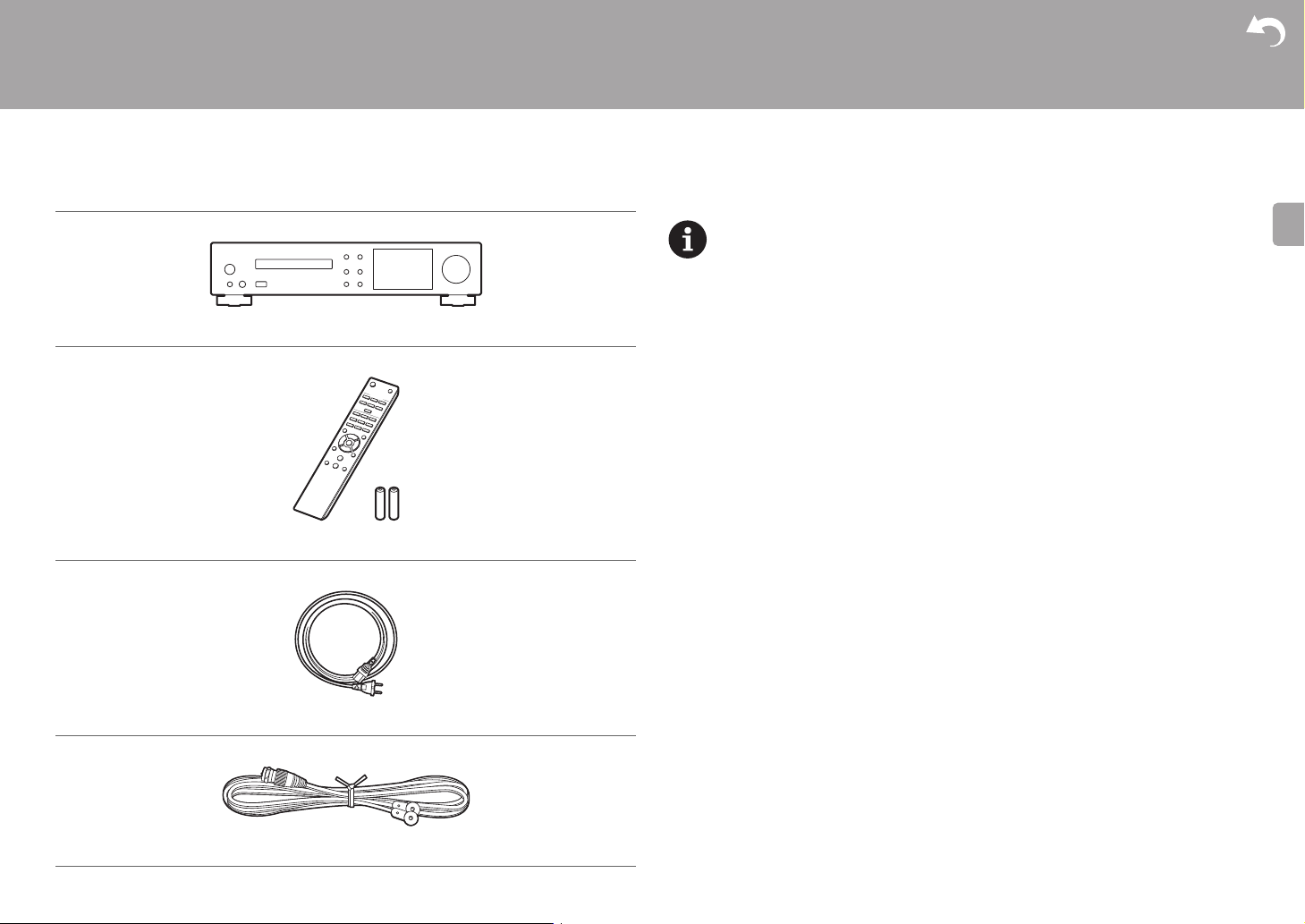
What’s in the box
Before Start
0 The power cord must be connected only after all other cable connections are completed.
0 Connect speakers with 4 Ω to 16 Ω impedance.
Main unit (1)
Remote controller (RC-946S) (1), Batteries (AAA/R03) (2)
0 We will not accept responsibility for damage arising from the connection of equipment
manufactured by other companies.
0 Functionality may be introduced by firmware updates and service providers may cease
services, meaning that some network services and content may become unavailable in
the future.
0 Specifications and appearance are subject to change without prior notice.
Advanced Setup | Firmware Update | Others
Power cord (1)
DAB/FM wire antenna (1)
2
> Before Start >Part Names > Install > Initial Setup > Playback
Front Panel
Part Names
Advanced Setup | Firmware Update | Others
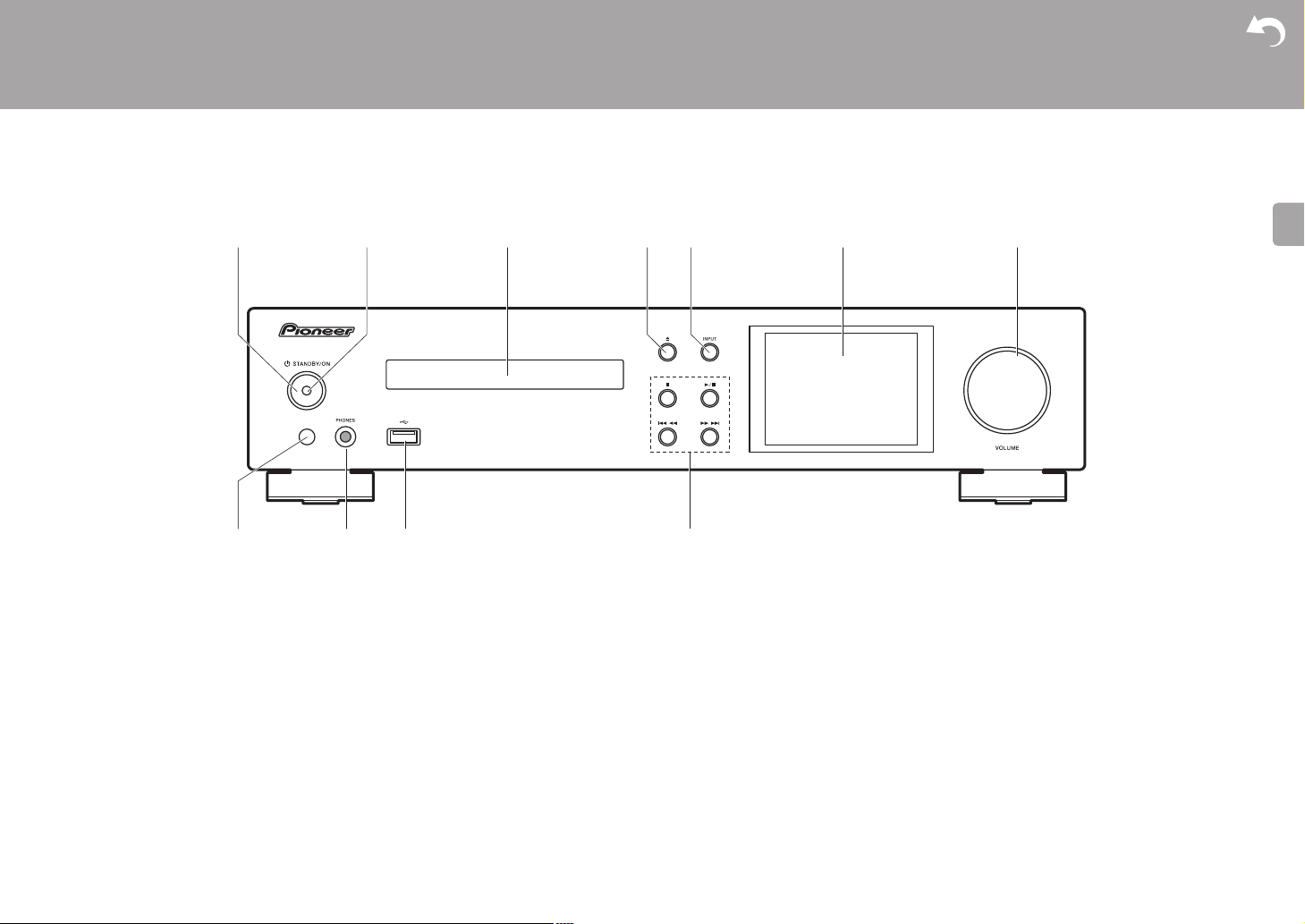
1. Í STANDBY/ON button: Turns the unit on or to standby mode.
2. Power indicator: This lights blue when the unit is on.
3. Disc tray: Place discs here. 8-cm discs can also be used.
4. < button: Open or close the disc tray.
5. INPUT button: Switches the input to be played.
6. Display (ÄP6)
7. VOLUME dial: Adjust the volume. Adjust between 0 and 50.
8. Remote control sensor
9. PHONES jack: Connect stereo headphones with a standard plug (ø6.3 mm).
10.
USB port: Connect a USB storage device or HDD (hard disk drive) to play music files. You
can also supply power (maximum 5 V/0.5 A) to USB devices with a USB cable.
0 When connecting a HDD that requires more than 5 V/0.5 A, connect to the USB port
(maximum 5 V/1 A) on the rear of the unit.
11.
Play button:
∫
: This button stops playback.
1
/; : This button pauses the playback.
:6
: Return to the beginning of the track being played. Press and hold to rewind the
track quickly. (CD)
59
0 Depending on the input, the operation may not start.
Move to the previous track. (USB, Music Server)
: Move to the next track. Press and hold to fast-forward through the track. (CD)
Move to the next track. (USB, Music Server)
3
> Before Start >Part Names > Install > Initial Setup > Playback
Rear Panel
Advanced Setup | Firmware Update | Others
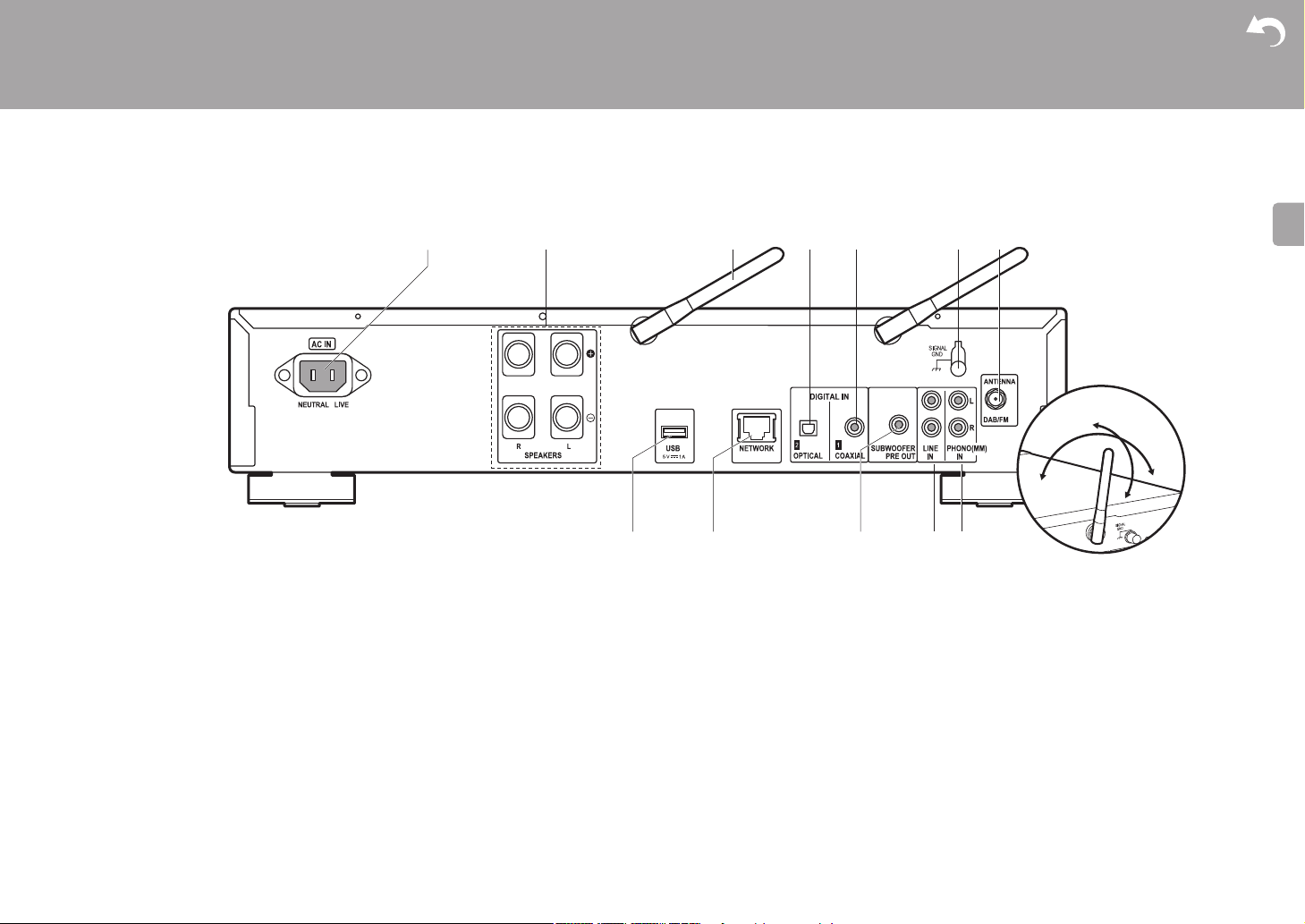
1. AC IN: Connect the supplied power cord.
2. Speaker terminals: Connect speakers with speaker cables.
3. Wireless antenna: Used for Wi-Fi connection or when using a BLUETOOTH enabled
device. Adjust their angles according to the connection status.
4. DIGITAL IN OPTICAL jack: You can play the digital audio from an external device such as
a television connected with a digital optical cable.
5. DIGITAL IN COAXIAL jack: You can play the digital audio from an external device such as
a television connected with a digital coaxial cable.
6. SIGNAL GND terminal: Connect if the turntable connected to the PHONO (MM) IN jack
has a ground wire.
7. DAB/FM ANTENNA jack: Connect the supplied DAB/FM wire antenna.
8. USB port: Connect a USB storage device or HDD (hard disk drive) to play music files. You
9. NETWORK jack: Connect to the network with an ethernet cable.
10.
4
can also supply power (maximum 5 V/1 A) to USB devices with a USB cable.
SUBWOOFER PRE OUT jacks: Connect a subwoofer with built-in amplifier.
11.
LINE IN jack: You can play the audio from an external device such as a television
connected with an analogue audio cable.
12.
PHONO (MM) IN jacks: Connect a turntable (MM cartridge).
> Before Start >Part Names > Install > Initial Setup > Playback
Remote Controller
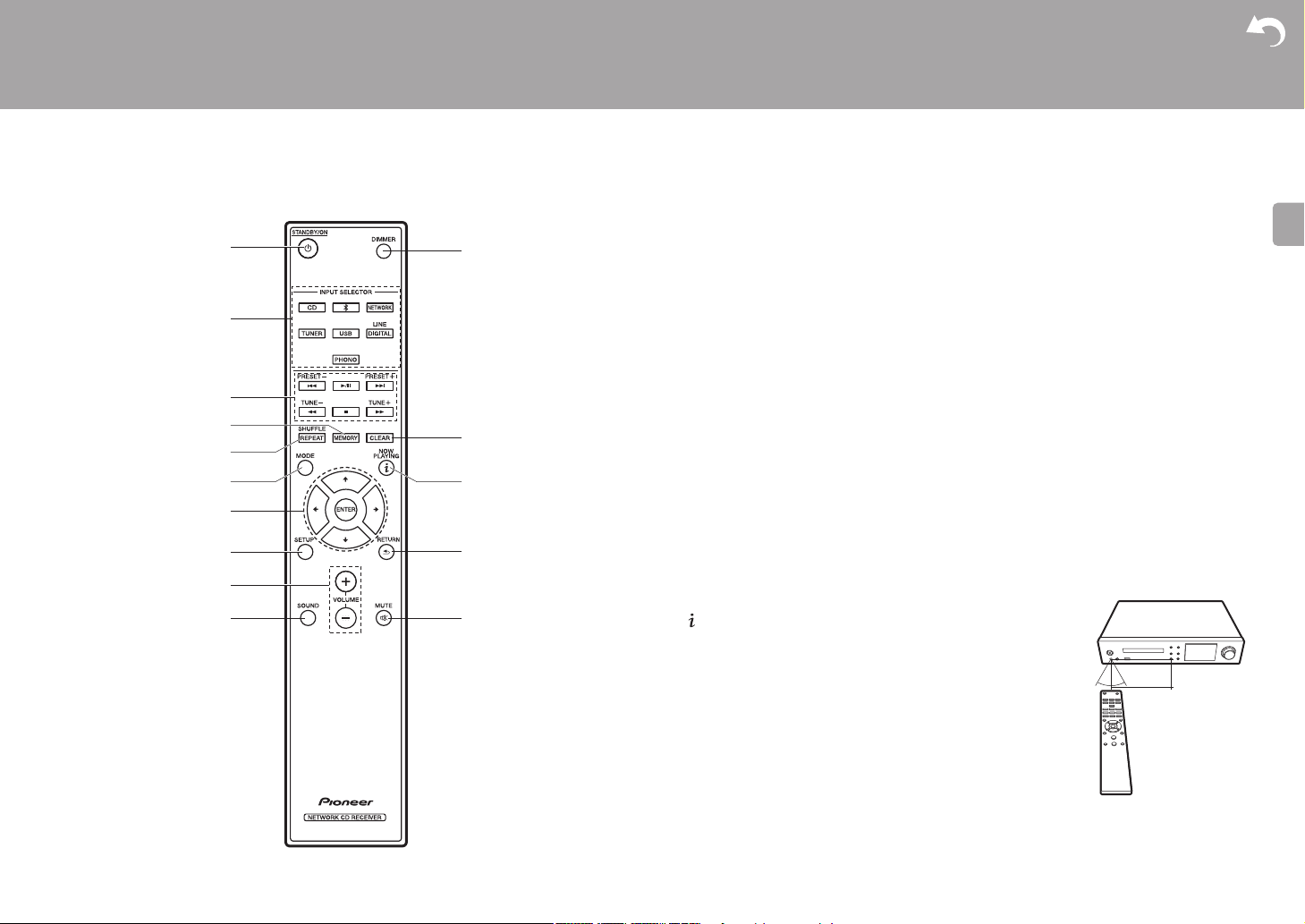
1. Í STANDBY/ON button: Turns the unit on or into standby mode.
2. INPUT SELECTOR buttons: Switches the input to be played.
3. Play buttons:
:: Return to the beginning of the track being played. (CD)
Move to the track before the one being played. (USB, Music Server)
X/;: Play or pause play.
9: Move to the next track.
22: Rewind the track quickly. (CD only)
∫: Stop playback.
11: Fast-forward the track. (CD only)
0 Depending on the input, the operation may not start.
PRESET i/j buttons: Used to select stations that have been registered or to give names
to stations.
TUNE i/j buttons: Used to select radio stations.
4. MEMORY button: Used to register favorite radio stations.
5. SHUFFLE/REPEAT button: Set repeat play and shuffle play.
6. MODE button: Used for program play of CDs.
7. Cursors, ENTER button: Select the item with the cursors and press ENTER to confirm.
8. SETUP button: Displays the Setup menu.
9. VOLUME i/j buttons: Adjust the volume. Adjust between 0 and 50.
10.
SOUND button: Adjust the sound quality.
11.
DIMMER button: Switch the display off or adjust the brightness of the display in three
steps.
12.
CLEAR button: Used when entering text, etc.
13.
(NOW PLAYING) button: Switches the information on the
display.
14.
RETURN button: Returns the display to the previous state.
15.
MUTE button: Temporarily mutes audio. Press again to
cancel muting.
Advanced Setup | Firmware Update | Others
30° 30°
5
> Before Start >Part Names > Install > Initial Setup > Playback
00:01:45 / 00:03:23
FLAC
44.1
kHz/24bit
USB Front
Song
Artist
Album
Display
Advanced Setup | Firmware Update | Others
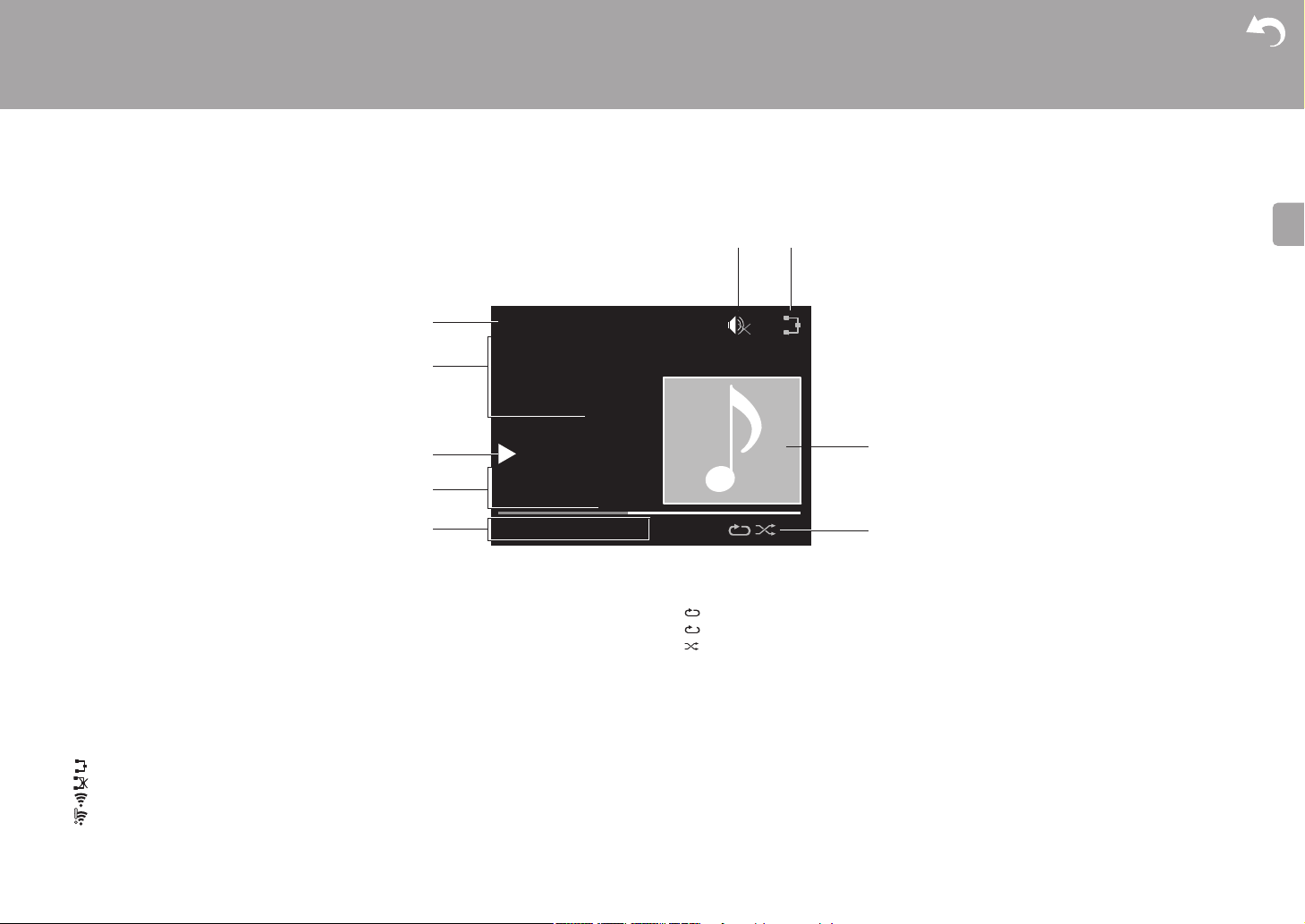
1. The input mode is displayed.
(USB Front / USB Rear / CD / Bluetooth / Network / Digital In 1 / Digital In 2 / Line /
Phono / Tuner DAB / Tuner FM)
2. The name of the file, artist, album, station, etc., is displayed.
3. Displays the play status.
4. Displays file format, sampling frequency, and quantization bit information.
5. The file play status is displayed. This may not be displayed depending on the input or file.
6. This is displayed when muting is on.
7. Lights in the following conditions.
:
When the connection setting on the unit is «Wired» and the unit is connected to the network.
:
When the connection setting on the unit is «Wired» and the unit is not connected to the network.
:
When the connection setting on the unit is «Wi-Fi» and the unit is connected to the network.
:
When the connection setting on the unit is «Wi-Fi» and the unit is not connected to the network.
8. If an album jacket is recorded for the file being played, it is displayed here.
9. Lights in the following conditions.
6
: When all track repeat play is on
: When one track repeat play is on
: When shuffle play is on
0 When DIMMER is pressed to turn off the display, the unit may appear the same as if you
had unplugged the unit from the power outlet, but electricity is still being supplied to the
unit. To completely cut the unit off from the power supply, you need to unplug the power
plug (shutoff device) unit from the power outlet.
> Before Start > Part Names >Install > Initial Setup > Playback
Connect the Speakers
Install
1
2 3
Advanced Setup | Firmware Update | Others
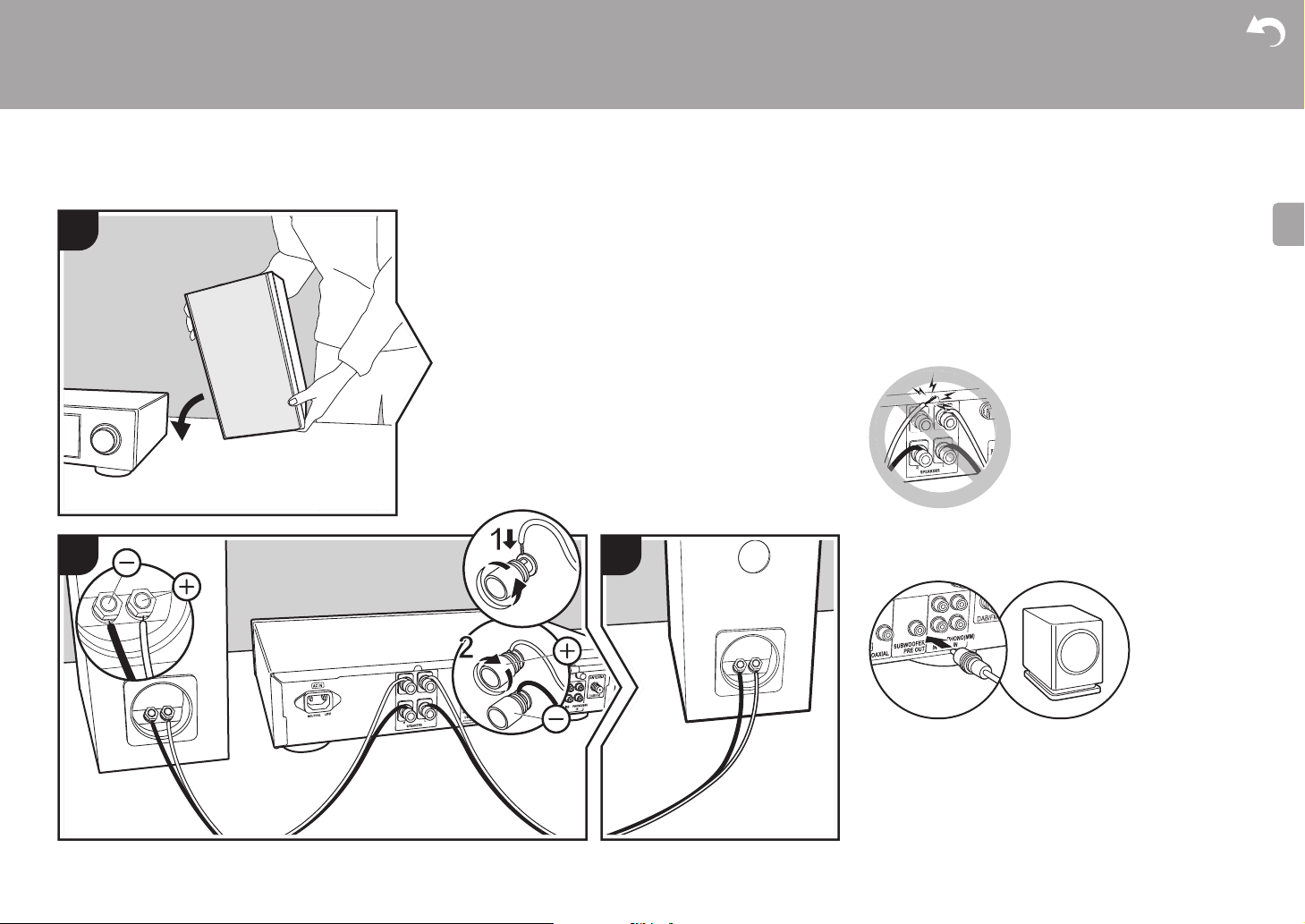
Use the illustration as a reference to connect your own
speakers.
After inserting the speaker cables, tighten the terminals
firmly by turning to the right. Also make sure the exposed
wires of the speakers do not stick out of the speaker
terminals when connecting. If the exposed wires of the
speakers touch the rear panel or the i and s wires touch
each other, the protection circuit may be activated and the
power may turn off.
You can also connect a subwoofer with a built-in amplifier to
boost bass playback even more. Use a subwoofer cable for
connection.
a
a Speaker cable
a
7
> Before Start > Part Names >Install > Initial Setup > Playback
Connecting the antennas and power cord, etc.
1
Advanced Setup | Firmware Update | Others
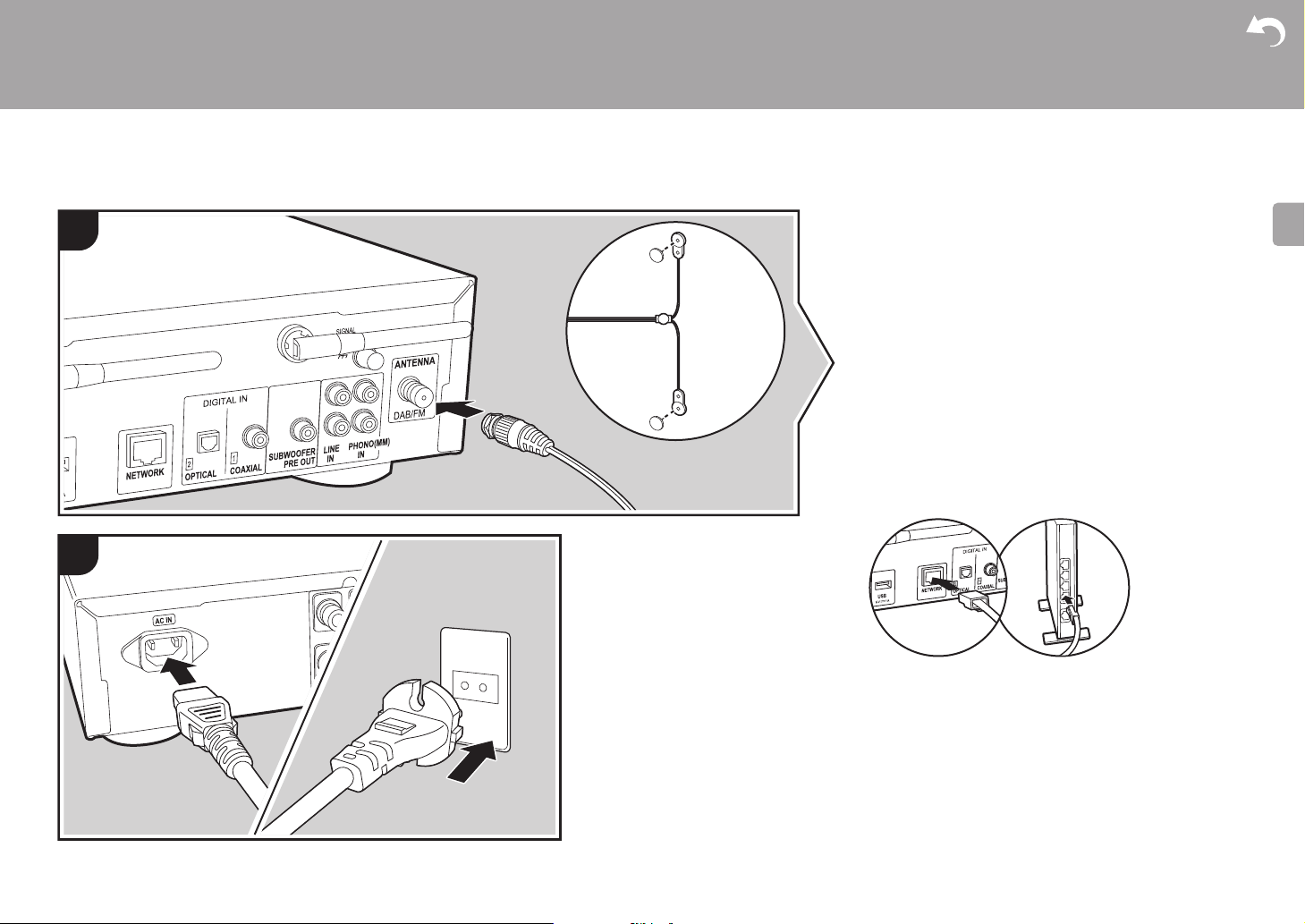
Antenna Hookup
Move the antenna around while playing the radio to find the
position with the best reception.
a
a
Power Cord Hookup
This model includes a removable power cord.
The power cord must be connected only after all other
connections are completed. Make sure you first connect the
power cord to AC IN terminal of the unit and then connect to
the outlet. Always disconnect the outlet side first when
disconnecting the power cord.
To connect to the network with an ethernet cable, use the
NETWORK jack. When using Wi-Fi connection, make
settings in initial settings (ÄP9). You can enjoy features
such as internet radio and AirPlay by connecting to the
network.
2
b
b
a DAB/FM wire antenna, b Power cord
8
> Before Start > Part Names > Install > Initial Setup >Playback
Power On & Initial Setup
Initial Setup
1
2
BLUEBLINKING
Advanced Setup | Firmware Update | Others
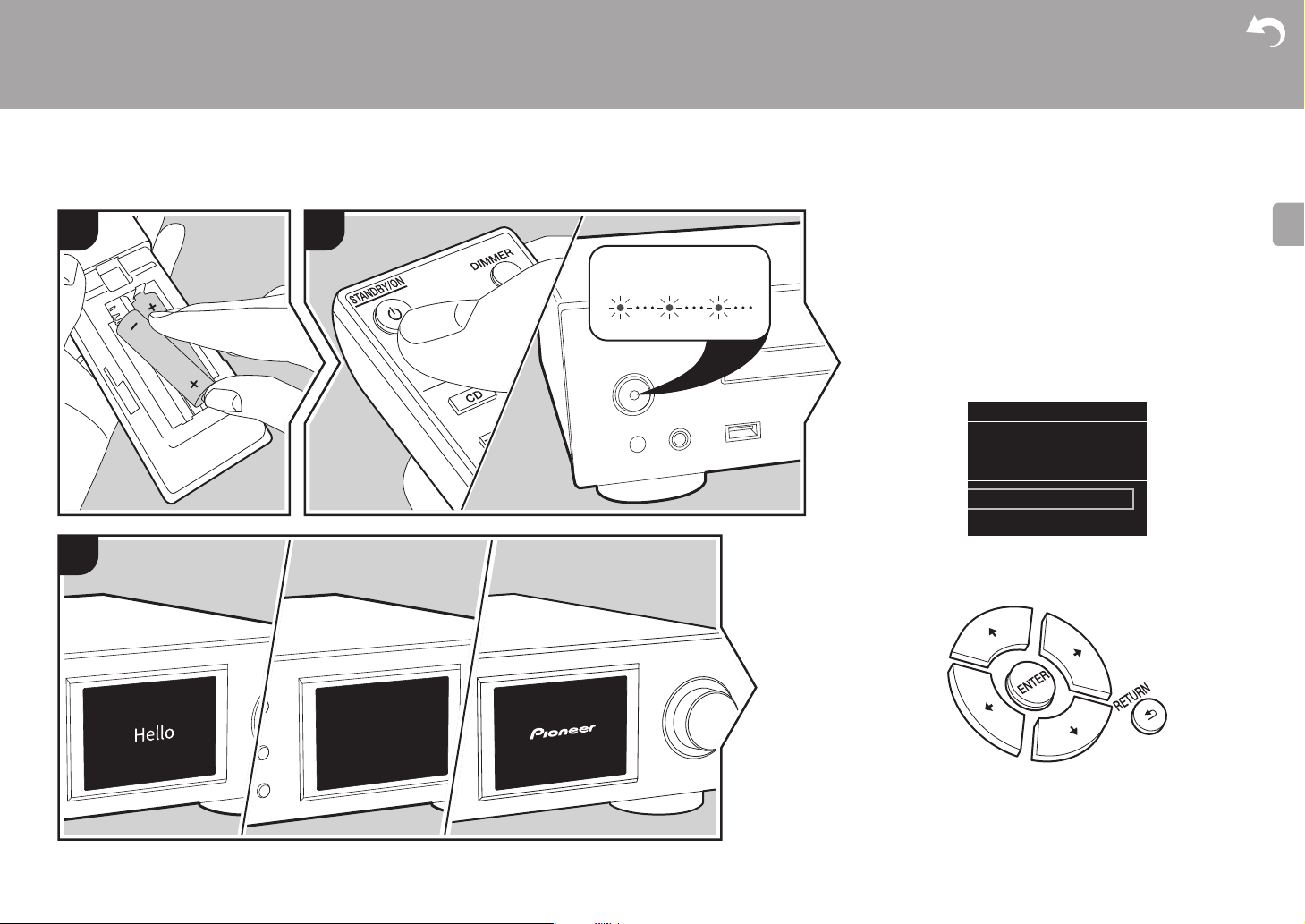
Starting up: When you press Í STANDBY/ON, the power
indicator on the main unit slowly blinks blue, then «Hello» is
displayed on the display about 20 seconds later. After this,
the display goes blank, then after the Pioneer logo is
displayed, you can start operating the unit.
Wi-Fi connection settings
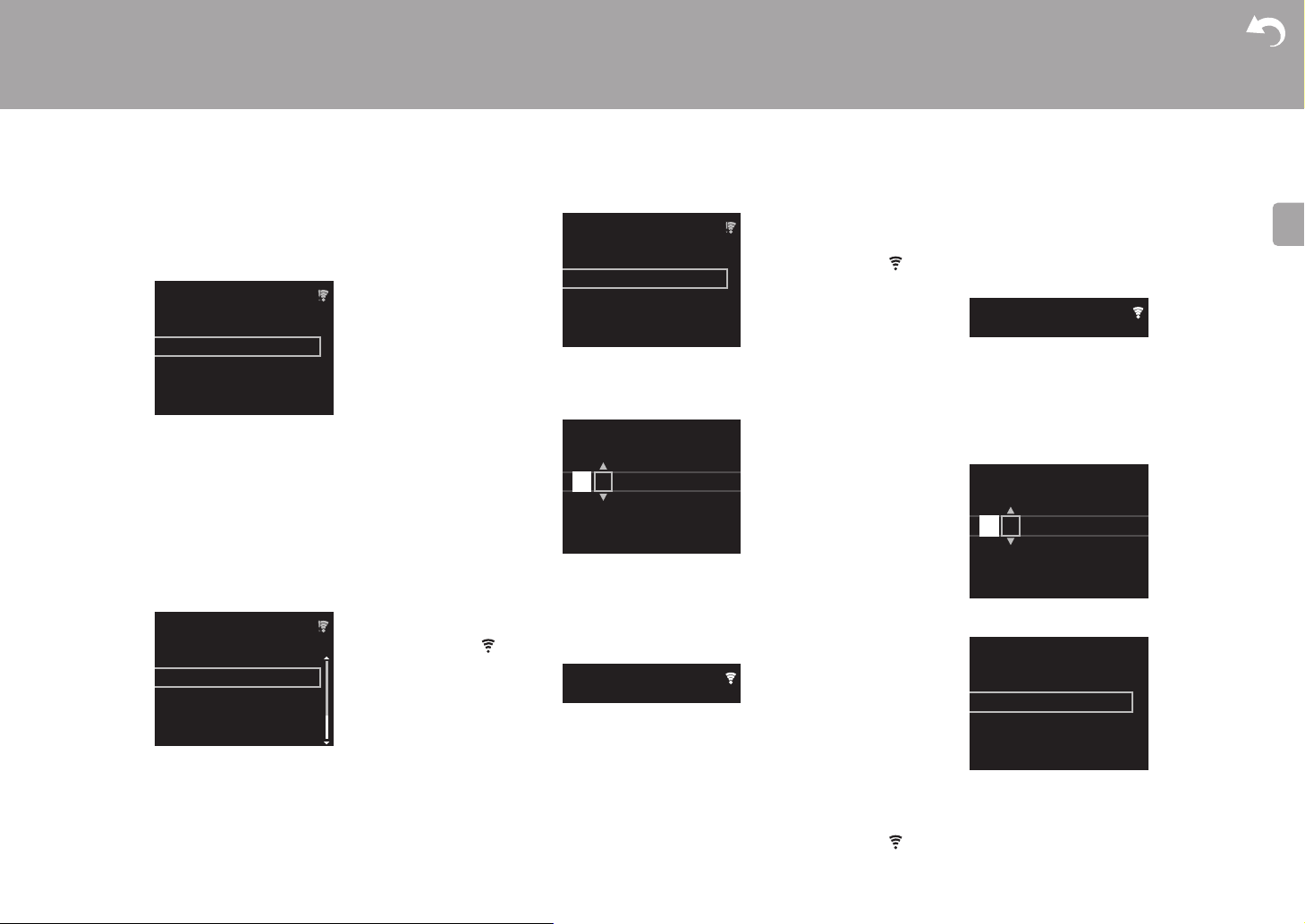
When you first turn the power on, the initial setup screen is
displayed automatically, allowing you to easily make Wi-Fi
connection settings.
Initial Setup
Selects the method of network
connection
Wi-Fi
Wired (Exit)
3
To set, select the item with the cursors on the remote
controller and press ENTER to confirm. To return to the
previous display, press RETURN.
9
> Before Start > Part Names > Install > Initial Setup >Playback
Password
A
Delete One Character[CLEAR]
Change Text[REPEAT]
Advanced Setup | Firmware Update | Others
To make Wi-Fi settings, select «Wi-Fi». If you have
connected with an ethernet cable, select «Wired(Exit)» and
confirm. If you select «Wi-Fi», select the method for setting
in the next screen (for example «Scan Networks»).
Wireless
Scan Networks
Use iOS Device
Input SSID
0 To redo the initial settings, press SETUP on the remote
controller, select «Wi-Fi» in «Network Setting» »Connection», then select «Wi-Fi Setup».
■ Scan Networks
From the list of SSID for access points such as wireless
LAN routers, select the required SSID and make the
settings.
1. Select the SSID of the access point you want to connect
and then confirm.
Wireless
aaaaaaaaaaaaaaaa
bbbbbbbbbbbbbbbbb
ccccccccccccccccccc
ddddddddddddddddd
2. Select either «Enter Password» or «Push Button» and
confirm. If the access point has an automatic setting
button, by selecting «Push Button» you can connect
without entering a password.
10
Enter Password
3. If you select «Enter Password», enter the password of the
access point and press ENTER. For details on how to
enter text, refer to «Entering text» (ÄP29).
If you select «Push Button», then after pressing and
holding the automatic setting button on the access point
for the required amount of time, press ENTER on the
remote controller.
4. is displayed when the settings are complete.
■ Use iOS Device
Set by sharing the iOS device’s Wi-Fi settings with this unit.
1. Connect the iOS device by Wi-Fi.
2. Select this device in the «SET UP NEW AIRPLAY
SPEAKER…» item on the screen of the iOS device and
select «Next».
0 This unit is displayed as «Pioneer NC-50DAB
XXXXXX».
3. After establishing the connection, select «Done» on the
screen of the iOS device.
4. is displayed on the display of the unit when the
settings are complete.
■ Enter SSID of the access point
Set by entering the SSID of the access point you want to
connect.
1. Enter the SSID. For details on how to enter text, refer to
«Entering text» (ÄP29).
SSID
A
Change Text[REPEAT]
Delete One Character[CLEAR]
2. Select and confirm the authentication method.
Security Method
None
WEP
WPA
WPA2
0 If you select «None», proceed to step 3. If you select
«WEP», «WPA», or «WPA2», enter the password and
confirm.
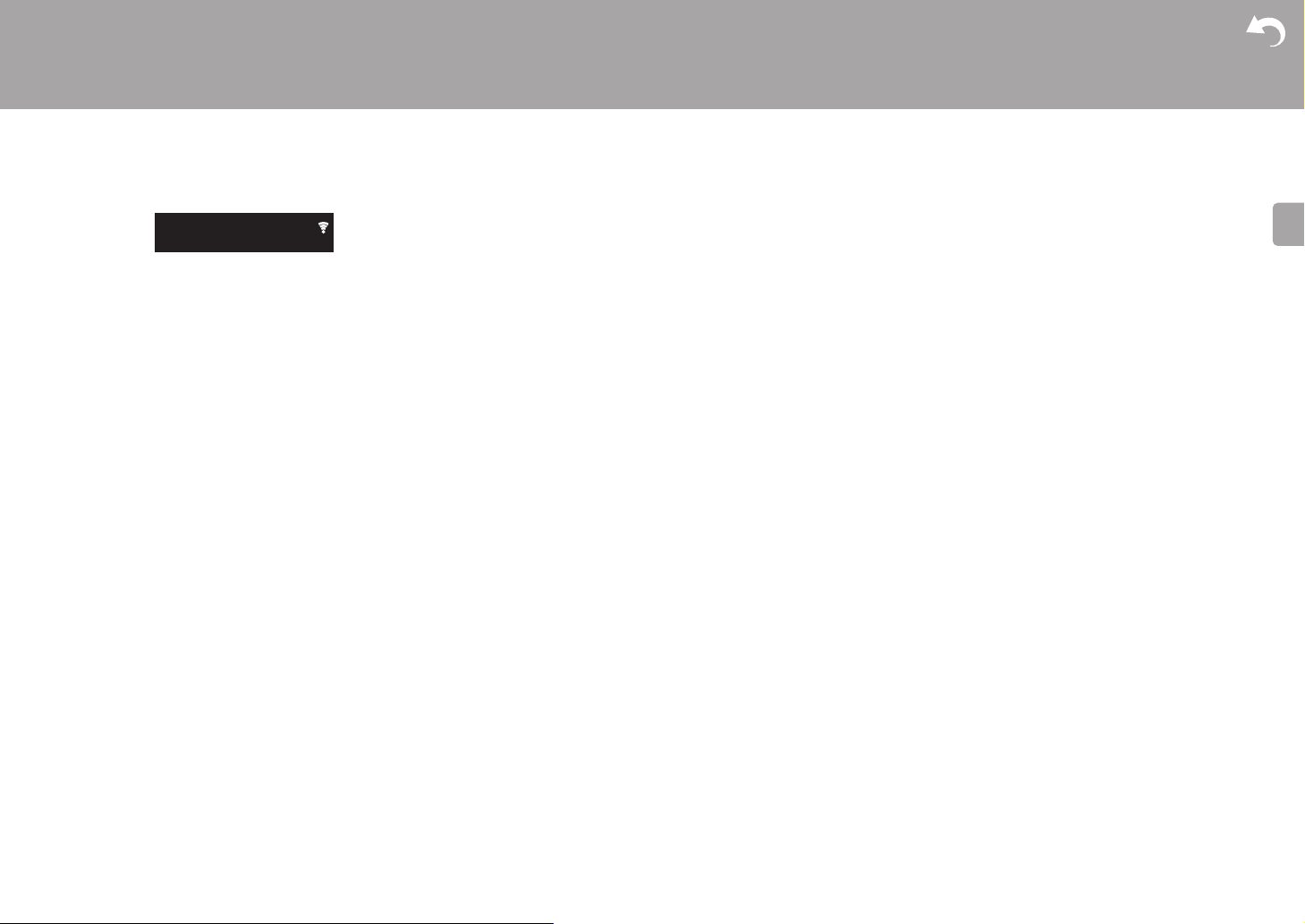
3. is displayed when the settings are complete.
> Before Start > Part Names > Install > Initial Setup >Playback
Advanced Setup | Firmware Update | Others
11
> Before Start > Part Names > Install > Initial Setup >Playback
Playing CDs
Playback
1
a
Advanced Setup | Firmware Update | Others
This unit can also play CD-R recorded with MP3 or WMA
format files, along with commercially available music CDs.
0 The supported sampling rates for MP3 files are 8 kHz to
48 kHz, and supported bitrates are between 64 kbps and
384 kbps.
0 The supported sampling rates for WMA files are 32 kHz,
44.1 kHz, and 48 kHz, and supported bitrates are
between 64 kbps and 320 kbps.
0 Play of CDs not conforming to the CD standards, such as
copy control CDs, is not guaranteed.
2 b
12
Playing music CDs
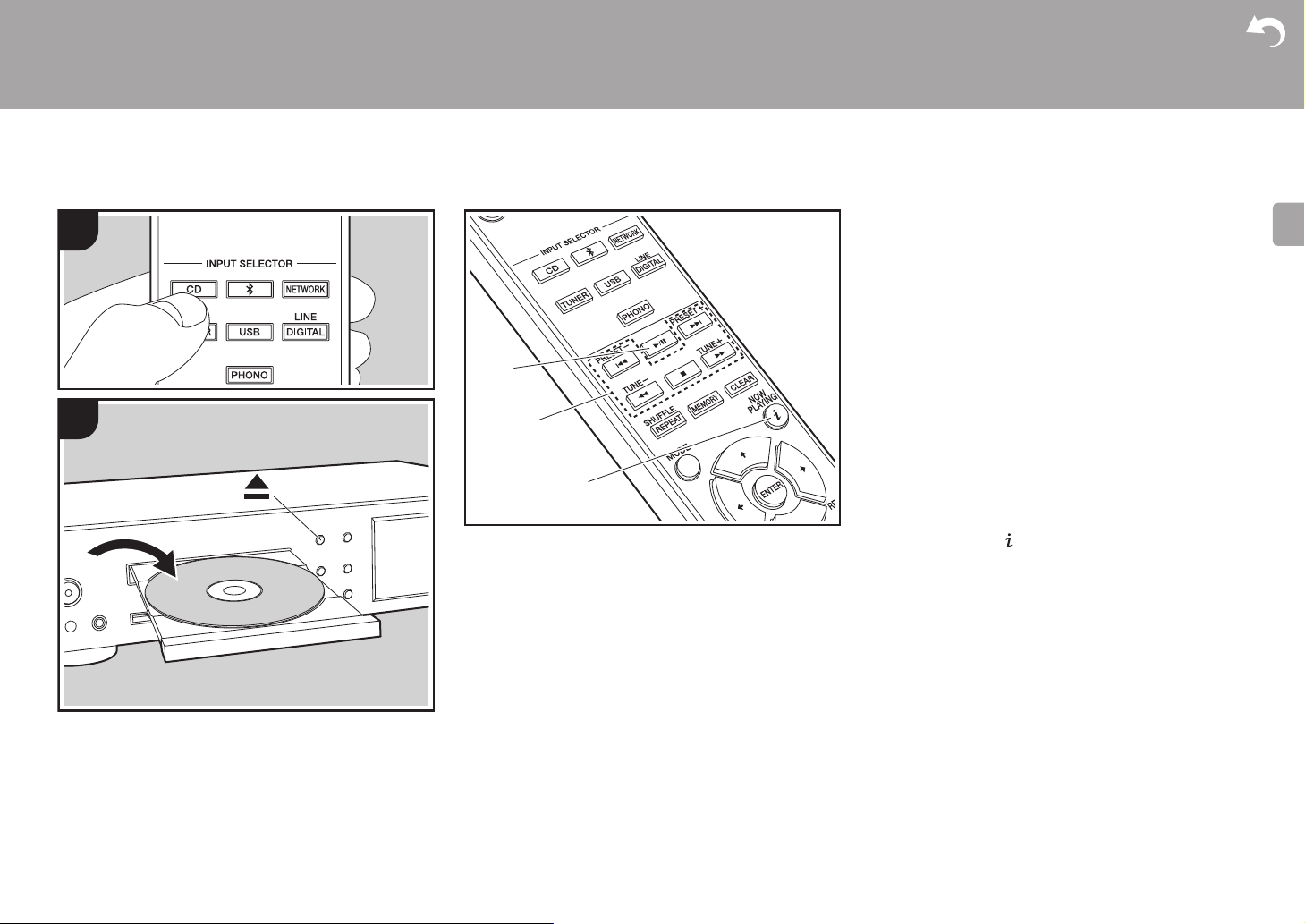
1. Turn the unit on.
2. Press CD to change input to CD.
c
3. Press < on the main unit to open the disc tray.
4. Put the disc on the tray, then press < to close the tray.
5. Press
X/; (a) on the remote controller to start play. Use
other play buttons (b) to stop play or choose tracks to
play. If you press (NOW PLAYING) (c), you can
switch the display to show the elapsed time or remaining
time of the track.
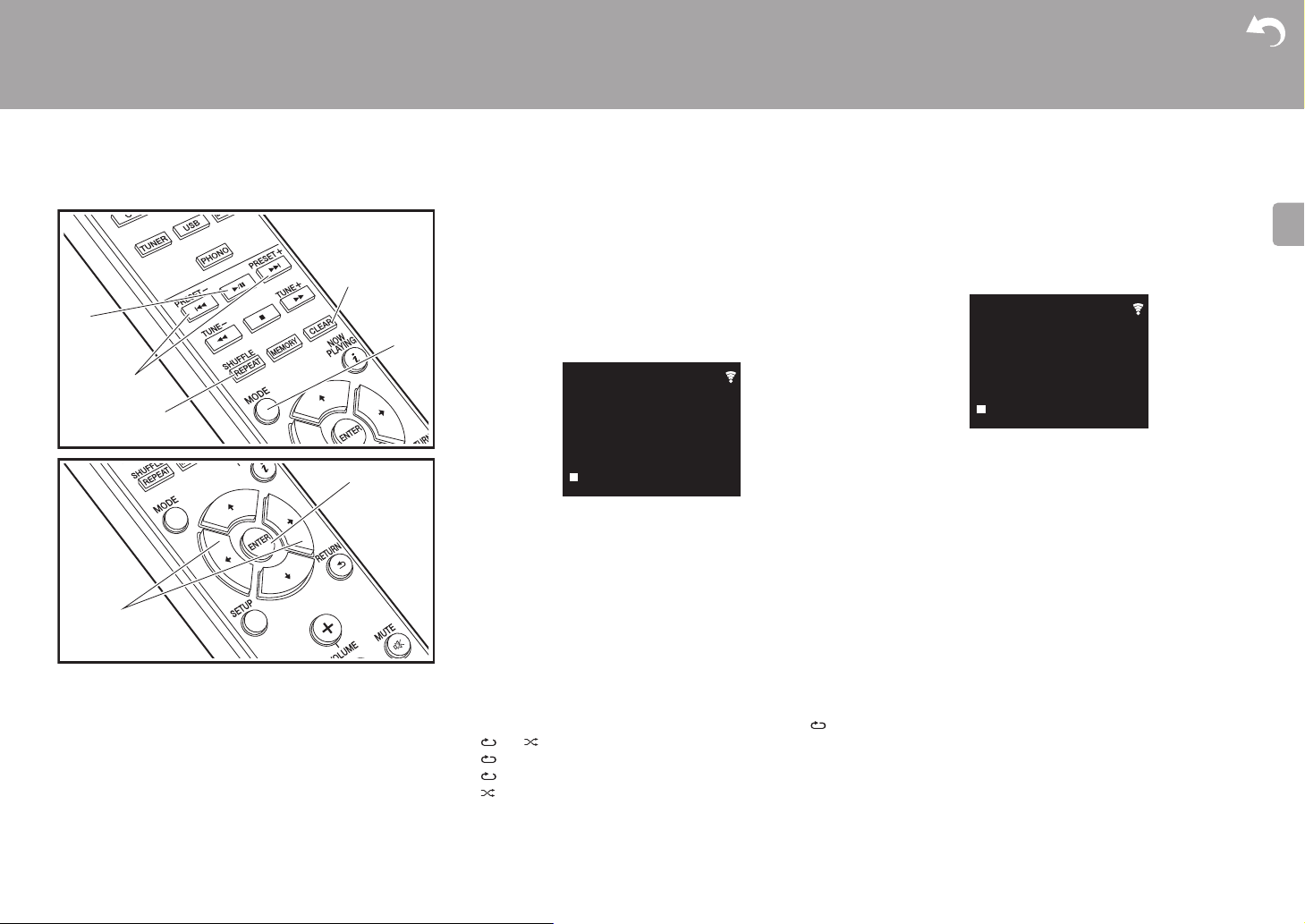
> Before Start > Part Names > Install > Initial Setup >Playback
Advanced Setup | Firmware Update | Others
Playing MP3/WMA discs
1. Turn the unit on.
2. Press CD to change input to CD.
3. Press < on the main unit to open the disc tray.
4. Put the disc on the tray, then press < to close the tray.
5. When reading of the disc is complete, the numbers of
folders containing MP3/WMA files and track numbers are
displayed.
0 If MP3/WMA files are stored in two or more folders,
each folder is automatically allocated a number.
6. To start play, press X/; (a) on the remote controller. To
select a folder to play, press w/x (f) to select the folder.
Play starts automatically when you select a folder.
0 Folders that do not contain music files this unit can
play are skipped.
0 A maximum of 255 folders can be read. This includes
folders that contain files this unit cannot play.
Program play (Music CDs)
You can program up to 32 tracks to play.
1. Press MODE (e).
2. The track number (T—) flashes on the display.
CD
PROGRAM
P-01<T—
3. Press
4. Press
:/9 (b) to select the track to register and
press ENTER (g). Repeat this step to register other
tracks. The last track in the program is deleted if you
press CLEAR (d).
X/; (a) to start play.
0 If you press MODE (e) again while play is stopped, the
entire program is cleared.
0 Shuffle play and 1 track repeat play cannot be used
while playing a program.
Repeat play/Shuffle play
1. Repeatedly press SHUFFLE/REPEAT (c) to display ,
, or on the display.
: Repeat play of all tracks.
: Repeat play of the selected individual track.
: Play tracks randomly.
To cancel repeat or shuffle play, press SHUFFLE/
REPEAT (c) several times until the icons disappear.
13
Loading…
Pioneer NC-50DAB Specification
The Pioneer NC-50DAB is a versatile network CD receiver that combines high-quality audio performance with advanced connectivity options. It features a sleek design that integrates seamlessly into any modern home audio setup. At its core, the NC-50DAB is powered by a robust amplifier capable of delivering 50 watts per channel at 4 ohms, ensuring clear and dynamic sound reproduction. The receiver supports a wide range of audio formats, including Hi-Res Audio, enabling playback of FLAC, WAV, ALAC, and AIFF files up to 192 kHz/24-bit.
Connectivity is a standout feature, with built-in Wi-Fi and Bluetooth allowing for wireless streaming from various devices. It is compatible with streaming services like Spotify, TIDAL, and Deezer, and features Chromecast built-in and AirPlay for seamless integration with smart home ecosystems. The inclusion of DAB/DAB+ radio provides access to a vast array of digital radio stations with superior sound quality.
The NC-50DAB is equipped with dual-band Wi-Fi for stable connections and features an Ethernet port for wired network access. It includes multiple digital and analog inputs, such as USB, optical, and coaxial, to accommodate a variety of external devices. The user interface is intuitive, with a full-color display and a comprehensive remote control for easy navigation.
An advanced DAC (Digital-to-Analog Converter) enhances sound fidelity, and the unit supports multi-room audio via FireConnect, allowing synchronized music playback throughout the home. The Pioneer Remote App provides additional control via smartphones or tablets. Overall, the Pioneer NC-50DAB offers a comprehensive audio solution with its blend of powerful performance, extensive connectivity options, and user-friendly operation.
Pioneer NC-50DAB F.A.Q.
To connect the Pioneer NC-50DAB to your home Wi-Fi, go to the device’s settings menu, select ‘Network’, then ‘Wi-Fi’. Choose your network from the list and enter the password when prompted.
Ensure that your Bluetooth device is in pairing mode. On the NC-50DAB, navigate to the Bluetooth settings and select ‘Pair New Device’. If issues persist, try restarting both the NC-50DAB and your Bluetooth device.
To reset to factory settings, press and hold the power button and the ‘Home’ button simultaneously until the display shows the reset confirmation. Confirm the reset to proceed.
Yes, the NC-50DAB supports Spotify Connect. Ensure your device and the NC-50DAB are on the same Wi-Fi network, open Spotify, and select the NC-50DAB from the list of available devices.
Regularly dust the exterior with a soft cloth and check for firmware updates via the settings menu to ensure optimal performance. Avoid placing the unit in direct sunlight or areas with high humidity.
Ensure the antenna is fully extended and positioned for optimal reception. If reception issues persist, consider using an external antenna or repositioning the unit closer to a window.
Yes, you can use the Pioneer Remote App available for both iOS and Android to control the NC-50DAB. Ensure both devices are connected to the same network.
Check the power cable connection and ensure it is securely plugged into an operational outlet. If the issue persists, try a different outlet and inspect the power cable for damage.
Go to ‘Settings’, then ‘System’, and select ‘Firmware Update’. Follow the on-screen instructions to download and install the latest firmware. Ensure the unit is connected to the internet during this process.
The NC-50DAB supports various audio formats including MP3, AAC, FLAC, WAV, and ALAC. Ensure your files are in one of these formats for playback.
Хорошее руководство по эксплуатации
Законодательство обязывает продавца передать покупателю, вместе с товаром, руководство по эксплуатации Pioneer NC-50DAB. Отсутствие инструкции либо неправильная информация, переданная потребителю, составляют основание для рекламации в связи с несоответствием устройства с договором. В законодательстве допускается предоставлении руководства в другой, чем бумажная форме, что, в последнее время, часто используется, предоставляя графическую или электронную форму инструкции Pioneer NC-50DAB или обучающее видео для пользователей. Условием остается четкая и понятная форма.
Что такое руководство?
Слово происходит от латинского «instructio», тоесть привести в порядок. Следовательно в инструкции Pioneer NC-50DAB можно найти описание этапов поведения. Цель инструкции заключается в облегчении запуска, использования оборудования либо выполнения определенной деятельности. Инструкция является набором информации о предмете/услуге, подсказкой.
К сожалению немного пользователей находит время для чтения инструкций Pioneer NC-50DAB, и хорошая инструкция позволяет не только узнать ряд дополнительных функций приобретенного устройства, но и позволяет избежать возникновения большинства поломок.
Из чего должно состоять идеальное руководство по эксплуатации?
Прежде всего в инструкции Pioneer NC-50DAB должна находится:
— информация относительно технических данных устройства Pioneer NC-50DAB
— название производителя и год производства оборудования Pioneer NC-50DAB
— правила обслуживания, настройки и ухода за оборудованием Pioneer NC-50DAB
— знаки безопасности и сертификаты, подтверждающие соответствие стандартам
Почему мы не читаем инструкций?
Как правило из-за нехватки времени и уверенности в отдельных функциональностях приобретенных устройств. К сожалению само подсоединение и запуск Pioneer NC-50DAB это слишком мало. Инструкция заключает ряд отдельных указаний, касающихся функциональности, принципов безопасности, способов ухода (даже то, какие средства стоит использовать), возможных поломок Pioneer NC-50DAB и способов решения проблем, возникающих во время использования. И наконец то, в инструкции можно найти адресные данные сайта Pioneer, в случае отсутствия эффективности предлагаемых решений. Сейчас очень большой популярностью пользуются инструкции в форме интересных анимаций или видео материалов, которое лучше, чем брошюра воспринимаются пользователем. Такой вид инструкции позволяет пользователю просмотреть весь фильм, не пропуская спецификацию и сложные технические описания Pioneer NC-50DAB, как это часто бывает в случае бумажной версии.
Почему стоит читать инструкции?
Прежде всего здесь мы найдем ответы касательно конструкции, возможностей устройства Pioneer NC-50DAB, использования отдельных аксессуаров и ряд информации, позволяющей вполне использовать все функции и упрощения.
После удачной покупки оборудования/устройства стоит посвятить несколько минут для ознакомления с каждой частью инструкции Pioneer NC-50DAB. Сейчас их старательно готовят или переводят, чтобы они были не только понятными для пользователя, но и чтобы выполняли свою основную информационно-поддерживающую функцию.
Are you looking for the manual for Pioneer NC-50DAB? You are in the right place. Below the document viewer for Pioneer NC-50DAB manual in PDF format. To save your time, we say that the most common problems with Pioneer NC-50DAB can be found in the manual in the «Troubleshooting» section. Check the appropriate page number in the table of contents, and then enter it in the page number box on the right side of the document viewer for Pioneer NC-50DAB.
If you have questions about the Pioneer NC-50DAB device, use the form at the bottom of the page and ask our community a question.
Remember! Reading the Pioneer NC-50DAB user manual and adhering to the rules of using the device provided there, greatly help in its effective use. It is important to correctly configure Pioneer NC-50DAB, it will save resources needed to use it. In case of problems, you will also find recommended companies that can properly fix Pioneer NC-50DAB. One of the most important reasons why you should read the Pioneer NC-50DAB user manual is that to take advantage of the warranty provided on Pioneer NC-50DAB — the device must be used in accordance with the manufacturer’s recommendations presented in user manual.
If you want to download Pioneer NC-50DAB manual, use the «Download» button below. You can easily view the downloaded version and print selected manual pages Pioneer NC-50DAB. All manuals on our website are available in PDF format, which is the most universal format that is as easy to use as possible on all operating systems.