
CD RDS RECEIVER
CD RDS ПРИЕМНИК
FH-X360UB
English Русский
Owner’s Manual
Руководство пользователя
Section
Before you start
01
Before you start
Thank you for purchasing this PIONEER
product
To ensure proper use, please read through this
manual before using this product. It is especially
important that you read and obser ve WARN-
INGs and CAUTIONs in this manual. Please
keep the manual in a safe and accessible place for
future reference.
If you want to dispose this product, do not
mix it with general household waste. There is
a separate collection system for used electronic products in accordance with legislation
that requires proper treatment, recover y and
recycling.
Private households in the member states of the
EU, in Switzerland and Norway may return their
used electronic products free of charge to designated collection facilities or to a retailer (if you
purchase a similar new one).
For countries not mentioned above, please contact your local authorities for the correct method
of disposal.
By doing so you will ensure that your disposed
product undergoes the necessar y treatment, recovery and recycling and thus prevent potential
negative effects on the environment and human
health.
About this unit
The tuner frequencies on this unit are allocated
for use in Western Europe, Asia, the Middle
East, Africa and Oceania. Use in other areas
may result in poor reception. The RDS (radio
data system) function only works in areas that
broadcast RDS signals for FM stations.
WARNING
! Do not attempt to install or service this
product by yourself. Installation or servicing of this product by persons without
training and experience in electronic
equipment and automotive accessories
may be dangerous and could expose you
to the risk of electric shock, injury or
other hazards.
! Do not attempt to operate the unit while driv-
ing. Make sure to pull off the road and park
your vehicle in a safe location before attempting to use the controls on the device.
CAUTION
! Do not allow this unit to come into contact
with liquids. Electrical shock could result.
Also, damage to this unit, smoke, and overheating could result from contact with
liquids.
! Always keep the volume low enough to hear
outside sounds.
! Avoid exposure to moisture.
CAUTION
This product is a class 1 laser product classified under the Safety of laser products, IEC
60825-1:2007.
If you experience problems
Should this unit fail to work properly, please contact your dealer or nearest authorized PIONEER
Service Station.
2
En
Using this unit
Using this unit
Section
02
Head unit
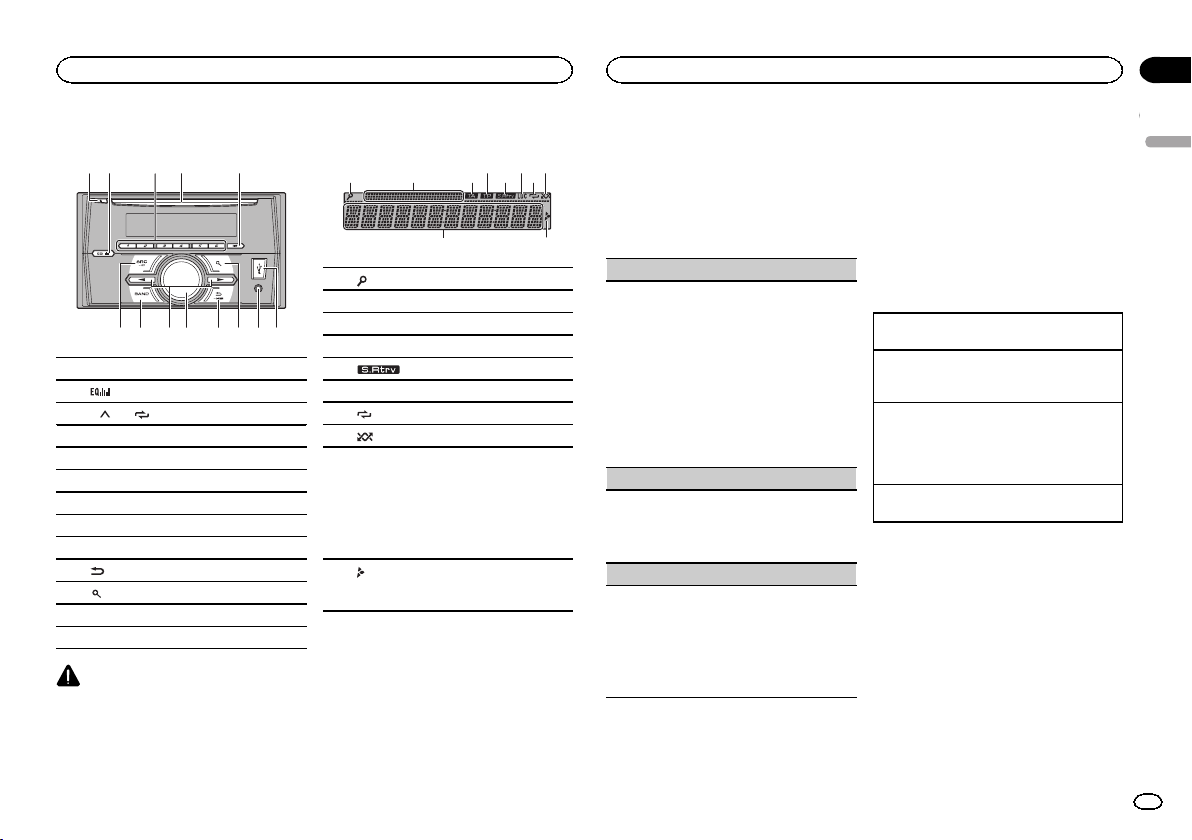
1 2 4 5
1 h (eject)
2
3 1/
4 Disc loading slot
5 DISP
6 SRC/OFF
7 BAND
8 c/d
9 MULTI-CONTROL (M.C.)
a
b
c AUX input jack (3.5 mm stereo jack)
d USB port
CAUTION
Use an optional Pioneer USB cable (CD-U50E)
to connect the USB storage device as any device
connected directly to the unit will protrude out
from the unit, which could be dangerous.
3
(equalizer)
to 6/
(back)/DIMMER (dimmer)
(list)
Display indication
21 3 75
1 (list)
2 Sub information section
3 TA (traffic announcements)
4 TP (traffic program identification)
5
6 LOC (local seek tuning)
7
8
9
a
(sound retriever)
(repeat)
(random)
Main information section
! Tuner: band and frequency
! RDS: program service name, PTY infor-
mation and other literal information
! CD player and USB storage device:
elapsed playback time and text information
Appears when a lower tier of folder or menu
exists.
4 6 8
a
Set up menu
1 After installation of this unit, turn the
ignition switch to ON.
SET UP appears.
2 Turn M.C. to switch to YES.
# If you do not use the unit for 30 seconds, the set
up menu will not be displayed.
# If you prefer not to set up at this time, turn M.C.
to switch to NO.
3 Press M.C. to select.
4 Follow these steps to set the menu.
To proceed to the next menu option, you need to
confirm your selection.
LANGUAGE (multi-language)
This unit can display the text information from a
compressed audio file even for information embedded in English, Russian or Turkish.
! If the embedded language and the selected
language setting are not the same, text information may not display properly.
! Some characters may not be displayed prop-
erly.
1 Turn M.C. to select the desired setting.
РУС (Russian)—TUR (Turkish)—ENG (Eng-
lish)
2 Press M.C. to confirm the selection.
CLOCK SET (setting the clock)
1 Turn M.C. to adjust hour.
2 Press M.C. to select minute.
3 Turn M.C. to adjust minute.
4 Press M.C. to confirm the selection.
FM STEP (FM tuning step)
Use FM STEP to set FM tuning step options (seek
step settings).
1 Turn M.C. to select the FM tuning step.
100 (100 kHz)—50 (50 kHz)
2 Press M.C. to confirm the selection.
QUIT appears.
! The manual tuning step is fixed at 50 kHz.
5 To finish your settings, turn M.C. to select
YES.
# If you prefer to change your setting again, turn
M.C. to switch to NO.
6 Press M.C. to select.
Notes
! You can set up the menu options from the
system menu and initial menu. For details
about the settings, refer to System menu on
page 6 and Initial menu on page 7.
! You can cancel set up menu by pressing
SRC/OFF.
Basic operations
Turning the unit on
1 Press SRC/OFF to turn the unit on.
Turning the unit off
1 Press and hold SRC/OFF until the unit turns
off.
Selecting a source
1 Press SRC/OFF to cycle between:
RADIO—CD—USB—AUX
! USB MTP displays while the MTP connection
is in use.
Adjusting the volume
1 Turn M.C. to adjust the volume.
Note
When this unit’s blue/white lead is connected to
the vehicle’s auto-antenna relay control terminal, the vehicle’s antenna extends when this
unit’s source is turned on. To retract the antenna, turn the source off.
English
3
En
Section
02
Using this unit
Using this unit
Frequently used menu
operations
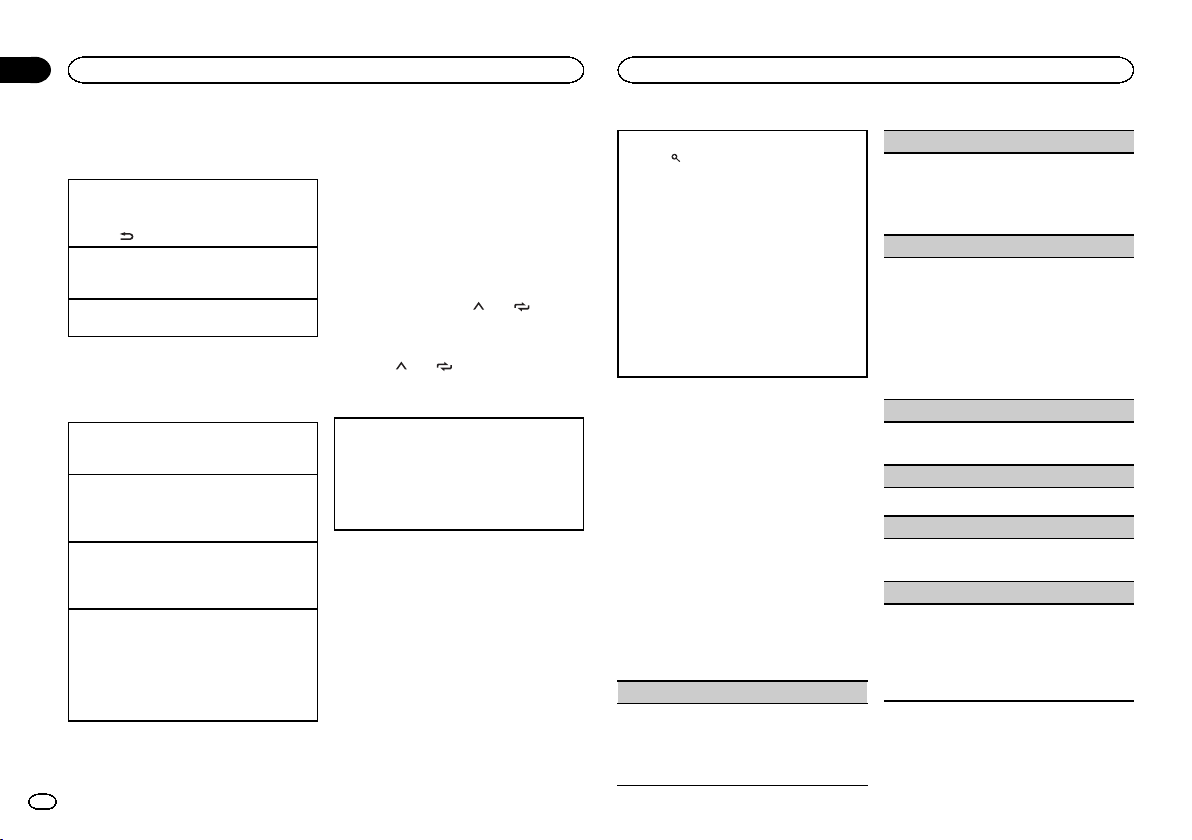
Returning to the previous display
Returning to the previous list (the folder one level
higher)
/DIMMER.
1 Press
Returning to the ordinary display
Canceling the main menu
1 Press BAND.
Returning to the ordinary display from the list
1 Press BAND.
Radio
Basic operations
Selecting a band
1 Press BAND until the desired band (FM1,
FM2, FM3 for FM or MW/LW) is displayed.
Switching preset stations
1 Press c or d.
! Select PCH (preset channel) under SEEK to
use this function.
Manual tuning (step by step)
1 Press c or d.
! Select MAN (manual tuning) under SEEK to
use this function.
Seeking
1 Press and hold c or d, and then release.
You can cancel seek tuning by briefly pressing
c or d.
While pressing and holding c or d, you can
skip stations. Seek tuning starts as soon as
you release c or d.
Notes
! For details about SEEK, refer to SEEK (left/
right k ey setting) on page 4.
4
En
! This unit’s AF (alternative frequencies
search) function can be turned on and off.
AF should be off for normal tuning operation
(refer to AF (alternative frequencies search)
on page 4).
Storing and recalling stations
for each band
Using preset tuning buttons
1 To store: Press and hold down one of the
preset tuning buttons (1/
the number stops flashing.
2 To recall: Press one of the preset tuning
buttons (1/
to 6/ ).
to 6/ ) until
Switching the display
Selecting the desired text information
1 Press DISP to cycle between the following:
! FREQUENCY (program ser vice name or
frequency)
! BRDCST INFO (program service name/PTY
information)
! CLOCK (source name and clock)
Notes
! If the program ser vice name cannot be ac-
quired in FREQUENCY, the broadcast frequency is displayed instead. If the program
service name is detected, the program ser vice name will be displayed.
! Depending on the band, text information can
be changed.
! Text information items that can be changed
depend on the area.
Using PTY functions
You can tune in to a station using PTY (program
type) information.
Searching for an RDS station by PTY information
1 Press
2 Turn M.C. to select a program type.
3 Press M.C. to begin the search.
(list).
NEWS/INFO—POPULAR—CLASSICS—
OTHERS
The unit searches for a station broadcasting
that type of program. When a station is found,
its program service name is displayed.
! To cancel the search, press M.C. again.
! The program of some stations may differ
from that indicated by the transmitted PTY.
! If no station is broadcasting the type of
program you searched for, NOT FOUND is
displayed for about two seconds and then
the tuner returns to the original station.
PTY list
For more details about PTY list, visit the following site:
http://www.pioneer.eu/eur/products/25/121/tech/
CarAudio/PTY.html
Function settings
1 Press M.C. to display the main menu.
2 Turn M.C. to change the menu option
and press to select FUNCTION.
3 Turn M.C. to select the function.
Once selected, the following functions can be
adjusted.
# If MW/LW band is selected, only BSM, LOCAL
and SEEK are available.
BSM (best stations memory)
BSM (best stations memory) automatically stores
the six strongest stations in the order of their signal strength.
1 Press M.C. to turn BSM on.
To cancel, press M.C. again.
REGIONAL (regional)
When AF is used, the regional function limits the
selection of stations to those broadcasting regional programs.
1 Press M.C. to turn the regional function on or
off.
LOCAL (local seek tuning)
Local seek tuning allows you to tune in to only
those radio stations with sufficiently strong signals for good reception.
1 Press M.C. to select the desired setting.
FM: OFF—LV 1 —LV2 —LV3 —LV4
MW/LW: OFF—LV 1—LV 2
The highest level setting allows reception of
only the strongest stations, while lower levels
allow the reception of weaker stations.
TA (traffic announcement standby)
1 Press M.C. to turn traffic announcement
standby on or off.
AF (alternative frequencies search)
1 Press M.C. to turn AF on or off.
NEWS (news program interruption)
1 Press M.C. to turn the NEWS function on or
off.
SEEK (left/right key setting)
You can assign a function to the left and right keys
of the unit.
Select MAN (manual tuning) to tune up or down
manually or select PCH (preset channel) to switch
between preset channels.
1 Press M.C. to select MAN or PCH.
Using this unit
Using this unit
Section
02
CD/CD-R/CD-RW and USB
storage devices
MTP connection
MTP-compatible Android devices (running
Android OS 4.0 or higher) can be connected by
MTP connection using the USB source. To connect an Android device, use the cable that came
with the device.
Notes
! This function is not compatible with MIX-
TRAX.
! This function is not compatible with WAV.
Basic operations
Playing a CD/CD-R/CD-RW
1 Insert the disc into the disc loading slot with
the label side up.
Ejecting a CD/CD-R/CD-RW
1 Press h.
Playing songs on a USB storage device
1 Open the USB port cover.
2 Plug in the USB storage device using a USB
cable.
Stopping playback of files on a USB storage device
1 You may disconnect the USB storage device at
any time.
Selecting a folder
1 Press 1/
Selecting a track
1 Press c or d.
Fast forwarding or reversing
1 Press and hold c or d.
! When playing compressed audio, there is no
Returning to root folder
1 Press and hold BAND.
or 2/ .
sound during fast forward or reverse.
Switching between compressed audio and CD-DA
1 Press BAND.
Switching between playback memory devices
You can switch between playback memory devices
on USB storage devices with more than one Mass
Storage Device-compatible memory device.
1 Press BAND.
! You can switch between up to 32 different
memory devices.
Note
Disconnect USB storage devices from the unit
when not in use.
Operations using the MIXTRAX
button
Turning MIXTRAX on or off
You can use this function when USB is selected as
the source.
You cannot use this function with USB MTP.
1 Press 3/MIX to turn MIXTRAX on or off.
! For more details about MIXTRAX, refer to
About MIXTRAX on page 7.
! When MIXTRAX is in use, the sound retriever
function is disabled.
Switching the display
Selecting the desired text information
1 Press DISP to cycle between the following:
CD-DA
! ELAPSED TIME (track number and play-
back time)
! CLOCK (source name and clock)
! SPEANA (spectrum analyzer)
CD-TEXT
! TRACK INFO (track title/track artist/disc
title)
! ELAPSED TIME (track number and play-
back time)
! CLOCK (source name and clock)
! SPEANA (spectrum analyzer)
MP3/WMA/WAV
! TRACK INFO (track title/artist name/album
title)
! FILE INFO (file name/folder name)
! ELAPSED TIME (track number and play-
back time)
! CLOCK (source name and clock)
! SPEANA (spectrum analyzer)
Selecting and playing files/
tracks from the name list
1 Press to switch to the file/track name
list mode.
2 Use M.C. to select the desired file name
(or folder name).
Selecting a file or folder
1 Turn M.C.
Playing
1 When a file or track is selected, press M.C.
Viewing a list of the files (or folders) in the selected folder
1 When a folder is selected, press M.C.
Playing a song in the selected folder
1 When a folder is selected, press and hold M.C.
Operations using special buttons
Selecting a repeat play range
1 Press 6/
Playing tracks in random order
1 Press 5/
! To change songs during random play, press d
Pausing playback
1 Press 4/PAUSE to pause or resume.
to cycle between the following:
CD/CD-R/CD-RW
! ALL – Repeat all tracks
! ONE – Repeat the current track
! FLD – Repeat the current folder
USB storage device
! ALL – Repeat all files
! ONE – Repeat the current file
! FLD – Repeat the current folder
to turn random play on or off.
Tracks in a selected repeat range are played in
random order.
to switch to the next track. Pressing c restarts
playback of the current track from the beginning of the song.
Function settings
1 Press M.C. to display the main menu.
2 Turn M.C. to change the menu option
and press to select FUNCTION.
Once selected, the function below can be adjusted.
! S.RTRV is not available when MIXTRAX is
turned on.
English
5
En
Section
02
Using this unit
Using this unit
S.RTRV (sound retriever)
Automatically enhances compressed audio and
restores rich sound.
1 Press M.C. to select the desired setting.
1—2—OFF (off)
1 is effective for low compression rates, and 2
is effective for high compression rates.
Audio adjustments
1 Press M.C. to display the main menu.
2 Turn M.C. to change the menu option
and press to select AUDIO.
3 Turn M.C. to select the audio function.
Once selected, the following audio functions
can be adjusted.
! FADER is not available when SUB.W/SUB.W
is selected in SP-P/O MODE. For details, refer
to SP-P/O MODE (rear output and preout set-
ting) on page 7.
! SUB.W and SUB.W CTRL are not available
when REAR/REAR is selected in
SP-P/O MODE. For details, refer to
SP-P/O MODE (rear output and preout set-
ting) on page 7.
! SUB.W CTRL is not available when SUB.W is
selected in OFF. For details, refer to SUB.W
(subwoofer on/off setting) on page 6.
! SLA is not available when FM is selected as
the source.
FADER (fader adjustment)
1 Press M.C. to display the setting mode.
2 Turn M.C. to adjust the front/rear speaker bal-
ance.
BALANCE (balance adjustment)
1 Press M.C. to display the setting mode.
2 Turn M.C. to adjust the left/right speaker bal-
ance.
EQ SETTING (equalizer recall)
1 Press M.C. to display the setting mode.
2 Turn M.C. to select the equalizer.
POWERFUL—NATURAL—VOCAL—CUSTOM1—CUSTOM2—FLAT—SUPER BASS
The equalizer band and equalizer level can be
customized when CUSTOM1 or CUSTOM2 is
selected.
If selecting CUSTOM1 or CUSTOM2, complete
the procedures outlined below. If selecting
other options, press M.C. to return to the previous display.
! CUSTOM1 can be set separately for each
source.
! CUSTOM2 is a shared setting used in com-
mon for all sources.
3 Press M.C. to display the setting mode.
4 Press M.C. to cycle between the following:
Equalizer band—Equalizer level
5 Turn M.C. to select the desired setting.
Equalizer band: 80HZ—250HZ—800HZ—
2.5KHZ—8KHZ
Equalizer level: +6 to –6
! You can also switch the equalizer by pressing
repeatedly.
LOUDNESS (loudness)
Loudness compensates for deficiencies in the lowfrequency and high-frequency ranges at low volume.
1 Press M.C. to select the desired setting.
OFF (off)—LOW (low)—MID (mid)—HI (high)
SUB.W (subwoofer on/off setting)
This unit is equipped with a subwoofer output
which can be turned on or off.
1 Press M.C. to select the desired setting.
NOR (normal phase)—REV (reverse phase)—
OFF (subwoofer off)
SUB.W CTRL (subwoofer adjustment)
Only frequencies lower than those in the selected
range are outputted from the subwoofer.
1 Press M.C. to display the setting mode.
2 Press M.C. to cycle between the following:
Cut-off frequency—Output level—Slope level
Rates that can be adjusted will flash.
3 Turn M.C. to select the desired setting.
Cut-off frequency: 50HZ—63HZ—80HZ—
100HZ—125HZ—160HZ—200HZ
Output level: –24 to +6
Slope level: –12— –24
BASS BOOST (bass boost)
1 Press M.C. to display the setting mode.
2 Turn M.C. to select a desired level.
0 to +6 is displayed as the level is increased or
decreased.
HPF SETTING (high pass filter adjustment)
Use this function when wanting to listen only to
high-frequency sounds. Only frequencies higher
than the high-pass filter (HPF) cutoff are output
from the speakers.
1 Press M.C. to display the setting mode.
2 Press M.C. to cycle between the following:
Cut-off frequency—Slope level
3 Turn M.C. to select the desired setting.
Cut-off frequency: OFF—50HZ—63HZ—80HZ
—100HZ—125HZ—160HZ—200HZ
Slope level: –12— –24
SLA (source level adjustment)
This function prevents the volume from changing
too dramatically when the source switches.
! Settings are based on the FM volume level,
which remains unchanged.
! The MW/LW volume level can also be adjusted
with this function.
1 Press M.C. to display the setting mode.
2 Turn M.C. to adjust the source volume.
Adjustment range: +4 to –4
System menu
Important
PW SAVE (power saving) is canceled if the vehicle battery is disconnected and will need to be
turned back on once the battery is reconnected.
When PW SAVE (power saving) is off, depending on connection methods, the unit may continue to draw power from the battery if your
vehicle’s ignition doesn’t have an ACC (accessory) position.
1 Press M.C. to display the main menu.
2 Turn M.C. to change the menu option
and press to select SYSTEM.
3 Turn M.C. to select the system menu
function.
Once selected, the following system menu functions can be adjusted.
LANGUAGE (multi-language)
1 Press M.C. to select the desired setting.
РУС (Russian)—TUR (Turkish)—ENG (Eng-
lish)
CLOCK SET (setting the clock)
6
En
Using this unit
Using this unit
Section
02
1 Press M.C. to display the setting mode.
2 Press M.C. to select the segment of the clock
display you wish to set.
Hour—Minute
3 Turn M.C. to adjust the clock.
12H/24H (time notation)
1 Press M.C. to select the desired setting.
12H (12-hour clock)—24H (24-hour clock)
AUTO PI (auto PI seek)
The unit can automatically search for a different
station with the same programming, even during
preset recall.
1 Press M.C. to turn Auto PI seek on or off.
AUX (auxiliar y input)
Activate this setting when using an auxiliary device connected to this unit.
1 Press M.C. to turn AUX on or off.
DIMMER (dimmer)
1 Press M.C. to turn the dimmer on or off.
! You can also change the dimmer setting by
pressing and holding
MUTE MODE (mute mode)
Sound from this system is automatically muted or
attenuated when a signal from equipment with a
mute function is received.
1 Press M.C. to display the setting mode.
2 Turn M.C. to select the desired setting.
! MUTE – Muting
! 20dB ATT – Attenuation (20dB ATT has a
stronger effect than 10dB ATT)
! 10dB ATT – Attenuation
/DIMMER.
PW SAVE (power saving)
Switching this function on enables you to reduce
the consumption of battery power.
! Turning on the source is the only operation al-
lowed when this function is on.
1 Press M.C. to turn the power save on or off.
About MIXTRAX
MIXTRAX technology is used to insert a variety
of sound effects in between songs, allowing you
to experience your music as a nonstop mix complete with visual effects.
Notes
! Depending on the file/song, sound effects
may not be available.
! Turn MIXTRAX off if the visual effects it pro-
duces have adverse effects on driving. Refer
to Operations using the MIXTRAX button on
page 5.
MIXTRAX menu
1 Press M.C. to display the main menu.
2 Turn M.C. to change the menu option
and press to select MIXTRAX.
3 Turn M.C. to select the MIXTRAX function.
Once selected, the following MIXTRAX functions
can be adjusted. The function is enabled when
MIXTRAX is on.
SHORT MODE (short playback mode)
You can select the length of the playback time.
1 Press M.C. to display the setting mode.
2 Turn M.C. to select the desired setting.
1.0 MIN (1.0 minute)—1.5 MIN (1.5 minutes)—
2.0 MIN (2.0 minutes)—2.5 MIN (2.5 minutes)
—3.0 MIN (3.0 minutes)—OFF (off)
MIX PATTERN (mix pattern)
The MIXTRAX special effects display changes with
changes in the audio level.
1 Press M.C. to display the setting mode.
2 Turn M.C. to select the desired setting.
! SOUND LEVEL – The mix pattern changes
according to the sound level.
! LOW PASS – The mix pattern changes ac-
cording to the bass level.
! RANDOM – The mix pattern changes ran-
domly according to the sound level mode
and low pass mode.
DISP FX (display effect)
The MIXTRAX special effects display can be turned
on or off.
1 Press M.C. to select the desired setting.
ON (MIXTRAX special effects display)—OFF
(normal display)
CUT IN FX (manual cut-in effect)
You can turn on or off the MIXTRAX sound effects
while manually changing tracks.
1 Press M.C. to select the desired setting.
ON (on)—OFF (off)
Initial menu
1 Press and hold SRC/OFF until the unit
turns off.
2 Press and hold SRC/OFF until the main
menu appears in the display.
3 Turn M.C. to change the menu option
and press to select INITIAL.
4 Turn M.C. to select the initial menu function.
Once selected, the following initial menu functions can be adjusted.
FM STEP (FM tuning step)
1 Press M.C. to select the FM tuning step.
100 (100 kHz)—50 (50 kHz)
SP-P/O MODE (rear output and preout setting)
The rear speaker leads output and the RCA output
of this unit can be used to connect a full-range
speaker or subwoofer. Select a suitable option for
your connection.
1 Press M.C. to display the setting mode.
2 Turn M.C. to select the desired setting.
! REAR/SUB.W – Select when there is a full-
range speaker connected to the rear speaker leads output and there is a subwoofer
connected to the RCA output.
! SUB.W/SUB.W – Select when there is a
subwoofer connected directly to the rear
speaker leads output without any auxiliar y
amp and there is a subwoofer connected
to the RCA output.
! REAR/REAR – Select when there is a full-
range speaker connected to the rear speaker leads output and the RCA output.
If there is a full-range speaker connected to
the rear speaker leads output and the RCA
output is not used, you may select either
REAR/SUB.W or REAR/REAR.
System menu
1 Press and hold SRC/OFF until the unit
turns off.
2 Press and hold SRC/OFF until the main
menu appears in the display.
3 Turn M.C. to change the menu option
and press to select SYSTEM.
English
7
En
Section
02
Using this unit
Installation
03
4 Turn M.C. to select the system menu
function.
For details, refer to System menu on page 6.
Using an AUX source
1 Insert the stereo mini plug into the AUX
input jack.
2 Press SRC/OFF to select AUX as the
source.
Note
AUX cannot be selected unless the auxiliary setting is turned on. For more details, refer to AUX
(auxiliary input) on page 7.
Switching the display
Selecting the desired text information
1 Press DISP to cycle between the following:
! Source name
! Source name and clock
If an unwanted display appears
Turn off the unwanted display using the procedures listed below.
1 Press M.C. to display the main menu.
2 Turn M.C. to change the menu option
and press to select SYSTEM.
3 Turn M.C. to display DEMO OFF and press
to select.
4 Turn M.C. to switch to YES.
5 Press M.C. to select.
8
En
Connections
Important
! When installing this unit in a vehicle without
an ACC (accessor y) position on the ignition
switch, failure to connect the red cable to the
terminal that detects operation of the ignition
key may result in batter y drain.
O
F
N
F
O
S
T
A
R
T
ACC position No ACC position
! Use of this unit in conditions other than the
following could result in fire or malfunction.
— Vehicles with a 12-volt battery and negative
grounding.
— Speakers with 50 W (output value) and 4 W to
8 W (impedance value).
! To prevent a short-circuit, overheating or mal-
function, be sure to follow the directions
below.
— Disconnect the negative terminal of the bat-
tery before installation.
— Secure the wiring with cable clamps or adhe-
sive tape. Wrap adhesive tape around wiring
that comes into contact with metal parts to
protect the wiring.
— Place all cables away from moving parts,
such as the shift lever and seat rails.
— Place all cables away from hot places, such
as near the heater outlet.
— Do not connect the yellow cable to the battery
by passing it through the hole to the engine
compartment.
— Cover any disconnected cable connectors
with insulating tape.
— Do not shorten any cables.
— Never cut the insulation of the power cable of
this unit in order to share the power with
other devices. The current capacity of the
cable is limited.
— Use a fuse of the rating prescribed.
— Never wire the negative speaker cable directly
to ground.
— Never band together negative cables of multi-
ple speakers.
! When this unit is on, control signals are sent
through the blue/white cable. Connect this
cable to the system remote control of an external power amp or the vehicle’s auto-antenna relay control terminal (max. 300 mA
12 V DC). If the vehicle is equipped with a
glass antenna, connect it to the antenna
booster power supply terminal.
! Never connect the blue/white cable to the
power terminal of an external power amp.
Also, never connect it to the power terminal
of the auto antenna. Doing so may result in
battery drain or a malfunction.
! The black cable is ground. Ground cables for
this unit and other equipment (especially,
high-current products such as power amps)
must be wired separately. If they are not, an
accidental detachment may result in a fire or
malfunction.
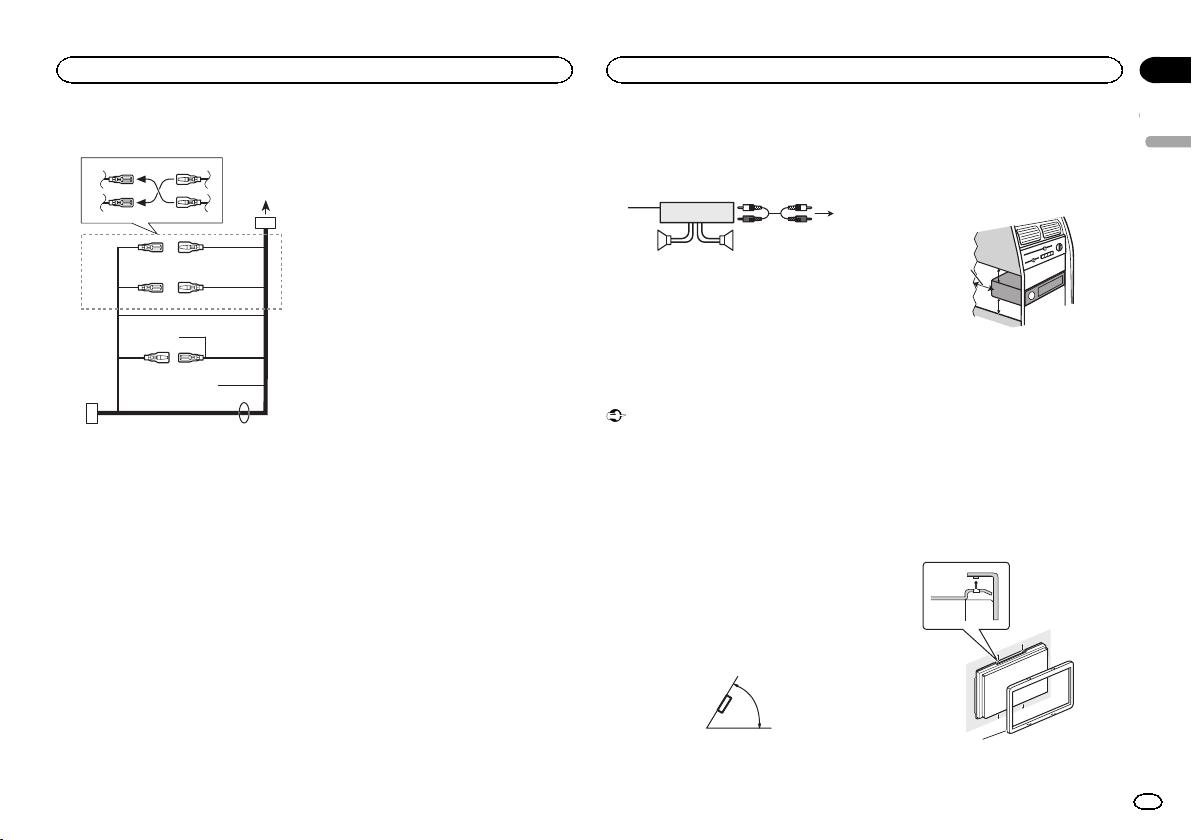
This unit
1 Antenna input
2 Fuse (10 A)
3 Power cord input
4 Wired remote input
Hard-wired remote control adapter can be
connected (sold separately).
5 Rear output or subwoofer output
Installation
Installation
Section
03
Power cord
3
4
1
c
3
556
6
4
a
b89
2
7
e
1 To power cord input
2 Depending on the kind of vehicle, the func-
tion of 3 and 5 may be different. In this
case, be sure to connect 4 to 5 and 6 to
3.
3 Yellow
Back-up (or accessor y)
4 Yellow
Connect to the constant 12 V supply terminal.
5 Red
Accessory (or back-up)
6 Red
Connect to terminal controlled by ignition
switch (12 V DC).
7 Connect leads of the same color to each
other.
8 Black (chassis ground)
9 Blue/white
The pin position of the ISO connector will differ depending on the type of vehicle. Connect
9 and b when Pin 5 is an antenna control
type. In another type of vehicle, never connect 9 and b.
a Blue/white
Connect to system control terminal of the
power amp (max. 300 mA 12 V DC).
b Blue/white
Connect to auto-antenna relay control terminal (max. 300 mA 12 V DC).
c Yellow/black
If you use an equipment with Mute function,
wire this lead to the Audio Mute lead on that
equipment. If not, keep the Audio Mute lead
free of any connections.
d Speaker leads
White: Front left +
White/black: Front left *
Gray: Front right +
Gray/black: Front right *
Green: Rear left + or subwoofer +
Green/black: Rear left * or subwoofer *
Violet: Rear right + or subwoofer +
Violet/black: Rear right * or subwoofer *
e ISO connector
In some vehicles, the ISO connector may be
divided into two. In this case, be sure to connect to both connectors.
Notes
! Change the initial menu of this unit. Refer to
SP-P/O MODE (rear output and preout setting) on page 7.
The subwoofer output of this unit is monaural.
! When using a subwoofer of 70 W (2 W), be
sure to connect the subwoofer to the violet
and violet/black leads of this unit. Do not
connect anything to the green and green/
black leads.
Power amp (sold separately)
Perform these connections when using the optional amplifier.
1
1 System remote control
Connect to Blue/white cable.
2 Power amp (sold separately)
3 Connect with RCA cables (sold separately)
4 To Rear output or subwoofer output
5 Rear speaker or subwoofer
3
2
55
4
Installation
Important
! Check all connections and systems before
final installation.
! Do not use unauthorized parts as this may
cause malfunctions.
! Consult your dealer if installation requires
drilling of holes or other modifications to the
vehicle.
! Do not install this unit where:
— it may interfere with operation of the vehicle.
— it may cause injur y to a passenger as a result
of a sudden stop.
! The semiconductor laser will be damaged if
it overheats. Install this unit away from hot
places such as near the heater outlet.
! Optimum performance is obtained when the
unit is installed at an angle of less than 60°.
60°
! When installing, to ensure proper heat dis-
persal when using this unit, make sure you
leave ample space behind the rear panel and
wrap any loose cables so they are not blocking the vents.
Leave ample
5 cm
space
5 cm
! Use commercially available parts when in-
stalling.
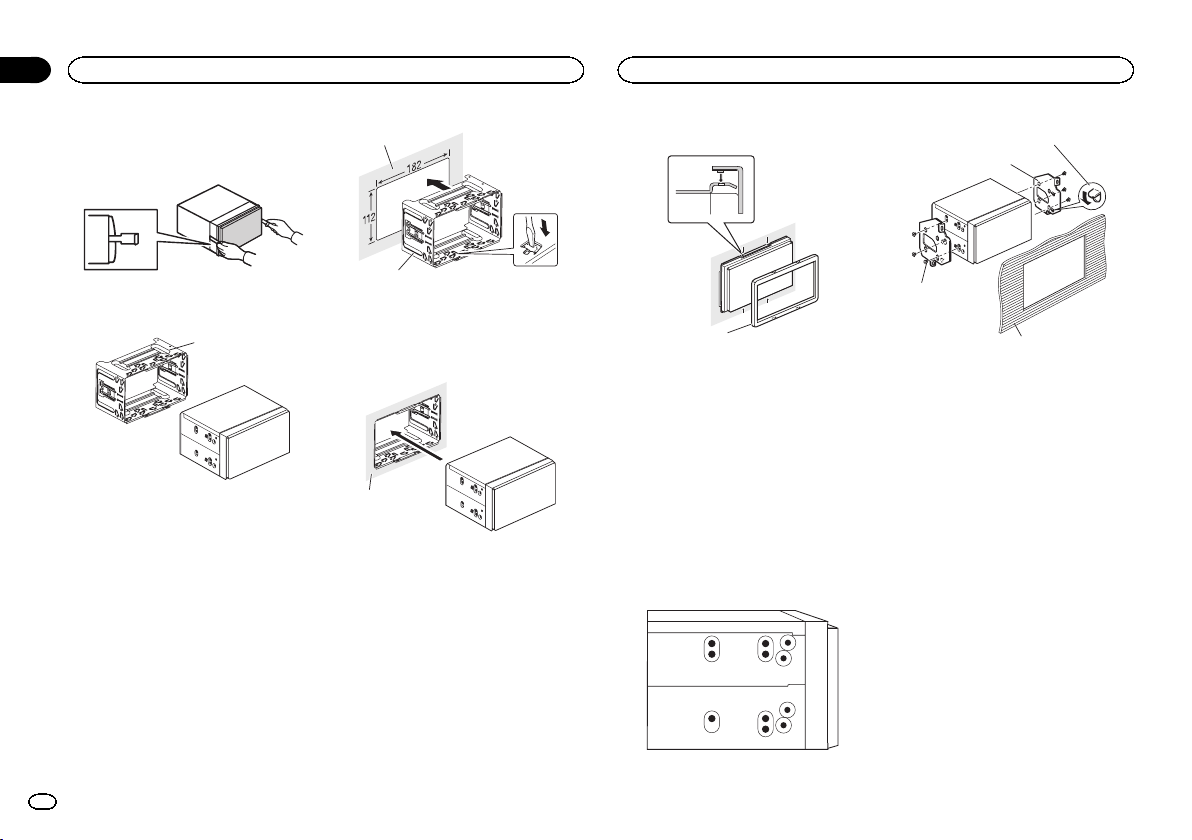
How to install
This unit can be installed properly using either
of the methods in the below list.
! Installation with the holder
! Installation using the screw holes on the side
of the unit
Before installing this unit
1 Remove the trim ring.
1 Trim ring
English
9
En
Section
03
Installation
Installation
2 Insert the supplied extraction keys into
both sides of the unit until they click into
place.
3 Pull the unit out of the holder.
Remove the holder.
1
1 Holder
(factory-supplied part)
Installation with the holder
1 Install the holder into the dashboard.
After inserting the holder into the dashboard, select and bend the tabs appropriate to the thickness of the dashboard material. (Install this unit
as firmly as possible using the top and bottom
tabs. To secure this unit, bend the tabs 90 degrees.)
1
1 Dashboard
2 Holder
(factory-supplied part)
2 Install this unit.
1
1 Dashboard
3 Attach the trim ring.
1 Trim ring
Removing the holder
The procedure is the same as that for Before installing this unit. For details, refer to Before in-
stalling this unit on page 9.
Installation using the screw
holes on the side of the unit
% Fastening the unit to the factory radiomounting bracket.
Position the unit so that its screw holes are
aligned with the screw holes of the bracket, and
tighten the screws at three locations on each
side.
1
2
3
1 If the pawl gets in the way, bend it down.
2 Factory radio mounting bracket
3 Truss (5 mm × 8 mm) screws
4 Dashboard or console
10
En
Loading…
Instruction manual and user guide for
Pioneer FH-X360UB
32 pages of detailed instruction manual and user guide of exploitation in Russian in English

Black plate (2,1)
Thank you for purchasing this PIONEER
product
To ensure proper use, please read through this
manual before using this product. It is especially
important that you read and observe WARN-
INGs and CAUTIONs in this manual. Please
keep the manual in a safe and accessible place for
future reference.
If you want to dispose this product, do not
mix it with general household waste. There is
a separate collection system for used elec-
tronic products in accordance with legislation
that requires proper treatment, recovery and
recycling.
Private households in the member states of the
EU, in Switzerland and Norway may return their
used electronic products free of charge to desig-
nated collection facilities or to a retailer (if you
purchase a similar new one).
For countries not mentioned above, please con-
tact your local authorities for the correct method
of disposal.
By doing so you will ensure that your disposed
product undergoes the necessary treatment, re-
covery and recycling and thus prevent potential
negative effects on the environment and human
health.
About this unit
The tuner frequencies on this unit are allocated
for use in Western Europe, Asia, the Middle
East, Africa and Oceania. Use in other areas
may result in poor reception. The RDS (radio
data system) function only works in areas that
broadcast RDS signals for FM stations.
WARNING
! Do not attempt to install or service this
product by yourself. Installation or serv-
icing of this product by persons without
training and experience in electronic
equipment and automotive accessories
may be dangerous and could expose you
to the risk of electric shock, injury or
other hazards.
! Do not attempt to operate the unit while driv-
ing. Make sure to pull off the road and park
your vehicle in a safe location before at-
tempting to use the controls on the device.
CAUTION
! Do not allow this unit to come into contact
with liquids. Electrical shock could result.
Also, damage to this unit, smoke, and over-
heating could result from contact with
liquids.
! Always keep the volume low enough to hear
outside sounds.
! Avoid exposure to moisture.
CAUTION
This product is a class 1 laser product classi-
fied under the Safety of laser products, IEC
60825-1:2007.
If you experience problems
Should this unit fail to work properly, please con-
tact your dealer or nearest authorized PIONEER
Service Station.
Before you start
2
Section
Before you start
En
01
<QRB3357-A>2

Black plate (3,1)
Head unit
1 2
4
5
8 9
7
a
c
6
b
d
3
1
h (eject)
2
(equalizer)
3
1/
to
6/
4
Disc loading slot
5
DISP
6
SRC/OFF
7
BAND
8
c/d
9
MULTI-CONTROL (M.C.)
a
(back)/
DIMMER (dimmer)
b
(list)
c
AUX input jack (3.5 mm stereo jack)
d
USB port
CAUTION
Use an optional Pioneer USB cable (CD-U50E)
to connect the USB storage device as any device
connected directly to the unit will protrude out
from the unit, which could be dangerous.
Display indication
2
1
3
7
5
9
4
6 8
a
1
(list)
2
Sub information section
3
TA (traffic announcements)
4
TP (traffic program identification)
5
(sound retriever)
6
LOC (local seek tuning)
7
(repeat)
8
(random)
9
Main information section
! Tuner: band and frequency
! RDS: program service name, PTY infor-
mation and other literal information
! CD player and USB storage device:
elapsed playback time and text informa-
tion
a
Appears when a lower tier of folder or menu
exists.
Set up menu
1
After installation of this unit, turn the
ignition switch to ON.
SET UP appears.
2
Turn M.C. to switch to YES.
# If you do not use the unit for 30 seconds, the set
up menu will not be displayed.
# If you prefer not to set up at this time, turn M.C.
to switch to
NO.
3
Press M.C. to select.
4
Follow these steps to set the menu.
To proceed to the next menu option, you need to
confirm your selection.
LANGUAGE (multi-language)
This unit can display the text information from a
compressed audio file even for information em-
bedded in English, Russian or Turkish.
! If the embedded language and the selected
language setting are not the same, text infor-
mation may not display properly.
! Some characters may not be displayed prop-
erly.
1 Turn M.C. to select the desired setting.
РУС (Russian)—TUR (Turkish)—ENG (Eng-
lish)
2 Press M.C. to confirm the selection.
CLOCK SET (setting the clock)
1 Turn M.C. to adjust hour.
2 Press M.C. to select minute.
3 Turn M.C. to adjust minute.
4 Press M.C. to confirm the selection.
FM STEP (FM tuning step)
Use
FM STEP to set FM tuning step options (seek
step settings).
1 Turn M.C. to select the FM tuning step.
100 (100 kHz)
—50 (50 kHz)
2 Press M.C. to confirm the selection.
QUIT appears.
! The manual tuning step is fixed at 50 kHz.
5
To finish your settings, turn M.C. to select
YES.
# If you prefer to change your setting again, turn
M.C. to switch to NO.
6
Press M.C. to select.
Notes
! You can set up the menu options from the
system menu and initial menu. For details
about the settings, refer to System menu on
page 6 and Initial menu on page 7.
! You can cancel set up menu by pressing
SRC/OFF.
Basic operations
Turning the unit on
1 Press SRC/OFF to turn the unit on.
Turning the unit off
1 Press and hold SRC/OFF until the unit turns
off.
Selecting a source
1 Press SRC/OFF to cycle between:
RADIO
—CD—USB—AUX
! USB MTP displays while the MTP connection
is in use.
Adjusting the volume
1 Turn M.C. to adjust the volume.
Note
When this unit
’s blue/white lead is connected to
the vehicle
’s auto-antenna relay control termi-
nal, the vehicle
’s antenna extends when this
unit
’s source is turned on. To retract the anten-
na, turn the source off.
English
Using this unit
3
Section
Using this unit
En
02
<QRB3357-A>3

Black plate (4,1)
Frequently used menu
operations
Returning to the previous display
Returning to the previous list (the folder one level
higher)
1 Press
/
DIMMER.
Returning to the ordinary display
Canceling the main menu
1 Press BAND.
Returning to the ordinary display from the list
1 Press BAND.
Radio
Basic operations
Selecting a band
1 Press BAND until the desired band (FM1,
FM2, FM3 for FM or MW/LW) is displayed.
Switching preset stations
1 Press c or d.
! Select PCH (preset channel) under SEEK to
use this function.
Manual tuning (step by step)
1 Press c or d.
! Select MAN (manual tuning) under SEEK to
use this function.
Seeking
1 Press and hold c or d, and then release.
You can cancel seek tuning by briefly pressing
c or d.
While pressing and holding c or d, you can
skip stations. Seek tuning starts as soon as
you release c or d.
Notes
! For details about SEEK, refer to SEEK (left/
right key setting) on page 4.
! This unit’s AF (alternative frequencies
search) function can be turned on and off.
AF should be off for normal tuning operation
(refer to
AF (alternative frequencies search)
on page 4).
Storing and recalling stations
for each band
Using preset tuning buttons
1
To store: Press and hold down one of the
preset tuning buttons (1/
to 6/
) until
the number stops flashing.
2
To recall: Press one of the preset tuning
buttons (1/
to 6/
).
Switching the display
Selecting the desired text information
1 Press DISP to cycle between the following:
! FREQUENCY (program service name or
frequency)
! BRDCST INFO (program service name/PTY
information)
! CLOCK (source name and clock)
Notes
! If the program service name cannot be ac-
quired in
FREQUENCY, the broadcast fre-
quency is displayed instead. If the program
service name is detected, the program serv-
ice name will be displayed.
! Depending on the band, text information can
be changed.
! Text information items that can be changed
depend on the area.
Using PTY functions
You can tune in to a station using PTY (program
type) information.
Searching for an RDS station by PTY information
1 Press
(list).
2 Turn M.C. to select a program type.
NEWS/INFO
—POPULAR—CLASSICS—
OTHERS
3 Press M.C. to begin the search.
The unit searches for a station broadcasting
that type of program. When a station is found,
its program service name is displayed.
! To cancel the search, press M.C. again.
! The program of some stations may differ
from that indicated by the transmitted PTY.
! If no station is broadcasting the type of
program you searched for,
NOT FOUND is
displayed for about two seconds and then
the tuner returns to the original station.
PTY list
For more details about PTY list, visit the follow-
ing site:
http://www.pioneer.eu/eur/products/25/121/tech/
CarAudio/PTY.html
Function settings
1
Press M.C. to display the main menu.
2
Turn M.C. to change the menu option
and press to select FUNCTION.
3
Turn M.C. to select the function.
Once selected, the following functions can be
adjusted.
# If MW/LW band is selected, only BSM, LOCAL
and
SEEK are available.
BSM (best stations memory)
BSM (best stations memory) automatically stores
the six strongest stations in the order of their sig-
nal strength.
1 Press M.C. to turn BSM on.
To cancel, press
M.C. again.
REGIONAL (regional)
When AF is used, the regional function limits the
selection of stations to those broadcasting region-
al programs.
1 Press M.C. to turn the regional function on or
off.
LOCAL (local seek tuning)
Local seek tuning allows you to tune in to only
those radio stations with sufficiently strong sig-
nals for good reception.
1 Press M.C. to select the desired setting.
FM:
OFF
—LV1—LV2—LV3—LV4
MW/LW:
OFF
—LV1—LV2
The highest level setting allows reception of
only the strongest stations, while lower levels
allow the reception of weaker stations.
TA (traffic announcement standby)
1 Press M.C. to turn traffic announcement
standby on or off.
AF (alternative frequencies search)
1 Press M.C. to turn AF on or off.
NEWS (news program interruption)
1 Press M.C. to turn the NEWS function on or
off.
SEEK (left/right key setting)
You can assign a function to the left and right keys
of the unit.
Select
MAN (manual tuning) to tune up or down
manually or select
PCH (preset channel) to switch
between preset channels.
1 Press M.C. to select MAN or PCH.
Using this unit
4
Section
Using this unit
En
02
<QRB3357-A>4

Black plate (5,1)
CD/CD-R/CD-RW and USB
storage devices
MTP connection
MTP-compatible Android devices (running
Android OS 4.0 or higher) can be connected by
MTP connection using the USB source. To con-
nect an Android device, use the cable that came
with the device.
Notes
! This function is not compatible with MIX-
TRAX.
! This function is not compatible with WAV.
Basic operations
Playing a CD/CD-R/CD-RW
1 Insert the disc into the disc loading slot with
the label side up.
Ejecting a CD/CD-R/CD-RW
1 Press h.
Playing songs on a USB storage device
1 Open the USB port cover.
2 Plug in the USB storage device using a USB
cable.
Stopping playback of files on a USB storage de-
vice
1 You may disconnect the USB storage device at
any time.
Selecting a folder
1 Press 1/ or 2/ .
Selecting a track
1 Press c or d.
Fast forwarding or reversing
1 Press and hold c or d.
! When playing compressed audio, there is no
sound during fast forward or reverse.
Returning to root folder
1 Press and hold BAND.
Switching between compressed audio and CD-DA
1 Press BAND.
Switching between playback memory devices
You can switch between playback memory devices
on USB storage devices with more than one Mass
Storage Device-compatible memory device.
1 Press BAND.
! You can switch between up to 32 different
memory devices.
Note
Disconnect USB storage devices from the unit
when not in use.
Operations using the MIXTRAX
button
Turning MIXTRAX on or off
You can use this function when
USB is selected as
the source.
You cannot use this function with
USB MTP.
1 Press 3/MIX to turn MIXTRAX on or off.
! For more details about MIXTRAX, refer to
About MIXTRAX on page 7.
! When MIXTRAX is in use, the sound retriever
function is disabled.
Switching the display
Selecting the desired text information
1 Press DISP to cycle between the following:
CD-DA
! ELAPSED TIME (track number and play-
back time)
! CLOCK (source name and clock)
! SPEANA (spectrum analyzer)
CD-TEXT
! TRACK INFO (track title/track artist/disc
title)
! ELAPSED TIME (track number and play-
back time)
! CLOCK (source name and clock)
! SPEANA (spectrum analyzer)
MP3/WMA/WAV
! TRACK INFO (track title/artist name/album
title)
! FILE INFO (file name/folder name)
! ELAPSED TIME (track number and play-
back time)
! CLOCK (source name and clock)
! SPEANA (spectrum analyzer)
Selecting and playing files/
tracks from the name list
1
Press
to switch to the file/track name
list mode.
2
Use M.C. to select the desired file name
(or folder name).
Selecting a file or folder
1 Turn M.C.
Playing
1 When a file or track is selected, press M.C.
Viewing a list of the files (or folders) in the se-
lected folder
1 When a folder is selected, press M.C.
Playing a song in the selected folder
1 When a folder is selected, press and hold M.C.
Operations using special buttons
Selecting a repeat play range
1 Press 6/
to cycle between the following:
CD/CD-R/CD-RW
! ALL – Repeat all tracks
! ONE – Repeat the current track
! FLD – Repeat the current folder
USB storage device
! ALL – Repeat all files
! ONE – Repeat the current file
! FLD – Repeat the current folder
Playing tracks in random order
1 Press 5/
to turn random play on or off.
Tracks in a selected repeat range are played in
random order.
! To change songs during random play, press d
to switch to the next track. Pressing c restarts
playback of the current track from the begin-
ning of the song.
Pausing playback
1 Press 4/PAUSE to pause or resume.
Function settings
1
Press M.C. to display the main menu.
2
Turn M.C. to change the menu option
and press to select FUNCTION.
Once selected, the function below can be ad-
justed.
! S.RTRV is not available when MIXTRAX is
turned on.
English
Using this unit
5
Section
Using this unit
En
02
<QRB3357-A>5

Black plate (6,1)
S.RTRV (sound retriever)
Automatically enhances compressed audio and
restores rich sound.
1 Press M.C. to select the desired setting.
1
—2—OFF (off)
1 is effective for low compression rates, and 2
is effective for high compression rates.
Audio adjustments
1
Press M.C. to display the main menu.
2
Turn M.C. to change the menu option
and press to select AUDIO.
3
Turn M.C. to select the audio function.
Once selected, the following audio functions
can be adjusted.
! FADER is not available when SUB.W/SUB.W
is selected in
SP-P/O MODE. For details, refer
to
SP-P/O MODE (rear output and preout set-
ting) on page 7.
! SUB.W and SUB.W CTRL are not available
when
REAR/REAR is selected in
SP-P/O MODE. For details, refer to
SP-P/O MODE (rear output and preout set-
ting) on page 7.
! SUB.W CTRL is not available when SUB.W is
selected in
OFF. For details, refer to SUB.W
(subwoofer on/off setting) on page 6.
! SLA is not available when FM is selected as
the source.
FADER (fader adjustment)
1 Press M.C. to display the setting mode.
2 Turn M.C. to adjust the front/rear speaker bal-
ance.
BALANCE (balance adjustment)
1 Press M.C. to display the setting mode.
2 Turn M.C. to adjust the left/right speaker bal-
ance.
EQ SETTING (equalizer recall)
1 Press M.C. to display the setting mode.
2 Turn M.C. to select the equalizer.
POWERFUL
—NATURAL—VOCAL—CUS-
TOM1
—CUSTOM2—FLAT—SUPER BASS
The equalizer band and equalizer level can be
customized when
CUSTOM1 or CUSTOM2 is
selected.
If selecting
CUSTOM1 or CUSTOM2, complete
the procedures outlined below. If selecting
other options, press
M.C. to return to the pre-
vious display.
! CUSTOM1 can be set separately for each
source.
! CUSTOM2 is a shared setting used in com-
mon for all sources.
3 Press M.C. to display the setting mode.
4 Press M.C. to cycle between the following:
Equalizer band
—Equalizer level
5 Turn M.C. to select the desired setting.
Equalizer band:
80HZ
—250HZ—800HZ—
2.5KHZ
—8KHZ
Equalizer level:
+6 to
–6
! You can also switch the equalizer by pressing
repeatedly.
LOUDNESS (loudness)
Loudness compensates for deficiencies in the low-
frequency and high-frequency ranges at low vol-
ume.
1 Press M.C. to select the desired setting.
OFF (off)
—LOW (low)—MID (mid)—HI (high)
SUB.W (subwoofer on/off setting)
This unit is equipped with a subwoofer output
which can be turned on or off.
1 Press M.C. to select the desired setting.
NOR (normal phase)
—REV (reverse phase)—
OFF (subwoofer off)
SUB.W CTRL (subwoofer adjustment)
Only frequencies lower than those in the selected
range are outputted from the subwoofer.
1 Press M.C. to display the setting mode.
2 Press M.C. to cycle between the following:
Cut-off frequency
—Output level—Slope level
Rates that can be adjusted will flash.
3 Turn M.C. to select the desired setting.
Cut-off frequency:
50HZ
—63HZ—80HZ—
100HZ
—125HZ—160HZ—200HZ
Output level:
–24 to +6
Slope level:
–12— –24
BASS BOOST (bass boost)
1 Press M.C. to display the setting mode.
2 Turn M.C. to select a desired level.
0 to +6 is displayed as the level is increased or
decreased.
HPF SETTING (high pass filter adjustment)
Use this function when wanting to listen only to
high-frequency sounds. Only frequencies higher
than the high-pass filter (HPF) cutoff are output
from the speakers.
1 Press M.C. to display the setting mode.
2 Press M.C. to cycle between the following:
Cut-off frequency
—Slope level
3 Turn M.C. to select the desired setting.
Cut-off frequency:
OFF
—50HZ—63HZ—80HZ
—100HZ—125HZ—160HZ—200HZ
Slope level:
–12— –24
SLA (source level adjustment)
This function prevents the volume from changing
too dramatically when the source switches.
! Settings are based on the FM volume level,
which remains unchanged.
! The MW/LW volume level can also be adjusted
with this function.
1 Press M.C. to display the setting mode.
2 Turn M.C. to adjust the source volume.
Adjustment range:
+4 to
–4
System menu
Important
PW SAVE (power saving) is canceled if the ve-
hicle battery is disconnected and will need to be
turned back on once the battery is reconnected.
When
PW SAVE (power saving) is off, depend-
ing on connection methods, the unit may con-
tinue to draw power from the battery if your
vehicle
’s ignition doesn’t have an ACC (acces-
sory) position.
1
Press M.C. to display the main menu.
2
Turn M.C. to change the menu option
and press to select SYSTEM.
3
Turn M.C. to select the system menu
function.
Once selected, the following system menu func-
tions can be adjusted.
LANGUAGE (multi-language)
1 Press M.C. to select the desired setting.
РУС (Russian)—TUR (Turkish)—ENG (Eng-
lish)
CLOCK SET (setting the clock)
Using this unit
6
Section
Using this unit
En
02
<QRB3357-A>6
Sp-p/o mode (rear output and preout set, About mixtrax, Initial menu
System menu, Using this unit Support chat
- Image
- Text
Black plate (7,1)
1 Press M.C. to display the setting mode.
2 Press M.C. to select the segment of the clock
display you wish to set.
Hour
—Minute
3 Turn M.C. to adjust the clock.
12H/24H (time notation)
1 Press M.C. to select the desired setting.
12H (12-hour clock)
—24H (24-hour clock)
AUTO PI (auto PI seek)
The unit can automatically search for a different
station with the same programming, even during
preset recall.
1 Press M.C. to turn Auto PI seek on or off.
AUX (auxiliary input)
Activate this setting when using an auxiliary de-
vice connected to this unit.
1 Press M.C. to turn AUX on or off.
DIMMER (dimmer)
1 Press M.C. to turn the dimmer on or off.
! You can also change the dimmer setting by
pressing and holding
/
DIMMER.
MUTE MODE (mute mode)
Sound from this system is automatically muted or
attenuated when a signal from equipment with a
mute function is received.
1 Press M.C. to display the setting mode.
2 Turn M.C. to select the desired setting.
! MUTE – Muting
! 20dB ATT – Attenuation (20dB ATT has a
stronger effect than
10dB ATT)
! 10dB ATT – Attenuation
PW SAVE (power saving)
Switching this function on enables you to reduce
the consumption of battery power.
! Turning on the source is the only operation al-
lowed when this function is on.
1 Press M.C. to turn the power save on or off.
About MIXTRAX
MIXTRAX technology is used to insert a variety
of sound effects in between songs, allowing you
to experience your music as a nonstop mix com-
plete with visual effects.
Notes
! Depending on the file/song, sound effects
may not be available.
! Turn MIXTRAX off if the visual effects it pro-
duces have adverse effects on driving. Refer
to Operations using the MIXTRAX button on
page 5.
MIXTRAX menu
1
Press M.C. to display the main menu.
2
Turn M.C. to change the menu option
and press to select MIXTRAX.
3
Turn M.C. to select the MIXTRAX func-
tion.
Once selected, the following MIXTRAX functions
can be adjusted. The function is enabled when
MIXTRAX is on.
SHORT MODE (short playback mode)
You can select the length of the playback time.
1 Press M.C. to display the setting mode.
2 Turn M.C. to select the desired setting.
1.0 MIN (1.0 minute)
—1.5 MIN (1.5 minutes)—
2.0 MIN (2.0 minutes)
—2.5 MIN (2.5 minutes)
—3.0 MIN (3.0 minutes)—OFF (off)
MIX PATTERN (mix pattern)
The MIXTRAX special effects display changes with
changes in the audio level.
1 Press M.C. to display the setting mode.
2 Turn M.C. to select the desired setting.
! SOUND LEVEL – The mix pattern changes
according to the sound level.
! LOW PASS – The mix pattern changes ac-
cording to the bass level.
! RANDOM – The mix pattern changes ran-
domly according to the sound level mode
and low pass mode.
DISP FX (display effect)
The MIXTRAX special effects display can be turned
on or off.
1 Press M.C. to select the desired setting.
ON (MIXTRAX special effects display)
—OFF
(normal display)
CUT IN FX (manual cut-in effect)
You can turn on or off the MIXTRAX sound effects
while manually changing tracks.
1 Press M.C. to select the desired setting.
ON (on)
—OFF (off)
Initial menu
1
Press and hold SRC/OFF until the unit
turns off.
2
Press and hold SRC/OFF until the main
menu appears in the display.
3
Turn M.C. to change the menu option
and press to select INITIAL.
4
Turn M.C. to select the initial menu func-
tion.
Once selected, the following initial menu func-
tions can be adjusted.
FM STEP (FM tuning step)
1 Press M.C. to select the FM tuning step.
100 (100 kHz)
—50 (50 kHz)
SP-P/O MODE (rear output and preout setting)
The rear speaker leads output and the RCA output
of this unit can be used to connect a full-range
speaker or subwoofer. Select a suitable option for
your connection.
1 Press M.C. to display the setting mode.
2 Turn M.C. to select the desired setting.
! REAR/SUB.W – Select when there is a full-
range speaker connected to the rear speak-
er leads output and there is a subwoofer
connected to the RCA output.
! SUB.W/SUB.W – Select when there is a
subwoofer connected directly to the rear
speaker leads output without any auxiliary
amp and there is a subwoofer connected
to the RCA output.
! REAR/REAR – Select when there is a full-
range speaker connected to the rear speak-
er leads output and the RCA output.
If there is a full-range speaker connected to
the rear speaker leads output and the RCA
output is not used, you may select either
REAR/SUB.W or REAR/REAR.
System menu
1
Press and hold SRC/OFF until the unit
turns off.
2
Press and hold SRC/OFF until the main
menu appears in the display.
3
Turn M.C. to change the menu option
and press to select SYSTEM.
English
Using this unit
7
Section
Using this unit
En
02
<QRB3357-A>7

Using an aux source, If an unwanted display appears, Connections
Using this unit, Installation Support chat
- Image
- Text
Black plate (8,1)
4
Turn M.C. to select the system menu
function.
For details, refer to System menu on page 6.
Using an AUX source
1
Insert the stereo mini plug into the AUX
input jack.
2
Press SRC/OFF to select AUX as the
source.
Note
AUX cannot be selected unless the auxiliary set-
ting is turned on. For more details, refer to
AUX
(auxiliary input) on page 7.
Switching the display
Selecting the desired text information
1 Press DISP to cycle between the following:
! Source name
! Source name and clock
If an unwanted display appears
Turn off the unwanted display using the proce-
dures listed below.
1
Press M.C. to display the main menu.
2
Turn M.C. to change the menu option
and press to select SYSTEM.
3
Turn M.C. to display DEMO OFF and press
to select.
4
Turn M.C. to switch to YES.
5
Press M.C. to select.
Connections
Important
! When installing this unit in a vehicle without
an ACC (accessory) position on the ignition
switch, failure to connect the red cable to the
terminal that detects operation of the ignition
key may result in battery drain.
ON
S
T
A
R
T
O
FF
ACC position
No ACC position
! Use of this unit in conditions other than the
following could result in fire or malfunction.
— Vehicles with a 12-volt battery and negative
grounding.
— Speakers with 50 W (output value) and 4 W to
8
W (impedance value).
! To prevent a short-circuit, overheating or mal-
function, be sure to follow the directions
below.
— Disconnect the negative terminal of the bat-
tery before installation.
— Secure the wiring with cable clamps or adhe-
sive tape. Wrap adhesive tape around wiring
that comes into contact with metal parts to
protect the wiring.
— Place all cables away from moving parts,
such as the shift lever and seat rails.
— Place all cables away from hot places, such
as near the heater outlet.
— Do not connect the yellow cable to the battery
by passing it through the hole to the engine
compartment.
— Cover any disconnected cable connectors
with insulating tape.
— Do not shorten any cables.
— Never cut the insulation of the power cable of
this unit in order to share the power with
other devices. The current capacity of the
cable is limited.
— Use a fuse of the rating prescribed.
— Never wire the negative speaker cable directly
to ground.
— Never band together negative cables of multi-
ple speakers.
! When this unit is on, control signals are sent
through the blue/white cable. Connect this
cable to the system remote control of an ex-
ternal power amp or the vehicle
’s auto-anten-
na relay control terminal (max. 300 mA
12 V DC). If the vehicle is equipped with a
glass antenna, connect it to the antenna
booster power supply terminal.
! Never connect the blue/white cable to the
power terminal of an external power amp.
Also, never connect it to the power terminal
of the auto antenna. Doing so may result in
battery drain or a malfunction.
! The black cable is ground. Ground cables for
this unit and other equipment (especially,
high-current products such as power amps)
must be wired separately. If they are not, an
accidental detachment may result in a fire or
malfunction.
This unit
3
1
2
4 5
1 Antenna input
2 Fuse (10 A)
3 Power cord input
4 Wired remote input
Hard-wired remote control adapter can be
connected (sold separately).
5 Rear output or subwoofer output
Using this unit
8
Section
Installation
En
02
03
<QRB3357-A>8

Black plate (9,1)
Power cord
1
3
3
2
4
4
5
5
6
6
b
8
9
7
a
e
d
c
1 To power cord input
2 Depending on the kind of vehicle, the func-
tion of
3 and 5 may be different. In this
case, be sure to connect
4 to 5 and 6 to
3.
3 Yellow
Back-up (or accessory)
4 Yellow
Connect to the constant 12 V supply termi-
nal.
5 Red
Accessory (or back-up)
6 Red
Connect to terminal controlled by ignition
switch (12 V DC).
7 Connect leads of the same color to each
other.
8 Black (chassis ground)
9 Blue/white
The pin position of the ISO connector will dif-
fer depending on the type of vehicle. Connect
9 and b when Pin 5 is an antenna control
type. In another type of vehicle, never con-
nect
9 and b.
a Blue/white
Connect to system control terminal of the
power amp (max. 300 mA 12 V DC).
b Blue/white
Connect to auto-antenna relay control termi-
nal (max. 300 mA 12 V DC).
c Yellow/black
If you use an equipment with Mute function,
wire this lead to the Audio Mute lead on that
equipment. If not, keep the Audio Mute lead
free of any connections.
d Speaker leads
White: Front left +
White/black: Front left *
Gray: Front right +
Gray/black: Front right *
Green: Rear left + or subwoofer +
Green/black: Rear left * or subwoofer *
Violet: Rear right + or subwoofer +
Violet/black: Rear right * or subwoofer *
e ISO connector
In some vehicles, the ISO connector may be
divided into two. In this case, be sure to con-
nect to both connectors.
Notes
! Change the initial menu of this unit. Refer to
SP-P/O MODE (rear output and preout set-
ting) on page 7.
The subwoofer output of this unit is monau-
ral.
! When using a subwoofer of 70 W (2 W), be
sure to connect the subwoofer to the violet
and violet/black leads of this unit. Do not
connect anything to the green and green/
black leads.
Power amp (sold separately)
Perform these connections when using the op-
tional amplifier.
1
3
2
4
5
5
1 System remote control
Connect to Blue/white cable.
2 Power amp (sold separately)
3 Connect with RCA cables (sold separately)
4 To Rear output or subwoofer output
5 Rear speaker or subwoofer
Installation
Important
! Check all connections and systems before
final installation.
! Do not use unauthorized parts as this may
cause malfunctions.
! Consult your dealer if installation requires
drilling of holes or other modifications to the
vehicle.
! Do not install this unit where:
— it may interfere with operation of the vehicle.
— it may cause injury to a passenger as a result
of a sudden stop.
! The semiconductor laser will be damaged if
it overheats. Install this unit away from hot
places such as near the heater outlet.
! Optimum performance is obtained when the
unit is installed at an angle of less than 60°.
60°
! When installing, to ensure proper heat dis-
persal when using this unit, make sure you
leave ample space behind the rear panel and
wrap any loose cables so they are not block-
ing the vents.
5cm
cm
Leave ample
space
5 cm
5 cm
! Use commercially available parts when in-
stalling.
How to install
This unit can be installed properly using either
of the methods in the below list.
! Installation with the holder
! Installation using the screw holes on the side
of the unit
Before installing this unit
1
Remove the trim ring.
1
1 Trim ring
English
Installation
9
Section
Installation
En
03
<QRB3357-A>9

Black plate (10,1)
2
Insert the supplied extraction keys into
both sides of the unit until they click into
place.
3
Pull the unit out of the holder.
Remove the holder.
1
1 Holder
(factory-supplied part)
Installation with the holder
1
Install the holder into the dashboard.
After inserting the holder into the dashboard, se-
lect and bend the tabs appropriate to the thick-
ness of the dashboard material. (Install this unit
as firmly as possible using the top and bottom
tabs. To secure this unit, bend the tabs 90 de-
grees.)
1
2
1 Dashboard
2 Holder
(factory-supplied part)
2
Install this unit.
1
1 Dashboard
3
Attach the trim ring.
1
1 Trim ring
Removing the holder
The procedure is the same as that for Before in-
stalling this unit. For details, refer to Before in-
stalling this unit on page 9.
Installation using the screw
holes on the side of the unit
% Fastening the unit to the factory radio-
mounting bracket.
Position the unit so that its screw holes are
aligned with the screw holes of the bracket, and
tighten the screws at three locations on each
side.
1
2
4
3
1 If the pawl gets in the way, bend it down.
2 Factory radio mounting bracket
3 Truss (5 mm × 8 mm) screws
4 Dashboard or console
Installation
10
Section
Installation
En
03
<QRB3357-A>10

23:24
Обзор Pioneer FH-X730BT — 2DIN магнитола с процессором
04:11
Автомагнитола Pioneer FH-X380UB
00:56
Pioneer FH-X360UB Mixtrax LDV Maxus Максус HD
14:20
обзор 2-х динового магнитофона Pioneer FH-X380UB с разбором!
00:16
Мой мафон Pioneer FH-X360UB
05:33
Автомедиастанция PIONEER FH X380UB
Press the button for help
CD RDS RECEIVER
CD RDS ПРИЕМНИК
English Русский
FH-X360UB
Owner’s Manual
Руководство пользователя
Section
01
Before you start
Before you start
Thank you for purchasing this PIONEER
About this unit
If you experience problems
product
To ensure proper use, please read through this
The tuner frequencies on this unit are allocated
Should this unit fail to work properly, please con-
manual before using this product. It is especially
for use in Western Europe, Asia, the Middle
tact your dealer or nearest authorized PIONEER
important that you read and observe WARN-
East, Africa and Oceania. Use in other areas
Service Station.
INGs and CAUTIONs in this manual. Please
may result in poor reception. The RDS (radio
keep the manual in a safe and accessible place for
data system) function only works in areas that
future reference.
broadcast RDS signals for FM stations.
WARNING
! Do not attempt to install or service this
product by yourself. Installation or serv-
icing of this product by persons without
training and experience in electronic
equipment and automotive accessories
If you want to dispose this product, do not
may be dangerous and could expose you
mix it with general household waste. There is
to the risk of electric shock, injury or
a separate collection system for used elec-
other hazards.
tronic products in accordance with legislation
! Do not attempt to operate the unit while driv-
that requires proper treatment, recovery and
ing. Make sure to pull off the road and park
recycling.
your vehicle in a safe location before at-
tempting to use the controls on the device.
Private households in the member states of the
EU, in Switzerland and Norway may return their
CAUTION
used electronic products free of charge to desig-
! Do not allow this unit to come into contact
nated collection facilities or to a retailer (if you
with liquids. Electrical shock could result.
purchase a similar new one).
Also, damage to this unit, smoke, and over-
For countries not mentioned above, please con-
heating could result from contact with
tact your local authorities for the correct method
liquids.
of disposal.
! Always keep the volume low enough to hear
By doing so you will ensure that your disposed
outside sounds.
product undergoes the necessary treatment, re-
! Avoid exposure to moisture.
covery and recycling and thus prevent potential
negative effects on the environment and human
health.
CAUTION
This product is a class 1 laser product classi-
fied under the Safety of laser products, IEC
60825-1:2007.
2
En
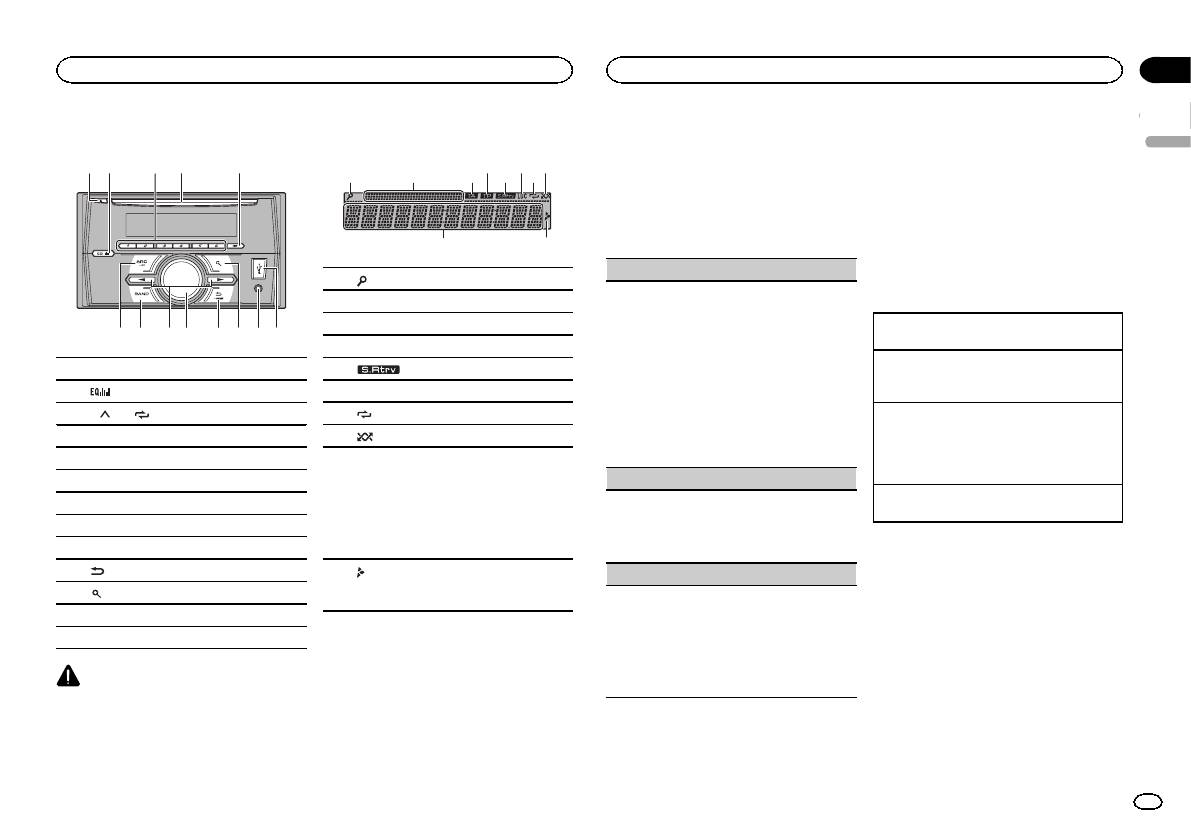
8 97 a c6 b d
Display indication
3
21 3 75
1 h (eject)
2
(equalizer)
3 1/
to 6/
4 Disc loading slot
5 DISP
6 SRC/OFF
7 BAND
8 c/d
9 MULTI-CONTROL (M.C.)
a
(back)/DIMMER (dimmer)
b
(list)
c AUX input jack (3.5 mm stereo jack)
d USB port
CAUTION
Use an optional Pioneer USB cable (CD-U50E)
to connect the USB storage device as any device
connected directly to the unit will protrude out
from the unit, which could be dangerous.
9
Section
Using this unit
Using this unit
02
# If you prefer not to set up at this time, turn M.C.
6 Press M.C. to select.
to switch to NO.
English
Notes
4 6 8
3 Press M.C. to select.
! You can set up the menu options from the
system menu and initial menu. For details
4 Follow these steps to set the menu.
about the settings, refer to System menu on
To proceed to the next menu option, you need to
page 6 and Initial menu on page 7.
a
confirm your selection.
! You can cancel set up menu by pressing
SRC/OFF.
LANGUAGE (multi-language)
1 (list)
This unit can display the text information from a
Basic operations
2 Sub information section
compressed audio file even for information em-
3 TA (traffic announcements)
bedded in English, Russian or Turkish.
Turning the unit on
! If the embedded language and the selected
1 Press SRC/OFF to turn the unit on.
4 TP (traffic program identification)
language setting are not the same, text infor-
Turning the unit off
5
(sound retriever)
mation may not display properly.
1 Press and hold SRC/OFF until the unit turns
! Some characters may not be displayed prop-
6 LOC (local seek tuning)
off.
erly.
7
(repeat)
1 Turn M.C. to select the desired setting.
Selecting a source
РУС (Russian)—TUR (Turkish)—ENG (Eng-
1 Press SRC/OFF to cycle between:
8
(random)
lish)
RADIO—CD—USB—AUX
Main information section
2 Press M.C. to confirm the selection.
! USB MTP displays while the MTP connection
! Tuner: band and frequency
is in use.
CLOCK SET (setting the clock)
! RDS: program service name, PTY infor-
Adjusting the volume
9
mation and other literal information
1 Turn M.C. to adjust hour.
1 Turn M.C. to adjust the volume.
! CD player and USB storage device:
2 Press M.C. to select minute.
elapsed playback time and text informa-
3 Turn M.C. to adjust minute.
Note
tion
4 Press M.C. to confirm the selection.
When this unit’s blue/white lead is connected to
the vehicle’s auto-antenna relay control termi-
FM STEP (FM tuning step)
a
Appears when a lower tier of folder or menu
nal, the vehicle’s antenna extends when this
exists.
Use FM STEP to set FM tuning step options (seek
unit’s source is turned on. To retract the anten-
step settings).
na, turn the source off.
1 Turn M.C. to select the FM tuning step.
100 (100 kHz)—50 (50 kHz)
Set up menu
2 Press M.C. to confirm the selection.
1 After installation of this unit, turn the
QUIT appears.
ignition switch to ON.
! The manual tuning step is fixed at 50 kHz.
SET UP appears.
5 To finish your settings, turn M.C. to select
2 Turn M.C. to switch to YES.
YES.
# If you do not use the unit for 30 seconds, the set
# If you prefer to change your setting again, turn
up menu will not be displayed.
M.C. to switch to NO.
En
3
FAQ: Types of Manuals and Their Contents
Pioneer FH-X360UB Manuals come in various types, each serving a specific purpose to help users effectively operate and maintain their devices. Here are the common types of Pioneer FH-X360UB User Guides and the information they typically include:
- User Manuals: Provide comprehensive instructions on how to use the device, including setup, features, and operation. They often include troubleshooting tips, safety information, and maintenance guidelines.
- Service Instructions: Designed for technicians and repair professionals, these manuals offer detailed information on diagnosing and repairing issues with the device. They include schematics, parts lists, and step-by-step repair procedures.
- Installation Guides: Focus on the installation process of the device, providing detailed instructions and diagrams for proper setup. They are essential for ensuring the device is installed correctly and safely.
- Maintenance Manuals: Provide guidance on routine maintenance tasks to keep the device in optimal condition. They cover cleaning procedures, part replacements, and regular servicing tips.
- Quick Start Guides: Offer a concise overview of the essential steps needed to get the device up and running quickly. They are ideal for users who need immediate assistance with basic setup and operation.
Each type of Pioneer FH-X360UB instruction is designed to address specific needs, ensuring users have the necessary information to use, maintain, and repair their devices effectively.
Related Instructions for Pioneer FH-X360UB:
2
CD-7
Service manual Guide: Pioneer CD-7 (4AT62W, Upd.06th Mar 2025)
22
39
6
3
SE-MJ561BT-T
Instruction Pioneer SE-MJ561BT-T Manual (Instruction), @63UCIP
9
1310
302
4
DVHP5000MP — Car DVD Receiver
Operation manual Pioneer Car Receiver Operation manual (File: pioneer-dvhp5000mp-car-dvd-receiver-operation-manual-192, 25.10.2024)
192
1388
250
5
AVH-P4200DVD
Operation manual Pioneer Receiver Operation manual (File: pioneer-avh-p3200bt-operation-manual-108, 29th Dec 2024)
108
565
85
10
DEH-P850MP
Service manual #13NP79: DEH-P850MP Car Video System Service manual
3
200
38
Car Receiver Devices by Other Brands:
|
DEI 500 Owner’s Manual DEI Car Receiver Owner’s manual (File: dei-500-owner-s-manual-8, Sat 02.2025) ©1994, 1995 Directed Electronics, Inc. 01 Feb 2025 | 8 |
|
|
JVC KD-R701E Service Manual Car Receiver #5S3ZL4 SERVICE MANUAL 23 Feb 2025 | 53 |
|
|
Sony CDX-GT500EE Installation/connections Car Receiver #Z7W64O L 20 Dec 2024 | 2 |
|
|
JVC KD-SV3105 Installation & Connection Manual KD-SV3105 Installation & connection manual — 3SQ6S1 KD-SV3105 31 Jan 2025 | 4 |
Categories:
Navigation system
Smart TV
Home cinema system
Audio & Video Accessories
Home theater audio system
Air Handlers
Перейти к контенту

Русские электронные инструкции по эксплуатации
Постоянно обновляемый большой каталог документации по эксплуатации и использованию современных устройств и оборудования на русском языке. Бесплатное скачивание файлов.
Поиск:
Главная
♥ В закладки
Просмотр инструкции в pdf
Инструкция по эксплуатации автомагнитолы Pioneer FH-X360UB.
Скачать инструкцию к автомагнитоле Pioneer FH-X360UB (1,19 МБ)
Автомагнитолы
« Инструкция к автомагнитоле SWAT MEX-1047UBW
» Инструкция к автомагнитоле VARTA V-AVD55
Вам также может быть интересно

Инструкция к автомагнитоле Pioneer AVH-170G

Инструкция к автомагнитоле Pioneer DEH-1800UB

Инструкция к автомагнитоле Pioneer DEH-1600UBA

Инструкция к автомагнитоле Pioneer DEH-1500UBG
Инструкция к наушникам Pioneer HDJ-S7-W

Инструкция к автомагнитоле Pioneer AVH-5400DVD

Инструкция к автомагнитоле Pioneer FH-S720BT

Инструкция к автомагнитоле Pioneer DEH-X3700UI
Добавить комментарий
Имя *
Email *
Сайт
Комментарий
Сохранить моё имя, email и адрес сайта в этом браузере для последующих моих комментариев.
- Добавить инструкцию
- Заказать инструкцию
- Политика конфиденциальности