
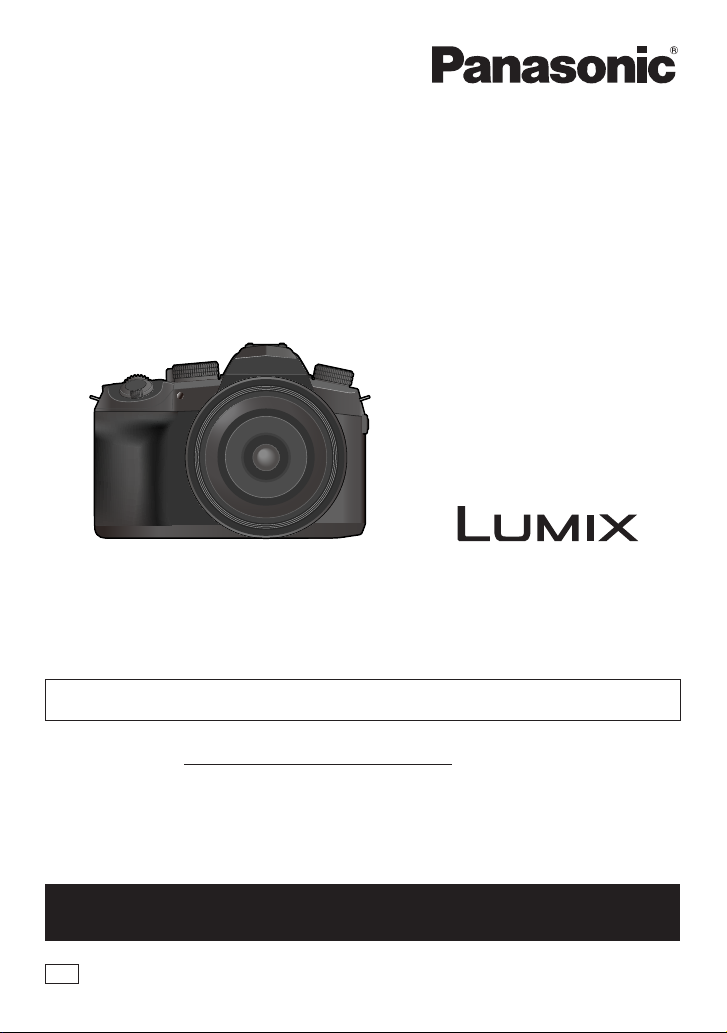
Basic Owner’s Manual
Digital Camera
Model No.
Please read these instructions carefully before using this product, and save this manual
for future use.
More detailed owner’s manual is available in “Owner’s Manual for advanced features
(PDF format)”. To read it, download it from the website. (→89)
Register online at http://shop.panasonic.com/support (U.S. customers only)
DC-FZ1000M2
If you have any questions, visit:
USA : http://shop.panasonic.com/support
Canada : www.panasonic.ca/english/support
P
DVQX1774ZB
M0219KZ1029
Dear Customer,
Date of Purchase Dealer Phone No.
Dealer Purchased From Model No.
Dealer Address Serial No.
Thank you for choosing Panasonic!
You have purchased one of the most sophisticated and reliable products on the market
today. Used properly, we’re sure it will bring you and your family years of enjoyment.
Please take time to fill in the information below. The serial number is on the tag located
on the underside of your camera. Be sure to retain this manual as your convenient
camera information source.
Please note that the actual controls and components, menu items, etc. of your Digital
Camera may look somewhat different from those shown in the illustrations in this Owner’s
Manual.
Carefully observe copyright laws.
• Recording of pre-recorded tapes or discs or other published or broadcast material for
purposes other than your own private use may infringe copyright laws. Even for the
purpose of private use, recording of certain material may be restricted.
For the U.S.A. and Canada only
A lithium ion battery that is recyclable powers the product you have
purchased. Please call 1-800-8-BATTERY for information on how to
Information for Your Safety
recycle this battery.
WARNING:
To reduce the risk of fire, electric shock or product damage,
• Do not expose this unit to rain, moisture, dripping or splashing.
• Use the recommended accessories.
• Do not remove covers.
• Do not repair this unit by yourself. Refer servicing to qualified service
personnel.
The socket outlet shall be installed near the equipment and shall be easily accessible.
■
Product identification marking
Product Location
Digital camera Bottom
2
DVQX1774 (ENG)
THE FOLLOWING APPLIES ONLY IN THE U.S.A.
Certification and Compliance
Please select as follows:
→ [Setup] → [Approved Regulations]
Contains FCC ID : VPYLB1JS955
This transmitter must not be co-located or operated in conjunction with any other
antenna or transmitter.
This equipment complies with FCC radiation exposure limits set forth for an uncontrolled
environment and meets the FCC radio frequency (RF) Exposure Guidelines. This
equipment has very low levels of RF energy that is deemed to comply without testing of
specific absorption rate (SAR).
DVQX1774 (ENG)
3

THE FOLLOWING APPLIES ONLY IN THE U.S.A.
FCC Note:
This equipment has been tested and found to comply with the limits for a Class B digital
device, pursuant to Part 15 of the FCC Rules. These limits are designed to provide
reasonable protection against harmful interference in a residential installation. This
equipment generates, uses, and can radiate radio frequency energy and, if not installed
and used in accordance with the instructions, may cause harmful interference to radio
communications. However, there is no guarantee that interference will not occur in a
particular installation. If this equipment does cause harmful interference to radio or
television reception, which can be determined by turning the equipment off and on, the
user is encouraged to try to correct the interference by one or more of the following
measures:
• Reorient or relocate the receiving antenna.
• Increase the separation between the equipment and receiver.
• Connect the equipment into an outlet on a circuit different from that to which the
receiver is connected.
• Consult the dealer or an experienced radio/TV technician for help.
FCC Caution: To assure continued compliance, follow the attached installation
instructions and use only shielded interface cables with ferrite core when connecting to
computer or peripheral devices.
Any unauthorized changes or modifications to this equipment would void the user’s
authority to operate this device.
This device complies with Part 15 of the FCC Rules. Operation is subject to the
following two conditions: (1) This device may not cause harmful interference, and (2)
this device must accept any interference received, including interference that may
cause undesired operation.
Supplier’s Declaration of Conformity
Trade Name: Panasonic
Model No.: DC-FZ1000M2
Responsible Party: Panasonic Corporation of North America
Support Contact: http://shop.panasonic.com/support
Two Riverfront Plaza, Newark, NJ 07102-5490
4
DVQX1774 (ENG)
THE FOLLOWING APPLIES ONLY IN CANADA.
Certification and Compliance
Please select as follows:
→ [Setup] → [Approved Regulations]
CAN ICES-3(B)/NMB-3(B)
Contains IC : 772C-LB1JS955
This device contains licence-exempt transmitter(s)/receiver(s) that comply with
Innovation, Science and Economic Development Canada’s licence-exempt RSS(s).
Operation is subject to the following two conditions:
(1) This device may not cause interference.
(2) This device must accept any interference, including interference that may cause
undesired operation of the device.
The available scientific evidence does not show that any health problems are
associated with using low power wireless devices. There is no proof, however, that
these low power wireless devices are absolutely safe. Low power Wireless devices emit
low levels of radio frequency energy (RF) in the microwave range while being used.
Whereas high levels of RF can produce health effects (by heating tissue), exposure
of low-level RF that does not produce heating effects causes no known adverse
health effects. Many studies of low-level RF exposures have not found any biological
effects. Some studies have suggested that some biological effects might occur, but
such findings have not been confirmed by additional research. DC-FZ1000M2 (HMN is
1JS1903) has been tested and found to comply with ISED radiation exposure limits set
forth for an uncontrolled environment and meets RSS-102 of the ISED radio frequency
(RF) Exposure rules.
DVQX1774 (ENG)
5

■
About the battery pack
CAUTION
Battery pack (Lithium ion battery pack)
• Use the specified unit to recharge the battery pack.
• Do not use the battery pack with equipment other than the specified unit.
• Do not get dirt, sand, liquids, or other foreign matter on the terminals.
• Do not touch the plug terminals (+ and −) with metal objects.
• Do not disassemble, remodel, heat or throw into fire.
If any electrolyte should come into contact with your hands or clothes, wash it off
thoroughly with water.
If any electrolyte should come into contact with your eyes, never rub the eyes. Rinse
eyes thoroughly with water, and then consult a doctor.
CAUTION
• Danger of explosion if battery is incorrectly replaced. Replace only with the type
recommended by the manufacturer.
• When disposing of the batteries, please contact your local authorities or dealer and
ask for the correct method of disposal.
• Do not heat or expose to flame.
• Do not leave the battery(ies) in a car exposed to direct sunlight for a long period of time
with doors and windows closed.
Warning
Risk of fire, explosion and burns. Do not disassemble, heat above 60 °C (140 °F) or
incinerate.
6
DVQX1774 (ENG)

■
About the AC adaptor (supplied)
CAUTION!
To reduce the risk of fire, electric shock or product damage,
• Do not install or place this unit in a bookcase, built-in cabinet or in another
confined space. Ensure this unit is well ventilated.
AC adaptor
This AC adaptor operates on AC between 110V and 240V.
But
• In the U.S.A. and Canada, the AC adaptor must be connected to a 120V AC power
supply only.
• When connecting to an AC supply outside of the U.S.A. or Canada, use a plug
adaptor to suit the AC outlet configuration.
■
Cautions for Use
• Do not use any other USB connection cables except the supplied one.
• Use a “High Speed HDMI micro cable” with the HDMI logo.
Cables that do not comply with the HDMI standards will not work.
“High Speed HDMI micro cable” (Type D — Type A plug, up to 2 m (6.6 feet) long)
• Always use a genuine Panasonic shutter remote control (DMW-RS2: optional).
• Do not use the Stereo microphone cables with the length of 3 m (9.8 feet) or more.
Keep this unit as far away as possible from electromagnetic equipment (such as
microwave ovens, TVs, video games etc.).
• If you use this unit on top of or near a TV, the pictures and/or sound on this unit may be
disrupted by electromagnetic wave radiation.
• Do not use this unit near cell phones because doing so may result in noise adversely
affecting the pictures and/or sound.
• Recorded data may be damaged, or pictures may be distorted, by strong magnetic
fields created by speakers or large motors.
• Electromagnetic wave radiation may adversely affect this unit, disturbing the pictures
and/or sound.
• If this unit is adversely affected by electromagnetic equipment and stops functioning
properly, turn this unit off and remove the battery or disconnect AC adaptor. Then
reinsert the battery or reconnect AC adaptor and turn this unit on.
Do not use this unit near radio transmitters or high-voltage lines.
• If you record near radio transmitters or high-voltage lines, the recorded pictures and/or
sound may be adversely affected.
DVQX1774 (ENG)
7

• To clean your camera, remove the battery, the DC coupler (DMW-DCC8: optional)
or a card, or disconnect the power plug from the outlet, and wipe with a soft, dry
cloth.
• Do not press the monitor with excessive force.
• Do not press the lens with excessive force.
• Do not allow camera to come into contact with pesticides or volatile substances
(can cause surface damage or coating to peel).
• Do not keep rubber or plastic products in contact with the camera for a long
period of time.
• Do not use solvents such as benzine, thinner, alcohol, kitchen detergents, etc.,
to clean the camera, since it may deteriorate the external case or the coating may
peel off.
• Do not leave the camera with the lens facing the sun, as rays of light from the
sun may cause it to malfunction.
• Always use the supplied cords and cables.
• Do not extend the supplied cord or cable.
• While the camera is accessing the card (for an operation such as picture writing,
reading, deletion, or formatting), do not turn off the camera or remove the battery,
card, AC adaptor (DMW-AC10PP: optional) or DC coupler (DMW-DCC8: optional).
Furthermore, do not subject the camera to vibration, impact or static electricity.
• The data on the card may be damaged or lost due to electromagnetic waves, static
electricity or breakdown of the camera or the card. We recommend storing important
data on a PC etc.
• Do not format the card on your PC or other equipment. Format it on the camera only to
ensure proper operation.
• The battery is not charged when the camera is shipped. Charge the battery
before use.
• The battery is a rechargeable lithium ion battery. If the temperature is too high or
too low, the operating time of the battery will become shorter.
• The battery becomes warm after using and during and after charging. The camera also
becomes warm during use. This is not a malfunction.
• Do not leave any metal items (such as clips) near the contact areas of the power
plug or near the batteries.
• Store the battery in a cool and dry place with a relatively stable temperature.
(Recommended temperature: 15 °C to 25 °C (59 °F to 77 °F), Recommended humidity:
40%RH to 60%RH)
• Do not store the battery for a long time while fully charged. When storing the
battery for a long period of time, we recommend charging it once a year. Remove the
battery from the camera and store it again after it has completely discharged.
8
DVQX1774 (ENG)

Contents
■
Information for Your Safety …………….2
Preparations/Basics
■
Before use ………………………………….. 10
■
Standard accessories ………………….. 11
■
Digital Camera Accessory System
■
Names and Functions
of Main Parts ………………………………. 13
■
About the Card ……………………………. 15
■
Quick Start Guide ………………………… 16
Attaching the Lens Cap ………………………….16
Attaching the Shoulder Strap ………………….16
Attaching the Lens Hood ………………………..17
Inserting the battery and/or
SD memory card (optional) …………………….18
Charging the battery ……………………………… 19
Opening the Monitor ……………………………… 21
Setting the clock ……………………………………21
[LVF] button
(Recording pictures using the viewfinder) …22
Holding the camera ……………………………….22
Shutter button (Taking pictures) ………………23
■
Basic operations …………………………. 24
■
Setting the menu …………………………. 30
Recording
■
Taking pictures
with automatic settings
(Intelligent Auto Mode) ………………… 32
■
Taking pictures with Auto Focus …..34
■
Taking pictures with
Manual Focus ……………………………… 36
■
Focus, Brightness (Exposure) and
Color tone Settings ……………………… 37
■
Selecting a Drive Mode
([Burst] / [Self Timer]) ………………….. 41
■
Recording with the 4K Photo
function ………………………………………. 42
■
Adjusting the focus after recording
([Post Focus] / [Focus Stacking]) …. 45
■
Taking Pictures with Time Lapse
Shot/Stop Motion Animation ………… 47
… 12
■
Taking Pictures While Adjusting
a Setting Automatically
(Bracket Recording) …………………….. 49
■
Taking pictures with flash ……………. 51
■
Recording Motion Picture/
4K Motion Picture ……………………….. 52
Playback
■
Viewing your pictures ………………….. 56
■
Deleting pictures …………………………. 58
Menu
■
Menu list …………………………………….. 59
Wi-Fi/Bluetooth
■
What you can do with the
Wi-Fi®/Bluetooth® function …………… 71
■
Operating the camera
by connecting it to a smartphone … 72
Others
■
Downloading software …………………. 78
■
List of monitor/viewfinder
displays ………………………………………. 79
■
Q&A
Troubleshooting ………………………….. 82
■
Specifications ……………………………… 86
■
Reading the Owner’s Manual
(PDF format) ……………………………….. 89
■
Limited Warranty
(ONLY FOR U.S.A.) ……………………….90
■
Limited Warranty
(ONLY FOR CANADA) …………………..93
DVQX1774 (ENG)
9
Preparations/Basics
Before use
■
Camera handling
Keep the camera away from excessive vibration, force, or pressure.
Avoid using the camera under the following conditions, which may damage the lens,
●
monitor, viewfinder, or camera body. This may also cause the camera to malfunction or
prevent recording.
• Dropping or hitting the camera against a hard surface
• Pushing with excessive force on the lens or monitor
The camera is not dust resistant, splash resistant, or waterproof.
Avoid using the camera in places with excessive dust or sand, or where water can
come into contact with the camera.
If sand, dust, or liquids such as water droplets adhere to the monitor, wipe them off
with a dry soft cloth.
Not doing so may cause the monitor to respond incorrectly to touch operations.
●
■
Condensation (When the lens, the monitor, or viewfinder, is fogged up)
Condensation may occur when the camera is exposed to sudden changes of
●
temperature or humidity. Avoid these conditions, which may make the lens, monitor, or
viewfinder dirty, cause mold, or damage the camera.
If condensation does occur, turn off the camera and wait about two hours before using
●
it. Once the camera adjusts to the surrounding temperature, the fogging will clear
naturally.
■
When in use
Do not keep objects such as credit cards that may be influenced magnetically
close to this unit. The data on these objects may become corrupted and unusable.
■
About the symbols in the text
Indicates that the menu can be set by pressing [MENU/SET] button.
Steps for setting a menu item are described as follows:
→ [Rec] → [Quality] → [ ]
In Recording modes that show icons in black, you can select and execute indicated
menus and functions.
•
(Custom Mode) has different functions depending on the recording mode that is
registered.
Recording mode:
DVQX1774 (ENG)
10
Preparations/Basics
Standard accessories
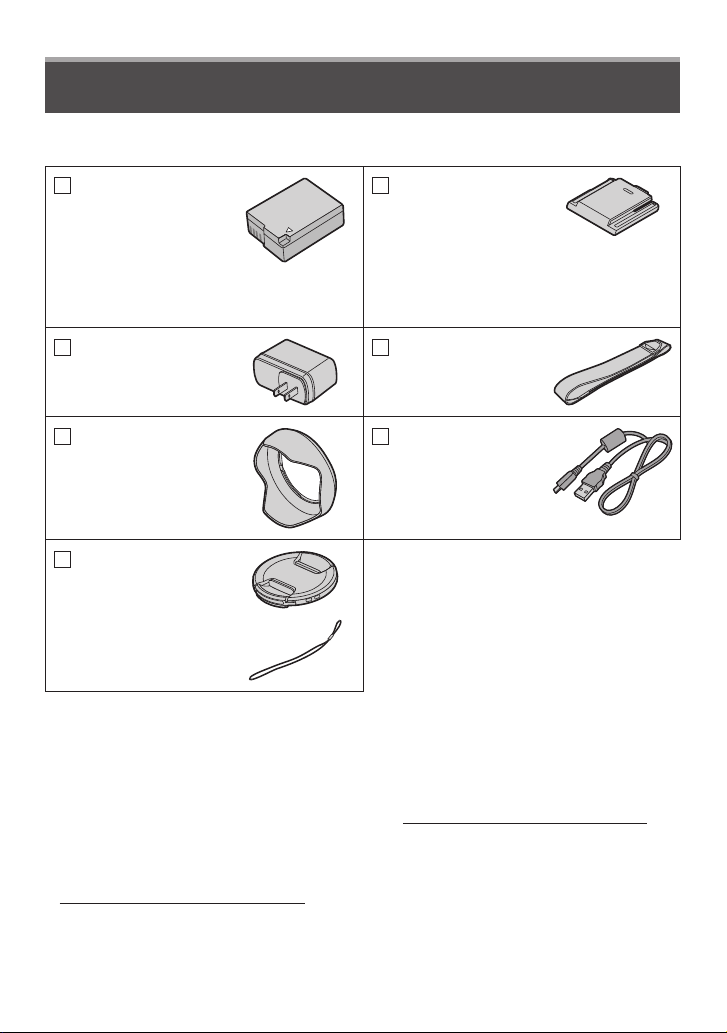
Check that all the accessories are supplied before using the camera. Part numbers are as
of February 2019. These may be subject to change.
Battery pack
DMW-BLC12PP
Hot shoe cover
SKF0106K
• Charge the battery before use.
(This is attached to the camera at the time
of purchase.)
• Battery pack is indicated as battery pack
or battery in the text.
AC adaptor
VSK0815F
Lens hood
SYQ0081
Shoulder Strap
DVPW1002Z
USB connection
cable
K1HY04YY0106
Lens cap/
Lens cap string
1ZE1DCFZ1000M2Z
• Cards are optional. (SD Memory Card, SDHC Memory Card and SDXC Memory Card
are indicated as card in the text.)
(For U.S.A. only)
• If accessories are lost, customers can visit us at http://shop.panasonic.com/support for
further information about obtaining replacement parts.
(For Canada only)
• If any accessories are lost, customers in Canada should visit our support page at
www.panasonic.ca/english/support for further information about obtaining replacement
parts.
• Please dispose of all packaging appropriately.
• The illustrations and screens in this manual may differ from the actual product.
DVQX1774 (ENG)
11
Preparations/Basics
Digital Camera Accessory System
Description Accessory#
Battery pack DMW-BLC12
Battery charger DMW-BTC12
AC adaptor
DC coupler
Flash DMW-FL200L, DMW-FL360L, DMW-FL580L
Shutter remote control DMW-RS2
LED video light VW-LED1
Stereo shotgun microphone DMW-MS2
Stereo microphone VW-VMS10
MC protector DMW-LMCH62
PL filter (Circular type) DMW-LPL62
Shoulder Strap DMW-SSTG9
The AC adaptor (optional) can only be used with the designated Panasonic DC coupler (optional).
The AC adaptor (optional) cannot be used by itself. When using an AC adaptor (optional), use the
AC cable supplied with the AC adaptor.
Part numbers are as of February 2019. These may be subject to change.
●
Some optional accessories may not be available in some countries.
●
(For U.S.A. only)
●
To order optional accessories please visit http://shop.panasonic.com or your local Photo Specialty
Dealer.
DMW-AC10
DMW-DCC8
■
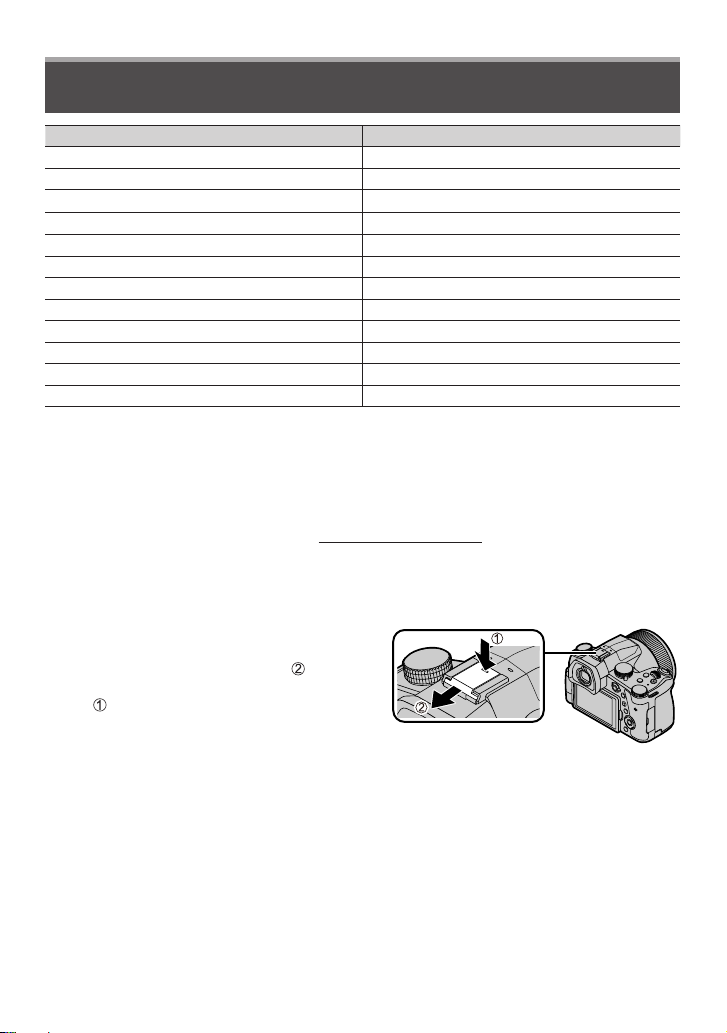
Removing the Hot Shoe Cover
Remove the hot shoe cover by pulling it in
the direction indicated by arrow
while
pressing it in the direction indicated by
arrow .
DVQX1774 (ENG)
12
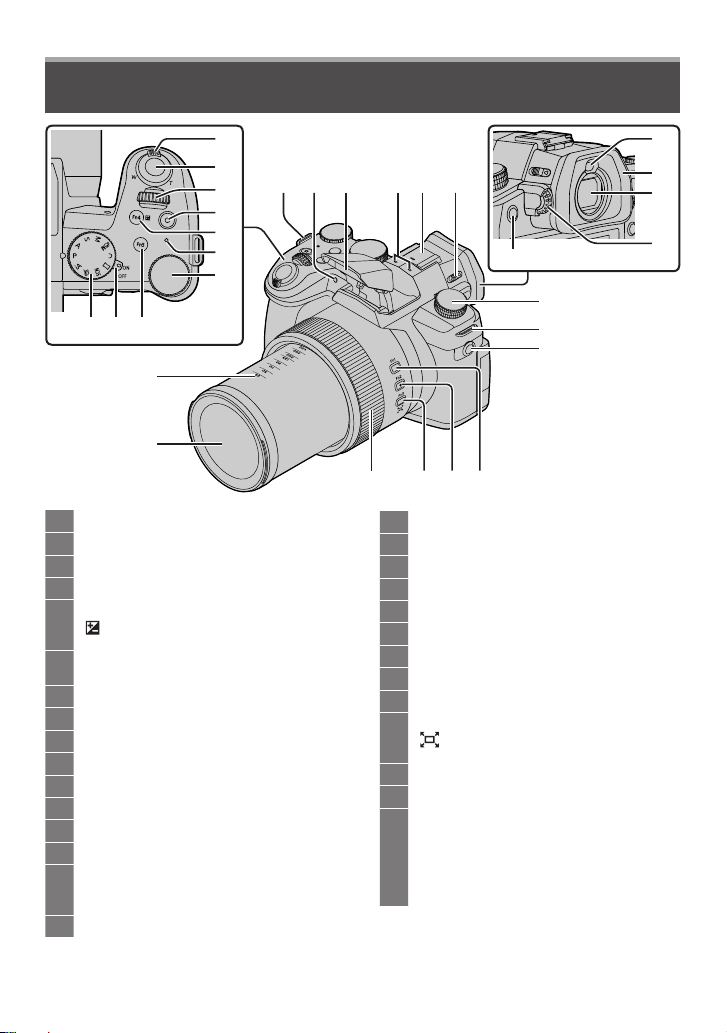
Names and Functions of Main Parts
Preparations/Basics
1
2
3
4
5
6
7
8 9 10
29
28
1
Zoom lever (→24)
2
Shutter button (→23)
3
Front dial (→26)
4
Motion picture button (→52)
[Fn4] button (→31) /
5
] (Exposure Compensation) button
[
(→37)
Charging lamp (→20) /
6
WIRELESS connection lamp (→71)
7
Rear dial (→26)
8
[Fn5] button (→31)
9
Camera [ON/OFF] switch (→21)
10
Mode dial (→25)
11
Shoulder strap eyelet (→16)
12
Self-timer indicator / AF Assist Lamp
13
Flash (→51)
14
Stereo microphone
Hot shoe (Hot shoe cover) (→12)
15
Keep the hot shoe cover out of reach of
children to prevent swallowing.
16
Flash open lever (→51)
13 11
14 12 15 16
21
22
11
23
27
17
18
19
20
21
22
23
24
25
26
27
28
29
24 25 26
Eye sensor (→22)
Eyecup
Viewfinder (→22)
Diopter adjustment dial (→22)
[Fn8] button (→31) / [LVF] button (→22)
Drive mode dial (→41)
[MIC] socket
[Fn1] button (→31)
[Fn2] button (→31)
[Fn3] button (→31) /
] ([Zoom Compose Assist]) button
[
(→24)
Control ring (→26)
Lens
Focal distance indication (as with a
35 mm film camera)
Values assume an aspect ratio of [3:2].
(When recording motion pictures, refer
to the focal length displayed on the
screen.)
17
18
19
20
DVQX1774 (ENG)
13
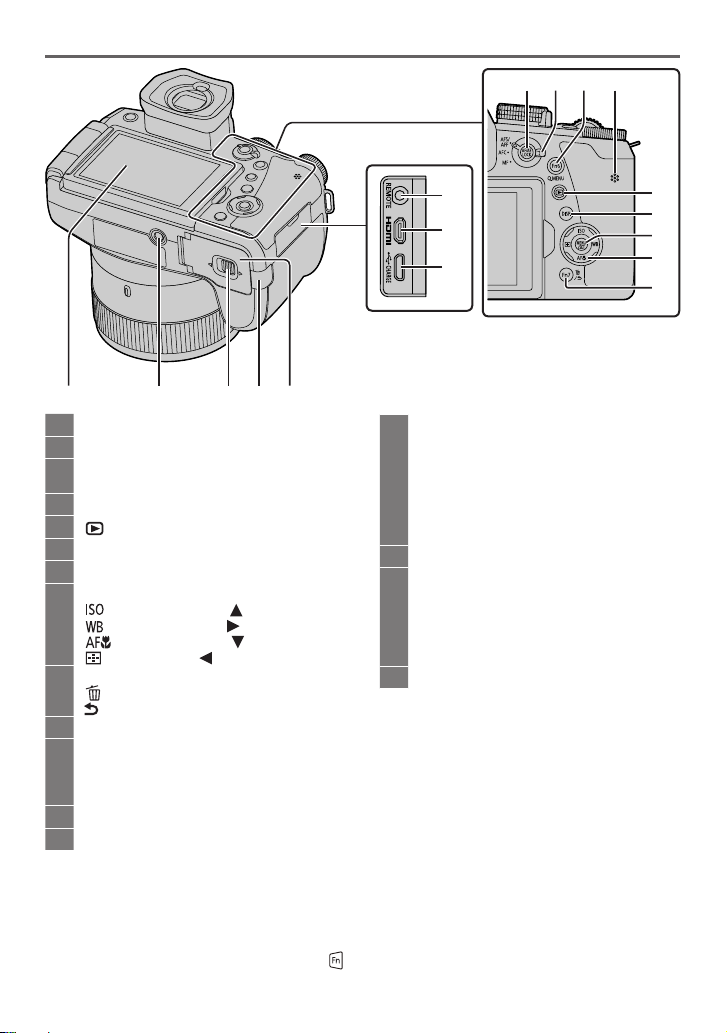
Preparations/Basics
30 31 32 33
30
[AF/AE LOCK] button (→37)
31
Focus mode lever (→34, 36)
[Fn6] button (→31) /
32
[Q.MENU] button (→31)
33
Speaker
34
[ ] (Playback) button (→56)
35
[DISP.] button (→27)
36
[MENU/SET] button (→27)
Cursor button (→27)
37
] (ISO sensitivity) ( ) (→38)
[
] (White balance) ( ) (→39)
[
] ([Macro Mode]) ( ) (→35)
[
] ([AF Mode]) ( ) (→35)
[
[Fn7] button (→31) /
38
] (Delete) button (→58) /
[
] (Cancel) button (→30)
[
39
[REMOTE] socket
[HDMI] socket
40
You can view pictures on a TV screen by
connecting your camera to your TV with
the HDMI micro cable.
41
[USB/CHARGE] socket (→19)
42
Card/Battery door (→18)
39
40
41
34
35
36
37
38
42 44 43 45 46
DC coupler cover (→12)
43
• Always use a genuine Panasonic AC
adaptor (DMW-AC10PP: optional).
(→12)
• When using an AC adaptor, ensure
that the Panasonic DC coupler (DMWDCC8: optional) and AC adaptor
(DMW-AC10PP: optional) are used.
44
Release lever (→18)
Tripod mount
45
Do not attach this unit to tripods that
have screws with a length of 5.5 mm
(0.22 inch) or more. Doing so may
damage this unit or the unit may not be
secured properly on the tripod.
46
Touch screen (→29) / monitor (→79)
Function buttons [Fn9] to [Fn13] are touch icons.
They can be displayed by touching the [ ] tab on the recording screen.
DVQX1774 (ENG)
14

Preparations/Basics
About the Card
The following SD standard-based cards can be used.
Type of Card Capacity Notes
SD Memory Cards 512 MB – 2 GB • This unit is compatible with UHS SDHC Memory Cards 4 GB – 32 GB
SDXC Memory Cards 48 GB – 128 GB
■
About motion picture/4K photo recording and speed class ratings
standard SDHC/SDXC memory cards.
• Operation of the cards listed on the left has been
confirmed with Panasonic brand card.
Use a card that meets the following ratings of the SD Speed Class or UHS Speed Class.
• SD Speed Class and UHS Speed Class are the speed standards regarding continuous
writing. Confirm the SD speed by checking the card label or other card related
materials.
[Rec Format] [Rec Quality] Speed class Label example
[AVCHD] All
[MP4]
When recording in 4K Photo /
[Post Focus]
[FHD]/[HD]
[4K]/[High Speed Video] UHS Speed Class 3
Class 4 or higher
UHS Speed Class 3
• Latest information:
https://panasonic.jp/support/global/cs/dsc/
(This site is available in English only.)
Keep the memory card out of reach of children to prevent swallowing.
●
Formatting the card (initialization)
Format the card before recording a picture with this unit.
Since data cannot be recovered after formatting, make sure to back up necessary
data in advance.
→ [Setup] → [Format]
UHS Speed Class 3
DVQX1774 (ENG)
15
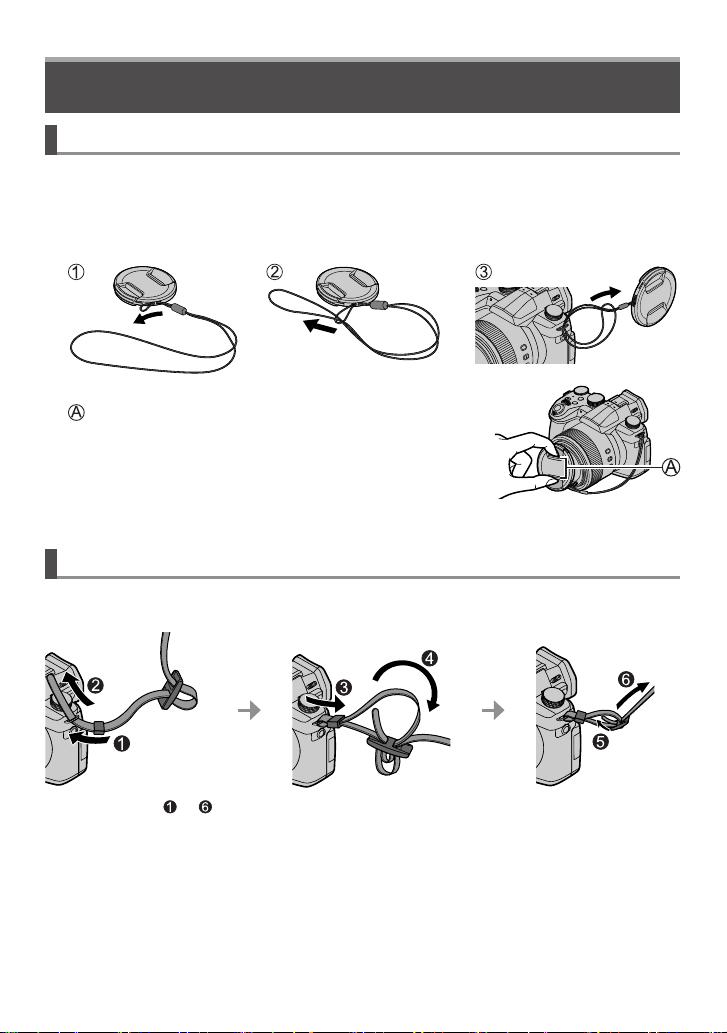
Preparations/Basics
Quick Start Guide
Attaching the Lens Cap
Cover the lens with the lens cap to protect it when you are not taking pictures.
• Do not hang or swing around the camera with the lens cap string.
• Make sure to detach the lens cap when turning this unit on.
• Be careful that the lens cap string does not become entangled with the shoulder strap.
Use the lens cap string (supplied) to attach the lens cap to the camera
1
Attach the lens cap
2
Pinch here to attach or detach the cap.
Keep the lens cap string out of reach of children to prevent swallowing.
●
Attaching the Shoulder Strap
We recommend attaching the shoulder strap when using the camera to prevent it from
dropping.
• Perform steps to and then attach the other side of the shoulder strap.
• Use the shoulder strap around your shoulder.
– Do not wrap the strap around your neck. It may result in injury or accident.
• Do not leave the shoulder strap where an infant can reach it.
– It may result in an accident by mistakenly wrapping around the neck.
16
DVQX1774 (ENG)
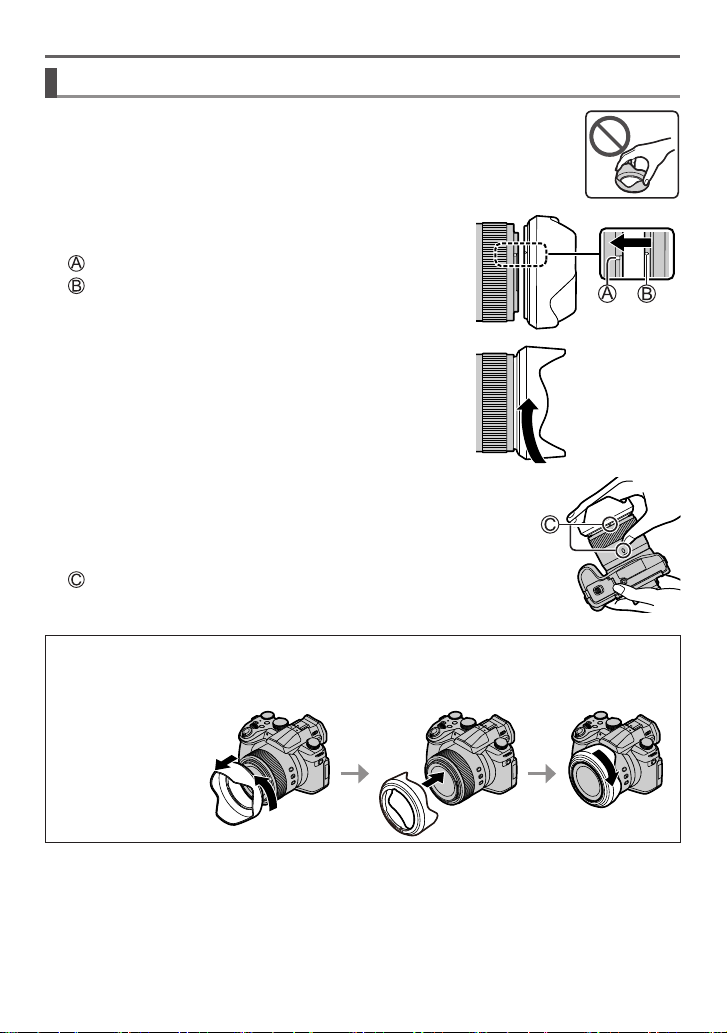
Attaching the Lens Hood
• Do not hold the lens hood in such a way that it will be bent.
• Make sure that the camera is turned off.
• Be sure to close the flash beforehand.
Align the mounting mark on the lens hood a little
1
above the mounting mark on the tip of the lens
Mounting mark on the tip of the lens
Mounting mark on the lens hood
Turn the lens hood in the direction of the arrow to
2
secure it
Continue to rotate the lens hood until you hear a “click”
3
even if you feel some stiffness, and then align the mark on
the bottom of the camera
• Make sure the lens hood is secured properly and its reflection does not
fall on images.
Rotate until the marks are aligned
Preparations/Basics
If you attach the lens hood while using the flash, the flash light would be blocked by the lens hood
●
causing the bottom part of images to be darkened (vignetting) and also making it impossible to
modulate the light. It is recommended to remove the lens hood before using the flash.
Temporarily Storing the Lens Hood
●
DVQX1774 (ENG)
17
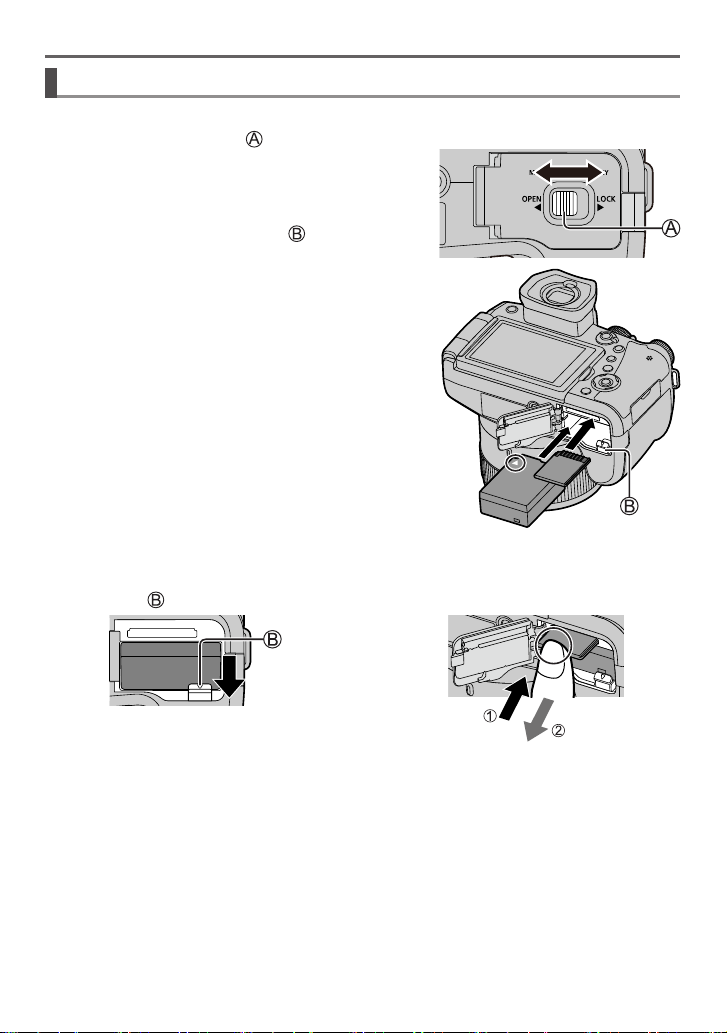
Preparations/Basics
Inserting the battery and/or SD memory card (optional)
Make sure that the camera is turned off.
Slide the release lever ( ) to the [OPEN]
1
position and open the card/battery door
Insert the battery and card, making sure that
2
their orientation is correct
• Battery: Insert the battery all the way firmly and check
that it is locked by lever (
• Card: Insert the card all the way firmly until it clicks. Do
not touch the terminal.
Close the door
3
Slide the release lever to the [LOCK] position.
■
To remove
• To remove battery
Move lever (
) in direction of arrow.
).
• To remove card
Press the center of the card.
[OPEN] [LOCK]
Always use genuine Panasonic batteries (DMW-BLC12PP).
●
If you use other batteries, we cannot guarantee the quality of this product.
●
Turn the camera off and wait for the “LUMIX” display on the monitor to clear before removing the
●
card or battery.
DVQX1774 (ENG)
18
Press
Pull out
Preparations/Basics
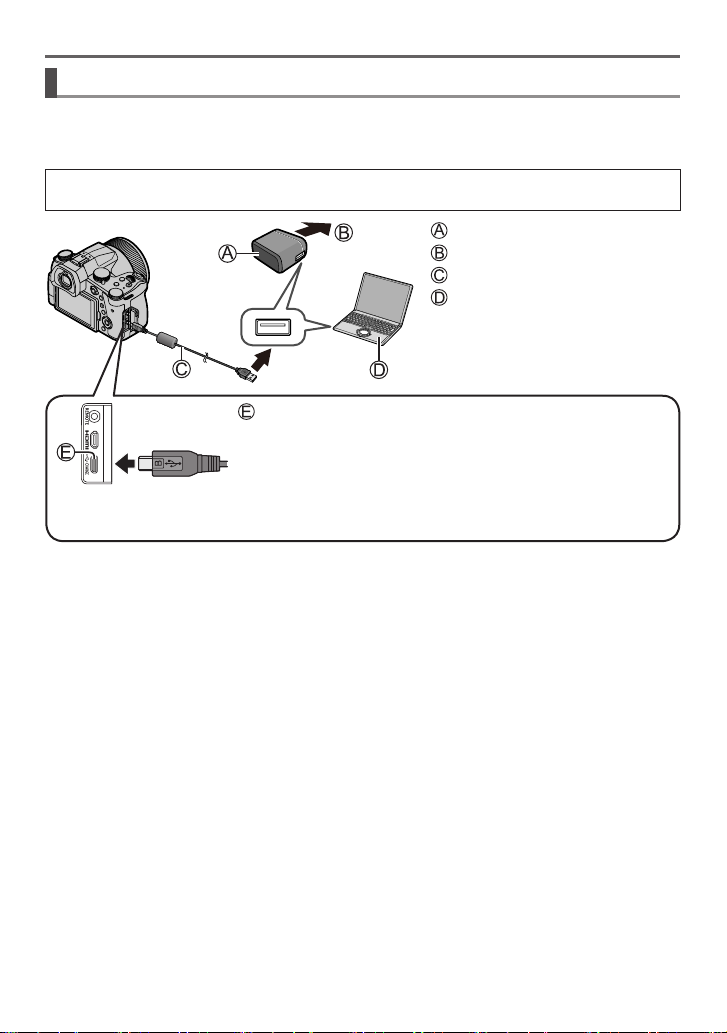
Charging the battery
• The battery that can be used with this unit is DMW-BLC12PP.
• We recommend charging in a location where the ambient temperature is between
10 °C and 30 °C (50 °F to 86 °F) (same for the battery temperature).
Insert the battery into the camera.
Make sure that the camera is turned off.
AC adaptor (supplied)
To the electrical outlet
USB connection cable (supplied)
Computer
• Turn on the computer.
[USB/CHARGE] socket
• This terminal is located at the bottom when the camera is in an
upright position.
• Always check the direction of the socket, and hold the plug straight to insert or remove it. (If the
cable is inserted in the wrong direction, the socket could become deformed and cause faulty
operation.) Also, do not insert into the wrong socket. Doing so may cause damage to this unit.
DVQX1774 (ENG)
19
Preparations/Basics
Charging from the power outlet
Connect the AC adaptor (supplied) and this camera with the USB connection cable
(supplied), and insert the AC adaptor (supplied) into the power outlet.
Charging from a computer
Connect the computer and this camera with the USB connection cable (supplied).
■
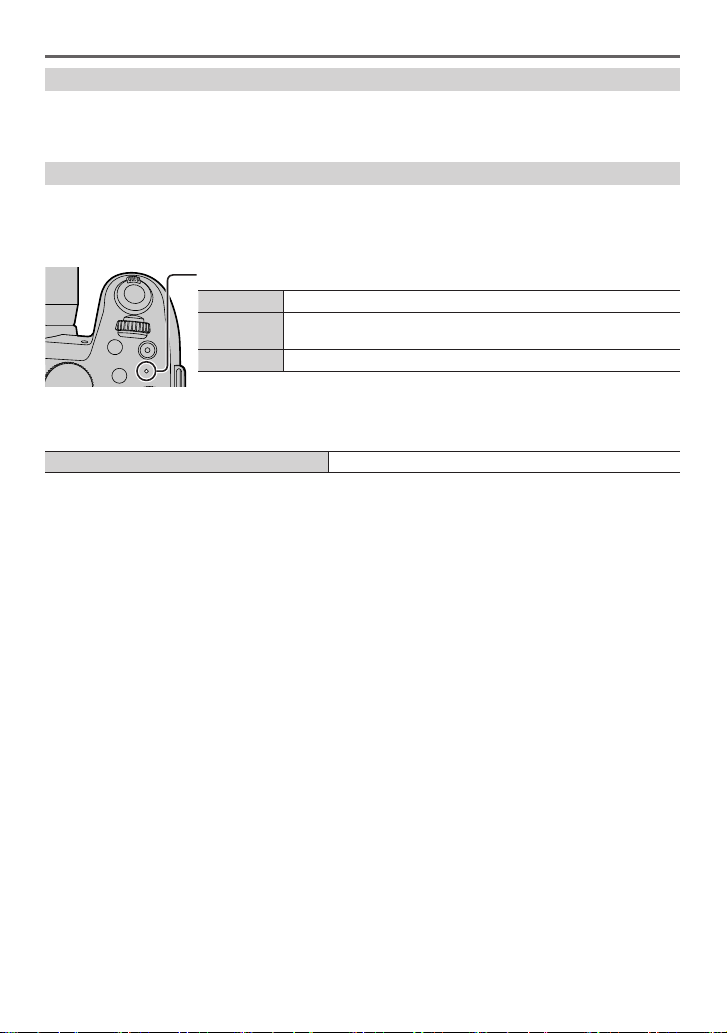
Charging lamp indications
Charging lamp (Red)
On Charging in progress
Charging complete (After charging stops, disconnect the
Off
camera from the electrical outlet or your computer.)
Flashing Charging error (→82)
■
Charging time
When using the AC adaptor (supplied) Approx. 180 min.
• The charging time indicated above is the time required for charging in case
when the battery is completely used up. The time required for charging differs
depending on conditions of battery usage. Charging takes longer in cases when
temperatures are either high or low and when the battery has not been used for a
long period of time.
• The time required for charging through the computer varies depending on the power
supply capacity of the computer.
Do not use any other USB connection cables except the supplied one.
●
Do not use any other AC adaptors except the supplied one.
●
20
DVQX1774 (ENG)
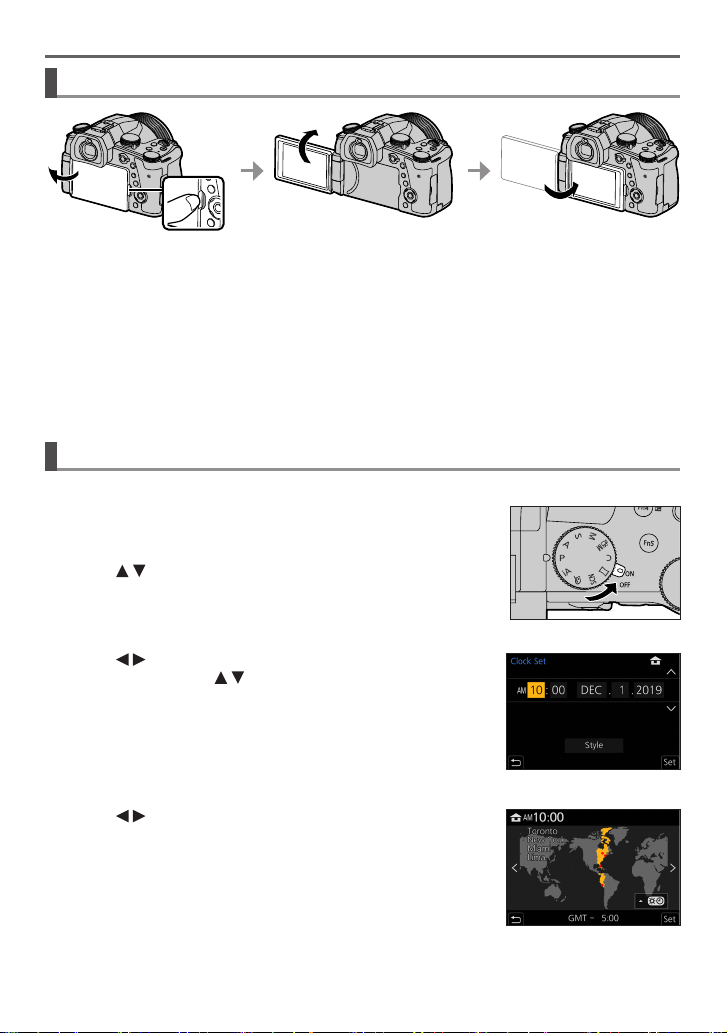
Opening the Monitor
Preparations/Basics
1
Place your finger in the cleft on the right side of the monitor and open the
1
monitor toward the left side (maximum 180°)
It can be rotated 180° to the direction of the lens
2
Return the monitor to its original position
3
Only rotate the monitor after opening it wide enough, and be careful not to use excessive
●
force. Doing so may cause damage to this unit.
When not using the monitor it is recommended that you close it with the screen facing inward to
●
prevent dirt and scratches.
Setting the clock
The clock is not set when the camera is shipped.
Turn the camera on
1
Press [MENU/SET]
2
Press to select the language and press
3
[MENU/SET]
• The [Please set the clock] message appears.
Press [MENU/SET]
4
Press to select the items (year, month, day, hour,
5
minute), and press to set
Press [MENU/SET]
6
When [The clock setting has been completed.] is
7
displayed, press [MENU/SET]
When [Please set the home area] is displayed, press [MENU/SET]
8
Press to set your home area and press
9
[MENU/SET]
2
3
DVQX1774 (ENG)
21
Preparations/Basics
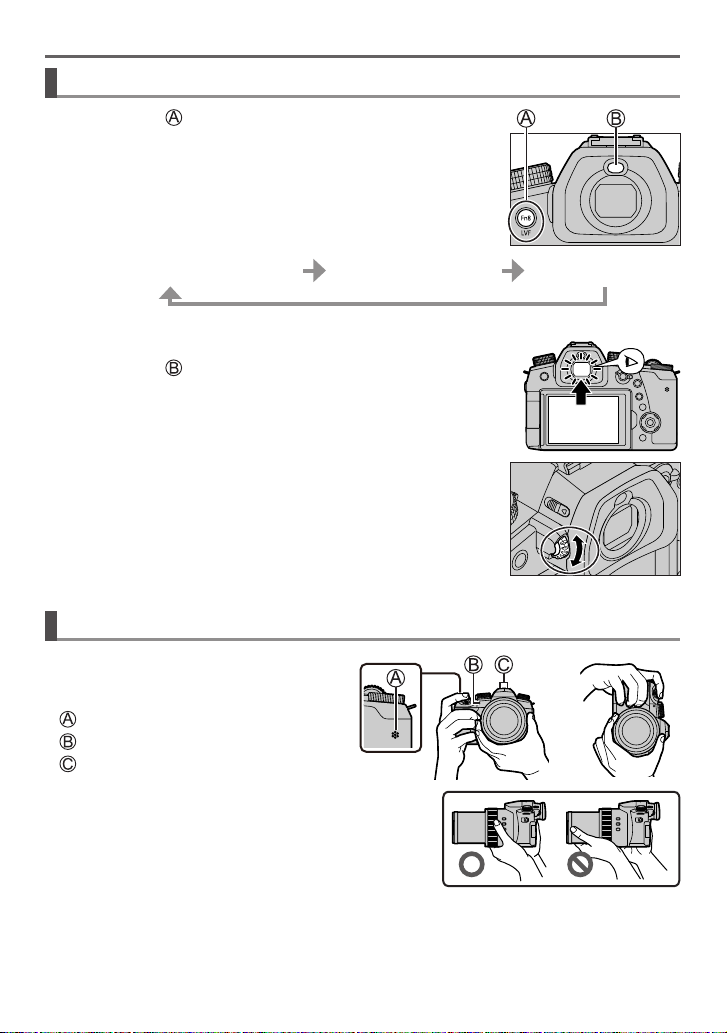
[LVF] button (Recording pictures using the viewfinder)
Press [LVF] ( ) button
1
Automatic switching between
viewfinder and monitor
Viewfinder display
■
Automatic switching between viewfinder and monitor
The eye sensor (
) automatically switches the display to
viewfinder when your eye or an object moves close to the
viewfinder. When the eye or object moves away from the
viewfinder, the camera returns to monitor display.
■
About diopter adjustment
Rotate the diopter adjustment dial to adjust until you are able
to clearly see the characters displayed in the viewfinder.
If [LVF Display Speed] is set to [ECO 30fps] when the viewfinder
●
is used, the camera can be operated for a longer period since
battery drainage is reduced.
Holding the camera
• Do not block the flash, AF Assist Lamp,
microphone, or speaker with your
fingers or other objects.
Speaker
AF Assist Lamp
Microphone
• Do not hold the lens barrel as you take pictures.
There is a risk that your finger will be trapped as the
lens retracts.
Monitor display
22
DVQX1774 (ENG)
Preparations/Basics
■
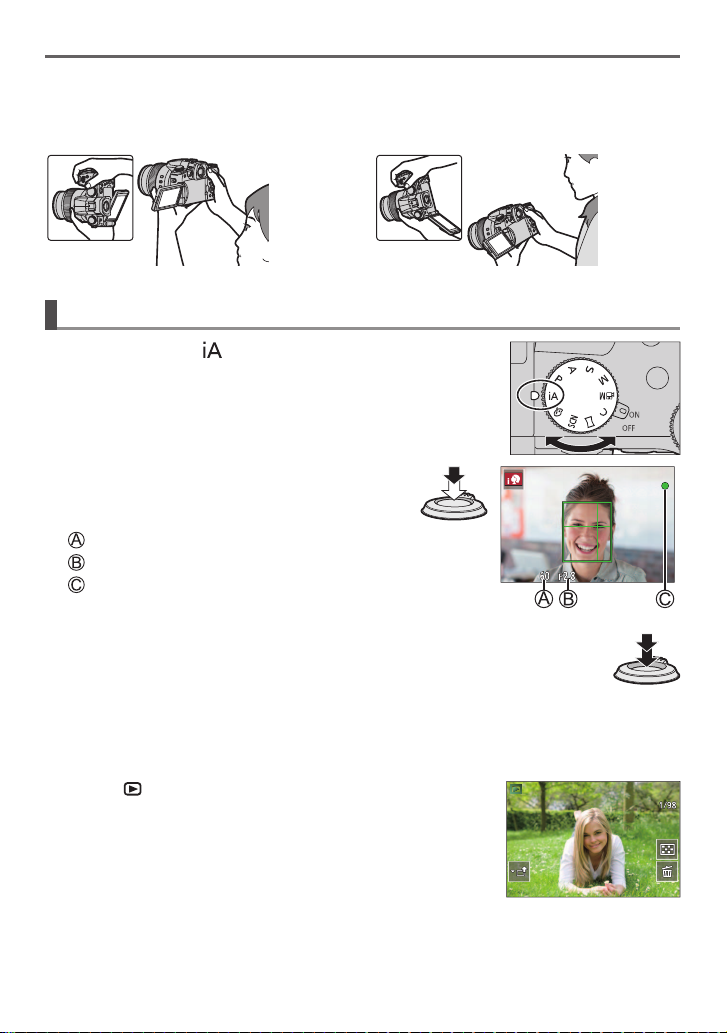
Free angle shooting
The monitor can be rotated to suit your needs. This is convenient as it allows you to take
pictures from various angles by adjusting the monitor.
Taking pictures at high angle Taking pictures at low angle
Shutter button (Taking pictures)
Set mode dial to [ ]
1
• The camera automatically optimizes the main settings.
• For details on the recording modes, refer to (→25).
Press the shutter button halfway (press
2
lightly) to focus on the subject
Shutter speed
Aperture value
Focus display (Green)
( When focus is aligned: illuminated
When focus is not aligned: flashing)
Press the shutter button fully (push the button all the way), and take
3
the picture
Pictures can be taken only when the image is correctly focused as long as the [Focus/
●
Release Priority] is set to [FOCUS].
■
Check the picture you have taken
Press the [
] (Playback) button. (→56)
DVQX1774 (ENG)
23
Preparations/Basics
Basic operations
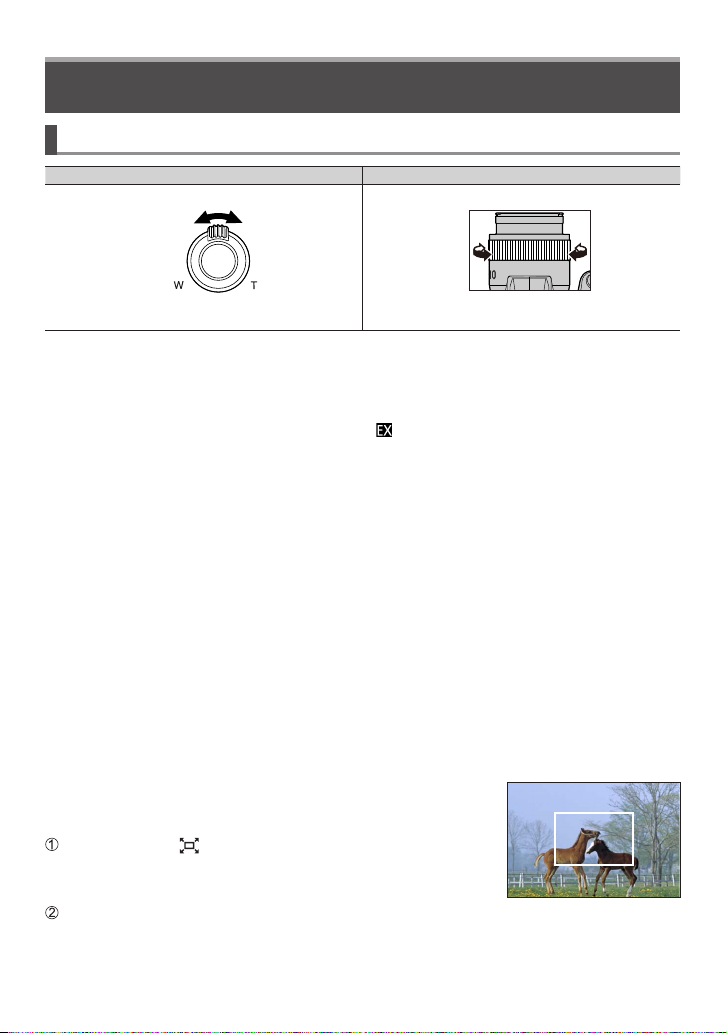
Zoom lever (Use zoom)
Zoom lever
Move the zoom lever
1
Capture a
wider area
(wide-angle)
• The zoom speed varies according to how
far you rotate the lever.
Enlarge the
subject
(telephoto)
Turn the control ring
1
Capture a
wider area
“Control ring”(→26)
←
(wide-
angle)
Control ring
Optical Zoom:
You can zoom in without degrading the picture quality.
Maximum magnification: 16x
Extended optical zoom:
This function works when picture sizes with [ ] have been selected in [Picture Size].
Extended optical zoom allows you to zoom in using a higher zoom ratio than optical
zoom, without degrading the picture quality.
Maximum magnification: 32x
1
Including the optical zoom ratio. The maximum zoom ratio varies depending on the picture size.
1
[i.Zoom]:
Set the [i.Zoom] in the [Rec]/[Motion Picture] menu to [ON].
You can use the camera’s intelligent resolution technology to increase the zoom ratio
up to 2x
2
2
higher than the original zoom ratio with limited deterioration of picture quality.
Up to 1.5x the original zoom ratio when [Picture Size] is set to [S]
[Digital Zoom]:
Set the [Digital Zoom] in the [Rec]/[Motion Picture] menu to [ON].
You can zoom in up to 4x the original zoom magnification. When [Digital Zoom] is used
simultaneously with [i.Zoom], you can increase the combined zoom ratio up to 4x.
Note that, with Digital Zoom, enlarging will decrease picture quality.
• When [Monitor Display Speed] is set to [ECO 30fps], Digital Zoom is not
available (setting at the time of purchase).
• When [LVF Display Speed] is set to [ECO 30fps], Digital Zoom is not available.
■
[Zoom Compose Assist] button (Using the Zoom
Compose Assist function)
If you lose the subject while zoomed in:
Press and hold [ ] ([Zoom Compose Assist]) button
• A frame indicating the original zoom magnification (angle of view)
will appear.
When you find the subject:
Align the frame with the subject and release your finger
from the button
→
Enlarge the
subject
(telephoto)
24
DVQX1774 (ENG)
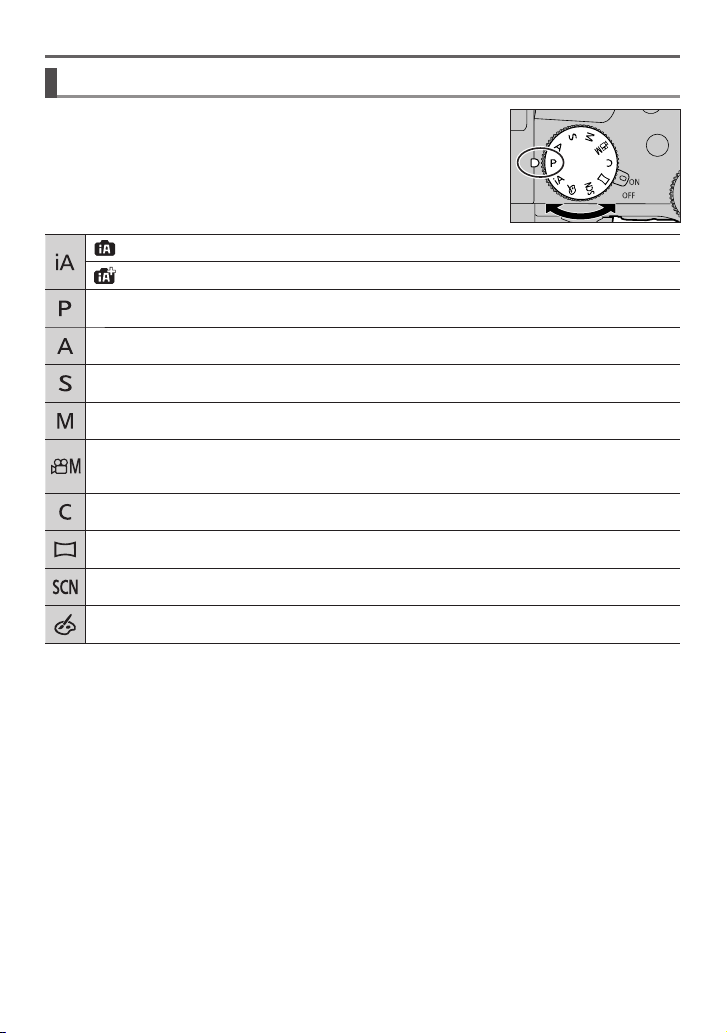
Mode dial (Select the recording mode)
Set to the desired recording mode
1
• Rotate the mode dial slowly to select the desired mode.
Intelligent Auto Mode (→32)
Intelligent Auto Plus Mode (→32)
Program AE Mode
Take pictures with automatic shutter speed and aperture value settings.
Aperture-Priority AE Mode
Determine aperture, then take pictures.
Shutter-Priority AE Mode
Determine shutter speed, then take pictures.
Manual Exposure Mode
Determine aperture and shutter speed, then take pictures.
Creative Video Mode (→53)
Determine aperture, shutter speed and ISO sensitivity, then record motion pictures.
• You cannot take still pictures.
Custom Mode
Take pictures using pre-registered settings.
Panorama Shot Mode
Take panorama pictures.
Scene Guide Mode
Take pictures that match the scene being recorded.
Creative Control Mode
Take pictures by selecting your preferred picture effect.
Preparations/Basics
DVQX1774 (ENG)
25
Preparations/Basics
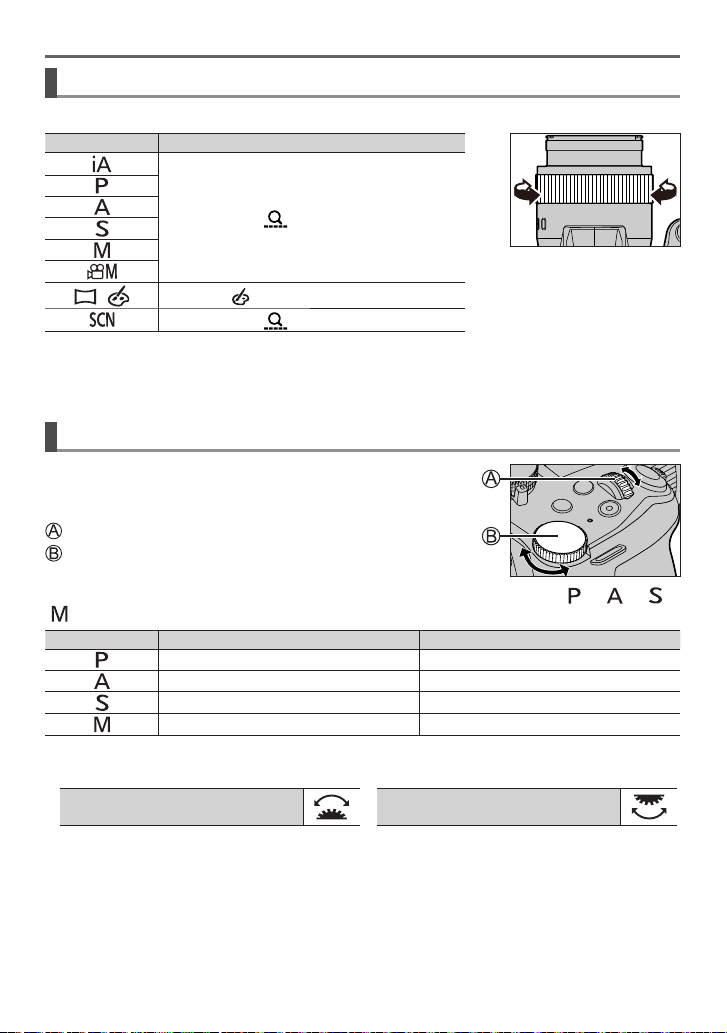
Control ring
You can use the control ring to change the settings for recording.
Mode dial
/
When Manual Focus is set, the control ring is assigned to focus adjustment.
You can change to your preferred settings using [Control Ring] from the [Custom] ([Operation])
●
menu.
Control ring
Step Zoom
Picture effects change
Step Zoom
Front dial/Rear dial
Rotating:
Selection of items or setting of values is performed during
the various settings.
Front dial
Rear dial
Allows you to set the aperture, shutter speed, and other settings when in [ ] / [ ] / [ ] /
[ ] modes.
Mode dial Front dial Rear dial
Program Shift Program Shift
Aperture value Aperture value
Shutter speed Shutter speed
Aperture value Shutter speed
• This owner’s manual describes operations of the front dial/rear dial as follows:
Turn the front dial
DVQX1774 (ENG)
26
Rotate the rear dial
Preparations/Basics
Cursor button / [MENU/SET] button (Selecting/setting items)
Pressing the cursor button:
Selection of items or setting of values etc., is performed.
Pressing [MENU/SET]:
Confirmation of setting contents, etc., is performed.
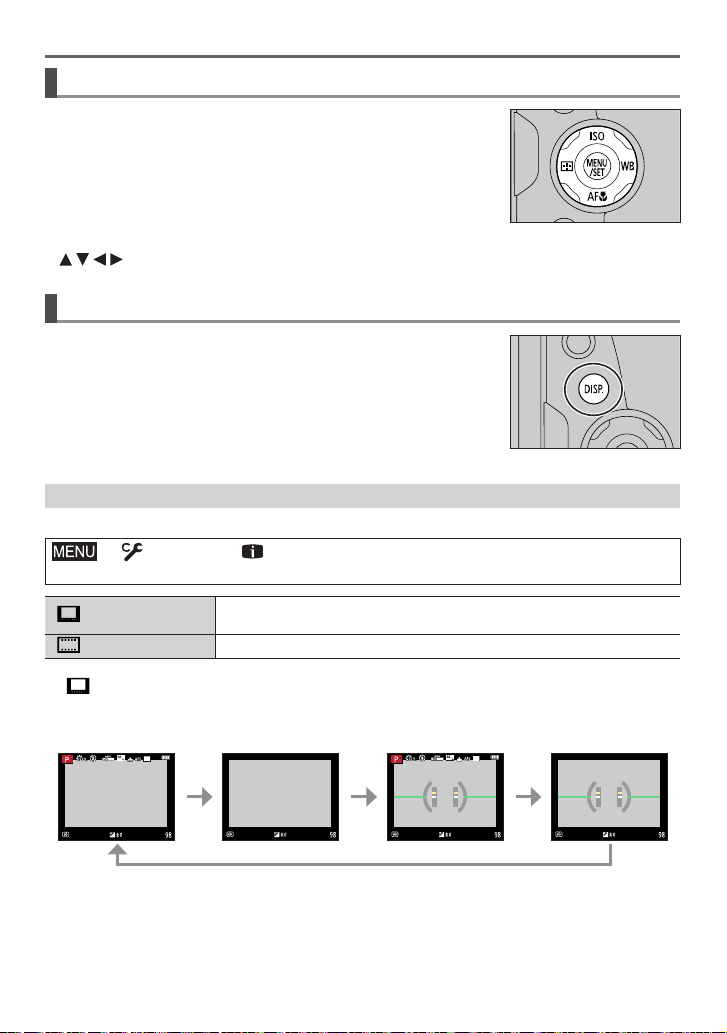
• This owner’s manual expresses the up, down, left, and right of the cursor button as
.
[DISP.] button (Switching the display information)
Press [DISP.] button to switch the display
1
During recording
You can switch the viewfinder/monitor display method.
→ [Custom] → [Monitor / Display] → [LVF/Monitor Disp. Set]
→ [LVF Disp. Set] or [Monitor Disp. Set]
[ ] (viewfinder style)
] (monitor style)
[
■
[ ] Live View Finder style display layout (Example of viewfinder style display)
With information Without information
p
60
Scales down images slightly so that you can better review the
composition of the images.
Scales images to fill the entire screen so that you can see their details.
With information
+
level gauge
p
60
Without information
DVQX1774 (ENG)
+
level gauge
27
Preparations/Basics
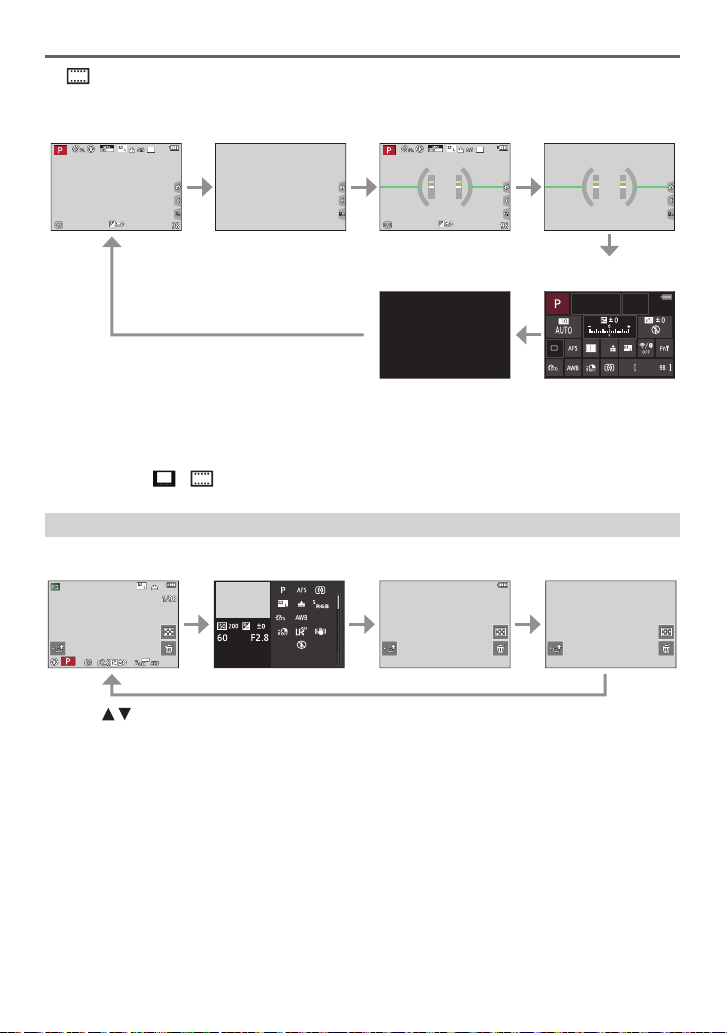
■
[ ] Monitor style display layout (Example of monitor style display)
With information
With information Without information
p
60
+
level gauge
p
60
Without information
+
level gauge
This screen is displayed only when [Monitor Info. Disp.] in the [Custom] ([Monitor / Display]) menu is
Monitor recording
Turned off
information screen
set to [ON]. Settings can be adjusted directly by touching each of the items displayed on the screen.
With [Fn Button Set] in the [Custom] ([Operation]) menu, you can assign [LVF/Monitor Disp. Style] to
●
a function button. Each time you press the assigned function button, the display style of the monitor
or viewfinder ([
]/[ ]), whichever is currently in use, will change.
During playback
With information
Detailed information
display
1
AM10:00 DEC. 1.2019
100-0001
1
Press to switch between the following display modes:
– Detailed information display
– Histogram display
– Photo style, Highlight shadow display
– White balance display
– Lens information display
2
This screen is displayed only when [Highlight] in the [Custom] ([Monitor / Display]) menu is set to
[ON].
Without information
1/5
([Highlight])
2
Without information
28
DVQX1774 (ENG)
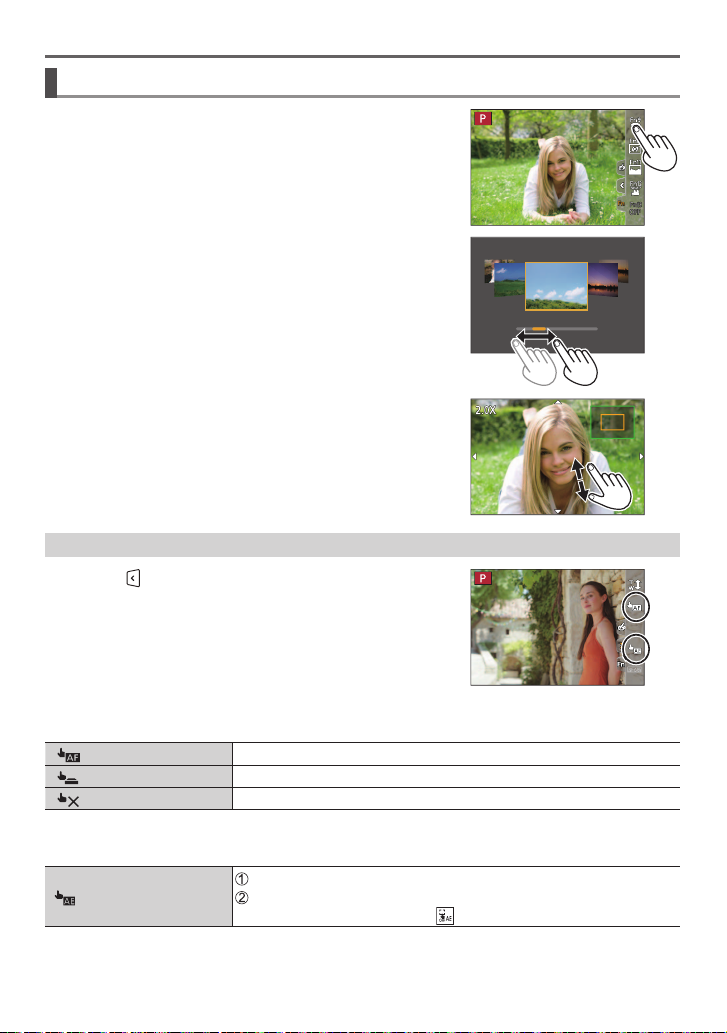
Touch screen (Touch operations)
Touch
To touch and release the touch screen.
Drag
To touch and slide your finger across the touch screen.
Pinch (spread/pinch)
On the touch screen, spread (pinch out) your 2 fingers to
zoom in, and pinch (pinch in) your 2 fingers to zoom out.
Taking Pictures Using the Touch Function
Touch [ ]
1
Touch an icon
2
Preparations/Basics
■
Touch AF, Touch Shutter
The icon switches every time you touch it.
] (Touch AF)
[
] (Touch shutter)
[
[
] (OFF)
■
[Touch AE]
You can easily optimize the brightness for a touched position.
] ([Touch AE])
[
Focuses on the position you touch.
Focuses on the touched position before recording takes place.
Touch AF and Touch Shutter are disabled.
Touch the subject you want to optimize the brightness for
Touch [Set]
• To cancel the function, touch [ ] .
DVQX1774 (ENG)
29
Loading…
Panasonic Lumix DC-FZ1000 MKII
Operating Instructions
for advanced features
Digital Camera
Model No. DC-FZ10002
DVQP1937ZAM0219KZ0Message displays →307
Please read these instructions carefully before using this product,
and save this manual for future use.
Q&A Troubleshooting →309Finding the information you need →2Contents →5Contents by Function →11Menu list →175Names and Functions of Main Parts →16
View the manual for the Panasonic Lumix DC-FZ1000 MKII here, for free. This manual comes under the category photo cameras and has been rated by 6 people with an average of a 8.
This manual is available in the following languages: English. Do you have a question about the Panasonic Lumix DC-FZ1000 MKII or do you need help?
Ask your question here
Product Images (2)


Panasonic Lumix DC-FZ1000 MKII specifications
Below you will find the product specifications and the manual specifications of the Panasonic Lumix DC-FZ1000 MKII.
The Panasonic Lumix DC-FZ1000 MKII is a digital camera that offers a range of advanced features and capabilities. It features a 20.1-megapixel 1-inch CMOS sensor, which allows for high-resolution image capture with precise detail and color accuracy. The camera is equipped with a Leica DC Vario-Elmarit lens, offering a focal length of 25-400mm and a maximum aperture of f/2.8-4.0, providing versatility for various shooting situations.
With its high-speed autofocus system, the Lumix DC-FZ1000 MKII ensures quick and accurate subject tracking, making it suitable for capturing fast-moving subjects. It also has a powerful 5-axis Hybrid Optical Image Stabilization system that minimizes camera shake, resulting in sharp and steady images even in low-light conditions.
The camera’s video capabilities are impressive, allowing for capturing 4K UHD footage at up to 60fps. It also supports full HD slow-motion video recording at 120fps, enabling users to create captivating slow-motion sequences.
Furthermore, the Lumix DC-FZ1000 MKII offers a variety of shooting modes and creative controls, including manual exposure options, customizable function buttons, and a built-in neutral density filter. It has a high-resolution electronic viewfinder and a tiltable LCD screen for easy framing and reviewing of shots.
In terms of connectivity, the camera features built-in Wi-Fi and Bluetooth capabilities, enabling easy sharing of images and remote control functionality through the Panasonic Image App. It also has a range of external ports, including HDMI and USB, for seamless integration with other devices.
Overall, the Panasonic Lumix DC-FZ1000 MKII is a highly capable and versatile camera that caters to the needs of advanced photographers and videographers. Its advanced features and reliable construction make it a valuable tool for capturing high-quality images and videos.
General
Frequently Asked Questions
Can’t find the answer to your question in the manual? You may find the answer to your question in the FAQs about the Panasonic Lumix DC-FZ1000 MKII below.
How do I adjust the aperture on my Panasonic Lumix DC-FZ1000 MKII?
To adjust the aperture on your camera, navigate to the shooting menu and locate the option for «Aperture Priority» or «Manual Mode.» From there, you can use the control dial to increase or decrease the aperture value, which controls the amount of light entering the lens.
What settings should I use to capture fast-moving subjects with my Panasonic Lumix DC-FZ1000 MKII?
To capture fast-moving subjects, switch to the «Sports» scene mode or select a high shutter speed in the manual mode. A shutter speed of at least 1/1000th of a second is typically recommended, but it may vary depending on the specific conditions.
How can I change the ISO settings on my Panasonic Lumix DC-FZ1000 MKII?
To change the ISO settings, press the ISO button located on the top of the camera. Then, use the control dial to adjust the ISO value. Remember that higher ISO values (e.g., 800 or above) can introduce digital noise, so choose a lower ISO whenever possible.
How do I enable or disable image stabilization on my Panasonic Lumix DC-FZ1000 MKII?
The image stabilization function can be accessed through the camera’s menu. Go to the settings menu, find the «Image Stabilization» option, and choose either «On» or «Off» based on your preference and shooting conditions.
How do I transfer photos from my Panasonic Lumix DC-FZ1000 MKII to a computer?
There are multiple ways to transfer photos. One option is to connect your camera to the computer using a USB cable. Then, turn on the camera and select the USB mode to enable data transfer. Another option is to remove the memory card from the camera and insert it into a card reader attached to the computer. Once connected, you can browse and copy the photos from the camera or the memory card to your computer’s storage.
Is the manual of the Panasonic Lumix DC-FZ1000 MKII available in English?
Yes, the manual of the Panasonic Lumix DC-FZ1000 MKII is available in English .
Is your question not listed? Ask your question here
When you use links on apotelyt.com to buy products,
the site may earn a commission.
PW,
Did you lose or misplace the instruction manual that came with your Panasonic Lumix DC-FZ1000 II? It happens all too easily, but fortunately Panasonic
makes a soft copy available that you can browse through online, print out, or download (see the pdf file below).
It is certainly good practice to carefully familiarize oneself with the many different functionalities and options that the FZ1000 II offers, and the
official user manual is without doubt an authoritative and comprehensive source of respective information.
That said, the instruction booklet
can be a dry read, so that a dedicated camera
guide book from a professional photographer that illustrates the camera’s core functions in a real life photography context can be a very helpful complement. Yes,
getting one of these camera guides (see here at amazon)
would involve an additional expense, but if that book helps to exploit the camera’s potential to the full,
the (small) additional investment may well be worth it.
Also, you might want to check out the video tutorial on the Panasonic Lumix DC-FZ1000 II below.

In any case, the FZ1000 II is an advanced imaging tool, whose many features merit serious attention. This
fixed lens compact camera was officially introduced on February 18th, 2019,
which means that, as of today, the camera is 2250 days old (young?). Given that the FZ1000 II is a relatively recent model, it forms part of the current Panasonic product line-up.
Panasonic’s advanced owner manual for the FZ1000 II
The camera’s advanced owner manual is 325 pages long. The pdf version is embedded below.
As you browse through, you will hopefully find the information you are looking for.
You can also print out a hard copy by right clicking on the manual and then choosing the respective menu option. For convenience,
a summary of the key specs of the FZ1000 II is included towards the bottom of this webpage.
Don’t forget to bookmark this page for future reference (Ctrl-Shift-D on a Windows PC; Cmd-Shift-D on a Mac). Happy browsing!
Click on the button below to download the pdf version of the Panasonic Lumix DC-FZ1000 II manual to your computer. The file will open in a new browser window.
Download the Manual
If you prefer to read the user guide in another language, please check the respective availability on
Panasonic’s support site.
That site also provides complementary online resources, such as information on the compatibility of various camera accessories or the availability of
firmware updates that are not necessarily comprehensively covered in the instruction manual.
Printed, hardcopy versions of the Panasonic FZ1000 II manual can sometimes be found online. You can check the availability on amazon and ebay via the buttons below.
amazon.com
ebay.com
Video tutorial for the Panasonic Lumix DC-FZ1000 II
Perhaps instead of reading through a manual or operations guide,
you might prefer to better familiarize yourself with your FZ1000 II by watching a video tutorial. It can notably help to quickly get to know the
key functions and to set up your camera according to your particular preferences and needs.
Once again, the Panasonic FZ1000 II is a sophisticated imaging tool and not exploiting its capabilities to the full would be a pity. Hence, taking the time to
study online information material or to read through a well-written camera guide book is highly recommended to make the most of your purchase.
Find FZ1000 II guide book at
amazon.com
Panasonic FZ1000 II FAQ
Below are some additional questions and answers
concerning some particular features of the FZ1000 II.
What technology is the imaging sensor in the Panasonic FZ1000 II based on?
The camera features a BSI-CMOS (Backside Illuminated Complementary Metal–Oxide–Semiconductor) sensor.
Which image processing chip is used in the Panasonic FZ1000 II to convert the raw signal into an image file and perform noise reduction and image sharpening?
Panasonic equipped the FZ1000 II with the Venus image processor.
What is the ISO sensitivity range of the Panasonic FZ1000 II?
The camera has a native sensitivity range from ISO 125 to ISO 12800, which can be extended to ISO 80-25600.
Does the Panasonic FZ1000 II have a selfie-friendly screen?
Yes, the LCD-screen of the FZ1000 II is flexible and can be turned to be front-facing for capturing selfies.
How do I find the shutter count on my Panasonic FZ1000 II?
Panasonic embeds the number of shutter actuations in hidden menus. You can check the number of shots that your FZ1000 II has taken up to now by carefully following the steps described on the Panasonic FZ1000 II shutter count page.
Is completely silent shooting possible with the Panasonic FZ1000 II?
The camera has an electronic shutter option, so that it is indeed feasible to capture images without any shutter noise.
Do I need to purchase an external camera trigger to shoot time-lapse sequences with the Panasonic FZ1000 II?
No, the Panasonic Lumix DC-FZ1000 II has an intervalometer built-in, so that low frequency shooting (for example, flower blooming, sunset, moon rise) can be undertaken without the need to purchase a separate external intervalometer and related software.
Is it difficult to use manual focus lenses with the Panasonic FZ1000 II?
The FZ1000 II offers focus peaking as a manual focus aid. This feature works by placing a colored highlight on in-focus zones within the image.
Does the Panasonic FZ1000 II feature an autofocus assist light?
Yes, the camera has a lamp built-in that can illuminate the subject and improve autofocus in low-light settings.
Does the Panasonic FZ1000 II support the Ultra High Speed (UHS) bus interface for SD cards?
Yes, the camera can indeed use UHS-I cards (data transfer speed of up to 104 MB/s).
Which battery does the Panasonic FZ1000 II use?
The camera gets its power from the Panasonic DMW-BLC12 (here at amazon), which is a rechargeable Lithium-Ion power pack.
Where can I find the best deals for the Panasonic FZ1000 II?
Grey imports from Asia, as found on
ebay,
are often very attractively priced. However, these cameras come without a warranty from Panasonic.
Further reading
How does the FZ1000 II stack up against available alternatives?
If you would like to see a side-by-side review with another camera, just use the search menu below. There is also a set of direct links to comparison reviews that other users of the CAM-parator app explored.
- Canon 5D Mark IV vs Sony A9 II
- Canon 600D vs Sony A9 II
- Nikon D200 vs Panasonic FZ1000 II
- Nikon D3X vs Sony A9 II
- Nikon P950 vs Sony A9 II
- Nikon Z9 vs Sony A9 II
- Panasonic FZ1000 II vs Panasonic LF1
- Panasonic FZ1000 II vs Panasonic LX5
- Panasonic FZ1000 II vs Pentax MX-1
- Panasonic FZ1000 II vs Sony RX100 II
- Panasonic FZ1000 II vs YI M1
- Sony A68 vs Sony A9 II
Core camera specifications
Here is a list of the main features and technical characteristics of the Panasonic Lumix DC-FZ1000 II.
Specifications Summary
| Camera Model | Panasonic FZ1000 II | |
|---|---|---|
| Camera Type | Fixed lens compact camera | |
| Camera Lens | 25-400mm f/2.8-4.0 | |
| Launch Date | February 2019 | |
| Launch Price | USD 899 | |
| Sensor Specs | ||
| Sensor Technology | BSI-CMOS | |
| Sensor Format | 1″ Sensor | |
| Sensor Size | 13.2 x 8.8 mm | |
| Sensor Area | 116 mm2 | |
| Sensor Diagonal | 15.9 mm | |
| Crop Factor | 2.7x | |
| Sensor Resolution | 20 Megapixels | |
| Image Resolution | 5 472 x 3 648 pixels | |
| Pixel Pitch | 2.41 μm | |
| Pixel Density | 17.18 MP/cm2 | |
| Moiré control | Anti-Alias filter | |
| Movie Capability | 4K/30p Video | |
| ISO Setting | 125 — 12 800 ISO | |
| ISO Boost | 80 — 25 600 ISO | |
| Image Processor | Venus | |
| Screen Specs | ||
| Viewfinder Type | Electronic viewfinder | |
| Viewfinder Field of View | 100% | |
| Viewfinder Magnification | 0.70x | |
| Viewfinder Resolution | 2360k dots | |
| Top-Level Screen | no Top Display | |
| LCD Framing | Live View | |
| LCD Size | 3.0 inch | |
| LCD Resolution | 1240k dots | |
| LCD Attachment | Swivel screen | |
| V-logging Friendliness | Front-flip possible | |
| Touch Input | Touchscreen | |
| Shooting Specs | ||
| Focus System | Contrast-detect AF | |
| Manual Focusing Aid | Focus Peaking | |
| Maximum Shutter Speed | 1/4000s | |
| Continuous Shooting | 12 shutter flaps/s | |
| Silent Shooting | Electronic Shutter | |
| Time Lapse Photography | Intervalometer Built-in | |
| Fill Flash | Built-in Flash | |
| Storage Medium | SDXC cards | |
| Single or Dual Card Slots | Single card slot | |
| UHS card support | UHS-I | |
| Connectivity Specs | ||
| External Flash | Hotshoe | |
| USB Connector | USB 2.0 | |
| HDMI Port | micro HDMI | |
| Microphone Port | External MIC port | |
| Wifi Support | Wifi built-in | |
| Bluetooth Support | Bluetooth built-in | |
| Body Specs | ||
| Battery Type | Panasonic DMW-BLC12 power pack | |
| Battery Life (CIPA) | 350 shots per charge | |
| In-Camera Charging | USB charging | |
| Body Dimensions |
136 x 97 x 131 mm (5.4 x 3.8 x 5.2 in) |
|
| Camera Weight | 810 g (28.6 oz) |
Did you notice an error on this page? If so, please get in touch, so that we can correct the information.
You are here:
Home
»
Panasonic FZ1000 II Review
»
Panasonic FZ1000 II User Manual
WARNING
To reduce the risk of fire, electric shock or product damage,
- Do not expose this unit to rain, moisture, dripping or splashing.
- Use the recommended accessories.
- Do not remove covers.
- Do not repair this unit by yourself. Refer servicing to qualified service personnel.
About the battery pack
CAUTION
Battery pack (Lithium ion battery pack)
- Use the specified unit to recharge the battery pack.
- Do not use the battery pack with equipment other than the specified unit.
- Do not get dirt, sand, liquids, or other foreign matter on the terminals.
- Do not touch the plug terminals (+ and −) with metal objects.
- Do not disassemble, remodel, heat or throw into fire.
If any electrolyte should come into contact with your hands or clothes, wash it off thoroughly with water.
If any electrolyte should come into contact with your eyes, never rub the eyes. Rinse eyes thoroughly with water, and then consult a doctor.
CAUTION
- Danger of explosion if battery is incorrectly replaced. Replace only with the type recommended by the manufacturer.
- When disposing of the batteries, please contact your local authorities or dealer and ask for the correct method of disposal.
- Do not heat or expose to flame.
- Do not leave the battery(ies) in a car exposed to direct sunlight for a long period of time with doors and windows closed.
Warning
Risk of fire, explosion and burns. Do not disassemble, heat above 60 °C (140 °F) or incinerate.
About the AC adaptor (supplied)
CAUTION!
To reduce the risk of fire, electric shock or product damage,
- Do not install or place this unit in a bookcase, built-in cabinet or in another confined space. Ensure this unit is well ventilated.
Cautions for Use
- Do not use any other USB connection cables except the supplied one.
- Use a “High Speed HDMI micro cable” with the HDMI logo. Cables that do not comply with the HDMI standards will not work. “High Speed HDMI micro cable” (Type D – Type A plug, up to 2 m (6.6 feet) long)
- Always use a genuine Panasonic shutter remote control (DMW-RS2: optional).
- Do not use the Stereo microphone cables with the length of 3 m (9.8 feet) or more.
-
- To clean your camera, remove the battery, the DC coupler (DMW-DCC8: optional) or a card, or disconnect the power plug from the outlet, and wipe with a soft, dry cloth.
- Do not press the monitor with excessive force.
- Do not press the lens with excessive force.
- Do not allow camera to come into contact with pesticides or volatile substances (can cause surface damage or coating to peel).
- Do not keep rubber or plastic products in contact with the camera for a long period of time.
- Do not use solvents such as benzine, thinner, alcohol, kitchen detergents, etc., to clean the camera, since it may deteriorate the external case or the coating may peel off.
- Do not leave the camera with the lens facing the sun, as rays of light from the sun may cause it to malfunction.
- Always use the supplied cords and cables.
- Do not extend the supplied cord or cable.
- While the camera is accessing the card (for an operation such as picture writing, reading, deletion, or formatting), do not turn off the camera or remove the battery, card, AC adaptor (DMW-AC10PP: optional) or DC coupler (DMW-DCC8: optional). Furthermore, do not subject the camera to vibration, impact or static electricity.
- The data on the card may be damaged or lost due to electromagnetic waves, static electricity or breakdown of the camera or the card. We recommend storing important data on a PC etc.
- Do not format the card on your PC or other equipment. Format it on the camera only to ensure proper operation.
- The battery is not charged when the camera is shipped. Charge the battery before use.
- The battery is a rechargeable lithium ion battery. If the temperature is too high or too low, the operating time of the battery will become shorter.
- The battery becomes warm after using and during and after charging. The camera also becomes warm during use. This is not a malfunction.
- Do not leave any metal items (such as clips) near the contact areas of the power plug or near the batteries.
- Store the battery in a cool and dry place with a relatively stable temperature.
(Recommended temperature: 15 °C to 25 °C (59 °F to 77 °F), Recommended humidity: 40%RH to 60%RH). - Do not store the battery for a long time while fully charged. When storing the battery for a long period of time, we recommend charging it once a year. Remove the battery from the camera and store it again after it has completely discharged.
Before use
Camera handling
Keep the camera away from excessive vibration, force, or pressure.
Avoid using the camera under the following conditions, which may damage the lens, monitor, viewfinder, or camera body. This may also cause the camera to malfunction or prevent recording.
- Dropping or hitting the camera against a hard surface.
- Pushing with excessive force on the lens or monitor.
The camera is not dust resistant, splash resistant, or waterproof.
Avoid using the camera in places with excessive dust or sand, or where water can come into contact with the camera.
If sand, dust, or liquids such as water droplets adhere to the monitor, wipe them off with a dry soft cloth.
Condensation (When the lens, the monitor, or viewfinder, is fogged up)
- Condensation may occur when the camera is exposed to sudden changes of temperature or humidity. Avoid these conditions, which may make the lens, monitor, or viewfinder dirty, cause mold, or damage the camera.
- If condensation does occur, turn off the camera and wait about two hours before using it. Once the camera adjusts to the surrounding temperature, the fogging will clear naturally.
Standard accessories
Check that all the accessories are supplied before using the camera. Part numbers are as of February 2019. These may be subject to change.
- Cards are optional. (SD Memory Card, SDHC Memory Card and SDXC Memory Card are indicated as card in the text.)
(For U.S.A. only)
- If accessories are lost, customers can visit us at http://shop.panasonic.com/support for further information about obtaining replacement parts.
(For Canada only)
- If any accessories are lost, customers in Canada should visit our support page at www.panasonic.ca/english/support for further information about obtaining replacement parts.
Digital Camera Accessory System
|
Description |
Accessory# |
| Battery pack | DMW-BLC12 |
| Battery charger | DMW-BTC12 |
| AC adaptor* | DMW-AC10 |
| DC coupler* | DMW-DCC8 |
| Flash | DMW-FL200L, DMW-FL360L, DMW-FL580L |
| Shutter remote control | DMW-RS2 |
| LED video light | VW-LED1 |
| Stereo shotgun microphone | DMW-MS2 |
| Stereo microphone | VW-VMS10 |
| MC protector | DMW-LMCH62 |
| PL filter (Circular type) | DMW-LPL62 |
| Shoulder Strap | DMW-SSTG9 |
To order optional accessories please visit http://shop.panasonic.com or your local Photo Specialty Dealer.
Removing the Hot Shoe Cover
Remove the hot shoe cover by pulling it in the direction indicated by arrow 2 while pressing it in the direction indicated by arrow 1.
Names and Functions of Main Parts
Function buttons [Fn9] to [Fn13] are touch icons. They can be displayed by touching the [Fn] tab on the recording screen.
About the Card
| Type of Card | Capacity | Notes |
| SD Memory Cards | 512 MB – 2 GB | • This unit is compatible with UHS-I UHS Speed Class 3 standard SDHC/SDXC memory cards.
• Operation of the cards listed on the left has been confirmed with Panasonic brand card. |
| SDHC Memory Cards | 4 GB – 32 GB | |
| SDXC Memory Cards | 48 GB – 128 GB |
About motion picture/4K photo recording and speed class ratings
Use a card that meets the following ratings of the SD Speed Class or UHS Speed Class.
- SD Speed Class and UHS Speed Class are the speed standards regarding continuous writing. Confirm the SD speed by checking the card label or other card related materials.
Latest information:https://panasonic.jp/support/global/cs/dsc/ (This site is available in English only.)
Quick Start Guide
Attaching the Lens Cap
Cover the lens with the lens cap to protect it when you are not taking pictures.
- Do not hang or swing around the camera with the lens cap string.
- Make sure to detach the lens cap when turning this unit on.
- Be careful that the lens cap string does not become entangled with the shoulder strap.
- Use the lens cap string (supplied) to attach the lens cap to the camera
- Attach the lens cap
(A) Pinch here to attach or detach the cap.
- Keep the lens cap string out of reach of children to prevent swallowing.
Attaching the Shoulder Strap
Perform steps 1 to 6 and then attach the other side of the shoulder strap.
-
- Use the shoulder strap around your shoulder.
– Do not wrap the strap around your neck. It may result in injury or accident. - Do not leave the shoulder strap where an infant can reach it.
– It may result in an accident by mistakenly wrapping around the neck.
- Use the shoulder strap around your shoulder.
Attaching the Lens Hood
- Do not hold the lens hood in such a way that it will be bent.
- Make sure that the camera is turned off.
- Be sure to close the flash beforehand.
- Align the mounting mark on the lens hood a little above the mounting mark on the tip of the lens(A) Mounting mark on the tip of the lens(B) Mounting mark on the lens hood
- Turn the lens hood in the direction of the arrow to secure it
- Continue to rotate the lens hood until you hear a “click” even if you feel some stiffness, and then align the mark on the bottom of the camera
Make sure the lens hood is secured properly and its reflection does not fall on images.
(C) Rotate until the marks are aligned
- If you attach the lens hood while using the flash, the flash light would be blocked by the lens hood causing the bottom part of images to be darkened (vignetting) and also making it impossible to modulate the light. It is recommended to remove the lens hood before using the flash.
- Temporarily Storing the Lens Hood.
Inserting the battery and/or SD memory card (optional)
Make sure that the camera is turned off.
- Slide the release lever (A) to the [OPEN] position and open the card/battery door
- Insert the battery and card, making sure that their orientation is correct
Battery: Insert the battery all the way firmly and check that it is locked by lever (B).
Card: Insert the card all the way firmly until it clicks. Do not touch the terminal.
- Close the door
Slide the release lever to the [LOCK] position.
To remove
To remove battery
Move lever (B) in direction of arrow
To remove card
Press the center of the card.
- Always use genuine Panasonic batteries (DMW-BLC12PP).
- If you use other batteries, we cannot guarantee the quality of this product.
- Turn the camera off and wait for the “LUMIX” display on the monitor to clear before removing the card or battery.
Charging the battery
- The battery that can be used with this unit is DMW-BLC12PP.
- We recommend charging in a location where the ambient temperature is between 10 °C and 30 °C (50 °F to 86°F) (same for the battery temperature).
Insert the battery into the camera. Make sure that the camera is turned off.
Charging from the power outlet
Connect the AC adaptor (supplied) and this camera with the USB connection cable (supplied), and insert the AC adaptor (supplied) into the power outlet.
Charging from a computer
Connect the computer and this camera with the USB connection cable (supplied).
Charging lamp indication
Opening the Monitor
- Place your finger in the cleft on the right side of the monitor and open the monitor toward the left side (maximum 180°)
- It can be rotated 180° to the direction of the lens
- Return the monitor to its original position
Setting the clock
The clock is not set when the camera is shipped.
- Turn the camera on
- Press [MENU/SET]
- Press up, down arrow to select the language and press [MENU/SET]
- Press [MENU/SET]
- Press left, right arrow to select the items (year, month, day, hour, minute), and press up, down arrow to set
- Press [MENU/SET]
- When [The clock setting has been completed.] is displayed, press [MENU/SET]
- When [Please set the home area] is displayed, press [MENU/SET]
- Press to set your home area and press [MENU/SET]
[LVF] button (Recording pictures using the viewfinder)
Automatic switching between viewfinder and monitor
The eye sensor (B) automatically switches the display to viewfinder when your eye or an object moves close to the viewfinder. When the eye or object moves away from the viewfinder, the camera returns to monitor display.
About diopter adjustment
Rotate the diopter adjustment dial to adjust until you are able to clearly see the characters displayed in the viewfinder.
- If [LVF Display Speed] is set to [ECO 30fps] when the viewfinder is used, the camera can be operated for a longer period since battery drainage is reduced.
Shutter button (Taking pictures)
- Set mode dial to [iA]
The camera automatically optimizes the main settings.
For details on the recording modes, refer to (→25).
- Press the shutter button halfway (press lightly) to focus on the subject
(A) Shutter speed
(B) Aperture value
(C) Focus display (Green)
( When focus is aligned: illuminated, When focus is not aligned: flashing)
- Press the shutter button fully (push the button all the way), and take the picture
Pictures can be taken only when the image is correctly focused as long as the [Focus/Release Priority] is set to [FOCUS].
Check the picture you have taken
Press the Playback button.
Basic operations
Zoom lever (Use zoom)
Mode dial (Select the recording mode)
- Set to the desired recording mode
Rotate the mode dial slowly to select the desired mode.
Front dial/Rear dial
Rotating
Selection of items or setting of values is performed during the various settings.
- (A) Front dial
- (B) Rear dial
During recording
You can switch the viewfinder/monitor display method.
- Live View Finder style display layout (Example of viewfinder style display)
- Monitor style display layout (Example of monitor style display)
This screen is displayed only when [Monitor Info. Disp.] in the [Custom] ([Monitor / Display]) menu is set to [ON]. Settings can be adjusted directly by touching each of the items displayed on the screen.
Taking pictures with automatic settings (Intelligent Auto Mode)
This mode is recommended for those who want to point and shoot as the camera optimizes settings to match the subject and recording environment.
- Set mode dial to [iA]
At the time of purchase, the mode is set to Intelligent Auto Plus Mode.
- Point the camera at the subject
When the camera identifies the optimal scene, the icon switches to the one for that scene. (Automatic Scene Detection)
Taking pictures with Auto Focus
Set the focusing operation to be performed when the shutter button is pressed halfway.
- Set the focus mode lever to [AFS/AFF] or [AFC]
- It is fixed to [AFS] when Panorama Shot Mode is set.
| Settings | The movement of the subject and the scene | |
|
[AFS/AFF] |
[AFS]
(Auto Focus Single) |
Subject is still (Scenery, anniversary photograph, etc.)
Focus is set automatically when the shutter button is pressed halfway. Focus will be fixed while it is pressed halfway. |
| [AFF]
(Auto Focus Flexible) |
Movement cannot be predicted (Children, pets, etc.)
If the subject moves while the shutter button is pressed halfway, the focus is corrected to match the movement automatically.* |
|
| You can switch the setting with [AFS/AFF] in the [Rec]/[Motion Picture] menu. | ||
| [AFC]
(Auto Focus Continuous) |
Subject is moving (Sport, trains, etc.)
While the shutter button is pressed halfway, focusing is constantly performed to match the movement of the subject.* |
Taking close-up pictures (Macro recording)
This mode allows you to take close-up pictures of a subject, e.g. when taking pictures of flowers.
- Press [AF Macro] button (down)
- Press right, left to select the item and press [MENU/SET]
Selecting a Drive Mode ([Burst] / [Self Timer]
You can switch the operation to be performed when you press the shutter button.
Rotating the drive mode dial
Taking pictures with self-time
Adjusting the focus after recording ([Post Focus] / [Focus Stacking])
You can record 4K burst pictures while changing the focus point and then select a focus point after recording. This function is best for non-moving subjects.
Auto Focus activates and automatically detects the focus point on the screen. (While the shutter button pressed halfway, shake may be seen on the screen.)
If there is no focus point on the screen, the Focus indicator (A) blinks and you cannot record.
- Press the shutter button fully to start recording
The focus point changes automatically while recording. When the recording progress bar (B) disappears, recording automatically ends.
- The data will be saved as a single file in the MP4 format.
- If [Auto Review] is set, a screen will automatically appear that lets you select the focus point.
Taking Pictures with Time Lapse Shot/Stop Motion Animation
You can take pictures with Time Lapse Shot or Stop Motion Animation.
- The pictures are recorded as a set of group pictures.
- Complete the date and time settings in advance.
Taking pictures automatically at set intervals [Time Lapse Shot]
The camera can automatically take pictures of subjects such as animals or plants as time elapses and create a motion picture.
- Set the drive mode dial to [Time lapse]
- Set the menu
- Press the shutter button halfway to exit the menu
- Focus on the subject and take a picture
For more manuals by Panasonic, visit ManualsLibraryy
Panasonic LUMIX FZ1000 II Digital Camera-FAQs
Is the Panasonic LUMIX FZ1000 II a good camera?
Yes, it offers SLR-style design with a versatile zoom lens, eliminating the need to carry multiple lenses. It is a strong competitor to the Sony RX10 for those looking for an all-in-one camera.
How do I turn on my LUMIX camera?
1. Insert the SD card into the slot located under the camera next to the battery.
2. Open the viewfinder and press the power button to turn it on.
What is the battery life of the FZ1000 II?
The rechargeable lithium-ion battery provides approximately 360 shots per charge (CIPA-rated), including 50% flash usage.
Is the Panasonic LUMIX FZ1000 II a professional camera?
While not a full professional model, it offers advanced features suitable for filmmakers and photographers, with a lightweight, mirrorless design.
Does the LUMIX FZ1000 II have a touchscreen?
No, the rear LCD monitor is not touch-sensitive. Menu navigation and settings are controlled through buttons and dials.
Where are Panasonic LUMIX cameras made?
Panasonic cameras are designed in Japan and manufactured in China. If purchased from an authorized LUMIX dealer, it is a genuine product.
Does the LUMIX FZ1000 II have Bluetooth?
Yes, it features Bluetooth connectivity for seamless pairing with smart devices, along with an improved 3-inch touchscreen.
Is the LUMIX FZ1000 II good for beginners?
For beginners, the LUMIX G100 is a better option as it is more compact and beginner-friendly. The FZ1000 II is ideal for those wanting advanced features with an easy-to-use interface.
Why is my LUMIX camera screen black?
The camera has a power-saving feature that turns off the LCD after inactivity. Press the shutter button to reactivate the screen.