
- Главная
-
NEC
-
Телефоны
-
DT300 Series
На этой странице вы найдёте полный список документов на Телефоны NEC DT300 Series.
Выберите необходимый PDF файл.
-
Телефоны
NEC DT300 Series Инструкция по эксплуатацииТип файла
PDFРазмер
1.79 MbКол-во страниц
41Просмотров
65535Download / Read online
- 1
Другие NEC Телефоны
-
NEC DT300 Series Инструкция по эксплуатации
PDF файлов
1Просмотров
185261 -
NEC DTL-12D-1 — DT330 — 12 Button Display… Инструкция по эксплуатации
PDF файлов
1Просмотров
11614 -
NEC DTL-6DE-1 — DT310 — 6 Button Display… Инструкция по эксплуатации
PDF файлов
1Просмотров
11256 -
NEC DS2000 Инструкция по эксплуатации
PDF файлов
1Просмотров
7539 -
NEC DTerm Series E Telephones Инструкция по эксплуатации
PDF файлов
1Просмотров
7122 -
NEC AT-35 Инструкция по эксплуатации
PDF файлов
1Просмотров
6117
Другие устройства NEC
-
Сетевые карты
NEC PD78056 Инструкция по эксплуатацииPDF файлов
1Просмотров
78166 -
Серверы
NEC Express5800/320Fd Руководство пользователяPDF файлов
11Просмотров
49171 -
Серверы
NEC Express5800/R120d-2M Руководство пользователяPDF файлов
25Просмотров
41507 -
Серверы
NEC Express5800/R120a-1 Руководство пользователяPDF файлов
8Просмотров
40399 -
Серверы
NEC Express5800/R120e-1M Руководство пользователяPDF файлов
25Просмотров
39531 -
Серверы
NEC Express5800/R120d-1M Руководство пользователяPDF файлов
25Просмотров
38537
Ранее вы смотрели
Производители
Astro Pneumatic
CFM
Cullmann
Design Imports India
Ergotron
Galil
LifeTrak
Petsafe
Sun Lawn
Techno Source
Типы устройств
Пожарные газовые извещатели
Автомобильные стереосистемы
Аксессуары для МР3-плееров
Системы очистки стоков
Жаровни
Шкафчики для вина
Бороскопы (жесткие)
Хранение деталей
Датчик двери
Уход за одеждой
Устройства
BenQ RL2450H
Graco 3A0158F Electric Airless Sprayers
Hotpoint HL232I
LG Flat Panel LCD LED Television 47LS4600
MTX Audio 820W
Omron C200H-LK401
Samsung DVD-V2000
Sears Eclipse 1000HR
Sharp 450M
Toshiba SX-2801
freeuserguide.ru
About Us
Contacts
Disclamers
Privacy Policy
Эта страница полезна для вас? Поделитесь ссылкой:

NDA-30917
ISSUE 1.0
UNIVERGE Terminal
DT300 Series
USER’S GUIDE
NEC Infrontia Corporation
2008 July
1.
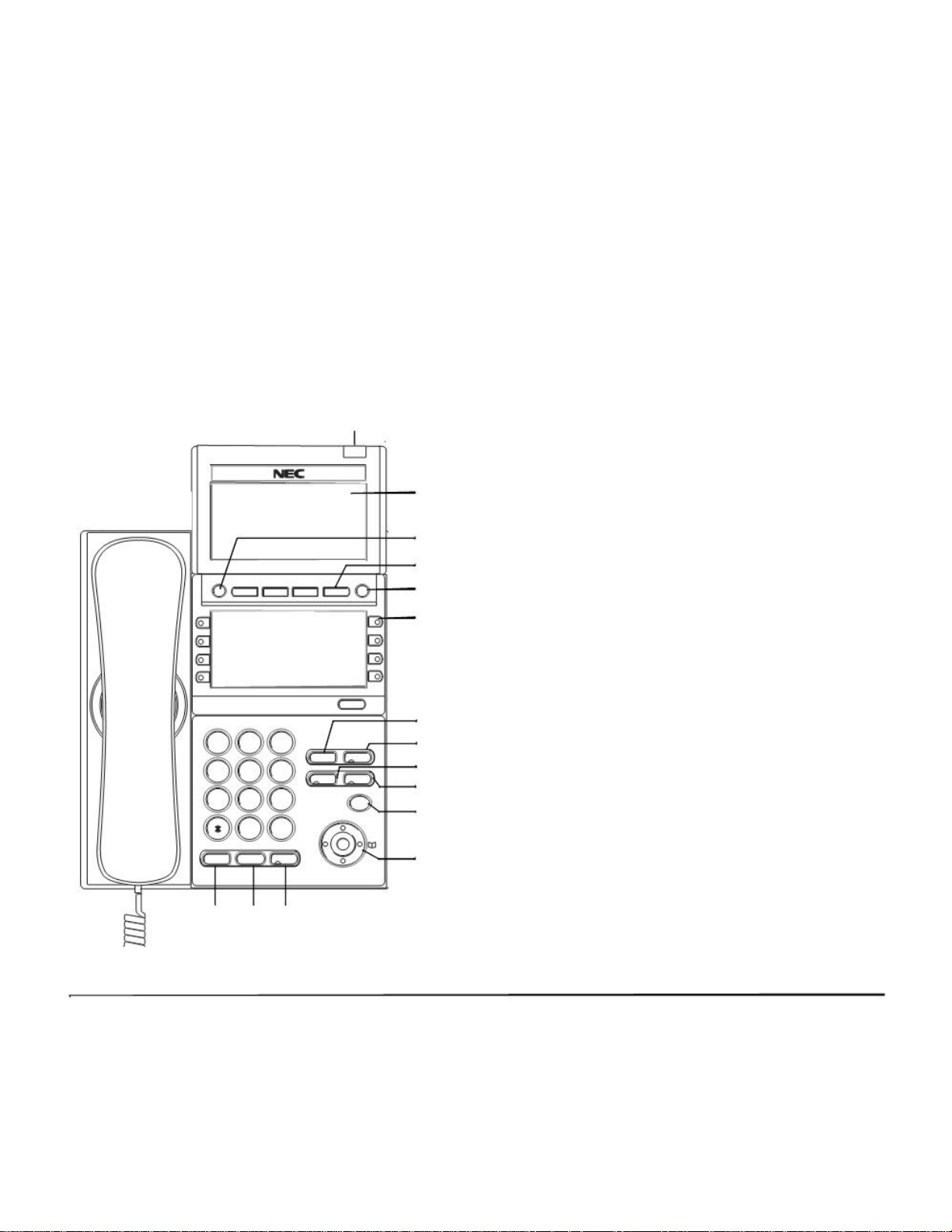
KEYS AND PARTS
• KEYS AND PARTS ON DTL-8LD-1
Here, explanations are given by taking DTL-8LD-1 as
an example.
(1)
(2)
(3)
(4)
Exit Help
(5)
(6)
Scroll
(7)
1 2 3 (8)
ABC DEF
Recall Feautre
4 5 6 (9)
GHI JKL MNO Answer M ic
(1) Call Indicator Lamp
Lamp at top corner of DT Series Display flashes
when a call terminates to the terminal. Also, when
using Voice Mail service, the Lamp lights steadily
when a message has been left.
(2) LCD
LCD (Liquid Crystal Display) provides DT Series
activity information plus data, time and Soft Key
Operation.
(3) Exit
To exit from the Menu or Help mode and go back
to the time display.
(4) Soft Keys
Any feature shown at the bottom of the LCD is
available. The appropriate feature key is displayed
on the screen according to the call handling process.
(5) Help
Explanations of the Soft Keys can be called up on
the LCD by pressing this key.
(6) Programmable Keys
7 8 9
PQRS TUV WXYZ Menu
0 #
Redial
HOLD Transfer Speaker
(13) (14) (15)
(10)
(11)
(12)
These keys can be programmed as Flexible Line
key/Programmable Feature Key by Telephony
Server Administrator.
When Telephony Server Administrator sets “One-
Touch Speed Dial key” on the programmable keys,
users can assign any numbers (ex. Telephone
number, etc.) to the key (up to 24 digits).

1.
* For the assignment of the keys, confirm to the
Telephony Server Administrator.
(7) Recall
Press key to finish the call and hear the dial tone.
(  Feature
Used to activate any features as terminal setup
functions, etc. and to program One-Touch Speed
Dial Keys.
(9) Answer
When LED on this key is lit, press key to answer a
waiting call.
(10) Mic
Press key to respond hands free. LED on this key
lights during speakerphone operation.
(11) Menu
To access the local menu of DT310/DT330, such
as Call History, Directory or Terminal Setting.
(12) Cursor
By using this key, DT Series user can access to
various features with simple operation.
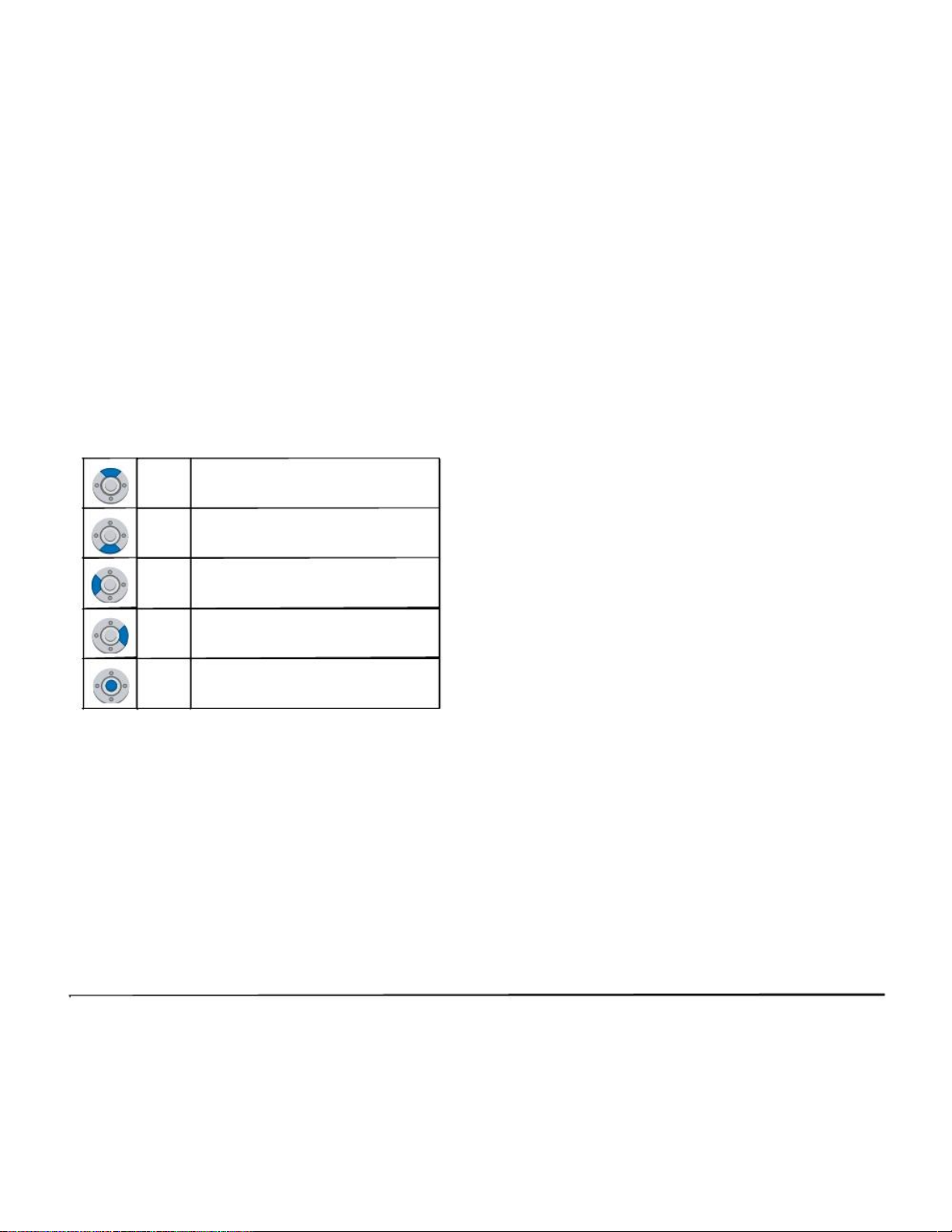
Details on Cursor key
(a) Volume (UP) key (d) Enter Key
(4-way Scroll UP key)
(b) Redial key (c) Directory key
(4-way Scroll LEFT key) (4-way Scroll RIGHT key)
(a) Volume (DOWN) key
(4-way Scroll DOWN key)
(a) Up/Down
( DOWN UP)
Used to adjust LCD contrast, speaker/receiver
volume, and ringer volume.
• LCD Contrast:
Press ( ) or ( ) key while idle.
• Speaker/Receiver Volume:
Press ( ) or ( ) key during conversation.
• Ringer Volume:
Press ( ) or ( ) key during ringing.
(b) Redial
(Last Number Call, Speed Calling-Station/
Group)
Press key to activate redial feature. Press redial and scroll back through numbers that have
been dialed. When the desired number is displayed,
press the or # key to activate dialing.
Note: A-law Countries [Australia, Russia, Latin America,
UK, Middle near East, other Asian nations]: #
µ-law Countries [North America, Japan, Hong
Kong, Taiwan]:
1.
(d) Enter
(15)Speaker
DT330 Series has shortcut menu for frequentlyused features. Use this key to display the shortcut menu (see SHORTCUT MENU) and determine the selected item in the menu.
Also, this key is used as cursor-movement key on
the Menu screen.
UP Move the highlighted area one line up
Controls the built-in speaker which can be used for
Hands Free dialing/monitoring.
LED on key lights when key is active.
* All TDM enabled versions are half duplex handsfree mode.
• THE OTHER KEYS AND PARTS
DOWN
the screen.
Move the highlighted area one line
down the screen.
Redial (only for DTL—2E—1 and DTL—6DE—1)
(Last Number Call, Speed Calling—Station/Group)
Press key to activate redial feature. Press redial
and scroll back through numbers that have been
dialed.
LEFT
RIGHT
Enter
Go back to the previous screen.
Go to the screen that corresponds to
the highlighted menu item.
Go to the screen that corresponds to
the highlighted menu item.
When the desired number is displayed,
press the or # key to activate dialing.
Note: A-law Countries [Australia, Russia, Latin America,
UK, Middle near East, other Asian nations]: #
µ-law Countries [North America, Japan, Hong
Kong, Taiwan]:
(13)Hold
Press this key to place an internal or external call
on hold.
(14)Transfer
Allows the station user to transfer established calls
to another station, without attendant assistance.
Conf (only for DTL—2E—1 and DTL—6DE—1)
Press key to establish a conversation. LED on key
lights when key is active.
Directory (only for DTL—2E—1 and DTL—6DE—1)
Press key to activate speed calling — system fea—
ture.
Message (only for DTL—2E—1 and DTL—6DE—1)
Press key to access the voice mail system.
1.
Up/Down (only for DTL—2E—1 and DTL—6DE—1)
( DOWN UP)
Used to adjust LCD contrast, speaker/receiver vol—
ume, and ringer volume.
• LCD Contrast:
Press ( ) or ( ) key while idle.
• Speaker/Receiver Volume:
Press ( ) or ( ) key during conversation.
• Ringer Volume:
Press ( ) or ( ) key during ringing.
Directory (only for DTL—2E—1 and DTL—6DE—1)
Press key to activate speed calling — system fea—
ture.
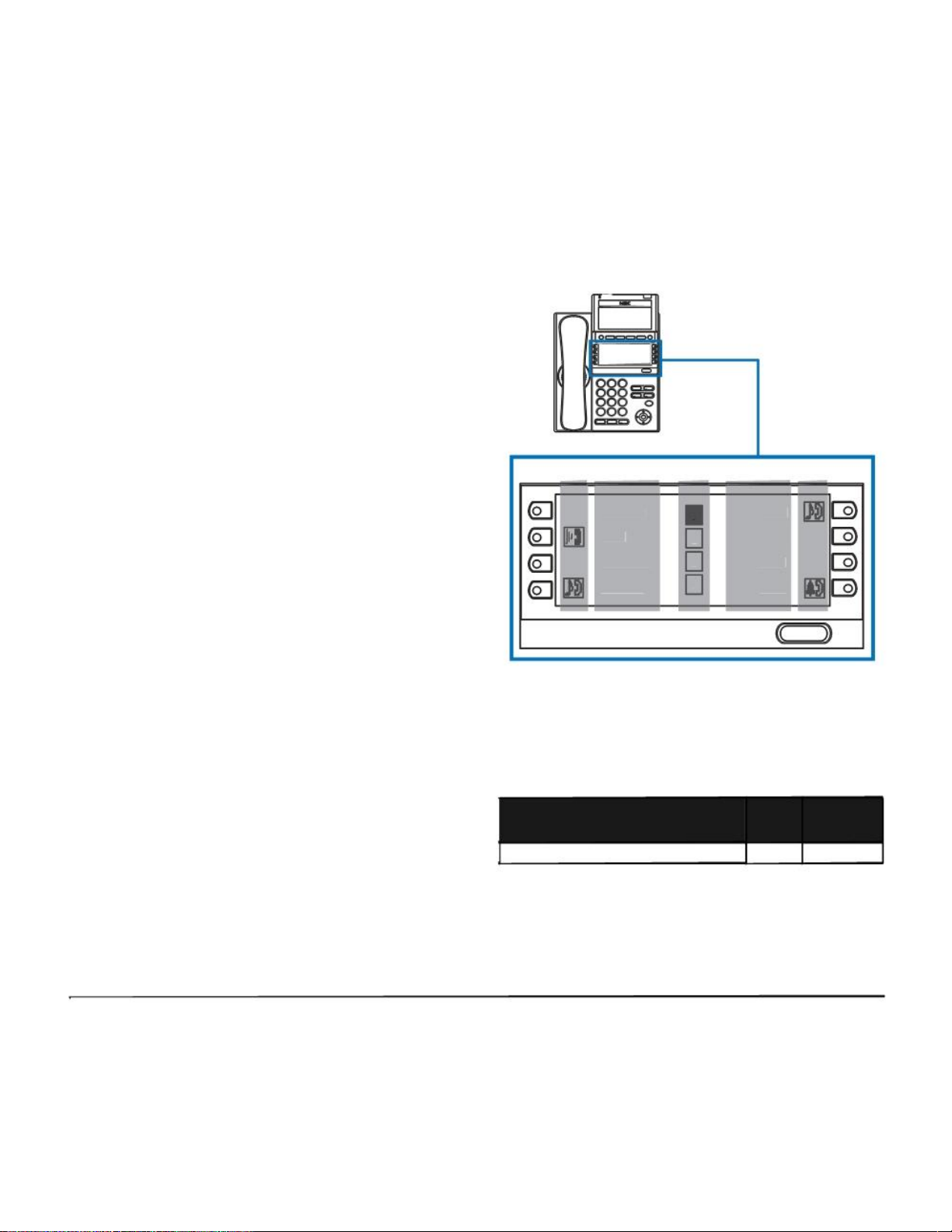
8LD Display (only for DTL-8LD-1)
32 (8 keys x 4 pages) additional programmable
keys (Flexible Line/Programmable Feature key)
are provided. Also, information set to each programmable key is displayed on 8LD display. For
setting of the programmable key, contact Telephony Server Administrator.
When Telephony Server Administrator sets “One-
Touch Speed Dial key” on the programmable keys,
users can assign any numbers (ex. Telephone
number, etc.) to the key (see TO ORIGINATE A
CALL USING SPEED CALLING (ONE-TOUCH
GHI
(a) (b) (C) (b) (a)
Rachel 1 Julia
Ben 2 FDA
Hannah 3 FDN
James 4 Paul
Scroll
(a) Icon
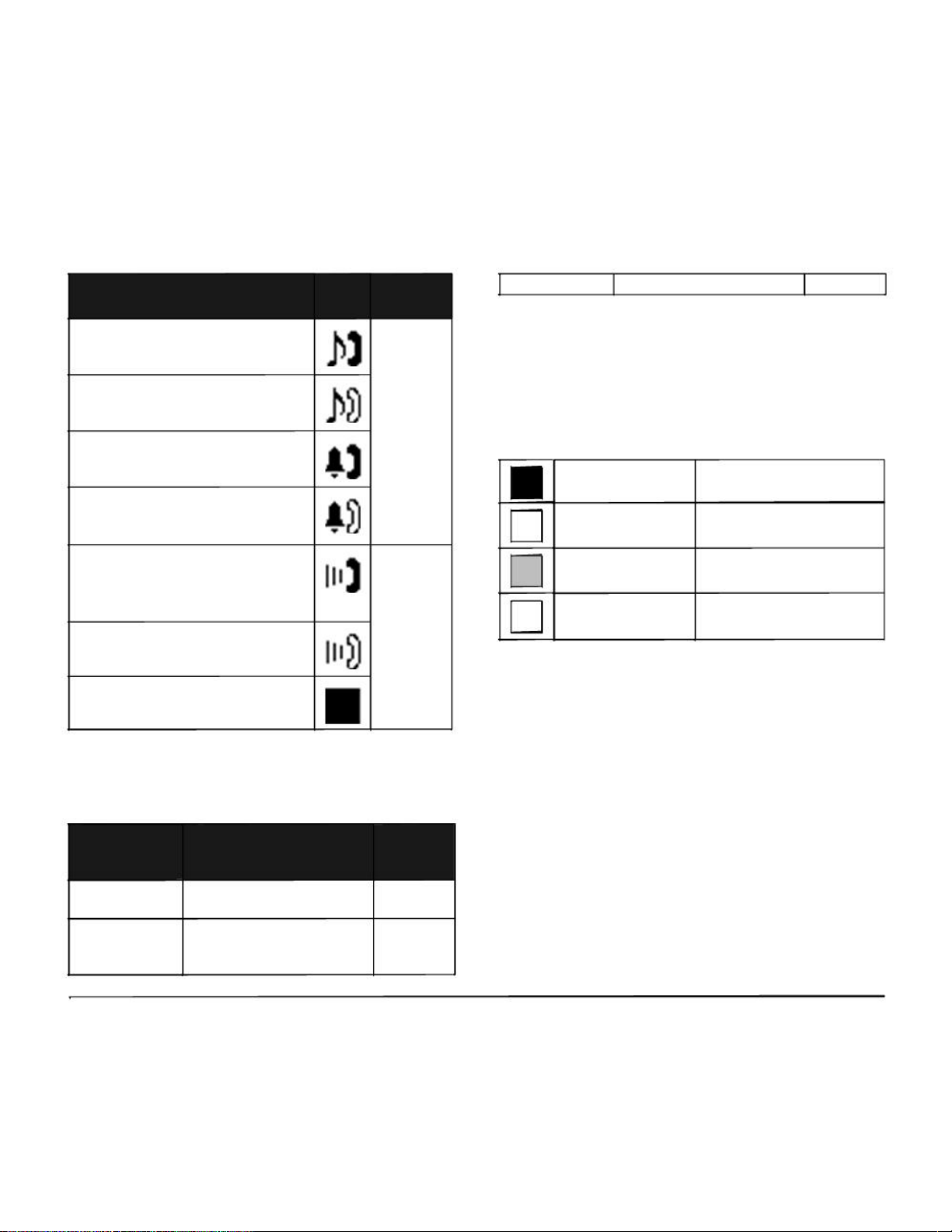
Status information on the Line key such as Call termination, Call Hold or Busy can be indicated as following Icons.
Flashing
SPEED CALLING KEYS) and TO REGISTER
NAME ON ONE-TOUCH SPEED CALLING KEY).
User’s Status Icon
• Idle No Icon
Pattern
* For the assignment of the keys, confirm to the
Telephony Server Administrator.
1.
User’s Status
• Call Hold
(Individual Hold/Individual Hold on
Call Park Group)
• Call Hold
(Other Party Hold/Other Party Hold on
Call Park Group)
• Recall (Individual Hold/Exclusive
Call Hold/Call Transfer/Individual
Hold on Call Park Group)
• Recall (Other Party Hold/Other Party Hold on Call Park Group)
Icon
Flashing
Pattern
Blink
(The icon
will blink
per one
second
cycle.)
Feature Key — Feature Name 6 digits
(c) Page Icon
8LD display has four pages (8 programmable keys
per page). Page Icon key indicates currently displayed page. The user can switch the programmable key display from page 1 to 4 by using Scroll
key.
Programmable Key Black background indicates
1 1-8 currently displayed page.
Programmable Key
• Incoming Call
• During Conversation (Individual
Use)
• Call Transfer
• Conference
• During Conversation (Other Party
2
3
4
Steady Lit
9-16
Programmable Key Flashing indicates page with
17-24 event happening.
Programmable Key
17-24
Use)
• Active Feature (Under a setting of
feature key like a “Call Forwarding”)
(b) Programmable Key Information
Programmable Key Information displays the following.
Maximum
Key Description digits to be
displayed
— Name and Number informa-
Note: The icon flashes during events such as call termi-
nation to a line key or call back.
Line Key
One-Touch
Speed Dial Key
tion 8 digits
— Speed Dial Name Information 8 digits
— Number Information
1.
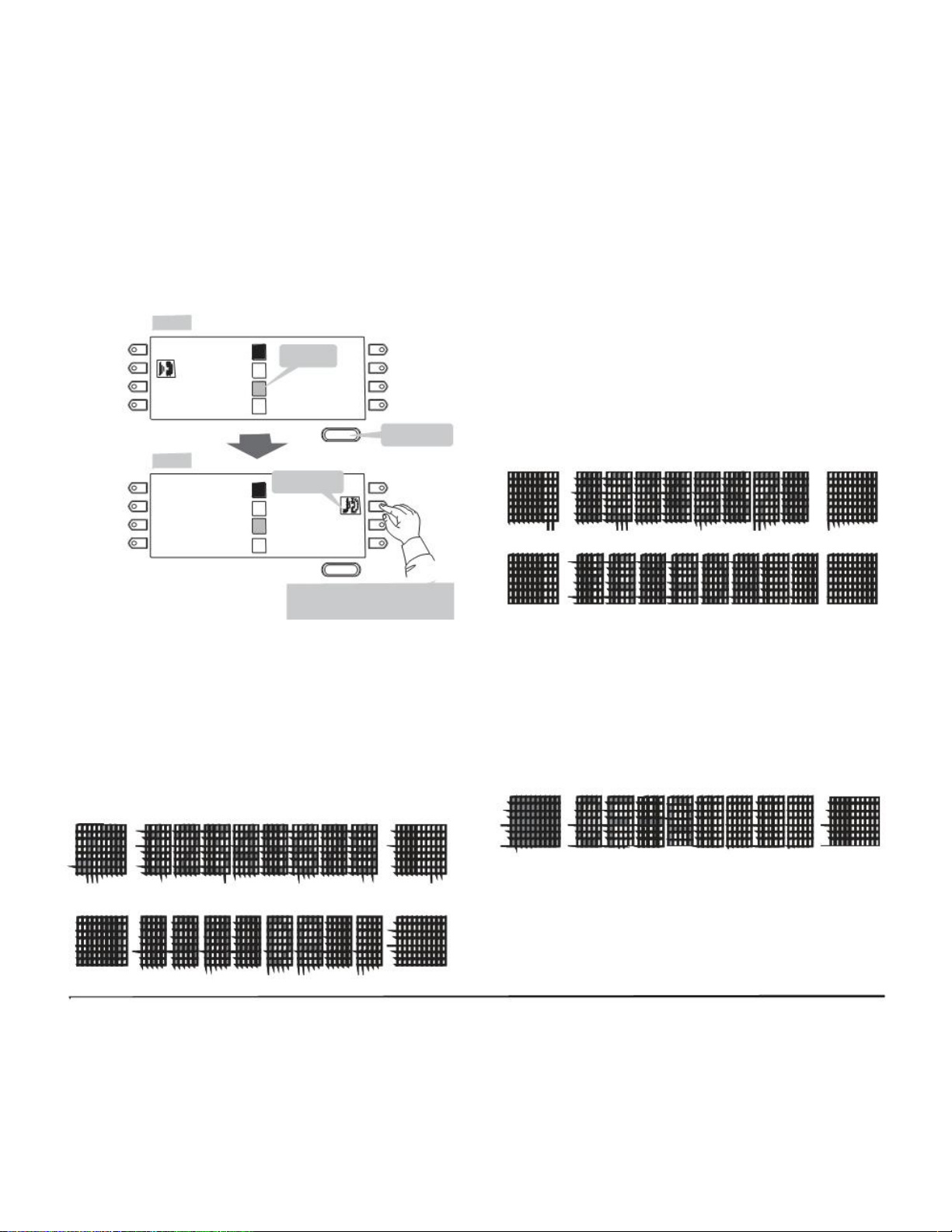
Example: Page Turning by Scroll Key
Page 1
Key No. 1 Rachel 1 nglia Key No. 5
Appropriate icons are displayed according to the
feature. These displays cannot be changed by
user.
Key No. 2 Ben
Key No. 3 Hannah
Key No. 4 012345
Switch Page
Page 3
Key No. 17 Peter
Key No. 18 Michael
Key No. 19 Powell
Key No. 20 James
Flashi
2 FDA Key No. 6
3 FDN Key No. 6
4 Paul Key No. 8
Scroll Press twice.
Call on Hold
1 Key No. 21
2 Julia Key No. 22
3 Key No. 23
4 Key No. 24
Scroll
Press Feature Key 2 on Page 3
to answer incoming call.
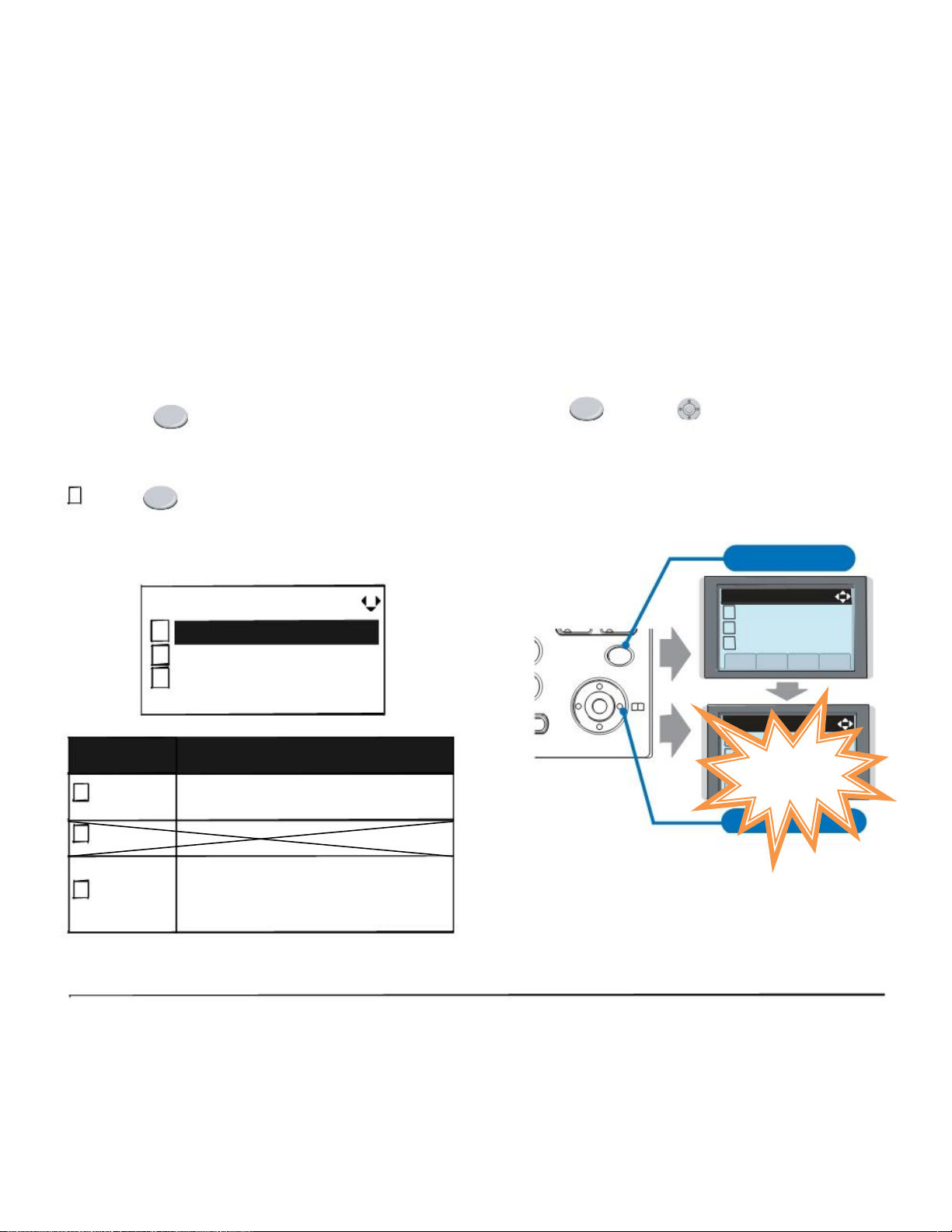
The following shows each LCD indication when
One-Touch Speed Dial key is set to Programmable
key.
When Station line/Trunk line are assigned.
OR
No icons are displayed.
Note: For example, when an incoming call is terminated
to a line key on Page 3 while Page 1 is being displayed on the screen, the screen is not automatically switched from Page 1 to Page 3. The user
must display Page 3 manually and then answer the
incoming call.
The following shows LCD indication of Programmable keys.
OR
* Users can register name on each One-Touch
Speed Dial key. For the procedures, see TO REG-
ISTER NAME ON ONE-TOUCH SPEED CALLING
KEY.
When any features using feature access code
are assigned.
Icons turn black.
* Users can register name on each One-Touch
Speed Dial key. For the procedures, see TO REG-
ISTER NAME ON ONE-TOUCH SPEED CALLING
KEY.
1.
(3) Scroll Key
This key is used to turn over the page of 8LD display.
MENU KEY
From the
Menu
Key, the user can use various
application features such as Directory and Call History.
To Display Menu List
Press Menu key while indicating the current time
on LCD. The Menu List is displayed in LCD. Use
Cursor Key to select desired Menu Item.
Main Menu for DT330 Series
[Menu]
Note: Unavailable Menu items are grayed out.
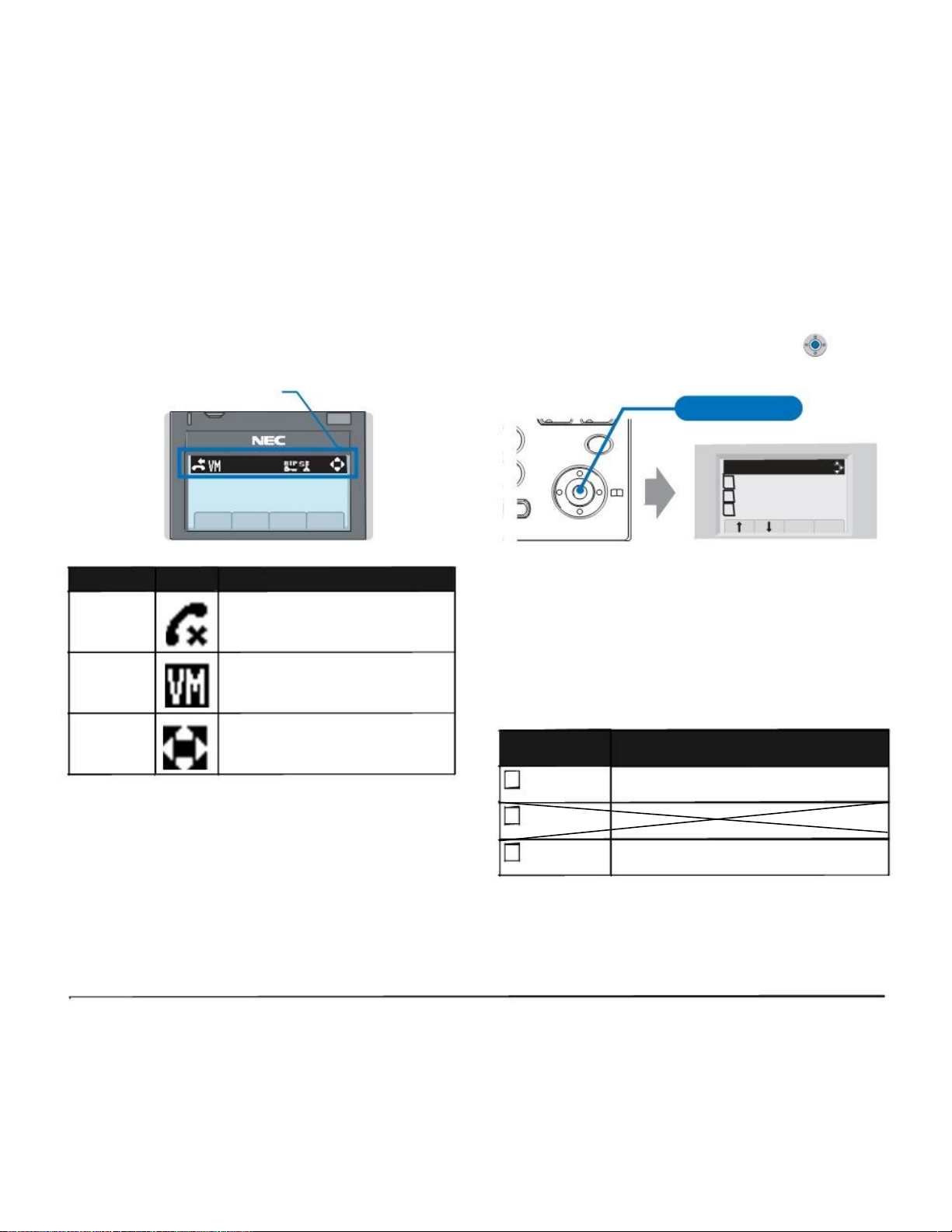
SIMPLE OPERATION BY MENU KEY
AND CURSOR KEY
By using Menu key and key, DT Series user can
access to Call History, Directory and terminal settings
with simple operation.
As an example, the following shows the operations how
to access to Directory menu.
Press Menu key
[Menu]
1 Hisotry
GHI Answer Mic
1
2
3
Menu Item
1 Call History
2 Directory
3 Setting
Call History
Directory
Settings
Back OK
Description
To view Call History. For details, see
6.1FOR DT330 SERIES in chapter 6 Call
History Operation.
To use Phonebook function. For details,
see PHONEBOOK in chapter 5.
To set up the terminal such as ringing
volume control, LCD display setting and
download of Music on Hold. For details, see
SETUP WITH MENU KEY FOR DT300
SERIES.
9
WXYZ Menu
#
Redial
Speaker
2 Directory
3 Tool
Up Down Back OK
[Directory]
1 Personal
2 System
Up Down Back OK
Press Directory key
Note: DTL-6DE-1/DTL-2E-1 does not have Menu key.
1.
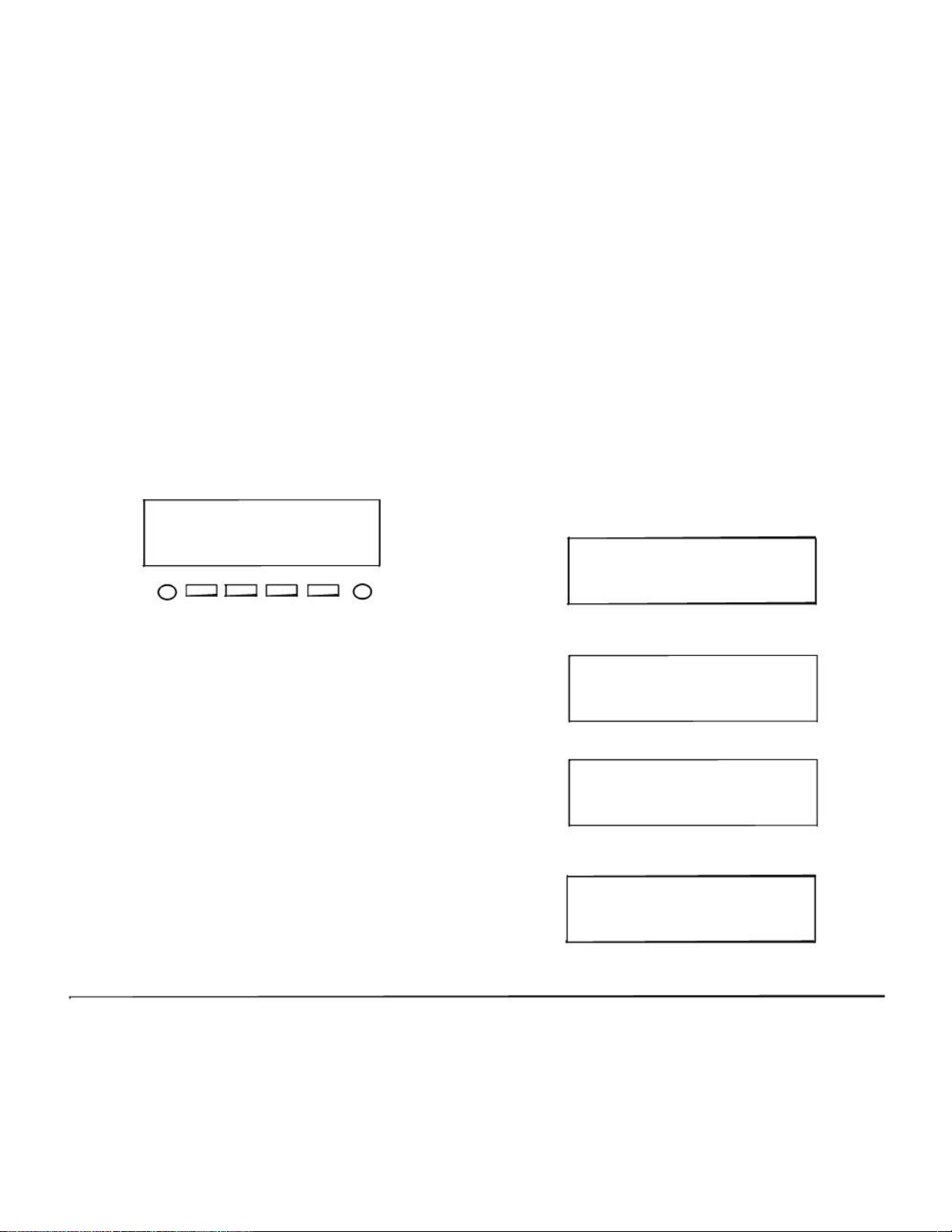
ICON DISPLAY
The LCD of DT330 Series displays Desktop Icons
which provide notification when events (such as missed
call and voice mail) occur.
Icon Display
4:26 PM TUE 13 APR 2007
SHORTCUT MENU
As shown in the figure below, DT330 Series has
Shortcut Menu for frequently-used features. The user
can access to Shortcut Menu by pressing (Enter)
key.
GHI Press Enter Key
Answer Mic
9
WXYZ Menu
# [Shortcut Menu]
1 Missed Calls
Redial 2 Voice Mail
Speaker
3
MIC DND >>>
Receive IM
Back OK
Feature Icon
Missed Call
Voice Mail
Cursor
Description
This icon appears when there is a
missed call. Once the user has
checked the missed call, this icon will
disappear.
This icon provides notification of
incoming Voice Mail. Once the user
has checked the mail, this icon will
disappear.
This icon indicates the currently
available direction of the Cursor key.
Note: DT310 Series does not support the Shortcut
Menu.
Shortcut Menu includes the following features.
Note: Unavailable Menu items are grayed out.
Shortcut Menu for DT330 Series
Feature Description
1 Missed Calls Access to history of Missed Call.
2 Voice Mail Access to history of incoming Voice Mail.
3 Bluetooth Currently Not Used (grayed out).

1.
PROGRAMMABLE FEATURE KEYS
These are examples of DT Series features available by
pressing the programmable keys. Some features using
feature access code may be programmed by the user.
Others must be programmed by the telephone system
administrator.
AICM:
Press key to activate “Automatic Intercom”.
DICM:
Press key to activate “Dial Intercom”.
DND (Do Not Disturb):
Press key to activate or cancel “Privacy” feature.
FDA:
Press key to activate or cancel “Call Forwarding — All
Calls” feature.
FDN:
Press key to activate, verify or cancel “Call Forwarding
Ŕ Busy Line” feature.
SPD:
One Touch Speed Calling.
MW-SET:
Press key to leave message waiting indication on
boss’ station from secretary’s station.
MW-OFF:
Press key to cancel message waiting indication on
boss’ station from secretary’s station.
P—RLS:
Press key to release “Privacy” feature.
S&R (Save and Repeat):
Press key to store a number or redial a stored number.
SIG:
Press key to cause chime at predetermined station.
NAME:
Press key to register name for the key to One-Touch
Speed Calling key.
1.
SOFT KEYS
The Soft Keys on the DT Series provide a set of
functions on the LCD that adapts to the changing state
of the telephone. While default Soft Key settings are
provided, desired functions can be assigned to
individual stations as required. The Soft Keys, at the
bottom of the LCD, can display the names of available
functions, names of user-assigned functions and
names of functions assigned by a specific Soft Key
pattern. Displayed Soft Keys can vary, depending on
the state of the phone and/or when the Next/Previous
button is pressed.
4051
7:35 AM MON 18 JUL 2002
MIC DND >>>
Exit Help
Note:
Soft Key function is available for the terminals
with LCD.
Exit Key
Press to exit from the Menu or Help mode and go back
to the time display.
Help Key
Press the Help Key, then desired Soft Key for helpful
information about that key.
MIC (Microphone)
Press the Soft Key below «
MIC
» to activate or
deactivate the Microphone. LED on Mic key will
illuminate when Mic is on.
Default Displays for Each Status
Default Soft Key settings are provided corresponding to
particular functions. Different Soft Key settings are
displayed at the bottom of the LCD depending on the
status, as shown below.
Different patterns of Soft Key settings can be registered
for individual call status and assigned to individual
terminals as required.
IDLE
4:26 PM TUE 13 APR 2004
NAME HSET MIC >>>
DIAL TONE/DIALING
(1) 4:26 PM TUE 13 APR 2004
RLS HSET PICK >>>
Push >>>
(2) 4:26 PM TUE 13 APR 2004
VOICE HSET RLS >>>
RINGING
4:26 PM TUE 13 APR 2004
CONF HSET RLS >>>

1.
The following shows the default display patterns of
BUSY
BUSY 2000
(1) 4:26 PM TUE 13 APR 2004
MUTE HSET RLS >>>
Push >>>
BUSY 2000
(2) 4:26 PM TUE 13 APR 2004
S&R >>>
CONNECTION
2000
4:26 PM TUE 13 APR 2004
MIC DND >>>
CONSULTATION HOLD
TRANSFER 2000
4:26 PM TUE 13 APR 2004
MIC CONF >>>
Soft Key Features
When the Soft Key corresponding to a desired feature
name is operated, the selected feature name starts to
blink on the LCD. The blinking display of available
features takes precedence over the display of features
specified by the Soft Key pattern.
Note:
The Soft Keys can be programmed in System
Data to blink, remain steady, have no indication,
or display a character when either in use or idle.
main features.
PICK (Call Pickup – Group)
Permits a station user to answer any calls directed to
other lines in the user’s preset Call Pickup Group.
CONF (Three-way Calling)
Enables a station user to establish a three-way
conference by connecting an additional party to an
already existing conversation.
VOICE (Voice Call)
Enables the user to make a call to the called party’s
built-in speaker. If the called party’s MIC is on, the
called party can converse on hands-free.
MIC (Microphone On/Off)
Allows the user to turn the microphone on and off for
use with the speakerphone.
HSET (Headset)
Allows the user to go off-and on-hook when using the
headset.
RLS (Release Key)
Allows the user to release the current call when using the
headset, without waiting for the party to hang up.
S&R (Save and Repeat)
Allows a station to save a specific dialed number and
then redial that number later.

1.
MWSET (Message Waiting — Set)
Allows a station to set a Message Waiting indication or
lamp.
HOLD (Call Hold)
Permits a station user to hold a call in progress and to
return to the previously held call.
MWOFF (Message Waiting — Cancel)
Allows a station to cancel a Message Waiting indication
or lamp.
FDB (Call Forwarding – Busy Line)
Permits a call to a busy station to be immediately forwarded
to a predesigned station.
FDA (Call Forwarding – All Calls)
Permits all calls designated for a particular station to be
routed to another station regardless of the busy or idle
status of the called station.
FDL (Logged Out IP Station – Call Destination)
Enables a system to transfer the call to appropriate
station when Dterm whose LOGGED OUT IP STATION
Ŕ CALL DESTINATION has already been registered is
in logout status.
S-SPD (Speed Calling — System)
Allows a station user to call certain frequently dialed
numbers using fewer digits (abbreviated call codes)
than would normally be required.
CAS (CAS—Switch Hook Flash)
Allows the user to send a switchhook flash while on an
outside trunk.
UCDBO (UCD Busy Out)
Allows a station user to block UCD calls and to cancel
Busy Out.
FLASH (Flash)
Provides the station with a switchhook flash.
FDN (Call Forward — No Answer)
Permits a call to an unanswered station to be forwarded
to a predesignated station if the called station does not
answer within a predetermined period of time.
C—RPT (ISDN Malicious Call Trace)
Allows the user to initiate a Call Trace on ISDN calls
only.
G—SPD (Speed Calling — Group)
Allows a station user to share a set of common Speed
Calling numbers with other station users in the group.
P—RLS (Privacy Release)
Allows another station to depress a busy line button
and enter the conversation of a station already
engaged in communication.
DND (Do Not Disturb)
Allows a station user to deny access to the station line
for incoming calls.
E—OVR (Executive Override)
Enables selected stations users, upon encountering a
busy condition at an internal station, to bridge into the
busy connection.
PAGE (Button Page)
Allows the user to toggle between pages when two
numbers are registered on One-Touch Speed Calling
key.
CW (Call Waiting)
Enables a busy station to receive a second incoming call.
Loading…
Предлагаем вам документ Инструкция по эксплуатации на NEC DT300 Series: PDF файл 1.79 Mb, 41 страниц.
Инструкция по эксплуатации DT300 Series — читать онлайн или скачать бесплатно. Также, вы можете задать любой вопрос про NEC DT300 Series.
Скачать файл Инструкция по эксплуатации NEC DT300 Series
Размер файла: 1.79 Mb
Кол-во страниц: 41
Просмотров: 65535
Тип файла: Portable Document Format (PDF)
Вы робот?
60
Скачать Инструкция по эксплуатации:
nec-dt300-series-user-s-manual.pdf

Читать онлайн NEC DT300 Series Инструкция по эксплуатации
←
1/41
→
←
1/41
→
- Инструкции и руководства
- Бренды
- NEC
- Телефоны
| Продукт | Модель |
|---|---|
| 16D and 8D | |
| Справочник Пользователя (English) | |
| 10930 95 | |
| Справочник Пользователя (English) | |
| 1093099 | |
| Справочник Пользователя (English) | |
| 17600SUG05 | |
| Справочник Пользователя (English) | |
| 16 | |
| Справочник Пользователя (English) | |
| 120 | |
| Техническое РуководствоТехническое Руководство (English)Справочник Пользователя (English)Брошюра (English)Справочник Пользователя |
| Продукт | Модель |
|---|---|
| 2014 | |
| Справочник Пользователя | |
| 2000IVX | |
| Справочник Пользователя | |
| 2400IPX | |
| Справочник Пользователя (English) | |
| 24 | |
| Справочник Пользователя | |
| 2000 PBX | |
|
Инструкция для NEC 2000 PBX скоро будет доступна. |
|
| 28i System | |
|
Инструкция для NEC 28i System скоро будет доступна. |
| Продукт | Модель |
|---|---|
| 408 vm | |
| Справочник Пользователя (English)Справочник Пользователя | |
| 48 | |
| Справочник Пользователя (English) | |
| 4-Button IP Keyset | |
| Справочник Пользователя (English) |
| Продукт | Модель |
|---|---|
| 77000WEB02 | |
| Справочник Пользователя (English) |
| Продукт | Модель |
|---|---|
| 8-Jan | |
| Справочник Пользователя | |
| 824 | |
| Справочник Пользователя (English) |
| Продукт | Модель |
|---|---|
| 92600DSL05 | |
| Справочник Пользователя (English) |
| Продукт | Модель |
|---|---|
| AT-21 | |
| Справочник Пользователя (English) | |
| AT-35 | |
| Справочник Пользователя (English) | |
| AT-10 | |
| Листовка (English) | |
| AD-64 | |
| Справочник Пользователя (English) | |
| Aspire | |
|
Инструкция для NEC Aspire скоро будет доступна. |
|
| Aspila TOPAZ | |
|
Инструкция для NEC Aspila TOPAZ скоро будет доступна. |
|
| AT-50 | |
|
Инструкция для NEC AT-50 скоро будет доступна. |
|
| Aspire 4TXH | |
|
Инструкция для NEC Aspire 4TXH скоро будет доступна. |
|
| AT-40 | |
|
Инструкция для NEC AT-40 скоро будет доступна. |
| Продукт | Модель |
|---|---|
| Baseline Pro CLI | |
|
Инструкция для NEC Baseline Pro CLI скоро будет доступна. |
| Продукт | Модель |
|---|---|
| DTerm Series E Telephones | |
| Справочник Пользователя | |
| DTH-32D | |
| Справочник Пользователя (English) | |
| DS2000 | |
| Справочник Пользователя (English) | |
| DSX-40 | |
| Листовка (English) | |
| dsx-34 | |
| Дополнительное Руководство (English) | |
| dterm psiii | |
| Справочник Пользователя (English) | |
| dsx 1093099 | |
| Справочник Пользователя (English) | |
| DSX DSX-40 | |
|
Инструкция для NEC DSX DSX-40 скоро будет доступна. |
|
| DTL-12D-1 — DT330 — 12 Button Display Digital Phone | |
|
Инструкция для NEC DTL-12D-1 — DT330 — 12 Button Display Digital Phone скоро будет доступна. |
|
| Dterm Series I | |
|
Инструкция для NEC Dterm Series I скоро будет доступна. |
|
| DT330 | |
|
Инструкция для NEC DT330 скоро будет доступна. |
|
| Dterm Series E | |
|
Инструкция для NEC Dterm Series E скоро будет доступна. |
|
| DHT-32D | |
|
Инструкция для NEC DHT-32D скоро будет доступна. |
|
| DT700 | |
|
Инструкция для NEC DT700 скоро будет доступна. |
|
| DTERM I | |
|
Инструкция для NEC DTERM I скоро будет доступна. |
|
| Dterm Series III | |
|
Инструкция для NEC Dterm Series III скоро будет доступна. |
|
| DT310 | |
|
Инструкция для NEC DT310 скоро будет доступна. |
|
| DTR-1HM-1 | |
|
Инструкция для NEC DTR-1HM-1 скоро будет доступна. |
|
| DXE Series | |
|
Инструкция для NEC DXE Series скоро будет доступна. |
|
| DDXXEE SSeerriieess | |
|
Инструкция для NEC DDXXEE SSeerriieess скоро будет доступна. |
|
| DTH-1-1 | |
|
Инструкция для NEC DTH-1-1 скоро будет доступна. |
|
| DTR-1-1 | |
|
Инструкция для NEC DTR-1-1 скоро будет доступна. |
|
| DT830 Series | |
|
Инструкция для NEC DT830 Series скоро будет доступна. |
|
| DT730G (CG) | |
|
Инструкция для NEC DT730G (CG) скоро будет доступна. |
|
| DT300 Series | |
|
Инструкция для NEC DT300 Series скоро будет доступна. |
|
| DTERM I — AUTRE | |
|
Инструкция для NEC DTERM I — AUTRE скоро будет доступна. |
| Продукт | Модель |
|---|---|
| Electra-16 | |
| Справочник Пользователя (English) | |
| ELECTRA ELITE | |
|
Инструкция для NEC ELECTRA ELITE скоро будет доступна. |
|
| E series | |
|
Инструкция для NEC E series скоро будет доступна. |
|
| ELITE IPK II | |
|
Инструкция для NEC ELITE IPK II скоро будет доступна. |
|
| Electra 16/48 | |
|
Инструкция для NEC Electra 16/48 скоро будет доступна. |
|
| e132 | |
|
Инструкция для NEC e132 скоро будет доступна. |
| Продукт | Модель |
|---|---|
| IM-16 | |
| Справочник Пользователя (English) | |
| i-Series | |
| Справочник Пользователя (English) | |
| Inaset NEAX 2000 IPS | |
|
Инструкция для NEC Inaset NEAX 2000 IPS скоро будет доступна. |
|
| ITX-7PUC-TEL | |
|
Инструкция для NEC ITX-7PUC-TEL скоро будет доступна. |
|
| IPK II | |
|
Инструкция для NEC IPK II скоро будет доступна. |
|
| i-Series Alphanumeric Display | |
|
Инструкция для NEC i-Series Alphanumeric Display скоро будет доступна. |
|
| IP4VVW-24TXH-B TEL | |
|
Инструкция для NEC IP4VVW-24TXH-B TEL скоро будет доступна. |
| Продукт | Модель |
|---|---|
| Level II | |
|
Инструкция для NEC Level II скоро будет доступна. |
| Продукт | Модель |
|---|---|
| Mobile Handset 110 | |
|
Инструкция для NEC Mobile Handset 110 скоро будет доступна. |
|
| ML440 | |
|
Инструкция для NEC ML440 скоро будет доступна. |
| Продукт | Модель |
|---|---|
| NDK 900 | |
| Справочник Пользователя (English) | |
| ND-20292 | |
| Справочник Пользователя (English)Справочник Пользователя | |
| NEAX 2400 IPX | |
| Справочник Пользователя (English) | |
| NEAX 2000 IPS | |
| Справочник Пользователя (English)Справочник Пользователя (English) | |
| ND-71762(E) | |
| Справочник Пользователя (English) | |
| neaxmail ad-64 | |
| Справочник Пользователя (English) | |
| NEAX 2400 ICS | |
|
Инструкция для NEC NEAX 2400 ICS скоро будет доступна. |
|
| NEAX7400 ICS M110e | |
|
Инструкция для NEC NEAX7400 ICS M110e скоро будет доступна. |
|
| NEAXMail AD-40 | |
|
Инструкция для NEC NEAXMail AD-40 скоро будет доступна. |
| Продукт | Модель |
|---|---|
| OW5000 | |
|
Инструкция для NEC OW5000 скоро будет доступна. |
| Продукт | Модель |
|---|---|
| P/N 1093099 | |
| Справочник Пользователя (English) | |
| Portrait 308 | |
|
Инструкция для NEC Portrait 308 скоро будет доступна. |
| Продукт | Модель |
|---|---|
| R1000 | |
| Справочник Пользователя (English) | |
| Ranger D-824 | |
|
Инструкция для NEC Ranger D-824 скоро будет доступна. |
|
| Ranger DK-616 | |
|
Инструкция для NEC Ranger DK-616 скоро будет доступна. |
|
| Ranger DK-824 | |
|
Инструкция для NEC Ranger DK-824 скоро будет доступна. |
| Продукт | Модель |
|---|---|
| Single Line Telephone | |
| Справочник Пользователя (English)Справочник Пользователя | |
| SV7000 | |
| Справочник Пользователя (English) | |
| SV9100 | |
|
Инструкция для NEC SV9100 скоро будет доступна. |
|
| Single Line | |
|
Инструкция для NEC Single Line скоро будет доступна. |
|
| SoundTel NEC SV9100 | |
|
Инструкция для NEC SoundTel NEC SV9100 скоро будет доступна. |
|
| Series E | |
|
Инструкция для NEC Series E скоро будет доступна. |
|
| SV9300 | |
|
Инструкция для NEC SV9300 скоро будет доступна. |
|
| SL series | |
|
Инструкция для NEC SL series скоро будет доступна. |
|
| SL100 | |
|
Инструкция для NEC SL100 скоро будет доступна. |
|
| SoundTel NEC Univerge SV9100 | |
|
Инструкция для NEC SoundTel NEC Univerge SV9100 скоро будет доступна. |
| Продукт | Модель |
|---|---|
| Topaz AT-21 | |
|
Инструкция для NEC Topaz AT-21 скоро будет доступна. |
| Продукт | Модель |
|---|---|
| Univerge DT310 | |
|
Инструкция для NEC Univerge DT310 скоро будет доступна. |
|
| UNIVERGE DT300 Series | |
|
Инструкция для NEC UNIVERGE DT300 Series скоро будет доступна. |
|
| UNIVERGE SV9100 DT750 | |
|
Инструкция для NEC UNIVERGE SV9100 DT750 скоро будет доступна. |
|
| UNIVERGE SV810 | |
|
Инструкция для NEC UNIVERGE SV810 скоро будет доступна. |
|
| UNIVERGE UM8500 | |
|
Инструкция для NEC UNIVERGE UM8500 скоро будет доступна. |
|
| UT880 | |
|
Инструкция для NEC UT880 скоро будет доступна. |
|
| UNIVERGE SV9300 DT410 | |
|
Инструкция для NEC UNIVERGE SV9300 DT410 скоро будет доступна. |
|
| Univerge SV8100 DT310 | |
|
Инструкция для NEC Univerge SV8100 DT310 скоро будет доступна. |
| Продукт | Модель |
|---|---|
| Xn120 Talk | |
| Справочник Пользователя (English) | |
| XN120 | |
| Справочник Пользователя (English) | |
| XN 120 | |
| Справочник Пользователя (English)Справочник Пользователя (English) | |
| Xen | |
| Справочник Пользователя (English) | |
| XN XN 120 | |
|
Инструкция для NEC XN XN 120 скоро будет доступна. |
|
| XEN TOPAZ MULTILINE TELEPHONE | |
|
Инструкция для NEC XEN TOPAZ MULTILINE TELEPHONE скоро будет доступна. |
|
| XEN IPK ANALOGUE TELEPHONE | |
|
Инструкция для NEC XEN IPK ANALOGUE TELEPHONE скоро будет доступна. |
|
| Xn120 Vision | |
| Справочник Пользователя (English)Справочник Пользователя (English) |
NEC DT300 Series Telephone PDF User Guides and Manuals for Free Download: Found (3) Manuals for NEC DT300 Series Device Model (Operation & User’s Manual, Quick Reference Manual)
The NEC DT300 Series is renowned for its exceptional performance and innovative features, designed specifically for modern business communication needs. This product line showcases a perfect blend of advanced technology and user-friendly interfaces, catering to organizations that demand reliability and efficiency in their telephony systems. With the increasing reliance on effective communication tools, the NEC DT300 Series stands out as a worthy contender in the crowded telecommunications market.
One of the most significant advantages of the NEC DT300 Series is its range of features that facilitate seamless communication. Users benefit from high-definition voice clarity, which enhances call quality, allowing for clearer conversations. Additionally, the series supports various advanced functionalities such as:
- Call forwarding and call transfer options
- Voicemail functionality with remote access
- Programmable keys for personalized settings
- Directory support for easy access to contacts
- Wideband audio for superior sound quality
Moreover, the design of the NEC DT300 Series emphasizes user experience. The telephones come equipped with intuitive interfaces and large LCD screens, making navigation effortless. Users can customize their settings easily, tailoring the communication tools to fit their specific needs. The ergonomics of these devices ensure comfort during prolonged use, which is particularly beneficial in busy office environments.
Another noteworthy aspect of the DT300 Series is its versatility. These devices can be integrated with various NEC communication platforms, offering flexibility for businesses of all sizes. Whether for a small team or a large enterprise, the DT300 Series adapts seamlessly to different operational requirements. This scalability is crucial as companies grow and their telecommunication needs evolve.
In terms of reliability, the NEC DT300 Series has proven itself as a robust choice. Known for its durability, these phones are built to withstand daily usage without compromising performance. With stringent quality control measures in place, NEC ensures that users receive a dependable product that meets their expectations.
Furthermore, the support offered for the DT300 Series adds to its appeal. NEC provides comprehensive documentation and customer support, ensuring that users can troubleshoot issues effectively. Regular software updates and patches help maintain the system’s efficiency and security, giving users peace of mind in their communications.
However, it’s worth considering that while the NEC DT300 Series offers numerous benefits, the initial investment may be higher compared to some other brands. Nonetheless, the return on investment is evident through improved productivity and enhanced communication across the organization.
In conclusion, the NEC DT300 Series stands out as a robust and feature-rich option for businesses looking to enhance their communication systems. With its high-quality audio performance, user-friendly design, and versatility, it appeals to a wide range of organizational needs. The investment in this product line is justified by the technological advancements and support offered by NEC, making the DT300 Series an excellent choice for future-proofing business communications.