

1
Quick Start
Quick Start
Thank you for purchasing the MSI® MAG B560M MORTAR WIFI/ MAG B560M MORTAR
motherboard. This Quick Start section provides demonstration diagrams about how
to install your computer. Some of the installations also provide video demonstrations.
Please link to the URL to watch it with the web browser on your phone or tablet. You
may have even link to the URL by scanning the QR code.
Preparing Tools and Components
Intel® LGA 1200 CPU
CPU Fan
DDR4 Memory
Graphics Card
SATA Hard Disk Drive SATA DVD Drive
Phillips Screwdriver
Chassis
Power Supply Unit
A Package of Screws
Thermal Paste

2Quick Start
Safety Information
∙The components included in this package are prone to damage from electrostatic
discharge (ESD). Please adhere to the following instructions to ensure successful
computer assembly.
∙Ensure that all components are securely connected. Loose connections may cause
the computer to not recognize a component or fail to start.
∙Hold the motherboard by the edges to avoid touching sensitive components.
∙It is recommended to wear an electrostatic discharge (ESD) wrist strap when
handling the motherboard to prevent electrostatic damage. If an ESD wrist strap is
not available, discharge yourself of static electricity by touching another metal object
before handling the motherboard.
∙Store the motherboard in an electrostatic shielding container or on an anti-static
pad whenever the motherboard is not installed.
∙Before turning on the computer, ensure that there are no loose screws or metal
components on the motherboard or anywhere within the computer case.
∙Do not boot the computer before installation is completed. This could cause
permanent damage to the components as well as injury to the user.
∙If you need help during any installation step, please consult a certified computer
technician.
∙Always turn off the power supply and unplug the power cord from the power outlet
before installing or removing any computer component.
∙Keep this user guide for future reference.
∙Keep this motherboard away from humidity.
∙Make sure that your electrical outlet provides the same voltage as is indicated on
the PSU, before connecting the PSU to the electrical outlet.
∙Place the power cord such a way that people can not step on it. Do not place
anything over the power cord.
∙All cautions and warnings on the motherboard should be noted.
∙If any of the following situations arises, get the motherboard checked by service
personnel:
▪Liquid has penetrated into the computer.
▪The motherboard has been exposed to moisture.
▪The motherboard does not work well or you can not get it work according to user
guide.
▪The motherboard has been dropped and damaged.
▪The motherboard has obvious sign of breakage.
∙Do not leave this motherboard in an environment above 60°C (140°F), it may damage
the motherboard.
3
Quick Start
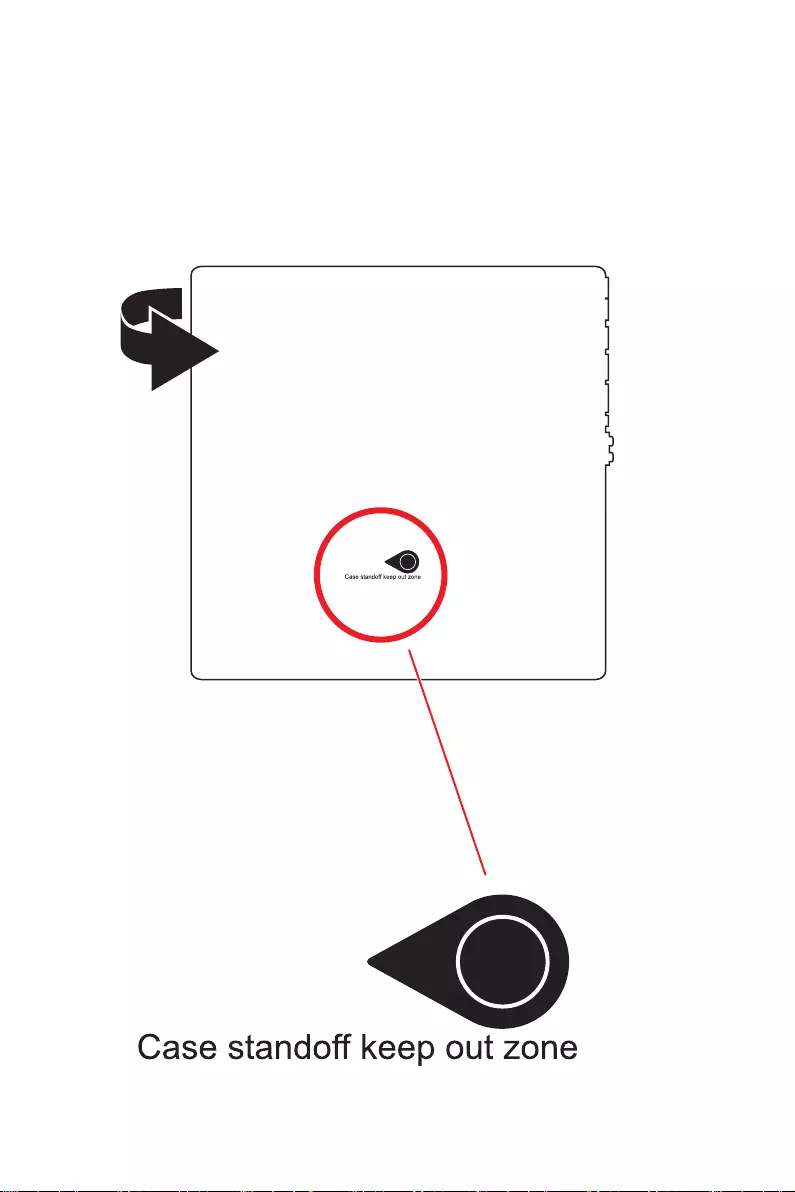
Case stand-off notification
Before installing the motherboard into the case, install first the necessary mounting
stand-off required for a motherboard on the mounting plate in the case.
To prevent damage to the motherboard, any unnecessary mounting stand-off between
the motherboard circuits and the computer case is prohibited. The Case standoff keep
out zone signs will be marked on the backside of motherboard (as shown below) to
serve as a warning to user.
4Quick Start
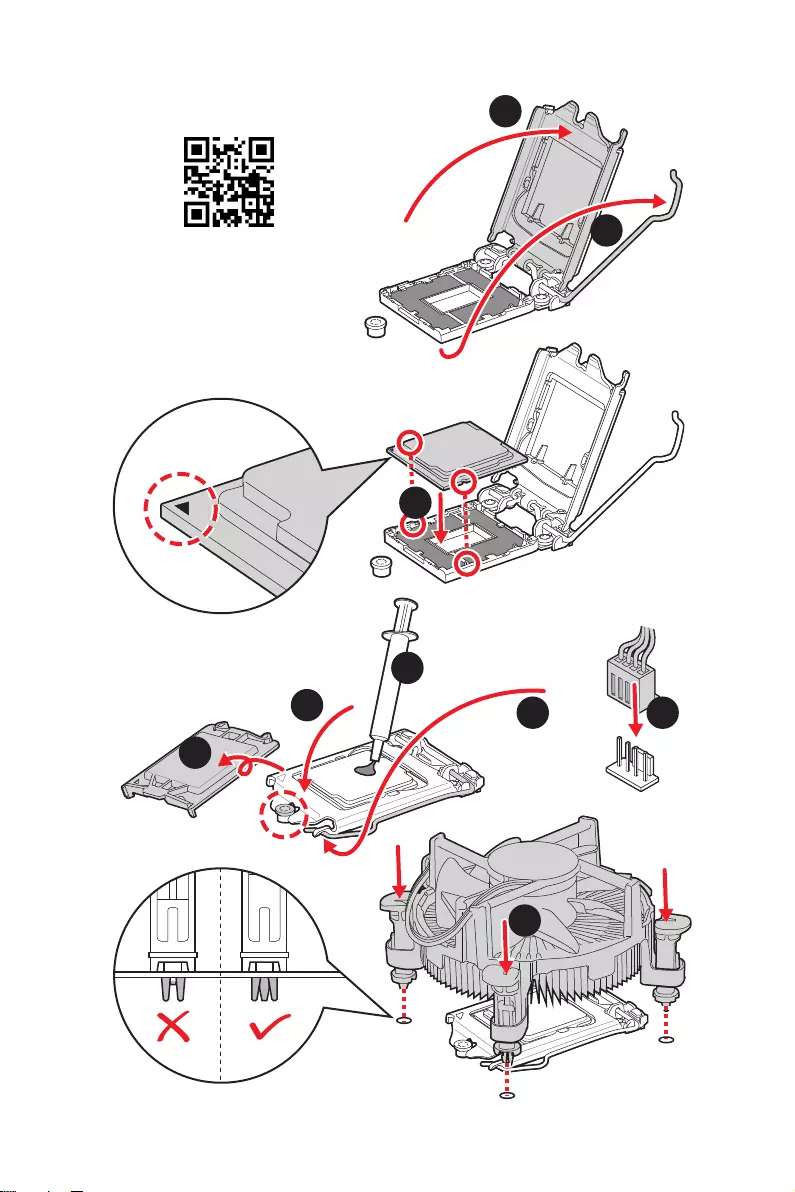
Installing a Processor
⚽
https://youtu.be/4ce91YC3Oww
1
2
3
6
45
7
8
9
5
Quick Start
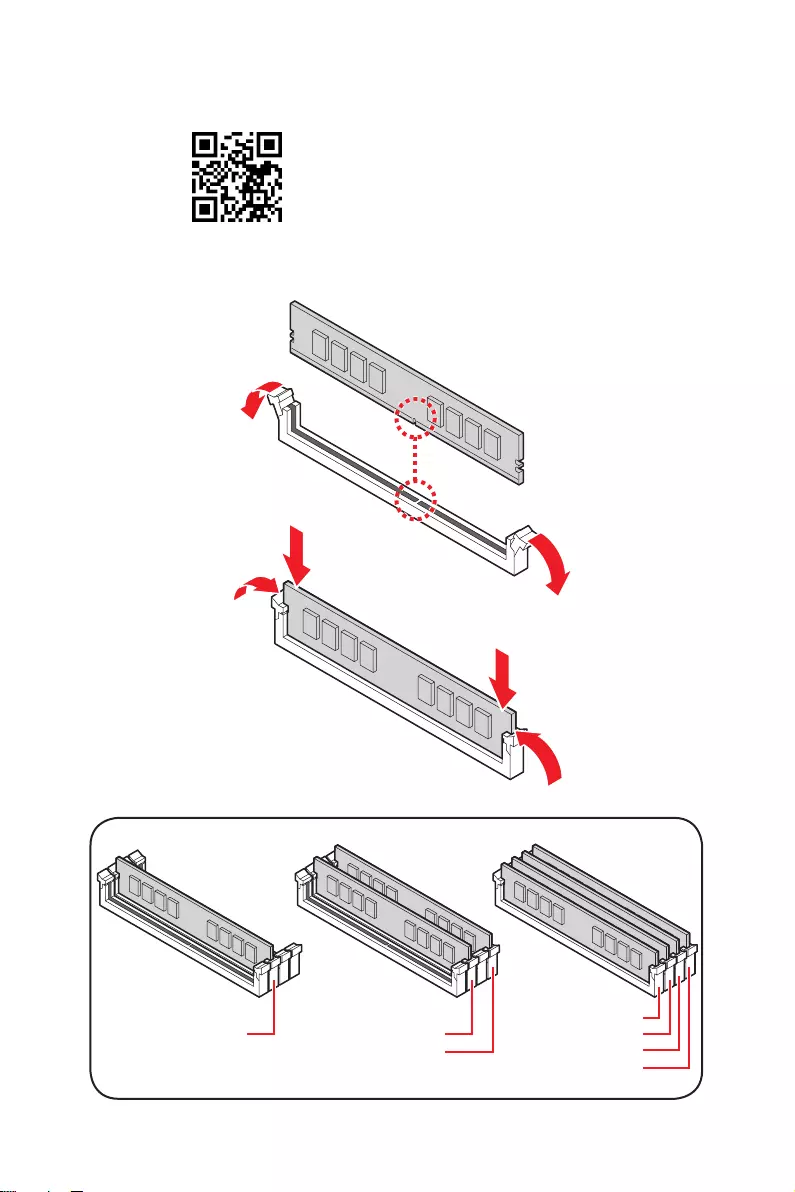
Installing DDR4 memory
⚽
DIMMA2 DIMMA2
DIMMB2
DIMMA1
DIMMA2
DIMMB1
DIMMB2
6Quick Start
HDD LED
RESET SW
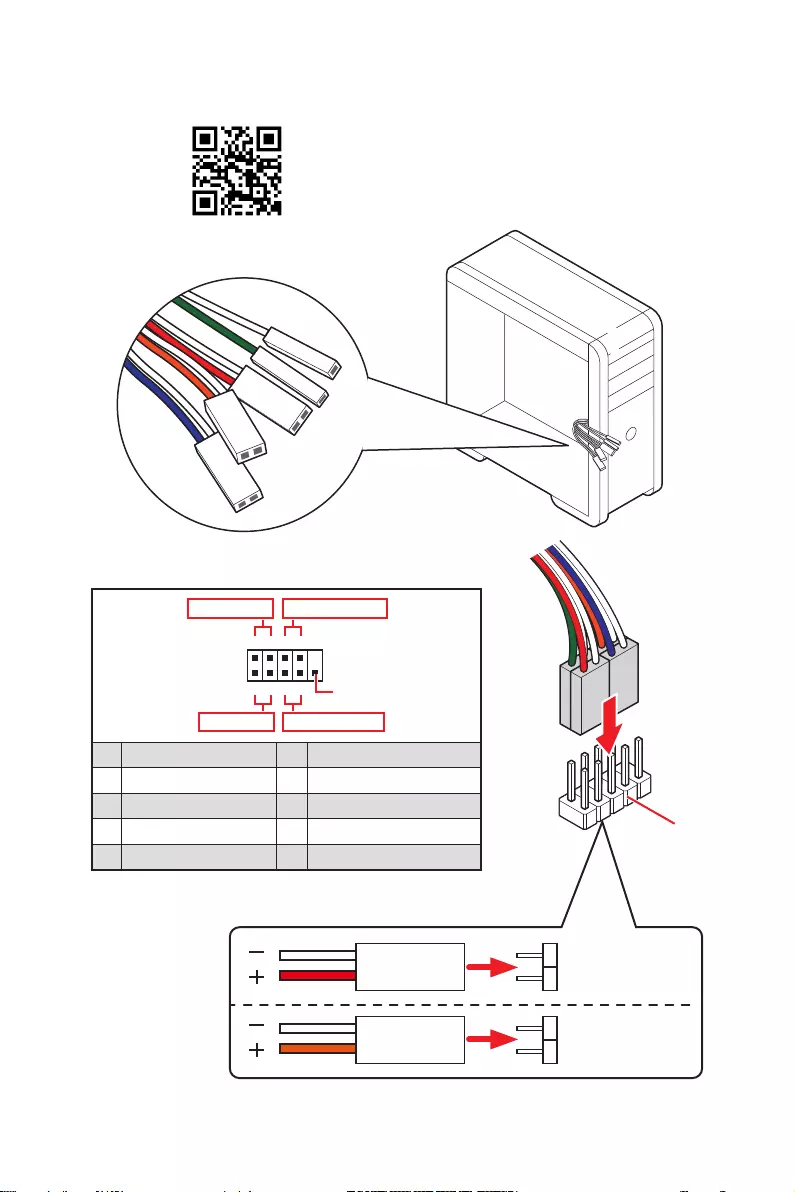
Connecting the Front Panel Header
JFP1
HDD LED HDD LED —
HDD LED +
POWER LED —
POWER LED +
POWER LED
1
2 10
9
+
+
+— ——
—
+
Power LED
HDD LED Reset Switch
Reserved
Power Switch
JFP1
1 HDD LED + 2 Power LED +
3 HDD LED — 4 Power LED —
5 Reset Switch 6 Power Switch
7 Reset Switch 8 Power Switch
9 Reserved 10 No Pin
RESET SW
POWER SW
POWER LED+
POWER LED-
HDD LED
⚽

7
Quick Start
BAT1
Installing the Motherboard
1
⚽
Torque:
3 kgf·cm*
*3 kgf·cm
= 0.3 N·m
= 2.6 lbf·in
2
8Quick Start
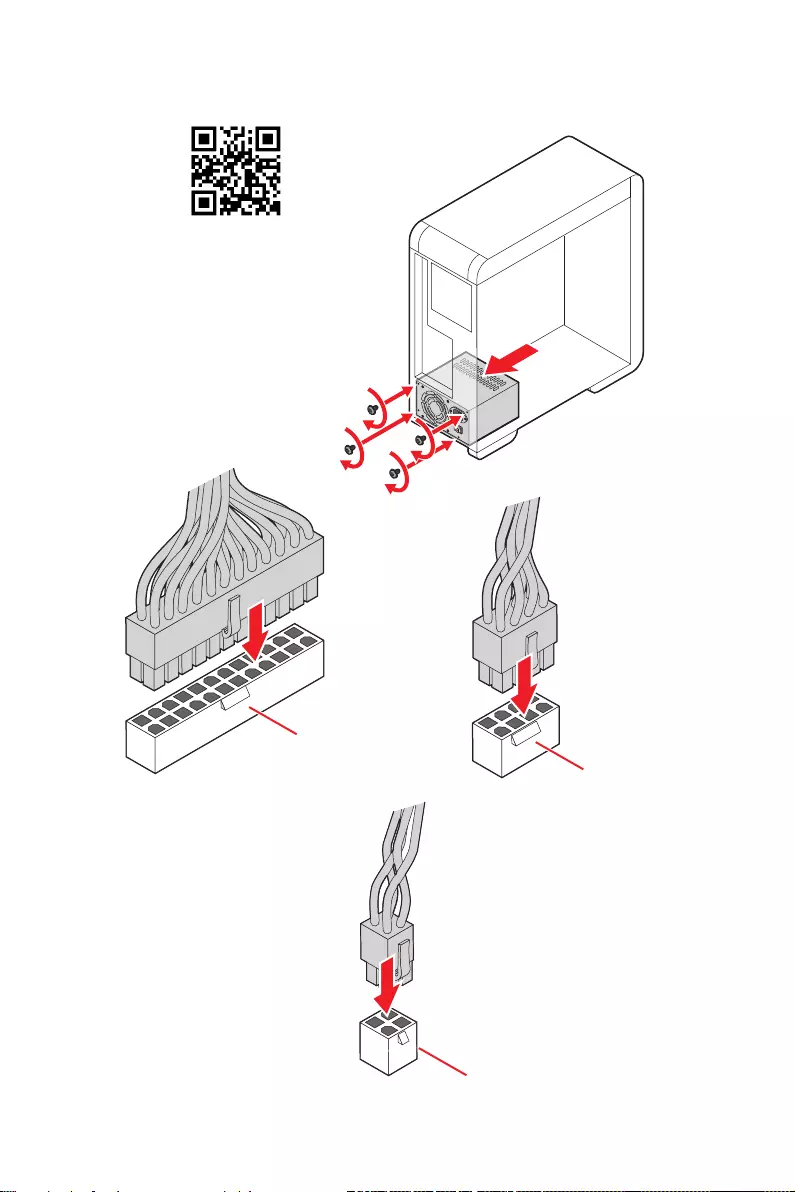
Connecting the Power Connectors
⚽
CPU_PWR1
ATX_PWR1
CPU_PWR2
9
Quick Start
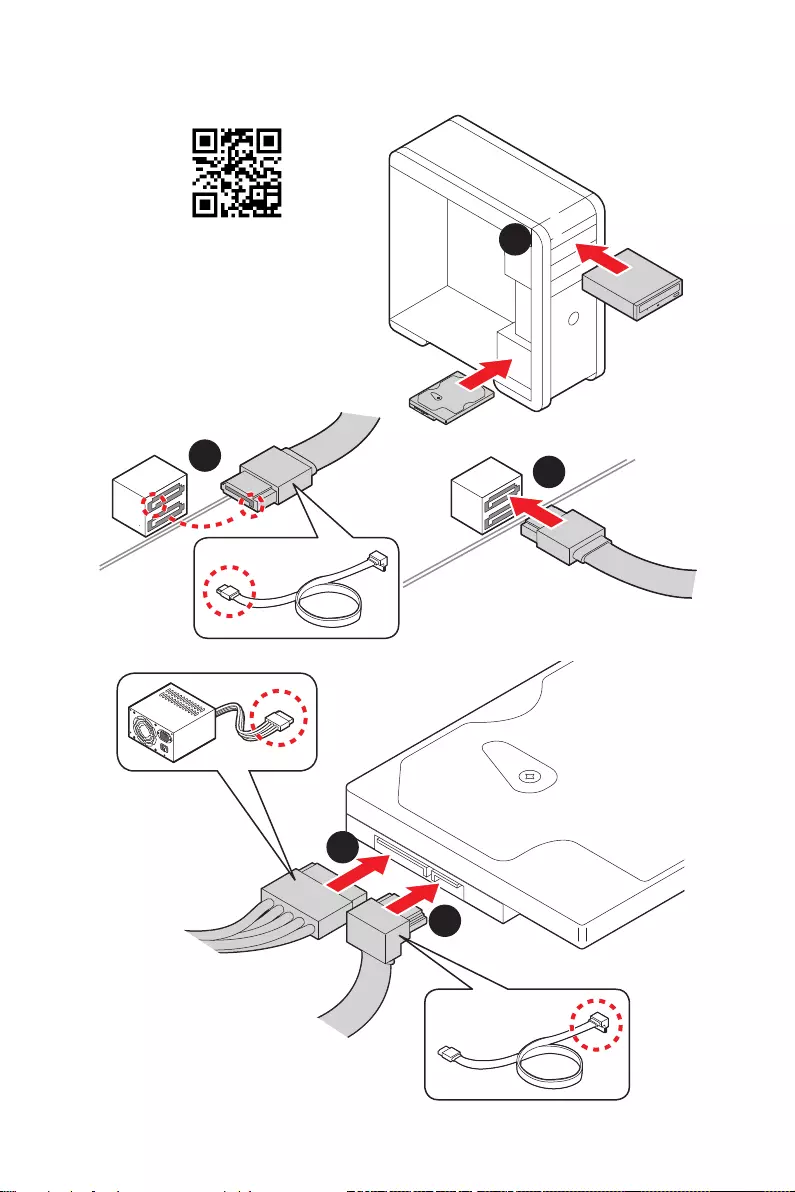
Installing SATA Drives
1
23
4
5
⚽
10 Quick Start
1
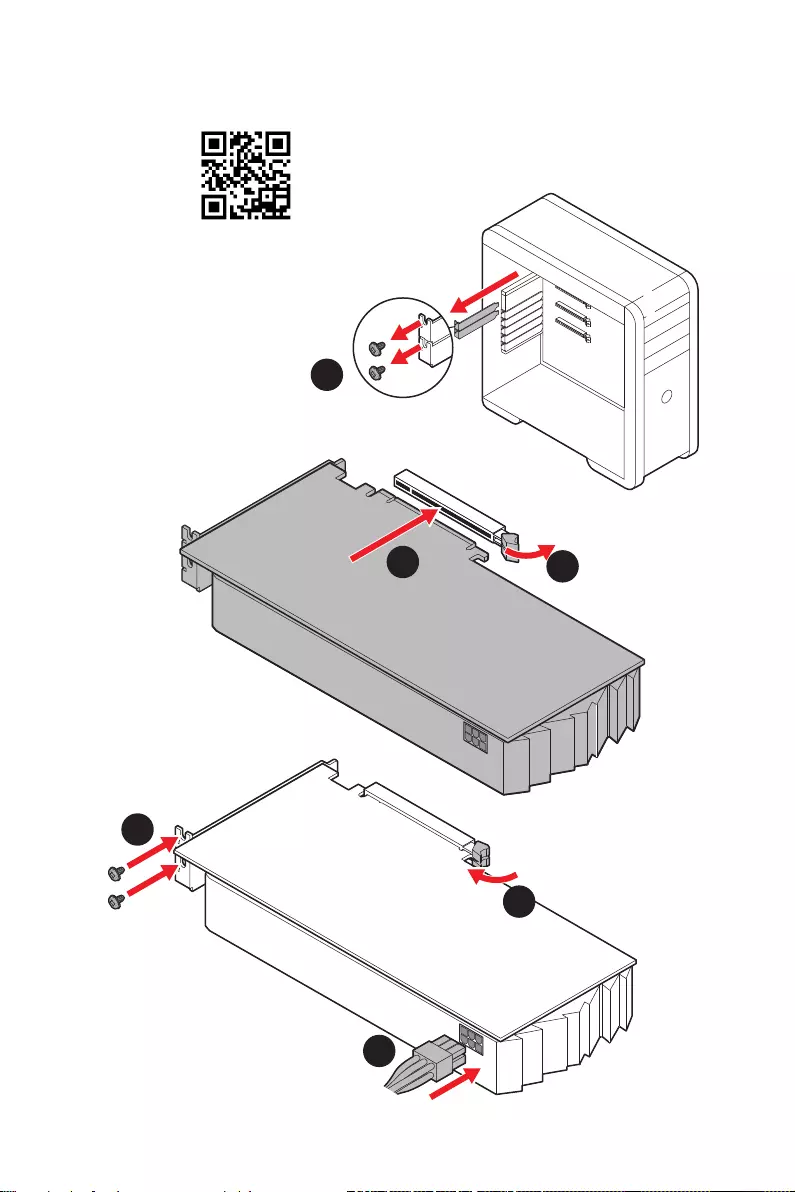
Installing a Graphics Card
2
3
4
5
6
⚽
11
Quick Start
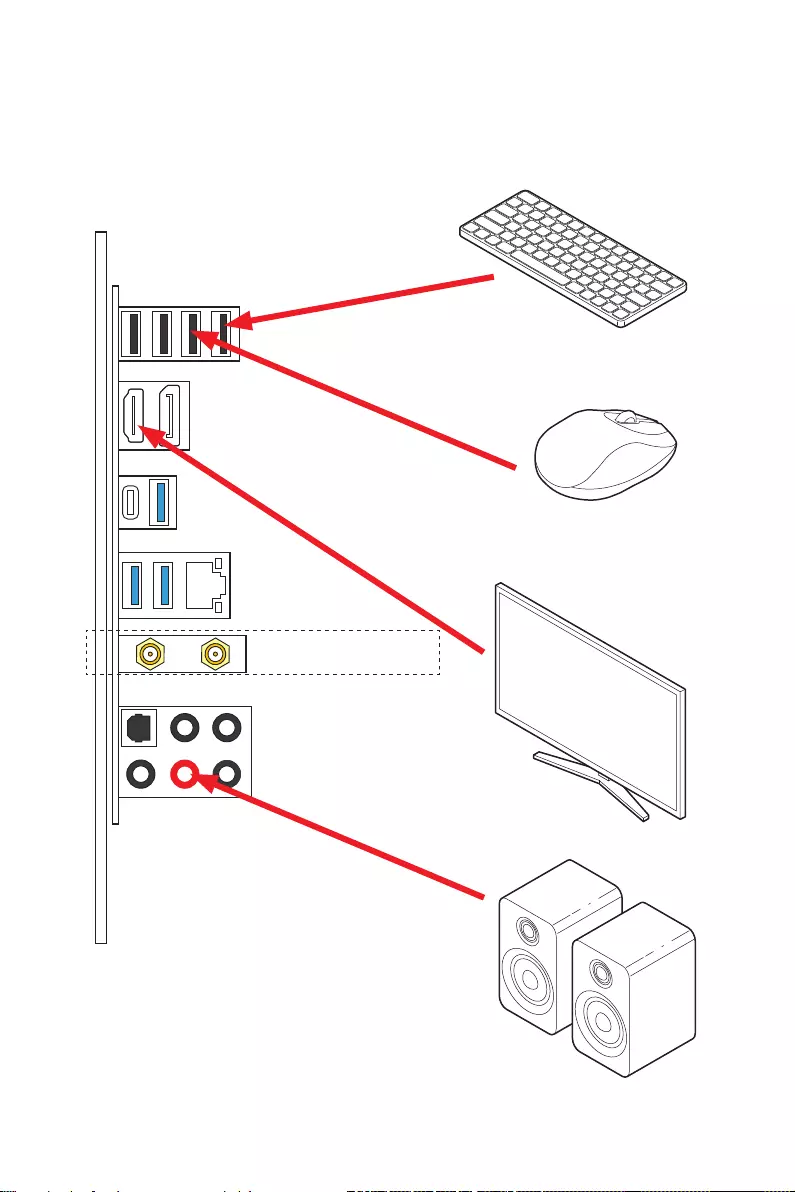
Connecting Peripheral Devices
(MAG B560M MORTAR WIFI)
12 Quick Start
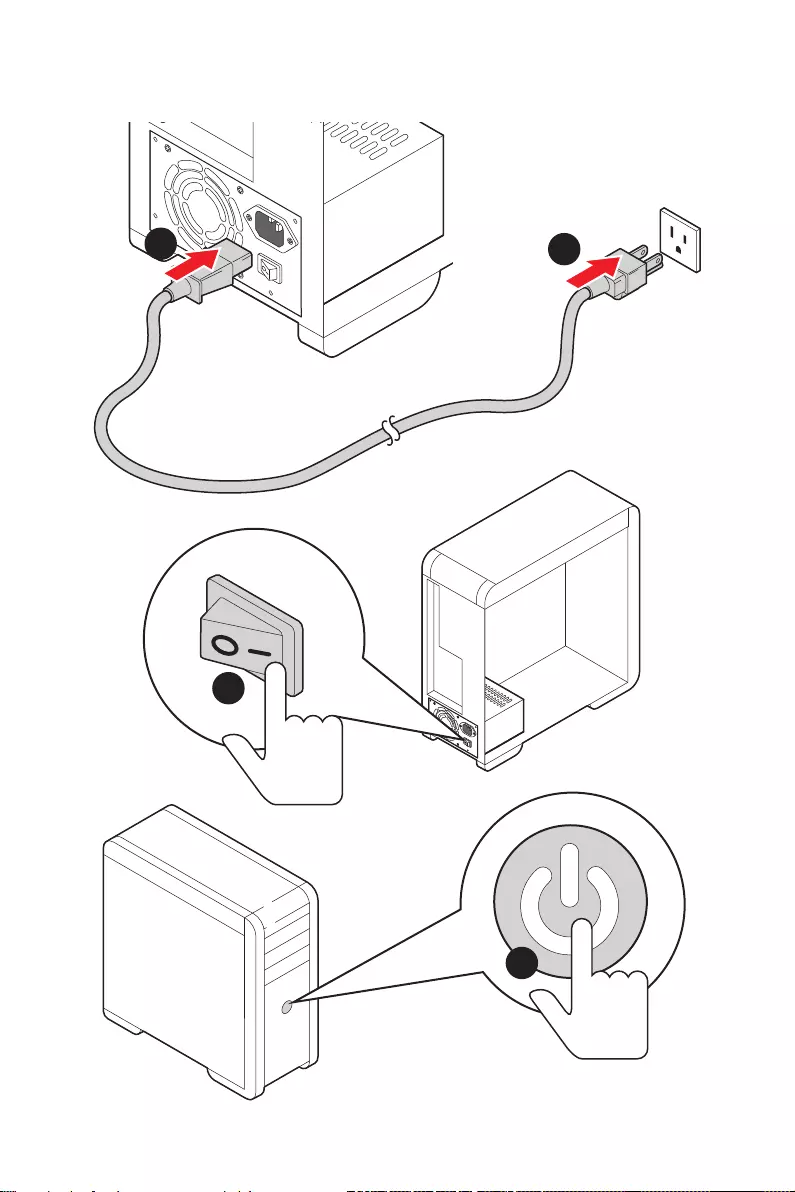
Power On
4
3
12

13
Contents
Contents
Quick Start ………………………………………………………………………………………………. 1
Preparing Tools and Components……………………………………………………………….. 1
Safety Information …………………………………………………………………………………….. 2
Case stand-off notification …………………………………………………………………………. 3
Installing a Processor ……………………………………………………………………………….. 4
Installing DDR4 memory ……………………………………………………………………………. 5
Connecting the Front Panel Header ……………………………………………………………. 6
Installing the Motherboard …………………………………………………………………………. 7
Connecting the Power Connectors ……………………………………………………………… 8
Installing SATA Drives ……………………………………………………………………………….. 9
Installing a Graphics Card ………………………………………………………………………… 10
Connecting Peripheral Devices …………………………………………………………………. 11
Power On ……………………………………………………………………………………………….. 12
Specifications …………………………………………………………………………………………. 15
Package contents …………………………………………………………………………………… 21
Block Diagram ………………………………………………………………………………………. 22
Rear I/O Panel ………………………………………………………………………………………… 23
LAN Port LED Status Table ………………………………………………………………………. 23
Audio Ports Configuration ………………………………………………………………………… 23
Realtek Audio Console …………………………………………………………………………….. 24
Installing Antennas (For MAG B560M MORTAR WIFI only) …………………………… 26
Overview of Components ………………………………………………………………………… 27
CPU Socket …………………………………………………………………………………………….. 29
DIMM Slots ……………………………………………………………………………………………… 30
PCI_E1~3: PCIe Expansion Slots ……………………………………………………………….. 31
JTBT1: Thunderbolt Add-on Card Connector ……………………………………………… 31
M2_1~2: M.2 Slots (Key M) ……………………………………………………………………….. 32
SATA1~6: SATA 6Gb/s Connectors …………………………………………………………….. 34
JAUD1: Front Audio Connector …………………………………………………………………. 34
JFP1, JFP2: Front Panel Connectors …………………………………………………………. 35
JDASH1 : Tuning Controller connector ………………………………………………………. 35
CPU_PWR1~2, ATX_PWR1: Power Connectors …………………………………………… 36
JUSB4: USB 3.2 Gen 2 Type-C Connector …………………………………………………… 37
JUSB3: USB 3.2 Gen 1 Connector ……………………………………………………………… 37
JUSB1~2: USB 2.0 Connectors ………………………………………………………………….. 38
JTPM1: TPM Module Connector ………………………………………………………………… 38
CPU_FAN1, PUMP_FAN1, SYS_FAN1~2: Fan Connectors ……………………………. 39
JCI1: Chassis Intrusion Connector …………………………………………………………….. 40

14 Contents
JBAT1: Clear CMOS (Reset BIOS) Jumper ………………………………………………….. 41
EZ Debug LED …………………………………………………………………………………………. 41
JRGB1: RGB LED connector ……………………………………………………………………… 42
JRAINBOW1~2: Addressable RGB LED connectors …………………………………….. 43
Installing OS, Drivers & MSI Center ………………………………………………………….. 44
Installing Windows® 10 …………………………………………………………………………….. 44
Installing Drivers …………………………………………………………………………………….. 44
MSI Center ……………………………………………………………………………………………… 44
UEFI BIOS ………………………………………………………………………………………………. 45
BIOS Setup ……………………………………………………………………………………………… 46
Entering BIOS Setup ………………………………………………………………………………… 46
BIOS User Guide ……………………………………………………………………………………… 46
Resetting BIOS ………………………………………………………………………………………… 47
Updating BIOS …………………………………………………………………………………………. 47
Intel® Optane™ Memory Configuration …………………………………………………….. 49
Troubleshooting ……………………………………………………………………………………. 50

15
Specifications
Specifications
CPU
∙Supports 10th Gen Intel® Core™ Processors, 11th Gen
Intel® Core™ Processors, Pentium® Gold and Celeron®
Processors*
∙Processor socket LGA1200
* Please go to intel.com for compatibility information
Chipset Intel® B560 Chipset
Memory
∙4x DDR4 memory slots, support up to 128GB*
∙Supports 1R 2133/ 2666/ 2933 MHz for 10th Gen Intel®
CPU (by JEDEC & POR)
∙Supports 1R 2133/ 2666/ 2933/ 3200 MHz for 11th Gen
Intel® CPU (by JEDEC & POR)
∙Max overclocking frequency:
▪1DPC 1R Max speed up to 5066 MHz
▪1DPC 2R Max speed up to 4600+ MHz
▪2DPC 1R Max speed up to 4266+ MHz
▪2DPC 2R Max speed up to 4000+ MHz
∙Supports Dual-Channel mode
∙Supports non-ECC, un-buffered memory
∙Supports Intel® Extreme Memory Profile (XMP)
*Please refer www.msi.com for more information on compatible memory
Expansion Slot
∙2x PCIe x16 slots
▪Support x16/ x4
▪PCI_E1 (From CPU)
▫Supports up to PCIe 4.0 for 11th Gen Intel® CPU
▫Supports up to PCIe 3.0 for 10th Gen Intel® CPU
▪PCI_E3 (From B560 chipset)*
▫Supports up to PCIe 3.0
∙1x PCIe 3.0 x1 slot
▪PCI_E2 (From B560 chipset)
* PCI_E3 will be unavailable when installing M.2 SSD in M2_2 slot. However, if
you want to use both of them simultaneously, you can set x1 for PCI_E3 and set
x2 for M2_2 in BIOS.
Multi-GPU ∙Supports 2-Way AMD® CrossFire™ Technology
Continued on next page

16 Specifications
Continued from previous page
Onboard Graphics
∙1x HDMI 2.0b with HDR port, supports a maximum
resolution of 4K 60Hz*/**
∙1x DisplayPort 1.4 port, supports a maximum resolution of
4K 60Hz*/**
* Available only on processors featuring integrated graphics.
** Graphics specifications may vary depending on the CPU installed.
Storage
∙6x SATA 6Gb/s ports (From B560 chipset)
∙2x M.2 slots (Key M)
▪M2_1 slot
▫Supports up to PCIe 4.0 x4 for 11th Gen Intel® CPU
(From CPU)
▫Supports up to PCIe 3.0 x4 & SATA 6Gb/s for 10th
Gen Intel® CPU (From B560 chipset)*
▫Supports 2242/ 2260/ 2280 storage devices
▪M2_2 slot (From B560 chipset)
▫Supports up to PCIe 3.0×4
▫Supports 2242/ 2260/ 2280 storage devices
▫Intel® Optane™ Memory Ready**
∙Supports Intel® Smart Response Technology for Intel
Core™ processors
* SATA2 will be unavailable when installing M.2 SATA SSD in M2_1 slot.
** Before using Intel® Optane™ memory modules, please ensure that you have
updated the drivers and BIOS to the latest version from MSI website.
USB
Intel® B560 Chipset
▪1x USB 3.2 Gen 2×2 20Gbps Type-C port on the back
panel
▪1x USB 3.2 Gen 2 10Gbps internal Type-C connector
▪2x USB 3.2 Gen 1 5Gbps ports are available througn
the internal USB 3.2 Gen 1 connector
▪4x USB 2.0 Type-A ports on the back panel
USB Hubs ASM1074
▪3x USB 3.2 Gen 1 5Gbps Type-A ports on the back
panel
USB Hubs GL850G
▪4x USB 2.0 ports are available through the internal
USB 2.0 connectors
Continued on next page

17
Specifications
Continued from previous page
Audio
Realtek® AL897 Codec
▪7.1-Channel High Definition Audio
▪Supports S/PDIF output
LAN ∙1x Realtek® RTL8125B 2.5Gbps LAN controller
Wireless LAN &
Bluetooth®
(For MAG B560M
MORTAR WIFI only)
Intel® WiFi 6E AX210
∙The Wireless module is pre-installed in the M.2 (Key-E)
slot
∙Supports MU-MIMO TX/RX, 2.4GHz/ 6GHz* (160MHz) up to
2.4Gbps
∙Supports 802.11 a/ b/ g/ n/ ac/ ax
∙Supports Bluetooth® 5.2**, FIPS, FISMA
* Wi-Fi 6E 6GHz may depend on every country’s regulations and will be ready in
WIN10 21H1.
** Bluetooth 5.2 will be ready in WIN10 21H1.
Internal Connectors
∙1x 24-pin ATX main power connector
∙1x 8-pin ATX 12V power connector
∙1x 4-pin ATX 12V power connector
∙6x SATA 6Gb/s connectors
∙2x M.2 slots (M-Key)
∙1x USB 3.2 Gen 2 10Gbps Type-C port
∙1x USB 3.2 Gen 1 5Gbps connector (supports additional 2
USB 3.2 Gen 1 5Gbps ports)
∙2x USB 2.0 connectors (supports additional 4 USB 2.0
ports)
∙1x 4-pin CPU fan connector
∙1x 4-pin water-pump fan connector
∙2x 4-pin system fan connectors
∙1x Front panel audio connector
∙2x System panel connectors
∙1x Chassis Intrusion connector
∙1x Clear CMOS jumper
∙1x TPM module connector
∙1x Tuning Controller Connector
∙1x TBT connector (Supports RTD3)
Continued on next page
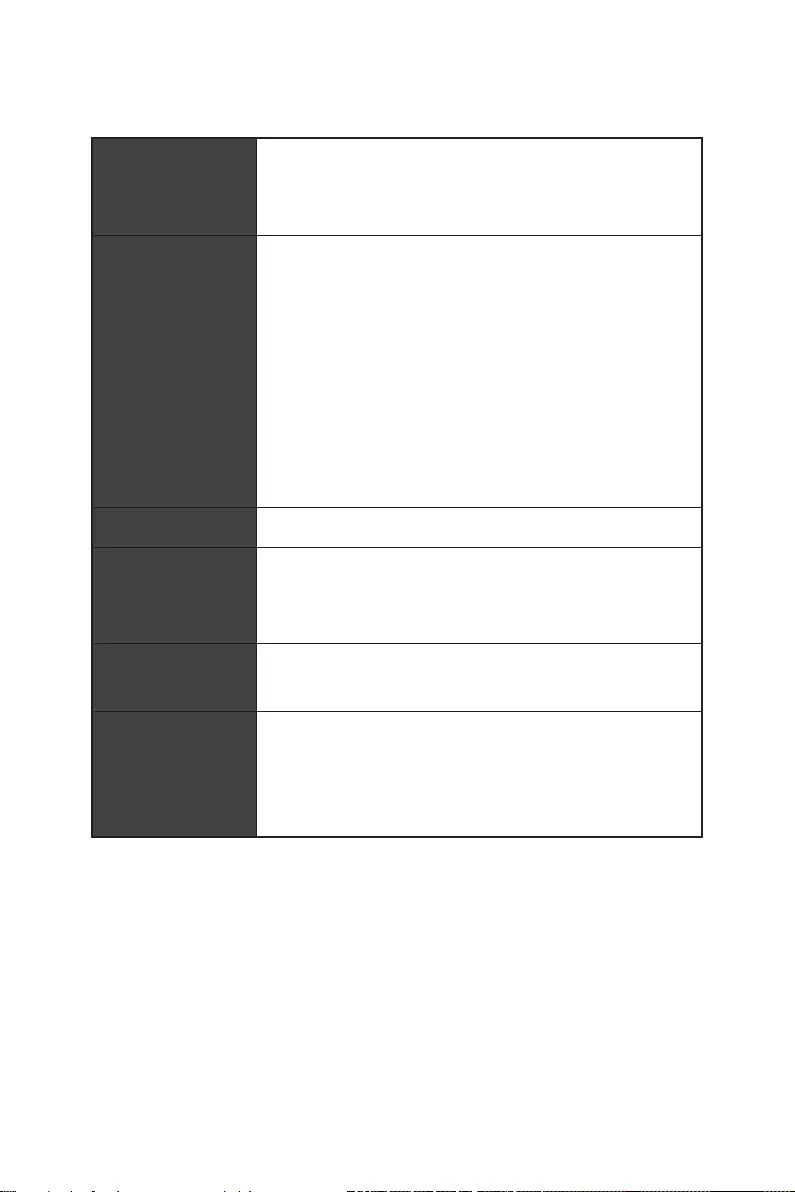
18 Specifications
Continued from previous page
LED Features
∙1x 4-pin RGB LED connector
∙2x 3-pin RAINBOW LED connectors
∙4x EZ Debug LED
Back Panel
Connectors
∙4x USB 2.0 Type-A ports
∙1x DisplayPort
∙1x HDMI port
∙3x USB 3.2 Gen 1 5Gbps Type-A ports
∙1x USB 3.2 Gen 2×2 20Gbps Type-C port
∙1x 2.5G LAN (RJ45) port
∙2x Wi-Fi Antenna connectors (For MAG B560M MORTAR
WIFI only)
∙5x audio jacks
∙1x Optical S/PDIF Out connector
I/O Controller NUVOTON NCT6687D Controller Chip
Hardware Monitor
∙CPU/ System/ Chipset temperature detection
∙CPU/ System/ Pump fan speed detection
∙CPU/ System/ Pump fan speed control
Form Factor ∙Micro-ATX Form Factor
∙9.6 in. x 9.6 in. (24.4 cm x 24.4 cm)
BIOS Features
∙1x 256 Mb flash
∙UEFI AMI BIOS
∙ACPI 6.2, SMBIOS 3.0
∙Multi-language
Continued on next page

19
Specifications
Continued from previous page
Software
∙Drivers
∙MSI Center
∙Intel® Extreme Tuning Utility
∙MSI APP Player (BlueStacks)
∙Open Broadcaster Software (OBS)
∙CPU-Z MSI GAMING
∙Google Chrome™, Google Toolbar, Google Drive
∙Norton™ Internet Security Solution
MSI Center
Features
∙MSI Sound Tune
∙Gaming Mode
∙Creator Mode
∙Game Highlights
∙LAN Manager
∙Mystic Light
∙Ambient Link (For MAG B560M MORTAR WIFI only)
∙Frozr AI Cooling
∙User Scenario
∙True Color
∙Live Update
∙Monitor
∙Super Charger
∙Speed Up
Continued on next page

20 Specifications
Continued from previous page
Special Features
∙Audio
▪Audio Boost
▪Sound Tune
∙Network
▪2.5G LAN
▪LAN Manager
▪Intel WiFi (For MAG B560M MORTAR WIFI only)
∙Cooling
▪Extended Heatsink Design
▪M.2 Shield Frozr
▪K7 thermal pad
▪Choke pad
▪Pump Fan
▪Smart Fan Control
∙LED
▪Mystic Light
▪Mystic Light Extension (RAINBOW/RGB)
▪Mystic Light SYNC
▪Ambient Link (For MAG B560M MORTAR WIFI only)
▪EZ DEBUG LED
∙Performance
▪Lightning Gen 4 PCI-E Slot
▪Lightning Gen 4 M.2
▪Multi GPU-CrossFire Technology
▪DDR4 Boost
▪Core Boost
▪Lightning USB 20G
▪USB 3.2 Gen 2 10G
▪USB with Type A+C
▪Front USB Type-C
▪Dual CPU Power: 8+4 pin
▪2oz Copper thickened PCB
Continued on next page

21
Specifications
Package contents
Please check the contents of your motherboard package. It should contain:
Motherboard MAG B560M MORTAR WIFI / MAG B560M MORTAR
Cable SATA 6G cables (2 cables/pack) 1
Accessories
Wi-Fi Antenna (For MAG B560M MARTOR WIFI only) 1
M.2 screw + standoff (2 sets/pack) 1
Dragon Badge 1
MAG sticker 1
Product registration card 1
Application Driver DVD 1
Documentation User manual 1
Quick installation guide 1
Gift Small screwdriver set 1
⚠
Important
If any of the above items are damaged or missing, please contact your retailer.
Continued from previous page
Special Features
∙Protection
▪PCI-E Steel Armor
▪Pre-installed I/O Shielding
∙Experience
▪MSI Center
▪Frozr AI Cooling
▪Click BIOS 5
▪CPU Cooler Tuning
22 Block Diagram
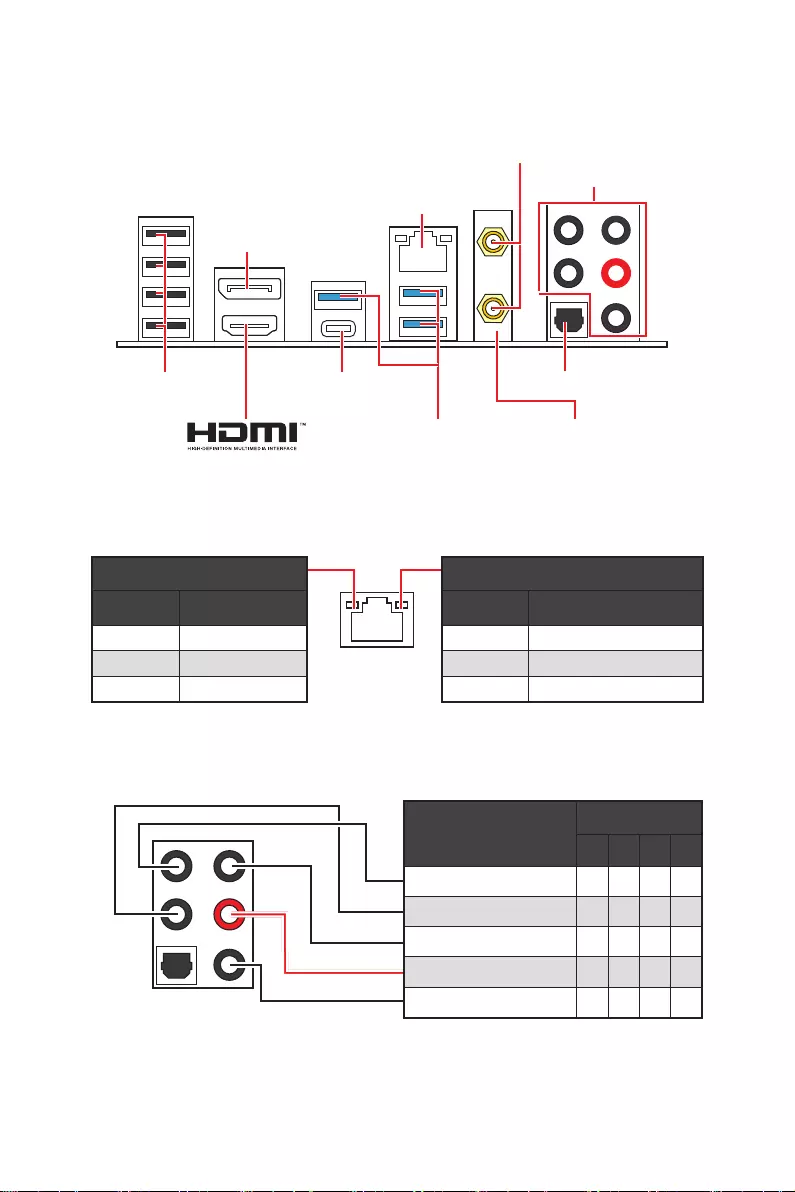
Block Diagram
CPU
PCH
PCI_E1
PCIe x16
DDR4 2Channel
DIMM A1,A2
DIMM B1,B2
DMI
WiFi AX210 (optional)
Realtek LAN 2.5G
HD Audio
ALC897
M2_1
PCI_E3
SATA2
M2_2
SIO 6687
TPM
SPI
MCU
USB 3.2 Gen 2 10Gbps
USB 3.2 Gen 2×2 20Gbps
PCI_E2
USB 3.2 Gen 1 5Gbps
USB 3.2 Gen 1 5Gbps
ASM 1074
USB 2.0
Hub-GL850G
USB 2.0
SATA1/3/4/5/6
23
Block Diagram
Audio Ports Configuration
Audio Ports Channel
2468
Center/ Sub-woofer Out
Rear Speaker Out
Line-In/ Side Speaker Out
Line-Out/ Front Speaker Out
Mic In
Blank: empty)
LAN Port LED Status Table
Link/ Activity LED
Status Description
Off No link
Yellow Linked
Blinking Data activity
Speed LED
Status Description
Off 10 Mbps connection
Green 100/1000 Mbps connection
Orange 2.5 Gbps connection
Rear I/O Panel
2.5 Gbps LAN
Audio Jacks
Wi-Fi Antenna
connectors
DisplayPort
USB 2.0 Type-A
USB 3.2 Gen 1
(5Gbps) Type-A For B560M
MORTAR WIFI only
USB 3.2 Gen 2×2
(20Gbps) Type-C Optical S/PDIF-Out
24 Block Diagram
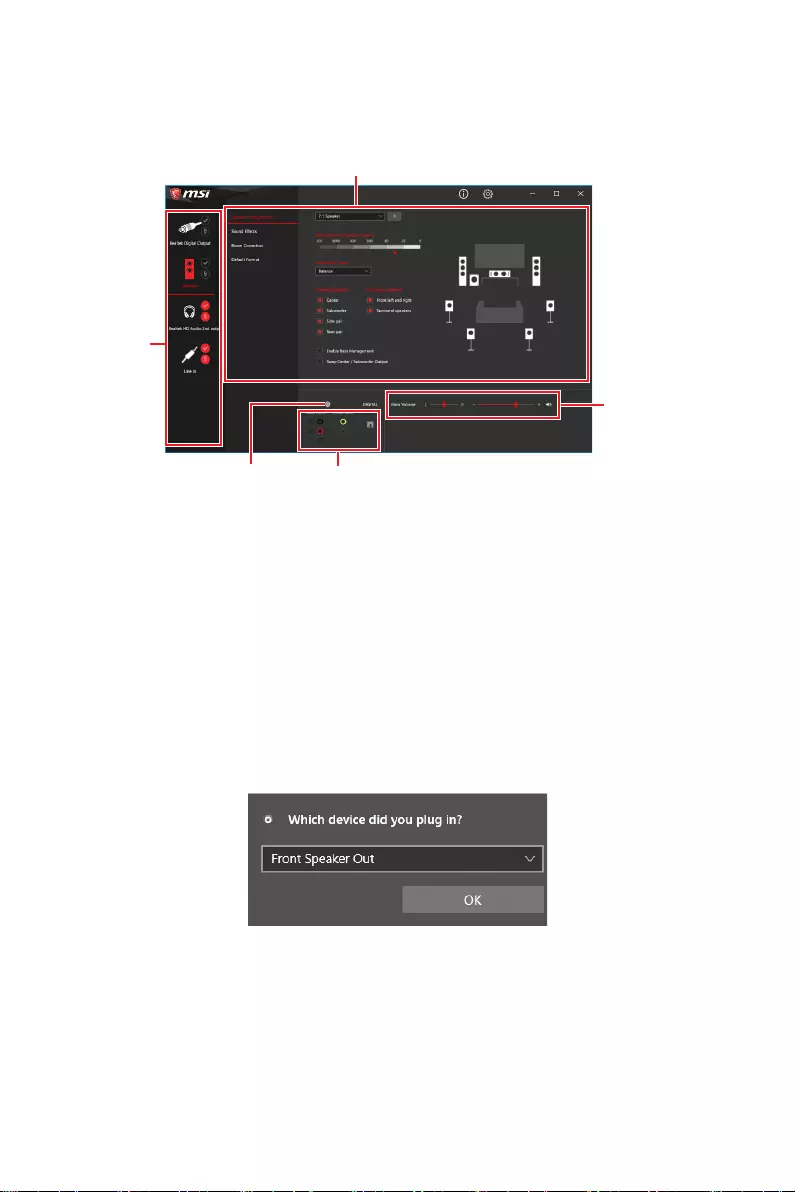
Realtek Audio Console
After Realtek Audio Console is installed. You can use it to change sound settings to get
better sound experience.
∙Device Selection — allows you to select a audio output source to change the related
options. The check sign indicates the devices as default.
∙Application Enhancement — the array of options will provide you a complete
guidance of anticipated sound effect for both output and input device.
∙Main Volume — controls the volume or balance the right/left side of the speakers
that you plugged in front or rear panel by adjust the bar.
∙Jack Status — depicts all render and capture devices currently connected with your
computer.
∙Connector Settings — configures the connection settings.
Auto popup dialog
When you plug into a device at an audio jack, a dialogue window will pop up asking you
which device is current connected.
Each jack corresponds to its default setting as shown on the next page.
⚠
Important
The pictures above for reference only and may vary from the product you purchased.
Jack Status
Connector Settings
Device
Selection
Main Volume
Application Enhancement

25
Block Diagram
Audio jacks to headphone and microphone diagram
Audio jacks to stereo speakers diagram
Audio jacks to 7.1-channel speakers diagram
AUDIO INPUT
AUDIO INPUT
Rear Front
Side Center/
Subwoofer
26 Block Diagram
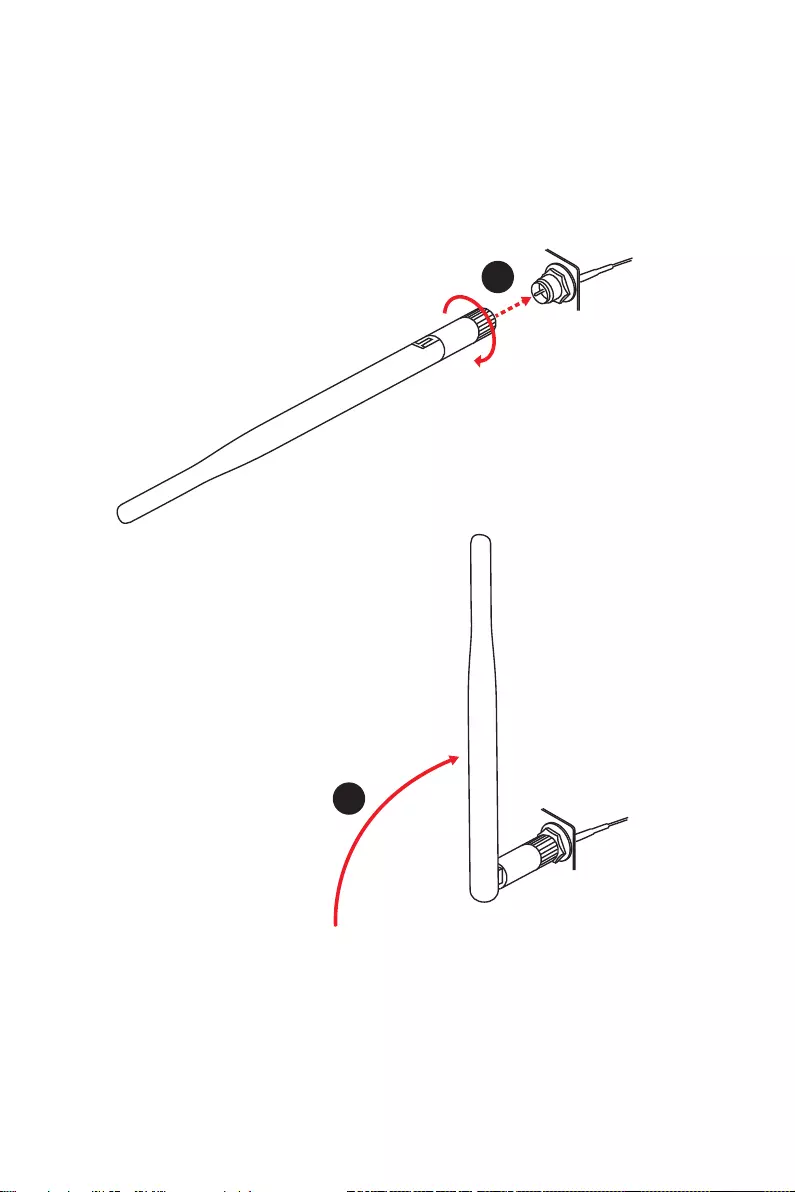
Installing Antennas (For MAG B560M MORTAR WIFI only)
1. Screw the antennas tight to the antenna connectors as shown below.
2. Orient the antennas.
1
2
27
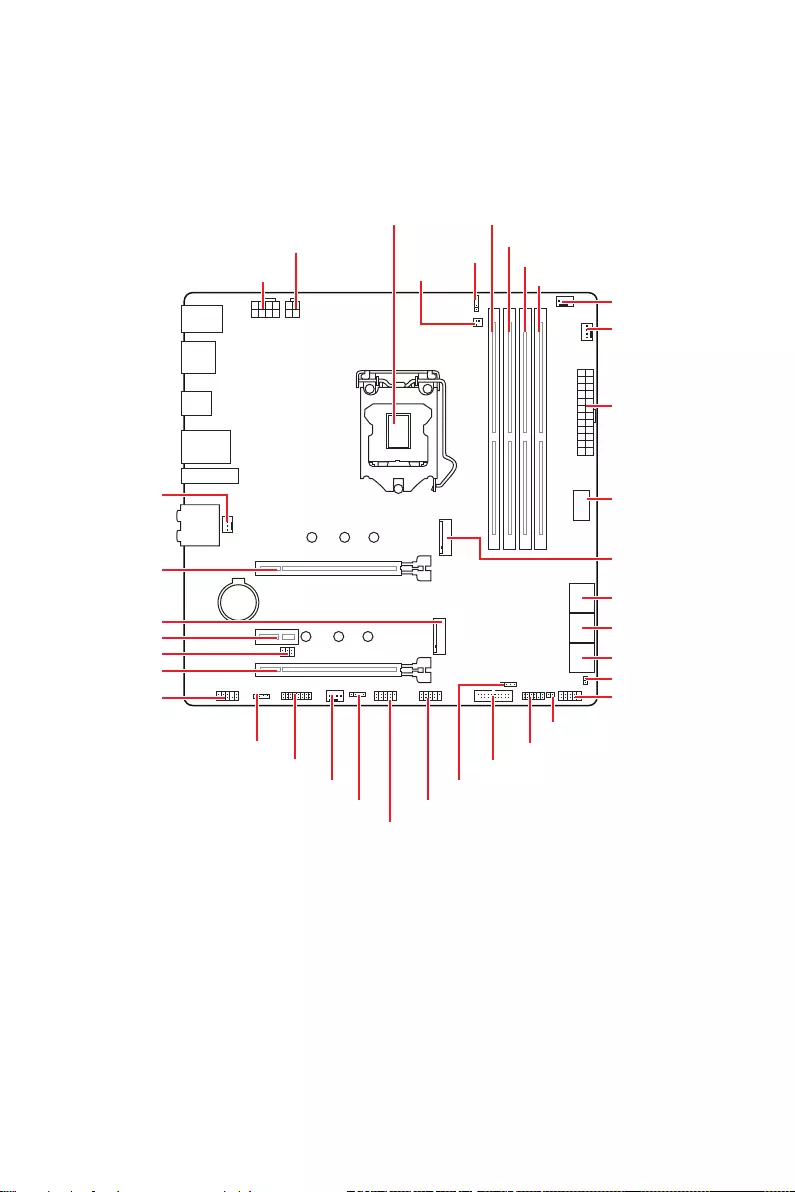
Overview of Components
Overview of Components
BAT1
JBAT1
JRGB1
M2_2
SYS_FAN1
JCI1
JFP1
JUSB2JRAINBOW1
JUSB1
PUMP_FAN1
PCI_E1
PCI_E2
JDASH1
PCI_E3
JTBT1
Processor Socket
CPU_PWR1 JSMB1
JRAINBOW2
CPU_PWR1
CPU_FAN1
JUSB4
M2_1
JAUD1
JFP2SYS_FAN2
JTPM1
JUSB3
ATX_PWR1
DIMMB1
DIMMB2
DIMMA1
DIMMA2
28 Overview of Components
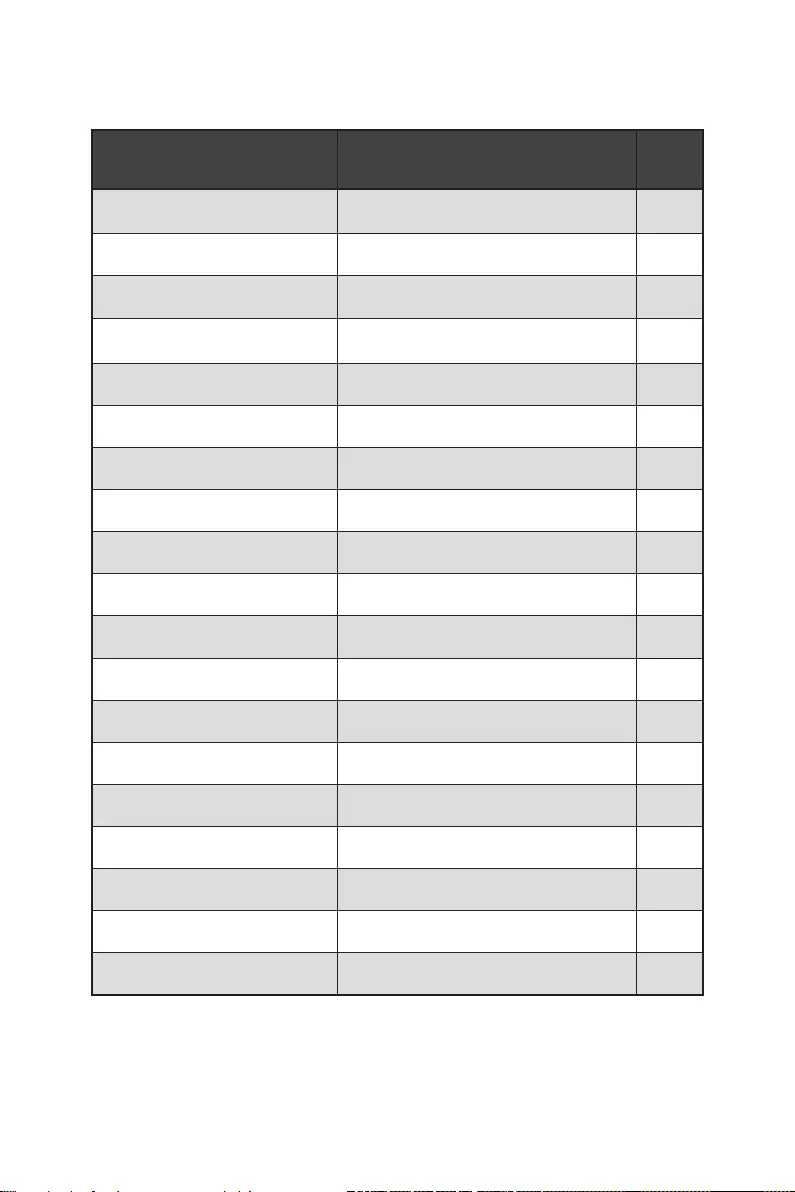
Component Contents
Port Name Port Type Page
CPU_FAN1, PUMP_FAN1,
SYS_FAN1~2 Fan Connectors 39
CPU_PWR1~2, ATX_PWR1 Power Connectors 36
CPU Socket LGA 1200 29
DIMMA1, DIMMA2, DIMMB1,
DIMMB2 DIMM Slots 30
JAUD1 Front Audio Connector 34
JBAT1 Clear CMOS Jumper 41
JCI1 Chassis Intrusion Connector 40
JDASH1 Tuning Controller connector 35
JFP1, JFP2 Front Panel Connectors 35
JRAINBOW1~2 Addressable RGB LED connectors 43
JRGB1 RGB LED connector 42
JTBT1 Thunderbolt Add-on Card Connector 31
JTPM1 TPM Module Connector 38
JUSB1~2 USB 2.0 Connectors 38
JUSB3 USB 3.2 Gen 1 Connector 37
JUSB4 USB 3.2 Gen 2 Type-C Connector 37
M2_1~2 M.2 Slots (Key M) 32
PCI_E1~3 PCIe Expansion Slots 31
SATA1~6 SATA 6Gb/s Connectors 34
29
Overview of Components
⚠
Important
∙
Always unplug the power cord from the power outlet before installing or removing
the CPU.
∙
Please retain the CPU protective cap after installing the processor. MSI will deal
with Return Merchandise Authorization (RMA) requests if only the motherboard comes
with the protective cap on the CPU socket.
∙
When installing a CPU, always remember to install a CPU heatsink. A CPU heatsink
is necessary to prevent overheating and maintain system stability.
∙
Confirm that the CPU heatsink has formed a tight seal with the CPU before booting
your system.
∙
Overheating can seriously damage the CPU and motherboard. Always make sure
the cooling fans work properly to protect the CPU from overheating. Be sure to apply
an even layer of thermal paste (or thermal tape) between the CPU and the heatsink to
enhance heat dissipation.
∙
Whenever the CPU is not installed, always protect the CPU socket pins by covering
the socket with the plastic cap.
∙
If you purchased a separate CPU and heatsink/ cooler, Please refer to the
documentation in the heatsink/ cooler package for more details about installation.
∙
This motherboard is designed to support overclocking. Before attempting to
overclock, please make sure that all other system components can tolerate
overclocking. Any attempt to operate beyond product specifications is not
recommended. MSI® does not guarantee the damages or risks caused by inadequate
operation beyond product specifications.
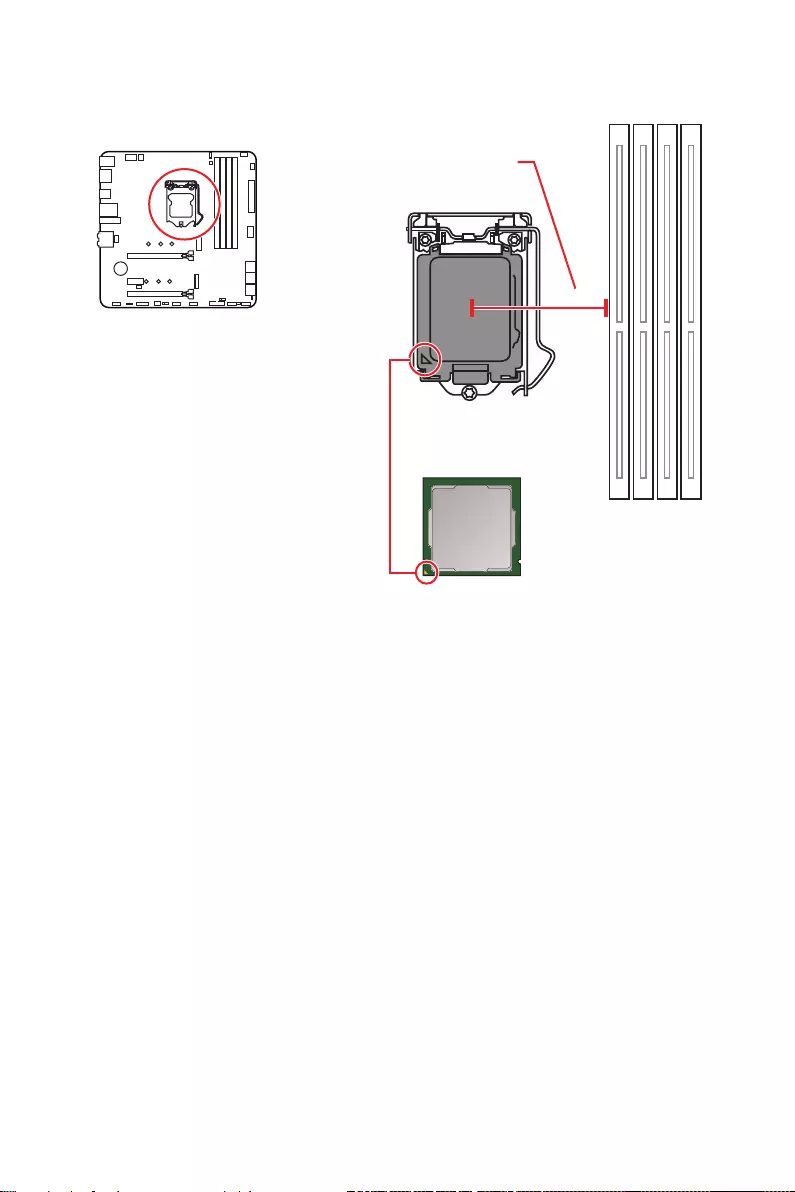
CPU Socket
Introduction to the LGA 1200 CPU
The surface of the LGA 1200 CPU has
two notches and a golden triangle to
assist in correctly lining up the CPU for
motherboard placement. The golden
triangle is the Pin 1 indicator.
50.77 mm
Distance from the center of the
CPU to the nearest DIMM slot.
30 Overview of Components
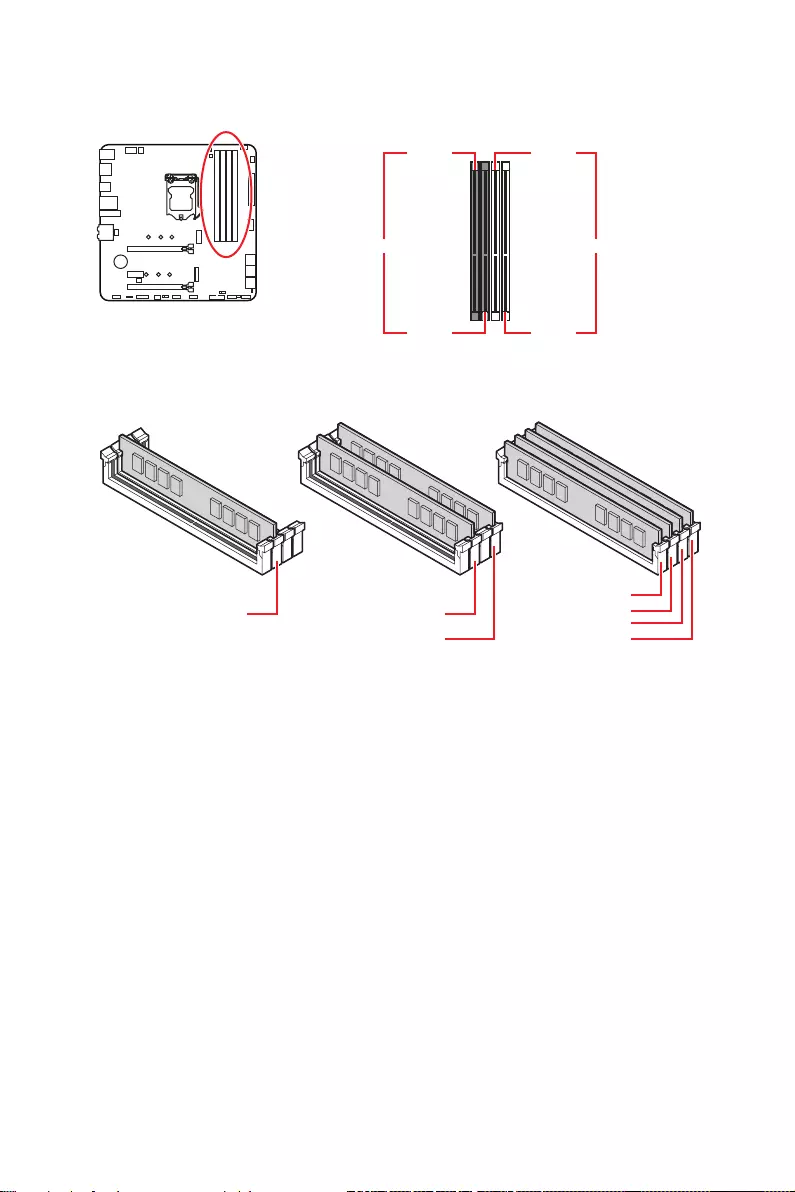
DIMM Slots
DIMMA1 DIMMB1
Channel A Channel B
DIMMA2 DIMMB2
Memory module installation recommendation
⚠
Important
∙
Always insert memory modules in the DIMMA2 slot first.
∙
To ensure system stability for Dual channel mode, memory modules must be of the
same type, number and density.
∙
Some memory modules may operate at a lower frequency than the marked value
when overclocking due to the memory frequency operates dependent on its Serial
Presence Detect (SPD). Go to BIOS and find the DRAM Frequency to set the memory
frequency if you want to operate the memory at the marked or at a higher frequency.
∙
It is recommended to use a more efficient memory cooling system for full DIMMs
installation or overclocking.
∙
The stability and compatibility of installed memory module depend on installed CPU
and devices when overclocking.
∙
Please refer www.msi.com for more information on compatible memory.
DIMMB2 DIMMB2
DIMMB1
DIMMA2 DIMMA2 DIMMA2
DIMMA1
31
Overview of Components
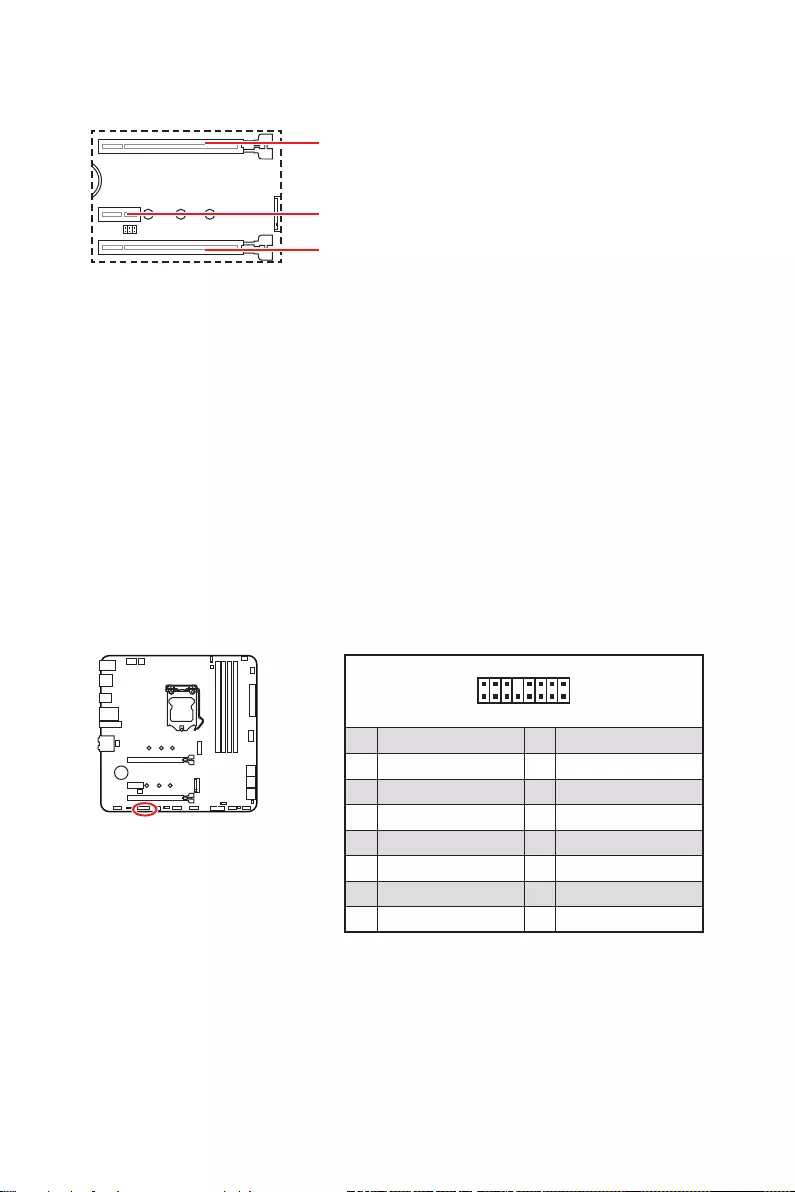
PCI_E1~3: PCIe Expansion Slots
PCI_E1: PCIe 4.0 x16 (From CPU)
PCI_E2: PCIe 3.0 x1 (From B560 chipset)
PCI_E3: PCIe 3.0 x4 (From B560 chipset)
⚠
Important
∙
If you install a large and heavy graphics card, you need to use a tool such as MSI
Gaming Series Graphics Card Bolster to support its weight to prevent deformation of
the slot.
∙
For a single PCIe x16 expansion card installation with optimum performance, using
the PCI_E1 slot is recommended.
∙
When adding or removing expansion cards, always turn off the power supply and
unplug the power supply power cable from the power outlet. Read the expansion
card’s documentation to check for any necessary additional hardware or software
changes.
∙
PCI_E3 will be unavailable when installing M.2 SSD in M2_2 slot. However, if you
want to use both of them simultaneously, you can set x1 for PCI_E3 and set x2 for
M2_2 in BIOS.
JTBT1: Thunderbolt Add-on Card Connector
This connector allows you to connect the add-on Thunderbolt I/O card.
1
2 16
15
1 TBT_Force_PWR 2 TBT_S0IX_Entry_REQ
3 TBT_CIO_Plug_Event# 4 TBT_S0IX_Entry_ACK
5 SLP_S3#_TBT 6 TBT_PSON_Override_N
7 SLP_S5#_TBT 8 No pin
9 Ground 10 SMBCLK_VSB
11 DG_PEWake 12 SMBDATA_VSB
13 TBT_RTD3_PWR_EN 14 Ground
15 TBT_Card_DET_R# 12 PD_IRQ#
32 Overview of Components
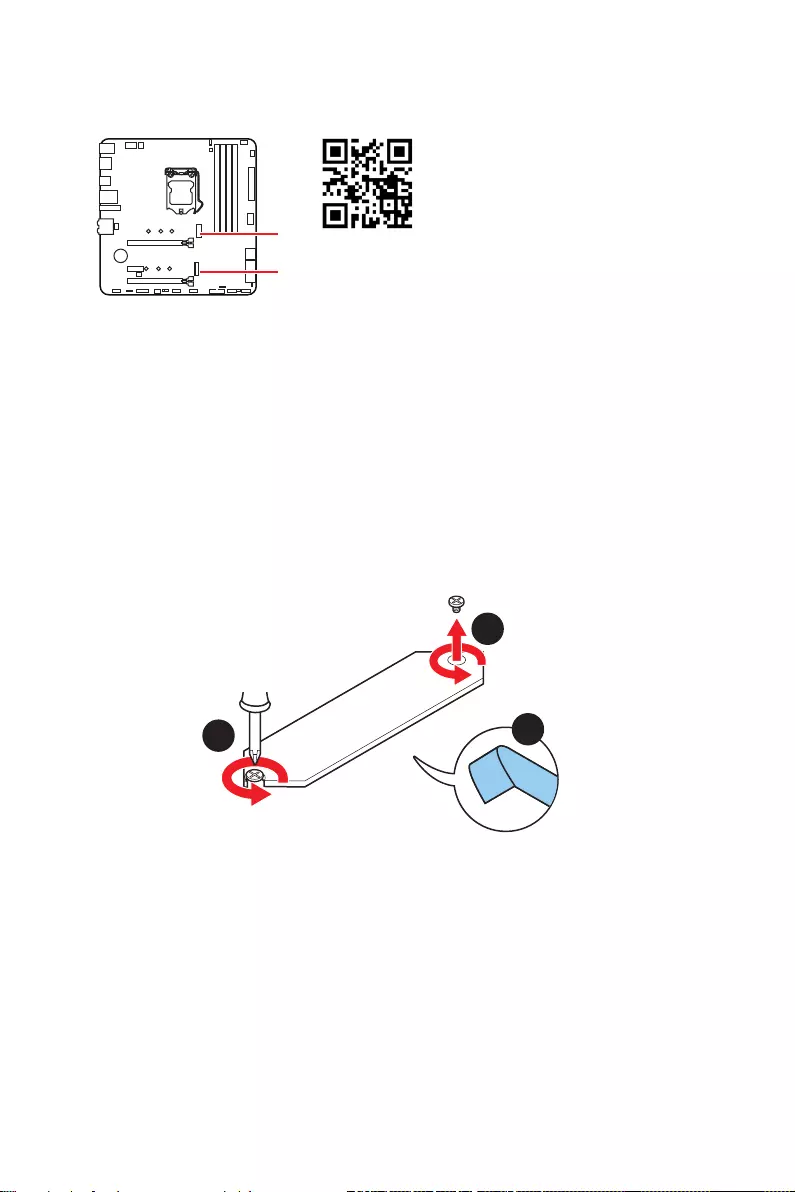
M2_1~2: M.2 Slots (Key M)
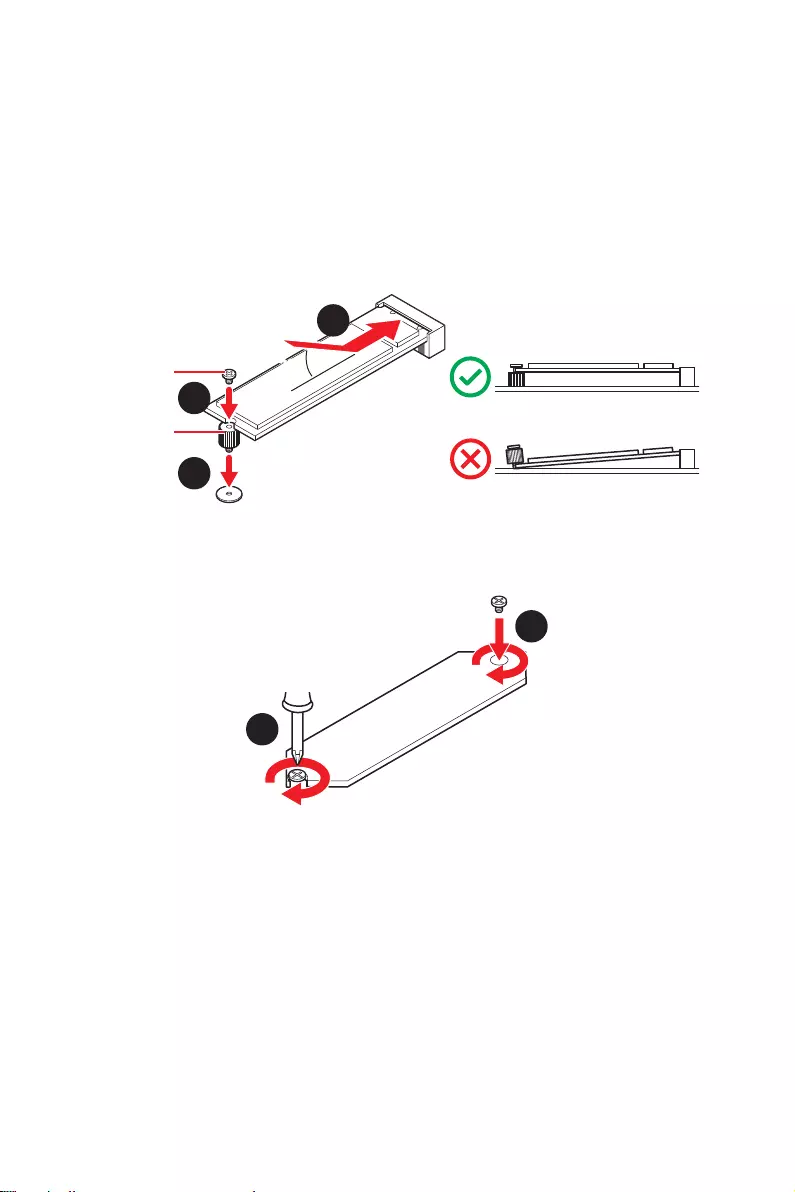
Installing M.2 module
1. Loosen the screws of M.2 SHIELD FROZR heatsink.
2. Remove the M.2 SHIELD FROZR and remove the protective films from the thermal
pads of heatsink.
2
1
1
M2_1
M2_2
⚠
Important
∙
Intel® RST only supports PCIe M.2 SSD with UEFI ROM.
∙
Intel® Optane™ Memory Ready for M2_2 slot.
⚽
Video Demonstration
Watch the video to learn how to Install
M.2 SSD.
33
Overview of Components
3. Secure the supplied M.2 standoff according to your M.2 SSD length if need.
4. Insert your M.2 SSD into the M.2 slot at a 30-degree angle.
5. Secure the M.2 SSD in place with the supplied M.2 8.5H screw.
30º30º
4
3
6
6
5
8.5H screw
Standoff
6. Put the M.2 SHIELD FROZR heatsink back in place and secure it.
⚠
Important
Skips step 3 and step 5, if you install 2280 M.2 into M2_1 slot.
34 Overview of Components
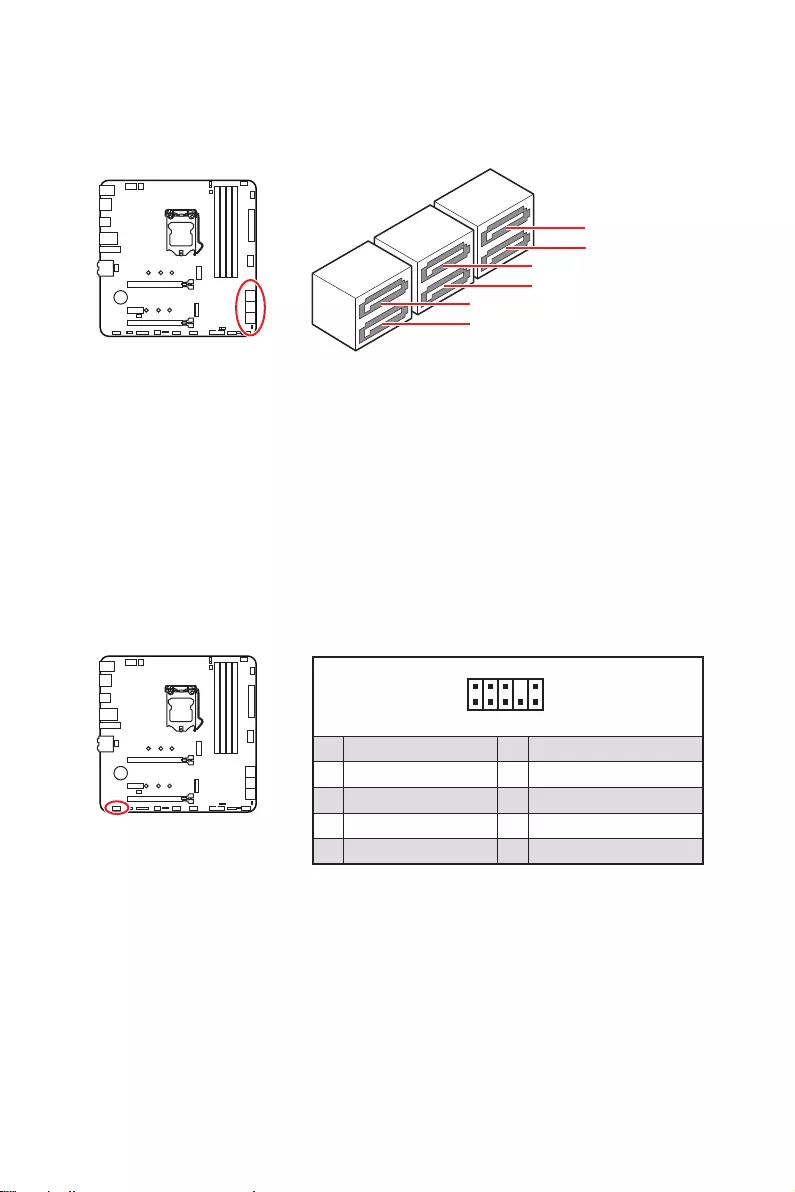
SATA1~6: SATA 6Gb/s Connectors
These connectors are SATA 6Gb/s interface ports. Each connector can connect to one
SATA device.
SATA1
SATA3
SATA5
SATA2
SATA4
SATA6
⚠
Important
∙
Please do not fold the SATA cable at a 90-degree angle. Data loss may result during
transmission otherwise.
∙
SATA cables have identical plugs on either sides of the cable. However, it is
recommended that the flat connector be connected to the motherboard for space
saving purposes.
∙
SATA2 will be unavailable when installing M.2 SATA SSD in M2_1 slot.
JAUD1: Front Audio Connector
This connector allows you to connect audio jacks on the front panel.
1
2 10
9
1 MIC L 2 Ground
3 MIC R 4 NC
5 Head Phone R 6 MIC Detection
7 SENSE_SEND 8 No Pin
9 Head Phone L 10 Head Phone Detection

35
Overview of Components
JFP1, JFP2: Front Panel Connectors
These connectors connect to the switches and LEDs on the front panel.
1
2 10
9
+
+
+— ——
—
+
Power LED
HDD LED Reset Switch
Reserved
Power Switch
JFP1
1 HDD LED + 2 Power LED +
3 HDD LED — 4 Power LED —
5 Reset Switch 6 Power Switch
7 Reset Switch 8 Power Switch
9 Reserved 10 No Pin
1
JFP2
+
+—
—
Speaker
Buzzer
1 Speaker — 2 Buzzer +
3 Buzzer — 4 Speaker +
JDASH1 : Tuning Controller connector
This connector is used to connect an optional Tuning Controller module.
1
2 6
5
1 No Pin 2 NC
3 MCU_SMB_SCL_M 4 MCU_SMB_SDA_M
5 VCC5 6 Ground
36 Overview of Components
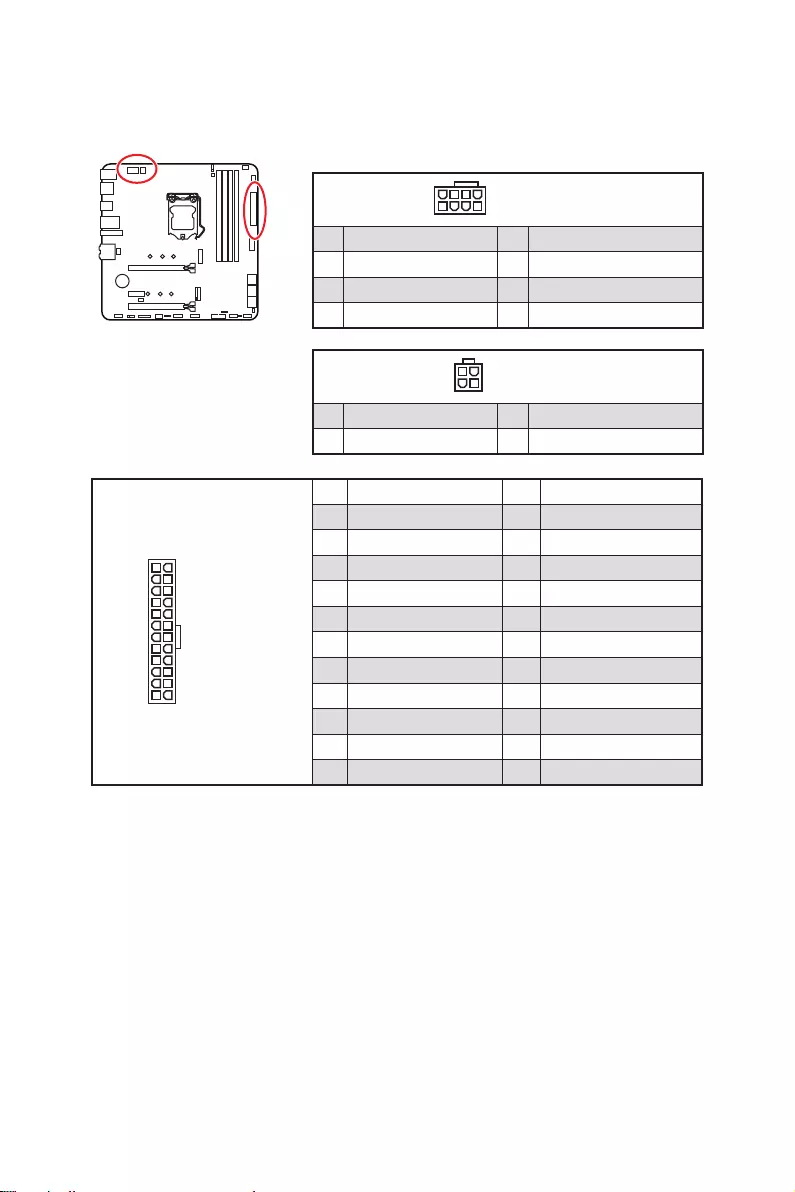
24
131
12
ATX_PWR1
1 +3.3V 13 +3.3V
2 +3.3V 14 -12V
3 Ground 15 Ground
4 +5V 16 PS-ON#
5 Ground 17 Ground
6 +5V 18 Ground
7 Ground 19 Ground
8 PWR OK 20 Res
9 5VSB 21 +5V
10 +12V 22 +5V
11 +12V 23 +5V
12 +3.3V 24 Ground
5
4 1
8CPU_PWR1
1 Ground 5 +12V
2 Ground 6 +12V
3 Ground 7 +12V
4 Ground 8 +12V
⚠
Important
Make sure that all the power cables are securely connected to a proper ATX power
supply to ensure stable operation of the motherboard.
CPU_PWR1~2, ATX_PWR1: Power Connectors
These connectors allow you to connect an ATX power supply.
3
2 1
4CPU_PWR2
1 Ground 3 +12V
2 Ground 4 +12V
37
Overview of Components
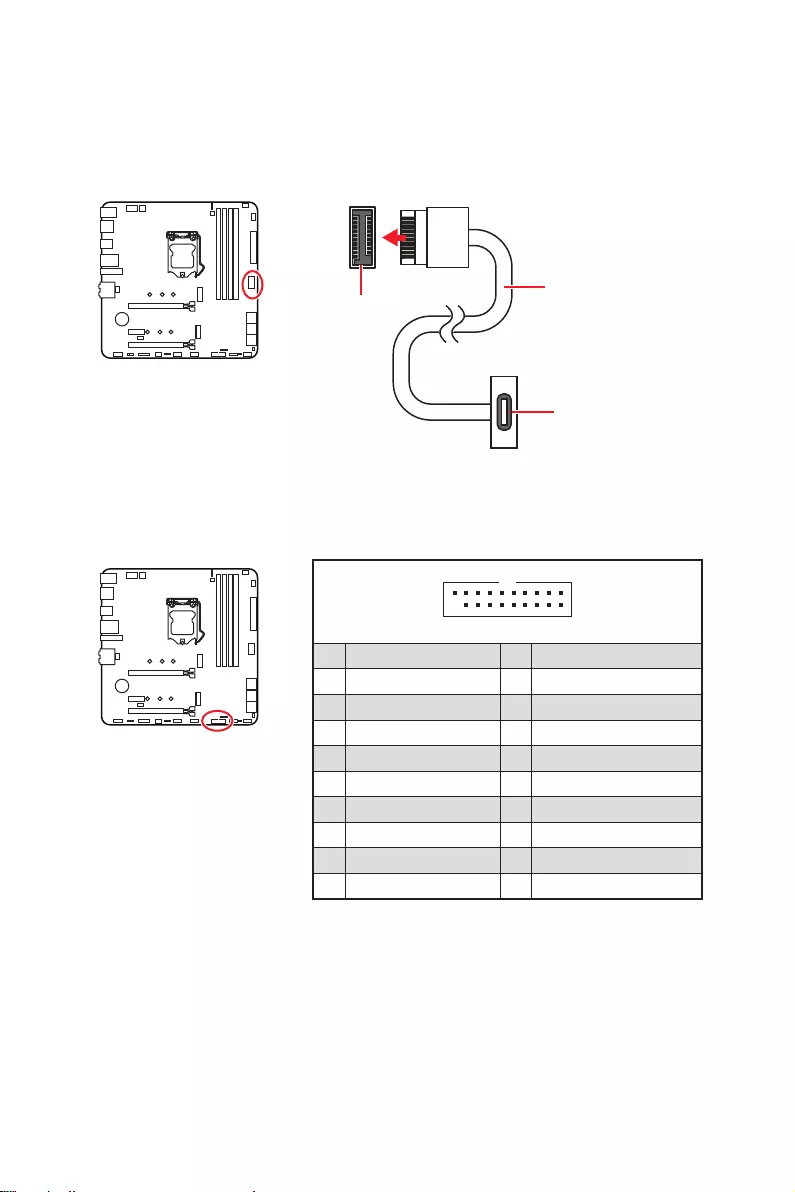
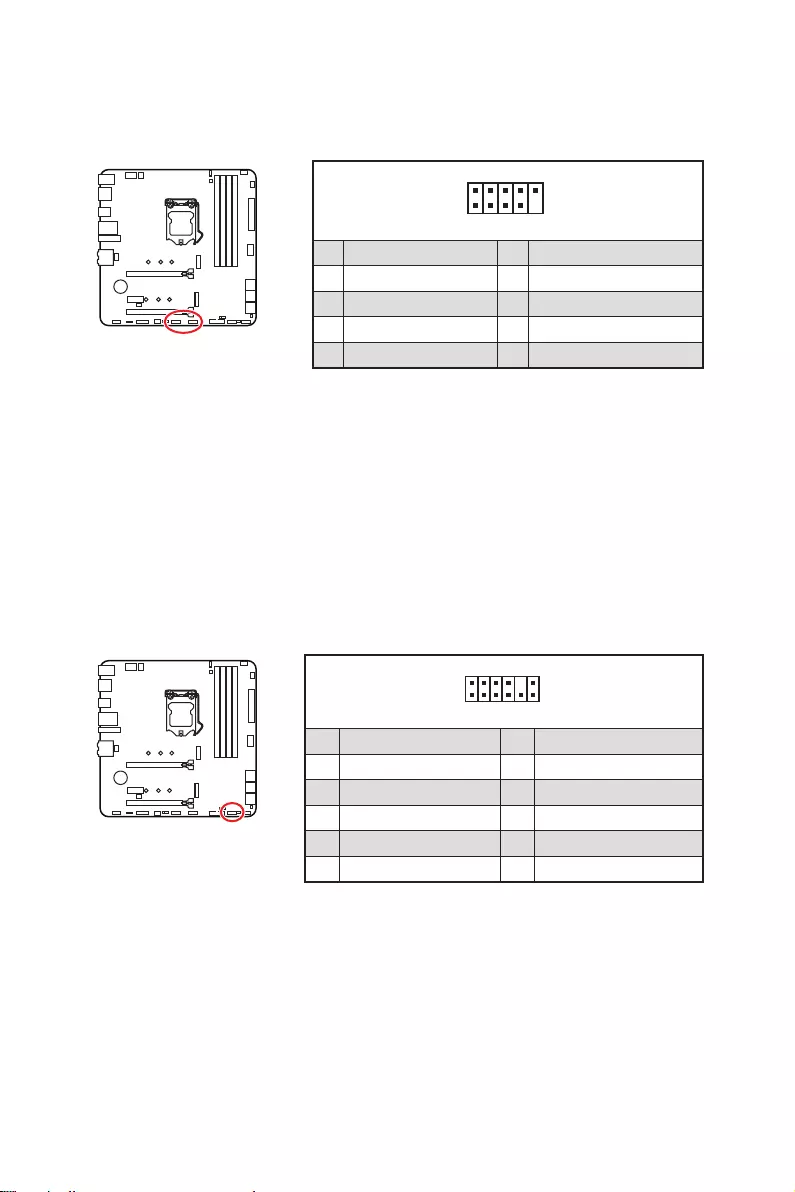
JUSB4: USB 3.2 Gen 2 Type—C Connector
This connector allows you to connect USB 3.2 Gen 2 10Gbps Type-C connector on the
front panel. The connector possesses a foolproof design. When you connect the cable,
be sure to connect it with the corresponding orientation.
JUSB3: USB 3.2 Gen 1 Connector
This connector allows you to connect USB 3.2 Gen 1 5Gbps ports on the front panel.
⚠
Important
Note that the Power and Ground pins must be connected correctly to avoid possible
damage.
1 10
11
20
1 Power 11 USB2.0+
2 USB3_RX_DN 12 USB2.0-
3 USB3_RX_DP 13 Ground
4 Ground 14 USB3_TX_C_DP
5 USB3_TX_C_DN 15 USB3_TX_C_DN
6 USB3_TX_C_DP 16 Ground
7 Ground 17 USB3_RX_DP
8 USB2.0- 18 USB3_RX_DN
9 USB2.0+ 19 Power
10 Ground 20 No Pin
JUSB4 USB Type-C Cable
USB Type-C port on
the front panel
38 Overview of Components
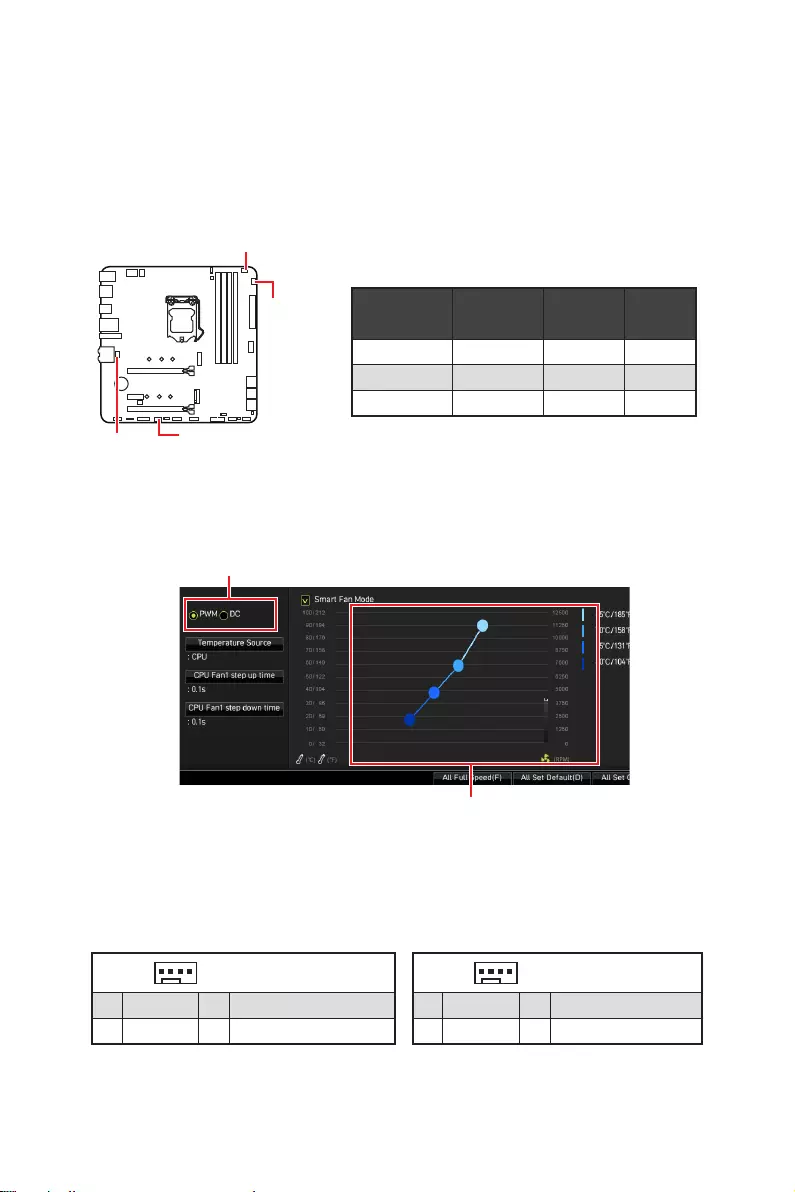
JUSB1~2: USB 2.0 Connectors
These connectors allow you to connect USB 2.0 ports on the front panel.
1
2 10
9
1 VCC 2 VCC
3 USB0- 4 USB1-
5 USB0+ 6 USB1+
7 Ground 8 Ground
9 No Pin 10 NC
⚠
Important
∙
Note that the VCC and Ground pins must be connected correctly to avoid possible
damage.
∙
In order to recharge your iPad, iPhone and iPod through USB ports, please install
MSI® Center utility.
1
2 12
11
1 SPI Power 2 SPI Chip Select
3
Master In Slave Out (SPI Data)
4
Master Out Slave In (SPI Data)
5 Reserved 6 SPI Clock
7 Ground 8 SPI Reset
9 Reserved 10 No Pin
11 Reserved 12 Interrupt Request
JTPM1: TPM Module Connector
This connector is for TPM (Trusted Platform Module). Please refer to the TPM security
platform manual for more details and usages.
39
Overview of Components
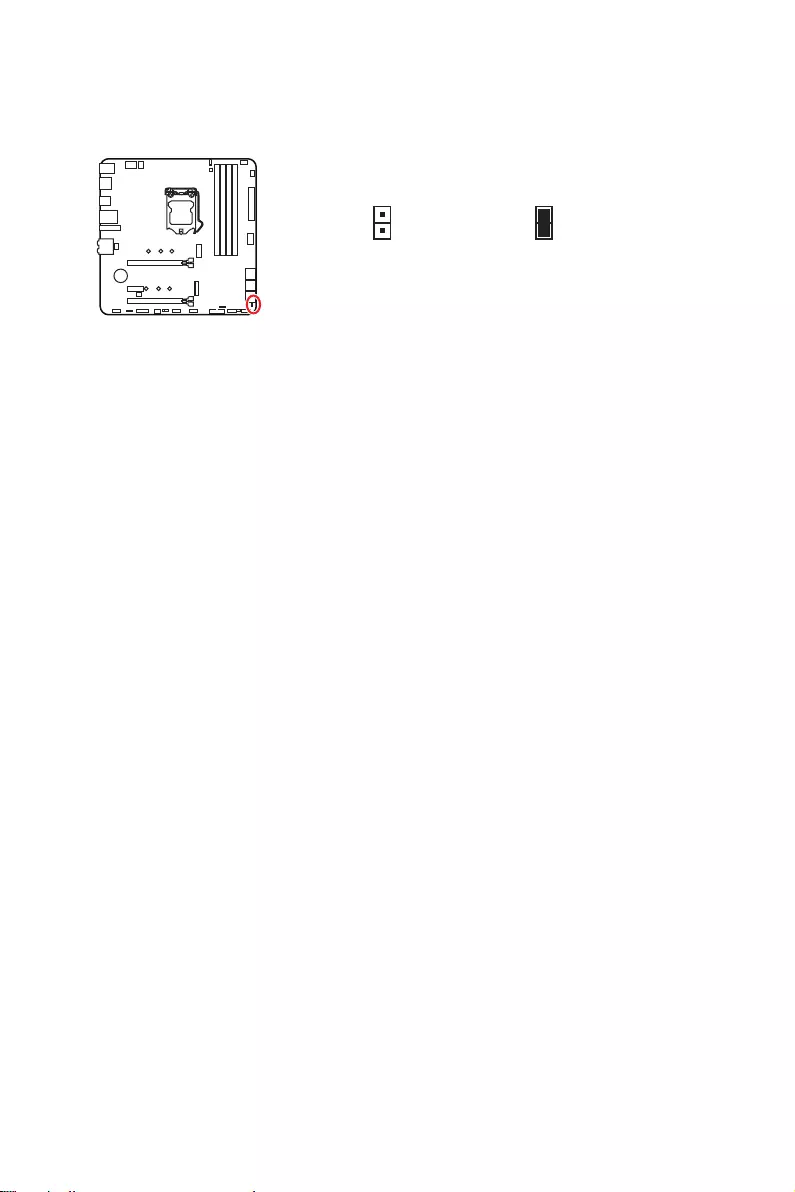
CPU_FAN1, PUMP_FAN1, SYS_FAN1~2: Fan Connectors
Fan connectors can be classified as PWM (Pulse Width Modulation) Mode or DC Mode.
PWM Mode fan connectors provide constant 12V output and adjust fan speed with
speed control signal. DC Mode fan connectors control fan speed by changing voltage.
The auto mode fan connectors can automatically detect PWM and DC mode. However,
you can follow the instruction below to adjust the fan connector to PWM or DC Mode
manually.
Switching fan mode and adjusting fan speed
You can switch between PWM mode and DC mode and adjust fan speed in BIOS >
HARDWARE MONITOR.
Select PWM mode or DC mode
⚠
Important
Make sure fans are working properly after switching the PWM/ DC mode.
There are gradient points of the fan speed that allow you to adjust
fan speed in relation to CPU temperature.
Pin definition of fan connectors
Connector Default
fan mode Max.
current Max.
power
CPU_FAN1 PWM mode 2A 24W
PUMP_FAN1 PWM mode 3A 36W
SYS_FAN1~2 DC mode 1A 12W
1 PWM Mode pin definition
1 Ground 2 +12V
3 Sense 4 Speed Control Signal
1 DC Mode pin definition
1 Ground 2 Voltage Control
3 Sense 4 NC
SYS_FAN1 SYS_FAN2
PUMP_FAN1
CPU_FAN1
40 Overview of Components
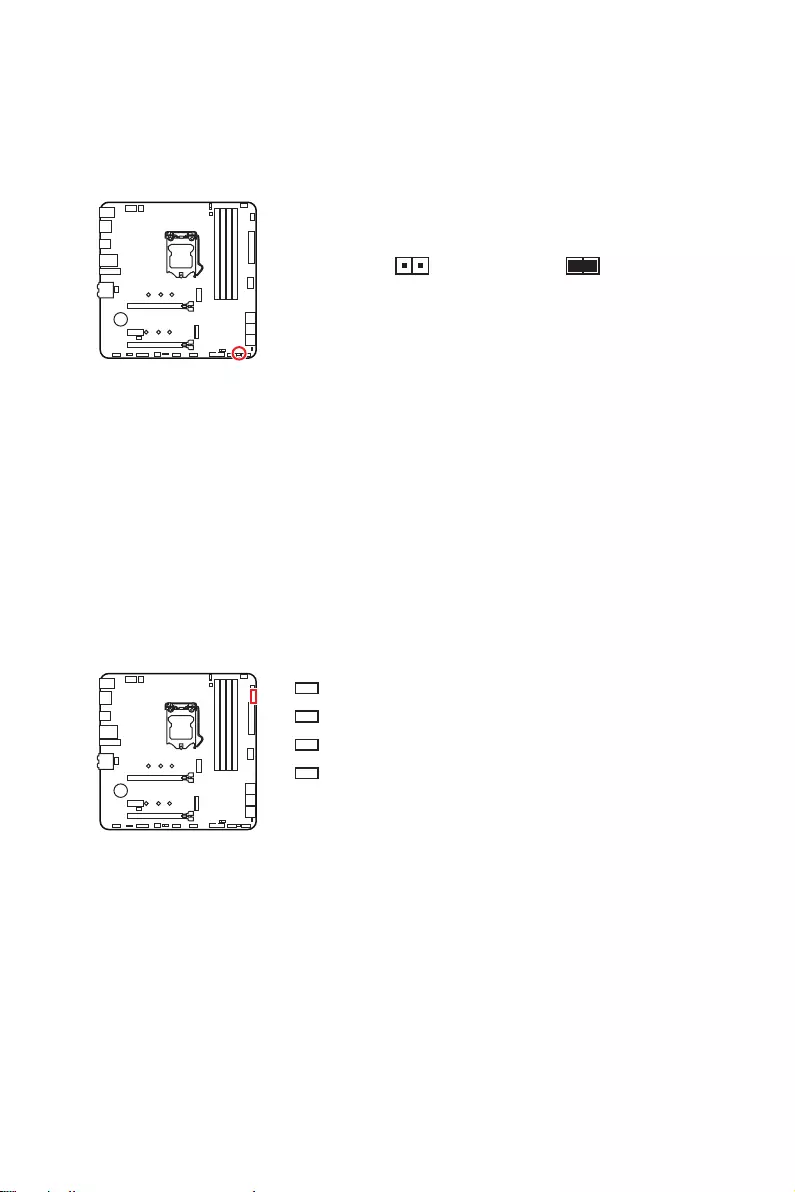
JCI1: Chassis Intrusion Connector
This connector allows you to connect the chassis intrusion switch cable.
Normal
(default) Trigger the chassis
intrusion event
Using chassis intrusion detector
1. Connect the JCI1 connector to the chassis intrusion switch/ sensor on the chassis.
2. Close the chassis cover.
3. Go to BIOS > SETTINGS > Security > Chassis Intrusion Configuration.
4. Set Chassis Intrusion to Enabled.
5. Press F10 to save and exit and then press the Enter key to select Yes.
6. Once the chassis cover is opened again, a warning message will be displayed on
screen when the computer is turned on.
Resetting the chassis intrusion warning
1. Go to BIOS > SETTINGS > Security > Chassis Intrusion Configuration.
2. Set Chassis Intrusion to Reset.
3. Press F10 to save and exit and then press the Enter key to select Yes.
41
Overview of Components
JBAT1: Clear CMOS (Reset BIOS) Jumper
There is CMOS memory onboard that is external powered from a battery located on
the motherboard to save system configuration data. If you want to clear the system
configuration, set the jumpers to clear the CMOS memory.
Keep Data
(default) Clear CMOS/
Reset BIOS
Resetting BIOS to default values
1. Power off the computer and unplug the power cord.
2. Use a jumper cap to short JBAT1 for about 5-10 seconds.
3. Remove the jumper cap from JBAT1.
4. Plug the power cord and Power on the computer.
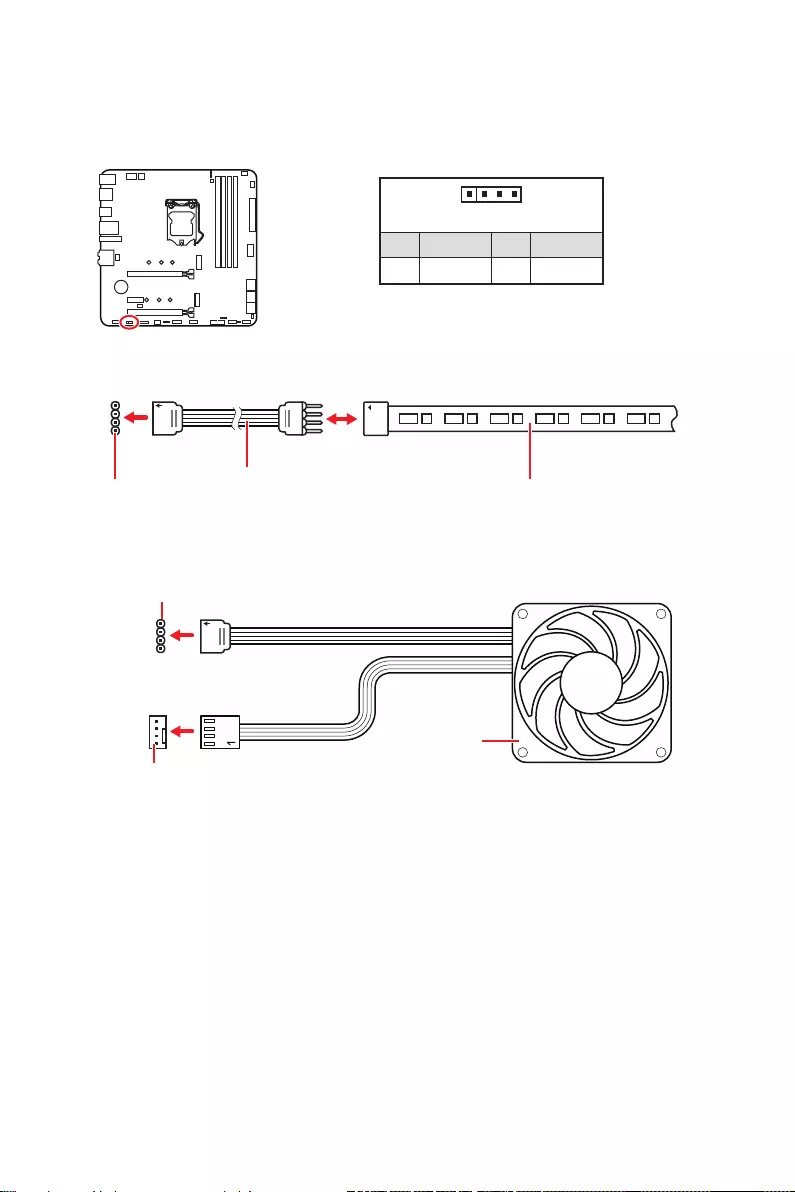
EZ Debug LED
These LEDs indicate the debug status of the motherboard.
CPU — indicates CPU is not detected or fail.
DRAM — indicates DRAM is not detected or fail.
VGA — indicates GPU is not detected or fail.
BOOT — indicates the booting device is not detected
or fail.
42 Overview of Components
⚠
Important
∙
The JRGB connector supports up to 2 meters continuous 5050 RGB LED strips
(12V/G/R/B) with the maximum power rating of 3A (12V).
∙
Always turn off the power supply and unplug the power cord from the power outlet
before installing or removing the RGB LED strip.
∙
Please use MSI’s software to control the extended LED strip.
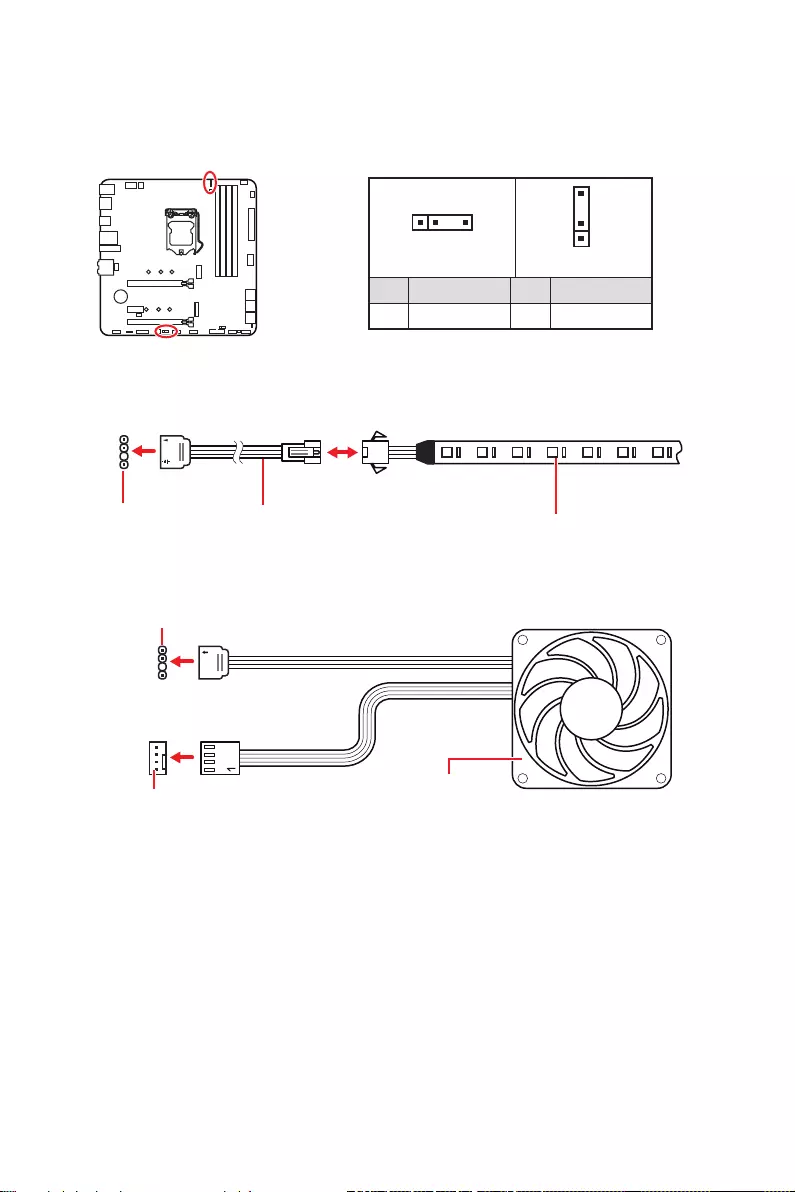
JRGB1: RGB LED connector
The JRGB connector allows you to connect the 5050 RGB LED strips 12V.
1
GRB
JRGB
connector
RGB extension
cable 5050 RGB LED strips 12V
1
1 +12V 2 G
3 R 4 B
RGB LED Strip Connection
1
1
GRB
JRGB connector
System Fan connector
RGB LED Fan Connection
RGB LED Fan
43
Overview of Components
1
1
1
D
+5V
⚠
CAUTION
Do not connect the wrong type of LED strips. The JRGB connector and the JRAINBOW
connector provide different voltages, and connecting the 5V LED strip to the JRGB
connector will result in damage to the LED strip.
⚠
Important
∙
The JRAINBOW connector supports up to 75 LEDs WS2812B Individually
Addressable RGB LED strips (5V/Data/Ground) with the maximum power rating of 3A
(5V). In the case of 20% brightness, the connector supports up to 200 LEDs.
∙
Always turn off the power supply and unplug the power cord from the power outlet
before installing or removing the RGB LED strip.
∙
Please use MSI’s software to control the extended LED strip.
JRAINBOW1~2: Addressable RGB LED connectors
The JRAINBOW connectors allow you to connect the WS2812B Individually
Addressable RGB LED strips 5V.
JRAINBOW
connector
JRAINBOW connector
System Fan connector
Rainbow RGB LED
extension cable WS2812B Individually
Addressable RGB LED strips 5V
1
JRAINBOW1 1
JRAINBOW2
1 +5V 2 Data
3 No Pin 4 Ground
Addressable RGB LED Strip Connection
Addressable RGB LED Fan Connection
Addressable RGB LED Fan

44 Installing OS, Drivers & MSI Center
Installing OS, Drivers & MSI Center
Please download and update the latest utilities and drivers at www.msi.com
Installing Windows® 10
1. Power on the computer.
2. Insert the Windows® 10 installation disc/USB into your computer.
3. Press the Restart button on the computer case.
4. Press F11 key during the computer POST (Power-On Self Test) to get into Boot
Menu.
5. Select the Windows® 10 installation disc/USB from the Boot Menu.
6. Press any key when screen shows Press any key to boot from CD or DVD…
message.
7. Follow the instructions on the screen to install Windows® 10.
Installing Drivers
1. Start up your computer in Windows® 10.
2. Insert MSI® Drive disc into the optical drive.
3. Click the Select to choose what happens with this disc pop-up notification, then
select Run DVDSetup.exe to open the installer. If you turn off the AutoPlay feature
from the Windows Control Panel, you can still manually execute the DVDSetup.exe
from the root path of the MSI Drive disc.
4. The installer will find and list all necessary drivers in the Drivers/Software tab.
5. Click the Install button in the lower-right corner of the window.
6. The drivers installation will then be in progress, after it has finished it will prompt
you to restart.
7. Click OK button to finish.
8. Restart your computer.
MSI Center
MSI Center is an application that helps you easily optimize game settings and smoothly
use content creation softwares. It also allows you to control and synchronize LED
light effects on PCs and other MSI products. With MSI Center, you can customize ideal
modes, monitor system performance, and adjust fan speed.
MSI Center User Guide
If you would like to know more information about MSI Center, please
refer to
http://download.msi.com/manual/mb/MSICENTER.pdf
or scan the QR code to access.
⚠
Important
Functions may vary depending on the product you have.

45
UEFI BIOS
UEFI BIOS
MSI UEFI BIOS is compatible with UEFI (Unified Extensible Firmware Interface)
architecture. UEFI has many new functions and advantages that traditional BIOS
cannot achieve, and it will completely replace BIOS in the future. The MSI UEFI
BIOS uses UEFI as the default boot mode to take full advantage of the new chipset’s
capabilities.
⚠
Important
The term BIOS in this user guide refers to UEFI BIOS unless otherwise noted.
UEFI advantages
∙Fast booting — UEFI can directly boot the operating system and save the BIOS self-
test process. And also eliminates the time to switch to CSM mode during POST.
∙Supports for hard drive partitions larger than 2 TB.
∙Supports more than 4 primary partitions with a GUID Partition Table (GPT).
∙Supports unlimited number of partitions.
∙Supports full capabilities of new devices — new devices may not provide backward
compatibility.
∙Supports secure startup — UEFI can check the validity of the operating system to
ensure that no malware tampers with the startup process.
Incompatible UEFI cases
∙32-bit Windows operating system — this motherboard supports only Windows 10
64-bit operating system.
∙Older graphics card — the system will detect your graphics card. When display a
warning message There is no GOP (Graphics Output protocol) support detected in
this graphics card.
⚠
Important
We recommend that you to replace with a GOP/UEFI compatible graphics card or
using integrated graphics from CPU for having normal function.
How to check the BIOS mode?
1. Power on your computer.
2. Press Delete key, when the Press DEL key to enter Setup Menu, F11 to enter
Boot Menu message appears on the screen during the boot process.
3. After entering the BIOS, you can check the BIOS Mode at the top of the screen.
BIOS Mode: UEFI

46 UEFI BIOS
BIOS Setup
The default settings offer the optimal performance for system stability in normal
conditions. You should always keep the default settings to avoid possible system
damage or failure booting unless you are familiar with BIOS.
⚠
Important
∙
BIOS items are continuously update for better system performance. Therefore, the
description may be slightly different from the latest BIOS and should be for reference
only. You could also refer to the HELP information panel for BIOS item description.
∙
The BIOS screens, options and settings will vary depending on your system.
Entering BIOS Setup
Press Delete key, when the Press DEL key to enter Setup Menu, F11 to enter Boot
Menu message appears on the screen during the boot process.
Function key
F1: General Help list
F2: Add/ Remove a favorite item
F3: Enter Favorites menu
F4: Enter CPU Specifications menu
F5: Enter Memory-Z menu
F6: Load optimized defaults
F7: Switch between Advanced mode and EZ mode
F8: Load Overclocking Profile
F9: Save Overclocking Profile
F10: Save Change and Reset*
F12: Take a screenshot and save it to USB flash drive (FAT/ FAT32 format only).
Ctrl+F: Enter Search page
* When you press F10, a confirmation window appears and it provides the modification
information. Select between Yes or No to confirm your choice.
BIOS User Guide
If you’d like to know more instructions on setting up the BIOS, please
refer to
http://download.msi.com/manual/mb/Intel500BIOS.pdf
or scan the QR code to access.
47
UEFI BIOS
Resetting BIOS
You might need to restore the default BIOS setting to solve certain problems. There
are several ways to reset BIOS:
∙Go to BIOS and press F6 to load optimized defaults.
∙Short the Clear CMOS jumper on the motherboard.
∙Press the Clear CMOS button on the rear I/O panel.
⚠
Important
Be sure the computer is off before clearing CMOS data. Please refer to the Clear
CMOS jumper/ button section for resetting BIOS.
Updating BIOS
Updating BIOS with M-FLASH
Before updating:
Please download the latest BIOS file that matches your motherboard model from MSI
website. And then save the BIOS file into the USB flash drive.
Updating BIOS:
1. Insert the USB flash drive that contains the update file into the USB port.
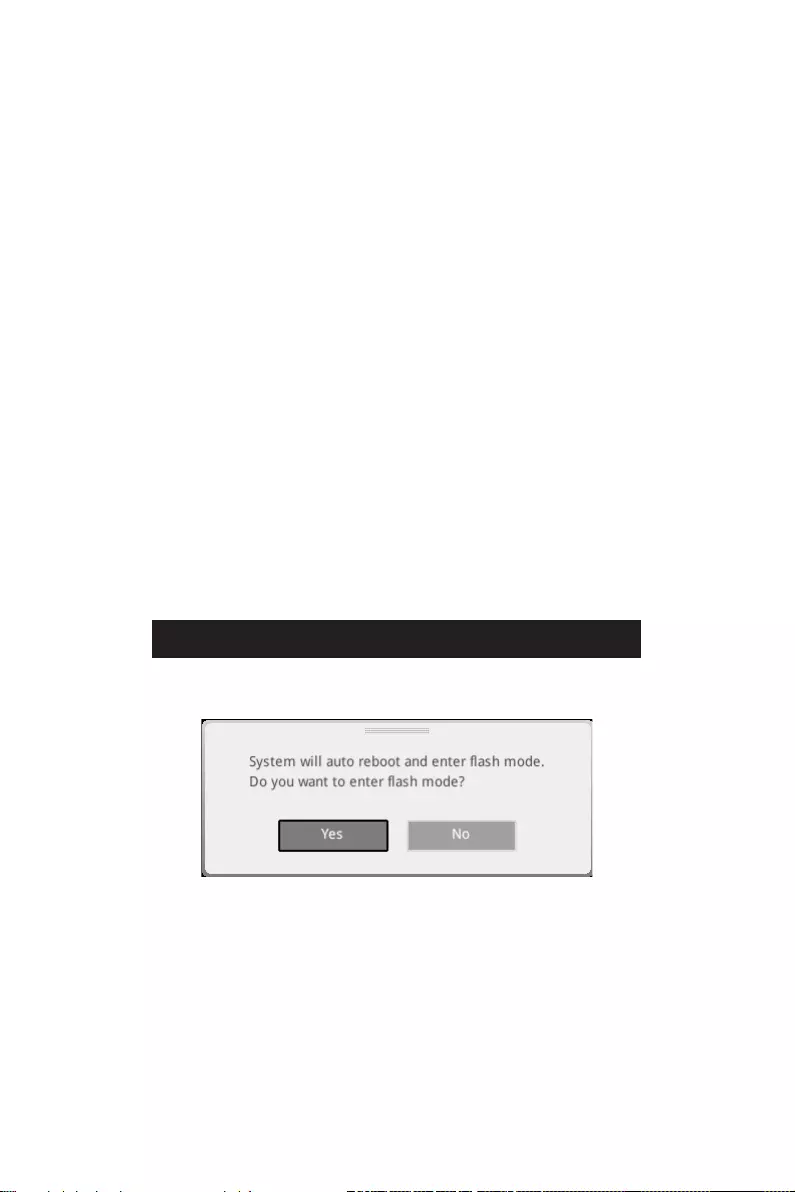
2. Please refer the following methods to enter flash mode.
▪Reboot and press Ctrl + F5 key during POST and click on Yes to reboot the
system.
Press <Ctrl+F5> to activate M-Flash for BIOS update.
▪Reboot and press Del key during POST to enter BIOS. Click the M-FLASH button
and click on Yes to reboot the system.
3. Select a BIOS file to perform the BIOS update process.
4. When prompted click on Yes to start recovering BIOS.
5. After the flashing process is 100% completed, the system will reboot
automatically.

48 UEFI BIOS
Updating the BIOS with MSI Center
Before updating:
∙Make sure the LAN driver is already installed and the internet connection is set
properly.
∙Please close all other application software before updating the BIOS.
To update BIOS:
1. Install and launch MSI Center and go to Support page.
2. Select Live Update and click on Advance button.
3. Select the BIOS file and click on Install button.
4. The installation reminder will appear, then click the Install button on it.
5. The system will automatically restart to update BIOS.
6. After the flashing process is 100% completed, the system will restart
automatically.

Intel® Optane™ Memory Configuration
Intel® Optane™ memory is a technology which allows the system to access the data
more quickly. It enables the computer to store commonly used data and programs,
and keeps them even after powering off the computer. Before you start to install Intel®
Optane™ memory, please note that it requires Windows 10 64-bit operating system.
Intel® Optane™ Memory User Guide
If you’d like to know more instructions on how to enable or remove
Intel® Optane™ Memory, please refer to
http://download.msi.com/manual/mb/Optane.pdf
or scan the QR code to access.
⚠
WARNING
After you enable Intel® Optane™ memory, please note the following to prevent damage
to your operating system.
∙
DO NOT set the SATA mode back to AHCI in BIOS.
∙
DO NOT revert back to older version of the BIOS.
∙
DO NOT remove the Intel® Optane™ memory module.
∙
DO NOT replace the CPU that is not supported by Intel® Optane™ Memory.
49
Intel® Optane™ Memory Configuration

Troubleshooting
Before sending the motherboard for RMA
repair, try to go over troubleshooting
guide first to see if your got similar
symptoms as mentioned below.
The power is not on.
∙Connect the AC power cord to an
electrical outlet securely.
∙Check if all ATX power connectors
like ATX_PWR1, CPU_PWR1 are
connected from the power supply to the
motherboard?
∙Some power supply units have a power
button on the rear side, make sure the
button is turned on.
∙Check if the power switch cable is
connected to JFP1 pin header properly.
∙Verify the Clear CMOS jumper JBAT1 is
set to Keep DATA.
∙Test with another known working
power supply of equal or greater
wattage.
The power is on, but no signal to
monitor
∙Connect the monitor power cord to a
electrical outlet securely.
∙Make sure the monitor is turned on.
∙Select different inputs on the monitor.
∙If 3 long beeps are heard, remove all
memory modules and try to install only
one memory module in the DIMMA2 slot
first and then restart the computer.
∙If 1 long 2 short beeps are heard,
remove and reinstall the graphics card
and then restart the computer.
∙Test with another known working
graphics card.
The computer does not boot after
updating the BIOS
∙Clear the CMOS.
∙Use the secondary BIOS to bootup the
system (Only for motherboard with Dual
BIOS)
Lost BIOS password
∙Clear the CMOS, but that will cause
you to lose all customized settings in the
BIOS.
There is no audio
∙Adjust the volume.
∙Connect the speakers/headphones to
audio ports on the motherboard rear IO
panel.
∙Remove secondary speakers/
headphones, HDMI cables, USB audio
devices.
∙Test with another known working
speaker or headphone.
There is no network
∙Make sure the network chipset driver
has been installed.
∙Verify if the network cable is properly
connected and make sure the LAN port
LEDs are properly illuminated.
∙Verify your TCP/IP settings.
∙Restart or reset your router.
∙Test with another known working LAN
cable.
The USB device is not working
∙Make sure your USB drive driver has
been installed.
∙Verify if USB device is listed in
Windows® Device Manager.
∙Connect the USB device to other USB
port on the motherboard rear IO panel.
50 Troubleshooting
i
Regulatory Notices
Regulatory Notices
FCC Compliance Statement
Note: This equipment has been tested and found to
comply with the limits for a Class B digital device,
pursuant to part 15 of the FCC Rules. These limits are
designed to provide reasonable protection against
harmful interference in a residential installation. This
equipment generates, uses and can radiate radio
frequency energy and, if not installed and used in
accordance with the instructions, may cause harmful
interference to radio communications. However, there
is no guarantee that interference will not occur in a
particular installation. If this equipment does cause
harmful interference to radio or television reception,
which can be determined by turning the equipment
off and on, the user is encouraged to try to correct the
interference by one or more of the following measures:
yReorient or relocate the receiving antenna.
yIncrease the separation between the equipment
and receiver.
yConnect the equipment into an outlet on a circuit
different from that to which the receiver is
connected.
yConsult the dealer or an experienced radio/TV
technician for help.
Caution: Changes or modifications not expressly
approved by the party responsible for compliance could
void the user’s authority to operate the equipment.
Tested to comply with FCC standards
FOR HOME OR OFFICE USE
This device complies with part 15 of the FCC Rules.
Operation is subject to the following two conditions:
(1) This device may not cause harmful interference,
and (2) this device must accept any interference
received, including interference that may cause
undesired operation.
CE Conformity
Products bearing the CE marking comply
with one or more of the following EU
Directives as may be applicable:
RED 2014/53/EU; Low Voltage Directive 2014/35/EU;
EMC Directive 2014/30/EU; RoHS Directive 2011/65/EU.
Compliance with these directives is assessed using
applicable European Harmonized Standards.
The point of contact for regulatory matters is MSI,
MSI-NL Eindhoven 5706 5692 ER Son.
KC인증서
yMAG B560M MORTAR WIFI
yMAG B560M MORTAR
クラスB情報技術装置
VCCI-B
C-Tick Compliance
Battery Information
European Union:
Batteries, battery packs, and
accumulators should not be disposed of as
unsorted household waste. Please use the
public collection system to return, recycle,
or treat them in compliance with the local
regulations.
Taiwan:
For better environmental protection,
waste batteries should be collected
separately for recycling or special
disposal.
California, USA:
The button cell battery may contain
perchlorate material and requires special
handling when recycled or disposed of in
California.
For further information please visit:
http://www.dtsc.ca.gov/hazardouswaste/perchlorate/
CAUTION: There is a risk of explosion, if battery is
incorrectly replaced.
Replace only with the same or equivalent type
recommended by the manufacturer.
Chemical Substances Information
In compliance with chemical substances regulations,
such as the EU REACH Regulation (Regulation EC
No. 1907/2006 of the European Parliament and the
Council), MSI provides the information of chemical
substances in products at:
https://storage-asset.msi.com/html/popup/csr/
evmtprtt_pcm.html
Environmental Policy
yThe product has been designed to
enable proper reuse of parts and
recycling and should not be thrown
away at its end of life.
yUsers should contact the local
authorized point of collection for recycling and
disposing of their end-of-life products.
yVisit the MSI website and locate a nearby distributor
for further recycling information.
yUsers may also reach us at gpcontdev@msi.com for
information regarding proper Disposal, Take-back,
Recycling, and Disassembly of MSI products.
R-R-MSI-B560MMW
R-R-MSI-10-7D17

ii Regulatory Notices
WEEE (Waste Electrical and
Electronic Equipment) Statement
ENGLISH
To protect the global environment and as
an environmentalist, MSI must remind
you that…
Under the European Union (“EU”)
Directive on Waste Electrical and
Electronic Equipment, Directive 2002/96/
EC, which takes effect on August 13,
2005, products of “electrical and electronic equipment”
cannot be discarded as municipal wastes anymore, and
manufacturers of covered electronic equipment will
be obligated to take back such products at the end of
their useful life. MSI will comply with the product take
back requirements at the end of life of MSI-branded
products that are sold into the EU. You can return
these products to local collection points.
DEUTSCH
Hinweis von MSI zur Erhaltung und Schutz unserer
Umwelt
Gemäß der Richtlinie 2002/96/EG über Elektro- und
Elektronik-Altgeräte dürfen Elektro- und Elektronik-
Altgeräte nicht mehr als kommunale Abfälle entsorgt
werden. MSI hat europaweit verschiedene Sammel-
und Recyclingunternehmen beauftragt, die in die
Europäische Union in Verkehr gebrachten Produkte,
am Ende seines Lebenszyklus zurückzunehmen.
Bitte entsorgen Sie dieses Produkt zum gegebenen
Zeitpunkt ausschliesslich an einer lokalen
Altgerätesammelstelle in Ihrer Nähe.
FRANÇAIS
En tant qu’écologiste et afin de protéger
l’environnement, MSI tient à rappeler ceci…
Au sujet de la directive européenne (EU) relative aux
déchets des équipement électriques et électroniques,
directive 2002/96/EC, prenant effet le 13 août 2005, que
les produits électriques et électroniques ne peuvent
être déposés dans les décharges ou tout simplement
mis à la poubelle. Les fabricants de ces équipements
seront obligés de récupérer certains produits en fin
de vie. MSI prendra en compte cette exigence relative
au retour des produits en fin de vie au sein de la
communauté européenne. Par conséquent vous pouvez
retourner localement ces matériels dans les points
de collecte.
РУССКИЙ
ESPAÑOL
MSI como empresa comprometida con la protección
del medio ambiente, recomienda:
Bajo la directiva 2002/96/EC de la Unión Europea
en materia de desechos y/o equipos electrónicos,
con fecha de rigor desde el 13 de agosto de 2005,
los productos clasificados como “eléctricos y
equipos electrónicos” no pueden ser depositados
en los contenedores habituales de su municipio, los
fabricantes de equipos electrónicos, están obligados
a hacerse cargo de dichos productos al termino de
su período de vida. MSI estará comprometido con los
términos de recogida de sus productos vendidos en
la Unión Europea al final de su periodo de vida. Usted
debe depositar estos productos en el punto limpio
establecido por el ayuntamiento de su localidad o
entregar a una empresa autorizada para la recogida de
estos residuos.
NEDERLANDS
Om het milieu te beschermen, wil MSI u eraan
herinneren dat….
De richtlijn van de Europese Unie (EU) met betrekking
tot Vervuiling van Electrische en Electronische
producten (2002/96/EC), die op 13 Augustus 2005 in
zal gaan kunnen niet meer beschouwd worden als
vervuiling. Fabrikanten van dit soort producten worden
verplicht om producten retour te nemen aan het
eind van hun levenscyclus. MSI zal overeenkomstig
de richtlijn handelen voor de producten die de
merknaam MSI dragen en verkocht zijn in de EU. Deze
goederen kunnen geretourneerd worden op lokale
inzamelingspunten.
SRPSKI
vas podesti da…
EC, koja stupa na snagu od 13. Avgusta 2005, proizvodi
proizvoda kojima je istekao vek trajanja, koji imaju MSI
vratiti na lokalnim mestima za prikupljanje.
POLSKI
odpadów produktów elektrycznych i elektronicznych
(sprzedawane na terenie Unii Europejskiej) wycofywane
wyznaczonych punktach zbiorczych.
TÜRKÇE

iii
Regulatory Notices
ČESKY
EC platné od 13. srpna 2005 je zakázáno likvidovat
komunálním odpadu a výrobci elektronických
MAGYAR
Annak érdekében, hogy környezetünket megvédjük,
Önt, hogy …
Az Európai Unió („EU”) 2005. augusztus 13-án hatályba
hulladékairól szóló 2002/96/EK irányelve szerint
az elektromos és elektronikus berendezések
és az ilyen elektronikus berendezések gyártói
kötelessé válnak az ilyen termékek visszavételére
azok hasznos élettartama végén. Az MSI betartja a
termékvisszavétellel kapcsolatos követelményeket
az MSI márkanév alatt az EU-n belül értékesített
termékek esetében, azok élettartamának végén. Az
ITALIANO
Per proteggere l’ambiente, MSI, da sempre amica della
natura, ti ricorda che….
In base alla Direttiva dell’Unione Europea (EU) sullo
Smaltimento dei Materiali Elettrici ed Elettronici,
Direttiva 2002/96/EC in vigore dal 13 Agosto 2005,
prodotti appartenenti alla categoria dei Materiali
Elettrici ed Elettronici non possono più essere eliminati
come rifiuti municipali: i produttori di detti materiali
saranno obbligati a ritirare ogni prodotto alla fine
del suo ciclo di vita. MSI si adeguerà a tale Direttiva
ritirando tutti i prodotti marchiati MSI che sono stati
venduti all’interno dell’Unione Europea alla fine del
loro ciclo di vita. È possibile portare i prodotti nel più
vicino punto di raccolta
日本JIS C 0950材質宣言
https://storage-asset.msi.com/html/popup/csr/
cemm_jp.html
India RoHS
This product complies with the “India E-waste
(Management and Handling) Rule 2011” and prohibits
use of lead, mercury, hexavalent chromium,
polybrominated biphenyls or polybrominated diphenyl
ethers in concentrations exceeding 0.1 weight % and
0.01 weight % for cadmium, except for the exemptions
set in Schedule 2 of the Rule.
Türkiye EEE yönetmeliği
Україна обмеження на наявність
небезпечних речовин
Việt Nam RoHS
Wireless Radio Use
This device is restricted to indoor use when operating
in the 2.4GHz, 5GHz frequency band.
Cet appareil doit être utilisé à l’intérieur.
NCC無線設備警告聲明
Products with radio functionality (EMF)
This product incorporates a radio transmitting
and receiving device. For computers in normal
use, a separation distance of 20 cm ensures that
radio frequency exposure levels comply with EU
requirements. Products designed to be operated
at closer proximities, such as tablet computers,
comply with applicable EU requirements in typical
operating positions. Products can be operated without
maintaining a separation distance unless otherwise
indicated in instructions specific to the product.
Restrictions for products with radio functionality
CAUTION: IEEE 802.11x wireless LAN with
5.15–5.35 GHz frequency band is restricted
for indoor use only in all European Union
member states, EFTA (Iceland, Norway,
Liechtenstein), and most other European countries
(e.g., Switzerland, Turkey, Republic of Serbia).
Using this WLAN application outdoors might lead to
interference issues with existing radio services.
Radio frequency bands and maximum power levels
Features :802.11 a/b/g/n/ac/ax, BT
Frequency Range :2.4GHz, 5GHz, 6GHz
Modulation :FHSS, DSSS, OFDM
Power Output :10, 20, 23
Channel Band Width :1, 5, 20 ,40 , 80, 160MHz
iv Regulatory Notices
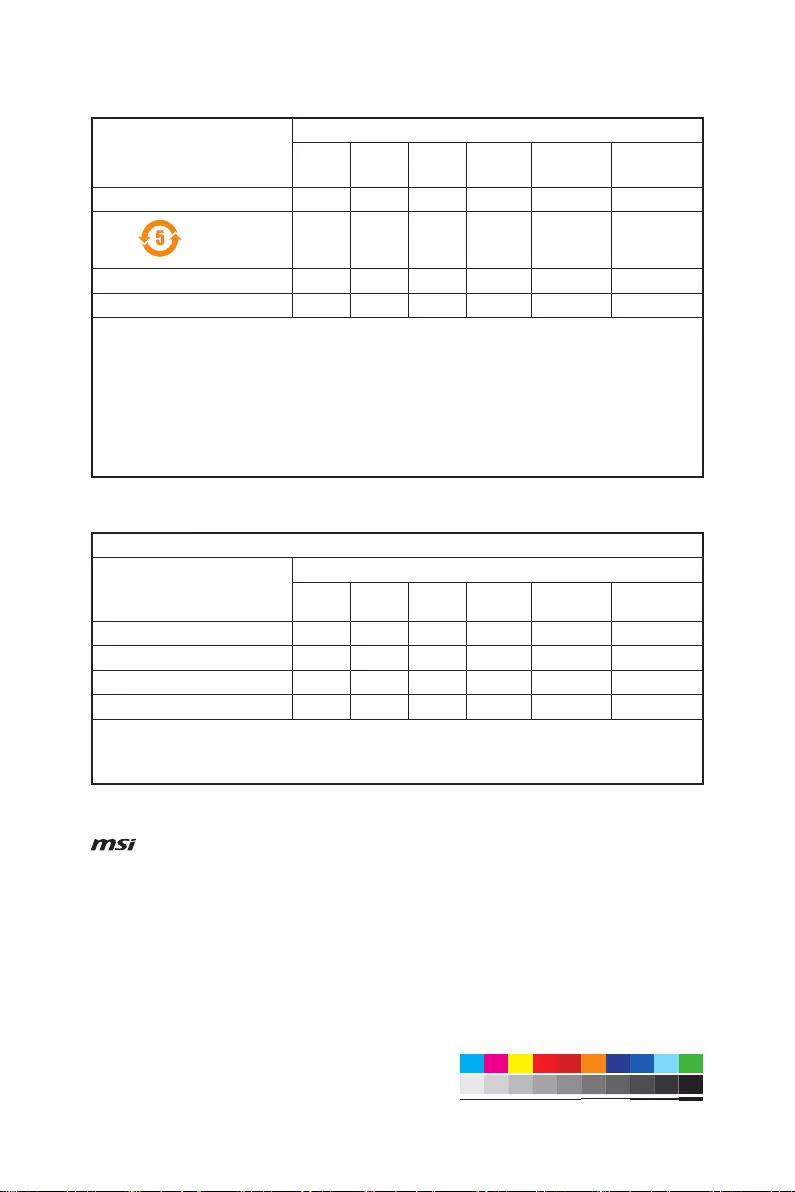
MS-7D17主板产品中有害物质的名称及含量
(Pb)
(Hg)
(Cd)
(Cr(VI))
(PBB)
(PBDE)
限用物質含有情況標示聲明書
(Pb)
(Hg)
(Cd)
(Cr+6)
(PBB)
(PBDE)
Copyright
Micro-Star Int’l Co.,Ltd.
Copyright © 2021 All rights reserved.
The MSI logo used is a registered trademark of
Micro-Star Int’l Co., Ltd. All other marks and names
mentioned may be trademarks of their respective
owners. No warranty as to accuracy or completeness is
expressed or implied. MSI reserves the right to make
changes to this document without prior notice.
Revision History
Version 1.0, 2021/01, First release.
Technical Support
If a problem arises with your system and no solution
can be obtained from the user guide, please
contact your place of purchase or local distributor.
Alternatively, please try the following help resources
for further guidance.
yVisit the MSI website for technical guide, BIOS
updates, driver updates, and other information:
http://www.msi.com
yRegister your product at: http://register.msi.com
MSI MAG B560M Mortar WIFI, MAG B560M Mortar Specification
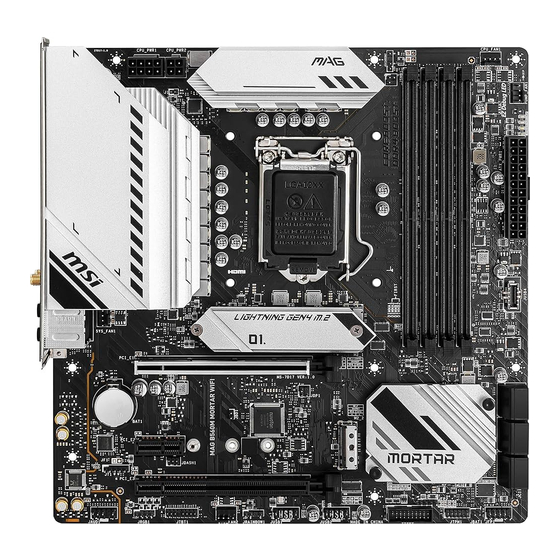
The MSI MAG B560M Mortar WIFI and MAG B560M Mortar motherboards are micro-ATX boards designed to support Intel 10th and 11th Gen processors with the LGA 1200 socket. Both models utilize the Intel B560 chipset, offering a balance of performance and features for mainstream users. They support dual-channel DDR4 memory with speeds up to 5066 MHz (OC) and have four DIMM slots with a maximum capacity of 128GB, ensuring ample memory support for multitasking and gaming needs.
The MAG B560M Mortar WIFI variant includes integrated Wi-Fi 6 and Bluetooth 5.1, providing high-speed wireless connectivity and flexibility for network setups, while the standard MAG B560M Mortar relies on wired Ethernet for network connectivity. Both models feature a Realtek 2.5Gbps LAN for robust and fast wired network performance.
Expansion slots on these motherboards are versatile, with one PCIe 4.0 x16 slot for graphics cards and additional PCIe 3.0 slots for other expansion needs. Storage options are comprehensive, including two M.2 slots supporting PCIe 4.0 and PCIe 3.0 NVMe SSDs, and six SATA 6Gbps ports for traditional drives, offering a variety of configurations for speed and storage capacity.
Audio is powered by the Realtek ALC897 codec, providing high-definition sound. The rear I/O panel is well-equipped with USB 3.2 Gen 1 and Gen 2 ports, HDMI and DisplayPort outputs for integrated graphics, and audio jacks. Optimal cooling is supported by multiple fan headers and an extended heatsink design. The MSI MAG B560M Mortar series balances essential features and performance, making it suitable for both gaming and productivity tasks in a compact form factor.
MSI MAG B560M Mortar WIFI, MAG B560M Mortar F.A.Q.
To update the BIOS, visit the MSI official website, download the latest BIOS file for the MAG B560M Mortar WIFI, extract the file to a USB drive, and use the M-FLASH utility in the BIOS setup to perform the update.
Ensure all components are properly seated, especially RAM and GPU. Clear the CMOS by removing the battery or using the jumper, and check the power connections to the motherboard.
Enter the BIOS by pressing DEL during startup, navigate to the OC section, and enable XMP under the Memory tab to apply the optimal RAM settings.
Check if the SSD is properly connected. Ensure it is in the correct M.2 slot for your configuration and check if the slot is enabled in the BIOS settings.
Yes, you can use MSI’s Mystic Light software to control RGB lighting effects on compatible components and connected devices.
Check if the network drivers are installed and updated. Verify that the Wi-Fi antenna is properly connected and ensure the network settings are correctly configured in the operating system.
Use software like MSI Dragon Center or HWMonitor to check CPU temperature and other system vitals in real-time.
The MSI MAG B560M Mortar supports up to 128GB of DDR4 RAM across its four DIMM slots.
Enter the BIOS setup by pressing DEL during startup, and select «Load Optimized Defaults» from the Exit menu to reset the settings to default.
Locate the available fan headers on the motherboard, connect the fan cables to these headers, and secure the fans inside the case using screws or clips. Adjust fan settings in the BIOS or software if necessary.
Инструкция
Посмотреть инструкция для MSI MAG B560M Mortar WIFI бесплатно. Руководство относится к категории материнские платы, 1 человек(а) дали ему среднюю оценку 7.4. Руководство доступно на следующих языках: русский, английский. У вас есть вопрос о MSI MAG B560M Mortar WIFI или вам нужна помощь?
Задайте свой вопрос здесь
Ниже вы найдете технические характеристики изделия и руководства по эксплуатации MSI MAG B560M Mortar WIFI.
Материнская плата MSI MAG B560M Mortar WIFI совместима с процессорами Intel Celeron, Intel Core i3, Intel Core i5, Intel Core i7, Intel Core i9, Intel Pentium и имеет штекер процессора LGA 1200 (Socket H5). Эта компонента предназначена для ПК и основана на семействе чипсетов Intel с чипсетом Intel B560. Она имеет 4 слота для памяти типа DIMM и поддерживает максимальный объем внутренней памяти до 128 ГБ с частотами памяти 2133, 2666, 2933, 3200 МГц. У нее также есть возможность использовать не буферизованную память и память без исправления ошибок.
Кроме того, у материнской платы MSI MAG B560M Mortar WIFI имеются слоты PCI Express x16, которых два. Таким образом, она обеспечивает высокую производительность и позволяет использовать разнообразные компоненты для настройки своей ПК. Эта плата сочетает в себе высокую надежность и долговечность благодаря использованию качественных материалов при ее конструкции.
Совместимые серии процессоров
Intel Celeron, Intel Core i3, Intel Core i5, Intel Core i7, Intel Core i9, Intel Pentium
Поддерживаемые типы памяти
DDR4-SDRAM
Поддержка технологии параллельной обработки
2-Way CrossFireX
Количество разъемов SATA III
6
Главная
| Бренд | MSI |
| Модель | MAG B560M Mortar WIFI | MAG B560M MORTAR WIFI |
| Изделие | материнская плата |
| EAN | 0824142243312, 4719072802929, 824142243312 |
| Язык | русский, английский |
| Тип файла | Руководство пользователя (PDF) |
Процессор
| Совместимые серии процессоров | Intel Celeron, Intel Core i3, Intel Core i5, Intel Core i7, Intel Core i9, Intel Pentium |
| Сокет процессора | LGA 1200 (Socket H5) |
| Производитель процессора | Intel |
Свойства
| Комплектующие для | ПК |
| Семейство чипсета материнской платы | Intel |
| Чипсет материнской платы | Intel B560 |
| Выходные звуковые каналы | 7.1 канала |
| Аудио чип | Realtek ALC897 |
| Формат материнской платы | Микро ATX |
Память
| Поддерживаемые типы памяти | DDR4-SDRAM |
| Количество слотов памяти | 4 |
| Максимальная внутренняя память | 128 GB |
| Поддерживаемые частоты памяти | 2133,2666,2933,3200 MHz |
| Каналы памяти | Dual-channel |
| Тип слотов памяти | DIMM |
| Небуферизованная память | Да |
Слоты расширения
| PCI Express x16 слоты | 2 |
| Слоты PCI Express x1 (поколение 3.x) | 1 |
| Количество M.2 (M) слотов | 2 |
Графический адаптер
| Поддержка технологии параллельной обработки | 2-Way CrossFireX |
Внутренние порты
| Количество разъемов SATA III | 6 |
| Разъем питания ATX (24-конт.) | Да |
| 12В разъем питания | Да |
| Разъемы USB 3.2 Gen 2 (3.1 Gen 2) | 1 |
| Разъемы USB 3.2 Gen 1 (3.1 Gen 1) | 1 |
| Разъемы USB 2.0 | 2 |
| Разъем вентилятора центрального процессора | Да |
| Аудиоразъем передней панели | Да |
| Разъем Chassis intrusion | Да |
| TPM коннектор | Да |
| разъемы Thunderbolt | 1 |
| Количество разъемов SATA II | 0 |
| Количество параллельных разъемов ATA (PATA) | 0 |
Контроллеры хранения данных
| Поддерживаемые интерфейсы носителя | M.2, SATA III |
| Поддерживаемые типы накопителей | HDD & SSD |
Сеть
| Контроллер LAN | Realtek RTL8125B |
| Подключение Ethernet | Да |
| Тип Ethernet интерфейса | 2.5 Gigabit Ethernet |
| Wi-Fi | Да |
| Основной стандарт Wi-Fi | Wi-Fi 6 (802.11ax) |
| Wi-Fi стандартов | Wi-Fi 6E (802.11ax) |
| Модель WLAN контроллера | Intel Wi-Fi 6E AX210 |
| Bluetooth | Да |
| Версия Bluetooth | 5.2 |
BIOS
| Перемычка Clear CMOS | Да |
| Тип BIOS | UEFI AMI |
Порты на задней панели
| Количество портов USB 2.0 | 4 |
| Количество портов DisplayPort | 1 |
| Количество портов USB 3.2 Gen 1 (3.1 Gen 1) Type-A | 3 |
| Количество портов Ethernet LAN ( RJ-45) | 1 |
| Количество HDMI портов | 1 |
| Порт выхода S/PDIF | Да |
| Количество портов USB 3.2 Gen 1 (3.1 Gen 1) Type-С | 0 |
| Количество портов USB 3.2 Gen 2 (3.1 Gen 2) Type-A | 0 |
| Количество портов USB 3.2 Gen 2 (3.1 Gen 2) Type-С | 0 |
| Количество портов eSATA | 0 |
| Количество портов PS/2 | 0 |
| Порты FireWire | 0 |
| Количество портов VGA (D-Sub) | 0 |
| Количество портов DVI-D | 0 |
Вес и размеры
| Ширина | 244 mm |
| Глубина | 244 mm |
| Высота | 80 mm |
Логистические данные
| Код гармонизированной системы описания (HS) | 84733020 |
Прочие свойства
показать больше
Часто задаваемые вопросы
Не можете найти ответ на свой вопрос в руководстве? Вы можете найти ответ на свой вопрос ниже, в разделе часто задаваемых вопросов о MSI MAG B560M Mortar WIFI.
Какой вес MSI MAG B560M Mortar WIFI?
MSI MAG B560M Mortar WIFI имеет вес 1000 g.
Какая высота MSI MAG B560M Mortar WIFI?
MSI MAG B560M Mortar WIFI имеет высоту 80 mm.
Какая ширина MSI MAG B560M Mortar WIFI?
MSI MAG B560M Mortar WIFI имеет ширину 244 mm.
Какая толщина MSI MAG B560M Mortar WIFI?
MSI MAG B560M Mortar WIFI имеет толщину 244 mm.
Инструкция MSI MAG B560M Mortar WIFI доступно в русский?
Да, руководствоMSI MAG B560M Mortar WIFI доступно врусский .
Не нашли свой вопрос? Задайте свой вопрос здесь
- Manuals
- Brands
- MSI Manuals
- Motherboard
- MAG B560M MORTAR WIFI
- User manual
-
Contents
-
Table of Contents
-
Bookmarks
Need help?
Do you have a question about the MAG B560M MORTAR WIFI and is the answer not in the manual?
Questions and answers
Related Manuals for MSI MAG B560M MORTAR WIFI
Summary of Contents for MSI MAG B560M MORTAR WIFI
-
Page 1
MAG B560M MORTAR WIFI MAG B560M MORTAR Motherboard User Guide Benutzerhandbuch Manuel d’utilisation Руководство пользователя 取扱説明書 사용 명서 使用手冊 使用手册… -
Page 2
English Deutsch Français Русский 日本語 한국어 繁體中文 簡体中文… -
Page 3
Sie auch den QR Code mit Ihrem Handy, um die URL zu öffnen. Présentation rapide Merci d’avoir choisi la carte mère MSI®. Ce manuel fournit une rapide présentation avec des illustrations explicatives qui vous aideront à assembler votre ordinateur. -
Page 4
Installing a Processor/ Installation des Prozessors/ Installer un processeur/ Установка процессора/ CPUの取り付け/ 프로세서 설치하기/ 安裝處理器/ 安装处理器 Youtube ⚽ https://youtu.be/Xv89nhFk1vc 优酷 ⚽ http://v.youku.com/v_show/id_ XMTg2MjMwOTE2NA==.html… -
Page 5
Installing DDR4 memory/ Installation des DDR4-Speichers/ Installer une mémoire DDR4/ Установка памяти DDR4/ DDR4メ モリの取り付け/ DDR4 메모리 설치하기/ 安裝 DDR4 記憶體/ 安装 DDR4 内存 Youtube 优酷 ⚽ ⚽ http://youtu.be/T03aDrJPyQs http://v.youku.com/v_show/id_XNzUyMTI5ODI4.html DIMMA1 DIMMA2 DIMMA2 DIMMA2 DIMMB2 DIMMB1 DIMMB2… -
Page 6
Connecting the Front Panel Header/ Anschließen der Frontpanel-Stiftleiste/ Connecter un connecteur du panneau avant/ Подключение разъемов передней панели/ フロントパネルヘッダーの接続/ 전면 패널 커넥터 연결하기/ 連接前置面板針腳/ 连接前置面板接头 Youtube 优酷 ⚽ ⚽ http://v.youku.com/v_show/id_XNjcyMTczMzM2.html http://youtu.be/DPELIdVNZUI Power LED Power Switch JFP1 Reserved HDD LED Reset Switch HDD LED + Power LED + HDD LED -… -
Page 7
Installing the Motherboard/ Installation des Motherboards/ Installer la carte mère/ Установка материнской платы/ マザー ボードの取り付け/ 메인보드 설치하기/ 安裝主機板/ 安装主板 Youtube ⚽ https://youtu.be/wWI6Qt51Wnc 优酷 ⚽ https://v.youku.com/v_show/id_ XNDUwMDUyNTkwOA==.html Torque: 3 kgf·cm* BAT1 *3 kgf·cm = 0.3 N·m = 2.6 lbf·in… -
Page 8
Connecting the Power Connectors/ Stromanschlüsse anschliessen/ Connecter les câbles du module d’alimentation/ Подключение разъемов питания/ 電源コネクターの接続/ 전원 커넥터 연결하기/ 插上電源接頭/ 连接电源接头 Youtube 优酷 ⚽ ⚽ http://youtu.be/gkDYyR_83I4 http://v.youku.com/v_show/id_XNDkzODU0MDQw.html ATX_PWR1 CPU_PWR2 CPU_PWR1 VIII… -
Page 9
Installing SATA Drives/ Installation der SATA-Laufwerke/ Installer le disque dur SATA/ Установка дисков SATA/ SATAド ライブの取り付け/ SATA 드라이브 설치하기/ 安裝 SATA 磁碟機/ 安 装 SATA 设备 Youtube ⚽ http://youtu.be/RZsMpqxythc 优酷 ⚽ http://v.youku.com/v_show/ id_XNDkzODU5MTky.html… -
Page 10
Installing a Graphics Card/ Einbau der Grafikkarte/ Installer une carte graphique/ Установка дискретной видеокарты/ グラ フィックスカードの取り付け/ 그래픽 카드 설치하기 / 安裝顯示卡/ 安装显卡 Youtube ⚽ http://youtu.be/mG0GZpr9w_A 优酷 ⚽ http://v.youku.com/v_show/ id_XNDkyOTc3MzQ4.html… -
Page 11
Connecting Peripheral Devices/ Peripheriegeräte/ Connecter un périphérique anschliessen/ Подключение периферийных устройств/ 周辺機器の接続/ 주변 장치 연결하기/ 連接周邊設備/ 连接外围设备 (MAG B560M MORTAR WIFI) -
Page 12
Power On/ Einschalten/ Mettre sous-tension/ Включение питания/ 通電/ 전원 켜기/ 啟動電源/ 开机… -
Page 13: Table Of Contents
LAN Port LED Status Table ……………… 12 Audio Ports Configuration ………………12 Realtek Audio Console ………………13 Installing Antennas (For MAG B560M MORTAR WIFI only) ……… 15 Overview of Components ………………16 CPU Socket ………………….17 DIMM Slots ………………….18 PCI_E1~3: PCIe Expansion Slots …………….
-
Page 14: Safety Information
Safety Information ∙ The components included in this package are prone to damage from electrostatic discharge (ESD). Please adhere to the following instructions to ensure successful computer assembly. ∙ Ensure that all components are securely connected. Loose connections may cause the computer to not recognize a component or fail to start.
-
Page 15: Case Stand-Off Notification
Case stand-off notification Before installing the motherboard into the case, install first the necessary mounting stand-off required for a motherboard on the mounting plate in the case. To prevent damage to the motherboard, any unnecessary mounting stand-off between the motherboard circuits and the computer case is prohibited. The Case standoff keep out zone signs will be marked on the backside of motherboard (as shown below) to serve as a warning to user.
-
Page 16: Specifications
▪ 2DPC 2R Max speed up to 4000+ MHz ∙ Supports Dual-Channel mode ∙ Supports non-ECC, un-buffered memory ∙ Supports Intel® Extreme Memory Profile (XMP) *Please refer msi.com for more information on compatible memory ∙ 2x PCIe x16 slots ▪ Support x16/ x4 ▪ PCI_E1 (From CPU) ▫…
-
Page 17
* SATA2 will be unavailable when installing M.2 SATA SSD in M2_1 slot. ** Before using Intel® Optane™ memory modules, please ensure that you have updated the drivers and BIOS to the latest version from MSI website. Intel® B560 Chipset ▪… -
Page 18
Continued from previous page Realtek® AL897 Codec ▪ 7.1-Channel High Definition Audio Audio ▪ Supports S/PDIF output ∙ 1x Realtek® RTL8125B 2.5Gbps LAN controller Intel® WiFi 6E AX210 ∙ The Wireless module is pre-installed in the M.2 (Key-E) slot Wireless LAN & ∙… -
Page 19
Continued from previous page ∙ 1x 4-pin RGB LED connector LED Features ∙ 2x 3-pin RAINBOW LED connectors ∙ 4x EZ Debug LED ∙ 4x USB 2.0 Type-A ports ∙ 1x DisplayPort ∙ 1x HDMI™ port ∙ 3x USB 3.2 Gen 1 5Gbps Type-A ports Back Panel ∙… -
Page 20
∙ MSI Sound Tune ∙ Gaming Mode ∙ Creator Mode ∙ Game Highlights ∙ LAN Manager ∙ Mystic Light ∙ Ambient Link (For MAG B560M MORTAR WIFI only) MSI Center Features ∙ Frozr AI Cooling ∙ User Scenario ∙ True Color ∙… -
Page 21
▪ Audio Boost ▪ Sound Tune ∙ Network ▪ 2.5G LAN ▪ LAN Manager ▪ Intel WiFi (For MAG B560M MORTAR WIFI only) ∙ Cooling ▪ Extended Heatsink Design ▪ M.2 Shield Frozr ▪ K7 thermal pad ▪ Choke pad ▪… -
Page 22
Continued from previous page ∙ Protection ▪ PCI-E Steel Armor ▪ Pre-installed I/O Shielding ∙ Experience Special Features ▪ MSI Center ▪ Frozr AI Cooling ▪ Click BIOS 5 ▪ CPU Cooler Tuning Specifications… -
Page 23: Package Contents
Package contents Please check the contents of your motherboard package. It should contain: Motherboard MAG B560M MORTAR WIFI / MAG B560M MORTAR Cable SATA 6G cables (2 cables/pack) Wi-Fi Antenna (For MAG B560M MORTAR WIFI only) M.2 screw + standoff (2 sets/pack)
-
Page 24: Rear I/O Panel
Rear I/O Panel Wi-Fi Antenna connectors Audio Jacks 2.5 Gbps LAN DisplayPort USB 2.0 Type-A USB 3.2 Gen 2×2 Optical S/PDIF-Out (20Gbps) Type-C USB 3.2 Gen 1 For MAG B560M (5Gbps) Type-A MORTAR WIFI only LAN Port LED Status Table Link/ Activity LED Speed LED Status…
-
Page 25: Realtek Audio Console
Realtek Audio Console After Realtek Audio Console is installed. You can use it to change sound settings to get better sound experience. Application Enhancement Device Selection Main Volume Connector Settings Jack Status ∙ Device Selection — allows you to select a audio output source to change the related options.
-
Page 26
Audio jacks to headphone and microphone diagram Audio jacks to stereo speakers diagram AUDIO INPUT Audio jacks to 7.1-channel speakers diagram AUDIO INPUT Rear Front Side Center/ Subwoofer Package contents… -
Page 27: Installing Antennas (For Mag B560M Mortar Wifi Only)
Installing Antennas (For MAG B560M MORTAR WIFI only) 1. Screw the antennas tight to the antenna connectors as shown below. 2. Orient the antennas. Package contents…
-
Page 28
Overview of Components Processor Socket DIMMA1 DIMMA2 CPU_PWR1 JRAINBOW2 DIMMB1 CPU_PWR1 JSMB1 DIMMB2 CPU_FAN1 PUMP_FAN1 ATX_PWR1 SYS_FAN1 JUSB4 M2_1 PCI_E1 SATA ▼ 1 ▲ 2 BAT1 M2_2 SATA ▼ 3 ▲ 4 PCI_E2 JDASH1 SATA ▼ 5 ▲ 6 PCI_E3 JCI1 JAUD1 JFP1… -
Page 29
Always unplug the power cord from the power outlet before installing or removing the CPU. ∙ Please retain the CPU protective cap after installing the processor. MSI will deal with Return Merchandise Authorization (RMA) requests if only the motherboard comes with the protective cap on the CPU socket. -
Page 30: Overview Of Components
It is recommended to use a more efficient memory cooling system for full DIMMs ∙ installation or overclocking. ∙ The stability and compatibility of installed memory module depend on installed CPU and devices when overclocking. Please refer www.msi.com for more information on compatible memory. ∙ Overview of Components…
-
Page 31: Pci_E1~3: Pcie Expansion Slots
PCI_E3: PCIe 3.0 x4 (From B560 chipset) ⚠ Important ∙ If you install a large and heavy graphics card, you need to use a tool such as MSI Gaming Series Graphics Card Bolster to support its weight to prevent deformation of the slot. ∙…
-
Page 32: M2_1~2: M.2 Slots (Key M)
M2_1~2: M.2 Slots (Key M) ⚽ Video Demonstration Watch the video to learn how to Install M.2 SSD. https://youtu.be/2UeWMgjwogU M2_1 M2_2 ⚠ Important Intel® RST only supports PCIe M.2 SSD with UEFI ROM. ∙ Intel® Optane™ Memory Ready for M2_2 slot. ∙…
-
Page 33
3. Secure the supplied M.2 standoff according to your M.2 SSD length if need. 4. Insert your M.2 SSD into the M.2 slot at a 30-degree angle. 5. Secure the M.2 SSD in place with the supplied M.2 8.5H screw. ⚠… -
Page 34: Sata1~6: Sata 6Gb/S Connectors
SATA1~6: SATA 6Gb/s Connectors These connectors are SATA 6Gb/s interface ports. Each connector can connect to one SATA device. SATA2 SATA1 SATA4 SATA3 SATA6 SATA5 ⚠ Important ∙ Please do not fold the SATA cable at a 90-degree angle. Data loss may result during transmission otherwise.
-
Page 35: Jfp1, Jfp2: Front Panel Connectors
JFP1, JFP2: Front Panel Connectors These connectors connect to the switches and LEDs on the front panel. Buzzer JFP2 Speaker Speaker — Buzzer + Buzzer — Speaker + Power LED Power Switch JFP1 Reserved HDD LED Reset Switch HDD LED + Power LED + HDD LED — Power LED -…
-
Page 36: Cpu_Pwr1~2, Atx_Pwr1: Power Connectors
CPU_PWR1~2, ATX_PWR1: Power Connectors These connectors allow you to connect an ATX power supply. CPU_PWR1 Ground +12V Ground +12V Ground +12V Ground +12V CPU_PWR2 Ground +12V Ground +12V +3.3V +3.3V +3.3V -12V Ground Ground PS-ON# Ground Ground Ground ATX_PWR1 Ground Ground PWR OK 5VSB…
-
Page 37: Jusb4: Usb 3.2 Gen 2 Type-C Connector
JUSB4: USB 3.2 Gen 2 Type-C Connector This connector allows you to connect USB 3.2 Gen 2 10Gbps Type-C connector on the front panel. The connector possesses a foolproof design. When you connect the cable, be sure to connect it with the corresponding orientation. USB Type-C Cable JUSB4 USB Type-C port on…
-
Page 38: Jusb1~2: Usb 2.0 Connectors
In order to recharge your iPad, iPhone and iPod through USB ports, please install ∙ MSI® Center utility. JTPM1: TPM Module Connector This connector is for TPM (Trusted Platform Module). Please refer to the TPM security platform manual for more details and usages.
-
Page 39: Cpu_Fan1, Pump_Fan1, Sys_Fan1~2: Fan Connectors
CPU_FAN1, PUMP_FAN1, SYS_FAN1~2: Fan Connectors Fan connectors can be classified as PWM (Pulse Width Modulation) Mode or DC Mode. PWM Mode fan connectors provide constant 12V output and adjust fan speed with speed control signal. DC Mode fan connectors control fan speed by changing voltage. However, you can follow the instruction below to adjust the fan connector to PWM or DC Mode manually.
-
Page 40: Jci1: Chassis Intrusion Connector
JCI1: Chassis Intrusion Connector This connector allows you to connect the chassis intrusion switch cable. Normal Trigger the chassis (default) intrusion event Using chassis intrusion detector 1. Connect the JCI1 connector to the chassis intrusion switch/ sensor on the chassis. 2.
-
Page 41: Jbat1: Clear Cmos (Reset Bios) Jumper
JBAT1: Clear CMOS (Reset BIOS) Jumper There is CMOS memory onboard that is external powered from a battery located on the motherboard to save system configuration data. If you want to clear the system configuration, set the jumpers to clear the CMOS memory. Keep Data Clear CMOS/ (default)
-
Page 42: Jrgb1: Rgb Led Connector
(12V/G/R/B) with the maximum power rating of 3A (12V). Always turn off the power supply and unplug the power cord from the power outlet ∙ before installing or removing the RGB LED strip. Please use MSI’s software to control the extended LED strip. ∙ Overview of Components…
-
Page 43: Jrainbow1~2: Addressable Rgb Led Connectors
(5V). In the case of 20% brightness, the connector supports up to 200 LEDs. ∙ Always turn off the power supply and unplug the power cord from the power outlet before installing or removing the RGB LED strip. Please use MSI’s software to control the extended LED strip. ∙ Overview of Components…
-
Page 44: Installing Os, Drivers & Msi Center
MSI Center is an application that helps you easily optimize game settings and smoothly use content creation softwares. It also allows you to control and synchronize LED light effects on PCs and other MSI products. With MSI Center, you can customize ideal modes, monitor system performance, and adjust fan speed.
-
Page 45: Uefi Bios
UEFI has many new functions and advantages that traditional BIOS cannot achieve, and it will completely replace BIOS in the future. The MSI UEFI BIOS uses UEFI as the default boot mode to take full advantage of the new chipset’s capabilities.
-
Page 46: Bios Setup
* When you press F10, a confirmation window appears and it provides the modification information. Select between Yes or No to confirm your choice. BIOS User Guide If you’d like to know more instructions on setting up the BIOS, please refer to http://download.msi.com/manual/mb/Intel500BIOS.pdf or scan the QR code to access. UEFI BIOS…
-
Page 47: Resetting Bios
Updating BIOS Updating BIOS with M-FLASH Before updating: Please download the latest BIOS file that matches your motherboard model from MSI website. And then save the BIOS file into the USB flash drive. Updating BIOS: 1. Insert the USB flash drive that contains the update file into the USB port.
-
Page 48
∙ Please close all other application software before updating the BIOS. To update BIOS: 1. Install and launch MSI Center and go to Support page. 2. Select Live Update and click on Advance button. 3. Select the BIOS file and click on Install button. -
Page 49
Rückseite E/A ………………….. 12 LAN Port LED Zustandstabelle …………….12 Konfiguration der Audioanschlüsse …………..12 Realtek Audio Console ………………13 Antennen installieren (nur für MAG B560M MORTAR WIFI) …….. 15 Übersicht der Komponenten …………..16 CPU Sockel ………………….17 DIMM Steckplätze ………………..18 PCI_E1~3: PCIe Erweiterungssteckplätze ………… -
Page 50: Sicherheitshinweis
Sicherheitshinweis ∙ Die im Paket enthaltene Komponenten sind der Beschädigung durch elektrostatischen Entladung (ESD). Beachten Sie bitte die folgenden Hinweise, um die erfolgreichen Computermontage sicherzustellen. ∙ Stellen Sie sicher, dass alle Komponenten fest angeschlossen sind. Lockere Steckverbindungen können Probleme verursachen, zum Beispiel: Der Computer erkennt eine Komponente nicht oder startet nicht.
-
Page 51: Hinweise Zum Gehäuseabstandshalter
Hinweise zum Gehäuseabstandshalter Installieren Sie vor dem Einbau des Motherboards in das Gehäuse zunächst den für ein Motherboard erforderlichen Abstandshalter auf der Montageplatte im Gehäuse. Um eine Beschädigung des Motherboards zu vermeiden, sind unnötige Abstandshalter zwischen den Motherboard-Schaltkreisen und dem Computergehäuse verboten.. Die Schilder „Case Standoff Keep Out Zone (Gehäuseabstandszone freihalten )“…
-
Page 52: Spezifikationen
∙ Dual-Kanal-Speicherarchitektur ∙ Unterstützt non-ECC, ungepufferte Speicher ∙ Unterstützt Intel® Extreme Memory Profile (XMP) *Weitere Informationen zu kompatiblen Speichermodulen finden Sie unter: http://www.msi.com. ∙ 2x PCIe x16 Steckplätze ▪ Unterstützt x16/ x4 ▪ PCI_E1 (von CPU) ▫ Unterstützt bis zu PCIe 4.0 für Intel® CPU der 11.
-
Page 53
* Der SATA2 Anschluss wird nicht zur Verfügung stehen, wenn Sie eine M.2 SATA SSD im M2_1 Steckplatz installieren. ** Bevor Sie Intel® Optane™ Speichermodule verwenden, stellen Sie bitte über Downloads von der MSI Website sicher, dass die Treiber und das BIOS auf dem neuesten Stand sind. Fortsetzung auf der nächsten Seite… -
Page 54
Fortsetzung der vorherigen Seite Intel® B560 Chipsatz ▪ 1x USB 3.2 Gen 2×2 20Gbit/s Typ-C Anschluss an der rückseitigen Anschlussleiste ▪ 1x USB 3.2 Gen 2 10Gbit/s Typ-C Anschluss ▪ 2x USB 3.2 Gen 1 5Gbit/s Anschlüsse stehen durch die internen USB USB 3.2 Gen 1 5Gbit/s Anschlüsse ▪… -
Page 55
Fortsetzung der vorherigen Seite ∙ 1x 24-poliger ATX Stromanschluss ∙ 1x 8-poliger ATX 12V Stromanschluss ∙ 1x 4-poliger ATX 12V Stromanschluss ∙ 6x SATA 6Gb/s Anschlüsse ∙ 2x M.2 Steckplätze (Key M) ∙ 1x USB 3.2 Gen 2 10Gbit/s Typ-C Anschluss ∙… -
Page 56
∙ MSI Sound Tune ∙ Gaming Modus ∙ Creator Modus ∙ Game Highlights ∙ LAN Manager ∙ Mystic Light ∙ Ambient Link (Nur für MAG B560M MORTAR WIFI) MSI Center Funktionen ∙ Frozr AI Kühlung ∙ Benutzer-Szenario ∙ True Color ∙… -
Page 57
∙ Audio ▪ Audio Boost ▪ Sound Tune ∙ Netzwerk ▪ 2.5G LAN ▪ LAN Manager ▪ Intel WiFi (Nur für MAG B560M MORTAR WIFI) ∙ Kühlung ▪ Erweitertes Kühlkörperdesign ▪ M.2 Shield Frozr ▪ K7 Thermalpad ▪ Choke-Pad ▪ Pump-Lüfter ▪… -
Page 58
Fortsetzung der vorherigen Seite ∙ Schutz ▪ PCI-E Steel Armor ▪ Vorinstallierte Anschlussblende ∙ Erfahrung Besondere Funktionen ▪ MSI Center ▪ Frozr AI Kühlung ▪ Click BIOS 5 ▪ CPU Cooler Tuning Spezifikationen… -
Page 59: Packungsinhalt
Packungsinhalt Überprüfen Sie den Packungsinhalt des Mainboards. Die Packung sollte enthalten: Motherboard MAG B560M MORTAR WIFI / MAG B560M MORTAR Kabel SATA 6G/s Kabel (2 Kabel pro Packung) Wi-Fi-Antenne (nur für MAG B560M MORTAR WIFI) M.2 Schraube + Abstand (2 Stück pro Packung) Zubehör…
-
Page 60: Rückseite E/A
Rückseite E/A Wi-Fi Antennenanschlüsse Audiobuchsen 2,5 Gbit/s LAN DisplayPort USB 2.0 Typ-A USB 3.2 Gen 2×2 Optischer S/PDIF-Ausgang 20Gbit/s Typ-C USB 3.2 Gen 1 (Nur für MAG (5Gbit/s) Typ-A B560M MORTAR WIFI) LAN Port LED Zustandstabelle Verbindung/ Aktivität LED Geschwindigkeit LED Zustand Bezeichnung Zustand…
-
Page 61: Realtek Audio Console
Realtek Audio Console Nach der Installation des Realtek Audio Console-Treibers, können Sie die Audioeinstellungen verändern, um ein optimales Klangerlebnis erzeugen. Optimierungen Geräteauswahl Lautstärke Anschluss Verbindungsstatus ∙ Geräteauswahl — Ermöglicht die Auswahl der Audio-Ausgangs Quelle. Das aktuell aktivierte Gerät ist mit einem Haken gekennzeichnet. ∙…
-
Page 62
Audiobuchsen für den Anschluss von einem Kopfhörer und Mikrofon Audiobuchsen für Stereo-Lautsprecher AUDIO INPUT Audiobuchsen für 7.1 Kanal Anlage AUDIO INPUT Rear Front Side Center/ Subwoofer Spezifikationen… -
Page 63: Antennen Installieren (Nur Für Mag B560M Mortar Wifi)
Antennen installieren (nur für MAG B560M MORTAR WIFI) 1. Schrauben Sie die Antennen fest an die Antennenanschlüsse, wie gezeigt. 2. Richten Sie die Antennenspitzen aus. Spezifikationen…
-
Page 64: Übersicht Der Komponenten
Übersicht der Komponenten Prozessor Sockel DIMMA1 DIMMA2 CPU_PWR1 JRAINBOW2 DIMMB1 CPU_PWR1 JSMB1 DIMMB2 CPU_FAN1 PUMP_FAN1 ATX_PWR1 SYS_FAN1 JUSB4 M2_1 PCI_E1 SATA ▼ 1 ▲ 2 BAT1 M2_2 SATA ▼ 3 ▲ 4 PCI_E2 JDASH1 SATA ▼ 5 ▲ 6 PCI_E3 JCI1 JAUD1 JFP1…
-
Page 65: Cpu Sockel
Sie jedoch bitte sicher, dass die betroffenen Komponenten mit den abweichenden Einstellungen während des Übertaktens zurecht kommen. Von jedem Versuch des Betriebes außerhalb der Produktspezifikationen kann nur abgeraten werden. MSI übernehmt keinerlei Garantie für die Schäden und Risiken, die aus einem unzulässigem Betrieb oder einem Betrieb außerhalb der Produktspezifikation resultieren.
-
Page 66: Dimm Steckplätze
DIMMs oder beim Übertakten zu verwenden. Die Stabilität und Kompatibilität beim Übertakten der installierten Speichermodule ∙ sind abhängig von der installierten CPU und den installierten Geräten. ∙ Weitere Informationen zu kompatiblen Speicher finden Sie unter: www.msi.com Übersicht der Komponenten…
-
Page 67: Pci_E1~3: Pcie Erweiterungssteckplätze
Wichtig ∙ Wenn Sie eine große und schwere Grafikkarte einbauen, benötigen Sie einen Grafikkarten-Stabilisator (Graphics Card Bolster) der MSI Gaming Serien der das Gewicht trägt und eine Verformung des Steckplatzes vermeidet. ∙ Für die Installation einer einzelnen PCIe x16 Erweiterungskarte mit optimaler Leistung, empfehlen wir den PCI_E1 Steckplatz zu verwenden.
-
Page 68: M2_1~2: M.2 Steckplätze (Key M)
M2_1~2: M.2 Steckplätze (Key M) ⚽ Video-Demonstration Eine anschauliche Darstellung zur Installation einer M.2 SSD finden Sie im Video. https://youtu.be/2UeWMgjwogU M2_1 M2_2 ⚠ Wichtig Intel® RST unterstützt nur PCIe M.2 SSD mit UEFI ROM. ∙ Intel® Optane™ Memory ist nur für M2_2 Steckplatz. ∙…
-
Page 69
3. Befestigen Sie den mitgelieferten M.2-Abstandshalter entsprechend Ihrer M.2 SSD Länge. 4. Stecken Sie eine M.2-SSD im 30-Grad-Winkel in den M.2-Steckplatz. ⚠ 5. Schrauben Sie den M.2 SSD mit 8,5H M.2-Schraube. Wichtig Überspringen Sie Schritt 3 und Schritt 5, wenn Sie eine 2280 M.2 SSD in den M2_1- Steckplatz installieren. -
Page 70: Sata1~6: Sata 6Gb/S Anschlüsse
SATA1~6: SATA 6Gb/s Anschlüsse Dieser Anschluss basiert auf der Hochgeschwindigkeitsschnittstelle SATA 6 Gb/s. Pro Anschluss kann ein SATA Gerät angeschlossen werden. SATA2 SATA1 SATA4 SATA3 SATA6 SATA5 ⚠ Wichtig ∙ Knicken Sie das SATA-Kabel nicht in einem 90° Winkel. Datenverlust könnte die Folge sein.
-
Page 71: Jfp1, Jfp2: Frontpanel-Anschlüsse
JFP1, JFP2: Frontpanel-Anschlüsse Diese Anschlüsse verbinden die Schalter und LEDs des Frontpanels. Buzzer JFP2 Speaker Speaker — Buzzer + Buzzer — Speaker + Power LED Power Switch JFP1 Reserved HDD LED Reset Switch HDD LED + Power LED + HDD LED — Power LED — Reset Switch Power Switch…
-
Page 72: Cpu_Pwr1~2, Atx_Pwr1: Stromanschlüsse
CPU_PWR1~2, ATX_PWR1: Stromanschlüsse Mit diesen Anschlüssen verbinden Sie die ATX Stromstecker. CPU_PWR1 Ground +12V Ground +12V Ground +12V Ground +12V CPU_PWR2 Ground +12V Ground +12V +3,3V +3,3V +3,3V -12V Ground Ground PS-ON# Ground Ground Ground ATX_PWR1 Ground Ground PWR OK 5VSB +12V +12V…
-
Page 73: Jusb4: Usb 3.2 Gen 2 Typ-C Anschluss
JUSB4: USB 3.2 Gen 2 Typ-C Anschluss Mit diesem Anschluss können Sie den USB 3.2 Gen 2 10 Gbit/s Typ-C Anschluss auf dem Frontpanel verbinden. Der Anschluss verfügt über ein besonders sicheres Design. Wenn Sie das Kabel anschließen, müssen Sie es in der entsprechenden Ausrichtung verbinden.
-
Page 74: Jusb1~2: Usb 2.0 Anschlüsse
Um ein iPad, iPhone und einen iPod über USB-Anschlüsse aufzuladen, installieren ∙ Sie bitte die MSI® Center-Dienstprogramm. JTPM1: TPM Anschluss Dieser Anschluss wird für das TPM Modul (Trusted Platform Module) verwendet. Weitere Informationen über den Einsatz des optionalen TPM Modules entnehmen Sie bitte dem TPM Plattform Handbuch.
-
Page 75: Cpu_Fan1, Pump_Fan1, Sys_Fan1~2: Stromanschlüsse Für Lüfter
CPU_FAN1, PUMP_FAN1, SYS_FAN1~2: Stromanschlüsse für Lüfter Diese Anschlüsse können im PWM (Pulse Width Modulation) Modus oder Spannungsmodus betrieben werden. Im PWM-Modus bieten die Lüfteranschlüsse konstante 12V Ausgang und regeln die Lüftergeschwindigkeit per Drehzahlsteuersignal. Im DC-Modus bestimmen die Lüfteranschlüsse die Lüftergeschwindigkeit durch Ändern der Spannung. Folgen Sie den folgenden Anweisungen, um den PWM- oder DC-Modus manuell auszuwählen.
-
Page 76: Jci1: Gehäusekontaktanschluss
JCI1: Gehäusekontaktanschluss Dieser Anschluss wird mit einem Kontaktschalter verbunden Normal Löse den (Standardwert) Gehäuseeingriff aus Gehäusekontakt-Detektor verwenden 1. Schließen Sie den JCI1 -Anschluss am Gehäusekontakt-Schalter/ Sensor am Gehäuse an. 2. Schließen Sie die Gehäuseabdeckung. 3. Gehen Sie zu BIOS > SETTINGS > Security > Chassis Intrusion Configuration. 4.
-
Page 77: Jbat1: Clear Cmos Steckbrücke (Reset Bios)
JBAT1: Clear CMOS Steckbrücke (Reset BIOS) Der Onboard CMOS Speicher (RAM) wird durch eine externe Spannungsversorgung durch eine Batterie auf dem Motherboard versorgt, um die Daten der Systemkonfiguration zu speichern. Wenn Sie die Systemkonfiguration löschen wollen, müssen Sie die Steckbrücke für kurze Zeit umsetzen. Daten CMOS-Daten beibehalten…
-
Page 78: Jrgb1: Rgb Led Anschluss
R/B) mit der maximalen Leistung von 3 A (12 V) Schalten Sie die Stromversorgung aus und ziehen Sie das Netzkabel ab, bevor Sie ∙ die RGB-LED-Streifen ein- und ausbauen. Bitte verwenden Sie die MSI-Software zur Steuerung des LED-Leuchtstreifens. ∙ Übersicht der Komponenten…
-
Page 79: Jrainbow1~2: Adressierbarer Rgb-Led-Streifen Anschlüsse
3 A (5 V). Bei einer Helligkeit von 20 Prozent unterstützt dieser Anschluss bis zu 200 LEDs. Schalten Sie die Stromversorgung aus und ziehen Sie das Netzkabel ab, bevor Sie ∙ die RGB-LED-Streifen ein- und ausbauen. ∙ Bitte verwenden Sie die MSI-Software zur Steuerung des LED-Leuchtstreifens. Übersicht der Komponenten…
-
Page 80: Installation Von Os, Treibern & Msi Center
8. Starten Sie Ihren Computer neu. MSI Center MSI Center ist eine Anwendung, mit der Sie die Spieleinstellungen einfach optimieren und die Software zur Erstellung von Inhalten einstellen können. Außerdem können Sie LED-Lichteffekte in PCs und anderen MSI-Produkten steuern und synchronisieren.
-
Page 81: Uefi Bios
UEFI BIOS Das MSI UEFI-BIOS ist mit der UEFI-Architektur (Unified Extensible Firmware Interface) kompatibel. Das UEFI-BIOS hat viele neue Funktionen und besitzt Vorteile, die das traditionelle BIOS nicht bieten kann. Es wird zukünftige PCs und Geräte, die der UEFI-Firmware-Architektur entsprechen, vollständig unterstützen. Das MSI UEFI-BIOS verwendet UEFI als Standard-Startmodus, um die Funktionen des neuen Chipsatzes voll auszunutzen.
-
Page 82: Bios Setup
* Beim Drücken der F10 Taste wird das Fenster zum Speichern der Einstellungen angezeigt. Wählen Sie Yes, um die Wahl zu bestätigen, oder No, um die derzeitige Einstellung beizubehalten. BIOS-Benutzerhandbuch Wenn Sie weitere Anweisungen zur BIOS-Einrichtung wünschen, lesen Sie bitte http://download.msi.com/manual/mb/Intel500BIOSde.pdf oder scannen Sie den QR-Code. UEFI BIOS…
-
Page 83: Reset Des Bios
Aktualisierung des BIOS mit dem M-FLASH-Programm Vorbereitung: Laden Sie bitte die neueste BIOS Version, die dem Motherboard-Modell entspricht, von der offiziellen MSI Website herunter. und speichern Sie die BIOS-Datei auf USB- Flash-Laufwerk. BIOS-Aktualisierungsschritte: 1. Schließen das USB-Flashlaufwerk mit der BIOS-Datei an den Computer.
-
Page 84
Schritte zur Aktualisierung des BIOS: 1. Installieren und starten Sie „MSI Center“ und gehen Sie zur Support-Seite. 2. Wählen Sie Live Update aus und klicken Sie auf die Schaltfläche Advance. 3. Wählen Sie die BIOS-Datei aus und klicken Sie auf das Install-Symbol. -
Page 85
Tableau explicatif de l’état de la LED du port LAN ……….15 Configuration des ports audio …………….15 Realtek Audio Console ………………16 Installation des antennes (Pour MAG B560M MORTAR WIFI uniquement) ..18 Vue d’ensemble des composants …………… 19 Socket Processeur ………………..20 Slots DIMM …………………. -
Page 86
UEFI BIOS ………………….37 Configuration du BIOS ………………38 Entrer dans la configuration du BIOS …………..38 Guide d’utilisation du BIOS ………………. 38 Réinitialiser le BIOS………………..39 Mettre le BIOS à jour ……………….. 39 Table des matières… -
Page 87: Informations De Sécurité
Informations de sécurité ∙ Les composants dans l’emballage peuvent être endommagés par des décharges électrostatiques (ESD). Pour vous assurer de correctement monter votre ordinateur, veuillez vous référer aux instructions ci-dessous. ∙ Assurez-vous de bien connecter tous les composants. En cas de mauvaise connexion, il se peut que l’ordinateur ne reconnaisse pas le composant et que le démarrage échoue.
-
Page 88: Avertissement Pour L’installation Des Entretoises
Avertissement pour l’installation des entretoises Avant d’installer la carte mère dans le boîtier, installez d’abord les entretoises nécessaires pour la carte mère sur la plaque de montage du boîtier. Pour éviter d’endommager la carte mère, il est interdit d’installer des entretoises inutiles entre le circuit de la carte mère et le boîtier de l’ordinateur.
-
Page 89: Spécifications
4000+ MHz ∙ Support mode double canal ∙ Support non-ECC, mémoire un-buffered ∙ Support Intel® Extreme Memory Profile (XMP) * Veuillez vous référer au site fr.msi.com pour plus d’informations sur la mémoire compatible. Suite du tableau sur la page suivante Spécifications…
-
Page 90
Suite du tableau sur la page précédente ∙ 2 x slots PCIe x16 ▪ Support x16 / x4 ▪ PCI_E1 (depuis CPU) ▫ Support jusqu’à PCIe 4.0 pour processeur Intel® de 11ème génération ▫ Support jusqu’à PCIe 3.0 pour processeur Intel® de 10ème génération Slots d’extension ▪… -
Page 91
** Avant d’utiliser les modules de mémoire Intel® Optane™, veuillez vous assurer d’avoir mis à jour les pilotes et le BIOS avec la dernière version disponible sur le site officiel MSI. Chipset Intel® B560 ▪ 1 x port USB 3.2 Gen 2×2 20 Gb/s Type-C sur le panneau arrière… -
Page 92
Suite du tableau sur la page précédente Realtek® AL897 Codec ▪ Audio haute définition 7.1 Audio ▪ Support sortie S/PDIF ∙ 1 x contrôleur Realtek® RTL8125B 2,5 Gb/s LAN Intel® WiFi 6E AX210 ∙ Le module sans-fil est pré-installé dans le slot M.2 (Touche E) Wireless LAN et ∙… -
Page 93
Suite du tableau sur la page précédente ∙ 1 x connecteur d’alimentation principal ATX à 24 broches ∙ 1 x connecteur d’alimentation ATX 12 V à 8 broches ∙ 1 x connecteur d’alimentation ATX 12 V à 4 broches ∙ 6 x connecteurs SATA 6 Gb/s ∙… -
Page 94
∙ ACPI 6.2, SMBIOS 3.0 ∙ Multilingue ∙ Pilotes ∙ MSI Center ∙ Intel® Extreme Tuning Utility ∙ MSI APP Player (BlueStacks) Logiciel ∙ Open Broadcaster Software (OBS) ∙ CPU-Z MSI GAMING ∙ Google Chrome™, Google Toolbar, Google Drive ∙ Norton™ Internet Security Solution Suite du tableau sur la page suivante Spécifications… -
Page 95
∙ MSI Sound Tune ∙ Gaming Mode ∙ Creator Mode ∙ Game Highlights ∙ LAN Manager ∙ Mystic Light ∙ Ambient Link (Pour MAG B560M MORTAR WIFI Fonctions MSI uniquement) Center ∙ Frozr AI Cooling ∙ User Scenario ∙ True Color ∙… -
Page 96
∙ Audio ▪ Audio Boost ▪ Sound Tune ∙ Network ▪ 2,5 G LAN ▪ LAN Manager ▪ Intel WiFi (Pour MAG B560M MORTAR WIFI uniquement) ∙ Cooling ▪ Extended Heatsink Design ▪ M.2 Shield Frozr ▪ K7 thermal pad ▪… -
Page 97
Suite du tableau sur la page précédente ∙ Protection ▪ PCI-E Steel Armor ▪ Pre-installed I/O Shielding ∙ Expérience Fonctions spéciales ▪ MSI Center ▪ Frozr AI Cooling ▪ Click BIOS 5 ▪ CPU Cooler Tuning Spécifications… -
Page 98: Contenu
Vérifiez tous les articles dans le carton d’emballage de votre carte mère. L’emballage doit contenir : Carte mère MAG B560M MORTAR WIFI / MAG B560M MORTAR Câble Câble SATA 6 G (2 câbles/paquet) Antenne Wi-Fi (Pour MAG B560M MORTAR WIFI uniquement) Vis M.2 + Entretoise (2 ensembles/paquet)
-
Page 99: Panneau Arrière Entrée/Sortie
Panneau arrière Entrée/Sortie Connecteurs d’antenne Wi-Fi Ports audio 2,5 Gb/s LAN DisplayPort Sortie S/PDIF optique USB 2.0 Type-A USB 3.2 Gen 2×2 (20 Gb/s) Type-C USB 3.2 Gen 1 Pour MAG B560M MORTAR (5 Gb/s) Type-A WIFI uniquement Tableau explicatif de l’état de la LED du port LAN LED indiquant la connexion LED indiquant la vitesse et l’activité…
-
Page 100: Realtek Audio Console
Realtek Audio Console Après l’installation de Realtek Audio Console, vous pouvez l’utiliser pour modifier les paramètres du son afin d’obtenir une meilleure expérience sonore. Amélioration d’application Sélection du périphérique Volume principal Paramètres du connecteur État des prises Jack ∙ Sélection du périphérique — vous permet de sélectionner une source de sortie audio pour en modifier les paramètres.
-
Page 101
Illustration de l’utilisation des ports audio dédiés au casque et au microphone Illustration de l’utilisation du port audio dédié aux haut-parleurs AUDIO INPUT Illustration de l’utilisation des ports audio dédiés aux haut-parleurs 7.1 AUDIO INPUT Rear Front Side Center/ Subwoofer Contenu… -
Page 102: Installation Des Antennes (Pour Mag B560M Mortar Wifi Uniquement)
Installation des antennes (Pour MAG B560M MORTAR WIFI uniquement) 1. Vissez fermement les antennes aux connecteurs dédiés, comme illustré ici. 2. Orientez les antennes. Contenu…
-
Page 103
Vue d’ensemble des composants Scoket processeur DIMMA1 DIMMA2 CPU_PWR1 JRAINBOW2 DIMMB1 CPU_PWR1 JSMB1 DIMMB2 CPU_FAN1 PUMP_FAN1 ATX_PWR1 SYS_FAN1 JUSB4 M2_1 PCI_E1 SATA ▼ 1 ▲ 2 BAT1 M2_2 SATA ▼ 3 ▲ 4 PCI_E2 JDASH1 SATA ▼ 5 ▲ 6 PCI_E3 JCI1 JAUD1… -
Page 104: Vue D’ensemble Des Composants
Cette carte mère supporte l’overclocking. Néanmoins, veuillez vous assurer que vos composants soient capables de tolérer l’overclocking. Prenez note que l’utilisation au-delà des spécifications du constructeur n’est pas recommandée. MSI® ne garantit pas les dommages et risques causés par les utilisations non prévues dans les spécifications du produit.
-
Page 105: Slots Dimm
La stabilité et la compatibilité du module de mémoire lors de l’overclocking ∙ dépendent du processeur et des périphériques installés. Veuillez vous référer au site www.msi.com pour plus d’informations sur la mémoire ∙ compatible. Vue d’ensemble des composants…
-
Page 106: Pci_E1~3 : Slots D’extension Pcie
Important ∙ Si vous installez une carte graphique lourde, il vous faut utiliser un outil comme la barre de support MSI Gaming Series pour supporter son poids et pour éviter la déformation du slot. ∙ Si vous choisissez d’installer une seule carte d’extension PCIe x16, nous vous recommandons d’utiliser le slot PCI_E1 pour profiter de performances optimales.
-
Page 107: M2_1~2 : Slots M.2 (Touche M)
M2_1~2 : Slots M.2 (Touche M) ⚽ Vidéo de démonstration Référez-vous à la vidéo d’installation du SSD M.2. https://youtu.be/2UeWMgjwogU M2_1 M2_2 ⚠ Important La technologie Intel® RST supporte seulement un SSD M.2 PCIe avec une mémoire ∙ ROM UEFI. ∙ Intel®…
-
Page 108
3. Fixez l’entretoise M.2 fourni de manière à l’adapter à la longueur du SSD M.2. 4. Insérez votre SSD M.2 dans le slot M.2 à un angle de 30 degrés. 5. Fixez le SSD M.2 avec la vis M.2 8.5H fournie. ⚠… -
Page 109: Sata1~6 : Connecteurs Sata 6 Gb/S
SATA1~6 : Connecteurs SATA 6 Gb/s Ces connecteurs utilisent une interface SATA 6 Gb/s. Chaque connecteur peut être relié à un appareil SATA. SATA2 SATA1 SATA4 SATA3 SATA6 SATA5 ⚠ Important ∙ Veuillez ne pas plier les câbles SATA à 90° car cela pourrait entraîner une perte de données pendant la transmission.
-
Page 110: Jfp1, Jfp2 : Connecteurs De Panneau Avant
JFP1, JFP2 : Connecteurs de panneau avant Ces connecteurs se lient aux interrupteurs et indicateurs LED du panneau avant. Buzzer JFP2 Speaker Speaker — Buzzer + Buzzer — Speaker + Power LED Power Switch JFP1 Reserved HDD LED Reset Switch HDD LED + Power LED + HDD LED -…
-
Page 111: Cpu_Pwr1~2, Atx_Pwr1 : Connecteurs D’alimentation
CPU_PWR1~2, ATX_PWR1 : Connecteurs d’alimentation Ces connecteurs vous permettent de relier une alimentation ATX. CPU_PWR1 Ground +12V Ground +12V Ground +12V Ground +12V CPU_PWR2 Ground +12V Ground +12V +3.3V +3.3V +3.3V -12V Ground Ground PS-ON# Ground Ground Ground ATX_PWR1 Ground Ground PWR OK 5VSB…
-
Page 112: Jusb4 : Connecteur Usb 3.2 Gen 2 Type-C
JUSB4 : Connecteur USB 3.2 Gen 2 Type-C Ce connecteur vous permet de relier un connecteur USB 3.2 Gen 2 10 Gb/s Type-C sur le panneau avant. Pour plus de sécurité, ce connecteur a été conçu pour offrir une excellente robustesse. Quand vous connectez le câble, assurez-vous de le brancher dans le bon sens.
-
Page 113: Jusb1~2 : Connecteurs Usb 2.0
Pour recharger votre iPad, iPhone et iPod par l’intermédiaire d’un port USB, veuillez ∙ installer l’utilitaire MSI® Center. JTPM1 : Connecteur de module TPM Ce connecteur est relié à un module TPM (Trusted Platform Module). Veuillez vous référer au manuel du module TPM pour plus d’informations.
-
Page 114: Cpu_Fan1, Pump_Fan1, Sys_Fan1~2 : Connecteurs De Ventilateur
CPU_FAN1, PUMP_FAN1, SYS_FAN1~2 : Connecteurs de ventilateur Les connecteurs de ventilateur peuvent être utilisés en mode PWM (Pulse Width Modulation) et en mode DC. En mode PWM, les connecteurs fournissent une sortie de 12 V constante et ajustent la vitesse du ventilateur avec un signal de contrôle de vitesse.
-
Page 115: Jci1 : Connecteur Intrusion Châssis
JCI1 : Connecteur intrusion châssis Ce connecteur est relié à un câble d’interrupteur intrusion châssis. Normal Commencer l’activité (défaut) instrusion châssis Utilisation du détecteur d’intrusion châssis 1. Reliez le connecteur JCI1 à l’interrupteur ou au capteur d’intrusion châssis situé sur le boîtier du PC. 2.
-
Page 116: Jbat1 : Cavalier Clear Cmos (Réinitialiser Le Bios)
JBAT1 : Cavalier Clear CMOS (Réinitialiser le BIOS) Une mémoire CMOS est intégrée et est alimentée en externe par une batterie située sur la carte mère afin de conserver les données de configuration système. Si vous souhaitez nettoyer la configuration du système, réglez le cavalier pour effacer la mémoire CMOS.
-
Page 117: Jrgb1 : Connecteur Led Rgb
Avant d’installer ou de retirer le ruban LED RGB, veillez à toujours éteindre ∙ l’alimentation et à débrancher le câble d’alimentation de la prise électrique. Veuillez utiliser un logiciel MSI dédié pour contrôler le ruban d’extension LED. ∙ Vue d’ensemble des composants…
-
Page 118: Jrainbow1~2 : Connecteurs Led Rgb Adressables
Avant d’installer ou de retirer le ruban LED RGB, veillez à toujours éteindre ∙ l’alimentation et à débrancher le câble d’alimentation de la prise électrique. ∙ Veuillez utiliser un logiciel MSI dédié pour contrôler le ruban d’extension LED. Vue d’ensemble des composants…
-
Page 119: Installer Os, Pilotes Et Msi Center
Installer OS, Pilotes et MSI Center Veuillez vous référer au site www.msi.com pour télécharger et mettre à jour les derniers utilitaires et pilotes. Installer Windows® 10 1. Allumez l’ordinateur. 2. Insérez le disque ou la clé USB d’installation de Windows® 10 dans votre ordinateur.
-
Page 120: Msi Center
MSI Center MSI Center est une application qui vous aide à optimiser facilement les paramètres de jeu et à utiliser les logiciels de création de contenu de manière intuitive. Elle vous permet également de contrôler et de synchroniser les effets de lumière LED sur les PC et autres produits MSI.
-
Page 121: Uefi Bios
BIOS traditionnel. Le BIOS UEFI est ainsi voué à totalement remplacer le BIOS traditionnel à l’avenir. Le BIOS UEFI de MSI utilise UEFI comme mode de démarrage par défaut pour profiter au maximum des capacités du nouveau chipset.
-
Page 122: Configuration Du Bios
Choisissez entre Oui et Non pour confirmer. Guide d’utilisation du BIOS Si vous souhaitez en savoir plus sur la configuration du BIOS, veuillez vous référer au fichier http://download.msi.com/manual/mb/Intel500BIOSfr.pdf ou scannez le code QR pour y accéder. UEFI BIOS…
-
Page 123: Réinitialiser Le Bios
Avant la mise à jour : Veuillez télécharger la dernière version du BIOS compatible à votre carte mère sur le site MSI. Ensuite, veuillez sauvegarder le profil BIOS sur la clé USB. Mettre le BIOS à jour : 1. Insérez la clé USB contenant le profil au port USB.
-
Page 124
BIOS. Mettre le BIOS à jour : 1. Installez et lancez MSI Center et accédez à la page Support. 2. Choisissez Live Update et cliquez sur le bouton Avancé. 3. Choisissez le profil BIOS et cliquez sur le bouton Installer. -
Page 125
Таблица состояний индикатора порта LAN …………12 Конфигурация портов Аудио …………….12 Realtek Audio Console ………………13 Установка антенн (только для MAG B560M MORTAR WIFI) ……. 15 Компоненты материнской платы …………..16 Процессорный сокет ………………. 17 Слоты DIMM ………………….18 PCI_E1~3: Слоты… -
Page 126: Безопасное Использование Продукции
Безопасное использование продукции ∙ Компоненты, входящие в комплект поставки могут быть повреждены статическим электричеством. Для успешной сборки компьютера, пожалуйста, следуйте указаниям ниже. ∙ Убедитесь, что все компоненты компьютера подключены должным образом. Ослабленные соединения компонентов могут привести как к сбоям в работе, так и полной…
-
Page 127: Уведомление О Стойках Для Крепления Материнской Платы
Уведомление о стойках для крепления материнской платы Перед установкой материнской платы в корпус сначала установите стойки, необходимые для ее крепления в корпусе. Во избежание повреждения материнской платы, запрещается устанавливать любые ненужные стойки в зонах электрических дорожек материнской платы для крепления ее в корпусе компьютера. Знаки «Case standoff keep out zone» (зона, где…
-
Page 128: Технические Характеристики
▪ 2DPC 2R поддерживает макс. частоту 4000+ МГц ∙ Двухканальная архитектура памяти ∙ Поддержка non-ECC, небуферизованной памяти ∙ Поддержка Intel® Extreme Memory Profile (XMP) * Пожалуйста, обратитесь msi.com для получения дополнительной информации о совместимых модулях памяти ∙ 2x слота PCIe x16 ▪ Поддержка режима x16/ x4 ▪…
-
Page 129
процессоров Intel Core™ * Разъем SATA2 будет недоступен при установке M.2 SATA SSD в разъем M2_1. ** Перед использованием модулей памяти Intel® Optane™ убедитесь, что драйверы и BIOS были обновлены до последней версии с веб-сайта MSI. Продолжение на следующей странице Технические характеристики… -
Page 130
Продолжение с предыдущей страницы Контроллер Intel® B560 ▪ 1x порт USB 3.2 Gen 2×2 20Гбит/с Type-C на задней панели ▪ 1x внутренний разъем USB 3.2 Gen 2 10Гб/с Type-C ▪ 2x порта USB 3.2 Gen 1 5Гбит/с доступны через внутренние разъемы USB 3.2 Gen 1 ▪… -
Page 131
Продолжение с предыдущей страницы ∙ 1x 24-контактный разъем питания ATX ∙ 1x 8-контактный разъем питания ATX 12В ∙ 1x 4-контактный разъем питания ATX 12В ∙ 6x разъемов SATA 6Гб/с ∙ 2x разъема M.2 (Ключ M) ∙ 1x порт USB 3.2 Gen 2 10Гб/с Type-C ∙… -
Page 132
∙ MSI Sound Tune ∙ Gaming Mode ∙ Creator Mode ∙ Game Highlights ∙ LAN Manager ∙ Mystic Light ∙ Ambient Link (только для MAG B560M MORTAR WIFI) Функции MSI Center ∙ Frozr AI Cooling ∙ User Scenario ∙ True Color ∙… -
Page 133
∙ Аудио ▪ Audio Boost ▪ Sound Tune ∙ Сеть ▪ 2.5G LAN ▪ LAN Manager ▪ Intel WiFi (только для MAG B560M MORTAR WIFI) ∙ Охлаждение ▪ Extended Heatsink Design ▪ M.2 Shield Frozr ▪ Термоинтерфейс K7 ▪ Choke pad ▪… -
Page 134
Продолжение с предыдущей страницы ∙ Защита ▪ PCI-E Steel Armor ▪ Предустановленная заглушка материнской платы на заднюю панель Эксклюзивные ∙ Опыт использования функции ▪ MSI Center ▪ Frozr AI Cooling ▪ Click BIOS 5 ▪ CPU Cooler Tuning Технические характеристики… -
Page 135: Комплект Поставки
Комплект поставки Проверьте комплект поставки материнской платы. В него должны входить следующие элементы: Материнская MAG B560M MORTAR WIFI / MAG B560M MORTAR плата Кабели Кабели SATA 6Гб/с (2 шт./уп.) Антенна Wi-Fi (только для MAG B560M MORTAR WIFI) Винты для М.2 + Стойка (2 компл./уп.) Аксессуары…
-
Page 136: Задняя Панель Портов Ввода/ Вывода
Задняя панель портов ввода/ вывода Разъемы антенны Wi-Fi Аудиоразъемы LAN 2.5 Гб/с DisplayPort USB 2.0 Type-A USB 3.2 Gen 2×2 Оптический S/PDIF-Out (20Гб/с) Type-C USB 3.2 Gen 1 Только для MAG (5Гб/с) Type-A B560M MORTAR WIFI Таблица состояний индикатора порта LAN Подключение/ Работа…
-
Page 137: Realtek Audio Console
Realtek Audio Console После установки Realtek Audio Console вы можете использовать его для изменения параметров звука, чтобы улучшить качество звука. Дополнительные эффекты Выбор устройства Мастер- громкость Настройки подключений Состояние разъемов ∙ Выбор устройства – позволяет выбрать источник аудио выхода и изменить соответствующие…
-
Page 138
Подключение наушников и микрофона Подключение внешнего стерео усилителя (колонок) AUDIO INPUT Подключение звуковой системы 7.1 AUDIO INPUT Rear Front Side Center/ Subwoofer Технические характеристики… -
Page 139: Установка Антенн (Только Для Mag B560M Mortar Wifi)
Установка антенн (только для MAG B560M MORTAR WIFI) 1. Прикрутите антенну к разъему антенны WiFi, как показано на рисунке ниже. 2. Отрегулируйте угол наклона антенны. Технические характеристики…
-
Page 140
Компоненты материнской платы Процессорный сокет DIMMA1 DIMMA2 CPU_PWR1 JRAINBOW2 DIMMB1 CPU_PWR1 JSMB1 DIMMB2 CPU_FAN1 PUMP_FAN1 ATX_PWR1 SYS_FAN1 JUSB4 M2_1 PCI_E1 SATA ▼ 1 ▲ 2 BAT1 M2_2 SATA ▼ 3 ▲ 4 PCI_E2 JDASH1 SATA ▼ 5 ▲ 6 PCI_E3 JCI1 JAUD1 JFP1… -
Page 141
питания. ∙ Пожалуйста, сохраните защитную крышку процессорного сокета после установки процессора. Любые возможные гарантийные случаи, связанные с работой материнской платы, MSI® будет рассматривать только, при наличии защитной крышки на процессорном сокете. ∙ При установке процессора обязательно установите процессорный кулер. Кулер, представляющий… -
Page 142: Компоненты Материнской Платы
При установке памяти во все слоты, а также при ее разгоне, рекомендуется использовать более эффективную систему охлаждения памяти. Совместимость и стабильность работы установленных модулей памяти при ∙ разгоне зависит от установленного процессора и других устройств. Дополнительную информацию о совместимых модулях памяти можно найти на ∙ веб-сайте www.msi.com. Компоненты материнской платы…
-
Page 143: Pci_E1~3: Слоты Расширения Pcie
⚠ Внимание! ∙ При установке массивной видеокарты, необходимо использовать такой инструмент, как MSI Gaming Series Graphics Card Bolster для поддержки веса графической карты и во избежание деформации слота. ∙ Для установки одной карты расширения PCIe x16 с оптимальной производительностью рекомендуется использовать слот PCI_E1.
-
Page 144: M2_1~2: Разъемы M.2 (Ключ M)
M2_1~2: Разъемы M.2 (Ключ M) ⚽ Видео Инструкция Смотрите видео, чтобы узнать как использовать M.2 SSD. https://youtu.be/2UeWMgjwogU M2_1 M2_2 ⚠ Внимание! Технология Intel® RST только поддерживает PCIe M.2 SSD с UEFI ROM. ∙ Каждый разъем M2_2 поддерживает память Intel® Optane™. ∙…
-
Page 145
3. При необходимости установите поставляемые стойки M.2 в соответствии с длиной M.2 SSD. 4. Вставьте M.2 SSD в разъем М.2 под углом 30 градусов. ⚠ 5. Закрепите M.2 SSD с помощью прилагаемого винта 8.5H для M.2. Внимание! Пропустите шаг 3 и шаг 5 при установке 2280 M.2 в разъем M2_1. Винт… -
Page 146: Sata1~6: Разъемы Sata 6Гб/С
SATA1~6: Разъемы SATA 6Гб/с Эти разъемы представляют собой интерфейсные порты SATA 6Гб/с. К каждому порту можно подключить одно устройство SATA. SATA2 SATA1 SATA4 SATA3 SATA6 SATA5 ⚠ Внимание! ∙ Избегайте перегибов кабеля SATA под прямым углом. В противном случае, возможна потеря данных при передаче. ∙…
-
Page 147: Jfp1, Jfp2: Разъемы Передней Панели
JFP1, JFP2: Разъемы передней панели Эти разъемы служат для подключения кнопок и светодиодных индикаторов, расположенных на передней панели. Buzzer JFP2 Speaker Speaker — Buzzer + Buzzer — Speaker + Power LED Power Switch JFP1 Reserved HDD LED Reset Switch HDD LED + Power LED + HDD LED — Power LED -…
-
Page 148: Cpu_Pwr1~2, Atx_Pwr1: Разъемы Питания
CPU_PWR1~2, ATX_PWR1: Разъемы питания Данные разъемы предназначены для подключения блока питания ATX. CPU_PWR1 Ground +12V Ground +12V Ground +12V Ground +12V CPU_PWR2 Ground +12V Ground +12V +3.3V +3.3V +3.3V -12V Ground Ground PS-ON# Ground Ground Ground ATX_PWR1 Ground Ground PWR OK 5VSB +12V +12V…
-
Page 149: Jusb4: Разъем Usb 3.2 Gen 2 Type-C
JUSB4: Разъем USB 3.2 Gen 2 Type-C Данный разъем предназначен для подключения портов 3.2 Gen 2 10Гб/с Type-C на передней панели. Данный коннектор имеет защиту от неправильного подключения. При подключении кабеля убедитесь, что коннектор сориентирован правильно относительно разъема. Кабель USB JUSB4 Type-C Порт…
-
Page 150: Jusb1~2: Разъемы Usb 2.0
контакты VCC и земли. Для того, чтобы зарядить ваш iPad, iPhone и iPod через порты USB, пожалуйста, ∙ установите утилиту MSI® Center. JTPM1: Разъем модуля ТРМ Данный разъем используется для подключения модуля ТРМ (Trusted Platform Module). Дополнительные сведения см. в описании модуля ТРМ.
-
Page 151: Cpu_Fan1, Pump_Fan1, Sys_Fan1~2: Разъемы Вентиляторов
CPU_FAN1, PUMP_FAN1, SYS_FAN1~2: Разъемы вентиляторов Разъемы вентиляторов можно разделить на два типа: с PWM (Pulse Width Modulation) управлением и управлением постоянным током. Разъемы вентиляторов с PWM управлением имеют контакт с постоянным напряжением 12В, а также контакт с сигналом управления скоростью вращения. Управление скоростью…
-
Page 152: Jci1: Разъем Датчика Открытия Корпуса
JCI1: Разъем датчика открытия корпуса К этому разъему подключается кабель от датчика открытия корпуса. Нормально Разрешить запись по (По умолчанию) событию открытия корпуса Использование датчика открытия корпуса 1. Подключите датчик открытия корпуса к разъему JCI1. 2. Закройте крышку корпуса. 3. Войдите в BIOS > SETTINGS > Security > Chassis Intrusion Configuration. 4.
-
Page 153: Jbat1: Джампер Очистки Данных Cmos (Сброс Bios)
JBAT1: Джампер очистки данных CMOS (Сброс BIOS) На плате установлена CMOS память с питанием от батарейки для хранения данных о конфигурации системы. Для сброса конфигурации системы (очистки данных CMOS памяти), воспользуйтесь этим джампером. Сохранение данных Очистка данных/ (По умолчанию) Сброс BIOS Сброс…
-
Page 154: Jrgb1: Разъем Rgb Led
Разъем JRGB поддерживает подключение 5050 RGB непрерывных светодиодных лент (12В/G/R/B) длиной до 2 метров с максимальной мощностью 3А (12В). Перед установкой или заменой светодиодных лент RGB, необходимо полностью ∙ обесточить систему и отключить кабель питания. Используйте утилиту MSI для управления удлинительными светодиодными ∙ лентами. Компоненты материнской платы…
-
Page 155: Jrainbow1~2: Разъемы Адресных Rgb Led
яркость подсветки установлена на 20%, к данному разъему можно подключить до 200 светодиодов. Перед установкой или заменой светодиодных лент RGB, необходимо полностью ∙ обесточить систему и отключить кабель питания. Используйте утилиту MSI для управления удлинительными светодиодными ∙ лентами. Компоненты материнской платы…
-
Page 156: Установка Ос, Драйверов И Msi Center
Установка драйверов 1. Загрузите компьютер в Windows® 10. 2. Вставьте диск с драйверами MSI® Drive Disc в привод для оптических дисков. 3. Нажмите всплывающее окно Select to choose what happens with this disc и выберите Run DVDSetup.exe, чтобы открыть окно установщика. Если функция…
-
Page 157: Uefi Bios
Interface). Прошивка UEFI имеет множество новых функций и преимуществ, которые не поддерживаются традиционным BIOS. UEFI полностью заменит традиционный BIOS в будущем. Чтобы использовать полный функционал нового чипсета, режимом загрузки по умолчанию для MSI UEFI BIOS является UEFI. ⚠ Внимание! Термин BIOS в этом руководстве пользователя относится к UEFI BIOS, если не…
-
Page 158: Настройка Bios
* При нажатии клавиши F10 появится информационное окно. Выберите Yes или No, чтобы подтвердить выбор. Инструкции по настройке BIOS Для получения подробной информации о инсрукцииях по настройке BIOS, обратитесь к http://download.msi.com/manual/mb/Intel500BIOSru.pdf или отсканируйте QR-код и откройте веб-сайт. Установка ОС, драйверов и MSI Center…
-
Page 159: Сброс Bios
очистки данных CMOS. Обновление BIOS Обновление BIOS при помощи M-FLASH Перед обновлением: Пожалуйста, скачайте последнюю версию файла BIOS с сайта MSI, который соответствует вашей модели материнской платы. Сохраните файл BIOS на флэш- диске USB. Обновление BIOS: 1. Вставьте флэш-диск USB, содержащий файл обновления в порт USB на…
-
Page 160
Интернет. ∙ Перед обновлением BIOS закройте все остальные приложения. Обновление BIOS: 1. Установите и запустите MSI Center, и затем перейдите на страницу Support. 2. Выберите Live Update и нажмите кнопку Advance. 3. Выберите файл BIOS и нажмите кнопку Install. 4. Когда на экране появится напоминание об установке, нажмите кнопку Install. -
Page 161
パッケージの内容 ………………..11 リアI/Oパネル ………………….12 LANポートLED状態表 ………………. 12 オーディオポートの配置 ………………12 Realtekオーディオコンソール …………….13 アンテナの取り付け (MAG B560M MORTAR WIFIのみの場合) ……15 コンポーネントの概要 ………………16 CPUソケッ ト ………………….17 DIMMスロッ ト ………………….18 PCI_E1~3: PCIe拡張スロッ ト …………….. 19 M2_1~2: M.2スロッ ト (Key M) …………….20 SATA1~6: SATA 6Gb/sコネクター… -
Page 162: 安全に関する注意事項
安全に関する注意事項 ∙ 本パッケージ内のコンポーネン トは静電放電(ESD)を受けやすいので、 PCの組み立てを 確実に成功させるために以下の注意事項を守って ください。 ∙ コンポーネン トがしっかりと全部接続され手いることを確認して ください。 確実に接続さ れていない場合、 コンポーネン トの認識不良や起動不良の原因となります。 ∙ 繊細な部品に触れないよう、 マザーボードのフチを持って ください。 ∙ マザーボードを扱う際には、 静電気破壊を防ぐために、 静電放電 (ESD)リス トス トラップを 着けることをお薦めします。 ESDリス トス トラップが用意できない場合は、 他の金属製のもの に触れて静電気を逃してからマザーボードを扱って ください。 ∙ 本品を取り付けない時は、 静電気対策が施された箱か、 または静電気防止パッ ド上で保 管して ください。 ∙…
-
Page 163: ケーススタンドオフの注意事項
ケーススタンドオフの注意事項 マザーボードをケースに取り付ける前に、 マザーボードの取り付けに必要するスタンドオフ を先にケースの取り付けプレートに取り付けて ください。 マザーボードに損害を防ぐために、 マザーボードの回路とPCケースの間に必要のない取 り付けスタンドオフを取り付けないでください。 使用者に注意するために、 「 Case standoff keep out zone」 の標示(下図のように)がマザーボードの背面に付きます。 安全に関する注意事項…
-
Page 164
▪ 2DPC 2Rは最大4000+ MHzの速度をサポート ∙ デュアルチャンネルモードをサポート ∙ non-ECC、 un-bufferedメモリをサポート ∙ Intel® Extreme Memory Profile (XMP)をサポート *互換性があるのメモリについての詳細はmsi.comからご参照ください。 ∙ PCIe x16 スロッ ト x2 ▪ x16/ x4 をサポート ▪ PCI_E1 (CPU 帯域接続 ) ▫ 第 11 世代 Intel® CPU は最大 PCIe 4.0 をサポート… -
Page 165
▫ Intel® Optane™メモリレディー** ∙ Intel Core™プロセッサにて、 インテルスマートレスポンステク ノロジ(Intel® Smart Response Technology)をサポート * M.2 SATA SSDをM2_1スロッ トに取り付ける場合に、 SATA2は無効になります。 ** Intel® Optane™メモリモジュールを使用する前に、 MSIウェブサイ トから最新版の ドライバーとBIOSをダウンロードすることを確認して ください。 Intel® B560チップセッ ト ▪ バックパネルにUSB 3.2 Gen 2×2 20Gbps Type-Cポート ▪ USB 3.2 Gen 2 10Gbpsポート x1、 内部USB Type-Cコネ… -
Page 166
前のページから続く Realtek® AL897 コーデック ▪ 7.1 チャンネル HD オーディオ オーディオ ▪ S/PDIF出力をサポート ∙ Realtek® RTL8125B 2.5Gbps LANコン トローラー x1 Intel® WiFi 6E AX210 ∙ ワイヤレスモジュールはM.2 (Key-E)スロッ トにプレーインス ト ールされます。 ワイヤレスLAN & ∙ MU-MIMO TX/RX、 2.4GHz/ 5GHz/ 6GHz* (160MHz)をサポー Bluetooth® ト、 最大2.4Gbpsまでの速度をサポート (MAG B560M ∙… -
Page 167
∙ USB 3.2 Gen 1 5Gbps Type-Aポート x3 バックパネルコネ ∙ USB 3.2 Gen 2×2 20Gbps Type-Cポート x1 クター ∙ 2.5G LAN (RJ45)ポート x1 ∙ Wi-Fiアンテナコネクター x2 (MAG B560M MORTAR WIFIの みの場合) ∙ オーディオジャ ック x5 ∙ 光角型S/PDIF出力コネクター x1 I/Oコントローラー NUVOTON NCT6687Dコン トローラーチップ… -
Page 168
∙ MSI Sound Tune ∙ Gaming Mode ∙ Creator Mode ∙ Game Highlights ∙ LAN Manager ∙ Mystic Light ∙ Ambient Link (MAG B560M MORTAR WIFIのみの場合) MSI Centerの機能 ∙ Frozr AI Cooling ∙ User Scenario ∙ True Color ∙ Live Update ∙… -
Page 169
∙ オーディオ ▪ Audio Boost ▪ Sound Tune ∙ ネッ トワーク ▪ 2.5G LAN ▪ LAN Manager ▪ Intel WiFi (MAG B560M MORTAR WIFIのみの場合) ∙ 冷却 ▪ 拡張ヒートシンクデザイン ▪ M.2 Shield Frozr ▪ K7熱パッ ド ▪ チョークパッ ド ▪ ポンプファン… -
Page 170
前のページから続く ∙ 保護 ▪ PCI-E Steel Armor ▪ プレーインストールのI/Oシールド ∙ 体験 MSI独自の機能 ▪ MSI Center ▪ Frozr AI冷却 ▪ Click BIOS 5 ▪ CPUクーラーチューニング 仕様… -
Page 171: パッケージの内容
パッケージの内容 パッケージにすべての添付品が含まれていることをご確認ください。 マザーボード本体 MAG B560M MORTAR WIFI / MAG B560M MORTAR ケーブル SATA 6Gb/sケーブル (2 ケーブル/パック) Wi-Fiアンテナ (MAG B560M MORTAR WIFIのみの場 合) M.2ネジ + スタンドオフ (2セッ ト/パック) 付属品 ドラゴンのバッジ MAGステッカー 製品登録カード アプリケーション ドライバーDVD ドキュメンテーシ クイック取り付けガイド ョン 小型ドライバーセッ ト (MAG B560M MORTAR WIFIの…
-
Page 172: リアI/Oパネル
リアI/Oパネル Wi-Fi アンテナ コネクター オーディオ ジャ ック 2.5 Gbps LAN DisplayPort USB 2.0 Type-A USB 3.2 Gen 2×2 光角型 S/PDIF 出力 (20Gbps) Type-C USB 3.2 Gen 1 MAG B560M (5Gbps) Type-A MORTAR WIFI のみ対応 LANポートLED状態表 リンク/ アクティビティLED スピードLED 状態 説明 状態…
-
Page 173: Realtekオーディオコンソール
Realtekオーディオコンソール Realtekオーディオコンソールをインス トールした後、 優れた音声体験のために音声設定を 変更します。 アプリケーション拡張 デバイス 選択 メインボリュ ーム 接続設定 ジャ ック状態 ∙ デバイス選択 — オーディオ出力ソースを選択し、 関連のオプションを変更することができ ます。 チェックサインはそのデバイスがデフ ォルトであることを示します。 ∙ アプリケーション拡張 — 多数のオプションは、 出力デバイスと入力デバイスの両方に期待 されるサウンドエフェク トの完全なガイダンスを提供します。 ∙ メインボリューム — バーを調整することでフロン トまたはリアパネルに接続されたスピー カーの左右のバランスやボリュームをコン トロールします。 ∙ ジャック状態 — PCに現在接続されている全てのレンダーとキャプチャーデバイスを示し ます。 ∙…
-
Page 174
ヘッドフォンとマイクの接続方法 ステレオスピーカーの接続方法 AUDIO INPUT 7.1チャンネルスピーカーの接続方法 AUDIO INPUT Rear Front Side Center/ Subwoofer パッケージの内容… -
Page 175: アンテナの取り付け (Mag B560M Mortar Wifiのみの場合)
アンテナの取り付け (MAG B560M MORTAR WIFIのみの場合) 1. 下図のようにアンテナをしっかりとアンテナコネクターに固定します。 2. アンテナを正しい位置に置きます。 パッケージの内容…
-
Page 176: コンポーネントの概要
コンポーネントの概要 プロセッサソケッ ト DIMMA1 DIMMA2 CPU_PWR1 JRAINBOW2 DIMMB1 CPU_PWR1 JSMB1 DIMMB2 CPU_FAN1 PUMP_FAN1 ATX_PWR1 SYS_FAN1 JUSB4 M2_1 PCI_E1 SATA ▼ 1 ▲ 2 BAT1 M2_2 SATA ▼ 3 ▲ 4 PCI_E2 JDASH1 SATA ▼ 5 ▲ 6 PCI_E3 JCI1 JAUD1 JFP1 JBAT1 JRGB1…
-
Page 177: Cpuソケット
∙ 防ぎ、 システムの安定を保つために必要です。 ∙ システムを起動する前に、 CPUクーラーがCPUとしっかりと密着していることを確認して ください。 CPUの過熱はCPU自身やマザーボードに深刻なダメージを与えるおそれがあります。 シス ∙ テム組み立て後初回起動時に必ずCPUファンが正常に動作していることを確認して くださ い。 CPUクーラーをマザーボードへ装着する際、 CPUとの接触面に適切な量の熱伝導性ペ ーストを塗布するか、 または熱伝導性シートを挟んでください。 CPUを外した状態でマザーボードを保管する場合は、 必ずCPUソケッ トカバーを装着し、 ∙ ソケッ トのピンを保護して ください。 CPUとは別にCPUクーラーを購入された場合は、 CPUクーラーに添付されている文書を ∙ 参照して取り付け方法の詳細を確認して下さい。 ∙ このマザーボードはオーバークロックをサポートしています。 オーバークロックを試みる 前に、 マザーボード以外のすべてのパーツがオーバークロックに耐えうるか確認して くださ い。 製品の仕様を超えるいかなる試みも推奨しません。 製品の仕様を超えた不適切な取り 扱いによ って生じた損害やリスクをMSIは保証しません。 コンポーネントの概要…
-
Page 178: Dimmスロット
チャンネルB DIMMA2 DIMMB2 メモリモジュールの推奨取付順序 DIMMA1 DIMMA2 DIMMA2 DIMMA2 DIMMB1 DIMMB2 DIMMB2 ⚠ 注意 メモリスロッ トはDIMMA2を最優先に使用して下さい。 ∙ デュアルチャンネルモードでのシステムの安定性を確保するためには、 同一メーカーの同 ∙ 一メモリモジュールを装着する必要があります。 メモリの動作周波数はSPDに依存するため、 オーバークロックの際に公称値より低い周 ∙ 波数で動作するメモリがあります。 メモリを公称値かそれ以上の周波数で動作させたい場 合は、 BIOSメニューのDRAM Frequencyの項目で動作周波数を設定して ください。 全てのDIMMスロッ トを使用する場合やオーバークロックをする場合はより効率的なメモ ∙ リ冷却システムの使用をお薦めします。 オーバークロック時の、 メモリの安定性と互換性は取り付けられたCPUとデバイスに依 ∙ 存します。 ∙ 互換性があるのメモリについての詳細はwww.msi.comからご参照ください。 コンポーネントの概要…
-
Page 179: Pci_E1~3: Pcie拡張スロット
PCI_E2: PCIe 3.0 x1 (B560チップセッ ト帯域接続) PCI_E3: PCIe 3.0 x4 (B560チップセッ ト帯域接続) ⚠ 注意 ∙ 大型且つ重いグラフィ ックスカードをインストールすると 、 スロッ トの変形を防止するため に 、 MSI Gaming Series Graphics Card Bolsterのようなツールを使用することが必要で す 。 ∙ 一枚のPCIe x16拡張カードを最適な性能で動作させたい場合は、 PCI_E1スロッ トの使用 をお勧めします。 拡張カードの着脱は、 必ず電源をオフにし、 コンセン トから電源ケーブルを抜いてから行っ…
-
Page 180: M2_1~2: M.2スロット (Key M)
M2_1~2: M.2スロット (Key M) ⚽ ビデオデモンストレーション M.2 SSDを取り付ける方法をビデオで確 認できます。 https://youtu.be/2UeWMgjwogU M2_1 M2_2 ⚠ 注意 Intel® RSTはUEFI ROM付きのPCIe M.2 SSDのみをサポートします。 ∙ Intel® Optane™メモリレディーはM2_2スロッ トに対応します。 ∙ M.2モジュールの取り付け 1. M.2 SHIELD FROZRヒートシンクのねじを緩めます。 2. M.2 SHIELD FROZRヒートシンクを持ち上げ、 ヒートシンクの熱パッ ドから保護膜を取 り外します。 コンポーネントの概要…
-
Page 181
3. 必要の場合にM.2 SSDの長さによ って供給のM.2スタンドオフを固定します 。 4. 30°の角度でM.2 SSDをM.2スロッ トに挿入します 。 5. 供給のM.2 8.5HねじでM.2 SSDを正しい位置に固定します 。 ⚠ 注意 2280 M.2をM2_1スロッ トに取り付ける場合は、 ステップ3とステップ5を飛ばします。 8.5Hねじ 30º 30º スタンドオフ 6. M.2 SHIELD FROZRヒートシンクをヒートシンクスタンドオフに固定します 。 コンポーネントの概要… -
Page 182: Sata1~6: Sata 6Gb/Sコネクター
SATA1~6: SATA 6Gb/sコネクター これらのコネクターはSATA 6Gb/sインターフェースポートです。 一つのコネクターにつき、 一 つのSATAデバイスを接続できます。 SATA2 SATA1 SATA4 SATA3 SATA6 SATA5 ⚠ 注意 ∙ SATAケーブルは90度以下の角度に折り曲げないでください。 データ損失を起こす恐れが あります。 ∙ SATAケーブルは両端に同一のプラグを備えています。 然し、 スペースの確保のためにマザ ーボードにはストレートタイプのコネクタを接続されることをお薦めします。 M.2 SATA SSDをM2_1スロッ トに取り付ける場合に、 SATA2は無効になります。 ∙ JTBT1: Thunderbolt 追加カードコネクター このコネクターは追加の Thunderbolt I/O カードを接続します 。 TBT_Force_PWR TBT_S0IX_Entry_REQ TBT_CIO_Plug_Event# TBT_S0IX_Entry_ACK…
-
Page 183: Jfp1、 Jfp2: フロントパネルコネクター
JFP1、 JFP2: フロントパネルコネクター これらのコネクターにはフロン トパネルのスイッチとLEDを接続します。 Buzzer JFP2 Speaker Speaker — Buzzer + Buzzer — Speaker + Power LED Power Switch JFP1 Reserved HDD LED Reset Switch HDD LED + Power LED + HDD LED — Power LED — Reset Switch Power Switch Reset Switch Power Switch…
-
Page 184: Cpu_Pwr1~2、 Atx_Pwr1: 電源コネクター
CPU_PWR1~2、 ATX_PWR1: 電源コネクター これらのコネクターにはATX電源を接続します。 CPU_PWR1 Ground +12V Ground +12V Ground +12V Ground +12V CPU_PWR2 Ground +12V Ground +12V +3.3V +3.3V +3.3V -12V Ground Ground PS-ON# Ground Ground Ground ATX_PWR1 Ground Ground PWR OK 5VSB +12V +12V +3.3V Ground ⚠ 注意 マザーボードの安定した動作を確実にするために、…
-
Page 185: Jusb4: Usb 3.2 Gen 2 Type-Cコネクター
JUSB4: USB 3.2 Gen 2 Type-Cコネクター このコネクターにはフロン トパネルのUSB 3.2 Gen 2 10Gbps Type-Cコネクターを接続しま す。 このコネクターは確実なデザインを持っています。 ケーブルを接続すると、 対応方向で接 続することを確認して ください。 USB Type-Cケー JUSB4 ブル フロン トパネルの USB Type-Cポート JUSB3: USB 3.2 Gen 1コネクター このコネクターにはフロン トパネルのUSB 3.2 Gen 1 5Gbpsポートを接続します。 Power USB2.0+ USB3_RX_DN USB2.0- USB3_RX_DP…
-
Page 186: Jusb1~2: Usb 2.0コネクター
Ground Ground No Pin ⚠ 注意 ∙ VCCピンとグランドピンは必ず接続して ください。 正し く接続されていない場合、 機器が損 傷するおそれがあります。 これらのUSBポートでiPad、 iPhoneとiPodを再充電するには、 MSI® Centerユーティ リティ ∙ をインストールして ください。 JTPM1: TPMモジュールコネクター このコネクターはTPM (Trusted Platform Module)を接続します。 詳細についてはTPMセキ ュリティ プラッ トホームマニュアルを参照して下さい。 SPI Power SPI Chip Select Master In Slave Out (SPI Data)
-
Page 187: Cpu_Fan1、 Pump_Fan1、 Sys_Fan1~2: ファンコネクター
CPU_FAN1、 PUMP_FAN1、 SYS_FAN1~2: ファンコネクター ファンコネクターはPWM (パルス幅変調)モードとDCモードに分類されます。 PWMモードフ ァンコネクターには常時12Vが出力されており、 スピードコン トロール信号によ ってファンス ピードを調整します。 DCモードファンコネクターは電圧出力を変えることでファンスピード をコン トロールします。 下記の説明に従って手動でファンコネクターをPWMまたはDCモー ドに調整できます。 CPU_FAN1 デフォルト PUMP_FAN1 最大電 コネクター ファンモ 最大電流 源 ード CPU_FAN1 PWMモード PUMP_FAN1 PWMモード SYS_FAN1~2 DCモード SYS_FAN2 SYS_FAN1 ファンモードの切り替えとファンスピードの調整 BIOS > HARDWARE MONITORで、 PWMモードとDCモードの間に切り替えることができ、 フ ァンスピードを調整します。…
-
Page 188: Jci1: ケース開放スイッチコネクター
JCI1: ケース開放スイッチコネクター このコネクターにはケース開放スイッチケーブルを接続します。 正常 ケース開放イベン ト ト (デフ ォルト) リガー有効 ケース開放検知機能の使い方 1. JCI1コネクターをケース開放スイッチ/センサーに接続します。 2. ケースのカバーを閉じます。 3. BIOS > SETTINGS > Security > Chassis Intrusion Configurationに入ります。 4. Chassis IntrusionをEnabledに設定します。 5. F10を押すと、 設定を保存して終了するかメッセージが出ますので、 Enterキーを押して Yesを選択します。 6. ケースが開けられるとシステムに開放の情報が記録され、 次回のシステム起動時に警 告メッセージが表示されます。 ケース開放警告のリセット 1. BIOS > SETTINGS > Security > Chassis Intrusion Configurationに入ります。 2.
-
Page 189: Jbat1: クリアCmos (Biosリセット) ジャンパ
JBAT1: クリアCMOS (BIOSリセット) ジャンパ 本製品はシステムの設定情報を保持するCMOSメモリを搭載しており、 マザーボード上のボ タン型電池から電力が供給されます。 システムの設定をクリアしたい場合は、 CMOSメモリ をクリアするためにジャンパピンにジャンパブロックを取り付けて ください。 データを CMOSをクリア/ 保持 BIOSをリセッ ト (デフ ォルト) BIOSをデフォルト値にリセットする 1. PCの電源をオフにし、 コンセン トから電源コードを抜いて下さい。 2. ジャンパブロックでJBAT1を5-10秒ぐ らいショ ッ トします。 3. JBAT1からジャンパブロックを取り外します。 4. 電源コードをコンセン トに元通りに接続し、 電源を投入します。 EZ Debug LED これらのLEDはメモリモジュールが取り付けられたことを表示します。 CPU — CPUが検出されないか、 または認識に失敗したこ とを示します。…
-
Page 190: Jrgb1: Rgb Ledコネクター
5050 RGB LEDス トリ ップ12V JRGBコネ クター RGB LEDファンコネクター JRGBコネクター RGB LEDファン システムファンコネクター ⚠ 注意 ∙ RGB コネクターは長さ2m以下のものを御使用ください。 定格最大出力は3A (12V) で、 5050 RGB LEDストリ ップ(12V/G/R/B)をサポートします。 RGB LEDストリ ップの着脱は、 必ず電源ユニッ トのスイッチをオフにして電源コードを抜 ∙ いた状態で実施して ください。 MSIのソフ トウェアで拡張 LEDストリ ップをコン トロールします。 ∙ コンポーネントの概要…
-
Page 191: Jrainbow1~2: 追加のRgb Ledコネクター
間違ったタイプのLEDストリ ップを接続しないでください。 JRGBコネクターとJRAINBOWコ ネクターは異なる電圧を供給し、 5V LEDストリ ップをJRGBコネクターに接続すると、 LEDス トリ ップが損傷します。 ⚠ 注意 RAINBOWコネクターの定格最大出力は3A (5V)で、 75 LEDs WS2812B個々にアドレス可 ∙ 能なRGB LEDストリ ップ (5V/Data/Ground)をサポートします。 20%の輝度の場合には、 コネ クターは最大200 LEDをサポートします。 ∙ RGB LEDストリ ップの着脱は、 必ず電源ユニッ トのスイッチをオフにして電源コードを抜 いた状態で実施して ください。 MSIのソフ トウェアで拡張 LEDストリ ップをコン トロールします。 ∙ コンポーネントの概要…
-
Page 192: Os、 ドライバーおよびMsi Centerのインストール
7. OK ボタンを押して 、 インス トールを完了させます 。 8. PC を再起動させます 。 MSI Center MSI Center はゲーム設定の最適化とコンテンツ作成ソフ トの使用に役立つアプリケーシ ョンです 。 また 、 PC や他の MSI 製品の LED ライ トの効果を操作し 、 同期することができます 。 MSI Center により 、 モードをカスタマイズしたり 、 システムを管理やファンの回転速度を調整 したりできます 。 MSI Centerユーザーズガイド…
-
Page 193: Uefi Bios
UEFI BIOS MSI UEFI BIOSはUEFI (Unified Extensible Firmware Interface)アーキテクチャと互換性 があります。 UEFIは、 従来のBIOSでは実現できない新機能と利点を多く持っています、 将来 は完全にBIOSに取って代わることができます。 MSI UEFI BIOSは、 デフ ォルトのブートモード としてUEFIを使用し、 新しいチップセッ トの機能を最大限に活用することができます。 ⚠ 注意 ほかの説明がない限り、 本ユーザマニュアルの用語のBIOSはUEFI BIOSを指します。 UEFIの利点 ∙ クイック起動 — UEFIは直接にオペレーティ ングシステムを起動し、 BIOSセルフテス トプロ セスを保存することができます。 また、 POST時にCSMモードに切り替えにかかる時間も排 除します。 ∙ 2 TBより大きいハードディ スクドライブパーティションをサポートします。…
-
Page 194: Biosの設定
Favorites項目を追加/ 削除する Favorites メニューに入る CPU仕様メニューに入る Memory-Zメニューに入る optimized defaultsをロードする アドバンストモードとEZモードの間に切り替える OCプロファイルをロードする OCプロファイルをセーブする F10: 設定を保存して再起動させる* F12: スクリーンショ ッ トが撮られ 、 USBメモリに保存されます (FAT/ FAT32フ ォーマッ トの み) Ctrl+F: 検索ページに入る * <F10>キーを押すと確認ウィ ンドウが表示され、 修正情報が表示されます。 Yesまたは Noを選択して確認して ください。 BIOSユーザーズガイド BIOSの設定の他の説明は、 http://download.msi.com/manual/mb/Intel500BIOSjp.pdf またはQRコードからアクセスして ください。 UEFI BIOS…
-
Page 195: Biosのリセット
∙ BIOSセッ トアップ画面で<F6>キーを押してoptimized defaultsをロードする 。 ∙ マザーボード上のクリアCMOSジャンパをショートする。 ⚠ 注意 CMOSデータをクリアする前に、 必ずPCの電源がオフにすることを確認して ください。 BIOS のリセッ トについてはクリアCOMSジャンパセクションをご参照ください。 BIOSのアップデート方法 M-FLASHでのBIOSアップデート アップデートの前に: MSIのWEBサイ トから最新のBIOSファイルをダウンロードし、 USBメモリのルートフ ォルダに コピーします。 BIOSのアップデート: 1. アップデートするBIOSイメージファイルを含むUSBメモリをマザーボードのUSBポート に挿入します。 2. 下記の方法でフラッシュモードに入ります。 ▪ POST中に<Ctrl + F5>キーを押して、 Yesをクリ ックしてシステムを再起動させます。 <Ctrl+F5>キーを押して、 M-Flashをアクティ ブさせてBIOSのアップ デートを行います。 ▪ POST中に<Delete>キーを押してBIOSセッ トアップ画面に入ります。 M-FLASHタブを…
-
Page 196
MSI CenterでのBIOSアップデート アップデートの前に: ∙ LANドライバーがインス トールされ、 インターネッ ト接続が正し く設定されていることを確 認して ください。 ∙ アップデートする前に、 他のアプリケーションソフ トをすべて閉じて ください。 BIOSのアップデート: 1. MSI CENTERをインス トールして起動させて、 Supportページに入ります。 2. Live Updateを選択して、 Advancedボタンをクリ ックします。 3. BIOSファイルを選択して、 Installボタンをクリ ックします。 4. インストールのリマインダーが表示されると、 Installボタンをクリ ックします。 システムが自動的に再起動してBIOSのアップデートを始めます。 6. アップデートプロセスが完了した後、 システムが自動的に再起動します。 UEFI BIOS… -
Page 197
후면 I/O 패널 ………………….12 LAN 포트 LED 상태 표시 ………………12 오디오 포트 구성 도표 ………………… 12 Realtek 오디오 콘솔 ………………..13 안테나 설치하기 (MAG B560M MORTAR WIFI 용) ……….15 구성품 개요………………….16 CPU 소켓 ………………….. 17 DIMM 슬롯 ………………….18 PCI_E1~3: PCIe 확장… -
Page 198: 안전 지침
안전 지침 ∙ 이 패키지에 포함된 부품은 정전기 방전 (ESD) 에 의해 파손될 우려가 있으므로 다음의 설명에 따라 컴퓨터를 조립하십시오 . ∙ 모든 부품이 제대로 연결되었는지 확인하십시오 . 제대로 연결되지 않을 경우 , 컴퓨터가 부품을 인식하지 못하거나 컴퓨터를 켤 수가 없게 됩니다 . ∙…
-
Page 199: 케이스 스탠드 오프 공지
케이스 스탠드 오프 공지 메인보드를 케이스에 설치하기 전에 먼저 케이스의 마운팅 플레이트에 메인보드에 필요한 장착 스탠드오프를 설치합니다. 메인보드의 손상을 방지하기 위해 메인보드 회로와 컴퓨터 케이스 사이에 불필요한 장착 스탠드오프는 금지됩니다. 케이스 스탠드오프 유지 구역 표지판은 메인보드 뒷면(아래 그림 참조)에 표시되어 사용자에게 경고의 역할을 합니다. 안전…
-
Page 200
▪ 2DPC 2R 최대 속도 4000+ MHz ∙ 듀얼 채널 모드 지원 ∙ non-ECC, un-buffered 메모리 지원 ∙ 인텔 ® 익스트림 메모리 프로필 (XMP) 지원 * 호환 가능한 메모리에 대한 최신 정보는 http://www.msi.com을 방문하여 알아보시기 바랍니다. ∙ 2x PCIe x16 슬롯 ▪ x16/ x4 지원… -
Page 201
∙ 인텔® Smart Response Technology (인텔 코어™ 프로세서) 지원 * M2_1 슬롯에 M.2 SATA SSD가 설치된 경우 SATA2 를 사용할 수 없습니다. ** 인텔® Optane™ 메모리 모듈을 사용하기 전에 MSI 웹 사이트에서 최신 버전의 드라이버와 BIOS를 업데이트했는지 확인하세요. 인텔® B560 칩셋… -
Page 202
이전 페이지로부터 계속 Realtek® AL897 코덱 오디오 ▪ 7.1-채널 HD 오디오 ▪ S/PDIF 출력 지원 ∙ 1x Realtek® RTL8125B 2.5Gbps LAN 컨트롤러 인텔® WiFi 6E AX210 ∙ 무선 모듈은 M.2 (Key-E) 슬롯에 미리 설치되어 있습니다 . ∙ MU-MIMO TX/RX, 2.4GHz/ 5GHz/ 6GHz* (160MHz) 최대 무선… -
Page 203
후면 패널 커넥터 ∙ 1x USB 3.2 Gen 2×2 20Gbps Type-C 포트 ∙ 1x 2.5G LAN (RJ45) 포트 ∙ 2x Wi-Fi 안테나 커넥터 ( MAG B560M MORTAR WIFI 용) ∙ 5x 오디오 잭 ∙ 1x 옵티컬 S/PDIF 출력 커넥터 I/O 컨트롤러… -
Page 204
∙ MSI 사운드 튠 ∙ 게이밍 모드 ∙ 크리에이트 모드 ∙ 게임 하이라이트 ∙ LAN 매니저 ∙ 미스틱 라이트 ∙ 엠비언트 링크 (MAG B560M MORTAR WIFI 용) MSI 센터 기능 ∙ 프로져 AI 쿨링 ∙ 사용자 시나리오 ∙ True Color ∙ 라이브 업데이트… -
Page 205
∙ 오디오 ▪ 오디오 부스트 ▪ 사운드 튠 ∙ 네트워크 ▪ 2.5G LAN ▪ LAN 매니저 ▪ 인텔 WiFi (MAG B560M MORTAR WIFI 용) ∙ 쿨링 ▪ 확장된 히트싱크 디자인 ▪ M.2 쉴드 프로져 ▪ K7 열 패드 ▪ Choke 패드… -
Page 206
이전 페이지로부터 계속 ∙ 보호 ▪ PCI-E 스틸 아머 ▪ 사전 설치된 I/O 쉴드 ∙ 익스피리언스 특수 기능 ▪ MSI 센터 ▪ 프로져 AI 쿨링 ▪ 클릭 BIOS 5 ▪ CPU 쿨러 튜닝 사양… -
Page 207: 제품 내용물
제품 내용물 메인보드 패키지의 내용물을 확인하십시오.다음 품목들이 패키지에 들어 있어야 합니다: 메인보드 MAG B560M MORTAR WIFI / MAG B560M MORTAR 케이블 SATA 6G 케이블 (2 케이블/팩) Wi-Fi 안테나 (MAG B560M MORTAR WIFI 용) M.2 나사 + 스탠드오프 (2 세트/팩) 악세사리…
-
Page 208: 후면 I/O 패널
후면 I/O 패널 Wi-Fi 안테나 커넥터 오디오 잭 2.5 Gbps LAN 디스플레이포트 USB 2.0 Type-A USB 3.2 Gen 2×2 옵티컬 S/PDIF-출력 (20Gbps) Type-C USB 3.2 Gen 1 MAG B560M (5Gbps) Type-A MORTAR WIFI 용 LAN 포트 LED 상태 표시 링크/ 통신 LED 속도…
-
Page 209: Realtek 오디오 콘솔
Realtek 오디오 콘솔 Realtek 오디오 콘솔을 설치한 후 사운드 설정을 변경하여 더 나은 사운드를 경험할 수 있습니다. 애플리케이션 강화 장치 선택 메인 볼륨 커넥터 설정 잭 설정 ∙ 장치 선택 — 오디오 출력 소스를 선택하여 관련 옵션을 변경합니다. 체크 표시된 장치가 기본 장치입니다.
-
Page 210
헤드폰 및 마이크용 오디오 잭 도표 스테레오 스피커용 오디오 잭 도표 AUDIO INPUT 7.1-채널 스피커용 오디오 잭 도표 AUDIO INPUT Rear Front Side Center/ Subwoofer 제품 내용물… -
Page 211: 안테나 설치하기 (Mag B560M Mortar Wifi 용)
안테나 설치하기 (MAG B560M MORTAR WIFI 용) 1. 아래 그림과 같이 안테나를 안테나 커넥터에 단단히 고정시켜 줍니다. 2. 안테나 방향을 조정합니다. 제품 내용물…
-
Page 212: 구성품 개요
구성품 개요 프로세서 소켓 DIMMA1 DIMMA2 CPU_PWR1 JRAINBOW2 DIMMB1 CPU_PWR1 JSMB1 DIMMB2 CPU_FAN1 PUMP_FAN1 ATX_PWR1 SYS_FAN1 JUSB4 M2_1 PCI_E1 SATA ▼ 1 ▲ 2 BAT1 M2_2 SATA ▼ 3 ▲ 4 PCI_E2 JDASH1 SATA ▼ 5 ▲ 6 PCI_E3 JCI1 JAUD1 JFP1 JBAT1…
-
Page 213: Cpu 소켓
∙ 프로세서를 설치한 후, CPU 보호 캡을 보관하시기 바랍니다. 반품시 메인보드와 CPU 소켓 ∙ 보호 캡이 함께 제공되어야만 MSI에서 반품(RMA) 요청 처리를 진행할 수 있습니다. CPU 설치시, CPU 히트싱크를 반드시 설치하세요. CPU 히트싱크는 과열을 방지하고 시스템 ∙ 성능을 유지하는데 꼭 필요합니다.
-
Page 214: Dimm 슬롯
풀 DIMM 설치 또는 오버클로킹을 위해 보다 효율적으로 메모리 냉각 시스템을 사용할 것을 ∙ 권장합니다. ∙ 오버클로킹시의 안정성과 설치된 메모리 모듈의 호환성은 설치된 CPU 및 장치에 따라 달라집니다. 호환 가능한 메모리에 대한 자세한 정보는 www.msi.com을 방문하여 알아보시기 바랍니다. ∙ 구성품 개요…
-
Page 215: Pci_E1~3: Pcie 확장 슬롯
중요사항 ∙ 크고 무거운 그래픽 카드를 설치할 경우, 그래픽 카드를 안전하게 지지하여 슬롯의 변형을 방지하기 위해 MSI 게이밍 시리즈 그래픽 카드 지지대와 같은 장치를 사용하시면 더욱 안전합니다. 하나의 PCIe x16 확장 카드를 설치하여 최적의 효과를 원하신다면 PCI_E1 슬롯을 사용할 ∙…
-
Page 216: M2_1~2: M.2 슬롯 (Key M)
M2_1~2: M.2 슬롯 (Key M) ⚽ 데모 동영상 M.2 SSD 설치 방법을 알아보려면 아래의 웹사이트를 방문하세요. https://youtu.be/2UeWMgjwogU M2_1 M2_2 ⚠ 중요사항 인텔 RST는 PCIe M.2 SSD UEFI ROM만 지원합니다. ∙ ® 인텔 Optane™ Memory Ready (M2_2 슬롯) ∙ ® M.2 모듈 설치하기 1.
-
Page 217
3. 필요한 경우 M.2 SSD 길이에 따라 스탠드오프의 위치를 이동합니다. 4. M.2 SSD를 30도 각도로 M.2 슬롯에 삽입합니다. 5. 제공된 M.2 8.5H 나사로 M.2 SSD를 제자리에 고정합니다. ⚠ 중요사항 2280 M.2를 M2_1 슬롯에 설치한 경우, 3단계와 5단계를 건너 뜁니다. 8.5H 나사 30º… -
Page 218: Sata1~6: Sata 6Gb/S 커넥터
SATA1~6: SATA 6Gb/s 커넥터 이 커넥터는 SATA 6Gb/s 인터페이스 포트입니다. 각 커넥터에 하나의 SATA 장치를 연결할 수 있습니다. SATA2 SATA1 SATA4 SATA3 SATA6 SATA5 ⚠ 중요사항 ∙ SATA 케이블을 90도로 꺽지 마십시오. 그럴 경우, 전송 중 데이터가 손상될 수 있습니다. ∙…
-
Page 219: Jfp1, Jfp2: 전면 패널 커넥터
JFP1, JFP2: 전면 패널 커넥터 이 커넥터를 사용하여 전면 패널에 있는 스위치 및 LED 를 연결할 수 있습니다 . Buzzer JFP2 Speaker Speaker — Buzzer + Buzzer — Speaker + 전원 LED 전원 스위치 JFP1 Reserved HDD LED 리셋 스위치 HDD LED + Power LED + HDD LED -…
-
Page 220: Cpu_Pwr1~2, Atx_Pwr1: 전원 커넥터
CPU_PWR1~2, ATX_PWR1: 전원 커넥터 이 커넥터를 사용하여 ATX 전원 공급 장치를 연결할 수 있습니다 . CPU_PWR1 Ground +12V Ground +12V Ground +12V Ground +12V CPU_PWR2 Ground +12V Ground +12V +3.3V +3.3V +3.3V -12V Ground Ground PS-ON# Ground Ground Ground ATX_PWR1 Ground Ground PWR OK…
-
Page 221: Jusb4: Usb 3.2 Gen 2 Type-C 커넥터
JUSB4: USB 3.2 Gen 2 Type-C 커넥터 이 커넥터를 사용하여 전면 패널의 USB 3.2 Gen 2 10Gbps Type-C 커넥터를 연결할 수 있습니다. 이 커넥터는 풀 프루프(foolproof )로 작동하도록 디자인되었으며 케이블 연결시 정확한 방향으로 연결하시기 바랍니다. USB Type-C JUSB4 케이블 전면 패널 USB Type-C 포트…
-
Page 222: Jusb1~2: Usb 2.0 커넥터
∙ VCC 및 그라운드 핀을 정확히 연결하여야 손상을 방지할 수 있습니다 . ∙ USB 포트를 통하여 iPad,iPhone 및 iPod 를 충전하려면 MSI® 센터 유틸리티를 설치하시기 바랍니다 . JTPM1: TPM 모듈 커넥터 이 커넥터는 TPM (Trusted Platform Module) 모듈에 연결됩니다 . 자세한 내용과 사용방법은…
-
Page 223: Cpu_Fan1, Pump_Fan1, Sys_Fan1~2: 팬 커넥터
CPU_FAN1, PUMP_FAN1, SYS_FAN1~2: 팬 커넥터 팬 커넥터는 PWM (Pulse Width Modulation) 모드와 DC 모드로 분류될 수 있습니다. PWM 모드 팬 커넥터는 12V의 일정한 출력을 제공하고 속도 제어 신호에 따라 팬의 회전 속도를 조정합니다. DC 모드 팬 커넥터는 전압의 변화에 따라 팬의 회전 속도를 제어합니다. 그러나 아래…
-
Page 224: Jci1: 섀시 침입 커넥터
JCI1: 섀시 침입 커넥터 이 커넥터를 사용하여 섀시 침입 스위치 케이블을 연결할 수 있습니다. 표준 상태 섀시 침입 이벤트 (기본 설정) 트리거 섀시 침입 탐지기 사용하기 1. JCI1 섀시의 섀시 침입 스위치/ 센서에 연결합니다. 2. 섀시 커버를 닫습니다. 3. BIOS > SETTINGS > Security > Chassis Intrusion Configuration(섀시 침입 구성)으로 이동합니다.
-
Page 225: Jbat1: Cmos (Reset Bios) 클리어 점퍼
JBAT1: CMOS (Reset BIOS) 클리어 점퍼 메인보드에 시스템 구성 데이터를 유지하기 위해 외부 배터리로부터 전원을 공급 받는 CMOS 메모리가 있습니다. 시스템 구성을 지우려면 점퍼를 아래와 같이 설정하여 CMOS 메모리를 지우세요. 데이터 유지 CMOS 클리어/ (기본 설정) BIOS 리셋 기본 값으로 BIOS 리셋하기 1.
-
Page 226: Jrgb1: Rgb Led 커넥터
JRGB 커넥터는 최대 3A (12V) 정격 전력에서 최대 2미터 연속 5050 RGB LED 스트립 (12V/G/R/B)을 지원합니다. RGB LED 스트립을 설치 또는 제거하기 전에 항상 전원 공급 장치의 전원을 끄고 전원 ∙ 코드를 콘센트에서 뽑아주세요. MSI 소프트웨어를 사용하여 확장된 LED 스트립을 조정하세요. ∙ 구성품 개요…
-
Page 227: Jrainbow1~2: 주소 지정 가능한 Rgb Led 커넥터
RGB LED 스트립(5V/Data/Ground)을 지원합니다. 밝기 20%의 경우에 커넥터는 최대 200 개의 LED를 지원합니다. RGB LED 스트립을 설치 또는 제거하기 전에 항상 전원 공급 장치의 전원을 끄고 전원 ∙ 코드를 콘센트에서 뽑아주세요. ∙ MSI 소프트웨어를 사용하여 확장된 LED 스트립을 조정하세요. 구성품 개요…
-
Page 228: Os, 드라이브 & Msi 센터 설치하기
MSI 센터는 게임 설정을 쉽게 최적화하고 콘텐츠 생성 소프트웨어를 원활하게 사용할 수 있도록 지원하는 응용 프로그램입니다 . 또한 PC 및 기타 MSI 제품에 대한 LED 빛 효과를 제어하고 동기화할 수 있습니다 . MSI 센터를 사용하면 이상적인 모드를 사용자 지정하고 , 시스템…
-
Page 229: Uefi Bios
MSI UEFI BIOS는 UEFI(Unified Extensible Firmware Interface) 구성과 호환 가능합니다. UEFI는 기존 BIOS가 달성 할 수없는 많은 새로운 기능과 장점을 가지고 있으며 향후 BIOS를 완전히 대체 할 것입니다. MSI의 UEFI BIOS는 새로운 칩셋의 기능을 최대한 활용하기 위해 기본 부팅 모드로 UEFI를 사용합니다.
-
Page 230: Bios (바이오스) 설정
* F10 키를 누르면 확인 대화창이 나타나며 변경사항에 대한 정보를 제공합니다 . Yes( 예 ) 또는 No( 아니요 ) 를 클릭하여 선택을 확인합니다 . BIOS 사용자 가이드 BIOS 설정에 대한 자세한 사항은 다음의 주소를 http://download.msi.com/manual/mb/Intel600BIOSkr.pdf 참조 하시거나 QR 코드를 스캔하십시오. UEFI BIOS…
-
Page 231: Bios 리셋
재설정하려면 CMOS 클리어 점퍼 섹션을 참조하세요. BIOS(바이오스) 업데이트 M-FLASH로 BIOS 업데이트 업데이트 하기전: 구입한 모듈에 맞는 최신 BIOS 파일을 MSI 웹사이트에서 다운로드한 후 BIOS 파일을 USB 플래시 드라이브에 저장합니다. BIOS 업데이트: 1. 업데이트 파일이 들어있는 USB 플래시 드라이브를 USB 포트에 삽입합니다.
-
Page 232
∙ LAN 드라이버가 이미 설치되어 있고 인터넷이 제대로 연결되었는지 확인하세요. ∙ BIOS 업데이트 하기 전, 모든 다른 응용 프로그램을 끄십시오. BIOS 업데이트: 1. MSI 센터를 설치 및 시작하고 Support 페이지로 이동합니다. 2. Live Update 를 선택하고 Advance 버튼을 클릭합니다. 3. BIOS 파일을 선택하고 Install 버튼을 클릭합니다. -
Page 233
包裝內容………………….. 11 背板 I/O ……………………. 12 網路連接埠 LED 燈狀態表 ………………12 音效連接埠設置 ………………..12 Realtek 音效控制台 ………………..13 安裝天線 (僅支援 MAG B560M MORTAR WIFI) …………. 15 元件總覽………………….. 16 CPU 腳座 ………………….. 17 記憶體插槽 ………………….18 PCI_E1~3: PCIe 擴充插槽 ………………19 M2_1~2: M.2 插槽… -
Page 234
安全說明 ∙ 本包裝內所含的組件可能因靜電 (ESD) 受到損壞 。 請務必依循以下指示 , 以確保能成功 組裝電腦 。 ∙ 請確定所有組件均確實連接妥善 。 如有鬆脫 , 可能會造成電腦無法識別該組件或無法啟 動電腦 。 ∙ 拿取主機板時 , 請抓主機板的邊緣 , 以免碰觸到較易損壞的組件 。 ∙ 拿取主機板時 , 建議您戴靜電手環 , 以免產生靜電損壞主機板 。 若無靜電手環 , 請先觸摸 其他金屬物品以讓自身放電 , 再碰觸主機板 。 ∙… -
Page 235
機殼螺絲柱注意事項 在安裝主機板到機殼中之前 , 請先在機殼的安裝板鎖上安裝主機板所必要的螺絲柱 。 為防止損壞主機板 , 禁止在主機板電路和電腦機殼之間安裝任何不必要的螺絲柱 。 敬告使 用者 , 主機板背面有 Case standoff keep out zone 標示(機殼螺絲柱禁區標誌 , 如下所示) 。 安全說明… -
Page 236
▪ 2DPC 2R 支援最高 4000+ MHz 記憶體 ∙ 支援雙通道模式 ∙ 支援 non-ECC , 無緩衝記憶體 ∙ 支援 Intel® Extreme Memory Profile (XMP) * 如有更新的處理器發表時 , 請造訪 msi.com 網站以獲取最新的支援狀態 ∙ 2 個 PCIe x16 插槽 ▪ 支援 x16/ x4 ▪ PCI_E1 ( 源於 CPU) ▫… -
Page 237
▫ Intel® Optane™ Memory Ready** ∙ 支援以 Intel Core™ 處理器創建 Intel® 智慧型反應技術 * 當 M2_1 插槽裝有 M.2 SATA SSD 時 , SATA2 連接埠將不可用 。 **使用 Intel® Optane™ 內存模組之前 , 請確保已將驅動程序和 BIOS 更新為 MSI 網 站上的最新版本 。 Intel® B560 晶片組 ▪ 1 個 USB 3.2 Gen 2×2 20Gbps Type-C 連接埠位於背板… -
Page 238
承上頁 網路 ∙ 1 個 Realtek® RTL8125B 2.5Gbps 網路控制器 Intel® WiFi 6E AX210 ∙ 無線模組已預先安裝於 M.2 (E 鍵)插槽 無線 LAN & ∙ 支援 MU-MIMO TX/RX , 2.4GHz/ 5GHz/ 6GHz*(160MHz) 最 Bluetooth® 高可達 2.4Gbps (僅於 MAG B560M ∙ 支援 802.11 a/ b/ g/ n/ ac/ ax MORTAR WIFI 配置) ∙… -
Page 239
∙ 3 個 USB 3.2 Gen 1 5Gbps Type-A 連接埠 背板接頭 ∙ 1 個 USB 3.2 Gen 2×2 20Gbps Type-C 連接埠 ∙ 1 個 2.5G 網路 (RJ45) 連接埠 ∙ 2 個 Wi-Fi 天線接頭 (僅於 MAG B560M MORTAR WIFI 配置) ∙ 5 個音效接頭 ∙ 1 個光纖 S/PDIF 輸出接頭 I/O 控制器… -
Page 240
∙ MSI Sound Tune ∙ Gaming Mode ∙ Creator Mode ∙ Game Highlights ∙ 網路頻寬管理軟體 ∙ Mystic Light ∙ Ambient Link(僅於 MAG B560M MORTAR WIFI 配置) MSI Center 特色 ∙ Frozr AI Cooling ∙ User Scenario ∙ True Color ∙ Live Update ∙… -
Page 241
承上頁 ∙ 音效 ▪ 音皇技術 ▪ Sound Tune ∙ 網路 ▪ 2.5G 網路連接埠 ▪ 網路頻寬管理軟體 ▪ Intel WiFi (僅於 MAG B560M MORTAR WIFI 配置) ∙ 散熱 ▪ 擴充散熱片設計 ▪ M.2 Shield Frozr ▪ K7 導熱墊 ▪ 電感導熱墊片 ▪ 水冷風扇 ▪ 智慧風扇控制… -
Page 242
承上頁 ∙ 保護 ▪ PCI-E 鋼鐵裝甲 ▪ 預先裝設的 I/O 擋板 ∙ 體驗 專屬特色 ▪ MSI Center ▪ Frozr AI Cooling ▪ 第五代圖形化 BIOS ▪ CPU Cooler Tuning 規格… -
Page 243: 包裝內容
包裝內容 請檢查您的主機板包裝的內容 , 應包含 : 主機板 MAG B560M MORTAR WIFI / MAG B560M MORTAR 連接線 SATA 6G 連接線 (2 條/包) Wi-Fi 天線 (僅於 MAG B560M MORTAR WIFI 配置) M.2 螺絲 + 螺柱 (2 套/包) 配件 Dragon Badge MAG 標籤 產品註冊卡…
-
Page 244: 背板 I/O
背板 I/O Wi-Fi 天線接頭 音效接頭 2.5 Gbps 網路連接埠 DisplayPort USB 2.0 Type-A USB 3.2 Gen 2×2 光纖 S/PDIF- 輸出 (20Gbps) Type-C USB 3.2 Gen 1 ( 僅於 MAG B560M (5Gbps )Type-A MORTAR WIFI 配置 ) 網路連接埠 LED 燈狀態表 連線/ 工作燈號 速度燈號…
-
Page 245: Realtek 音效控制台
Realtek 音效控制台 安裝 Realtek 音效控制台後 , 您可以使用它來更改聲音設定以獲得更好的聲音體驗 。 應用程式增強 裝置選擇 主音量 接頭設定 插孔狀態 ∙ 裝置選擇 — 讓您選擇音效輸出源 , 以變更相關設定 。 勾選符號表示該裝置為預設 。 ∙ 應用程式增強 — 這些設定提供輸出及輸入裝置 , 產生預期音效的完整說明 。 ∙ 主音量 — 拖曳調整桿以控制您插入前面板或背板的喇叭的音量或左右平衡 。 ∙ 插孔狀態 — 以圖示表示目前已連接到電腦的音效裝置 。 ∙ 接頭設定 — 調整連接設定 。 自動彈出對話視窗…
-
Page 246
連接耳機與麥克風插孔示意圖 連接立體聲喇叭插孔示意圖 AUDIO INPUT 連接 7.1 聲道喇叭插孔示意圖 AUDIO INPUT Rear Front Side Center/ Subwoofer 包裝內容… -
Page 247
安裝天線 (僅於 MAG B560M MORTAR WIFI 配置) 1. 將天線鎖緊至天線接頭上 , 如下圖所示 。 2. 調整天線方向 。 包裝內容… -
Page 248: 元件總覽
元件總覽 處理器腳座 DIMMA1 DIMMA2 CPU_PWR1 JRAINBOW2 DIMMB1 CPU_PWR1 JSMB1 DIMMB2 CPU_FAN1 PUMP_FAN1 ATX_PWR1 SYS_FAN1 JUSB4 M2_1 PCI_E1 SATA ▼ 1 ▲ 2 BAT1 M2_2 SATA ▼ 3 ▲ 4 PCI_E2 JDASH1 SATA ▼ 5 ▲ 6 PCI_E3 JCI1 JAUD1 JFP1 JBAT1 JRGB1 JTPM1…
-
Page 249: Cpu 腳座
溫度過高會嚴重損壞 CPU 和系統 。 請確保散熱器正常運作 , 以免 CPU 過熱 。 請於 CPU 與散熱器間均勻塗抹散熱膏或貼上耐溫膠帶以加強散熱 。 ∙ 若 CPU 未安裝在主機板上 , 請務必將 CPU 腳座的保護蓋裝回腳座上 。 ∙ 如果您選購的是獨立包裝的處理器與散熱器/ 風扇 , 請參閱散熱器/ 風扇包裝內的文件 , 以了解詳細的安裝方式 。 本主機板雖設計為可支援超頻 , 但在進行超頻之前 , 請確認系統的其他零組件可承受超 ∙ 頻設定 。 不建議進行任何超出本產品規格以外的操作 , MSI® 亦無法保證此類操作所可能 造成的損壞及風險 。 元件總覽…
-
Page 250: 記憶體插槽
記憶體頻率是依照其 Serial Presence Detect (SPD) 運作 。 在超頻過程中 , 部分記憶體 ∙ 模組 , 可能會以比其標示頻率低的數值運作 ; 如果您希望記憶體模組以符合其標示頻率或 更高的頻率運作 , 請進入 BIOS 選單並找到 DRAM Frequency 項目設定 。 ∙ 要在主機板的所有記憶體插槽都裝上記憶體模組 , 或是要進行超頻時 , 建議您使用更高 效的記憶體散熱系統 。 超頻時 , 記憶體模組之穩定性與相容性 , 將取決於您所安裝的 CPU 及裝置 。 ∙ ∙ 請連結 www.msi.com 以查閱相容記憶體的資訊 。 元件總覽…
-
Page 251: Pci_E1~3: Pcie 擴充插槽
PCI_E2: PCIe 3.0 x1 (源於 B560 晶片組) PCI_E3: PCIe 3.0 x4 (源於 B560 晶片組) ⚠ 重要 若安裝大型顯卡 , 需要使用工具如 MSI Gaming Series 顯卡支撐架 , 以支撐其重量和防 ∙ 止插槽變形 。 ∙ 如只安裝一張 PCIe x16 擴充卡 , 建議安裝到 PCI_E1 插槽 , 以獲得最佳效能 。…
-
Page 252: M2_1~2: M.2 插槽 (M 鍵)
M2_1~2: M.2 插槽 (M 鍵) ⚽ 示範影片 觀看影片 , 瞭解如何安裝M.2 SSD 。 https://youtu.be/2UeWMgjwogU M2_1 M2_2 ⚠ 重要 Intel® RST 僅支援 PCIe M.2 SSD 搭配 UEFI ROM 。 ∙ M2_2 插槽支援 Intel® Optane™ Memory 技術 。 ∙ 安裝 M.2 模組 1. 將 M.2 SHIELD FROZR 散熱片的螺絲取下 。 2.
-
Page 253
3. 如有需要 , 請依照您 M.2 SSD 裝置的長度來鎖住 M.2 螺柱 。 4. 將 M.2 SSD 以 30 度角插入 M.2 插槽 。 5. 請將 M.2 SSD 以 M.2 8.5H 螺絲鎖上 。 ⚠ 重要 如果 M2_1 插槽裝有 2280 M.2 時 , 請跳過步驟 3 和步驟 5 。 8.5H 螺絲… -
Page 254: Sata1~6: Sata 6Gb/S 插孔
SATA1~6: SATA 6Gb/s 插孔 這些插孔是 SATA 6Gb/s 介面連接埠 。 每個插孔皆可連接一個 SATA 裝置 。 SATA2 SATA1 SATA4 SATA3 SATA6 SATA5 ⚠ 重要 SATA 排線不可摺疊超過 90 度 , 以免傳輸資料時產生錯誤 。 ∙ SATA 排線兩端接頭外觀相似 , 建議將平頭端接到主機板 , 以節省空間 。 ∙ 當 M2_1 插槽裝有 M.2 SATA SSD 時 , SATA2 連接埠將不可用 。 ∙…
-
Page 255: Jfp1, Jfp2: 系統面板接頭
JFP1, JFP2: 系統面板接頭 這些接頭用於連接前面板的開關和 LED 指示燈 。 Buzzer JFP2 Speaker Speaker — Buzzer + Buzzer — Speaker + Power LED Power Switch JFP1 Reserved HDD LED Reset Switch HDD LED + Power LED + HDD LED — Power LED — Reset Switch Power Switch Reset Switch…
-
Page 256: Cpu_Pwr1~2, Atx_Pwr1: 電源接頭
CPU_PWR1~2, ATX_PWR1: 電源接頭 這些接頭能讓您連接 ATX 電源供應器 。 CPU_PWR1 Ground +12V Ground +12V Ground +12V Ground +12V CPU_PWR2 Ground +12V Ground +12V +3.3V +3.3V +3.3V -12V Ground Ground PS-ON# Ground Ground Ground ATX_PWR1 Ground Ground PWR OK 5VSB +12V +12V +3.3V Ground ⚠…
-
Page 257: Jusb4: Usb 3.2 Gen 2 Type-C 接頭
JUSB4: USB 3.2 Gen 2 Type-C 接頭 這個接頭可供連接前面板上的 USB 3.2 Gen 2 10GbpsType-C 接頭 , 這個接頭具有防呆設 計 。 請務必以相對應的方向正確連接 。 USB Type-C 連 JUSB4 接線 前面板上的 USB Type-C 連接埠 JUSB3: USB 3.2 Gen 1 接頭 這些接頭用於連接前面板的 USB 3.2 Gen 1 5Gbps 連接埠 。 Power USB2.0+ USB3_RX_DN…
-
Page 258: Jusb1~2: Usb 2.0 接頭
⚠ 重要 ∙ 請注意 , VCC 和接地針腳必須正確連接 , 以免造成組件受損 。 ∙ 如要以 USB 連接埠對 iPad 、 iPhone 及 iPod 充電 , 請安裝 MSI® Center工具軟體 。 JTPM1: TPM 模組接頭 此接頭用於連接可信賴平台模組 (TPM) 。 請參閱 TPM 安全平台手冊瞭解更多詳情 。 SPI Power SPI Chip Select…
-
Page 259: Cpu_Fan1, Pump_Fan1, Sys_Fan1~2: 風扇電源接頭
CPU_FAN1, PUMP_FAN1, SYS_FAN1~2: 風扇電源接頭 風扇電源接頭可分為脈寬調變 (PWM) 模式和 DC 模式 。 PWM 模式風扇插孔提供恆定 12V 輸出 , 並可透過速度控制訊號調整風扇速度 。 DC 模式插孔會變更電壓 , 藉此控制風扇速 度 。 但是 , 您可以按照以下說明將風扇電源接頭調整為 PWM 或 DC 模式 。 CPU_FAN1 預設風扇 最大功 PUMP_FAN1 接頭 最大電流 模式 率 CPU_FAN1 PWM 模式…
-
Page 260: Jci1: 機殼開啟接頭
JCI1: 機殼開啟接頭 此接頭可連接機殼開啟開關排線 。 一般 (預設 觸動機殼開啟事件 值) 使用機殼開啟偵測器 1. 連接 JCI1 插孔和機殼上的機殼開啟開關/感測器 。 2. 關閉機殼蓋 。 3. 前往 BIOS > SETTINGS > Security > Chassis Intrusion Configuration 。 4. 將 Chassis Intrusion 設定為 Enabled 。 5. 按下 F10 儲存並離開 , 然後按 Enter 鍵選擇 Yes 。 6.
-
Page 261: Jbat1: 清除 Cmos (重置 Bios) 功能跳線
JBAT1: 清除 CMOS (重置 BIOS) 功能跳線 主機板內建 CMOS 記憶體 , 是利用主機板上的外接電池來保留系統設定 。 若要清除系統設 定 , 請將跳線設為清除 CMOS 記憶體 。 保留資料 清除 CMOS/ (預設值) 重置 BIOS 重設 BIOS 至預設值 1. 關閉電腦電源並拔除電源線 。 2. 使用跳接器蓋讓 JBAT1 短路持續約 5-10 秒 。 3. 將跳接器蓋從 JBAT1 上取出 。 4.
-
Page 262: Jrgb1: Rgb Led 接頭
RGB LED 風扇 系統風扇 接頭 ⚠ 重要 ∙ JRGB 接頭支援最長 2 公尺的 5050 RGB LED 燈條 (12V/G/R/B) , 最大額定功率為 3A (12V) 。 進行安裝或拔除 RGB LED 燈條前 , 請先關閉電源供應器 , 並將電源線由電源插座移除 。 ∙ 請使用 MSI 軟體來控制擴展的 LED 燈條 。 ∙ 元件總覽…
-
Page 263: Jrainbow1~2: 可定址 Rgb Led 接頭
JRAINBOW 接頭最多可支援 75 個 LED WS2812B 可個別定址 RGB LED 燈條 (5V/ Data/Ground) , 最大額定功率為 3A (5V) 。 如全部使用 20% 亮度 , 此接頭支援的 LED 燈條 上限則可達 200 個 。 進行安裝或拔除 RGB LED 燈條前 , 請先關閉電源供應器 , 並將電源線由電源插座移除 。 ∙ 請使用 MSI 軟體來控制擴展的 LED 燈條 。 ∙ 元件總覽…
-
Page 264: 安裝操作系統 、 驅動程式和 Msi Center
7. 按一下 確定 按鈕完成 。 8. 重新啟動電腦 。 MSI Center MSI Center 是一款能幫助您更易優化遊戲設定並順利使用內容創作軟體的應用程式 。 除此之外 , 您還可以使用此應用程式來控制同步個人電腦以及其他 MSI 產品的 LED 燈光效果 。 使用 MSI Center , 您可以自定義理想模式 、 監測系統性能和調整風扇速度 。 MSI Center 使用者指南 如果您想了解更多關於 MSI Center , 請參閱 http://download.msi.com/manual/mb/MSICENTERCT.pdf 或掃碼了解詳情 。…
-
Page 265: Uefi Bios
UEFI BIOS MSI UEFI BIOS 與 UEFI (Unified Extensible Firmware Interface) 結構相容 。 UEFI 有許多 傳統 BIOS 無法實現的新功能和優勢 。 它未來可完全取代 BIOS 。 MSI UEFI BIOS 使用 UEFI 作為預設啟動模式 , 充分利用新晶片組的功能 。 ⚠ 重要 除非另有說明 , 否則本使用者指南中的 BIOS 所指的即是 UEFI BIOS 。…
-
Page 266: Bios 設定
進入 Memory-Z 功能表 載入最佳化預設值 在高級模式和 EZ 模式之間切換 載入超頻設定檔 儲存超頻設定檔 F10: 儲存變更與重設* F12: 拍攝螢幕截圖並將其保存到 USB 隨身碟(僅 FAT/ FAT32 格式) 。 Ctrl+F: 進入搜索頁面 * 按下 F10 後 , 會出現確認視窗提供修改資訊 。 選擇是或否確認 。 BIOS 使用者指南 如果您想了解更多關於安裝 BIOS 的操作說明 , 請參閱 http://download.msi.com/manual/mb/Intel500BIOStc.pdf 或掃碼了解詳情 。 UEFI BIOS…
-
Page 267: 重設 Bios
在清除 CMOS 數據之前 , 請確保計算機已關閉 。 請參閱清除 CMOS 跳線部分以重置 BIOS 。 更新 BIOS 以 M-FLASH 更新 BIOS 更新前 : 請從 MSI 網站下載符合您主機板型號的最新 BIOS 檔案 。 然後將 BIOS 檔案存到 USB 隨 身碟 。 更新 BIOS: 1. 將內含更新檔的 USB 隨身碟插入 USB 連接埠 。…
-
Page 268
∙ 確保已經安裝網路驅動程式 , 且已正確設定網際網路連線 。 ∙ 請在更新 BIOS 之前 , 關閉其他所有應用程式軟體 。 進行更新 BIOS : 1. 安裝並開啟 MSI CENTER 並進入 Support 頁面 。 2. 選取 Live Update 並按一下 Advance 按鈕 。 3. 選取 BIOS 檔案並按一下 Install 按鈕 。 4. 安裝提示出現後 , 按一下 Install 按鈕 。… -
Page 269
后置 I/O 面板 ………………….12 LAN 端口 LED 状态表 ………………. 12 音频端口配置 ………………….12 Realtek 音频控制台 ………………..13 安装天线 (仅适用于 MAG B560M MORTAR WIFI) ……….15 组件概述………………….. 16 CPU 底座 ………………….. 17 DIMM 插槽 ………………….18 PCI_E1~3: PCIe 扩展插槽 ………………19 M2_1~2: M.2 接口… -
Page 270: 安全信息
安全信息 ∙ 此包装中包含的的组件有可能到静电放电 (ESD) 损坏。 请遵守以下注意事项, 以确保成 功组装计算机。 ∙ 确保所有组件连接牢固。 若连接不紧可能会导致计算机无法识别组件或无法开启。 ∙ 拿起主板时请手持主板边缘, 避免触及主板的敏感组件。 ∙ 当拿取主板时, 建议佩戴静电放电 (ESD) 腕带, 以防止静电损坏其配置。 如果 ESD 腕带 无法使用, 请在拿取主板前通过接触其它金属物体释放自身的静电。 ∙ 在不安装主板时, 请将主板放在静电屏蔽容器或防静电垫上。 ∙ 在打开计算机前, 确保计算机机箱内的主板或任何位置上没有松动的螺丝或金属组件。 ∙ 在安装完成之前不要启动计算机。 否则可能会导致组件永久性损坏以及伤害使用者。 ∙ 在任何安装步骤中, 如果您需要帮助, 请咨询专业的计算机技术员。 ∙ 安装或拆卸计算机任何组件之前, 请先关闭电源, 并将电源线由插座上拔除。 ∙…
-
Page 271: 机壳螺柱警示夹页
机壳螺柱警示夹页 在安装主板到机壳中之前, 请先在机壳的安装板锁上安装主板所必要的螺丝柱。 为防止损坏主板, 禁止在主板电路和计算机机壳之间安装任何不必要的螺丝柱。 警告使用 者, 主板背面有 Case standoff keep out zone 标示(机壳螺丝柱禁区标志, 如下所示)。 安全信息…
-
Page 272
▪ 2DPC 2R 支持最高 4000+ MHz 内存 ∙ 支持双通道模式 ∙ 支持非-ECC, 非-缓存内存 ∙ 支持 Intel® 扩展内存配置文件 (XMP) *请参考 www.msi.com 网站, 以了解有关于内存兼容的详细信息。 ∙ 2 个 PCIe x16 插槽 ▪ 支持 x16/ x4 ▪ PCI_E1 (来自 CPU) ▫ 第十一代 Intel® CPU 支持最高 PCIe 4.0 ▫… -
Page 273
▫ 英特尔® 傲腾 (Optane)™ 内存接口** ∙ 搭载 Intel Core™ 处理器可支持 Intel® 智能响应技术 * 当在 M2_1 接口中安装 M.2 SATA 固态硬盘时, SATA2 将无效。 ** 在使用英特尔® 傲腾 (Optane)™ 内存模块之前, 请务必至 MSI 网站下载驱动程式 和 BIOS 最新版本并更新完毕。 Intel® B560 芯片组 ▪ 1 个 USB 3.2 Gen 2×2 20Gbps Type-C 后置面板端口… -
Page 274
接上一页 Realtek® AL897 解码芯片 ▪ 7.1- 声道高清音频 音频 ▪ 支持 S/PDIF 输出 ∙ 1 个 Realtek® RTL8125B 2.5Gbps 网络控制器 Intel® WiFi 6E AX210 ∙ 无线模块预装在 M.2 (E-键)插槽中 ∙ 支持 MU-MIMO TX/RX, 2.4GHz/ 5GHz/ 6GHz* (160Mhz) 高 无线网卡和蓝牙® 达 2.4Gbps (仅适用于 MAG ∙… -
Page 275
后置面板接口 ∙ 1 个 USB 3.2 Gen 2×2 20Gbps Type-C 端口 ∙ 1 个 2.5G LAN (RJ45) 端口 ∙ 2 个 Wi-Fi 天线接口 (仅适用于 MAG B560M MORTAR WIFI) ∙ 5 个 音频插孔 ∙ 1 个 光纤 S/PDIF 输出接口 I/O 控制器… -
Page 276
∙ 诺顿™ 网络安全解决方案 ∙ MSI 音效优化 ∙ Gaming 模式 ∙ Creator 模式 ∙ Game 亮点 ∙ 网卡管理软件 ∙ 动态RGB LED炫光系统 ∙ 无线灯光同步 (仅适用于 MAG B560M MORTAR WIFI) MSI Center 功能 ∙ 智能散热 ∙ 用户场景 ∙ True Color ∙ Live Update ∙ 监视器… -
Page 277
接上一页 ∙ 音频 ▪ 经典音皇技术 ▪ 音效优化 ∙ 网络 ▪ 2.5G LAN ▪ 网卡管理软件 ▪ Intel WiFi (仅适用于 MAG B560M MORTAR WIFI) ∙ 冷却 ▪ 扩展型散热片设计 ▪ M.2 冰霜铠甲 ▪ K7 导热垫 ▪ 电感导热垫片 ▪ 水冷风扇 ▪ 智能风扇控制系统 ∙ LED 灯… -
Page 278
接上一页 ∙ 防护 ▪ PCI-E 钢铁装甲 ▪ 预装 I/O 挡板 ∙ 体验 特殊功能 ▪ MSI Center ▪ 智能散热 ▪ 第五代图形化BIOS ▪ CPU 散热片调试 规格… -
Page 279: 包装内容
包装内容 请检查您的主板包装内容。 它应该包含以下内容: 主板 MAG B560M MORTAR WIFI / MAG B560M MORTAR 电缆 SATA 6G 电缆 (2 电缆/包) Wi-Fi 天线 (仅适用于 MAG B560M MORTAR WIFI) M.2 螺丝 + 螺柱 (2 套/包) 配件 Dragon 铭牌 MAG 贴纸 产品注册卡 应用程序 DVD 驱动盘…
-
Page 280: 后置 I/O 面板
后置 I/O 面板 Wi-Fi 天线接口 音频插孔 2.5 Gbps LAN DisplayPort 端口 USB 2.0 Type-A USB 3.2 Gen 2×2 光纤 S/PDIF 输出 (20Gbps) Type-C 仅适用于 MAG B560M USB 3.2 Gen 1 MORTAR WIFI (5Gbps) Type-A LAN 端口 LED 状态表 连线/ 工作灯号 速度灯号…
-
Page 281: Realtek 音频控制台
Realtek 音频控制台 Realtek 音频控制台安装完成后。 您可以用它来更改声音设置, 以获得更好的音质体验。 应用程序增强 设备选择 主音量 接口设置 插孔状态 ∙ 设备选择 — 允许您选择一个音频输出源来更改相关选项。 检查标志指示设备为默认值。 ∙ 应用程序增强- 选项的数组将为您输出和输入设备提供一个完整的预期音响效果指南。 ∙ 主音量 — 通过由右侧/左侧的调整条来控制您在前置或后置面板上插入的扬声器音量 或均衡。 ∙ 插孔状态 — 采集设备当前与计算机连接的所有呈现和描述。 ∙ 接口设置 — 用于配置接口设置。 自动弹出对话框 当您插入设备至音频插孔时, 会弹出对话窗口询问您当前连接的是哪一个设备。 每个插孔对应的默认设置如下一页图示所示。 ⚠ 注意 以上图片仅供参考, 可能与您购买的产品有所不同。 包装内容…
-
Page 282
耳机和麦克风至音频插孔示意图 立体声喇叭至音频插孔示意图 AUDIO INPUT 7.1-声道喇叭至音频插孔示意图 AUDIO INPUT Rear Front Side Center/ Subwoofer 包装内容… -
Page 283: 安装天线 (仅适用于 Mag B560M Mortar Wifi)
安装天线 (仅适用于 MAG B560M MORTAR WIFI) 1. 将天线拧紧到天线接口上, 如下图所示。 2. 定向天线。 包装内容…
-
Page 284: 组件概述
组件概述 处理器底座 DIMMA1 DIMMA2 CPU_PWR1 JRAINBOW2 DIMMB1 CPU_PWR1 JSMB1 DIMMB2 CPU_FAN1 PUMP_FAN1 ATX_PWR1 SYS_FAN1 JUSB4 M2_1 PCI_E1 SATA ▼ 1 ▲ 2 BAT1 M2_2 SATA ▼ 3 ▲ 4 PCI_E2 JDASH1 SATA ▼ 5 ▲ 6 PCI_E3 JCI1 JAUD1 JFP1 JBAT1 JRGB1 JTPM1…
-
Page 285: Cpu 底座
温度过高会严重损害 CPU 和系统, 请务必确认所使用的降温风扇始终能够正常工作, ∙ 保护 CPU 以免过热烧毁。 确认, 您已在 CPU 和散热片之间抹了一层平滑的散热硅胶(或热 胶带)以增加散热。 ∙ 只要 CPU 尚未安装, 请把塑料保护盖覆盖在 CPU 底座上, 以避免底座受损。 如果您购买了一个独立 CPU 的散热片/ 冷却器, 详细安装请参考散热片/ 冷却器包装内 ∙ 的说明书。 ∙ 主板设计支持超频。 然而, 请确认您的配置能够接受这样非常规的设定。 在超频时, 不推 荐任何超技术规范之外的动作。 MSI® 不担保损坏或因为在产品规格之外不规范的操作导 致的风险。 组件概述…
-
Page 286: Dimm 插槽
DIMMB2 DIMMB2 ⚠ 注意 安装内存条模块时务必先由 DIMMA2 插槽开始安装。 ∙ 为确保双通道模式下的系统稳定性, 内存模组必须是相同的类型, 数量和密度。 ∙ 当超频运行某些内存时频率可能会低于标明值, 皆因内存频率运行取决于其串行设备 ∙ 检测 (SPD)。 如果您需要设置内存频率在标明或在更高频率下来运行内存, 转到 BIOS 并 找到 DRAM Frequency。 ∙ 建议使用一种更有效的内存的冷却系统, 用于完整 DIMM 的安装或超频。 ∙ 当超频时, 内存模块安装的稳定性和兼容性取决于已安装的 CPU 和设备。 ∙ 请参考 www.msi.com 网站, 以了解有关于内存兼容的详细信息。 组件概述…
-
Page 287: Pci_E1~3: Pcie 扩展插槽
BAT1 PCI_E2: PCIe 3.0 x1 (来自 B560 芯片组) PCI_E3: PCIe 3.0 x4 (来自 B560 芯片组) ⚠ 注意 ∙ 如果您安装了一个大而重的显卡时 , 您需要使用一个辅助工具如 MSI 游戏系列显卡支 架千斤顶来支撑其重量 , 以防止插槽变形 。 为了使安装单个 PCIe x16 扩展卡获得最佳性能。 建议使用 PCI_E1 插槽。 ∙ 当添加或移除扩展卡时, 请先关闭电源, 并将电源线由插座上拔除。 请查看关于扩展卡 ∙…
-
Page 288: M2_1~2: M.2 接口 (M 键)
M2_1~2: M.2 接口 (M 键) ⚽ 视频演示 观看视频, 了解如何安装 M.2 固态硬盘。 https://v.youku.com/v_show/id_ XNDkxNjUzNDQ1Mg==.html M2_1 M2_2 ⚠ 注意 Intel® RST 仅支持具有 UEFI ROM 的 PCIe M.2 固态硬盘。 ∙ 英特尔® 傲腾 (Optane)™ 内存仅与 M2_2 接口兼容。 ∙ 安装 M.2 模块 1. 将 M.2 冰霜铠甲散热片上的螺丝移除。 2.
-
Page 289
3. 如果需要, 请根据您的 M.2 固态硬盘长度确保提供的 M.2 螺柱。 4. 将 M.2 固态硬盘以 30 度角插入 M.2 接口。 5. 用产品包装內随货附上的 M.2 8.5H 螺丝将 M.2 固态硬盘固定到位。 ⚠ 注意 如果将 2280 M.2 安装到 M2_1 接口中, 请跳过步骤 3 和步骤 5。 8.5H 螺丝 30º 30º 螺柱 6. 将 M.2 冰霜铠甲散热片放回原位并固定。 组件概述… -
Page 290: Sata1~6: Sata 6Gb/S 接口
SATA1~6: SATA 6Gb/s 接口 这些接口是串行 SATA 6Gb/s 介面接口。 每个接口可以连接一个串行 SATA 设备。 SATA2 SATA1 SATA4 SATA3 SATA6 SATA5 ⚠ 注意 请勿将串行 SATA 数据线对折成 90 度。 否则, 传输过程中可能会出现数据丢失。 ∙ SATA 数据线的两端有相同的插口, 然而, 为了节省空间建议连接扁平接口端在主板上。 ∙ 当在 M2_1 接口中安装 M.2 SATA 固态硬盘时, SATA2 将无效。 ∙…
-
Page 291: Jfp1, Jfp2: 前置面板接口
JFP1, JFP2: 前置面板接口 这些接口连接至前置面板上的开关和 LED 灯。 Buzzer JFP2 Speaker Speaker — Buzzer + Buzzer — Speaker + Power LED Power Switch JFP1 Reserved HDD LED Reset Switch HDD LED + Power LED + HDD LED — Power LED — Reset Switch Power Switch Reset Switch Power Switch…
-
Page 292: Cpu_Pwr1~2, Atx_Pwr1: 电源接口
CPU_PWR1~2, ATX_PWR1: 电源接口 这些接口允许您连接一个 ATX 电源供应器。 CPU_PWR1 Ground +12V Ground +12V Ground +12V Ground +12V CPU_PWR2 Ground +12V Ground +12V +3.3V +3.3V +3.3V -12V Ground Ground PS-ON# Ground Ground Ground ATX_PWR1 Ground Ground PWR OK 5VSB +12V +12V +3.3V Ground ⚠…
-
Page 293: Jusb4: Usb 3.2 Gen 2 Type-C 接口
JUSB4: USB 3.2 Gen 2 Type-C 接口 此接口允许您在前置面板上来连接 USB 3.2 Gen 2 10Gbps Type-C 接口。 该接口具有防呆 设计。 当您连接电缆时, 请务必将其与相应的方向连接。 USB Type-C 电缆 JUSB4 前置面板上的 USB Type-C 端口 JUSB3: USB 3.2 Gen 1 接口 此接口允许您在前置面板上来连接 USB 3.2 Gen 1 5Gbps 端口。 Power USB2.0+ USB3_RX_DN…
-
Page 294: Jusb1~2: Usb 2.0 接口
USB1+ Ground Ground No Pin ⚠ 注意 ∙ 请注意, VCC 和接地针脚必须正确连接以避免可能的损坏。 为了将您的 iPad, iPhone 和 iPod 通过 USB 端口进行充电, 请安装 MSI® Center 实用 ∙ 程序。 JTPM1: TPM 模组接口 此接口是用来连接 TPM (安全平台模组)。 请参考 TPM 安全平台手册以获得更多细节和 用法。 SPI Power SPI Chip Select…
-
Page 295: Cpu_Fan1, Pump_Fan1, Sys_Fan1~2: 风扇接口
CPU_FAN1, PUMP_FAN1, SYS_FAN1~2: 风扇接口 风扇接口可分为 PWM (脉冲宽度调制) 模式和 DC 模式。 PWM 模式风扇接口使用速率控 制信号提供恒定的 12V 输出和调节风扇速率。 DC 模式风扇接口通过改变电压控制风扇速 率。 但是, 您可以按照以下说明手动将风扇接口调整为 PWM 模式或 DC 模式。 CPU_FAN1 默认风扇 最大功 PUMP_FAN1 接口 最大电流 模式 率 CPU_FAN1 PWM 模式 PUMP_FAN1 PWM 模式 SYS_FAN1~2 DC 模式 SYS_FAN2 SYS_FAN1 切换风扇模式和调整风扇速率…
-
Page 296: Jci1: 机箱入侵检测接口
JCI1: 机箱入侵检测接口 此接口可用来连接机箱入侵检测开关线。 正常 (默认) 启用机箱入侵检测 使用机箱入侵检测器 1. JCI1 接口连接机箱上的机箱入侵检测开关和传感器。 2. 关闭机箱盖。 3. 转到 BIOS > SETTINGS > Security > Chassis Intrusion Configuration。 4. 设置 Chassis Intrusion 为 Enabled。 5. 按 F10 保存并退出, 然后按 Enter 键选择 Yes。 6. 当计算机开启时, 一旦打开机箱盖, 将会在屏幕上显示一个警告信息。 重设机箱入侵检测警告…
-
Page 297: Jbat1: 清除 Cmos (重启 Bios) 跳线
JBAT1: 清除 CMOS (重启 BIOS) 跳线 主板上建有一个 CMOS 内存, 其中保存的系统配置数据需要通过一枚外置的电池来维持 它。 如果您想清除系统配置, 设置跳线清除 CMOS 内存。 保留数据 清除 CMOS/ 重 (默认) 启 BIOS 重启 BIOS 为默认值 1. 关闭计算机电源, 并拔下电源插头。 2. 使用跳线帽让 JBAT1 短路持续约 5-10 秒。 3. 移除 JBAT1 上的跳线帽。 4. 插上电源插头并开启计算机上电源。 简易侦错…
-
Page 298: Jrgb1: Rgb Led 接口
JRGB 接口 RGB LED 风扇连接 JRGB 接口 RGB LED 风扇 系统风扇接口 ⚠ 注意 JRGB 接口支持高达 2 米连续的 5050 RGB LED 灯条 (12V/G/R/B) 和最大额定功率 3A ∙ (12V)。 在安装或拆卸 RGB LED 灯条时, 请先关闭电源, 并将电源线由插座上拔除。 ∙ 请使用 MSI 软件来控制扩展 LED 灯条。 ∙ 组件概述…
-
Page 299: Jrainbow1~2: 寻址 Rgb Led 接口
LED 灯条连接到 JRGB 接口将会损坏 LED 灯条。 ⚠ 注意 JRAINBOW 支持 多达 75 个 LED WS2812B 单独寻址 RGB LED 灯条 (5V/Data/Ground) ∙ 和最大额定功率 3A (5V)。 在亮度为 20% 情况下, 最多连接数量可支持 200 个 LED。 ∙ 在安装或拆卸 RGB LED 灯条时, 请先关闭电源, 并将电源线由插座上拔除。 请使用 MSI 软件来控制扩展 LED 灯条。 ∙ 组件概述…
-
Page 300: 安装操作系统, 驱动程序和 Msi Center
6. 驱动程序的安装将继续进行, 完成后将提示您重新启动。 7. 点击 OK 按钮完成安装。 8. 重新启动您的电脑。 MSI Center MSI Center 是一款可帮助您轻松优化游戏设置并顺利使用内容创建软件的应用程序。 它 还使您可以控制和同步 PC 和其他 MSI 产品上的 LED 灯光效果。 借助 MSI Center, 您可 以自定义理想模式, 监视系统性能并调整风扇速度。 MSI Center 用户指南 如果您想了解有关 MSI Center 的更多信息, 请参考 http://download.msi.com/manual/mb/MSICENTERCS.pdf 或扫描 QR 码进行访问。…
-
Page 301: Uefi Bios
UEFI BIOS MSI UEFI BIOS 与 UEFI (Unified Extensible Firmware Interface) 体系结构兼容。 UEFI 具 有传统 BIOS 无法实现的许多新功能和优势, 未来将完全取代 BIOS。 MSI UEFI BIOS 使用 UEFI 作为默认引导模式, 充分利用新芯片组的功能。 ⚠ 注意 除非另有说明, 否则本用户指南中的术语 BIOS 指 UEFI BIOS。 UEFI 优势 ∙ 快速启动 — UEFI 可直接启动操作系统, 并保存 BIOS 自检过程。 同时还消除了在 POST 期间切换到…
-
Page 302: Bios 设置
进入 Memory-Z 菜单 载入优化设置默认值 高级模式和 EZ 模式之间切换 载入超频参数 保存超频参数 F10: 保存更改并重新启* F12: 采取截图并将其保存到 U 盘中 (仅适用于FAT/ FAT32 格式)。 Ctrl+F: 进入搜索页面 * 当您按 F10 时, 会出现一个确认窗口, 它提供了变更信息。 请依您的需求选择 Yes 或 No。 BIOS 用户指南 如果您想了解有关设置 BIOS 的更多说明, 请参考 http://download.msi.com/manual/mb/Intel500BIOSsc.pdf 或扫描 QR 码进行访问。 UEFI BIOS…
-
Page 303: 重启 Bios
在清除 CMOS 数据之前, 请确保计算机已关机。 请参考清除 CMOS 部分, 以了解重启 BIOS 的相关信息。 更新 BIOS 使用 M-FLASH 更新 BIOS 更新前: 请从 MSI 的网站下载符合您主板型号的最新 BIOS 文件。 然后将 BIOS 文件保存到 U 盘 中。 更新 BIOS: 1. 插入内有欲更新文件的 U 盘到 USB 端口上。 2. 请参考以下方法进入 flash 模式。…
-
Page 304
更新前: ∙ 请确认已安装 LAN 驱动程序以及正确设置因特网连接。 ∙ 在更新 BIOS 之前, 请关闭所有其他应用程序软件。 更新 BIOS: 1. 安装并运行 MSI Center, 然后转到 Support 页面。 2. 选择 Live Update, 然后单击 Advanced 按钮。 3. 选择 BIOS 文件, 然后单击 Install 按钮。 4. 安装提示将出现, 然后单击其上的 Install 按钮。 5. 系统将自动重启以更新 BIOS。… -
Page 305
∙ This device may not cause harmful interference. ∙ This device must accept any interference received, including interference that may cause undesired operation. MSI Computer Corp. 901 Canada Court, City of Industry, CA 91748, USA (626)913-0828 www.msi.com… -
Page 306
∙ ErP Directive 2009/125/EC Compliance with these directives is assessed using applicable European Harmonized Standards. The point of contact for regulatory matters is MSI, MSI-NL Eindhoven 5706 5692 ER Son. Products with Radio Functionality (EMF) This product incorporates a radio transmitting and receiving device. For computers in normal use, a separation distance of 20 cm ensures that radio frequency exposure levels comply with EU requirements. -
Page 307
Wireless Radio Use This device is restricted to indoor use when operating in the 2.4GHz, 5GHz, 6GHz frequency band. Cet appareil doit être utilisé à l’intérieur. 당해 무선설비는 운용중 전파혼신 가능성이 있음. この製品は 、 周波数帯域 2.4GHz, 5GHz, 6GHz で動作しているときは 、 屋内においてのみ使 用可能です… -
Page 308
KC인증서 ∙ MAG B560M MORTAR WIFI 상호: (주)엠에스아이코리아 제품명: 메인보드 모델명: B560MMW 제조년월: 2021년 R-R-MSI-B560MMW 제조자 및 제조국가: MSI/중국 ∙ MAG B560M MORTAR 상호: (주)엠에스아이코리아 제품명: 메인보드 모델명: 10-7D17 제조년월: 2021년 R-R-MSI-10-7D17 제조자 및 제조국가: MSI/중국 Regulatory Notices… -
Page 309
∙ Users should contact the local authorized point of collection for recycling and disposing of their end-of-life products. ∙ Visit the MSI website and locate a nearby distributor for further recycling information. ∙ Users may also reach us at gpcontdev@msi.com for information regarding proper Disposal, Take-back, Recycling, and Disassembly of MSI products. -
Page 310
MSI will comply with the product take back requirements at the end of life of MSI- branded products that are sold into the EU. You can return these products to local collection points. -
Page 311
MSI će poštovati zahtev o preuzimanju ovakvih proizvoda kojima je istekao vek trajanja, koji imaju MSI oznaku i koji su prodati u EU. Ove proizvode možete vratiti na lokalnim mestima za prikupljanje. -
Page 312
MSI si adeguerà a tale Direttiva ritirando tutti i prodotti marchiati MSI che sono stati venduti all’interno dell’Unione Europea alla fine del loro ciclo di vita. -
Page 313
Việt Nam RoHS Kể từ ngày 01/12/2012, tất cả các sản phẩm do công ty MSI sản xuất tuân thủ Thông tư số 30/2011/TT-BCT quy định tạm thời về giới hạn hàm lượng cho phép của một số hóa chất độc hại có trong các sản phẩm điện, điện tử”… -
Page 314
Alternatively, please try the following help resources for further guidance. ∙ Visit the MSI website for technical guide, BIOS updates, driver updates, and other information: http://www.msi.com ∙ Register your product at: http://register.msi.com Revision History ∙…
This manual is also suitable for:
Mag b560m mortar