

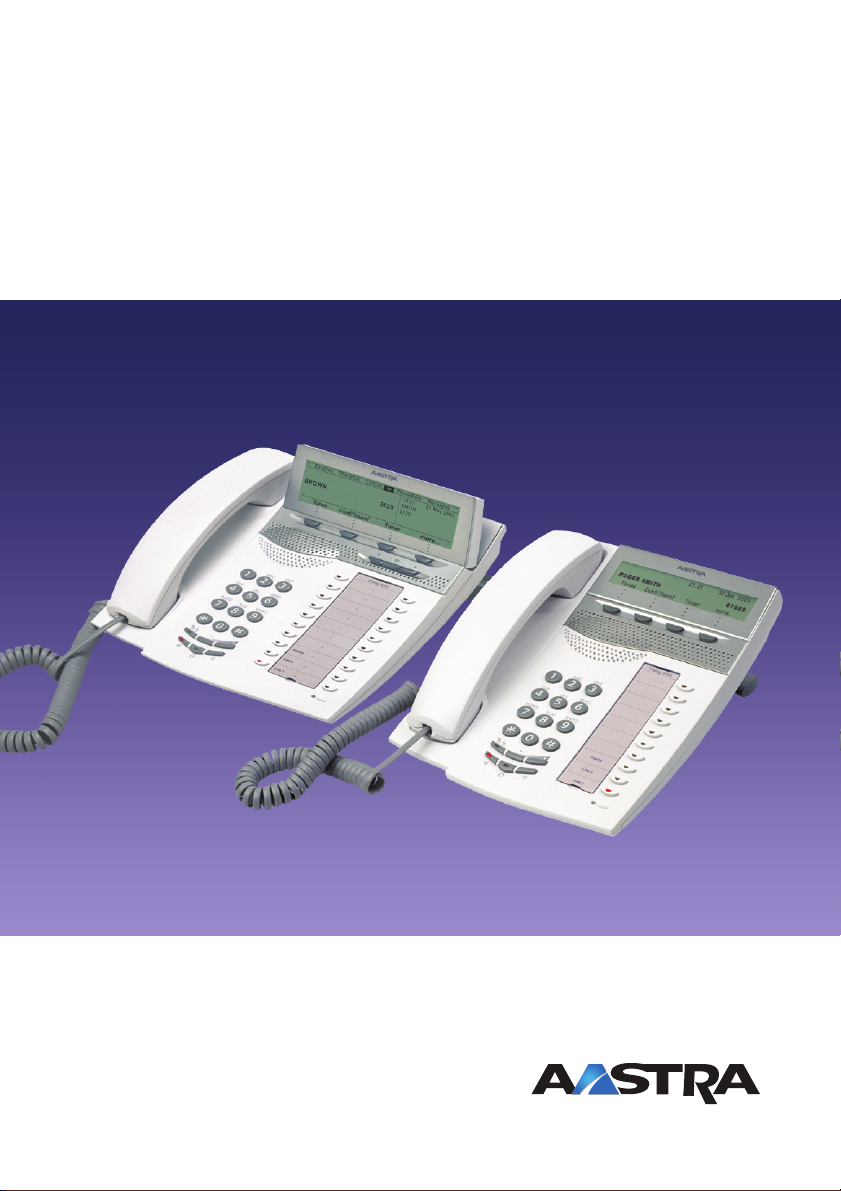
Цифровой телефон MiVoice Aastra Dialog 4225 Vision V2 (DBC22502/01001) идеально подходит для требовательного и ответственного использования в офисе. По сравнению с Dialog 4223 этот телефон оснащен 10 дополнительными программируемыми клавишами и большим шестирядным графическим дисплеем с тремя навигационными клавишами и четырьмя программными клавишами.
- Описание
Описание
Цифровой телефон MiVoice Aastra Dialog 4225 Vision V2 идеально подходит для проведения деловых совещаний и конференций. Телефон имеет встроенный порт для подключения гарнитуры. Переключение между гарнитурой и телефонной трубкой осуществляется специальной клавишей.С помощью навигационных и функциональных клавиш в можно быстро открыть меню дисплея и воспользоваться различными системными функциями. Такими функциями как: телефонная книга, список вызовов, информация о переадресации, причина отсутствия абонента и т. д. Благодаря функции разговора без снятия трубки обеспечивается двусторонняя связь высокого качества и с отсутствием эхо-эффекта.
Поддержка до четырех дополнительных клавишных панелей Key Panel Unit, Light Grey (DBY41901/01001). Совместимость с телефонными системами MiVoice MX-ONE, MiVoice Office 400, MD-110, Business Phone250
| ФУНКЦИИ | Dialog 4220 Lite | Dialog 4222 Office | Dialog 4223 Professional | Dialog 4225 Vision | Dialog 4224 Operator |
| Графический дисплей (пикселы) | — | 128 x 25 | 240 x 39 | 320 x 80 | 320 x 80 |
| Регулирование угла наклона дисплея | — | — | + | + | + |
| Дисплей с подсветкой | — | — | — | + | + |
| Программируемые клавиши | 5 | 5 | 7 | 17 | — |
| Индикаторы | 12 | 13 | 13 | 23 | 19 |
| Навигационные клавиши | — | — | — | 3 | — |
| Функциональные клавиши | — | — | 4 | 4 | — |
| Клавиши доступа к линии | 2 | 2 | 2 | 2 | — |
| Клавиша режима справки | 1 | 1 | 1 | 1 | — |
| Клавиша перенаправления вызова | + | + | — | — | — |
| Функция сброса | + | + | + | + | + |
| Поддержка слухового аппарата с усилением +6 дБ | + | + | + | + | + |
| Индикатор ожидающего сообщения | + | + | + | + | — |
| Функция выключения звука | + | + | + | + | + |
| Динамик | + | + | + | + | — |
| Разговор без снятия трубки | — | + | + | + | — |
| Клавиша и порт для гарнитуры | — | + | + | + | + |
| Подключение дополнительной клавишной панели | — | 1 | 4 | 4 | — |
| Регулировка громкости | + | + | + | + | + |
| Программирование громкости и тона звонка | + | + | + | + | + |
| Подключение дополнительного блока | — | + | + | + | + |
| Регулируемая подставка | + | + | + | + | + |
| Установка на стене | + | + | + | + | + |
Вам также будет интересно…
-
Клавишная панель MiVoice Aastra Key Panel Unit (DBY41901/01001)
-
Цифровой телефон MiVoice Aastra Dialog 4222 Office (DBC22201/01001)
-
Цифровой телефон MiVoice Aastra Dialog 4223 Professional (DBC22301/01001)
Dialog 4223 Professional/Dialog 4225 Vision
System Telephones for MX-ONE™ Telephony Server
User Guide
Cover Page Graphic
Place the graphic directly on the page, do not care about
putting it in the text flow. Select Graphics > Properties and
make the following settings:
• Width: 15,4 cm (Important!)
• Height: 11,2 cm (May be smaller)
• Top: 5,3 cm (Important!)
• Left: -0,3 cm (Important!)
This text should then be hidden.

EN/LZT 103 003 R3A
© Aastra Telecom Sweden AB 2012. All rights reserved.

Table of Contents
Welcome …………………………………………………………4
Important User Information ……………………………….6
Description ……………………………………………………..7
Free Seating …………………………………………………..28
Incoming Calls ………………………………………………29
Outgoing Calls ……………………………………………….33
During Calls ………………………………………………….50
Call Metering …………………………………………………57
Call Forwarding ……………………………………………..60
Absence Information ………………………………………73
Messages ………………………………………………………76
Group features ……………………………………………….80
Other Useful features ………………………………………84
Settings …………………………………………………………92
Accessories ………………………………………………….110
Installation ………………………………………………….. 117
Troubleshooting ……………………………………………125
Glossary ………………………………………………………128
Index …………………………………………………………..129
Table of Contents
3Dialog 4223 Professional/Dialog 4225 Vision

Welcome
Welcome
Welcome to the user guide for the Dialog 4223 Professional and Dialog
4225 Vision. This guide describes the available features of the
telephones when they are connected to MX-ONE™ Telephony Server.
The functions and features available with these telephones are designed
for easy use in all different telephone handling situations.
The user guide describes the functions and features of the Dialog 4223
Professional and Dialog 4225 Vision as they are programmed at
delivery from the factory. There may be some differences in the way
your phone is programmed. Please consult your system administrator if
you need further information.
Some markets use differing codes for some features. In this guide they
are described using the most common code.
The latest version of the user guide can be downloaded from:
http://www.aastra.com
Dialog 4223 Professional/Dialog 4225 Vision4

Welcome
Copyright
Copyright © Aastra Telecom Sweden AB 2012, all rights reserved.
No parts of this publication may be reproduced, stored in retrieval
systems, or transmitted in any form or by any means, electronic,
mechanical, photocopying, recording or otherwise, without prior
written permission of the publisher except in accordance with the
following terms.
When this publication is made available on Aastra media, Aastra gives
its consent to downloading and printing copies of the content provided
in this file only for private use and not for redistribution. No parts of
this publication may be subject to alteration, modification or
commercial use. Aastra will not be liable for any damages arising from
use of an illegal modified or altered publication.
Trademark
Aastra is a registered trademark of Aastra Technologies Limited. All
other trademarks herein are the property of their respective owners.
Disclaimer
While every effort has been made to ensure accuracy, Aastra will not be
liable for technical or editorial errors or omissions within this
documentation. The information contained in this documentation is
subject to change without notice.
Declaration of conformity
Hereby, Aastra Telecom Sweden AB, SE-126 37 STOCKHOLM,
declares that this product(s), is in conformity with the essential
requirements and other relevant provisions of the European R&TTE
directive 1999/5/EC (R&TTE Directive).
Details to be found at: http://www.aastra.com/sdoc.
5Dialog 4223 Professional/Dialog 4225 Vision

Important User Information
Important User Information
Safety instructions
Save these instructions.
Read these safety instructions before use!
Note: When using your telephone or connected equipment, the
following basic safety precautions should always be followed to
reduce risk of fire, electrical shock and other personal injury.
• Follow instructions in the equipment’s user guide or other documentation.
• Always install equipment in a location and environment for which it is
designed.
• For mains powered telephones: Only operate with the mains power voltage
indicated. If you are uncertain of the type of power supplied to the building,
consult property management or your local power company.
• For mains powered telephones: Avoid placing the telephone’s power cable
where it can be exposed to mechanical pressure as this may damage the cable.
If the power supply cord or plug is damaged, disconnect the product and
contact qualified service personnel.
• Headsets used with this equipment must comply with EN/IEC 60950-1 and
for Australia AS/NZS 60950: 2000.
• Do not make any changes or modifications to equipment without seeking
approval from the party responsible for compliance. Unauthorized changes or
modifications could void the user’s authority to operate the equipment.
• Do not use the telephone to report a gas leak in the vicinity of the leak.
• Do not spill liquid of any kind on the product or use the equipment near water,
for example, near a bathtub, washbowl, and kitchen sink, in a wet basement or
near a swimming pool.
• Do not insert any object into equipment slots that is not part of the product or
auxiliary product.
• Do not disassemble the product. Contact a qualified service agency when
service or repair work is required.
• Do not use a telephone (other than cordless type) during an electrical storm.
Disposal of the product
Your product should not be placed in municipal waste. Please check local
regulations for disposal of electronic products.
Dialog 4223 Professional/Dialog 4225 Vision6
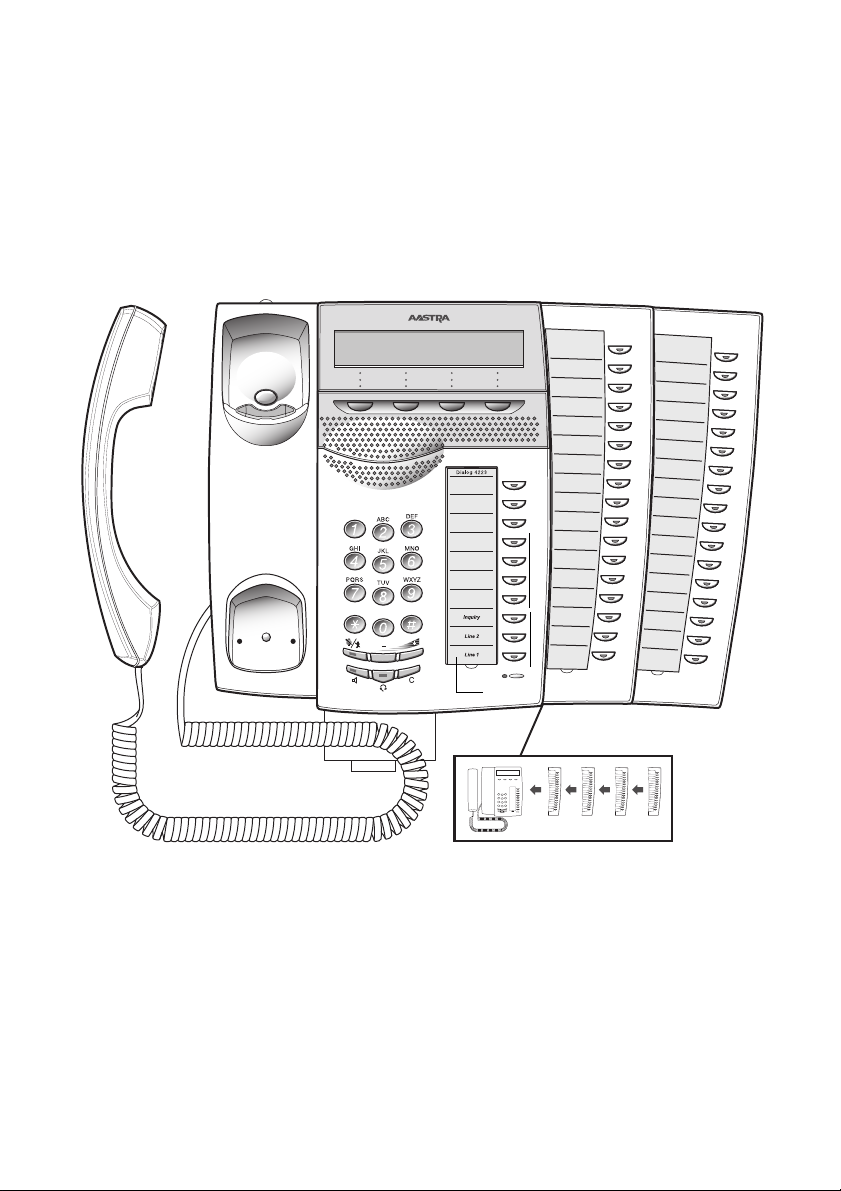
Description
1
2
8
5
b
5
7
13
14
6
10
11
9
12
15
16
16
3
4
17
Dialog 4223 Professional
Description
1Display
See section “Display information” on page 16.
2 Display menu keys
The key functions depend on the traffic state. When you are requested
“(see display)”, press the required key to access the feature.
3 Callback
Indicating/activating Callback. See section “When you receive a busy
tone” on page 38. The feature can be removed or moved to another
programmable function key by your system administrator.
7Dialog 4223 Professional/Dialog 4225 Vision

Description
4 Diversion (Follow-me)
Indicating/activating and deactivating Diversion (Follow-me). See
section “Call Forwarding” on page 60. The feature can be removed or
moved to another programmable function key by your system
administrator.
5 Programmable function keys
Program numbers or features. See section “Programming of function
keys” on page 92.
Note: The key marked with a “b” is also used to program a
melody, see section “Melody Ringing” on page 103.
6 Triple Access Line
Handle calls. Line 1 and 2 are available both for incoming and outgoing
calls. Inquiry can only be used for outgoing calls.
7 Microphone
Used for handsfree conversation.
8Clear
Disconnect calls or exit a feature. Can always be pressed instead of
replacing the handset.
9 Headset key
Handle headset calls and activate Headset Preset. See section “Headset
(optional)” on page 111.
10 Loudspeaker on/off
a. Activate handsfree conversation. See section “During Calls” on
page 50.
b. Activate Loudspeaker Preset. See section “Headset Preset” on
page 112.
11 M ute
a Switch the microphone on or off during a call. See section “Mute”
on page 51.
b Switch off the ring signal in idle mode or when ringing. See section
“Mute ring signal” on page 102 and “Silent Ringing” on page 102.
12 Volume control
Adjust the volume. See section “Settings” on page 92.
13 Loudspeaker
Dialog 4223 Professional/Dialog 4225 Vision8

14 Handset
Supplied with hearing aid feature as standard. An extra handset can be
connected, see section “Accessories” on page 110.
Please note: The handset can attract and trap small metal
objects in the earcap region.
15 Pull-out leaf for easy guide (optional)
See section “Pull-out leaf (optional)” on page 114.
16 Key panel
With 17 programmable keys. Up to four panels can be connected. See
section “Key panel” on page 110. Use the Designation Card Manager to
make and print your own key panel designation cards, see below.
17 Designation card
Use the DCM (Designation Card Manager) to make and print your own
designation cards. DCM is included on the Enterprise Telephone
Toolbox CD or it can be downloaded from:
http://www.aastra.com
For more information, please contact your Aastra certified sales partner.
Description
9Dialog 4223 Professional/Dialog 4225 Vision
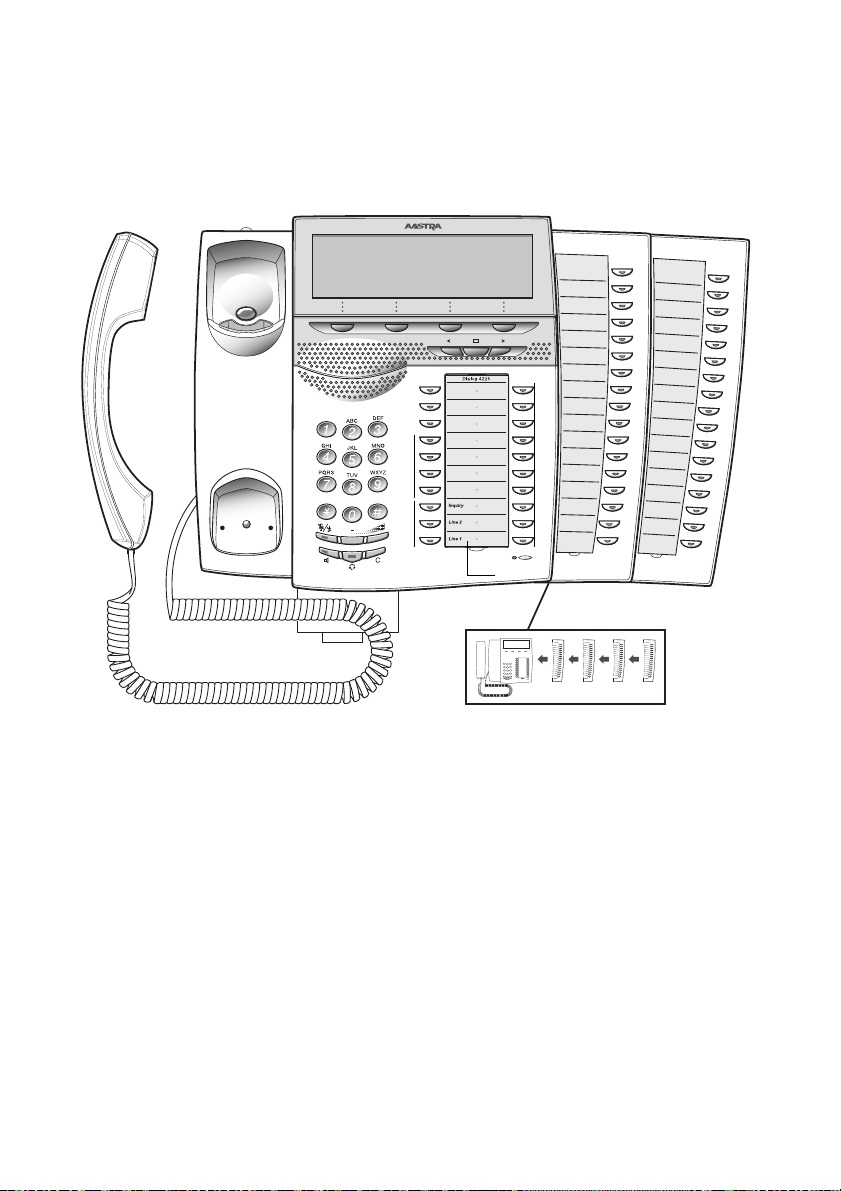
Description
1
2
3
8
b
8
10
11
7
19
9
8
12
13
16
45
20
6
14
15
18
17
19
Dialog 4225 Vision
1Display
See section “Display information” on page 16.
2 Display menu keys
The key functions depend on the traffic state. When you are requested
“(see display)”, press the required key to access the feature.
3 Navigation key left
4Home
Navigate one step to the left in the top menu. See section “Display
information” on page 16.
Return to home position (idle mode), when you are navigating the top
menu. See section “Display information” on page 16.
5 Navigation key right
Navigate one step to the right in the top menu. See section “Display
information” on page 16.
Dialog 4223 Professional/Dialog 4225 Vision10

6 Callback
Indicating/activating Callback. See section “When you receive a busy
tone” on page 38. The feature can be removed or moved to another
programmable function key by your system administrator.
7 Diversion (Follow-me)
Indicating/activating and deactivating Diversion (Follow-me). See
section “Call Forwarding” on page 60. The feature can be removed or
moved to another programmable function key by your system
administrator.
8 Programmable function keys
Program numbers or features. See section “Programming of function
keys” on page 92.
Note: The key marked with a “b” is also used to program a
melody, see section “Melody Ringing” on page 103.
9 Triple Access Line
Handle calls. Line 1 and 2 are available both for incoming and outgoing
calls. Inquiry can only be used for outgoing calls.
10 Microphone
Used for handsfree conversation.
11 C lear
Disconnect calls or exit a feature. Can always be pressed instead of
replacing the handset.
Description
12 Headset key
Handle headset calls and activate Headset Preset. See section “Headset
(optional)” on page 111.
13 Loudspeaker on/off
a. Activate handsfree conversation. See section “During Calls” on
page 50.
b. Activate Loudspeaker Preset. See section “Headset Preset” on
page 112.
14 Mute
a Switch the microphone on or off during a call. See section “Mute”
on page 51.
b Switch off the ring signal in idle mode or when ringing. See section
“Mute ring signal” on page 102 and “Silent Ringing” on page 102.
15 Volume control
Adjust the volume. See section “Settings” on page 92.
16 Loudspeaker
11Dialog 4223 Professional/Dialog 4225 Vision

Description
17 Handset
Supplied with hearing aid feature as standard. An extra handset can be
connected, see section “Accessories” on page 110.
Please note: The handset can attract and trap small metal
objects in the earcap region.
18 Pull-out leaf for easy guide (optional)
See section “Pull-out leaf (optional)” on page 114.
19 Key panel
With 17 programmable keys. Up to four panels can be connected. See
section “Key panel” on page 110. Use the Designation Card Manager to
make and print your own key panel designation cards, see below.
20 Designation card
Use the DCM (Designation Card Manager) to make and print your own
designation cards. DCM is included on the Enterprise Telephone
Toolbox CD or it can be downloaded from: http://www.aastra.com
For more information, please contact your Aastra certified sales partner.
Dialog 4223 Professional/Dialog 4225 Vision12

Lamp indications
Description
Ô
ÕÔ
ÖÔ
ÖÔ
ÕÔ
Extinguished lamp The feature is not active.
Steady light
Slowly flashing lamp The line (or feature) is put on hold.
Rapidly flashing lamp An incoming call.
Light with short breaks Ongoing call.
The feature is active or the multiple
represented line is busy.
13Dialog 4223 Professional/Dialog 4225 Vision
Description
Dial tone
Special dial tone
Ringing tone or queue tone
Busy tone
Congestion tone
Number unobtainable tone
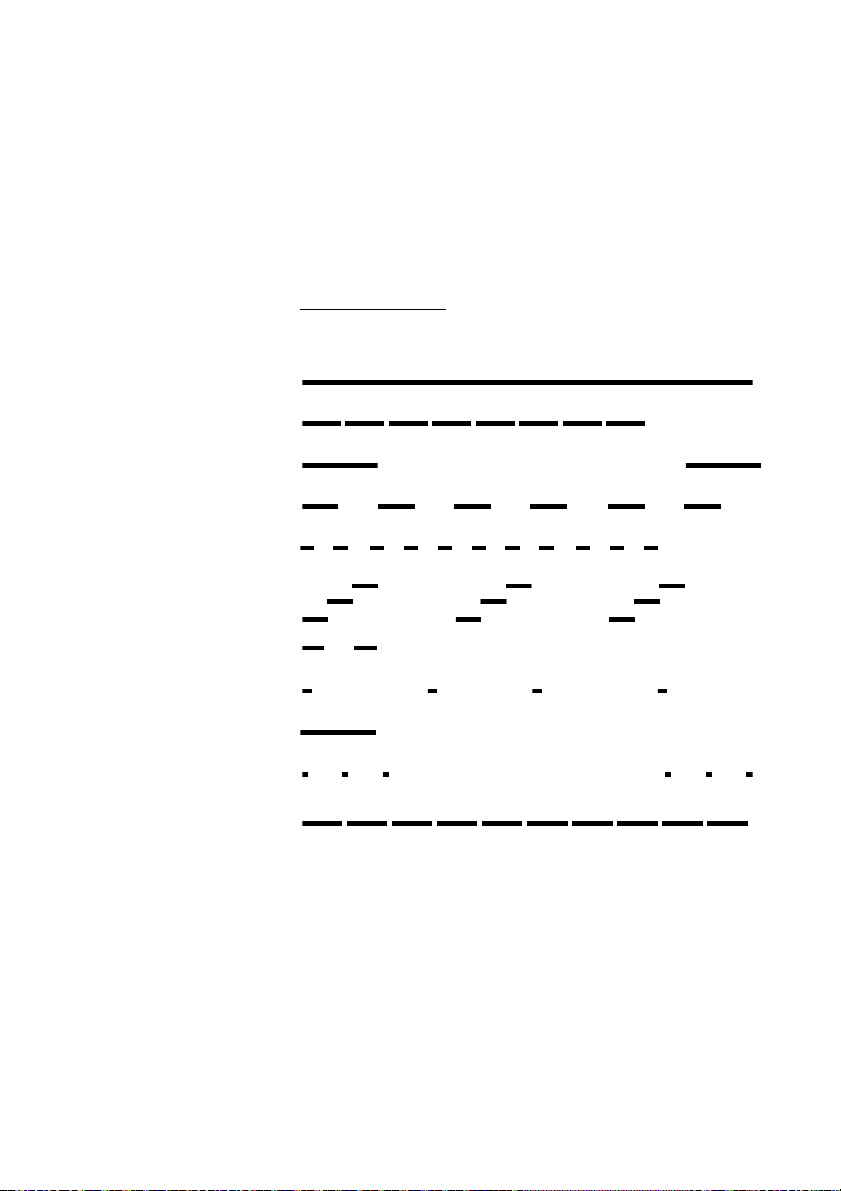
Tones and signals
The following different tones and signals are sent from the exchange to
your phone.
Tone characteristics
The tones shown in this section are the most used tones worldwide.
Many markets use a differing tone for one or more situations.
Call waiting tone
Intrusion tone
Conference tone every 15 seconds (to all parties)
Verification tone
Warning tone, expensive route
Dialog 4223 Professional/Dialog 4225 Vision14
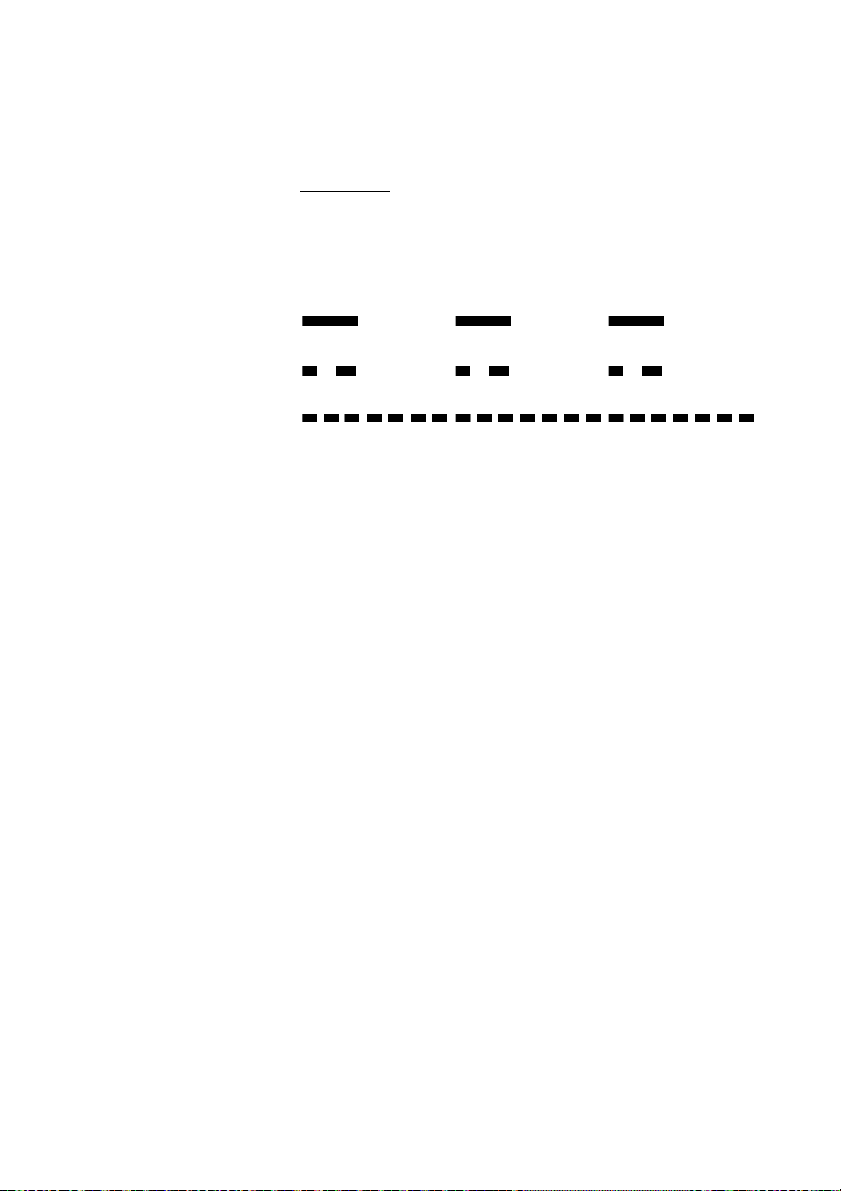
Internal ring signal
External ring signal
Recall signal
(Callback reminder)
Description
Ring signals
Three different ring signals inform you about the type of the incoming
call. The signals shown in this section are the most used signals
worldwide. Many markets use signals that are adapted for the local
standards. If you get a signal that is not described or you cannot
identify, ask your system administrator.
15Dialog 4223 Professional/Dialog 4225 Vision

Description
Display information
The display gives you feedback information such as time and date,
traffic state and connected phone numbers. The following pages show
examples of information displays from different telephone states.
Notes:
The order in which the date is stated is system dependent.
All names and numbers presented on the displays in this user
guide are examples.
Your phone has a graphical display. The number of rows and characters
per row depend on the character size and the font. When the display
shows a list, or when the phone is in a setting mode, the middle field of
the display is adapted to fit each situation.
Dialog 4223 Professional/Dialog 4225 Vision16
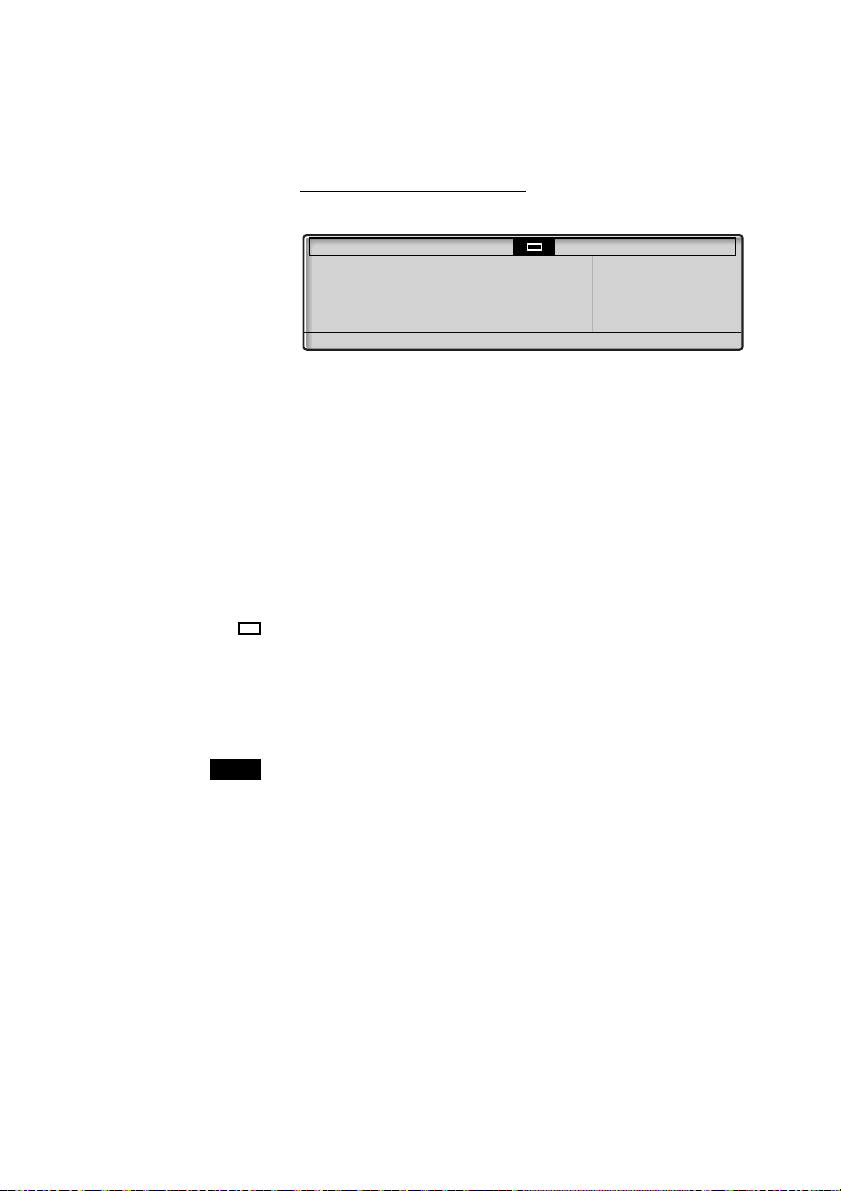
Description
Program PhoneSet CallList PhoneBook Messages
Absence Account Authority more…
11:06 28 Aug 2008
Brown James
2222
Top menu (Dialog 4225 Vision)
The top menu is in the black frame below.
The following main text and symbols can be shown in the display´s top
menu (see also section “Menu structure Dialog 4225 Vision” on
page 26.):
Program Access the Program menu.
See section “Settings” on page 92.
PhoneSet Access the PhoneSet menu.
See sections “Settings” on page 92, “Accessories” on page 110 and
“Troubleshooting” on page 125.
CallList Access the CallList menu.
See section “Call list” on page 90.
Home position (idle mode).
PhoneBook Access the PhoneBook menu.
See section “Dial by Phonebook” on page 43.
Messages Access the Messages menu.
See section “Messages” on page 76.
Position indicator (selected top menu item).
17Dialog 4223 Professional/Dialog 4225 Vision
Description
Brown James 2222 11:06 28 Aug 2008
FollowMeTo 3333
CallList PhoneBook No Diverison more…
11:06 28 Aug 2008
Brown James
2222
Program PhoneSet CallList PhoneBook Messages
Smith Bob >Direct
Nelson Lord 5555
CallBack CallPager Timer
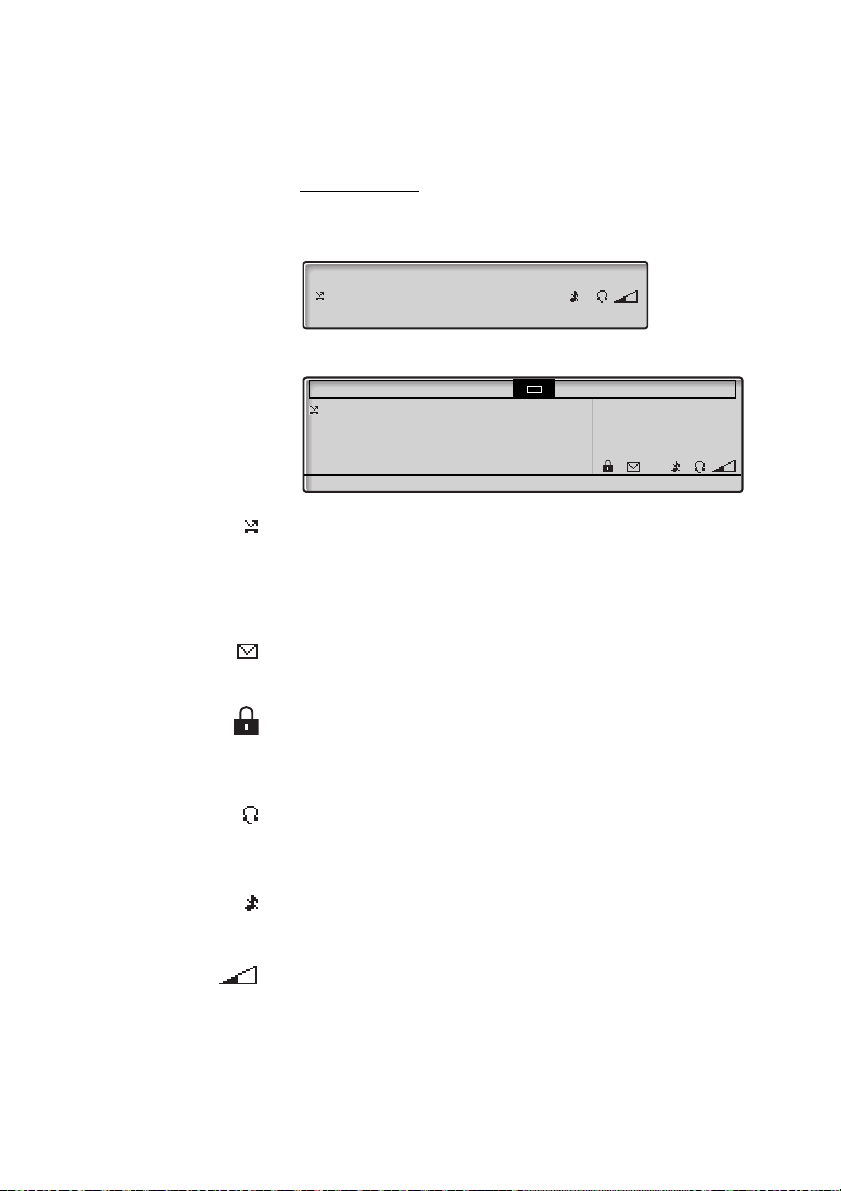
Display symbols
Traffic status is indicated by the following symbols on the display:
Dialog 4223 Professional:
Dialog 4225 Vision:
Forwarded call.
Indicates that the call is forwarded to another extension than the one
dialed. See section “Call Forwarding” on page 60.
> Prefix before type of forwarded call (Direct or Follow-me).
See section “Call Forwarding” on page 60.
Message.
Indicates that there is a message waiting. See section “Messages” on
page 76.
Phone lock.
Indicates that the phone is locked for unauthorized calls.
An authization code must be used to make calls. See section
“Authority” on page 47.
Headset Preset
Indicates that the phone is set for incoming and outgoing calls to be
connected to the headset when you answer or make calls without lifting
the handset. See section “Headset (optional)” on page 111.
Ringer off.
Indicates that the ring signal is switched off. See section “Silent
Ringing” on page 102.
Volume level bar.
Indicates the ring signal volume in idle or ringing mode, or when in
speech mode the loudspeaker or earpiece volume. For the Dialog 4223
Professional, the symbol is shown for a few seconds when a volume key
has been pressed.
Dialog 4223 Professional/Dialog 4225 Vision18
Description
Smith Bob 3333 12:24 23 Aug 2008
Nelson Lord 5555 11:33 23 Aug 2008
Call Up Down more…
Program PhoneSet CallList PhoneBook Messages
Smith Bob 3333 12:24 23 Aug 2008
Nelson Lord 5555 11:33 23 Aug 2008
0012115171 15:11 22 Aug 2008
Carter Jim 4444 14:06 21 Aug 2008
Call Up Down more…
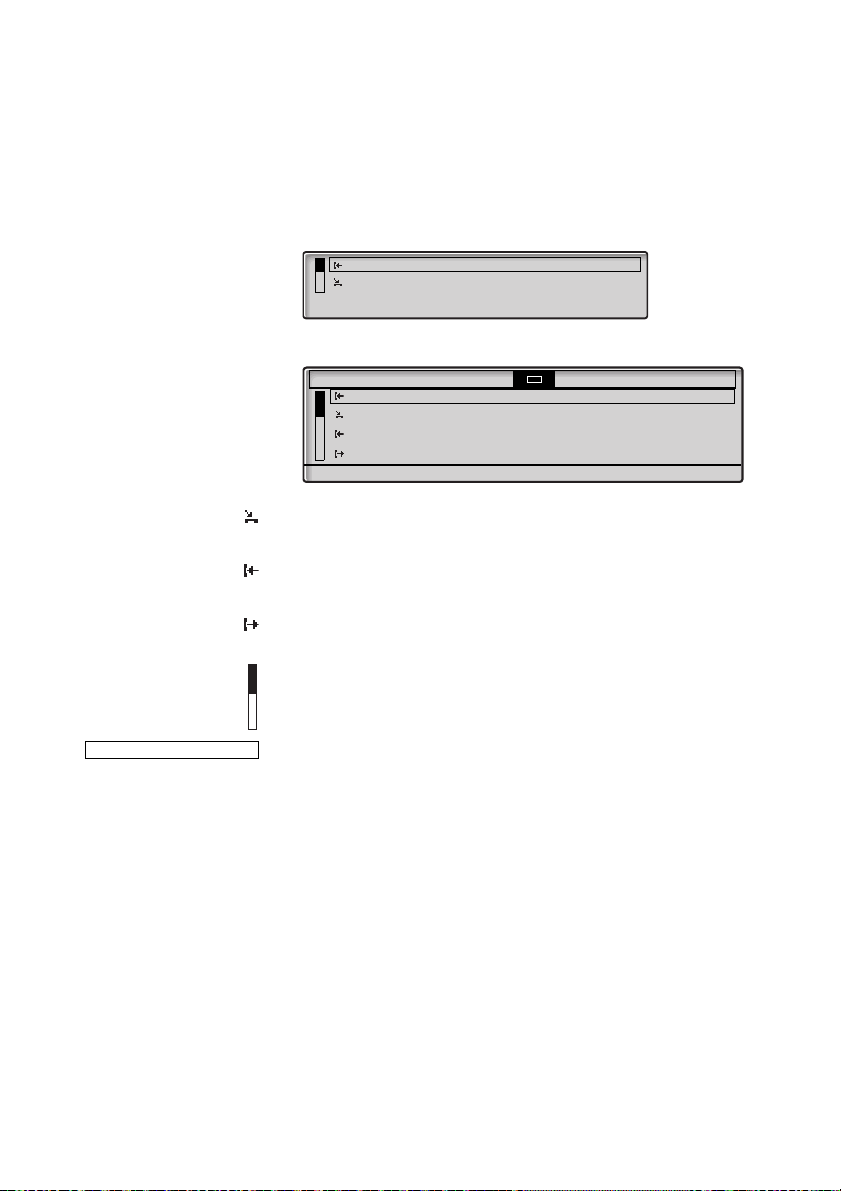
The following symbols can be shown in the top menus or other display
lists (example of the
CallList menu).
Dialog 4223 Professional:
Dialog 4225 Vision:
Missed call.
Indicates a missed but checked incoming call.
Incoming call.
Indicates an answered incoming call.
Outgoing call.
Indicates an outgoing call.
Bar indicator.
Indicates the shown part of the total list, and where it is positioned in
the total list.
Selection frame.
Indicates the subject to be called or selected in the list.
19Dialog 4223 Professional/Dialog 4225 Vision
Description
Brown James 2222 11:06 28 Aug 2008
Absence Account Authority more…
Program PhoneSet CallList PhoneBook Messages
Absence Account Authority more…
11:06 28 Aug 2008
Brown James
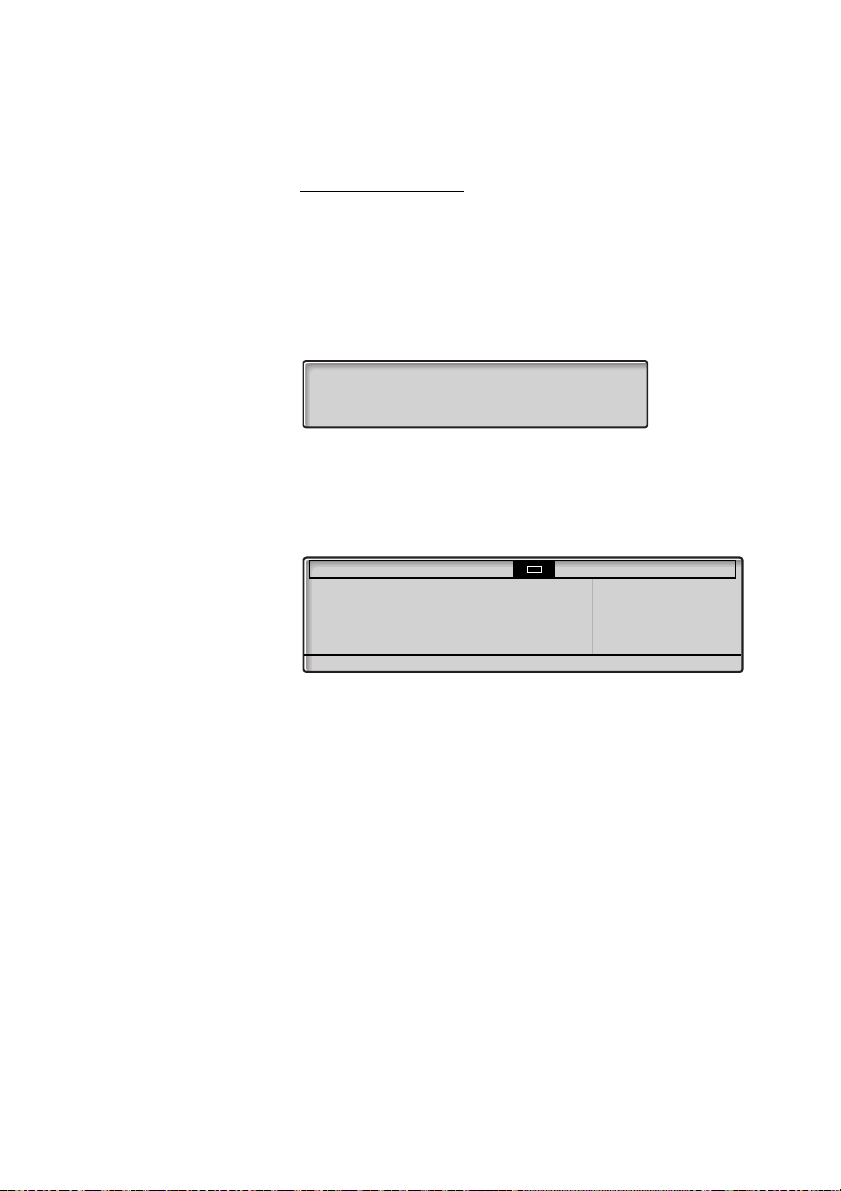
2222
Idle phone (idle mode)
Dialog 4223 Professional:
When your phone is idle, the upper row shows general information and
your extension number. The lower row presents lead text for the display
menu keys. In the example below, the extension number for James
Brown is 2222.
Note: A long name overwrites the number.
Dialog 4225 Vision:
When your phone is idle, the display shows the top menu. Below the top
menu; time, date, name and your extension number are shown to the
right. Below the line, lead text for the display menu keys are shown. In
the example below, the extension number for James Brown is 2222.
Dialog 4223 Professional/Dialog 4225 Vision20
Description
Calling… 11:06 28 Aug 2008
Smith Bob 3333
Callback CallPager Timer
Smith Bob >Direct 11:06 28 Aug 2008
Nelson Lord 5555
Callback CallPager Timer
Program PhoneSet CallList PhoneBook Messages
Calling…
Smith Bob 3333
CallBack CallPager Timer
11:06 28 Aug 2008
Brown James
2222
Program PhoneSet CallList PhoneBook Messages
Smith Bob >Direct
Nelson Lord 5555
CallBack CallPager Timer
11:06 28 Aug 2008
Brown James
2222
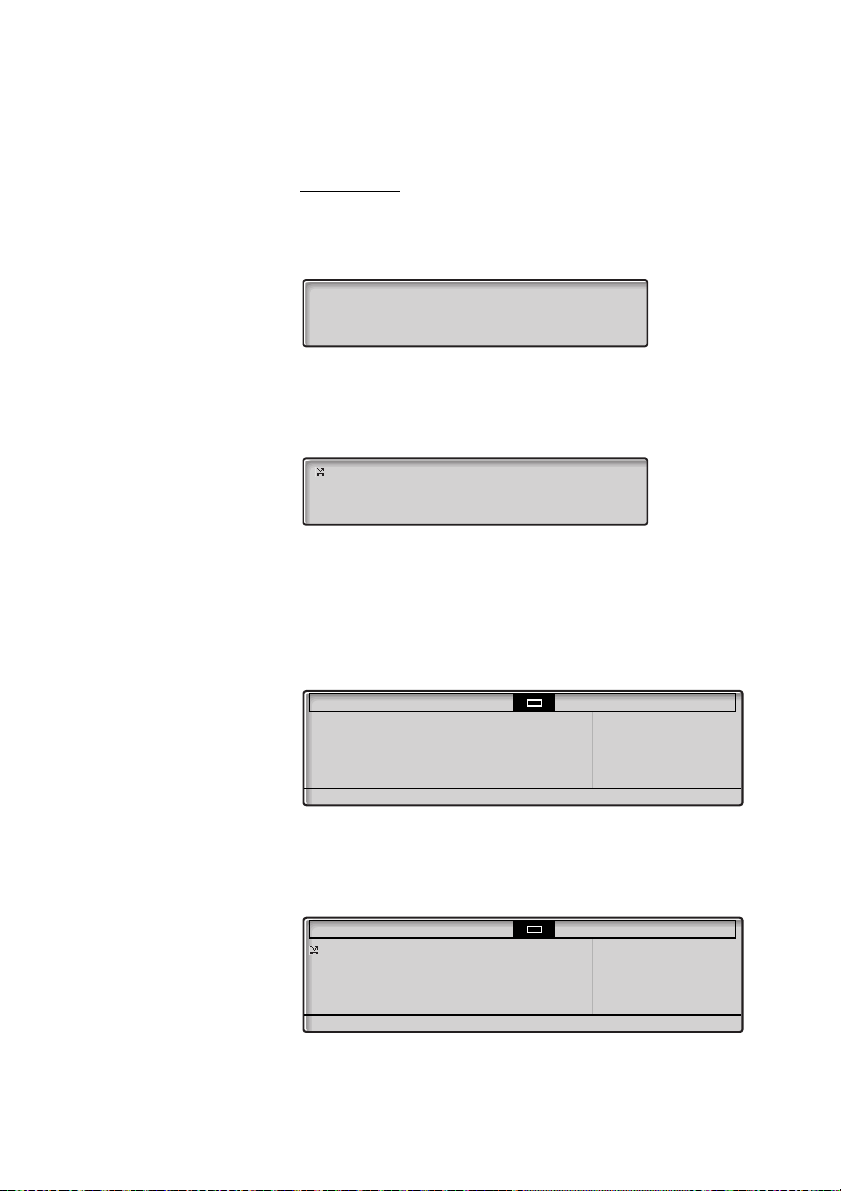
Outgoing call
Dialog 4223 Professional:
When you make an outgoing call on your phone, traffic information and
dialed name (if available) and number are shown.
If the called party’s phone is diverted, the forwarded call icon, the
answering extension name (number when name is not available) and the
type of diversion are shown.
The call to Smith is directly diverted to Nelson (5555).
Dialog 4225 Vision:
When you make an outgoing call on your phone, the idle information is
shown. Below the top menu; traffic information and dialed name (if
available) and number are shown.
If the called party’s phone is diverted, the forwarded call icon, the
answering extension name (number when name is not available) and the
type of diversion are shown below the top menu.
The call to Smith is directly diverted to Nelson (5555).
21Dialog 4223 Professional/Dialog 4225 Vision
Description
11:06 28 Aug 2008
Smith Bob 3333
Absence Account Authority more…
Smith Bob >Direct 11:06 28 Aug 2008
Carter Jim 4444
Absence Account Authority more…
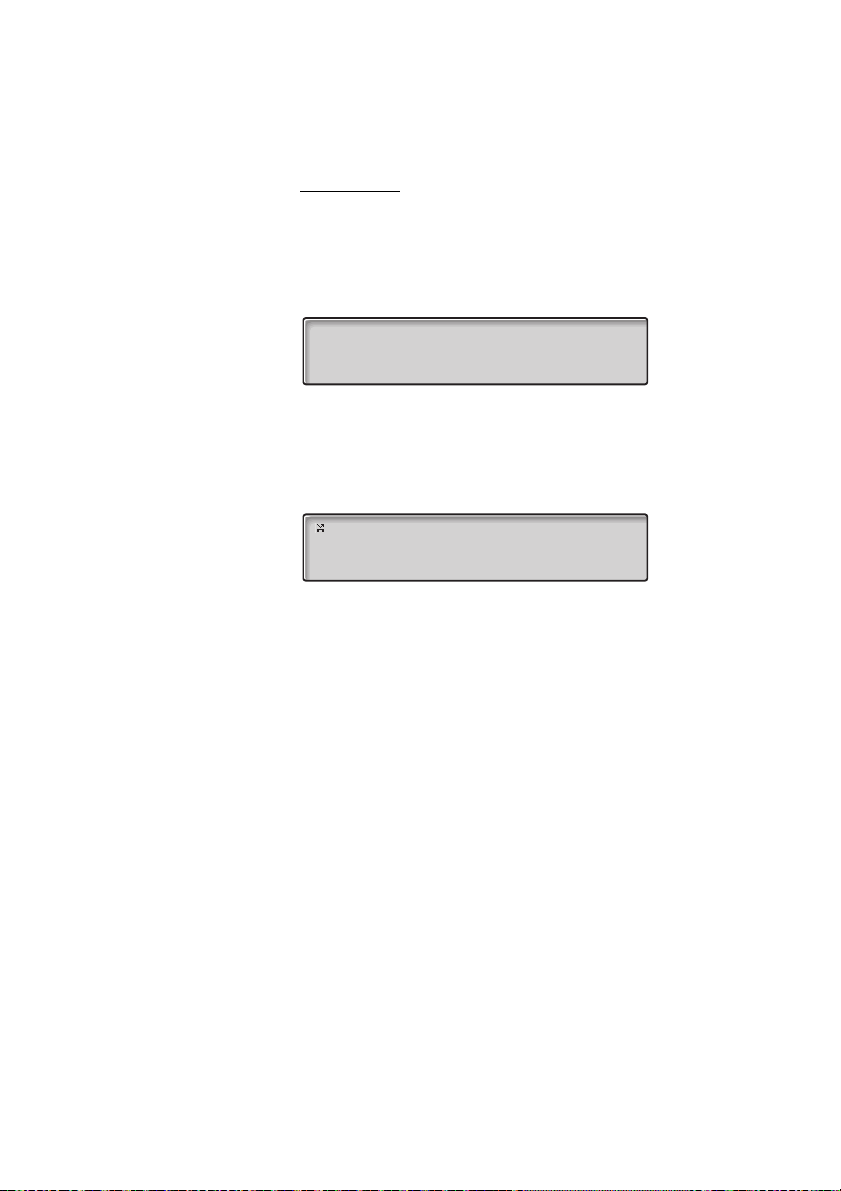
Incoming call
Dialog 4223 Professional:
When you receive an incoming call, the calling party’s extension
number flashes (if the name is available, this is also shown). If the
number for an external call is not available, the display shows
instead of the number (flashing).
If a diverting extension is calling, the forwarded call icon, the called
person’s name (number when there is no name available), type of
diversion, and the calling party’s name and number (flashing) are
shown.
Carter (4444) has called Smith and the call is directly diverted to you.
External
Dialog 4223 Professional/Dialog 4225 Vision22
Description
Program PhoneSet CallList PhoneBook Messages
Smith Bob 3333
Absence Account Authority more…
11:06 28 Aug 2008
Brown James
2222
Program PhoneSet CallList PhoneBook Messages
Smith Bob >Direct Jim Carter 4444
Absence Account Authority more…
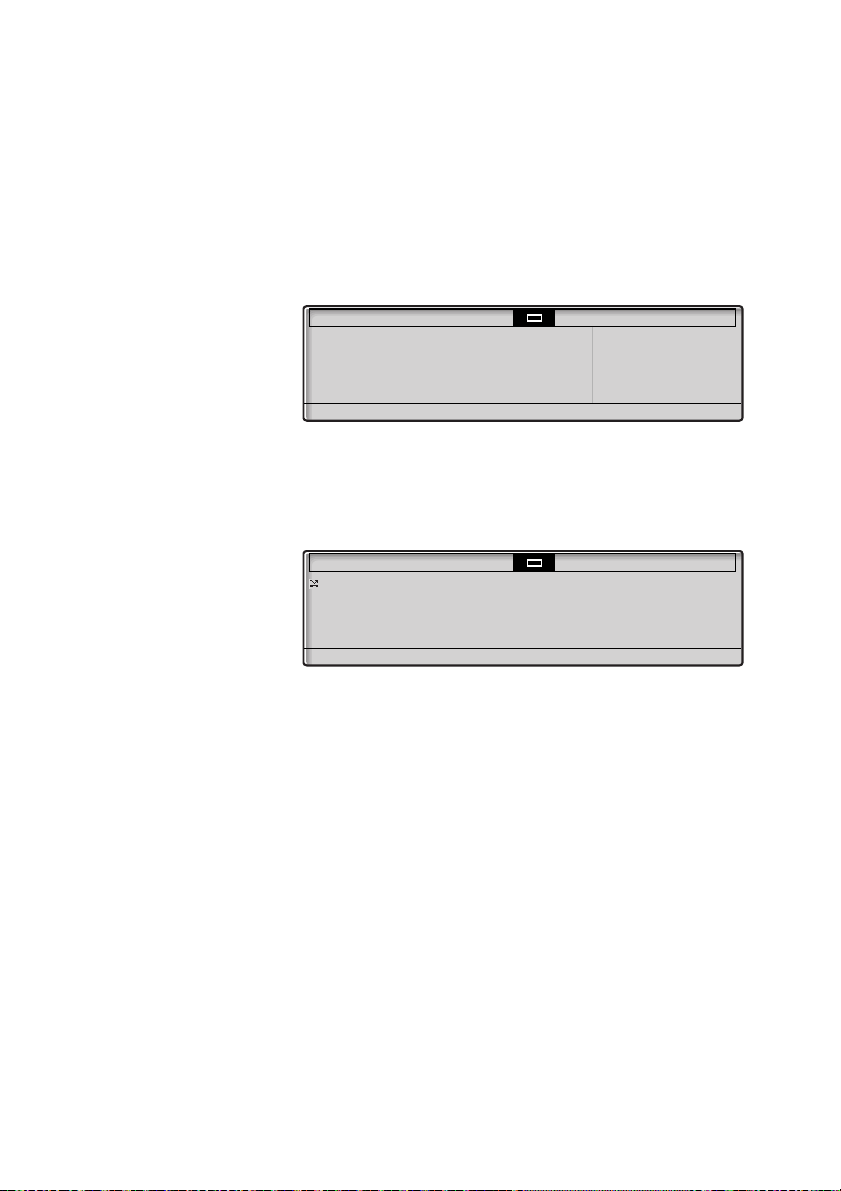
Dialog 4225 Vision:
When you receive an incoming call, the idle information is shown.
Below the top menu, the calling party’s extension number flashes (if the
name is available, this is also shown). If the number for an external call
is not available, the display shows
External instead of the number
(flashing).
If a diverting extension is calling, the forwarded call icon, the called
person’s name (number when there is no name available), type of
diversion, and the calling party’s name and number (flashing) are
shown below the top menu.
Carter (4444) has called Smith and the call is directly diverted to you.
23Dialog 4223 Professional/Dialog 4225 Vision

Description
+/-
</>
Absence
Account
Activate
AddMember
Authority
Back
Back *
Call
CallBack
CallList
CallPickUp
CallWaiting
Cancel DND
Change *
Clear
Conf/Transf
Conference
CommonHold
Connect
CostInfo
Deactivate
Delete
Details
Down
Exit
Exit *
Enter
Find
GrpPickUp
Display menu keys
The following text can be displayed for the display menu keys:
Adjust display contrast
Move cursor when programming
melodies
Handle Absence/Diversion
Account Code
Activate
Add member to a conference
Authorization Code
Return to previous menu
Return to previous menu
Call the number displayed
Callback
Access Call list
(Dialog 4223 Professional)
Call pick-up
Call waiting
Cancel Do Not Disturb
Change a setting
Reset time measurement
To get a new line for conference
or transfer
Connect a conference member
Put the call on common hold
Connect
Display cost information
Deactivate
Delete an item
Show details for framed object
Scroll down
Exit the displayed menu
Exit the displayed menu
Enter values
Search
Group call pick-up
HideMenu
Intrusion
Lock
LogOn
LogOff
more…
n Missed
Next
NoDiversion
NotDisturb
Open
PhoneBook
Hide menu key designations
Intrusion
Lock the phone
Log on
Log off
More menu choices
No. of missed calls in call list
Show next logged number
Cancel Absence/Diversion
Do Not Disturb
Unlock the phone
Access Phonebook
(Dialog 4223 Professional)
Program
Program *
Redial
Return
Save *
Save&Exit *
Select
ShowDate
ShowMenu
ShowTimer
Space
Program
Enter Program melody mode
Last Number Redial
Return to previous menu keys
Save setting
Save setting and exit menu
Select item in a list
Show date
Show menu key designations
Show timer
Enter a space when writing
names
Start/Stop
Timer
Tones
Start/Stop time measurement
Display time measurement
Dialing during a connected call
(Push button tones, DTMF)
TraceMalC
Transfer
Up
*
Always displayed in English
Malicious Call Tracing
Execute a transfer
Scroll up
Dialog 4223 Professional/Dialog 4225 Vision24
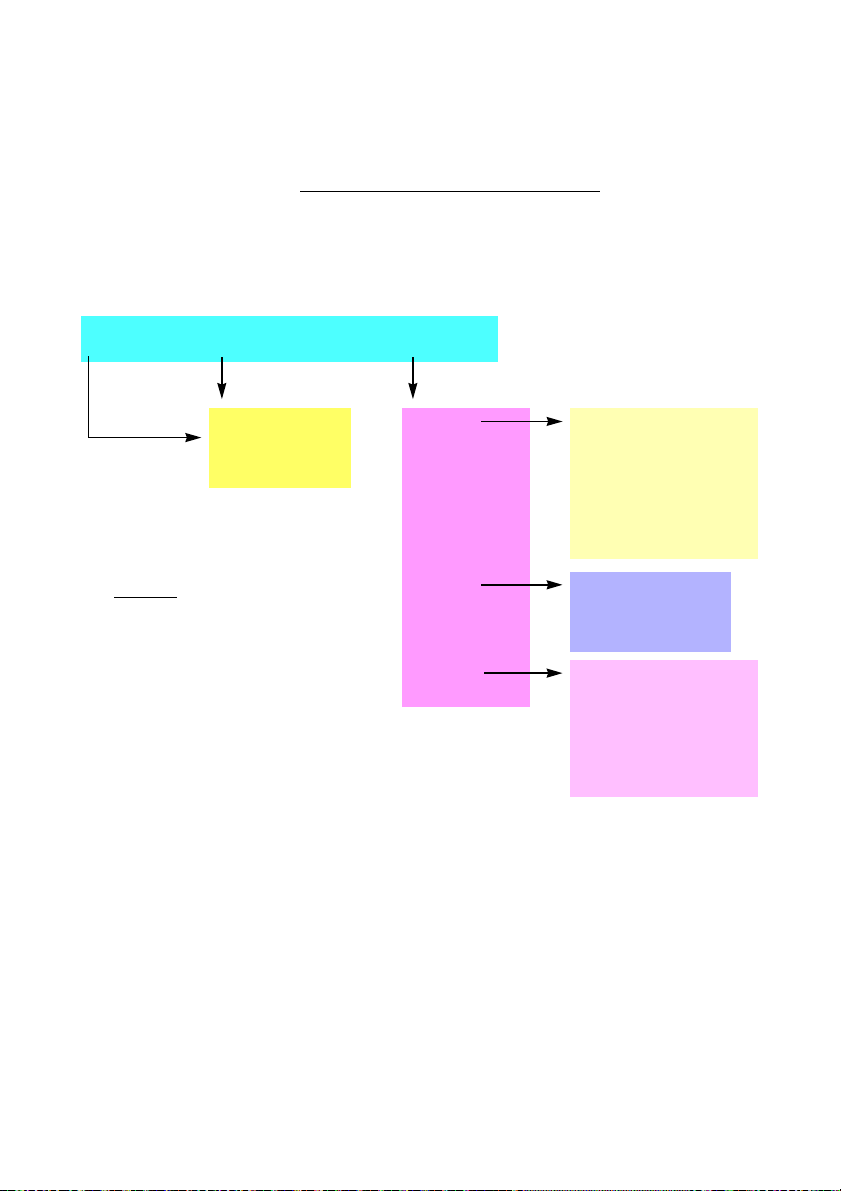
Description
n Missed* CallList PhoneBook more…
Call List
Unanswered calls
Outgoing calls
Incoming calls
Explanations
* Only shown when there are missed calls.
n = Number of missed calls.
** Current number is shown.
*** Text is not shown on the display.
Absence
Account
Authority
Lock/Open
LogOn/Off
Timer
Redial
Program
PhoneSet
Hide/ShowMenu
Program mode key:
RingChar:
Programming of
function keys***
Idle display menu keys
Select Profile
Direct Diversion to nnnn**
Follow Me
Absence reason
External Follow Me
Do not Disturb
Div on no answer to nnnn**
Div on busy to nnnn**
Display Contrast
Melody Programming
Firmware Indication
Headset Preset
Local Test Mode
Option Unit Settings
Set Hearing Level
Menu structure Dialog 4223 Professional
Menu structure for each of the menus that can be selected from the idle
menu. When you are navigating the menus, a selected menu is marked
with a black frame.
25Dialog 4223 Professional/Dialog 4225 Vision
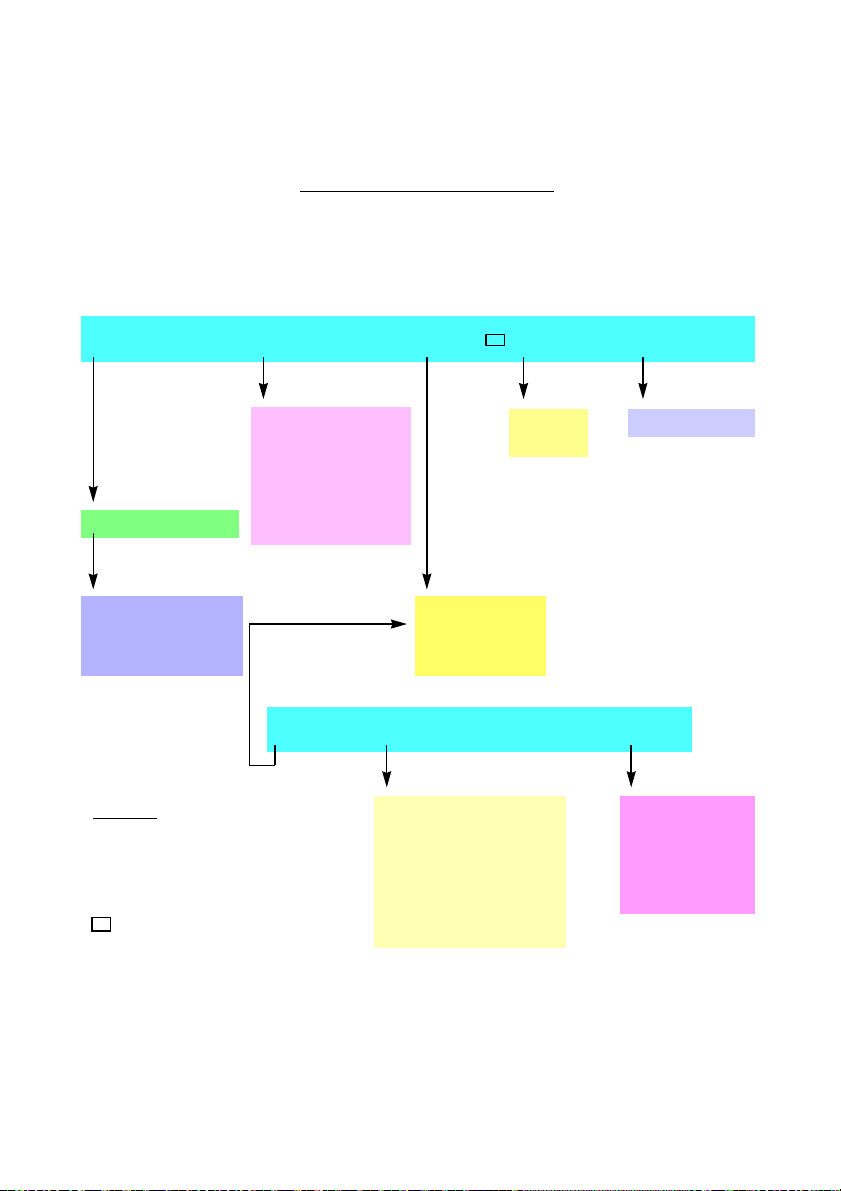
Description
Program PhoneSet CallList PhoneBook Messages
Explanations
* Only shown when there are missed calls.
n = Number of missed calls.
** Current number is shown.
*** Text is not shown on the display.
Home. Return to home position, when
navigating the top menu.
n Missed* Absence Account more…
Central
Directory
Message Waiting
Top menu
Idle display menu keys
Programming of keys
Call List
Unanswered calls
Outgoing calls
Incoming calls
Authority
Lock/Open
LogOn/Off
Timer
Redial
Hide/ShowMenu
Select Profile
Direct Diversion to nnnn**
Follow Me
Absence reason
External Follow Me
Do not Disturb
Div on no answer to nnnn**
Div on busy to nnnn**
Display Contrast
Melody Programming
Firmware Indication
Headset Preset
Local Test Mode
Option Unit Settings
Set Hearing Level
Program mode key:
RingChar:
Programming of
function keys***
Menu structure Dialog 4225 Vision
Menu structure for each of the menus that can be selected from the idle
menu. When you are navigating the menus, a selected menu is marked
with a black frame.
Dialog 4223 Professional/Dialog 4225 Vision26

Display language
One of the following languages can be selected to display information
on your phone.
Digit 0–9 = the language code:
0 English 1 French 2 German 3 Spanish 4 Italian
5__________ 6 _________ 7 _________ 8 _________ 9 _________
Note: By default 5-9 are programmed for English. These can be
changed locally to other languages.
To select a language:
*08* Dial.
( 0– 9) Enter the language code.
#í Press.
Description
27Dialog 4223 Professional/Dialog 4225 Vision

Free Seating
Free Seating
The Free Seating feature is used for persons who have an office
extension number but no phone set of their own. For example, flexible
office workers, persons mostly working outside the office, etc. As a
Free Seating user and working from the office, you logon to any free
phone set that will be temporarily assigned with your extension number
and your system authorities.
To log on
*11* Dial.
z* Enter the Authorization Code and press.
z# Enter your phone number and press.
í Press to finish the procedure.
The display shows your phone number.
To log off
#11# Dial.
í Press to finish the procedure.
Dialog 4223 Professional/Dialog 4225 Vision28

Incoming Calls
Answer calls
A ring signal and a flashing lamp indicate an incoming call.
On Line 1
Normally you will receive calls on Line 1.
u Lift the handset.
On any other Line key
Incoming Calls
u Lift the handset.
ÖÔ Press the flashing Line key.
Line
Handsfree
Line ÖÔ Press the flashing Line key.
You are connected to the caller via the loudspeaker and the microphone.
í Press to terminate a handsfree call.
29Dialog 4223 Professional/Dialog 4225 Vision
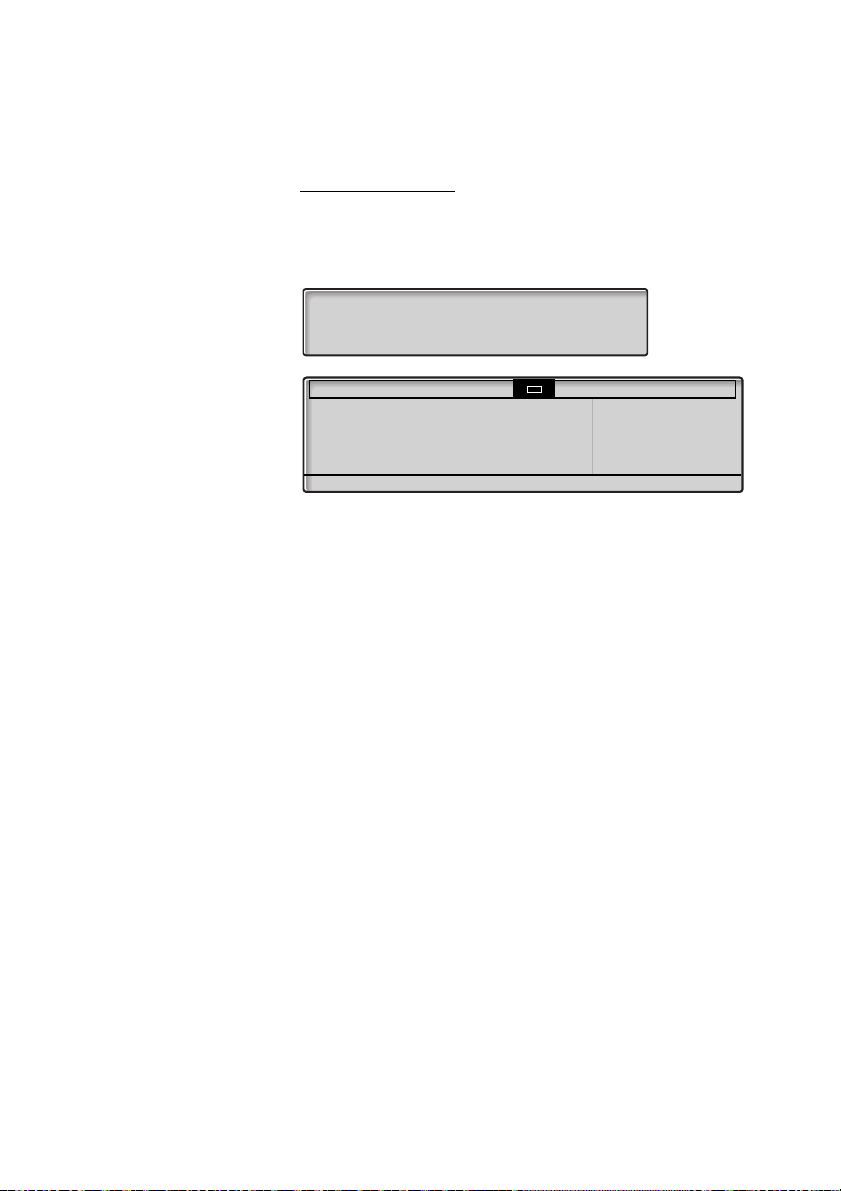
Incoming Calls
Busy 11:06 28 Aug 2008
Smith Bob 3333
Callback CallPager CallPickUp more…
Program PhoneSet CallList PhoneBook Messages
Busy
Smith Bob 3333
CallBack CallPager CallPickUp more…
11:06 28 Aug 2008
Brown James
2222
On another extension
You can answer a call to another extension.
uz Call the ringing extension.
Busy tone.
Note: The display images might differ from the above.
CallPickUp Press to answer (see display).
If
CallPickUp
Notes:
You can also press
programmed by you).
France, press
is not shown, press
8 or Hold/Pick-up (The function key is
4; Sweden, press 6
more…
until it appears.
Dialog 4223 Professional/Dialog 4225 Vision30
Loading…
Хорошее руководство по эксплуатации
Законодательство обязывает продавца передать покупателю, вместе с товаром, руководство по эксплуатации Ericsson dialog 4225. Отсутствие инструкции либо неправильная информация, переданная потребителю, составляют основание для рекламации в связи с несоответствием устройства с договором. В законодательстве допускается предоставлении руководства в другой, чем бумажная форме, что, в последнее время, часто используется, предоставляя графическую или электронную форму инструкции Ericsson dialog 4225 или обучающее видео для пользователей. Условием остается четкая и понятная форма.
Что такое руководство?
Слово происходит от латинского «instructio», тоесть привести в порядок. Следовательно в инструкции Ericsson dialog 4225 можно найти описание этапов поведения. Цель инструкции заключается в облегчении запуска, использования оборудования либо выполнения определенной деятельности. Инструкция является набором информации о предмете/услуге, подсказкой.
К сожалению немного пользователей находит время для чтения инструкций Ericsson dialog 4225, и хорошая инструкция позволяет не только узнать ряд дополнительных функций приобретенного устройства, но и позволяет избежать возникновения большинства поломок.
Из чего должно состоять идеальное руководство по эксплуатации?
Прежде всего в инструкции Ericsson dialog 4225 должна находится:
— информация относительно технических данных устройства Ericsson dialog 4225
— название производителя и год производства оборудования Ericsson dialog 4225
— правила обслуживания, настройки и ухода за оборудованием Ericsson dialog 4225
— знаки безопасности и сертификаты, подтверждающие соответствие стандартам
Почему мы не читаем инструкций?
Как правило из-за нехватки времени и уверенности в отдельных функциональностях приобретенных устройств. К сожалению само подсоединение и запуск Ericsson dialog 4225 это слишком мало. Инструкция заключает ряд отдельных указаний, касающихся функциональности, принципов безопасности, способов ухода (даже то, какие средства стоит использовать), возможных поломок Ericsson dialog 4225 и способов решения проблем, возникающих во время использования. И наконец то, в инструкции можно найти адресные данные сайта Ericsson, в случае отсутствия эффективности предлагаемых решений. Сейчас очень большой популярностью пользуются инструкции в форме интересных анимаций или видео материалов, которое лучше, чем брошюра воспринимаются пользователем. Такой вид инструкции позволяет пользователю просмотреть весь фильм, не пропуская спецификацию и сложные технические описания Ericsson dialog 4225, как это часто бывает в случае бумажной версии.
Почему стоит читать инструкции?
Прежде всего здесь мы найдем ответы касательно конструкции, возможностей устройства Ericsson dialog 4225, использования отдельных аксессуаров и ряд информации, позволяющей вполне использовать все функции и упрощения.
После удачной покупки оборудования/устройства стоит посвятить несколько минут для ознакомления с каждой частью инструкции Ericsson dialog 4225. Сейчас их старательно готовят или переводят, чтобы они были не только понятными для пользователя, но и чтобы выполняли свою основную информационно-поддерживающую функцию.
Системный цифровой телефон DIALOG 4225 Vision v2
DBC22501/01001
Эта первоклассная многофункциональная модель поддерживает дополнительные системные функции. Dialog 4225 Vision — идеальное решение для интенсивной работы. От модели Dialog 4223 телефон отличается наличием десяти дополнительных программируемых клавиш и большого шестистрочного графического дисплея с подсветкой, тремя навигационными и четырьмя функциональными клавишами. С помощью навигационных и функциональных клавиш можно быстро открыть меню дисплея и воспользоваться различными системными функциями: телефонной книгой, списком вызовов, информацией о переадресации, причине отсутствия абонента и т. д. Благодаря функции разговора без снятия трубки, обеспечивающей двустороннюю связь высокого качества и отсутствие эхо-эффекта, телефон идеально подходит для проведения деловых совещаний, а также конференций в небольших переговорных комнатах. В телефоне имеется встроенный порт для подключения гарнитуры. Переключение между гарнитурой и телефонной трубкой осуществляется с помощью специальной клавиши. Можно установить до четырех дополнительных клавишных панелей и блок для подключения внешнего оборудования.
- Алфавитно-цифровой дисплей 320х80 с возможностью поворота и отображения номера и имени звонящего абонента
- 17 программируемых функциональных клавиш
- Светодиодный индикатор ожидания сообщения
- 4 дополнительных клавишных панели
- Функция разговора без снятия трубки
- Встроенный порт для подключения наушников с микрофоном
- Телефонная книга, список пропущенных вызовов
| Основные характеристики | |
| Гарантия | 1 год |
| Дополнительные характеристики | |
| Тип | Системный цифровой телефон |
| Цвет | Светло-серый |
| Вес брутто | 1.2 кг |
| Вес нетто | 0.978 кг |
| Производитель | Mitel |
| Модель | DBC22502/01001 |
| Управление | Клавиатура |
| Тип питания | От сети 220 В |
| Дисплей | Есть |
| Поддержка SIP | Нет |
| Конференц-связь | Есть |
| Поддержка Skype | Нет |
| Wi-Fi | Нет |
| Поддержка карт памяти | Нет |
| Часы | Есть |
| Календарь | Есть |
| Подсветка дисплея | Есть |
| Разъем для гарнитуры | Есть |
| Камера | Нет |
Оплата
Сформировать заказ у нас на сайте Вы можете любым удобным для себя способом:
- Связаться с нами по телефону +7(495)431-66-85
- Прислать запрос нам на электронную почту info@wan-port.ru
- Добавить необходимые позиции в «корзину» интернет-магазина.
Оплата осуществляется по 100% предоплате. Мы работаем только по безналичному расчету. Все цены на сайте указаны с учетом НДС.
Для выставления счета юридическому лицу необходимы банковские реквизиты, физическому лицу – паспортные данные.
Срок действия счета 3 банковский дня.
Доставка
При наличии товара на складе отгрузка осуществляется в течение
2-3 дней после зачисления денежных средств на расчетный счет нашей
компании.
Доставка заказов по Москве и МО
- Доставка по Москве, в пределах МКАД — БЕСПЛАТНО.
- Доставка за пределы МКАД (МО) 500 руб. + 30 руб/км.
- Стоимость доставки указана без учета разгрузки и подъема.
Самовывоз
Самовывоз производится с нашего склада по адресу: 125476, Москва, Василия Петушкова, дом № 8.
При себе необходимо иметь паспорт или любой другой документ,
удостоверяющий личность, а также печать или доверенность (оригинал).
Доставка в регионы
Доставка по любому адресу на территории Российской Федерации осуществляется за счет покупателя.
Стоимость доставки определяется согласно тарифам транспортных компаний.