
Table of Contents
- Microsoft WL3-00018 Xbox Wireless Controller
- Specifications
- Description
- Troubleshoot Your Xbox One Wireless Controller
- FAQ’s
- Video – Product Introduction
- Read User Manual Online (PDF format)
- Download This Manual (PDF format)

Microsoft WL3-00018 Xbox Wireless Controller

Specifications
- Product Dimensions 2 x 6.9 x 2.8 inches; 9.88 Ounces
- Type Of Item Video Game
- Rated Everyone
- Item Model Number WL3-00018
- Item Weight 9 ounces
- Brand Microsoft
- Batteries 2 AA batteries required. (included)
Description
Experience the improved comfort and feel of the Xbox Wireless Controller,
which has a textured grip and a sleek, streamlined design. Take advantage of
up to double the wireless range and personalized button mapping. Use the 3.5mm
stereo headset port to connect any suitable headset. Play your favorite games
on Windows 10 PCs and tablets with Bluetooth technology.
Experience flawless multiplayer action by including this Xbox Wireless
Controller in your gaming collection. Enjoy titles like Gears of War 4, Call
of Duty, Plants vs. Zombies, LEGO Game Collection, Disney Infinity 3,
Minecraft, and Star Wars Battlefront that support 2- or 4-player couch co-op
or split screen without ever passing the controller around.
Troubleshoot Your Xbox One Wireless Controller
Your Steps
Welcome to the Xbox One Wireless Controller Solution
Step 1: Welcome to the Xbox One Wireless Controller Solution
If you’re having trouble with one of your Xbox One wireless controllers, this
solution can help you troubleshoot an issue. We can also help you replace a
broken controller if none of these solutions correct the problem.
Note For help troubleshooting problems with an Xbox Adaptive Controller, see
the troubleshooting section of All About Controller.
What type of problem are you having with your controller?

Your Steps
Welcome to the Xbox One Wireless Controller Solution
MY CONTROLLER DOESN’T FUNCTION CORRECTLY
My controller doesn’t function correctly
Step 2: My controller doesn’t function correctly
When troubleshooting controller functionality, it’s important to note the
difference between an instance of unexpected behavior (this could include
joystick drift, awkward calibration, or controls not responding as expected)
and an instance of buttons on the controller not working at all.
Note For the purposes of troubleshooting, in this solution the word “button”
refers to any of the controls on the wireless controller: buttons, sticks,
bumpers, triggers, D-pad, etc.
Step 3: Check your controller batteries
Verify that your controller batteries aren’t causing this issue. If your
controller won’t power on at all, replace the controller batteries with fresh
ones and make sure they’re inserted correctly into the controller.
Does your controller power up now?
Connect the controller using the console’s bind button
-
Turn on your Xbox One.
-
Insert AA batteries (or rechargeable batteries from the Xbox One Play & Charge Kit) into the controller. See Using AA batteries in your Xbox One Wireless Controller.
-
Turn on your controller by pressing and holding the Xbox button. (The Xbox button is located in the middle of the controller near the top.) The Xbox button will flash. When the button stays lit, the controller is connected.
Note If the controller doesn’t turn on, check the batteries. If you’re
using rechargeable batteries, make sure they’re charged. -
Press and release the bind button on the Xbox.
- On Xbox One X and Xbox One S, the bind button is on the front right, below the power button.


On the original Xbox One, the bind button is a circular button on the side,
around the corner from the disc tray.

- Within 20 seconds, press and hold the controller’s bind button (a circular button on top of the controller as you hold it in your hands) until the controller’s Xbox button flashes a few times. That means it’s searching for a console. The Xbox button stays lit once it’s connected.
Repeat this for every additional controller.
Notes
- You can connect up to eight wireless controllers to a console.
- Controllers are assigned to users based on who is holding the controller. To learn how to assign a controller to your profile, see How to Assign an Account to an Xbox One Wireless Controller.
Connect the controller using a USB-to-micro-USB cable
If you have a micro-USB cable or the Xbox One Play & Charge Kit, you can
connect your controller by using the micro-USB cable and do without batteries.
For details, see Connect your charge cable to use your Xbox One Wireless
Controller without batteries.
Notes
- If you’ve tried the steps on this page and your controller still won’t connect, see Xbox One Wireless Controller disconnects or can’t connect.
- You can connect up to eight wireless controllers, in addition to any wired controllers.
- Controllers are assigned based on who’s holding a controller. To assign a specific controller to your profile, see How to Assign an Account to an Xbox One Wireless Controller.
FAQ’s
Is the Microsoft WL3-00018 Xbox Wireless Controller compatible with Xbox
consoles?
Yes, the WL3-00018 Xbox Wireless Controller is designed specifically for Xbox
consoles and is compatible with Xbox One, Xbox Series X, and Xbox Series S.
Can I use the Microsoft WL3-00018 Xbox Wireless Controller with a PC or other
devices?
Yes, the WL3-00018 Xbox Wireless Controller can be used with Windows 10 PCs
and other devices that support Xbox wireless or Bluetooth connectivity.
How do I connect the Microsoft WL3-00018 Xbox Wireless Controller to my Xbox
or PC?
To connect the controller to an Xbox console, press and hold the Xbox button
on the controller to power it on, then press the Connect button on the
console. For PC connection, follow the pairing instructions provided by
Microsoft for your specific operating system.
Does the Microsoft WL3-00018 Xbox Wireless Controller require batteries?
Yes, the WL3-00018 Xbox Wireless Controller requires two AA batteries for
operation. Alternatively, you can use rechargeable batteries or a Play &
Charge Kit for a more sustainable power source.
Can I use the Microsoft WL3-00018 Xbox Wireless Controller wired?
Yes, the WL3-00018 Xbox Wireless Controller can be used with a wired
connection. It features a micro USB port that allows you to connect it
directly to your Xbox console or PC using a compatible USB cable.
What are the dimensions of the Microsoft WL3-00018 Xbox Wireless Controller?
The dimensions of the Microsoft WL3-00018 Xbox Wireless Controller are 2 x 6.9
x 2.8 inches; 9.88 Ounces.
What type of item is the Microsoft WL3-00018 Xbox Wireless Controller?
The Microsoft WL3-00018 Xbox Wireless Controller is a video game item.
What is the rated age group for the Microsoft WL3-00018 Xbox Wireless
Controller?
The Microsoft WL3-00018 Xbox Wireless Controller is rated for everyone.
What is the item model number of the Microsoft WL3-00018 Xbox Wireless
Controller?
The item model number of the Microsoft WL3-00018 Xbox Wireless Controller is
WL3-00018.
How much does the Microsoft WL3-00018 Xbox Wireless Controller weigh?
The Microsoft WL3-00018 Xbox Wireless Controller weighs 9 ounces.
What brand is the Microsoft WL3-00018 Xbox Wireless Controller?
The Microsoft WL3-00018 Xbox Wireless Controller is made by Microsoft.
How many batteries does the Microsoft WL3-00018 Xbox Wireless Controller
require?
The Microsoft WL3-00018 Xbox Wireless Controller requires 2 AA batteries,
which are included.
What games can I play with the Microsoft WL3-00018 Xbox Wireless Controller?
You can play a variety of games with the Microsoft WL3-00018 Xbox Wireless
Controller, including Gears of War 4, Call of Duty, Plants vs. Zombies, LEGO
Game Collection, Disney Infinity 3, Minecraft, and Star Wars Battlefront.
How many players can use the Microsoft WL3-00018 Xbox Wireless Controller at
once?
You can use up to 8 wireless controllers with the Microsoft WL3-00018 Xbox
Wireless Controller.
How do I troubleshoot my Xbox One wireless controller?
To troubleshoot your Xbox One wireless controller, you can follow the steps
outlined in the user manual, which includes checking your controller batteries
and connecting the controller using a USB-to-micro-USB cable.
Video – Product Introduction
Download This PDF Link: Microsoft WL3-00018 Xbox Wireless Controller
User Manual
Read User Manual Online (PDF format)
Read User Manual Online (PDF format) >>
Download This Manual (PDF format)
Download this manual >>
Microsoft Xbox 360 Wireless Controller
1
Contents
Microsoft Product Guide . . . . . . . . . . . . . . . . . . . . . . . . . . . . . . . . . . . . . . . .2
Microsoft-produktvejledning. . . . . . . . . . . . . . . . . . . . . . . . . . . . . . . . . . . .8
Microsoft-productgids. . . . . . . . . . . . . . . . . . . . . . . . . . . . . . . . . . . . . . . . .13
Microsoftin tuoteopas . . . . . . . . . . . . . . . . . . . . . . . . . . . . . . . . . . . . . . . . .19
Guide produit Microsoft . . . . . . . . . . . . . . . . . . . . . . . . . . . . . . . . . . . . . . .24
Microsoft-Produkthandbuch . . . . . . . . . . . . . . . . . . . . . . . . . . . . . . . . . . .30
Εγχειρίδιο προϊόντος της Microsoft. . . . . . . . . . . . . . . . . . . . . . . . . . . . .36
Manual de Produto Microsoft . . . . . . . . . . . . . . . . . . . . . . . . . . . . . . . . . .42
Guida al prodotto Microsoft. . . . . . . . . . . . . . . . . . . . . . . . . . . . . . . . . . . .48
Microsoft-produktveiledning. . . . . . . . . . . . . . . . . . . . . . . . . . . . . . . . . . .54
Guía del producto de Microsoft . . . . . . . . . . . . . . . . . . . . . . . . . . . . . . . . .59
Microsoft Produkthandbok . . . . . . . . . . . . . . . . . . . . . . . . . . . . . . . . . . . .65
0608 PartNo. X12-58711-03
M
X125871103mnl.indb 1 6/5/2008 3:41:02 PM
View the manual for the Microsoft Xbox 360 Wireless Controller here, for free. This manual comes under the category controllers and has been rated by 5 people with an average of a 8.
This manual is available in the following languages: English. Do you have a question about the Microsoft Xbox 360 Wireless Controller or do you need help?
Ask your question here
Product Images (3)

Microsoft Xbox 360 Wireless Controller specifications
Below you will find the product specifications and the manual specifications of the Microsoft Xbox 360 Wireless Controller.
The Microsoft Xbox 360 Wireless Controller is a gaming accessory that offers wireless connectivity for an enhanced gaming experience. With a total of 7 buttons, this controller allows for precise control and interaction with game mechanics. The wireless connectivity technology eliminates the need for cables and provides freedom of movement during gameplay.
This controller requires the support of a single battery to function. The Microsoft Xbox 360 Wireless Controller is designed to provide a reliable and long-lasting gaming experience. Its construction is made with quality materials, ensuring durability over time.
With its ergonomic design, the Microsoft Xbox 360 Wireless Controller offers comfortable and intuitive handling for extended gaming sessions. The controller allows gamers to navigate through complex in-game menus with ease and execute intricate button combinations accurately. It is designed to provide a seamless and immersive gaming experience.
The Microsoft Xbox 360 Wireless Controller provides compatibility with the Xbox 360 console, allowing gamers to enjoy a wide range of games on their preferred platform. It offers a versatile and efficient control scheme that adapts to various gaming genres and styles.
Overall, the Microsoft Xbox 360 Wireless Controller combines wireless connectivity, ergonomic design, and reliable performance to deliver a satisfying gaming experience for Xbox 360 owners.
Connectivity technology
Wireless
Number of batteries supported
1
General
| Brand | Microsoft |
| Model | Xbox 360 Wireless Controller | B4F-00002 |
| Product | controller |
| EAN | 885370239416, 0882224022415 |
| Language | English |
| Filetype | User manual (PDF) |
Input device
Ports & interfaces
| Connectivity technology | Wireless |
Power
| Number of batteries supported | 1 |
show more
Frequently Asked Questions
Can’t find the answer to your question in the manual? You may find the answer to your question in the FAQs about the Microsoft Xbox 360 Wireless Controller below.
How do I connect my Xbox 360 controller to my console?
To connect your Xbox 360 controller, press and hold the small circular button on the front of the console until the lights start to flash. Then, press and hold the small circular button on top of the controller until it synchronizes with the console.
How can I update the firmware of my Xbox 360 controller?
To update the firmware of your Xbox 360 controller, you will need to connect it to your console using a USB cable. Then, go to the settings menu on your console, navigate to the system settings, and select the controller settings. From there, you can choose to update the firmware of your controller if an update is available.
How do I calibrate the analog sticks on my Xbox 360 controller?
To calibrate the analog sticks on your Xbox 360 controller, go to the settings menu on your console, navigate to the system settings, and select the controller settings. From there, you can choose the option to calibrate your controller. Follow the on-screen instructions to properly calibrate the analog sticks.
How can I troubleshoot connection issues with my Xbox 360 controller?
If you are experiencing connection issues with your Xbox 360 controller, try turning off and then back on both your console and controller. Make sure the batteries in the controller are fully charged or replace them if necessary. Additionally, ensure that there are no other wireless devices interfering with the controller’s signal, such as wireless routers or cell phones.
What are the different controller button functions on the Xbox 360 controller?
The Xbox 360 controller has various button functions, including the A, B, X, and Y buttons for different in-game actions. The left and right triggers are used for accelerating, shooting, or performing specific actions, while the analog sticks control movement and camera direction. The D-pad is primarily used for menu navigation and quick selection. Familiarizing yourself with the button functions can enhance your gaming experience.
How many buttons does the Microsoft Xbox 360 Wireless Controller have?
The Microsoft Xbox 360 Wireless Controller has 7 buttons. This provides the user with a sufficient number of buttons for gameplay, allowing for a variety of control options and commands.
What is the connectivity technology of the Microsoft Xbox 360 Wireless Controller?
The Microsoft Xbox 360 Wireless Controller uses wireless connectivity technology. This means that it can be connected to the Xbox 360 console without the need for any physical cables, providing greater freedom of movement for the user during gameplay.
How many batteries does the Microsoft Xbox 360 Wireless Controller support?
The Microsoft Xbox 360 Wireless Controller supports 1 battery. This means that the user only needs to have one spare battery on hand for uninterrupted gameplay. However, it also means that the controller may require more frequent battery changes compared to controllers that support multiple batteries.
A battery in my controller has started to corrode. Is the device still safe to use?
The product can still be used safely after proper cleaning. Remove the battery with gloves and clean the battery compartment with a toothbrush and vinegar. After drying, new batteries can be inserted into the device.
Is the manual of the Microsoft Xbox 360 Wireless Controller available in English?
Yes, the manual of the Microsoft Xbox 360 Wireless Controller is available in English .
Is your question not listed? Ask your question here
View the manual for the Microsoft Xbox One Wireless Controller here, for free. This user manual comes under the category controllers and has been rated by 7 people with an average of a 8.1. This manual is available in the following languages: -. Do you have a question about the Microsoft Xbox One Wireless Controller?
Ask your question here
Microsoft Xbox One Wireless Controller specifications
Below you will find the product specifications and the manual specifications of the Microsoft Xbox One Wireless Controller.
The Microsoft Xbox One Wireless Controller is a gamepad designed for use exclusively with the Xbox One gaming platform. It features reflex vibration and analog thumbsticks to enhance the user experience. The device uses wireless connectivity technology and operates on a frequency range of 2.4 GHz, offering a wireless range of up to 9 meters. The controller requires 2 AA batteries that are not included with the product, and it is compatible with the Nano receiver USB interface. The sleek and compact design of the controller ensures easy handling and portability.
The Microsoft Xbox One Wireless Controller is an advanced peripheral that provides a smooth and responsive gaming experience. The controller’s wireless connectivity ensures that users can enjoy their favorite games without the inconvenience of cords. The frequency range of 2.4 GHz ensures that the controller stays connected to the Xbox One console, even if the player moves around a bit. This controller requires 2 AA batteries, which is easy to replace when they run out. The analog thumbsticks are positioned optimally for a comfortable grasp and precision gaming. The reflex vibration feature enhances the player’s gaming experience, and it mimics the game performance in realistic ways. Overall, the Microsoft Xbox One Wireless Controller is a reliable gaming accessory that could provide countless hours of immersive gameplay.
Connectivity technology
Wireless
Number of batteries supported
2
General
| Brand | Microsoft |
| Model | Xbox One Wireless Controller | S2V-00003 |
| Product | controller |
| EAN | 0885370603927, 5054242012555, 5054484563822, 5054533563827, 8853706039278 |
| Language | — |
| Filetype | User manual (PDF) |
Input device
| Device type | Gamepad |
| Gaming platforms supported | Xbox One |
| Gaming control technology | — |
| Gaming control function buttons | D-pad |
| Reflex vibration | Yes |
| Analog thumbsticks | Yes |
Ports & interfaces
| Connectivity technology | Wireless |
| Device interface | RF |
| Frequency range | 2.4 GHz |
| Wireless range | 9 m |
| Wireless receiver interface | USB |
| Receiver type | Nano receiver |
Power
| Number of batteries supported | 2 |
| Battery type | AA |
Other features
Ergonomics
| Product colour | Black |
| LED indicators | Yes |
Weight & dimensions
Packaging content
| User guide | Yes |
| Receiver included | Yes |
Packaging data
show more
Frequently asked questions
Can’t find the answer to your question in the manual? You may find the answer to your question in the FAQs about the Microsoft Xbox One Wireless Controller below.
What is the weight of the Microsoft Xbox One Wireless Controller?
The Microsoft Xbox One Wireless Controller has a weight of — g.
A battery in my controller has started to corrode. Is the device still safe to use?
The product can still be used safely after proper cleaning. Remove the battery with gloves and clean the battery compartment with a toothbrush and vinegar. After drying, new batteries can be inserted into the device.
Is the manual of the Microsoft Xbox One Wireless Controller available in English?
Unfortunately, we do not have the manual for the Microsoft Xbox One Wireless Controller available in English. This manual is available in -.
Is your question not listed? Ask your question here
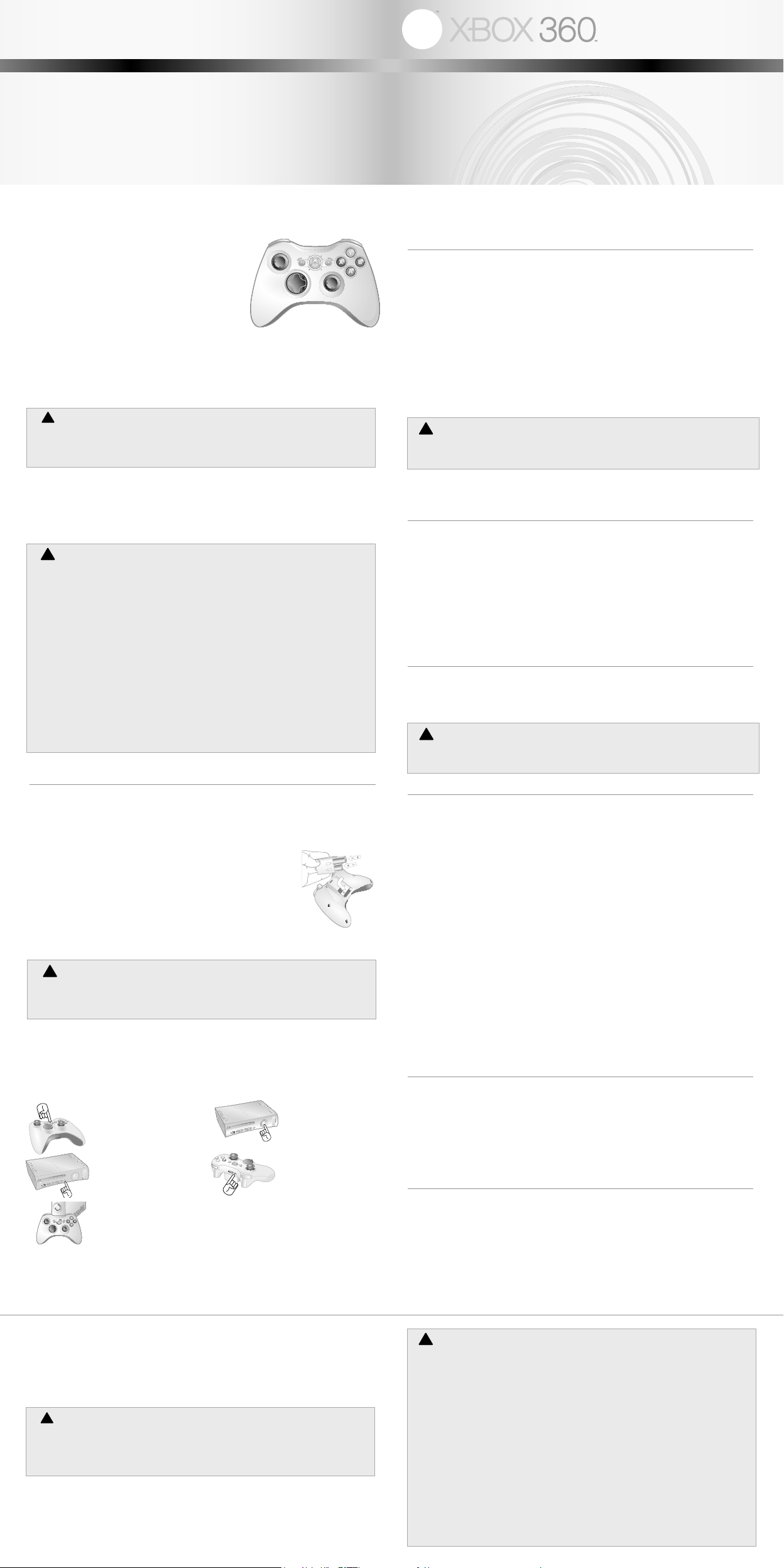
Xbox 360 Wireless Controller
Thanks for choosing the Xbox 360 Wireless Controller.
Your wireless controller lets you experience the
ultimate in wireless freedom with the same precision,
speed, and accuracy as a wired controller. The Xbox
360 Wireless Controller features:
• 2.4-GHz wireless technology with
30-foot range.
• Integrated headset port.
• Adjustable vibration feedback for longer battery life.
The Xbox 360 Wireless Controller works exclusively
with the Xbox 360™ video game and entertainment
system. For information about using the Xbox 360 Wireless Controller with a particular game,
see your game manual.
To enhance your experience with the wireless controller, try the Xbox 360 Rechargeable
Battery Pack and the Xbox 360 Play & Charge Kit (sold separately). If you’re looking to expand
your wireless experience, consider the Xbox 360 Universal Media Remote and the Xbox
360 Wireless Networking Adapter (sold separately).
Before using this product, read this manual and the Xbox 360 console manuals for
important safety and health information. Keep all manuals for future reference. For
replacement manuals, go to www.xbox.com/support or call Xbox Customer Support
(see ”If You Need More Help”).
The limited warranty covering this product is contained in the Xbox 360 Warranty
manual (Volume 2).
Dispose of this product in accordance with local and national disposal regulations (if
any), including those governing the recovery and recycling of waste electrical and
electronic equipment (WEEE).
Clean only with a dry or slightly damp cloth. Using cleaning solutions or attempting to
clean connectors may damage your controller.
Disposable Battery Safety
Improper use of batteries may result in battery fluid leakage, overheating, or explosion.
Risk of fire if batteries are replaced by an incorrect type. Released battery fluid is corrosive
and may be toxic. It can cause skin and eye burns, and is harmful if swallowed. To reduce
the risk of injury:
• Keep batteries out of reach of children.
• Do not heat, open, puncture, mutilate, or dispose of batteries in fire.
• Use only alkaline batteries, type AA (LR6).
• Do not mix new and old batteries.
• Remove batteries if they are worn out or before storing for an extended period
of time. Do not leave batteries in the AA battery holder when it is not installed in
the controller.
• If a battery leaks, remove all batteries, taking care to keep the leaked fluid from
touching your skin or clothes. If fluid from the battery comes into contact with skin
or clothes, flush skin with water immediately. Before inserting new batteries,
thoroughly clean the battery compartment with a damp paper towel, or follow the
battery manufacturer’s recommendations for cleanup.
• Dispose of batteries in accordance with local and national disposal regulations,
including those governing the recovery and recycling of waste electrical and electronic
equipment (WEEE).
Insert batteries according to the following instructions.
SET UP YOUR XBOX 360 WIRELESS CONTROLLER
Before you can use your Xbox 360 Wireless Controller with your Xbox 360 console, you need to:
1 Insert a battery pack. The wireless controller uses only AA disposable batteries in the AA
battery pack (provided) or the Microsoft Xbox 360 Rechargeable Battery Pack (sold separately).
2 Introduce the controller to the console by wirelessly connecting the two.
Insert Batteries
To insert batteries into the wireless controller AA battery pack:
1 Press the tab on the top of the AA battery pack and pull down to
detach it from the controller.
2 Insert two new AA (LR6) batteries with their positive (+) and negative (–)
ends positioned as shown on the underside of the battery pack. For
best performance, AA rechargeable batteries are not recommended.
3 Slide the AA battery pack back into place on the controller and push in
to lock.
NOTE
To avoid pinching your fingers when inserting, push only on the flat surface of the battery pack.
!Remove Controller Batteries Aboard Aircraft
Before boarding any aircraft or packing the wireless controller in luggage that will be
checked, remove any batteries from the wireless controller. The wireless controller can
transmit radio frequency (RF) energy, much like a cellular telephone, whenever batteries
are installed.
Connect Your Controller
Up to four controllers, wired and wireless, can be actively connected to a console at one time.
Each connected controller gets a quadrant on the Ring of Light. Before you can connect a
wireless controller, at least one quadrant must be free (unlit). To disconnect a controller,
remove the battery pack from a connected wireless controller or disconnect a wired controller
cable connector.
To connect your wireless controller to your console:
1 Press the Xbox Guide button
to turn on the controller.
2 Press the power button
to turn on the console.
3 Press the connect button
on the console.
4 Press the connect
button on the controller.
5 After the Ring of Light on the controller and console spin and flash once, the
controller is connected. The quadrant that remains lighted indicates the
controller’s position.
NOTES
• When you turn off your console, your controller will still be connected the next time you
turn it on.
• Your controller is connected to only one console at a time. You can connect to a new
console at any time, but your connection to the previously connected console will be lost.
• The Xbox 360 Wireless Controller works only within 33 feet (10 meters) of the console.
Objects between the controller and the console can reduce this range.
USING YOUR CONTROLLER
The Xbox Guide Button
Your controller is equipped with a button in its center called the Xbox Guide button. Press the
Xbox Guide button to turn on your console or to go to the Xbox Guide if the console is already
on. See your Xbox 360 Setup manual for more details about the Xbox Guide button.
The Ring of Light
The Xbox Guide button is surrounded by the Ring of Light, which is made up of four quadrants.
When a controller is connected to your console, it is assigned a quadrant, which glows to
indicate the controller’s position.
Turn On Your Xbox 360 Console
To turn on your Xbox 360 console, press Start or the Xbox Guide button on any connected
controller, wired or wireless.
Use the Expansion Port
The expansion port on your controller lets you connect expansion devices like the Xbox 360
Headset (sold separately) to your controller. The port features a 2.5mm audio connector. For
more information, see the instruction manual for your controller expansion device.
Hearing Loss
Extended exposure to high volumes when using a headset may result in temporary or
permanent hearing loss. Some unapproved third-party headsets may produce higher sound
levels than approved Xbox 360 Headsets.
Use the Charge Port
Your wireless controller is equipped with a charge port on the front of the controller. The
charge port works exclusively with the Xbox 360 Play & Charge Kit (sold separately).
TROUBLESHOOTING
If you encounter problems, try the possible solutions provided below.
Lights Spin Longer than 15 Seconds When Connecting
• Move the controller closer to the console.
• Make sure the batteries are in good shape.
• Keep the console and controller at least three feet away from large metal objects, such as
file cabinets, mirrors, and refrigerators.
• Make sure the front of the console is positioned in the direction of the controller.
• Cordless phones (2.4 GHz), wireless LANs, wireless video transmitters, microwave ovens,
some mobile/cell phones, and Bluetooth headsets can interfere with the operation of the
controller. Turn these off or unplug them and retry connecting.
• If nothing else works, turn off your console, remove and reinsert the AA battery pack into
the controller, and repeat the steps given in “Connect Your Controller.”
IF YOU NEED MORE HELP
Go to www.xbox.com/support or call Xbox Customer Support:
United States and Canada: 1-800-4MY-XBOX (1-800-469-9269)
TTY users: 1-866-740-XBOX (1-866-742-9269)
Do not take your Xbox 360 console or its peripherals to your retailer for repair or service
unless instructed to do so by an Xbox Customer Support representative.
Do Not Attempt Repairs
Do not attempt to take apart, service, or modify the Xbox 360 console, power supply, or its
peripherals in any way. Doing so could present the risk of serious injury or death from
electric shock or fire, and it will void your warranty.
FOR CUSTOMERS IN THE UNITED STATES
This equipment has been tested and found to comply with the limits for a Class B digital
device, pursuant to part 15 of the FCC Rules. These limits are designed to provide reasonable
protection against harmful interference in a residential installation. This equipment generates,
uses and can radiate radio frequency energy and, if not installed and used in accordance with
the instructions, may cause harmful interference to radio communications. However, there is
no guarantee that interference will not occur in a particular installation. If this equipment does
cause harmful interference to radio or television reception, which can be determined by
turning the equipment off and on, the user is encouraged to try to correct the interference by
one or more of the following measures:
• Reorient or relocate the receiving antenna.
• Increase the separation between the equipment and receiver.
• Connect the equipment into an outlet on a circuit different from that to which the receiver is
connected.
• Consult the dealer or an experienced radio/TV technician to help.
This device complies with Part 15 of the FCC Rules. Operation is subject to the following two
conditions:
(1) This device may not cause harmful interference, and (2) this device must accept any
interference received, including interference that may cause undesired operation.
Trade
Name:
Microsoft Corp. Responsible
Party:
Microsoft Corporation
Address: One Microsoft Way Redmond,
WA 98052 U.S.A.
Telephone No.: (800) 4MY-XBOX
NOTE
Any changes or modifications made on the system not expressly approved by the
manufacturer could void the user’s authority to operate the equipment.
FOR CUSTOMERS IN CANADA
This device complies with RSS 210 of Industry Canada (IC).
Operation is subject to the following two conditions: (1) this device may not cause interference,
and (2) this device must accept any interference, including interference that may cause
undesired operation of this device.
Caution
Exposure to radio frequency radiation.
The installer of this radio equipment must ensure that the antenna is located or pointed such
that it does not emit RF field in excess of Health Canada limits for the general population;
consult Safety Code 6, obtainable from Health Canada’s website at www.hc-sc.gc.ca/rpb.
COPYRIGHT
Information in this document, including URL and other Internet Web site references, is subject to change without notice. Unless
otherwise noted, the example companies, organizations, products, domain names, e-mail addresses, logos, people, places and
events depicted herein are fictitious, and no association with any real company, organization, product, domain name, e-mail
address, logo, person, place or event is intended or should be inferred. Complying with all applicable copyright laws is the
responsibility of the user. Without limiting the rights under copyright, no part of this document may be reproduced, stored in or
introduced into a retrieval system, or transmitted in any form or by any means (electronic, mechanical, photocopying, recording, or
otherwise), or for any purpose, without the express written permission of Microsoft Corporation.
Microsoft may have patents, patent applications, trademarks, copyrights, or other intellectual property rights covering subject
matter in this document. Except as expressly provided in any written license agreement from Microsoft, the furnishing of this
document does not give you any license to these patents, trademarks, copyrights, or other intellectual property.
© 2005 Microsoft Corporation. All rights reserved.
Microsoft, Xbox, Xbox 360, and the Xbox logos are either registered trademarks or trademarks of Microsoft Corporation in the
United States and/or other countries.
WARNING
Part Number: X11-29949-01
Printed in China
Manette sans fil Xbox 360
La manette sans fil Xbox 360 fonctionne exclusivement avec le système de jeu vidéo et de
divertissement Xbox 360. Pour des renseignements concernant l’utilisation de la manette sans
fil Xbox 360 avec un jeu particulier, consultez le guide du jeu.
Pour profiter pleinement de votre manette sans fil, essayez la batterie rechargeable Xbox 360
et le kit de chargement Xbox 360. Si vous désirez encore plus de liberté sans fil, procurez-vous
la télécommande multimédia universelle Xbox 360 et l’adaptateur réseau sans fil Xbox 360.
Avant d’utiliser ce produit, lisez le présent guide et les guides de garantie de Xbox 360
pour obtenir toute l’information relative à la sécurité et à la santé. Conservez tous les
guides pour consultation ultérieure. Pour obtenir des guides de remplacement, visitez le
site www.xbox.com/support ou composez le numéro du Service à la clientèle de Xbox
(voir la section « Si vous avez besoin d’une aide supplémentaire »).
La garantie limitée couvrant ce produit se trouve dans le Guide de garantie de Xbox 360
(Volume 2).
Éliminez ce produit conformément aux normes locales et nationales en matière de gestion des
déchets (s’il y a lieu), y compris celles qui régissent la récupération et le recyclage des rebuts
de matériel électrique et électronique.
Ne nettoyez la manette qu’avec un chiffon sec ou légèrement humide. Si vous utilisez une solution
nettoyante ou tentez de nettoyer les connecteurs, vous risquez d’endommager votre manette.
Sécurité concernant les piles jetables
Une utilisation inappropriée des piles risque de provoquer une fuite de liquide, surchauffe
ou explosion. Il y a un risque d’incendie si les piles sont remplacées par un type incorrect.
Le liquide de pile est corrosif, voire toxique. Il peut provoquer des brûlures aux yeux ou à la
peau et est nocif s’il est avalé. Pour réduire le risque de blessure :
• Gardez les piles hors de la portée des enfants.
• Vous ne devez jamais chauffer, ouvrir, perforer ou mutiler les piles ni les jeter dans un feu.
• N’utilisez que des piles alcalines, de type AA (LR6).
• Ne mélangez pas de nouvelles et d’anciennes piles, ni des piles de type différent.
• Enlevez les piles si elles sont usées ou avant d’entreposer votre manette ou
télécommande pendant une longue période. En ce qui concerne la manette sans fil, ne
laissez pas les piles dans le support de batterie LR6 (AA) lorsqu’il n’est pas installé dans
la manette.
• En cas de fuite, retirez toutes les piles immédiatement en prenant soin d’éviter tout
contact avec la peau ou les vêtements. Si le liquide de la pile entre en contact avec la
peau ou les vêtements, lavez immédiatement la peau à eau vive. Avant d’insérer de
nouvelles piles, nettoyez à fond le compartiment à piles à l’aide d’une serviette de
papier humide ou suivez les conseils de nettoyage du fabricant de la pile.
• Jetez les piles conformément aux normes locales et nationales en matière de gestion
des déchets, y compris celles qui régissent la récupération et le recyclage des rebuts
de matériel électrique et électronique.
AVERTISSEMENT
WIRELESS CONTROLLER
MANETTE SANS FIL
CONTROL INALÁMBRICO
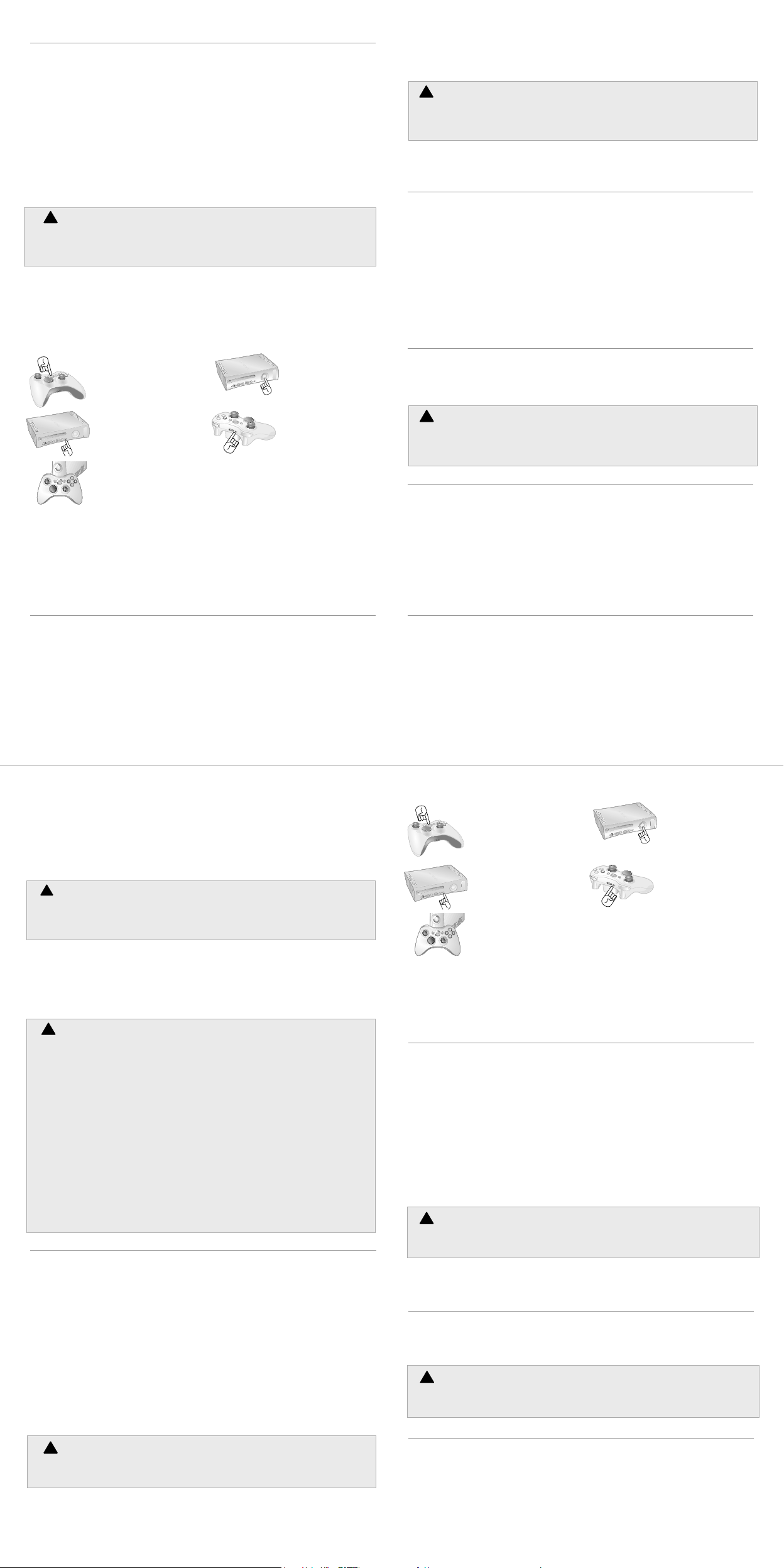
INSTALLEZ VOTRE MANETTE SANS FIL XBOX 360
Avant de pouvoir utiliser votre manette sans fil Xbox 360 avec votre console Xbox 360,
procédez comme suit :
1 Insérez une batterie. La manette sans fil n’utilise que des piles jetables AA dans la batterie AA
(fournie) ou la batterie rechargeable Microsoft Xbox 360 (vendue séparément).
2 Branchez la manette à la console par une connexion sans fil.
Insertion des piles
Pour insérer les piles dans la batterie LR6 de la manette sans fil :
1 Enfoncez le bouton sur le dessus de la batterie LR6 et tirez celle-ci vers le bas pour la
retirer de la manette.
2 Insérez deux piles AA (LR6) neuves en respectant la polarité (+ et -) indiquée sur le dessous
de la batterie. Pour de meilleurs résultats, les piles AA rechargeables sont déconseillées.
3 Remettez la batterie LR6 dans la manette et enfoncez-la pour l’immobiliser.
REMARQUE
Pour éviter de pincer vos doigts lors de l’insertion, ne poussez que sur la surface plane de la pile.
!Retirez les piles de la manette avant de monter à bord d’un aéronef
Avant de monter à bord d’un avion ou de ranger la manette sans fil dans des bagages qui
seront enregistrés, retirez la batterie de la manette sans fil. À l’instar d’un téléphone
cellulaire, la manette sans fil peut émettre de l’énergie radiofréquence (RF) lorsque des
piles sont en place.
Connexion de votre manette
Jusqu’à quatre manettes, câblées et sans fil, peuvent être connectées activement à une
console en même temps. Chaque manette connectée se voit attribuer un quadrant sur
l’Anneau de lumière. Pour que vous puissiez connecter une manette sans fil, au moins un des
quadrants doit être libre (éteint). Pour déconnecter une manette, enlevez la batterie de la
manette sans fil connectée ou débranchez le connecteur du câble d’une manette câblée.
Pour connecter votre manette sans fil à votre console :
1 Appuyez sur la touche
Guide Xbox pour allumer
la manette.
2 Appuyez sur le bouton
d’alimentation pour
allumer la console. Press
the power button to
turn on the console.
3 Appuyez sur le bouton de
connexion de la console.
4 Appuyez sur le bouton
de connexion qui se
trouve sur la manette.
5 Lorsque l’Anneau de lumière de la manette et de la console tournoie et
clignote une fois, la manette est connectée. Le quadrant qui demeure allumé
indique la position de la manette.
REMARQUE
• Lorsque vous éteignez la console, votre manette demeure connectée pour utilisation future.
• Votre manette ne peut être connectée qu’à une seule console à la fois. Vous pouvez vous
connecter à une nouvelle console à tout moment, mais votre connexion à la console
connectée au préalable sera perdue.
• La manette sans fil Xbox 360 fonctionne seulement à une distance maximale de 10 mètres
(33 pieds) de la console. Les objets se trouvant entre la manette et la console risquent de
réduire cette portée.
UTILISATION DE VOTRE MANETTE
La touche Guide Xbox
Au centre de votre manette se trouve la touche Guide Xbox. Appuyez sur la touche Guide Xbox
pour allumer votre console ou pour passer au Guide Xbox si la console est déjà allumée. Pour
de plus amples renseignements sur la touche Guide Xbox, consultez votre Guide d’utilisation
de Xbox 360.
L’Anneau de lumière
La touche Guide Xbox est encerclée de l’Anneau de lumière, lequel est composé de quatre
quadrants. Lorsqu’une manette est branchée à votre console, elle se voit affecter un quadrant
qui s’illumine pour indiquer la position de la manette.
Allumez votre console Xbox 360
Pour allumer votre console Xbox 360, appuyez sur la touche Start ou sur la touche Guide Xbox
de n’importe quelle manette branchée, qu’elle soit câblée ou sans fil.
Utilisez le port d’extension
Le port d’extension de votre manette vous permet de connecter des périphériques d’extension
comme le casque Xbox 360 (vendu séparément) à votre manette. Le port comprend un
connecteur audio de 2,5 mm. Pour de plus amples renseignements, consultez le guide
d’utilisation du périphérique d’extension de la manette.
Perte auditive
Une exposition prolongée à des volumes élevés lors du port d’un casque risque de
provoquer une perte auditive temporaire ou permanente. Certains casques de tierce partie
non approuvés peuvent engendrer des niveaux sonores plus élevés que les casques Xbox
360 approuvés.
Utilisez le port de recharge
Sur le devant votre manette sans fil se trouve un port de recharge. Le port de recharge
fonctionne exclusivement avec le kit de chargement Xbox 360 (vendu séparément).
DÉPANNAGE
Si vous éprouvez des problèmes, essayez les solutions possibles suivantes :
Les lumières tournoient pendant plus de 15 secondes lors de la connexion.
• Rapprochez la manette de la console.
• Assurez-vous que les piles fonctionnent bien.
• Gardez la console et la manette à une distance minimale de trois pieds des gros objets de
métal comme les classeurs, les miroirs et les réfrigérateurs.
• Assurez-vous que le devant de la console est dirigé vers la manette.
• Les téléphones sans fil de 2,4 GHz, les réseaux locaux sans fil, les émetteurs vidéo sans fil,
les fours à micro-ondes, certains téléphones mobiles/cellulaires et les casques d’écoute
Bluetooth peuvent nuire au fonctionnement de la manette. Éteignez ou déconnectez ces
appareils et réessayez la connexion.
• Si aucune solution ne fonctionne, éteignez votre console, retirez la batterie LR6 de la manette
et réinsérez-la, puis répétez les étapes de la section « Connexion de votre manette ».
SI VOUS AVEZ BESOIN D’UNE AIDE SUPPLÉMENTAIRE
Visitez le site www.xbox.com/support ou appelez le service à la clientèle Xbox :
États-Unis et Canada : 1-800-4MY-XBOX (1-800-469-9269)
Utilisateurs de TTY : 1-866-740-XBOX (1-866-740-9269)
Ne confiez pas votre console Xbox 360 ou ses périphériques à votre détaillant pour les
réparations, à moins qu’un représentant du Service à la clientèle de Xbox ne vous le demande.
Ne tentez pas d’effectuer des réparations
Ne tentez pas de démonter, de réparer ou de modifier la console Xbox 360, son bloc
d’alimentation ou l’un de ses périphériques de quelque façon que ce soit. Vous risqueriez de
subir des blessures ou de décéder des suites d’une commotion ou d’un incendie électrique.
En outre, votre garantie serait annulée.
POUR LES CLIENTS AU CANADA
Cet équipement se conforme à la norme RSS 210 d’Industrie Canada (IC).
L’utilisation de ce dispositif est autorisée seulement aux deux conditions suivantes : (1) il ne
doit pas produire de brouillage et (2) ce dispositif doit être prêt à accepter tout brouillage
radioélectrique reçu, même si ce brouillage est susceptible de compromettre le
fonctionnement du dispositif.
ATTENTION
Exposition à l’énergie radiofréquence.
L’installateur de cet équipement radio doit s’assurer que l’antenne est située ou orientée de
façon à ne pas émettre de champ RF qui excède les limites établies par Santé Canada pour la
population générale; consultez le Code de sécurité 6, lequel peut être obtenu sur le site de
Santé Canada au www.hc-sc.gc.ca/rpb.
COPYRIGHT
Les informations contenues dans le présent document, y compris les URL et autres références de sites Web Internet peuvent être
modifiées sans préavis. Sauf mention contraire, les sociétés, organisations, produits, noms de domaine, adresses électroniques,
logos, personnes, lieux et événements mentionnés ici à titre d’exemple sont purement fictifs et aucune association à tout(e)
société, organisation, produit, nom de domaine, adresse électronique, logo, personne, lieu ou événement réel n’est intentionnelle
ou volontaire. Il appartient à l’utilisateur de veiller au respect de toutes les dispositions légales applicables en matière de
copyright. En vertu des droits d’auteur, aucune partie de ce document ne peut être reproduite, stockée ou introduite dans un
système de recherche automatique, ni transmise sous quelque forme ou par quelque moyen que ce soit (électronique,
mécanique, photocopie, enregistrement ou autre), ou dans n’importe quel but, sans l’autorisation écrite de Microsoft Corporation.
Selon les cas, Microsoft détient des brevets (ou a déposé des demandes de brevets), ainsi que des marques, des copyrights ou
autres droits de propriété intellectuelle sur les questions évoquées dans ce document. Sauf disposition contraire expressément
stipulée dans un accord de licence écrit concédé par Microsoft, la communication de ce document ne confère au destinataire
aucun droit sur les brevets, marques, copyrights et autres droits de propriété intellectuelle.
© 2005 Microsoft Corporation. Tous droits réservés.
Microsoft, Xbox, Xbox 360, et les logos Xbox et Xbox 360 sont soit des marques de commerce de Microsoft Corporation, soit des
marques déposées de Microsoft Corporation, aux États-Unis et/ou dans d’autres pays.
Control Inalámbrico Xbox 360
El Control Inalámbrico Xbox 360 es de uso exclusivo con el sistema de videojuegos y
entretenimiento Xbox 360. Para información acerca de cómo utilizar el Control Inalámbrico
Xbox 360 con un juego determinado, consulta el manual de éste.
Para ampliar tu capacidad de control con el control inalámbrico, prueba el Paquete de baterías
recargables Xbox 360 y el Kit Carga & Juega Xbox 360. Si quieres ampliar tu capacidad de
control sin cables, puedes utilizar el Control remoto multimedia universal Xbox 360 y el
Adaptador de red inalámbrico Xbox 360.
Antes de utilizar este producto, lee este manual y el Manual de garantía de Xbox 360
para conocer información importante en materia de seguridad y salud. Conserva todos
los manuales para futuras consultas. Para obtener manuales de repuesto, visita www.
xbox.com/support o llama al Servicio de soporte técnico (consulta ”Si necesitas ayuda”).
La garantía limitada que cubre este producto está incluida en el Manual de garantía de Xbox
360 (volumen 2).
Desecha este producto de acuerdo con las disposiciones locales y nacionales (en caso de
haberlas), incluyendo aquellas que regulan la recuperación y el reciclaje de equipos eléctricos
y electrónicos desechados (EEED).
Límpialo sólo con un paño seco o ligeramente humedecido. Si utilizas soluciones de limpieza o
intentas limpiar los conectores, es posible que causes daños al control.
Seguridad de las baterías desechables
El uso indebido de las baterías podría provocar fugas de líquido, calentamiento o
explosiones. Riesgo de incendio si se sustituyen las baterías por otras de tipo incorrecto.
El líquido derramado es corrosivo y podría ser tóxico. Puede provocar quemaduras en la
piel y en los ojos, y resulta nocivo si se ingiere. Para reducir el riesgo de lesiones:
• Mantén las baterías fuera del alcance de los niños.
• No calientes, abras, perfores, deformes ni arrojes baterías al fuego.
• Utiliza únicamente baterías alcalinas, de tipo AA (LR6).
• No mezcles baterías nuevas y viejas o baterías de distintos tipos.
• Extrae las baterías si están gastadas o antes de guardar el control durante mucho
tiempo. No dejes baterías en el soporte de baterías AA del control inalámbrico cuando
éste no esté colocado en el control.
• Si sale líquido de una batería, extráelas todas procurando que el líquido derramado no
entre en contacto con la piel ni con la ropa. Si el líquido de la batería entra en contacto
con la piel o con la ropa, lava la piel con agua inmediatamente. Antes de colocar
baterías nuevas, limpia a fondo el compartimento para baterías con una toallita de
papel húmeda o sigue las recomendaciones de limpieza del fabricante de las baterías.
• Desecha las baterías usadas de acuerdo con las disposiciones locales y nacionales,
incluyendo aquellas que regulan la recuperación y el reciclaje de equipos eléctricos
y electrónicos desechados (EEED).
CONFIGURAR EL CONTROL INALÁMBRICO XBOX 360
Antes de poder usar el Control Inalámbrico Xbox 360 con tu consola Xbox 360, necesitas:
1 Insertar un paquete de baterías. El control inalámbrico utiliza únicamente baterías
desechables AA en el paquete de baterías AA (suministrado) o el Pack de baterías
recargables Microsoft Xbox 360 (se vende por separado).
2 Hacer que la consola detecte el control conectándolo de forma inalámbrica a los dos.
Insertar las baterías
Para insertar las baterías en el paquete de baterías AA del control inalámbrico:
1 Presiona la pestaña que hay en la parte superior del paquete de baterías AA y tira hacia
abajo para separarlo del control.
2 Inserta dos baterías AA (LR6) nuevas con los polos positivo (+) y negativo (–) como se indica
en la parte inferior del paquete de baterías. Para un desempeño óptimo, se recomienda no
utilizar baterías AA recargables.
3 Coloca el módulo de baterías AA en el control y presiona para cerrar el compartimiento.
NOTA
Para no lastimarte los dedos durante la colocación, haz presión solamente sobre la superficie
plana del pack de baterías.
!Extraer las baterías de los controles cuando se viaje en avión
Antes de subir a un avión o de guardar el control inalámbrico en la maleta, extrae las
baterías. El control inalámbrico puede transmitir energía por radiofrecuencia (RF) al igual
que los teléfonos móviles si tiene las baterías puestas.
Conectar el control
Puedes tener hasta cuatro controles, inalámbricos o no, conectados simultáneamente a una
consola. Cada control conectado obtiene un cuadrante en el Anillo de luz. Para poder conectar
un control inalámbrico debe haber un cuadrante libre como mínimo (luz apagada). Para
desconectar un control, quita el paquete de baterías de un control inalámbrico conectado o
desconecta la conexión del cable de un control con cable.
Para conectar el control inalámbrico a la consola:
1 Presiona el botón Guía Xbox
para encender el control.
2 Presiona el botón de
encendido de la consola.
3 Presiona el botón de
conexión de la consola.
4 Presiona el botón de
conexión del control.
5 El control estará conectado cuando el Anillo de luz del control y la consola
gire y emita un destello. El cuadrante que queda encendido indica la posición
del control.
NOTA
• Al apagar la consola, el control seguirá conectado la próxima vez que la enciendas.
• El control sólo está conectado a una consola a la vez. Puedes conectarlo a una consola
nueva en cualquier momento, pero la conexión con la consola anterior se perderá.
• El Control Inalámbrico Xbox 360 solamente funciona a una distancia de menos de 10 metros
desde la consola. Si hay objetos entre el control y la consola, el alcance puede reducirse.
UTILIZAR EL CONTROL
Botón Guía Xbox
El control tiene un botón central llamado Guía Xbox. Presiona el botón Guía Xbox para encender
la consola o para ir a la Guía Xbox si la consola ya está encendida. Consulta el Manual de
instrucciones de Xbox 360 para obtener más información acerca del botón Guía Xbox.
Anillo de luz
El botón Guía Xbox está rodeado por el Anillo de luz, que se compone de cuatro cuadrantes.
Cuando se conecta un control a la consola, se le asigna un cuadrante. El cuadrante asignado
se iluminará para indicar la posición del control.
Encender la consola Xbox 360
Para encender la consola Xbox 360, presiona el botón Start o el botón Guía Xbox de cualquier
control conectado, ya sea inalámbrico o no.
Utilizar el puerto de expansión
El puerto de expansión del control permite conectar al control dispositivos de expansión como los
Audífonos Xbox 360 (se venden por separado). El puerto tiene un conector de audio de 2,5 mm.
Para más información, consulta el manual de instrucciones del dispositivo de expansión del control.
Pérdida de audición
La exposición prolongada a volúmenes altos con audífonos puede provocar pérdida de
audición temporal o permanente. Algunos audífonos de terceros no autorizados podrían
alcanzar niveles de sonido superiores a los de los Audífonos Xbox 360 autorizados.
Utilizar el puerto de carga
El control inalámbrico cuenta con un puerto de carga en la parte frontal. El puerto de carga
funciona exclusivamente con el Kit Carga & Juega Xbox 360 (se vende por separado).
SI NECESITAS MÁS AYUDA
Visita www.xbox.com/support o llama al número del Servicio de soporte al cliente de Xbox 360:
México: 001-866-745-83-12 (usuarios TTY: 001-866-251-26-21)
Colombia: 01-800-912-1830
No lleves la consola Xbox 360 ni los periféricos a tu distribuidor para que los repare o
mantenga a no ser que te lo diga un empleado del Servicio de soporte al cliente de Xbox.
No intentes realizar reparaciones
No intentes desmontar, reparar ni alterar la consola Xbox 360, la fuente de alimentación ni
sus periféricos en modo alguno. Al hacerlo existe riesgo de lesiones graves o muerte por
descarga eléctrica o fuego; además, la garantía quedará cancelada.
COPYRIGHT
La información contenida en este documento, incluida la dirección URL y otras referencias a sitios Web, está sujeta a cambios sin
previo aviso. Siempre que no se indique lo contrario, las compañías, organizaciones, productos, nombres de dominio, direcciones
de correo electrónico, logotipos, personas, lugares y acontecimientos citados en los ejemplos son ficticios y no se pretende hacer
referencia ni debe deducirse referencia alguna a compañías, organizaciones, productos, nombres de dominio, direcciones de
correo electrónico, logotipos, personas, lugares o acontecimientos reales. El usuario es responsable de cumplir todas las leyes de
derechos de autor aplicables. Sin que ello limite los derechos protegidos por los derechos de autor, queda prohibida la
reproducción total o parcial de este documento, así como su almacenamiento o introducción en un sistema de recuperación de
datos, o su transmisión en cualquier forma y por cualquier medio (electrónico, mecánico, fotocopia, grabación, etc.), sea cual sea
el fin, sin la autorización expresa por escrito de Microsoft Corporation.
Microsoft podría tener patentes, aplicaciones patentadas, marcas comerciales, derechos de autor o derechos de propiedad
intelectual sobre los temas incluidos en este documento. Salvo cuando se indique expresamente en el contrato de licencia por
escrito de Microsoft, la posesión de este documento no implica la licencia para dichas patentes, marcas comerciales, derechos de
autor o demás propiedad intelectual.
© 2005 Microsoft Corporation. Reservados todos los derechos.
Microsoft, Xbox, Xbox 360 y los logotipos de Xbox y Xbox 360 son marcas comerciales o marcas registradas de Microsoft
Corporation en los Estados Unidos y en otros países.
Перед вами файл pdf, где представлена инструкция (руководство) на русском для MICROSOFT Xbox One Wireless Controller (EX6-00007). Вы можете скачать ее либо изучить в онлайн режиме.
Подробные сведения об инструкции:
Устройство из раздела: геймпад беспроводной
Бренд-производитель: MICROSOFT
Наименование модели: MICROSOFT Xbox One Wireless Controller (EX6-00007)
Язык: Руководство на русском языке
Файл: pdf
Размер файла: 2,68 MB
Скачать инструкцию к HARPER HDT2-1110
ЗАГРУЗИТЬ
Просмотр инструкции онлайн