
User manual
View the manual for the Marshall Woburn II here, for free. This manual comes under the category speakers and has been rated by 5 people with an average of a 8. This manual is available in the following languages: English. Do you have a question about the Marshall Woburn II or do you need help?
Ask your question here
Questions & answers
Can’t find the answer to your question in the manual? You may find the answer to your question in the FAQs about the Marshall Woburn II below.
What is the weight of the Marshall Woburn II?
The Marshall Woburn II has a weight of 8550 g.
Can bluetooth devices of different brands be connected to each other?
Yes, bluetooth is a universal method that allows different devices equipped with bluetooth to connect to each other.
What is the height of the Marshall Woburn II?
The Marshall Woburn II has a height of 200 mm.
What is the width of the Marshall Woburn II?
The Marshall Woburn II has a width of 400 mm.
What is bluetooth?
Bluetooth is a way of exchanging data wirelessly between electronic devices via radio waves. The distance between the two devices that exchange data can in most cases be no more than ten metres.
What is the depth of the Marshall Woburn II?
The Marshall Woburn II has a depth of 310 mm.
When is my volume too loud?
A volume above 80 decibels can be harmful to hearing. When the volume exceeds 120 decibels, direct damage can even occur. The chance of hearing damage depends on the listening frequency and duration.
Wat is Dolby Atmos?
Dolby Atmos is a technology that ensures that the sound is reflected from the ceiling to where you are listening. This makes it possible to create a 5.1 effect with only 1 speaker.
Is the manual of the Marshall Woburn II available in English?
Yes, the manual of the Marshall Woburn II is available in English .
Is your question not listed? Ask your question here
- June 16, 2024
- Marshall
Table of Contents
- Marshall Woburn II Bluetooth
- Product Information
- LEGAL & TRADEMARK NOTICE
- BOX CONTENTS
- GENERAL DESCRIPTION
- PLUGGING IN THE WOBURN II
- TURNING THE WOBURN II ON/OFF
- SETTING UP THE WOBURN II
- SELECTING AUDIO SOURCE
- CONNECTING VIA Bluetooth PAIRING
- CONNECTING VIA AUX INPUT
- CONNECTING VIA RCA INPUT
- ADJUSTING THE VOLUME/BASS/TREBLE
- PLAY/PAUSE CONTROL
- COUPLE SPEAKERS
- STANDBY MODE
- TECHNICAL INFORMATION
- TROUBLESHOOTING
- References
- Read User Manual Online (PDF format)
- Download This Manual (PDF format)

Marshall Woburn II Bluetooth
Product Information
Specifications
- Main Input: Mains Lead
- Aux Input: 3.5mm Jack
- Source Indicators: Yes
- Source Button: Yes
- Volume Knob: Yes
- Bass Knob: Yes
- Treble Knob: Yes
- Play/Pause Button: Yes
- Power Lever: Yes
- Bass Port: Yes
- RCA Input (Left and Right): Yes
- Main Input: Yes
- Main Lead: Yes
Box Contents
- Woburn II Bluetooth Speaker
- Mains Lead
- Power Jack
General Description
The Woburn II Bluetooth speaker features various controls and inputs for a
versatile audio experience. It includes an aux input for a 3.5mm jack, source
indicators, a source button, a volume knob, a bass knob, a treble knob,
plays/pause button, and a power lever. The speaker also has a bass port,
backplate, RCA input for left and right channels, mains input, and mains lead.
Plugging in the Woburn II
- Connect the mains lead to the mains input on the speaker.
- Connect the power jack to the wall socket.
Turning the Woburn II On/Off
- To turn on the speaker, pull and hold the power lever towards the front of the speaker until the power-on sound plays and the indicators light up.
- To turn off the speaker, pull and hold the power lever towards the front of the speaker until the power of sound plays and all indicators turn off.
Setting up the Woburn II
To optimize your experience with the Woburn II, download the dedicated app
from the App Store or Google Play for detailed instructions and additional
features.
Selecting Audio Source
- Push the source button to toggle between Bluetooth, Aux, and RCA audio sources.
- A lit indicator will show which source is selected.
Connecting via Bluetooth (Pairing)
- Select Bluetooth as the input by pushing the source button to toggle the input sources.
- Push and hold the source button for 2 seconds. The Bluetooth indicator will start blinking.
- Enable Bluetooth on your device (smartphone, tablet, computer).
- Select “Woburn II” from the Bluetooth list and accept pairing.
The Bluetooth indicator on the speaker will stop blinking and remain lit when
the units are connected. The Woburn II can be connected to two Bluetooth
devices at the same time. Playing a connected Bluetooth device will make it
the selected audio source, pausing any previously played audio on the second
device.
Frequently Asked Questions (FAQ)
-
Q: Where can I find legal and trademark information?
A: For legal and trademark information, please visit the website:
www.marshallheadphones.com. -
Q: How do I adjust the volume, bass, and treble?
A: The Woburn II features a volume knob, bass knob, and treble knob. Simply
turn these knobs to adjust the respective audio settings. -
Q: Can I connect the Woburn II to multiple devices simultaneously?
A: Yes, the Woburn II can be connected to two Bluetooth devices at the same
time. However, only one device can be the selected audio source at a time. -
Q: How do I connect via Aux input or RCA input?
A: To connect via Aux input, simply plug in a 3.5mm jack into the aux input
port. To connect via RCA input, use RCA cables to connect the left and right
channels to the respective RCA input ports on the speaker. -
Q: How do I couple speakers?
A: Refer to the user manual or visit the website for instructions on how to
couple speakers for a stereo sound experience. -
Q: How do I troubleshoot any issues with the Woburn II?
A: Refer to the troubleshooting section in the user manual for common issues
and their solutions. If the problem persists, contact customer support or
visit the website for further assistance.
LEGAL & TRADEMARK NOTICE
- The design of the device and packaging are intellectual properties of Zound Industries International AB and Marshall Amplification Plc. © All Rights Reserved. Zound Industries International AB is hereinafter referred to as “Zound Industries” or “manufacturer”.
- MARSHALL, Marshall Amps, and their respective logos, “Marshall” and “Marshall” trade dress are trademarks and intellectual property of Marshall Amplification Plc and may not be used without permission. Permission granted to Zound Industries.
- Qualcomm aptX is a product of Qualcomm Technologies International, Ltd. Qualcomm is a trademark of Qualcomm Incorporated, registered in the United States and other countries, used with permission. aptX is a trademark of Qualcomm Technologies International, Ltd., registered in the United States and other countries, used with permission.
- The Bluetooth® wordmark and logos are registered trademarks owned by the Bluetooth SIG, Inc. and any use of such marks by Zound Industries is under license.
- Apple and the Apple logo are trademarks of Apple Inc., registered in the U.S. and other countries. App Store is a service mark of Apple Inc., registered in the U.S. and other countries.
- Google Play and the Google Play logo are trademarks of Google LLC.
- All other trademarks are the property of their respective owners and may not be used without permission.
- For more legal information related to this product and to its use in your specific region, and for more detailed information about Zound Industries and partner & license information, please visit the website: www.marshallheadphones.com. The user is recommended to visit the website regularly for up-to-date information.
Zound Industries International AB, Centralplan 15, 111 20 Stockholm, Sweden
BOX CONTENTS
- MARSHALL WOBURN II WIRELESS HOME Bluetooth® SPEAKER
- QUICK START GUIDE
- IMPORTANT SAFETY INSTRUCTIONS
- MAINS LEAD


GENERAL DESCRIPTION
- AUX INPUT FOR 3.5 mm JACK
- SOURCE INDICATORS
- SOURCE BUTTON
- VOLUME KNOB
- BASS KNOB
- TREBLE KNOB
- PLAY/PAUSE BUTTON
- POWER LEVER
- BASS PORT
- BACKPLATE
- RCA INPUT (LEFT AND RIGHT)
- MAINS INPUT
- MAINS LEAD


PLUGGING IN THE WOBURN II
IMPORTANT:
ALWAYS ENSURE THAT THE MAINS LEAD, POWER JACK AND SPEAKER ARE COMPATIBLE WITH
YOUR MAINS SUPPLY AND WALL SOCKET.
- CONNECT THE MAINS LEAD INTO THE MAINS INPUT ON THE SPEAKER.
- CONNECT THE POWER JACK TO THE WALL SOCKET.
CAUTION:
ALWAYS UNPLUG THE MAINS LEAD FROM THE WALL SOCKET BEFORE DISCONNECTING IT FROM
THE SPEAKER.

TURNING THE WOBURN II ON/OFF
- ON: PULL AND HOLD THE POWER LEVER TOWARDS THE FRONT OF THE SPEAKER UNTIL THE POWER ON SOUND PLAYS AND THE INDICATORS LIGHT UP.
- OFF: PULL AND HOLD THE POWER LEVER TOWARDS THE FRONT OF THE SPEAKER UNTIL THE POWER OFF SOUND PLAYS AND ALL INDICATORS TURN OFF.

SETTING UP THE WOBURN II
CONFIGURE THE SPEAKER WITH THE MARSHALL BLUETOOTH® APP TO GET THE MOST OUT OF
IT. THE APP IS AVAILABLE FROM THE APP STORE AND GOOGLE PLAY.
- DOWNLOAD THE MARSHALL BLUETOOTH® APP AND FOLLOW THE IN-APP INSTRUCTIONS.

SELECTING AUDIO SOURCE
THERE ARE MANY WAYS TO CONNECT TO YOUR WOBURN II, EITHER WIRELESSLY OR BY
CABLE.
- WIRELESS Bluetooth CONNECTION
- AUX – 3.5 mm STEREO JACK
- RCA – DOUBLE RCA (LEFT AND RIGHT) JACK
- PUSH THE SOURCE BUTTON TO TOGGLE BETWEEN Bluetooth, AUX AND RCA AUDIO SOURCE.
- A LIT INDICATOR SHOWS WHICH SOURCE IS SELECTED.
THE SOURCE CAN ALSO BE SELECTED FROM THE MARSHALL BLUETOOTH® APP.

CONNECTING VIA Bluetooth PAIRING
- SELECT Bluetooth AS THE INPUT. PUSHING THE SOURCE BUTTON TOGGLES THE INPUT SOURCES.
- PUSH AND HOLD THE SOURCE BUTTON FOR 2 SECONDS. THE Bluetooth INDICATOR STARTS TO BLINK.
- ENABLE Bluetooth ON YOUR DEVICE (SMARTPHONE, TABLET, COMPUTER).
- SELECT WOBURN II FROM THE Bluetooth LIST AND ACCEPT PAIRING. THE Bluetooth INDICATOR ON THE SPEAKER STOPS BLINKING AND REMAINS LIT WHEN THE UNITS ARE CONNECTED.
WOBURN II CAN BE CONNECTED TO TWO Bluetooth DEVICES AT THE SAME TIME. PLAYING
A CONNECTED Bluetooth DEVICE WILL MAKE IT THE SELECTED AUDIO SOURCE, PAUSING
ANY PREVIOUSLY PLAYED AUDIO ON THE SECOND DEVICE.

CONNECTING VIA AUX INPUT
- CONNECT A 3.5 mm STEREO JACK TO THE INPUT LABELLED AUX ON THE TOP OF THE SPEAKER.
- CONNECT THE OTHER END OF THE LEAD TO THE AUDIO OUTPUT ON YOUR AUDIO SOURCE.
- SELECT AUX AS THE INPUT. PUSHING THE SOURCE BUTTON TOGGLES THE INPUT SOURCES.

CONNECTING VIA RCA INPUT
- CONNECT A LEAD WITH RCA JACKS TO THE INPUTS LABELLED RCA ON THE BACK OF THE SPEAKER.
- CONNECT THE OTHER END OF THE LEAD TO THE OUTPUT ON YOUR AUDIO SOURCE.
- SELECT RCA AS THE INPUT. PUSHING THE SOURCE BUTTON TOGGLES THE INPUT SOURCES.

ADJUSTING THE VOLUME/BASS/TREBLE
THE WOBURN II INCLUDES THREE KNOBS FOR ADJUSTING THE AUDIO.
- VOLUME KNOB
- BASS KNOB
- TREBLE KNOB

PLAY/PAUSE CONTROL
THE WOBURN II HAS A PLAY/PAUSE BUTTON TO CONTROL THE MUSIC WHEN PLAYING VIA
Bluetooth.
- SINGLE-CLICK TO EITHER PLAY OR PAUSE.
- DOUBLE-CLICK TO SKIP FORWARD.
- TRIPLE-CLICK TO SKIP BACK.

COUPLE SPEAKERS
TWO ACTON II, STANMORE II, OR WOBURN II SPEAKERS CAN BE COUPLED TO ACT AS ONE
SOUND SYSTEM. NOTE THAT CERTAIN HARDWARE COMPONENTS VARY BETWEEN MODELS, AND
MAY CAUSE LIMITATIONS ON THE COUPLING SUPPORT. THE TABLE BELOW DISPLAYS THE
COMPATIBILITY BETWEEN WOBURN II WITH OTHER MODELS.
THE SPEAKER MODEL IS STATED ON THE BACK OF THE SPEAKER.
WOBURN II BLUETOOTH
| ACTON II | Yes |
|---|---|
| ACTON II BLUETOOTH | Yes |
| ACTON II BT | |
| STANMORE II | Yes |
| STANMORE II BLUETOOTH | Yes |
| STANMORE II BT | |
| WOBURN II BLUETOOTH | Yes |
THERE ARE TWO COUPLING MODES TO CHOOSE FROM:
-
AMBIENT MODE – TWO SPEAKERS PLAY THE SAME AUDIO SYNCHRONISED. EACH SPEAKER PLAYS BOTH THE LEFT AND RIGHT CHANNELS.
CHOOSE THIS MODE IF YOUR SPEAKERS ARE PLACED AT DIFFERENT HEIGHTS, DIRECTIONS
OR AREAS OF THE ROOM. -
STEREO MODE – TWO SPEAKERS OF THE SAME SIZE ARE COUPLED AS A STEREO PAIR. WITH ONE SPEAKER THE LEFT CHANNEL AND THE OTHER THE RIGHT.
CHOOSE THIS MODE IF THE SPEAKERS ARE PLACED AT THE SAME HEIGHT, EQUAL DISTANCE
AND FACING THE SAME DIRECTION.
- TO COUPLE TWO SPEAKERS, OPEN THE MARSHALL BLUETOOTH® APP AND CONNECT TO YOUR SPEAKERS.
- GO TO A COUPLE OF SPEAKERS AND FOLLOW THE IN-APP INSTRUCTIONS.

NOTE: MAKE SURE YOUR AUDIO DEVICE IS ONLY CONNECTED VIA Bluetooth TO ONE
SPEAKER WHEN PLAYING ON COUPLED SPEAKERS.
STANDBY MODE
IF THE WOBURN II IS LEFT UNUSED FOR 20 MINUTES THE SPEAKER GOES INTO STANDBY
TO SAVE ENERGY. IN THIS MODE ALL INDICATORS ARE OFF.
- INTERACT WITH ANY BUTTON OR KNOB ON THE TOP PANEL TO WAKE THE SPEAKER UP FROM STANDBY MODE.

TECHNICAL INFORMATION
ACOUSTIC SPECIFICATION
- STEREO LOUDSPEAKER WITH BASS REFLEX SYSTEM
- DIGITAL CLASS D AMPLIFIERS: 2 x 15 W + 2 x 50 W
- TWEETERS: 2 x ¾” dome tweeters
- WOOFER: 2 x 5¼” woofer
- BASS AND TREBLE TONE CONTROLS
- FREQUENCY RESPONSE: 30–20,000 Hz ±6 dB
- MAXIMUM SOUND PRESSURE LEVEL: 110 dB SPL @ 1 m
CONNECTIVITY
- Bluetooth®: Bluetooth 5.0 with Qualcomm® aptX™
- AUX: 3.5 mm stereo jack
- RCA: RCA (left and right)
TECHNICAL INFORMATION
- MAINS INPUT VOLTAGE: 100–240 VAC
- MAINS FREQUENCY: 50–60 Hz
- SIZE: 400 x 310 x 200 mm
- WEIGHT: 8.55 kg
NOTE:
THE FRONT OF THE SPEAKER IS NOT REMOVABLE. THIS ILLUSTRATION INTENDS TO SHOW
THE INTERNAL SPEAKER LAYOUT. DO NOT ATTEMPT TO REMOVE THE FRET FOR RISK OF
DAMAGING YOUR SPEAKER.
TROUBLESHOOTING
PROBLEM
| CAUSE|
ACTION
—|—|—
THE WOBURN II DOES NOT TURN ON| The speaker is not connected to
the mains electricity supply.| Connect the mains lead to the Woburn II and a
working wall socket.
Pull and hold the power lever towards the front of the
speaker until the indicators light up.
THERE IS NO AUDIO OR AUDIO IS TOO LOW| The wrong sound
source is selected.| Ensure that the device is connected to the Woburn II.
Volume is set too low on
either the audio source or the speaker.
| Slightly increase the volume on your audio source or the speaker.
CAN NOT CONNECT OR PAIR WITH A
Bluetooth DEVICE
| Bluetooth is not enabled on your device (smartphone, tablet, computer).|
Activate Bluetooth on your device.
There are already two devices connected to the speaker.| Disconnect one of the
connected Bluetooth devices before connecting to the speaker.
The speaker is not in pairing mode.| Push and hold the Bluetooth button for 3
seconds to make the speaker is discoverable by the device.
THE SPEAKER IS NOT RESPONDING| A software problem has occurred.|
Unplug the mains power plug from the wall socket, wait for 15 seconds, then
plug it in again.
—|—|—
Bluetooth CONNECTION DROPS OUT| The two Bluetooth devices are
too far apart or the connection is affected due to obstacles.| Move the
devices closer so that they are within 10 metres, and unobstructed by
obstacles such as walls or doors.
There is a strong electric field surrounding the Woburn II.| Items such as
microwave ovens, wireless network adapters, fluorescent lights and gas cookers
use the same frequency range as the Bluetooth device. This may lead to
electrical disturbances.
THERE IS A CRACKLING SOUND| The amplifier is clipping as it has
run out of output power.| Decrease the volume of your audio source.
| Lower the volume or bass on the Woburn II.
THE AUDIO IS DISTORTED| The volume is set too high on the audio
source.| Turn down the playback volume on the audio source.
—|—|—
The audio stream or audio file is of poor quality.| Try another audio file or
music player.
Volume is set too high on the Woburn II.| Lower the volume on the speaker.
Too much bass/treble on the speaker.| Lower the bass/treble on the speaker.
ERRATIC
PERFORMANCE
| Interference from another electronic device.| Move the Woburn II to another
spot.
| Turn off or move the interfering electronic device.
NOTES:
A BLUETOOTH DEVICE COULD CAUSE AUDIO-RELATED OR TECHNICAL FAULTS, DEPENDING ON
USE, IN THE FOLLOWING CASES:
- WHEN SOME PART OF THE BODY IS IN CONTACT WITH THE RECEIVING/TRANSMITTING SYSTEM FOR THE BLUETOOTH DEVICE OR THE WOBURN II.
- ELECTRICAL VARIATIONS DUE TO OBSTACLES IN THE FORM OF WALLS, CORNERS, ETC.
- EXPOSURE TO ELECTRICAL DISRUPTIONS FROM DEVICES WITHIN THE SAME FREQUENCY BAND, FOR EXAMPLE, MEDICAL EQUIPMENT, MICROWAVE OVENS AND WIRELESS NETWORKS.
THIS WIRELESS DEVICE MAY CAUSE ELECTRICAL DISRUPTIONS DURING USE.
WWW.MARSHALLHEADPHONES.COM.
References
- Marshall — 60 years of loud | Marshall.com
Read User Manual Online (PDF format)
Read User Manual Online (PDF format) >>
Download This Manual (PDF format)
Download this manual >>
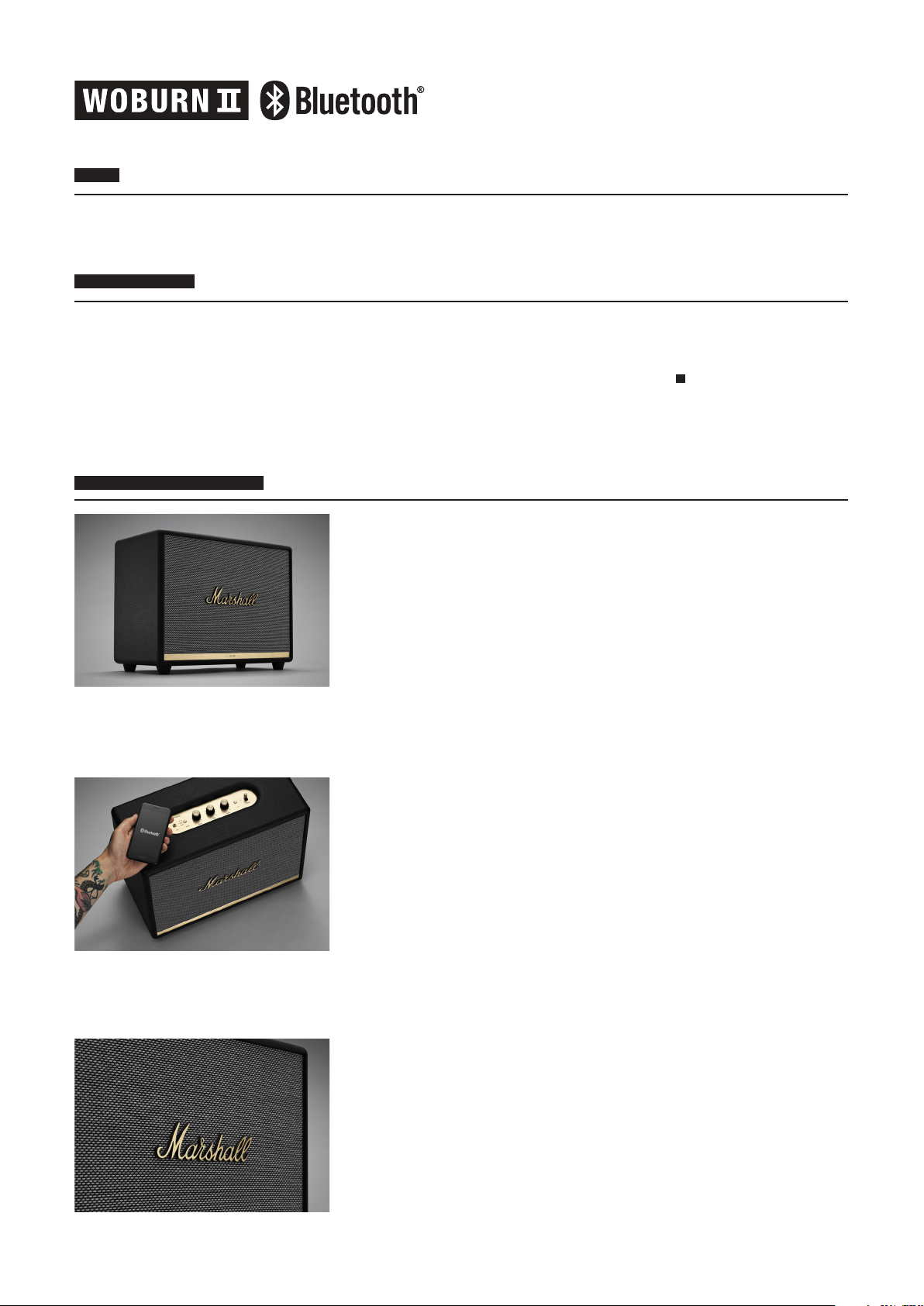
SLOGAN
THE POWERFUL PERFORMER
PRODUKT-WERBETEXT
Woburn II liefert einen Sound mit der Präsenz und Kraft von Live-Musik. Woburn II
ist eine sorgfältig gefertigte Maschine, darauf ausgelegt, den typischen MarshallSound hervorzubringen. Marshalls größter Lautsprecher, Woburn II, verfügt über
einen robusten Klang, überträgt hohe Frequenzen sauber, meistert tiefe Bässe mit
Leichtigkeit und hat eine klare, lebensechte Midrange. Zwei 1-Zoll-Hochtöner und
zwei 5,25-Zoll-Subwoofer werden einzeln von Class-D-Verstärkern mit insgesamt
110 Watt Leistung versorgt. Dank Bluetooth 5.0 mit Qualcomm® apt XTM kannst du
deine Musik kabellos in einem glasklaren Stereo-Sound abspielen.
EINZIGARTIGE VERKAUFSARGUMENTE
1. SOUND, DER DICH BEGEISTERT
Kurz: Woburn II überträgt hohe Frequenzen sauber, meistert tiefe Bässe mit Leichtigkeit und hat eine
klare, lebensechte Midrange.
Mittel: Woburn II verfügt über einen robusten Klang, überträgt hohe Frequenzen sauber, meistert tiefe
Bässe mit Leichtigkeit und hat eine klare, lebensechte Midrange. Zwei 1-Zoll-Hochtöner und zwei
5,25-Zoll-Subwoofer werden einzeln von Class-D-Verstärkern mit insgesamt 110 Watt Leistung
versorgt.
Lang: Woburn II verfügt über einen robusten Klang, überträgt hohe Frequenzen sauber, meistert tiefe
Bässe mit Leichtigkeit und hat eine klare, lebensechte Midrange. Zwei 1-Zoll-Hochtöner und zwei
5,25-Zoll-Subwoofer werden einzeln von Class-D-Verstärkern mit insgesamt 110 Watt Leistung
versorgt. Die Holzgehäusekonstruktion sorgt für einen warmen, natürlichen Klang und das
Bassreflex-System verfügt über einen Anschluss zur Unterstützung bei niedrigen Frequenzen.
Klassische Marshall-Details wie eine strukturier te Vinylabdeckung, Salz- und
Pfeffermuster und das kultige Script-Logo zieren den robusten Holzrahmen von
Woburn II. An der Vorderseite des Lautsprechers befindet sich eine Messingplatte,
in die das Entstehungsjahr 1962 graviert wurde – eine subtile Anspielung auf das
Vermächtnis der Marke und 50 Jahre Sound
2. KABELLOS VERBUNDEN DANK BLUETOOTH 5.0 UND aptX-TECHNOLOGIE
Kurz: Bluetooth 5.0 und die aptX-Technologie bieten verlustfreien Wireless-Sound mit einer Reichweite
Mittel: Bluetooth 5.0 und die aptX-Technologie bieten verlustfreien Wireless-Sound mit einer Reichweite
Lang: Genieße die volle Bewegungsfreiheit zu Hause und höre deine Musik ohne Unterbrechung
3. LEGENDÄRES MARSHALL-DESIGN
Kurz: Dieser Lautsprecher kombiniert zeitgemäße Technologie mit dem legendären Marshall-Design:
Mittel: Dieser Lautsprecher kombiniert zeitgemäße Technologie mit dem legendären Marshall-Design:
Lang: Klassische Marshall-Details wie eine strukturierte Vinylabdeckung, Salz- und Pfeffermuster und
von bis zu 10 Metern.
von bis zu 10 Metern bei gleichzeitiger Aufrechterhaltung der Konnektivität. Verwende dein
Bluetooth-fähiges Smartphone, Tablet oder deinen Computer, um Musik kabellos direkt auf deinem
Lautsprecher abzuspielen.
über Bluetooth 5.0 und aptX. Diese Technologie bietet verlustfreien Wireless-Sound mit einer
Reichweite von bis zu 10 Metern bei gleichzeitiger Aufrechterhaltung der Konnektivität. Verwende
dein Bluetooth-fähiges Smartphone, Tablet oder deinen Computer, um Musik kabellos direkt auf
deinem Lautsprecher abzuspielen.
kräftiger Sound im klassischen Look.
kräftiger Sound im klassischen Look. Diesen Lautsprecher präsentierst du voller Stolz in jedem
Raum.
das kultige Script-Logo zieren den robusten Holzrahmen dieses Lautsprechers. An der Vorderseite
des Lautsprechers befindet sich eine Messingplatte, in die das Entstehungsjahr 1962 graviert
wurde – eine subtile Anspielung auf das Vermächtnis der Marke und 50 Jahre Sound. Diesen
Lautsprecher präsentierst du voller Stolz in jedem Raum.
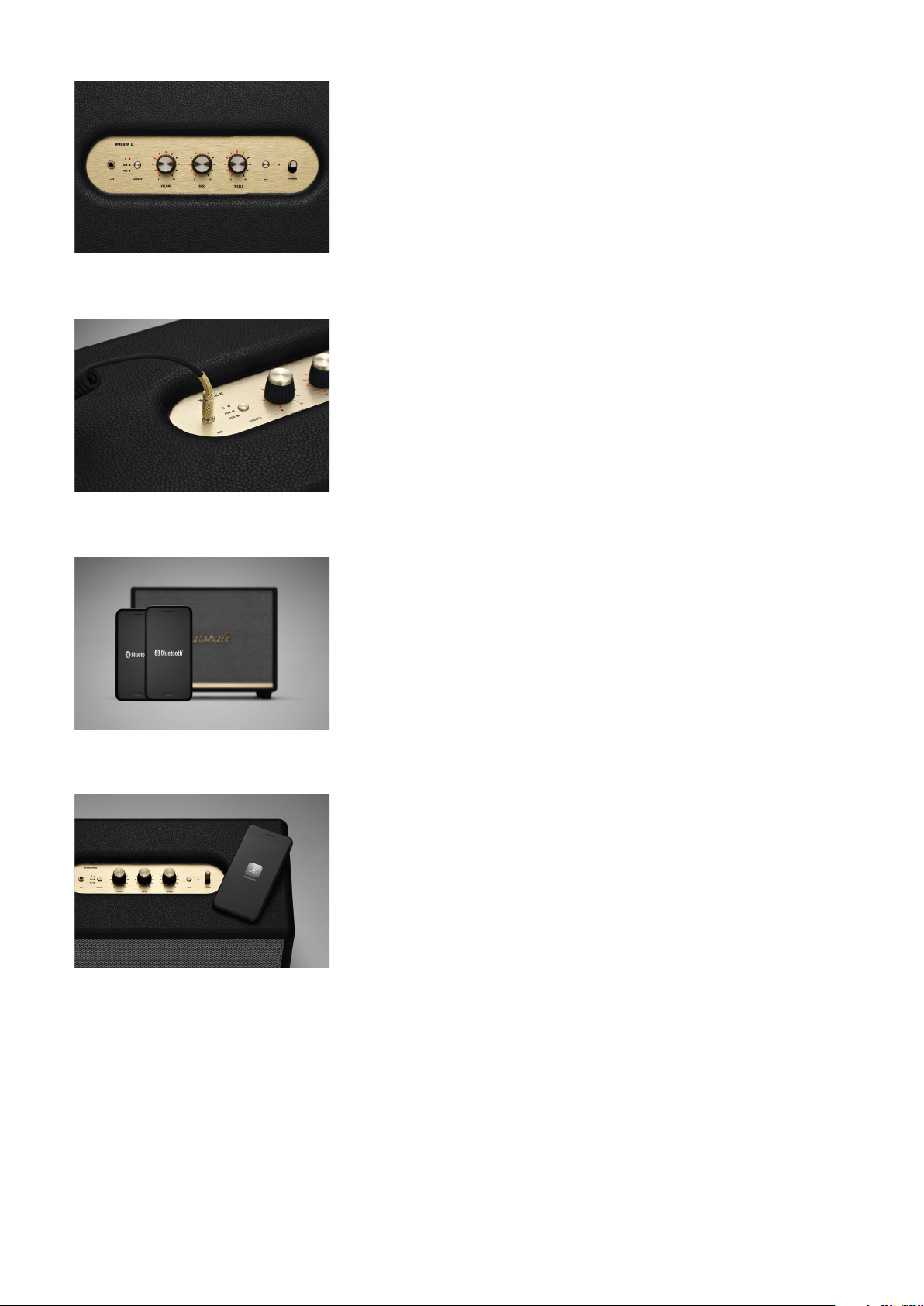
4. OPTIMIERE DEINEN SOUND
Kurz: Stimme deine Musik mit der Marshall Bluetooth-App oder den analogen Reglern auf der Oberseite
Mittel: Stimme deine Musik auf deine Präferenzen ab. Verwende dazu einfach die Marshall Bluetooth-App
Lang: Stimme deine Musik auf deine Präferenzen ab. Verwende dazu einfach die Marshall Bluetooth-App
5. ANSCHLUSS MIT KABEL
Kurz: Schließe für ein analoges Hörerlebnis den RCA- oder 3,5-mm-Stecker an.
Mittel: Es gibt mehr Verbindungsmöglichkeiten als nur Bluetooth 5.0. Schließe für ein analoges Hörerlebnis den
Lang: Es gibt mehr Verbindungsmöglichkeiten als nur Bluetooth 5.0. Mit dem RCA- oder 3,5-mm-Eingang
6. MULTI-HOST-FUNKTION
deines Lautsprechers auf deine Präferenzen ab.
oder die analogen Regler auf der Oberseite deines Lautsprechers, um deinen Sound je nach Raum zu
perfektionieren.
oder die analogen Regler auf der Oberseite deines Lautsprechers, um deinen Sound je nach Raum zu
perfektionieren. Stelle mit den Messingknöpfen die Lautstärke, Höhen und Bässe ein oder verwende
dazu die Marshall Bluetooth-App mit eingebautem Equalizer, falls du außer Reichweite bist.
RCA- oder 3,5-mm-Stecker an.
kannst du einen Plattenspieler, ein Kassettendeck oder ein anderes Gerät für ein analoges Hörerlebnis
anschließen. Das Kabel wird separat verkauft.
Kurz: Dieser Lautsprecher bietet eine Multi-Host-Funktion.
Mittel: Dieser Lautsprecher verfügt über eine Multi-Host-Funktion, mit der du leicht zwischen zwei Bluetooth-
Lang: Dieser Lautsprecher verfügt über eine Multi-Host-Funktion, mit der du leicht zwischen zwei Bluetooth-
7. MARSHALL BLUETOOTH-APP
Kurz: Zusätzlich zu den analogen Reglern kannst du mit der Marshall Bluetooth-App den Klang einstellen.
Mittel: Zusätzlich zu den analogen Reglern kannst du mit der Marshall Bluetooth-App den Klang einstellen
Lang: Zusätzlich zu den analogen Reglern kannst du mit der Marshall Bluetooth-App den Klang einstellen
Geräten wechseln kannst.
Geräten wechseln kannst. Nun kannst du dich mit einem Freund gemeinsam beim Abspielen der Musik
abwechseln.
und deine Musik steuern.
und deine Musik steuern. Verwende die App, um zwischen den EQ-Voreinstellungen umzuschalten, den
Stereo- oder Umgebungsmodus einzurichten und die Intensität der LED-Leuchten auf der Oberseite
anzupassen. Du kannst deinen Lautsprecher auch innerhalb von Sekunden aufwecken oder in den
Standby-Modus versetzen.
7246
Привет! В этой статье я хочу подробно показать процесс подключения колонок Marshall к разным устройствам: iPhone, телефоны на Android, ноутбуки и ПК на Windows, MacBook, телевизоры. Подключать будем по Bluetooth и через кабель (AUX, RCA, HDMI).
Эта инструкция по подключению подойдет для всех колонок Marshall. Как для портативных моделей, так и для стационарных. Начиная от Marshall Willen, и заканчивая Marshall Woburn. Если у вас, например, Marshall Emberton, Marshall Tufton, Marshall Middleton, Marshall Kilburn, Marshall Stockwell, Marshall Acton, Marshall Stanmore и т. д., то вы сможете подключить ее по этой инструкции, или решить возможные проблемы с подключением (не видит Bluetooth, или не подключается). Так же у вас всегда есть возможность задать мне вопрос в комментариях.
Я буду показывать процесс подключения на примере Marshall Woburn III. У нее самый полный набор интерфейсов подключения. Включая HDMI, который появился в третьем поколении.
Подключение колонки Marshall по Bluetooth
Абсолютно все модели имеют поддержку Bluetooth. А это значит, что колонку можно подключить практически к любому устройству, включая телевизоры (если в них есть Bluetooth и возможность подключить беспроводной динамик), телефоны, ноутбуки, виниловые проигрыватели с поддержкой Bluetooth и т. д.
Шаг 1: включение, выбор источника звука, режим сопряжения
- Включите колонку тумблером, или кнопкой питания.
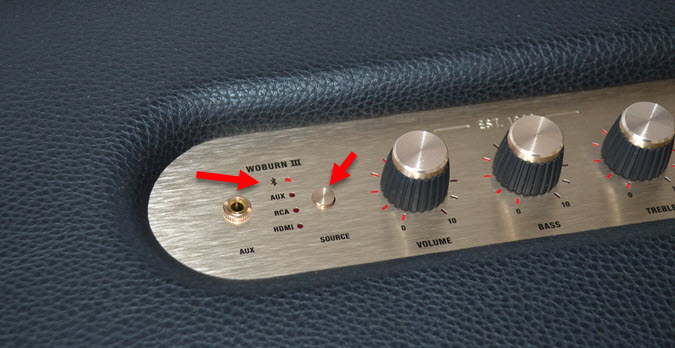
- Если у вас колонка Marshall с поддержкой разных источников ввода звука (например, модель Stanmore, Acton, Woburn), то на ней должна быть кнопка SOURCE. Нажатием на эту кнопку выбираем подключение по Bluetooth.

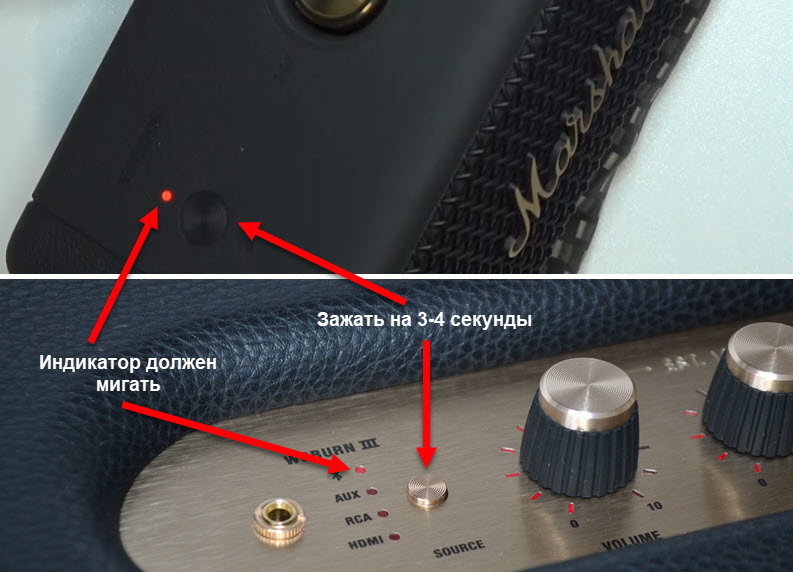
- Дальше нужно активировать режим подключения на колонке. Возможно, после включения она сама перейдет в режим подключения, но в этом нужно убедиться. Обычно, когда колонка Marshal готова к подключению, то индикатор возле значка Bluetooth мигает.
Если индикатор не мигает, или ваше устройство не видит колонку Marshal, то на 3-4 секунды зажмите кнопку с иконкой Bluetooth, или кнопку SOURCE.
После этого колонка станет доступна для подключения по Bluetooth. Прозвучит звуковой сигнал и начнет мигать индикатор.
Шаг 2: подключение к устройству
После того как мы включили нашу колонку и перевели ее в режим сопряжения, остается только включить Bluetooth на устройстве и выбрать нашу колонку в списке доступных устройств.
Подключение колонки Marshall к iPhone
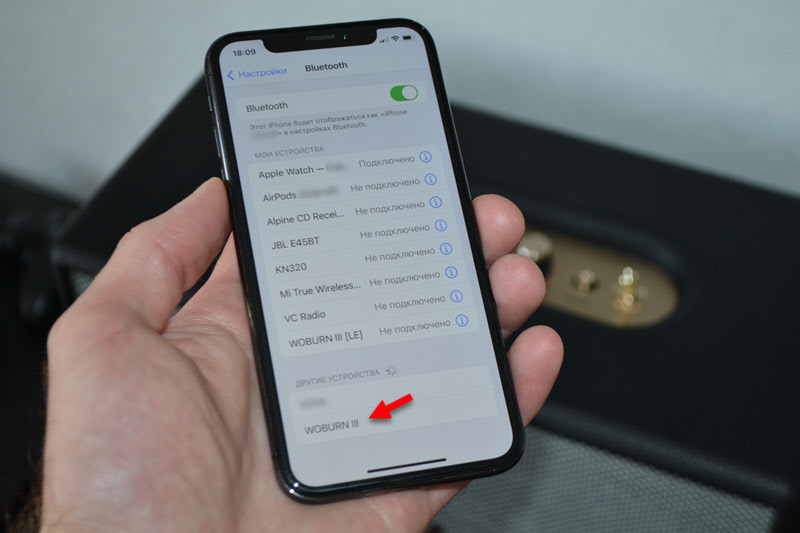
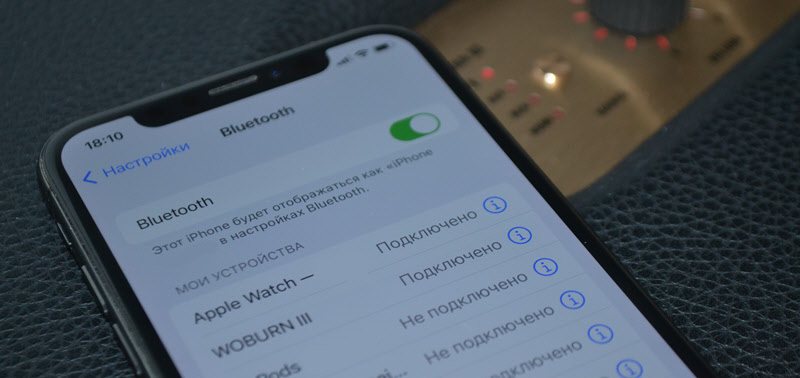
- На iPhone нужно зайти в настройки и открыть раздел Bluetooth. Убедитесь, что Bluetooth включен.
- В списке доступных устройств нужно нажать на нашу колонку. У меня это «Woburn III».

- Колонка будет подключена к iPhone и появится в списке «Мои устройства».

- Если iPhone не видит вашу колонку Marshall и она не появляется в списке доступных устройств, то обязательно убедитесь, что колонка в режиме сопряжения. Смотрите первый шаг в этой статье. И обратите внимание на индикатор Bluetooth, он должен мигать.
Подключение к телефону на Android
- Откройте настройки Bluetooth на своем телефоне. Включите его, если он выключен.
- Убедитесь, что колонка находится в режиме сопряжения (смотрите первый шаг в этой статье).
- Выберите колонку (в моем примере это Marshall Emberton) среди доступных устройств в настройках Bluetooth на Android.

- Подтвердите на телефоне сопряжение с колонкой и она будет подключена. Колонка появится в списке «Сопряженные устройства».
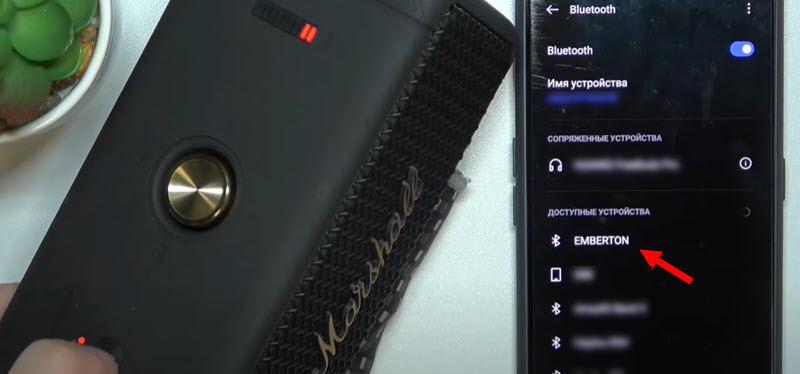
Меню и некоторые элементы могут немного отличаться. Это зависит от производителя телефона и версии Android.
Подключение колонки Marshall к ноутбуку или компьютеру
Так как на моем ноутбуке установлена Windows 11, то показывать буду на ее примере. В Windows 10 все примерно так же. Ниже оставлю ссылки на другие инструкции, которые могут пригодиться, если возникнут какие-то проблемы с подключением.
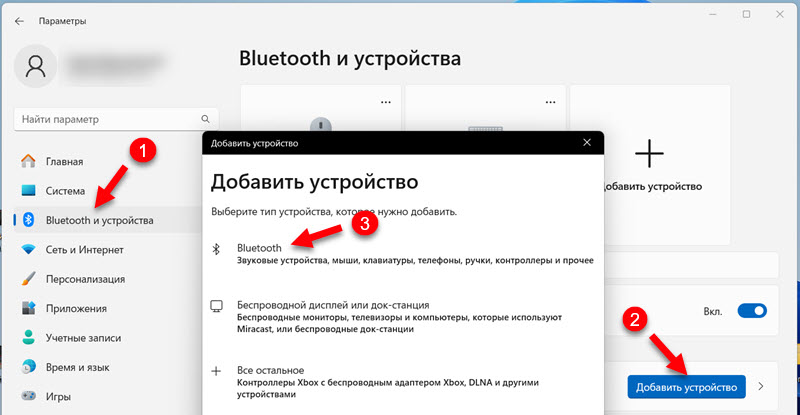
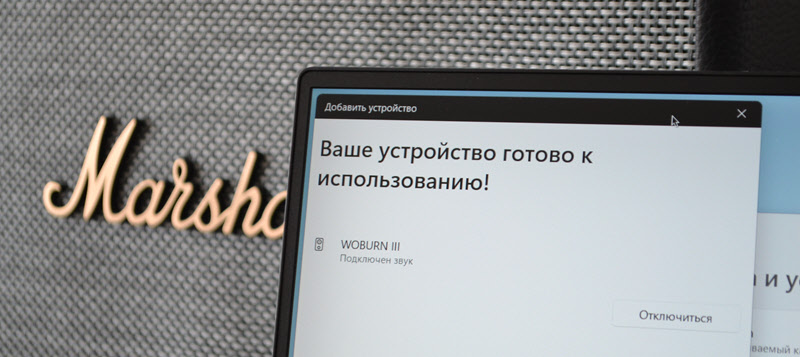
- Откройте Параметры (правая кнопка мыши по меню Пуск) и перейдите в раздел «Bluetooth и устройства». Нажмите на кнопку «Добавить устройство». Выберите «Bluetooth».

- Убедитесь, что колонка Marshall доступна для подключения. Индикатор Bluetooth должен мигать. Более подробно об этом я писал выше в статье.
- Windows должна обнаружить колонку. Нажмите на нее.
- Готово, наша колонка Marshall подключена к ноутбуку.

Теперь Windows будет выводить звук на колонку.
Статьи, которые могут пригодиться:
- Как подключить Bluetooth колонку к Windows 11
- Не работает Bluetooth в Windows 11 на ноутбуке или компьютере
- Нет звука в Bluetooth наушниках (колонке) в Windows 11. Не отображаются в звуковых устройствах
- Как подключить Bluetooth колонку к ноутбуку или компьютеру (на примере Windows 10 и Windows 7).
- Bluetooth наушники не воспроизводят звук с ноутбука. Не отображаются в устройствах воспроизведения Windows (если проблемы с выводом звука на колонку после подключения в Windows 10 и Windows 7).
На MacBook
Чтобы подключить беспроводную колонку Marshall к MacBook:
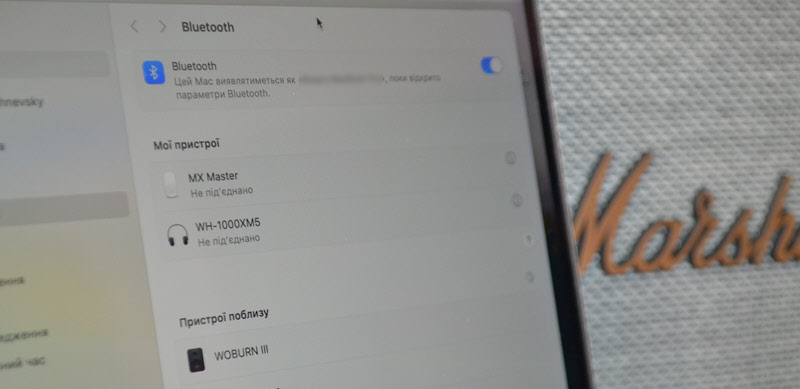
- Откройте настройки на MacBook и перейдите в раздел Bluetooth. Или откройте панель быстрого доступа, нажмите там на Bluetooth и перейдите в «Параметры Bluetooth».
- Если колонка включена и находится в режиме соображения (подробнее читайте выше в статье), то она появится в списке «Устройства поблизости». Нужно только навести курсор на колонку и напротив ее названия нажать на кнопку «Подключить».

- После подключения колонка появится в разделе «Мои устройства». Звук с MacBook будет транслироваться на колонку.
Беспроводное подключение колонки Marshall к телевизору
Если есть возможность, я бы советовал подключать колонку к телевизору с помощью кабеля. Идеальный вариант – HDMI. Но он есть только в модели Woburn III. Есть еще AUX (практически на всех моделях) и RCA (у модели Stanmore и Woburn).
Но если ваш телевизор с поддержкой Bluetooth и он позволяет подключать беспроводную акустику или наушники, то практически любую колонку Marshall можно без проблем подключить к телевизору по Bluetooth.
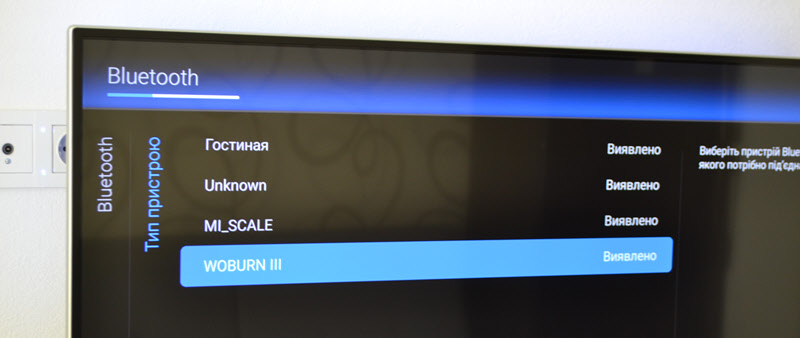
Тут очень сложно дать пошаговую инструкцию. У всех телевизоры разных производителей и с разными системами Smart TV, да еще и разных версий. Но последовательность такая же, как и в случае с другими устройствами:
- В настройках телевизора нужно найти Bluetooth, включить его и запустить поиск новых устройств.
- Перевести колонку в режим сопряжения. Как это сделать написано в начале статьи.
- Подождать, пока телевизор найдет колонку, после чего выбрать ее в настройках для сопряжения. На моем старом телевизоре Philips это выглядит так:

- Возможно, на вашем телевизоре будут дополнительные настройки, которые позволят настроить тип устройства и более тонко управлять выводом звука на колонку.
Подключение колонок Marshall по кабелю
Практически на всех моделях, кроме самых младших Willen и Emberton (если я не ошибаюсь), есть поддержка проводного соединения через AUX. Через кабель 3.5 мм — 3.5 мм.
В моделях Stanmore и Woburn есть еще поддержка RCA. Он же «тюльпан». И только в модели Woburn III есть поддержка HDMI.
Подключение по кабелю: нужно подключит кабель к источнику звука и выбрать на колонке нужный вход (зависит от модели).
AUX
С подключением через AUX на колонках Marshall все максимально просто. Нужно взять кабель 3.5 мм — 3.5 мм и соединить им колонку с телефоном, ноутбуком, телевизором, или другим устройством.
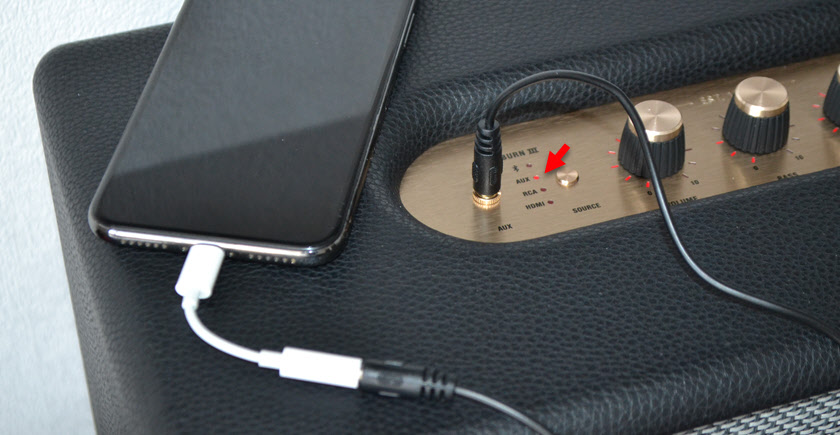
Если на колонке есть кнопка SOURCE для выбора режима, то необходимо выбрать AUX. На портативных моделях такого переключателя нет, там звук сразу выводится на колонку.
RCA
Можно использовать кабель RCA (тюльпан) — 3.5мм, или RCA — RCA. Для подключения к компьютерам, телевизорам, виниловым проигрывателям и другим устройствам. Удобство по сравнению с AUX в том, что вход RCA расположен сзади колонки. В данном случае речь идет о моделях Stanmore и Woburn. Так же, например, не на всех телевизорах есть выход 3.5мм, а вот RCA точно должен быть.
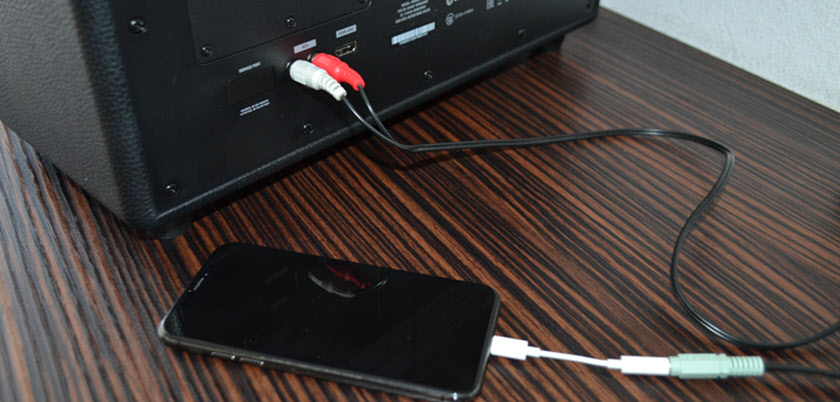
Не забудьте переключить вход на RCA кнопкой SOURCE на самой колонке.
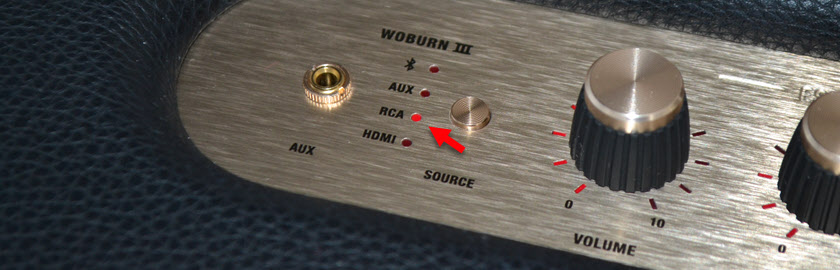
Я не нашел у себя кабель RCA — RCA, чтобы показать подключение например к телевизору, но зато нашел RCA — 3.5мм и подключил по кабелю Айфон. После подключения не забудьте выбрать на колонке Marshall режим RCA.
HDMI
Самый классный вариант подключения колонки Marshall к телевизору. У меня Marshall Woburn III подключена по HDMI к телевизору и используется в качестве саундбара. Вход HDMI ARC есть только в третей версии модели Woburn.
Подключите кабель HDMI к входу HDMI ARC на колонке и к выходу HDMI ARC на телевизоре. На телевизоре нужно подключать именно к выходу HDMI ARC.
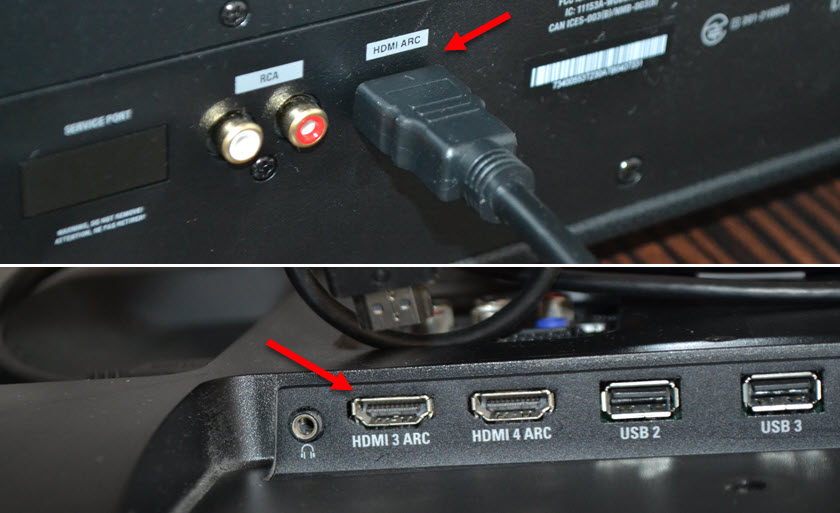
Дополнительно на своем телевизоре я ничего не настраивал. Но возможно в настройках понадобится сменить источник вывода звука на HDMI ARC. Колонка так же должна автоматически перейти в режим HDMI. Если нет, то сменить режим вручную.
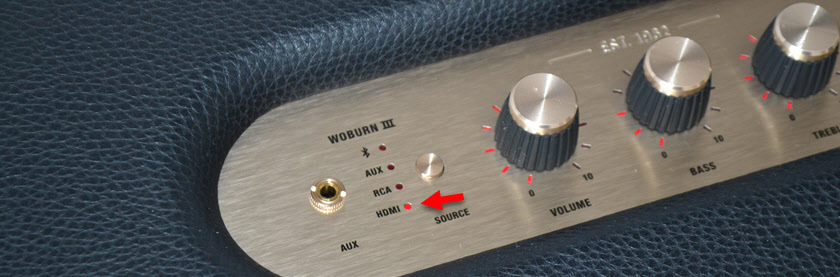
Колонка автоматически включается при включении телевизора и переходит в режим ожидания после его выключения. Это очень удобно.
Настройка и управление колонкой через приложение Marshall Bluetooth
У Marshall есть приложение, которое можно установить на iPhone c App Store, или на Android c Google Play. Называется оно «Marshall Bluetooth». Судя по списку поддерживаемых колонок, поддерживаются не все модели.
Колонкой можно пользоваться и без приложения. Но в приложении есть возможность обновлять прошивку колонки (если это поддерживается в вашей модели), есть эквалайзер, можно менять источник звука, или включать «Ночной режим», который приглушает громкие звуки при просмотре телевизора. Но судя по описанию функции в самом приложении, он работает только при подключении по HDMI. Так же есть возможность настройки расположения колонки (близко к краю, или близко к стене).
Вот несколько скриншотов из приложения «Marshall Bluetooth»:
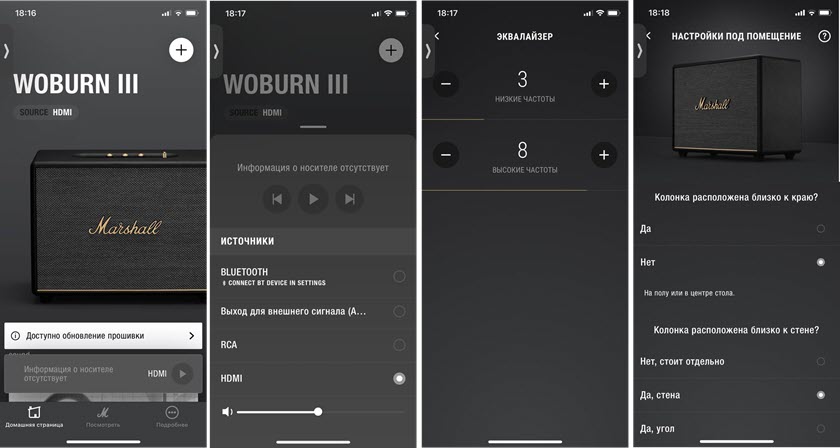
Интересно, что на iPhone это приложение почему-то называется просто «Bluetooth».
Само приложение соединится с колонкой через отдельное Bluetooth соединение (у меня в настройках появилось подключение «Woburn III [LE]»). Это значит, что даже если колонка не в режиме Bluetooth и не подключена к телефону, а подключена по HDMI, например, то соединение с колонкой в приложении работает.