
What’s in the box
SETUP INSTRUCTIONS
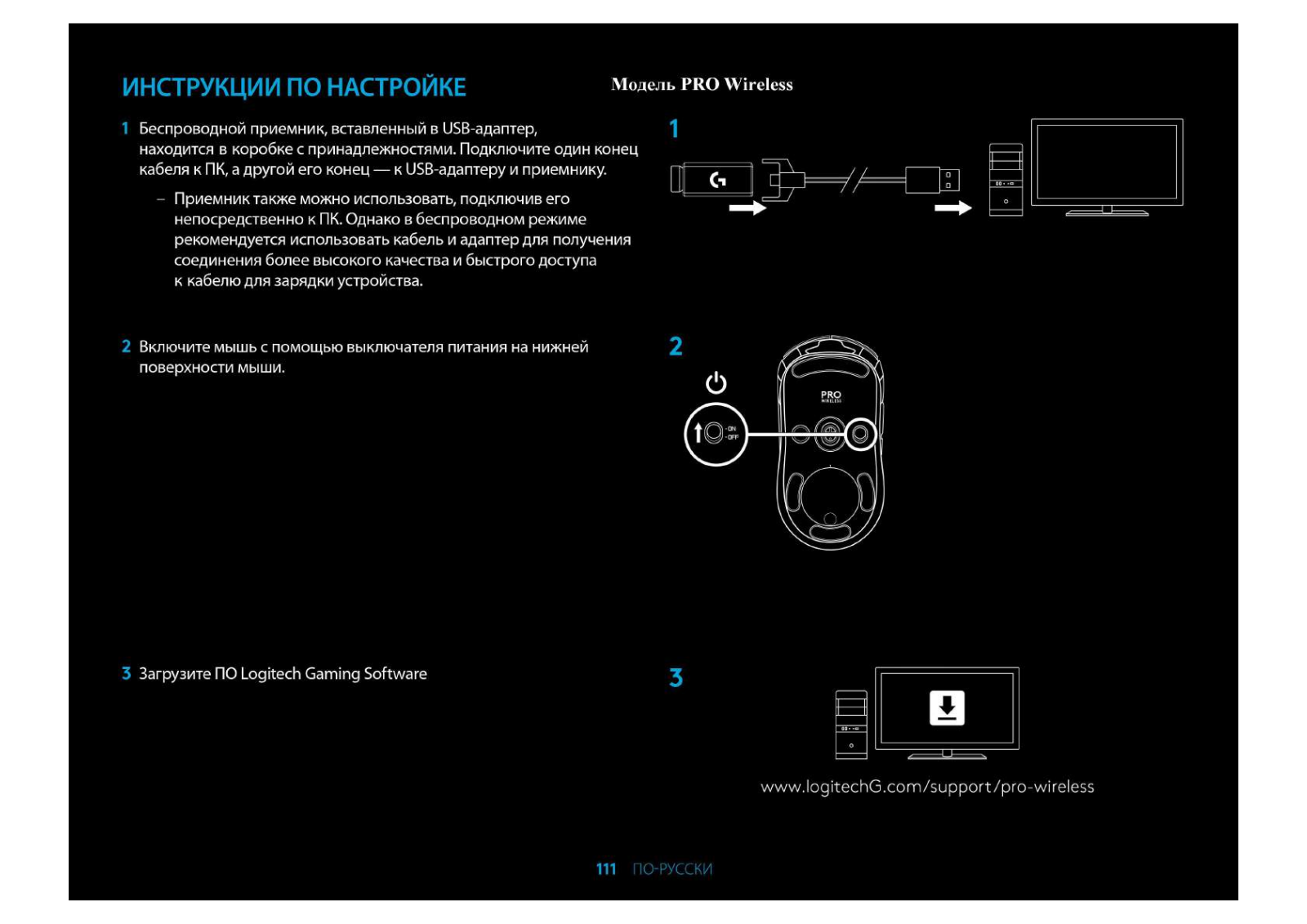
- A wireless receiver attached to the USB adapter can be found in the accessory box. Plug one end of the cable into your PC, and the other end into the USB adapter and receiver. The receiver can also be used plugged directly into your PC. However, using the cable and adapter when in wireless mode is recommended and allows for better connectivity and easy access to the cable for recharging.
- Turn the mouse on via the switch on the bottom of the mouse.
- Download Logitech Gaming Software. www.logitechG.com/support/pro-wireless
- To charge, disconnect the cable from the adapter and plug it into the front of the mouse. Your mouse will operate in data‑over-cable mode whenever it is plugged in directly to a PC. Full charge from empty requires around 2 hours plugged in to a PC USB port.
Tips:
Keep the mouse and receiver 2 m+ away from wireless routers or other 2.4GHz wireless devices to minimize environmental noise.
PRO WIRELESS has a wireless range of up to 10 meters. To ensure optimal performance in noisy wireless environments and to keep the charging cable easily accessible, it is recommended to keep the receiver within 20 cm of the mouse.
BUTTON CONFIGURATIONS
PRO WIRELESS comes with replaceable buttons and button caps, which are held onto the mouse magnetically. These should be stored in a box when not in use. These replaceable buttons support conversion to the following configurations:
- Right handed
- Left handed
- No buttons
- Full buttons
8 FULLY PROGRAMMABLE BUTTONS
- Left (Button 1)
- Right (Button 2)
- Wheel click (Button 3)
- Back (Button G4)
- Forward (Button G5)
- Back (Button G6)
- Forward (Button G7)
- DPI cycle (bottom of mouse, Button

- Receiver storage door + Powerplay module enclosure (bottom of mouse)
- On/Off switch (bottom of mouse, not programmable)

WIRELESS BATTERY LIFE
PRO WIRELESS has a rechargeable 250mAh LiPol battery which provides it with up to 60 hours non-stop gaming at 1ms report rate with lights off, or 48 hours non-stop gaming at 1ms report rate with RGB color cycling on.
The charge level can be checked when the mouse is powered on, or using Logitech Gaming Software to assign a button to check the charge level.
Charge level is displayed for seven seconds at mouse power‑on using the color and number of bars illuminated on the DPI indicator:
- 3 green dots = 50–100%
- 2 green dots = 30–50%
- 1 green dot = 15–30%
- 1 flashing red dot = <15%
Tips:
- You can program a button to show the charge level using LGS.
- The bottom dot will flash red when the battery is at 15% or less. When this happens, plug in your mouse to charge.
- Charge level, power draw, and estimated remaining battery life can be checked in Logitech Gaming Software.
Battery life and capacity may vary with age and use. Rechargeable batteries have a limited number of charge cycles.
CHARGING/DATA OVER CABLE
Plug your mouse in via the provided USB charging cable when the battery is low. PRO WIRELESS is also compatible with the Logitech G POWERPLAY wireless charging system, sold separately.
LOGITECH GAMING SOFTWARE
You can customize the onboard profile settings using the Logitech Gaming Software. These settings include button programming, report rate, performance/endurance modes, and tracking behavior. PRO WIRELESS allows up to 5 DPI settings.
By default, PRO WIRELESS has the following settings:
- DPI: 400/800/1600/3200
- Report rate: 1ms
- Performance mode
DPI/ONBOARD PROFILE INDICATORS
DPI/Onboard profiles are shown using three LEDs under the main buttons. The image below shows which values are being indicated by the LED panel.
FREQUENTLY ASKED QUESTIONS
http://support.logitechG.com/product/pro-wireless
For more Manuals by Logitech, visit ManualsLibraryy
Logitech G Pro Wireless Gaming Mouse-FAQs
Logitech
Loading…
N
- N3054
- N5503
- N6002
- NA200
- NASCAR RACING WHEEL
- NetPlay Controller
- Network Music System
- Noise Canceling Headphones
- NuLOOQ2
- NULOOQ NAVIGATOR4
- NULOOQ TOOLDIAL
- Number Pad
- NX802
O
- OEM K1202
- Optical Mouse
- Optical Mouse USB
- Optical TrackMan
- O-R0003
- O-R0004
- Orbit AF
- OS NAVIGATION
P
- P710e4
- PC HEADSET 960 USB
- PCPE-LOGM9012
- Performance Mouse MX4
- Performance MX
- Personal Digital Pen
- PERSONAL VIDEO COLLABORATION KITS
- Pilot Wheel Mouse Optical
- PlayGear Pocket
- PM5
- PMS 185 C
- Powerline Network Utility
- POWERPLAY2
- POWERSHELL5
- PowerUp
- PPVCK
- PREMIUM 350
- Premium Notebook Headset
- Premium Stereo Headset2
- Premium USB Headset 350
- PRO4
- PRO 12.2
- PRO 2000
- Pro 2400
- PRO 2400 CORDLESS DESKTOP
- Pro 2800
- Pro4000
- PRO FOLIO SLIM
- PRO HERO
- Protection+ Power
- Pro Wireless
- PRO X
- PRO X SUPERLIGHT
- Pro Х Superlight
- PTZ Pro5
- PTZ PRO 25
- PTZ PRO CAMERA
- P-U0004
- PURE-FI ANYTIME3
- PURE-FI ANYWHERE2
- PURE-FI ANYWHERE 22
- Pure-Fi Dream3
- Pure-Fi Elite2
- Pure-Fi Express
- Pure-Fi Express Plus2
- PURE-FI MOBILE
Q
- QC Chat
- QC Connect
- QC Express
- QC Notebook
- QC Pro 5000
- QC Pro 9000
- QC S7500
- QC Sphere AF
- QuickCam5
- QuickCam 30002
- QUICKCAM CHAT2
- QUICKCAM COMMUNICATE DELUXE2
- QuickCam Communicate MP S 5500
- QUICKCAM COMMUNICATE STX2
- QuickCam Communicate STX Plus
- Quickcam Cordless
- QuickCam Deluxe2
- QUICKCAM E 1000
- QuickCam Express2
- QUICKCAM FOR NOTEBOOKS DELUXE
- QuickCam For Notebooks Pro2
- Quickcam Fusion
- QuickCam Fusion refre
- Quickcam Messenger
- QuickCam Orbit AF2
- Quickcam Orbit MP
- QuickCam Pro2
- QuickCam Pro 40002
- QuickCam Pro 50002
- QuickCam Pro 90002
- QuickCam Pro for Notebooks
- QUICKCAM PRO NOTEBOOKS2
- QuickCam Sphere2
Loading…
Loading…
Nothing found
Pro Wireless
User Manual [ru]
9 pgs620.38 Kb0
Table of contents
Loading…
…
Logitech User Manual [ru]
Download
Specifications and Main Features
Frequently Asked Questions
User Manual


Loading…
+ 6 hidden pages
You need points to download manuals.
1 point = 1 manual.
You can buy points or you can get point for every manual you upload.
Buy points
Upload your manuals
Table of Contents
- logitech PRO Wireless Gaming Mouse
- SETUP INSTRUCTIONS
- BUTTON CONFIGURATIONS
- ULLY PROGRAMMABLE BUTTONS
- BATTERY LIFE
- CHARGING/DATA OVER CABLE
- References
- Read User Manual Online (PDF format)
- Download This Manual (PDF format)
logitech PRO Wireless Gaming Mouse
SETUP INSTRUCTIONS
- A wireless receiver attached to the USB adapter can be found in the accessory box. Plug one end of the cable into your PC, and the other end into the USB adapter and receiver.
- The receiver can also be used plugged directly into your PC. However, using the cable and adapter when in wireless mode is recommended and allows for better connectivity and easy access to the cable for recharging.
- Turn mouse on via the switch on the bottom of the mouse.
- Download Logitech Gaming Software
- To charge, disconnect the cable from the adapter and plug into the front of the mouse. Your mouse will operate in data‑over-cable mode whenever it is plugged in directly to a PC. Full charge from empty requires around 2 hours plugged in to a PC USB port.


Tips
- Keep the mouse and receiver 2 m+ away from wireless routers or other 2.4GHz wireless devices to minimize environmental noise.
- PRO WIRELESS has a wireless range of up to 10 meters. To ensure optimal performance in noisy wireless environments, and to keep the charging cable easily accessible, it is recommended to keep the receiver within 20 cm of the mouse.

BUTTON CONFIGURATIONS
PRO WIRELESS comes with replaceable buttons and button caps, which are held
onto the mouse magnetically. These should be stored in box when not in use.
These replaceable buttons support conversion to the following configurations:
- Right handed
- Left handed
- No buttons
- Full buttons


ULLY PROGRAMMABLE BUTTONS
- Left (Button 1)
- Right (Button 2)
- Wheel click (Button 3)
- Back (Button G4)
- Forward (Button G5)
- Back (Button G6)
- Forward (Button G7)
- DPI cycle (bottom of mouse, Button
- Receiver storage door + Powerplay module enclosure (bottom of mouse)
- On/Off switch (bottom of mouse, not programmable)

BATTERY LIFE

PRO WIRELESS has a rechargeable 250mAH LiPol battery which provides it with up
to 60 hours non-stop gaming at 1ms report rate with lights off, or 48 hours
non-stop gaming at 1ms report rate with RGB color cycling on.*
- Charge level can be checked when the mouse is powered on or using Logitech Gaming Software to assign a button to check charge level.
- Charge level is displayed for seven seconds at mouse power‑on using the color and number of bars illuminated on the DPI indicator:
- 3 green dots = 50–100%
- 2 green dots = 30–50%
- 1 green dots = 15–30%
- 1 flashing red dot = <15%
Tips
- You can program a button to show charge level using LGS.
- The bottom dot will flash red when battery is at 15% or less.
- When this happens, plug in your mouse to charge.
- Charge level, power draw, and estimated remaining battery life can be checked in Logitech Gaming Software.
- Battery life and capacity may vary with age and use. Rechargeable batteries have a limited number of charge cycles.
CHARGING/DATA OVER CABLE
Plug your mouse in via the provided USB charging cable when the battery is
low. PRO WIRELESS is also compatible with the Logitech G POWERPLAY wireless
charging system, sold separately.
LOGITECH GAMING SOFTWARE
You can customize the onboard profile settings using the Logitech Gaming
Software. These settings include button programming, report rate,
performance/endurance modes and tracking behavior. PRO WIRELESS allows up to 5
DPI settings. By default, PRO WIRELESS has the following settings:
- DPI: 400/800/1600/3200
- Report rate: 1ms
- Performance mode
DPI/ONBOARD PROFILE INDICATORS
DPI/Onboard profiles are shown using three LEDs under the main buttons. The
image below shows which values are being indicated by the LED panel.

FREQUENTLY ASKED QUESTIONS
http://support.logitechG.com/product/pro-wireless
© 2019 Logitech, Logi and the Logitech Logo are trademarks or registered
trademarks of Logitech Europe S.A. and/or its affiliates in the U.S. and other
countries. All other trademarks are the property of their respective owners.
Logitech assumes no responsibility for any errors that may appear in this
manual. Information contained herein is subject to change without notice.
References
- Home — Identity Digital
- Logitech Support + Download
Read User Manual Online (PDF format)
Read User Manual Online (PDF format) >>
Download This Manual (PDF format)
Download this manual >>

3 ENGLISH
SETUP INSTRUCTIONS
1 A wireless receiver attached to the USB adapter can be found
in the accessory box. Plug one end of the cable into your PC,
and the other end into the USB adapter and receiver.
– The receiver can also be used plugged directly into
yourPC. However, using the cable and adapter when
in wireless mode is recommended and allows for better
connectivity and easy access to the cable for recharging.
2 Turn mouse on via the switch on the bottom of the mouse.
3 Download Logitech Gaming Software
1
2
PRO
WIRELESS
3
www.logitechG.com/support/pro-wireless

9 ENGLISH
BATTERY LIFE
PRO WIRELESS has a rechargeable 250mAH LiPol battery which
provides it with up to 60 hours non-stop gaming at 1ms report
rate with lights o, or 48 hours non-stop gaming at 1ms report
rate with RGB color cycling on.*
– Charge level can be checked when the mouse is poweredon
orusing Logitech Gaming Software to assign a button
tocheck charge level.
– Charge level is displayed for seven seconds at mouse power-on
using the color and number of bars illuminated on the DPI
indicator:
– 3 green dots = 50–100%
– 2 green dots = 30–50%
– 1 green dots = 15–30%
– 1 ashing red dot = <15%
Tips:
– You can program a button to show charge level using LGS.
– The bottom dot will ash red when battery is at 15% or less.
When this happens, plug in your mouse to charge.
– Charge level, power draw, and estimated remaining battery
life can be checked in Logitech Gaming Software.
*Battery life and capacity may vary with age and use. Rechargeable batteries have a limited
number of charge cycles.

10 ENGLISH
CHARGING/DATA OVER CABLE
Plug your mouse in via the provided USB charging cable
when the battery is low. PRO WIRELESS is also compatible
with the Logitech G POWERPLAY wireless charging system,
soldseparately.
LOGITECH GAMING SOFTWARE
You can customize the onboard prole settings using
theLogitech Gaming Software. These settings include button
programming, report rate, performance/endurance modes and
tracking behavior. PRO WIRELESS allows up to 5 DPI settings.
By default, PRO WIRELESS has the following settings:
– DPI: 400/800/1600/3200
– Report rate: 1ms
– Performance mode

© 2019 Logitech, Logi and the Logitech Logo are trademarks or registered trademarks of Logitech Europe S.A.
and/or itsaliates in the U.S. and other countries. All other trademarks are the property of their respective owners.
Logitechassumesno responsibility for any errors that may appear in this manual. Information contained herein is subject
tochange without notice.
© 2019 Logitech. Logitech, Logitech G, ainsi que les logos Logitech et Logitech G sont desmarques commerciales ou
déposées de Logitech Europe S.A. et/ou de ses sociétés aliées aux États-Unis et dans d’autres pays. Toutes lesautres
marques sont la propriété exclusive de leurs détenteurs respectifs. Logitech décline toute responsabilité en cas
d’erreurs dans ce manuel. Les informations énoncées dans le présent document peuvent faire l’objet de modications
sans avis préalable.
WEB-621-001129.003
Перейти к контенту

PRO БЕСПРОВОДНАЯ
РУКОВОДСТВО ПО УСТАНОВКЕ

ИНСТРУКЦИИ ПО УСТАНОВКЕ
- Беспроводной приемник, подключенный к USB-адаптеру, находится в коробке с аксессуарами. Подключите один конец кабеля к компьютеру, а другой конец — к USB-адаптеру и приемнику.
— Приемник также можно использовать, подключив его непосредственно к компьютеру. Однако рекомендуется использовать кабель и адаптер в беспроводном режиме, что обеспечивает лучшее подключение и легкий доступ к кабелю для подзарядки.

- Включите мышь с помощью переключателя в нижней части мыши.

- Загрузить программное обеспечение Logitech Gaming
www.logitechG.com/support/pro-wireless
- Для зарядки отсоедините кабель от адаптера и подключите его к передней части мыши. Ваша мышь будет работать в режиме передачи данных по кабелю всякий раз, когда она подключается непосредственно к ПК. Для полной зарядки от пустого аккумулятора требуется около 2 часов при подключении к компьютеру. USB-порт ПК


Советы:
— Держите мышь и приемник на расстоянии не менее 2 м от беспроводных маршрутизаторов или других беспроводных устройств с частотой 2 ГГц, чтобы минимизировать шум окружающей среды.
– PRO WIRELESS имеет радиус действия беспроводной связи до 10 метров. Чтобы обеспечить оптимальную работу в шумной беспроводной среде и обеспечить легкий доступ к зарядному кабелю, рекомендуется держать приемник на расстоянии не более 20 см от мыши.

КОНФИГУРАЦИИ КНОПКИ
PRO WIRELESS поставляется со сменными кнопками и колпачками кнопок, которые крепятся к мыши с помощью магнита. Когда они не используются, их следует хранить в коробке. Эти сменные кнопки можно преобразовать в следующие конфигурации:
- Правосторонний

- Левша

- Нет кнопок

- Полные кнопки


ПОЛНОСТЬЮ ПРОГРАММИРУЕМЫЕ КНОПКИ
- Влево (кнопка 1)
- Вправо (кнопка 2)
- Щелчок колесом (кнопка 3)
- Назад (кнопка G4)
- Вперед (кнопка G5)
- Назад (кнопка G6)
- Вперед (кнопка G7)

- Цикл DPI (нижняя часть мыши, кнопка
- Дверца для хранения приемника + корпус модуля Powerplay (нижняя часть мыши)
- Переключатель включения / выключения (нижняя часть мыши, не программируется)


СРОК СЛУЖБЫ БАТАРЕИ
PRO WIRELESS оснащен перезаряжаемой литий-полимерной батареей емкостью 250 мАч, которая обеспечивает до 60 часов непрерывной игры при частоте опроса 1 мс при выключенном освещении или 48 часов непрерывной игры при частоте опроса 1 мс с включенным циклом цветов RGB*.
— Уровень заряда можно проверить, когда мышь включена, или с помощью программного обеспечения Logitech Gaming Software назначить кнопку для проверки уровня заряда.
— Уровень заряда отображается в течение семи секунд при включении мыши с помощью цвета и количества полос на индикаторе DPI:
— 3 зеленые точки = 50–100%
— 2 зеленые точки = 30–50%
— 1 зеленые точки = 15–30%
— 1 мигающая красная точка = <15%
ЗАРЯДКА / ДАННЫЕ ПО КАБЕЛУ
Подключите мышь через прилагаемый USB-кабель для зарядки, когда батарея разряжена. PRO WIRELESS также совместим с системой беспроводной зарядки Logitech G POWERPLAY, которая продается отдельно.
ПРОГРАММНОЕ ОБЕСПЕЧЕНИЕ LOGITECH GAMING
Вы можете настроить бортовую версию Profile настройки с помощью программного обеспечения Logitech Gaming Software. Эти настройки включают в себя программирование кнопок, частоту отчетов, режимы производительности/выносливости и поведение отслеживания PRO WIRELESS позволяет использовать до 5 настроек DPI. По умолчанию PRO WIRELESS имеет следующие настройки:
— DPI: 400/800/1600/3200
— Скорость отчета: 1 мс
— Режим производительности
DPI / БОРТ ПРОFILE ИНДИКАТОРЫ
DPI / бортовой Profiles отображаются с помощью трех светодиодов под основными кнопками. На изображении ниже показано, какие значения отображаются на светодиодной панели.

Часто задаваемые вопросы
http://support.logitechG.com/product/pro‑wireless
© 2019 Logitech, Logi и логотип Logitech являются товарными знаками или зарегистрированными товарными знаками Logitech Europe SA и/или ее дочерних компаний в США и других странах. Все другие товарные знаки являются собственностью их соответствующих владельцев. данное руководство Информация, содержащаяся в нем, может быть изменена без предварительного уведомления
Документы / Ресурсы
Рекомендации
- Manuals
- Brands
- Logitech Manuals
- Mouse
- Cordless Desktop Wave Pro
- Setup manual
-
Contents
-
Table of Contents
-
Bookmarks
Quick Links
Related Manuals for Logitech PRO WIRELESS
Summary of Contents for Logitech PRO WIRELESS
-
Page 1
PRO WIRELESS SETUP GUIDE… -
Page 2
ENGLISH FRANÇAIS ESPAÑOL PORTUGUÊS Important Safety, Compliance and Warranty Information Informations importantes concernant la sécurité, la mise en conformité et la garantie… -
Page 3: Setup Instructions
However, using the cable and adapter when in wireless mode is recommended and allows for better connectivity and easy access to the cable for recharging Turn mouse on via the switch on the bottom of the mouse WIRELESS Download Logitech Gaming Software www.logitechG.com/support/pro-wireless 3 ENGLISH…
-
Page 4
To charge, disconnect the cable from the adapter and plug into the front of the mouse Your mouse will operate in data‑over‑cable mode whenever it is plugged in directly to a PC Full charge from empty requires around 2 hours plugged in to a PC USB port 4 ENGLISH… -
Page 5
– Keep the mouse and receiver 2 m+ away from wireless routers or other 2 4GHz wireless devices to minimize environmental noise – PRO WIRELESS has a wireless range of up to 10 meters To ensure optimal performance in noisy wireless environments, and to keep the charging cable easily accessible, it is recommended to keep the receiver within 20 cm… -
Page 6
BUTTON CONFIGURATIONS PRO WIRELESS comes with replaceable buttons and button caps, which are held onto the mouse magnetically These should be stored in box when not in use These replaceable buttons support conversion to the following configurations: Right handed Left handed… -
Page 7
7 ENGLISH… -
Page 8: Left (Button 1)
8 FULLY PROGRAMMABLE BUTTONS Left (Button 1) Right (Button 2) Wheel click (Button 3) Back (Button G4) Forward (Button G5) Back (Button G6) Forward (Button G7) DPI cycle (bottom of mouse, Button Receiver storage door + Powerplay module enclosure (bottom of mouse) On/Off switch (bottom of mouse, not programmable) WIRELESS…
-
Page 9: English
BATTERY LIFE PRO WIRELESS has a rechargeable 250mAH LiPol battery which provides it with up to 60 hours non‑stop gaming at 1ms report rate with lights off, or 48 hours non‑stop gaming at 1ms report rate with RGB color cycling on * –…
-
Page 10
CHARGING/DATA OVER CABLE Plug your mouse in via the provided USB charging cable when the battery is low PRO WIRELESS is also compatible with the Logitech G POWERPLAY wireless charging system, sold separately LOGITECH GAMING SOFTWARE You can customize the onboard profile settings using the Logitech Gaming Software These settings include button… -
Page 11: Frequently Asked Questions
DPI/ONBOARD PROFILE INDICATORS FREQUENTLY ASKED QUESTIONS DPI/Onboard profiles are shown using three LEDs under http://support logitechG com/product/pro‑wireless the main buttons The image below shows which values are being indicated by the LED panel DPI/Profile DPI/Profile DPI/Profile DPI/Profile DPI/Profile 11 ENGLISH…
-
Page 12: Instructions D’installation
Mettez la souris sous tension à l’aide du commutateur située sous la souris WIRELESS Télécharger l’Assistant pour jeux vidéo de Logitech www.logitechG.com/support/pro-wireless 12 FRANÇAIS…
-
Page 13
Pour charger, déconnectez le câble de l’adaptateur et branchez‑le à l’avant de la souris La souris passe automatiquement en mode transmission de données par câble lorsqu’elle est branchée au PC La charge pleine de la batterie requiert le branchement de la souris à un port USB pendant 2 heures environ 13 FRANÇAIS… -
Page 14
Conseils: – Tenez la souris et le récepteur à au moins 2 m de tout routeur sans fil ou tout autre dispositif sans fil 2,4 GHz afin de minimiser les interférences – La souris PRO sans fil a une portée sans fil de 10 mètres maximum Pour une performance optimale dans les environnements sans fil sujets aux interférences, et pour faciliter l’accès au câble de charge, il est recommandé… -
Page 15
CONFIGURATIONS DES BOUTONS La souris PRO sans fil est livrée avec des boutons remplaçables fixés à la souris par des aimants Ceux‑ci doivent être rangés dans leur boîte lorsque vous n’utilisez pas la souris Les boutons remplaçables permettent d’adopter les configurations suivantes: Droitier Gaucher Aucun bouton… -
Page 16
16 FRANÇAIS… -
Page 17
8 BOUTONS ENTIÈREMENT PROGRAMMABLES Gauche (bouton 1) Droit (bouton 2) Clic de roulette (bouton 3) Précédent (bouton G4) Suivant (bouton G5) Précédent (bouton G6) Suivant (bouton G7) Cycle de résolution (partie inférieure de la souris, bouton Espace de rangement du récepteur + boîtier du module Powerplay (partie inférieure de la souris) Commutateur Marche/Arrêt (sous la souris, non programmable) WIRELESS… -
Page 18: Français
– 1 point rouge clignotant = < 15 % Conseils: – Vous pouvez attribuer l’affichage du niveau de charge à un bouton en utilisant l’Assistant pour jeux vidéo de Logitech – Le point inférieur clignote en rouge lorsque la charge de la batterie est inférieure ou égale à 15 % Dans ce cas, branchez votre souris pour la charger –…
-
Page 19
ASSISTANT POUR JEUX VIDÉO DE LOGITECH Il est possible de personnaliser les paramètres de profil enregistrés à l’aide de l’Assistant pour jeux vidéo de Logitech Ces paramètres comprennent la programmation des boutons, le taux de rapport, les modes performance/endurance et le comportement de suivi La souris PRO sans fil accepte jusqu’à… -
Page 20: Questions Fréquentes
TÉMOINS DE PROFIL ENREGISTRÉ/PPP QUESTIONS FRÉQUENTES Trois témoins lumineux sous les boutons principaux indiquent http://support logitechG com/product/pro‑wireless les profils enregistrés/PPP L’image ci‑dessous montre les valeurs indiquées par le panneau des témoins lumineux PPP/Profil PPP/Profil PPP/Profil PPP/Profil PPP/Profil 20 FRANÇAIS…
-
Page 21: Instrucciones De Instalación
Enciende el mouse mediante el conmutador en la parte inferior del mouse WIRELESS Descarga Logitech Gaming Software www.logitechG.com/support/pro-wireless 21 ESPAÑOL…
-
Page 22
Para cargar, desconecta el cable del adaptador y conéctalo a la parte frontal del mouse El mouse funcionará en modo de datos por cable siempre que se conecte directamente a una PC Una carga completa desde vacío requiere alrededor de 2 horas de conexión a un puerto USB de PC 22 ESPAÑOL… -
Page 23
– Mantén el mouse y el receptor a más de dos metros de enrutadores inalámbricos o de otros dispositivos inalámbricos de 2,4 GHz para minimizar el ruido ambiental – PRO WIRELESS tiene un radio de acción inalámbrico de hasta 10 metros Para garantizar un desempeño óptimo en entornos inalámbricos con ruido , y para mantener el cable de carga fácilmente accesible,… -
Page 24
CONFIGURACIONES DE BOTONES PRO WIRELESS incluye botones y capuchones de botones sustituibles, que se sujetan al mouse magnéticamente Deberían guardarse en la caja cuando no se usen Estos botones sustituibles hacen posible la conversión a estas configuraciones: Usuario diestro Usuario zurdo Ningún botón… -
Page 25
25 ESPAÑOL… -
Page 26
OCHO BOTONES TOTALMENTE PROGRAMABLES Izquierda (botón 1) Derecho (botón 2) Click con botón rueda (botón 3) Retroceso (botón G4) Avance (botón G5) Retroceso (botón G6) Avance (botón G7) Ciclo de dpi (parte inferior del mouse, botón Compartimento de receptor + compartimento de módulo Powerplay (parte inferior del mouse) Conmutador de encendido/apagado… -
Page 27: Español
DURACIÓN DE BATERÍAS PRO WIRELESS tiene una batería recargable de polímero de litio de 250 mAH que proporciona hasta 60 horas de juego ininterrumpido con una velocidad de respuesta de 1 ms con luces apagadas, o 48 horas de juego ininterrumpido con una velocidad de respuesta de 1 ms con ciclo de colores RGB activado *…
-
Page 28
CARGA/DATOS POR CABLE Cuando la batería se descargue, conecta el mouse mediante el cable de carga USB suministrado PRO WIRELESS también es compatible con el sistema inalámbrico de carga Logitech G POWERPLAY, a la venta por separado LOGITECH GAMING SOFTWARE… -
Page 29: Preguntas Más Frecuentes
INDICADORES DE DPI/ PREGUNTAS MÁS FRECUENTES PERFILES INTEGRADOS http://support logitechG com/product/pro‑wireless Los valores de dpi/perfiles integrados se muestran mediante tres indicadores LED bajo los botones principales La imagen siguiente muestra qué valores de dpi se indican en el panel LED dpi/perfil dpi/perfil dpi/perfil dpi/perfil dpi/perfil…
-
Page 30: Instruções De Configuração
PC No entanto, o uso do cabo e do adaptador é recomendado no modo sem fio e permite uma melhor conectividade e fácil acesso ao cabo para recarregar Ligue o mouse através da chave na parte inferior do mouse WIRELESS Fazer download do Logitech Gaming Software www.logitechG.com/support/pro-wireless 30 PORTUGUÊS…
-
Page 31
Para carregar, desconecte o cabo do adaptador e o conecte à frente do mouse O mouse funcionará no modo de dados por cabo sempre que estiver conectado diretamente a um PC A carga total quando a bateria está vazia requer aproximadamente duas horas de conexão à porta USB do PC 31 PORTUGUÊS… -
Page 32
2,4 GHz para minimizar a interferência ambiental – O PRO WIRELESS tem um alcance de até 10 metros Para garantir um desempenho ideal em ambientes cheios de dispositivos sem fio, e para manter o cabo de carregamento facilmente acessível, é recomendado manter… -
Page 33
CONFIGURAÇÕES DE BOTÕES O PRO WIRELESS vem com botões substituíveis e tampas de botão, que são mantidos no mouse magneticamente Estes devem ser armazenados na caixa quando não estiverem em uso Esses botões substituíveis suportam a conversão para as seguintes configurações: Destro Canhoto Sem botões… -
Page 34
34 PORTUGUÊS… -
Page 35
8 BOTÕES TOTALMENTE PROGRAMÁVEIS Botão esquerdo (1) Botão direito (2) Roda clicável (3) Voltar (G4) Avançar (G5) Voltar (G6) Avançar (G7) Ciclo DPI (parte inferior do mouse, botão Tampa do armazenamento do receptor + compartimento do módulo Powerplay (parte inferior do mouse) Ligar/desligar (fundo do mouse, não programável) WIRELESS 35 PORTUGUÊS… -
Page 36: Duração Da Bateria
DURAÇÃO DA BATERIA O PRO WIRELESS possui uma bateria LiPol recarregável de 250 mAH que oferece até 60 horas de jogo sem interrupção a uma taxa de resposta de 1 ms com luzes desligadas, ou 48 horas de jogo sem interrupção a uma taxa de resposta de 1 ms com ciclo de cores RGB ativado *…
-
Page 37
CARREGANDO/DADOS POR CABO Conecte o mouse através do cabo de carregamento USB fornecido quando a bateria estiver fraca O PRO WIRELESS também é compatível com o sistema de carregamento sem fio Logitech G POWERPLAY, vendido separadamente LOGITECH GAMING SOFTWARE Você pode personalizar as configurações do perfil internas usando o Logitech Gaming Software Essas configurações… -
Page 38: Perguntas Frequentes
INDICADORES DE PERFIL DE DPI/ PERGUNTAS FREQUENTES INTEGRADO http://support logitechG com/product/pro‑wireless Os perfis de DPI/integrados são mostrado usando três LEDs sob os botões principais A imagem abaixo mostra quais valores são indicados pelo painel LED DPI/perfil DPI/perfil DPI/perfil DPI/perfil DPI/perfil 38 PORTUGUÊS…
-
Page 39
© 2019 Logitech Logitech, Logitech G, ainsi que les logos Logitech et Logitech G sont des marques commerciales ou déposées de Logitech Europe S A et/ou de ses sociétés affiliées aux États‑Unis et dans d’autres pays Toutes les autres marques sont la propriété exclusive de leurs détenteurs respectifs Logitech décline toute responsabilité en cas d’erreurs dans ce manuel Les informations énoncées dans le présent document peuvent faire l’objet de modifications…
Посмотреть инструкция для Logitech PRO Wireless бесплатно. Руководство относится к категории мыши, 1 человек(а) дали ему среднюю оценку 9.7. Руководство доступно на следующих языках: русский, английский. У вас есть вопрос о Logitech PRO Wireless или вам нужна помощь? Задайте свой вопрос здесь
Не можете найти ответ на свой вопрос в руководстве? Вы можете найти ответ на свой вопрос ниже, в разделе часто задаваемых вопросов о Logitech PRO Wireless.
Какой вес Logitech PRO Wireless?
Logitech PRO Wireless имеет вес 80 g.
Какая высота Logitech PRO Wireless?
Logitech PRO Wireless имеет высоту 125 mm.
Какая ширина Logitech PRO Wireless?
Logitech PRO Wireless имеет ширину 63.5 mm.
Какая толщина Logitech PRO Wireless?
Logitech PRO Wireless имеет толщину 40 mm.
Инструкция Logitech PRO Wireless доступно в русский?
Да, руководствоLogitech PRO Wireless доступно врусский .
Не нашли свой вопрос? Задайте свой вопрос здесь
Перед вами файл pdf, где представлена инструкция (руководство) на русском для LOGITECH G PRO Wireless. Вы можете скачать ее либо изучить в онлайн режиме.
Подробные сведения об инструкции:
Устройство из раздела: мышь беспроводная
Бренд-производитель: LOGITECH
Наименование модели: LOGITECH G PRO Wireless
Язык: Руководство на русском языке
Файл: pdf
Размер файла: 1,35 MB
Скачать инструкцию к HARPER HDT2-1110
ЗАГРУЗИТЬ
Просмотр инструкции онлайн
Это тоже интересно: