
OPERATION GUIDE
ECOSYS M3145idn
PRINT COPY SCAN
ECOSYS M3645idn
ECOSYS M3655idn
ECOSYS M3660idn
PRINT COPY SCAN FAX
> Preface
i
Preface
Thank you for purchasing this machine.
This Operation Guide is intended to help you operate the machine correctly, perform routine maintenance, and take
simple troubleshooting measures as needed so that the machine can always be used in the optimum condition.
Please read this Operation Guide before using the machine.
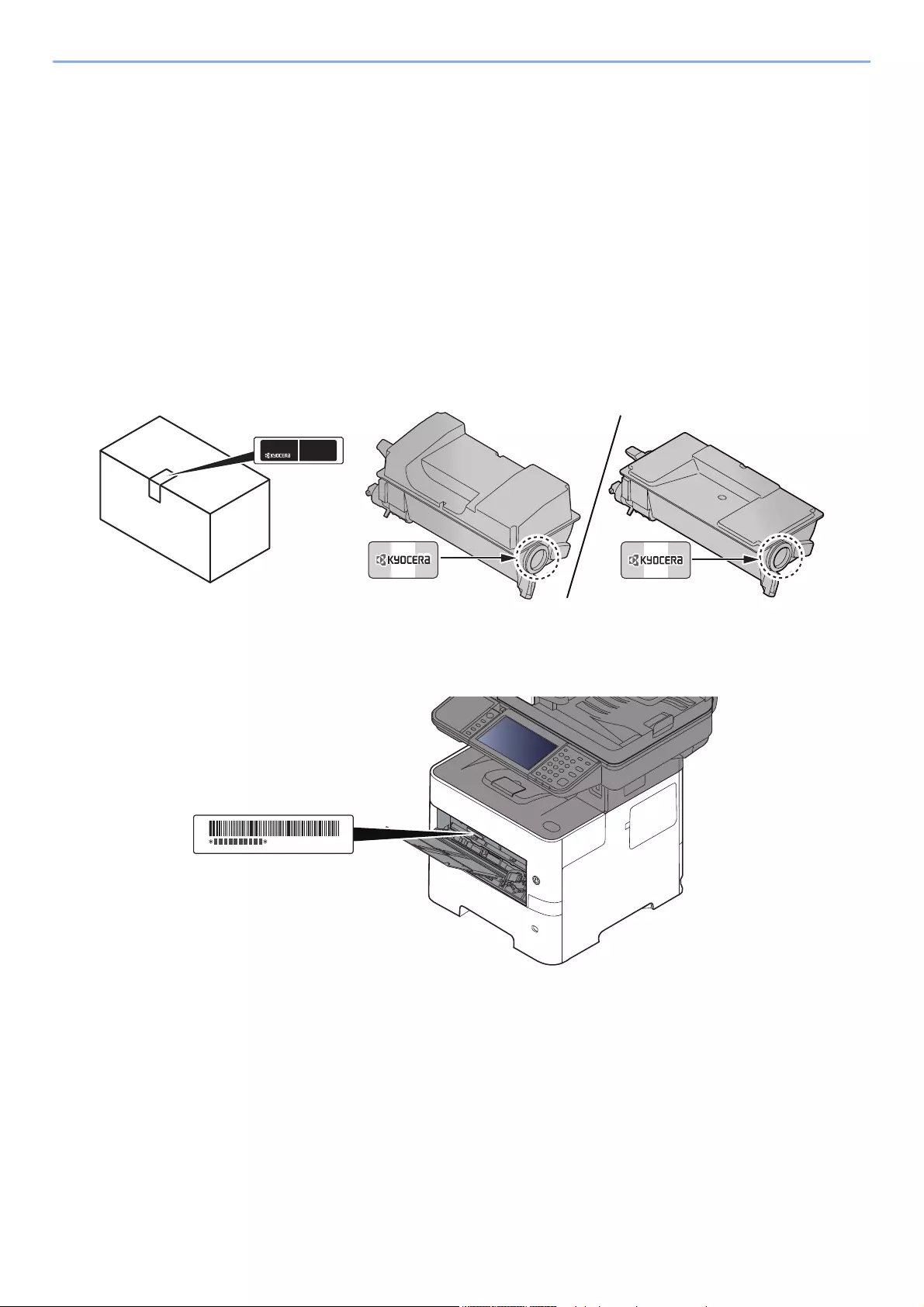
To maintain quality, we recommend using genuine Kyocera toner containers, which must
pass numerous quality inspections.
The use of non-genuine toner containers may cause failure.
We will not be liable for any damages caused by the use of third party supplies in this machine.
A label is affixed to our replacement genuine toner containers, as shown below.
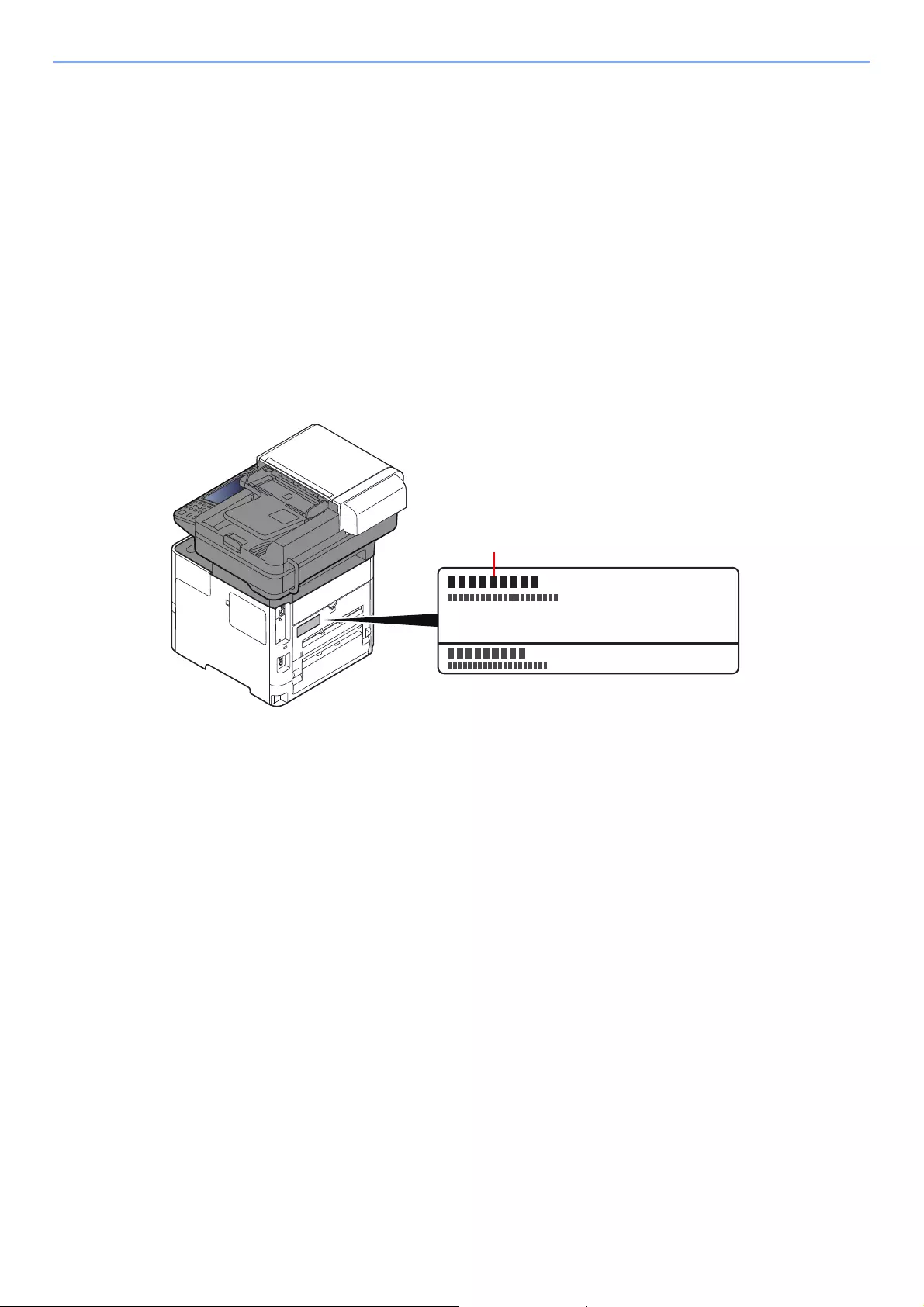
Checking the Equipment’s Serial Number
The equipment’s serial number is printed in the location shown in the figure.
You’ll need the equipment’s serial number when contacting your Service Representative. Please check the number
before contacting your Service Representative.

ii
Contents
Preface ………………..…………….…………….…………….…………….……………..…………….……………. i
Contents………………………….…………….…………….………….…………….…………….………..……….. ii
Overview …………..…………….…………….…………….………….…………….…………….………………… ix
Machine Features …………….…………….…………….…………….………….…………….……………...…. x
Color and Image Quality Functions………….……………….……………….………………..………… xiv
Basic Color Modes ……………………….……………..…………….…………….…………….……… xiv
Adjusting Image Quality and Color….………….….………………………..…………….…………. xv
Guides Provided with the Machine……….……………..…………….…………….…………….……… xvi
About the Operation Guide (this Guide) …..…………….………….…………….…………….……. xviii
Structure of the guide………..……………..…………….…………….…………….…………….….. xviii
Conventions Used in This Guide……………..……….…………….…………….…………….…… xix
Menu Map…………….…………….…………….…………….………….…………….…………….……….…… xxi
1 Legal and Safety Information ………………………………………………………. 1-1
Notice …………..……………..…………….…………….………….…………….…………….………………… 1-2
Safety Conventions in This Guide …………..…….…………….…………….………….……….. 1-2
Environment ………………………….…………….…………….………….…………….……………... 1-3
Precautions for Use …….…………….…………….………….…………….…………….…………… 1-4
Laser Safety (Europe) ……………….………………..……………….……………….……………… 1-5
SAFETY OF LASER BEAM (USA) ..……………..…………….………….……………………… 1-6
Safety Instructions Regarding the Disconnection of Power …………..…………….…….. 1-7
Compliance and Conformity ……………..………….…………….…………….…………….…….. 1-7
Other precautions (for users in California, the United States) ………..…………….…….. 1-7
Warranty (the United States and Canada) .………….…………….…………….……………... 1-8
Legal Restriction on Copying/Scanning …..……………….………………..……………….… 1-10
EN ISO 7779 …….…………….……………..…………….…………….…………….…………….… 1-10
EK1-ITB 2000 ………….…………….…………….…………….…………….…………….…………. 1-10
Wireless Connection (Mexico only) …………………….……………….………………..……… 1-10
Security Precautions when Using Wireless LAN (If equipped) ..………………..……… 1-10
Limited Use of This Product (If equipped) ………………………….……………….…………. 1-11
Legal Information …………………..…………….…………….…………….…………….…………. 1-12
Energy Saving Control Function ………………………..……………….………………..……… 1-18
Automatic 2-Sided Print Function ………………………….…………….…………….…………. 1-18
Resource Saving — Paper ………..…………….…………….…………….…………….…………. 1-18
Environmental benefits of «Power Management» ………………………………………….… 1-18
Energy Star (ENERGY STAR®) Program ………………………………..……………….…… 1-19
2 Installing and Setting up the Machine ………………….………………………. 2-1
Part Names …………………..…………….………….…………….…………….…………….…………….….. 2-2
Machine Exterior ………..…………….…………….…………….……………..…………….……….. 2-2
Connectors/Interior ………..………………..………….…………….…………….…………….…….. 2-4
With Optional Equipments Attached ………….….…………….…………….…………….…….. 2-6
Connecting the Machine and Other Devices ………….…………….…………….…………….….. 2-7
Connecting Cables …………….………….…………….…………….…………….…………….…………… 2-8
Connecting LAN Cable ………………………….…………….…………….…………….…………… 2-8
Connecting USB Cable ……………………………………….………………..…………….……….. 2-9
Connecting the Power Cable ……..………………..……………….……………….……………… 2-9
Power On/Off ………………………….……………..…………….…………….…………….…………….... 2-10
Power On ……………………….……………..…………….…………….…………….…………….… 2-10
Power Off ……………………….……………..…………….…………….…………….…………….… 2-10
Using the Operation Panel ……………….…………….…………….……………..…………….……… 2-11
Operation Panel Keys ………….…………….…………….………….…………….…………….… 2-11
Adjusting the Operation Panel Angle ………………….…………….…………….……………. 2-12
Touch Panel ……………..…………….……………..…………….…………….…………….…………….... 2-13
Home Screen ……………….…………….……………..…………….…………….…………….…… 2-13
Display for Device Information ……………………..……………….……………….……………. 2-17

iii
Functions key ……….…………….…………….…………….…………….…………….……………. 2-18
Display of Keys That Cannot Be Set ….……………….……………….………………..……… 2-19
Enter key and Quick No. Search key ……………….…………….…………….…………….… 2-20
Help Screen ……………………….…………….…………….…………….…………….……………. 2-21
Login/Logout ………………………….……………..…………….……………………..……………………. 2-22
Login …………….…………….…………….……………..………………………..…………….……… 2-22
Logout …………..…………….…………….……………..………………………..…………….……… 2-23
Default Settings of the Machine …………………………….……………….……………….…………. 2-24
Setting Date and Time …………………………………..……………….……………….…………. 2-24
Network Setup ………….…………….……………..…………….…………….…………….…………….… 2-25
Configuring the Wired Network …………………………….………………..……………….…… 2-25
Configuring the Wireless Network ……..……………….……………….………………..……… 2-27
Setting Wi-Fi Direct …….…………….…………….…………….……………..…………….……… 2-31
Energy Saver function …….……………….………………..……………….……………….……………. 2-33
Low Power Mode …………….……………..………….…………….…………….…………….…… 2-33
Sleep and Auto Sleep …………….……………….………………..……………….………………. 2-33
Power Off Rule (models for Europe) ………….………….…………….…………….…………. 2-34
Quick Setup Wizard ………………………….…………….…………….……………..…………….……… 2-35
Installing Software ………….…………….…………….…………….…………….…………….…………. 2-37
Software on DVD (Windows) …..……………….………….…………….…………….…………. 2-37
Installing Software in Windows ……..……….…………….…………….…………….…………. 2-38
Uninstalling the Software ……..……………….…………….………………..……………….…… 2-44
Installing Software in Mac Computer …………….…………….…………….…………….…… 2-45
Setting TWAIN Driver ……….………………..……………….………………..……………….…… 2-47
Setting WIA Driver …………………………..…………….…………….…………….…………….… 2-49
Checking the Counter …..…………….…………….…………….…………….…………….……………. 2-50
Additional Preparations for the Administrator ……………….……………..…………….……… 2-51
Sending Documents to a PC …………………….………………..……………….…………….… 2-51
Strengthening the Security ..………….……………..…………….…………….…………….…… 2-51
Command Center RX ……………………….………….…………….…………….…………….…………. 2-53
Accessing Command Center RX …..………………..……………….……………….…………. 2-54
Changing Security Settings ……..…………….…………….…………….…………….…………. 2-55
Changing Device Information …..…………….…………….…………….…………….…………. 2-57
E-mail Settings ………..…………….…………….…………….…………….…………….…………. 2-59
Registering Destinations ……………………….…………….…………….…………….…………. 2-63
Creating a New Custom Box ……………….…………….…………….…………….……………. 2-64
Printing a document stored in a Custom Box ………….………………..……………….…… 2-65
Transferring Data from Our Other Products .………………….……………..…………….……… 2-67
Migrating the Address Book ……….………………..……………….……………….……………. 2-67
3 Preparation before Use ….……………………………………………………………. 3-1
Loading Paper ……………………..…………….……………..…………….…………….…………….…….. 3-2
Precaution for Loading Paper ……………..……………….…………….………………..……….. 3-3
Loading in the Cassettes ..………………..………….…………….…………….…………….…….. 3-4
Loading Statement in the Cassettes
(ECOSYS M3655idn/ECOSYS M3660idn for inch models) …….…………….…………… 3-8
Loading Paper in the Multi Purpose Tray ……………….………………..……………….…… 3-11
Specifying Paper Size and Media Type ..……………….………………..……………….…… 3-15
Paper Stopper …………..…………….……………..…………….……………………..……………………. 3-17
Preparation for Sending a Document to a Shared Folder in a PC ……..……………….… 3-18
Making a note of the computer name and full computer name …………………………. 3-18
Making a note of the user name and domain name …………….…………….………….… 3-19
Creating a Shared Folder, Making a Note of a Shared Folder …….…………….……… 3-20
Configuring Windows Firewall ……….………………..……………….……………….…………. 3-24
Registering Destinations in the Address Book ………………………….…………….…………. 3-28
Adding a Destination (Address Book) ………..………………..……………….………………. 3-28
Adding a Destination on One Touch Key (One Touch Key) ……………..………………. 3-33

iv
4 Printing from PC …………………………………………………………………………. 4-1
Printing from PC ….…………….…………….…………….…………….……………..…………….……….. 4-2
Printing on Non-standard Sized Paper ……….…….…………….…………….…………….….. 4-4
Banner printing ……………..………….…………….…………….……………..…………….……….. 4-5
Printer Driver Print Settings Screen ……..…………….…………….…………….……………... 4-9
Printer Driver Help ……………….…………….…………….…………….…………….……………. 4-10
Changing the Default Printer Driver Settings (Windows 8.1) ..……………….…………. 4-10
Canceling Printing from a Computer ………….….…………….…………….…………….…… 4-10
Printing by AirPrint …………………….…………….…………….…………….…………….……………. 4-11
Printing by Google Cloud Print ..………………..……………….………………..……………….…… 4-11
Printing by Mopria …….…………….……………..…………….…………….…………….…………….… 4-11
Printing with Wi-Fi Direct …………….…………….…………….…………….…………….……………. 4-11
Printing Data Saved on the Printer …………….…………….…………….…………….……………. 4-12
Specifying the Job Box from a Computer and Storing the Job ……………………….… 4-12
Printing Documents from Private Print Box …….…………….…………….…………….…… 4-13
Printing Document from Stored Job Box …………..……………….……………….…………. 4-15
Printing Document from Quick Copy Box ………….…………….…………….…………….… 4-17
Printing Document from Proof and Hold Box ……….……………….………………..……… 4-19
Status Monitor ………….…………….……………..…………….…………….…………….…………….... 4-21
Accessing the Status Monitor ………………………….…………….…………….…………….… 4-21
Exiting the Status Monitor ……….……………….………………..……………….………………. 4-21
Status Monitor Display ……..……………..…………….…………….…………….…………….… 4-21
5 Operation on the Machine …………………………………………………..………. 5-1
Loading Originals …………………………………..………….…………….…………….…………….…….. 5—2
Placing Originals on the Platen …..…………….………………..……………….………………... 5-2
Loading Originals in the Document Processor ……..…………….…………….……………... 5-3
Favorites …………….…………….…………….…………….………….…………….…………….……..……. 5-6
Registering Favorite ………………………..……………….…………….…………….……………... 5-7
Recalling Favorite ……………….……………….…………….…………….………….……………... 5-9
Editing and Deleting Favorite …..…………….…………….…………….…………….…………. 5-10
Application ………….…………….…………….…………….………….…………….…………….…………. 5-11
Installing Applications .…………….…………….………….…………….…………….……………. 5-11
Using Applications ……………………….……………..…………….………….…………….……… 5-12
Uninstalling Applications ………………………….………………..……………….………………. 5-13
Registering Shortcuts ………..……………….………………..……………….……………….…………. 5-14
Adding Shortcuts …………..………….…………….…………….……………..…………….……… 5-14
Editing and Deleting Shortcuts ………………….…………….……………..…………….……… 5-15
Copying ………………………….…………….…………….………….…………….…………….………..….. 5-16
Basic Operation ……….…………….…………….………….…………….…………….……………. 5-16
Canceling Jobs .…………….…………….………….…………….……………..…………….……… 5-17
Sending ………………………….…………….…………….………….…………….…………….………..….. 5-18
Basic Operation ……….…………….…………….………….…………….…………….……………. 5-19
Specifying Destination ……………….…………….………….…………….…………….…………. 5-20
Checking and Editing Destinations …………………….……………….………………..……… 5-25
Confirmation Screen of Destinations …………………..…………….……………….…………. 5-26
Recall ………………………….…………….……………..………………………..…………….……… 5-27
Send to Me (E-mail) ………………………..…………….…………….………….…………….…… 5-27
Sending to Different Types of Destinations (Multi Sending) …….………………..……… 5-28
Canceling Sending Jobs ………………………………..……………….……………….…………. 5-29
WSD Scan ………………………….…………….…………….…………….…………….……………. 5-30
Installing the Driver ….…………….…………….…………….…………….…………….…………. 5-30
Scanning using TWAIN or WIA ..……………….………………..……………….………………. 5-32
Scanning with File Management Utility ………………………..……………….…………….… 5-33
Using fax server to send a fax (fax server transmission) …………………….………………. 5-34
Configuring Settings before Sending …………….……………….……………….……………. 5-34
Using fax server to send a fax …….……….……….…………….…………….…………….…… 5-34

v
How to use the FAX Function ………..…………….…………….…………….…………….…………. 5-36
What is Document Box? …….……………….……………..…………….…………….…………….…… 5-37
Basic Operation for Document Box ..……………….………………..……………….………………. 5-38
Box List Operations ……….………….…………….…………….……………..…………….……… 5-38
Document List Operations …………….………………..……………….……………….…………. 5-38
Using a Custom Box ………….…………….…………….…………….……………..…………….……… 5-39
Creating a New Custom Box ……………….…………….…………….…………….……………. 5-39
Editing and Deleting Custom Box ……..…………….………….…………….…………….…… 5-41
Saving Scanned Documents to a Custom Box ……….………………..……………….…… 5-42
Moving Documents in Custom Box ………………….…………….…………….…………….… 5-43
Copying Documents in Custom Box into Other Boxes ……………………………..……… 5-43
Copying Documents in Custom Box to Removable Memory ……………………………. 5-44
Joining Documents in Custom Box ……………….…………….…………….…………….…… 5-45
Deleting Documents in Custom Box …….…………….…………….…………….……………. 5-46
Printing Documents in Custom Box …………..………….…………….…………….…………. 5-46
Sending Documents in a Custom Box …………..…………….…………….…………….…… 5-47
Sending Documents in Custom Box to E-mail Address of Logged in user. ………… 5-48
Scanning Document Stored in a Custom Box ……………….……………….………………. 5-49
Printing Documents Stored in Removable USB Memory ……………….……………….…… 5-50
Saving Documents to USB Memory (Scan to USB) ..…………….…………….…………….… 5-52
Check the USB Memory Information ……………….…………….……………..…………….……… 5-53
Removing USB Memory …..…………….…………….…………….…………….…………….…………. 5-54
Using the Manual Stapler
(ECOSYS M3655idn/ECOSYS M3660idn only) ……..……………………………………………… 5-55
6 Using Various Functions …….………………………………………………………. 6-1
Functions Available on the Machine …………….………….…………….…………….……………... 6-2
Copy …………..…………….…………….…………….………….…………….…………….…………… 6-2
Send …………..…………….…………….…………….………….…………….…………….…………… 6-4
Custom Box (Store File, Printing Documents, Sending Documents) …………………… 6-6
Removable Memory (Store File, Printing Documents) …………………….…………….….. 6-8
Functions ………………………….…………….…………….………….…………….…………….…………. 6-10
ID Card Copy …………….…………….………….…………….…………….…………….…………. 6-10
Original Size ……………………….…………….…………….…………….…………….……………. 6-10
Paper Selection ……………….………….……………..…………….…………….…………….…… 6-11
Original Orientation ….…………….…………….………….…………….…………….……………. 6-12
Mixed Size Originals ……………………….………….…………….…………….…………….…… 6-13
Collate ………..…………….…………….…………….…………….……………..…………….……… 6-13
Density …………….…………….……………..…………….………….…………….…………….…… 6-13
Original Image ………………………….…………….…………….………….…………….…………. 6-14
EcoPrint ……………………….…………….……………..………………………..…………….……… 6-15
Color Selection …………..………….…………….…………….…………….…………….…………. 6-15
Sharpness ………………………….…………….…………….………….…………….…………….… 6-16
Contrast ……………………….…………….……………..………………………..…………….……… 6-16
Background Density Adj. (Background Density Adjustment) …..………………..……… 6-17
Prevent Bleed-thrugh .……………….………………..……………….……………….……………. 6-17
Zoom …………….…………….…………….……………..………………………..…………….……… 6-18
Combine …………..…………….……………..…………….………….…………….…………….…… 6-20
Duplex …………..…………….…………….……………..………………………..…………….……… 6-22
Continuous Scan …………..………….…………….…………….……………..…………….……… 6-24
Job Finish Notice …………..…………….……………..…………….………….…………….……… 6-24
File Name Entry ……………………….…………….…………….……………..…………….……… 6-25
Priority Override ………………….…………….…………….…………….…………….……………. 6-25
Quiet Mode .…………….…………….…………….…………….…………….…………….…………. 6-25
Skip Blank Page ………………………….……………..…………….…………….…………….…… 6-26
Duplex (2-sided Original) ……………..……………..…………….…………….…………….…… 6-27
Sending Size ………..………………………..…………….…………….…………….…………….… 6-28
File Format .…………….…………….…………….…………….…………….…………….…………. 6-29
File Separation .…………….…………….……………..…………….…………….…………….…… 6-33

vi
Scan Resolution, Resolution ………………………..……………….……………….……………. 6-33
E-mail Subject/Body …………………….……………..…………….…………….…………….…… 6-33
Long Original ………………..………….…………….…………….……………..…………….……… 6-34
FTP Encrypted TX …………………………..…………….…………….…………….…………….… 6-34
Delete after Printed …….…………….…………….………….…………….…………….…………. 6-34
Delete after Transmitted …………………..…………….…………….…………….…………….… 6-34
Storing Size ……………….………….…………….…………….…………….…………….…………. 6-35
Encrypted PDF Password …………….……………..…………….…………….…………….…… 6-35
JPEG/TIFF Print …………………….…………….…………….…………….…………….…………. 6-36
XPS Fit to Page ……….…………….…………………………………………………….……………. 6-36
7 Status/Job Cancel ………………………………………………………………………. 7-1
Checking Job Status ……………….………….……………..…………….…………….…………….…….. 7-2
Details of the Status Screens …..…………….………….…………….…………….……………... 7-3
Checking Detailed Information of Jobs ………………….…………….…………….…………… 7-7
Checking Job History ……………..……………..…………….…………….…………….…………….….. 7-8
Checking the Detailed Information of Histories ….…………….…………….…………….….. 7-9
Sending the Log History ………….…………….………….…………….…………….……………... 7-9
Job Operation ………..…………….…………….……………..…………….…………….…………….…... 7-10
Pause and Resumption of Jobs …….……………..…………….…………….………….……… 7-10
Canceling of Jobs …….……………….………………..……………….……………….……………. 7-10
Device/Communication ……………….…………….……………….………………..……………….…… 7-11
Checking the Remaining Amount of Toner and Paper (Paper/Supplies) ………………. 7-13
8 Setup and Registration (System Menu) ……………….………………………. 8-1
System Menu ..……………..…………….…………….…………….…………….…………….……………... 8-2
Operation Method ………………….…………….…………….…………….…………….…………… 8-2
System Menu Settings ……………………….…………….…………….…………….……………... 8-3
Language …………….…………….…………….…………….………….…………….…………….….. 8-5
Report …………..…………….…………….……………..………………………..…………….……….. 8-5
User Property ………….…………….…………….……………….……………..…………….……….. 8-7
Cassette/MP Tray Settings …………..……………..…………….…………….…………….…….. 8-8
Common Settings …….……………….………………..……………….……………….……………. 8-10
Home …………….…………….…………….……………..………………………..…………….……… 8-20
Copy …………..…………….…………….…………….………….…………….…………….…………. 8-20
Send …………..…………….…………….…………….………….…………….…………….…………. 8-21
Document Box ..…………….…………….………….…………….……………..…………….……… 8-22
FAX ………………………….…………….…………….………….…………….…………….…………. 8-22
Application ……..…………….…………….……………..………………………..…………….……… 8-22
Internet …………….…………….……………..…………….………….…………….…………….…… 8-23
Address Book/One Touch …….…………….…………….…………….…………….……………. 8-23
User Login/Job Accounting ……..……………….………………..……………….………………. 8-24
Printer ………………………….…………….……………..………………………..…………….……… 8-24
System/Network ……………………………..…………….…………….…………….…………….… 8-27
Date/Timer/Energy Saver ……..…………….…………….…………….…………….……………. 8-46
Adjustment/Maintenance …..……………..…………….…………….…………….…………….… 8-49
9 User Authentication and Accounting (User Login, Job Accounting) 9-1
Overview of User Login Administration …..…………….…………….…………….…………….….. 9-2
Enabling User Login Administration …………….…….…………….…………….…………….…….. 9-3
Setting User Login Administration ……………….……………….………………..……………….….. 9-4
Authentication Security …….……….…………….…………….……………..……………………… 9-4
Adding a User (Local User List) ………..…………….…………….…………….…………….….. 9-6
Changing User Properties ………….…………….…………….……………..…………….……….. 9-9
User Login Administration for Printing ..……………….……………….………………..……… 9-13
To Manage the Users to Scan Using TWAIN ………………..……………….………………. 9-15
To Manage the Users to Scan Using WIA ………..……………….……………….…………. 9-16

vii
To Manage the Users that Send Faxes from a PC ……………..……………….…………. 9-17
Local Authorization …………..……………..…………….…………….…………….…………….… 9-18
Group Authorization Settings …..……………….………………..……………….………………. 9-19
Guest Authorization Set. …..……………..…………….………….…………….…………….…… 9-22
Obtain NW User Property ……….……………….………………..……………….………………. 9-25
Simple Login Settings ……………….………………..……………….……………….……………. 9-27
ID Card Settings …………………….…………….…………….…………….…………….…………. 9-30
PIN Code Authorization …………..……………….………………..……………….………………. 9-31
Using User Login Administration …………………………………………………………………….… 9-32
Login/Logout ………..…………….…………….…………….………….…………….…………….… 9-32
Overview of Job Accounting ……………….……………..……………………………………………… 9-33
Enabling Job Accounting ………..……………..……………………………………………………….… 9-34
Job Accounting Access …….………………..……………….………………..…………….……… 9-35
Setting an Account …………….…………….…………….…………….……………..…………….……… 9-36
Adding an Account ………..…………….……………..…………….………….…………….……… 9-36
Restricting the Use of the Machine ……………………….………………..……………….…… 9-37
Editing an Account ………..…………….……………..………………………..…………….……… 9-38
Deleting an Account …………………….……………..…………….…………….…………….…… 9-39
Job Accounting for Printing ………..………………..……………….…………….………………. 9-40
Job Accounting for Scan Using TWAIN …..……………….………………..……………….… 9-41
Job Accounting for Scan Using WIA ……….……………….………………..……………….… 9-42
Job Accounting for the FAX Transmitted from a Computer .……………….……………. 9-43
Configuring Job Accounting …………….…………….…………….……………..…………….……… 9-44
Default Setting …..…………….……………..………….…………….…………….…………….…… 9-44
Counting the Number of Pages Printed ……..………………..…………….……………….… 9-45
Print Accounting Report ………….……………….………………..……………….………………. 9-46
Using Job Accounting ….…………….…………….………….…………….…………….…………….… 9-47
Login/Logout ………..…………….…………….…………….………….…………….…………….… 9-47
Unknown User Settings ………..………………..……………….……………….…………….…………. 9-48
Unknown ID Job ………………………….……………..…………….…………….…………….…… 9-48
Registering Information for a User whose ID is Unknown ….…………….…………….… 9-49
10 Troubleshooting ……………………………………………………………………….. 10-1
Regular Maintenance ……………………….…………….………….…………….…………….…………. 10-2
Cleaning …………..…………….……………..…………….………….…………….…………….…… 10-2
Toner Container Replacement …………….……………….………………..……………….…… 10-6
Waste Toner Box Replacement ………..…………….…………….…………….…………….. 10-10
Replacing Staples
(ECOSYS M3655idn/ECOSYS M3660idn only) …………………………..…………….…. 10-12
Troubleshooting ……….…………….……………..…………….…………….…………….…………….. 10-13
Solving Malfunctions ………..……………..…………….…………….…………….…………….. 10-13
Responding to Messages .………………..………….…………….…………….…………….…. 10-18
Adjustment/Maintenance ……………………….……………….………………..……………….. 10-30
Clearing Paper Jams …………………………….……………….………………..…………….…. 10-31
Clearing a Staple Jam
(ECOSYS M3655idn/ECOSYS M3660idn only) …………………………..…………….…. 10-40
11 Appendix ………………………………………………………………………………….. 11-1
Optional Equipment ………..…………….…………….…………….…………….…………….…………. 11-2
Overview of Optional Equipment …………….……………….………………..……………….… 11-2
Optional Applications …………..…………….…………….…………….…………….……………. 11-9
Character Entry Method ………..…………….……………..……………………………………………. 11-11
Entry Screens ……………….…………….………….…………….……………..…………….……. 11-11
Entering Characters ……………….…………….…………….…………….…………….……….. 11-13
Paper …………………………..…………….…………….………….…………….…………….…………….. 11-14
Basic Paper Specifications ……………….…………….……………….……………….……….. 11-14
Choosing the Appropriate Paper …………….……………….………………..……………….. 11-15
Special Paper ……………….………….…………….…………….……………..…………….……. 11-18

viii
Specifications ……..…………….…………….…………….………….…………….…………….……….. 11-22
Machine ……………………….…………….……………..…………….…………….…………….…. 11-22
Copy Functions ………….…………….…………….…………….……………..…………….……. 11-24
Printer Functions ……………..………………..……………….………………..……………….…. 11-25
Scanner Functions …..……………….………………..……………….……………….………….. 11-26
Document Processor …………………………….……………….………………..……………….. 11-27
Paper Feeder (500-sheet) (Option) …………………….……………….………………..……. 11-27
Manual Stapler
(ECOSYS M3655idn/ECOSYS M3660idn only) …………………………..…………….…. 11-28
Glossary …………..…………….…………….…………….………….…………….…………….………..… 11-29
Index …………….……………..…………….…………….………….…………….…………….………..… Index-1
ix
> Overview
Overview
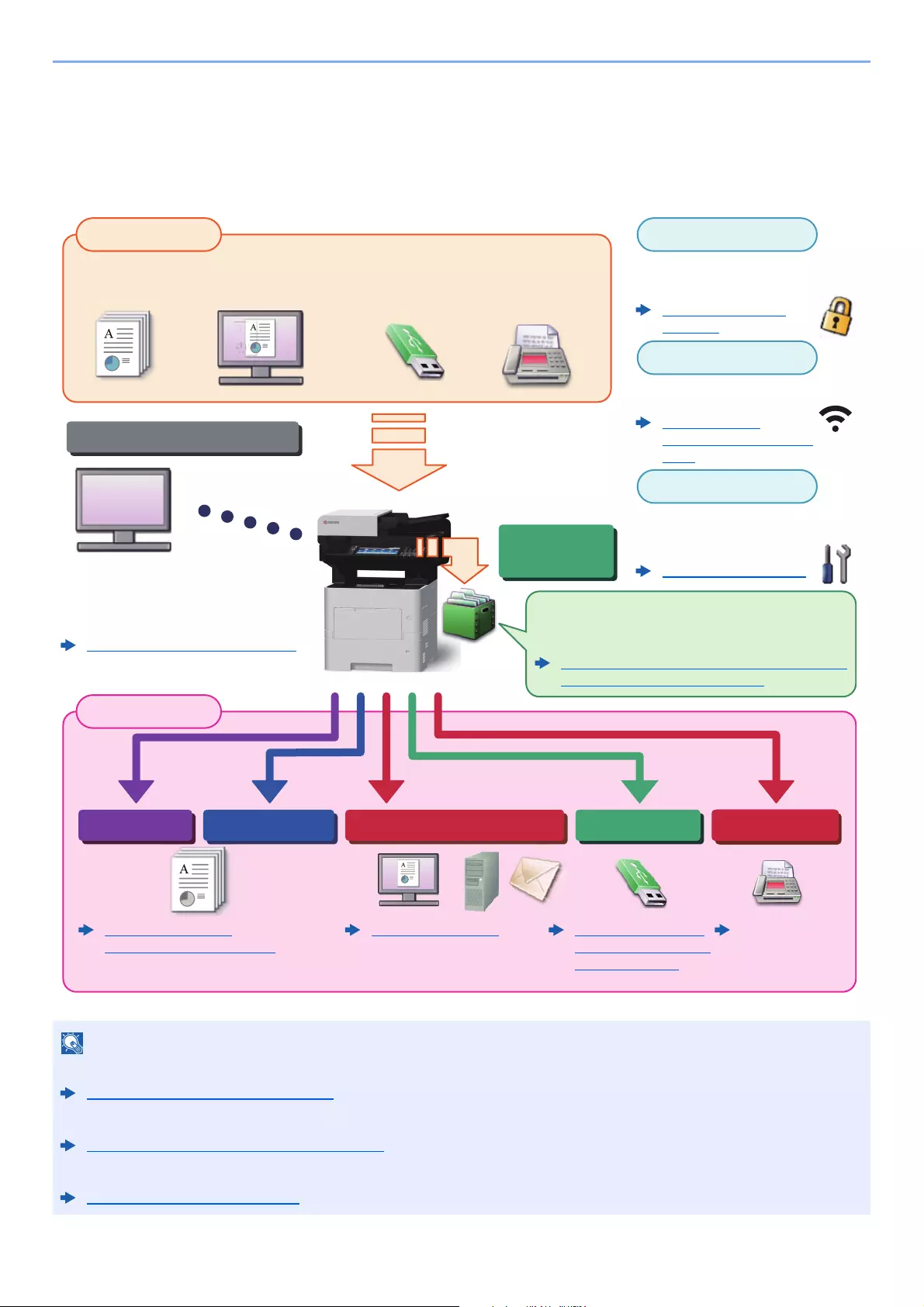
This machine is equipped standard with copy and print functions, and a scanned image can be sent to an E-mail
recipient as an attachment or to a computer on the same network. On products with a FAX function, it is also possible to
use the fax function.
• Before using the machine, be sure to read the following:
Legal and Safety Information (page 1-1)
• For preparations for use of the machine such as cable connections and software installation, refer to the following:
Installing and Setting up the Machine (page 2-1)
• To learn how to load paper, set up shared folders, and add addresses to the address book, refer to the following:
Preparation before Use (page 3-1)
Original Electronic data Fax dataUSB memory
Input Data
Operations from your PC
Document
Box functions
Application
Security
Output Data
Copy functions Printer functions USB memory
Send functions
Fax functions
Wi-Fi connection
FAX Operation
Guide
This function is useful for a variety of purposes,
including saving data in the machine and in a USB
memory stick.
Printing Data Saved on the Printer (page 4-12)
Using a Custom Box (page 5-39)
You can expand the machine
functions according to your
needs.
Application (page 5-11)
You can use the machine security
levels according to your needs.
Sending (page 5-18)
Command Center RX
You can check the status and change the
settings of the machine from a Web
browser on your computer.
Command Center RX (page 2-53)
Command Center RX User Guide
Strengthen security
(page xii)
Copying (page 5-16)
Printing from PC (page 4-1)
Saving Documents to
USB Memory (Scan to
USB) (page 5-52)
Wi-Fi or Wi-Fi Direct connection
is possible.
Configuring the
Wireless Network (page
2-27)
x
> Machine Features
Machine Features
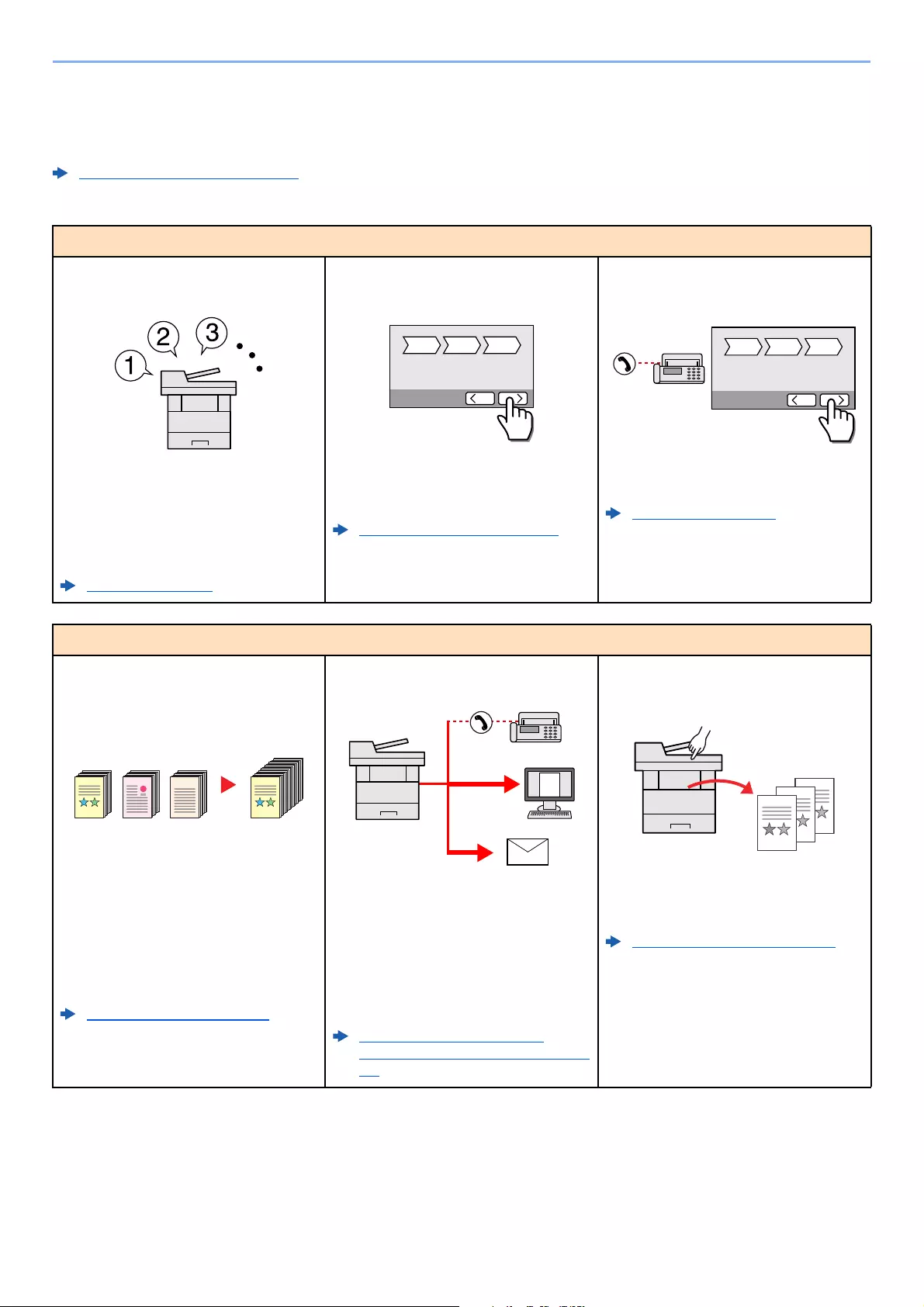
The machine is equipped with many useful functions.
Using Various Functions (page 6-1)
Here are some examples.
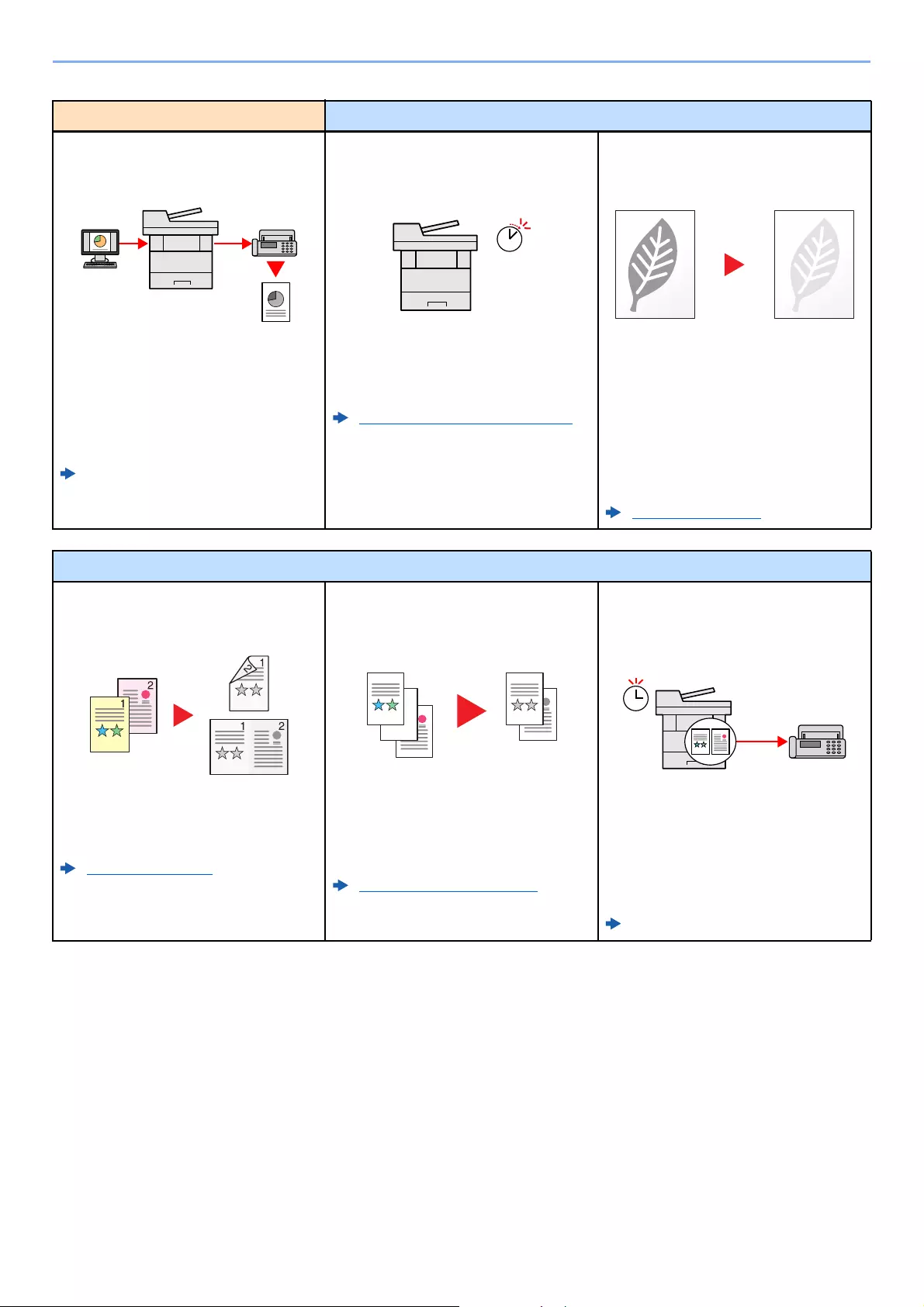
Optimize your office workflow
Access to frequently used functions
with just one touch (Favorites)
You can preset frequently used functions.
Once you register frequently used
settings as favorite, you can call up the
settings easily. Using this favorite brings
the same results even if operated by
another person.
Favorites (page 5-6)
Set up the machine easily
(Quick Setup Wizard)
You can configure the necessary settings
before using the machine in the wizard
mode.
Quick Setup Wizard (page 2-35)
Set up fax easily (FAX Setup)
You can configure the necessary settings
before using fax in the wizard mode.
FAX Setup (page 2-35)
Optimize your office workflow
Scan a large number of originals in
separate batches and produce as one
job (Continuous Scan)
It is useful when preparing many-page
handouts.
When a large number of originals cannot
be placed in the document processor at
one time, the originals can be scanned in
separate batches and then copied or sent
as one job.
Continuous Scan (page 6-24)
Send one time with multiple sending
options (Multi Sending)
You can send a same document to the
multiple destinations using a different
method.
You can specify multiple destinations of
different send methods such as E-mail,
SMB, and Fax.
You can reduce your workflow by sending
a job at once.
Sending to Different Types of
Destinations (Multi Sending) (page 5-
28)
Save frequently used documents in
the machine (Custom Box)
You can save the frequently used
document in the machine and print it
when needed.
Using a Custom Box (page 5-39)
xi
> Machine Features
Optimize your office workflow Save energy and cost
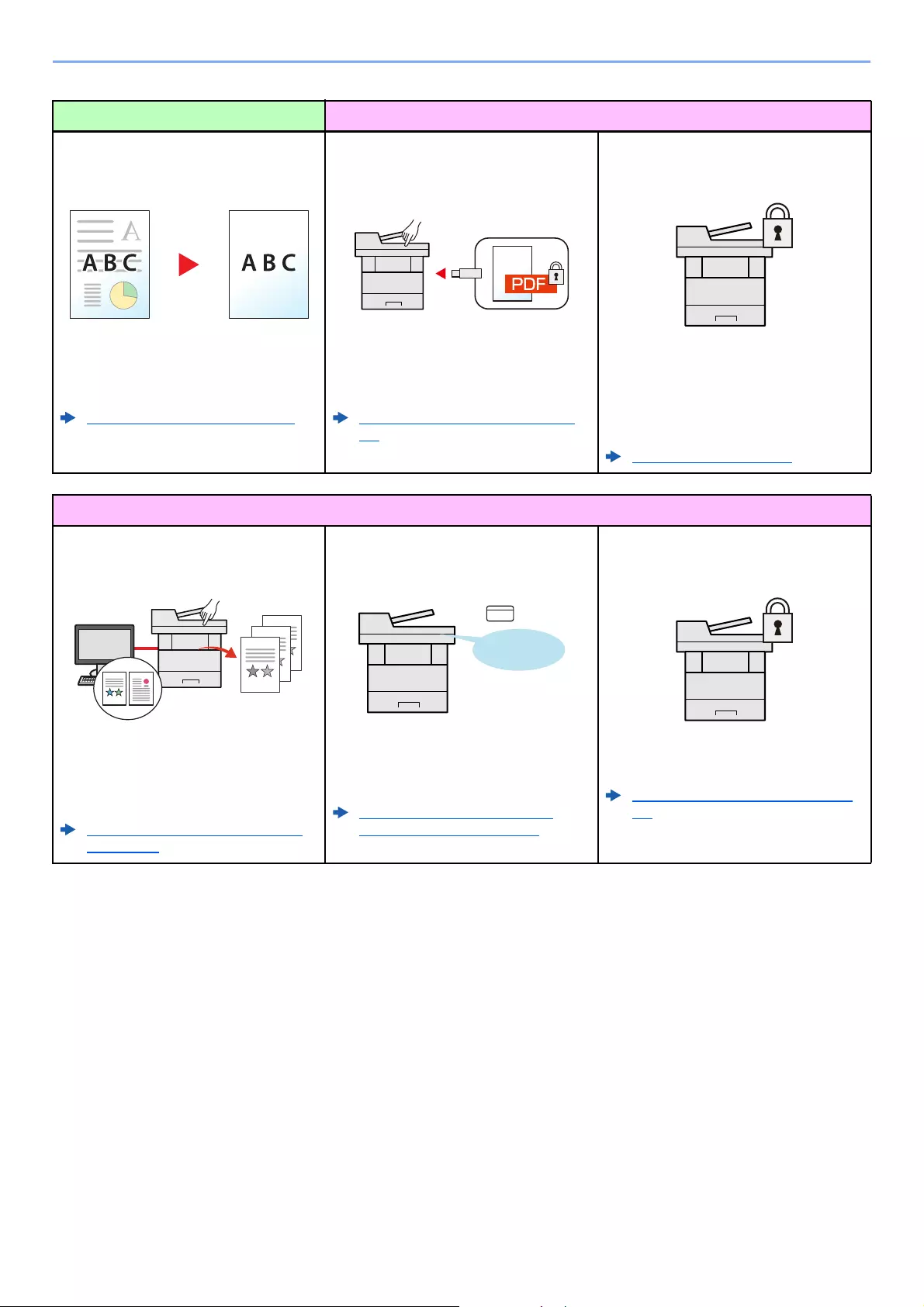
Send a FAX from a PC
(Sending FAX from PC)
You can save the paper used for sending
a FAX with this function.
You can send a file to be faxed from the
PC without printing the file, so that you
can reduce the number of pieces of paper
and perform sending jobs efficiently.
FAX Operation Guide
Save energy as needed
(Energy Saver function)
The machine is equipped with Energy
Saver function that automatically
switched into Sleep Mode.
Energy Saver function (page 2-33)
Use less toner for printing
(EcoPrint)
You can save toner consumption with this
function.
When you only need to check the printed
content, such as a trial print run or
documents for internal confirmation, use
this function to save toner.
Use this function when a high-quality print
is not required.
EcoPrint (page 6-15)
Save energy and cost
Reduce paper use
(Paper Saving Printing)
You can print originals on both sides of
the paper. You can also print multiple
originals onto one sheet.
Favorites (page 5-6)
Skip blank pages when printing
(Skip Blank Page)
When there are blank pages in a scanned
document, this function skips the blank
pages and prints only pages that are not
blank.
Skip Blank Page (page 6-26)
Send a FAX to reduce the
communication cost
(FAX Delayed Transmission)
You can reduce the communication cost
with this function.
The communication cost can be reduced
by setting the timer to the time period
during which the communication cost is
low.
FAX Operation Guide
Off
xii
> Machine Features
Create attractive documents Strengthen security
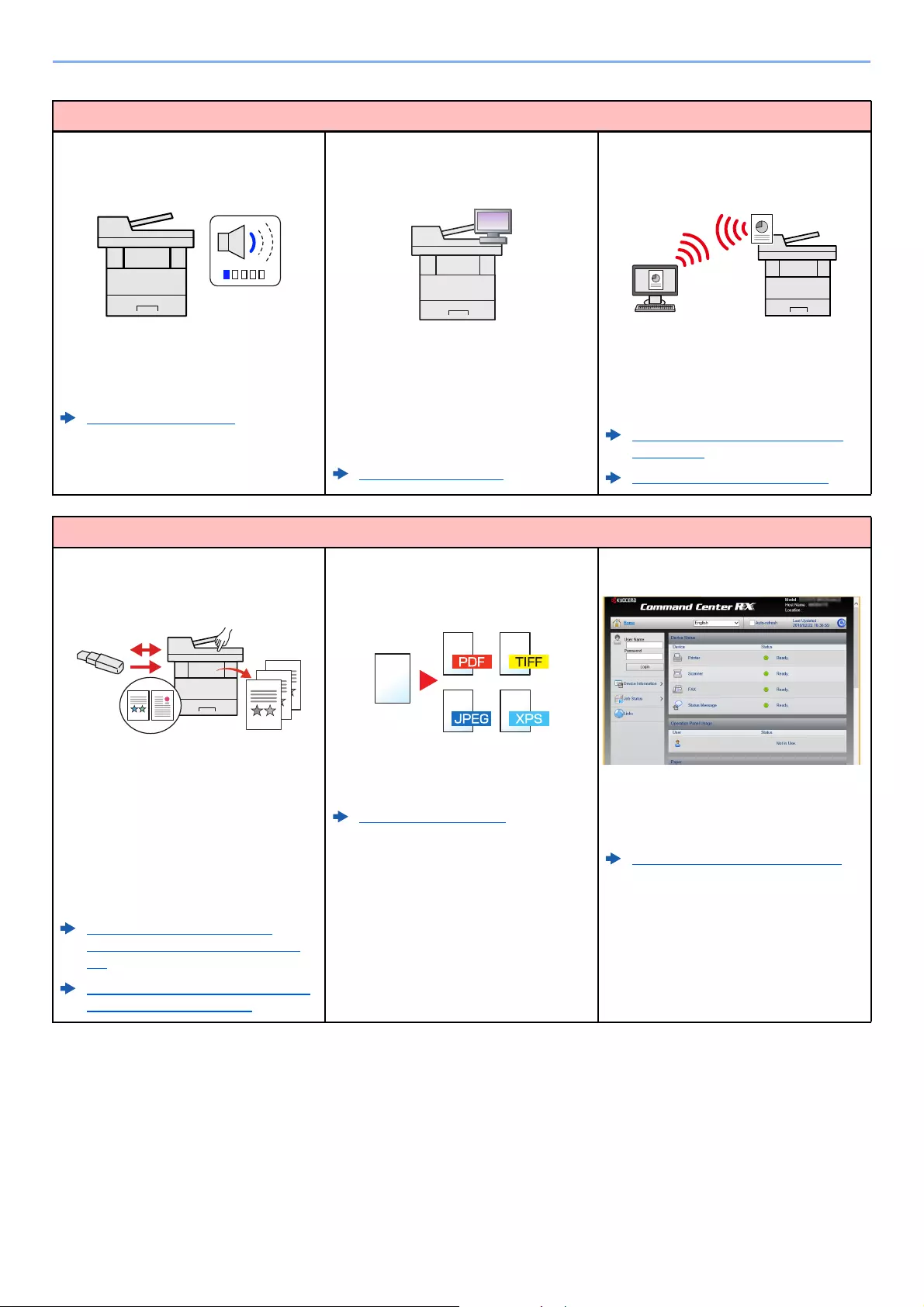
Prevent image bleed-through
(Prevent Bleed-through)
You can prevent image bleed-through
from the reverse side when scanning thin
originals.
Prevent Bleed-thrugh (page 6-17)
Password-protect a PDF file
(PDF Encryption Functions)
Use the PDF format’s password security
options to restrict document viewing,
printing and editing.
Encrypted PDF Password (page 6-
35)
Protect data on the SSD
(Encryption / Overwrite)
You can overwrite the unnecessary data
that remains on the SSD automatically.
To prevent an external leakage, the
machine is able to encrypt data before
writing it to the SSD.
Data Security (page 8-43)
Strengthen security
Prevent loss of finished documents
(Private Print)
You can temporarily save a printer
document in the machine. By printing the
document from the machine prevents
someone takes your document.
Printing Data Saved on the Printer
(page 4-12)
Log in by ID card
(Card Authentication)
You can log in simply by touching an ID
card. You don’t need to enter your user
name and password.
Card Authentication Kit(B) «Card
Authentication Kit» (page 11-3)
Strengthen security
(Settings for Administrator)
Various functions are available for
administrators to strengthen security.
Strengthening the Security (page 2-
51)
xiii
> Machine Features
Use functions more efficiently
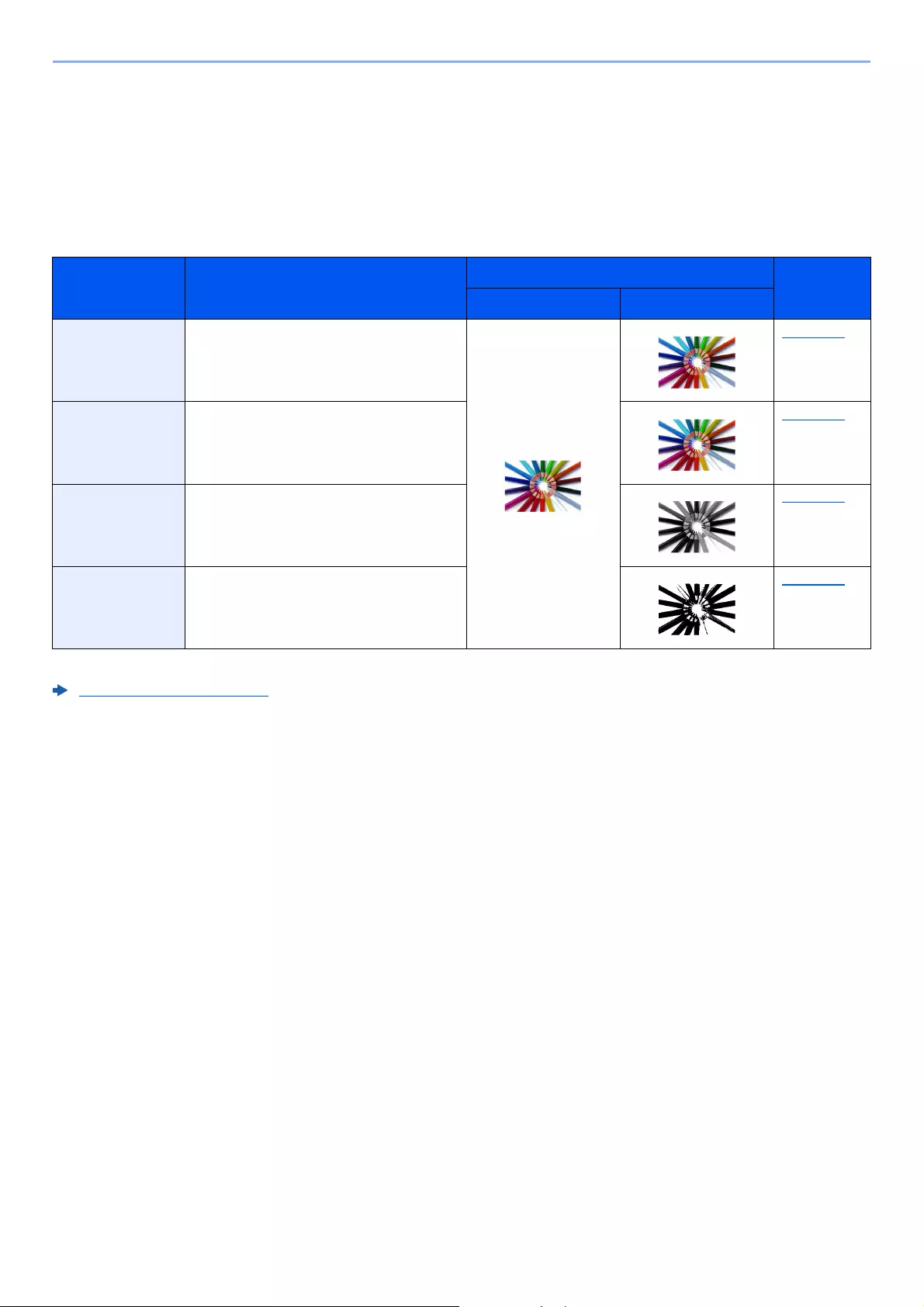
Make the machine quiet
(Quiet Mode)
You can make the machine quiet by
reducing its running noise. You can
configure this mode by job.
Quiet Mode (page 6-25)
Expand functions as necessary
(Application)
The functionality of the machine can be
expanded by installing applications.
Applications that help you perform your
daily more efficiently such as a scan
feature and an authentication feature are
available.
Application (page 5-11)
Install the machine without concerning
the network cables (Wireless Network)
In an environment where the wireless
LAN is used, you can install the machine
without concerning the network cables. In
addition, Wi-Fi Direct, etc. are supported.
Configuring the Wireless Network
(page 2-27)
Setting Wi-Fi Direct (page 2-31)
Use functions more efficiently
Use USB memory
(USB Memory)
It is useful when you need to print
document outside your office or you
cannot print document from your PC.
You can print the document from the USB
memory by plugging it directly into the
machine.
Original scanned at the machine can be
saved in the USB memory also.
Printing Documents Stored in
Removable USB Memory (page 5-
50)
Saving Documents to USB Memory
(Scan to USB) (page 5-52)
Specify image file format
(File Format)
You can select the various file formats
when sending/storing images.
File Format (page 6-29)
Perform remote operation
(Command Center RX)
You can access to the machine remotely
to print, send or download data.
Administrators can configure the machine
behavior or management settings.
Command Center RX (page 2-53)
xiv
> Color and Image Quality Functions
Color and Image Quality Functions
The machine is equipped with various color and image quality functions. You can adjust the scanned image as desired.
Basic Color Modes
The basic color modes are as follows.
For details, refer to the following:
Color Selection (page 6-15)
Color mode Description
Reference image Reference
page
Before After
Auto Color Automatically recognizes whether a
document being scanned is color or black
& white.
page 6-15
Full Color Scans a document in full color. page 6-15
Grayscale Scans a document in grayscale. page 6-15
Black & White Scans a document in black & white. page 6-15
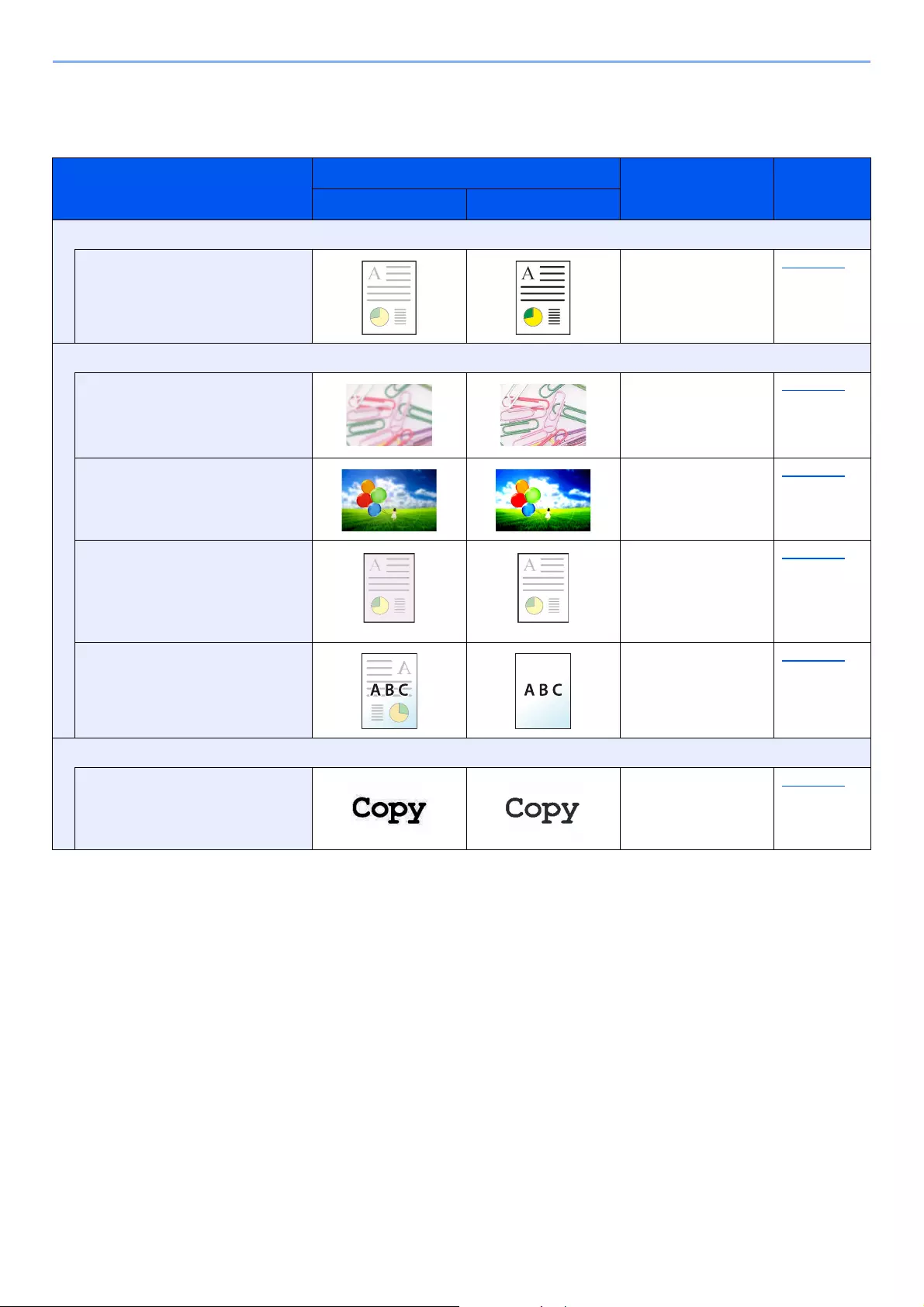
xv
> Color and Image Quality Functions
Adjusting Image Quality and Color
To adjust the image quality or color of an image, use the following functions.
I want to…
Sample image
Function Page
Before After
Adjust the color precisely.
Adjust the density. Density page 6-13
Adjust the image quality precisely
Emphasize or blur the image
outline.
Example: Emphasize the image
outlines
Sharpness page 6-16
Adjust the difference between
dark and light parts of the image.
Contrast page 6-16
Darken or lighten the background
(the area with no texts or images)
of a document.
Example: Lightening the
background
Background Density page 6-17
Prevent bleed-through in 2-sided
originals.
Prevent Bleed-
through
page 6-17
Adjust the scanned image
Decrease the file size and
produce the characters clearly.
File format
[High Comp. PDF]
page 6-29

xvi
> Guides Provided with the Machine
Guides Provided with the Machine
The following guides are provided with the machine. Refer to each guide as needed.
The contents of the guides are subject to change without notice for the purpose of improvement of machine
performance.
Printed guides
Start using the
machine quickly
Quick Guide
Explains how to use basic functions of the machine, how to use convenient features, how
to perform routine maintenance, and what to do when problems occur.
For safe use of the
machine
Safety Guide
Provides safety and cautionary information for installation environment and use of the
machine. Be sure to read this guide before using the machine.
Safety Guide (ECOSYS M3145idn/ECOSYS M3645idn/
ECOSYS M3655idn/ECOSYS M3660idn)
Indicates the space required for machine installation, and describes the cautionary labels
and other safety information. Be sure to read this guide before using the machine.
xvii
> Guides Provided with the Machine
Guides (PDF) on the DVD (Product Library)
Install the following versions of Adobe Reader to view the manuals on the DVD.
Version 8.0 or later
Use the machine
thoughtfully
Operation Guide (This Guide)
Explains how to load paper and perform copy, print and scan operations, and indicates
default settings and other information.
Use the fax functions FAX Operation Guide
Explains how to use the fax function.
Use the ID card Card Authentication Kit (B) Operation Guide
Explains how to perform authentication using the ID card.
Strengthen security
Data Security Kit (E) Operation Guide
Explains how to introduce and use the Data Security kit (E), and how to overwrite and encrypt
data.
Easily register
machine information
and configure settings
Command Center RX User Guide
Explains how to access the machine from a Web browser on your computer to check and
change settings.
Print data from a
computer
Printer Driver User Guide
Explains how to install the printer driver and use the printer function.
Directly print a PDF file KYOCERA Net Direct Print Operation Guide
Explains how to print PDF files without launching Adobe Acrobat or Reader.
Monitor the machine
and printers on the
network
KYOCERA Net Viewer User Guide
Explains how to monitor your network printing system (the machine) with KYOCERA Net
Viewer.
Scan images and save
with information
File Management Utility User Guide
Explains how to use File Management Utility to set various parameters and send and save
scanned documents.
Print without using the
printer driver
PRESCRIBE Commands Command Reference
Describes the native printer language (PRESCRIBE commands).
PRESCRIBE Commands Technical Reference
Describes the PRESCRIBE command functions and control for each type of emulation.
Adjust the print or
scan position
Maintenance Menu User Guide
Maintenance Menu provides the explanation on how to configure the print, scan, and other
settings.
xviii
> About the Operation Guide (this Guide)
About the Operation Guide (this Guide)
Structure of the guide
The Operation Guide contains the following chapters.
Chapter Contents
1Legal and Safety Information Provides precautions regarding use of the machine and trademark information.
2Installing and Setting up the
Machine
Explains part names, cable connections, installation of the software, login, logout, and
other matters related to administration of the machine.
3Preparation before Use Explains preparations and settings that are required in order to use the machine, such
as how to use the operation panel, load paper, and create an address book.
4Printing from PC Explains functions that are available when the machine is used as a printer.
5Operation on the Machine Explains the basic procedures for using the machine, such as placing originals, making
copies, sending documents, and using document boxes.
6Using Various Functions Explains convenient functions that are available on the machine.
7Status/Job Cancel Explains how to check the status of a job and the job history, and how to cancel jobs
being printed or waiting to print. Also explains how to check paper and toner levels, how
to check the device status, and how to cancel fax transmission.
8Setup and Registration (System
Menu)
Explains System Menu and how it relates to the operation of the machine.
9User Authentication and
Accounting (User Login, Job
Accounting)
Explains user login and job accounting.
10 Troubleshooting Explains what to do when toner runs out, an error is displayed, or a paper jam or other
problem occurs.
11 Appendix Describes convenient options that are available for the machine. Provides information
on media types and paper sizes, and gives a glossary of terms. Explains how to enter
characters, and lists the specifications of the machine.
xix
> About the Operation Guide (this Guide)
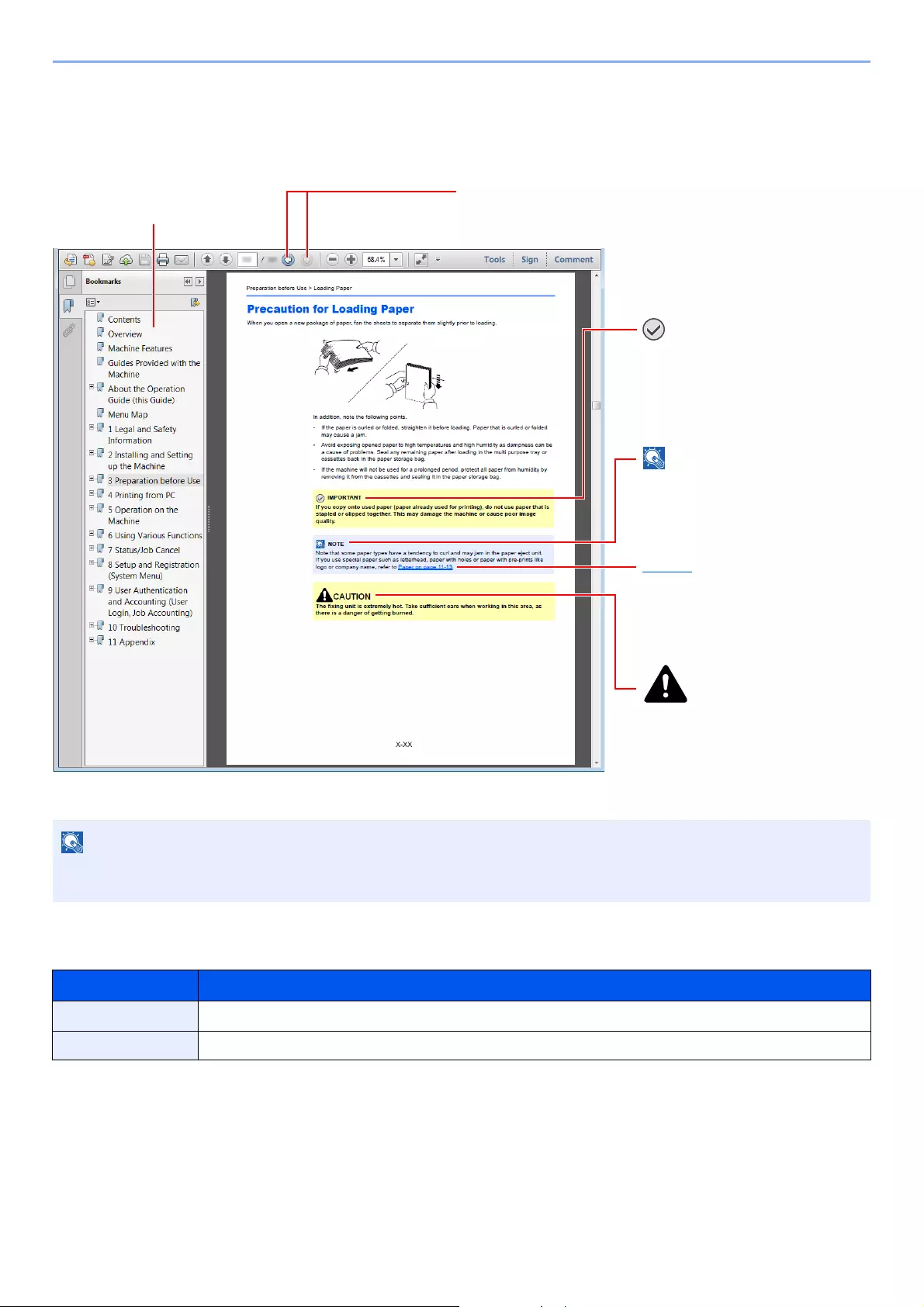
Conventions Used in This Guide
Adobe Reader XI is used as an example in the explanations below.
Certain items are indicated in this guide by the conventions described below.
The items that appear in Adobe Reader vary depending on how it is used. If the Table of Contents or tools do not
appear, refer to Adobe Reader Help.
Convention Description
[Bold] Indicates keys and buttons.
«Regular» Indicates a message or setting.
Click to move from the current page to the previously
displayed page. This is convenient when you want to return
to the page from which you jumped to the current page.
Click an item in the Table of
Contents to jump to the
corresponding page.
Indicates that personal injury or
mechanical damage may result
from insufficient attention to or
incorrect compliance with the
related points.
Indicates supplemental
explanations and reference
information for operations.
Indicates operational requirements
and restrictions to operate the
machine correctly, and avoid
damage to the machine or property.
Refer to
Click the underlined text to jump to
the corresponding page.

xx
> About the Operation Guide (this Guide)
Conventions used in procedures for operating the machine
In this Operation Guide, continuous operation of the keys on the touch panel is as follows:
Actual procedure Procedure indicated in this guide
Select the [System Menu/Counter] key.
Select [ ].
Select [Common Settings].
Select [Sound].
[System Menu/Counter] key > [Common Settings] > [Sound]
xxi
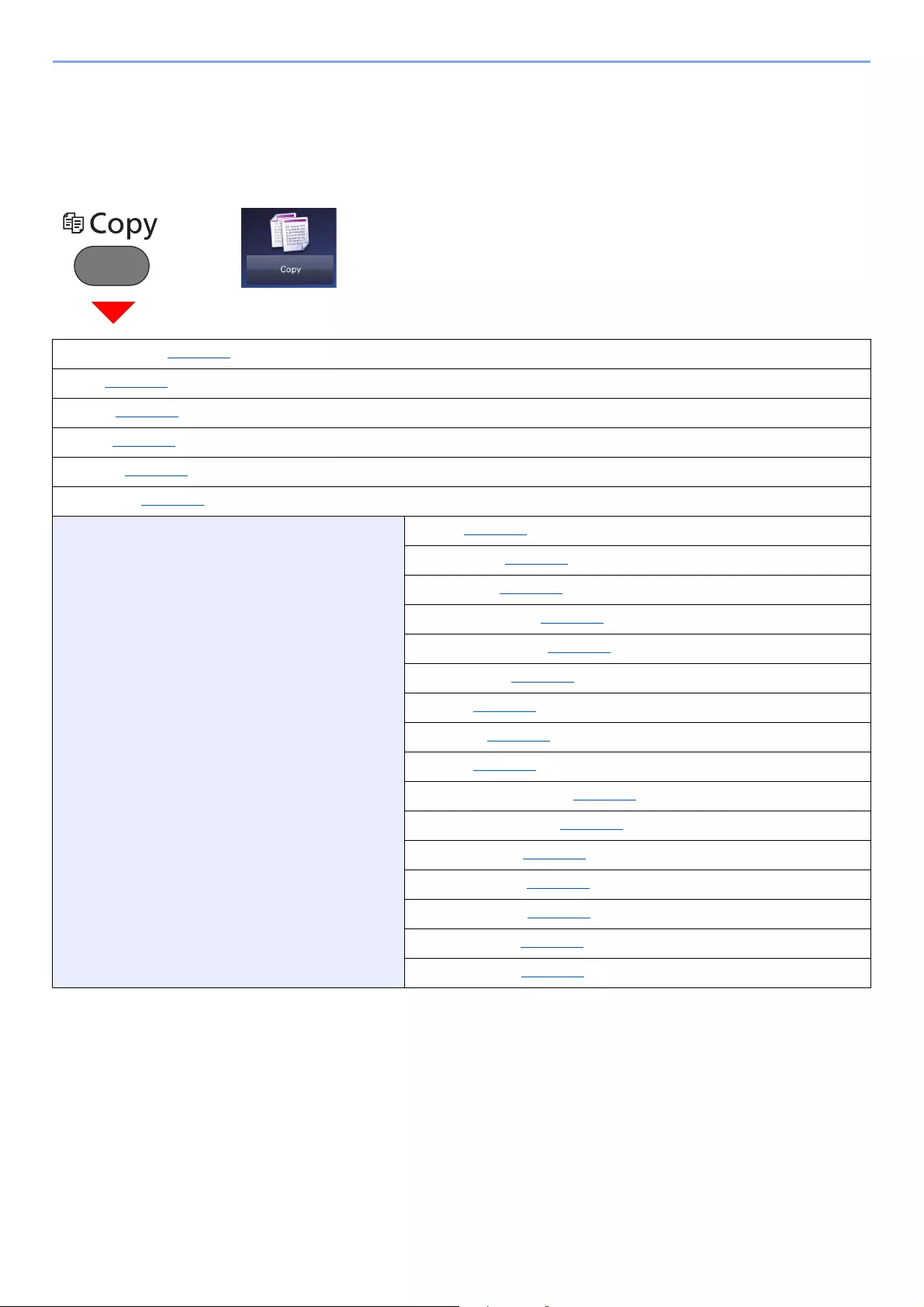
> Menu Map
Menu Map
This is a list of menus displayed on the touch panel. Depending on the settings, some menus may not be displayed.
Some menu names may differ from their reference titles.
or
Paper Selection (page 6-11)
Zoom (page 6-18)
Density (page 6-13)
Duplex (page 6-22)
Combine (page 6-20)
Quiet Mode (page 6-25)
Functions Collate (page 6-13)
ID Card Copy (page 6-10)
Original Size (page 6-10)
Original Orientation (page 6-12)
Mixed Size Originals (page 6-13)
Original Image (page 6-14)
EcoPrint (page 6-15)
Sharpness (page 6-16)
Contrast (page 6-16)
Background Density Adj. (page 6-17)
Prevent Bleed-through (page 6-17)
Skip Blank Page (page 6-26)
Continuous Scan (page 6-24)
Job Finish Notice (page 6-24)
File Name Entry (page 6-25)
Priority Override (page 6-25)
xxii
> Menu Map
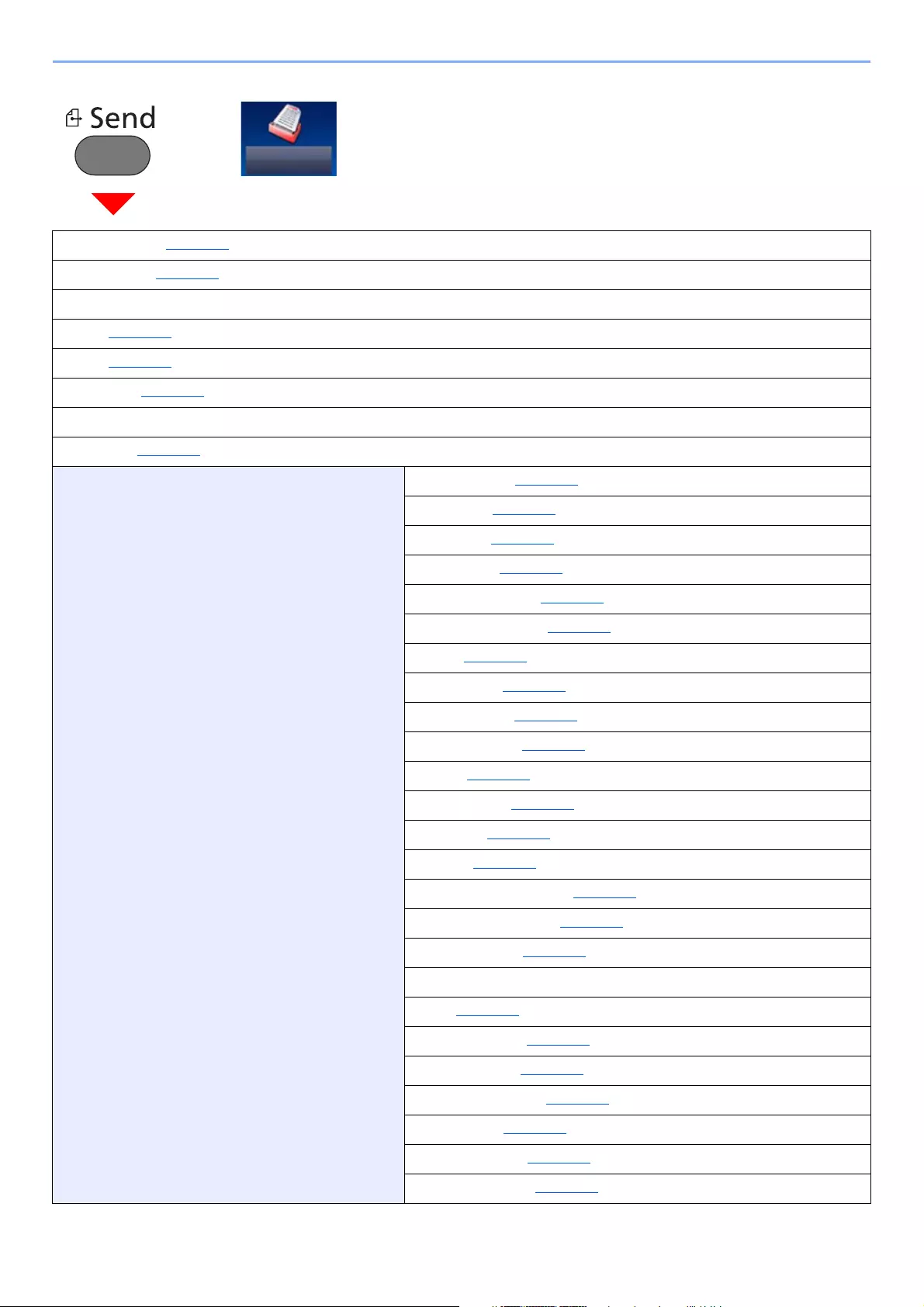
or
One Touch Key (page 5-22)
Address Book (page 5-20)
Ext Address Book (Refer to Command Center RX User Guide.)
E-mail (page 5-22)
Folder (page 5-23)
FAX Server (page 5-34)
FAX (Refer to FAX Operation Guide.)
WSD Scan (page 5-31)
Functions Color Selection (page 6-15)
Quiet Mode (page 6-25)
File Format (page 6-29)
Original Size (page 6-10)
Original Orientation (page 6-12)
Mixed Size Originals (page 6-13)
Duplex (page 6-27)
Sending Size (page 6-28)
File Separation (page 6-33)
Scan Resolution (page 6-33)
Density (page 6-13)
Original Image (page 6-14)
Sharpness (page 6-16)
Contrast (page 6-16)
Background Density Adj. (page 6-17)
Prevent Bleed-through (page 6-17)
Skip Blank Page (page 6-26)
FAX TX Resolution (Refer to FAX Operation Guide.)
Zoom (page 6-18)
Continuous Scan (page 6-24)
File Name Entry (page 6-25)
E-mail Subject/Body (page 6-33)
Long Original (page 6-34)
Job Finish Notice (page 6-24)
FTP Encrypted TX (page 6-34)
xxiii
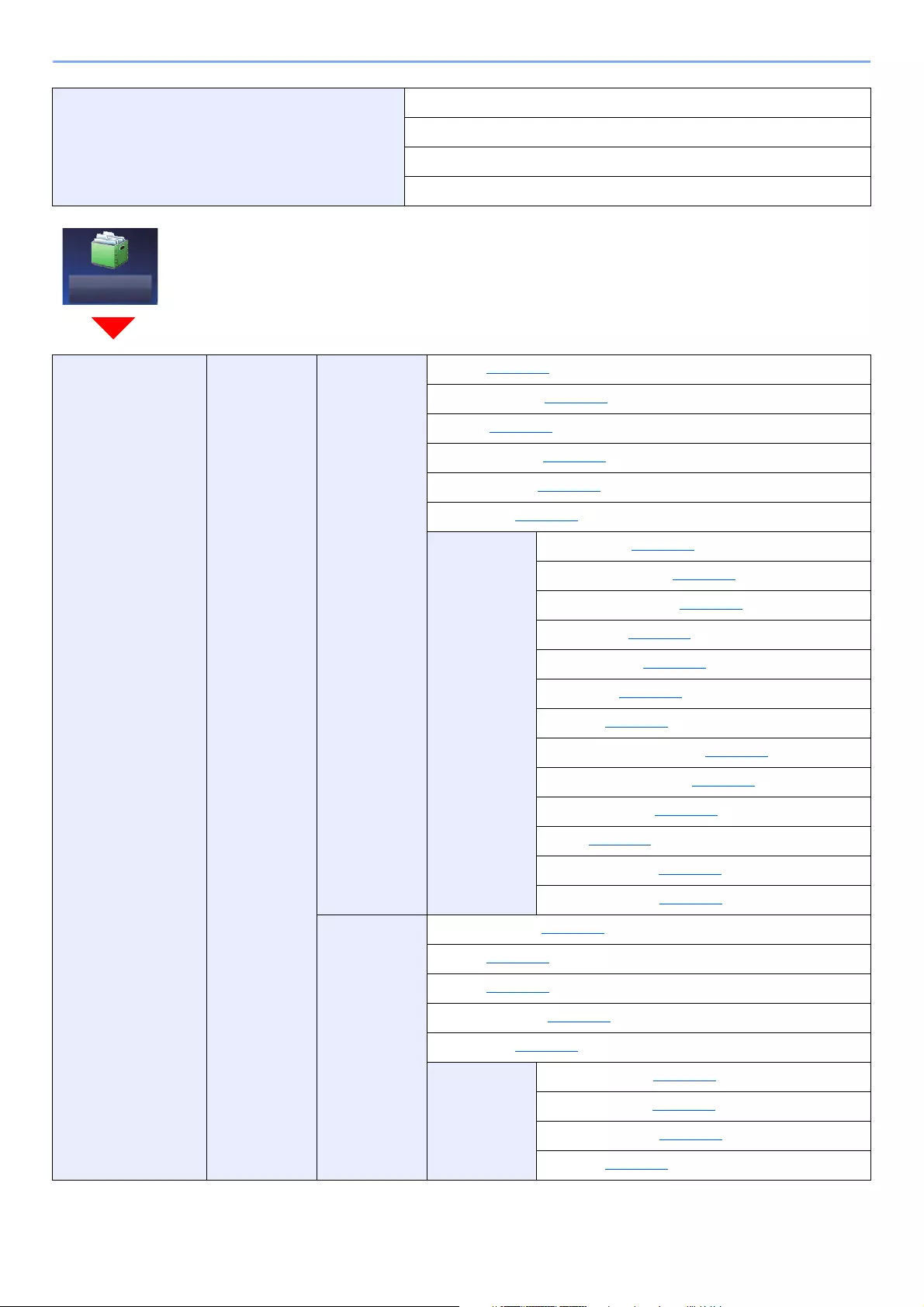
> Menu Map
Functions FAX Delayed Transmission (Refer to FAX Operation Guide.)
FAX Direct Transmission (Refer to FAX Operation Guide.)
FAX Polling RX (Refer to FAX Operation Guide.)
FAX TX Report (Refer to FAX Operation Guide.)
Custom Box Menu Store File Duplex (page 6-27)
Scan Resolution (page 6-33)
Density (page 6-13)
File Name Entry (page 6-25)
Color Selection (page 6-15)
Quiet Mode (page 6-25)
Functions Original Size (page 6-10)
Original Orientation (page 6-12)
Mixed Size Originals (page 6-13)
Storing Size (page 6-35)
Original Image (page 6-14)
Sharpness (page 6-16)
Contrast (page 6-16)
Background Density Adj. (page 6-17)
Prevent Bleed-through (page 6-17)
Skip Blank Page (page 6-26)
Zoom (page 6-18)
Continuous Scan (page 6-24)
Job Finish Notice (page 6-24)
Print Paper Selection (page 6-11)
Collate (page 6-13)
Duplex (page 6-22)
Delete after Print (page 6-34)
Quiet Mode (page 6-25)
Functions Priority Override (page 6-25)
File Name Entry (page 6-25)
Job Finish Notice (page 6-24)
EcoPrint (page 6-15)
xxiv
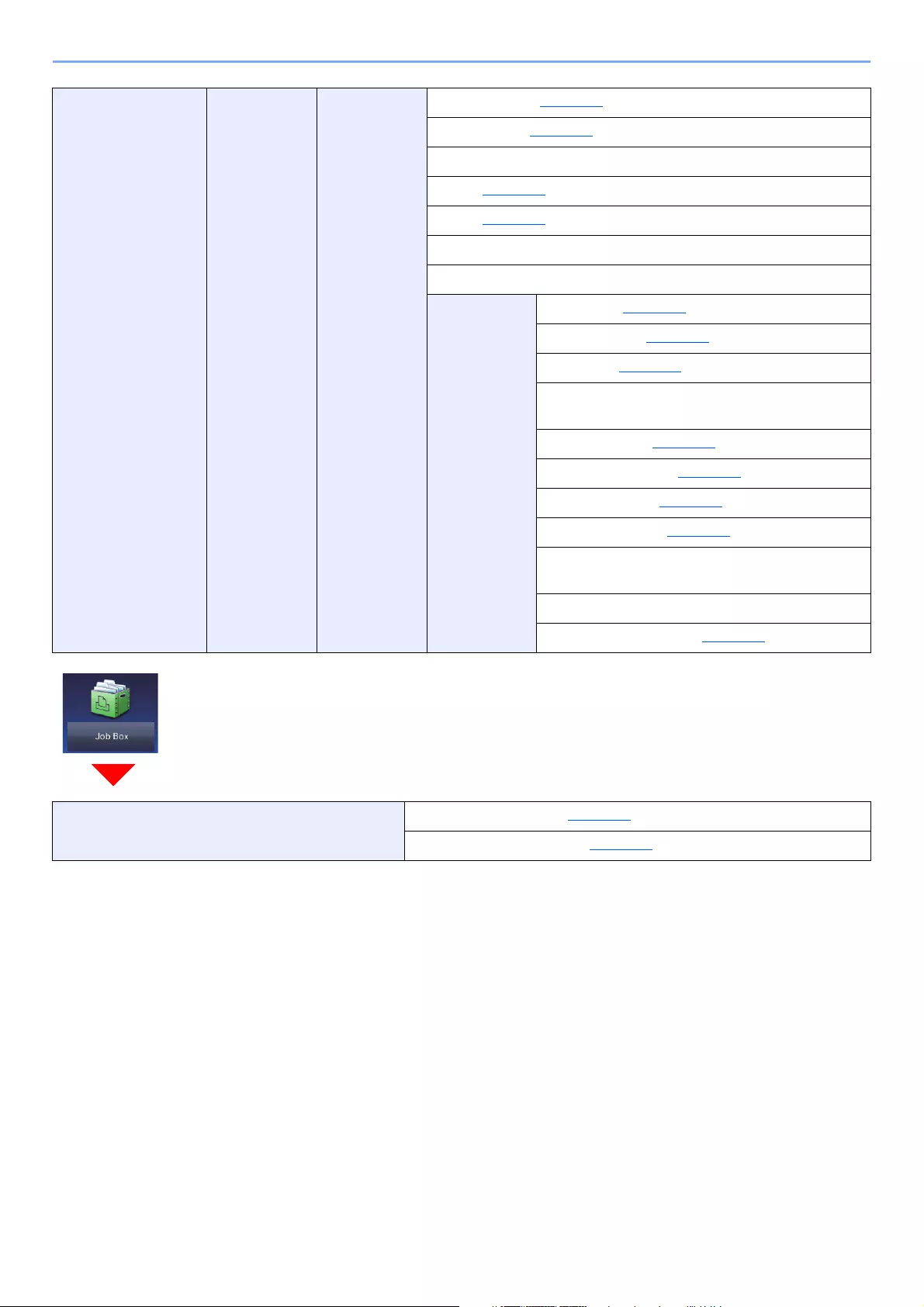
> Menu Map
Custom Box Menu Send One Touch Key (page 5-22)
Address Book (page 5-20)
Ext Address Book (Refer to Command Center RX User Guide.)
E-mail (page 5-22)
Folder (page 5-23)
FAX Server (Refer to FAX Operation Guide.)
FAX (Refer to FAX Operation Guide.)
Functions File Format (page 6-29)
File Separation (page 6-33)
Resolution (page 6-33)
FAX TX Resolution (Refer to FAX Operation
Guide.)
File Name Entry (page 6-25)
E-mail Subject/Body (page 6-33)
Job Finish Notice (page 6-24)
FTP Encrypted TX (page 6-34)
FAX Delayed Transmission (Refer to FAX
Operation Guide.)
FAX TX Report (Refer to FAX Operation Guide.)
Delete after Transmitted (page 6-34)
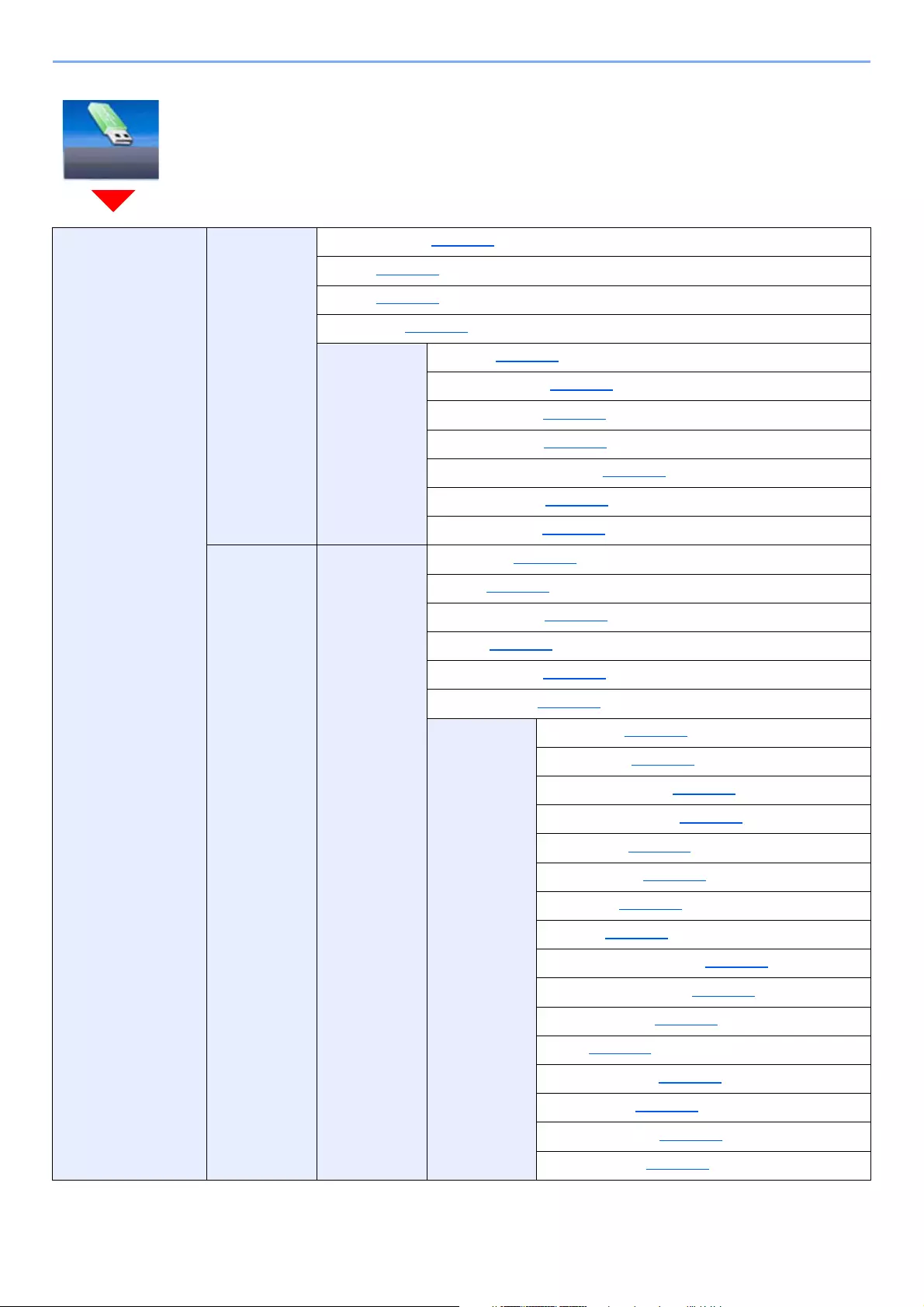
Job Box Private Print/Stored Job (page 4-13)
Quick Copy/Proof and Hold (page 4-17)
xxv
> Menu Map
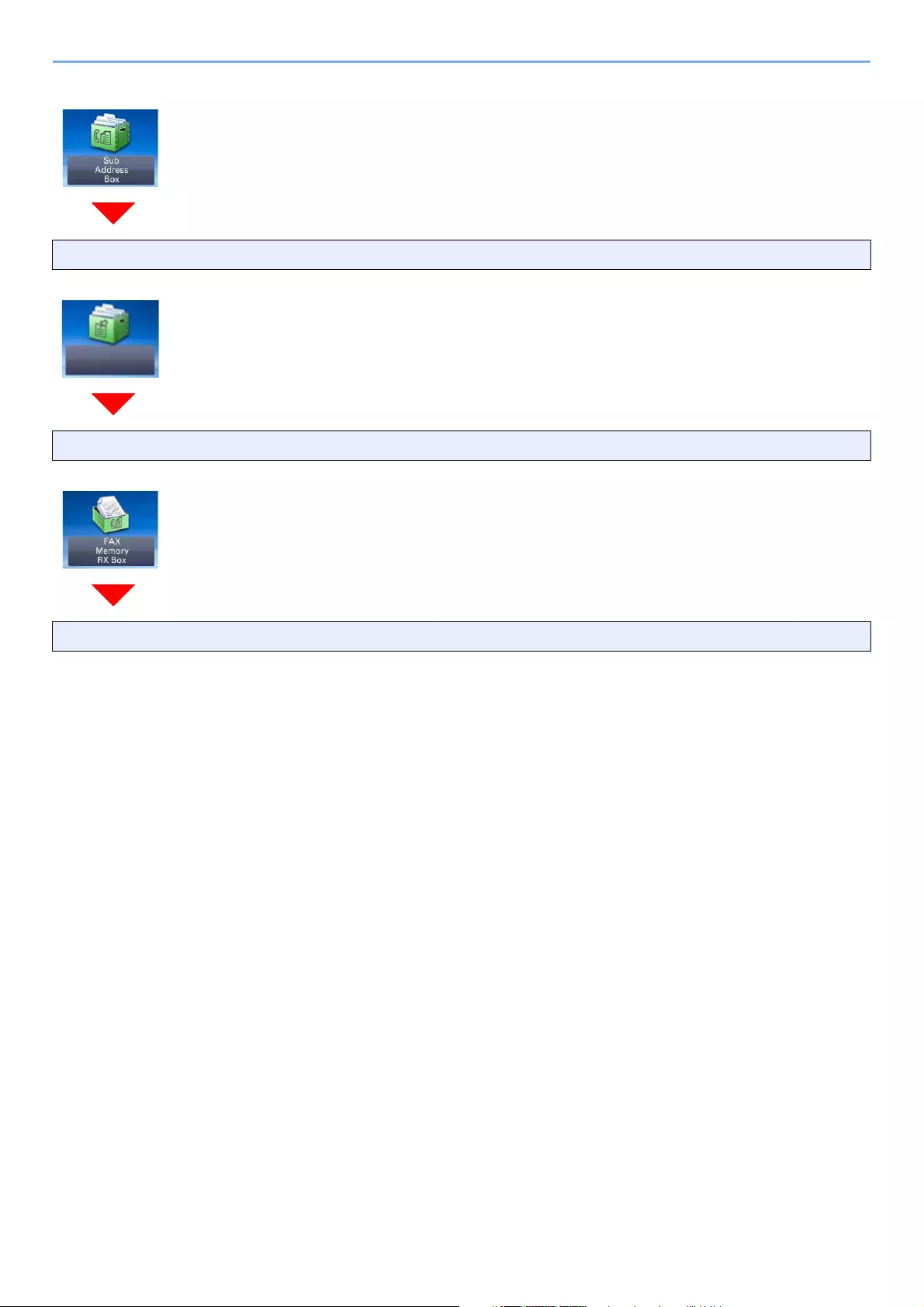
Removable Memory Print Paper Selection (page 6-11)
Collate (page 6-13)
Duplex (page 6-22)
Quiet Mode (page 6-25)
Functions EcoPrint (page 6-15)
Job Finish Notice (page 6-24)
File Name Entry (page 6-25)
Priority Override (page 6-25)
Encrypted PDF Password (page 6-35)
JPEG/TIFF Print (page 6-36)
XPS Fit to Page (page 6-36)
Menu Store File File Format (page 6-29)
Duplex (page 6-27)
Scan Resolution (page 6-33)
Density (page 6-13)
File Name Entry (page 6-25)
Color Selection (page 6-15)
Functions Quiet Mode (page 6-25)
Original Size (page 6-10)
Original Orientation (page 6-12)
Mixed Size Originals (page 6-13)
Storing Size (page 6-35)
Original Image (page 6-14)
Sharpness (page 6-16)
Contrast (page 6-16)
Background Density Adj. (page 6-17)
Prevent Bleed-through (page 6-17)
Skip Blank Page (page 6-26)
Zoom (page 6-18)
Continuous Scan (page 6-24)
Long Original (page 6-34)
Job Finish Notice (page 6-24)
File Separation (page 6-33)
xxvi
> Menu Map
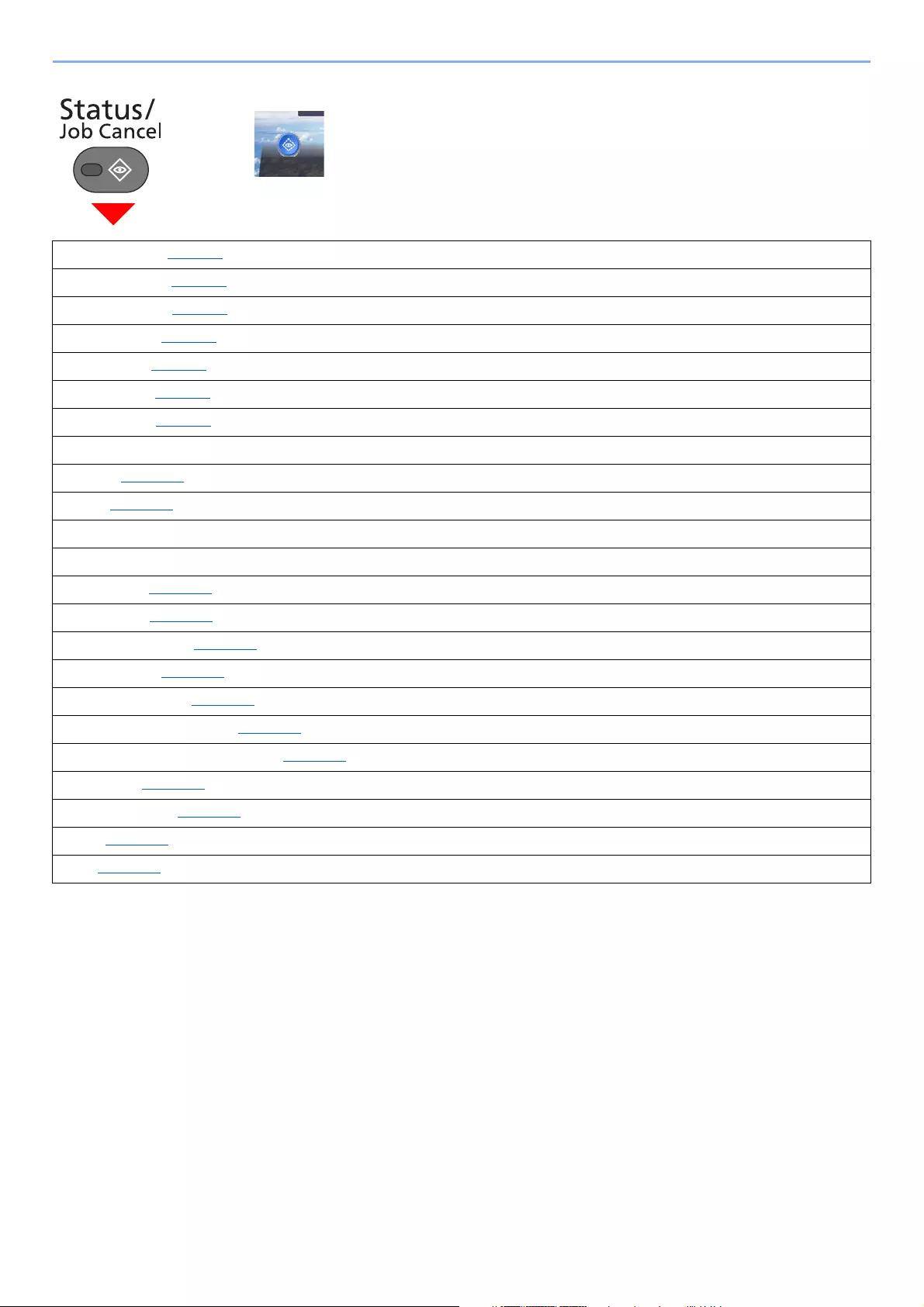
Sub Address Box (Refer to FAX Operation Guide.)
Polling Box (Refer to FAX Operation Guide.)
FAX Memory RX Box (Refer to FAX Operation Guide.)
xxvii
> Menu Map
or
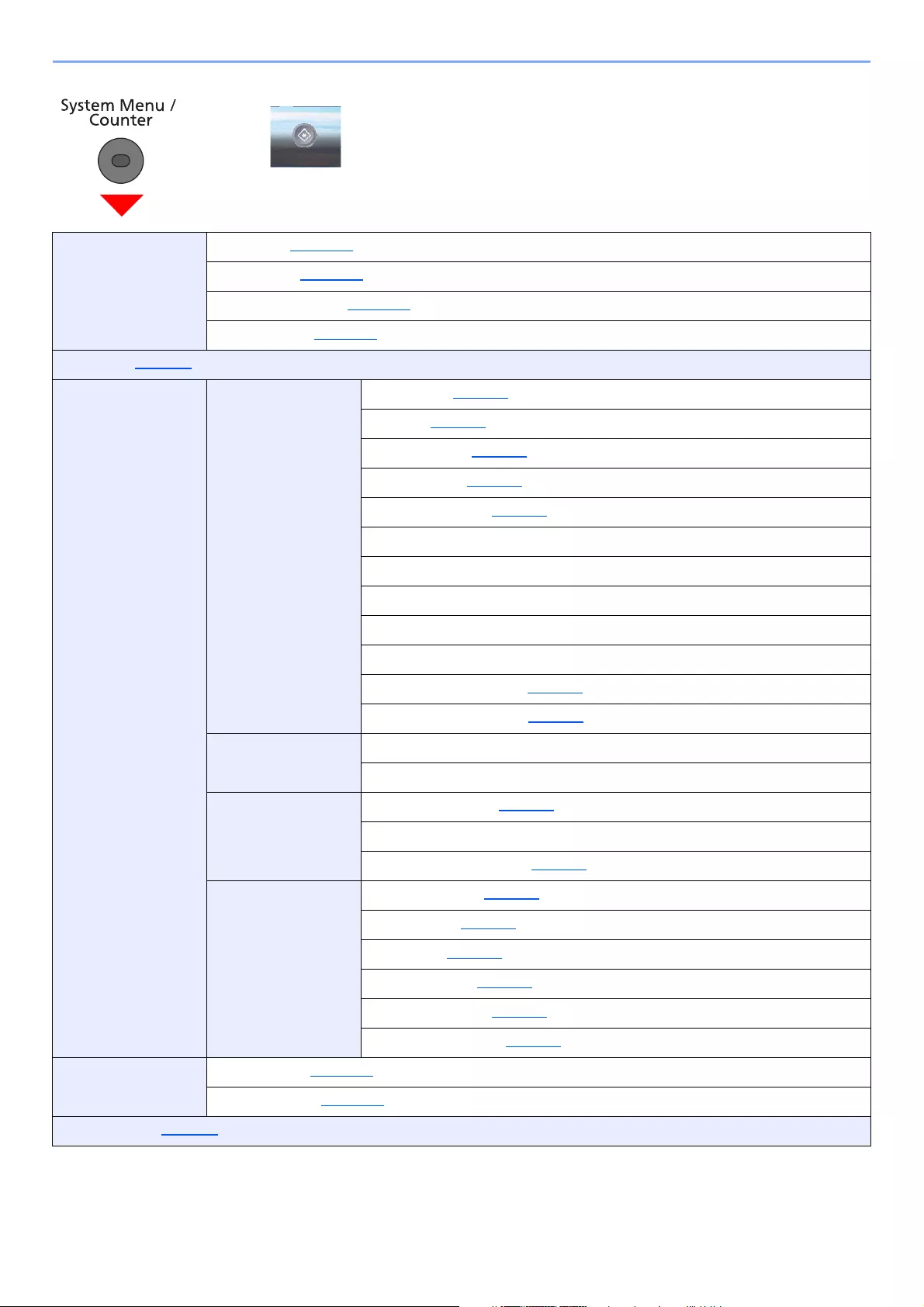
Print Job Status (page 7-8)
Send Job Status (page 7-4)
Store Job Status (page 7-5)
Scheduled Job (page 7-6)
Print Job Log (page 7-8)
Send Job Log (page 7-8)
Store Job Log (page 7-8)
FAX Job Log (Refer to FAX Operation Guide.)
Scanner (page 7-11)
Printer (page 7-11)
FAX Memory RX Box (refer to FAX Operation Guide.)
FAX (refer to FAX Operation Guide.)
Toner Status (page 7-13)
Paper Status (page 7-13)
Removable Memory (page 7-11)
USB Keyboard (page 7-11)
Bluetooth Keyboard (page 7-11)
Network Connection Status (page 7-11)
Option Network Connection Status (page 7-12)
Wi-Fi Direct (page 7-12)
Wireless Network (page 7-12)
Wi-Fi (page 7-12)
SSD (page 7-12)
xxviii
> Menu Map
or
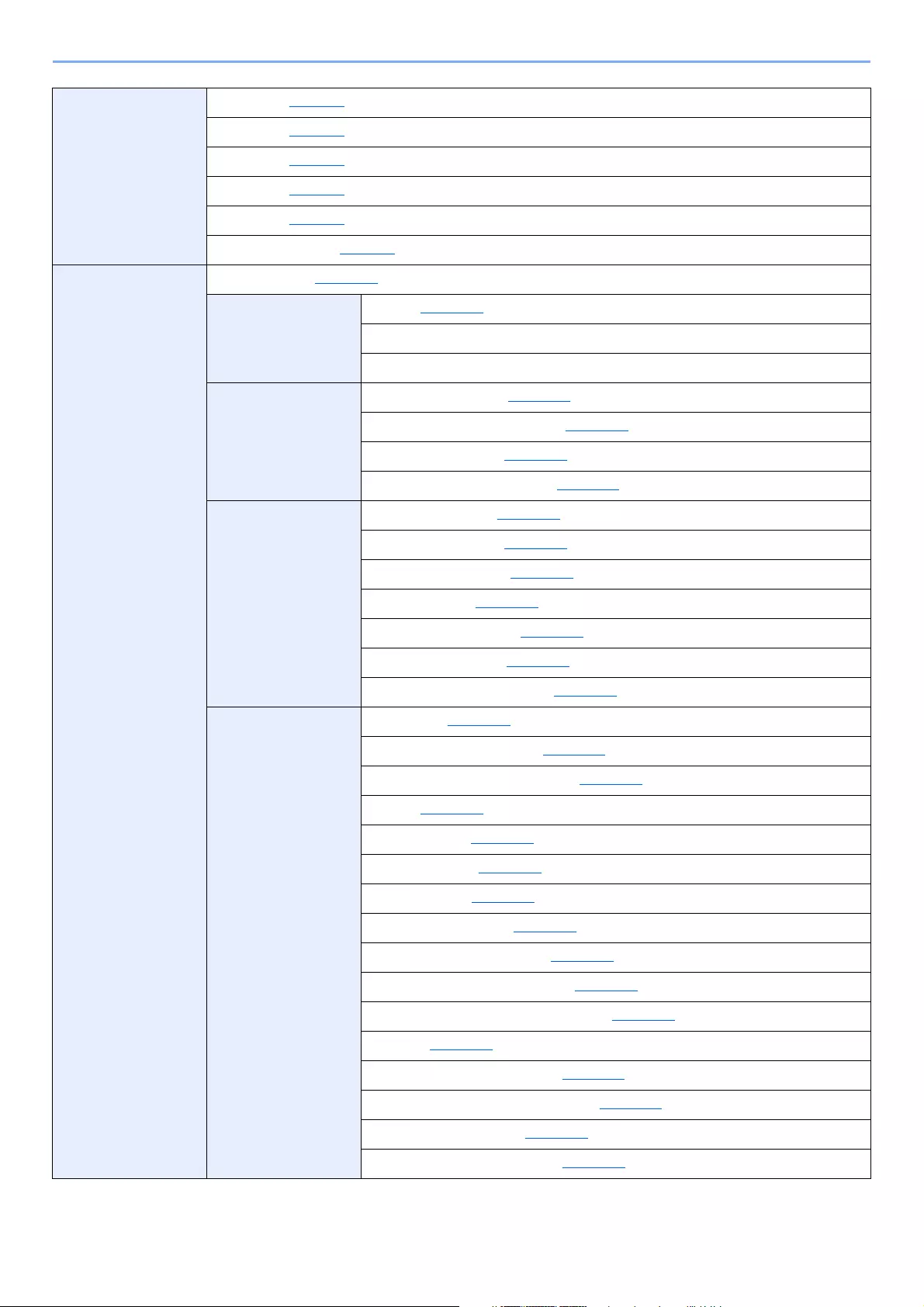
Quick Setup Wizard FAX Setup (page 2-35)
Paper Setup (page 2-35)
Energy Saver Setup (page 2-35)
Network Setup (page 2-36)
Language (page 8-5)
Report Report Print Status Page (page 8-5)
Font List (page 8-5)
Network Status (page 8-6)
Service Status (page 8-6)
Accounting Report (page 8-6)
Sub Address Box List (Refer to FAX Operation Guide.)
FAX List (Index) (Refer to FAX Operation Guide.)
FAX List (No.) (Refer to FAX Operation Guide.)
Outgoing FAX Report (Refer to FAX Operation Guide.)
Incoming FAX Report (Refer to FAX Operation Guide.)
Optional Network Status (page 8-6)
Data Sanitization Report (page 8-6)
Admin Report
Settings
Outgoing FAX Report (Refer to FAX Operation Guide.)
Incoming FAX Report (Refer to FAX Operation Guide.)
Result Report
Setting
Send Result Report (page 8-7)
RX Result Report (Refer to FAX Operation Guide.)
Job Finish Notice Setting (page 8-7)
Sending Log History Send Log History (page 8-7)
Auto Sending (page 8-7)
Destination (page 8-7)
Job Log Subject (page 8-7)
SSFC Log Subject (page 8-7)
Personal Information (page 8-7)
Counter Printed Pages (page 2-50)
Scanned Pages (page 2-50)
User Property (page 9-9)
xxix
> Menu Map
Cassette/MP Tray
Settings
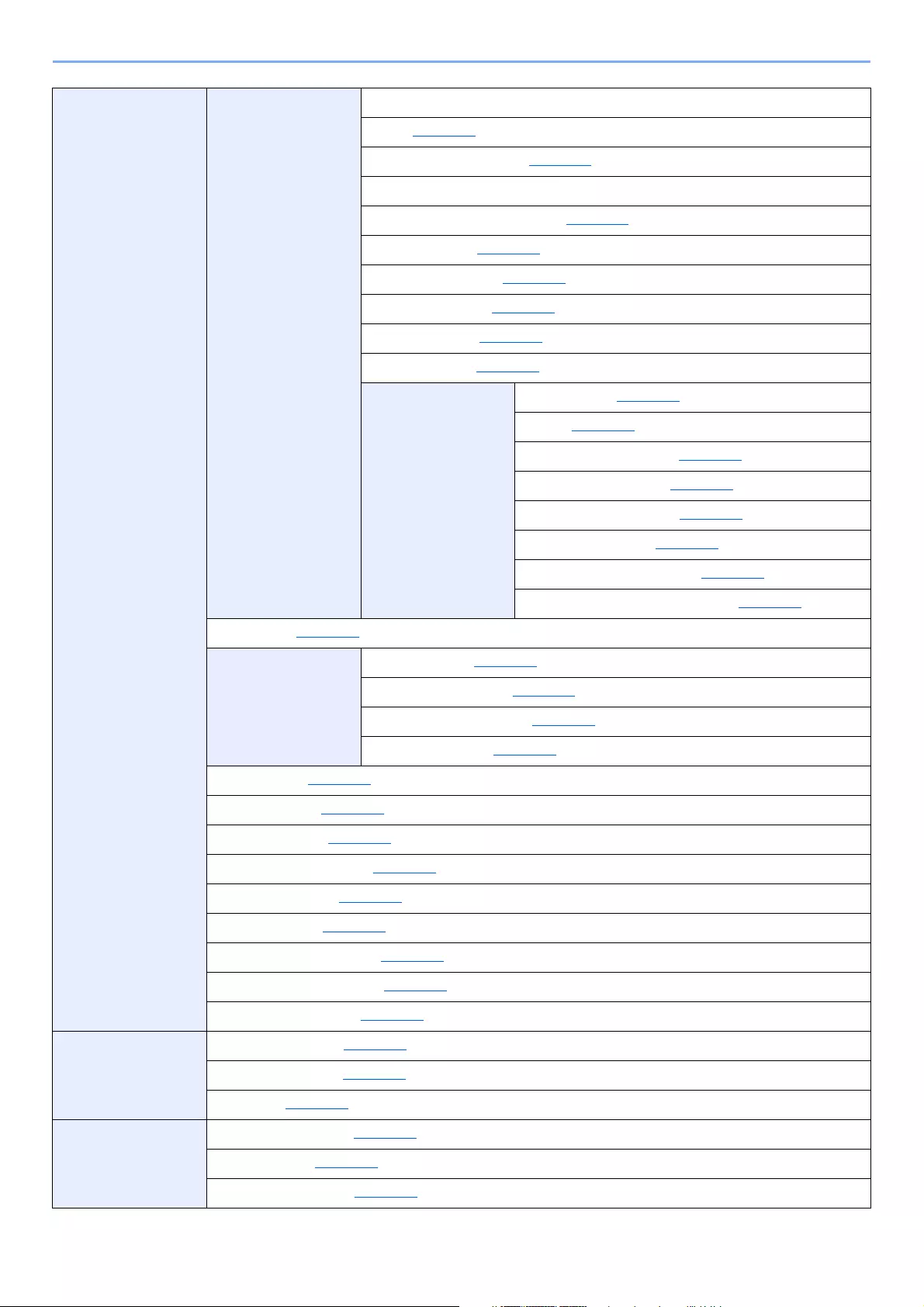
Cassette 1 (page 8-8)
Cassette 2 (page 8-8)
Cassette 3 (page 8-8)
Cassette 4 (page 8-8)
Cassette 5 (page 8-8)
Multi Purpose Tray (page 8-9)
Common Settings Default Screen (page 8-10)
Sound Buzzer (page 8-10)
FAX Speaker Volume (Refer to FAX Operation Guide.)
FAX Monitor Volume (Refer to FAX Operation Guide.)
Original Settings Custom Original Size (page 8-11)
Auto Detect Original Size (DP) (page 8-11)
Default Original Size (page 8-11)
Default Original Size (Platen) (page 8-11)
Paper Settings Custom Paper Size (page 8-12)
Media Type Settings (page 8-14)
Default Paper Source (page 8-13)
Paper Selection (page 8-13)
Media for Auto (B & W) (page 8-13)
Special Paper Action (page 8-13)
Show Paper Setup Message (page 8-13)
Function Defaults File Format (page 8-15)
Original Orientation (Copy) (page 8-15)
Original Orientation (Send/Store) (page 8-15)
Collate (page 8-15)
File Separation (page 8-15)
Scan Resolution (page 8-15)
Color Selection (page 8-15)
Original Image (Copy) (page 8-15)
Original Image (Send/Store) (page 8-15)
Background Density Adj. (Copy) (page 8-15)
Background Density Adj. (Send/Store) (page 8-15)
EcoPrint (page 8-15)
Prevent Bleed-through (Copy) (page 8-15)
Prevent Bleed-through (Send/Store) (page 8-15)
Skip Blank Page (Copy) (page 8-16)
Skip Blank Page (Send/Store) (page 8-16)
xxx
> Menu Map
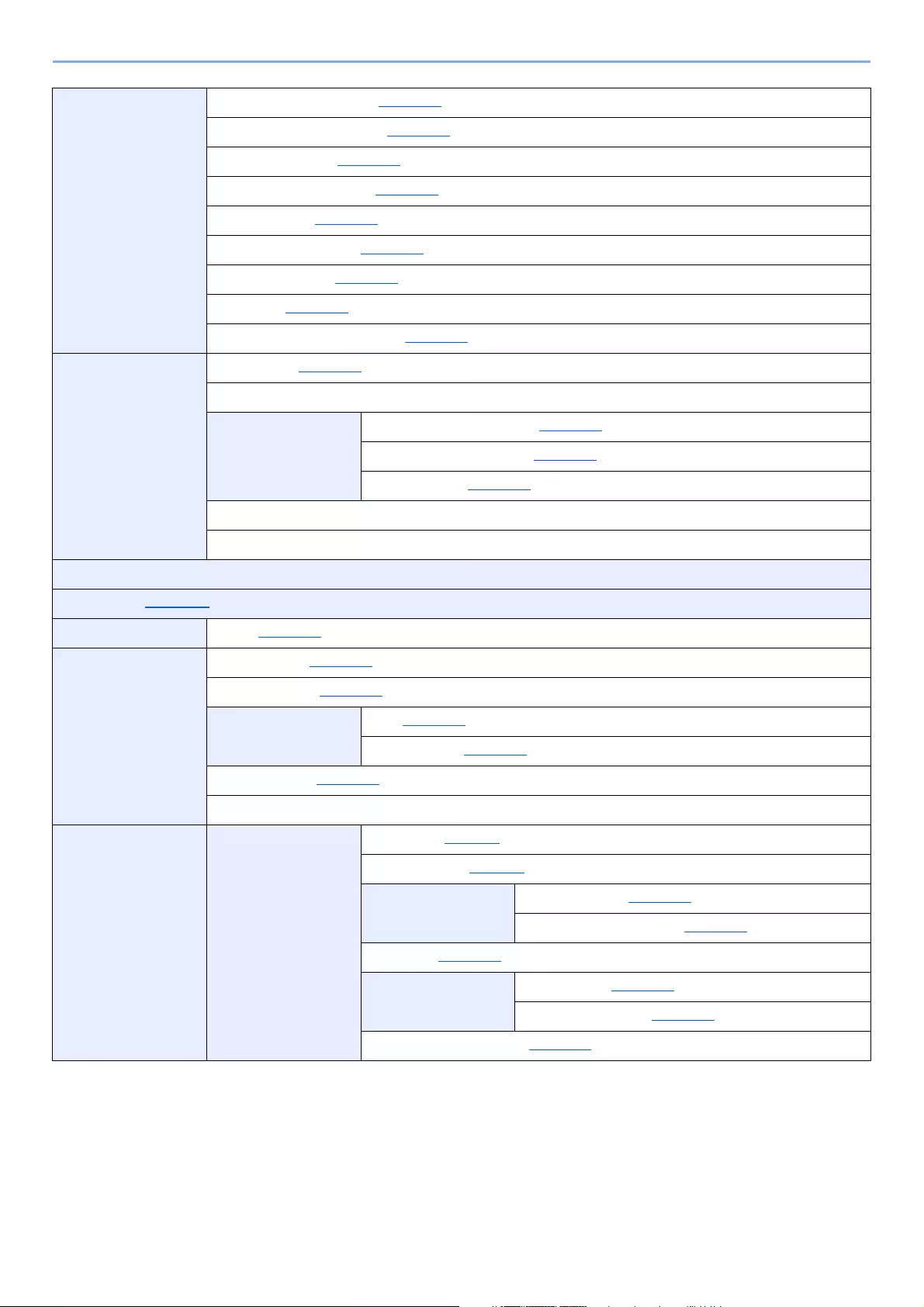
Common Settings Function Defaults FAX TX Resolution (Refer to FAX Operation Guide.)
Zoom (page 8-16)
Continuous Scan (Copy) (page 8-16)
Continuous Scan (FAX) (Refer to FAX Operation Guide.)
Continuous Scan (Send/Store) (page 8-16)
File Name Entry (page 8-16)
E-mail Subject/Body (page 8-16)
FTP Encrypted TX (page 8-16)
JPEG/TIFF Print (page 8-16)
XPS Fit to Page (page 8-16)
Detail Settings Image Quality (page 8-17)
PDF/A (page 8-17)
High Comp. PDF Image (page 8-17)
OCR Text Recognition (page 8-17)
Primary OCR Language (page 8-17)
OCR Output Format (page 8-17)
Detect Items to Skip (Copy) (page 8-17)
Detect Items to Skip (Send/Store) (page 8-17)
Preset Limit (page 8-17)
Error Handling Duplexing Error (page 8-17)
Paper Mismatch Error (page 8-17)
Inserted Paper Mismatch (page 8-18)
Multi Originals Fed (page 8-18)
Measurement (page 8-18)
Low Toner Alert (page 8-18)
Keyboard Layout (page 8-18)
Optional Keyboard Type (page 8-18)
Display Status/Log (page 8-19)
Remote Printing (page 8-19)
Function Key Assignment (page 8-19)
Show Power Off Message (page 8-19)
Message Banner Print (page 8-20)
Home Customize Desktop (page 2-14)
Customize Taskbar (page 2-14)
Wallpaper (page 2-14)
Copy Auto Paper Selection (page 8-20)
Auto % Priority (page 8-20)
Reserve Next Priority (page 8-20)
xxxi
> Menu Map
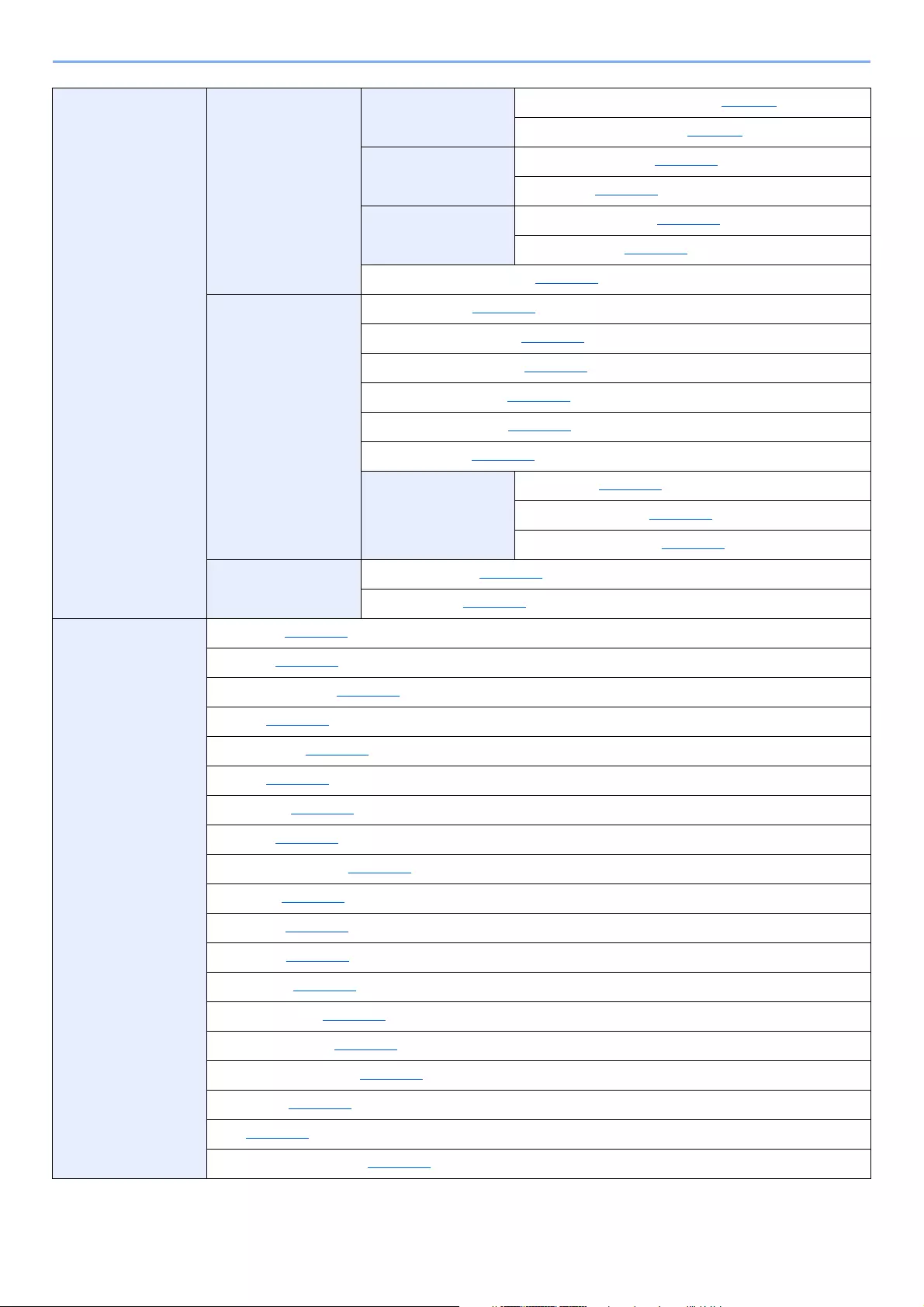
Send Dest. Check before Send (page 8-21)
Entry Check for New Dest. (page 8-21)
Send and Forward (page 8-21)
Color TIFF Compression (page 8-21)
Default Screen (page 8-21)
New Destination Entry (page 8-21)
Recall Destination (page 8-21)
Broadcast (page 8-21)
OCR Text Recognition Action (page 8-21)
Document Box Custom Box (page 5-39)
Sub Address Box (Refer to FAX Operation Guide.)
Job Box Quick Copy Job Retention (page 8-22)
Deletion of Job Retention (page 8-22)
Storage Media (page 8-22)
Polling Box (Refer to FAX Operation Guide.)
FAX Memory RX Box (Refer to FAX Operation Guide.)
FAX (Refer to FAX Operation Guide.)
Application (page 5-11)
Internet Proxy (page 8-23)
Address Book/One
Touch
Address Book (page 3-28)
One Touch Key (page 3-33)
Address Book
Defaults
Sort (page 8-23)
Address Book (page 8-23)
Edit Restriction (page 8-24)
Print List (Refer to FAX Operation Guide.)
User Login/Job
Accounting
User Login Settings User Login (page 9-3)
Local User List (page 9-6)
ID Card Settings Keyboard Login (page 9-30)
Additional Authentication (page 9-30)
PIN Login (page 9-31)
Simple Login
Settings
Simple Login (page 9-27)
Simple Login Setup (page 9-28)
Local User Authorization (page 9-18)
xxxii
> Menu Map
User Login/Job
Accounting
User Login Settings Authentication
Security
User Account Lockout Settings (page 9-4)
Password Policy Settings (page 9-5)
Group Authorization
Set.
Group Authorization (page 9-19)
Group List (page 9-20)
Guest Authorization
Set.
Guest Authorization (page 9-22)
Guest Property (page 9-23)
Obtain NW User Property (page 9-25)
Job Accounting
Settings
Job Accounting (page 9-34)
Job Accounting Access (page 9-35)
Print Accounting Report (page 9-46)
Total Job Accounting (page 9-45)
Each Job Accounting (page 9-45)
Accounting List (page 9-36)
Default Setting Apply Limit (page 9-44)
Copy/Printer Count (page 9-44)
Default Counter Limit (page 9-44)
Unknown User
Settings
Unknown ID Job (page 9-48)
User Property (page 9-49)
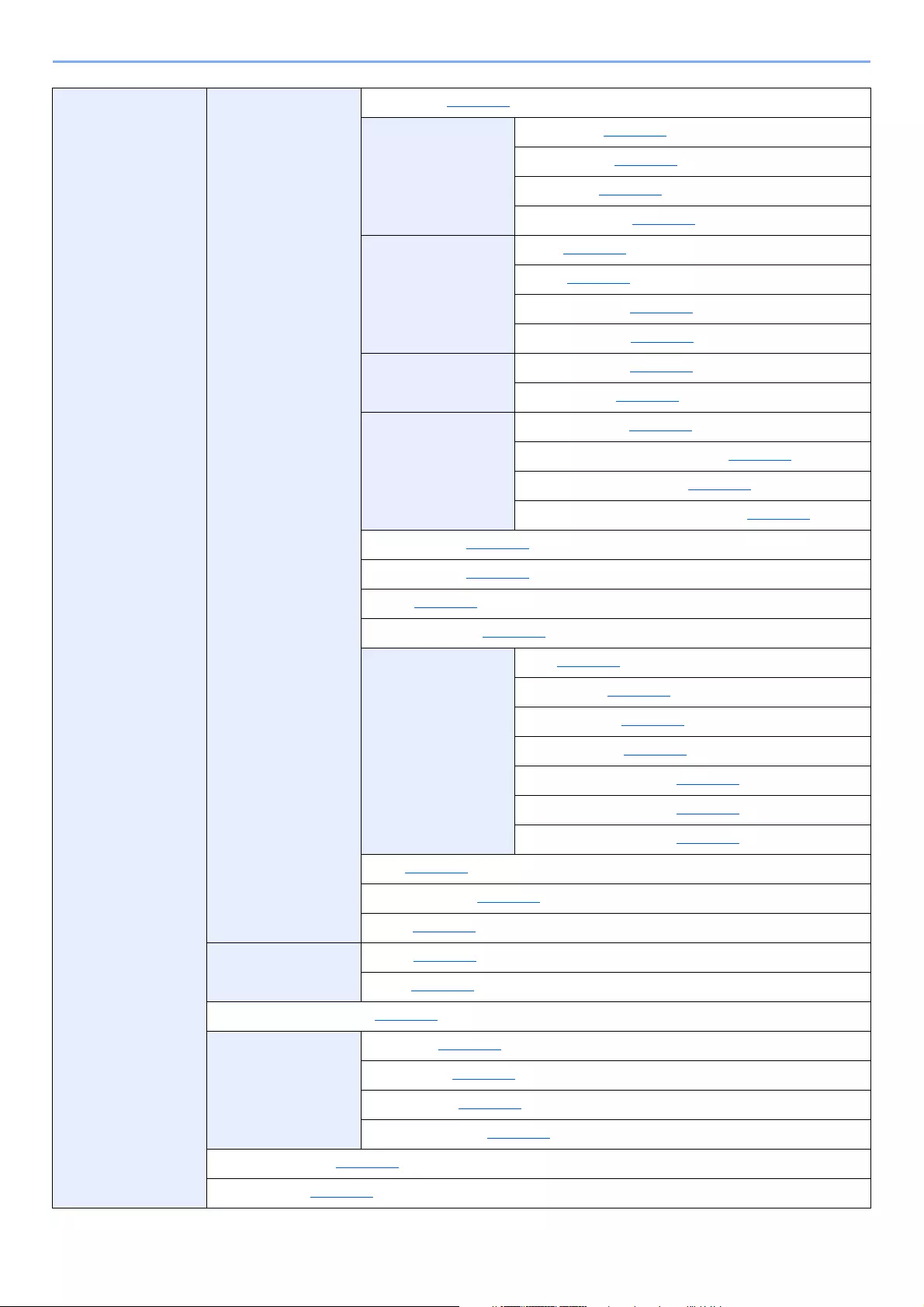
Printer Emulation (page 8-24)
EcoPrint (page 8-24)
Override A4/Letter (page 8-25)
Duplex (page 8-25)
Paper Output (page 8-25)
Copies (page 8-25)
Orientation (page 8-25)
Wide A4 (page 8-25)
Form Feed TimeOut (page 8-25)
LF Action (page 8-25)
CR Action (page 8-25)
Job Name (page 8-25)
User Name (page 8-25)
MP Tray Priority (page 8-25)
Paper Feed Mode (page 8-26)
Auto cassette Change (page 8-26)
Resolution (page 8-26)
KIR (page 8-26)
Printing Job Terminator (page 8-26)
xxxiii
> Menu Map
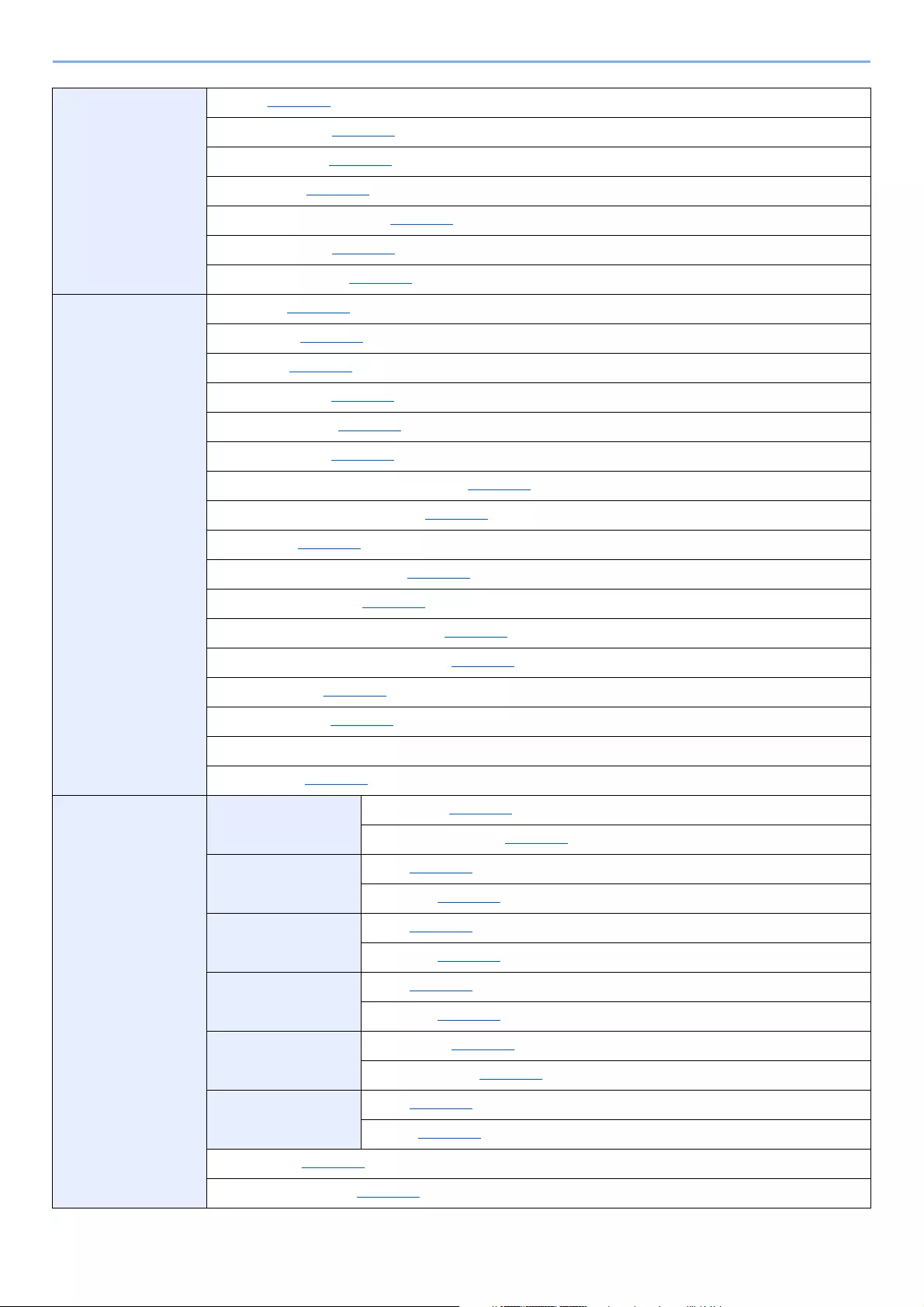
System/Network Network Host Name (page 8-27)
Wi-Fi Direct Settings Wi-Fi Direct (page 8-27)
Device Name (page 8-27)
IP Address (page 8-27)
Auto Disconnect (page 8-27)
Wi-Fi Settings Wi-Fi (page 8-27)
Setup (page 8-28)
TCP/IP Settings (page 8-29)
Restart Network (page 8-30)
Wired Network
Settings
TCP/IP Settings (page 8-30)
LAN Interface (page 8-30)
Bonjour Protocol Setting (page 8-31)
Available Network (Wi-Fi Direct) (page 8-31)
Available Network (Wi-Fi) (page 8-31)
Available Network (Wired Network) (page 8-31)
IP Filter (IPv4) (page 8-31)
IP Filter (IPv6) (page 8-31)
IPSec (page 8-31)
Protocol Settings (page 8-31)
Security Settings SSL (page 8-37)
IPP Security (page 8-37)
HTTP Security (page 8-37)
SMTP Security (page 8-37)
POP3 Security (User 1) (page 8-37)
POP3 Security (User 2) (page 8-37)
POP3 Security (User 3) (page 8-37)
Ping (page 8-37)
Restart Network (page 8-38)
Proxy (page 8-38)
Optional Network Setup (page 8-38)
Basic (page 8-39)
Primary Network (Client) (page 8-40)
Interface Block
Setting
USB Host (page 8-41)
USB Device (page 8-41)
USB Storage (page 8-41)
Optional Interface (page 8-41)
Bluetooth Settings (page 8-41)
Security Level (page 8-41)
xxxiv
> Menu Map
System/Network Restart (page 8-42)
RAM Disk Setting (page 8-42)
Optional Memory (page 8-42)
Data Security (page 8-43)
OCR Dictionary Installation (page 8-44)
Optional Function (page 8-45)
FAX Server Settings (page 8-45)
Date/Timer/Energy
Saver
Date/Time (page 8-46)
Date Format (page 8-46)
Time Zone (page 8-46)
Auto Panel Reset (page 8-46)
Panel Reset Timer (page 8-46)
Low Power Timer (page 8-46)
Sleep Level (models except for Europe) (page 8-46)
Sleep Rules (models for Europe) (page 8-47)
Sleep Timer (page 8-47)
Energy Saver Recovery Level (page 8-47)
Weekly Timer Settings (page 8-47)
Power Off Rule (models for Europe) (page 8-48)
Power Off Timer (models for Europe) (page 8-48)
Auto Error Clear (page 8-48)
Error Clear Timer (page 8-48)
Unusable Time (Refer to FAX Operation Guide.)
Ping Timeout (page 8-48)
Adjustment/
Maintenance
Quiet Mode Settings Quiet Mode (page 8-49)
Specify for Each Job (page 8-49)
Density Adjustment Copy (page 8-49)
Send/Box (page 8-49)
Sharpness
Adjustment
Copy (page 8-49)
Send/Box (page 8-49)
Contrast Copy (page 8-49)
Send/Box (page 8-49)
Background Density
Adj.
Copy (Auto) (page 8-49)
Send/Box (Auto) (page 8-49)
Toner Save Level
(EcoPrint)
Copy (page 8-49)
Printer (page 8-49)
Print Density (page 8-49)
Auto Color Correction (page 8-50)

xxxv
> Menu Map
Adjustment/
Maintenance
Correcting Black Line (page 8-50)
Display Brightness (page 8-50)
Drum Refresh 1 (page 8-50)
Drum Refresh 2 (page 8-50)
Auto Drum Refresh (page 8-50)
Service Setting (page 8-50)

1-1
1 Legal and Safety
Information
Please read this information before using your machine. This chapter provides information on the following topics.
Notice ………..…………….…………….…………….………….…………….……………..…………………………..…………….…….. 1-2
Safety Conventions in This Guide ……………………….……………….………………..……………….……..…..…….. 1-2
Environment ….…………….…………….…………….…………….……………..…………….…………..…………………….. 1-3
Precautions for Use …..…………….…………….…………….…………….…………….……………..…..…………………. 1-4
Laser Safety (Europe) ……..………………..…………………….……………..…………….…………….…………………... 1-5
SAFETY OF LASER BEAM (USA) ….…………….……………..…………………………………………………………… 1-6
Safety Instructions Regarding the Disconnection of Power ………….……………….……………….……………… 1-7
Compliance and Conformity ……..…………….…………….…………….…………….……………..……………………... 1-7
Other precautions (for users in California, the United States) …………………………….…………….…………… 1-7
Warranty (the United States and Canada) …………….…………….……………….………………..…………….…….. 1-8
Legal Restriction on Copying/Scanning …….………….…………….…………….…………….…………….…..…….. 1-10
EN ISO 7779 …………….…………….…………………………..………………………………………………….……………. 1-10
EK1-ITB 2000 .…………….…………….…………….…………….……………..…………….…………….……………….… 1-10
Wireless Connection (Mexico only) …….……………….…………….……………….………………..…………….…… 1-10
Security Precautions when Using Wireless LAN (If equipped) ………..……………….……………….…………. 1-10
Limited Use of This Product (If equipped) ………………….………………..……………….……………….…..…….. 1-11
Legal Information ………………………….…………….……………..………….…………….…………….……………….… 1-12
Energy Saving Control Function ……..………………..……………….……………….………………..……….………… 1-18
Automatic 2-Sided Print Function ……….……………….……………….………………..……………….…….………… 1-18
Resource Saving — Paper ……………….………….…….…………….…………….…………….…………….…….……… 1-18
Environmental benefits of «Power Management» …………….…………….…………….…………….…………….... 1-18
Energy Star (ENERGY STAR®) Program ……………………..……………….……………….………………..……... 1-19
1-2
Legal and Safety Information > Notice
Notice
Safety Conventions in This Guide
The sections of this guide and parts of the machine marked with symbols are safety warnings meant to protect the user,
other individuals and surrounding objects, and ensure correct and safe usage of the machine. The symbols and their
meanings are indicated below.
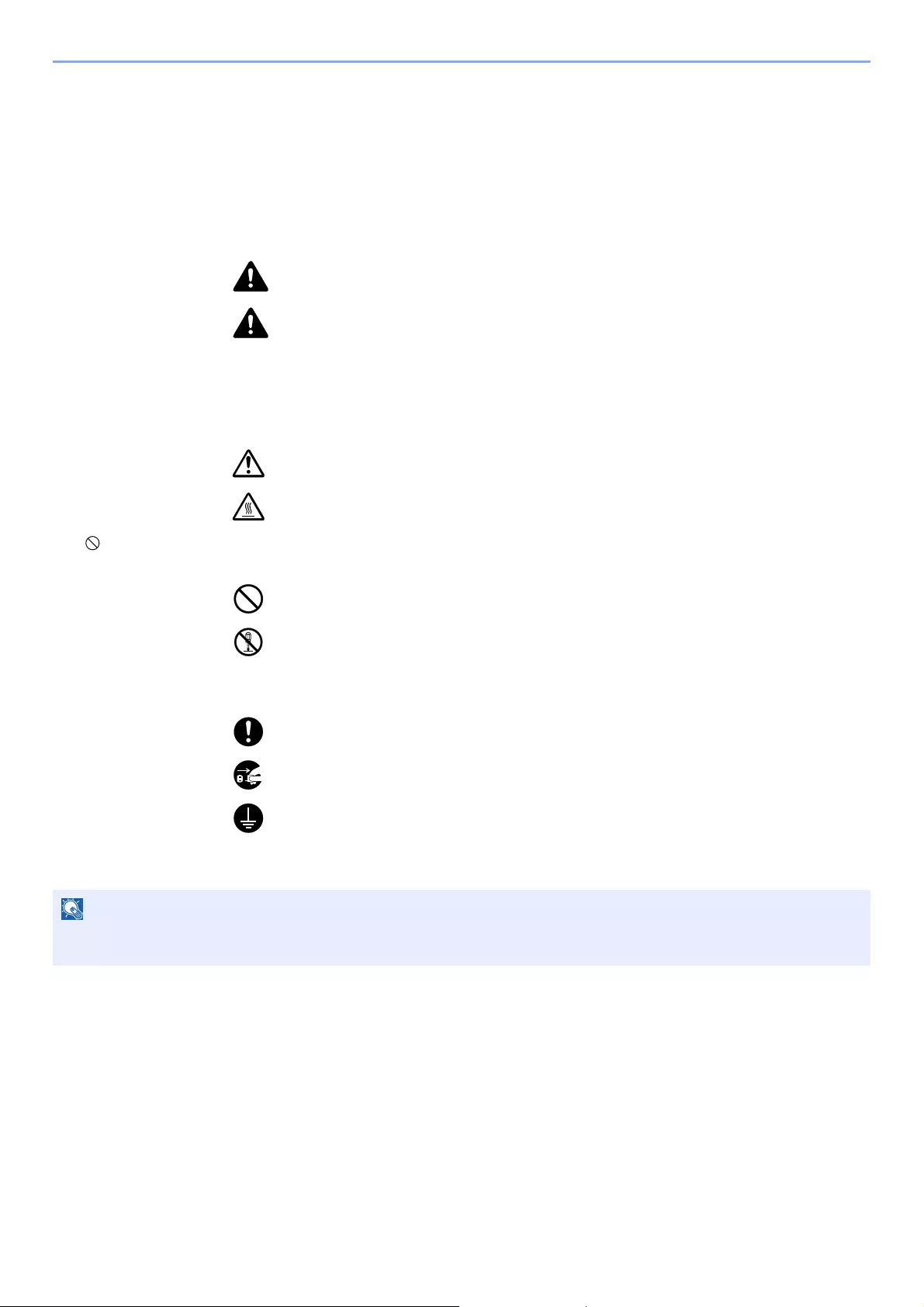
WARNING: Indicates that serious injury or even death may result from insufficient
attention to or incorrect compliance with the related points.
CAUTION: Indicates that personal injury or mechanical damage may result from
insufficient attention to or incorrect compliance with the related points.
Symbols
The symbol indicates that the related section includes safety warnings. Specific points of attention are indicated
inside the symbol.
… [General warning]
… [Warning of high temperature]
The symbol indicates that the related section includes information on prohibited actions. Specifics of the prohibited
action are indicated inside the symbol.
… [Warning of prohibited action]
… [Disassembly prohibited]
The symbol indicates that the related section includes information on actions which must be performed. Specifics of
the required action are indicated inside the symbol.
… [Alert of required action]
… [Remove the power plug from the outlet]
… [Always connect the machine to an outlet with a ground connection]
Please contact your service representative to order a replacement if the safety warnings in this Operation Guide are
illegible or if the guide itself is missing (fee required).
An original which resembles a bank note closely may not be copied properly in some rare cases because this
machine is equipped with a counterfeiting prevention function.

1-3
Legal and Safety Information > Notice
Environment
The service environmental conditions are as follows:
Avoid the following locations when selecting a site for the machine.
• Avoid locations near a window or with exposure to direct sunlight.
• Avoid locations with vibrations.
• Avoid locations with drastic temperature fluctuations.
• Avoid locations with direct exposure to hot or cold air.
• Avoid poorly ventilated locations.
If the floor is delicate against casters, when this machine is moved after installation, the floor material may be damaged.
During copying, some ozone is released, but the amount does not cause any ill effect to one’s health. If, however, the
machine is used over a long period of time in a poorly ventilated room or when making an extremely large number of
copies, the smell may become unpleasant. To maintain the appropriate environment for copy work, it is suggested that
the room be properly ventilated.
Temperature 50 to 90.5 °F (10 to 32.5 °C)
Humidity 15 to 80%

1-4
Legal and Safety Information > Notice
Precautions for Use
Cautions when handling consumables
CAUTION
Do not attempt to incinerate parts which contain toner. Dangerous sparks may cause burns.
Keep parts which contain toner out of the reach of children.
If toner happens to spill from parts which contain toner, avoid inhalation and ingestion, as well as contact with your eyes
and skin.
• If you do happen to inhale toner, move to a place with fresh air and gargle thoroughly with a large amount of water. If
coughing develops, contact a physician.
• If you do happen to ingest toner, rinse your mouth with water and drink 1 or 2 cups of water to dilute the contents of
your stomach. If necessary, contact a physician.
• If you do happen to get toner in your eyes, flush them thoroughly with water. If there is any remaining tenderness,
contact a physician.
• If toner does happen to get on your skin, wash with soap and water.
Do not attempt to force open or destroy parts which contain toner.
Other precautions
Return the exhausted toner container and waste toner box to your dealer or service representative. The collected toner
container and waste toner box will be recycled or disposed in accordance with the relevant regulations.
Store the machine while avoiding exposure to direct sunlight.
Store the machine in a place where the temperature stays below 40 °C while avoiding sharp changes of temperature
and humidity.
If the machine will not be used for an extended period of time, remove the paper from the cassette and the Multi Purpose
(MP) Tray, return it to its original package and reseal it.

1-5
Legal and Safety Information > Notice
Laser Safety (Europe)
Laser radiation could be hazardous to the human body. For this reason, laser radiation emitted inside this machine is
hermetically sealed within the protective housing and external cover. In the normal operation of the product by user, no
radiation can leak from the machine.
This machine is classified as Class 1 laser product under IEC/EN 60825-1:2014.
Regarding CLASS 1 laser products, information is provided on the rating label.
1-6
Legal and Safety Information > Notice
SAFETY OF LASER BEAM (USA)
1. Safety of laser beam
This machine has been certified by the manufacturer to Class 1 level under the radiation performance standards
established by the U.S.DHHS (Department of Health and Human Services) in 1968. This indicates that the product is
safe to use during normal operation and maintenance. The laser optical system, enclosed in a protective housing and
sealed within the external covers, never permits the laser beam to escape.
2. The CDRH Act
A laser-product-related act was implemented on Aug. 2, 1976, by the Center for Devices and Radiological Health
(CDRH) of the U.S. Food and Drug Administration (FDA). This act prohibits the sale of laser products in the U.S. without
certification, and applies to laser products manufactured after Aug. 1, 1976. The label shown below indicates
compliance with the CDRH regulations and must be attached to laser products marketed in the United States. On this
machine, the label is on the rear.
3. Maintenance
For safety of the service personnel, follow the maintenance instructions in the other section of this manual.
4. Safety switch
The power to the laser unit is cut off when the front cover is opened.
ECOSYS M3145idn / ECOSYS M3645idn /
ECOSYS M3655idn / ECOSYS M3660idn
1-7
Legal and Safety Information > Notice
Safety Instructions Regarding the Disconnection of
Power
Caution: The power plug is the main isolation device! Other switches on the equipment are only functional switches and
are not suitable for isolating the equipment from the power source.
Attention: Le débranchement de la fiche secteur est le seul moyen de mettre l’appareil hors tension. Les interrupteurs
sur l’appareil ne sont que des interrupteurs de fonctionnement: ils ne mettent pas l’appareil hors tension.
Compliance and Conformity
This equipment has been tested and found to comply with the limits for a Class B digital device, pursuant to Part 15 of
the FCC Rules.
These limits are designed to provide reasonable protection against harmful interference in a residential installation. This
equipment generates, uses and can radiate radio frequency energy and, if not installed and used in accordance with the
instructions, may cause harmful interference to radio communications. However, there is no guarantee that interference
will not occur in a particular installation. If this equipment does cause harmful interference to radio or television
reception, which can be determined by turning the equipment off and on, the user is encouraged to try to correct the
interference by one or more of the following measures:
• Reorient or relocate the receiving antenna.
• Increase the separation between the equipment and receiver.
• Connect the equipment into an outlet on a circuit different from that to which the receiver is connected.
• Consult the dealer or an experienced radio/TV technician for help.
• The use of a non-shielded interface cable with the referenced device is prohibited.
CAUTION — The changes or modifications not expressly approved by the party responsible for compliance could void
the user’s authority to operate the equipment.
This device complies with Part 15 of FCC Rules.
Operation is subject to the following two conditions; (1) this device may not cause harmful interference, and (2) this
device must accept any interference received, including interference that may cause undesired operation.
This device complies with Industry Canada licence-exempt RSS standard(s). Operation is subject to the following two
conditions: (1) this device may not cause interference, and (2) this device must accept any interference, including
interference that may cause undesired operation of the device.
The antenna(s) used for this transmitter must be installed to provide a separation distance of at least 20 cm from all
persons and must not be co-located or operating in conjunction with any other transmitter.
* The above statements are valid only in the United States of America and Canada.
NOTE — Use shielded interface cables.
Other precautions
(for users in California, the United States)
Perchlorate Material — special handling may apply. See www.dtsc.ca.gov/hazardouswaste/perchlorate.
Hereby, KYOCERA Document Solutions Inc. declares that the radio equipment type ECOSYS M3145idn/
ECOSYS M3645idn/ECOSYS M3655idn/ECOSYS M3660idn are in compliance with Directive 2014/53/EU.
The full text of the EU declaration of conformity is available at the following internet address:
https://www.kyoceradocumentsolutions.eu/index/service/dlc.html
Module name Software Ver. Frequency band in
which the radio
equipment operates:
Maximum radio-frequency power transmitted in the
frequency band in which the radio equipment
operates:
IB-51 (Option) 2.2.6 2.4GHz 100mW
IB-36 (Option) 2014.12 2.4GHz 100mW

1-8
Legal and Safety Information > Notice
Warranty (the United States and Canada)
ECOSYS M3145idn / M3645idn
MULTIFUNCTIONAL PRODUCT LIMITED WARRANTY
KYOCERA Document Solutions America, Inc. and KYOCERA Document Solutions Canada, Ltd.
(both referred to as «KYOCERA») warrant the Customer’s new Multifunctional Product (referred to
as «MFP»), and the new accessories installed with the initial installation of the MFP, against any
defects in material and workmanship for a period of one year, or 300,000 copies/prints from date of
installation, whichever first occurs. In the event the MFP or an accessory is found to be defective
within the warranty period, KYOCERA’s only obligation and the Customer’s exclusive remedy shall
be replacement of any defective parts. KYOCERA shall have no obligation to furnish labor.
This warranty is valid only for the original retail purchaser (referred to as the «Customer») of a new
KYOCERA MFP in the United States of America or Canada, based upon the country of purchase.
In order to obtain performance of this warranty, the Customer must immediately notify the
Authorized KYOCERA Dealer from whom the product was purchased. If the KYOCERA Dealer is
not able to provide service, write to KYOCERA at the address below for the name and address of
the Authorized KYOCERA Dealer in your area, or check KYOCERA’s website at
http://www.kyoceradocumentsolutions.com/us for KYOCERA Document Solutions America, Inc. or
http://www.kyoceradocumentsolutions.ca for KYOCERA Document Solutions Canada, Ltd.
This warranty does not cover MFPs or accessories which: (a) have become damaged due to
operator negligence, misuse, accidents, improper storage or unusual physical or electrical stress,
(b) have used parts or supplies which are not genuine KYOCERA brand parts or supplies, (c) have
been installed or serviced by a technician not employed by KYOCERA or an Authorized KYOCERA
Dealer, or (d) have had the serial number modified, altered, or removed.
This warranty gives the Customer specific legal rights. The Customer may also have other rights,
which vary from state to state, or province to province. Neither the seller, nor any other person, is
authorized to extend the time period or expand this warranty on behalf of KYOCERA.
THIS WARRANTY IS MADE IN LIEU OF ALL OTHER WARRANTIES AND CONDITIONS,
EXPRESS OR IMPLIED, AND KYOCERA SPECIFICALLY DISCLAIMS ANY IMPLIED
WARRANTY OR CONDITION OF MERCHANTABILITY OR FITNESS FOR A PARTICULAR
PURPOSE. THIS WARRANTY SHALL NOT EXTEND TO, AND KYOCERA SHALL NOT BE
LIABLE FOR, ANY INCIDENTAL OR CONSEQUENTIAL DAMAGES WHICH MAY ARISE OUT OF
THE USE OF, OR INABILITY TO USE, THE MFP.
KYOCERA Document Solutions Canada, Ltd.
6120 Kestrel Rd., Mississauga, ON L5T 1S8,
Canada
KYOCERA Document Solutions America, Inc.
225 Sand Road, P.O. Box 40008
Fairfield, New Jersey 07004-0008, USA

1-9
Legal and Safety Information > Notice
ECOSYS M3655idn / M3660idn
MULTIFUNCTIONAL PRODUCT LIMITED WARRANTY
KYOCERA Document Solutions America, Inc. and KYOCERA Document Solutions Canada, Ltd.
(both referred to as «KYOCERA») warrant the Customer’s new Multifunctional Product (referred to
as «MFP»), and the new accessories installed with the initial installation of the MFP, against any
defects in material and workmanship for a period of one year, or 500,000 copies/prints from date of
installation, whichever first occurs. In the event the MFP or an accessory is found to be defective
within the warranty period, KYOCERA’s only obligation and the Customer’s exclusive remedy shall
be replacement of any defective parts. KYOCERA shall have no obligation to furnish labor.
This warranty is valid only for the original retail purchaser (referred to as the «Customer») of a new
KYOCERA MFP in the United States of America or Canada, based upon the country of purchase.
In order to obtain performance of this warranty, the Customer must immediately notify the
Authorized KYOCERA Dealer from whom the product was purchased. If the KYOCERA Dealer is
not able to provide service, write to KYOCERA at the address below for the name and address of
the Authorized KYOCERA Dealer in your area, or check KYOCERA’s website at
http://www.kyoceradocumentsolutions.com/us for KYOCERA Document Solutions America, Inc. or
http://www.kyoceradocumentsolutions.ca for KYOCERA Document Solutions Canada, Ltd.
This warranty does not cover MFPs or accessories which: (a) have become damaged due to
operator negligence, misuse, accidents, improper storage or unusual physical or electrical stress,
(b) have used parts or supplies which are not genuine KYOCERA brand parts or supplies, (c) have
been installed or serviced by a technician not employed by KYOCERA or an Authorized KYOCERA
Dealer, or (d) have had the serial number modified, altered, or removed.
This warranty gives the Customer specific legal rights. The Customer may also have other rights,
which vary from state to state, or province to province. Neither the seller, nor any other person, is
authorized to extend the time period or expand this warranty on behalf of KYOCERA.
THIS WARRANTY IS MADE IN LIEU OF ALL OTHER WARRANTIES AND CONDITIONS,
EXPRESS OR IMPLIED, AND KYOCERA SPECIFICALLY DISCLAIMS ANY IMPLIED
WARRANTY OR CONDITION OF MERCHANTABILITY OR FITNESS FOR A PARTICULAR
PURPOSE. THIS WARRANTY SHALL NOT EXTEND TO, AND KYOCERA SHALL NOT BE
LIABLE FOR, ANY INCIDENTAL OR CONSEQUENTIAL DAMAGES WHICH MAY ARISE OUT OF
THE USE OF, OR INABILITY TO USE, THE MFP.
KYOCERA Document Solutions Canada, Ltd.
6120 Kestrel Rd., Mississauga, ON L5T 1S8,
Canada
KYOCERA Document Solutions America, Inc.
225 Sand Road, P.O. Box 40008
Fairfield, New Jersey 07004-0008, USA

1-10
Legal and Safety Information > Notice
Legal Restriction on Copying/Scanning
It may be prohibited to copy/scan copyrighted material without permission of the copyright owner.
Copying/Scanning the following items is prohibited and may be penalized by low. It may not be limited to these items. Do
not knowingly copy/scan the items that are not to be copied/scanned.
• Paper money
• Bank note
• Securities
•Stamp
• Passport
• Certificate
Local laws and regulations may prohibit or restrict copying/scanning of other items not mentioned above.
EN ISO 7779
Maschinenlärminformations-Verordnung 3. GPSGV, 06.01.2004: Der höchste Schalldruckpegel beträgt 70 dB (A) oder
weniger gemäß EN ISO 7779.
EK1-ITB 2000
Das Gerät ist nicht für die Benutzung im unmittelbaren Gesichtsfeld am Bildschirmarbeitsplatz vorgesehen. Um
störende Reflexionen am Bildschirmarbeitsplatz zu vermeiden, darf dieses Produkt nicht im unmittelbaren Gesichtsfeld
platziert werden.
Wireless Connection (Mexico only)
The operation of this equipment is subject to the following two conditions:
(1) it is possible that this equipment or device may not cause harmful interference, and (2) this equipment or device must
accept any interference, including interference that may cause undesired operation.
La operación de este equipo está sujeta a las siguientes dos condiciones:
(1) es posible que este equipo o dispositivo no cause interferencia perjudicial y (2) este equipo o dispositivo debe
aceptar cualquier interferencia, incluyendo la que pueda causar su operación no deseada.
Security Precautions when Using Wireless LAN
(If equipped)
Wireless LAN allows information to be exchanged between wireless access points instead of using a network cable,
which offers the advantage that a LAN connection can be established freely within an area in which radio waves can be
transmitted.
On the other hand, the following problems may occur if security settings are not configured, because radio waves can
pass through obstacles (including walls) and reach everywhere within a certain area.
Secretly Viewing Communication Contents
A third person with malicious objectives may intentionally monitor radio waves and gain unauthorized access to the
following communication contents.
• Personal information including ID, passwords, and credit card numbers
• Contents of email messages

1-11
Legal and Safety Information > Notice
Illegal Intrusion
A third party with malicious intent may gain unauthorized access to personal or company networks and conduct the
following illegal actions.
• Extracting personal and confidential information (information leak)
• Entering into communication while impersonating a specific person and distributing unauthorized information
(spoofing)
• Modifying and retransmitting intercepted communications (falsification)
• Transmitting computer viruses and destroying data and systems (destruction)
Wireless LAN cards and wireless access points contain built-in security mechanisms to address these problems and to
reduce the possibility of these problems occurring by configuring the security settings of wireless LAN products when
the product is used.
We recommend that customers take responsibility and use their judgment when configuring the security settings and
that they ensure that they fully understand the problems that can occur when the product is used without configuring the
security settings.
Limited Use of This Product (If equipped)
• Radio waves transmitted from this product may affect medical equipment. When using this product in a medical
institution or in the vicinity of medical instruments, either use this product according to the instructions and
precautions provided by the administrator of the institution or those provided on the medical instruments.
• Radio waves transmitted from this product may affect automatic control equipment including automatic doors and fire
alarms. When using this product in the vicinity of the automatic control equipment, use this product according to the
instructions and precautions provided on the automatic control equipment.
• If this product is used in devices that are directly related to service including airplanes, trains, ships, and automobiles
or this product is used in applications requiring high reliability and safety to function and in devices requiring accuracy
including those used in disaster prevention and crime prevention and those used for various safety purposes, please
use this product after considering the safety design of the entire system including adoption of a failsafe design and
redundancy design for reliability and safety maintenance of the entire system. This product is not intended for use in
applications requiring high reliability and safety including aerospace instruments, trunk communication equipment,
nuclear power control equipment, and medical equipment; hence, the decision as to whether to use this product in
these applications needs to be fully considered and determined.
Sólo México (Mexico only)
Este equipo utiliza el módulo de interfaz de red inalámbrica modelo LBWA1ZZ1CA para conectarse a las redes
Inalámbricas.

1-12
Legal and Safety Information > Notice
Legal Information
Copying or other reproduction of all or part of this guide without the prior written consent of KYOCERA Document
Solutions Inc. is prohibited.
Regarding Trade Names
• PRESCRIBE and ECOSYS are registered trademark of Kyocera Corporation.
• KPDL is a trademark of Kyocera Corporation.
• Microsoft, Windows, Windows Server, Internet Explorer, Excel and PowerPoint are registered trademarks or
trademarks of Microsoft Corporation in the U.S.A. and/or other countries.
• PCL is a trademark of Hewlett-Packard Company.
• Adobe Acrobat, Adobe Reader and PostScript are trademarks of Adobe Systems, Incorporated.
• Ethernet is a registered trademark of Xerox Corporation.
• IBM and IBM PC/AT are trademarks of International Business Machines Corporation.
• AppleTalk, Bonjour, Macintosh, and Mac OS are trademarks of Apple Inc., registered in the U.S. and other countries.
• All European language fonts installed in this machine are used under licensing agreement with Monotype Imaging
Inc.
• Helvetica, Palatino and Times are registered trademarks of Linotype GmbH.
• ITC Avant Garde Gothic, ITC Bookman, ITC ZapfChancery and ITC ZapfDingbats are registered trademarks of
International Typeface Corporation.
• ThinPrint is a trademark of Cortado AG in Germany and other countries.
• UFST™ MicroType® fonts by Monotype Imaging Inc. are installed in this machine.
• This machine contains the software having modules developed by Independent JPEG Group.
• iPad, iPhone and iPod touch are trademarks of Apple Inc., registered in the U.S. and other countries.
• AirPrint and the AirPrint logo are trademarks of Apple Inc.
• iOS is a trademark or registered trademark of Cisco in the U.S. and other countries and is used under license by
Apple Inc.
• Google and Google Cloud Print™ are trademarks and/or registered trademarks of Google Inc.
• Mopria™ is registered trademarks of Mopria™ Alliance.
• Wi-Fi and Wi-Fi Direct are trademarks and/or registered trademarks of Wi-Fi Alliance.
• Powered by ABBYY FineReader
ABBYY and FineReader are trademarks of ABBYY Software Ltd.
All other brands and product names are registered trademarks or trademarks of their respective companies. The
designations ™ and ® will not be used in this Operation Guide.

1-13
Legal and Safety Information > Notice
GPL/LGPL
This product contains GPL (http://www.gnu.org/licenses/gpl.html) and/or LGPL (http://www.gnu.org/licenses/lgpl.html)
software as part of its firmware. You can get the source code, and you are permitted to copy, redistribute and modify it
under the terms of GPL/LGPL. For further information including availability of the source code, visit
http://www.kyoceradocumentsolutions.com/gpl/.
OpenSSL License
Copyright (c) 1998-2006 The OpenSSL Project. All rights reserved.
Redistribution and use in source and binary forms, with or without modification, are permitted provided that the following
conditions are met:
1. Redistributions of source code must retain the above copyright notice, this list of conditions and the following
disclaimer.
2. Redistributions in binary form must reproduce the above copyright notice, this list of conditions and the following
disclaimer in the documentation and/or other materials provided with the distribution.
3. All advertising materials mentioning features or use of this software must display the following acknowledgment:
«This product includes software developed by the OpenSSL Project for use in the OpenSSL Toolkit.
(http://www.openssl.org/)»
4. The names «OpenSSL Toolkit» and «OpenSSL Project» must not be used to endorse or promote products derived
from this software without prior written permission.
For written permission, please contact openssl-core@openssl.org.
5. Products derived from this software may not be called «OpenSSL» nor may «OpenSSL» appear in their names without
prior written permission of the OpenSSL Project.
6. Redistributions of any form whatsoever must retain the following acknowledgment: «This product includes software
developed by the OpenSSL Project for use in the OpenSSL Toolkit (http://www.openssl.org/)»
THIS SOFTWARE IS PROVIDED BY THE OpenSSL PROJECT «AS IS» AND ANY EXPRESSED OR IMPLIED
WARRANTIES, INCLUDING, BUT NOT LIMITED TO, THE IMPLIED WARRANTIES OF MERCHANTABILITY AND
FITNESS FOR A PARTICULAR PURPOSE ARE DISCLAIMED. IN NO EVENT SHALL THE OpenSSL PROJECT OR
ITS CONTRIBUTORS BE LIABLE FOR ANY DIRECT, INDIRECT, INCIDENTAL, SPECIAL, EXEMPLARY, OR
CONSEQUENTIAL DAMAGES (INCLUDING, BUT NOT LIMITED TO, PROCUREMENT OF SUBSTITUTE GOODS OR
SERVICES; LOSS OF USE, DATA, OR PROFITS; OR BUSINESS INTERRUPTION) HOWEVER CAUSED AND ON
ANY THEORY OF LIABILITY, WHETHER IN CONTRACT, STRICT LIABILITY, OR TORT (INCLUDING NEGLIGENCE
OR OTHERWISE) ARISING IN ANY WAY OUT OF THE USE OF THIS SOFTWARE, EVEN IF ADVISED OF THE
POSSIBILITY OF SUCH DAMAGE.
Original SSLeay License
Copyright (C) 1995-1998 Eric Young (eay@cryptsoft.com) All rights reserved.
This package is an SSL implementation written by Eric Young (eay@cryptsoft.com). The implementation was written so
as to conform with Netscapes SSL.
This library is free for commercial and non-commercial use as long as the following conditions are adhered to. The
following conditions apply to all code found in this distribution, be it the RC4, RSA, lhash, DES, etc., code; not just the
SSL code. The SSL documentation included with this distribution is covered by the same copyright terms except that the
holder is Tim Hudson (tjh@cryptsoft.com).
Copyright remains Eric Young’s, and as such any Copyright notices in the code are not to be removed.
If this package is used in a product, Eric Young should be given attribution as the author of the parts of the library used.
This can be in the form of a textual message at program startup or in documentation (online or textual) provided with the
package.
Redistribution and use in source and binary forms, with or without modification, are permitted provided that the following
conditions are met:

1-14
Legal and Safety Information > Notice
1. Redistributions of source code must retain the copyright notice, this list of conditions and the following disclaimer.
2. Redistributions in binary form must reproduce the above copyright notice, this list of conditions and the following
disclaimer in the documentation and/or other materials provided with the distribution.
3. All advertising materials mentioning features or use of this software must display the following acknowledgement:
«This product includes cryptographic software written by Eric Young (eay@cryptsoft.com)»
The word ‘cryptographic’ can be left out if the routines from the library being used are not cryptographic related :-).
4. If you include any Windows specific code (or a derivative thereof) from the apps directory (application code) you must
include an acknowledgement: «This product includes software written by Tim Hudson (tjh@cryptsoft.com)»
THIS SOFTWARE IS PROVIDED BY ERIC YOUNG «AS IS» AND ANY EXPRESS OR IMPLIED WARRANTIES,
INCLUDING, BUT NOT LIMITED TO, THE IMPLIED WARRANTIES OF MERCHANTABILITY AND FITNESS FOR A
PARTICULAR PURPOSE ARE DISCLAIMED. IN NO EVENT SHALL THE AUTHOR OR CONTRIBUTORS BE LIABLE
FOR ANY DIRECT, INDIRECT, INCIDENTAL, SPECIAL, EXEMPLARY, OR CONSEQUENTIAL DAMAGES
(INCLUDING, BUT NOT LIMITED TO, PROCUREMENT OF SUBSTITUTE GOODS OR SERVICES; LOSS OF USE,
DATA, OR PROFITS; OR BUSINESS INTERRUPTION) HOWEVER CAUSED AND ON ANY THEORY OF LIABILITY,
WHETHER IN CONTRACT, STRICT LIABILITY, OR TORT (INCLUDING NEGLIGENCE OR OTHERWISE) ARISING IN
ANY WAY OUT OF THE USE OF THIS SOFTWARE, EVEN IF ADVISED OF THE POSSIBILITY OF SUCH DAMAGE.
The licence and distribution terms for any publically available version or derivative of this code cannot be changed. i.e.
this code cannot simply be copied and put under another distribution licence [including the GNU Public Licence.]
Monotype Imaging License Agreement
1Software shall mean the digitally encoded, machine readable, scalable outline data as encoded in a special format as
well as the UFST Software.
2 You agree to accept a non-exclusive license to use the Software to reproduce and display weights, styles and
versions of letters, numerals, characters and symbols (Typefaces) solely for your own customary business or
personal purposes at the address stated on the registration card you return to Monotype Imaging. Under the terms of
this License Agreement, you have the right to use the Fonts on up to three printers. If you need to have access to the
fonts on more than three printers, you need to acquire a multiuser license agreement which can be obtained from
Monotype Imaging. Monotype Imaging retains all rights, title and interest to the Software and Typefaces and no rights
are granted to you other than a License to use the Software on the terms expressly set forth in this Agreement.
3 To protect proprietary rights of Monotype Imaging, you agree to maintain the Software and other proprietary
information concerning the Typefaces in strict confidence and to establish reasonable procedures regulating access
to and use of the Software and Typefaces.
4 You agree not to duplicate or copy the Software or Typefaces, except that you may make one backup copy. You
agree that any such copy shall contain the same proprietary notices as those appearing on the original.
5 This License shall continue until the last use of the Software and Typefaces, unless sooner terminated. This License
may be terminated by Monotype Imaging if you fail to comply with the terms of this License and such failure is not
remedied within thirty (30) days after notice from Monotype Imaging. When this License expires or is terminated, you
shall either return to Monotype Imaging or destroy all copies of the Software and Typefaces and documentation as
requested.
6 You agree that you will not modify, alter, disassemble, decrypt, reverse engineer or decompile the Software.
7 Monotype Imaging warrants that for ninety (90) days after delivery, the Software will perform in accordance with
Monotype Imaging-published specifications, and the diskette will be free from defects in material and workmanship.
Monotype Imaging does not warrant that the Software is free from all bugs, errors and omissions.
The parties agree that all other warranties, expressed or implied, including warranties of fitness for a particular
purpose and merchantability, are excluded.
8 Your exclusive remedy and the sole liability of Monotype Imaging in connection with the Software and Typefaces is
repair or replacement of defective parts, upon their return to Monotype Imaging.
In no event will Monotype Imaging be liable for lost profits, lost data, or any other incidental or consequential
damages, or any damages caused by abuse or misapplication of the Software and Typefaces.
9 Massachusetts U.S.A. law governs this Agreement.

1-15
Legal and Safety Information > Notice
10 You shall not sublicense, sell, lease, or otherwise transfer the Software and/or Typefaces without the prior written
consent of Monotype Imaging.
11 Use, duplication or disclosure by the Government is subject to restrictions as set forth in the Rights in Technical Data
and Computer Software clause at FAR 252-227-7013, subdivision (b)(3)(ii) or subparagraph (c)(1)(ii), as appropriate.
Further use, duplication or disclosure is subject to restrictions applicable to restricted rights software as set forth in
FAR 52.227-19 (c)(2).
12 You acknowledge that you have read this Agreement, understand it, and agree to be bound by its terms and
conditions. Neither party shall be bound by any statement or representation not contained in this Agreement. No
change in this Agreement is effective unless written and signed by properly authorized representatives of each party.
By opening this diskette package, you agree to accept the terms and conditions of this Agreement.
Knopflerfish License
This product includes software developed by the Knopflerfish Project.
http://www.knopflerfish.org
Copyright 2003-2010 The Knopflerfish Project. All rights reserved.
Redistribution and use in source and binary forms, with or without modification, are permitted provided that the following
conditions are met:
— Redistributions of source code must retain the above copyright notice, this list of conditions and the following
disclaimer.
— Redistributions in binary form must reproduce the above copyright notice, this list of conditions and the following
disclaimer in the documentation and/or other materials provided with the distribution.
— Neither the name of the KNOPFLERFISH project nor the names of its contributors may be used to endorse or
promote products derived from this software without specific prior written permission.
THIS SOFTWARE IS PROVIDED BY THE COPYRIGHT HOLDERS AND CONTRIBUTORS «AS IS» AND ANY
EXPRESS OR IMPLIED WARRANTIES, INCLUDING, BUT NOT LIMITED TO, THE IMPLIED WARRANTIES OF
MERCHANTABILITY AND FITNESS FOR A PARTICULAR PURPOSE ARE DISCLAIMED. IN NO EVENT SHALL THE
COPYRIGHT OWNER OR CONTRIBUTORS BE LIABLE FOR ANY DIRECT, INDIRECT, INCIDENTAL, SPECIAL,
EXEMPLARY, OR CONSEQUENTIAL DAMAGES (INCLUDING, BUT NOT LIMITED TO, PROCUREMENT OF
SUBSTITUTE GOODS OR SERVICES; LOSS OF USE, DATA, OR PROFITS; OR BUSINESS INTERRUPTION)
HOWEVER CAUSED AND ON ANY THEORY OF LIABILITY, WHETHER IN CONTRACT, STRICT LIABILITY, OR
TORT (INCLUDING NEGLIGENCE OR OTHERWISE) ARISING IN ANY WAY OUT OF THE USE OF THIS
SOFTWARE, EVEN IF ADVISED OF THE POSSIBILITY OF SUCH DAMAGE.
Apache License (Version 2.0)
Apache License
Version 2.0, January 2004
http://www.apache.org/licenses/
TERMS AND CONDITIONS FOR USE, REPRODUCTION, AND DISTRIBUTION
1. Definitions.
«License» shall mean the terms and conditions for use, reproduction, and distribution as defined by Sections 1
through 9 of this document.
«Licensor» shall mean the copyright owner or entity authorized by the copyright owner that is granting the License.
«Legal Entity» shall mean the union of the acting entity and all other entities that control, are controlled by, or are
under common control with that entity. For the purposes of this definition, «control» means (i) the power, direct or
indirect, to cause the direction or management of such entity, whether by contract or otherwise, or (ii) ownership of
fifty percent (50%) or more of the outstanding shares, or (iii) beneficial ownership of such entity.
«You» (or «Your») shall mean an individual or Legal Entity exercising permissions granted by this License.
«Source» form shall mean the preferred form for making modifications, including but not limited to software source
code, documentation source, and configuration files.

1-16
Legal and Safety Information > Notice
«Object» form shall mean any form resulting from mechanical transformation or translation of a Source form, including
but not limited to compiled object code, generated documentation, and conversions to other media types.
«Work» shall mean the work of authorship, whether in Source or Object form, made available under the License, as
indicated by a copyright notice that is included in or attached to the work (an example is provided in the Appendix
below).
«Derivative Works» shall mean any work, whether in Source or Object form, that is based on (or derived from) the
Work and for which the editorial revisions, annotations, elaborations, or other modifications represent, as a whole, an
original work of authorship. For the purposes of this License, Derivative Works shall not include works that remain
separable from, or merely link (or bind by name) to the interfaces of, the Work and Derivative Works thereof.
«Contribution» shall mean any work of authorship, including the original version of the Work and any modifications or
additions to that Work or Derivative Works thereof, that is intentionally submitted to Licensor for inclusion in the Work
by the copyright owner or by an individual or Legal Entity authorized to submit on behalf of the copyright owner. For
the purposes of this definition, «submitted» means any form of electronic, verbal, or written communication sent to the
Licensor or its representatives, including but not limited to communication on electronic mailing lists, source code
control systems, and issue tracking systems that are managed by, or on behalf of, the Licensor for the purpose of
discussing and improving the Work, but excluding communication that is conspicuously marked or otherwise
designated in writing by the copyright owner as «Not a Contribution.»
«Contributor» shall mean Licensor and any individual or Legal Entity on behalf of whom a Contribution has been
received by Licensor and subsequently incorporated within the Work.
2. Grant of Copyright License. Subject to the terms and conditions of this License, each Contributor hereby grants to
You a perpetual, worldwide, non-exclusive, no-charge, royalty-free, irrevocable copyright license to reproduce,
prepare Derivative Works of, publicly display, publicly perform, sublicense, and distribute the Work and such
Derivative Works in Source or Object form.
3. Grant of Patent License. Subject to the terms and conditions of this License, each Contributor hereby grants to You a
perpetual, worldwide, non-exclusive, no-charge, royalty-free, irrevocable (except as stated in this section) patent
license to make, have made, use, offer to sell, sell, import, and otherwise transfer the Work, where such license
applies only to those patent claims licensable by such Contributor that are necessarily infringed by their
Contribution(s) alone or by combination of their Contribution(s) with the Work to which such Contribution(s) was
submitted. If You institute patent litigation against any entity (including a cross-claim or counterclaim in a lawsuit)
alleging that the Work or a Contribution incorporated within the Work constitutes direct or contributory patent
infringement, then any patent licenses granted to You under this License for that Work shall terminate as of the date
such litigation is filed.
4. Redistribution. You may reproduce and distribute copies of the Work or Derivative Works thereof in any medium, with
or without modifications, and in Source or Object form, provided that You meet the following conditions:
(a)You must give any other recipients of the Work or Derivative Works a copy of this License; and
(b)You must cause any modified files to carry prominent notices stating that You changed the files; and
(c)You must retain, in the Source form of any Derivative Works that You distribute, all copyright, patent, trademark,
and attribution notices from the Source form of the Work, excluding those notices that do not pertain to any part of
the Derivative Works; and
(d)If the Work includes a «NOTICE» text file as part of its distribution, then any Derivative Works that You distribute
must include a readable copy of the attribution notices contained within such NOTICE file, excluding those notices
that do not pertain to any part of the Derivative Works, in at least one of the following places: within a NOTICE text
file distributed as part of the Derivative Works; within the Source form or documentation, if provided along with the
Derivative Works; or, within a display generated by the Derivative Works, if and wherever such third-party notices
normally appear. The contents of the NOTICE file are for informational purposes only and do not modify the
License. You may add Your own attribution notices within Derivative Works that You distribute, alongside or as an
addendum to the NOTICE text from the Work, provided that such additional attribution notices cannot be
construed as modifying the License.
You may add Your own copyright statement to Your modifications and may provide additional or different license
terms and conditions for use, reproduction, or distribution of Your modifications, or for any such Derivative Works as
a whole, provided Your use, reproduction, and distribution of the Work otherwise complies with the conditions stated
in this License.

1-17
Legal and Safety Information > Notice
5. Submission of Contributions. Unless You explicitly state otherwise, any Contribution intentionally submitted for
inclusion in the Work by You to the Licensor shall be under the terms and conditions of this License, without any
additional terms or conditions. Notwithstanding the above, nothing herein shall supersede or modify the terms of any
separate license agreement you may have executed with Licensor regarding such Contributions.
6. Trademarks. This License does not grant permission to use the trade names, trademarks, service marks, or product
names of the Licensor, except as required for reasonable and customary use in describing the origin of the Work and
reproducing the content of the NOTICE file.
7. Disclaimer of Warranty. Unless required by applicable law or agreed to in writing, Licensor provides the Work (and
each Contributor provides its Contributions) on an «AS IS» BASIS, WITHOUT WARRANTIES OR CONDITIONS OF
ANY KIND, either express or implied, including, without limitation, any warranties or conditions of TITLE, NON-
INFRINGEMENT, MERCHANTABILITY, or FITNESS FOR A PARTICULAR PURPOSE. You are solely responsible
for determining the appropriateness of using or redistributing the Work and assume any risks associated with Your
exercise of permissions under this License.
8. Limitation of Liability. In no event and under no legal theory, whether in tort (including negligence), contract, or
otherwise, unless required by applicable law (such as deliberate and grossly negligent acts) or agreed to in writing,
shall any Contributor be liable to You for damages, including any direct, indirect, special, incidental, or consequential
damages of any character arising as a result of this License or out of the use or inability to use the Work (including
but not limited to damages for loss of goodwill, work stoppage, computer failure or malfunction, or any and all other
commercial damages or losses), even if such Contributor has been advised of the possibility of such damages.
9. Accepting Warranty or Additional Liability. While redistributing the Work or Derivative Works thereof, You may choose
to offer, and charge a fee for, acceptance of support, warranty, indemnity, or other liability obligations and/or rights
consistent with this License. However, in accepting such obligations, You may act only on Your own behalf and on
Your sole responsibility, not on behalf of any other Contributor, and only if You agree to indemnify, defend, and hold
each Contributor harmless for any liability incurred by, or claims asserted against, such Contributor by reason of your
accepting any such warranty or additional liability.
END OF TERMS AND CONDITIONS
APPENDIX: How to apply the Apache License to your work.
To apply the Apache License to your work, attach the following boilerplate notice, with the fields enclosed by brackets
«[]» replaced with your own identifying information. (Don’t include the brackets!) The text should be enclosed in the
appropriate comment syntax for the file format. We also recommend that a file or class name and description of
purpose be included on the same «printed page» as the copyright notice for easier identification within third-party
archives.
Copyright [yyyy] [name of copyright owner]
Licensed under the Apache License, Version 2.0 (the «License»); you may not use this file except in compliance with the
License. You may obtain a copy of the License at
http://www.apache.org/licenses/LICENSE-2.0
Unless required by applicable law or agreed to in writing, software distributed under the License is distributed on an «AS
IS» BASIS, WITHOUT WARRANTIES OR CONDITIONS OF ANY KIND, either express or implied. See the License for
the specific language governing permissions and limitations under the License.

1-18
Legal and Safety Information > Notice
Energy Saving Control Function
The device comes equipped with a Sleep where printer and fax functions remain in a waiting state but power
consumption is reduced to a minimum after a certain amount of time elapses since the device was last used.
Sleep
The device automatically enters Sleep when 1 minute has passed since the device was last used. The amount of time of
no activity that must pass before Sleep is activated may be lengthened.
Sleep and Auto Sleep (page 2-33)
Automatic 2-Sided Print Function
This device includes 2-sided printing as a standard function. For example, by printing two 1-sided originals onto a single
sheet of paper as a 2-sided print, it is possible to lower the amount of paper used.
Duplex (page 6-22)
Printing in duplex mode reduces paper consumption and contributes to the conservation of forest resources. Duplex
mode also reduces the amount of paper that must be purchased, and thereby reduces cost. It is recommended that
machines capable of duplex printing be set to use duplex mode by default.
Resource Saving — Paper
For the preservation and sustainable use of forest resources, it is recommended that recycled as well as virgin paper
certified under environmental stewardship initiatives or carrying recognised ecolabels, which meet EN 12281:2002* or
an equivalent quality standard, be used.
This machine also supports printing on 64 g/m2 paper. Using such paper containing less raw materials can lead to
further saving of forest resources.
* : EN12281:2002 «Printing and business paper — Requirements for copy paper for dry toner imaging processes»
Your sales or service representative can provide information about recommended paper types.
Environmental benefits of «Power Management»
To reduce power consumption when idle, this machine is equipped with a power management function that
automatically activates energy-saving mode when the machine is idle for a certain period of time.
Although it takes the machine a slight amount of time to return to READY mode when in energy-saving mode, a
significant reduction in energy consumption is possible. It is recommended that the machine be used with the activation
time for energy-saving mode set to the default setting.

1-19
Legal and Safety Information > Notice
Energy Star (ENERGY STAR®) Program
We have determined as a participating company in the International Energy Star Program that this
product is compliant with the standards laid out in the International Energy Star Program.
ENERGY STAR® is a voluntary energy efficiency program with the goal of developing and promoting the
use of products with high energy efficiency in order to help prevent global warming. By purchasing
ENERGY STAR® qualified products, customers can help reduce emissions of greenhouse gases during
product use and cut energy-related costs.

2-1
2 Installing and Setting
up the Machine
This chapter provides information for the administrator of this machine, such as part names, cable connection, and
software installation.
Part Names ………………………….…………….…. 2-2
Machine Exterior ………….…………….…. 2-2
Connectors/Interior ……………………….. 2-4
With Optional Equipments Attached … 2-6
Connecting the Machine and Other
Devices ………..…………….…………….………….. 2-7
Connecting Cables ….……………….…………….. 2-8
Connecting LAN Cable ………………….. 2-8
Connecting USB Cable ………………….. 2-9
Connecting the Power Cable ….………. 2-9
Power On/Off …..…………….……………..…….. 2-10
Power On ……..…………….……………... 2-10
Power Off ……..…………….……………... 2-10
Using the Operation Panel ……..……………… 2-11
Operation Panel Keys ………………….. 2-11
Adjusting the Operation
Panel Angle ………………..……………… 2-12
Touch Panel …………..………….…………….….. 2-13
Home Screen ………..……………..…….. 2-13
Display for Device Information ..…….. 2-17
Functions key ………………………….….. 2-18
Display of Keys That Cannot
Be Set ……………….…………….………… 2-19
Enter key and Quick No.
Search key ……………….…………….….. 2-20
Help Screen ………….………….………… 2-21
Login/Logout …………….…………….…………… 2-22
Login ………………………….……………... 2-22
Logout …………….…………….…………… 2-23
Default Settings of the Machine ……………… 2-24
Setting Date and Time …………..…….. 2-24
Network Setup …………….…………….………… 2-25
Configuring the Wired Network ……… 2-25
Configuring the Wireless Network …. 2-27
Setting Wi-Fi Direct ……………….…….. 2-31
Energy Saver function ……..………………..….. 2-33
Low Power Mode ………………………… 2-33
Sleep and Auto Sleep ………………….. 2-33
Power Off Rule
(models for Europe) …………..………… 2-34
Quick Setup Wizard ……..………………..…….. 2-35
Installing Software …..………….…………….….. 2-37
Software on DVD (Windows) ………... 2-37
Installing Software in Windows ……… 2-38
Uninstalling the Software ……………… 2-44
Installing Software
in Mac Computer ………………….…….. 2-45
Setting TWAIN Driver ………………….. 2-47
Setting WIA Driver ………….…………… 2-49
Checking the Counter …..….…………….…….. 2-50
Additional Preparations for
the Administrator ………….………………..…….. 2-51
Sending Documents to a PC ………… 2-51
Strengthening the Security …………… 2-51
Command Center RX …………….……………… 2-53
Accessing Command Center RX …… 2-54
Changing Security Settings ………….. 2-55
Changing Device Information ……….. 2-57
E-mail Settings ………………….………… 2-59
Registering Destinations .……………… 2-63
Creating a New Custom Box …….….. 2-64
Printing a document stored in a Custom
Box ………..……………..…………….…….. 2-65
Transferring Data from Our Other
Products ……………..…………….………………... 2-67
Migrating the Address Book ………….. 2-67
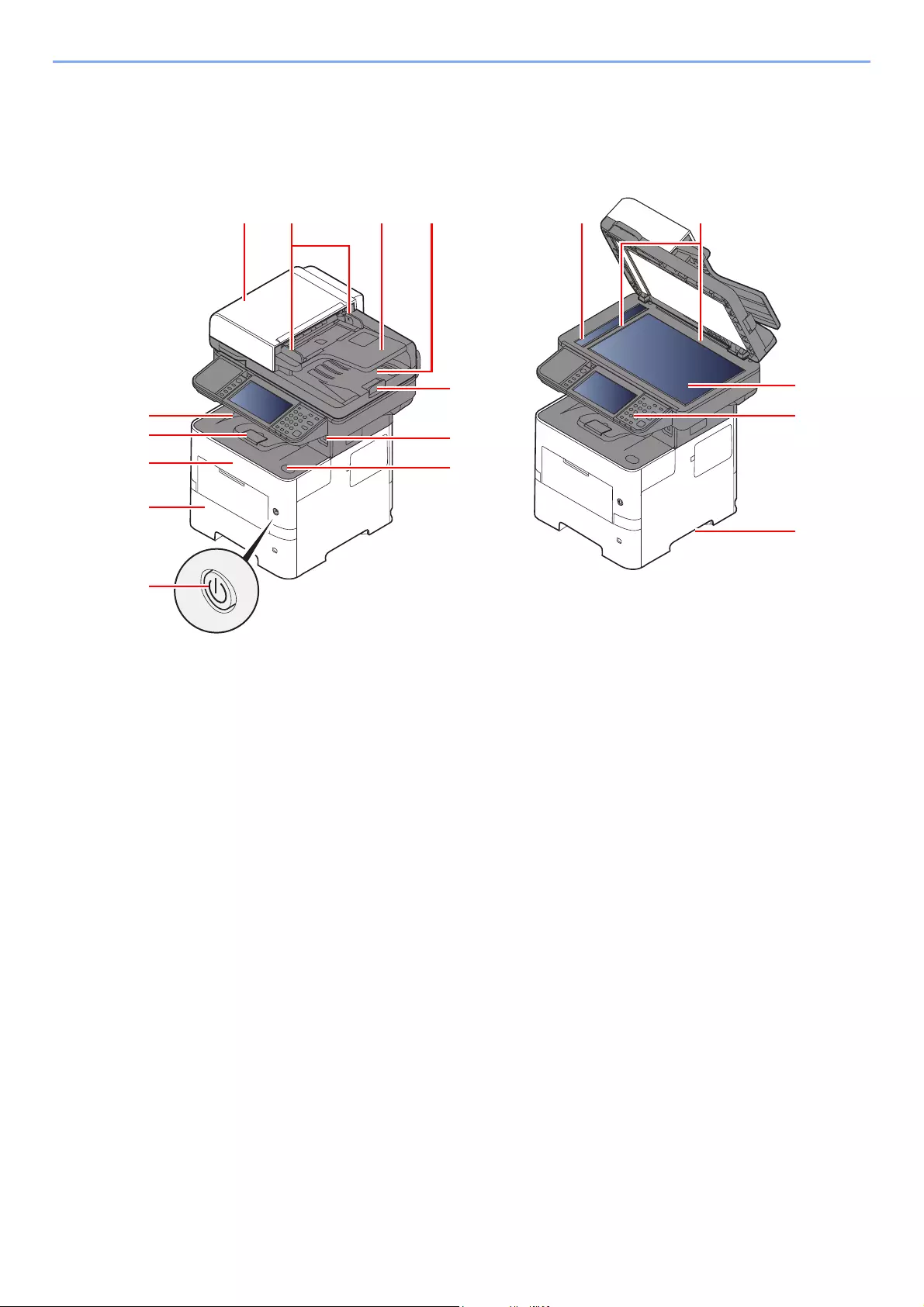
2-2
Installing and Setting up the Machine > Part Names
Part Names
Machine Exterior
1 Document Processor
2 Original Width Guides
3 Original Table
4 Original Eject Table
5 Inner Tray
6 Paper Stopper
7 Front Cover
8 Cassette 1
9 Power Switch
10 Original Stopper
11 USB Memory Slot
12 Front Cover Open Button
13 Slit Glass
14 Original Size Indicator Plates
15 Platen
16 Operation Panel
17 Handles
1 2 3 4
10
11
13 14
15
16
712
5
9
8
17
6
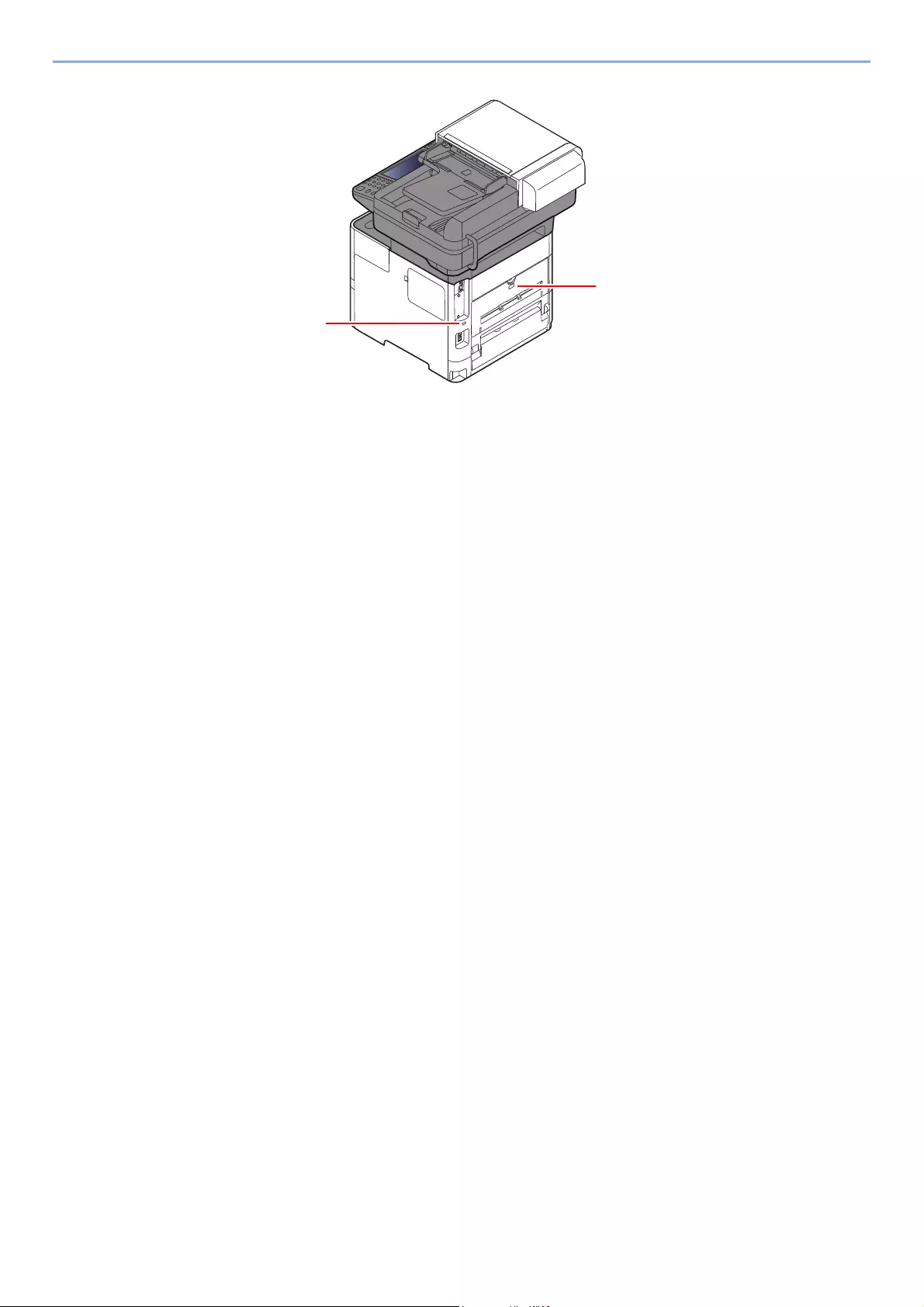
2-3
Installing and Setting up the Machine > Part Names
18 Anti-theft Lock Slot
19 Rear Cover
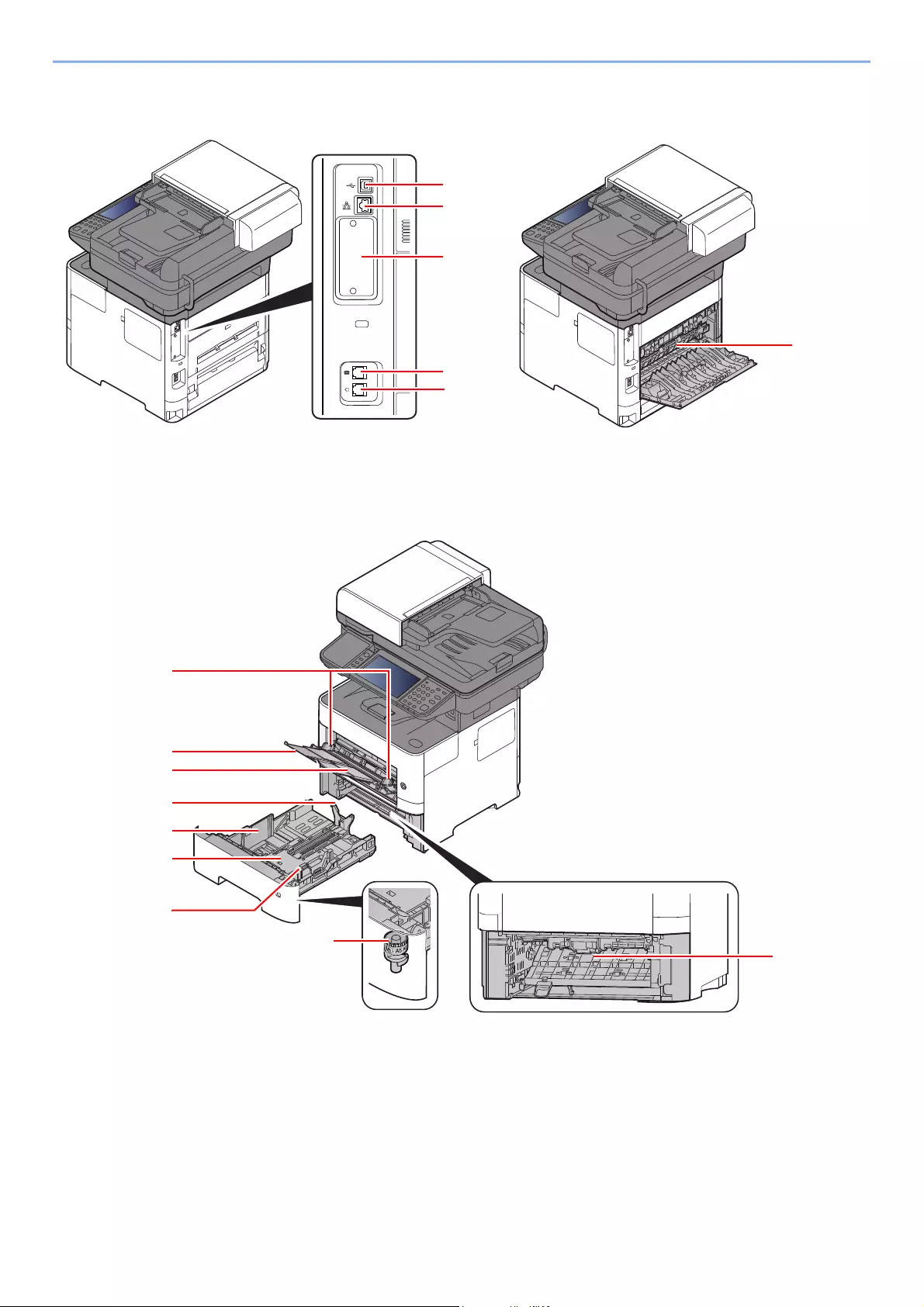
2-4
Installing and Setting up the Machine > Part Names
Connectors/Interior
1 USB Interface Connector
2 Network Interface Connector
3 Option Interface Slot
4 TEL Connector
5 LINE Connector
6 Fuser Cover
7 Paper Width Guides
8 Tray Extension
9 Multi Purpose Tray
10 Paper Length Guide
11 Paper Width Guides
12 Bottom Plate
13 Size Dial
14 Duplex Cover
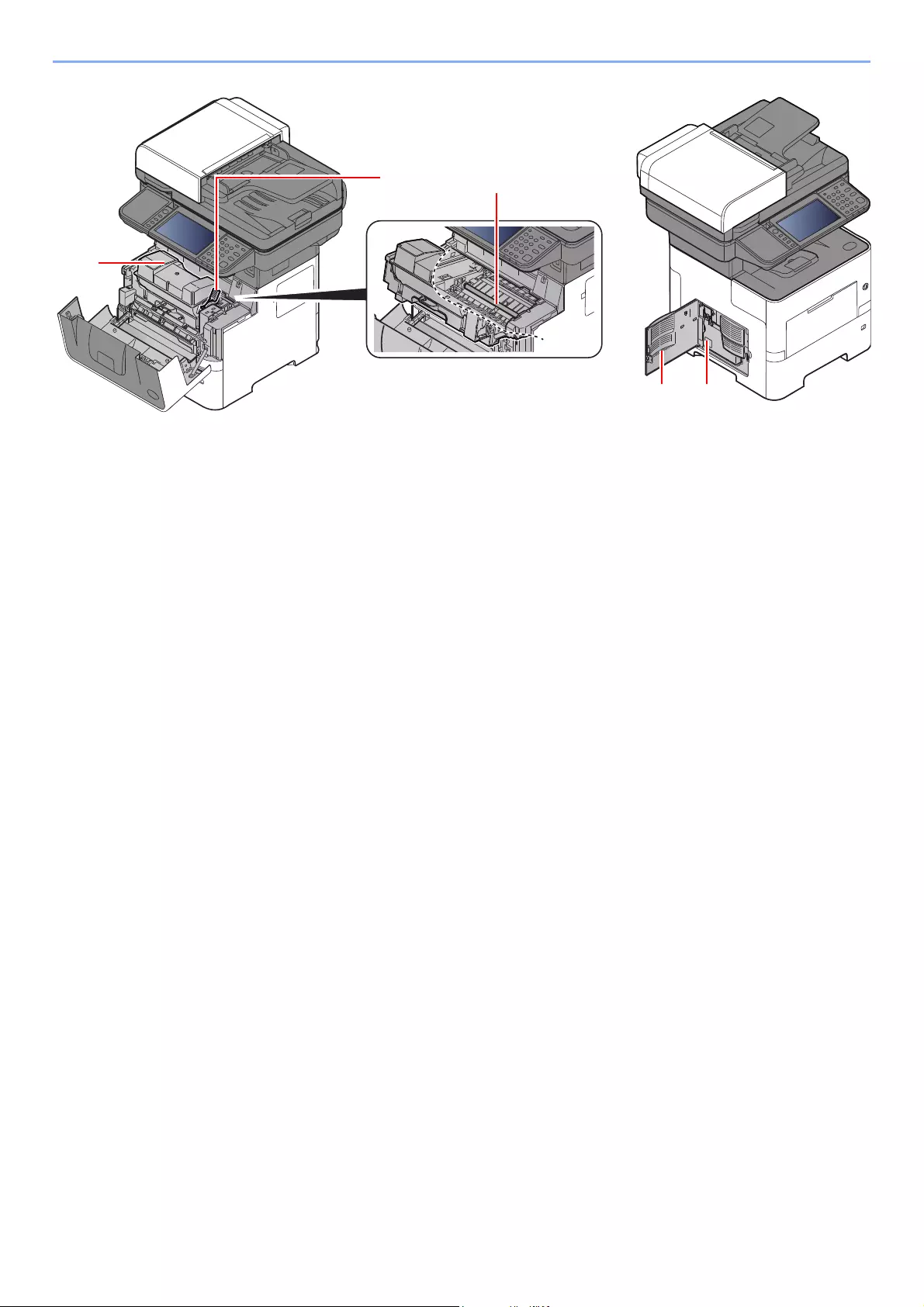
2-5
Installing and Setting up the Machine > Part Names
15 Toner Container
16 Toner Container Lock Lever
17 Registration Roller
18 Left Cover
19 Waste Toner Box
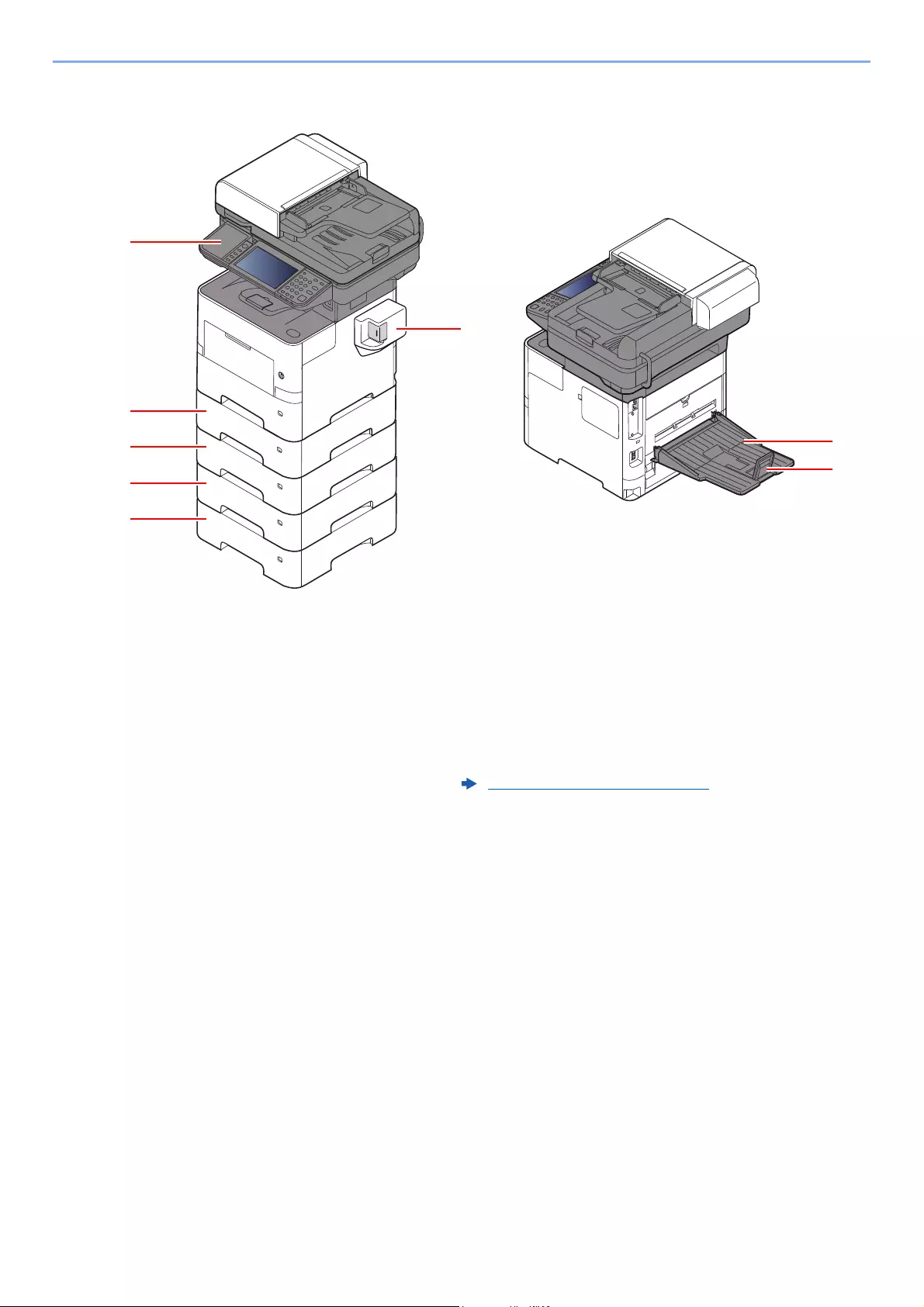
2-6
Installing and Setting up the Machine > Part Names
With Optional Equipments Attached
1 Card Reader
2 Cassette 2
3 Cassette 3
4 Cassette 4
5 Cassette 5
6 Manual Stapler
(ECOSYS M3655idn and ECOSYS M3660idn only)
7 Rear Tray
(ECOSYS M3655idn and ECOSYS M3660idn only)
8 Paper Stopper
(ECOSYS M3655idn and ECOSYS M3660idn only)
Optional Equipment (page 11-2)
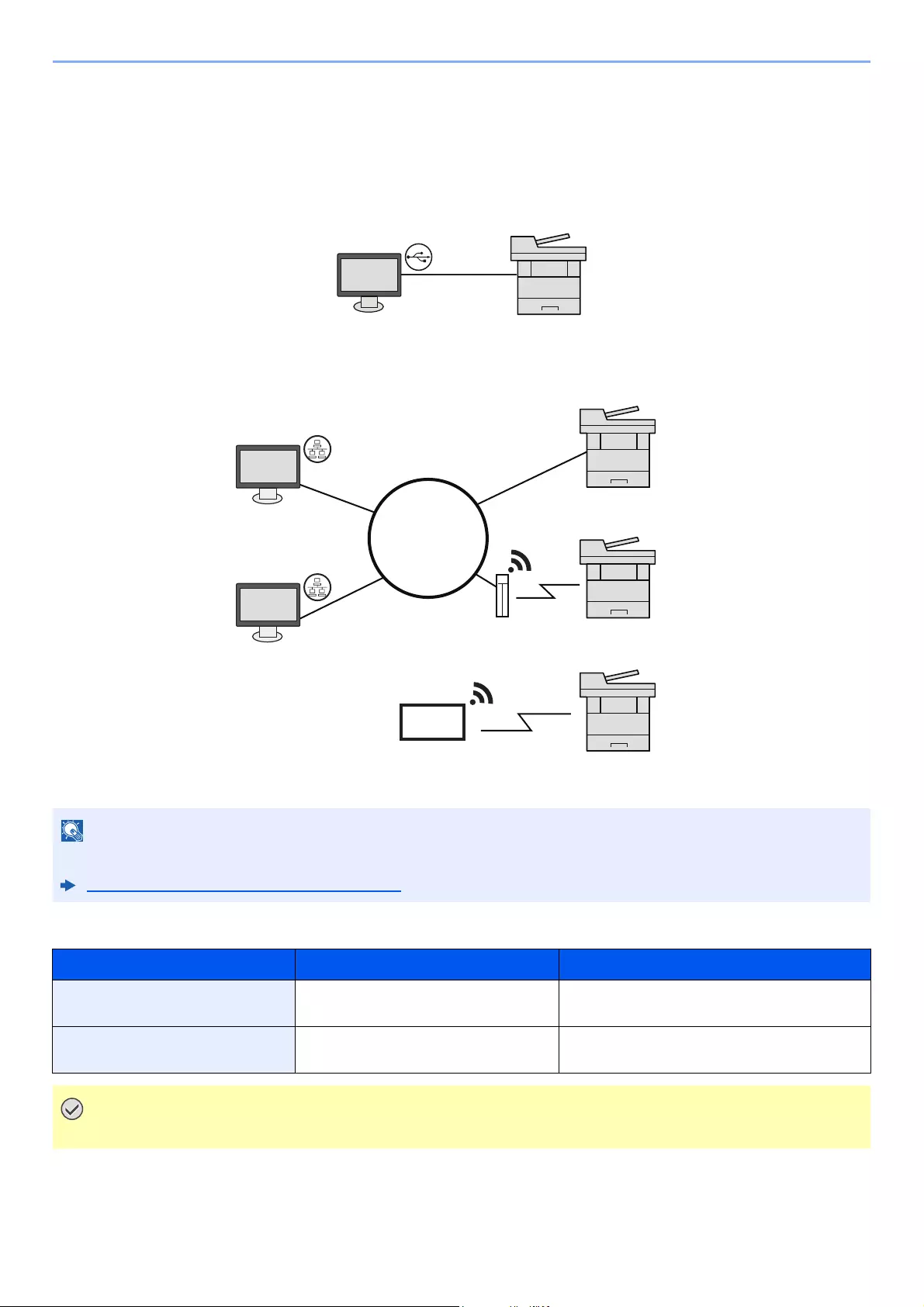
2-7
Installing and Setting up the Machine > Connecting the Machine and Other Devices
Connecting the Machine and Other Devices
Prepare the cables necessary to suit the environment and purpose of the machine use.
When Connecting the Machine to the PC via USB
When Connecting the Machine to the PC or Tablet by network cable, Wi-Fi, or Wi-Fi direct
Cables that Can Be Used
If you are using wireless LAN, refer to the following.
Configuring the Wireless Network (page 2-27)
Connection Environment Function Necessary Cable
Connect a LAN cable to the
machine.
Printer/Scanner/Network FAX LAN cable (10BASE-T, 100BASE-TX,
1000BASE-T)
Connect a USB cable to the
machine.
Printer/Scanner (TWAIN/WIA) USB 2.0 compatible cable (Hi-Speed USB
compliant, max. 5.0 m , shielded)
Using a cable other than a USB 2.0 compatible cable may cause failure.
Ta b l e t
Network cable
connection
Network
Wi-Fi access point
Wi-Fi
connection*1
Wi-Fi Direct
connection*1
*1 Only for models with the optional Wireless Network Interface Kit (IB-36).
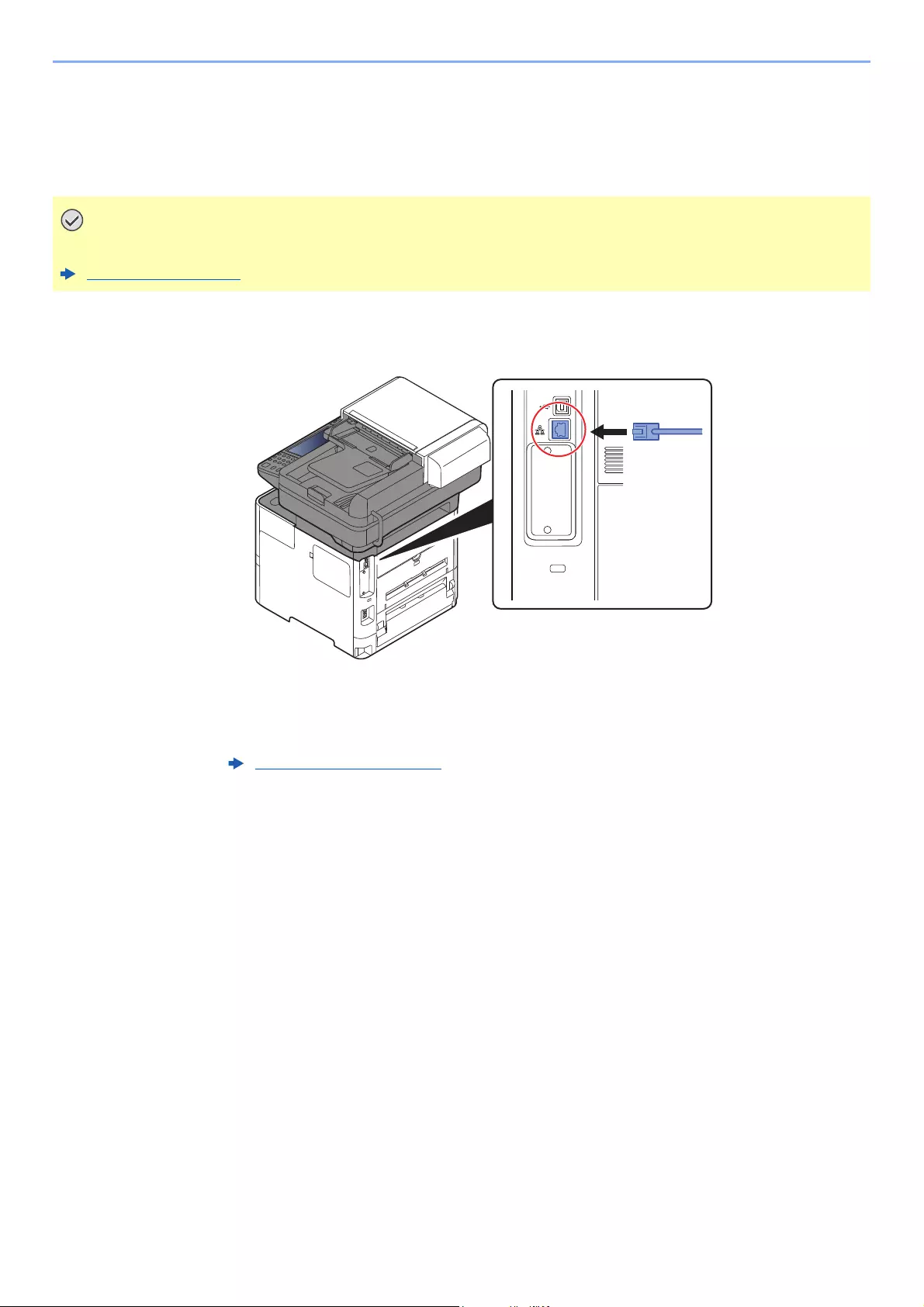
2-8
Installing and Setting up the Machine > Connecting Cables
Connecting Cables
Connecting LAN Cable
1Connect the cable to the machine.
1Connect the LAN cable to the network interface connector.
2Connect the other end of the cable to the hub.
2Power on the machine and configure the network.
If the power is on, turn the power switch off.
Power Off (page 2-10)
Network Setup (page 2-25)
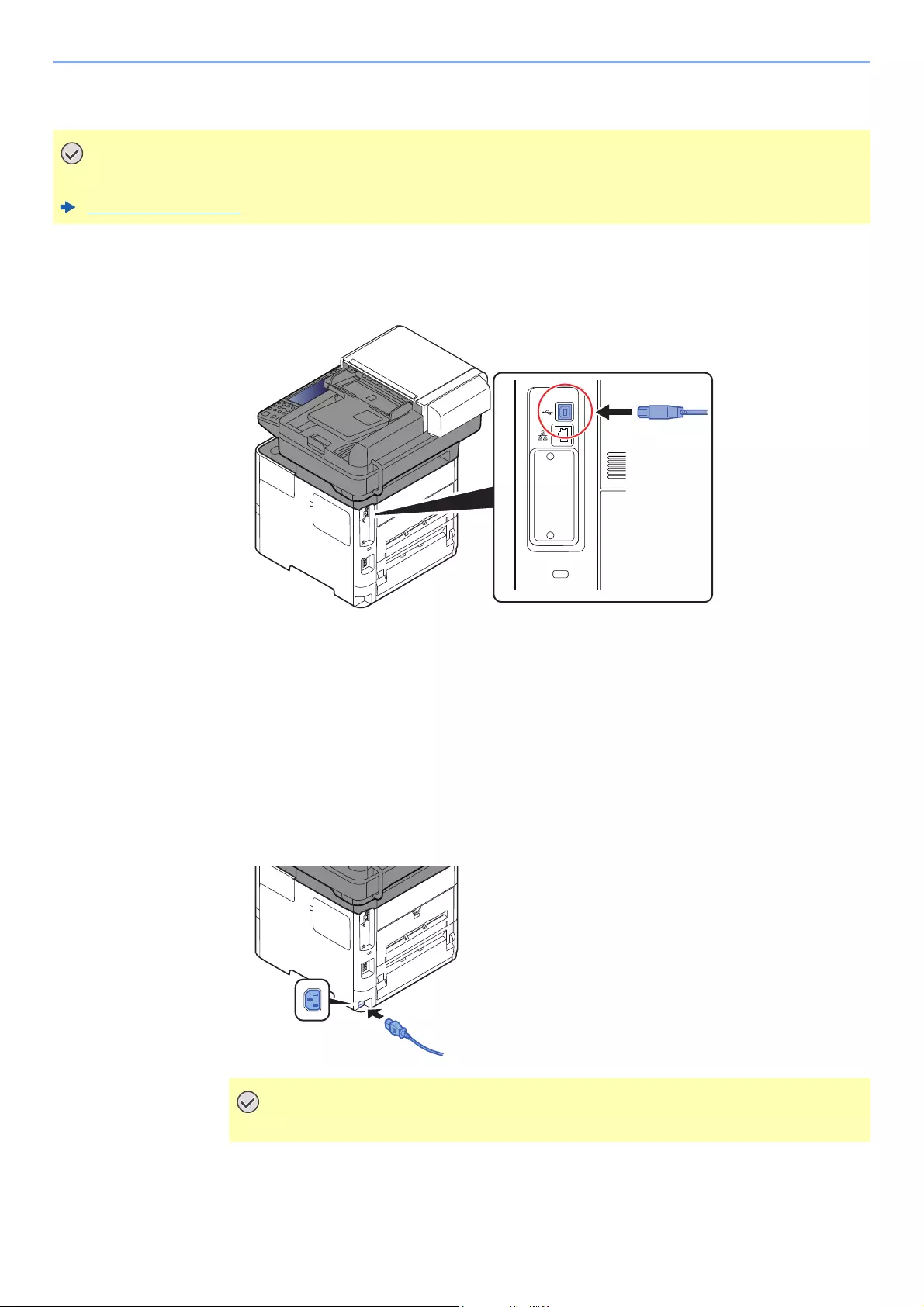
2-9
Installing and Setting up the Machine > Connecting Cables
Connecting USB Cable
1Connect the cable to the machine.
1Connect the USB cable to the USB interface connector located on the left side of the body.
2Connect the other end of the cable to the PC.
2Power on the machine.
Connecting the Power Cable
1Connect the cable to the machine.
Connect one end of the supplied power cable to the machine and the other end to a power
outlet.
If the power is on, turn the power switch off.
Power Off (page 2-10)
Only use the power cable that comes with the machine.
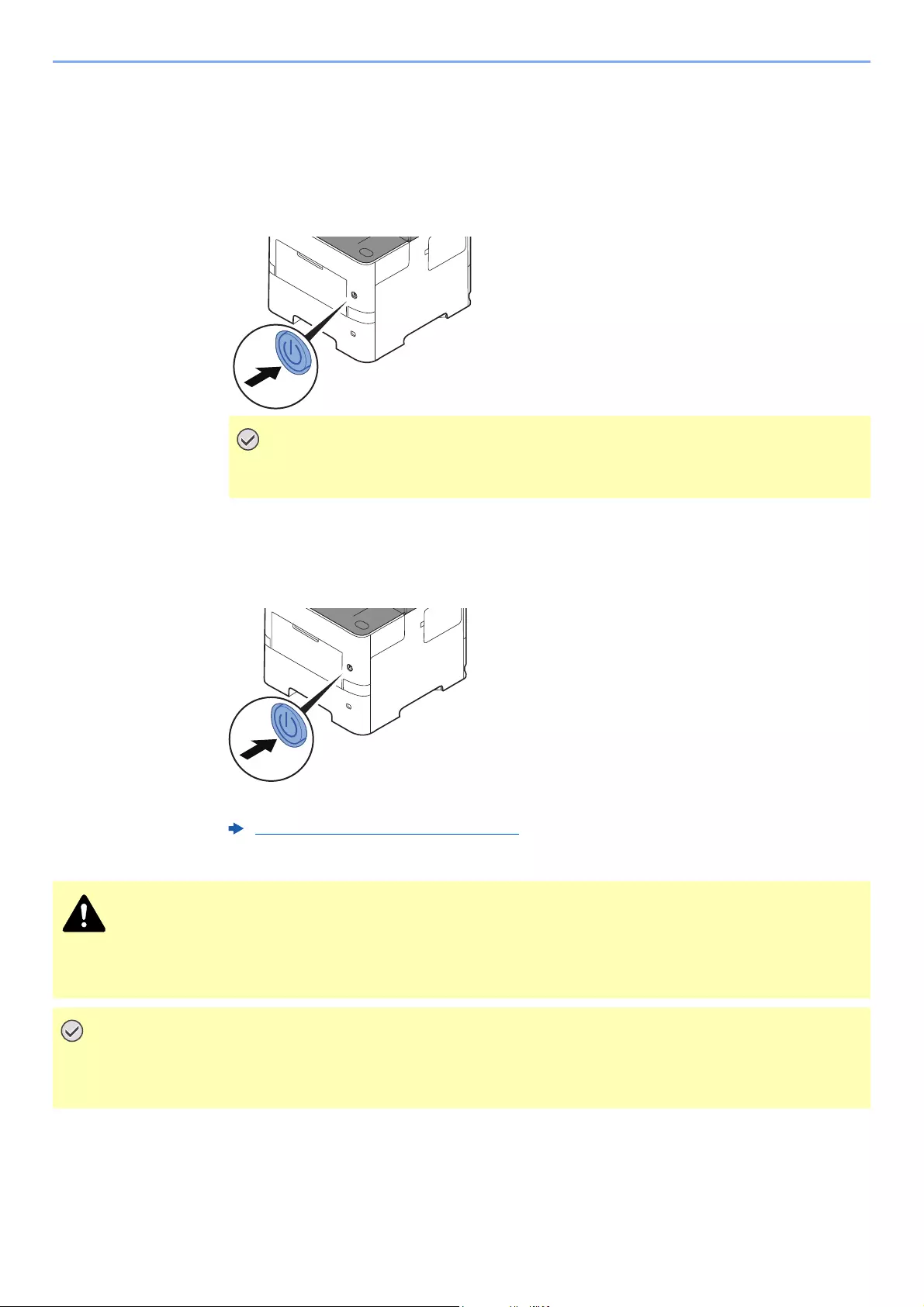
2-10
Installing and Setting up the Machine > Power On/Off
Power On/Off
Power On
1Turn the power switch on.
Power Off
1Turn the power switch off.
The confirmation message for power supply off is displayed.
It takes approximately 3 minutes for power off.
When turning off the power switch, do not turn on the power switch again
immediately. Wait more than 5 seconds, and then turn on the power switch.
Show Power Off Message (page 8-19)
If this machine will be left unused for an extended period (e.g. overnight), turn it off at the main power switch.
If the machine will not be used for an even longer period of time (e.g. vacation), remove the power plug from
the outlet as a safety precaution.
• If using the products equipped with the fax function, note that turning the machine off at the main power
switch disables fax transmission and reception.
• Remove paper from the cassettes and seal it in the paper storage bag to protect it from humidity.
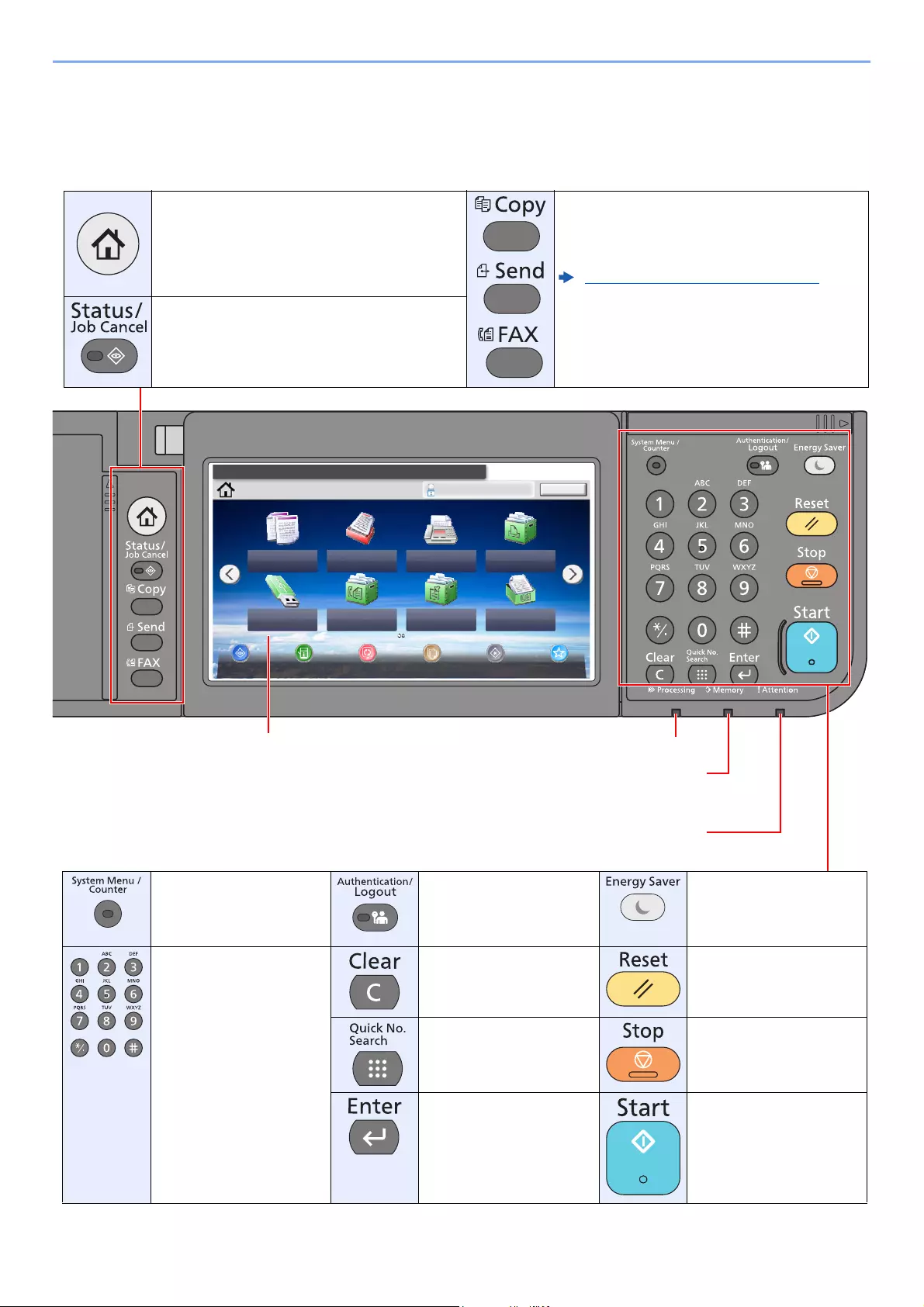
2-11
Installing and Setting up the Machine > Using the Operation Panel
Using the Operation Panel
Operation Panel Keys
Select the function.
Home Admin
Copy
Status/
Job Cancel
10:10
Logout
Send
FAX
Memory
RX Box
Job BoxFAX
Sub
Address
Box
Removable
Memory Polling Box
Device
Information
Language System
Menu
Favorites
Paper
Settings
Lights or blinks when an error occurs and a job is
stopped.
Blinks while printing or sending/receiving.
Blinks while the machine is accessing the machine
memory, fax memory or USB memory (general
purpose item).
Displays the Home screen. Function Key:
These keys enable various functions and
applications, including copy and scan, to be
registered.
Function Key Assignment (page 8-19)
Displays the Status/Job Cancel screen.
Touch panel.
Displays buttons for
configuring machine
settings.
Displays the System Menu/
Counter screen.
Authenticates user
switching, and exits the
operation for the current
user (i.e. log out).
Puts the machine into
Sleep Mode. Recovers
from Sleep if in Sleep
Mode.
Numeric keys.
Enter numbers and
symbols.
Clears entered numbers
and characters.
Returns settings to their
default states.
Specifies registered
information such as
address numbers and user
IDs by number.
Cancels or pauses the job
in progress.
Finalizes numeric key entry,
and finalizes details during
setting of functions.
Operates linked with the
on-screen [OK].
Starts copying and
scanning operations and
processing for setting
operations.

2-12
Installing and Setting up the Machine > Using the Operation Panel
Adjusting the Operation Panel Angle
The angle of the operation panel can be adjusted.
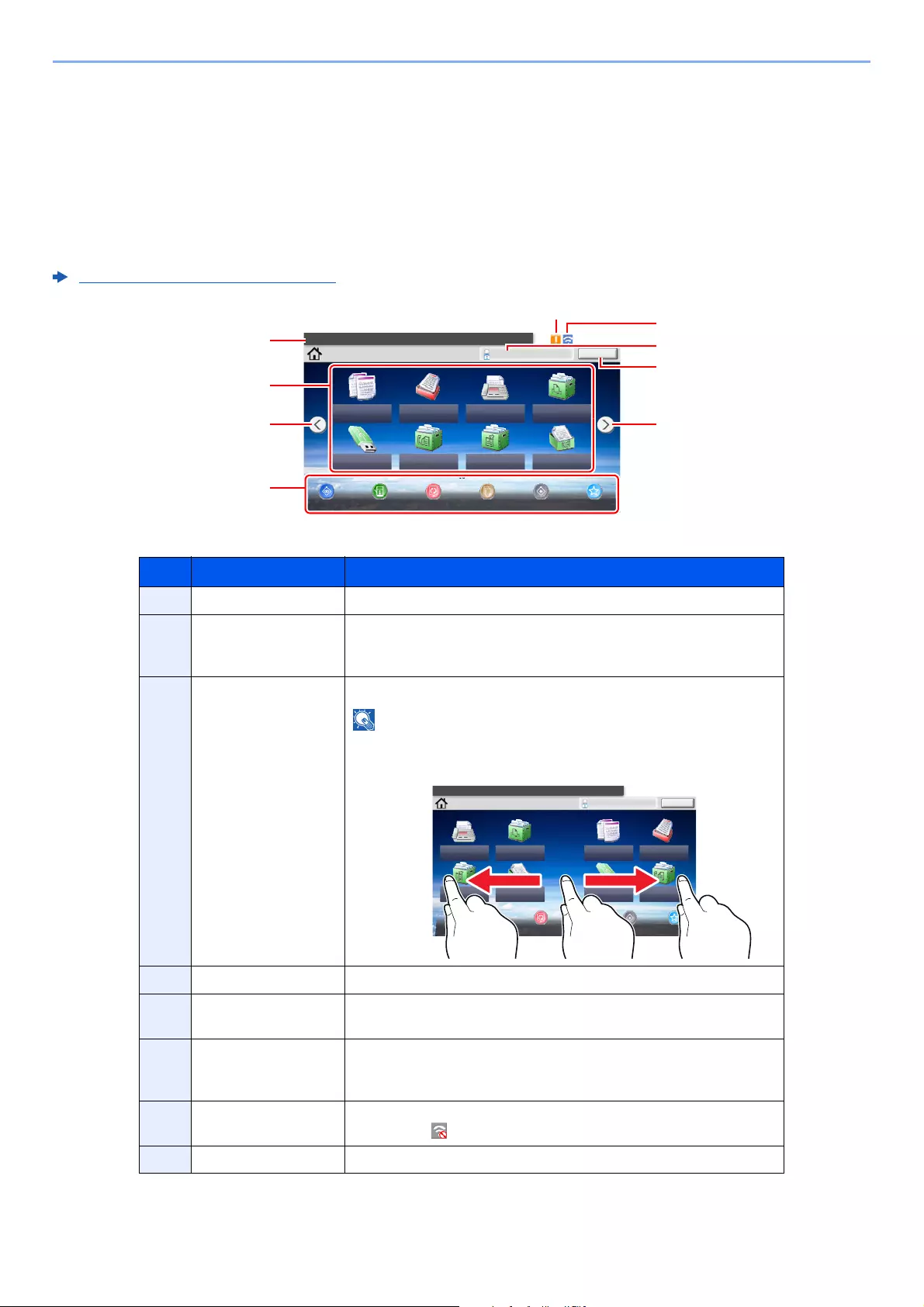
2-13
Installing and Setting up the Machine > Touch Panel
Touch Panel
Home Screen
This screen is displayed by selecting the [Home] key on the operation panel. Touching an icon will display the
corresponding screen.
You can change the icons to display on the Home screen as well as its background.
Editing the Home Screen (page 2-14)
* The appearance may differ from your actual screen, depending on your configuration and option settings.
No. Item Description
1Message Displays the message depending on the status.
2Desktop Displays a maximum of 40 function icons*1 including the functions
registered in favorite. Icons that are not displayed on the first page
will appear by changing the page.
*1 A maximum of 42 icons can be displayed on products with the fax function installed. A maximum of
16 icons can be displayed for installed applications.
3Screen-switching
keys
Use these buttons to switch between desktop pages.
You can also switch views by touching the screen and moving the
finger sideways (i.e. swiping).
4Taskbar Displays a maximum of 8 task icons.
5[Logout] Logs out the current user. This is displayed when user login
administration is enabled.
6Login User Name Displays the logged-in user name. This is displayed when user login
administration is enabled. Selecting «Login User Name» will display
the information of the logged-in user.
7Status Icon (Wi-Fi) The icon is displayed when Wi-Fi is connected. When Wi-Fi is not
connected, « » is displayed.
8Status Icon (Error) The icon is displayed during network startup or error.
Select the function.
Home Admin
Copy
Status/
Job Cancel
10:10
Logout
Send
FAX
Memory
RX Box
Job BoxFAX
Sub
Address
Box
Removable
Memory Polling Box
Device
Information
Language System
Menu
Favorites
Paper
Settings
Select the function.
Home Admin
Copy
Status/
Job Cancel
10:10
Logout
Send
FAX
Memory
RX Box
Job BoxFAX
Sub
Address
Box
Removable
Memory
Polling Box
Device
Information
Language System
Menu
Favorites
Paper
Settings
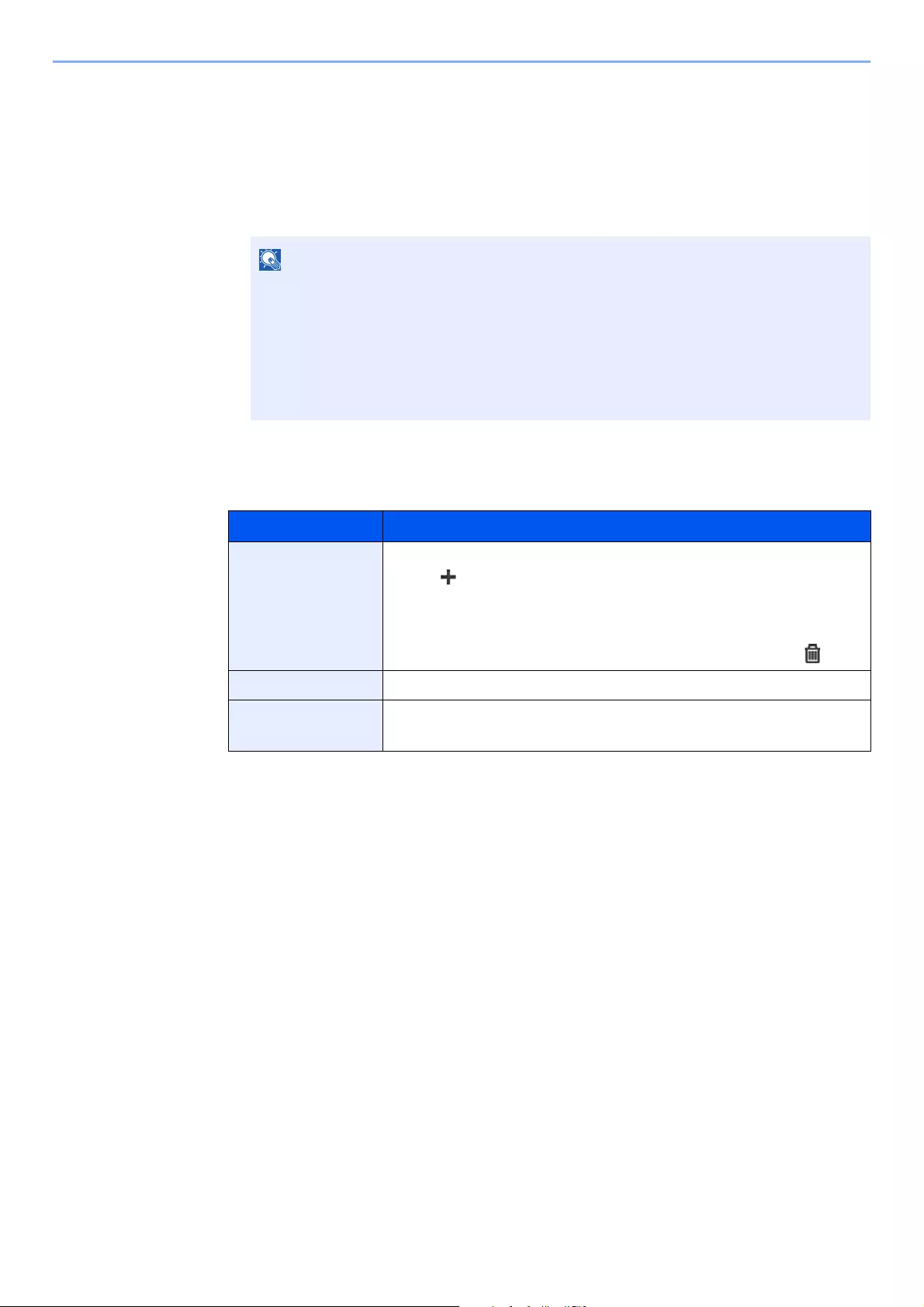
2-14
Installing and Setting up the Machine > Touch Panel
Editing the Home Screen
You can change the background of the Home screen as well as which icons are displayed.
1Display the screen.
1[System Menu/Counter] key > [Home]
2Configure the settings.
The available settings are shown below.
You can only change the settings by logging in with administrator privileges.
The factory default login user name and login password are set as shown below.
ECOSYS M3145idn ECOSYS M3655idn ECOSYS M3660idn
ECOSYS M3645idn
Login User Name: 4500 5500 6000
Login Password: 4500 5500 6000
Item Description
Customize Desktop Specify the function icons to display on the desktop.
Select [ ] to display the screen for selecting the function to display. Select
the function to display and [OK].
Select an icon and [Previous] or [After] to change the display position of the
selected icon on the Desktop.
To delete an icon from desktop, select the desired one and select [ ].
Customize Taskbar Specify the task icons to display on the taskbar.
Wallpaper Configure the wallpaper of the Home screen.
Value: Images 1 to 8
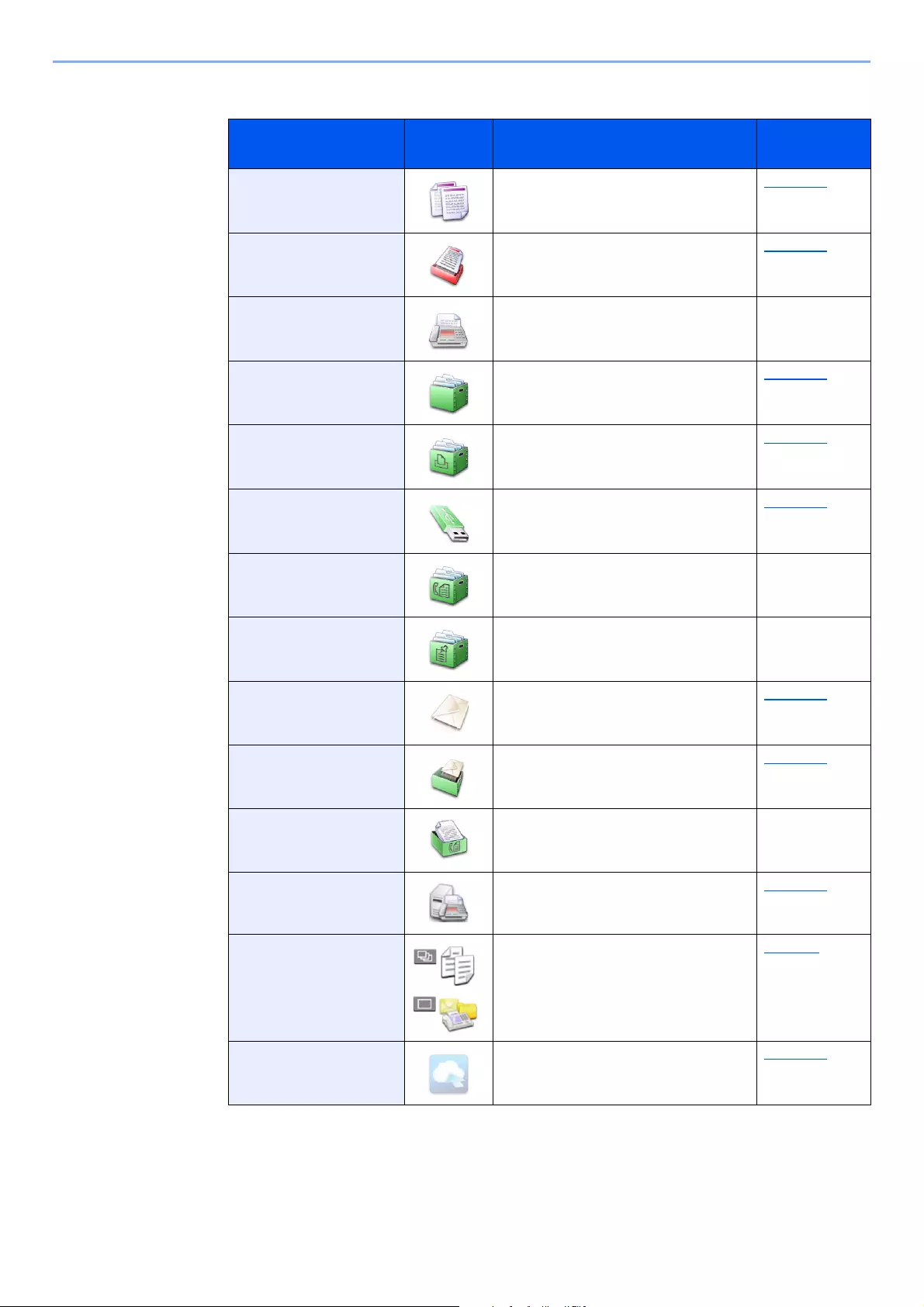
2-15
Installing and Setting up the Machine > Touch Panel
Available Functions to Display on Desktop
Function Icon Description Reference
page
Copy*1
*1 Selected at the time of shipment from factory.
Displays the Copy screen. page 5-16
Send*1 Displays the Send screen. page 5-18
FAX*2
*2 Displayed only on products with the fax function installed.
Displays the FAX screen. Refer to the
FAX Operation
Guide.
Custom Box*3
*3 Displayed when the optional SSD is installed.
Displays the Custom Box screen. page 5-39
Job Box*1 Displays the Job Box screen. page 4-12
Removable Memory*1 Displays the Removable Memory
screen.
page 5-50
Sub Address Box*2 Displays the Sub Address Box screen. Refer to the
FAX Operation
Guide.
Polling Box*2 Displays the Polling Box screen. Refer to the
FAX Operation
Guide.
Send to Me (E-mail)*4
*4 Displayed when user login administration is enabled.
Displays the Send screen. The E-mail
address of the logged-in user is set as
the destination.
page 5-27
Send to Me for Box
(E-mail)*3*4
Displays the Custom Box screen. The
E-mail address of the logged-in user is
set as the destination.
page 5-48
FAX Memory RX Box*2 Displays the FAX Memory RX Box
screen.
Refer to the
FAX Operation
Guide.
FAX Server Displays the FAX Server screen. page 8-45
Favorites Calls up the registered favorite. The icon
will change according to the function of
the favorite.
page 5-6
Application Name*5
*5 The icon of the application appears.
Displays the selected applications. page 5-11
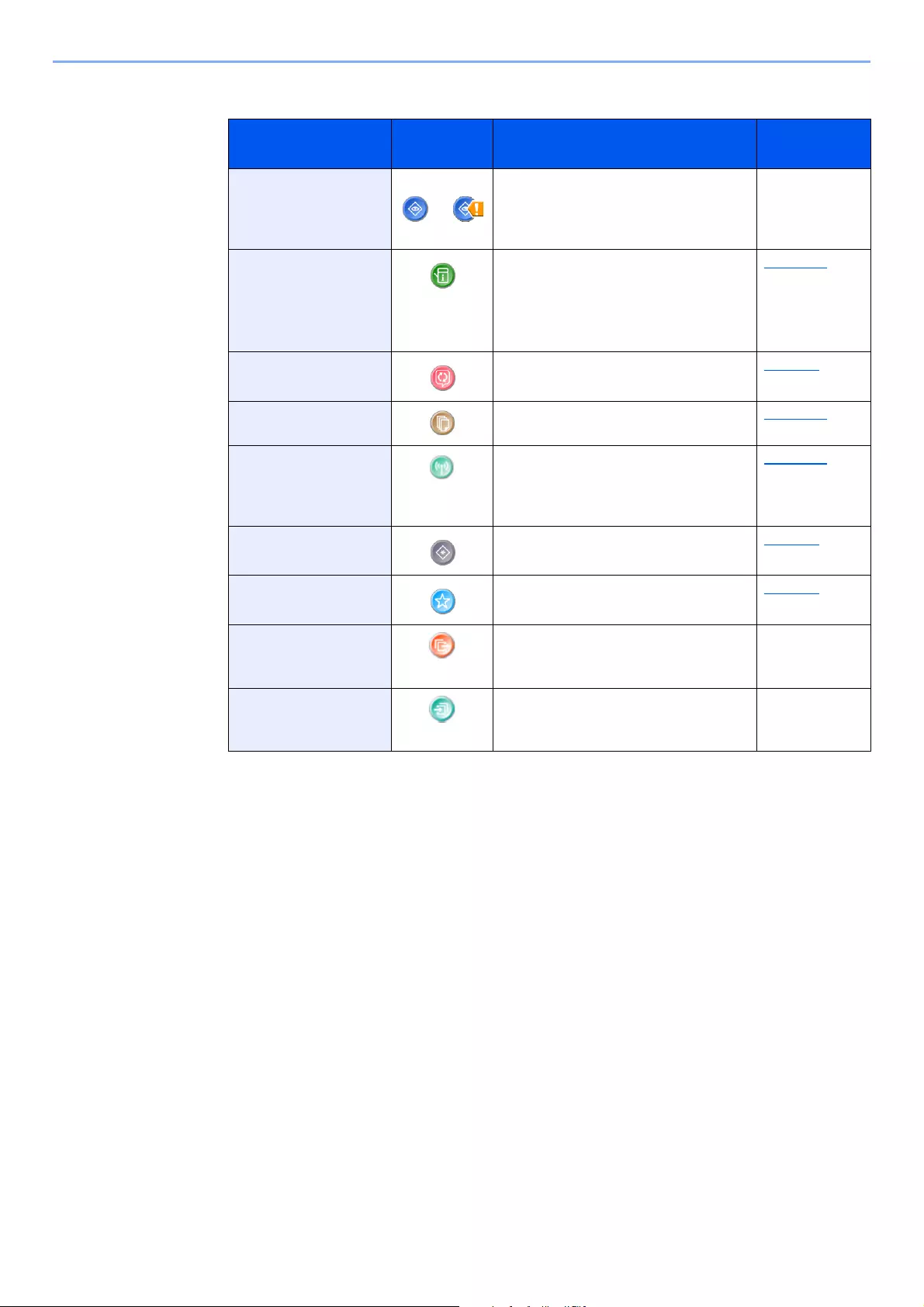
2-16
Installing and Setting up the Machine > Touch Panel
Available Functions to Display on Taskbar
Function Icon Description Reference
page
Status/Job Cancel
/
Displays the Status screen. If an error
occurs, the icon will show «!». Once the
error clears, the display will return to
normal.
—
Device Information Displays the Device Information screen.
Check the system and network
information.
You can also check information on the
options that are used.
page 2-17
Language Displays the Language setting screen in
System Menu.
page 8-5
Paper Settings Display the paper settings screen. page 8-12
Wi-Fi Direct Configures Wi-Fi Direct settings and
displays a list of information about
machines that are enabled to use the
network.
page 2-31
System Menu Displays the System Menu screen. page 8-2
Favorites Displays the favorite list screen. page 5-6
Outgoing FAX Log Displays the Outgoing FAX Log screen. Refer to the
FAX Operation
Guide.
Incoming FAX Log Displays the Incoming FAX Log screen. Refer to the
FAX Operation
Guide.
2-17
Installing and Setting up the Machine > Touch Panel
Display for Device Information
Shows device information. Allows you to check system and network information, as well as options that are used.
1Select [Device Information] in the home screen.
2Check the device information.
Device information
Tab Description
Identification/Network You can check ID information such as the model name, serial
number, host name and location, and the IP address.
Wi-Fi*1
*1 Displayed only when the wireless network function is available on the machine.
You can check ID information such as the model name, serial
number, host name and location, and the IP address of the
wireless network.
FAX*2
*2 Displayed only on products with the fax function installed.
You can check the local fax number, local fax name, local fax
ID and other fax information.
Software Ver./Capability You can check the software version and performance.
Option You can check information on the options that are used.
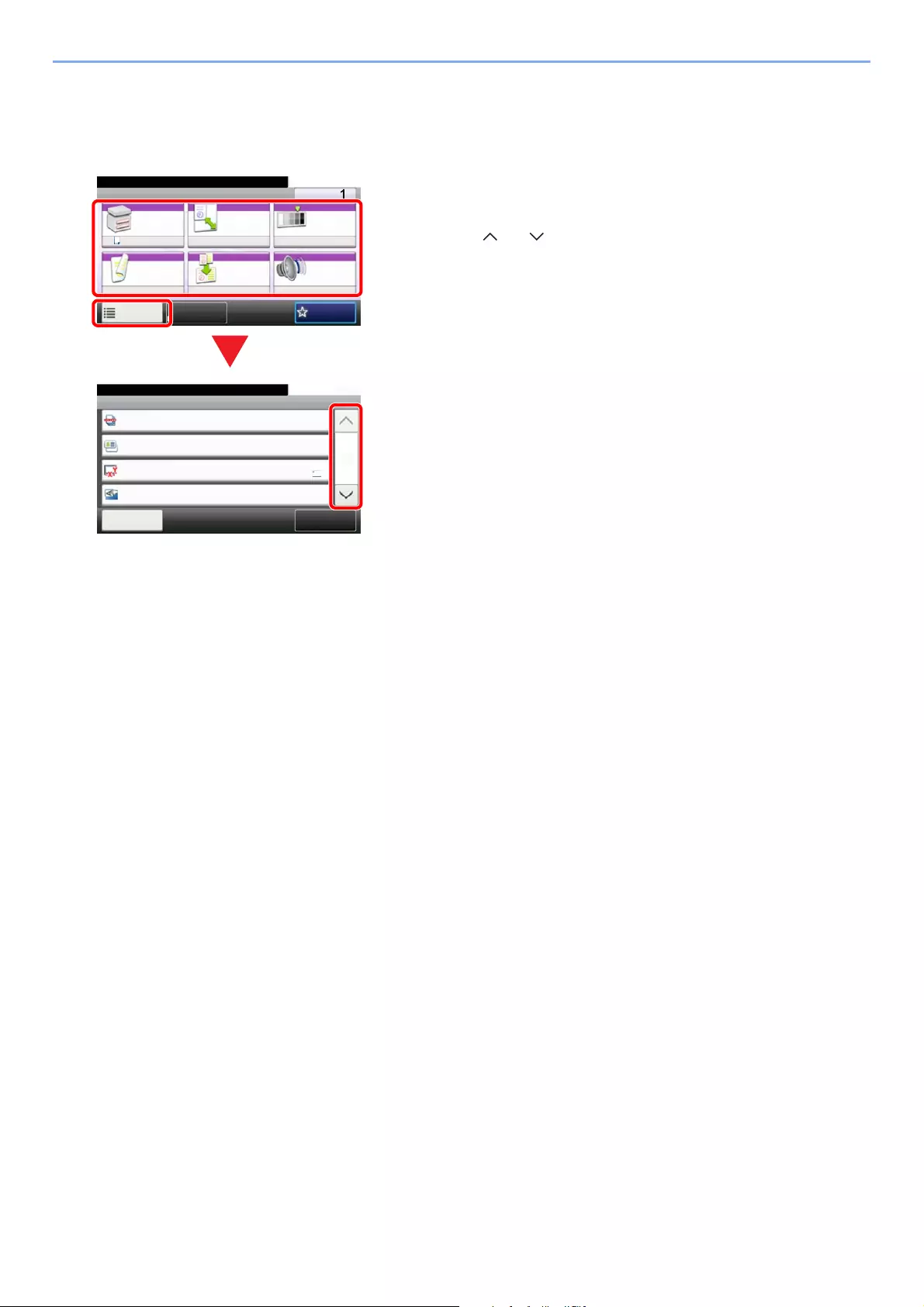
2-18
Installing and Setting up the Machine > Touch Panel
Functions key
This screen appears when the Functions icon is selected.
Ready to copy.
Copy Copies
Paper
Selection
Zoom Density
Duplex Combine
1-sided>>1-sided
A4 100% Normal 0
Off
Functions
10:10
Favorites
Quiet
Mode
Off
ID Card Copy
Ready to copy.
Functions
Original Size
A4
Close
10:10
Original Orientation
Top Edge on Top
On
Off
ID Card Copy
Collate
1/4
Add/Edit
Shortcut
1 Display functions.
2Select [Functions] to display other functions.
3 Select [ ] or [ ] to scroll up and down.
1
2
3
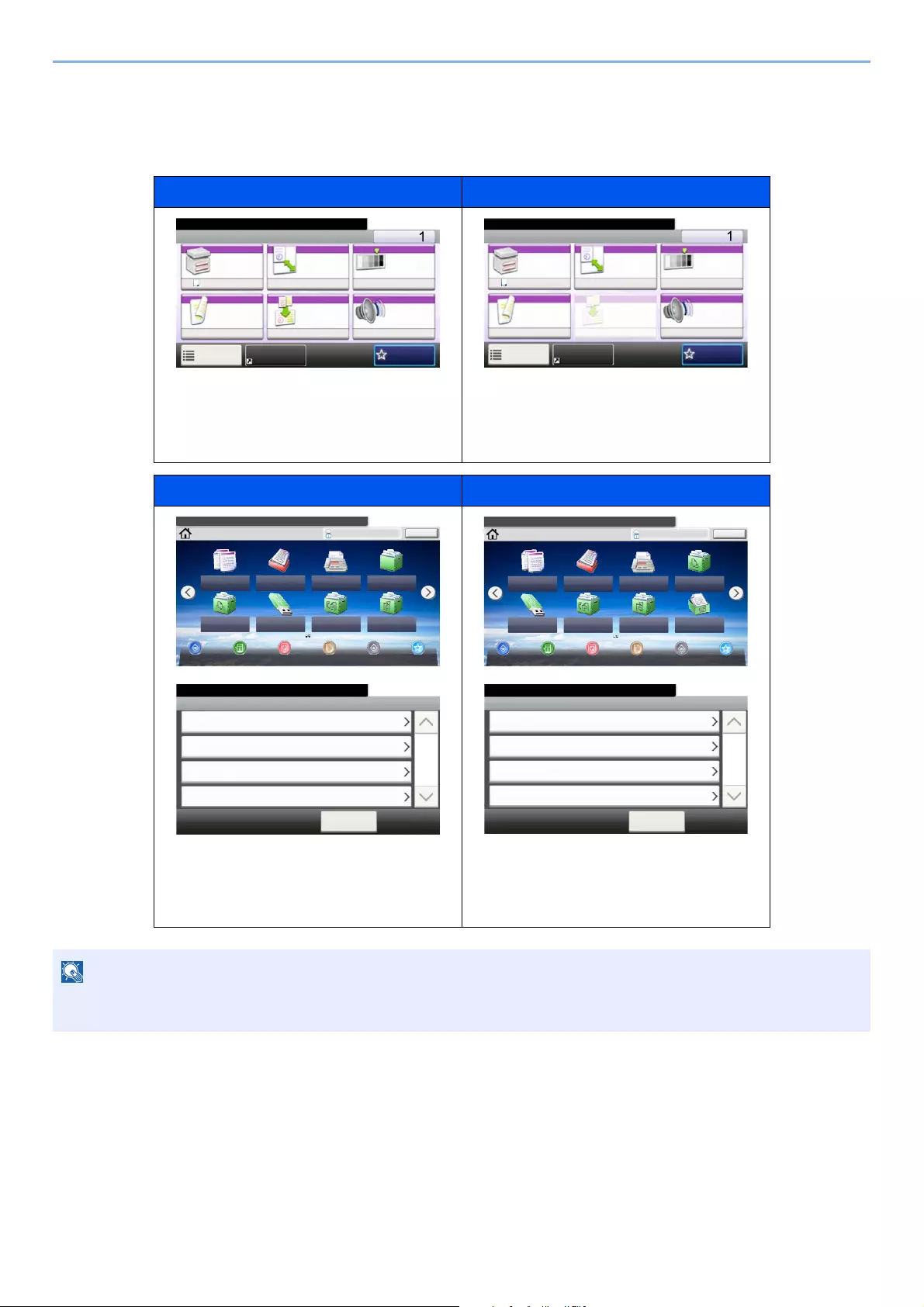
2-19
Installing and Setting up the Machine > Touch Panel
Display of Keys That Cannot Be Set
Keys of features that cannot be used due to feature combination restrictions or non-installation of options are in a non-
selectable state.
Normal Grayed out
In the following cases, the key is grayed out
and cannot be selected.
• Cannot be used in combination with a
feature that is already selected.
Normal Hidden
Cannot be used because an option is not
installed.
Example: When a SSD is not installed,
[Custom Box] does not appear.
If a key that you wish to use is grayed out, the settings of the previous user may still be in effect. In this case, select
the [Reset] key and try again.
Ready to copy.
Copy Copies
Paper
Selection
Zoom Density
Duplex Combine
1-sided>>1-sided
A4 100% Normal 0
Off
Functions
10:10
Favorites
Quiet
Mode
Off
ID Card Copy
Ready to copy.
Copy Copies
Paper
Selection
Zoom Density
Duplex Combine
1-sided>>1-sided
A4 100% Normal 0
Off
Functions
10:10
Favorites
Quiet
Mode
Off
ID Card Copy
Select the function.
Home Admin
Copy
Status/
Job Cancel
10:10
Logout
Send
Job Box
FAX
Sub
Address
Box
Removable
Memory Polling Box
Device
Information
Language System
Menu
Favorites
Paper
Settings
Custom Box
Select the function.
Home Admin
Copy
Status/
Job Cancel
10:10
Logout
Send
FAX
Memory
RX Box
Job BoxFAX
Sub
Address
Box
Removable
Memory Polling Box
Device
Information
Language System
Menu
Favorites
Paper
Settings
Document Box
Job Box
10:10System Menu/Counter.
< Back
Sub Address Box
Custom Box
Polling Box
1/2
Document Box
Job Box
10:10System Menu/Counter.
< Back
Sub Address Box
FAX Memory RX Box
Polling Box
1/1
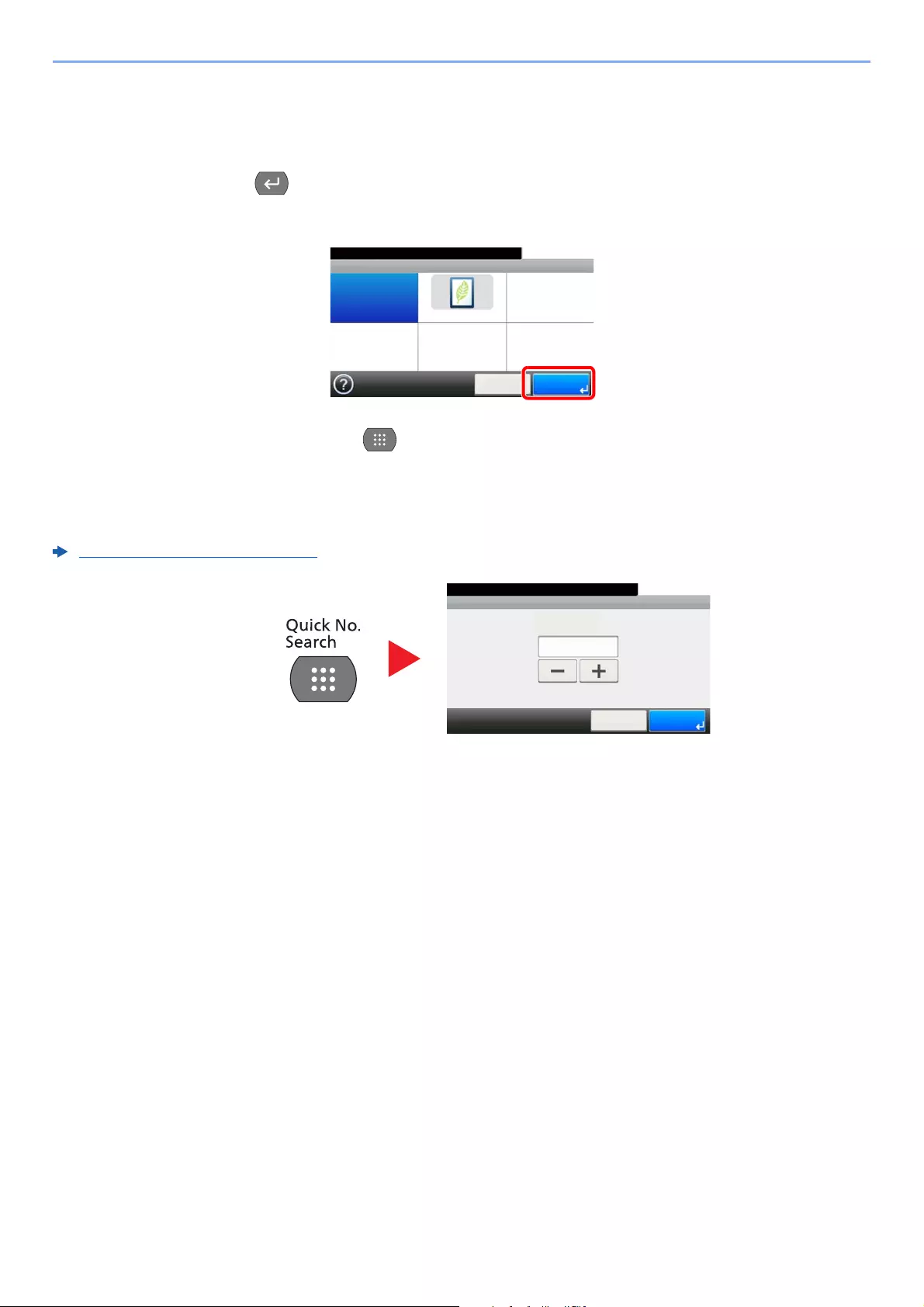
2-20
Installing and Setting up the Machine > Touch Panel
Enter key and Quick No. Search key
This section explains how to use the [Enter] key and [Quick No. Search] key on the operation panel.
Using the [Enter] key ( )
The [Enter] key has the same function as the key with the Enter mark (
), such as the [OK ] key and the [Close ].
Using the [Quick No. Search] key ( )
The [Quick No. Search] key is used when using the numeric keys to directly enter the number, for example, when
specifying the destination for the transmission using a speed-dial number.
For more information on speed dialing, refer to the following:
Specifying Destination (page 5-20)
Ready to copy.
EcoPrint
Off On
10:10
Cancel OK
One Touch Key No. Entry
10:10
(001 — 100)
Cancel OK
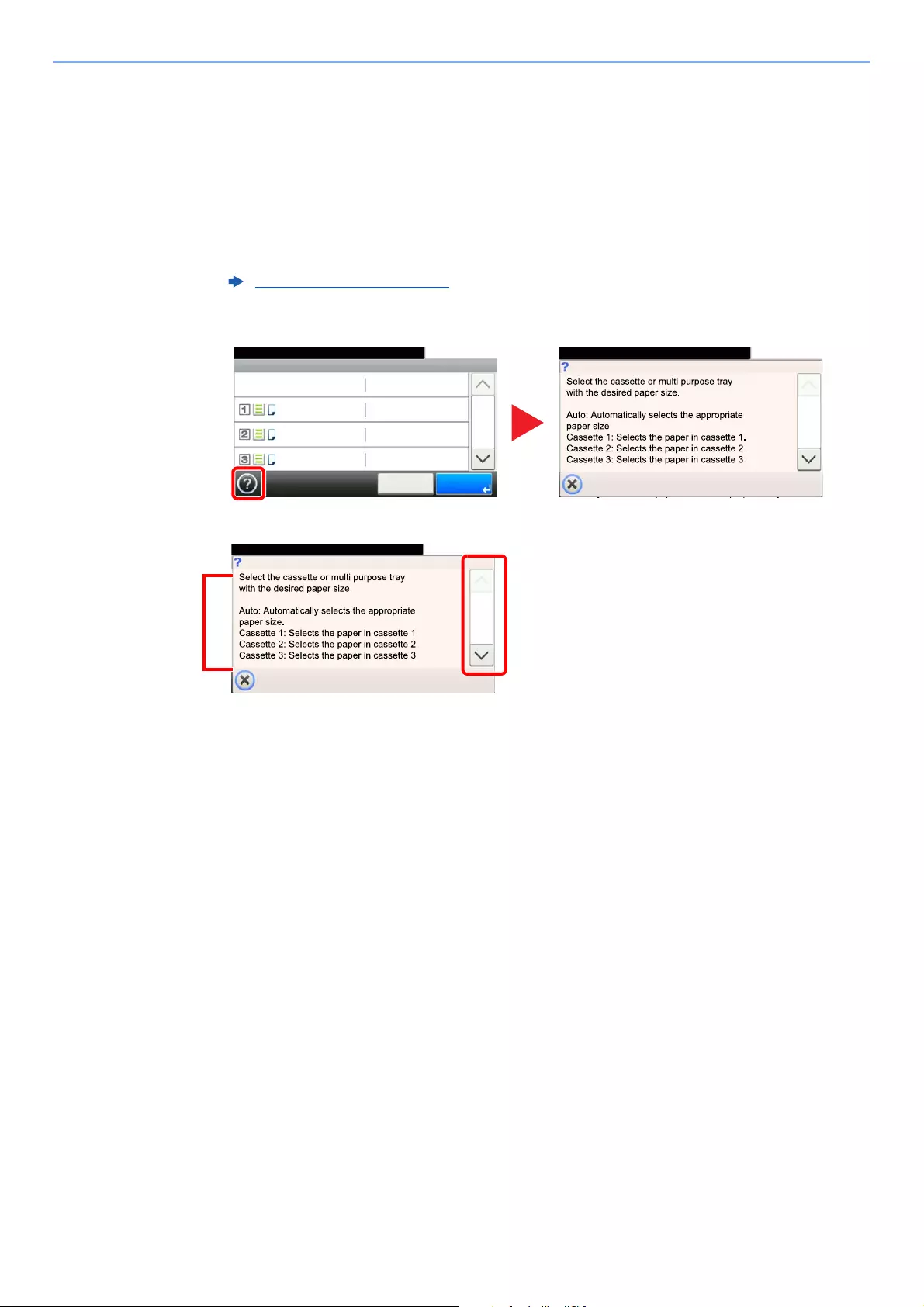
2-21
Installing and Setting up the Machine > Touch Panel
Help Screen
If you have difficulty operating the machine, you can check how to operate it using the touch panel.
When the [?] (help) is displayed on the touch panel, you can select it to display the Help screen. The Help screen shows
explanations of functions and how to use them.
Example: Checking the paper selection Help screen
1 Display the Paper Selection screen.
2
Paper Selection (page 6-11)
Ready to copy.
Paper Selection
Auto
10:10
A4
OKCancel
1/2
Plain
A4 Plain
A4 Plain
Paper Selection
10:10Ready to copy.
1/2
Paper Selection
10:10Ready to copy.
1/2
1 Help titles
2 Displays information about functions
and machine operation.
3 Closes the Help screen and returns to
the original screen.
4 Scrolls up and down when the help
text cannot be displayed in its entirety
on a single screen.
4
3
1
2
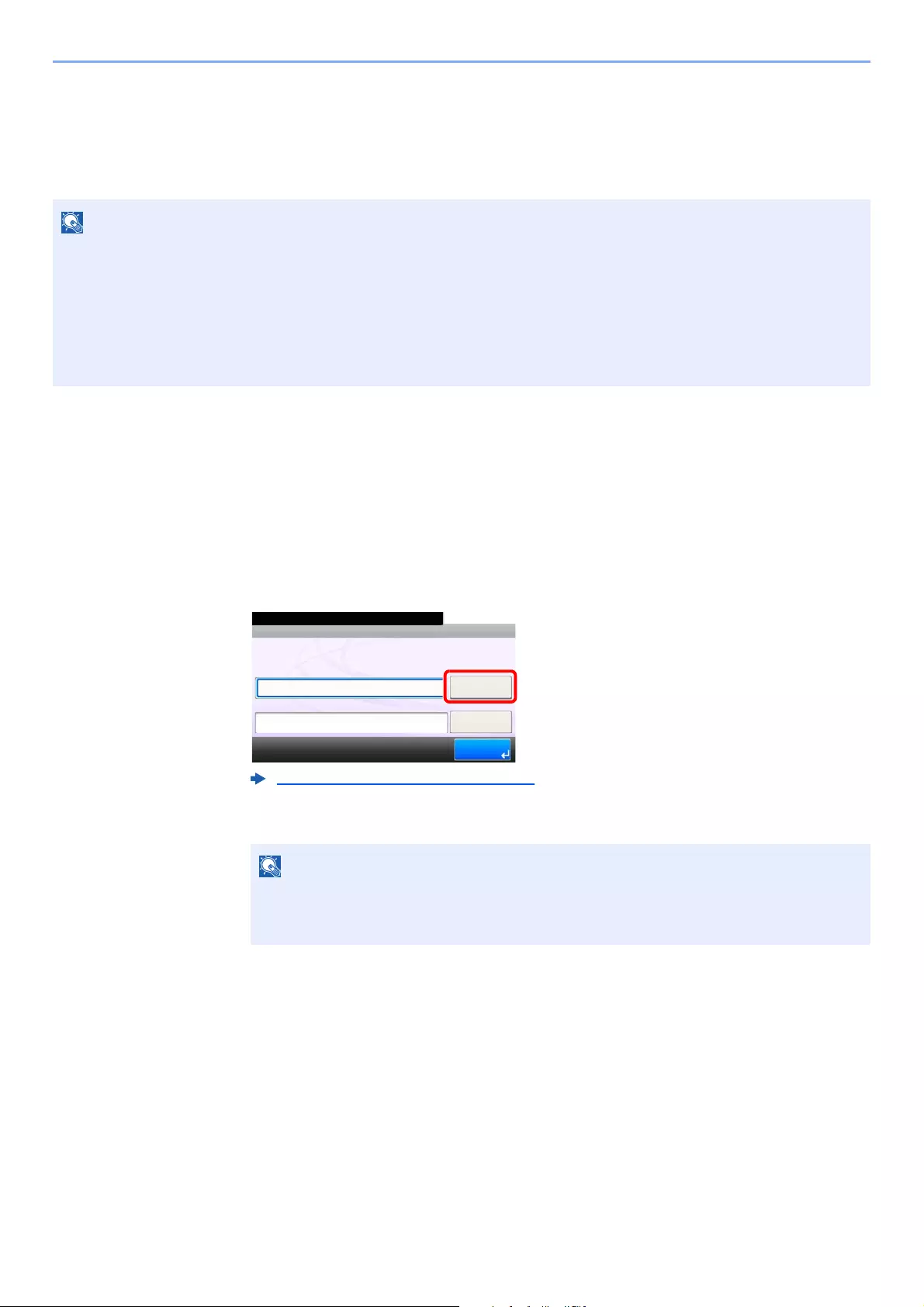
2-22
Installing and Setting up the Machine > Login/Logout
Login/Logout
If you are setting a function that requires administrator rights, or if user login administration is enabled, you must enter
your login user name and login password.
Login
Normal login
1Enter the login user name and login password to login.
1If this screen is displayed during operations, select [Keyboard] to enter the login user
name.
2[Password] > Enter the login password > [OK]
2Select [Login].
The factory default login user name and login password are set as shown below.
ECOSYS M3145idn ECOSYS M3655idn ECOSYS M3660idn
ECOSYS M3645idn
Login User Name: 4500 5500 6000
Login Password: 4500 5500 6000
You will be unable to login if you forget your login user name or login password. In this event, login with administrator
privileges and change your login user name or login password.
Character Entry Method (page 11-11)
If [Network Authentication] is selected as the user authentication method,
authentication destinations are displayed and either [Local] or [Network] can be
selected as the authentication destination.
10:10
Keyboard
Login Password
Keyboard
Login User Name
Login
Enter login user name and password.
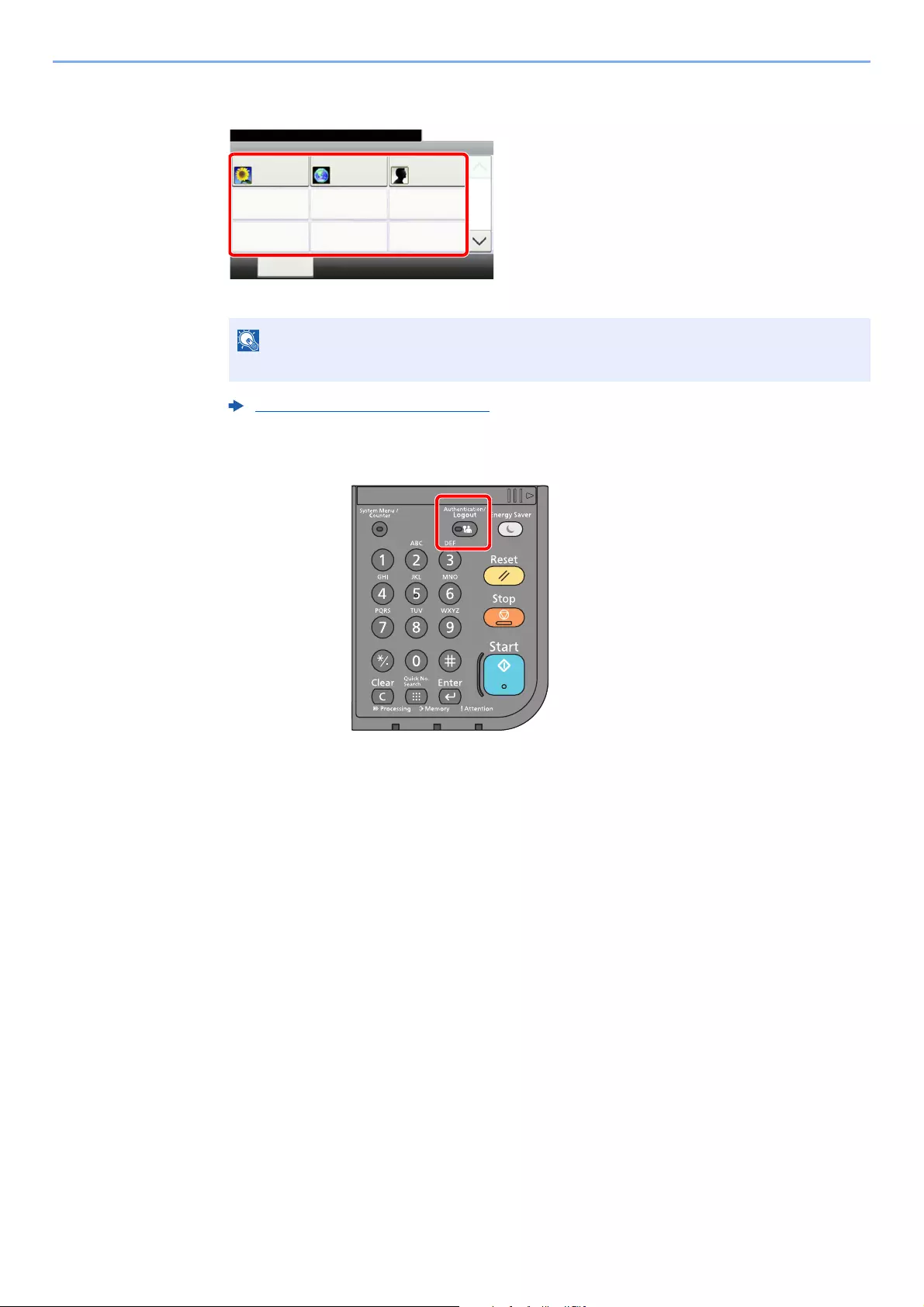
2-23
Installing and Setting up the Machine > Login/Logout
Simple Login
If this screen is displayed during operations, select a user and log in.
Logout
To logout from the machine, select the [Authentication/Logout] key to return to the login user
name/login password entry screen.
Users are automatically logged out in the following circumstances:
• When the machine enters the sleep state.
• When the auto panel reset function is activated.
If a user password is required, an input screen will be displayed.
Simple Login Settings (page 9-27)
10:10
Menu
Select the user to login.
A
None
None
B
None
None
C
None
None
1/3
01
04
07
02
05
08
03
06
09
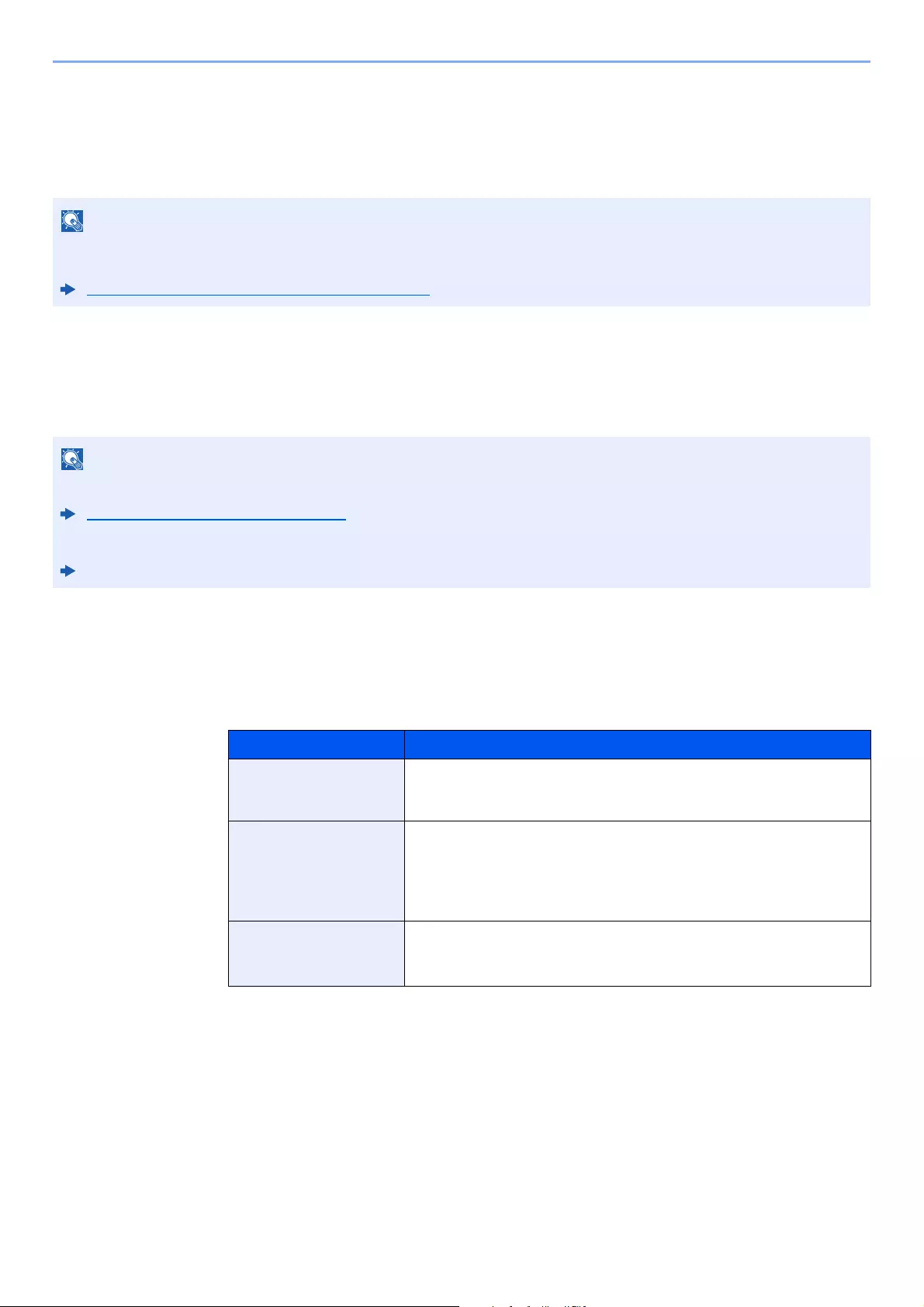
2-24
Installing and Setting up the Machine > Default Settings of the Machine
Default Settings of the Machine
Before using this machine, configure such settings as date and time, network configuration, and energy saving functions
as needed. The Machine Setup Wizard is launched when the equipment is turned on for the first time after being
installed. Also, configure the following settings if necessary.
Setting Date and Time
Follow the steps below to set the local date and time at the place of installation.
When you send an E-mail using the transmission function, the date and time as set here will be printed in the header of
the E-mail message. Set the date, time and time difference from GMT of the region where the machine is used.
.
1Display the screen.
[System Menu/Counter] key > [Date/Timer/Energy Saver]
2Configure the settings.
[Time Zone] > [Date/Time] > [Date Format]
The default settings of the machine can be changed in System Menu.
For settings that are configurable from System Menu, refer to the following:
Setup and Registration (System Menu) (page 8-1)
• To make changes after this initial configuration, refer to the following:
Date/Timer/Energy Saver (page 8-46)
• The correct time can be periodically set by obtaining the time from the network time server.
Command Center RX User Guide
Item Description
Time Zone Set the time difference from GMT. Choose the nearest listed location from
the list. If you select a region that utilizes summer time, configure settings
for summer time.
Date/Time Set the date and time for the location where you use the machine. If you
perform Send as E-mail, the date and time set here will be displayed on
the header.
Value: Year (2000 to 2037), Month (1 to 12), Day (1 to 31),
Hour (00 to 23), Minute (00 to 59), Second (00 to 59)
Date Format Select the display format of year, month, and date. The year is displayed
in Western notation.
Value: Month/Day/Year, Day/Month/Year, Year/Month/Day
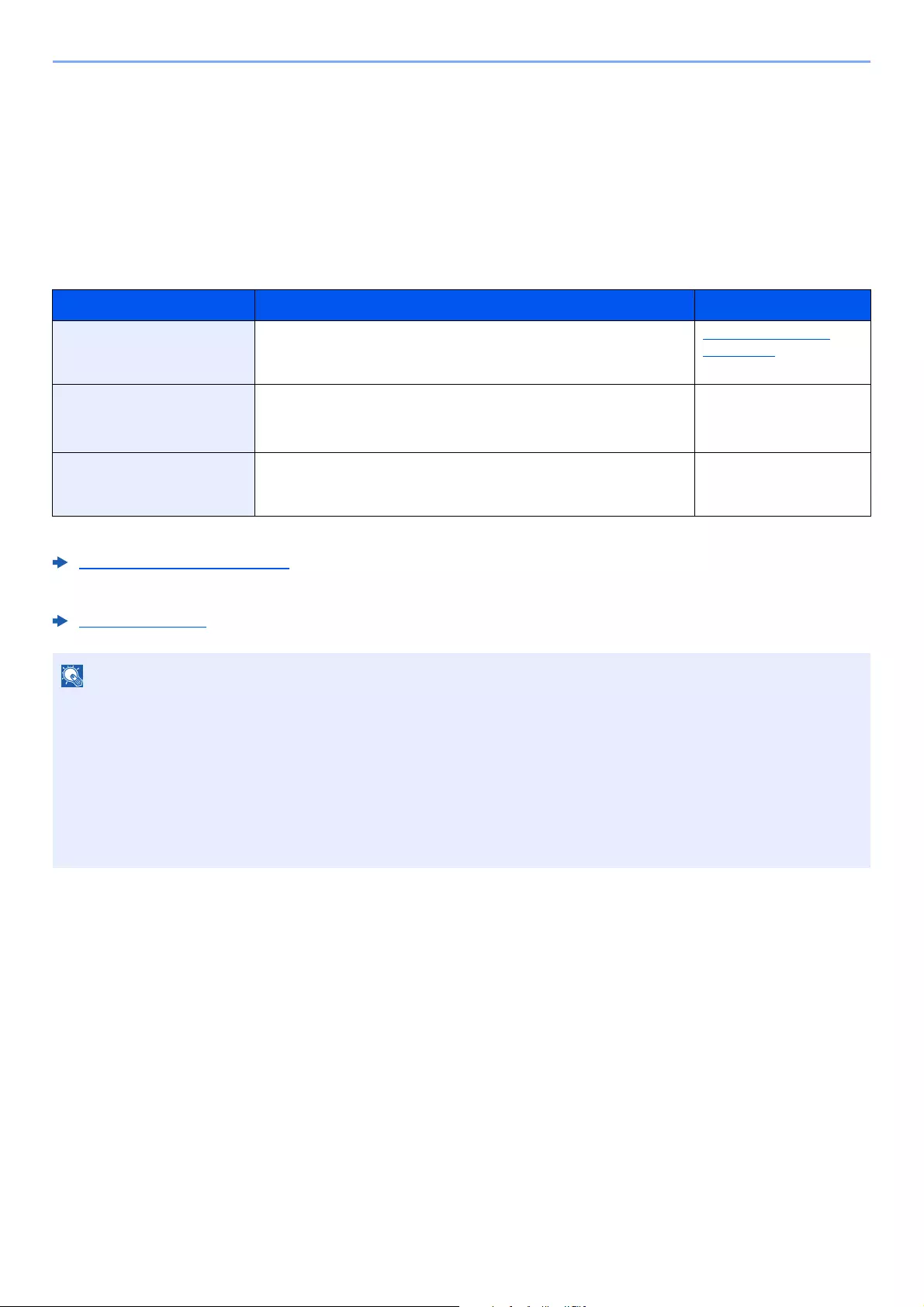
2-25
Installing and Setting up the Machine > Network Setup
Network Setup
Configuring the Wired Network
The machine is equipped with network interface, which is compatible with network protocols such as TCP/IP (IPv4),
TCP/IP (IPv6), NetBEUI, and IPSec. It enables network printing on the Windows, Macintosh, UNIX and other platforms.
Set up TCP/IP (IPv4) to connect to the Windows network.
The configuration methods are as follows
Be sure to connect the network cable before configuring the settings.
Connecting LAN Cable (page 2-8)
For other network settings, refer to the following:
Network (page 8-27)
Configuration Method Description Reference Page
Configuring the Connection
from the Operation Panel on
This Machine
Use Quick Setup Wizard when configuring the network in a wizard-
style screen, without setting individually in System menu.
Quick Setup Wizard
(page 2-35)
Configuring Connections on
the Web Page
For the equipped network interface, the connection can be set by
using Command Center RX. For the optional IB-50, the connection
can be set by using the dedicated Web page.
Command Center RX
User Guide
IB-50 Operation Guide
Setting the Connection by
Using the Setup Utility of
IB-50
This is the setup tool included in the CD of IB-50. You can use it on
Windows.
IB-50 Operation Guide
If user login administration is enabled, you can only change the settings by logging in with administrator privileges.
If user login administration is disabled, the user authentication screen appears. Enter a login user name and
password, and select [Login].
The factory default login user name and login password are set as shown below.
ECOSYS M3145idn ECOSYS M3655idn ECOSYS M3660idn
ECOSYS M3645idn
Login User Name: 4500 5500 6000
Login Password: 4500 5500 6000
2-26
Installing and Setting up the Machine > Network Setup
IPv4 setting
1Display the screen.
[System Menu/Counter] key > [System/Network] > [Network] > [Wired Network Settings]
> [TCP/IP Setting] > [IPv4]
2Configure the settings.
When using DHCP server
[DHCP]: Set to [On].
When setting the static IP address
[DHCP]: Set to [Off].
[IP Address]: Enter the address.
[Subnet Mask]: Enter the subnet mask in decimal representation (0 to 255).
[Default Gateway]: Enter the address.
[Auto-IP]: Set to [Off].
When using the Auto-IP, enter «0.0.0.0» in [IP Address].
After changing the setting, restart the network from System Menu, or turn the
machine OFF and then ON.
Restart Network (page 8-38)
Ask your network administrator for the IP address in advance, and have it ready when you
configure this setting.
In the following cases, set the IP address of DNS server on the Command Center RX.
• When using the host name with «DHCP» setting set to «Off»
• When using the DNS server with IP address that is not assigned by DHCP automatically.
Setting the IP Address of the DNS Server, refer to the following:
Command Center RX User Guide
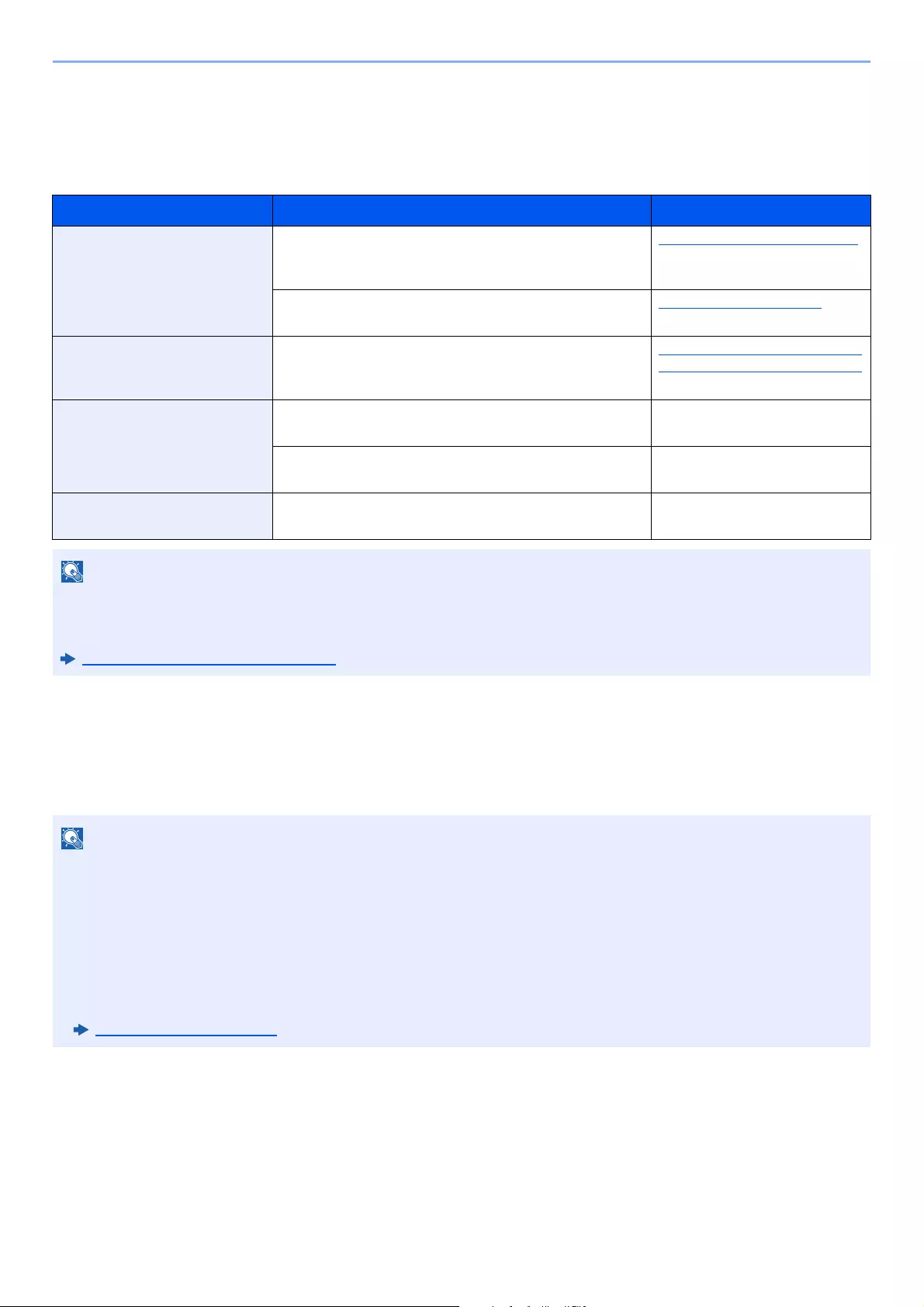
2-27
Installing and Setting up the Machine > Network Setup
Configuring the Wireless Network
When the Wireless Network Interface Kit (IB-36 and IB-51) is installed on the machine and the connection settings are
configured, it is possible to print or send in a wireless network (wireless LAN) environment. The configuration methods
are as follows:
Setting the Connection by Using the Wi-Fi Setup Tool
To send the Wi-Fi settings configured in the Wi-Fi Setup Tool to the machine, connect the computer or handheld device
with the machine locally. The connection methods are wired connection via LAN cable and wireless LAN connection
(Wi-Fi Direct).
Configuration Method Description Reference Page
Configuring the Connection
from the Operation Panel on
This Machine
Use Quick Setup Wizard when configuring the network in a
wizard-style screen, without setting individually in System
menu.
Quick Setup Wizard (page 2-35)
Use Wi-Fi Settings to configure the network in details from
System menu.
Wi-Fi Settings (page 8-27)
Setting the Connection by
Using the Wi-Fi Setup Tool
This is the tool included in the Product Library. You can
configure the connection according to the instructions
provided by the wizard.
Setting the Connection by Using
the Wi-Fi Setup Tool (page 2-27)
Configuring Connections on
the Web Page
For the IB-36, the connection can be set from the
Command Center RX.
Command Center RX User
Guide
For the IB-51, the connection can be set on the dedicated
Web page.
IB-51 Operation Guide
Setting the Connection by
Using the Setup Utility of IB-51
This is the setup tool included in the CD of IB-51. You can
use it on both Windows and Mac OS.
IB-51 Operation Guide
When you want to switch to the network interface other than Wired (default) after installing an optional Network
Interface Kit (IB-50) and a Wireless Network Interface Kit (IB-36 or IB-51), select the desired setting on «Primary
Network (Client)».
Primary Network (Client) (page 8-40)
• Before using the Wi-Fi Setup Tool, connect your computer to this machine locally with wired LAN cable or Wi-Fi
Direct.
• To use Wi-Fi Direct, confirm that the Wi-Fi Direct is enabled (Wi-Fi Direct is set to [ON]) and Restart Network from
the operation panel, before your computer will be connected to this machine with Wi-Fi Direct.
• To use a wired LAN cable directly connected to the machine, the Auto-IP (Link-local) address will be assigned to the
machine and the computer. This machine applies Auto-IP as the default settings.
• Configure the settings on the operation panel if your computer supports WPS.
Wi-Fi Settings (page 8-27)
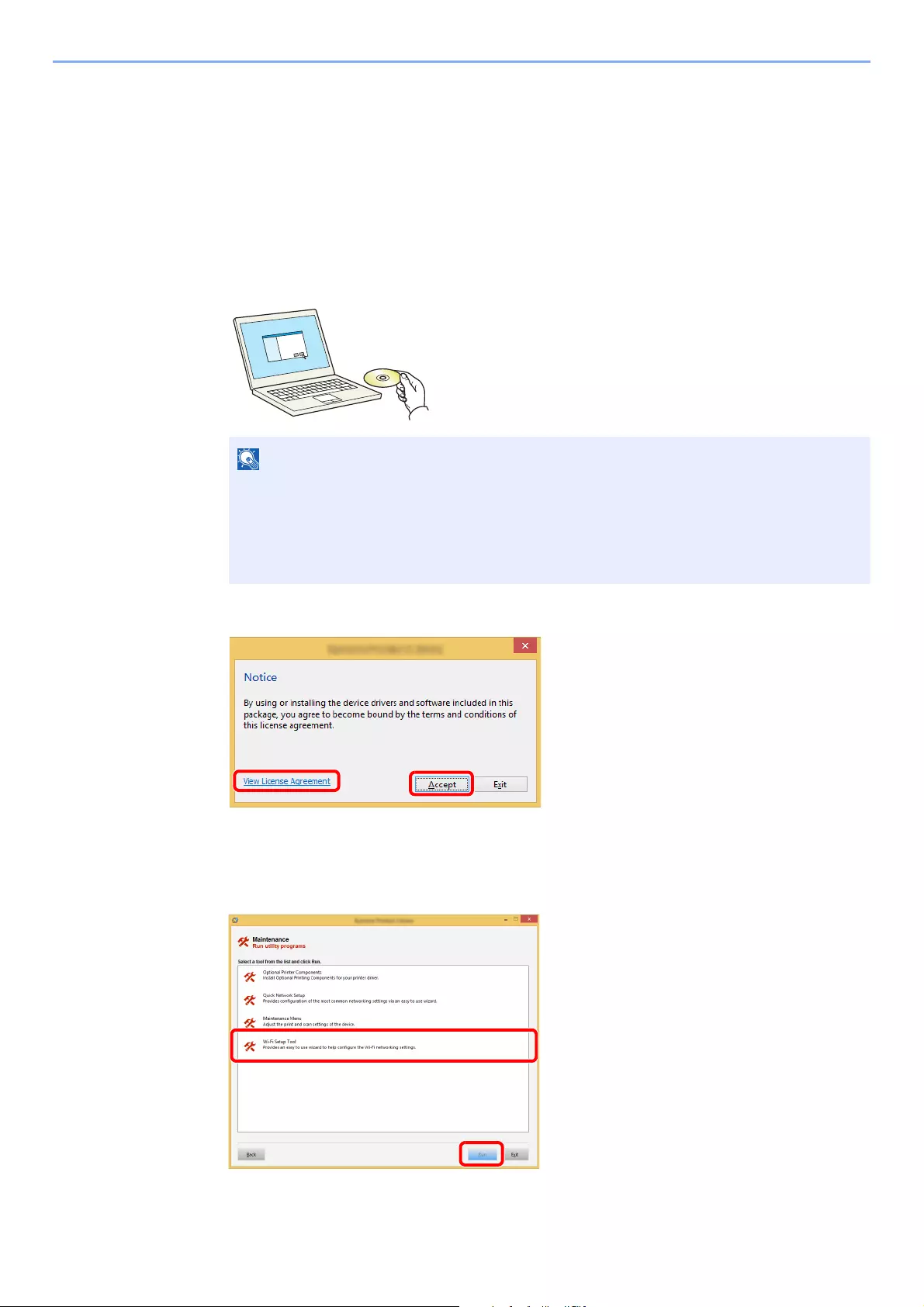
2-28
Installing and Setting up the Machine > Network Setup
Wired Connection by Using LAN Cable
1Connect the machine with a computer
1Connect the machine with a computer via LAN cable when the machine is powered on.
2Turn on the computer.
IP address (link local address) of the machine and computer is generated automatically.
2Insert the DVD.
3Display the screen.
4Select [Maintenance].
5[Wi-Fi Setup Tool] > [OK]
• Installation on Windows must be done by a user logged on with administrator privileges.
• If the «Welcome to the Found New Hardware Wizard» dialog box displays, select [Cancel].
• If the autorun screen is displayed, click [Run setup.exe].
• If the user account management window appears, click [Yes] ([Allow]).
1Click [View License Agreement]
and read the License Agreement.
2Click [Accept].
12

2-29
Installing and Setting up the Machine > Network Setup
6Configure the settings.
1[Do not use automatic configuration] > [Next] > [Next]
2[Use LAN cable] > [Next] > [Next]
3[Easy setup] > [Next]
The machine is detected.
4Select the machine > [Next]
5Select [Use the device settings.] on [Authentication mode], and enter the login user
name and password. Login user name and Password are both Admin.
6Configure the communication settings > [Next]
7Change the settings of access point as necessary > [Next]
The network is configured.
Wireless LAN Connection by Using Wi-Fi Direct
1Display the screen.
[System Menu/Counter] key > [System/Network] > [Network] > [Wi-Fi Direct Settings] >
[Wi-Fi Direct]
2Configure the settings.
[On] > [OK]
3Restart the network.
[System Menu/Counter] key > [System/Network] > [Network] > [Restart Network] > [Yes]
4Connect a computer or a handheld device with the machine.
5Insert the DVD.
• Only one machine can be searched using Wi-Fi Setup Tool. It may take times to search
the machine.
• If the machine is not detected, select [Advanced setup] > [Next]. Select [Express] or
[Custom] as device discovery method and specify the IP address or host name to
search the machine.
Setting Wi-Fi Direct (page 2-31)
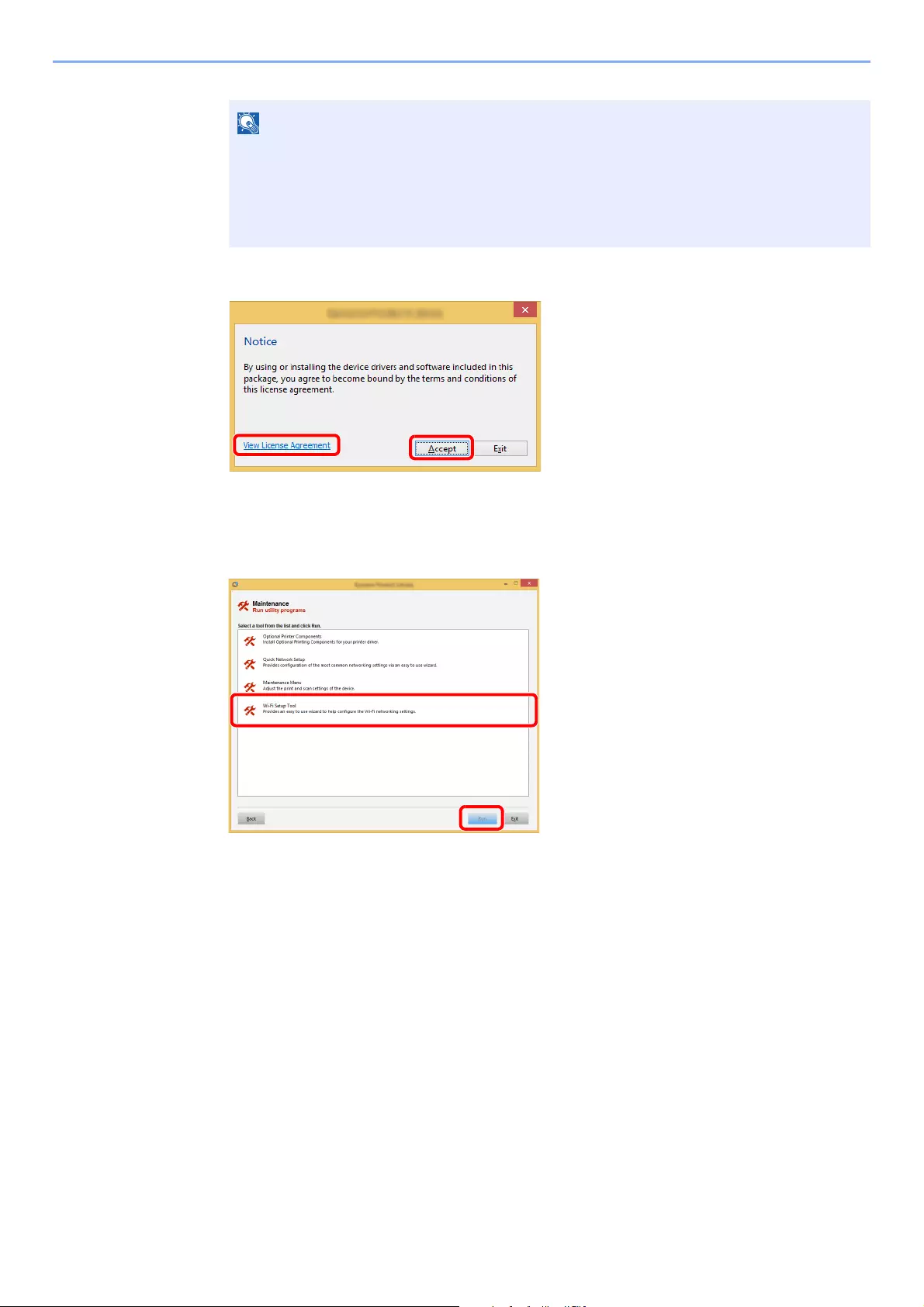
2-30
Installing and Setting up the Machine > Network Setup
6Display the screen.
7Select [Maintenance].
8[Wi-Fi Setup Tool] > [OK]
9Configure the settings.
1[Do not use automatic configuration] > [Next] > [Next]
2[Wi-Fi Direct] > [Next] > [Next]
3[Advanced setup] > [Next]
Select [Express] or [Custom] as device discovery method and specify the IP address or host name
to search the machine.
4Select the machine > [Next]
5Select [Use the device settings.] on [Authentication mode], and enter the login user
name and password. Login user name and Password are both Admin.
6Configure the communication settings > [Next]
7Change the settings of access point as necessary > [Next]
The network is configured.
• Installation on Windows must be done by a user logged on with administrator privileges.
• If the «Welcome to the Found New Hardware Wizard» dialog box displays, select [Cancel].
• If the autorun screen is displayed, click [Run setup.exe].
• If the user account management window appears, click [Yes] ([Allow]).
1Click [View License Agreement]
and read the License Agreement.
2Click [Accept].
12

2-31
Installing and Setting up the Machine > Network Setup
Setting Wi-Fi Direct
You can install the optional Wireless Network Interface Kit (IB-36) on the machine and configure the connection settings
to print in a Wi-Fi Direct environment. The configuration methods are as follows:
Configuring the Connection from the Operation Panel on This Machine
Connecting to Computers or Handheld Devices that Support Wi-Fi Direct
1Display the screen.
[System Menu/Counter] key > [System/Network] > [Network] > [Wi-Fi Direct Settings] >
[Wi-Fi Direct]
2Configure the settings.
[On] > [OK]
3Restart the network.
[System Menu/Counter] key > [System/Network] > [Network] > [Restart Network] > [Yes]
4Specify the machine name from the computer or handheld
device.
If a confirmation message appears on the operation panel of the machine, select [Yes].
The network between this machine and the handheld device is configured.
Connecting to Computers or Handheld Devices Unsupported Wi-Fi Direct
Here, we’ll explain the procedures for connecting to iOS handheld devices.
1Display the screen.
[System Menu/Counter] key > [System/Network] > [Network] > [Wi-Fi Direct Settings] >
[Wi-Fi Direct]
2Configure the settings.
[On] > [OK]
3Restart the network.
[System Menu/Counter] key > [System/Network] > [Network] > [Restart Network] > [Yes]
4[Home] key > [Wi-Fi Direct]
5Note the network name (SSID), IP address, and password.
6Configure the handheld device.
1[Settings] > [Wi-Fi]
2Select the network name (SSID) appeared in step 5 from the list.
3Enter the password that was provided in step 5 > [Connect]
The network between this machine and the handheld device is configured.

2-32
Installing and Setting up the Machine > Network Setup
Configuring the Connection by Using Push Button
When your computer or handheld device does not support Wi-Fi Direct but supports WPS, you can configure the
network using push button.
1Display the screen.
[System Menu/Counter] key > [System/Network] > [Network] > [Wi-Fi Direct Settings] >
[Wi-Fi Direct]
2Configure the settings.
[On] > [OK]
3Restart the network.
[System Menu/Counter] key > [System/Network] > [Network] > [Restart Network] > [Yes]
4[Home] key > [Wi-Fi Direct]
5Press the push button on the computer or handheld device and
select [Push Button] on the screen of operation panel
simultaneously.
The network between this machine and the computer or handheld device is configured.
You can connect up to three handheld devices at the same time using Wi-Fi Direct setting. When the devices
that support Wi-Fi Direct are connected, if you want to connect other device, disconnect the already-
connected devices from the network. The disconnection methods are as follows:
• Disconnect the network from the computer or handheld computer
• Disconnecting all devices from the network on the operation panel
Select [Home] key > [Wi-Fi Direct] > [Connected Device List] > [Disconnect All]
• Configuring auto disconnecting time from the System menu
Wi-Fi Settings (page 8-27)
• Configuring auto disconnecting time from the Command Center RX
Command Center RX User Guide
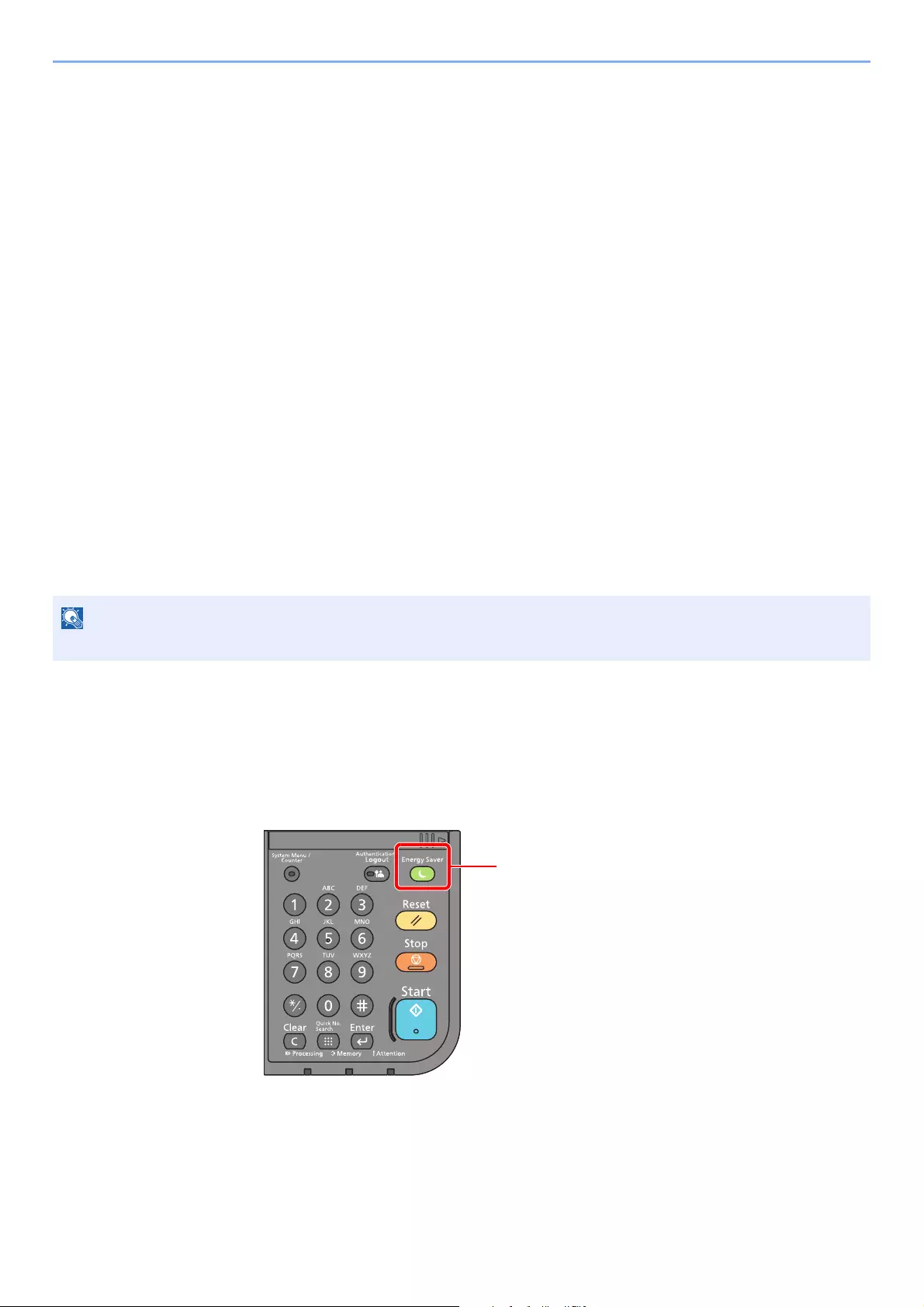
2-33
Installing and Setting up the Machine > Energy Saver function
Energy Saver function
If a certain period of time elapses after the machine is last used, the machine automatically enters Low Power Mode to
reduce power consumption. If a further period of time elapses without the machine being used, the machine
automatically enters Sleep Mode, which minimizes power consumption.
Low Power Mode
If the machine is not operated for a certain period of time, the energy saver indicator will light up and the screen will
become dark to reduce power consumption. This status is referred to as Low Power Mode.
«Low power.» will be displayed on the screen.
The amount of time before entering Low Power Mode: 1 minutes (default setting).
If print data is received during Low Power Mode, the machine automatically wakes up and starts printing. Also when fax
data arrives while the machine is in Low Power Mode, the machine automatically wakes up and starts printing.
To resume, perform one of the following actions.
• Select any key on the operation panel.
• Touch the touch panel.
• Place originals in the document processor.
Recovery time from Low Power Mode is as follows.
• 10 seconds or less
Note that ambient environmental conditions, such as ventilation, may cause the machine to respond more slowly.
Sleep and Auto Sleep
Sleep
To enter Sleep, select the [Energy Saver] key. Touch panel and all indicators on the operation panel will go out to save
a maximum amount of power except the Energy Saver indicator. This status is referred to as Sleep.
If the Low Power Timer is equal to the Sleep Timer, a Sleep mode is preceded.

2-34
Installing and Setting up the Machine > Energy Saver function
If print data is received during Sleep, the machine automatically wakes up and starts printing.
Also when fax data arrives while the machine is in Sleep, the machine automatically wakes up and starts printing.
To resume, perform the following actions.
• Select the [Energy Saver] key.
The machine will be ready to operate within 21 seconds for ECOSYS M3145idn/ECOSYS M3645idn, and 25 seconds
for ECOSYS M3655idn/ECOSYS M3660idn.
Note that ambient environmental conditions, such as ventilation, may cause the machine to respond more slowly.
Auto Sleep
Auto Sleep automatically switches the machine into Sleep if left idle for a preset time.
The default preset time is 1 minute.
To change the preset sleep time, refer to the following:
Quick Setup Wizard (page 2-35)
Sleep Rules (models for Europe)
You can set whether sleep mode operates for each function. When the machine enters sleep mode, the ID card cannot
be recognized.
For more information on Sleep Rules settings, refer to the following:
Sleep Rules (models for Europe) (page 8-47)
Sleep Level (Energy Saver and Quick Recovery) (models except for Europe)
For sleep level, you can toggle between the following two modes: Energy Saver mode and Quick Recovery mode. The
default setting is Energy Saver mode.
Energy Saver mode reduces power consumption even more than Quick Recovery mode, and allows Sleep Mode to be
set separately for each function. The ID card cannot be recognized.
For more information on Sleep Level settings, refer to the following:
Quick Setup Wizard (page 2-35)
Power Off Rule (models for Europe)
The Power Off Rule is used to stop the power from automatically turning off.
The default preset time is 3 days.
For more information on Power Off Rule settings, refer to the following:
Power Off Rule (models for Europe) (page 8-48)
If the optional Network Interface Kit is installed, Energy Saver cannot be specified.
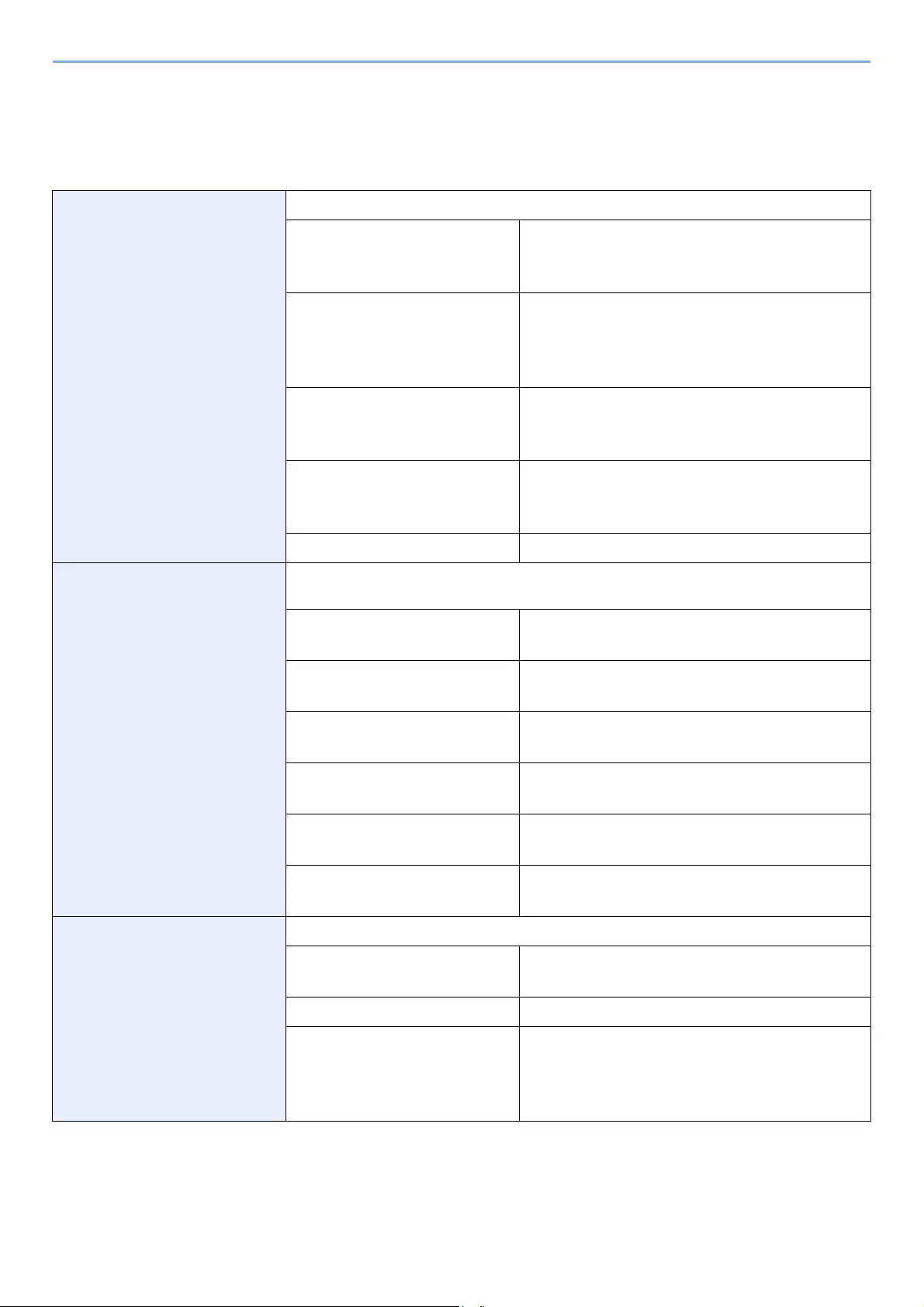
2-35
Installing and Setting up the Machine > Quick Setup Wizard
Quick Setup Wizard
For FAX functions, paper settings, Energy Saver functions and network settings, the following settings can be configured
in a wizard-style screen.
FAX Setup*1 Configures basic fax settings.
1. Dialing/RX Mode Dialing Mode
Reception Mode
Auto (DRD)
2. Local FAX Info. Local FAX Name
Local FAX Number
Local FAX ID
TTI
3. Sound Speaker Volume
Monitor Volume
Job Finish Buzzer
4. Rings Normal
Answering Machine
FAX/TEL Switch
5. Redial Retry Times
Paper Setup Configures the paper size and media type of paper to be used in cassettes and multi purpose
tray.
1. Cassette 1 Paper Size*2
Media Type
2. Cassette 2*3 Paper Size*2
Media Type
3. Cassette 3*3 Paper Size*2
Media Type
4. Cassette 4*3 Paper Size*2
Media Type
5. Cassette 5*3 Paper Size*2
Media Type
6. MP Tray Paper Size
Media Type
Energy Saver Setup Configures sleep mode.
1. Sleep Mode Sleep Timer
Sleep Level (models except for Europe)
2. Low Power Mode Low Power Timer
3. Weekly Timer Weekly Timer
Schedule*4
Retry Times*4
Retry Interval*4
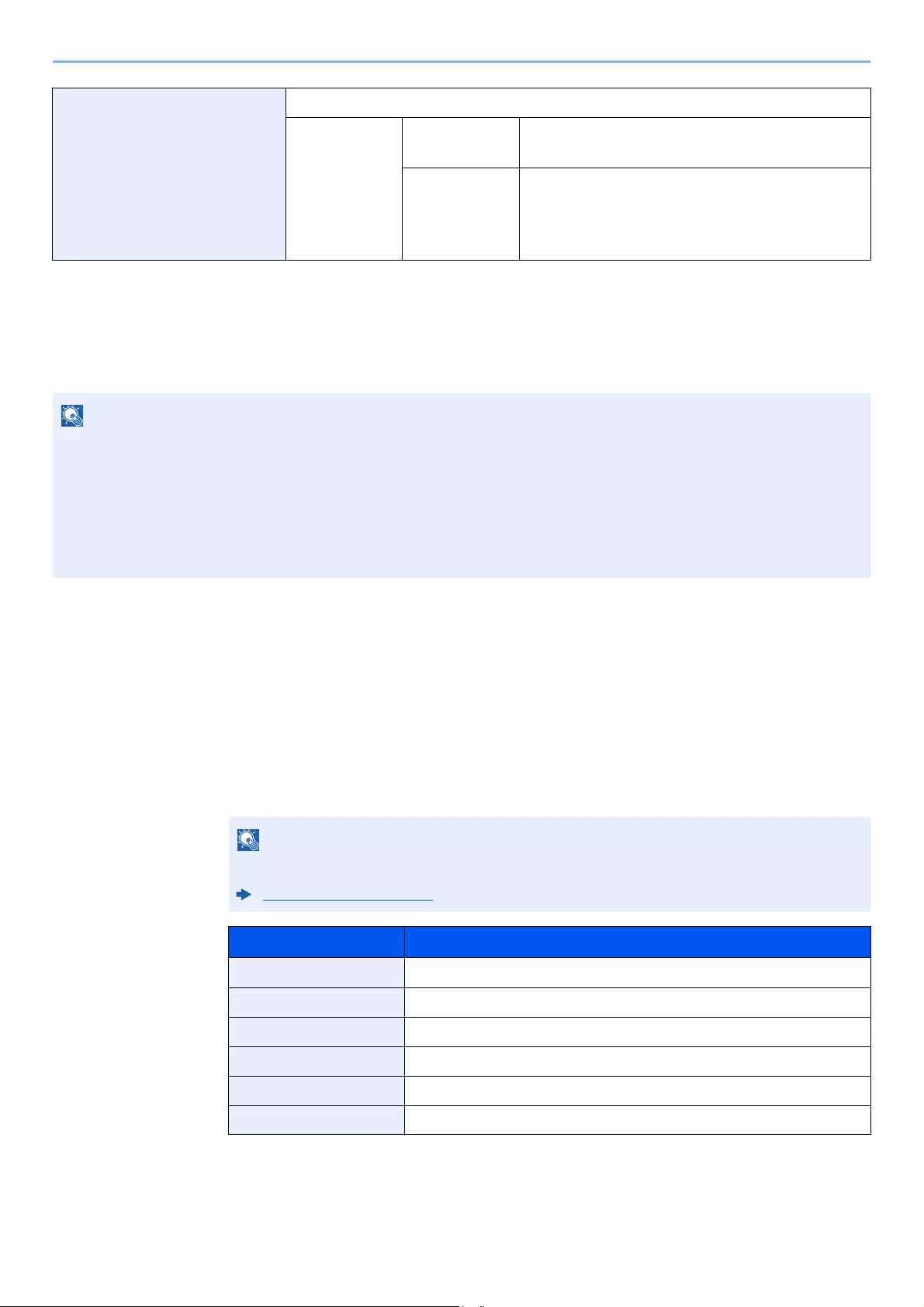
2-36
Installing and Setting up the Machine > Quick Setup Wizard
1Display the screen.
[System Menu/Counter] key > [Quick Setup Wizard]
2Select a function.
3Configure the settings.
Start the wizard. Follow the instructions on the screen to configure settings.
[Next>]>
Network Setup Configures network settings.
1. Network Wi-Fi*5 Wi-Fi
Available Network
Wired Network Obtain IP Address
IP Address*6
Subnet Mask*6
Default Gateway*6
*1 FAX functions are available only on products with the fax function installed.
*2 Displayed only when the size dial on the cassette is set to «Other».
*3 Displayed only when the optional paper feeder is installed.
*4 This function is displayed when [Weekly Timer] is set to [On].
*5 This function is displayed when the optional Wireless Network Interface Kit is installed.
*6 Not displayed when «Obtain IP Address» is set to [Auto (DHCP)].
If the user authentication screen appears, enter your login user name and login password and select [Login].
The factory default login user name and login password are set as shown below.
ECOSYS M3145idn ECOSYS M3655idn ECOSYS M3660idn
ECOSYS M3645idn
Login User Name: 4500 5500 6000
Login Password: 4500 5500 6000
If you experience difficulty configuring the settings, refer to the following:
Help Screen (page 2-21)
Control Description
End Exits the wizard. Settings configured so far are applied.
Previous Returns to the previous item.
Skip Advances to the next item without setting the current item.
Next Advances to the next screen.
Back Returns to the previous screen.
Complete Register the settings and exit the wizard.
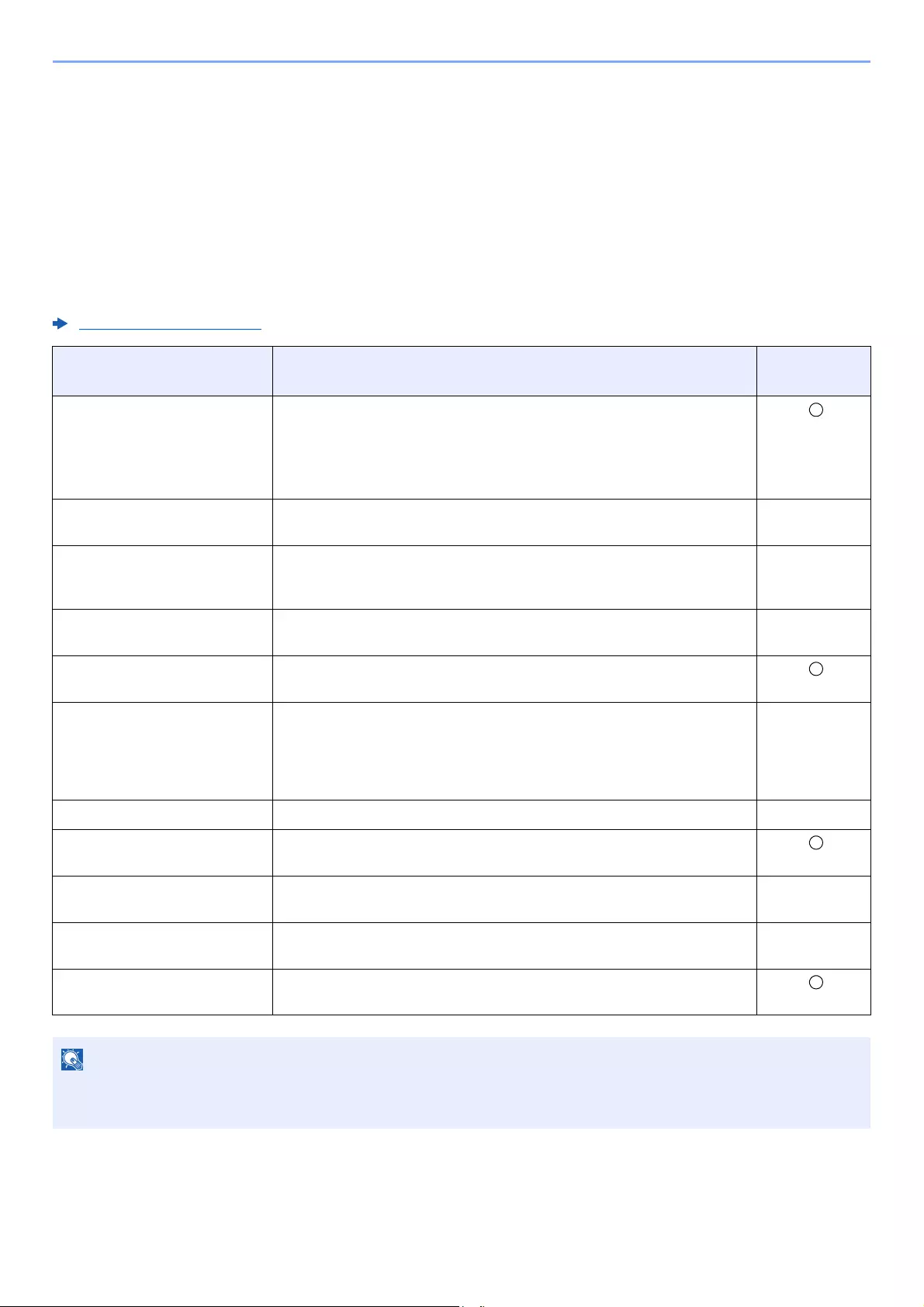
2-37
Installing and Setting up the Machine > Installing Software
Installing Software
Install appropriate software on your PC from the included DVD (Product Library) if you want to use the printer function of
this machine or perform TWAIN / WIA transmission or Network FAX transmission from your PC.
Software on DVD (Windows)
You can use either [
Express Install
] or [
Custom Install
] can be selected for the installation method. [
Express Install
] is
the standard installation method. To install components that cannot be installed by [
Express Install
], use [
Custom Install
].
For details on Custom Installation, refer to the following:
Custom Install (page 2-41)
Software Description Express
Install
KX DRIVER This driver enables files on a computer to be printed by the machine.
Multiple page description languages (PCL XL, KPDL, etc.) are supported by
a single driver. This printer driver allows you to take full advantage of the
features of the machine.
Use this driver to create PDF files.
KX XPS DRIVER This printer driver supports the XPS (XML Paper Specification) format
developed by Microsoft Corporation.
—
KPDL mini-driver/PCL mini-
driver
This is a Microsoft MiniDriver that supports PCL and KPDL. There are some
restrictions on the machine features and option features that can be used
with this driver.
—
FAX Driver This makes it possible to send a document created in a computer software
application as a fax via the machine.
—
Kyocera TWAIN Driver This driver enables scanning on the machine using a TWAIN-compliant
software application.
Kyocera WIA Driver WIA (Windows Imaging Acquisition) is a function of Windows that enables
reciprocal communication between an imaging device such as a scanner
and an image processing software application. An image can be acquired
using a WIA-compliant software application, which is convenient when a
TWAIN-compliant software application is not installed in the computer.
—
KYOCERA Net Viewer This is a utility that enables monitoring of the machine on the network. —
Status Monitor This is a utility that monitors the printer status and provides an ongoing
reporting function.
File Management Utility This makes it possible to send and save a scanned document to a specified
network folder.
—
KYOCERA Net Direct Print This makes it possible to print a PDF file without starting Adobe Acrobat/
Reader.
—
FONTS These are display fonts that enable the machine’s built-in fonts to be used in
a software application.
• Installation on Windows must be done by a user logged on with administrator privileges.
• Fax functionality can only be used on products equipped with fax capability.
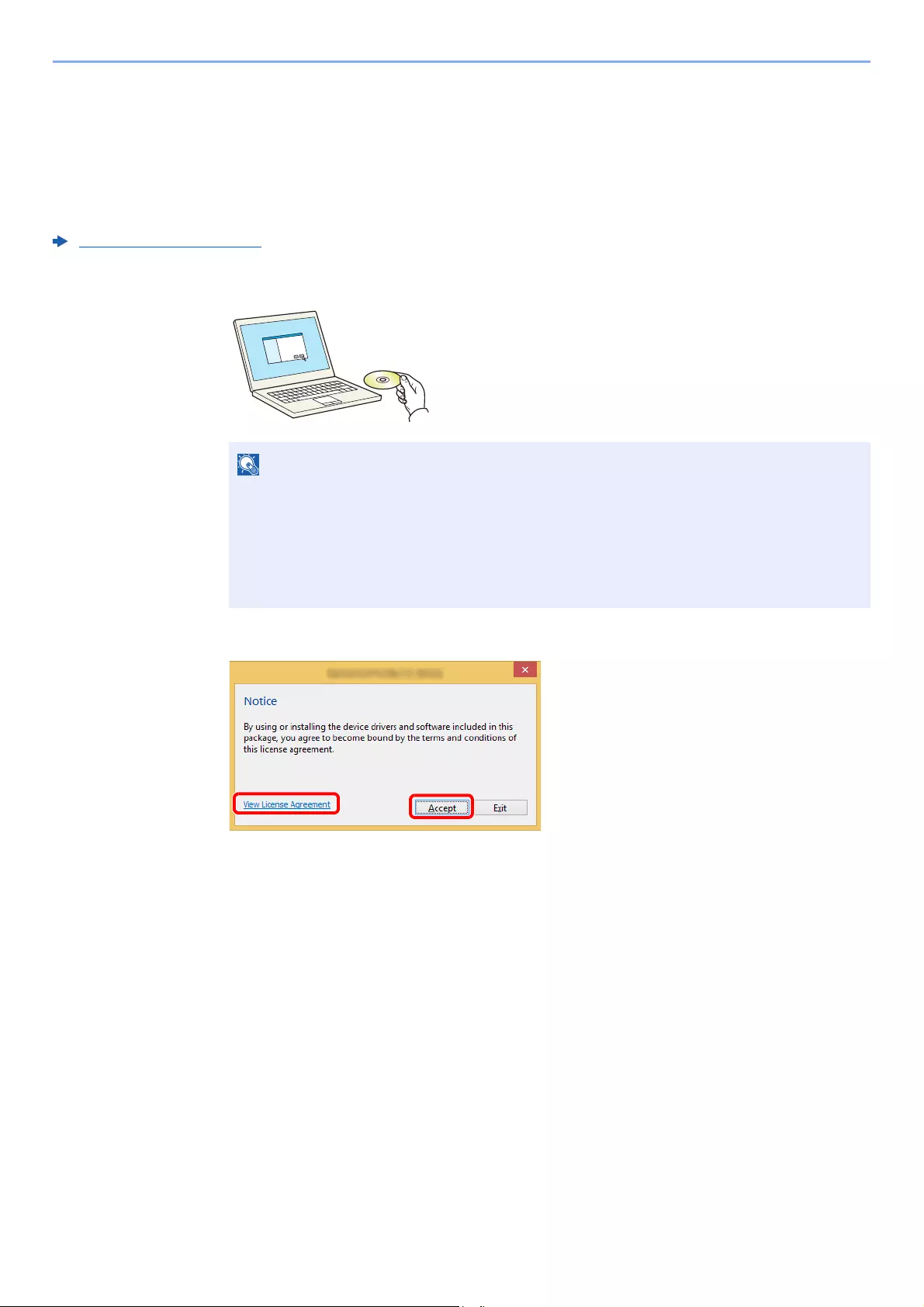
2-38
Installing and Setting up the Machine > Installing Software
Installing Software in Windows
Express Install
The following procedure is an example for installing the software in Windows 8.1 using [Express Install].
For details on Custom Installation, refer to the following:
Custom Install (page 2-41)
1Insert the DVD.
2Display the screen.
• Installation on Windows must be done by a user logged on with administrator privileges.
• If the «Welcome to the Found New Hardware Wizard» dialog box displays, select
[Cancel].
• If the autorun screen is displayed, click [Run setup.exe].
• If the user account management window appears, click [Yes].
1Click [View License Agreement]
and read the License Agreement.
2Click [Accept].
12
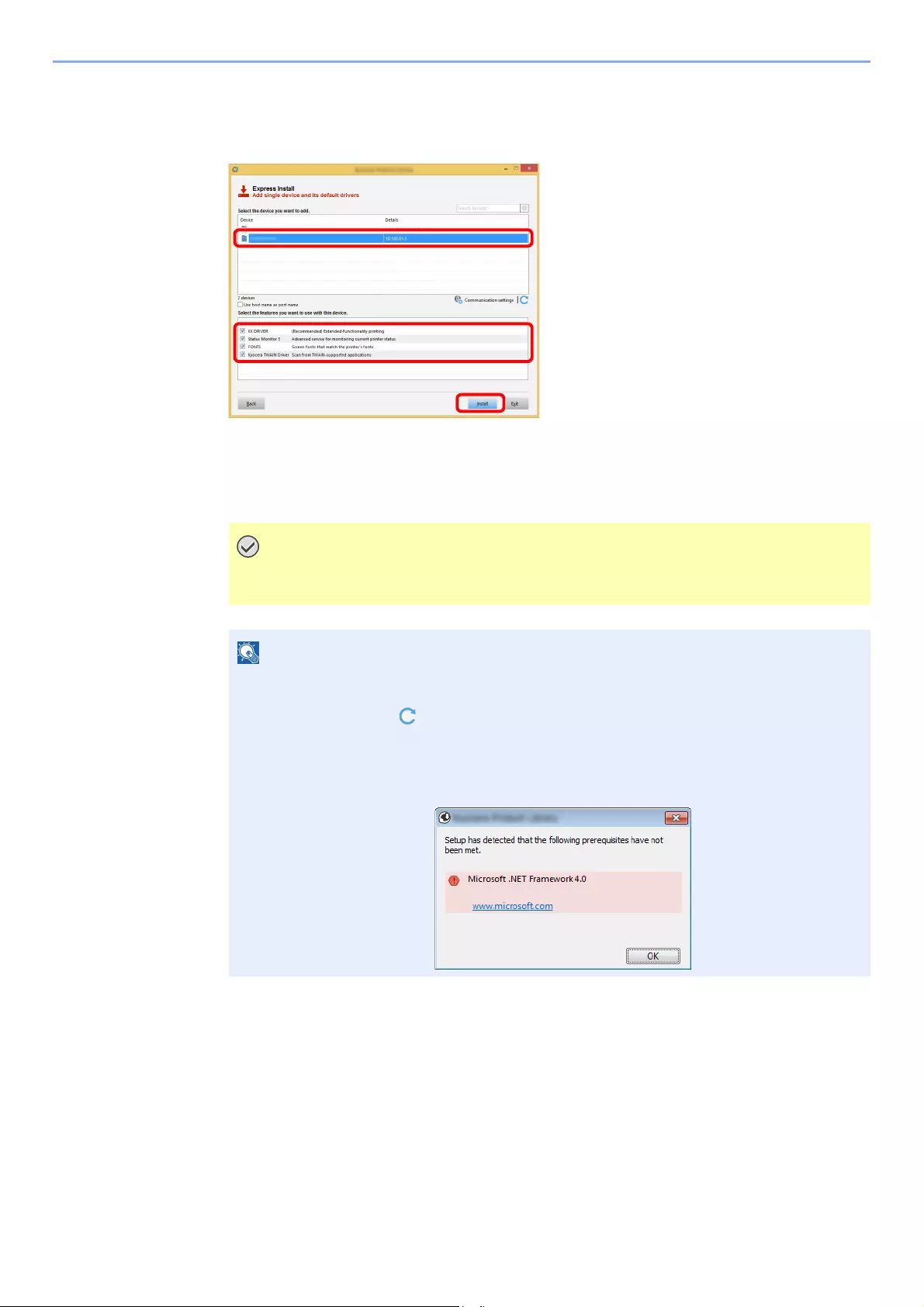
2-39
Installing and Setting up the Machine > Installing Software
3Select [Express Install].
4Install the software.
You can also select [Use host name for port name] and set to use the host name of the
standard TCP/IP port. (A USB connection cannot be used.)
When you click [Install], a screen asking for your cooperation with data collection will be
displayed. Select one of the answer choices and click [OK].
If Wi-Fi or Wi-Fi Direct is enabled, be sure to specify the IP address for the port name.
Installation may fail if the host name is specified.
• The machine cannot be detected unless it is on. If the computer fails to detect the
machine, verify that it is connected to the computer via a network or USB cable and that it
is turned on and click (Reload).
• If the Windows security window appears, click [Install this driver software anyway].
• To install Status Monitor on Windows versions preceding Windows 8, it is necessary to
install Microsoft .NET Framework 4.0 beforehand.
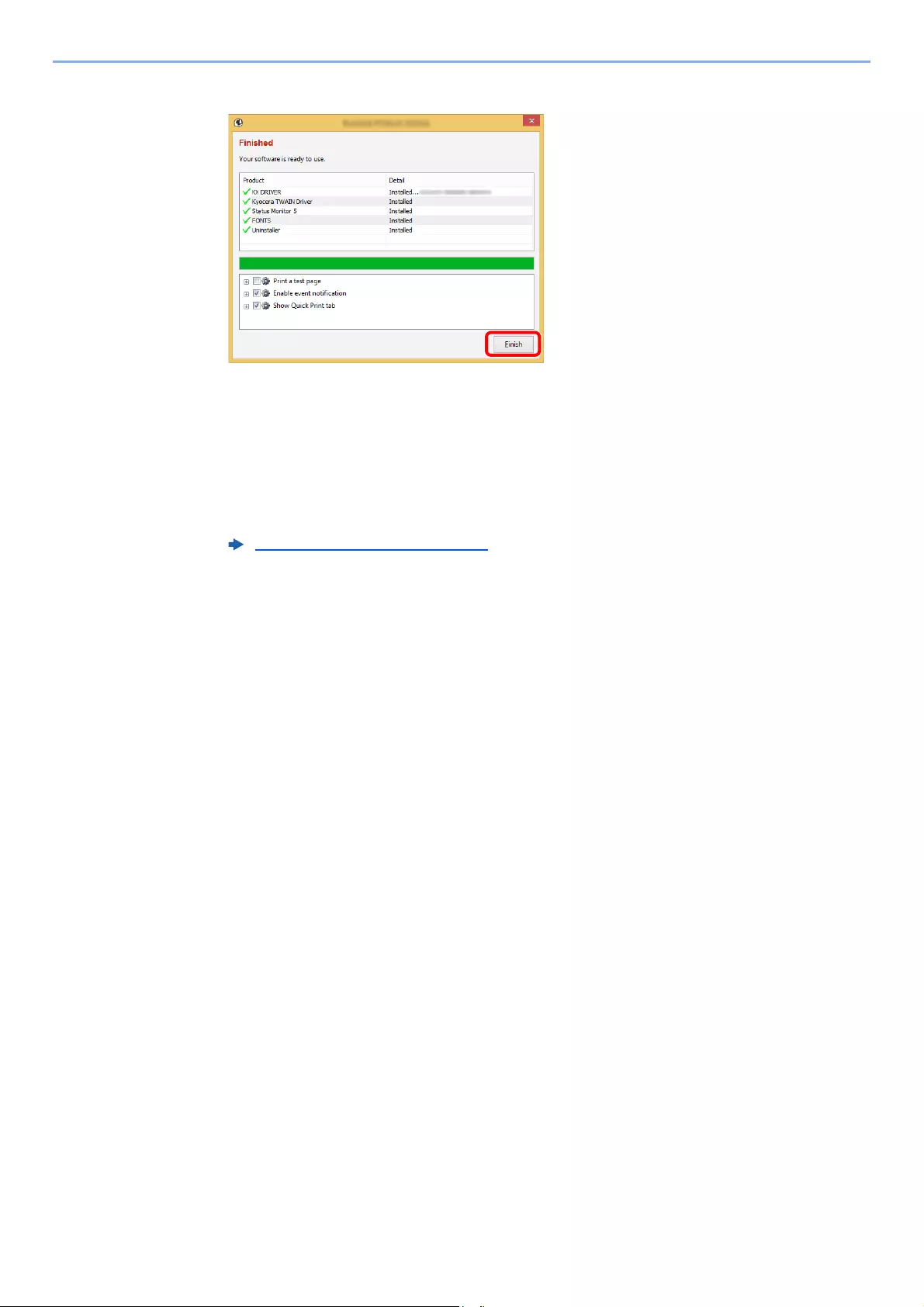
2-40
Installing and Setting up the Machine > Installing Software
5Finish the installation.
When «Your software is ready to use» appears, you can use the software. To print a test
page, click the «Print a test page» checkbox and select the machine.
Click [Finish] to exit the wizard.
If a system restart message appears, restart the computer by following the screen prompts.
This completes the printer driver installation procedure.
If you are installing the TWAIN driver, continue by configuring the following:
Setting TWAIN Driver (page 2-47)
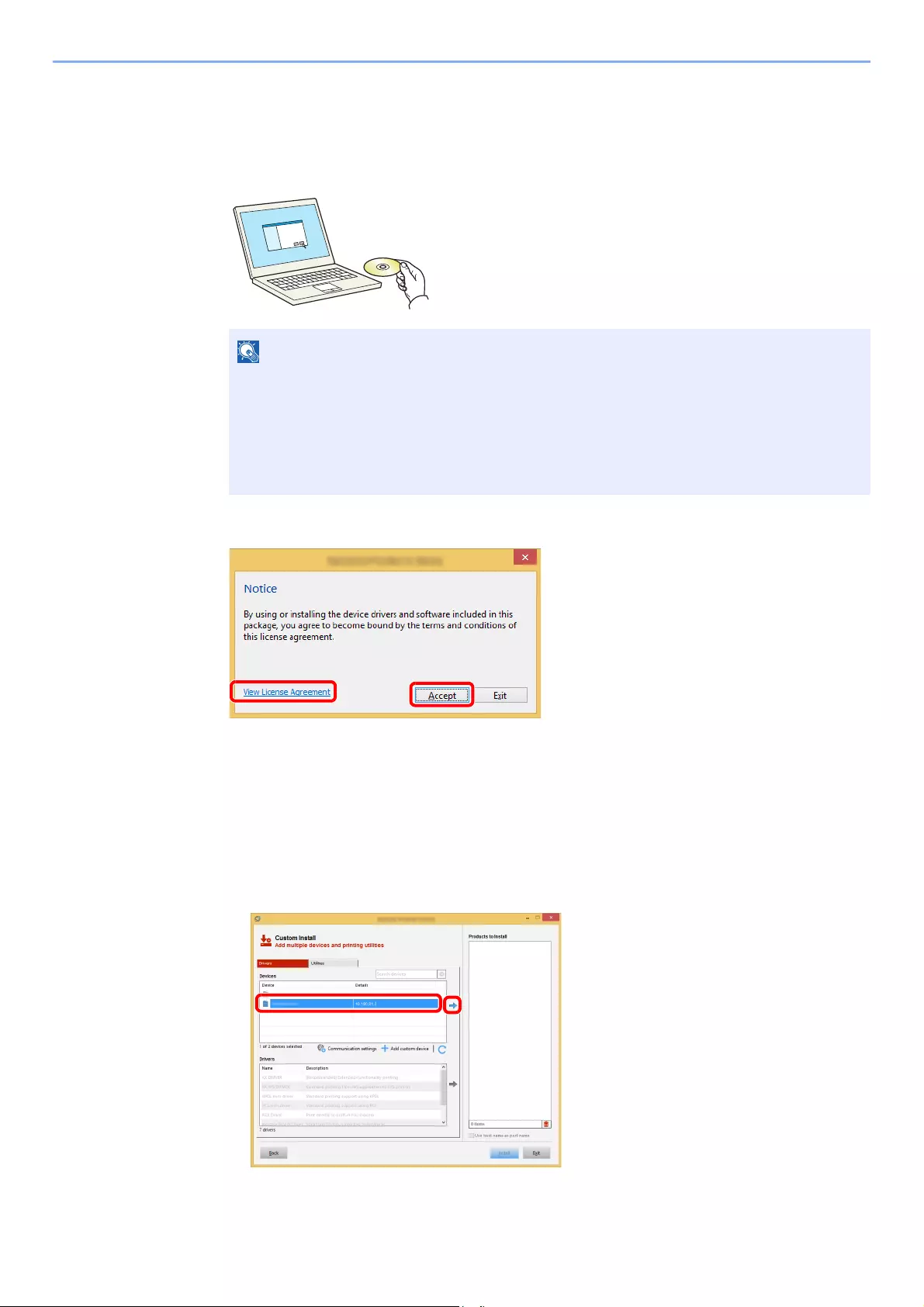
2-41
Installing and Setting up the Machine > Installing Software
Custom Install
The following procedure is an example for installing the software in Windows 8.1 using [Custom Install].
1Insert the DVD.
2Display the screen.
3Select [Custom Install].
4Install the software.
1Select the device to be installed.
• Installation on Windows must be done by a user logged on with administrator privileges.
• If the «Welcome to the Found New Hardware Wizard» dialog box displays, select
[Cancel].
• If the autorun screen is displayed, click [Run setup.exe].
• If the user account management window appears, click [Yes].
1 Click [View License Agreement]
and read the License Agreement.
2 Click [Accept].
12
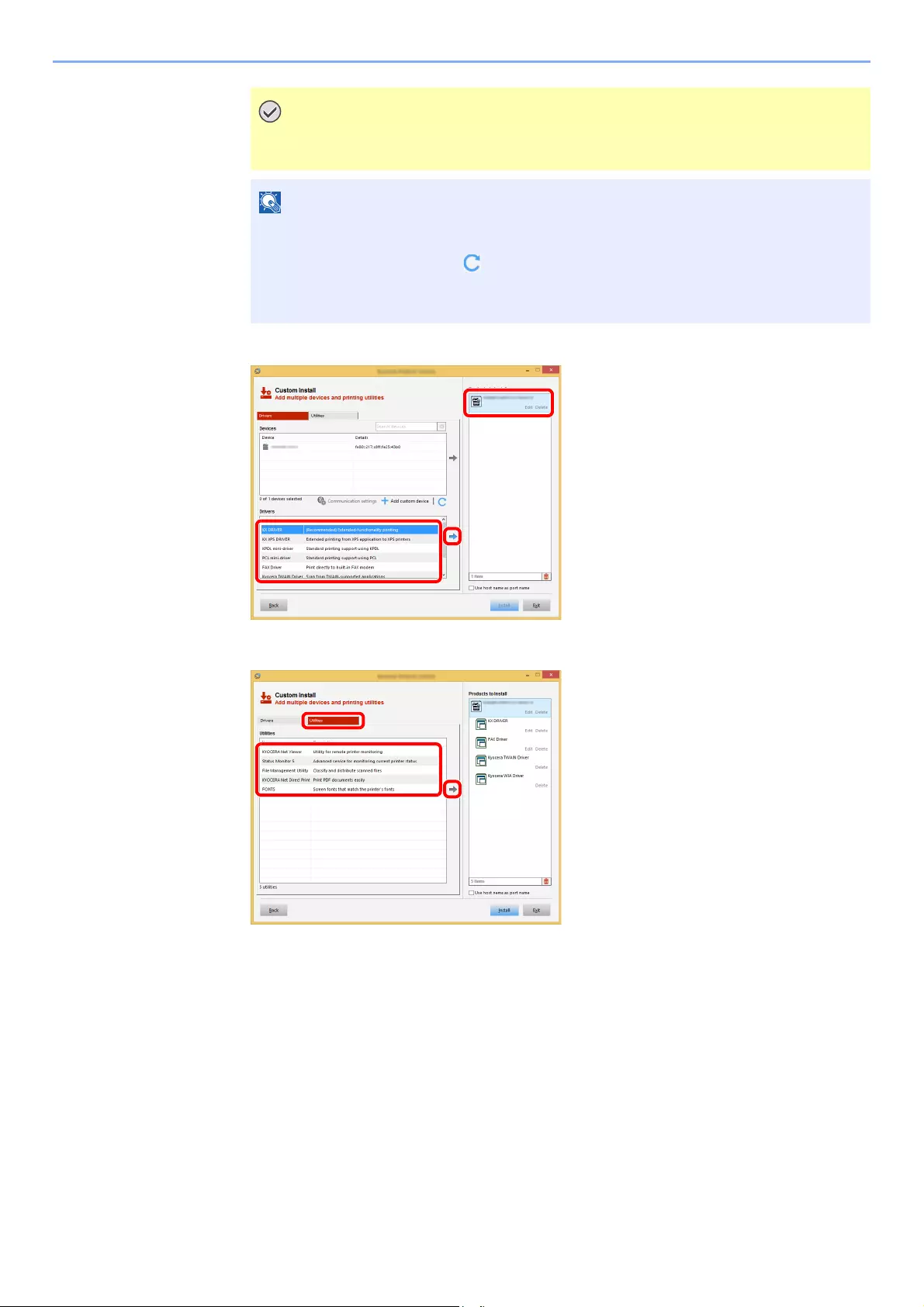
2-42
Installing and Setting up the Machine > Installing Software
2Select the driver to be installed.
3Click [Utility] tab and select the utility to be installed.
If Wi-Fi or Wi-Fi Direct is enabled, be sure to specify the IP address for the port
name. Installation may fail if the host name is specified.
• The machine cannot be detected unless it is on. If the computer fails to detect the
machine, verify that it is connected to the computer via a network or USB cable and
that it is turned on and click (Reload).
• If the desired device does not appear, select [Add custom device] to directly select
the device.
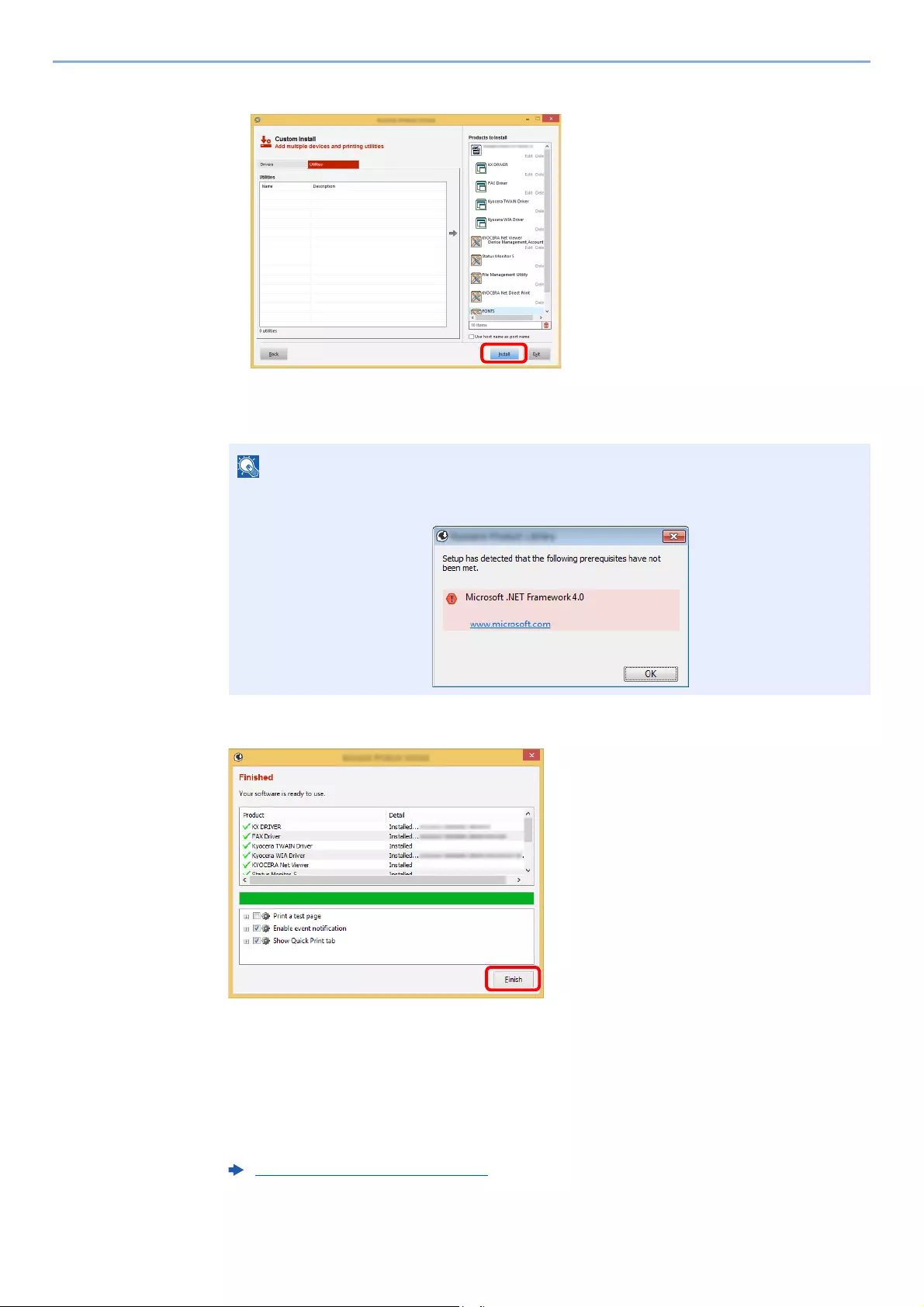
2-43
Installing and Setting up the Machine > Installing Software
4Click [Install].
When you click [Install], a screen asking for your cooperation with data collection will be displayed.
Select one of the answer choices and click [OK].
5Finish the installation.
When «Your software is ready to use» appears, you can use the software. To print a test
page, click the «Print a test page» checkbox and select the machine.
Click [Finish] to exit the wizard.
If a system restart message appears, restart the computer by following the screen prompts.
This completes the printer driver installation procedure.
If you are installing the TWAIN driver, continue by configuring the following:
• To install Status Monitor on Windows versions preceding Windows 8, it is necessary to
install Microsoft .NET Framework 4.0 beforehand.
Setting TWAIN Driver (page 2-47)
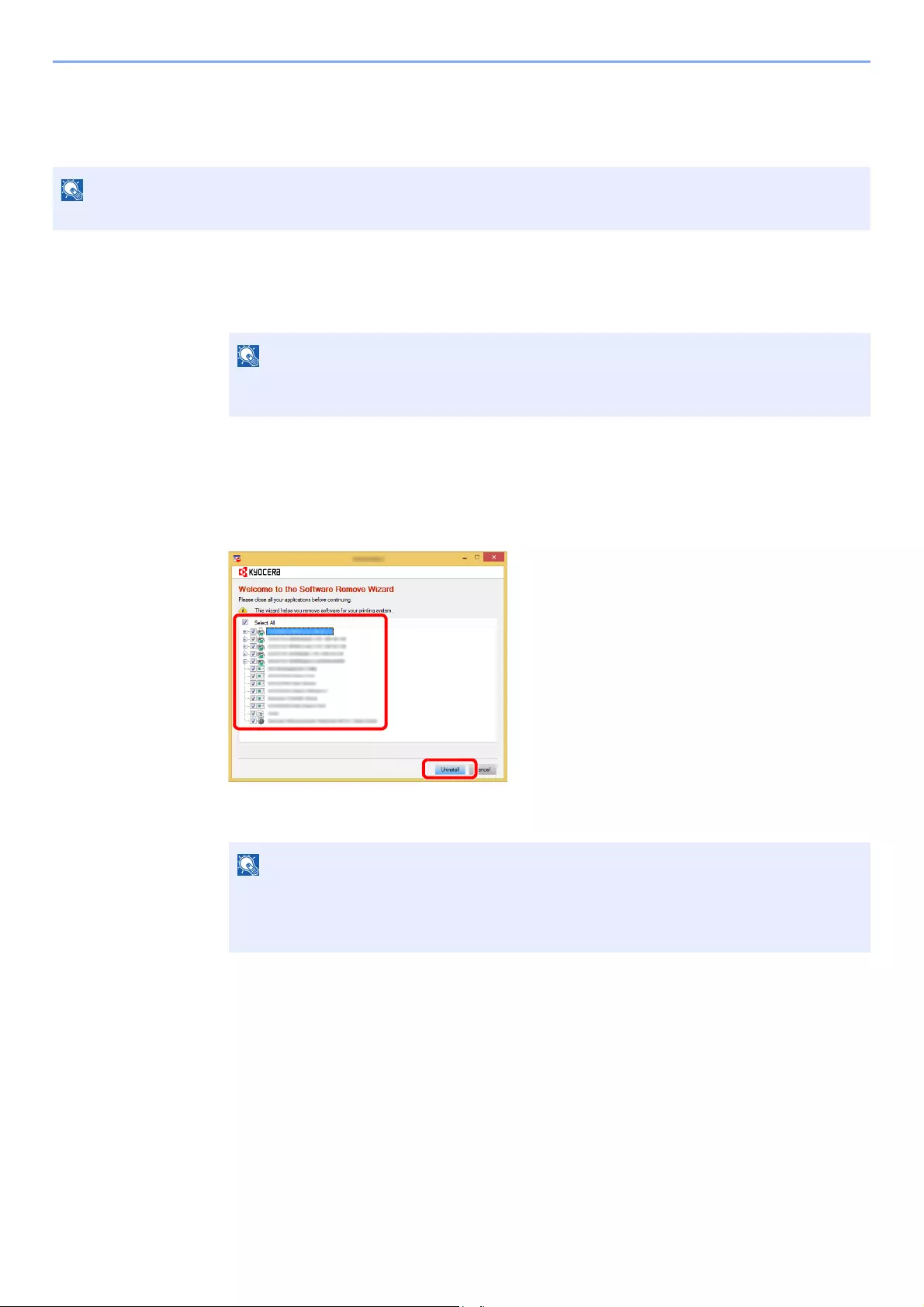
2-44
Installing and Setting up the Machine > Installing Software
Uninstalling the Software
Perform the following procedure to delete the Software from your computer.
1Display the screen.
Click [Search] in charms, and enter «Uninstall Kyocera Product Library» in the search box.
Select [Uninstall Kyocera Product Library] in the search list.
2Uninstall the software.
Place a check in the check box of the software to be deleted.
3Finish uninstalling.
If a system restart message appears, restart the computer by following the screen prompts.
This completes the software uninstallation procedure.
Uninstallation on Windows must be done by a user logged on with administrator privileges.
In Windows 7, click [Start] button on the Windows and then select [All Programs],
[Kyocera], and [Uninstall Kyocera Product Library] to display the Uninstall Wizard.
The software can also be uninstalled using the Product Library.
In the Product Library screen, click [Uninstall], and follow the on-screen instructions to
uninstall the software.
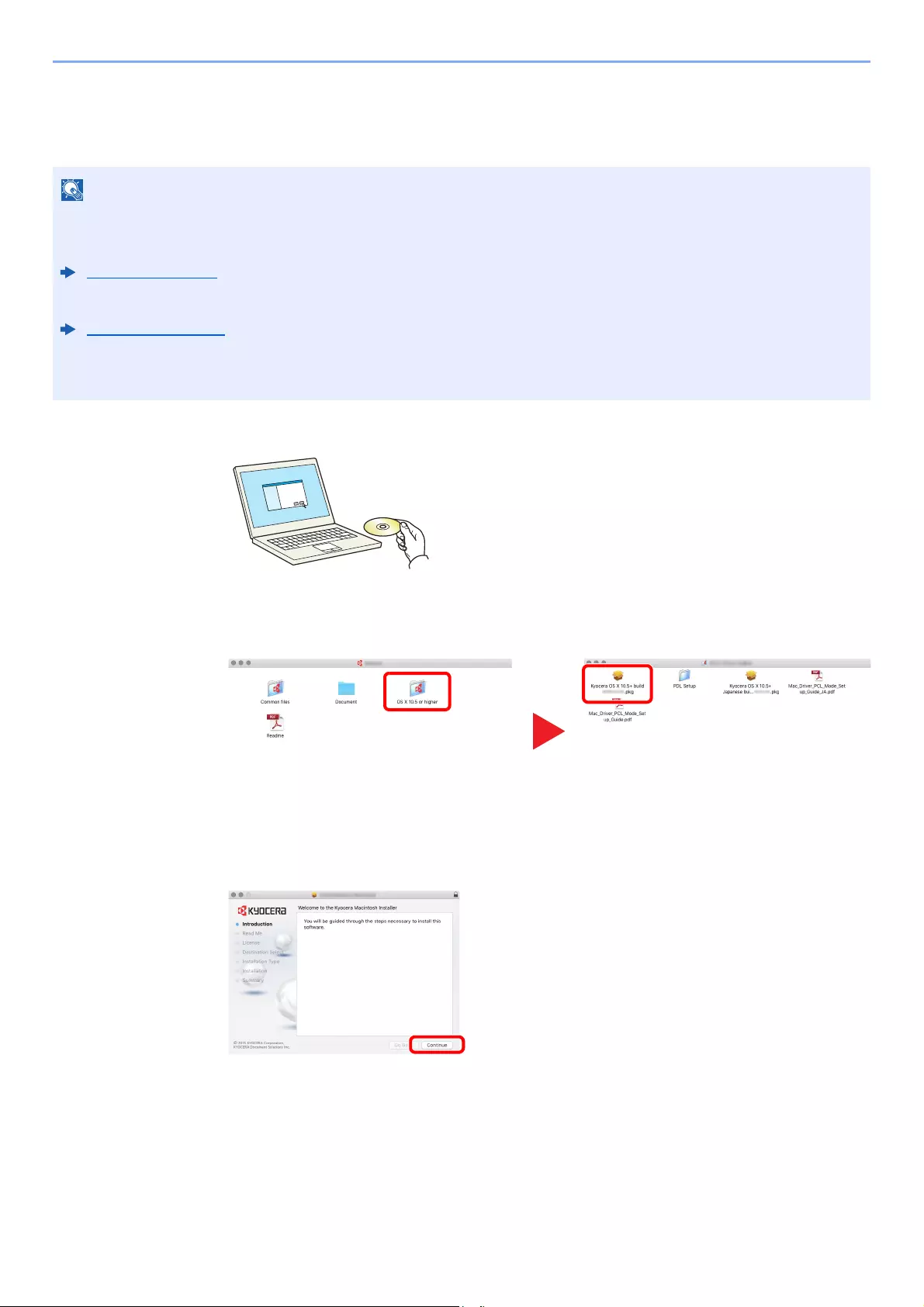
2-45
Installing and Setting up the Machine > Installing Software
Installing Software in Mac Computer
The machine’s printer functionality can be used by a Mac computer.
1Insert the DVD.
Double-click the [Kyocera] icon.
2Display the screen.
Double-click [Kyocera OS X x.x] depending on your Mac OS version.
3Install the Printer Driver.
Install the printer driver as directed by the instructions in the installation software.
This completes the printer driver installation.
If a USB connection is used, the machine is automatically recognized and connected.
If an IP connection is used, the settings below are required.
• Installation on MAC OS must be done by a user logged on with administrator privileges.
• When printing from a Macintosh computer, set the machine’s emulation to [KPDL] or [KPDL(Auto)].
Printer (page 8-24)
• If connecting by Bonjour, enable Bonjour in the machine’s network settings.
Bonjour (page 8-31)
• In the Authenticate screen, enter the name and password used to log in to the operating system.
• When printing via AirPrint, you do not have to install the software.
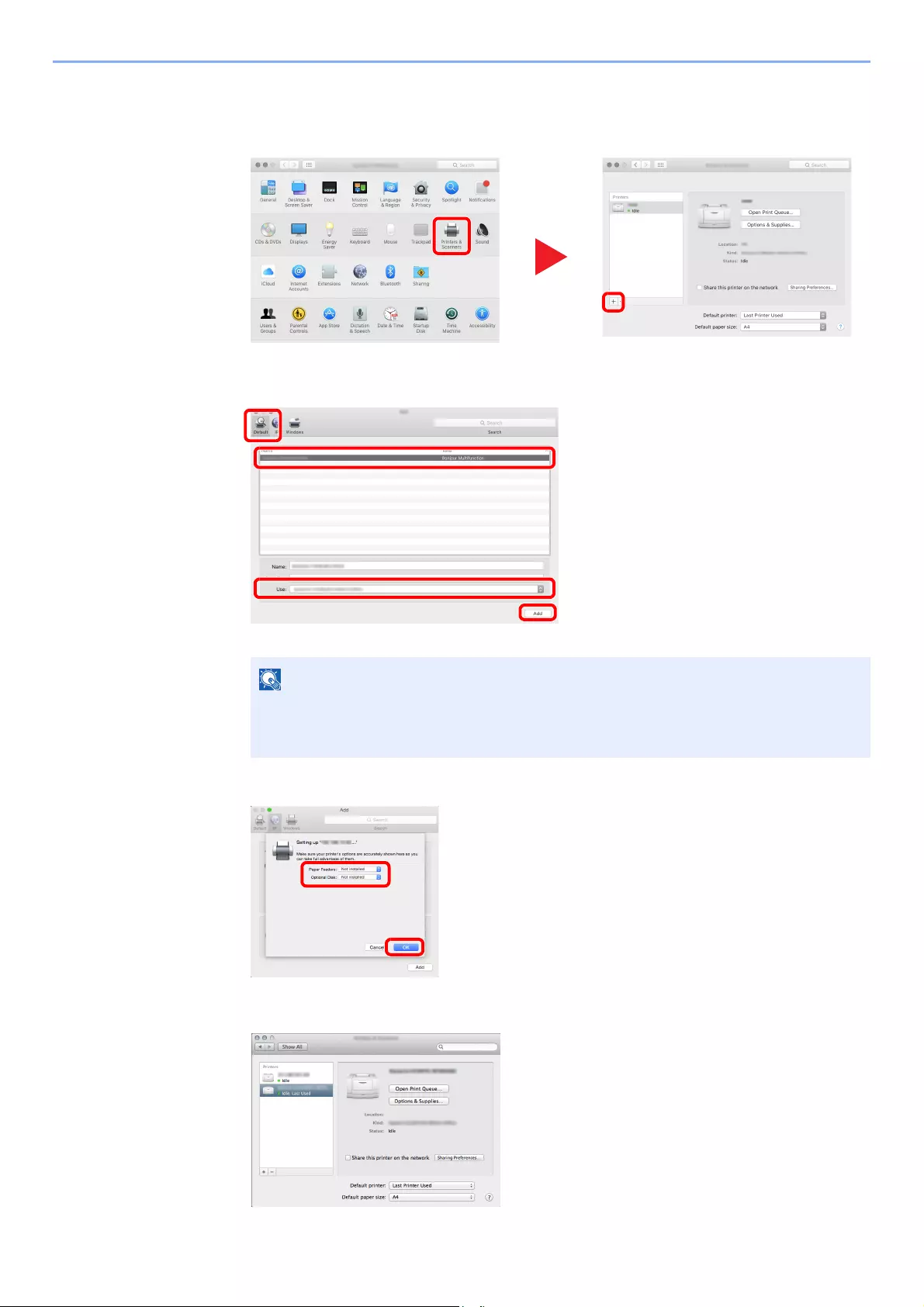
2-46
Installing and Setting up the Machine > Installing Software
4Configure the printer.
1Open System Preferences and add the printer.
2Select [Default] and click the item that appears in «Name» and then select the driver in
«Use».
3Select the options available for the machine.
4The selected machine is added.
When using
an IP
connection,
click the IP icon for an IP connection and then enter the
host name or IP address.
The number entered in «Address» will automatically appear in
«Name». Change if needed.
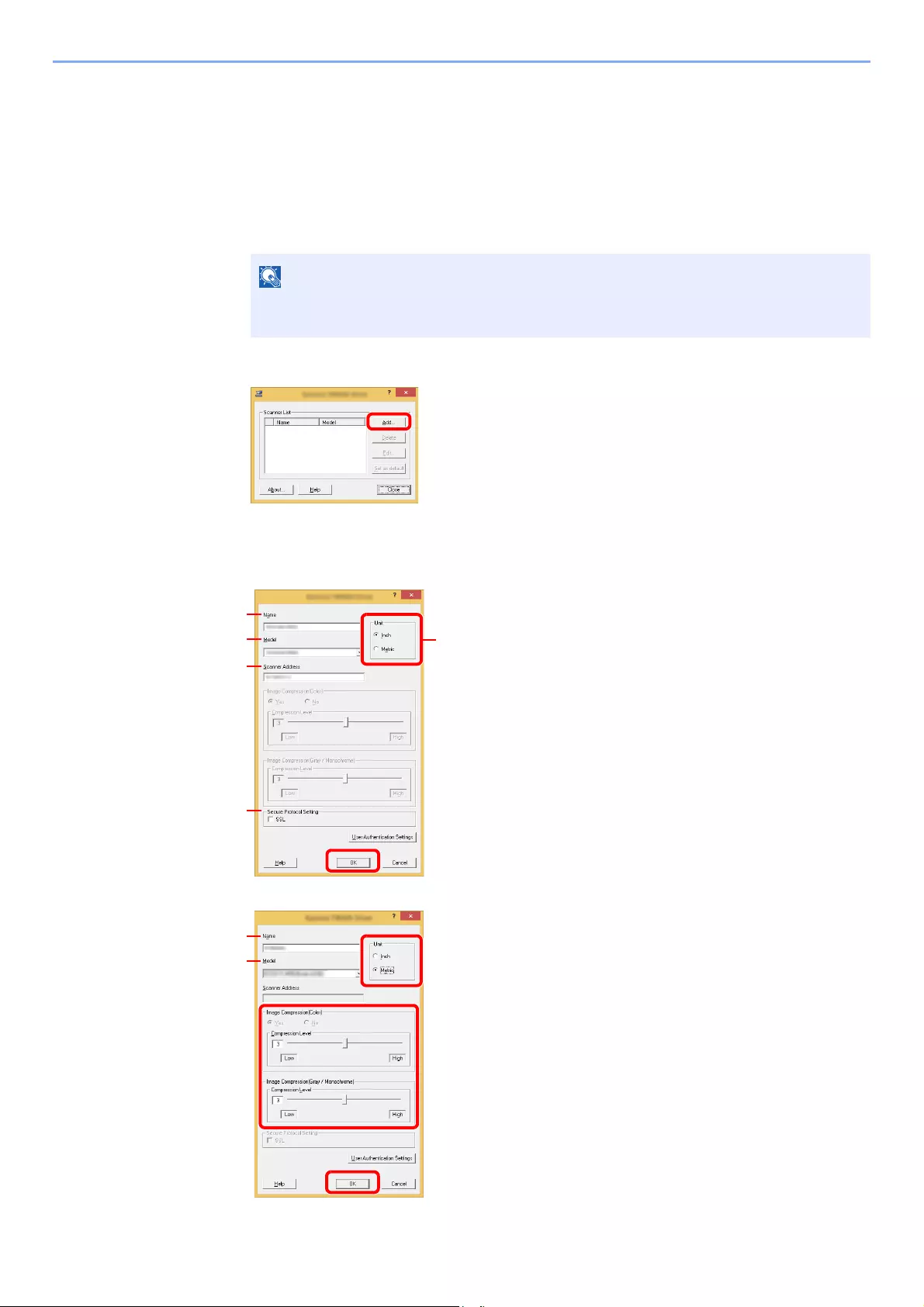
2-47
Installing and Setting up the Machine > Installing Software
Setting TWAIN Driver
Register this machine to the TWAIN Driver. Instructions are based on interface elements as they appear in Windows 8.1.
1Display the screen.
1Click [Search] in charms, and enter «TWAIN Driver Setting» in the search box. Select
[TWAIN Driver Setting] in the search list.
2Click [Add].
2Configure TWAIN Driver.
In Windows 7, select [Start] button on the Windows, [All Programs], [Kyocera] and then
[TWAIN Driver Setting]. TWAIN Driver screen appears.
(Network)
1 Enter the machine name.
2 Select this machine from the list.
3 Enter the machine’s IP address or host name.
4 Set units of measurement.
5 When using SSL, select the checkbox beside SSL.
6 Click [OK].
(USB)
1 Enter the machine name.
2 Select this machine from the list.
3 Set units of measurement.
4 Set the Compression Level.
5 Click [OK].
3
2
1
5
4
6
3
2
1
4
5
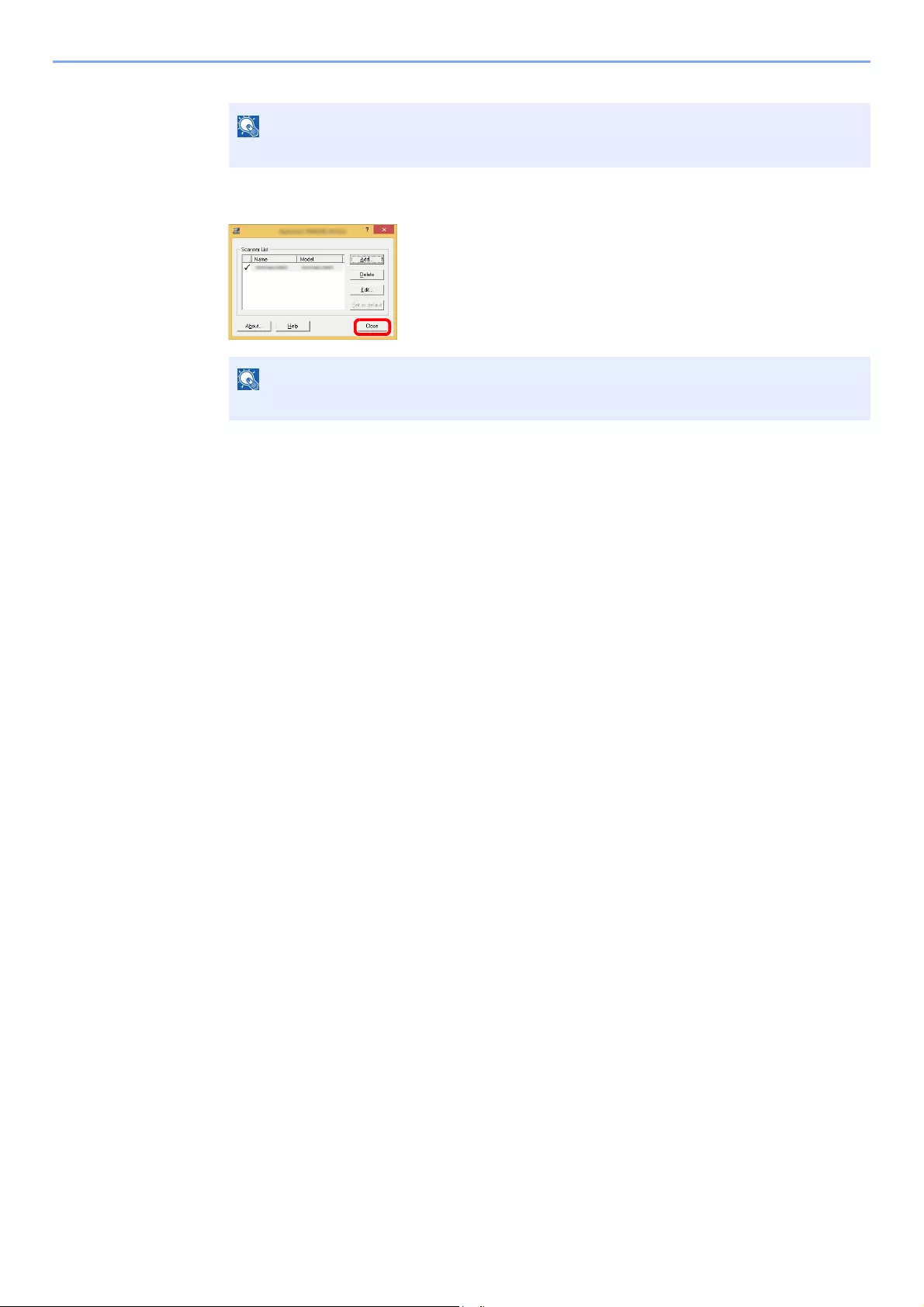
2-48
Installing and Setting up the Machine > Installing Software
3Finish registering.
When the machine’s IP address or host name is unknown, contact Administrator.
Click [Delete] to delete the added machine. Click [Edit] to change names.
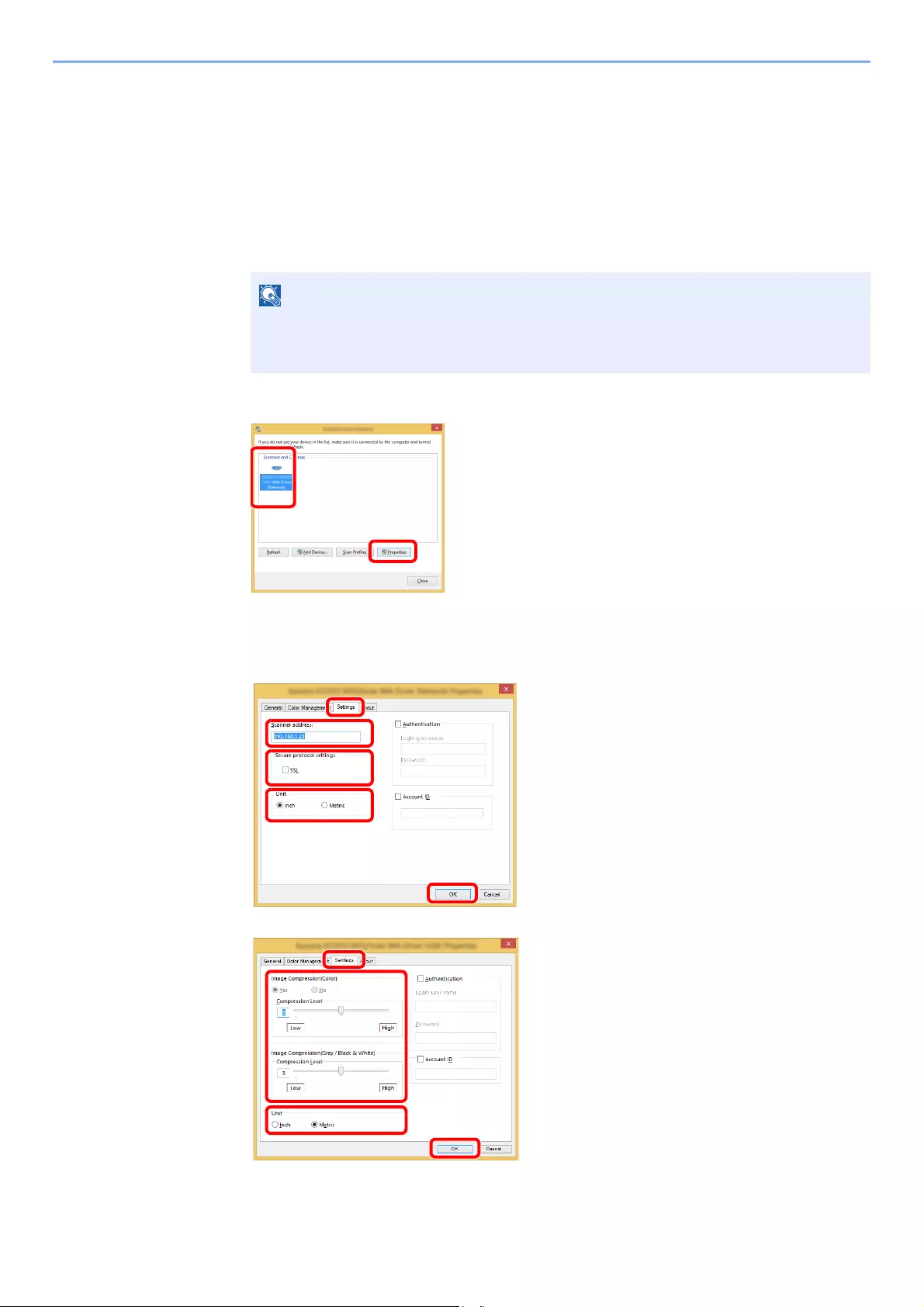
2-49
Installing and Setting up the Machine > Installing Software
Setting WIA Driver
Register this machine to the WIA Driver. Instructions are based on interface elements as they appear in Windows 8.1.
1Display the screen.
1Click [Search] in charms, and enter «View scanners and cameras» in the search box.
Select [View scanners and cameras] in the search list then the Scanners and Cameras
screen appears.
2Select the same name as this machine from WIA Drivers, and click [Properties].
2Configure WIA Driver.
In Windows 7, click [Start] button on the Windows and enter [Scanner] in [Program and
File Search]. Click [View scanners and cameras] in the search list then the Scanners
and Cameras screen appears.
(Network)
(USB)
1 Click the [Settings] tab.
2 Enter the machine IP addresses or host name.
3 When using SSL, select the checkbox beside
SSL.
4 Set units of measurement.
5 Click [OK].
1 Click the [Settings] tab.
2 Set the Compression Level.
3 Set units of measurement.
4 Click [OK].
1
2
5
3
4
1
2
34

2-50
Installing and Setting up the Machine > Checking the Counter
Checking the Counter
Check the number of sheets printed and scanned.
1Display the screen.
[System Menu/Counter] key > [Counter]
2Check the counter.
2-51
Installing and Setting up the Machine > Additional Preparations for the Administrator
Additional Preparations for the Administrator
In addition to the information provided in this chapter, the administrator of this machine should check the following, and
configure the settings as needed.
Sending Documents to a PC
To Send to a Shared Folder (Send to Folder (SMB))
To send a document that has been loaded, you need to create a shared folder to receive the document on your computer.
Preparation for Sending a Document to a Shared Folder in a PC (page 3-18)
To E-mail Scanned Images (Send as E-mail)
You can send a scanned original image as an E-mail attachment.
E-mail Settings (page 2-59)
Strengthening the Security
This machine is shipped with two default users registered one with Machine Administrator rights, and another with
Administrator rights.Logging in as this user will allow you to configure all settings; therefore, please change the login
user name and password.
In addition, this machine is equipped with user authentication function, which can be configured to limit the access to this
machine to only those who have a registered login name and password.
User Authentication and Accounting (User Login, Job Accounting) (page 9-1)
I want to... Function Reference page
Restrict the users of the machine. User Login page 9-2
Auto Panel Reset page 8-46
ID Card Settings*1
*1 The optional Card Authentication Kit is required.
page 9-30
Restrict the basic functions that can be used. Local Authorization page 9-18
Group Authorization Set. page 9-19
Prevent another user from handling the
documents stored in the machine.
Custom Box*2
*2 The optional SSD is required.
page 5-39
Prevent the data stored in the machine from
being leaked.
Data Overwrite*3
*3 The optional Data Security Kit is required.
Refer to the Data
Security Kit (E)
Operation Guide.
Encryption*3
PDF Encryption Functions page 6-30
Completely delete the data on the machine
before disposing of the machine.
Data Sanitization page 8-44
2-52
Installing and Setting up the Machine > Additional Preparations for the Administrator
I want to... Function Reference page
Protect the transmission from interception and
wiretapping.
IPP over SSL page 8-34
HTTPS page 8-33
LDAP Security Refer to the
Command Center
RX User Guide.
SMTP Security page 8-37
POP3 Security page 8-37
FTP Encrypted TX page 6-34
Enhanced WSD (SSL) page 8-35
IPSec page 8-31
SNMPv3 page 8-33
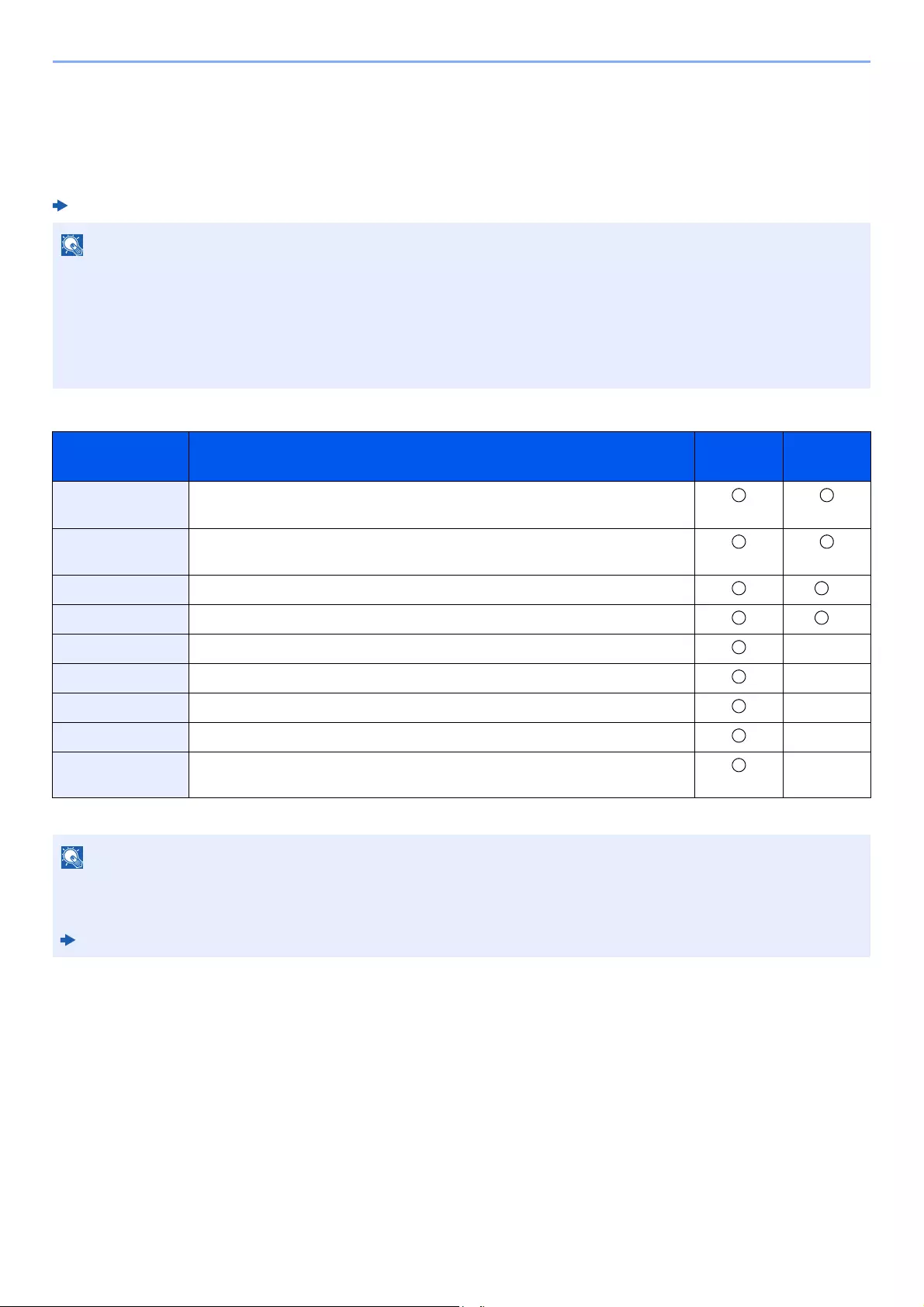
2-53
Installing and Setting up the Machine > Command Center RX
Command Center RX
If the machine is connected to the network, you can configure various settings using Command Center RX.
This section explains how to access Command Center RX, and how to change security settings and the host name.
Command Center RX User Guide
Settings that the administrator and general users can configure in Command Center RX are as follows.
To fully access the features of the Command Center RX pages, enter the User Name and Password and click [Login].
Entering the predefined administrator password allows the user to access all pages, including Document Box,
Address Book, and Settings on the navigation menu. The factory default setting for the default user with administrator
privileges is shown below. (Upper case and lower case letters are distinguished (case sensitive).)
Login User Name: Admin
Login Password: Admin
Setting Description Administ-
rator
General
User
Device
Information
The machine’s structure can be checked.
Job Status Displays all device information, including print and scan jobs, storing jobs,
scheduled jobs, and job log history.
Document Box Add or delete document boxes, or delete documents within a document box. *1
*1 The logged in user may not be able to configure some settings, depending on the permissions of the user.
Address Book Create, edit, or delete addresses and address groups. *1
Device Settings Configure the advanced settings of the machine. —
Function Settings Configure the advanced function settings. —
Network Settings Configure the network advanced settings. —
Security Settings Configure the security advanced settings. —
Management
Settings
Configure the advanced management settings. —
• FAX functions are available only on products with the fax function installed.
• Here, information on the FAX settings has been omitted.
FAX Operation Guide
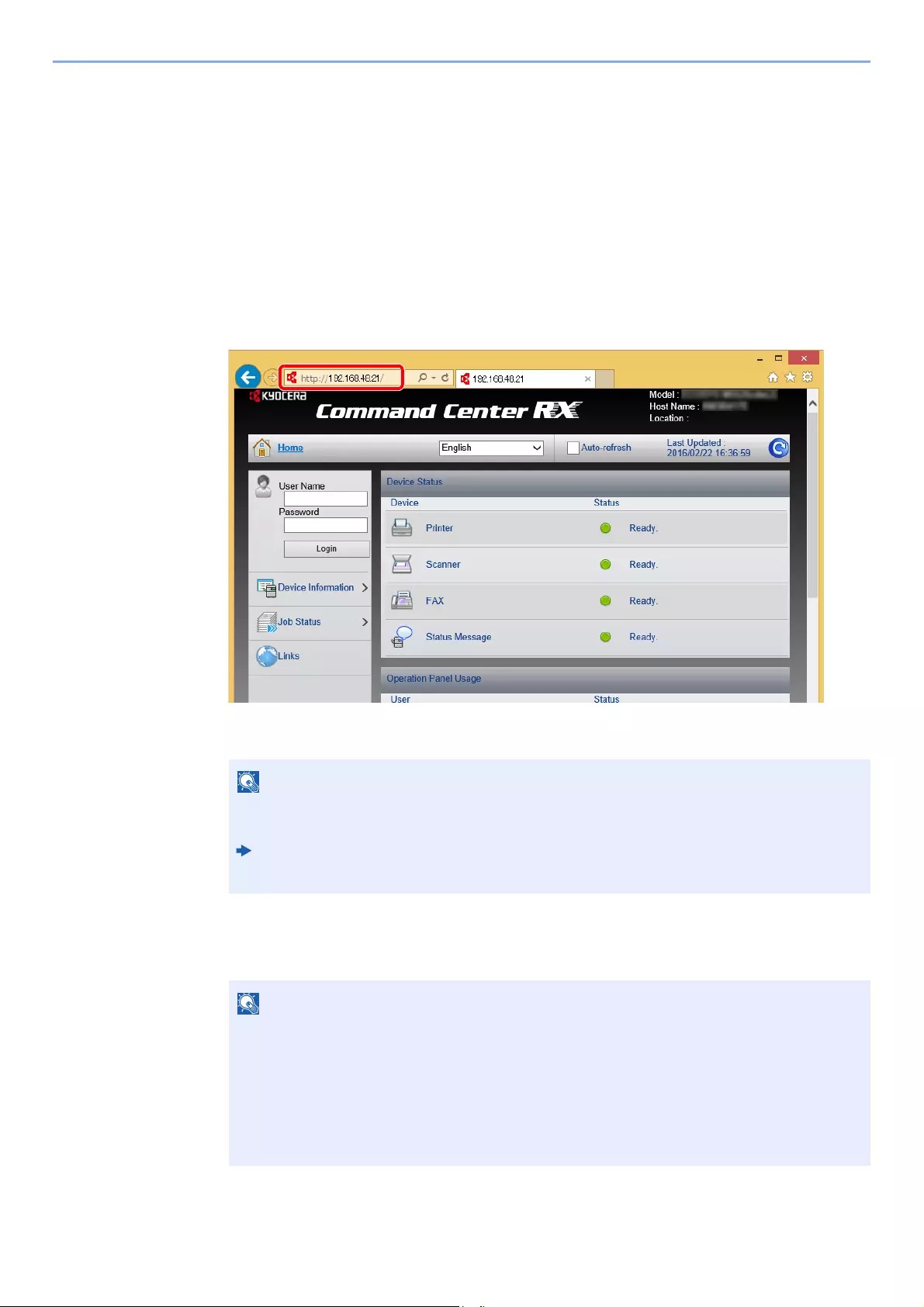
2-54
Installing and Setting up the Machine > Command Center RX
Accessing Command Center RX
1Display the screen.
1Launch your Web browser.
2In the address or location bar, enter the machine’s IP address or the host name.
Click in the following order to check the machine’s IP address and the host name.
[Device Information] in the home screen > [Identification/Network]
Examples: https://192.168.48.21/ (for IP address)
https://MFP001 (if the host name is «MFP001″)
The web page displays basic information about the machine and Command Center RX as well
as their current status.
2Configure the function.
Select a category from the navigation bar on the left of the screen.
If the screen «There is a problem with this website’s security certificate.» is displayed,
configure the certificate.
Command Center RX User Guide
You can also continue the operation without configuring the certificate.
To fully access the features of the Command Center RX pages, enter the User Name and
Password and click [Login]. Entering the predefined administrator password allows the user
to access all pages, including Document Box, Address Book, and Settings on the navigation
menu. The factory default setting for the default user with administrator privileges is shown
below. (Upper case and lower case letters are distinguished (case sensitive).)
Login User Name: Admin
Login Password: Admin
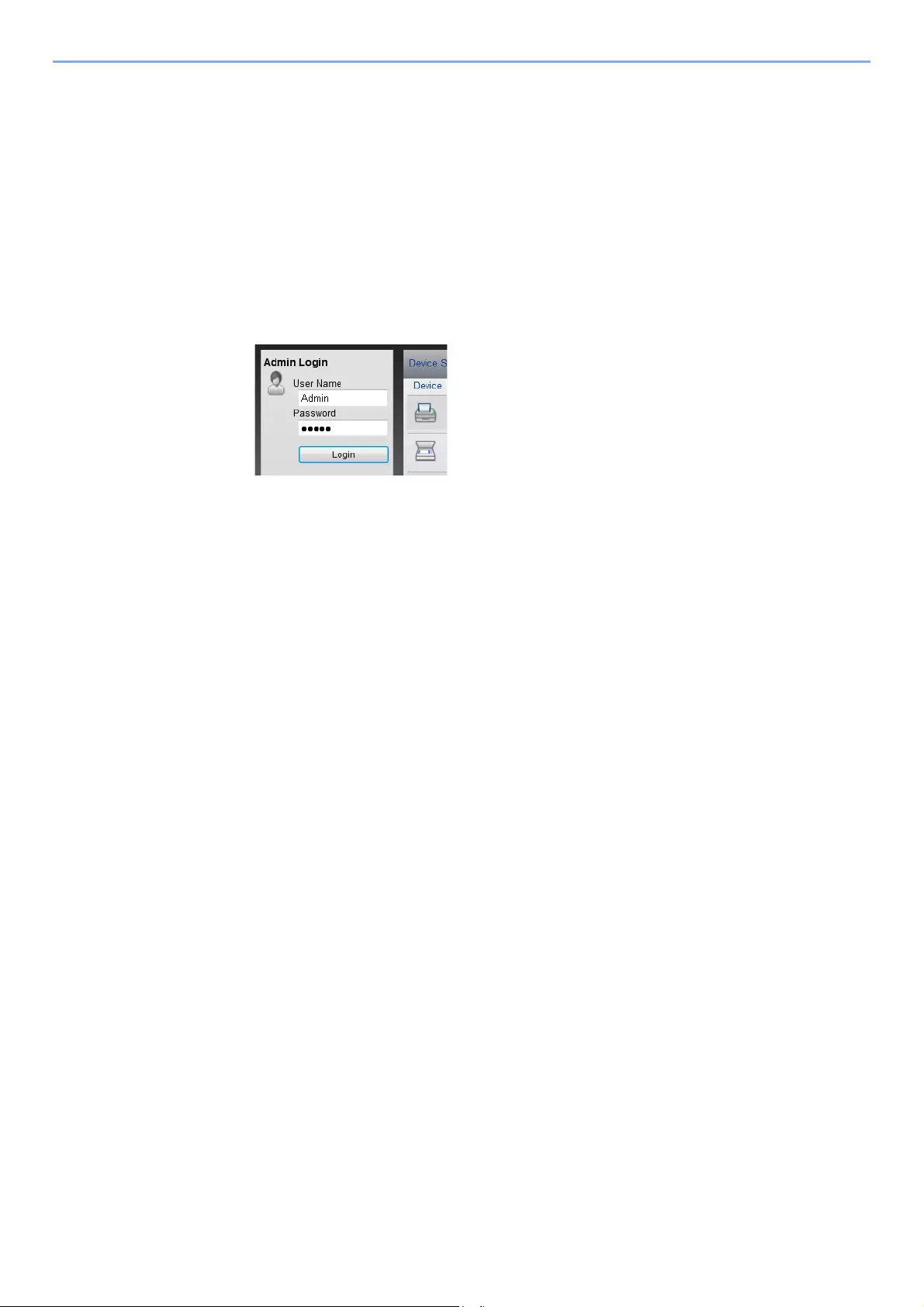
2-55
Installing and Setting up the Machine > Command Center RX
Changing Security Settings
1Display the screen.
1Launch your Web browser.
2In the address or location bar, enter the machine’s IP address or the host name.
Click in the following order to check the machine’s IP address and the host name.
[Device Information] in the home screen > [Identification/Network]
3Log in with administrator privileges.
The factory default setting for the default user with administrator privileges is shown below. (Upper
case and lower case letters are distinguished (case sensitive).)
Login User Name: Admin
Login Password: Admin
4Click [Security Settings].
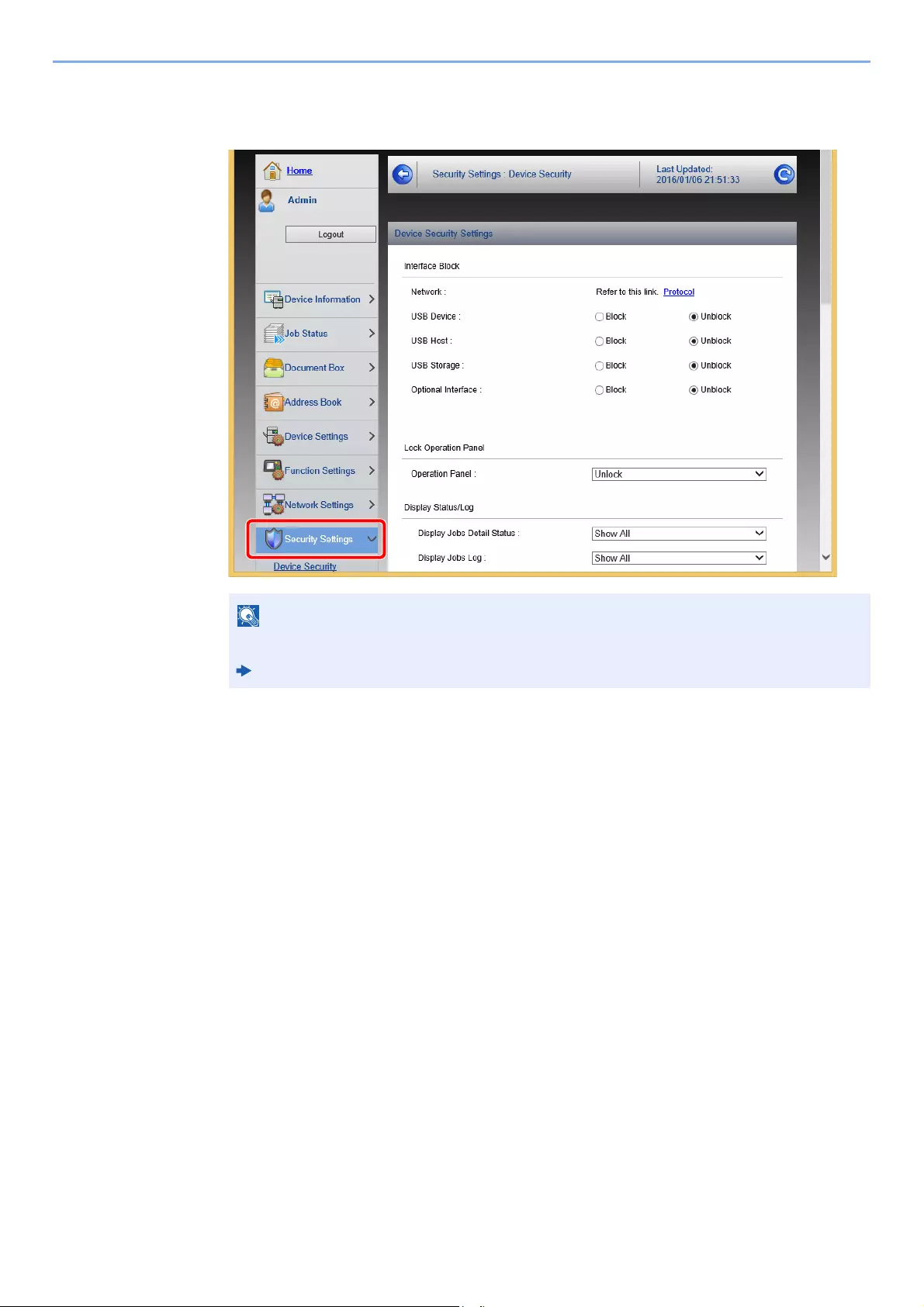
2-56
Installing and Setting up the Machine > Command Center RX
2Configure the Security Settings.
From the [Security Settings] menu, select the setting you want to configure.
For details on settings related to certificates, refer to the following:
Command Center RX User Guide
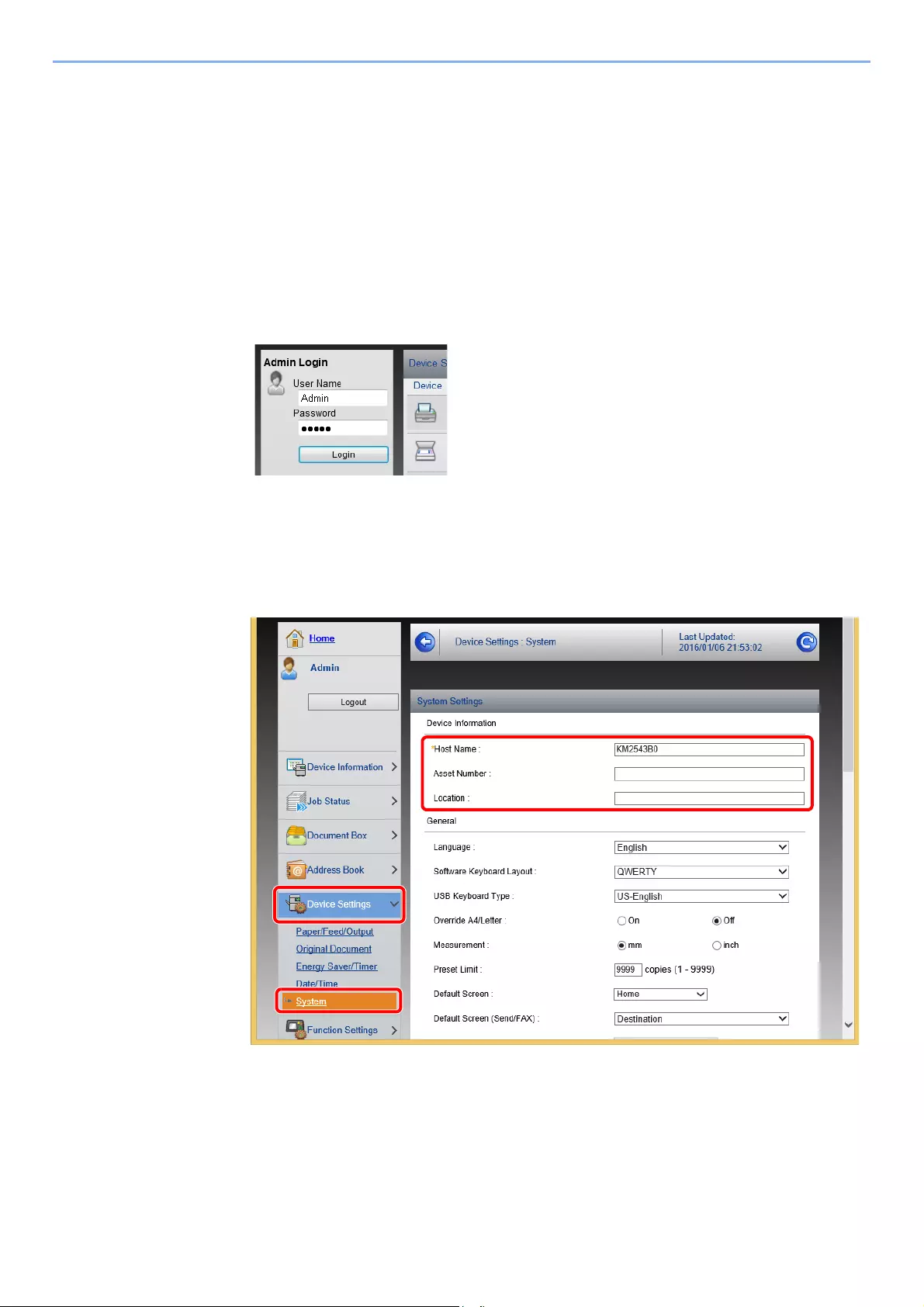
2-57
Installing and Setting up the Machine > Command Center RX
Changing Device Information
1Display the screen.
1Launch your Web browser.
2In the address or location bar, enter the machine’s IP address or the host name.
Click in the following order to check the machine’s IP address and the host name.
[Device Information] in the home screen > [Identification/Network]
3Log in with administrator privileges.
The factory default setting for the default user with administrator privileges is shown below. (Upper
case and lower case letters are distinguished (case sensitive).)
Login User Name: Admin
Login Password: Admin
4From the [Device Settings] menu, click [System].

2-58
Installing and Setting up the Machine > Command Center RX
2Specify the host name.
Enter the device information, and then click [Submit].
After changing the setting, restart the network or turn the machine OFF and then ON.
To restart the network interface card, click [Reset] in the [Management Settings]
menu, and then click [Restart Network] in «Restart».
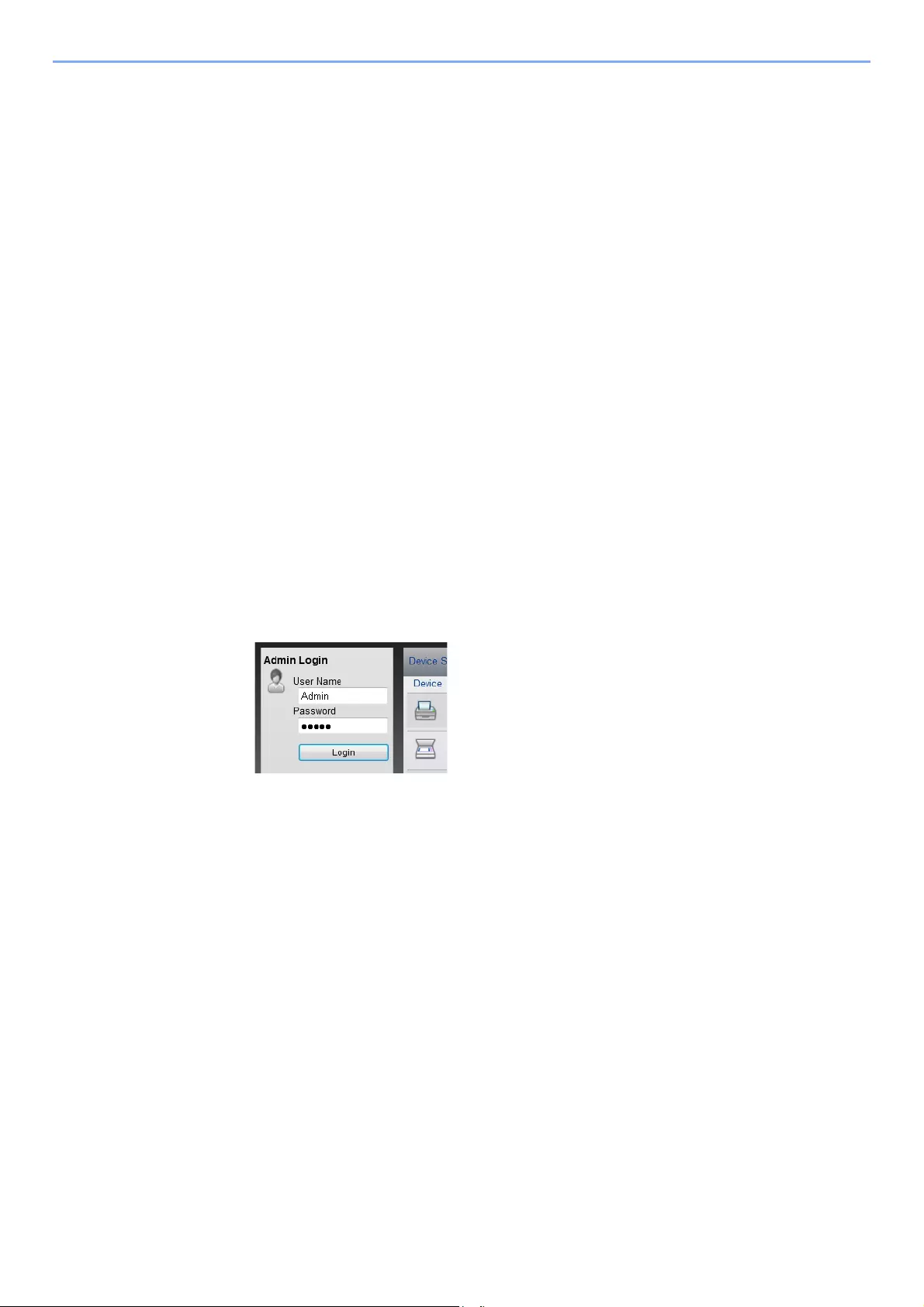
2-59
Installing and Setting up the Machine > Command Center RX
E-mail Settings
By configuring the SMTP settings, it is possible to send the images scanned by the machine as E-mail attachments and
to send E-mail notices when jobs have been completed.
To use this function, this machine must be connected to a mail server using the SMTP protocol.
In addition, configure the following.
•SMTP settings
Item: «SMTP Protocol» and «SMTP Server Name» in «SMTP»
• The sender address when the machine sends E-mails
Item: «Sender Address» in «E-mail Send Settings»
• The setting to limit the size of E-mails
Item: «E-mail Size Limit» in «E-mail Send Settings»
The procedure for specifying the SMTP settings is explained below.
1Display the screen.
Display the SMTP Protocol screen.
1Launch your Web browser.
2In the address or location bar, enter the machine’s IP address or the host name.
Click in the following order to check the machine’s IP address and the host name.
[Device Information] in the home screen > [Identification/Network]
3Log in with administrator privileges.
The factory default setting for the default user with administrator privileges is shown below. (Upper
case and lower case letters are distinguished (case sensitive).)
Login User Name: Admin
Login Password: Admin
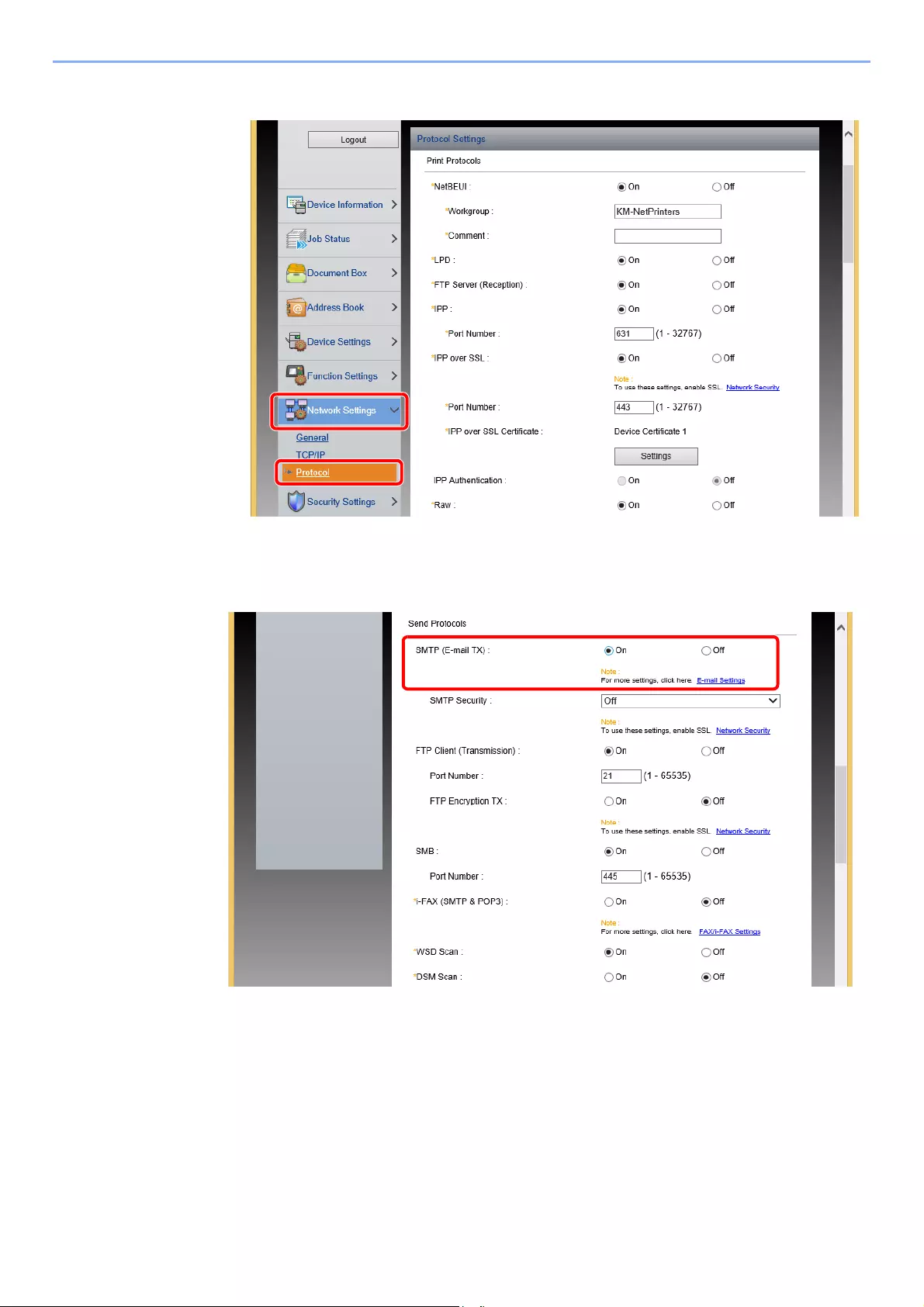
2-60
Installing and Setting up the Machine > Command Center RX
4From the [Network Settings] menu, click [Protocol].
2Configure the settings.
Set «SMTP (E-mail TX)» to [On] in the «Send Protocols».
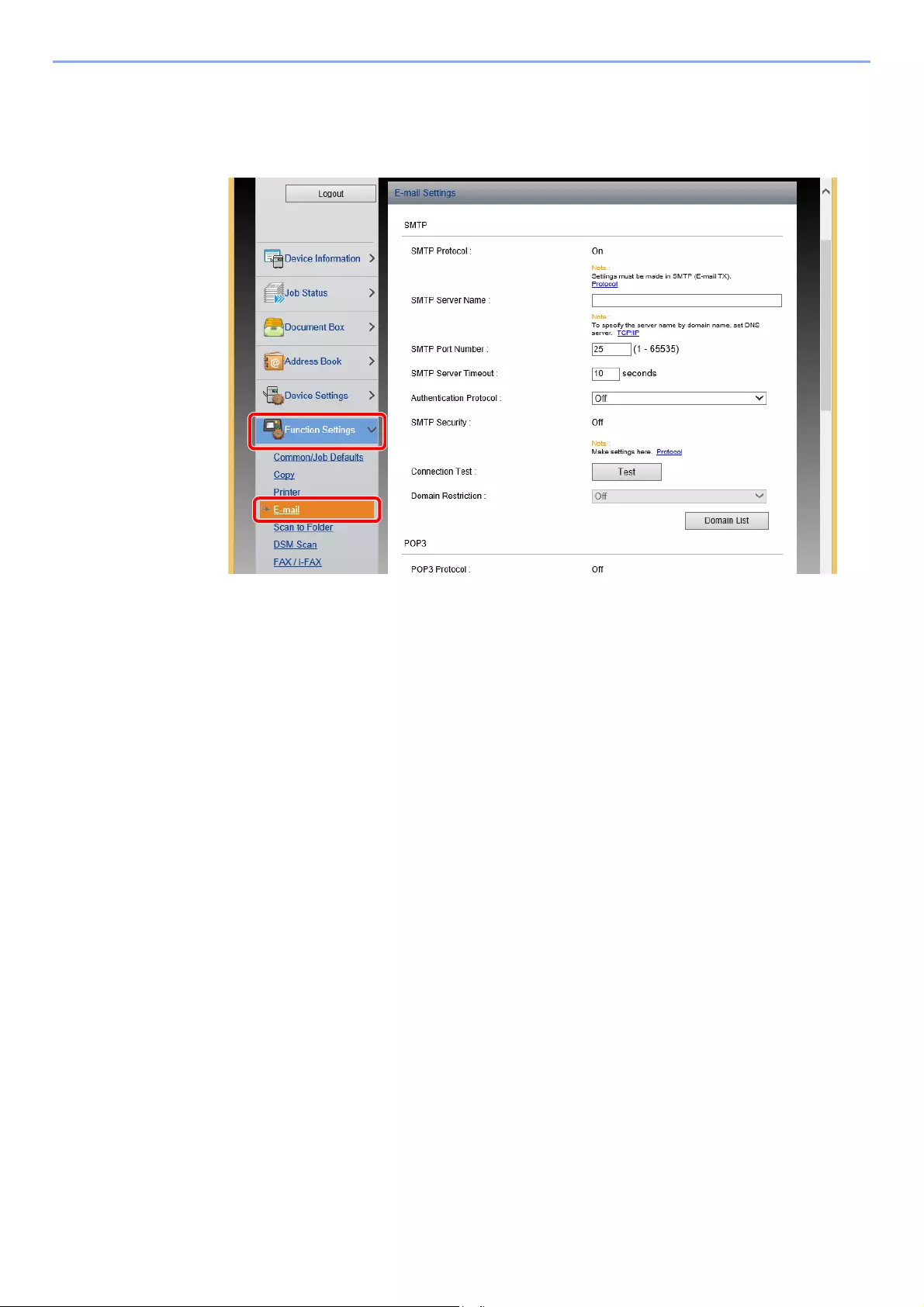
2-61
Installing and Setting up the Machine > Command Center RX
3Display the screen.
Display the E-mail Settings screen.
From the [Function Settings] menu, click [E-mail].
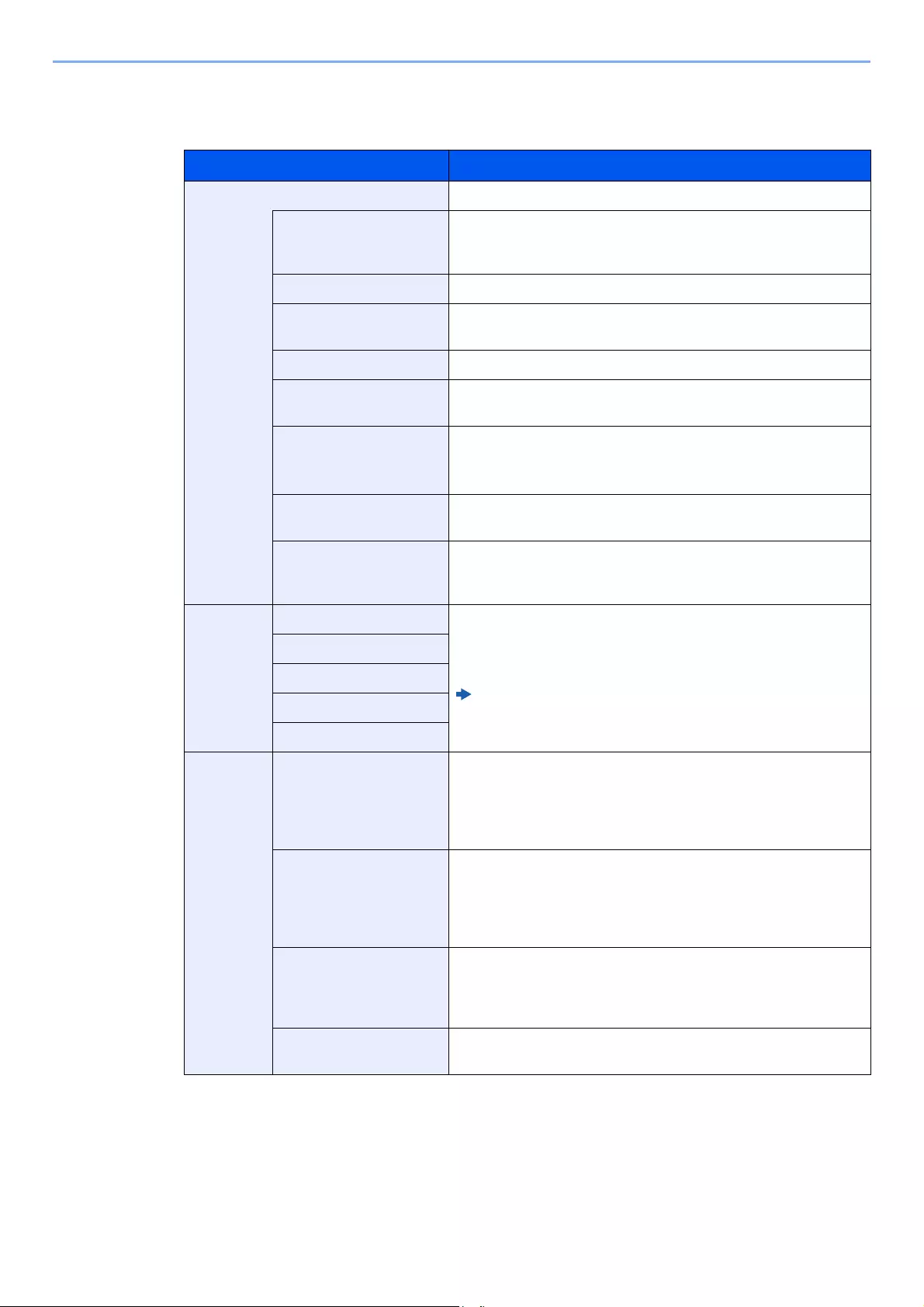
2-62
Installing and Setting up the Machine > Command Center RX
4Configure the settings.
Enter «SMTP» and «E-mail Send Settings» items.
5Click [Submit].
Setting Description
SMTP Set to send e-mail from the machine.
SMTP Protocol Displays the SMTP protocol settings. Check that «SMTP Protocol»
is set to [On]. If [Off] is set, click [Protocol] and set the SMTP
protocol to [On].
SMTP Server Name*1
*1 Be sure to enter the items.
Enter the host name or IP address of the SMTP server.
SMTP Port Number Specify the port number to be used for SMTP. The default port
number is 25.
SMTP Server Timeout Set the amount of time to wait before time-out in seconds.
Authentication Protocol To use SMTP authentication, enter the user information for
authentication.
SMTP Security Set SMTP security.
Turn on «SMTP Security» in «SMTP (E-mail TX)» on the
[Protocol Settings] page.
Connection Test Tests to confirm that the E-mail function is operating under the
settings without sending a mail.
Domain Restriction To restrict the domains, click the [Domain List] and enter the
domain names of addresses to be allowed or rejected. Restriction
can also be specified by e-mail address.
POP3 POP3 Protocol You don’t need to set the following items when you only enable the
function of sending e-mail from the machine. Set the following
items if you want to enable the function of receiving e-mail on the
machine.
Command Center RX User Guide
Check Interval
Run once now
Domain Restriction
POP3 User Settings
Send
Settings
E-mail Size Limit Enter the maximum size of E-mail that can be sent in kilobytes.
When E-mail size is greater than this value, an error message
appears and E-mail sending is cancelled. Use this setting if you
have set E-mail Size Limit for SMTP server. If not, enter a value of
0 (zero) to enable E-mail sending regardless of the size limit.
Sender Address*1 Specify the sender address for when the machine sends E-mails,
such as the machine administrator, so that a reply or non-delivery
report will go to a person rather than to the machine. The sender
address must be entered correctly for SMTP authentication. The
maximum length of the sender address is 128 characters.
Signature Enter the signature. The signature is free form text that will appear
at the end of the E-mail body. It is often used for further
identification of the machine. The maximum length of the
signature is 512 characters.
Function Defaults Change the function default settings in [Common/Job Default
Settings] page.

2-63
Installing and Setting up the Machine > Command Center RX
Registering Destinations
1Display the screen.
1Launch your Web browser.
2In the address or location bar, enter the machine’s IP address or the host name.
Click in the following order to check the machine’s IP address and the host name.
[Device Information] in the home screen > [Identification/Network]
3Log in with administrator privileges.
The factory default setting for the default user with administrator privileges is shown below. (Upper
case and lower case letters are distinguished (case sensitive).)
Login User Name: Admin
Login Password: Admin
4From the [Address Book] menu, click [Machine Address Book].
5Click [Add].
2Populate the fields.
1Enter the destination information.
Enter the information for the destination you want to register. The fields to populate are the same as
when registering via operation panel.
2Click [Submit].
Registering Destinations in the Address Book (page 3-28)
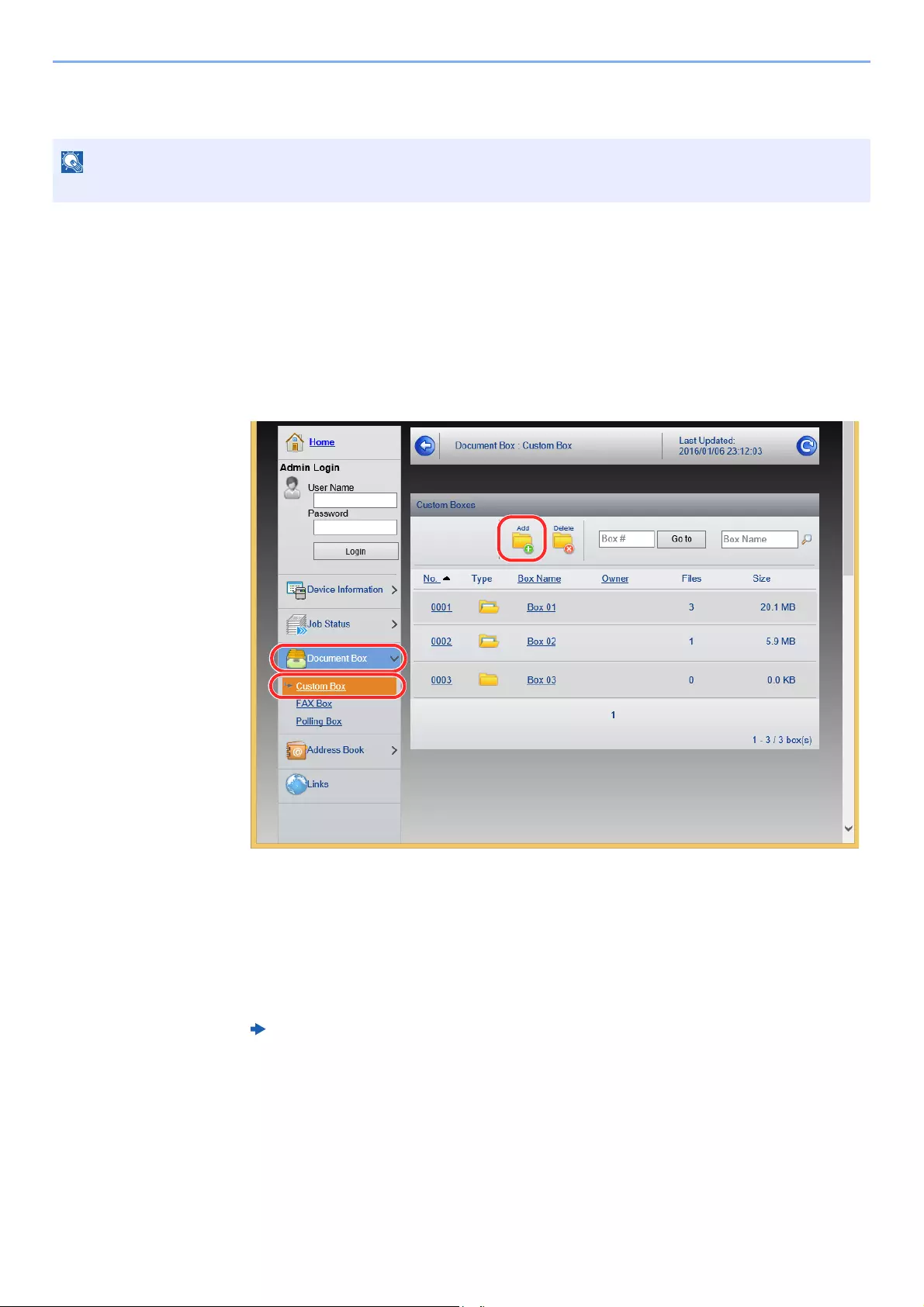
2-64
Installing and Setting up the Machine > Command Center RX
Creating a New Custom Box
1Display the screen.
1Launch your Web browser.
2In the address or location bar, enter the machine’s IP address or the host name.
Click in the following order to check the machine’s IP address and the host name.
[Device Information] in the home screen > [Identification/Network]
3From the [Document Box] menu, click [Custom Box].
4Click [Add].
2Configure the Custom Box.
1Enter the box details.
Enter the information for the custom box you want to register. For details on the fields to populate,
refer to the following:
2Click [Submit].
To use Custom Box, an optional SSD must be installed in the machine.
Command Center RX User Guide
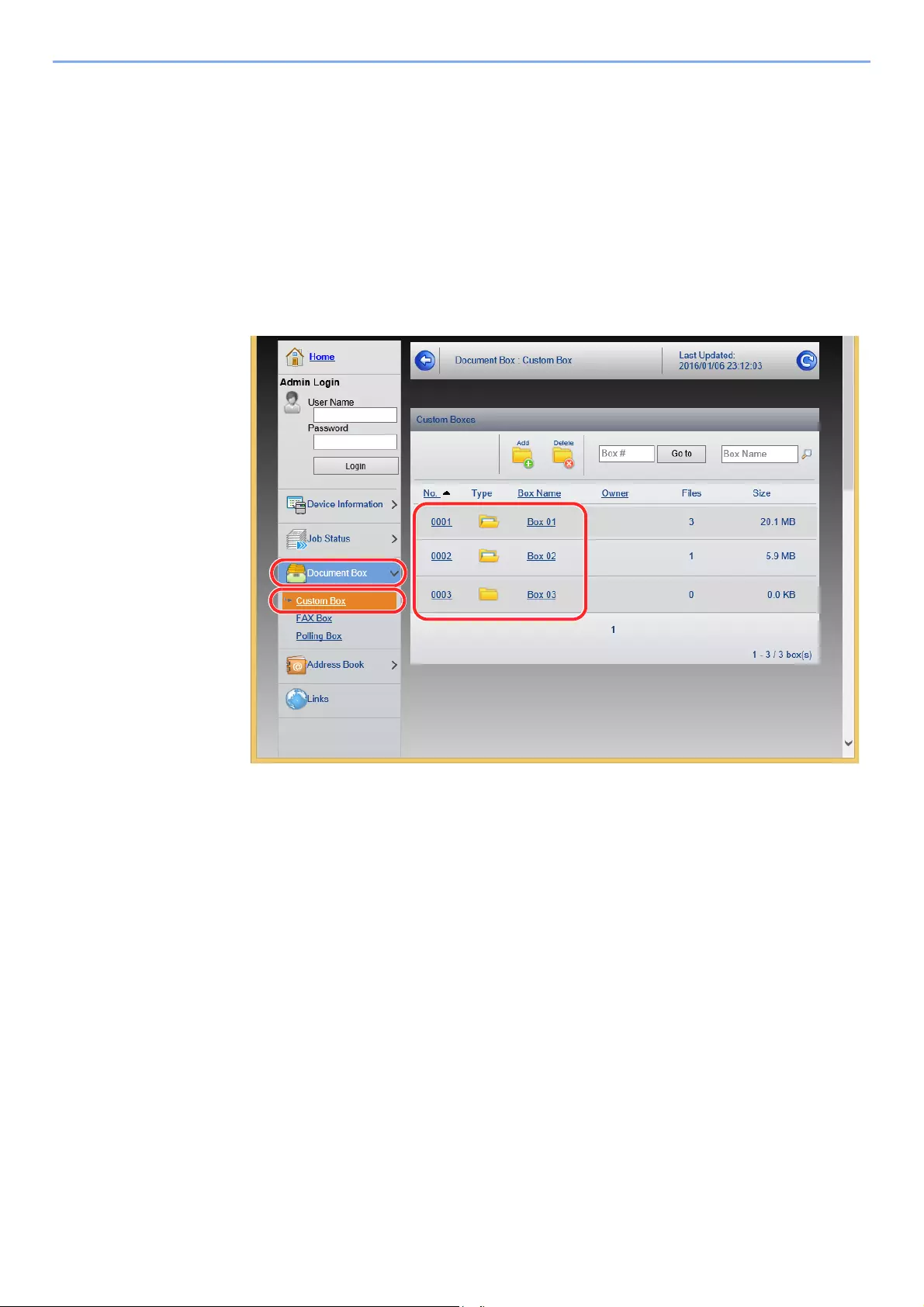
2-65
Installing and Setting up the Machine > Command Center RX
Printing a document stored in a Custom Box
1Display the screen.
1Launch your Web browser.
2In the address or location bar, enter the machine’s IP address or the host name.
Click in the following order to check the machine’s IP address and the host name.
[Device Information] in the home screen > [Identification/Network]
3From the [Document Box] menu, click [Custom Box].
4Click the number or name of the Custom Box in which the document is stored.
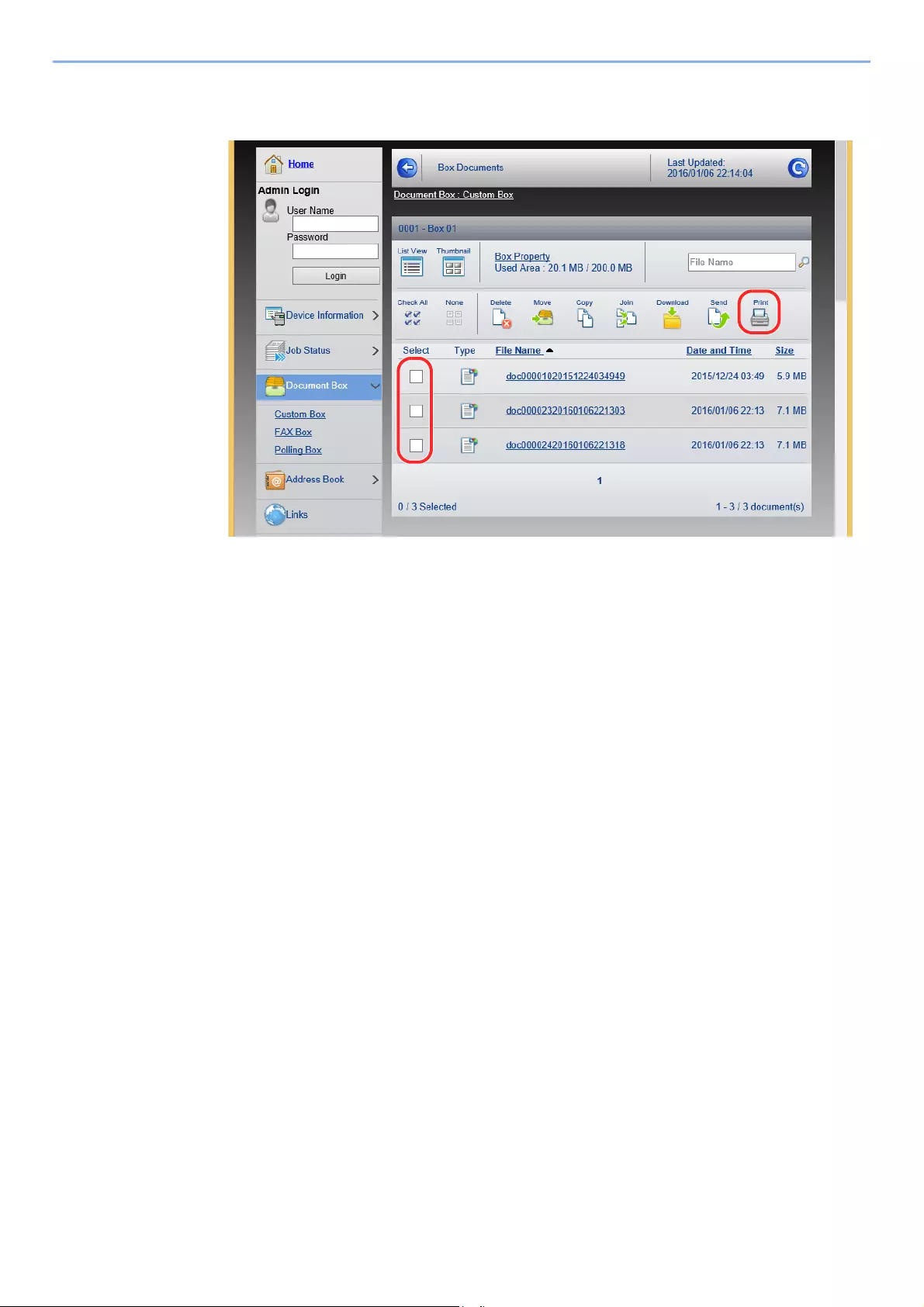
2-66
Installing and Setting up the Machine > Command Center RX
2Print the document.
1Select the document you wish to print.
Select the checkbox of the document to be printed.
2Click [Print].
3Configure settings for printing, click [Print].
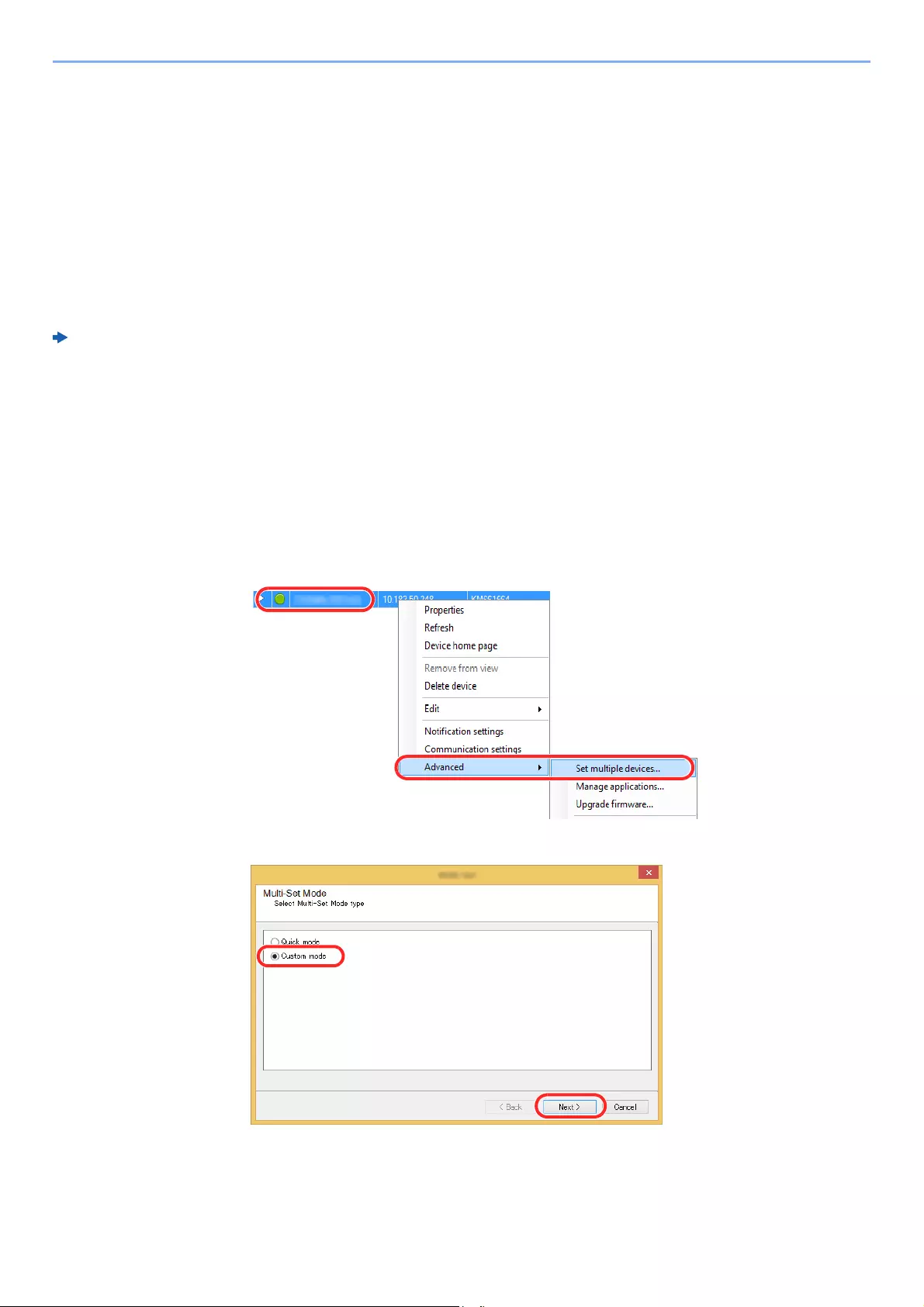
2-67
Installing and Setting up the Machine > Transferring Data from Our Other Products
Transferring Data from Our Other Products
By using the machine’s utility, you can smoothly migrate address books when the machine is to be replaced.
This section explains how to transfer data between our products.
Migrating the Address Book
The Address Book registered on the machine can be backed up or migrated using the KYOCERA Net Viewer on the
included DVD.
For details on operating the KYOCERA Net Viewer, refer to the following:
KYOCERA Net Viewer User Guide
Backing Up Address Book Data to PC
1Launch the KYOCERA Net Viewer.
2Create a backup.
1Right-click on the model name from which you want to back up the Address Book, and
select [Advanced] — [Set multiple devices].
2Select [Custom Mode] and click [Next].
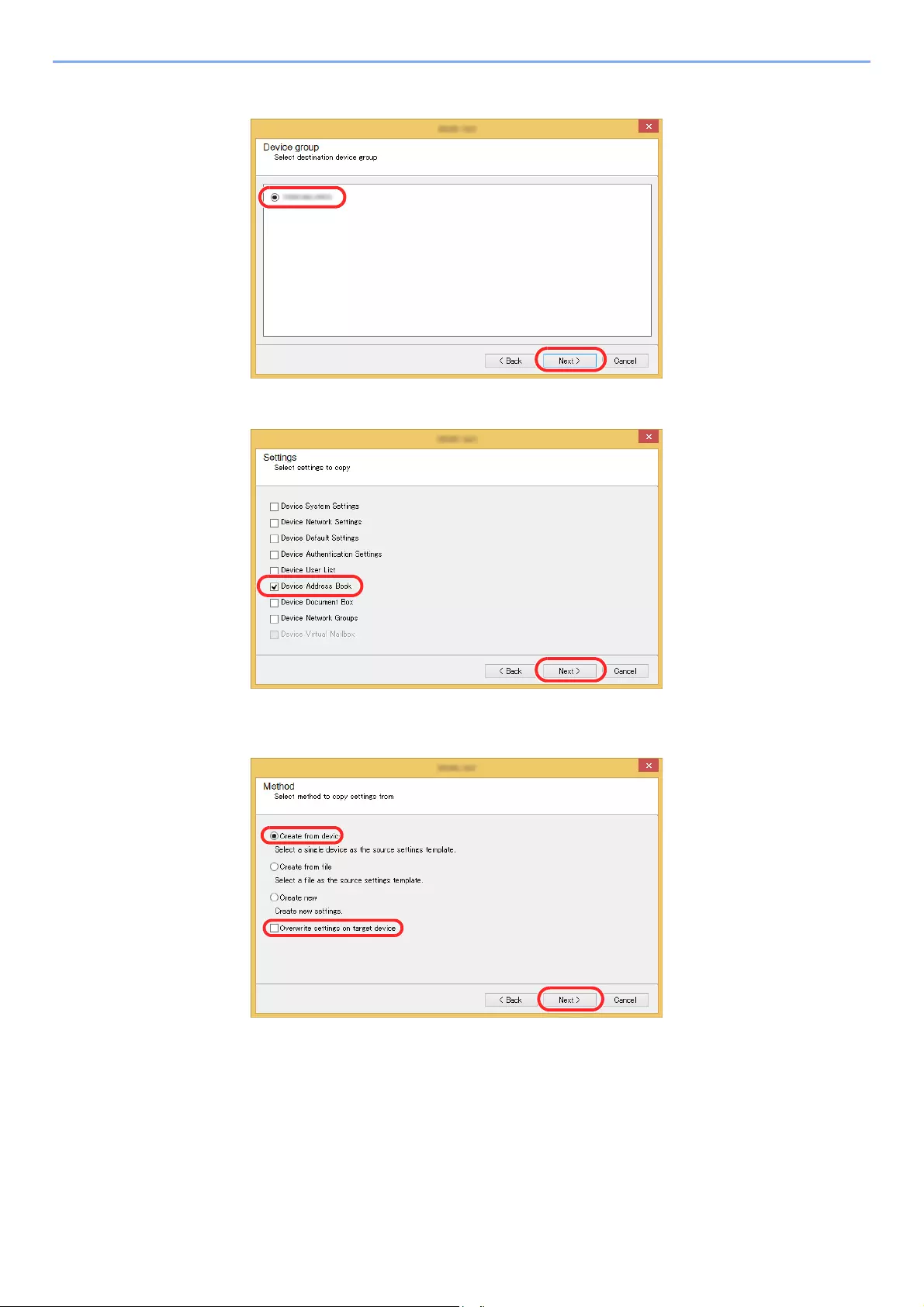
2-68
Installing and Setting up the Machine > Transferring Data from Our Other Products
3Select destination device group and click [Next].
4Select [Device Address Book] and click [Next].
5Select [Create from device] and remove the checkmark from [Overwrite settings on
target device], and then click [Next].
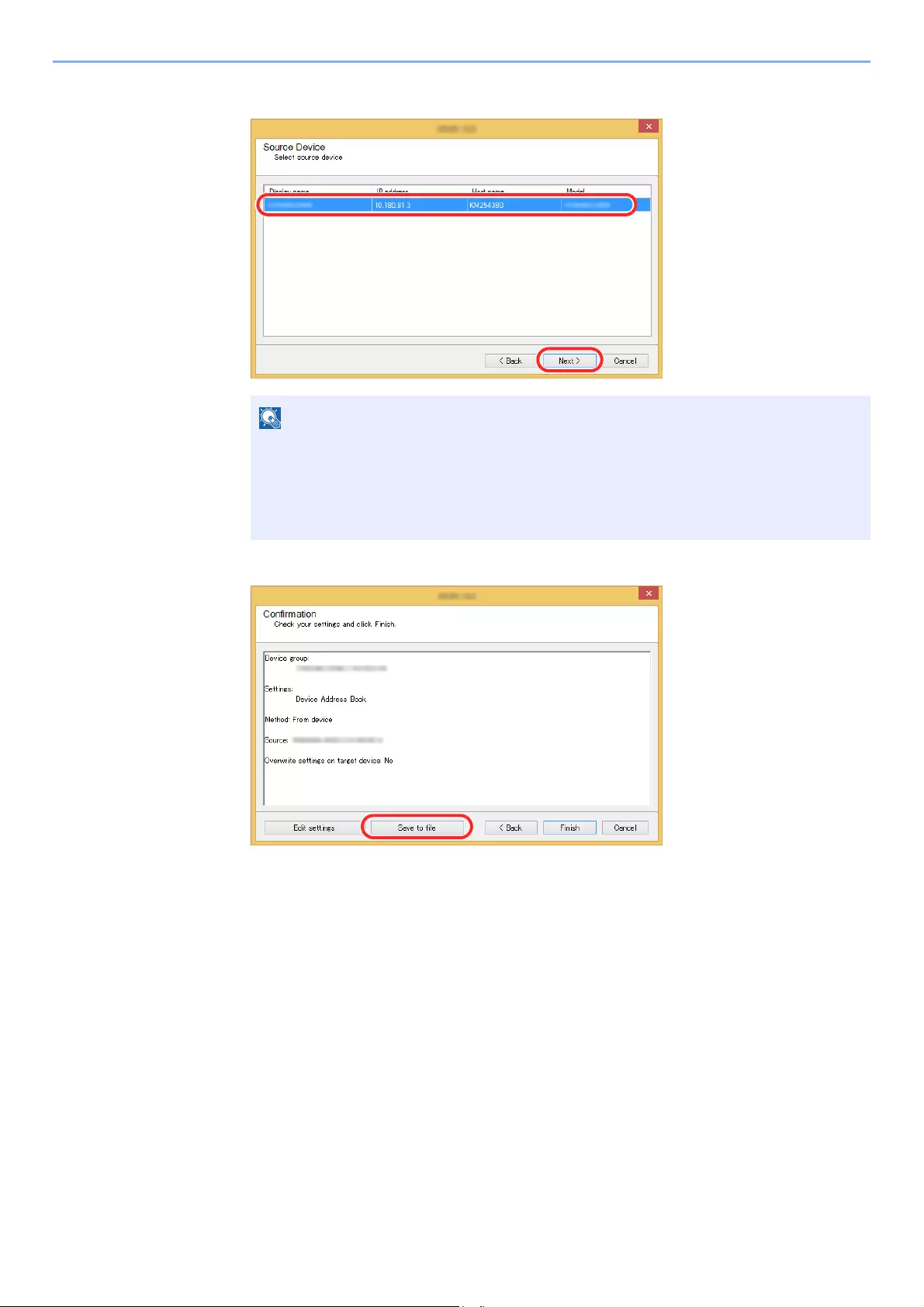
2-69
Installing and Setting up the Machine > Transferring Data from Our Other Products
6Select the model you want to back up, and click [Next].
7Click on [Save to file].
8Specify the location to save the file, enter the file name, and then click [Save].
For «Save as type», make sure to select «XML File».
If the «Admin Login» screen appears, enter the «Admin Login» and «Login Password», and
then click [OK]. The default settings are as follows (Upper case and lower case letters
are distinguished (case sensitive)).
Login User Name: Admin
Login Password: Admin
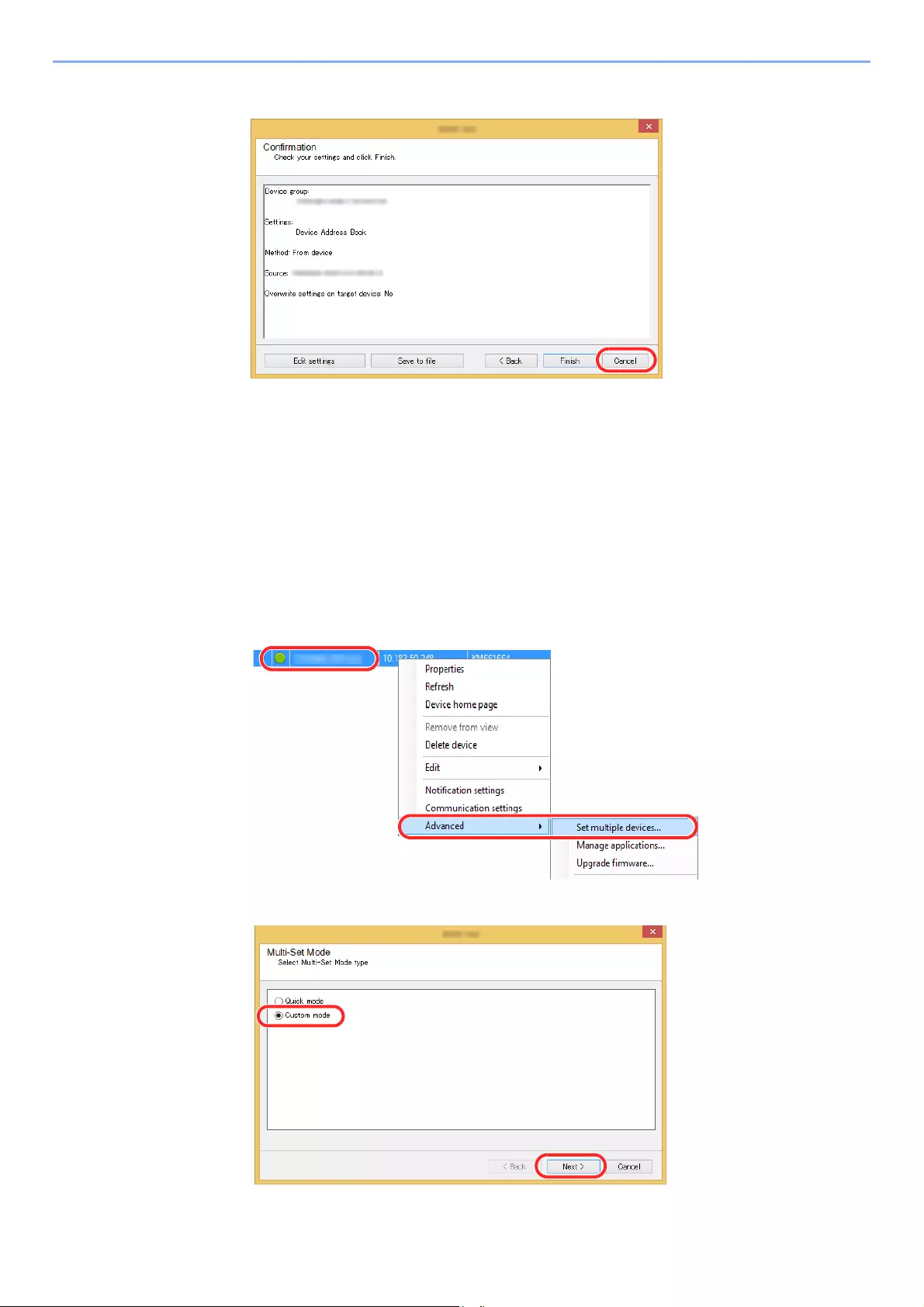
2-70
Installing and Setting up the Machine > Transferring Data from Our Other Products
9After saving the file, always click [Cancel] to close the screen.
Please note that selecting [Finish] will write the data to the machine’s Address Book.
Writing Address Book Data to the Machine
1Launch the KYOCERA Net Viewer.
2Load the Address Book data.
1Right-click on the model name to which you want to transfer the Address Book, and select
[Advanced] — [Set multiple devices].
2Select [Custom Mode] and click [Next].
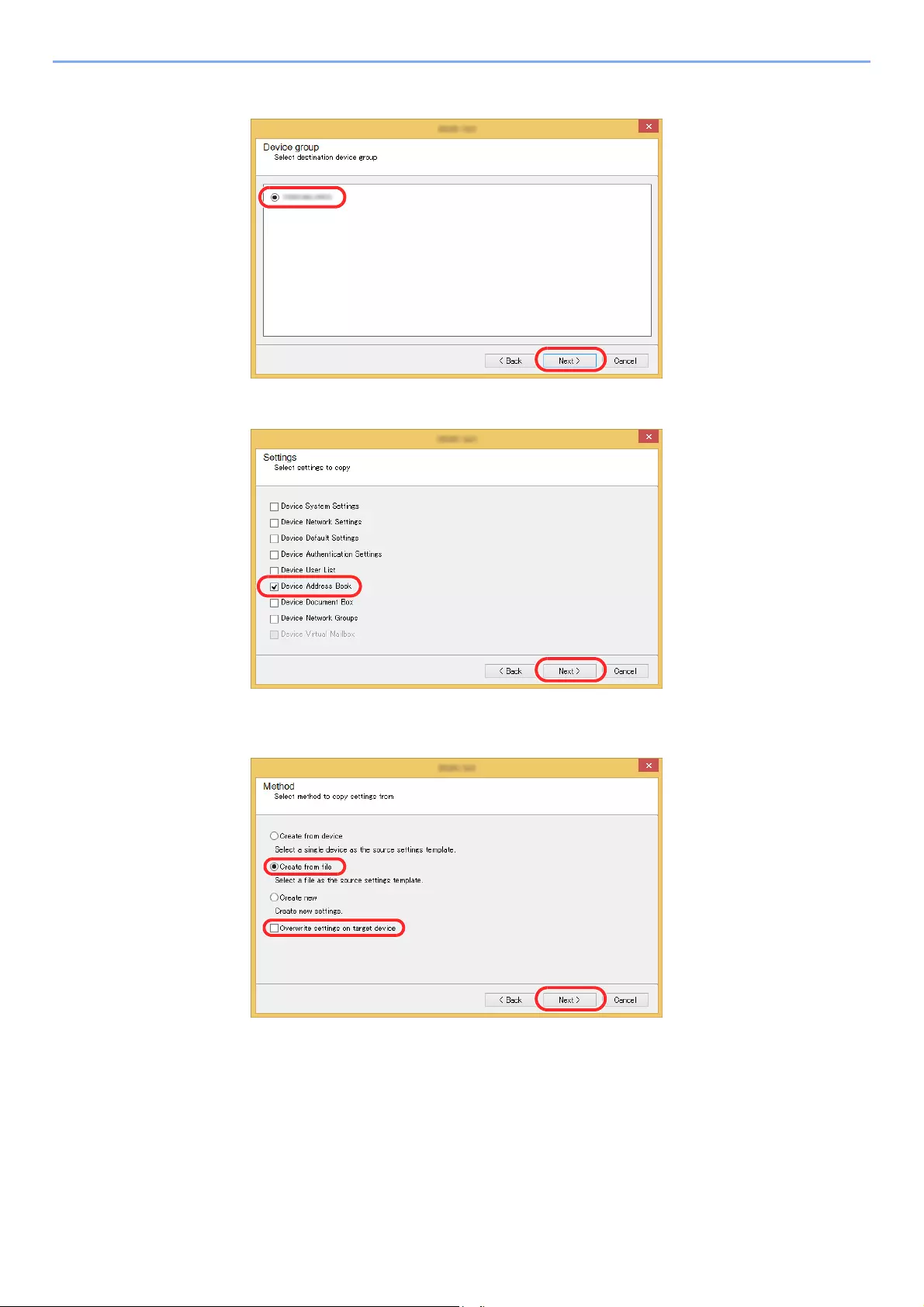
2-71
Installing and Setting up the Machine > Transferring Data from Our Other Products
3Select destination device group and click [Next].
4Select [Device Address Book] and click [Next].
5Select [Create from file] and remove the checkmark from [Overwrite settings on target
device], and then click [Next].
Selecting the [Overwrite settings on target device] checkbox will overwrite the machine’s
Address Book from entry No.1.
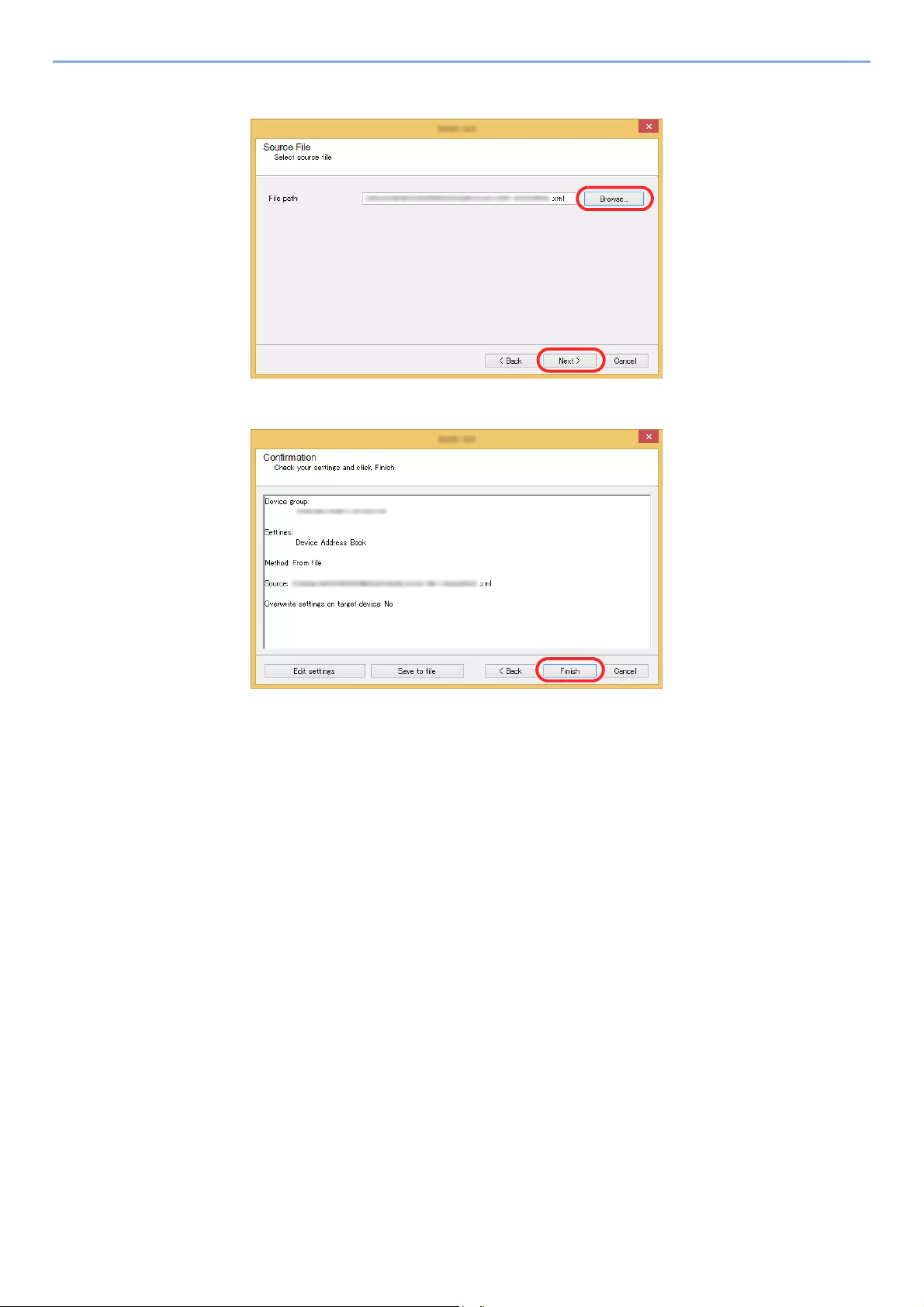
2-72
Installing and Setting up the Machine > Transferring Data from Our Other Products
6Click [Browse] and select the backup Address Book file, and then click [Next].
7Click [Finish].
The write process of the Address Book data starts.
8Once the write process is complete, click [Close].

3-1
3
Preparation before Use
This chapter explains the following operations.
Loading Paper ….…………….……………..………….…………….…………….…………….……………………..…………….…….. 3-2
Precaution for Loading Paper …………….……………….……………….………………..……………….…..………….... 3-3
Loading in the Cassettes ………….…………….…………….…………….…………….……………..………………….….. 3-4
Loading Statement in the Cassettes (ECOSYS M3655idn/ECOSYS M3660idn for inch models) ……….. 3-8
Loading Paper in the Multi Purpose Tray ……….……….…………….…………….……………..……………...……. 3-11
Specifying Paper Size and Media Type ……………..……………….……………….………………..…………………. 3-15
Paper Stopper ……………..………….…………….…………….……………..…………….…………….……………………..……… 3-17
Preparation for Sending a Document to a Shared Folder in a PC ………………………..……………….…………….... 3-18
Making a note of the computer name and full computer name ……..…………….…………….…………….…… 3-18
Making a note of the user name and domain name .………….…………….…………….…………….……………. 3-19
Creating a Shared Folder, Making a Note of a Shared Folder ………..…………….…………….…………….… 3-20
Configuring Windows Firewall ………………………….…………….…………….…………….…………….……………. 3-24
Registering Destinations in the Address Book .…………….……………….……………….………………..……...…………. 3-28
Adding a Destination (Address Book) ….…………….……………….……………….………………..………….……… 3-28
Adding a Destination on One Touch Key (One Touch Key) ..……………….………………..……………….…… 3-33
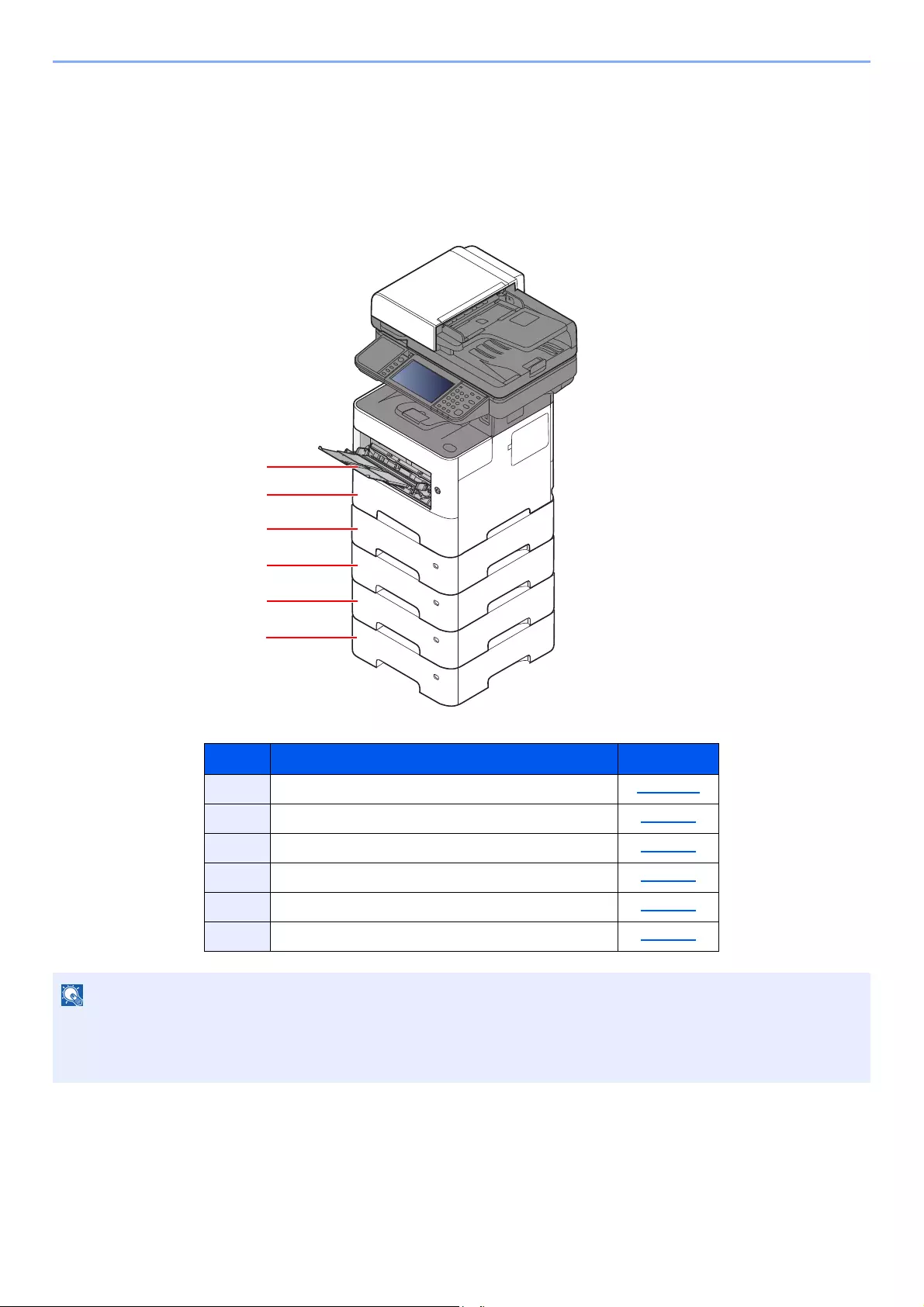
3-2
Preparation before Use > Loading Paper
Loading Paper
Load paper in the cassettes and multipurpose tray.
For the paper load methods for each cassette, refer to the page below.
No. Name Page
1Multi Purpose Tray page 3-11
2Cassette 1 page 3-4
3Cassette 2 page 3-4
4Cassette 3 page 3-4
5Cassette 4 page 3-4
6Cassette 5 page 3-4
• The number of sheets that can be held varies depending on your environment and paper type.
• You should not use inkjet printer paper or any paper with a special surface coating. (Such paper may cause paper
jams or other faults.)
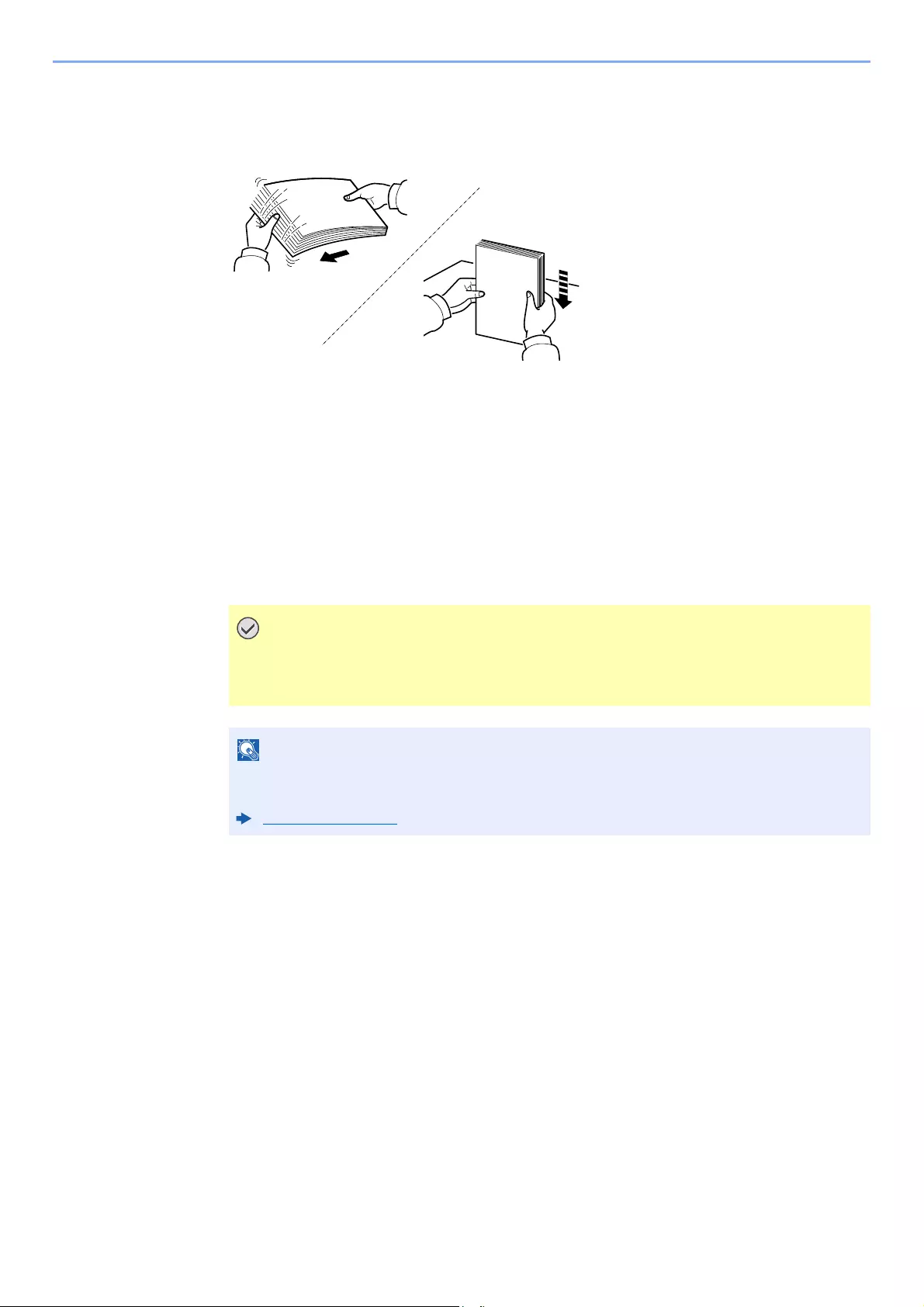
3-3
Preparation before Use > Loading Paper
Precaution for Loading Paper
When you open a new package of paper, fan the sheets to separate them slightly prior to loading in the following steps.
Fan the paper, then tap it on a level surface.
In addition, note the following points.
• If the paper is curled or folded, straighten it before loading. Paper that is curled or folded
may cause a jam.
• Avoid exposing opened paper to high temperatures and high humidity as dampness can be
a cause of problems. Seal any remaining paper after loading in the multi purpose tray or
cassettes back in the paper storage bag.
• If the machine will not be used for a prolonged period, protect all paper from humidity by
removing it from the cassettes and sealing it in the paper storage bag.
If you copy onto used paper (paper already used for printing), do not use paper that is
stapled or clipped together. This may damage the machine or cause poor image
quality.
If you use special paper such as letterhead, paper with holes or paper with pre-prints like
logo or company name, refer to the following:
Paper (page 11-14)
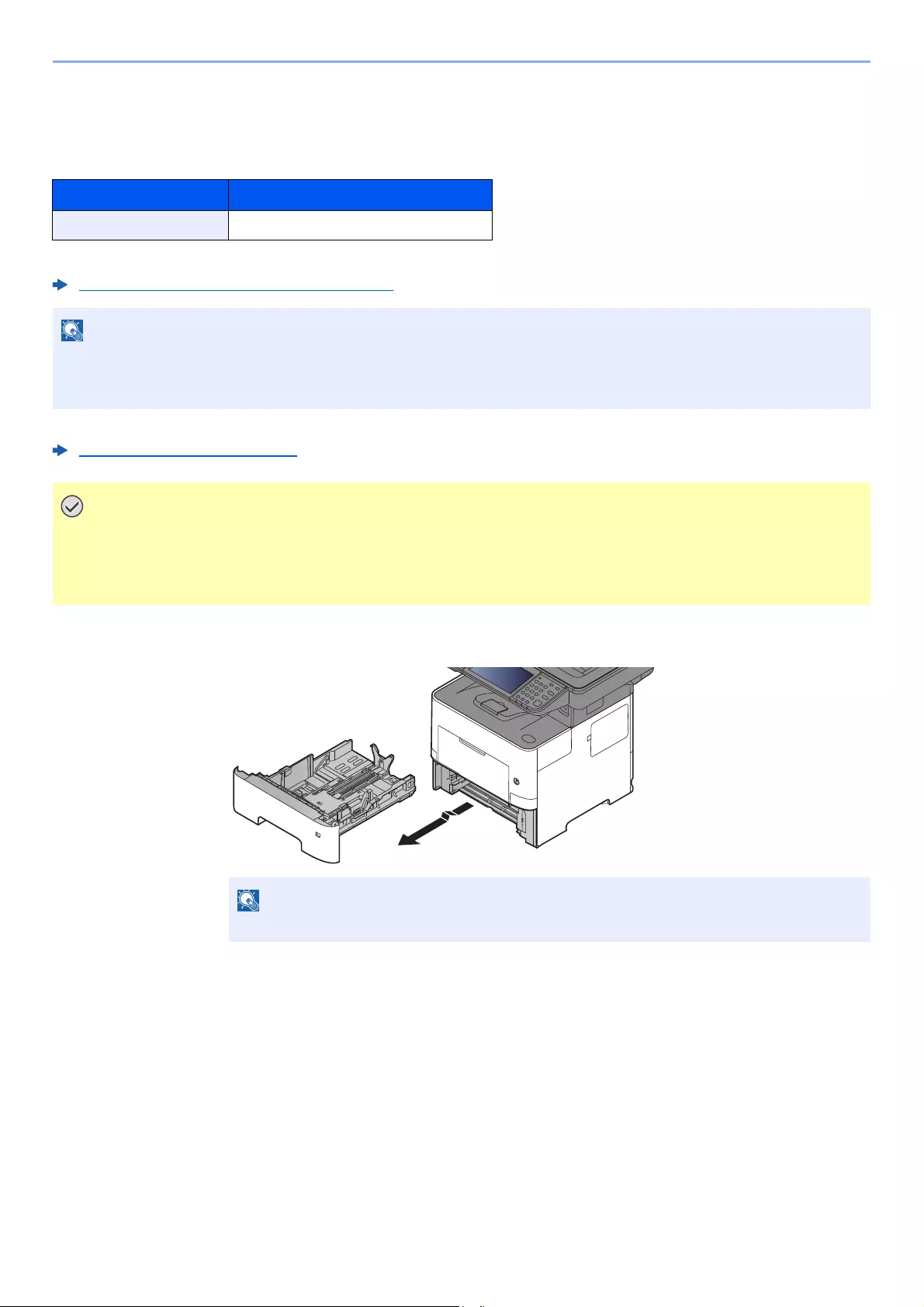
3-4
Preparation before Use > Loading Paper
Loading in the Cassettes
The cassettes can hold plain paper, recycled paper or color paper.
The number of sheets that can be loaded in each cassette is shown below.
For details of the supported paper sizes, refer to the following:
Choosing the Appropriate Paper (page 11-15)
For the paper type setting, refer to the following:
Media Type Setting (page 8-14)
1Pull the cassette completely out of the machine.
Cassette No. Sheets
Cassette 1 to 5 500 sheets (Plain paper: 80 g/m2)
A6 paper cannot be loaded in following cassettes.
ECOSYS M3145idn/ECOSYS M3645idn: Cassette 1 to 5
ECOSYS M3655idn/ECOSYS M3660idn: Cassette 2 to 5
• The cassettes can hold paper with weight between 60 — 120 g/m2.
• Do not load thick paper that is heavier than 120 g/m2 in the cassettes. Use the multi purpose tray for paper
that is heavier than 120 g/m2.
When pulling the cassette out of the machine, ensure it is supported and does not fall out.
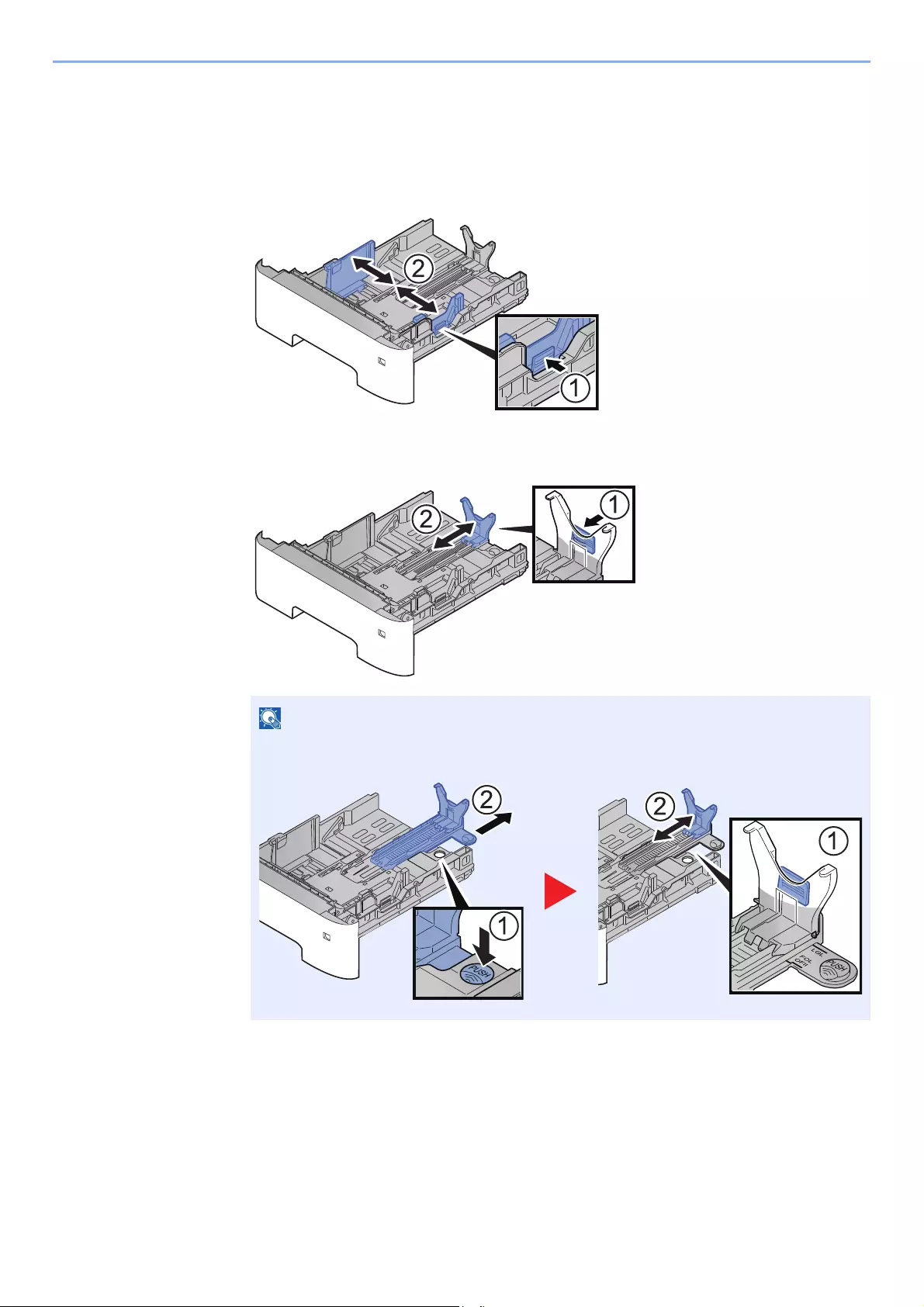
3-5
Preparation before Use > Loading Paper
2Adjust the cassette size.
1Adjust the position of the paper width guides located on the left and right sides of the
cassette. Press the paper width adjusting tab and slide the guides to the paper size
required.
Paper sizes are marked on the cassette.
2Adjust the paper length guide to the paper size required. Press the paper length adjusting
tab and slide the guides to the paper size required.
If you are going to use paper that is longer than A4, pull out the paper length guide
backwards.
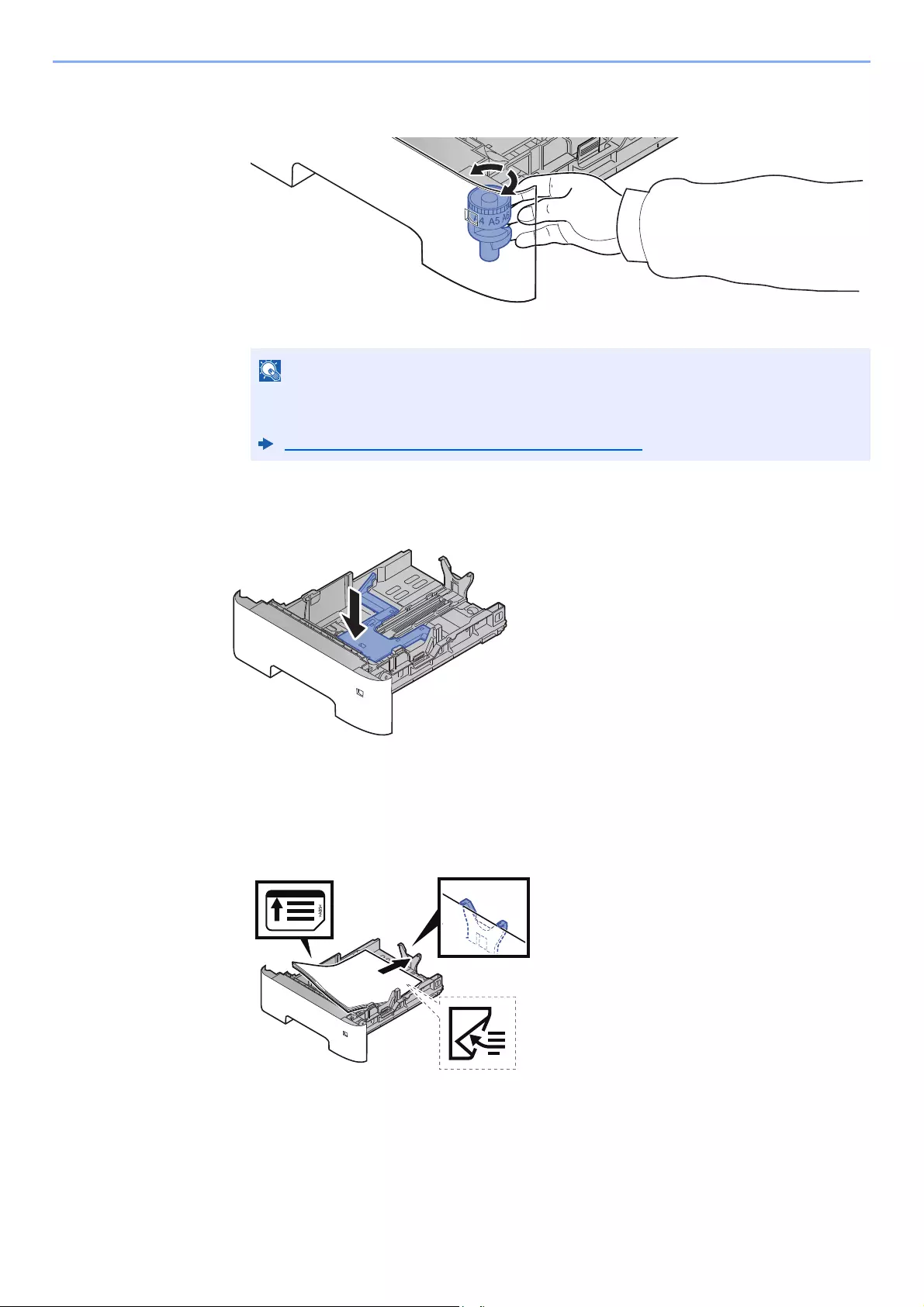
3-6
Preparation before Use > Loading Paper
3Turn the size dial so that the size of the paper you are going to use appears in the paper
size window.
3Press the bottom plate down until it locks. (ECOSYS M3145idn/
ECOSYS M3645idn only)
4Load paper.
1Fan the paper, then tap it on a level surface to avoid paper jams or skewed printing.
2Load the paper in the cassette.
When the size dial is set to «Other» the paper size must be set into the machine on the
operation panel.
Paper Size and Media Type for the Cassettes (page 3-15)
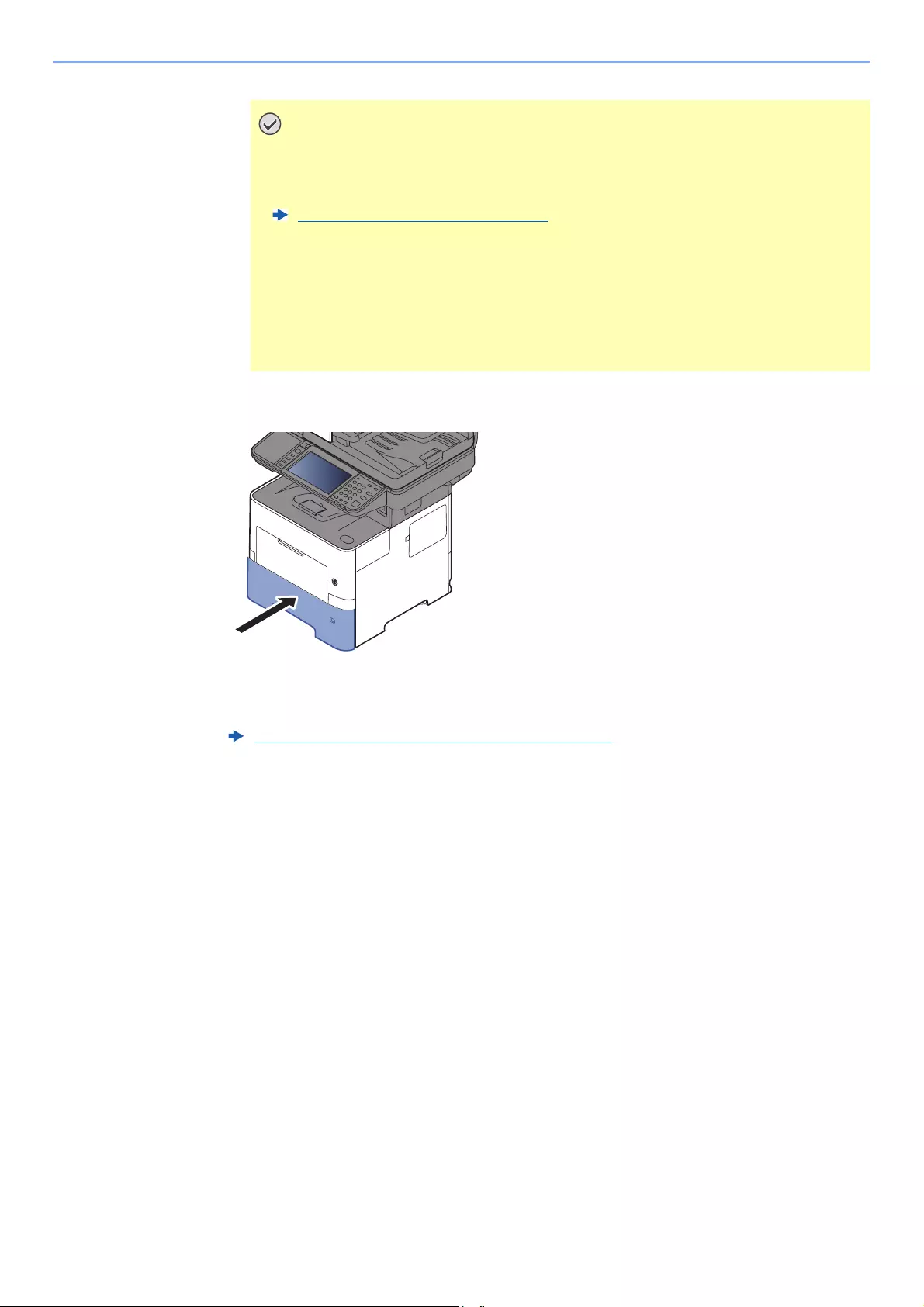
3-7
Preparation before Use > Loading Paper
5Gently push the cassette back in.
6Specify the type of paper loaded in the cassette using the
operation panel.
• Load the paper with the print side facing down.
• After removing new paper from its packaging, fan the paper before loading it in
the cassette.
Precaution for Loading Paper (page 3-3)
• Before loading the paper, be sure that it is not curled or folded. Paper that is
curled or folded may cause paper jams.
• Ensure that the loaded paper does not exceed the level indicator (see illustration
above).
• If paper is loaded without adjusting the paper length guide and paper width
guide, the paper may skew or become jammed.
Paper Size and Media Type for the Cassettes (page 3-15)
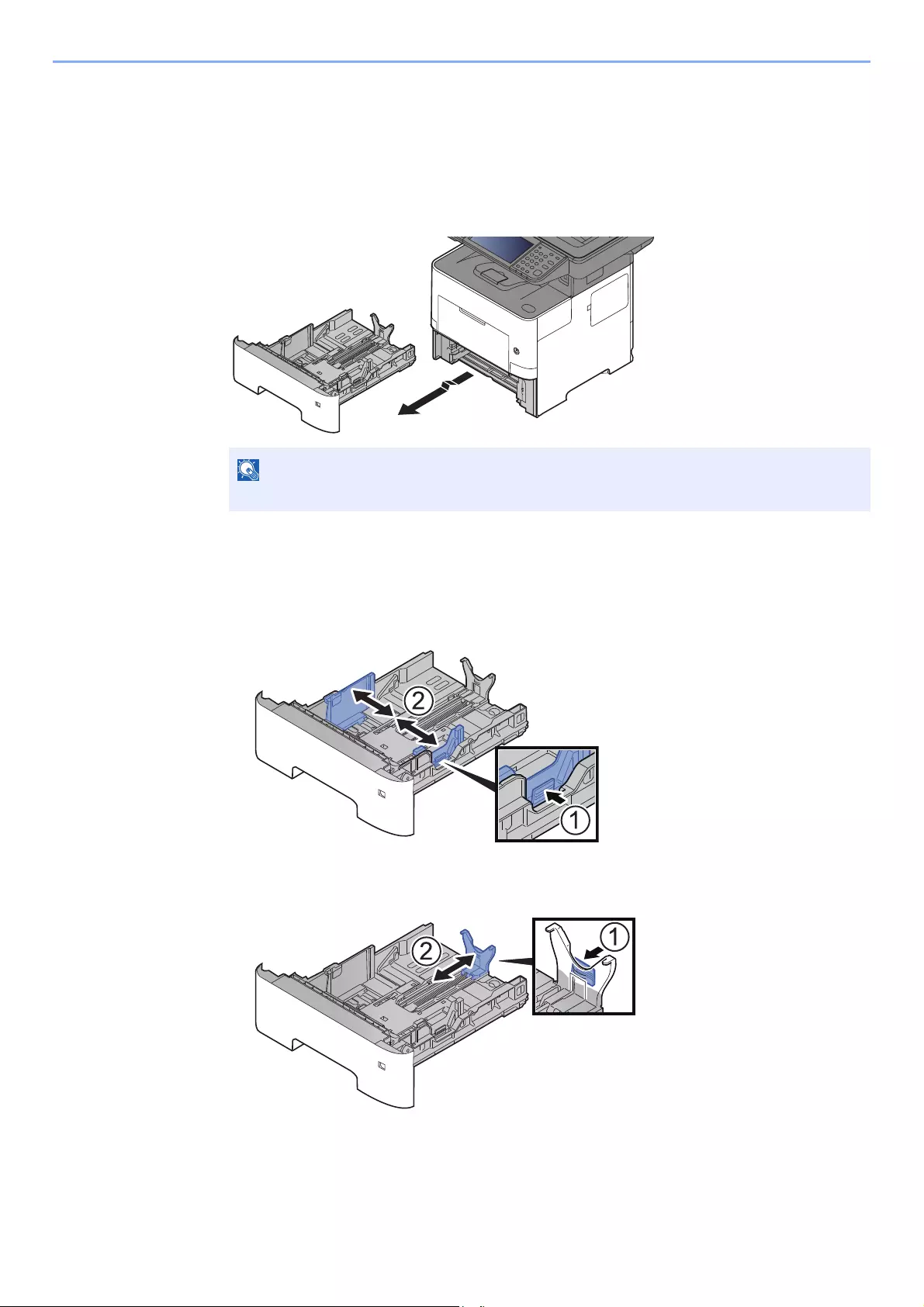
3-8
Preparation before Use > Loading Paper
Loading Statement in the Cassettes
(ECOSYS M3655idn/ECOSYS M3660idn for inch models)
Load Statement in the cassettes. Here, we’ll explain the procedures for cassette 1, as an example.
1Pull the cassette completely out of the machine.
2Adjust the cassette size.
1Adjust the position of the paper width guides located on the left and right sides of the
cassette. Press the paper width adjusting tab and slide the guides to the Letter/Legal size.
Paper sizes are marked on the cassette.
2Adjust the paper length guide to the paper size required. Press the paper length adjusting
tab and slide the guides to the A6 size.
When pulling the cassette out of the machine, ensure it is supported and does not fall out.
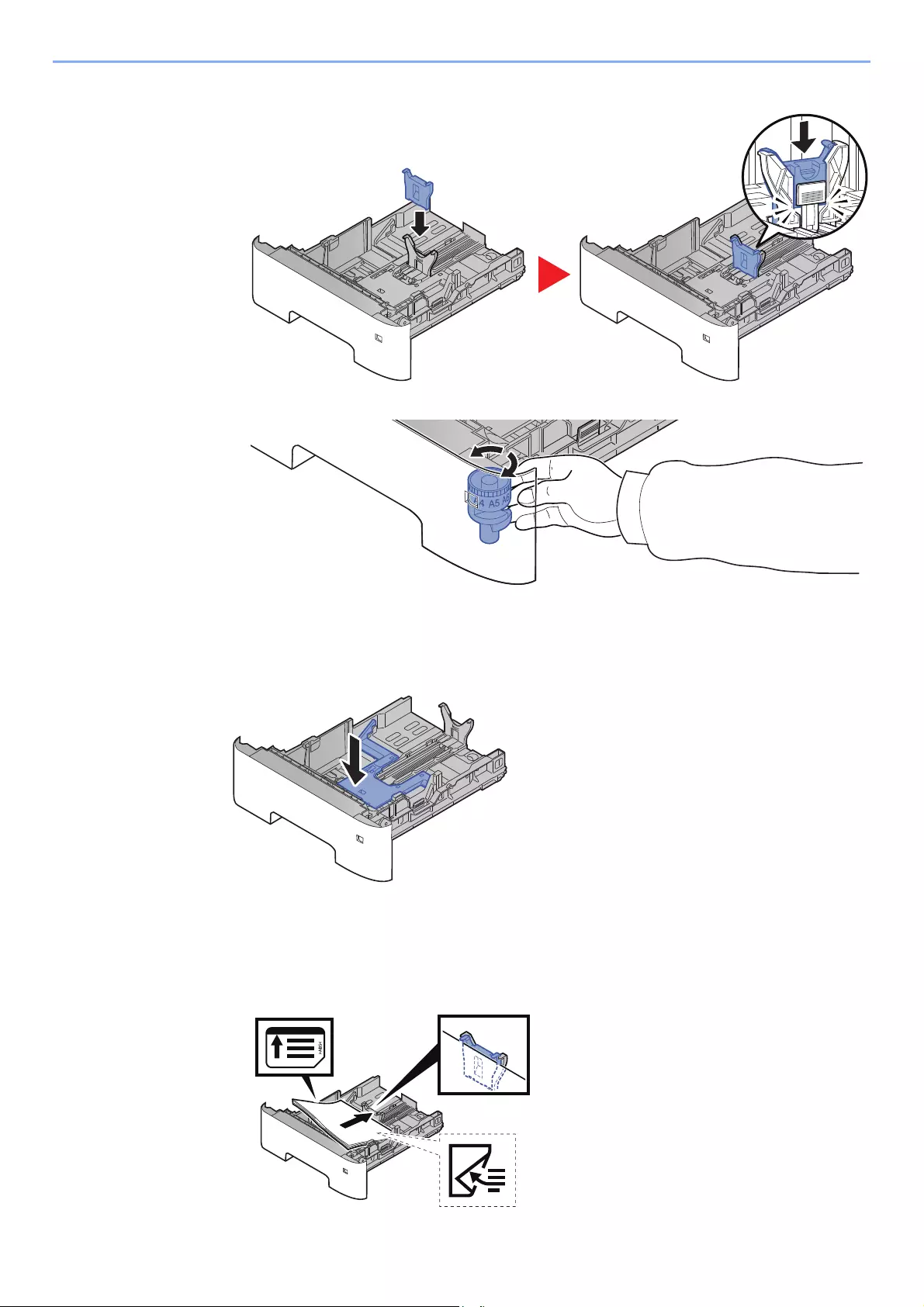
3-9
Preparation before Use > Loading Paper
3Attach the auxiliary guide to the paper length guide as shown in the illustration.
4Turn the size dial so that «Other» appears in the paper size window.
3(On ECOSYS M3145idn/ECOSYS M3645idn only) Press the
bottom plate down until it locks.
4Load paper.
1Fan the paper, then tap it on a level surface to avoid paper jams or skewed printing.
2Load the paper in the cassette.
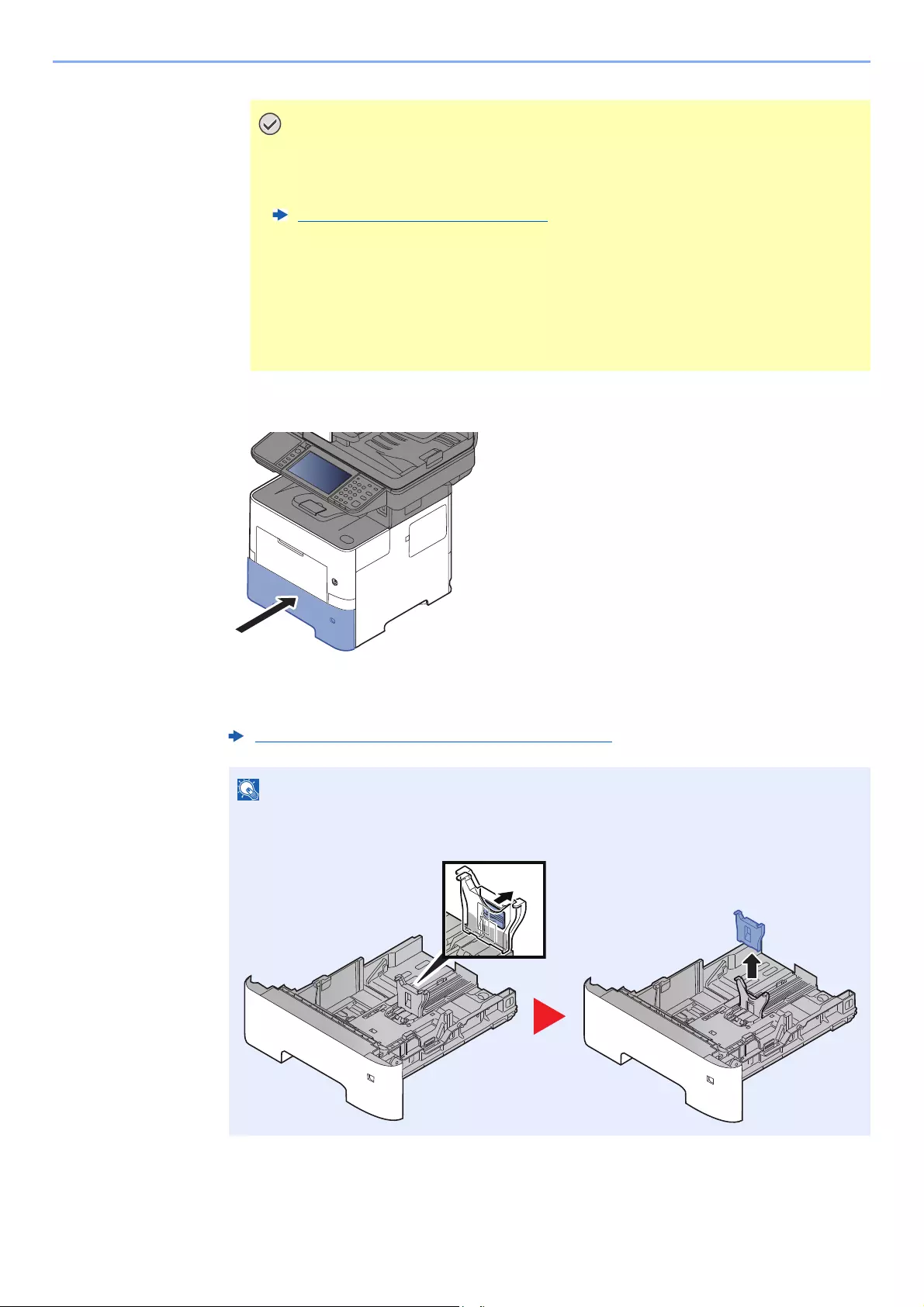
3-10
Preparation before Use > Loading Paper
5Gently push the cassette back in.
6Specify the type of paper loaded in the cassette using the
operation panel.
• Load the paper with the print side facing down.
• After removing new paper from its packaging, fan the paper before loading it in
the cassette.
Precaution for Loading Paper (page 3-3)
• Before loading the paper, be sure that it is not curled or folded. Paper that is
curled or folded may cause paper jams.
• Ensure that the loaded paper does not exceed the level indicator (see illustration
above).
• If paper is loaded without adjusting the paper length guide and paper width
guide, the paper may skew or become jammed.
Paper Size and Media Type for the Cassettes (page 3-15)
When removing the auxiliary guide, hold down the paper length adjusting tab and removing
the auxiliary guide.
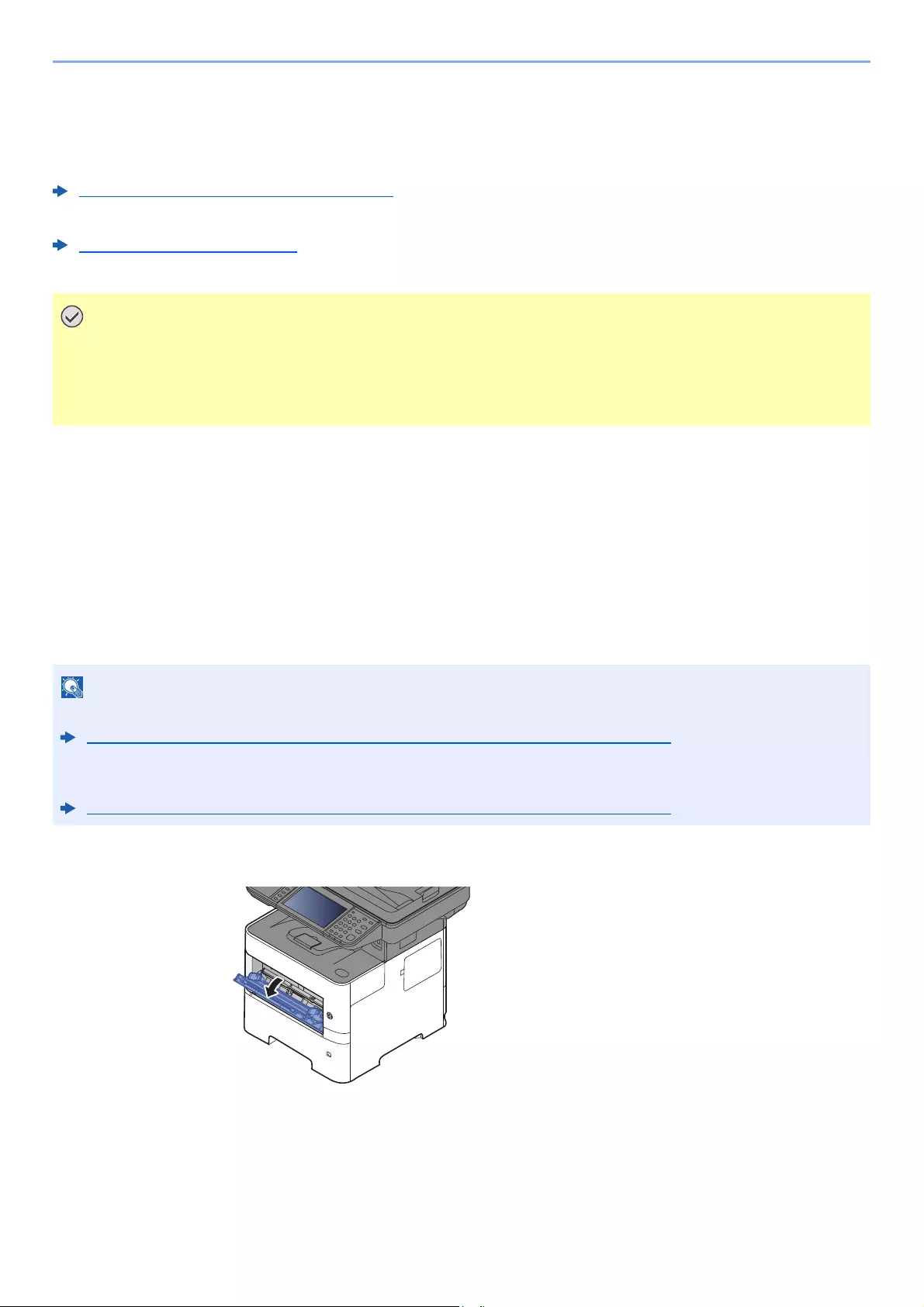
3-11
Preparation before Use > Loading Paper
Loading Paper in the Multi Purpose Tray
The multi purpose tray will hold up to 100 sheets of plain paper (80 g/m2).
For details of the supported paper sizes, refer to the following:
Choosing the Appropriate Paper (page 11-15)
For the paper type setting, refer to the following:
Media Type Setting (page 8-14)
Be sure to use the multi purpose tray when you print on any special paper.
The capacity of the multi purpose tray is as follows.
• Plain paper (80 g/m2), recycled paper or color paper: 100 sheets
• Thick paper (106 to 220 g/m2): 5 sheets
• Thick paper (104.7 g/m2): 100 sheets
• Hagaki (Cardstock): 1 sheets
• Envelope DL, Envelope C5, Envelope #10, Envelope #9, Envelope #6 3/4, Envelope Monarch, Youkei 4, Youkei 2:
5 sheets
• OHP film: 1 sheet
1Open the multi purpose tray.
• If you are using a paper weight of 106 g/m2 or more, set the media type to Thick and set the weight of the
paper you are using.
• Remove each transparency from the inner tray as it is printed. Leaving transparencies in the inner tray may
cause a paper jam.
• When you load custom size paper, enter the paper size by referring to the following:
Paper Size and Media Type for the Multi Purpose Tray (MP Tray Setting) (page 3-16)
• When you use special paper such as transparencies or thick paper, select the media type by referring to the
following:
Paper Size and Media Type for the Multi Purpose Tray (MP Tray Setting) (page 3-16)
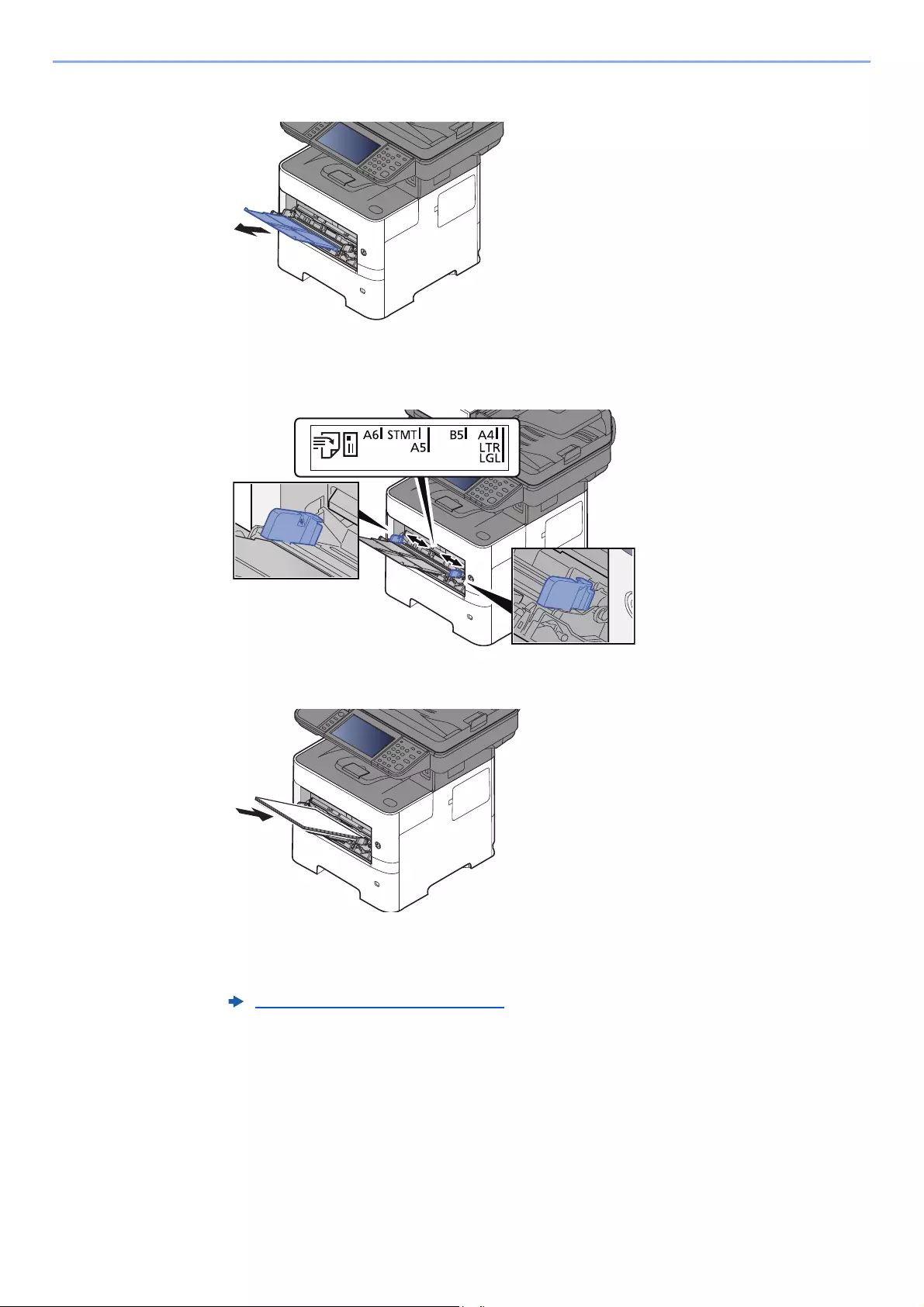
3-12
Preparation before Use > Loading Paper
2Pull out the support tray section of the MP tray.
3Adjust the multi purpose tray size.
Paper sizes are marked on the multi purpose tray.
4Load paper.
Insert the paper along the paper width guides into the tray until it stops.
After removing new paper from its packaging, fan the paper before loading it in the multi
purpose tray.
Precaution for Loading Paper (page 3-3)

3-13
Preparation before Use > Loading Paper
5Specify the type of paper loaded in the multi purpose tray using
the operation panel.
• When loading the paper, keep the print side facing up.
• Curled paper must be uncurled before use.
• When loading paper into the multi purpose tray, check that there is no paper left
over in the tray from a previous job before loading the paper. If there is just a small
amount of paper left over in the multi purpose tray and you want to add more, first
remove the left-over paper from the tray and include it with the new paper before
loading the paper back into the tray.
• If there is a gap between the paper and the paper width guides, readjust the guides
to fit the paper in order to prevent skewed feeding and paper jams.
• Ensure that the loaded paper does not exceed the level indicator (see illustration
above).
Paper Size and Media Type for the Multi Purpose Tray (MP Tray Setting) (page 3-16)
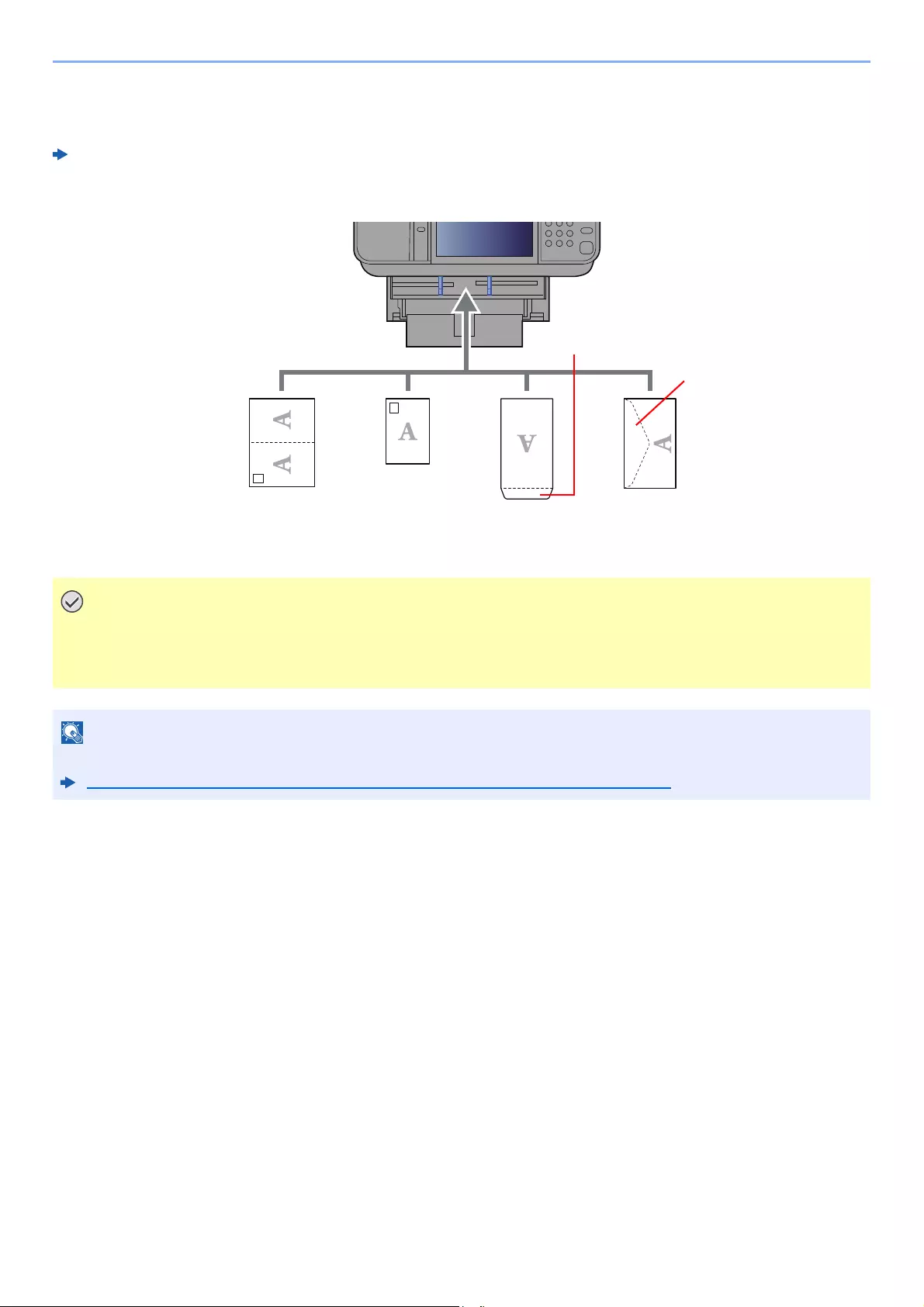
3-14
Preparation before Use > Loading Paper
When you load envelopes or cardstock in the multi purpose tray
Load the paper with the print side facing up. For the procedure for printing, refer to the following:
Printer Driver User Guide
Example: When printing the address.
• Use unfolded Oufuku hagaki (Return postcard).
• How to load envelopes (orientation and facing) will differ depending on the type of envelope. Be sure to
load it in correctly, otherwise printing may be done in the wrong direction or on the wrong face.
When you load envelopes in the multi purpose tray, select the envelope type by referring to the following:
Paper Size and Media Type for the Multi Purpose Tray (MP Tray Setting) (page 3-16)
Close the flap.
Open the flap
Portrait form
envelopes
Landscape form
envelopes
Hagaki
(Cardstocks)
Oufuku hagaki
(Return postcard)
3-15
Preparation before Use > Loading Paper
Specifying Paper Size and Media Type
The default paper size setting for cassette 1, for the multi purpose tray and for the optional paper feeder (cassettes 2 to
5) is «A4» or «Letter», and the default media type setting is «Plain».
To change the type of paper to be used in cassettes, specify the paper size and media type setting.
Paper Size and Media Type for the Cassettes
Specify the paper size and media type of paper to be used in cassettes.
Item Description
Paper Size*1
*1 Only set this when the size dial on the cassette is set to «Other».
Metric Select from the Metric standard sizes.
Values
Cassette 1: A4, A5, A5 (Landscape)*2, A6*2, B5, B6*2, Folio, 216 × 340 mm
Cassettes 2 to 5: A4, A5, B5, B6, Folio, 216 × 340 mm
*2 ECOSYS M3655idn/ECOSYS M3660idn only.
Inch Select from the Inch series standard sizes.
Values
Cassette 1: Letter, Legal, Statement, Statement (Landscape)*2, Executive,
Oficio II
Cassettes 2 to 5: Letter, Legal, Statement, Executive, Oficio II
Other Select from special standard sizes and custom sizes.
Values
Cassette 1: 16K, ISO B5, Envelope DL*2, Envelope C5,
Oufukuhagaki (Return postcard)
*2
,
Custom*3
Cassettes 2 to 5: 16K, ISO B5, Envelope #10, Envelope #9, Envelope #6,
Envelope Monarch, Envelope DL, Envelope C5,
Oufukuhagaki (Return postcard)
*2, Youkei 4, Youkei 2, Custom*3
*3 The custom paper sizes are set for each cassette. Refer to the following:
Custom Paper Size (page 8-12)
Media type*4
*4 To change to a media type other than Plain, refer to the following:
Media Type Setting (page 8-14)
When a paper weight that cannot be loaded in the cassette is set for a media type, that media type does not appear.
Select the media type.
Values
Cassette 1: Plain (60 — 105 g/m2), Rough, Recycled, Preprinted*5, Bond, Color,
Prepunched*5, Letterhead*5, High Quality, Custom 1 — 8
Cassettes 2 to 5: Plain (60 — 105 g/m2), Rough, Recycled, Preprinted*5, Bond,
Color, Prepunched*5, Letterhead*5, Envelope, High Quality, Custom 1 — 8
*5 To print on preprinted or prepunched paper or on letterhead, refer to the following:
Special Paper Action (page 8-13)
• The available media types for printing received faxes are as shown below.
Plain, Labels, Recycled, Bond, Vellum, Color, Envelope, Thick, High Quality, Rough and Custom 1 to 8
• Set the paper size of the cassette used for fax reception as follows:
Inch models: Letter, Legal, Statement
Metric models: A4, B5, A5, Folio
If the above setting is changed, it will not be possible to print faxes.
3-16
Preparation before Use > Loading Paper
Paper Size and Media Type for the Multi Purpose Tray (MP Tray Setting)
Specify the paper size and media type of paper to be used in the multi purpose tray.
1Display the screen.
[System Menu/Counter] > [Quick Setup Wizard]
2Select a function.
Select [Paper Setup].
3Configure the function.
Start the wizard. Follow the instructions on the screen to configure settings.
Item Description
Paper Size Metric Select from the Metric standard sizes.
Values: A4, A5, A6, B5, B6, Folio, 216 × 340 mm
Inch Select from the Inch series standard sizes.
Values: Letter, Legal, Statement, Executive, Oficio II
Other Select from special standard sizes and custom sizes.
Values: 16K, ISO B5, Envelope #10, Envelope #9, Envelope #6,
Envelope Monarch, Envelope DL, Envelope C5, Hagaki (Cardstock),
Oufukuhagaki (Return postcard), Youkei 4, Youkei 2
, Custom*1
*1 For instructions on how to specify the custom paper size, refer to the following:
Custom Paper Size (page 8-12)
Media Type*2
*2 To change to a media type other than «Plain», refer to the following:
Media Type Setting (page 8-14)
Select the media type.
Values: Plain (60 to 105 g/m2), Rough, Transparency, Vellum, Labels,
Recycled, Preprinted*3, Bond, Cardstock, Color, Prepunched*3, Letterhead*3,
Envelope, Thick (106 to 220 g/m2), High Quality, Custom 1-8
*3 To print on preprinted or prepunched paper or on letterhead, refer to the following:
Special Paper Action (page 8-13)
• The available media types for printing received faxes are as shown below.
Plain, Label, Recycled, Bond, Vellum, Color, Envelope, Cardstock, Thick, High Quality, Rough and Custom 1 to 8
• Set the paper size of the multi purpose tray used for fax reception as follows:
Inch models: Letter, Legal, Statement
Metric models: A4, B5, A5, Folio
If the above setting is changed, it will not be possible to print faxes.

3-17
Preparation before Use > Paper Stopper
Paper Stopper
When using paper A4/Letter or larger, open the paper stopper shown in the figure.
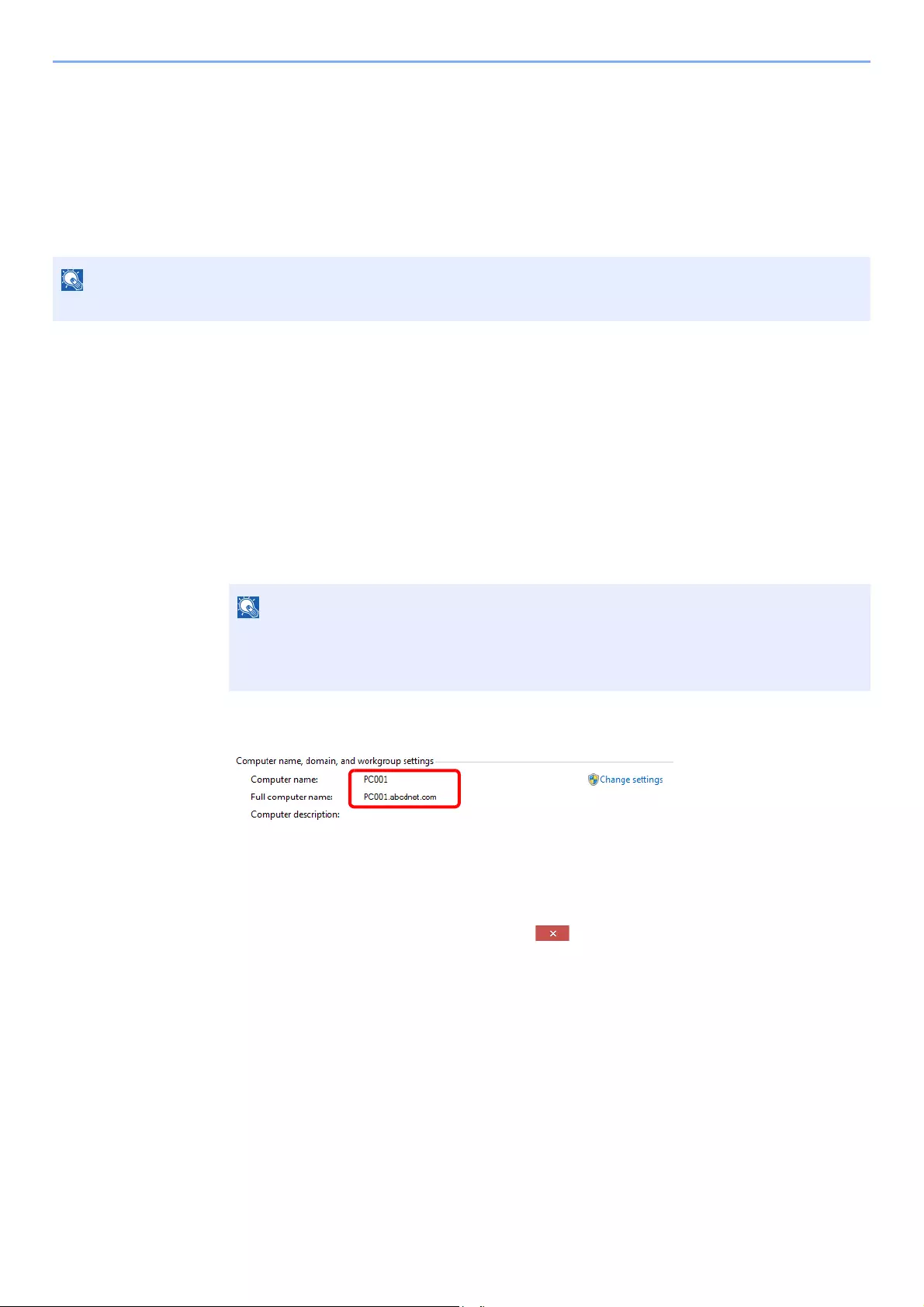
3-18
Preparation before Use > Preparation for Sending a Document to a Shared Folder in a PC
Preparation for Sending a Document to a
Shared Folder in a PC
Check the information that needs to be set on the machine and create a folder to receive the document on your
computer. Screens of Windows 8.1 are used in the following explanation. The details of the screens will vary in other
versions of Windows.
Making a note of the computer name and full
computer name
Check the name of the computer name and full computer name.
1Display the screen.
In Windows 8.1, right-click [PC] in the Start screen and select [Properties]. Or, right-click the
Window icon and select [System].
In Windows 8, select the desktop in the Start screen, right-click [Computer] from [Libraries],
and then select [Properties].
2Check the computer name.
Check the computer name and full computer name.
Screen example:
Computer name: PC001
Full computer name: PC001.abcdnet.com
After checking the computer name, click the [Close] button to close the
«System Properties» screen.
Log on to Windows with administrator privileges.
In Windows 7, from [Start] button on the Windows, select [Computer] and then [System
Properties].
In Windows 10, right-click [Start] button on the Windows and select [System].
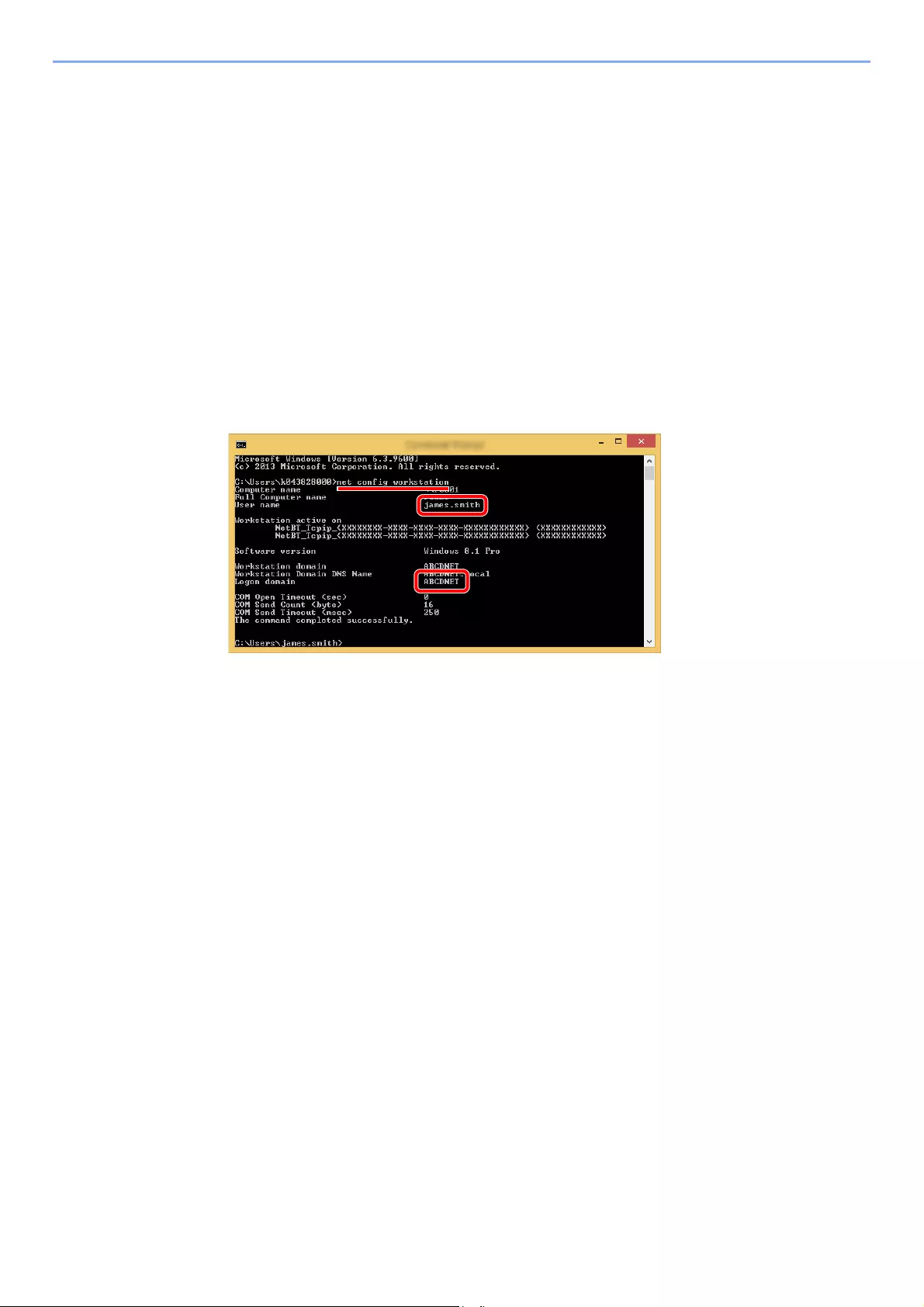
3-19
Preparation before Use > Preparation for Sending a Document to a Shared Folder in a PC
Making a note of the user name and domain name
Check the domain name and user name for logging onto Windows.
1Display the screen.
Click [Search] in charms, and enter «Command Prompt» in the search box. Select [Command
Prompt] in the search list.
In Windows 7, from [Start] button on the Windows, select [All Programs] (or [Programs]),
[Accessories] and then [Command Prompt].
In Windows 10, right-click [Start] button on the Windows and select [Command Prompt].
The Command Prompt window appears.
2Check the domain name and user name.
At the Command Prompt, enter «net config workstation» and then press [Enter].
Check the user name and domain name.
Screen example:
User Name: james.smith
Domain Name: ABCDNET
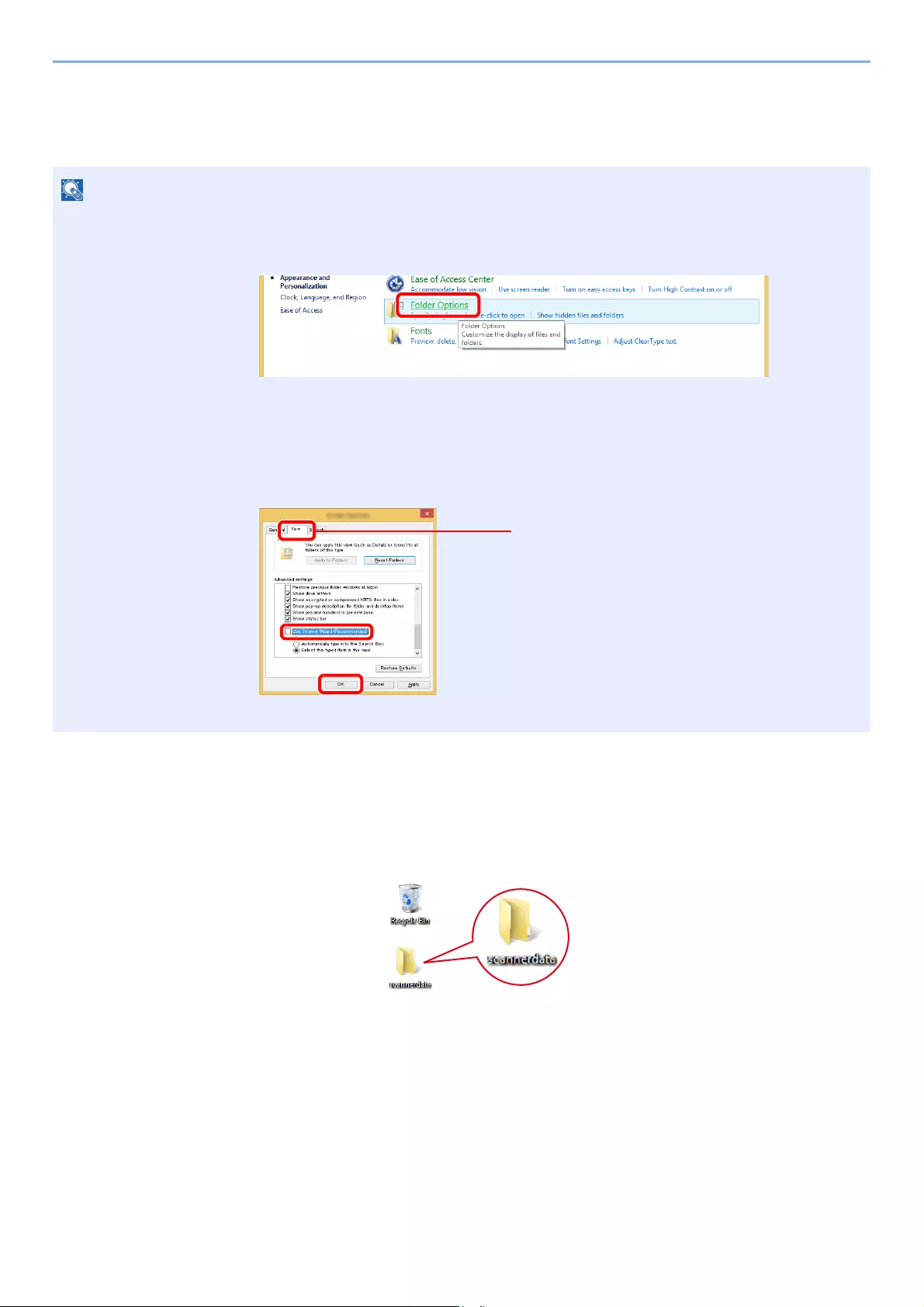
3-20
Preparation before Use > Preparation for Sending a Document to a Shared Folder in a PC
Creating a Shared Folder, Making a Note of a Shared Folder
Create a shared folder to receive the document in the destination computer.
1Create a folder.
1Create a folder on your computer.
For example, create a folder with the name «scannerdata» on the desktop.
If there is a workgroup in System Properties, configure the settings below to limit folder access to a specific user or group.
1Select [Settings] in charms on Desktop, and select [Control Panel], [Appearance and
Personalization], and then [Folder Options].
In Windows 7, from [Start] button on the Windows, select [Control Panel], [Appearance
and Personalization], and then [Folder Options].
In Windows 10, open up a window in File Explorer and select [View], [Options], and then
[Folder Options].
2
Remove the checkmark from [Use Sharing Wizard (Recommended)] in «Advanced settings».
1
2
3
Make sure that the [View] tab is selected.
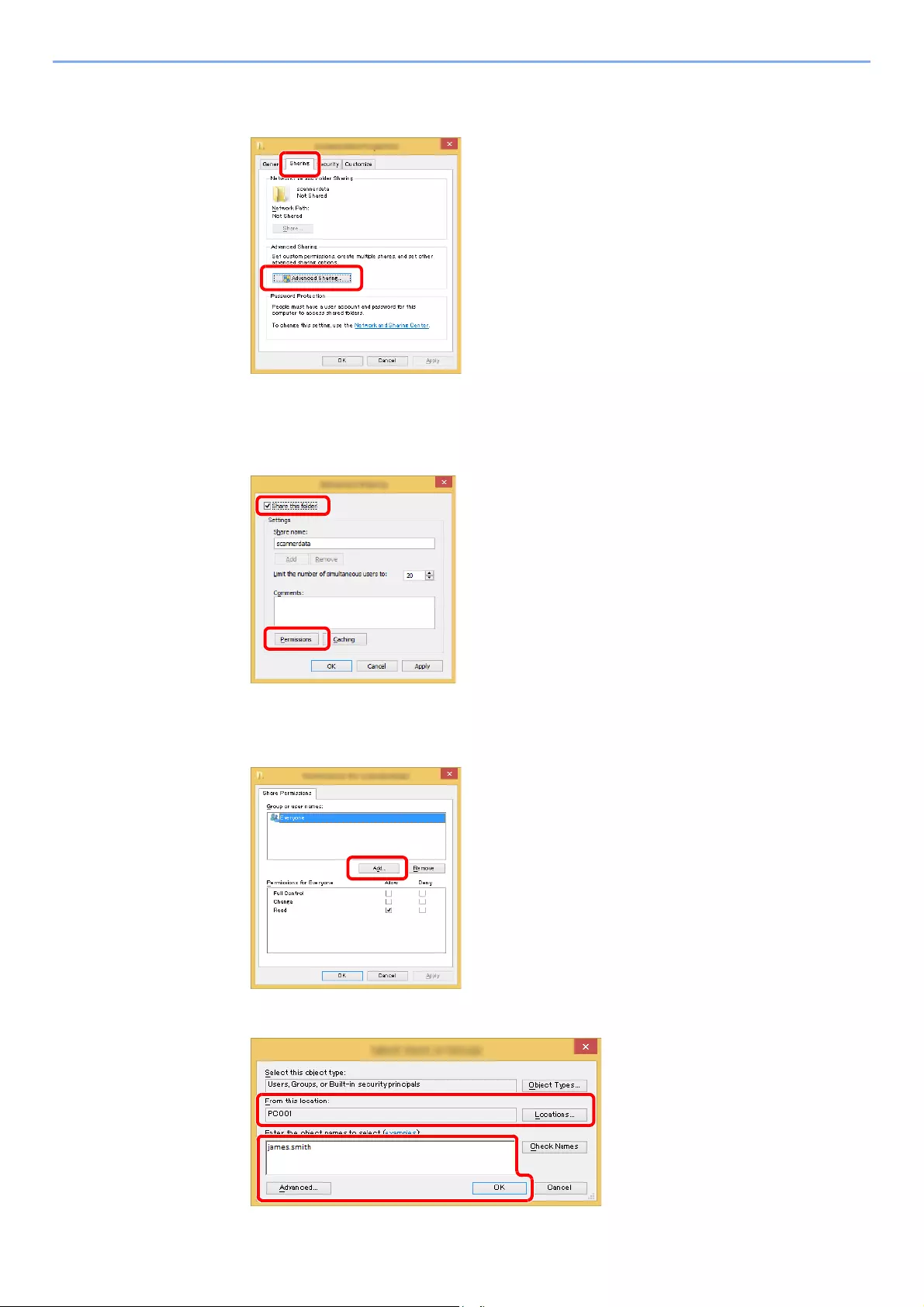
3-21
Preparation before Use > Preparation for Sending a Document to a Shared Folder in a PC
2Right-click the «scannerdata» folder, select [Property], and click [Sharing] and
[Advanced Sharing].
2Configure permission settings.
1Select the [Share this folder] checkbox and click the [Permissions] button.
2Make a note of the [Share name].
3Click the [Add] button.
4Specify the location.

3-22
Preparation before Use > Preparation for Sending a Document to a Shared Folder in a PC
5Set the access permission for the user selected.
6Click the [OK] button in the «Advanced Sharing» screen to close the screen.
7Check the details set in the [Security] tab.
1 If the computer name that you made a note of on page 3-18 is the same as the domain
name:
If the computer name is not shown in «From this location», click the [Locations] button,
select the computer name, and click the [OK] button.
Example: PC001
If the computer name that you made a note of on
page 3-18
is not the same as the
domain name:
If the text after the first dot (.) in the full computer name that you made a note of does
not appear in «From this location», click the [Locations] button, select the text after the
dot (.), and click the [OK] button.
Example: abcdnet.com
Making a note of the user name and domain name (page 3-19)
2 Enter the user name that you made a note of on page in the text box, and click the [OK]
button.
Also the user name can be made by clicking the [Advanced] button and selecting a
user.
«Everyone» gives sharing permission to everyone on the network. To strengthen
security, it is recommended that you select «Everyone» and remove the «Read» [Allow]
checkmark.
1
2
3
1 Select the user you entered.
2 Select the [Allow] checkbox of the
«Change» and «Read» permissions
3 Press [OK].
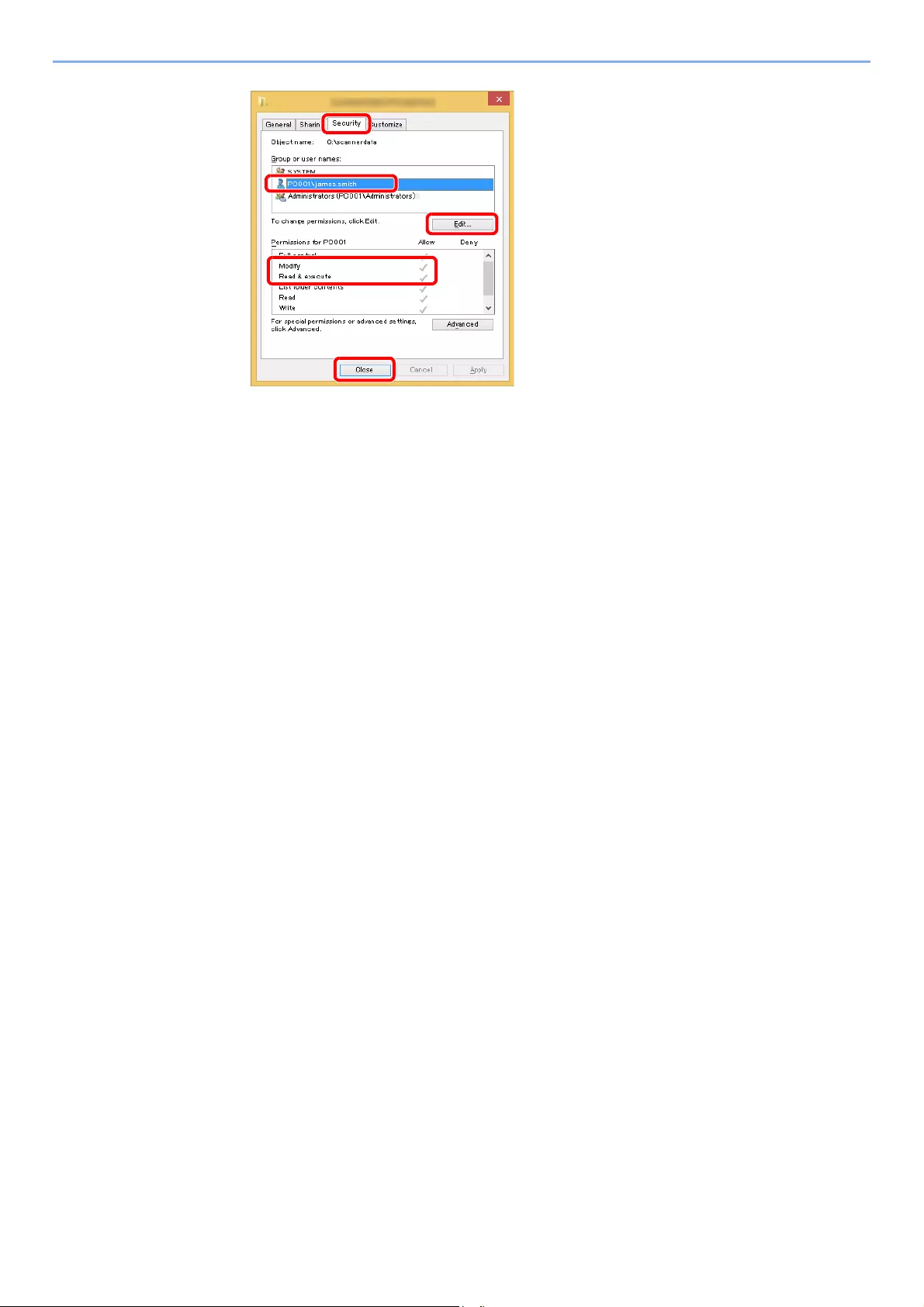
3-23
Preparation before Use > Preparation for Sending a Document to a Shared Folder in a PC
1 Select the [Security] tab.
2 Select the user you entered.
If the user does not appear on «Group or
user names», click [Edit] button to add user
in a similar way of «configuration of
permission settings».
3 Make sure that checkmarks appear on
[Allow] checkbox for the «Modify» and
«Read & execute» permissions.
4 Click the [Close] button.
2
3
4
1
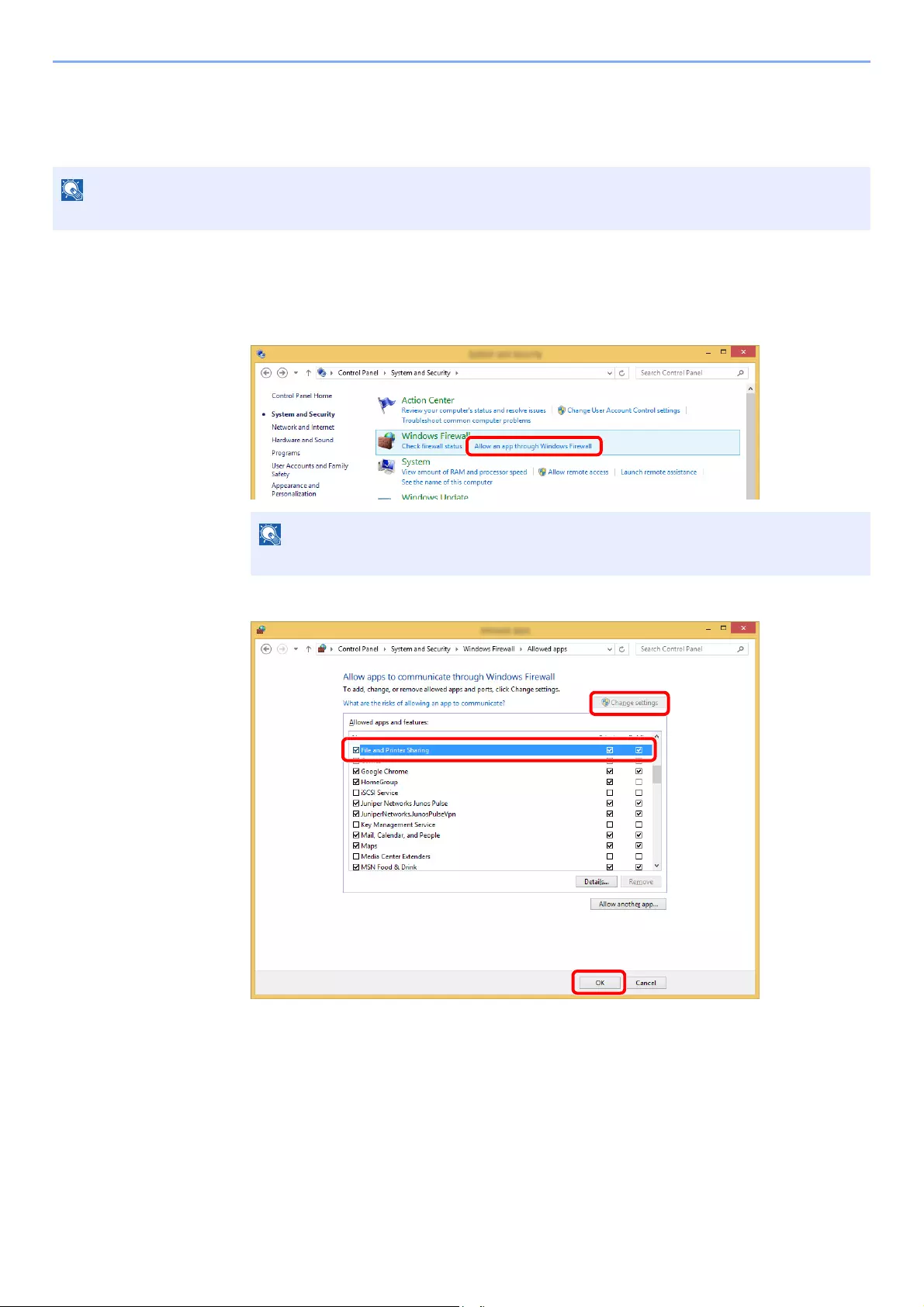
3-24
Preparation before Use > Preparation for Sending a Document to a Shared Folder in a PC
Configuring Windows Firewall
Permit sharing of files and printers and set the port used for SMB transmission.
1Check file and printer sharing.
1In charms on Desktop, click [Settings], [Control Panel], [System and Security], and then
[Windows Firewall].
2Select the [File and Printer Sharing] checkbox.
Log on to Windows with administrator privileges.
If the User Account Control dialog box appears, click the [Continue] button.
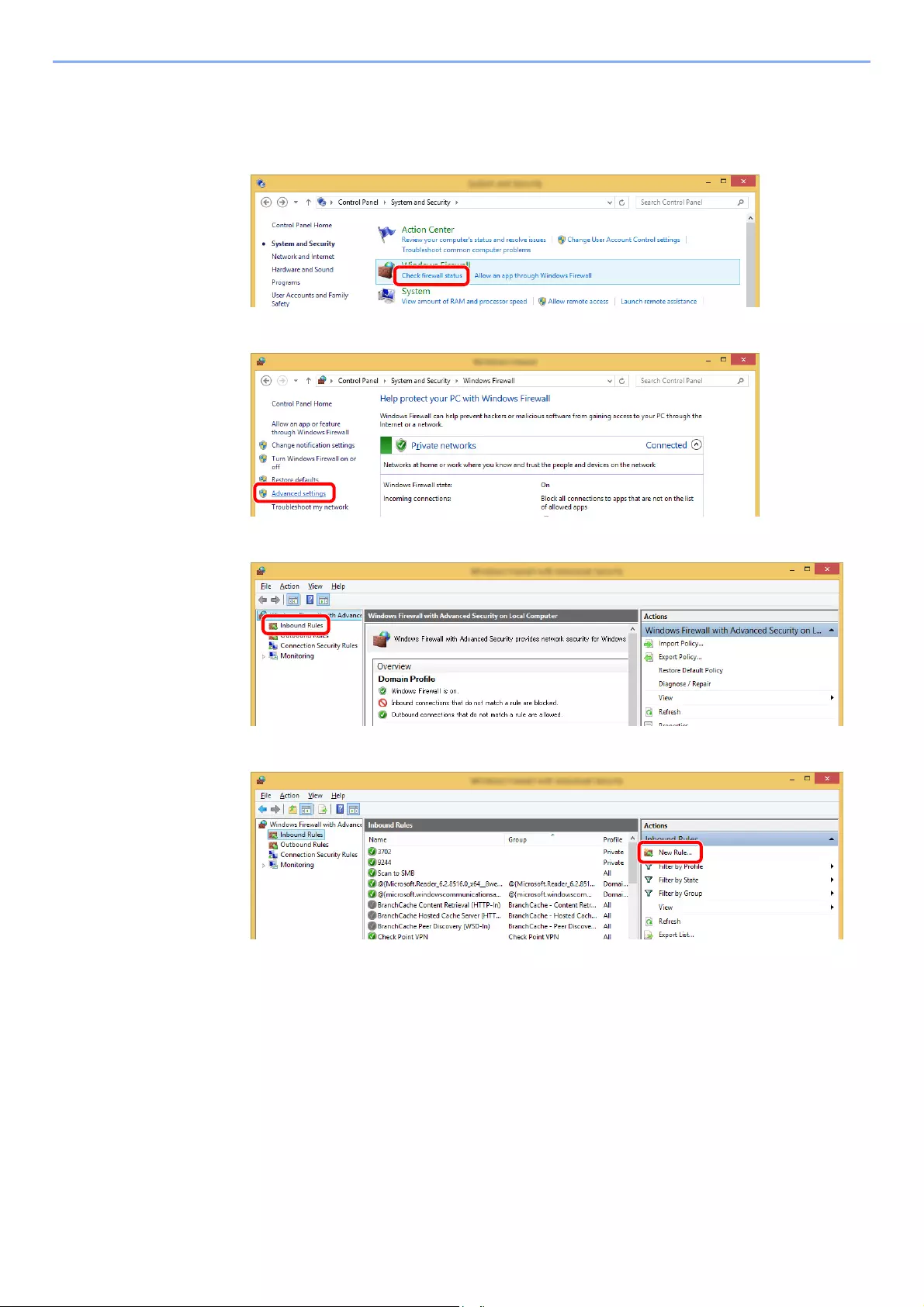
3-25
Preparation before Use > Preparation for Sending a Document to a Shared Folder in a PC
2Add a port.
1In charms on Desktop, click [Settings], [Control Panel], [System and Security], and
[Check firewall status].
2Select [Advanced settings].
3Select [Inbound Rules].
4Select [New Rules].
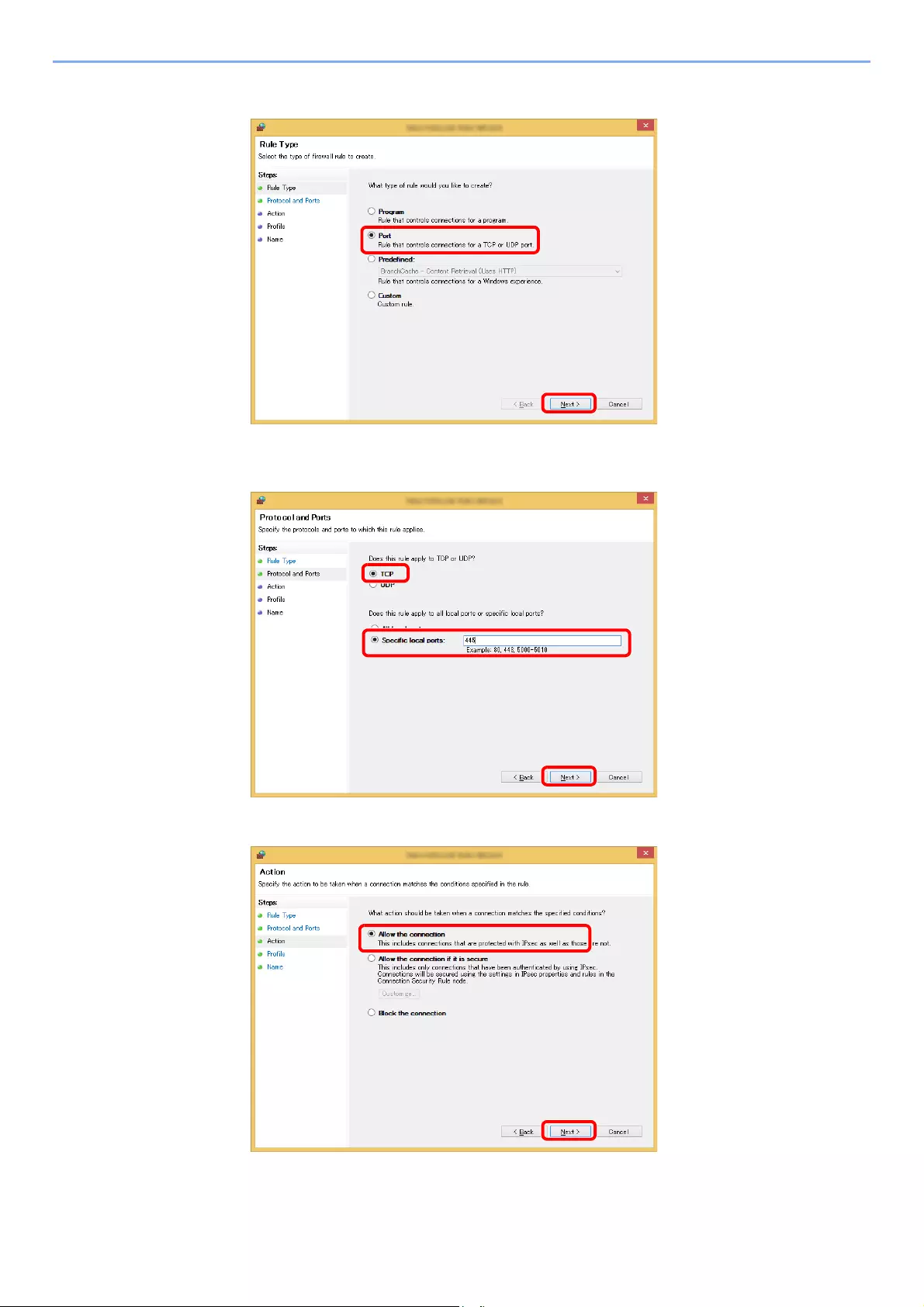
3-26
Preparation before Use > Preparation for Sending a Document to a Shared Folder in a PC
5Select [Port].
6Select [TCP] as the port to apply the rule to. Then select [Specific local ports] and enter
«445» then click [Next].
7Select [Allow the connection] and click the [Next] button.
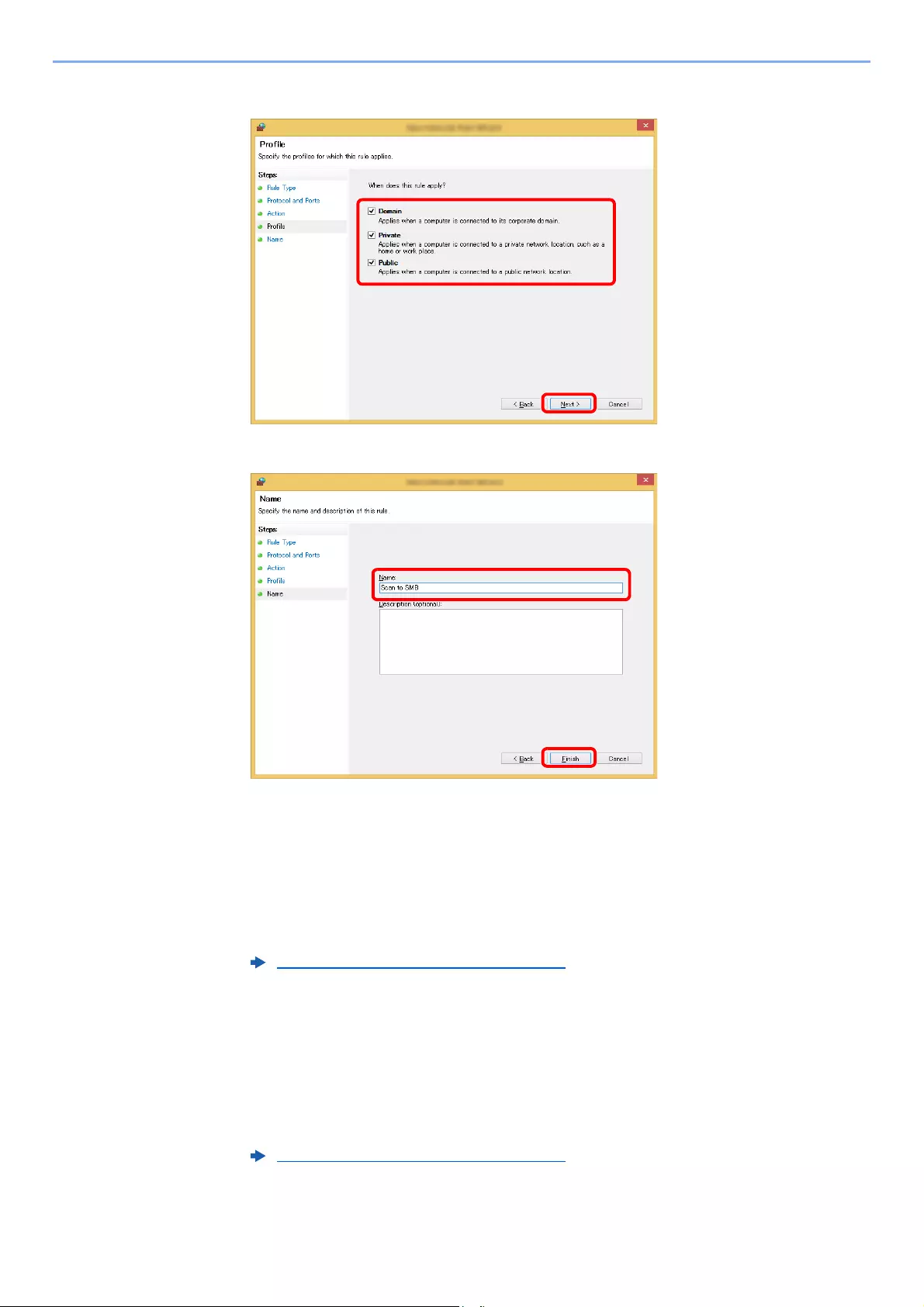
3-27
Preparation before Use > Preparation for Sending a Document to a Shared Folder in a PC
8Make sure all checkboxes are selected and click the [Next] button.
9Enter «Scan to SMB» in «Name» and click [Finish].
In Windows 7
1In Windows 7, from [Start] button on the Windows, select [Control Panel], [System and
Security], and then [Allow a program through Windows Firewall].
If the User Account Control dialog box appears, click the [Continue] button.
2Configure the settings.
In Windows 10
1In Windows 10, right-click [Start] button on the Windows and select [Control Panel],
[System and Security], and then [Allow an app through Windows Firewall].
If the User Account Control dialog box appears, click the [Continue] button.
2Configure the settings.
Configuring Windows Firewall (page 3-24)
Configuring Windows Firewall (page 3-24)
3-28
Preparation before Use > Registering Destinations in the Address Book
Registering Destinations in the Address Book
Save frequently used destinations to the Address Book or One Touch Keys. The saved destinations can be changed.
The destinations are available for Send as E-mail, Send to Folder, and Fax Transmission (Only on products with the fax
function installed).
Adding a Destination (Address Book)
Add a new destination to the Address Book. There are two registering methods, contacts and groups. When adding a
group, enter the group name and select group members from the Address Book.
Contact (Up to 200)
Each address can include the information such as destination name, E-mail address, FTP server folder path, computer
folder path, and FAX No. (Only on products with the fax function installed).
1Display the screen.
[System Menu/Counter] key > [Address Book/One Touch] > [Address Book] > [] >
[Contact]
2Add the name.
Enter the destination name to be displayed on the Address Book > [Next]
3Add the address.
E-mail Address
[E-mail Address] > Enter the E-mail address > [OK]
Registering and editing of the Address Book can also be done in Command Center RX.
Registering Destinations (page 2-63)
If user login administration is enabled, you can only edit destinations in the Address Book by logging in with
administrator privileges.
Up to 32 characters can be entered.
Refer to the following for details on entering characters.
Character Entry Method (page 11-11)
Up to 256 characters can be entered.
Refer to the following for details on entering characters.
Character Entry Method (page 11-11)
3-29
Preparation before Use > Registering Destinations in the Address Book
The Folder (SMB) Address
[SMB] > [Host Name], [Path], [Port], [Login User Name] and [Login Password] > [OK]
The table below explains the items to be entered.
To search for a folder on a PC on the network, select in the following order.
[Menu] > [Search Folder from Network] or [Search Folder by Host Name]
If you selected [Search Folder from Network], you can search all PCs on the network for a
destination.
If you selected [Search Folder by Host Name], you can enter the «Domain/Workgroup
Name», and «Host Name» to search PCs on the network for the destination.
Up to 500 addresses can be displayed. The login user name and login password entry screen
appears.
Select the host name (PC name) that you want to specify in the screen that appears > [Next].
For the computer name, share name, domain name, and user name, enter the information
that you noted when you created the shared folder. For details on creating shared folders,
refer to the following:
Preparation for Sending a Document to a Shared Folder in a PC (page 3-18)
Item Description Max. No. of
Characters
Host Name Computer name Up to
256 characters
Path Share name
For example:
scannerdata
If saving in a folder in the shared folder:
share name\folder name in shared folder
Up to
260 characters
Port Port number
(Normally 445.)
1 — 65535
Login User Name If the computer name and domain name are the same:
User Name
For example: james.smith
If the computer name and domain name are different:
Domain name\User name
For example: abcdnet\james.smith
Up to
64 characters
Login Password Windows logon password
(Case sensitive.)
Up to
64 characters
• Refer to the following for details on entering characters.
Character Entry Method (page 11-11)
•Select [Menu] > [Connection Test] to check the connection to the server you chose. If the
connection fails, check the entries you made.
3-30
Preparation before Use > Registering Destinations in the Address Book
The Folder (FTP) Address
[FTP] > [Host Name], [Path], [Port], [Login User Name] and [Login Password] > [OK]
The table below explains the items to be entered.
1To specify the Address Number, select [Address Number].
2Use [+] / [—] or the numeric keys to enter an address number (001 to 250).
To have the number assigned automatically, enter «000».
3Select [OK].
4Check if the destination entry is correct > [Save]
The destination is added to the Address Book.
Item Descriptions Max. No. of
Characters
Host Name Host name or IP address of FTP server Up to
64 characters
Path*1
*1 When the FTP server is based on Linux/UNIX, the path including the sub-folder is combined by the
slash «/» not using the back-slash.
Path for the file to be stored
For example: User\ScanData
If no path is entered, the file is stored in the home directory.
Up to
128 characters
Port Port number
(Normally 21.)
1 — 65535
Login User Name FTP server login user name Up to
64 characters
Login Password FTP server login password Up to
64 characters
• Refer to the following for details on entering characters.
Character Entry Method (page 11-11)
•Select [Menu] > [Connection Test] to check the connection to the FTP server you chose.
If the connection fails, check the entries you made.
• Address Number is an ID for a destination. A free number can be selected.
• If you specify an address number that is already in use, an error message appears.
3-31
Preparation before Use > Registering Destinations in the Address Book
Group (Up to 50)
Compile two or more contacts into a group. Designations in the group can be added at the same time.
1Display the screen.
[System Menu/Counter] key > [Address Book/One Touch] > [Address Book] > [] >
[Group]
2Add the name.
Enter the
group
name to be displayed on the Address Book > [Next]
3 Select the members (destinations).
1Select [Member].
2Select [].
3Select destinations (contacts) to add to the group. The selected destinations are indicated
by a checkmark in the check box.
4Select [OK].
If you have more destinations to add, repeat Steps 2 to 4.
5Select [End].
6To specify the Address Number, select [Address Number].
7Use [+] / [—] or the numeric keys to enter an address number (001 to 250).
To have the number assigned automatically, enter «000».
8Select [OK].
9Check if the selected destination was added to the group > [Save]
The group is added to the Address Book.
To add a group, you need individually added destinations. Register one or more individual destinations as needed
before proceeding. Up to 100 individually registered destinations and a combined total of up to 5 SMB and FTP
destination folders can be registered in a single group.
Up to 32 characters can be entered.
Refer to the following for details on entering characters.
Character Entry Method (page 11-11)
Destinations can be sorted or searched by destination name or address number.
Specifying Destination (page 5-20)
• Address Number is an ID for a destination. A free number can be selected.
• If you specify an address number that is already in use, an error message appears.

3-32
Preparation before Use > Registering Destinations in the Address Book
Editing and Deleting Address Book Entries
Edit and delete the destinations (contacts) you added to the Address Book.
1Display the screen.
[System Menu/Counter] key > [Address Book/One Touch] > [Address Book]
2Edit or delete the destination.
Editing a Contact
1Select [ ] for the destination (contacts) to edit.
2Change «Name», «Address Number» and destination type and address.
3After you have completed the changes, [Save] > [Yes]
Register the changed destination.
Editing a Group
1Select [ ] for the group to edit.
2Change «Name» and «Address Number».
3Select [Member].
4To delete any destination from the group, select the destination > [] > [Yes]
To add the destination, select [ ].
5After you have completed the changes, [Save] > [Yes]
Register the changed group.
Deleting a Contact or Group
Select a destination or group to delete > [] > [Yes]
Destinations can be sorted or searched by destination name or address number.
Specifying Destination (page 5-20)
Contact (Up to 200) (page 3-28)
Group (Up to 50) (page 3-31)
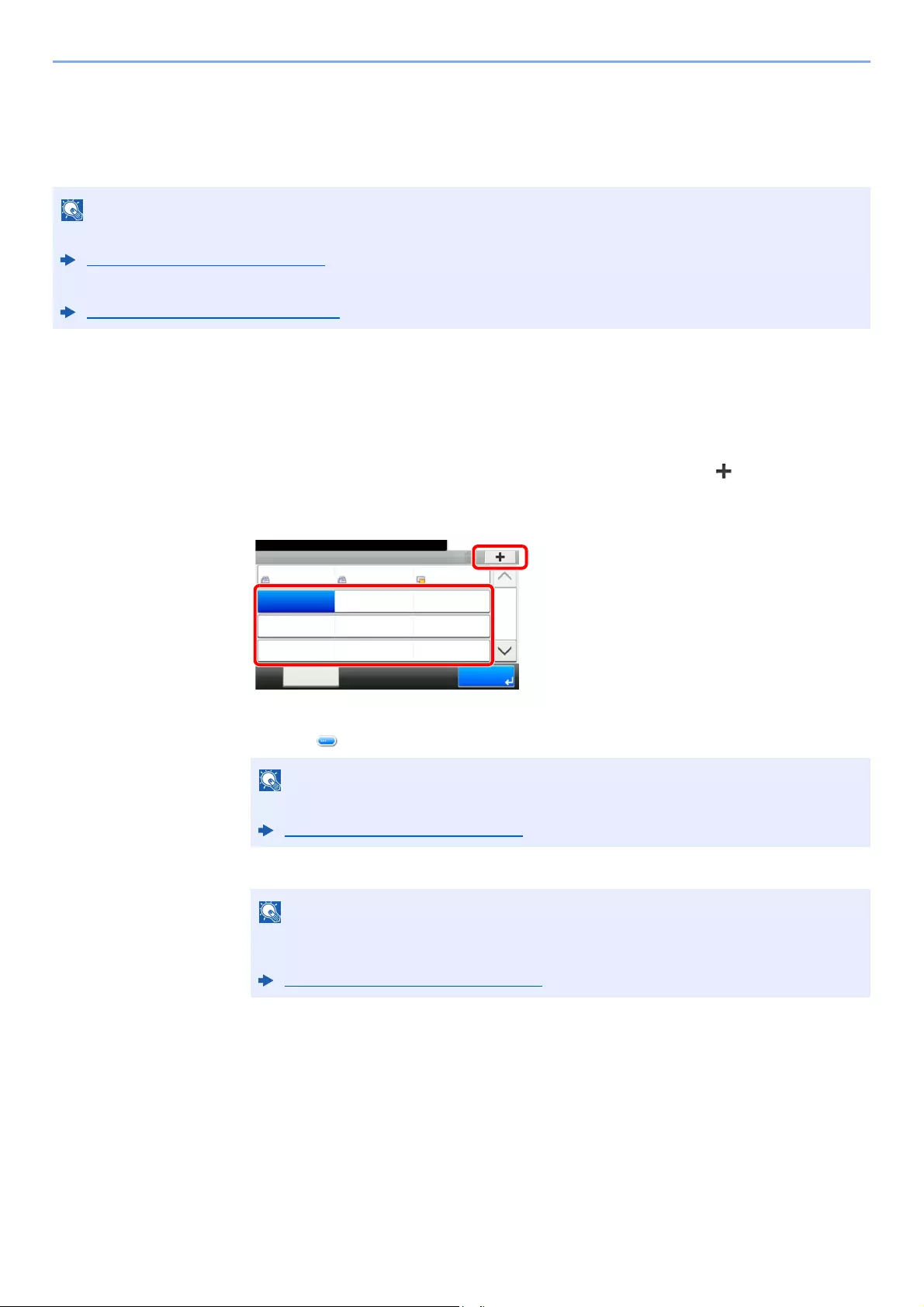
3-33
Preparation before Use > Registering Destinations in the Address Book
Adding a Destination on One Touch Key (One Touch
Key)
Assign a new destination (contact or group) to an one touch key. A maximum of 100 destinations can be registered.
1Display the screen.
[System Menu/Counter] key > [Address Book/One Touch] > [One Touch Key]
2Add One Touch Keys.
1Select a One Touch Key number (001 to 100) for the destination > []
Selecting the [Quick No. Search] key enables direct entry of a One Touch Key number.
Select a One Touch Key with no registered destination.
2
Select a destination (contact or group) to add to the One Touch Key number > [
Next
]
Selecting [ ] shows the detailed information of the selected destination.
3Enter the One Touch Key name displayed in the send base screen > [Next]
4Select [Save].
The destination will be added to the One Touch Key.
• Refer to the following for use of One Touch Key.
Specifying Destination (page 5-20)
• You can add One Touch keys and change their settings on Command Center RX.
Registering Destinations (page 2-63)
Destinations can be sorted or searched by destination name or address number.
Specifying Destination (page 5-20)
Up to 24 characters can be entered.
Refer to the following for details on entering characters.
Character Entry Method (page 11-11)
Address Book/One Touch — One Touch Key
10:10System Menu/Counter.
None
None
None
AAA
Menu
None
None
None
BBB
None
None
None
CCC
1/9
End
001
004
007
010 011
008
005
002
012
009
006
003
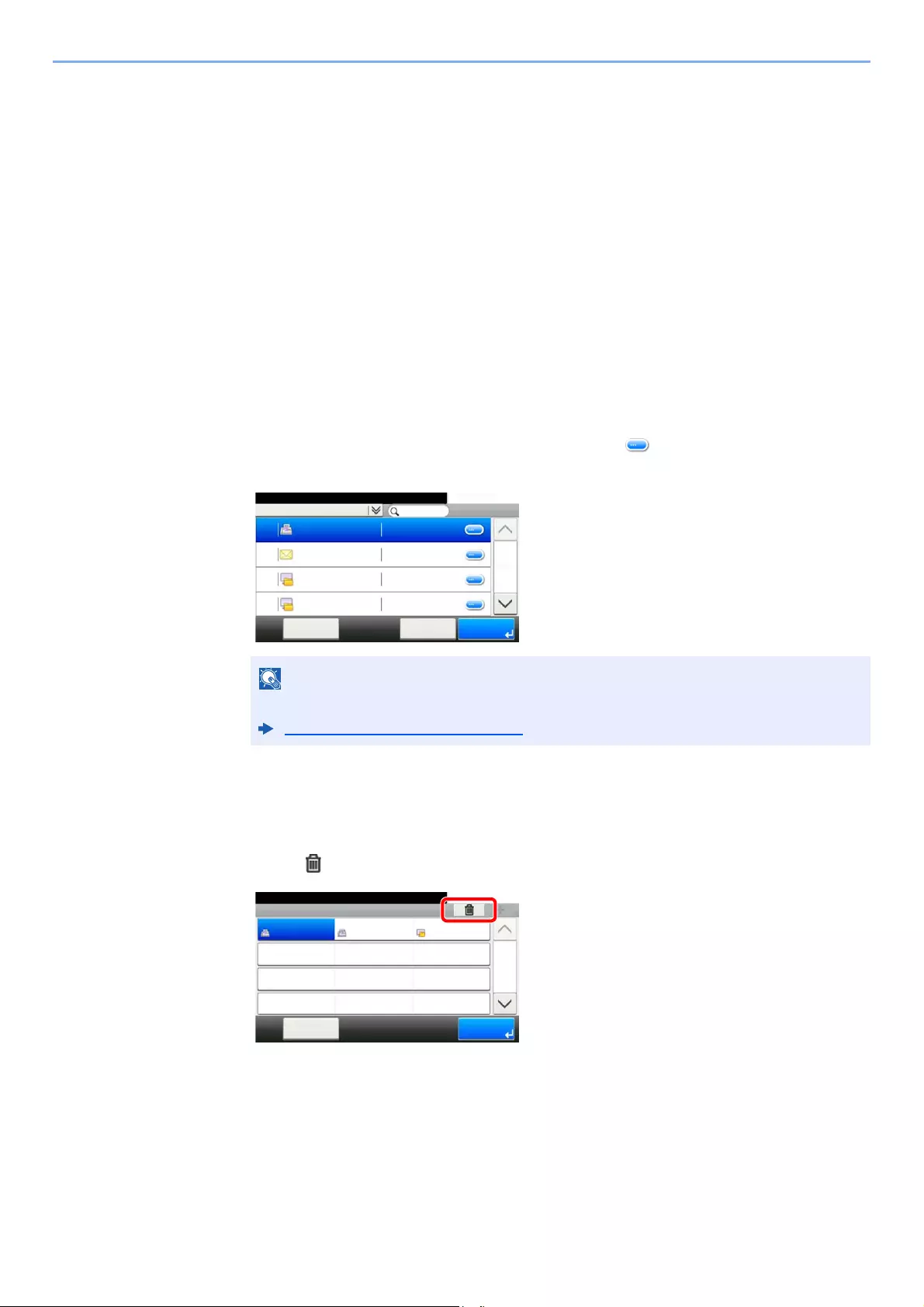
3-34
Preparation before Use > Registering Destinations in the Address Book
Editing and Deleting One Touch Key
Edit and delete the destinations you added to One Touch Key.
1Display the screen.
1[System Menu/Counter] key > [Address Book/One Touch] > [One Touch Key]
2Select a One Touch Key number (001 to 100) to edit. Selecting the [Quick No. Search] key
enables direct entry of a One Touch Key number.
The procedure differs depending on the details to be edited.
2Edit and delete the destinations you added to One Touch Key.
Changing the Registered Information
1[Menu] > [Edit] > [Destination]
2Select a new destination (contact or group). Selecting [ ] shows the detailed information
of the selected destination.
3[OK] > [Save] > [Yes]
Add the destination to the One Touch Key.
Deleting the Registered Information
1Select [].
2
Select [
Yes
].
Deletion of the data registered in the One Touch Key.
Destinations can be sorted or searched by destination name or address number.
Specifying Destination (page 5-20)
Address Book (All)
10:10
002
ABCD
OKCancelMenu
123456
EFGH
IJKL
MNOP
1/2
003
004
001
efg@efg.com
12345.com
11111.com
Address Book/One Touch — One Touch Key
10:10System Menu/Counter.
None
None
None
AAA
Menu
None
None
None
BBB
None
None
None
CCC
1/9
End
001
004
007
010 011
008
005
002
012
009
006
003

4-1
4 Printing from PC
This chapter explains the following topics:
Printing from PC ………..………….…………….…………….…………….……………..…………….…..……………..……………... 4-2
Printing on Non-standard Sized Paper ..…………….…………….…………….…………….…………….……..………. 4-4
Banner printing ………………………………..…………….…………….…………….…………….………………………….... 4-5
Printer Driver Print Settings Screen …….…………….…………….…………….…………….…………….……………… 4-9
Printer Driver Help …….…………….…………….………….…………….…………….…………….…….…………………. 4-10
Changing the Default Printer Driver Settings (Windows 8.1) .…………….…………….…………….……………. 4-10
Canceling Printing from a Computer ………………….…………….…………….…………….…………….……………. 4-10
Printing by AirPrint ……….…………….……………..………………………..…………….……………...………………..…………. 4-11
Printing by Google Cloud Print ..…………….…………….…………….……………..…………….………….……………………. 4-11
Printing by Mopria ………..…………….……………..…………….…………….…………….…………….……………….…………. 4-11
Printing with Wi-Fi Direct .…………….……………..…………….…………….…………….……………...………………………… 4-11
Printing Data Saved on the Printer …..…………….…………….…………….…………….…………….…….…………………. 4-12
Specifying the Job Box from a Computer and Storing the Job ………..……………….……………….…………. 4-12
Printing Documents from Private Print Box ….…………….……………..…………….…………….…………….…… 4-13
Printing Document from Stored Job Box …..…………….…………….…………….………….…………….…….…… 4-15
Printing Document from Quick Copy Box …….…………….……………..…………….…………….……………..….. 4-17
Printing Document from Proof and Hold Box ………………………….…………….……………..…………….…..…. 4-19
Status Monitor …………..………….…………….…………….…………….……………..…………….….……………………………. 4-21
Accessing the Status Monitor …………………………..……………….……………….………………..……..……..…… 4-21
Exiting the Status Monitor ……………………….…………….…………….…………….……………..…….……………… 4-21
Status Monitor Display …………..………….…………….…………….…………….…………….………….…………….… 4-21
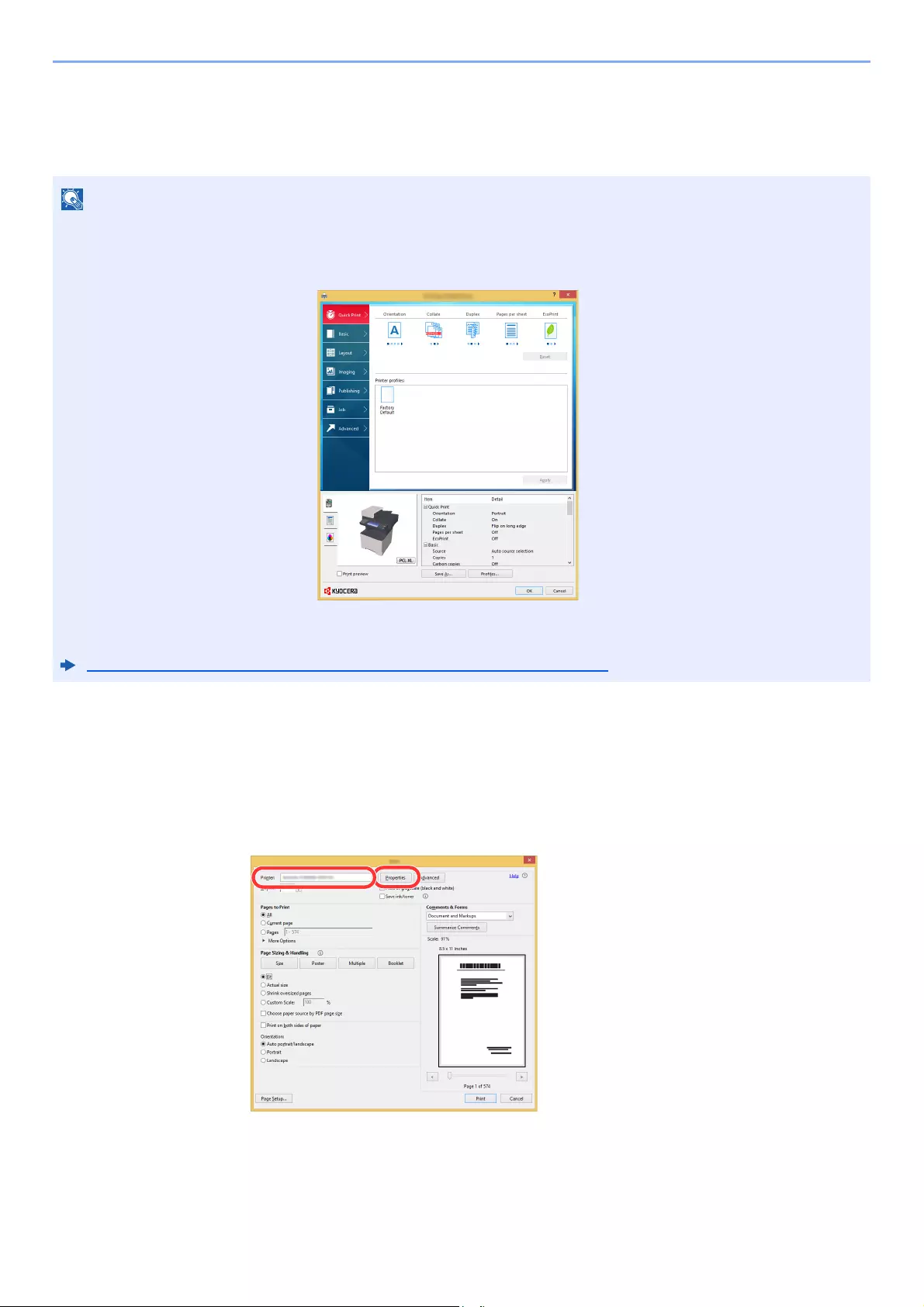
4-2
Printing from PC > Printing from PC
Printing from PC
This section provides the printing method using the KX DRIVER.
1Display the screen.
Click [File] and select [Print] in the application.
2Configure the settings.
1Select the machine from the «Printer» menu and click the [Properties] button.
• To print the document from applications, install the printer driver on your computer from the supplied DVD
(Product Library).
• In some environments, the current settings are displayed at the bottom of the printer driver.
• When printing the cardstock or envelopes, load the cardstock or envelopes in the multi purpose tray before
performing the following procedure.
When you load envelopes or cardstock in the multi purpose tray (page 3-14)

4-3
Printing from PC > Printing from PC
2Select the [Basic] tab.
3Click «Print size» menu and select the paper size to use for printing.
To load the paper of size that is not included in print sizes of the machine such as cardstock or
envelopes, the paper size needs to be registered.
To print on the special paper such as thick paper or transparency, click «Media type» menu and select
the media type.
4Click [OK] button to return to the Print dialog box.
3Start printing.
Click the [OK] button.
Printing on Non-standard Sized Paper (page 4-4)
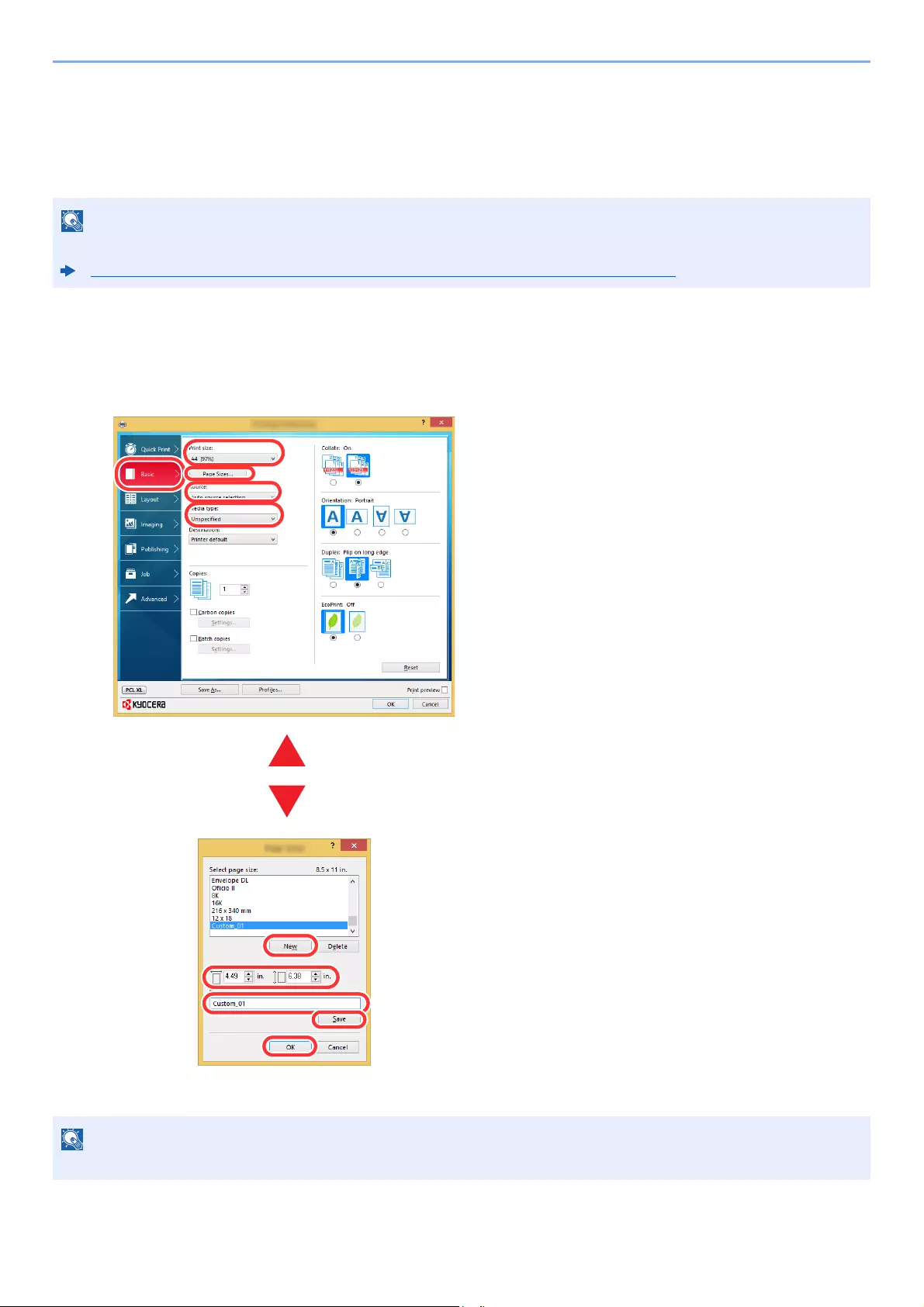
4-4
Printing from PC > Printing from PC
Printing on Non-standard Sized Paper
If you loaded a paper size that is not included in the print sizes of the machine, register the paper size in the [Basic] tab
of the print settings screen of the printer driver.
The registered size can be selected from the «Print size» menu.
1Display the print settings screen.
2Register the paper size.
To execute printing at the machine, set the paper size and type in the following:
Paper Size and Media Type for the Multi Purpose Tray (MP Tray Setting) (page 3-16)
If you loaded a postcard or envelope, select [Cardstock] or [Envelope] in the «Media type» menu.
3
4
5
6
7
1 Click the [Basic] tab.
2 Click the [Page Size…] button.
3 Click the [New] button.
4 Enter the paper size.
5 Enter the name of the paper.
6 Click the [Save] button.
7 Click the [OK] button.
8 In the «Print size» menu, select the paper size
(name) that you registered in steps 4 to 7.
9 Select the type of paper in the «Media type»
menu.
10 Click [MP tray] in the «Source» menu.
1
10
8
2
9
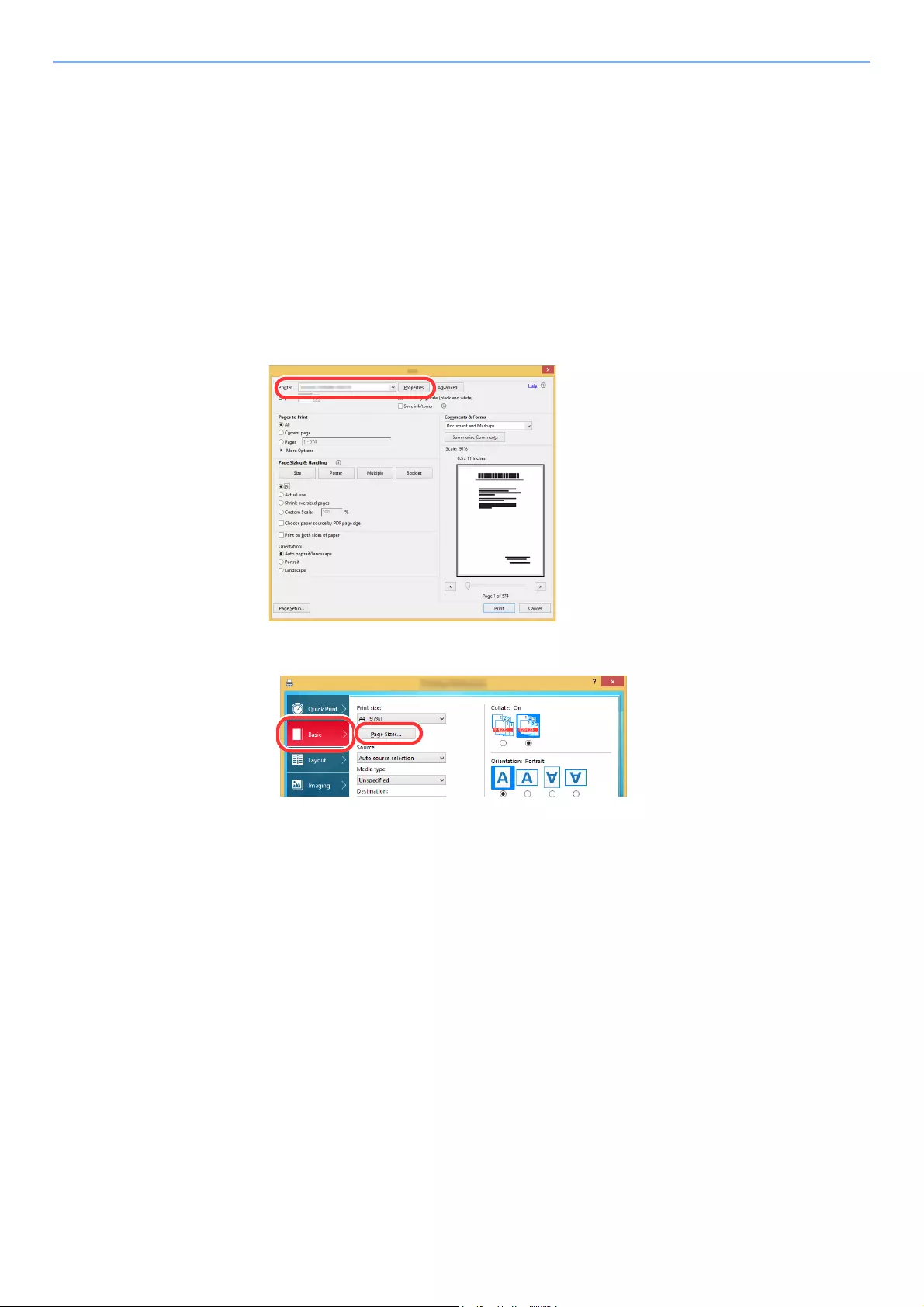
4-5
Printing from PC > Printing from PC
Banner printing
When a document length from 470.1 mm (18.52″) to a maximum of 915.0 mm (36.03″) is specified for printing, the print
job is treated as banner printing.
Follow the steps below to set banner paper in the printer driver.
1Display the screen.
Click [File] and select [Print] in the application.
2Configure the settings.
1Select the machine from the «Name» menu and click the [Properties] button.
2Select the [Basic] tab.
3Click the [Page Size…] button.
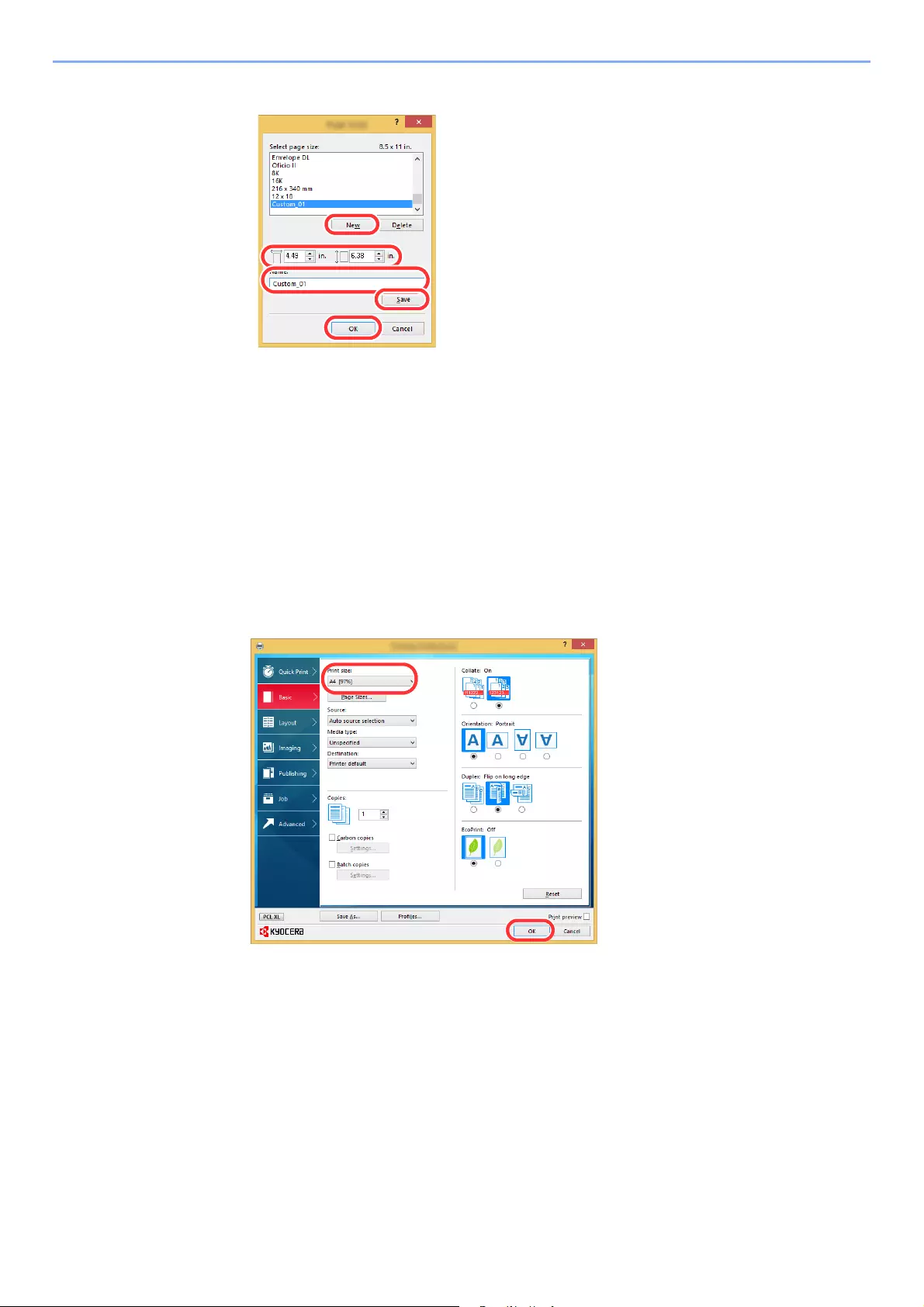
4-6
Printing from PC > Printing from PC
3Register the paper size.
1Click the [New] button.
2Enter the length (470.1 mm (18.52″) or longer), and width of the custom paper size being
registered.
3Enter the name of the paper.
4Click the [Save] button.
5Click the [OK] button.
4Configure the print paper size.
1Click «Print size» menu and select the paper size registered in step 3.
2Click the [OK] button.
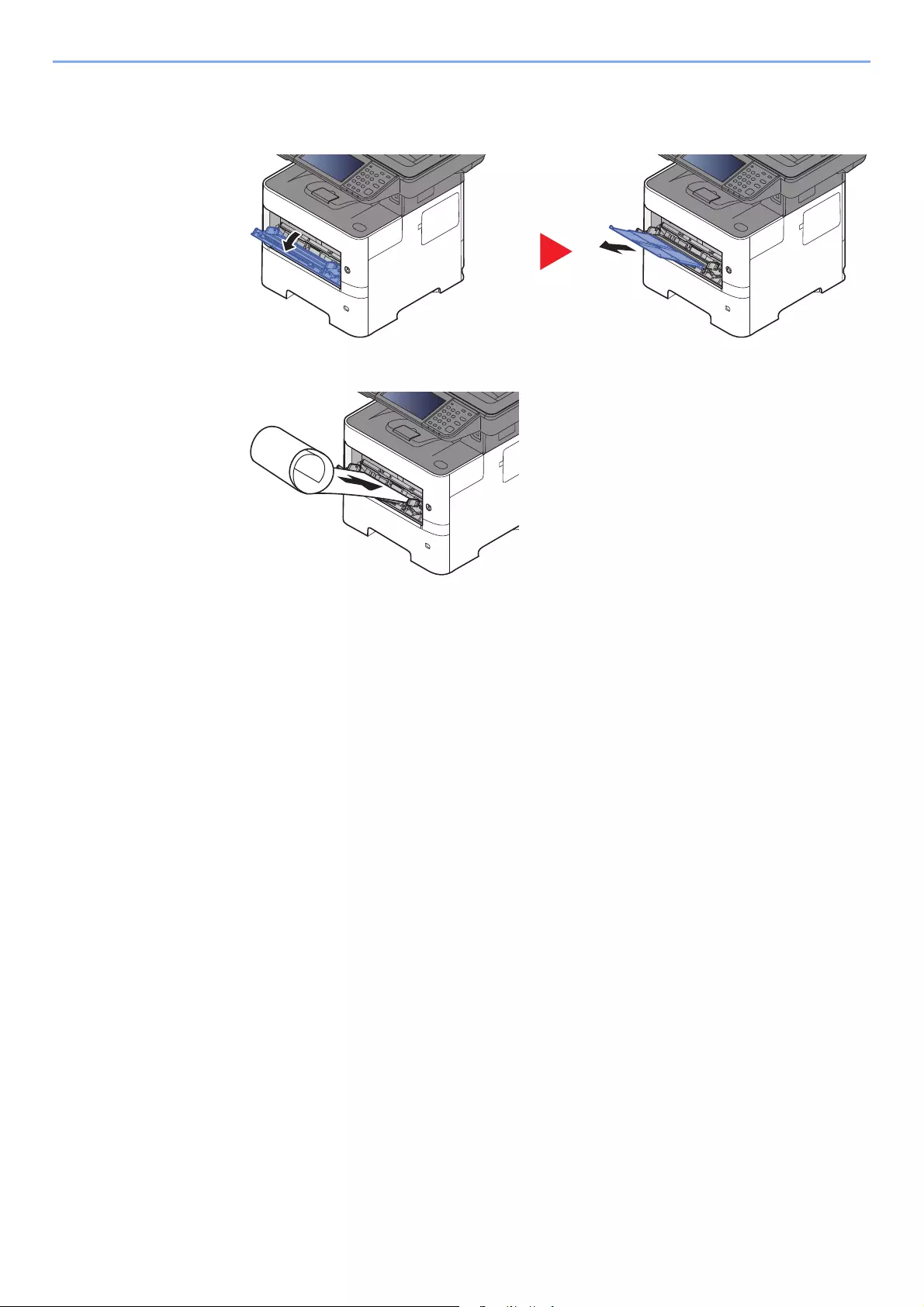
4-7
Printing from PC > Printing from PC
5Load paper.
1Open the multi purpose tray and extend the support tray section of the multi purpose tray.
2Load paper.
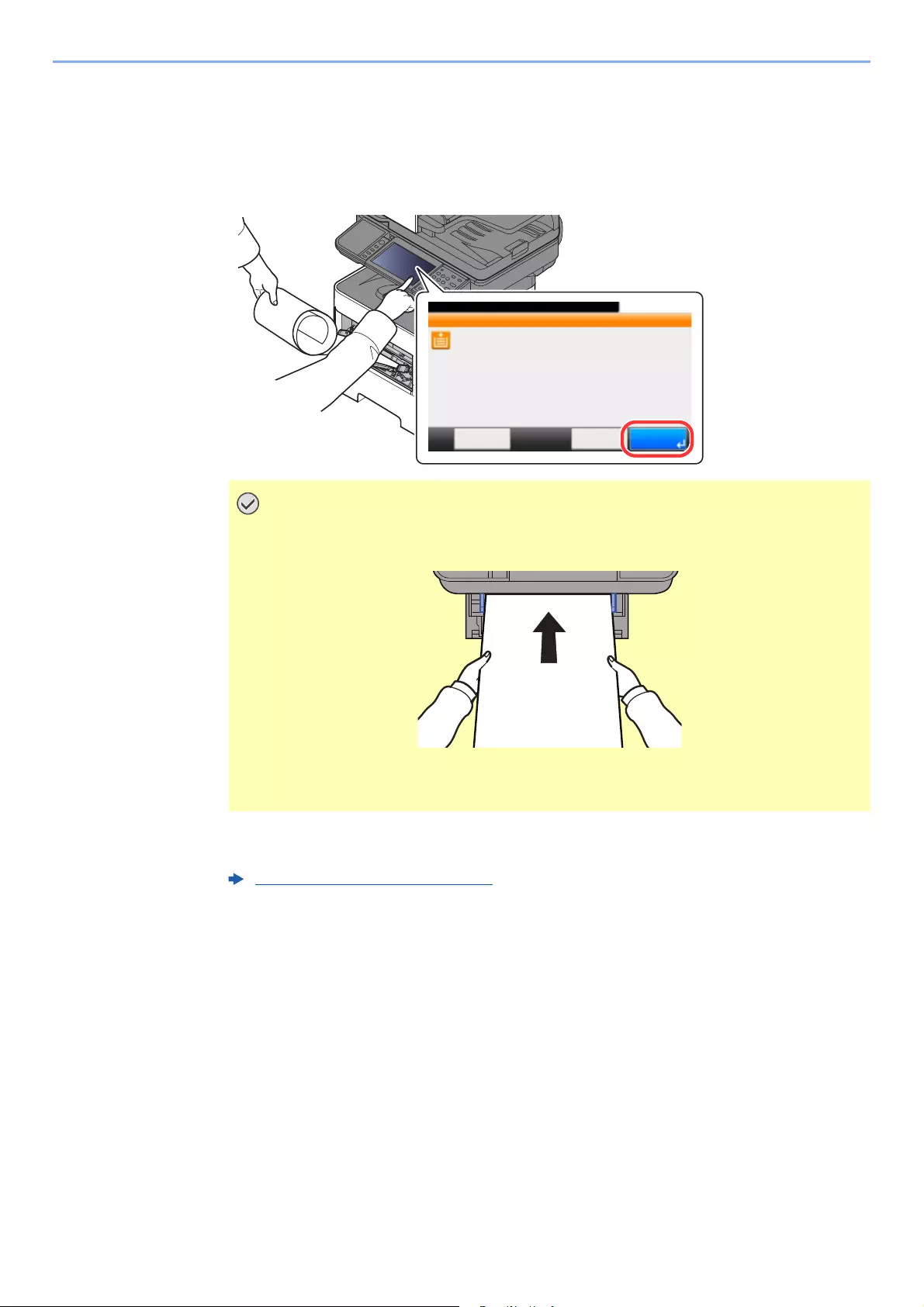
4-8
Printing from PC > Printing from PC
6Start printing.
Click the [OK] button.
When you execute printing in this case, a message appears on the machine’s operation panel.
Place the paper in the Multi Purpose tray, continue to support it so that it does not fall, and
select [Continue]. To cancel printing, select [Cancel].
Set whether the confirmation screen appears before each sheet is printed when printing
multiple banner sheets.
After pressing [Continue], support the paper with both hands so that it feeds in
correctly.
After printing starts, catch the paper when it is output so that it does not fall. When
using the inner tray as the output location, do not stand up the stopper.
Message Banner Print (page 8-20)
10:10
Set paper and press [Continue].
Use MP tray to print on the following paper.
Cancel ContinueHold
915x216mm
Job No.: xxxx Job Name: xxxxxx
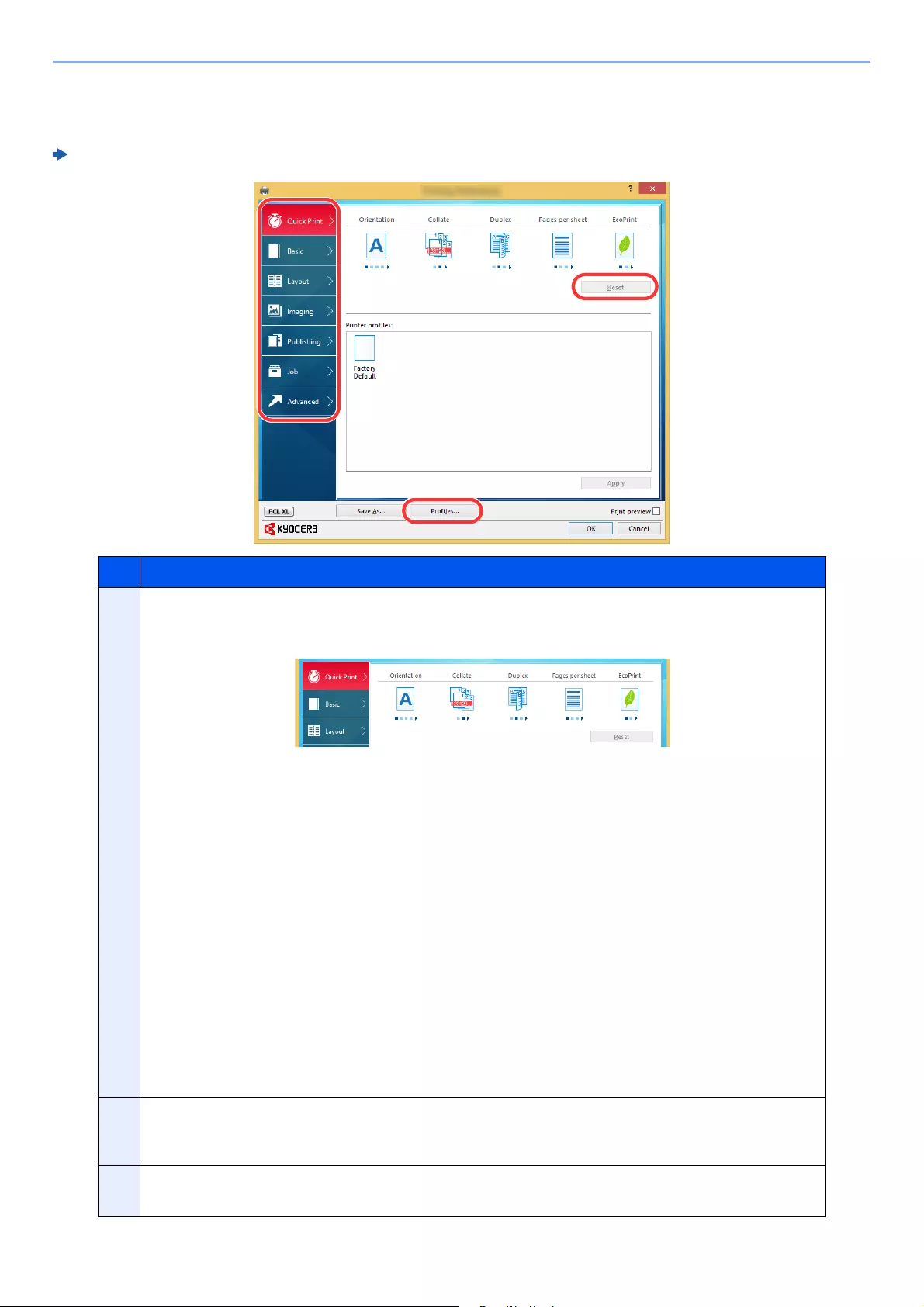
4-9
Printing from PC > Printing from PC
Printer Driver Print Settings Screen
The printer driver print settings screen allows you to configure a variety of print-related settings.
Printer Driver User Guide
No. Description
1 [Quick Print] tab
Provides icons that can be used to easily configure frequently used functions. Each time you click an icon, it
changes to an image resembling the print results and applies the settings.
[Basic] tab
This tab groups basic functions that are frequently used. You can use it to configure the paper size, and
duplex printing.
[Layout] tab
This tab lets you configure settings for printing various layouts, including booklet printing, combine mode,
poster printing, and scaling.
[Imaging] tab
This tab lets you configure settings related to the quality of the print results.
[Publishing] tab
This tab lets you create covers and inserts for print jobs and put inserts between sheets of OHP film.
[Job] tab
This tab lets you configure settings for saving print data from the computer to the machine. Regularly used
documents and other data can be saved to the machine for easy printing later. Since saved documents can
be printed directly from the machine, this function is also convenient when you wish to print a document that
you don’t want others to see.
[Advanced] tab
This tab lets you configure settings for adding text pages or watermarks to print data.
2 [Profiles]
Printer driver settings can be saved as a profile. Saved profiles can be recalled at any time, so it’s a
convenient practice to save frequently used settings.
3[Reset]
Click to revert settings to their initial values.
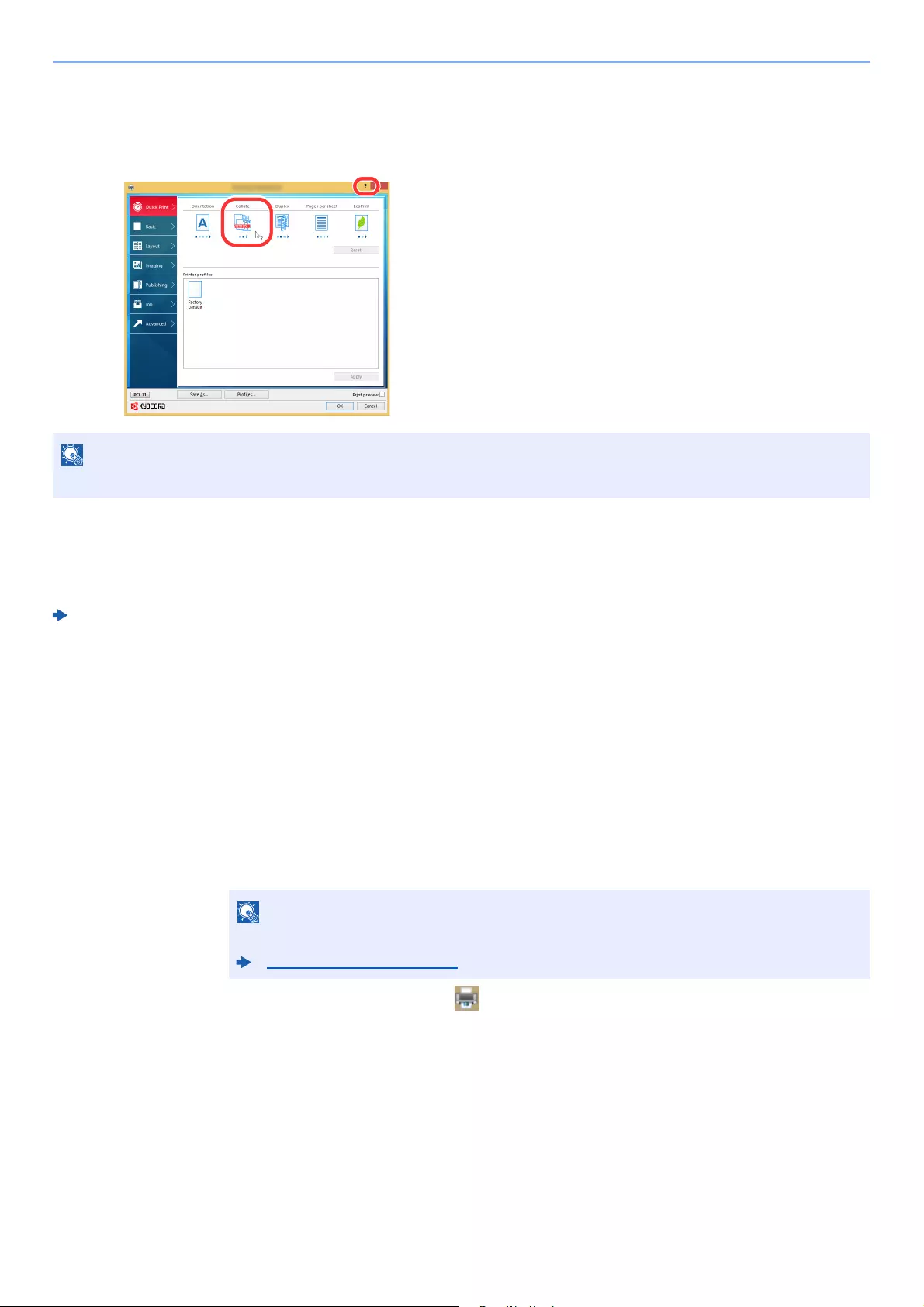
4-10
Printing from PC > Printing from PC
Printer Driver Help
The printer driver includes Help. To learn about print settings, open the printer driver print settings screen and display
Help as explained below.
Changing the Default Printer Driver Settings (Windows 8.1)
The default printer driver settings can be changed. By selecting frequently used settings, you can omit steps when
printing. For the settings, refer to the following:
Printer Driver User Guide
1In charms on Desktop, click [Settings], [Control Panel], and then [Devices and Printers].
2Right-click the printer driver icon of the machine, and click the [Printer properties] menu of
the printer driver.
3Click the [Basic] button on the [General] tab.
4Select the default settings and click the [OK] button.
Canceling Printing from a Computer
To cancel a print job executed using the printer driver before the printer begins printing, do the following:
1Double-click the printer icon ( ) displayed on the taskbar at the bottom right of the
Windows desktop to display a dialog box for the printer.
2Click the file for which you wish to cancel printing and select [Cancel] from the «Document»
menu.
The Help appears, even when you click the item you want to know about and press the [F1] key on your keyboard.
When canceling printing from this machine, refer to the following:
Canceling Jobs (page 5-17)
1 Click the [?] button in the upper right corner of the
screen and then click the item you want to know
about.
2 Click the item you want to know about.
1
2

4-11
Printing from PC > Printing by AirPrint
Printing by AirPrint
AirPrint is a printing function that is included standard in iOS 4.2 and later products, and Mac OS X 10.7 and later
products.
This function enables you to connect and print to any AirPrint compatible device without installing a printer driver.
To allow the machine to be found when printing by AirPrint, you can set machine location information in Command
Center RX.
Command Center RX User Guide
Printing by Google Cloud Print
Google Cloud Print is a printing service provided by Google and does not require a printer driver. This service enables a
user with a Google account to print from a machine connected to the Internet.
The machine can be configured in the Command Center RX.
Command Center RX User Guide
Printing by Mopria
Mopria is a standard on printing function included in Android 4.4 or later products. Mopria Print Service needs to be
installed and enabled in advance.
For details on how to use, refer to a Web site of Mopria Alliance.
Printing with Wi-Fi Direct
Wi-Fi Direct is a wireless LAN standard that Wi-Fi Alliance has been established. This is one of the functions of the
wireless LAN, without a wireless LAN access point or wireless LAN router, between devices can communicate directly
on a peer to peer basis.
The printing procedure by the Wi-Fi Direct is the same as that from the normal handheld devices.
When you use a printer name or Bonjour name on the port settings of the printer property, you can print the job by
specifying the name at Wi-Fi Direct connection.
When you use an IP address for the port, specify the IP address of this machine.
A Google account is necessary to use Google Cloud Print. Obtain a Google account if you do not have one.
It is also necessary to register the machine with the Google Cloud Print service in advance. The machine can be
registered from a PC connected to the same network.

4-12
Printing from PC > Printing Data Saved on the Printer
Printing Data Saved on the Printer
If you configure settings in the [Job] tab of the printer driver and then print, the print job will be saved in the Job Box
(memory) and printing can be executed at the machine.
Follow the work flow below when using Job Box.
Specifying the Job Box from a computer and sending the print job. (page 4-12)
Using the operation panel to specify a file within a Box and printing it.
You can print the documents from the following boxes.
Printing Documents from Private Print Box (page 4-13)
Printing Document from Stored Job Box (page 4-15)
Printing Document from Quick Copy Box (page 4-17)
Printing Document from Proof and Hold Box (page 4-19)
Specifying the Job Box from a Computer and Storing
the Job
Use the procedure below to store data in a Job Box.
1Click [File] and select [Print] in the application. The Print dialog box displays.
2Select the machine from the «Name» menu.
3Click the [Properties] button. The Properties dialog box displays.
4Click the [Job] tab and select the [Job storage (e-MPS)] check box to set the function.
• To use Stored Job Box and Quick Copy Box, an optional SSD must be installed in the
machine.
• For information on how to use the printer driver software, refer to the following:
Printer Driver User Guide

4-13
Printing from PC > Printing Data Saved on the Printer
Printing Documents from Private Print Box
In Private Printing, you can specify that a job is not to be printed until you operate the machine. When sending the job
from the application software, specify a 4-digit access code in the printer driver. The job is released for printing by
entering the access code on the operation panel, ensuring confidentiality of the print job. The data will be deleted upon
completion of the print job or after the power switch is turned off.
The following operations are possible:
Printing the Documents (page 4-13)
Deleting the Documents (page 4-14)
Printing the Documents
Print the documents stored in a Private Print box. The procedure is as follows.
1Display the screen.
1Select [Job Box] in the home screen.
2Select [Private Print/Stored Job].
3Select the creator of the document.
2Print the document.
1Select the document to print > [Print]
2Enter the access code.
3Specify the number of copies to print as desired.
4Select [OK].
Printing starts.
Upon completion of printing, the Private Print job is automatically deleted.
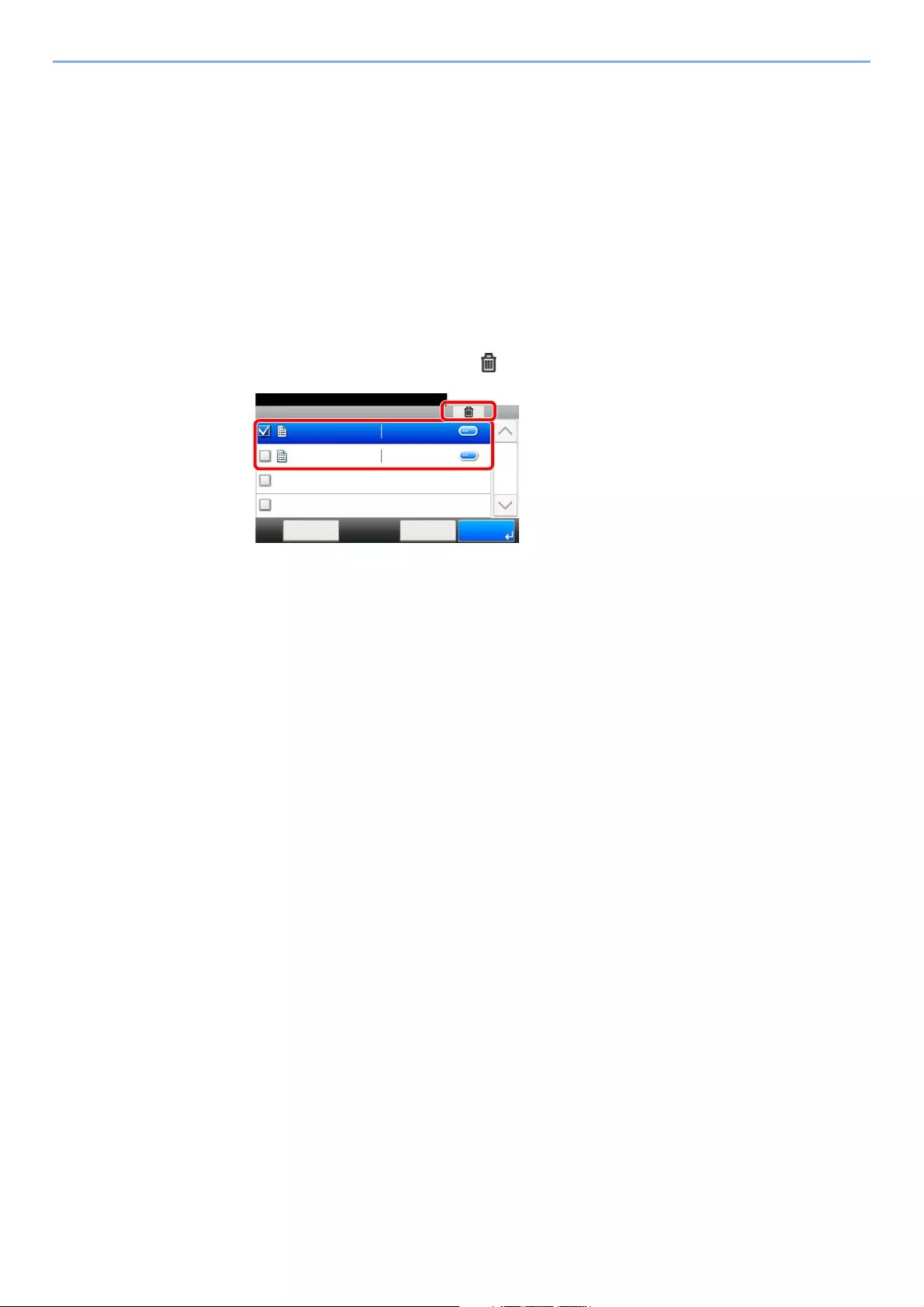
4-14
Printing from PC > Printing Data Saved on the Printer
Deleting the Documents
Delete the documents stored in a Private Print box. The procedure is as follows.
1Display the screen.
1Select [Job Box] in the home screen.
2Select [Private Print/Stored Job].
3Select the creator of the document.
2Delete the document.
1Select the document to delete > []
2Enter the access code.
The document is deleted.
Job Box — Private Print/Stored Job
10:10Document Box.
doc0100908134821
doc4100908135138
< Back PrintMenu
1/1
2014/10/10 11:11
2014/10/10 10:10

4-15
Printing from PC > Printing Data Saved on the Printer
Printing Document from Stored Job Box
In Stored Job, the print data sent from the application is saved to the machine. You can set up an access code as
necessary. If you set up an access code, enter the access code when printing. Print data will be stored in the Stored Job
Box after printing. This will allow printing of the same print data repeatedly.
The following operations are possible:
Printing the Documents (page 4-15)
Deleting the Documents (page 4-16)
Printing the Documents
Print the documents stored in a Stored Job box. The procedure is as follows.
1Display the screen.
1Select [Job Box] in the home screen.
2Select [Private Print/Stored Job].
3Select the creator of the document.
2Print the document.
1Select the document to print > [Print]
2Specify the number of copies to print as desired.
3Select [OK].
Printing starts.
If the document is protected by an access code, the password entry screen will be
displayed. Enter the password using the numeric keys.
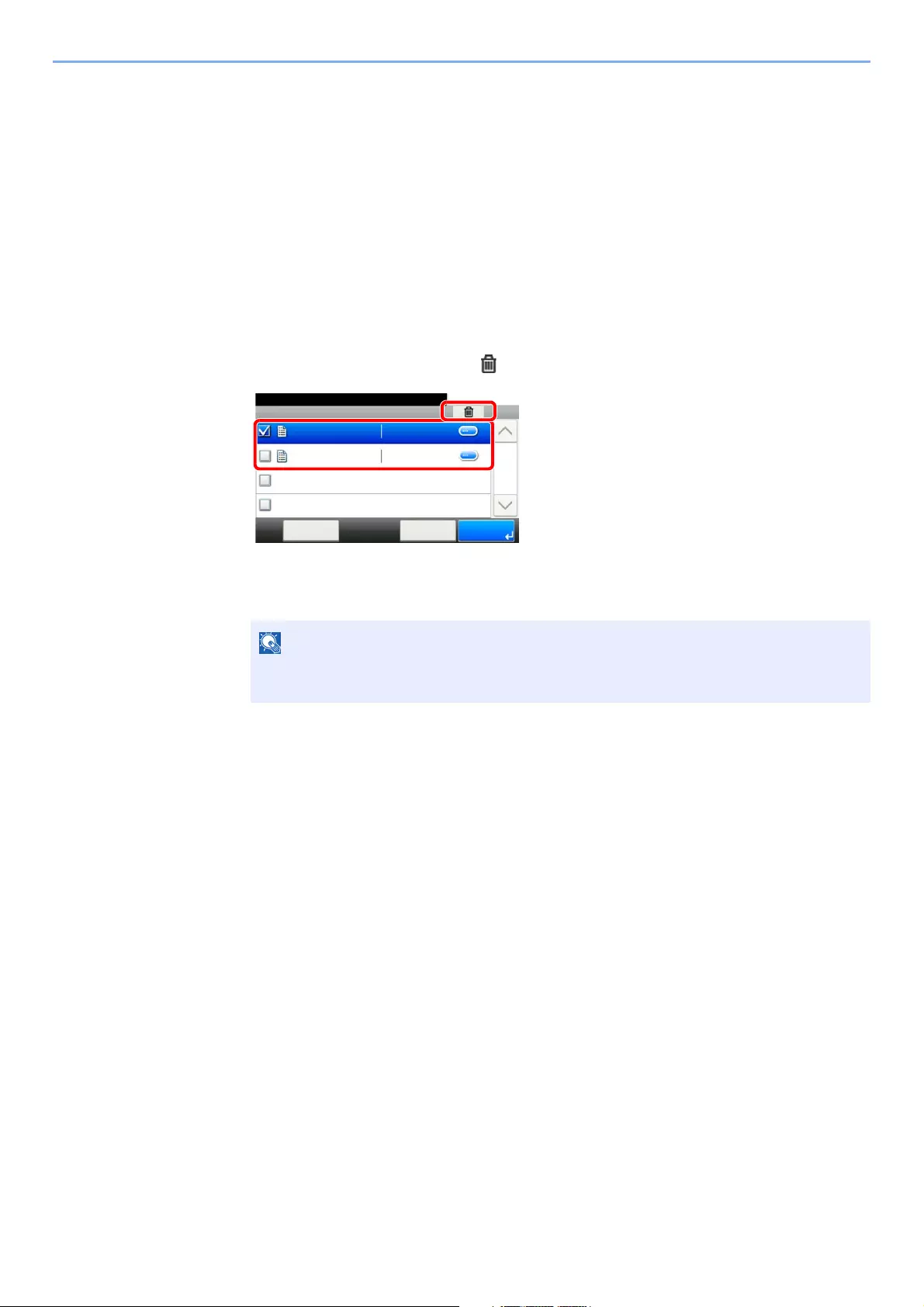
4-16
Printing from PC > Printing Data Saved on the Printer
Deleting the Documents
Delete the documents stored in a Stored Job box. The procedure is as follows.
1Display the screen.
1Select [Job Box] in the home screen.
2Select [Private Print/Stored Job].
3Select the creator of the document.
2Print and delete the document.
1Select the document to delete > []
2Select [Yes].
The document is deleted.
If the document is protected by an access code, the password entry screen will be
displayed. Enter the password using the numeric keys.
Job Box — Private Print/Stored Job
10:10Document Box.
doc0100908134821
doc4100908135138
< Back PrintMenu
1/1
2014/10/10 11:11
2014/10/10 10:10

4-17
Printing from PC > Printing Data Saved on the Printer
Printing Document from Quick Copy Box
Quick Copy feature facilitates additional prints of a document already printed. Activating Quick Copy and printing a
document using the printer driver allow the print data to be stored in the Quick Copy Job Box. When additional copies
are required, you can reprint the required number of copies from the touch panel. By default, up to 32 documents can be
stored. When power is turned off, all stored jobs will be deleted.
The following operations are possible:
Printing the Documents (page 4-17)
Deleting the Documents (page 4-18)
Printing the Documents
You can print the documents stored in the Quick Copy box. The procedure is as follows.
1Display the screen.
1Select [Job Box] in the home screen.
2Select [Quick Copy/Proof and Hold].
3Select the creator of the document.
2Print the document.
1Select the document to print > [Print]
2Specify the number of copies to print as desired.
3Select [OK].
Printing starts.
• When the number of jobs reaches the limit, the oldest job will be overwritten by the new one.
• To maintain free space on the box, you can set the maximum number of stored jobs.
Quick Copy Job Retention (page 8-22)
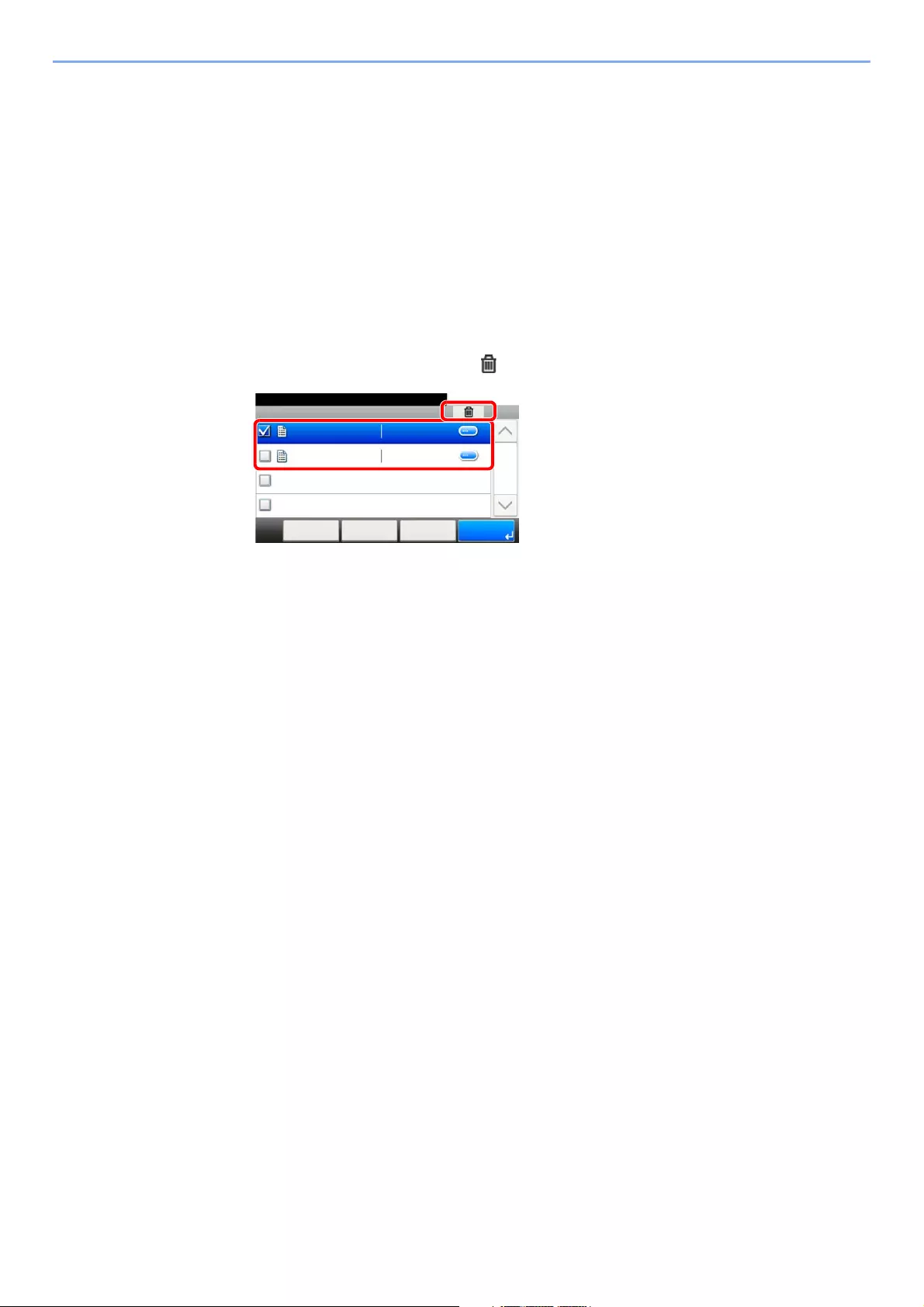
4-18
Printing from PC > Printing Data Saved on the Printer
Deleting the Documents
You can delete the documents stored in the Quick Copy box. The procedure is as follows.
1Display the screen.
1Select [Job Box] in the home screen.
2Select [Quick Copy/Proof and Hold].
3Select the creator of the document.
2Delete the document.
1Select the document to delete > []
2Select [Yes].
The document is deleted.
Job Box — Quick Copy/Proof and Hold
10:10Document Box.
doc0100908134821
doc4100908135138
< Back PrintMenu
1/1
Cancel
2014/10/10 10:10
2014/10/10 11:11

4-19
Printing from PC > Printing Data Saved on the Printer
Printing Document from Proof and Hold Box
The Proof and Hold feature produces only a single proof print of multiple-print job and holds printing of the remaining
copies. Printing a multiple-print job in Proof and Hold using the printer driver allows only a single copy to be printed while
maintaining the document data in the Job Box. To continue to print the remaining copies, use the touch panel. You can
change the number of copies to print.
The following operations are possible:
Printing the Documents (page 4-19)
Deleting the Documents (page 4-20)
Printing the Documents
You can print the documents stored in the Proof and Hold box. The procedure is as follows.
1Display the screen.
1Select [Job Box] in the home screen.
2Select [Quick Copy/Proof and Hold].
3Select the creator of the document.
2Print the document.
1Select the document to print > [Print]
2Specify the number of copies to print as desired.
3Select [OK].
Printing starts.
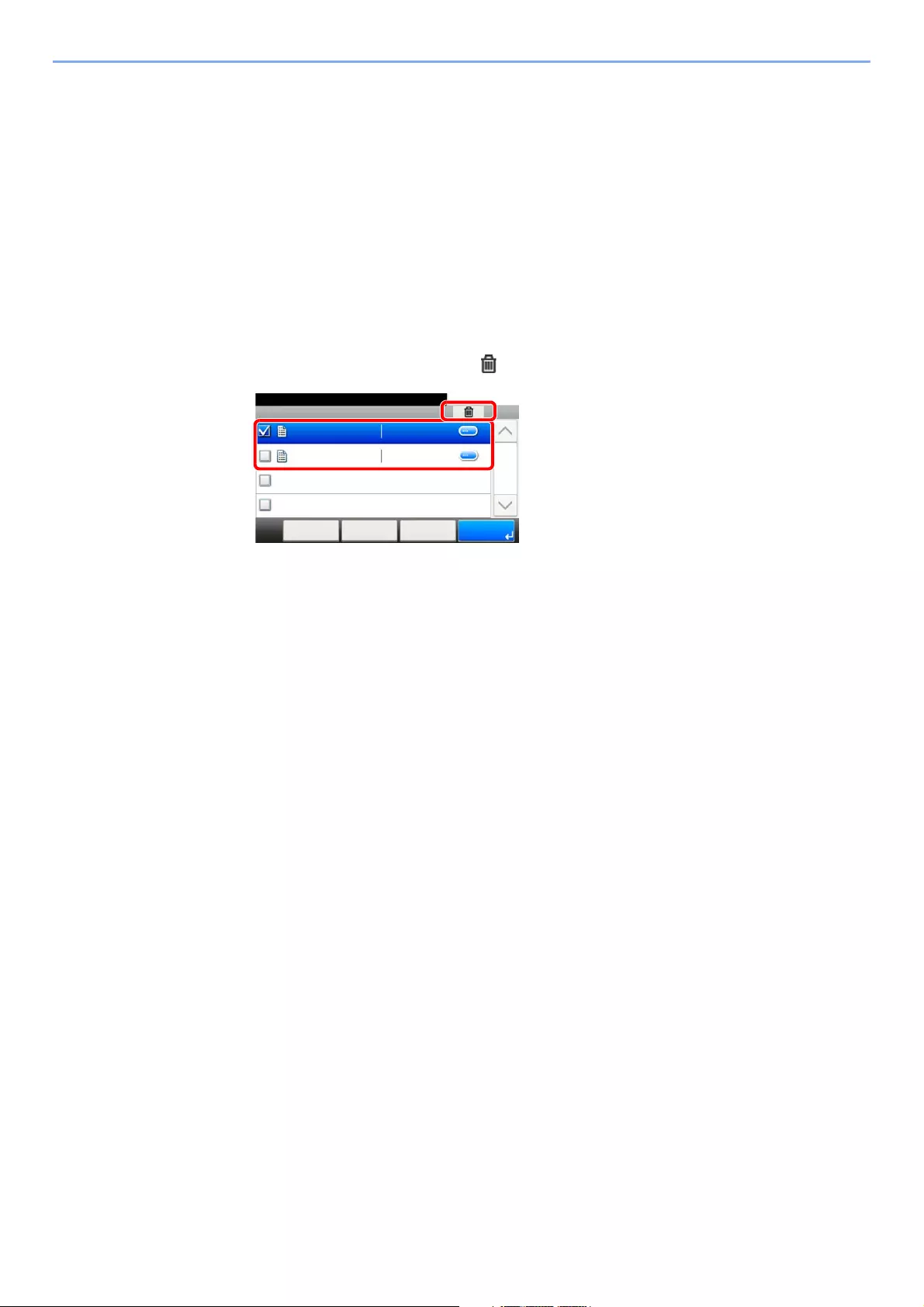
4-20
Printing from PC > Printing Data Saved on the Printer
Deleting the Documents
You can delete the documents stored in the Proof and Hold box. The procedure is as follows.
1Display the screen.
1Select [Job Box] in the home screen.
2Select [Quick Copy/Proof and Hold].
3Select the creator of the document.
2Delete the document.
1Select the document to delete > []
2Select [Yes].
The document is deleted.
Job Box — Quick Copy/Proof and Hold
10:10Document Box.
doc0100908134821
doc4100908135138
< Back PrintMenu
1/1
Cancel
2014/10/10 10:10
2014/10/10 11:11
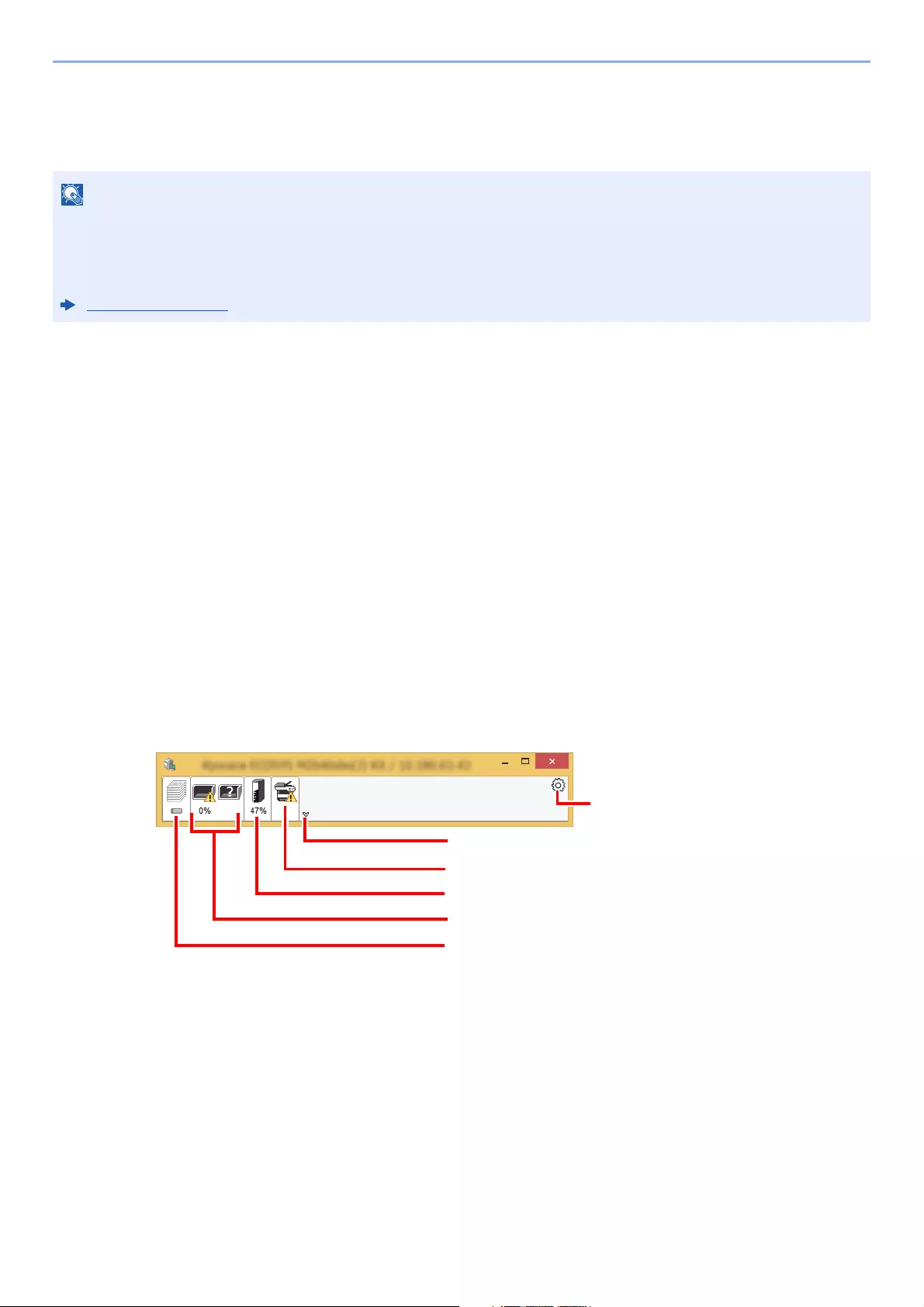
4-21
Printing from PC > Status Monitor
Status Monitor
The Status Monitor monitors the printer status and provides an ongoing reporting function.
Accessing the Status Monitor
The Status Monitor also starts up when printing is started.
Exiting the Status Monitor
Use either of the methods listed below to exit the Status Monitor.
• Exit manually:
Click the settings icon and select Exit in the menu to exit the Status Monitor.
• Exit automatically:
The Status Monitor automatically shuts down after 7 minutes if it is not being used.
Status Monitor Display
The display of the Status Monitor is as follows.
Quick View State
The status of the printer is displayed using icons. Detailed information is displayed when the Expand button is clicked.
Detailed information is displayed by clicking on each icon tab.
When you activate Status Monitor, check the status below.
• KX DRIVER is installed.
•Either [Enhanced WSD] or [EnhancedWSD(SSL)] are set to [On] in «Network».
Network (page 8-27)
Expand button
Alert Tab
Toner Status Tab
Paper Tray Status Tab
Printing Progress Tab
Settings icon
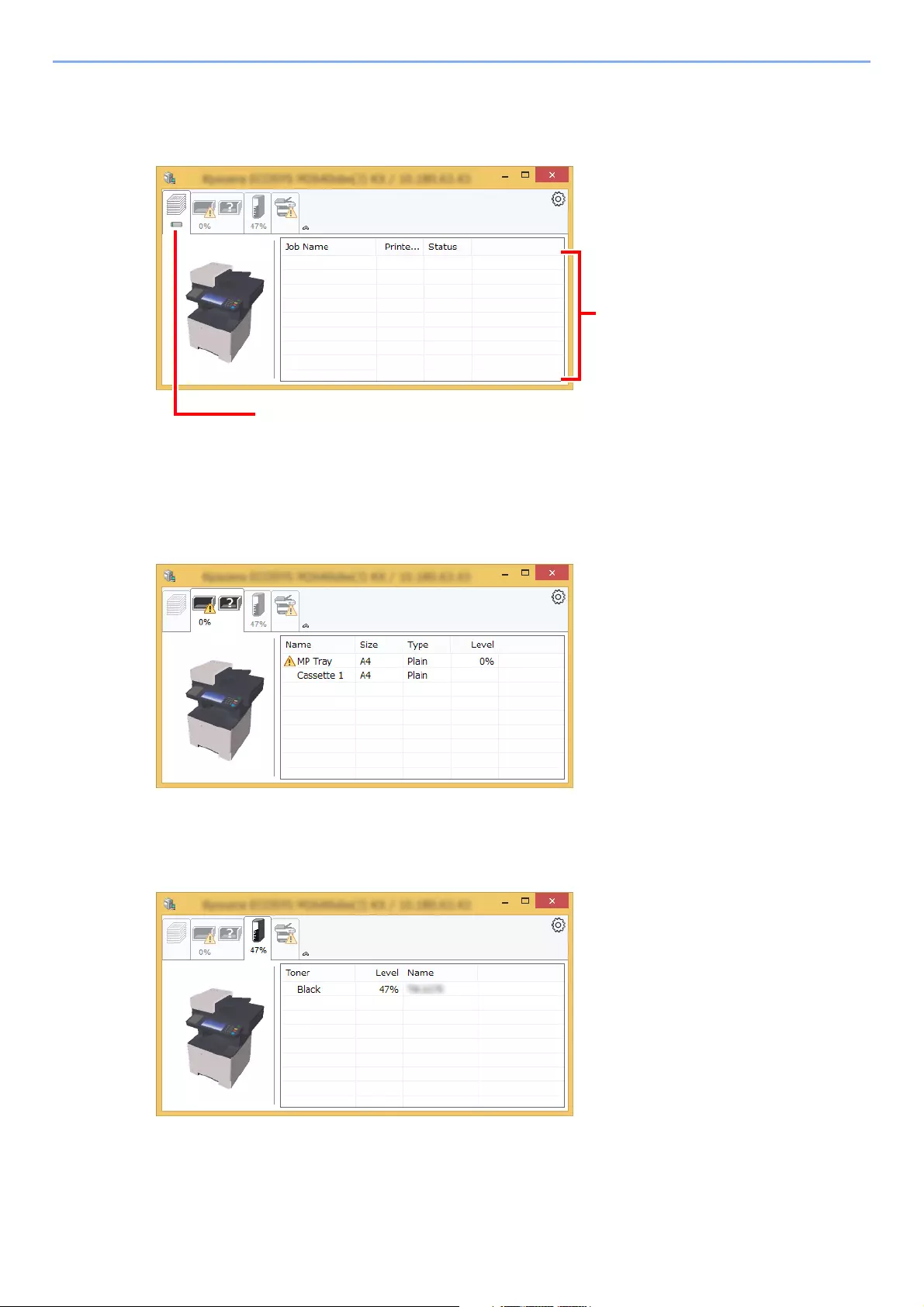
4-22
Printing from PC > Status Monitor
Printing Progress Tab
The status of the print jobs is displayed.
Select a job on the job list and it can be canceled using the menu displayed with a right-click.
Paper Tray Status Tab
Information is displayed about the paper in the printer and about the amount of paper remaining.
Toner Status Tab
The amount of toner remaining is displayed.
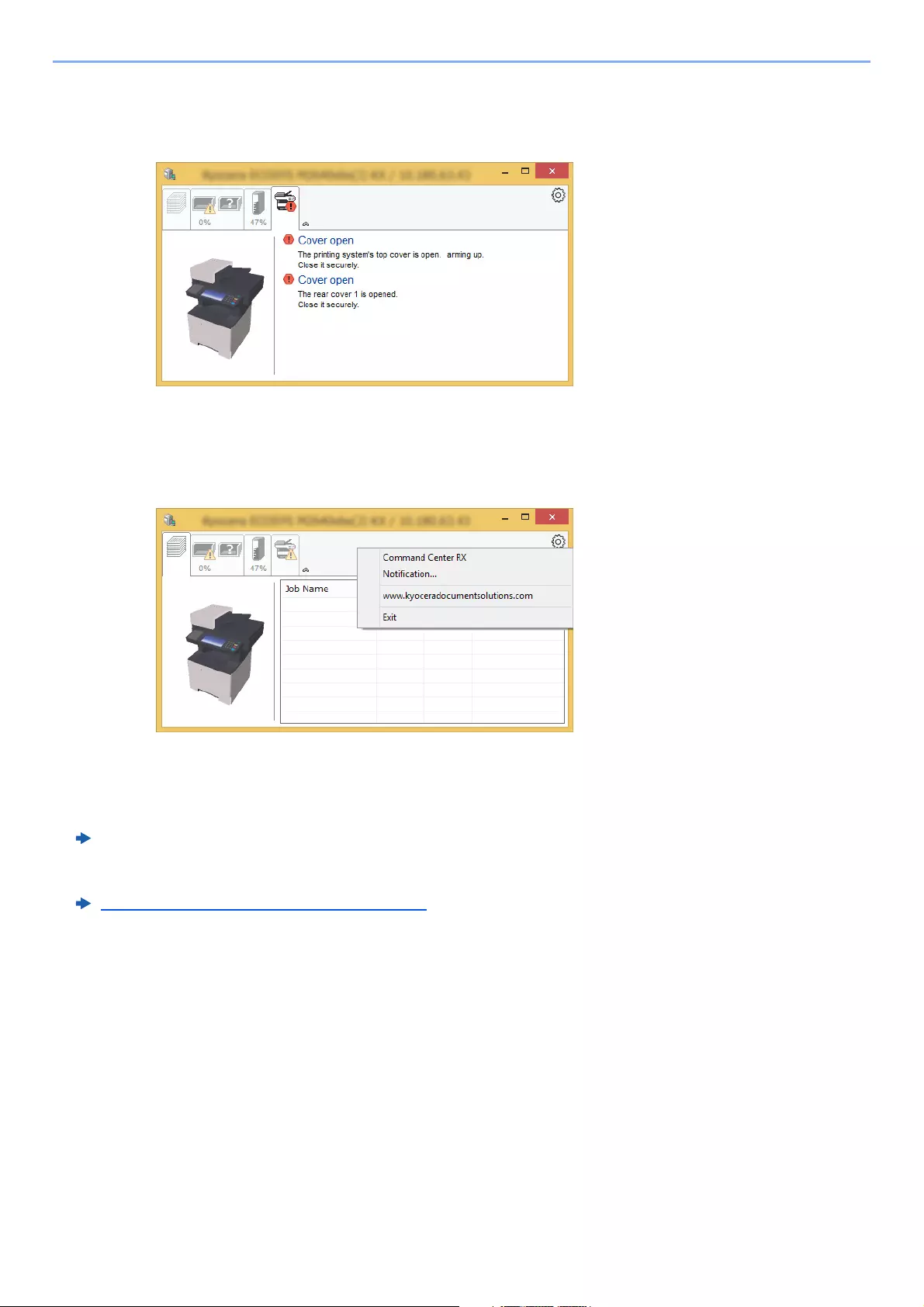
4-23
Printing from PC > Status Monitor
Alert Tab
If an error occurs, a notice is displayed using a 3D image and a message.
Status Monitor Context Menu
The following menu is displayed when the settings icon is clicked.
•Command Center RX
If the printer is connected to a TCP/IP network and has its own IP address, use a web browser to access the
Command Center RX to modify or confirm the network settings.This menu is not displayed when using USB
connection.
Command Center RX User Guide
•Notification…
This sets the display of the Status Monitor.
Status Monitor Notification Settings (page 4-24)
•www.kyoceradocumentsolutions.com
Open our website.
•Exit
Exits the Status Monitor.
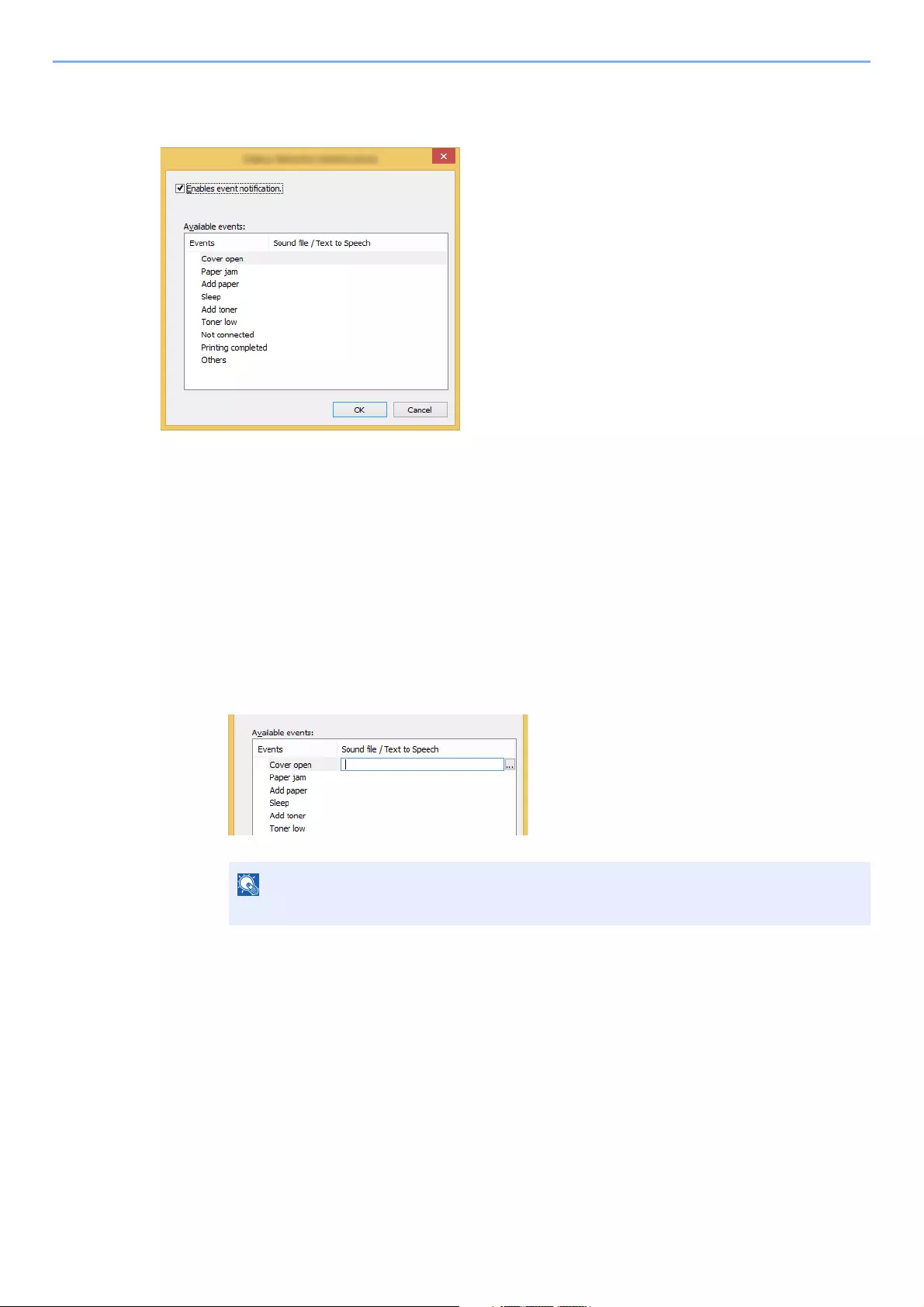
4-24
Printing from PC > Status Monitor
Status Monitor Notification Settings
The Status Monitor settings and event list details are displayed.
Select whether notification is performed when an error in the event list occurs.
1Select Enable event notification.
If this setting is set to Off, then the Status Monitor will not start up even when printing is
executed.
2Select an event to use with the text to speech function in
Available events.
3Click Sound file / Text to Speech column.
Click the browse (…) button to notify the event by sound file.
When customizing the message texts to read on the screen aloud, enter the texts in the text
box.
The available file format is WAV.

5-1
5
Operation on the Machine
This chapter explains the following topics:
Loading Originals …………………………..…………….…………….…………….…………….………….…………….……………... 5-2
Placing Originals on the Platen …………..……………….……………….………………..……………….….…………….. 5-2
Loading Originals in the Document Processor ..……………..…………….…………….…………….…………….….. 5-3
Favorites …………….…………….…………….…………….………….…………….…………….……..………………………………… 5-6
Registering Favorite ………..…….…………….…………….…………….…………….…………….……..………………….. 5-7
Recalling Favorite ………..…………….…………….…………….……………..…………….…………….………….……….. 5-9
Editing and Deleting Favorite …….…………….…………….…………….…………….……………..……………………. 5-10
Application ………………….…………….……………..…………….…………….…………….……………………..…………….…… 5-11
Installing Applications ……..…………….…………….……………..…………….…………….…………..………………… 5-11
Using Applications ………………..…………….…………….…………….…………….…………….……..………………… 5-12
Uninstalling Applications ………..………….…………….…………….…………….…………….………….…………….… 5-13
Registering Shortcuts ………………….……………..………………………..…………….…………….………………….…………. 5-14
Adding Shortcuts ……………………….………….…………….…………….…………….……………..….………………… 5-14
Editing and Deleting Shortcuts ……………..…………….…………….…………….…………….……………………….. 5-15
Copying …………..…………….……………..…………….………….…………….…………….………..………………………….…… 5-16
Basic Operation …….……………..…………….…………….…………….…………….…………….…….…………………. 5-16
Canceling Jobs …..…………….……………..…………….…………….…………….…………….……….…………………. 5-17
Sending …………..…………….……………..…………….………….…………….…………….………..………………………….…… 5-18
Basic Operation …….……………..…………….…………….…………….…………….…………….…….…………………. 5-19
Specifying Destination ….…………….…………….…………….……………..…………….…………….…………………. 5-20
Checking and Editing Destinations ….………………..……………….……………….………………..………....……… 5-25
Confirmation Screen of Destinations …………..…………….……………..…………….…………….…………….…… 5-26
Recall ………..………………………..…………….…………….…………….…………….…………….…………….…………. 5-27
Send to Me (E-mail) …………..………….…………….……………..…………….…………….…………………………..… 5-27
Sending to Different Types of Destinations (Multi Sending) ……………………………….…………….…………. 5-28
Canceling Sending Jobs ….………………..………………………..…………….…………….…………….………………. 5-29
WSD Scan …………………….…………….…………….……………..…………….…………….…………………………….. 5-30
Scanning using TWAIN or WIA ……….………………..……………….……………….………………..………..…..…… 5-32
Scanning with File Management Utility ………..…………….……………..…………….…………….………….……… 5-33
Using fax server to send a fax (fax server transmission) …….…………….…………….……………..…………..……..… 5-34
Configuring Settings before Sending .…………….……………..…………….…………….…………….………………. 5-34
Using fax server to send a fax …..…………….…………….………….…………….…………….…………..…………… 5-34
How to use the FAX Function ……………….…………….…………….……………..…………….…………………….…………. 5-36
What is Document Box? ………..…………….…………….…………….……………..…………….…………….…………….…… 5-37
Basic Operation for Document Box …..…………….…………….…………….…………….…………….………………..……… 5-38
Box List Operations …………………………….…………….…………….…………….…………….……………………….. 5-38
Document List Operations .…………….…………….……………..…………….…………….…………….….…………… 5-38
Using a Custom Box …….…………….……………..…………….…………….…………….…………….……………………..…… 5-39
Creating a New Custom Box ……….…………….…………….……………..…………….…………….……….………… 5-39
Editing and Deleting Custom Box ……….……………….……………….………………..…………….………..…..…… 5-41
Saving Scanned Documents to a Custom Box ..……………..…………….…………….…………….…………….… 5-42
Moving Documents in Custom Box .…………….…………….……………..…………….…………….…………..…….. 5-43
Copying Documents in Custom Box into Other Boxes ……….…………….…………….…………….……………. 5-43
Copying Documents in Custom Box to Removable Memory ….……………….………………..…………….…… 5-44
Joining Documents in Custom Box ….…………….……………..…………….…………….…………….……….……… 5-45
Deleting Documents in Custom Box ………………………….……………..…………….…………….…………..…….. 5-46
Printing Documents in Custom Box …….…………….…………….…………….…………….…………….…….……… 5-46
Sending Documents in a Custom Box ……………….…………….………….…………….…………….………….…… 5-47
Sending Documents in Custom Box to E-mail Address of Logged in user. …..……………….………………. 5-48
Scanning Document Stored in a Custom Box …….……………………..…………….…………….…………….…... 5-49
Printing Documents Stored in Removable USB Memory ….……………….………………..……………….………………. 5-50
Saving Documents to USB Memory (Scan to USB) .………….…………….…………….………….…………….…….…… 5-52
Check the USB Memory Information ..…………….…………….…………….…………….…………….……………………….. 5-53
Removing USB Memory ….……………..…………….…………….…………….…………….…………….……………………….. 5-54
Using the Manual Stapler (ECOSYS M3655idn/ECOSYS M3660idn only) …..…………………………..……………. 5-55
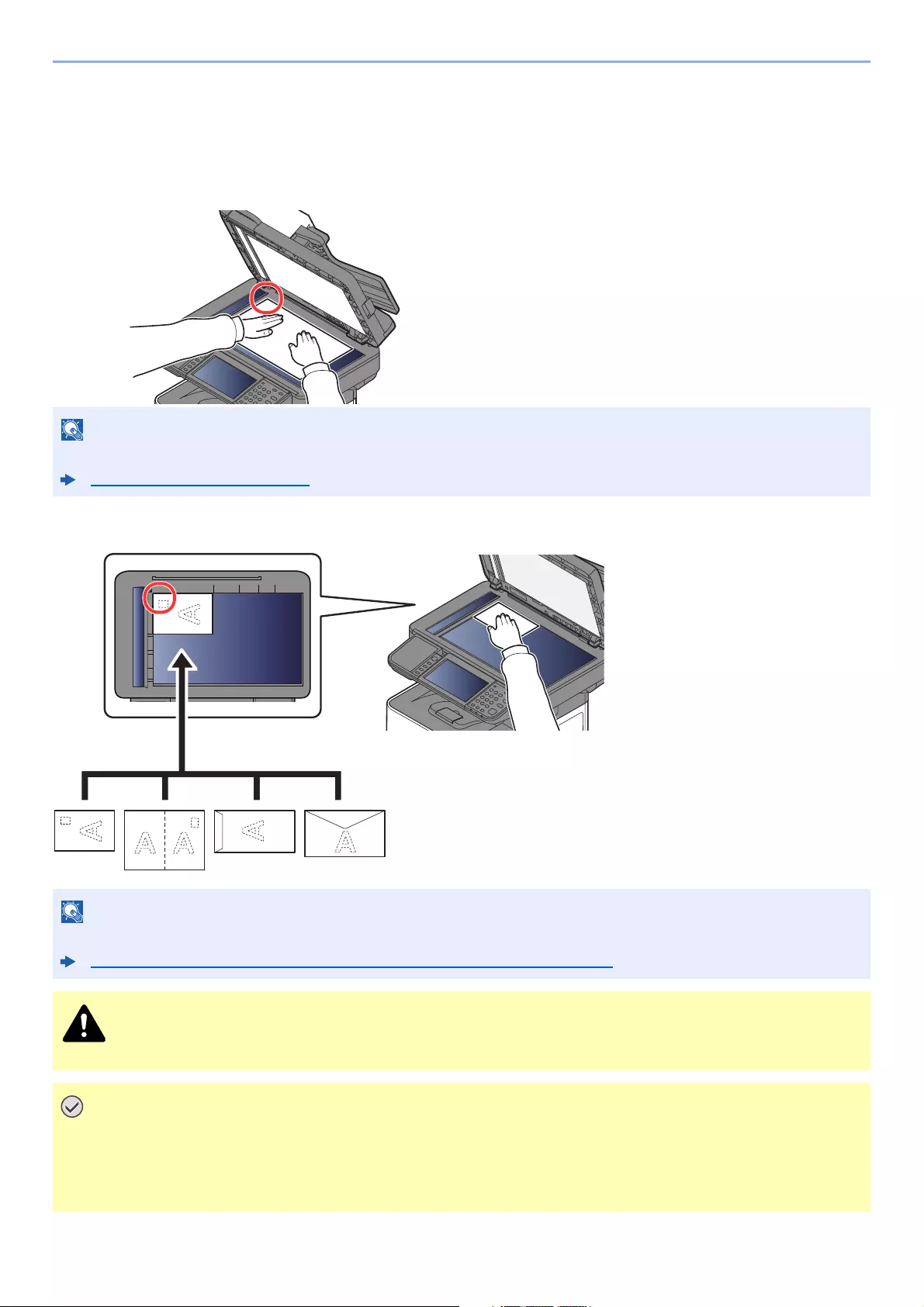
5-2
Operation on the Machine > Loading Originals
Loading Originals
Placing Originals on the Platen
You may place books or magazines on the platen in addition to ordinary sheet originals.
When you place envelopes or cardstock on the platen
For details on Original Orientation, refer to the following:
Original Orientation (page 6-12)
For the procedure for feeding envelopes or cardstock, refer to the following:
When you load envelopes or cardstock in the multi purpose tray (page 3-14)
Do not leave the document processor open as there is a danger of personal injury.
• Do not push the document processor forcefully when you close it. Excessive pressure may crack the platen
glass.
• When placing books or magazines on the machine, do so with the document processor in the open
position.
1 Put the scanning side facedown.
2 Align it flush against the original
size indicator plates with the back
left corner as the reference point.
2
1
1 Put the scanning side facedown.
2 Align it flush against the original
size indicator plates with the
back left corner as the reference
point.
21
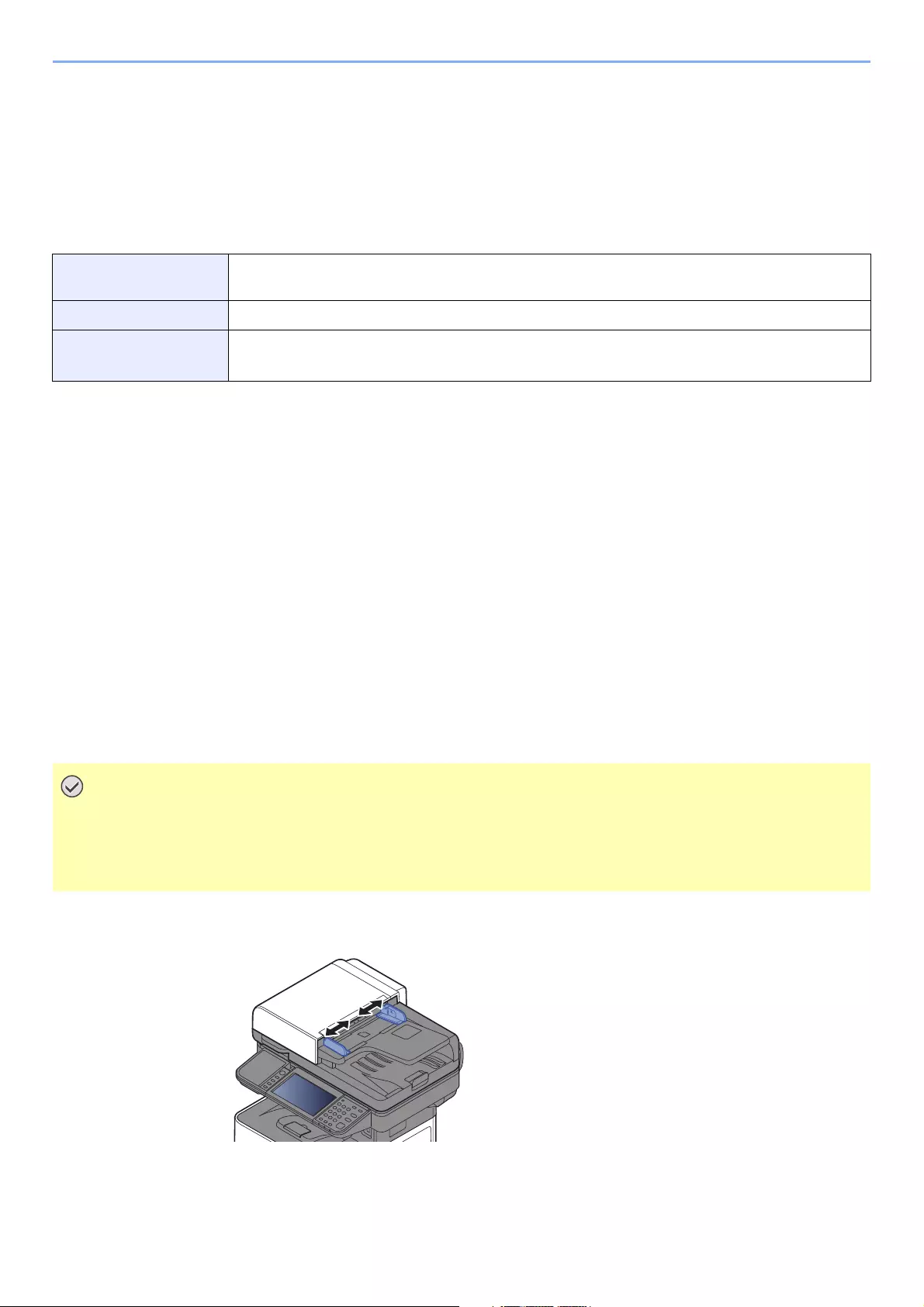
5-3
Operation on the Machine > Loading Originals
Loading Originals in the Document Processor
The document processor automatically scans each sheet of multiple originals. Both sides of two-sided originals are
scanned.
Originals Supported by the Document Processor
The document processor supports the following types of originals.
Originals Not Supported by the Document Processor
Do not use the document processor for the following types of originals. Otherwise, the originals may be jammed or the
document processor may become dirty.
• Originals bound with clips or staples (Remove the clips or staples and straighten curls, wrinkles or creases before
loading. Failure to do so may cause the originals to jam.)
• Originals with adhesive tape or glue
• Originals with cut-out sections
• Curled original
• Originals with folds (Straighten the folds before loading. Failure to do so may cause the originals to jam.)
• Carbon paper
• Crumpled paper
How to Load Originals
1Adjust the original width guides.
Weight 50 to 120 g/m2
(duplex: 50 to 120 g/m2)
Sizes Maximum 216 x 355.6 mm (Long-sized 216 x 915 mm) to Minimum 105 x 148 mm
No. of sheets ECOSYS M3145idn/ECOSYS M3645idn: 75 sheets or less (50 to 80 g/m2)
ECOSYS M3655idn/ECOSYS M3660idn: 100 sheets or less (50 to 80 g/m2)
• Before loading originals, be sure that there are no originals left on the original eject table. Originals left on
the original eject table may cause the new originals to jam.
• Do not make an impact on the document processor top cover, such as aligning the originals on the top
cover. It may cause an error in the document processor.
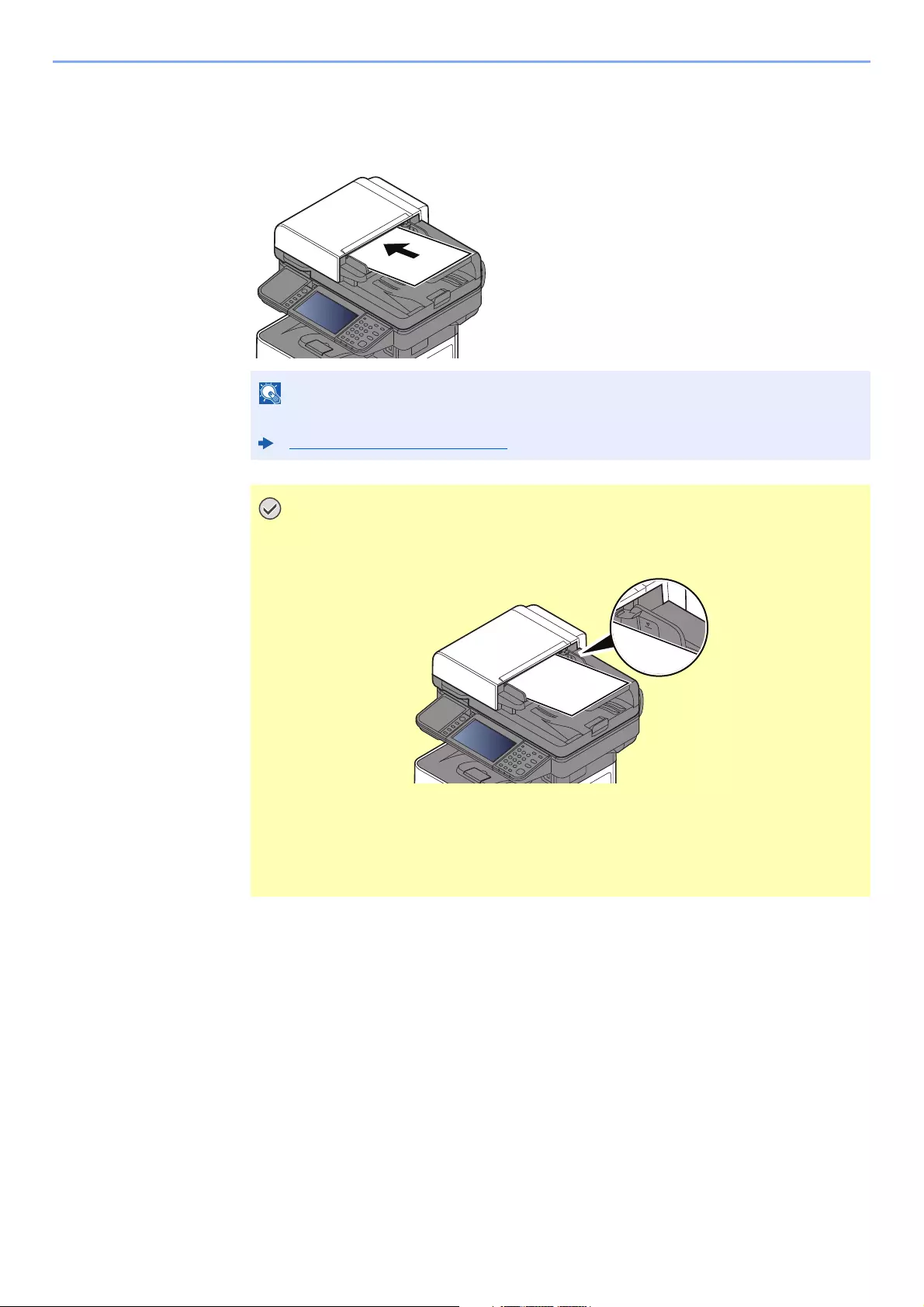
5-4
Operation on the Machine > Loading Originals
2Place the originals.
1Put the side to be scanned (or the first side of two-sided originals) face-up. Slide the
leading edge into the document processor as far as it will go.
For details on Original Orientation, refer to the following:
Original Orientation (page 6-12)
Confirm that the original width guides exactly fit the originals. If there is a gap,
readjust the original width guides. The gap may cause the originals to jam.
Ensure that loaded originals do not exceed the level indicator. Exceeding the
maximum level may cause the originals to jam.
Originals with punched holes or perforated lines should be placed in such a way
that the holes or perforations will be scanned last (not first).
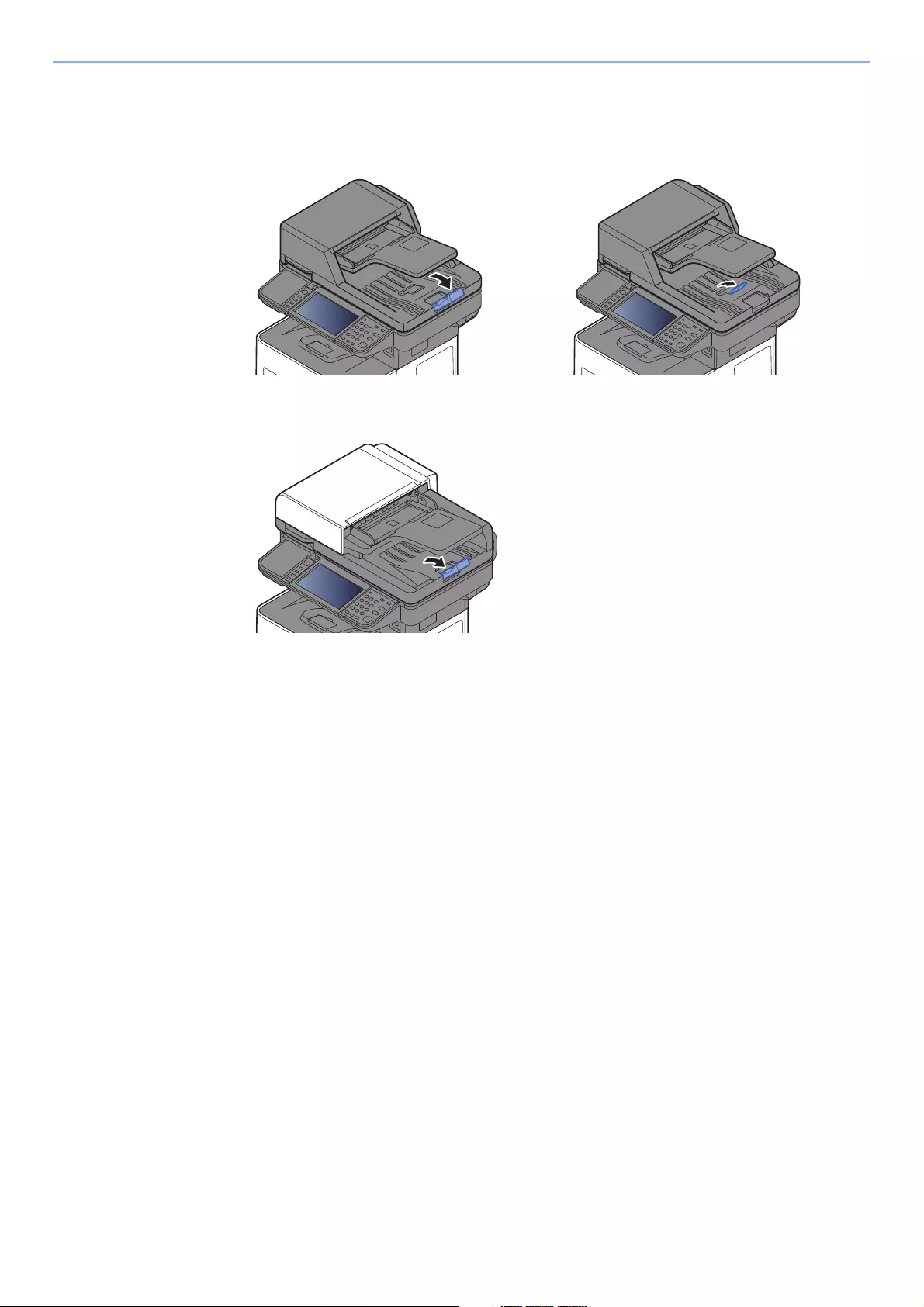
5-5
Operation on the Machine > Loading Originals
2Open the original stopper to fit the size of the original set.
ECOSYS M3145idn/ECOSYS M3645idn:
ECOSYS M3655idn/ECOSYS M3660idn:
A4, Letter, Legal B5 or less

5-6
Operation on the Machine > Favorites
Favorites
Frequently used functions can be registered as favorites so that they can be called up easily.
The following functions are pre-registered on this machine. You can delete these functions as well as register new
functions.
Favorites Name Description Default Registration
ID Card Copy Use this when you want to copy a driver’s license
or an insurance card.
When you scan the front and back of the card,
both sides will be combined and copied onto a
single sheet.
• Copying Functions
• Program mode
• Combine: [2 in 1]
ID Card Copy: [On]
Continuous Scan: [On]
Original Size: [A5-R]
Paper Selection: Cassette 1
Zoom: [Auto Zoom]
Paper Saving Copy Use this when you want to reduce paper use.
Page combining and two-sided copying can be
set by following the screen.
• Copying Functions
• Wizard mode
• Combine: [2 in 1]
Duplex: [1-sided>>2-sided]
Paper Selection: Cassette 1
Copies: 1
Scan to PC (Address
Entry)
Use this when you want to send the image to
either a shared folder on a PC or an FTP server
folder. The settings such as the destination and
color selection can be set by following the screen.
• Sending Functions
• Wizard mode
• Destination: New PC Folder
Color Selection: [Full Color]
File Name Entry: Default
File Format: [PDF]
Continuous Scan: [Off]
Scan Resolution: [300×300 dpi]
Scan to PC (Address
Book)
Use this when you want to send the image to
either a shared folder on a PC registered in the
Address Book or to an FTP server folder. The
settings such as the destination and color
selection can be set by following the screen.
• Sending Functions
• Wizard mode
• Destination: Address Book
Color Selection: [Full Color]
File Name Entry: Default
File Format: [PDF]
Continuous Scan: [Off]
Scan Resolution: [300×300 dpi]
Scan to E-mail (Address
Entry)
Use this when you want to send the image to an
E-mail address. The settings such as the
destination and color selection can be set by
following the screen.
• Sending Functions
• Wizard mode
• Destination: New E-mail Address
Color Selection: [Full Color]
File Name Entry: Default
File Format: [PDF]
Continuous Scan: [Off]
Scan Resolution: [300×300 dpi]
E-mail subject: Default
E-mail body: Default
5-7
Operation on the Machine > Favorites
Registering Favorite
When registering a favorite, you can choose from two methods for calling it up:
• Wizard mode: Registered settings are called up in order and configured as you check or change each one.
• Program mode: Settings are called up immediately when you select the key to which they are registered.
Sending is explained as an example below.
Wizard Mode
1Display the screen.
Select [Favorites] on the Home screen.
2
Register the favorite.
1[Menu] > [Add]
2Select the job type.
3Select [Wizard].
4Select the recall function > [Next]
5Enter the new favorite name > [Next]
Scan to E-mail (Address
Book)
Use this when you want to send the image to an
E-mail address registered in the Address Book.
The settings such as the destination and color
selection can be set by following the screen.
• Sending Functions
• Wizard mode
• Destination: Address Book
Color Selection: [Full Color]
File Name Entry: Default
File Format: [PDF]
Continuous Scan: [Off]
Scan Resolution: [300×300 dpi]
E-mail subject: Default
E-mail body: Default
Up to 20 settings can be registered as favorites.
When the job type is «Copy», the Destination Recall Method screen will not be displayed.
Character Entry Method (page 11-11)
Favorites Name Description Default Registration
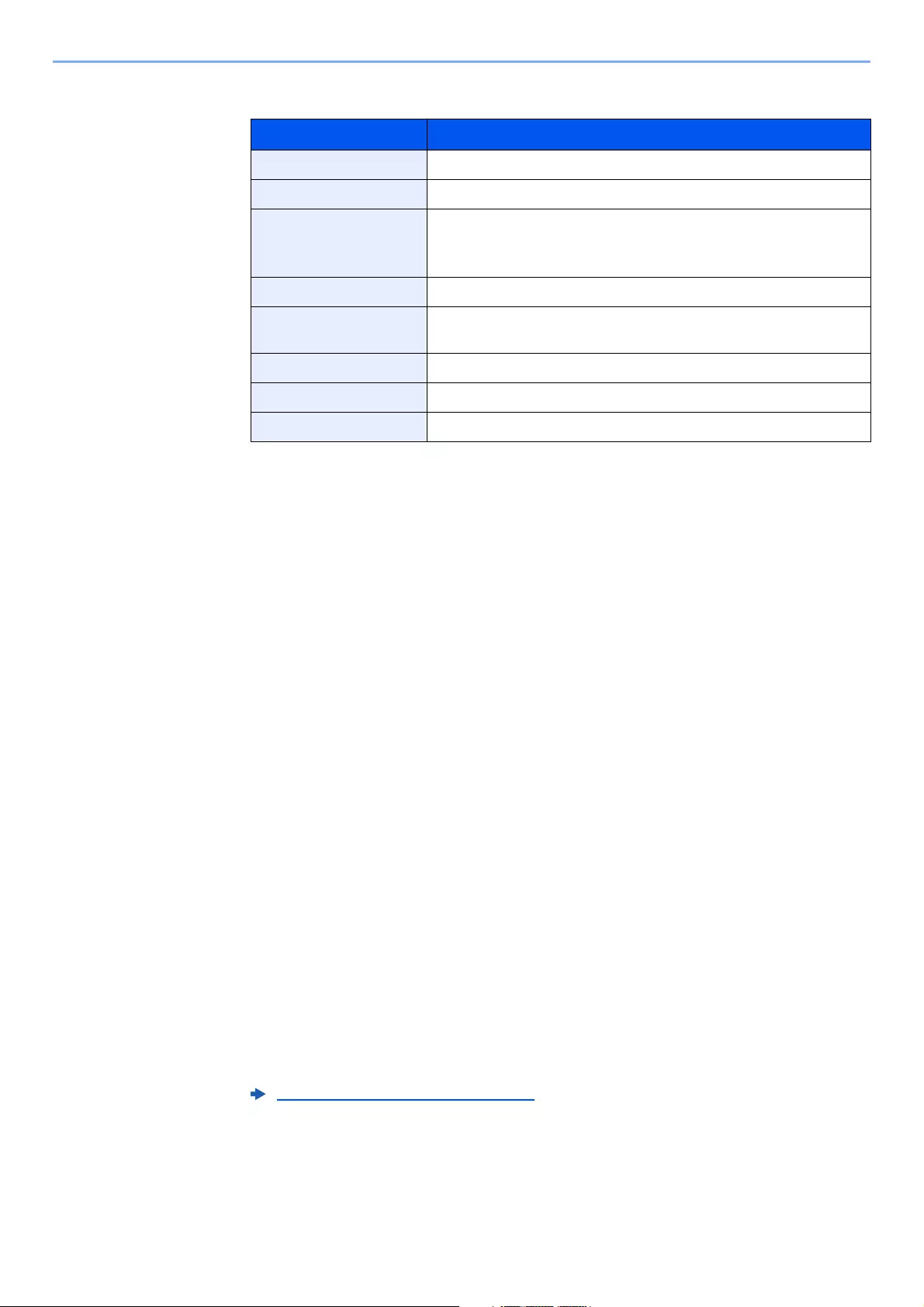
5-8
Operation on the Machine > Favorites
6Check the settings and change or add information as needed.
7Select [Save].
The favorite is registered.
8«Do you want to add a new function to the home screen?» screen appears.To display a
registered favorite on the Home screen, select [Yes] and specify the position in which you
want to display the icon of registered favorite, and select [Save].
Program Mode
When registering favorites in program mode, configure the copy function, send function, fax function (Only on products
with the fax function installed.), destination, or other setting to register.
1Display the screen.
1Select [Send] on the Home screen.
2Select the sending functions and destinations that you want to register in the program.
3Select [Favorites].
2
Register the favorite.
1[Menu] > [Add]
2Select the job type.
3Select [Program].
4Enter the new favorite name > [Next]
Item Description
Name Enter the name displayed on the favorite screen (up to 32 characters).
Job Type The type of the selected job is displayed.
Number*1
*1 If user login administration is enabled, you can only change the settings by logging in with
administrator privileges.
Enter the favorite number.
If you enter 00, the smallest number available will be automatically
assigned.
Owner*2
*2 Displayed when user login administration is enabled.
Displays the owner of the favorite.
Permission*2 Configures permission settings for favorites to determine how they
are shared with other users.
Destination*3
*3 Displayed when the job type is [Send] or [FAX].
Selects the Destination Recall Method.
Functions Selects the functions to be displayed in the wizard.
Function Type Selects the method for recalling favorites.
Character Entry Method (page 11-11)
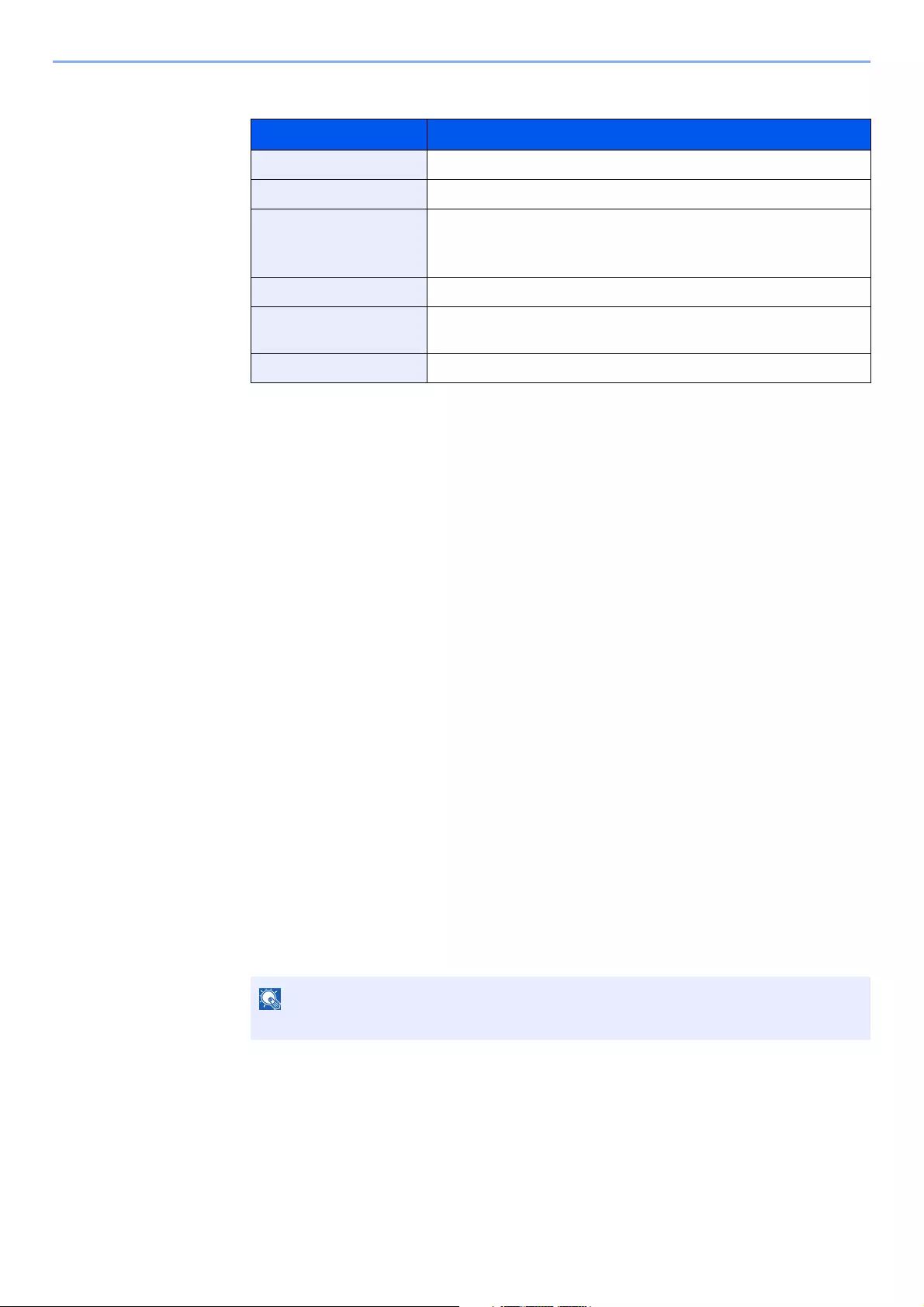
5-9
Operation on the Machine > Favorites
5Check the settings and change or add information as needed.
6Select [Save].
The favorite is registered.
7«Do you want to add a new function to the home screen?» screen appears. To display a
registered favorite on the Home screen, select [Yes] and specify the position in which you
want to display the icon of registered favorite, and select [Save].
Recalling Favorite
Use the procedure below to recall a registered favorite.
1Display the screen.
1Select [Favorites] on the Home screen, or the key of the registered favorite.
Selecting the key of the registered favorite will recall the favorite. If you selected [Favorites], proceed
to the next step.
2Select the key for the favorite you want to recall.
2Execute the favorite.
When using the wizard mode
1The registered screens are displayed in order. Make the desired settings and select [Next].
When all the settings are complete, the confirmation screen is displayed.
2Place the originals > [Start] key
When using the program mode
Place the originals > [Start] key
Item Description
Name Enter the name displayed on the favorite screen (up to 32 characters).
Job Type The type of the selected job is displayed.
Number*1
*1 If user login administration is enabled, you can only change the settings by logging in with
administrator privileges.
Enter the favorite number.
If you enter 00, the smallest number available will be automatically
assigned.
Owner*2
*2 Displayed when user login administration is enabled.
Displays the owner of the favorite.
Permission*2 Configures permission settings for favorites to determine how they
are shared with other users.
Function Type Selects the method for recalling favorites.
To edit the settings, select [<Back] and make changes as desired.

5-10
Operation on the Machine > Favorites
Editing and Deleting Favorite
You can change favorite number and favorite name, or delete favorite.
Use the procedure below to edit or delete a favorite.
1Display the screen.
Select [Favorites] on the Home screen.
2Edit the favorite.
To edit a favorite
1[Menu] > [Edit]
2Select the favorite you wish to edit.
3 Change the favorite number, favorite name, permission.
4[Save] > [Yes]
To delete
1[Menu] > [Delete]
2Select the favorite you wish to delete.
3Select [Yes].
Registering Favorite (page 5-7)

5-11
Operation on the Machine > Application
Application
The functionality of the machine can be expanded by installing applications.
Applications that help you perform your daily more efficiently such as a scan feature and an authentication feature are
available.
For details, consult your sales representative or dealer.
Installing Applications
To use applications, first install the application in the machine and then activate the application.
The procedure is as follows.
1Display the screen.
[System Menu/Counter] > [Application] > [Application]
2Install the application.
1Select [ ].
2Insert the removable memory containing the application to be installed into the USB
Memory Slot.
3Select the application to be installed > [Install]
You can view detailed information on the selected application by selecting [ ].
A maximum of 16 applications and 5 licenses can be installed on the machine. To add different applications, uninstall
an application that has been installed.
Uninstalling Applications (page 5-13)
If the user authentication screen appears, enter your login user name and login password
and select [Login]. For this, you need to login with administrator privileges. The factory
default login user name and login password are set as shown below.
ECOSYS M3145idn ECOSYS M3655idn ECOSYS M3660idn
ECOSYS M3645idn
Login User Name: 4500 5500 6000
Login Password: 4500 5500 6000
When the message «Removable Memory was recognized. Displaying files. Are you
sure?» is displayed, select [No].

5-12
Operation on the Machine > Application
4Select [Yes].
Installation of the application begins. Depending on the application being installed, the installation
may take some time.
Once the installation ends, the original screen reappears.
3Activate the application.
1Select the desired application > [Menu] > [Activate]
You can view detailed information on the selected application by selecting [ ].
2[Official] > Enter the license key > [OK]
Some applications do not require you to enter a license key. If the license key entry screen does not
appear, go to step 3-3. To use the application as a trial, select [Trial] without entering the license key.
3Select [Yes].
Using Applications
Icons of activated application are displayed in the Home screen. Select the application icon in the Home screen.
The application will start up.
• To install another application, repeat steps 2-3 and 2-4.
• To remove the removable memory, select [Remove Memory] and wait until the
message «Removable Memory can be safely removed.» appears. Then remove the
removable memory.
If you change the date/time while using the trial version of an application, you will
no longer be able to use the application.

5-13
Operation on the Machine > Application
Uninstalling Applications
The procedure is as follows.
1Display the screen.
[System Menu/Counter] key > [Application] > [Application]
2Deactivate the application.
1Select the application you want to deactivate > [Menu] > [Deactivate]
You can view detailed information on the selected application by selecting [ ].
2Select [Yes].
3Uninstall the application.
1Select the application you want to uninstall > []
You can view detailed information on the selected application by selecting [ ].
2Select [Yes].
If the user authentication screen appears, enter your login user name and login password
and select [Login]. For this, you need to login with administrator privileges. The factory
default login user name and login password are set as shown below.
ECOSYS M3145idn ECOSYS M3655idn ECOSYS M3660idn
ECOSYS M3645idn
Login User Name: 4500 5500 6000
Login Password: 4500 5500 6000
5-14
Operation on the Machine > Registering Shortcuts
Registering Shortcuts
You can register shortcuts for easy access to the frequently used functions. The settings for the selected function can
also be registered. A function name linked to a registered shortcut can be changed as necessary. You can register up to
2 shortcuts for copying functions, sending functions, fax functions, and functions set for document box.
Adding Shortcuts
Shortcut registration is performed in the «Functions» screen of each function. Use the procedure below to register a
shortcut.
1Display the screen.
In the Copy, Send, Document Box, or FAX screen, select as follows.
[Functions] > [Add/Edit Shortcut]
2Register the shortcuts.
1Select [Add].
2Select the key to which you wish to register the shortcut.
The following types of shortcuts are available:
3Select the function screen to display with the shortcut.
4Enter the shortcut name > [Next]
Up to 24 characters can be entered.
5Select [Save].
The shortcut is registered.
Private Shortcut 1, 2 Private shortcuts are only available for use by the logged in user.
They can only be set while using user login administration.
Shared Shortcut 1, 2 Shared shortcuts can be used by all machine users. When using user
login administration, shared shortcuts can only be set by users who
have logged in as administrators.
If you select a shortcut number already registered, the currently registered shortcut can
be replaced with a new one. Some shortcuts are preregistered at the factory (example:
«ID Card Copy» of copy function).
Character Entry Method (page 11-11)

5-15
Operation on the Machine > Registering Shortcuts
Editing and Deleting Shortcuts
Follow the steps shown below to change a shortcut number/name or delete a shortcut.
1In the «Functions» screen of each function, select [Add/Edit
Shortcut] in the bottom of the screen.
2Edit the shortcut.
To edit a shortcut
1Select [Edit].
2Select the shortcut type and number you wish to edit.
3Select [Number] or [Name].
4Change the settings > [OK]
5[Save] > [Yes]
To delete
1Select [Delete].
2Select the shortcut you wish to delete.
3Select [Yes].
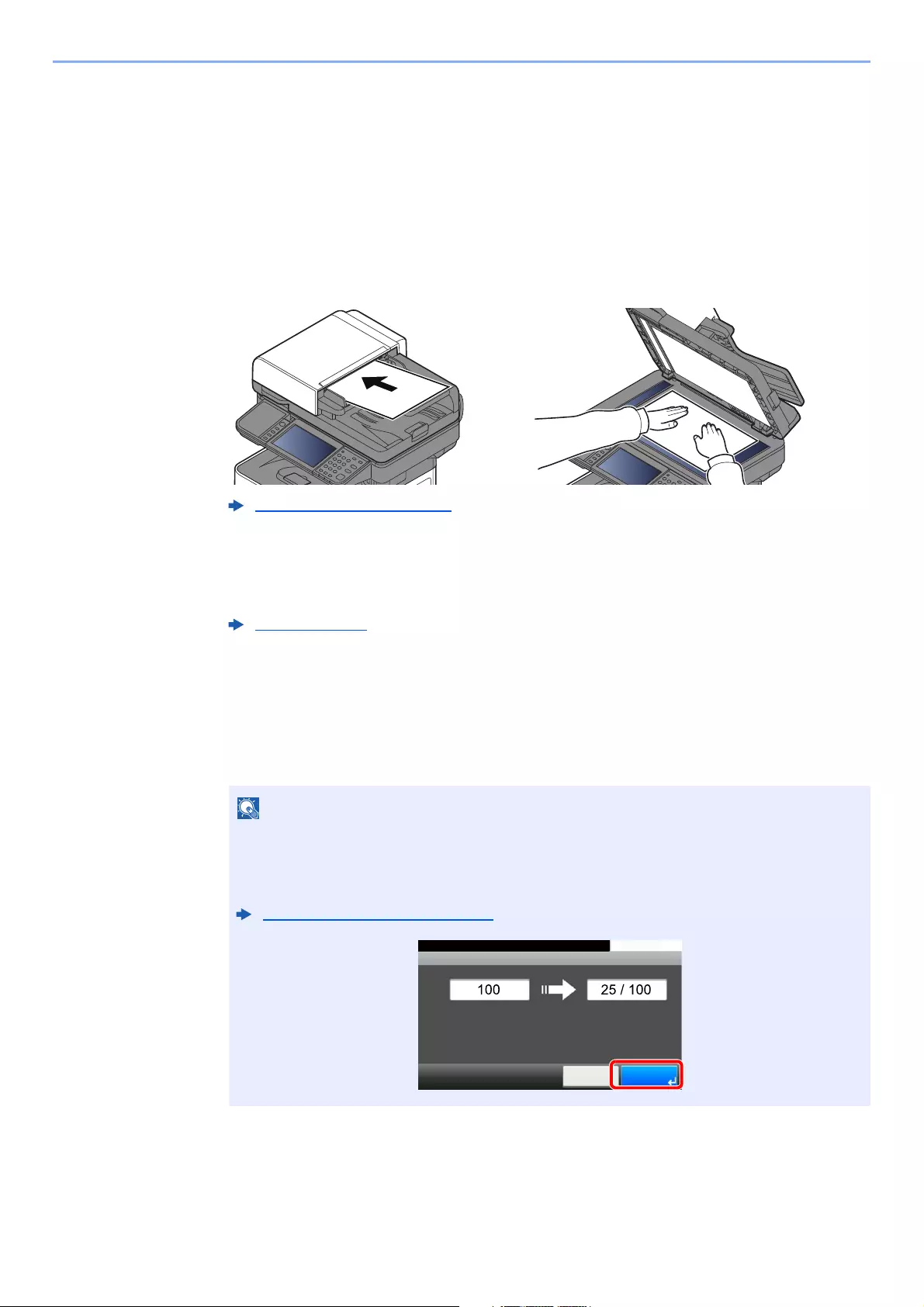
5-16
Operation on the Machine > Copying
Copying
Basic Operation
Follow the steps as below for basic copying.
1Select [Copy] on the Home screen.
2Place the originals.
Place the originals.
3Select the functions.
To configure the settings for functions, select the function key. By selecting [Functions], other
selectable functions will be shown as a list.
4Use the numeric keys to enter the copy quantity.
Specify the desired number up to 999.
5Press the [Start] key.
Copying begins.
Loading Originals (page 5-2)
Copy (page 6-2)
This function allows you to reserve the next job during printing. Using this function, the
original will be scanned while the machine is printing. When the current print job ends, the
reserved copy job is printed. If «Reserve Next Priority» is set to [Off], [Reserve Next] will
appear. Select [Reserve Next] and configure the necessary settings for the copy job.
Reserve Next Priority (page 8-20)
Job No.:0005
10:10Copying…
Scanned Pages
Cancel
Job Name:doc00000320101010101010
Reserve
Next
Copies

5-17
Operation on the Machine > Copying
Canceling Jobs
You can also cancel jobs by selecting the [Stop] key.
1Select the [Stop] key with the copy screen displayed.
2Cancel a job.
When there is a job is being scanned
The copy job is canceled.
When there is a job printing or on standby
Canceling job screen appears. The current print job is temporarily interrupted.
Select the job you wish to cancel > [Delete] > [Yes]
If
«
Reserve Next Priority
«
is set to [
Off
], the Copying screen appears in the touch panel. In such case, selecting the [
Stop
]
key or [
Cancel
] will cancel the printing job in progress.
Reserve Next Priority (page 8-20)
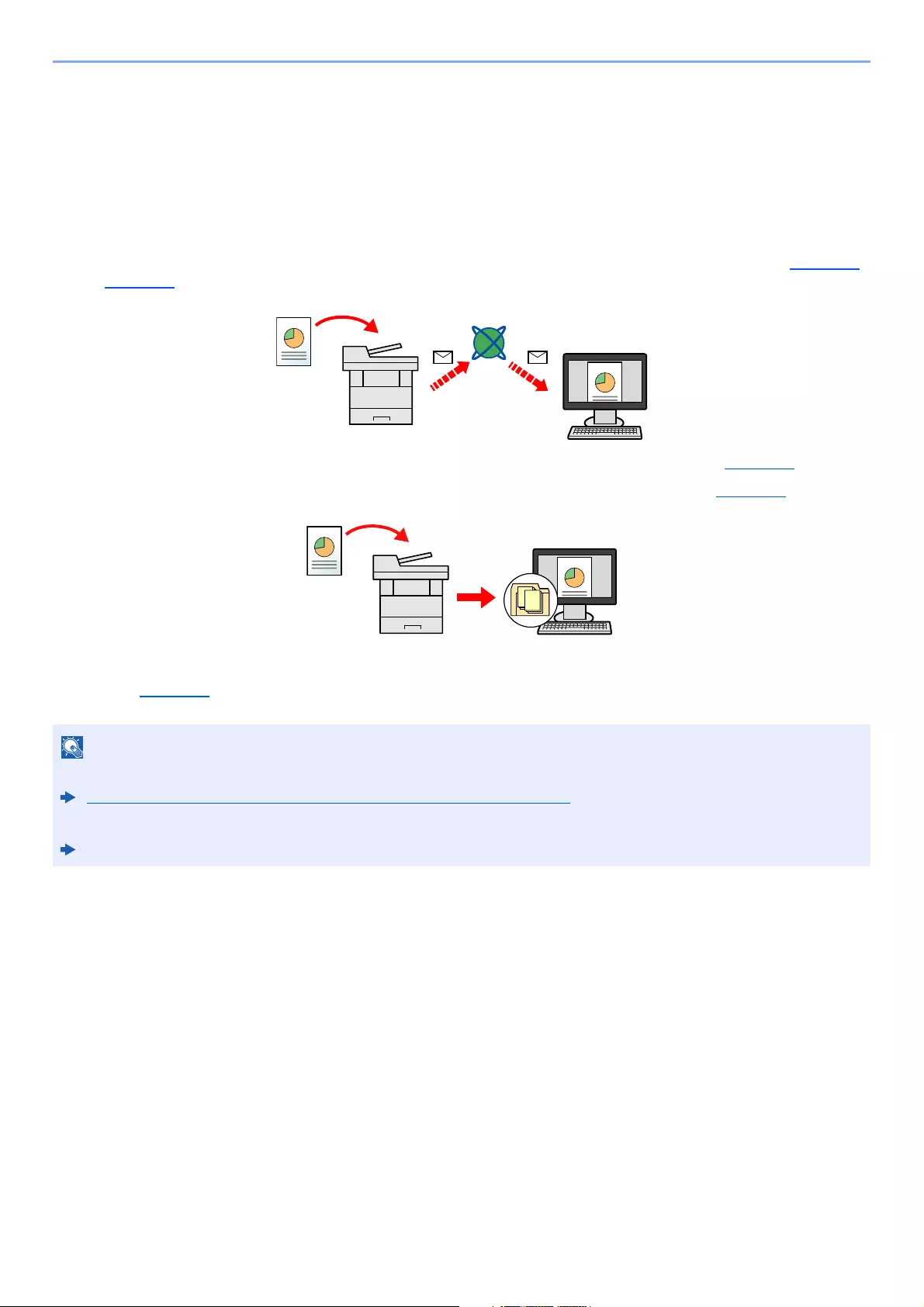
5-18
Operation on the Machine > Sending
Sending
This machine can send a scanned image as an attachment of an E-mail message or to a PC linked to the network. In
order to do this, it is necessary to register the sender and destination (recipient) address on the network.
A network environment which enables the machine to connect to a mail server is required in order to send E-mail. It is
recommended that a Local Area Network (LAN) be used to assist with transmission speed and security issues.
Follow the steps below for basic sending. The following four options are available.
• Send as E-mail (E-mail Addr Entry): Sends a scanned original image as an E-mail attachment. (Refer to page 5-20
and page 5-22.)
• Send to Folder (SMB): Stores a scanned original image in a shared folder of any PC. (Refer to page 5-19.)
• Send to Folder (FTP): Stores a scanned original image in a folder of an FTP server. (Refer to page 5-19.)
• Image Data Scanning with TWAIN / WIA: Scan the document using a TWAIN or WIA compatible application program.
(Refer to page 5-32.)
• Different sending options can be specified in combination.
Sending to Different Types of Destinations (Multi Sending) (page 5-28)
• The fax function can be used on products equipped with fax capability.
FAX Operation Guide
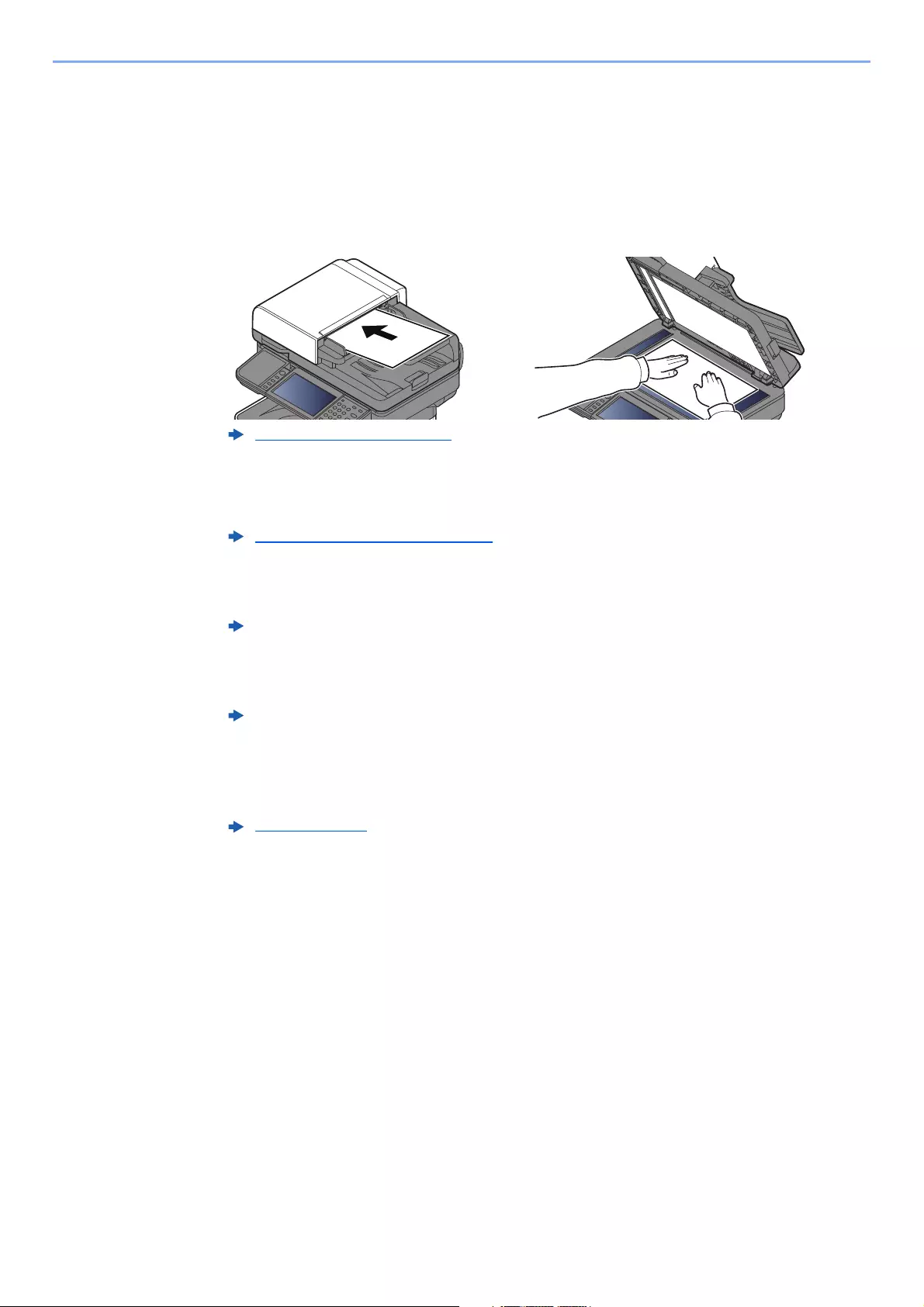
5-19
Operation on the Machine > Sending
Basic Operation
1Select [Send] on the Home screen.
2Place the originals.
Place the originals.
3Specify the destination.
Select the destination to which to send an image.
Choosing a Destination from the External Address Book
For details on the External Address Book, refer to the following:
Choosing a Destination from the FAX
For more information on using the FAX, refer to the following:
4Select the functions.
Select [Functions] to display other functions.
5Press the [Start] key.
Sending starts.
Loading Originals (page 5-2)
Specifying Destination (page 5-20)
Command Center RX User Guide
FAX Operation Guide
Send (page 6-4)
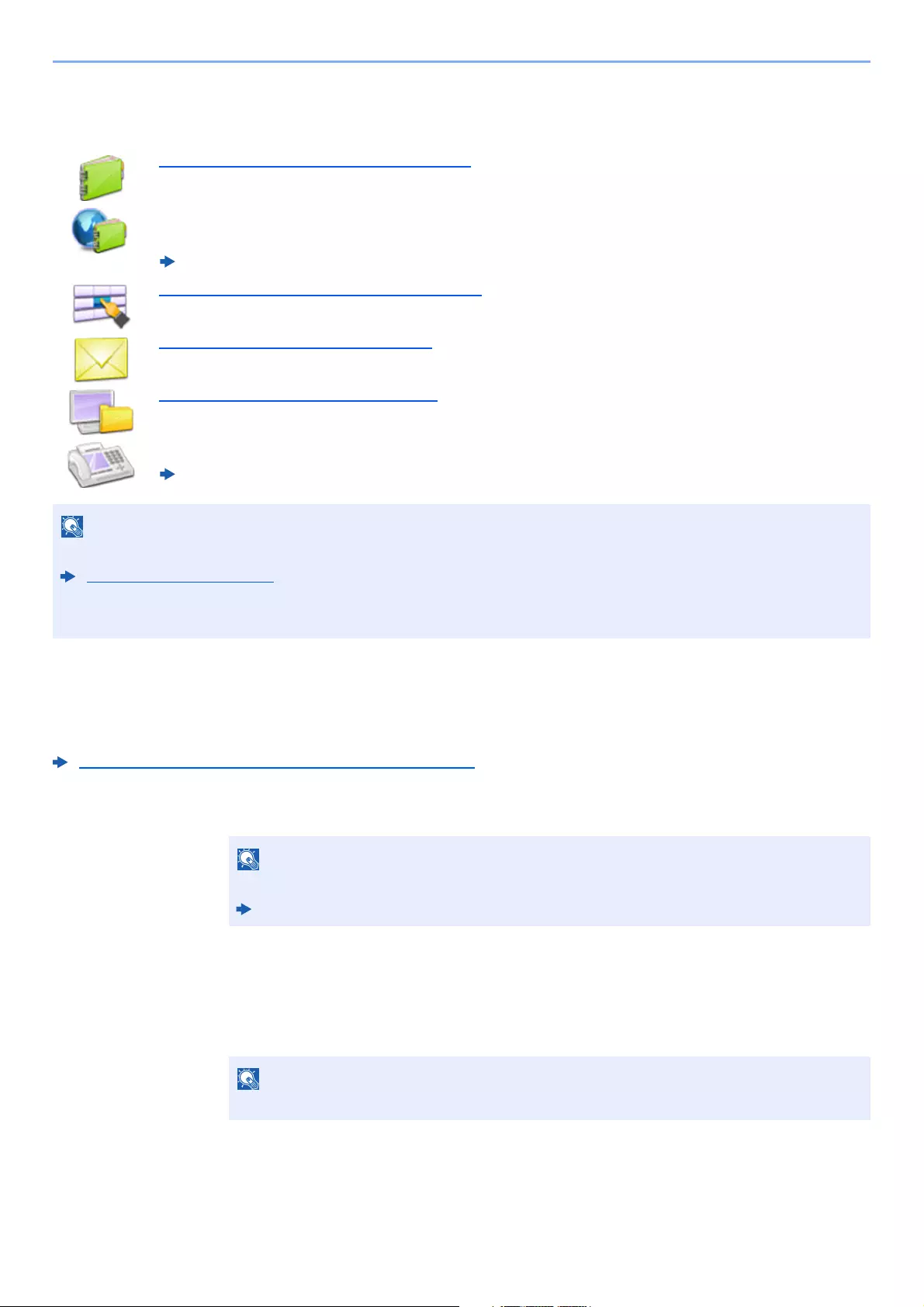
5-20
Operation on the Machine > Sending
Specifying Destination
Select the destination using either of the following methods:
Choosing from the Address Book (page 5-20)
Choosing from the External Address Book
For details on the External Address Book, refer to the following:
Command Center RX User Guide
Choosing from the One Touch Key (page 5-22)
Entering an E-mail Address (page 5-22)
Specifying a New PC Folder (page 5-23)
Choosing from the FAX
FAX Operation Guide
Choosing from the Address Book
Select a destination registered in the Address Book.
For more information about how to register destinations in the Address Book, refer to the following:
Registering Destinations in the Address Book (page 3-28)
1In the basic screen for sending, select [Address Book].
2Select the destinations.
Select the checkbox to select the desired destination from the list. The selected destinations
are indicated by a checkmark in the check box.
You can also select [Menu] to perform a more detailed search.
• You can set the machine up so that the address book screen appears when you select the [Send] key.
Default Screen (page 8-21)
• If you are using the products equipped with the fax function, you can specify the fax destination. Enter the other
party number using the numeric keypad.
For details on the External Address Book, refer to the following:
Command Center RX User Guide
To deselect, select the checkbox again and remove the checkmark.
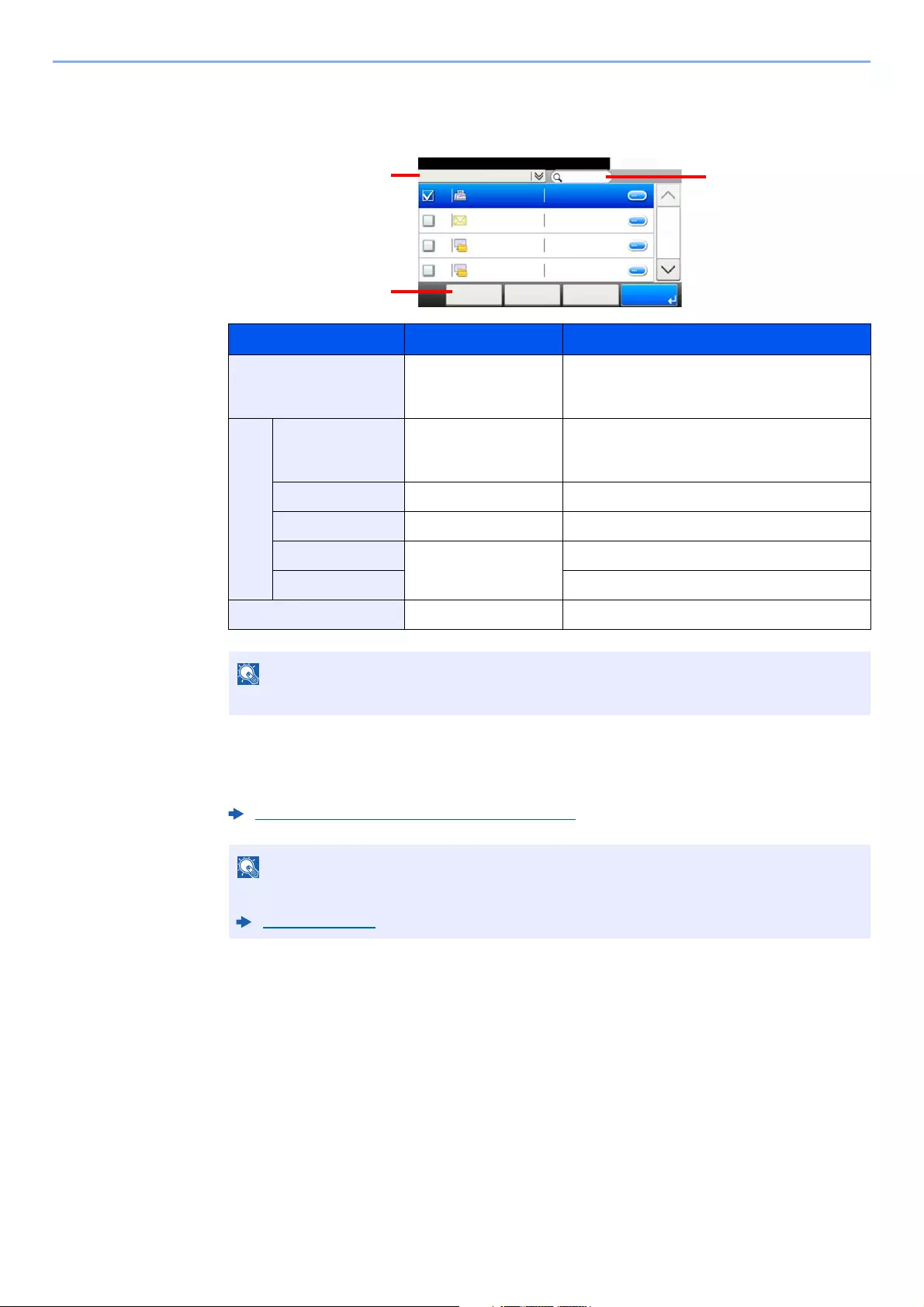
5-21
Operation on the Machine > Sending
Destination Search
Destinations registered in the Address Book can be searched.
3Accept the destination > [OK]
Destinations can be changed later.
.
Keys used Search type Subjects searched
1Advanced search by
destination
Advanced search by type of registered
destination (Email, Folder (SMB/FTP), FAX or
Group).
2Narrow Down Advanced search by
destination
Advanced search by type of registered
destination (Email, Folder (SMB/FTP), FAX or
Group).
Search (Name) Search by name Search by registered name.
Search (No.) Search by number Search by registered address number.
Sort (Name) Change of display
order
Sorts the list by destination name.
Sort (No.) Sorts the list by destination address number.
3Search by name Search by registered name.
You can specify a destination by address number by selecting the [Quick No. Search] key.
Checking and Editing Destinations (page 5-25)
You can set the default «Sort» settings.
Sort (page 8-23)
Address Book (All)
10:10
002
ABCD
< Back OKCancelMenu
123456
EFGH
IJKL
MNOP
1/2
003
004
001
efg@efg.com
12345.com
11111.com
5-22
Operation on the Machine > Sending
Choosing from the One Touch Key
Select the destination using the One Touch Keys.
1In the basic screen for sending, select [One Touch Key].
2Select the One Touch Keys where the destination is registered.
If the One Touch Keys for the desired destination is hidden on the touch panel, select [ ] or
[ ] to scroll and view next or previous One Touch Keys.
3Accept the destination > [OK]
Destinations can be changed later.
Entering an E-mail Address
Enter the desired E-mail address.
1In the basic screen for sending, select [E-mail].
2Enter destination E-mail address > [OK]
Up to 256 characters can be entered.
To enter multiple destinations, select [Next Destination] and enter the next destination. Up to
100 E-mail addresses can be specified.
You can register the entered E-mail address in the Address Book by selecting [Menu] > [Add
to Address Book]. You can also replace the information for a previously registered
destination.
Destinations can be changed later.
This procedure assumes that One Touch Keys have already been registered.
For more information on adding One Touch keys, refer to the following:
Adding a Destination on One Touch Key (One Touch Key) (page 3-33)
You can specify a One Touch Key by one touch number by selecting the [Quick No.
Search] key.
Checking and Editing Destinations (page 5-25)
To send an E-mail, configure the environment settings necessary.
E-mail Settings (page 2-59)
Character Entry Method (page 11-11)
Checking and Editing Destinations (page 5-25)

5-23
Operation on the Machine > Sending
Specifying a New PC Folder
Specify either the desired shared folder on a computer or an FTP server as the destination.
1In the basic screen for sending, select [Folder].
2Select the folder type.
If you selected [FTP], go to step 4.
3Select the folder specification method.
To search for a folder on a PC on the network, select [Search Folder from Network] or
[Search Folder by Host Name].
If you selected [Search Folder from Network], you can search all PCs on the network for a
destination.
If you selected [Search Folder by Host Name], you can enter the «Domain/Workgroup», and
«Host Name» to search PCs on the network for the destination.
Up to 500 addresses can be displayed. Select the host name (PC name) that you want to
specify in the screen that appears, and select [Next]. The login user name and login password
entry screen appears.
After you enter the login user name and login password name of the destination PC, the
shared folders appear. Select the folder that you want to specify and select [Next]. The
address of the selected shared folder is set.
Select the folder from the Search Results list.
If you selected [Enter Folder Path], go to step 4.
4Enter the destination information.
Enter the next information. Once you have entered one item, select [Next] to advance to the
next item.
The table below lists the items to be set.
• For the method for setting a shared folder destination on a PC, refer to the following:
Preparation for Sending a Document to a Shared Folder in a PC (page 3-18)
• For details on how to share a folder, refer to the following:
Creating a Shared Folder, Making a Note of a Shared Folder (page 3-20)
• Be sure that SMB Protocol or FTP is On.
Protocol Settings (page 8-31)
Character Entry Method (page 11-11)
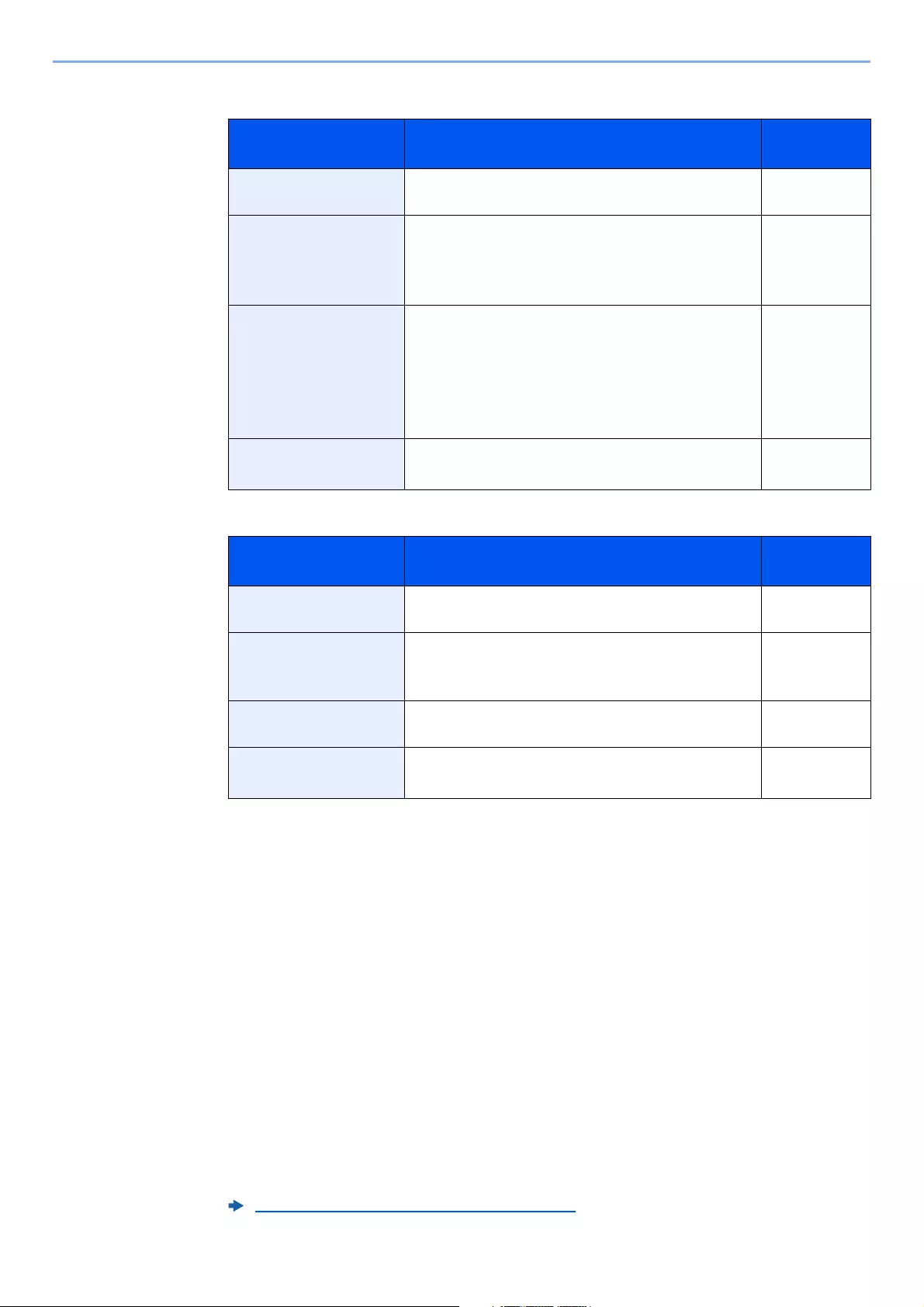
5-24
Operation on the Machine > Sending
For send to folder (SMB)
For send to folder (FTP)
5Check the status.
1Check the information.
Change the delay as required.
2Check the connection.
[Menu] > [Connection Test]
«Connected.» appears when connection to the destination is correctly established. If «Cannot
connect.» appears, review the entry.
To enter multiple destinations, select [Next Destination] and enter the next destination.
You can register the entered information in the Address Book by selecting [Add to Address Book].
6Select [OK].
Destinations can be changed later.
Item Detail Max.
characters
Host Name Computer name Up to
256 characters
Path Share name
For example:
scannerdata
If saving in a folder in the shared folder:
share name\folder name in shared folder
Up to
260 characters
Login User Name If the computer name and domain name are the same:
User Name
For example: james.smith
If the computer name and domain name are different:
Domain name\User name
For example: abcdnet\james.smith
Up to
64 characters
Login Password Windows logon password
(Case sensitive.)
Up to
64 characters
Item Data to be entered Max.
characters
Host Name Host name or IP address of FTP server Up to
64 characters
Path*1
*1 When the FTP server is based on Linux/UNIX, the path including the sub-folder is combined by the
slash «/» not using the back-slash.
Path to the receiving folder
For example: User\ScanData
Otherwise the data will be saved in the home directory.
Up to
128 characters
Login User Name FTP server login user name Up to
64 characters
Login Password FTP server login password
(Case sensitive.)
Up to
64 characters
Checking and Editing Destinations (page 5-25)
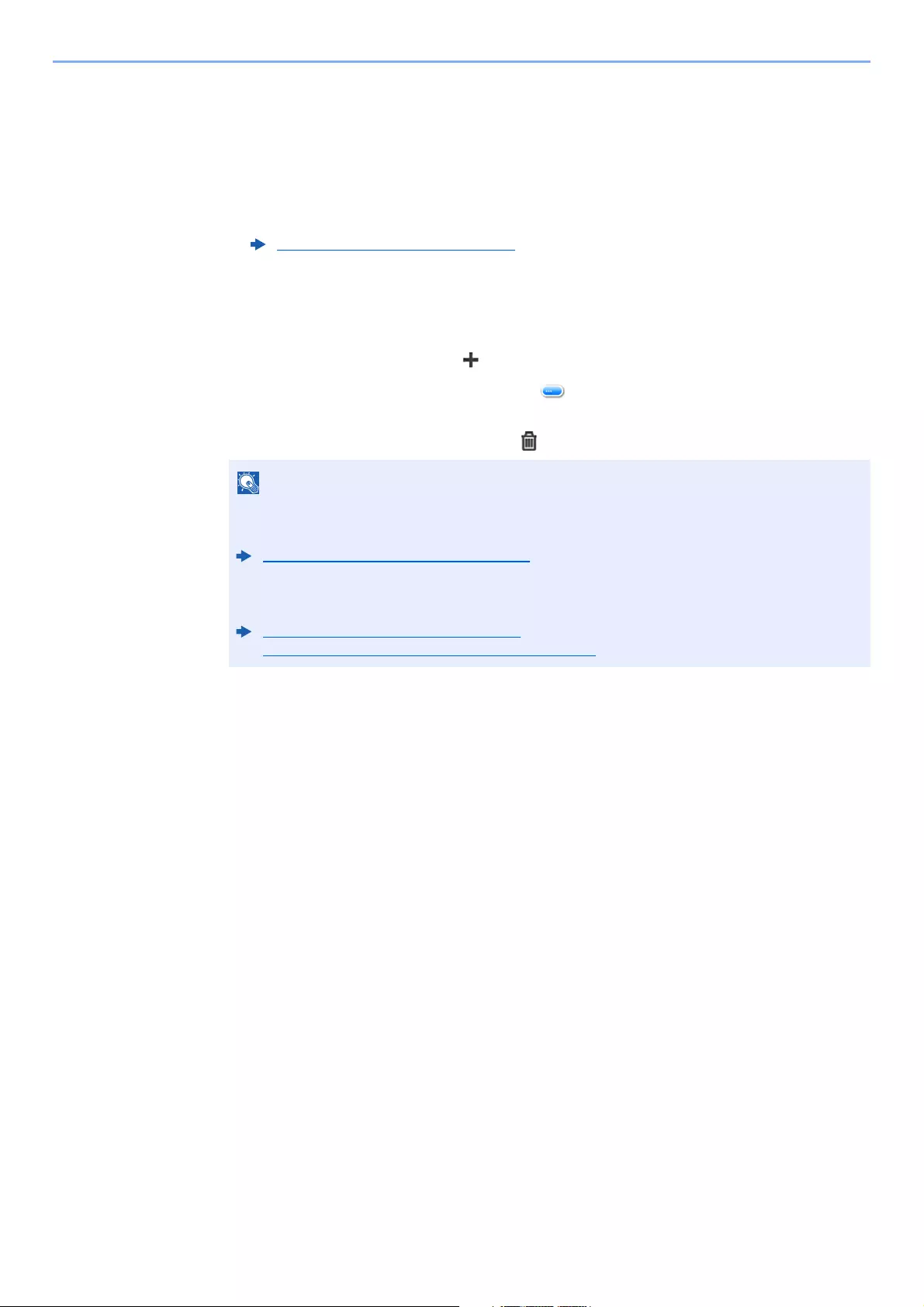
5-25
Operation on the Machine > Sending
Checking and Editing Destinations
Check and edit a selected destination.
1Display the screen.
1Specify the destination.
2Select [Check].
2Check and edit the destination.
To add a new destination, select [].
To display details for the destinations, select [ ]. New E-mail addresses and PC folders can
be edited if they have been specified.
To delete the selected destination, select [].
Specifying Destination (page 5-20)
• When selecting [On] for Entry Check for New Destination, the confirmation screen
appears. Enter the same host name and path again, and select [OK].
Entry Check for New Dest. (page 8-21)
• When selecting [On] for Destination Check before Send, the confirmation screen appears
after pressing the [Start] key.
Dest. Check before Send (page 8-21)
Confirmation Screen of Destinations (page 5-26)
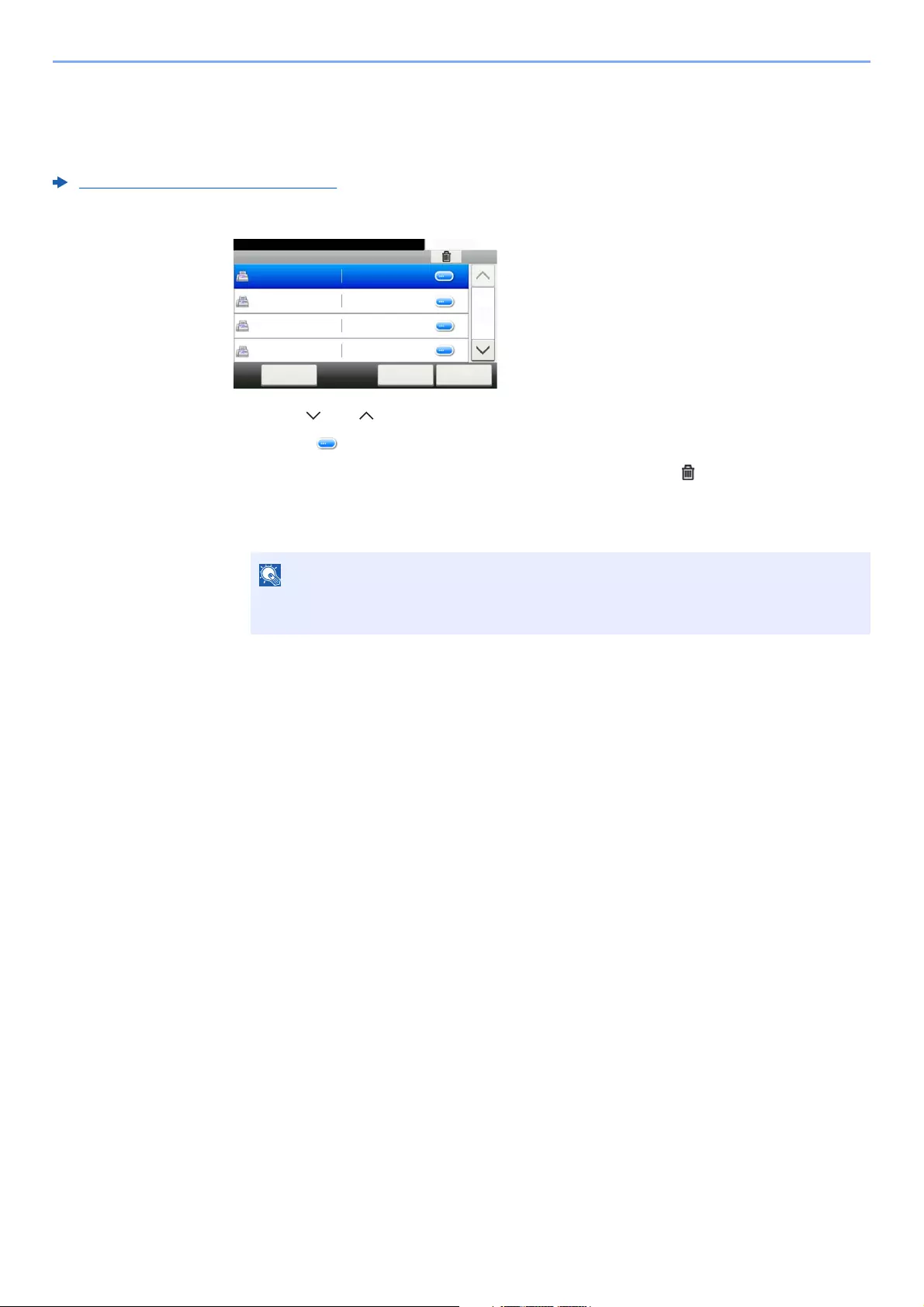
5-26
Operation on the Machine > Sending
Confirmation Screen of Destinations
When selecting [On] for Destination Check before Send, the confirmation screen of destinations appears after pressing
the [Start] key.
Dest. Check before Send (page 8-21)
Follow the steps below to confirm the destinations.
1Select [ ] or [ ] to confirm all destination.
Selecting [ ] shows the detailed information of the selected destination.
To delete the destination, select the destination you want to delete > [ ] > [Yes]
To add the destination, select [Cancel] and then return to the destination screen.
2Select [Check].
Be sure to confirm all destination by displaying them on the touch panel. You cannot
select [Check] unless you have confirmed all destination.
Destinations Check
10:10Check the destinations and press [Check].
Close
1/2
1234567890
2345678901
3456789012
4567890123
A OFFICE
B OFFICE
C OFFICE
D OFFICE
Cancel Check
5-27
Operation on the Machine > Sending
Recall
Recall is a function allowing you to send the last entered destination once again. When you want to send the image to
the same destination, select [Recall], and you can call the destination you sent on the destination list.
1Select [Recall].
The destination you sent is displayed on the destination list.
2Press the [Start] key.
Sending starts.
Send to Me (E-mail)
When user login is enabled, the document is sent to the E-mail address of the logged in user.
1Select [Send to Me (E-mail)] on the Home screen.
When the last sending included FAX, computers and E-mail destinations, they are also
displayed. If necessary, add or delete the destination.
• When [On] is selected in «Dest. Check before Send», a destination confirmation screen
is displayed when you press the [Start] key.
Confirmation Screen of Destinations (page 5-26)
• Recall information is canceled in the following conditions.
— When you turn the power off
— When you send a next image (new recall information is registered)
— When you log out
• To use this function, the function icon must be displayed in the home screen.
Editing the Home Screen (page 2-14)
• An E-mail address must be set in user login for the user who logs in.
Adding a User (Local User List) (page 9-6)
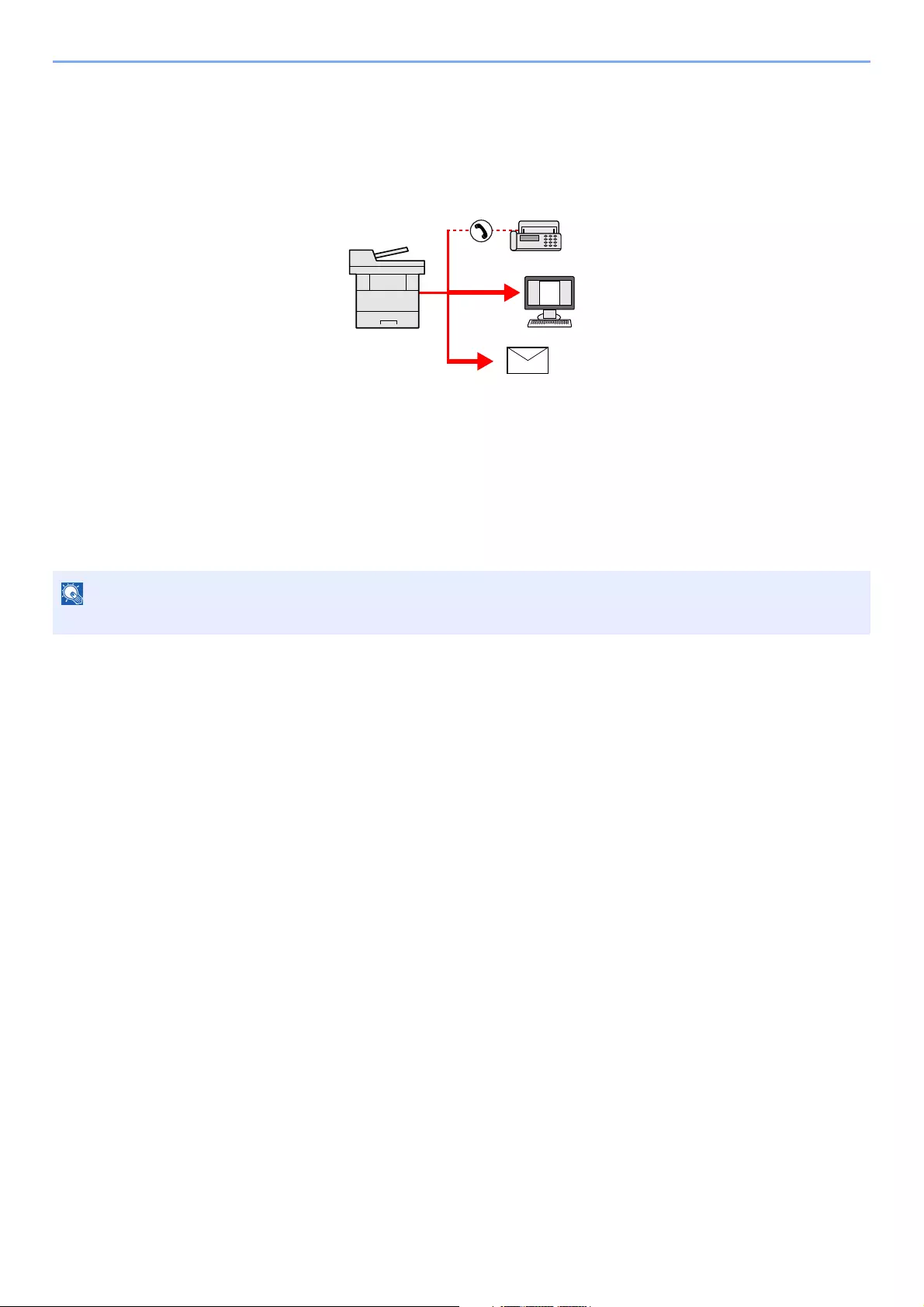
5-28
Operation on the Machine > Sending
Sending to Different Types of Destinations (Multi
Sending)
You can specify destinations that combine E-mail addresses, folders (SMB or FTP) and fax numbers (Fax functionality
can only be used on products equipped with fax capability.). This is referred to as Multi Sending. This is useful for
sending to different types of destination (E-mail addresses, folders, etc.) in a single operation.
No. of broadcast items
E-mail: Up to 100
Folders (SMP, FTP): Total of 5 SMB and FTP
FAX: Up to 100
Procedures are the same as used in specifying the destinations of respective types. Continue to enter E-mail address or
folder path so that they appear in the destination list. Press the [Start] key to start transmission to all destinations at one
time.
If the destinations include a fax, the images sent to all destinations will be black and white.

5-29
Operation on the Machine > Sending
Canceling Sending Jobs
You can also cancel jobs by selecting the [Stop] key.
1Select the [Stop] key with the send screen displayed.
2Cancel a job.
When there is a job is being scanned
Job Cancel appears.
When there is a job sending or on standby
Canceling job screen appears.
Select the job you wish to cancel > [Delete] > [Yes]
Selecting the [
Stop
] key will not temporarily stop a job that you have already started sending.

5-30
Operation on the Machine > Sending
WSD Scan
WSD Scan saves images of originals scanned on this machine as files on a WSD-compatible computer.
Installing the Driver
Installing Driver Software (for Windows 8, Windows 8.1 and Microsoft Windows Server 2012)
1Click [Search] in charms, [Control Panel], and then [View
devices and printers].
2Install the driver.
Click [Add a device]. Select the machine’s icon and then click [Next].
When the machine’s icon is displayed in «Printers» on the [Devices and Printers] screen, the
installation is completed.
Installing Driver Software (for Windows 7)
1Display [Network] in the Start menu.
Click [Start] button on the Windows and then select [Network].
2Install the driver.
Right-click the machine’s icon and then click [Install].
During the installation, double-click the icon shown on the task bar to display the «Driver
Software Installation» screen. When «Your devices are ready to use» is displayed on the
[Driver Software Installation] screen, the installation is completed.
• To use WSD Scan, confirm that the computer used for WSD scanning and the machine is network-connected, and
«WSD Scan» is set to [On] in the network settings.
WSD Scan (page 8-32)
• For information on operating the computer, refer to the computer’s help or the operation guide of your software.
When [Network] does not appear in the Start menu, perform the following procedure.
1Right-click [Start] and click [Property] in the menu that appears.
2Select the [[Start] menu] tab in the «Task bar and [Start] menu properties» screen, and
click [Customize].
3When the «Customize [Start] menu» screen appears, select the «Network» check box
and click [OK].
If the «User Account Control» window appears, click [Continue].
If the «Found New Hardware» window appears, click [Cancel].
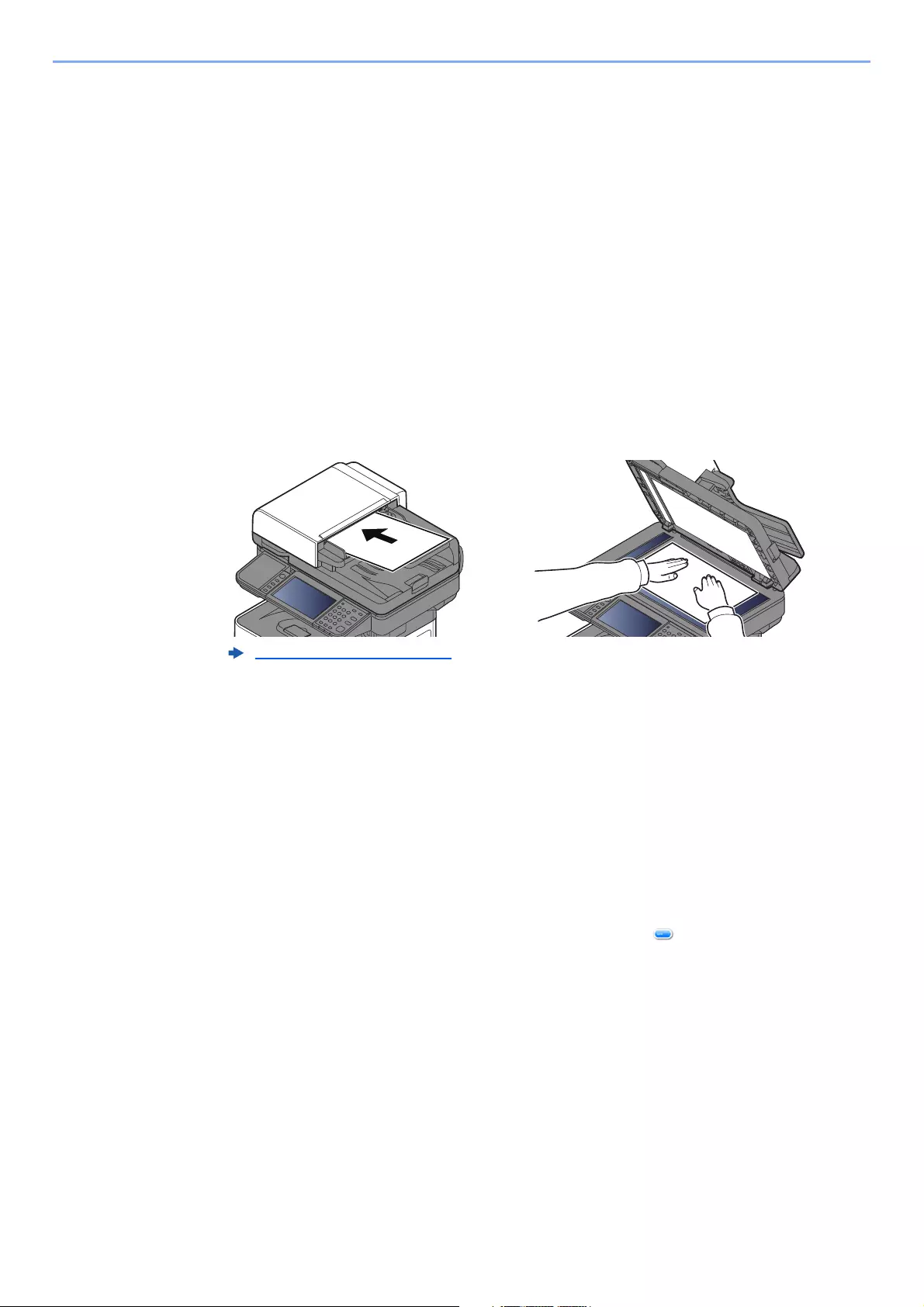
5-31
Operation on the Machine > Sending
Installing Driver Software (for Windows 10)
1Right-click [Start] button on the Windows and select [Control
Panel] and then [View devices and printer].
2Install the driver.
Click [Add a device]. Select the machine’s icon and then click [Next].
When the machine’s icon is displayed in «Printers» on the [Devices and Printers] screen, the
installation is completed.
WSD scan
1Select [Send] on the Home screen.
2Place the originals.
3Display the screen.
Select [WSD Scan].
4Scan the originals.
Procedure using this machine
1[From Operation Panel] > [Next]
2Select the destination computer > [OK]
Select [Reload] to reload the computer list.
You can view information on the selected computer by selecting [ ].
3Set the type of original, file format, etc., as desired.
4Press the [Start] key.
Sending begins and the software installed on the computer is activated.
Procedure from Your Computer
1[From Computer] > [Next]
2Use the software installed on the computer to send the images.
Loading Originals (page 5-2)
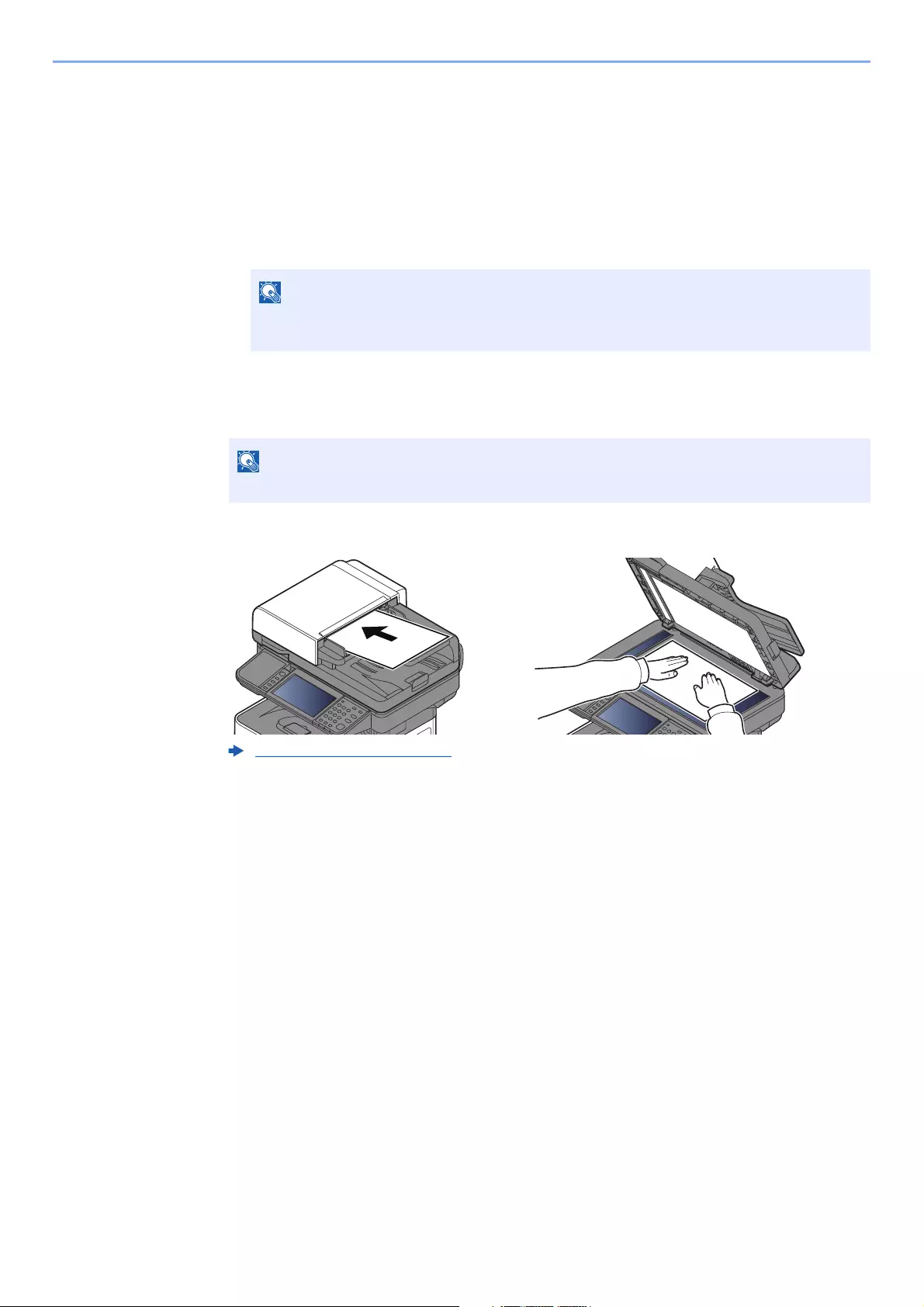
5-32
Operation on the Machine > Sending
Scanning using TWAIN or WIA
This section explains how to scan an original using TWAIN. The WIA driver is used in the same way.
1Display the screen.
1Activate the TWAIN compatible application software.
2Select the machine using the application and display the dialog box.
2Configure the scan settings.
Select scanning settings in the dialog box that opens.
3Place the originals.
4Scan the originals.
Click the [Scan] button. The document data is scanned.
For selecting the machine, see the Operation Guide or Help for each application
software.
For the settings, refer to Help in the dialog box.
Loading Originals (page 5-2)

5-33
Operation on the Machine > Sending
Scanning with File Management Utility
File Management Utility is an application that sends a scanned document to a specified network folder or PC. You can
create a work flow with FMU for processing of the scanned document, and register the workflow in the machine as a
favorite.
1Make sure that File Management Utility is running on the
computer (or server) on which File Management Utility is
installed.
2Place the original.
3Recall a favorite.
1Select [Favorites] on the Home screen, or the key of the registered favorite.
If you selected the key of the favorite registered with FMU, the favorite is activated. If you selected
[Favorites], proceed to the next step.
2Select the key of the favorite you want to use.
4Follow the on-screen instructions to enter the necessary
information and press [Next].
5When the scan settings screen appears, press each item and
configure the necessary settings.
The features that can be set depend on File Management Utility.
6Press the [Start] key.
Sending starts.
• To use this function, you must install File Management Utility on your computer and configure settings for the
multifunction machine to be used, scanning conditions, and the file save location. To install File Management Utility,
refer to the following:
Installing Software (page 2-37)
• For information on using File Management Utility, refer to the following:
File Management Utility User Guide
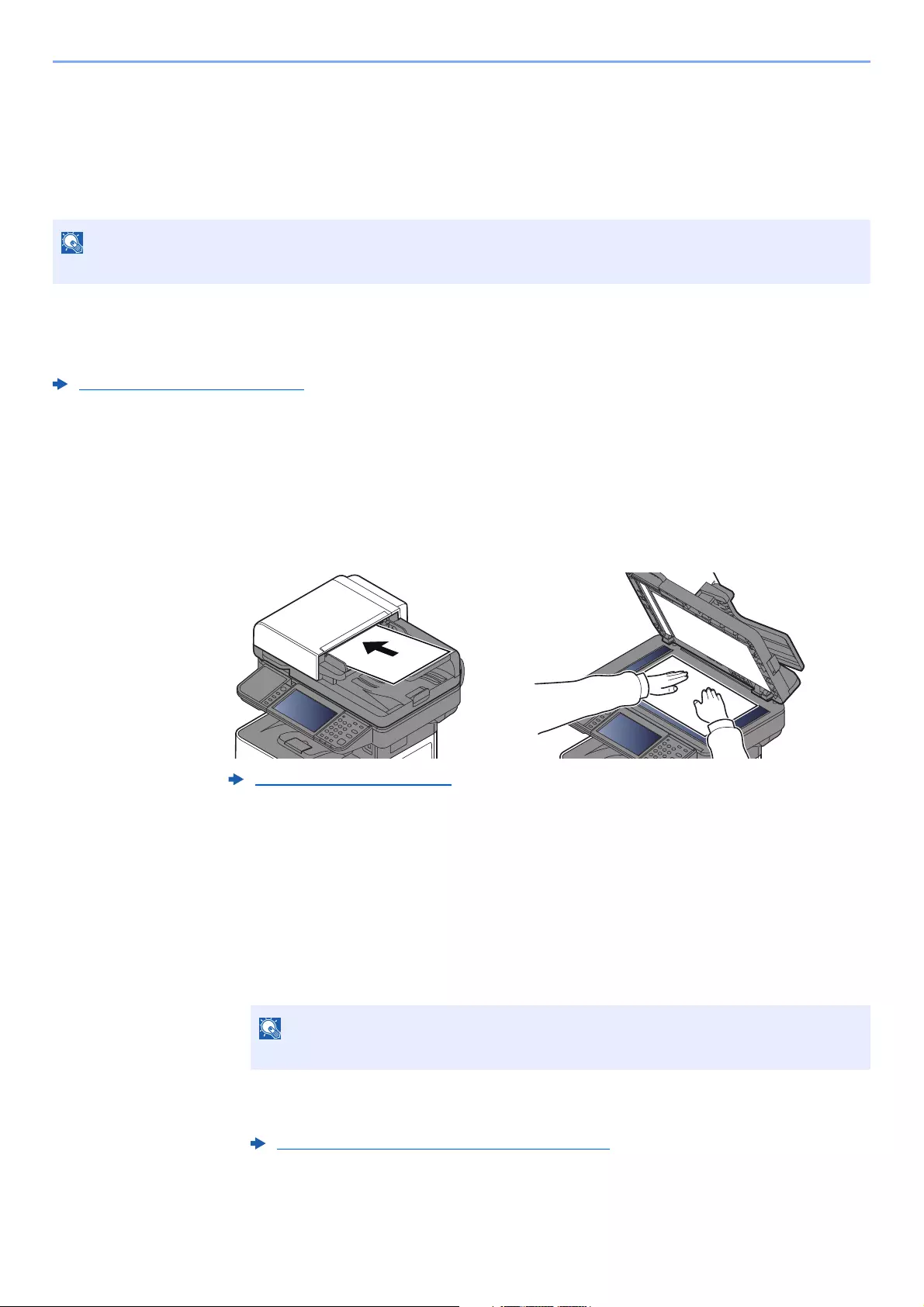
5-34
Operation on the Machine > Using fax server to send a fax (fax server transmission)
Using fax server to send a fax (fax server
transmission)
You can send a scanned document through a fax server.
Configuring Settings before Sending
Before sending a fax, the following setting is required.
FAX Server Settings (page 8-45)
Command Center RX User Guide
Using fax server to send a fax
1[Home] key > [Send]
2Place the originals.
3In the basic screen for sending, select [FAX Server].
4Specifying destination.
Entering the destination fax number with the numeric keys
1Select [FAX Number Entry].
2Enter the fax number.
3Select [OK].
Destinations can be changed later.
To use this function, you must have a fax server. For information on your fax server, ask your administrator.
Loading Originals (page 5-2)
Use the numeric keys to enter a number.
Confirmation Screen of Destinations (page 5-26)
5-35
Operation on the Machine > Using fax server to send a fax (fax server transmission)
Choosing from the Address Book
1Select [Address Book].
2Select the destination.
3Select [OK].
Destinations can be changed later.
Choosing from the External Address Book
1Select [Ext. Address Book].
2Select the destination.
3Select [OK].
Destinations can be changed later.
5Select the functions.
Select [Functions] to display other functions.
6Press the [Start] key.
Sending starts.
Choosing from the Address Book (page 5-20)
Confirmation Screen of Destinations (page 5-26)
This function is displayed when the fax function is available on the machine.
Command Center RX User Guide
Confirmation Screen of Destinations (page 5-26)
For details on the External Address Book, refer to the following:
Command Center RX User Guide
Send (page 6-4)

5-36
Operation on the Machine > How to use the FAX Function
How to use the FAX Function
On products with a FAX function, it is possible to use the FAX function.
FAX Operation Guide

5-37
Operation on the Machine > What is Document Box?
What is Document Box?
Document Box contains four types of component boxes which provide the following functions.
The following types of document boxes are available.
Custom Box (page 5-39)
Custom Box is a component box which you can create within the Document Box and store data for later retrieval. You
can create or delete a Custom Box, and manipulate data in various ways as described below:
Job Box
This is a box to save jobs executed from a PC.
Private Print/Stored Job Box (page 4-13, page 4-15)
In Private Printing, you can specify that a job is not to be printed until you operate the machine. When sending the job
from the application software, specify a 4-digit access code in the printer driver. The job is released for printing by
entering the access code on the operation panel, ensuring confidentiality of the print job. The data will be deleted upon
completion of the print job or after the power switch is turned off.
In Stored Job, the print data sent from the application is saved to the machine. You can set up an access code as
necessary. If you set up an access code, enter the access code when printing. Print data will be stored in the Job Box
after printing. This will allow printing of the same print data repeatedly.
Quick Copy/Proof and Hold Box (page 4-17, page 4-19)
Quick Copy feature facilitates additional prints of a document already printed. Activating Quick Copy and printing a
document using the printer driver allow the print data to be stored in the Job Box. When additional copies are required,
you can reprint the required number of copies from the operation panel. By default, up to 32 documents can be stored.
When power is turned off, all stored jobs will be deleted.
The Proof and Hold feature produces only a single proof print of multiple-print job and holds printing of the remaining
copies. Printing a multiple-print job in Proof and Hold using the printer driver allows only a single copy to be printed while
maintaining the document data in the Job Box. To continue to print the remaining copies, use the operation panel. You
can change the number of copies to print.
Removable Memory Box (page 5-50)
A USB memory stick can be connected to the USB memory slot on the machine to print a saved file. You can print data
directly from the USB memory without a PC. Image files scanned using this machine can also be saved to USB memory
in the PDF, TIFF, JPEG, XPS, OpenXPS or high compression PDF format (Scan to USB).
Using a Custom Box (page 5-39)
To use Custom Box, an optional SSD must be installed in the machine.
• You can set up the machine so that temporary documents in job boxes are automatically deleted.
Deletion of Job Retention (page 8-22)
• For details on operating the Job Box, refer to the following:
Printing Data Saved on the Printer (page 4-12)
When you attempt to store documents in excess of the above maximum, the oldest document data will be overwritten
by the latest document data.
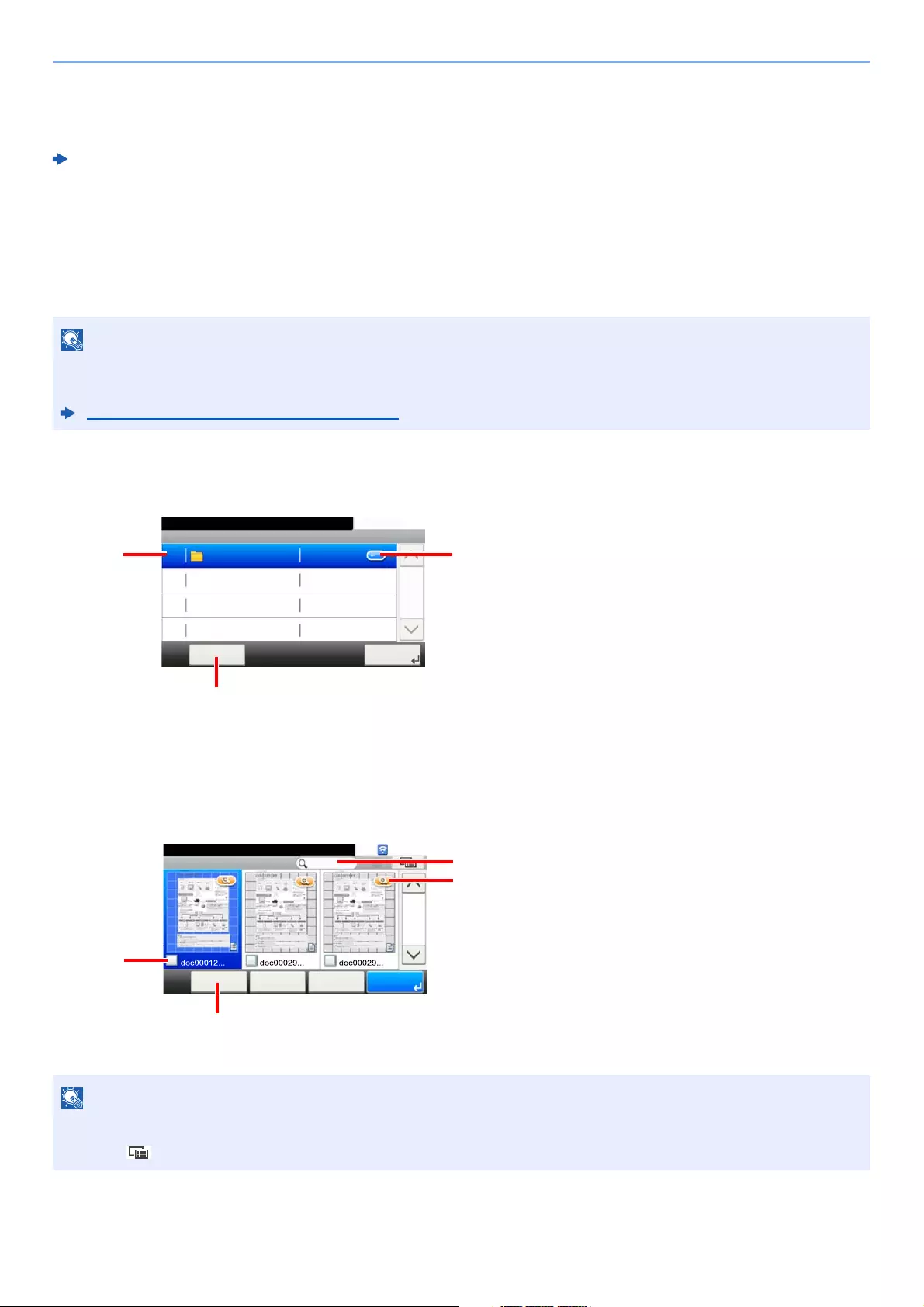
5-38
Operation on the Machine > Basic Operation for Document Box
Sub Address Box/Polling Box/FAX Memory RX Box
Sub Address Box/Polling Box store the fax data.
FAX Operation Guide
Basic Operation for Document Box
This section explains basic operations for document boxes, using examples where tasks are carried out with custom
boxes.
Box List Operations
Document List Operations
The document list is a list of the documents stored in the custom box. The operations below are available.
In the following explanation, it is assumed that user login administration is enabled. For details on User Logon
privileges, refer to the following:
Editing and Deleting Custom Box (page 5-41)
1 This opens the selected box.
2 You can select [Menu] and then perform one
of the following operations: search for a
Document Box search (box name, box
number), change the sorting sequence of
display items (box name, box number,
owner), register a new box, modify or delete
a box.
3 This displays detailed information about each
box.
1 A check mark indicates an item is selected.
2 You can select [Menu] and then perform one
of the following operations: print, move,
search for (by name), edit, or delete a
document, select or deselect all, change the
sorting sequence of display items (name,
box number, owner)
3 Shows detailed information about the
document.
4 Can be used for a document name search.
• You can select multiple documents by pressing the respective document checkboxes.
• Select [ ] to change to list display.
Custom Box
10:10Document Box.
Box 01
Next >Menu
No Owner
1/1
0001
Box:Box01
10:10Document Box.
< Back PrintMenu
1/1
Cancel

5-39
Operation on the Machine > Using a Custom Box
Using a Custom Box
Custom Box is a component box which you can create within the Document Box and store data for later retrieval. You
can create or delete a Custom Box, and manipulate data in various ways as described below:
Creating a New Custom Box
1Display the screen.
1Select [Custom Box] on the Home screen.
2[Menu] > [Add]
2Create the Custom Box.
1Enter the box name > [Next]
Up to 32 characters can be entered.
2Check the settings and change or add information as needed.
Creating a New Custom Box (page 5-39)
Saving Scanned Documents to a Custom Box (page 5-42)
Moving Documents in Custom Box (page 5-43)
Copying Documents in Custom Box into Other Boxes (page 5-43)
Copying Documents in Custom Box to Removable Memory (page 5-44)
Joining Documents in Custom Box (page 5-45)
Deleting Documents in Custom Box (page 5-46)
Printing Documents in Custom Box (page 5-46)
Sending Documents in a Custom Box (page 5-47)
Sending Documents in Custom Box to E-mail Address of Logged in user. (page 5-48)
Scanning Document Stored in a Custom Box (page 5-49)
The operation on Custom Box you perform from operation panel can also be made using Command Center RX.
Command Center RX User Guide
• To use Custom Box, an optional SSD must be installed in the machine.
• If user login administration is enabled, you can only change the settings by logging in with administrator privileges.
The factory default login user name and login password are set as shown below.
ECOSYS M3145idn ECOSYS M3655idn ECOSYS M3660idn
ECOSYS M3645idn
Login User Name: 4500 5500 6000
Login Password: 4500 5500 6000
• If user login administration is enabled, log in with administrator privileges to perform the following operations. They
cannot be performed with user privileges.
— Creating a box
— Deleting a box of which owner is another user.
Character Entry Method (page 11-11)
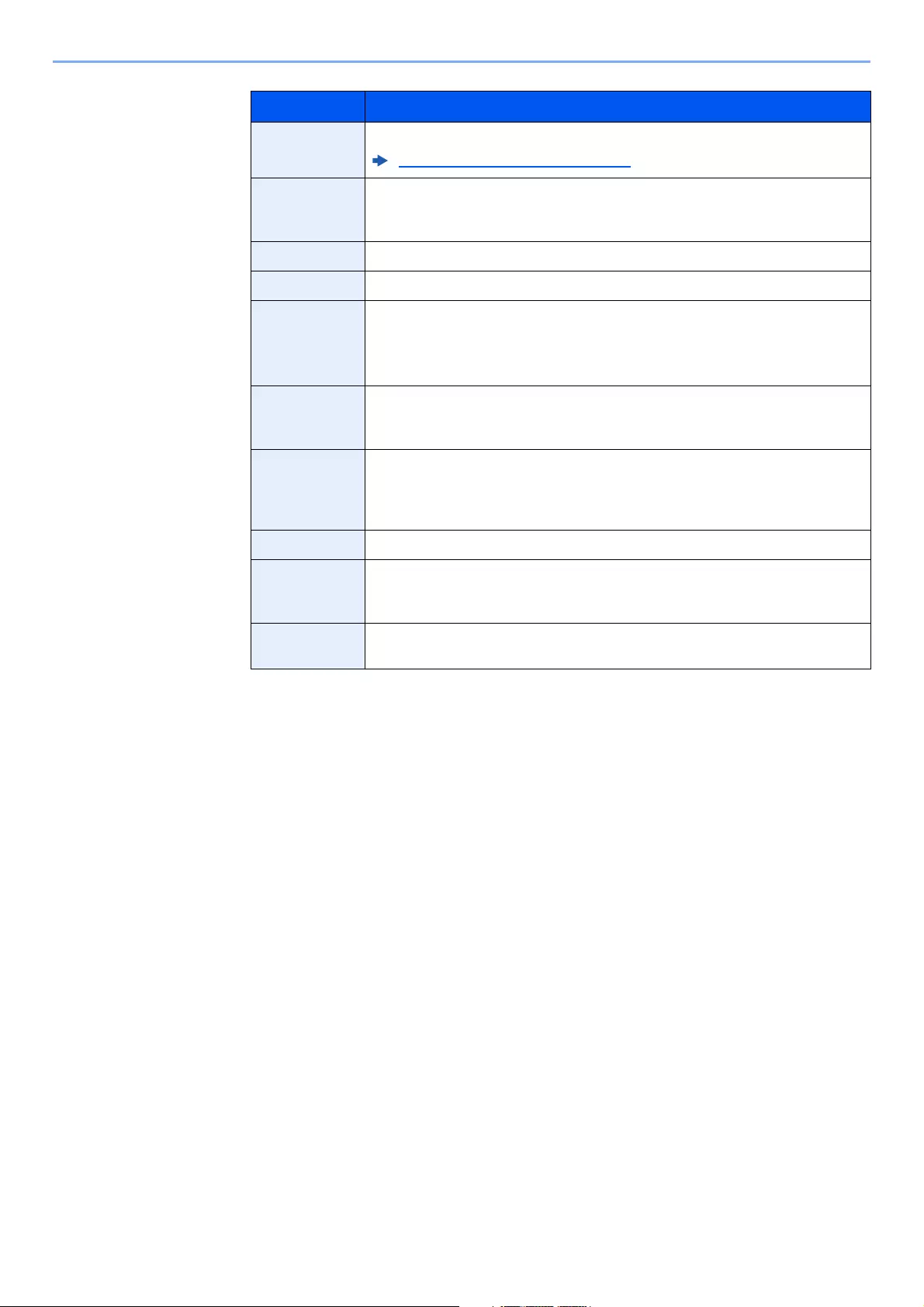
5-40
Operation on the Machine > Using a Custom Box
3Select [Save].
The Custom Box is created.
Item Description
Box Name Enter a box name consisting of up to 32 characters.
Character Entry Method (page 11-11)
Box No. Enter the box number by selecting [+], [—] or number keys. The box number can
be from 0001 to 1000. A Custom Box should have a unique number. If you enter
0000, the smallest number available will be automatically assigned.
Owner*1
*1 Displayed when the user login administration is enabled.
Set the owner of the box. Select the owner from the user list that appears.
Permission*2
*2 Not displayed when «Owner» is set to [No Owner].
Select whether to share the box.
Box Password User access to the box can be restricted by specifying a password to protect the
box. Entering a password is not mandatory. Enter the same password of up to
16 characters in both [Password] and [Confirm Password].
This can be set if [Shared] is selected in Permission.
Usage
Restriction
The usage for a box can be restricted. To enable a capacity restriction enter a
value for the storage capacity of the Custom Box in megabytes by selecting [—],
[+] or number keys. You can enter a limit between 1 and 30,000 (MB).
Auto File
Deletion
Automatically deletes stored documents after a set period of time. Select [On] to
enable automatic deletion and then use [+] and [—] or the numeric keys to enter
the number of days for which documents are stored. You can enter any number
between 1 and 31 (day(s)). To disable automatic file deletion, select [Off].
Free Space Displays the free space on the box.
Overwrite
Setting
Specifies whether or not old stored documents are overwritten when new
documents are stored. To overwrite old documents, select [Permit]. To retain
old documents, select [Prohibit].
Delete after
Printed
Automatically delete a document from the box once printing is complete. To
delete the document, select [On]. To retain the document, select [Off].
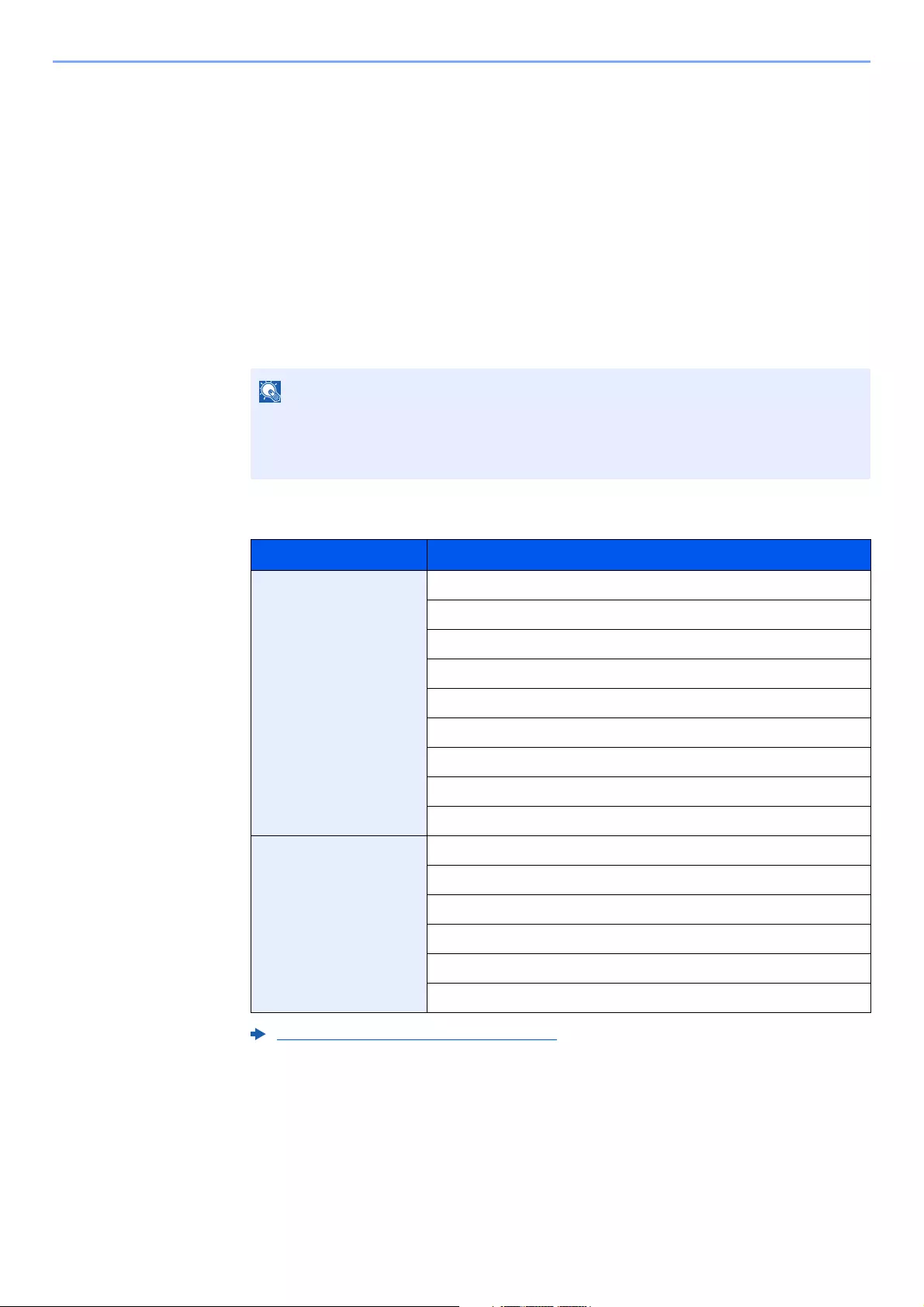
5-41
Operation on the Machine > Using a Custom Box
Editing and Deleting Custom Box
1Display the screen.
Select [Custom Box] on the Home screen.
2Edit the custom box.
To edit
1[Menu] > [Edit]
2Select the box you want to edit.
When user login administration is enabled, the settings that can be changed varies depending on the
privileges of the logged in user.
• When you have logged in as a user, you can only edit a box whose owner is set to that
user.
• When you have logged in as administrator, you can edit all boxes.
Privileges Settings that can be changed
Administrator Box Name
Box No.
Owner
Permission
Box Password
Usage Restriction
Auto File Deletion
Overwrite Setting
Delete after Printed
User Box Name
Box Password
Permission
Auto File Deletion
Overwrite Setting
Delete after Printed
Creating a New Custom Box (page 5-39)
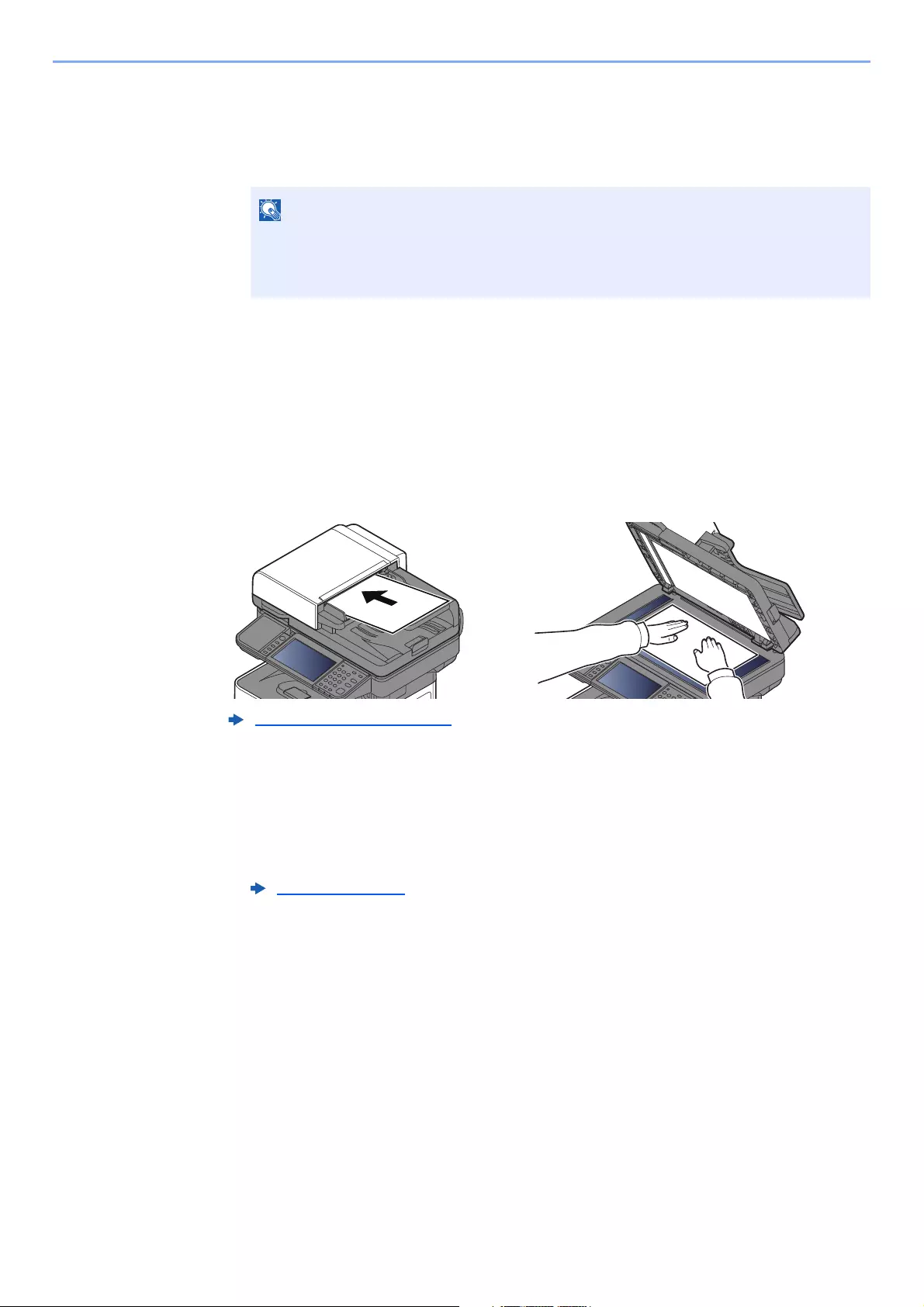
5-42
Operation on the Machine > Using a Custom Box
To delete
1[Menu] > [Delete]
2Select the box you want to delete.
3Select [Yes].
Saving Scanned Documents to a Custom Box
1Display the screen.
Select [Custom Box] on the Home screen.
2Place the originals.
3Store the forms.
1Select the box > [Menu] > [Store File]
2Specify the type of originals, scanning density, etc., as necessary.
For the features that can be set, refer to the following:
3Press the [Start] key.
The original is scanned and the data is stored in the specified Custom Box.
• When you have logged in as a user, you can only delete a box whose owner is set to
that user.
• When you have logged in as administrator, you can edit all boxes.
Loading Originals (page 5-2)
Store File (page 6-6)
5-43
Operation on the Machine > Using a Custom Box
Moving Documents in Custom Box
This function allows you to move documents stored in custom boxes into other boxes.
1Display the screen.
Select [Custom Box] on the Home screen > Select the box.
2Move the documents.
1Select the document in the list that you want to move by selecting the checkbox.
The document is marked with a checkmark.
2[Menu] > [Move/Copy] > [Move to Another Custom Box]
3Select the move destination.
4[Select Current Folder] > [Yes]
This moves the selected documents.
Copying Documents in Custom Box into Other Boxes
This function allows you to copy documents stored in custom boxes into other boxes.
1Display the screen.
Select [Custom Box] on the Home screen > Select the box.
2Copy the documents.
1Select the document in the list that you want to copy by selecting the checkbox.
The document is marked with a checkmark.
2[Menu] > [Move/Copy] > [Copy to Another Custom Box]
3Select the copy destination.
If a custom box is protected by a password, enter the correct password.
To cancel a selection, select the checkbox again so that it is no longer ticked.
If the box to which the document is being moved is protected by a password, enter the
correct password.
If a custom box is protected by a password, enter the correct password.
To cancel a selection, select the checkbox again so that it is no longer ticked.
5-44
Operation on the Machine > Using a Custom Box
4[Copy] > [Yes]
The selected document is copied.
Copying Documents in Custom Box to Removable
Memory
This function allows you to copy documents stored in custom boxes to removable memory.
1Display the screen.
Select [Custom Box] on the Home screen > Select the box.
2Copy the documents.
1Select the document in the list that you want to copy by selecting the checkbox.
The document is marked with a checkmark.
2[Menu] > [Move/Copy] > [Copy to Memory]
3Select the copy destination.
4[Select Current Folder] > [Start] key > [Yes]
The selected document is copied.
If the box to which the document is being copied is protected by a password, enter the
correct password.
If a custom box is protected by a password, enter the correct password.
To cancel a selection, select the checkbox again so that it is no longer ticked.
5-45
Operation on the Machine > Using a Custom Box
Joining Documents in Custom Box
You can join documents within a custom box into one file.
1Display the screen.
Select [Custom Box] on the Home screen > Select the box.
2Join the document.
1Select the documents in the list that you wish to join by selecting the checkbox.
The document is marked with a checkmark.
You can join up to 100 documents.
2Arrange the documents in the order they will be joined. > [Menu] > [Join] > [OK]
Highlight the document you want to move and then use [Cancel] and [Clear]] to move it.
3Enter the name for the joined document > [Next >]
Enter up to 64 characters as the document name.
4Select [Yes].
The documents are joined.
You can only join a document to other documents in the same custom box. If necessary, move the documents to be
joined beforehand.
If a custom box is protected by a password, enter the correct password.
To cancel a selection, select the checkbox again so that it is no longer ticked.
Character Entry Method (page 11-11)
After joining, the original documents are left unchanged. Delete the documents if they
are no longer needed.
5-46
Operation on the Machine > Using a Custom Box
Deleting Documents in Custom Box
1Display the screen.
Select [Custom Box] on the Home screen > Select the box.
2Delete the document.
1Select the document in the list that you want to delete by selecting the checkbox.
The document is marked with a checkmark.
2[] > [Yes]
The document is deleted.
Printing Documents in Custom Box
1Display the screen.
Select [Custom Box] on the Home screen > Select the box containing the document you want
to print
2Print the document.
1Select the document you wish to send by checking the checkbox.
The document is marked with a checkmark.
2Select [Print].
3Set the paper selection, duplex printing, etc., as desired.
For the features that can be set, refer to the following:
4Press the [Start] key.
Printing of the selected document begins.
If a custom box is protected by a password, enter the correct password.
• You cannot select [ ] without first selecting a document.
• To cancel a selection, select the checkbox again so that it is no longer ticked.
If a custom box is protected by a password, enter the correct password.
To cancel a selection, select the checkbox again so that it is no longer ticked.
Printing Documents (page 6-7)
5-47
Operation on the Machine > Using a Custom Box
Sending Documents in a Custom Box
1Display the screen.
Select [Custom Box] on the Home screen > Select the box.
2Send Start.
1Select the document in the list that you want to send by selecting its checkbox.
The document is marked with a checkmark.
2[Menu] > [Send]
3Set the destination.
For more information on selecting destinations, refer to the following:
4Specify the file type, resolution, and other settings as desired.
For the features that can be set, refer to the following:
5Press the [Start] key.
Sending of the selected document begins.
If a custom box is protected by a password, enter the correct password.
• You cannot select and send multiple documents.
• To cancel a selection, select the checkbox again so that it is no longer ticked.
Depending on the settings, the address book screen may appear.
Specifying Destination (page 5-20)
Sending Documents (page 6-7)
For information about registering a shortcut or recalling a favorite, refer to the information
below.
Registering Shortcuts (page 5-14)
Favorites (page 5-6)
5-48
Operation on the Machine > Using a Custom Box
Sending Documents in Custom Box to E-mail Address
of Logged in user.
When user login is enabled, documents in the custom box are sent to the E-mail address of the logged in user.
1
Select [Custom Box] on the Home screen > [Send to Me(E-mail)]
When this function is used, functions other than transmission cannot be used.
Before using this function, the following are necessary.
• The function icon must be displayed in the home screen.
Editing the Home Screen (page 2-14)
• An E-mail address must be set in user login for the user who logs in.
Adding a User (Local User List) (page 9-6)

5-49
Operation on the Machine > Using a Custom Box
Scanning Document Stored in a Custom Box
Follow the steps as below for scanning a document stored in a custom box using the TWAIN driver.
1Display the screen.
1Activate the TWAIN compatible application software.
2Select the machine using the application and display the dialog box.
2Display lists of documents.
1Select a custom box from «Box List» the stored a document.
If a password has been set for the box, the password entry screen appears. Enter the password and
click the [OK] button. When you select a box, the document files in the Custom Box appear in
[Document List].
2Set how to display the document data. Click the [Start] button to select each item.
3Click the [OK] button.
3Scan the originals.
1Select the document data to be scanned from [Document List].
Enter the document data name in the Search (Name) to find the data having the same document data
name or the document data name with the same beginning.
Click the [Detail] button to display the selected document data. When the document data includes
multiple pages, select the checkbox beside the pages you want to scan. The selected pages will be
scanned.
2Click the [Acquire] button.
This scans the document data to the computer.
Before sending a document, confirm that TWAIN driver is installed on a computer and the settings are configured.
Setting TWAIN Driver (page 2-47)
To read a document stored in a custom box, use the TWAIN driver setting screen to change from «Model» to a model
name that has «(Box)» appended.
For selecting the machine, see the Operation Guide or Help for each application
software.
For the settings, refer to Help in the dialog box.
In this case, the scanned page or the selected document data will not be deleted from
the Custom Box.
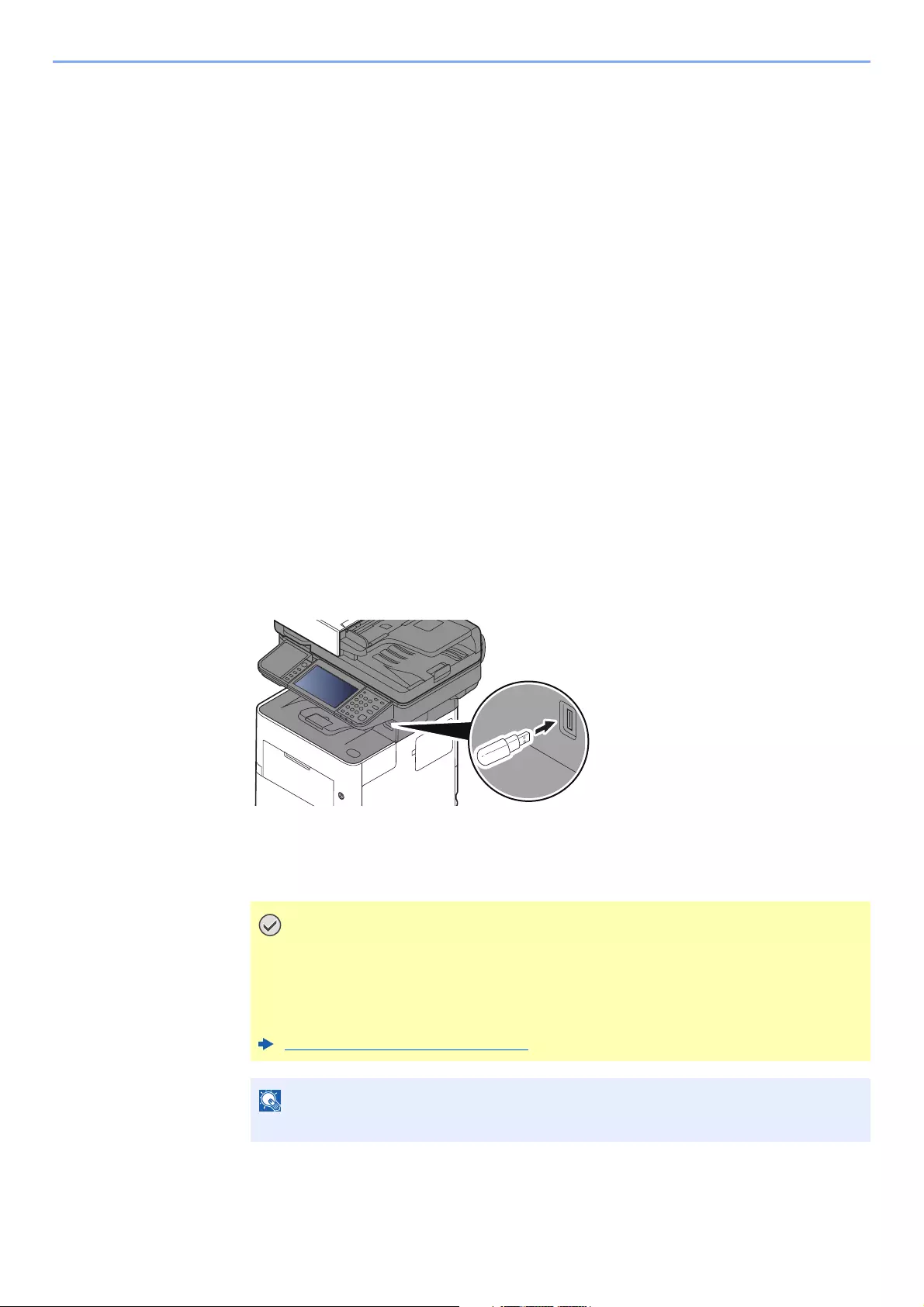
5-50
Operation on the Machine > Printing Documents Stored in Removable USB Memory
Printing Documents Stored in Removable
USB Memory
Plugging USB memory directly into the machine enables you to quickly and easily print the files stored in the USB
memory without having to use a computer.
The following file types can be printed:
PDF file (Version 1.7 or older)
TIFF file (TIFF V6/TTN2 format)
JPEG file
XPS file
OpenXPS file
Encrypted PDF file
• PDF files you wish to print should have an extension (.pdf).
• Files to be printed should be saved no further down than the top 3 folder levels, including the root folder.
• Use USB memory properly formatted by this machine.
• Plug the USB memory directly into the USB Memory Slot.
1Plug the USB memory.
1Plug the USB memory into the USB Memory Slot.
2When the machine reads the USB memory, «Removable Memory is recognized. Displaying
files. Are you sure?» may appear. Select [Yes].
Displays the removable memory screen.
Use USB memory properly formatted by this machine. If a USB memory formatted
by any other device is used, «The removable memory is not formatted.» may
appear.
To format the USB memory, refer to the following:
Device/Communication (page 7-11)
If the message does not appear, select [Removable Memory] on the Home screen.

5-51
Operation on the Machine > Printing Documents Stored in Removable USB Memory
2Print the document.
1Select the folder containing the file to be printed.
The machine will display documents in the top 3 folder levels, including the root folder.
2Select the file to be printed > [Print]
3Change the number of copies, duplex printing, etc. as desired.
For the features that can be selected, refer to the following:
4Press the [Start] key.
Printing of the selected file begins.
• 1,000 documents can be displayed.
• To return to a higher level folder, select [Back].
Removable Memory (Store File, Printing Documents) (page 6- 
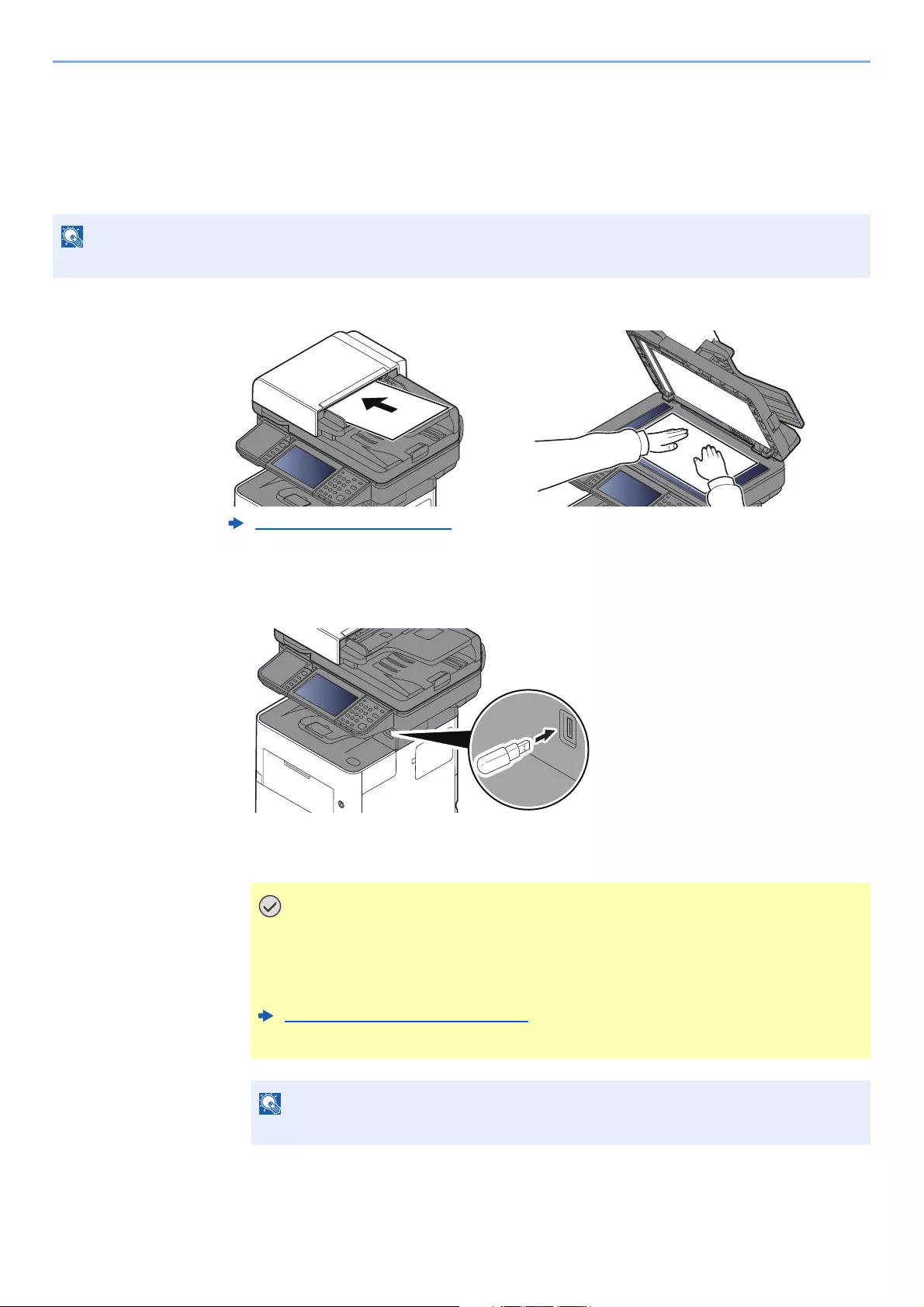
5-52
Operation on the Machine > Saving Documents to USB Memory (Scan to USB)
Saving Documents to USB Memory (Scan to USB)
This function allows you to store scanned image files in USB memory connected to the machine. You can store files in
PDF, TIFF, JPEG, XPS, OpenXPS, Word*1, Excel*1, PowerPoint*1 or high-compression PDF format.
*1 This appears when the optional OCR Scan Activation Kit is installed.
1Place the originals.
2Plug the USB memory.
1Plug the USB memory into the USB Memory Slot.
2When the machine reads the USB memory, «Removable Memory is recognized. Displaying
files. Are you sure?» may appear. Select [Yes] to display the removable memory screen.
The maximum number of the storable files is 1,000.
Loading Originals (page 5-2)
• Use USB memory properly formatted by this machine. If a USB memory
formatted by any other device is used, «The removable memory is not
formatted.» may appear.
To format the USB memory, refer to the following:
Device/Communication (page 7-11)
• When [Format] is selected, all data in the external media is erased.
If the message does not appear, select [Removable Memory] on the Home screen.
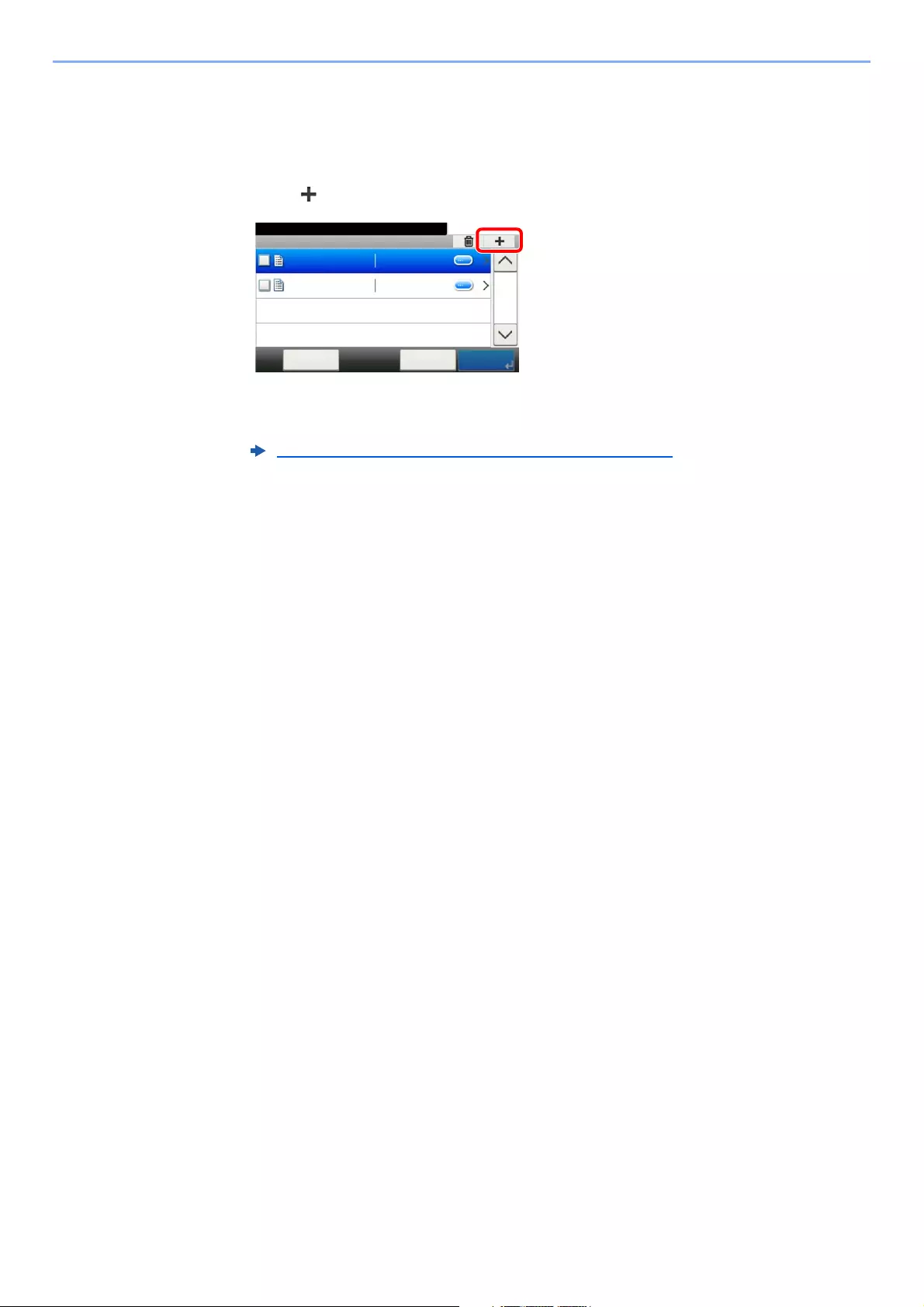
5-53
Operation on the Machine > Check the USB Memory Information
3Store the document.
1Select the folder where the file will be stored.
The machine will display the top 3 folder levels, including the root folder.
2Select [ ].
3Set the type of original, file format, etc., as desired.
For the features that can be set, refer to the following:
4Press the [Start] key.
The original is scanned and the data is stored in the USB memory.
Check the USB Memory Information
You can check the USB memory information.
In the removable memory screen, select [Menu] > [Memory Information].
Once you confirm the information, select [Close].
Removable Memory (Store File, Printing Documents) (page 6-
Removable Memory
10:10Document Box.
7-9-2.JPG
11-3-3.JPG
PrintMenu
1/1
< Back
5-54
Operation on the Machine > Removing USB Memory
Removing USB Memory
Follow the steps below to remove the USB memory.
1Display the screen.
Select [Removable Memory] on the Home screen.
2[Menu] > [Remove Memory]
Select [OK], and remove the USB memory after «Removable Memory can be safely removed.»
is displayed.
Be sure to follow the proper procedure to avoid damaging the data or USB memory.
USB memory can also be removed after checking the status of the device.
Device/Communication (page 7-11)
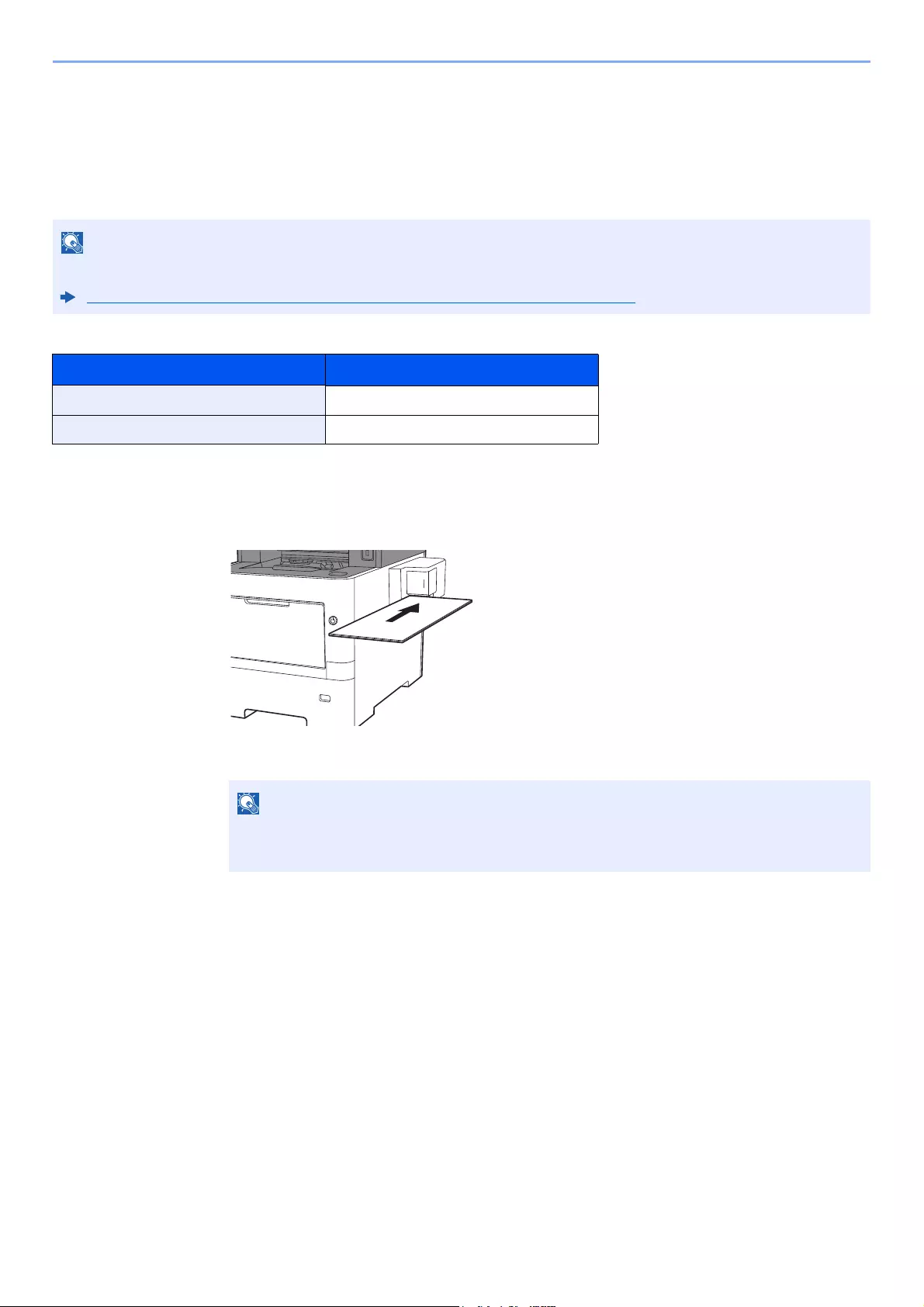
5-55
Operation on the Machine > Using the Manual Stapler (ECOSYS M3655idn/ECOSYS M3660idn only)
Using the Manual Stapler
(ECOSYS M3655idn/ECOSYS M3660idn only)
You can staple copied paper manually without any print operation.
Maximum number of sheets available for manual stapling
1Straighten the edges of the stack of paper, and with the front
side facing up, insert the paper into the manual stapler.
When the paper is inserted all the way in, stapling takes place.
If the machine is out of staples, add more staples.
Replacing Staples (ECOSYS M3655idn/ECOSYS M3660idn only) (page 10-12)
Paper weight Number of stapled sheets
80 g/m220 sheets maximum*1
*1 Paper stack up to 2 mm thick.
90 g/m2 or less 15 sheets maximum*1
Manual stapling cannot be used while the machine is in sleep mode.
To use manual stapling, select the [Energy Saver] key.

6-1
6
Using Various Functions
This chapter explains the following topics:
Functions Available on the Machine …………….…………….…………….…………….…………….…………………..……….. 6-2
Copy …………………………………..…………….…………….…………….…………….……………..…………………….….. 6-2
Send ………………………….…………….…………….………….…………….…………….…………..…………………….….. 6-4
Custom Box (Store File, Printing Documents, Sending Documents) …..…………….………….…………….….. 6-6
Removable Memory (Store File, Printing Documents) .…………….…………….……………..…………….……….. 6-8
Functions ………..………….…………….……………..…………….…………….…………….………………………..…………….… 6-10
ID Card Copy ………………………….…………….…………….…………….…………….……………....………………….. 6-10
Original Size …………………….……………..…………….…………….…………….…………….…….……………….…… 6-10
Paper Selection ……………..…………….…………….……………..…………….…………….………….…………………. 6-11
Original Orientation ………………….………….…………….…………….…………….…………….…….…………………. 6-12
Mixed Size Originals ….…………….…………….…………….…………….…………….……………..…..……………….. 6-13
Collate …………….…………….…………….…………….………….……………..…………….………………………..……… 6-13
Density ……………………….…………….…………….………….…………….…………….…………..……………….……… 6-13
Original Image ……………………..…………….…………….…………….…………….…………….……………………….. 6-14
EcoPrint ………….…………….…………….…………….………….……………..…………….………..……………………… 6-15
Color Selection ………………………….…………….…………….……………..…………….…………...……….…………. 6-15
Sharpness ……….…………….…………….…………….……………..…………….…………….……….……………….…… 6-16
Contrast ………….…………….…………….…………….………….……………..…………….………..…………..…………. 6-16
Background Density Adj. (Background Density Adjustment) …….………………..……………….………………. 6-17
Prevent Bleed-thrugh ………………………..…………….…………….…………….…………….………….…………….… 6-17
Zoom ………………………….…………….…………….………….…………….…………….…………..………………………. 6-18
Combine …………………….…………….…………….…………….……………..…………….………….……………………. 6-20
Duplex …………….…………….…………….…………….………….……………..…………….……….……………….……… 6-22
Continuous Scan ……………………….…………….…………….……………..…………….……………...….……………. 6-24
Job Finish Notice ……………………….…………….…………….……………..…………….…………….…………………. 6-24
File Name Entry …….……………..…………….…………….…………….…………….…………….…….…………………. 6-25
Priority Override …….………….……………..…………….…………….…………….…………….……..…………………… 6-25
Quiet Mode ………..…………….……………..…………….…………….…………….…………….……..…………………… 6-25
Skip Blank Page …………….…………….…………….……………..…………….…………….…………..………………… 6-26
Duplex (2-sided Original) …………….………….……………….……………..…………….…………….….……………… 6-27
Sending Size ……………….…………….…………….…………….……………..…………….…………..…………………… 6-28
File Format ………………….…………….………….…………….…………….…………….…………….………….…………. 6-29
File Separation ……………….………….…………….…………….……………..…………….…………..…………………… 6-33
Scan Resolution, Resolution .….…………….…………….…………….…………….…………….…………..…………… 6-33
E-mail Subject/Body ………….……………..…………….…………….…………….…………….………….…………….… 6-33
Long Original ………..……………..…………….…………….…………….…………….………….……..…………………… 6-34
FTP Encrypted TX …….…………….…………….…………….…………….…………….……………..……………………. 6-34
Delete after Printed …………………………..…………….…………….…………….…………….……….…………………. 6-34
Delete after Transmitted …….……………..…………….…………….…………….…………….…………....……………. 6-34
Storing Size …………………..…………….…………….……………..…………….…………….……….……………….…… 6-35
Encrypted PDF Password ………………………….…………….……………..…………….…………….……..………….. 6-35
JPEG/TIFF Print ………….…………….…………….…………….……………..…………….………….…...………………. 6-36
XPS Fit to Page …….……………..………………………………………………………………..………….…………….…… 6-36

6-2
Using Various Functions > Functions Available on the Machine
Functions Available on the Machine
Copy
To configure the settings for functions, select the function key. By selecting [Functions], other selectable functions will
be shown as a list.
For details on each function, see the table below.
Function key Description Reference
page
Paper Selection Select the cassette or multi-purpose tray that contains the required paper size. page 6-11
Zoom Adjust the zoom to reduce or enlarge the image. page 6-18
Density Adjust density. page 6-13
Duplex Produces two-sided copies. You can also create single-sided copies from two-sided
originals.
page 6-22
Combine Combines 2 or 4 original sheets into 1 printed page. page 6-20
Quiet Mode Lower print and scan speed for quiet processing. page 6-25
Functions Description Reference
page
Collate Prints ordered sets of the copies. page 6-13
ID Card Copy Use this when you want to copy a driver‘s license or an insurance card. When you
scan the front and back of the card, both sides will be combined and copied onto a
single sheet.
page 6-10
Original Size Specify the original size to be scanned. page 6-10
Original Orientation Select the orientation of the original document top edge to scan correct direction. page 6-12
Mixed Size Originals Scans all sheets in the document processor, even if they are of different sizes. page 6-13
Original Image Select original image type for best results. page 6-14
EcoPrint EcoPrint saves toner when printing. page 6-15
Sharpness Adjusts the sharpness of image outlines. page 6-16
Contrast You can adjust the contrast between light and dark areas of the image. page 6-16
Background Density
Adj.
Removes dark background from originals, such as newspapers. page 6-17
Prevent Bleed-thrugh Hides background colors and image bleed-through when scanning thin original. page 6-17
Skip Blank Page When there are blank pages in a scanned document, this function skips the blank
pages and prints only pages that are not blank.
page 6-26
Ready to copy.
Functions
Original Size
A4
Close
10:10
Original Orientation
Top Edge on Top
On
Off
ID Card Copy
Collate
1/4
Add/Edit
Shortcut
Ready to copy.
Copy Copies
Paper
Selection
Zoom Density
Duplex Combine
1-sided>>1-sided
A4 100% Normal 0
Off
Functions
10:10
Favorites
Quiet
Mode
Off
ID Card Copy
6-3
Using Various Functions > Functions Available on the Machine
Continuous Scan Scans a large number of originals in separate batches and then produce as one job. page 6-24
Job Finish Notice Sends E-mail notice when a job is complete. page 6-24
File Name Entry Adds a file name. page 6-25
Priority Override Suspends the current job and gives a new job top priority. page 6-25
Functions Description Reference
page
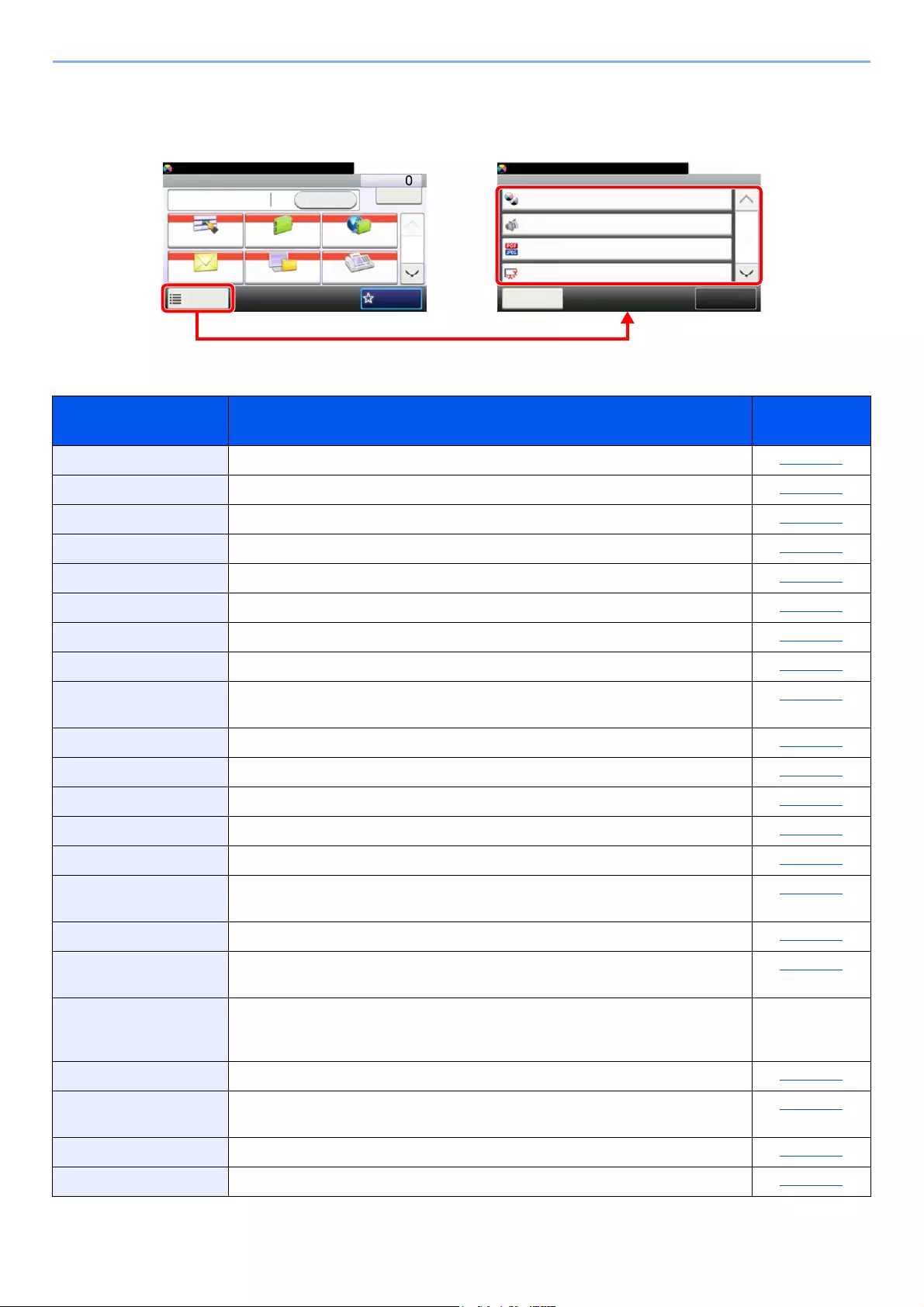
6-4
Using Various Functions > Functions Available on the Machine
Send
To configure the settings for functions, select [Functions].
For details on each function, see the table below.
Functions Description Reference
page
Color Selection Select the color mode setting. page 6-15
Quiet Mode Lower print and scan speed for quiet processing. page 6-25
File Format Specify the image file format. Image quality level can also be adjusted. page 6-29
Original Size Specify the original size to be scanned. page 6-10
Original Orientation Select the orientation of the original document top edge to scan correct direction. page 6-12
Mixed Size Originals Scans all sheets in the document processor, even if they are of different sizes. page 6-13
Duplex Select the type and orientation of the binding based on the original. page 6-27
Sending Size Select size of image to be sent. page 6-28
File Separation Creates several files by dividing scanned original data page by page, and sends
the files.
page 6-33
Scan Resolution Select fineness of scanning resolution. page 6-33
Density Adjust density. page 6-13
Original Image Select original image type for best results. page 6-14
Sharpness Adjusts the sharpness of image outlines. page 6-16
Contrast You can adjust the contrast between light and dark areas of the image. page 6-16
Background Density
Adj.
Removes dark background from originals, such as newspapers. page 6-17
Prevent Bleed-thrugh Hides background colors and image bleed-through when scanning thin original. page 6-17
Skip Blank Page When there are blank pages in a scanned document, this function skips the blank
pages and prints only pages that are not blank.
page 6-26
FAX TX Resolution Select fineness of images when sending FAX. Refer to the FAX
Operation
Guide.
Zoom Adjust the zoom to reduce or enlarge the image. page 6-18
Continuous Scan Scans a large number of originals in separate batches and then produce as one
job.
page 6-24
File Name Entry Adds a file name. page 6-25
E-mail Subject/Body Adds subject and body when sending a document. page 6-33
Ready to send. (FullColor)
Functions
File Format
Close
10:10
Original Size
1-sided
Full Color
Color Selection
Quiet Mode
1/7
Add/Edit
Shortcut
Off
Send Dest. :
Recall Check
One Touch Key Address Book Ext Address Book
FAXFolder
Functions
10:10
1/2
Favorites
Ready to send. (FullColor)
6-5
Using Various Functions > Functions Available on the Machine
Long Original Reads long-sized original documents using a document processor. page 6-34
Job Finish Notice Sends E-mail notice when a job is complete. page 6-24
FTP Encrypted TX Encrypts images when sending via FTP. page 6-34
FAX Delayed
Transmission
Set a send time. Refer to the FAX
Operation
Guide.
FAX Direct
Transmission
Sends FAX directly without reading original data into memory. Refer to the FAX
Operation
Guide.
FAX Polling RX Automatically makes a machine with a stored document send the document to
your machine.
Refer to the FAX
Operation
Guide.
FAX TX Report Prints a report when transmission of a document is successful, or when an error
occurs and transmission fails.
Refer to the FAX
Operation
Guide.
Functions Description Reference
page
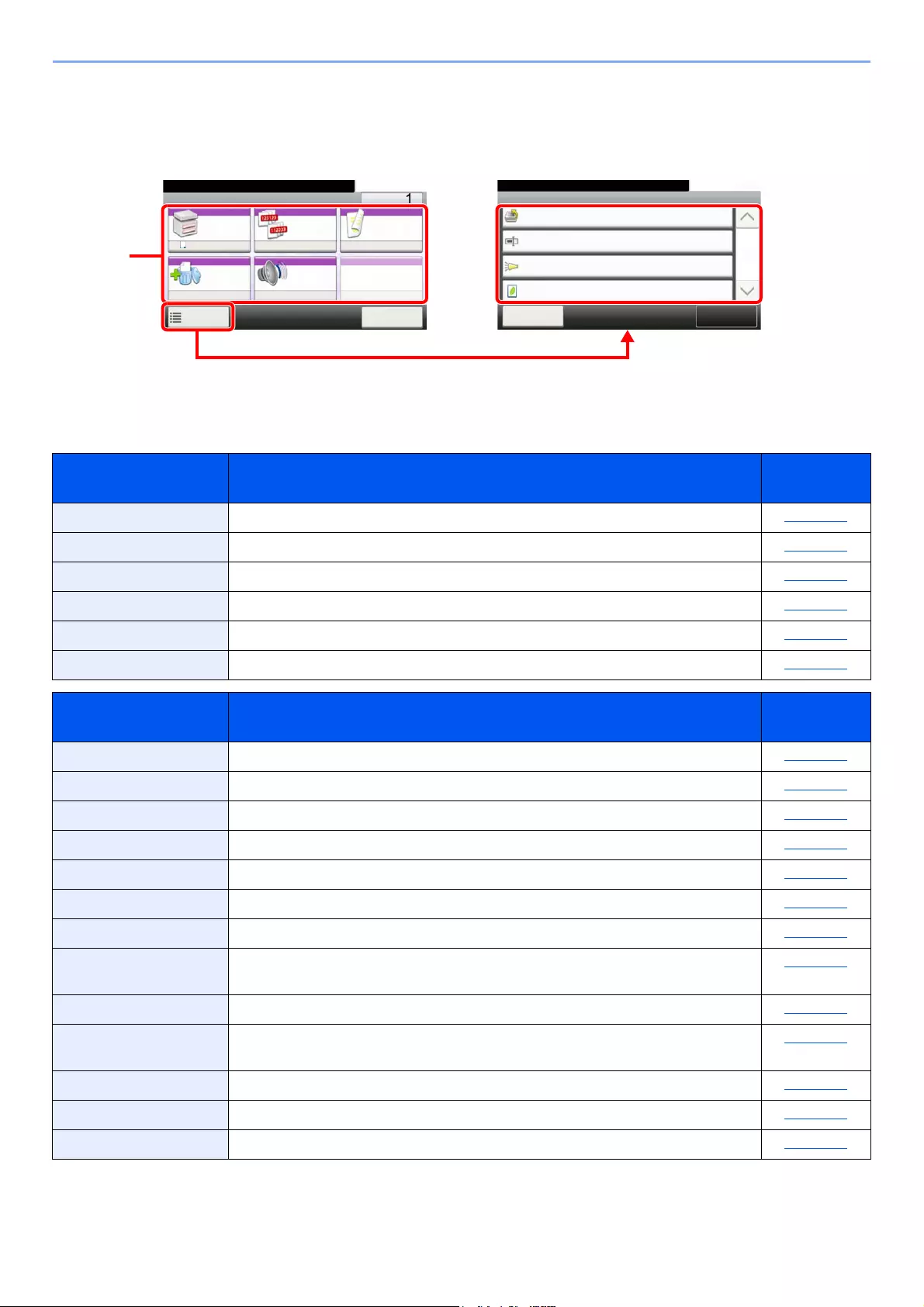
6-6
Using Various Functions > Functions Available on the Machine
Custom Box (Store File, Printing Documents, Sending Documents)
To configure the settings for functions, select the function key. By selecting [Functions], other selectable functions will
be shown as a list.
For details on each function, see the table below.
Store File
Function key Description Reference
page
Duplex Select the type and orientation of the binding based on the original. page 6-27
Scan Resolution Select fineness of scanning resolution. page 6-33
Density Adjust density. page 6-13
File Name Entry Adds a file name. page 6-25
Color Selection Select the color mode setting. page 6-15
Quiet Mode Lower print and scan speed for quiet processing. page 6-25
Functions Description Reference
page
Original Size Specify the original size to be scanned. page 6-10
Original Orientation Select the orientation of the original document top edge to scan correct direction. page 6-12
Mixed Size Originals Scans all sheets in the document processor, even if they are of different sizes. page 6-13
Storing Size Select size of image to be stored. page 6-35
Original Image Select original image type for best results. page 6-14
Sharpness Adjusts the sharpness of image outlines. page 6-16
Contrast You can adjust the contrast between light and dark areas of the image. page 6-16
Background Density
Adj.
Removes dark background from originals, such as newspapers. page 6-17
Prevent Bleed-thrugh Hides background colors and image bleed-through when scanning thin original. page 6-17
Skip Blank Page When there are blank pages in a scanned document, this function skips the blank
pages and prints only pages that are not blank.
page 6-26
Zoom Adjust the zoom to reduce or enlarge the image. page 6-18
Continuous Scan Scans a large number of originals in separate batches and then produce as one job. page 6-24
Job Finish Notice Sends E-mail notice when a job is complete. page 6-24
Ready to print from Box.
Functions
Priority Override
Off
Close
10:10
File Name Entry
doc
Off
Off
Job Finish Notice
EcoPrint
1/1
Add/Edit
Shortcut
Ready to print from Box.
Print Copies
Paper
Selection
Collate Duplex
Delete
afterPrint
Quiet
Mode
Off
A4 Off 1-sided>>1-sided
Off
Functions
10:10
Cancel
6-7
Using Various Functions > Functions Available on the Machine
Printing Documents
Sending Documents
Function key Description Reference
page
Paper Selection Select the cassette or multi-purpose tray that contains the required paper size. page 6-11
Collate Prints ordered sets of the copies. page 6-13
Duplex Print a document on both sides of the paper. page 6-23
Delete after Printed Automatically deletes a document from the box once printing is complete. page 6-34
Quiet Mode Lower print and scan speed for quiet processing. page 6-25
Functions Description Reference
page
Priority Override Suspends the current job and gives a new job top priority. page 6-25
File Name Entry Adds a file name. page 6-25
Job Finish Notice Sends E-mail notice when a job is complete. page 6-24
EcoPrint EcoPrint saves toner when printing. page 6-15
Functions Description Reference
page
File Format Specify the image file format. Image quality level can also be adjusted. page 6-29
File Separation Creates several files by dividing scanned original data page by page, and sends
the files.
page 6-33
Resolution Select fineness of scanning resolution. page 6-33
FAX TX Resolution Select fineness of images when sending FAX. Refer to the FAX
Operation
Guide.
File Name Entry Adds a file name. page 6-25
E-mail Subject/Body Adds subject and body when sending a document. page 6-33
Job Finish Notice Sends E-mail notice when a job is complete. page 6-24
FTP Encrypted TX Encrypts images when sending via FTP. page 6-34
FAX Delayed
Transmission
Set a send time. Refer to the FAX
Operation
Guide.
FAX TX Report Prints a report when transmission of a document is successful, or when an error
occurs and transmission fails.
Refer to the FAX
Operation
Guide.
Delete after Transmitted Automatically deletes a document from the box once transmission is complete. page 6-34
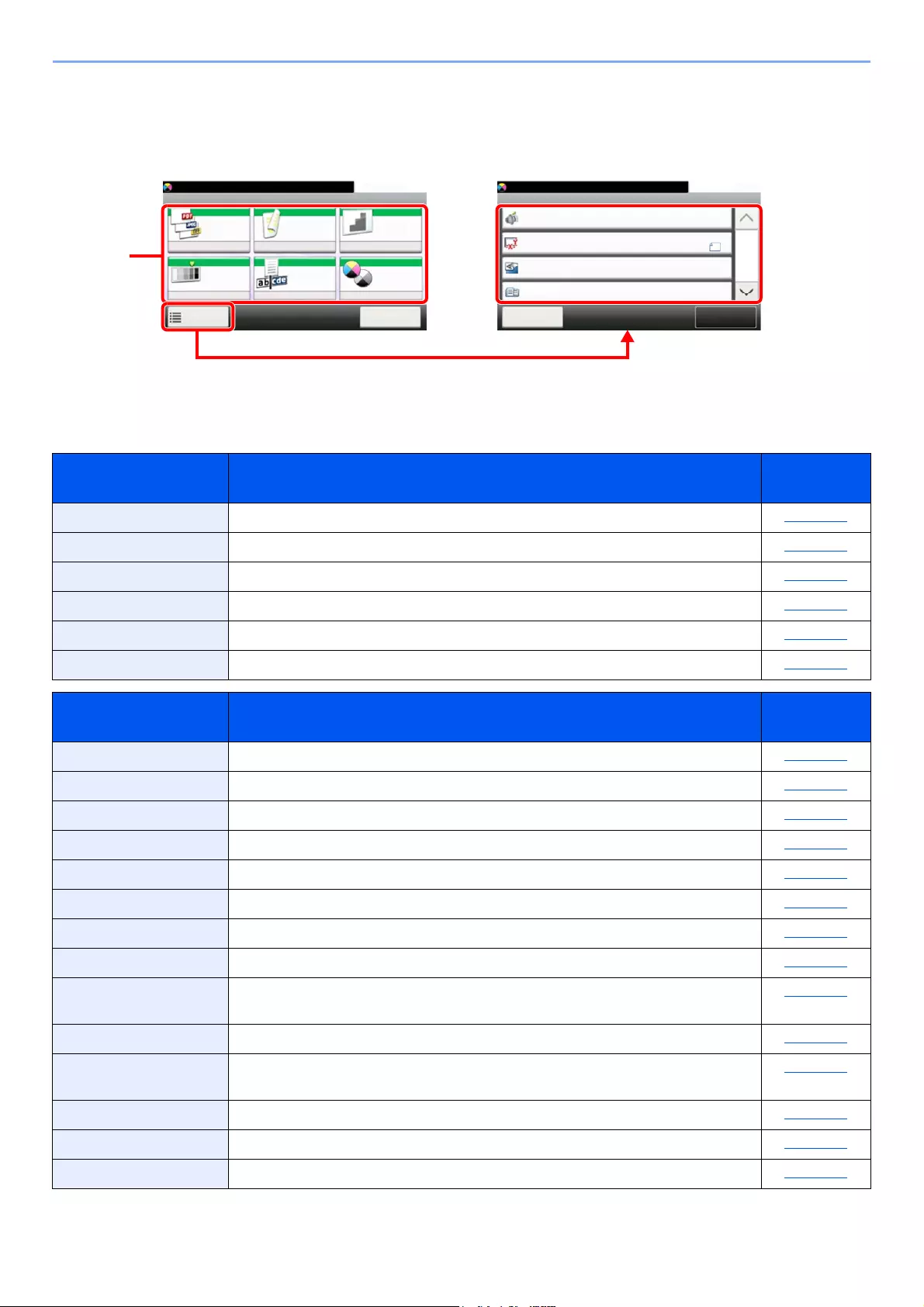
6-8
Using Various Functions > Functions Available on the Machine
Removable Memory (Store File, Printing Documents)
To configure the settings for functions, select the function key. By selecting [Functions], other selectable functions will be
shown as a list.
For details on each function, see the table below.
Store File
Function key Description Reference
page
File Format Specify the image file format. Image quality level can also be adjusted. page 6-29
Duplex Select the type and orientation of the binding based on the original. page 6-27
Scan Resolution Select fineness of scanning resolution. page 6-33
Density Adjust density. page 6-13
File Name Entry Adds a file name. page 6-25
Color Selection Select the color mode setting. page 6-15
Functions Description Reference
page
Quiet Mode Lower print and scan speed for quiet processing. page 6-25
Original Size Specify the original size to be scanned. page 6-10
Original Orientation Select the orientation of the original document top edge to scan correct direction. page 6-12
Mixed Size Originals Scans all sheets in the document processor, even if they are of different sizes. page 6-13
Storing Size Select size of image to be stored. page 6-35
Original Image Select original image type for best results. page 6-14
Sharpness Adjusts the sharpness of image outlines. page 6-16
Contrast You can adjust the contrast between light and dark areas of the image. page 6-16
Background Density
Adj.
Removes dark background from originals, such as newspapers. page 6-17
Prevent Bleed-thrugh Hides background colors and image bleed-through when scanning thin original. page 6-17
Skip Blank Page When there are blank pages in a scanned document, this function skips the blank
pages and prints only pages that are not blank.
page 6-26
Zoom Adjust the zoom to reduce or enlarge the image. page 6-18
Continuous Scan Scans a large number of originals in separate batches and then produce as one job. page 6-24
Long Original Reads long-sized original documents using a document processor. page 6-34
Ready to store in Box. (FullColor)
Functions
Original Size
A4
Close
10:10
Original Orientation
Top Edge on Top
Off
Mixed Size Originals
1/4
Add/Edit
Shortcut
Quiet Mode
Off
Ready to store in Box. (FullColor)
Store File
File
Format
Duplex Scan
Resolution
Density File Name
Entry
Normal 0
PDF 1-sided 300x300dpi
doc
Functions
10:10
Cancel
Color
Selection
Full Color

6-9
Using Various Functions > Functions Available on the Machine
Printing Documents
Job Finish Notice Sends E-mail notice when a job is complete. page 6-24
File Separation Creates several files by dividing scanned original data page by page, and sends the
files.
page 6-33
Function key Description Reference
page
Paper Selection Select the cassette or multi-purpose tray that contains the required paper size. page 6-11
Collate Prints ordered sets of the copies. page 6-13
Duplex Print a document on both sides of the paper. page 6-23
Quiet Mode Lower print and scan speed for quiet processing. page 6-25
Functions Description Reference
page
EcoPrint EcoPrint saves toner when printing. page 6-15
Job Finish Notice Sends E-mail notice when a job is complete. page 6-24
File Name Entry Adds a file name. page 6-25
Priority Override Suspends the current job and gives a new job top priority. page 6-25
Encrypted PDF
Password
Enter the preassigned password to print the PDF data. page 6-35
JPEG/TIFF Print Select the image size when printing JPEG or TIFF files. page 6-36
XPS Fit to Page Reduces or enlarges the image size to fit to the selected paper size when printing
XPS file.
page 6-36
Functions Description Reference
page
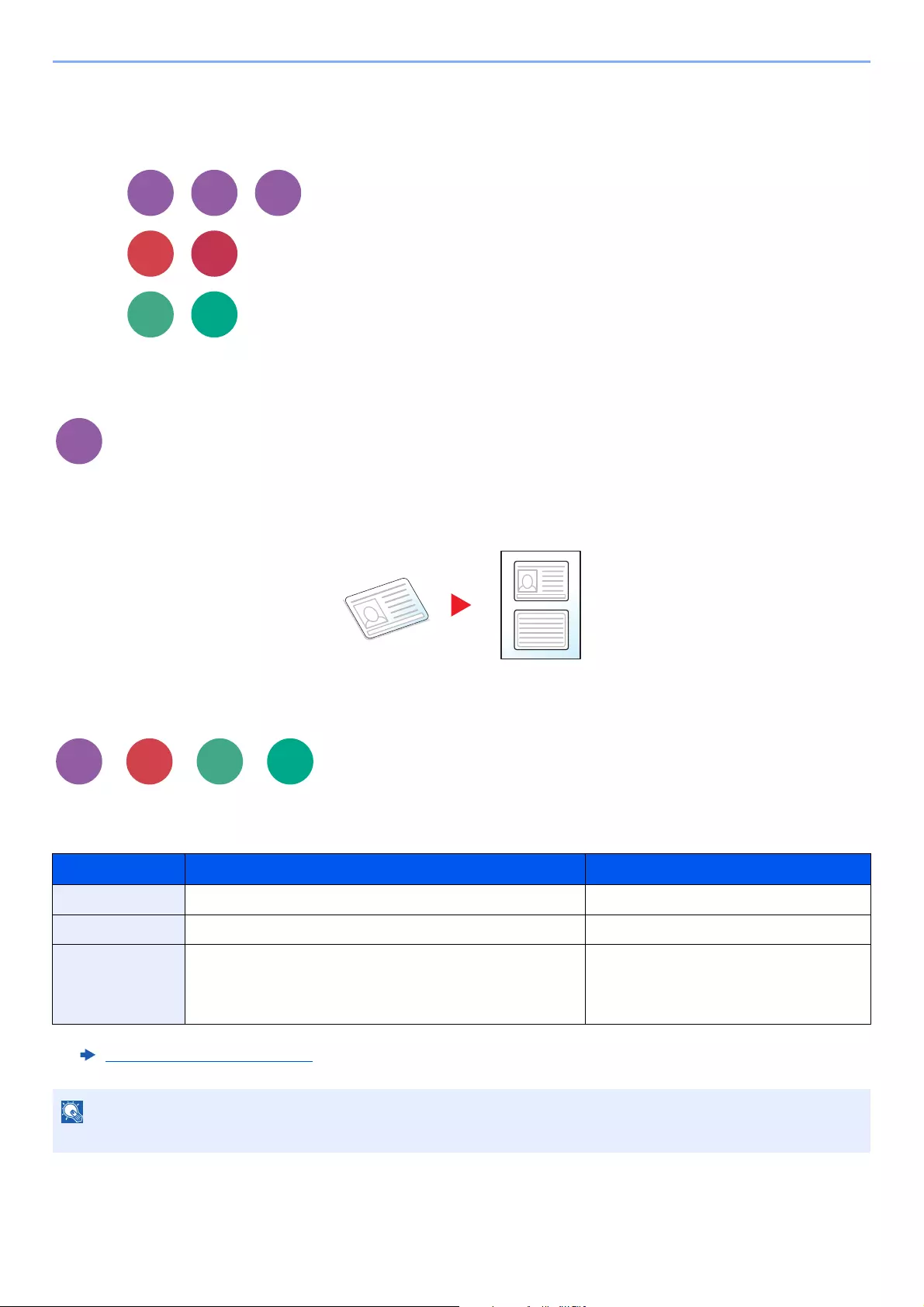
6-10
Using Various Functions > Functions
Functions
On pages that explain a convenient function, the modes in which that function can be used are indicated by icons.
Printing:
Sending:
Storing:
ID Card Copy
Use this when you want to copy a driver’s license or an insurance card. When you scan the front and back of the card,
both sides will be combined and copied onto a single sheet.
(Value: [Off] / [On])
Original Size
Specify the original size to be scanned.
Select [Metric], [Inch], or [Others] to select the original size.
Item Value Description
Inch Letter, Legal, Statement, Executive, Oficio II Select from the Inch series standard sizes.
Metric A4, A5, A6, B5, B6, Folio, 216 × 340 mm Select from the Metric standard sizes.
Others 16K, ISO B5, Envelope #10, Envelope #9, Envelope #6,
Envelope Monarch, Envelope DL, Envelope C5,
Hagaki (Cardstock), OufukuHagaki (Return postcard),
Youkei 4, Youkei 2, Custom*1
*1 For instructions on how to specify the custom original size, refer to the following:
Custom Original Size (page 8-11)
Select from special standard sizes and
custom sizes.
Be sure to always specify the original size when using custom size original.
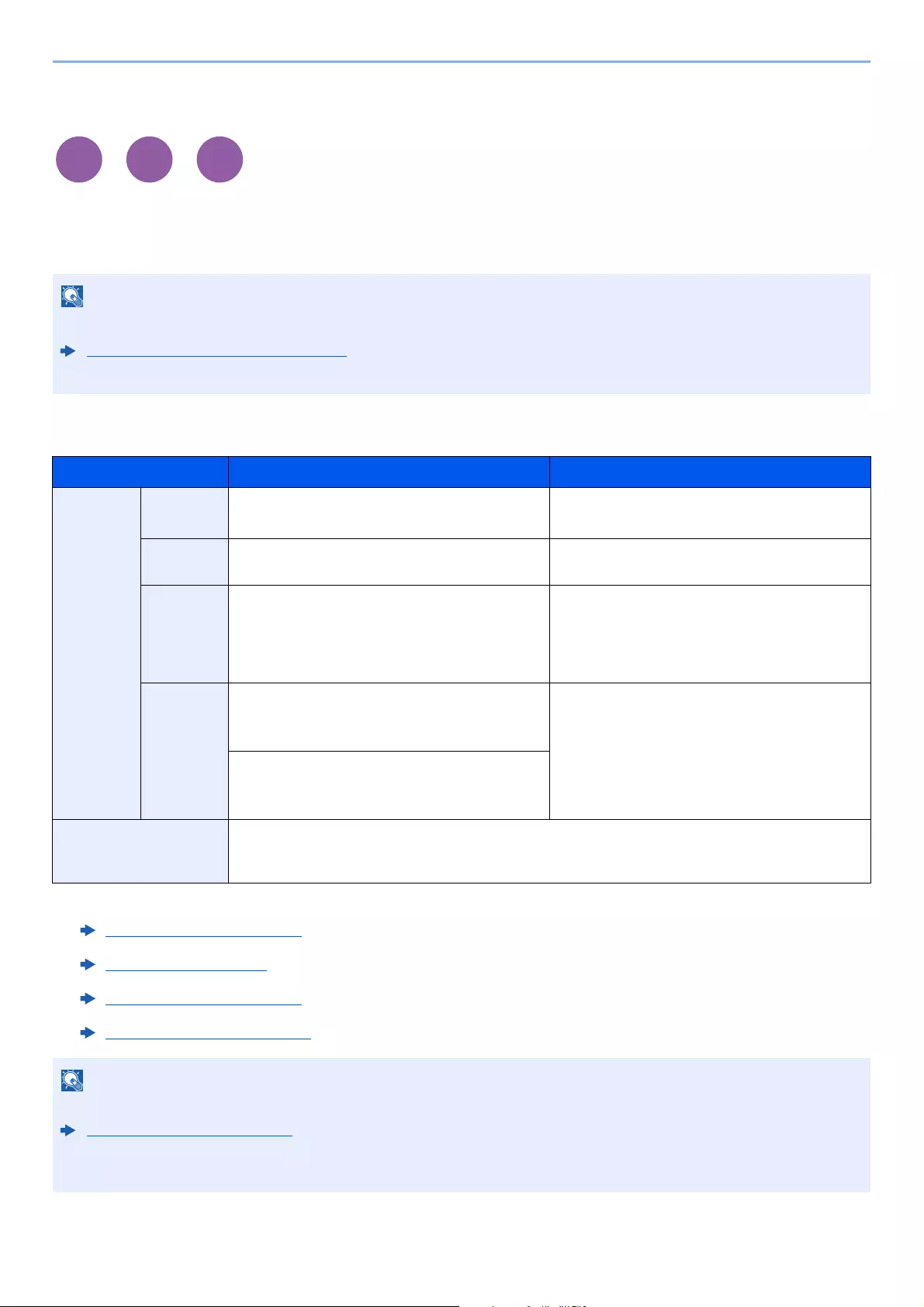
6-11
Using Various Functions > Functions
Paper Selection
Select the cassette or multi-purpose tray that contains the required paper size.
Select from [1] (Cassette 1) to [5] (Cassette 5) to use the paper contained in that cassette.
If [Auto] is selected, the paper matching the size of the original is selected automatically.
To select [MP tray], select [Paper Size] and [Media Type], and specify the paper size and the media type. The available
paper sizes and media types are shown in the table below.
• Specify in advance the size and type of the paper loaded in the cassette.
Cassette/MP Tray Settings (page 8-8)
• Cassettes 2 to 5 are displayed when the optional paper feeder is installed.
Item Value Description
Paper Size Inch Letter, Legal, Statement,
Statement (Landscape)*1, Executive, Oficio II
*1 Only for ECOSYS M3655idn/ECOSYS M3660idn, the paper can be loaded in cassette 1.
Select from the Inch series standard sizes.
Metric A4, A5, A5 (Landscape)*1, A6*1, B5, B6*1, Folio,
216 × 340 mm
Select from the Metric standard sizes.
Others 16K, ISO B5, Envelope #10, Envelope #9,
Envelope #6, Envelope Monarch, Envelope DL*1,
Envelope C5, Hagaki (Cardstock),
OufukuHagaki (Return postcard)*1, Youkei 4,
Youkei 2, Custom*2
*2 For instructions on how to specify the custom paper size, refer to the following:
Custom Paper Size (page 8-12)
Select from special standard sizes and custom
sizes.
Size Entry Metric
X: 70 to 216 mm (in 1 mm increments)
Y: 148 to 356 mm (in 1 mm increments)
Enter the size not included in the standard size.*3
When you have selected [Size Entry], use [+]/[-]
or the numeric keys to set the sizes of «X»
(horizontal) and «Y» (vertical).
*3 The input units can be changed in System Menu. For details, refer to the following:
Measurement (page 8-18)
Inch
X: 2.76 to 8.50″ (in 0.01″ increments)
Y: 5.83 to 14.02″ (in 0.01″ increments)
Media type Plain (60 to 105 g/m2), Transparency, Rough, Vellum, Labels, Recycled, Preprinted*4, Bond,
Cardstock, Color, Prepunched*4, Letterhead*4, Envelope, Thick (106 to 220 g/m2), High Quality,
Custom 1-8*4
*4 For instructions on how to specify the custom paper types 1 to 8, refer to the following:
Media Type Setting (page 8-14)
To print on preprinted or prepunched paper or on letterhead, refer to the following:
Special Paper Action (page 8-13)
• You can conveniently select in advance the size and type of paper that will be used often and set them as default.
Multi Purpose Tray (page 8-9)
• If the specified size of paper is not loaded in the paper source cassette or multi purpose tray, a confirmation screen
appears. Load the required paper in the multi purpose tray and select [
Continue
] to start copying.
Print from
Box
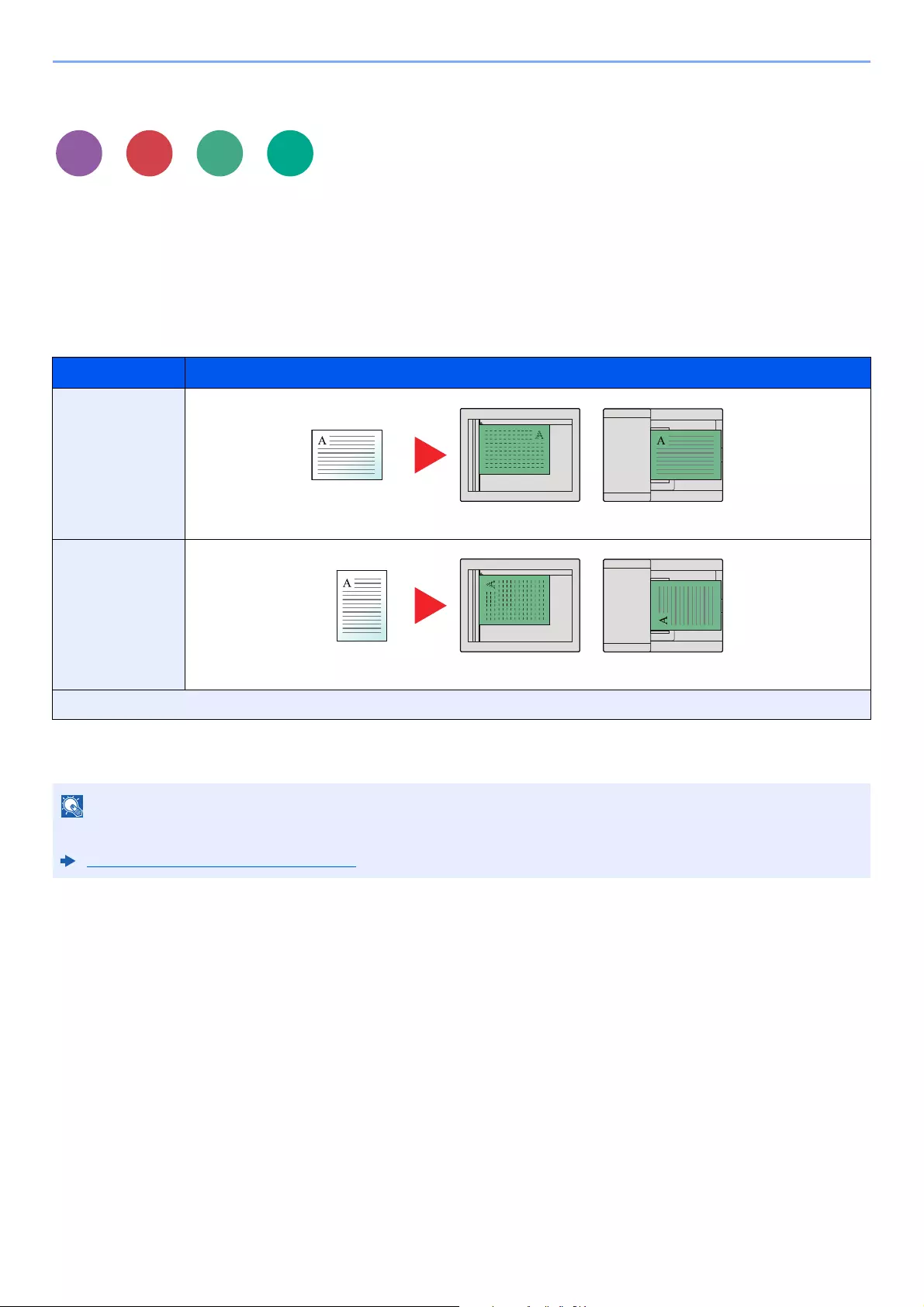
6-12
Using Various Functions > Functions
Original Orientation
Select the orientation of the original document top edge to scan correct direction.
To use any of the following functions, the document’s original orientation must be set.
•Duplex
• Combine
• Duplex (2-sided Original)
Select original orientation from [Top Edge on Top], [Top Edge on Left] or [Auto].
Item Image
Top Edge on Top
Top Edge on Left
Auto*1
*1 Displayed only when the optional OCR Scan Activation Kit is installed.
For Copying, this does not displayed if the optional expansion memory is not installed.
The default setting for Original Orientation can be changed.
Original Orientation (Copy) (page 8-15)
Send
Original Original orientation
Original Original orientation
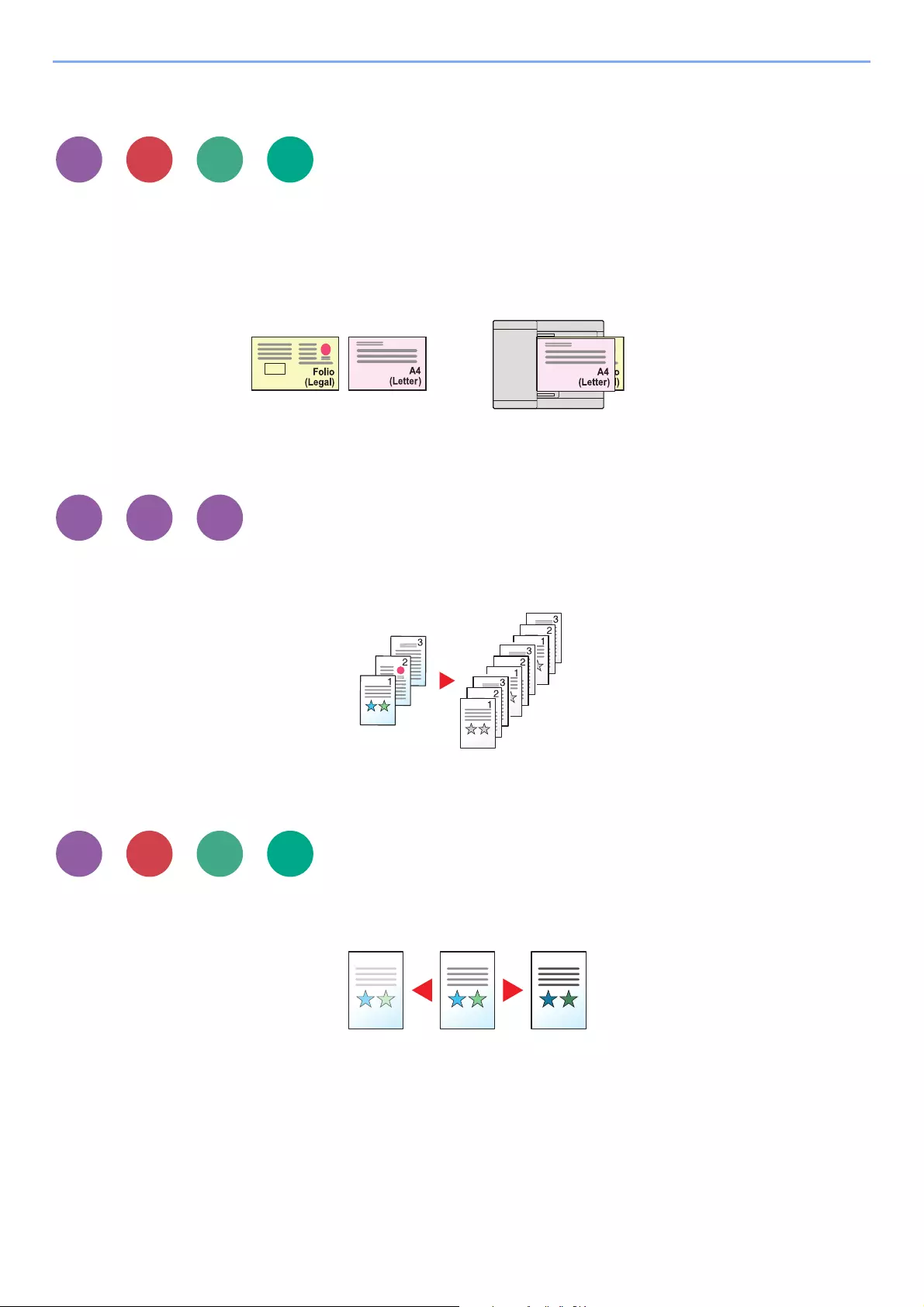
6-13
Using Various Functions > Functions
Mixed Size Originals
Scans all sheets in the document processor, even if they are of different sizes.
(Value: [Off] / [On])
Supported Combinations of Originals
Legal and Letter (Folio and A4)
Collate
Prints ordered sets of the copies.
(Value: [Off] / [On])
Density
Adjust density.
Adjust density selecting [-4] (Lighter) to [+4] (Darker).
Send
Print from
Box
Send
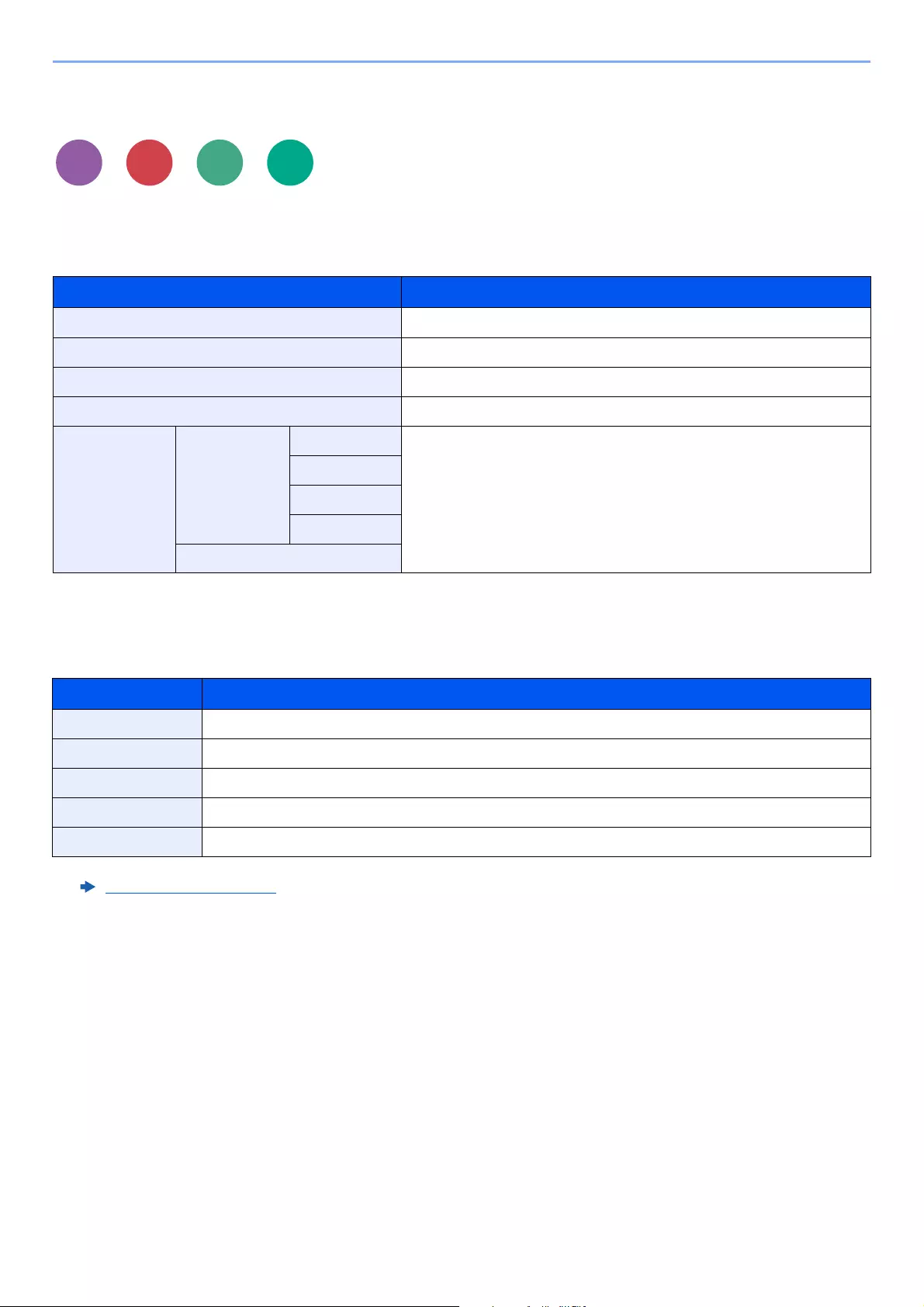
6-14
Using Various Functions > Functions
Original Image
Select original image type for best results.
Copying/Printing
Sending/Storing
Item Description
Text+Photo*1
*1 If gray text is not printed completely using [Text + Photo], selecting [Text] may improve the result.
Best for mixed text and photo documents.
Photo Best for photos taken with a camera.
Text Best for documents that are mostly text.
Graphic/Map*2
*2 This function is displayed while copying.
Best for graphics and maps.
Others Original Image Text+Photo Select to bring out text and markings made with a highlighter pen.
Reproduces the color of the highlighter pen to the extent possible.
Photo
Text
Graphic/Map
Highlighter
Item Description
Text+Photo Best for mixed text and photo documents.
Photo Best for photos taken with a camera.
Text Best for documents that are mostly text.
Light Text/Fine Line Clearly reproduces faint characters written in pencil, etc., and thin lines on map originals or diagrams.
Text (for OCR)*1
*1 This function is only available when «Color Selection» is set to [Black & White]. For details, refer to the following:
Color Selection (page 6-15)
Scanning produces an image that is suitable for OCR.
Send
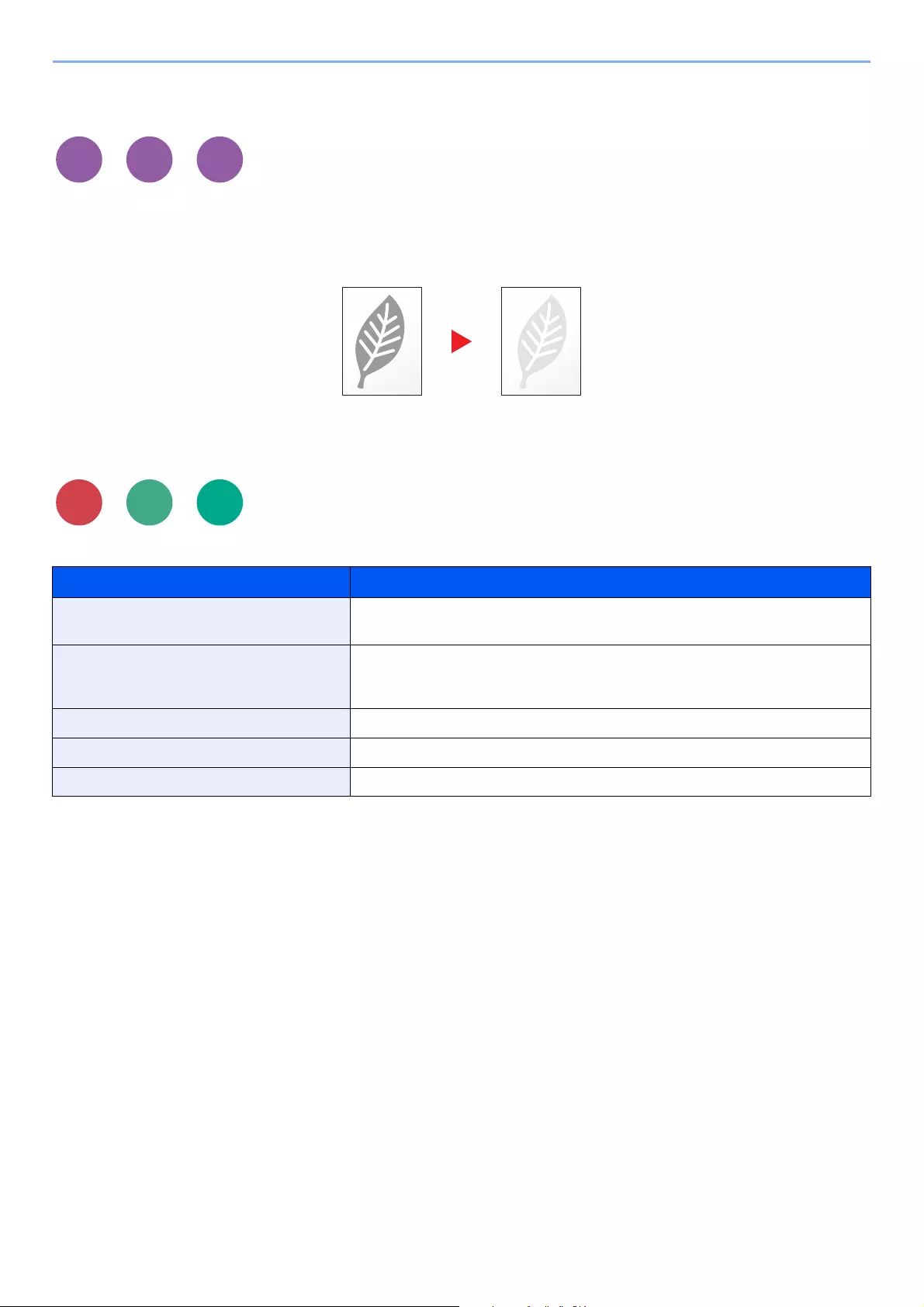
6-15
Using Various Functions > Functions
EcoPrint
EcoPrint saves toner when printing.
Use this function for test prints or any other occasion when high quality print is not required.
(Value: [Off] / [On])
Color Selection
Select the color mode setting.
Item Description
Auto (Color/Gray) Automatically recognizes whether the document is color or black and white, and
scan color documents in Full Color and black and white documents in Grayscale.
Auto (Color/B & W) Automatically recognizes whether the document is color or black and white, and
scan color documents in Full Color and black and white documents in Black and
White.
Full Color Scans the document in full color.
Grayscale Scans the document in grayscale. Produces a smooth, detailed image.
Black & White Scans the document in black and white.
Print from
Box
Scan to
Box
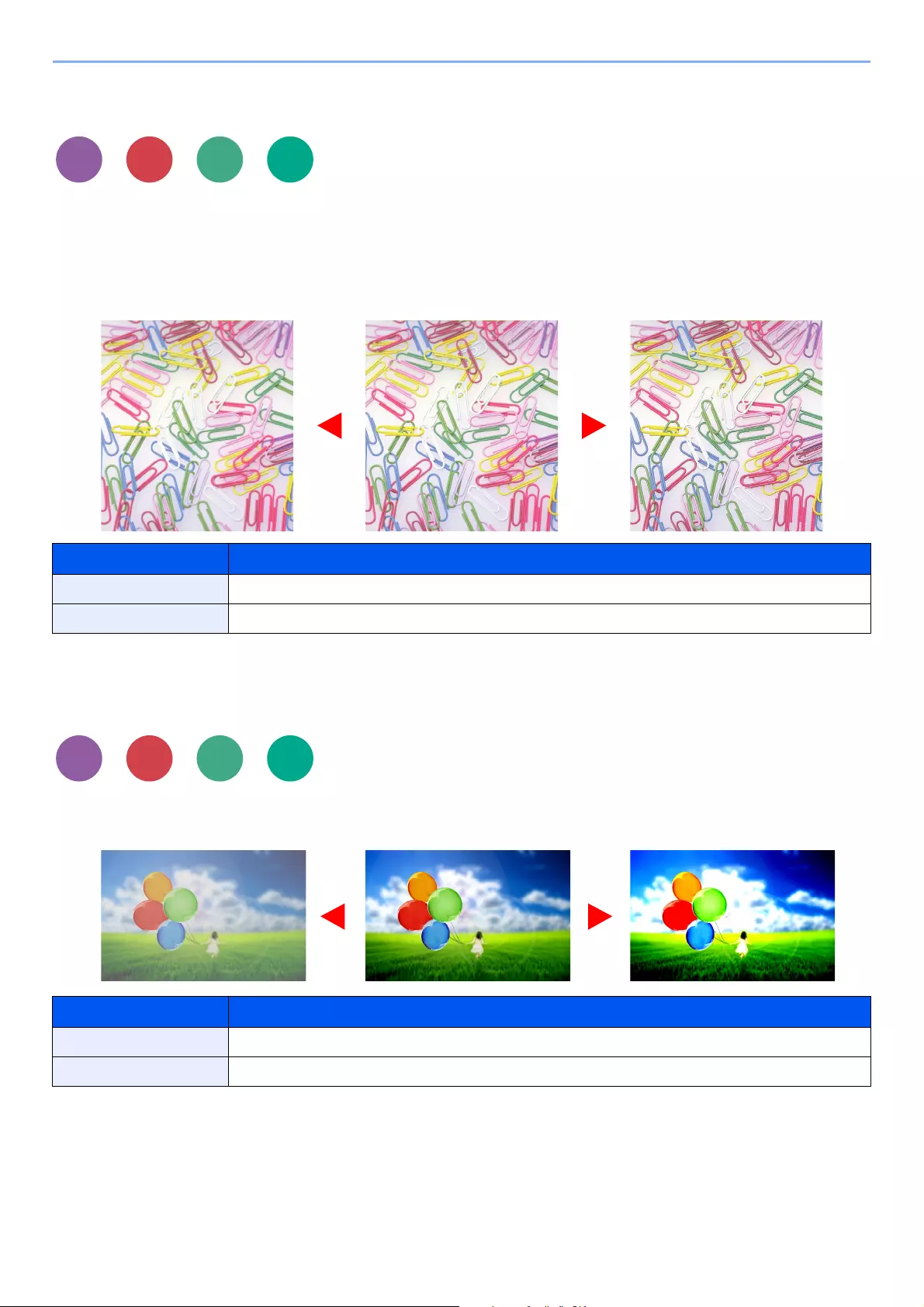
6-16
Using Various Functions > Functions
Sharpness
Adjusts the sharpness of image outlines.
When copying penciled originals with rough or broken lines, clear copies can be taken by adjusting sharpness toward
«Sharpen». When copying images made up of patterned dots such as magazine photos, in which moire*1 patterns
appear, edge softening and weakening of the moire effect can be obtained by setting the sharpness toward «Blur».
Contrast
You can adjust the contrast between light and dark areas of the image.
Item Description
+1 to +3 (Sharpen) Emphasizes the image outline.
-1 to -3 (Blur) Blurs the image outline. Can weaken a Moire*1 effect.
*1 Patterns that are created by irregular distribution of halftone dots.
Item Description
+1 to +4 (Higher) Increases the sharpness of colors.
-1 to -4 (Lower) Creates smoother colors.
Send
Original More SharpLess Sharp
Send
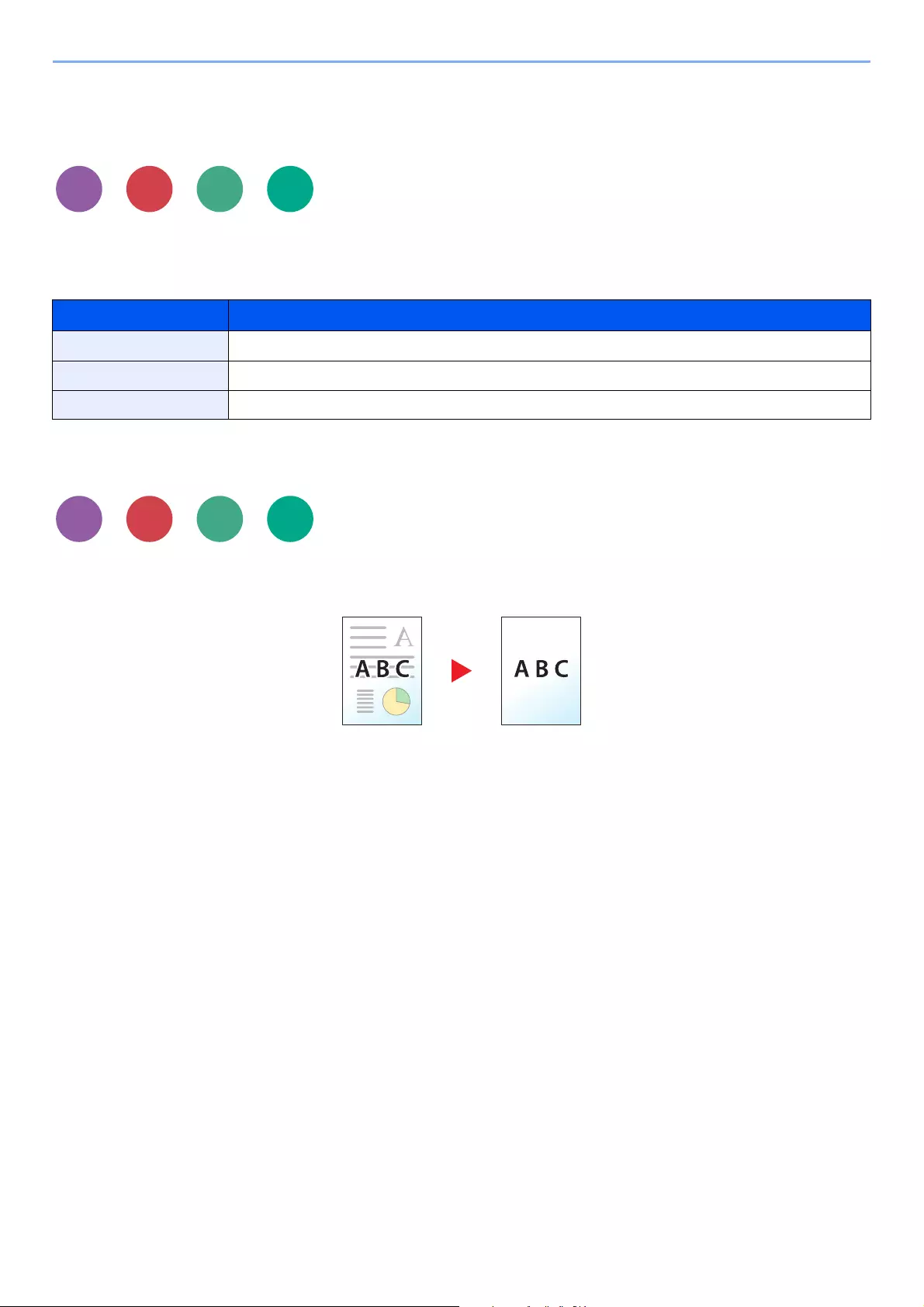
6-17
Using Various Functions > Functions
Background Density Adj. (Background Density
Adjustment)
Removes dark background from originals, such as newspapers.
If the ground color is obtrusive, select [Auto]. If [Auto] does not remove the ground color, select [Manual] and adjust the
density of the ground color.
Prevent Bleed-thrugh
Hides background colors and image bleed-through when scanning thin original.
(Value: [Off] / [On])
Item Description
Off Does not adjust the ground color.
Auto Automatically adjusts the background density based on the original.
Manual Select [1] to [5] (Lighter — Darker) to adjust the background density manually.
Send
Send
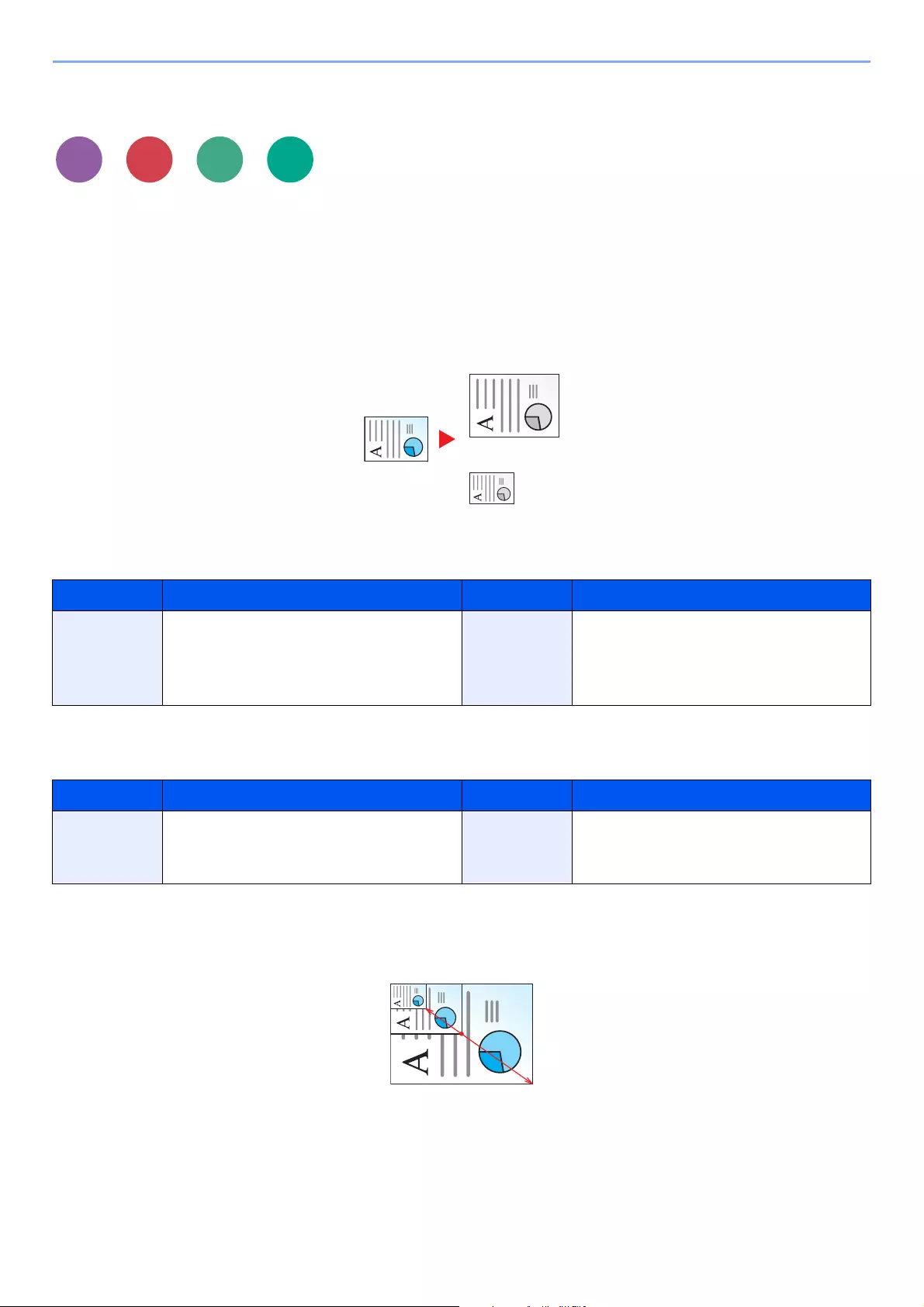
6-18
Using Various Functions > Functions
Zoom
Adjust the zoom to reduce or enlarge the image.
Copying
The following zoom options are available.
Auto
Adjusts the image to match the paper size.
Standard Zoom
Reduces or enlarges at preset magnifications.
Others
Reduces or enlarges at magnifications other than the Standard Zoom.
Zoom Entry
Manually reduces or enlarges the original image in 1% increments between 25% and 400%. Use the numeric keys or
select [+] or [-] to enter the any magnification.
Model Zoom Level (Original Copy) Model Zoom Level (Original Copy)
Metric Models 400% Max.
200%
141% A5 >> A4
100%
90% Folio>>A4
70%
50%
25% Min.
Inch Models 400% Max.
200%
129% Statement>>Letter
100%
78% Legal>>Letter
64% Letter>>Statement
50%
25% Min.
Model Zoom Level (Original Copy) Model Zoom Level (Original Copy)
Metric Models 115% B5 >> A4
86% A4 >> B5
129% Statement>>Letter
78% Legal>>Letter
64% Letter>>Statement
Inch Models 141% A5 >> A4
115% B5 >> A4
90% Folio>>A4
86% A4 >> B5
70% A4 >> A5
Send
6-19
Using Various Functions > Functions
Sending/Storing
Item Description
100% Reproduces the original size.
Auto Reduces or enlarges original to sending/storing size.
To reduce or enlarge the image, select the paper size, sending size, or storing size.
Paper Selection (page 6-11)
Sending Size (page 6-28)
Storing Size (page 6-35)
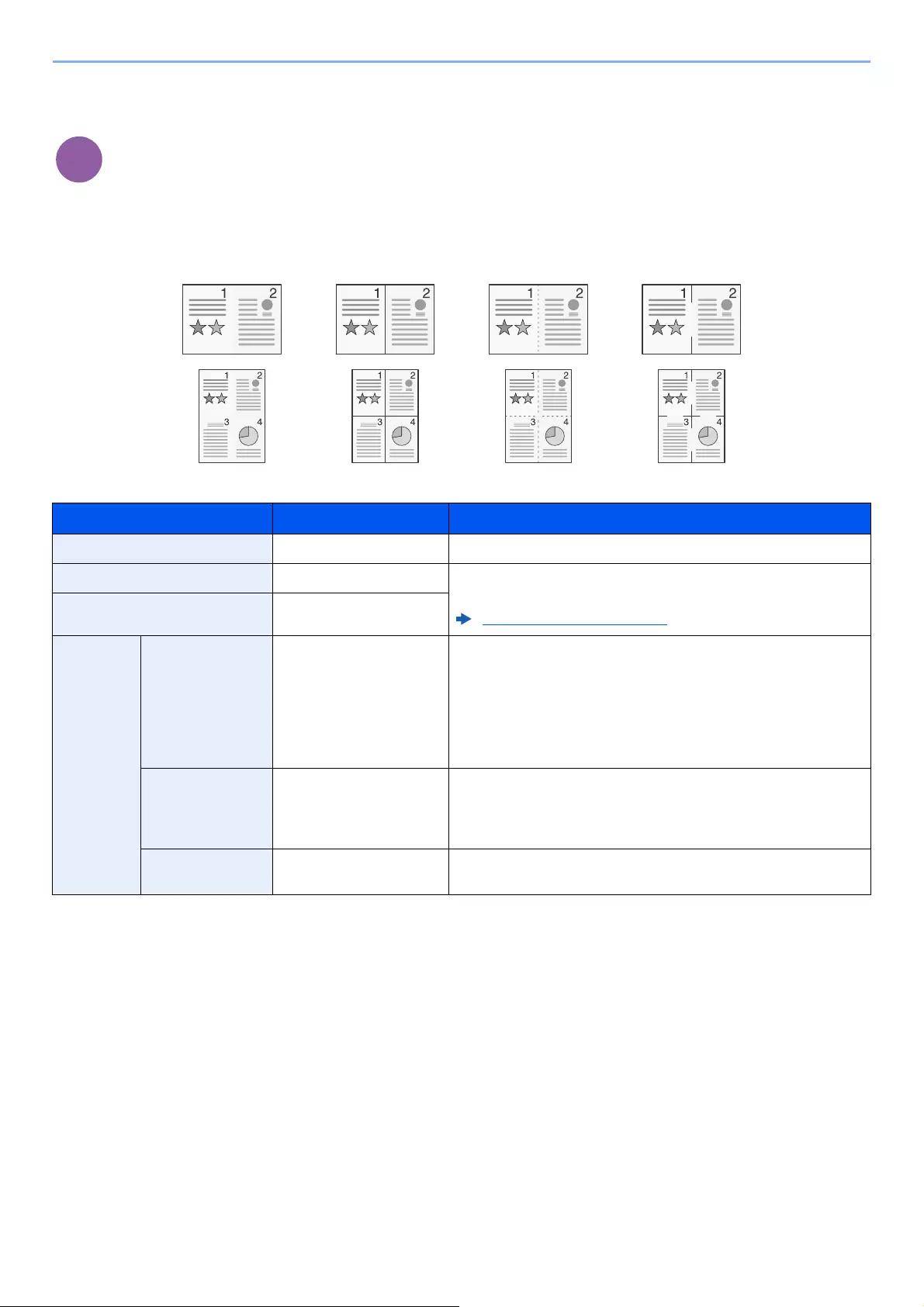
6-20
Using Various Functions > Functions
Combine
Combines 2 or 4 original sheets into 1 printed page.
You can select the page layout and the type of boundary lines around the pages.
The following types of the boundary lines are available.
Item Value Description
Off ―Disables the function.
2 in 1 ―Copy the original with the default setting. For the default settings,
refer to the following:
Function Defaults (page 8-15)
4 in 1 ―
Others Combine Off,
2 in 1 (L to R/T to B),
2 in 1 (R to L/B to T),
4 in 1 (Right then Down),
4 in 1 (Left then Down),
4 in 1 (Down then Right),
4 in 1 (Down then Left)
Select the page layout of scanned originals.
Border Line None,
Solid Line,
Dotted Line,
Positioning Mark
Select the boundary line type.
Original
Orientation
Top Edge on Top,
Top Edge on Left
Select the orientation of the original document top edge to scan
correct direction.
None Dotted LineSolid Line Positioning Mark
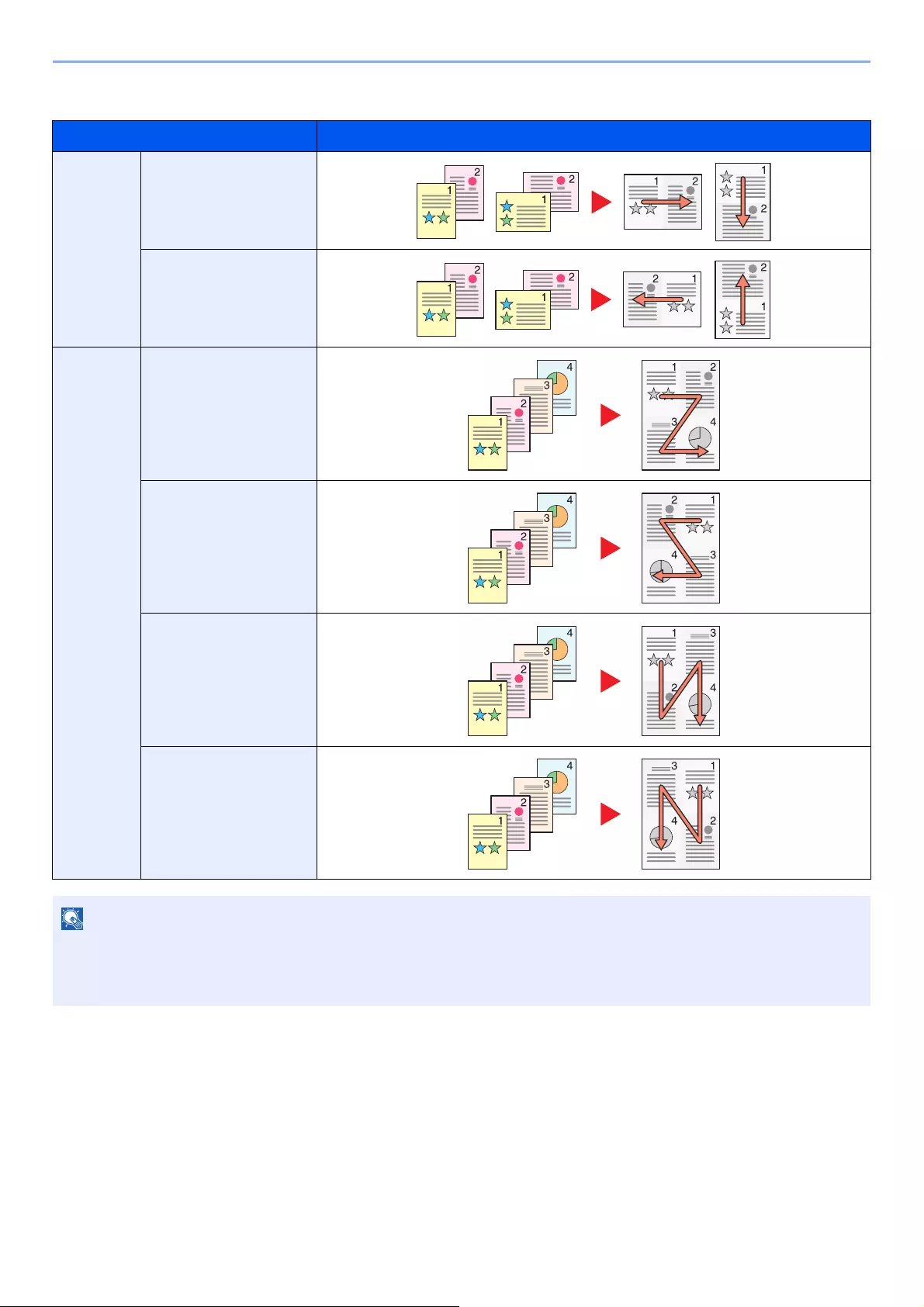
6-21
Using Various Functions > Functions
Layout image
Item Image
2 in 1 L to R/T to B
R to L/B to T
4 in 1 Right then Down
Left then Down
Down then Right
Down then Left
• The paper sizes supported in Combine mode are A4, A5, B5, Folio, 216 × 340 mm, Letter, Legal, Statement,
Oficio II, and 16K.
• When placing the original on the platen, be sure to copy the originals in page order.
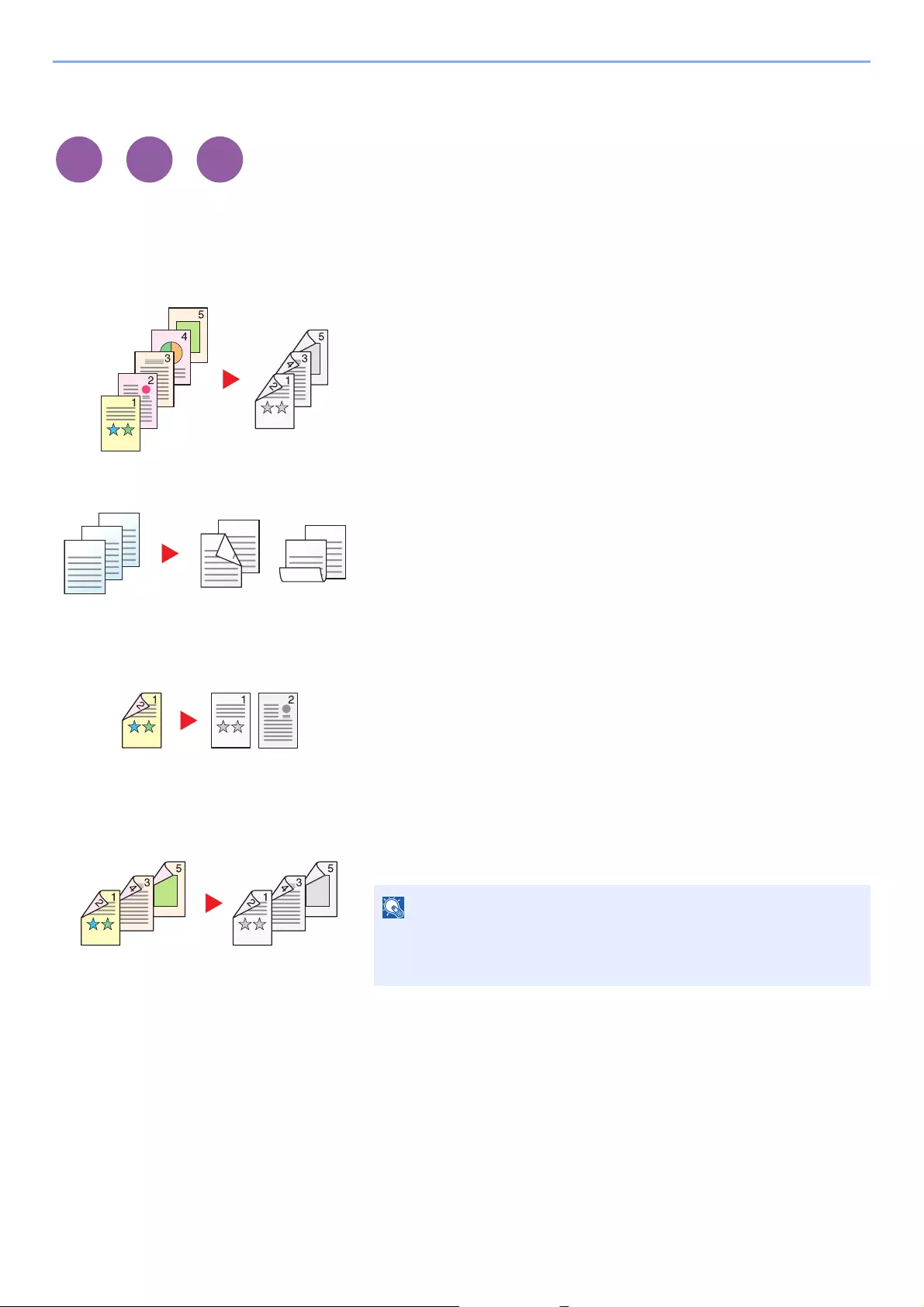
6-22
Using Various Functions > Functions
Duplex
Produces two-sided copies. You can also create single-sided copies from two-sided originals.
The following modes are available.
One-sided to Two-sided
Two-sided to One-sided
Two-sided to Two-sided
Produces two-sided copies from one-sided originals. In case of an odd
number of originals, the back side of the last copy will be blank.
The following binding options are available.
A Original Left/Right to Binding Left/Right: Images on the second sides
are not rotated.
B Original Left/Right to Binding Top: Images on the second sides are
rotated 180 degrees. Copies can be bound on the top edge, facing
the same orientation when turning the pages.
Copies each side of a two-sided original onto two individual sheets.
The following binding options are available.
• Binding Left/Right: Images on the second sides are not rotated.
• Binding Top: Images on the second sides are rotated 180 degrees.
Produces two-sided copies from two-sided originals.
Print from
Box
ghi
def
abc
ghi
abc
def
ghi
abc
def
The paper sizes supported in Two-sided to Two-sided mode are A4,
B5, A5, Legal, Letter, Executive, Statement, Oficio II, 216 × 340 mm,
Folio, ISO B5, and 16K.
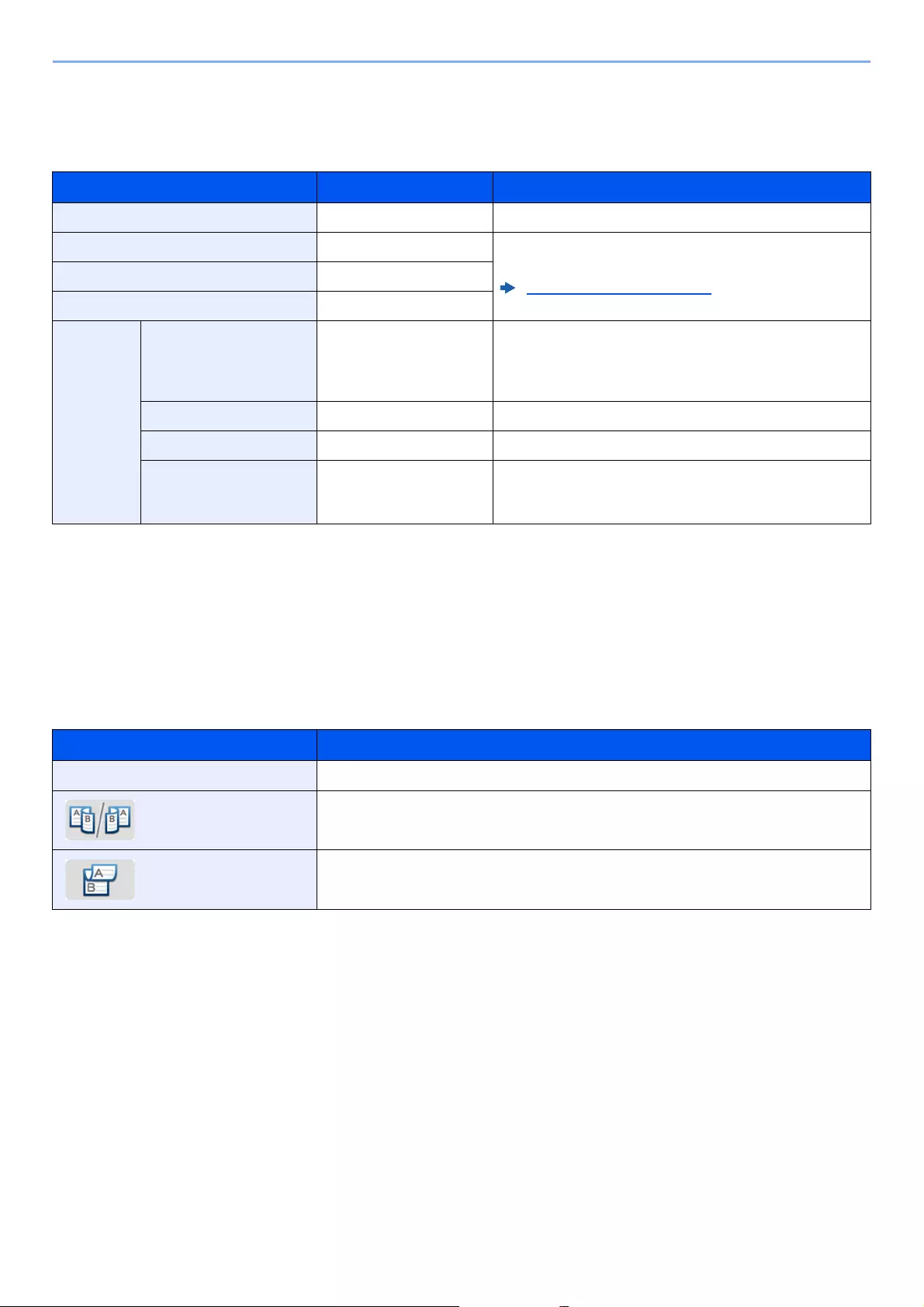
6-23
Using Various Functions > Functions
Copying
Prints 1-sided originals to 2-sided, or 2-sided originals to 1-sided. Select the binding orientation for original and finished
documents.
When placing the original on the platen, consecutively replace each original and press the [Start] key.
After scanning all originals, select [Finish Scan] to start copying.
Printing
Print a document on both sides of the paper.
Item Value Description
1-sided>>1-sided ―Disables the function.
1-sided>>2-sided ―Copy the original with the default setting. For the default
settings, refer to the following:
Function Defaults (page 8-15)
2-sided>>1-sided ―
2-sided>>2-sided ―
Others Duplex 1-sided>>1-sided,
1-sided>>2-sided,
2-sided>>1-sided,
2-sided>>2-sided
Select the desired duplex option.
Binding in Original*1
*1 Displayed when [2-sided>>1-sided] or [2-sided>>2-sided] is selected for «Duplex».
Left/Right, Top Select the binding orientation of originals.
Binding in Finishing*2
*2 Displayed when [1-sided>>2-sided] or [2-sided>>2-sided] is selected for «Duplex».
Left/Right, Top Select the binding orientation of copies.
Original Orientation*1, *2 Top Edge on Top,
Top Edge on Left,
Auto*3
*3 This does not appear if the optional OCR Scan Activation Kit is installed but expansion memory is not installed.
Select the orientation of the original document top edge to
scan correct direction.
Item Description
1-sided Disables the function.
2-sided Prints a 2-sided document so that the sheets are aligned properly for binding on the left
or right.
2-sided Prints a 2-sided document so that the sheets are aligned properly for binding on the top.
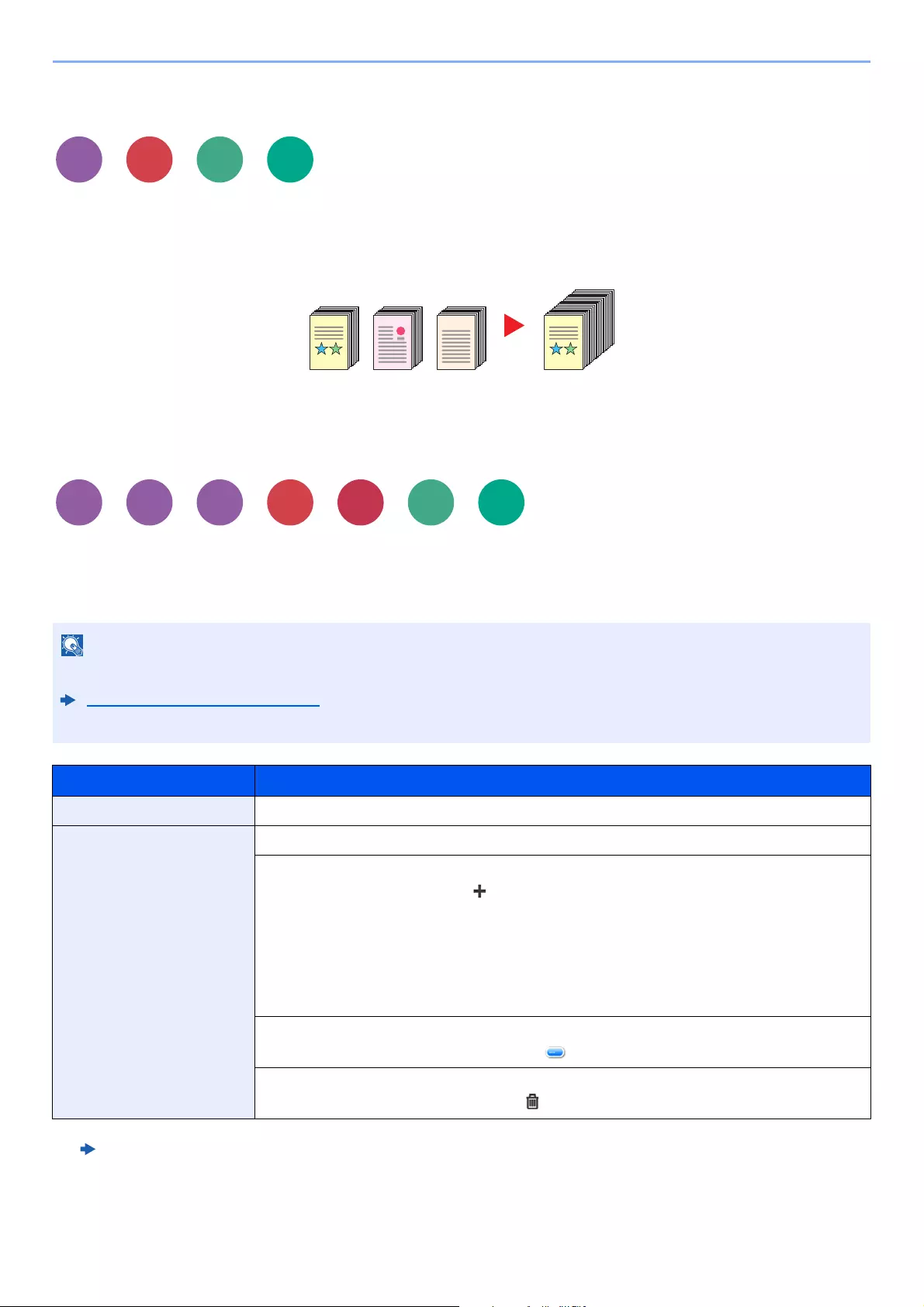
6-24
Using Various Functions > Functions
Continuous Scan
Scans a large number of originals in separate batches and then produce as one job.
Originals will be scanned continuously until you select [Finish Scan].
(Value: [Off] / [On])
Job Finish Notice
Sends E-mail notice when a job is complete.
Users can be notified of the completion of a job while working at a remote desk, saving the time spent waiting beside the
machine to finish.
PC should be configured in advance so that E-mail can be used.
Command Center RX (page 2-53)
E-mail can be sent to a single destination.
Item Description
Off Disables the function.
Job Finished Only,
Job Finished + Job Interrupted
Displays the destination list.
Add a Destination
To add a new destination, select [ ].
•Address Book: Select the notification destination from the address book and select [OK].
•Ext. Address Book*1: Select the notification destination from the external address book.
•Address Entry: Enter the e-mail address directly. Enter the address (up to 256 characters)
and select [OK].
•My Address*2: Uses the e-mail address of the logged in user.
*1 For details on the External Address Book, refer to the following:
Command Center RX User Guide
*2 Displayed when user login administration is enabled.
Check the Destination
To display details for the destinations, select [ ].
Delete the Destination
To delete the selected destination, select [ ].
Send
Print from
Box
6-25
Using Various Functions > Functions
File Name Entry
Adds a file name.
Additional information such as job number and date and time can also be set. You can check a job history or job status
using the file name, date and time, or job number specified here.
Enter the file name (up to 32 characters), and select [Next].
To add date and time, select [Date and Time]. To add job number, select [Job No.]. To add both, select [[Job No.] &
[Date and Time]] or [[Date and Time] & [Job No.]].
Priority Override
Suspends the current job and gives a new job top priority.
The suspended job resumes after the other job is finished.
(Value: [Off] / [On])
Quiet Mode
Lower print and scan speed for quiet processing.
Select this mode when the running noise is uncomfortable.
It is possible to set the use of Quiet Mode for each function, such as copying and sending.
(Value: [Off] / [On])
• This function is not available if current job was an override.
• Priority override may not be available depending on the status of the current print job and memory usage.
• The processing speed will be slower than normal when in Quiet Mode.
• This cannot be used when [Prohibit] is set for «Specify for Each Job».
Specify for Each Job (page 8-49)
Print from
Box
Print from
Box
Print from
Box
6-26
Using Various Functions > Functions
Skip Blank Page
When there are blank pages in a scanned document, this function skips the blank pages and prints only pages that are
not blank.
Blank pages can be set as pages that include ruled lines and a small number of characters.
The machine detects blank pages, saving unnecessary printing without the need to check for blank pages in the
document.
Item Description
Off Everything, including blank pages, is scanned.
On Blank Pages + Ruled Lines Blank pages and pages that include ruled lines are judged to be blank pages.
Blank Pages Only Blank pages only are judged to be blank pages.
Blank Pages + Some Text Blank pages and pages that include a small amount of text are judged to be blank
pages.
The originals with punched holes or originals printed on a colored substrate may not be recognized as blank pages.
Send
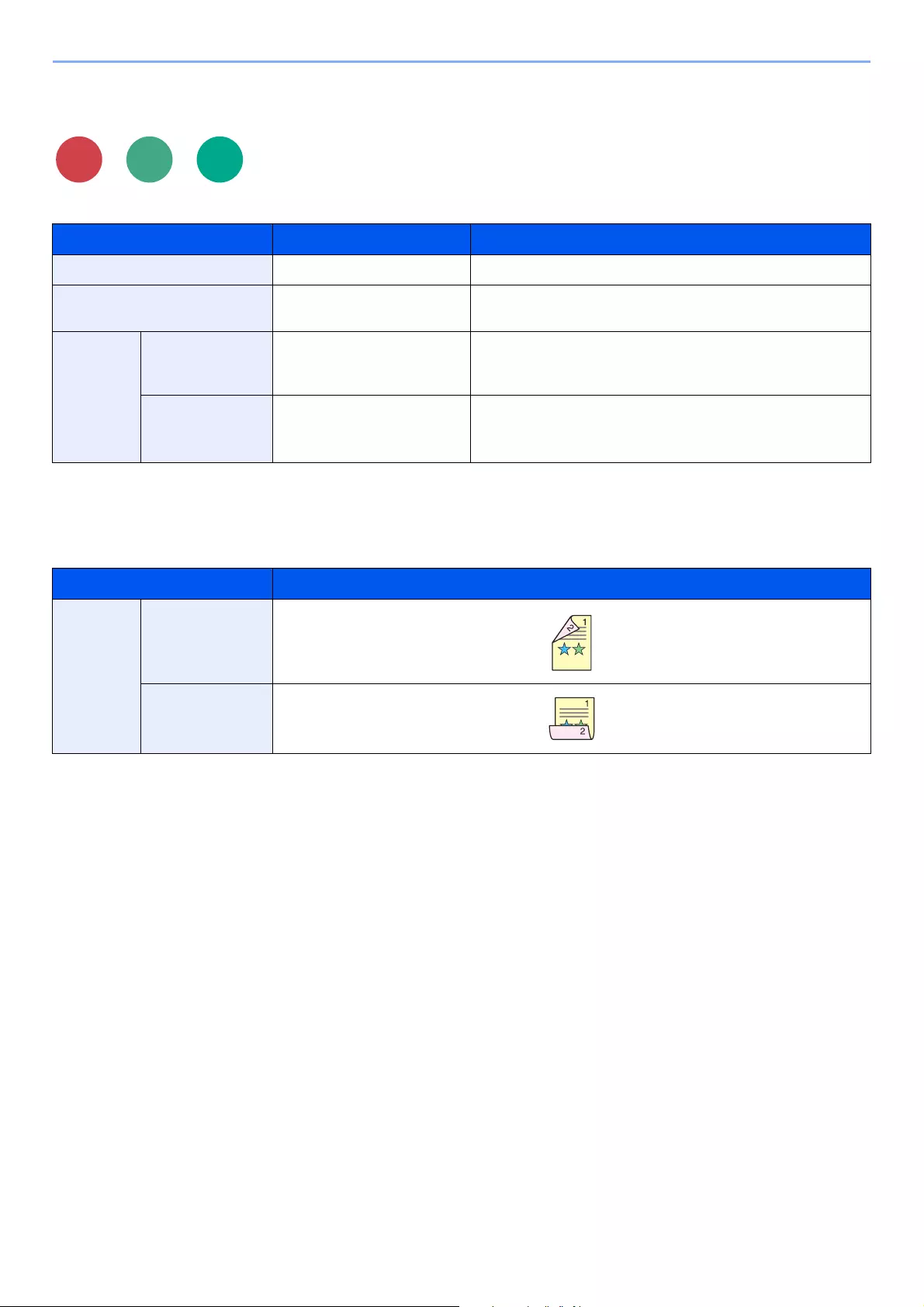
6-27
Using Various Functions > Functions
Duplex (2-sided Original)
Select the type and orientation of the binding based on the original.
Sample image
Item Value Description
1-sided ―Disables the function.
2-sided ―Set when using a 2-sided sheet original that will be bound on
the left or right.
Others Duplex 1-sided,
2-sided (Binding Left/Right),
2-sided (Binding Top)
Select the binding orientation of originals.
Original
Orientation*1
*1 Displayed when [2-sided (Binding Left/Right)] or [2-sided (Binding Top)] is selected in «Duplex».
Top Edge on Top,
Top Edge on Left
Auto*2
*2 This does not appear if the optional OCR Scan Activation Kit is installed but expansion memory is not installed.
Select the orientation of the original document top edge to
scan correct direction.
Value Image
2-sided Binding Left/
Right
Binding Top
Scan to
Box
6-28
Using Various Functions > Functions
Sending Size
Select size of image to be sent.
Select [Same as Original Size], [Metric], [Inch], or [Others] to select the sending size.
Relationship between Original Size, Sending Size, and Zoom
Original Size (page 6-10), Sending Size, and Zoom (page 6-18) are related to each other. For details, see the table
below.
Item Value Description
Same as Original Size ―Automatically sends the same size as the
original.
Metric A4, A5, A6, B5, B6, Folio, 216 × 340 mm Select from the Metric standard sizes.
Inch Letter, Legal, Statement, Executive, Oficio II Select from the Inch series standard sizes.
Others 16K, ISO B5, Envelope #10, Envelope #9,
Envelope #6, Envelope Monarch, Envelope DL,
Envelope C5, Hagaki (Cardstock),
Oufukuhagaki (Return postcard), Youkei 4,
Youkei 2
Select from special standard sizes and custom
sizes.
Original size and sending size are the same different
Original Size (page 6-10) Specify as necessary. Specify as necessary.
Sending Size Select [Same as Original Size]. Select the desired size.
Zoom (page 6-18) Select [100%] (or [Auto]). Select [Auto].
When you specify the sending size that is different from the original size, and select the zoom of [100%], you can send
the image as the actual size (No Zoom).
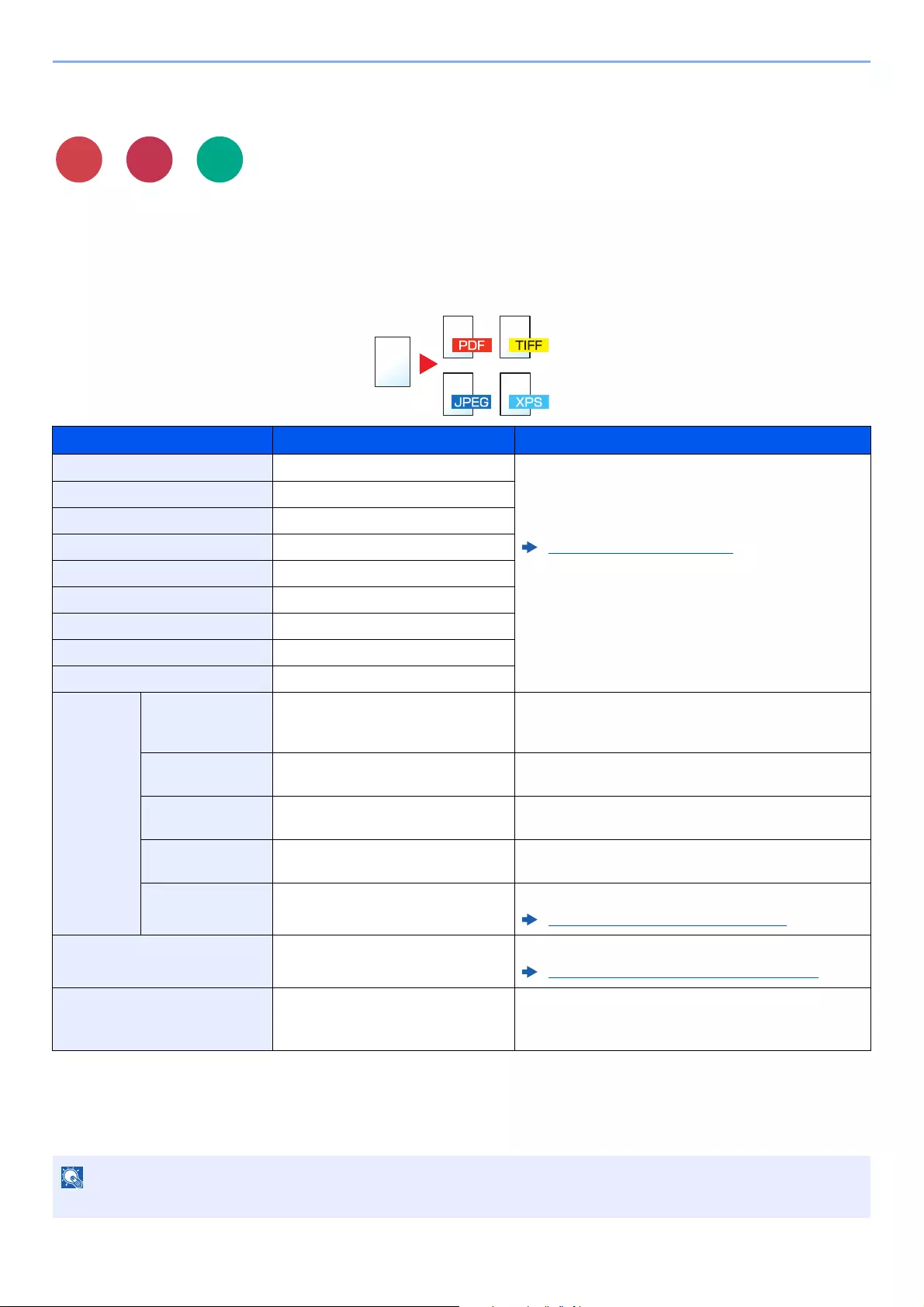
6-29
Using Various Functions > Functions
File Format
Specify the image file format. Image quality level can also be adjusted.
Select the file format from [PDF], [TIFF], [JPEG], [XPS], [OpenXPS], and [High Comp. PDF].
When the optional OCR Scan Activation Kit is installed, you can also select [Word], [Excel], or [PowerPoint].
When the color mode in scanning has been selected for Grayscale or Full Color, set the image quality.
If you selected [PDF] or [High Comp. PDF], you can specify encryption or PDF/A settings.
Item Value Description
PDF ―Set the file format selected.
The image quality and PDF/A settings will be the
default settings. For the default settings, refer to the
following:
Function Defaults (page 8-15)
High Comp. PDF ―
TIFF ―
JPEG ―
XPS ―
OpenXPS ―
Word*1
*1 Displayed only when the optional Scan extension kit is installed.
―
Excel*1 ―
PowerPoint*1 ―
Others File Format PDF, High Comp. PDF, TIFF, JPEG,
XPS, OpenXPS, Word*1, Excel*1,
PowerPoint*1
Select the image file format.
Image Quality*2
*2 Displayed when [High Comp. PDF] is selected for «File Format».
Compression Ratio Priority,
Standard, Quality Priority
Set the quality level for High Compression PDF.
Image Quality*3
*3 Displayed when something other than [High Comp. PDF] is selected for «File Format».
1 Low (High Comp.) to 5 High (Low
Comp.)
Set the image quality.
PDF/A*4
*4 Displayed when [PDF] or [High Comp. PDF] is selected for «File Format».
Off, PDF/A-1a, PDF/A-1b,
PDF/A-2a, PDF/A-2b, PDF/A-2u
Set PDF/A format type.
Encryption*4 ―You can use PDF encryption functions.
PDF Encryption Functions (page 6-30)
OCR Text Recognition*1, *4, *5
*5 Displayed when [Word], [Excel] or [PowerPoint] is selected for «File Format».
Off, On Set the default OCR Text Recognition.
OCR Text Recognition (Option) (page 6-32)
OCR Output Format*5 Text + Graphics,
Text + Graphics with Scanned Image,
Scanned Image with Searchable Text
Select the output format for Work, Excel, and
PowerPoint.
If encryption is enabled, PDF/A settings cannot be specified.
Send from
Box
6-30
Using Various Functions > Functions
PDF Encryption Functions
If you have selected PDF or High Comp. PDF for file format, you can restrict the access level for displaying, printing, and
editing PDF’s by assigning a secure password.
Select [Others], [PDF] or [High Comp. PDF] in [File Format], and select [Encryption].
Items that can be set vary depending on the setting selected in [Compatibility].
When [Acrobat 3.0 and later, Encryption Level: Middle(40-bit)] is selected
Item Value Description
Password to Open Document Off, On Enter the password to open the PDF file.
Select [On], enter a password (up to 256 characters) and
then select [Next].
Enter the password again for confirmation, and select [OK].
Password to Edit/Print
Document
Off, On Enter the password to edit the PDF file.
Select [On], enter a password (up to 256 characters) and
then select [Next].
Enter the password again for confirmation, and select [OK].
When you have entered the password to edit/print
document, you can specifically limit the operation.
Printing Allowed Not Allowed, Allowed Restricts printing of the PDF file.
Changes Allowed Not Allowed Disables the change to the PDF file.
Commenting Can only add commenting.
Page Layout except extracting
Pages
Can change the page layout except extracting the pages of
the PDF file.
Any except extracting Pages Can conduct all operations except extracting the pages of
the PDF file.
Copying of Text/Images/
Others
Disable, Enable Restricts the copying of text and objects on the PDF file.
6-31
Using Various Functions > Functions
When [Acrobat 5.0 and later, Encryption Level: High(128-bit)] is selected
Item Value Description
Password to Open Document Off, On Enter the password to open the PDF file.
Select [On], enter a password (up to 256 characters) and
then select [Next].
Enter the password again for confirmation, and select [OK].
Password to Edit/Print
Document
Off, On Enter the password to edit the PDF file.
Select [On], enter a password (up to 256 characters) and
then select [Next].
Enter the password again for confirmation, and select [OK].
When you have entered the password to edit/print
document, you can specifically limit the operation.
Printing Allowed Not Allowed Disables the printing of PDF file.
Allowed (Low Resolution only) Can print the PDF file only in low resolution.
Allowed Can print the PDF file in original resolution.
Changes Allowed Not Allowed Disables the change to the PDF file.
Inserting/Deleting/Rotating
Pages
Can only insert, delete, and rotate the pages of the PDF
file.
Commenting Can only add commenting.
Any except extracting Pages Can conduct all operations except extracting the pages of
the PDF file.
Copying of Text/Images/
Others
Disable, Enable Restricts the copying of text and objects on the PDF file.
6-32
Using Various Functions > Functions
OCR Text Recognition (Option)
When [PDF], [High Comp. PDF], [Word], [Excel], or [PowerPoint] is selected for the file format, you can create
Searchable file by running OCR on the scanned document. Select [OCR Text Recognition], and then [On], select the
language of the document, and select [OK].
Item Description
Off Do not create Searchable file.
On Create Searchable file.
Select the language to extract from the languages that appear on the touch panel.
• This function can only be used when the optional OCR Scan Activation Kit is installed.
Scan extension kit(A) «OCR Scan Activation Kit» (page 11-8)
• This function cannot be set when you send from the Custom Box.
• If the proper language is not selected, file creation may take a long time or the creation may fail.
The default language can be changed in System Menu.
Primary OCR Language*2 (page 8-17)
• If you do not set an original in the correct orientation, the text of the document may not be recognized as characters.
In addition, it may take some time to create the file. The original orientation is correct.
• The accuracy of the text recognition depends on the original condition. The following condition may result in
decreasing the recognition accuracy.
— Repeatedly copied documents (as copied copy)
— Received faxes (with low resolution)
— Originals with the character space too narrow or wide
— Originals with the lines on the text
— Originals with the special fonts
— Binding part of the book
— A handwritten texts
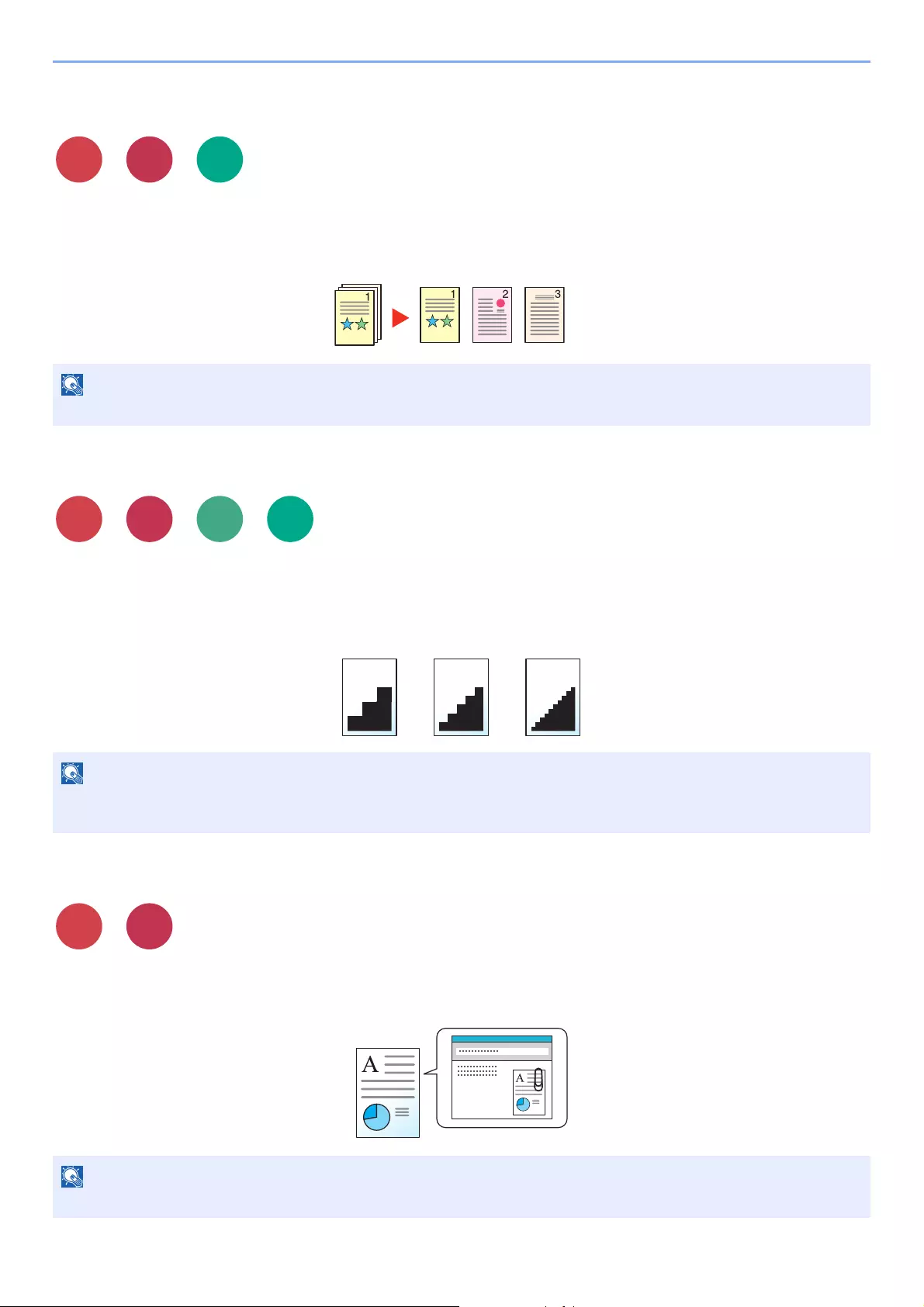
6-33
Using Various Functions > Functions
File Separation
Creates several files by dividing scanned original data page by page, and sends the files.
(Value: [Off] / [Each Page])
Select [Each Page] to set File Separation.
Scan Resolution, Resolution
Select fineness of scanning resolution.
(Value: [Use File Settings]*1 / [600 × 600dpi] / [400 × 400dpi Ultra] / [300 × 300dpi] / [200 × 400dpi Super] /
[200 × 200dpi Fine] / [200 × 100dpi Normal])
*1 Displayed when sending from the Custom Box.
E-mail Subject/Body
Adds subject and body when sending a document.
Select [Subject] / [Body] to enter the E-mail subject/body.
A three-digit serial number such as «abc_001.pdf, abc_002.pdf…» is attached to the end of the file name.
The larger the number, the better the image resolution. However, better resolution also means larger file sizes and
longer send times.
The subject can include up to 60 characters, and the body can include up to 500 characters.
Send from
Box
Send from
Box
Send from
Box
6-34
Using Various Functions > Functions
Long Original
Reads long-sized original documents using a document processor.
(Value: [Off] / [On])
FTP Encrypted TX
Encrypts images when sending via FTP.
Encryption secures the document transmission.
(Value: [Off] / [On])
Delete after Printed
Automatically deletes a document from the box once printing is complete.
(Value: [Off] / [On])
Delete after Transmitted
Automatically deletes a document from the box once transmission is complete.
(Value: [Off] / [On])
• Long originals are sent in black and white or Grayscale.
• Only a single side of a long original cannot Originals of up to 915 mm / 36-1/32″ long can be scanned.
• You can select resolution 300×300 dpi or less.
Click [Security Settings], and then [Network Security] in the Command Center RX. Be sure that «SSL» of Secure
Protocol Settings is «On» and one or more effective encryption are selected in Client side settings.
Command Center RX User Guide
Scan to
USB
Send from
Box
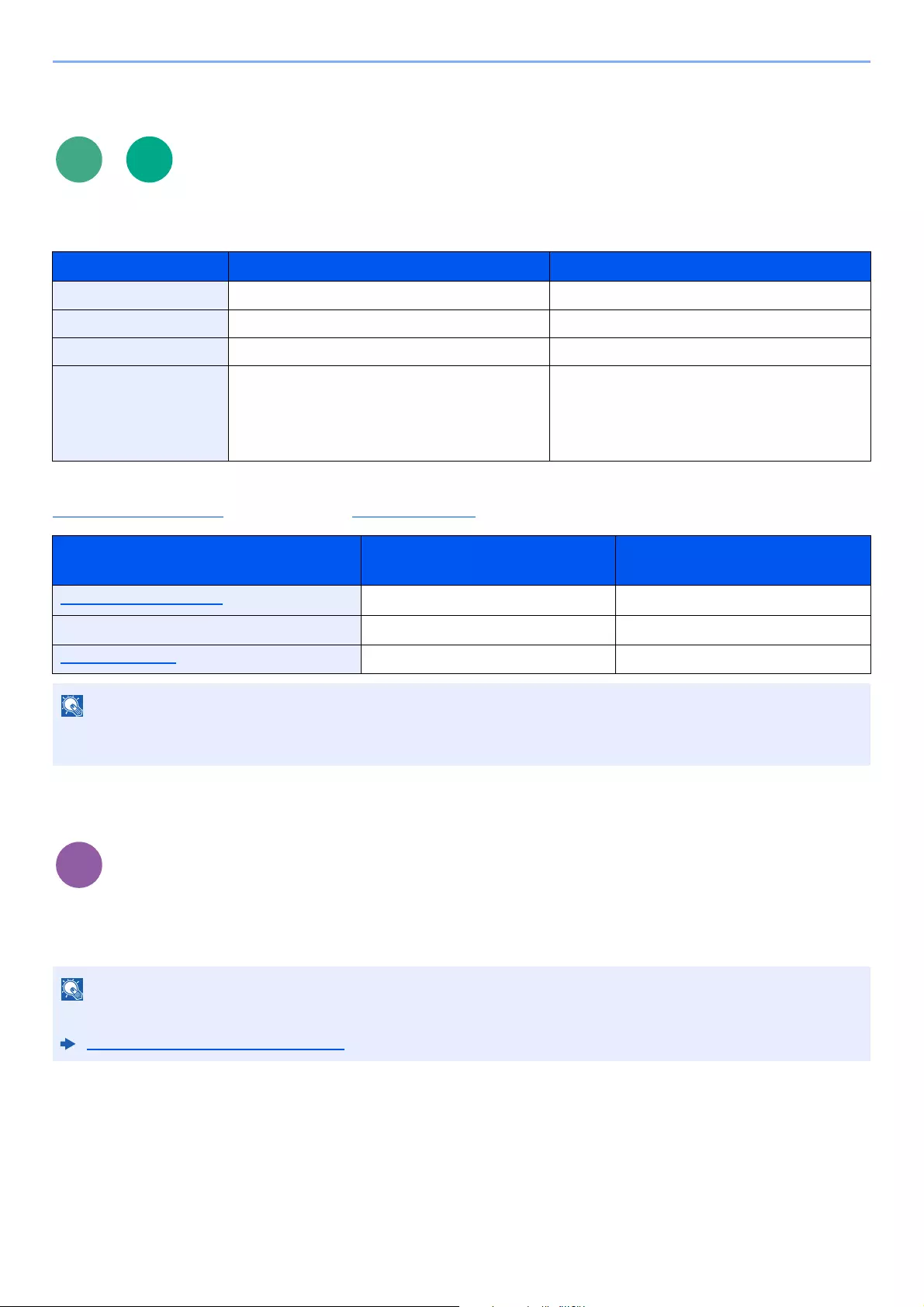
6-35
Using Various Functions > Functions
Storing Size
Select size of image to be stored.
Select [Same as Original Size], [Metric], [Inch], or [Others] to select the storing size.
Relationship between Original Size, Storing Size, and Zoom
Original Size (page 6-10), Storing Size, and Zoom (page 6-18) are related to each other. For details, see the table below.
Encrypted PDF Password
Enter the preassigned password to print the PDF data.
Enter the Password, and select [OK].
Item Value Description
Same as Original Size ―Store an image the same size as the original.
Metric A4, A5, A6, B5, B6, Folio, 216 × 340 mm Select from the Metric standard sizes.
Inch Letter, Legal, Statement, Executive, Oficio II Select from the Inch series standard sizes.
Others 16K, ISO B5, Envelope #10, Envelope #9,
Envelope #6, Envelope Monarch, Envelope DL,
Envelope C5, Hagaki (Cardstock),
Oufukuhagaki (Return postcard), Youkei 4,
Youkei 2
Select from special standard sizes and custom
sizes.
Original Size and the size you wish to
store as are the same different
Original Size (page 6-10) Specify as necessary. Specify as necessary.
Storing Size Select [Same as Original Size]. Select the desired size.
Zoom (page 6-18) Select [100%] (or [Auto]). Select [Auto].
When you select Storing Size that is different from Original Size, and select the Zoom [100%], you can store the image
as the actual size (No Zoom).
For details on entering the password, refer to the following:
Character Entry Method (page 11-11)
Scan to
USB
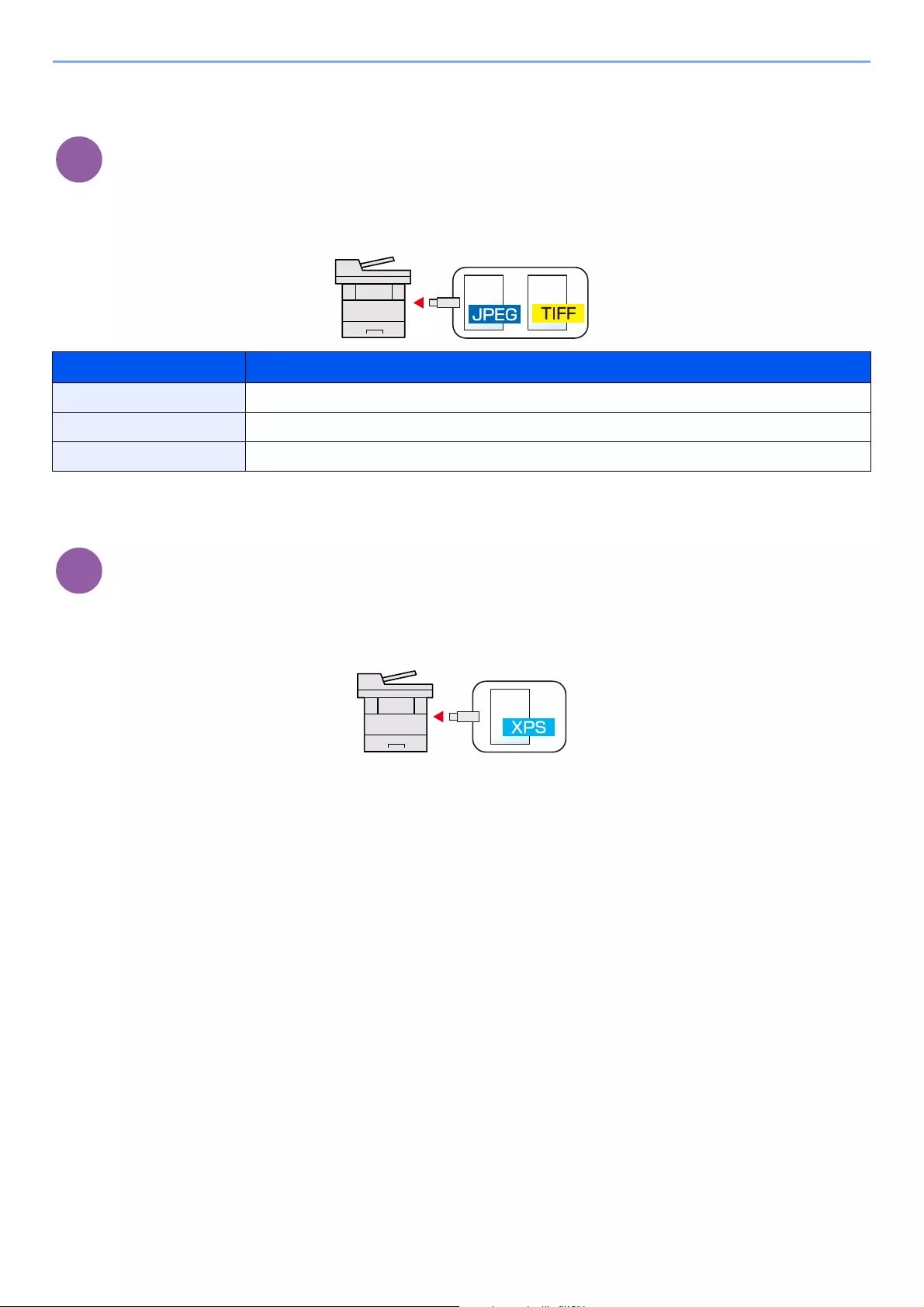
6-36
Using Various Functions > Functions
JPEG/TIFF Print
Select the image size when printing JPEG or TIFF files.
(Value: [Paper Size] / [Image Resolution] / [Print Resolution])
XPS Fit to Page
Reduces or enlarges the image size to fit to the selected paper size when printing XPS file.
(Value: [Off] / [On])
Item Description
Paper Size Fits the image size to the selected paper size.
Image Resolution Prints at resolution of the actual image.
Print Resolution Fits the image size to the print resolution.

7-1
7 Status/Job Cancel
This chapter explains the following topics:
Checking Job Status ….…………….…………….…………….……………..…………….…………….……………………..……….. 7-2
Details of the Status Screens ……………….…………….…………….…………….…………….…………..…………….. 7-3
Checking Detailed Information of Jobs ………..…………….……………..…………….…………….………….……….. 7-7
Checking Job History ………………….……………..…………….…………….…………….…………….……………………..…….. 7-8
Checking the Detailed Information of Histories ..…….…………….…………….…………….…………….…….…….. 7-9
Sending the Log History ………..…………….…………….…………….…………….…………….……………………….... 7-9
Job Operation …………..…………….…………….…………….……………..…………….……………...…………………………… 7-10
Pause and Resumption of Jobs ………………….…………….……………..…………….…………….………..……….. 7-10
Canceling of Jobs .…………….……………..…………….…………….…………….…………….………..………………… 7-10
Device/Communication ……….…………….…………….…………….…………….…………….…………….……….……………. 7-11
Checking the Remaining Amount of Toner and Paper (Paper/Supplies) ………………….……………….……………. 7-13

7-2
Status/Job Cancel > Checking Job Status
Checking Job Status
Check the status of jobs being processed or waiting to be printed.
Available Status Screens
The processing and waiting statuses of jobs are displayed as a list on the touch panel in four different screens — Printing
Jobs, Sending Jobs, Storing Jobs, and Scheduled Jobs.
The following job statuses are available.
Displaying Status Screens
1Display the screen.
Select the [Status/Job Cancel] key.
2Select the job you want to check.
Select either of [Print Job Status], [Send Job Status], [Store Job Status] or [Scheduled
Job] to check the status.
Status Display Job status to be displayed
Print Job Status • Copy
• Printer
• FAX reception
• E-mail reception
• Printing from Document Box
• Printing data from removable memory
• Application
• Job Report/List
Send Job Status • FAX transmission
• Folder transmission
• Application
• Multiple destination
Store Job Status • Scan
•FAX
• Printer
Scheduled Job • Sending Job FAX using Delayed transmission
Print Job Status Screen (page 7-3)
Send Job Status Screen (page 7-4)
Store Job Status Screen (page 7-5)
Scheduled Job Status Screen (page 7-6)
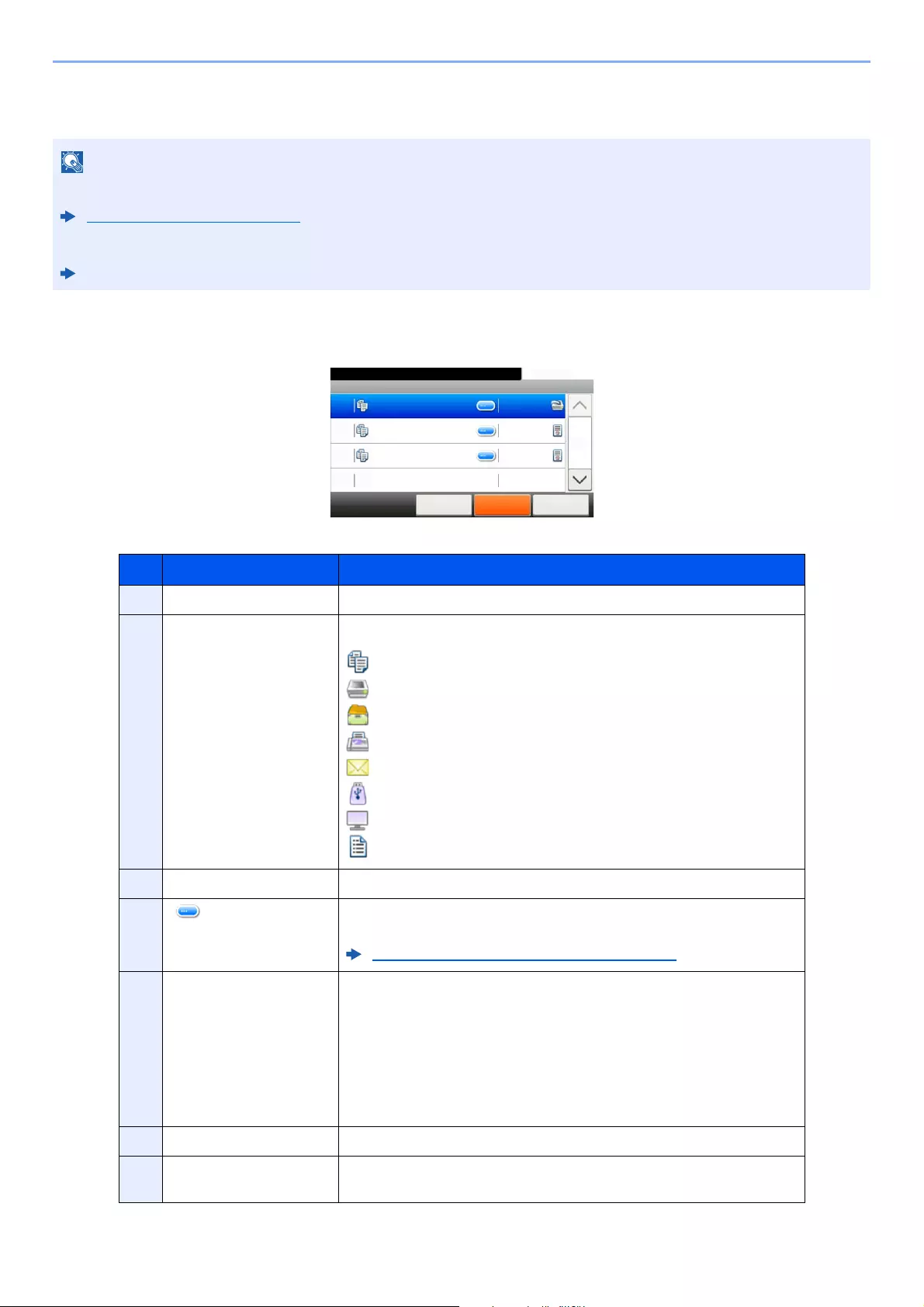
7-3
Status/Job Cancel > Checking Job Status
Details of the Status Screens
Print Job Status Screen
You can show the job statuses of all users, or only the statuses of your own jobs.
Display Status/Log (page 8-19)
This setting can also be changed from Command Center RX.
Command Center RX User Guide
No. Item Description
1Job No. Acceptance No. of job
2Type Icons that indicate the job type
Copy job
Printer job
Job from Document Box
FAX reception
E-mail reception
Data from removable memory
Application
Report/List
3Job Name Job Name or file name
4[ ] Select this key for the job for which you wish to display detailed
information.
Checking Detailed Information of Jobs (page 7-7)
5Status Status of job
(Number of copies printed)/(Total number of copies to be printed):
Printing
Processing: The status before starting to print.
Waiting: Print Waiting
Pause: Pausing print job or error
Canceling: Canceling the job
6[Cancel] Select the job you want to cancel from the list, and select this key.
7[Pause All Print Jobs] Pauses all the printing jobs. By selecting this key again, the printing jobs
will be resumed.
Print Job Status
10:10Status/Job Cancel.
doc0000892010092514…
Cancel Close
5/23
1/1
0089
Pause All
Print Jobs
doc0000892010092515… Waiting
doc0000892010092520… Waiting
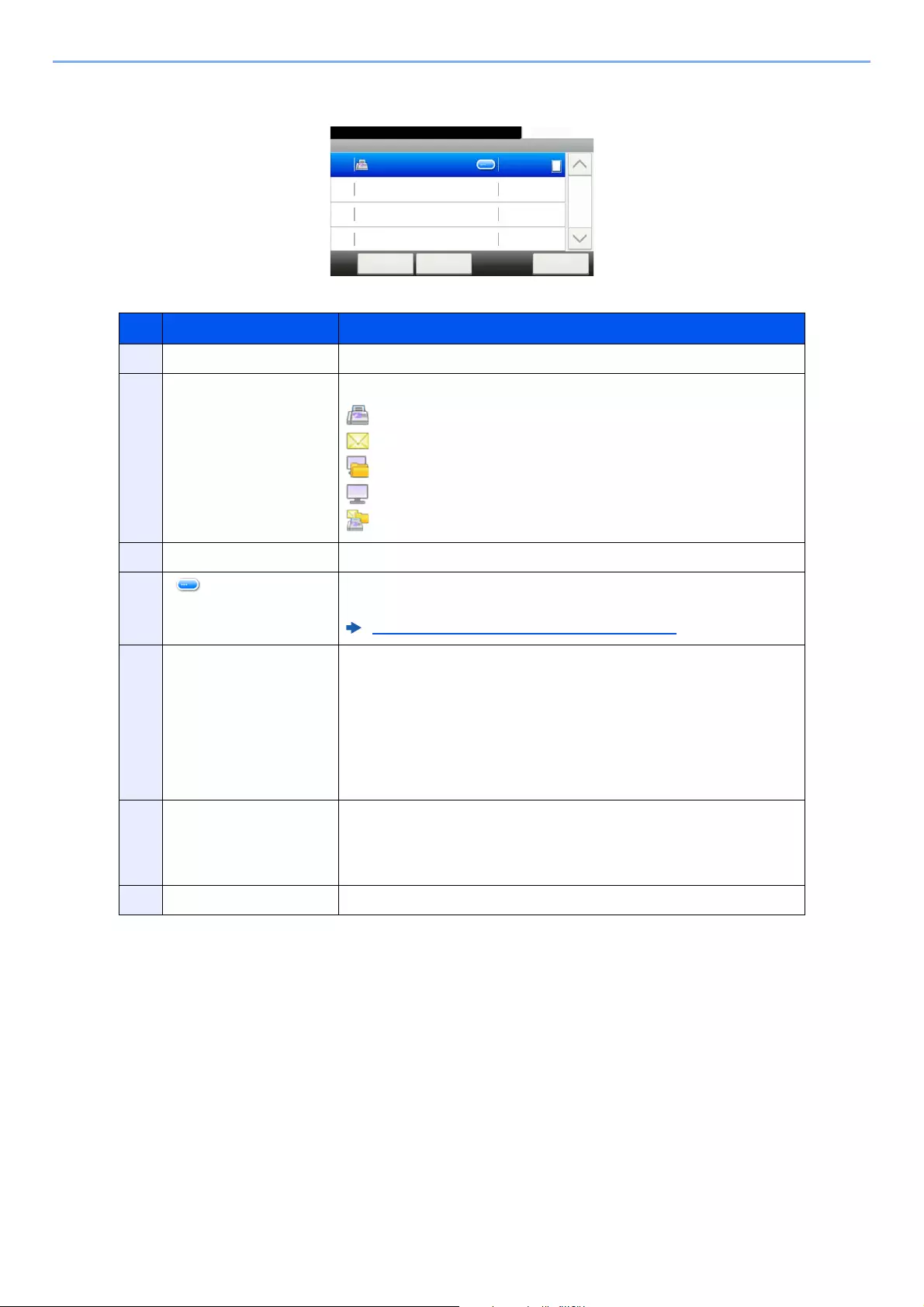
7-4
Status/Job Cancel > Checking Job Status
Send Job Status Screen
No. Item Description
1Job No. Acceptance No. of job
2Type Icons that indicate the job type
Sending Job FAX
Sending Job E-mail
Sending Job Folder (SMB/FTP)
Sending Job Application
Multi Sending
3Job Name Job Name or file name
4[ ] Select this key for the job for which you wish to display detailed
information.
Checking Detailed Information of Jobs (page 7-7)
5Status Status of job
Processing: The status before starting sending such as during scanning
originals
Sending: Sending
Waiting: Waiting Sending
Canceling: Canceling the job
Pause: Pausing the job
6[Menu] Selecting this key displays [Priority Override]. This function allows you
to give a particular fax job priority.
Select the fax job you wish to send immediately > [Menu] >
[Priority Override]
7[Cancel] Select the job you want to cancel from the list, and select this key.
Send Job Status
10:10Status/Job Cancel.
0123456
Cancel CloseMenu
Process
1/1
0005
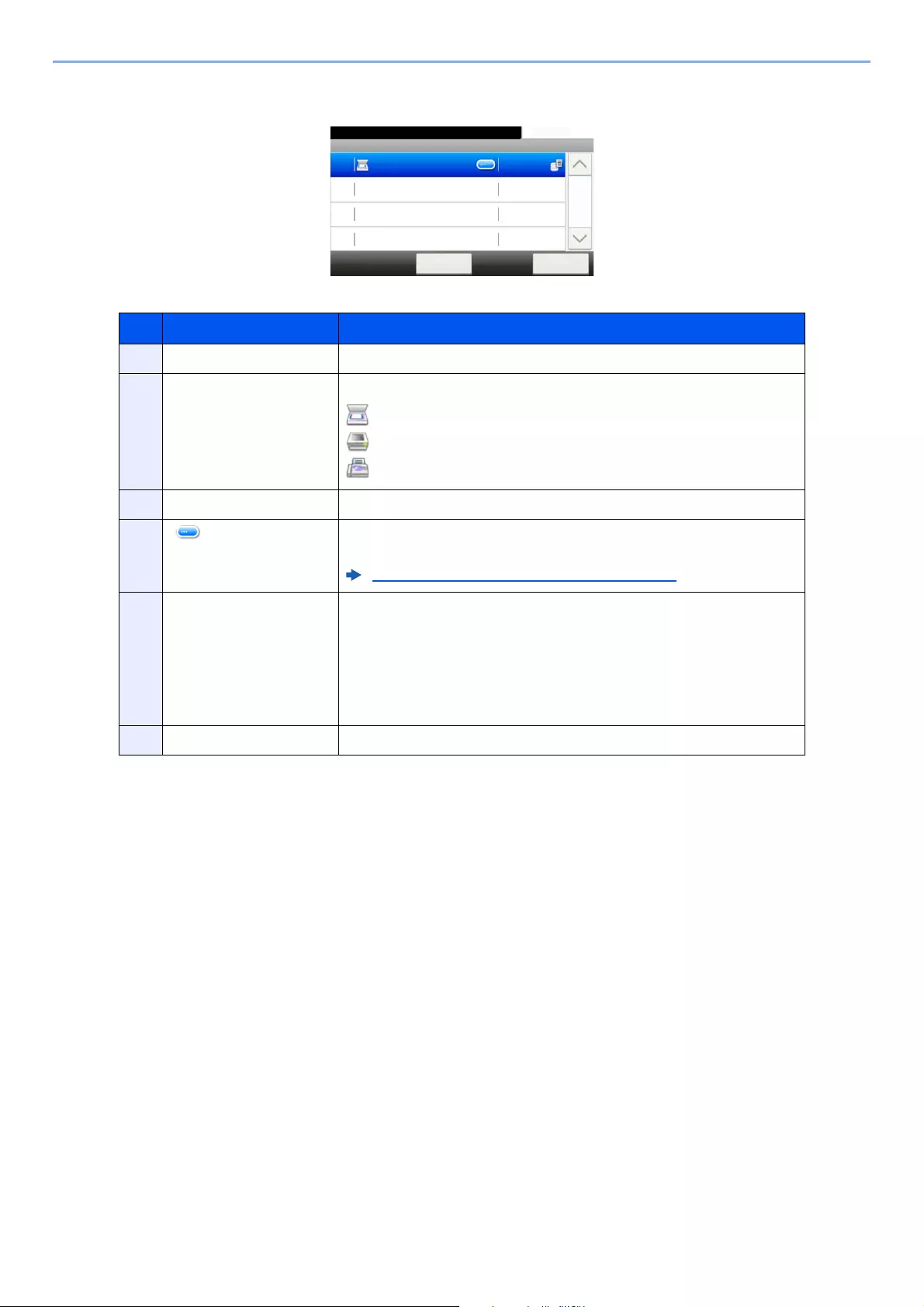
7-5
Status/Job Cancel > Checking Job Status
Store Job Status Screen
No. Item Description
1Job No. Acceptance No. of job
2Type Icons that indicate the job type
Storing Job Scan
Storing Job Printer
Storing Job FAX
3Job Name Job name or file name is displayed.
4[ ] Select this key for the job for which you wish to display detailed
information.
Checking Detailed Information of Jobs (page 7-7)
5Status Status of job
Processing: The status before starting to save such as during scanning
originals
Storing: Storing Data
Canceling: Canceling the job
Pause: Pausing the job
6[Cancel] Select the job you want to cancel from the list, and select this key.
Store Job Status
10:10Status/Job Cancel.
doc0000162010082913…
Cancel Close
Storing
1/1
0016
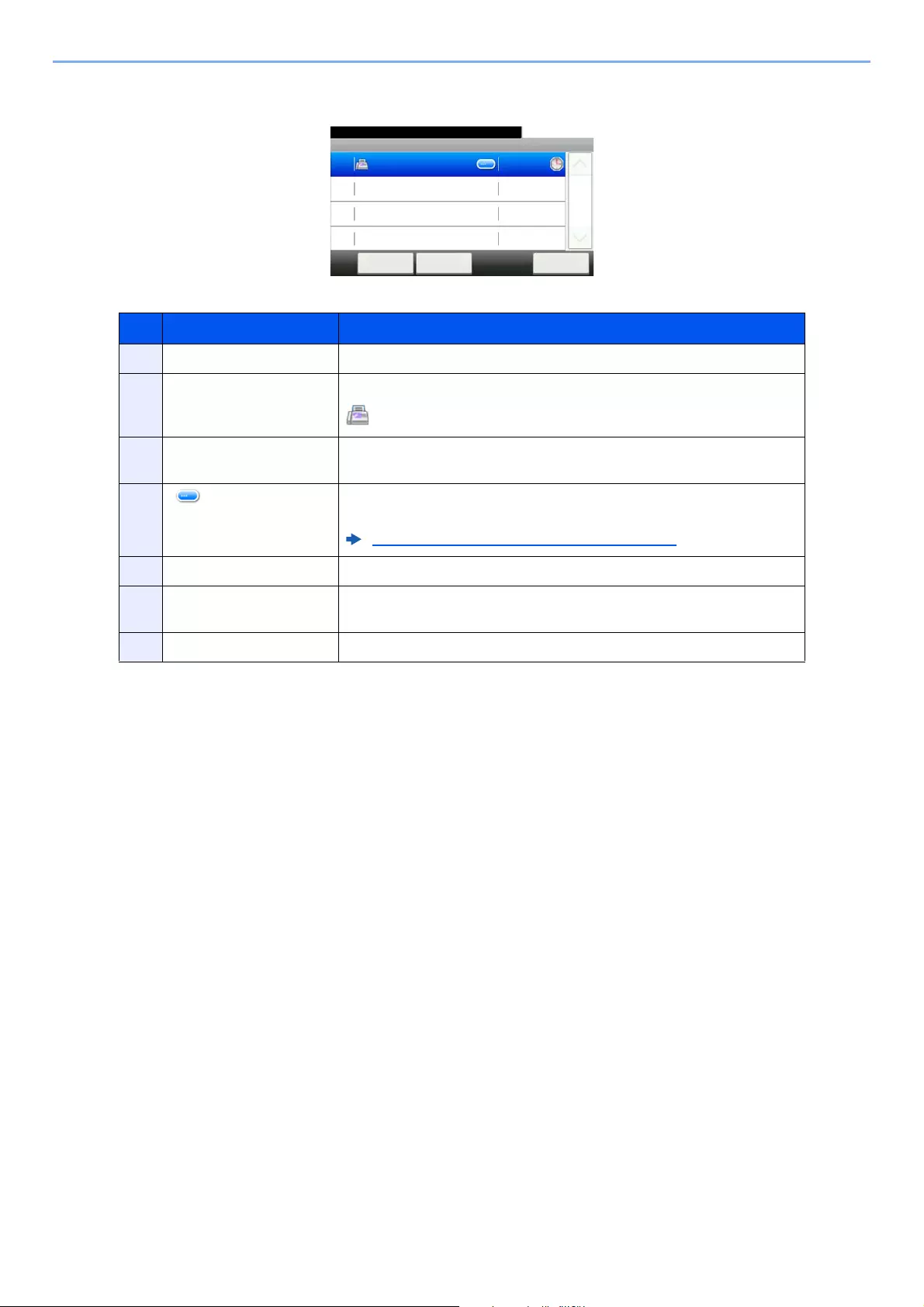
7-6
Status/Job Cancel > Checking Job Status
Scheduled Job Status Screen
No. Item Description
1Job No. Acceptance No. of job
2Type Icons that indicate the job type
Storing Job FAX
3Destination Destination (Either destination name, FAX number, or No. of broadcast
items)
4[ ] Select this key for the job for which you wish to display detailed
information.
Checking Detailed Information of Jobs (page 7-7)
5Start Time Time to start the scheduled job
6[Menu] Selecting this key displays [Start Now]. Select the job you wish to send
immediately > [Menu] > [Start Now]
7[Cancel] Select the job you want to cancel from the list, and select this key.
Scheduled Job
10:10Status/Job Cancel.
A OFFICE
Cancel Close
12:00
1/1
0014
Menu
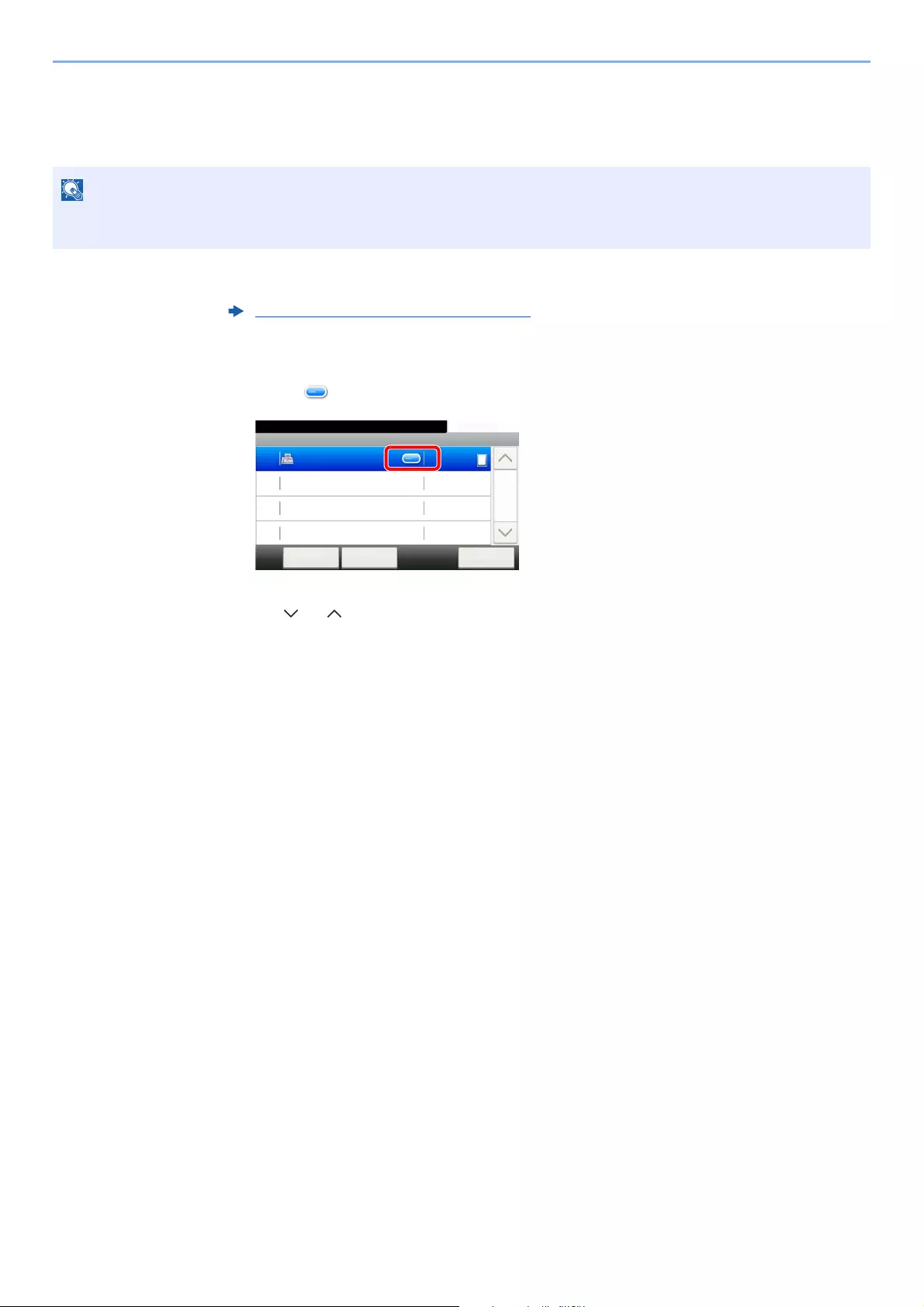
7-7
Status/Job Cancel > Checking Job Status
Checking Detailed Information of Jobs
Check the detailed information of each job.
1Display the screen.
2Check the information.
1Select [ ] for the job for which you wish to display detailed information.
Detailed information of the selected job is displayed.
Use [ ] or [ ] to see the next or previous page of information. More detailed information can be
checked if a white item is selected.
In Sending Jobs, you can check the destination by selecting [Status/Destination].
2To exit from the detailed information, select [End].
When you have logged in as a user, you can only check your own jobs. When you have logged in as administrator,
you can check all jobs.
Details of the Status Screens (page 7-3)
Send Job Status
10:10Status/Job Cancel.
0123456
Cancel CloseMenu
Process
1/1
0005

7-8
Status/Job Cancel > Checking Job History
Checking Job History
Check the history of completed jobs.
Available Job History Screens
The job histories are displayed separately in four screens — Printing Jobs, Sending Jobs, Storing Jobs, and FAX Jobs.
The following job histories are available.
• Job history is also available by Command Center RX or KYOCERA Net Viewer from the computer.
Command Center RX User Guide
KYOCERA Net Viewer User Guide
• You can show the job log of all users, or only your own job log.
Display Status/Log (page 8-19)
• This setting can also be changed from Command Center RX.
Command Center RX User Guide
Screen Job histories to be displayed
Print Job Log • Copy
• Printer
• FAX reception
• E-mail reception
• Printing from Document Box
• Job Report/List
• Printing data from removable memory
• Application
Send Job Log • FAX
• Folder
• Application
• Multiple destination
Store Job Log • Scan
•FAX
• Printer
FAX Job Log FAX Operation Guide
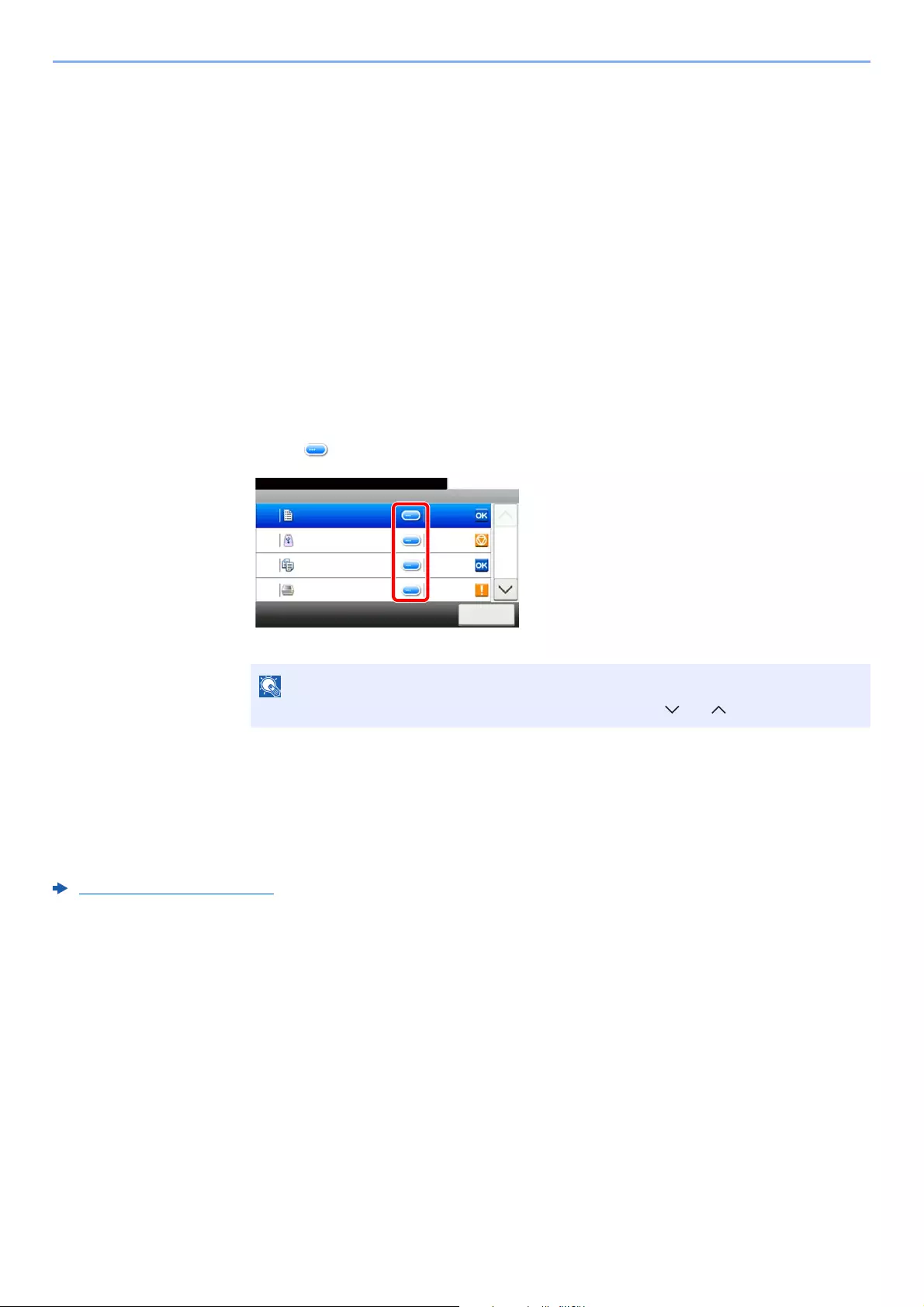
7-9
Status/Job Cancel > Checking Job History
Displaying Job History Screen
1Display the screen.
Select the [Status/Job Cancel] key.
2Select the job you want to check.
Checking the Detailed Information of Histories
Check the detailed information of each history.
1Display the screen.
2Check the information.
1Select [ ] for the job for which you wish to check details.
Detailed information of the selected job is displayed.
2To exit from the detailed information, select [Close].
Sending the Log History
You can send the log history by E-mail. You can either send it manually as needed or have it sent automatically
whenever a set number of jobs is reached.
Send Log History (page 8-7)
To check the information of the next/previous page, select [ ] or [ ].
Print Job Log
10:10Status/Job Cancel.
doc0000112010081817…
Close
Completed
1/3
0011
doc0000102010081815… Canceled0010
doc0000092010081815… Completed0009
doc Error0008

7-10
Status/Job Cancel > Job Operation
Job Operation
Pause and Resumption of Jobs
Pause/resume all printing jobs in printing/waiting.
1Display the screen.
Select the [Status/Job Cancel] key.
2Select [Pause All Print Jobs] on the printing jobs status screen.
Printing is paused.
When resuming the printing of jobs that have been paused, select [Resume All Print Jobs].
Canceling of Jobs
A job in printing/waiting status can be canceled.
1Display the screen.
Select the [Status/Job Cancel] key.
2Select the job to be canceled from the list, and select [Cancel].
3Select [Yes] in the confirmation screen.

7-11
Status/Job Cancel > Device/Communication
Device/Communication
Configure the devices/lines installed or connected to this machine or check their status.
1Display the screen.
1Select the [Status/Job Cancel] key.
2Select the device you wish to check.
The screen to check the status or configure the devices is displayed.
2Check the status.
The items you can check are described below.
«Scanner»
The status of an original scanning or the error information (paper jam, opened cover, etc.) is
displayed.
«Printer»
Error information such as paper jam, out of toner, or out of paper, and status such as waiting or
printing are displayed.
«FAX Memory RX Box»
This displays information (document name, file size, etc.) about a document in the FAX
Memory RX Box.
«FAX»
• The information such as sending/receiving and dialing is displayed.
•Select [Line Off] to cancel a fax in sending/receiving.
«Removable Memory (USB Memory)»
• The usage, capacity and free space of the external media connected to this machine are
displayed.
•Select [Menu] > [Format] to format external media.
•Select [Remove] to safely remove the external media.
«Optional Keyboard»
The status of the optional Optional Keyboard is displayed.
«Bluetooth Keyboard»
The status of the optional Bluetooth Keyboard is displayed.
«Network Connection Status»
The network connection status appears.
FAX Operation Guide
FAX Operation Guide
When [Format] is selected, all data in the external media is erased.

7-12
Status/Job Cancel > Device/Communication
«Option Network Connection Status»
The connection status of an optional network interface kit appears.
«Wi-Fi Direct»
Shows the connection status of Wi-Fi Direct.
«Wireless Network»
The connection status of the Wireless Network Interface Kit is displayed.
«Wi-Fi»
Shows the connection status of Wi-Fi.
«SSD»
The status of the optional SSD is displayed.

7-13
Status/Job Cancel > Checking the Remaining Amount of Toner and Paper (Paper/Supplies)
Checking the Remaining Amount of Toner
and Paper (Paper/Supplies)
Check the remaining amount of toner, and paper on the touch panel.
1Display the screen.
1Select the [Status/Job Cancel] key.
2Select the device you wish to check.
2Check the status.
The items you can check are described below.
«Toner Status»
The amount of toner remaining is shown in levels. And you can check the status of waste
toner box.
«Paper Status»
You can check the size, orientation, type, and remaining amount of paper in each paper
source. The amount of paper remaining is shown in levels.

8-1
8
Setup and Registration
(System Menu)
This chapter explains the following topics:
System Menu ………………………….…………….…………….……………..…………….…………….………………………..…….. 8-2
Operation Method ……………..……………..…………….…………….…………….…………….……………………..…….. 8-2
System Menu Settings …….………………..…………….…………….…………….…………….…………………..……….. 8-3
Language …………..…………….……………..…………….………….…………….…………….……….………………….….. 8-5
Report ………….…………….…………….…………….………….…………….…………….…………..……………….……….. 8-5
User Property ………………………….…………….…………….…………….…………….……………..……………………... 8-7
Cassette/MP Tray Settings ……….…………….…………….…………….…………….……………..……….…………….. 8-8
Common Settings ………..…………….…………….…………….……………..…………….…………….…………………. 8-10
Home …………..…………….…………….…………….………….…………….…………….………………………..…………. 8-20
Copy …………………………………..…………….…………….…………….…………….……………..…………………….… 8-20
Send ………………………….…………….…………….………….…………….…………….…………..………………………. 8-21
Document Box ………….…………….…………….…………….…………….…………….……………..….………………… 8-22
FAX …….…………….…………….……………..…………….…………….…………….…………….………………………..… 8-22
Application …………………………..…………….…………….………….…………….…………….………………………..… 8-22
Internet ……………………….…………….…………….………….…………….…………….………….…………….…………. 8-23
Address Book/One Touch ……………………….…………….…………….………….…………….……………………….. 8-23
User Login/Job Accounting ………………..…………….…………….…………….…………….……………..…………… 8-24
Printer …………….…………….…………….…………….………….……………..…………….…………………………..…… 8-24
System/Network …………..…………….…………….…………….……………..…………….……………..………………… 8-27
Date/Timer/Energy Saver …..……………..…………….…………….…………….…………….……………..…………… 8-46
Adjustment/Maintenance ………….…………….…………….…………….………….…………….…………..…………… 8-49
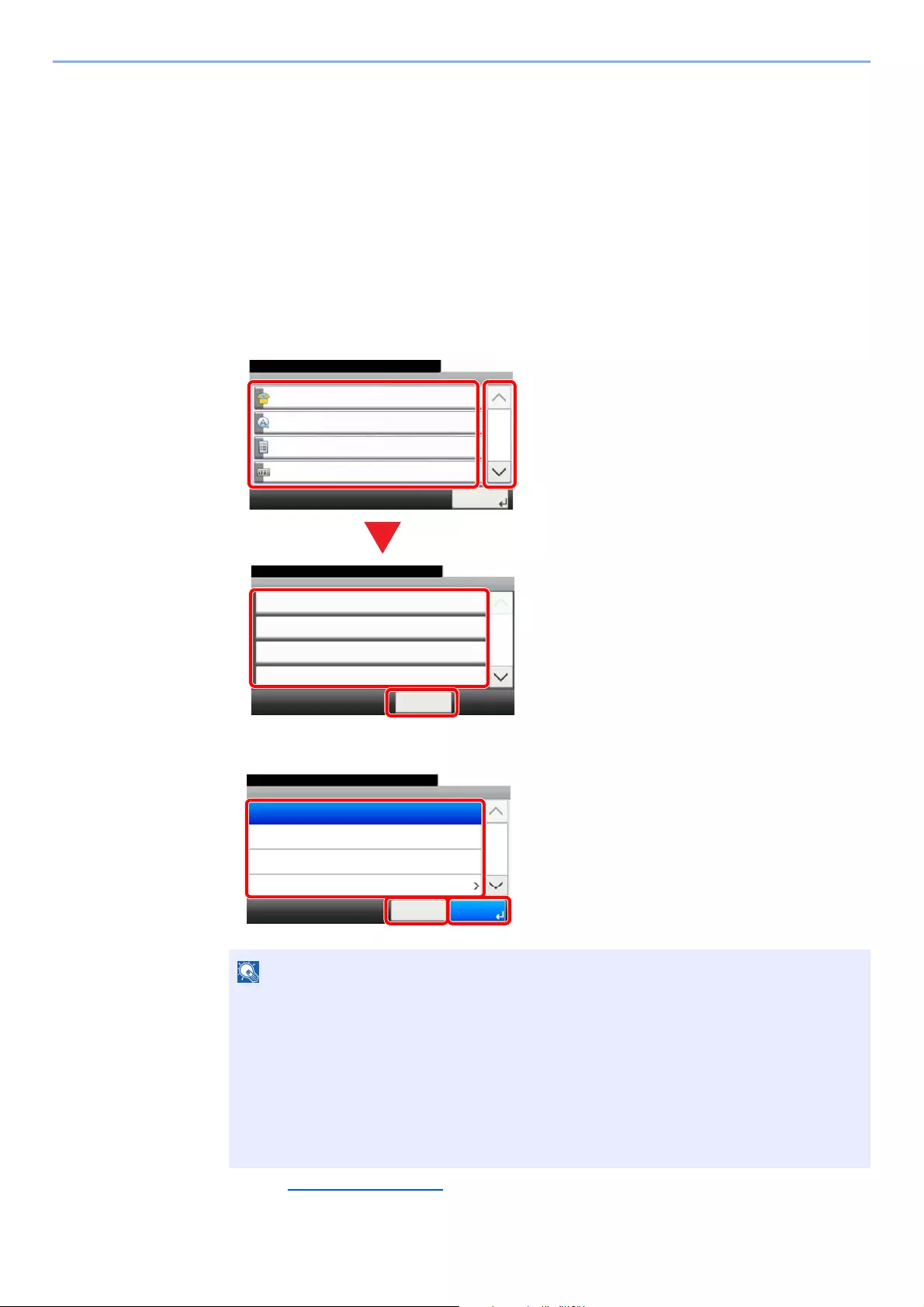
8-2
Setup and Registration (System Menu) > System Menu
System Menu
Configure settings related to overall machine operation.
Operation Method
System Menu is operated as follows:
1Display the screen.
Select the [System Menu/Counter] key.
2Select a function.
3Configure the settings.
Refer to System Menu Settings on the following page and configure as needed.
1 Displays the System Menu items.
2 Scrolls up and down when the list of
values cannot be displayed in its
entirety on a single screen.
3 Displays setting items.
Select the key of a function to display
the setting screen.
4 Returns to the previous screen.
1 Selecting a value it to be accepted.
2 Returns to the original screen without
making any changes.
3 Accepts the settings and exits.
• In order to change settings that require administer privileges, you must log in with
administrator privileges.
The factory default login user name and login password are set as shown below.
ECOSYS M3145idn ECOSYS M3655idn ECOSYS M3660idn
ECOSYS M3645idn
Login User Name: 4500 5500 6000
Login Password: 4500 5500 6000
• If function default settings have been changed, the [Reset] key can be selected in each
function screen to immediately change the settings.
System Menu/Counter.
System Menu
Quick Setup Wizard
10:10
Language
Report
Counter
1/5
Close
System Menu/Counter.
Date/Timer/Energy Saver
Date/Time
10/10/2014 10:10
10:10
Date Format
DD/MM/YYYY
On
+09:00 Osaka, Sapporo, Tokyo
Time Zone
Auto Panel Reset
1/4
< Back
System Menu/Counter.
Date/Timer/Energy Saver — Time Zone
-12:00 International Date Line West
10:10
-09:00 Alaska
-11:00 Universal Coordinated Time-11
-10:00 Hawaii
1/24
Cancel OK

8-3
Setup and Registration (System Menu) > System Menu
System Menu Settings
This section explains the functions that can be configured in System Menu. To configure the settings, select the item in
System Menu and select the setting item. For details on each function, see the table below.
Item Description Reference Page
Quick Setup Wizard The Quick Setup Wizard configures Fax, Network and Energy Saver
settings.
page 2-35
Language Select the language displayed on the touch panel. page 8-5
Print Report Configure settings for printing reports and histories. page 8-5
Admin Report Settings Refer to the FAX
Operation Guide.
Result Report Settings page 8-7
Sending Log History page 8-7
Counter This counts the number of pages printed or scanned. page 2-50
User Property Allows you to view information about logged in users and edit some of
that information.
page 8-7
Cassette 1 (to 5) Select type of paper in Cassette 1 (to 5). page 8-8
Multi Purpose Tray Select type of paper in multi purpose tray. page 8-9
Default Screen Select the screen appearing right after start-up (default screen). page 8-10
Sound Set options for buzzer sound during the machine operations. page 8-10
Original Settings Configures settings for originals. page 8-11
Paper Settings Configures settings for paper. page 8-12
Function Defaults Defaults are the values automatically set after the warm-up is completed
or the [Reset] key is selected.
Set the defaults for available settings such as copying and sending. Setting
the frequently-used values as defaults makes subsequent jobs easier.
page 8-15
Preset Limit Restrict the number of copies that can be made at one time. page 8-17
Error Handling Select whether to cancel or continue the job when error has occurred. page 8-17
Measurement Select inch or metric for the unit for paper dimensions. page 8-18
Low Toner Alert Set the amount of remaining toner to notify the administrator when to
order a toner when the toner is running low.
page 8-18
Keyboard Layout Change the layout of the touch panel keyboard used to enter characters. page 8-18
Optional Keyboard Type Select the type of Optional keyboard that you want to use. page 8-18
Display Status/Log Set the display method of the Status/Log. page 8-19
Show Power Off Message Select whether the confirmation message is displayed, when Power
Switch is pressed.
page 8-19
Message Banner Print Set whether the confirmation screen appears before each sheet is printed
when printing multiple banner sheets.
page 8-20
Function Key Assignment Configure settings for function key on the operation panel. page 8-19
Remote Printing Configure settings for remote printing. page 8-19
Home Configure settings for Home screen. page 8-20
Copy Configures settings for copying functions. page 8-20

8-4
Setup and Registration (System Menu) > System Menu
Send Configures settings for sending functions. page 8-21
Document Box Configures settings related to the Custom Box, Job Box, Sub Address
Box and Polling Box.
FAX Operation Guide
page 8-22
FAX Configures settings for fax functions.
FAX Operation Guide
—
Application Configure settings for Application. page 8-22
Internet Set the proxy for connection to the Internet from an application. page 8-23
Address Book/One Touch Configures Address Book and One Touch Key settings.
Address Book:
Adding a Destination (Address Book) (page 3-28)
One Touch Key:
Adding a Destination on One Touch Key (One Touch Key) (page 3-
33)
page 8-23
User Login/Job Accounting Configures settings related to machine management.
User Login:
Overview of User Login Administration (page 9-2)
Job Accounting:
Overview of Job Accounting (page 9-33)
—
Printer Printing from computers, settings are generally made on the application
software screen. However, the following settings are available for
configuring the defaults to customize the machine.
page 8-24
Network Configures network settings. page 8-27
Optional Network Configure settings for the optional Network Interface Kit or Wireless
Network Interface Kit.
page 8-38
Primary Network (Client) Select the network interface to be used for the send function that this
machine functions as a client, the network authentication and connecting
to external address book.
page 8-40
Interface Block Setting This allows you to protect this machine by blocking the interface with
external devices such as USB hosts or optional interfaces.
page 8-41
Bluetooth Settings Set the Bluetooth keyboard. page 8-41
Security Level The Security Level setting is primarily a menu option used by service
personnel for maintenance work. There is no need for customers to use
this menu.
—
Restart Restart the CPU without turning the power switch off. Use this to deal with
any unstable operation by the machine. (Same as the computer restart.)
page 8-42
RAM Disk Setting A RAM disk can be created and its size can be set. page 8-42
Optional Memory When optional memory is installed, select the memory allocation scheme
based on the application in which you are using the equipment.
page 8-42
Data Security Configure settings for data stored in the optional SSD and machine’s
memory.
page 8-43
OCR Dictionary Installation Install the OCR Dictionary. page 8-44
Optional Function You can use the optional applications installed on this machine. page 8-45
FAX Server Settings Configure settings for FAX Server. page 8-45
Item Description Reference Page
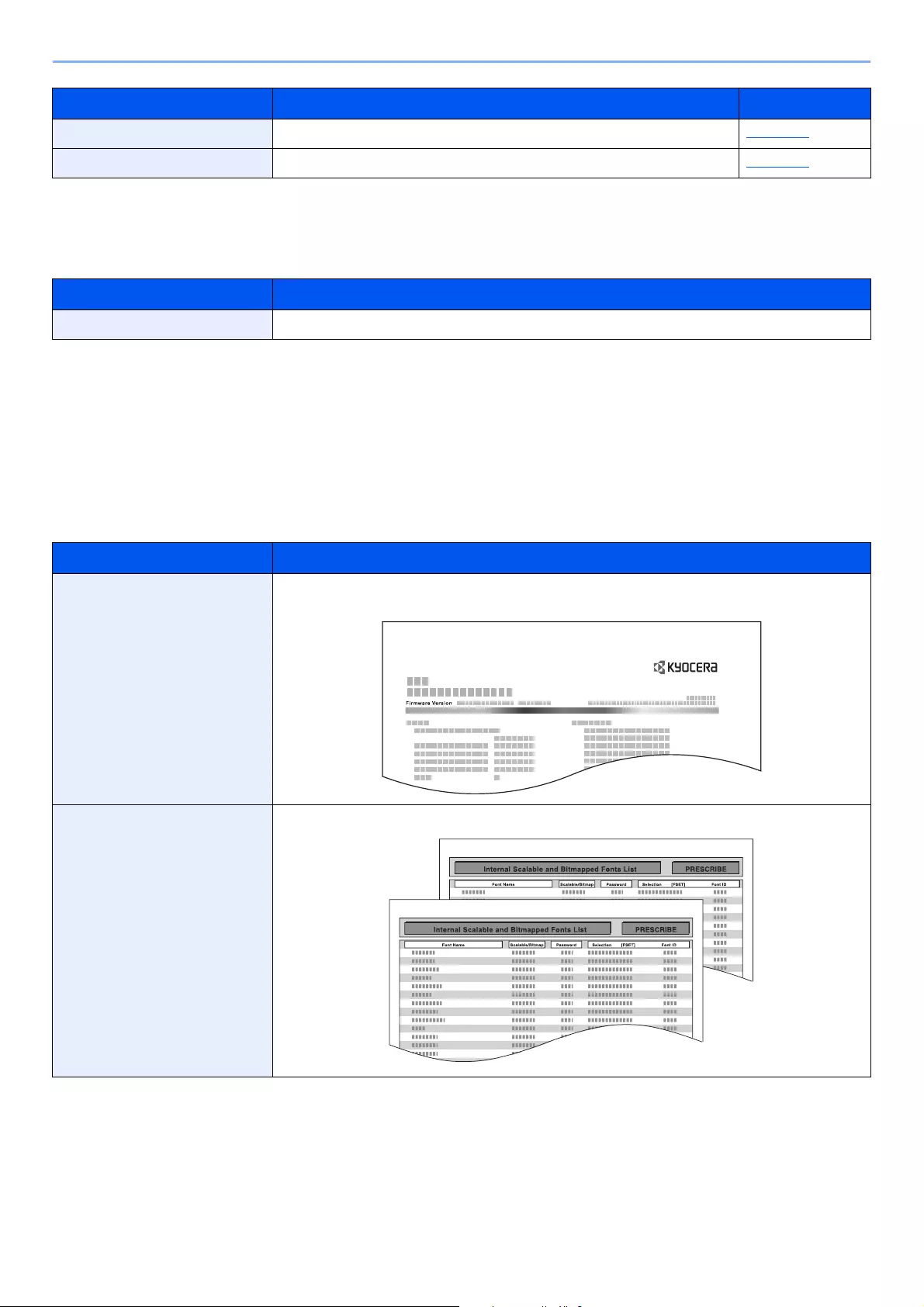
8-5
Setup and Registration (System Menu) > System Menu
Language
[System Menu/Counter] key > [Language]
Report
Print reports to check the machine settings and status.
Default settings for printing the result reports can also be configured.
Report Print
[System Menu/Counter] key > [Report] > [Report Print]
Date/Timer/Energy Saver Configures settings related to the date and time. page 8-46
Adjustment/Maintenance Adjust printing quality and conduct machine maintenance. page 8-49
Item Description
Language Select the language displayed on the touch panel.
Item Description
Status Page Prints the status page, allowing you to check the information including current settings,
available memory space, and optional equipment installed.
Font List Prints the font list, allowing you to check the font samples installed in the machine.
Item Description Reference Page
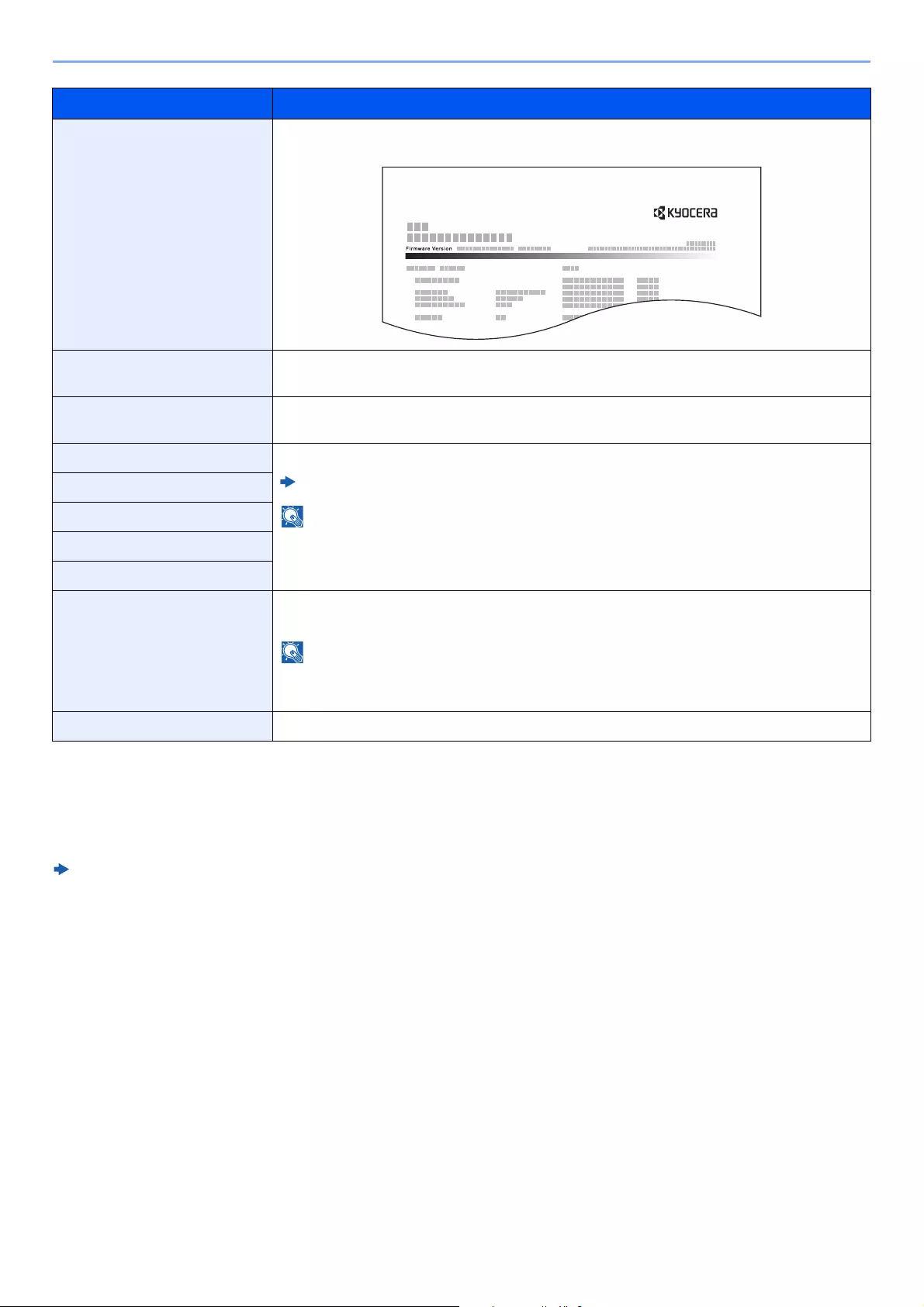
8-6
Setup and Registration (System Menu) > System Menu
Admin Report Settings
[System Menu/Counter] key > [Report] > [Admin Report Settings]
Configure settings for fax functions.
FAX Operation Guide
Network Status Prints the network status, allowing you to check the information including network interface
firmware version, network address and protocol.
Service Status Prints the service status. More detailed information is available than on the Status Page.
Service personnel usually print the service status pages for maintenance purpose.
Accounting Report Prints the accounting report, allowing you to check the accounts that have been registered on
the machine.
Sub Address Box List Prints the report on the FAX function.
FAX Operation Guide
FAX functions are available only on products with the fax function installed.
FAX List (Index)
FAX List (No.)
Outgoing FAX Report
Incoming FAX Report
Optional Network Status Prints the optional network status, allowing you to check the information including optional
network interface firmware version, network address and protocol.
This function is displayed when the optional Network Interface Kit or Wireless Network
Interface Kit is installed.
Data Sanitization Report Prints the data sanitization report.
Item Description
8-7
Setup and Registration (System Menu) > System Menu
Result Report Settings
[System Menu/Counter] key > [Report] > [Result Report Settings]
Sending Log History
[System Menu/Counter] key > [Report] > [Sending Log History]
User Property
[System Menu/Counter] key > [User Property]
Allows you to view information about logged in users and edit some of that information.
Enabling User Login Administration (page 9-3)
Item Description
Send Result Report Automatically print a report of transmission result when a transmission is complete.
E-mail/Folder Automatically print a report of transmission result when E-mail or SMB/FTP transmission is
complete.
Value: Off, On, Error Only
FAX*1
*1 Only on products with the fax function installed.
FAX Operation Guide
Attach Image of
Network FAX*1 FAX Operation Guide
Canceled before
Sending*2
*2 When «E-mail/Folder» and «FAX» are set to [Off], this function will not be displayed.
Print a send result report if the job is canceled before being sent.
Value: Off, On
Recipient Format*2 Select the Recipient Format for the send result report.
Value: Name or Destination, Name and Destination
RX Result Report*1 FAX Operation Guide
Job Finish Notice Setting Attaches sent images to job finish notices.
Value: Do Not Attach Image, Attach Image
Item Description
Send Log History You can also send the log history to the specified destinations manually.
Auto Sending
This function automatically sends the log history to the specified destinations whenever a set
number of jobs has been logged.
Value: Off, On
If [On] is selected, specify the number of job histories. The setting range is 1 to 16.
Destination Set the destination to which log histories are sent. Only E-mail address can be set.
Job Log Subject Set the subject automatically entered when sending log histories by E-mail.
Value: Up to 60 characters
SSFC Log Subject Enter the subject of the printed job history with IC card authentication.
Value: Up to 60 characters
Personal Information Select whether to include personal information in the job log.
Value: Include, Exclude
8-8
Setup and Registration (System Menu) > System Menu
Cassette/MP Tray Settings
Select paper size and media type for Cassettes and multi purpose tray.
Cassette 1 (to 5)
[System Menu/Counter] key > [Cassette/MP Tray Settings] > [Cassette 1 (to 5)]
Select paper size and media type for Cassettes 1 to 5.
Selection Item Selectable Size/Type
Paper Size*1
*1 Only set this when the size dial on the cassette is set to «Other».
Metric Select from the Metric standard sizes.
Values
Cassette 1: A4, A5, A5 (Landscape)*2, A6*2, B5, B6*2, Folio, 216 × 340 mm
Cassettes 2 to 5: A4, A5, B6, B5, Folio, 216 × 340 mm
*2 ECOSYS M3655idn/ECOSYS M3660idn only.
Inch Select from the Inch series standard sizes.
Values
Cassette 1: Letter, Legal, Statement, Statement (Landscape)*2, Executive,
Oficio II
Cassettes 2 to 5: Letter, Legal, Statement, Executive, Oficio II
Others Select from special standard sizes and custom sizes.
Values
Cassette 1: 16K, ISO B5, Envelope DL*2, Envelope C5,
Oufukuhagaki (Return postcard)*2, Custom*3
Cassettes 2 to 5: 16K, ISO B5, Envelope #10, Envelope #9, Envelope #6,
Envelope Monarch, Envelope DL, Envelope C5,
Oufukuhagaki (Return postcard)*2, Youkei 4, Youkei 2, Custom*3
*3 The custom paper sizes are set for each cassette.
Custom Paper Size (page 8-12)
Media type*4
*4 To change to a media type other than «Plain».
Media Type Setting (page 8-14)
When a paper weight that cannot be loaded in the cassette is set for a media type, that media type does not appear.
Select the media type.
Values
Cassette 1: Plain (60 — 105 g/m2), Rough, Recycled, Preprinted*5, Bond, Color,
Prepunched*5, Letterhead*5, High Quality, Custom 1 — 8
Cassettes 2 to 5: Plain (60 — 105 g/m2), Rough, Recycled, Preprinted*5, Bond,
Color, Prepunched*5, Letterhead*5, Envelope, High Quality, Custom 1 — 8
*5 To print on preprinted or prepunched paper or on letterhead.
Special Paper Action (page 8-13)
8-9
Setup and Registration (System Menu) > System Menu
Multi Purpose Tray
[System Menu/Counter] key > [Cassette/MP Tray Settings] > [Multi Purpose Tray]
Select paper size and media type for the multi purpose tray.
Item Description
Paper Size Metric Select from the Metric standard sizes.
Values: A4, A5, A5 (Landscape), A6, B5, B6, Folio, 216 × 340 mm
Inch Select from the Inch series standard sizes.
Values: Letter, Legal, Statement, Statement (Landscape), Executive, Oficio II
Others Select from special standard sizes and custom sizes.
Values: 16K, ISO B5, Envelope #10, Envelope #9, Envelope #6,
Envelope Monarch, Envelope DL, Envelope C5,
Hagaki (Cardstock)
,
OufukuHagaki (Return postcard), Youkei 4, Youkei 2
, Custom*1
*1 For instructions on how to specify the custom paper size.
Custom Paper Size (page 8-12)
Media Type*2
*2 To change to a media type other than «Plain».
Media Type Setting (page 8-14)
Select the media type.
Values: Plain (60 to 105 g/m2), Rough, Transparency, Vellum, Labels,
Recycled, Preprinted*3, Bond, Cardstock, Color, Prepunched*3, Letterhead*3,
Envelope, Thick (106 to 220 g/m2), High Quality, Custom 1 — 8
*3 To print on preprinted or prepunched paper or on letterhead.
Special Paper Action (page 8-13)
8-10
Setup and Registration (System Menu) > System Menu
Common Settings
Configures overall machine operation.
Default Screen
[System Menu/Counter] key > [Common Settings] > [Default Screen]
Sound
[System Menu/Counter] key > [Common Settings] > [Sound]
Item Description
Default Screen Select the screen appearing right after start-up (default screen).
Value: Home, Copy, Send, FAX*1, Custom Box, Job Box, Removable Memory,
Sub Address Box*1, Polling Box*1, FAX Memory RX Box*1, Favorites, Status,
Application Name*2
*1 Only on products with the fax function installed.
*2 The running application will be displayed.
Application (page 5-11)
Item Description
Buzzer Set options for buzzer sound during the machine operations.
Key Confirmation Emit a sound when the operation panel and touch panel keys are selected.
Value: Off, On
Job Finish Emit a sound when a print job is normally completed.
Value: Off, On, FAX Reception Only*1
*1 Only on products with the fax function installed.
Ready Emit a sound when the warm-up is completed.
Value: Off, On
Warning Emit a sound when errors occur.
Value: Off, On
Optional Keyboard Emit a sound to confirm keypresses with a sound.
Value: Off, On
FAX Speaker Volume*1 FAX Operation Guide
FAX Monitor Volume*1 FAX Operation Guide

8-11
Setup and Registration (System Menu) > System Menu
Original Settings
[System Menu/Counter] key > [Common Settings] > [Original Settings]
Configure settings for originals.
Item Description
Custom Original Size Set up frequently-used custom original size.
The custom size option is displayed on the screen to select original size.
Value
Metric
X: 50 to 356 mm (in 1 mm increments)
Y: 50 to 216 mm (in 1 mm increments)
Inch
X: 1.97 to 14.02″ (in 0.01″ increments)
Y: 1.97 to 8.50″ (in 0.01″ increments)
X=Length, Y=Width
Auto Detect Original Size (DP) Select whether to automatically detect originals of the document processor.
Auto Detect Select whether to enable automatic detection of original size.
Value: Off, On
System of Units Select metric or inch for the unit of original size detection.
Value: Metric, Inch
Legal/OficioII/
216 x 340 mm
As Legal, OficioII and 216 x 340 mm are similar in size, select either one of them for automatic
detection.
Value: Legal, Oficio II, 216 x 340 mm
When [System of Units] is set to [Metric], this function will not be displayed.
Default Original Size Set the default original size.
Value
Metric: A4, A5, A6, B5, B6, Folio, 216 × 340 mm
Inch: Letter, Legal, Statement, Executive, Oficio II
Others: 16K
Default Original Size (Platen) Select a default size for the originals placed on the platen.
If [Off] is selected, a confirmation will be displayed before each job is processed.
Value
Off
Metric: A4, A5, A6, B5, B6, Folio, 216 × 340 mm
Inch: Letter, Legal, Statement, Executive, Oficio II
Others: 16K
When [Auto Detect] is set to [Off], this function will not be displayed.
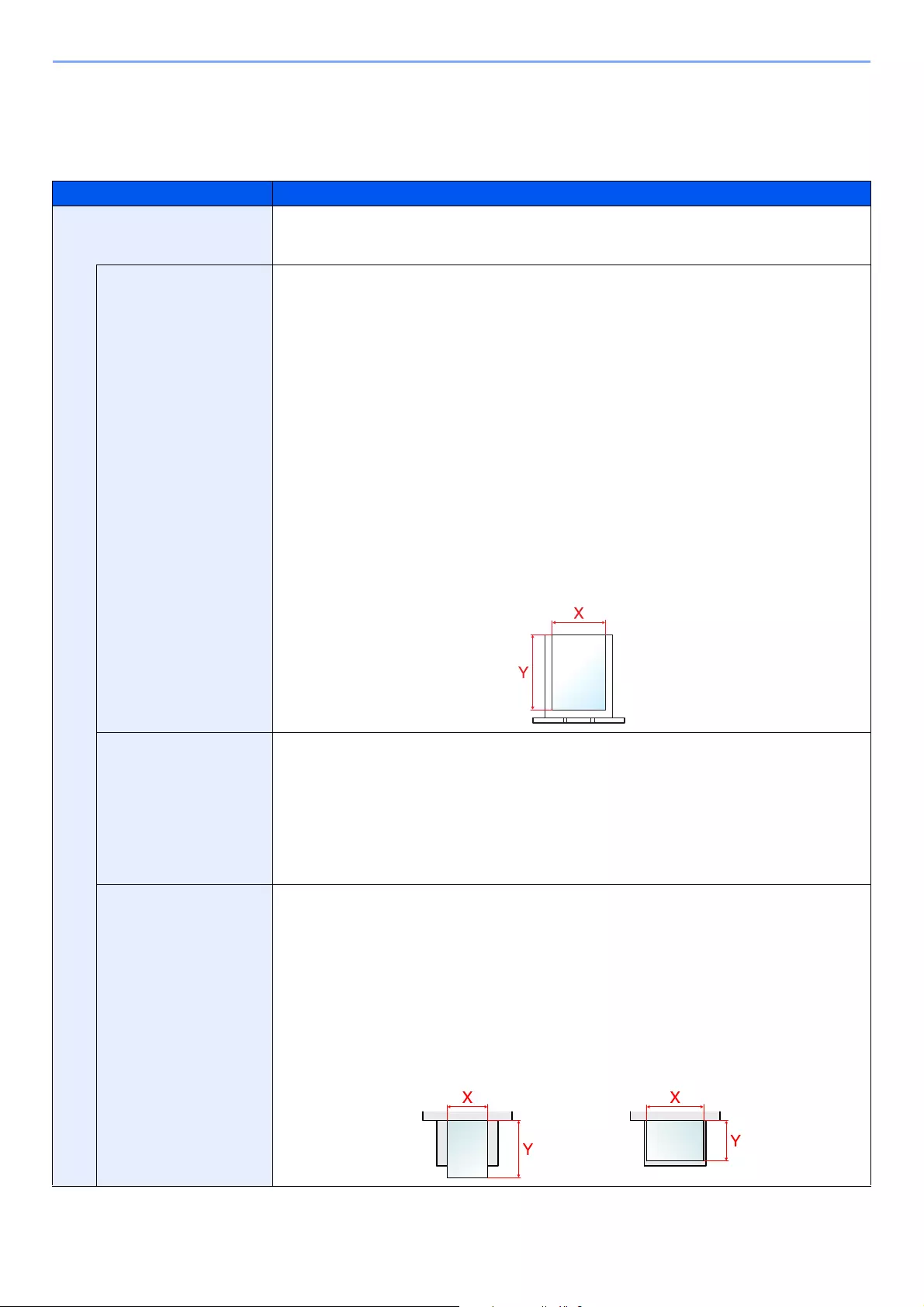
8-12
Setup and Registration (System Menu) > System Menu
Paper Settings
[System Menu/Counter] key > [Common Settings] > [Paper Settings]
Configure settings for paper.
Item Description
Custom Paper Size Set up frequently-used custom paper size.
One custom paper size is set for each paper supply source. The custom size option is
displayed on the screen to select paper size.
Cassette 1 Size*1
*1 Only set this when the size dial on the cassette is set to «Other».
Register the custom paper size to be used in Cassette 1.
Value
For ECOSYS M3145idn/ECOSYS M3645idn
Metric
X: 140 to 216 mm (in 1 mm increments)
Y: 210 to 356 mm (in 1 mm increments)
Inch
X: 5.50 to 8.50″ (in 0.01″ increments)
Y: 8.25 to 14.02″ (in 0.01″ increments)
For ECOSYS M3655idn/ECOSYS M3660idn
Metric
X: 105 to 216 mm (in 1 mm increments)
Y: 148 to 356 mm (in 1 mm increments)
Inch
X: 4.13 to 8.50″ (in 0.01″ increments)
Y: 5.83 to 14.02″ (in 0.01″ increments)
X=Length, Y=Width
Cassette 2 (to 5) Size*1 Register the custom paper size to be used in Cassettes 2 to 5.
Value
Metric
X: 92 to 216 mm (in 1 mm increments)
Y: 162 to 356 mm (in 1 mm increments)
Inch
X: 3.62 to 8.50″ (in 0.01″ increments)
Y: 6.38 to 14.02″ (in 0.01″ increments)
MP Tray Size Register the custom paper size to be used in the multi purpose tray.
Value
Metric
X: 70 to 216 mm (in 1 mm increments)
Y: 148 to 356 mm (in 1 mm increments)
Inch
X: 2.76 to 8.50″ (in 0.01″ increments)
Y: 5.83 to 14.02″ (in 0.01″ increments)
X=Length, Y=Width
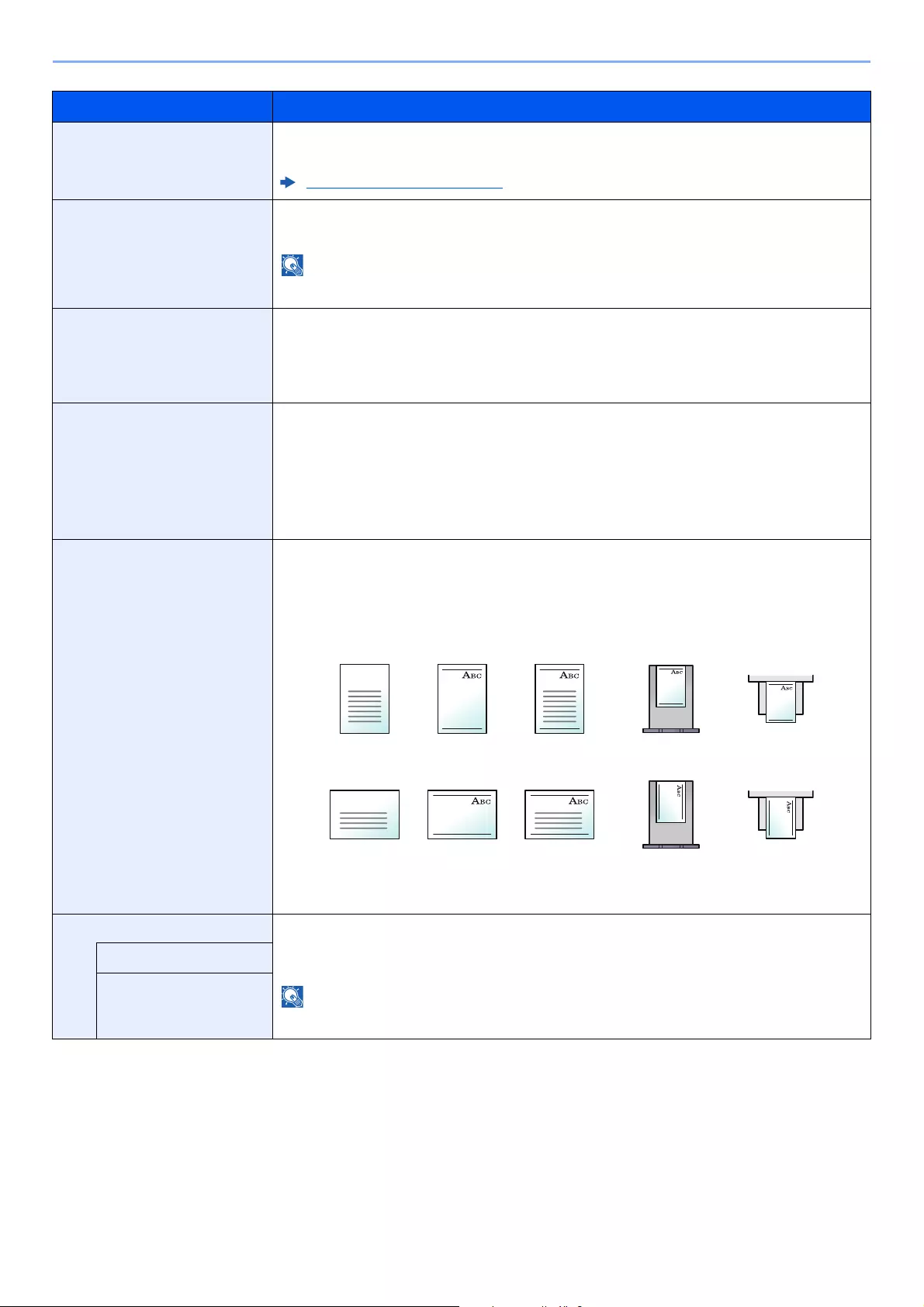
8-13
Setup and Registration (System Menu) > System Menu
Item Description
Media Type Settings Select weight for each media type.
For Custom 1-8, settings for duplex printing and media type name can be changed.
Media Type Setting (page 8-14)
Default Paper Source Select the default paper source from Cassette 1 — 5 and multi purpose tray.
Value: Cassette 1 to 5, Multipurpose Tray
[Cassette 2] to [Cassette 5] are displayed when optional paper feeder is installed.
Paper Selection Set the default paper selection.
Value
Auto: Automatically select the cassette containing paper in the same size as originals.
Default Paper Source: Select paper source set by «Default Paper Source».
Media for Auto (B&W) Select a default media type for auto paper selection when [Auto] is selected of Paper
Selection. If [Plain] is selected, the paper source with plain paper loaded in the specific size is
selected. Select [All Media Types] for the paper source with any kind of paper loaded in the
specific size.
Value: All Media Types, Plain, Transparency, Rough, Vellum, Labels, Recycled,
Preprinted, Bond, Cardstock, Color, Prepunched, Letterhead, Envelope, Thick,
High Quality, Custom 1 to 8
Special Paper Action When printing on Prepunched, Preprint, and Letterhead, punch-holes might not be aligned or
the print direction might be upside-down depending on how originals are set and the
combination of copying functions. In such a case, select [Adjust Print Direction] to adjust the
print direction. When paper orientation is not important, select [Speed Priority].
If [Adjust Print Direction] is selected, load paper according to the steps below.
Example: copying on Letterhead
Value: Adjust Print Direction, Speed Priority
Show Paper Setup Message Set whether to display the confirmation screen for the paper setting when a new paper is set for
each cassette.
Value: Off, On
[Cassette 2] to [Cassette 5] are displayed when the optional paper feeder is installed.
Cassette 1 (to 5)
Multipurpose Tray
Multi Purpose TrayCassetteFinishedPaperOriginal
Multi Purpose TrayCassetteFinishedPaperOriginal

8-14
Setup and Registration (System Menu) > System Menu
Media Type Setting
The following media type and paper weight combinations are available.
Each media type’s default weight is indicated.
For Custom 1-8, settings for duplex printing and media type name can be changed.
Paper Weight Weight (g/m2)Paper Weight Weight (g/m2)
Light 52 g/m² to 59 g/m² Heavy 1 106 g/m² to 135 g/m²
Normal 1 60 g/m² to 74 g/m² Heavy 2 136 g/m² to 163 g/m²
Normal 2 75 g/m² to 90 g/m² Heavy 3 164 g/m² to 220 g/m²
Normal 3 91 g/m² to 105 g/m² Extra Heavy Transparencies
Media Type Default Media Type Default
Plain Normal 2 Cardstock Heavy 3
Transparency Extra Heavy Color Normal 2
Rough Normal 2 Prepunched Normal 2
Vellum Light Letterhead Normal 2
Labels Heavy 1 Envelope*1
*1 The processing speed will be slower than normal.
Heavy 3
Recycled Normal 2 Thick Heavy 3
Preprinted Normal 2 High Quality Normal 2
Bond Normal 3 Custom 1 — 8 Normal 2
Item Description
Duplex Print Permit Duplex printing allowed.
Prohibit Duplex printing not allowed.
Name Change names for Custom 1-8. Names should be not more than 16 characters. Selecting
media type at multi purpose tray, the name after change will be displayed.
Character Entry Method (page 11-11)
8-15
Setup and Registration (System Menu) > System Menu
Function Defaults
[System Menu/Counter] key > [Common Settings] > [Function Defaults]
Item Description
File Format Select the default type of the files to be sent.
Value: PDF, High Comp. PDF, TIFF, JPEG, XPS, OpenXPS, Word, Excel, PowerPoint
[Word], [Excel], and [PowerPoint] appear when the optional OCR Scan Activation Kit is
installed.
Original Orientation (Copy) Set the original orientation defaults.
Value: Top Edge on Top, Top Edge on Left, Auto
[Auto] does not appear if the optional OCR Scan Activation Kit is installed but expansion
memory is not installed.
Original Orientation
(Send/Store)
Set the original orientation defaults.
Value: Top Edge on Top, Top Edge on Left, Auto
[Auto] appears when the optional OCR Scan Activation Kit is installed.
Collate Set the defaults for Collate.
Value: Off, On
File Separation Select the default file separation setting.
Value: Off, Each Page
Scan Resolution Select the default scanning resolution.
Value: 600×600dpi, 400×400dpi Ultra Fine, 300×300dpi, 200×400dpi Super Fine,
200×200dpi Fine, 200×100dpi Normal
Color Selection Select the default color mode for scanning documents.
Value: Auto (Color/Gray), Auto (Color/B & W), Full Color, Grayscale, Black & White
Original Image (Copy) Set the default original document type for copying.
Value: Text+Photo, Photo, Text, Graphic/Map
Original Image (Send/Store) Set the default original document type for sending/storing.
Value: Text+Photo, Photo, Text, Text (for OCR), Light Text/Line
[Text (for OCR)] is only available when «Color Selection» is set to [Auto (Color/B & W)] or [Black
& White].
Background Density Adj.
(Copy)
Set the default Backgrnd Density (Copy).
Value: Off, Auto, Manual (Darker 5)
Background Density Adj.
(Send/Store)
Set the default Backgrnd Density (Send/Store).
Value: Off, Auto, Manual (Darker 5)
EcoPrint Select the EcoPrint default.
Value: Off, On
Prevent Bleed-through (Copy) Set the default value for preventing bleed-through (Copy).
Value: Off, On
Prevent Bleed-through
(Send/Store)
Set the default Prevent Bleed (Send/Store).
Value: Off, On
8-16
Setup and Registration (System Menu) > System Menu
Skip Blank Page (Copy) Set the default Skip Blank Page (Copy) settings.
Value: Off, On
Skip Blank Page (Send/Store) Set the default Skip Blank Page (Send/Store) settings.
Value: Off, On
FAX TX Resolution*1 FAX Operation Guide
Zoom
Select the enlarged/reduced default when paper size/sending size changed after the originals set.
Value: 100%, Auto
Continuous Scan (Copy) Set the continuous scan (Copy) defaults.
Value: Off, On
Continuous Scan (FAX)*1 FAX Operation Guide
Continuous Scan (Send/Store)
Set the continuous scan (Send/Store) defaults.
Value: Off, On
File Name Entry Set an automatically entered name (default) for jobs. Additional information such as Date and
Time and Job No. can also be set.
Value
File Name: Up to 32 characters can be entered.
Additional Info: None, Date and Time, Job No., [Job No.] & [Date and Time],
[Date and Time] & [Job No.]
E-mail Subject/Body Set the subject and body automatically entered (default subject and body) when sending the
scanned originals by E-mail.
Value
Subject: Up to 256 characters can be entered.
Body: Up to 500 characters can be entered.
FTP Encrypted TX Set the default value for document encryption during transmission.
Value: Off, On
This setting is displayed when the secure protocol «SSL» setting is [On].
JPEG/TIFF Print Select the image size (resolution) when printing JPEG or TIFF file.
Value: Paper Size, Image Resolution, Print Resolution
XPS Fit to Page Set the default value for the XPS fit to page function.
Value: Off, On
Item Description
8-17
Setup and Registration (System Menu) > System Menu
Preset Limit
[System Menu/Counter] key > [Common Settings] > [Preset Limit]
Error Handling
[System Menu/Counter] key > [Common Settings] > [Error Handling]
Select whether to cancel or continue the job when error has occurred.
Detail Settings —
Image Quality Set the default value for the image quality adjustment range when selecting the file format with
which to send and store images.
Value: 1 Low (High Comp.), 2, 3, 4, 5 High (Low Comp.)
PDF/A Set the default value for PDF/A when selecting the file format with which to send and store
images.
Value: Off, PDF/A-1a, PDF/A-1b, PDF/A-2a, PDF/A-2b, PDF/A-2u
High Comp. PDF Image Select the default quality setting for high compressed PDF files.
Value: Compression Ratio Priority, Standard, Quality Priority
OCR Text Recognition*2 Set the default OCR Text Recognition.
Value: Off, On
Primary OCR
Language*2
Set the default language of the text to be extracted. ([English] is selected as a default.)
Select the language to extract from the options displayed on the touch panel.
OCR Output Format*2 Set the default OCR Output Format.
Value:
Text + Graphics, Text + Graphics with Scanned Image, Scanned Image with Searchable Text
Detect Items to Skip
(Copy)
Select the default Detect Items to Skip (Copy) settings.
Value: Blank Pages + Ruled Lines, Blank Pages Only, Blank Pages + Some Text
Detect Items to Skip
(Send/Store)
Select the default Detect Items to Skip (Send/Store) settings.
Value: Blank Pages + Ruled Lines, Blank Pages Only, Blank Pages + Some Text
*1 Only on products with the fax function installed.
*2 This appears when the optional OCR Scan Activation Kit is installed.
Item Description
Preset Limit Restrict the number of copies that can be made at one time.
Value: 1 to 999 copies.
Item Description
Duplexing Error
Select what to do when duplex printing is not possible for the selected paper size and media type.
Value
1-sided: Printed in 1-sided
Display Error: Message to cancel printing is displayed.
Paper Mismatch Error Select what to do when the selected paper size or type does not match paper size or type
loaded in the specified paper source while printing from the computer by specifying the
cassette or multi-purpose tray.
Value
Ignore: The setting is ignored and the job is printed.
Display Error: Message to cancel printing is displayed.
Item Description
8-18
Setup and Registration (System Menu) > System Menu
Measurement
[System Menu/Counter] key > [Common Settings] > [Measurement]
Low Toner Alert
[System Menu/Counter] key > [Common Settings] > [Low Toner Alert]
Keyboard Layout
[System Menu/Counter] key > [Common Settings] > [Keyboard Layout]
Optional Keyboard Type
[System Menu/Counter] key > [Common Settings] > [Optional Keyboard Type]
Inserted Paper Mismatch Set what to do when it is detected that the cassette paper size setting does not match the
actual paper size that is fed.
Value
Ignore: The setting is ignored and the job is printed.
Display Error: Message to cancel printing is displayed.
Multi Originals Fed*1 Set the action that is executed when two or more original sheets feed at once in the automatic
document feeder.
Value
Ignore: Scanning the originals is continued.
Display Error: Message to cancel scanning is displayed.
*1 ECOSYS M3660idn only
Item Description
Measurement Select inch or metric for the unit for paper dimensions.
Value: mm, inch
Item Description
Low Toner Alert Set the amount of remaining toner to notify the administrator when to order a toner when the
toner is running low.
Value: Off, On
Selecting [Off] alerts you low toner when the amount of remaining toner becomes 5%.
If [On] is selected, set the amount of remaining toner to alert. The setting range is 5 to 100% (in
1% increments).
Item Description
Keyboard Layout Change the layout of the touch panel keyboard used to enter characters.
Value: QWERTY, QWERTZ, AZERTY
Item Description
Optional Keyboard Type Select the type of Optional keyboard that you want to use.
Value: US-English, US-English with Euro, French, German, UK-English
Item Description
8-19
Setup and Registration (System Menu) > System Menu
Display Status/Log
[System Menu/Counter] key > [Common Settings] > [Display Status/Log]
Remote Printing
[System Menu/Counter] key > [Common Settings] > [Remote Printing]
Function Key Assignment
[System Menu/Counter] key > [Common Settings] > [Function Key Assignment]
Assigns a function to each function key.
Show Power Off Message
[System Menu/Counter] key > [Common Settings] > [Show Power Off Message]
Item Description
Display Status/Log Set the display method of the Status/Log.
Display Jobs Detail
Status
Value: Show All, My Jobs Only, Hide All
Display Jobs Log Value: Show All, My Jobs Only, Hide All
Display FAX Log*1
*1 Only on products with the fax function installed.
Value: Show All, Hide All
Item Description
Remote Printing Select whether to prohibit printing that is performed without operating the machine. When
[Prohibit] is selected, a document that has been stored in the document box from the printer
driver can be printed from the machine. This prevents another person from seeing that
document.
Value: Permit, Prohibit
If [Prohibit] is selected, printing and storing using Quick Copy and Proof and Hold functions
are disabled. Printing a received FAX is not prohibited.
Item Description
Function Key 1 Value: None, Copy, Send, FAX Server*1, FAX*2, Custom Box*3, Job Box,
Removable Memory, Sub Address Box*2, Polling Box*2, FAX Memory RX Box*2,
Send to Me (E-mail), Send to Me (Folder), ID Card Copy, Paper Saving Copy,
Simple Folder Send (Destination Entry), Simple Folder Send (Address Book),
Simple Email Send (Destination Entry), Simple Email Send (Address Book),
Application*4
You can select the function to display by selecting [Menu] > [Narrow Down] or from the pull-
down menu, by selecting [All], [Application], [Favorites], [Others] to display the function.
*1 Displayed when the external server (FAX server) is set.
*2 ECOSYS M3645idn/ECOSYS M3655idn/ECOSYS M3660idn only
*3 Displayed when the product is equipped with an optional large capacity storage device (SSD).
*4 The registered application name is displayed.
Function Key 2
Function Key 3*2
Item Description
Show Power Off Message Set the mode whether display a confirmation message in power supply off.
Value: Off, On
8-20
Setup and Registration (System Menu) > System Menu
Message Banner Print
[System Menu/Counter] key > [Common Settings] > [Message Banner Print]
Home
[System Menu/Counter] key > [Home]
Configure settings for Home screen.
Editing the Home Screen (page 2-14)
Copy
[System Menu/Counter] key > [Copy]
Configures settings for copying functions.
Item Description
Message Banner Print Set whether the confirmation screen appears before each sheet is printed when printing
multiple banner sheets.
Value: Off, On
Item Description
Auto Paper Selection If [Auto] is selected for Paper Selection, set the paper size selection method when the zoom
changes.
Value
Most Suitable Size: Select paper based on the current zoom and the size of the original.
Same as Original Size: Select paper that matches the size of the original, regardless the
zoom.
Auto % Priority When a paper source of different size from the original is selected, select whether automatic
zoom (reduce/zoom) is performed.
Value: Off, On
Reserve Next Priority Specify whether the default screen appears when a subsequent copy job is reserved while
printing is in progress. To have the default screen appear, select [On].
Value: Off, On
8-21
Setup and Registration (System Menu) > System Menu
Send
[System Menu/Counter] key > [Send]
Configures settings for sending functions.
Item Description
Dest. Check before Send When performing sending jobs, display the confirmation screen of destinations after pressing
the [Start] key.*1
Value: Off, On
*1 Also applies when sending the fax.
Entry Check for New Dest. When adding new destination, display the entry check screen to check the entered
destination.*1
Value: Off, On
Send and Forward Set whether to send the original to another destination and store it when sending images.
Forward Set the rule to send the original.
Value: Off, On
When selecting [On], select rules to forward from [FAX]*2, [E-mail], [Folder (SMB)] and
[Folder (FTP)].
*2 Only on products with the fax function installed.
Destination Set the destination to which the original is forwarded. One destination can be set. You can
check and edit the set address.
Follow the steps below to register the destination.
• Address Book
• Ext. Address Book
• Address Entry (E-mail)
• Address Entry (folder)
Specifying Destination (page 5-20)
Color TIFF Compression Select the compression method for TIFF images handled on this machine.
Value: TIFF V6, TTN2
Default Screen Use this procedure to set the default screen displayed when you select the [Send] key.
Value: Destination, Address Book, Ext. Address Book, One Touch
New Destination Entry Select whether to permit direct entry of destination.*1
Value: Permit, Prohibit
Recall Destination Select whether to permit usage of [Recall] on the Send screen.*1
Value: Permit, Prohibit
Broadcast Set whether to enable broadcast.
Value: Permit, Prohibit
OCR Text Recognition Action*3
*3 This appears when the optional OCR Scan Activation Kit is installed.
Configure settings for OCR Text Recognition Action.
Value: Speed Priority, Quality Priority
8-22
Setup and Registration (System Menu) > System Menu
Document Box
[System Menu/Counter] key > [Document Box]
Configures settings related to the Custom Box, Job Box, Sub Address Box and Polling Box.
FAX
[System Menu/Counter] key > [FAX]
Configure settings for FAX.
FAX Operation Guide
Application
[System Menu/Counter] key > [Application]
Configure settings for Application.
Item Description
Custom Box Configure settings for Custom Box.
Add/Edit Using a Custom Box (page 5-39)
Default Setting Auto File Deletion Time
Set the time to automatically delete stored documents.
Sub Address Box*1
*1 Only on products with the fax function installed.
FAX Operation Guide
Job Box Configure settings for Job Box.
Quick Copy Job
Retention
To maintain free space on the box, you can set the maximum number of stored jobs.
Value: number between 0 and 300
When 0 is set, Quick Copy cannot be used.
Deletion of Job
Retention
This setting specifies that documents, such as Private Printing, Quick Copying, or Proof and
Hold Printing, saved temporarily in the job box are automatically deleted after they have been
saved for a set time.
Value: Off, 1 hour, 4 hours, 1 day, 1 week
This function is valid for documents saved after the function is set. Regardless of this function
setting, temporary documents are deleted when the main power switch is turned off.
Storage Media Select which storage media to use.
Value: SSD, SD Card
This setting is not displayed if the optional SSD or SD card is not installed.
Polling Box*1
FAX Operation Guide
FAX Memory RX Box*1
Item Description
Application You can install, activate, deactivate, and uninstall applications.
Application (page 5-11)

8-23
Setup and Registration (System Menu) > System Menu
Internet
[System Menu/Counter] key > [Internet]
Set the proxy for connection to the Internet from an application.
Address Book/One Touch
Address Book
[System Menu/Counter] key > [Address Book/One Touch] > [Address Book]
Configure settings for address book.
Adding a Destination (Address Book) (page 3-28)
One Touch Key
[System Menu/Counter] key > [Address Book/One Touch] > [One Touch Key]
Configure settings for One Touch Key.
Adding a Destination on One Touch Key (One Touch Key) (page 3-33)
Address Book Defaults
[System Menu/Counter] key > [Address Book/One Touch] > [Address Book Defaults]
Item Description
Proxy Specify the proxy settings.
Value: Off, On
Use Same Proxy Set whether or not the same proxy server is used for all protocols. If the same proxy server is
not used, select [Off].
Value: Off, On
HTTP Proxy Server Set a proxy server (HTTP).
Value: (Enter the proxy address and port number.)
HTTPS Proxy Server Set a proxy server (HTTPS). This setup is available when [Use Same Proxy] is [Off].
Value: (Enter the proxy address and port number.)
No Proxy Domains Set domains for which no proxy is used.
Value: (Enter the domain name.)
Item Description
Sort Select the default sort setting of the address for the address book.
Value: No., Name
Address Book Specify the default sort setting of the external address book.
8-24
Setup and Registration (System Menu) > System Menu
Edit Restriction
[System Menu/Counter] key > [Address Book/One Touch] > [Edit Restriction]
Print list
[System Menu/Counter] key > [Address Book/One Touch] > [Print list]
FAX Operation Guide
User Login/Job Accounting
[System Menu/Counter] key > [User Login/Job Accounting]
Configure settings related to machine management.
Overview of User Login Administration (page 9-2)
Overview of Job Accounting (page 9-33)
Unknown ID Job (page 9-48)
Printer
[System Menu/Counter] key > [Printer]
Printing from computers, settings are generally made on the application software screen. However, the following
settings are available for configuring the defaults to customize the machine.
Item Description
Address Book Restrict editing of the address book. If you selected [Administrator Only], you can only edit
the Address Book by logging in with administrator privileges.
Value: Off, Administrator Only
One Touch Key Restrict editing of the One Touch Key. If you selected [Administrator Only], you can only edit
the One Touch Key by logging in with administrator privileges.
Value: Off, Administrator Only
Item Description
Emulation Select the emulation for operating this machine by commands oriented to other types of
printers.
Value: Line Printer, IBM Proprinter, EPSON LQ-850, PCL6, KPDL, KPDL (Auto)
When you have selected [KPDL (Auto)], set «Alt Emulation», too.
When you have selected [KPDL] or [KPDL (Auto)], set «KPDL Error Report», too.
Alt Emulation When you have selected [KPDL (Auto)] as emulation mode, you can switch between KPDL
and another emulation mode (alternative emulation) automatically according to the data to
print.
Value: Line Printer, IBM Proprinter, EPSON LQ-850, PCL6
KPDL Error Report When an error has occurred during printing in KPDL emulation mode, set whether or not the
error report is output.
Value: Off, On
EcoPrint EcoPrint conserves toner when printing. This is recommended for test copies where faded
printing is not a problem.
Value: Off, On
8-25
Setup and Registration (System Menu) > System Menu
Override A4/Letter Select whether to treat A4 size and Letter, which are similar in size, as the same size when
printing.
Value
Off: A4 and Letter are not regarded as the same in size.
On: A4 and Letter are regarded as the same in size. The machine will use whichever size
is in the paper source.
Duplex Select binding orientation for duplex mode.
Value: 1-sided, 2-sided Bind LongEdge, 2-sided Bind ShortEdge
Paper Output Select either the inner tray or the optional Rear Tray for the output stack.
Value: Inner Tray Face Down, Rear Tray Face Up
This function can be used for ECOSYS M3655idn and ECOSYS M3660idn.
Copies Set the default number of copies, from 1 to 999.
Value: 1 to 999 copies
Orientation Set the default orientation, [Portrait] or [Landscape].
Value: Portrait, Landscape
Wide A4 Turn this to on to increase the maximum number of characters that can be printed in a line for
an A4 page (78 characters at 10 pitch) and Letter size page (80 characters at 10 pitch). This
setting is only effective in PCL6 emulation.
Value: Off, On
Form Feed TimeOut Receiving print data from the computer, the machine may sometimes wait if there is no
information signaling that the last page does not have any more data to be printed. When the
preset timeout passes, the machine automatically prints paper. The options are between 5 and
495 seconds.
Value: 5 to 495 seconds (in 5 second increments)
LF Action Set the line feed action when the machine receives the line feed code (character code 0AH).
Value: LF Only, LF and CR, Ignore LF
CR Action Set the character return action when the machine receives the character return code (character
code 0DH).
Value: CR Only, LF and CR, Ignore CR
Job Name Set whether the job name set in the printer driver is displayed.
Value: Off, On
When selecting [On], select the job name to be displayed from [Job Name], [[Job No.] & [Job
Name]], or [[Job Name] & [Job No.]].
User Name Set whether the user name set in the printer driver is displayed.
Value: Off, On
MP Tray Priority If paper is set in the MP Tray then it is possible for priority to be given to that MP tray in the
paper feed.
Value
Off: The printer driver settings are followed.
Auto Feed: If Auto is selected in the printer driver and there is paper in the MP tray then
the paper feed will be from the MP tray.
Always: If there is paper in the MP tray then the paper feed will be from the MP tray
regardless of what is set in the printer driver.
Item Description
8-26
Setup and Registration (System Menu) > System Menu
Paper Feed Mode While printing from the computer, select how to feed paper when the paper source and type are
specified.
Value
Auto: Search the paper source that matches the selected paper size and type.
Fixed: Print on paper loaded in the specified paper source.
Auto cassette Change Select the following actions when the paper runs out in the paper source while printing.
Value: Off, On
When selecting [Off], the machine displays «Add the following paper in cassette #.» (# is a
cassette number) or «Add the following paper in the multi purpose tray.», and stops printing.
Load the paper according to the paper source displayed to resume printing.
To print from the other paper cassette, select [Paper Selection]. Select the desired paper
source.
When selecting [On], the machine continues printing automatically when the other cassette
contains the same paper as the currently-used cassette.
Resolution Set the resolution used for printing.
Value: 300 dpi, 600 dpi, Fine1200, Fast1200
Settings that are received from the printer driver have priority over the operation panel settings.
KIR Select the default KIR (smoothing) setting.
Value: Off, On
Printing Job Terminator Set the condition to be regarded as the job end if the print job has not been processed to the
end due to the usage environment or for other reasons.
Value:
EOJ (End of Job): Up to the detection of a command indicating the end of job data is
regarded as one job.
End of Network Session: Data contained in one session of network connection is
regarded as one job.
UEL (Universal Exit Language): Up to detection of UEL at the end of the job is regarded
as one job.
Item Description

8-27
Setup and Registration (System Menu) > System Menu
System/Network
Configures machine system settings.
Network
[System Menu/Counter] key > [System/Network] > [Network]
Configures network settings.
Host Name
Wi-Fi Direct Settings
Set Wi-Fi Direct.
Wi-Fi Settings
Set Wi-Fi.
Item Description
Host Name
Check the host name of the machine. Host name can be changed from Command Center RX.
Changing Device Information (page 2-57)
This function is displayed when the optional Wireless Network Interface Kit is installed.
Item Description
Wi-Fi Direct Select whether to use Wi-Fi Direct.
Value: Off, On
Device Name Specify the device name.
• Up to 32 characters can be entered.
• This function is displayed when [Wi-Fi Direct] is set to [On].
IP Address Check the IP address of the machine.
TCP/IP Setting (page 8-29)
This function is displayed when [Wi-Fi Direct] is set to [On].
Auto Disconnect Automatically disconnect devices connected through Wi-Fi Direct.
Value: Off, On
• If you select [ON], set the waiting time for automatic disconnection.
• This function is displayed when [Wi-Fi Direct] is set to [On].
This function is displayed when the optional Wireless Network Interface Kit is installed.
Item Description
Wi-Fi Select whether to use Wi-Fi.
Value:
Off, On
8-28
Setup and Registration (System Menu) > System Menu
Setup —
Connection Status Check the wireless LAN status.
Quick Setup If the machine will connect to an access point that supports the automatic wireless network
setup, connection settings can be configured by Quick Setup.
When [Reload] is selected, the list is reloaded.
If you are connecting to an access point that has WEP enabled, select [WEP Key Index] and
select the WEP key index.
Available Network Displays access points to which the machine can connect.
WEP Key Index Select the key index of the access point.
Value:
0 to 3
Push Button Method If the access point supports the push button method, wireless settings can be configured using
the push button. This setting executes push button, and the connection is started by pressing
the push button on the access point.
The push button method supports only the WPS.
PIN Code Method
(Device)
Starts connection using the machine’s PIN code. Enter the PIN code into the access point. The
PIN code of the machine is automatically generated.
Custom Setup The detailed settings for wireless LAN can be changed.
Network Name (SSID) Set the SSID (Service Set Identifier) of the wireless LAN to which the machine connects.
Up to 32 characters can be entered.
Network Authentication Select network authentication type.
Value: Open, WPA2/WPA-PSK, WPA2-PSK, WPA2/WPA-EAP, WPA2-EAP
Encryption Select encryption method. The setting values vary depending on the Network Authentication
setting.
Item Description
Network
Authentication
Encryption
Open Disable ―
WEP WEP Key: Up to 26 characters
WEP Key Index: 0 to 3
WPA2/WPA-PSK Data Encryption: AES, Auto
Preshared Key: Up to 64 characters
WPA2-PSK Data Encryption: AES, Auto
Preshared Key: Up to 64 characters
WPA2/WPA-EAP Data Encryption: AES, Auto
WPA2-EAP Data Encryption: AES, Auto
8-29
Setup and Registration (System Menu) > System Menu
Item Description
TCP/IP Setting —
TCP/IP Select whether to use TCP/IP Protocol.
Value: Off, On
IPv4 Settings Set up TCP/IP (IPv4) to connect to the network. This setting is available when [TCP/IP] is set to
[On].
DHCP Select whether to use the DHCP (IPv4) server.
Value: Off, On
Auto-IP Select whether to use Auto-IP.
Value: Off, On
IP Address Set the IP address.
Value: ###.###.###.###
When DHCP is set to [On], this function will be grayed out and the value cannot be entered.
Subnet Mask Set the IP subnet mask.
Value: ###.###.###.###
When DHCP is set to [On], this function will be grayed out and the value cannot be entered.
Default Gateway Set the IP gateway address.
Value: ###.###.###.###
When DHCP is set to [On], this function will be grayed out and the value cannot be entered.
• When setting the Auto-IP, enter «0.0.0.0» in [IP Address].
• After changing the setting, restart the network or turn the machine OFF and then ON.
8-30
Setup and Registration (System Menu) > System Menu
Wired Network Settings
Configure wired network settings.
Item Description
IPv6 Set up TCP/IP (IPv6) to connect to the network. This setting is available when [TCP/IP] is [On].
IPv6 Select whether to use IPv6.
Value: Off, On
Selecting [On] displays IP address in [IP Address (Link Local)] after restarting the network.
Manual Setting Manually specify the IP address, prefix length, and gateway address of TCP/IP (IPv6).
Value
IP Address (Manual): 128-bits address is expressed in eight groups consisting of four-
digit hexadecimal digits. The groups are separated by colon (:).
Prefix Length: 0 to 128
Default Gateway: 128-bits address is expressed in eight groups consisting of four-
digit hexadecimal digits. The groups are separated by colon (:).
• This function is displayed when [IPv6] is set to [On].
• To enter «Default Gateway», set [RA (Stateless)] to [Off].
RA (Stateless) Select whether to use RA (Stateless).
Value: Off, On
• This function is displayed when [IPv6] is set to [On].
• Selecting [On] displays IP address in [IP Address (Stateless)] after restarting the network.
DHCP Select whether to use the DHCP (IPv6) server.
Value: Off, On
• This function is displayed when [IPv6] is set to [On].
• Selecting [On] displays IP address in [IP Address (Stateful)] after restarting the network.
Restart Network Restarts the network.
After changing the setting, restart the network or turn the machine OFF and then ON.
Item Description
TCP/IP Settings For details on setting value.
TCP/IP Setting (page 8-29)
LAN Interface Specify the settings for the LAN interface to be used.
Value: Auto, 10Base-Half, 10Base-Full, 100Base-Half, 100Base-Full, 1000BASE-T
After changing the setting, restart the network or turn the machine OFF and then ON.
8-31
Setup and Registration (System Menu) > System Menu
Bonjour
IP Filter (IPv4)
IP Filter (IPv6)
IPSec
Protocol Settings
Configure protocol settings.
Item Description
Protocol Setting Select whether to use Bonjour.
Value: Off, On
Available Network
(Wi-Fi Direct)*1
*1 Displayed only when the wireless network function is available on the machine.
Set whether to enable this function for each network.
Value: Disable, Enable
This function is displayed when [Protocol Setting] is [On] and the optional Wireless Network
Interface Kit is installed.
Available Network (Wi-Fi)*1
Available Network
(Wired Network)
Item Description
IP Filter (IPv4) Make this setting when you use IP Filter (IPv4).
Value: Off, On
Item Description
IP Filter (IPv6) Make this setting when you use IP Filter (IPv6).
Value: Off, On
Item Description
IPSec Make this setting when you use IPSec.
Value: Off, On
Item Description
NetBEUI —
Protocol Setting Selects whether to receive documents using NetBEUI.*1
Value: Off, On
Available Network
(Wi-Fi Direct)*2
Set whether to enable this function for each network.
Value: Disable, Enable
This function is displayed when [Protocol Setting] is [On] and the optional Wireless Network
Interface Kit is installed.
Available Network (Wi-Fi)*2
Available Network
(Wired Network)
8-32
Setup and Registration (System Menu) > System Menu
LPD —
Protocol Setting Selects whether to receive documents using LPD.*1
Value: Off, On
Available Network
(Wi-Fi Direct)*2
Set whether to enable this function for each network.
Value: Disable, Enable
This function is displayed when [Protocol Setting] is [On] and the optional Wireless Network
Interface Kit is installed.
Available Network (Wi-Fi)*2
Available Network
(Wired Network)
SMTP (E-mail TX) Select whether to send E-mail using SMTP.
Value: Off, On
POP3 (E-mail RX) Select whether to receive E-mail using POP3.
Value: Off, On
FTP Client (Transmission) Select whether to send documents using FTP. When selecting [On], set the FTP Port Number.
The default port number is 21.
Value: Off, On (Port Number: 1-65535)
FTP Server (Reception) —
Protocol Setting Select whether to receive documents using FTP.*1
Value: Off, On
Available Network
(Wi-Fi Direct)*2
Set whether to enable this function for each network.
Value: Disable, Enable
This function is displayed when [Protocol Setting] is [On] and the optional Wireless Network
Interface Kit is installed.
Available Network (Wi-Fi)*2
Available Network
(Wired Network)
SMB Client (Transmission): Select whether to send documents using SMB. When selecting [On], set the SMB default Port
Number. The default port number is 445.
Value: Off, On (Port Number: 1-65535)
WSD Scan —
Protocol Setting Select whether to use WSD Scan.*1
Value: Off, On
Available Network
(Wi-Fi Direct)*2
Set whether to enable this function for each network.
Value: Disable, Enable
This function is displayed when [Protocol Setting] is [On] and the optional Wireless Network
Interface Kit is installed.
Available Network (Wi-Fi)*2
Available Network
(Wired Network)
WSD Print —
Protocol Setting Set whether to use our proprietary web services. WIA driver, TWAIN driver and Network FAX
driver use this Enhanced WSD web service.*1
Value: Off, On
Available Network
(Wi-Fi Direct)*2
Set whether to enable this function for each network.
Value: Disable, Enable
This function is displayed when [Protocol Setting] is [On] and the optional Wireless Network
Interface Kit is installed.
Available Network (Wi-Fi)*2
Available Network
(Wired Network)
Item Description
8-33
Setup and Registration (System Menu) > System Menu
DSM Scan Select whether to use DSM scan.*1
Value: Off, On
LDAP Select whether to use LDAP.
Value: Off, On
SNMP —
Protocol Setting Select whether to communicate using SNMP.*1
Value: Off, On
Available Network
(Wi-Fi Direct)*2
Set whether to enable this function for each network.
Value: Disable, Enable
This function is displayed when [Protocol Setting] is [On] and the optional Wireless Network
Interface Kit is installed.
Available Network (Wi-Fi)*2
Available Network
(Wired Network)
SNMPv3 —
Protocol Setting Select whether to communicate using SNMPv3.*1
Value: Off, On
Available Network
(Wi-Fi Direct)*2
Set whether to enable this function for each network.
Value: Disable, Enable
This function is displayed when [Protocol Setting] is [On] and the optional Wireless Network
Interface Kit is installed.
Available Network (Wi-Fi)*2
Available Network
(Wired Network)
HTTP —
Protocol Setting Select whether to communicate using HTTP.*1
Value: Off, On
Available Network
(Wi-Fi Direct)*2
Set whether to enable this function for each network.
Value: Disable, Enable
This function is displayed when [Protocol Setting] is [On] and the optional Wireless Network
Interface Kit is installed.
Available Network (Wi-Fi)*2
Available Network
(Wired Network)
HTTPS —
Protocol Setting Select whether to communicate using HTTPS.*1, *3
Value: Off, On
Available Network
(Wi-Fi Direct)*2
Set whether to enable this function for each network.
Value: Disable, Enable
This function is displayed when [Protocol Setting] is [On] and the optional Wireless Network
Interface Kit is installed.
Available Network (Wi-Fi)*2
Available Network
(Wired Network)
Item Description
8-34
Setup and Registration (System Menu) > System Menu
IPP —
Protocol Setting Selects whether to receive documents using IPP. To use the IPP protocol, select [Not Secure
(IPP&IPPS)] on IPP Security under Security Settings from the Command Center RX.*1
Value: Off, On
Port Number Set the IPP default Port Number. The default port number is 631.
Value: 1-32767
This function is displayed when [Protocol Setting] is set to [On].
Available Network
(Wi-Fi Direct)*2
Set whether to enable this function for each network.
Value: Disable, Enable
This function is displayed when [Protocol Setting] is [On] and the optional Wireless Network
Interface Kit is installed.
Available Network (Wi-Fi)*2
Available Network
(Wired Network)
IPP over SSL —
Protocol Setting Select whether or not to use IPP over SSL.*1, *3
Value: Off, On
When selecting [On], it also requires a certificate for SSL. the default certificate is the self-
certificate of the machine.
Command Center RX User Guide
Port Number Set the IPP over SSL default Port Number. The default port number is 443.*1
Value: 1-32767
This function is displayed when [Protocol Setting] is set to [On].
Available Network
(Wi-Fi Direct)*2
Set whether to enable this function for each network.
Value: Disable, Enable
This function is displayed when [Protocol Setting] is [On] and the optional Wireless Network
Interface Kit is installed.
Available Network (Wi-Fi)*2
Available Network
(Wired Network)
Raw Port —
Protocol Setting Select whether to receive documents using Raw Port.*1
Value: Off, On
Available Network
(Wi-Fi Direct)*2
Set whether to enable this function for each network.
Value: Disable, Enable
This function is displayed when [Protocol Setting] is [On] and the optional Wireless Network
Interface Kit is installed.
Available Network (Wi-Fi)*2
Available Network
(Wired Network)
Item Description
8-35
Setup and Registration (System Menu) > System Menu
ThinPrint —
Protocol Setting Select whether to use ThinPrint.*1, *3
Value: Off, On
This function is displayed only when the optional ThinPrint Option is activated.
Port Number Set the ThinPrint default Port Number. The default port number is 4000.
Value: 1-32767
This function is displayed when [Protocol Setting] is set to [On].
ThinPrint over SSL To use the ThinPrint over SSL protocol, set [ThinPrint Over SSL] to [On].*1, *3
Value: Off, On
• This function is displayed when [Protocol Setting] is set to [On].
• When selecting [On], it also requires a certificate for SSL. The default certificate is the self-
certificate of the machine.
Command Center RX User Guide
Available Network
(Wi-Fi Direct)*2
Set whether to enable this function for each network.
Value: Disable, Enable
This function is displayed when [Protocol Setting] is [On] and the optional Wireless Network
Interface Kit is installed.
Available Network (Wi-Fi)*2
Available Network
(Wired Network)
Enhanced WSD —
Protocol Setting Set whether to use our proprietary web services.*1
Value: Off, On
Selecting [Off] will disable the functionality of WIA, TWAIN, and Network FAX driver.
Available Network
(Wi-Fi Direct)*2
Set whether to enable this function for each network.
Value: Disable, Enable
This function is displayed when [Protocol Setting] is [On] and the optional Wireless Network
Interface Kit is installed.
Available Network (Wi-Fi)*2
Available Network
(Wired Network)
Enhanced WSD over SSL —
Protocol Setting Set whether to use our proprietary web services over SSL.*1, *3
Value: Off, On
Selecting [Off] will disable the functionality of WIA, TWAIN and Network FAX drivers.
Available Network
(Wi-Fi Direct)*2
Set whether to enable this function for each network.
Value: Disable, Enable
This function is displayed when [Protocol Setting] is [On] and the optional Wireless Network
Interface Kit is installed.
Available Network (Wi-Fi)*2
Available Network
(Wired Network)
Item Description
8-36
Setup and Registration (System Menu) > System Menu
eSCL —
Protocol Setting Selects whether to receive scanned documents using eSCL.*1
Value: Off, On
Available Network
(Wi-Fi Direct)*2
Set whether to enable this function for each network.
Value: Disable, Enable
This function is displayed when [Protocol Setting] is [On] and the optional Wireless Network
Interface Kit is installed.
Available Network (Wi-Fi)*2
Available Network
(Wired Network)
eSCL over SSL —
Protocol Setting Selects whether to receive scanned documents using eSCL over SSL.*1, *3
Value: Off, On
Available Network
(Wi-Fi Direct)*2
Set whether to enable this function for each network.
Value: Disable, Enable
This function is displayed when [Protocol Setting] is [On] and the optional Wireless Network
Interface Kit is installed.
Available Network (Wi-Fi)*2
Available Network
(Wired Network)
REST —
Protocol Setting Select whether to use REST. *1
Value: Off, On
Port Number Set the REST default Port Number. The default port number is 9080.*1
Value: 1-32767
This function is displayed when [Protocol Setting] is set to [On].
Available Network
(Wi-Fi Direct)*2
Set whether to enable this function for each network.
Value: Disable, Enable
This function is displayed when [Protocol Setting] is [On] and the optional Wireless Network
Interface Kit is installed.
Available Network (Wi-Fi)*2
Available Network
(Wired Network)
Item Description
8-37
Setup and Registration (System Menu) > System Menu
Security Settings
Ping
REST over SSL —
Protocol Setting Select whether or not to use REST over SSL.*1, *3
Value: Off, On
Port Number Set the REST over SSL default Port Number. The default port number is 9081.*1
Value: 1-32767
This function is displayed when [Protocol Setting] is set to [On].
Available Network
(Wi-Fi Direct)*2
Set whether to enable this function for each network.
Value: Disable, Enable
This function is displayed when [Protocol Setting] is [On] and the optional Wireless Network
Interface Kit is installed.
Available Network (Wi-Fi)*2
Available Network
(Wired Network)
*1 The setting will be changed after restarting the device or network.
*2 Displayed only when the wireless network function is available on the machine.
*3 Set «SSL» to [On] in Security Settings.
Security Settings (page 8-37)
After changing the setting, restart the network or turn the machine OFF and then ON.
Item Description
SSL Select whether or not to use SSL.
Value: Off, On
IPP Security Select the IPP security level. This setup is available when SSL is [On].
Value: IPP/IPP over SSL, IPPoverSSL only
HTTP Security Select the HTTP security level. This setup is available when SSL is [On].
Value: HTTP/HTTPS, HTTPS Only
SMTP Security Select the communication protocol according to the type of security employed by the SMTP
server. This setup is available when SSL is [On].
Value: Off, SSL/TLS, STARTTLS
POP3 Security (User 1) Select the communication protocol according to the type of security employed by the POP3
server. This setup is available when POP3 is [On].
Value: Off, SSL/TLS, STARTTLS
POP3 Security (User 2)
POP3 Security (User 3)
Item Description
Ping Checks if communication with the destination by entering the host name or IP address of the
destination is possible.
If [Primary Network (Client)] is set to [Optional Network], this item is not displayed.
Item Description
8-38
Setup and Registration (System Menu) > System Menu
Restart Network
Proxy
Optional Network
[System Menu/Counter] key > [System/Network] > [Optional Network]
Setup
Configure settings for the optional Wireless Network Interface Kit.
Item Description
Restart Network Restarts the network.
Item Description
Proxy Specify the proxy settings.
Value: Off, On
Use Same Proxy Set whether or not the same proxy server is used for all protocols. If the same proxy server is
not used, select [Off].
Value: Off, On
HTTP Proxy Server Set a proxy server (HTTP).
Value: (Enter the proxy address and port number.)
HTTPS Proxy Server Set a proxy server (HTTPS). This setup is available when [Use Same Proxy] is [Off].
Value: (Enter the proxy address and port number.)
No Proxy Domains Set domains for which no proxy is used.
Value: (Enter the domain name.)
This function is displayed when the Wireless Network Interface Kit (IB-51) is installed.
Item Description
Connection Status You can check the wireless LAN status.
Quick Setup If the machine will connect to an access point that supports the automatic wireless network
setup, connection settings can be configured by Quick Setup.
Available Network Select access points to which the machine can be connected, enter the Preshared Key and
start a connection.
Push Button Method If the access point supports the push button method, wireless settings can be configured using
the push button. This setting executes push button, and the connection is started by pressing
the push button on the access point.
The push button method supports only the WPS.
PIN Code Method
(Device)
Starts connection using the machine’s PIN code. Enter the PIN code into the access point. The
PIN code of the machine is automatically generated.
PIN Code Method
(Terminal)
Starts connection using the PIN code of the access point. Enter the PIN code of the access
point.
8-39
Setup and Registration (System Menu) > System Menu
Basic
Configure settings for the optional Network Interface Kit.
Custom Setup The detailed settings for wireless LAN can be changed.
Network Name (SSID) Set the SSID (Service Set Identifier) of the wireless LAN to which the machine connects.
Up to 32 characters can be entered.
Connection Mode Set the connection mode.
Value: Ad Hoc, Infrastructure
Ad Hoc: Directly communicates with the device without going through an access point. This
method cannot be used to connect to two or more devices.
Infrastructure: Performs communication through an access point.
Channel Set channel. Use [-] / [+] or the numeric keys to enter a number.
Value: 1 to 11
Network Authentication Select network authentication type. To select other options, open the device home page from a
computer.
Value: Open, Shared, WPA-PSK*1, WPA2-PSK*1
Encryption Select encryption method. If the option other than [Disable] is selected, enter the WEP key or
the Preshared key. The setting values vary depending on the Network Authentication setting.
Select [Data Encryption].
When Network Authentication is set to [Open] or [Shared]:
Value: Disable, WEP
When Network Authentication is set to [WPA-PSK] or [WPA2-PSK]:
Value: TKIP*2, AES, Auto*2, Preshared Key
•If [WEP] is selected, enter the WEP key. Up to 26 characters can be entered.
•If [TKIP], [AES] or [Auto] is selected, enter the Preshared key. Enter the value in 8 to 63
characters.
*1 Not displayed if you selected [Ad Hoc] for «Connection Mode».
*2 Not displayed if you selected [WPA2-PSK] for «Network Authentication».
This menu is displayed when the optional Network Interface Kit or Wireless Network Interface Kit is installed.
Item Description
Host Name Check the host name of the machine. Host name can be changed from Command Center RX.
Changing Device Information (page 2-57)
TCP/IP Settings For details on setting value.
TCP/IP Setting (page 8-29)
Bonjour (page 8-31)
IPSec (page 8-31)
Item Description
8-40
Setup and Registration (System Menu) > System Menu
Primary Network (Client)
[System Menu/Counter] key > [System/Network] > [Primary Network (Client)]
LAN Interface Select the LAN Interface type.*1
Value: Auto, 10Base-Half, 10Base-Full, 100Base-Half, 100Base-Full, 1000BASE-T
This function is displayed when the optional Network Interface Kit is installed.
MAC Address Filter Select whether to use MAC Address Filter.
Operation Guide for the optional Network Interface Kit
Value: Off, On
Restart Network Restarts the network card of the device.
*1 The setting will be changed after restarting the device or network.
This function is displayed when the optional Network Interface Kit (IB-50) or Wireless Network Interface Kit (IB-51 or
IB-36) is installed.
Item Description
Primary Network (Client) Select the network interface to be used for the send function that this machine
functions as a client, the network authentication and connecting to external address
book.
Value: Wi-Fi, Wired Network, Optional Network
•[Wi-Fi] is displayed when the Wireless Network Interface Kit (IB-36) is installed.
•[Optional Network] is displayed when the optional Network Interface Kit (IB-50) or
Wireless Network Interface Kit (IB-51) is installed.
• You can set and use «[Wired Network] or [Wi-Fi]», and «[Optional Network] (IB-50 or
IB-51)» individuayly for the e-mail send connection.
Item Description
8-41
Setup and Registration (System Menu) > System Menu
Interface Block Setting
[System Menu/Counter] key > [System/Network] > [Interface Block Setting]
This allows you to protect this machine by blocking the interface with external devices such as USB hosts or optional
interfaces.
Bluetooth Settings
[System Menu/Counter] key > [System/Network] > [Bluetooth Settings]
Security Level
[System Menu/Counter] key > [System/Network] > [Security Level]
Item Description
USB Host This locks and protects the USB port (USB host).
Value: Unblock, Block
USB Device This locks and protects the USB interface connector (USB Device).
Value: Unblock, Block
USB Storage This locks and protects the USB memory slot.
Value: Unblock, Block
This function is available when USB Host is set to [Unblock].
Optional Interface This locks and protects the optional interface slots.
Value: Unblock, Block
After changing the setting, restart the network or turn the machine OFF and then ON.
This function is displayed when the Bluetooth adapter is installed.
Item Description
Bluetooth Use Bluetooth keyboard.
Value: Off, On
Search Device Select a keyboard.
Item Description
Security Level Specify the security level.
Value
Low: This mode is used during maintenance. Do not use normally.
High: This is the security setting we recommend. Use this setting normally.
Very High: In addition to [High] setting, this setting disables the machine settings to be
changed from external command.
8-42
Setup and Registration (System Menu) > System Menu
Restart
[System Menu/Counter] key > [System/Network] > [Restart]
RAM Disk Setting
[System Menu/Counter] key > [System/Network] > [RAM Disk Setting]
Optional Memory
[System Menu/Counter] key > [System/Network] > [Optional Memory]
Item Description
Restart Restart the CPU without turning the power switch off. Use this to deal with any unstable
operation by the machine. (Same as the computer restart.)
This function will not be displayed when the optional SSD is installed.
Item Description
RAM Disk Setting A RAM disk can be created and its size can be set.
Creating a RAM disk makes it possible to print from a Job Box.
Value
RAM Disk Setting: Off, On
RAM Disk Size: The setting range varies depending on the amount of memory installed
and the option memory usage setting.
After changing the setting, restart the network or turn the machine OFF and then ON.
Item Description
Optional Memory When optional memory is installed, select the memory allocation scheme based on the
application in which you are using the equipment.
Value: Printer Priority, Normal, Copy Priority
After changing the setting, restart the network or turn the machine OFF and then ON.
8-43
Setup and Registration (System Menu) > System Menu
Data Security
[System Menu/Counter] key > [System/Network] > [Data Security]
Configure settings for data stored in the optional SSD and machine’s memory.
Item Description
SSD Initialization This changes security function settings.
• This function is displayed when the optional SSD is installed and the optional Data Security
Kit is activated.
• Input of the security password is required to change security function settings. The initial
setting for the Security Password is «000000».
Security Password You can customize the security password so that only the administrator can use the security kit.
Enter a password that uses 6 to 16 alphanumeric characters and symbols.
You will need to enter the password again for confirmation.
Avoid any easy-to-guess numbers for the security password (e.g. 11111111 or 12345678).
System Initialization This can be used to delete all the data stored in the SSD. Overwrite all the data stored in the
SSD when disposing of the machine.
If you accidentally turn the power switch off during initialization, the SSD might possibly
crash or initialization might fail.
If you accidentally turn off power during initialization, turn it back on. Initialization will restart
automatically.
8-44
Setup and Registration (System Menu) > System Menu
OCR Dictionary Installation
[System Menu/Counter] key > [System/Network] > [OCR Dictionary Installation]
Data Sanitization Return the following information registered in the machine to the factory defaults.
• Address Book
• Favorites
• System settings
• Fax transmission and reception / forwarding data
• Transmission histories
• Data saved in Custom Box
• Optional applications
Data saved in an application or SD card cannot be erased. To erase data on an SD card,
you must format the SD card.
• Once in progress, the processing cannot canceled.
• Before performing this function, disconnect modular, network, and other cables.
• Before performing this function, set all interface block settings to [Unblock].
Interface Block Setting (page 8-41)
• Do not turn off the main power switch while sanitizing the data. If the main power is turned
off during data erasing, erasing will be executed automatically when the power is restored,
however, complete erasure cannot be guaranteed.
Run Immediately Data Sanitization will be performed.
Reserve a Sanitization
Time
Completely erase address and image data saved in the device at the scheduled time.
Value: Off, On
If [On] is selected, set the date and time that sanitization is to be performed. The setting range
is Year (2000 to 2037), Month (1 to 12), Day (1 to 31), Hour (00 to 23).
Device Use After
Sanitization
The device use restriction after the data sanitization is completed.
The device cannot be used if [Prohibit] is selected.
Value: Permit, Prohibit
Item Description
OCR Dictionary Installation Install the OCR Dictionary.
• For information on dictionary data, consult your Service Representative.
• To install the OCR dictionary, an SSD or SD/SDHC memory card must be inserted.
• If both an SSD and an SD/SDHC memory card are inserted, the OCR dictionary will be
installed on the SSD.
• If you will use an SD/SDHC memory card, a 32 GB SD/SDHC memory card is
recommended.
Item Description
8-45
Setup and Registration (System Menu) > System Menu
Optional Function
[System Menu/Counter] key > [System/Network] > [Optional Function]
FAX Server Settings
[System Menu/Counter] key > [System/Network] > [FAX Server Settings]
Configure settings for FAX Server.
Item Description
Optional Function You can use the optional applications installed on this machine.
Optional Applications (page 11-9)
Item Description
FAX Server Select whether or not to use FAX Server.
Value: Off, On
Address Settings Set the prefix, suffix, and domain name to be assigned to the address.
• This appears when [On] is set in fax server.
• For the fax server information, ask your fax server administrator.
File Format Select the default type of the files to be sent.
Value: PDF, TIFF, XPS
This appears when [On] is set in fax server.
Address Book Defaults Set the expansion address book to be used.
• This appears when [On] is set in fax server.
• This does not appear when extension address book is not enabled, .
Command Center RX User Guide
8-46
Setup and Registration (System Menu) > System Menu
Date/Timer/Energy Saver
[System Menu/Counter] key > [Date/Timer/Energy Saver]
Configures settings related to the date and time.
Item Description
Date/Time Set the date and time for the location where you use the machine. If you perform Send as E-
mail, the date and time set here will be displayed on the header.
Value: Year (2000 to 2037), Month (1 to 12), Day (1 to 31), Hour (00 to 23), Minute (00 to
59), Second (00 to 59)
Setting Date and Time (page 2-24)
If you change the date/time while using the trial version of an application, you will no longer be
able to use the application.
Date Format Select the display format of year, month, and date. The year is displayed in Western notation.
Value: Month/Day/Year, Day/Month/Year, Year/Month/Day
Time Zone Set the time difference from GMT. Choose the nearest listed location from the list. If you select
a region that utilizes summer time, configure settings for summer time.
Auto Panel Reset If no jobs are run for a certain period of time, automatically reset settings and return to the
default setting. Select to use Auto Panel Reset or not.
Value: Off, On
The time allowed to elapse before the panel is reset is set with the following:
Panel Reset Timer (page 8-46)
Panel Reset Timer
If you select [
On
] for Auto Panel Reset, set the amount of time to wait before Auto Panel Reset.
Value: 5 to 495 seconds (in 5 second increments)
This function is displayed when [Auto Panel Reset] is set to [On].
Low Power Timer Set amount of time before entering the Low Power mode.
Value
For Europe: 1 to 120 minutes (1 minute increments)
Except for Europe: 1 to 240 minutes (1 minute increments)
Low Power Mode (page 2-33)
Sleep Level (models except for
Europe)
Select the sleep level.
Set the Energy Saver mode to reduce power consumption even more than Quick Recovery
mode.
Value: Quick Recovery, Energy Saver
This function will not be displayed when the optional Network Interface Kit is installed.
Sleep Rules Select whether to use the Energy Saver mode for the following functions individually:
• Card Reader*1
•Application
Value: Off, On
When the machine has entered sleep mode with Energy Saver setting, the ID card cannot be
recognized.
8-47
Setup and Registration (System Menu) > System Menu
Item Description
Sleep Rules (models for
Europe)
Select whether to use the Sleep mode for the following functions individually:
• Card Reader*1
•Application
Value: Off, On
If the sleep condition is not turned off, the ID card cannot be recognized.
Sleep Timer Set amount of time before entering Sleep.
Value
For Europe: 1 to 120 minutes (1 minute increments)
Except for Europe: 1 to 240 minutes (1 minute increments)
Energy Saver Recovery Level Select the method of recovery from energy saver.
Value:
Full Recovery: This mode enables the use of all functions immediately.
However, this mode saves less energy.
Normal Recovery: In this mode, you can select the method from the following:
enabling the use of all functions immediately or enabling the
use of desired functions only.
If you want to use all functions immediately, select the [Energy
Saver] key to execute recovery.
Power Saving Recovery: This mode enables the use of desired functions only.
This mode saves energy most effectively.
Weekly Timer Settings Configure settings for switching the machine to OFF and waking it automatically at a specified
time for each day of the week.
Weekly Timer Select whether to use Weekly Timer.
Value: Off, On
Schedule Specify the time for each day of the week at which the machine turns OFF.
Retry Times Set the number of retries for turning OFF this machine.
Value: Limited Retries, Unlimited Retries
If [Limited Retries] is selected, set the number of retry. The setting range is 0 to 10. Retry is
not performed when «0» is set.
If [Unlimited Retries] is selected, retry is performed until the machine turns OFF.
Retry Interval Set the retry interval.
Use [—] / [+] to enter a number.
Value: 10 to 60 seconds (increments of 10 seconds)
*1 Displayed when the optional Card Authentication Kit is activated.
8-48
Setup and Registration (System Menu) > System Menu
Item Description
Power Off Rule (models for
Europe)
Select whether or not the machine enters Power Off mode for the following function. Select
[On] to set the Power Off mode.
•Network
•FAX
*1
• USB Cable
• USB Host
• RAM Disk
•NIC
*2
• Remote Diagnostics*1
•Application
Value: Off, On
Even when any of the functions is set to [On], if [FAX] is set to [Off], the machine does not
enter Power Off Mode.
Even when [Network] or [USB Cable] is set to [Off], if the machine does not communicate with
the other devices, the machine will enter Power Off Mode.
*1 Only on products with the fax function installed.
*2 Displayed when the optional Network Interface Kit or Wireless Network Interface Kit is installed.
Power Off Timer (models for
Europe)
Select whether to turn off the power automatically after a period of inactivity.
Value: 1 hour, 2 hours, 3 hours, 4 hours, 5 hours, 6 hours, 9 hours, 12 hours, 1 day,
2 days, 3 days, 4 days, 5 days, 6 days, 1 week
Auto Error Clear If an error occurs during processing, processing stops to wait for the next step to be taken by
the user. In the Auto Error Clear mode, automatically clear the error after a set amount of time
elapses.
Value: Off, On
Error Clear Timer If you select [On] for Auto Error Clear, set the amount of time to wait before automatically
clearing errors.
Value: 5 to 495 seconds (in 5 second increments)
This function is displayed when [Auto Error Clear] is set to [On].
Unusable Time*1
FAX Operation Guide.
Ping Timeout Set the time until timeout occurs when [Ping] is executed in «System/Network».
Value: 1 to 30 seconds (in 1 second increments)
If [Primary Network (Client)] is set to [Optional Network], this item is not displayed.
8-49
Setup and Registration (System Menu) > System Menu
Adjustment/Maintenance
[System Menu/Counter] key > [Adjustment/Maintenance]
Adjust printing quality and conduct machine maintenance.
Item Description
Quiet Mode Settings Lower print and scan speed for quiet processing.
Quiet Mode Set the Quiet Mode. Select this mode when the running noise is uncomfortable.
Value: Off, On
Specify for Each Job It is possible to set the use of Quiet Mode for each job, such as copying and sending. Set
whether or not to permit the setting for each job.
Value: Permit, Prohibit
Density Adjustment Adjust density.
Copy Adjust copy density.
Value: -3 (Lighter), -2, -1, 0 (Normal), +1, +2, +3 (Darker)
Send/Box Adjust scan density when sending or storing the data in Document Box.
Value: -3 (Lighter), -2, -1, 0 (Normal), +1, +2, +3 (Darker)
Sharpness Adjustment Adjust the sharpness of the image outline.
Copy Sharpen or blur overall image outlines during copying. Adjustment can be made in 7 levels.
Value: -3 (Blur), -2, -1, 0, +1, +2, +3 (Sharpen)
Send/Box Sharpen or blur overall image outlines when sending or storing them in the Document Box.
Adjustment can be made in 7 levels.
Value: -3 (Blur), -2, -1, 0, +1, +2, +3 (Sharpen)
Contrast You can increase or decrease the overall contrast.
Copy Increases or decreases the overall contrast of copies.
Value: -3 (Lower), -2, -1, 0 (Normal), +1, +2, +3 (Higher)
Send/Box Increases or decreases the overall contrast when documents are sent or saved in a document
box.
Value: -3 (Lower), -2, -1, 0 (Normal), +1, +2, +3 (Higher)
Background Density Adj. Darkens or lightens overall background density adjustment.
Copy (Auto) Darkens or lightens overall background density adjustment during copying.
Value: -3 (Lighter), -2, -1, 0 (Normal), +1, +2, +3 (Darker)
Send/Box (Auto) Darkens or lightens overall background density when sending images or storing them in the
Document Box.
Value: -3 (Lighter), -2, -1, 0 (Normal), +1, +2, +3 (Darker)
Toner Save Level (EcoPrint) Select the default Toner Save Level (EcoPrint).
Copy Select the default Toner Save Level (EcoPrint) at the time of copying.
Value: 1 to 5
Raising the level reduces toner consumption, but image quality falls.
Printer Select the default Toner Save Level (EcoPrint) at the time of use of the printer.
Value: 1 to 5
Raising the level reduces toner consumption, but image quality falls.
Print Density Adjust print density. Adjustment can be made in 5 levels.
Value: 1 to 5
8-50
Setup and Registration (System Menu) > System Menu
Auto Color Correction This setting allows you to adjust the detection level used by the machine to determine whether
the original is color or black and white during Auto Color Mode. Setting a lower value will result
in more originals being identified as color, while a larger value will tend to increase the number
of originals being identified as black and white.
Value: 1 (Color), 2, 3, 4, 5 (B & W)
Correcting Black Line Correct fine lines (streaks caused by contamination), which may appear on the image, when
the document processor is used.
Value: Off, On
Display Brightness Set the brightness of the touch panel.
Value: 1 (Darker), 2, 3, 4, 5 (Lighter)
Drum Refresh/Drum Refresh 1 Remove image blur from the printout. It takes about 80 seconds for ECOSYS M3655idn/
ECOSYS M3660idn or 120 seconds for ECOSYS M3145idn/ECOSYS M3645idn. The time
required may vary depending on the operating environment.
Drum Refresh/Drum Refresh 1 (page 10-30)
Drum Refresh/Drum Refresh 1 cannot be performed while printing. Execute Drum Refresh/
Drum Refresh 1 after the printing is done.
Drum Refresh 2 Remove white dots from the printout. It takes about 80 seconds. To use [Drum Refresh 2], load
A4 or Letter size paper into the Multipurpose tray.
When you run [Drum Refresh 2], the machine sometimes makes a vibrating sound for about 80
seconds until drum refreshing is completed. The toner soiling on the ejected paper is normal
and does not indicate a fault.
Drum Refresh 2 (ECOSYS M3655idn/ECOSYS M3660idn only) (page 10-30)
Drum Refresh 2 cannot be performed while printing. Execute Drum Refresh 2 after the printing
is done.
Auto Drum Refresh This machine automatically performs Auto Drum Refresh to keep the best image quality by
monitoring its peripheral temperature and humidity. Auto Drum Refresh is performed when the
machine is powered on or recovered from Energy Saver mode.
Although you can select the time to perform Auto Drum Refresh, normally set it to [Normal]. If
[Off] or [Short] is selected, the best image quality may not be kept.
Value
Off: The Auto Drum Refresh will not be performed.
Short: Perform Auto Drum Refresh as Short.
Normal: Perform Auto Drum Refresh as Standard.
Long: Perform Auto Drum Refresh as Long.
Service Setting Settings for machine maintenance and inspection. This menu is primarily used by service
technicians to perform maintenance.
Item Description

9-1
9
User Authentication and
Accounting (User Login,
Job Accounting)
This chapter explains the following topics:
Overview of User Login Administration ……………………….…………….…………….…………….………….………….…….. 9-2
Enabling User Login Administration …………………..……………….………………..……………….………....…………….….. 9-3
Setting User Login Administration ……….……….………………….…………….…………….……………....………………..….. 9-4
Authentication Security ………….…………….…………….…………….…………….…………….………………..……….. 9-4
Adding a User (Local User List) …………………….………………..……………….………………..………..…..……….. 9-6
Changing User Properties ……………..………………..…………….……………….………………..……….…………….. 9-9
User Login Administration for Printing ……………………….……………..…………….…………….………..……….. 9-13
To Manage the Users to Scan Using TWAIN …………..………………..…………….……………….………………. 9-15
To Manage the Users to Scan Using WIA …………….……………….………………..……………….………………. 9-16
To Manage the Users that Send Faxes from a PC ……………………..…………….…………….…………….…… 9-17
Local Authorization …………………….…………….………….…………….…………….……………..….………………… 9-18
Group Authorization Settings ……………..……………….…………….…………….…………….…………..…………… 9-19
Guest Authorization Set. ………..………….…………….…………….…………….…………….…………..……………… 9-22
Obtain NW User Property ………………………….…………….……………..…………….…………….…….…………… 9-25
Simple Login Settings ……..…………….…………….……………..…………….…………….…………….………….…… 9-27
ID Card Settings …………………..…………….………….…………….…………….…………….……….……………….… 9-30
PIN Code Authorization ……..….…………….…………….…………….…………….…………….……………………….. 9-31
Using User Login Administration ………………………….………………..……………….……………….……………………….. 9-32
Login/Logout ………………………..…………….…………….………….…………….…………….……..…………………… 9-32
Overview of Job Accounting ………………………….………….…………….…………….…………….……..…………………… 9-33
Enabling Job Accounting ………………………..….………………….…………….…………….…………….…….…………….… 9-34
Job Accounting Access ………….…………….…………….…………….………….…………….………………………….. 9-35
Setting an Account ……….………….…………….…………….……………..…………….…………….……………………..……… 9-36
Adding an Account ………………..…………….…………….…………….…………….…………….……………………….. 9-36
Restricting the Use of the Machine ….………………..……………….……………….………………..……….………… 9-37
Editing an Account ……….………….…………….…………….…………….…………….……………..….………………… 9-38
Deleting an Account ……………………………….………….…………….…………….…………….……………………..… 9-39
Job Accounting for Printing ………….…………….………………..…………….…………….………….…..…………….. 9-40
Job Accounting for Scan Using TWAIN ………….….……………………..…………….…………….…………….…… 9-41
Job Accounting for Scan Using WIA ……………………………..…………….…………….…………….……….……… 9-42
Job Accounting for the FAX Transmitted from a Computer ……………….…………….…………….……………. 9-43
Configuring Job Accounting ……………….……………….………………..……………….……………….….……………………. 9-44
Default Setting ………………….……………..…………….…………….…………….…………….……..…………………… 9-44
Counting the Number of Pages Printed .…………….…………….…………….…………….…………….……………. 9-45
Print Accounting Report ……..….…………….…………….…………….…………….………….…………..……………… 9-46
Using Job Accounting ……………………….…………….…………….…………….…………….…………………..…………….… 9-47
Login/Logout ………………………..…………….…………….………….…………….…………….……..…………………… 9-47
Unknown User Settings ………………….…………….…………….…………….…………….…………….…………………..…… 9-48
Unknown ID Job …………….…………….………….…………….……………..…………….……………...………..……… 9-48
Registering Information for a User whose ID is Unknown …..……………….………………..……………….…… 9-49
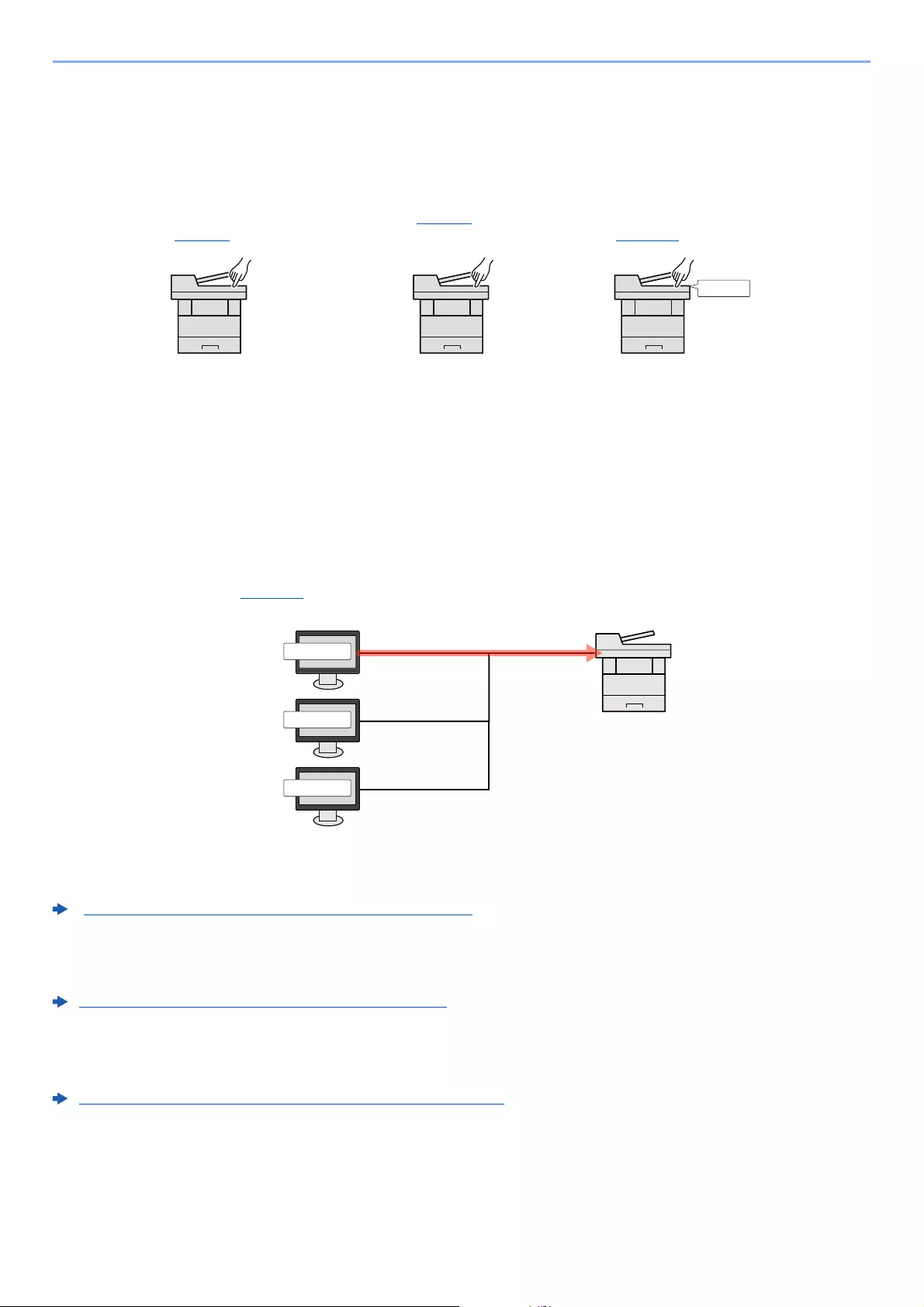
9-2
User Authentication and Accounting (User Login, Job Accounting) > Overview of User Login Administration
Overview of User Login Administration
User login administration specifies how the user access is administered on this machine. Enter a correct login user
name and password for user authentication to login.
Access are in three levels — «User», «Administrator», and «Machine Administrator». The security levels can be modified
only by the «Machine Administrator».
To manage the job account from PC
In addition to the above settings, the following are necessary to manage the job account from PC.
To Manage the Users to Print from PCs
Printer driver settings are necessary to manage the users that print on the machine from PCs.
To Manage the Users to Use TWAIN for Scanning
TWAIN driver settings on the PC are necessary to manage the users that use TWAIN for scanning.
To Manage the Users to Scan Using TWAIN (page 9-15)
To Manage the Users to Use WIA for Scanning
WIA driver settings on the PC are necessary to manage the users that use WIA for scanning.
To Manage the Users to Scan Using WIA (page 9-16)
To Manage the Users to Send Faxes from a PC*1
FAX driver settings on the PC are necessary to manage the users that send faxes from a PC.
To Manage the Users that Send Faxes from a PC (page 9-17)
*1 Only on products with the fax function installed.
1Enable User Login
Administration
(page 9-3)
2Set the user
(page 9-6)3Enter the login user name and
password and execute the job
(page 9-32)
User A
User B
User C
1Set the User Login Administration
on the printer driver (page 9-13)2Print
9-3
User Authentication and Accounting (User Login, Job Accounting) > Enabling User Login Administration
Enabling User Login Administration
This enables user login administration. Select one of the following authentication methods:
1Display the screen.
1[System Menu/Counter] key > [User Login/Job Accounting]
2[User Login Setting] > [User Login]
2Configure the settings.
1Select [Local Authentication] or [Network Authentication].
Select [Off] to disable user login administration.
If you select [Network Authentication], enter the host name (256 characters or less) and domain
name (256 characters or less) for the Authentication Server. Select [NTLM], [Kerberos] or [Ext.] as
the server type.
When selecting [Ext.] as the server type, enter the port number.
2«Do you want to add a new function to the home screen?» screen appears.To display a new
function on the Home screen, select [Yes] and specify the position in which you want to
display the icon of registered function.
Item Descriptions
Local Authentication User authentication based on user properties on the local user list stored in the machine.
Network Authentication User authentication based on Authentication Server. Use a user property stored in
Authentication Server to access the network authentication login page.
If the login user name entry screen appears during operations, enter a login user name
and password, and select [
Login
]. For this, you need to login with administrator privileges.
The factory default login user name and login password are set as shown below.
ECOSYS M3145idn ECOSYS M3655idn ECOSYS M3660idn
ECOSYS M3645idn
Login User Name: 4500 5500 6000
Login Password: 4500 5500 6000
• Selecting [Domain] displays the domain registration list.
• Enter the domain name. Up to 10 domain names can be registered.
Available Functions to Display on Desktop (page 2-15)
If the login user name and password are rejected, check the following settings.
• Network Authentication setting of the machine
• User property of the Authentication Server
• Date and time setting of the machine and the Authentication Server
If you cannot login because of the setting of the machine, login with any administrator
registered in the local user list and correct the settings.
9-4
User Authentication and Accounting (User Login, Job Accounting) > Setting User Login Administration
Setting User Login Administration
This registers, alters and deletes users and configures the settings for User Login Administration.
Authentication Security
If user authentication is enabled, configure the user authentication settings.
User Account Lockout Setting
You can prohibit the use of a user account if an incorrect password is entered repeatedly to login with that account.
1Display the screen.
1[System Menu/Counter] key > [User Login/Job Accounting]
2[User Login Setting] > [Authentication Security] > [User Account Lockout Settings]
2Configure the settings.
The following settings can be selected.
If the login user name entry screen appears during operations, enter a login user name
and password, and select [Login]. For this, you need to login with administrator
privileges.
The factory default login user name and login password are set as shown below.
ECOSYS M3145idn ECOSYS M3655idn ECOSYS M3660idn
ECOSYS M3645idn
Login User Name: 4500 5500 6000
Login Password: 4500 5500 6000
Item Descriptions
Lockout Select whether or not account lockout policy is enabled.
Value: Off, On
Lockout Policy Specify the conditions and the extent to which the account lockout is
applied.
Value
Number of Retries until Locked:
Specify how many login retries are allowed until
the account is locked out.
(1 to 10 times)
Lockout Duration: Specify how long the account is to be locked out
until it is unlocked.
(1 to 60 minutes)
Lockout Target Specify the extent to which the account lockout
is applied. You can select from [All] or [Remote
Login Only]. Remote Login Only locks out all
operations from outside the operation panel.
Locked out Users List Displays a list of locked out users. You can unlock a user by selecting the
user in the list, and selecting [Unlock].
This function is displayed when account lockout policy is enabled.
9-5
User Authentication and Accounting (User Login, Job Accounting) > Setting User Login Administration
Password Policy Settings
You can prohibit the setting and use of passwords that do not comply with the password policy.
Setting the Password Policy makes it more difficult to break the password.
1Display the screen.
1[System Menu/Counter] key > [User Login/Job Accounting]
2[User Login Setting] > [Authentication Security] > [Password Policy Settings]
2Configure the settings.
The following settings can be selected.
If the login user name entry screen appears during operations, enter a login user name
and password, and select [Login]. For this, you need to login with administrator
privileges.
The factory default login user name and login password are set as shown below.
ECOSYS M3145idn ECOSYS M3655idn ECOSYS M3660idn
ECOSYS M3645idn
Login User Name: 4500 5500 6000
Login Password: 4500 5500 6000
Item Descriptions
Password Policy Select whether or not password policy is enabled.
Value: Off, On
Minimum Password
Length
Set the minimum password length of characters for password.
Value: Off, On (1 to 64 characters)
Password
Complexity
Set the password complexity.
Value
No more than two consecutive identical char: Off, On
At least one uppercase letter (A-Z): Off, On
At least one lowercase letter (a-z): Off, On
At least one number (0-9): Off, On
At least one symbol: Off, On
Maximum Password
Age
Set the maximum password age.
Value: Off, On (1 to 180 days)
Policy Violated User
List
List of users do not meet password policy requirements.

9-6
User Authentication and Accounting (User Login, Job Accounting) > Setting User Login Administration
Adding a User (Local User List)
This adds a new user. You can add up to 100 users (including the default login user name).
1Display the screen.
1[System Menu/Counter] key > [User Login/Job Accounting]
2[User Login Setting] > [Local User List] > []
By default, one of each default user with machine administrator rights and administrator privileges is already stored.
Each user’s properties are:
Machine Administrator
User Name: DeviceAdmin
ECOSYS M3145idn ECOSYS M3655idn ECOSYS M3660idn
ECOSYS M3645idn
Login User Name: 4500 5500 6000
Login Password: 4500 5500 6000
Access Level: Machine Administrator
Administrator
User Name: Admin
Login User Name: Admin
Login Password: Admin
Access Level: Administrator
* Upper case and lower case letters are distinguished (case sensitive).
It is recommended to periodically change the user name, login user name and login password regularly for your
security.
If the login user name entry screen appears during operations, enter a login user name
and password, and select [Login]. For this, you need to login with administrator
privileges.
The factory default login user name and login password are set as shown below.
ECOSYS M3145idn ECOSYS M3655idn ECOSYS M3660idn
ECOSYS M3645idn
Login User Name: 4500 5500 6000
Login Password: 4500 5500 6000
9-7
User Authentication and Accounting (User Login, Job Accounting) > Setting User Login Administration
2Enter the user information.
Select [Next].
The table below explains the user information to be registered.
3Check the user information.
Change or add information as needed.
Item Descriptions
User Name Enter the name displayed on the user list (up to 32 characters).
Login User Name Enter the login user name to login (up to 64 characters). The same login user
name cannot be registered.
Access Level Select «Administrator» or «User» for user access privileges.
For details on entering characters, refer to the the following:
Character Entry Method (page 11-11)
Item Descriptions
User Name*1
*1 Mandatory at user registration.
Enter the name displayed on the user list (up to 32 characters).
Login User
Name*1 Enter the login user name to login (up to 64 characters). The same login user
name cannot be registered.
Login Password Enter the password to login (up to 64 characters). Reenter the same password
for confirmation and select the [OK] key.
Account Name Add an account where the user belongs. The user, who registered his/her
account name, can login without entering the account ID.
Overview of Job Accounting (page 9-33)
Select [Menu] > [Search (Name)] or [Search (ID)] to search by account name
or account ID.
Select [Menu] > [Sort (Name)] or [Sort (ID)] to sort the account list.
E-mail Address The user can register his/her E-mail address. The registered address will be
automatically selected for subsequent operations that need any E-mail function.
Access Level*1 Select «Administrator» or «User» for user access privileges.
ID Card
Information
Register ID card information.
Place the ID card on the ID card reader, and select [Read].
This function is displayed when the optional ID Card Authentication Kit is
activated.
Card Authentication Kit(B) «Card Authentication Kit» (page 11-3)
9-8
User Authentication and Accounting (User Login, Job Accounting) > Setting User Login Administration
4Select [Save].
A new user is added on the local user list.
Item Descriptions
My Panel You can register the language selection, initial screen, and shortcut settings for
each user. Settings registered here can be applied simply by logging in.
Local
Authorization*1
Set usage authority for each user.
The following restriction items are available:
Printer:
Select whether or not use of the print function of the printer is prohibited.
Applicable print functions are as follows:
• Print from Box
• Print from Removable Memory
• Print Report
• Print from PC
Copy:
Select whether or not use of the copy print function is prohibited.
Duplex Restriction:
Select whether only duplex printing is allowed.
Combine Restrict.:
Specify whether only Combine is allowed.
EcoPrint Restriction:
Specify whether only EcoPrint is allowed.
Send:
Select whether or not use of the send function is prohibited.
FAX Transmission*2:
Select whether or not use of the fax send function is prohibited.
Storing in Box:
Select whether or not use of the box store function is prohibited.
Storing in Memory:
Select whether or not use of the removable memory store function is prohibited.
*1 Displayed when Local Authorization is enabled.
Local Authorization (page 9-18)
*2 Only on products with the fax function installed.
For details on entering characters, refer to the the following:
Character Entry Method (page 11-11)
If simple login is enabled, a confirmation screen appears when new registration is finished
asking if you will configure simple login settings. To configure simple login settings, select
[Yes]. If you select [No], you will return to the user list screen.
For the procedure for configuring simple login settings, refer to the following:
Simple Login Settings (page 9-27)
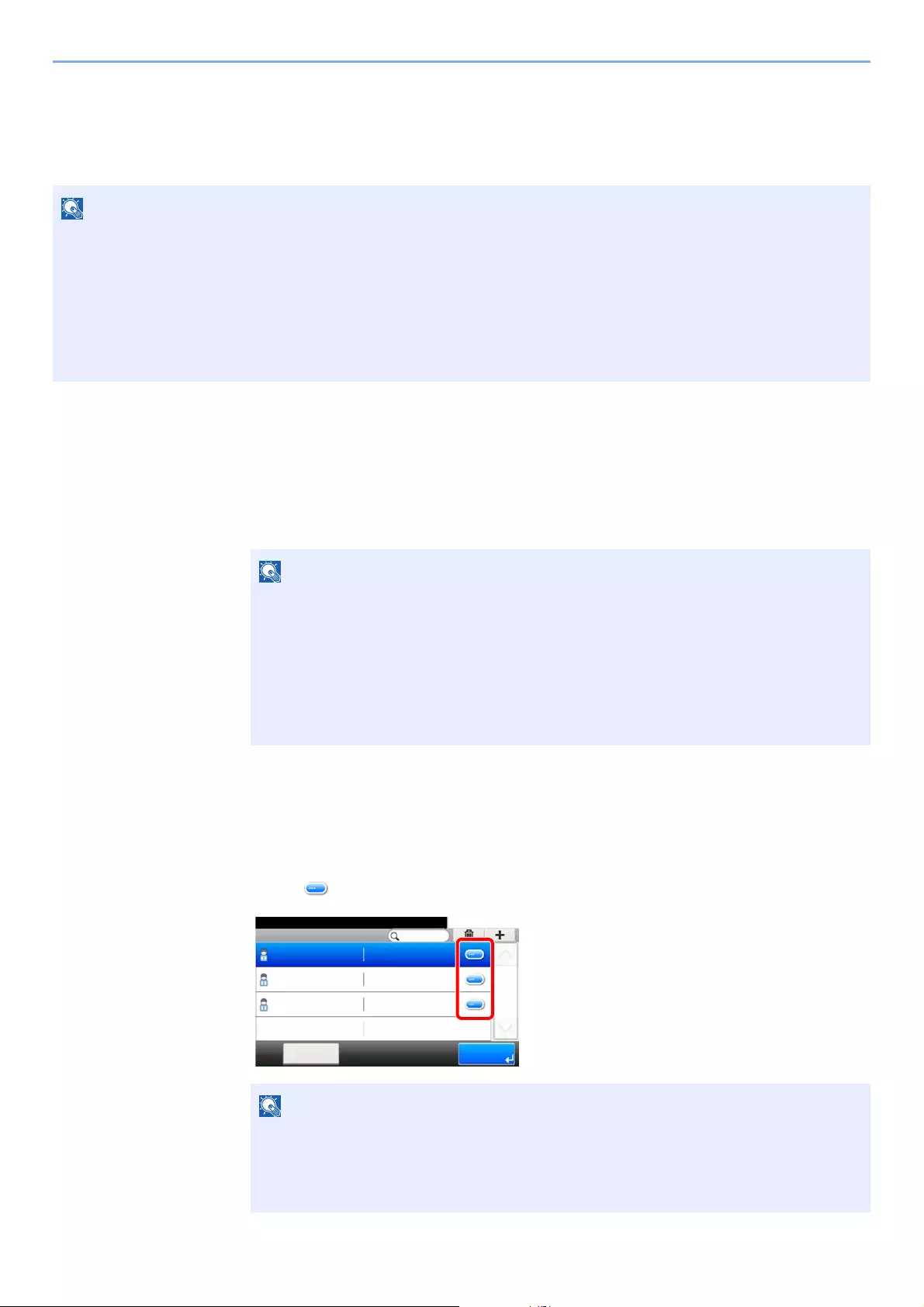
9-9
User Authentication and Accounting (User Login, Job Accounting) > Setting User Login Administration
Changing User Properties
User properties can be changed. Types of user properties that could be changed may be different depending on user
access privilege.
For a user with administrator rights who logs in
User properties can be changed and users can be deleted. The items, which can be added, are all able to be changed.
1Display the screen.
1[System Menu/Counter] key > [User Login/Job Accounting]
2[User Login Setting] > [Local User List]
2Change the user properties.
Changing user properties
1Select [ ] for the user to edit.
To change the user information of the machine administrator, you must log in with machine administrator authority.
You can only view user information if you log in as a regular user.
The factory default login user name and login password are set as shown below.
ECOSYS M3145idn ECOSYS M3655idn ECOSYS M3660idn
ECOSYS M3645idn
Login User Name: 4500 5500 6000
Login Password: 4500 5500 6000
If the login user name entry screen appears during operations, enter a login user name
and password, and select [
Login
]. For this, you need to login with administrator privileges.
The factory default login user name and login password are set as shown below.
ECOSYS M3145idn ECOSYS M3655idn ECOSYS M3660idn
ECOSYS M3645idn
Login User Name: 4500 5500 6000
Login Password: 4500 5500 6000
• To sort the user list, select [Menu] > [Sort (User Name)] and [Sort (Login User
Name)].
• To search by name or login user name, select [Menu] > [Search (User Name)] or
[Search (Login User Name)].
10:10System Menu/Counter.
Admin
Menu
1/1
End
Admin
DeviceAdmin 5000
User A User A
User Login S… — Local User List

9-10
User Authentication and Accounting (User Login, Job Accounting) > Setting User Login Administration
2Refer to step 3 of «Adding a User (Local User List)» to change a user property.
3[Save] > [Yes]
The user information is changed.
Deleting a user
1Select the user to delete.
2[] > [Yes]
The selected user will be deleted.
Adding a User (Local User List) (page 9-6)
The default user with machine administrator rights cannot be deleted.
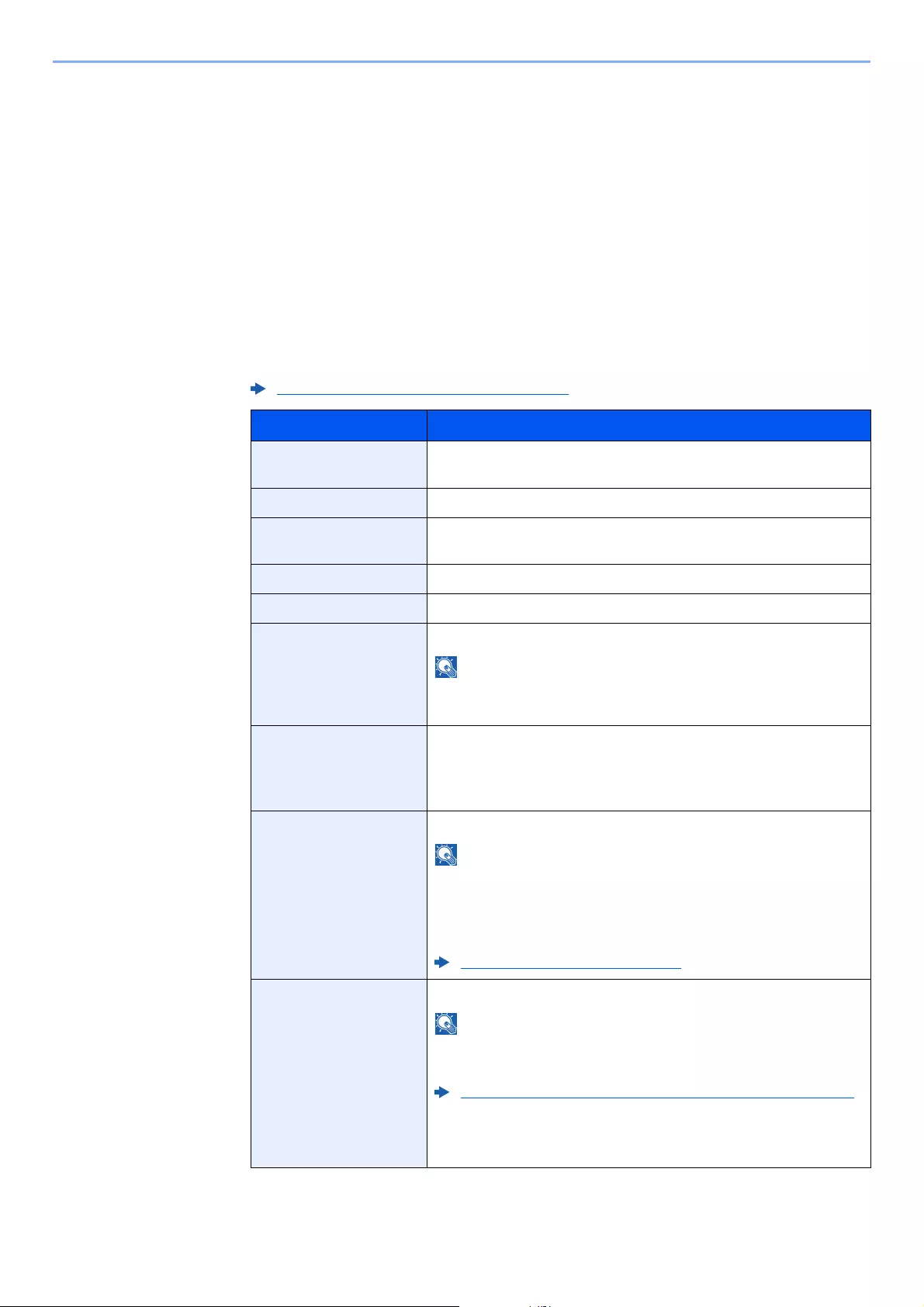
9-11
User Authentication and Accounting (User Login, Job Accounting) > Setting User Login Administration
To change the user information of logged in user (User Property)
These users can partially change their own user properties including user name, login password, E-mail address, and
Simple Login.
Although «Login User Name», «Access Level», or «Account Name» cannot be changed, the users can check the present
status.
1Display the screen.
[System Menu/Counter] key > [User Property]
2Change the user properties.
1Refer to step 3 of «Adding a User (Local User List)» to change a user property.
Adding a User (Local User List) (page 9-6)
Item Description
User Name Changes the name shown on the user list. Up to 32 characters can be
entered.
Login User Name Displays the login user name that is entered at login.
Login Password Changes the password that is entered at login. Up to 64 characters
can be entered.
Access Level Displays the user’s access level.
Account Name Displays the account where the user belongs.
Maximum Password
Age
Displays the term of validity of the login password.
This function does not appear when Password Policy is set to [Off] or
the term of validity of the password is set to [Off].
E-mail Address Changes the user’s e-mail address. Up to 256 characters can be
entered.
If you log in as a user and [New Destination Entry] is set to
[Prohibit], you can only check the e-mail address.
Authorization Rules Displays the usage restriction that is set for the logged in user.
[Job Accounting] shows the account name set for the logged in user
and the usage restrictions that are set for that account.
This function appears when job accounting is set to [On]. For
information on job accounting, refer to the following:
Job Accounting Access (page 9-35)
ID Card Information Displays the ID card information of the logged in user.
This function is displayed when the optional ID Card Authentication
Kit is activated.
Card Authentication Kit(B) «Card Authentication Kit» (page 11-3)
This function does not appear when the server type is set to [Ext.] in
Network Authentication, and logged in with the user account
certificated in the server specified as the [Ext.] server type.
9-12
User Authentication and Accounting (User Login, Job Accounting) > Setting User Login Administration
2Select [Save].
The user information is changed.
Simple Login When simple login is enabled, changes associated settings.
This function does not appear when Simple Login is set to [Off] or the
user is not registered in Simple Login.
My Panel Register the language, default screen and shortcut for each user.
Once registered, the setting will be applied simply by login. Network
users are not displayed.
Item Description
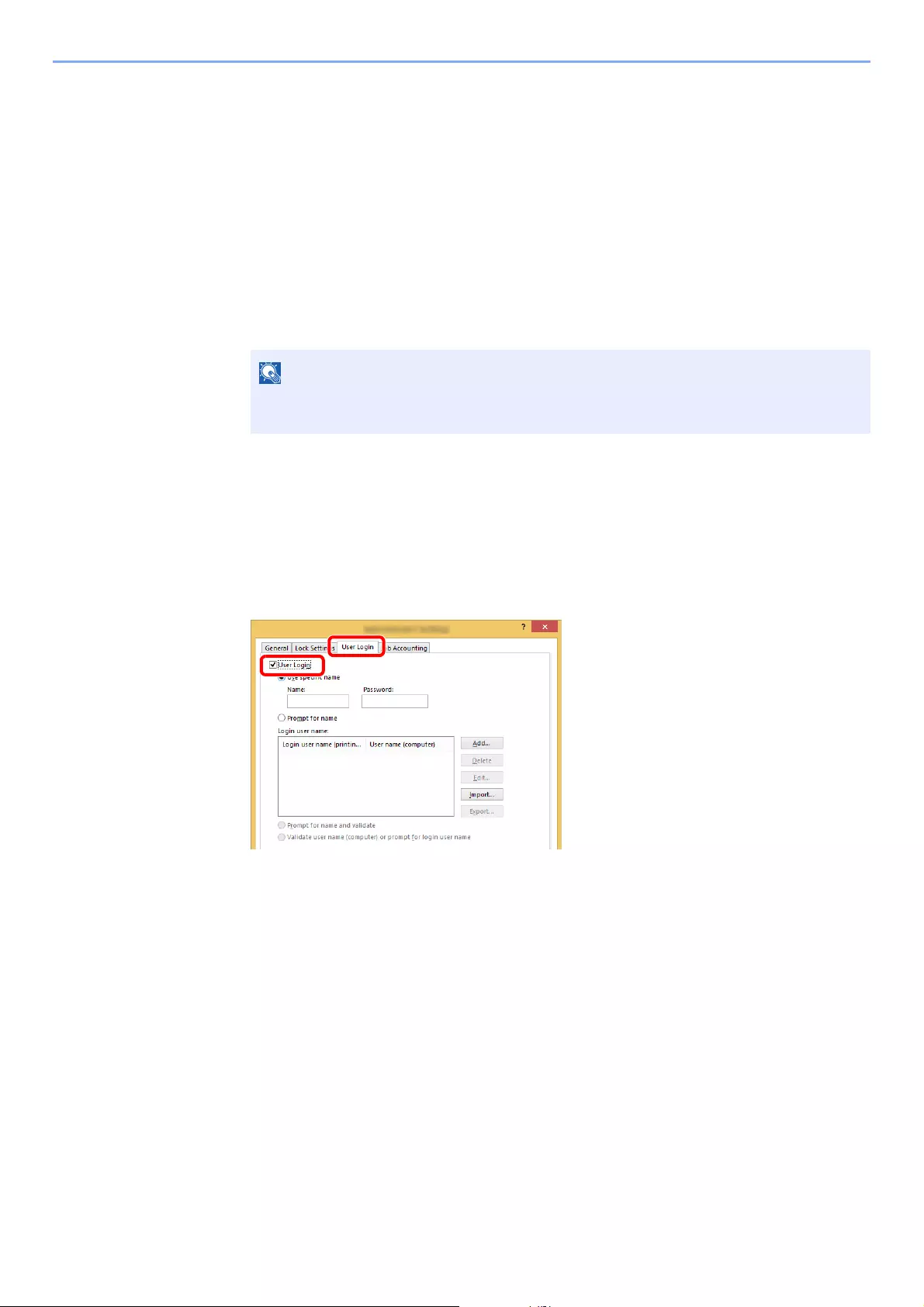
9-13
User Authentication and Accounting (User Login, Job Accounting) > Setting User Login Administration
User Login Administration for Printing
It is possible to manage the users that print on this machine from a PC.
Setting Printer Driver
To manage the users that print on this machine from a PC, the following settings are necessary in the printer driver.
Instructions are based on interface elements as they appear in Windows 8.1.
1Display the screen.
1Select [Settings] in charms on Desktop, and select [Control Panel], and then [Devices
and Printers].
2Right-click the printer driver icon of the machine, and click the [Printer properties] menu of
the printer driver.
3Click [Administrator] on the [Device Settings] tab.
2Configure the settings.
1Select [User Login] on the [User Login] tab.
2Set the User Login Administration.
[Use specific name]: This option can be used to specify a user name and password to use the same
User login for every print job. If this option is selected, the user does not have to type the name and
password for each print job.
[Prompt for name]: A screen for entering the user name and password will be displayed when
attempting a printing. The user name and password must be entered each time a printing is
attempted.
[Prompt for name and validate]: A screen for entering the user name and password will be
displayed when attempting a printing. The user name and password stored in the Login user name
list needs to be entered. The user name and password must be entered each time a printing is
attempted.
[Validate user name (computer) or prompt for login user name]: When printing, the Windows
user name is searched in the «Login user names» and printing is possible if the name is registered. If
the name is not registered, the printing will be canceled for users with only user authority. If the user
has administrator privileges, the screen to enter the user name and password will appear.
In Windows 7, click [Start] button on the Windows, and then click [Devices and
Printers].

9-14
User Authentication and Accounting (User Login, Job Accounting) > Setting User Login Administration
3Click [OK].
For other settings of job accounting, refer to the following:
Printer Driver User Guide
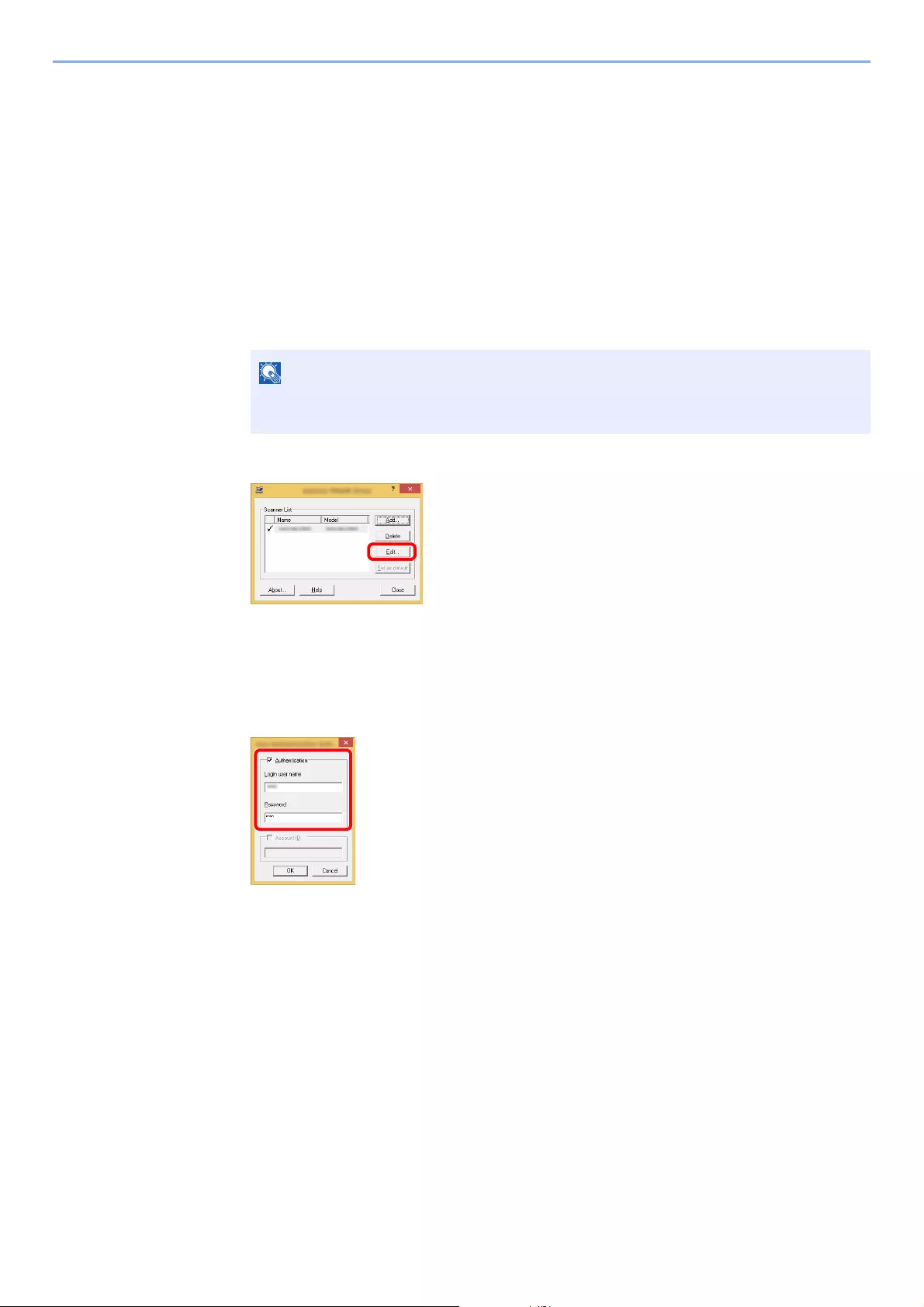
9-15
User Authentication and Accounting (User Login, Job Accounting) > Setting User Login Administration
To Manage the Users to Scan Using TWAIN
It is possible to manage the users that scan using TWAIN.
Setting TWAIN Driver
To manage the users that scan using TWAIN, the following settings are necessary in the TWAIN driver. Instructions are
based on interface elements as they appear in Windows 8.1.
1Display the screen.
1Select [Search] in charms, and enter «TWAIN Driver Setting» in the search box. Click
[TWAIN Driver Setting] in the search list then the TWAIN Driver Setting screen appears.
2Select the machine,and click [Edit].
2Configure the settings.
1Click [User Authentication Settings].
2Select the checkbox beside [Authentication], and enter Login User Name and Password.
3Click [OK].
In Windows 7, select [Start] button on the Windows, [All Programs], [Kyocera] and then
[TWAIN Driver Setting].
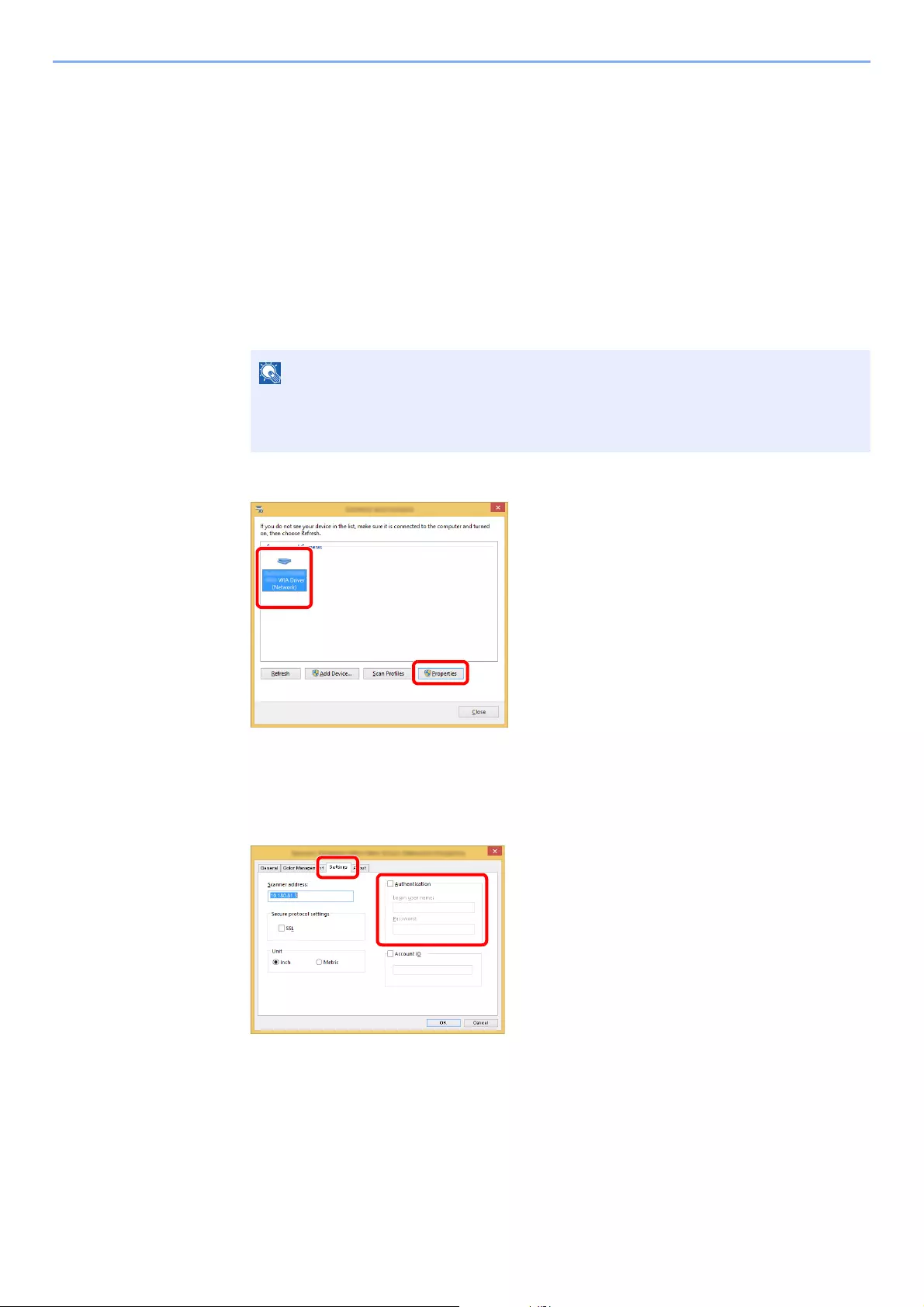
9-16
User Authentication and Accounting (User Login, Job Accounting) > Setting User Login Administration
To Manage the Users to Scan Using WIA
It is possible to manage the users that scan using WIA.
Setting WIA Driver
To manage the users that scan using WIA, the following settings are necessary in the WIA driver. Instructions are based
on interface elements as they appear in Windows 8.1.
1Display the screen.
1Click [Search] in charms, and enter «Scanner» in the search box. Click [View scanners
and cameras] in the search list then the Scanners and Cameras screen appears.
2Select the same name as this machine from WIA Drivers, and press [Properties].
2Configure the settings.
1Select the checkbox beside [Authentication] on the [Settings] tab, and enter Login User
Name and Password.
2Click [OK].
In Windows 7, click [Start] button on the Windows and enter [Scanner] in [Program and
File Search]. Click [View scanners and cameras] in the search list then the Scanners
and Cameras screen appears.
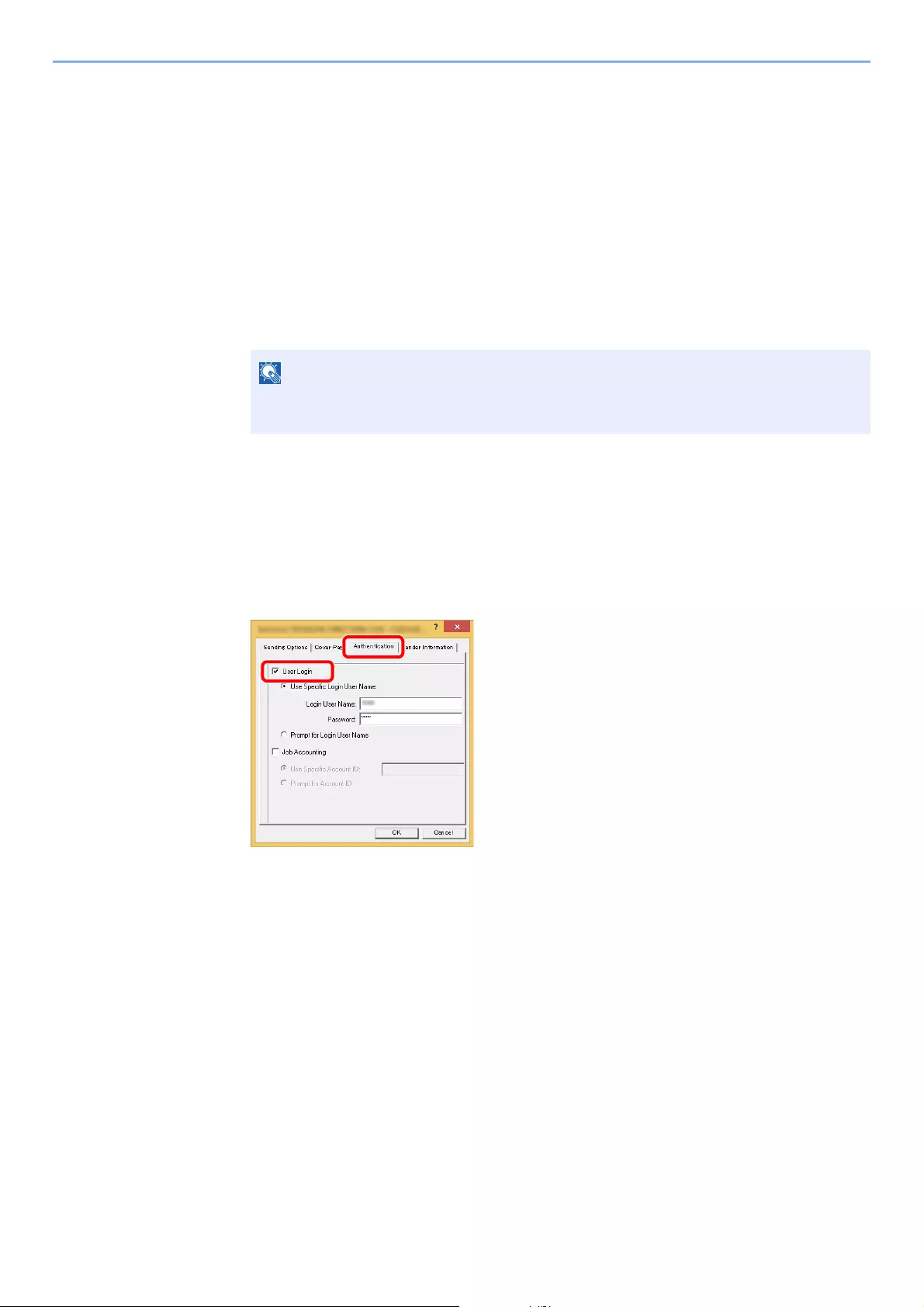
9-17
User Authentication and Accounting (User Login, Job Accounting) > Setting User Login Administration
To Manage the Users that Send Faxes from a PC
It is possible to manage the users that send faxes from a PC.
Setting FAX Driver
To manage the users that send faxes from a PC, the following settings are necessary in the FAX driver. Instructions are
based on interface elements as they appear in Windows 8.1.
1Display the screen.
1Select [Settings] in charms on Desktop, and select [Control Panel], and then [Devices
and Printers].
2Right-click the printer driver icon of the machine, and click the [Printer properties] menu of
the printer driver.
3Click [FAX TX Setting] on the [Printing Preferences] window.
2Configure the settings.
1Select [User Login] on the [Authentication] tab.
2Set the User Login Administration.
[Use Specific Login User Name]: This option can be used to specify a user name and password to
use the same User login for every FAX job. If this option is selected, the user does not have to type
the name and password for each FAX job.
[Prompt for Login User Name]: A screen for entering the user name and password will be displayed
when attempting a transmission. The user name and password must be entered each time a
transmission is attempted.
3Click [OK].
In Windows 7, click [Start] button on the Windows, and then click [Devices and
Printers].

9-18
User Authentication and Accounting (User Login, Job Accounting) > Setting User Login Administration
Local Authorization
Select whether or not to use Local Authorization.
1Display the screen.
1[System Menu/Counter] key > [User Login/Job Accounting]
2[User Login Setting] > [Local User Authorization]
2Select [Off] or [On].
When using Local Authorization, the user authentication type must be set to [Local Authentication].
Enabling User Login Administration (page 9-3)
If the login user name entry screen appears during operations, enter a login user name
and password, and select [Login]. For this, you need to login with administrator
privileges.
The factory default login user name and login password are set as shown below.
ECOSYS M3145idn ECOSYS M3655idn ECOSYS M3660idn
ECOSYS M3645idn
Login User Name: 4500 5500 6000
Login Password: 4500 5500 6000

9-19
User Authentication and Accounting (User Login, Job Accounting) > Setting User Login Administration
Group Authorization Settings
Set restrictions of the machine usage by each individual group registered in the authentication server.
Group Authorization
Use the group authorization.
1Display the screen.
1[System Menu/Counter] key > [User Login/Job Accounting]
2[User Login Setting] > [Group Authorization Set.] > [Group Authorization]
2Select [On].
To use the group authorization settings, [Network Authentication] must be selected for the authentication method in
«Enabling User Login Administration». Select «On» for «LDAP» in «Protocol Settings».
Enabling User Login Administration (page 9-3)
Protocol Settings (page 8-31)
If the login user name entry screen appears during operations, enter a login user name
and password, and select [Login]. For this, you need to login with administrator
privileges.
The factory default login user name and login password are set as shown below.
ECOSYS M3145idn ECOSYS M3655idn ECOSYS M3660idn
ECOSYS M3645idn
Login User Name: 4500 5500 6000
Login Password: 4500 5500 6000
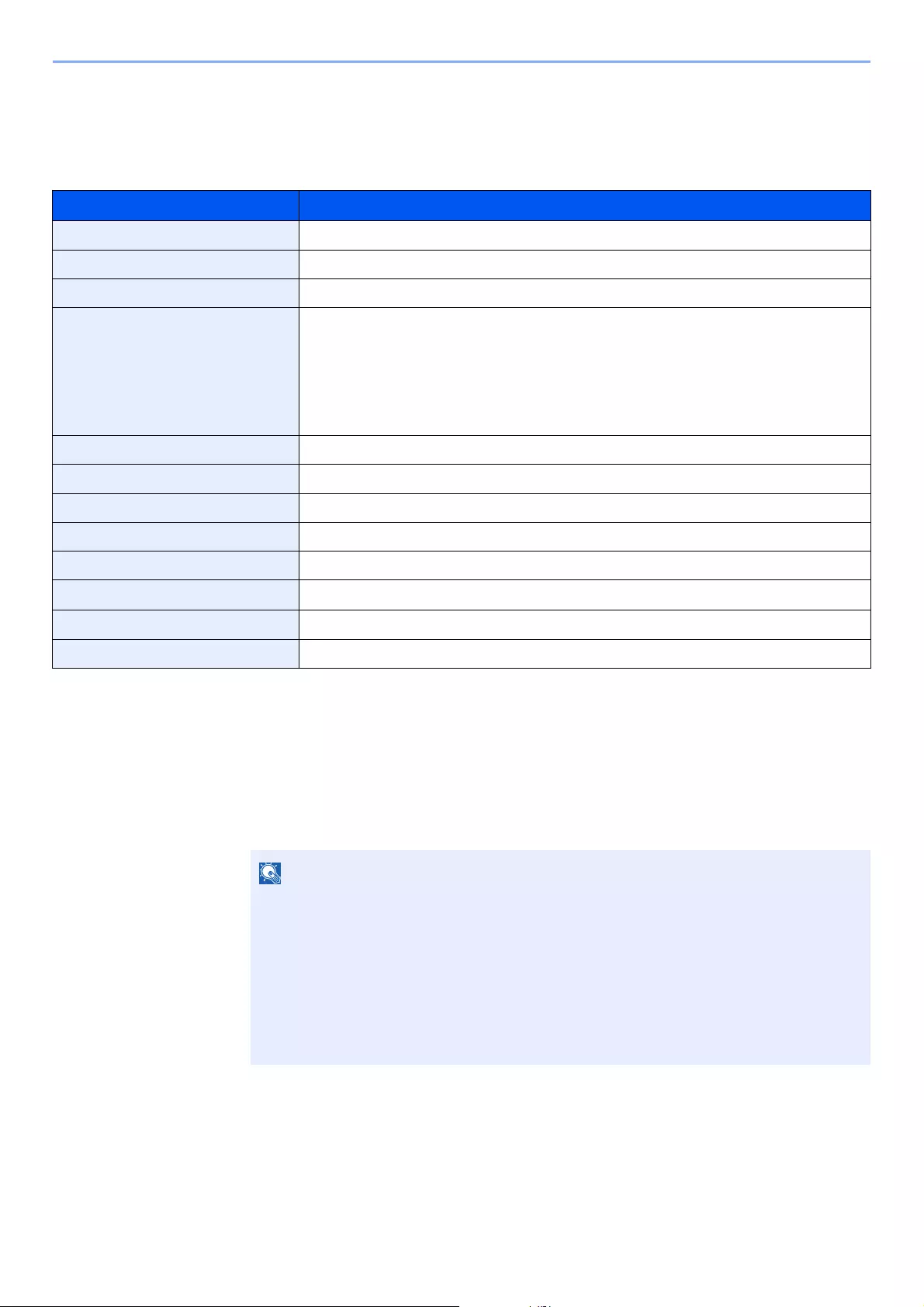
9-20
User Authentication and Accounting (User Login, Job Accounting) > Setting User Login Administration
Group List (Up to 20)
Register the groups that are restricted the machine usage. Other users and groups belong to «Others».
The table below explains the group information to be registered.
1Display the screen.
1[System Menu/Counter] key > [User Login/Job Accounting]
Item Descriptions
Group ID*1
*1 For «Group ID», specify PrimaryGroupID assigned by Active Directory of Windows. If you are using Windows Server 2008, check
Attribute Editor tab of user properties. If you are using Windows Server 2000/2003, check ADSIEdit. ADSIEdit is a support tool
included on the installation DVD for Windows Server OS (under \SUPPORT\TOOLS).
Enter the ID displayed on the group list (between 1 and 4294967295).
Group Name Enter the name displayed on the group list (up to 32 characters).
Access Level Select [Administrator] or [User] for group access privileges.
Printer Select whether or not to reject usage of print functions for the printer.
Applicable print functions are as follows:
• Print from Box
• Print from Removable Memory
• Print Report
• Print from PC
Copy Select whether or not to reject usage of copy functions.
Duplex Restriction Select whether only duplex printing is allowed.
Combine Restrict. Specify whether only Combine is allowed.
EcoPrint Restriction Specify whether only EcoPrint is allowed.
Send Select whether or not to reject usage of the send functions.
FAX Transmission*2
*2 Only on products with the fax function installed.
Select whether or not to reject usage of the FAX transmissions.
Storing in Box Select whether or not to reject usage of storing in the document boxes.
Storing in Memory Select whether or not to reject usage of storing in the removable memory.
If the login user name entry screen appears during operations, enter a login user name
and password, and select [Login]. For this, you need to login with administrator
privileges.
The factory default login user name and login password are set as shown below.
ECOSYS M3145idn ECOSYS M3655idn ECOSYS M3660idn
ECOSYS M3645idn
Login User Name: 4500 5500 6000
Login Password: 4500 5500 6000
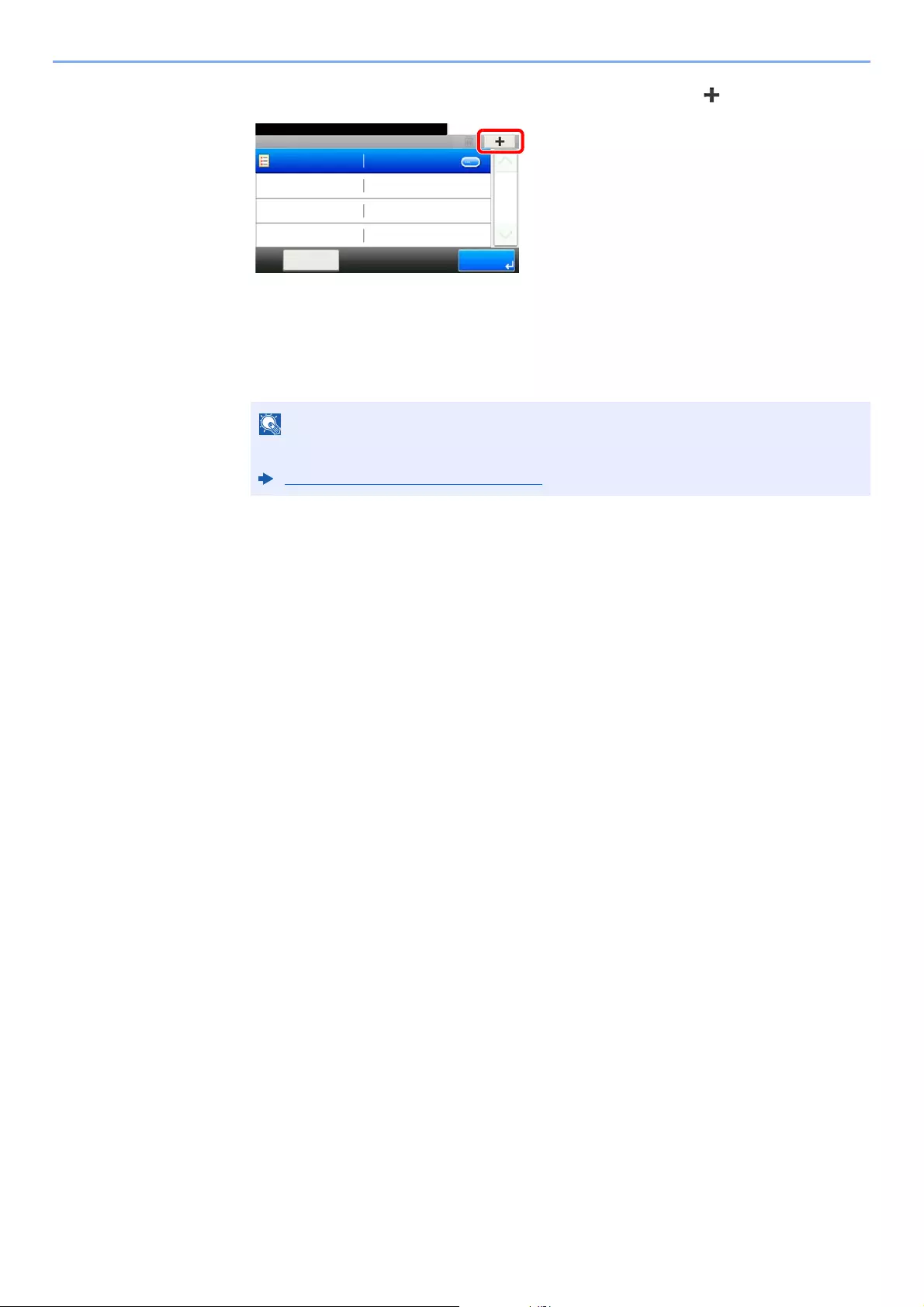
9-21
User Authentication and Accounting (User Login, Job Accounting) > Setting User Login Administration
2[User Login Setting] > [Group Authorization] > [Group List] > []
2Configure the settings.
1Enter the group ID > [Next]
2Enter the group name > [Next]
3Select the group access privileges > [Next]
4Check the settings and change or add information as needed.
3Register the group.
Select [Save].
A new group is added on the group list.
For details on entering characters, refer to the the following:
Character Entry Method (page 11-11)
Group Authorization Set. — Group List
10:10System Menu/Counter.
Others
Menu
1/1
End

9-22
User Authentication and Accounting (User Login, Job Accounting) > Setting User Login Administration
Guest Authorization Set.
When User Login Administration is enabled, set the functions that guest users who cannot log in to the machine are
allowed to use.
Guest Authorization
Use the guest authorization.
1Display the screen.
1[System Menu/Counter] key > [User Login/Job Accounting]
2[User Login Setting] > [Guest Authorization Set.] > [Guest Authorization]
2Select [On].
To use Guest Authorization Set., User Login Administration must be enabled in «Enabling User Login Administration».
Enabling User Login Administration (page 9-3)
If the login user name entry screen appears during operations, enter a login user name
and password, and select [Login]. For this, you need to login with administrator
privileges.
The factory default login user name and login password are set as shown below.
ECOSYS M3145idn ECOSYS M3655idn ECOSYS M3660idn
ECOSYS M3645idn
Login User Name: 4500 5500 6000
Login Password: 4500 5500 6000
If the guest authorization setting is enabled, the [Authentication/Logout] key must be
selected when logging in.
In the guest user default settings, only monochrome copying can be used. If you wish to use
a different function, log in as a user who can use that function, or change the settings in the
guest properties.

9-23
User Authentication and Accounting (User Login, Job Accounting) > Setting User Login Administration
Guest Property
Register guest user information and functions that are restricted.
The table below explains the user information to be registered.
Item Descriptions
User Name Enter the name displayed on the user list (up to 32 characters).
The default setting is «Guest User».
Access Level The authority of the user appears. This cannot be changed.
Account Name Add an account where the user belongs.
If the user does not belong to any account, select [Other].
Authorization Rules Set usage authority for each user.
The items you can restrict the access level with are as follows.
Printer:
Select whether or not use of the print function of the printer is prohibited.
Applicable print functions are as follows:
• Print from Box
• Print from Removable Memory
• Print Report
Copy:
Select whether or not use of the copy print function is prohibited.
Duplex Restriction:
Select whether only duplex printing is allowed.
Combine Restrict.:
Specify whether only Combine is allowed.
EcoPrint Restriction:
Specify whether only EcoPrint is allowed.
Send:
Select whether or not use of the send function is prohibited.
FAX TX Restriction*1:
Select whether or not use of the fax send function is prohibited.
Storing in Box:
Select whether or not use of the box store function is prohibited.
Storing in Memory:
Select whether or not use of the removable memory store function is prohibited.
*1 Only on products with the fax function installed.

9-24
User Authentication and Accounting (User Login, Job Accounting) > Setting User Login Administration
1Display the screen.
1[System Menu/Counter] key > [User Login/Job Accounting]
2[User Login Setting] > [Guest Authorization Set.] > [Guest Property]
2Configure the settings.
Check the settings and change or add information as needed.
3Register the group.
Select [Save].
If the login user name entry screen appears during operations, enter a login user name
and password, and select [Login]. For this, you need to login with administrator
privileges.
The factory default login user name and login password are set as shown below.
ECOSYS M3145idn ECOSYS M3655idn ECOSYS M3660idn
ECOSYS M3645idn
Login User Name: 4500 5500 6000
Login Password: 4500 5500 6000
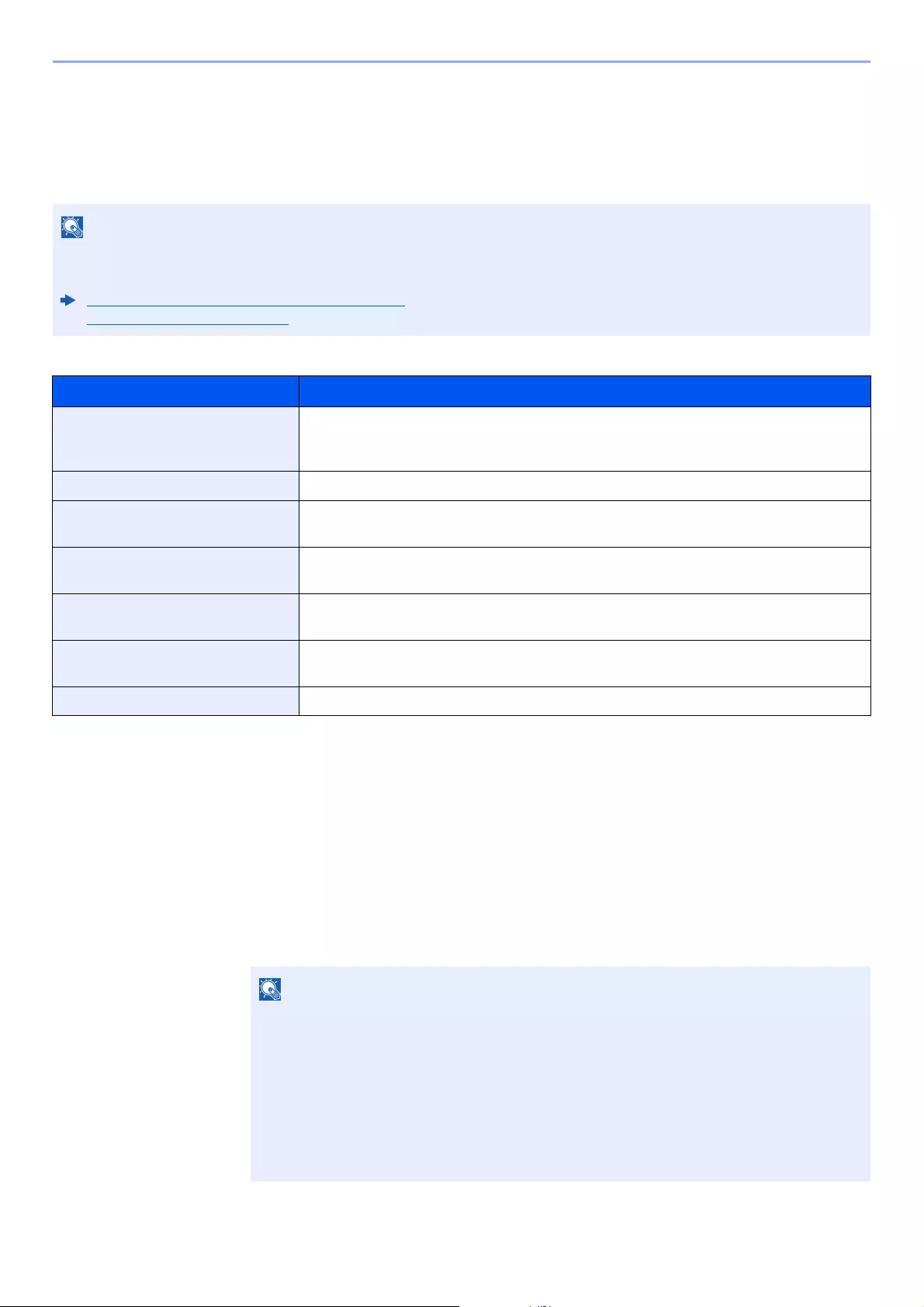
9-25
User Authentication and Accounting (User Login, Job Accounting) > Setting User Login Administration
Obtain NW User Property
Set the required information to obtain the network user property from the LDAP server. The user name and E-mail
address obtained with this setting is shown in the user information, the status confirmation screen, and the header of
E-mail.
The table below explains the required information to be registered.
1Display the screen.
1[System Menu/Counter] key > [User Login/Job Accounting]
2[User Login Setting] > [Obtain NW User Property] > [On]
To obtain the network user property from the LDAP server, [Network Authentication] must be selected for the
authentication method in «Enabling User Login Administration». Select «On» for «LDAP» in «Protocol Settings».
Enabling User Login Administration (page 9-3)
Protocol Settings (page 8-31)
Item Descriptions
Server Name*1
*1 If using Active Directory of Windows, the server name may be the same as the server name entered in the network
authentication.
Enter the LDAP server name or the IP address (up to 64 characters). If a server name is
not entered, user information will be acquired from the server set for Network
Authentication.
Port Set the LDAP port number or use the default port 389.
Name 1*2
*2 If using Active Directory of Windows, displayName of Attribute may be used as «Name 1».
Enter the LDAP Attribute to obtain the user name to be displayed from the LDAP server
(up to 32 characters).
Name 2*3
*3 «Name 2» can be left out. When you assign displayName in «Name 1» and department in «Name 2», and if the value of
displayName is «Mike Smith» and the value of department is «Sales» in Active Directory of Windows, the user name appears as
«Mike Smith Sales».
Enter the LDAP Attribute to obtain the user name to be displayed from the LDAP server
(up to 32 characters).
E-mail Address*4
*4 If using Active Directory of Windows, mail of Attribute may be used as E-mail Address.
Enter the LDAP Attribute to obtain the E-mail address from the LDAP server (up to 32
characters).
Authentic at Type*5
*5 Appears when the server type is set to «Kerberos» in «Network Authentication».
Set the authentication method. Select [Simple] or [SASL]. After changing the setting,
restart the system or turn the power off and then on.
Search Timeout Set the amount of time to wait before time-out in seconds (from 5 to 255 seconds).
If the login user name entry screen appears during operations, enter a login user name
and password, and select [Login]. For this, you need to login with administrator
privileges.
The factory default login user name and login password are set as shown below.
ECOSYS M3145idn ECOSYS M3655idn ECOSYS M3660idn
ECOSYS M3645idn
Login User Name: 4500 5500 6000
Login Password: 4500 5500 6000

9-26
User Authentication and Accounting (User Login, Job Accounting) > Setting User Login Administration
2Configure the settings.
1[Server Name] > Enter the LDAP server name or the IP address > [OK]
2[Port] > Enter the LDAP port number > [OK]
3[Name 1] > Enter the LDAP Attribute to obtain the user name to be displayed > [OK]
4Similar to steps 3, set [Name 2].
5
If you set the server type to «Kerberos», select [Authentication Type] and set the
authentication method.
6[E-mail Address] > Enter the LDAP Attribute to obtain the E-mail address > [OK]
7
Select [Search Timeout] to set the amount of time to wait before time-out.
8
Select [+], [—] or the numeric keys to enter the time > [OK] > [OK]

9-27
User Authentication and Accounting (User Login, Job Accounting) > Setting User Login Administration
Simple Login Settings
The simple login function allows users to log in simply by selecting a user name. Users must be registered in advance to
use this functionality.
Simple Login
Select whether or not simple login is enabled.
1Display the screen.
1[System Menu/Counter] key > [User Login/Job Accounting]
2[User Login Setting] > [Simple Login Settings] > [Simple Login]
2Select [On] or [Off].
• For user registration, refer to the following:
Adding a User (Local User List) (page 9-6)
• To use Simple Login, User Login Administration must be enabled in «Enabling User Login Administration».
Enabling User Login Administration (page 9-3)
• When the guest authorization setting is enabled, the Simple Login screen is not displayed.
If the login user name entry screen appears during operations, enter a login user name
and password, and select [Login]. For this, you need to login with administrator
privileges.
The factory default login user name and login password are set as shown below.
ECOSYS M3145idn ECOSYS M3655idn ECOSYS M3660idn
ECOSYS M3645idn
Login User Name: 4500 5500 6000
Login Password: 4500 5500 6000
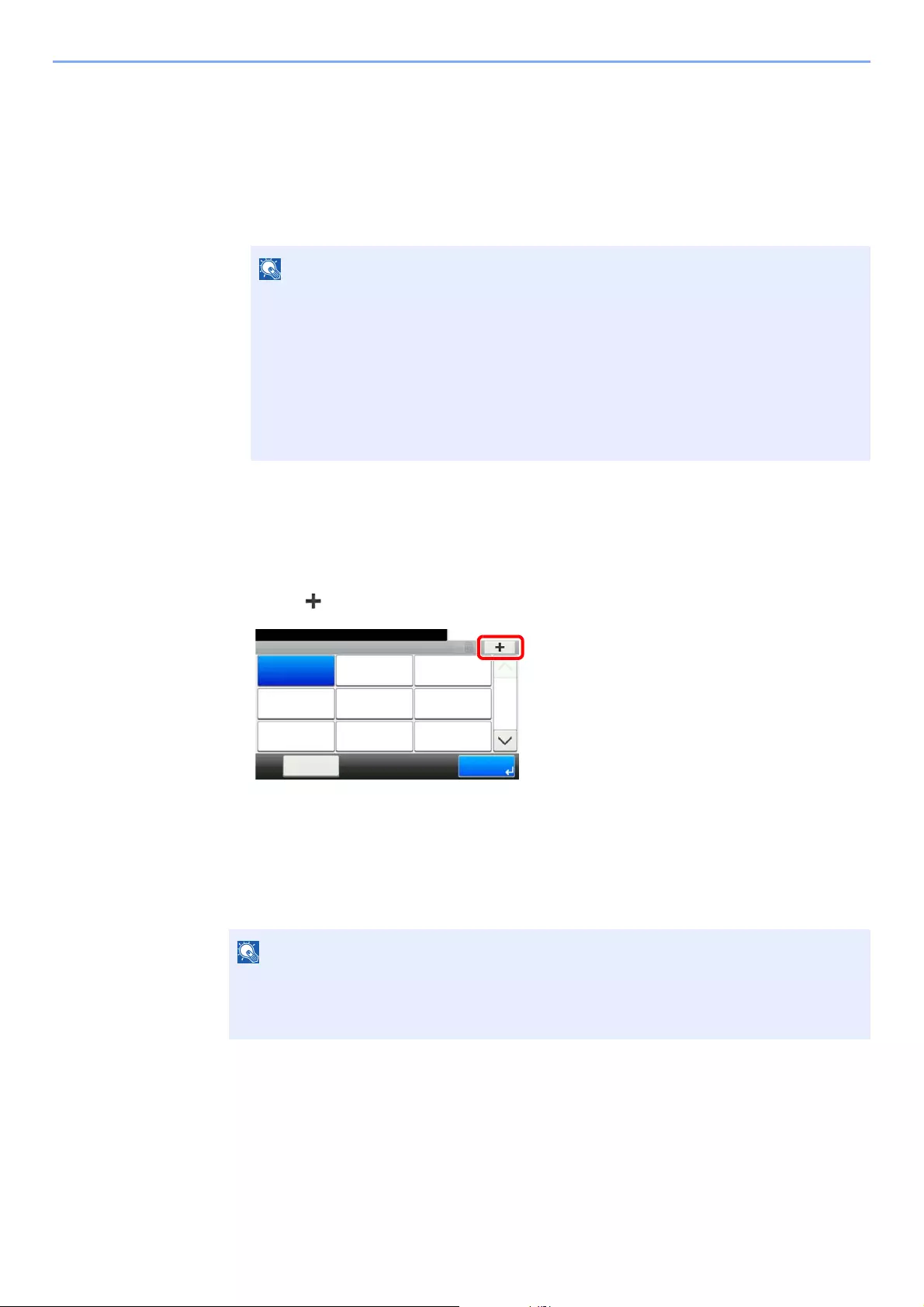
9-28
User Authentication and Accounting (User Login, Job Accounting) > Setting User Login Administration
Simple Login Setup
Register users to use simple login. You can add up to 20 users.
1Display the screen.
1[System Menu/Counter] key > [User Login/Job Accounting]
2[User Login Setting] > [Simple Login Settings] > [Simple Login Setup]
2Enter the user information.
1Select the key to which you want to register a user.
2Select [].
3To specify the user from local users, select [Local User]. To specify from network users,
select [Network User].
The procedure differs depending on the transmission method selected.
Specifying the user from local users
Select the user to be set for simple login.
If the login user name entry screen appears during operations, enter a login user name
and password, and select [Login]. For this, you need to login with administrator
privileges.
The factory default login user name and login password are set as shown below.
ECOSYS M3145idn ECOSYS M3655idn ECOSYS M3660idn
ECOSYS M3645idn
Login User Name: 4500 5500 6000
Login Password: 4500 5500 6000
• To sort the user list, select [Menu] > [Sort (Name)] and [Sort (Login User Name)].
• To search by name or login user name, select [Menu] > [Search (Name)] or [Search
(Login User Name)].
10:10
Menu
System Menu/Counter.
01
04
07
02
05
08
03
06
09
1/3
Simple login settings — Simple Login Setup
End
None None None
None None None
None None None
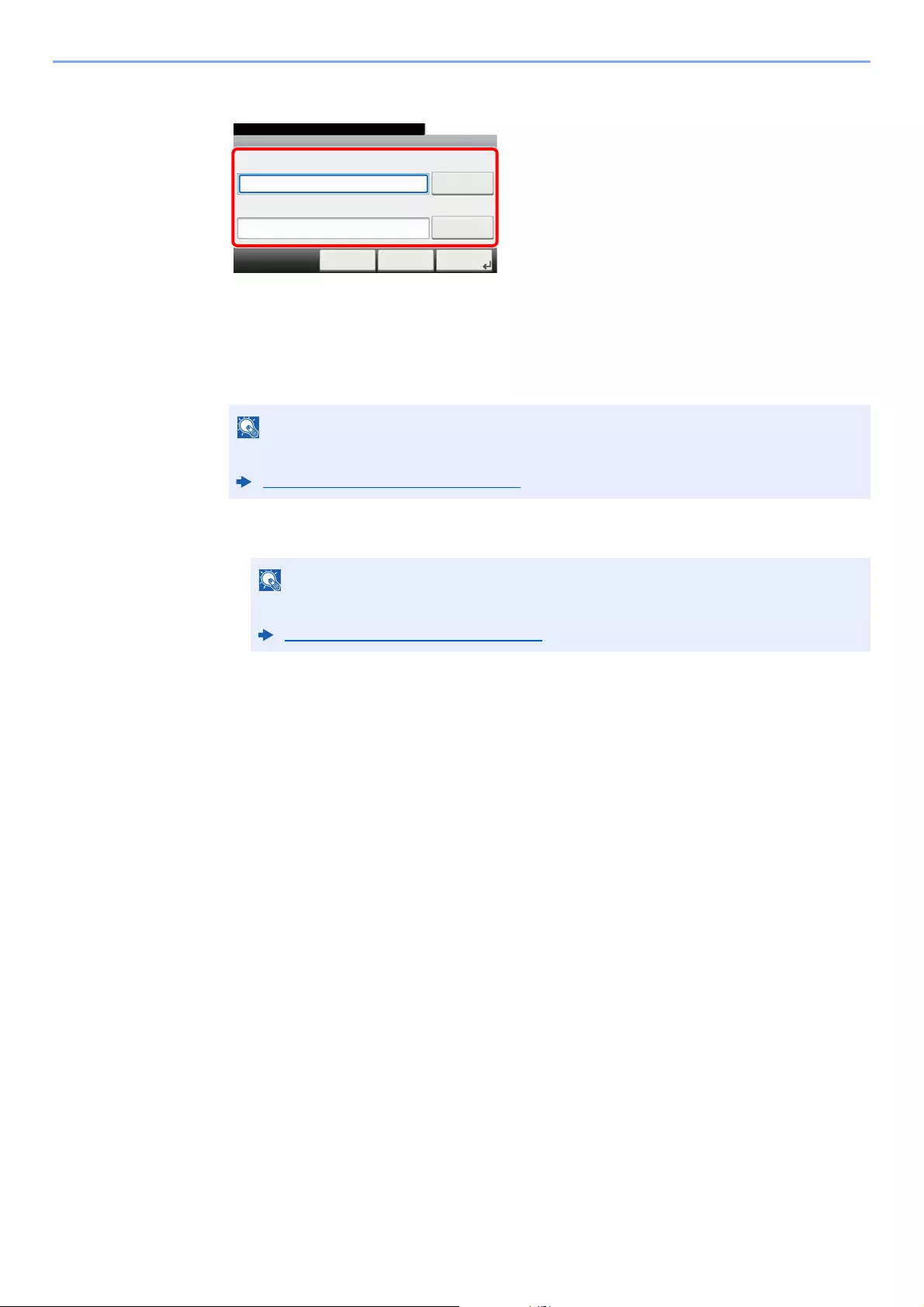
9-29
User Authentication and Accounting (User Login, Job Accounting) > Setting User Login Administration
Specifying the user from network users
Select [Keyboard] for «Login User Name» and «Login Password», enter the information of the
user to be registered, and select [OK].
If you are specifying a user for whom a domain is set in network authentication, select the
«Domain» and select the domain where the user is registered.
Select [Next].
4Enter the user name to be displayed, and select [OK].
5[Password Login] > [On] or [Off] > [Icon]
6Select the user icon to be displayed and select [OK].
3Register the user.
Select [Save].
For details on entering characters, refer to the the following:
Character Entry Method (page 11-11)
For details on entering characters, refer to the the following:
Character Entry Method (page 11-11)
Add — Network User
10:10
Keyboard
Login Password
Keyboard
Login User Name
< Back Next >Cancel
System Menu/Counter.
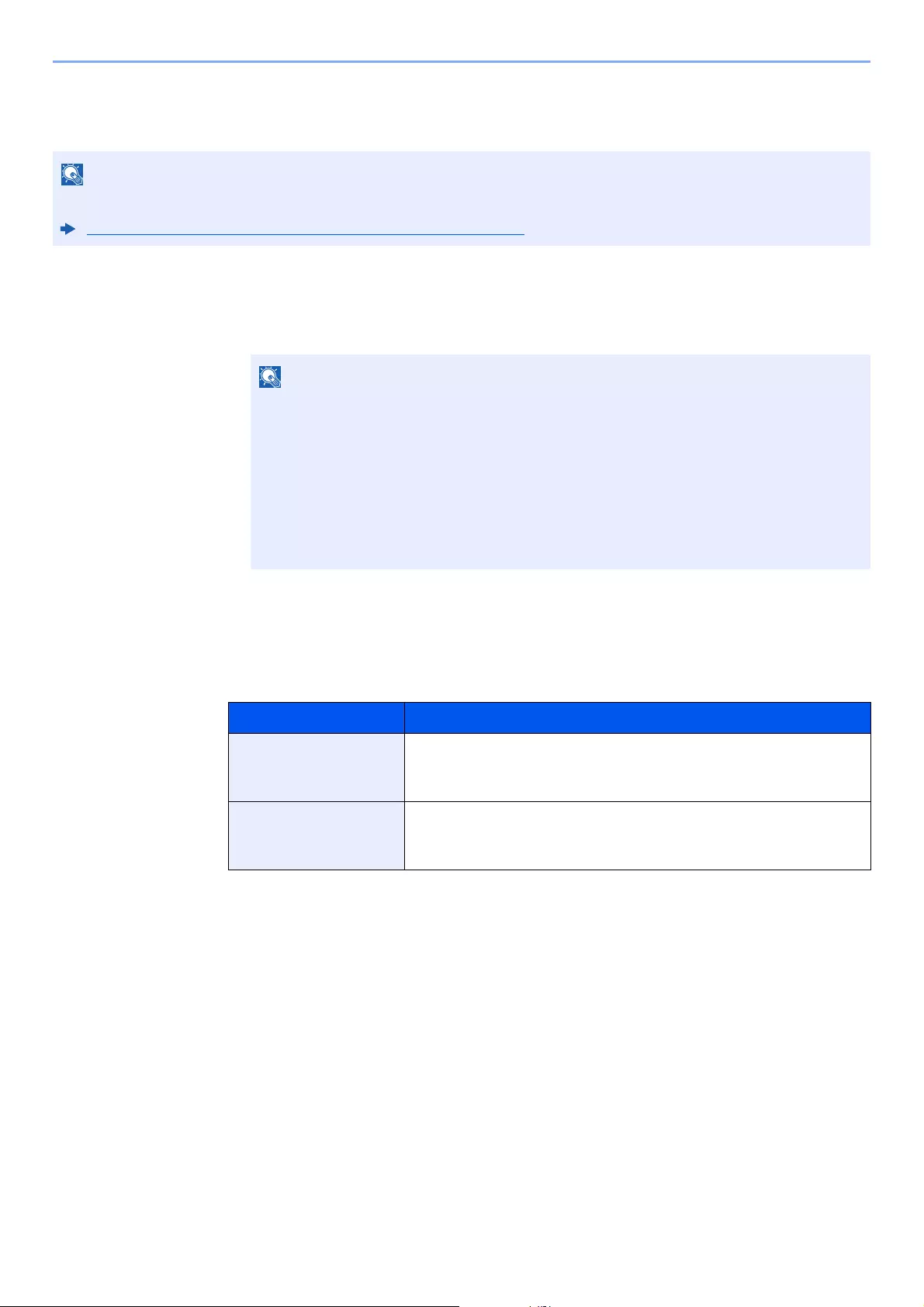
9-30
User Authentication and Accounting (User Login, Job Accounting) > Setting User Login Administration
ID Card Settings
If ID card authentication is enabled, select the authentication type.
1Display the screen.
1[System Menu/Counter] key > [User Login/Job Accounting]
2[User Login Setting] > [ID Card Settings]
2Configure the settings.
The following settings can be selected.
This functions appears when the Card Authentication kit is activated.
Card Authentication Kit(B) «Card Authentication Kit» (page 11-3)
If the login user name entry screen appears during operations, enter a login user name
and password, and select [Login]. For this, you need to login with administrator
privileges.
The factory default login user name and login password are set as shown below.
ECOSYS M3145idn ECOSYS M3655idn ECOSYS M3660idn
ECOSYS M3645idn
Login User Name: 4500 5500 6000
Login Password: 4500 5500 6000
Item Descriptions
Keyboard Login When ID card authentication is enabled, select whether or not login by
keyboard is allowed.
Value: Permit, Prohibit
Additional
Authentication*1
*1 This function does not appear when the server type is set to [NTLM] or [Kerberos] in «Network
Authentication».
Select whether or not to require password entry after authenticating by ID
card.
Value: Off, Use Password, Use PIN

9-31
User Authentication and Accounting (User Login, Job Accounting) > Setting User Login Administration
PIN Code Authorization
1Display the screen.
1[System Menu/Counter] key > [User Login/Job Accounting]
2[User Login Setting] > [PIN Login]
2Configure the settings.
1Select [Off] or [On].
2Select [OK].
When using PIN Code Authorization, the network authentication must be enabled and [Ext.] must be selected for
server type.
Enabling User Login Administration (page 9-3)
If the login user name entry screen appears during operations, enter a login user name
and password, and select [Login]. For this, you need to login with administrator
privileges.
The factory default login user name and login password are set as shown below.
ECOSYS M3145idn ECOSYS M3655idn ECOSYS M3660idn
ECOSYS M3645idn
Login User Name: 4500 5500 6000
Login Password: 4500 5500 6000

9-32
User Authentication and Accounting (User Login, Job Accounting) > Using User Login Administration
Using User Login Administration
This section explains procedures while setting job accounting.
Login/Logout
If user login administration is enabled, the login user name and login password entry screen appears each time you use
this machine.
Use the procedure below to login and logout.
Login
If the login user name entry screen appears during operations, log in by referring to the following:
Login (page 2-22)
Logout
When the operations are complete, select the [Authentication/Logout] key to return to the login user name and login
password entry screen.
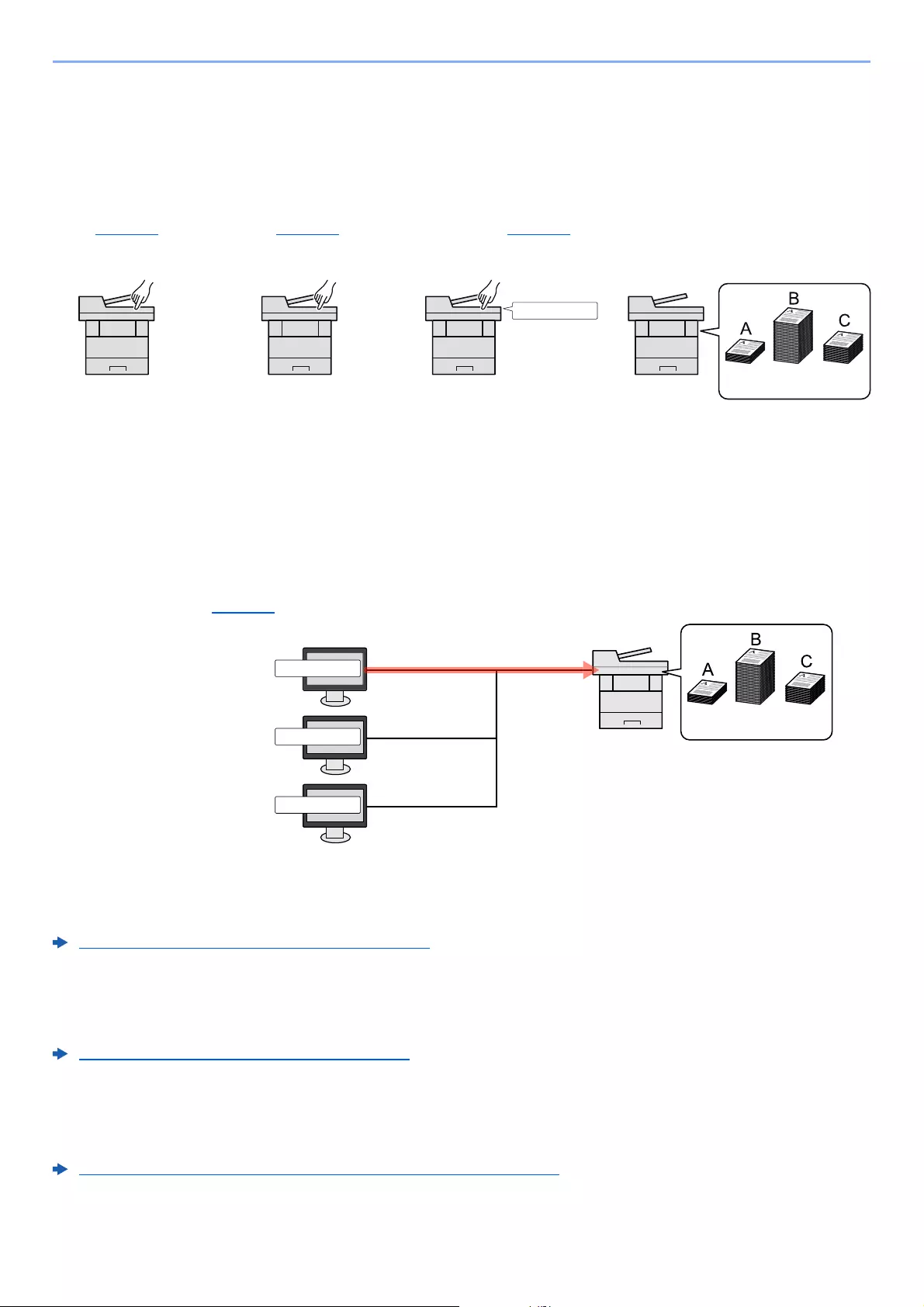
9-33
User Authentication and Accounting (User Login, Job Accounting) > Overview of Job Accounting
Overview of Job Accounting
Job accounting manages the copy/print/scan/FAX count accumulated by individual accounts by assigning an ID to each
account.
To manage the job account from PC
In addition to the above settings, the following are necessary to manage the job account from PC.
To Manage the Number of Sheets Used on Jobs Printed from a PC
To manage the number of jobs to be printed from the PC on the network, you need to configure settings by using the
printer driver on the PC.
To Manage the Scan Job Account by Using TWAIN
To manage the scan job account by using TWAIN, you need to configure the TWAIN driver settings on the computer
connected to the machine.
Job Accounting for Scan Using TWAIN (page 9-41)
To Manage the Scan Job Account by Using WIA
To manage the scan job account by using WIA, you need to configure the WIA driver settings on the computer
connected to the machine.
Job Accounting for Scan Using WIA (page 9-42)
To Manage the FAX Job Transmitted from a PC *1
To manage the number of FAX jobs transmitted from the PC, you need to configure the settings by using the FAX Driver
on the PC.
Job Accounting for the FAX Transmitted from a Computer (page 9-43)
*1 Only on products with the fax function installed.
100 400 200
A: 00000001
1Enable job
accounting. (Refer
to page 9-34.)
3Enter the assigned account
ID when performing the
job. (Refer to page 9-32.)
4Count the number of pages
copied, printed, scanned
and faxed.
2Setting an
account. (Refer
to page 9-36.)
A: 00000001
B: 00000002
C: 00000003
100 400 200
1Set Job Accounting for the PC on
the network by using the printer
driver. (Refer to page 9-40.)
2Execute printing. 3Count the number of
pages printed.

9-34
User Authentication and Accounting (User Login, Job Accounting) > Enabling Job Accounting
Enabling Job Accounting
Enable job accounting. Use the procedure below.
1Display the screen.
1[System Menu/Counter] key > [User Login/Job Accounting]
2[Job Accounting Settings] > [Job Accounting]
2Select [On].
If the login user name entry screen appears during operations, enter a login user name
and password, and select [Login]. For this, you need to login with administrator
privileges.
The factory default login user name and login password are set as shown below.
ECOSYS M3145idn ECOSYS M3655idn ECOSYS M3660idn
ECOSYS M3645idn
Login User Name: 4500 5500 6000
Login Password: 4500 5500 6000
• To disable job accounting, select [Off].
• When the display returns to System Menu default screen, logout is automatically executed
and the screen to enter the Account ID appears. To continue the operation, enter the
Account ID.

9-35
User Authentication and Accounting (User Login, Job Accounting) > Enabling Job Accounting
Job Accounting Access
Set the job accounting access.
1Display the screen.
1[System Menu/Counter] key > [User Login/Job Accounting]
2[Job Accounting Settings] > [Job Accounting Access]
2Configure the settings.
Select [Local] or [Network].
If the login user name entry screen appears during operations, enter a login user name
and password, and select [Login]. For this, you need to login with administrator
privileges.
The factory default login user name and login password are set as shown below.
ECOSYS M3145idn ECOSYS M3655idn ECOSYS M3660idn
ECOSYS M3645idn
Login User Name: 4500 5500 6000
Login Password: 4500 5500 6000
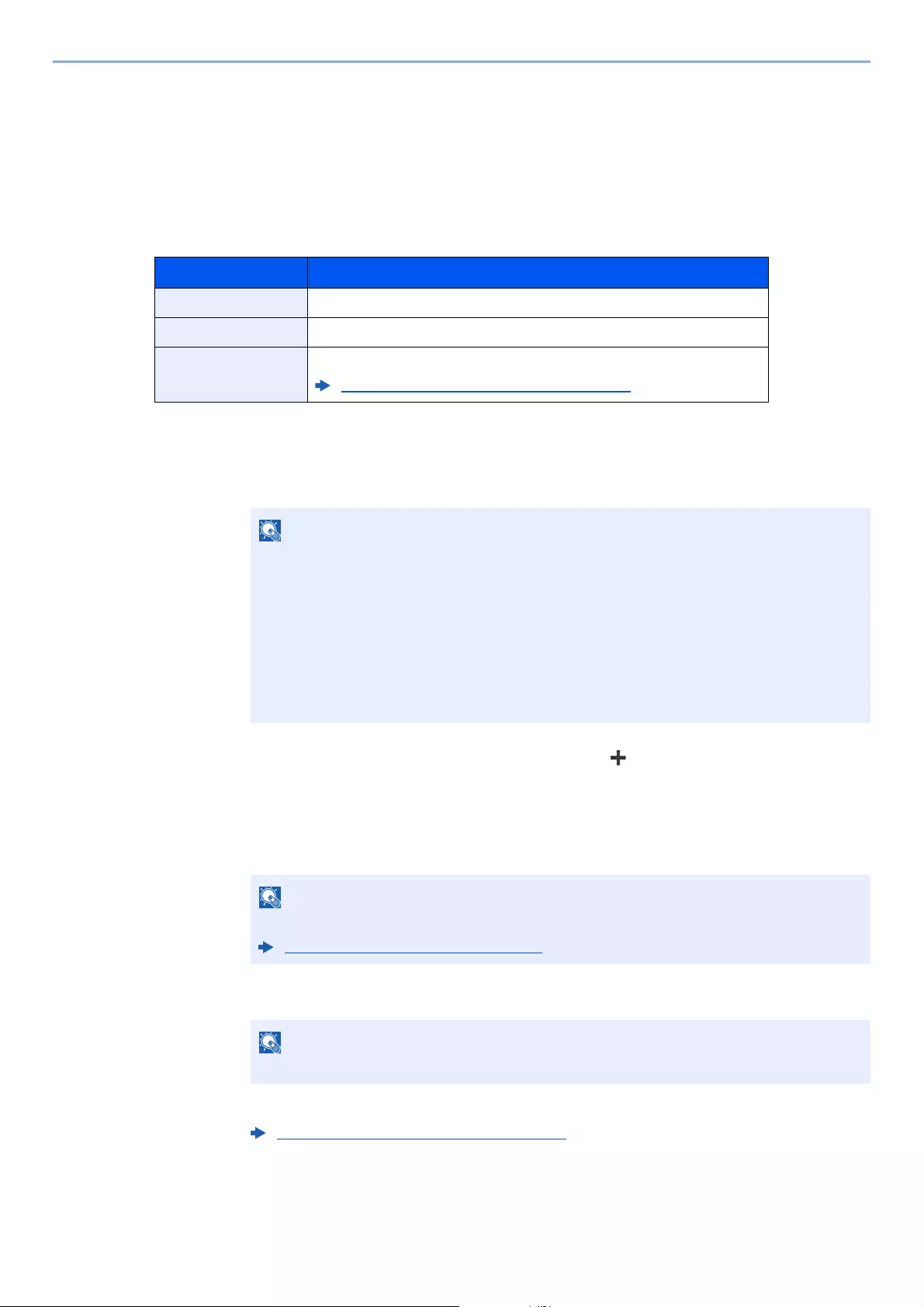
9-36
User Authentication and Accounting (User Login, Job Accounting) > Setting an Account
Setting an Account
You can add, change and delete an account and set the restriction for each account.
Adding an Account
Up to 100 individual accounts can be added. The following entries are required.
1Display the screen.
1[System Menu/Counter] key > [User Login/Job Accounting]
2[Job Accounting Settings] > [Accounting List] > []
2Enter the account information.
1Enter the account name > [Next]
2Enter the account ID > [Next]
3Activate or deactivate restriction.
4Select [Save].
A new account is added on the Account List.
Item Descriptions
Account Name Enter the account name (up to 32 characters).
Account ID Enter the account ID as many as eight digits (between 0 and 99999999).
Restriction This prohibits printing/scanning or restricts the number of sheets to load.
Restricting the Use of the Machine (page 9-37)
If the login user name entry screen appears during operations, enter a login user name
and password, and select [Login]. For this, you need to login with administrator
privileges.
The factory default login user name and login password are set as shown below.
ECOSYS M3145idn ECOSYS M3655idn ECOSYS M3660idn
ECOSYS M3645idn
Login User Name: 4500 5500 6000
Login Password: 4500 5500 6000
For details on entering characters, refer to the the following:
Character Entry Method (page 11-11)
Any «Account ID» that has already registered cannot be used. Enter any other account ID.
Restricting the Use of the Machine (page 9-37)
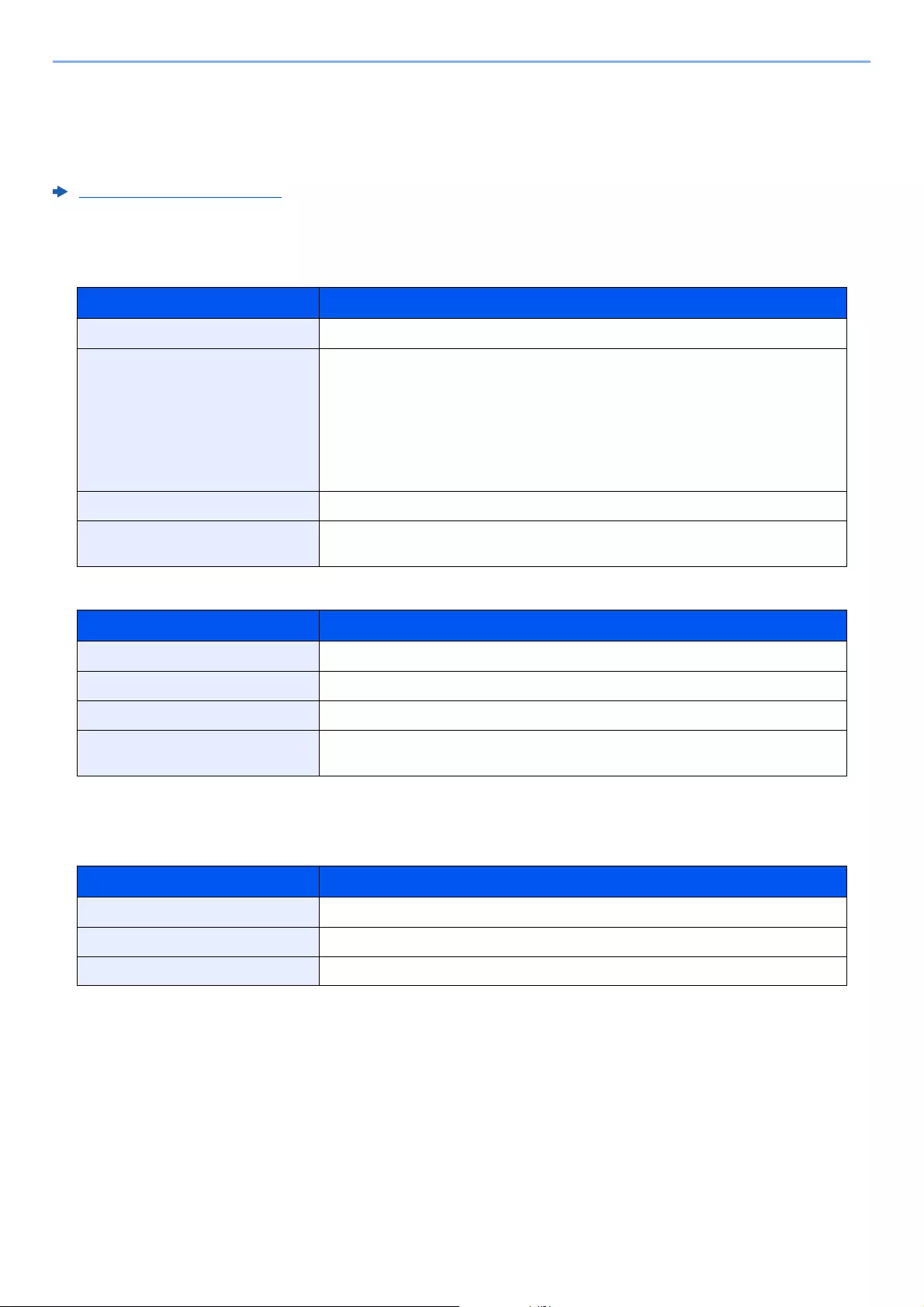
9-37
User Authentication and Accounting (User Login, Job Accounting) > Setting an Account
Restricting the Use of the Machine
This section explains how to restrict the use of the machine by account or the number of sheets available.
The items that can be restricted differ depending on whether «Individual» or «Total» is selected for «Copy/Print Count».
Copy/Print Count (page 9-44)
Restriction Items
«Individual» selected for Copy/Printer Count»Split» selected for Copy/Printer Count
«Total» selected for Copy/Printer Count
Applying Restriction
Restriction can be applied in the following modes:
Item Descriptions
Copy (Total) Limits the number of sheets used for copying.
Printer (Total) Limits the number of sheets used for printing.
Applicable print functions are as follows:
• Print from Box
• Print from Removable Memory
• Print Report
• Print from PC
Scan (Others) Limits the number of sheets scanned (excludes copying).
FAX Transmission Limits the number of sheets sent by fax. This is displayed only on products with the
fax function installed.
Item Descriptions
Print (Total) Limits the total number of sheets used for copying and printing.
Print (Full Color) Limits the number of pages used for full-color printing.
Scan (Others) Limits the number of sheets scanned (excludes copying).
FAX Transmission Limits the number of sheets sent by fax. This is displayed only on products with the
fax function installed.
Item Descriptions
Off No restriction is applied.
Counter Limit Restricts the print counter in one-page increments up to 9,999,999 copies.
Reject Usage Restriction is applied.
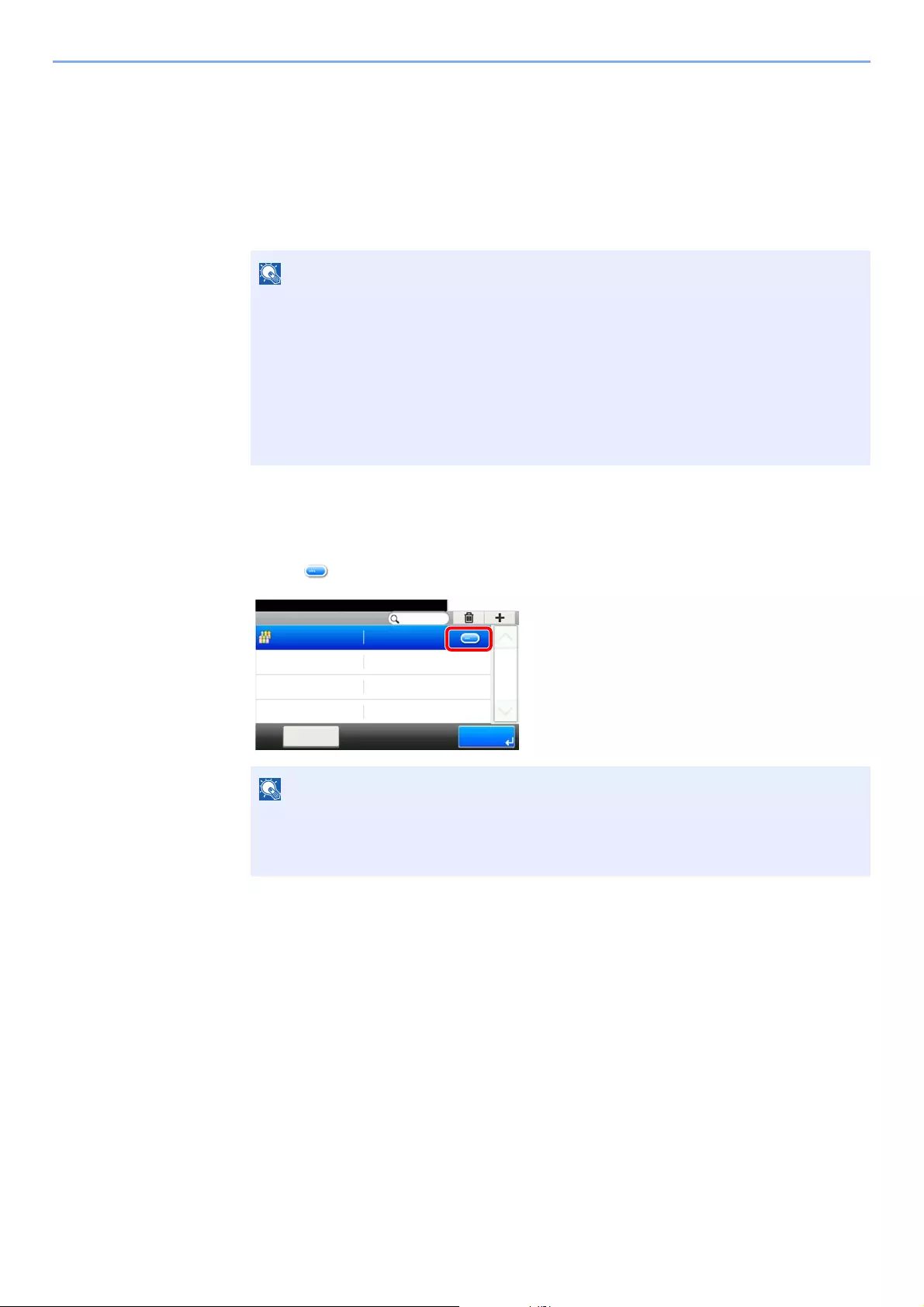
9-38
User Authentication and Accounting (User Login, Job Accounting) > Setting an Account
Editing an Account
This changes the registered account information.
1Display the screen.
1[System Menu/Counter] key > [User Login/Job Accounting]
2[Job Accounting Settings] > [Accounting List]
2Edit an account.
1Select [ ] for the account name you wish to edit.
2Select the account information to be changed and change the account information.
3[Save] > [Yes]
The account information is changed.
If the login user name entry screen appears during operations, enter a login user name
and password, and select [Login]. For this, you need to login with administrator
privileges.
The factory default login user name and login password are set as shown below.
ECOSYS M3145idn ECOSYS M3655idn ECOSYS M3660idn
ECOSYS M3645idn
Login User Name: 4500 5500 6000
Login Password: 4500 5500 6000
• To search by name or login user name, select [Menu] > [Search (Name)] or [Search
(ID)].
• To sort the user list, select [Menu] > [Sort (Name)] and [Sort (ID)].
Job Accounti… — Accounting List
10:10System Menu/Counter.
AAA
EndMenu
1/1
00000001

9-39
User Authentication and Accounting (User Login, Job Accounting) > Setting an Account
Deleting an Account
This deletes the account.
1Display the screen.
1[System Menu/Counter] key > [User Login/Job Accounting]
2[Job Accounting Settings] > [Accounting List]
2Delete an account.
1Select the account name you wish to delete.
2[] > [Yes]
The account is deleted.
If the login user name entry screen appears during operations, enter a login user name
and password, and select [Login]. For this, you need to login with administrator
privileges.
The factory default login user name and login password are set as shown below.
ECOSYS M3145idn ECOSYS M3655idn ECOSYS M3660idn
ECOSYS M3645idn
Login User Name: 4500 5500 6000
Login Password: 4500 5500 6000
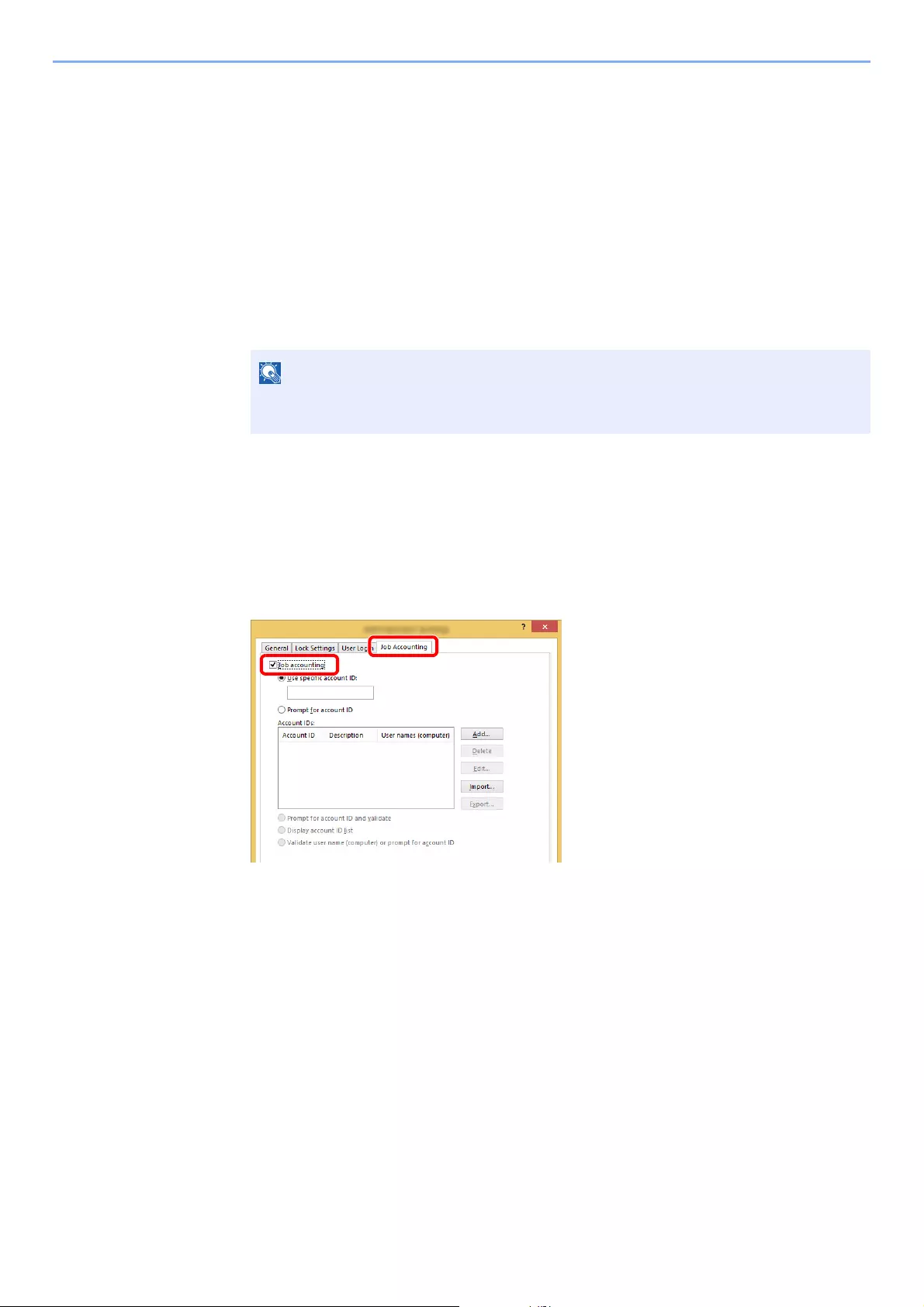
9-40
User Authentication and Accounting (User Login, Job Accounting) > Setting an Account
Job Accounting for Printing
The number of jobs to be printed from the computer can be managed by Job Accounting.
Setting Printer Driver
To manage the number of jobs to be printed from the PC on the network, you need configure the following settings by
using the printer driver on the PC. Instructions are based on interface elements as they appear in Windows 8.1.
1Display the screen.
1Select [Settings] in charms on Desktop, and select [Control Panel], and then [Devices
and Printers].
2Right-click the printer driver icon of the machine, and click the [Printer properties] menu of
the printer driver.
3Click [Administrator] on the [Device Settings] tab.
2Configure the settings.
1Select [Job accounting] on the [Job Accounting] tab.
2Set the Account ID.
[Use specific account ID]:
Enter the Account ID. Printing will be performed using the entered
Account ID. If this option is selected, the user does not have to enter the Account ID for each print job.
[Prompt for account ID]: A screen for entering the Account ID will be displayed when attempting a
printing. The Account ID must be entered each time a printing is attempted.
[Prompt for account ID and validate]: A screen for entering the Account ID will be displayed when
attempting a printing. The Account ID stored in the Account ID list needs to be entered. The Account
ID must be entered each time a printing is attempted.
[Display account ID list]: The Account ID list is displayed when printing. The Account ID to be used
needs to be selected from the list.
[Validate user name (computer) or prompt for account ID]: When printing, the Windows user
name is searched in the «Account IDs» and printing is possible if the name is registered. If the
Account ID is not registered, the screen for entering the Account ID will appear.
In Windows 7, click [Start] button on the Windows, and then click [Devices and
Printers].
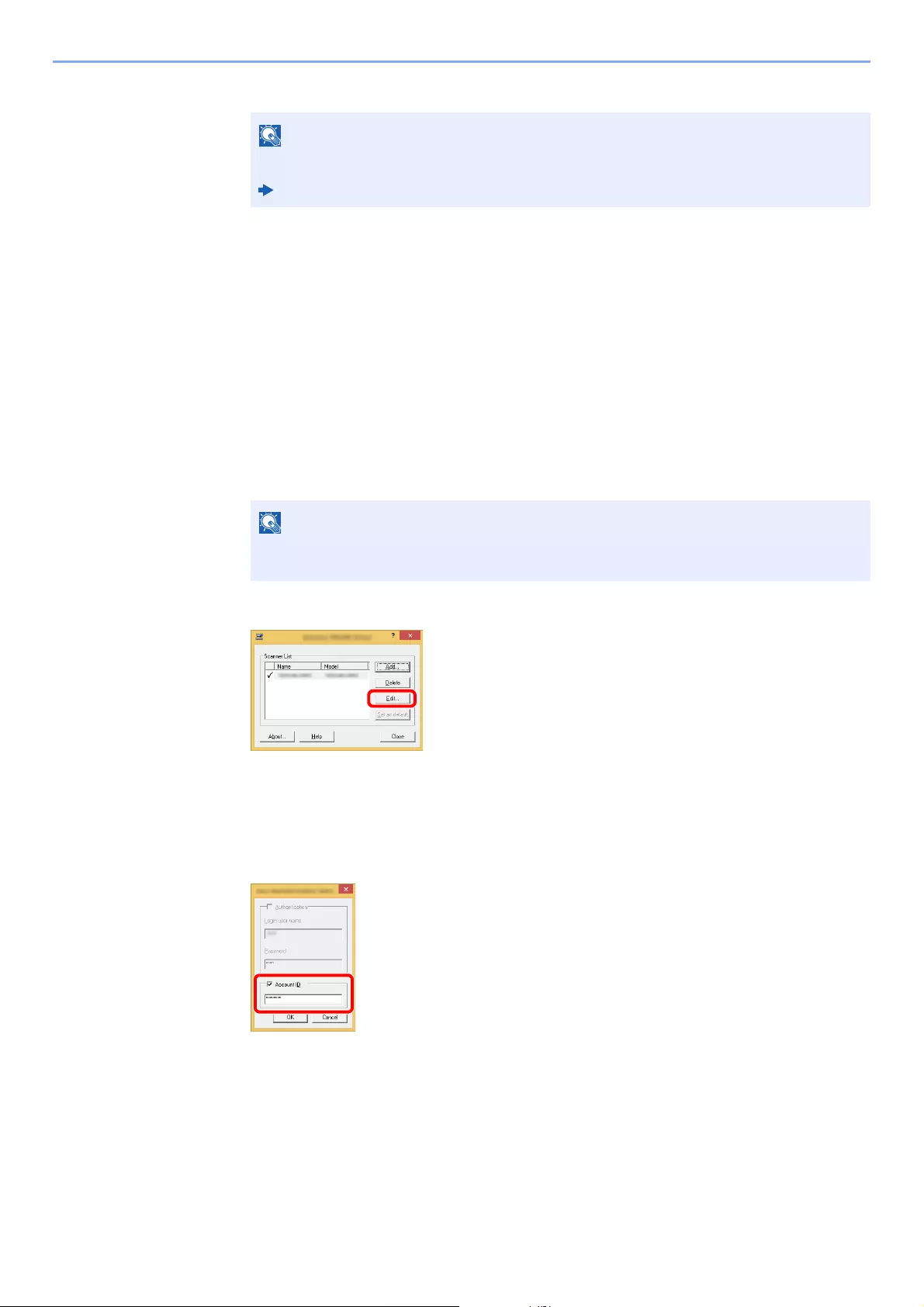
9-41
User Authentication and Accounting (User Login, Job Accounting) > Setting an Account
3Click [OK].
Job Accounting for Scan Using TWAIN
The number of jobs scanned by using TWAIN can be managed by Job Accounting.
Setting TWAIN Driver
To manage the number of jobs scanned by using TWAIN, you need to configure the following settings by using the
TWAIN Driver on the computer. Instructions are based on interface elements as they appear in Windows 8.1.
1Display the screen.
1Select [Search] in charms, and enter «TWAIN Driver Setting» in the search box. Click
[TWAIN Driver Setting] in the search list then the TWAIN Driver Setting screen appears.
2Select the machine, click [Edit].
2Configure the settings.
1Click [User Authentication Settings].
2Select the checkbox beside [Account], and enter the account ID.
3Click [OK].
For other settings of job accounting, refer to the following:
Printer Driver User Guide
In Windows 7, select [Start] button on the Windows, [All Programs], [Kyocera] and then
[TWAIN Driver Setting].
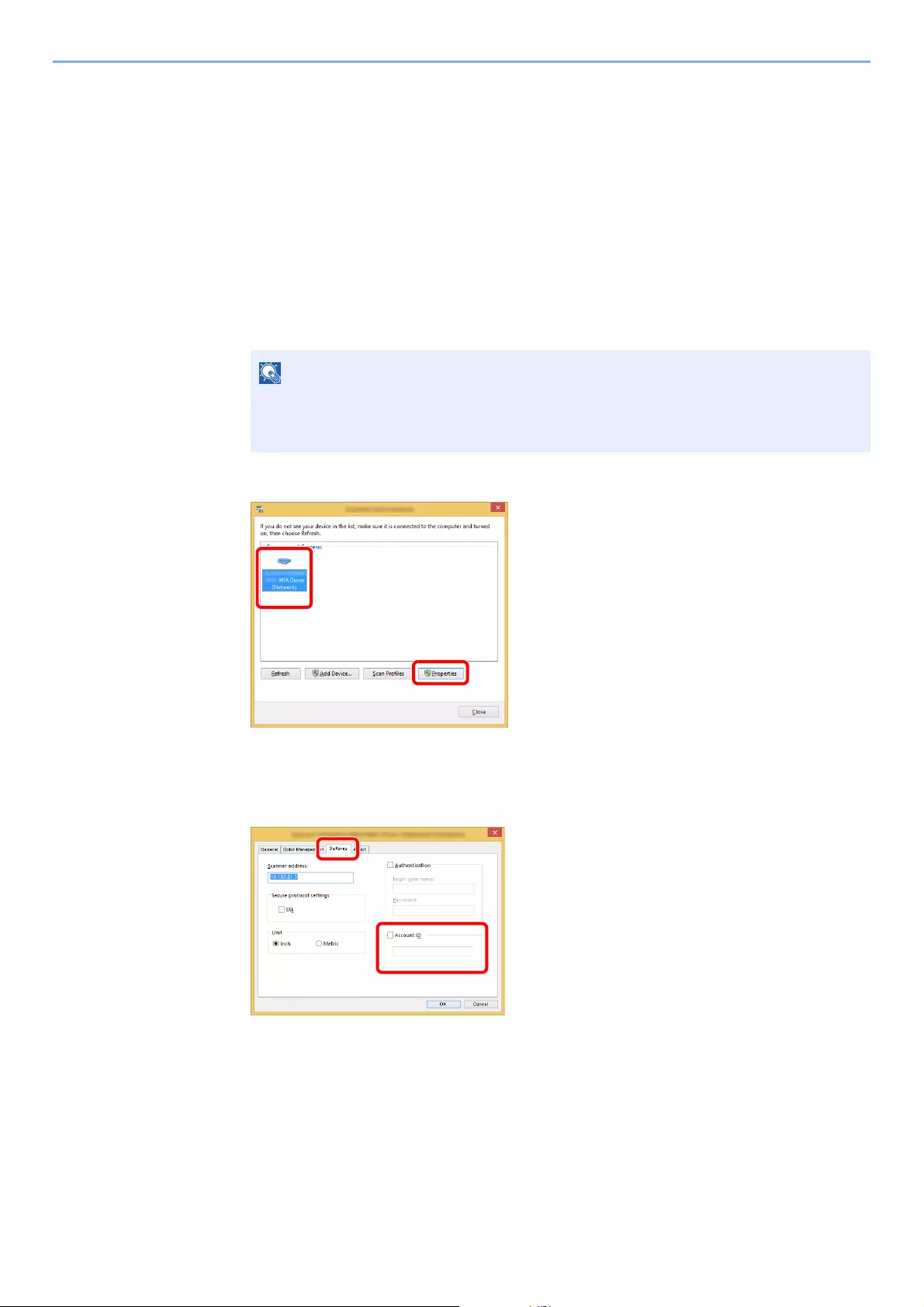
9-42
User Authentication and Accounting (User Login, Job Accounting) > Setting an Account
Job Accounting for Scan Using WIA
The number of jobs scanned by using WIA can be managed by Job Accounting.
Setting WIA Driver
To manage the number of jobs scanned by using WIA, you need to configure the following settings by using the WIA
Driver on the computer. Instructions are based on interface elements as they appear in Windows 8.1.
1Display the screen.
1Click [Search] in charms, and enter «Scanner» in the search box. Click [View scanners
and cameras] in the search list then the Scanners and Cameras screen appears.
2Select the same name as this machine from WIA Drivers, and press [Properties].
2Configure WIA Driver.
1Select the checkbox beside [Account ID] on the [Settings] tab, and enter the Account ID.
2Click [OK].
In Windows 7, click [Start] button on the Windows and enter [Scanner] in [Program and
File Search]. Click [View scanners and cameras] in the search list then the Scanners
and Cameras screen appears.
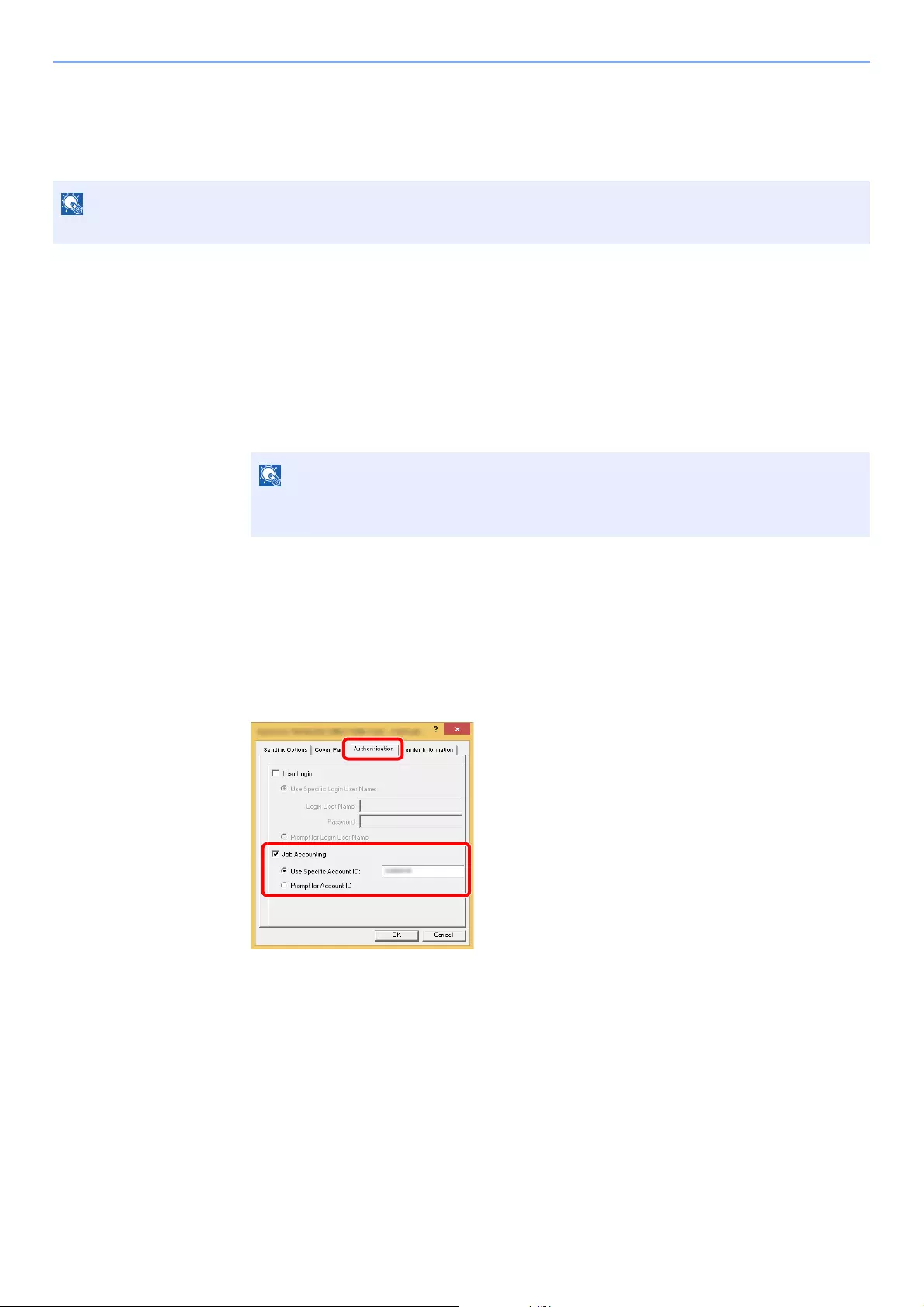
9-43
User Authentication and Accounting (User Login, Job Accounting) > Setting an Account
Job Accounting for the FAX Transmitted from a
Computer
The number of FAX jobs transmitted from the computer can be managed by Job Accounting.
Setting FAX Driver
To manage the number of FAX jobs transmitted from the computer, you need to configure the following settings by using
the FAX Driver on the computer. Instructions are based on interface elements as they appear in Windows 8.1.
1Display the screen.
1Select [Settings] in charms on Desktop, and select [Control Panel], and then [Devices
and Printers].
2Right click the name of the machine to be used as the FAX Driver and select [Printing
preferences] from the resulting pull-down menu.
3Click [FAX TX Setting] in the [Printing Preferences] window.
2Configure the settings.
1Select [Job Accounting] on the [Authentication] tab.
2Set the Job Accounting.
[Use Specific Account ID]: This option can be used to specify an account ID to use the same
Account ID for every FAX job. If this option is selected, the user does not have to enter the Account ID
for each FAX job.
[Prompt for Account ID]: A screen for entering the Account ID will be displayed when attempting a
transmission. The Account ID must be entered each time a transmission is attempted.
3Click [OK].
FAX functions are available only on products with the fax function installed.
In Windows 7, click [Start] button on the Windows, and then click [Devices and
Printers].
9-44
User Authentication and Accounting (User Login, Job Accounting) > Configuring Job Accounting
Configuring Job Accounting
Default Setting
Set the defaults for job accounting. To configure the settings, select the item in Default Setting and select the setting
item.
[System Menu/Counter] key > [User Login/Job Accounting] > [Job Accounting Settings] > [Default Setting]
For details on each function, see the table below.
Item Description
Apply Limit This specifies how the machine behaves when the counter has reached the limit of restriction.
The table below describes the action taken.
Value
Immediately: Job stops when the counter reaches its limit. The next job will be
prohibited in sending or in storing in the box.
Subsequently: Printing/scanning of the job continues but the subsequent job will be
rejected.
Alert Only: Job continues while displaying an alert message.
Copy/Print Count You can select how the copying and printing page counts are shown — either the total of both or
each of copying and printing individually (Split). The selection may influence restriction on the
count and count method.
Value: Total, Individual
Restricting the Use of the Machine (page 9-37)
Print Accounting Report (page 9-46)
Counter Limit When you add a new account, you can change the default restrictions on the number of sheets
used. You can set any number from 1 to 9,999,999.
The items that can be set differ depending on whether [Individual] or [Total] is selected for
[Copy/Print Count].
Copy/Print Count (page 9-44)
[Individual] selected for Copy/Printer Count
Copy (Total) Sets the default restriction on the number of sheets used for copying.
Printer (Total) Sets the default restriction on the number of sheets used for printing.
Applicable print functions are as follows:
• Print from Box
• Print from Removable Memory
• Print Report
• Print from PC
Scan (Others) Sets the default restriction on the number of sheets used for scanning (excludes copying).
FAX Transmission*1
*1 Only on products with the fax function installed.
Sets the default restriction on the number of sheets used for sending faxes.
[Total] selected for Copy/Printer Count
Print (Total) Sets the default restriction on the total number of sheets used for copying and printing.
Scan (Others) Sets the default restriction on the number of sheets used for scanning (excludes copying).
FAX Transmission*1 Sets the default restriction on the number of sheets used for sending faxes.
9-45
User Authentication and Accounting (User Login, Job Accounting) > Configuring Job Accounting
Counting the Number of Pages Printed
This counts the number of pages printed. Counts are classified into Total Job Accounting and Each Job Accounting. A
new count can also be started after resetting the count data which was stored for a certain period of time.
[System Menu/Counter] key > [User Login/Job Accounting] > [Job Accounting Settings] >
[Total Accounting] or [Each Job Account]
Total Accounting
This counts the number of pages for all accounts and resets the counts for those accounts together at the same time.
Each Job Account
This counts the number of pages for each account and resets the counts by account. When checking Each Job
Accounting, select the account for which you want to check the count.
Types of the counts are as follows.
Item Descriptions
Printed Pages Displays the number of pages copied and printed, and the total number of pages used. You can
also use [FAX]*1, [by Duplex] and [by Combine] to check the number of pages used.
*1 Only on products with the fax function installed.
Copy (Total) Displays the number of pages copied.
Printer (Total) Displays the number of pages printed.
Applicable print functions are as follows:
• Print from Box
• Print from Removable Memory
• Print Report
• Print from PC
Copy/Print. (Total) Displays the total number of pages used for copying and printing.
FAX*1 Displays the number of pages received.
Total Displays the total number of pages used.
by Duplex Displays the number of pages printed in [1-sided] mode, [2-sided] mode, and the total pages
in both modes.
by Combine Displays the number of pages printed in [None] (no Combine) mode, [2 in 1] mode, [4 in 1]
mode, and the total pages in both modes.
Scanned Pages Displays the number of pages scanned for copying, faxing and other functions, as well as the
total number of pages scanned.
FAX TX Pages*1 Displays the number of pages faxed.
FAX TX Time*1 Displays the total duration of FAX transmissions.
Counter Reset Resets the counter.
Select [Yes] in the confirmation screen.
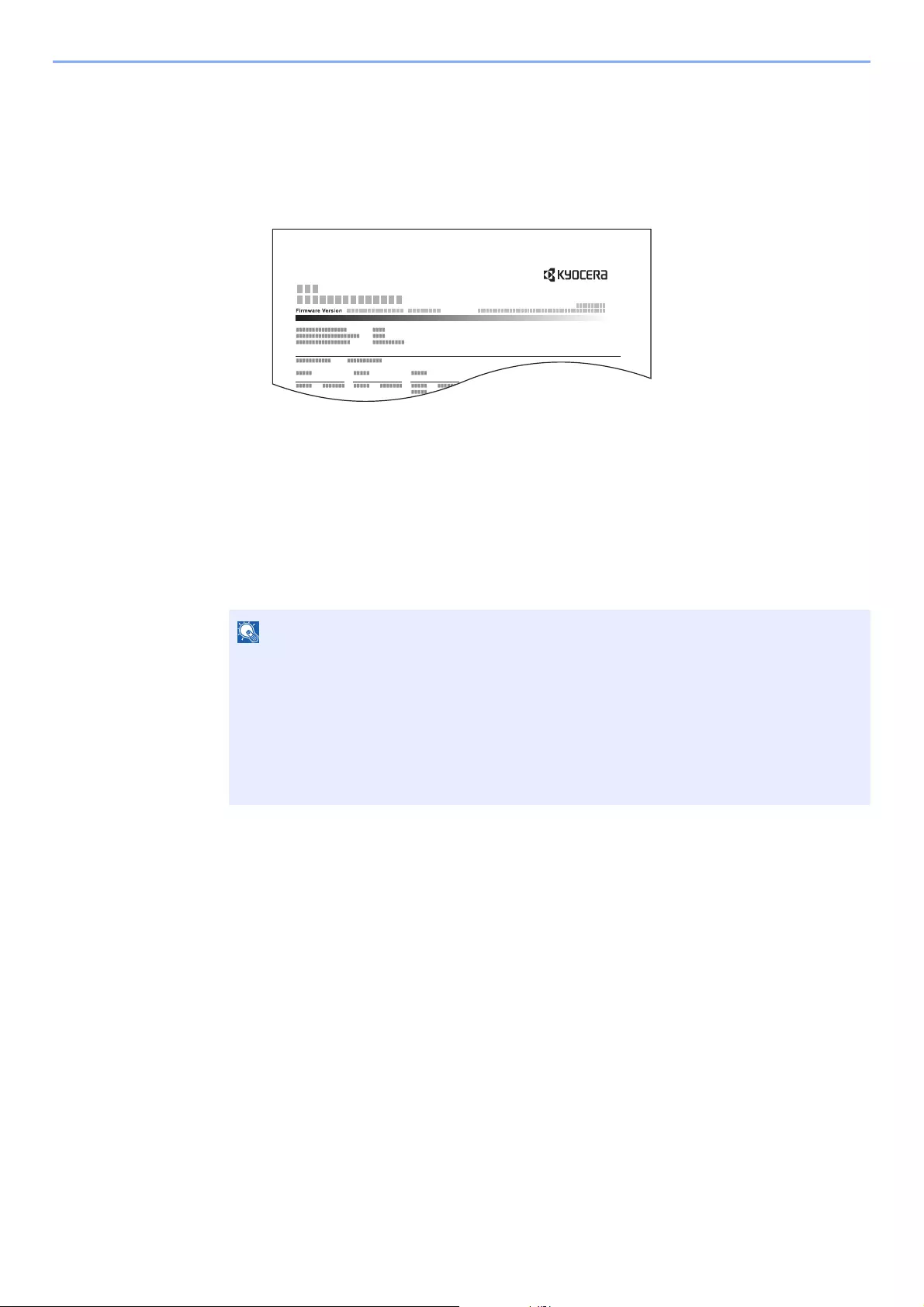
9-46
User Authentication and Accounting (User Login, Job Accounting) > Configuring Job Accounting
Print Accounting Report
The total pages counted of all relevant accounts can be printed as an accounting report.
Reports have different formats depending on how the count of copiers and printers is administered.
When «Individual» is selected for Managing the Copy/Printer Count.
Use the procedure below to print a job accounting report.
1Prepare paper.
Check that A4 or Letter paper is loaded in the cassette.
2Display the screen.
[System Menu/Counter] key > [User Login/Job Accounting] > [Job Accounting Settings]
3Print the report.
[Print Accounting Report] > [Yes]
Accounting report is printed.
If the login user name entry screen appears during operations, enter a login user name and
password, and select [Login]. For this, you need to login with administrator privileges.
The factory default login user name and login password are set as shown below.
ECOSYS M3145idn ECOSYS M3655idn ECOSYS M3660idn
ECOSYS M3645idn
Login User Name: 4500 5500 6000
Login Password: 4500 5500 6000

9-47
User Authentication and Accounting (User Login, Job Accounting) > Using Job Accounting
Using Job Accounting
This section explains procedures while setting job accounting.
Login/Logout
If job accounting is enabled, an account ID entry screen appears each time you use this machine.
Use the procedure below to login and logout.
Login
1In the account ID entry screen, enter the account ID using the numeric keys and select
[Login].
When the screen to enter the login user name and password appears
If user login administration is enabled, the screen to enter the login user name and password
appears. Enter a login user name and password to login. If the user has already registered the
account information, the account ID entry would be skipped.
2Proceed to complete the rest of the steps.
Logout
When the operations are complete, select the [Authentication/Logout] key to return to the account ID entry screen.
• If you entered a wrong character, select the [Clear] key and enter the account ID
again.
• If the entered account ID does not match the registered ID, a warning beep will sound
and login will fail. Enter the correct account ID.
• By selecting [Check Counter], you can refer to the number of pages printed and the
number of pages scanned.
Adding a User (Local User List) (page 9-6)
9-48
User Authentication and Accounting (User Login, Job Accounting) > Unknown User Settings
Unknown User Settings
Unknown ID Job
This specifies the behavior for handling the jobs sent with unknown or unsent login user names or User ID. If the User
Login is set to invalid and Job Accounting is set to valid, follow the procedure when the Account ID is unknown.
The setting items are as follows.
1Display the screen.
1[System Menu/Counter] key > [User Login/Job Accounting]
2[Unknown User Settings] > [Unknown ID Job]
2Configure the settings.
Select [Permit] or [Reject].
Item Descriptions
Permit The job is permitted to be printed.
Reject The job is rejected (not printed).
If the login user name entry screen appears during operations, enter a login user name
and password, and select [Login]. For this, you need to login with administrator
privileges.
The factory default login user name and login password are set as shown below.
ECOSYS M3145idn ECOSYS M3655idn ECOSYS M3660idn
ECOSYS M3645idn
Login User Name: 4500 5500 6000
Login Password: 4500 5500 6000
9-49
User Authentication and Accounting (User Login, Job Accounting) > Unknown User Settings
Registering Information for a User whose ID is
Unknown
If you register user information for a user whose ID is unknown, you can check information on the Job Status or Job
History screens. In addition, you can restrict available functions.
1Display the screen.
1[System Menu/Counter] key > [User Login/Job Accounting]
2[Unknown User Settings] > [User Property]
2Enter the user information.
Enter the user information > [OK]
This function is displayed when [Unknown ID Job] is set to [Permit].
If the login user name entry screen appears during operations, enter a login user name
and password, and select [Login]. For this, you need to login with administrator
privileges.
The factory default login user name and login password are set as shown below.
ECOSYS M3145idn ECOSYS M3655idn ECOSYS M3660idn
ECOSYS M3645idn
Login User Name: 4500 5500 6000
Login Password: 4500 5500 6000
Item Descriptions
User Name Enter the name displayed on the user list (up to 32 characters).
Account Name Register an account for a user whose ID is unknown.
Overview of Job Accounting (page 9-33)
•Select [Menu] > [Search (Name)] or [Search (ID)] to search by
account name or account ID.
•Select [Menu] > [Sort (Name)] or [Sort (ID)] to sort the account list.
• This is displayed when job accounting is enabled.
Authorization Rules Set usage authority for each user.
The following restriction items are available:
Print:
Select whether or not use of the print function of the printer is prohibited.

10-1
10 Troubleshooting
This chapter explains the following topics:
Regular Maintenance ………….…………….…………….…………….…………….…………….…………..………………………. 10-2
Cleaning …………….…………….……………..…………….………….…………….…………….……..……………………… 10-2
Toner Container Replacement ……………………………….………………..……………….…………….…….………… 10-6
Waste Toner Box Replacement ……………….…………….…………….…………….……………..………………….. 10-10
Replacing Staples (ECOSYS M3655idn/ECOSYS M3660idn only) ………..……………..…………….……. 10-12
Troubleshooting …………..…………….……………..…………….………….…………….…………….…………………………… 10-13
Solving Malfunctions ……….………….…………….…………….……………..…………….……………...…………..…. 10-13
Responding to Messages ……………………….…………….…………….…………….……………..………..………… 10-18
Adjustment/Maintenance ………….…………….…………….…………….………….…………….…………..…………. 10-30
Clearing Paper Jams ……………….…………….…………….…………….…………….……………..…….……………. 10-31
Clearing a Staple Jam (ECOSYS M3655idn/ECOSYS M3660idn only) …………………..…………….……. 10-40
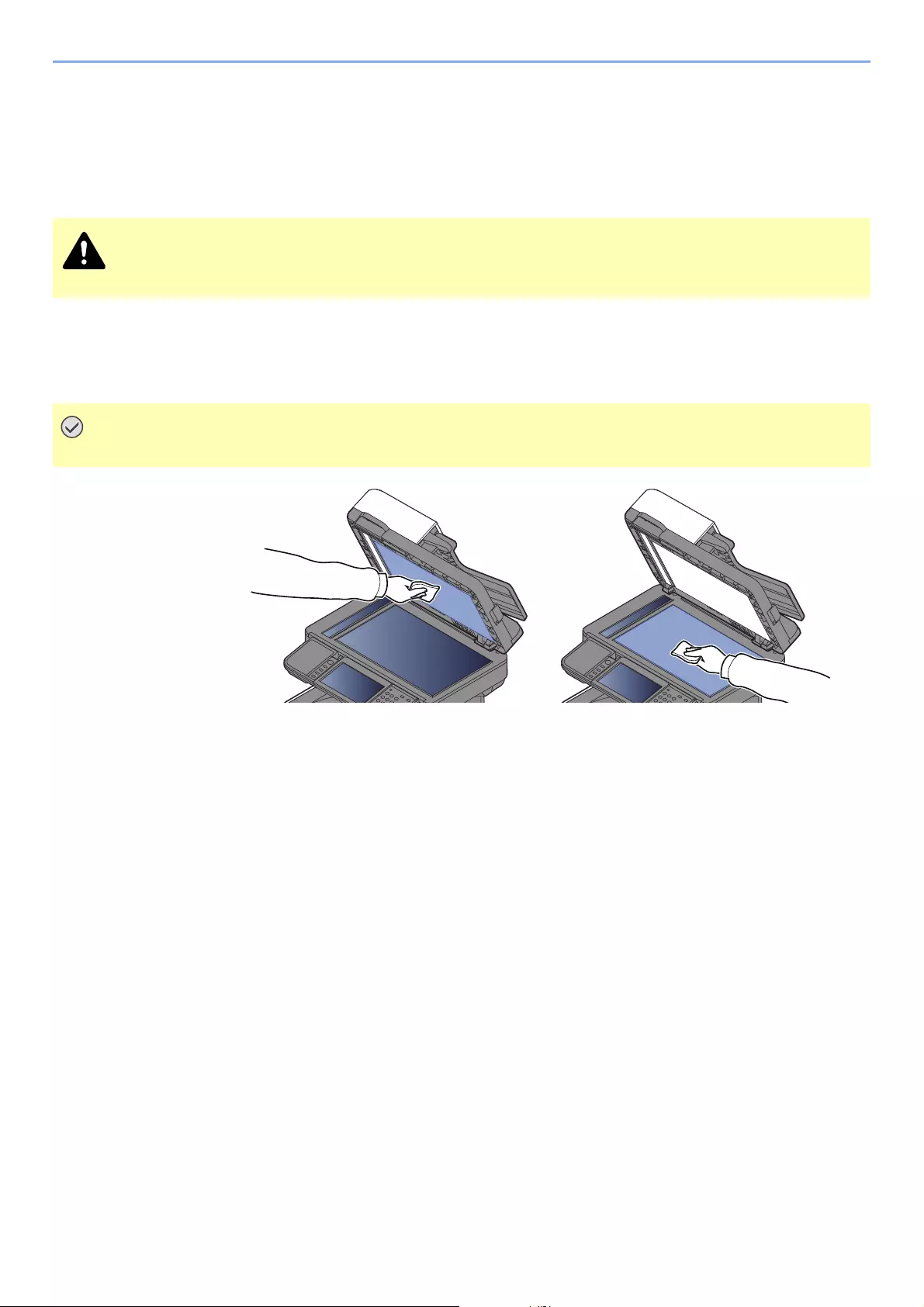
10-2
Troubleshooting > Regular Maintenance
Regular Maintenance
Cleaning
Clean the machine regularly to ensure optimum printing quality.
Glass Platen
Wipe the inside of the document processor and the glass platen with a soft cloth dampened with alcohol or mild
detergent.
For safety, always unplug the power cord before cleaning the machine.
Do not use thinner or other organic solvents.
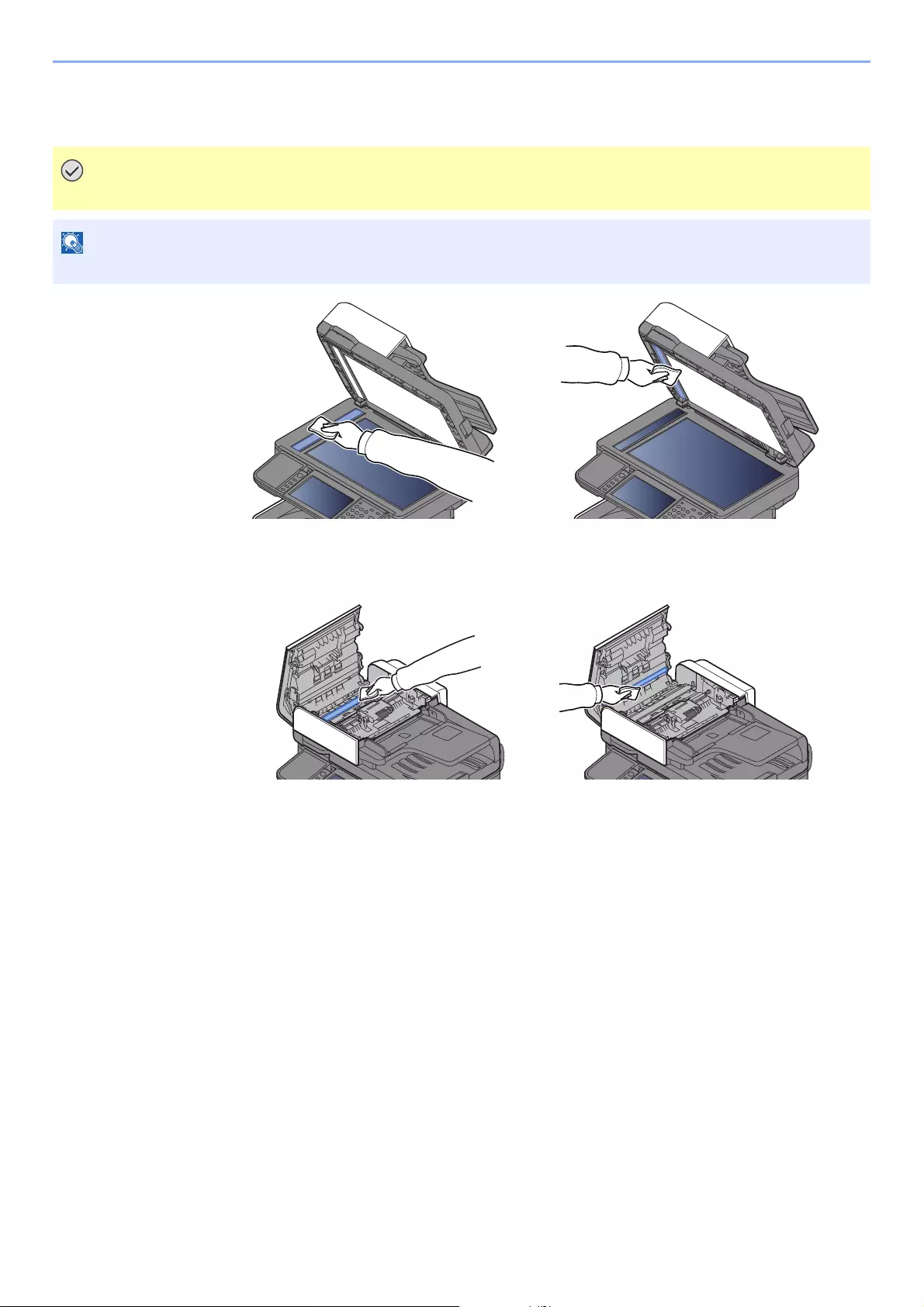
10-3
Troubleshooting > Regular Maintenance
Slit Glass
When using the document processor, clean the slit glass surface and the reading guide with the dry cloth.
ECOSYS M3655idn/ECOSYS M3660idn only
Do not use water, soap or solvents for cleaning.
Dirt on the slit glass or the reading guide may cause black streaks to appear in the output.
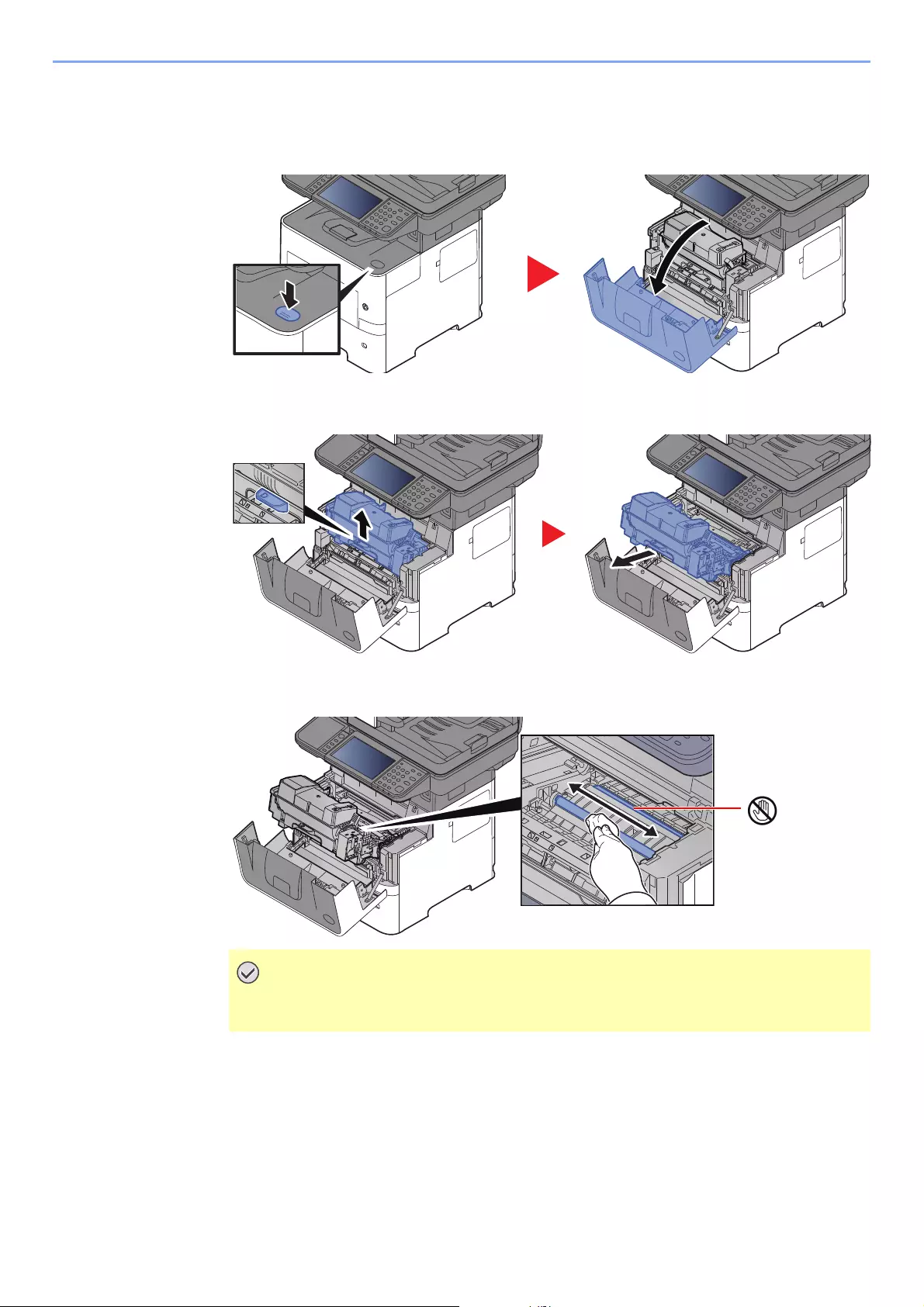
10-4
Troubleshooting > Regular Maintenance
Registration Roller
1
2
3
Be careful not to touch the black transfer roller and brown transfer belt during
cleaning as this may adversely affect print quality.
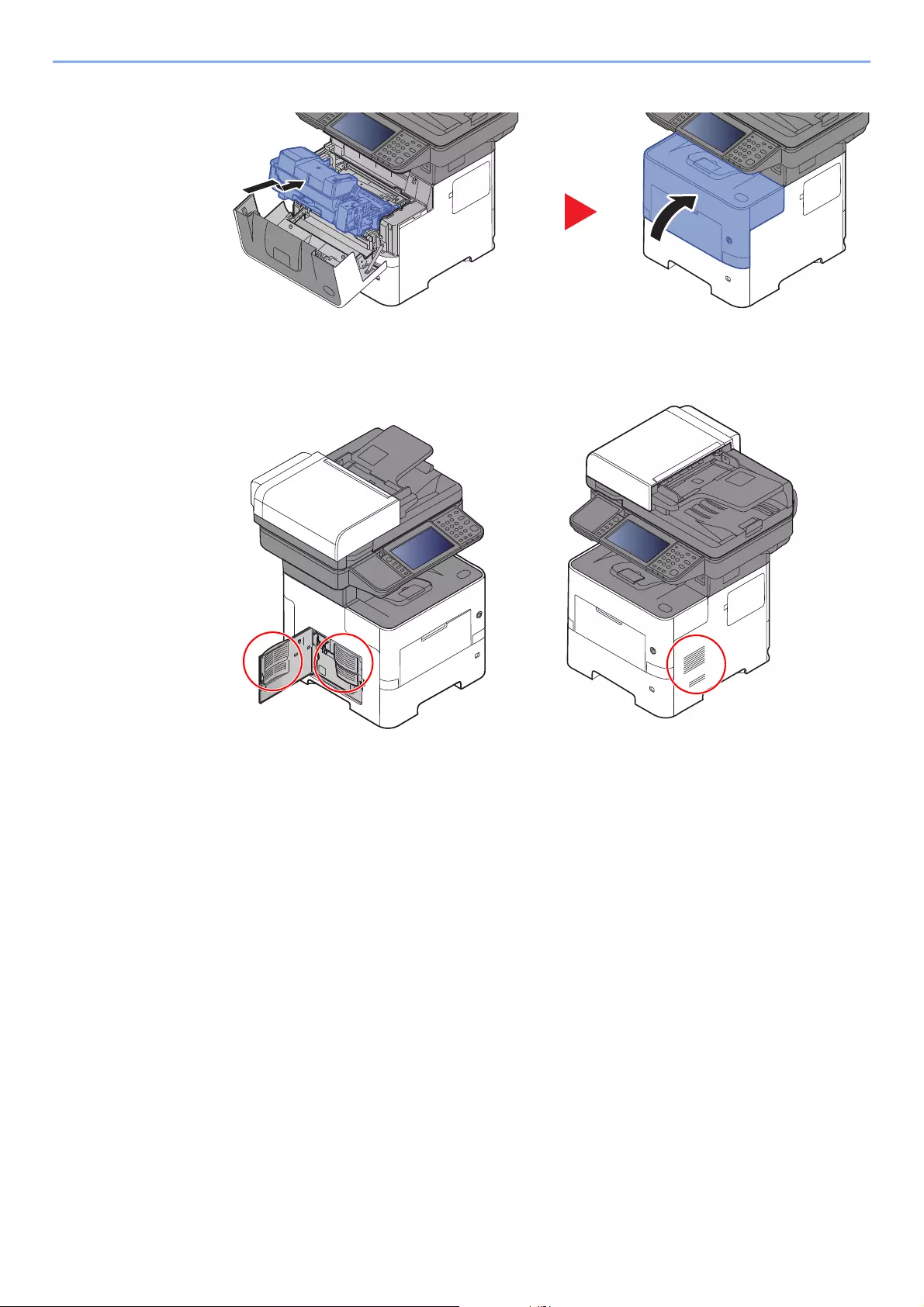
10-5
Troubleshooting > Regular Maintenance
4
Vents
Use a lint free cloth to clean dust and dirt away from the vents.
10-6
Troubleshooting > Regular Maintenance
Toner Container Replacement
When toner runs low, «Toner is low. (Replace when empty.)» appears in the touch panel. Make sure you have a new
toner container available for replacement.
When the touch panel displays «Toner is empty.», replace the toner.
Frequency of Toner Container Replacement
The life of the toner containers depends on the amount of toner required to accomplish your printing jobs. According to
ISO/IEC 19752 and EcoPrint switched off the toner container can print as follows (A4/Letter paper is assumed):
Models Life of the Toner Container (Printable pages)
ECOSYS M3145idn/ECOSYS M3645idn
(for Europe model)
14,500 images
ECOSYS M3145idn/ECOSYS M3645idn
(except for Europe model)
12,500 images
ECOSYS M3655idn
(for North America and Latin America model)
21,000 images
ECOSYS M3655idn
(except for North America and Latin America model)
25,000 images
ECOSYS M3660idn 25,000 images
• The average number of pages that can be printed by the toner containers included with the machine are as follows.
ECOSYS M3145idn/ECOSYS M3645idn: 6,000 images. ECOSYS M3655idn/ECOSYS M3660idn: 10,000 images.
• To maintain quality, we recommend using genuine Kyocera toner containers, which must pass numerous quality
inspections.
• The memory chip in the toner container of this product stores information necessary for improving customer
convenience, operation of the recycling system for used toner containers, and planning and development of new
products. The stored information does not include information that makes it possible to identify individuals, and is
only used anonymously for the above purposes.
Do not attempt to incinerate parts which contain toner. Dangerous sparks may cause burns.
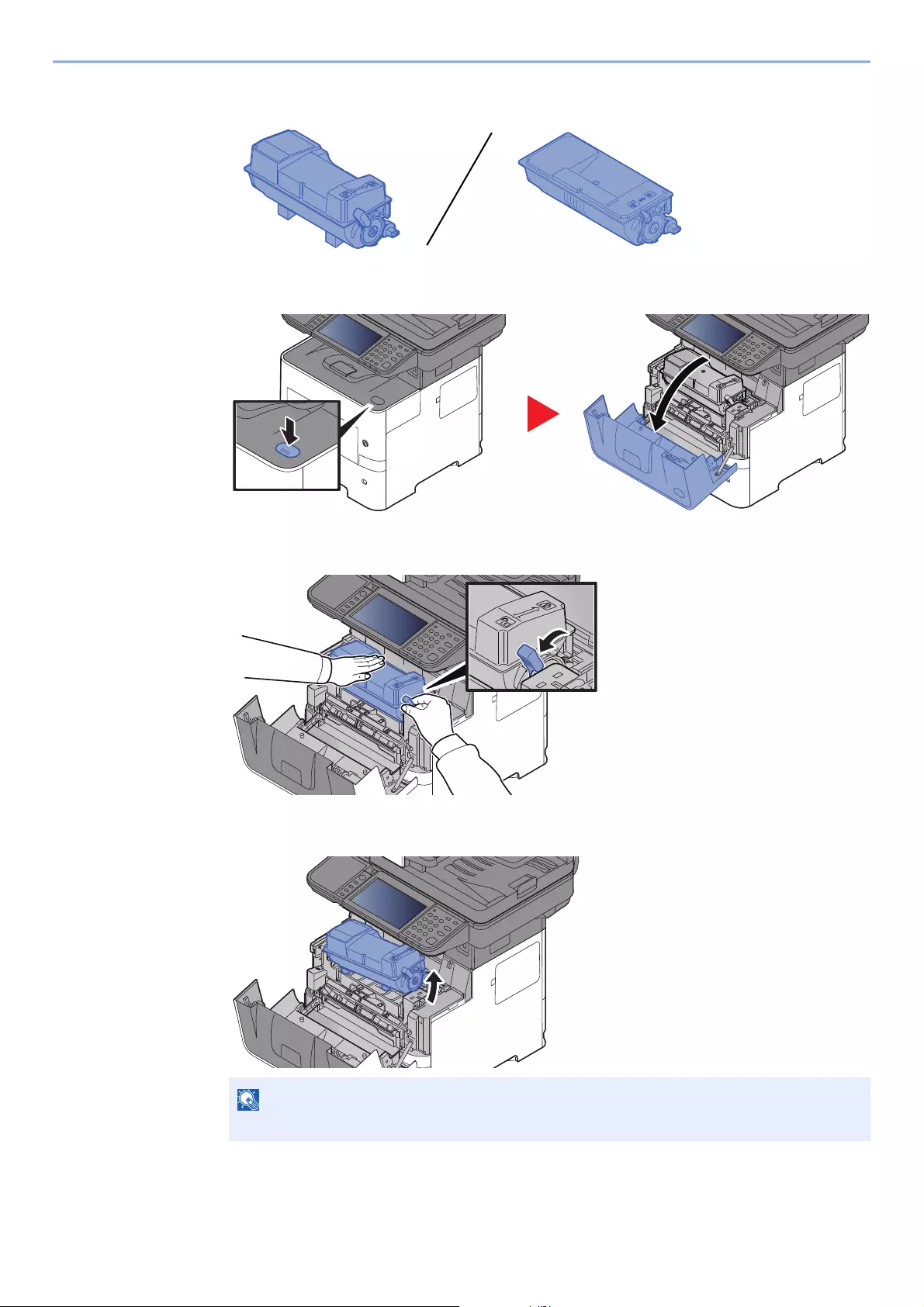
10-7
Troubleshooting > Regular Maintenance
Replacing the Toner Container
1
2
3
When removing the toner container from the machine, lift up the right hand side first.
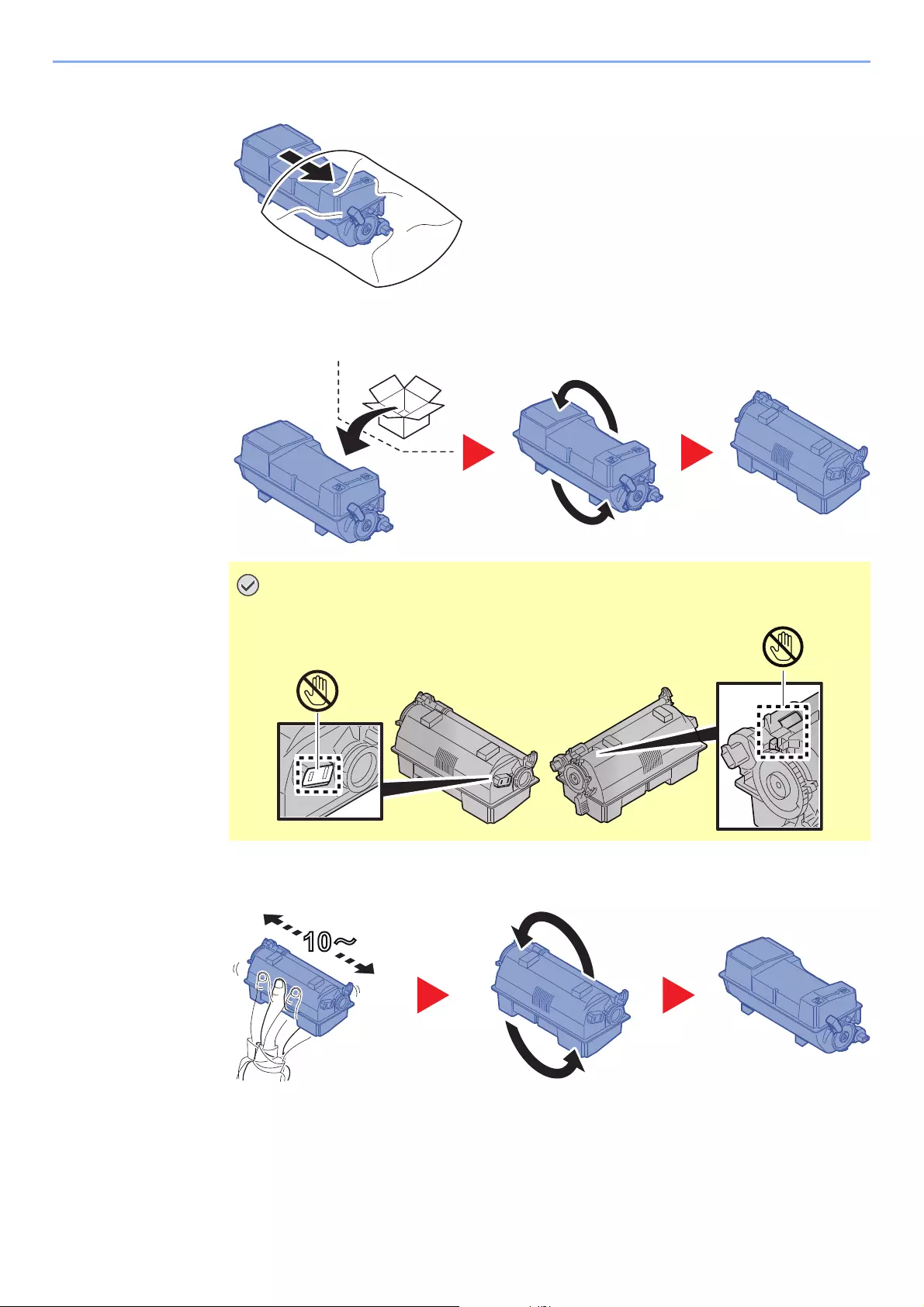
10-8
Troubleshooting > Regular Maintenance
4
5
6
Do not touch the points shown below.
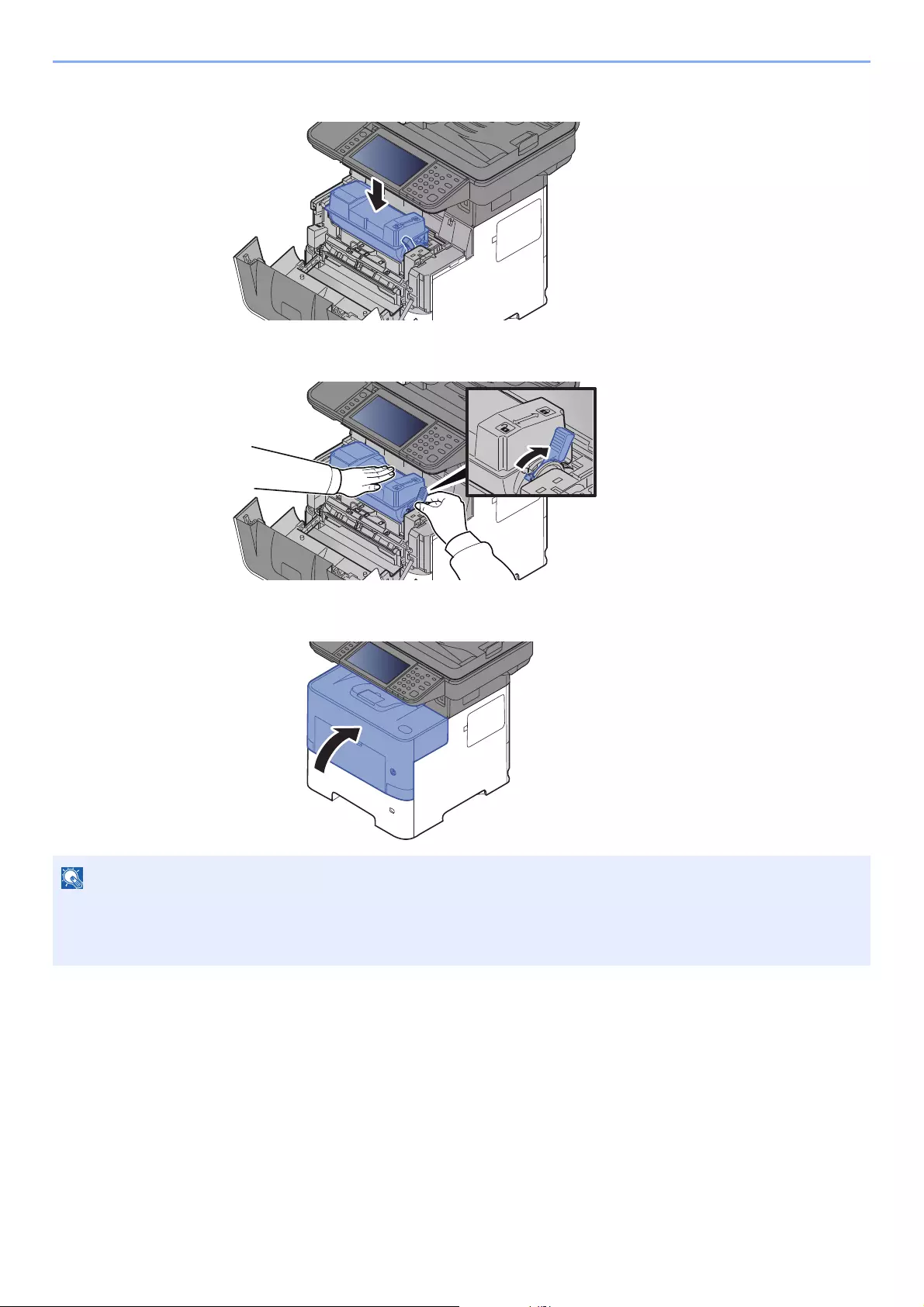
10-9
Troubleshooting > Regular Maintenance
7
8
9
• If the front cover does not close, check that the new toner container is installed correctly (in step 7).
• Return the exhausted toner container to your dealer or service representative. The collected toner container will be
recycled or disposed in accordance with the relevant regulations.
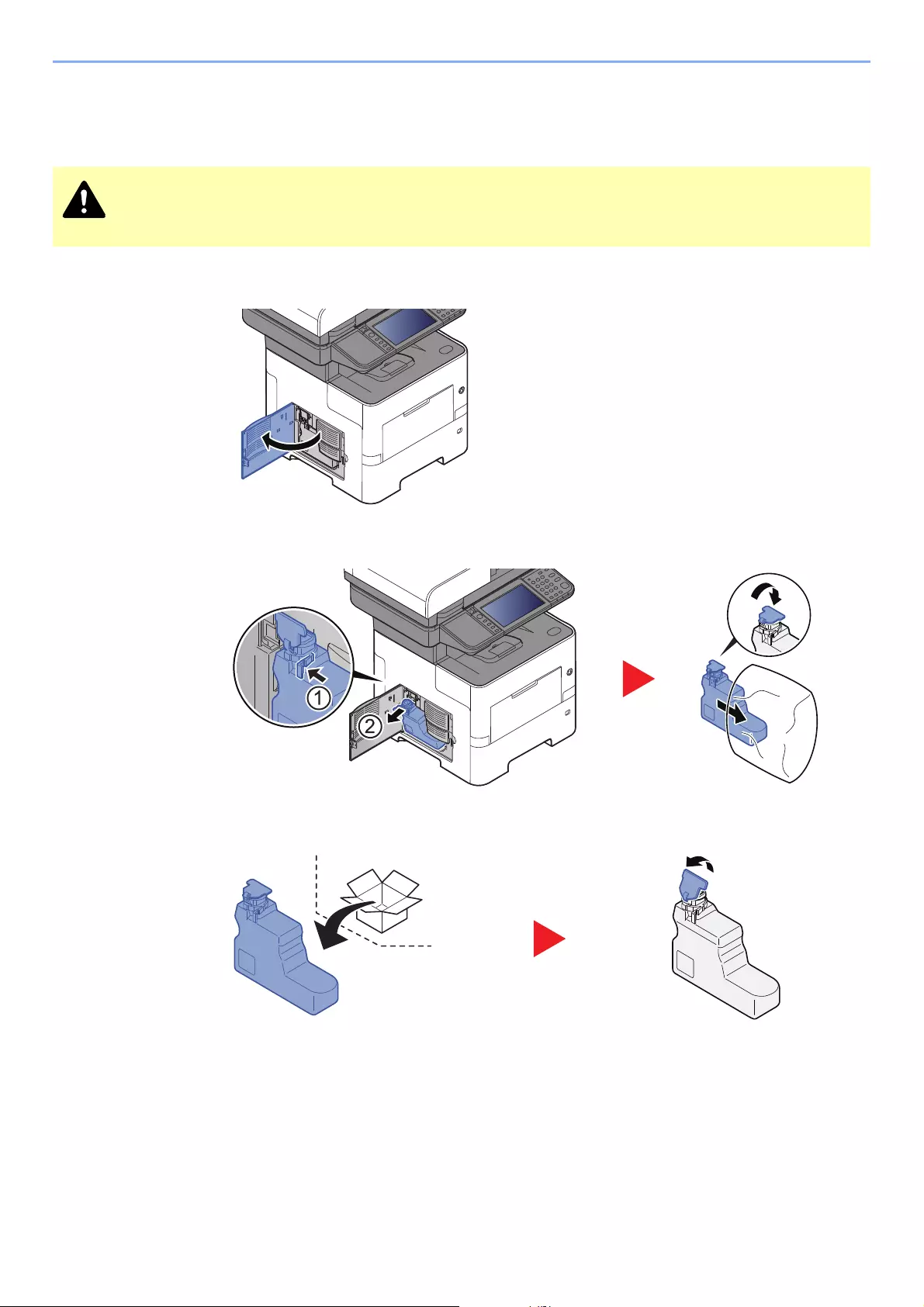
10-10
Troubleshooting > Regular Maintenance
Waste Toner Box Replacement
When the waste toner box becomes full, immediately replace the waste toner box.
1
2
3
Do not attempt to incinerate parts which contain toner. Dangerous sparks may cause burns.

10-11
Troubleshooting > Regular Maintenance
4
5
Return the exhausted waste toner box to your dealer or service representative. The collected waste toner box will be
recycled or disposed in accordance with the relevant regulations.
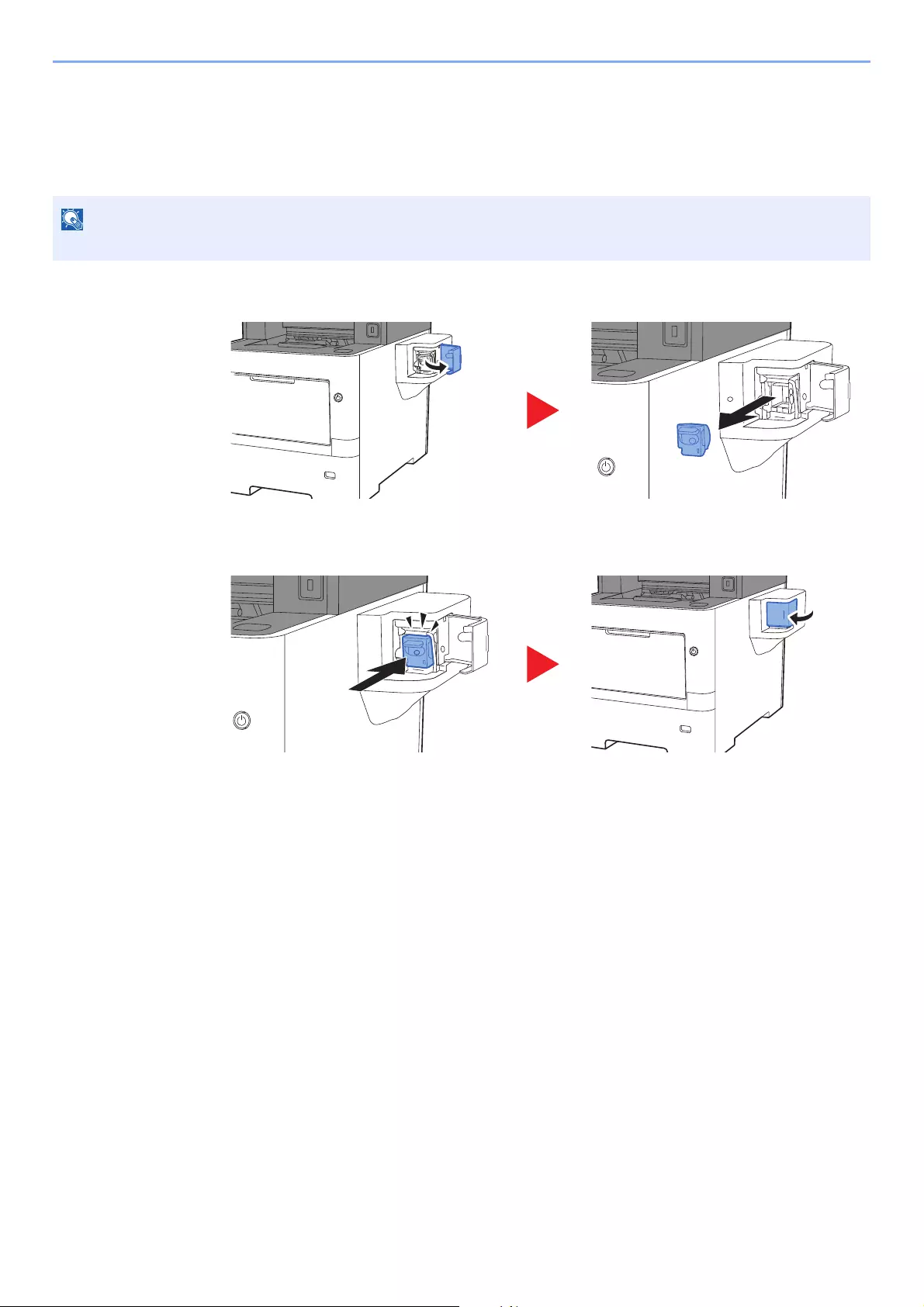
10-12
Troubleshooting > Regular Maintenance
Replacing Staples
(ECOSYS M3655idn/ECOSYS M3660idn only)
Add staples to the optional manual stapler.
1
2
If the Staple Unit runs out of staples, contact your dealer or service representative.
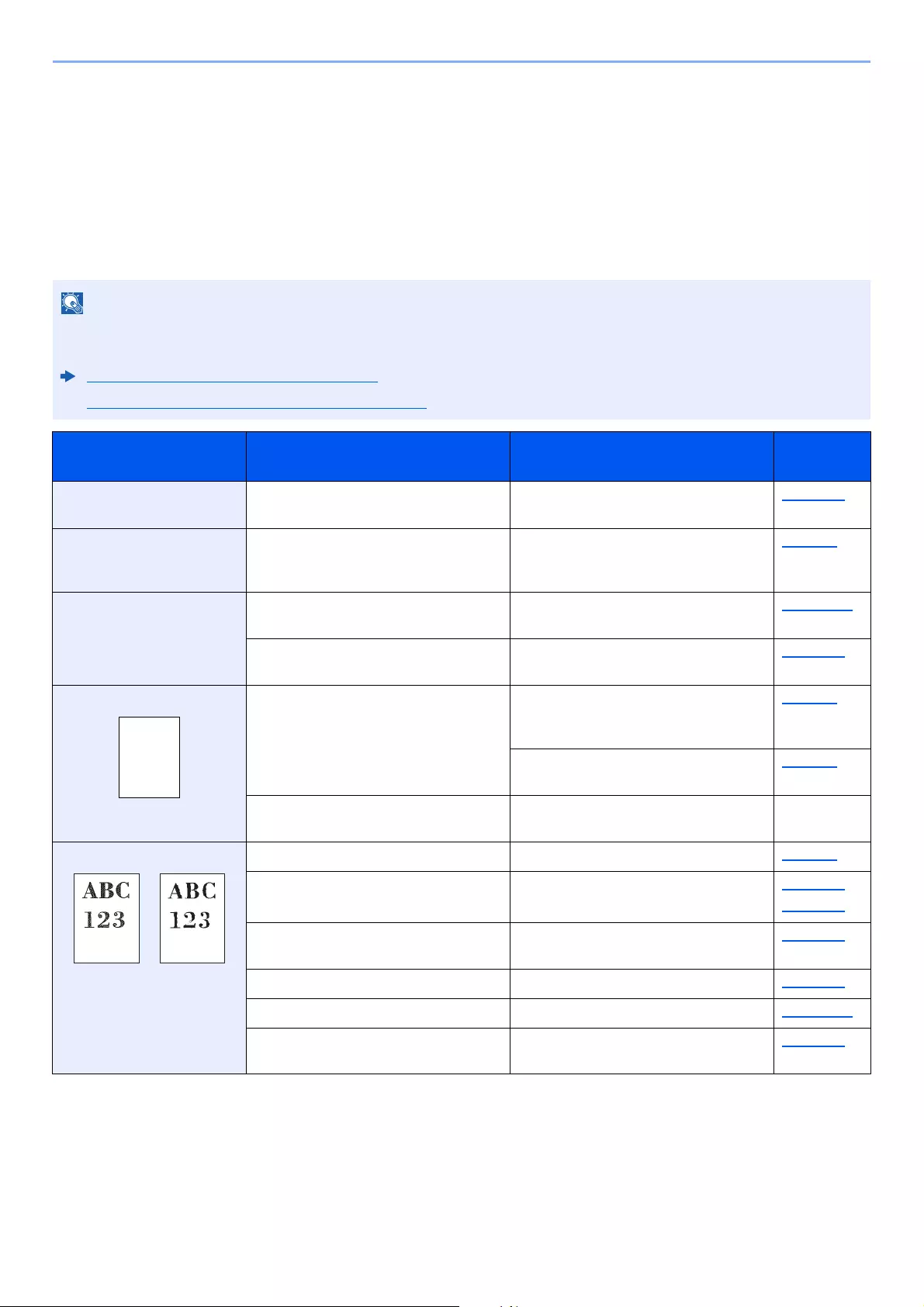
10-13
Troubleshooting > Troubleshooting
Troubleshooting
Solving Malfunctions
The table below provides general guidelines for problem solving.
If a problem occurs with your machine, look into the checkpoints and perform procedures indicated on the following
pages. If the problem persists, contact your Service Representative.
When contacting us, the serial number will be necessary.
To check the serial number, refer to the following:
Display for Device Information (page 2-17)
Checking the Equipment’s Serial Number (page i)
Symptom Checkpoints Corrective Actions Reference
Page
An application does not
start.
Is the Auto Panel Reset time short? Set the Auto Panel Reset time to 30
seconds or more.
page 8-46
The screen does not
respond when the main
power switch is turned on.
Check the power cord. Connect both ends of the power cord
securely.
page 2-9
Pressing the [Start] key
does not produce copies.
Is there a message on the screen? Determine the appropriate response to
the message and respond accordingly.
page 10-18
Is the machine in Sleep mode? Select any key on the operation panel to
recover the machine from Sleep mode.
page 2-33
Blank sheets are ejected. Are the originals loaded correctly? When placing originals on the platen,
place them face-down and align them
with the original size indicator plates.
page 5-2
When placing originals in the document
processor, place them face-up.
page 5-3
―Check that the settings of the
application software.
―
Printouts are totally too light. Is the paper damp? Replace the paper with new paper. page 3-2
Have you changed the density? Select appropriate density level. page 6-13
page 8-49
Is the toner distributed evenly within the
toner container?
Shake the toner container from side to
side several times.
page 10-6
Is EcoPrint mode enabled? Disable [EcoPrint] mode. page 8-15
―Run [Drum Refresh]. page 10-30
―Make sure the paper type setting is
correct for the paper being used.
page 8-14
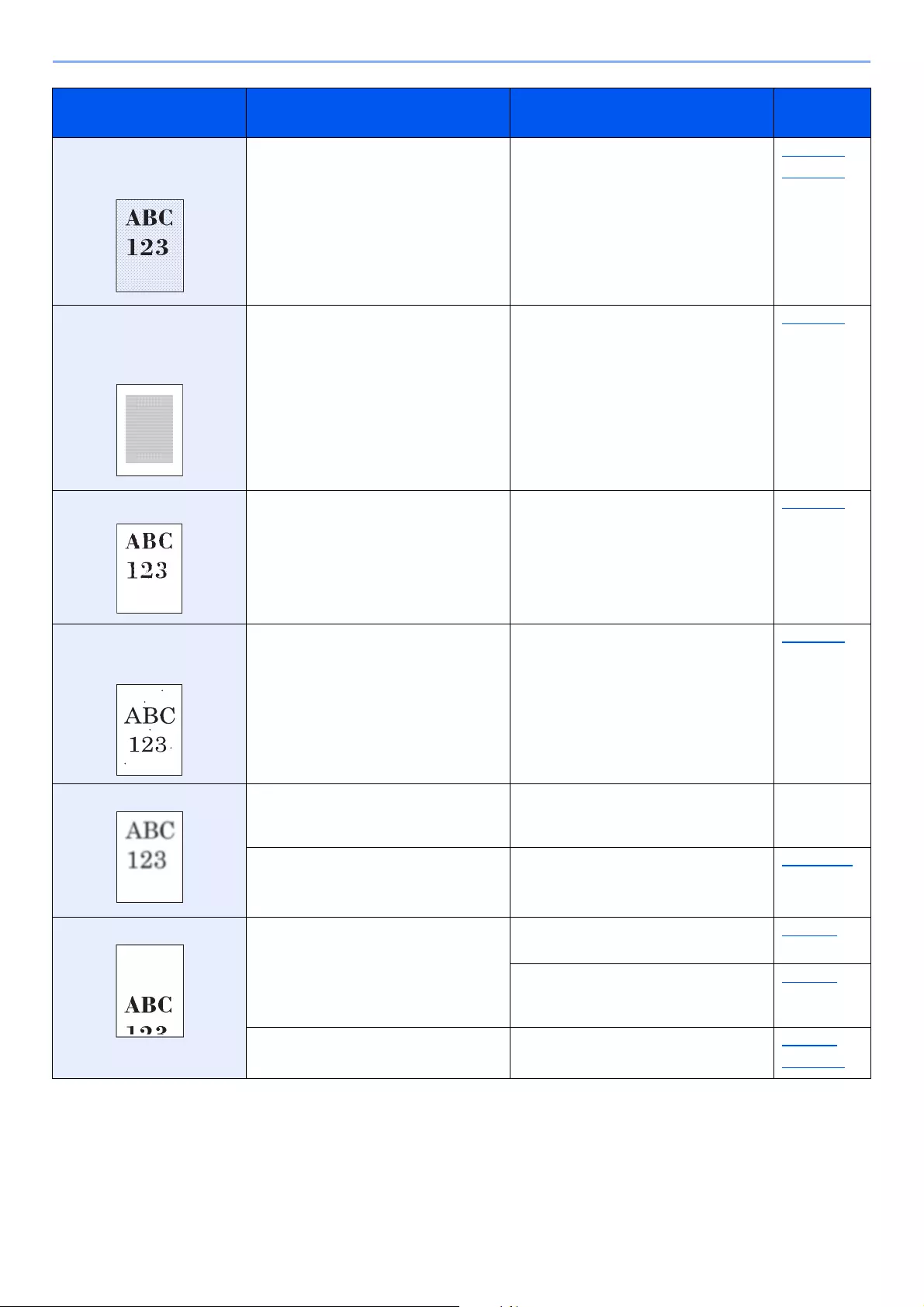
10-14
Troubleshooting > Troubleshooting
Printouts are too dark even
though the background of
the scanned original is white.
Have you changed the density? Select appropriate density level. page 6-13
page 8-49
Copies have a moire pattern
(dots grouped together in
patterns and not aligned
uniformly).
Is the original a printed photograph? Set the original image to [Photo]. page 6-14
Texts are not clearly printed. Did you choose appropriate image
quality for the original?
Select appropriate image quality. page 6-14
Black dots appear on the
white background when
white original is scanned.
Is the original holder or the glass platen
dirty?
Clean the original holder or the glass
platen.
page 10-2
Printouts are fuzzy. Is the machine being used in conditions
of very humid, or humidity or
temperature rapidly changes?
Use in an environment that has suitable
humidity.
―
―Run [Drum Refresh 1]. page 10-30
Images are skewed. Are the originals placed correctly?
When placing originals on the platen, align
them with the original size indicator plates.
page 5-2
When placing originals in the document
processor, align the original width guides
securely before placing the originals.
page 5-3
Is the paper loaded correctly? Check the position of the paper width
guides.
page 3-4
page 3-11
Symptom Checkpoints Corrective Actions Reference
Page
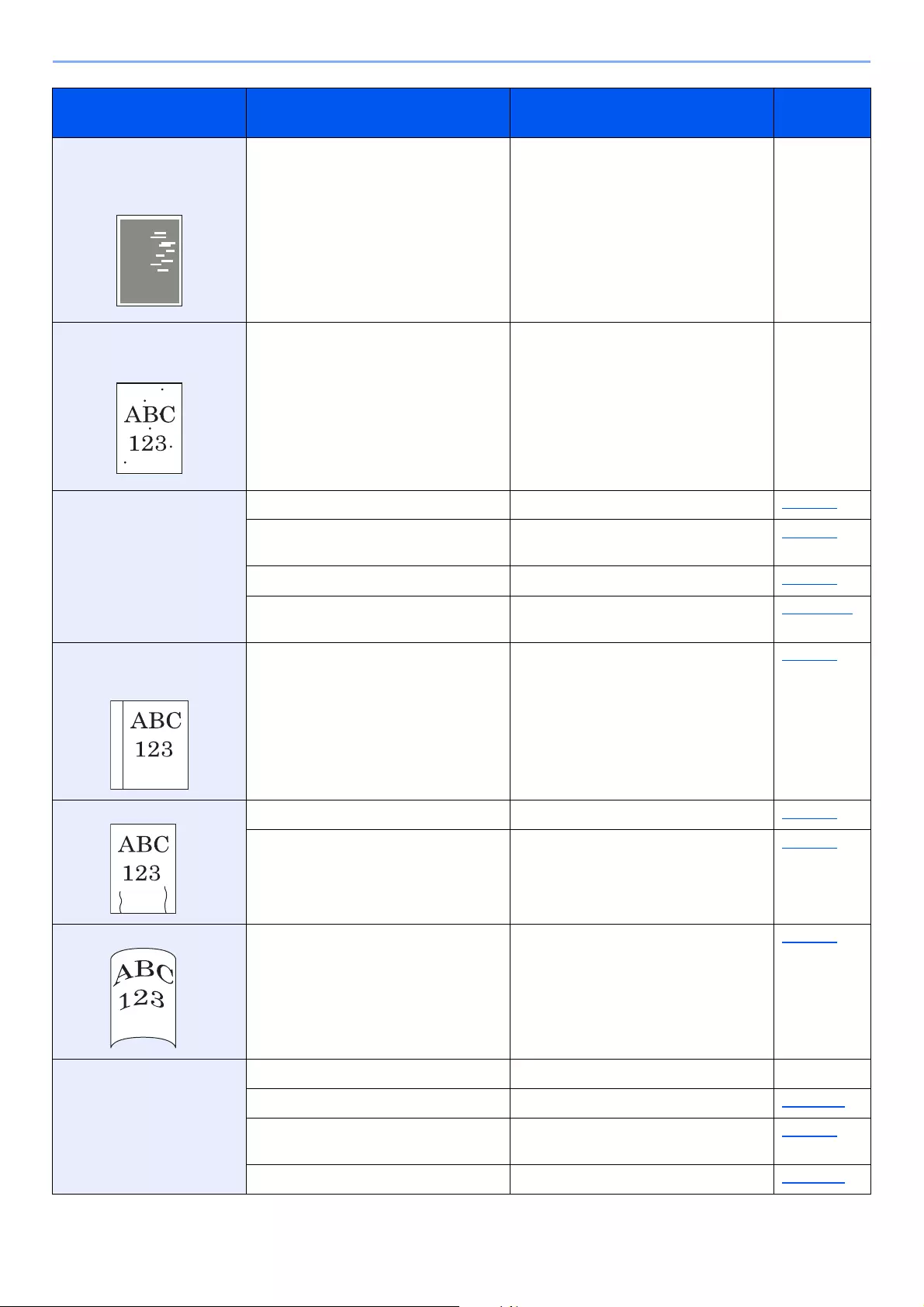
10-15
Troubleshooting > Troubleshooting
The altitude is 1000 m or
higher and irregular
horizontal white lines appear
in the image.
―Select the [System Menu/Counter] key
> [Adjustment/Maintenance] >
[Service Setting] > [Altitude
Adjustment], and set to an elevation
one level higher than the current setting.
―
The altitude is 1000 m or
higher and dots appear in
the image.
―Select the [System Menu/Counter] key
> [Adjustment/Maintenance] >
[Service Setting] > [Altitude
Adjustment], and set to an elevation
one level higher than the current setting.
―
Paper often jams. Is the paper loaded correctly? Load the paper correctly. page 3-2
Is the paper of the supported type? Is it
in good condition?
Remove the paper, turn it over, and
reload it.
page 3-4
Is the paper curled, folded or wrinkled? Replace the paper with new paper. page 3-4
Are there any loose scraps or jammed
paper in the machine?
Remove any jammed paper. page 10-31
2 or more sheets are
overlaps when ejected.
(multi feed)
―Load the paper correctly. page 3-2
Printouts are wrinkled. Is the paper loaded correctly? Load the paper correctly. page 3-2
Is the paper damp? Replace the paper with new paper. page 3-2
Printouts are curled. Is the paper damp? Replace the paper with new paper. page 3-2
Cannot print. Is the machine plugged in? Plug the power cord into an AC outlet. ―
Is the machine powered on? Turn on the power switch. page 2-10
Are the USB cable and network cable
connected?
Connect the correct USB cable and
network cable securely.
page 2-8
Is the print job paused? Resume printing. page 7-10
Symptom Checkpoints Corrective Actions Reference
Page
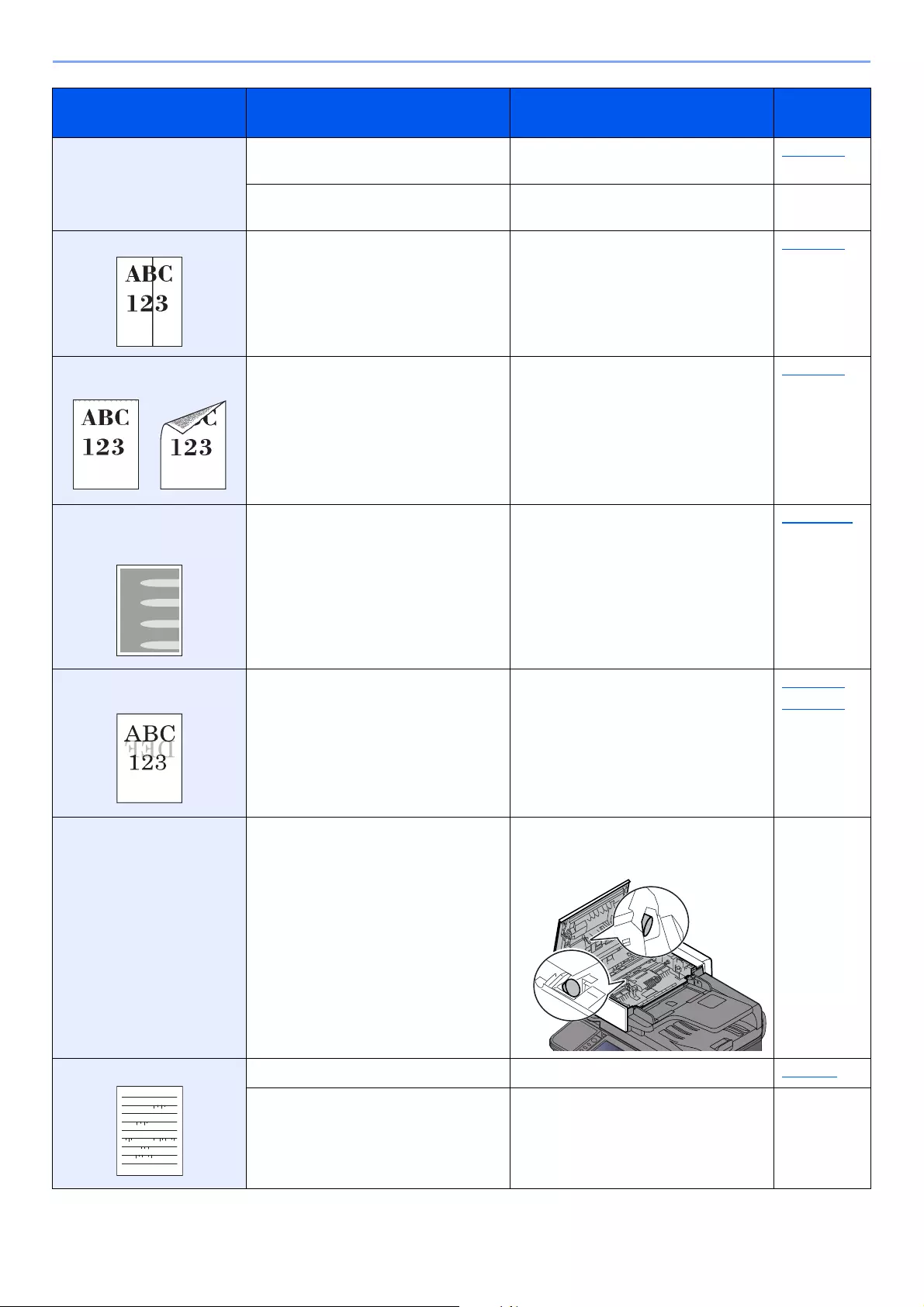
10-16
Troubleshooting > Troubleshooting
Cannot print with USB
memory.
USB memory not
recognized.
Is the USB host blocked? Select [Unblock] in the USB host
settings.
page 8-41
―Check that the USB memory is securely
plugged into the machine.
―
Printouts have vertical lines.
Is the slit glass dirty? Clean the slit glass. page 10-3
Dirt on the top edge or back
of the paper.
Is the interior of the machine dirty? Clean the interior of the machine. page 10-4
Part of the image is
periodically faint or shows
white lines.
―Run [Drum Refresh 1]. page 10-30
Print on the back of the
sheet is visible on the front.
―Set [Prevent Bleed-through] to [On]. page 6-17
page 8-15
[Multi originals fed at
once.] is often displayed
though no multi originals are
not fed.
Is the sensor dirty with paper dust, etc.? Open the document processor cover
and clean two sensors shown in the
figure below with dry cloth.
―
Lines appear on ruled lines. Is the paper damp? Replace the paper with new paper. page 3-2
―Select the [System Menu/Counter] key
> [Adjustment/Maintenance] >
[Service Setting] >
[Transfer Adjustment], and set to
[Line Text Priority].
―
Symptom Checkpoints Corrective Actions Reference
Page
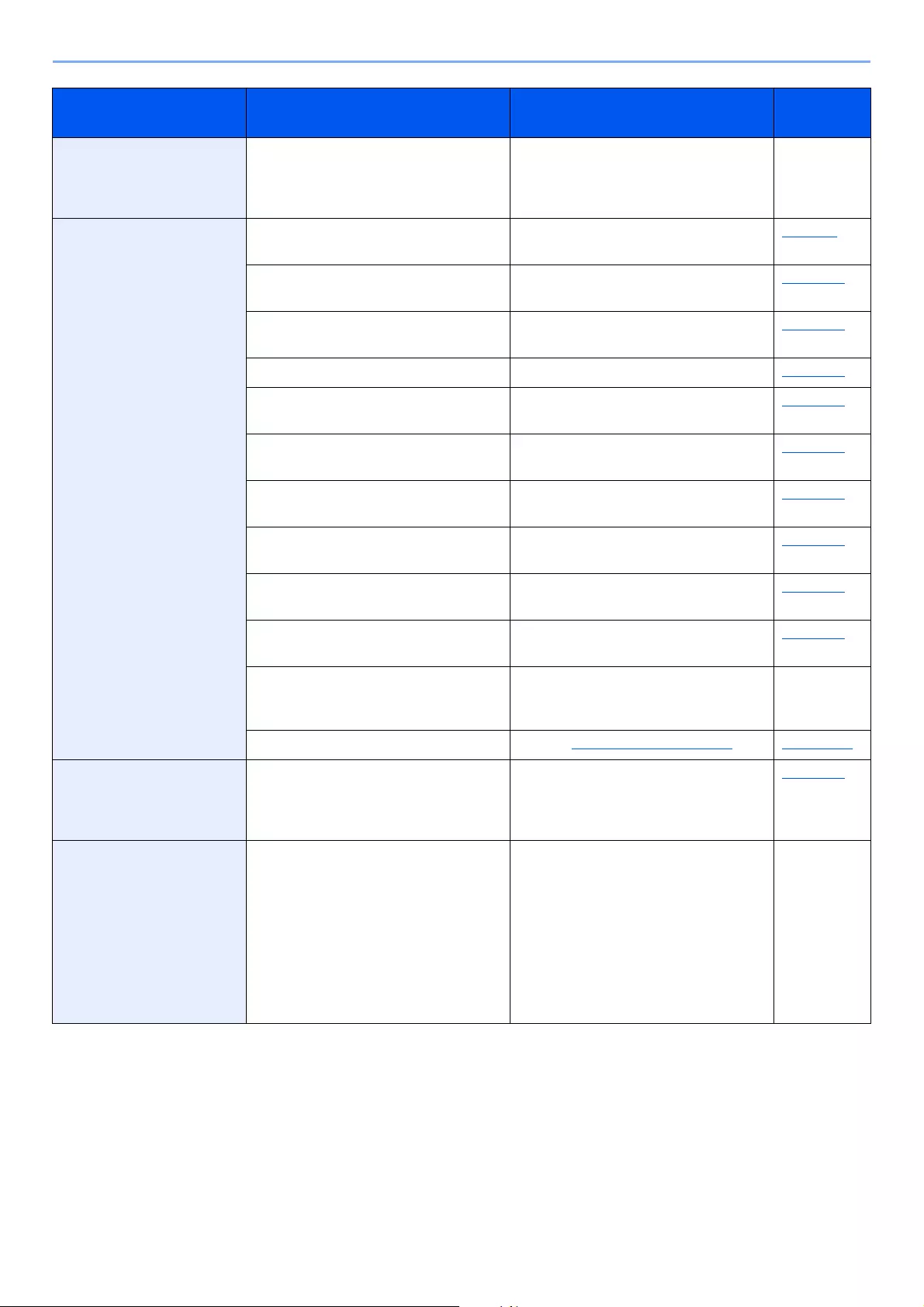
10-17
Troubleshooting > Troubleshooting
Part of the image has come
off (poor toner fixation).
―Select the [System Menu/Counter] key
> [Adjustment/Maintenance] >
[Service Setting] >
[Fuser Adjustment], and set to [2].
―
Cannot send via SMB. Is the network cable connected? Connect the correct network cable
securely.
page 2-8
Have the network settings for the
equipment been configured properly?
Configure the TCP/IP settings properly. page 8-29
Have the folder sharing settings been
configured properly?
Check sharing settings and access
privileges under the folder properties.
page 3-20
Has the SMB protocol been set to [On]? Set the SMB protocol setting to [On]. page 8-32
Has [Host Name] been entered
properly? *1
Check the name of the computer to
which data is being sent.
page 5-23
Has [Path] been entered properly? Check the share name for the shared
folder.
page 5-23
Has [Login User Name] been entered
properly? *1 *2
Check the domain name and login user
name.
page 5-23
Has the same domain name been used for
[
Host Name
] and [
Login User Name
]?
Delete the domain name and backslash
(«/») from [
Login User Name
].
page 5-23
Has [Login Password] been entered
properly?
Check the login password. page 5-23
Have exceptions for Windows Firewall
been configured properly?
Configure exceptions for Windows
Firewall properly.
page 3-24
Do the time settings for the equipment,
domain server, and data destination
computer differ?
Set the equipment, domain server, and
data destination computer to the same
time.
―
Is the screen displaying Send error? Refer to Responding to Send Error.page 10-27
Cannot send via the e-mail. Is the E-mail send size limit set in the
SMTP server registered on the
machine?
Check the limit value is entered to «E-
mail Size Limit» of [E-mail] setting in
Command Center RX and change the
value as necessary.
page 2-59
The machine is emitting
steam in the area around the
paper ejection slot.
Check the room temperature to see if it
is low, or if damp paper was used.
Depending on the printing environment
and the paper’s condition, the heat
generated during printing will cause the
moisture in the paper to evaporate, and
the steam emitted may look like smoke.
This is not a problem, and you can
continue printing. If the steam concerns
you, raise the room temperature, or
replace the paper with a newer, dryer
paper.
―
*1 You can also enter a full computer name as the host name (for example, pc001.abcdnet.com).
*2 You can also enter login user names in the following formats:
Domain_name/user_name (for example, abcdnet/james.smith)
User_name@domain_name (for example, james.smith@abcdnet)
Symptom Checkpoints Corrective Actions Reference
Page
10-18
Troubleshooting > Troubleshooting
Responding to Messages
If the touch panel or the computer displays any of these messages, follow the corresponding procedure.
A
B
When contacting us, the serial number will be necessary. To check the serial number, refer to the following:
Display for Device Information (page 2-17)
Checking the Equipment’s Serial Number (page i)
Message Checkpoints Corrective Actions Reference
Page
Activation error. ―Turn the main power switch off and
on. If the error exists, contact
administrator.
page 2-10
Add the following paper
in cassette #.
Does the selected paper size
matches the paper size loaded in
the specified paper source?
Select [Continue] to continue
printing.
Select [Cancel] to cancel the job.
—
Is the indicated cassette out of
paper?
Load paper.
Select [Paper Selection] to select
the other paper source. Select
[Continue] to print on the paper in
the currently selected paper source.
page 3-2
Add the following paper
in the multi purpose tray.
Does the selected paper size
matches the paper size loaded in
the specified paper source?
Select [Continue] to continue
printing.
Select [Cancel] to cancel the job.
—
Is the indicated cassette out of
paper?
Load paper.
Select [Paper Selection] to select
the other paper source. Select
[Continue] to print on the paper in
the currently selected paper source.
page 3-11
Message Checkpoints Corrective Actions Reference
Page
Box is not found. ―The specified box cannot be found.
Job is canceled. Select [End].
—
Box limit exceeded.*1
*1 When Auto Error Clear is set to [On], processing resumes automatically after a set amount of time elapses. For details
on Auto Error Clear, refer to the following:
Auto Error Clear (page 8-48)
Is [End] displayed on the screen? The specified box is full, and no
further storage is available; Job is
canceled. Select [End]. Try to
perform the job again after printing
or deleting data from the box.
—
10-19
Troubleshooting > Troubleshooting
C
Message Checkpoints Corrective Actions Reference
Page
Cannot connect to
Authentication Server.*1
*1 When Auto Error Clear is set to [On], processing resumes automatically after a set amount of time elapses. For details
on Auto Error Clear, refer to the following:
Auto Error Clear (page 8-48)
— Set machine time to match the
server’s time.
page 2-24
— Check the domain name. page 9-2
— Check the host name. page 9-2
— Check the connection status with
the server.
—
Cannot duplex print on
the following paper.*1
Did you select a paper size/type
that cannot be duplex printed?
Select [Paper Selection] to select
the available paper. Select
[Continue] to print without using
Duplex function.
page 6-22
Cannot perform remote
printing.
— Remote printing is prohibited.
Job is canceled. Select [End].
—
Cannot print the
specified number of
copies.*1
— Only one copy is available. Select
[Continue] to continue printing.
Select [Cancel] to cancel the job.
The machine may reproduce the
same originals by arranging the
following settings:
• Uncheck [RAM Disk] in the
[Device Settings] tab of the
printer’s properties.
If you unchecked the [RAM Disk],
check the [RAM Disk] again after
the printing is completed. If not,
print speed may be reduced.
—
Cannot process this
job.*1
―This job is canceled because it is
restricted by User Authorization or
Job Accounting. Select [End].
―
Cassette is not installed. ―Cannot feed paper. Set the cassette
indicated on the screen.
―
Check the toner
container.
— The toner container is not installed
correctly. Set it correctly.
page 10-6
Check waste toner box. — The waste toner box is not installed
correctly. Set it correctly.
page 10-10
Is the waste toner box full? Replace the waste toner box.
10-20
Troubleshooting > Troubleshooting
E
F
I
Message Checkpoints Corrective Actions Reference
Page
Error occurred at
cassette #.
―Remove the indicated cassette.
Select [Next >] to follow the
instructions.
―
Message Checkpoints Corrective Actions Reference
Page
Failed to specify Job
Accounting.*1
*1 When Auto Error Clear is set to [On], processing resumes automatically after a set amount of time elapses. For details
on Auto Error Clear, refer to the following:
Auto Error Clear (page 8-48)
— Failed to specify Job Accounting
when processing the job externally.
The job is canceled. Select [End].
—
Failed to store job
retention data.
— The job is canceled. Select [End].
Insufficient free space in the Job
Box. Try to perform the job again
after printing or deleting data from
the Job Box.
—
Message Checkpoints Corrective Actions Reference
Page
Incorrect account ID.*1
*1 When Auto Error Clear is set to [On], processing resumes automatically after a set amount of time elapses. For details
on Auto Error Clear, refer to the following:
Auto Error Clear (page 8-48)
— The account ID was incorrect when
processing the job externally. The
job is canceled. Select [End].
—
Incorrect box password. — The box password was incorrect
when processing the job externally.
The job is canceled. Select [End].
—
Incorrect Login User
Name or Password.*1
— The login user name or password
was incorrect when processing the
job externally. The job is canceled.
Select [End].
—
Inner tray is full of paper. — Remove paper from the inner tray.
Select [Continue] to resume
printing. Select [Cancel] to cancel
the job.
—
10-21
Troubleshooting > Troubleshooting
J
K
M
Message Checkpoints Corrective Actions Reference
Page
Job Accounting
restriction exceeded.
Is the acceptable printing count
restricted by Job Accounting
exceeded?
The printing count exceeded the
acceptable count restricted by Job
Accounting. Cannot print any more.
This job is canceled. Select [End].
―
Message Checkpoints Corrective Actions Reference
Page
KPDL error.*1
*1 When Auto Error Clear is set to [On], processing resumes automatically after a set amount of time elapses. For details
on Auto Error Clear, refer to the following:
Auto Error Clear (page 8-48)
―PostScript error has occurred. The
job is canceled. Select [End].
―
Message Checkpoints Corrective Actions Reference
Page
Machine failure. ―Internal error has occurred. Make a
note of the error code displayed on
the screen, and contact your
Service Representative.
―
Maximum number of
scanned pages.
Is the acceptable scanning count
exceeded?
Only one copy of the scanned pages
is available. Select [
Continue
] to
print, send or store the scanned
pages. Select [
Cancel
] to cancel
printing, sending or storing.
—
Memory card error. ―An error has occurred on the
memory card. Job is canceled.
Select [End].
04: Insufficient space on the
memory card to complete this
operation. Move data or delete
unneeded data.
—
10-22
Troubleshooting > Troubleshooting
N
P
Memory is full.*1 — The process cannot be performed
due to insufficient memory. The job
is canceled. Select [End].
The machine may reproduce the
same originals by arranging the
following setting:
• Decrease [Image Quality] of
[File Format].
—
— Unable to continue the job as the
memory is used up. Select
[Continue] to print the scanned
pages. The print job cannot be
processed completely. Select
[Cancel] to cancel the job.
The machine may reproduce the
same originals by arranging the
following settings:
•Select [On] of RAM Disk Setting
in System Menu, and then
decrease the RAM disk size.
• Select [
Printer Priority
] of
Optional Memory in System Menu.
Before changing the RAM Disk
Setting or Optional Memory setting,
contact your administrator.
—
*1 When Auto Error Clear is set to [On], processing resumes automatically after a set amount of time elapses. For details
on Auto Error Clear, refer to the following:
Auto Error Clear (page 8-48)
Message Checkpoints Corrective Actions Reference
Page
Non-genuine Toner. Is the installed toner container our
own brand?
We will not be liable for any damage
caused by the use of third party
supplies in this machine.
—
Message Checkpoints Corrective Actions Reference
Page
Paper jam. ―If a paper jam occurs, the machine
will stop and the location of the jam
will be indicated on the screen.
Leave the machine on and follow
the instruction to remove the
jammed paper.
page 10-31
Preparing to print. ―The machine is under the
adjustment to maintain its quality.
Please wait.
—
Print overrun. — Warning. Low printer memory. The
job was paused. Re-starting the job.
Select [Continue].
—
Message Checkpoints Corrective Actions Reference
Page

10-23
Troubleshooting > Troubleshooting
R
Message Checkpoints Corrective Actions Reference
Page
RAM disk error. ―An error has occurred on the RAM
disk. Job is canceled. Select [End].
The possible error codes and their
descriptions are as follows.
04: Insufficient space on the RAM
disk. If the optional RAM dis is
installed, increase the RAM disk
size by changing RAM Disk Setting
in System Menu.
The range of RAM disk size can be
increased by selecting [Printer
Priority] in Optional Memory.
page 8-42
Removable memory
error.
Is writing to a removable memory
prohibited?
An error occurred in the removable
memory. The job stopped. Select
[End].
The possible error codes and their
descriptions are as follows.
01: Connect a removable memory
that can be written to.
―
―An error occurred in the removable
memory. The job stopped. Select
[End].
The possible error codes and their
descriptions are as follows.
01: The amount of data that can be
saved at once has been exceeded.
Turn the power OFF/ON. If the error
still occurs, the removable memory
is not compatible with the machine.
Use the removable memory
formatted by this machine. If the
removable memory cannot be
formatted, it is damaged. Connect a
compatible removable memory.
―
Removable Memory is
full.*1
―Job is canceled. Select [End].
Insufficient free space in the
removable memory. Delete
unnecessary files.
―
Remove originals in the
document processor.
Are there any originals left in the
document processor?
Remove originals from the
document processor.
―
Replace all originals and
press [Continue].
— Remove originals from the
document processor, put them back
in their original order, and place
them again. Select [Continue] to
resume printing. Select [Cancel] to
cancel the job.
—
10-24
Troubleshooting > Troubleshooting
S
Replace MK. — Replacement of the parts in the
maintenance kit is necessary at
every 300,000 pages (ECOSYS
M3145idn/ECOSYS M3645idn) or
500,000 pages (ECOSYS
M3655idn/ECOSYS M3660idn) of
printing and requires professional
servicing. Contact your Service
Representative.
—
Running security
function…
— Running security function. Please
wait.
—
*1 When Auto Error Clear is set to [On], processing resumes automatically after a set amount of time elapses. For details
on Auto Error Clear, refer to the following:
Auto Error Clear (page 8-48)
Message Checkpoints Corrective Actions Reference
Page
Scanner memory is
full.*1
— Scanning cannot be performed due
to insufficient memory of scanner.
Only one copy of the scanned
pages is available. Select
[Continue] to print, send or store
the scanned pages. Select [Cancel]
to cancel the printing job.
The machine may reproduce the
same originals by arranging the
following settings:
• Reduce the number of originals
to be scanned at once.
Furthermore, the machine may
reproduce the same originals by
arranging the following settings:
•Select [Copy Priority] of
Optional Memory in System
Menu.
Before changing the Optional
Memory setting, contact your
administrator.
—
Send Error.*2 — An error has occurred during
transmission. The job is canceled.
Select [End].
Refer to Responding to Send Error
for the error code and corrective
actions.
page 10-27
Shake the toner
container.
— Shake the toner container well and
reinstall it.
page 10-6
Message Checkpoints Corrective Actions Reference
Page
10-25
Troubleshooting > Troubleshooting
T
SSD error. — An error has occurred on SSD. Job
is canceled. Select [End].
The possible error codes and their
descriptions are as follows.
01: The amount of data that can be
saved at once has been exceeded.
Turn the power OFF/ON. If the error
still occurs, divide the file into
smaller files. If the error occurs after
the file is divided, the specified file
may be damaged. Delete the file.
04: Insufficient space on SSD to
complete this operation. Move data
or delete unneeded data.
—
System error. — System error has occurred. Follow
the instructions on the screen.
—
*1 When Auto Error Clear is set to [On], processing resumes automatically after a set amount of time elapses. For details
on Auto Error Clear, refer to the following:
Auto Error Clear (page 8-48)
*2 When Auto Error Clear is set to [On], processing resumes automatically after a set amount of time elapses. For details
on Auto Error Clear, refer to the following:
Auto Error Clear (page 8-48)
Message Checkpoints Corrective Actions Reference
Page
The cover is open. Is the top cover of the document
processor open?
Close the document processor
cover.
―
Is there any cover which is open? Close the cover indicated on the
screen.
The manufacturer
assumes no
responsibility for
damage caused by a
non-genuine toner.
Is the installed toner container our
own brand?
We will not be liable for any damage
caused by the use of third party
supplies in this machine. If you want
to continue, select [Next].
―
The password does not
meet password policy.
Is the password expired? Change the login password.
Job is canceled. Select Press
[End].
page 9-5
Is the password policy requirement
(such as password length or
required characters) changed?
Confirm the password policy
requirements and change the login
password.
Job is canceled. Select Press
[End].
page 9-5
The slit glass requires
cleaning.
— Clean the slit glass. page 10-3
This memory is not
formatted.
Is the removable memory formatted
by this machine?
Perform [Format] on this machine. page 7-11
Message Checkpoints Corrective Actions Reference
Page
10-26
Troubleshooting > Troubleshooting
U
W
Y
Toner is empty. — Replace the toner container to our
specified toner container.
page 10-6
Toner is low. (Replace
when empty.)
— It is almost time to replace the toner
container. Obtain a new toner
container.
―
Message Checkpoints Corrective Actions Reference
Page
Unknown Toner
Installed. PC [K]
Does the installed toner container’s
regional specification match the
machine’s?
Install the specified container. —
Message Checkpoints Corrective Actions Reference
Page
Warning low memory. — Cannot start the job. Try again later. —
Message Checkpoints Corrective Actions Reference
Page
You cannot use this box.
Job is canceled.
— You cannot use the specified box.
Job is canceled. Select [End].
—
Message Checkpoints Corrective Actions Reference
Page
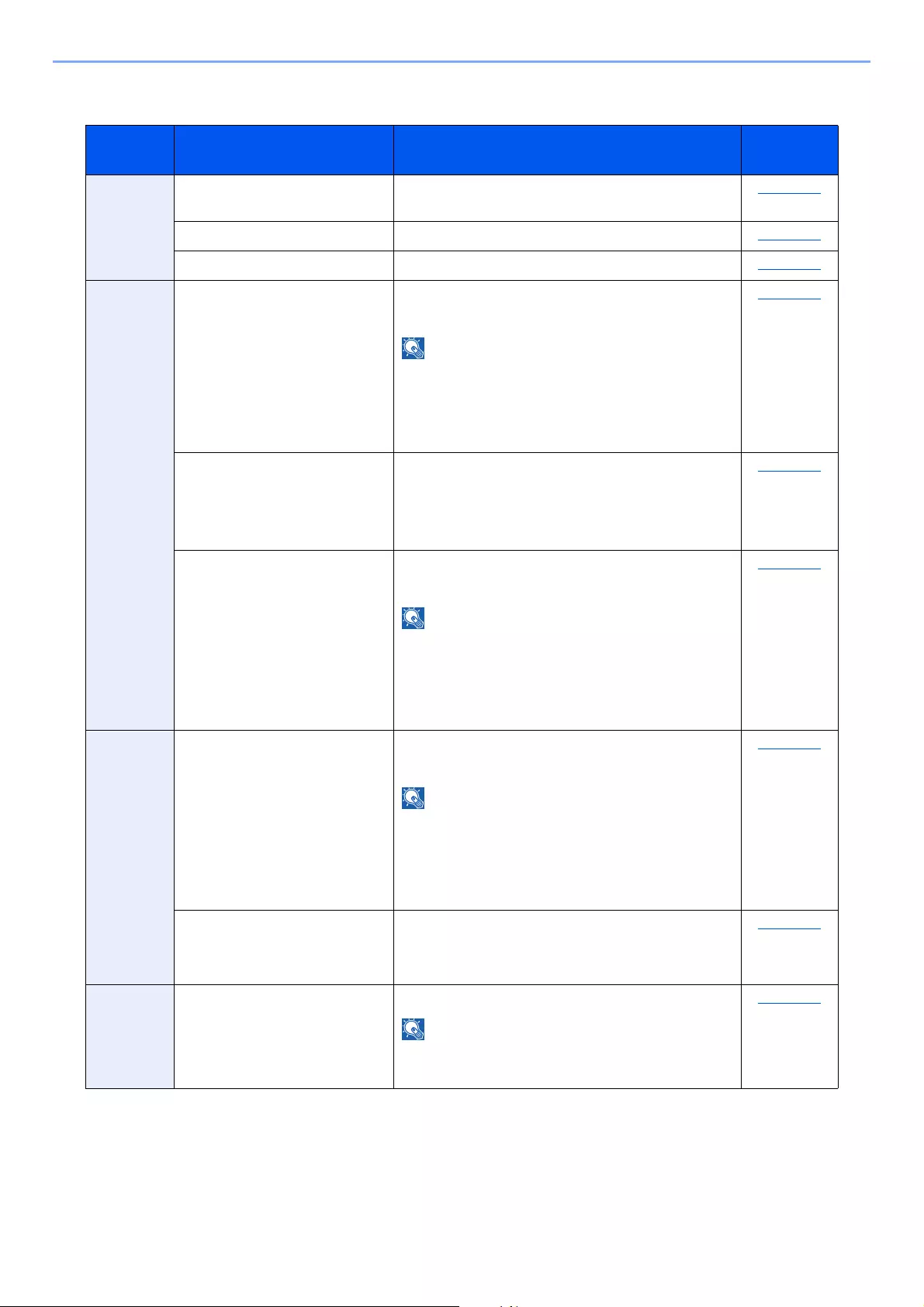
10-27
Troubleshooting > Troubleshooting
Responding to Send Error
Error
Code Message Corrective Actions Reference
Page
1101 Failed to send the e-mail. Check the host name of the SMTP server on the
Command Center RX.
page 2-59
Failed to send via FTP. Check the host name of FTP. page 5-23
Failed to send via SMB. Check the host name of SMB. page 5-23
1102 Failed to send via SMB. Check the SMB settings.
• Login user name and login password
If the sender is a domain user, specify the domain
name.
•Host name
•Path
page 5-23
Failed to send the e-mail. Check the following on the Command Center RX.
• SMTP login user name and login password
• POP3 login user name and login password
• E-mail size limit
page 2-59
Failed to send via FTP. Check the FTP settings.
• Login user name and login password
If the sender is a domain user, specify the domain
name.
•Path
• Folder share permissions of the recipient
page 5-23
1103 Failed to send via SMB. Check the SMB settings.
• Login user name and login password
If the sender is a domain user, specify the domain
name.
•Path
• Folder share permissions of the recipient
page 5-23
Failed to send via FTP. Check the FTP settings.
•Path
• Folder share permissions of the recipient
page 5-23
1104 Failed to send the e-mail. Check the e-mail address.
If the address is rejected by the domain, you cannot
send the email.
page 5-22
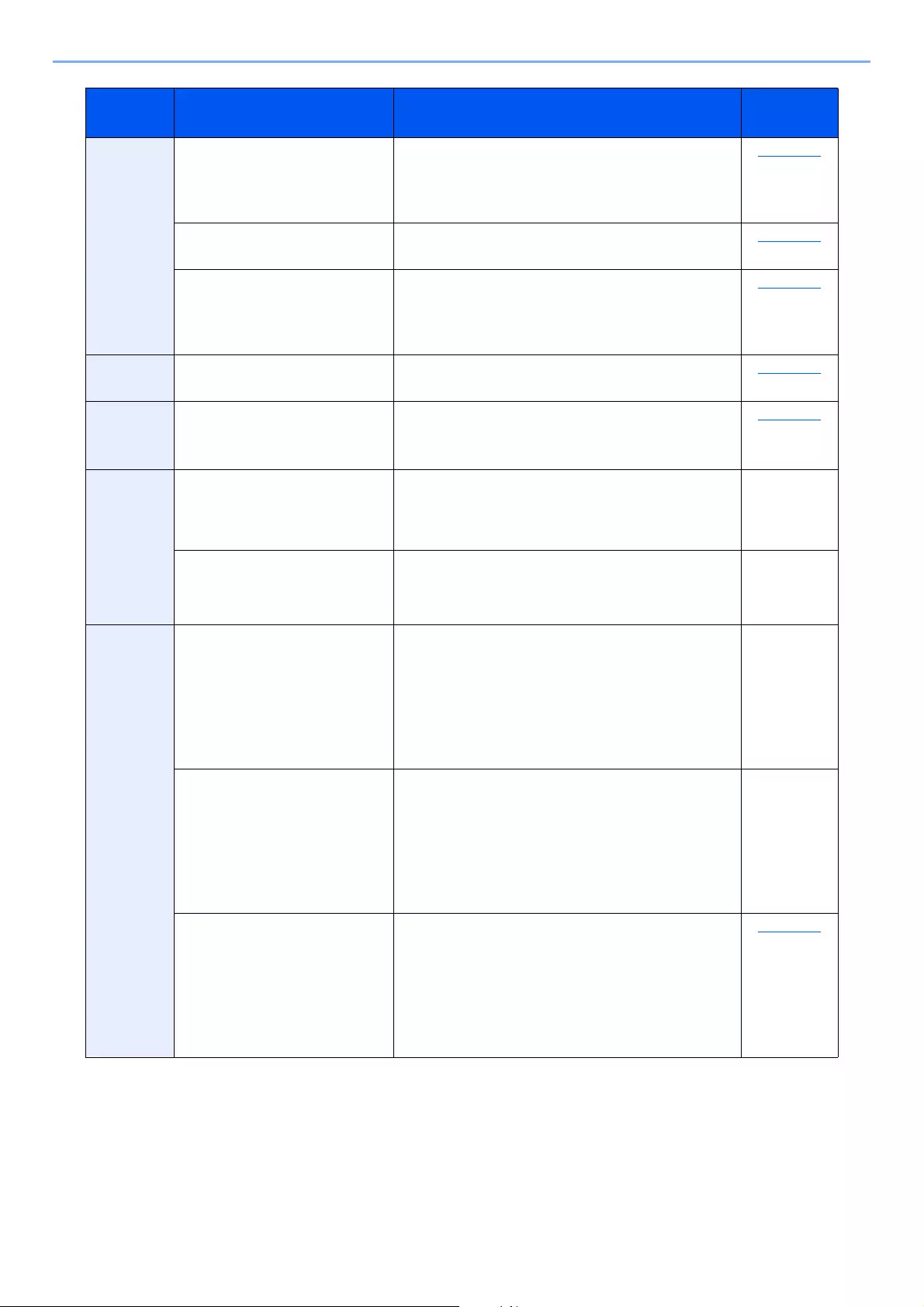
10-28
Troubleshooting > Troubleshooting
1105 Failed to send via SMB. Check the following settings.
[System Menu/Counter] key > [System/Network] >
[Network] > [Protocol Settings] >
[SMB Client (Transmission)]
page 8-32
Failed to send the e-mail. Select [On] of the SMTP settings on the Command
Center RX.
page 2-59
Failed to send via FTP. Check the following settings.
[System Menu/Counter] key > [System/Network] >
[Network] > [Protocol Settings] >
[FTP Client (Transmission)]
page 8-32
1106 Failed to send the e-mail. Check the sender address of SMTP on the Command
Center RX.
page 2-59
1131 Failed to send via FTP. Enable the SSL.
[System Menu/Counter] key > [System/Network] >
[Network] > [Security Settings] > [SSL]
page 8-37
1132 Failed to send the e-mail. Check the following of the SMTP server.
• Is SMTP over SSL available?
• Is the encryption available?
Refer to the
Command
Center RX
User Guide.
Failed to send via FTP. Check the following of the FTP server.
• Is FTPS available?
• Is the encryption available?
—
2101 Failed to send via SMB. Check the network and SMB settings.
• The network cable is connected.
• The hub is not operating properly.
• The server is not operating properly.
• Host name and IP address
• Port number
—
Failed to send via FTP. Check the network and FTP settings.
• The network cable is connected.
• The hub is not operating properly.
• The server is not operating properly.
• Host name and IP address
• Port number
—
Failed to send the e-mail. Check the network and Command Center RX.
• The network cable is connected.
• The hub is not operating properly.
• The server is not operating properly.
• POP3 server name of the POP3 user
• SMTP server name
page 2-59
Error
Code Message Corrective Actions Reference
Page
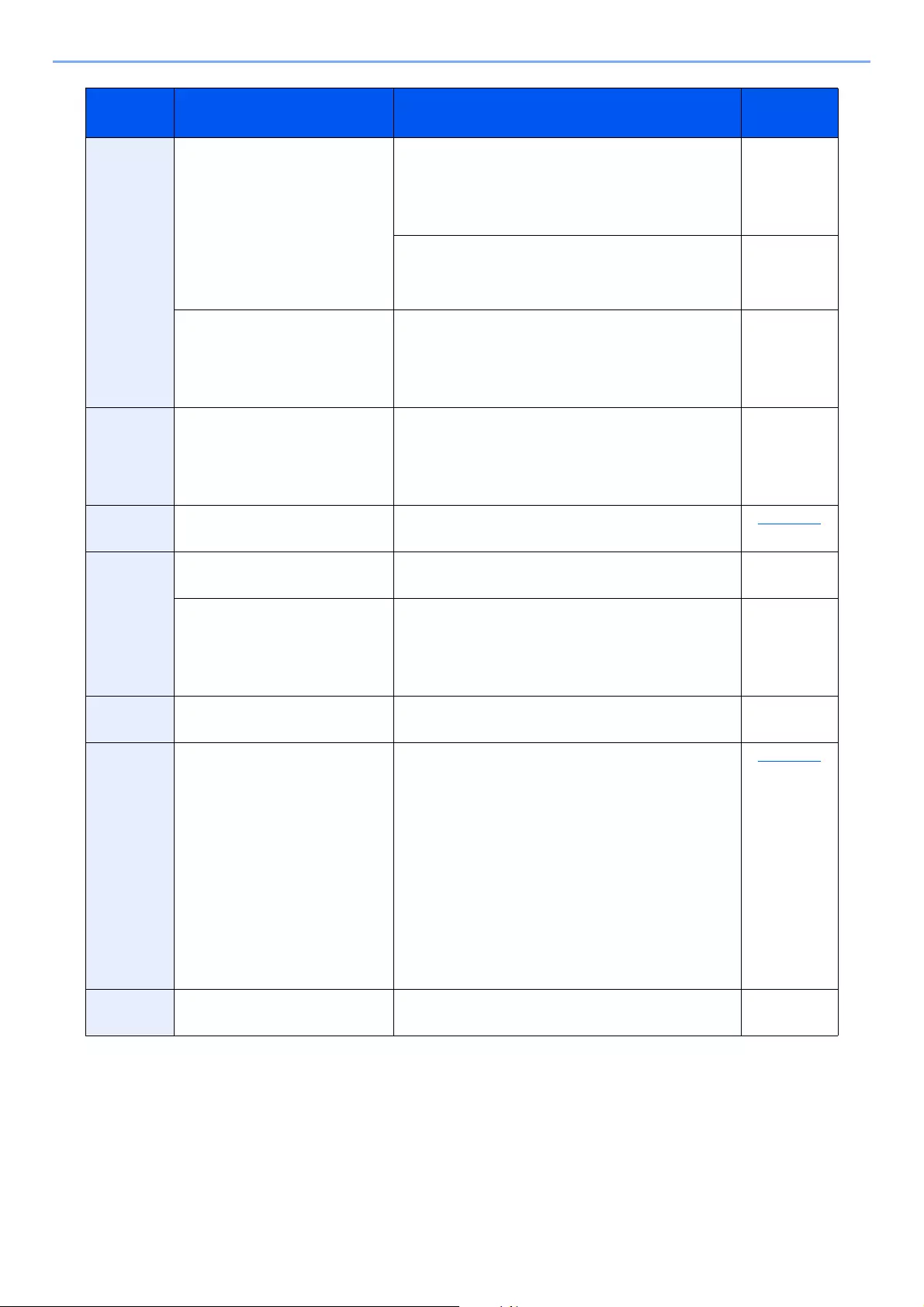
10-29
Troubleshooting > Troubleshooting
2102
2103
Failed to send via FTP. Check the network.
• The network cable is connected.
• The hub is not operating properly.
• The server is not operating properly.
—
Check the following of the FTP server.
• Is FTP available?
• The server is not operating properly.
—
Failed to send the e-mail. Check the network.
• The network cable is connected.
• The hub is not operating properly.
• The server is not operating properly.
—
2201
2202
2203
2231
Failed to send the e-mail.
Failed to send via FTP.
Failed to send via SMB.
Check the network.
• The network cable is connected.
• The hub is not operating properly.
• The server is not operating properly.
—
2204 Failed to send the e-mail. Check the e-mail size limit of the SMTP settings on
the Command Center RX.
page 2-59
3101 Failed to send the e-mail. Check the authentication methods of both the sender
and the recipient.
—
Failed to send via FTP. Check the network.
• The network cable is connected.
• The hub is not operating properly.
• The server is not operating properly.
—
3201 Failed to send the e-mail. Check the SMTP user authentication method of the
recipient.
—
0007
4201
4701
5101
5102
5103
5104
7101
7102
7103
720f
— Turn the main power switch off and back on. If this
error occurs several times, make a note of the
displayed error code and contact your service
representative.
page 2-10
9181 — The scanned original exceeds the acceptable number
of pages of 999. Send the excess pages separately.
—
Error
Code Message Corrective Actions Reference
Page

10-30
Troubleshooting > Troubleshooting
Adjustment/Maintenance
Drum Refresh/Drum Refresh 1
Remove image blur from the printout.
1Display the screen.
[System Menu/Counter] key > [Adjustment/Maintenance] > [Drum Refresh 1]
2Perform the drum refresh.
Select [Start]. «Drum Refresh 1» begins.
Drum Refresh 2
(ECOSYS M3655idn/ECOSYS M3660idn only)
Remove white dots from the printout.
1Load paper.
Load A4 or Letter size paper into the Multipurpose tray.
2Display the screen.
[System Menu/Counter] key > [Adjustment/Maintenance] > [Drum Refresh 2]
3Perform the drum refresh.
Select [Start]. «Drum Refresh 2» begins.
Drum Refresh 1 cannot be performed while printing. Execute Drum Refresh 1 after the printing is done.
Drum Refresh 2 cannot be performed while printing. Execute Drum Refresh 2 after the printing is done.
When you run [Drum Refresh 2], the machine sometimes makes a vibrating sound for about
80 seconds until drum refreshing is completed. The toner soiling on the ejected paper is
normal and does not indicate a fault.
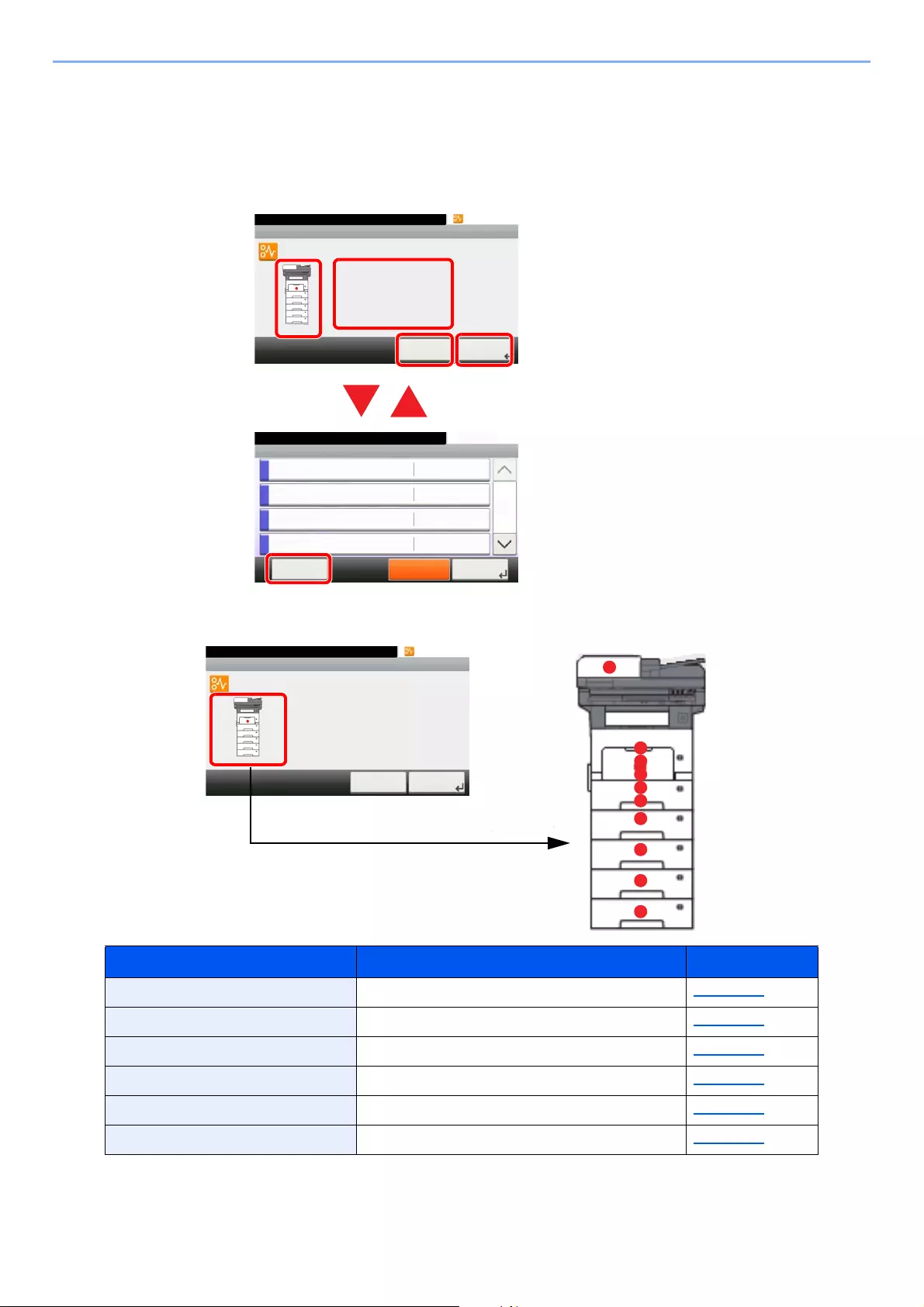
10-31
Troubleshooting > Troubleshooting
Clearing Paper Jams
If a paper jam occurs, the touch panel will display «Paper Jam.» and the machine will stop. Refer to these procedures to
remove the jammed paper.
Jam Location Indicators
If a paper jam occurs, the location of the jam will be displayed on the touch panel as well as the clearing instructions.
After you remove the jam, the machine will warm up again and the error message will be cleared. The machine resumes
with the page that was printing when the jam occurred.
1 Shows the location of a paper jam.
2 Shows the previous step.
3 Shows the next step.
4 Shows the removal procedure.
5 Selecting [Status/Job Cancel] key
displays [Hold]. Selecting [Hold]
displays status screen, and the status
of jobs can be checked.
6Select [Display Error] to return to the
paper jam guidance.
Paper Jam Location Indicator Paper Jam Location Reference Page
AMulti Purpose Tray page 10-32
BCassettes 1 to 5 page 10-33
CDuplex Unit page 10-34
DInside the Machine page 10-35
EInner Tray / Inside Rear Cover page 10-36
FDocument Processor page 10-37
10:10
Open cassette 1 and
remove paper.
Set cassette 1.
JAM 0501
Paper jam.
< Back Next >
1/2
Status/Job Cancel.
Status
Print Job Status
10:10
Send Job Status
Store Job Status
Scheduled Job
Pause All
Print Jobs
1/5
CloseDisplay
Error
10:10
Open cassette 1 and
remove paper.
Set cassette 1.
JAM 0501
Paper jam.
< Back Next >
1/2
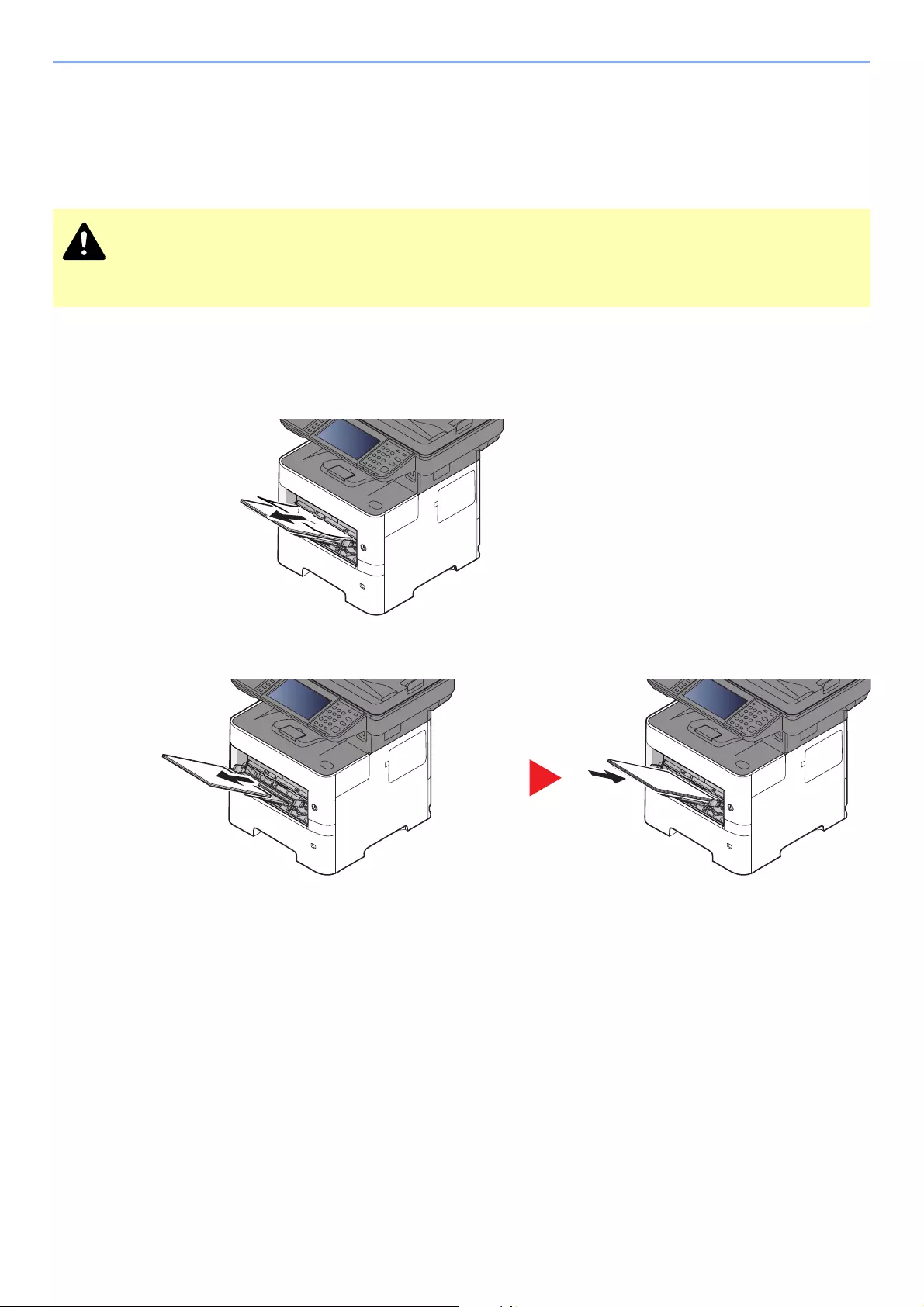
10-32
Troubleshooting > Troubleshooting
Precautions with Paper Jams
• Do not reuse jammed papers.
• If the paper tears during removal, be sure to remove any loose scraps of paper from inside the machine. Scraps of
paper left in the machine could cause subsequent jamming.
Multi Purpose Tray
1
2
The fixing unit is extremely hot. Take sufficient care when working in this area, as there is a danger of getting
burned.
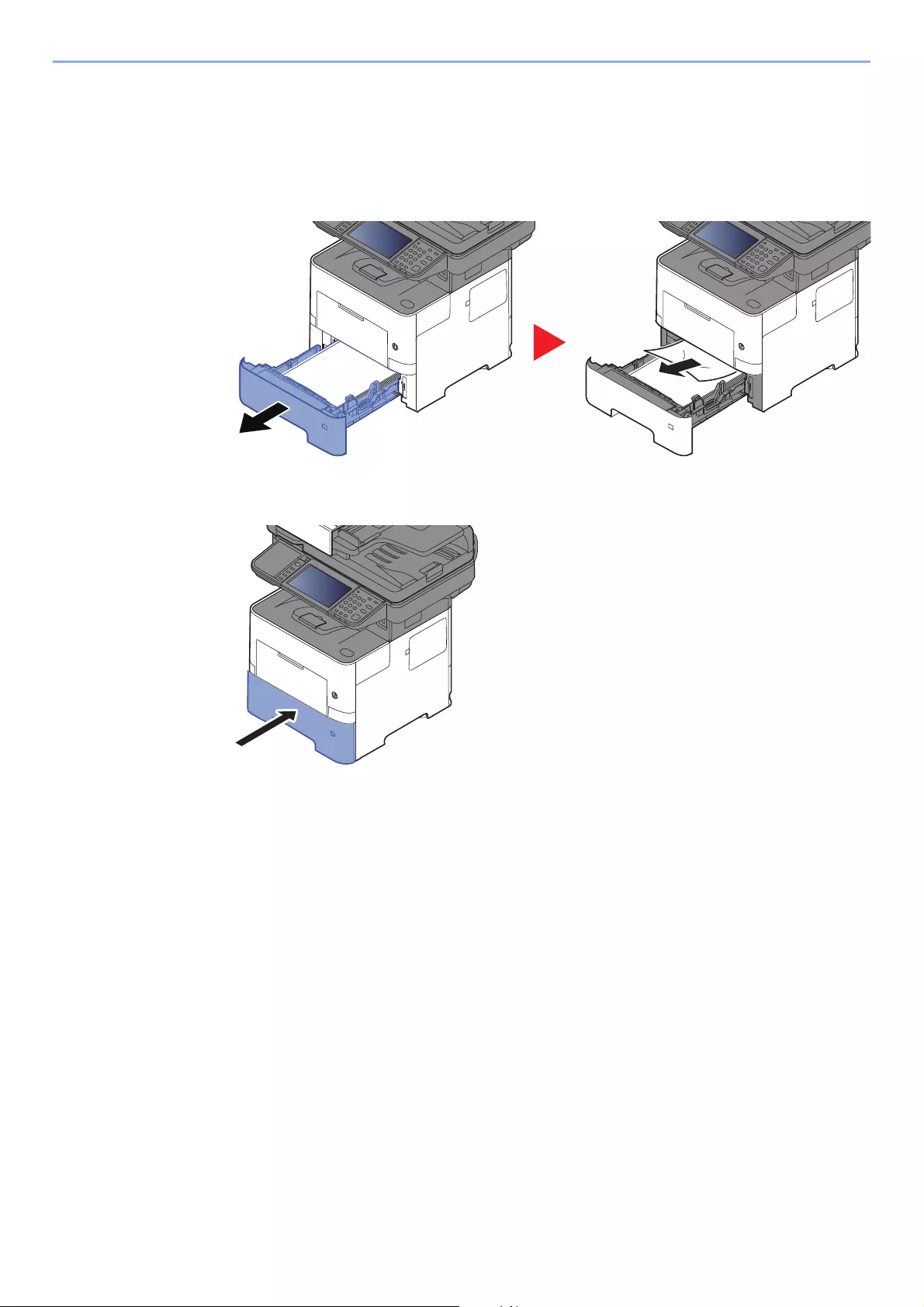
10-33
Troubleshooting > Troubleshooting
Cassettes 1 to 5
Procedures for handling a paper jam in Cassettes 1 to 5 are all the same. This section explains procedures using
Cassette 1 as an example.
1
2
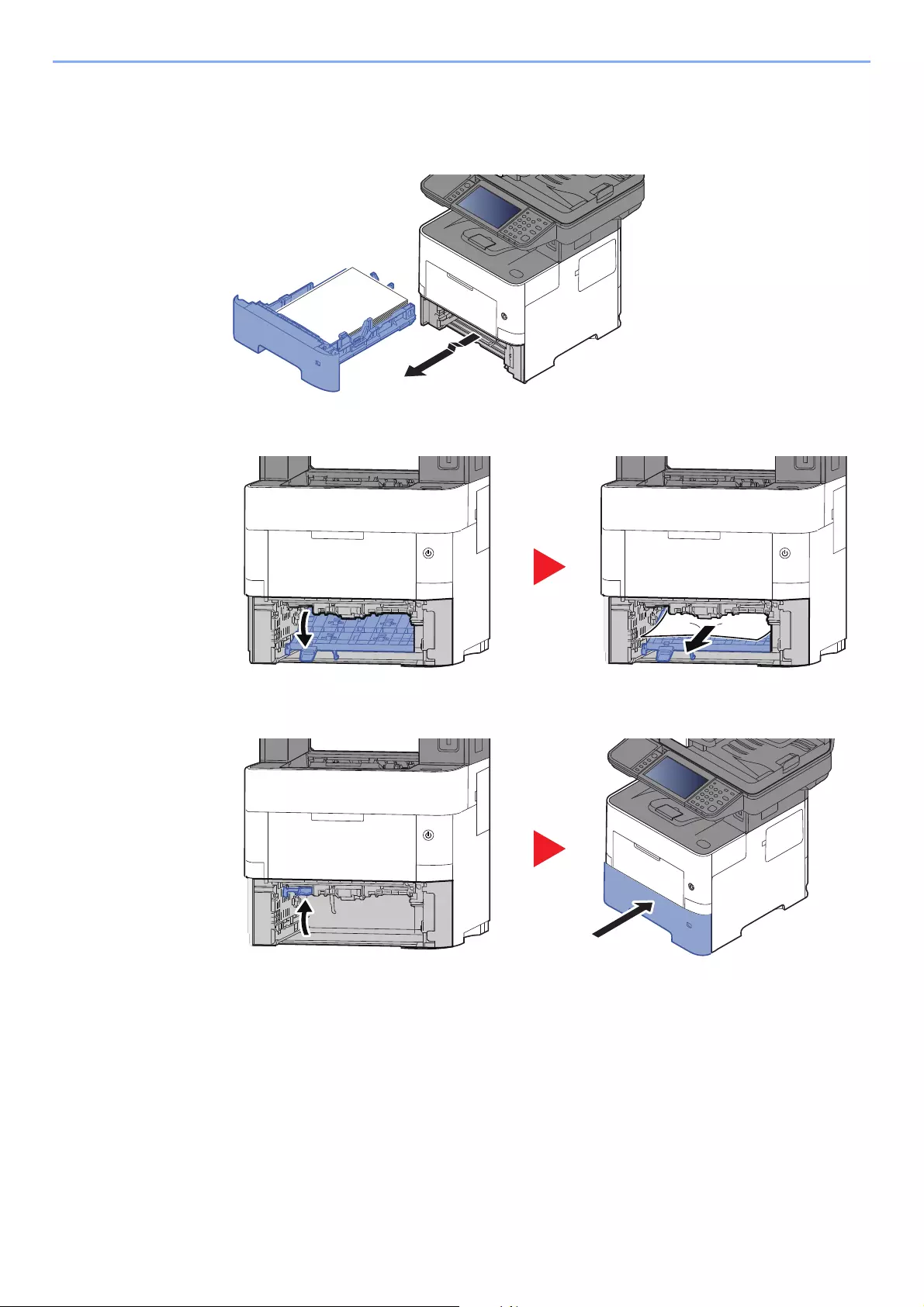
10-34
Troubleshooting > Troubleshooting
Duplex Unit
1
2
3
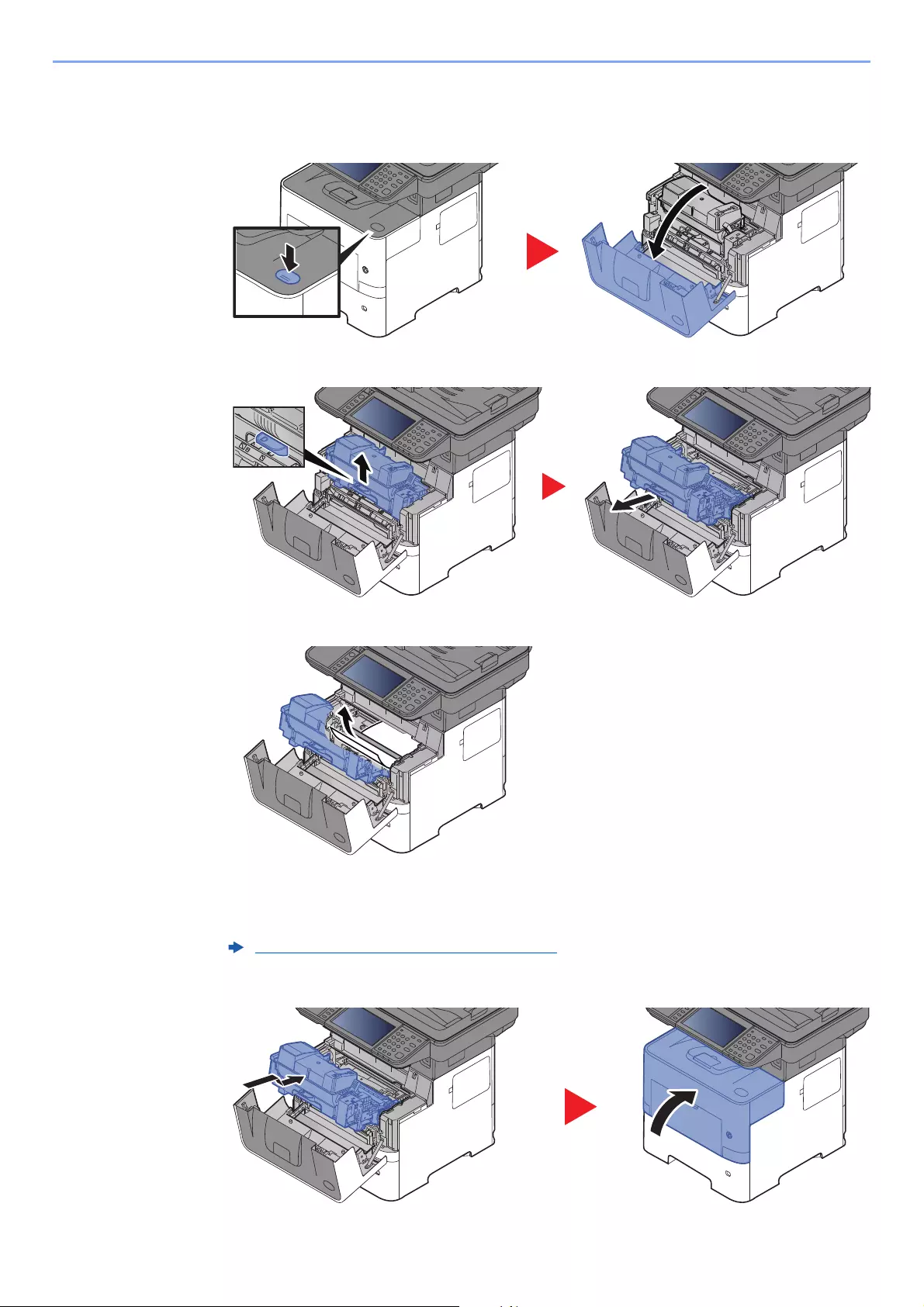
10-35
Troubleshooting > Troubleshooting
Inside the Machine
1
2
3
If the jammed paper appears to be pinched by rollers, pull it along the normal running direction
of the paper.
If you cannot find a paper jam, try checking inside the rear of the printer.
4
Inner Tray / Inside Rear Cover (page 10-36)
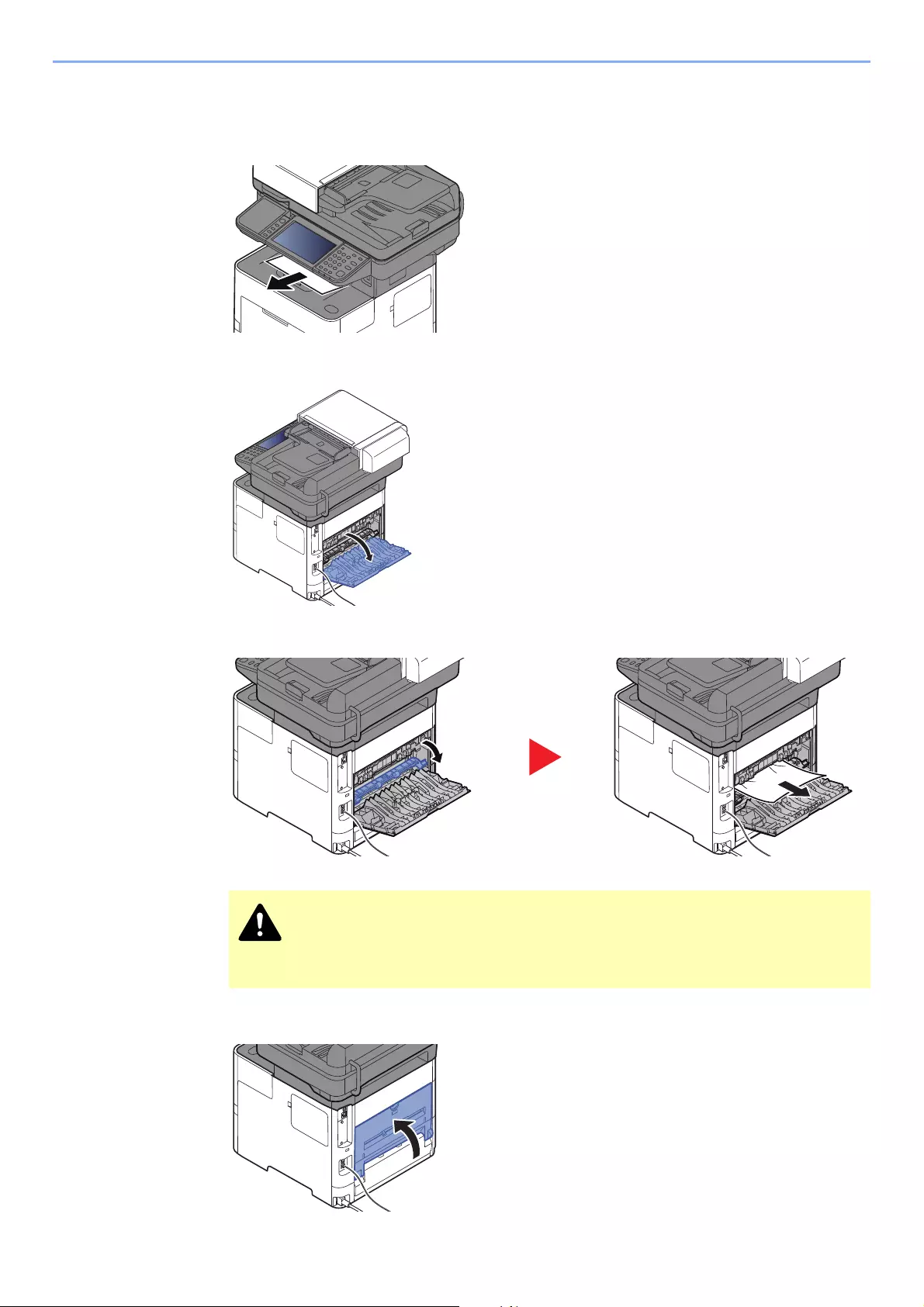
10-36
Troubleshooting > Troubleshooting
Inner Tray / Inside Rear Cover
1
2
3
If you cannot find a paper jam, try checking inside the rear of the machine.
4
The fixing unit is extremely hot. Take sufficient care when working in this area, as
there is a danger of getting burned.
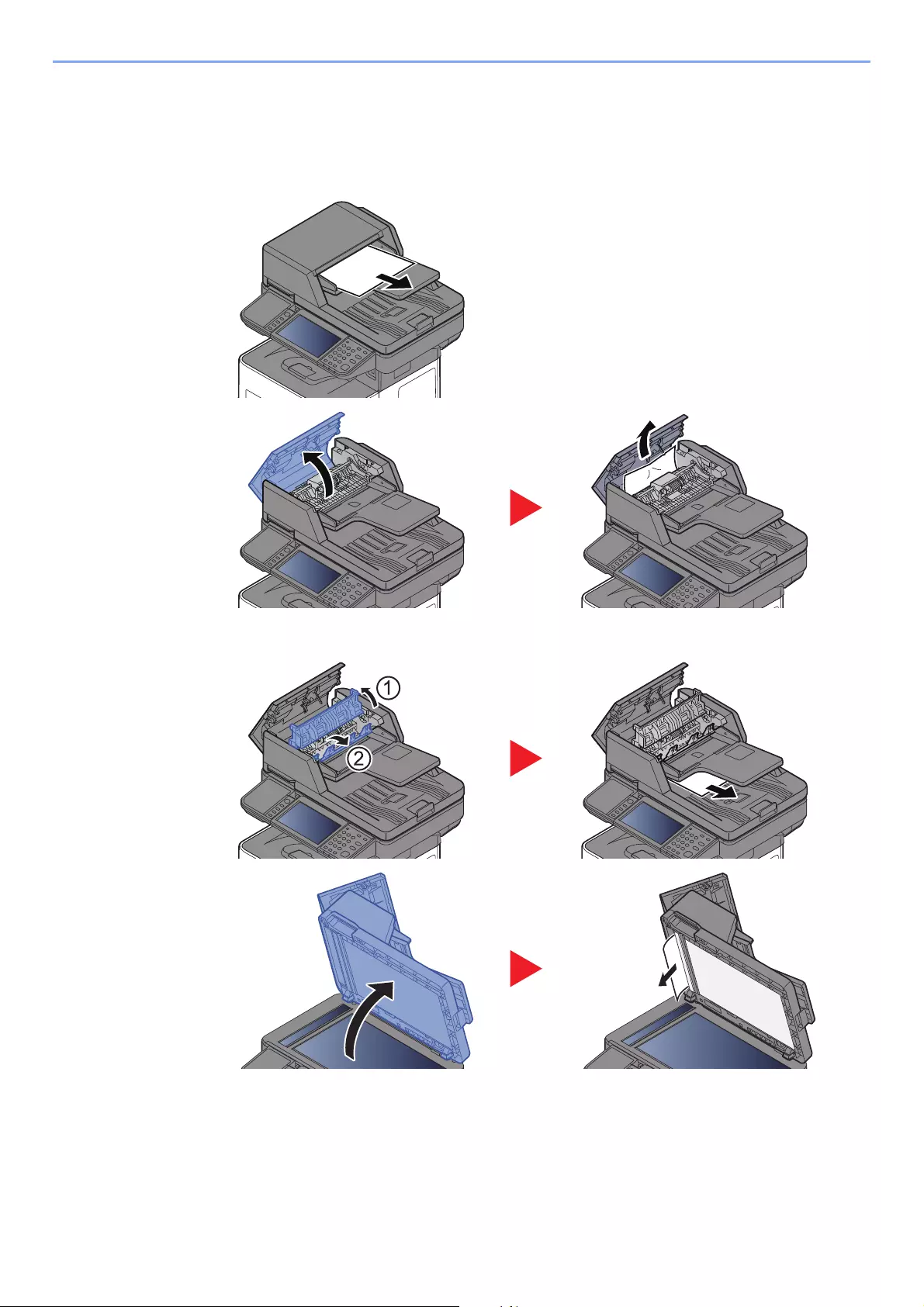
10-37
Troubleshooting > Troubleshooting
Document Processor
ECOSYS M3145idn/ECOSYS M3645idn
1
2
3
4
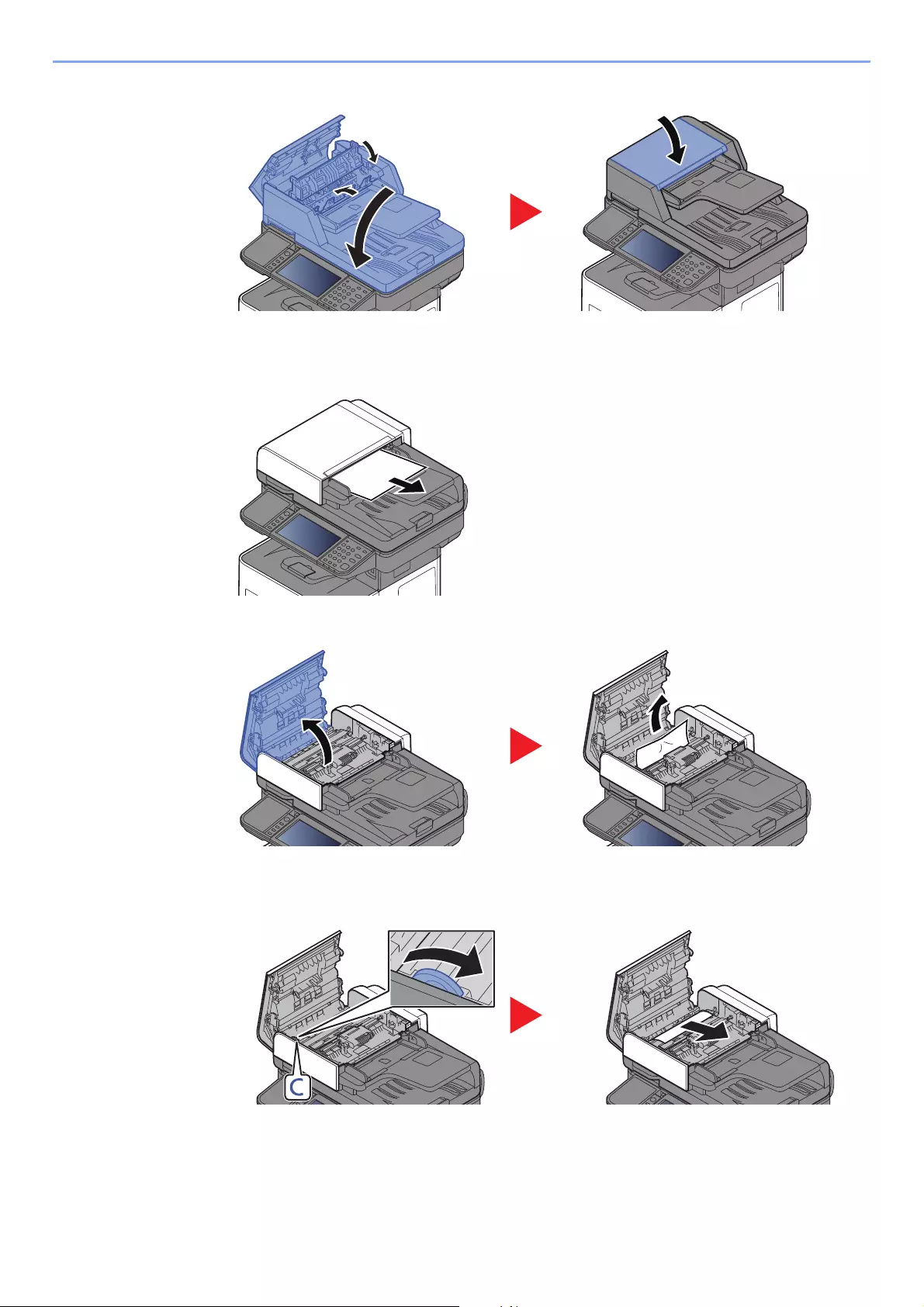
10-38
Troubleshooting > Troubleshooting
5
ECOSYS M3655idn/ECOSYS M3660idn
1
2
3
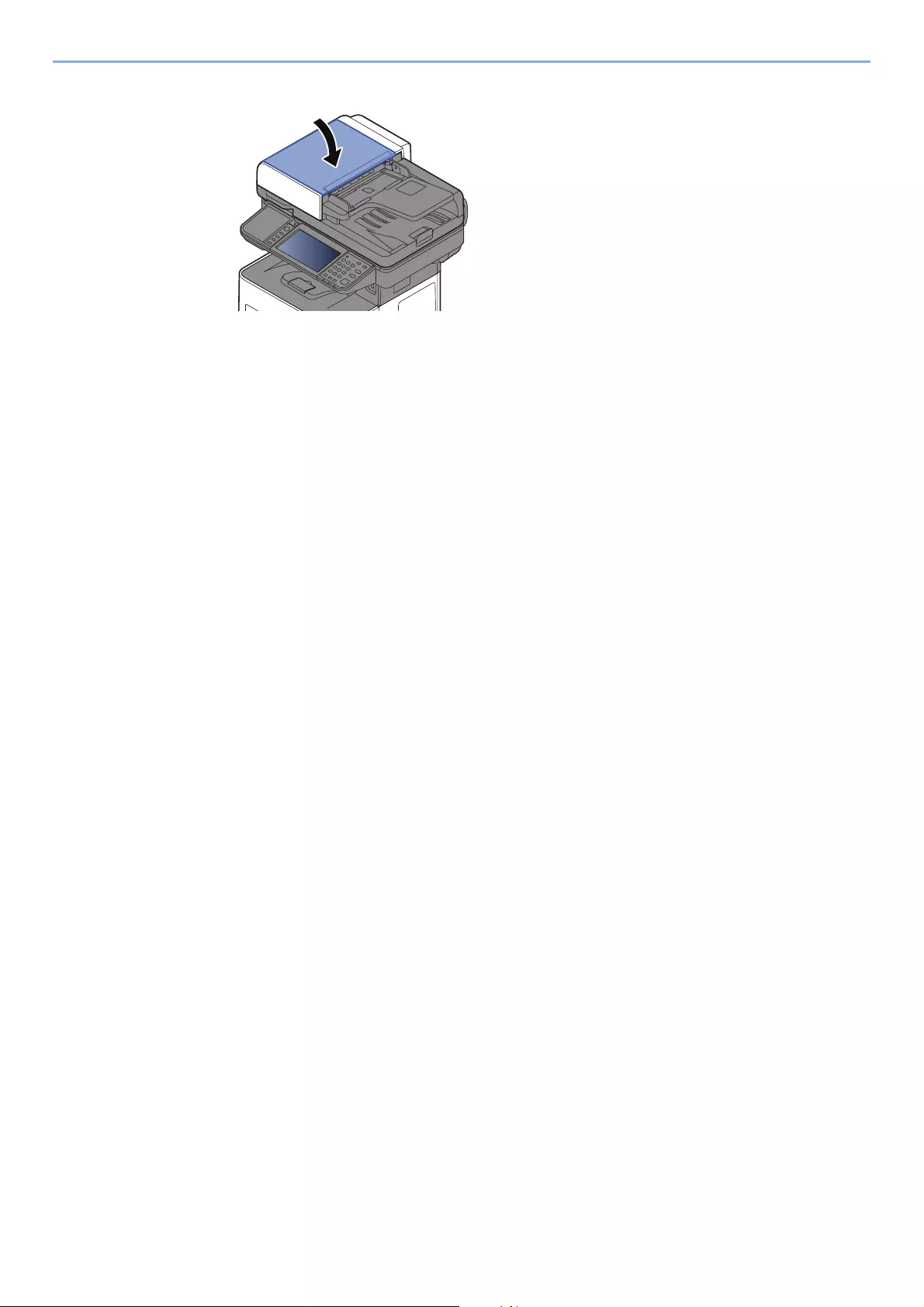
10-39
Troubleshooting > Troubleshooting
4
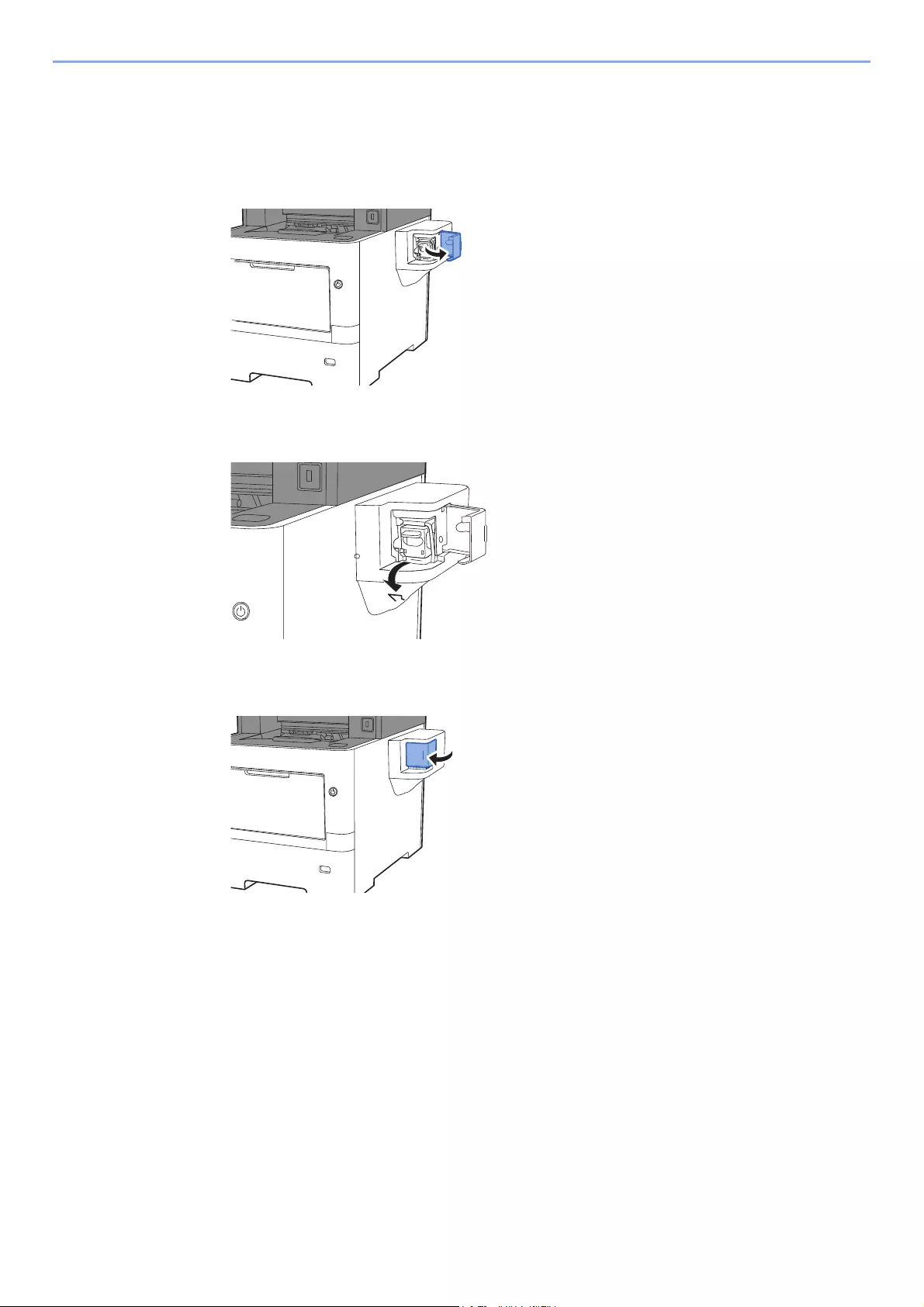
10-40
Troubleshooting > Troubleshooting
Clearing a Staple Jam
(ECOSYS M3655idn/ECOSYS M3660idn only)
1
2
3

11-1
11 Appendix
This chapter explains the following topics:
Optional Equipment ………..……………..…………….…………….…………….…………….………….…………………..……… 11-2
Overview of Optional Equipment ….…………….………….…………….…………….……………..…………..……….. 11-2
Optional Applications …………….…………….…………….…………….…………….…………….……………………….. 11-9
Character Entry Method ………………………….…………….……………..…………….…………….……..……………………. 11-11
Entry Screens ……….……………..…………….…………….…………….…………….…………….……………………… 11-11
Entering Characters ……..…………….…………….…………….……………..…………….……………...……………… 11-13
Paper …………..…………….…………….……………..………………………..…………….………….……………….…………….. 11-14
Basic Paper Specifications …….…………….…………….…………….…………….…………….………….………….. 11-14
Choosing the Appropriate Paper …………………..………….……………..…………….…………….………..……… 11-15
Special Paper ……………..…………….…………….…………….……………..…………….…………....……………….. 11-18
Specifications …………………………….……………..…………….………….…………….…………….…………….…………….. 11-22
Machine …………….…………….……………..…………….………….…………….…………….…………………………… 11-22
Copy Functions …………………………….…………….……………..…………….…………….………….…………….…. 11-24
Printer Functions …………………..…………….………….…………….…………….…………….………………………… 11-25
Scanner Functions ………….………….…………….…………….……………..…………….……………...……………... 11-26
Document Processor ………………….…………….…………….……………..…………….…………….…..…………… 11-27
Paper Feeder (500-sheet) (Option) ………….………….…………….…………….…………….…………….……….. 11-27
Manual Stapler (ECOSYS M3655idn/ECOSYS M3660idn only) …………….……………..…………….……. 11-28
Glossary …….…………….…………….…………….…………….……………..…………….…………..…………………………….. 11-29
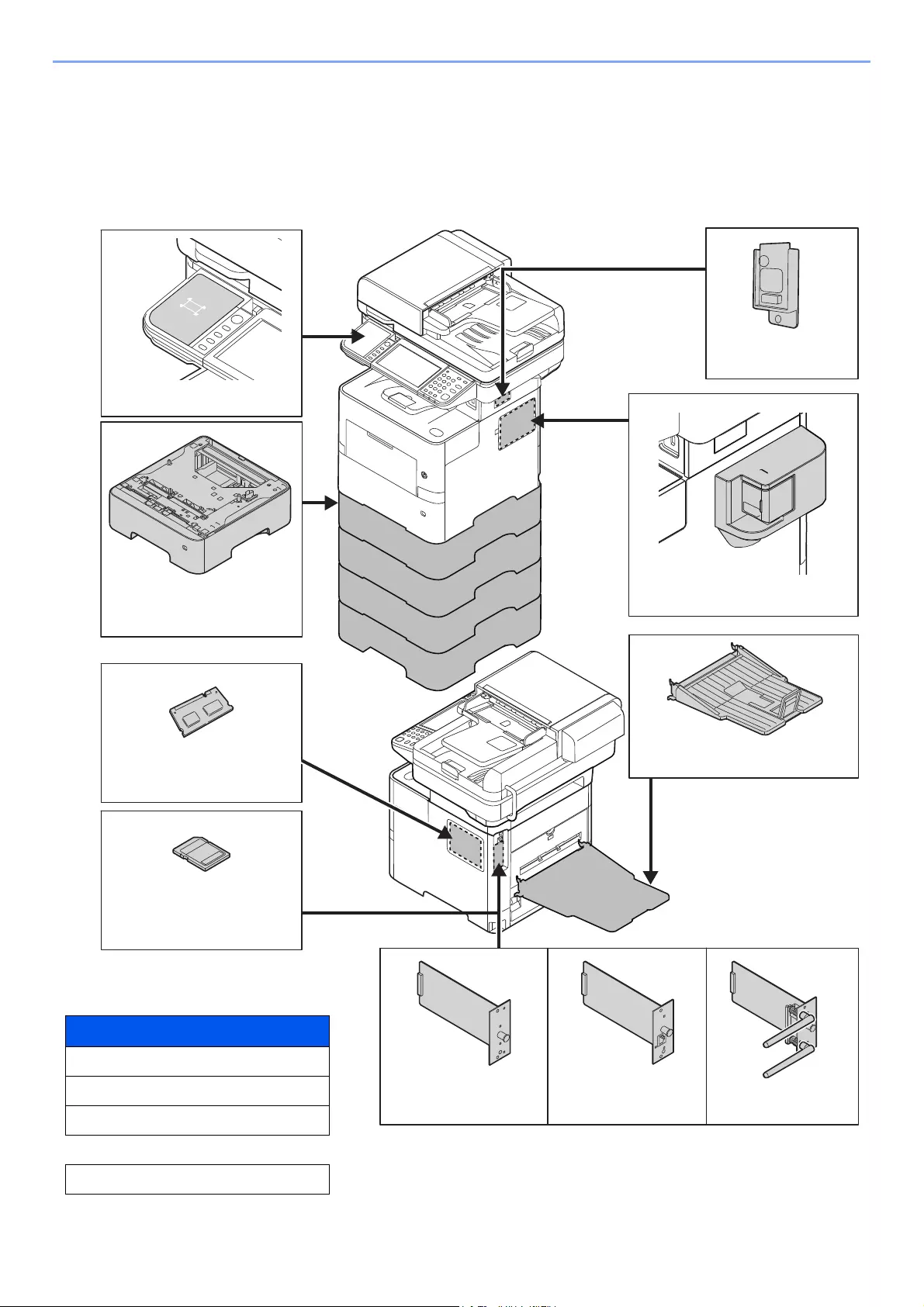
11-2
Appendix > Optional Equipment
Optional Equipment
Overview of Optional Equipment
The following optional equipment is available for the machine.
(2) PF-3110
(1) Card Authentication Kit(B)
(3) Expansion Memory
(6) IB-50 (7) IB-51
Software option
(11) Data Security Kit(E)
(12) UG-33
(13) Scan extension kit(A)
(14) Optional Keyboard
(5) HD-6/HD-7
(4) SD Memory Card
SDHC Memory Card
(9) MS-5100B*
(10) IB-36
(8) PT-320*
* ECOSYS M3655idn/ECOSYS M3660idn Only

11-3
Appendix > Optional Equipment
(1) Card Authentication Kit(B) «Card Authentication Kit»
User login administration can be performed using ID cards. To do so, it is necessary to register ID card information on
the previously registered local user list. For more information about how to register this information, refer to the
following:
Card Authentication Kit(B) Operation Guide
(2) PF-3110 «Paper Feeder (500-sheet x1)»
Up to four additional cassettes identical to the machine’s cassettes can be installed in the machine. Loading method are
the same as the standard cassettes.
Loading in the Cassettes (page 3-4)
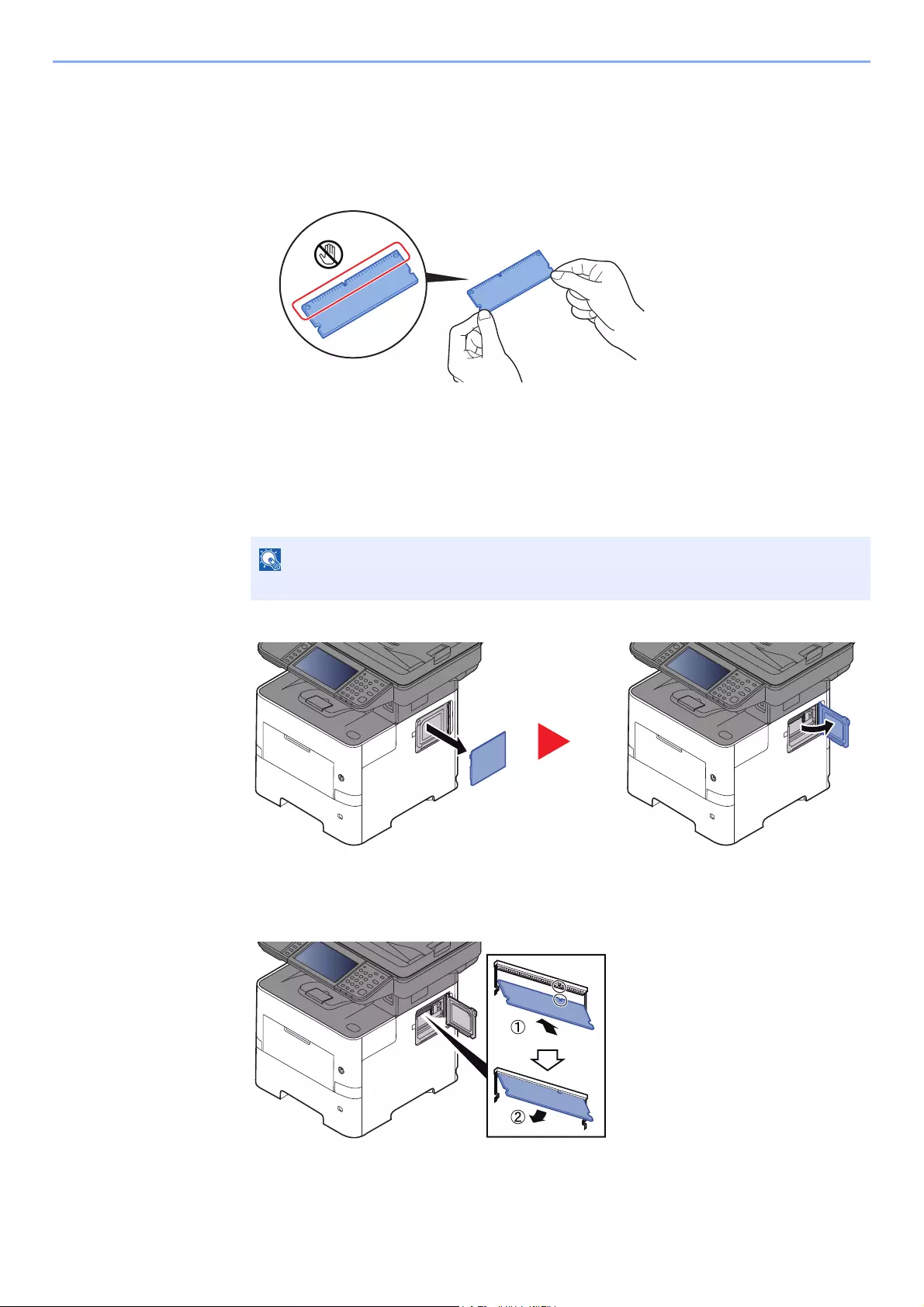
11-4
Appendix > Optional Equipment
(3) «Expansion Memory»
The machine can perform the more multiple jobs simultaneously by adding more memories. You can increase the
machine’s memory up to 3,072 MB by plugging in the optional memory modules.
Precautions for Handling the Memory Modules
To protect electronic parts, discharge static electricity from your body by touching a water pipe (faucet) or other large
metal object before handling the memory modules. Or, wear an antistatic wrist strap, if possible, when you install the
memory modules.
Installing the Memory Modules
1Turn off the machine and disconnect the power cord and interface cable.
2Remove the covers.
3Remove the memory module from its package.
4With the memory connection terminal pointing toward the socket, align the cut-out part with
the socket terminal and insert directly in at an angle.
5Carefully press the inserted memory down and into the machine.
6Reinstall the covers.
If the optional IB-50/51 or HD-6/7 is installed, remove it.
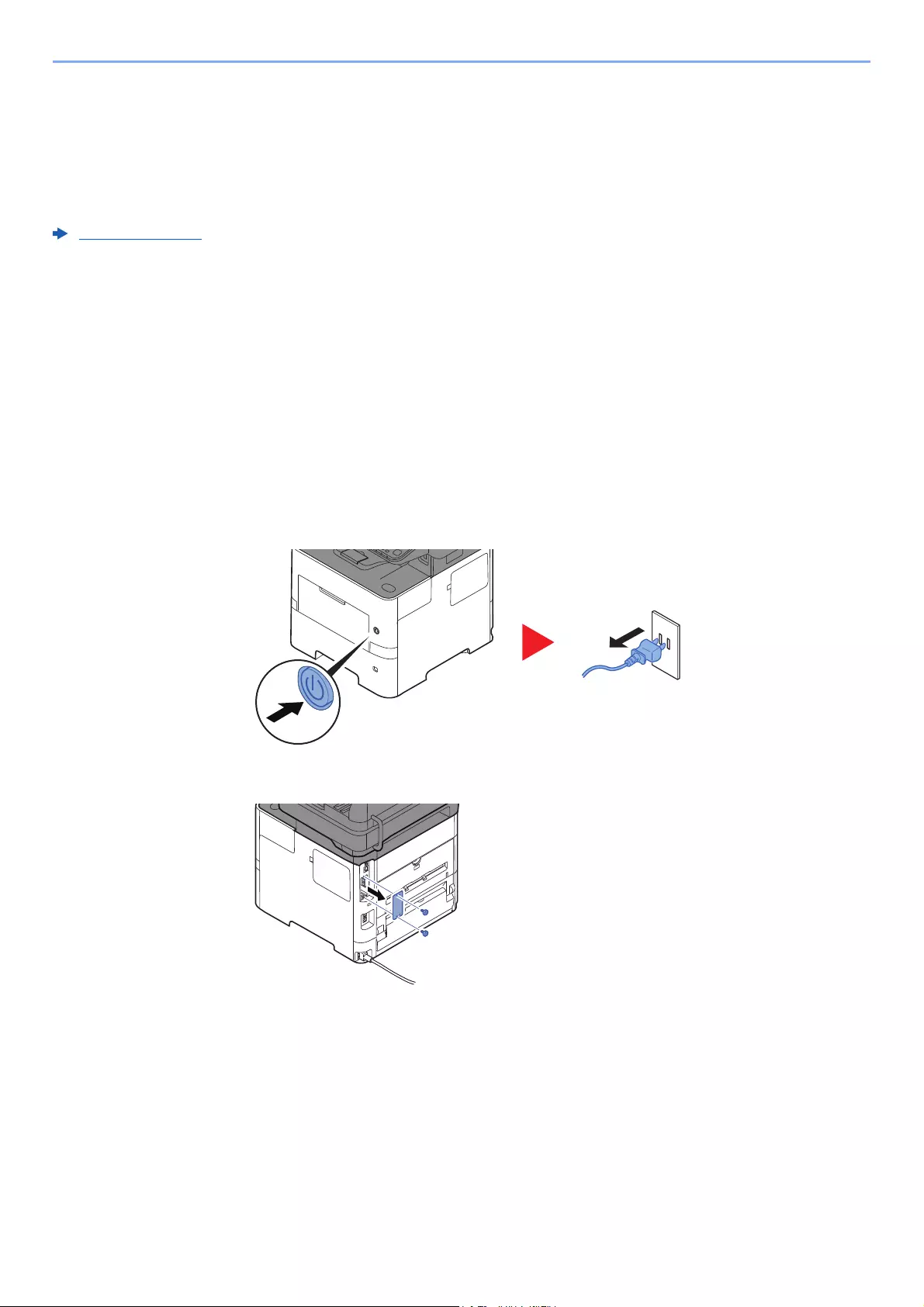
11-5
Appendix > Optional Equipment
Removing the Memory Module
To remove a memory module, remove the right cover and the memory slot cover from the machine. Then, carefully push
out the two socket clamps. Ease the memory module out of the socket to remove.
Verifying the Expanded Memory
To verify that the memory module is working properly, test it by printing a status page.
Report (page 8-5)
(4) «SD/SDHC Memory Card»
An SD/SDHC memory card is useful for storing fonts, macros, and overlays. The machine is equipped with a slot for an
SDHC memory card with a maximum size of 32 GB, and an SD memory card with a maximum size of 2 GB.
Reading the SD/SDHC Memory Card
Once inserted in the machine’s slot, the contents of the SD/SDHC memory card can be read from the operation panel or
automatically when you power on or reset the machine.
Installing and Formatting the SD/SDHC Memory Card
To use an unused SD/SDHC memory card, you must first use the machine to format the SD/SDHC memory card. For
information on formatting an SD/SDHC memory card, consult your Service Representative.
1Power off the machine and unplug the power cord.
2Remove the cover.
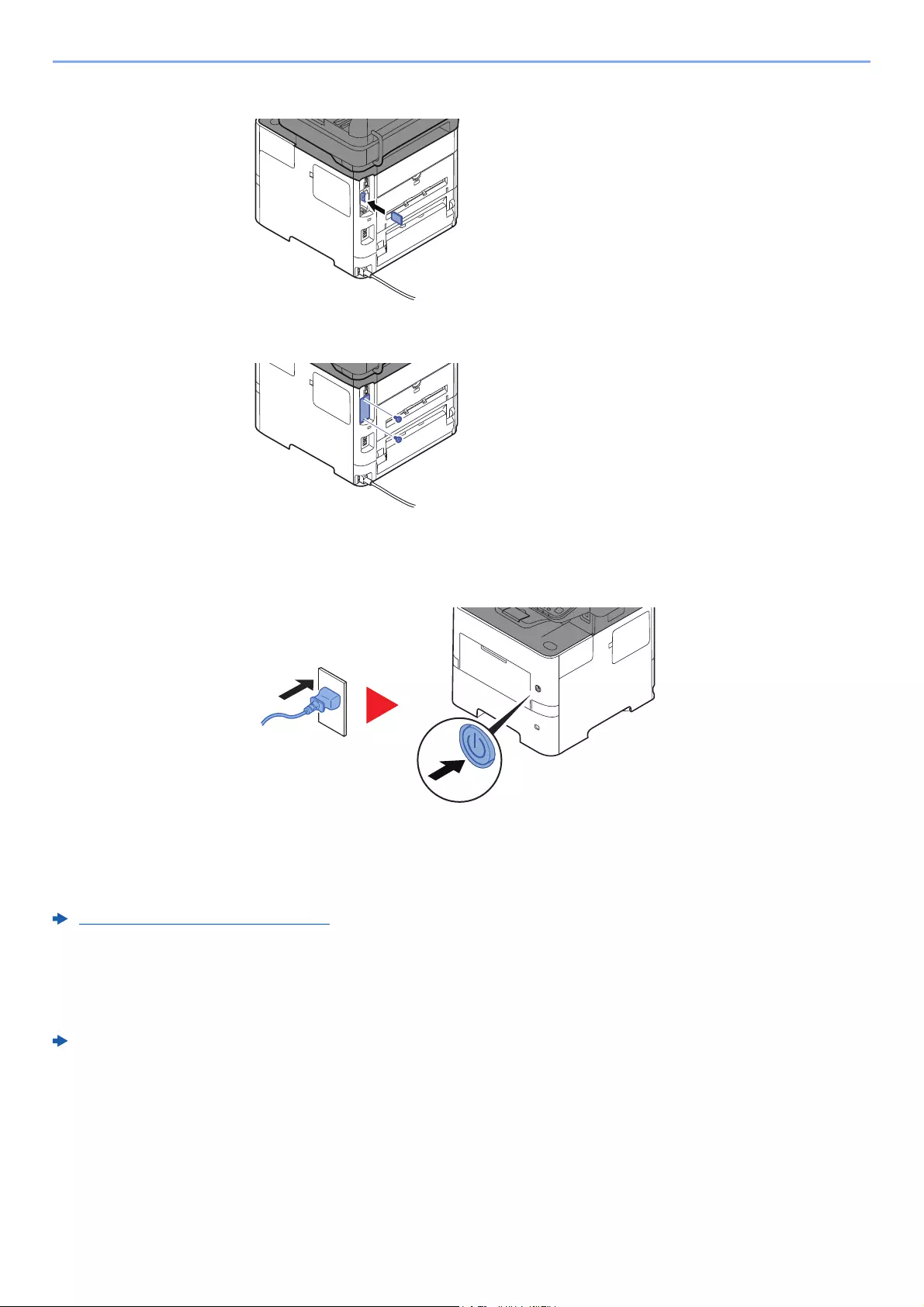
11-6
Appendix > Optional Equipment
3Insert the SD/SDHC memory card into the SD/SDHC memory card slot.
4Replace the covers.
5Insert the power cord into the socket and turn on the power switch.
(5) HD-6/HD-7 «SSD»
With SSD installed in the machine, received data can be rasterized and stored on this SSD. This enables high-speed
printing of multiple copies using an electric sort function. Also, you can use the Document Box functions.
What is Document Box? (page 5-37)
(6) IB-50 «Network Interface Kit»
The Network Interface Kit provides a high-speed connection for the Gigabit-per-second interface. Settings are possible
for a variety of OS and network protocols.
IB-50 User’s Manual
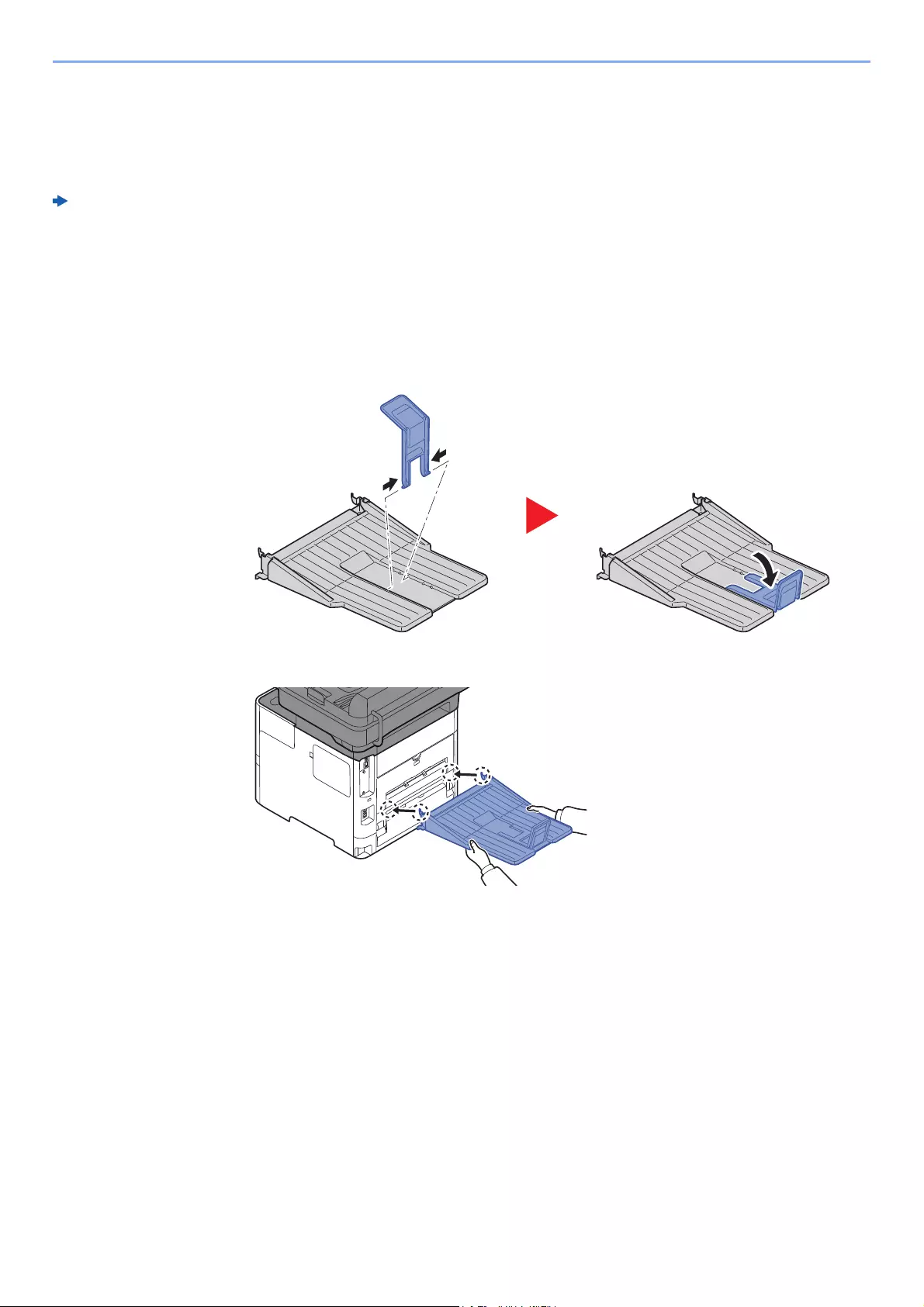
11-7
Appendix > Optional Equipment
(7) IB-51 «Wireless Network Interface Kit»
This is a wireless LAN interface card which supports the wireless LAN specifications IEEE802.11n (Max 300 Mbps) and
11 g/b.
With the utilities supplied, settings are possible for a variety of OS and network protocols.
IB-51 User’s Manual
(8) PT-320 «Rear Tray» (ECOSYS M3655idn/ECOSYS M3660idn only)
Use the faceup output tray when you wish paper to be stacked with the printed side facing up (reverse order). The rear
tray can only be used for printing from a PC.
Installing the Rear Tray
1Install the paper stopper according to the size of paper to be used.
2Install the rear tray on the rear of the machine.
(9) MS-5100B «Manual stapler» (ECOSYS M3655idn/ECOSYS M3660idn only)
It can staple the originals or the printouts. The number of sheets that can be stapled together is 20 sheets (80 g/m2).
(10) IB-36 «Wireless Network Interface Kit»
This is a wireless LAN Interface card which supports the wireless LAN specifications IEEE802.11n (Max 65 Mbps) and
11 g/b. In addition, network printing is possible without using the wireless LAN router because Wi-Fi Direct is supported.
(11) Data Security Kit(E) «Data Security Kit»
The Data Security Kit overwrites all unnecessary data in the storage area so that it cannot be retrieved. The Data
Security Kit encrypts data before storing it in the SSD. It guarantees higher security because no data cannot be decoded
by ordinary output or operations.

11-8
Appendix > Optional Equipment
(12) UG-33 «ThinPrint Option»
This application allows print data to be printed directly without a print driver.
(13) Scan extension kit(A) «OCR Scan Activation Kit»
This option enables the use of the OCR function in the applications of the machine.
To use this function, an SSD or SD/SDHC memory card must be inserted.
HD-6/HD-7 «SSD» (page 11-6)
«SD/SDHC Memory Card» (page 11-5)
To use this function, the application and OCR dictionary must be installed.
Optional Applications (page 11-9)
OCR Dictionary Installation (page 8-44)
(14) Optional Keyboard «Optional Keyboard»
A Optional keyboard can be used to enter information into the text fields on the operation panel. A special mount is also
available to install the keyboard on the machine. Please contact your dealer or service representative for information on
keyboards that are compatible with your machine before you purchase one.

11-9
Appendix > Optional Equipment
Optional Applications
Overview of the Applications
The applications listed below are installed on this machine.
Starting Application Use
Use the procedure below to start using an application.
1[System Menu/Counter] key > [System/Network] > [Optional Function]
2Select the desired application and select [Activate].
You can view detailed information on the selected application by selecting [ ].
3Select [Official] and enter a license key.
Some applications do not require you to enter a license key. If the license key entry screen does not
appear, go to Step 5.
To use the application as a trial, select [Trial] without entering the license key.
4Select [Yes] in the confirmation screen.
Application
Data Security Kit
Card Authentication Kit*1
*1 This can be used on a trial basis for a limited time.
ThinPrint Option*1
OCR Scan Activation Kit*1
• Restrictions such as the number of times the application can be used during the trial period differ depending on the
application.
• If you change the date/time while using the trial version of an application, you will no longer be able to use the
application.
If the login user name entry screen appears during operations, enter a login user name
and password, and select [Login]. For this, you need to login with administrator
privileges.
The factory default login user name and login password are set as shown below.
ECOSYS M3145idn ECOSYS M3655idn ECOSYS M3660idn
ECOSYS M3645idn
Login User Name: 4500 5500 6000
Login Password: 4500 5500 6000
• If you started the Security Kit or Thin Print option and entered the license key, turn the
power OFF/ON.
• Icons of activated application are displayed in the Home screen.
11-10
Appendix > Optional Equipment
Checking Details of Application
Use the procedure below to check the details of application.
1[System Menu/Counter] key > [System/Network] > [Optional Function]
2Select the desired application and select [ ].
You can view detailed information on the selected application.
The table below lists the item you can view.
Extend the trial period.
[Extend] > [Yes]
The trial period is extended.
If the login user name entry screen appears during operations, enter a login user name
and password, and select [Login]. For this, you need to login with administrator
privileges.
The factory default login user name and login password are set as shown below.
ECOSYS M3145idn ECOSYS M3655idn ECOSYS M3660idn
ECOSYS M3645idn
Login User Name: 4500 5500 6000
Login Password: 4500 5500 6000
Item
Function Name
License
Remaining Counts
Expiration Date
Status
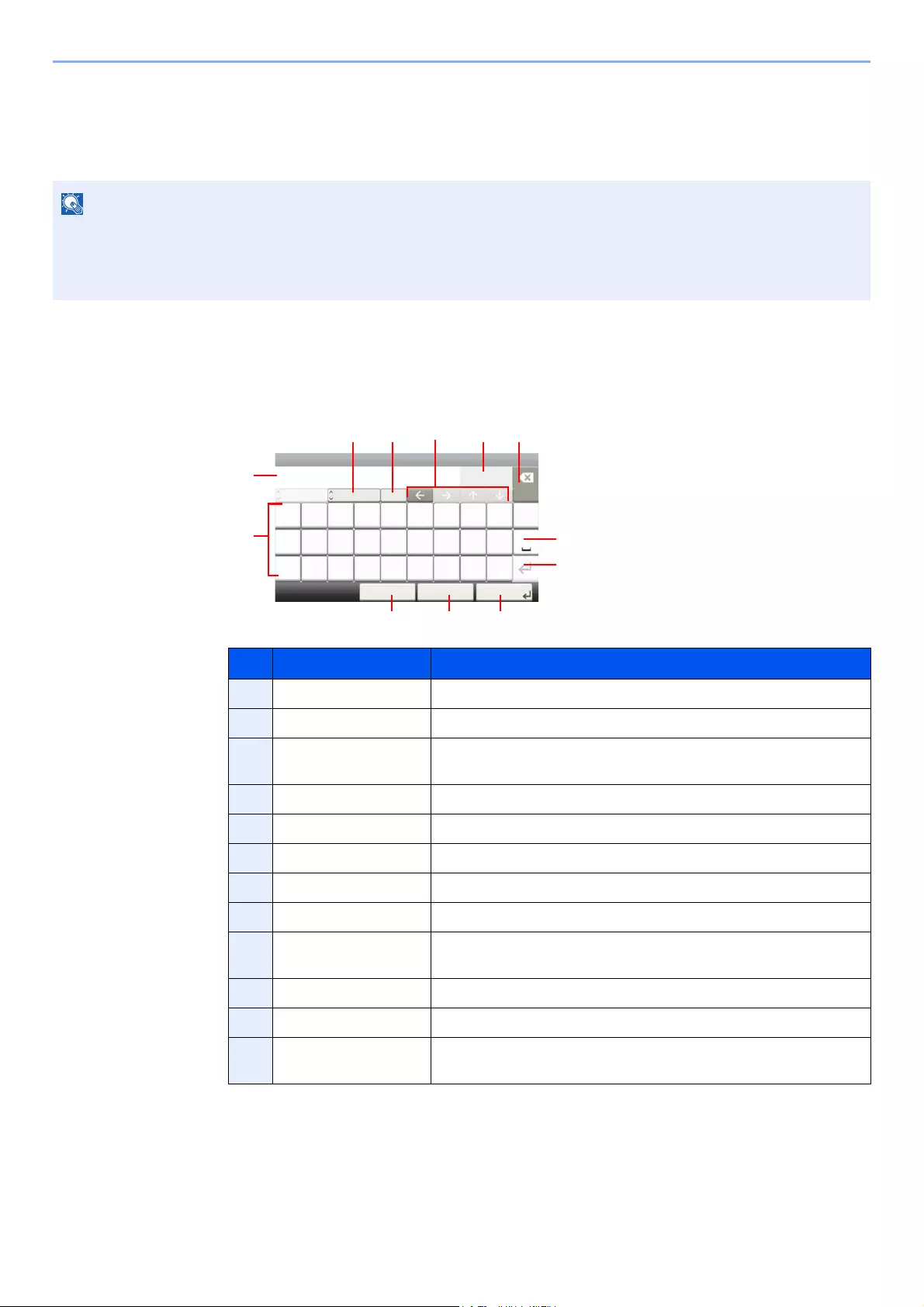
11-11
Appendix > Character Entry Method
Character Entry Method
To enter characters for a name, use the on-display keyboard in the touch panel following the steps as explained below.
Entry Screens
Lower-case Letter Entry Screen
Keyboard Layout
«QWERTY», «QWERTZ» and «AZERTY» are available as keyboard layouts the same as a PC keyboard. Select the
[System Menu/Counter] key, [Common Settings] and then [Keyboard Layout] to choose the desired layout.
«QWERTY» layout is used here as an example. You may use another layout following the same steps.
No. Display/Key Description
1Display Displays entered characters.
2Keyboard Select the character to enter.
3[Cancel] Select to cancel entered characters and return to the screen before
the entry was made.
4[< Back] Select to return to the previous screen.
5[OK] / [Next >] Select to save the entered characters and move to the next screen.
6Enter Key Select to enter a line break.
7Space Key Select to insert a space.
8Delete Key Select to delete a character to the left of the cursor.
9[Input] / [Limit]
Display
Displays maximum number of characters and the number of
characters entered.
10 Cursor Key Select to move the cursor on the display.
11 [A/a] / [a/A] Select to switch between upper case and lower case.
12 [ABC] / [Symbol] Select the characters that are entered. To enter symbols or numbers,
select [Symbol].
Input:
Limit:
< Back Next >Cancel
Add — Name
poitrq
l
uyew
kgfajhds
.vc@xz
Abc
Del.
3
32
A/a
mnb
ABC
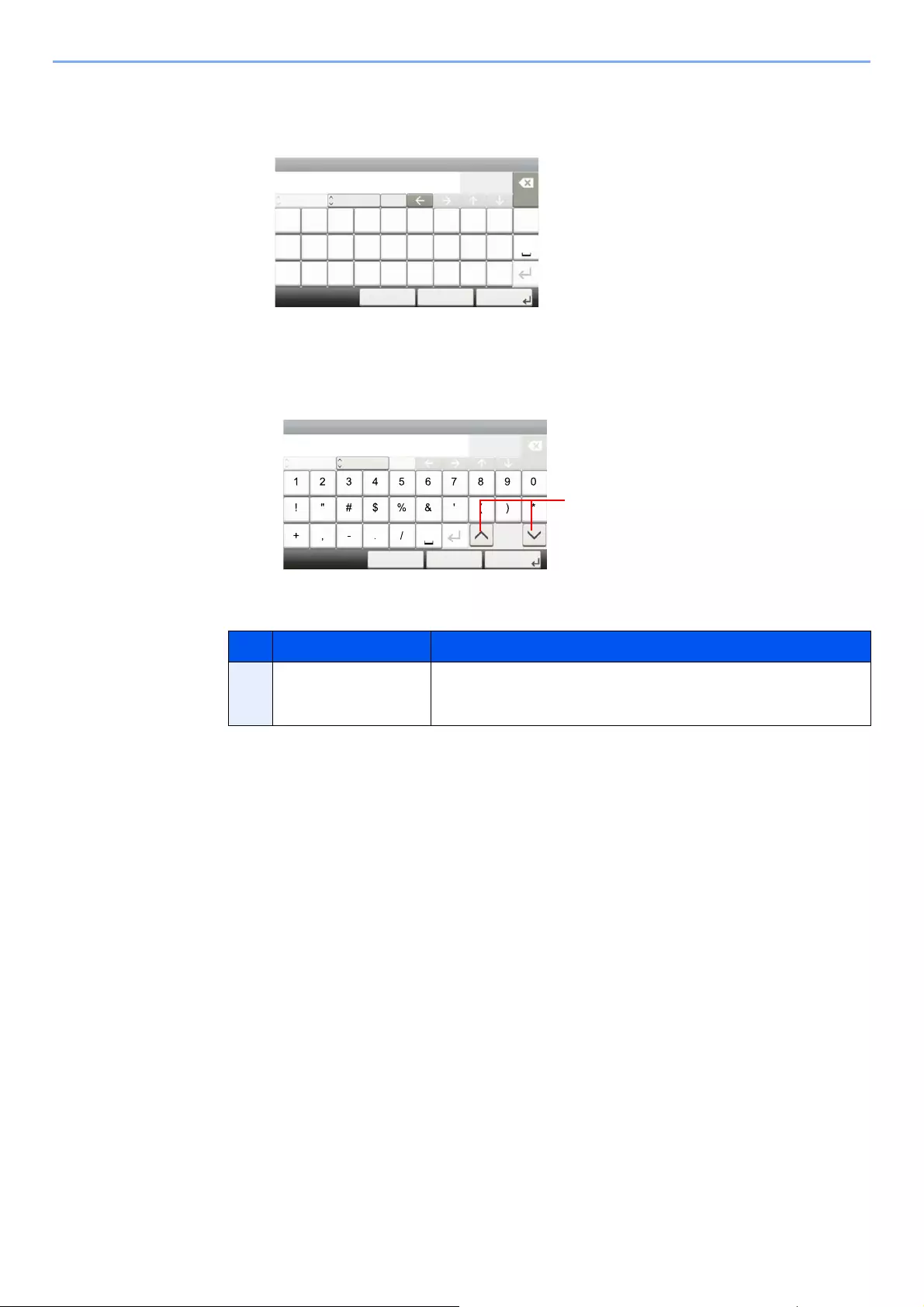
11-12
Appendix > Character Entry Method
Upper-case Letter Entry Screen
Number/Symbol Entry Screen
No. Display/Key Description
13 []/[] To enter a number or symbol not shown in the keyboard, select the
cursor key and scroll the screen to view other numbers or symbols to
enter.
Input:
Limit:
< Back Next >Cancel
AB
Del.
2
32
ABC A/a
QW E R T Y U I O P
ASDFGHJ KL
_~ZX CV BNM
Add — Name
Input:
Limit:
Symbol Del.
3
32
< Back Next >Cancel
Add — Name
123
ņ
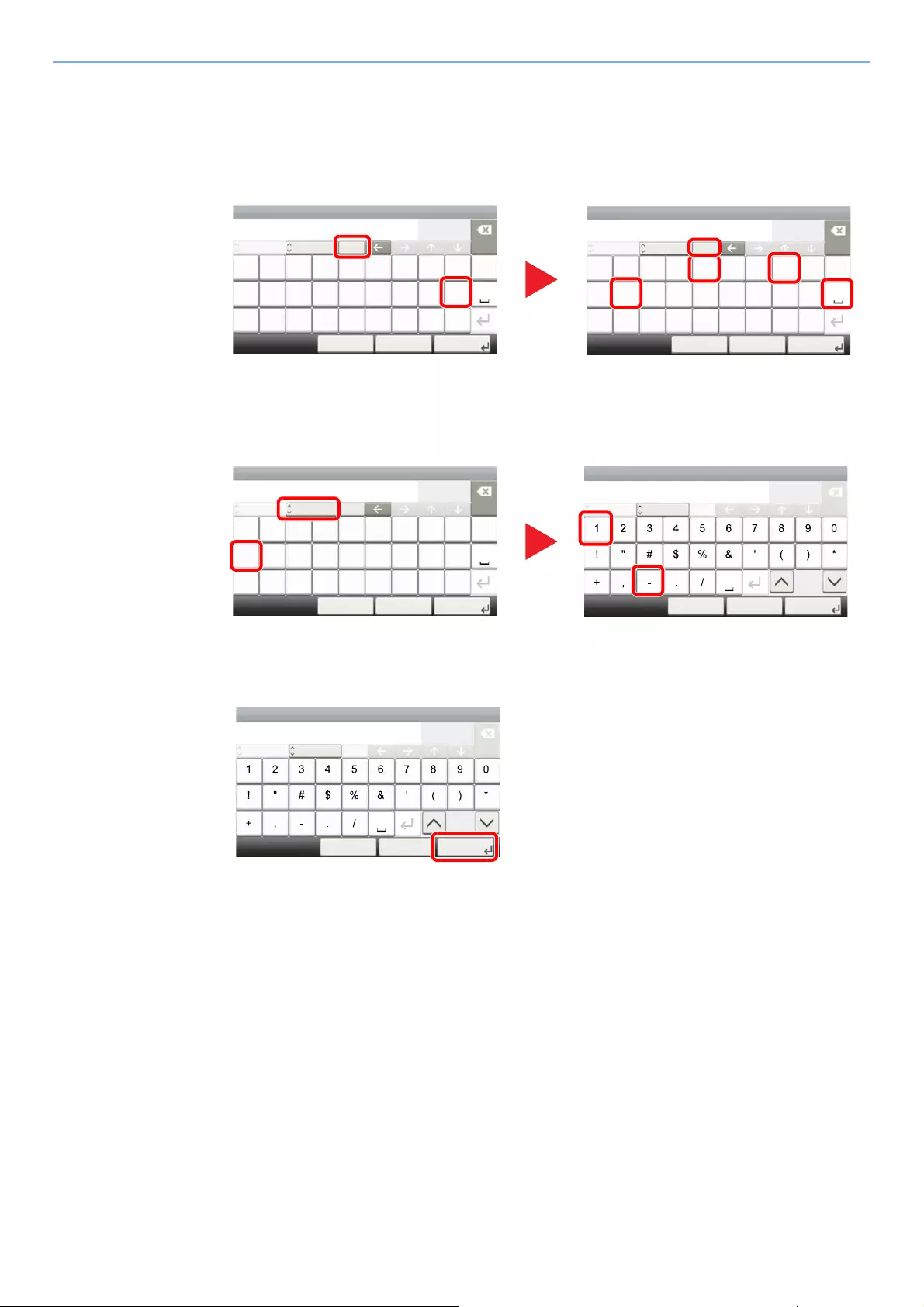
11-13
Appendix > Character Entry Method
Entering Characters
Follow the steps below to enter ‘List A-1’ for an example.
1Enter ‘List’, (space).
To shift from lower case to upper case letters, select [a/A]. To shift from upper case to lower
case letters, select [A/a].
2Enter ‘A-1’.
To enter numbers or symbols, select [ABC] to display [Symbol].
3Register the characters you entered.
Select [Next>]. The entered characters are registered.
Input:
Limit:
< Back Next >Cancel
L
Del.
1
32
ABC A/a
QW E R T Y U I O P
ASDFGHJ KL
_~ZX CV BNM
Add — Name
Input:
Limit:
< Back Next >Cancel
Add — Name
poitrq
l
uyew
kgfajhds
.vc@xz
List
Del.
5
32
A/a
mnb
ABC
Input:
Limit:
< Back Next >Cancel
List A
Del.
6
32
ABC A/a
QW E R T Y U I O P
ASDFGHJ KL
_~ZX CV BNM
Add — Name
Input:
Limit:
Symbol Del.
8
32
< Back Next >Cancel
Add — Name
List A-1
ņ
Input:
Limit:
Symbol Del.
8
32
< Back Next >Cancel
Add — Name
List A-1
ņ
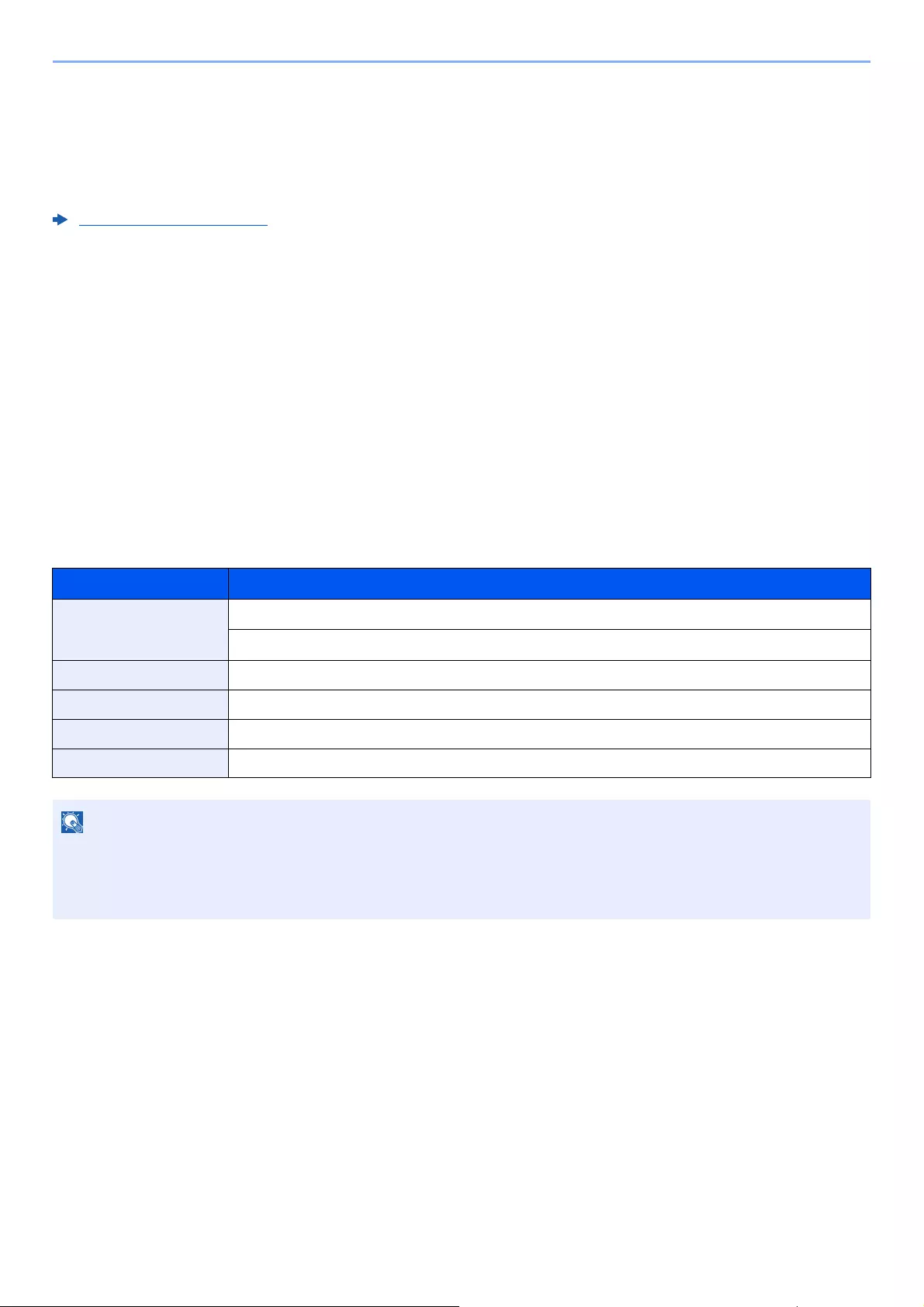
11-14
Appendix > Paper
Paper
This section explains the paper sizes and types that can be used in the paper source.
For details on the sizes, types, and number of sheets of paper that can be loaded in each paper tray, refer to the
following:
Specifications (page 11-22)
Basic Paper Specifications
This machine is designed to print on standard copy paper as used in regular (‘dry’) copiers and page printers such as
laser printers. It also supports a variety of other types of paper that conform to the specifications given in this appendix.
Be careful when choosing paper. Paper unsuitable for the machine may cause jams or may be wrinkled.
Supported Paper
Use standard copy paper for regular copiers or laser printers. The printing quality will be affected by the quality of paper.
Poor quality paper may result in unsatisfactory output.
Basic Paper Specifications
The following table lists the specifications of paper that is supported with this machine. Refer to the subsequent sections
for further details.
We are not responsible for the problems occurred from the use of paper that does not conform to our specifications.
Criteria Specifications
Weight Cassettes: 60 to 120 g/m2
Multi purpose tray: 60 to 220 g/m2, 209.5 g/m2 (Cardstock)
Dimensional accuracy ±0.7 mm
Squareness of corners 90° ±0.2°
Moisture content 4 to 6%
Pulp content 80% or more
Some recycled paper does not meet requirements for use with this machine as listed in the Basic Paper Specifications
shown below, such as moisture or pulp content. For this reason, we recommend purchasing a small amount of
recycled paper as a sample for testing prior to use. Choose recycled paper that gives the best printing results and
contains low levels of paper dust.
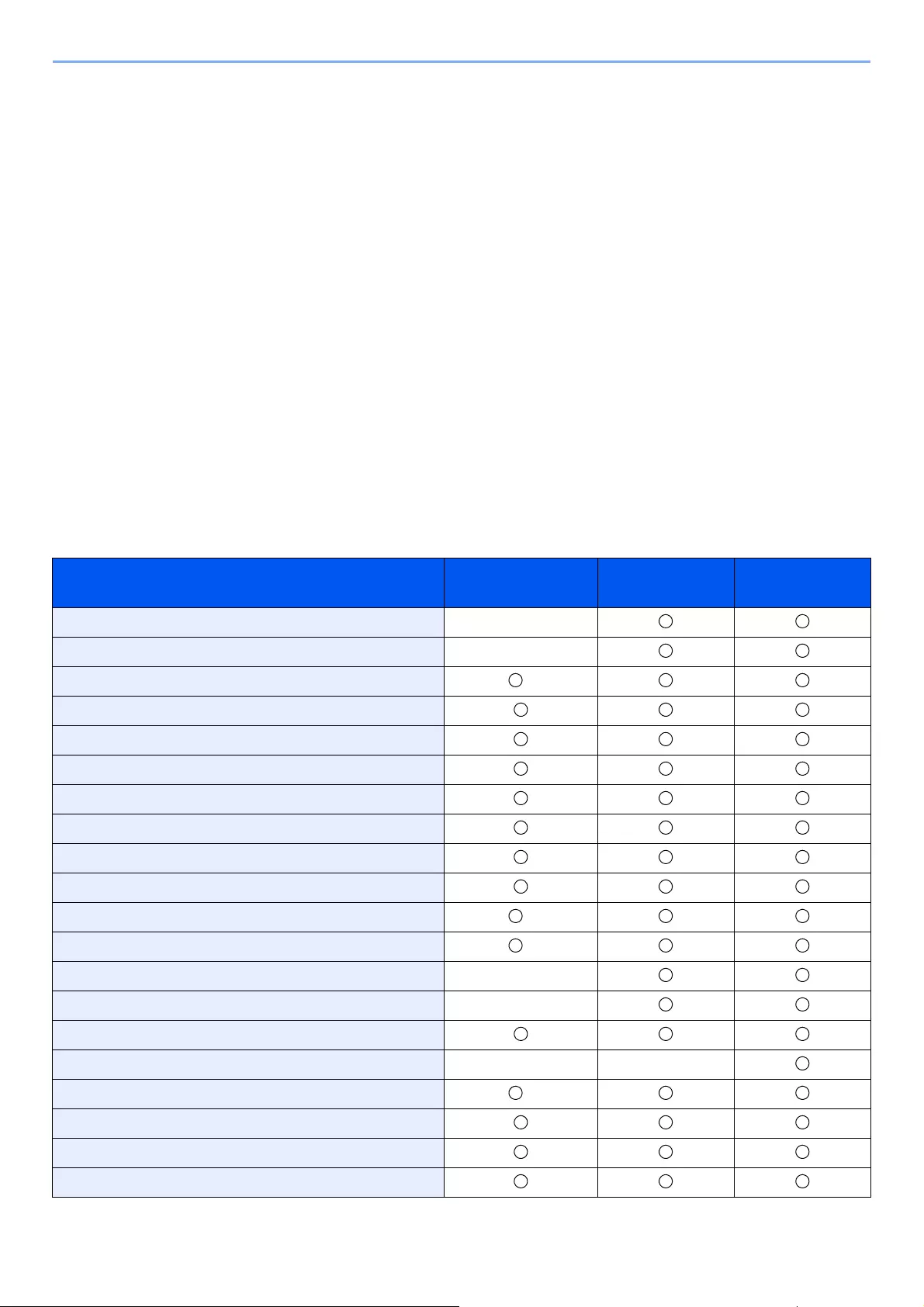
11-15
Appendix > Paper
Choosing the Appropriate Paper
This section describes guidelines for choosing paper.
Condition
Avoid using paper with bent corners or that is curled, dirty, or torn. Do not use paper that has a rough surface or paper
fiber lint, or that is especially delicate. Use of paper in any of these conditions will not only deliver poor copies but may
also cause jams and shorten the useful life of the machine. Choose paper with a smooth and even surface; however,
avoid coated paper or paper with a treated surface as it may damage the drum or fusing unit.
Ingredients
Do not use paper such as paper that has been coated or surface-treated or paper that contains plastic or carbon. Those
types of paper may produce harmful fumes from the heat of printing and may damage the drum.
Be sure to use the standard paper that contains at least 80% pulp, i.e., not more than 20% of the total paper content
consists of cotton or other fibers.
Supported Paper Sizes
Paper of the following sizes is supported by the machine.
Measurements in the table take into account a ±0.7 mm dimensional accuracy for length and width. Corner angles must
be 90° ± 0.2°.
Paper Size Cassette 1 Cassettes 2 to 5 Multi Purpose
Tray
Envelope Monarch (3-7/8 × 7-1/2″) ×
Envelope #10 (4-1/8 × 9-1/2″) ×
Envelope DL (110 × 220 mm) *1
Envelope C5 (162 × 229 mm)
Executive (7-1/4 × 10-1/2″)
Letter
Legal
A4 (297 × 210 mm)
B5 (257 × 182 mm)
A5 (210 × 148 mm)
A6 (148 × 105 mm) *1
B6 (182 × 128 mm) *1
Envelope #9 (3-7/8 × 8-7/8″) ×
Envelope #6 (3-5/8 × 6-1/2″) ×
ISO B5 (176 × 250 mm)
Hagaki (Cardstock) (100 × 148 mm) × ×
Oufuku hagaki (Return postcard) (148 × 200 mm) *1
Oficio II
216 × 340 mm
16K (273 × 197 mm)
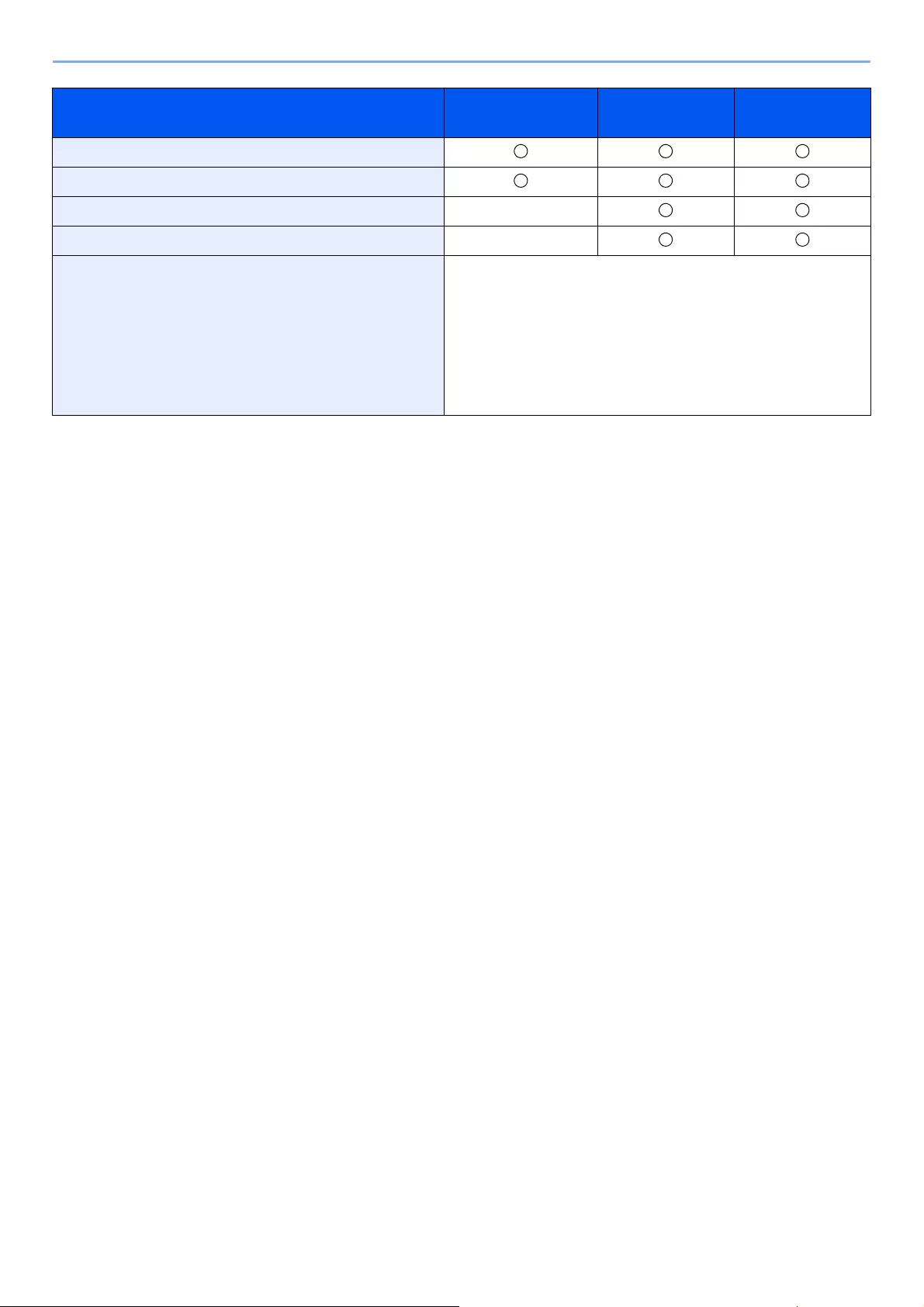
11-16
Appendix > Paper
Smoothness
The paper surface should be smooth, but it must be uncoated. With paper that is too smooth and slippery, several
sheets may accidentally be supplied at once, causing jams.
Basis Weight
In countries that use the metric system, basis weight is the weight in grams of one sheet of paper one square meter in
area. In the United States, basis weight is the weight in pounds of one ream (500 sheets) of paper cut to the standard
size (or trade size) for a specific grade of paper. Paper that is too heavy or too light may be supplied incorrectly or cause
paper jams, which may cause excessive wear of the machine. Mixed paper weight (i.e., thickness) may cause several
sheets to be supplied at once accidentally and may also cause blurring or other printing problems if the toner fails to
adhere correctly.
Moisture Content
Paper moisture content is the ratio of moisture to dryness expressed as a percentage. Moisture affects how the paper is
supplied, the electrostatic chargeability of the paper, and how the toner adheres.
Paper moisture content varies depending on the relative humidity in the room. High relative humidity causes paper to
become damp, making the edges expand so it appears wavy. Low relative humidity causes paper to lose moisture,
making the edges tighten and weakening print contrast.
Wavy or tight edges may cause the paper to slip when it is supplied. Try to keep the moisture content between 4 to 6%.
To maintain the right level of moisture content, bear in mind the following considerations.
• Store paper in a cool, well-ventilated place.
• Store paper flat and unopened in the package. Once the package is opened, reseal it if the paper is not to be used for
a while.
• Store paper sealed in the original package and box. Put a pallet under the carton to keep it raised above the floor.
Especially during rainy seasons keep the paper a sufficient distance away from wooden or concrete floors.
• Before using paper that has been stored, keep it at the proper moisture level for at least 48 hours.
• Do not store paper where it is exposed to heat, sunlight, or dampness.
Statement
Folio (210 × 330 mm)
Youkei 4 (105 × 235 mm) ×
Youkei 2 (114 × 162 mm) ×
Custom Cassette 1:
ECOSYS M3145idn/ECOSYS M3645idn
140 × 148 to 216 × 356 mm
ECOSYS M3655idn/ECOSYS M3660idn
105 × 148 to 216 × 356 mm
Cassettes 2 to 5: 92 × 162 to 216 × 356 mm
Multi Purpose Tray: 70 × 148 to 216 × 356 mm
*1 ECOSYS M3655idn/ECOSYS M3660idn only
Paper Size Cassette 1 Cassettes 2 to 5 Multi Purpose
Tray

11-17
Appendix > Paper
Other Paper Specifications
Porosity: The density of the paper fibers.
Stiffness: Paper must be stiff enough or it may buckle in the machine, causing jams.
Curl: Most paper naturally tends to curl after the package is opened. When paper passes through the fixing unit, it curls
upward slightly. To deliver flat printouts, load the paper so that the curl faces towards the bottom of the paper tray.
Static electricity: During printing, paper is electrostatically charged so that the toner adheres. Choose paper that can be
discharged quickly so that copies do not cling together.
Whiteness: Paper whiteness affects print contrast. Use whiter paper for sharper, brighter copies.
Quality: Machine problems may occur if sheet sizes are not uniform or if corners are not square, edges are rough,
sheets are uncut, or edges or corners are crushed. In order to prevent these problems, be especially careful when you
cut the paper yourself.
Packaging: Choose paper that is properly packaged and stacked in boxes. Ideally, the packaging itself should have
been treated with a coating to inhibit moisture.
Specially treated paper: We do not recommend printing onto the following types of paper, even if it conforms to the
basic specifications. When you use these kinds of paper, purchase a small amount first as a sample to test.
• Glossy paper
• Watermarked paper
• Paper with an uneven surface
• Perforated paper

11-18
Appendix > Paper
Special Paper
This section describes printing onto special paper and print media.
The following paper and media can be used.
• Transparencies
• Preprinted paper
• Bond paper
• Recycled paper
• Thin paper
• Letterhead
• Colored paper
• Prepunched paper
• Envelopes
• Hagaki (Cardstock)
• Thick paper
• Labels
• High-quality paper
When using these paper and media, choose those that are designed specifically for copiers or page printers (such as
laser printers). Use the multi purpose tray for transparencies, thick paper, envelopes, cardstocks, and label paper.
Choosing Special Paper
Although special paper that meets the following requirements can be used with the machine, print quality will vary
considerably due to differences in the construction and quality of special paper. Thus, special paper is more likely than
regular paper to cause printing problems. Before purchasing special paper in volume, try testing a sample to ensure the
print quality is satisfactory. General precautions when printing onto special paper are given below. Note that we are not
responsible for any harm to the user or damage to the machine caused by moisture or specifications of special paper.
Select a cassette or multi purpose tray for special paper.
Transparencies
Transparencies must be able to withstand the heat of printing. Transparencies must meet the following conditions.
To avoid problems, use the multi purpose tray for transparencies and load transparencies with the long side facing the
machine.
If transparencies jam frequently at output, try pulling the leading edge of sheets gently as they are ejected.
Heat resistance Must withstand at least 190°C
Thickness 0.100 to 0.110 mm
Material Polyester
Dimensional accuracy ±0.7 mm
Squareness of corners 90° ±0.2°
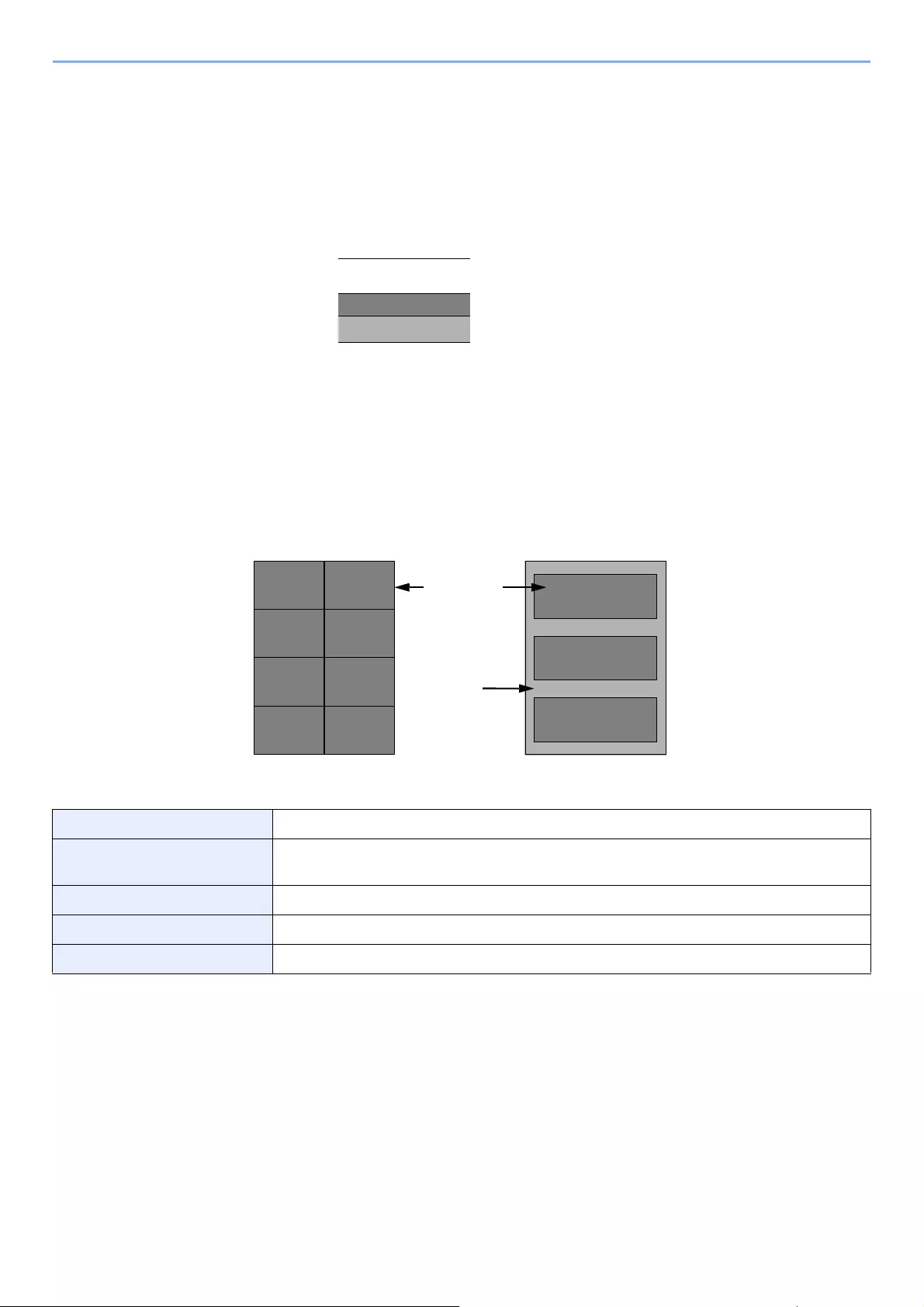
11-19
Appendix > Paper
Label
Be sure to feed labels from the multi purpose tray.
For selecting labels, use extreme care so that the adhesive may not come in direct contact with any part of the machine
and that the labels are not easily peeled from the carrier sheet. Adhesives that stick to the drum or rollers and peeled
labels remaining in the machine may cause a failure.
When printing onto labels, you must be liable for the print quality and possible trouble.
Labels consist of three layers as shown in the illustration. The adhesive layer contains materials that are easily affected
by the force applied in the machine. The carrier sheet bears the top sheet until the label is used. This composition of
labels may cause more problems.
The label surface must be covered completely with the top sheet. Gaps between labels may cause peeling of labels,
resulting in a serious failure.
Some label paper has large margins on the top sheet. When using such paper, do not peel these margins from the
carrier sheet before completing output.
Use label paper that conforms to the following specifications.
Top sheet weight 44 to 74 g/m²
Basis weight
(overall paper weight)
104 to 151 g/m²
Top sheet thickness 0.086 to 0.107 mm
Overall paper thickness 0.115 to 0.145 mm
Moisture content 4 to 6 % (composite)
Top sheet
Adhesive layer
Carrier sheet
Not allowedAllowed
Top sheet
Carrier sheet
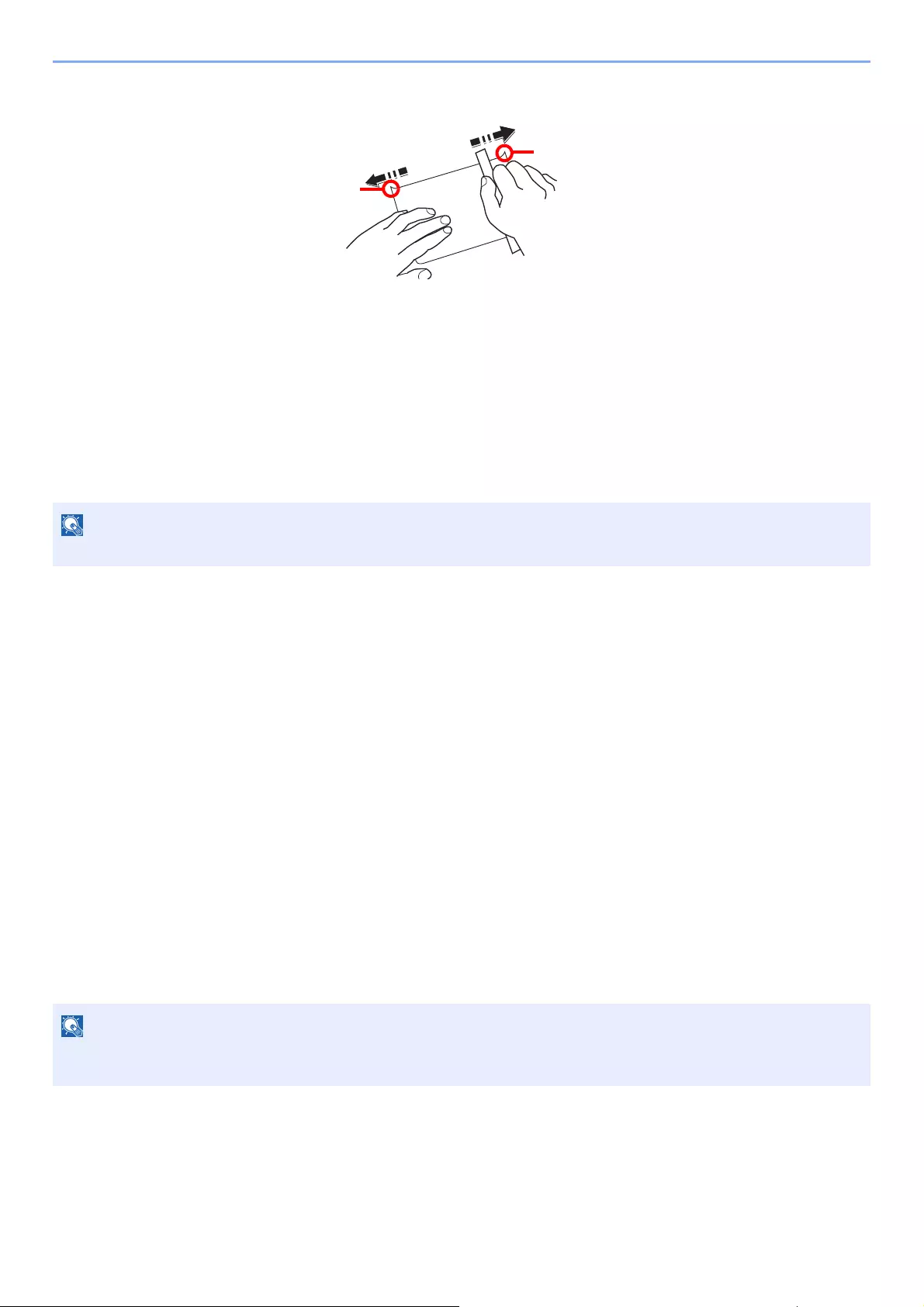
11-20
Appendix > Paper
Hagaki (Cardstock)
Before loading Hagaki (Cardstock) into the multi purpose tray, fan them and align the edges. If the Hagaki (Cardstock)
paper is curled, straighten it before loading. Printing onto curled Hagaki (Cardstock) may cause jams.
Use unfolded Oufuku hagaki (Return postcard) (available at post offices). Some Hagaki (Cardstock) may still have rough
edges developed by a paper cutter on the back side. Remove any such rough edges by placing the Hagaki (Cardstock)
on a flat surface and rubbing the edges gently a few times with a ruler.
Envelopes
Envelopes should be fed from the MP tray with the print-side up or the optional paper feeder with the print-side up.
Due to the structure of envelopes, printing evenly over the entire surface may not be possible in some cases. Thin
envelopes in particular may be wrinkled by the machine in some cases as they pass through. Before purchasing
envelopes in volume, try testing a sample to ensure the print quality.
Storing envelopes for a long period may cause them to become wrinkled. Thus, keep the package sealed until you are
ready to use them.
Keep the following points in mind.
• Do not use envelopes with exposed adhesive. In addition, do not use the type of envelope in which the adhesive is
exposed after the top layer is peeled off. Serious damage may be caused if the paper covering the adhesive comes
off in the machine.
• Do not use envelopes with certain special features. For example, do not use envelopes with a grommet for winding a
string to close the flap or envelopes with an open or film-covered window.
• If paper jams occur, load fewer envelopes at once.
Thick Paper
Before loading thick paper in the multi purpose tray, fan it and align the edges. Some thick paper may still have rough
edges developed by a paper cutter on the back side. Remove any such rough edges just as with Hagaki (Cardstock) by
placing the paper on a flat surface and rubbing the edges gently a few times with a ruler. Printing onto paper with rough
edges may cause jams.
Do not load paper above the load limits located on the paper width guide of the optional paper feeder.
If the paper is not supplied correctly even after it is smoothed, load the paper in the multi purpose tray with the leading
edge raised a few millimeters.
11-21
Appendix > Paper
Colored Paper
Colored paper must conform to the specifications.
Basic Paper Specifications (page 11-14)
In addition, the pigments in the paper must be able to withstand the heat of printing (up to 200°C or 392°F).
Preprinted Paper
Preprinted paper must conform to the specifications.
Basic Paper Specifications (page 11-14)
The colored ink must be able to withstand the heat of printing. It must be resistant to silicone oil as well. Do not use
paper with a treated surface such as glossy paper used for calendars.
Recycled Paper
Recycled paper must conform to the specifications; however, its whiteness may be considered separately.
Basic Paper Specifications (page 11-14)
Before purchasing recycled paper in volume, try testing a sample to ensure satisfactory print quality.
11-22
Appendix > Specifications
Specifications
Machine
Specifications are subject to change without notice.
For more information on using the FAX, refer to the following:
FAX Operation Guide
Item Description
Type Desktop
Printing Method Electrophotography by semiconductor laser
Paper Weight Cassette 60 to 120 g/m2
Multi Purpose
Tray
60 to 220 g/m2, 209.5 g/m2 (Cardstok),
136 to 163 g/m2 (Banner sheet)
Paper Type Cassette Plain, Rough, Recycled, Preprinted, Bond, Color (Colour),
Prepunched, Letterhead, High Quality, Custom 1 to 8
(Duplex: Same as Simplex)
Multi Purpose
Tray
Plain, Transparency (OHP film), Rough, Vellum, Labels, Recycled,
Preprinted, Bond, Cardstock, Color (Colour), Prepunched,
Letterhead, Envelope, Thick, High Quality, Custom 1 to 8
Paper Size Cassette A4, A5, A5 (Landscape), A6*1, B5, B6*1, Letter, Legal, Statement,
Statement (Landscape), Executive, Oficio II, Folio, 216 × 340 mm,
16K, B5 (ISO), Envelope DL*1, Envelope C5, Oufuku Hagaki (Return
postcard)*1,
Custom
(ECOSYS M3145idn/ECOSYS M3645idn: 140 × 148 to 216 × 356 mm,
ECOSYS M3655idn/ECOSYS M3660idn: 105 × 148 to 216 × 356 mm)
*1 ECOSYS M3655idn/ECOSYS M3660idn only
Multi Purpose
Tray
A4, A5, A5 (Landscape), A6, B5, B6, Folio, 216 × 340 mm, Letter,
Legal, Statement, Statement (Landscape), Executive, Oficio II, 16K,
B5 (ISO), Envelope #10, Envelope #9, Envelope #6 3/4,
Envelope Monarch, Envelope DL, Envelope C5, Hagaki (Cardstock),
Oufuku Hagaki (Return postcard), Youkei 4, Youkei 2, Custom
(70 × 148 mm to 216 × 356 mm),
Banner sheet (216 × 470.1 mm to 216 × 915 mm)
Warm-up Time
(22°C/71.6°F,
60%)
Power on ECOSYS M3145idn/ECOSYS M3645idn: 21 seconds or less
ECOSYS M3655idn/ECOSYS M3660idn: 25 seconds or less
Low Power
Mode
10 seconds or less
Sleep ECOSYS M3145idn/ECOSYS M3645idn: 21 seconds or less
ECOSYS M3655idn/ECOSYS M3660idn: 25 seconds or less
Paper Capacity Cassette 500 sheets (80 g/m2)*2
*2 Up to upper limit height line in the cassette.
Multi Purpose
Tray
100 sheets (80 g/m2)
11-23
Appendix > Specifications
Item Description
Output Tray
Capacity
Inner tray ECOSYS M3145idn/ECOSYS M3645idn: 250 sheets (80 g/m2)
ECOSYS M3655idn/ECOSYS M3660idn: 500 sheets (80 g/m2)
Image Write System Semiconductor laser and electrophotography
Memory 1024 MB
Interface Standard USB Interface Connector: 1 (Hi-Speed USB)
Network interface: 1 (10 BASE-T/100 BASE-TX/1000 BASE-T)
USB Port: 2 (Hi-Speed USB)
Fax: 1
(ECOSYS M3645idn/ECOSYS M3655idn/ECOSYS M3660idn only)
Option eKUIO: 1
Operating
Environment
Temperature 10 to 32.5°C/50 to 90.5°F
Humidity 15 to 80 %
Altitude 3,500 m/11,482 ft maximum
Brightness 1,500 lux maximum
Dimension
(W × D × H)
ECOSYS
M3145idn/
ECOSYS
M3645idn
18.71″ × 18.74″ × 22.64″
475 × 476 × 575 mm
ECOSYS
M3655idn/
ECOSYS
M3660idn
18.9″ × 19.49″ × 23.24″
480 × 495 × 590 mm
Weight
(without toner
container)
ECOSYS
M3145idn/
ECOSYS
M3645idn
Approx. 48.5 lb/Approx. 22.5 kg
ECOSYS
M3655idn/
ECOSYS
M3660idn
Approx.51.4 lb/Approx. 24.1 kg
Space Required
(W × D)
(Using multi
purpose tray)
ECOSYS
M3145idn/
ECOSYS
M3645idn
18.71″ × 26.23″
475 × 666 mm
ECOSYS
M3655idn/
ECOSYS
M3660idn
18.9″ × 26.97″
480 × 685 mm
Power Source 120 V Specification Model: 120 V 60 Hz 10.0 A
230 V Specification Model: 220 to 240 V 50/60 Hz 5.6 A
The power consumption of the
product in networked standby (If
all network ports are connected.)
The information is available at the website below.
http://www.kyoceradocumentsolutions.eu/index/environment/
green_products/low_power_consumption.html
Options Optional Equipment (page 11-2)

11-24
Appendix > Specifications
Copy Functions
Item Description
Copy Speed
(Standard
cassette)
ECOSYS
M3145idn/
ECOSYS
M3645idn
A4
Letter
Legal
B5
A5
Statement
45 sheets/min
47 sheets/min
38 sheets/min
36 sheets/min
23 sheets/min
22 sheets/min
ECOSYS
M3655idn
A4
Letter
Legal
B5
A5
A5 (Landscape)
Statement
Statement (Landscape)
A6
55 sheets/min
57 sheets/min
46 sheets/min
44 sheets/min
29 sheets/min
55 sheets/min
29 sheets/min
57 sheets/min
29 sheets/min
ECOSYS
M3660idn
A4
Letter
Legal
B5
A5
A5 (Landscape)
Statement
Statement (Landscape)
A6
60 sheets/min
62 sheets/min
50 sheets/min
48 sheets/min
32 sheets/min
60 sheets/min
32 sheets/min
62 sheets/min
32 sheets/min
First Copy Time
(A4, place on the platen, feed from
Cassette)
6 seconds or less
Zoom Level Manual mode: 25 to 400%, 1% increments
Auto mode: Preset Zoom
Continuous Copying 1 to 999 sheets
Resolution 600 × 600 dpi
Supported Original Types Sheet, Book, 3-dimensional objects (maximum original size: Legal/
Folio)
Original Feed System Fixed
11-25
Appendix > Specifications
Printer Functions
Item Description
Printing Speed Same as Copying Speed.
First Print Time
(A4, feed from Cassette)
ECOSYS M3145idn/ECOSYS M3645idn: 5.9 seconds or less
ECOSYS M3655idn/ECOSYS M3660idn: 4.9 seconds or less
Resolution Fast 1200, Fine 1200, 600 dpi
Operating System
Windows 7, Windows 8, Windows 8.1, Windows 10,
Windows Server 2008/R2, Windows Server 2012/R2,
Windows Server 2016
Mac OS 10.5 or later
Interface USB Interface Connector: 1 (Hi-Speed USB)
Network interface: 1 (10 BASE-T/100 BASE-TX/1000 BASE-T)
Optional Interface (Option): 1 (For IB-50/IB-51 mounting)
Wireless LAN (Option): 1 (For IB-36 mounting)
Parallel Interface (Option):1 (For IB-32B mounting)
Page Description Language PRESCRIBE
Emulations PCL6 (PCL-XL, PCL5e), KPDL3, XPS, Open XPS, TIFF/JPEG, IBM
Proprinter, LQ-850, LinePrint
11-26
Appendix > Specifications
Scanner Functions
Item Description
Resolution 600 dpi, 400 dpi, 300 dpi, 200×400 dpi, 200 dpi, 200×100 dpi
File Format TIFF (MMR/JPEG compression), JPEG, PDF (MMR/JPEG
compression), XPS, PDF/A, High compressive PDF, Encrypted PDF,
OPEN XPS, MS Office*1, Searchable PDF*1*2
*1 When the optional OCR Scan Activation Kit is installed.
*2 Microsoft Office 2007 or later
Scanning
Speed*3
*3 When using the document processor (except TWAIN and WIA scanning)
(A4 landscape,
200 dpi, Image
quality: Text/
Photo original)
ECOSYS M3145idn/ECOSYS M3645idn
1-sided B/W 60 Images/min
Color 40 Images/min
2-sided B/W 26 Images/min
Color 17 Images/min
ECOSYS M3655idn/ECOSYS M3660idn
1-sided B/W 60 Images/min
Color 45 Images/min
2-sided B/W 100 Images/min
Color 74 Images/min
(A4 landscape,
300 dpi, Image
quality: Text/
Photo original)
ECOSYS M3145idn/ECOSYS M3645idn
1-sided B/W 60 Images/min
Color 40 Images/min
2-sided B/W 26 Images/min
Color 17 Images/min
ECOSYS M3655idn/ECOSYS M3660idn
1-sided B/W 60 Images/min
Color 40 Images/min
2-sided B/W 100 Images/min
Color 64 Images/min
Interface Ethernet (10 BASE-T/100 BASE-TX/1000 BASE-T), USB
Transmission System SMB, SMTP, FTP, FTP over SSL, USB, TWAIN*4, WIA*4, WSD
*4 Available Operating System: Windows Server 2008/Windows Server 2008 R2/Windows 7/Windows 8/
Windows 8.1/Windows 10/Windows Server 2012/Windows Server 2012 R2/Windows Server 2016
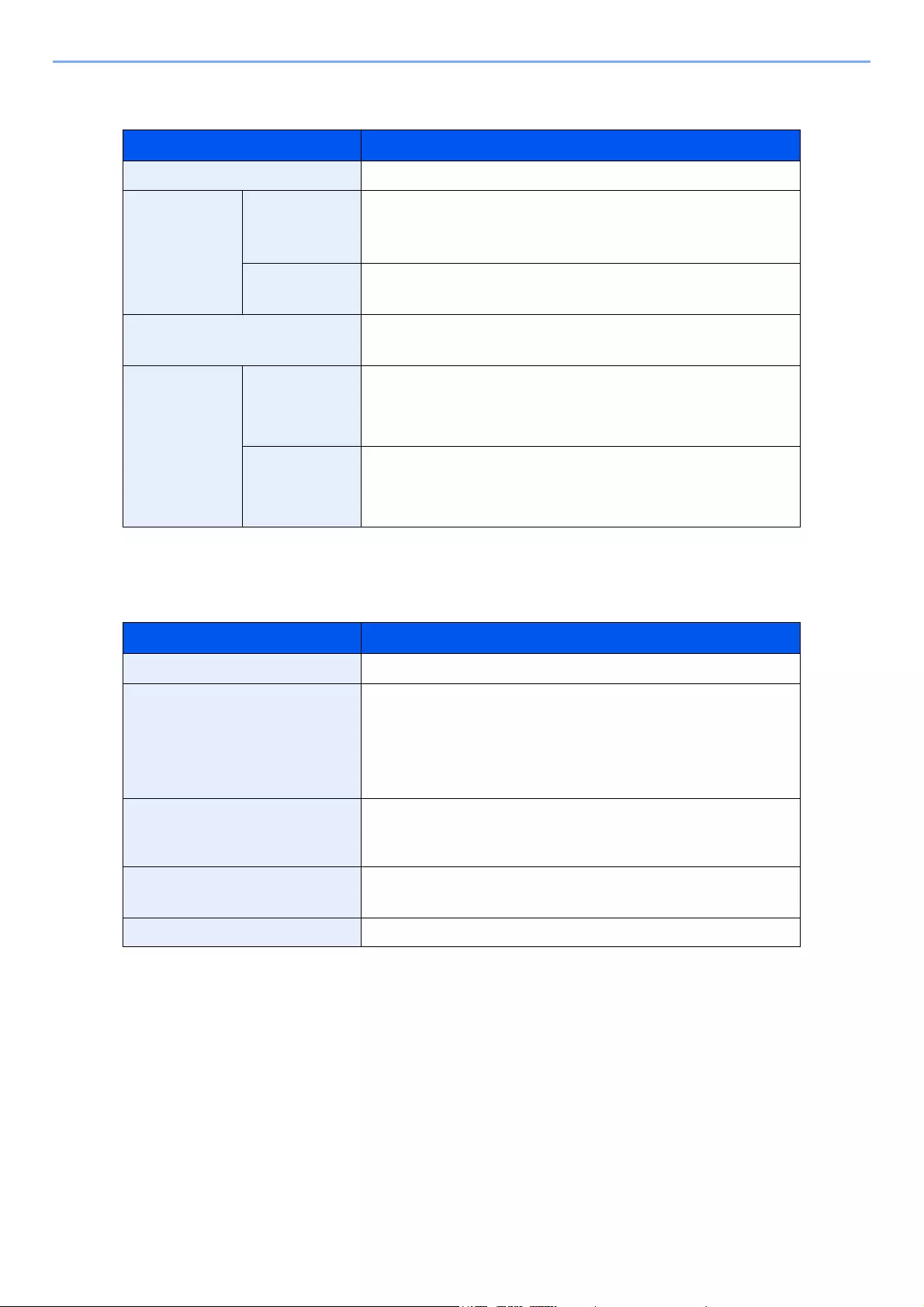
11-27
Appendix > Specifications
Document Processor
Paper Feeder (500-sheet) (Option)
Item Description
Supported Original Types Sheet originals
Paper Size Maximum 8.5″ × 14″
216 × 355.6 mm
(Long-sized 216 × 915 mm)
Minimum 4.13» × 5.82″
105 mm × 148 mm
Paper Weight 1-sided: 50 to 120 g/m²
2-sided: 50 to 120 g/m²
Loading
Capacity
ECOSYS
M3145idn/
ECOSYS
M3645idn
75 sheets (50 to 80 g/m²) maximum*1
*1 Up to upper limit height line in the document processor
ECOSYS
M3655idn/
ECOSYS
M3660idn
100 sheets (50 to 80 g/m²) maximum
Item Description
Paper Supply Method Friction roller feeder (No. Sheets: 500, 80 g/m²)
Paper Size A4, A5, A5 (Landscape), B5, B6, Folio, Letter, Legal, Statement,
Statement (Landscape), Executive, Oficio II, 16K, B5 (ISO),
Envelope #10, Envelope #9, Envelope #6 3/4, Envelope Monarch,
Envelope DL, Envelope C5,
Oufuku Hagaki (Return postcard), Youkei 4, Youkei 2,
Custom (92 × 162 to 216 × 356 mm)
Supported Paper Paper weight: 60 to 120 g/m²
Media types: Plain, Rough, Recycled, Preprinted, Bond,
Color (Colour), Prepunched, Letterhead, High Quality, Custom 1 to 8
Dimensions
(W) × (D) × (H)
14.97″ × 16.16″ × 4.77″
380 × 410 × 121 mm
Weight 8.4 lbs. or less/ 3.8 kg or less
11-28
Appendix > Specifications
Manual Stapler
(ECOSYS M3655idn/ECOSYS M3660idn only)
Item Description
Paper Weight 90 g/m² or less
Number of stapled sheets*1
*1 Paper stack up to 2mm thick.
20 sheets (80 g/m²) maximum, 15 sheets (90 g/m² or less) maximum
Dimensions
(W) × (D) × (H)
2.64″ × 6.5″ × 5.32″
67 × 165 × 135 mm
Weight 1.4 lbs. or less/ 0.6 kg or less
Consult your dealer or service representative for recommended paper types.

11-29
Appendix > Glossary
Glossary
Accessibility
The machine is designed featuring good accessibility even for the elderly and those who are physically challenged or
visually impaired. Touch panel is adjustable in two angles.
Apple Talk
AppleTalk offers file sharing and printer sharing and it also enables you to utilize application software that is on another
computer on the same AppleTalk network.
Auto Form Feed Timeout
During data transmission, the machine may sometimes have to wait until receiving the next data. This is the auto form
feed timeout. When the preset timeout passes, the machine automatically prints output. However, no output is
performed if the last page has no data to be printed.
Auto-IP
Auto-IP is a module that enables dynamic IPv4 addresses to be assigned to a device on startup. However, DHCP
requires a DHCP server. Auto-IP is a server-less method of choosing an IP address. IP addresses between 169.254.0.0
to 169.254.255.255 are reserved for Auto-IP and assigned automatically.
Auto Paper Selection
A function to automatically select paper in the same size as originals when printing.
Auto Sleep
A mode designed for electrical power saving, activated when the machine is left unused or there is no data transfer for a
specific period. In Sleep mode, power consumption is kept to a minimum.
Bonjour
Bonjour, also known as zero-configuration networking, is a service that automatically detects computers, devices and
services on an IP network. Bonjour, because an industry-standard IP protocol is used, allows devices to automatically
recognize each other without an IP address being specified or DNS server being set. Bonjour also sends and receives
network packets by UDP port 5353. If a firewall is enabled, the user must check that UDP port 5353 is left open so that
Bonjour will run correctly. Some firewalls are set up so as to reject only certain Bonjour packets. If Bonjour does not run
stably, check the firewall settings and ensure that Bonjour is registered on the exceptions list and that Bonjour packets
are accepted. If you install Bonjour on Windows OS, the Windows firewall will be set up correctly for Bonjour.
Custom Box
The Custom Box function stores print data for each individual user on the printer and allows the user to print single or
multiple copies of the stored data later using the printer’s operation panel.
Default Gateway
This indicates the device, such as a computer or router, that serves as the entrance/exit (gateway) for accessing
computers outside the network that you are on. When no specific gateway is designated for a destination IP address,
data is sent to the host designated as the Default Gateway.

11-30
Appendix > Glossary
DHCP (Dynamic Host Configuration Protocol)
Dynamic Host Configuration Protocol (DHCP) that automatically resolves IP addresses, subnet masks, and gateway
addresses on a TCP/IP network. DHCP minimizes the load of network management employing a large number of client
computers because it relieves individual clients including printers from the IP address being assigned.
DHCP (IPv6)
DHCP (IPv6) is the next-generation of the Internet’s Dynamic Host Configuration Protocol and supports IPv6. It extends
the BOOTP startup protocol that defines the protocols used for transferring configuration information to hosts on the
network. DHCP (IPv6) permits the DHCP server to use its expanded functionality to send configuration parameters to an
IPv6 node. Because the network addresses that can be used are allocated automatically, the IPv6 node management
workload is reduced in systems where the administrator has to exercise close control over IP address allocation.
dpi (dots per inch)
A unit for resolution, representing the number of dots printed per inch (25.4 mm).
EcoPrint Mode
A printing mode that helps save toner. Copies made in this mode are thus lighter than normal.
Emulation
The function to interpret and execute other printers‘ page description languages. The machine emulates operation of
PCL6, KPDL3 (PostScript 3 compatible).
Enhanced WSD
Kyocera’s proprietary web services.
FTP (File Transfer Protocol)
A protocol to transfer files on the TCP/IP network, whether the Internet or an intranet. Along with HTTP and SMTP/POP,
FTP is now frequently used on the Internet.
Grayscale
A computer color expression. Displayed images of this sort are typically composed of shades of gray, varying from black
at the weakest intensity to white at the strongest, without any other colors. Gray levels are displayed in numerical levels:
that is, white and black only for 1 bit; 256 gray levels (including white and black) for 8 bits; and 65,536 gray levels for 16
bits.
Help
A ? (Help) key is provided on this machine’s operation panel. If you are unsure of how to operate the machine, would like
more information on its functions or are having problems getting the machine to work properly, press the ? (Help) key to
view a detailed explanation on the touch panel.
IP Address
An Internet protocol address is a unique number that represents a specific computer or related device on the network.
The format of an IP address is four sets of numbers separated by dots, e.g. 192.168.110.171. Each number should be
between 0 and 255.

11-31
Appendix > Glossary
IPP
IPP (Internet Printing Protocol) is a standard that uses TCP/IP networks such as the Internet to enable print jobs to be
sent between remote computers and printers. IPP is an extension of the HTTP protocol used to view websites and
enables printing to be carried out via routers on printers in remote locations. It also supports the HTTP authentication
mechanisms along with SSL server and client authentication as well as encryption.
Job Box
The Job Box function stores print data on the printer and allows users to print single or multiple copies of the stored data
later using the printer‘s operation panel.
KPDL (Kyocera Page Description Language)
Kyocera’s PostScript page description language compatible with Adobe PostScript Level 3.
Multi Purpose (MP) Tray
The paper supply tray on the front side of the machine. Use this tray instead of the cassettes when printing onto
envelopes, Hagaki (Cardstock), transparencies, or labels.
NetBEUI (NetBIOS Extended User Interface)
An interface, developed by IBM in 1985, as an update from NetBIOS. It enables more advanced functions on smaller
networks than other protocols such as TCP/IP, etc. It is not suitable for larger networks due to lack of routing capabilities
to choose the most appropriate routes. NetBEUI has been adopted by IBM for its OS/2 and Microsoft for its Windows as
a standard protocol for file sharing and printing services.
Outline font
With outline fonts, character outlines are represented with numerical expressions and fonts can be enlarged or reduced
in different ways by changing the numeric values of those expressions. Printing remains clear even if you enlarge fonts,
since the characters are defined with outlines represented with numerical expressions. You can specify the font size in
steps of 0.25 points up to 999.75 points.
PDF/A
This is «ISO 19005-1. Document management — Electronic document file format for long-term preservation — Part 1: Use
of PDF (PDF/A)», and is a file format based on PDF 1.4. It has been standardized as ISO 19005-1, and is a
specialization of PDF, which has been mainly used for printing, for long-term storage. A new part, ISO 19005-2 (PDF/A-
2), is currently being prepared.
POP3 (Post Office Protocol 3)
A standard protocol to receive E-mail from the server in which the mail is stored on the Internet or an intranet.
PostScript
A page description language developed by Adobe Systems. It enables flexible font functions and highly-functional
graphics, allowing higher quality printing. The first version called Level 1 was launched in 1985, followed by Level 2 that
enabled color printing and two-byte languages (e.g. Japanese) in 1990. In 1996, Level 3 was released as an update for
the Internet access and PDF format as well as gradual improvements in implementation technologies.
PPM (prints per minute)
This indicates the number of A4 size printouts made in one minute.

11-32
Appendix > Glossary
Printer Driver
The software to enable you to print data created on any application software. The printer driver for the machine is
contained in the DVD enclosed in the package. Install the printer driver on the computer connected to the machine.
RA(Stateless)
The IPv6 router communicates (transmits) information such as the global address prefix using ICMPv6. This information
is the Router Advertisement (RA).
ICMPv6 stands for Internet Control Message Protocol, and is a IPv6 standard defined in the RFC 2463 «Internet Control
Message Protocol (ICMPv6) for the Internet Protocol Version 6 (IPv6) Specification».
RAM Disk
Using part of the printer’s memory as a virtual disk, you can set any amount of memory from overall printer memory as a
RAM disk in order to use features such as electronic sorting (shortening print time).
Send as E-mail
A function to send the image data stored in the machine as an E-mail attachment. E-mail addresses can be selected
from the list or entered at each time.
SMTP (Simple Mail Transfer Protocol)
A protocol for E-mail transmission over the Internet or an intranet. It is used for transferring mail between mail servers as
well as for sending mail from clients to their servers.
Status Page
The page lists machine conditions, such as the memory capacity, total number of prints and scans, and paper source
settings.
Subnet Mask
The subnet mask is a way of augmenting the network address section of an IP address.
A subnet mask represents all network address sections as 1 and all host address sections as 0. The number of bits in
the prefix indicates the length of the network address. The term «prefix» refers to something added to the beginning and,
in this context, indicates the first section of the IP address. When an IP address is written, the length of the network
address is indicated by the prefix length after a forward slash (/). For example, «24″ in the address «133.210.2.0/24″. In
this way, «133.210.2.0/24» denotes the IP address «133.210.2.0» with a 24-bit prefix (network section). This new network
address section (originally part of the host address) made possible by the subnet mask is referred to as the subnet
address. When you enter the subnet mask, be sure to set the «DHCP» setting to «Off».
TCP/IP (Transmission Control Protocol/Internet Protocol)
TCP/IP is a suite of protocols designed to define the way computers and other devices communicate with each other
over a network.
TCP/IP (IPv6)
TCP/IP (IPv6) is based on the current Internet protocol, TCP/IP (IPv4). IPv6 is the next-generation Internet protocol and
expands the available address space, which resolves the problem of the lack of addresses under IPv4, while also
introducing other improvements such as additional security functionality and the capacity to prioritize data transmission.

11-33
Appendix > Glossary
TWAIN (Technology Without An Interesting Name)
A technical specification for connecting scanners, digital cameras, and other image equipment to computers. The
TWAIN compatible devices enable you to process image data on any relevant application software. TWAIN is adopted
on a large amount of graphic software (e.g. Adobe Photoshop) and OCR software.
USB (Universal Serial Bus) 2.0
A USB interface standard for Hi-Speed USB 2.0. The maximum transfer rate is 480 Mbps. This machine is equipped with
USB 2.0 for high-speed data transfer.
WIA (Windows Imaging Acquisition)
A function to import images supported after Windows Me/XP from digital cameras and other peripheral devices. This
function replaces what TWAIN used to do. The feature is provided as a part of Windows functions and improves ease of
operation, so that you import images directly to My Computer without using any application.

Index-1
Index
A
Accessibility 11-29
Address Book 3-28
Adding 3-28
Contact 3-28
Editing and Deleting 3-32
Group 3-31
Address Book/One Touch 8-23
Adjustment/Maintenance 8-49
Print Density 8-49
Sharpness Adjustment 8-49
AirPrint 4-11
Anti-theft Lock Slot 2-3
Apache License (Version 2.0) 1-15
Apple Talk 11-29
Application 5-11, 8-22
Auto Color Correction 8-50
Auto Drum Refresh 8-50
Auto Error Clear 8-48
Auto Form Feed Timeout 11-29
Auto Panel Reset 8-46
Auto Paper Selection 11-29
Auto Sleep 2-34, 11-29
Auto-IP 11-29
Settings 8-29
Automatic 2-Sided Print Function 1-18
B
Background Density Adjustment 6-17, 8-49
Default 8-15
Bluetooth Settings 8-41
Bonjour 11-29
Settings 8-31
C
Cables 2-7
Card Authentication Kit 11-3
Card Reader 2-6
Cassette
Loading Paper 3-4, 3-8
Paper Size and Media Type 3-15, 8-8
Cassette 1 2-2
Cassette Settings 3-15
Cassette/MP Tray Settings 8-8
Cassettes 2 to 5 2-6
Character Entry Method 11-11
Checking the Counter 2-50
Checking the Remaining Amount of Toner 7-13
Cleaning 10-2
Glass Platen 10-2
Registration Roller 10-4
Slit Glass 10-3
Collate 6-13
Default 8-15
Color Selection 6-15
Default 8-15
Combine 6-20
Command Center RX 2-53
Common Settings 8-10
Default Screen 8-10
Display Status/Log 8-19
Error Handling 8-17
Function Defaults 8-15
Function Key Assignment 8-19
Keyboard Layout 8-18
Low Toner Alert 8-18
Measurement 8-18
Message Banner Print 8-20
Optional Keyboard Type 8-18
Original Settings 8-11
Paper Settings 8-12
Preset Limit 8-17
Remote Printing 8-19
Sound 8-10
Connecting
LAN Cable 2-8
Power Cable 2-9
USB cable 2-9
Connection Method 2-7
Continuous Scan 6-24
Default 8-16
Contrast 6-16, 8-49
Conventions Used in This Guide xix
Copy 5-16
Copy Settings 8-20
Auto % Priority 8-20
Auto Paper Selection 8-20
Reserve Next Priority 8-20
Copy Speed 11-24
Correcting Black Line 8-50
Counting the Number of Pages Printed
Counter 2-50
Each Job Account 9-45
Print Accounting Report 9-46
Total Accounting 9-45
Unknown ID Job 9-48
Custom Box 11-29
Creating a New Box 5-39
Deleting Documents 5-47
Editing and Deleting Custom Box 5-41
Printing Documents 5-46
Send 5-47
Storing Documents 5-42
D
Data Sanitization 8-44
Data Security 8-43
Data Security Kit 11-7
Date Format 8-46
Date/Time 8-46

Index-2
Date/Timer/Energy Saver 8-46
Auto Error Clear 8-48
Auto Panel Reset 8-46
Date Format 8-46
Date/Time 8-46
Energy Saver Recovery Level 8-47
Error Clear Timer 8-48
Low Power Timer 8-46
Panel Reset Timer 8-46
Ping Timeout 8-48
Power Off Rule 8-48
Power Off Timer 8-48
Sleep Level 8-46
Sleep Rules 8-47
Sleep Timer 8-47
Time Zone 8-46
Unusable Time 8-48
Weekly Timer Settings 8-47
Default Gateway 11-29
Settings 8-29
Default Screen 8-10
Delete after Printed 6-34
Density 6-13
Density Adjustment 8-49
Destination
Adding a Destination 3-28
Address Book 5-20
Checking and Editing 5-25
Confirmation Screen of Destinations 5-26
Dest. Check before Send 8-21
Entering a New E-mail Address 5-22
Entry Check for New Dest. 8-21
Multi Sending 5-28
One Touch Key 3-33
Search 5-21
Sort 8-23
Specifying a New PC Folder 5-23
Device 7-11
DHCP 11-30
Settings 8-29
DHCP (IPv6) 11-30
Settings 8-30
Display Brightness 8-50
Display Status/Log 8-19
Document Box
Custom Box 5-37, 5-39
Job Box 4-12, 5-37
Removable Memory Box 5-37
What is Document Box? 5-37
Document Box Settings 8-22
Custom Box 8-22
Job Box 8-22
Polling Box 8-22
Sub Address Box 8-22
Document Processor
How to Load Originals 5-3
Loading Originals 5-3
Originals Not Supported by the Document
Processor 5-3
Originals Supported by the Document
Processor 5-3
Part Names 2-2
dpi 11-30
Drum Refresh 8-50
Drum Refresh 1 8-50
DSM Scan
Protocol Settings 8-33
Duplex 6-22
Duplex (2-sided Original) 6-27
Duplex Cover 2-4
E
EcoPrint 6-15, 11-30
Default 8-15
Printer 8-24
Edit Destination
Address Book 3-28
Address Book Defaults 8-23
Contact 3-28
Edit Restriction 8-24
Group 3-31
One Touch Key 3-33
E-mail Settings 2-59
E-mail Subject/Body 6-33
Default 8-16
Emulation 11-30
Selection 8-24
Encrypted PDF Password 6-35
Energy Saver Recovery Level 8-47
Energy Saving Control Function 1-18
Energy Star (ENERGY STAR®) Program 1-19
Enhanced WSD 11-30
Protocol Settings 8-35
Enhanced WSD over SSL
Protocol Settings 8-35
Enter key 2-20
Entry
File Name 6-25
Subject 6-33
Environment 1-3
Error Clear Timer 8-48
Error Handling 8-17
eSCL
Protocol Settings 8-36
eSCL over SSL
Protocol Settings 8-36
Expansion Memory 11-4
External Address Book
Default 8-23
F
Favorites 5-6
Editing and Deleting 5-10
Recalling 5-9
Registering 5-7
FAX 8-22
File
Format 6-29
PDF 6-30
Separation 6-33

Index-3
File Format 6-29
Default 8-15
File Management Utility Connection 5-33
File Name Entry 6-25
Default 8-16
File Separation 6-33
Default 8-15
First Copy Time 11-24
First Print Time 11-25
Front Cover 2-2
Front Cover Open Button 2-2
FTP 11-30
FTP Client (Transmission)
Protocol Settings 8-32
FTP Encrypted TX 6-34
Default 8-16
FTP Server (Reception)
Protocol Settings 8-32
Function Defaults 8-15
Background Density Adj. (Copy) 8-15
Background Density Adj. (Send/Store) 8-15
Collate 8-15
Color Selection 8-15
Continuous Scan (Copy) 8-16
Continuous Scan (FAX) 8-16
Continuous Scan (Send/Store) 8-16
Detect Items to Skip (Copy) 8-17
Detect Items to Skip (Send/Store) 8-17
EcoPrint 8-15
E-mail Subject/Body 8-16
FAX TX Resolution 8-16
File Format 8-15
File Name Entry 8-16
File Separation 8-15
FTP Encrypted TX 8-16
High Comp. PDF Image 8-17
Image Quality 8-17
JPEG/TIFF Print 8-16
OCR Output Format 8-17
OCR Text Recognition 8-17
Original Image (Copy) 8-15
Original Image (Send/Store) 8-15
Original Orientation (Copy) 8-15
Original Orientation (Send/Store) 8-15
PDF/A 8-17
Prevent Bleed-through (Copy) 8-15
Prevent Bleed-through (Send/Store) 8-15
Primary OCR Language 8-17
Scan Resolution 8-15
Skip Blank Page (Copy) 8-16
Skip Blank Page (Send/Store) 8-16
XPS Fit to Page 8-16
Zoom 8-16
Function Key Assignment 8-19
Fuser Cover 2-4
G
Glossary 11-29
Google Cloud Print 4-11
GPL/LGPL 1-13
Grayscale 11-30
Group Authorization Set. 9-19
Group Authorization 9-19
Group List 9-20
Group Authorization Settings 9-19
Guest Authorization Set. 9-22
Guest Authorization 9-22
Guest Property 9-23
Guides Provided with the Machine xvi
H
Handle 2-2
Help 11-30
Help Screen 2-21
High Comp. PDF Image 6-29
Default 8-17
Home 8-20
Customize Desktop 2-14
Customize Taskbar 2-14
Wallpaper 2-14
Home Screen 2-13
Host Name 8-27
HTTP
Protocol Settings 8-33
HTTPS
Protocol Settings 8-33
I
Image Quality 6-29
Default 8-17
Inner Tray 2-2
Install
Macintosh 2-45
Software 2-37
Windows 2-38
Interface Block Setting 8-41
Internet 8-23
Proxy 8-23, 8-38
IP Address 11-30
Settings 8-29
IP Filter (IPv4)
Settings 8-31
IP Filter (IPv6)
Settings 8-31
IPP 11-31
Protocol Settings 8-34
IPP over SSL
Protocol Settings 8-34
IPSec
Settings 8-31

Index-4
J
Job
Available Status 7-2
Canceling 7-10
Checking History 7-8
Checking Status 7-2
Detailed Information 7-7
Detailed Information of Histories 7-9
Details of the Status Screens 7-3
Displaying History Screen 7-9
Displaying Status Screens 7-2
Pause and Resumption 7-10
Sending the Log History 7-9
Job Accounting 9-33
Adding an Account 9-36
Counting the Number of Pages Printed 9-45
Default Setting 9-44
Deleting an Account 9-39
Editing an Account 9-38
Enabling Job Accounting 9-34
FAX Driver 9-43
Job Accounting Access 9-35
Login 9-47
Logout 9-47
Overview of Job Accounting 9-33
Print Accounting Report 9-46
Printing 9-40
Restricting the Use of the Machine 9-37
TWAIN 9-41
WIA 9-42
Job Box 11-31
Deletion of Job Retention 8-22
Private Print Box 4-13
Proof and Hold Box 4-19
Quick Copy Box 4-17
Quick Copy Job Retention 8-22
Specifying the Job Box from a Computer and Storing
the Job 4-12
Storage Media 8-22
Stored Job Box 4-15
Job Finish Notice 6-24
JPEG/TIFF Print 6-36
Default 8-16
K
Keyboard Layout 8-18
Knopflerfish License 1-15
KPDL 11-31
L
Label 11-19
LAN Cable 2-7
Connecting 2-8
Language 8-5
LDAP
Protocol Settings 8-33
Left Cover 2-5
Legal Information 1-12
Legal Restriction on Copying 1-10
Legal Restriction on Scanning 1-10
Limited Use of This Product 1-11
LINE Connector 2-4
Loading Originals 5-2
Loading Originals in the Document Processor 5-3
Placing Originals on the Platen 5-2
Local Authorization 9-18
Login 2-22
Logout 2-23
Long Original 6-34
Low Power Mode 2-33
Low Power Timer 8-46
Low Toner Alert 8-18
LPD
Protocol Settings 8-32
M
Management 9-1
Manual Setting (IPv6) 8-30
Manual Stapler 2-6
Manual stapler 11-7
Measurement 8-18
Media Type Setting 8-14
Mixed Size Originals 6-10, 6-13
Monotype Imaging License Agreement 1-14
Mopria 4-11
Multi Purpose Tray 2-4, 11-31
Paper Size and Media Type 3-16, 8-9
Multi Sending 5-28
N
NetBEUI 11-31
Protocol Settings 8-31
Network
Preparation 2-25
Settings 8-27
Network Interface 2-7
Network Interface Connector 2-4
Network Interface Kit 11-6
Network Setup
Wi-Fi Direct Settings 2-31
Wired Network 2-25
Wireless Network 2-27
New E-mail Address 5-22
New PC Folder 5-23
Notice 1-2
O
OCR Dictionary Installation 8-44
One Touch Key
Adding 3-33
Editing and Deleting 3-34
OpenSSL License 1-13
Operation Panel 2-2

Index-5
Option
Card Authentication Kit 11-3
Data Security Kit 11-7
Expansion Memory 11-4
Manual stapler 11-7
Network Interface Kit 11-6
Optional Keyboard 11-8
Overview 11-2
Paper Feeder 11-3
Parallel Interface Kit 11-7
Rear Tray 11-7
SD Card 11-5
SSD 11-6
ThinPrint Option 11-8
Wireless Network Interface Kit 11-7
Option Interface Slot 2-4
Optional Applications 11-9
Optional Function 8-45
Optional Keyboard 11-8
Optional Keyboard Type 8-18
Optional Memory 8-42
Optional Network
Basic 8-39
Wireless Network 8-38
Original
Auto Detect Original Size (DP) 8-11
Custom Original Size 8-11
Default Original Size 8-11
Settings 8-11
Original eject table 2-2
Original Image 6-14
Default 8-15
Original Orientation 6-12
Original Orientation (Copy)
Default 8-15
Original Orientation (Send/Store)
Default 8-15
Original Settings 8-11
Original Size 6-10
Original Size Indicator Plates 2-2
Original SSLeay License 1-13
Original Stopper 2-2, 5-5
Original Table 2-2
Original Width Guides 2-2
Outline font 11-31
P
Panel Reset Timer 8-46
Paper
Checking the Remaining Amount of Paper 7-13
Appropriate Paper 11-15
Cassette 8-8
Custom Paper Size 8-12
Default Paper Source 8-13
Loading Cardstock 3-14
Loading Envelopes 3-14
Loading Paper 3-2
Loading Paper in the Cassettes 3-4
Loading Paper in the Multi Purpose Tray 3-11
Loading Statement in the Cassettes 3-8
Media for Auto 8-13
Media Type Setting 8-13
Multi Purpose Tray 8-9
Paper Settings 8-12
Precaution for Loading Paper 3-3
Size and Media Type 3-15, 8-8, 11-14
Special Paper 11-18
Special Paper Action 8-13
Specifications 11-14
Weight 8-14
Paper Feed Mode 8-26
Paper Feeder 11-3
Paper Jams 10-31
Cassettes 1 to 5 10-33
Document Processor 10-37
Duplex Unit 10-34
Inner Tray 10-36
Inside Rear Cover 10-36
Inside the Machine 10-35
Jam Location Indicators 10-31
Multi Purpose Tray 10-32
Paper Length Guide 2-4, 3-5, 3-8
Paper Selection 6-11
Paper Settings 8-12
Paper Stopper 2-2, 2-6, 3-17
Paper Width Guides 2-4, 3-5, 3-8
Parallel Interface Kit 11-7
Part Names 2-2
PDF/A 6-29, 11-31
Default 8-17
PIN Code Authorization 9-31
Ping 8-37
Platen 2-2
POP3 11-31
POP3 (E-mail RX)
Protocol Settings 8-32
PostScript 11-31
Power Cable
Connecting 2-9
Power Management 1-18
Power Off 2-10
Power Off Rule 8-48
Power Off Timer 8-48
Power On 2-10
Power Switch 2-2
PPM 11-31
Precaution for Loading Paper 3-3
Precautions for Use 1-4

Index-6
Preset Limit 8-17
Prevent Bleed-through
Default 8-15
Prevent Bleed-thrugh 6-17
Primary Network (Client) 8-38, 8-40
Print Density 8-49
Print Settings 4-9
Printer 8-24
Auto Cassette Change 8-26
Copies 8-25
CR Action 8-25
Duplex 8-25
EcoPrint 8-24
Emulation 8-24
Form Feed TimeOut 8-25
Job Name 8-25
KIR 8-26
LF Action 8-25
MP Tray Priority 8-25
Orientation 8-25
Override A4/Letter 8-25
Paper Feed Mode 8-26
Paper Output 8-25
Print setting 4-9
Printing Job Terminator 8-26
Resolution 8-26
User Name 8-25
Wide A4 8-25
Printer Driver 11-32
Help 4-10
Printing Documents Stored in Removable USB
Memory 5-50
Printing from PC 4-2
Printing Speed 11-25
Priority Override 6-25
Product Library xvii
Proxy 8-38
Q
Quick No. Search key 2-20
Quick Setup Wizard 2-35
Quiet Mode 6-25
Quiet Mode Settings 8-49
R
RA (Stateless) 11-32
Settings 8-30
RAM Disk 11-32
RAM Disk Setting 8-42
Raw Port
Protocol Settings 8-34
Rear Cover 1 2-3
Rear Tray 2-6, 11-7
Recycled Paper 11-21
Regarding Trade Names 1-12
Registration Roller 2-5
Regular Maintenance 10-2
Toner Container Replacement 10-6
Waste Toner Box Replacement 10-10
Remote Printing 8-19
Report 8-5
Admin Report Settings 8-6
Report Print 8-5
Result Report Settings 8-7
Sending Log History 8-7
Report Print
Accounting Report 8-6
Font List 8-5
Network Status 8-6
Optional Network Status 8-6
Service Status 8-6
Status Page 8-5
Resolution 6-33, 8-26, 11-24, 11-25
Resource Saving — Paper 1-18
Responding to Messages 10-18
REST
Protocol Settings 8-36
REST over SSL
Protocol Settings 8-37
Restart 8-42
Restart Network 8-38
S
Safety Conventions in This Guide 1-2
Saving Documents to USB Memory 5-52
Scan Resolution 6-33
Default 8-15
SD Card 11-5
Security Level 8-41
Security Precautions when Using Wireless LAN 1-10
Send and Forward 8-21
Send as E-mail 5-18
Send Result Report 8-7
Send Settings 8-21
Broadcast 8-21
Color TIFF Compression 8-21
Default Screen 8-21
Dest. Check before Send 8-21
Entry Check for New Dest. 8-21
New Destination Entry 8-21
OCR Text Recognition Action 8-21
Recall Destination 8-21
Send and Forward 8-21
Send to Folder (FTP) 5-18
Send to Folder (SMB) 5-18
Sending 5-18
Preparation for Sending a Document to a PC 3-18
Sending Size 6-28
Service Setting 8-50
Setting Date and Time 2-24
Sharpness 6-16
Shortcuts 5-14
Adding 5-14
Editing and Deleting Shortcuts 5-15
Simple Login 2-23
Simple Login Settings
Simple Login 9-27
Simple Login Setup 9-28
Size Dial 2-4
Skip Blank Page 6-26

Index-7
Sleep 2-33
Sleep Level 2-34, 8-46
Sleep Rules 2-34, 8-47
Sleep Timer 8-47
Slit Glass 2-2
SMB Client (Transmission)
Protocol Settings 8-32
SMTP 11-32
SMTP (E-mail TX)
Protocol Settings 8-32
SNMPv1/v2c
Protocol Settings 8-33
SNMPv3
Protocol Settings 8-33
Solving Malfunctions 10-13
Sound 8-10
Specifications 11-22
Copy Functions 11-24
Document Processor 11-27
Machine 11-22
Manual Stapler 11-28
Paper Feeder (500-sheet) (Option) 11-27
Scanner Functions 11-26
Specifying Destination 5-20
SSD 11-6
SSD Initialization 8-43
SSL 8-37
Status Page 11-32
Status/Job Cancel 7-1
Storing Size 6-35
Subnet Mask 11-32
Settings 8-29
Supplies
Checking the Remaining Amount 7-13
Symbols 1-2
System Menu 8-2
Address Book/One Touch 8-23
Adjustment/Maintenance 8-49
Application 8-22
Cassette/MP Tray Settings 8-8
Common Settings 8-10
Copy 8-20
Date/Timer/Energy Saver 8-46
Document Box 8-22
FAX 8-22
Home 2-13
Internet 8-23
Language 8-5
Operation Method 8-2
Printer 8-24
Quick Setup Wizard 2-35
Report 8-5
Send 8-21
System/Network 8-27
User Login/Job Accounting 8-24
User Property 8-7, 9-11
System/Network 8-27
Bluetooth Settings 8-41
Data Security 8-43
FAX Server Settings 8-45
Interface Block Setting 8-41
Network 8-27
OCR Dictionary Installation 8-44
Optional Function 8-45
Optional Memory 8-42
Optional Network 8-38
Primary Network (Client) 8-38, 8-40
RAM Disk Setting 8-42
Restart 8-42
Security Level 8-41
T
TCP/IP 11-32
Settings 8-29, 8-30
TCP/IP (IPv4)
Settings 2-25, 8-29
TCP/IP (IPv6) 11-30
Settings 8-30
TEL Connector 2-4
ThinPrint
Protocol Settings 8-35
ThinPrint Option 11-8
ThinPrint over SSL
Protocol Settings 8-35
Time Zone 8-46
Toner Container 2-5
Toner Container Lock Lever 2-5
Toner Container Replacement 10-6
Toner Save Level (EcoPrint) 8-49
Touch Panel 2-13
Tray Extension 2-4
Troubleshooting 10-13
TWAIN 11-33
Scanning using TWAIN 5-32
Setting TWAIN Driver 2-47
U
USB 11-33
USB Cable
Connecting 2-9
USB Interface 2-7
USB Interface Connector 2-4
USB Memory
Printing 5-50
Remove 5-54
Save 5-52
USB Memory Slot 2-2

Index-8
User Login Administration 9-2
Adding a User 9-6
Changing User Properties 9-9
Enabling User Login Administration 9-3
FAX Driver 9-17
Group Authorization Settings 9-19
Guest Authorization Set. 9-22
ID Card Settings 9-30
Local Authentication 9-18
Login 2-22
Logout 2-23
Obtain NW User Property 9-25
Overview of User Login Administration 9-2
Password Policy Settings 9-5
PIN Code Authentication 9-31
Printing 9-13
Simple Login Settings 9-27
TWAIN 9-15
User Account Lockout Setting 9-4
WIA 9-16
User Login/Job Accounting 8-24
Job Accounting 9-33
Unknown ID Job 9-48
Unknown User Settings 9-48
User Login 9-2
User Property 8-7
W
Waste Toner Box 2-5
Waste Toner Box Replacement 10-10
Weekly Timer Settings 8-47
WIA 11-33
Setting WIA Driver 2-49
Wi-Fi
Settings 2-27, 8-27
Wi-Fi Direct
Printing 4-11
Settings 2-31, 8-27
Wireless Connection 1-10
Wireless Network
Settings 2-27, 8-38
Wireless Network Interface Kit 11-7
WSD Print
Protocol Settings 8-32
WSD Scan 5-30
Protocol Settings 8-32
X
XPS Fit to Page 6-36
Default 8-16
Z
Zoom 6-18
Default 8-16


KYOCERA Document Solutions America, Inc.
Headquarters
225 Sand Road,
Fairfield, New Jersey 07004-0008, USA
Phone: +1-973-808-8444
Fax: +1-973-882-6000
Latin America
8240 NW 52nd Terrace Dawson Building, Suite 100
Miami, Florida 33166, USA
Phone: +1-305-421-6640
Fax: +1-305-421-6666
KYOCERA Document Solutions Canada
, Ltd.
6120 Kestrel Rd., Mississauga, ON L5T 1S8,
Canada
Phone: +1-905-670-4425
Fax: +1-905-670-8116
KYOCERA Document Solutions
Mexico, S.A. de C.V.
Calle Arquimedes No. 130, 4 Piso, Colonia Polanco
Chapultepec, Delegacion Miguel Hidalgo,
Distrito Federal, C.P. 11560, México
Phone: +52-555-383-2741
Fax: +52-555-383-7804
KYOCERA Document Solutions Brazil, Ltda.
Alameda África, 545, Pólo Empresarial Consbrás,
Tamboré, Santana de Parnaíba, State of São Paulo, CEP
06543-306, Brazil
Phone: +55-11-2424-5353
Fax: +55-11-2424-5304
KYOCERA Document Solutions Chile SpA
Jose Ananias 505, Macul. Santiago, Chile
Phone: +562-2350-7000
Fax: +562-2350-7150
KYOCERA Document Solutions
Australia Pty. Ltd.
Level 3, 6-10 Talavera Road North Ryde N.S.W, 2113,
Australia
Phone: +61-2-9888-9999
Fax: +61-2-9888-9588
KYOCERA Document Solutions
New Zealand Ltd.
Ground Floor, 19 Byron Avenue, Takapuna, Auckland,
New Zealand
Phone: +64-9-415-4517
Fax: +64-9-415-4597
KYOCERA Document Solutions Asia Limited
13/F.,Mita Centre, 552-566, Castle Peak Road Tsuen Wan,
New Territories, Hong Kong
Phone: +852-2496-5678
Fax: +852-2610-2063
KYOCERA Document Solutions
(China) Corporation
8F, No. 288 Nanjing Road West, Huangpu District,
Shanghai,200003, China
Phone: +86-21-5301-1777
Fax: +86-21-5302-8300
KYOCERA Document Solutions
(Thailand) Corp., Ltd.
335 Ratchadapisek Road, Wongsawang, Bangsue,
Bangkok 10800,
Thailand
Phone: +66-2-586-0333
Fax: +66-2-586-0278
KYOCERA Document Solutions
Singapore Pte. Ltd.
12 Tai Seng Street #04-01A,
Luxasia Building, Singapore 534118
Phone: +65-6741-8733
Fax: +65-6748-3788
KYOCERA Document Solutions
Hong Kong Limited
16/F.,Mita Centre, 552-566, Castle Peak Road Tsuen Wan,
New Territories, Hong Kong
Phone: +852-3582-4000
Fax: +852-3185-1399
KYOCERA Document Solutions
Taiwan Corporation
6F., No.37, Sec. 3, Minquan E. Rd.,
Zhongshan Dist., Taipei 104, Taiwan R.O.C.
Phone: +886-2-2507-6709
Fax: +886-2-2507-8432
KYOCERA Document Solutions Korea Co., Ltd.
#10F Daewoo Foundation Bldg 18, Toegye-ro, Jung-gu,
Seoul, Korea
Phone: +822-6933-4050
Fax: +822-747-0084
KYOCERA Document Solutions
India Private Limited
Second Floor, Centrum Plaza, Golf Course Road,
Sector-53, Gurgaon, Haryana 122002, India
Phone: +91-0124-4671000
Fax: +91-0124-4671001

KYOCERA Document Solutions Europe B.V.
Bloemlaan 4, 2132 NP Hoofddorp,
The Netherlands
Phone: +31-20-654-0000
Fax: +31-20-653-1256
KYOCERA Document Solutions Nederland B.V.
Beechavenue 25, 1119 RA Schiphol-Rijk,
The Netherlands
Phone: +31-20-5877200
Fax: +31-20-5877260
KYOCERA Document Solutions (U.K.) Limited
Eldon Court, 75-77 London Road,
Reading, Berkshire RG1 5BS,
United Kingdom
Phone: +44-118-931-1500
Fax: +44-118-931-1108
KYOCERA Document Solutions Italia S.p.A.
Via Monfalcone 15, 20132, Milano, Italy,
Phone: +39-02-921791
Fax: +39-02-92179-600
KYOCERA Document Solutions Belgium N.V.
Sint-Martinusweg 199-201 1930 Zaventem,
Belgium
Phone: +32-2-7209270
Fax: +32-2-7208748
KYOCERA Document Solutions France S.A.S.
Espace Technologique de St Aubin
Route de I’Orme 91195 Gif-sur-Yvette CEDEX,
France
Phone: +33-1-69852600
Fax: +33-1-69853409
KYOCERA Document Solutions Espana, S.A.
Edificio Kyocera, Avda. de Manacor No.2,
28290 Las Matas (Madrid), Spain
Phone: +34-91-6318392
Fax: +34-91-6318219
KYOCERA Document Solutions Finland Oy
Atomitie 5C, 00370 Helsinki,
Finland
Phone: +358-9-47805200
Fax: +358-9-47805212
KYOCERA Document Solutions
Europe B.V., Amsterdam (NL) Zürich Branch
Hohlstrasse 614, 8048 Zürich,
Switzerland
Phone: +41-44-9084949
Fax: +41-44-9084950
KYOCERA Bilgitas Document Solutions
Turkey A.S.
Altunizade Mah. Prof. Fahrettin Kerim Gökay Cad. No:45
34662 ÜSKÜDAR øSTANBUL, TURKEY
Phone: +90-216-339-0020
Fax: +90-216-339-0070
is a trademark of KYOCERA Corporation
KYOCERA Document Solutions
Deutschland GmbH
Otto-Hahn-Strasse 12, 40670 Meerbusch,
Germany
Phone: +49-2159-9180
Fax: +49-2159-918100
KYOCERA Document Solutions Austria GmbH
Wienerbergstraße 11, Turm A, 18. OG, 1100 Wien,
Austria
Phone: +43-1-863380
Fax: +43-1-86338-400
KYOCERA Document Solutions Nordic AB
Esbogatan 16B 164 75 Kista, Sweden
Phone: +46-8-546-550-00
Fax: +46-8-546-550-10
KYOCERA Document Solutions Norge Nuf
Olaf Helsetsv. 6, 0619 Oslo, Norway
Phone: +47-22-62-73-00
Fax: +47-22-62-72-00
KYOCERA Document Solutions Danmark A/S
Ejby Industrivej 60, DK-2600 Glostrup,
Denmark
Phone: +45-70223880
Fax: +45-45765850
KYOCERA Document Solutions Portugal Lda.
Rua do Centro Cultural, 41 (Alvalade) 1700-106 Lisboa,
Portugal
Phone: +351-21-843-6780
Fax: +351-21-849-3312
KYOCERA Document Solutions
South Africa (Pty) Ltd.
KYOCERA House, Hertford Office Park,
90 Bekker Road (Cnr. Allandale), Midrand, South Africa
Phone: +27-11-540-2600
Fax: +27-11-466-3050
KYOCERA Document Solutions Russia LLC.
Building 2, 51/4, Schepkina St., 129110, Moscow,
Russia
Phone: +7(495)741-0004
Fax: +7(495)741-0018
KYOCERA Document Solutions Middle East
Dubai Internet City, Bldg. 17,
Office 157 P.O. Box 500817, Dubai,
United Arab Emirates
Phone: +971-04-433-0412
KYOCERA Document Solutions Inc.
2-28, 1-chome, Tamatsukuri, Chuo-ku
Osaka 540-8585, Japan
Phone: +81-6-6764-3555
http://www.kyoceradocumentsolutions.com
© 2018 KYOCERA Document Solutions Inc.

2018.4
2V3KDEN002
OPERATION GUIDE
ECOSYS M3145idn
PRINT COPY SCAN
ECOSYS M3645idn
ECOSYS M3655idn
ECOSYS M3660idn
PRINT COPY SCAN FAX
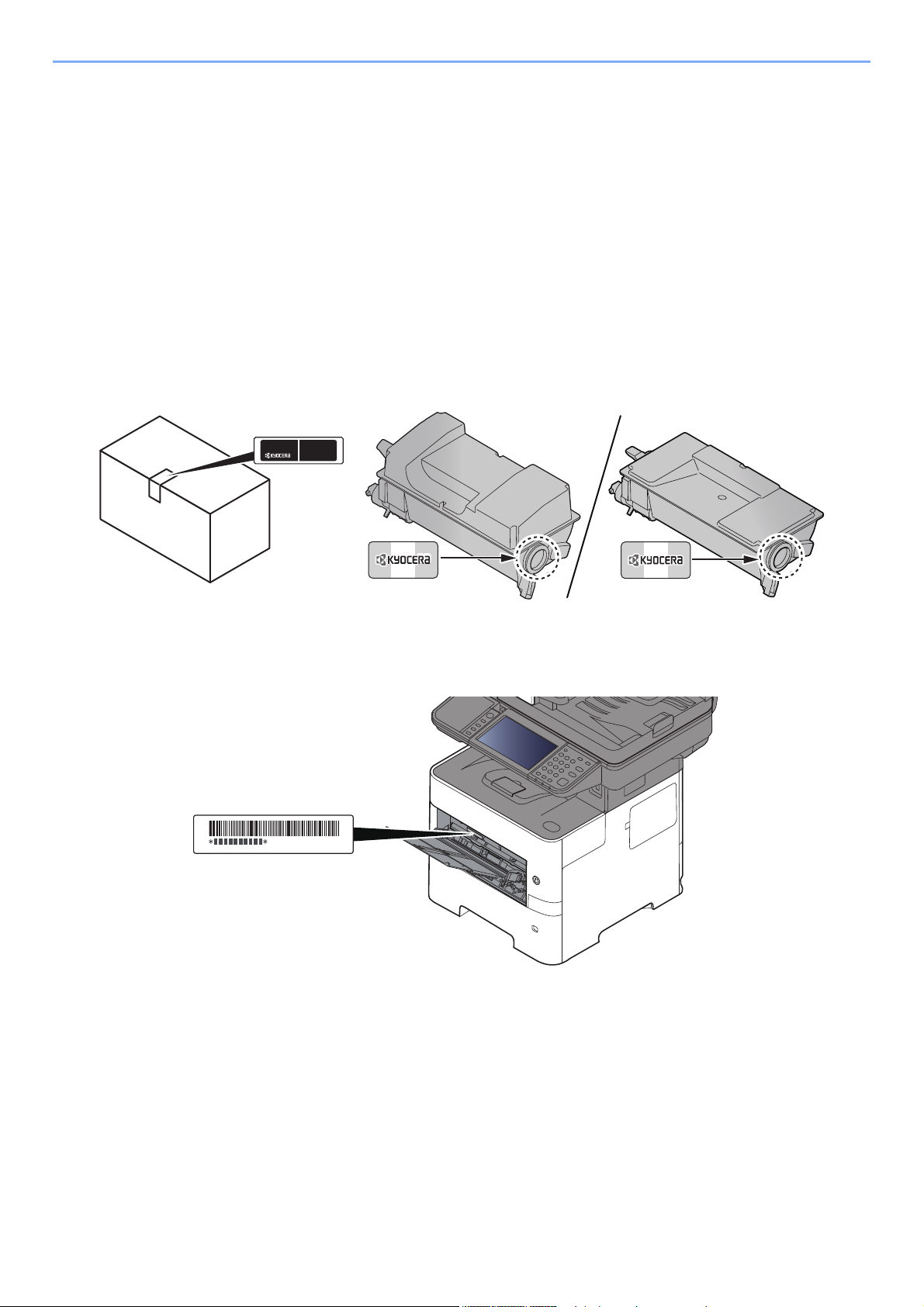
> Preface
Preface
Thank you for purchasing this machine.
This Operation Guide is intended to help you operate the machine correctly, perform routine maintenance, and take
simple troubleshooting measures as needed so that the machine can always be used in the optimum condition.
Please read this Operation Guide before using the machine.
To maintain quality, we recommend using genuine Kyocera toner containers, which must
pass numerous quality inspections.
The use of non-genuine toner containers may cause failure.
We will not be liable for any damages caused by the use of third party supplies in this machine.
A label is affixed to our replacement genuine toner containers, as shown below.
Checking the Equipment’s Serial Number
The equipment’s serial number is printed in the location shown in the figure.
You’ll need the equipment’s serial number when contacting your Service Representative. Please check the number
before contacting your Service Representative.
i

Contents
Preface ……………………………………………………………………………………………………………………. i
Contents…………………………………………………………………………………………………………………. ii
Overview ……………………………………………………………………………………………………………….. ix
Machine Features ……………………………………………………………………………………………………. x
Color and Image Quality Functions ……………………………………………………………………….. xiv
Basic Color Modes ………………………………………………………………………………………… xiv
Adjusting Image Quality and Color……………………………………………………………………. xv
Guides Provided with the Machine………………………………………………………………………… xvi
About the Operation Guide (this Guide) ………………………………………………………………. xviii
Structure of the guide……………………………………………………………………………………. xviii
Conventions Used in This Guide……………………………………………………………………… xix
Menu Map…………………………………………………………………………………………………………….. xxi
1 Legal and Safety Information ………………………………………………………. 1-1
Notice ………………………………………………………………………………………………………………… 1-2
Safety Conventions in This Guide ………………………………………………………………….. 1-2
Environment ……………………………………………………………………………………………….. 1-3
Precautions for Use ……………………………………………………………………………………… 1-4
Laser Safety (Europe) ………………………………………………………………………………….. 1-5
SAFETY OF LASER BEAM (USA) ………………………………………………………………… 1-6
Safety Instructions Regarding the Disconnection of Power ……………………………….. 1-7
Compliance and Conformity ………………………………………………………………………….. 1-7
Other precautions (for users in California, the United States) …………………………….. 1-7
Warranty (the United States and Canada) ………………………………………………………. 1-8
Legal Restriction on Copying/Scanning ………………………………………………………… 1-10
EN ISO 7779 …………………………………………………………………………………………….. 1-10
EK1-ITB 2000 ……………………………………………………………………………………………. 1-10
Wireless Connection (Mexico only) ………………………………………………………………. 1-10
Security Precautions when Using Wireless LAN (If equipped) …………………………. 1-10
Limited Use of This Product (If equipped) ……………………………………………………… 1-11
Legal Information ………………………………………………………………………………………. 1-12
Energy Saving Control Function ………………………………………………………………….. 1-18
Automatic 2-Sided Print Function …………………………………………………………………. 1-18
Resource Saving — Paper ……………………………………………………………………………. 1-18
Environmental benefits of «Power Management» ……………………………………………. 1-18
Energy Star (ENERGY STAR®) Program ……………………………………………………… 1-19
2 Installing and Setting up the Machine ………………………………………….. 2-1
Part Names …………………………………………………………………………………………………………. 2-2
Machine Exterior …………………………………………………………………………………………. 2-2
Connectors/Interior ………………………………………………………………………………………. 2-4
With Optional Equipments Attached ………………………………………………………………. 2-6
Connecting the Machine and Other Devices ………………………………………………………… 2-7
Connecting Cables ……………………………………………………………………………………………… 2-8
Connecting LAN Cable …………………………………………………………………………………. 2-8
Connecting USB Cable ………………………………………………………………………………… 2-9
Connecting the Power Cable ………………………………………………………………………… 2-9
Power On/Off ……………………………………………………………………………………………………. 2-10
Power On …………………………………………………………………………………………………. 2-10
Power Off …………………………………………………………………………………………………. 2-10
Using the Operation Panel ………………………………………………………………………………… 2-11
Operation Panel Keys ………………………………………………………………………………… 2-11
Adjusting the Operation Panel Angle ……………………………………………………………. 2-12
Touch Panel ……………………………………………………………………………………………………… 2-13
Home Screen ……………………………………………………………………………………………. 2-13
Display for Device Information …………………………………………………………………….. 2-17
ii

Functions key ……………………………………………………………………………………………. 2-18
Display of Keys That Cannot Be Set …………………………………………………………….. 2-19
Enter key and Quick No. Search key ……………………………………………………………. 2-20
Help Screen ……………………………………………………………………………………………… 2-21
Login/Logout ……………………………………………………………………………………………………. 2-22
Login ……………………………………………………………………………………………………….. 2-22
Logout ……………………………………………………………………………………………………… 2-23
Default Settings of the Machine …………………………………………………………………………. 2-24
Setting Date and Time ……………………………………………………………………………….. 2-24
Network Setup ………………………………………………………………………………………………….. 2-25
Configuring the Wired Network ……………………………………………………………………. 2-25
Configuring the Wireless Network ………………………………………………………………… 2-27
Setting Wi-Fi Direct ……………………………………………………………………………………. 2-31
Energy Saver function ………………………………………………………………………………………. 2-33
Low Power Mode ………………………………………………………………………………………. 2-33
Sleep and Auto Sleep ………………………………………………………………………………… 2-33
Power Off Rule (models for Europe) …………………………………………………………….. 2-34
Quick Setup Wizard …………………………………………………………………………………………… 2-35
Installing Software ……………………………………………………………………………………………. 2-37
Software on DVD (Windows) ………………………………………………………………………. 2-37
Installing Software in Windows ……………………………………………………………………. 2-38
Uninstalling the Software ……………………………………………………………………………. 2-44
Installing Software in Mac Computer ……………………………………………………………. 2-45
Setting TWAIN Driver …………………………………………………………………………………. 2-47
Setting WIA Driver ……………………………………………………………………………………… 2-49
Checking the Counter ……………………………………………………………………………………….. 2-50
Additional Preparations for the Administrator ……………………………………………………. 2-51
Sending Documents to a PC ……………………………………………………………………….. 2-51
Strengthening the Security ………………………………………………………………………….. 2-51
Command Center RX ………………………………………………………………………………………… 2-53
Accessing Command Center RX …………………………………………………………………. 2-54
Changing Security Settings …………………………………………………………………………. 2-55
Changing Device Information ………………………………………………………………………. 2-57
E-mail Settings ………………………………………………………………………………………….. 2-59
Registering Destinations …………………………………………………………………………….. 2-63
Creating a New Custom Box ……………………………………………………………………….. 2-64
Printing a document stored in a Custom Box …………………………………………………. 2-65
Transferring Data from Our Other Products ……………………………………………………….. 2-67
Migrating the Address Book ………………………………………………………………………… 2-67
3 Preparation before Use ……………………………………………………………….. 3-1
Loading Paper ……………………………………………………………………………………………………. 3-2
Precaution for Loading Paper ……………………………………………………………………….. 3-3
Loading in the Cassettes ………………………………………………………………………………. 3-4
Loading Statement in the Cassettes
(ECOSYS M3655idn/ECOSYS M3660idn for inch models) ……………………………….. 3-8
Loading Paper in the Multi Purpose Tray ………………………………………………………. 3-11
Specifying Paper Size and Media Type ………………………………………………………… 3-15
Paper Stopper …………………………………………………………………………………………………… 3-17
Preparation for Sending a Document to a Shared Folder in a PC ………………………… 3-18
Making a note of the computer name and full computer name …………………………. 3-18
Making a note of the user name and domain name ………………………………………… 3-19
Creating a Shared Folder, Making a Note of a Shared Folder ………………………….. 3-20
Configuring Windows Firewall ……………………………………………………………………… 3-24
Registering Destinations in the Address Book …………………………………………………… 3-28
Adding a Destination (Address Book) …………………………………………………………… 3-28
Adding a Destination on One Touch Key (One Touch Key) ……………………………… 3-33
iii

4 Printing from PC …………………………………………………………………………. 4-1
Printing from PC …………………………………………………………………………………………………. 4-2
Printing on Non-standard Sized Paper ……………………………………………………………. 4-4
Banner printing ……………………………………………………………………………………………. 4-5
Printer Driver Print Settings Screen ……………………………………………………………….. 4-9
Printer Driver Help ……………………………………………………………………………………… 4-10
Changing the Default Printer Driver Settings (Windows 8.1) ……………………………. 4-10
Canceling Printing from a Computer …………………………………………………………….. 4-10
Printing by AirPrint …………………………………………………………………………………………… 4-11
Printing by Google Cloud Print ………………………………………………………………………….. 4-11
Printing by Mopria …………………………………………………………………………………………….. 4-11
Printing with Wi-Fi Direct …………………………………………………………………………………… 4-11
Printing Data Saved on the Printer …………………………………………………………………….. 4-12
Specifying the Job Box from a Computer and Storing the Job …………………………. 4-12
Printing Documents from Private Print Box ……………………………………………………. 4-13
Printing Document from Stored Job Box ……………………………………………………….. 4-15
Printing Document from Quick Copy Box ………………………………………………………. 4-17
Printing Document from Proof and Hold Box …………………………………………………. 4-19
Status Monitor ………………………………………………………………………………………………….. 4-21
Accessing the Status Monitor ………………………………………………………………………. 4-21
Exiting the Status Monitor …………………………………………………………………………… 4-21
Status Monitor Display ……………………………………………………………………………….. 4-21
5 Operation on the Machine …………………………………………………………… 5-1
Loading Originals ……………………………………………………………………………………………….. 5-2
Placing Originals on the Platen ……………………………………………………………………… 5-2
Loading Originals in the Document Processor …………………………………………………. 5-3
Favorites ……………………………………………………………………………………………………………. 5-6
Registering Favorite …………………………………………………………………………………….. 5-7
Recalling Favorite ……………………………………………………………………………………….. 5-9
Editing and Deleting Favorite ………………………………………………………………………. 5-10
Application ……………………………………………………………………………………………………….. 5-11
Installing Applications …………………………………………………………………………………. 5-11
Using Applications ……………………………………………………………………………………… 5-12
Uninstalling Applications …………………………………………………………………………….. 5-13
Registering Shortcuts ……………………………………………………………………………………….. 5-14
Adding Shortcuts ……………………………………………………………………………………….. 5-14
Editing and Deleting Shortcuts …………………………………………………………………….. 5-15
Copying ……………………………………………………………………………………………………………. 5-16
Basic Operation …………………………………………………………………………………………. 5-16
Canceling Jobs ………………………………………………………………………………………….. 5-17
Sending ……………………………………………………………………………………………………………. 5-18
Basic Operation …………………………………………………………………………………………. 5-19
Specifying Destination ………………………………………………………………………………… 5-20
Checking and Editing Destinations ………………………………………………………………. 5-25
Confirmation Screen of Destinations …………………………………………………………….. 5-26
Recall ………………………………………………………………………………………………………. 5-27
Send to Me (E-mail) …………………………………………………………………………………… 5-27
Sending to Different Types of Destinations (Multi Sending) ……………………………… 5-28
Canceling Sending Jobs …………………………………………………………………………….. 5-29
WSD Scan ………………………………………………………………………………………………… 5-30
Installing the Driver ……………………………………………………………………………………. 5-30
Scanning using TWAIN or WIA ……………………………………………………………………. 5-32
Scanning with File Management Utility …………………………………………………………. 5-33
Using fax server to send a fax (fax server transmission) …………………………………….. 5-34
Configuring Settings before Sending ……………………………………………………………. 5-34
Using fax server to send a fax ……………………………………………………………………… 5-34
iv

How to use the FAX Function ……………………………………………………………………………. 5-36
What is Document Box? ……………………………………………………………………………………. 5-37
Basic Operation for Document Box ……………………………………………………………………. 5-38
Box List Operations ……………………………………………………………………………………. 5-38
Document List Operations …………………………………………………………………………… 5-38
Using a Custom Box …………………………………………………………………………………………. 5-39
Creating a New Custom Box ……………………………………………………………………….. 5-39
Editing and Deleting Custom Box ………………………………………………………………… 5-41
Saving Scanned Documents to a Custom Box ………………………………………………. 5-42
Moving Documents in Custom Box ………………………………………………………………. 5-43
Copying Documents in Custom Box into Other Boxes …………………………………….. 5-43
Copying Documents in Custom Box to Removable Memory ……………………………. 5-44
Joining Documents in Custom Box ………………………………………………………………. 5-45
Deleting Documents in Custom Box …………………………………………………………….. 5-46
Printing Documents in Custom Box ……………………………………………………………… 5-46
Sending Documents in a Custom Box ………………………………………………………….. 5-47
Sending Documents in Custom Box to E-mail Address of Logged in user. ………… 5-48
Scanning Document Stored in a Custom Box ………………………………………………… 5-49
Printing Documents Stored in Removable USB Memory …………………………………….. 5-50
Saving Documents to USB Memory (Scan to USB) …………………………………………….. 5-52
Check the USB Memory Information ………………………………………………………………….. 5-53
Removing USB Memory …………………………………………………………………………………….. 5-54
Using the Manual Stapler
(ECOSYS M3655idn/ECOSYS M3660idn only) …………………………………………………….. 5-55
6 Using Various Functions …………………………………………………………….. 6-1
Functions Available on the Machine ……………………………………………………………………. 6-2
Copy ………………………………………………………………………………………………………….. 6-2
Send ………………………………………………………………………………………………………….. 6-4
Custom Box (Store File, Printing Documents, Sending Documents) …………………… 6-6
Removable Memory (Store File, Printing Documents) ………………………………………. 6-8
Functions …………………………………………………………………………………………………………. 6-10
ID Card Copy ……………………………………………………………………………………………. 6-10
Original Size ……………………………………………………………………………………………… 6-10
Paper Selection …………………………………………………………………………………………. 6-11
Original Orientation ……………………………………………………………………………………. 6-12
Mixed Size Originals ………………………………………………………………………………….. 6-13
Collate ……………………………………………………………………………………………………… 6-13
Density …………………………………………………………………………………………………….. 6-13
Original Image …………………………………………………………………………………………… 6-14
EcoPrint ……………………………………………………………………………………………………. 6-15
Color Selection ………………………………………………………………………………………….. 6-15
Sharpness ………………………………………………………………………………………………… 6-16
Contrast ……………………………………………………………………………………………………. 6-16
Background Density Adj. (Background Density Adjustment) ……………………………. 6-17
Prevent Bleed-thrugh …………………………………………………………………………………. 6-17
Zoom ……………………………………………………………………………………………………….. 6-18
Combine …………………………………………………………………………………………………… 6-20
Duplex ……………………………………………………………………………………………………… 6-22
Continuous Scan ……………………………………………………………………………………….. 6-24
Job Finish Notice ……………………………………………………………………………………….. 6-24
File Name Entry ………………………………………………………………………………………… 6-25
Priority Override ………………………………………………………………………………………… 6-25
Quiet Mode ……………………………………………………………………………………………….. 6-25
Skip Blank Page ………………………………………………………………………………………… 6-26
Duplex (2-sided Original) ……………………………………………………………………………. 6-27
Sending Size …………………………………………………………………………………………….. 6-28
File Format ……………………………………………………………………………………………….. 6-29
File Separation ………………………………………………………………………………………….. 6-33
v

Scan Resolution, Resolution ……………………………………………………………………….. 6-33
E-mail Subject/Body …………………………………………………………………………………… 6-33
Long Original …………………………………………………………………………………………….. 6-34
FTP Encrypted TX ……………………………………………………………………………………… 6-34
Delete after Printed ……………………………………………………………………………………. 6-34
Delete after Transmitted ……………………………………………………………………………… 6-34
Storing Size ………………………………………………………………………………………………. 6-35
Encrypted PDF Password …………………………………………………………………………… 6-35
JPEG/TIFF Print ………………………………………………………………………………………… 6-36
XPS Fit to Page …………………………………………………………………………………………. 6-36
7 Status/Job Cancel ………………………………………………………………………. 7-1
Checking Job Status …………………………………………………………………………………………… 7-2
Details of the Status Screens ………………………………………………………………………… 7-3
Checking Detailed Information of Jobs …………………………………………………………… 7-7
Checking Job History …………………………………………………………………………………………. 7-8
Checking the Detailed Information of Histories ………………………………………………… 7-9
Sending the Log History ……………………………………………………………………………….. 7-9
Job Operation …………………………………………………………………………………………………… 7-10
Pause and Resumption of Jobs …………………………………………………………………… 7-10
Canceling of Jobs ………………………………………………………………………………………. 7-10
Device/Communication ……………………………………………………………………………………… 7-11
Checking the Remaining Amount of Toner and Paper (Paper/Supplies) ………………. 7-13
8 Setup and Registration (System Menu) ……………………………………….. 8-1
System Menu ……………………………………………………………………………………………………… 8-2
Operation Method ……………………………………………………………………………………….. 8-2
System Menu Settings …………………………………………………………………………………. 8-3
Language …………………………………………………………………………………………………… 8-5
Report ……………………………………………………………………………………………………….. 8-5
User Property ……………………………………………………………………………………………… 8-7
Cassette/MP Tray Settings …………………………………………………………………………… 8-8
Common Settings ………………………………………………………………………………………. 8-10
Home ……………………………………………………………………………………………………….. 8-20
Copy ………………………………………………………………………………………………………… 8-20
Send ………………………………………………………………………………………………………… 8-21
Document Box …………………………………………………………………………………………… 8-22
FAX …………………………………………………………………………………………………………. 8-22
Application ………………………………………………………………………………………………… 8-22
Internet …………………………………………………………………………………………………….. 8-23
Address Book/One Touch …………………………………………………………………………… 8-23
User Login/Job Accounting …………………………………………………………………………. 8-24
Printer ………………………………………………………………………………………………………. 8-24
System/Network ………………………………………………………………………………………… 8-27
Date/Timer/Energy Saver ……………………………………………………………………………. 8-46
Adjustment/Maintenance …………………………………………………………………………….. 8-49
9 User Authentication and Accounting (User Login, Job Accounting) 9-1
Overview of User Login Administration ……………………………………………………………….. 9-2
Enabling User Login Administration ……………………………………………………………………. 9-3
Setting User Login Administration ………………………………………………………………………. 9-4
Authentication Security ………………………………………………………………………………… 9-4
Adding a User (Local User List) …………………………………………………………………….. 9-6
Changing User Properties …………………………………………………………………………….. 9-9
User Login Administration for Printing …………………………………………………………… 9-13
To Manage the Users to Scan Using TWAIN …………………………………………………. 9-15
To Manage the Users to Scan Using WIA …………………………………………………….. 9-16
vi

To Manage the Users that Send Faxes from a PC …………………………………………. 9-17
Local Authorization …………………………………………………………………………………….. 9-18
Group Authorization Settings ………………………………………………………………………. 9-19
Guest Authorization Set. …………………………………………………………………………….. 9-22
Obtain NW User Property …………………………………………………………………………… 9-25
Simple Login Settings ………………………………………………………………………………… 9-27
ID Card Settings ………………………………………………………………………………………… 9-30
PIN Code Authorization ………………………………………………………………………………. 9-31
Using User Login Administration ………………………………………………………………………. 9-32
Login/Logout …………………………………………………………………………………………….. 9-32
Overview of Job Accounting ……………………………………………………………………………… 9-33
Enabling Job Accounting ………………………………………………………………………………….. 9-34
Job Accounting Access ………………………………………………………………………………. 9-35
Setting an Account ……………………………………………………………………………………………. 9-36
Adding an Account …………………………………………………………………………………….. 9-36
Restricting the Use of the Machine ………………………………………………………………. 9-37
Editing an Account …………………………………………………………………………………….. 9-38
Deleting an Account …………………………………………………………………………………… 9-39
Job Accounting for Printing …………………………………………………………………………. 9-40
Job Accounting for Scan Using TWAIN ………………………………………………………… 9-41
Job Accounting for Scan Using WIA …………………………………………………………….. 9-42
Job Accounting for the FAX Transmitted from a Computer ……………………………… 9-43
Configuring Job Accounting ……………………………………………………………………………… 9-44
Default Setting …………………………………………………………………………………………… 9-44
Counting the Number of Pages Printed ………………………………………………………… 9-45
Print Accounting Report ……………………………………………………………………………… 9-46
Using Job Accounting ………………………………………………………………………………………. 9-47
Login/Logout …………………………………………………………………………………………….. 9-47
Unknown User Settings …………………………………………………………………………………….. 9-48
Unknown ID Job ………………………………………………………………………………………… 9-48
Registering Information for a User whose ID is Unknown ………………………………… 9-49
10 Troubleshooting ……………………………………………………………………….. 10-1
Regular Maintenance ………………………………………………………………………………………… 10-2
Cleaning …………………………………………………………………………………………………… 10-2
Toner Container Replacement …………………………………………………………………….. 10-6
Waste Toner Box Replacement …………………………………………………………………. 10-10
Replacing Staples
(ECOSYS M3655idn/ECOSYS M3660idn only) ……………………………………………. 10-12
Troubleshooting ……………………………………………………………………………………………… 10-13
Solving Malfunctions ………………………………………………………………………………… 10-13
Responding to Messages ………………………………………………………………………….. 10-18
Adjustment/Maintenance …………………………………………………………………………… 10-30
Clearing Paper Jams ………………………………………………………………………………… 10-31
Clearing a Staple Jam
(ECOSYS M3655idn/ECOSYS M3660idn only) ……………………………………………. 10-40
11 Appendix ………………………………………………………………………………….. 11-1
Optional Equipment ………………………………………………………………………………………….. 11-2
Overview of Optional Equipment ………………………………………………………………….. 11-2
Optional Applications …………………………………………………………………………………. 11-9
Character Entry Method …………………………………………………………………………………… 11-11
Entry Screens ………………………………………………………………………………………….. 11-11
Entering Characters …………………………………………………………………………………. 11-13
Paper ……………………………………………………………………………………………………………… 11-14
Basic Paper Specifications ………………………………………………………………………… 11-14
Choosing the Appropriate Paper ………………………………………………………………… 11-15
Special Paper ………………………………………………………………………………………….. 11-18
vii

Specifications …………………………………………………………………………………………………. 11-22
Machine ………………………………………………………………………………………………….. 11-22
Copy Functions ……………………………………………………………………………………….. 11-24
Printer Functions ……………………………………………………………………………………… 11-25
Scanner Functions …………………………………………………………………………………… 11-26
Document Processor ………………………………………………………………………………… 11-27
Paper Feeder (500-sheet) (Option) …………………………………………………………….. 11-27
Manual Stapler
(ECOSYS M3655idn/ECOSYS M3660idn only) ……………………………………………. 11-28
Glossary …………………………………………………………………………………………………………. 11-29
Index ……………………………………………………………………………………………………………. Index-1
viii
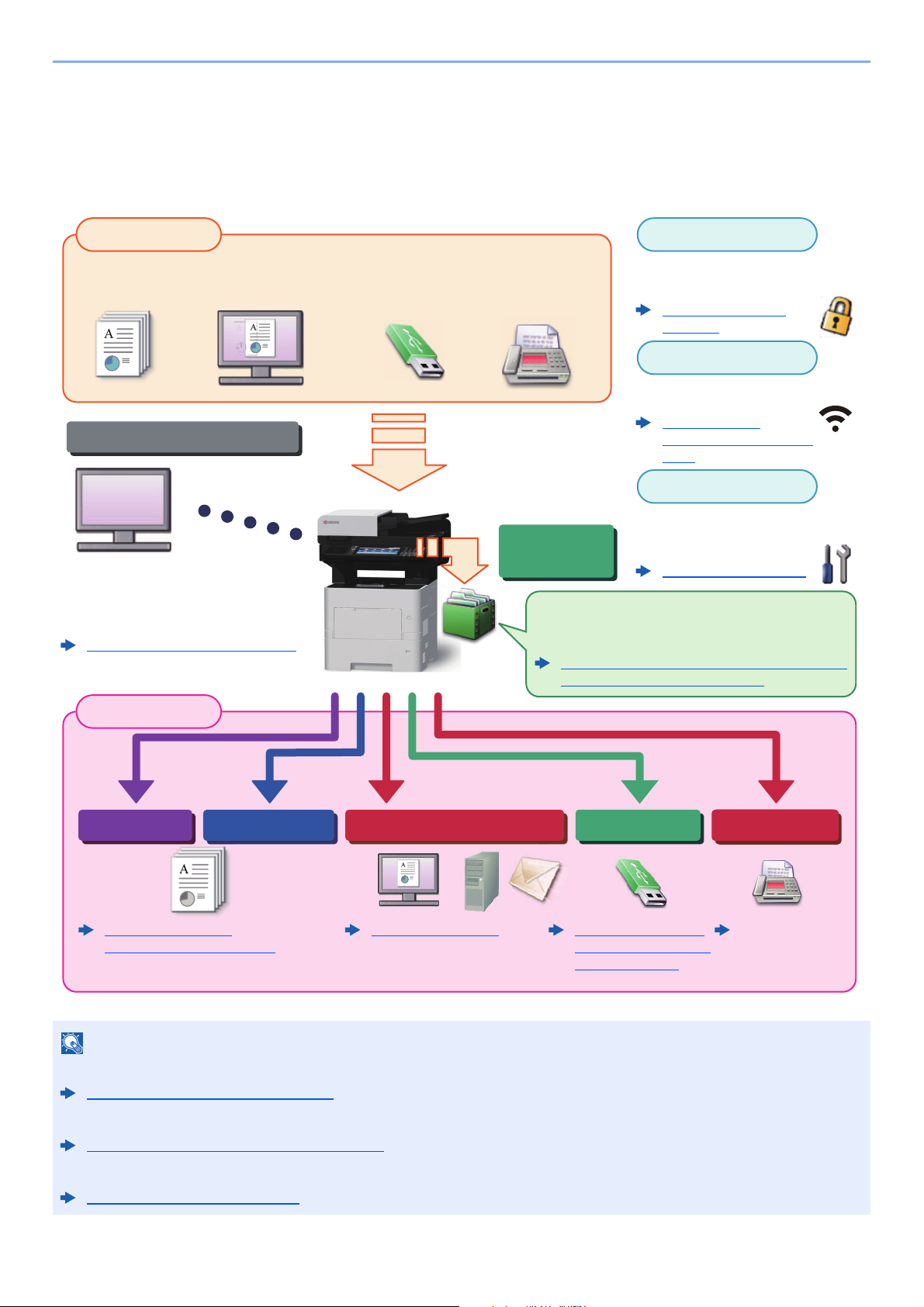
> Overview
Original Electronic data Fax dataUSB memory
Input Data
Operations from your PC
Document
Box functions
Application
Security
Output Data
Copy functions Printer functions USB memory
Send functions
Fax functions
Wi-Fi connection
FAX Operation
Guide
This function is useful for a variety of purposes,
including saving data in the machine and in a USB
memory stick.
Printing Data Saved on the Printer (page 4-12)
Using a Custom Box (page 5-39)
You can expand the machine
functions according to your
needs.
Application (page 5-11)
You can use the machine security
levels according to your needs.
Sending (page 5-18)
Command Center RX
You can check the status and change the
settings of the machine from a Web
browser on your computer.
Command Center RX (page 2-53)
Command Center RX User Guide
Strengthen security
(page xii)
Copying (page 5-16)
Printing from PC (page 4-1)
Saving Documents to
USB Memory (Scan to
USB) (page 5-52)
Wi-Fi or Wi-Fi Direct connection
is possible.
Configuring the
Wireless Network (page
2-27)
Overview
This machine is equipped standard with copy and print functions, and a scanned image can be sent to an E-mail
recipient as an attachment or to a computer on the same network. On products with a FAX function, it is also possible to
use the fax function.
• Before using the machine, be sure to read the following:
Legal and Safety Information (page 1-1)
• For preparations for use of the machine such as cable connections and software installation, refer to the following:
Installing and Setting up the Machine (page 2-1)
• To learn how to load paper, set up shared folders, and add addresses to the address book, refer to the following:
Preparation before Use (page 3-1)
ix
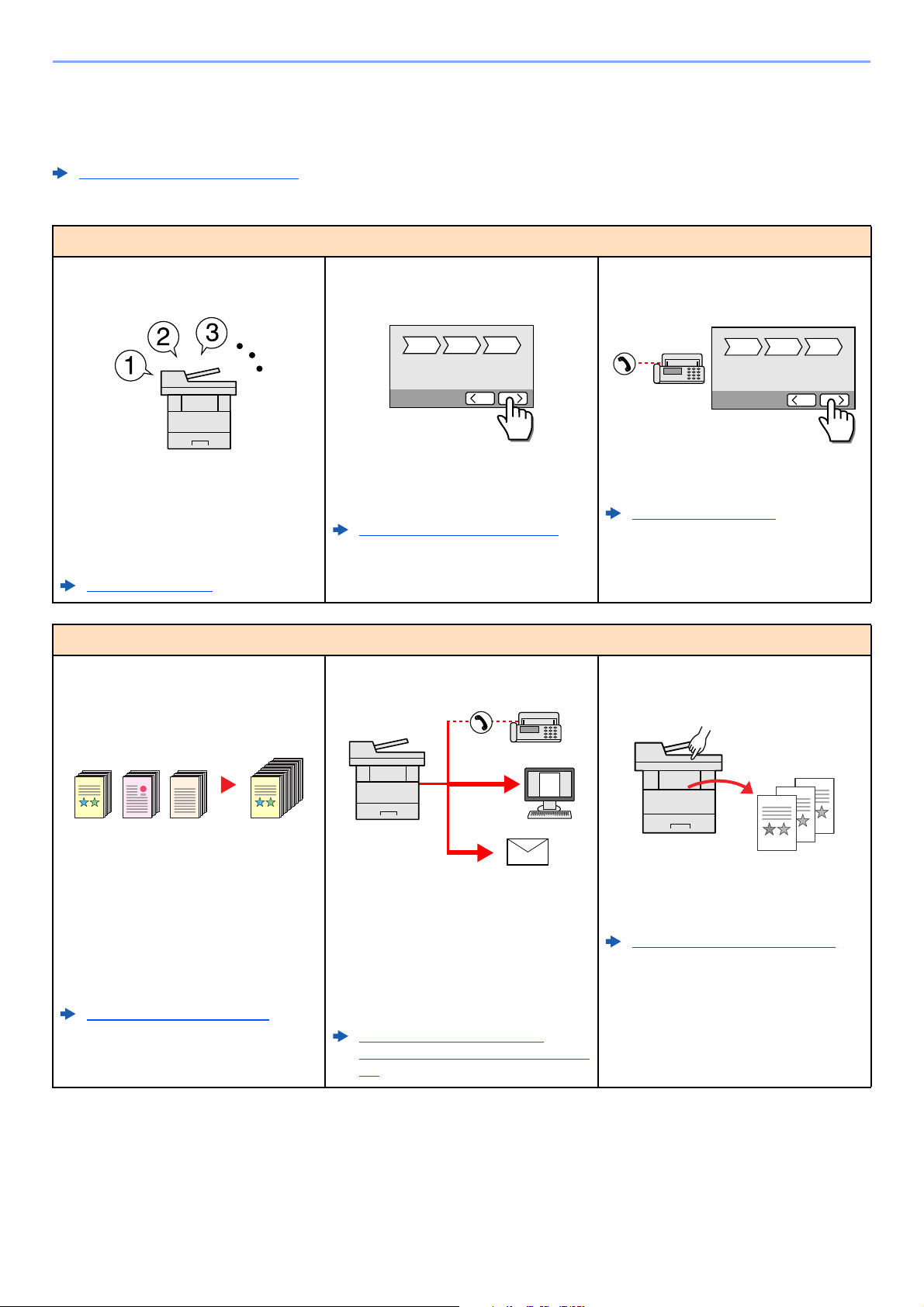
> Machine Features
1~10
1
1~30
1
11~201121~30
21
Machine Features
The machine is equipped with many useful functions.
Using Various Functions (page 6-1)
Here are some examples.
Optimize your office workflow
Access to frequently used functions
with just one touch (Favorites)
You can preset frequently used functions.
Once you register frequently used
settings as favorite, you can call up the
settings easily. Using this favorite brings
the same results even if operated by
another person.
Favorites (page 5-6)
Optimize your office workflow
Scan a large number of originals in
separate batches and produce as one
job (Continuous Scan)
Set up the machine easily
(Quick Setup Wizard)
You can configure the necessary settings
before using the machine in the wizard
mode.
Quick Setup Wizard (page 2-35)
Send one time with multiple sending
options (Multi Sending)
Set up fax easily (FAX Setup)
You can configure the necessary settings
before using fax in the wizard mode.
FAX Setup (page 2-35)
Save frequently used documents in
the machine (Custom Box)
It is useful when preparing many-page
handouts.
When a large number of originals cannot
be placed in the document processor at
one time, the originals can be scanned in
separate batches and then copied or sent
as one job.
Continuous Scan (page 6-24)
You can send a same document to the
multiple destinations using a different
method.
You can specify multiple destinations of
different send methods such as E-mail,
SMB, and Fax.
You can reduce your workflow by sending
a job at once.
Sending to Different Types of
Destinations (Multi Sending) (page 5-
28)
x
You can save the frequently used
document in the machine and print it
when needed.
Using a Custom Box (page 5-39)
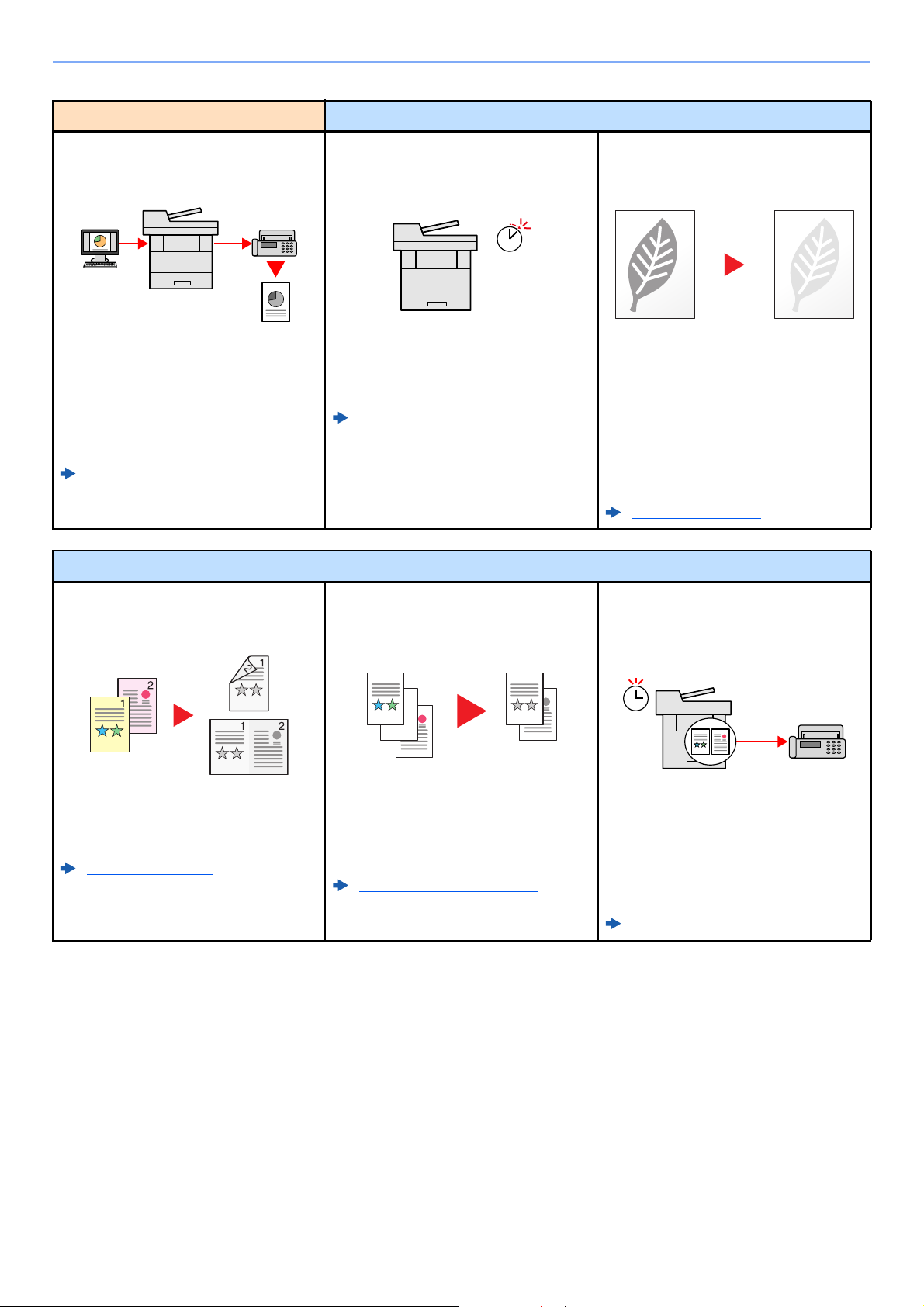
> Machine Features
Optimize your office workflow Save energy and cost
Send a FAX from a PC
(Sending FAX from PC)
You can save the paper used for sending
a FAX with this function.
You can send a file to be faxed from the
PC without printing the file, so that you
can reduce the number of pieces of paper
and perform sending jobs efficiently.
FAX Operation Guide
Save energy and cost
Save energy as needed
(Energy Saver function)
Off
The machine is equipped with Energy
Saver function that automatically
switched into Sleep Mode.
Energy Saver function (page 2-33)
Use less toner for printing
(EcoPrint)
You can save toner consumption with this
function.
When you only need to check the printed
content, such as a trial print run or
documents for internal confirmation, use
this function to save toner.
Use this function when a high-quality print
is not required.
EcoPrint (page 6-15)
Reduce paper use
(Paper Saving Printing)
You can print originals on both sides of
the paper. You can also print multiple
originals onto one sheet.
Favorites (page 5-6)
Skip blank pages when printing
(Skip Blank Page)
When there are blank pages in a scanned
document, this function skips the blank
pages and prints only pages that are not
blank.
Skip Blank Page (page 6-26)
Send a FAX to reduce the
communication cost
(FAX Delayed Transmission)
You can reduce the communication cost
with this function.
The communication cost can be reduced
by setting the timer to the time period
during which the communication cost is
low.
FAX Operation Guide
xi
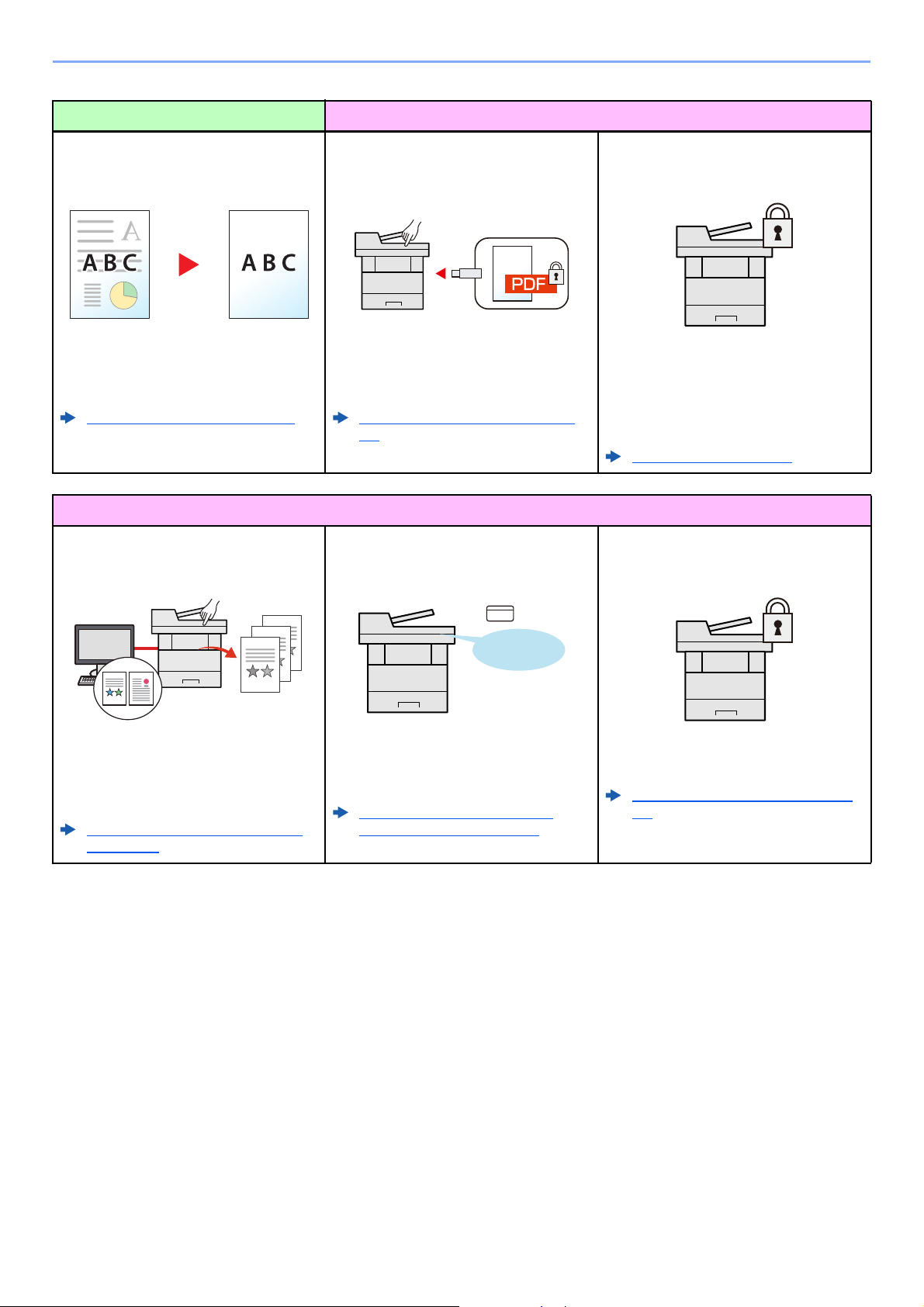
> Machine Features
Create attractive documents Strengthen security
Prevent image bleed-through
(Prevent Bleed-through)
You can prevent image bleed-through
from the reverse side when scanning thin
originals.
Prevent Bleed-thrugh (page 6-17)
Strengthen security
Prevent loss of finished documents
(Private Print)
Password-protect a PDF file
(PDF Encryption Functions)
Use the PDF format’s password security
options to restrict document viewing,
printing and editing.
Encrypted PDF Password (page 6-
35)
Log in by ID card
(Card Authentication)
Protect data on the SSD
(Encryption / Overwrite)
You can overwrite the unnecessary data
that remains on the SSD automatically.
To prevent an external leakage, the
machine is able to encrypt data before
writing it to the SSD.
Data Security (page 8-43)
Strengthen security
(Settings for Administrator)
You can temporarily save a printer
document in the machine. By printing the
document from the machine prevents
someone takes your document.
Printing Data Saved on the Printer
(page 4-12)
You can log in simply by touching an ID
card. You don’t need to enter your user
name and password.
Card Authentication Kit(B) «Card
Authentication Kit» (page 11-3)
Various functions are available for
administrators to strengthen security.
Strengthening the Security (page 2-
51)
xii
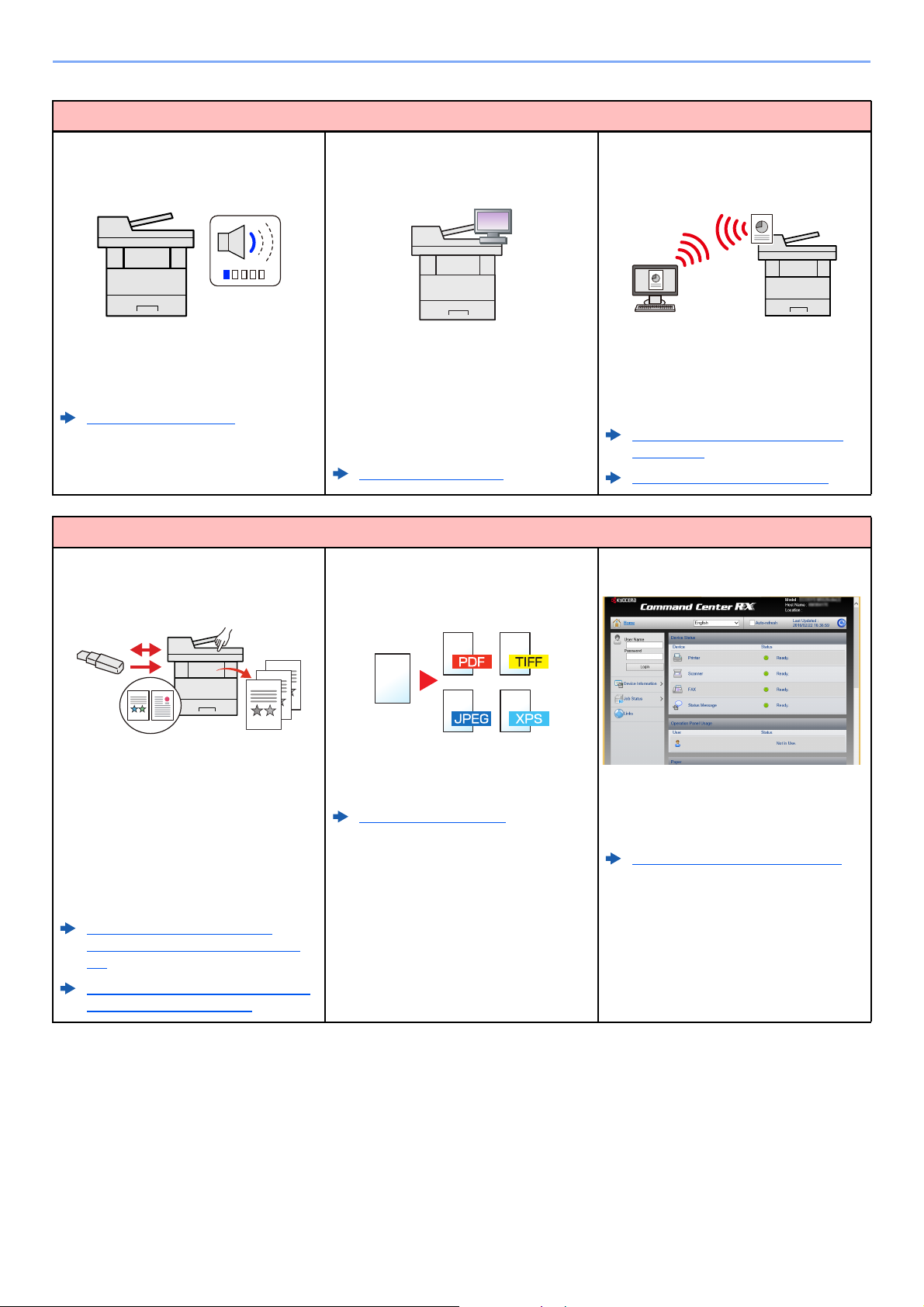
> Machine Features
Use functions more efficiently
Make the machine quiet
(Quiet Mode)
You can make the machine quiet by
reducing its running noise. You can
configure this mode by job.
Quiet Mode (page 6-25)
Use functions more efficiently
Use USB memory
(USB Memory)
Expand functions as necessary
(Application)
The functionality of the machine can be
expanded by installing applications.
Applications that help you perform your
daily more efficiently such as a scan
feature and an authentication feature are
available.
Application (page 5-11)
Specify image file format
(File Format)
Install the machine without concerning
the network cables (Wireless Network)
In an environment where the wireless
LAN is used, you can install the machine
without concerning the network cables. In
addition, Wi-Fi Direct, etc. are supported.
Configuring the Wireless Network
(page 2-27)
Setting Wi-Fi Direct (page 2-31)
Perform remote operation
(Command Center RX)
It is useful when you need to print
document outside your office or you
cannot print document from your PC.
You can print the document from the USB
memory by plugging it directly into the
machine.
Original scanned at the machine can be
saved in the USB memory also.
Printing Documents Stored in
Removable USB Memory (page 5-
50)
Saving Documents to USB Memory
(Scan to USB) (page 5-52)
You can select the various file formats
when sending/storing images.
File Format (page 6-29)
You can access to the machine remotely
to print, send or download data.
Administrators can configure the machine
behavior or management settings.
Command Center RX (page 2-53)
xiii
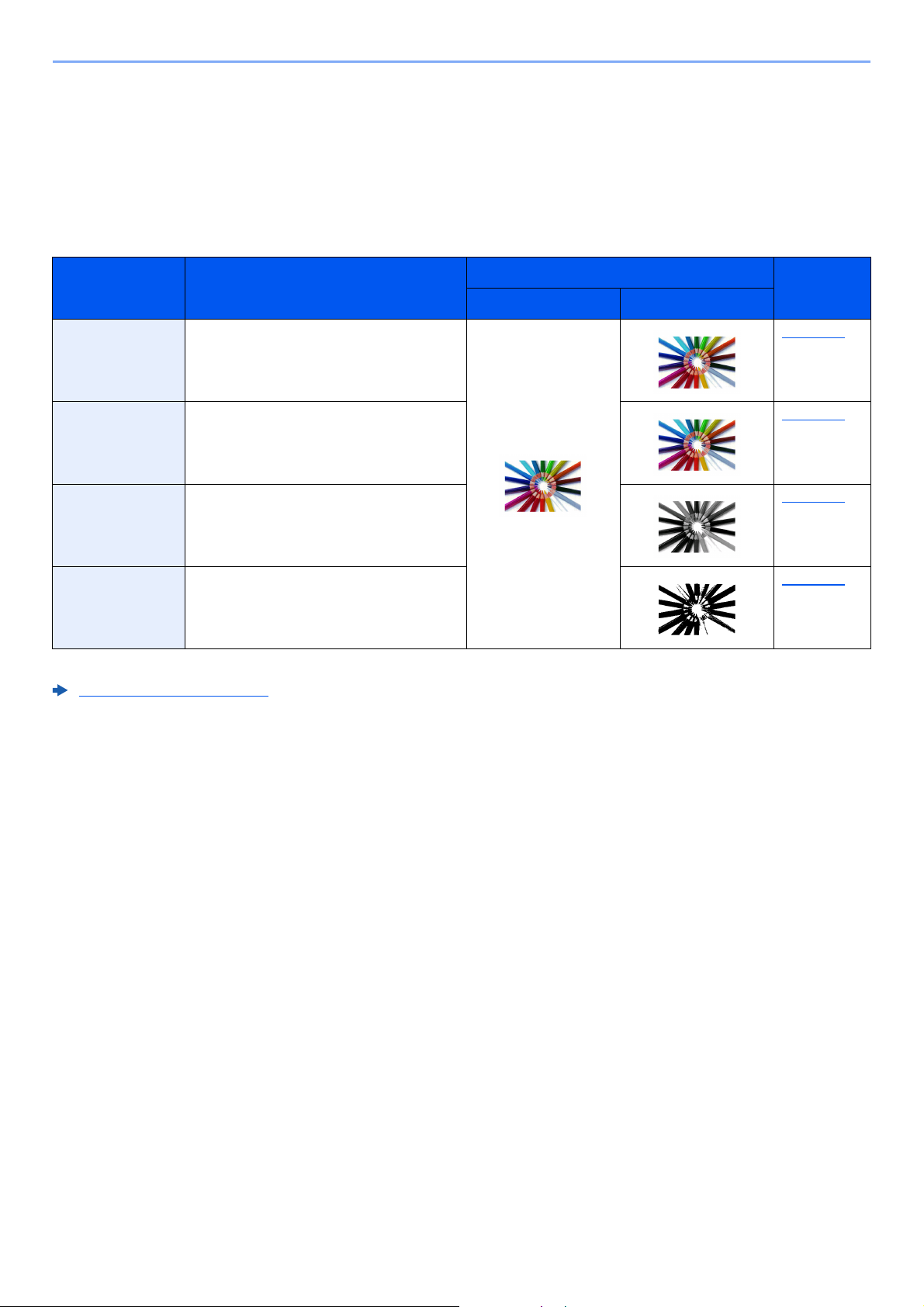
> Color and Image Quality Functions
Color and Image Quality Functions
The machine is equipped with various color and image quality functions. You can adjust the scanned image as desired.
Basic Color Modes
The basic color modes are as follows.
Color mode Description
Reference image
Before After
Auto Color Automatically recognizes whether a
document being scanned is color or black
& white.
Full Color Scans a document in full color. page 6-15
Grayscale Scans a document in grayscale. page 6-15
Black & White Scans a document in black & white. page 6-15
For details, refer to the following:
Color Selection (page 6-15)
Reference
page
page 6-15
xiv
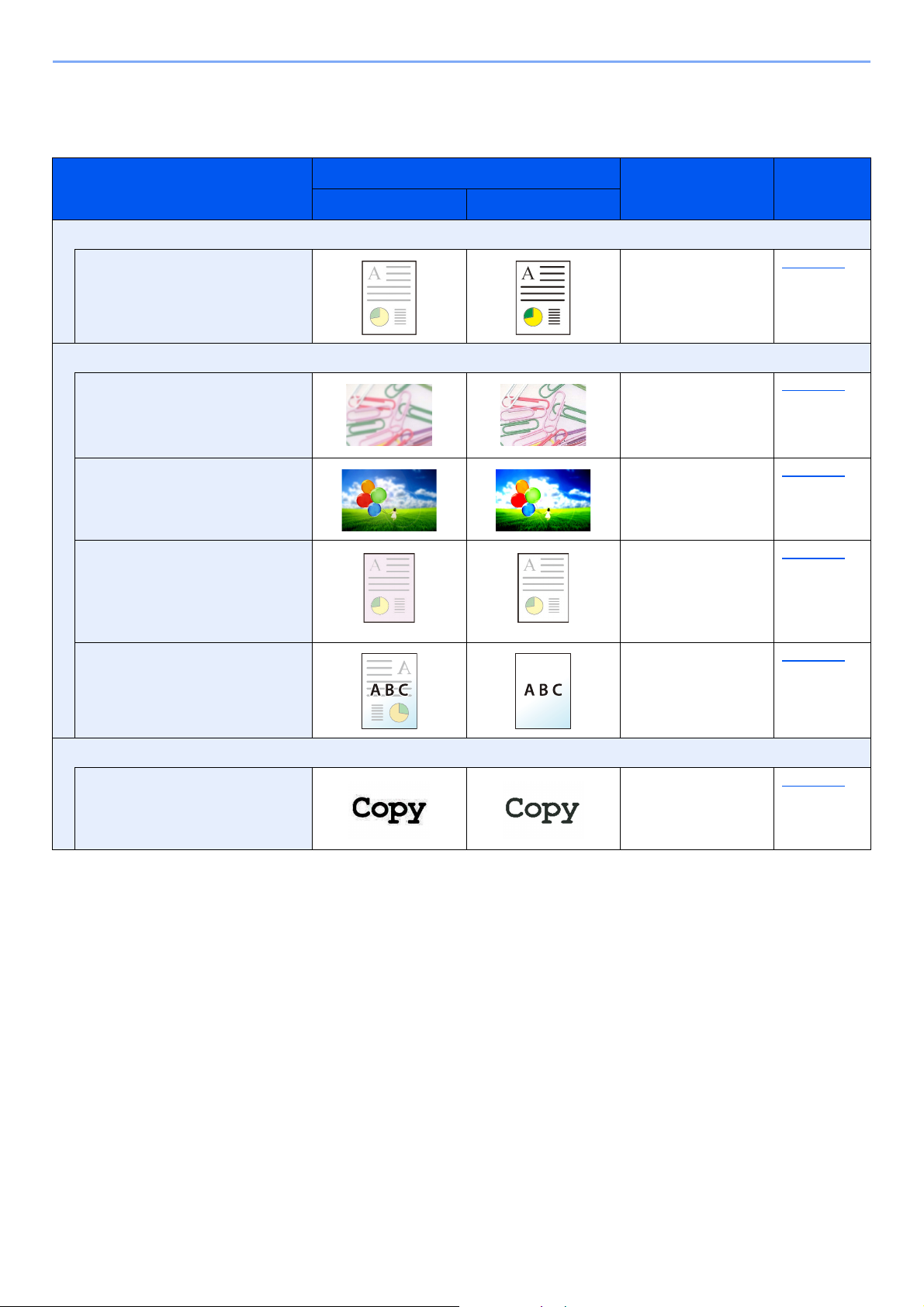
> Color and Image Quality Functions
Adjusting Image Quality and Color
To adjust the image quality or color of an image, use the following functions.
Sample image
I want to…
Before After
Adjust the color precisely.
Adjust the density. Density page 6-13
Adjust the image quality precisely
Function Page
Emphasize or blur the image
outline.
Example: Emphasize the image
outlines
Adjust the difference between
dark and light parts of the image.
Darken or lighten the background
(the area with no texts or images)
of a document.
Example: Lightening the
background
Prevent bleed-through in 2-sided
originals.
Adjust the scanned image
Decrease the file size and
produce the characters clearly.
Sharpness page 6-16
Contrast page 6-16
Background Density page 6-17
Prevent Bleedthrough
File format
[High Comp. PDF]
page 6-17
page 6-29
xv

> Guides Provided with the Machine
Guides Provided with the Machine
The following guides are provided with the machine. Refer to each guide as needed.
The contents of the guides are subject to change without notice for the purpose of improvement of machine
performance.
Printed guides
Start using the
machine quickly
For safe use of the
machine
Quick Guide
Explains how to use basic functions of the machine, how to use convenient features, how
to perform routine maintenance, and what to do when problems occur.
Safety Guide
Provides safety and cautionary information for installation environment and use of the
machine. Be sure to read this guide before using the machine.
Safety Guide (ECOSYS M3145idn/ECOSYS M3645idn/
ECOSYS M3655idn/ECOSYS M3660idn)
Indicates the space required for machine installation, and describes the cautionary labels
and other safety information. Be sure to read this guide before using the machine.
xvi

> Guides Provided with the Machine
Guides (PDF) on the DVD (Product Library)
Use the machine
thoughtfully
Use the fax functions
Use the ID card
Strengthen security
Easily register
machine information
and configure settings
Print data from a
computer
Directly print a PDF file
Monitor the machine
and printers on the
network
Operation Guide (This Guide)
Explains how to load paper and perform copy, print and scan operations, and indicates
default settings and other information.
FAX Operation Guide
Explains how to use the fax function.
Card Authentication Kit (B) Operation Guide
Explains how to perform authentication using the ID card.
Data Security Kit (E) Operation Guide
Explains how to introduce and use the Data Security kit (E), and how to overwrite and encrypt
data.
Command Center RX User Guide
Explains how to access the machine from a Web browser on your computer to check and
change settings.
Printer Driver User Guide
Explains how to install the printer driver and use the printer function.
KYOCERA Net Direct Print Operation Guide
Explains how to print PDF files without launching Adobe Acrobat or Reader.
KYOCERA Net Viewer User Guide
Explains how to monitor your network printing system (the machine) with KYOCERA Net
Viewer.
Scan images and save
with information
File Management Utility User Guide
Explains how to use File Management Utility to set various parameters and send and save
scanned documents.
PRESCRIBE Commands Command Reference
Print without using the
printer driver
Adjust the print or
scan position
Install the following versions of Adobe Reader to view the manuals on the DVD.
Version 8.0 or later
Describes the native printer language (PRESCRIBE commands).
PRESCRIBE Commands Technical Reference
Describes the PRESCRIBE command functions and control for each type of emulation.
Maintenance Menu User Guide
Maintenance Menu provides the explanation on how to configure the print, scan, and other
settings.
xvii

> About the Operation Guide (this Guide)
About the Operation Guide (this Guide)
Structure of the guide
The Operation Guide contains the following chapters.
Chapter Contents
1 Legal and Safety Information Provides precautions regarding use of the machine and trademark information.
2 Installing and Setting up the
Machine
3 Preparation before Use Explains preparations and settings that are required in order to use the machine, such
4 Printing from PC Explains functions that are available when the machine is used as a printer.
5 Operation on the Machine Explains the basic procedures for using the machine, such as placing originals, making
6 Using Various Functions Explains convenient functions that are available on the machine.
7 Status/Job Cancel Explains how to check the status of a job and the job history, and how to cancel jobs
8 Setup and Registration (System
Menu)
9 User Authentication and
Accounting (User Login, Job
Accounting)
10 Troubleshooting Explains what to do when toner runs out, an error is displayed, or a paper jam or other
11 Appendix Describes convenient options that are available for the machine. Provides information
Explains part names, cable connections, installation of the software, login, logout, and
other matters related to administration of the machine.
as how to use the operation panel, load paper, and create an address book.
copies, sending documents, and using document boxes.
being printed or waiting to print. Also explains how to check paper and toner levels, how
to check the device status, and how to cancel fax transmission.
Explains System Menu and how it relates to the operation of the machine.
Explains user login and job accounting.
problem occurs.
on media types and paper sizes, and gives a glossary of terms. Explains how to enter
characters, and lists the specifications of the machine.
xviii
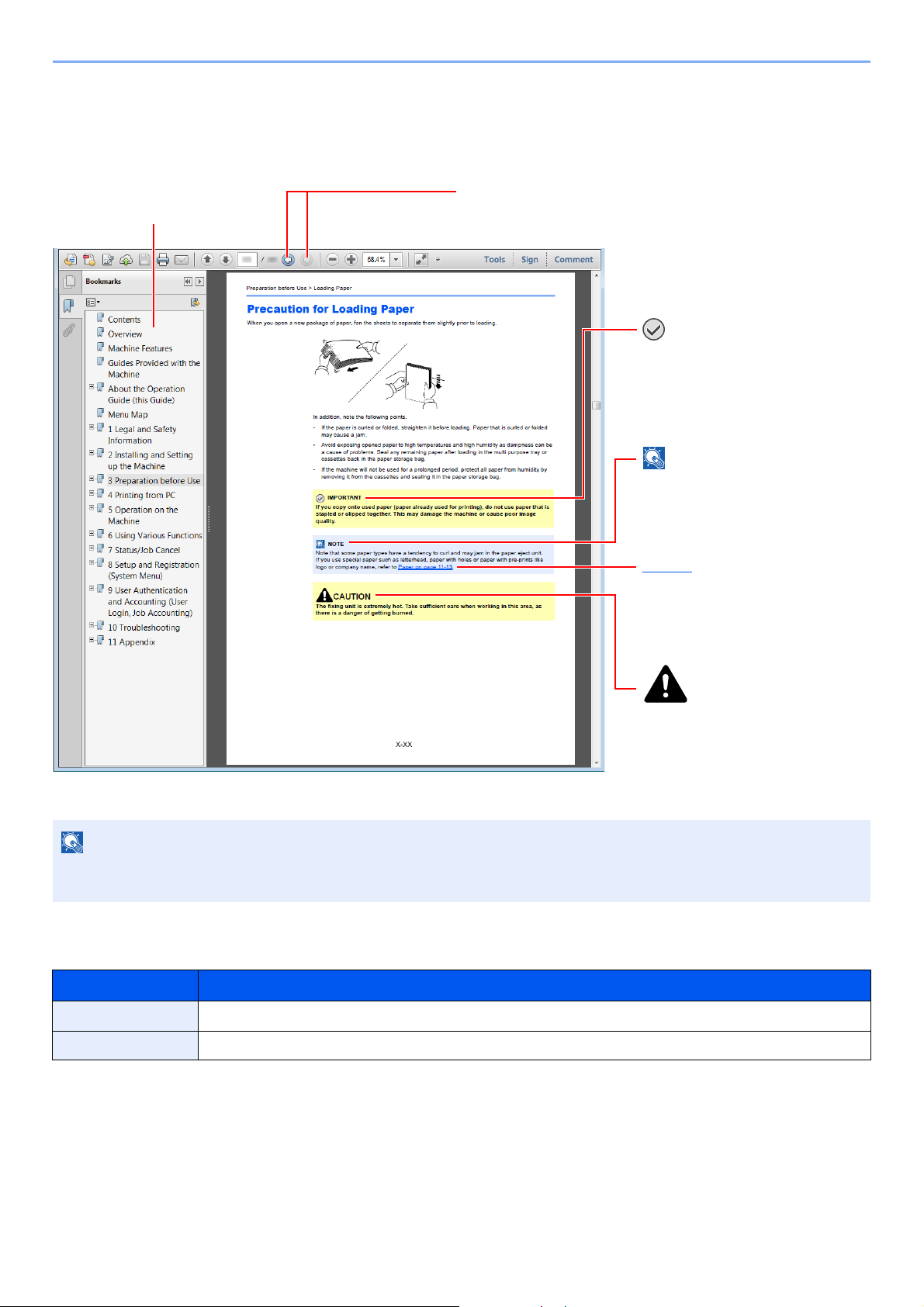
> About the Operation Guide (this Guide)
Click to move from the current page to the previously
displayed page. This is convenient when you want to return
to the page from which you jumped to the current page.
Click an item in the Table of
Contents to jump to the
corresponding page.
Indicates that personal injury or
mechanical damage may result
from insufficient attention to or
incorrect compliance with the
related points.
Indicates supplemental
explanations and reference
information for operations.
Indicates operational requirements
and restrictions to operate the
machine correctly, and avoid
damage to the machine or property.
Refer to
Click the underlined text to jump to
the corresponding page.
Conventions Used in This Guide
Adobe Reader XI is used as an example in the explanations below.
The items that appear in Adobe Reader vary depending on how it is used. If the Table of Contents or tools do not
appear, refer to Adobe Reader Help.
Certain items are indicated in this guide by the conventions described below.
Convention Description
[Bold] Indicates keys and buttons.
«Regular» Indicates a message or setting.
xix

> About the Operation Guide (this Guide)
Conventions used in procedures for operating the machine
In this Operation Guide, continuous operation of the keys on the touch panel is as follows:
Actual procedure Procedure indicated in this guide
Select the [System Menu/Counter] key.
Select [ ].
Select [Common Settings].
Select [Sound].
[System Menu/Counter] key > [Common Settings] > [Sound]
xx
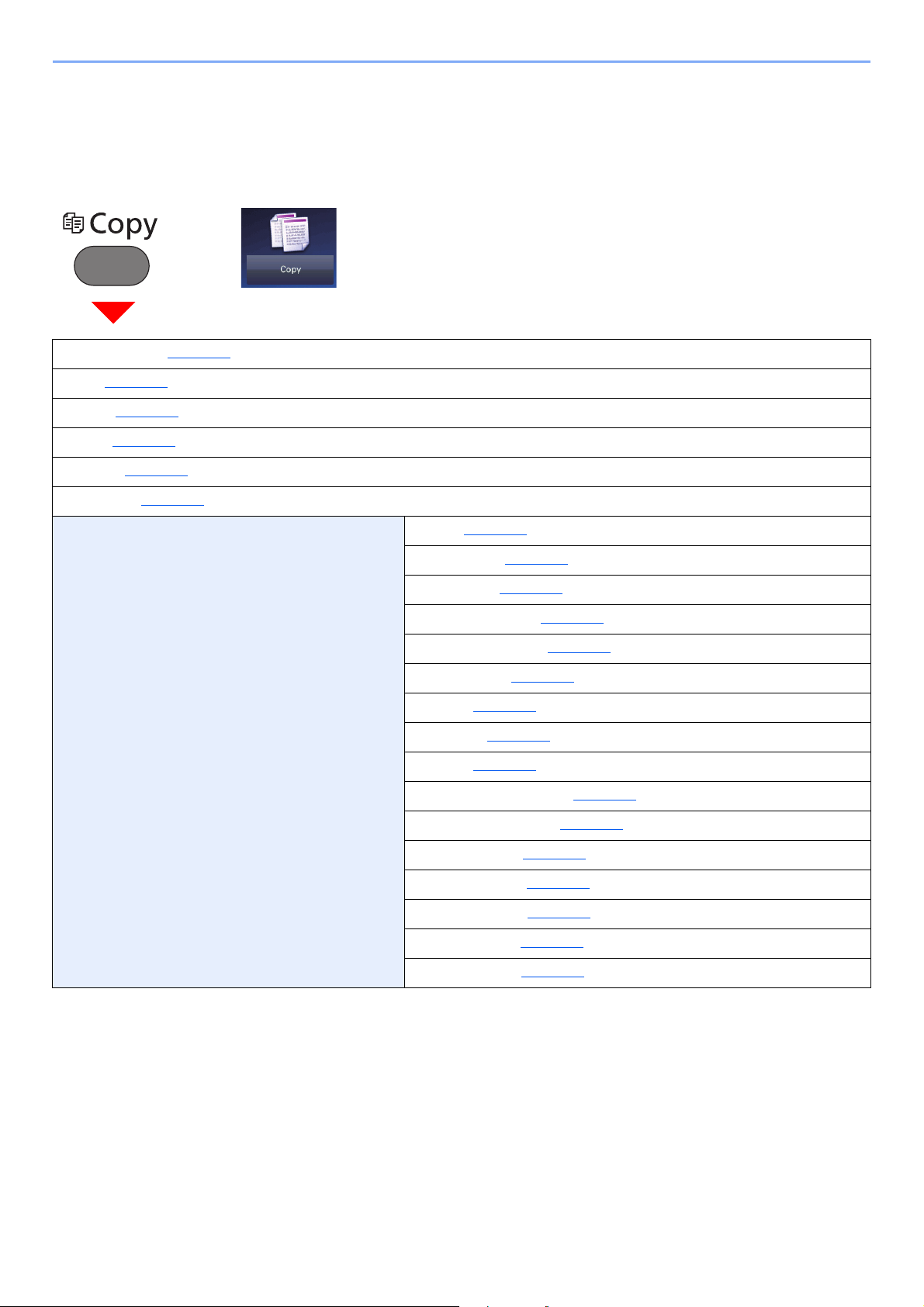
> Menu Map
Menu Map
This is a list of menus displayed on the touch panel. Depending on the settings, some menus may not be displayed.
Some menu names may differ from their reference titles.
or
Paper Selection (page 6-11)
Zoom (page 6-18
Density (page 6-13
Duplex (page 6-22
Combine (page 6-20
Quiet Mode (page 6-25
Functions Collate (page 6-13)
)
)
)
)
)
ID Card Copy (page 6-10
Original Size (page 6-10
Original Orientation (page 6-12
Mixed Size Originals (page 6-13
Original Image (page 6-14
EcoPrint (page 6-15
Sharpness (page 6-16
Contrast (page 6-16
Background Density Adj. (page 6-17
Prevent Bleed-through (page 6-17
)
)
)
)
)
)
)
)
)
)
Skip Blank Page (page 6-26
Continuous Scan (page 6-24
Job Finish Notice (page 6-24
File Name Entry (page 6-25
Priority Override (page 6-25
xxi
)
)
)
)
)
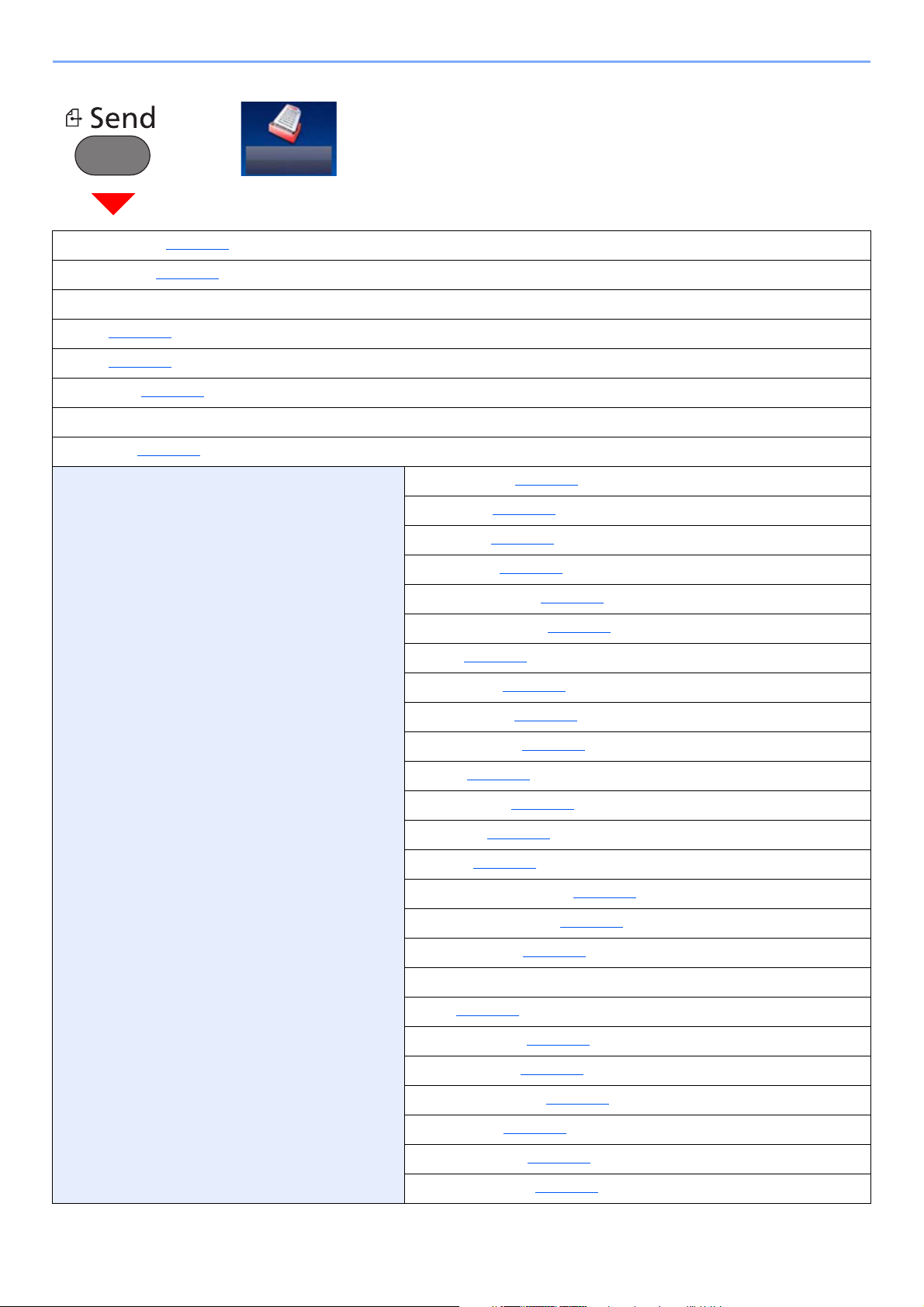
> Menu Map
or
One Touch Key (page 5-22)
Address Book (page 5-20
Ext Address Book (Refer to Command Center RX User Guide.)
E-mail (page 5-22
Folder (page 5-23
FAX Server (page 5-34
FAX (Refer to FAX Operation Guide.)
WSD Scan (page 5-31
Functions Color Selection (page 6-15)
)
)
)
)
)
Quiet Mode (page 6-25
File Format (page 6-29
Original Size (page 6-10
Original Orientation (page 6-12
Mixed Size Originals (page 6-13
Duplex (page 6-27
Sending Size (page 6-28
File Separation (page 6-33
)
)
)
)
)
)
)
)
Scan Resolution (page 6-33
Density (page 6-13
Original Image (page 6-14
Sharpness (page 6-16
Contrast (page 6-16
Background Density Adj. (page 6-17
Prevent Bleed-through (page 6-17
Skip Blank Page (page 6-26
FAX TX Resolution (Refer to FAX Operation Guide.)
Zoom (page 6-18)
Continuous Scan (page 6-24
File Name Entry (page 6-25
E-mail Subject/Body (page 6-33
Long Original (page 6-34
Job Finish Notice (page 6-24
FTP Encrypted TX (page 6-34
)
)
)
)
)
)
)
)
)
)
)
)
)
)
xxii
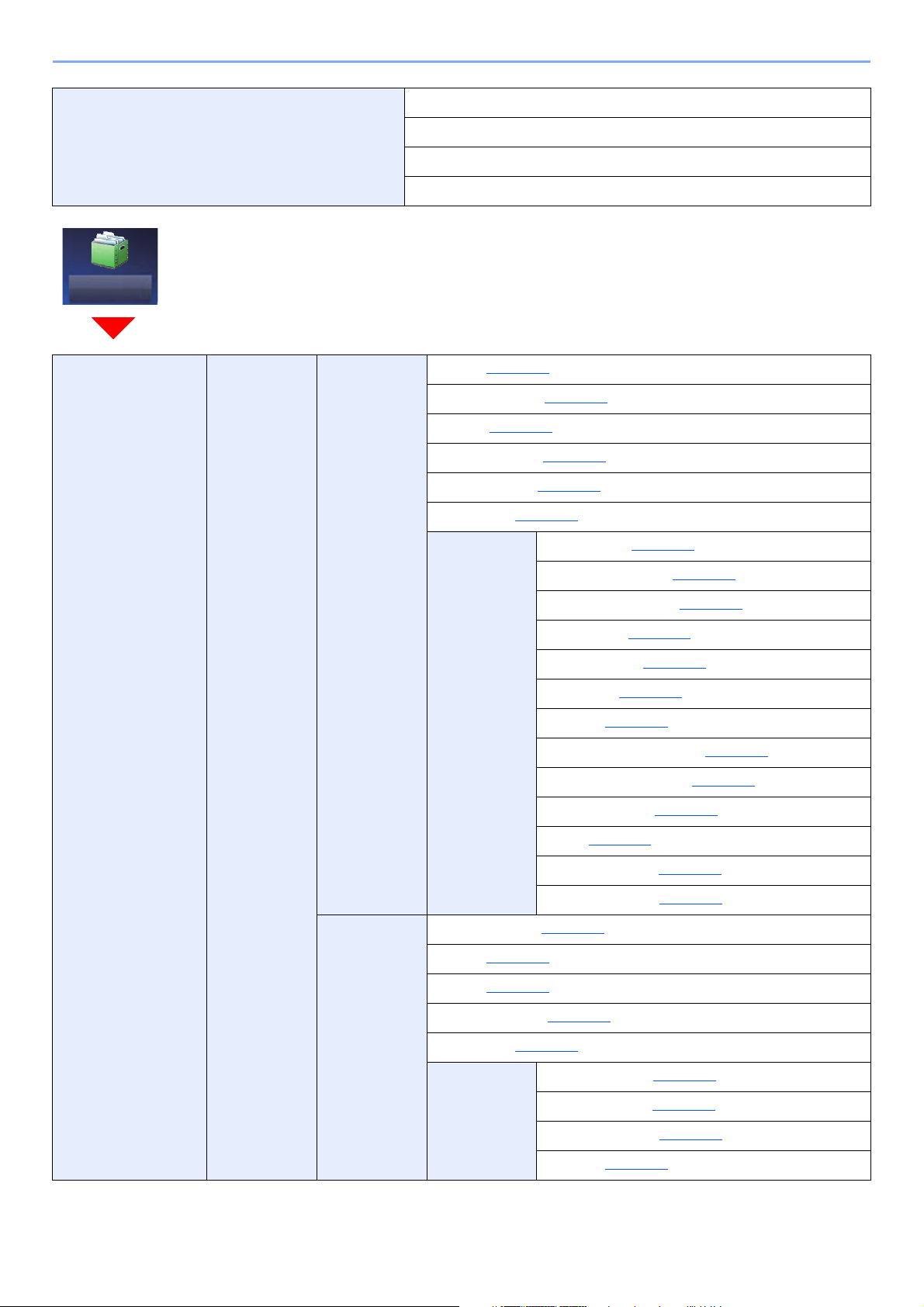
> Menu Map
Functions FAX Delayed Transmission (Refer to FAX Operation Guide.)
FAX Direct Transmission (Refer to FAX Operation Guide.)
FAX Polling RX (Refer to FAX Operation Guide.)
FAX TX Report (Refer to FAX Operation Guide.)
Custom Box Menu Store File Duplex (page 6-27)
Scan Resolution (page 6-33
Density (page 6-13
)
File Name Entry (page 6-25
Color Selection (page 6-15
Quiet Mode (page 6-25
)
)
)
)
Functions Original Size (page 6-10)
Original Orientation (page 6-12
Mixed Size Originals (page 6-13
Storing Size (page 6-35
Original Image (page 6-14
Sharpness (page 6-16
Contrast (page 6-16
)
)
Background Density Adj. (page 6-17
Prevent Bleed-through (page 6-17
Skip Blank Page (page 6-26
Zoom (page 6-18
)
)
)
)
)
)
)
)
Continuous Scan (page 6-24
Job Finish Notice (page 6-24
Print Paper Selection (page 6-11)
Collate (page 6-13
Duplex (page 6-22
)
)
Delete after Print (page 6-34
Quiet Mode (page 6-25
)
Functions Priority Override (page 6-25)
File Name Entry (page 6-25
Job Finish Notice (page 6-24
EcoPrint (page 6-15
xxiii
)
)
)
)
)
)
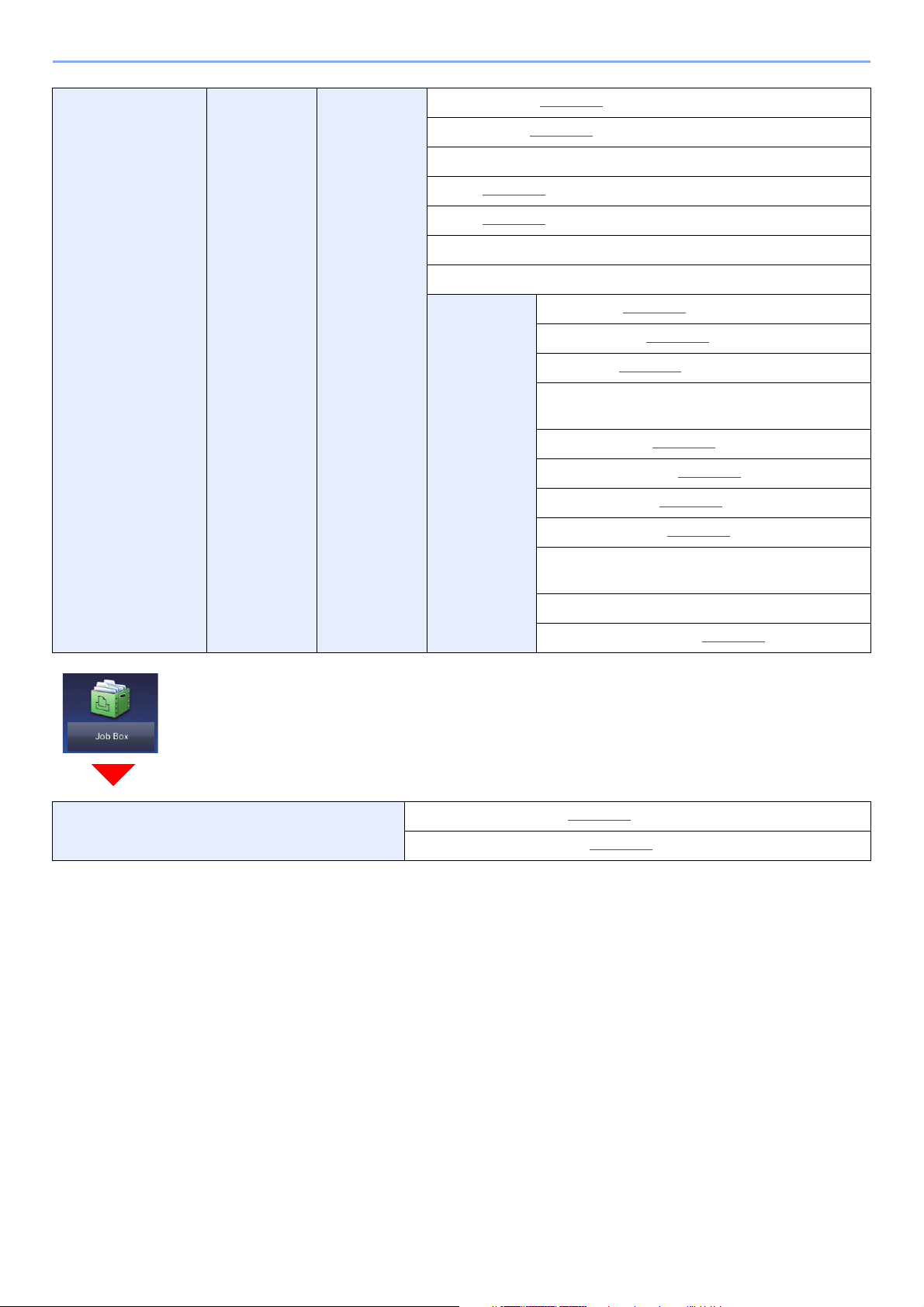
> Menu Map
Custom Box Menu Send One Touch Key (page 5-22)
Address Book (page 5-20
Ext Address Book (Refer to Command Center RX User Guide.)
E-mail (page 5-22
Folder (page 5-23
FAX Server (Refer to FAX Operation Guide.)
FAX (Refer to FAX Operation Guide.)
Functions File Format (page 6-29)
)
)
File Separation (page 6-33
Resolution (page 6-33
FAX TX Resolution (Refer to FAX Operation
Guide.)
File Name Entry (page 6-25
E-mail Subject/Body (page 6-33
Job Finish Notice (page 6-24
FTP Encrypted TX (page 6-34
FAX Delayed Transmission (Refer to FAX
Operation Guide.)
)
)
)
)
)
)
)
FAX TX Report (Refer to FAX Operation Guide.)
Delete after Transmitted (page 6-34
Job Box Private Print/Stored Job (page 4-13)
Quick Copy/Proof and Hold (page 4-17
)
)
xxiv

> Menu Map
Removable Memory Print Paper Selection (page 6-11)
Collate (page 6-13
Duplex (page 6-22
Quiet Mode (page 6-25
Functions EcoPrint (page 6-15)
Menu Store File File Format (page 6-29)
)
)
)
Job Finish Notice (page 6-24
File Name Entry (page 6-25
Priority Override (page 6-25
Encrypted PDF Password (page 6-35
JPEG/TIFF Print (page 6-36
XPS Fit to Page (page 6-36
Duplex (page 6-27
Scan Resolution (page 6-33
Density (page 6-13
File Name Entry (page 6-25
Color Selection (page 6-15
)
)
)
)
)
)
)
)
)
)
)
Functions Quiet Mode (page 6-25)
Original Size (page 6-10
Original Orientation (page 6-12
Mixed Size Originals (page 6-13
Storing Size (page 6-35
Original Image (page 6-14
Sharpness (page 6-16
Contrast (page 6-16
Background Density Adj. (page 6-17
Prevent Bleed-through (page 6-17
Skip Blank Page (page 6-26
Zoom (page 6-18
Continuous Scan (page 6-24
Long Original (page 6-34
Job Finish Notice (page 6-24
File Separation (page 6-33
)
)
)
)
)
)
)
)
)
)
)
)
)
)
)
xxv
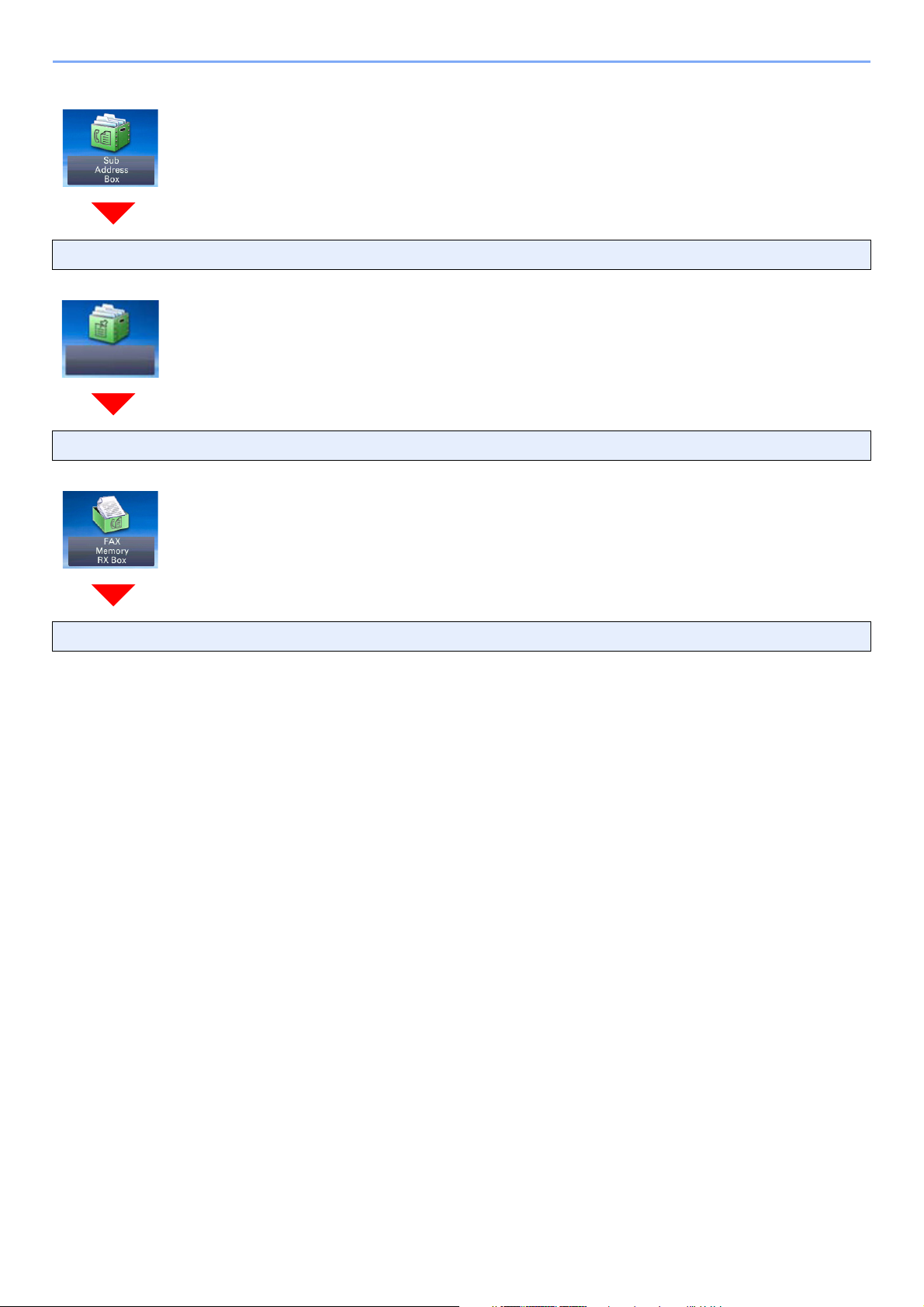
> Menu Map
Sub Address Box (Refer to FAX Operation Guide.)
Polling Box (Refer to FAX Operation Guide.)
FAX Memory RX Box (Refer to FAX Operation Guide.)
xxvi
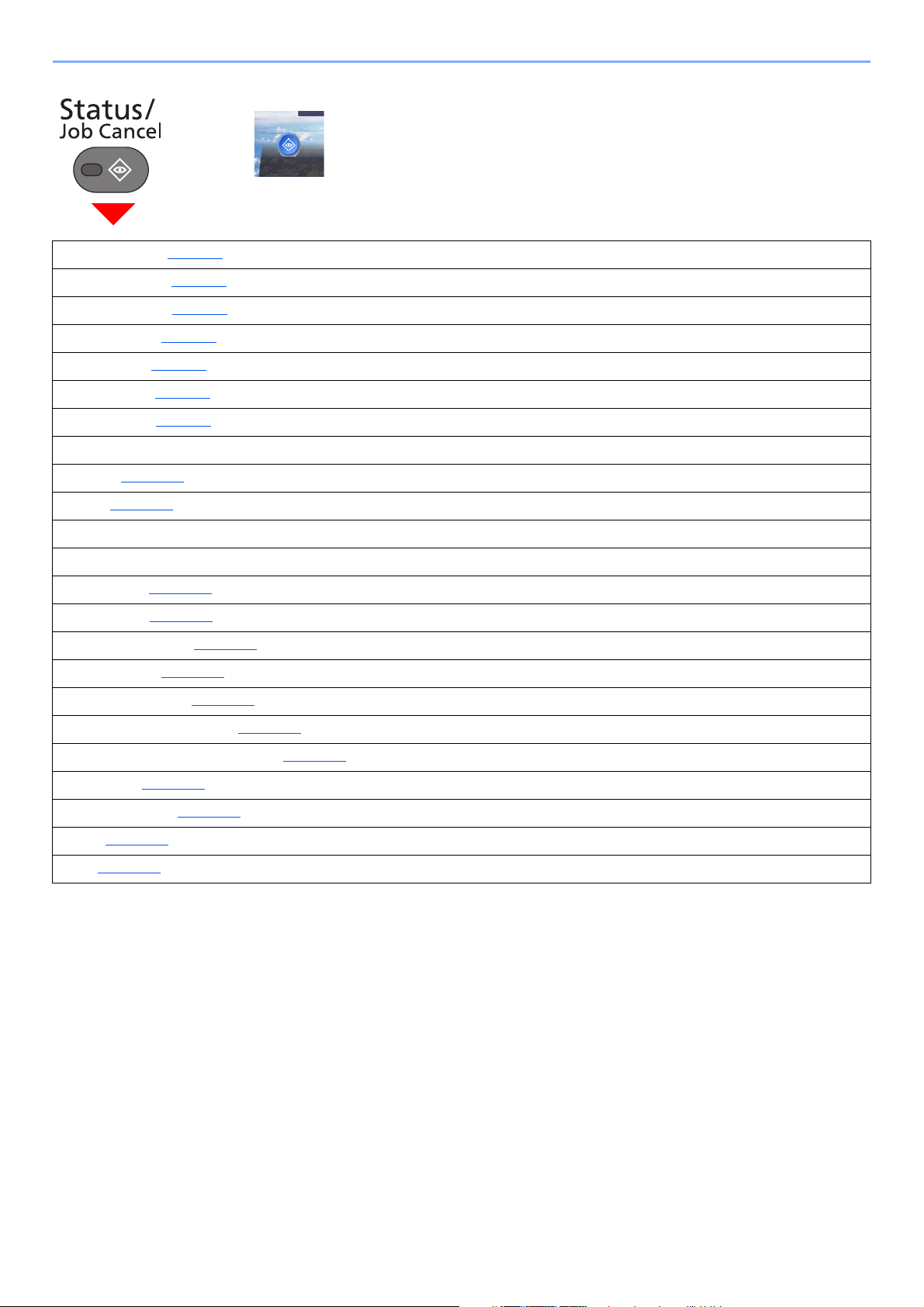
> Menu Map
or
Print Job Status (page 7-8)
Send Job Status (page 7-4)
Store Job Status (page 7-5)
Scheduled Job (page 7-6)
Print Job Log (page 7-8)
Send Job Log (page 7-8)
Store Job Log (page 7-8)
FAX Job Log (Refer to FAX Operation Guide.)
Scanner (page 7-11)
Printer (page 7-11)
FAX Memory RX Box (refer to FAX Operation Guide.)
FAX (refer to FAX Operation Guide.)
Toner Status (page 7-13)
Paper Status (page 7-13)
Removable Memory (page 7-11)
USB Keyboard (page 7-11)
Bluetooth Keyboard (page 7-11)
Network Connection Status (page 7-11)
Option Network Connection Status (page 7-12)
Wi-Fi Direct (page 7-12)
Wireless Network (page 7-12)
Wi-Fi (page 7-12)
SSD (page 7-12)
xxvii
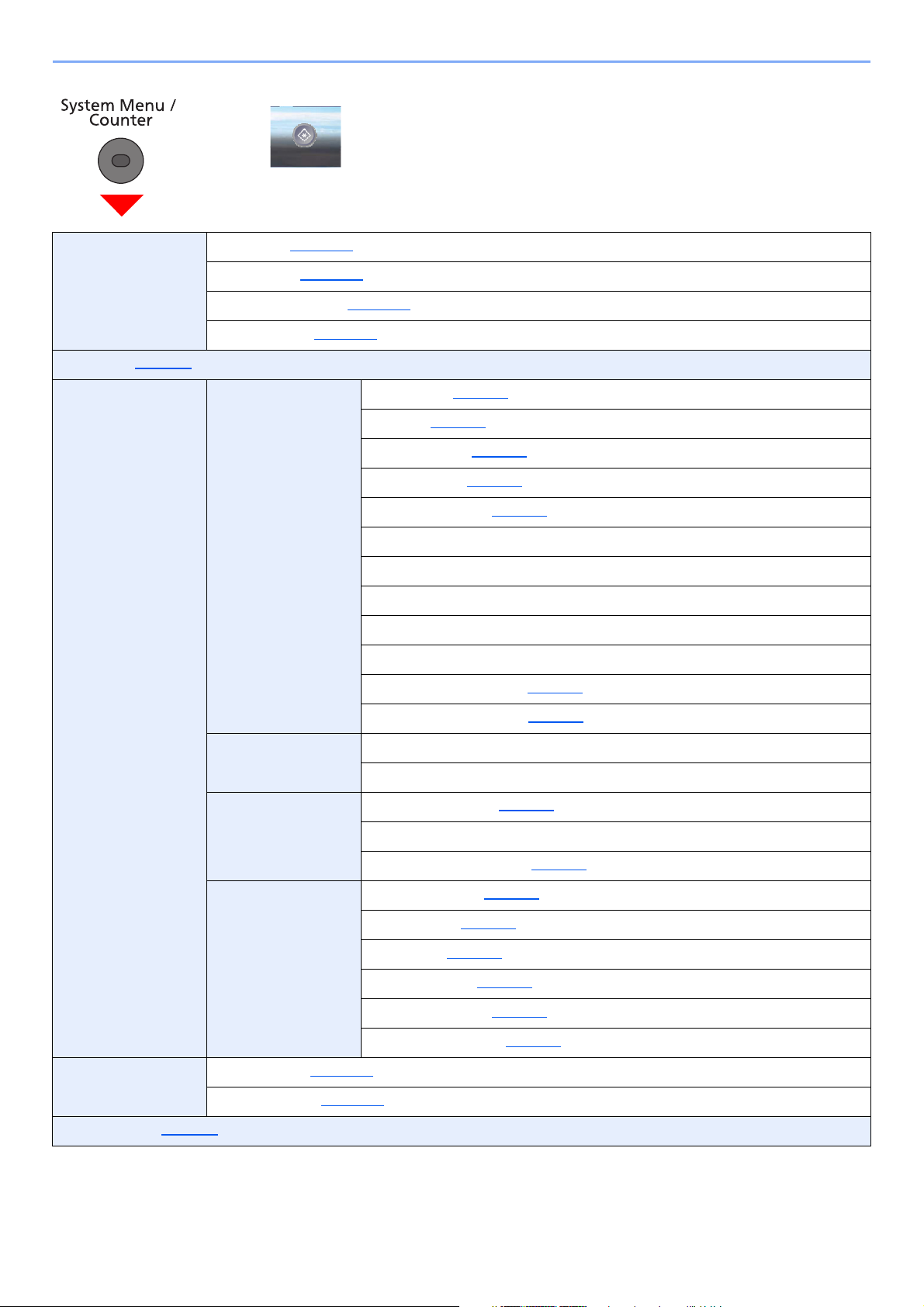
> Menu Map
or
Quick Setup Wizard FAX Setup (page 2-35)
Paper Setup (page 2-35
Energy Saver Setup (page 2-35
Network Setup (page 2-36
)
)
)
Language (page 8-5)
Report Report Print Status Page (page 8-5)
Font List (page 8-5
)
Network Status (page 8-6
Service Status (page 8-6
Accounting Report (page 8-6
Sub Address Box List (Refer to FAX Operation Guide.)
FAX List (Index) (Refer to FAX Operation Guide.)
FAX List (No.) (Refer to FAX Operation Guide.)
Outgoing FAX Report (Refer to FAX Operation Guide.)
Incoming FAX Report (Refer to FAX Operation Guide.)
Optional Network Status (page 8-6
Data Sanitization Report (page 8-6
)
)
)
)
)
Admin Report
Settings
Result Report
Setting
Sending Log History Send Log History (page 8-7)
Counter Printed Pages (page 2-50)
Scanned Pages (page 2-50
User Property (page 9-9)
Outgoing FAX Report (Refer to FAX Operation Guide.)
Incoming FAX Report (Refer to FAX Operation Guide.)
Send Result Report (page 8-7)
RX Result Report (Refer to FAX Operation Guide.)
Job Finish Notice Setting (page 8-7
Auto Sending (page 8-7
Destination (page 8-7
Job Log Subject (page 8-7
)
)
)
SSFC Log Subject (page 8-7
Personal Information (page 8-7
)
)
)
)
xxviii
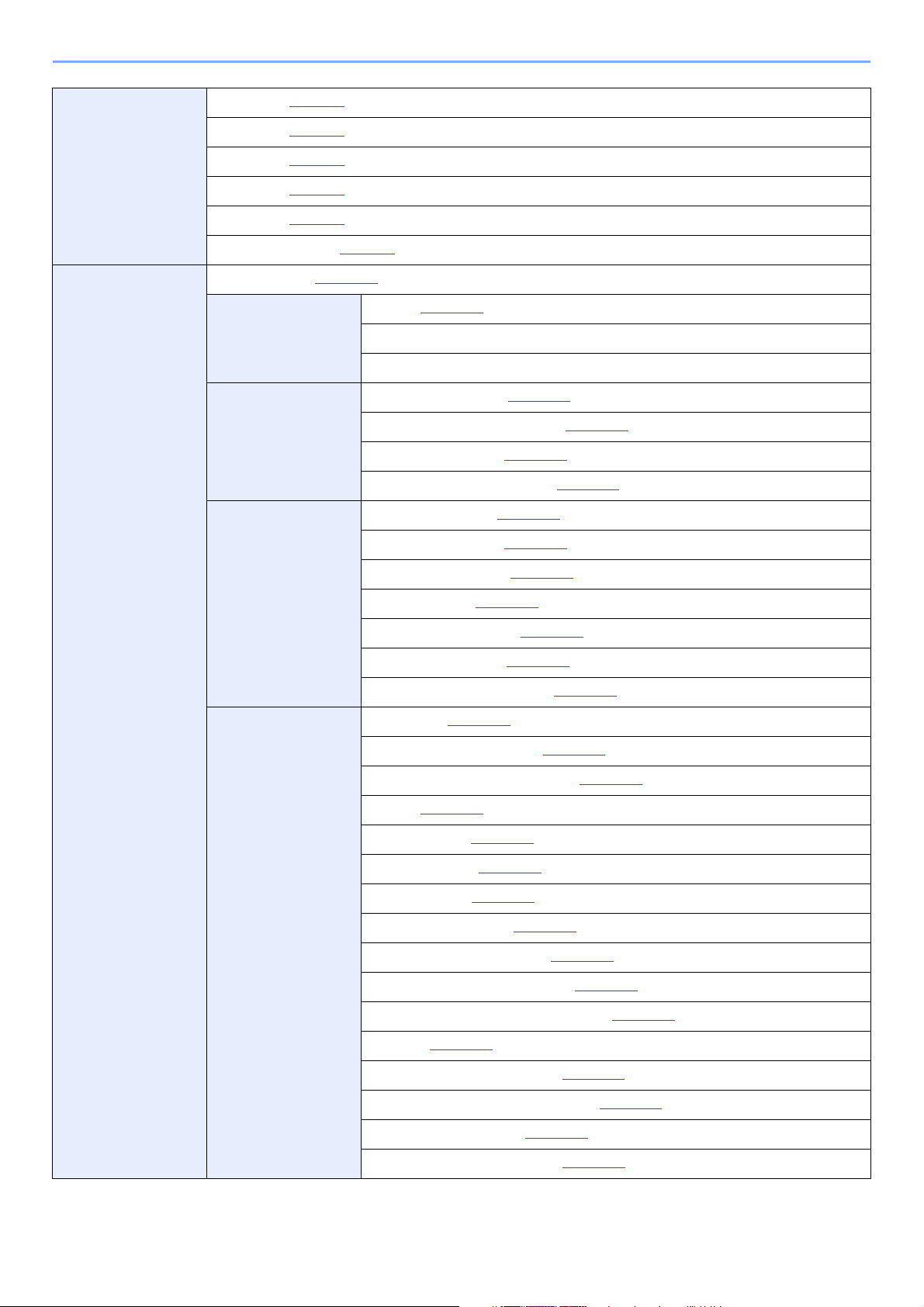
> Menu Map
Cassette/MP Tray
Settings
Common Settings Default Screen (page 8-10)
Cassette 1 (page 8-8)
Cassette 2 (page 8-8
Cassette 3 (page 8-8
Cassette 4 (page 8-8
Cassette 5 (page 8-8
Multi Purpose Tray (page 8-9
Sound Buzzer (page 8-10)
Original Settings Custom Original Size (page 8-11)
Paper Settings Custom Paper Size (page 8-12)
)
)
)
)
FAX Speaker Volume (Refer to FAX Operation Guide.)
FAX Monitor Volume (Refer to FAX Operation Guide.)
Auto Detect Original Size (DP) (page 8-11
Default Original Size (page 8-11
Default Original Size (Platen) (page 8-11
Media Type Settings (page 8-14
)
)
)
)
)
Default Paper Source (page 8-13
Paper Selection (page 8-13
Media for Auto (B & W) (page 8-13
Special Paper Action (page 8-13
Show Paper Setup Message (page 8-13
Function Defaults File Format (page 8-15)
Original Orientation (Copy) (page 8-15
Original Orientation (Send/Store) (page 8-15
Collate (page 8-15
File Separation (page 8-15
Scan Resolution (page 8-15
Color Selection (page 8-15
Original Image (Copy) (page 8-15
Original Image (Send/Store) (page 8-15
Background Density Adj. (Copy) (page 8-15
Background Density Adj. (Send/Store) (page 8-15
)
)
)
)
)
)
)
)
)
)
)
)
)
)
)
EcoPrint (page 8-15
Prevent Bleed-through (Copy) (page 8-15
Prevent Bleed-through (Send/Store) (page 8-15
Skip Blank Page (Copy) (page 8-16
Skip Blank Page (Send/Store) (page 8-16
)
)
)
)
xxix
)
Loading…
OPERATION GUIDEECOSYS M3145idn
PRINT COPY SCAN
ECOSYS M3645idn ECOSYS M3655idn ECOSYS M3660idn
PRINT COPY SCAN FAX
> Preface
i
Preface Thank you for purchasing this machine.
This Operation Guide is intended to help you operate the machine correctly, perform routine maintenance, and take simple troubleshooting measures as needed so that the machine can always be used in the optimum condition.
Please read this Operation Guide before using the machine.
To maintain quality, we recommend using genuine Kyocera toner containers, which must pass numerous quality inspections.
The use of non-genuine toner containers may cause failure.
We will not be liable for any damages caused by the use of third party supplies in this machine.
A label is affixed to our replacement genuine toner containers, as shown below.
Checking the Equipment’s Serial Number
The equipment’s serial number is printed in the location shown in the figure.
You’ll need the equipment’s serial number when contacting your Service Representative. Please check the number before contacting your Service Representative.
ii
Contents Preface ……………………………………………………………………………………………………………………. i Contents…………………………………………………………………………………………………………………. ii Overview ……………………………………………………………………………………………………………….. ix Machine Features ……………………………………………………………………………………………………. x Color and Image Quality Functions……………………………………………………………………….. xiv
Basic Color Modes ………………………………………………………………………………………… xiv Adjusting Image Quality and Color……………………………………………………………………. xv
Guides Provided with the Machine………………………………………………………………………… xvi About the Operation Guide (this Guide) ………………………………………………………………. xviii
Structure of the guide……………………………………………………………………………………. xviii Conventions Used in This Guide……………………………………………………………………… xix
Menu Map…………………………………………………………………………………………………………….. xxi
1 Legal and Safety Information ………………………………………………………. 1-1 Notice ………………………………………………………………………………………………………………… 1-2
Safety Conventions in This Guide ………………………………………………………………….. 1-2 Environment ……………………………………………………………………………………………….. 1-3 Precautions for Use ……………………………………………………………………………………… 1-4 Laser Safety (Europe) ………………………………………………………………………………….. 1-5 SAFETY OF LASER BEAM (USA) ………………………………………………………………… 1-6 Safety Instructions Regarding the Disconnection of Power ……………………………….. 1-7 Compliance and Conformity ………………………………………………………………………….. 1-7 Other precautions (for users in California, the United States) …………………………….. 1-7 Warranty (the United States and Canada) ………………………………………………………. 1-8 Legal Restriction on Copying/Scanning ………………………………………………………… 1-10 EN ISO 7779 …………………………………………………………………………………………….. 1-10 EK1-ITB 2000 ……………………………………………………………………………………………. 1-10 Wireless Connection (Mexico only) ………………………………………………………………. 1-10 Security Precautions when Using Wireless LAN (If equipped) …………………………. 1-10 Limited Use of This Product (If equipped) ……………………………………………………… 1-11 Legal Information ………………………………………………………………………………………. 1-12 Energy Saving Control Function ………………………………………………………………….. 1-18 Automatic 2-Sided Print Function …………………………………………………………………. 1-18 Resource Saving — Paper ……………………………………………………………………………. 1-18 Environmental benefits of «Power Management» ……………………………………………. 1-18 Energy Star (ENERGY STAR) Program ……………………………………………………… 1-19
2 Installing and Setting up the Machine ………………………………………….. 2-1 Part Names …………………………………………………………………………………………………………. 2-2
Machine Exterior …………………………………………………………………………………………. 2-2 Connectors/Interior ………………………………………………………………………………………. 2-4 With Optional Equipments Attached ………………………………………………………………. 2-6
Connecting the Machine and Other Devices ………………………………………………………… 2-7 Connecting Cables ……………………………………………………………………………………………… 2-8
Connecting LAN Cable …………………………………………………………………………………. 2-8 Connecting USB Cable ………………………………………………………………………………… 2-9 Connecting the Power Cable ………………………………………………………………………… 2-9
Power On/Off ……………………………………………………………………………………………………. 2-10 Power On …………………………………………………………………………………………………. 2-10 Power Off …………………………………………………………………………………………………. 2-10
Using the Operation Panel ………………………………………………………………………………… 2-11 Operation Panel Keys ………………………………………………………………………………… 2-11 Adjusting the Operation Panel Angle ……………………………………………………………. 2-12
Touch Panel ……………………………………………………………………………………………………… 2-13 Home Screen ……………………………………………………………………………………………. 2-13 Display for Device Information …………………………………………………………………….. 2-17
iii
Functions key ……………………………………………………………………………………………. 2-18 Display of Keys That Cannot Be Set …………………………………………………………….. 2-19 Enter key and Quick No. Search key ……………………………………………………………. 2-20 Help Screen ……………………………………………………………………………………………… 2-21
Login/Logout ……………………………………………………………………………………………………. 2-22 Login ……………………………………………………………………………………………………….. 2-22 Logout ……………………………………………………………………………………………………… 2-23
Default Settings of the Machine …………………………………………………………………………. 2-24 Setting Date and Time ……………………………………………………………………………….. 2-24
Network Setup ………………………………………………………………………………………………….. 2-25 Configuring the Wired Network ……………………………………………………………………. 2-25 Configuring the Wireless Network ………………………………………………………………… 2-27 Setting Wi-Fi Direct ……………………………………………………………………………………. 2-31
Energy Saver function ………………………………………………………………………………………. 2-33 Low Power Mode ………………………………………………………………………………………. 2-33 Sleep and Auto Sleep ………………………………………………………………………………… 2-33 Power Off Rule (models for Europe) …………………………………………………………….. 2-34
Quick Setup Wizard …………………………………………………………………………………………… 2-35 Installing Software ……………………………………………………………………………………………. 2-37
Software on DVD (Windows) ………………………………………………………………………. 2-37 Installing Software in Windows ……………………………………………………………………. 2-38 Uninstalling the Software ……………………………………………………………………………. 2-44 Installing Software in Mac Computer ……………………………………………………………. 2-45 Setting TWAIN Driver …………………………………………………………………………………. 2-47 Setting WIA Driver ……………………………………………………………………………………… 2-49
Checking the Counter ……………………………………………………………………………………….. 2-50 Additional Preparations for the Administrator ……………………………………………………. 2-51
Sending Documents to a PC ……………………………………………………………………….. 2-51 Strengthening the Security ………………………………………………………………………….. 2-51
Command Center RX ………………………………………………………………………………………… 2-53 Accessing Command Center RX …………………………………………………………………. 2-54 Changing Security Settings …………………………………………………………………………. 2-55 Changing Device Information ………………………………………………………………………. 2-57 E-mail Settings ………………………………………………………………………………………….. 2-59 Registering Destinations …………………………………………………………………………….. 2-63 Creating a New Custom Box ……………………………………………………………………….. 2-64 Printing a document stored in a Custom Box …………………………………………………. 2-65
Transferring Data from Our Other Products ……………………………………………………….. 2-67 Migrating the Address Book ………………………………………………………………………… 2-67
3 Preparation before Use ……………………………………………………………….. 3-1 Loading Paper ……………………………………………………………………………………………………. 3-2
Precaution for Loading Paper ……………………………………………………………………….. 3-3 Loading in the Cassettes ………………………………………………………………………………. 3-4 Loading Statement in the Cassettes (ECOSYS M3655idn/ECOSYS M3660idn for inch models) ……………………………….. 3-8 Loading Paper in the Multi Purpose Tray ………………………………………………………. 3-11 Specifying Paper Size and Media Type ………………………………………………………… 3-15
Paper Stopper …………………………………………………………………………………………………… 3-17 Preparation for Sending a Document to a Shared Folder in a PC ………………………… 3-18
Making a note of the computer name and full computer name …………………………. 3-18 Making a note of the user name and domain name ………………………………………… 3-19 Creating a Shared Folder, Making a Note of a Shared Folder ………………………….. 3-20 Configuring Windows Firewall ……………………………………………………………………… 3-24
Registering Destinations in the Address Book …………………………………………………… 3-28 Adding a Destination (Address Book) …………………………………………………………… 3-28 Adding a Destination on One Touch Key (One Touch Key) ……………………………… 3-33
iv
4 Printing from PC …………………………………………………………………………. 4-1 Printing from PC …………………………………………………………………………………………………. 4-2
Printing on Non-standard Sized Paper ……………………………………………………………. 4-4 Banner printing ……………………………………………………………………………………………. 4-5 Printer Driver Print Settings Screen ……………………………………………………………….. 4-9 Printer Driver Help ……………………………………………………………………………………… 4-10 Changing the Default Printer Driver Settings (Windows 8.1) ……………………………. 4-10 Canceling Printing from a Computer …………………………………………………………….. 4-10
Printing by AirPrint …………………………………………………………………………………………… 4-11 Printing by Google Cloud Print ………………………………………………………………………….. 4-11 Printing by Mopria …………………………………………………………………………………………….. 4-11 Printing with Wi-Fi Direct …………………………………………………………………………………… 4-11 Printing Data Saved on the Printer …………………………………………………………………….. 4-12
Specifying the Job Box from a Computer and Storing the Job …………………………. 4-12 Printing Documents from Private Print Box ……………………………………………………. 4-13 Printing Document from Stored Job Box ……………………………………………………….. 4-15 Printing Document from Quick Copy Box ………………………………………………………. 4-17 Printing Document from Proof and Hold Box …………………………………………………. 4-19
Status Monitor ………………………………………………………………………………………………….. 4-21 Accessing the Status Monitor ………………………………………………………………………. 4-21 Exiting the Status Monitor …………………………………………………………………………… 4-21 Status Monitor Display ……………………………………………………………………………….. 4-21
5 Operation on the Machine …………………………………………………………… 5-1 Loading Originals ……………………………………………………………………………………………….. 5-2
Placing Originals on the Platen ……………………………………………………………………… 5-2 Loading Originals in the Document Processor …………………………………………………. 5-3
Favorites ……………………………………………………………………………………………………………. 5-6 Registering Favorite …………………………………………………………………………………….. 5-7 Recalling Favorite ……………………………………………………………………………………….. 5-9 Editing and Deleting Favorite ………………………………………………………………………. 5-10
Application ……………………………………………………………………………………………………….. 5-11 Installing Applications …………………………………………………………………………………. 5-11 Using Applications ……………………………………………………………………………………… 5-12 Uninstalling Applications …………………………………………………………………………….. 5-13
Registering Shortcuts ……………………………………………………………………………………….. 5-14 Adding Shortcuts ……………………………………………………………………………………….. 5-14 Editing and Deleting Shortcuts …………………………………………………………………….. 5-15
Copying ……………………………………………………………………………………………………………. 5-16 Basic Operation …………………………………………………………………………………………. 5-16 Canceling Jobs ………………………………………………………………………………………….. 5-17
Sending ……………………………………………………………………………………………………………. 5-18 Basic Operation …………………………………………………………………………………………. 5-19 Specifying Destination ………………………………………………………………………………… 5-20 Checking and Editing Destinations ………………………………………………………………. 5-25 Confirmation Screen of Destinations …………………………………………………………….. 5-26 Recall ………………………………………………………………………………………………………. 5-27 Send to Me (E-mail) …………………………………………………………………………………… 5-27 Sending to Different Types of Destinations (Multi Sending) ……………………………… 5-28 Canceling Sending Jobs …………………………………………………………………………….. 5-29 WSD Scan ………………………………………………………………………………………………… 5-30 Installing the Driver ……………………………………………………………………………………. 5-30 Scanning using TWAIN or WIA ……………………………………………………………………. 5-32 Scanning with File Management Utility …………………………………………………………. 5-33
Using fax server to send a fax (fax server transmission) …………………………………….. 5-34 Configuring Settings before Sending ……………………………………………………………. 5-34 Using fax server to send a fax ……………………………………………………………………… 5-34
v
How to use the FAX Function ……………………………………………………………………………. 5-36 What is Document Box? ……………………………………………………………………………………. 5-37 Basic Operation for Document Box ……………………………………………………………………. 5-38
Box List Operations ……………………………………………………………………………………. 5-38 Document List Operations …………………………………………………………………………… 5-38
Using a Custom Box …………………………………………………………………………………………. 5-39 Creating a New Custom Box ……………………………………………………………………….. 5-39 Editing and Deleting Custom Box ………………………………………………………………… 5-41 Saving Scanned Documents to a Custom Box ………………………………………………. 5-42 Moving Documents in Custom Box ………………………………………………………………. 5-43 Copying Documents in Custom Box into Other Boxes …………………………………….. 5-43 Copying Documents in Custom Box to Removable Memory ……………………………. 5-44 Joining Documents in Custom Box ………………………………………………………………. 5-45 Deleting Documents in Custom Box …………………………………………………………….. 5-46 Printing Documents in Custom Box ……………………………………………………………… 5-46 Sending Documents in a Custom Box ………………………………………………………….. 5-47 Sending Documents in Custom Box to E-mail Address of Logged in user. ………… 5-48 Scanning Document Stored in a Custom Box ………………………………………………… 5-49
Printing Documents Stored in Removable USB Memory …………………………………….. 5-50 Saving Documents to USB Memory (Scan to USB) …………………………………………….. 5-52 Check the USB Memory Information ………………………………………………………………….. 5-53 Removing USB Memory …………………………………………………………………………………….. 5-54 Using the Manual Stapler (ECOSYS M3655idn/ECOSYS M3660idn only) …………………………………………………….. 5-55
6 Using Various Functions …………………………………………………………….. 6-1 Functions Available on the Machine ……………………………………………………………………. 6-2
Copy ………………………………………………………………………………………………………….. 6-2 Send ………………………………………………………………………………………………………….. 6-4 Custom Box (Store File, Printing Documents, Sending Documents) …………………… 6-6 Removable Memory (Store File, Printing Documents) ………………………………………. 6-8
Functions …………………………………………………………………………………………………………. 6-10 ID Card Copy ……………………………………………………………………………………………. 6-10 Original Size ……………………………………………………………………………………………… 6-10 Paper Selection …………………………………………………………………………………………. 6-11 Original Orientation ……………………………………………………………………………………. 6-12 Mixed Size Originals ………………………………………………………………………………….. 6-13 Collate ……………………………………………………………………………………………………… 6-13 Density …………………………………………………………………………………………………….. 6-13 Original Image …………………………………………………………………………………………… 6-14 EcoPrint ……………………………………………………………………………………………………. 6-15 Color Selection ………………………………………………………………………………………….. 6-15 Sharpness ………………………………………………………………………………………………… 6-16 Contrast ……………………………………………………………………………………………………. 6-16 Background Density Adj. (Background Density Adjustment) ……………………………. 6-17 Prevent Bleed-thrugh …………………………………………………………………………………. 6-17 Zoom ……………………………………………………………………………………………………….. 6-18 Combine …………………………………………………………………………………………………… 6-20 Duplex ……………………………………………………………………………………………………… 6-22 Continuous Scan ……………………………………………………………………………………….. 6-24 Job Finish Notice ……………………………………………………………………………………….. 6-24 File Name Entry ………………………………………………………………………………………… 6-25 Priority Override ………………………………………………………………………………………… 6-25 Quiet Mode ……………………………………………………………………………………………….. 6-25 Skip Blank Page ………………………………………………………………………………………… 6-26 Duplex (2-sided Original) ……………………………………………………………………………. 6-27 Sending Size …………………………………………………………………………………………….. 6-28 File Format ……………………………………………………………………………………………….. 6-29 File Separation ………………………………………………………………………………………….. 6-33
vi
Scan Resolution, Resolution ……………………………………………………………………….. 6-33 E-mail Subject/Body …………………………………………………………………………………… 6-33 Long Original …………………………………………………………………………………………….. 6-34 FTP Encrypted TX ……………………………………………………………………………………… 6-34 Delete after Printed ……………………………………………………………………………………. 6-34 Delete after Transmitted ……………………………………………………………………………… 6-34 Storing Size ………………………………………………………………………………………………. 6-35 Encrypted PDF Password …………………………………………………………………………… 6-35 JPEG/TIFF Print ………………………………………………………………………………………… 6-36 XPS Fit to Page …………………………………………………………………………………………. 6-36
7 Status/Job Cancel ………………………………………………………………………. 7-1 Checking Job Status …………………………………………………………………………………………… 7-2
Details of the Status Screens ………………………………………………………………………… 7-3 Checking Detailed Information of Jobs …………………………………………………………… 7-7
Checking Job History …………………………………………………………………………………………. 7-8 Checking the Detailed Information of Histories ………………………………………………… 7-9 Sending the Log History ……………………………………………………………………………….. 7-9
Job Operation …………………………………………………………………………………………………… 7-10 Pause and Resumption of Jobs …………………………………………………………………… 7-10 Canceling of Jobs ………………………………………………………………………………………. 7-10
Device/Communication ……………………………………………………………………………………… 7-11 Checking the Remaining Amount of Toner and Paper (Paper/Supplies) ………………. 7-13
8 Setup and Registration (System Menu) ……………………………………….. 8-1 System Menu ……………………………………………………………………………………………………… 8-2
Operation Method ……………………………………………………………………………………….. 8-2 System Menu Settings …………………………………………………………………………………. 8-3 Language …………………………………………………………………………………………………… 8-5 Report ……………………………………………………………………………………………………….. 8-5 User Property ……………………………………………………………………………………………… 8-7 Cassette/MP Tray Settings …………………………………………………………………………… 8-8 Common Settings ………………………………………………………………………………………. 8-10 Home ……………………………………………………………………………………………………….. 8-20 Copy ………………………………………………………………………………………………………… 8-20 Send ………………………………………………………………………………………………………… 8-21 Document Box …………………………………………………………………………………………… 8-22 FAX …………………………………………………………………………………………………………. 8-22 Application ………………………………………………………………………………………………… 8-22 Internet …………………………………………………………………………………………………….. 8-23 Address Book/One Touch …………………………………………………………………………… 8-23 User Login/Job Accounting …………………………………………………………………………. 8-24 Printer ………………………………………………………………………………………………………. 8-24 System/Network ………………………………………………………………………………………… 8-27 Date/Timer/Energy Saver ……………………………………………………………………………. 8-46 Adjustment/Maintenance …………………………………………………………………………….. 8-49
9 User Authentication and Accounting (User Login, Job Accounting) 9-1 Overview of User Login Administration ……………………………………………………………….. 9-2 Enabling User Login Administration ……………………………………………………………………. 9-3 Setting User Login Administration ………………………………………………………………………. 9-4
Authentication Security ………………………………………………………………………………… 9-4 Adding a User (Local User List) …………………………………………………………………….. 9-6 Changing User Properties …………………………………………………………………………….. 9-9 User Login Administration for Printing …………………………………………………………… 9-13 To Manage the Users to Scan Using TWAIN …………………………………………………. 9-15 To Manage the Users to Scan Using WIA …………………………………………………….. 9-16
vii
To Manage the Users that Send Faxes from a PC …………………………………………. 9-17 Local Authorization …………………………………………………………………………………….. 9-18 Group Authorization Settings ………………………………………………………………………. 9-19 Guest Authorization Set. …………………………………………………………………………….. 9-22 Obtain NW User Property …………………………………………………………………………… 9-25 Simple Login Settings ………………………………………………………………………………… 9-27 ID Card Settings ………………………………………………………………………………………… 9-30 PIN Code Authorization ………………………………………………………………………………. 9-31
Using User Login Administration ………………………………………………………………………. 9-32 Login/Logout …………………………………………………………………………………………….. 9-32
Overview of Job Accounting ……………………………………………………………………………… 9-33 Enabling Job Accounting ………………………………………………………………………………….. 9-34
Job Accounting Access ………………………………………………………………………………. 9-35 Setting an Account ……………………………………………………………………………………………. 9-36
Adding an Account …………………………………………………………………………………….. 9-36 Restricting the Use of the Machine ………………………………………………………………. 9-37 Editing an Account …………………………………………………………………………………….. 9-38 Deleting an Account …………………………………………………………………………………… 9-39 Job Accounting for Printing …………………………………………………………………………. 9-40 Job Accounting for Scan Using TWAIN ………………………………………………………… 9-41 Job Accounting for Scan Using WIA …………………………………………………………….. 9-42 Job Accounting for the FAX Transmitted from a Computer ……………………………… 9-43
Configuring Job Accounting ……………………………………………………………………………… 9-44 Default Setting …………………………………………………………………………………………… 9-44 Counting the Number of Pages Printed ………………………………………………………… 9-45 Print Accounting Report ……………………………………………………………………………… 9-46
Using Job Accounting ………………………………………………………………………………………. 9-47 Login/Logout …………………………………………………………………………………………….. 9-47
Unknown User Settings …………………………………………………………………………………….. 9-48 Unknown ID Job ………………………………………………………………………………………… 9-48 Registering Information for a User whose ID is Unknown ………………………………… 9-49
10 Troubleshooting ……………………………………………………………………….. 10-1 Regular Maintenance ………………………………………………………………………………………… 10-2
Cleaning …………………………………………………………………………………………………… 10-2 Toner Container Replacement …………………………………………………………………….. 10-6 Waste Toner Box Replacement …………………………………………………………………. 10-10 Replacing Staples (ECOSYS M3655idn/ECOSYS M3660idn only) ……………………………………………. 10-12
Troubleshooting ……………………………………………………………………………………………… 10-13 Solving Malfunctions ………………………………………………………………………………… 10-13 Responding to Messages ………………………………………………………………………….. 10-18 Adjustment/Maintenance …………………………………………………………………………… 10-30 Clearing Paper Jams ………………………………………………………………………………… 10-31 Clearing a Staple Jam (ECOSYS M3655idn/ECOSYS M3660idn only) ……………………………………………. 10-40
11 Appendix ………………………………………………………………………………….. 11-1 Optional Equipment ………………………………………………………………………………………….. 11-2
Overview of Optional Equipment ………………………………………………………………….. 11-2 Optional Applications …………………………………………………………………………………. 11-9
Character Entry Method …………………………………………………………………………………… 11-11 Entry Screens ………………………………………………………………………………………….. 11-11 Entering Characters …………………………………………………………………………………. 11-13
Paper ……………………………………………………………………………………………………………… 11-14 Basic Paper Specifications ………………………………………………………………………… 11-14 Choosing the Appropriate Paper ………………………………………………………………… 11-15 Special Paper ………………………………………………………………………………………….. 11-18
viii
Specifications …………………………………………………………………………………………………. 11-22 Machine ………………………………………………………………………………………………….. 11-22 Copy Functions ……………………………………………………………………………………….. 11-24 Printer Functions ……………………………………………………………………………………… 11-25 Scanner Functions …………………………………………………………………………………… 11-26 Document Processor ………………………………………………………………………………… 11-27 Paper Feeder (500-sheet) (Option) …………………………………………………………….. 11-27 Manual Stapler (ECOSYS M3655idn/ECOSYS M3660idn only) ……………………………………………. 11-28
Glossary …………………………………………………………………………………………………………. 11-29 Index ……………………………………………………………………………………………………………. Index-1
ix
> Overview
Overview This machine is equipped standard with copy and print functions, and a scanned image can be sent to an E-mail recipient as an attachment or to a computer on the same network. On products with a FAX function, it is also possible to use the fax function.
NOTE
Before using the machine, be sure to read the following:
Legal and Safety Information (page 1-1)
For preparations for use of the machine such as cable connections and software installation, refer to the following:
Installing and Setting up the Machine (page 2-1)
To learn how to load paper, set up shared folders, and add addresses to the address book, refer to the following:
Preparation before Use (page 3-1)
Original Electronic data Fax dataUSB memory
Input Data
Operations from your PC
Document Box functions
Application
Security
Output Data
Copy functions Printer functions USB memorySend functions Fax functions
Wi-Fi connection
FAX Operation Guide
This function is useful for a variety of purposes, including saving data in the machine and in a USB memory stick.
Printing Data Saved on the Printer (page 4-12) Using a Custom Box (page 5-39)
You can expand the machine functions according to your needs.
Application (page 5-11)
You can use the machine security levels according to your needs.
Sending (page 5-18)
Command Center RX
You can check the status and change the settings of the machine from a Web browser on your computer.
Command Center RX (page 2-53) Command Center RX User Guide
Strengthen security (page xii)
Copying (page 5-16) Printing from PC (page 4-1)
Saving Documents to USB Memory (Scan to USB) (page 5-52)
Wi-Fi or Wi-Fi Direct connection is possible.
Configuring the Wireless Network (page 2-27)
x
> Machine Features
Machine Features The machine is equipped with many useful functions.
Using Various Functions (page 6-1)
Here are some examples.
Optimize your office workflow
Access to frequently used functions with just one touch (Favorites)
You can preset frequently used functions.
Once you register frequently used settings as favorite, you can call up the settings easily. Using this favorite brings the same results even if operated by another person.
Favorites (page 5-6)
Set up the machine easily (Quick Setup Wizard)
You can configure the necessary settings before using the machine in the wizard mode.
Quick Setup Wizard (page 2-35)
Set up fax easily (FAX Setup)
You can configure the necessary settings before using fax in the wizard mode.
FAX Setup (page 2-35)
Optimize your office workflow
Scan a large number of originals in separate batches and produce as one job (Continuous Scan)
It is useful when preparing many-page handouts.
When a large number of originals cannot be placed in the document processor at one time, the originals can be scanned in separate batches and then copied or sent as one job.
Continuous Scan (page 6-24)
Send one time with multiple sending options (Multi Sending)
You can send a same document to the multiple destinations using a different method.
You can specify multiple destinations of different send methods such as E-mail, SMB, and Fax.
You can reduce your workflow by sending a job at once.
Sending to Different Types of Destinations (Multi Sending) (page 5- 28)
Save frequently used documents in the machine (Custom Box)
You can save the frequently used document in the machine and print it when needed.
Using a Custom Box (page 5-39)
1 2 3 1 2 3
1~10
1
1~30
1
11~20
11
21~30
21
xi
> Machine Features
Optimize your office workflow Save energy and cost
Send a FAX from a PC (Sending FAX from PC)
You can save the paper used
Центр скачивания
Убедитесь в правильности наименования продукта, выберите файл для скачивания и нажмите кнопку «Загрузить». Начнется загрузка.
Ознакомьтесь перед скачиванием.
Краткое руководство
См. краткое руководство для начала работы с продуктом.
Видео по установке
Просмотреть все видео
Закрыть
Скачать
Название файла
Версия
Дата выпуска
Размер файла
Просмотреть все
Закрыть<
Название файла
Версия
Дата выпуска
Размер файла
Просмотреть все
Закрыть
Название файла
Версия
Дата выпуска
Размер файла
Просмотреть все
Закрыть
Название файла
Версия
Дата выпуска
Размер файла
Просмотреть все
Закрыть
Название файла
Версия
Дата выпуска
Размер файла
Просмотреть все
Закрыть
Выберите операционную систему
Простая установка
Вы можете скачать веб-установщик, который упрощает установку нужных драйверов (только для Windows).
Процедуру скачивания Web-установщика см. в руководстве по эксплуатации продукта.
More User Guides for Kyocera ECOSYS M3145idn:
-
Kyocera ECOSYS M3145idn Manual (18 pages)
FAQ: Types of Manuals and Their Contents
Kyocera ECOSYS M3145idn Manuals come in various types, each serving a specific purpose to help users effectively operate and maintain their devices. Here are the common types of Kyocera ECOSYS M3145idn User Guides and the information they typically include:
- User Manuals: Provide comprehensive instructions on how to use the device, including setup, features, and operation. They often include troubleshooting tips, safety information, and maintenance guidelines.
- Service Instructions: Designed for technicians and repair professionals, these manuals offer detailed information on diagnosing and repairing issues with the device. They include schematics, parts lists, and step-by-step repair procedures.
- Installation Guides: Focus on the installation process of the device, providing detailed instructions and diagrams for proper setup. They are essential for ensuring the device is installed correctly and safely.
- Maintenance Manuals: Provide guidance on routine maintenance tasks to keep the device in optimal condition. They cover cleaning procedures, part replacements, and regular servicing tips.
- Quick Start Guides: Offer a concise overview of the essential steps needed to get the device up and running quickly. They are ideal for users who need immediate assistance with basic setup and operation.
Each type of Kyocera ECOSYS M3145idn instruction is designed to address specific needs, ensuring users have the necessary information to use, maintain, and repair their devices effectively.
Related Instructions for Kyocera ECOSYS M3145idn:
1
MARVERA KYF35
Settings manual #A965BI: MARVERA KYF35 Cell Phone Settings manual
3
884
195
3
Sprint KATANA
198
1054
201
4
TASKalfa 2551ci
Service manual Kyocera All in One Printer Service manual (File: kyocera-taskalfa-2551ci-service-manual-756, Sunday 05-01-2025)
756
1063
234
5
Ecosys FS-6700
Operation & user’s manual Kyocera Printer Operation & user’s manual (File: kyocera-ecosys-fs-6700-operation-user-s-manual-224, Wednesday 12-02-2025)
224
302
70
6
5047 Series
Instruction manual #Z7W4IP: 5047 Series Cables and connectors Instruction manual
10
792
119
7
4020DN — FS B/W Laser Printer
Advanced operation manual PDF Guide (@434146), Kyocera 4020DN — FS B/W Laser Printer Printer (16.11.2024)
212
653
98
9
TASKalfa 2420w
34
702
120
All in One Printer Devices by Other Brands:
|
Samsung Xpress M207x series Quick Installation Manual Xpress M207x series Quick installation manual — 6ARM6Y JC68-03458A01 27 Jan 2025 | 2 |
|
|
Epson Stylus C82WN Start Here Epson Printer Start here (File: epson-stylus-c82wn-start-here-2, Thu 12.2024) Start Here 26 Dec 2024 | 2 |
|
|
Lexmark C925 Menu Map User Manual: Lexmark C925 (962R91, Upd.01/12/2024) Menu map 01 Dec 2024 | 2 |
|
|
Konica Minolta bizhub C253 Installation Manual bizhub C253 Installation manual — 923R3R E-1 Be sure to correctly follow the procedures in order as explained in this installation manual. 30 Oct 2024 | 17 |
Categories:
Mobile phones
Mobile phone
Analytical Instruments
Planer
Paint Sprayer
Mfc