
Table of Contents
- Logitech K580 Multi-Device Wireless Keyboard – Chrome OS
- User Manual
- SIMPLE SETUP
- Enter Pairing Mode
- Select Your Operating System
- Specs & Details
- Dimensions
- Technical Specifications
- Warranty Information
- Part Number
- California Warnings
- FAQ – Frequently Asked Questions
- Read User Manual Online (PDF format)
- Download This Manual (PDF format)
Logitech K580 Multi-Device Wireless Keyboard – Chrome OS

User Manual
Meet the K580 Multi-Device Keyboard Chrome OS Edition. It’s the ultra-slim,
compact, quiet keyboard for computers, phones or tablets with a special Chrome
OS layout
SIMPLE SETUP

Remove Pull-Tab
First, pull the tab from your keyboard. Your keyboard will automatically turn
on. Channel 1 will be ready to pair via either the USB receiver or via
Bluetooth.

Enter Pairing Mode
Connect via the USB receiver: Get the USB Unifying receiver from the
compartment inside the battery door. Insert the receiver into any available
USB port on your laptop or tablet.
Connect via Bluetooth: Open the Bluetooth preferences on your device. Add
a new peripheral by selecting “Logi K580 Keyboard.” A code will appear
onscreen. On your keyboard, type the code provided, ond your keyboard will be
ready to use.

Select Your Operating System
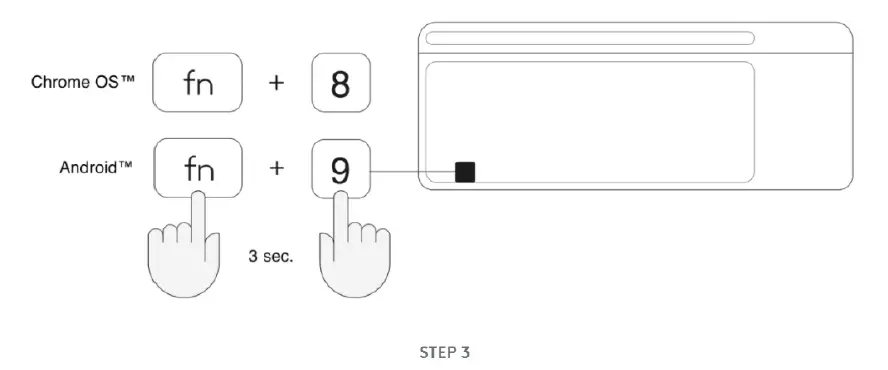
Chrome OS is the default operoting system layout. To switch to Android layout
on your keyboard, press FN and “9” keys simultaneously and hold for 3 seconds.
The LED on selected channel key will light up to show that the OS has been
successfully changed. To switch back to Chrome OS layout, long press the FN
and “8” keys simultoneously for 3 seconds. After selecting the OS layout, your
keyboard is ready to use.
View the section below for additional setup tips or visit
logitech.com/support/k580 for support.
Specs & Details
Dimensions
USB Receiver
- Height : 0.57 in (14.4 mm)
- Width : 0.74 in (18.7 mm)
- Depth : 0.24 in (6.1 mm)
- Weight : 0.07 oz (2 g)
Keyboard Dimensions
- Height : 5.6 in (143.9 mm)
- Width : 14.7 in (373.5 mm)
- Depth : 0.84 in (21.3 mm)
- Weight (including batteries) : 19.7 oz (558 g)
Technical Specifications
Battery life Keyboard : 18 months
Battery type : 2AAA (included)
Wireless operating distance : 10 m (33ft) 1Wireless range may vary due to
environmental and computing condition.
Wireless technology : Logitech Unifying Receiver or Bluetooth low energy
technology
Unifying ready receiver : Yes
Warranty Information
1-Year Limited Hardware Warranty
Part Number
- 920-009270
California Warnings
-
WARNING: Proposition 65 Warning
-
-
FAQ – Frequently Asked Questions
My NumPad/KeyPad is not working, what should I do?****
– Make sure that the NumLock key is enabled. If pressing the key once doesn’t
enable NumLock, press and hold the key for five seconds.
– Verify that the correct keyboard layout is selected in Windows Settings and
that the layout matches your keyboard.
– Try enabling and disabling other toggle keys such as Caps Lock, Scroll Lock,
and Insert while checking if the number keys work on different apps or
programs.
– Disable Turn on Mouse Keys :
1. Open the Ease of Access Center — click the Start key, then
click Control Panel > Ease of Access and then Ease of Access Center.
2. Click Make the mouse easier to use.
3. Under Control the mouse with the keyboard , uncheck Turn on Mouse
Keys.
– Disable Sticky Keys, Toggle Keys & Filter Keys:
1. Open the Ease of Access Center — click the Start key, then
click Control Panel > Ease of Access and then Ease of Access Center.
2. Click Make the keyboard easier to use.
3. Under Make it easier to type , make sure all checkboxes are
unchecked.
– Verify the product or receiver is connected directly to the computer and not
to a hub, extender, switch, or something similar.
– Make sure the keyboard drivers are updated. Click
here to learn how to do this in
Windows.
– Try using the device with a new or different user profile.
– Test to see if the mouse/keyboard or receiver on a different computer.
External keyboard shortcuts for iPadOS****
You can view the available keyboard shortcuts for your external keyboard.
Press and hold the Command key on your keyboard to display the
shortcuts.
Change modifer keys of external keyboard on iPadOS****
You can change the position of your modifier keys at any time. Here’s how:
– Go to Settings > General > Keyboard > Hardware
keyboard > Modifier Keys.
Toggle between multiple languages on iPadOS with an external
keyboard****
If you have more than one keyboard language on your iPad, you can move from
one to the other using your external keyboard. Here’s how:
– Press Shift + Control + Space bar.
– Repeat the combination to move between each language.
Warning message when Logitech device is connected to iPadOS****
When you connect your Logitech device, you might see a warning message.
If this happens, make sure to connect only the devices you’ll be using. The
more devices that are connected, the more interference you might have between
them.
If you are having connectivity issues, disconnect any Bluetooth accessories
that you’re not using. To disconnect a device:
– In Settings > Bluetooth , tap the information button next to the
device name, then tap Disconnect.
Can I connect the M350 mouse to the same Unifying receiver used by my
K580 for Chrome keyboard?****
To connect your M350 mouse and K580 keyboard to the same Unifying receiver, do
the following:
1. Download the Logitech® Unifying Software from your Google App Store.
NOTE: You must have the Unifying receiver from your keyboard connected to your
device.
2. Open the Unifying software and click Next in the lower right of the
window.
3. Restart the mouse you want to pair to your Unifying receiver by turning it
OFF and ON.
4. Click Next in the lower right corner once it’s been enabled.
5. Follow the on-screen instructions to finish pairing your mouse and it will
be ready to use.
6. If you need to repair your M350 mouse to its original dongle, you will
need a Windows desktop or laptop. Download and run the Logitech Connection Utility software and
follow the on-screen instructions for repairing.
NOTE: Please see this article if you encounter additional Bluetooth connectivity
issues.
Can I pair one channel to the Unifying receiver after connecting both to
Bluetooth?****
If you’ve previously connected both channels using Bluetooth and want to
reassign the connection type, do the following:
1. Download Logitech Options® software.
2. Open Logitech Options and on the home screen, click ADD DEVICE.
3. In the next window, on the left, select ADD UNIFYING DEVICE. A
Logitech Unifying Software window will appear.
4. Put any channel you want to reassign connectivity in pairing mode (long
press for three seconds until the LED starts to blink) and connect the USB
Unifying receiver to your computer.
5. Follow the on-screen instructions in the Logitech Unifying Software. Once
you complete the steps, your device will be successfully paired to your
Unifying receiver.
Unable to re-pair K580 for Chrome OS to device using Bluetooth****
If you previously paired the keyboard to your computer or other device and
need to repair it, do the following:
1. Forget the device from your computer, phone or tablet.
2. Turn the K580 keyboard OFF and ON.
Put Channel 1 into pairing mode again by pressing for three seconds until the
LED starts to blink.
3. On your device, select your keyboard (Logi K580 Keyboard) from the list.
4. In the pop-up window, type the requested code carefully and then press
Enter.
5. Click Connect — the keyboard should now be re-connected.
How to switch the K580 keyboard layout depending on your device****
With a Unifying receiver connection:
On K580 for Chrome OS, Chrome OS is the default layout. However, if you want
to connect to an Android device, do the following:
1. Before you connect the receiver to your Android device, press and hold
down the FN and 9 keys for three seconds.
2. The OS will be selected after three seconds and you’ll be able to connect
the receiver to your device.
With a Bluetooth connection:
Chrome OS is the default operating system layout for your keyboard. However,
if you want to switch between layouts do the following:
Once your keyboard is connected to your device using Bluetooth:
1. To select Android: Press and hold down the FN and 9 keys for
three seconds.
2. To go back to Chrome OS: Press the FN and 8 keys for three
seconds.
3. You’ll see the LED on the selected channel key light up for five seconds
to indicate that the layout has been successfully changed.
Battery life and replacement for the K580 for Chrome OS keyboard****
Battery information
– Requires 2 AAA batteries
– Expected battery life — 24 months
Battery replacement
1. Holding your K580 for Chrome OS from the sides, slide up the upper part of
the keyboard as shown:
2. Inside you’ll find two different compartments for the USB receiver and for
the batteries. You can store the USB receiver in the compartment when it’s not
in use.
Read User Manual Online (PDF format)
Read User Manual Online (PDF format) >>
Download This Manual (PDF format)
Download this manual >>
FAQs
My NumPad/KeyPad is not working, what should I do?
Make sure that the NumLock key is enabled. If pressing the key once doesn’t enable NumLock, press and hold the key for five seconds.
Verify that the correct keyboard layout is selected in Windows Settings and that the layout matches your keyboard.
Try enabling and disabling other toggle keys such as Caps Lock, Scroll Lock, and Insert while checking if the number keys work on different apps or programs.
Disable Turn on Mouse Keys:
- Open the Ease of Access Center — click the Start key, then click Control Panel > Ease of Access and then Ease of Access Center.
- Click Make the mouse easier to use.
- Under Control the mouse with the keyboard, uncheck Turn on Mouse Keys.
Disable Sticky Keys, Toggle Keys & Filter Keys:
- Open the Ease of Access Center — click the Start key, then click Control Panel > Ease of Access and then Ease of Access Center.
- Click Make the keyboard easier to use.
- Under Make it easier to type, make sure all checkboxes are unchecked.
– Verify the product or receiver is connected directly to the computer and not to a hub, extender, switch, or something similar.
– Make sure the keyboard drivers are updated. Click here to learn how to do this in Windows.
– Try using the device with a new or different user profile.
– Test to see if the mouse/keyboard or receiver on a different computer.
External keyboard shortcuts for iPadOS
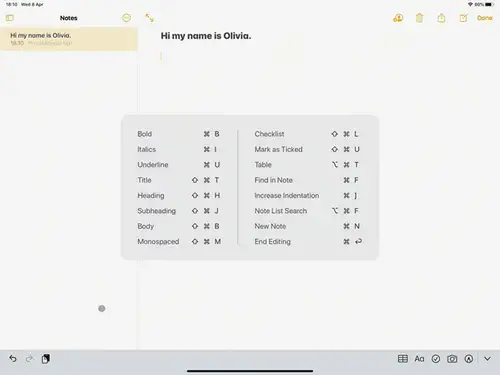
You can view the available keyboard shortcuts for your external keyboard. Press and hold the Command key on your keyboard to display the shortcuts.
Change modifer keys of external keyboard on iPadOS
You can change the position of your modifier keys at any time. Here’s how:
- Go to Settings > General > Keyboard > Hardware keyboard > Modifier Keys.
Toggle between multiple languages on iPadOS with an external keyboard
If you have more than one keyboard language on your iPad, you can move from one to the other using your external keyboard. Here’s how:
- Press Shift + Control + Space bar.
- Repeat the combination to move between each language.
Warning message when Logitech device is connected to iPadOS
When you connect your Logitech device, you might see a warning message.
If this happens, make sure to connect only the devices you’ll be using. The more devices that are connected, the more interference you might have between them.
If you are having connectivity issues, disconnect any Bluetooth accessories that you’re not using. To disconnect a device:
– In Settings > Bluetooth, tap the information button next to the device name, then tap Disconnect.
Can I connect the M350 mouse to the same Unifying receiver used by my K580 for Chrome keyboard?
To connect your M350 mouse and K580 keyboard to the same Unifying receiver, do the following:
1. Download the Logitech® Unifying Software from your Google App Store.
NOTE: You must have the Unifying receiver from your keyboard connected to your device.
2. Open the Unifying software and click Next in the lower right of the window.
3. Restart the mouse you want to pair to your Unifying receiver by turning it OFF and ON.
4. Click Next in the lower right corner once it’s been enabled.
5. Follow the on-screen instructions to finish pairing your mouse and it will be ready to use.
6. If you need to repair your M350 mouse to its original dongle, you will need a Windows desktop or laptop. Download and run the Logitech Connection Utility software and follow the on-screen instructions for repairing.
NOTE: Please see this article if you encounter additional Bluetooth connectivity issues.
Can I pair one channel to the Unifying receiver after connecting both to Bluetooth?
If you’ve previously connected both channels using Bluetooth and want to reassign the connection type, do the following:
1. Download Logitech Options® software.
2. Open Logitech Options and on the home screen, click ADD DEVICE.
3. In the next window, on the left, select ADD UNIFYING DEVICE. A Logitech Unifying Software window will appear.
4. Put any channel you want to reassign connectivity in pairing mode (long press for three seconds until the LED starts to blink) and connect the USB Unifying receiver to your computer.
5. Follow the on-screen instructions in the Logitech Unifying Software. Once you complete the steps, your device will be successfully paired to your Unifying receiver.
Unable to re-pair K580 for Chrome OS to device using Bluetooth
If you previously paired the keyboard to your computer or other device and need to repair it, do the following:
1. Forget the device from your computer, phone or tablet.
2. Turn the K580 keyboard OFF and ON.
Put Channel 1 into pairing mode again by pressing for three seconds until the LED starts to blink.
3. On your device, select your keyboard (Logi K580 Keyboard) from the list.
4. In the pop-up window, type the requested code carefully and then press Enter.
5. Click Connect — the keyboard should now be re-connected.
How to switch the K580 keyboard layout depending on your device
With a Unifying receiver connection:
On K580 for Chrome OS, Chrome OS is the default layout. However, if you want to connect to an Android device, do the following:
1. Before you connect the receiver to your Android device, press and hold down the FN and 9 keys for three seconds.
2. The OS will be selected after three seconds and you’ll be able to connect the receiver to your device.
With a Bluetooth connection:
Chrome OS is the default operating system layout for your keyboard. However, if you want to switch between layouts do the following:
Once your keyboard is connected to your device using Bluetooth:
1. To select Android: Press and hold down the FN and 9 keys for three seconds.
2. To go back to Chrome OS: Press the FN and 8 keys for three seconds.
3. You’ll see the LED on the selected channel key light up for five seconds to indicate that the layout has been successfully changed.
Battery life and replacement for the K580 for Chrome OS keyboard
Battery information
– Requires 2 AAA batteries
– Expected battery life — 24 months
Battery replacement
1. Holding your K580 for Chrome OS from the sides, slide up the upper part of the keyboard as shown:
2. Inside you’ll find two different compartments for the USB receiver and for the batteries. You can store the USB receiver in the compartment when it’s not in use.
Содержание
- Содержание: скрывать
- 1 Тонкая беспроводная клавиатура K580 для нескольких устройств
- Популярные вопросы
- 2 Документация
Тонкая беспроводная клавиатура K580 для нескольких устройств


Популярные вопросы
1. Как подключить клавиатуру к нескольким устройствам?
Решение:
- Переключите клавиатуру в режим Bluetooth, нажав кнопку Easy-Switch (1 или 2) и удерживая ее 3 секунды, пока индикатор не начнет мигать.
- Активируйте Bluetooth на устройстве (ПК, смартфоне, планшете) и найдите «K580» в списке доступных устройств.
- Подтвердите сопряжение (может потребоваться ввод PIN-кода, например, 0000).
- Для переключения между устройствами просто нажмите кнопку Easy-Switch (1 или 2).
Примечание:
- Максимум 2 Bluetooth-устройства + 1 через USB-приемник Unifying.
- Если клавиатура не подключается, попробуйте перезагрузить устройство или сбросить Bluetooth-соединение.
2. Клавиатура не реагирует на нажатия – что делать?
Возможные причины и решения:
- Села батарейка – замените 2 элемента AAA (индикатор низкого заряда мигает красным).
- Проблема с подключением – переподключите клавиатуру:
- Bluetooth: зажмите кнопку Easy-Switch на 3 сек. для повторного сопряжения.
- Unifying-приемник: перевставьте его в USB-порт или переподключите через Logi Options+.
- Зависла клавиатура – выключите и включите переключатель на задней панели.
- Проблема с драйверами – установите Logi Options+ для проверки обновлений.
3. Не работают горячие клавиши (F-клавиши, регулировка громкости и т. д.)
Решение:
- Установите Logi Options+ – некоторые функции требуют этого ПО.
- Проверьте режим F-клавиш – по умолчанию F1–F12 работают как мультимедийные.
- Чтобы использовать стандартные F-клавиши, зажмите Fn + Esc (режим переключается).
- Переназначьте клавиши – в Logi Options+ можно настроить действия для кнопок.
4. Клавиатура печатает не те символы (раскладка сбивается)
Причины и исправление:
- Неверная раскладка в системе – проверьте язык ввода на ПК/смартфоне (Win + Пробел или Cmd + Пробел на Mac).
- Механическая блокировка клавиш – проверьте, не залипают ли кнопки (почистите клавиатуру сжатым воздухом).
- Ошибка Bluetooth-соединения – переподключите клавиатуру заново.
5. Как сбросить клавиатуру до заводских настроек?
Инструкция:
- Выключите клавиатуру (переключатель на задней панели).
- Зажмите клавиши Esc + O и, удерживая их, включите клавиатуру.
- Отпустите клавиши через 3 секунды – индикаторы мигнут, сигнализируя о сбросе.
- Переподключите клавиатуру к устройствам заново.
Videos: Logitech K580 Multi Device Slim

Logitech K580 Setup Guide
Pages
3
Year
0
Language(s)
en
Share
of 3
of 3