
Adobe Illustrator 2024 предлагает обновленный набор инструментов для создания реалистичных мокапов интерфейсов. Новые feature позволяют быстро визуализировать дизайн-концепции приложений, веб-сайтов и программных продуктов с учетом актуальных тенденций в UI/UX дизайне.
Процесс создания мокапа в Illustrator 2024 строится на использовании умных объектов и сеток. Smart Objects автоматически масштабируют контент без потери качества, а новая система направляющих помогает точно выравнивать элементы интерфейса. Встроенная библиотека компонентов содержит готовые шаблоны для разных типов устройств — от смартфонов до десктопов.
Функция Live Preview позволяет в реальном времени отслеживать, как будет выглядеть create app на разных экранах. Интеграция с Adobe XD и Figma упрощает перенос макетов между программами, сохраняя все стили и параметры объектов. Новые градиенты и эффекты помогают создавать реалистичные тени и отражения на элементах интерфейса.
В версии 2024 появились инструменты для автоматической генерации мокапов на основе исходного дизайна. Достаточно use готовый шаблон и загрузить свой макет — программа сама настроит перспективу, освещение и материалы. Это экономит время при подготовке презентаций для клиентов.
Настройка рабочего пространства и импорт базовых элементов для мокапа
Adobe Illustrator 2024 предлагает специализированное рабочее пространство для создания мокапов. Выберите Window > Workspace > Web для оптимальной компоновки панелей и инструментов.
Базовая настройка нового документа для мокапа:
• Размер: 1920x1080px для десктопа
• Цветовой режим: RGB
• Разрешение: 72 ppi
• Сетка: 8px с привязкой объектов
Импорт элементов через File > Place поддерживает форматы PSD, AI, SVG, PNG. При размещении векторных иконок активируйте feature ‘Create Links’ для возможности быстрого обновления исходников.
Организация слоев мокапа:
• Background (фон и подложки)
• UI Elements (интерфейсные элементы)
• Content (контент-блоки)
• Typography (текстовые элементы)
Для ускорения работы создайте библиотеку UI-компонентов через Window > Libraries > Create New Library. Сохраняйте часто используемые элементы интерфейса как символы через панель Symbols.
Настройка направляющих для app-макета:
• Vertical: 120px отступы по краям
• Horizontal: 80px между секциями
• Smart Guides: включить для точного позиционирования
Активируйте панель Properties для быстрого доступа к параметрам объектов и Assets для управления цветами, стилями и символами проекта.
Создание объемных форм и теней с помощью инструментов градиента
Объемные формы в мокапах приложений создаются через комбинацию линейных и радиальных градиентов. В Adobe Illustrator 2024 для этого используйте панель Gradient (Window > Gradient). При работе над app-интерфейсами настройте угол наклона линейного градиента 45° для реалистичного освещения элементов.
Чтобы create объемную кнопку, примените два градиента: основной — от светлого к темному тону выбранного цвета, дополнительный — белый градиент прозрачности 10-15% сверху для блика. Настройте точки перехода цвета (color stops) на отметках 25% и 75% для плавного перетекания.
Для формирования теней use инструмент Gaussian Blur со значением 5-8px. Создайте копию объекта, переведите в черный цвет с прозрачностью 20% и размещайте под основной формой со смещением 2-4px вправо и вниз. При работе с тенями включите feature Smart Guides (View > Smart Guides) для точного позиционирования.
Глубина interface элементов достигается наложением градиентных сеток. Выделите объект и выберите Object > Create Gradient Mesh. Установите 4-6 точек по горизонтали и вертикали. Настройте цветовые значения узловых точек для создания бликов и затемнений.
При оформлении скругленных элементов применяйте радиальный градиент с центральной точкой, смещенной на 15% влево и вверх от геометрического центра. Это создаст реалистичный эффект падающего света и усилит объемность формы.
Применение текстур и паттернов для реалистичной визуализации материалов
Adobe Illustrator 2024 предлагает расширенные возможности для создания реалистичных текстур. Чтобы добавить материальность мокапу, используйте панель Swatches с готовыми паттернами или создайте собственные через Pattern Maker. При работе с деревом применяйте градиентные сетки с наложением шумовых эффектов через фильтр Grain.
Для имитации ткани create собственный паттерн из пересекающихся линий разной толщины. Настройте прозрачность через панель Transparency и добавьте эффект Scribble для получения текстильной фактуры. Металлические поверхности требуют комбинации зеркальных бликов и микротекстур.
При работе со стеклом и пластиком use наложение полупрозрачных слоев с разными режимами наложения. Через панель Appearance добавьте несколько эффектов: Gaussian Blur для размытия отражений и Inner Glow для создания глубины. В app доступны настройки интенсивности и направления световых бликов.
Для реалистичной передачи кожи и резины примените текстурные кисти с настроенными параметрами нажима и прозрачности. Создайте базовую текстуру через Pattern Maker, затем доработайте её с помощью эффектов Roughen и Distort & Transform для получения естественных неровностей поверхности.
Настройка освещения и бликов для придания объема макету
Работа со светом в Adobe Illustrator 2024 требует понимания физических свойств отражения. Для создания реалистичных бликов используйте инструмент Mesh Tool с настройкой прозрачности узловых точек от 0% до 100%.
Основные правила размещения бликов:
1. Расположите блики на выпуклых частях объекта под углом 45° к источнику света
2. Создайте градацию яркости — центр блика ярче периферии
3. Добавьте вторичные отражения на вогнутых поверхностях
Для усиления объема примените следующие техники:
— Use инструмент Opacity Mask для создания мягких переходов между освещенными участками
— Create несколько слоев с разной прозрачностью для формирования глубины
— Настройте режим наложения Overlay для естественного свечения
Рекомендуемые значения прозрачности:
— Основной блик: 85-100%
— Вторичные отражения: 30-50%
— Рассеянный свет: 15-25%
В app присутствует функция Live Effects, позволяющая динамически корректировать параметры освещения. Активируйте опцию Preserve Transparency для защиты настроек прозрачности при редактировании.
Точная настройка цветовой температуры бликов выполняется через панель Color Guide. Теплые источники света создают желтоватые блики, холодные — голубоватые.
Интеграция фирменного стиля и пользовательского контента в мокап
Для точной визуализации брендинга в Adobe Illustrator 2024 создайте отдельный слой с корпоративными элементами. Разместите логотип, фирменные цвета и шрифты в панели Swatches для быстрого доступа при оформлении мокапа.
Настройте пользовательские библиотеки Creative Cloud Libraries с brand-kit заказчика. Синхронизируйте палитры, паттерны и графические элементы между всеми feature-компонентами app-интерфейса для сохранения единого визуального языка.
При интеграции контента используйте функцию Place Linked для внешних изображений. Это позволит автоматически обновлять материалы при изменении исходников. Сгруппируйте связанные объекты через Smart Objects для удобного масштабирования.
Применяйте инструмент Create Envelope для деформации контента под геометрию мокапа. Настройте параметры искажения через сетку деформации для естественной интеграции изображений на криволинейных поверхностях.
Используйте слои-масски для обрезки контента по форме интерфейсных элементов. Добавьте корректирующие слои Curves и Color Balance для адаптации яркости и контрастности под общую световую схему макета.
Сохраняйте версии мокапа в формате .ai с включенными связями для последующего редактирования контента. Экспортируйте финальные превью в форматах PNG или PDF с высоким разрешением для презентации заказчику.
Подготовка финального файла для презентации и экспорта
Финальный этап работы с мокапом в Adobe Illustrator требует особого внимания к деталям экспорта и презентации. Рассмотрим ключевые шаги подготовки файла:
- Организация слоев для экспорта:
- Группировка связанных элементов в отдельные слои
- Присвоение понятных названий каждому слою
- Удаление скрытых и неиспользуемых объектов
- Проверка технических параметров:
- Конвертация текста в кривые
- Проверка цветового профиля (RGB для экранов, CMYK для печати)
- Настройка разрешения растровых элементов (минимум 300 dpi)
- Форматы сохранения:
- AI-файл с редактируемыми слоями
- PDF для презентации клиенту
- PNG с прозрачностью для веб-использования
- JPG для предпросмотра
Специальные настройки экспорта в Adobe Illustrator 2024:
- Use опции ‘Export for Screens’ для пакетного экспорта
- Активация feature ‘Preserve Appearance’ при сохранении в более ранние версии
- Настройка app-specific параметров для разных устройств
- Создание артбордов разных размеров для различных платформ
Рекомендации по презентации:
- Сохранение версий мокапа под разными углами
- Создание анимированного GIF для демонстрации интерактивности
- Подготовка масштабированных версий для различных носителей
- Формирование превью с реальным контентом заказчика
Комментарии
Adobe Illustrator has recently introduced a new beta mockup tool that is still undergoing improvements. Despite being in beta mode, the tool is highly capable of completing various tasks. It utilizes Adobe’s AI technology, known as Adobe Sensei.
This tutorial aims to guide graphic designers in using the tool to create professional mockups for their clients.
Let’s start! Make a mockup to impress our clients!
Let’s begin by opening a mockup image in Adobe Illustrator.
Next, place a label graphic or logo design on top of the mockup image.
Select the logo to resize and reposition it on the background mockup image as necessary.
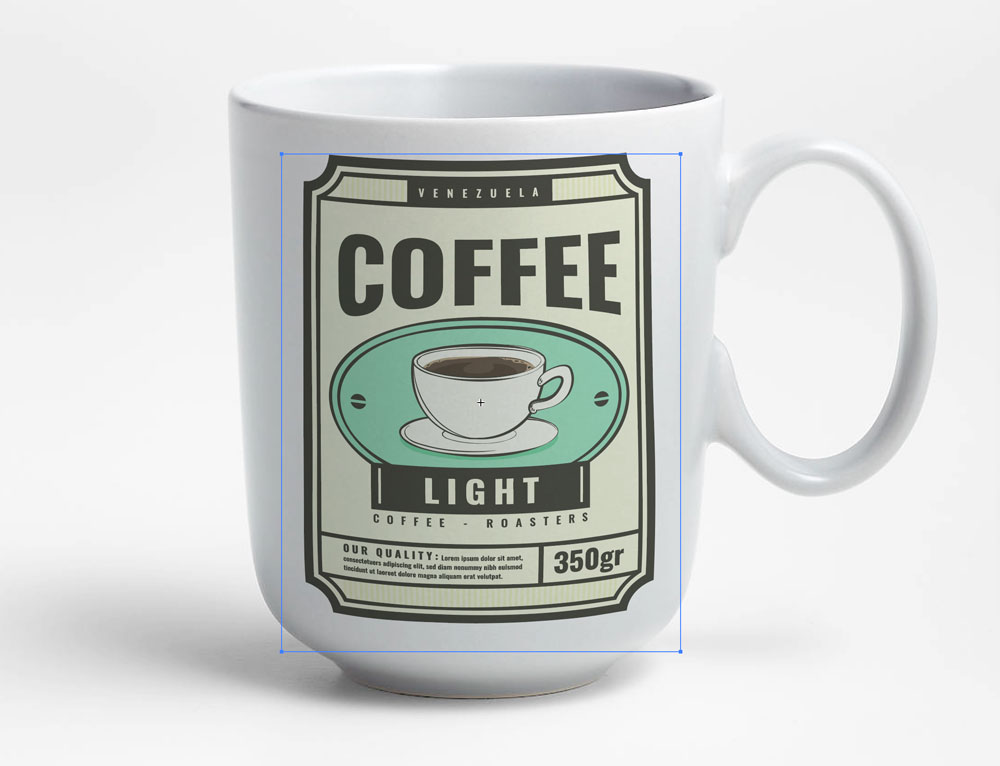
If you need to rotate the logo, click on it to select it, and click on the Rotate icon that looks like a double-sided arrow found in the corners. Rotate the logo to your preferred angle if needed.
You can also select the label and move it around if you need to adjust it. Just like we did in the graphic below, but let’s undo that. We do not need these steps for our graphic because it works perfectly for our case. Depending on your graphic, you may have to play with this.

Thanks to Illustrator’s AI capabilities, it can recognize the cup’s cylindrical shape and appropriately adjust the logo to fit perfectly so that you can make realistic mockups for your clients.
Ok, now let’s continue; please select both images, navigate to Object > Mockup, and click on Make, which will cause Illustrator to wrap the logo on the coffee cup.

Let’s enhance it by adding dramatic and realistic effects by selecting the label design and going to the Transparency panel, changing the blend mode from Normal to Multiply.

It might be necessary to reduce the opacity level slightly in some instances, especially when working with clothing mockups; this will make the clothing texture more visible and realistic.
Play with it and see how it works for you; it will only work with certain types of mockups.
That is all! Now, you have a more authentic mockup with accurate lighting and shadows.

How Do I Release or Edit the Logo on the Mockup?
If you need to undo your mockup and replace your logo, you can go to Object > Mockup > Release.
This will release the logo from the background image, and you can replace it with a different graphic by repeating and reaping the mockup-making process above.
Also, If you need to edit its position, opacity, and blend mode, you can click on the Edit button and make adjustments to your graphic.

The Mockup Panel
Illustrator also includes premade Mockup backgrounds that you can explore.
To do so, go to Window and Mockup to open the Mockup Panel. Here, you get the following categories:
- Apparel
- Branding Graphics
- Digital Devices
- Packaging
We’ll try the Branding Graphics, select the handback sample, and click the Edit on Canvas button.
Illustrator will automatically insert the background mockup image onto the canvas and put our logo on it.
Please note the handbag image is a low-quality version for demo purposes. If we need the high-resolution version, we need to purchase it by clicking on the shopping cart icon.
Next, we can change the blend mode from Normal to Multiply, just like we did with our coffee cup example above.
We will also lower the Transparency level to 97%

Conclusion
In conclusion, Adobe Illustrator’s mockup tool, powered by Adobe Sensei’s AI technology, offers graphic designers a powerful and versatile solution for creating professional mockups.
The tool is highly capable, straightforward to use, and can assist designers in meeting their clients’ needs.
With this tutorial as your guide, you can confidently dive into the world of mockup creation and impress your clients with stunning designs. Get started today and unlock the full potential of Adobe Illustrator’s mockup tool!
More tutorials on Adobe Illustrator
-
- How to Use Generative Shape Fill in Adobe Illustrator
- How to use Generative Recolor in Adobe Illustrator
In this tutorial, you’ll learn how to create a pouch mockup using the Mesh Tool in Adobe Illustrator. We’ll create a set of three different stand-up pouch mockups!
If you’d like to skip the tutorial and just use this vector in your work, you can go ahead and purchase the Big Set of Plastic and Paper Packaging, and also browse Envato Elements’ library of pouch packaging mockups.


Ready to learn how to create a packaging design mockup in Illustrator? Let’s get started!
What You’ll Learn in This Pouch Mockup Tutorial
- How to create three pouch bag design templates
- How to use the Mesh Tool to create packaging bag mockups
- How to edit and add color to a mesh grid
1. How to Create the First Pouch Bag Design Template
Step 1
To begin drawing the first part of the first plastic pouch packaging mockup, create a rectangle, coloring it with #EEEEEE. Then, take the Mesh Tool (U) and, following the picture below, create a mesh grid.
Next, using the Mesh Tool (U), bend the rectangle to resemble the shape in the third section of this step. You can achieve it by moving the edge Mesh nodes.
To get rounded corners just like those in the bottom part of the shape, I recommend first converting the corner nodes with the Convert Anchor Point Tool (Shift-C).


Step 2
Now let’s start coloring the mesh grid! Using either the Mesh Tool (U) or the Direct Selection Tool (A), select the mesh nodes selected in section 1 of the screenshot below. Color these nodes with #DBDBDB via the Color Picker panel.
Next, add some more mesh nodes and bend them accordingly to achieve the shape shown in the second section below.
When you’re happy with your shape, color some more nodes (selected in the third section) with #D1D1D1.


Step 3
Finish this part of the plastic pouch packaging mockup by coloring the remaining nodes according to the screenshot below. You will need these colors:
#C6C6C6#F2F2F2#D0D0D0


Step 4
To make the second part of the flat bottom pouch mockup, create a grey (#DADADA) rectangle with a mesh grid, and then bend it and color it according to the screenshot below.
You will need these colors:
#DADADA#C6C6C6#E4E4E4#F2F2F2


Step 5
Attach both parts of the packaging bag mockup we’ve made so far. Bend and color the edge nodes so that they overlap and create a seamless illusion!
For easier manipulation, you can Group (Control-G) both elements.


Step 6
Create the third part of the plastic pouch packaging mockup with Gradient Mesh, following similar steps as in Steps 1 to 5. Use these colors:
#D3D3D3#7B7B7B#929292#9D9D9D#9F9F9F#BDBDBD


Step 7
Add the third part of the pouch packaging mockup to the others, just like in Step 5, completing the pouch mockup!


Step 8
Use the Rotate Tool (R) to rotate the finished flat bottom pouch mockup by -4°.


Step 9
Draw a shadow with a Radial Gradient from #979797 to white. Change its Transparency mode to Multiply. Then, place the shadow under the stand-up pouch template.


Step 10
The first packaging bag mockup should come out looking like this!


2. How to Create the Second Pouch Bag Design Template
Step 1
Let’s start the creation of the second packaging bag mockup by drawing a rectangle! For this element, we will need to use a rectangle with rounded edges.
You can use my measurements below with the Rounded Rectangle Tool. Once you’re happy with your shape, color it with #D9D9D9.
- Width: 122 px
- Height: 253 px
- Corner Radius: 4 px


Step 2
Continue by bending and coloring the shape with Gradient Mesh, creating the first piece of the stand-up pouch template.
#F0F0F0#C3C3C3#CCCCCC#E4E4E4#E3E3E3#D7D7D7#C7C7C7#D3D3D3


Step 3
Next, create the side of the pouch mockup. You will need these colors:
#B6B6B6#9A9A9A#ABABAB#AAAAAA#969696#C7C7C7


Step 4
For the third element of the packaging bag mockup, use these measurements:
- Width: 220 px
- Height: 150 px
- Corner Radius: 10 px


Step 5
Bend the rectangle and then color it with Gradient Mesh.
#CCCCCC#FFFFFF#9D9D9D#AFAFAF#ECECEC#969696


Step 6
In the Transparency panel, change the resulting element’s Transparency Mode to Multiply and its Opacity to 40%.


Step 7
To create the pouch mockup, put all the elements together, as shown below. Make sure that element 3 stays on top of the other pieces!


Step 8
To finish the pouch packaging mockup, place a shadow under it, just as we learned in the previous section.


3. How to Create the Third Pouch Bag Design Template
Step 1
Begin creating the mesh grid for the last plastic pouch packaging mockup.
Use these colors:
#E1E1E1#A5A5A5#C3C3C3


Step 2
Color the top part of the element.
#D6D6D6#ECECEC


Step 3
Add more nodes and colors to finish this piece of the plastic pouch packaging mockup.
#E8E8E8#BABABA#D0D0D0


Step 4
Create the second piece of the flat bottom pouch mockup with Gradient Mesh.
#B1B1B1#7C7C7C#8C8C8C#CCCCCC


Step 5
Create the third element of the pouch mockup.
#8C8C8C#636363#6E6E6E#545454


Step 6
Continue by creating a smaller piece for the stand-up pouch template.
#ABABAB#8C8C8C#9B9B9B


Step 7
Finish with another small piece for the pouch packaging mockup.
#969696#B7B7B7#636363#7A7A7A


Step 8
Put all of the elements together to create the flat bottom pouch mockup, as shown below!


Step 9
Add a shadow, and you’re done with this pouch packaging mockup!


Awesome Work, You Know How to Create a Pouch Mockup!
Now you know how to create a packaging design mockup in Illustrator. What now? You can try any of my other tutorials from my profile, or check out my portfolio on GraphicRiver, as well as the original set of elements, some of which we created today.


Discover More Amazing Product Mockups From Envato Elements!
If you don’t have the time to learn how to create a packaging design mockup in Illustrator, you can always visit Envato Elements’ library of pouch bag design templates! These ready-to-use templates will save you lots of time. Let’s review a few of the top pouch mockups.
1. Plastic Pouch Product Mock-Up (PSD, PDF)


Check out this high-quality plastic pouch mockup for your packaging design! It’s easy to customize via the smart object feature, and it comes with grouped and named layers, isolated shadows, and an editable background texture and color.
2. Product Bag Mock Up (PSD, PDF)


By purchasing this product bag mockup, you will receive four gorgeous, well-organized PSD files that are simple to customize. Using the smart object feature, you can modify everything about this mockup. Place your own design or replace the logo with the color you want!
3. Paper Bag Coffee Product Mockups (PSD, PDF)


This product mockup allows you to showcase your coffee packaging design professionally! It is available in PSD format with smart-object features to help you replace the current designs with your own within seconds.
4. Product Box Mockup (PSD)


This product box mockup uses smart object features to help you adjust your design. It’s incredibly simple to use and easy to recolor by using solid color layers.
The high resolution of this mockup allows it to be used for commercial purposes.
5. Doy Pack With Side Spout Mockups (PSD)


Present any of your pouch packaging designs using these doy pack with side spout mockups! They come complete with the smart object feature and well-named layers for your personalization needs.
Check Out More Mockup Tutorials!
Learn how to create realistic mockups in Illustrator with this step-by-step guide.
Mockup makes it simple to design top-notch mockups by applying artwork to items such as product packaging, t-shirts, and mugs.
However, looking to create product mockups instantly? Try Mockey AI’s free mockup generator to design and customize stunning mockups in just minutes.
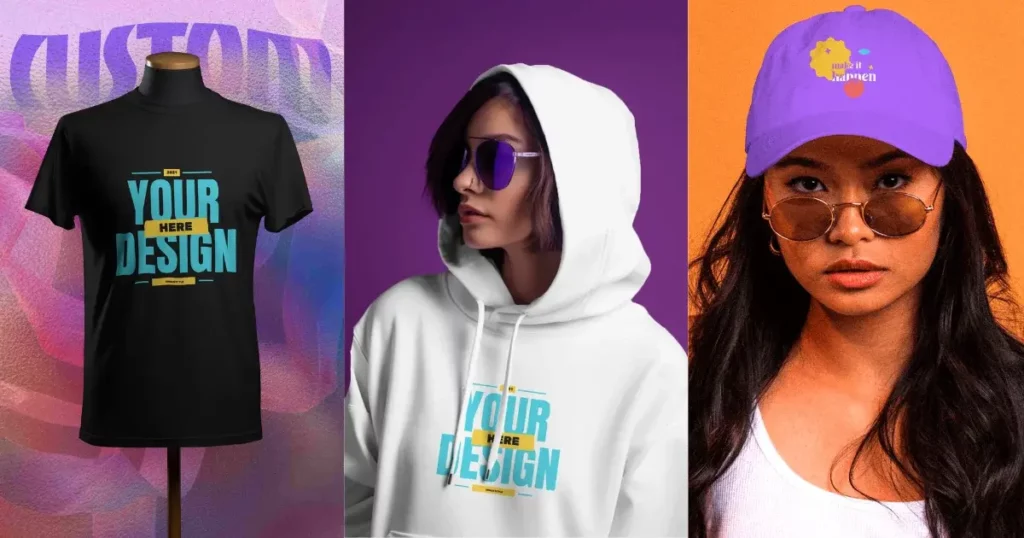
Table of Contents
How to Create Realistic Mockups in Illustrator – Step-By-Step
We recently discovered how to create realistic mockups in Illustrator Beta, and we’re excited to show you how it works. Let’s dive right in!
Step 1: Install Adobe Illustrator Beta
Install Adobe Illustrator beta.
Step 2: Prepare Your Designs
Start with two designs. Drag and drop a blank image.
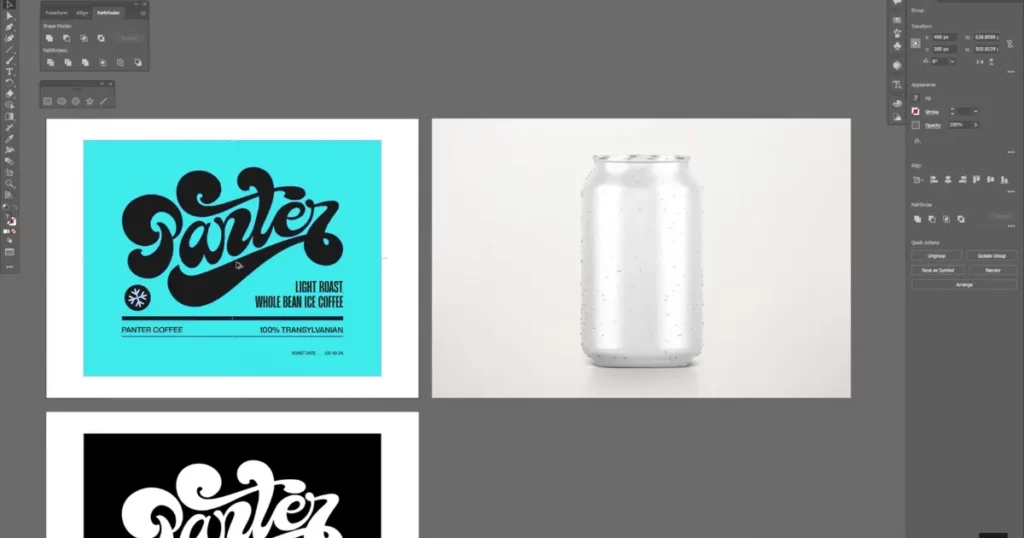
Next, pick your design and move it over the picture.
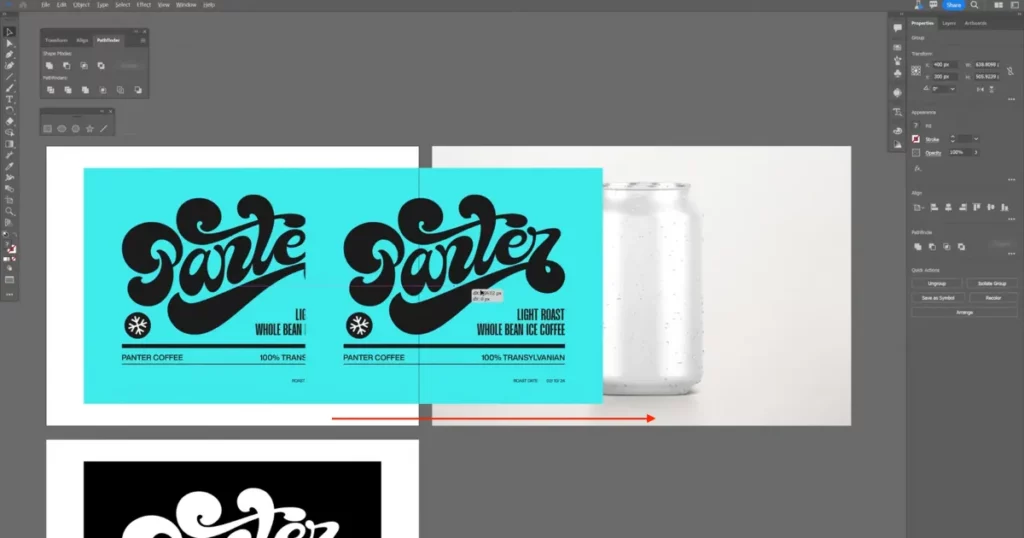
Scale the design to fit the mockup properly.
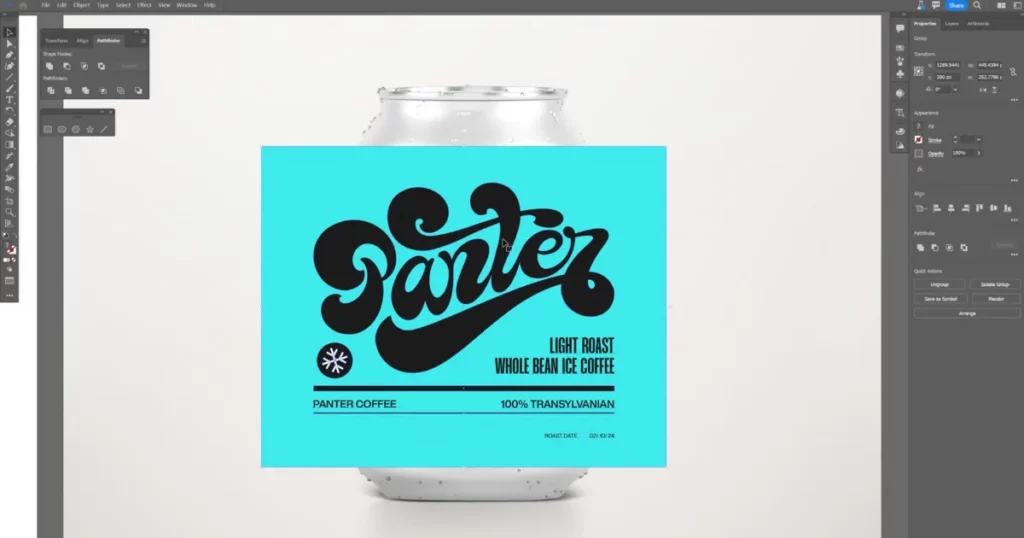
Step 3: Apply the Mockup
Your design and image are now ready. Go to Object > Mockup > Make.
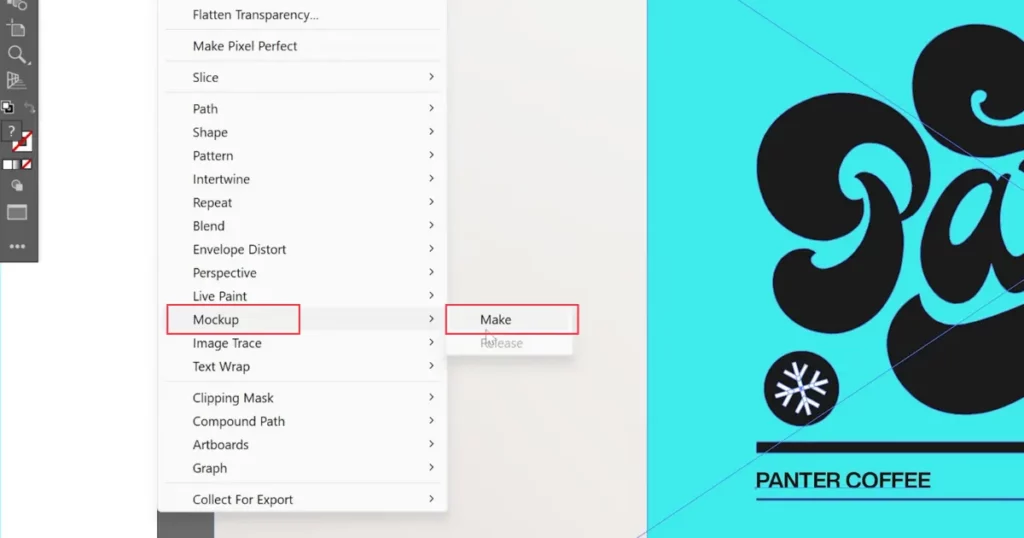
The design will automatically wrap around the mockup image like it’s printed on the object.
Step 4: Adjust the Design’s Transparency
Once applied, you might notice the original design still shows in the image. This happens because the design is flat without shading. To fix it, double-click the design, go to the Opacity settings, and change it from Normal to Multiply.
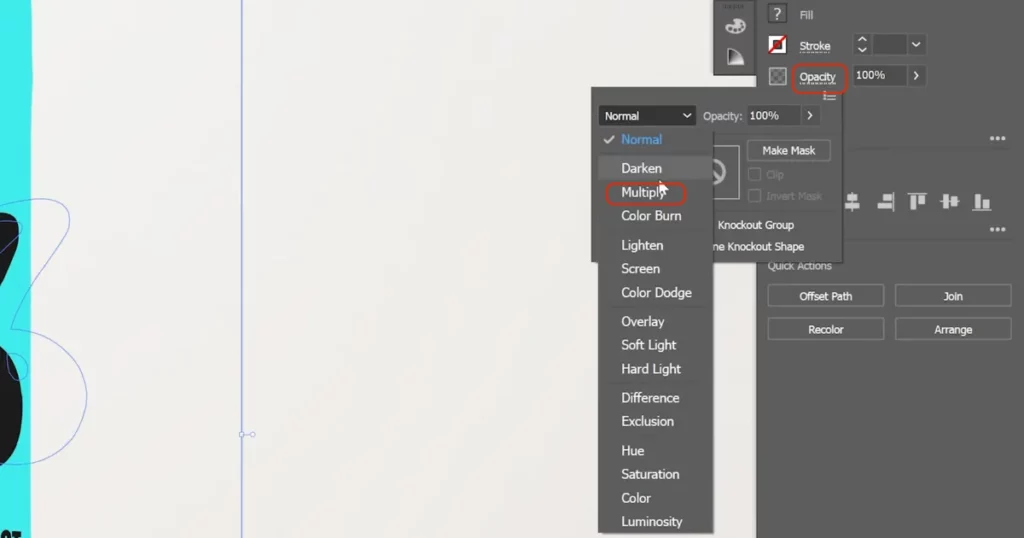
This will make the design transparent and blend better with the mockup.
Step 5: Adjust the Design’s Position
If you want to reposition the design, double-click it again. The program will automatically adjust the design to match the form of the object—such as a cylinder—so it bends accordingly for a realistic effect.
Step 6: Add a Model to Your Mockup
Now, drag and drop an image of a model wearing a black shirt.
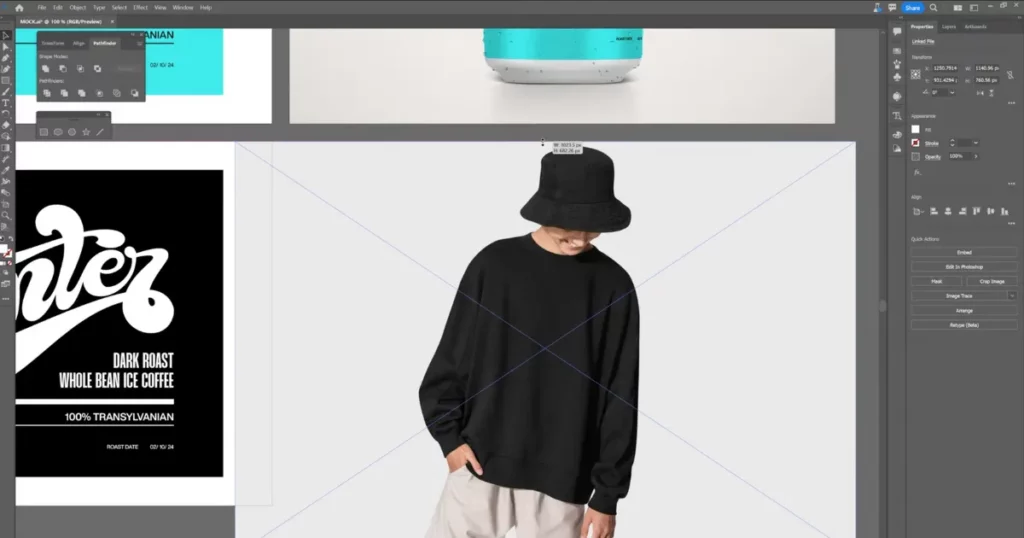
Select only the design (without the background), position it on the model, and scale it to fit.
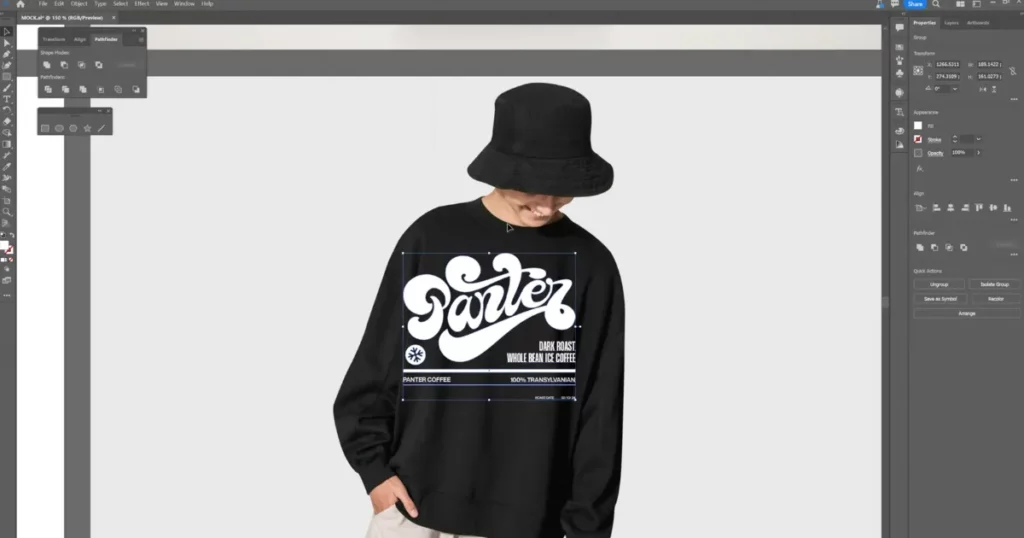
Step 7: Apply the Mockup to the Model
Select both the model and the design, then head to Object > Mockup > Make. The design will wrap around the shirt, and you may need to rotate it slightly to fit perfectly.
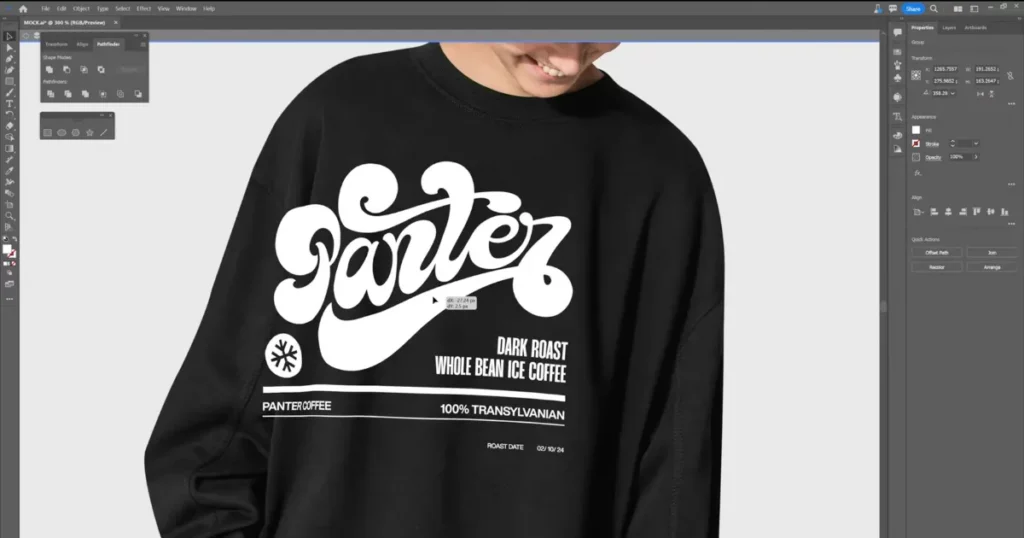
Step 8: Release the Design if Needed
Right-click and attempt to release the clipping mask if you must ungroup the design. If there’s no option, simply go to Object > Mockup > Release to remove the design from the mockup.
How to Create Realistic Mockups in Mockey AI?
Mockey AI stands out as the best mockup website for creating realistic mockups, offering an extensive collection of premium templates that you can easily customize.
Follow these steps to create stunning mockups with Mockey AI:
1. Head to Mockey.ai, and sign up there.
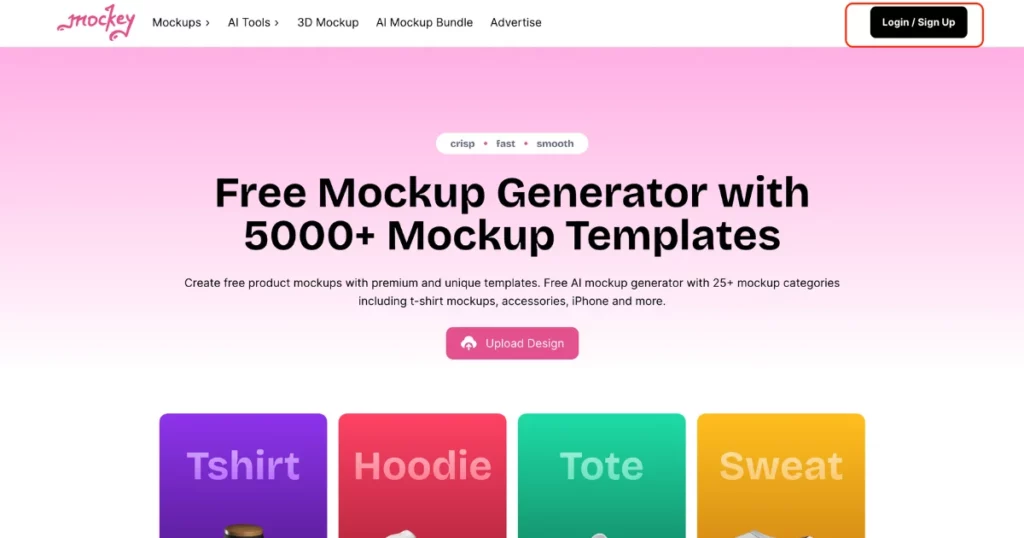
2. Click “Mockups” and Choose a template that fits your project, like t-shirts, packaging, or gadgets.
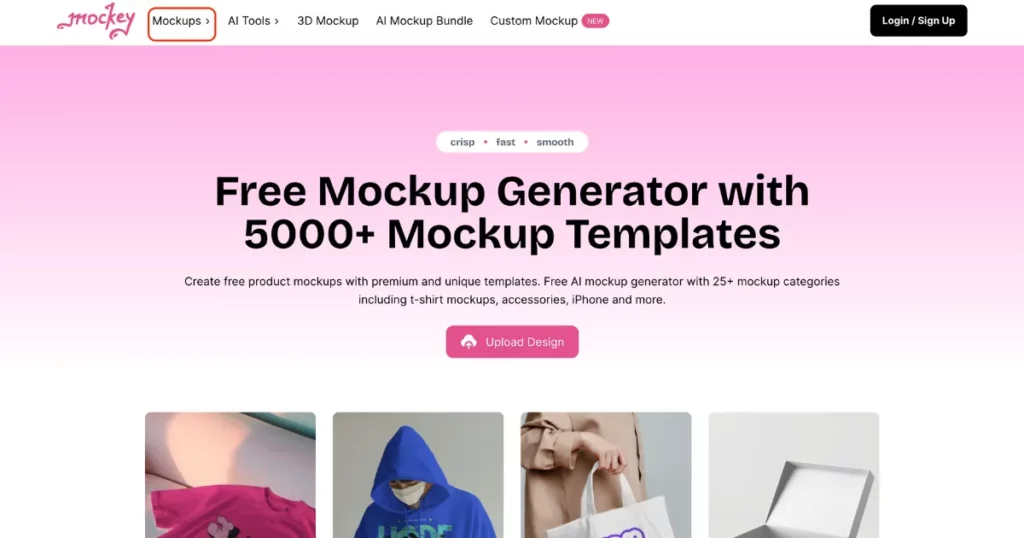
3. Click “Upload Design” and add your image.
4. Customize with color, background, or AI Photoshoot. Adjust angles and placement to make it look natural.
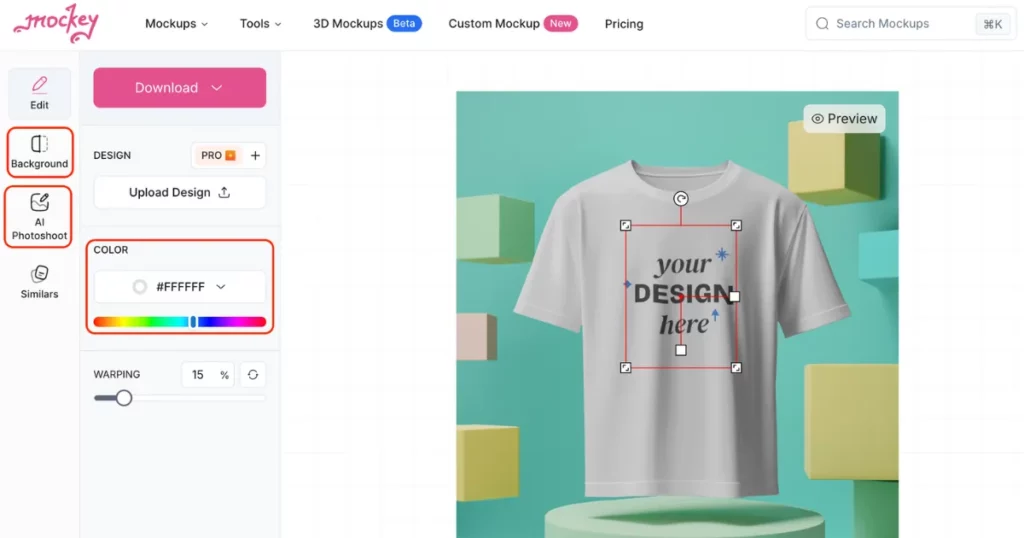
6. Click “Download” to save it as a JPEG file, watermark-free.
Conclusion
Here’s how to create realistic mockups in Illustrator. Experiment with various photos and graphics to refine your design skills—it’s quick, simple, and delivers impressive results that are perfect for showcasing.
Don’t forget to explore Mockey AI, a treasure trove of creative resources! From mockups, 3d mockups, AI tools and product photography, you’ll find endless inspiration. Plus, enjoy unlimited downloads of ready-to-use design assets to elevate your projects.
FAQs
How to create a mockup in Illustrator?
To create a mockup in Illustrator, start by installing the beta version. Drag a blank image, position your design, and use Object > Mock-Up > Make to wrap it. Adjust transparency by setting Opacity to Multiply. To separate designs, use Object > Mock-Up > Release.
How to Make a mockup look realistic?
For a realistic mockup, go to mockey.ai and select Mockups from the menu. Choose the product you wish to customize, upload your image, and personalize it with options like color, background, and an AI-powered photoshoot. Download your mockup free and without a watermark when you’re done.
How do I Make text look realistic in Illustrator?
To make text look realistic in Adobe Illustrator, start by picking a bold font to give it a thicker look. Add shadows and highlights next. Then, use 3D tools to make the text appear more three-dimensional. Finally, adjust the lighting and shadows to make it look even more lifelike.
How to generate a mockup using AI?
Sign up or log in to Mockey.ai to create a mockup. Pick a template from more than 5000 choices, upload your design, and make any changes you want. Finally, you can export your mockup with no watermark.
Is Photoshop or Illustrator better for mockups?
Photoshop and Illustrator are used for creating mockups. Photoshop is great for editing photos and working with detailed images. It’s perfect for mockups that need complex designs. Illustrator, however, is best for making vector graphics that can be resized without losing quality. It also lets you work on multiple designs at once.
What app can I use to Make mockups?
You can use Mockey.ai to create mockups. It has more than 5,000 templates and smart AI tools. You can easily upload your designs, change the templates to fit your needs and download high-quality mockups without any watermarks.
Does Adobe have free mockups?
Adobe gives free mockups on different platforms. You can find free images and vector designs on Adobe Stock by choosing the free filter. Also, Adobe Express has a mockup generator with more than 4,500 templates you can use.
Which version of Illustrator has a mockup?
Adobe Illustrator’s mockup feature is available in the beta version and version 28.0 or newer. This tool helps users combine their vector designs with real photos.
Related reading:
- How to Make a Business Card Mockup in Illustrator
- How to Make 3D Mockup in Illustrator
- How to Remove Background in Illustrator
- 15 Best Adobe Illustrator Alternatives Free and Paid in 2024
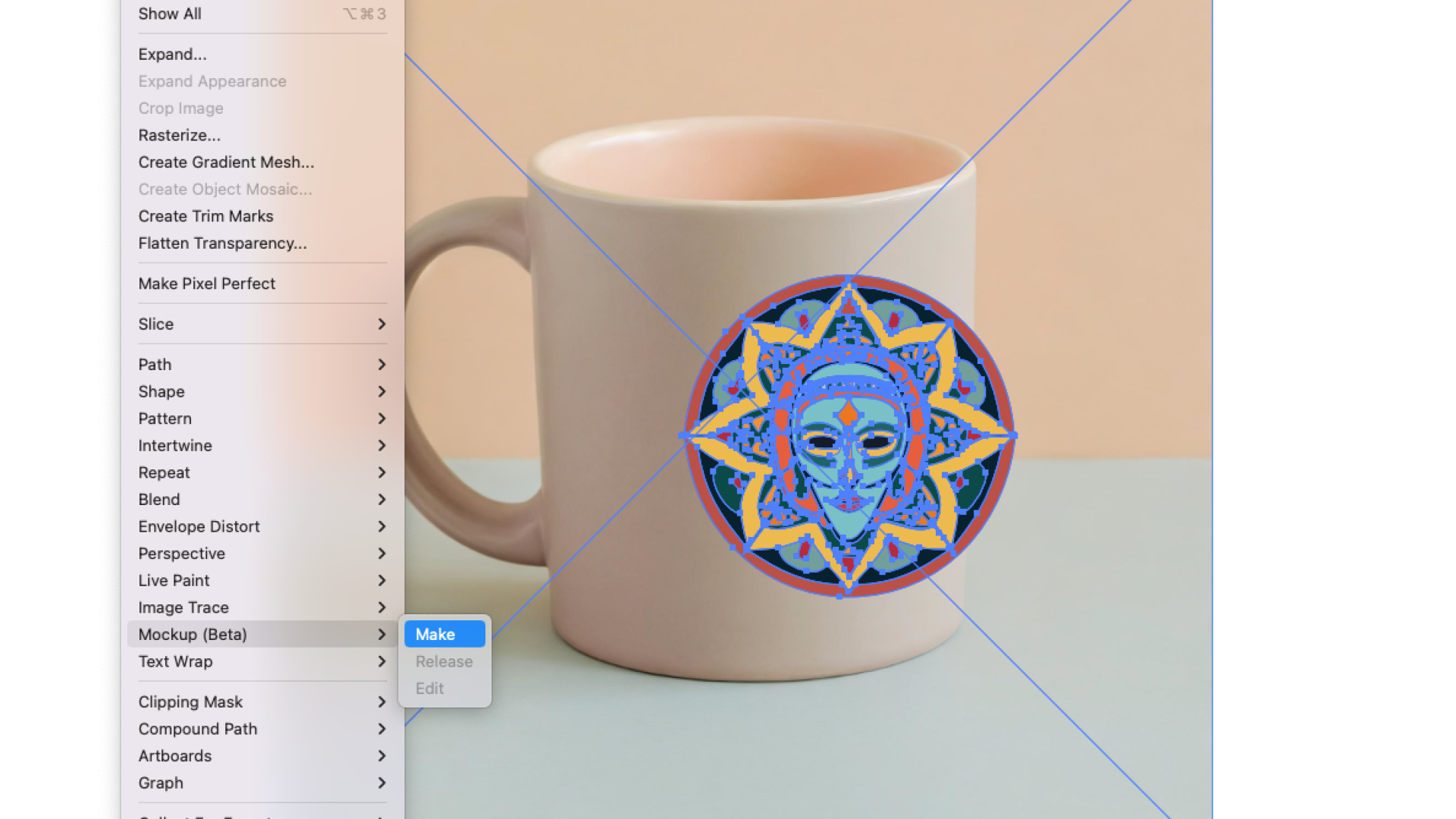
Unlike the other AI tools in Adobe Illustrator, Mockup works offline. It doesn’t utilise Firefly, but it is itself a beautifully impressive use of technology (and currently the only one here I use in a professional capacity). It uses AI to place a 2D image in situ on your choice of 3D settings, like a mug, so you can see how your design will work in reality.
In the past, I have relied on 3D renders in Blender to mock up product packaging, however Illustrator makes it possible to achieve similar results in a fraction of the time.
Daily design news, reviews, how-tos and more, as picked by the editors.
Thank you for reading 5 articles this month* Join now for unlimited access
Enjoy your first month for just £1 / $1 / €1
*Read 5 free articles per month without a subscription
Join now for unlimited access
Try first month for just £1 / $1 / €1
Matt has worked for various publishing houses and design agencies, covering studio photography, video production, editorial design, branding, illustration and motion graphics. He currently works for Future PLC with brands such as T3, Woman&Home, Marie Claire, Music Week, TechRadar, Golden Joysticks, Cycling Weekly, Brand Impact Awards, Horse&Hound and Tech&Learning. In the past he has designed titles including Mac|Life, IQ, Bow International, Drummer, iDrum, Acoustic, Clay Shooting, Sea Fishing and GunTradeNews. He has experience across the full Adobe Suite and is currently spending a lot of time creating projects in Blender and After Effects.