
User’s Manual
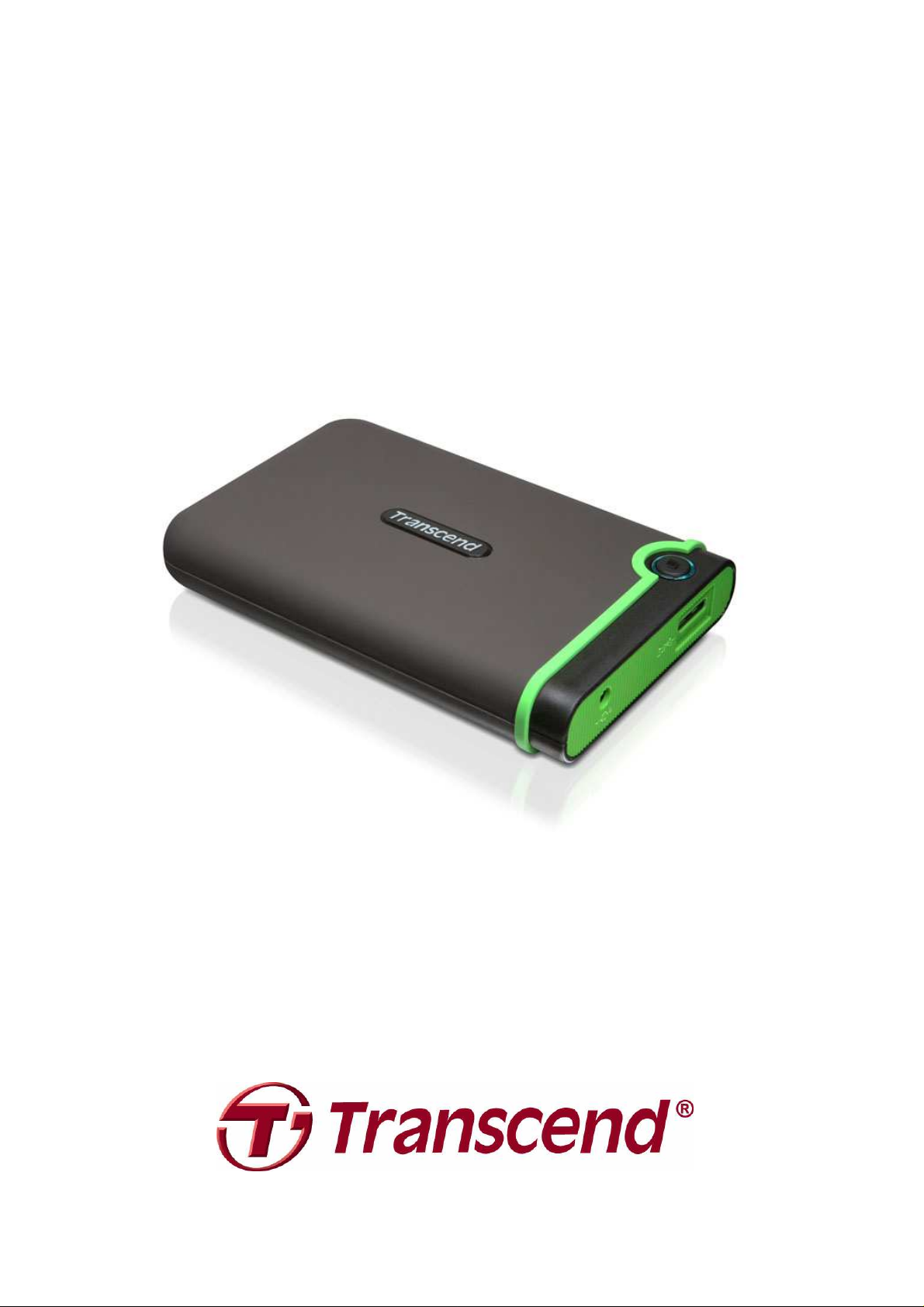
2.5″ External Hard Drive
StoreJet® 25M3
(Version 1.1)

Table of Contents
Introduction︱︱︱︱ …………………………………………………………………………..1
Package Contents︱︱︱︱ ………………………………………………………………….1
Features︱︱︱︱ ………………………………………………………………………………..2
System Requirements︱︱︱︱ ……………………………………………………………2
Safety Precautions︱︱︱︱…………………………………………………………………3
General Use……………………………………………………………………………………………………. 3
Backing up Data……………………………………………………………………………………………… 3
Transporting…………………………………………………………………………………………………… 3
Power…………………………………………………………………………………………………………….. 3
Reminders……………………………………………………………………………………………………… 4
Product Overview︱︱︱︱…………………………………………………………………..4
Connecting to a Computer︱︱︱︱ ……………………………………………………..5
Disconnecting from a Computer︱︱︱︱ …………………………………………….8
Windows
Mac® OS…………………………………………………………………………………………………………. 9
………………………………………………………………………………………………………. 8
Linux®……………………………………………………………………………………………………………. 9
Formatting the Hard Drive︱︱︱︱………………………………………………………9
Windows® XP………………………………………………………………………………………………… 10
Windows
Mac® OS……………………………………………………………………………………………………….. 14
Linux®………………………………………………………………………………………………………….. 16
7/Vista………………………………………………………………………………………….. 11
Troubleshooting︱︱︱︱…………………………………………………………………..17
Specifications︱︱︱︱………………………………………………………………………19
Transcend Limited Warranty︱︱︱︱ ………………………………………………..20
Introduction︱
Congratulations on purchasing Transcend’s StoreJet 25M3. This rugged, ultra-portable, high
speed USB storage device is the perfect data management system for uploading, downloading,
storing and transferring your data. With its shock-resistant design, huge storage capacity and
real-world transfer speeds up to 3X faster than USB 2.0 (in USB 3.0 mode), the compact StoreJet
25M3 is ideal for carrying your files, folders, documents, photos, music and videos. In addition, the
StoreJet 25 comes with very useful software* that can increase your mobile productivity. This
User’s Manual is designed to help you get the most from your new device. Please read it in detail
before using the StoreJet 25.
*Note: The
Transcend Elite
software only works in Windows—please see the Software User’s Manual for details
Package Contents︱
The StoreJet 25 package includes the following items:
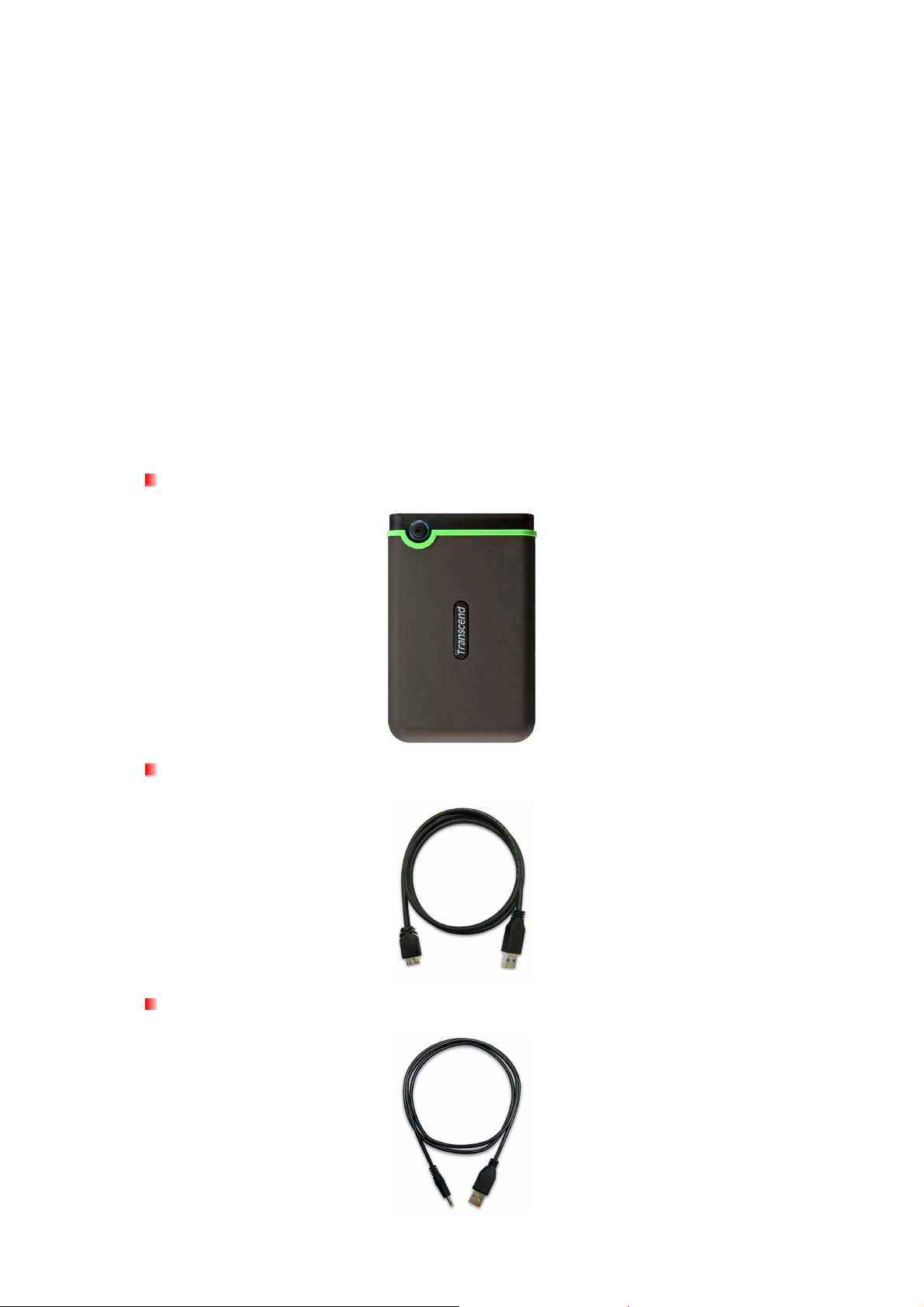
StoreJet® 25M3
USB 3.0 Cable
USB Power Cable
1
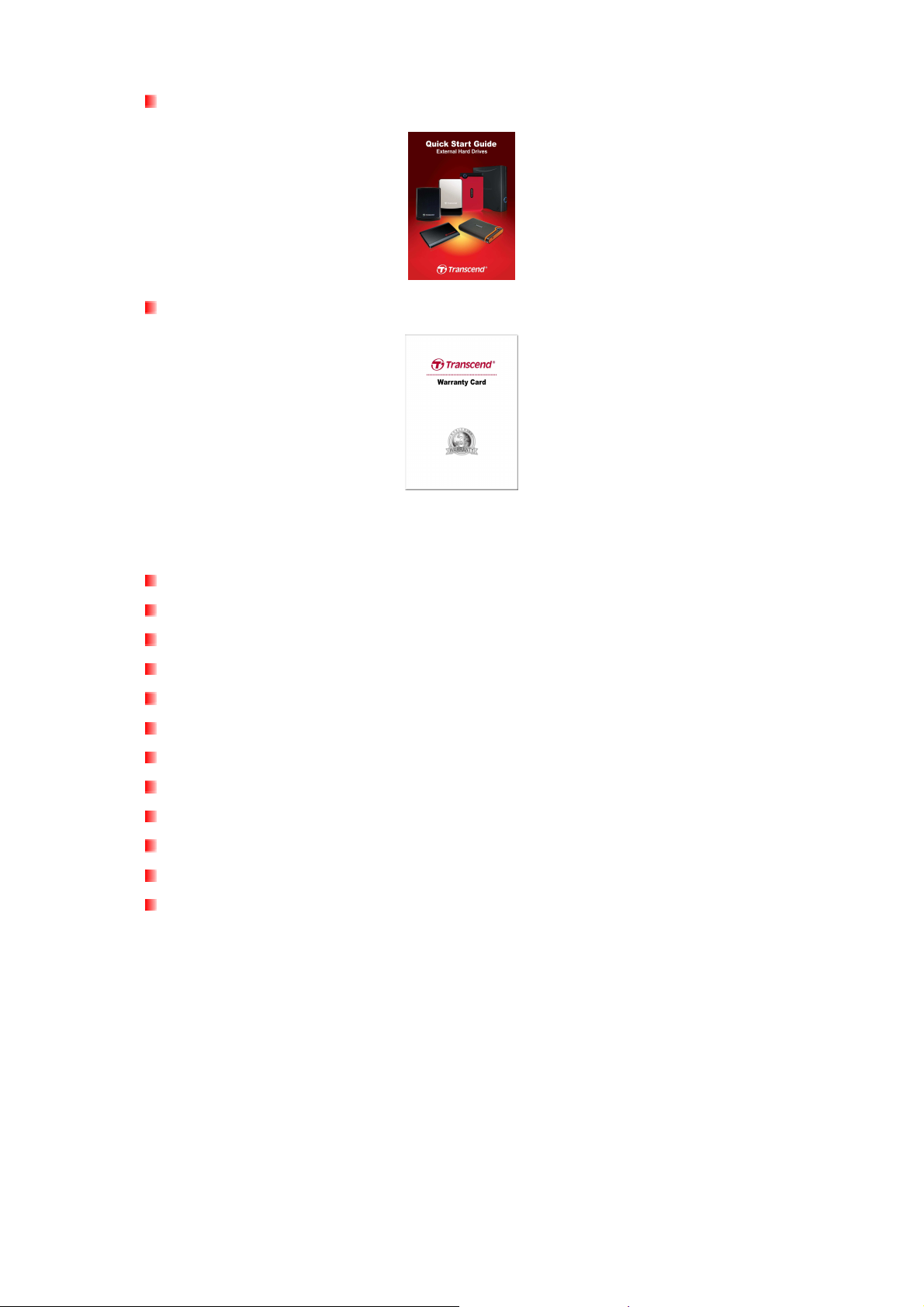
Quick Start Guide
Warranty Card
Features︱
SuperSpeed USB 3.0 compliant and backwards compatible with USB 2.0
Durable anti-shock silicone outer shell
Advanced internal hard drive suspension system
Connection bandwidth up to 5Gbits per second
Extra-large storage capacity
Sleek ultra portable design
Easy Plug and Play operation – no drivers required
USB powered – no external adapter necessary
Power saving sleep mode
One Touch Auto-Backup button
Includes Transcend Elite backup and security software
Multicolor LED indicator (power, data transfer, & USB 2.0/3.0 connection type)
System Requirements︱
Desktop or notebook computer with a working USB port.
One of following Operating Systems:
•
Windows XP
•
Windows Vista
•
Windows 7
•
Linux Kernel 2.6.31 or later
•
Mac OS X 10.4 or later (only USB 2.0 currently supported)
2
Safety Precautions︱
These usage and safety guidelines are IMPORTANT! Please follow them carefully.
General Use
•
Carefully unpack the contents of the StoreJet 25 package.
•
During operation, avoid exposing your StoreJet 25 to extreme temperatures above 55℃,
or below 5℃.
•
Do not drop your StoreJet 25.
•
Do not allow your StoreJet 25 to come in contact with water or any other liquids.
•
Do not use a damp/wet cloth to wipe or clean the exterior case.
o Do not store your StoreJet 25 in any of the following environments: Direct
sunlight
o Next to an air conditioner, electric heater or other heat sources
o In a closed car that is in direct sunlight
o In an area with strong magnetic fields or excessive vibration
•
If your Windows computer will not boot while StoreJet 25 is connected, please
disconnect the StoreJet 25 to your computer first and connect the StoreJet 25 after
starting Windows. Otherwise, refer to your computer’s manual and change the BIOS
settings to instruct the computer to boot from a different device.
Backing up Data
•
Transcend does NOT take any responsibility for data loss, or damage during
operation. If you decide to store data on your StoreJet 25 we strongly advise that you
regularly backup the data to a computer, or other storage medium.
•
To ensure Super-Speed USB 3.0 data transfer rates when using your StoreJet 25,
please make sure that your computer has the relevant drivers and hardware to support
USB 3.0. If you are unsure about how to check this, please consult the user’s manual of
your computer, motherboard, or USB 3.0 interface card for USB 3.0 driver information.
Transporting
•
Do not pack the StoreJet 25 into luggage without proper padded support. Other items in
your luggage may damage the drive during travel if it does not have proper protection.
•
Avoid squeezing or compressing the StoreJet 25.
•
Do not place objects on top of your StoreJet 25.
Power
•
The StoreJet 25 is powered directly via a computer USB port. However, the power
supplied by the USB port on some older computers is below the 5V DC required to
power the StoreJet 25. If your StoreJet does not function properly upon connecting it to
your computer, please use the included USB Power Cable.
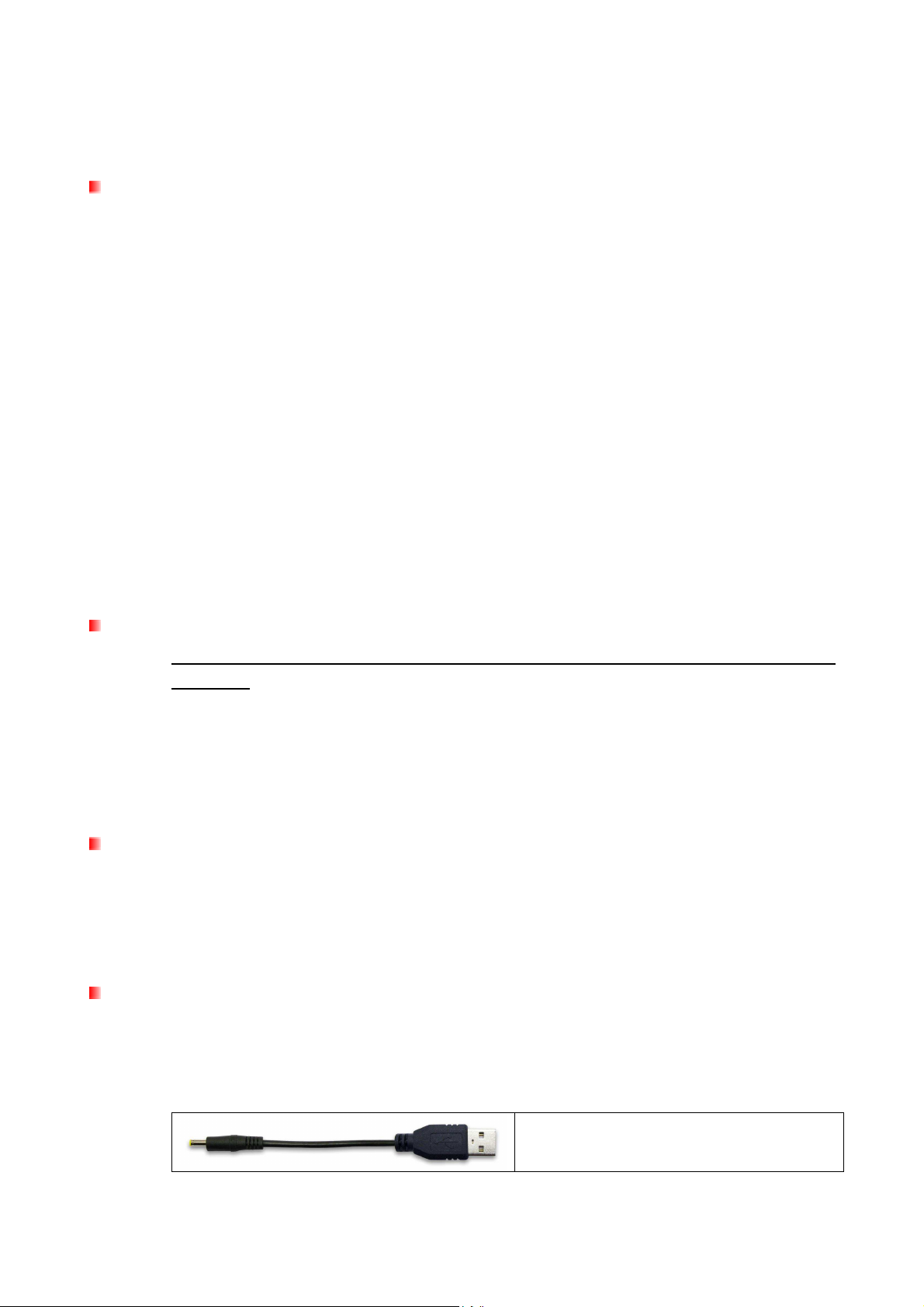
The Power Cable can provide additional power for the
StoreJet 25 if necessary
•
Use only the USB 3.0 cable that came with the StoreJet 25 to connect it to a computer,
3

and always ensure that the cable you are using is in good condition. NEVER use a cable
that is frayed or damaged.
•
Ensure nothing is resting on the USB cable and that the cable is not located where it can
be tripped over or stepped on.
Reminders
Always follow the procedures in the “Disconnecting from a Computer” section to remove the
StoreJet from your computer.
Product Overview︱
Power Cable DC-IN
A
Micro USB 3.0 Port
B
One Touch Auto-Backup Button
C
4
Connecting to a Computer︱
The StoreJet 25M3 can be connected to your computer using either USB 2.0 or USB 3.0. To get
the best performance results from your drive, we recommend using the USB 3.0 interface
(currently not supported on Mac computers).
Micro USB 3.0
Connector
USB 3.0 Cable
USB 2.0 / 3.0
Connector
StoreJet 25M3 Micro USB port USB 2.0 Port USB 3.0 Port
1.
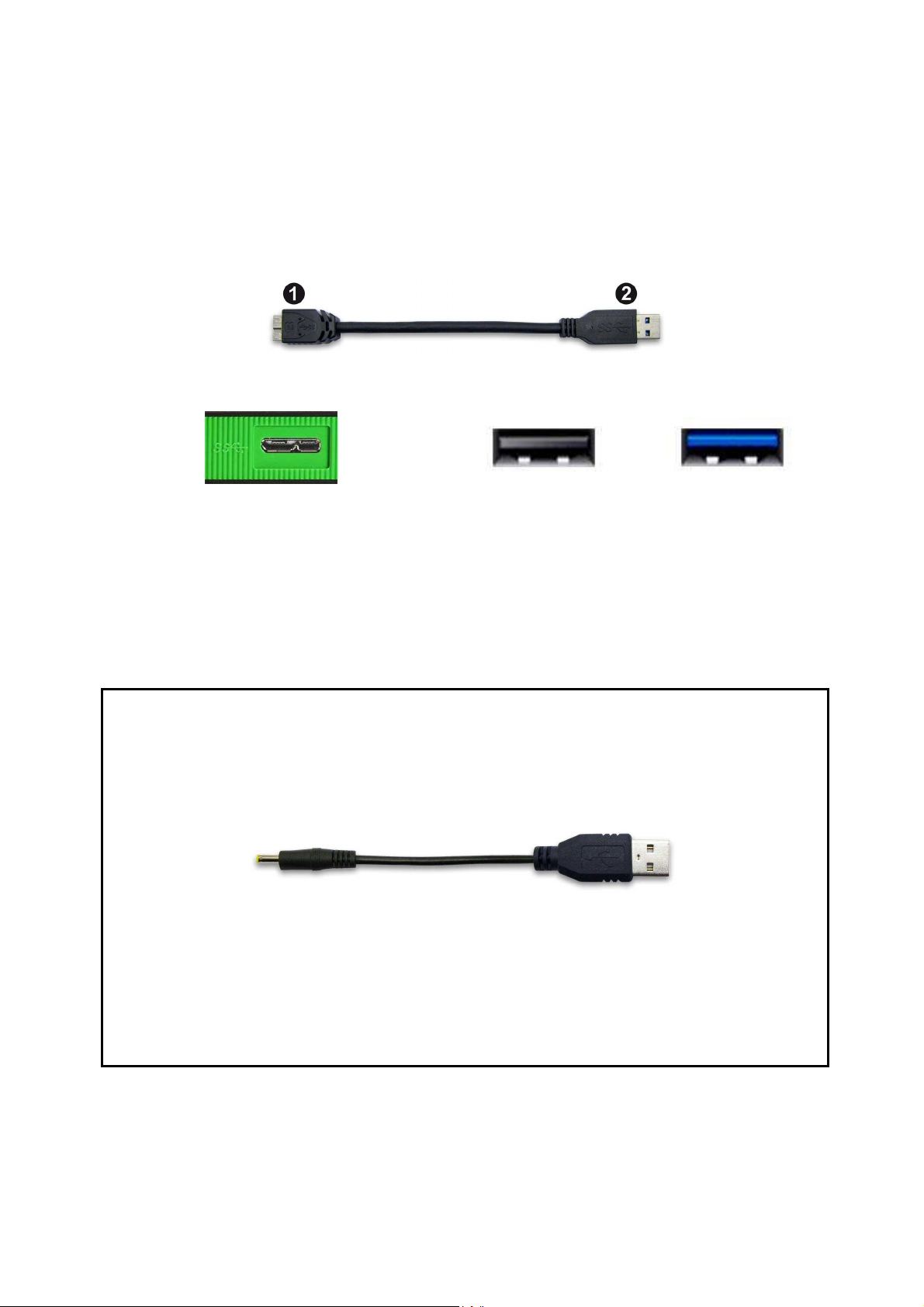
Plug the micro USB end (1) of the USB cable into the StoreJet 25M3.
2.
Plug the rectangular end (2) of the USB cable into an available USB 2.0 or USB 3.0 port on
your desktop or notebook computer.
3.
If necessary, plug in the USB Power Cable.
Connecting the USB Power Cable
NOTE:
On some older computers, the power supplied by the USB port might not meet the 5V DC requirement.
If you have power-related problems, please be sure to use the included USB Power Cable.
(1) (2)
1. Unplug the USB 3.0 Cable from your computer.
2. Connect the round-shaped end (1) of the USB Power Cable to the DC IN jack on the
StoreJet 25
3. Plug the rectangular end (2) into any available USB port (USB 2.0 or 3.0) on your desktop
computer, notebook or netbook.
4. Reconnect the USB 3.0 Cable.
5
Loading…
5
Connecting to a Computer
︱
The StoreJet 25M3 can be connected to your computer using either USB 2.0 or USB 3.0. To get
the best performance results from your drive, we recommend using the USB 3.0 interface
(currently not supported on Mac computers).
1.
Plug the micro USB end (1) of the USB cable into the StoreJet 25M3.
2.
Plug the rectangular end (2) of the USB cable into an available USB 2.0 or USB 3.0 port on
your desktop or notebook computer.
3.
If necessary, plug in the USB Power Cable.
Connecting the USB Power Cable
NOTE:
On some older computers, the power supplied by the USB port might not meet the 5V DC requirement.
If you have power-related problems, please be sure to use the included USB Power Cable.
(1) (2)
1. Unplug the USB 3.0 Cable from your computer.
2. Connect the round-shaped end (1) of the USB Power Cable to the DC IN jack on the
StoreJet 25
3. Plug the rectangular end (2) into any available USB port (USB 2.0 or 3.0) on your desktop
computer, notebook or netbook.
4. Reconnect the USB 3.0 Cable.
Micro USB 3.0
Connector
USB 2.0 / 3.0
Connector
USB 3.0 Cable
StoreJet 25M3 Micro USB port
USB 2.0 Port
USB 3.0 Port
Загрузить
- Описание
- Операционная система
- Размер
- Version
- Файл
- 2025.03.17RecoveRx
- Windows / Mac OS
- 4MB
- v4.3 / v2.6
- 2024.12.23Transcend Elite
- Windows / Mac OS
- 61MB
- v4.27 / v2.9
- 2025.04.08Secure Erase Tool for the Locked ESD / StoreJet
- Windows
- 2MB
- v1.9
- Описание
- Язык
- Размер
- Файл
- StoreJet 25 Manual (Russian)
- Русский
- 1MB
- StoreJet 25 Manual (Traditional Chinese)
- 繁體中文
- 978KB
- StoreJet 25 Manual (English)
- English
- 712KB
- StoreJet 25 Manual (Japanese)
- 日本語
- 970KB
- StoreJet 25 Manual (Korean)
- 한국어
- 925KB
- StoreJet 25 Manual (German)
- Deutsch
- 942KB
- StoreJet 25 Manual (French)
- Français
- 1MB
- StoreJet 25 Manual (Italian)
- Italiano
- 929KB
- StoreJet 25 Manual (Dutch)
- Dutch
- 639KB
- StoreJet 25 Manual (Spanish-EU)
- Español
- 644KB
- StoreJet 25 Manual (Spanish-US)
- Español (Mexico)
- 624KB
- StoreJet 25 Manual (Czech)
- český
- 741KB
- StoreJet 25 Manual (Portuguese)
- Português
- 1MB
- StoreJet 25 Manual (Polish)
- Polish
- 791KB
- StoreJet 25 Manual (Vietnamese)
- Tiếng Việt
- 780KB
- StoreJet 25 Manual (Thai)
- ภาษาไทย
- 1MB
- StoreJet 25 Manual (Ukrainian)
- український
- 755KB
Ч.А.В.О.
Совместимость
Обучающее видео
Руководство пользователя Портативный жёсткий диск StoreJet® 25 (Version 1.3)
Содержание Введение︱ ︱ ………………………………………………………………………………1 Особенности︱ ︱ ………………………………………………………………………..1 Системные требования︱
Введение︱ Поздравляем вас с приобретением Transcend StoreJet 25. Это компактное, портативное запоминающее устройство с интерфейсом high-speed USB является превосходным решением для скачивания, хранения и переноса ваших данных. Благодаря ударопрочности, большой емкости и скорости передачи данных,
Системные требования︱ Компьютер или ноутбук с исправным USB портом. Одна из следующих операционных систем: Модели с USB 3.0: Модели с USB 2.0: • • Windows XP Windows 7 Windows 8 Linux Kernel 2.6.31+ • • • Mac OS X 10.5+ • Mac OS 9+ • • Windows XP • • • Windows 7 Windows 8 • Windows Vista
копии данных на компьютере или другом запоминающем устройстве. Транспортировка • Не упаковывайте StoreJet 25 в багаж без амортизирующей упаковки. Другие вещи в багаже могут повредить диск StoreJet 25, если он будет без соответствующей защиты. • Не сжимайте и не давите на StoreJet 25. • Не кладите
Подключение к компьютеру︱ USB 3.0 кабель Разъем питания Разъем Micro/Mini USB Разъем USB 2.0 / 3.0 USB3.0 Micro B Type Male USB3.0 A Type Male 1. Подключите меньший разъём (1) кабеля USB к StoreJet 25. 2. Подключите больший конец (2) вашего USB-кабеля к любому свободному USB 2.0 или USB 3.0 порту
Windows появится Локальный диск с вновь присвоенным именем, и на панели задач Windows появится пиктограмма Съемного оборудования . Установленный в StoreJet 25 жесткий диск предварительно отформатирован в FAT32, которая совместима с большинством компьютерных систем, в том числе Windows, Mac, Linux и
Примечание: (D:) и (G:) – это примеры названия дисков, буквы в вашем окне «Мой компьютер» могут быть другими Примечание: «New Volume» — это пример диска. Название диска на вашем компьютере Mac может быть другим 4. При подключении к компьютеру StoreJet 25 можно использовать как внешний жесткий диск
Резервирование нажатием кнопки︱ Чтобы включить функцию резервирвоания данных в одно нажатие, вы должны вначале запустить предустановленное программное обеспечение Transcend Elite (размещается в папке Transcend Elite на вашем StoreJet). Как только вы удачно создадите задачу резервирования в
Отключение от компьютера︱ НИКОГДА не отсоединяйте StoreJet от компьютера при светящемся LED индикаторе. Windows 1. Выберете значок Съемного Оборудования на панели задач. 2. Появится всплывающее окно Безопасное отключение устройства. Выберете его для продолжения. 3. Появится сообщение: «Теперь «USB
Mac® OS Переместите значок диска StoreJet 25 в корзину. После этого отсоедините StoreJet 25 от USB порта. Linux® Выполните команду umount /mnt/Storejet, чтобы демонтировать устройство. После этого отсоедините StoreJet 25 от USB порта. 9
Форматирование жесткого диска︱ ВНИМАНИЕ! Форматирование диска удалит все данные на вашем StoreJet 25. ® Для форматирования в Windows требуются Права Администратора. Windows® XP/Vista/7/8 1. Загрузите StoreJetToolBox из www.transcend-info.com/downloads онлайн Центра Загрузки Transcend 2. Когда
8. Выберите “Drive To Format” и “File System” в выпадающем меню и нажмите “Start”. 9. Появится окно подтверждения с предупреждением, что все данные на вашем диске будут удалены. Нажмите «ОК», чтобы подтвердить, что не требуется создание резервной копии и можно приступить к форматированию. 10.
11. Нажмите “Close”, чтобы выйти. Mac® OS 1. Подключите StoreJet 25 к свободному USB разъему на компьютере MAC. 2. Отключите все другие USB накопительные устройства от своего компьютера. Это позволит предотвратить случайное форматирование другого накопителя. 3. Если появится сообщение, похожее на
9. Для подтверждения нажмите «Erase» еще раз. 10. Нажмите кнопку «Close» для завершения и выхода. Linux® 1. Подключите StoreJet 25 к свободному USB разъему на компьютере Linux. 2. Отключите все другие USB накопительные устройства от своего компьютера. Это позволит предотвратить случайное
Возможные неполадки и их устранение︱ Если возникают какие-либо проблемы во время эксплуатации StoreJet 25, сначала ознакомьтесь с приведенной ниже информацией, прежде чем отправлять StoreJet 25 в ремонт. Если вам не удалось исправить проблему, прочитав подсказки, перечисленные ниже, пожалуйста,
StoreJet 25 не включается Проверьте следующее: 1. Одного USB-порта может не хватать для снабжения SJ25 достаточным уровнем энергии. Пожалуйста, подключите оба разъёма Y-кабеля USB к вашему компьютеру. 2. Убедитесь, что StoreJet 25 правильно подключен к USB разъему(ам) на компьютере. 3. Убедитесь,
Примечание: Чтобы сохранить имеющиеся данные, необходимо использовать компьютер Windows® или Mac®, который может распознать диск StoreJet для создания резервных копий всех нужных файлов. Некоторые мои фотографии, музыкальные MP3-файлы или документы пропали или были случайно удалены. Существует ли
Технические характеристики︱ ︱ Накопитель Интерфейс подключения 2,5-дюймовый жесткий диск SATA USB 3.0 USB 2.0 Макс. скорость передачи 5 Гбит в секунду данных Рабочая температура от 5℃ до 55℃ Сертификаты CE, FCC, BSMI Гарантия 3 года 17
Условия по переработке и охране окружающей среды︱ ︱ Переработка изделия (WEEE): Ваше изделие спроектировано и изготовлено с использованием высококачественных материалов и компонентов, которые могут быть переработаны и использованы повторно. Когда вы видите данный символ, это означает, что изделие
Трехлетняя ограниченная гарантия︱ ︱ На данный продукт распространяется трехлетняя ограниченная гарантия. В случае обнаружения нарушений в работе данного продукта при надлежащем использовании в течение трех лет со дня покупки, Transcend обязуется осуществить гарантийное обслуживание в соответствии с
-
Инструкции по эксплуатации
1
Transcend 1Tb StoreJet 25M3 инструкция по эксплуатации
(23 страницы)
- Языки:Русский
-
Тип:
PDF -
Размер:
1.14 MB -
Описание:
Внешний жесткий диск
Просмотр
На NoDevice можно скачать инструкцию по эксплуатации для Transcend 1Tb StoreJet 25M3. Руководство пользователя необходимо для ознакомления с правилами установки и эксплуатации Transcend 1Tb StoreJet 25M3. Инструкции по использованию помогут правильно настроить Transcend 1Tb StoreJet 25M3, исправить ошибки и выявить неполадки.