
i
Introducing your Meridian Digital Telephone 1
Meridian Digital Telephones 1
M3820 1
M3310 2
M3110 3
Selecting a position for your Meridian Digital Telephone 4
Parts of your Meridian Digital Telephone 5
Your Telephone’s Display 6
Idle screen format 6
Calling party information 6
Display options 6
Using Display Options 7
Your telephone’s features 12
Initiating Calls 12
To call using the dial pad 13
Answering Calls 13
Placing a call on hold 13
Call Transfer 14
On-hook dialing 15
Predial 15
Last Number Redial 16
Handsfree 16
Group Listening 17
Directory (M3820 only) 18
Callers List and Redial List (M3820 only) 21
Making a call 25
Auto Dial 25
Ring Again 25
Speed Call 26
System Speed Call 28
Call Page 28
Override 29
Override, Enhanced 29
Stored Number 30
Contents
3300 CITELlink Gateway
for Meridian 1 Series Phones
M3820 Phone User Guide

NOTICE
The information contained in this document is believed to be accurate in all respects but is not
warranted by Mitel Networks™ Corporation (MITEL®). The information is subject to change without
notice and should not be construed in any way as a commitment by Mitel or any of its affiliates or
subsidiaries. Mitel and its affiliates and subsidiaries assume no responsibility for any errors or
omissions in this document. Revisions of this document or new editions of it may be issued to
incorporate such changes.
Nothing in this document may be reproduced in any manner, whether wholly or in part for an y use
whatsoever, without written permission from Mitel Networks Corporation.
Mitel Networks is a trademark of Mitel Networks Corporation.
Nortel Networks and Meridian are trademarks of Nortel Networks.
CITELlink is a trademark of Citel Technologies Ltd.
Other product names mentioned in this document may be trademarks of their respective
companies and are hereby acknowledged.
3300 Integrated Communications Platform
M3820 Phone User Guide
Release 5.2
December 2004
®, ™ Trademark of Mitel Networks Corporation
© Copyright 2004, Mitel Networks Corporation
All rights reserved

About Your Phone
Contents
About Your Phone ………………………………………………………………………………………………………….5
Conventions……………………………………………………………………………………………………………..6
Using Your Meridian 1 Phone with the 3300 CITELlink Gateway …………………………………….6
Tips for Your Comfort and Safety……………………………………………………………………………………6
Don’t cradle the handset!……………………………………………………………………………………………6
Protect your hearing………………………………………………………………………………………………….. 6
Customizing Your Phone………………………………………………………………………………………………..7
Ringer Control………………………………………………………………………………………………………….. 7
Handset Receiver Volume Control……………………………………………………………………………….7
Speaker Volume Control…………………………………………………………………………………………….7
Display Contrast Control…………………………………………………………………………………………….7
Feature Keys…………………………………………………………………………………………………………….8
Language Change……………………………………………………………………………………………………..8
Making and Answering Calls………………………………………………………………………………………….. 9
Make a call……………………………………………………………………………………………………………….9
Answer a call…………………………………………………………………………………………………………….9
Redial………………………………………………………………………………………………………………………9
Redial — Saved Number……………………………………………………………………………………………… 9
Speed Call Keys………………………………………………………………………………………………………10
Handsfree Operation……………………………………………………………………………………………….. 10
Speed Call — Personal………………………………………………………………………………………………11
On-Hook Dialing………………………………………………………………………………………………………11
Auto-Answer……………………………………………………………………………………………………………12
Call Handling……………………………………………………………………………………………………………….. 13
Hold……………………………………………………………………………………………………………………….13
Transfer………………………………………………………………………………………………………………….13
Conference……………………………………………………………………………………………………………..13
Conference Split………………………………………………………………………………………………………14
Call Forward……………………………………………………………………………………………………………14
Call Forward — Remote……………………………………………………………………………………………..15
Call Forward — End Chaining……………………………………………………………………………………..16
Call Forward — Override…………………………………………………………………………………………….16
Messaging — Advisory………………………………………………………………………………………………. 16
Messaging — Callback………………………………………………………………………………………………. 17
Messaging — Cancel Callback ……………………………………………………………………………………17
Messaging — Cancel All Callbacks………………………………………………………………………………17
Using Advanced Features……………………………………………………………………………………………..18
Account Codes………………………………………………………………………………………………………..18
Call Park…………………………………………………………………………………………………………………18
Call Pickup……………………………………………………………………………………………………………..18
Campon………………………………………………………………………………………………………………….19
Do Not Disturb…………………………………………………………………………………………………………19
Override …………………………………………………………………………………………………………………19
3

M3820 Phone User Guide
Paging…………………………………………………………………………………………………………………….20
Direct Paging…………………………………………………………………………………………………………..20
Music ……………………………………………………………………………………………………………………..21
Group Paging / Meet Me Answer ……………………………………………………………………………….21
Trunk Flash……………………………………………………………………………………………………………..22
Tag Call ………………………………………………………………………………………………………………….22
4
About Your Phone
About Your Phone
The Mitel® 3300 CITELlink Gateway allows your Nortel Networks™ Meridian 1 phone to
work on a Mitel 3300 Integrated Communications Platform (3300 ICP).
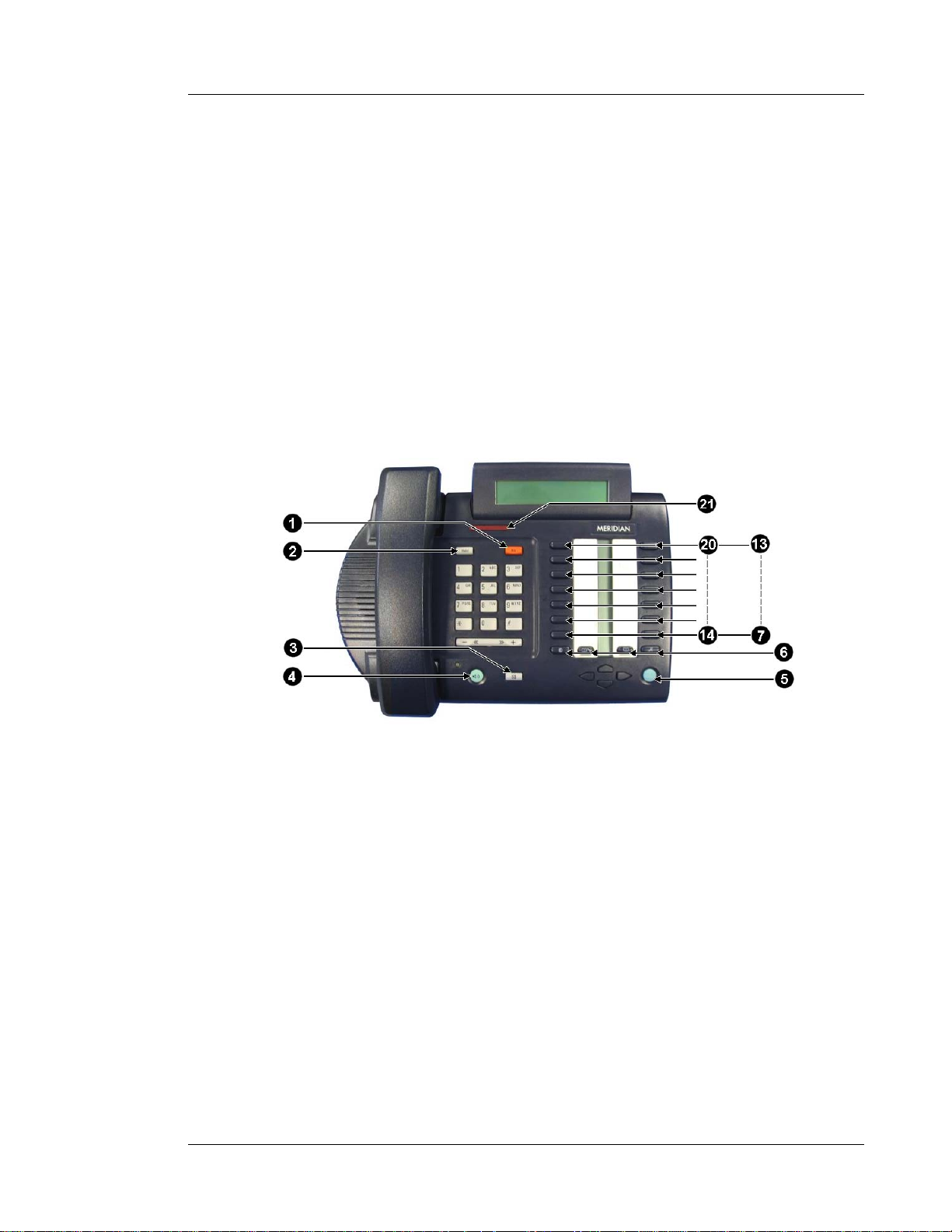
When used with a 3300 ICP, your M3820 phone has thirteen fixed-function keys
(
SUPERKEY, TRANSFER, CANCEL (Rls), HOLD, DOWN ARROW, PROGRAM, +
Volume Up), − (Volume Down), SPEAKER, MUTE, MENU RIGHT, MENU LEFT,
(
MENU RIGHT
personal keys can be programmed as:
• Feature keys (for example, Swap). You can program feature keys from your phone.
Your administrator can also program feature keys.
• Speed Call keys. You can program speed call keys from your phone.
• Line Appearances. Only the administrator can program line appearances.
Your phone also features display-assisted selection of features and on-hook dialing.
) and six personal keys. Key 5 is always your Prime Line; the remaining
Phone buttons
Button Number Description
1 Cancel
2 Hold
3 Mute
4 Handsfree
5 Prime Line
6 Unused
7 — 12 Personal Keys
13 Program
14 Menu right
15 Menu middle
16 Menu left
17 Down arrow
18 Transfer
19 Superkey
20 Message
21 Message indicator
5

M3820 Phone User Guide
Phone status indicators
When line is the indicator is
Idle Off
Busy On
Ringing Flashing slowly
On hold at your set Flashing rapidly
On Hold at another set Flashing rapidly
Conventions
The following conventions are used in this user guide:
• Fixed-function keys are identified by bold uppercase letters (for example,
TRANSFER).
• Text that appears on the display is identified by double quotes (for example,
«Language?»).
Using Your Meridian 1 Phone with the 3300 CITELlink Gateway
Please note the following differences in the way your phone now operates:
• You can program speed call numbers, personal keys as well as enable/disable
features using
MENU RIGHT keys.
and
• Some features require you to dial a
access codes whenever you have dial tone. The feature access codes in this user
guide may be different from the ones programmed in your system. Ask your
Administrator for the list of feature access codes you can use.
• When you have a message (including new voice mail messages), «Message»
appears on the display and the message indicator is lit.
SUPERKEY. To navigate through the features, use the MENU LEFT
feature access code. You can use feature
Tips for Your Comfort and Safety
Don’t cradle the handset!
Prolonged use of the handset can lead to neck, shoulder, or back discomfort, especially if
you cradle the handset between your ear and shoulder.
Protect your hearing
6
Your phone has a control for adjusting the volume of the handset receiver. Because
continuous exposure to loud sounds can contribute to hearing loss, keep the volume at a
moderate level.

Customizing Your Phone
Customizing Your Phone
Ringer Control
To adjust the Ringer Volume while the phone is ringing:
• Press − or +.
To adjust the Ringer Volume or Pitch while the phone is idle:
1. Press SUPERKEY.
2. Press
3. Press
4. To adjust the ringer pitch, press
5. Press − or + until you hear the desired ringer pitch/volume.
6. Press
7. Press
MENU RIGHT (No) until «Ringer Adjust?» appears.
MENU LEFT (Yes).
MENU LEFT (Yes). To adjust the ringer volume,
press
MENU RIGHT (No), then MENU LEFT (Yes).
MENU RIGHT (Save).
SUPERKEY.
Handset Receiver Volume Control
To adjust the Handset Receiver Volume when you are using the handset:
• Press − or +.
Speaker Volume Control
To adjust the Speaker Volume when making an on-hook call or when listening
to background music:
• Press − or +
Display Contrast Control
To adjust the Display Contrast while your phone is idle:
• Press DOWN ARROW.
To alter the LCD contrast, use the local Program key to get to the Contrast Adjustment
Menu.
7

Page 464 of 504
Appendix E: M3110, M3310, and M3820 telephones
553-3001-367 Standard 3.00 August 2005
— External Alerter for high ambient noise environments
— Wall-mount ability
•
Brand line insert to provide for special company logos
M3820
The M3820 Meridian digital telephone supports the following features:
•
Handsfree, On-Hook Dialing and Group Listening
•
Dedicated Release and Hold keys
•
Message Waiting and Speaker/Mute Indicators
•
Headset Socket
•
2 x 24 character display
•
20 Feature keys including:
— Store/program key
— 13 system programmable keys
— Handsfree/speaker key
— Mute key
— Directory key
— Caller’s List key
— Edit key
— Delete key
•
Volume control for:
— Handset/Headset
— Ringing Tone
— Buzz Tone
— On-Hook Dialing and Group Listening
— Handsfree
Базовая модель М3901 Basic Set
Этот одноканальный офисный цифровой телефон с базовым набором функций обеспечивает высокую отдачу от вложенных средств. Он незаменим в таких местах, как вестибюли, стойки регистрации, буфеты и коридоры предприятий. Телефонный аппарат М3901 имеет пять программируемых клавиш и способен автоматически набирать до пяти номеров. На аппарате имеется табличка, на которую удобно наносить названия запрограммированных функций и номера Auto Dial.
Все офисные телефоны окрашены в угольно-черный (Charcoal) или платиново-серый (Platinum) цвет.
Настольный телефонный аппарат для центра обработки вызовов
Усиление «переднего края» работы с клиентами
В сегодняшних условиях профессиональная обработка вызовов операторами центра обработки вызовов непосредственно влияет на качество обслуживания клиентов, а, следовательно, и на прибыльность компании. Несмотря на всю сложность задач, телефонный аппарат М3905 Call Center способен удовлетворить даже самых требовательных операторов и супервизоров центров обработки вызовов, способствуя существенному повышению их производительности.
Простота — это ключ к высокой производительности. Интуитивный пользовательский интерфейс модели М3905, оснащенный 4-строчным 24-знаковым дисплеем, самый большой в своем классе. Сервисы, управляемые при помощи выводимых на дисплей команд, облегчают поиск имен и номеров, и установление вызовов. А выбираемые пользователем опции могут быть адаптированы к индивидуальным требованиям конкретного оператора или супервизора.
Повысьте эффективность администрирования и менеджмента
Самомаркирующиеся клавиши значительно сокращают время инсталляции: при добавлении новых функций происходит мгновенное обновление подписей, что делает изменение маркировки быстрым, аккуратным и экономичным. Широкий спектр аксессуаров, выполненных в виде интегрируемых модулей, включает:
- Модуль расширения клавиатуры (Key-based Expansion Module), обеспечивающий до 44 дополнительных клавиш доступа к линиям и функциям.
Аналоговый адаптер (Analogue Terminal Adapter (ATA)), предназначенный для подключения аналоговых устройств, таких как модемы и факсы.
Адаптер связи Meridian (Meridian Communications Adapter (MCA)), позволяющий подключаться к ПК для работы с программными приложениями.
Модель М3905 — это решение с видом на будущее, которое способно развиваться по мере изменения требований, предъявляемых вами к центру обработки вызовов. Благодаря возможности применения загружаемых микропрограмм она может обогащаться новыми функциями и сервисами, что способствует защите ваших инвестиций.
Повысьте производительность, воспользовавшись продуктом Symposium Agent 2.0
Превратите свой центр обработки вызовов в современный центр обслуживания клиентов, воспользовавшись приложением Symposium Agent 2.0 — новым программным продуктом, разработанным компанией Nortel Networks. Symposium Agent способствует росту производительности операторов центра обработки вызовов и повышению качества обслуживания клиентов. С его помощью любая нужная информация всегда будет под рукой у оператора. что позволит ему сосредоточиться на нуждах клиента; он сможет звонить и отвечать на звонки коротким нажатием на кнопку мыши, и обрабатывать вызовы непосредственно через ПК, одновременно просматривая или вводя данные.
Добейтесь максимальной отдачи от вложенных вами средств
Прикладная программа Symposium Agent поддерживается любыми платформами Meridian и Symposium компании Nortel Networks и легко интегрируется со всеми офисными приложениями. При увеличении размеров вашего центра обработки вызовов, операторы смогут продолжать его использование без какого-либо дополнительного обучения или вложений с вашей стороны.
Расширение возможностей телефонных аппаратов и не только их.
Серия телефонных аппаратов Meridian 1 Desktop Solutions откроет вашим сотрудникам доступ ко всем преимуществам, которые обеспечиваются эффективными и гибкими функциями самых современных настольных средств связи. С нашей помощью с ними всегда можно будет связаться, где бы они ни находились.
. но своем обычном рабочем месте
CallPilot, совершенно новая универсальная система передачи сообщений компании Nortel Networks, представляет собой единую платформу, которая обеспечивает хранение любых видов сообщений и доступ к ним, и позволяет получать информацию о том, от кого поступали факсы, телефонные звонки и сообщения электронной почты, бросив лишь короткий взгляд на экран монитора. Все это можно делать при помощи компьютера, не выходя из-за рабочего стола: можно в считанные секунды послать факс, просмотреть и прослушать сообщения голосовой почты. Достаточно лишь нажать на клавишу мыши, так же как и при получении или передаче электронной почты. Современная система распознавания речи позволяет интуитивно взаимодействовать с приложением, пользуясь повседневными словами, такими как «play» (воспроизвести), «forward» (прокрутить вперед) и «delete» (стереть). CallPilot — это масштабируемая, легкоуправляемая система, которая может быть бесшовно интегрирована с используемыми вами приложениями электронной почты.
Symposium Call Manager Pro — это идеальное средство управления функциями телефонной связи непосредственно через персональный компьютер. У вас под рукой будет все, что необходимо, чтобы связаться с нужным абонентом, принять участие в конференции или переключить вызов на другой аппарат, а благодаря широким возможностям личной директории вы сможете в считанные секунды найти нужный вам номер. Кроме того, Call Manager поможет вам укрепить отношения с деловыми партнерами, так как их звонки никогда не будут для вас неожиданностью. Это приложение совместимо с большинством наиболее распространенных систем управления контактами. Оно обеспечит «выталкивание» на экран монитора информации о вызывающих абонентах: вам останется только выбирать, на какие звонки следует отвечать в первую очередь, на какие несколько позже, а на какие не нужно отвечать вовсе.
Зачастую знакомство потенциального клиента с компанией начинается с общения с, как правило, очень занятым оператором, от способности которого быстро и эффективно сориентировать звонящего зависит, чем окончится разговор: приобретением нового постоянного партнера или несостоявшейся сделкой. Операторский телефонный аппарат М2250 представляет собой богатую функциями цифровую консоль, которая обеспечивает эффективную и быструю обработку вызовов.
Функционирующая на базе ПК операторская консоль Smile еще больше упрощает работу оператора, позволяя ему обслуживать клиентов на самом высоком уровне. Smile имеет собственную базу данных и богатый функциями графический интерфейс пользователя, которые значительно облегчают обработку вызовов. Эта система интегрируется с приложениями электронной почты, расширяя возможности связи между оператором и пользователями. Людям с нарушениями зрения предлагается версия системы — Smile VIP.
. в движении по территории предприятия
Некоторые сотрудники не могут в течение всего рабочего времени постоянно находиться у своего телефона, чтобы не пропустить ни одного важного звонка. Компания Nortel Networks предлагает решения Companion Mobility, позволяющие подключать к УПАТС беспроводные абонентские комплекты, с помощью которых сотрудники, находящиеся на территории компании, но вне своих рабочих кабинетов, могут поддерживать связь с коллегами, поставщиками и клиентами.
Предлагаемая компанией Nortel Networks система Meridian Home Office II позволяет сотрудникам, работающим на дому, выполнять свои обязанности с той же легкостью, что и в офисе. Она позволяет им, находясь дома, использовать любые функции установленной в компании станции Meridian 1, и обеспечивает прозрачный доступ к корпоративной сети передачи данных. Работающие дома сотрудники могут, не прилагая особых усилий, звонить осуществлять передачу голоса, факсов и данных, и для этого им не требуется никаких специальных знаний. Более того, система Meridian Home Office II инсталлируется менее чем за 10 минут, может управляться дистанционно, и обеспечивает надежно защищенный доступ к телефонным сетям и сетям передачи данных.
. но временном рабочем месте, попеременно используемом розными сотрудниками, и в небольшом офисе
Для чего тратить деньги на аренду дорогостоящих офисных площадей, если они используются лишь часть времени? Чтобы сотрудники, приходящие на работу в офис не каждый день, могли по мере надобности использовать одно «горячее» рабочее место, им предлагается аналоговый адаптер Analogue Terminal Adapter (A*TA), который позволяет подключать различные аналоговые устройства к телефонному аппарату Meridian 1. С его помощью пользователь может, например, получать удаленный доступ к корпоративной сети передачи данных через модем своего портативного компьютера. Будучи альтернативой карт аналоговых абонентских линий (Analogue Line Cards), адаптеры ATA позволяют избежать дополнительных издержек, связанных с инсталляцией, — ведь их использование не требует подведения к телефонным аппаратам дополнительных проводов и к тому же позволяет сэкономить слоты системы Meridian 1. Все это делает их эффективным решением, которое позволяет организациям, не располагающим большими площадями, осуществлять факсимильную и модемную связь с максимальной отдачей от вложенных средств.
В свою очередь, применение беспроводных абонентских комплектов Companion позволяет сотрудникам свободно перемещаться по территории компании и отвечать на звонки, находясь вдали от своих рабочих мест.
Источник
-
Contents
-
Table of Contents
-
Bookmarks
Quick Links
3300 CITELlink Gateway
for Meridian 1 Series Phones
M3820 Phone User Guide
Related Manuals for Mitel M3820
Summary of Contents for Mitel M3820
-
Page 1
3300 CITELlink Gateway for Meridian 1 Series Phones M3820 Phone User Guide… -
Page 2
Mitel Networks™ Corporation (MITEL®). The information is subject to change without notice and should not be construed in any way as a commitment by Mitel or any of its affiliates or subsidiaries. Mitel and its affiliates and subsidiaries assume no responsibility for any errors or omissions in this document. -
Page 3: Table Of Contents
Contents About Your Phone … 5 Conventions … 6 Using Your Meridian 1 Phone with the 3300 CITELlink Gateway … 6 Tips for Your Comfort and Safety … 6 Don’t cradle the handset! … 6 Protect your hearing… 6 Customizing Your Phone … 7 Ringer Control …
-
Page 4
M3820 Phone User Guide Paging…20 Direct Paging …20 Music …21 Group Paging / Meet Me Answer …21 Trunk Flash…22 Tag Call …22… -
Page 5: About Your Phone
The Mitel® 3300 CITELlink Gateway allows your Nortel Networks™ Meridian 1 phone to work on a Mitel 3300 Integrated Communications Platform (3300 ICP). When used with a 3300 ICP, your M3820 phone has thirteen fixed-function keys (SUPERKEY, TRANSFER, CANCEL (Rls), HOLD, DOWN ARROW, PROGRAM, + (Volume Up), −…
-
Page 6: Conventions
M3820 Phone User Guide Phone status indicators When line is Idle Busy Ringing On hold at your set On Hold at another set Conventions The following conventions are used in this user guide: • Fixed-function keys are identified by bold uppercase letters (for example, TRANSFER).
-
Page 7: Customizing Your Phone
Customizing Your Phone Ringer Control To adjust the Ringer Volume while the phone is ringing: • Press − or +. To adjust the Ringer Volume or Pitch while the phone is idle: Press SUPERKEY. Press MENU RIGHT (No) until «Ringer Adjust?» appears. Press MENU LEFT (Yes).
-
Page 8: Feature Keys
M3820 Phone User Guide Feature Keys To display information about a key: Press SUPERKEY. Press a personal key. Press SUPERKEY. To re-program a personal key: Press SUPERKEY. Press MENU RIGHT (No) until «Personal Keys?» appears. Press MENU LEFT (Yes). Press a personal key that isn’t a line key.
-
Page 9: Making And Answering Calls
Making and Answering Calls Make a call Lift the handset. If you want to use a Non-Prime Line, press a Line Appearance key. Do one of the following: • Dial the number. • Press a Speed Call key. Answer a call •…
-
Page 10: Speed Call Keys
M3820 Phone User Guide Speed Call Keys You may use Speed Call Keys to make a call or to send a string of digits during a call (press a Speed Call Key during a call to send a multi-digit password, for instance).
-
Page 11: Speed Call — Personal
To temporarily disable the microphone during Handsfree Operation: • Press MUTE (the SPEAKER indicator flashes). To re-enable the microphone and return to the conversation: • Press SPEAKER (the SPEAKER indicator turns on). To disable Handsfree Operation: • Lift the handset. To return to Handsfree Operation: Press SPEAKER.
-
Page 12: Auto-Answer
M3820 Phone User Guide Auto-Answer To enable or disable Auto-Answer: • Press the AUTO-ANSWER feature key. To answer a call when you hear ringback: • Communicate by using the speaker and the microphone. — or — Lift the handset. To terminate a call: •…
-
Page 13: Call Handling
Call Handling Hold To place a call on hold: • Press HOLD. To retrieve a call from Hold: Lift the handset. Press the flashing line key. To retrieve a call from Hold at another station: • Press the flashing line key. -or- Dial **1 and the number of the station that placed the call on Hold.
-
Page 14: Conference Split
M3820 Phone User Guide To leave a Conference: • Hang up. Conference Split To Split a Conference and speak privately with the original party: Press TRANSFER. Dial *41. To return to the conference call: • Press TRANSFER. Call Forward Call Forward lets you redirect incoming calls to an alternate number. Always redirects all incoming calls regardless of the state of your phone.
-
Page 15: Call Forward — Remote
Press MENU RIGHT (Next) until the desired type of Call Forward appears. Press MENU LEFT (Review). Press MENU LEFT (Change). Do one of the following: • To turn Call Forward on, press MENU LEFT (TurnOn). • To turn Call Forward off, press MENU RIGHT (TurnOff). Press SUPERKEY.
-
Page 16: Call Forward — End Chaining
M3820 Phone User Guide Call Forward — End Chaining To ensure that calls do not get forwarded again by the destination number: Lift the handset. Dial 64. Hang up. To again allow calls to be forwarded by the destination number: Lift the handset.
-
Page 17: Messaging — Callback
Messaging — Callback To leave a Callback Message on a phone when you hear busy or ringback tone: • Press MESSAGE. To respond to a message waiting condition on your phone: Press MESSAGE. Do one of the following: • To call the message sender, press MENU RIGHT (Call). •…
-
Page 18: Using Advanced Features
M3820 Phone User Guide Using Advanced Features Account Codes To use Forced Account Codes: Lift the handset. Dial the Account Code digits. Press #. To enter an Account Code during a call: Press TRANSFER. Press **3. Dial the Account Code digits.
-
Page 19: Campon
Campon To Campon to a busy station: • Dial 3 or wait for the time-out period to expire. To retrieve a call when you hear Campon tone: • Depress the hookswitch momentarily, and then dial *3. The current call is put on hold and you are connected to the waiting call.
-
Page 20: Paging
M3820 Phone User Guide Paging To use Paging: Lift handset. Press the Pager feature key or **9. Dial the Paging zone number (if required). Make the announcement. Direct Paging Direct Paging allows you to page a party through their phone speaker. If the paged party has Off-Hook Voice Announce enabled, the page will be heard even when the party is on a handset call.
-
Page 21: Music
Music To turn Music on and off when the phone is idle: Press SUPERKEY. Press MENU RIGHT (No) until «Music?» appears. Do one of the following: • To turn the music on, press MENU LEFT (TurnOn). • To turn the music off, press MENU RIGHT (TurnOff). Group Paging / Meet Me Answer Group Paging allows you to page a group of telephones through their built-in speakers.
-
Page 22: Trunk Flash
M3820 Phone User Guide Trunk Flash The Trunk Flash feature allows you to access Centrex features (if available) while you are talking on an outside call. To flash a trunk while talking on an outside call: Press TRANSFER. Dial *57 for a single flash or *56 for a double flash.
3300 CITELlink Gateway
for Meridian 1 Series Phones
M3820 Phone User Guide
Краткое содержание страницы № 1
3300 CITELlink Gateway
for Meridian 1 Series Phones
M3820 Phone User Guide
Краткое содержание страницы № 2
NOTICE The information contained in this document is believed to be accurate in all respects but is not warranted by Mitel Networks™ Corporation (MITEL®). The information is subject to change without notice and should not be construed in any way as a commitment by Mitel or any of its affiliates or subsidiaries. Mitel and its affiliates and subsidiaries assume no responsibility for any errors or omissions in this document. Revisions of this document or new editions of it may be issued to in
Краткое содержание страницы № 3
About Your Phone Contents About Your Phone …………………………………………………………………………………………………………. 5 Conventions …………………………………………………………………………………………………………….. 6 Using Your Meridian 1 Phone with the 3300 CITELlink Gateway ……………………………………. 6 Tips for Your Comfort and Safety …………………………………………
Краткое содержание страницы № 4
M3820 Phone User Guide Paging…………………………………………………………………………………………………………………….20 Direct Paging …………………………………………………………………………………………………………..20 Music ……………………………………………………………………………………………………………………..21 Group Paging / Meet Me Answer ……………….
Краткое содержание страницы № 5
About Your Phone About Your Phone The Mitel® 3300 CITELlink Gateway allows your Nortel Networks™ Meridian 1 phone to work on a Mitel 3300 Integrated Communications Platform (3300 ICP). When used with a 3300 ICP, your M3820 phone has thirteen fixed-function keys (SUPERKEY, TRANSFER, CANCEL (Rls), HOLD, DOWN ARROW, PROGRAM, + (Volume Up), − (Volume Down), SPEAKER, MUTE, MENU RIGHT, MENU LEFT, MENU RIGHT) and six personal keys. Key 5 is always your Prime Line; the remaining personal keys c
Краткое содержание страницы № 6
M3820 Phone User Guide Phone status indicators When line is the indicator is Idle Off Busy On Ringing Flashing slowly On hold at your set Flashing rapidly On Hold at another set Flashing rapidly Conventions The following conventions are used in this user guide: • Fixed-function keys are identified by bold uppercase letters (for example, TRANSFER). • Text that appears on the display is identified by double quotes (for example, «Language?»). Using Your Meridian 1 Phone with the 3300
Краткое содержание страницы № 7
Customizing Your Phone Customizing Your Phone Ringer Control To adjust the Ringer Volume while the phone is ringing: • Press − or +. To adjust the Ringer Volume or Pitch while the phone is idle: 1. Press SUPERKEY. 2. Press MENU RIGHT (No) until «Ringer Adjust?» appears. 3. Press MENU LEFT (Yes). 4. To adjust the ringer pitch, press MENU LEFT (Yes). To adjust the ringer volume, press MENU RIGHT (No), then MENU LEFT (Yes). 5. Press − or + until you hear the desired ringer pitch/volume
Краткое содержание страницы № 8
M3820 Phone User Guide Feature Keys To display information about a key: 1. Press SUPERKEY. 2. Press a personal key. 3. Press SUPERKEY. To re-program a personal key: 1. Press SUPERKEY. 2. Press MENU RIGHT (No) until «Personal Keys?» appears. 3. Press MENU LEFT (Yes). 4. Press a personal key that isn’t a line key. 5. Press MENU LEFT (Change). 6. Press MENU RIGHT (No) until the desired feature appears. 7. Press MENU LEFT (Yes). 8. Press SUPERKEY. Language Change To change the displa
Краткое содержание страницы № 9
Making and Answering Calls Making and Answering Calls Make a call 1. Lift the handset. 2. If you want to use a Non-Prime Line, press a Line Appearance key. 3. Do one of the following: • Dial the number. • Press a Speed Call key. Answer a call • Lift the handset. — or — Press the flashing Line appearance key and lift the handset. Redial To redial the last number that you manually dialed: 1. Lift the handset. 2. Dial *01. Redial — Saved Number To save the last number that you man
Краткое содержание страницы № 10
M3820 Phone User Guide Speed Call Keys You may use Speed Call Keys to make a call or to send a string of digits during a call (press a Speed Call Key during a call to send a multi-digit password, for instance). To dial a stored Speed Call number: 1. Lift the handset. 2. Press a Speed Call key. To store a Speed Call number: 1. Press SUPERKEY. 2. Press a personal key that isn’t a line key. 3. Press MENU LEFT (Change). 4. Press MENU LEFT (Yes). 5. Do one of the following: • To enter a
Краткое содержание страницы № 11
Making and Answering Calls To temporarily disable the microphone during Handsfree Operation: • Press MUTE (the SPEAKER indicator flashes). To re-enable the microphone and return to the conversation: • Press SPEAKER (the SPEAKER indicator turns on). To disable Handsfree Operation: • Lift the handset. To return to Handsfree Operation: 1. Press SPEAKER. 2. Hang up. Speed Call — Personal Note: Personal Speed Call lists must be configured by the Administrator. To store a personal Speed C
Краткое содержание страницы № 12
M3820 Phone User Guide Auto-Answer To enable or disable Auto-Answer: • Press the AUTO-ANSWER feature key. To answer a call when you hear ringback: • Communicate by using the speaker and the microphone. — or — Lift the handset. To terminate a call: • Press CANCEL. -or- Wait for the caller to hang up. 12
Краткое содержание страницы № 13
Call Handling Call Handling Hold To place a call on hold: • Press HOLD. To retrieve a call from Hold: 1. Lift the handset. 2. Press the flashing line key. To retrieve a call from Hold at another station: • Press the flashing line key. -or- Dial **1 and the number of the station that placed the call on Hold. Transfer To Transfer an active call: 1. Press TRANSFER. 2. Dial the number of the third party. 3. Do one of the following: • To complete the Transfer, hang up. • To announc
Краткое содержание страницы № 14
M3820 Phone User Guide To leave a Conference: • Hang up. Conference Split To Split a Conference and speak privately with the original party: 1. Press TRANSFER. 2. Dial *41. To return to the conference call: • Press TRANSFER. Call Forward Call Forward lets you redirect incoming calls to an alternate number. Always redirects all incoming calls regardless of the state of your phone. Busy-Internal redirects internal calls when your phone is busy, and Busy-External redirects external ca
Краткое содержание страницы № 15
Call Handling 4. Press MENU RIGHT (Next) until the desired type of Call Forward appears. 5. Press MENU LEFT (Review). 6. Press MENU LEFT (Change). 7. Do one of the following: • To turn Call Forward on, press MENU LEFT (TurnOn). • To turn Call Forward off, press MENU RIGHT (TurnOff). 8. Press SUPERKEY. Call Forward — Remote To forward calls from a remote station to your current location: 1. Press SUPERKEY. 2. Press MENU RIGHT (No) until «Call Forwarding?» appears. 3. Press MENU LEF
Краткое содержание страницы № 16
M3820 Phone User Guide Call Forward — End Chaining To ensure that calls do not get forwarded again by the destination number: 1. Lift the handset. 2. Dial 64. 3. Hang up. To again allow calls to be forwarded by the destination number: 1. Lift the handset. 2. Dial **73. 3. Hang up. Call Forward — Override To override Call Forward and ring a station: 1. Lift the handset. 2. Dial *1*. 3. Dial the extension number. Messaging — Advisory To turn Messaging — Advisory on: 1. Press SUPE
Краткое содержание страницы № 17
Call Handling Messaging — Callback To leave a Callback Message on a phone when you hear busy or ringback tone: • Press MESSAGE. To respond to a message waiting condition on your phone: 1. Press MESSAGE. 2. Do one of the following: • To call the message sender, press MENU RIGHT (Call). • To erase the message, press MENU LEFT (Erase). To answer a Callback: • Lift the handset. Messaging — Cancel Callback To cancel a Callback: 1. Lift the handset. 2. Dial *1#. 3. Dial the number of
Краткое содержание страницы № 18
M3820 Phone User Guide Using Advanced Features Account Codes To use Forced Account Codes: 1. Lift the handset. 2. Dial the Account Code digits. 3. Press #. To enter an Account Code during a call: 1. Press TRANSFER. 2. Press **3. 3. Dial the Account Code digits. 4. Press MENU RIGHT (Save). 5. Press CANCEL. Call Park To retrieve a call parked by the attendant: 1. Lift the handset. 2. Dial *23. 3. Dial the console ID and the Hold Slot number. Call Pickup To answer a call that is
Краткое содержание страницы № 19
Using Advanced Features Campon To Campon to a busy station: • Dial 3 or wait for the time-out period to expire. To retrieve a call when you hear Campon tone: • Depress the hookswitch momentarily, and then dial *3. The current call is put on hold and you are connected to the waiting call. Do Not Disturb To activate or deactivate Do Not Disturb: • Press the Do Not Disturb feature key. — or — 1. Press SUPERKEY. 2. Press MENU RIGHT (No) until «Do Not Disturb?» appears. 3. Do one of the
Краткое содержание страницы № 20
M3820 Phone User Guide Paging To use Paging: 1. Lift handset. 2. Press the Pager feature key or **9. 3. Dial the Paging zone number (if required). 4. Make the announcement. Direct Paging Direct Paging allows you to page a party through their phone speaker. If the paged party has Off-Hook Voice Announce enabled, the page will be heard even when the party is on a handset call. To page a party: 1. Lift the handset. 2. Press the Direct Paging feature key or *37. 3. Dial the extension n
Mitel
M3820 Инструкция по эксплуатации
Популярность:
1284 просмотры
Подсчет страниц:
22 страницы
Тип файла:
Размер файла:
275 Kb
- Manuals
- Brands
- Citel Manuals
- Adapter
- TVA-A
- User manual
12 and 24 port portico tva phone voip adapter
Hide thumbs
Also See for TVA-A:
- Integration manual (36 pages)
1
3
4
5
6
7
8
10
11
12
13
14
16
17
18
19
20
21
23
24
25
26
27
28
30
31
32
33
34
35
37
38
39
40
41
42
44
45
46
47
48
49
51
52
53
54
55
56
58
59
60
61
62
63
65
66
67
68
69
70
72
73
74
75
76
77
78
79
81
82
83
84
85
86
88
89
90
91
92
93
95
96
97
98
99
100
102
103
104
106
107
108
109
110
111
112
113
114
115
116
117
118
119
120
121
122
123
124
125
126
127
128
129
130
131
132
133
134
135
136
137
138
139
140
141
142
143
144
145
146
147
148
149
150
151
152
153
154
155
156
157
158
159
160
161
162
163
164
165
166
167
168
169
170
171
172
173
174
175
176
177
178
179
180
-
Contents
-
Table of Contents
-
Bookmarks
Advertisement
12
24 P
P
TVA
AND
ORT
ORTICO
Key and Indicator Mappings
1
2
3
4
5
6
7
Table 42: M3820 Key and Indicator Mappings
Document Number: G-SIP3DP-RUC
Function
Line 1
Line 1
Line 2
Line 2
Transfer
Conference
Redial
Version: AG
Function
8
Message Waiting
9
10
11
12
13
M
P
ERIDIAN
HONES
P
U
G
HONE
SER
UIDE
79
Table of Contents
Previous Page
Next Page
- 1
- …
- 90
- 91
- 92
- 93
- 94
- 95
- 96
- 97
Advertisement
Related Manuals for Citel TVA-A
-
Switch Citel TVA-A Integration Manual
12 and 24 port portico tva softswitch (36 pages)
-
Adapter Citel Portico TVA Series Installation And Configuration Manual
12 and 24 port includes p-phone central office version (109 pages)
Related Products for Citel TVA-A
- Citel Portico TVA Series
This manual is also suitable for:
Tva-dTva-pPortico tva12dPortico tva24dPortico tva24pH-sip3d-ruc12 …
Show all