
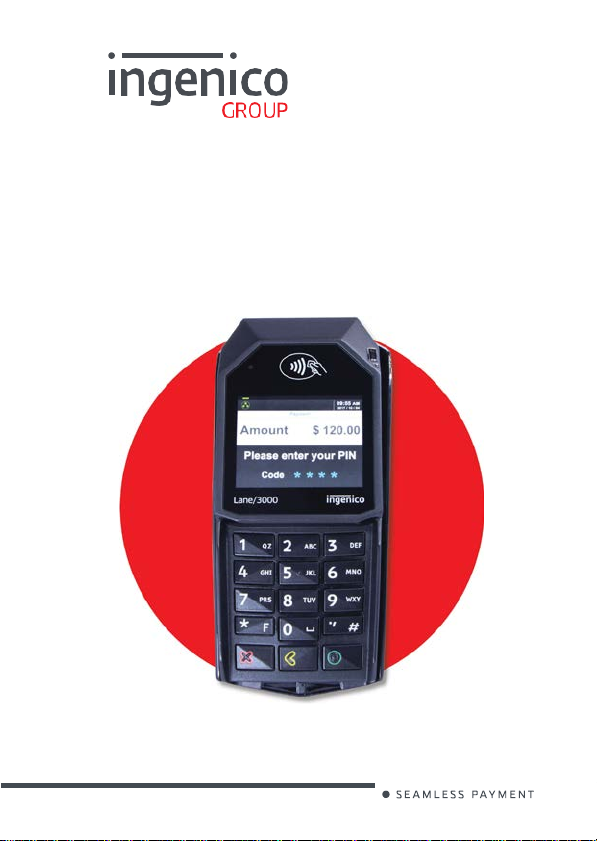
Lane/3000
Desk/1500
User Guide
www.ingenico.com
28-32, boulevard de Grenelle, 75015 Paris — Fra nce / (T) +33 (0)1 58 01 80 00 / (F) +33 (0)1 58 01 91 35
Ingenico — SA au capital de 47 656 332 / 317 218 758 RCS Na nterre
900033034 R11 00 0 02/ 0118
Ingenico
All rights reserved
Contents
1_Introduction
2_Unpacking
3_Recommendations
3_1
4_
Daily use
Safety
3_2
Security of your terminal
(tampering attempt detection)
3_3 Main Characteristics
3_3_1
3_3_2
3_4
Functional description
3_5
Installation & Connections
3_5_1
3_5_2 Inserting SAM (Secure access module)
3_5_3
3_5_4 Setting the terminal on the standpole
4_1 Card reading
4_1_1 Swiping a card
4_1_2 Inserting a smart card
4_1_3 Reading a contactless card
Standard version
Power characteristics
Positioning the terminal
Connecting the terminal to the host
adaptor
5
6
6
7
9
9
12
18
Copyright© 2018
900033034 R11 00 0 02/ 0118
Ingenico
All rights reserved
4_2 Signature capture (Option)
4_3 Audio (Option)
5_Maintenance
5_1 Cleaning
5_1_1
Cleaning of the terminal
5_1_2
Entretien du terminal
5_1_3 Wartung von Endgeräten
5_2
Transport and storage
5_3
Troubleshooting
19
21
6_Cables
7_Norms & Marking
7_1 Federal Communications
Commission (FCC) Statement
7_2 Industry Canada (IC) Statement
7_3 Environment (WEEE, Batteries and
Packaging)
7_4
Marking
Copyright© 2018
23
900033034 R11 00 0 02/ 0118
Ingenico
All rights reserved
1_
Introduction
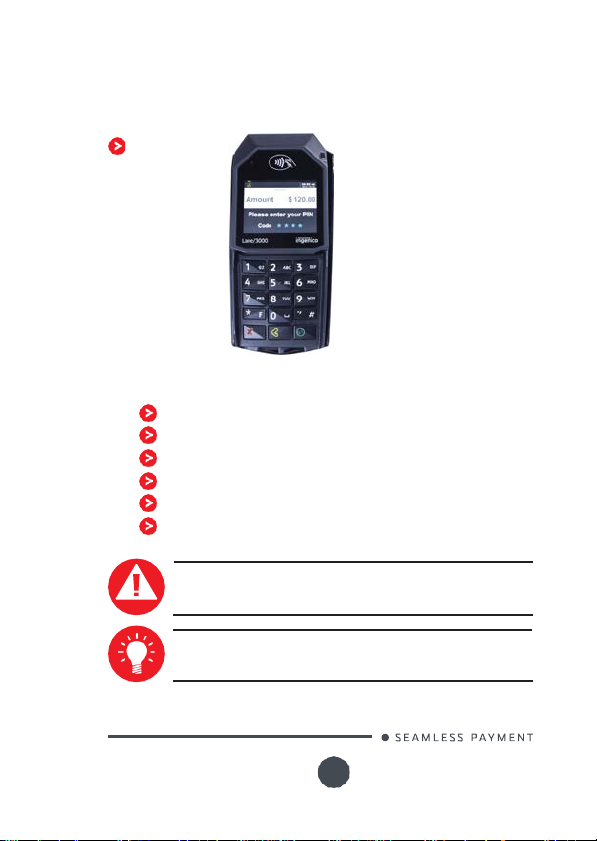
Thank you for choosing an Ingenico payment terminal.
We recommend you to read carefully this user guide: it gives you
the necessary information about safety precautions, unpacking,
installation and maintenance of your terminal.
WARRANTY /
To benefit from the guarantee-related product, and to
respect the security, we ask you to use only the power
supply delivered in box with the product, entrusting
maintenance operations only to an authorized person.
Failure to comply with these instructions will void the
manufacturer’s responsibility.
SECURITY
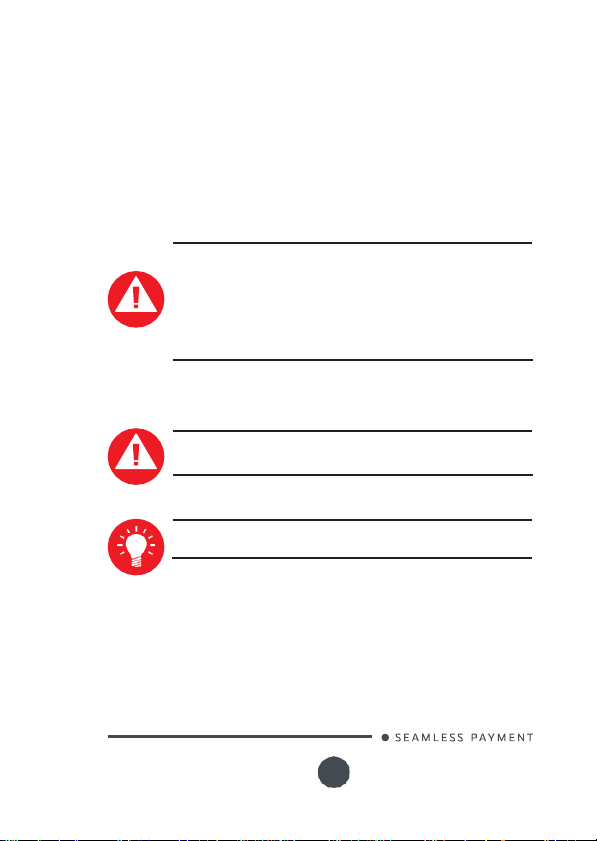
This symbol indicates an important Warning.
This symbol indicates a piece of advice.
Copyright© 2018
900033034 R11 00 0 02/ 0118
Ingenico
All rights reserved
2_Unpacking
According to the model, the following items are included in the
packaging box (including optional accessories):
The terminal
The box may also include the following items depending on your
working configuration:
An installation guide
Cable (specific to connectivity requireme nts)
Power supply unit and power cord
A stylus
Modules
Screws to fix the main cable and the module
CAUTION
The power supply unit provided with your equipment is
specially designed for it. Do not use any other power supply.
ADVICE
Keep the packaging.
terminal
is
shipped.
It
must be re-used whenever the
Copyright© 2018
900033034 R11 00 0 02/ 0118
Ingenico
All rights reserved
3_Recommendations
Electrical
characteristics
3_1
Safety
Power on/Power down — Emergenc y stop
To power on or power down the terminal, connect or disconnect the
power supply from the electric outlet.
Power supply unit
CAUTION
Only use the power supply AC/DC provided with the
terminal or the power provided by a cash register limited
power so urce (LPS according to IEC60950-1 or IEC62368-1).
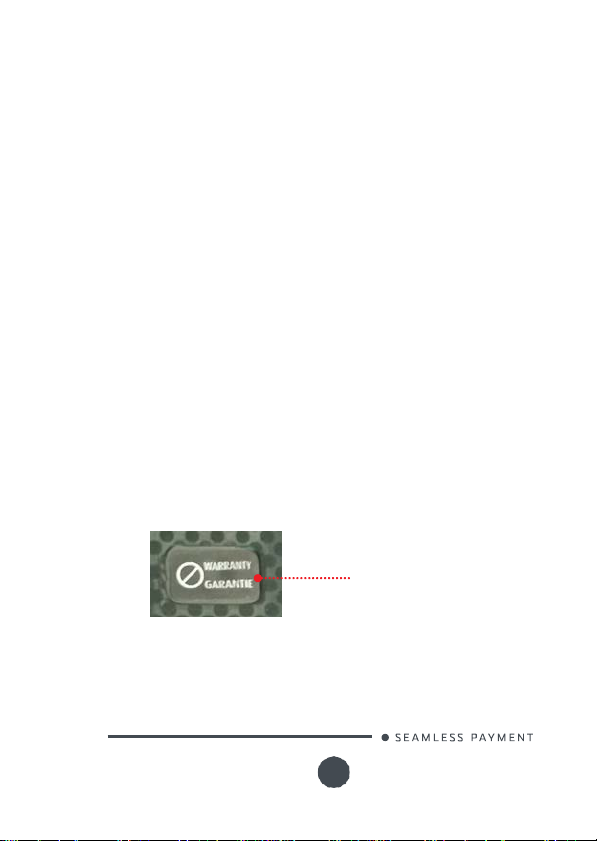
Authorized power supply units :
Unit Supplier
Electrical power supply network
The electrical outlet must meet the following criteria:
Type
CAUTION
Lithium battery cell
The terminal
accessible to the user. Only a qualified technician
authorized to open the unit and change this component.
Risk
of explosion if the battery is replaced by an incorrect
type. Dispose of used battery according to the instructions.
Must be installed near the equipment and easily accessible;
Must meet standards and regulations in the country of use.
is
reference
PSC16A-
fitted with a
lithium
part number
battery cell which is not
Copyright© 2018
is
900033034 R11 00 0 02/ 0118
Ingenico
All rights reserved
Explosion areas
Certain regulations restrict the use of radio equipment in chemical
plants, fuel depots and any site where blasting is carried out. You are
urged to comply with these regulations. The terminal shall be protected
by a specially fitted and certified cover enabling use in proximity to a
fuel pump.
Your device
Upon receipt of your terminal you should check for signs of tampering
of the equipment. It
performed regularly after receipt. You should check, for example: that
the keypad
that have been connected to any ports on your terminal or associated
equipment, the chip card reader or any other part of your terminal.
Such checks would provide warning of any unauthorised modifications
to your terminal, and other sus pici o us beha viour of individuals that
have access to your terminal.
Your terminal detects any “tampered state”. In
will repeatedly flash the message” Alert Irruption!” and further use of
the terminal will not be possible. If you observe the “Alert Irruption!”
message, you should contact the terminal helpdesk immediately.
You are strongly advised to ensure that privileged access to your
terminal is only granted to staff that have been independently verified
as being trustworthy.
The terminal must never be put in or left at a location where it could be
stolen or replaced by another device.
3_2
Security of y ou r t er m in al
(tampering attempt detection)
fulfils
current applicable PCI PTS security requirements.
is
strongly advised that these checks are
is firmly
in place; that there
is
no evidence of unusual wires
this
state the terminal
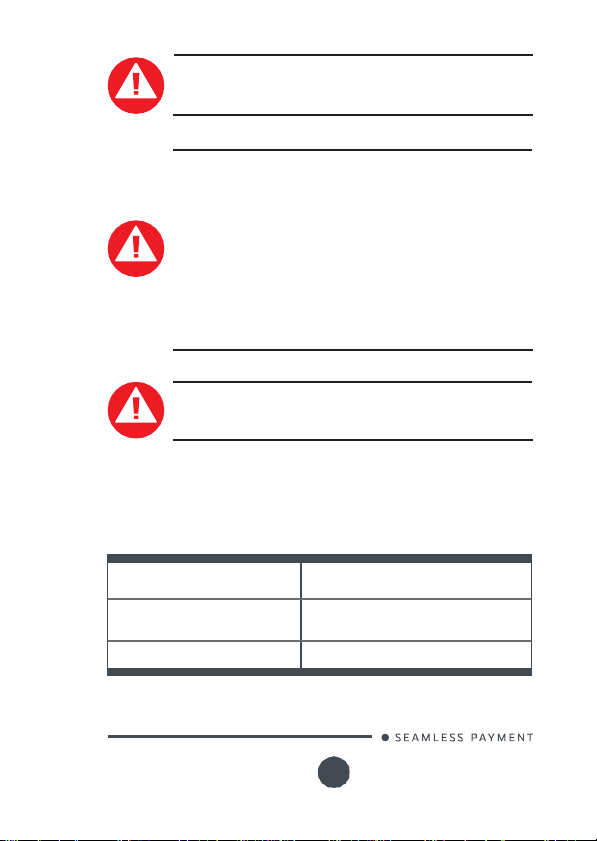
Warranty label
(on the bottom side of the
terminal)
Copyright© 2018
900033034 R11 00 0 02/ 0118
Ingenico
All rights reserved
(Poids, Gewicht)
Size
(dimensions, Maße)
Display
WARNING
If
the warranty label is torn or removed, the warranty
be void.
CAUTION
Positioning of the terminal on check stand must be in such
a way to make cardholder PIN (Personal Identification
Number) spying infeasible.
Installing device on an adjustable stand must be in such a
way that consumers can swivel the terminal sideways and/
or tilt it forwards/backwards to a position that makes visual
observation of the PIN-entry process difficult.
Positioning of in-store security cameras such that the PINentry keypad is not visible.
NEVER ask the customer to divulge their PIN Code.
Customers should be advised to ensure that they are not
being overlooked when entering their PIN Code.
CAUTION
This equipment may not be modified, altered or changed in
any way without signed written permission from Ingenico
3_3
3_3_1
Main Characteristics
Standard version
254g (8.95 oz)
180.2 (L) x 83.2 (W) x 43 (H) mm
2.8” backlit LCD, QVGA (800 x 480 pixels)
will
Copyright© 2018
900033034 R11 00 0 02/ 0118
Ingenico
All rights reserved
Operating conditions
Ambient temperature
Max relative humidity
Max altitude
from 0°C to +40°C (External power supply)
from 0°C to +45°C (Other)
85% RH non-condensing at +40°C
2000 m
Storage conditions
Storage temperature
Max relative humidity
Power supply units
3_3_2
Power characteristics
-20°C, +55°C
85% at +55°C
The terminal can be powered by several ways:
•
An extern al power supply unit (LPS type ac cording
IEC60950-1 or IEC62368-1 standard)
•
By POE (Power over Ethernet — IEEE 802.3af compliant)
•
By USB (5VDC or 12VDC – LPS type)
The characteristics for each type of power supply are detailed
hereafter.
Copyright© 2018
Loading…
- June 17, 2024
- ingenico
Table of Contents
- ingenico Lane 3000 Kiosk Stand with UPM System User Guide
- Product Information
- Product Usage Instructions
- What’s in the box
- Function keys
- Getting started
- Support
- Read More About This Manual & Download PDF:
- References
- Read User Manual Online (PDF format)
- Download This Manual (PDF format)
ingenico Lane 3000 Kiosk Stand with UPM System User Guide
Product Information
The Lane 3000 Kiosk is a card terminal designed for various payment
transactions. It comes with a set of function keys and includes a card
terminal, terminal cable, power supply unit, and window decal.
Function Keys
- Menu: Use this button to access the main functions menu on the terminal.
- Cancel: Use this button to cancel and revert back to the previous screen.
- Clear: Use this button to clear back or delete characters when keying in text/numbers.
- Enter: Use this button to confirm selection on the terminal.
Product Usage Instructions
Getting started
- Connect the Terminal cable to the Lane 3000 Kiosk terminal by connecting the HDMI end to the back of the terminal as shown.
- Connect the Power supply to the Terminal cable, and connect to an active Ethernet port. Note: The Ethernet extension block and additional cable can be used to extend the cable if required.
Setting a static IP address on the terminal
- When the terminal is configured, the Menu buttons are disabled on the device.
- To access the admin menu, follow these steps:
- After reboot, press the F key followed by 654123 and the F key again.
- The terminal will request an administrator password which is 123456 and press Enter. You are now in the Admin Menu.
- Using the Up/Down keys, select ETH setting, then press Enter
- Speed change will appear on the screen. Select Link Speed 100Mb/s and press Enter.
- Protocol Change will then appear on the screen. Press the RED button (cancel).
- Press the Enter button to save the changes.To set the terminal to the desired IP address:
- Key in the new IP address you wish to use.
- Use the Yellow button to clear the existing IP address.
- The next screen will display the Subnet mask. This should not be changed. Press Enter.
- The final screen displays the gateway IP address. This should not need to be changed. Press Enter.
- The terminal will request to save changes. Press Enter. The terminal will reboot, and the new IP address will be set.
The terminal is now set up with the specified IP address and ready for
Integration.
What’s in the box

- Card Terminal
- Terminal Cable
- Power Supply Unit
- Window Decal
Function keys
- Menu: Use this button to access the main functions menu on the terminal
- Cancel: Use this button to cancel and revert back to the previous screen
- Clear: Use this button to clear back or delete characters when keying in text/numbers
- Enter: Use this button to confirm selection on the terminal
Getting started
-
Connect the Terminal cable to the Lane 3000 Kiosk terminal by connecting the HDMI end to the back of the terminal as shown.

-
Connect the Power supply to the Terminal cable, and connect to an active Ethernet port. *Note the Ethernet extension block and additional cable can be used to extend the cable if required.

Setting a static IP address on the terminal
When the terminal is configured, the Menu buttons are disabled on the device.
To access the admin menu please follow these steps.
- After reboot press the “F” key followed by “654123” and the“F” key again.
- The terminal will request an administrator password which is 123456 and ENTER You are now in the Admin Menu.
-
* Using the Up/Down keys, select “ETH setting”, then press ENTER- Speed change appears on screen select Link Speed 100Mb/s and press ENTER
- Protocol Change will then appear on the screen, press the RED button(cancel)
- You can now set the terminal to the desired IP address. Use the yellow button to clear the existing IP address, and key in the new IP address you wish to use. Press the ENTER button to save the changes.
- The next screen will display the Subnet mask this should not be changed press ENTER.
-
- The final screen displays the gateway IP address again this should not need to be changed. Press ENTER.
- The terminal will request to save changes, press ENTER. Terminal will reboot and the new IP address will be set.
- The terminal is now set up with the specified IP address and ready for integration.
- The final screen displays the gateway IP address again this should not need to be changed. Press ENTER.
Support
- EVOPayments.co.uk/support-centre/
- uksupport@EVOPayments.com
EVO Payments UK Ltd is authorised and regulated by the FCA under the Payment
Services Regulation 2017 (FRN 959332) for the provision of payments services
and under the Consumer Credit Act (FRN 966552) for the undertaking of terminal
rentals. EVO Payments UK Ltd is registered in the UK under Companies House
number 13527680. Registered address Granite House, Granite Way, Syston,
Leicester, LE7 1PL. EVO Payments UK Ltd trades under the following names:- EVO
Payments UK and EVO Payments International.
Read More About This Manual & Download PDF:
References
- BOI UK Payment Acceptance | Secure Card Payments Provider
Read User Manual Online (PDF format)
Read User Manual Online (PDF format) >>
Download This Manual (PDF format)
Download this manual >>
Welcome to your definitive guide to mastering the Lane 3000, your new partner in securing effortless transactions. Picture this: a compact, robust device that fits seamlessly into your retail environment. Gone are the days of bulky, intimidating machines. Hello, minimal counter space and enhanced payment security! With the Lane 3000, transactions become a breeze through credit cards, EMV chips, or alternative payment methods like NFC wallets and QR codes. The device’s universal payment mount caters to all. This guide aims to acquaint you with its features, from the high-end keypad to the ergonomic stand pole – all designed for intensive use. Get ready to unlock the full potential of your Lane 3000 and elevate your customers’ retail experience today. Embrace the future where convenience meets security. Your comprehensive journey starts here.
Unveiling the magic of the Lane 3000 begins with a simple touch. Feel the smooth keys under your fingers, each press secure and satisfying. Every transaction is now at your fingertips, a machine and human interaction symphony.
The device’s robust design withstands the test of rigorous, intensive use. Yet, it remains sleek and elegant, a testament to the power of ingenious engineering. Its minimalistic design ensures it only occupies a tiny footprint on your counter space, preserving the integrity of your work area. Even in the busiest retail environment, the Lane 3000 thrives, its efficiency never wavering.
Savor the freedom of choice the Lane 3000 offers. From credit cards to NFC wallets, even QR codes – it accepts all with grace and ease. Watch as customers marvel at the effortless transactions, their trust in your establishment growing with each successful payment.
This device isn’t just a piece of machinery; it’s an extension of your commitment to providing excellent customer service. It’s your trusted partner – a silent sentinel that guards against fraud while ensuring a seamless payment experience.
Remember the high-end keypad, a crucial feature that promises durability and ease of use. Lastly, the ergonomically designed stand pole allows flexible positioning, perfect for diverse retail settings.
Welcome the Lane 3000 into your retail family and witness how it revolutionizes the customer experience. Prepare to unlock a world of possibilities with the Lane 3000, where convenience meets security in a harmonious dance of technology and service.
Configuring the Lane 3000 for Ethernet Connectivity
Setting up your Lane 3000 for Ethernet connectivity is akin to unlocking a hidden treasure trove. Just imagine a world of seamless transactions at your fingertips. To start, you’ll need an Ethernet cable. With it in hand, locate your device’s Ethernet port. It’s easy to spot and nestled comfortably at the back. Once found, gently connect the cable.
Part of the charm of the Lane 3000 lies in its versatility. Not only is it a credit card terminal, but it also doubles as a dynamic card reader. This chameleon-like adaptability extends to its connectivity options. Besides Ethernet, it supports WiFi, creating a cash register that’s consistently online and always ready.
Feel the green button, smooth and inviting. Pressing it brings the Lane 3000 to life, a vibrant heartbeat in your retail environment. Watch as it seamlessly integrates with your POS system and cash registers. It’s like welcoming a new member to your retail family.
Now, let’s talk security. The highest security requirements protect every transaction made. Your customers can rest easily with a credit card or a mobile wallet. This device doesn’t just meet expectations – it surpasses them with enhanced payment security.
In conclusion, the Lane 3000 is more than just a payment terminal. It symbolizes your commitment to customer service – a compact, robust device that promises a safe and secure payment experience.
Configuring the Link 2500 for WiFi Connectivity
Setting up the Link 2500 for WiFi connectivity is a breeze. The first thing you’ll notice is the device’s sleek, streamlined design, a testament to subtle elegance. Touch the smooth surface, caress the uninterrupted lines, and feel its robust build. A simple press on the friendly green button, and the device springs to life, ready to transform your retail environment.
Breathe life into the Link 2500 by connecting to your WiFi network. To do this, navigate to the admin menu to discover a world of settings. If you encounter any hiccups, the Lane 3000’s customer service is a toll-free call away.
Once connected, your Link 2500 metamorphoses into a dynamic card reader. This isn’t just a device; it’s an extension of your brand promotion, a silent testament to your commitment to providing multiple payment options. Now, your customers can choose from various alternative payment methods such as NFC wallets, QR codes, or the classic credit card.
Feel the thrill of every transaction, each one a symphony of trust between you and your customer. Each approval beep is a melody of successful sales, a testament to your store’s versatility, and a nod to your excellent customer service.
From its intensive use to its seamless integration with your POS system and cash drawers, the Link 2500 is the heart of your retail environment. This device unlocks a world where convenience and security dance in perfect harmony. This is the magic of the Link 2500, opening a world of limitless possibilities. Welcome to the future of retail.
Configuring the Link 2500 for Bluetooth Connectivity
Setting up the Link 2500 for Bluetooth connectivity is as thrilling as uncovering a hidden gem. Begin by beholding the device’s robust design. It’s compact yet powerful – a testament to transformative technology. Feel the smooth surface under your fingers, cool and inviting. A single press of the welcoming green button breathes life into the device. Now, it’s ready to revolutionize your retail environment.
The next step is to navigate to the admin menu. Here, you’ll discover a treasure trove of settings designed to cater to your needs. If you encounter any roadblocks, don’t worry. The Link 2500’s dedicated customer service is a toll-free call away, ready to assist you.
Connecting the Link 2500 to your Bluetooth network is seamless. Once done, it evolves into a dynamic card reader. Now, the device becomes an extension of your brand promotion. You are not just offering a payment option; you are providing an exceptional customer experience.
With Bluetooth connectivity, your customers can choose from various alternative payment methods. Whether NFC wallets, QR codes, or the classic credit card, the Link 2500 accommodates all. Each successful transaction is a melody of trust, a testament to your store’s versatility.
Integrating the Link 2500 with your POS system and cash drawers is a breeze. It thrives even under intensive use, embodying the heart of your retail environment. The Link 2500 unlocks a world where convenience and security dance perfectly. Embrace the magic of the Link 2500, and welcome the future of retail.

Adjusting the Device’s Backlight Brightness
Adjusting the brightness of the Lane 3000’s backlight is a task that’s as effortless as it is essential. First, feel the excellent, smooth surface of the device under your fingers. It’s here where the magic begins.
Next, navigate your way to the admin menu. It’s like stepping into a control room, each setting a lever waiting to be pulled. Don’t worry about getting lost; the device’s intuitive interface guides you through each step. Experience the thrill of being in control, of tailoring the device to your needs.
You’ll find the backlight settings in the admin menu’s heart. The Lane 3000’s display illuminates as you adjust the brightness, the screen reacting in real time. It’s like watching a sunrise within the confines of your retail environment. The device’s sleek screen flickers in response to your commands, a dance of light and technology.
Whether you prefer a gentle glow or a bright beacon, the Lane 3000 adapts. It is designed to provide a comfortable, easy-on-the-eyes experience for its users. It’s a testament to the device’s dedication to customer service.
Adjusting the brightness isn’t just a setting – it’s a statement. It reaffirms your commitment to creating a comfortable, user-friendly environment. Welcome the dawn of a new retail experience with the Lane 3000, where technology and human touch meet in a symphony of light.
Diagnosing and Troubleshooting Errors
Embarking on diagnosing and troubleshooting errors with the Lane 3000 can feel like stepping into a mystery. A puzzle waiting to be solved, each piece a clue to resolving the issue. Your first stop is the device’s robust interface. It whispers secrets of potential solutions, guiding you through each step.
Feel the smooth keys under your fingertips. Every press is a step closer to the solution, a dance of machine and human. The process, albeit technical, feels personal, akin to uncovering hidden treasures. After all, troubleshooting is more than just finding faults. It’s about building relationships with your device and understanding its quirks and character.
Now, let’s dive into the heart of the matter: error messages. They may seem daunting initially but worry not. These messages serve as guides, pointing you in the right direction. Like a compass in a dense forest, they help navigate the terrain of technical issues.
Each error code holds a story of what’s amiss. By deciphering them, you become a part of the solution. The Lane 3000 bounces back with each resolved issue, ready to provide a seamless retail experience.
Remember, you’re never alone in this journey. If you hit a roadblock, assistance is just a toll-free call away. The Lane 3000’s dedicated customer service is ready to step in, offering insights and guidance. It’s not just about solving problems but also about learning and growing alongside your device.
Conclusion
In conclusion, the Lane 3000, as explored in our comprehensive “Lane 3000 User Guide: Unlocking the Full Potential of Your Device”, is more than a device; it’s an experience. Each feature and functionality has been meticulously designed, offering a symphony of technology and user-friendly design. From smooth keys to versatile payment options, it’s a testament to ingenious engineering. Orderific’s integration further elevates your restaurant’s operations, making life easier for owners and customers. It’s about ushering in a new era of retail, where convenience, security, and customer experience dance in harmony. Schedule a FREE DEMO today for more insights into how Orderific can enhance your business. The future of retail is here, starting with the Lane 3000.
FAQs
How do I get to the menu on Ingenico?
To access the menu on Ingenico, press the key labeled ‘Menu’ on your Ingenico device.
How to use Lane 3000?
To use the Lane 3000, insert, tap, or swipe your card, then follow the on-screen prompts to complete the transaction.
How do I restart Lane 3000?
To restart the Lane 3000, press and hold the yellow ‘Clear’ button and the punctuation (.,) button together.
Why is my Lane 3000 showing this lane closed?
The “This lane closed” message usually appears when the terminal is not properly configured or requires a reset.
Ingenico LANE 3000 создан специально для ритейла: повышение эффективности работы кассовых узлов и защищенные и быстрые POS-решения, принимающие все виды карт.
Особенности Ingenico Lane 3000 Ethernet, contactless, 128+256, пин-шильда
Внешний вид и конструкция
Прочный корпус LANE 3000 выдержит даже самое небрежное обращение на кассовых узлах с высокой проходимостью. Пин-пад LANE 3000 занимает минимум места на рабочем месте кассира и удобно лежит в руке. Большая 16-клавишная клавиатура с подсветкой, большой ЖК-дисплей 2,7″ и функциональные клавиши предоставляют быстрый и комфортный доступ к различным приложениям для каждодневного использования торговых предприятий любого масштаба
Интерфейсы
Серия LANE 3000 подключается к ККМ, POS или к ПК прямым подключением через Ethernet, RS232 или Tailgate. Пин-пады LANE 3000 – Plug&Play устройства, оснащенные моноконнектором, обеспечивающим простую, быструю и безошибочную установку.
Функционал
Ingenico LANE 3000 принимает все виды бесконтактных платежей: карт EMV Chip&PIN, карт с магнитной полосой, бесконтактных карт, NFC-гаджетов с поддержкой электронных кошельков.
Причины купить Ingenico Lane/3000 Ethernet, CTLS, 128+256, пин-шильда в интернет-магазине TEHPOS
- Гарантия низких цен и быстрая доставка в Москву
- Вы можете купить Ingenico Lane/3000 Ethernet, CTLS, 128+256, пин-шильда по выгодной цене с доставкой в Москву или оформить самовывоз с нашего склада
- Предпродажная подготовка б/у оборудования и гарантия на все товары от 3 до 24 месяцев
- Служба техподдержки для решения любых вопросов
- Нашли дешевле? Сообщите нам любым удобным способом и мы постараемся сделать более выгодное предложение!
Купить Ingenico Lane/3000 Ethernet, CTLS, 128+256, пин-шильда в Москве совсем несложно — добавьте его в корзину и оформите заказ в интернет-магазине TEHPOS или по телефону +7 (495) 005-78-96. В карточке товара посмотрите фото, отзывы покупателей и подробные характеристики, чтобы не промахнуться с выбором. Инструкцию на русском языке для Ingenico Lane/3000 Ethernet, CTLS, 128+256, пин-шильда, руководство пользователя и программное обеспечение скачайте во вкладке «Загрузки».
В Бахчисарай, Джанкой, Евпатория, Керчь, Симферополь, Севастополь, Феодосия, Черноморское, Ялта и другие населенные пункты Республики Крым доставка занимает не более 5 дней! Доставка в Сочи не более 3 дней.
Для тех, кто хочет купить Ingenico Lane/3000 Ethernet, CTLS, 128+256, пин-шильда оптом, мы предлагаем выгодные условия — подробности уточняйте у менеджеров по телефону +7 (495) 005-78-96 или отправьте запрос через форму обратной связи.