
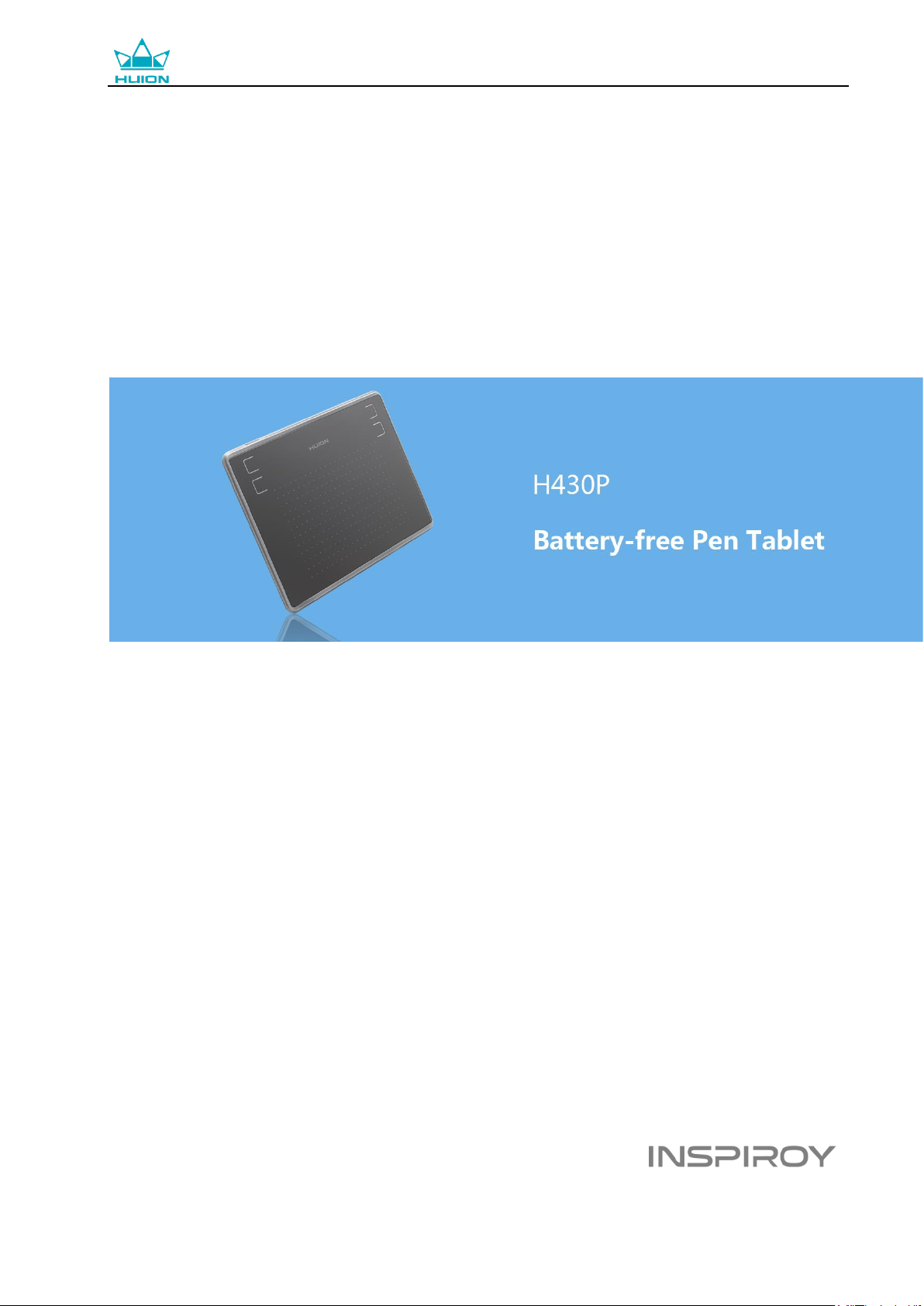
Графический планшет HUION H430P
Руководство пользователя
Для операционных систем Windows и Macintosh
Графический планшет INSPIROY® H430P

Графический планшет HUION H430P
2 / 18 www.huiontab.ru
Меры предосторожности
1. Пожалуйста, перед использованием внимательно ознакомьтесь с данным руководством пользователя и
сохраните его для дальнейшего использования.
2. Перед тем, как почистить планшет, обязательно отключите его от USB порта компьютера и протрите
мягкой влажной тканью, не используя никаких моющих средств.
3. Не подвергайте планшет воздействию воды или других жидкостей. Старайтесь не проливать жидкости
на планшет и перо. Не оставляйте планшет в незащищенном от воды или других жидкостей месте, это
может привести к его неисправности или поражению электрическим током.
4. Не оставляйте планшет в неустойчивом положении или на высоте доступной для детей, чтобы избежать
риска повреждения устройств и травм ребенка. Планшет необходимо хранить в недоступном для детей
месте, во избежание травм.
5. Обязательно выключайте планшет, в местах, где использование электронных приборов запрещено,
например, в самолете, поскольку он может вызвать сбой в работе других электронных устройств.
6. Не разбирайте и не модифицируйте планшет или перо самостоятельно. Такие действия могут привести
к выделению тепла, возгоранию, поражению электрическим током или другим повреждениям, включая
травмы людей. Разборка изделия приведет к аннулированию гарантии.
7. Используйте только оригинальные комплектующие HUION. Несанкционированная замена компонентов
может привести к пожару, поражению электрическим током или другим рискам.
8. Не вставляйте посторонние предметы в порт USB или любое другое отверстие данного изделия. Если в
порт или другое отверстие данного изделия вставлен металлический предмет или посторонний предмет,
это может привести к его неисправности, пожару или поражению электрическим током.

Графический планшет HUION H430P
3 / 18 www.huiontab.ru
Содержание
1. Обзор продукта …………………………………………………………………………………………………………….. 4
1.1 Общая информация ……………………………………………………………………………………………………….. 4
1.2 Устройство и аксессуары ……………………………………………………………………………………………….. 4
1.3 Подключение планшета …………………………………………………………………………………………………. 5
1.4 Установка драйвера ……………………………………………………………………………………………………….. 6
1.5 Замена наконечника пера ………………………………………………………………………………………………. 6
2. Основная работа устройства ………………………………………………………. ………………………….. ………. 7
2.1 Использование пера ………………………….. ………………………….. ………………………………………………. 7
2.1.1 Размещение пера в руке ………………………………………………………………………………………………. 7
2.1.2 Позиционирование курсора ………………………………………………………………………………………… 8
2.1.3 Клик (Щелчок) ……………………………………………………………………………………………………………. 8
2.1.4 Перемещение ……………………………………………………………………………………………………………….. 8
2.1.5 Использование боковых кнопок ………………………………………………………………………………….. 8
3. Функциональная настройка ………………………………………………………………………………………….. 10
3.1 Индикация подключения устройства …………………………………………………………………………… 10
3.2 Настройка рабочей области………………………………………………………………………………………….. 10
3.3 Настройка экспресс клавиш ………………………………………………………………………………………… 12
3.4 Настройка функций кнопок пера…………………………………………………………………………………. 13
3.5 Настройка чувствительности пера ………………………………………………………………………………. 14
3.6 Тест чувствительности …………………………………………………………………………………………………. 14
3.7 Включение функции Windows Ink ……………………………………………………………………………….. 15
3.8 Экспорт и импорт данных ……………………………………………………………………………………………. 15
4. Характеристики …………………………………………………………………………………………………………….. 16
5. Устранение неисправностей …………………………………………………………………………………………… 17
5.1 Возможные неисправности, связанные с планшетом …………………………………………………… 17
5.2 Возможные неисправности, связанные с системой………………………………………………………. 17
6. Сервисное обслуживание ……………………………………………………………………………………………….. 18
Графический планшет HUION H430P
4 / 18 www.huiontab.ru
1. Обзор продукта
1.1 Общая информация
Благодарим за выбор графического планшета HUION® INSPIROY® H430P. Это новое поколение
портативных настольных графических планшетов профессионального уровня. INSPIROY H430P создан,
чтобы изменить представление об эффективности рабочего процесса во время рисования. Этот планшет
станет для вас проводником в мир творчества и развлечения. Легкое и отзывчивое перо поможет перенести
на холст любой текст, любые линии и цвета так же легко, как будто вы делаете это ручкой, карандашом
или кистью на бумаге, что доставит вам, по-настоящему, незаменимый опыт.
Для полного понимания и безопасной эксплуатации планшета INSPIROY H430P, пожалуйста,
внимательно прочитайте данное руководство пользователя. В руководстве пользователя указана
информация только для Windows, если не указано иное, эта информация применима как к системам
Windows, так и к системам Macintosh.
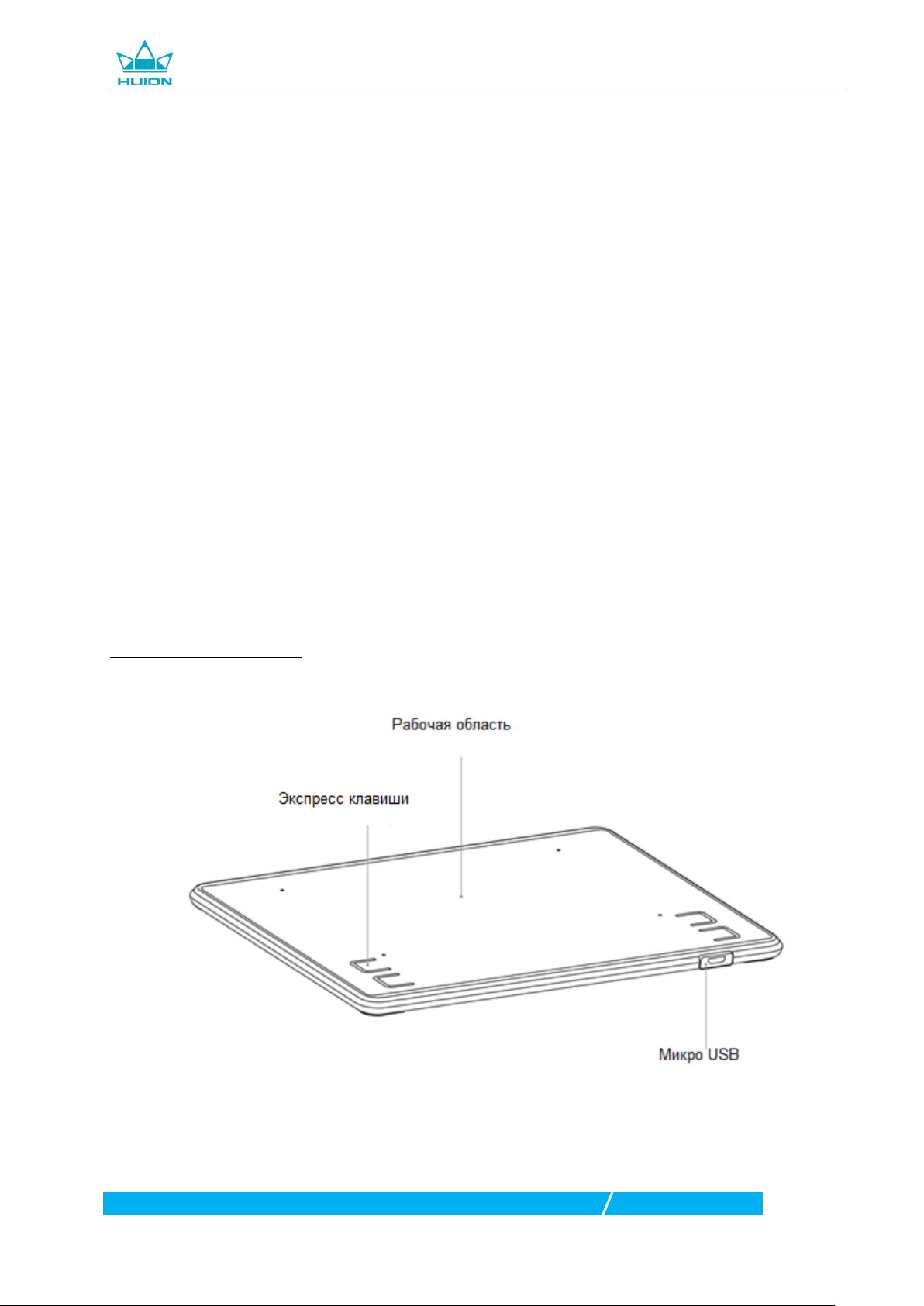
1.2 Устройство и аксессуары
1.2.1 Графический планшет
Графический планшет HUION H430P
5 / 18 www.huiontab.ru
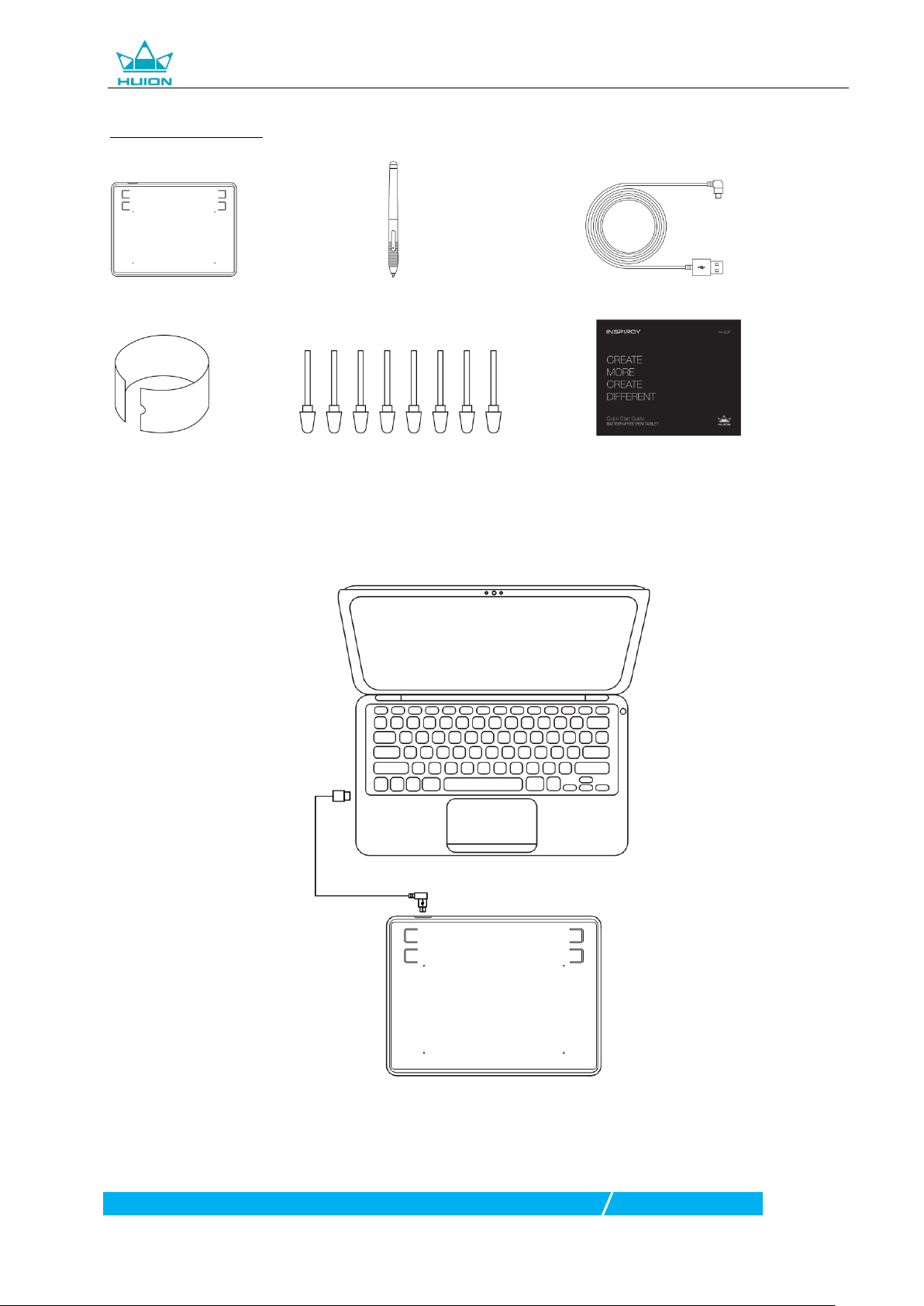
1.2.2 Состав упаковки
Графический
Планшет Перо без подзарядки micro-USB кабель
Пинцет для Сменные Инструкция
наконечника наконечники по началу работы
1.3 Подключение планшета
1. Подключите планшет к компьютеру при помощи USB кабеля.
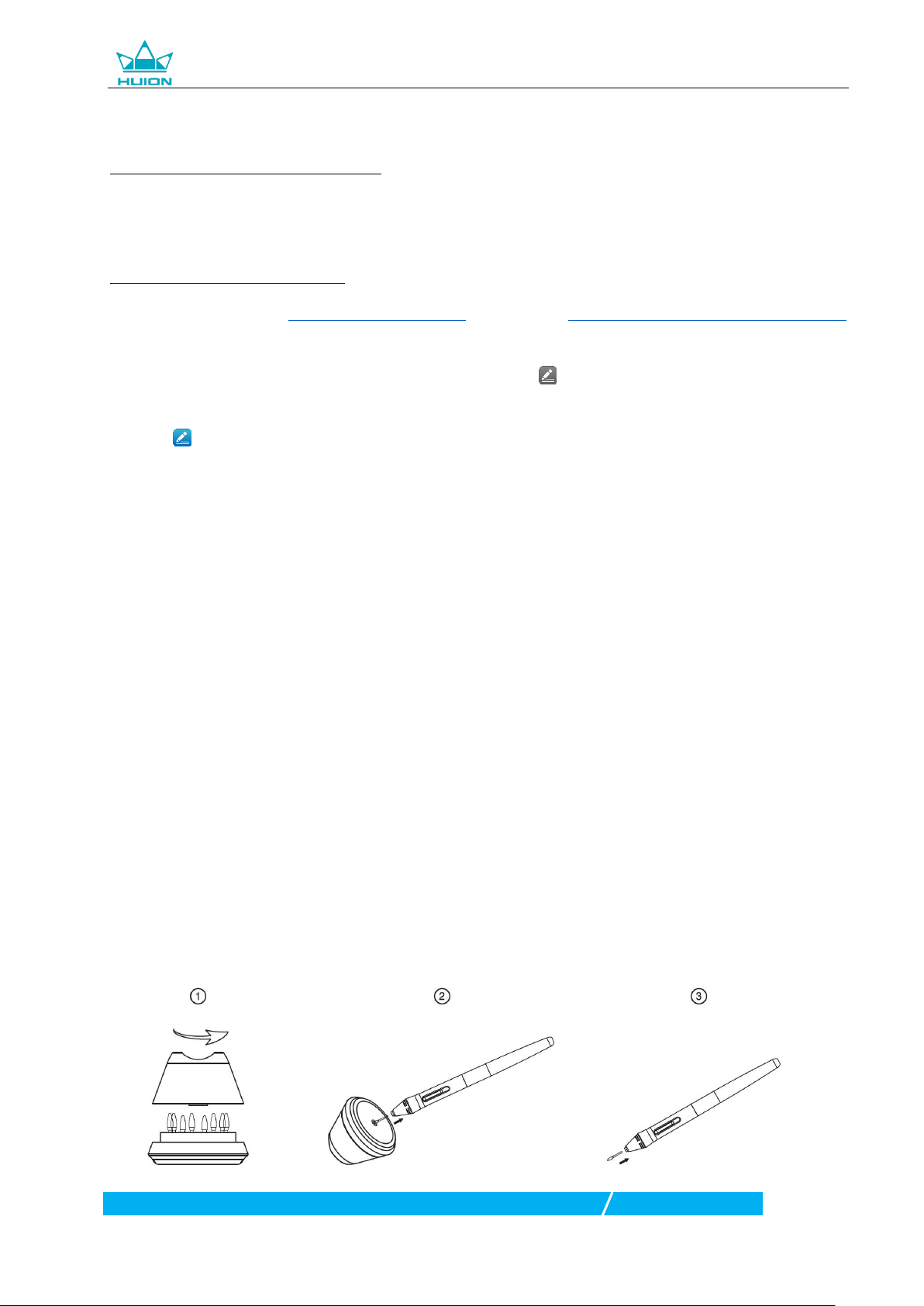
Графический планшет HUION H430P
6 / 18 www.huiontab.ru
1.4 Установка драйвера
1.4.1 Поддержка операционных систем
Windows 7 или более поздняя версия, macOS 10.12 или более поздняя версия
1.4.2 Установка путем скачивания
Скачайте драйвер сайте: www.huion.com/download или на сайте http://huiontab.ru/catalog/skachat-drajvery
затем разархивируйте скаченный файл и установите драйвер.
После завершения установки вы обнаружите значок драйвера в области уведомлений, это означает, что
драйвер был успешно установлен; при подключении дисплея (монитора) к компьютеру значок изменится
на цвет , это означает, что драйвер уже распознал дисплей (монитор), и вы можете начать его
использовать.
Примечание:
1. Перед установкой необходимо удалить другие драйверы аналогичных продуктов, включая старый
драйвер продуктов HUION.
2. Перед установкой закройте все графические и антивирусные программы, чтобы избежать системных
ошибок.
1.5 Замена наконечника пера
Если после длительного использования наконечник пера изнашивается, тогда вам необходимо его
заменить на новый.
1. Поверните верхнюю часть подставки под перо против часовой стрелки, чтобы открыть крышку,
возьмите новый наконечник.
2. Вставьте наконечник пера в отверстие в нижней части подставки под перо, наклоните ручку и потяните
перо назад, чтобы вытащить старый наконечник.
3. Возьмите новый наконечник, ровно вставьте наконечник в цилиндр пера, плавно нажмите на наконечник
до упора.
Loading…
Please enter the product model to download the corresponding driver.
You may also specify the model and OS to find the driver you need.
- Kamvas 16 (Gen 3)
- Inspiroy Frego S
- Inspiroy Frego M
- Kamvas 13 (Gen 3)
- Kamvas Pro 27
- Kamvas Pro 19
- Kamvas Studio 24
- Kamvas Studio 16
- H950P Lords Mobile Edition
- Inspiroy 2 S M L
- Huion Note
- Inspiroy Dial 2
- Kamvas RDS-220
- Inspiroy Giano
- Kamvas Pro 16(2.5K)
- Kamvas Pro 13(2.5K)
- Kamvas Pro 24(4K)
- Inspiroy RTE-100
- Kamvas 24 Plus
- Kamvas 24
- Inspiroy RTP-700
- Inspiroy RTM-500
- Inspiroy RTS-300
- Color Picker
- Inspiroy H420X
- Inspiroy H580X
- Kamvas RDS-160
- Huion HS95
- Inspiroy H610X
- Keydial Mini
- Mini Keydial
- Kamvas Pro 16 Plus (4K)
- Kamvas Pro 16 (4K)
- Inspiroy Keydial
- Kamvas 16(2021)
- Kamvas 12
- Kamvas 22 Plus
- Kamvas 22
- Kamvas Studio 22
- Kamvas Pro 24
- Kamvas 13
- Huion HS611
- Inspiroy Dial
- Inspiroy Ink
- Inspiroy H1161
- Kamvas Pro 16 Premium
- Kamvas 20
- Kamvas 16
- Kamvas Pro 20(2019)
- Kamvas Pro 22(2019)
- Kamvas Pro 16
- Kamvas Pro 20
- Kamvas Pro 12
- Huion GT-191 V2
- Kamvas Pro 13
- Kamvas Pro 22
- Huion GT-156HD V2
- Huion GT-221 PRO
- Huion GT-191
- Huion GT-220 V2(8192)
- Huion GT-156HD(2048)
- Huion HS64 (Special Edition)
- Huion HS610
- Huion HS64
- Inspiroy Q11K V2
- Inspiroy WH1409 V2
- Inspiroy WH1409(8192)
- Huion H610PRO V2
- Inspiroy H430P(4096)
- Inspiroy H1060P
- Inspiroy H640P
- Inspiroy H950P
- Huion H610PRO(8192)
- Inspiroy Touch
- Huion NEW 1060 PLUS(8192)
- Inspiroy Q11K
- Huion GT-220 V2(2048)
- Huion H610PRO(2048)
- Huion H420(2048)
- Huion 420(2048)
- Huion GT-185HD(2048)
- Huion GT-190S(2048)
- Huion 1060 PLUS(2048)
- Huion 680S(2048)
- Huion P608N(2048)
- Huion 580(2048)
- Huion 1060PRO(2048)
- Huion H580(2048)
- Huion H610(2048)
- Huion GT-220(2048)
- Huion GT-190(2048)
- Huion GT-185(2048)
- Huion WH1409(2048)
- Huion NEW 1060 PLUS(2048)
- Huion K58(2048)
- Huion H58L(2048)
- Huion DWH69(2048)
- Huion 680TF(2048)
- Huion Keyboard
- Windows
- macOS
- linux
- Driver
- Manual
Driver Update Log
H430P Battery-free Pen Tablet
User Manual For Windows and Macintosh OS
H430P Battery-free Pen Tablet
1 / 15 www.huion.com
Precautions
1. Please read this manual carefully before using, and keep it well for future reference.
2. Before cleaning the tablet please unplug the power cord and wipe with a soft damp cloth, do
not use any kind of detergents.
3. Dont expose this product to water or other liquids. Take care to never spill liquids onto the
tablet and pen. Exposing this product to water or other liquids may cause product malfunction or
electrical shock.
4. Do not place the tablet on where is unstable or a height for children reaching easily in order to
avoid danger. Prevent children from swallowing the pen nib or side switch. The pen nib, side
switch, or other movable parts may accidentally be pulled out if children are biting on them.
5. Power off your tablet in locations where/when electronic devices is not allowed. Because the
tablet may cause other electronic devices to malfunction in some locations where/when the use
of electronic devices is not allowed, such as within an airplane, be sure to turn off the tablet.
6. Do not disassemble the tablet and pen. Do not disassemble or otherwise modify the tablet or
pen. Such action may cause heat generation, ignition, electronic shock, or other damage,
including human injury. Disassembling the product will void your warranty.
7. While getting the components replaced, you are supposed to guarantee that the repairman is
using the substitute components specified by the manufacturer. Unauthorized component
replacement might cause fire, electric shocks or other dangers.
8. Do not insert foreign material into the USB port or any other opening of this product. If a metal
object or foreign material is inserted into a port or other opening of this product it may cause the
product to malfunction or burn out, or cause electronic shock.
H430P Battery-free Pen Tablet
2 / 15 www.huion.com
Contents
1. Product Overview ………………………………………………………………………………. 3
1.1 Tablet Introduction ………………………………………………………………………………………… 3
1.2 Product and Accessories ………………………………………………………………………………. 3
1.3 Connecting to Computer ……………………………………………………………………………… 4
1.4 Connecting to Android Phone …………………………………………………………………….. 5
1.5 Pen Nib Replacement ……………………………………………………………………………………. 6
2. Product Basic Operation …………………………………………………………………….. 7
2.1 Using The Pen …………………………………………………………………………………………………. 7
2.1.1 Hold the pen………………………………………………………………………………………………… 7
3.1 Device Connection Prompt ………………………………………………………………………….. 9
3.2 Working Area Setting ……………………………………………………………………………………. 9
3.3 Press Keys Function Setting ……………………………………………………………………….. 11
3.4 Pen Buttons Function Setting …………………………………………………………………….. 11
3.5 Pressure Sensitivity Setting ………………………………………………………………………… 12
3.6 Pen Pressure Testing ……………………………………………………………………………………. 12
3.7 Enable the Windows Ink feature ……………………………………………………………….. 13
3.8 Data Export and Import ………………………………………………………………………………. 13
4. Specifications …………………………………………………………………………………… 14
5. Trouble Shooting ……………………………………………………………………………… 15
5.1 Possible Breakdowns Related to TABLET ………………………………………………….. 15
5.2 Possible Breakdowns Related to SYSTEM ………………………………………………… 15
6. After-sale service Contact …………………………………………………………………. 15
H430P Battery-free Pen Tablet
3 / 15 www.huion.com
1. Product Overview
1.1 Tablet Introduction
Thanks for choosing HUION INSPIROY H430P graphics tablet. This is a new
generation of professional battery-free drawing tablet, which can greatly improve
your work efficiency of painting and creation, and full of fun. You can freely painting
and writing, depicting different lines and colors, just as the pen writes on the paper,
which brings you a real shock experience.
To give you a better understanding and using of your tablet, please read this user
manual carefully. The user manual only shows the information under Windows,
unless otherwise specified, this information applies to both Windows and
Macintosh systems.
1.2 Product and Accessories
1.2.1 Graphics Tablet
H430P Battery-free Pen Tablet
4 / 15 www.huion.com
1.2.2 Packing List
Pen Tablet Battery-free Pen Micro USB Cable
Pen Nib Clip Replacement Nibs Quick Start Guide
1.3 Connecting to Computer
1.3.1 Connect the tablet
H430P Battery-free Pen Tablet
5 / 15 www.huion.com
1.3.2 Driver Installation
1. OS Support: Windows 7 or latermacOS 10.11 or later
2. Please download the driver from our website: www.huion.com/download
After finishing installation, you can find the driver icon in the system tray area,
which means the driver was installed successfully; when you connect the tablet to
computer, the icon will change to color , which means the driver has already
recognized the tablet and you can start using it now.
Notice
1. Before installing, you need to uninstall other driver of similar products, including
the old driver of this product.
2. Before installing, please close all graphics software and anti-virus software to
avoid unnecessary mistake.
1.4 Connecting to Android Phone
1. Please make sure your phone&pad OS is as following: Android OS 6.0 or lat
er
2. For some models, you need to go phone or pad «Settings» then enable «OTG»
function.
3. Choose the right OTG Adapter from package, which depends on USB port ty
pe of your phone, then connect pen tablet to your phone following the illustra
tions below:
H430P Battery-free Pen Tablet
6 / 15 www.huion.com
Notes:
1. The pen tablet can works without installing any driver into your phone.
2. Once connected, the tablet will automatically enter phone mode, in which
the pen can only work in the left gray area(76.2×47.6mm).
3. If not recognized the tablet to phone mode, please press the button for 3
seconds to enter phone mode.
4. Please note that the press keys of pen tablet and digital pen are not
supported in phone mode.
1.5 Pen Nib Replacement
The nib will be wear off after using for a long time, then you need to replace a new
nib.
1.Use the pen nib clip to pull the old nib straight out of the pen.
2. Insert a new pen nib into the stylus pen and push the nib until it stops.
H430P Battery-free Pen Tablet
7 / 15 www.huion.com
2. Product Basic Operation
2.1 Using The Pen
2.1.1 Hold the pen
Hold the pen as you hold a normal pen or pencil. Adjust your grip so that you can
toggle the side switch easily with your thumb or forefinger. Be careful not to
accidentally press the switch while drawing or positioning with the pen.
NoticeWhen not in use, place the pen on the desk. Do not place the pen on the
surface of screen, which may interfere with the use of other screen cursor
positioning equipment, may also cause your computer can not enter the sleep
mode.
2.1.2 Position the cursor
Move the pen slightly above the active area without touching the screen surface,
the cursor will move to the new position accordingly.
Press the pen tip on the screen to make a selection. Tap the screen once with the
pen tip, or touch it to the screen with enough pressure to register a click.
H430P Battery-free Pen Tablet
8 / 15 www.huion.com
2.1.3 Click
Use the pen tip to tap once on the screen to register a click. Tap to highlight or
select an item on the screen and double-click to open it.
2.1.4 Move
Select the object, then slide the pen tip across the screen to move it.
2.1.5 Use the side buttons
The buttonson the pen can be set to two different customizable functions.
You can use the buttons whenever the pen tip is within 10mm of the tablet active
area.
You do not have to touch the pen tip to the tablet in order to use the switch.
H430P Battery-free Pen Tablet
9 / 15 www.huion.com
3. Function Setting
3.1 Device Connection Prompt
1. Device disconnected: The computer does not recognize the tablet.
2. Device connected: The computer has recognized the tablet.
3.2 Working Area Setting
3.2.1 Using Multiple Monitors
Select the Working Area tab to define the relationship between pen movement on
the tablet and cursor movement on the monitor screen.
By default the entire active area of tablet maps to the entire monitor. If more than
one monitor is in use and you are in extended mode, you need to choose the
related monitor on the driver interface which you are going to map to.
If your monitors are in mirror mode (All monitors display the same content), the
tablet maps to the entire space on each monitor and the screen cursor is displayed
on each monitor simultaneously.
H430P Battery-free Pen Tablet
10 / 15 www.huion.com
3.2.2 Working Area Setting
Define the tablet area that will be mapped to the screen area.
1. Full Area: the entire active area of the tablet. This is the default setting.
2. Custom Area: 1.> Enter coordinate values. or2>. Drag the corners of the
foreground graphic to select the screen area.
3.2.3 Rotate Working Area
By changing the direction of the tablet to adapt to the left and right hand operation.
We provide four directions of choice.
H430P Battery-free Pen Tablet
11 / 15 www.huion.com
3.3 Press Keys Function Setting
Default SettingPlace the cursor on the press key or click the button icon to see the
default values for the press keys.
Customized SettingSelect the function to be achieved on the pop-up dialog box,
then click APPLY or OK to take effect.
Enable/Disable Press Keys: Check/UncheckEnable Press Keys.
3.4 Pen Buttons Function Setting
Select the function to be achieved on the pop-up dialog box, then click APPLY or
OK to take effect.
H430P Battery-free Pen Tablet
12 / 15 www.huion.com
3.5 Pressure Sensitivity Setting
The pressure sensitivity will be changed by dragging the slider up and down, the
smaller the value, the more pressure sensitive.
3.6 Pen Pressure Testing
Click start pressure test, you can gradually apply pressure to the stylus on the
screen to test the pressure level. Click Clear button to clear all the ink.
H430P Battery-free Pen Tablet
13 / 15 www.huion.com
3.7 Enable the Windows Ink feature
Microsoft Windows provides extensive support for pen input. Pen features are
supported in such as Microsoft OfficeWindows JournalAdobe Photoshop CC
SketchBook 6 and so on.
3.8 Data Export and Import
The driver supports exporting and importing your custom configuration data of the
product, which is convenient for you to use different software and avoid the trouble
of repeated settings.
H430P Battery-free Pen Tablet
14 / 15 www.huion.com
4. Specifications
Graphics Tablet
Model H430P
Touch Technology Battery-free Electromagnetic Resonance
Working Area 121.9 x 76.2mm4.8 x 3in
Dimension 186.6 x 139.2 x 6.3mm
Net Weight 135g
Touch Resolution 5080LPI
Report Rate 233PPS
Pen Sensing Height 10mm
Interface Micro USB
Press Keys 4 Customized Press Keys
OS Support Windows 7 or later,
macOS 10.11 or later
Digital Pen
Model PW201
Dimension 147 x 10.8mm
Weight 9g
Pressure 4096Levels
Pen Tilt 45
Accuracy 0.3mm
H430P Battery-free Pen Tablet
15 / 15 www.huion.com
5. Trouble Shooting
5.1 Possible Breakdowns Related to TABLET
Abnormal Phenomena Possible Solutions
There is no pressure in the
graphics software but the
cursor moves
You may have installed other tablet drivers or opened the
drawing software when installing the driver. Please uninstall all
drivers and close the drawing software, then reinstall the Huion
driver. Its better to restart your computer after finishing the
installation.
The pen does not work
1. Make sure you are using the pen that originally came with
your tablet.
2. Make sure you installed the driver correctly.
Press Keys does not work
1. Make sure the Press Keys function were enabled in the driver.
2. Make sure you have correctly defined the Press Keys.
The computer cant enter
sleep mode
When you are not using the tablet, please do not put the pen
on the tablet surface, which will keep the computer awake.
The side button of the pen
doesnt work
When pressing the side button, please make sure that the nib
didnt touch the tablet surface and the distance between the
nib and surface is more than 10mm.
5.2 Possible Breakdowns Related to SYSTEM
Abnormal Phenomena Possible Solutions
The computer cant
recognize the tablet
Make sure the USB port is functional, if not, please change
to another USB port.
6. After-sale service Contact
SHENZHEN HUION ANIMATION TECHNOLOGY CO.,LTD.
Building 28, Quarter 4, HuaiDeCuiGang Industrial Park, Fuyong
Street, Bao’an District
Table of Contents
- HUION H430P Battery-free Pen Tablet
- Precautions
- Product Overview
- Product Basic Operation
- Function Setting
- Specifications
- **Trouble Shooting
- After-service Contact
- FAQs
- Video-Huion Inspiroy H430P Graphics Drawing Tablet
- Reference
- Read User Manual Online (PDF format)
- Download This Manual (PDF format)
HUION H430P Battery-free Pen Tablet

Precautions
- Please read this manual carefully before using it, and keep it well for future reference.
- Before cleaning the tablet please unplug the power cord and wipe with a soft damp cloth, do not use any kind of detergents.
- Don’t expose this product to water or other liquids. Take care to never spill liquids onto the tablet and pen. Exposing this product to water or other liquids may cause product malfunction or electrical shock.
- Do not place the tablet on where is unstable or at a height for children to reach easily in order to avoid danger. Prevent children from swallowing the pen nib or side switch. The pen nib, side switch, or other movable parts may accidentally be pulled out if children are biting on them.
- Power off your tablet in locations where/when electronic devices is not allowed. Because the tablet may cause other electronic devices to malfunction in some locations where/when the use of electronic devices is not allowed, such as within an airplane, be sure to turn off the tablet.
- Do not disassemble the tablet and pen. Do not disassemble or otherwise modify the tablet or pen. Such action may cause heat generation, ignition, electronic shock, or other damage, including human injury. Disassembling the product will void your warranty.
- While getting the components replaced, you are supposed to guarantee that the repairman is using the substitute components specified by the manufacturer. Unauthorized component replacement might cause fire, electric shocks or other dangers.
- Do not insert foreign material into the USB port or any other opening of this product. If a metal object or foreign material is inserted into a port or other opening of this product it may cause the product to malfunction or burn out, or cause electronic shock.
Product Overview
Tablet Introduction
Thanks for choosing HUION® INSPIROY® H430P graphics tablet. This is a new
generation of professional battery-free drawing tablets, which can greatly
improve your work efficiency of painting and creation, and full of fun. You
can freely paint and write, depicting different lines and colors, just as the
pen writes on the paper, which brings you a real shock experience.
To give you a better understanding and use of your tablet, please read this
user manual carefully. The user manual only shows the information under
Windows, unless otherwise specified, this information applies to both Windows
and Macintosh systems.
Product and Accessories
Graphics Tablet

Packing List

Tablet Connection
Connect the tablet to your computer with a USB cable.
Driver Installation
OS Support
Windows 7 or later,macOS 10.11 or later.
1.4.3 Install Driver
Please download the driver from our website:
www.huion.com/download
After finishing the installation, you can find the driver icon in the system
tray area, which means the driver was installed successfully; when you connect
the tablet to the computer, the icon will change to color, which means the
driver has already recognized the tablet and you can start using it now.
Notice:
- Before installing, you need to uninstall another driver of similar products, including the old driver of this product.
- Before installing, please close all graphics software and anti-virus software to avoid unnecessary mistakes.
Pen Nib Replacement
The nib will wear off after using it for a long time, so you need to replace a
new nib.
- Use the pen nib clip to pull the old nib straight out of the pen.
- Insert a new pen nib into the stylus pen and push the nib until it stops.

Product Basic Operation
Using The Pen
-
Hold the pen
Hold the pen as you hold a normal pen or pencil. Adjust your grip so that you
can toggle the side switch easily with your thumb or forefinger. Be careful
not to accidentally press the switch while drawing or positioning with the pen
.
Notice: When not in use, place the pen in the pen case or on the desk. Do
not place the pen on the surface of the screen, which may interfere with the
use of other screen cursor positioning equipment, and may also cause your
computer can not enter sleep mode. -
Position the cursor
Move the pen slightly above the active area without touching the screen
surface, the cursor will move to the new position accordingly.
Press the pen tip on the screen to make a selection. Tap the screen once with
the pen tip, or touch it to the screen with enough pressure to register a
click.
-
Click
Use the pen tip to tap once on the screen to register a click. Tap to
highlight or select an item on the screen and double-click to open it.
-
Move
Select the object, then slide the pen tip across the screen to move it
.
-
Use the side buttons
The buttons on the pen can be set to two different customizable functions.
You can use the buttons whenever the pen tip is within 10mm of the tablet’s
active area.
You do not have to touch the pen tip to the tablet to use the switch.


Function Setting
Device Connection Prompt
- Device disconnected: The computer does not recognize the tablet.
- Device connected: The computer has recognized the tablet.

Working Area Setting
-
Using Multiple Monitors
Select the Working Area tab to define the relationship between pen movement on
the tablet and cursor movement on the monitor screen.
By default the entire active area of the tablet maps to the entire monitor. If
more than one monitor is in use and you are in extended mode, you need to
choose the related monitor on the driver interface that you are going to map
to.
If your monitors are in mirror mode (All monitors display the same content),
the tablet maps to the entire space on each monitor, and the screen cursor is
displayed on each monitor simultaneously.
-
Working Area Setting
Define the tablet area that will be mapped to the screen area.- Full Area: the entire active area of the tablet. This is the default setting.
- Customized Area: 1.> Enter coordinate values. or2>. Drag the corners of the foreground graphic to select the screen area.
-
Rotate Working Area
By changing the direction of the tablet to adapt to the left and right-hand
operation.
You can rotate the tablet by 0°,90°,180° or 270°.


Press Keys Function Setting
- Default Setting: Place the cursor on the press key or click the press key to find the default values.
- Customized Setting: Select the function to be achieved on the pop-up dialog box, then click APPLY or OK to take effect.
- Enable/Disable Press Keys: Check/Uncheck” Enable Press Keys”.

Pen Buttons Function Setting
Select the function to be achieved on the pop-up dialog box, then click APPLY
or OK to take effect.

Pressure Sensitivity Setting
The pressure sensitivity will be changed by dragging the slider up and down,
the smaller the value, the more pressure sensitive.

Pen Pressure Testing
Click “start pressure test”, you can gradually apply pressure to the stylus on
the screen to test the pressure level. Click the “Clear” button to clear all
the ink.

Enable the Windows Ink feature
Microsoft Windows provides extensive support for pen input. Pen features are
supported in such as Microsoft Office、Windows Journal、Adobe Photoshop CC、
SketchBook 6 and so on.

Data
Export and Import
The driver supports exporting and importing your custom configuration data of
the product, which is convenient for you to use different software and avoid
the trouble of repeated settings.

Specifications
Graphics Tablet
Model| H430P
Touch Technology| Battery-free Electromagnetic Resonance
Working Area| 121.9 x 76.2mm(4.8 x 3in)
Dimension| 186.6 x 139.2 x 6.3mm
Net Weight| 135g
Touch Resolution| 5080LPI
Report Rate| 233PPS
Pen Sensing Height| 10mm
Interface| Micro USB
Press Keys| 4 Customized Press Keys
OS Support| Windows 7 or later,
macOS 10.11 or later
Digital Pen
Model| PW201
Dimension| 147 x Φ10.8mm
Weight| 9g
Pressure| 4096Levels
Pen Tilt| ±45°
Accuracy| ±0.3mm
**Trouble Shooting
**
Possible Breakdowns Related to TABLET
| Abnormal Phenomena | Possible Solutions |
|---|---|
| There is no pressure in the graphics software but the cursor moves | You may |
have installed other tablet drivers or opened the drawing software when
installing the driver. Please uninstall all drivers and close the drawing
software, then reinstall the Huion driver. It’s better to restart your
computer after finishing the installation.’
The pen does not work| 1. Make sure you are using the pen that originally
came with your tablet.
2. Make sure you installed the driver correctly.
Press Keys do not work| 1. Make sure the Press Keys function is enabled in
the driver.
2. Make sure you have correctly defined the Press Keys.
3. Check if the press lock switch is in the unlock position.
The computer can’t enter sleep mode| When you are not using the tablet, please
do not put the pen on the tablet surface, which will keep the computer awake.
The side button of the pen doesn’t work| When pressing the side button, please
make sure that the nib doesn’t touch the tablet surface and that the distance
between the nib and the surface is within 10mm.
Possible Breakdowns Related to SYSTEM
| Abnormal Phenomena | Possible Solutions |
|---|---|
| The computer can’t recognize the tablet or the wireless receiver | Make sure |
the USB port is functional, if not, please change it to another USB port.
After-service Contact
SHENZHEN HUION ANIMATION TECHNOLOGY CO., LTD.
Building 28, Quarter 4, HuaiDeCuiGang Industrial Park, Fuyong Street, Bao’an
District, Shenzhen, 518106, China
Note : Information in this manual is subject to change without further
notice. For more information, please contact us by email: at
service@huion.com Or go to our website
(www.huion.com) to get the latest driver and user manual.
FAQs
Q: Is the HUION H430P a cost-effective option for digital artists?
A: Yes, the HUION H430P is considered a cost-effective option, offering a
range of features at an affordable price point, making it a popular choice
among digital artists on a budget.
Q: Is the HUION H430P a cost-effective option for digital artists?
A: Yes, the HUION H430P is considered a cost-effective option, offering a
range of features at an affordable price point, making it a popular choice
among digital artists on a budget.
Q: What type of connectivity does the HUION H430P use to connect to a
computer?
A: The HUION H430P connects to a computer via a USB cable, which also provides
power to the tablet.
Q: Can I use the HUION H430P for tasks other than digital art, such as
document editing?
A: Yes, the HUION H430P can be used for various tasks, including document
editing, as it functions as a digital input device.
Q: Does the HUION H430P support multi-touch gestures?
A: No, the HUION H430P does not support multi-touch gestures as it primarily
relies on the stylus for input.
Q: Is the HUION H430P suitable for both beginners and experienced digital
artists?
A: Yes, the HUION H430P is suitable for artists of all skill levels, from
beginners to professionals.
Q: What type of computer operating systems is the HUION H430P compatible with?
A: The HUION H430P is compatible with Windows and macOS operating systems.
Q: Does the HUION H430P come with customizable shortcut buttons?
A: Yes, the HUION H430P includes four customizable shortcut buttons that can
be programmed for various functions.
Q: What is the active drawing area of the HUION H430P?
A: The active drawing area of the HUION H430P is 4.8 x 3 inches, providing
enough space for creative work.
Q: How does the battery-free stylus of the HUION H430P work?
A: The battery-free stylus of the HUION H430P utilizes electromagnetic
resonance technology, eliminating the need for a battery or charging.
Q: What are the key features of the HUION H430P?
A: The HUION H430P features a battery-free stylus, 4096 levels of pressure
sensitivity, a compact design, and a responsive drawing surface.
Video-Huion Inspiroy H430P Graphics Drawing Tablet
Download This Manual PDF:HUION H430P Battery-free Pen Tablet User
Manual
Reference
HUION H430P Battery-free Pen Tablet User Manual-
Device.report
Read User Manual Online (PDF format)
Read User Manual Online (PDF format) >>
Download This Manual (PDF format)
Download this manual >>
Мы уже рассказывали о графических планшетах компании Huion и сейчас компания выпустила новые/обновленные модели, ориентированные на российский рынок. Знакомство мы начнем с наиболее доступной модели HuionH430P с рекомендованной стоимостью 4590 руб.
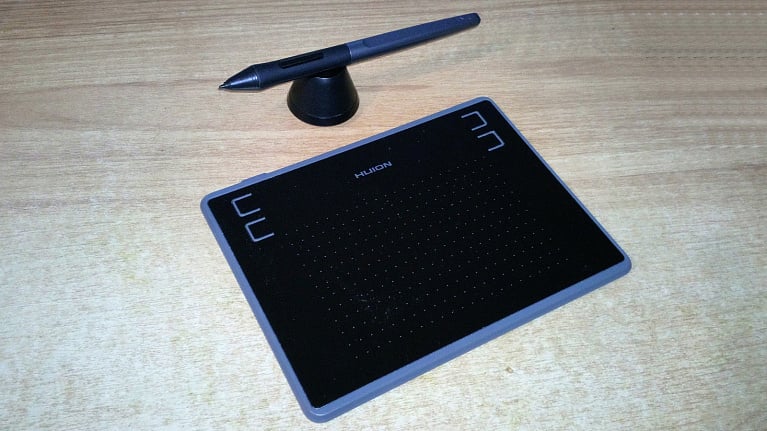
Сравнительно недавно было принято считать, что графические планшеты являлись неотъемлемой частью профессионалов, и причина этого была в высокой их стоимости и использовании платных графических редакторов, в которых возможности раскрывались в полном объеме.
Причем, если раньше на российском рынке присутствовало один-два производителя графических планшетов, то сейчас их стало куда больше, и моделиплане стоимостистали куда доступнее.
Мы уже рассказывали о графических планшетах компании Huion, и сейчас компания выпустила новые/обновленные модели, ориентированные на российский рынок. Знакомство мы начнем с наиболее доступной модели Huion H430P с рекомендованной стоимостью 4590 руб.
Технические характеристики
- Модель:Huion H430P;
- Тип: графический планшет;
- Размеры: 186 мм (Длина) х 139,2 мм (Ширина) х 6,3 мм (Толщина);
- Вес: 135 гр;
- Материал: пластик;
- Технология: электромагнитный резонанс;
- Рабочая область: 4,8 х 3,9 дюйма (121,9 мм х 76,2 мм);
- Разрешение: 5080 LPI (линий на дюйм);
- Максимальная скорость отклика: 233 RPS;
- Количество клавиш ExpressKey: 4;
- Уровни нажатия (чувствительность): 8192;
- Максимальная высота работы пера: 10 мм;
- Энергопотребление: 5 В, 0,35 Вт;
- Интерфейс (проводной): USB, microUSB (тип B);
- Длина кабеля USB: 150 см.
Перо:
- Модель: PW100;
- Технология: электромагнитный резонанс;
- Размер: 163,6 мм х 14,5 мм;
- Вес: 13 гр.
Упаковка и комплектация
Желаниекомпании Huion выйти именно на российский рынок видно уже по оформлению упаковки – она полностью русскоязычная (предыдущие планшеты имели дизайн на английском языке плюс русскоязычные наклейки). Что касается модели графического планшета Huion H430P, то позиционируется она как «для начинающих» пользователей (детский рисунок с крокодилом плюсподарок в виде урока по рисованию). Сама коробка небольшая и легкая.
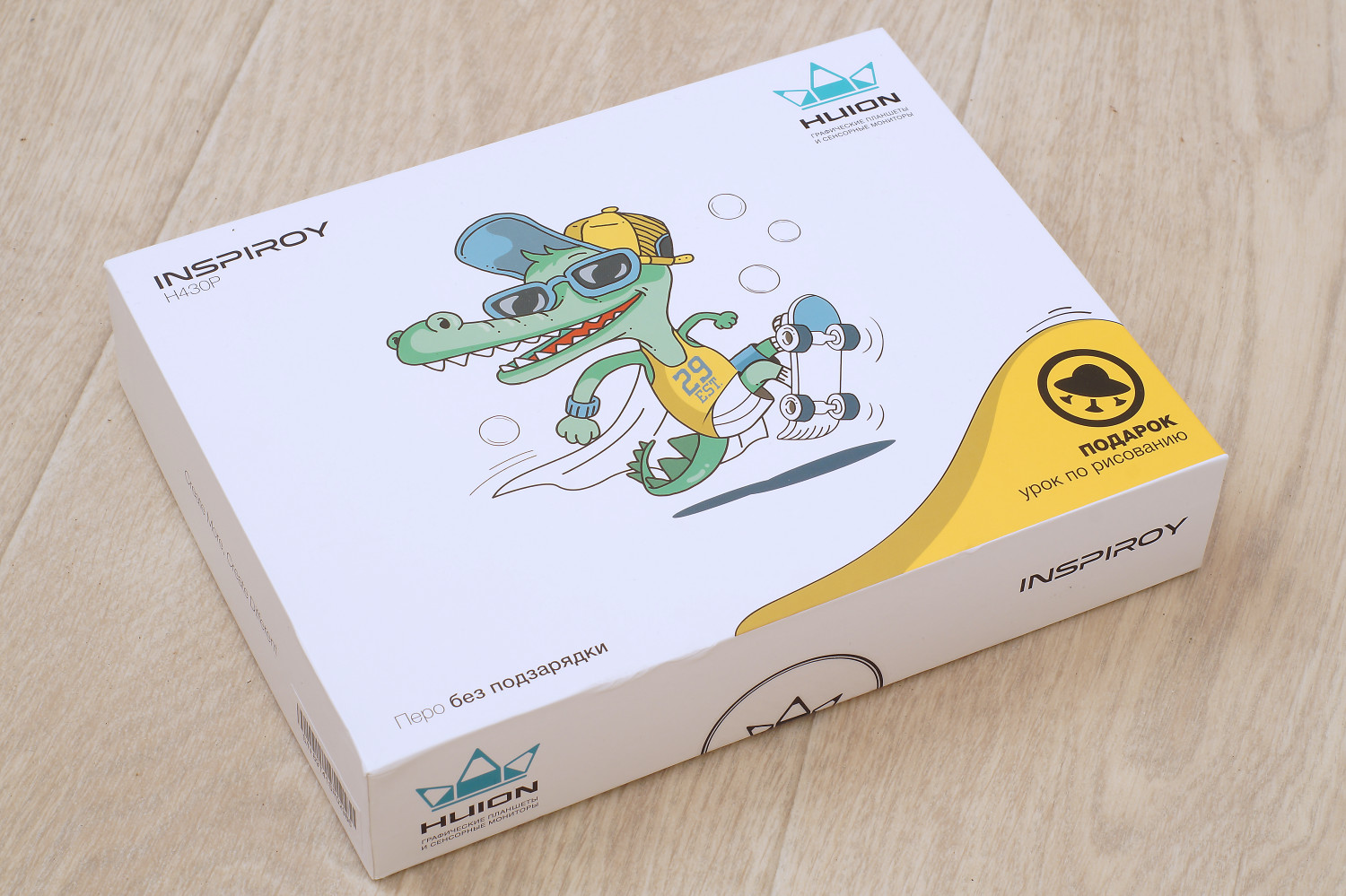
С обратной стороны коробки можно найти технические характеристики продукта и определить место изготовления (с адресом и импортером в России).

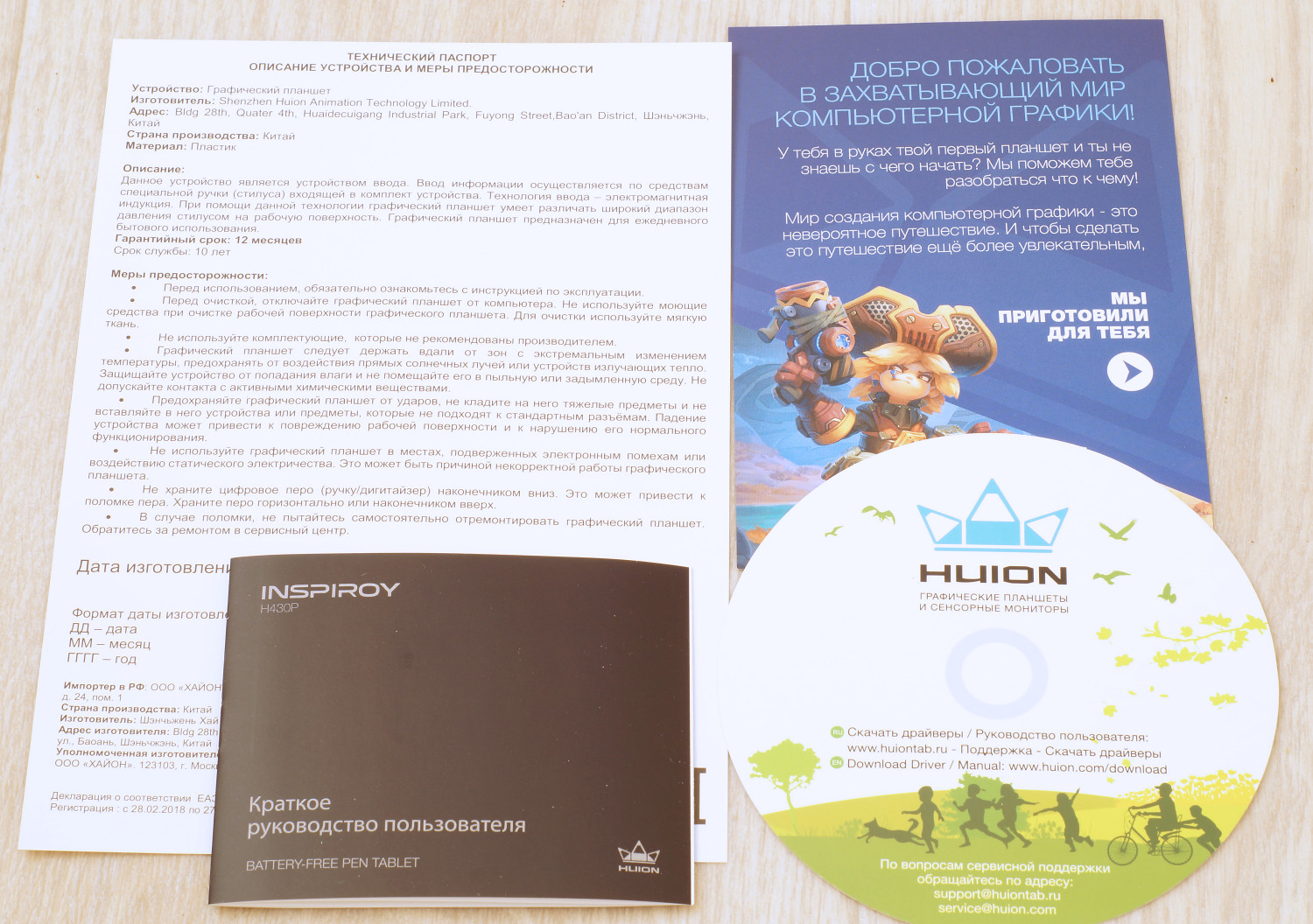
Гораздо больше информации представлено в техническом паспорте/гарантийном талоне, содержащем правила пользования. Он лежит внутри коробки вместе с кратким руководством пользователя и листочке о необходимости скачать драйвера. Также имеется отдельный листочек со ссылкой на урок о компьютерной графике и о том, как работать с планшетом (его возможностях).
В комплект также входит: перо, подставка под перо (на дне есть изображение как правильно извлекать сменные перья), 8 перьев и micro USB кабель. Не хватает только тряпочки для протирания рабочей поверхности.
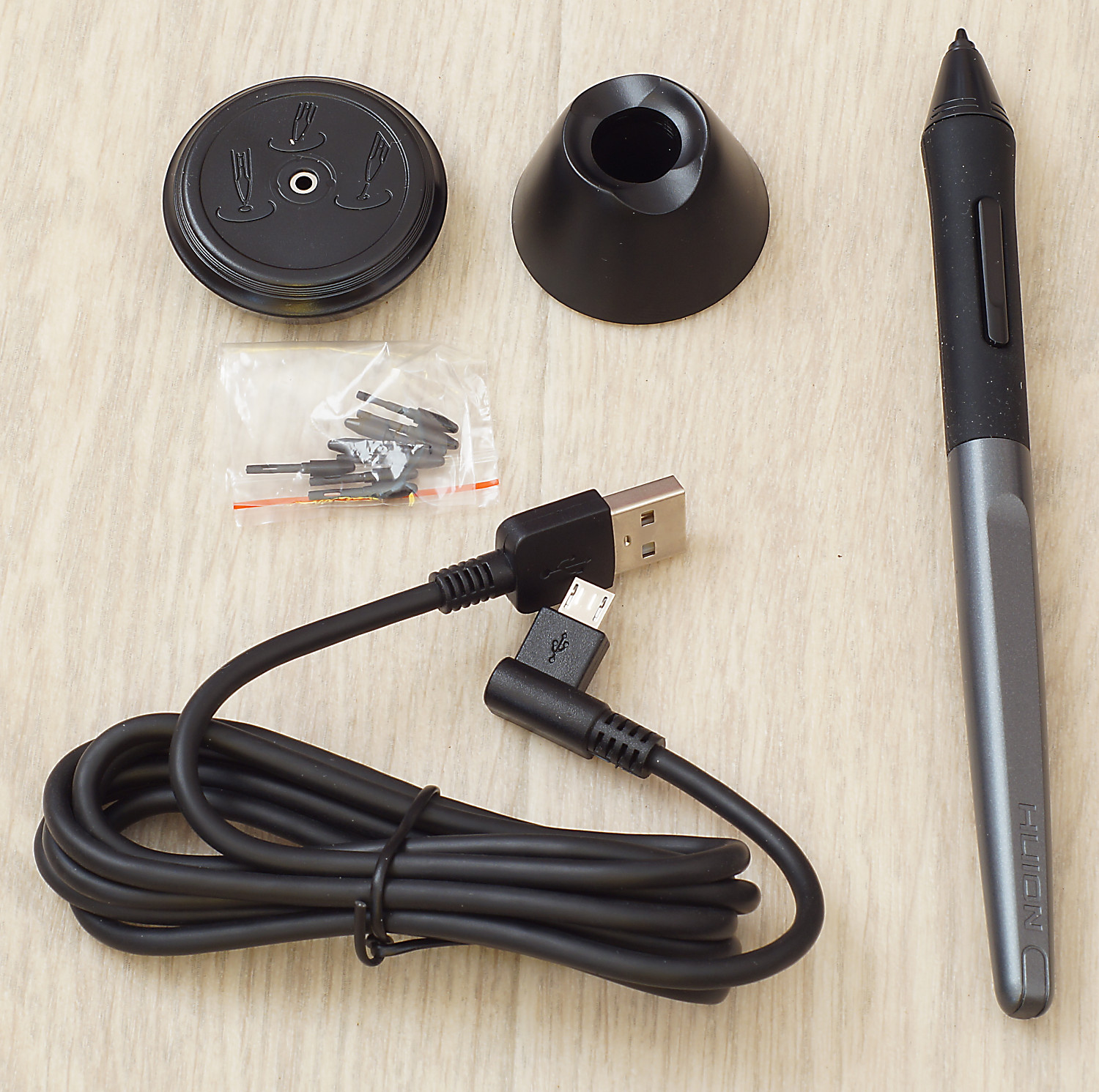
В отличии от топовых моделей графических планшетов, где есть несколько типов сменных перьев, в Huion H430P перья однотипные. Фиксируются они внутри подставки.

Внешний вид
С точки зрения внешнего дизайна смотрится графический планшет Huion H430P «как одноклассники» с тем исключением, что кнопки Express Key являются частью рабочей поверхности. Выполнен он в черно-сером пластиковом корпусе, поэтому его вес небольшой – всего 135 грамм.
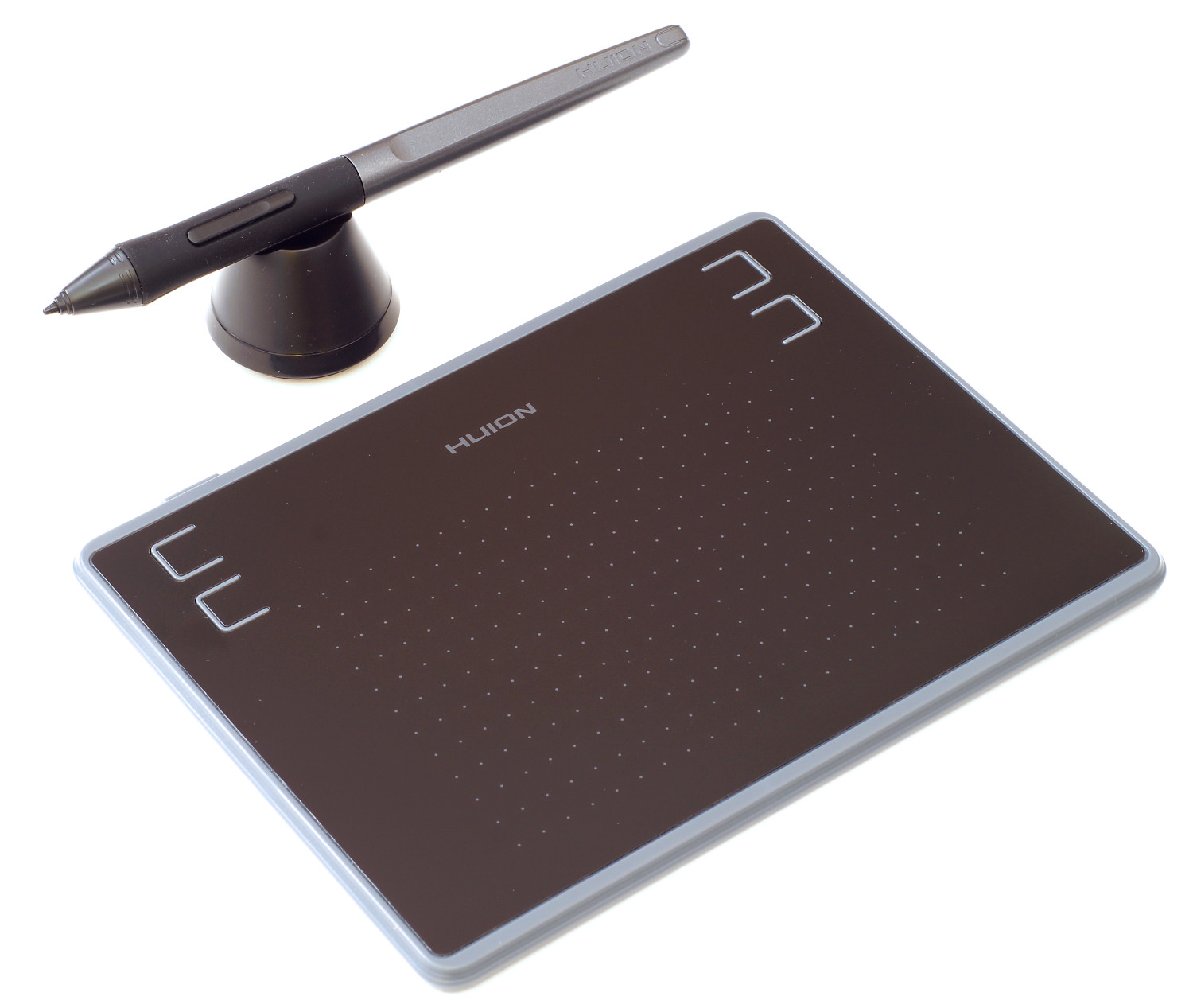
Внешние размеры у планшета небольшие: 186 мм (Длина) х 139,2 мм (Ширина) х 6,3 мм (Толщина), а сама рабочая область получается чуть меньше формата А6: 121,9 мм х 76,2 мм. При этом заявленное разрешение составляется 5080 линий на дюйм с возможностью фиксации до 8192 уровней нажатия. То есть по характеристикам планшет близок к более продвинутым вариантам.
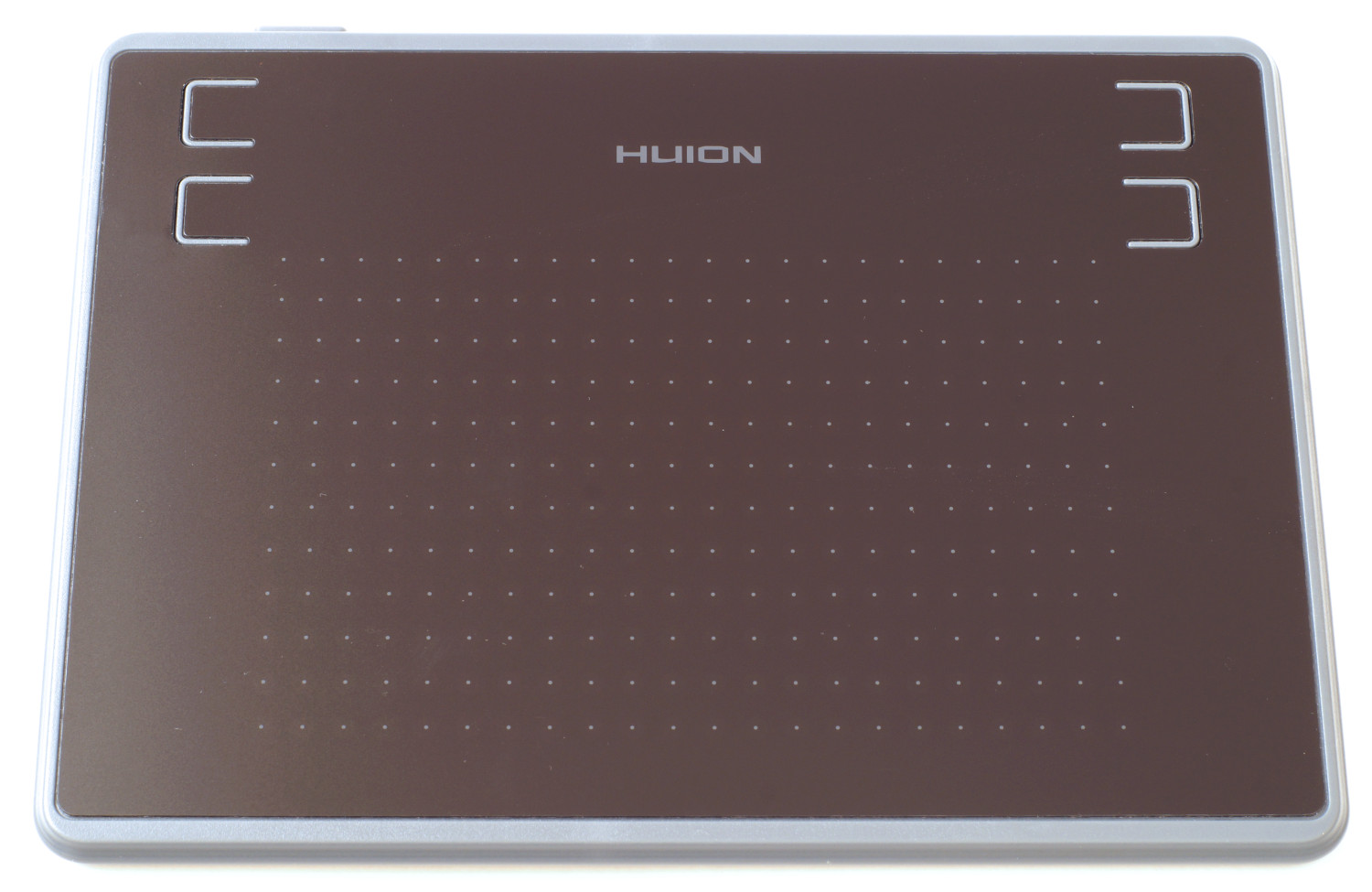
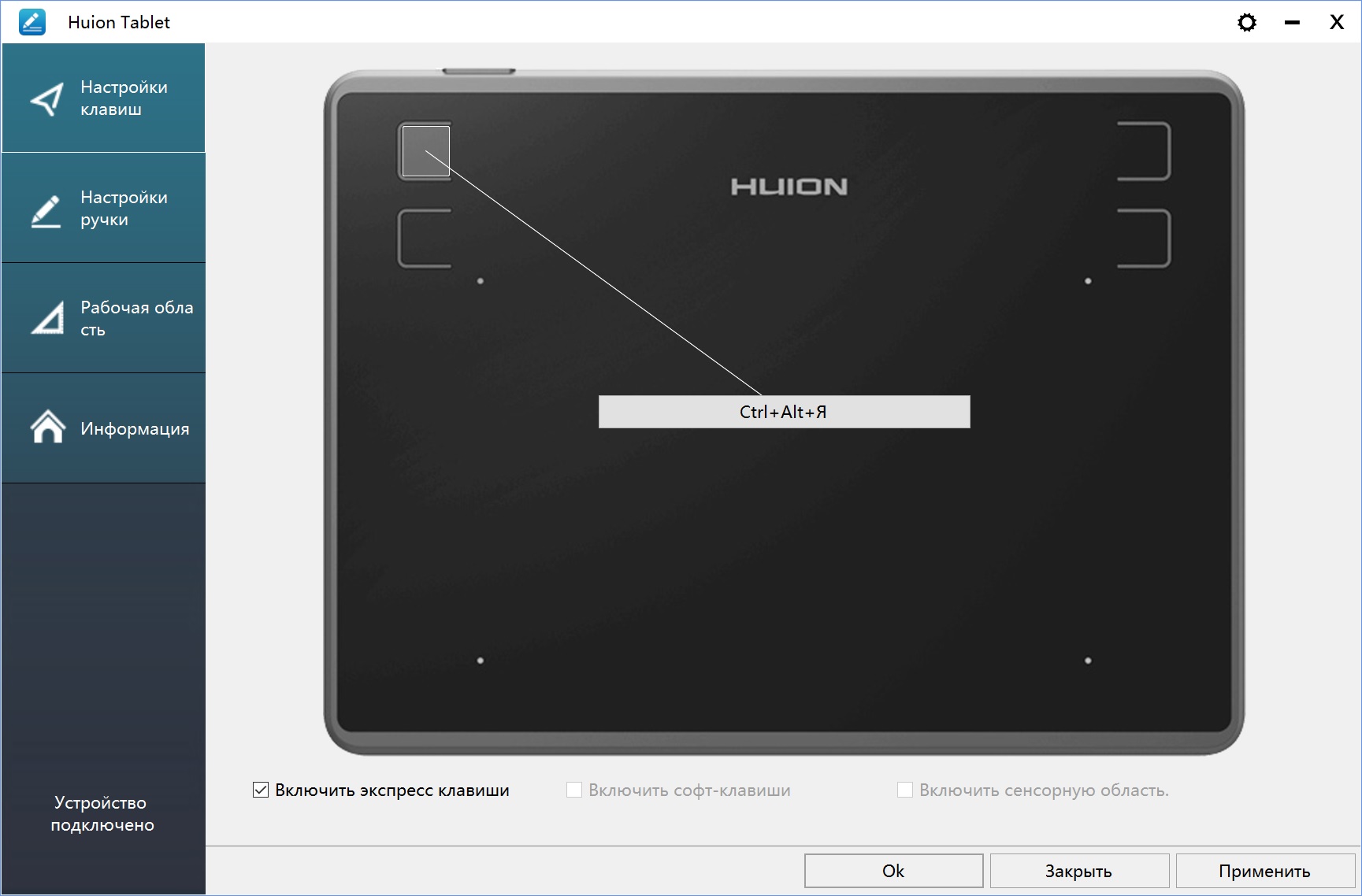
Блок клавиш Express Key разместился над рабочей областью и состоит из четырех клавиш (по две справа и слева), причем границы кнопок ощущаются тактильно за счет «прямоугольников». Из удобства «для новичков» можно отметить наличие сетки из точек у рабочей поверхности, позволяющий облегчить процесс рисования.
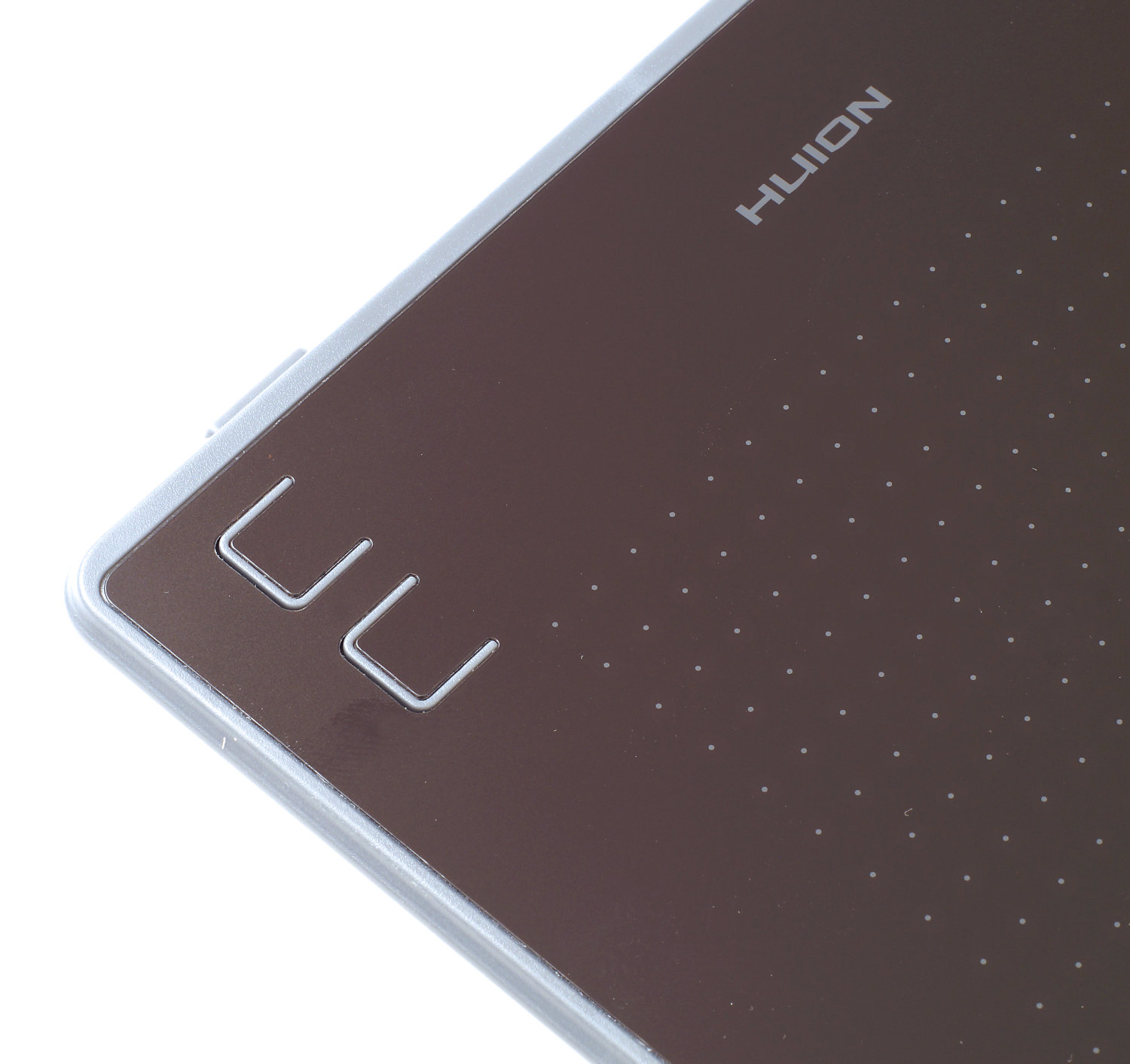
Толщина планшета сравнительно небольшая (~7 мм). Девайс подключаетсяк компьютеручерез порт micro USB, размещенный в широком торце вверху.

С обратной стороны размещена наклейка с информацией о модели Huion H30P, производителе, дате изготовления и серийном номере.
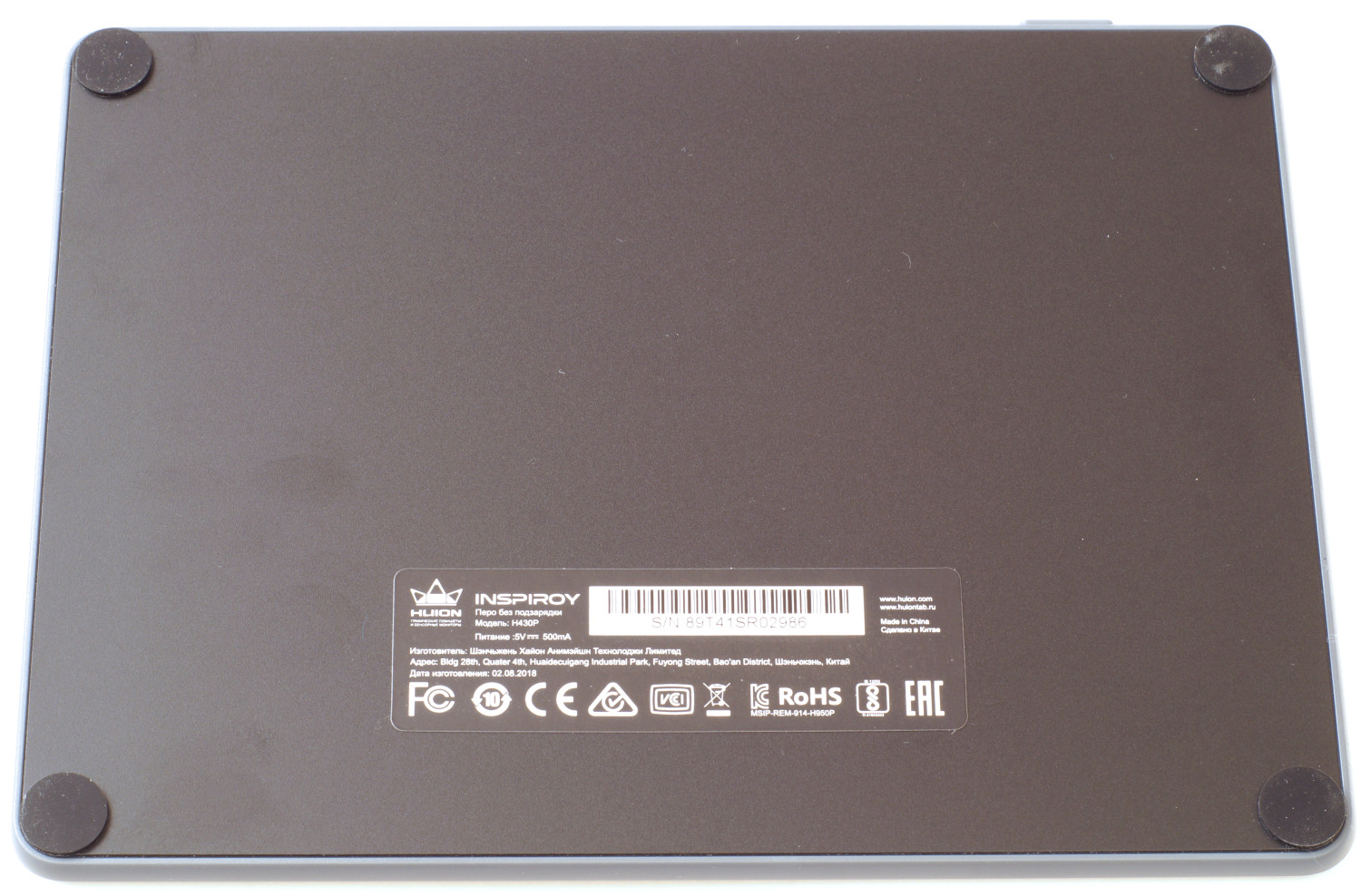
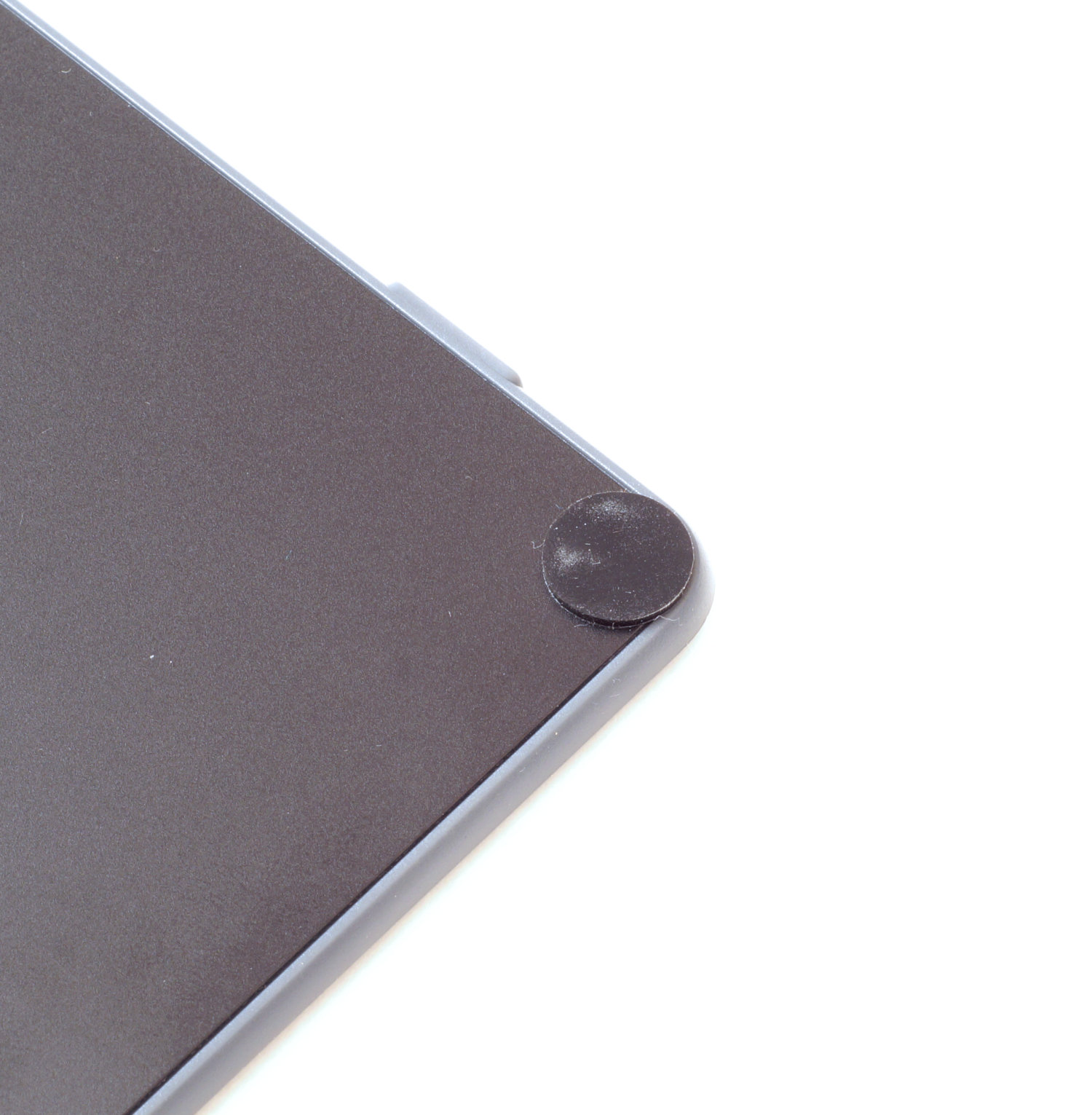
По краям наклеены мягкие ножки, но их размер небольшой и есть определенные сомнения в надежной фиксации.
В основе рабочей поверхности планшета лежит технология электромагнитного резонанса, поэтому применяется модель пера PW100, не требующая элементов питания. Корпус последнего полностью выполнен из пластика; весит перо всего 13 грамм.
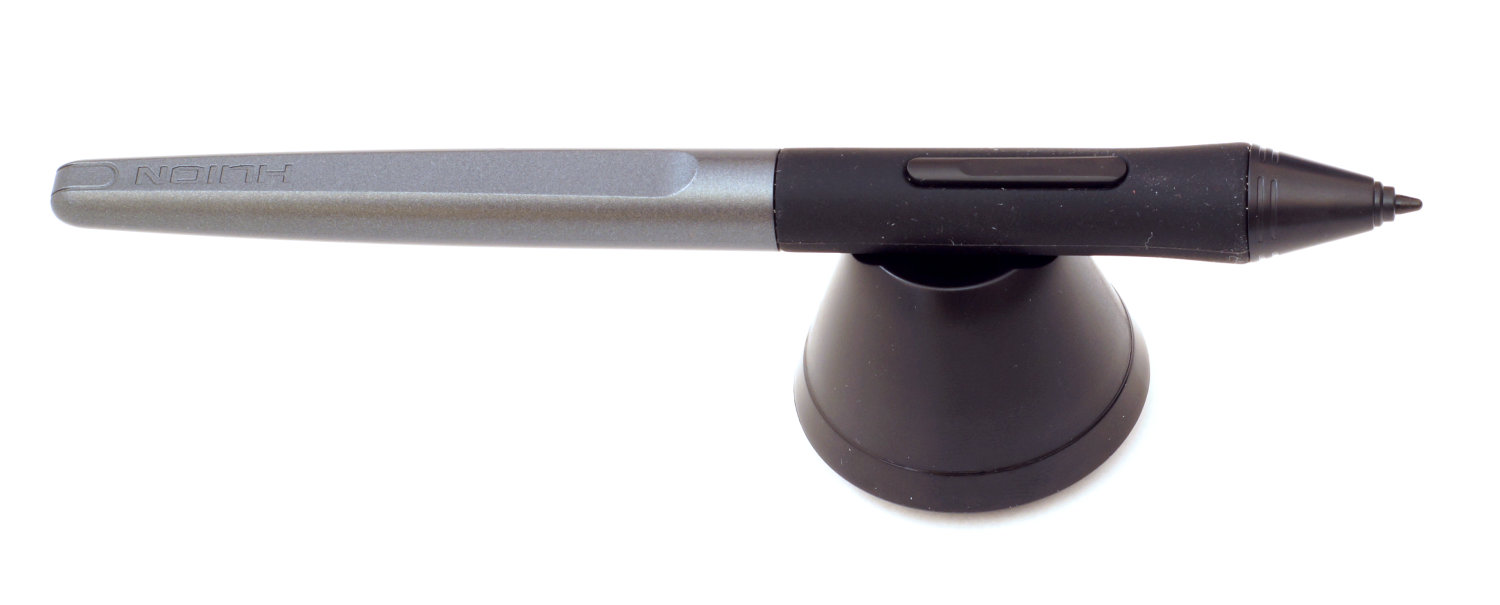
Область хвата у пера утолщена и имеет софт-тач покрытие, которое будет легко собирать частички пыли. Причем в этой же области размещены две кнопки, которые тактильно отличаются друг от друга (одна выше, другая ниже).

Программное обеспечение
Для использования всех возможностей графического планшета Huion H430P необходимо установить утилиту Huion Tablet. Ее придется скачать с сайта производителя.
Интерфейс программы русскоязычный и состоит из четырех основных разделов:
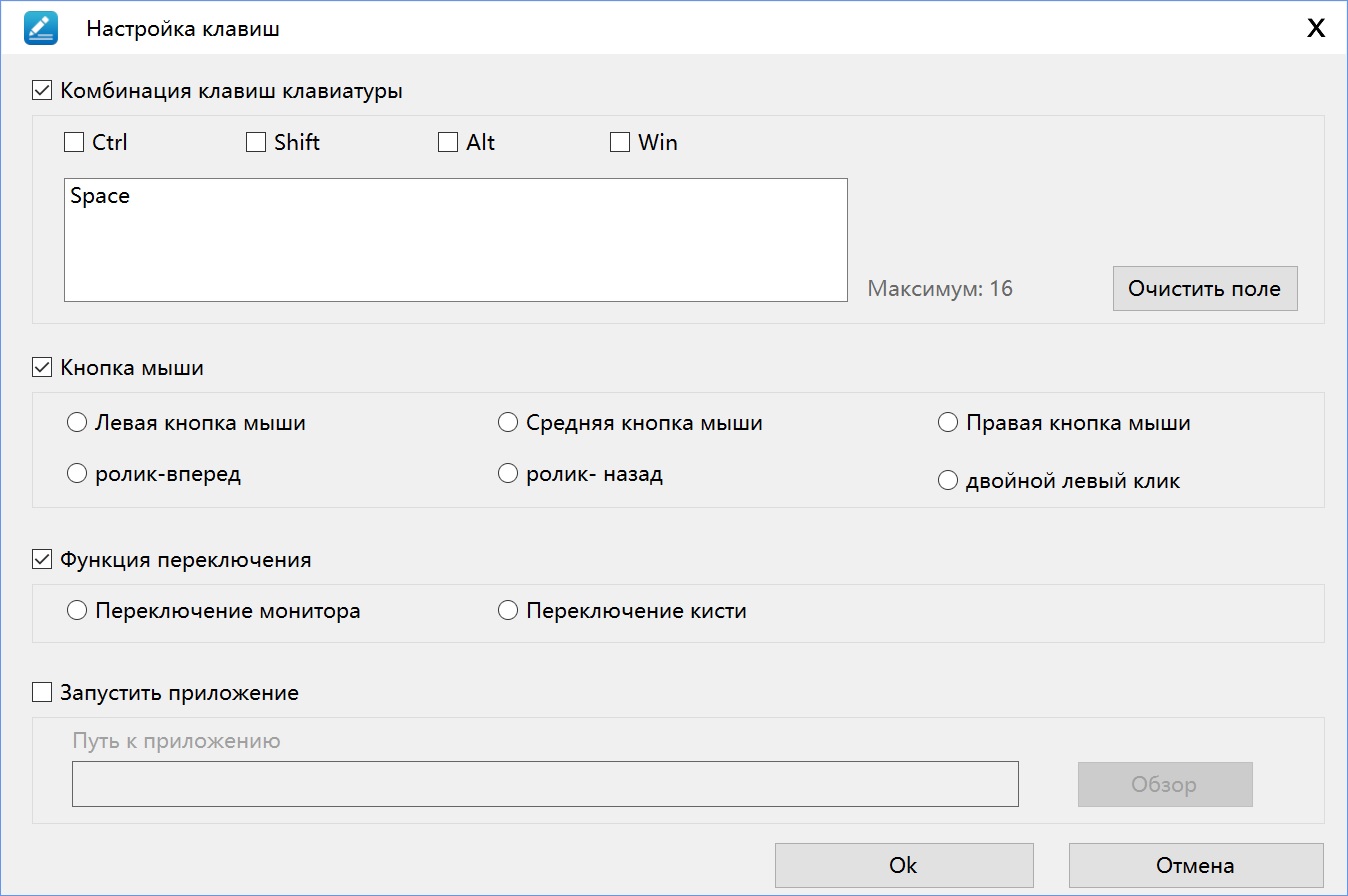
1. «Настройка клавиш Express Key». По умолчанию каждой из клавиш назначено действие и, естественно, их можно переназначить.
2. Также возможно «запрограммировать» действия на две кнопки пера. Это делается через раздел «Настройки ручки». Здесь же настраивается чувствительность и можно провести тест.
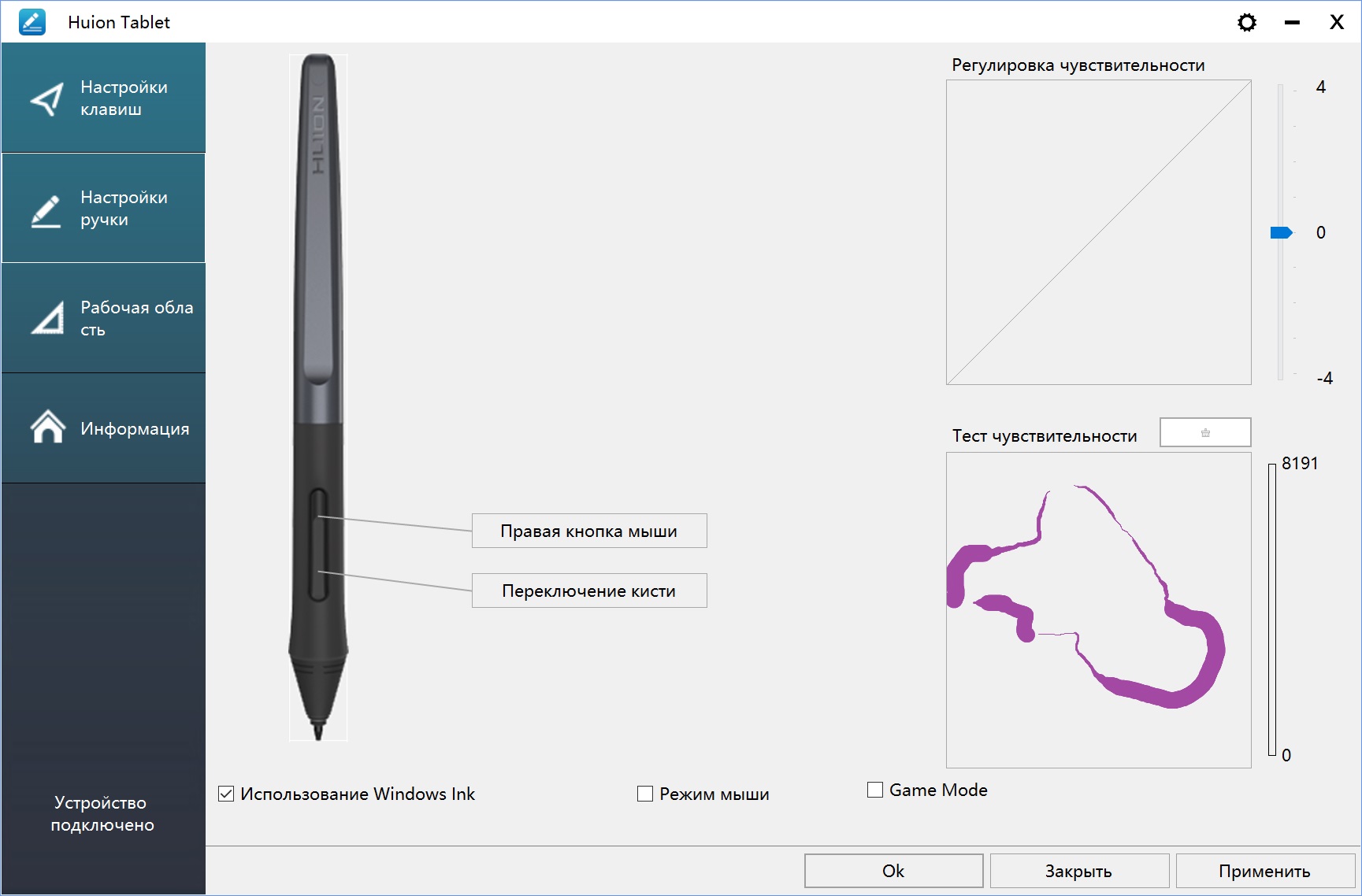
Причем и на экспресс-клавиши, и на кнопки пера можно назначать несколько различных действий.
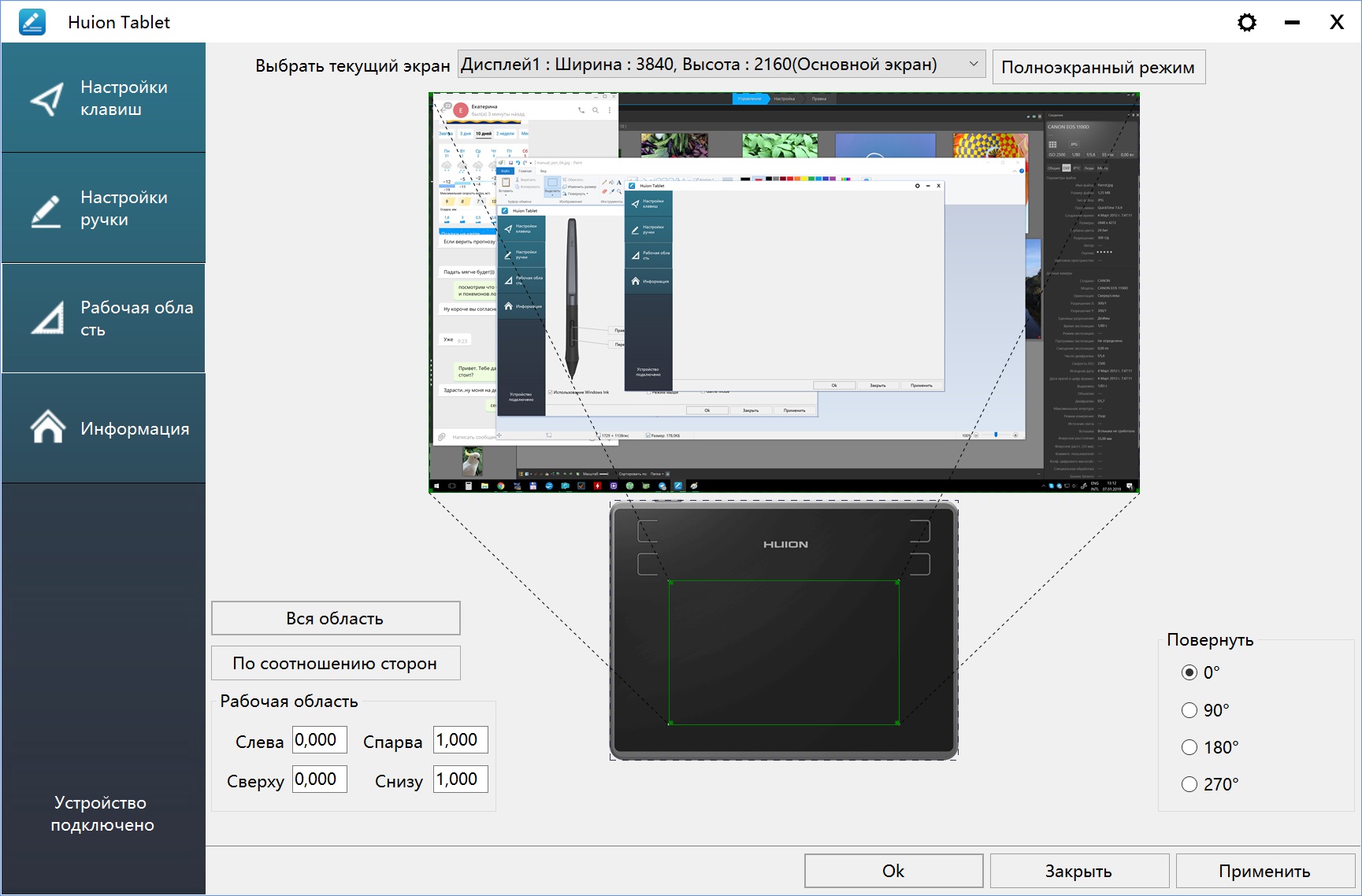
3. В разделе «Рабочая область» привязываем работу планшета к определенному монитору, задаем область и, если необходимо, поворачиваем ее на угол, кратный 90 градусам.
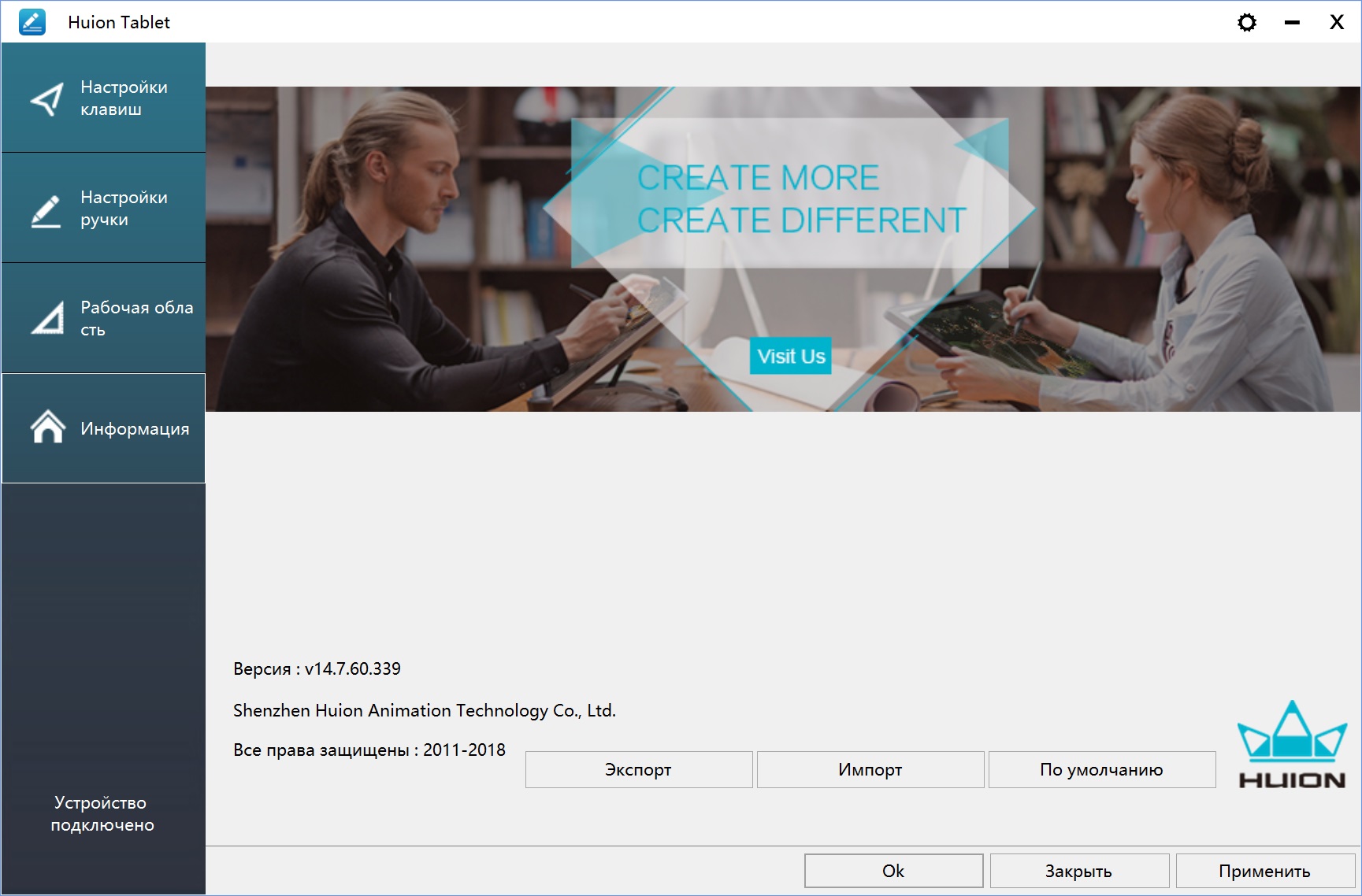
4. Раздел «Информация» указывает на версию утилиты и через него можно сохранять/загружать профили.
Еще стоит сказать, что в интерфейсевнизупри первом запускепоявится кнопка «права администратора». Ее придется активировать для некоторых приложений, если перо сразу не заработает.
Работа с графическим планшетом
Эргономика. За счет размеров на столе графический планшет Huion H430P не занимает много места, и это могут оценить пользователи с ограниченным рабочим пространством. Обратная сторона – рабочая область планшета небольшая, поэтому потребуется более точный контроль пера и/или придется чаще масштабировать изображение. На столе планшет фиксируется неплохо, но немного усугубляет ситуацию наличие в нашем экземпляре диагональной неровности, когда один из краев провисает. Естественно, это может сказаться на точности рисования.
На наш взгляд, кнопки Express Key на корпусе расположены не совсем удачно, так как они разнесены между собой на приличное расстояние. В случае, если потребуется доступ ко всем кнопкам правше/левше, то придется совершать длинный ход руки к «противоположной» паре кнопок, и это при длительной работе может напрягать.
Подключается планшет к компьютеру с помощью кабеля USB длиной 1,5 метра. В случае с ноутбуком длины хватает, чтобы провести его за корпусом. Если же подключать к системному блоку, то длины может не хватить в зависимости от местоположения компьютера, стола и рабочей руки пользователя.
Само перо легкое, с эргономичной формой, и пользоваться им/«держать на весу» удобно, но в работе есть нюанс – кончик пера пружинит, поэтому к этой особенности придется привыкать. В очередной раз отметим (по предыдущим обзорам планшетов Huion), что удобной функции ластика на конце пера нет, поэтому придется задействовать одну из экспресс-клавиш.
Использование. Поверхность планшета гладкая и устойчивая к царапинам, хотя с течением времени следы от перемещений пера будут заметны. Перемещения пера по поверхности плавные, без рывков. На экране все отображается без существенных запаздываний. Высокая чувствительность (до 8192 уровней) позволяет получить нужную толщину линий, хотя для достижения «минимальной» толщины к работе планшета придется привыкать (напомним про пружинящий эффект пера).
В обзоре графического планшета Huion H950P мы отмечали, что одновременное нажатие кнопки пера и перемещение по поверхности невозможно. В Huion H430P все работает, и это приятно радует.
С точки зрения программного обеспечения, есть определенное неудобство в его использовании. Например, при стандартных настройках системыв приложении Adobe Photoshopпотребуется каждый раз нажимать кнопку «права администратора» в утилите Huion Tablet, в противном случае графический планшет/перо не работает, хотя с другими графическими редакторами этого делать не нужно (Corel PaintShop, Paint 3D, Paint). С планшетом от Wacom такого действия не требовалось.
Заметим, что графический планшет не поддерживает работу в качестве сенсорной панели (на нажатия/движение пальцем планшет не реагирует), как и отсутствует регистрация наклона пера, что соответствует бюджетному уровню, но всегда же хочется большего.
Примеры рисования на графическом планшете Huion H430P.
2. Также возможно «запрограммировать» действия на две кнопки пера. Это делается через раздел «Настройки ручки». Здесь же настраивается чувствительность и можно провести тест.
Причем и на экспресс-клавиши, и на кнопки пера можно назначать несколько различных действий.
3. В разделе «Рабочая область» привязываем работу планшета к определенному монитору, задаем область и, если необходимо, поворачиваем ее на угол, кратный 90 градусам.
4. Раздел «Информация» указывает на версию утилиты и через него можно сохранять/загружать профили.
Еще стоит сказать, что в интерфейсевнизупри первом запускепоявится кнопка «права администратора». Ее придется активировать для некоторых приложений, если перо сразу не заработает.
Работа с графическим планшетом
Эргономика. За счет размеров на столе графический планшет Huion H430P не занимает много места, и это могут оценить пользователи с ограниченным рабочим пространством. Обратная сторона – рабочая область планшета небольшая, поэтому потребуется более точный контроль пера и/или придется чаще масштабировать изображение. На столе планшет фиксируется неплохо, но немного усугубляет ситуацию наличие в нашем экземпляре диагональной неровности, когда один из краев провисает. Естественно, это может сказаться на точности рисования.
На наш взгляд, кнопки Express Key на корпусе расположены не совсем удачно, так как они разнесены между собой на приличное расстояние. В случае, если потребуется доступ ко всем кнопкам правше/левше, то придется совершать длинный ход руки к «противоположной» паре кнопок, и это при длительной работе может напрягать.
Подключается планшет к компьютеру с помощью кабеля USB длиной 1,5 метра. В случае с ноутбуком длины хватает, чтобы провести его за корпусом. Если же подключать к системному блоку, то длины может не хватить в зависимости от местоположения компьютера, стола и рабочей руки пользователя.
Само перо легкое, с эргономичной формой, и пользоваться им/«держать на весу» удобно, но в работе есть нюанс – кончик пера пружинит, поэтому к этой особенности придется привыкать. В очередной раз отметим (по предыдущим обзорам планшетов Huion), что удобной функции ластика на конце пера нет, поэтому придется задействовать одну из экспресс-клавиш.
Использование. Поверхность планшета гладкая и устойчивая к царапинам, хотя с течением времени следы от перемещений пера будут заметны. Перемещения пера по поверхности плавные, без рывков. На экране все отображается без существенных запаздываний. Высокая чувствительность (до 8192 уровней) позволяет получить нужную толщину линий, хотя для достижения «минимальной» толщины к работе планшета придется привыкать (напомним про пружинящий эффект пера).
В обзоре графического планшета Huion H950P мы отмечали, что одновременное нажатие кнопки пера и перемещение по поверхности невозможно. В Huion H430P все работает, и это приятно радует.
С точки зрения программного обеспечения, есть определенное неудобство в его использовании. Например, при стандартных настройках системыв приложении Adobe Photoshopпотребуется каждый раз нажимать кнопку «права администратора» в утилите Huion Tablet, в противном случае графический планшет/перо не работает, хотя с другими графическими редакторами этого делать не нужно (Corel PaintShop, Paint 3D, Paint). С планшетом от Wacom такого действия не требовалось.
Заметим, что графический планшет не поддерживает работу в качестве сенсорной панели (на нажатия/движение пальцем планшет не реагирует), как и отсутствует регистрация наклона пера, что соответствует бюджетному уровню, но всегда же хочется большего.
Примеры рисования на графическом планшете Huion H430P.
Выводы
Подводя итог можно сказать, что графический планшет Huion H430P лучше подойдет новичкам, которые только хотят познакомиться с компьютерной графикой, но не готовы тратиться на более дорогие девайсы.
Опытных пользователей планшет может привлечь своими компактными размерами, когда имеется ограниченное пространство на столе, но тогда стоит помнить, что функций продвинутых моделей Huion H430P не имеет (отсутствует наклон пера), да и размещение кнопок Express Key не самое удачное. В этом плане его можно рассматривать как «дорожный» вариант, который легко взять с собой.
В целом работа с Huion H430P будет удобной, в комплекте есть ссылка на видеоуроки, что облегчит процесс адаптации и позволит лучше понять возможности планшета. Перо достаточно легкое, с дополнительными насадкамии не требует подзарядки, так что рука при длительной работе не устанет.
Плюсы:
- Компактные размеры;
- Небольшой вес;
- Высокий уровень чувствительности (до 8192);
- Легкое перо не требующее подзарядки;
- Есть ссылка на уроки для рисования;
- Цена.
Минусы:
- Неудачное расположение кнопок Express Key;
- Не поддерживается наклон пера;
- Необходимость постоянной активации «режима администратора» в утилите Huion Tablet для некоторых графических приложений.
Особенности:
- Пружинит кончик пера (потребуется привыкание).
БлагодаримЕкатерину Харитонову и Татьяну Лютую за помощь в подготовке обзора.