
Manuals.eu
- Manuals.eu
- Gigabyte
- Computers & Peripherals
- Mainboards
- Socket 1155
- Intel B75
- GA-B75M-D3V (rev. 1.1)
- Manual
×
1
2
3
4
5
6
7
8
9
10
11
12
13
14
15
16
17
18
19
20
21
22
23
24
25
26
27
28
29
30
31
32
⟨
⟩
Copyright © Manuals.eu
Agreement
Privacy Policy
Contact us

GA-B75M-D3V
User’s Manual
Rev. 1104
12ME-B75MD3V-1104R

Motherboard
GA-B75M-D3V
Motherboard
GA-B75M-D3V
Mar. 23, 2012
Mar. 23, 2012
Copyright
© 2012 GIGA-BYTE TECHNOLOGY CO., LTD. All rights reserved.
The trademarks mentioned in this manual are legally registered to their respective owners.
Disclaimer
Information in this manual is protected by copyright laws and is the property of GIGABYTE.
Changes to the specications and features in this manual may be made by GIGABYTE without prior notice.
No part of this manual may be reproduced, copied, translated, transmitted, or published in any form or by
any means without GIGABYTE’s prior written permission.
In order to assist in the use of this product, carefully read the User’s Manual.
For product-related information, check on our website at: http://www.gigabyte.com
Identifying Your Motherboard Revision
The revision number on your motherboard looks like this: «REV: X.X.» For example, «REV: 1.0» means the
revision of the motherboard is 1.0. Check your motherboard revision before updating motherboard BIOS,
drivers, or when looking for technical information.
Example:

Table of Contents
GA-B75M-D3V Motherboard Layout …………………………………………………………………….4
GA-B75M-D3V Motherboard Block Diagram ………………………………………………………….5
Chapter 1 Hardware Installation ………………………………………………………………………….6
1-1 Installation Precautions ………………………………………………………………………… 6
1-2 Product Specications ………………………………………………………………………….. 7
1-3 Installing the CPU ……………………………………………………………………………….. 9
1-4 Installing the Memory …………………………………………………………………………… 9
1-5 Installing an Expansion Card ………………………………………………………………. 10
1-6 Back Panel Connectors ………………………………………………………………………. 10
1-7 Internal Connectors ……………………………………………………………………………. 11
Chapter 2 BIOS Setup ……………………………………………………………………………………..16
2-1 Startup Screen ………………………………………………………………………………….. 16
2-2 M.I.T. ……………………………………………………………………………………………….. 17
2-4 System …………………………………………………………………………………………….. 20
2-4 BIOS Features ………………………………………………………………………………….. 21
2-5 Peripherals ……………………………………………………………………………………….. 23
2-6 Power Management …………………………………………………………………………… 25
2-7 Save & Exit ……………………………………………………………………………………….. 27
Chapter 3 Drivers Installation …………………………………………………………………………….28
Regulatory Statements …………………………………………………………………………………. 29
— 3 —
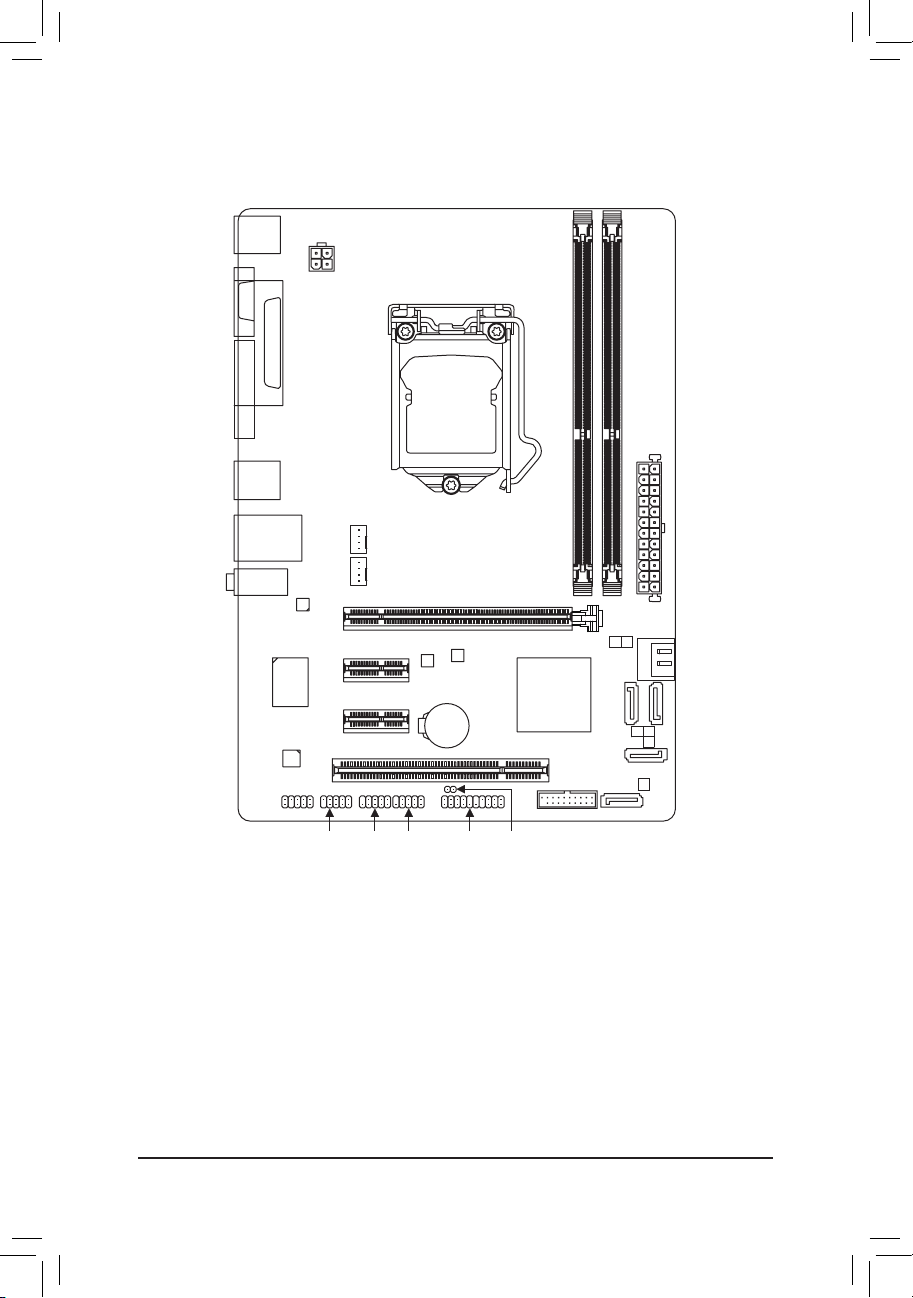
GA-B75M-D3V Motherboard Layout
KB_MS_USB
VGADVI
R_USB30
USB_LAN
AUDIO
LPT
Realtek
GbE LAN
iTE
CODEC
F_AUDIO
ATX_12V
Super I/O
PCIEX16
PCIEX1_1
PCIEX1_2
PCI
F_USB2 F_USB1 F_PANELCOM
SYS_FAN
CPU_FAN
LGA1155
B_BIOS
BAT
GA-B75M-D3V
M_BIOS
Intel® B75
CLR_CMOS
DDR3_1
F_USB30
SATA 2
SATA 2
SATA 2 1
DDR3_2
ATX
SATA 3 0
2
5
4 3
Box Contents
5 GA-B75M-D3V motherboard
5 Motherboard driver disk 5 Two SATA cables
5 User’s Manual 5 I/O Shield
The box contents above are for reference only and the actual items shall depend on the product package you obtain.
The box contents are subject to change without notice.
— 4 —
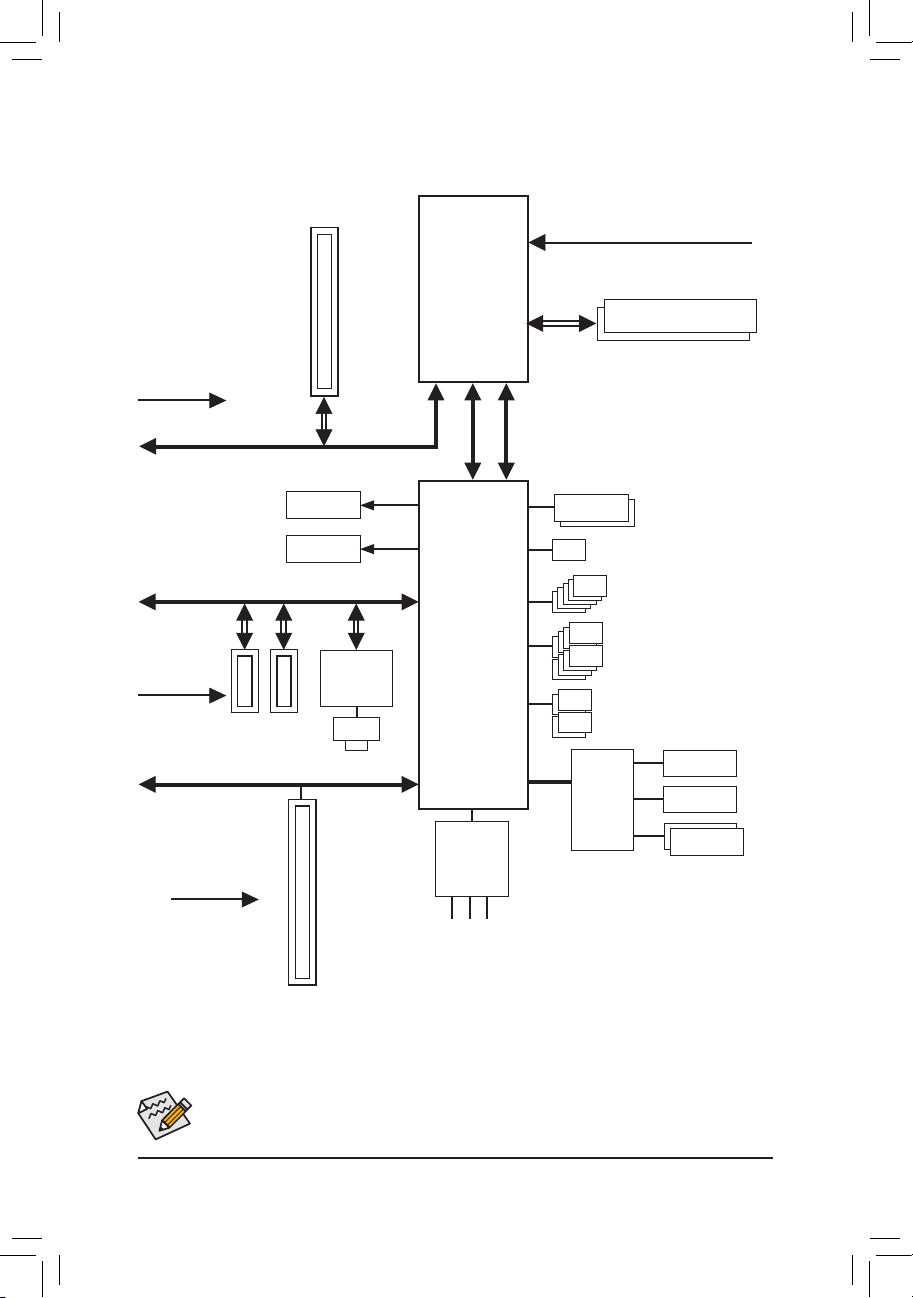
GA-B75M-D3V Motherboard Block Diagram
PCIe CLK
(100 MHz)
PCI Express Bus
PCI Express Bus
PCIe CLK
(100 MHz)
PCI Bus
1 PCI Express x16
x1x1 x1
2 PCI Express x1
D-Sub
DVI-D
x16
Realtek
GbE LAN
RJ45
LAN
LGA1155
CPU
Intel® B75
DMI 2.0
CPU CLK+/- (100 MHz)
FDI
Dual BIOS
LPC
Bus
Super I/O
DDR3 1600/1333/1066 MHz
Dual Channel Memory
1 SATA 6Gb/s
5 SATA 3Gb/s
8 USB 2.0/1.1
4 USB 3.0/2.0
LPT
iTE
COM
PCI CLK
(33 MHz)
1 PCI
For detailed product information/limitation(s), refer to «1-2 Product Specications.»
CODEC
Speaker Out)
MIC (Center/Subwoofer
Line In (Rear Speaker Out)
Line Out (Front Speaker Out)
— 5 —
PS/2 KB/Mouse

Chapter 1 Hardware Installation
1-1 Installation Precautions
The motherboard contains numerous delicate electronic circuits and components which can become
damaged as a result of electrostatic discharge (ESD). Prior to installation, carefully read the user’s
manual and follow these procedures:
• Prior to installation, make sure the chassis is suitable for the motherboard.
• Prior to installation, do not remove or break motherboard S/N (Serial Number) sticker or
warranty sticker provided by your dealer. These stickers are required for warranty validation.
• Always remove the AC power by unplugging the power cord from the power outlet before
installing or removing the motherboard or other hardware components.
• When connecting hardware components to the internal connectors on the motherboard, make
sure they are connected tightly and securely.
• When handling the motherboard, avoid touching any metal leads or connectors.
• It is best to wear an electrostatic discharge (ESD) wrist strap when handling electronic
components such as a motherboard, CPU or memory. If you do not have an ESD wrist strap,
keep your hands dry and rst touch a metal object to eliminate static electricity.
• Prior to installing the motherboard, please have it on top of an antistatic pad or within an
electrostatic shielding container.
• Before unplugging the power supply cable from the motherboard, make sure the power supply
has been turned off.
• Before turning on the power, make sure the power supply voltage has been set according to
the local voltage standard.
• Before using the product, please verify that all cables and power connectors of your hardware
components are connected.
• To prevent damage to the motherboard, do not allow screws to come in contact with the
motherboard circuit or its components.
• Make sure there are no leftover screws or metal components placed on the motherboard or
within the computer casing.
• Do not place the computer system on an uneven surface.
• Do not place the computer system in a high-temperature environment.
• Turning on the computer power during the installation process can lead to damage to system
components as well as physical harm to the user.
• If you are uncertain about any installation steps or have a problem related to the use of the
product, please consult a certied computer technician.
— 6 —

1-2 ProductSpecications
CPU Support for Intel® Core™ i7 processors/Intel® Core™ i5 processors/
Intel® Core™ i3 processors/Intel® Pentium® processors/Intel® Celeron® processors
in the LGA1155 package
(Go to GIGABYTE’s website for the latest CPU support list.)
L3 cache varies with CPU
Chipset Intel® B75 Express Chipset
Memory 2 x 1.5V DDR3 DIMM sockets supporting up to 16 GB of system memory
* Due to a Windows 32-bit operating system limitation, when more than 4 GB of physical
memory is installed, the actual memory size displayed will be less than the size of
the physical memory installed.
Dual channel memory architecture
Support for DDR3 1600/1333/1066 MHz memory modules
* To support DDR3 1600 MHz, you must install an Intel 22nm (Ivy Bridge) CPU.
Support for non-ECC memory modules
Support for Extreme Memory Prole (XMP) memory modules
* To support XMP memory, you must install an Intel 22nm (Ivy Bridge) CPU.
(Go to GIGABYTE’s website for the latest supported memory speeds and memory
modules.)
Onboard
Graphics
Integrated Graphics Processor:
— 1 x D-Sub port
— 1 x DVI-D port, supporting a maximum resolution of 1920×1200
* The DVI-D port does not support D-Sub connection by adapter.
Audio Realtek ALC887 codec
High Denition Audio
2/4/5.1/7.1-channel
* To congure 7.1-channel audio, you have to use an HD front panel audio module
and enable the multi-channel audio feature through the audio driver.
LAN Realtek GbE LAN chip (10/100/1000 Mbit)
Expansion Slots 1 x PCI Express x16 slot, running at x16
(The PCI Express x16 slot conforms to PCI Express 3.0 standard.)
* Whether PCI Express 3.0 is supported depends on CPU and graphics card compat-
ibility.
2 x PCI Express x1 slots
(All PCI Express x1 slots conform to PCI Express 2.0 standard.)
1 x PCI slot
Storage Interface Chipset:
— 1 x SATA 6Gb/s connector (SATA3 0) supporting up to 1 SATA 6Gb/s device
— 5 x SATA 3Gb/s connectors (SATA2 1~5) supporting up to 5 SATA 3Gb/s
devices
USB Chipset:
— Up to 4 USB 3.0/2.0 ports (2 ports on the back panel, 2 ports available through
the internal USB header)
* In Windows XP, the Intel USB 3.0 ports can support up to USB 2.0 transfer speed.
— Up to 8 USB 2.0/1.1 ports (4 ports on the back panel, 4 ports available through
the internal USB headers)
Internal
Connectors
1 x 24-pin ATX main power connector
1 x 4-pin ATX 12V power connector
1 x SATA 6Gb/s connector
5 x SATA 3Gb/s connectors
1 x CPU fan header
— 7 —
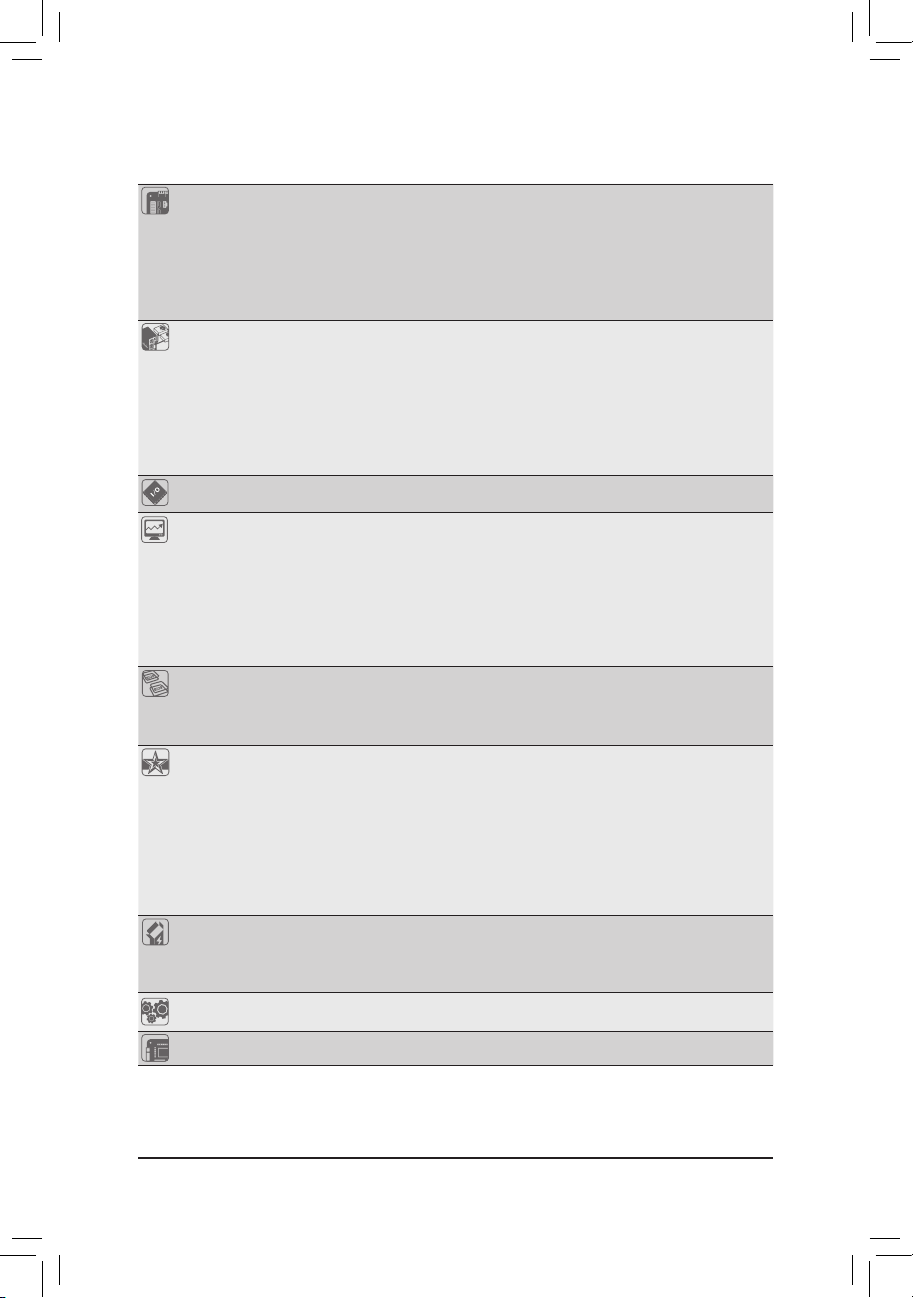
Internal
Connectors
1 x system fan header
1 x front panel header
1 x front panel audio header
1 x USB 3.0/2.0 header
2 x USB 2.0/1.1 headers
1 x serial port header
1 x Clear CMOS jumper
Back Panel
Connectors
1 x PS/2 keyboard/mouse port
1 x parallel port
1 x D-Sub port
1 x DVI-D port
2 x USB 3.0/2.0 ports
4 x USB 2.0/1.1 ports
1 x RJ-45 port
3 x audio jacks (Line In/Line Out/Microphone)
I/O Controller iTE I/O Controller Chip
Hardware
Monitor
System voltage detection
CPU/System temperature detection
CPU/System fan speed detection
CPU overheating warning
CPU/System fan fail warning
CPU/System fan speed control
* Whether the CPU/system fan speed control function is supported will depend on the
CPU/system cooler you install.
BIOS 2 x 64 Mbit ash
Use of licensed AMI EFI BIOS
Support for DualBIOS
™
PnP 1.0a, DMI 2.0, SM BIOS 2.6, ACPI 2.0a
Unique Features Support for @BIOS
Support for Q-Flash
Support for Xpress Install
Support for Xpress Recovery2
Support for EasyTune
* Available functions in EasyTune may differ by motherboard model.
Support for Auto Green
Support for ON/OFF Charge
Support for Q-Share
Bundled
Software
Norton Internet Security (OEM version)
Intel® Rapid Start Technology
Intel® Smart Connect Technology
Intel® Small Business Advantage
Operating
System
Support for Microsoft® Windows 8/7/XP
Form Factor Micro ATX Form Factor; 24.4cm x 17.4cm
* GIGABYTE reserves the right to make any changes to the product specications and product-related information without
prior notice.
* Please visit the Support & Downloads\Utility page on GIGABYTE’s website to check the supported operating system(s)
for the software listed in the «Unique Features» and «Bundled Software» columns.
— 8 —

1-3 Installing the CPU
Read the following guidelines before you begin to install the CPU:
• Make sure that the motherboard supports the CPU.
(Go to GIGABYTE’s website for the latest CPU support list.)
• Always turn off the computer and unplug the power cord from the power outlet before installing the
CPU to prevent hardware damage.
• Locate the pin one of the CPU. The CPU cannot be inserted if oriented incorrectly. (Or you may
locate the notches on both sides of the CPU and alignment keys on the CPU socket.)
• Apply an even and thin layer of thermal grease on the surface of the CPU.
• Do not turn on the computer if the CPU cooler is not installed, otherwise overheating and damage
of the CPU may occur.
• Set the CPU host frequency in accordance with the CPU specications. It is not recommended
that the system bus frequency be set beyond hardware specications since it does not meet the
standard requirements for the peripherals. If you wish to set the frequency beyond the standard
specications, please do so according to your hardware specications including the CPU, graphics
card, memory, hard drive, etc.
Installing the CPU
Locate the alignment keys on the motherboard CPU socket and the notches on the CPU.
LGA1155 CPU Socket
LGA1155 CPU
Pin One Corner of the CPU Socket
Alignment KeyAlignment Key
Notch
Triangle Pin One Marking on the CPU
Notch
1-4 Installing the Memory
Read the following guidelines before you begin to install the memory:
• Make sure that the motherboard supports the memory. It is recommended that memory of the
same capacity, brand, speed, and chips be used.
(Go to GIGABYTE’s website for the latest supported memory speeds and memory modules.)
• Always turn off the computer and unplug the power cord from the power outlet before installing the
memory to prevent hardware damage.
• Memory modules have a foolproof design. A memory module can be installed in only one direction.
If you are unable to insert the memory, switch the direction.
DualChannelMemoryConguration
This motherboard provides two DDR3 memory sockets and supports Dual Channel Technology. After the memory
is installed, the BIOS will automatically detect the specications and capacity of the memory. Enabling Dual
Channel memory mode will double the original memory bandwidth.
The two DDR3 memory sockets are divided into two channels and each channel has one memory socket as
following:
Channel A: DDR3_1
Channel B: DDR3_2
Due to CPU limitations, read the following guidelines before installing the memory in Dual Channel mode.
1. Dual Channel mode cannot be enabled if only one DDR3 memory module is installed.
2. When enabling Dual Channel mode with two memory modules, it is recommended that memory of
the same capacity, brand, speed, and chips be used for optimum performance.
— 9 —
1-5 Installing an Expansion Card
Read the following guidelines before you begin to install an expansion card:
• Make sure the motherboard supports the expansion card. Carefully read the manual that came
with your expansion card.
• Always turn off the computer and unplug the power cord from the power outlet before installing an
expansion card to prevent hardware damage.
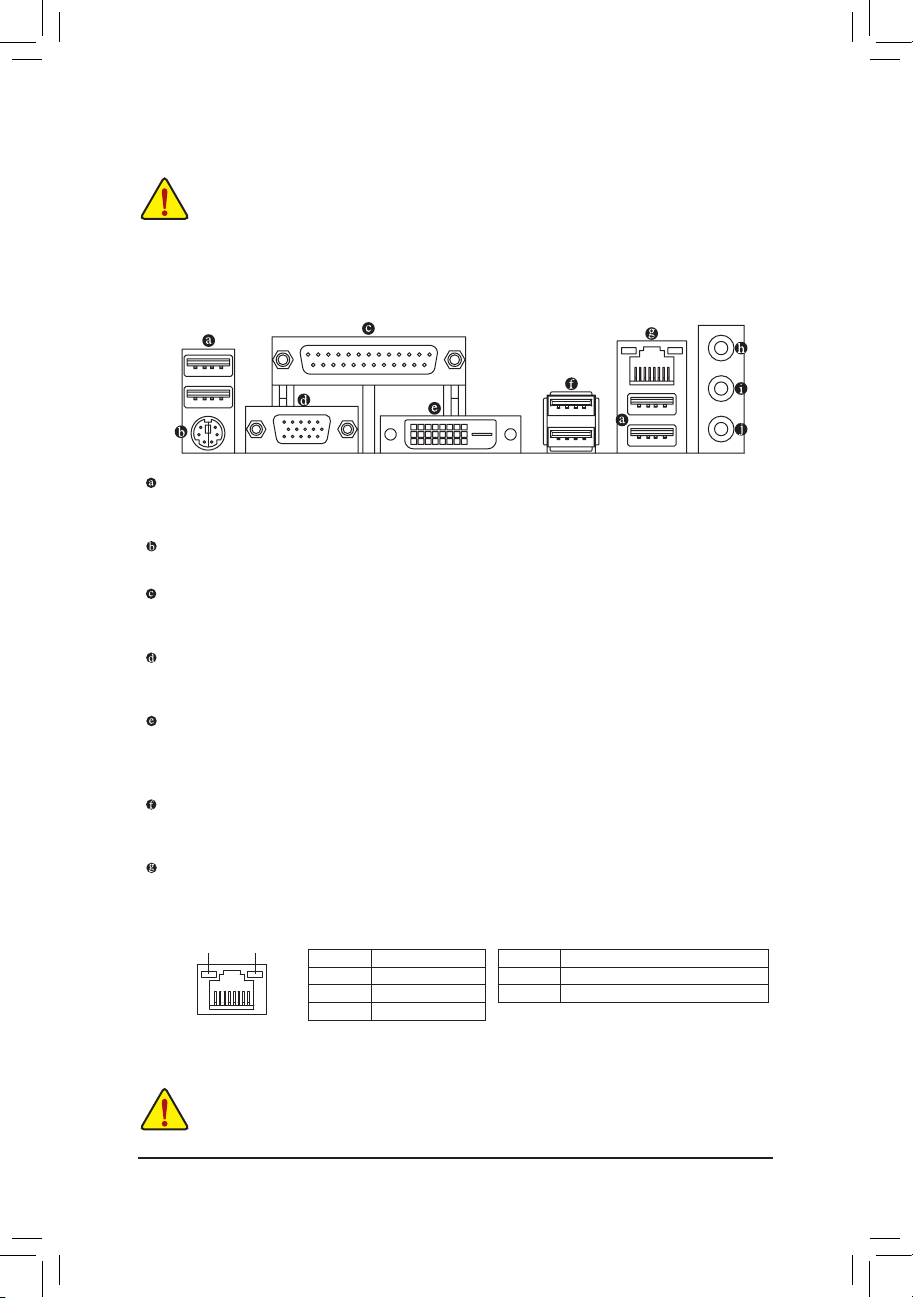
1-6 Back Panel Connectors
USB 2.0/1.1 Port
The USB port supports the USB 2.0/1.1 specication. Use this port for USB devices such as a USB
keyboard/mouse, USB printer, USB ash drive and etc.
PS/2 Keyboard/Mouse Port
Use this port to connect a PS/2 mouse or keyboard.
Parallel Port
Use the parallel port to connect devices such as a printer, scanner and etc. The parallel port is also called
a printer port.
D-Sub Port
The D-Sub port supports a 15-pin D-Sub connector. Connect a monitor that supports D-Sub connection
to this port.
DVI-D Port
The DVI-D port conforms to the DVI-D specication and supports a maximum resolution of 1920×1200
(the actual resolutions supported depend on the monitor being used). Connect a monitor that supports
DVI-D connection to this port.
USB 3.0/2.0 Port
The USB 3.0 port supports the USB 3.0 specication and is compatible to the USB 2.0/1.1 specication.
Use this port for USB devices such as a USB keyboard/mouse, USB printer, USB ash drive and etc.
RJ-45 LAN Port
The Gigabit Ethernet LAN port provides Internet connection at up to 1 Gbps data rate. The following
describes the states of the LAN port LEDs.
Connection/
Speed LED
LAN Port
(Note)
Activity LED
State Description
Orange 1 Gbps data rate
Green 100 Mbps data rate
Off 10 Mbps data rate
Activity LED:Connection/Speed LED:
State Description
Blinking Data transmission or receiving is occurring
Off No data transmission or receiving is occurring
(Note) The DVI-D port does not support D-Sub connection by adapter.
• When removing the cable connected to a back panel connector, rst remove the cable from your
device and then remove it from the motherboard.
• When removing the cable, pull it straight out from the connector. Do not rock it side to side to prevent
an electrical short inside the cable connector.
— 10 —
Loading…
Table of Contents
- Gigabyte GA-B75M-D3V Intel B75 Express Chipset Motherboard
- Introduction
- Specifications
- FAQs
- User Manual
- Read User Manual Online (PDF format)
- Download This Manual (PDF format)

Gigabyte GA-B75M-D3V Intel B75 Express Chipset Motherboard

Introduction
A micro-ATX motherboard with lots of features, the Gigabyte GA-B75M-D3V is
compatible with the Intel B75 Express chipset family. This motherboard
provides a sturdy foundation for cost-conscious computer setups and is made to
support Intel’s 2nd and 3rd generation Core processors. It can support a broad
variety of CPU alternatives because to its LGA1155 socket, making it adaptable
for different computing requirements.
Strong connectivity choices are offered by the GA-B75M-D3V, including PCI
Express slots for expansion, SATA 6Gb/s, and USB 3.0. Additionally, it
includes Gigabyte’s Ultra Durable 4 Classic technology, which guarantees
consistent and dependable performance. This motherboard strikes a fantastic
balance between price, usability, and performance whether you’re constructing
a home office PC or a budget gaming setup.
Specifications
- Brand: Gigabyte
- Model: GA-B75M-D3V
- Form Factor: Micro-ATX
- Socket: LGA1155
- Chipset: Intel B75 Express
- Memory: 2 x DDR3 DIMM slots, up to 32GB (Supports 1600/1333/1066 MHz)
- Expansion Slots: 1 x PCIe x16, 1 x PCIe x1, 1 x PCI
- Storage: 1 x SATA 6Gb/s, 5 x SATA 3Gb/s
- USB Ports: 4 x USB 3.0 (2 front, 2 rear), 8 x USB 2.0 (4 front, 4 rear)
- Graphics: DVI-D and D-Sub (VGA) outputs
- Audio: Realtek ALC887 7.1-channel HD Audio
- LAN: Realtek GbE LAN
- Other Features: Ultra Durable 4 Classic technology
- Power Delivery: 4+1 Phase VRM
- BIOS: Dual UEFI BIOS
- OS Support: Windows 8/7/Vista/XP
FAQs
What is the Gigabyte GA-B75M-D3V motherboard?
The Gigabyte GA-B75M-D3V is a motherboard designed for Intel processors. It
features the Intel B75 Express chipset and is suitable for building or
upgrading desktop computers.
What socket type does this motherboard use?
The motherboard typically uses the LGA1155 socket, which is compatible with
2nd and 3rd generation Intel Core processors.
What form factor is the motherboard?
The motherboard typically comes in the Micro ATX (mATX) form factor, making it
suitable for compact desktop computer builds.
How many RAM slots are available on this motherboard?
The motherboard often provides 4 DDR3 DIMM slots, allowing you to install up
to 32GB of RAM, depending on the memory module capacity.
What storage options are available on the motherboard?
The motherboard typically features SATA connectors for connecting hard drives
and solid-state drives. It may also include other storage interfaces.
Does the motherboard support USB 3.0?
Yes, the motherboard often supports USB 3.0, providing faster data transfer
speeds for compatible devices.
What graphics options are available on the motherboard?
The motherboard typically includes integrated graphics support, allowing you
to connect a monitor directly to the motherboard. It may also have PCIe slots
for discrete graphics cards.
Is this motherboard suitable for gaming?
While the motherboard can support gaming when paired with a compatible
graphics card, it’s not designed for high-end gaming. It’s better suited for
general computing and office tasks.
What expansion slots are available on the motherboard?
The motherboard typically includes PCIe x16 slots for graphics cards and other
PCIe devices. It may also feature PCIe x1 slots for additional expansion
cards.
Is Wi-Fi or Bluetooth support included on the motherboard?
The motherboard often doesn’t include built-in Wi-Fi or Bluetooth support. You
may need to use separate expansion cards for these features.
What is the warranty for the Gigabyte GA-B75M-D3V motherboard?
The Gigabyte GA-B75M-D3V motherboard typically comes with a warranty of 3
years from the date of purchase.
Is this motherboard energy-efficient?
The motherboard is often designed to be energy-efficient, helping reduce power
consumption and heat generation during operation.
User Manual
References:Gigabyte GA-B75M-D3V Intel B75 Express Chipset Motherboard –
Device.report
Read User Manual Online (PDF format)
Read User Manual Online (PDF format) >>
Download This Manual (PDF format)
Download this manual >>
-
Драйверы
41
-
Инструкции по эксплуатации
20
Языки:
Gigabyte GA-B75M-D3V инструкция по эксплуатации
(72 страницы)
- Языки:Венгерский, Греческий, Испанский, Итальянский, Немецкий, Польский, Португальский, Русский, Турецкий, Французский, Чешский
-
Тип:
PDF -
Размер:
18.6 MB -
Описание:
Installation Guidebook
На NoDevice можно скачать инструкцию по эксплуатации для Gigabyte GA-B75M-D3V. Руководство пользователя необходимо для ознакомления с правилами установки и эксплуатации Gigabyte GA-B75M-D3V. Инструкции по использованию помогут правильно настроить Gigabyte GA-B75M-D3V, исправить ошибки и выявить неполадки.
 F_PANEL (Front Panel Header)
Connect the power switch, reset switch, speaker, chassis intrusion switch/sensor and system status indicator
on the chassis to this header according to the pin assignments below. Note the positive and negative pins
before connecting the cables.
F_AUDIO(H)
MSG/PWR
(Message/Power/Sleep LED):
•
System Status
S0
DB_PORT
S1
S3/S4/S5
PW
(Power Switch):
•
Connects to the power switch on the chassis front panel. You may configure the way to turn off your system
using the power switch (refer to Chapter 2, «BIOS Setup,» «Power Management,» for more information).
Voltage measurement module(X58A-OC)
SPEAK
(Speaker):
•
Connects to the speaker on the chassis front panel. The system reports system startup status by issuing
a beep code. One single short beep will be heard if no problem is detected at system startup. If a problem
is detected, the BIOS may issue beeps in different patterns to indicate the problem.
HD
(Hard Drive Activity LED):
•
Connects to the hard drive activity LED on the chassis front panel. The LED is on when the hard drive is
PCIe power connector (SATA)(X58A-OC)
reading or writing data.
RES
(Reset Switch):
•
Connects to the reset switch on the chassis front panel. Press the reset switch to restart the computer if
the computer freezes and fails to perform a normal restart.
CI
(Chassis Intrusion Header):
•
Connects to the chassis intrusion switch/sensor on the chassis that can detect if the chassis cover has
been removed. This function requires a chassis with a chassis intrusion switch/sensor.
The front panel design may differ by chassis. A front panel module mainly consists of power switch,
reset switch, power LED, hard drive activity LED, speaker and etc. When connecting your chassis
front panel module to this header, make sure the wire assignments and the pin assignments are
matched correctly.
F_PANEL(NH)
Connects to the power status indicator on the chassis front panel. The LED is
LED
BIOS Switcher (X58A-OC)
on when the system is operating. The LED keeps blinking when the system
On
is in S1 sleep state. The LED is off when the system is in S3/S4 sleep state
Blinking
1
or powered off (S5).
Off
M_SATA
1
PWM Switch (X58A-OC)
3
2
1
DIP
DIP
1 2 3
— 17 —
Message/Power/
Power
Sleep LED
Switch
Speaker
2
20
1
19
Hard Drive
Reset
Power LED
Activity LED
Switch
Chassis Intrusion
Header
F_PANEL
(H61M-D2)
ACPI_CPT
(GA-IVB)
SMB_CPT
(GA-IVB)
CLR_CMOS
CI
DIS_ME
GP15_CPT
(GA-IVB)
XDP_CPU
XDP_PCH
(GA-IVB)